Nikon Eh 4 Users Manual
4 to the manual cbf4c119-346e-47bc-a0f2-50a14aec60cc
2015-01-26
: Nikon Nikon-Eh-4-Users-Manual-347591 nikon-eh-4-users-manual-347591 nikon pdf
Open the PDF directly: View PDF  .
.
Page Count: 161 [warning: Documents this large are best viewed by clicking the View PDF Link!]
Printed in Japan
SB5K00500101(11)
6MS50611--
En
User’s Manual
No reproduction in any form of this manual, in whole or in part (except for
brief quotation in critical articles or reviews), may be made without written
authorization from NIKON CORPORATION.
Ver. 4.4 (En)
Ver. 4.4

Notices
• No part of the manuals included with this prod-
uct may be reproduced, trans mit ted, tran scribed,
stored in a re triev al system, or trans lat ed into any
lan guage in any form, by any means, with out
Nikon’s prior writ ten per mis sion.
• Nikon reserves the right to change the spec i fi c-
a tions of the hardware and soft ware de scribed
in these manuals at any time and without prior
no tice.
• Nikon will not be held liable for any dam ag es
re sult ing from the use of this prod uct.
• While every effort has been made to en sure that
the information in these man u als is ac cu rate and
com plete, we would ap pre ci ate it were you to
bring any er rors or omis sions to the at ten tion
of the Nikon rep re sen ta tive in your area (ad dress
pro vid ed sep a rate ly).
Package Contents
Before using this product, check that the package contains the items listed below. Contact your retailer
or local Nikon representative should you fi nd that any of these items are missing or damaged.
• Nikon Capture 4 installer CD
• Nikon Capture 4 Install Guide
• Nikon Capture 4 User’s Manual (this manual)
• User registration card (USA only)
WARNING!
Do not play the Nikon Capture 4 installer CD on audio CD equip ment. Play ing a CD-ROM on
an audio CD play er could cause hear ing loss or dam age the equip ment.
Trademark Information
Macintosh and Mac OS are trade marks of Apple Computer, Inc. Microsoft and Win dows are reg is tered
trade marks of Microsoft Cor po ra tion. Pentium is a trade mark of Intel Cor po ra tion. Adobe and Photo-
shop are trademarks of Adobe Systems Inc. All oth er trade names men tioned in this man u al or in the
oth er doc u men ta tion pro vid ed with your Nikon prod uct are trade marks or reg is tered trade marks of their
re spec tive hold ers.
Make Backup Copies
Make backup copies of important pictures before processing. Nikon will not be held liable for damages
or lost profi ts that may result from product malfunction.

i
Table of Contents
Before You Begin: Introduction........................................................................................................ 1
Overview: About This Manual ......................................................................................................... 2
Principal Features: Features Available in Nikon Capture 4............................................................ 3
Nikon Capture 4 Editor ...................................................................................................................... 3
Nikon Capture 4 Camera Control....................................................................................................... 3
System Requirements: What You Need to Run Nikon Capture 4 ................................................. 5
Installation......................................................................................................................................... 5
Image Adjustment: Nikon Capture 4 Editor .................................................................................... 7
The Editor Window: Getting to Know Nikon Capture 4 Editor .................................................... 8
Starting Nikon Capture 4 Editor....................................................................................................... 10
Exiting Nikon Capture 4 Editor......................................................................................................... 12
Opening Image Files ........................................................................................................................ 13
Zoom............................................................................................................................................... 18
The Bird’s Eye Palette....................................................................................................................... 19
Rotating and Flipping Images........................................................................................................... 20
Selecting a Crop .............................................................................................................................. 22
The Information Palette ................................................................................................................... 23
The Histogram Palette ..................................................................................................................... 26
The Markers Palette......................................................................................................................... 27
Show Focus Area ............................................................................................................................. 28
Color Aberration Control................................................................................................................. 28
Image Adjustment: Enhancing Images ......................................................................................... 29
White Balance ................................................................................................................................. 33
Advanced RAW ............................................................................................................................... 39
Image Dust Off................................................................................................................................ 42
Vignette Control.............................................................................................................................. 46
Curves .............................................................................................................................................48
The LCH Editor................................................................................................................................. 57
Color Booster .................................................................................................................................. 63
Photo Effects ...................................................................................................................................64
Color Balance ..................................................................................................................................66
Unsharp Mask ................................................................................................................................. 68
Noise Reduction .............................................................................................................................. 71
D-Lighting....................................................................................................................................... 73
Red eye Correction .......................................................................................................................... 75
Fisheye Lens (Fisheye-to-Rectilinear Transform for DX 10.5 mm Fisheye Lenses) .............................. 77
Output Size and Resolution ............................................................................................................. 79
Saving and Loading Image Adjustment Settings .............................................................................. 82
Saving Images.................................................................................................................................. 83
Printing Images................................................................................................................................ 88
Batch Processing.............................................................................................................................. 92
Nikon Capture 4 Editor Preferences: Fine-Tuning Nikon Capture 4 Editor................................ 97
The General Tab .............................................................................................................................. 98
The Performance Tab..................................................................................................................... 100
The Temporary Files Tab................................................................................................................. 101
The Advanced Color Tab................................................................................................................ 102
The Grid Lines Tab ......................................................................................................................... 103
The Color Management Tab (Windows) ........................................................................................ 104
The Color Management Tab (Macintosh) ....................................................................................... 105

ii
Capturing Photographs: Nikon Capture 4 Camera Control ....................................................... 107
The Camera Control Window: Getting to Know Nikon Capture 4 Camera Control ............... 108
Starting Nikon Capture 4 Camera Control ......................................................................................110
Exiting Nikon Capture 4 Camera Control ........................................................................................111
Capturing Photographs to Disk .......................................................................................................112
Processing Photographs as They Are Captured ...............................................................................116
Time Lapse Photography................................................................................................................ 120
The Nikon Capture 4 Camera Control Window.............................................................................. 123
Custom Settings ............................................................................................................................ 135
Nikon Capture 4 Camera Control Preferences: Fine-Tuning Nikon Capture 4 Camera Control
... 137
The General Tab ............................................................................................................................ 137
The Temporary Files Tab................................................................................................................. 138
The Color Management Tab .......................................................................................................... 138
Technical Notes: Appendices ........................................................................................................ 139
Appendix A: Supported Color Profi les........................................................................................ 140
1. Standard RGB Profi les Supported in Nikon Capture 4................................................................. 140
2. Technical Data for RGB Profi les Supported in Nikon Capture 4 .................................................. 142
Appendix B: Color Matching in Adobe Photoshop (Version 7.0 or Later) ............................... 143
Step 1—Choosing a Monitor Profi le .............................................................................................. 143
Step 2—Adjusting Settings in Adobe Photoshop ........................................................................... 144
Appendix C: The Nikon NEF Plug-in ............................................................................................ 145
Appendix D: Troubleshooting...................................................................................................... 147
Appendix E: Glossary .................................................................................................................... 149
Index............................................................................................................................................... 155

1
Read this chapter before in stall ing and using Nikon Capture 4.
Overview
Read this section for a description of how this man u al is
or ga nized and for an ex pla na tion of the symbols and con-
ven tions used.
Principal Features
Read this section for an overview of the options available in
Nikon Capture 4.
System Requirements
Before installing Nikon Capture 4, check that your computer
system meets the requirements listed in this section.
Before You Begin
Introduction
2
Overview
Overview
About This Manual
This man u al has been written to help you take advantage of the many features included in
Nikon Capture 4 (Ver. 4.4). Be sure to read this manual thoroughly, and to keep it handy when
using Nikon Capture 4.
Symbols and Conventions
The following symbols and conventions are used in this manual:
Life-Long Learning
As part of Nikon’s “Life-Long Learning” commitment to ongoing product support and education, con-
tinually-updated information is available on-line at the following sites:
•For users in the U.S.A.: http://www.nikonusa.com/
•For users in Europe and Africa: http://www.europe-nikon.com/support
•For users in Asia, Oceania and the Middle East: http://www.nikon-asia.com/
Visit these sites to keep up-to-date with the latest product information, tips, answers to frequently-asked
questions (FAQs), and general advice on digital imaging and photography. Additional information may
be available from the Nikon representative in your area. See the URL below for contact information:
http://nikonimaging.com/
Background Knowledge
This manual assumes knowledge of operations common to Windows and Macintosh en vi -
ron ments. Refer to the documentation provided with your computer for more in for ma tion on
op er a tions specifi c to your operating system.
Illustrations
This manual is for use with both Windows and Macintosh versions of Nikon Capture 4. While
the majority of the illustrations in this manual show the Windows versions, save where oth-
er wise noted the operations described apply to both operating systems. Depending on the
operating system used, di a logs and menus may differ slightly from those shown here.
The ReadMe File
Be sure to read the ReadMe fi le on the Nikon Capture 4 installer CD, as it may contain im-
por tant information that could not be included in this manual.
Menu items and button names are shown in bold.
This icon indicates that more in for ma tion is
avail able else where in this manual.
This icon marks tips, ad di tion al in for ma tion
you may fi nd help ful when using this soft-
ware.
This icon marks notes, in for ma tion that you
should read be fore using this software.
This icon marks cautions, in for ma tion that you
should read be fore use to prevent possible
dam age to your camera or computer.

3
Features Available in Nikon Capture 4
Principal Features
Features Available in Nikon Capture 4
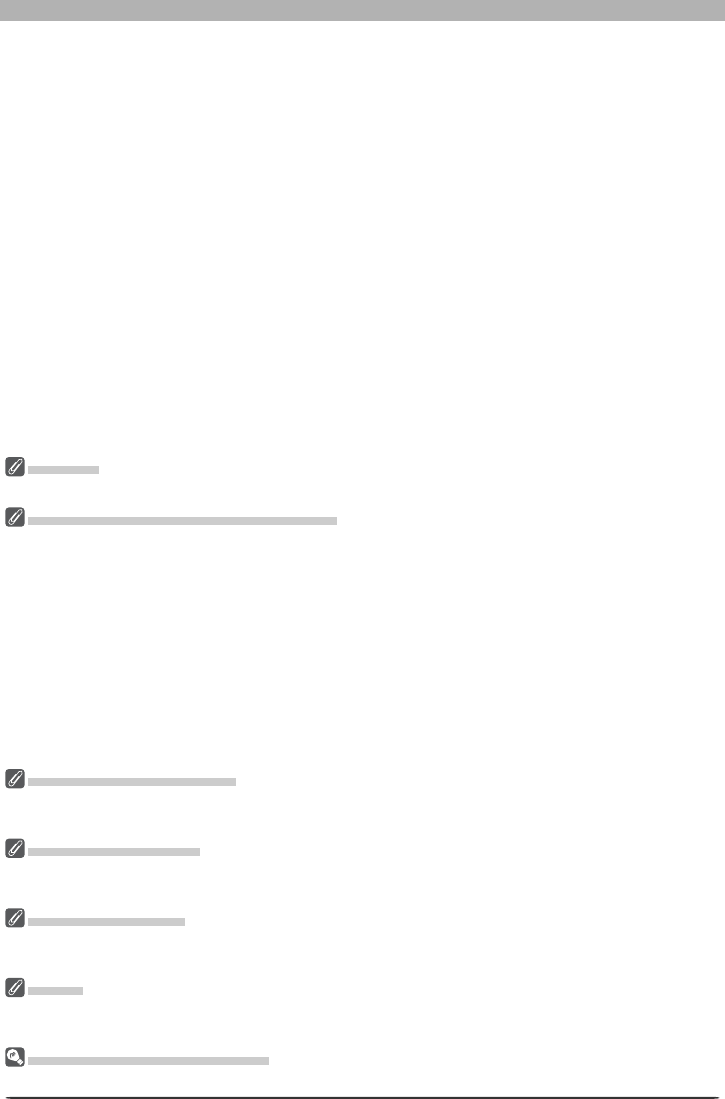
Nikon Capture 4 is for use exclusively with Nikon digital cameras. It consists of two major
components: Nikon Capture 4 Editor and Nikon Capture 4 Camera Control.
Nikon Capture 4 Editor
Nikon Capture 4 Editor is used to enhance
photographs taken with Nikon digital cam-
eras after they have been transferred to
the computer using PictureProject or Nikon
View. Nikon Capture 4 Editor supports batch
processing and can be used to adjust RAW
images in ways not supported by other
software.
Nikon Capture 4 Camera Control
When a D2- or D1-series, D200, D100, D70s,
D70, or D50 camera is connected to a com-
puter running Nikon Capture 4 Camera Con-
trol, photographs can be recorded directly to
the computer hard disk as they are taken. The
controls in the Nikon Capture 4 Camera Con-
trol window can be used to release the shut-
ter or adjust camera settings, or to perform
interval timer photography not otherwise
supported on some models.
Transfer to computer
using PictureProject or
Nikon View
Photographs
on camera
memory card
Nikon Capture 4 Editor
Nikon Capture 4 Camera Control
Connect camera and computer
4
Principal Features
Automatic Update
Nikon Capture 4 is equipped with an automatic update function known as Nikon Message
Center. Nikon Message Center checks for updates to a variety of Nikon digital products, in-
cluding Nikon software. At default settings, Nikon Message Center will automatically check
for updates if the computer is connected to the Internet when Nikon Capture 4 starts. If an
update is available, the Nikon Message Center window will be displayed. Click Available
Messages to view the updates available for your Nikon digital products and software, then
click Install to download and install the desired updates. To personalize your list of Nikon
digital products or to view a list of the installed software supported under Nikon Message
Center, click My Products.
Mac OS 9
Nikon Message Center is not available in Mac OS 9.
Notice to Users in Europe and the U. S. A.
To activate Nikon Message Center, users in Europe and the U. S. A. must have an account with their
regional Nikon Support Center. The fi rst time a program equipped with the Nikon Message Center auto
update feature starts, a license agreement will be displayed. After reading the agreement, click Accept
to accept its terms and display an account activation dialog.
•If you already have an account with your regional Nikon Support Center, enter the supplied user ID and
password and the e-mail address you used to register. After confi rming that the computer is connected
to the Internet, click Activate Nikon Message Center. A dialog allowing you to opt in or out of Nikon
mailings will be displayed.
•If you do not have an account or have forgotten your password, confi rm that the computer is con-
nected to the Internet and click Visit Nikon Support Center. After obtaining the required account
information, enter the details in the account activation dialog and click Activate Nikon Message
Center. A dialog allowing you to opt in or out of Nikon mailings will be displayed.
The Opt-in / O pt -o ut Dia log
The fi rst time Nikon Message Center starts, a dialog allowing you to opt in or out of Nikon mailings will
be displayed. Select the desired options and click OK to display the Nikon Message Center window.
Downloading Updates
An Internet connection is required to download updates. The user bears all applicable fees charged by
the phone or cable company or Internet service provider.
Dial-up Connections
When using a dial-up connection, be aware that the connection is not automatically terminated when
download is complete. Be sure to terminate the connection manually.
Privacy
Information provided by the user as part of this service will not be given to third parties without the
user’s permission.
Checking for Updates Manually
To check for updates manually, select Check for updates… from the Help menu.

5
What You Need to Run Nikon Capture 4
System Requirements
What You Need to Run Nikon Capture 4
Before installing Nikon Capture 4, make sure that your system satisfi es the following re quire -
ments:
Windows Macintosh
OS
Pre-installed versions of Windows XP
Home Edition, Windows XP Pro fes sion al,
Win dows 2000 Professional, Windows
Millennium Edition (Me), Win dows 98
Second Edition (SE)
Mac OS 9.0.4–9.2.2*, Mac OS X (ver-
sion 10.1.5 or later). Note that Dutch,
Italian, Korean, and Swedish versions of
Nikon Capture 4 are not available for
Mac OS 9.
CPU/Model 300 MHz Pentium equivalent or better Built-in USB or FireWire port required
RAM
•Windows, Mac OS X: 256 MB (768 MB or more recommended)
•Mac OS 9: memory allocation of 64 MB or more to Nikon Capture 4 Camera
Control, 512 MB or more to Nikon Capture 4 Editor
Hard-disk space 200 MB required for installation
Video
resolution
800 × 600 pixels or more with 16-bit color (High Color/thousands of colors). 24-bit
color (True Color/millions of colors) recommended.
In ter face†
IEEE
1394
Open Host- Controller Interface (OHCI)
compliant IEEE 1394 in ter face board or
card‡ required for con nec tion to D1-
series cameras
Built-in IEEE 1394 (FireWire) interface
re quired for connection to D1-series
cameras
USB Built-in USB interface
•Built-in USB interface
•RATOC REX-PCIU3U USB interface
board (USB 2.0; for use only with D2-
series cameras under Mac OS X)
Supported cameras
(Camera Control) D2-series, D1-series, D200, D100, D70s, D70, and D50
Other •CD-ROM drive required for installation
•Internet connection required for some options
*With CarbonLib version 1.6 or later.
†Connect the camera directly to the computer. The camera may not function as expected when con-
nected via a hub, extension cable, or keyboard.
‡See the websites listed on page 2 for the latest information on boards that have been tested and ap-
proved for use.
Installation
For information on installing Nikon Capture 4, see the Nikon Capture 4 Install Guide.
Windows XP Home Edition/Professional, Windows 2000 Professional, Mac OS X
When installing, using, or uninstalling Nikon Capture 4 under the above operating systems, log on to an
account with administrator privileges.
Camera Control for D100 Cameras (Macintosh)
Before using Nikon Capture 4 Camera Control with a D100 digital camera, Macintosh users will need to
upgrade the camera fi rmware to version 2.00 or later. Contact a Nikon-authorized service representative
for information on fi rmware upgrades.
Third-Party Plug-Ins
Nikon Capture 4 supports third-party nik Color Efex Pro 2.0 plug-ins that add a fi lter palette to Tool
Palette 2. More information is available on-line ( 2).

6

7
Nikon Capture 4 editor component contains a variety of
tools for enhancing images, including the Curves, LCH
Editor, Color Booster, Photo Effects, Unsharp Mask, Noise
Reduction, D-Lighting, Red Eye Correction, and Fisheye
Lens tools. With RAW (NEF) images, it can be used to adjust
white balance and tone compensation, to reduce the effects
of dust on the camera image sensor, including color moiré
(Image Dust Off), and to correct for chromatic (color) aber-
ration and the slight darkening at the margins of an image
(vignetting) particular to the fi eld of view of a given lens.
When RAW im ag es are saved in NEF for mat, im age en hance -
ment settings are saved sep a rate ly from the orig i nal image
data, allowing you to mod i fy set tings re peat ed ly with out
de grad ing the qual i ty of the orig i nal im age. Nikon Capture
4 Editor is also equipped with a batch option for au to mat ed
pro cess ing of multiple im ag es.
This chapter details the operations that can be performed
us ing Nikon Capture 4 Editor. It is divided into the following
sections:
The Editor Window
Read this section for an overview of the controls in the Nikon
Capture 4 Editor window.
Image Adjustment
Read this section for instructions on enhancing images us ing
Nikon Capture 4 Editor.
Nikon Capture 4 Editor Preferences
Read this section for information on fi ne-tuning settings in
the Nikon Capture 4 Editor window.
Image Adjustment
Nikon Capture 4 Editor
8
The Editor Window
The Editor Window
Getting to Know Nikon Capture 4 Editor
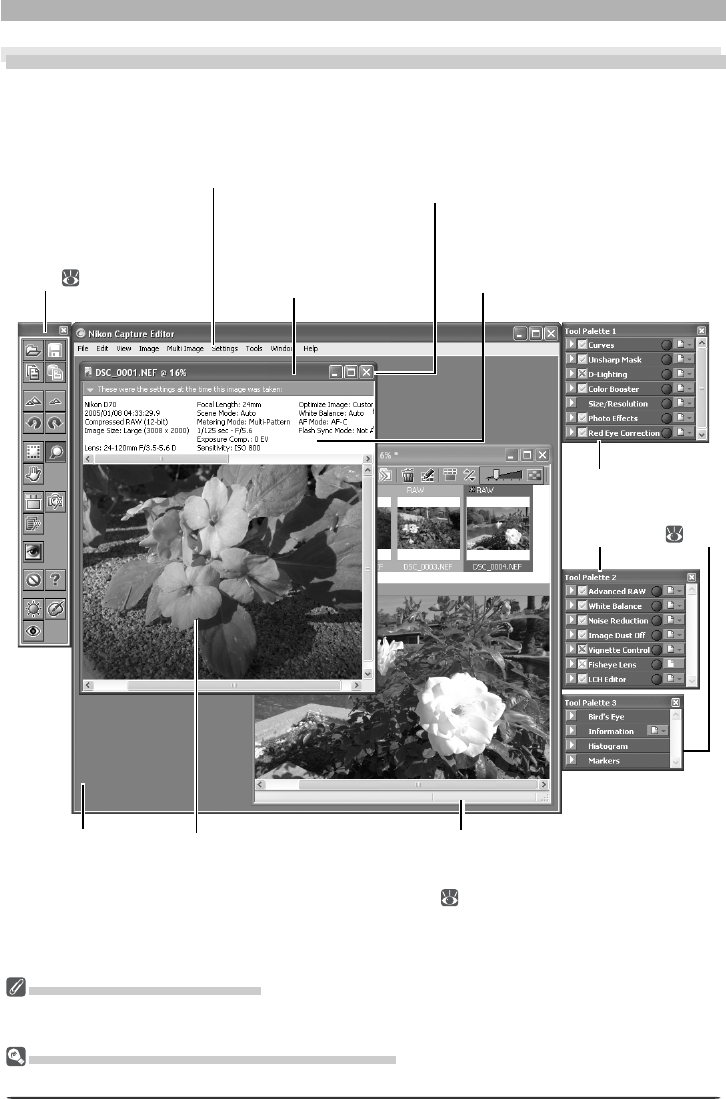
The main parts of the Nikon Capture 4 Editor window are identifi ed below.
The Menu Bar and Quick Tools
Although many operations can be performed using both menu commands and the buttons in the Quick
Tools palette, the explanations in this manual give priority to operations performed using tool buttons.
Hiding the Tool Palettes and Quick Tools Palette
Press tab to hide or display the tools and Quick Tools palettes.
Image window
Displays images cur rent ly opened for
ed it ing. Any num ber of im age win-
dows can be open si mul ta neous ly.
Image area
Shows the image cur rent ly
being edited.
Quick Tools palette
Contains tool but tons
for Nikon Capture 4
Editor ( 9).
Tool palettes
These palettes are
used for im age en-
hance ment (
29).
Application window
(Windows only)
Menu bar
Contains the menus for
Nikon Capture 4 Ed i tor.
Title bar
Shows the fi le name of
the im age dis played and
the current zoom ratio.
Shooting data area
Gives photo in for -
ma tion on the im age
dis played.
Multi-Image window
Lists the images in the current
folder as thumbnail previews
( 15).

9
Getting to Know Nikon Capture 4 Editor
Quick Tools
The Quick Tools palette contains buttons that replicate commonly-used menu commands.
But ton Name Func tion Shortcut*
Open Click to open an image fi le for editing. Ctrl + 0/
cmd + 0 13
Save Save changes to the image in the active image
win dow.
Ctrl + S/
cmd + S 83
Copy Image
Adjustments
Copy current image-adjustment settings to the
clip board. —82
Paste Paste the contents of the clipboard to image en-
hance ment settings in the active win dow.
Ctrl + V/
cmd + V —
Zoom In Zoom in on the image in the active window. Ctrl + +/
cmd + + —
Zoom Out Zoom out from the image in the active window. Ctrl + –/
cmd + – —
Rotate 90 CCW Rotate the image in active window ninety de grees
counter-clockwise.
Ctrl+Shift+R/
shift+cmd+R 20
Rotate 90 CW Rotate the image in active window ninety de grees
clock wise.
Ctrl + R/
cmd + R 20
Crop Cursor Use this tool to select the portion of the image in the
active window that will be saved. C/C 22
Zoom Cursor Use to zoom the image in the active window in and
out. Z/Z 18
Hand Cursor Use to view portions of the image not currently vis-
i ble in the active window. H/H 18
Open Multi-Image
Window
Open the Multi-Image window, where images in the
selected folder can be previewed.
Ctrl + T/
cmd + T 15
Show Nikon Capture
Camera Control Launch Nikon Capture 4 Camera Control. — 107
Batch Open the Batch dialog, where you can se lect a folder
of images for batch processing. —92
Open with
Photoshop
Open the image in the active window in Photo-
shop. ——
Show Original
Image Data
Hide the effects of changes to image adjustment
set tings. This button can not be used with RAW im-
ages taken with COOLPIX-series cameras.
——
Help
(Windows only) Display menu of help options. F1/ ——
Auto Brightness Performs the same function as the Auto button in
the Photo Effects palette. —64
Auto Color Boost Performs the same function as the Auto button in
the Color Booster palette. —63
Auto Red Eye
Correction
Perform automatic red-eye correction on image in
active window —75
* Windows keyboard shortcuts are listed fi rst, Macintosh shortcuts second.
10
The Editor Window
Starting Nikon Capture 4 Editor
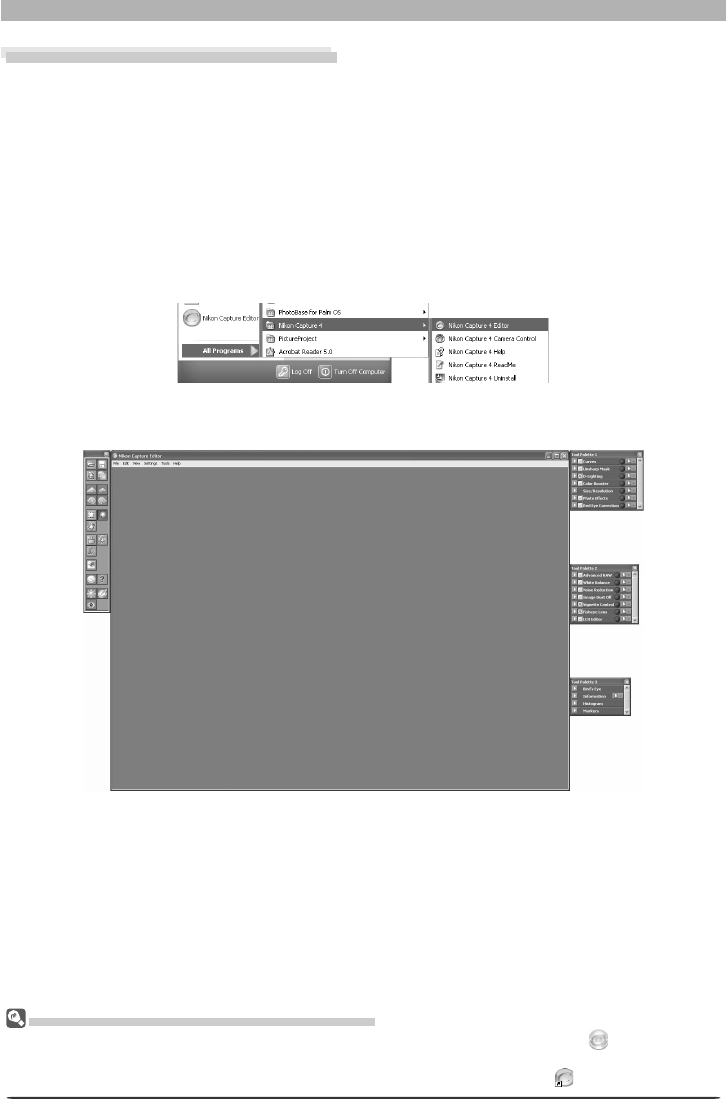
Nikon Capture 4 Editor can be started from the Start menu (Win dows) or double-click ing the
ap pli ca tion icon (Macintosh).
Windows
1 Turn the computer on
Turn the computer on and wait for the operating system to start up.
2 Start Nikon Capture 4 Editor
From the Start menu, select All Programs > Nikon Capture 4 > Nikon Capture 4
Editor (Windows XP Home Edition/Windows XP Professional) or Pro grams > Nikon
Capture 4 > Nikon Capture 4 Ed i tor (other versions of Win dows).
Oth er Ways of Starting the Editor (Windows)
Nikon Capture 4 Editor can be started by double-clicking the Nikon Capture 4 icon ( ) in the folder to
which Nikon Capture 4 was installed. If a shortcut to Nikon Capture 4 was created on the desktop during
installation, the Editor can also be started by double-clicking the shortcut icon ( ) on the desktop.

11
Getting to Know Nikon Capture 4 Editor
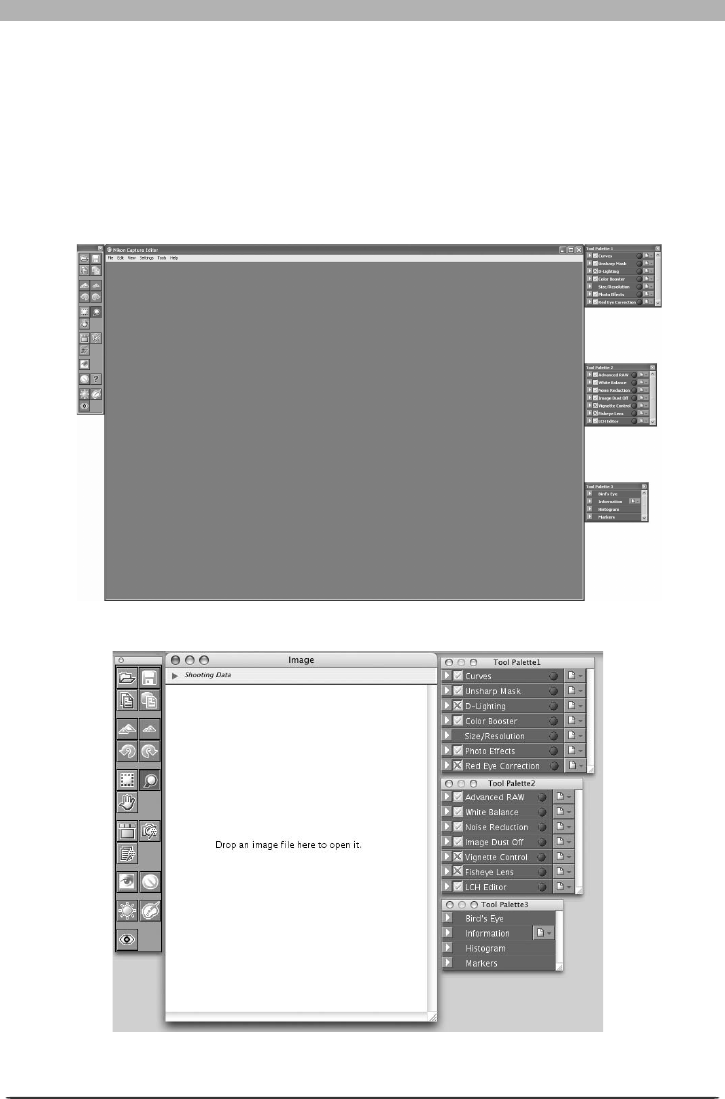
Macintosh
1 Turn the computer on
Turn the computer on and wait for the operating system to start up.
2 Start Nikon Capture 4 Editor
Double-click the Nikon Capture 4 Editor icon ( ) in the folder to which you installed
Nikon Capture 4.
Prod uct Key
If prompt ed to supply a product key when starting Nikon Capture 4 Editor or Nikon Capture 4 Camera
Control, en ter the product key supplied on the Nikon Capture 4 CD case.
Mac OS 9
Dutch, Italian, Korean, and Swedish versions of Nikon Capture 4 are not available for Mac OS 9.
Oth er Ways of Starting the Editor (Mac OS)
Mac OS 9: If an alias for Nikon Capture 4 was created on the desktop during installation, the Editor can
also be started by double-clicking the alias ( ).
Mac OS X: If Nikon Capture 4 was reg is tered in the Dock during installation, the Editor can also be started
by clicking the Nikon Capture 4 icon ( ) in the Dock.
No image displayed in image win dow

12
The Editor Window
Exiting Nikon Capture 4 Editor
To close the Nikon Capture 4 Editor window and exit Nikon Capture 4, open the File menu
and choose Exit (Windows) or Quit (Mac OS 9). In Mac OS X, select Quit Nikon Capture
Editor from the application menu.
Windows
Mac OS X

13
Getting to Know Nikon Capture 4 Editor
TIFF (CMYK) Images
Images saved in TIFF (CMYK) format can not be reopened in Nikon Capture 4 Editor.
NEF Files (Nikon Capture 3 or Earlier)
NEF fi les created with Nikon Capture 4 can not be opened in earlier versions of Nikon Capture.
RAW Images Created with the D1X
The default size for RAW images created with the D1x when opened in Nikon Capture 4 Editor can be
chosen using the By default, a D1X RAW fi le will be option in the General tab of the Nikon Capture 4
Editor Preferences dialog ( 98). Choose from six megapixels (3,008 × 1,960 pixels) and ten megapixels
(4,016 × 2,616).
Opening Image Files
Nikon Capture 4 Editor can be used to open images created with Nikon digital cameras and
images previously saved using Nikon Capture.
Original image/saved image Format Ex ten sion
RAW NEF
(Nikon Electronic Format) .NEF 83
Image saved in NEF
RGB-TIFF
TIFF (RGB) .TIF 83
YCbCr TIFF
16-bit TIFF (RGB)
8-bit TIFF (RGB)
EXTRA
JPEG .JPG 83
FINE
NORMAL
BASIC
JPEG
Files in the above formats can be opened using the Open… command or by drag and drop.
Using the “Open...” Command
1 Click the button or se lect Open… from the File menu
The standard Open dialog for your op er at ing sys tem will be dis played.
Open but ton
Preview of selected image displayed
14
The Editor Window
2 Locate the image fi le
Navigate to the drive (volume) and folder containing the fi le you wish to open.
3 Click Open
Double-click the fi le or select it from the fi les listed and click Open. The selected fi le will
be opened in an image window in Nikon Capture 4 Editor.
Using Drag and Drop
Images can also be opened by dragging them into the application window (Windows) or im-
age window (Macintosh).
Win dows
Macintosh
15
Getting to Know Nikon Capture 4 Editor
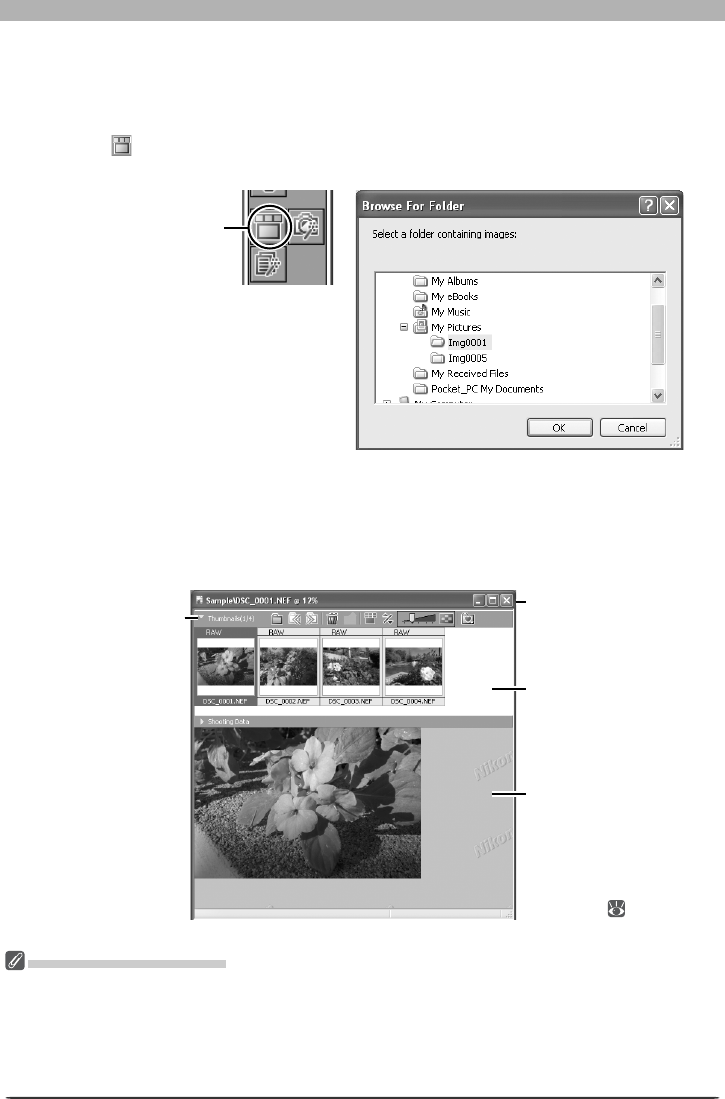
Opening the Multi-Image Window
The Multi-Image window shows the images in the selected folder as small thumbnail pre-
views. Use the Multi-Image window to view other images while making adjustments to the
current image, or to select multiple images for editing, saving, or printing.
1 Click the button or select Open Multi-Image Window from the File menu
The Browse For Folder dialog will be displayed.
2 Select a folder
Select the folder containing images you want to view or edit.
3 Click OK
The Multi-Image window will open, with the images in the selected folder displayed as
thumbnails.
Thumbnail area
Displays the imag-
es in the selected
folder as thumb-
nail previews.
Multi-Image window
Lists the images
in the selected
folder.
Image area
Shows the image
currently being
edited. Images are
edited in the same
way as in image
windows ( 29).
The Multi-Image Window
The Multi Image window can be used to display multiple images without opening them in separate im-
age windows, reducing the amount of memory required. No more than one Multi-Image window can
be open at a time. Before opening a folder in the Multi-Image window, make sure that none of the
images in the selected folder are open in image windows. If the user attempts to open one of the im-
ages in the thumbnail list in an image window, it will be opened in the image area of the Multi-Image
window instead.
Open Multi-Image
Window button
Click to hide or
view the thumb-
nail area.
16
The Editor Window
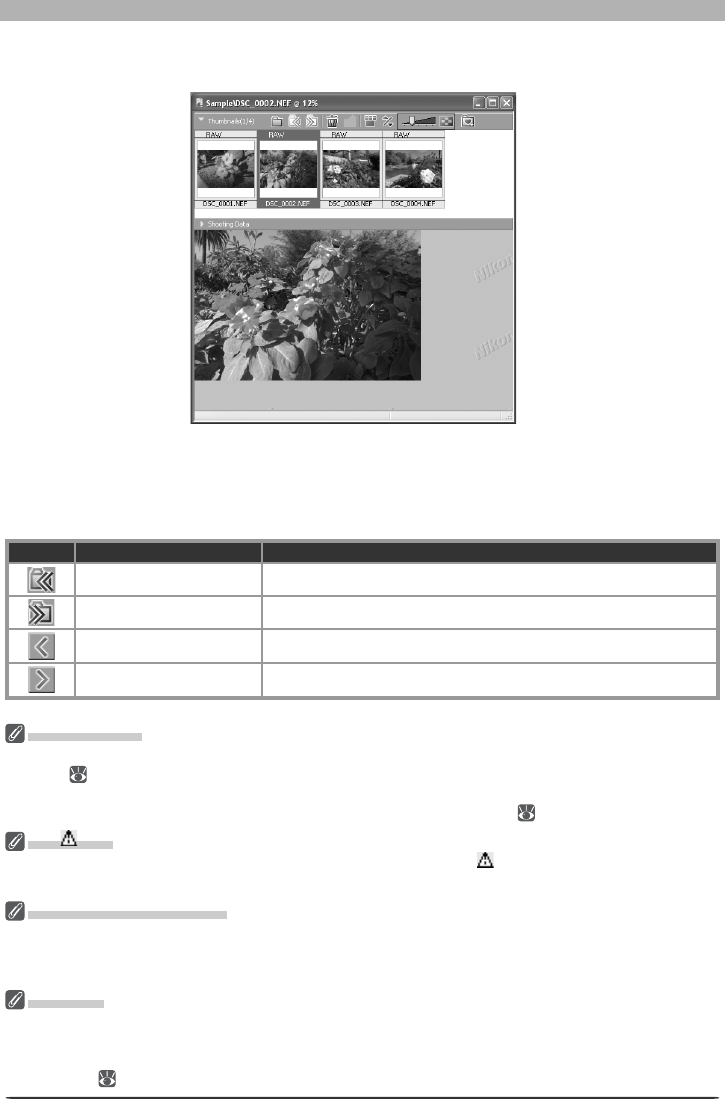
4 Select a thumbnail
The corresponding image will be displayed in the image area.
Multi-Image Window Buttons
The names and functions of the buttons in the Multi-Image window are shown in the fol-
lowing table:
When the thumbnail area is closed:
But ton Name Func tion
Back to previous folder Return to the previous folder.
Forward to next folder Open the next folder.
Previous Image Display the previous image in the image area.
Next Image Display the next image in the image area.
Editing Images
The image displayed in the image area can be edited in the same way as an image displayed in an image
window ( 29). Modifi ed images are indicated by an asterisk in the thumbnail list. An asterisk will also
appear next to images that have been automatically modifi ed via the Enable Color Aberration Control
option in the “Performance” tab of the “Options” (“Preferences”) dialog ( 100).
The Icon
Images to which changes have not been applied are indicated by an icon. The icon disappears when
the image is displayed in the image area or is saved at the new settings.
Selecting Multiple Images
To select multiple images for printing or to save under another name, click the thumbnails while pressing
the Ctrl (Windows) or command (Macintosh) key, or use the Select All Images or Select All Unsaved
Images options in the Multi-Image menu. No image will be displayed in the image area.
“Save As”
Even if the image in the Multi-Image window is saved under another name using the Save As… option,
the original will still be displayed in the image area. If this image is saved using the Save option, any
changes will be applied to the original, and the unmodifi ed image will be lost. See “Options for Saving
Image Files” ( 84) for more information.
17
Getting to Know Nikon Capture 4 Editor
When the thumbnail area is open:
But ton Name Func tion
Select Folder Open the Browse For Folder dialog to select a folder for display
in the Multi-Image window.
Back to previous folder Return to the previous folder.
Forward to next folder Open the next folder.
Remove selected
image(s) Delete the images selected in the thumbnail area.
Match Settings
Apply the settings for the selected image to other images. After
selecting a source image, select the target images with the shift
key or with the Ctrl (Windows) or command (Macintosh) key and
then click . The settings for the fi rst image will be applied to
the remaining images. To edit multiple images simultaneously,
select the images and click . Changes to tool palette settings
after the is clicked will apply to all the selected images.
/Switch thumbnail list Toggle between single- and multi-line thumbnail displays.
Sort
A menu of sort options will be displayed. Choose Sort Key to
sort images by File Name, Date of Recording, Date Modifi ed,
File Name and Type, File Type and Date of Recording, or
File Type and Date Modifi ed (if File Type and Date of Re-
cording, or File Type and Date Modifi ed is selected, images
will be sorted by fi le type in the order NEF, JPEG, and TIFF, with
images of the same fi le type sorted by date of recording or date
of modifi cation). Choose Sort Order to sort images in ascend-
ing or descending order.
Change Thumbnail Size Adjust the size of the thumbnails displayed in the Multi-Image
window in fi ve steps.
Favorite Folder
To add the current folder to your list of favorites, click this but-
ton and select Add Favorites from the menu that appears and
enter a name for the folder (this name will appear only in your
list of favorites; the actual folder name will not change and will
continue to be displayed in the “Organize Favorites” dialog). To
access your favorites, click the button in the toolbar. To or-
ganize, rename, or delete favorites, click and select Organize
Favorites....
The Multi-Image Menu
Although many operations can be performed using both the buttons in the Multi-Image window and
the options in the Multi-Image menu, the explanations in this manual give priority to operations per-
formed using the buttons in the Multi-Image window.

18
The Editor Window
Zoom
To zoom images in and out, click the but-
ton. The mouse point er will change to a
mag ni fy ing glass with a “+” sign in its center.
Position the zoom cursor over the current im-
age and click the mouse to zoom in one step.
To zoom out one step, hold down Alt (Win-
dows) or option (Macintosh). A “–” sign will
appear in the center of the zoom cursor; click
the mouse to zoom out one step. The image
will be centered on the point clicked. The
current zoom ratio is displayed in the title
bar.
Scrolling the Image
If the entire image is not visible at the current
zoom ratio, the hand cursor can be used to
view other areas of the image. To activate
the hand cursor, click the button in the
tool palette. The mouse point er will change
to ; to scroll the im age, drag the mouse in
the di rec tion you want to go. You can also
scroll the image using the scroll bars.
Zoom ratio
Double-Clicking the and Buttons
Double-clicking the button displays the image at a zoom ratio of 1 : 1. To fi t the image to the window
(Windows) or display the entire image (Macintosh), double-click the button.
The Hand, Zoom and Crop Cursors
The hand, zoom, and crop cursors can not be used at the same time.
19
Getting to Know Nikon Capture 4 Editor
The Bird’s Eye Palette
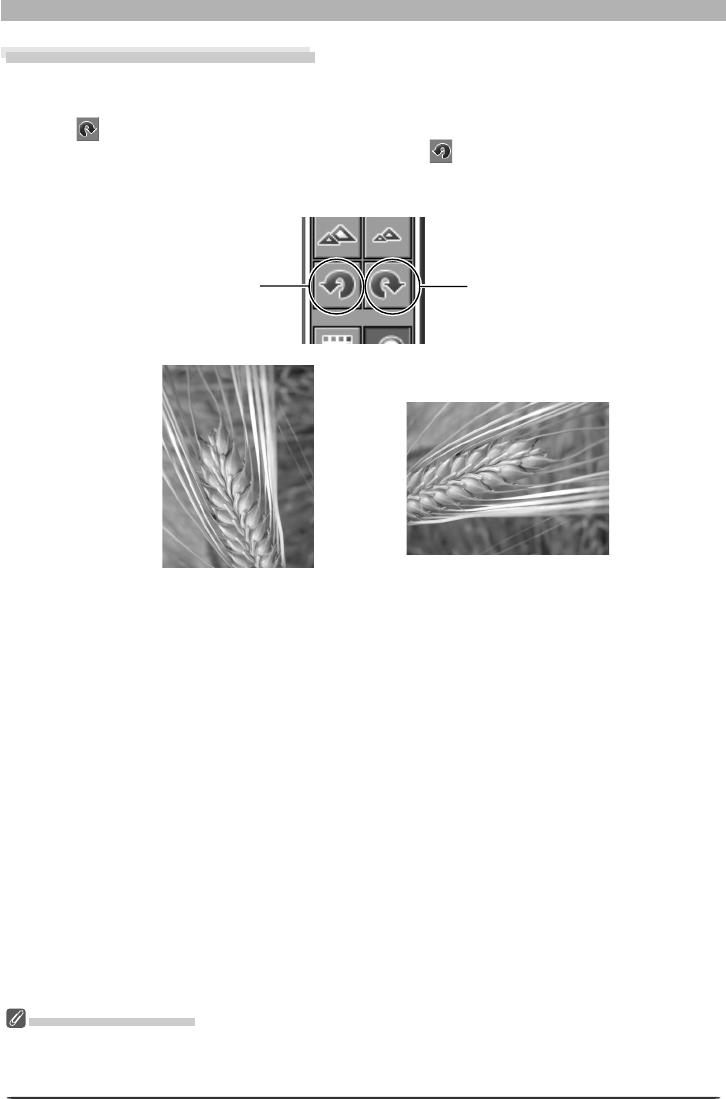
The Bird’s Eye palette shows the position of the portion of the image visible in the active im-
age window. To display or hide the Bird’s Eye palette, click the triangle in the Bird’s Eye palette
title bar ( 29). By default, the Bird’s Eye palette is in Tool Palette 3.
The portion of the image visible in the active image window is indicated by a red outline.
Red outline dis played
When the mouse pointer is moved over the red outline, it changes to a cursor. Drag the
red outline over the area of the image you would like to view. The selected area will be dis-
played in the active image window.
20
The Editor Window
Rotating and Flipping Images
The image in the active image window can be rotated or fl ipped as described below.
Rotating Images
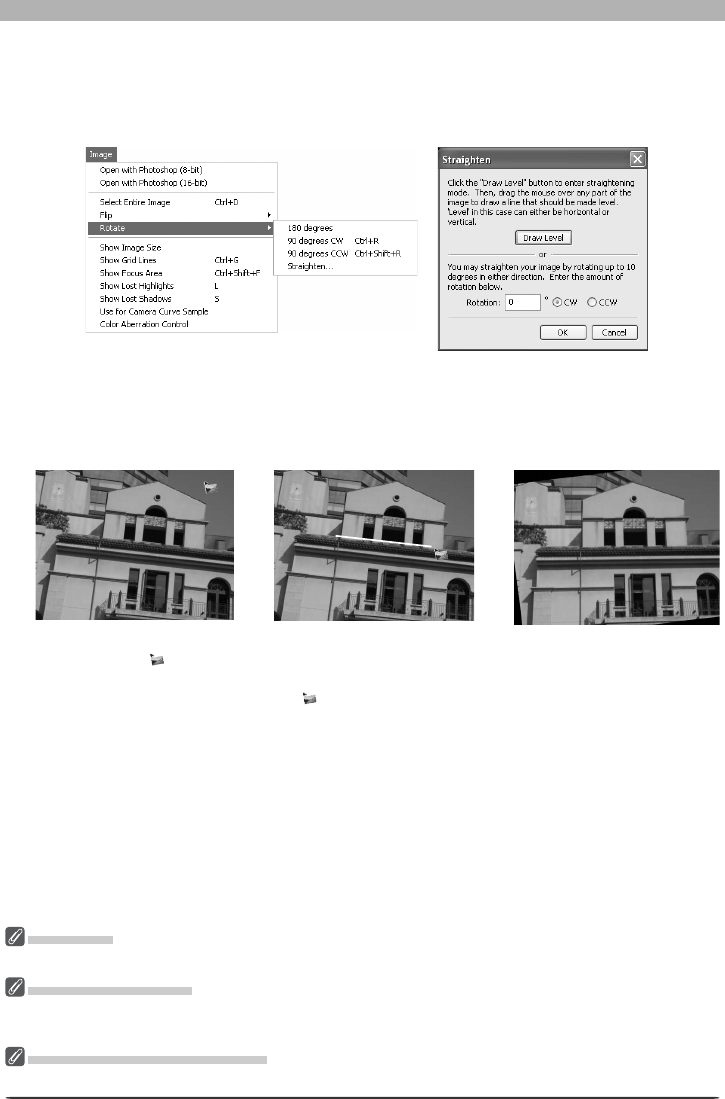
Click the button or select 90 degrees CW from the Rotate sub-menu to rotate the image
in the active window 90 degrees to the right. Click the button or select 90 degrees CCW
from the Rotate sub-menu to rotate the image in the active window 90 degrees to the left.
To rotate the image 180 degrees, select 180 degrees from the Rotate sub-menu.
Flipping Images
Use the commands in the Flip sub-menu to fl ip the image in the active window horizontally
or ver ti cal ly.
Rotating JPEG Images
Image fi les must be opened in Nikon Capture 4 Editor before being rotated. To save the changes, the
image must then be saved to disk. If the image is in JPEG format, it will be compressed when saved, with
a corresponding drop in image quality.
Rotate 90 CCW but ton Rotate 90 CW but ton
Image rotated ninety
de grees clockwise
Image before rotation
21
Getting to Know Nikon Capture 4 Editor
Straightening Images
To straighten the image in the active image window:
1 Select Straighten… from the Rotate sub-menu
The Straighten dialog will be displayed.
2 Straighten the image
Straighten the image using the Draw Level button or by entering the desired rotation in
the Rotation text box.
The Draw Level Button
Click Draw Level. The cur-
sor changes to .
Choose a line in the image
that should be either hori-
zontal or vertical and drag
the cursor parallel to the
chosen reference line.
The image will be rotated
up to 10 ° to make the refer-
ence line horizontal or verti-
cal. The degree of rotation
is displayed in the Rotation
text box.
The Rotation Text Box
Choose CW (clockwise) or CCW (counter-clockwise) and enter the degree of rotation in
the text box. The image can be rotated up to 10 °.
3 Click OK
Draw Level
If a message is displayed stating that the reference line is too short, draw a longer reference line.
Straightening Images
Straightening does not change the dimensions of the image. Any portions of the image that do not fi t in
its original dimensions are trimmed, while areas that have been added to the image are fi lled in black.
Restoring the Unrotated Image
To restore the unrotated image, enter a value of 0 in the Rotation text box.
22
The Editor Window
Selecting a Crop
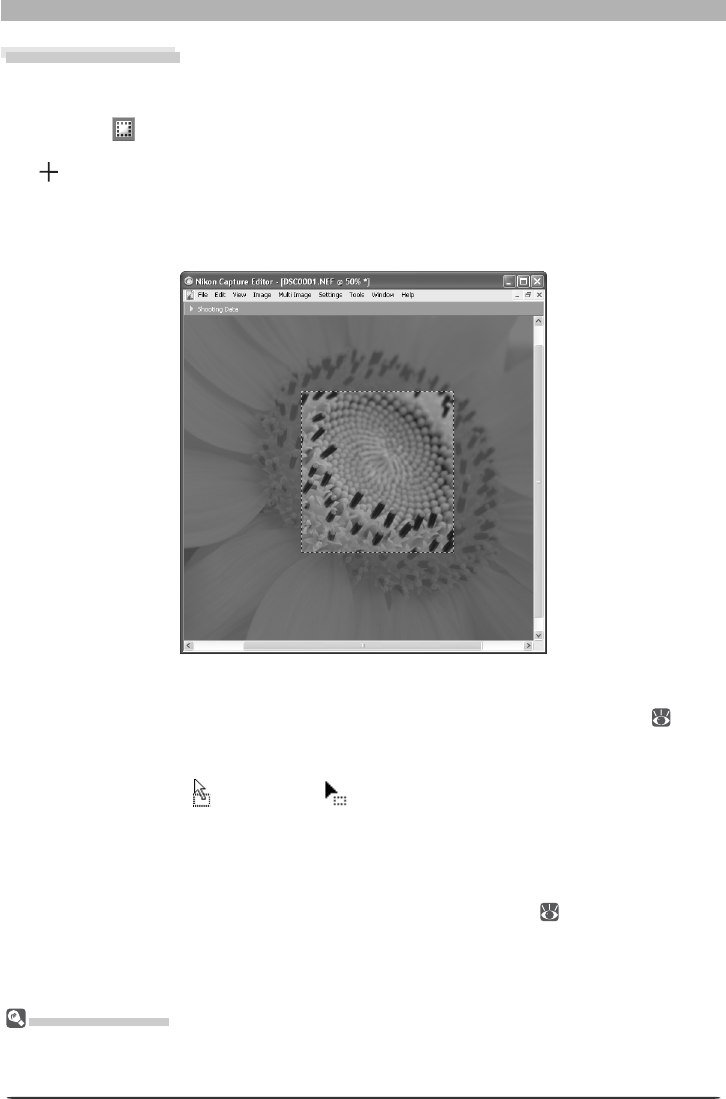
Using the crop tool, you can select a portion of an image to be saved in a separate fi le. If no
selection is made, the entire image will be saved.
1 Click the button or select Crop Cursor from the View menu
When the mouse is moved over the image area in the active window, it will change to
( ).
2 Make a selection
Drag the mouse over the image in the active window to make a selection. The area out-
side the selection will be masked to show that it will be cropped.
Saving a Selection
Unless the image is saved in NEF format, only the selected portion of the image will be saved. Anything
not included in the current crop will be deleted. In NEF format, the entire image is saved together with
in for ma tion about the location of the current crop.
Cancelling the Current Crop
To cancel the current crop, double-click anywhere in the image window. The selection may
not be cancelled if Keep the output size is selected in the Size / Resolution palette
( 79)
.
Moving the Crop
To move the crop over a different part of the image, move the pointer over the crop. The
pointer will change to a (Windows) or cursor (Macintosh). Drag the crop to move it to
a new position.
Changing the Size of the Crop
To change the size of the current crop, move the pointer over the borders of the crop. The
pointer will change to a double arrow. Drag the borders of the crop to adjust its size. The size
of the cropped image can be adjusted in the Size/Resolution palette
( 79)
.
23
Getting to Know Nikon Capture 4 Editor
The Information Palette
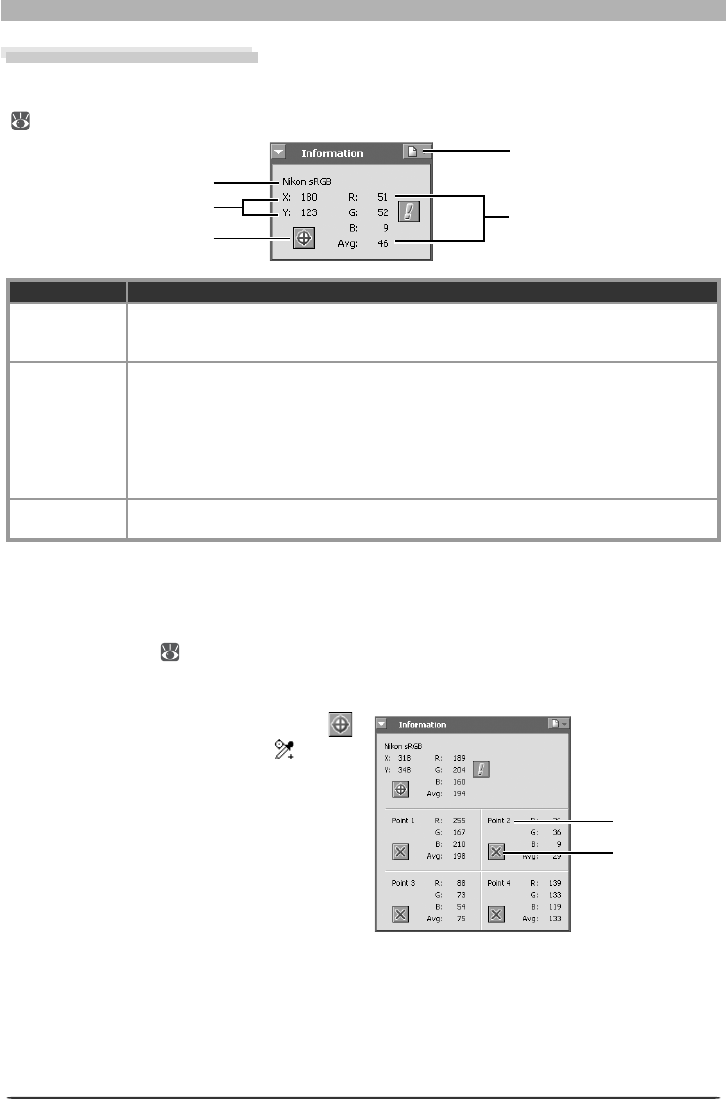
The information palette shows the position and color of the pixel under the mouse pointer.
To display or hide the Information palette, click the triangle in the Information palette title bar
( 29). By default, the Information palette is in Tool Palette 3.
Information Description
Color space
The working color space for the image in the active image window is dis played at the
top of the in for ma tion palette. This information is embedded in the fi le when the
image is saved.
R, G, B, Avg
The values for each of the red, green, and blue el e ments of the pixel under the cursor
and the average of the three, weighted according to the prop er ties of hu man color
perception (the weighted average is cal cu lat ed as (Red × 0.299) + (Green × 0.587) +
(Blue × 0.114)). Depending on the se lect ed color space, the average may not refl ect
the actual luminance of the pixel under the cursor, but it can be used as a rough guide
to bright ness. Values for R, G, B, and the average of the three range from 0 to 255,
with values for sixteen- and twelve-bit images being scaled to fi t in this range.
x-y coordinates The position of the cursor in the image win dow, mea sured in pixels from the top left
corner of the image.
Monitoring Watch Points
The Information palette can be used to continually monitor the red, green, blue, and average
values (R, G, B, Avg) for up to four selected pixels (“watch points”). The size of the watch
points can be set using the Dropper sample size option in the Advanced Color tab of the
Preferences dialog ( 102), which can be displayed by clicking the Settings button in the
Information palette and selecting Advanced Color Preferences….
Selecting Watch Points
To select a pix el to monitor, click the
but ton. The cur sor will change to . Move
the mouse over the de sired pixel and click.
The selected pixel will be add ed to the list of
watch points in the In for ma tion pal ette.
Point number
Delete but ton
x-y coordinates Red, Green, Blue,
Av er age
Color space
Watch Point button
Settings button
24
The Editor Window
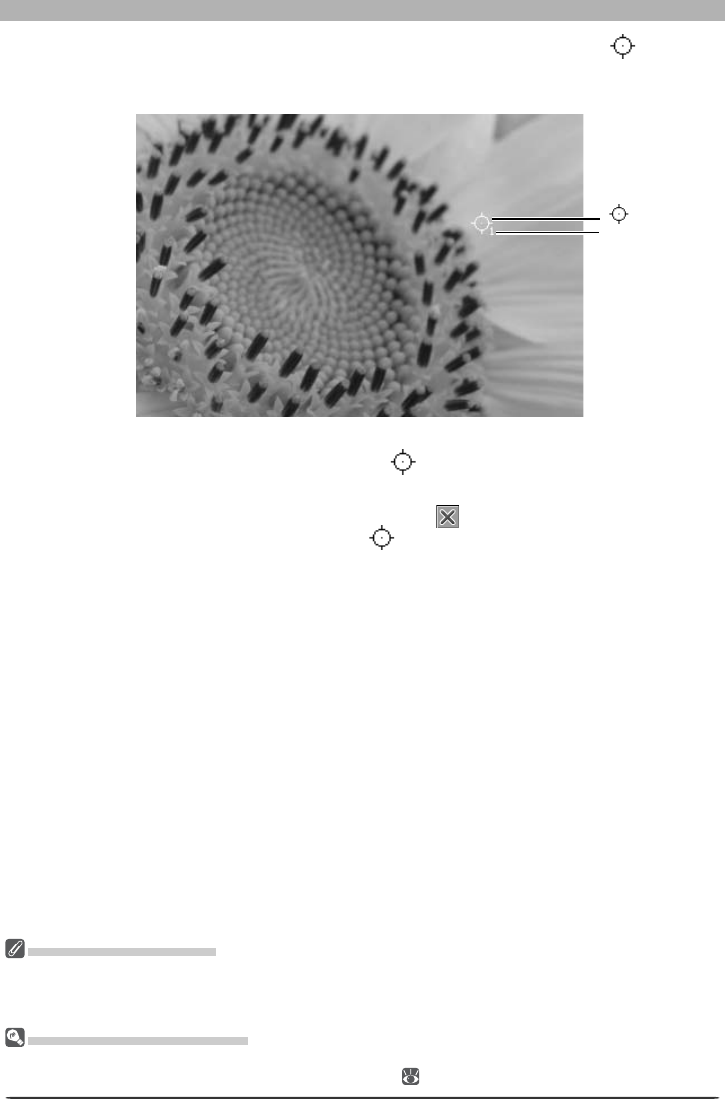
The pixels currently being monitored in the Information palette are shown by a icon in the
image window. Each point is identifi ed by a num ber cor re spond ing to the point num ber listed
in the In for ma tion palette. You can monitor up to four pix els at a time.
icon
Point number
Moving a Watch Point
To move the watch point to a new pixel, drag the icon in the image window.
Deleting a Watch Point
To remove a pixel from the list of watch points, click the button next to the cor re spond ing
listing in the In for ma tion palette, or drag the icon out of the image window. The re-
main ing points will be re num bered to refl ect the change.
RGB and Average Values
A warning button will be displayed in the information palette at zoom ratios of less than 100%. Clicking
this button will display a dialog stating that accurate RGB and average values can not obtained at the
current zoom ratio; click Yes to view the image full size.
Preferences: Advanced Color
Clicking the icon at the right end of the Information palette tool bar displays a menu from which you can
access the Advanced Color tab of the Preferences dialog ( 102).
25
Getting to Know Nikon Capture 4 Editor
Lost Highlights and Shadows
Areas of the image in which details in the high end or low ends of the tone range may have
been lost (“lost” highlights or shadows) can be identifi ed by locating pixels with the maximum
or minimum value for one or more channel. This information can be used when using color
balance ( 66) or adjusting the white point or black point to capture the optimal amount of
detail without sacrifi cing contrast ( 51).
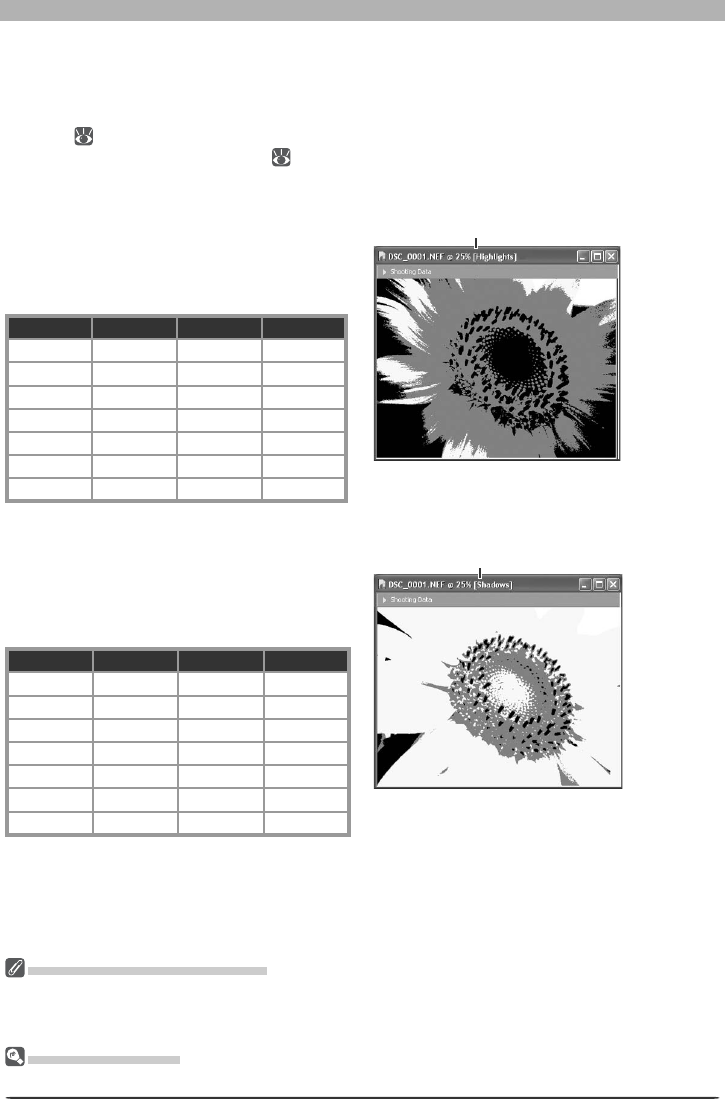
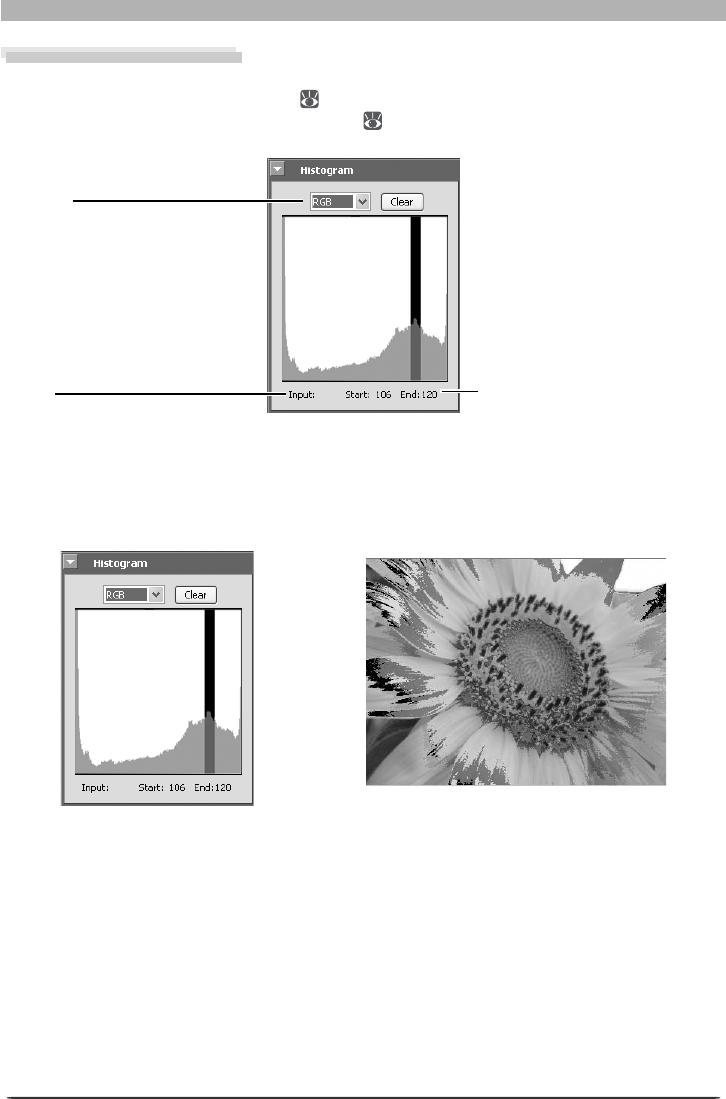
Show Lost Highlights
When Show Lost Highlights is selected in
the Image menu, “lost” highlights (pixels
with a value of 255 for one or more channel)
are shown in color (see table below). Other
pixels are shown in black.
RGBShown in
“Lost” “Lost” “Lost” White
“Lost” “Lost” Not “lost” Yellow
“Lost” Not “lost” “Lost” Magenta
Not “lost” “Lost” “Lost” Cyan
“Lost” Not “lost” Not “lost” Red
Not “lost” “Lost” Not “lost” Green
Not “lost” Not “lost” “Lost” Blue
“Lost” Highlights and Shadows
Before saving images in a format other than NEF, adjust settings to avoid “losing” highlights or shadows
in large areas of the image. Information lost through editing can not be recovered once an image is
saved in a format other than NEF.
Keyboard Shortcuts
Press L to view or hide lost highlights, S to view or hide lost shadows.
“Highlights” displayed in image
window title bar
Show Lost Shadows
When Show Lost Shadows is selected in
the Image menu, “lost” shadows (pixels
with a value of 0 for one or more channel)
are shown in color (see table below). Other
pixels are shown in white.
RGBShown in
“Lost” “Lost” “Lost” Black
“Lost” “Lost” Not “lost” Blue
“Lost” Not “lost” “Lost” Green
Not “lost” “Lost” “Lost” Red
“Lost” Not “lost” Not “lost” Cyan
Not “lost” “Lost” Not “lost” Magenta
Not “lost” Not “lost” “Lost” Yellow
“Shadows” displayed in image
window title bar
26
The Editor Window
The Histogram Palette
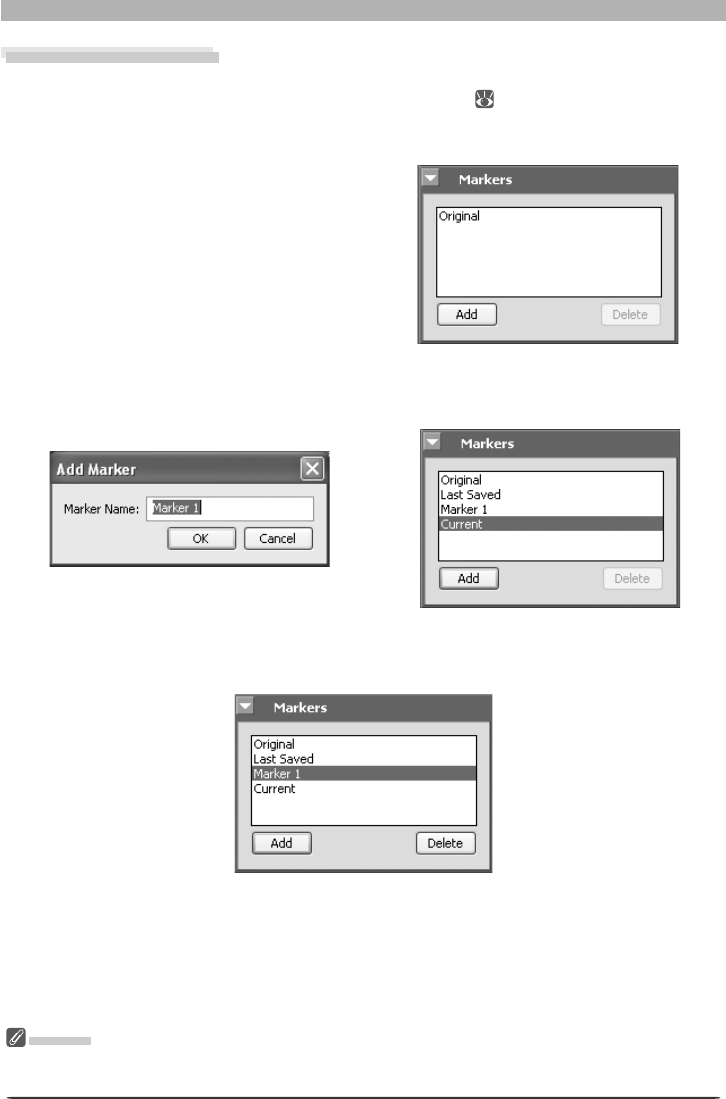
The histogram palette shows the level distribution for the image in the active window or, if a
crop is selected, for the current crop ( 22). To display or hide the Histogram palette, click
the triangle in the Histogram palette title bar ( 29). By default, the Histogram palette is in
Tool Palette 3.
Channel
View the histogram for the
entire image or selected chan-
nels.
St ar t / En d
The range of values selected in
the histogram display.
To select an area of the histogram, drag the mouse over the histogram display. The pixels
with values in the selected range will blink in the image window. Click Clear to cancel the
current selection.
Input
The level (brightness) of the
point under the cursor.
27
Getting to Know Nikon Capture 4 Editor
The Markers Palette
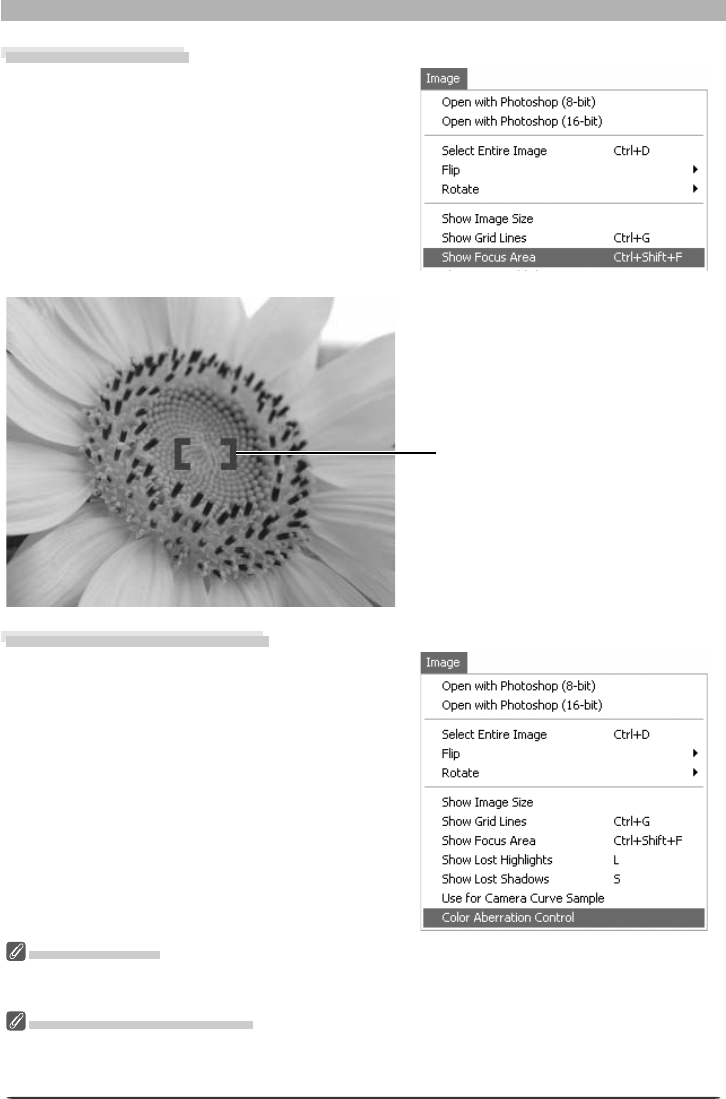
Changes to pictures can be recorded using the Markers palette. To display or hide the Mark-
ers palette, click the triangle in the Markers palette title bar ( 29). By default, the Markers
palette is in Tool Palette 3. To add a marker:
1 Click Add
After editing a picture, open the markers
palette and click Add.
2 Enter a marker name
Enter a marker name and click OK. The new marker will be added to the markers pal-
ette.
Selecting the marker in the markers palette will now restore the picture to the state it was
in when the marker was created. Preset markers are available for restoring pictures to their
original or current state or to the state they were in when last saved.
To delete a marker, select it in the markers palette and click Delete.
Markers
Markers for NEF images are saved with the image and recalled whenever the image is opened in Nikon
Capture 4 Editor. Markers for JPEG and TIFF images are lost when the image window is closed.
28
The Editor Window
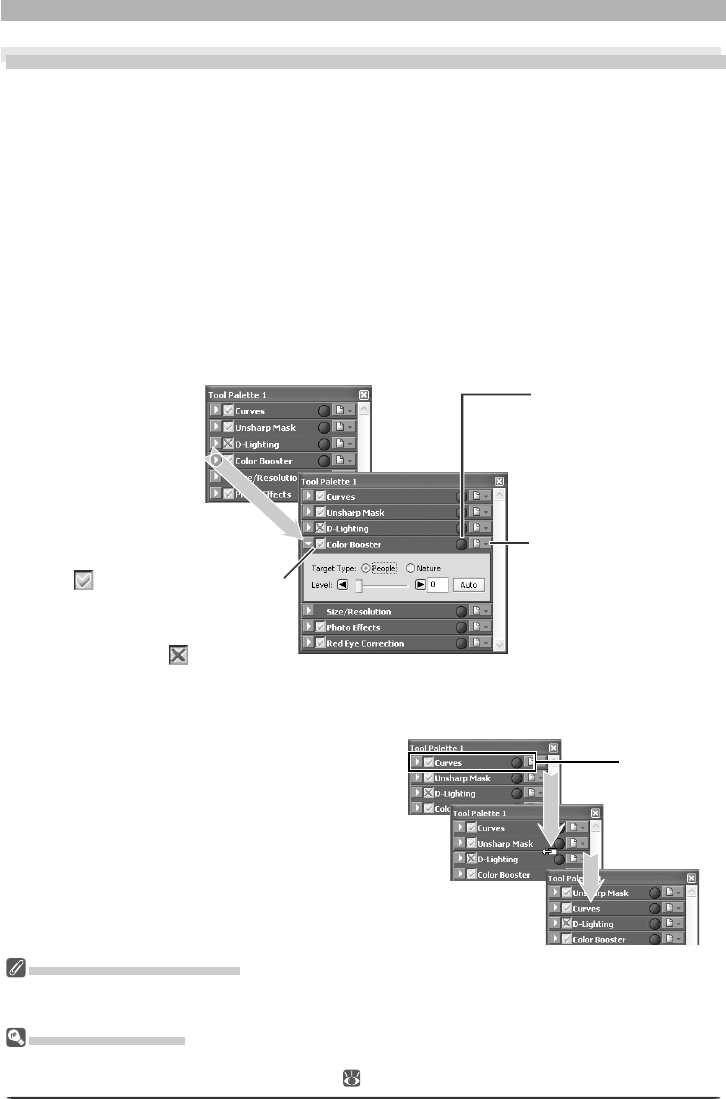
Show Focus Area
To show the focus area used when the image
in the active window was taken, select Show
Focus Area from the Image menu.
Show Focus Area
The focus area will not be displayed if the image was created using a COOLPIX-series camera, a non-CPU
lens, or manual focus.
Lateral Chromatic Aberration
The refractive index of the lens varies slightly with the wavelength (color) of light. This results in changes
in image magnifi cation towards the edges of the image, producing a phenomenon known as lateral (or
transverse) chromatic aberration.
The focus area is shown by red
focus brackets.
Color Aberration Control
To reduce lateral chromatic aberration (col-
ored fringes or halos) in RAW images taken
with Nikon digital SLR cameras, select Color
Aberration Control in the Image menu.
This option is not available with multiple
exposures or images created with image
overlay (D2X/D200).
29
Enhancing Images
Image Adjustment
Enhancing Images
Before they will be ready for display or output on a monitor or printer, images captured from
the camera will usually need to be adjusted to a size and resolution appropriate to the task at
hand. Other settings, such as white balance, contrast, sharpness, luminosity, color brightness,
chroma, and hue, Photo Effects, Image Dust Off, D-Lighting, Red eye correction, fi sheye lens
settings, and automatic color settings for portraits or landscapes, may also require adjust-
ment. These ad just ments are performed using the image adjustment tool palettes.
Using the Tool Palettes
To display the default tool palettes, select Show Tool Palette 1, Show Tool Palette 2,
Show Tool Palette 3, or Color Balance Palette from the View menu.
Displaying the Contents of a Tool Palette
To display or hide the contents of a tool palette, click the triangle to the left of the palette
title.
The Size / Re solu tion Pal et te
The Size / Resolution palette does not have an Apply button. Changes to settings in the Size / Resolution
palette are always visible in the active window.
Third-Party Plug-Ins
Nikon Capture 4 supports third-party nik Color Efex Pro 2.0 plug-ins that add a fi lter palette to Tool
Palette 2. More information is available on-line ( 2).
Changing Palette Order
To change the order of palettes in the tool
palette window, click a tool palette title bar
and drag it into a new position.
Settings Menu Button
Click this button to dis-
play the settings sub-
menu, where palette
settings can be saved,
loaded, or reset.
Apply Button
Changes to settings only take effect
when the palette Apply button is
checked (except in the D-Light-
ing, vignette control, and fi sheye
lens palettes, the Apply button is
checked by default). If the Apply
button is crossed out , the effects
of the settings in the palette will
not be visible in the image win dow.
Edit Indicator
This indicator turns
green if palette settings
have been modifi ed for
the image in the active
window.
Title bar

30
Image Adjustment
Opening Tool Palettes in Separate Windows
Tool palettes can be opened in a separate
window by clicking the palette title and drag-
ging it outside the current window to create
a new tool palette window con tain ing only
the selected palette.
Tools can be added to the new window by
drag ging in ad di tion al palettes. The new
window will be added to the View menu in
Nikon Capture 4 Editor. If you close the new
window by click ing the win dow close box,
you can open it again by se lect ing the desired
palette from the View menu.
The Edit Indicator
The edit indicator turns green if palette set-
tings have been adjusted since the image in
the active window was created (NEF) images
or last saved (other images), making it clear
at a glance which palettes have been used.
“Undo” and “Redo”
The Undo and Redo options in the Edit menu are used to undo and redo the effects of the last op-
eration. The number of consecutive operations that can be undone is limited only by the amount of
memory available. Operations can not be undone after you have closed the active window or exited
Nikon Capture.
Resetting the Tool Palettes
To restore the tool palettes to their default positions, select Reset Tool Positions in the View menu.
Indicator turns
green when settings
are adjusted
Indicator
Finding Tools
To display a complete list of the tools available
in Nikon Capture 4 Editor, select Find Tool
from the View menu. Tools can be opened
from the list by selecting the tool name and
clicking Go to tool. Click Name to sort tools
in ascending or descending order by name or
Location to sort tools according to the tool
palette window in which they can be found.
A bright green dot next to the tool name
indicates that it has been modifi ed from its
original settings.
31
Enhancing Images
The settings that can be adjusted depend on the image quality setting in effect when the
photograph was recorded. Photographs taken at an image-quality setting of RAW can be
processed to adjust white balance, reduce the effects of dust, perform vignette control, or to
alter exposure com pen sa tion, im age sharp en ing, tone compensation, color mode, and hue
ad just ment from the set tings in effect at the time the photograph was taken. All images can
be processed using the tools in the Curves, Color Balance, LCH Editor, Color Booster, Photo
Effects, Unsharp Mask, Noise Reduction, D-Lighting, Red Eye Correction, and Size/Resolution
palettes. Images taken with an AF DX 10.5 mm f2.8G fi sheye Nikkor lens can also be pro-
cessed to reduce distortion.
Image quality Process Palette
RAW
Adjust white balance. White Balance 33
Choose new settings for exposure com pen sa tion, im age sharp en ing,
tone com pen sa tion, color mode, hue adjustment, and saturation.
Advanced
RAW 39
Reduce effects of dust on the low-pass fi lter protecting the camera
image sensor.
Image Dust
Off 42
Compensate for drop in marginal lumination caused by char ac -
ter is tics of camera lens.
Vignette
Control 46
RAW
RGB-TIFF
YCbCr-TIFF
JPEG (EXTRA,
FINE,
NORMAL,
BASIC)
Adjust tone, color balance, and contrast. There are two distinct
tools for this task: the Curves palette, which provides precise con trol
over tone, and the Color Balance pal ette, which features simpler
con trols.
Curves 48
Color Balance 66
Adjust luminosity (master lightness), color brightness, chroma (color
saturation, or vividness), and hue. LCH Editor 57
Adjust color automatically according to the subject. Color Booster 63
Convert images to black and white, sepia, or to other tints or ad-
just the brightness of the cyan / red, magenta / green, or yellow / blue
channels.
Photo Effects 64
If the image lacks defi nition, you can sharpen out lines using the con-
trols in the Unsharp Mask pal ette. Unsharp mask only be ap plied at
the last step, after all other adjustments have been made.
Unsharp Mask 68
Reduce the noise common to pictures tak en with digital cameras.
Nikon Capture sup ports color noise reduction, edge noise reduction,
and moiré reduction (RAW images only).
Noise
Reduction 71
Increase detail in shadows or highlights. D-Lighting 73
Correct “red-eye” in portraits. Red Eye
Correction 75
Process pictures taken with an AF DX 10. 5 m m f2.8G fi sheye Nikkor
lens to reduce distortion at the edges of the frame, making them
look like images taken with a wide-angle lens.
Fisheye Lens 77
Adjust the size and resolution of the image for out put on a particular
device.
Size/
Resolution 79
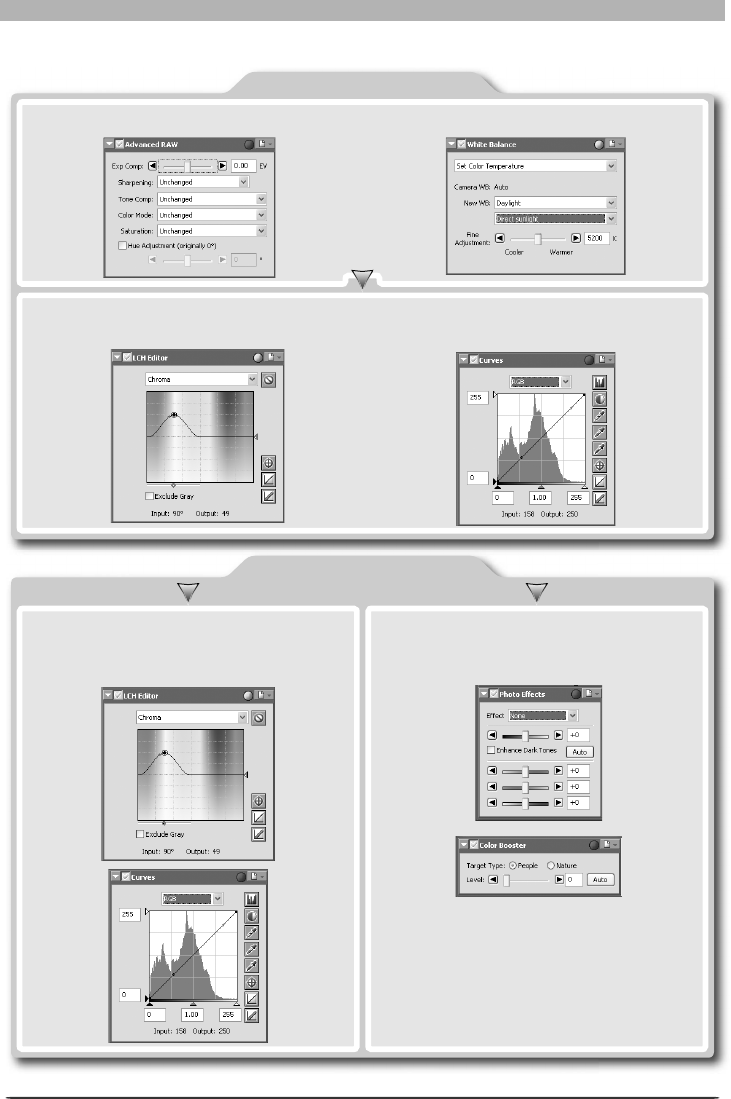
The Curves Tool and the LCH Editor
The Curves tool controls the distribution of tones in the red, green, and blue channels and in the RGB
master channel, and provides visual feedback on the amount of tone information lost through editing.
The LCH Editor is a better tool for making fi ne adjustments to luminosity (brightness), color saturation,
and hue; note, however, that changes to these settings may produce results that exceed the dynamic
range of the RGB channels.
32
Image Adjustment
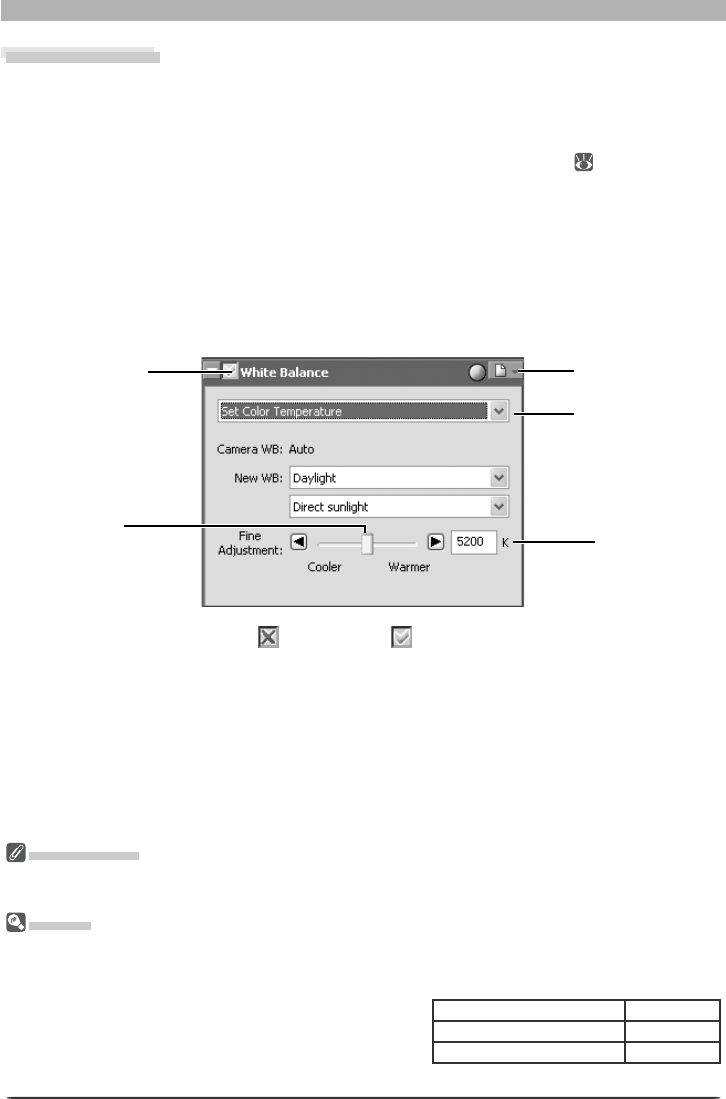
Suggested steps for processing images are shown below.
RAW Images
The LCH Editor can then be used to adjust luminosity, saturation, and hue, the Curves
tool to fi ne-tune the distribution of tones in the red, green, blue, and master channels.
Use the Advanced RAW and White Balance tools to adjust the originals.
TIFF and JPEG Images
Use the LCH Editor and the Curves tool to
fi ne-tune luminosity, saturation, hue, and
tone distribution.
Use the Color Balance, Color Booster, or
Photo Effects tool for quick visual adjust-
ments to color.
33
Enhancing Images
White Balance
The tools in the White Balance palette are used to adjust white balance for RAW images.
Using these tools, not only can you correct white balance when the setting chosen with the
camera failed to produce the desired effect, you can also deliberately alter white balance to
introduce a cold or warm cast into the image. Users of D2-series, D200, D70s, D70, and D50
cameras can copy white-balance settings to the camera or memory card ( 36). White bal-
ance can be adjusted by specifying the desired color temperature or by sampling the image
for the gray point.
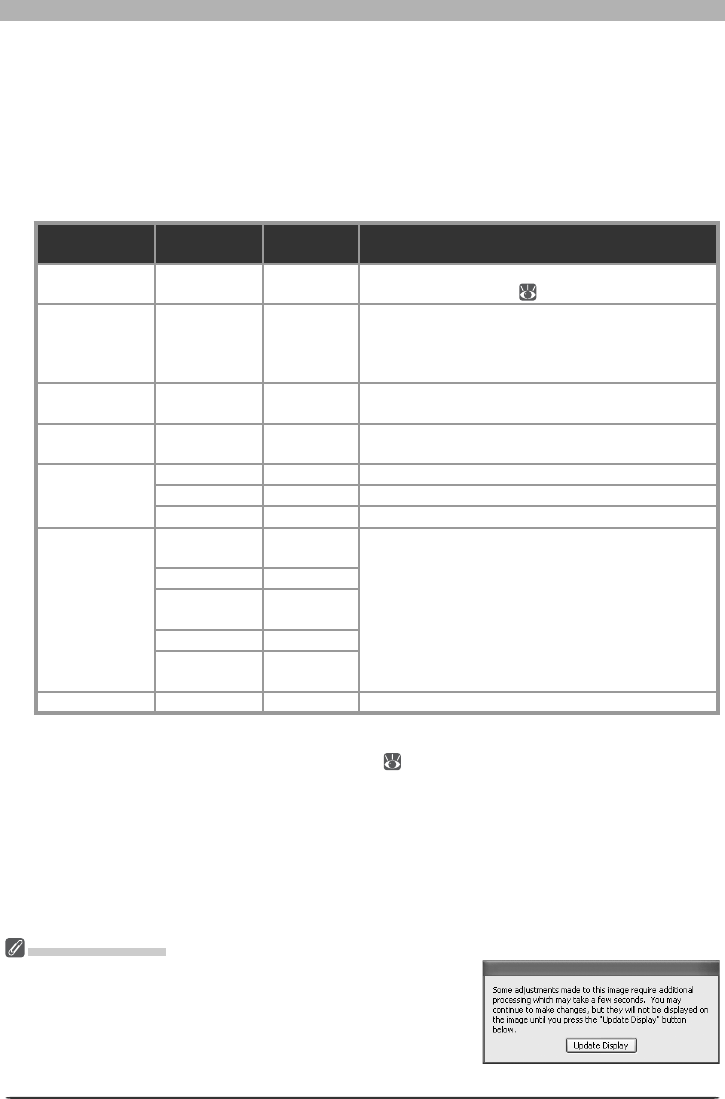
Specifying a Color Temperature
1 Display the White Balance palette
Select the tool palette containing the White Balance palette from the View menu (the
default location for the White Balance palette is Tool Palette 2) and click the triangle at the
top left corner of the palette.
White Balance
White balance can be performed on RAW images only. If the image in the active window is JPEG or TIFF,
the Apply button in the White Balance palette will be grayed out and inactive.
“Mired”
Any given change in color temperature produces a greater dif fer ence in color at low color tem per a tures
than it would at higher color temperatures. For example, at a color tem per a ture of 6000 K, a change
of 1000 K pro duc es al most no change in color, while a change of the same amount at 3000 K would
produce a large dif fer ence in color. Mired, calculated by
multiplying the in verse of the color tem per a ture by 10 6, is a
measure of color tem per a ture that takes such variation into
account, and as such is the unit used in color-tem per a ture
com pen sa tion fi lters.
2 If the Apply button is off ( ) , turn it on ( )
If the Apply button is off, the image in the active image window will refl ect the white
balance settings in effect at the time the photograph is taken.
3 Select Set Color Temperature
Select Set Color Temperature from the pop-up menu at the top of the palette.
4000 K – 3000 K = 1000 K
Change in Color Temp.
7000 K – 6000 K = 1000 K
83 mired
Mired
24 mired
Pop-up menu
Apply button
Color
temperature
Settings menu
Slider
34
Image Adjustment
4 Adjust white balance using the options in the White Balance palette
Camera WB: Shows the white balance setting in effect at the time the pho to graph was
taken and the amount of fi ne-tuning performed.
New WB: The white balance setting to be applied to the cap tured image can be chosen
from the options listed in the table below. When Day light, Stan dard Flu o res cent, or
High Col or Rendering Flu o res cent is se lect ed, white balance can be fi ne-tuned by
se lect ing an option from the sub-menu.
Option
Sub-menu
option
Color
temperature Description
Use Gray Point ——
White balance is set to the value cho sen in the gray-
point se lec tion di a log ( 35).
Recorded
Value ——
White balance is set to the value re cord ed when
the picture was tak en (note that choosing another
white-balance option with the same color tempera-
ture may not produce the same results).
Calculate
Automatically * ——
White balance is ad just ed au to mat i cal ly based on
the white bal ance of the orig i nal im age.
Incandescent —3,000 K Suited to photos taken under in can des cent light-
ing.
Daylight
Di rect sun light
5,200 K Suited to photos taken in di rect sun light.
Cloudy 6,000 K Suited to photos taken under over cast skies.
Shade 8,000 K Suited to photos taken in the shade on sun ny days.
Standard
Fluorescent
High Color
Rendering
Fluorescent
Warm White
(3000K) 3,000 K
Suited to fl uorescent lighting, in clud ing light ing
with a noticeable color cast. The type of bulb can
be chosen from a sub-menu of fi ve options.
3700K 3,700 K
Cool White
(4100K) 4,100 K
5000K 5,000 K
Daylight
(6500K) 6,500 K
Flash —5,400 KSuited to photos taken with Nikon Speed lights.
* Not available with RAW images taken with COOLPIX-series cameras. May not produce desired
results with all images; if necessary, use another white balance setting, adjust white balance using
fi ne adjustment, or sample image for grey point ( 35).
Fine Adjustment: Color temperature can be fi ne-tuned using this slider. This option
is not available when Use Gray Point or Recorded Value is se lect ed for New WB.
Color temperature can be ad just ed by ±50 mired. Note that color temperature can not
be raised above 9090 K, and that a setting of Flash can be fi ne-tuned in the range of
4255K–7407 K.
COOLPIX Cameras
The dialog similar to that shown at right may be displayed after
adjustments to the white balance of RAW images taken with
COOLPIX-series cameras. Click Update Display to view the effects
of the new white balance settings.
COOLPIX 8800

35
Enhancing Images
Gain values
Reset button
Pop-up menu
Sliders
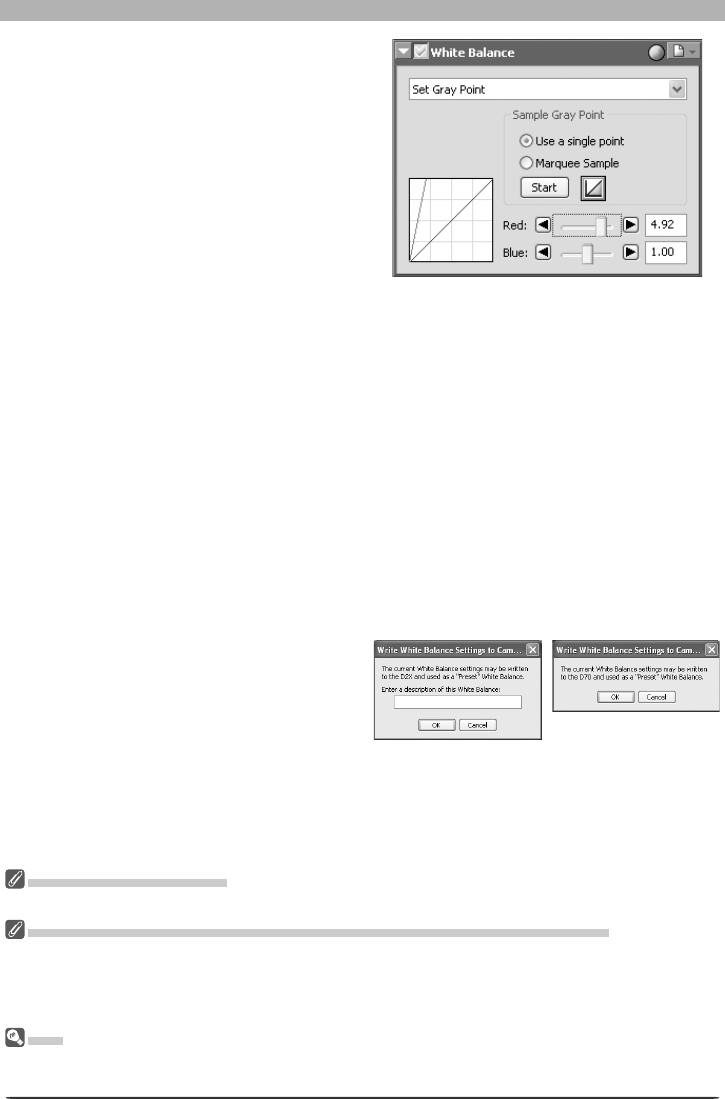
Sampling the Image for Gray Point
1 Select Set Gray Point
Select Set Gray Point from the pop-up menu at the top of the White Balance palette.
2 If the Apply button is off ( ) , turn it on ( )
Sample Size
The size of the area sampled with the eyedropper cursor can be set using the Dropper sample size
option in the Advanced Color tab of the Pref er enc es dialog.
3 Sample the image to choose a reference point for white balance
White balance can be defi ned using a single pixel or the average of the values for all pixels
in a selected area.
Using a Single Point to Defi ne White Balance
After selecting Use a single point, click Start. The cursor will take the shape of an
eyedropper ( ) when moved over the image in the active window. Click a point that you
would like to appear a neutral gray color in the fi nal image. The new value for white bal-
ance will be refl ected in the image in the active window.
Using the Average of the Area Sampled to Defi ne White Balance
After selecting Marquee Sample, click Start. The cursor will take the shape of an area-
selection eyedropper ( ) when moved over the image in the active window; drag the
mouse over the image to select an area. White balance will be set to the average for the
selected areas, and the image in the active window will be updated to refl ect the new
value for white balance.
Apply button
36
Image Adjustment
Gain for the red and blue channels will be
adjusted based on the points sampled,
chang ing the slope of the red and blue
tone curves and the position of the red
and blue sliders.
White balance can also be adjusted by moving the red and blue sliders or by entering a
value from 0.1 to 10 in the text boxes to their right.
Reset: Click this button to reset the red and blue curves to the default value for gain
(1.0).
Red slider/Blue slider: Adjust gain by moving these sliders or entering a value from 0.1 to
10 in the text boxes to their right.
Copying White Balance to the Camera (D2-Series/D200/D70s/D70/D50 Only)
If the image in the active window is a RAW image taken with a D2-series, D200, D70s, D70,
or D50 camera, the new white-balance value can be copied directly to one of the camera’s
white-balance presets or recorded to the camera memory card. Before copying a value to
the camera, make sure the camera is connected and turned on. Before copying a value to
the memory card, remove the card from the camera and insert it in a memory card reader or
card slot.
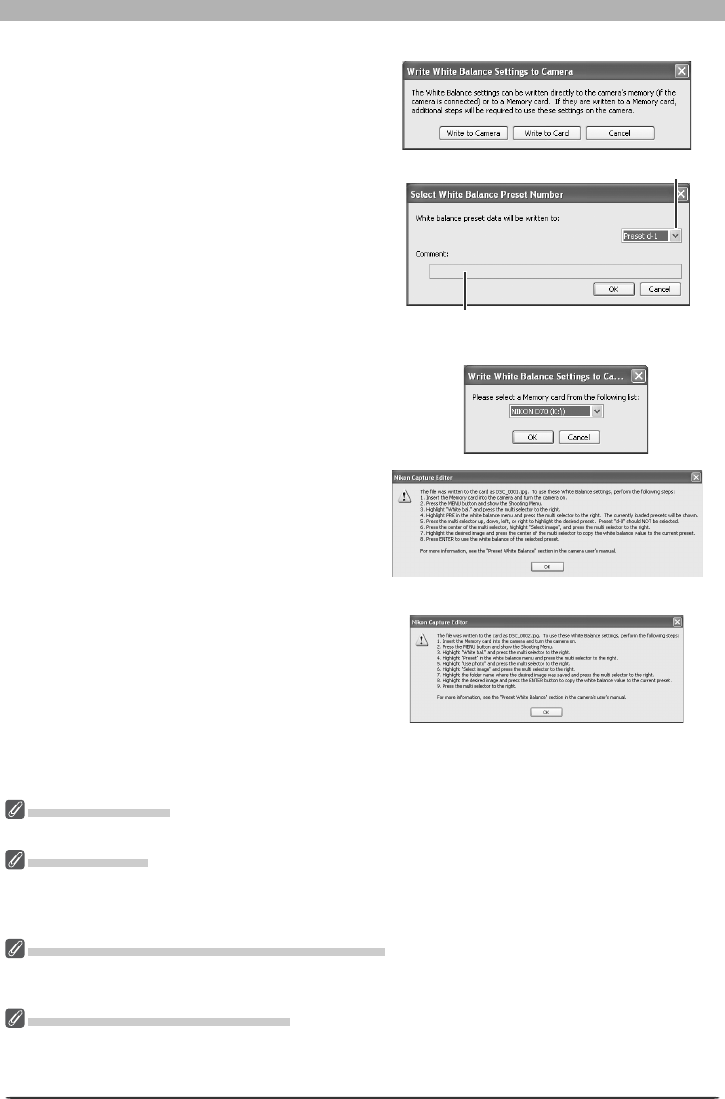
1 Select Write settings to camera… from the white balance settings menu
The dialog shown at right will be dis-
played. Enter a descriptive comment of
up to thirty-six characters (D2 series and
D200 only) and click OK.
Choosing a Value for Gain
Very large and small values for gain can result in a drop in image quality.
Copying White Balance to the Camera (D2-Series/D200/D70s/D70 D50 Only)
Nikon Capture 4 Editor supports a wider range of values for gain than do D2-series, D200, D70s, D70,
and D50 cameras. When white-balance settings are copied to the camera, values that exceed the range
of these cameras will automatically be adjusted to values supported by the camera. Choose values be-
tween 0.1 and 2 when using the Write setting to camera option.
Gain
The values for red and blue gain chosen in the White Balance palette are multiples of the value set for
gain when the photograph was taken.
D70
D2-series/D200
37
Enhancing Images
“Write to Camera”
Before connecting the camera to the computer, set the USB option in the camera setup menu to PTP.
“Write to Card”
Nikon Capture 4 writes the new value for white balance to the folder with the highest folder number. If
this folder already contains 999 images, the camera may not recognize the fi le containing the new value
for white balance.
Reading White Balance from the Memory Card
For information on reading white balance values from the memory card, see the camera Guide to Digital
Photography.
Comments (D2-Series /D200 Only)
In addition to letters and numbers, comments can contain quotes, apostrophes, spaces, and any of the
following characters: “,” “.” “!” “?” “#” “$” “%” “&” “(” “)” “[” “]” “{” “}” “*” “+” “-” “/” “:” “;”
“<” “=” “>” “_” and “@”.
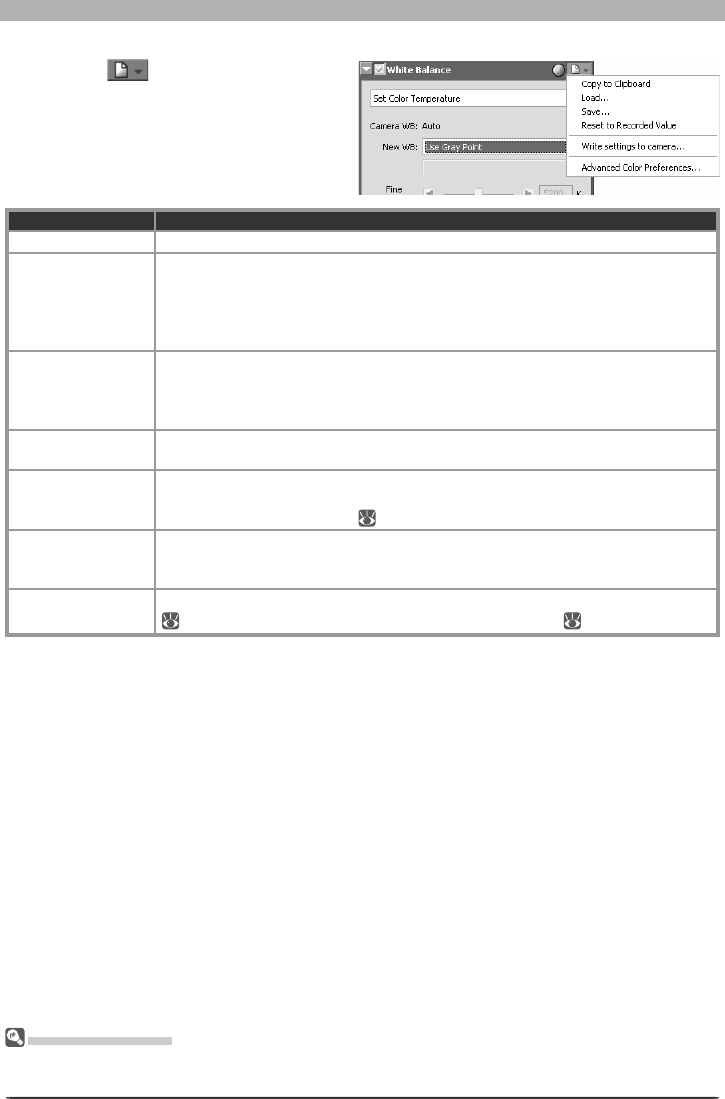
2 Choose an option
The dialog shown at right will be dis-
played. Click Write to camera, Write
to card, or Cancel.
Existing comment for selected preset
White balance preset menu
Write to camera: Copy white balance
from the White Balance palette to the
camera. If a D2-series or D200 camera
is connected, the dialog shown at right
will be displayed. Choose a preset from
the pop-up menu and click OK. The new
value for the selected preset can be con-
fi rmed from the camera or Nikon Capture
4 Camera Control.
Write to card: The dialog shown at right
will be displayed. Choose the drive con-
taining the camera memory card from
the pop-up menu and click OK to copy
the new white-balance value to the cam-
era memory card. A dialog showing the
name of the new fi le will be displayed;
click OK to close the dialog.
Cancel: Exit without copying white bal-
ance to the camera or memory card.
D70s/D70/D50
D2-series/D200
38
Image Adjustment
The Set tings Menu
The White Bal ance Settings menu can also be displayed by se lect ing White Bal ance from the Set tings
menu.
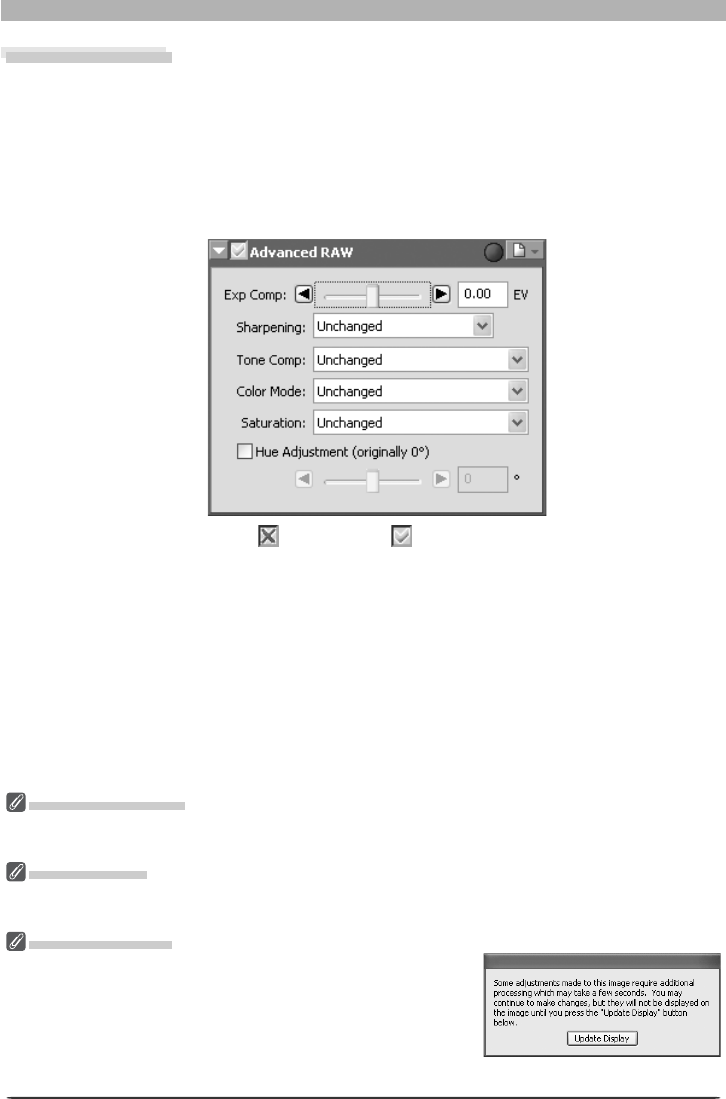
Option Description
Copy to Clip board Copy current white balance settings to the clipboard.
Load…
Select this item to restore white balance to settings saved us ing the Save… op-
tion (see below). A di a log will be displayed where you can navigate to the drive
(volume) and di rec to ry con tain ing the de sired settings fi le (only fi les with the
extension “.nwb” will be dis played). The set tings in the White Balance palette will
in stant ly revert to the saved settings.
Save…
Select this item to save current white balance settings to a named fi le. These set-
tings can later be recalled using the Load… option. Choosing Save… dis plays
a dialog where you can choose a des ti na tion and fi le name for the current white
balance settings. White balance set tings are saved with the extension “.nwb”.
Reset to Recorded
Value
Selecting this item restores the value for white balance in ef fect at the time the
photograph was taken.
Write settings to
camera…
If the image in the active window was taken with a D2-series, D200, D70s, D70,
or D50 camera, select this option to copy white balance to a white-balance preset
or the camera memory card ( 36).
Recent fi les
Recent white balance settings fi les (up to four) are listed at the end of the settings
menu. Selecting a fi le from the list sets the controls in White Balance palette to
the saved settings.
Ad vanced Color
Preferences…
Open the Nikon Capture 4 Editor Preferences dialog to the Ad vanced Color tab
( 102), where you can adjust the gray point sample size ( 35).
The White Balance Settings Menu
Clicking the icon in the White Bal-
ance palette dis plays the White Balance
Settings menu.
39
Enhancing Images
2 If the Apply button is off ( ) , turn it on ( )
3 Adjust Advanced RAW settings
Exp Comp: Choose a value from –2 to +2 EV using the slider or enter a value in the text
box to its right. Choose 0 to perform no compensation.
Sharpening: Adjust the sharpness of outlines in the image according to the scene or your per-
sonal preference. Choose from Unchanged, None, Low, Medium Low, Normal, Medium
High or High. In the case of photographs taken with D1, Normal is equivalent to None.
Advanced RAW
The options in the Advanced RAW palette are used to alter exposure compensation, image
sharpening, tone compensation, color mode, and hue ad just ment from the settings in effect
at the time the pho to graph was taken.
1 Display the Advanced RAW palette
Select the tool palette containing the Advanced RAW palette from the View menu (the
default location for the Advanced RAW palette is Tool Palette 2) and click the triangle at
the top left corner of the palette.
The Warning Button
A warning button appears if the image in the active window is displayed at a zoom ratio too low to allow
the effects of Advanced Raw settings to be displayed. Click the button to view the warning.
Advanced RAW
Advanced RAW can be performed on RAW images only. If the image in the active window is JPEG or
TIFF, the Apply button in the Advanced Raw palette will be grayed out and inactive.
COOLPIX Cameras
Tone Comp > User-Defi ned Custom Curve and the Medium
Low and Medium High options for Sharpening and Tone Comp
are not available in the case of RAW images taken with COOLPIX-
series cameras. A dialog like that shown at right may be displayed
after adjustments to exposure compensation, sharpening, and tone
compensation. Click Update Display to view the effects of the
new settings. COOLPIX 8800
40
Image Adjustment
Sharpening, Tone Comp., Color Mode, and Saturation
In the case of images taken with D2-series, D1-series, D200, D100, D70s, D70, or D50 cameras, the
sharpening, tone compensation, color mode, and saturation settings in effect at the time the photo-
graph was taken are marked with an asterisk (no asterisk will be displayed if “Auto” was selected for
sharpening, tone compensation or saturation). Choose Unchanged for results identical to those ob-
tained with the camera; other settings may not produce the same results.
Color Mode
If Use this instead of an embedded profi le when opening fi les is selected for Default RGB color
space in the “Color Management” tab of the “Options” (“Preferences”) dialog ( 104, 105), the default
RGB color profi le will be used as the working color space for all images, regardless of the mode selected.
If Use this instead of an embedded profi le when opening fi les is not selected, Adobe RGB will auto-
matically be chosen as the working color space for Mode II images. The working color space for Mode I,
Ia, III, and IIIa images will either be the color space selected with the camera (D2X and D200 only) or sRGB
(all other cameras). The working color space for NTSC images (D1 only) will be NTSC. Modes I and Ia,
which are adapted to the sRGB color space, are suited to portraits that will be printed or used “as is” with
little or no mod i fi ca tion. Mode II is adapted to the Adobe RGB color space. This color space is capable
of expressing a wider gamut of colors than sRGB, making it the pre ferred choice for pictures that will be
extensively processed or retouched. Modes III and IIIa, which are adapted to the sRGB color space, are
suited to nature or land scape shots that will be printed or used “as is” with little or no modifi cation.
When B&W is selected for Color Mode, photos taken with the D200 are processed in the same way
as photographs taken with Black-and-white selected in the camera Optimize Image menu. Photos
taken with other cameras are processed in the same way as images converted to black-and-white using
the Effect > Black and White option in the “Photo Effects” palette ( 64).
Tone Comp: Adjust image contrast. Choose from Unchanged, Low Contrast, Medium
Low, Normal, Medium High, High Contrast, or User-Defi ned Custom Curve. Be-
cause the D1 does not store cus tom curves in the image fi le, set tings of User-Defi ned
Custom Curve are equiv a lent to Normal when se lect ed with pho to graphs taken with
the D1. With D2-series, D1X, D1H, D200, D100, D70s, D70, and D50 cameras, selecting
User-Defi ned Custom Curve re stores the tone curve in effect at the time the pho to -
graph was taken.
Color Mode: Choose a color mode for fi ne control over chroma, brightness, and color
gamut, much as you would choose different kinds of color fi lm for different scenes.
Choose from Unchanged, Mode I, Mode II, Mode III, Mode Ia, Mode IIIa, or B&W.
In the case of images taken with the D1, Un changed is equiv a lent to D1 Mode (NTSC).
Color mode selection is available only in the case of RAW images taken with D2-series,
D1-series, D200, D100, D70s, D70 or D50 cameras.
Saturation: Adjust the vividness of colors without affecting hue. Choose from Un-
changed, Moderate, Normal, or Enhanced.
Hue Adjustment
: Adjusts hue without affecting brightness or saturation. Hue can be ad-
justed in the range –9 ° to 9 ° in seven steps of 3 °. If red is taken as the start ing color, raising
hue above 0 ° (the de fault setting, at which hue is un changed) would in tro duce a yel low cast,
mak ing col ors that would be red at a setting of 0 ° ap pear in creas ing ly or ange. Low er ing hue
be low 0 ° would in tro duce a blue cast, mak ing col ors that would be red at a setting of 0 ° ap-
pear in creas ing ly purple (in the case of the D1X and D1H, –9 ° is equiv a lent to a camera hue set-
ting of 0, 0 ° to a setting of 3, and 9 ° to a setting of 6). To use the value for hue ad just ment
in effect at the time the photograph was taken, turn the Hue Ad just ment check box off.
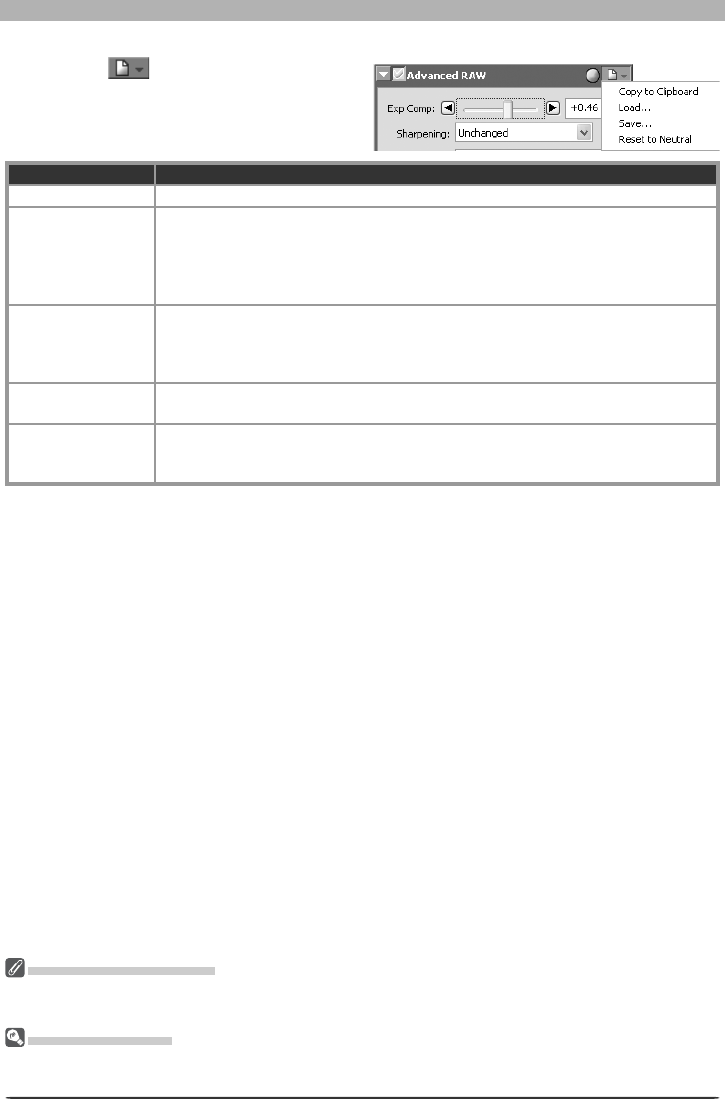
41
Enhancing Images
Exposure Compensation
Highlights in images saved in Nikon Capture 4.3 or earlier with a negative value selected for exposure
compensation may display differently when opened in Nikon Capture 4 Editor Ver. 4.4 or later.
The Settings Menu
The Advanced RAW Settings menu can also be displayed by selecting Ad vanced RAW from the Set-
tings menu.
The Advanced RAW Settings Menu
Clicking the button in the Advanced
RAW palette displays the Advanced RAW
settings menu.
Option Description
Copy to Clip board Copy current Advanced RAW settings to the clipboard.
Load…
Select this item to restore Advanced RAW settings to settings saved using the
Save… option (see below). A dialog will be displayed where you can navigate
to the drive (volume) and di rec to ry con tain ing the desired settings fi le (only fi les
with the ex ten sion “.nar” will be displayed). The settings in the Advanced RAW
palette will instantly revert to the saved settings.
Save…
Select this item to save current Advanced RAW set tings to a named fi le. These
settings can later be recalled using the Load… option. Choos ing Save… displays
a di a log where you can choose a destination and fi le name for the current white
balance settings. Advanced RAW set tings are saved with the extension “.nar”.
Reset to Neutral Selecting this item restores the settings in effect at the time the pho to graph was
taken.
Recent fi les
Recent Advanced RAW settings fi les (up to four) are listed at the end of the set-
tings menu. Selecting a fi le from the list sets the controls in Advanced RAW
palette to the saved settings.
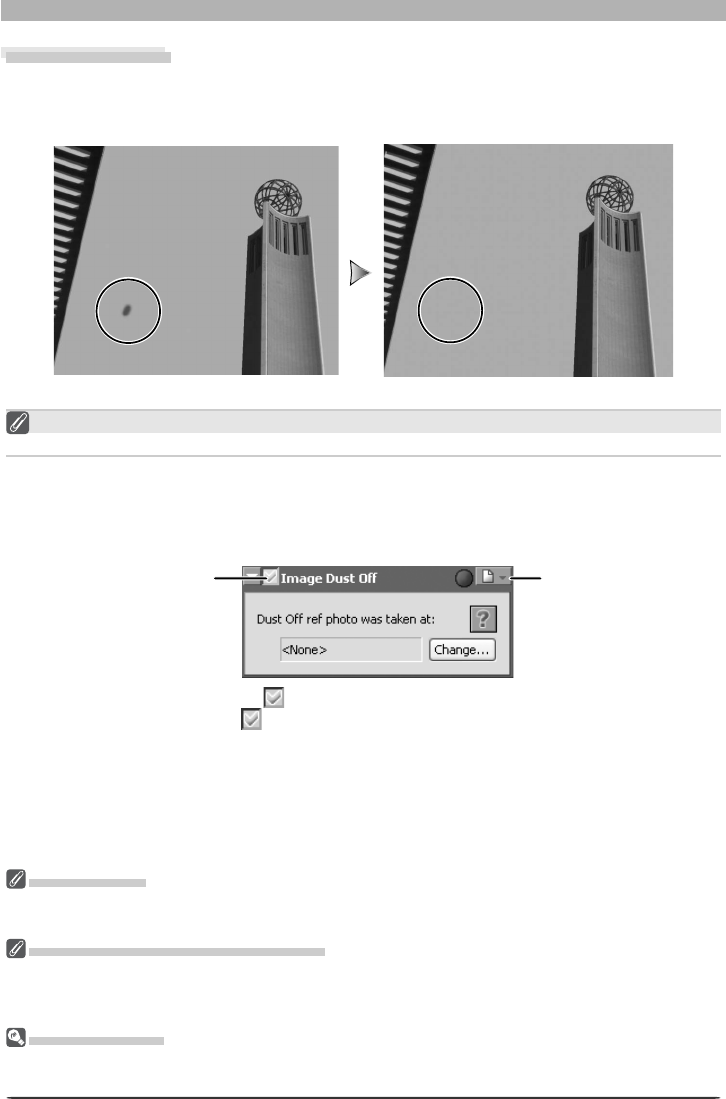
42
Image Adjustment
2 Turn the Apply button on ( )
Turn the Apply button on ( ) to enable Image Dust Off.
3 Click Change...
Click Change... to select a reference image for Image Dust Off. Image Dust Off will be
performed when the image is selected. The date of creation of the selected fi le will be
displayed under “Dust Off ref photo was taken at” in the Image Dust Off tool palette.
Image Dust Off
Image Dust Off compares RAW photographs with a reference image created with the same
camera to reduce the effects of any dust that may be present on the low-pass fi lter protecting
the camera’s imaging sensor.
Image Dust Off
Image Dust Off can be performed on RAW images only. If the image in the active window is JPEG or TIFF,
the Apply button in the Image Dust Off palette will be grayed out and inactive.
Cameras That Support Image Dust-Off
The following cameras support Image Dust Off: D2-series cameras, D1X / D1H (fi rmware version 1.10 or
later), D200, D100, D70s, D70, and D50. Image Dust Off is not supported with COOLPIX cameras, D1
cameras, or with earlier versions of the camera fi rmware for the D1X and D1H.
Reference Images
The position and amount of dust on the low-pass fi lter may change. If possible, take reference images
regularly and use a reference image taken within one day of the selected photograph.
Settings menuApply button
Image Dust Off
Image Dust Off only affects relatively featureless areas of the image.
1 Display the Image Dust Off palette
Select the tool palette containing the Image Dust Off palette from the View menu (the
default location for the Image Dust Off palette is Tool Palette 2) and click the triangle at
the top left corner of the palette.
Before Image Dust Off After Image Dust Off
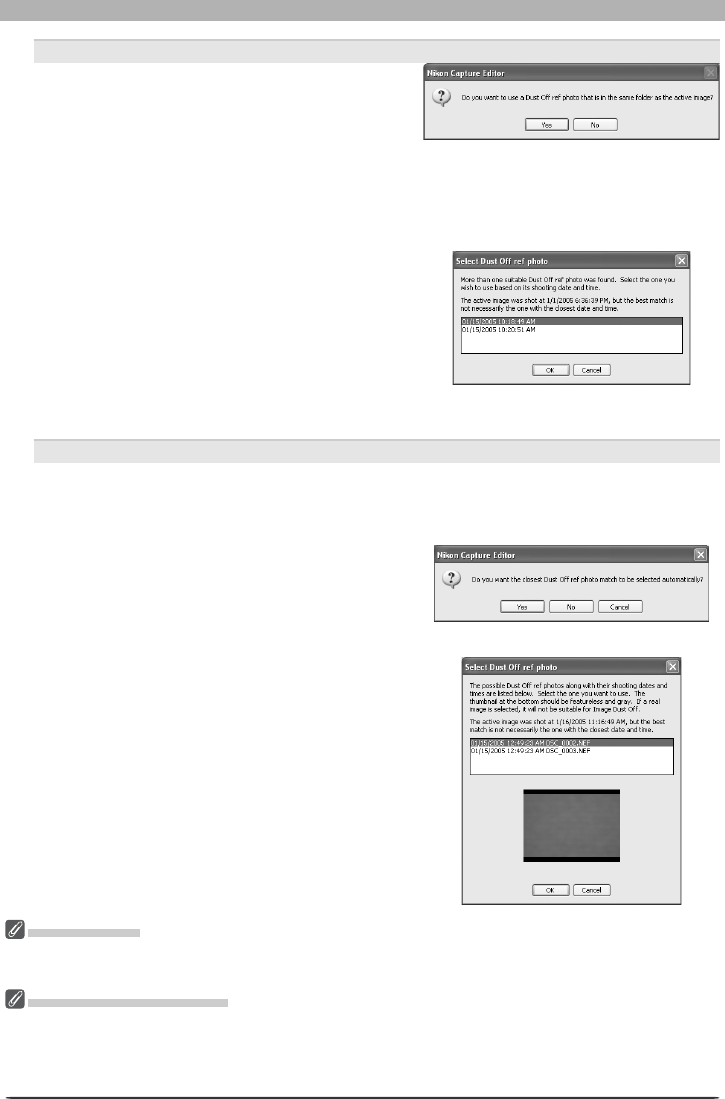
43
Enhancing Images
Images Taken with D2-Series, D200, D70s, D70, or D50 Cameras
If the current image was created with a D2-
series, D200, D70s, D70 or D50 camera, Nikon
Capture 4 Editor will search for reference fi les
created with the camera Image Dust Off option
(extension “.ndf”). If it fi nds a reference fi le in
the same folder as the current image, a message
will be displayed. Click Yes to use this fi le as a
reference.
If the folder contains more than one reference
fi le, clicking Yes will display the dialog shown at
right. Select a fi le for use with Image Dust Off.
If the user clicks No or the current folder does
not contain an image created with the camera
Image Dust Off option, a folder selection dialog
will be displayed. Select a folder containing Im-
age Dust Off reference data.
Images Taken with Other Cameras
If the image in the active window was not created with a D2-series, D200, D70s, D70, or
D50 camera, a folder selection dialog will be displayed. Select the folder containing the
desired Image Dust Off reference photo and click OK.
The message shown at right will be displayed.
Click Yes to search for a suitable reference fi le.
If more than one fi le is found, a fi le-selection
dialog will be displayed (see above). Select a
reference fi le for Image Dust Off.
Clicking No will display a list of all Dust Off ref
photos. Select the fi le that will be used as a ref-
erence for processing the current image.
Excessive Dust
If a large amount of dust is detected in the current image, Nikon Capture 4 Editor will display a warning
stating that the results of Image Dust Off can not be guaranteed. Click Yes to proceed.
No Suitable Images Found
If none of the Image Dust Off reference fi les found is suitable for use with the image in the active
window, Nikon Capture 4 Editor will display a message to this effect and offer to use the most suitable
reference image. Clicking Yes displays a list of the most suitable reference images; select a reference fi le
to process the image in the active window to reduce the effects of dust.

44
Image Adjustment
Creating Dust Off Ref Photos
To create a Dust Off ref photo for cameras other than the D2 series, D200, D70s, D70, or
D50:
1 Select a CPU lens
Mount a CPU lens on the camera. We recommend using a lens with a focal length of at
least 50 mm. If using a zoom lens, zoom in to the maximum telephoto position.
2 Adjust camera settings
Choose the following settings in the order shown below:
1 Sensitivity (ISO equivalency): choose the minimum setting
2 Image quality: choose NEF (RAW)
3 Exposure mode: choose aperture-priority auto (A)
4 Aperture: choose the minimum aperture (largest f/-number)
5 Focus: choose manual focus and set focus to infi nity
3 Take a photograph
With the lens about 10 cm from a featureless white object, such as a wall, frame the object
so that it fi lls the viewfi nder and take a photograph. The resulting Dust Off ref photo will
be recorded as an NEF (RAW) image.
4 Transfer the photograph to the computer
Creating Dust Off Ref Photos (D1-Series and D100 Cameras)
In addition to D2-series, D200, D70s, D70, and D50 cameras, Dust Off ref photos can be taken with the
D1X / D1H (fi rmware version 1.10 or later), and D100. Dust Off ref photos can not be created with the D1
or with earlier versions of the camera fi rmware for the D1X and D1H. Dust Off ref photos taken with the
D100, D1X, or D1H have the extension “.nef”; do not change this extension.
Camera Shake
A slight amount of blurring caused by camera shake will not affect Dust Off ref photos.
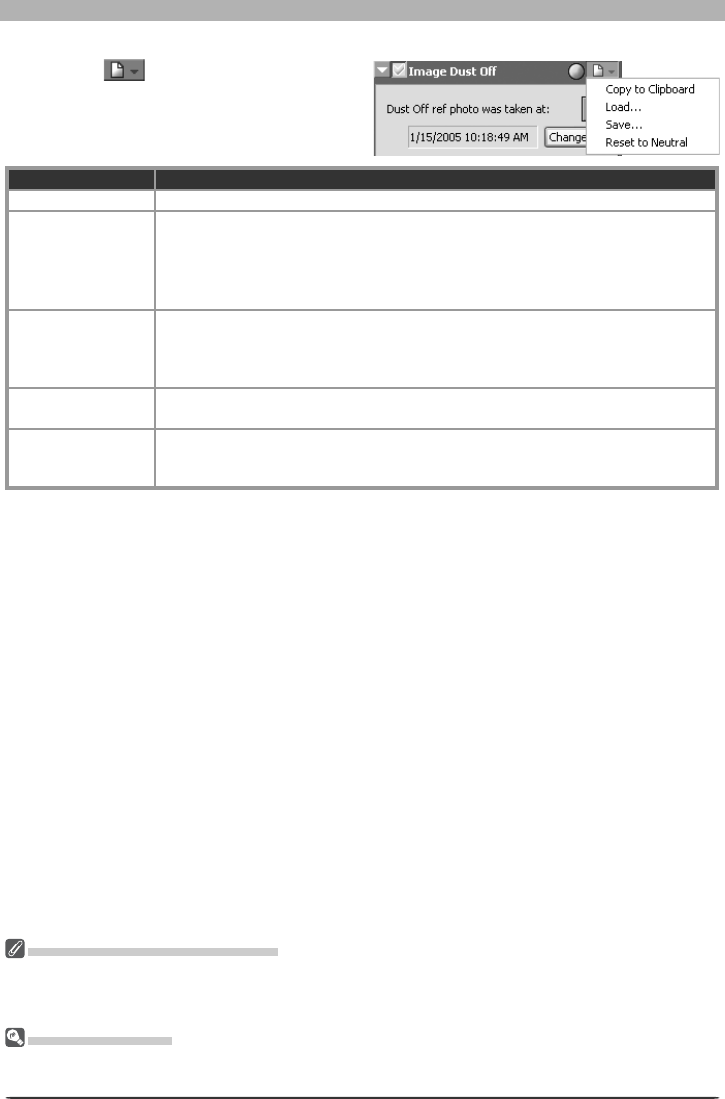
45
Enhancing Images
Reusing Image Dust Off Settings
Before pasting or loading Image Dust Off settings into the Image Dust Off palette for another image, be
sure that the image was created with the same camera used to record the Image Dust Off reference fi le.
If the reference fi le was created with a different camera, a warning will be displayed.
The Set tings Menu
The Image Dust Off Settings menu can also be displayed by selecting Image Dust Off from the Set-
tings menu.
The Image Dust Off Settings Menu
Clicking the button in the Image Dust
Off palette displays the Image Dust Off Set-
tings menu.
Option Description
Copy to Clip board Copy current Image Dust Off settings to the clipboard.
Load…
Select this item to load Image Dust Off settings pre vi ous ly saved using the Save…
op tion (see be low). A dialog will be displayed where you can navigate to the drive
(vol ume) and di rec to ry con tain ing the desired settings fi le (only fi les with the ex-
tension “.ndr” will be dis played). The set tings in the Image Dust Off palette will
instantly re vert to the saved settings.
Save…
Select this item to save Image Dust Off settings to a named fi le. These settings
can later be re called using the Load… option. Choos ing Save… displays a dialog
where you can choose a destination and fi le name for the current Image Dust Off
settings. Image Dust Off set tings are saved with the ex ten sion “.ndr”.
Reset to Neutral Clears the name of the current Image Dust Off reference fi le from the Image Dust
Off palette.
Recent fi les
Recent Image Dust Off settings fi les (up to four) are listed at the end of the set-
tings menu. Selecting a fi le from the list sets the controls in Image Dust Off
palette to the saved settings.
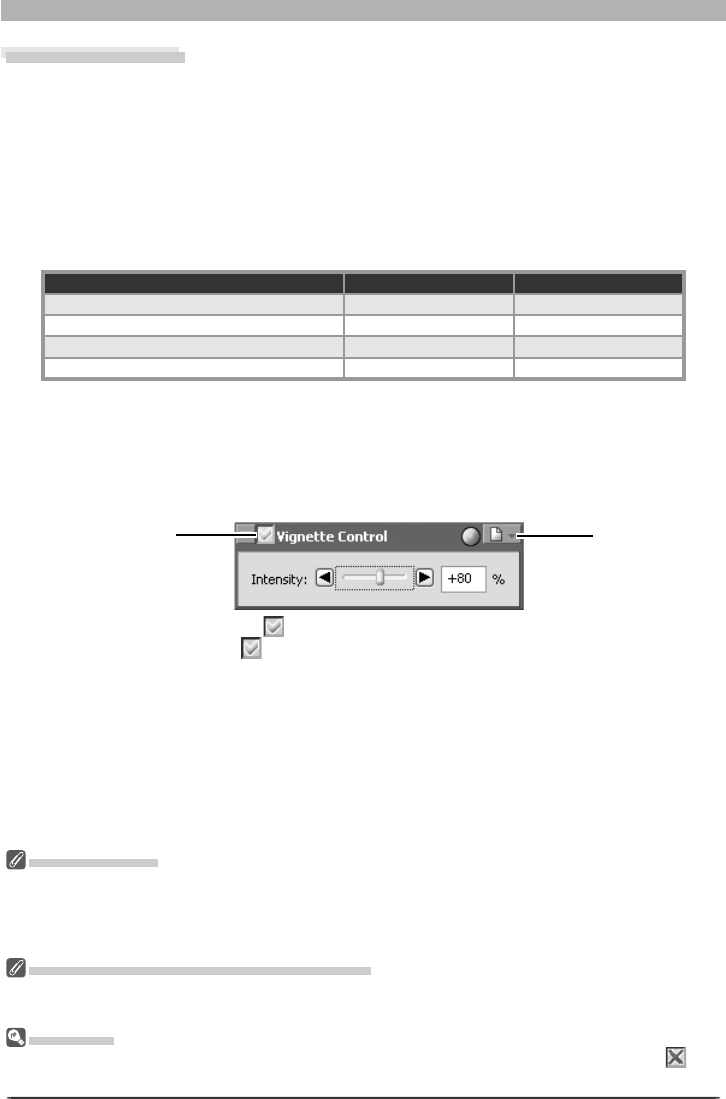
46
Image Adjustment
2 Turn the Apply button on ( )
Turn the Apply button on ( ) to enable Vignette control.
3 Adjust intensity
Vignette control can be performed manually by dragging the Intensity slider or entering
a value in the text box to its right. Choose a value between –100 and +200 ac cord ing to
the drop in marginal lumination exhibited by the lens in use. The default value is 80; if 0
is selected, no vignette control will be performed.
Vignette Control
The Vignette Control palette is used to correct for loss of marginal lumination, a phe nom e non
as so ci at ed with camera lenses that causes a drop in brightness at the edges of a photograph.
Vignette Control is most effective when performed on images taken at maximum aperture. If
the picture in the active image window is a RAW image taken with a lens equipped to trans-
mit dis tance in for ma tion (i.e., a type G or D lens) mounted on a camera that can record this
in for ma tion, Nikon Capture 4 will use the lens information recorded with the im age to au to -
mat i cal ly select an optimal value for Vignette Control. Where lens information is not available,
Vignette Control will be based on default lens characteristics. To determine whether a given
com bi na tion of lens and cam era will record distance information, see the table below.
Camera Type G or D lens Other lens
D2 series, D200, D100, D70s, D70, D50 Recorded Not recorded
D1X/D1H (fi rmware version 1.10 or later) Recorded Not recorded
D1X/D1H (fi rmware version 1.01 or earlier)
Not recorded Not recorded
D1 Not recorded Not recorded
To use Vignette Control:
1 Display the Vignette Control palette
Select the tool palette containing the Vignette Control palette from the View menu (the
default location for the Vignette Control palette is Tool Palette 2) and click the triangle at
the top left corner of the palette.
Vignette Control
The controls in the Vignette Control palette are only available if the image in the active window is a RAW
(NEF) pho to graph taken with a D2-series, D1-series, D200, D100, D70s, D70, or D50 camera. If the image
is JPEG or TIFF, the Apply button in the Vignette Control palette will be grayed out and inactive. Vignette
control can not be used to correct vignetting caused by PC Nikkor lenses or Speedlight photography.
Where Distance Information Is Not Available
Vi gnette Con trol for photographs taken with lenses or cameras that do not support distance in for ma tion
is based on default lens characteristics. Care may be required to prevent over-cor rec tion.
Neutral.set
At factory defaults (the default settings stored in the fi le “Neutral.set”), the Apply button is off ( ) and
Intensity is set to 80.
Settings
menu
Apply
button
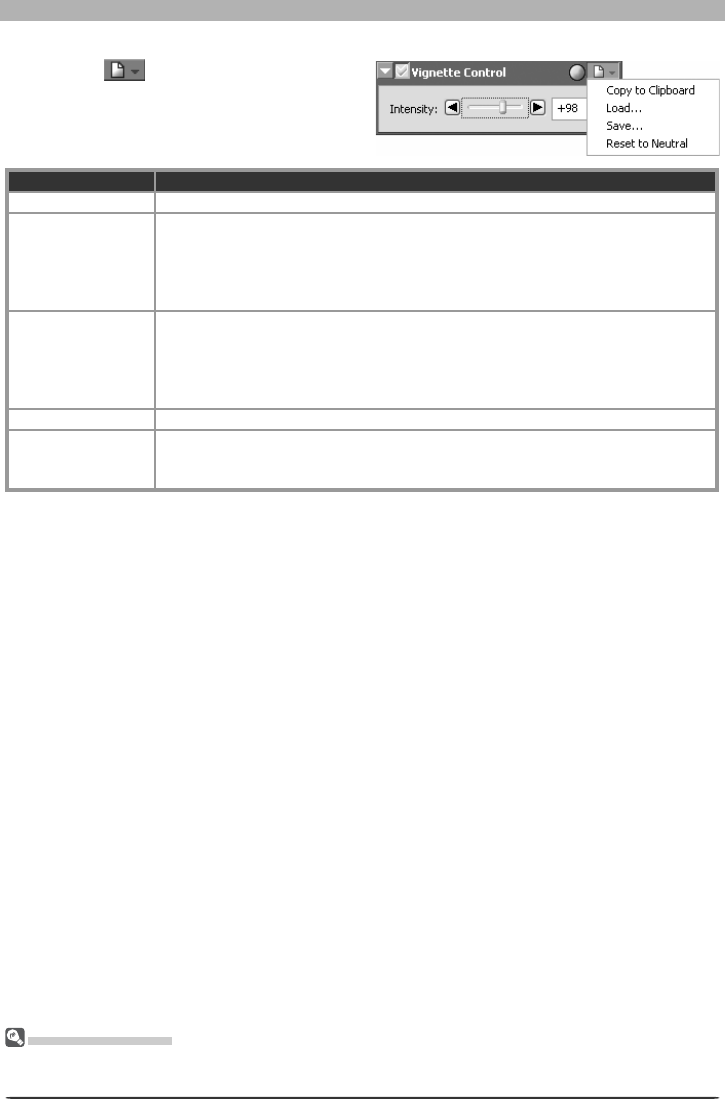
47
Enhancing Images
The Vignette Control Settings Menu
Clicking the icon in the Vignette Con-
trol palette dis plays the Vignette Control
Settings menu.
The Set tings Menu
The Vignette Control menu can also be displayed by se lect ing Vignette Con trol from the Set tings
menu.
Option Description
Copy to Clip board Copy current Vignette Control settings to the clipboard.
Load…
Select this item to restore settings saved us ing the Save… op tion (see below).
A di a log will be displayed where you can navigate to the drive (volume) and di-
rec to ry con tain ing the de sired settings fi le (only fi les with the extension “.nvc”
will be dis played). The set tings in the Vignette Control palette will in stant ly re vert
to the saved settings.
Save…
Select this item to save current settings for the Vignette Con trol pal ette to a
named fi le. These settings can later be re called using the Load… op tion. Choos-
ing Save… dis plays a di a log where you can choose a des ti na tion and fi le name
for the current Vignette Control settings. Vignette Control settings are saved
with the extension “.nvc”.
Reset to Default Restores default settings. Intensity will be set to 80.
Recent fi les
Recent Vignette Control settings fi les (up to four) are listed at the end of the
settings menu. Selecting a fi le from the list sets the controls in Vignette Control
palette to the saved settings.

48
Image Adjustment
Curves
Although your Nikon digital camera will reproduce colors accurately if settings have been
ad just ed appropriately, it will usually be necessary to adjust contrast, tone (brightness) levels,
and color balance to make maximum use of the tone range and color gamut offered by a
particular output device, such as a printer or monitor. Nikon Capture offers two tools for
performing these tasks: the Color Balance palette (see “Color Balance” later in this chapter)
and the Curves palette. Of the two, the Curves palette offers the more precise control. The
Color Balance palette is useful when, for example, you want to adjust brightness or color
balance for all pixels in the image. The Curves palette, in contrast, allows adjustments to be
made to specifi c por tions of the tone range, making it possible to enhance the image while
preserving detail.
Curves—an Overview
To view the Curves palette, select the tool palette containing the Curves palette from the
View menu (the default location for the Curves palette is Tool Palette 1) and click the triangle
at the top left corner of the palette. To enable the tools in the Curves palette, turn the Apply
button on ( ).
Opening NEF Files Saved in Nikon Capture 3.5x or Earlier
In Nikon Capture 4, changes to color balance apply before changes to curves In earlier versions of Nikon
Capture, changes to curves applied before changes to color balance, with the result that settings may
change when the images saved in Nikon Capture 3.5x or earlier are opened in Nikon Capture 4.
Preferences > Advanced Color
Auto contrast, shadow, and highlight settings can be adjusted in the Advanced Color tab of the Prefer-
ences dialog.
The main editing tool in the Curves palette is the curve edit display, which contains a curve
showing the relationship between input (the tones in the original image) and output (how
the tones in the input will be represented in the fi nal image). Separate curves control the
re la tion ship between input and output for the image as a whole (the “master curve”) and for
each of the red, green, and blue color com po nents, or “channels.” The default curve in each
case is linear, meaning that tones will be output exactly as they are input.
Apply button Current channel
Curve edit display
Histogram button
Auto Contrast button
White Point button
Midpoint button
Black Point button
Reset Active Curve
Reset All Curves
Tone Curve Point button
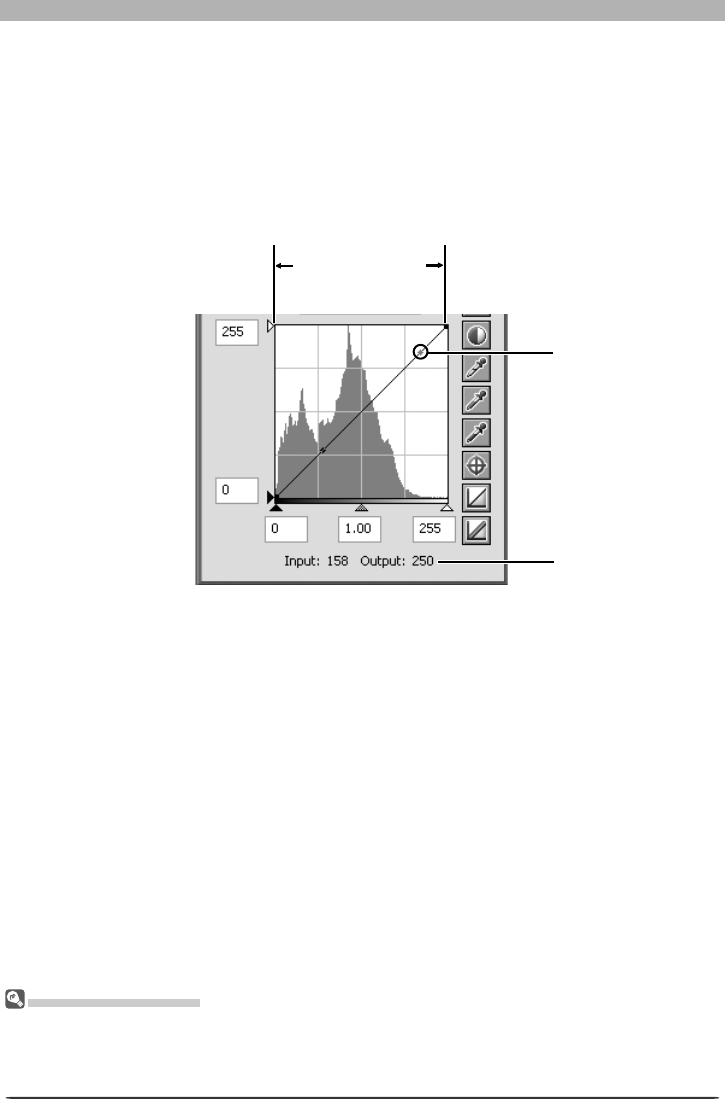
49
Enhancing Images
When the cursor is moved over an image or over the curve edit display, the input and output
values for the point under the cursor are shown in the input/output display. The input value
represents the level of the pixel in the original image, the output value the level of the pixel
after any changes to the curve have been applied.
The Curve Edit Display
Although values for input and output in the Curves palette range from zero to 255 (eight-bit pre ci sion,
familiar to users of other image editing software), the results of any changes to curves are calculated at
a precision of sixteen bits. This allows twelve-bit RAW data to be modifi ed without lowering the quality
of the output.
Input is plotted along the horizontal axis, with shadows (the dark areas of the image) to the
left, high lights (the bright areas of the image) to the right, and mid-tones in between. The
left end of the axis marks the minimum possible value for colors in the selected channel (zero,
or no color), the right end the maximum value. In the case of the master curve, the minimum
value represents areas of the input image that are a true black; the maximum value represents
areas that are a true white. Output is plotted along the vertical axis, with the minimum pos-
sible output value (again, zero, or no color) at the bottom and the maximum output value at
the top.
Input/output display
High lights
Shadows
Brightness of point
under cursor
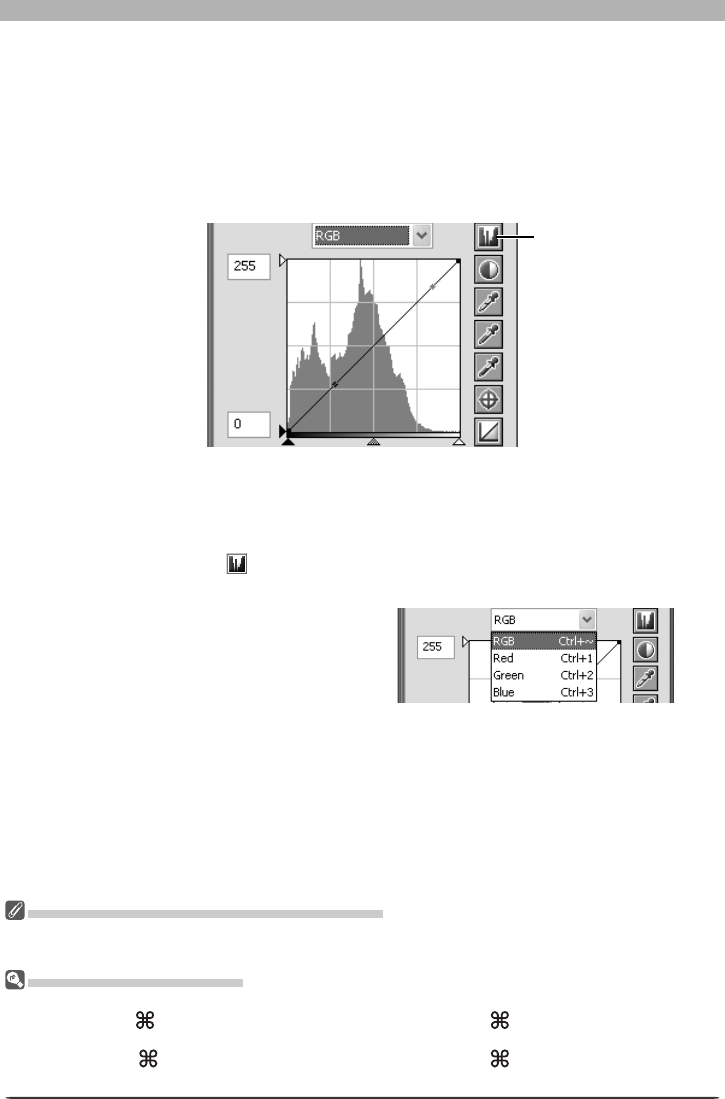
50
Image Adjustment
The Histogram (RAW / 16-Bit TIFF Images Only)
To reduce display times when dealing with large amounts of image data, Nikon Capture 4 may display a
histogram containing vertical lines.
Channel Selection Shortcuts
The current channel can also be selected using the following shortcuts:
•Ctrl
~ (Windows)/ ~ (Macintosh) • Ctrl 1 (Windows)/ 1 (Macintosh)
Master channel (RGB) Red channel
•Ctrl 2 (Windows)/ 2 (Macintosh) • Ctrl 3 (Windows)/ 3 (Macintosh)
Green channel Blue channel
Viewing the Histogram
The fi rst step in adjusting tone levels and color balance in the Curves palette is to view the
histogram displayed in the background of the curve edit display. The histogram tells you what
tones are present in the original image and in what amounts, information that you will use
when setting the black point and white point and editing curves. The histogram takes the
form of a bar graph. The horizontal axis gives the tone level, with shadows to the left and
highlights to the right. The vertical axis gives the number of pixels of each tone level found in
the image, scaled to fi t in the curve edit display.
Histogram button
By assigning the darkest tones in the image an output value of zero and the brightest tones
in the image an output value of 255, blacks will be output as blacks and whites as whites,
making the most effective use of the dynamic range of the output device.
To view the distribution of tones in the fi nal, output image after changes to curves, click and
hold the Histogram button .
Channel Selection
You can modify tones for all colors in the
image using the master curve, or select any
of the red, green, and blue curves for edit-
ing using the channel menu. The histogram
shows tone levels for the selected chan nel
only. When the master curve is selected, the
auto-contrast but ton and white-point and black-point eye drop per tools apply simultaneously
to all of the red, green, and blue curves (the master curve is un af fect ed). When one of the
red, green, and blue curves is selected, these controls can be used to edit the se lect ed curve
only.

51
Enhancing Images
Setting the White Point and Black Point
The endpoints of the curve are referred to as the “white point” and the “black point.” The
black point for a given channel represents the darkest shade (minimum value) for that color,
the white point, the brightest shade (maximum value). By default, the input and output
values for the black point are zero. The darkest shade in the input image may however be
greater than zero, with the result that a portion of the curve is dedicated to reproducing
tones not actually present in the image. Increasing the input value for the black point until
it matches the darkest shade in the image will steepen the curve, en hanc ing overall contrast
without causing a corresponding loss of detail in shadows. Similarly, if the original image
does not actually contain shades corresponding to the maximum value, the white point can
be lowered to match the brightest shade in the image.
There are two steps to selecting a white point and black point for the fi nal image: choosing
the white-point and black-point input levels, and selecting out put levels.
White-Point and Black-Point Input Levels
Input levels for the white point and black point can be set using any of the following three
methods:
• automatic contrast adjustment
• white-point and black-point sliders
• direct sampling using the white-point and black-point eyedropper tools
Automatic Contrast Adjustment
In automatic contrast adjustment, Nikon Capture automatically selects white and black points
that exclude a certain percentage of the brightest and darkest pixels in the image, steepening
curves for enhanced contrast (the exact percentage of pixels excluded can be specifi ed in the
Preferences dialog; 102). By default, 0.5% of the brightest and darkest pixels are excluded,
producing a curve that makes optimal use of the output tone range while preserving details
in shadows and highlights.
To perform an auto contrast operation, click the Auto Contrast button . The white and
black points for each of the red, green, and blue channels will be modifi ed simultaneously and
the master curve will be displayed in the Curves palette (the master curve itself is unaffected
by this operation). Clicking the button with the Ctrl (Win dows) or option (Macintosh) key
held down adjusts contrast only for the channel cur rent ly se lect ed in the channel menu.
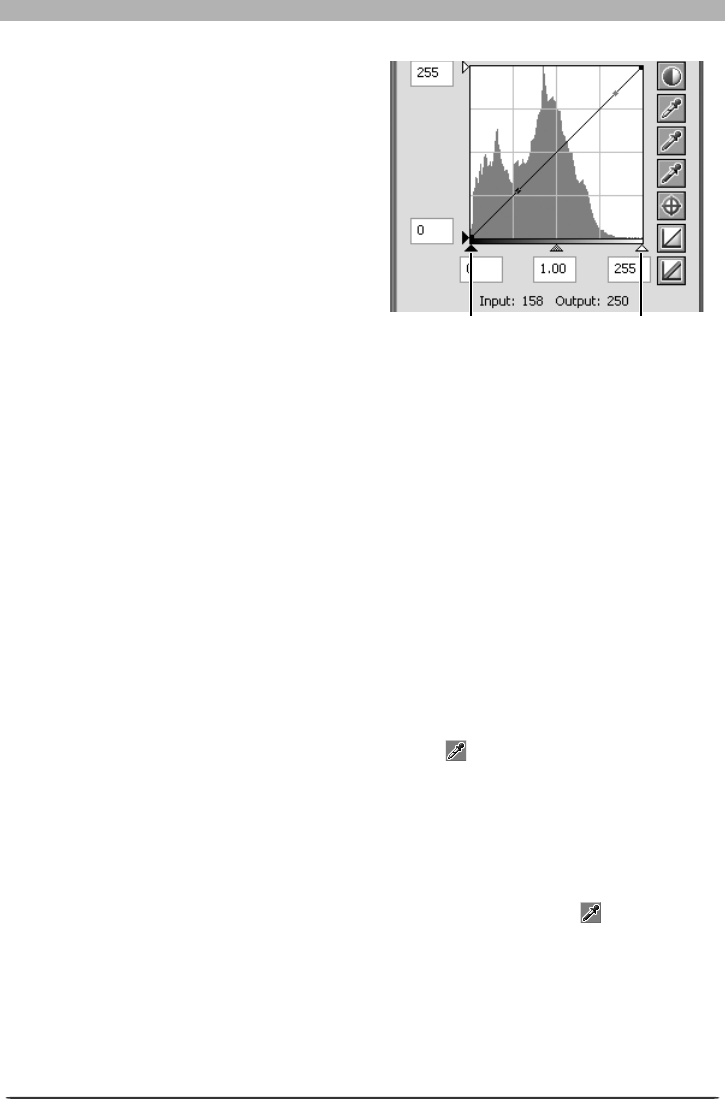
52
Image Adjustment
White-Point and Black-Point Sliders
The white-point and black-point sliders can
be used to match the white and black points
to the his to gram displayed in the curve edit
display. While these sliders can be used to
edit curves for any channel, the best results
are usually obtained when they are used to
modify the master curve.
To edit the white point or black point, click
the corresponding slider once to activate it,
then drag it to the right or left (a value can
also be entered directly in the text box under-
neath the slider). Matching the black-point
slider with the lowest input value displayed
in the histogram will set the minimum output
value for the selected channel to the darkest pixel actually present in the image, steepening
the curve and enhancing contrast without sacrifi cing detail in shad ows. Similarly, matching
the white-point slider with the highest input value displayed in the histogram will set the
maximum output value for the selected channel to the brightest pixel present in the image,
enhancing contrast without loss of detail in highlights. Any changes are applied instantly to
the active image.
Sampling the Image for White Point or Black Point
The white point or black point can be set by directly sampling the image, allowing you to
choose the pixels that will be used to set the maximum (white point) or minimum (black point)
output value. This makes it possible to set the black point by matching it to a pixel in the
darkest part of the image containing detail you want to preserve, eliminating details in darker
areas that are not important to the fi nal image. Similarly, you can match the white point to a
pixel in the brightest area of the image containing details important to the fi nal image. While
direct sampling can be used with any channel, it is most effective when used with the master
curve. When the master curve is selected, sampling will set the white or black point for red,
green, and blue curves simultaneously; the master curve itself is unaffected.
To sample the white point, click the White Point button . When the cursor is moved over
the active image, it will take the shape of an eyedropper. Move the cursor over the image to
fi nd the pixel that you want to use to set the white point, keeping an eye on pixel level display
in the Information palette to identify pixels with high input values. With the cursor over the
target pixel, click the mouse button. The input value for the selected pixel will be used as the
input value for the white point. The cursor will return to its original shape, and the image will
automatically be altered to refl ect the new value for white point.
To sample the image for the black point, click the Black Point button and move the
eye drop per cursor over the image until you fi nd the point that you want to use to set the
min i mum input value, then click the mouse button to select the black point.
White-point slider
Black-point slider
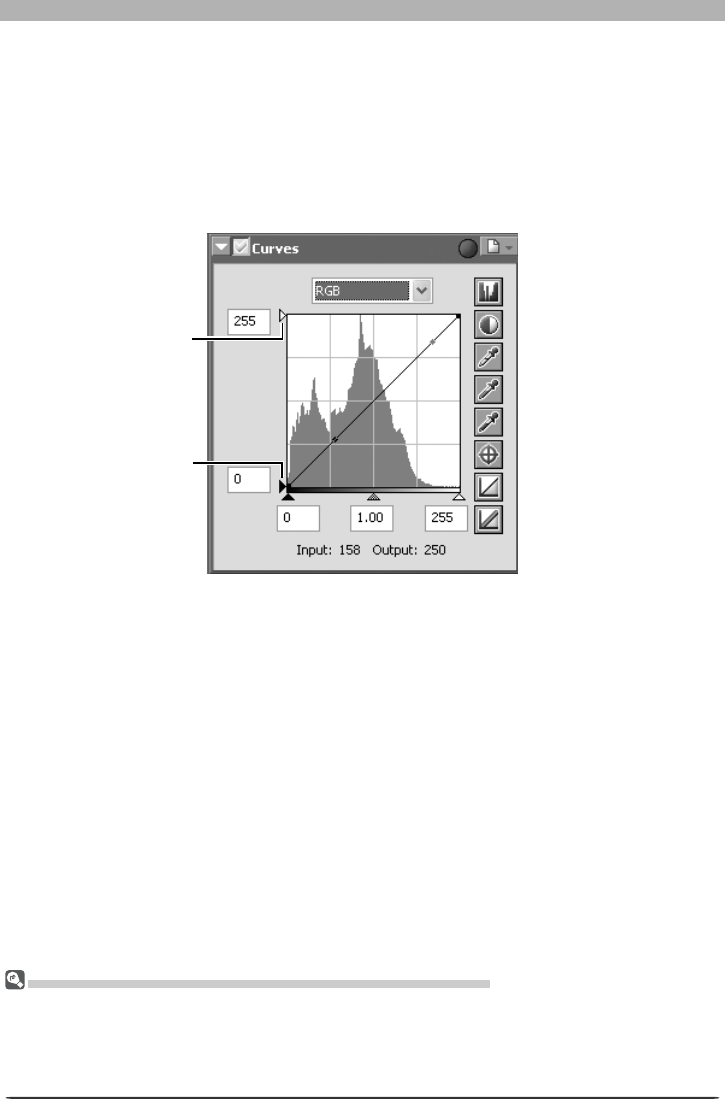
53
Enhancing Images
White-point output
slider
Black-point output
slider
White Point and Black Point Output Levels
Once you have set the input level for the black point and white point, output levels can be
altered to refl ect the actual shade of the darkest and brightest pixels in the image. If the
darkest shade in the image represents a true black, for example, the output level for the black
point can be left at zero. If, however, darkest shade present in the image is a lighter color, the
output level for the black point can be raised to achieve more natural coloration.
The output levels for the white point and black point are set using the white-point and black-
point output sliders on the left side of the curve edit display.
To set the output level, click the slider once to activate it, then drag it up or down until you
have found the desired output level (the output level can also be set by entering a value di-
rectly in the text box to the left of the slider). The effects of the change will be refl ected in
the active image.
Sampling White Point or Black Point for the Current Channel
By default, sampling sets the white point or black point for all channels and displays the master chan-
nel. To set the white or black point for the current channel only, sample the image while pressing Ctrl
(Win dows) or option (Macintosh). Midpoint can not be sampled for a single channel; regardless of the
channel currently selected, sampling the image for midpoint always sets the mid point for all chan nels
and dis plays the master chan nel.
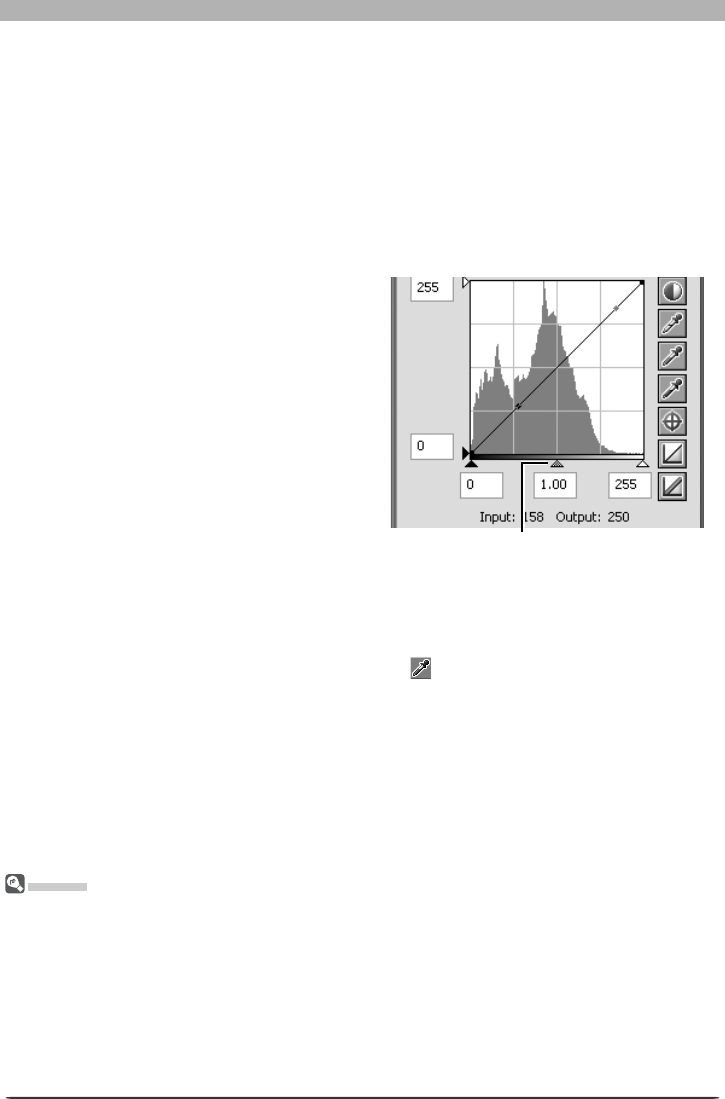
54
Image Adjustment
Gamma
Gamma (also written “γ”) is a fundamental property of video systems which determines the in ten si ty of
the output signal relative to the input. When calculating gamma, the maximum possible input intensity is
assigned a value of one, and the minimum possible intensity (no input) is assigned a value of zero. Out-
put is calculated by raising input to a power that is the inverse of the gamma value (output = input
(1/γ)
).
In practical terms, raising the gamma value has the same effect as moving the midpoint slider to the left,
raising mid-tone output values and brightening the image while leaving the maximum and minimum
values untouched. Lowering the gamma value has the same effect as moving the midpoint slider to the
right, lowering mid-tone output values and darkening the image. The de fault value for gamma is one,
which produces a linear curve in which input and output values are the same. Gamma can be set to any
value between 0.05 and 6.00.
Setting the Midpoint
The point midway between the maximum and minimum input values is known as the “mid-
point,” which represents a neutral shade corresponding to an output level of 128. The
mid point is controlled by a midpoint slider at the bottom of the curve edit display. Moving
the midpoint slider to the left increases the brightness of mid-tones without “washing out”
high lights. Moving the slider to the right darkens mid-tones without obliterating detail in
shad ows.
The midpoint can be set using the midpoint slider or by directly sampling the image using the
midpoint eyedropper tool.
The Midpoint Slider
The midpoint slider is located at the bottom
of the curve edit display.
After clicking the slider once to activate it,
move it to the left to increase the bright-
ness of mid-tones in the selected channel, or
move it to the right to decrease brightness.
Al ter na tive ly, you can enter a value for gam-
ma directly in the text box under the slider.
The effects of changes to the midpoint can
be seen in the active image.
Midpoint slider
Sampling the Image for Midpoint
The midpoint can also be set by direct sampling. Regardless of the channel currently selected
in the channel menu, sampling simultaneously defi nes the midpoint for each of the red,
green, and blue chan nels while leaving the midpoint for the master curve unchanged.
To sample the midpoint, click the Midpoint button . When the cursor is moved over the
active image, it will take the shape of an eyedropper. Move the cursor over the image to fi nd
the pixel that you want to use to set the midpoint, keeping an eye on the pixel level display
in the Information palette to identify pixels with a neutral input value (look for pixels that you
think should be a neutral gray color in the fi nal image). With the cursor over the target pixel,
click the mouse button. The input value for the selected pixel will be used as the reference
value for the midpoint. The cursor will return to its original shape, and the image will au to -
mat i cal ly be altered to refl ect the new value for midpoint.

55
Enhancing Images
Editing Curves Directly
Fine adjustments can be made to brightness and contrast in specifi c portions of the tone range
by adding additional points to the curves for each channel. These points can be freely ad-
just ed by drag ging them into new positions, changing the shape of the curve. Steepening the
slope in a given portion of the curve will enhance contrast in that portion of the tone range.
Changing the curve so that input levels in a given portion of the tone range are mapped to
higher output levels will brighten tones in the affected tone range; similarly, chang ing the
curve to map input levels to lower output levels will darken tones in the affected range.
Adding New Points to the Curve
Move the cursor over the curve edit display and click once to enter curve edit mode. Move
the cursor to the position where you would like to add a new point, then click. A new point
will be added at this position and the curve will automatically be adjusted to pass through this
point. A point corresponding to a selected location in the active image can be added by click-
ing the button and then clicking in the desired area in the image window. The position of
the point can be adjusted by dragging it to a new location within the curve edit display. The
image in the active window will automatically be adjusted to refl ect changes to the curve.
Removing Points from the Curve
Points can be removed from the curve by dragging them out of the curve window.
Resetting the Active Curve to Linear
The default linear curve for the current channel can be restored by clicking the button in
the Curves palette.
Resetting All Curves to Linear
To reset all curves to linear, click the button. All curves will be reset and the RGB master
channel will be displayed in the Curve palette.
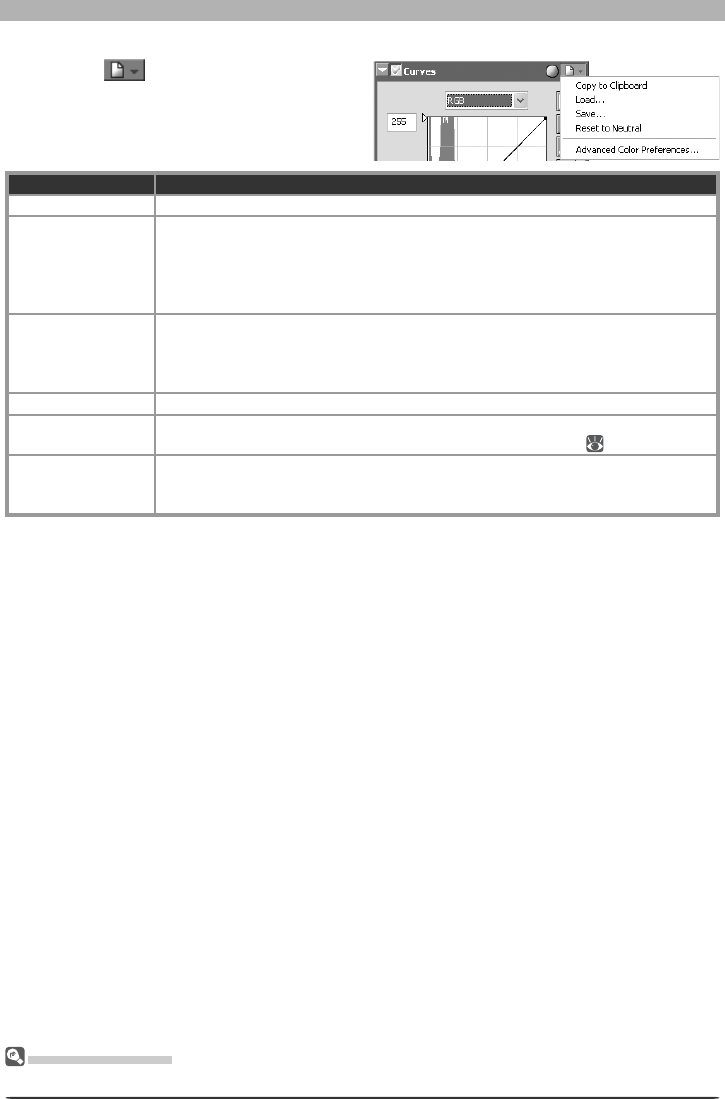
56
Image Adjustment
The Set tings Menu
The Curves Settings menu can also be displayed by selecting Curves from the Set tings menu.
The Curves Settings Menu
Clicking the button in the Curves pal-
ette displays the Curves Settings menu.
Option Description
Copy to Clip board Copy current Curves settings to the clipboard.
Load…
Select this item to load curves previously saved using the Save… option (see
be low). A dialog will be displayed where you can navigate to the drive (volume)
and di rec to ry con tain ing the desired settings fi le (only fi les with the extension
“.ncv” will be dis played). The settings in the Curves palette will in stant ly revert
to the saved settings.
Save…
Select this item to save curves for all channels to a named fi le. These settings can
later be recalled using the Load… option. Choosing Save… displays a dialog
where you can choose a destination and fi le name for the current curves. Curves
are saved with the ex ten sion “.ncv”.
Reset to Neutral Reset all curves to linear.
Advanced Color
Preferences…
Open the Nikon Capture 4 Editor Preferences dialog to the Ad vanced Color tab,
where you can adjust auto contrast, shadows, and highlights ( 102).
Recent fi les
Recent Curves settings fi les (up to four) are listed at the end of the settings menu.
Selecting a fi le from the list sets the controls in Curves palette to the saved set-
tings.
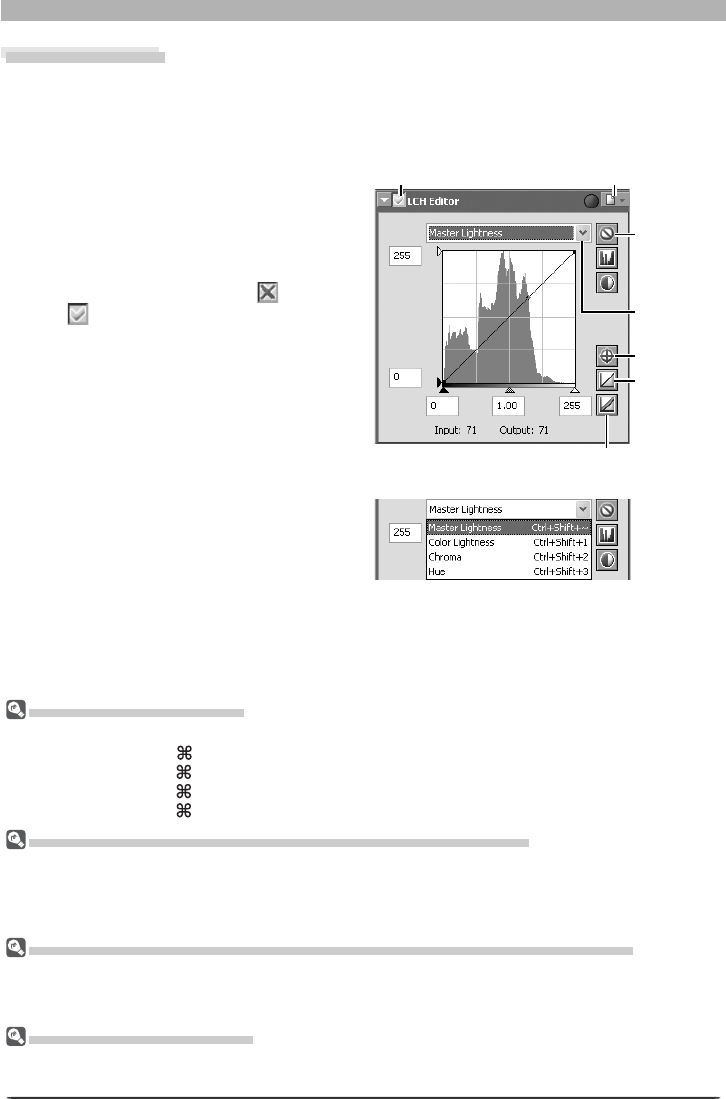
57
Enhancing Images
The LCH Editor
The LCH Editor models color using Luminosity (master lightness), Chroma (color saturation, or
vividness), and Hue. A separate Color Lightness channel is available for adjusting the bright-
ness of selected colors. To use the LCH Editor:
1 Display the LCH Editor
Select the tool palette containing the LCH
Editor from the View menu (the default
location for the LCH Editor is Tool Palette
2) and click the triangle at its top left
corner.
2 If the Apply button is off ( ) , turn it
on ( )
Channel Selection Shortcuts
The channel can also be selected using the following shortcuts:
•Ctrl Shift ~ (Windows)/ option ~ (Macintosh): master lightness channel
•Ctrl Shift 1 (Windows)/ option 1 (Macintosh): color lightness channel
•Ctrl Shift 2 (Windows)/ option 2 (Macintosh): chroma channel
•Ctrl Shift 3 (Windows)/ option 3 (Macintosh): hue channel
Input and Output (Intensity) Displays and the Curve Point Button
When the cursor is moved over an image or over the edit window in the LCH Editor, input and output
levels for the pixel under the cursor are shown on the curve and in the input and output displays for the
current channel. Clicking the Curve Point button when the cursor is over the image in the active window
adds a point corresponding to the area under the cursor to the active curve.
“Show Original Image Data,” “Reset Active Channel,” and “Reset All Channels”
To hide the effects of changes to the active curve, click and hold the Show Original Image Data button.
Click the Reset Active Channel button to reset the active curve to linear. Click the Reset All Channels
button to reset all curves in the LCH Editor to linear.
Preferences > Advanced Color
Auto contrast, shadow, and highlight settings can be adjusted in the Advanced Color tab of the Prefer-
ences dialog.
3 Select a channel
Select the desired channel from the chan-
nel menu.
4 Adjust settings
Adjust settings for the selected channel as described on the following pages.
Apply button
Show
Original
Image
Data
Curve
Point
Reset All Channels
Settings button
Channel
menu
Reset
Active
Channel
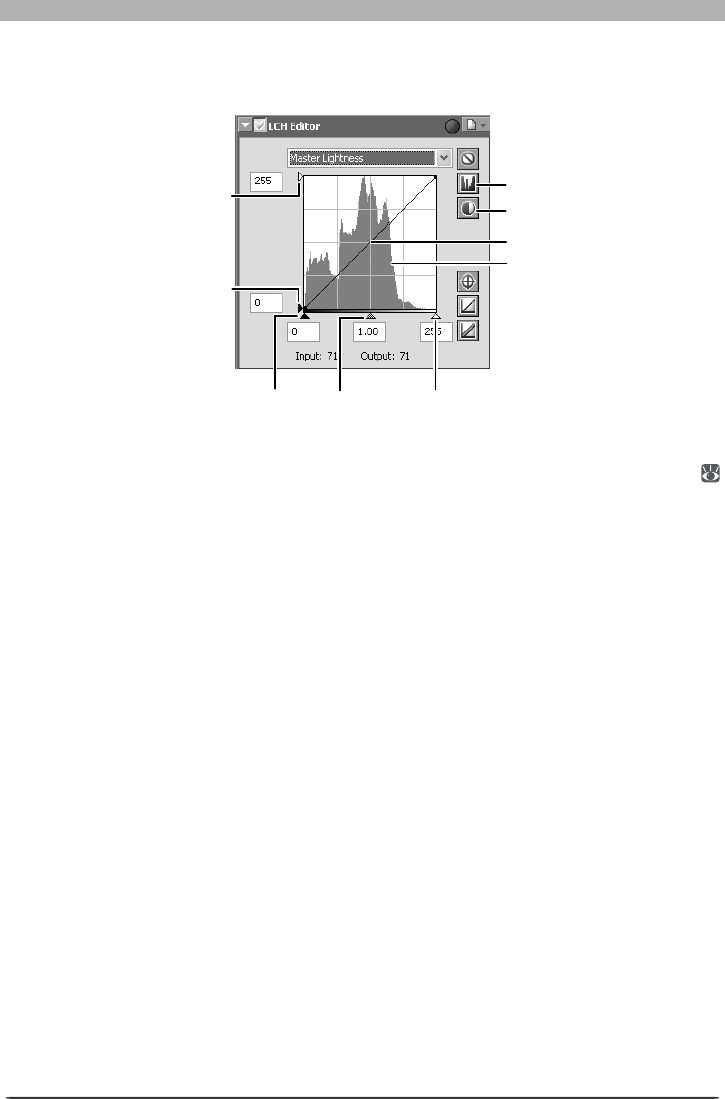
58
Image Adjustment
The Master Lightness Channel
Although it affects brightness rather than color, editing luminosity has a similar effect to edit-
ing the master curve in the Curves palette.
Luminosity curve: Maps luminosity in the original image (input) to the luminosity of the image
after editing (output). Any portion of the curve can be edited as described in “Curves” (
48); steepening the curve increases the difference between light and dark areas of the image,
increasing contrast.
Histogram: Shows the distribution of pixels of different luminosities in the input. The hori-
zontal axis corresponds to luminosity (in the range 0–255), the vertical axis to the number of
pixels.
Output level sliders: Choose the maximum (white point) and minimum (black point) values
for output.
Input level sliders: Choose the maximum (white point) and minimum (black point) input
levels.
Mid-point slider: Set the mid-point (gamma value). Moving the mid-point alters the bright-
ness of mid-tones while preserving detail in highlights and shadows.
Show Histogram button: Click to view the luminosity distribution for the fi nal image. Click
again to view the input luminosity distribution.
Auto Contrast button: Set the maximum and minimum input levels to exclude values for 0.5%
of the brightest and darkest pixels in the crop. The percentage of pixels excluded can be ad-
justed in the Advanced Color tab in the Preferences dialog.
Show Histogram button
Auto Contrast button
Histogram
White-point
input slider
Mid-point
slider
Black-point
input slider
Black-point output
level slider
White-point output
level slider
Luminosity curve
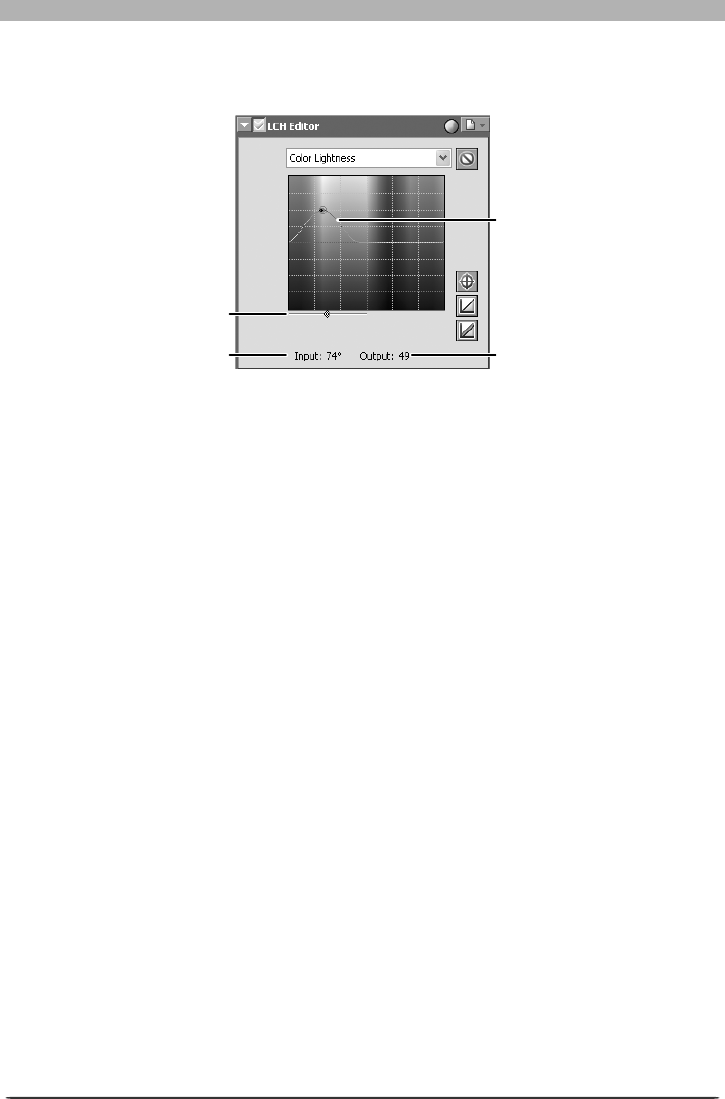
59
Enhancing Images
The Color Lightness Channel
The Color Lightness channel controls the brightness of colors without affecting chroma or
hue. It can be used, for example, to brighten the blue of a dark sky.
Color lightness curve: Maps the brightness of colors in the original image (input) to the
brightness of colors after editing (output). Moving a point on the curve upward makes colors
in the affected portion of the color range more brighter, while moving it downward makes
the affected colors darker.
Width slider: Adjust the width of the curve that passes through the selected point, increasing
or decreasing the range of colors affected by the change.
Intensity: The amount by which the brightness of colors under the selected point will be
increased or decreased in the output image.
Width slider
Color lightness curve
(vertical axis corresponds to
brightness, horizontal axis
to chroma)
IntensityInput display
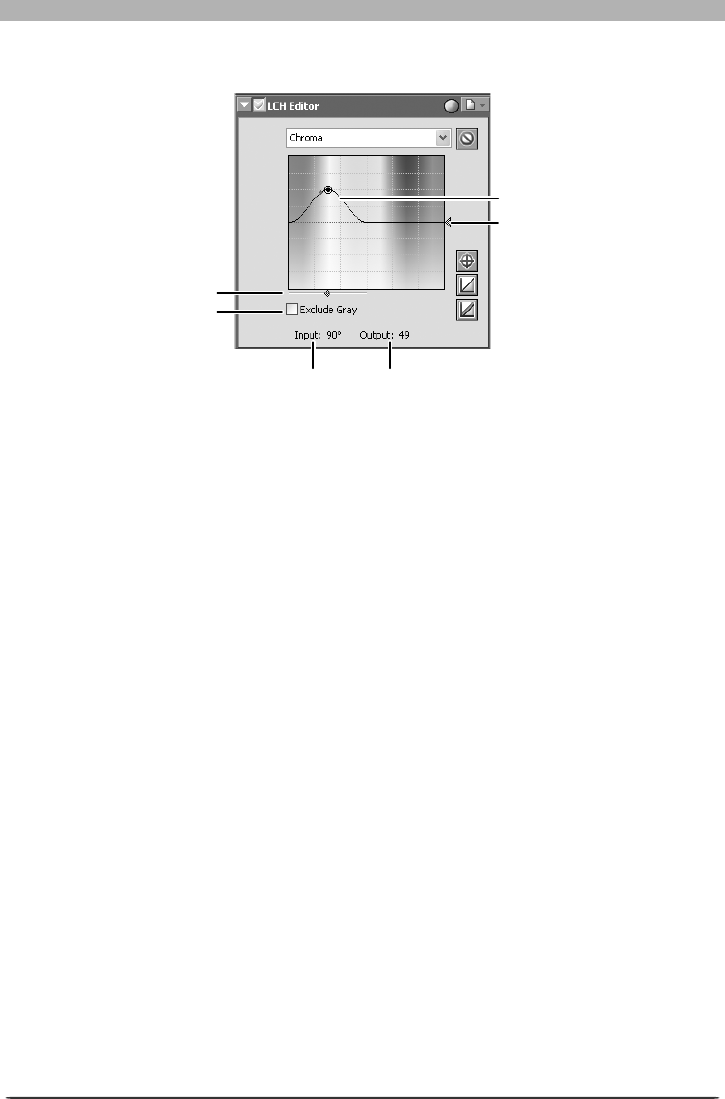
60
Image Adjustment
The Chroma Channel
The Chroma editor is useful tool for adjusting color saturation.
Chroma curve: Maps chroma in the original image (input) to the chroma of the image after
editing (output). Moving a point on the curve upward makes colors in the affected portion
of the color range more vivid, while moving it downward makes the affected colors less vivid,
or grayer.
Width slider: Adjust the width of the curve that passes through the selected point, increasing
or decreasing the range of colors affected by the change.
Exclude Gray: Neutral colors (grays) may seem over saturated when chroma is raised. Check
this option to increase chroma without affecting grays. This option has no effect when
chroma is reduced below the value in the original image.
Output slider: Moving the slider affects the saturation of all colors in the image.
Intensity: The amount by which the saturation of the selected point will be increased or de-
creased in the output image.
Output slider
Width slider
IntensityInput display
Chroma curve
Exclude Gray checkbox

61
Enhancing Images
The Hue Channel
The hue editor is used to map selected colors in the original (input) image to a specifi c range
of colors in the fi nal (output) image. This can be used, for example, to make all reds in the
image slightly more orange, or even green or blue.
Hue curve: Maps hue in the original image (input) to the hue of the image after editing (out-
put). Select a point on the curve that corresponds to the desired input color and drag it up
and down until it intersects with the desired output color.
Width slider: Adjust the width of the curve that passes through the selected point, increasing
or decreasing the range of hues affected by the change.
Output slider: Moving the slider affects the hue of all colors in the image.
Scale button: Click to change the vertical scale from 60 ° through 120 ° to 180 ° and back
again (the degrees in this scale refer to 360 ° color wheel). Increasing the scale increases the
range of hues visible in the display, while decreasing the scale increases precision.
Output slider
Scale button
Width slider
Input / ou tp ut dis play
Hue curve

62
Image Adjustment
The LCH Editor Settings Menu
Clicking the triangle in the top right
corner of the LCH Editor displays the LCH Edi-
tor settings menu.
Option Description
Copy to Clip board Copy current LCH Editor settings to the clipboard.
Load…
Select this item to load settings previously saved using the Save… option (see
be low). A dialog will be displayed where you can navigate to the drive (volume)
and di rec to ry con tain ing the desired settings fi le (only fi les with the extension
“.nlv” will be dis played). The settings in the LCH Editor will in stant ly revert to the
saved settings.
Save…
Select this item to save settings for all channels to a named fi le. These settings
can later be recalled using the Load… option. Choosing Save… displays a dialog
where you can choose a destination and fi le name for the current LCH Editor set-
tings. LCH Editor settings are saved with the ex ten sion “.nlv”.
Reset to Neutral Reset all curves to linear.
Advanced Color
Preferences...
Open the Nikon Capture 4 Editor Preferences dialog to the Ad vanced Color tab,
where you can adjust auto contrast, shadows, and highlights ( 102).
Recent fi les
Recent LCH Editor settings fi les (up to four) are listed at the end of the settings
menu. Selecting a fi le from the list sets the controls in LCH Editor to the saved
settings.
The Set tings Menu
The LCH Editor Settings menu can also be displayed by selecting LCH Editor from the Set tings menu.
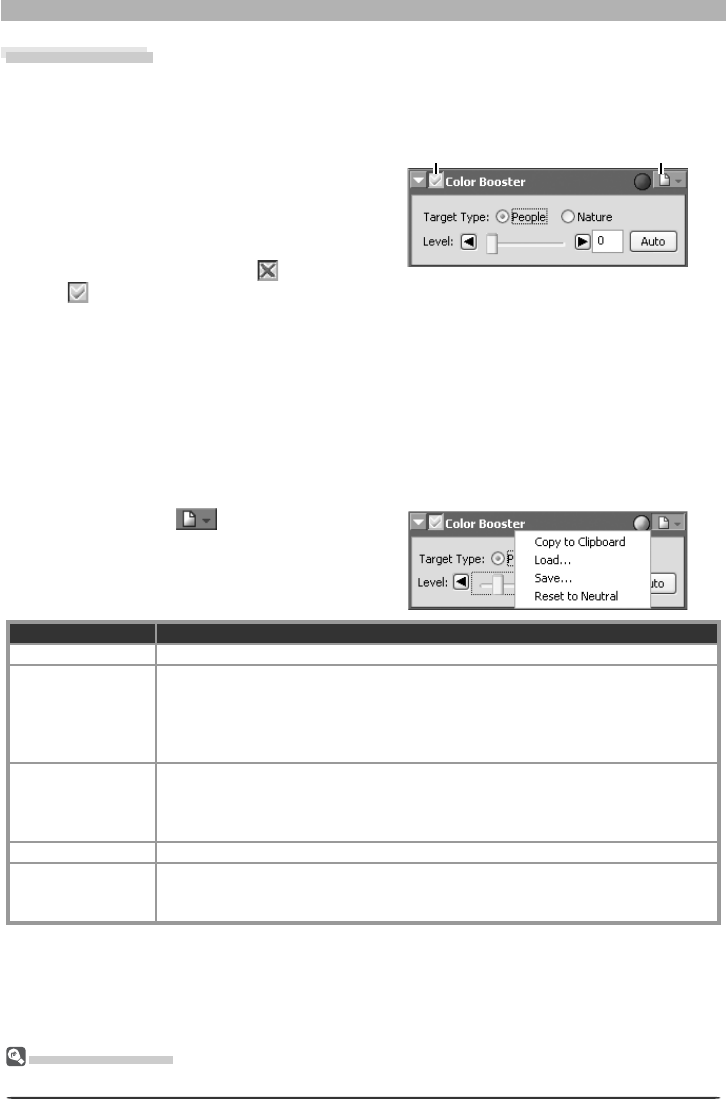
63
Enhancing Images
Color Booster
The Color Booster is used to enhance overall color saturation (vividness) according to the type
of subject (portrait or landscape).
1 Display the Color Booster palette
Select the tool palette containing the
Color Booster from the View menu (the
default location for the Color Booster pal-
ette is Tool Palette 1) and click the triangle
at the top left corner of the palette.
2 If the Apply button is off ( ) , turn it
on ( )
3 Adjust settings
Target Type: Select People to adjust saturation without affecting skin tones, Nature to
adjust saturation for all colors in the image.
Level: Use the slider to adjust saturation, or a enter a value between 0 and 100 in the text
box to its right.
Auto: Optimize saturation to suit the selected subject type.
The Color Booster Settings Menu
Clicking the triangle in the top right
corner of the Color Booster palette displays
the Color Booster settings menu.
Apply button Settings button
Option Description
Copy to Clip board Copy current Color Booster settings to the clipboard.
Load…
Select this item to load settings previously saved using the Save… option (see
be low). A dialog will be displayed where you can navigate to the drive (volume)
and di rec to ry con tain ing the desired settings fi le (only fi les with the extension
“.ncb” will be dis played). The settings in the Color Booster palette will in stant ly
revert to the saved settings.
Save…
Select this item to save Color Booster settings to a named fi le. These settings can
later be recalled using the Load… option. Choosing Save… displays a dialog
where you can choose a destination and fi le name for current Color Booster set-
tings. Color Booster settings are saved with the ex ten sion “.ncb”.
Reset to Neutral Reset Color Booster settings to default values.
Recent fi les
Recent Color Booster settings fi les (up to four) are listed at the end of the settings
menu. Selecting a fi le from the list sets the controls in Color Booster palette to
the saved settings.
The Set tings Menu
The Color Booster Settings menu can also be displayed by selecting Color Booster from the Set tings menu.
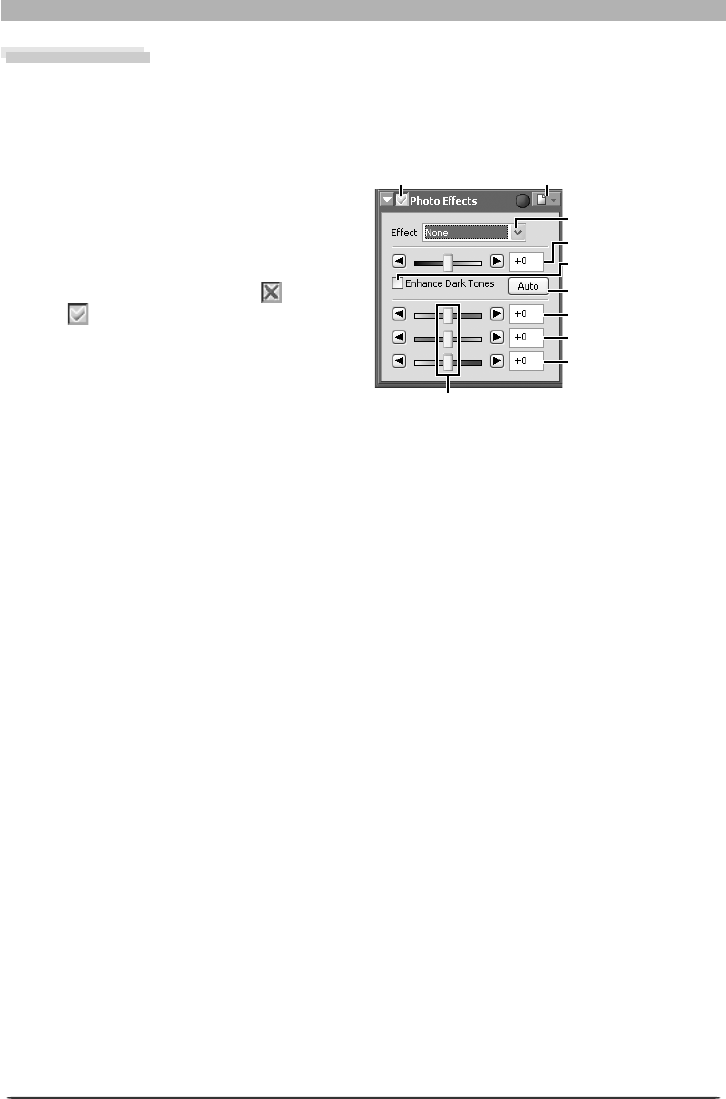
64
Image Adjustment
Photo Effects
The Photo Effects palette is used to convert pictures to black-and-white, sepia, or another
monochrome tint, or to adjust the brightness of the c yan / red, mag enta / green, and yellow /
blue channels.
1 Display the Photo Effects palette
Select the tool palette containing the Pho-
to Effects palette from the View menu
(the default location is Tool Palette 1) and
click the triangle at the top left corner of
the palette.
2 If the Apply button is off ( ) , turn it
on ( )
Apply button
Effect menu
Enhance Dark Tones
Balance sliders
Settings button
Brightness / contrast
Auto button
Magenta / green
Cyan / re d
Ye ll ow / b lu e
3 Adjust settings
Effect: Choose Black and White to convert the image in the active window to black and
white, Sepia to convert the image to sepia, or Tinted to convert the image to another
monochrome tint by dragging the balance sliders. Select None to use the balance sliders
to adjust the brightness and contrast of the cyan / red, magenta / green, and yellow / blue
channels in the original image.
Brightness / contrast slider : Drag the slider to the right to increase overall brightness and
contrast, to the left to reduce brightness and contrast, or enter a value between –100 and
+100 directly in the text box to the right of the slider.
Enhance Dark Tones: Select this option to bring out details in shadows.
Auto: Click this button to optimize brightness and contrast without affecting color bal-
ance. Enhance Dark Tones is automatically selected.
Balance sliders: Use these sliders to adjust the brightness and contrast of the cyan / red,
magenta / green, and yellow / blue channels, or enter a value between –100 and +100 di-
rectly in the text boxes to their right. If the image has been converted to black-and-white
or sepia, only the brightness of shades originally in the selected channels will be affected.
If Tinted is selected, the balance sliders control the choice of monochrome tint.
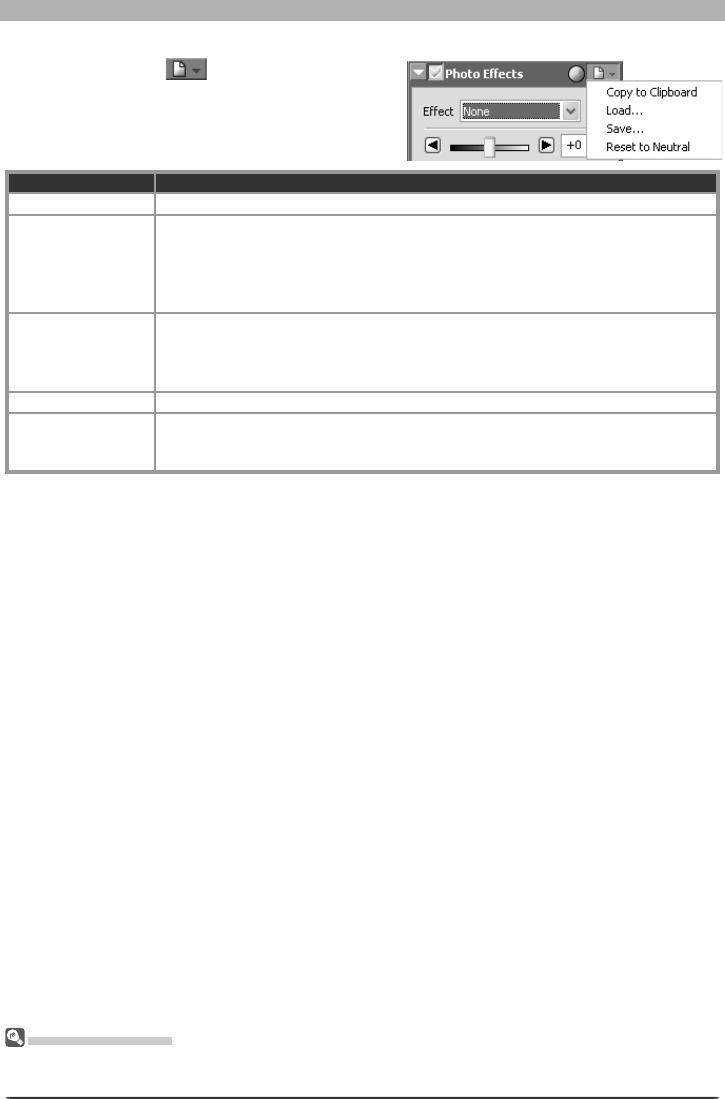
65
Enhancing Images
The Photo Effects Settings Menu
Clicking the triangle in the top right corner
of the Photo Effects palette displays the Photo
Effects settings menu.
The Set tings Menu
The Photo Effects Settings menu can also be displayed by selecting Photo Effects from the Set tings
menu.
Option Description
Copy to Clip board Copy current Photo Effects settings to the clipboard.
Load…
Select this item to load settings previously saved using the Save… option (see
be low). A dialog will be displayed where you can navigate to the drive (volume)
and di rec to ry con tain ing the desired settings fi le (only fi les with the extension
“.npe” will be dis played). The settings in the Photo Effects palette will in stant ly
revert to the saved settings.
Save…
Select this item to save Photo Effects settings to a named fi le. These settings can
later be recalled using the Load… option. Choosing Save… displays a dialog
where you can choose a destination and fi le name for current Photo Effects set-
tings. Photo Effects settings are saved with the ex ten sion “.npe”.
Reset to Neutral Reset Photo Effects settings to default values.
Recent fi les
Recent Photo Effects settings fi les (up to four) are listed at the end of the settings
menu. Selecting a fi le from the list sets the controls in Photo Effects palette to
the saved settings.
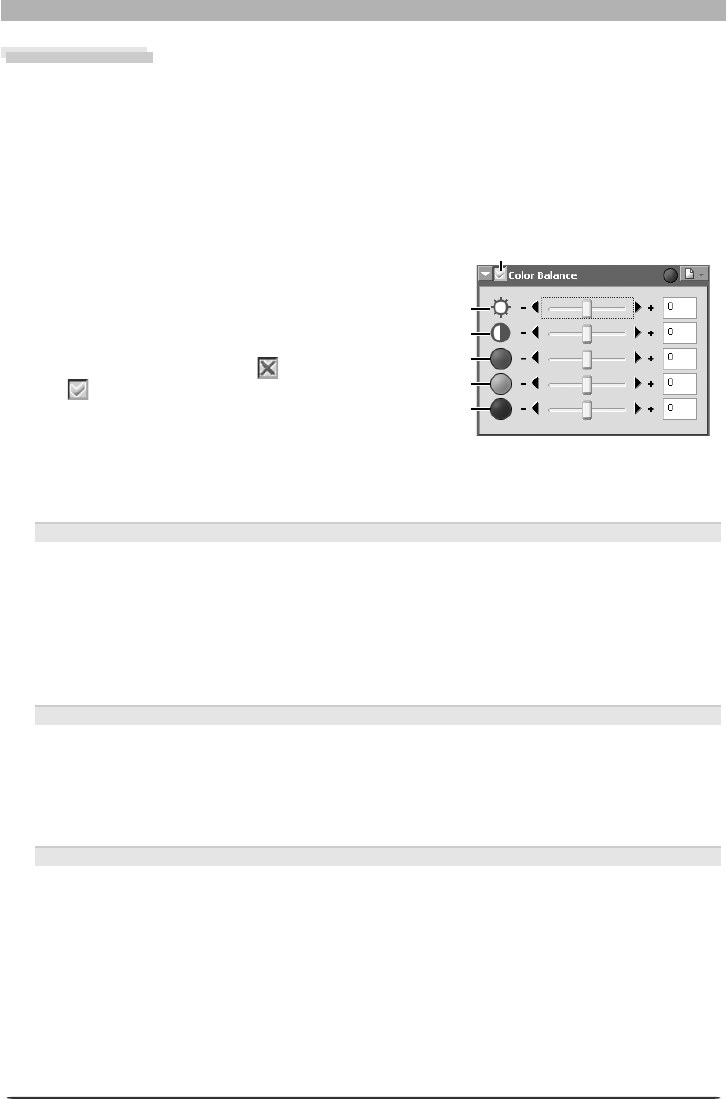
66
Image Adjustment
Color Balance
The Color Balance palette offers simple controls for adjusting overall brightness, contrast, and
color balance for the entire image. Unlike the controls in the Curves palette, however, the
Color Balance palette does not allow you to make changes that affect only a portion of the
tone range. After making broad adjustments to color balance in the Color Balance palette,
examine the histogram in the Curves palette and make fi ne adjustments as needed.
Adjusting Brightness, Contrast, and Color Balance
1 Display the Color Balance palette
Select the tool palette containing the
Color Balance palette from the View
menu (the default location is the Color
Balance Palette) and click the triangle at
the top left corner of the palette.
2 If the Apply button is off ( ) , turn it
on ( ) Green
Red
Contrast
Brightness
Blue
Apply button
3 Adjust brightness, contrast, and color balance
Adjust brightness, contrast, and color balance using the options in the Color Bal ance
palette.
Adjusting Overall Brightness
The brightness slider adjusts brightness for the entire image. Dragging the brightness
slider in the + direction brightens all the colors in the image, making the image as a whole
more white. Dragging the slider in the – direction darkens all the colors in the image,
making the image as a whole darker and less distinct. Unlike adjustments to the midpoint
in the Curves palette, this setting applies equally to shad ows and highlights, producing a
fl at, low-contrast image. A value for brightness between –100 and +100 can be entered
directly in the text box to the right of the slider.
Adjusting Image Contrast
Dragging the contrast slider in the + direction heightens the difference between high lights
and shadows in the image, increasing contrast. Dragging the slider in the – di rec tion de-
creases the difference be tween light and dark portions of the image, lowering contrast.
A value for contrast between –100 and +100 can be entered in the text box to the right
of the slider.
Adjusting Color Balance
While the brightness slider adjusts brightness for the image as a whole, the three color-
balance controls allow the user to adjust brightness for each color individually. For ex-
am ple, dragging the red slider in the + direction brightens the red portions of the image,
making the image as a whole more red. Dragging it in the – direction dims the red ele-
ments in the image, bringing out the remaining colors. A value between –100 and +100
can be entered for each color in the text box to the right of the slider.
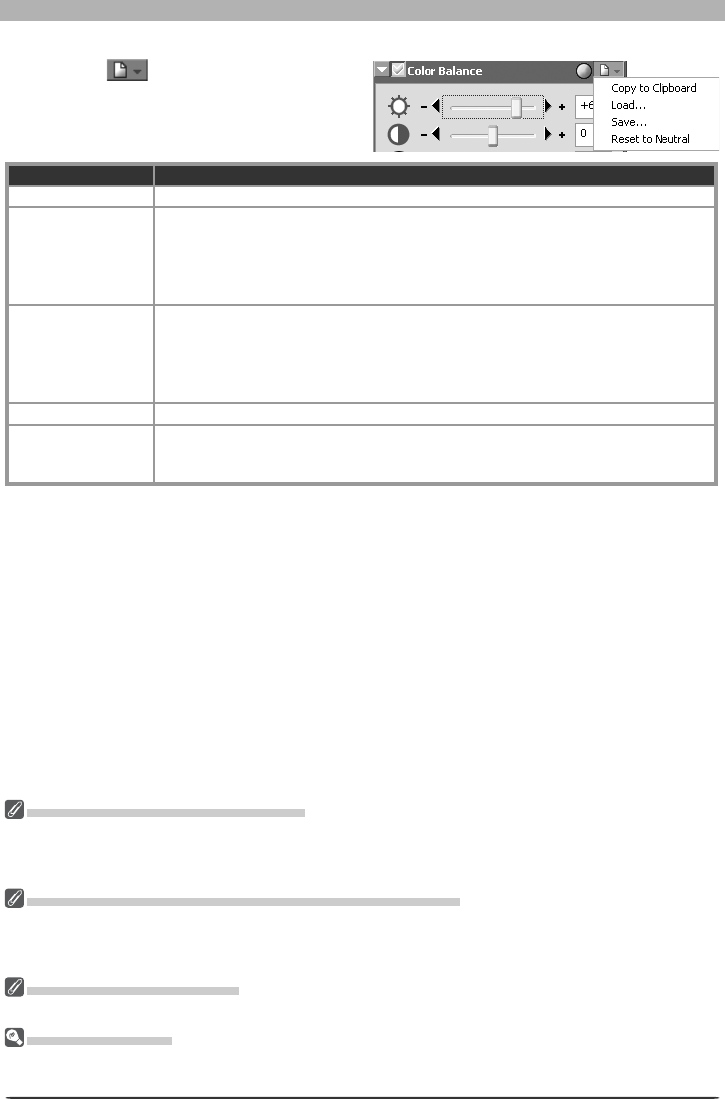
67
Enhancing Images
The Color Balance Settings Menu
Clicking the button in the Color Bal-
ance palette displays the Color Balance Set-
tings menu.
Displaying the Color Balance Palette
The default tool palette window for the Color Balance palette is not displayed the fi rst time Nikon
Capture 4 Editor starts. To display Color Balance Palette, select Show Color Balance Palette from the
View menu.
Opening NEF Files Saved in Nikon Capture 3.5x or Earlier
In Nikon Capture 4, changes to color balance apply before changes to curves. In earlier versions of Nikon
Capture, changes to curves applied before changes to color balance, with the result that settings may
change when the images saved in Nikon Capture 3.5x or earlier are opened in Nikon Capture 4.
Nikon Capture 3.5 or Earlier
A value of +50 in Nikon Capture 3.5 or earlier corresponds to a value of +100 in Nikon Capture 4.
The Set tings Menu
The Color Bal ance Settings menu can also be displayed by selecting Color Balance from the Set tings
menu.
Option Description
Copy to Clip board Copy current Color Balance settings to the clipboard.
Load…
Select this item to load brightness, contrast, and color bal ance settings previously
saved using the Save… op tion (see be low). A dialog will be displayed where you
can nav i gate to the drive (vol ume) and di rec to ry con tain ing the de sired settings fi le
(only fi les with the extension “.nca” will be dis played). The set tings in the Color
Balance palette will in stant ly re vert to the saved settings.
Save…
Select this item to save brightness, contrast, and color bal ance settings to a
named fi le. These settings can later be recalled using the Load… option. Choos-
ing Save… dis plays a dialog where you can choose a destination and fi le name
for the current Color Balance settings. Color Balance set tings are saved with the
ex ten sion “.nca”.
Reset to Neutral Resets all brightness, contrast, and color balance set tings to zero.
Recent fi les
Recent Color Balance settings fi les (up to four) are listed at the end of the settings
menu. Selecting a fi le from the list sets the controls in Color Balance palette to
the saved settings.
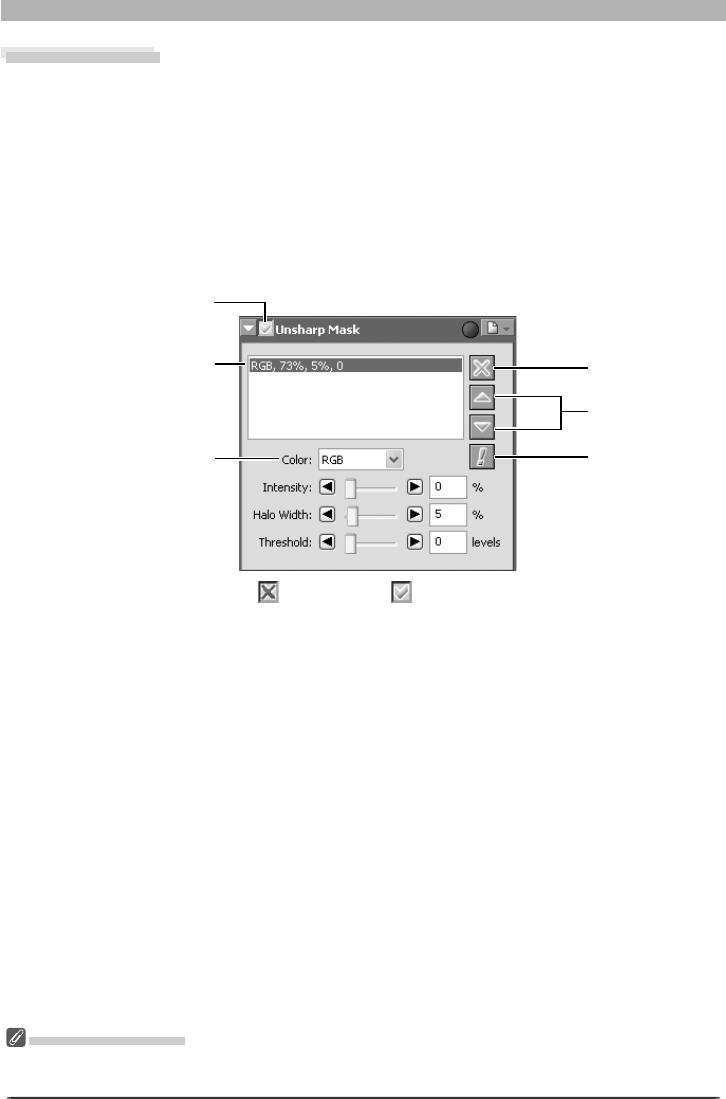
68
Image Adjustment
The Warning Button
A warning button appears if the image in the active window is displayed at a zoom ratio too low to allow
the effects of Unsharp Mask to be displayed. Click the button to view the warning.
Unsharp Mask
Using Unsharp Mask, the user can increase the sharpness of photographs by making edges
more dis tinct. Unsharp Mask works by increasing the contrast of the edges in the image while
leaving other areas untouched. The amount of sharpness is determined by three factors: in-
ten si ty, halo width, and threshold.
Creating Unsharp Masks
1 Display the Unsharp Mask palette
Select the tool palette containing the Unsharp Mask palette from the View menu (the
default location for the Unsharp Mask palette is Tool Palette 1) and click the triangle at the
top left corner of the palette.
2 If the Apply button is off ( ) , turn it on ( )
Apply button
Unsharp mask list
Color
Delete button
Up/down arrows
Warning button

69
Enhancing Images
3 Create an Unsharp Mask
Unsharp Mask can be applied to all the colors in the image or selectively to any com bi -
na tion of red, green, and blue channels. Select a combination of colors from the Color
pop-up menu. The Unsharp Mask you create will be applied only to edges in the selected
colors.
4 Select values for intensity, halo width, and threshold
Intensity: The amount the contrast of edges will be increased. Too great an intensity will
degrade your image rather than sharpening it.
Halo Width: The size of the areas that will be affected. The greater the halo width, the
wider the edges in the sharpened image will appear. Too large a value for halo width will
produce a “halo” along edges in the image.
Threshold: The limit at which sharpening will be applied. If the threshold is zero, sharpen-
ing will apply to all pixels in the image. Increasing the threshold in creas es the amount of
contrast that must be present between pixels before Unsharp Mask will be applied, with
the result that only more distinctly contrasting edges will be affected.
5 Create additional masks
The con trols in the Unsharp Mask palette allow you to select multiple combinations of
colors that can be sharpened to different degrees. Repeat steps 1–4 to create additional
masks for different color combinations. As new masks are created, they will be added to
the end of the Unsharp Mask list. Masks apply in the order listed. To change the order in
which masks apply, select a mask in the Unsharp Mask list and click the up arrow to move
it up in the list, or the down arrow to move it down. To delete an Unsharp Mask from the
list, select it and click the Delete button.
Unsharp Mask
Unsharp Mask sharpens edges without affecting color balance by making adjustments only to lu mi nos i ty
(brightness). The effect is the same as performing Unsharp Mask with the Luminosity channel selected
in the Adobe Photoshop Lab color model. If Unsharp Mask is applied to a single channel, such as red,
the values for ab (chrominance) are used to determine what points in the image are red, and Unsharp
Mask ing applied to the Luminosity channel for those points only. An intensity of around 20% in Nikon
Capture 4 is roughly equivalent to 100% in Adobe Photoshop.
No sharpening will be applied if Intensity is set to zero. Intensity must be set to at least 1% if sharpening
is to apply.

70
Image Adjustment
The Set tings Menu
The Unsharp Mask Settings menu can also be displayed by selecting Unsharp Mask from the Set tings
menu.
The Unsharp Mask Settings Menu
Clicking the button in the Unsharp
Mask palette displays the Unsharp Mask Set-
tings menu.
Option Description
Copy to Clip board Copy current Unsharp Mask settings to the clipboard.
Load…
Select this item to load Unsharp Masks previously saved us ing the Save… op-
tion (see be low). A dialog will be dis played where you can navigate to the drive
(vol ume) and di rec to ry con tain ing the desired settings fi le (only fi les with the
extension “.num” will be dis played). The set tings in the Unsharp Mask palette
will instantly re vert to the saved set tings.
Save…
Select this item to save Unsharp Mask settings to a named fi le. These settings
can later be recalled using the Load… option. Choos ing Save… displays a dialog
where you can choose a destination and fi le name for the current Unsharp Mask
settings. Unsharp Mask settings are saved with the ex ten sion “.num”.
Reset to Neutral Deletes all Unsharp Masks currently displayed in the Unsharp Mask palette.
Recent fi les
Recent Unsharp Mask settings fi les (up to four) are listed at the end of the settings
menu. Selecting a fi le from the list sets the controls in Unsharp Mask palette to
the saved settings.
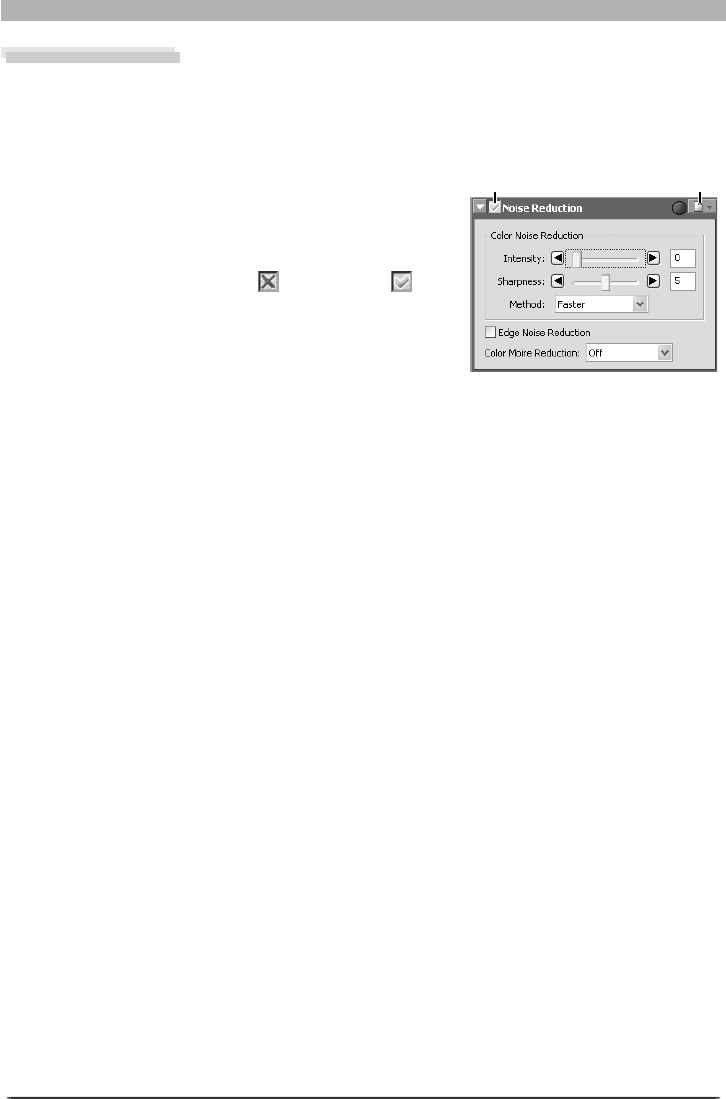
71
Enhancing Images
Noise Reduction
This palette can be use to mitigate the effects of noise that sometimes appears in images
taken with digital cameras.
Reducing Noise
1 Display the Noise Reduction palette
Select the tool palette containing the Noise Reduction
palette from the View menu (the default location for
the Noise Reduction palette is Tool Palette 2) and click
the triangle at the top left corner of the palette.
2 If the Apply button is off ( ) , turn it on ( )
3 Adjust noise reduction options
Intensity: To reduce noise (a mottling phenomenon that occurs principally in photographs
taken at high sensitivities), drag the slider to select a value from 0 (no noise reduction
performed) to 100 (max i mum noise reduction).
Sharpness: High levels of noise reduction may result in loss of defi nition. To increase
sharpness, drag the slider to select a value from 0 (no sharpening performed) to 10 (max-
i mum sharpness).
Method: Choose Faster for faster processing, Better quality for increased precision.
Edge Noise Reduction
: Check this box to re duce noise along edg es in the photo, making
outlines more dis tinct.
Color Moire Reduction (RAW images only): Color moiré (color interference caused by
regular overlapping patterns) can be reduced using this option. Choose the amount of
compensation performed from Off, Low, Medium, or High.
4 View the results
Confi rm the effects of noise reduction on the entire image and adjust settings as neces-
sary.
Apply button Settings menu
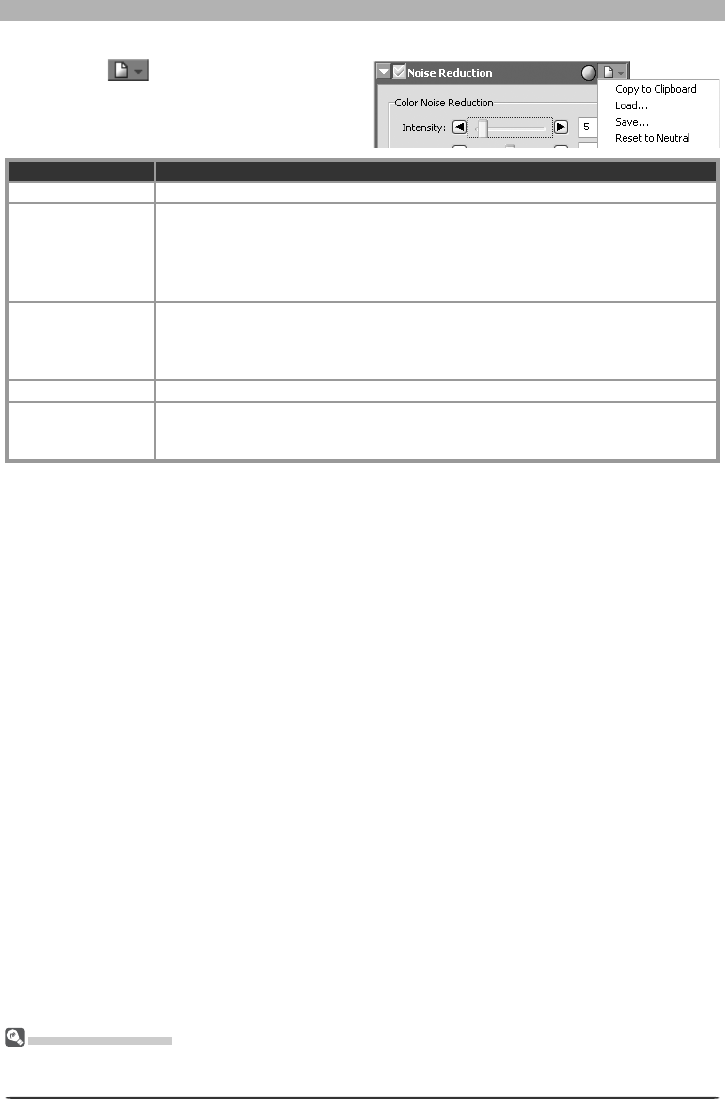
72
Image Adjustment
The Noise Reduction Settings Menu
Clicking the button in the Noise Re-
duc tion palette displays the Noise Reduction
Set tings menu.
The Set tings Menu
The Noise Reduction Settings menu can also be displayed by selecting Noise Reduction from the Set-
tings menu.
Option Description
Copy to Clip board Copy current Noise Reduction settings to the clip board.
Load…
S
elect this item to load Noise Reduction settings pre vi ous ly saved using the Save…
op tion (see be low). A dialog will be displayed where you can navigate to the drive
(vol ume) and di rec to ry con tain ing the desired settings fi le (only fi les with the ex-
tension “.nnr” will be dis played). The set tings in the Noise Reduction pal ette will
instantly re vert to the saved set tings.
Save…
Select this item to save Noise Reduction settings to a named fi le. These settings
can later be recalled using the Load… option. Choos ing Save… displays a dialog
where you can choose a destination and fi le name for the current Noise Reduc-
tion settings. Noise Reduction settings are saved with the ex ten sion “.nnr”.
Reset to Neutral Resets Noise Reduction settings to their default val ues.
Recent fi les
Recent Noise Reduction settings fi les (up to four) are listed at the end of the
settings menu. Selecting a fi le from the list sets the controls in Noise Reduction
palette to the saved settings.

73
Enhancing Images
D-Lighting
D-Lighting reveals details in shadows and highlights, correcting for underexposure in back-lit
subjects or shaded areas of images and for overexposure in brightly lit areas.
1 Display the D-Lighting palette
Select the tool palette containing the
D-Lighting palette from the View menu
(the default location for the D-Lighting
palette is Tool Palette 1) and click the
triangle at the top left corner of the
palette.
2 Turn the Apply button on ( )
Turn the Apply button on ( ) to enable
D-Lighting.
3 Adjust settings
Method
Choose Faster (HS) for high-speed processing, Better Quality (HQ) for separate control
of shadow and highlight adjustment.
Faster (HS)
The following options are available when Faster (HS) is selected:
• Adjustment: Drag the slider to the right to enhance details in shadows and to reveal
highlights where the subject is much brighter than the background or the background
much brighter than the subject. An adjustment value between 0 and 100 can also be
entered directly in the text box (the default setting is 25).
• Color Boost: Drag the slider to the right to increase color saturation, or enter a value
between 0 and 100 directly in the text box to its right.
Better Quality (HQ)
Selecting Better Quality (HQ) displays
the options shown at right.
• Shadow Adjustment: Drag the slider
to the right to enhance details in shad-
ows, or enter a value between 1 and
100 directly in the text box to its right
(the default setting is 50).
• Highlight Adjustment: Drag the slider
to reveal highlights where the subject is much brighter than the background or the
background much brighter than the subject. An adjustment value between 1 and 100
can also be entered directly in the text box (the default setting is 1).
• Color Boost: Drag the slider to the right to increase color saturation, or enter a value
between 0 and 100 directly in the text box to its right.
Apply button Settings menu

74
Image Adjustment
Digital DEE
D-Lighting replaces the Digital DEE tool available in earlier versions of Nikon Capture 4. Note that Digital
DEE settings are ignored when joint settings fi les created with earlier versions of Nikon Capture 4 are
loaded into Nikon Capture 4 Ver. 4.2 or later, while Digital DEE settings saved with NEF images in earlier
versions of Nikon Capture 4 are lost when these images are opened in Nikon Capture 4 Ver. 4.2 or later.
Digital DEE settings fi les (extension “.ndd”) can not be loaded into Nikon Capture 4 Ver. 4.2 or later.
The Set tings Menu
The D-Lighting Settings menu can also be displayed by selecting D-Lighting from the Set tings menu.
The D-Lighting Settings Menu
Clicking the button in the D-Light-
ing palette displays the D-Lighting Settings
menu.
Option Description
Copy to Clip board Copy current D-Lighting settings to the clipboard.
Load…
Select this item to load D-Lighting settings pre vi ous ly saved using the Save…
op tion (see be low). A dialog will be displayed where you can navigate to the
drive (vol ume) and di rec to ry con tain ing the desired settings fi le (only fi les with
the extension “.ndl” will be dis played). The set tings in the D-Lighting palette will
instantly re vert to the saved settings.
Save…
Select this item to save D-Lighting settings to a named fi le. These settings can
later be re called using the Load… option. Choos ing Save… displays a dialog
where you can choose a destination and fi le name for the current D-Lighting set-
tings. D-Lighting set tings are saved with the ex ten sion “.ndl”.
Reset to Default Reset D-Lighting settings to default values.
Recent fi les
Recent D-Lighting settings fi les (up to four) are listed at the end of the settings
menu. Selecting a fi le from the list sets the controls in D-Lighting palette to the
saved settings.

75
Enhancing Images
Red eye Correction
To correct red-eye in portrait subjects:
1 Display the Red Eye Correction palette
Select the tool palette containing the Red Eye Cor-
rection palette from the View menu (the default
location is Tool Palette 1) and click the triangle at
the palette’s top left corner.
2 Turn the Apply button on ( )
Turn the Apply button on ( ) to enable red-eye
correction.
3 Choose a red-eye correction method
Off
No red-eye correction performed.
Automatic
Nikon Capture will automatically detect and correct red-eye. This option is automatically
selected if red-eye has already been corrected using the Red Eye Correction button in the
Quick Tools palette.
Click on eyes
If auto red-eye correction fails to produce the desired results, red-eye can be corrected
manually by selecting this option and clicking Start. The cursor will change to ; move
the cursor over the image in the active window until it blinks red. If the area under the
cursor is affected red-eye, click to correct red-eye in the affected area. Click Stop when
all affected areas have been corrected (additional corrections can be performed by click-
ing Resume or Start and repeating the process described above).
Reset
Undo all changes made using automatic and manual red-eye correction.
Apply button Settings menu
Confi rmation Dialogs
If Click on eyes is selected after automatic
red-eye correction has been performed, the
dialog shown at right will be displayed. Click
Yes to keep the changes made with auto-
matic red-eye correction, No to discard the
changes before making manual corrections.
If the image in the active window is dis-
played at less than 100%, the dialog shown
at right appear when Click on eyes is se-
lected. Click Yes to display the image at full
size (recommended).
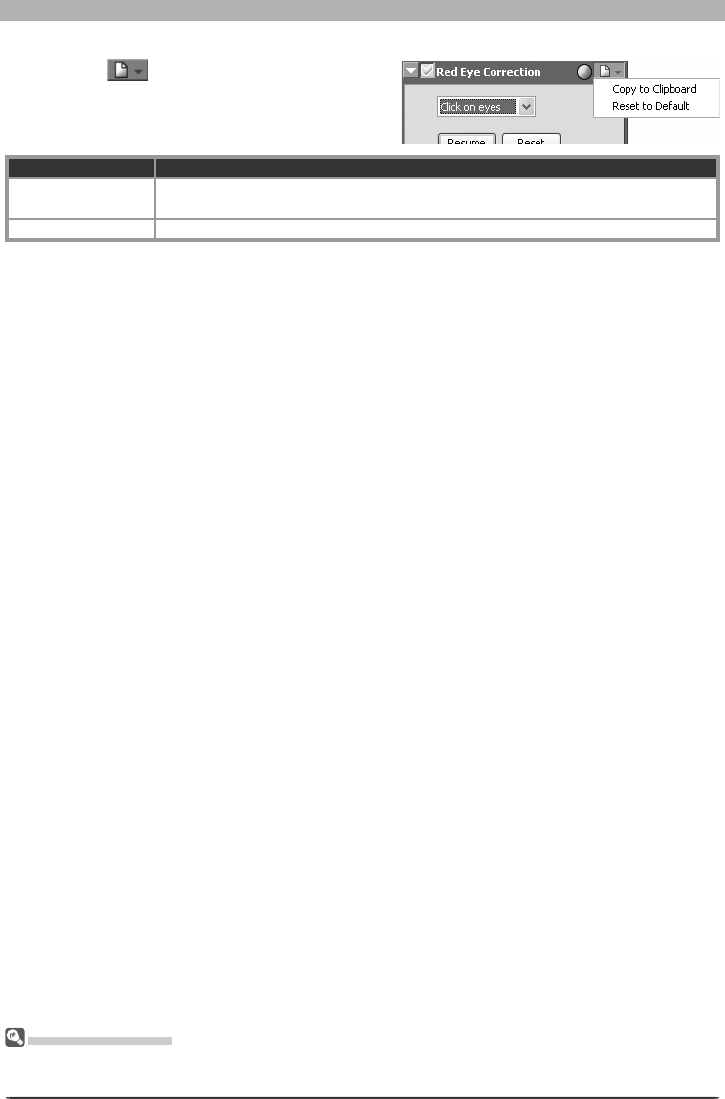
76
Image Adjustment
The Set tings Menu
The red-eye correction Settings menu can also be displayed by selecting Red Eye Correction from the
Set tings menu.
The Red Eye Correction Settings Menu
Clicking the button in the Red Eye Cor-
rection palette displays the red-eye correction
Settings menu.
Option Description
Copy to Clip board If Auto is selected, this option can be used to copy this setting to the clipboard
and apply auto red-eye correction to other images.
Reset to Default Reset red-eye correction settings to default values.

77
Enhancing Images
Fisheye Lens (Fisheye-to-Rectilinear Transform for DX 10.5 mm Fisheye Lenses)
The tools in the Fisheye Lens palette modify images taken with an AF DX 10.5 mm f2.8G
Nikkor fi sheye lens to resemble images taken with a normal wide-angle lens. This option is
not available with other lenses.
1 Display the Fisheye Lens palette
Select the tool palette containing the Fisheye Lens palette from the View menu (the de-
fault location for the Fisheye Lens palette is Tool Palette 2) and click the triangle at the top
left corner of the palette.
2 Turn the Apply button on ( )
Turn the Apply button on ( ) to enable the Fisheye Lens. The image in the active window
will be trimmed around a vertical area in the center of the image that has been processed
to compensate for fi sheye distortion, and the Include areas where there is no image
data check box will be enabled.
Apply button on
(vertical compensation)
Include areas where there
is no image data selected
(horizontal compensation)
Image created with
supported fi sheye lens
Areas without image data
fi lled in white, light gray, dark
gray, black, red, green, blue,
cyan, magenta, or yellow
Settings menuApply button
Include areas where
there is no image data
check box
Fill color menu
3 Adjust settings
Check Include areas where there is no image data to trim the image in the active
area around a horizontal area in the center of the image that has been processed to com-
pensate for fi sheye distortion and fi ll areas where there are no image data with the color
selected in the Fill color menu.
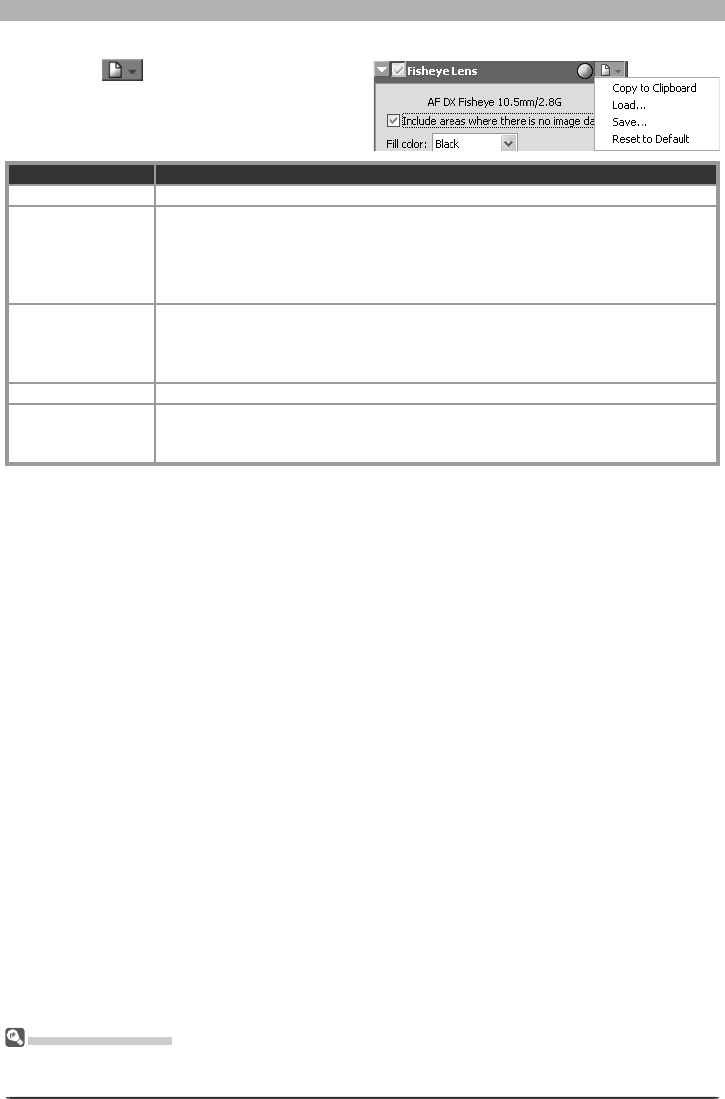
78
Image Adjustment
The Fisheye Lens Settings Menu
Clicking the button in the Fisheye Lens
palette displays the Fisheye Lens Settings
menu.
The Set tings Menu
The Fisheye Lens Settings menu can also be displayed by selecting Fisheye Lens from the Set tings
menu.
Option Description
Copy to Clip board Copy current Fisheye Lens settings to the clipboard.
Load…
Select this item to load Fisheye Lens settings pre vi ous ly saved using the Save…
op tion (see be low). A dialog will be displayed where you can navigate to the drive
(vol ume) and di rec to ry con tain ing the desired settings fi le (only fi les with the
extension “.nfe” will be dis played). The set tings in the Fisheye Lens palette will
instantly re vert to the saved settings.
Save…
Select this item to save Fisheye Lens settings to a named fi le. These settings can
later be re called using the Load… option. Choos ing Save… displays a dialog
where you can choose a destination and fi le name for the current Fisheye Lens
settings. Fisheye Lens set tings are saved with the ex ten sion “.nfe”.
Reset to Default Reset Fisheye Lens settings to default values.
Recent fi les
Recent Fisheye Lens settings fi les (up to four) are listed at the end of the settings
menu. Selecting a fi le from the list sets the controls in Fisheye Lens palette to the
saved settings.
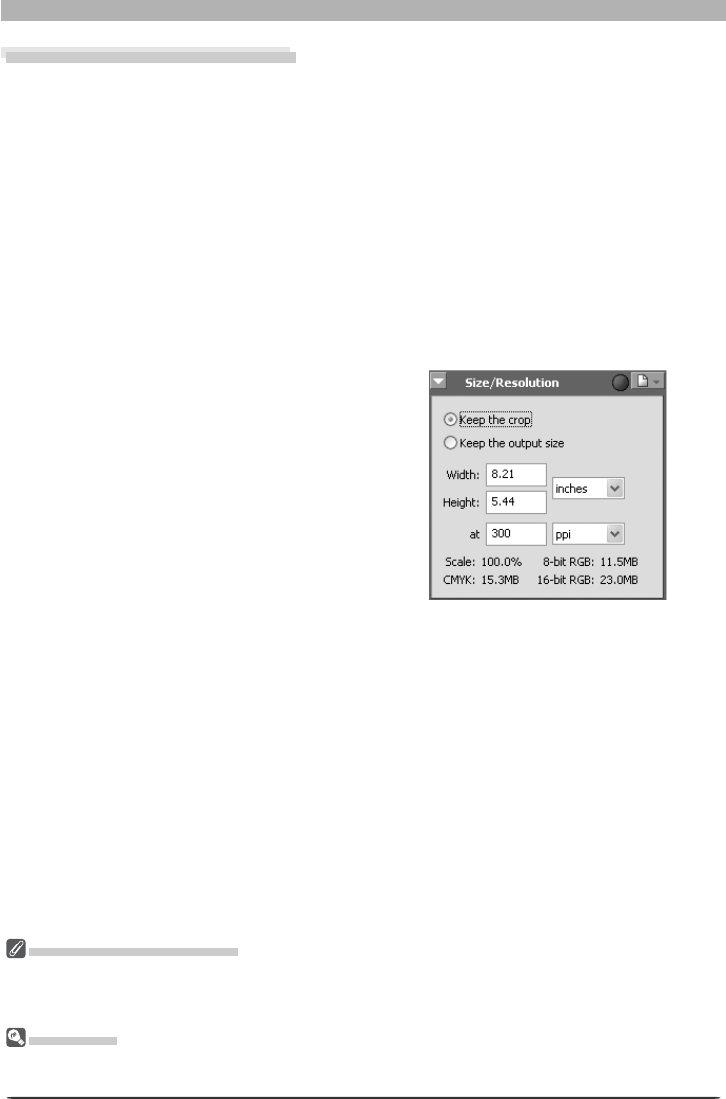
79
Enhancing Images
Output Size and Resolution
The Size/Resolution palette is where you specify the fi nal (“output”) size of the portion of the
image that will be saved when Save or Save as… is selected from the File menu. The choice
of settings in the Size/Resolution palette depends on how you intend to use the image and
the amount of storage space you have available. Some examples are given below.
If the image will be used in printing or desktop publishing…
…size and resolution will be dictated by the resolution of the output device and the physical
size of the image when printed, measured in centimeters or points rather than pixels.
If you intend to use the image on a web page…
…specify output size in pixels, keeping fi le size to a minimum for rapid downloads. Res o lu tion
in this case is not an issue.
Adjusting Size and Resolution
1 Display the Size/Resolution palette
Select the tool palette containing the
Size/Resolution palette from the View
menu (the default location for the Size/
Resolution palette is Tool Palette 1) and
click the triangle at the top left corner of
the palette.
RAW Image Size (D1X Only)
The D1x is designed to record images at 3,008 × 1,960 pixels (six megapixels). Image quality will not
necessarily increase when RAW images are output at a size of 4,016 × 2,616 pixels (ten megapixels,
equivalent to the dimensions of the CCD).
NEF Images
When an image is saved in NEF format, the entire image will be saved together with information on
resolution and the size and dimensions of the current crop.
2 Make changes to options as described below
Keep the crop: When Keep the crop is selected, you can use the mouse to adjust the size
and position of the current crop as desired. If you enter a new value for height or width in
the Size/Resolution palette, the remaining dimension changes au to mat i cal ly to maintain
a con stant height-width aspect ratio, and scale is adjusted to refl ect the new di men sions
(scale can not be increased beyond 200%). If the image can not be output at the cur-
rent resolution using the new dimensions, resolution will au to mat i cal ly be adjusted to an
ap pro pri ate value. This option is useful when you want to specify height and width after
selecting a crop.
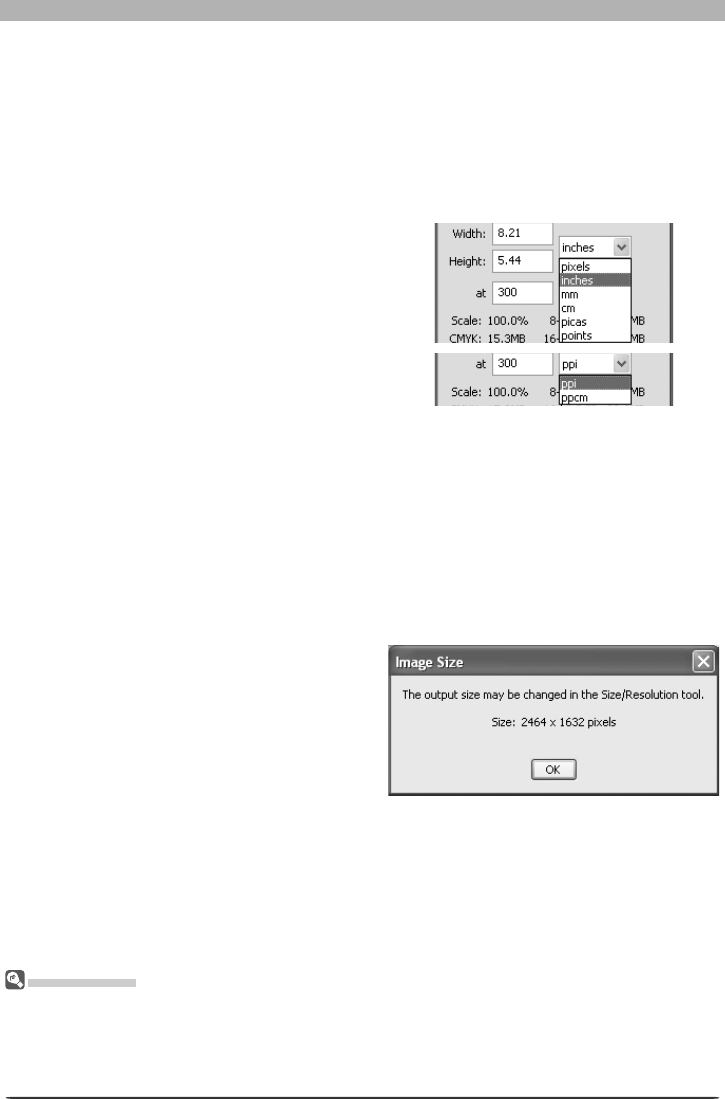
80
Image Adjustment
at: The at text box is where you enter the
output res o lu tion. This text box is not active
if the unit chosen for output size is “pix-
els,” when res o lu tion is fi xed at 300 ppi.
The value cho sen at other set tings should
re fl ect the res o lu tion of the out put de vice
on which the fi nal image is to be printed.
The units for resolution can be selected
from the res o lu tion menu, which offers a
choice of pixels per inch (ppi) or pixels per
cen ti me ter (ppcm). The default res o lu tion
is 300 ppi.
3 Confi rm the fi nal size
To view the fi nal size of the image in pixels,
select Show Image Size from the Image
menu. The Image Size dialog shows the size
of the original (input) image in pixels; if the
output size has been changed, the dialog
will also list the fi nal (output) size of the
image in pixels.
Keep the output size: Locks output dimensions and fi le size at their current val ues, set-
ting the aspect ratio of the current crop according to the dimensions input in the Size/
Res o lu tion palette. This height-width aspect ratio will be main tained when you adjust
the size of the crop in the active window, and scale will be ad just ed to refl ect changes to
the size of the crop (scale can not be increased beyond 200%). If the image can not be
output at the current resolution using the new dimensions, resolution will automatically
be adjusted to an appropriate value. This option is useful when you want to set the output
di men sions and fi le size of the fi nal image before selecting a crop.
Width/Height: The out put dimensions for
the current crop can be entered in these
text box es. The units used to describe
output di men sions can be cho sen from the
menu to the right of the text boxes.
Scale/File Size
Scale (output size as a percentage of input size, maximum 200%) is displayed at the bottom of the
Size/Res o lu tion pal ette, to geth er with the uncompressed fi le size of the image that would be cre at ed at
current set tings. File size depends on the color model (RGB or CMYK) and, in the case of RGB images,
on the pixel bit-depth that will be used when the image is saved. Separate uncompressed fi le sizes are
shown for CMYK and for eight-bit and sixteen-bit RGB.
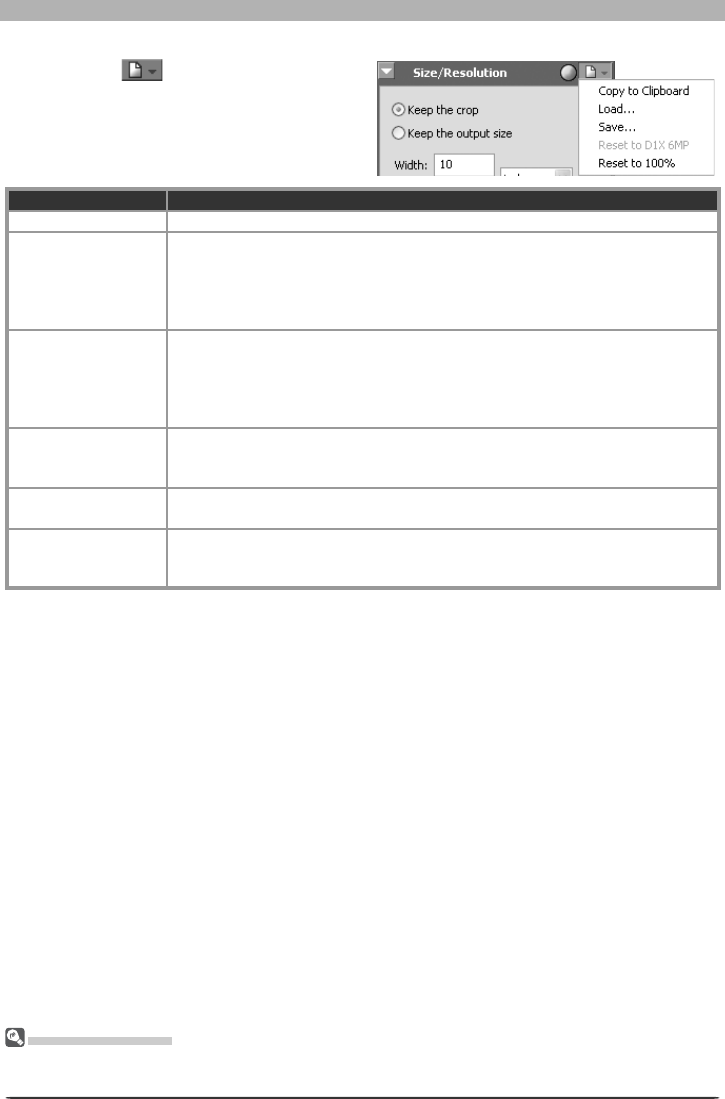
81
Enhancing Images
The Set tings Menu
The Size/Res o lu tion Settings menu can also be displayed by selecting Size/Resolution from the Set-
tings menu.
The Size/Resolution Settings Menu
Clicking the button in the Size/
Resolution palette displays the Size/
Resolution Settings menu.
Option Description
Copy to Clip board Copy current Size/Resolution settings to the clipboard.
Load…
Select this item to load size and resolution settings pre vi ous ly saved using the
Save… op tion (see be low). A dialog will be displayed where you can navigate
to the drive (vol ume) and di rec to ry con tain ing the desired settings fi le (only fi les
with the extension “.nsr” will be dis played). The set tings in the Size/Resolution
palette will instantly re vert to the saved settings.
Save…
Select this item to save size and resolution settings to a named fi le. These set-
tings can later be re called using the Load… option. Choos ing Save… displays
a dialog where you can choose a destination and fi le name for the current size
and res o lu tion settings. Size and resolution set tings are saved with the ex ten sion
“.nsr”.
Reset to D1X 6MP
Reduces RAW images created with the D1X by 74.9% to 3,008 × 1,960 pix els (six
mega pixels). Se lect Re set to 100% to re store the image to 4,016 × 2,616 pixels.
This op tion is only available with RAW images taken using the D1X.
Reset to 100% Enlarges the crop to include the entire image. Res o lu tion will be reset to the
default value of 300 ppi (118.11 ppcm).
Recent fi les
Recent Size / Reso lution settings fi les (up to four) are listed at the end of the
settings menu. Selecting a fi le from the list sets the controls in Size / Resolution
palette to the saved settings.
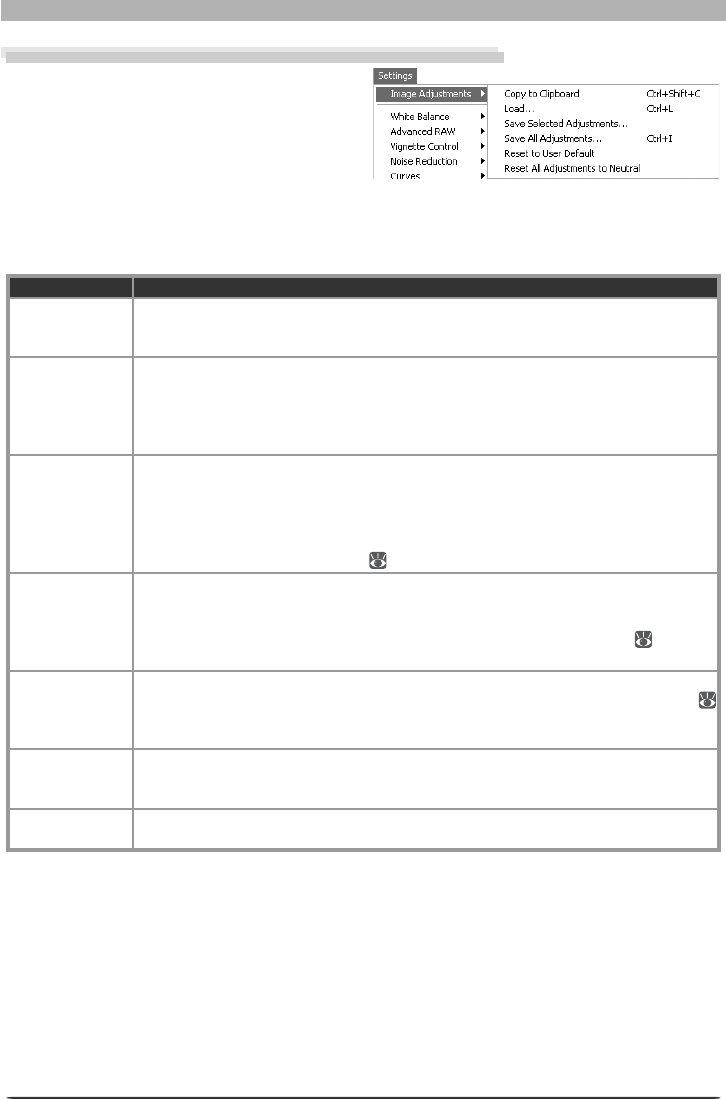
82
Image Adjustment
Saving and Loading Image Adjustment Settings
Image adjustment settings for all tool pal-
ettes (including the status of the Apply but-
ton for each pal ette) can be copied to the
clip board and saved in com bined settings
fi le. When the com bined settings are pasted
or read into the Nikon Capture 4 Editor, they
will apply to all palettes simultaneously. These operations are performed using the commands
in the Settings > Image Adjustments menu, which also con tains an option for restoring all
tool palettes to default settings.
Option Description
Copy to
Clip board
All image adjustment settings for the image in the ac tive window are copied to the
clip board. You can paste them into the tool palettes for another window by se lect ing
Paste from the Edit menu when the window is active.
Load…
Select this item to load settings previously saved using the Save… op tion (see be-
low). A dialog will be displayed where you can navigate to the drive (vol ume) and
di rec to ry con tain ing the desired settings fi le (only fi les with the ex ten sion “.set” will
be dis played). The set tings in the Nikon Capture 4 Editor tool palettes will instantly
re vert to the saved settings.
Save Selected
Adjustments…
Choosing Save Selected Adjustments… displays the Copy Image Adjustment
dialog. Check the adjustments you want to save and click Copy to display a dialog
where you can choose a destination and fi le name for the selected settings. The set-
tings are saved with the extension “.set” and can later be recalled with the Load…
option. If this fi le is later se lect ed for batch pro cess ing, im ag es will be pro cessed ac-
cord ing to the set tings in the fi le ( 92, 116).
Save All
Adjustments…
Select this item to save settings to a named fi le. These set tings can lat er be re called
using the Load… option. Choos ing Save… dis plays a dialog where you can choose a
des ti na tion and fi le name for the cur rent settings. If this fi le is later se lect ed for batch
pro cess ing, im ag es will be pro cessed ac cord ing to the set tings in the fi le ( 92, 116).
Com bi na tion settings fi les are saved with the extension “.set”.
Reset to User
Default
Select this option to restore the default settings selected for “User default” image
adjustments in the General tab of the Nikon Capture 4 Ed i tor Pref er enc es dialog (
98
)
. In the case of the default settings fi le (“Neutral.set”), RAW im ag es tak en with
the D1X will be scaled to 100% (4,016 × 2,616 pixels).
Reset All
Adjustments to
Neutral
Resets all tool palettes to the settings in the default settings fi le (“Neutral.set”). Im-
age adjustment settings in PictureProject will also be reset to defaults.
Recent fi les Recent image adjustment settings fi les (up to four) are listed at the end of the set-
tings menu. Selecting a fi le from the list restores the saved settings.

83
Enhancing Images
Saving Images
Images displayed in Nikon Capture can be saved in a variety of fi le formats. Hints for choosing
a suitable fi le format may be found on the pages that follow.
Choosing a File Type
Nikon Capture 4 supports the following fi le types when saving images:
File type Compression Extension
NEF
(Nikon Electronic Format) Available .NEF
16-bit TIFF (RGB) Available (LZW) .TIF
8-bit TIFF (RGB)
TIFF (CMYK) Uncompressed
JPEG All images compressed; amount can be selected .JPG
Nikon Electronic Format (NEF)
Images saved in NEF format maintain the high quality of the original photograph; ad just ments
to set tings are not applied to the original image data, but are in stead saved separately in the
same fi le. NEF images can later be opened in Nikon Cap ture and saved again in a format that
can be opened in other applications. As changes to settings are only applied to the original
image data when the image is saved in another for mat, this min i miz es any loss of image qual-
ity that may be produced when the image is edited. Save images in NEF when ev er you are
unsure of how they will be used or when you want to process the original image in a number
of different ways.
NEF images created in Nikon Capture 4 can only be opened in Nikon Capture 4, or in Adobe
Photoshop 6.0 or later using the Nikon NEF fi lter supplied with this product. Photographs
recorded at an image quality setting of uncompressed NEF (RAW) can be compressed when
saved in NEF format (compressed RAW images are automatically saved in compressed NEF
format, and can not be saved in uncompressed NEF format).
TIFF
Use TIFF when saving images for high-quality output or publishing. Images can be com-
pressed using LZW, a “lossless” algorithm that preserves image quality while reducing fi le
size for most images (results vary with the type of subject; note that LZW compression may
occasionally result in increased fi le size). TIFF also preserves the ICC profi le and caption infor-
mation. This format is supported by a wide variety of applications on a variety of platforms.
JPEG
This fi le type is adequate for images that will be output at low resolution or distributed in
elec tron ic form. Compression allows more images to be saved in the same amount of disk
space while preserving the ICC profi le and caption information. Note, however, that JPEG
compression results in loss of image information that can not afterwards be restored. Save
fi les at the lowest com pres sion ratio possible; if necessary, they can always be saved again at
a lower compression ratio.
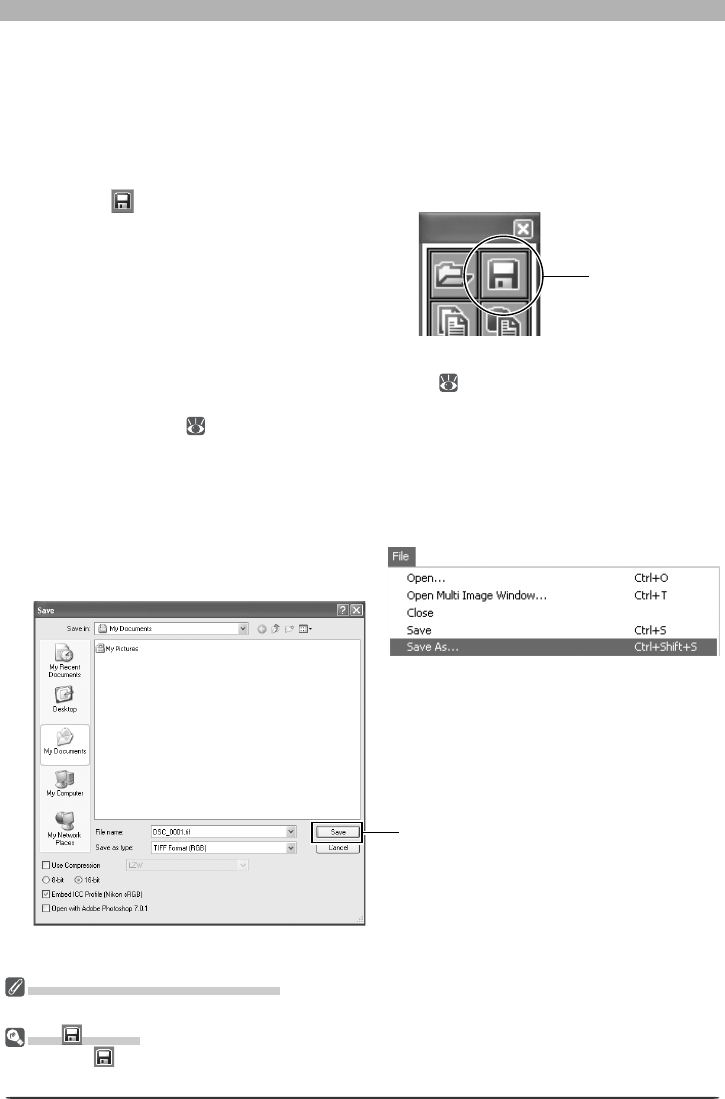
84
Image Adjustment
Options for Saving Image Files
Nikon Capture offers two options for saving fi les: Save and Save as…. The Save option saves
the image in the same location as the original without changing the fi le name or format. The
Save as… option lets you choose a location, fi le name, and format. When the Multi-Image
window is active, only the images selected in the thumbnail area are saved.
Using the “Save” Command
1 Click the button or se lect Save from the File menu
The ex ist ing fi le will be over writ ten. If the
image is in JPEG format, a dialog will be
displayed where the compression ratio can
be selected from “Highest Compression
Ratio,” “Good Compression Ratio,” “Good
Balance,” “Good Quality,” and “Excellent
Quality.”
2 Confi rm progress in the Save Progress window ( 87)
If the Use Save Progress Window option is not selected in the Performance tab of the
Preferences dialog ( 100), fi les will be saved immediately, and the Save Progress win-
dow will not be displayed. The Save Progress window is not available in Windows 98 SE,
Windows Me, or Mac OS 9.
Using the “Save as…” Command
1 Select Save As… from the File menu
The standard Save dialog for your op er -
at ing sys tem will be dis played.
Images Saved in Nikon Capture 4
Images saved in Nikon Capture 4 can not be viewed on a camera.
The Button
Clicking the button saves any changes to the current fi le, overwriting the original image. The Save
dialog is not displayed.
Save button
Save button

85
Enhancing Images
File Naming Conventions
Windows: In environments that do not support long fi le names, the maximum length is eight char-
ac ters; fi le names may not contain spaces, quotes, or any of the following characters: “\\” “/” “:” “.”
“;” “*” “?” “<“ “>” and “|”.
Where long fi le names are supported, fi le names may not contain quotes or any of the following charac-
ters: “\\” “/” “:” “.” “;” “*” “?” “<“ “>” and “|”.
Macintosh: The maximum length for Macintosh fi le names is thirty-one characters. Colons (“:”) are
not allowed.
NEF
NEF fi les created with Nikon Capture 4 can not be opened in earlier versions of Nikon Capture. Nikon
Capture 4 can however be used to open NEF images created with earlier versions of Nikon Capture.
JPEG
Image quality may drop when images are saved in JPEG format. No drop in image quality occurs when
images are saved in NEF.
Error Messages
If an invalid fi le name or other error is identifi ed in the Save dialog, a message will be dis played. Adjust
settings as directed.
2 Choose a location
Navigate to the desired drive (volume) and folder.
3 Choose a fi le type
Choose a fi le type (fi le format) from the pop-up menu. See “Choosing a File Type” (
83) for more information.
4 Adjust compression settings
The type of compression available depends on the fi le type selected in Step 3:
• NEF: Images that are not already compressed can be saved using a nearly lossless com-
pression algorithm by selecting Use Compression (D2-series, D200, D100, and D1-
series cameras only). This check box is automatically enabled when a compressed RAW
image is saved; compressed RAW images can not be saved in uncompressed format.
• TIFF: Select Use Compression to compress images using the LZW algorithm.
• JPEG: Use Compression is automatically selected when images are saved in JPEG for-
mat. The compression ratio can be selected from “Highest Compression Ratio,” “Good
Compression Ratio,” “Good Balance,” “Good Quality,” and “Excellent Quality.”
5 Enter a name for the fi le
The default fi le name appears in the File name text box. A new fi le name can be entered
if desired.
6 Click Save
If the Use Save Progress Window option is selected in the Performance tab of the Pref-
erences dialog ( 100), a window will be displayed where the progress of the save opera-
tion can be viewed while other operations are performed. If this option is not selected,
fi les will be saved immediately, and no progress dialog will be displayed. The Save Progress
window is not available in Windows 98 SE, Windows Me, or Mac OS 9.
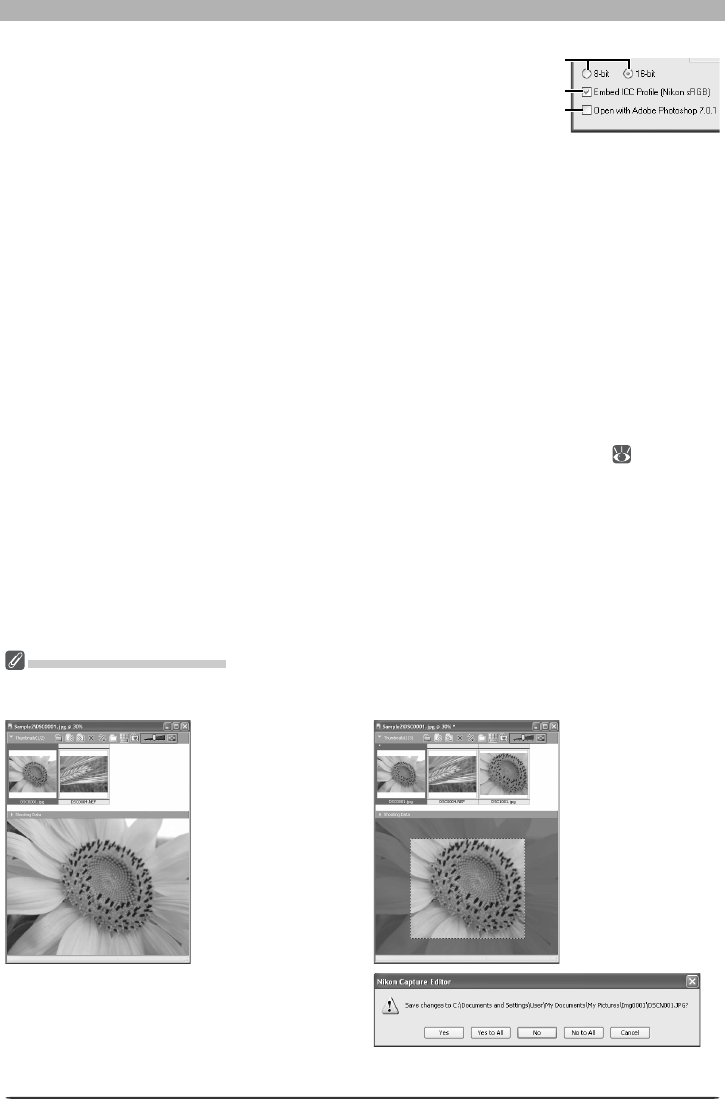
86
Image Adjustment
Save Options
In addition to the settings listed above, the following
options are available in the Save dialog:
Bit depth: The bit depth (the number of bits of color information per channel for each pixel in
the image) at which the image will be saved. Bit depth can only be selected if the selected fi le
type is TIFF (RGB) and the original image has a bit depth of over eight bits.
Embed ICC Profi le: Select this option to embed a specifi ed ICC profi le when the image is
saved. This option is the default selection for images that already have an embedded ICC
profi le, and also for photographs that were not edited previously. It is not available with NEF
fi les.
Open with: If Open saved images with is selected in the General tab of the Pref er enc es dia-
log, the name of the se lect ed application (e.g., Adobe Photoshop 7.0) will be dis played. This
option can not be selected if the chosen fi le format is NEF. If this check box is on, the image
will au to mat i cal ly be opened in the selected application after being saved to disk.
File Names…: If multiple images are selected in the Multi-Image window, a File Names...
button will be displayed. Click this button to view or modify fi le-naming rules ( 113 ) .
The Multi-Image Window
If the image in the Multi-Image window is saved under another name using the Save As… option, the
original image will still be displayed in the image area.
Image selected in
thumbnail list is dis-
played in image area.
If image is edited,
asterisk (“*”) appears
in title bar.
If image is saved to
current folder under
new name, modifi ed
image appears in
thumbnail list, but
original is still dis-
played in image area.
If changes to the originals have not been saved us-
ing the Save option, the dialog shown at right will
be displayed when you exit Nikon Capture 4 Editor
or close the Multi Image Window. Click Yes or Yes
to All to save the changes under the original fi le
names.
Bit depth
Open with
Embed ICC Profi le

87
Enhancing Images
The Save Progress Window (Windows 98 SE/Windows Me/Mac OS 9 Excluded)
If the Use Save Progress Window option
is selected in the Performance tab of the
Preferences dialog ( 100), the Save Prog-
ress window will be displayed while images
are saved (the Save Progress window is not
available in Windows 98 SE, Windows Me, or
Mac OS 9). The Save Progress window shows
all save operations currently in progress, and
can be used to pause, restart, or cancel the
current task. If the Save Progress window
is displayed, other operations can be per-
formed while images are saved.
Close when done
If this option is selected, the Save Progress window will close automatically when all images
have been saved.
Show fi le paths
Check this option to display fi le paths (volume and folder names) in the Save Progress dialog.
If this option is not selected, only fi le names will be displayed.
Saves
This tab lists the names and status of fi les that have yet to be saved.
Progress Log
Lists warnings, errors, and completed or cancelled tasks.
Pause, restart, or cancel the selected operation.
Reopen (Progress Log tab)
Reopen the selected fi le in an image window.
Show only errors and warnings (Progress Log tab)
Check this option to display only warnings and errors in the Progress Log tab. If this option is
not selected, the Progress Log tab will also list completed operations.
Clear (Progress Log tab)
Clear the list of warnings, errors and completed or cancelled tasks from the Progress Log
tab.
The Save Progress Window
The following operations can not be performed while a save is in progress:
•Opening the “Preferences” dialog
•Exiting Nikon Capture 4 Editor.
Memory Requirements
Using the Save Progress window on computers with less than 512 MB of RAM may increase the time
required to save images.
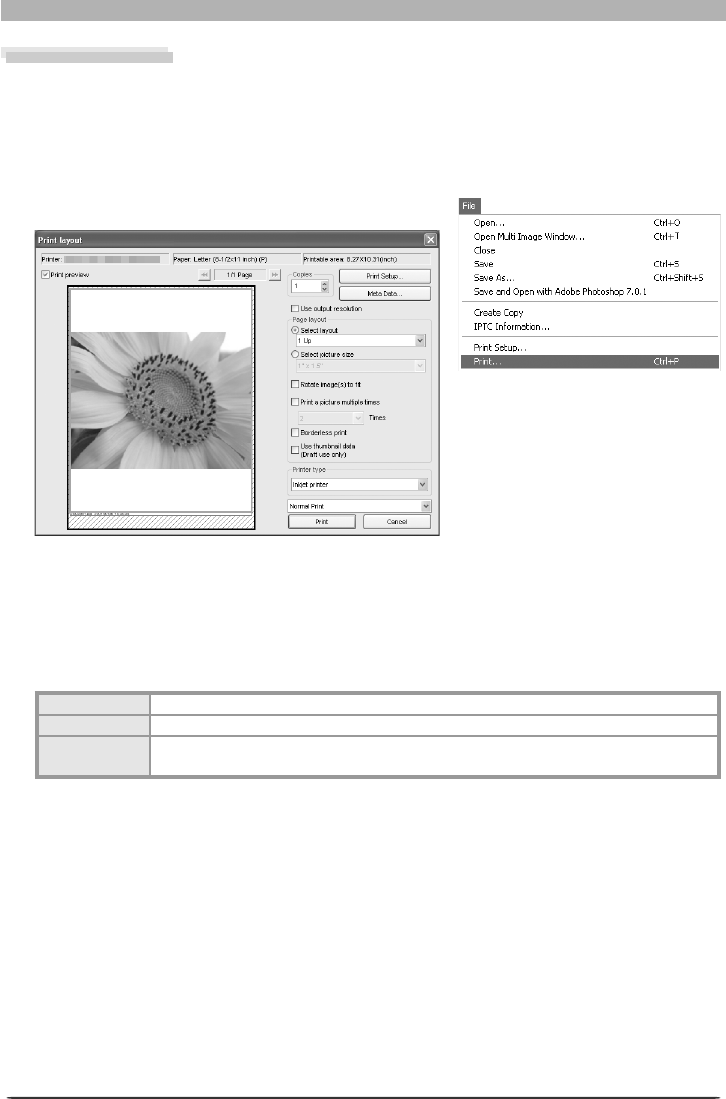
88
Image Adjustment
Printing Images
Images can be printed directly from Nikon Capture 4 Editor to test the effects of image ad-
just ments.
1 Open the image
Be sure the image you wish to print is open in Nikon Capture 4 Editor.
2 Select Print… from the File menu
The Print Layout dialog will be displayed.
3 Print the image
Adjust settings as described below and click Print to print the image. Click Cancel to exit
without printing.
Printer / Paper / Printable area
These text boxes display current printer settings. To change printer settings, click Print
Setup… (see below).
Printer Displays the currently selected printer.
Paper Displays the current paper size.
Printable area Displays the maximum dimensions of the area that can be print ed per sheet at cur-
rent printer and paper size settings.
Print preview
Check this option to display a preview of how the images will print on the currently se-
lected printer. Click the next page button to page through the selected images.
Copies (Windows only)
Choose the number of copies that will be printed. Up to 100 copies can be printed.
In the Macintosh version, the number of copies is not displayed in the Print Layout dialog.
To specify the number of copies, click Print. A confi rmation dialog will be displayed; click
Yes to proceed with printing and specify the number of copies.

89
Enhancing Images
Meta Data…
To choose the information to be included
with each print, click Meta Data…. The
“Meta data print setup” dialog will be
displayed; adjust the following settings
and click OK to return to the “Print layout”
dialog.
Depth level: Put a check in the box next to
the level of information you want included
with your prints. Choose from:
• Basic: fi le name and date and time of
recording
• Additional information: camera mod-
el, shutter speed, aperture (f/-number),
image size, exposure mode, and white
balance
• Detail information: metering mode,
exposure compensation, focal length,
autofocus mode, and sensitivity (ISO
equivalency)
To change the font used to print shooting information, click Change.
Imprint capture date over image: Select Date only to print the date of recording on
the image, or Date and Time to print the date and time of recording. To choose the font
used to print the date or date and time, click Change.
Use output resolution
Check this option to print the image at its native resolution and dimensions. In Nikon
Capture 4, this is the size and res o lu tion se lect ed in the Nikon Capture 4 Editor Size/
Res o lu tion palette ( 79). If the image will not fi t in the print able area (see above) at the
current printer and paper size settings when you click the Print button to begin printing,
a mes sage will be dis played warning that the image will be cropped to fi t the print able
area. Choose a larger paper size or reduce the size of the image using the Size/Resolution
palette.
Use output resolution is not available when multiple images are selected.
Print Setup…
Click to display a Printer Settings dialog in
which you can mod i fy the printer and pa-
per set tings. If you are using a Macintosh,
the appearance of this dialog depends on
the printer in use. The chang es made are
re fl ect ed in the “Printer,” “Paper,” and
“Printable area” fi elds.
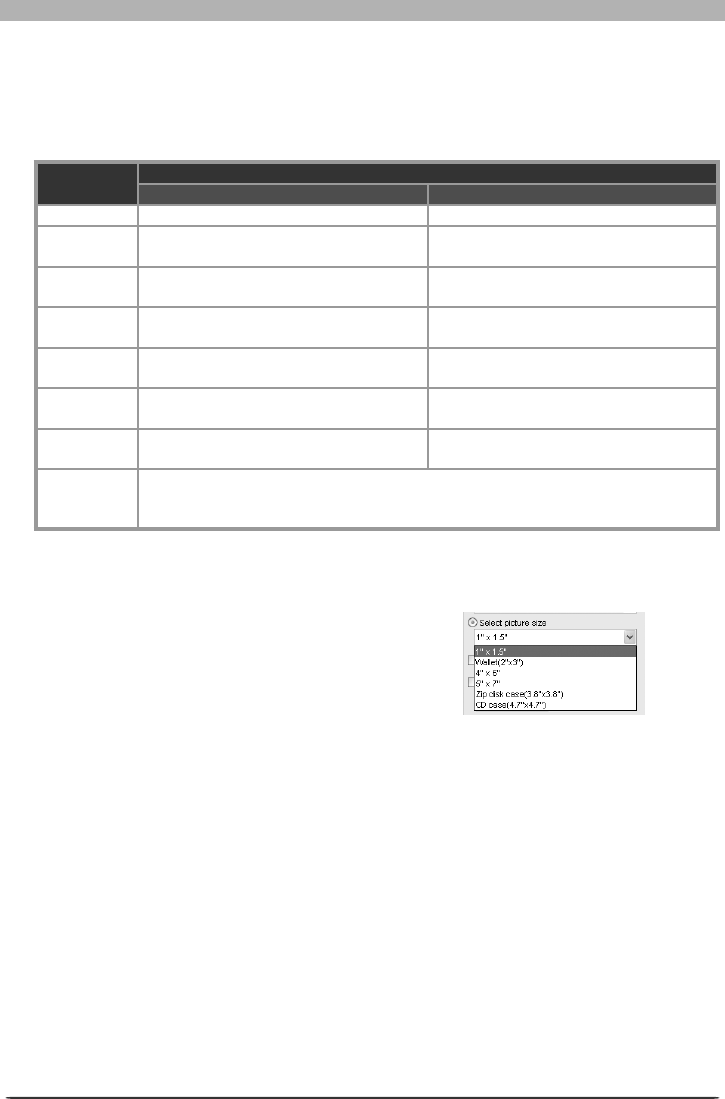
90
Image Adjustment
Page Layout
Choose from Select layout and Select picture size and adjust options as described
below.
Select layout: When this option is selected, you can choose the number of images that
will be printed from a drop-down menu.
Option
Page orientation
Portrait Landscape
1 Up One image printed in center of page One image printed in center of page
2 Up Two pictures printed
one above the other Two pictures printed side-by-side
2 × 2 Up
Four pictures printed in two rows of two
columns each
Four pictures printed in two rows of two
columns each
2 × 4 Up
Eight pictures printed in four rows of
two columns each
Eight pictures printed in two rows of
four columns each
4 × 4 Up
Sixteen pictures printed in four rows of
four columns each
Sixteen pictures printed in four rows of
four columns each
5 × 5 Up
Twenty-fi ve pictures printed in fi ve rows
of fi ve columns each
Twenty-fi ve pictures printed in fi ve rows
of fi ve columns each
5 × 8 Up
Forty pictures printed in eight rows of
fi ve columns each
Forty pictures printed in fi ve rows of
eight columns each
Image
information
list
Print page consisting solely of the following information for the selected images:
fi le name, camera make and model, exposure program, date and time of creation,
shutter speed, aperture, and white balance.
The size of the images is automatically adjusted according to the layout. Select Rotate
images to fi t to rotate images to print at the largest size that will fi t on the selected
paper size.
Select picture size: When this option is
selected, you can choose print size from a
drop-down list.
Rotate image(s) to fi t: Check this option to automatically rotate each image so as to
minimize the unused space inside each image frame.
Print a picture multiple times: To print multiple copies of each image, check this option
and select a num ber from be tween two and ten from the pull down menu. Select The
whole page to print enough copies of the image to fi ll the whole page at the selected
size.
Borderless print (Windows) / Eliminate white border (Macintosh): Check this option
to adjust the image size so that it fi ts exactly inside the red border, without leaving any
white space. If the as pect ratio of the box and the image differ, part of the image may
not be printed.
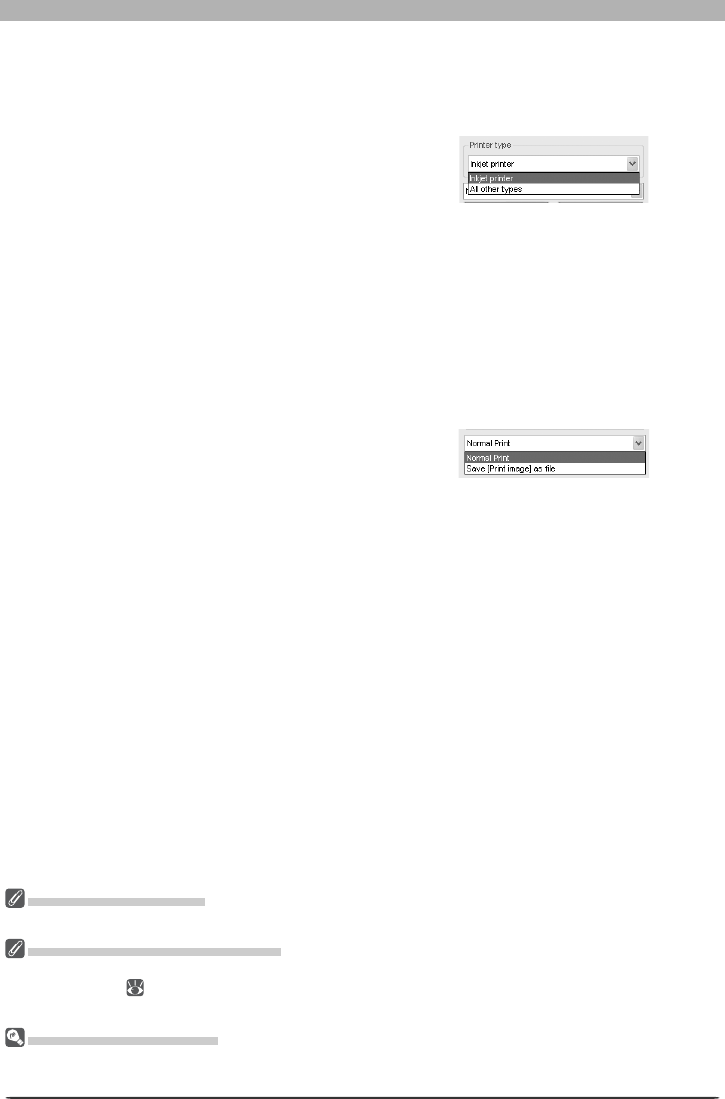
91
Enhancing Images
Inkjet printer: We recommend this option when printing on inkjet or color laser printers.
The selected images will be printed at high quality and speed at the highest resolution
supported by the printer (if the printer supports resolutions higher than 360 dpi, the im-
ages will print at 360 dpi).
All other types: Select this option when printing in color on devices that use dye-sub-
limation or pho to graph ic processes. The selected images will be printed at the highest
resolution sup port ed by the printer. Print speed may drop if you choose this option when
using an inkjet print er.
Normal Print / Save [Print Image] as fi le
Select whether to print images on a printer,
or to save the page as an image fi le.
Normal Print: Outputs the selected im-
ages to a printer.
Save [Print Image] as fi le (Windows) / Save image fi les (Macintosh): Saves the page
as a JPEG fi le using the layout spec i fi ed in the “Page Layout” dialog. When this option is
selected, the Print button in the “Page Layout” dialog will change to Save. Click ing the
Save button dis plays the “Save Image(s)” dialog, where you can choose a des ti na tion
folder and fi le name and select Quality (JPEG compression) from Max i mum, High, Me-
di um, or Low. Each page is saved as a separate fi le.
Use thumbnail data
Check this option to print the pictures at draft resolution using thumbnail data. Recom-
mended for draft prints only.
Printer type
Choose from Inkjet printer or All other
types.
Setting up Your Printer
Note that the printer must be properly connected and the printer drivers correctly installed.
Printing with Color Management
The printer profi le can be selected in the Color Management tab of the Preferences dialog in Nikon
Capture 4 Editor ( 104, 105) or Nikon Capture 4 Camera Control. Note that changes to color manage-
ment settings in PictureProject and Nikon View also apply to Nikon Capture 4.
“Use Output Resolution”
To print images at the size and resolution selected in the Nikon Capture 4 Editor Size/Resolution palette,
select Use output resolution.
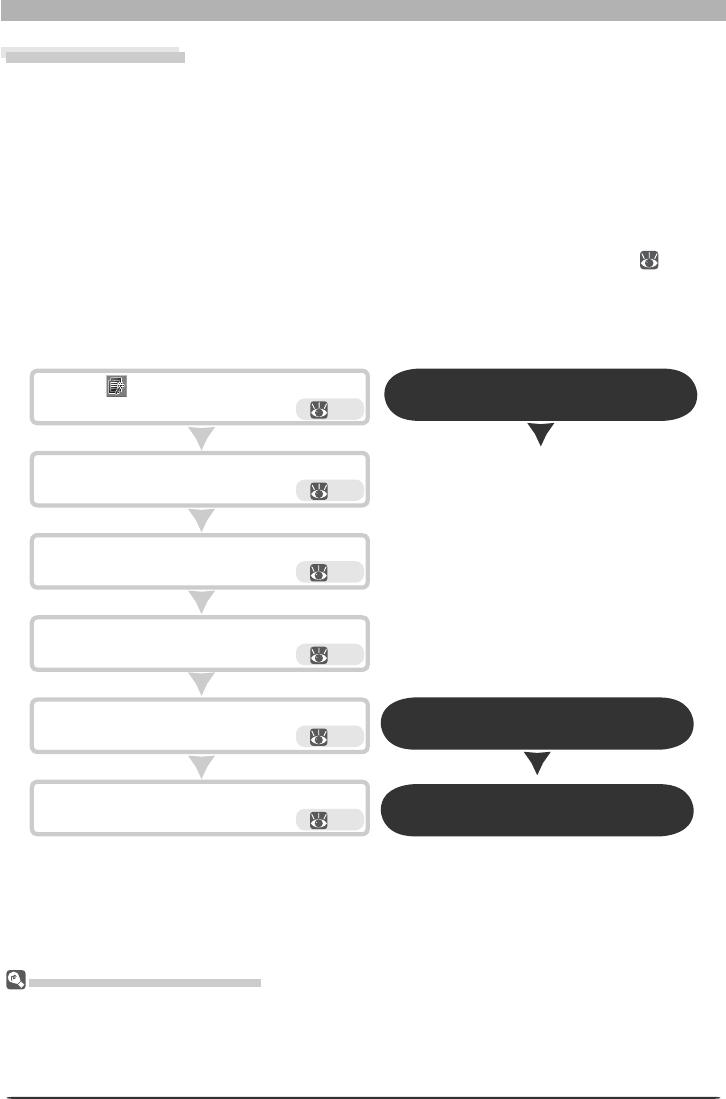
92
Image Adjustment
Before Using Batch Processing
Batch processing is used to perform the operations specifi ed in the Image Adjustments section of the
Batch dialog on all fi les in a selected folder. To ensure that desired results are achieved, we rec om mend
pro cess ing a test image before beginning batch processing. Batch processing can not be used to adjust
settings separately for each image; instead, the images must be opened one at a time in the order taken
and separate ad just ments made manually for each image.
Click Batch Complete when processing is
com plete.
Click Start to begin processing.
Choose a fi le naming method and fi le for mat
for processed images.
Choose how images will be pro cessed.
Choose folder containing images for batch
processing.
Click the button or select Batch from the
Tools menu. 93
Open the Batch dialog
93
94
95
96
Open the Batch progress dialog
96 Close the Batch progress dialog
Batch Processing
Nikon Capture 4 supports automated processing of multiple images (batch processing). Batch
pro cess ing is used to automate image processing, capturing images, applying pre-defi ned
image adjustment settings, and saving images to disk automatically. It is most effective when
applied to a series of pho to graphs taken under identical conditions. Images are processed in
the order taken.
When using batch processing, we recommend that you open one of the images to be pro-
cessed in Nikon Capture 4 and edit image adjustment settings to produce the de sired result.
You can then save these settings in a joint settings fi le using the Save Selected Adjustments
or Save All Adjustments option in the Settings > Image Adjustment menu ( 82). By
se lect ing the re sult ing settings fi le in the Batch dialog, you can per form the same ad just ments
on all the images processed. In studio settings where a variety of shooting con di tions can be
rep li cat ed with ease, you can create separate settings fi les for commonly en coun tered con di -
tions and use these settings to automate repetitive image enhancement op er a tions.

93
Enhancing Images
This section describes how to use batch processing with fi les that have already been saved
to the computer’s hard disk. For in for ma tion on batch processing of images captured directly
from the cam era, see “Nikon Capture 4 Camera Control” ( 116).
1 Display the Batch dialog
Click the button or select Batch from the Tools menu to display the Batch dialog.
2 Choose a source folder
In the Source section, choose the folder containing the images to be processed. The cur-
rent folder is listed in the text box. To choose a new folder, click the Browse... button and
navigate to the desired location.
Include subfolders: Check this option to process all images in any sub-folders under the
specifi ed fold er. Folders with the same names will be created in the destination folder.
Periodically check for new fi les in this folder: When this option is checked, Nikon
Capture 4 will check for new images in the specifi ed folder once every ten seconds. This
option is not available when Include subfolders is checked or when Use save progress
window is selected in the Performance tab of the Preferences dialog.
Delete fi les from this folder after they are processed: Check this option to delete image
fi les from the selected folder after processing. A warning dialog will be displayed before
batch processing begins. This option is not available when Use source fi le name is se-
lected in the Destination section or when Use Save Progress Window is selected in the
Performance tab of the Preferences dialog.
Selecting Folders for Batch Processing
For improved effi ciency, create two folders that are used only for batch processing, one for the originals
and the other for processed images.
Source section
Choose a source folder ( 93).
Image Adjustments section
Choose the operations that will be per-
formed on each image ( 94).
Destination section
Choose a destination folder ( 95).
Save Progress section
Choose a name for the batch process dis-
played in the Save Progress window.
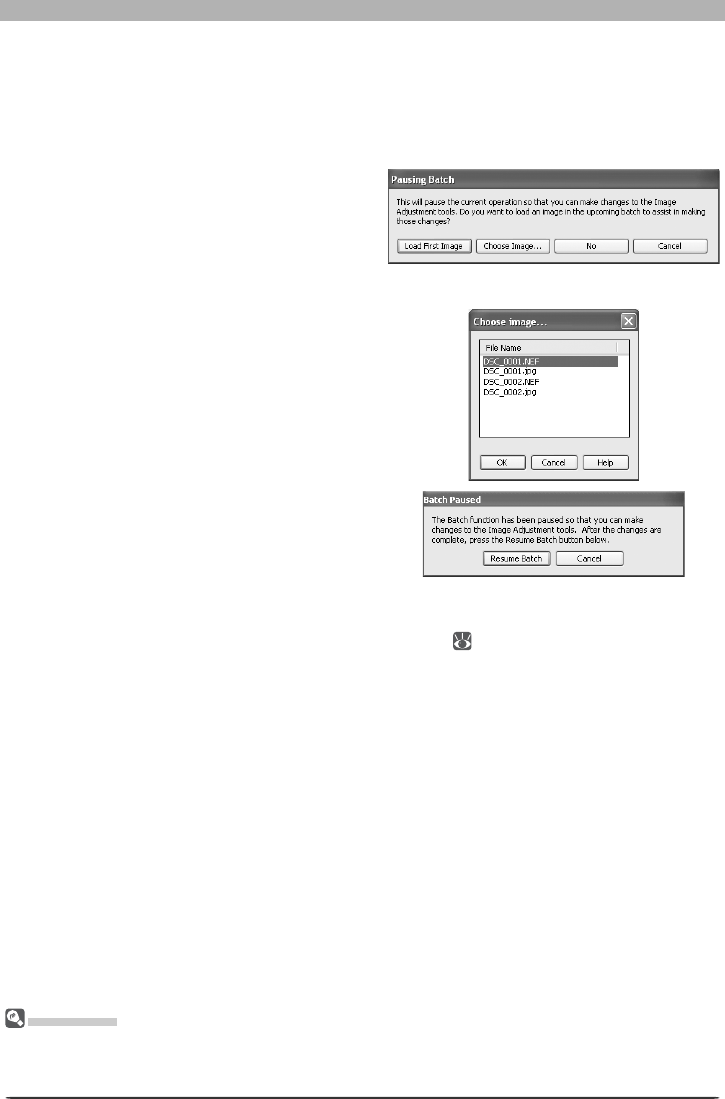
94
Image Adjustment
A pause dialog will be displayed; adjust
settings as desired and then click Resume
Batch to return to the batch processing
dialog.
Apply settings in: Select this option to process the images in the selected folder using
joint settings cre at ed using the Save Selected Adjustments or Save All Adjustments
option in the Settings > Image Adjustment menu ( 82; note that if Calculate Au-
tomatically is selected for white balance in the settings fi le, the recorded value will be
used when images are processed). When this option is se lect ed, a joint settings fi le can be
selected by clicking the Browse button to its right.
Apply settings already in fi les: Check this option to apply settings previously saved with
NEF fi les. If this item is not checked, the saved settings will be re plac ing with the set tings
chosen in the Image Adjustments sec tion.
Auto Brightness: Select Always to apply auto brightness and contrast, or Only when re-
lated settings are neutral to adjust contrast and brightness only if they have not already
been adjusted manually using Photo Effects, Tone Curves, or Color Balance.
Auto Color Boost: Select For People - Always or For Nature - Always to apply the ef-
fects of the Auto button in the Color Booster palette, or For people - only when re-
lated settings are neutral or For nature - only when related settings are neutral to
apply this effect only if Color Booster settings have not already been adjusted manually.
3 Specify how images will be processed
In the Image Adjustments section, specify the operations to be performed on each im-
age.
Apply current settings: Select this option to process the images in the selected folder us-
ing the settings cur rent ly in effect in Nikon Capture 4 Editor.
To change settings before beginning batch
processing, click Change Settings…. A
dialog will be displayed where an image
can be opened to assist with the process of
adjusting settings. Click No to adjust set-
tings without opening an image.
To open the fi rst image in the source folder,
click Load First Image. To select another
image from the source folder, click Choose
Image…. The dialog shown at right will be
displayed; select an image and click OK.
Orientation
Images processed using the batch option are saved in their original orientation. When Apply cur rent
settings is selected, images will not be rotated or fl ipped, regardless of whether fl ips or rotations have
been applied to the image in the active image window.

95
Enhancing Images
4 Choose a destination for the processed images
In the Destination section, choose options for saving the processed images.
Use source folder: When this option is selected, processed images will be saved to the
same folder as the original.
Use source fi le name: When this option is selected, processed images will be saved under
the same name and in the same location as the original images, although the fi le exten-
sion will change if the chosen fi le format differs from the original. A warning will be dis-
played if the fi le name already exists. This option can not be selected at the same time as
Delete fi les from this folder after they are processed.
Save to: This text box shows the folder to which the images will be saved after process-
ing. To choose a new folder, click the Browse... button to the right of the text box and
navigate to the desired location. This option is not available when Use source folder is
se lect ed. A folder with the same name will be created in the destination folder.
Next fi le name: This text box shows a sample of the fi le names that will be used when sav-
ing the images after processing. Click Edit... to modify fi le naming rules ( 113 ) .
Save as type: Choose the fi le format that will be used to save the processed images. The
following formats are available: Use source fi le type, NEF (Nikon Electronic Format),
TIFF Format (RGB), TIFF Format (CMYK), and JPEG Format. When NEF or TIFF (RGB) is
selected, compression can be chosen from a pull-down menu. When JPEG is selected, the
compression ratio can be chosen from “Highest Compression Ratio,” “Good Compression
Ratio,” “Good Balance,” “Good Quality,” and “Excellent Quality.” For more in for ma tion
on the options available, see “Saving Images” ( 83).
Bit Depth: The bit depth (the number of bits of color information per channel for each
pixel in the image) at which the image will be saved. Bit depth can only be selected if the
selected fi le type is TIFF (RGB) and the original image has a bit depth of over eight bits.
Embed ICC Profi le: Select this option to embed an ICC profi le in each image.
File Naming Conventions
Windows: In environments that do not support long fi le names, the maximum length is eight char-
ac ters; fi le names may not contain spaces, quotes, or any of the following characters: “\\” “/” “:” “.”
“;” “*” “?” “<“ “>” and “|”.
Where long fi le names are supported, fi le names may not contain quotes or any of the following charac-
ters: “\\” “/” “:” “.” “;” “*” “?” “<“ “>” and “|”.
Macintosh: The maximum length for Macintosh fi le names is thirty-one characters. Colons (“:”) are
not allowed.
Size/Resolution
If Keep the crop is selected, all images will be rescaled before they are saved. Otherwise images will be
saved at the selected size. If the height : width ratio of the original is larger than that of the selected out-
put dimensions, the right edge of the image will be trimmed; if smaller, the bottom will be trimmed.
Existing Image Adjustment Settings
If the Apply settings already in fi les option is not checked, any changes to set tings stored with fi les
saved in NEF format will be ignored, and the settings in the selected settings fi le applied. If you have
pro cessed a series of NEF images separately and want to save them all as sixteen-bit TIFF, you can check
this option and use batch processing to save all the images to a single folder in sixteen-bit TIFF format.
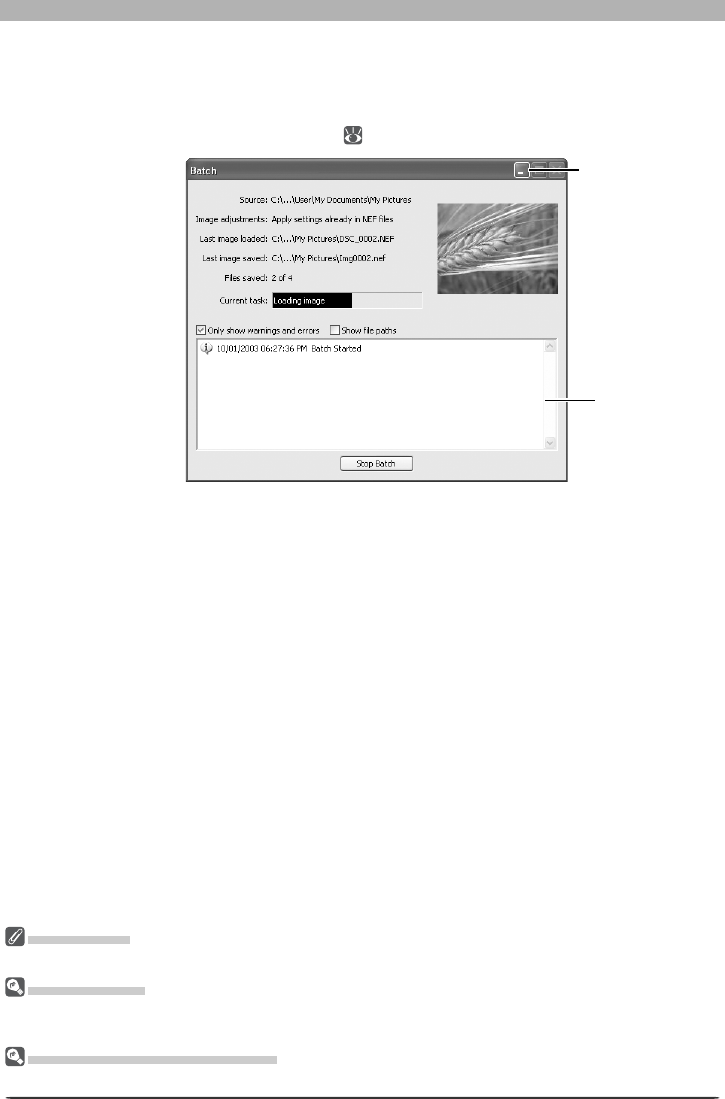
96
Image Adjustment
5 Begin processing
Click Start to put the selected settings into effect and begin processing. A batch progress
dialog will be displayed (except in Windows 98 SE, Windows Me, or Mac OS 9, the Save
Progress window will be displayed if Use Save Progress Window is selected in the Per-
formance tab of the Preferences dialog; 100).
Stop Batch
Click this button to stop batch processing before all images have been processed.
Only show warnings and errors
Check this option to display only warnings and errors in the log area. If this option is not
checked, the log will also show the names and locations of the original images, captured
photographs, and processed images.
Show fi le paths
Select this option to show the source and destination fi le paths. File paths are not dis-
played if Only show warnings and errors is checked.
6 Exit the batch processing dialog
When batch processing is complete, the Stop Batch button will change to Batch Com-
plete. Click Batch Complete to exit the batch processing dialog.
The Log Area
If an error occurs during processing, a description will be displayed in the log area of the batch dialog.
Error Messages
If an invalid fi le name or other error is identifi ed in the batch processing dialog, a message will be dis-
played. Return to the batch processing dialog and adjust settings as directed in the message.
The Minimize Button (Windows )
Clicking the minimize button in the batch processing dialog minimizes Nikon Capture 4 Editor.
Log area
Minimize button
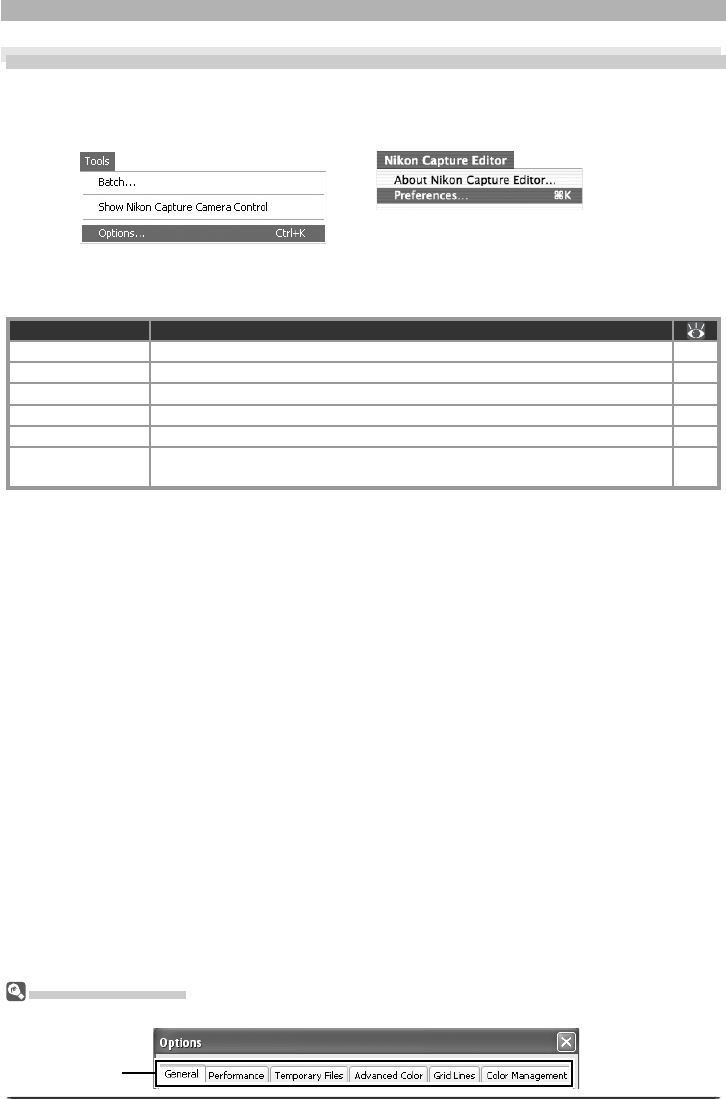
97
Fine-Tuning Nikon Capture 4 Editor
Nikon Capture 4 Editor Preferences
Fine-Tuning Nikon Capture 4 Editor
To view the Preferences (Options) dialog, select Options… from the Tools menu (Windows)
or select Preferences… from the application menu (Mac OS X) or Edit menu (Mac OS 9).
Viewing Preferences
To view settings in any of the six panels, click the appropriate tab.
The Pref er enc es dialog contains the following 6 tabs:
Tab Description
General Adjust application settings. 98
Performance Fine-tune application performance 100
Temporary Files Specify the location of the folders used for tem po rary stor age. 101
Advanced Color Set the defaults for the white and black points in the Curves window. 102
Grid Lines Specify the spacing and color of the grid dis played in im age windows. 103
Color Management Select the color profi les used by the Nikon Color Man age ment System
(CMS).
104–
106
After making changes to preferences, click OK to save changes and return to the Nikon
Capture 4 Editor window. Click Cancel to cancel any changes to settings and return to the
Nikon Capture 4 Editor window.
Mac OS X
Windows
Tab
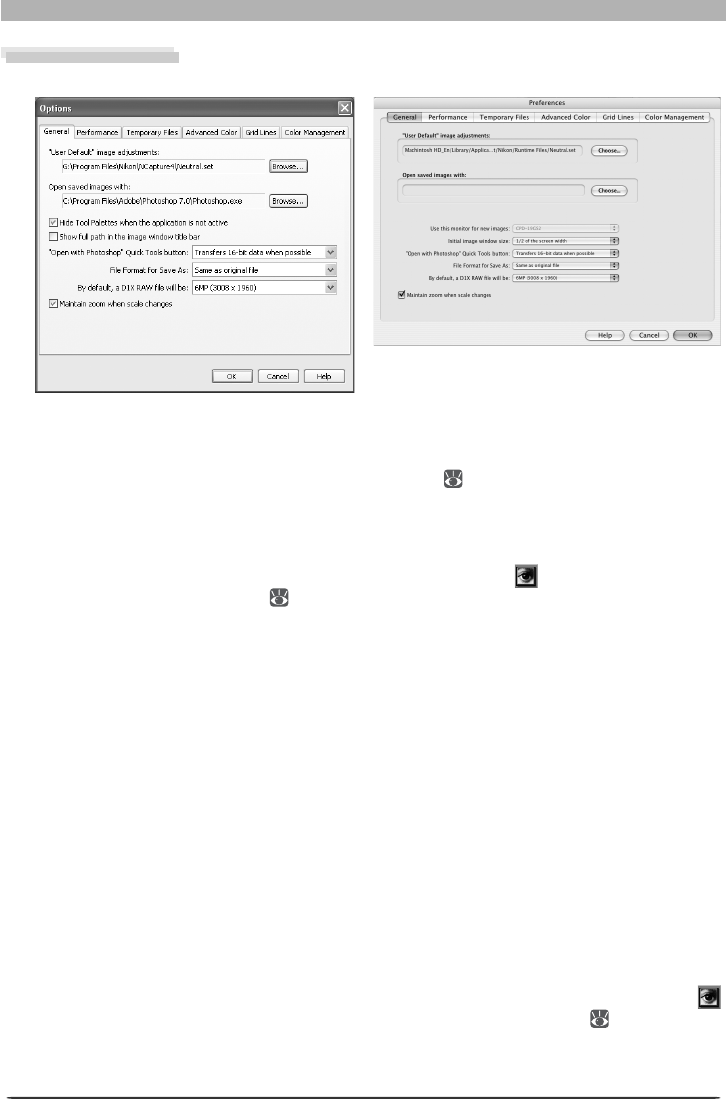
98
Nikon Capture 4 Editor Preferences
The General Tab
The General tab con tains the following items:
Windows Macintosh
“User Default” image adjustments
Choose the combined settings (“.set”) fi le that will ap ply when Reset to User Default is se-
lect ed from the Settings > Image Ad just ments menu
( 82)
. The factory default settings
fi le (“Neutral.set”) produces a neu tral, unedited image.
Open saved images with
To specify the ap pli ca tion used to open saved im ag es, click the Browse… button and nav-
i gate to the de sired application. This setting has no effect on the (“Open in Photo shop”)
but ton in the Quick Tools palette
( 9)
.
Hide Tool Palettes when the application is not active (Windows only)
Select this option to hide the tool palettes and Quick Tool palette when another application
is activated and brought to the front.
Show full path in the image window title bar (Windows only)
Select this option to display the full paths and fi le names of the images opened in image
windows.
Use this monitor for new images (Macintosh only)
In a multiple display environment, select the monitor that will be used to display images
opened in Nikon Capture 4 Editor. This option is not available when only one monitor is con-
nected.
Initial image window size (Macintosh only)
Choose the size at which images will be opened from one-third screen width, one-half screen
width, and two-thirds screen width.
“Open with Photoshop” Quick Tools button
Choose whether images are transferred to Photoshop eight bits at a time (Always transfers
8-bit data) or sixteen bits at a time (Transfers 16 - bit data when possible) when the
button in the Quick Tools palette is clicked to open an image in Photoshop
( 9)
. If sixteen-
bit transfer is not possible when Transfers 16 - bit data when possible is selected, images
will be transferred eight bits at a time.
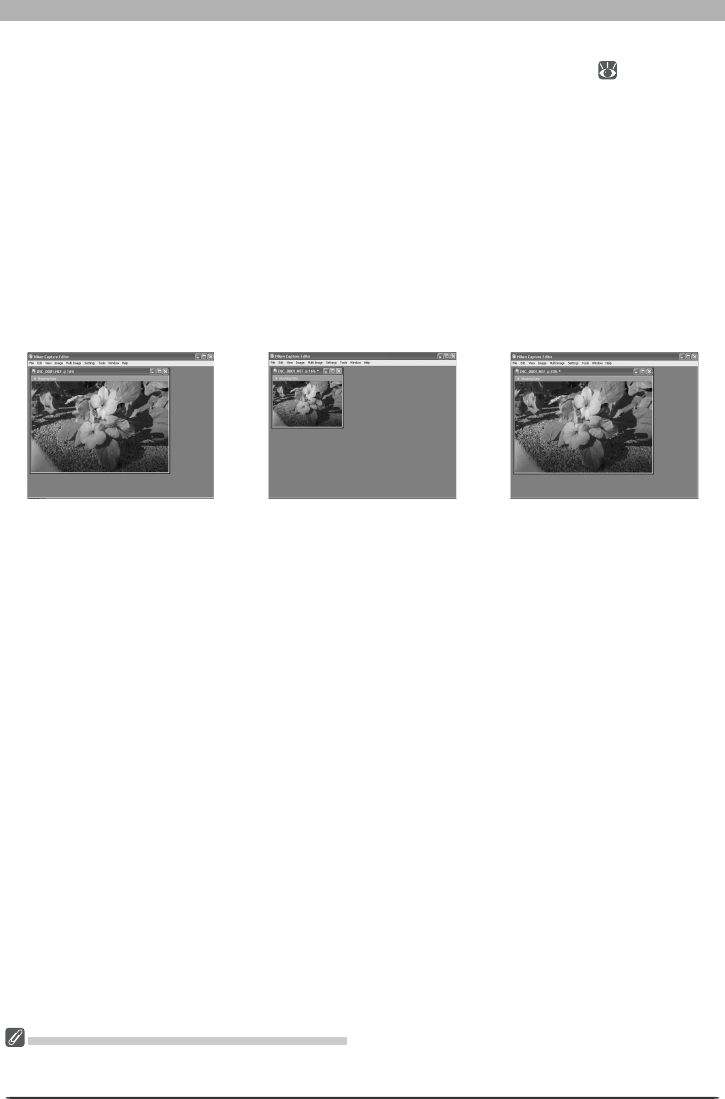
99
Fine-Tuning Nikon Capture 4 Editor
File format for Save As
Choose the default fi le format for images saved using the Save As… option
( 84)
. Choose
from Same as original fi le (each image will be saved in its current format), Previous fi le
format (images will be saved in the last format selected), NEF, JPEG, TIFF (RGB), and TIFF
(CMYK).
By default, a D1X RAW fi le will be
This option controls the default size for RAW im ag es tak en with the D1X. Choose 10MP
(4016 × 2616) or 6MP (3008 × 1960).
Maintain zoom when scale changes
Select this option to keep the same zoom ratio when changing output size in the Size/
Resolution palette. The window is resized to display the image at the new output size.
Opening Files with Photoshop (Mac OS 9)
In Mac OS 9, temporary fi les created when images are opened in Photoshop can be deleted from the
Trash by selecting Empty Trash from the Special menu in the Finder while pressing the option key.
300-ppi image displayed at
16% zoom. If resolution is
reduced to 150 ppi…
…zoom increases to 33% to
fi t image to window.
“Maintain zoom when scale
changes” offOriginal image
…zoom remains 16%; win-
dow is resized to fi t image.
“Maintain zoom when scale
changes” on
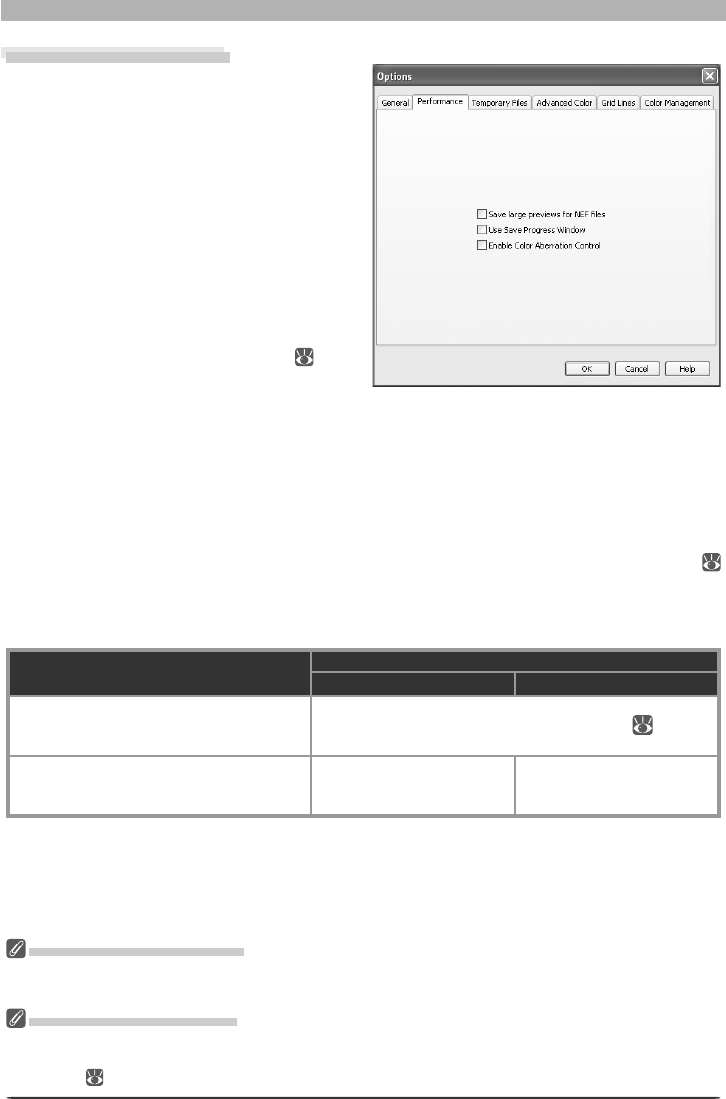
100
Nikon Capture 4 Editor Preferences
The Performance Tab
The Performance tab contains the fol low ing:
Save large previews for NEF fi les
Image fi les normally include an embedded
preview 640 pixels on its longest size. If this
option is checked, images saved in NEF will
include a pre view 1,600 pixels on its lon-
gest side, allowing NEF images over 1,600
pixels long to display more quickly in Nikon
Viewer.
Use Save Progress Window
Select this option to display the Save Progress
Window while images are saved (Windows XP,
Windows 2000, and Mac OS X only; 87).
Note that this may increase the time needed
to save images on computers with less than
512 MB of RAM.
Enable Color Aberration Control
Select this option to automatically perform color aberration control when opening RAW im-
ages taken with Nikon digital SLR cameras. When this option is selected, color aberration
control is automatically applied when opening images that have not previously been edited in
Nikon Capture 4.3 or later. Color aberration control can subsequently be turned on and off
using the Color Aberration Control option in the Nikon Capture 4 Editor Image menu (
28)
; if the Color Aberration Control option is off when the image is saved, color aberration
control will not be performed when the image is next opened, even if Enable Color Aberra-
tion Control is selected in the Preferences dialog.
Image
Enable color aberration control
On Off
Image saved using Nikon Capture 4.3 or
later
Automatic color aberration control is only performed if
Image > Color Aberration Control option ( 28) was
selected when image was saved.
Image transferred from camera or image
saved using Nikon Capture 4.2.1 or earlier,
Nikon View Editor, or PictureProject
Color aberration control is
performed automatically
when image is opened.
Automatic color aberration
control is not performed.
Large Previews for NEF Files
Selecting the Save large previews for NEF fi les op tion increases fi le size by about 1 MB, slightly in-
creas ing the time needed to save images.
Use Save Progress Window
The Periodically check for new fi les in this folder and Delete fi les from this folder after they are
processed options are not available in the batch progress dialog when Use Save Progress Window
is selected ( 93).
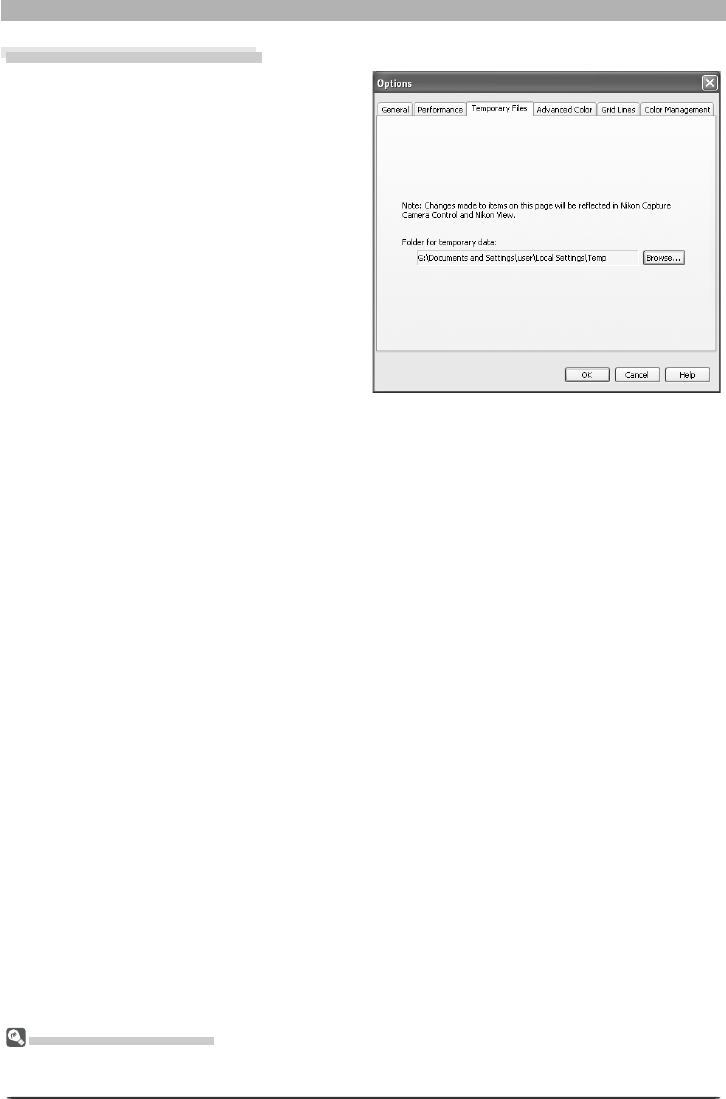
101
Fine-Tuning Nikon Capture 4 Editor
The Temporary Files Tab
The Tem po rary Files tab offers the fol low ing
option:
Folder for temporary data
Specify the fold er or vol ume in which tem-
po rary data, such as im age cache data, will
be stored. The de fault fold er for Windows
is the “TEMP” fold er in the Windows di-
rec to ry, while the default vol ume for the
Macintosh is the start-up disk. To choose
a dif fer ent fold er in the Win dows ver sion
of the pro gram, click the Browse… but ton
and nav i gate to the de sired location. In the
Macintosh ver sion, a new volume can be
cho sen from the pop-up menu.
The Temporary Files Tab
Changes to settings in the Temporary Files tab also apply to Nikon Capture 4 Cam era Control. Nikon
Capture 4 must be restarted before changes to settings will take effect.

102
Nikon Capture 4 Editor Preferences
The Advanced Color Tab
The Advanced Color tab contains the fol-
low ing items:
Black Auto-Contrast clip
By default, the black point is set to a value
that excludes 0.5% of the darkest pixels in
the crop. This produces an optimal dynamic
range, with minimal loss of detail in shad-
ows. To preserve detail at the expense of dy-
namic range, choose a lower value (choose 0
to set the black point to the darkest pixel in
the crop). To increase dynamic range at the
expense of detail, choose a higher value.
White Auto-Contrast clip
By default, the white point is set to a value
that excludes 0.5% of the brightest pixels in
the crop. This produces an optimal dynamic range, with minimal loss of detail in highlights.
To preserve detail at the expense of dynamic range, choose a lower value (choose 255 to set
the white point to the brightest pixel in the crop). To increase dynamic range at the expense
of detail, choose a higher value.
Black Dropper value/White Dropper value
Controls the default output values for white point and black point. Output for each channel
can be set to a value between zero and 255; these settings can also be adjusted in the Curves
window. By default, output levels for the white point are 255 for each channel, which displays
as white on most computer monitors. The defaults for the black point are 0 for each channel,
which displays as black.
Dropper sample size
This setting determines the size of the area sampled with the eyedropper, set curve point, and
add watch point cursors in the White Balance, Curves, LCH Editor, and Information palettes.
You can select a sample sizes of Point Sample (the default setting), 3 × 3 Average, and 5 × 5
Average. When the sample size is set to 3 × 3 or 5 × 5, the average for the pixels sampled is
used. Choosing a large sample size reduces precision, but also min i miz es the effects of noise;
choosing a small sample size has the op po site effect.
Reset to Default
Click this button to restore settings in the Advanced Color tab to their default values.
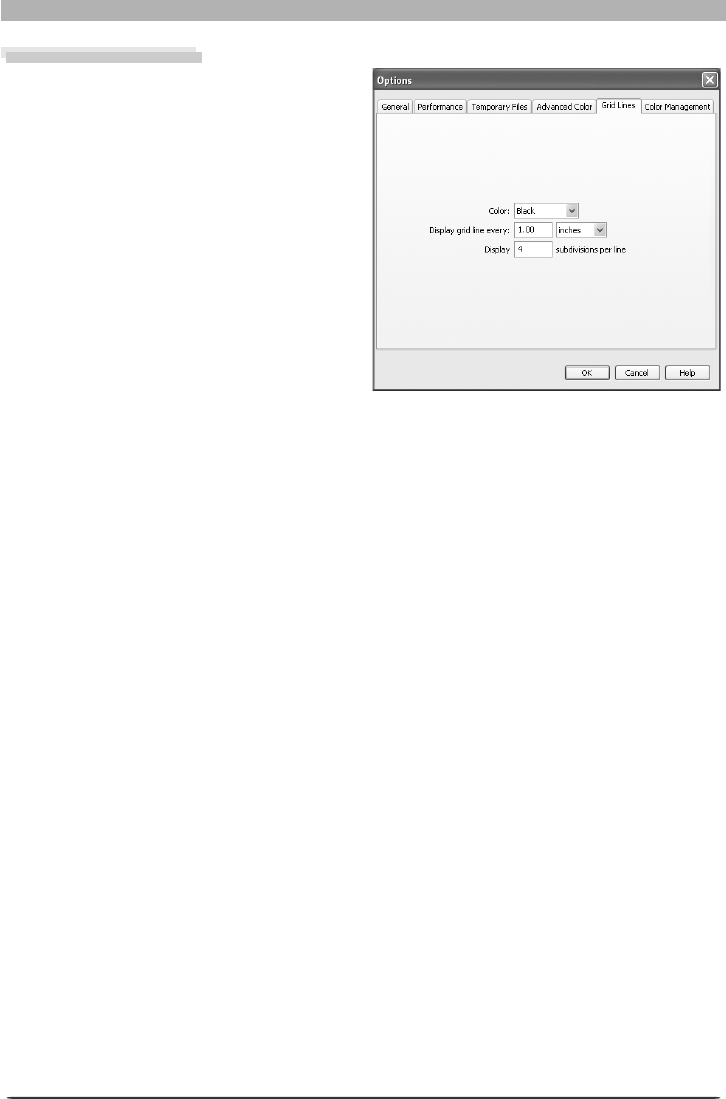
103
Fine-Tuning Nikon Capture 4 Editor
The Grid Lines Tab
The Grid Lines tab controls the color and
spac ing of the non-printing grid lines over-
laid on an image when Show Grid Lines is
se lect ed from the Image menu.
Color
The color of the grid lines can be selected
from white, light gray, dark gray, black, red,
green, blue, cyan, magenta, and yellow.
Display grid line every
Enter a value for grid spacing in the text box.
The units for the grid can be selected from
the pop-up menu to the right of the text
box. The options available are pixels, inches,
mil li me ters, centimeters, picas, and points; at
set tings other than pixels grid spacing can be
entered up to two decimal points.
Display n subdivisions per line
The number of subdivisions into which each grid cell will be divided. The main grid is dis-
played as solid lines of the color specifi ed using the Color option, the subgrid as broken lines
of the same color.
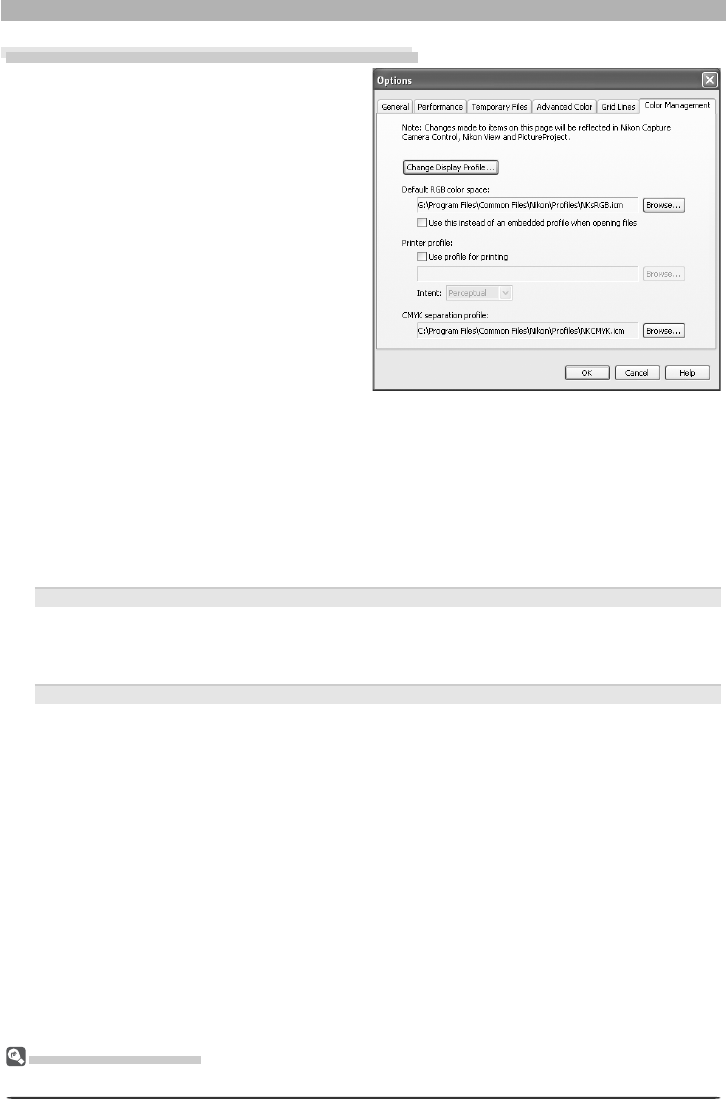
104
Nikon Capture 4 Editor Preferences
The Color Management Tab (Windows)
The Color Management tab is where you
spec i fy the color management profi les used
for displaying im ag es on your monitor, ed-
it ing and saving RGB images, and saving and
printing CMYK images.
Change Display Profi le
To choose a display profi le, click Change
Display Profi le…. The Windows “Display
Properties” dialog will be displayed; open
the Settings tab and click Advanced… to
open the display adapter properties dialog.
To select a display profi le, open the Color
Management tab and click Add.
Default Display Profi le
The default Windows display profi le is “NKMonitor_win.icm.“ This profi le is equivalent to sRGB.
Default RGB color space
The output color-space profi le used when work ing with RGB images is displayed here. Click
Browse… to choose a new default RGB profi le. If Use this instead of an em bed ded profi le
when opening fi les is checked, this RGB color space profi le will be used for all images. If it is
not checked, the profi le embedded in each image will be used.
Printer profi le
Specifi es the printer profi le to be used when printing images.
Use profi le for printing
If this option is checked,
you can choose a profi le for printing by clicking the Browse…
but ton. The selected profi le will appear in the adjacent text box. If this option is not
checked, the default RGB color space will be used.
Intent
If you have cho sen to use a printer profi le, the type of match ing to be per formed can be
selected from Rel a tive and Per cep tu al. (De pend ing on the pro fi le, chang ing the match-
ing meth od may produce no change in output. This option is not sup port ed with some
profi les; con sult the man u fac tur er for de tails.)
Relative
Colors not in the gamut of the selected printer profi le will be printed using the closest
colors available. Other colors are not affected.
Perceptual
If the image contains colors not in the gamut of the selected printer profi le, all colors in
the image will be compressed to fi t the gamut.
CMYK separation profi le
Lists the profi le used to convert RGB images to CMYK when saving images in CMYK-TIFF
for mat. To choose a dif fer ent profi le, click the Browse… button.

105
Fine-Tuning Nikon Capture 4 Editor
Supported Color Profi les
Nikon Capture 4 supports only ICC (International Color Consortium) monitor and CMYK pro fi les. Par-
tic u lar care should be exercised when choosing a CMYK profi le, as the profi le supplied by the man u -
fac tur er of your output device may not be an ICC profi le.
Multiple Displays (Windows)
In a multiple display environment, choose a single profi le suited to all displays.
The Color Management Tab
Changes to settings in the Color Management tab also apply to Nikon Capture 4 Camera Control,
PictureProject, and Nikon View.
Default Color-Space Profi les
See Appendix A
( 140)
for more information on the default RGB color-space profi les. The “NKCMYK.icm”
(Windows) and “Nikon CMYK 4.0.0.3000” (Macintosh) CMYK profi les provided with Nikon Capture are
general-purpose, almost neutral profi les that are not based on a specifi c ink set, making them suited for use
where output conditions are not known.
The Information Palette
The color-space profi le for the image in the active window is displayed in the Information palette
( 23).
ColorSync Default Profi les for Documents
The default color-space profi les for editing and saving images are displayed in this area.
Default RGB color space
Choose the output color-space profi le used when working with RGB images. If Use this
instead of an embedded profi le when opening fi les is checked, this RGB color space
profi le will be used for all images. If it is not checked, the profi le embedded in each image
will be used.
CMYK separation profi le
Lists the profi le used to convert RGB images to CMYK when saving images in CMYK-TIFF
format.
The Color Management Tab (Macintosh)
The Macintosh version displays the
following options.

106
Nikon Capture 4 Editor Preferences
Device Profi les
Lists the default color-space profi les for monitors and printers.
Change Display Profi le
If the Change Display Profi le… button appears next to this item, you can click the but-
ton to open the Monitor control panel (Mac OS 9) or the Displays section of the System
Pref er enc es dialog (Mac OS X). Click the Color button (Mac OS 9) or open the Color
panel (Mac OS X) to choose a display profi le.
Use profi le for printing
If this option is checked, the profi le listed in the Printer text box will be used when print-
ing images. Note that CMYK profi les can not be used in Nikon Capture 4; if a CMYK pro-
fi le is se lect ed, the status of the Use profi le for printing check-box can not be changed.
If Use profi le for printing is not selected, images will be printed using the default RGB
profi le.
Intent
If you have chosen to use a printer profi le, the type of matching to be performed can be
selected from Rel a tive and Perceptual. (Depending on the profi le, changing the match-
ing method may produce no change in output. This option is not supported with some
profi les; consult the manufacturer for details.)
Relative
Colors not in the gamut of the selected printer profi le will be printed using the closest
colors available. Other colors are not affected.
Perceptual
If the image contains colors not in the gamut of the selected printer profi le, all colors in
the image will be compressed to fi t the gamut.
Multiple Displays (Macintosh)
Nikon Capture 4 will identify and list the profi les for all monitors in an extended desktop display, allowing
you to choose a separate profi le for each monitor.

107
Using the Camera Control component of Nikon Capture
4, you can control almost all aspects of camera operation
re mote ly from your computer. If Camera Control is running
when a D2-series, D200, D100, D70s, D70, or D50 camera is
con nect ed, or a D1-series cam era is con nect ed and set to PC
mode, pictures taken with the cam era will be stored on your
computer hard disk, not the camera memory card. The cam-
era can be operated either directly or using the controls in
the Cam era Control window. Camera settings are displayed
in Camera Control.
This chap ter describes the Camera Control and Custom Set-
tings win dows. For more in for ma tion on camera settings,
see the doc u men ta tion provided with your camera.
The Camera Control Window
Read this section for a description of the controls in the
Nikon Capture 4 Camera Control window, as well as for
information on launching and closing the Camera Control
window, cap tur ing pho to graphs to disk, processing photo-
graphs as they are captured, time lapse photography, and
custom settings.
Nikon Capture 4 Camera Control Preferences
This section details the options available in the Camera
Con trol Preferences dialog.
Capturing Photographs
Nikon Capture 4
Camera Control
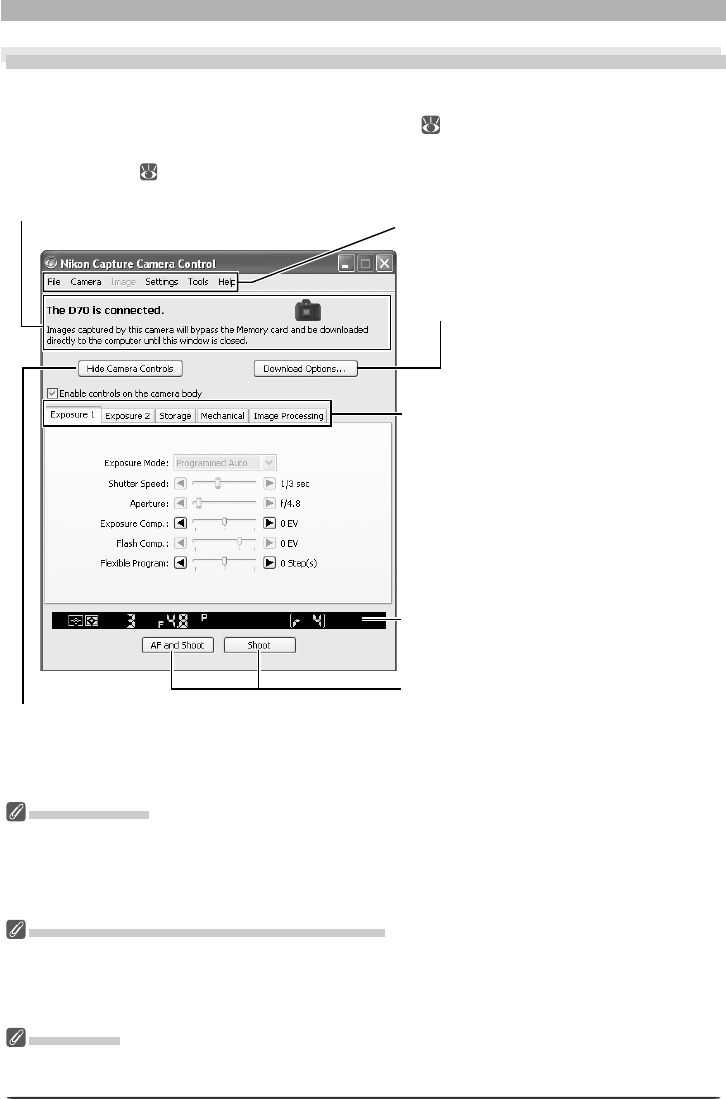
108
The Camera Control Window
The Camera Control Window
Getting to Know Nikon Capture 4 Camera Control
The main parts of the Camera Control window are identifi ed below. For more information,
see the “Nikon Capture 4 Camera Control Window” ( 123).
Camera Control
Changes made to settings in the Nikon Capture 4 Camera Control window only apply to pho to graphs
taken after the changes are made, not to photographs that have already been taken.
The controls in the Nikon Capture 4 Camera Control window vary with the type of camera connected.
More information on camera settings may be found in the documentation provided with your camera.
Camera Control for D100 Cameras (Macintosh)
Before using Nikon Capture 4 Camera Control with a D100 digital camera under Mac OS 9 or Mac OS X,
confi rm that the camera fi rmware is version 2.00 or later. Users of earlier versions will need to upgrade
the camera fi rmware before using Nikon Capture 4 Camera Control. Contact a Nikon-authorized service
representative for information on fi rmware upgrades.
Illustrations
Save where otherwise noted, the illustrations in this section show the dialogs displayed when the D70
is connected.
Camera control page selection tabs
The menus, sliders, and buttons on each
tab are used to control camera set tings.
Download Options button
Click this button to choose a des ti na tion
for photographs captured from the cam-
era.
Menu bar
Simulated LCD panel
Performs the same function as the in for -
ma tion display in the camera viewfi nder.
Shoot buttons
Click these buttons to take pictures.
Hide Camera Controls button
Click this button to hide “Enable controls on the
camera body” and the camera control panels in
the Nikon Capture Camera Con trol window.
Connection status ( 123)
Shows the status and name of any
cameras connected.
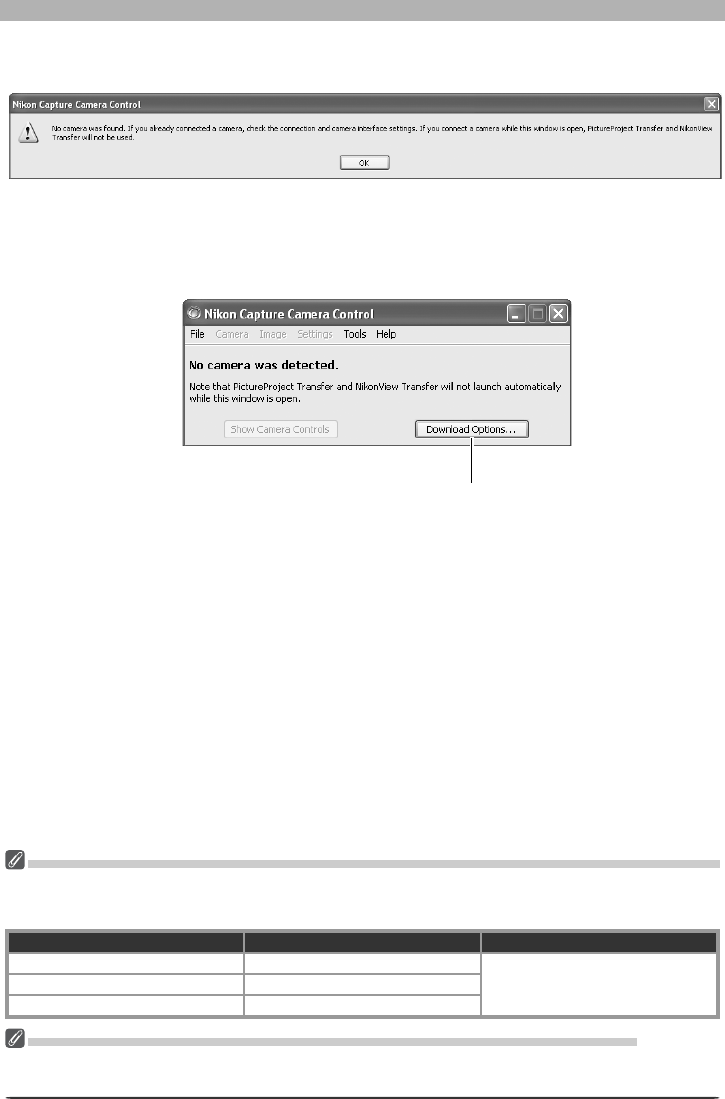
109
Getting to Know Nikon Capture 4 Camera Control
Click OK to close the warning and display the fol low ing window. Pref er enc es can be ad just ed
using the options in the menu bar. For information on connecting the camera, see the Nikon
Capture 4 Install Guide.
Download Options button
Click this button to choose a
des ti na tion for photographs
captured from the camera.
If no camera is connected when Nikon Capture 4 Camera Control is launched, a warning will
be displayed.
Before Starting Nikon Capture 4 Camera Control (D2-Series / D200/D100 / D70s/D70/D50 Cameras)
Users of the above cameras will need to ensure that the appropriate setting is chosen for USB option in
the camera setup menu before connecting the camera to a computer running Nikon Capture 4 Camera
Control. Choose a USB setting ac cord ing to your com put er’s operating system:
Operating system D100 D2-series/D200/D70s/D70/D50
Windows XP
Choose Mass Storage or PTP.
Choose PTP.Windows 2000/Me/98 SE Choose Mass Storage.
Mac OS Choose PTP.
Windows XP Home Edition/Professional, Windows 2000 Professional, Mac OS X
When installing, using, or uninstalling Nikon Capture 4 under the above operating systems, log on to an
account with administrator privileges.
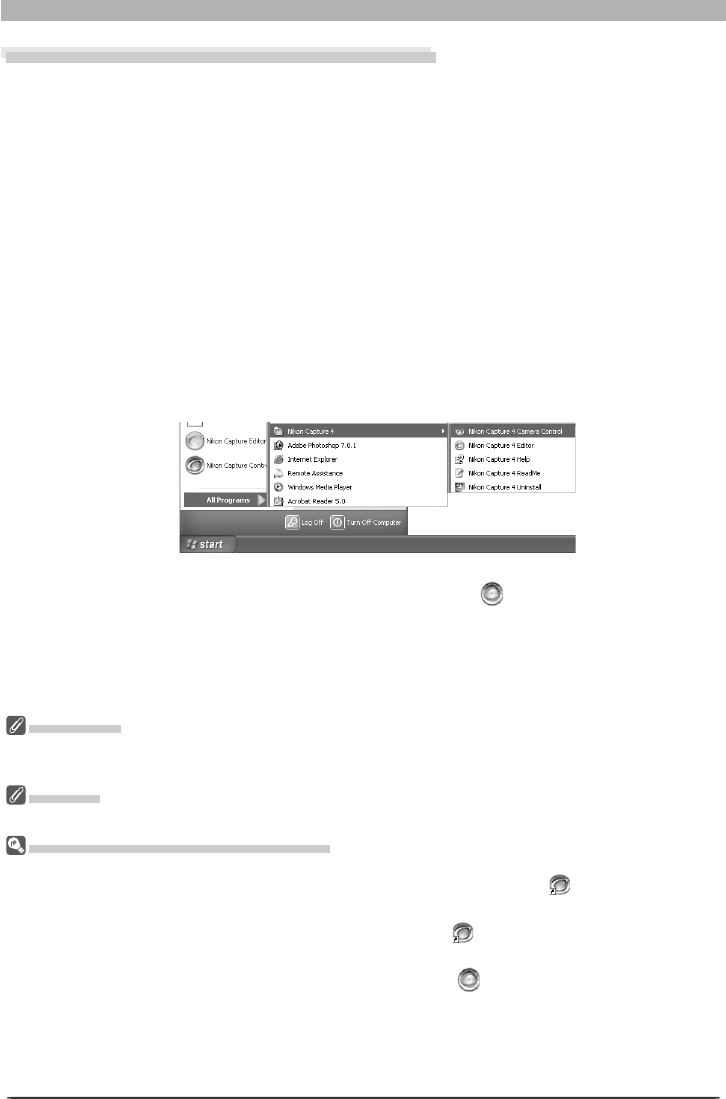
110
The Camera Control Window
Starting Nikon Capture 4 Camera Control
Nikon Capture 4 Camera Control can be started by se lect ing Nikon Capture 4 Camera Control
from the Start menu (Win dows) or double-click ing the ap pli ca tion icon (Macintosh).
1 Connect the camera
Connect the camera to your computer and turn the camera on. If you are using a D1-se-
ries camera, choose “PC” as the operating mode. If you are using a D100, choose P, S, A,
or M mode. Users of D2-series and D200 cameras can select any mode other than M-UP
(mirror up). The D70s, D70, and D50 can be connected in any shooting mode.
2 Close the transfer dialog
If PictureProject Transfer or Nikon Transfer starts, click the Close button.
3 Start Nikon Capture 4 Camera Control
Windows
From the Start menu, select All Programs > Nikon Capture 4 > Nikon Capture 4
Cam era Control (Windows XP Home Edition/Windows XP Professional) or Pro grams >
Nikon Capture 4 > Nikon Capture 4 Cam era Control (other Win dows ver sions).
Prod uct Key
If prompt ed to supply a product key when starting Nikon Capture 4 Editor or Nikon Capture 4 Camera
Control, en ter the product key supplied on the Nikon Capture 4 CD case.
Mac OS 9
Dutch, Italian, Korean, and Swedish versions of Nikon Capture 4 are not available for Mac OS 9.
Oth er Ways of Starting Camera Con trol
Windows: If a shortcut to Nikon Capture 4 Camera Control was created on the desktop during installa-
tion, Camera Control can also be started by double-clicking the shortcut icon ( ) on the desktop.
Mac OS 9: If an alias for Nikon Capture 4 Camera Control was created on the desktop during installation,
Camera Control can also be started by double-clicking the alias ( ).
Mac OS X: If Nikon Capture 4 Camera Control was reg is tered in the Dock during installation, Camera
Control can also be started by clicking the Nikon Capture 4 icon ( ) in the Dock.
Nikon Capture 4 Editor: Nikon Capture 4 Camera Control can also be started by selecting Show Nikon
Capture Camera Control from the Tools menu in Nikon Capture 4 Editor.
PictureProject: Nikon Capture 4 Camera Control can also be started by selecting Camera Control > Start
Camera Control from the PictureProject File menu.
Macintosh
Double-click the Nikon Capture 4 Camera Control icon in the folder to which you
installed Nikon Capture 4.
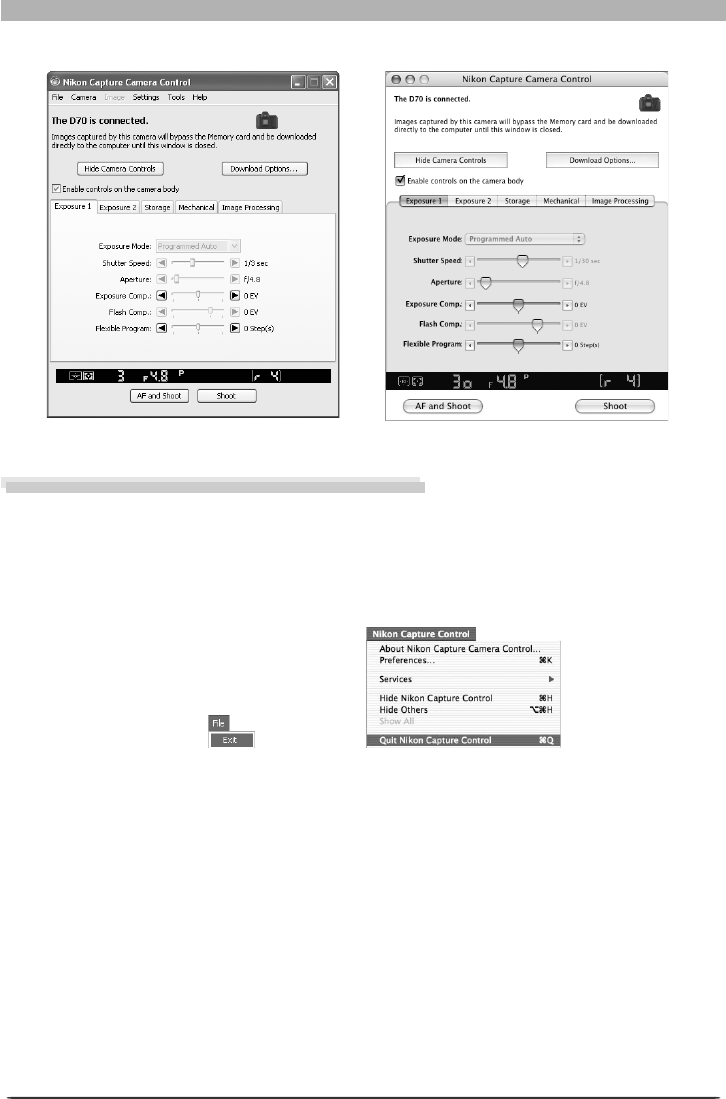
111
Getting to Know Nikon Capture 4 Camera Control
The Camera Control window will be displayed.
Exiting Nikon Capture 4 Camera Control
Be sure to exit Nikon Capture 4 Camera Control before disconnecting the camera.
1 Exit Nikon Capture 4 Camera Control
To close the Nikon Capture 4 Camera Control window, open the File menu and choose Exit
(Win dows) or Quit (Mac OS 9). In Mac OS X, select Quit Nikon Capture Control from
the ap pli ca tion menu.
2 Disconnect the camera
For information on disconnecting your camera from the computer, see the doc u men ta tion
pro vid ed with your camera.
Mac OS XWin dows
MacintoshWin dows
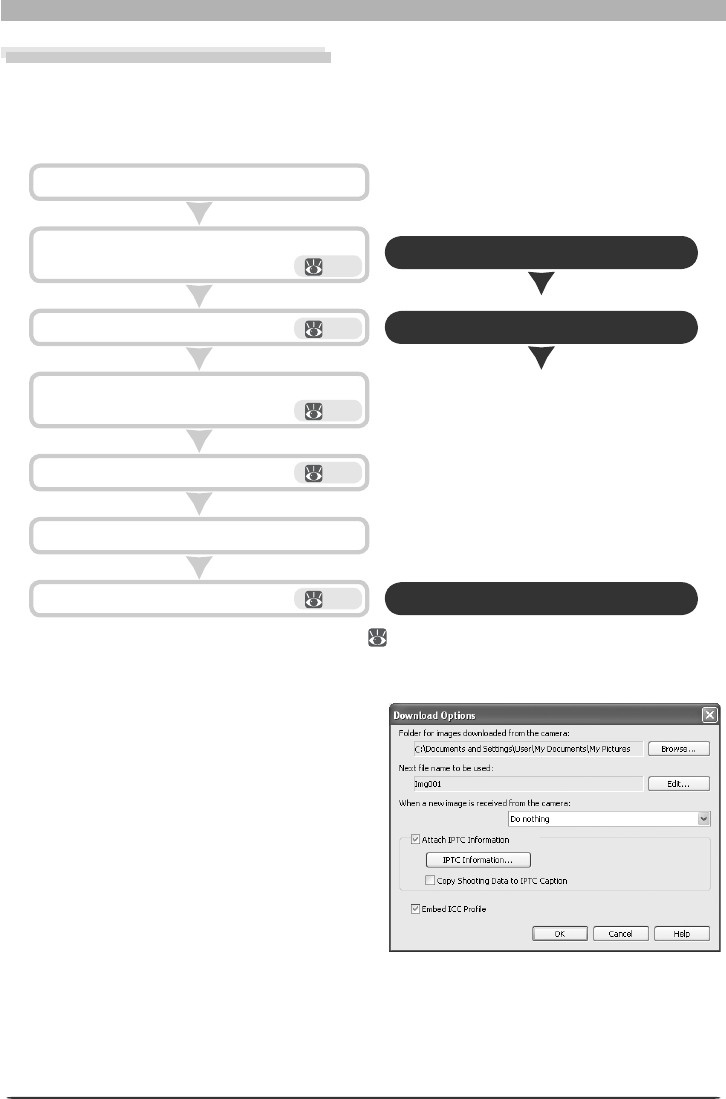
112
The Camera Control Window
Capturing Photographs to Disk
If Nikon Capture 4 Camera Control is running when a D2-series, D200, D100, D70s, D70, or
D50 camera is con nect ed, or a D1-series cam era is con nect ed with the mode dial set to PC,
pictures taken with the camera will be stored on your computer hard disk, not the camera
memory card.
Open the Camera Control window
Open the Download Options dialog
Close the Camera Control window
Exit Camera Control.
Take pictures.
Adjust capture options.
Start Nikon Capture 4 Camera Con trol.
110
113
114
115
Connect the camera to your computer.
Finish shooting.
Rotate images to match camera orientation.
114
1 Start Nikon Capture 4 Camera Con trol ( 110 )
2 Display the Download Options dialog
Click Download Options in the Camera
Control window. The dialog shown at right
will be displayed.
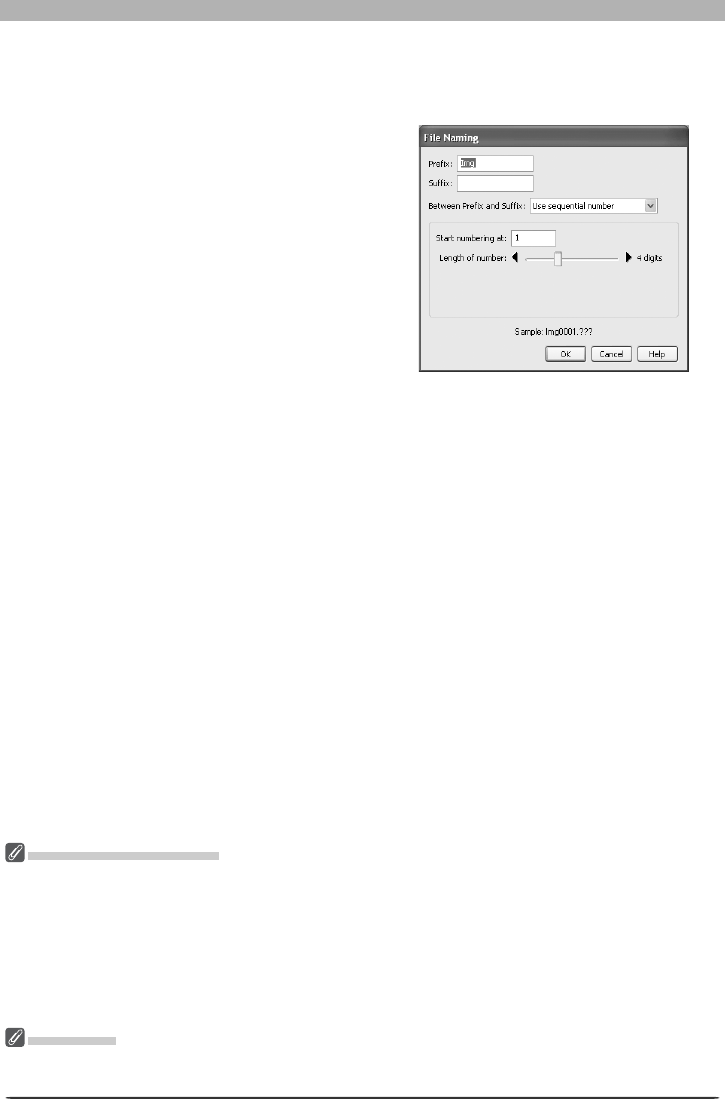
113
Getting to Know Nikon Capture 4 Camera Control
3 Adjust capture options
Folder for images downloaded from the camera: Select the folder to which photographs
will be down load ed as they are taken.
Next fi le name to be used: Shows how
images download to the computer will be
named. To change how fi les are named,
click Edit.... The di a log shown at right will
be dis played. Using the sam ple fi le name
as a guide, enter a prefi x and suf fi x and
choose the starting number and num ber of
dig its for automatic fi le numbering.
File Naming Conventions
Windows: In environments that do not support long fi le names, the maximum length is eight char-
ac ters; fi le names may not contain spaces, quotes, or any of the following characters: “\\” “/” “:” “.”
“;” “*” “?” “<“ “>” and “|”.
Where long fi le names are supported, fi le names may not contain quotes or any of the following charac-
ters: “\\” “/” “:” “.” “;” “*” “?” “<“ “>” and “|”.
Macintosh: The maximum length for Macintosh fi le names is thirty-one characters. Colons (“:”) are
not allowed.
Nikon View
See the websites listed on page 2 of this manual for more information on the cameras supported under
Nikon View.
When a new image is received from camera: Choose the application that will be used to
display captured photographs after they are saved to disk.
• Do nothing: Photographs are not displayed after being saved to the computer hard
disk.
• Show it with the Multi Image Window (except in Windows 98 SE, Windows Me): Nikon
Capture 4 Editor starts automatically. The destination folder will be opened in the
Multi-Image window with the captured image selected in the thumbnail list and dis-
played in the image area.
• Show it in PictureProject (available only if PictureProject is installed): PictureProject
starts automatically and displays the most recently captured image.
• View with Nikon View (available only if Nikon View is installed):
Nikon Browser and
Nikon Viewer start automatically. The destination folder is opened in Nikon Browser with
the captured image selected, and the captured image is displayed in Nikon Viewer.
•
Show it with the Nikon View Browser (available only if Nikon View is installed): Nikon
Browser starts automatically. The destination folder is opened in Nikon Browser with
the captured image selected.
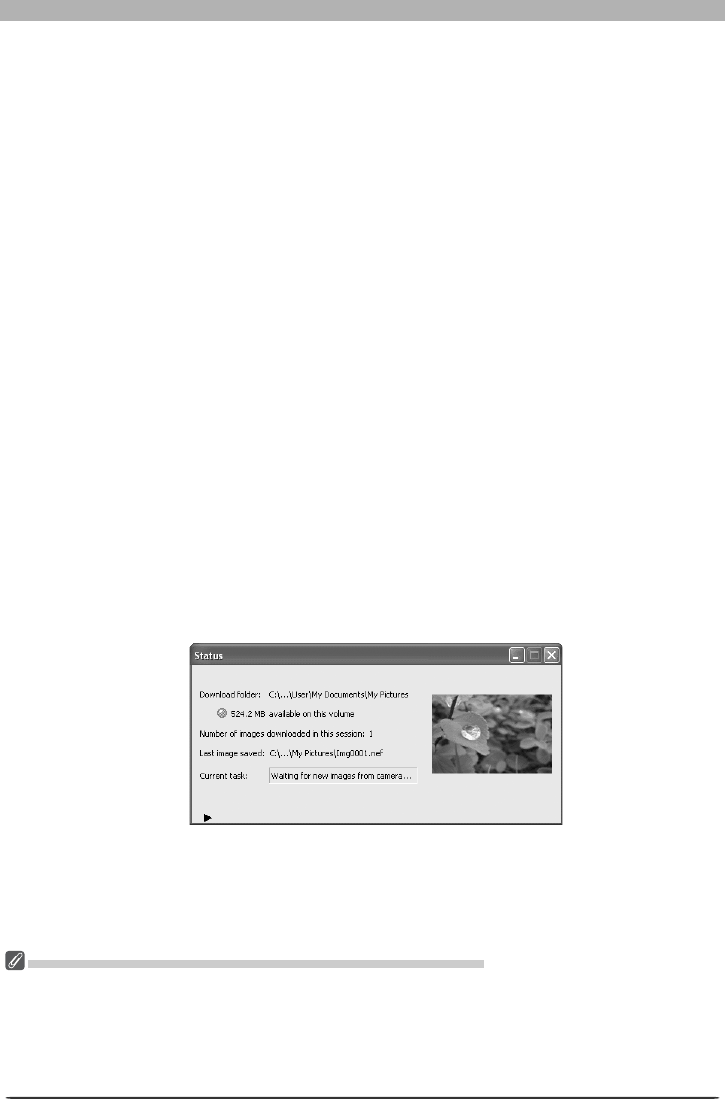
114
The Camera Control Window
Attach IPTC Information: Check this option to add IPTC information to captured images
and enable the Copy Shooting Data to IPTC Caption option.
IPTC Information…: Click ing this button displays a dialog where you can se lect the IPTC
information, including key words and captions, that will be added to im ag es as they are
cap tured.
Copy Shooting Data to IPTC Caption
: Check this option to copy shooting data to the caption
fi eld of images as they are captured.
Embed ICC Profi le: Select this option to embed an ICC profi le in captured images.
After adjusting the above options, click OK to exit the dialog and apply settings to sub se -
quent photographs.
4 Choose whether to rotate captured images
The options in the Nikon Capture 4 Camera Control Image menu can be used to rotate
captured images according to camera orientation. Use these options when taking photo-
graphs in tall (“portrait”) orientation (note that these options are not available when On
or Automatic is selected for the auto image rotation option in the camera setup menu).
Select an option once to enable it, again to disable it.
Rotate all downloaded images by 90 degrees CCW
If this option is checked, images will be rotated 90 ° counterclockwise as they are saved.
Rotate all downloaded images by 90 degrees CW
If this option is checked, images will be rotated 90 ° clockwise as they are saved.
5 Take pictures
Take pictures using the camera shutter-release button or the AF and Shoot or Shoot but-
tons in the Camera Control window. The Status dialog shown below will be displayed.
Auto Image Rotation (D2-Series/D200/D70s/D70/D50 Only)
If On or Automatic (the default setting) is selected for the auto image rotation option in the camera
setup menu, D2-series, D200, D70s, D70, and D50 cameras will detect camera orientation and automati-
cally rotate photographs as they are taken (note that in continuous mode, the rotation applied to the
fi rst image in each burst applies to all images in the series, even if camera orientation is changed during
shooting). If Off is selected, all images will be recorded in landscape orientation regardless of how the
camera is held. Images can be rotated using the options in the Image menu.
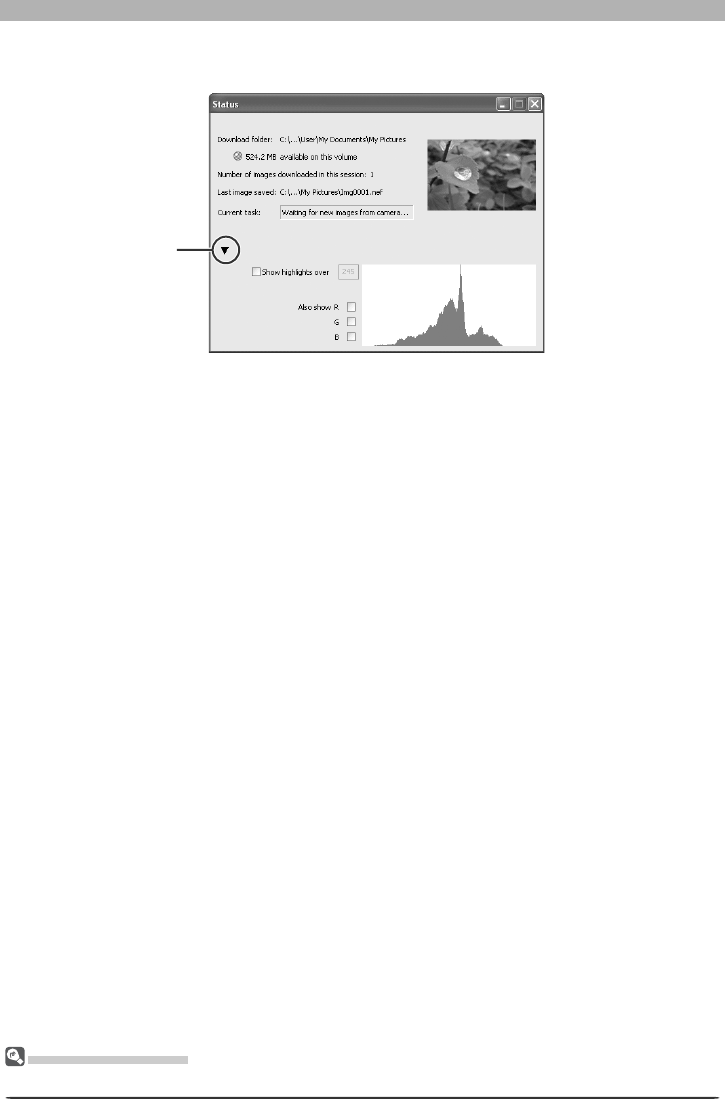
115
Getting to Know Nikon Capture 4 Camera Control
To display a histogram of the current image, click the triangle at the bottom of the Status
dialog.
If the Show highlights over option is checked, any areas of the preview image with a
bright ness over the value entered in the neighboring text box will be indicated by a fl ash-
ing border. To display histograms for the red (R), green (G), and blue (B) chan nels, put a
check in the corresponding box.
6 Exit Nikon Capture 4 Camera Control
To exit Nikon Capture 4 Camera Control, click the close button in the title bar of the Nikon
Capture Camera Control window.
Triangle
The Minimize Button
Clicking the minimize button in the Status dialog minimizes Nikon Capture 4 Camera Control.
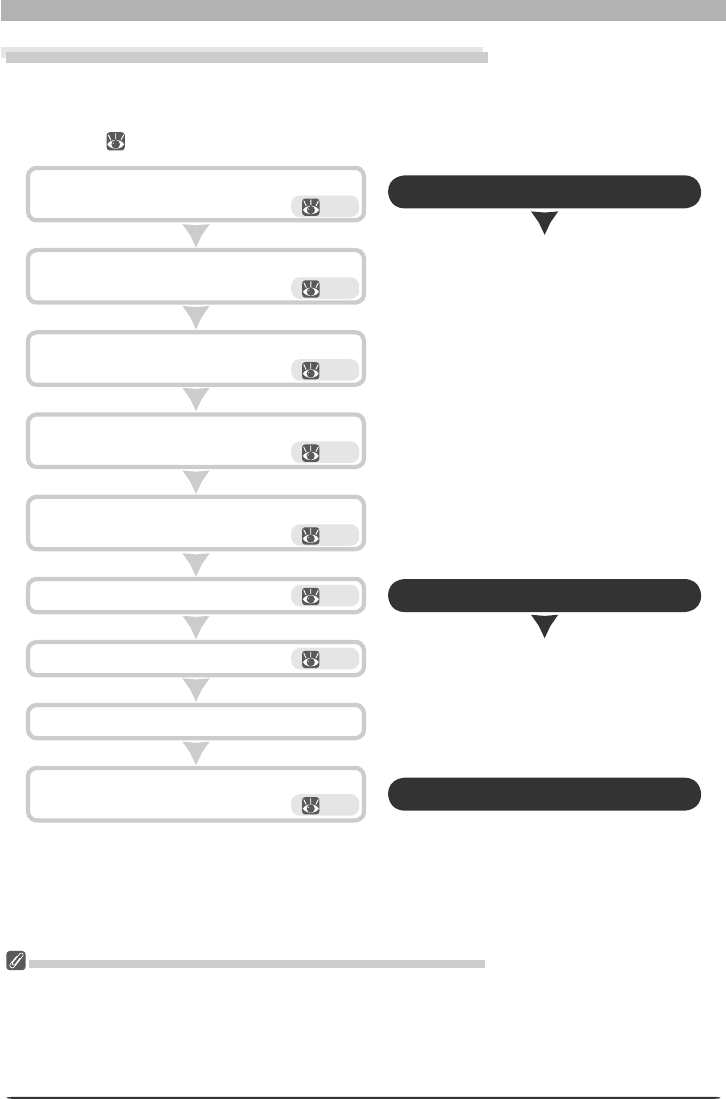
116
The Camera Control Window
Processing Photographs as They Are Captured
As photographs are captured, Nikon Capture 4 Camera Control can automatically process
the images to refl ect image adjustment settings in Nikon Capture 4 Editor. For in for ma tion
on performing batch processing on images that have already been saved to disk, see “Batch
Processing” ( 92).
Click Stop Batch to exit the Live Batch di a log.
Take photographs.
Click Start.
Choose whether to save unmodifi ed pho to -
graphs separately.
Choose a naming method and fi le for mat for
cap tured photographs.
Choose the folder that will be used to store the
photographs.
Choose how photographs will be processed.
Select Live Batch from the Camera menu.
Finish shooting.
117
117
118
118
118
Open the Live Batch dialog
119 Open the batch progress dialog
119
119 Close the batch progress dialog
Auto Image Rotation (D2-Series/D200/D70s/D70/D50 Only)
If On or Automatic (the default setting) is selected for the auto image rotation option in the camera
setup menu, D2-series, D200, D70s, D70, and D50 cameras will detect camera orientation and automati-
cally rotate photographs as they are taken (note that in continuous mode, the rotation applied to the
fi rst image in each burst applies to all images in the series, even if camera orientation is changed during
shooting). If Off is selected, all images will be recorded in landscape orientation regardless of how the
camera is held. Images can be rotated using the options in the Image menu.
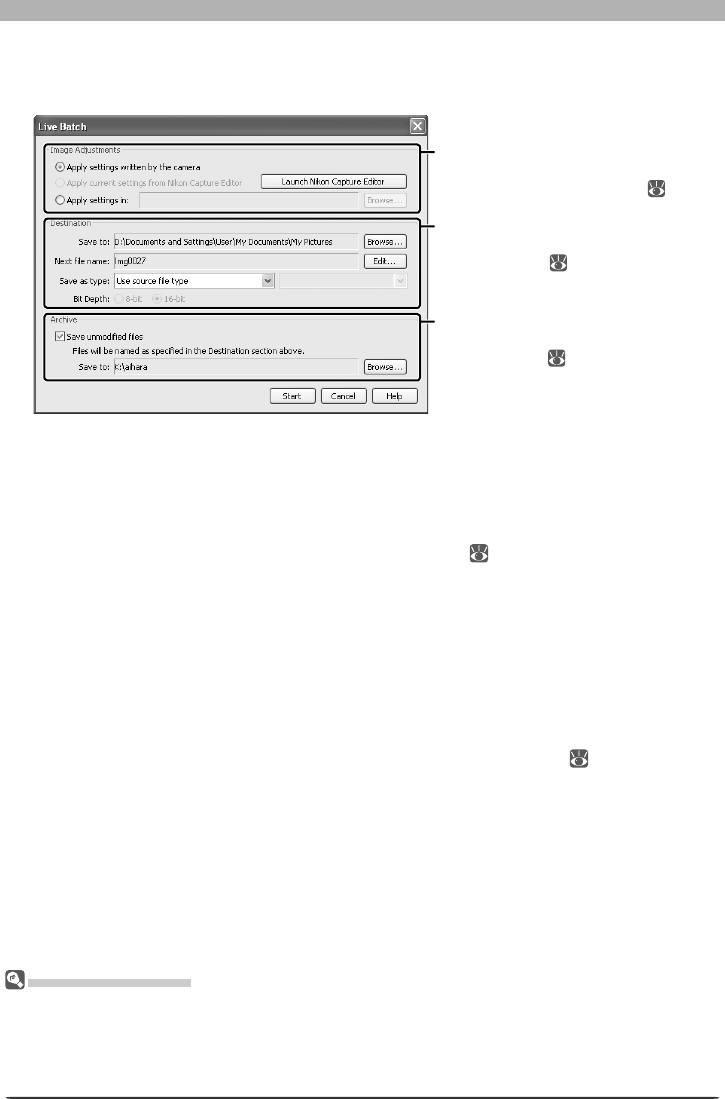
117
Getting to Know Nikon Capture 4 Camera Control
1 Display the Live Batch dialog
Select Live Batch from the Camera menu in Nikon Capture 4 Camera Control. The Live
Batch dialog will be dis played.
2 Specify how captured images will be processed
In the Image Adjustments section, specify the operations to be performed on each im age.
Apply settings written by the camera: Select this option to save images exactly as cap-
tured from the camera, without applying any of the modifi cations in the Nikon Capture 4
Editor tool palettes. The image will be saved in the working (output) color space selected
in the Color Management tab of the Preferences dialog ( 104, 105).
Apply current settings from Nikon Capture Editor: Select this option to process images
using the settings cur rent ly in effect in Nikon Capture 4 Editor. This option is only available
when Nikon Capture 4 Editor is running.
To open Nikon Capture 4 Editor and adjust settings, click the Edit Settings in Nikon
Capture Ed i tor but ton.
Apply settings in: Select this option to process the images using combination settings
cre at ed using the Save Selected Adjustments or Save All Adjustments option in
the Nikon Capture 4 Editor Settings > Image Ad just ment menu ( 82; note that if
Calculate Automatically is selected for white balance in the settings fi le, the recorded
value will be used when images are processed). Click Browse… to select a combination
settings fi le.
Live Batch Processing
Live batch processing is used to perform the operations specifi ed in the Image Adjustments sec tion
of the Live Batch dialog as images are captured from the camera. To ensure that desired results are
achieved, we rec om mend pro cess ing a test image before beginning batch processing. Batch pro cess ing
can not be used to adjust settings separately for each image; instead, the images must be opened one
at a time and separate ad just ments made manually for each image.
Image Adjustments section
Choose the operations that will be
performed on each image ( 117).
Destination section
Choose a destination folder for cap-
tured images ( 118 ).
Archive section
Choose whether to save the original
photographs ( 118 ) .

118
The Camera Control Window
3 Choose a destination for captured images
In the Destination section, choose options for saving the processed images.
Save to: This text box shows the folder to which the images will be saved after process-
ing. To choose a new folder, click the Browse… button to the right of the text box and
navigate to the desired location.
Next fi le name: This text box shows a sample of the fi le names that will be used when sav-
ing the images after processing. Click Edit... to modify fi le naming rules ( 113 ) .
Save as type: Choose the fi le format that will be used to save the processed images. The
following formats are available: Use source fi le type, NEF, TIFF (RGB), TIFF (CMYK), and
JPEG. Choose Use source fi le type to save captured images in the format used by the
camera. When NEF or TIFF (RGB) is selected, compression can be chosen from a pull-
down menu. When JPEG is selected, the compression ratio can be chosen from “Highest
Compression Ratio,” “Good Compression Ratio,” “Good Balance,” “Good Quality,” and
“Excellent Quality.” See “Saving Images” ( 83) for more details.
Bit depth: The bit depth (the number of bits of color information per channel for each
pixel in the image) at which the image will be saved. The 16-bit option is only available if
the selected fi le type is TIFF format (RGB) and the original image has a bit depth of over
eight bits.
4 Choose whether to save original photographs
In the Archive section, choose whether to save unprocessed copies of the photographs
captured from the camera.
Save Unmodifi ed Files: Check this option to save both the original image and copies pro-
cessed ac cord ing the options selected in the Image Adjustments section.
Save to: This text box shows the folder to which unprocessed images will be saved. To
choose a new folder, click the Browse… button to the right of the text box and navigate
to the desired location.
File Naming Conventions
Windows: In environments that do not support long fi le names, the maximum length is eight char-
ac ters; fi le names may not contain spaces, quotes, or any of the following characters: “\\” “/” “:” “.”
“;” “*” “?” “<“ “>” and “|”.
Where long fi le names are supported, fi le names may not contain quotes or any of the following charac-
ters: “\\” “/” “:” “.” “;” “*” “?” “<“ “>” and “|”.
Macintosh: The maximum length for Macintosh fi le names is thirty-one characters. Colons (“:”) are
not allowed.
Error Messages
If an invalid fi le name or other error is identifi ed in the Live Batch dialog, a message will be displayed.
Return to the Live Batch dialog and adjust settings as directed in the message.
“Apply Settings Written by Camera” Versus “Save Unmodifi ed Files”
The Apply settings written by camera option saves images in the working (output) color space se-
lected in the Color Management tab of the Preferences dialog ( 104, 105). The working color space is
not applied to images saved using the Save unmodifi ed fi les option.
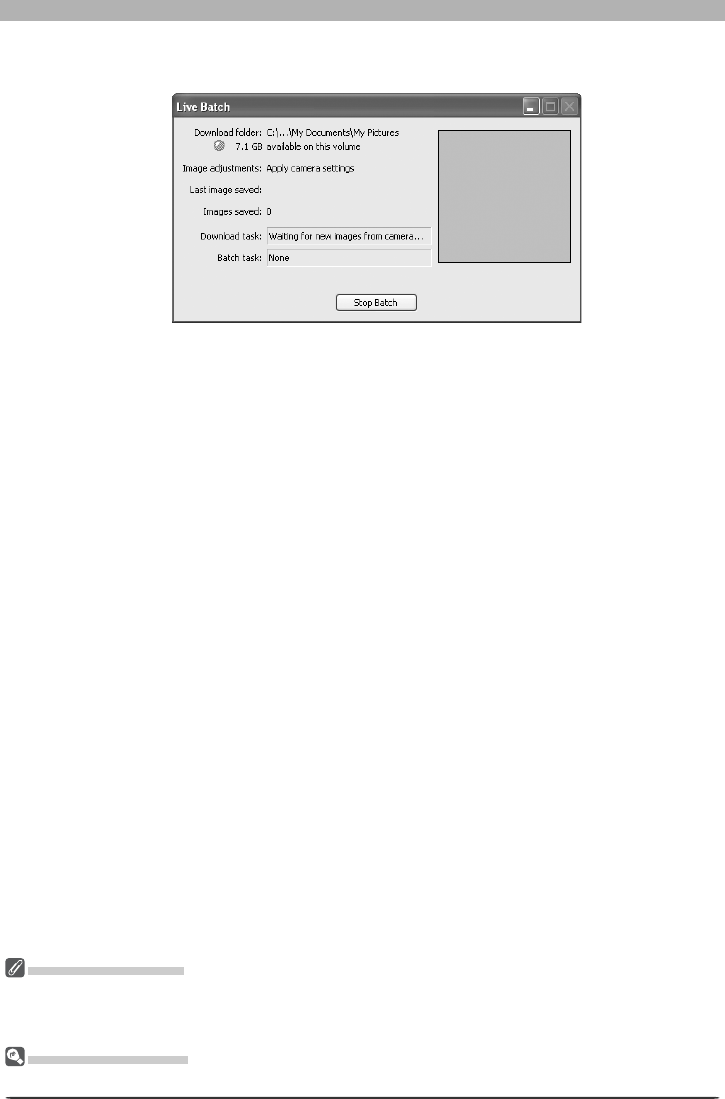
119
Getting to Know Nikon Capture 4 Camera Control
The Warning Button
If an error occurs during shooting, a warning button will appear at the bottom of the Live Batch dialog.
Clicking this button will display a message. End shooting and close the Live Batch dialog as directed. An
error log will be displayed; click OK to close the log and return to the Camera Control window.
The Minimize Button
Clicking the minimize button in the progress dialog minimizes Nikon Capture 4 Camera Control.
5 Click Start
Click Start to put the selected settings into effect. A progress dialog will be displayed.
6 Take photographs
Take photographs using the camera shutter-release button.
7 End batch processing
Once you have fi nished taking pho to graphs, click Stop Batch to end batch pro cess ing. If
the Batch Task text box shows that im ag es remain to be pro cessed, a warn ing will be dis-
played. Click Yes to exit with out saving unprocessed images, or No to process and save
the images before re turn ing to the Nikon Capture 4 Camera Control dialog.
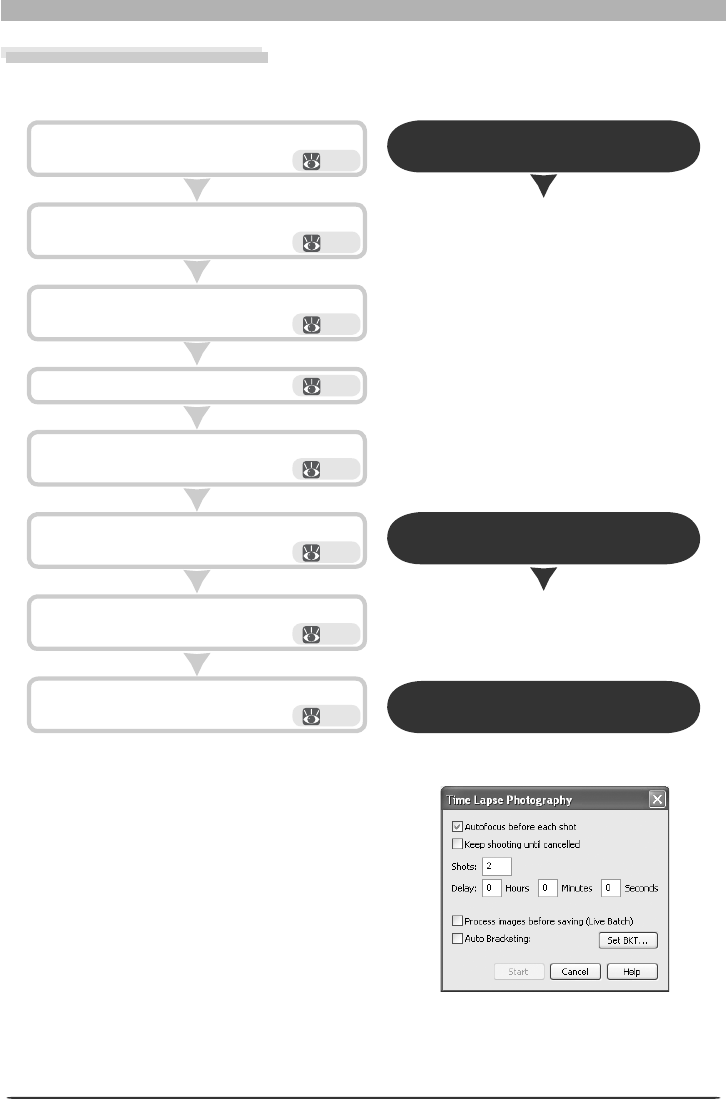
120
The Camera Control Window
Time Lapse Photography
Using Nikon Capture, you can take a series of photographs automatically at a time interval
you select.
Click Shooting Complete to exit the Time
Lapse Photography.
Follow the progress of time lapse pho tog ra phy
in the progress dialog.
Click Start to begin time lapse pho tog ra phy.
Choose whether to process pho to graphs au-
to mat i cal ly.
Choose an interval setting.
Choose the number of photographs to be
taken.
Choose whether to focus before each shot.
Select Time Lapse Photography… from the
Camera menu. 120
121
121
121
122
Open the Time Lapse Photography dialog
122
Open the time-lapse photography
progress dialog
122
122
Close the time-lapse photography
progress dialog
1 Display the Time Lapse Photography dialog
Select Time Lapse Photography… from
the Camera menu. The Time Lapse Pho-
tog ra phy dialog will be displayed.
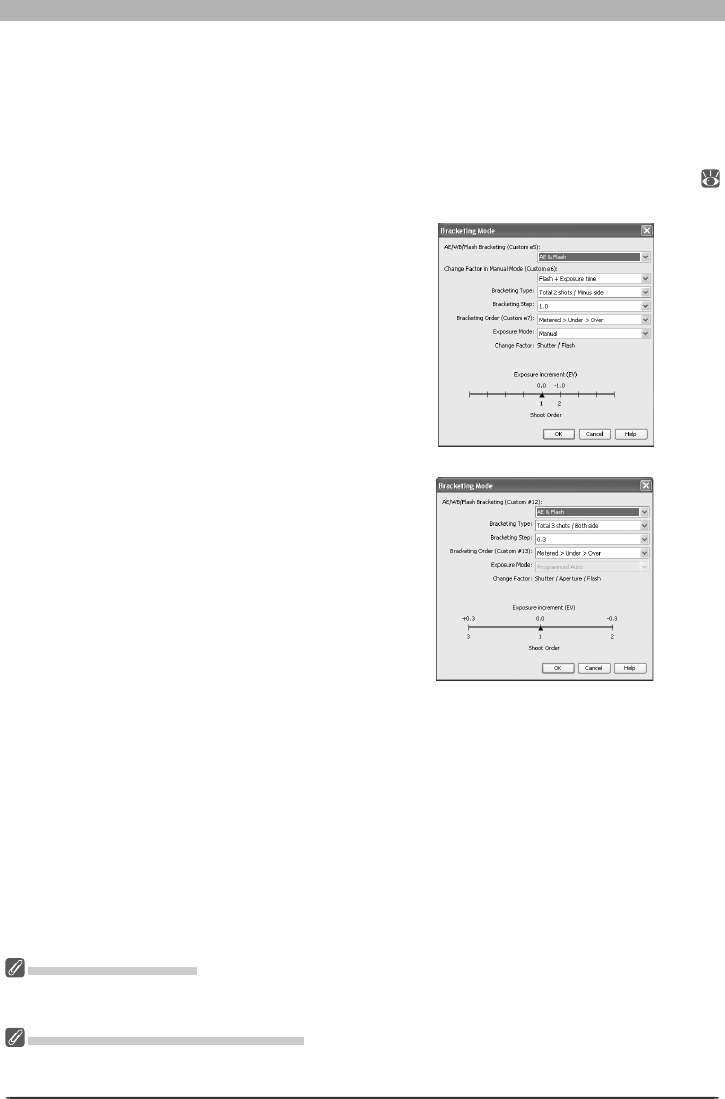
121
Getting to Know Nikon Capture 4 Camera Control
2 Adjust settings
Before shooting starts, adjust the following settings:
Autofocus before each shot:
If this option is checked, the camera will perform an autofocus
operation before each shot.
Keep shooting until cancelled: If this option is checked, the camera will continue to take
photographs until you click Stop Shooting in the Time Lapse Photography dialog (
122).
Auto bracketing (D2 series/D200/D70s/
D70/D50 only): Select this option to per-
form exposure, fl ash, or white balance
bracketing during shooting. To change
bracketing options, click Set BKT.... The
dialog shown at right will be displayed.
• AE/WB/Flash Bracketing: Choose the
type of bracketing performed.
• Change Factor when Exposure Mode is
set to Manual (D2 series/D200 only):
Choose how bracketing is performed in
manual exposure mode.
• Bracketing Type / Bracketing Step / Brack-
eting Order / Exposure Mode: Choose the
bracketing program, exposure or white
balance increment, bracketing order, and
exposure mode. Bracketing type and
bracketing order are not available with
the D50.
Time Interval Settings
If the delay is shorter than the time required to record each photograph, the actual interval be tween
photographs will be longer than that specifi ed in the Time Lapse Photography dialog.
The Time Lapse Photography Dialog
If you make a mistake in entering settings in the Time Lapse Photography dialog, a warning will be dis-
played. Return to the Time Lapse Photography dialog and adjust settings as directed.
D2 series/D200
D70s/D70/D50
3 Specify the number of photographs to
be taken
Use the Shots box to choose a number of photographs from 2 to 9,999. This option is
not available when Keep shooting until cancelled is selected.
4 Choose an interval setting
The delay between shots can be set to any value between 00:00:01 (one second) and 99:
59:59 (ninety-nine hours, fi fty-nine minutes, and fi fty-nine seconds).
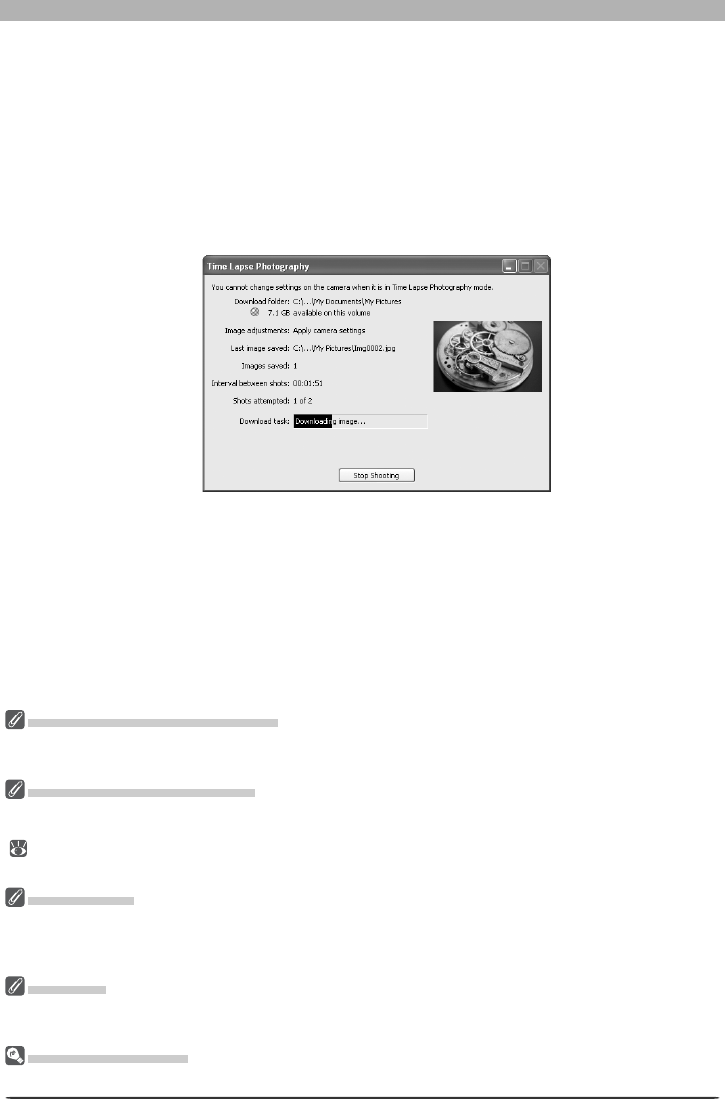
122
The Camera Control Window
During Time-Lapse Photography
The camera can not be operated during time-lapse photography. No other operations can be performed
until the Time Lapse Photography dialog is closed.
Auto Off (D1-Series Cameras)
When the camera is operated on battery power and for 15 minutes has been selected for “While Nikon
Capture Camera Control is running, keep camera awake” in the General tab of the Preferences dialog
( 137), choose a delay of fi fteen minutes or less. When taking photographs at longer intervals, use an
AC adapter (available separately) to power the camera.
Hard Disk Full
A warning will appear when space is no longer available on the destination disk for photographs taken
using time lapse photography. Use the information in the warning to reduce the number of photographs
or change the destination drive.
Error Logs
If an error occurs during shooting, an error log will be displayed; click OK to close the log and return to
the Camera Control window.
The Minimize Button
Clicking the minimize button in the progress dialog minimizes Nikon Capture 4 Camera Control.
7 Close the Time Lapse Pho tog ra phy dialog
Once the spec i fi ed number of shots has been taken, the Stop Shooting button will
change to Shooting Complete. Click Shoot ing Com plete to exit the Time Lapse Pho-
tog ra phy di a log.
5 Click Start
Click Start. To process images as they are taken, check the Process images before
sav ing (Live Batch) option in the Time Lapse Pho tog ra phy dialog and click Next.... The
Live Batch dialog will be dis played; adjust settings and click Start to begin time lapse
photography.
6 Follow the progress of time lapse photography in the progress dialog
Click Stop Shooting to end time lapse photography at any time. If a number of shots
was specifi ed in the Time Lapse Photography dialog, shooting will end when the specifi ed
number of shots has been taken.

123
Getting to Know Nikon Capture 4 Camera Control
The Nikon Capture 4 Camera Control Window
The Nikon Capture 4 Camera Control window shows current camera settings, which may
be viewed by clicking the fi ve page selection tabs. Camera settings can be altered using the
controls in each tab as described below. The simulated LCD panel and the Hide Camera
Controls, Down load Options…, and shoot but tons can be ac cess ed from all fi ve tabs.
The Function Dial (D100 Digital Cameras Only)
The D100 can only be used to take photographs when the function dial is set to P, S, A, or M. At other
settings, the shoot buttons in the Camera Control dialog will be disabled and the simulated LCD panel
will not be displayed.
Connection Status
This area shows the following information about the camera currently connected:
• Camera name
• Camera orientation (D2 series/D200/D70s/D70/D50 only)
If On or Automatic (the default setting) is selected for the auto image rotation option in
the camera setup menu, camera orientation will be indicated by an icon as shown below.
No icon will be displayed if Off is selected.
Horizontal Rotated 90 ° clockwise Rotated 90 ° counterclockwise
Hide Camera Control
Click this button to hide the Camera Control panels during shooting.
Download Options
Click this button to choose a destination and fi le name for pictures captured from the cam era (
112).
Enable controls on the camera body (D2 series/D200/D70s/D70 D50 only)
Check this option to enable camera controls, allowing settings to be adjusted and photo-
graphs taken directly from the camera. The camera power switch and AF-area mode selector
can not be used when this option is checked; all other controls function normally.
D70
Camera Control page selection tabs
Simulated LCD panel
Shoot buttons
Connection status
124
The Camera Control Window
Camera Settings That Can Not Be Adjusted from Nikon Capture
The following operations can not be performed from Nikon Capture 4 Camera Control:
Operation Camera
Status not displayed
Burst photography (continuous shooting mode) D1-series / D100
Continuous servo autofocus All supported models
Pressing the shutter-release button halfway to check focus All supported models
Autofocus-only operation (use AF and Shoot to perform autofocus) All supported models
Manual aperture adjustment using the lens aperture ring D2-series / D1-series/D200
Reactivating the camera after it has entered sleep mode D1-series
Depth-of-fi eld previewAll supported models
Auto bracketing D1-serie s / D100
Compression options for NEF (RAW) images D100
Operation assigned to FUNC. button with Custom Setting f4 D2-series/D200
Remote (D70s, D70, and D50 only) and self-timer mode selection D2 -s e r i e s/D2 0 0/ D7 0 s/D7 0/
D50
Status displayed
Focus mode selection using camera focus-mode selector All supported models
Metering D1-series / D10 0
Exposure mode (can be adjusted if Enable controls on camera
body is selected when D70s, D70, or D50 is connected) D100 / D 70s/D70/ D50
Shooting mode D100
Shutter-speed lock D2-series / D1-serie s
Aperture lock D2-series / D1- s erie s
Autoexposure lock All supported models
Speedlight fl ash-level compensation D2-series/ D1-series
M-UP (mirror up) mode selection D2-series/D200
Selection of second center focus area group in group dynamic-AF mode
D2-series/D200
Simulated LCD Panel
This panel shows the information displayed in the camera’s viewfi nder, with the ex cep tion
of camera errors. Clicking on an indicator in the panel opens the Nikon Capture 4 Camera
Control window to the tab that controls the selected option, where ad just ments can be
made.
When a D2-series, D200, D70s, D70, or D50 camera is connected, the amount of memory
remaining in the camera memory buffer is displayed at the right edge of the simulated LCD
panel. This information is updated at regular intervals, but temporary discrepancies may exist
between the display and the actual amount of memory remaining in the buffer.
Shoot Buttons
Click either of these buttons to take a photograph at current settings. If a D2-series, D200,
D70s, D70, or D50 camera is connected, photos can be taken in continuous shooting mode
( 128); in this case, the AF and Shoot and Shoot buttons will instead be labeled AF and
Start and Start.
• AF and Shoot / AF and Start: When this button is clicked, the camera will perform an auto-
focus and then re lease the shut ter to take a pho to graph.
• Shoot / Sta r t: Click this button to take a photograph. If the selected focus mode is single-
servo AF, an autofocus operation will be performed before the shut ter is released.
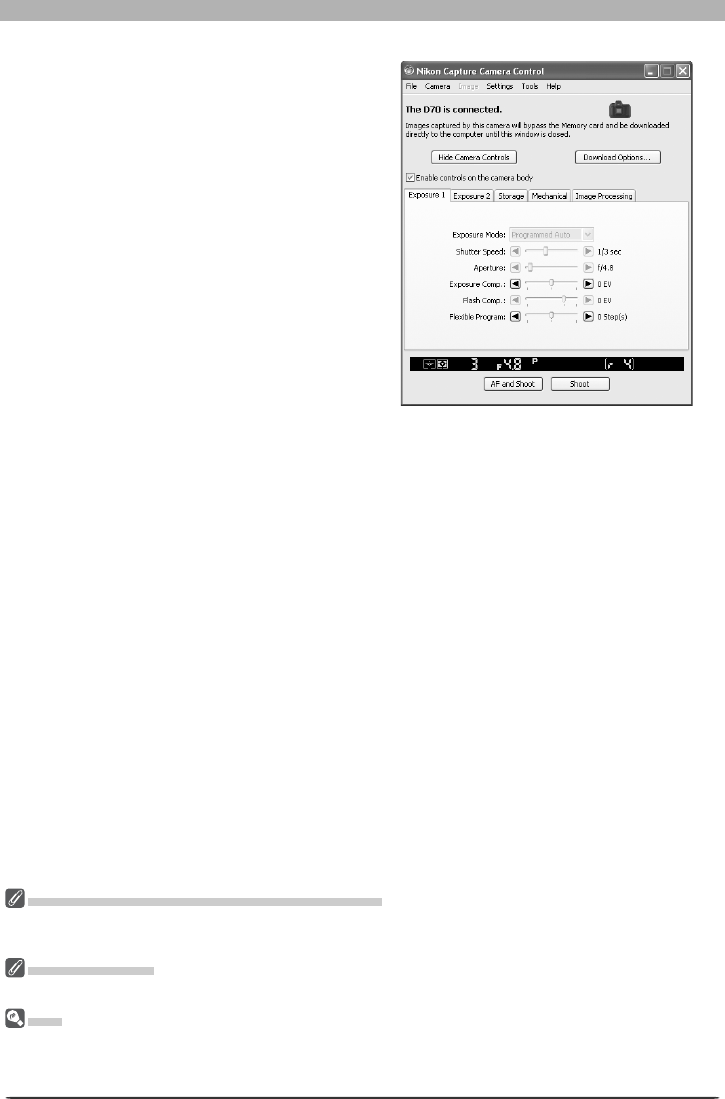
125
Getting to Know Nikon Capture 4 Camera Control
The Exposure 1 Tab
The fol low ing settings can be adjusted from
the Exposure 1 tab:
Exposure Mode: This menu can be used to
set the exposure mode for D2- and D1-series
and D200 cameras. If a D100 is connected,
or if Enable controls on the camera body
is checked when a D70s, D70, or D50 is con-
nected, it will show the current exposure
mode but the mode itself must be selected
using the camera function dial. See the cam-
era manual for details.
Shutter Speed: Shutter speed can only be
adjusted in Man u al and Speed Priority
modes, when it can be set to values between
the max i mum and min i mum val ues support-
ed by the camera. Use high shut ter speeds to
freeze mo tion, low shut ter speeds to suggest
mo tion by blur ring moving objects.
Aperture: Aperture can only be adjusted in Manual and Aperture Pri or i ty modes, when
it can be set to values between maximum and min i mum ap er ture (small apertures have high
f-num bers, wide ap er tures low f-numbers; the ac tu al ap er tures available depend on the lens
used). Ap er ture can not be controlled from Nikon Cap ture when Custom Setting 22 has been
set to allow aperture to be ad just ed manually using the lens aperture ring (D1-series only).
Exposure Comp.: Exposure compensation is useful when shooting subjects containing sharp
lighting con trasts, or on other occasions when you want to modify the exposure value deter-
mined by the cam era. Exposure compensation is available in all exposure modes.
Flash Comp. (D200/D100/D70s/D70/D50 only): This option is used to adjust the level of the
camera’s built-in Speedlight.
Flexible Program: Flexible program can only be used in Program Mode, when it allows you
to choose from pre de ter mined combinations of shutter speed and aperture appropriate to
current lighting conditions.
D70
The Function Dial (D100 Digital Cameras Only)
The D100 can only be used to take photographs when the function dial is set to P, S, A, or M. At other
settings, the controls in the Exposure 1 tab will be disabled.
Non-CPU Lenses
See page 130 for information on the settings available with non-CPU lenses.
Bulb
At a shutter speed of Bulb, the shutter remains open while the shutter release button is held down. Use
the camera shut ter-release button to take photos at this setting. Clicking either of the shoot buttons
will display an error message.
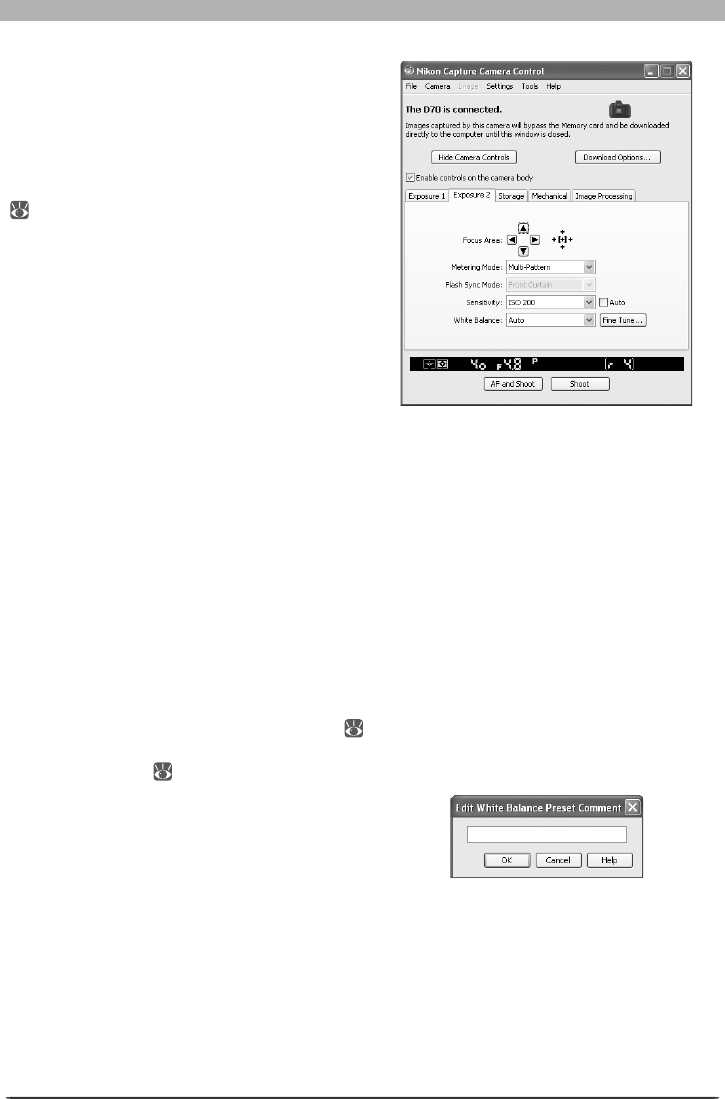
126
The Camera Control Window
The Exposure 2 Tab
The following settings can be adjusted from
the Exposure 2 tab.
Focus Area: The focus area can be selected us-
ing the arrow buttons; see the camera manual
for details. For information on AF-area mode
and focus mode, see “The Mechanical Tab”
( 128).
Metering Mode: The metering mode can be
selected from this menu (D2 series, D200,
D70s, D70, and D50 only). Metering mode
defaults to the option selected with the
camera. If a D1-series or D100 camera is
connected, or if Enable controls on the
camera body is checked when a D2-series
or D200 camera is connected, the current
metering mode will be shown, but changes
can only be made using camera controls. See
the camera manual for details.
Flash Sync Mode: This option controls the camera fl ash sync mode.
Sensitivity: Sensitivity (ISO equivalency) can be raised when taking photographs in low light
conditions. See the user’s manual provided with your camera for details.
Auto (D2 series/D200/D100/D70s/D70/D50 only): When this option is checked, the camera
will adjust sensitivity (ISO equivalency) au to mat i cal ly (ISO auto).
White Balance: White balance is used to ensure that colors which appear white when viewed
directly are white in the fi nal photograph. It can also be used to produce an intentionally
unbalanced rendering of a scene. See the camera manual for details.
Fine Tune… /Set Temp…(D2 series/D1 series/D200/D100/D70s/D70 only): Click Fine Tune…
to make fi ne adjustments to white balance ( 133). If Choose color temp. is selected (D2
series and D200 only), this button will be labeled Set temp…. Click this button to choose a
color temperature ( 133). Fine tuning is not available with preset white balance.
Comment (D2 series/D200 only): This fi eld
lists the comments for all white balance pre-
sets. Clicking Edit… when Preset is selected
for white balance displays the dialog shown
at right, where the comments for each of the
white balance presets can be edited. Click OK to copy the comments to the camera. Com-
ments can be up to thirty-six characters long and contain letters, numbers, quotes, apostro-
phes, spaces, and any of the following characters: “,” “.” “!” “?” “#” “$” “%” “&” “(” “)”
“[” “]” “{” “}” “*” “+” “-” “/” “:” “;” “<” “=” “>” “_” and “@”.
D70
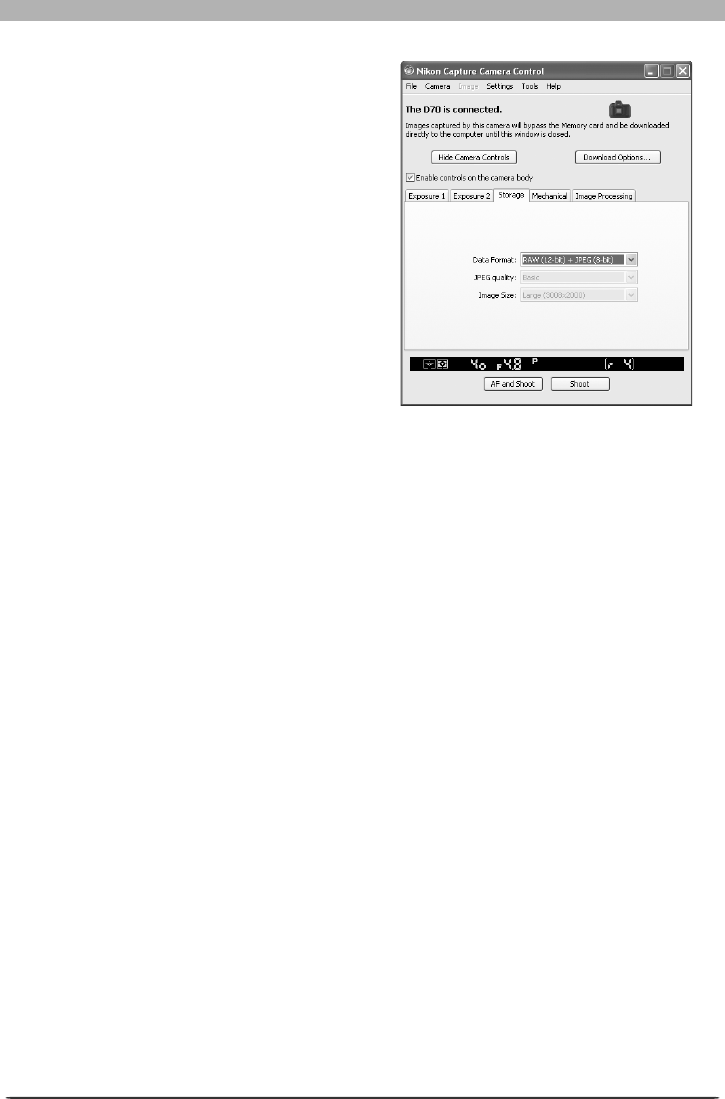
127
Getting to Know Nikon Capture 4 Camera Control
The Storage Tab
The following settings can be adjusted from
the Stor age tab:
Data Format: The following data for mats
are available: RAW (12-bit) + JPEG (8-bit)
(D2 series/D200/D70s/D70/D50 only), RAW
(12-bit), TIFF-RGB (8-bit) (D2 series/D1
series/D100 only), TIFF-YCbCr (8-bit) (D1
series only), and JPEG (8-bit). This set ting
determines pix el bit depth and fi le size.
JPEG Quality: When data format is set to
JPEG (8-bit), you can choose image quality
from Fine, Normal, and Ba sic. When RAW
(12-bit) + JPEG (8-bit) is selected with the
D2 series and D200, image quality can be se-
lected from Fine, Normal, and Ba sic. When
RAW (12-bit) + JPEG (8-bit) is selected
with the D70s, D70, or D50, image quality is
fi xed at Basic.
JPEG Compression (D2X/D2Hs/D200 only): Choose from Fixed size and Optimal quality.
See the camera manual for details.
Color (D1 series only): Choose from Color and Black & White. Black & White is not avail-
able when RAW is selected for Data Format.
Image Size: Choose image size. See the camera manual for details.
RAW Compression ( D2 serie s / D1x / D1H/D200 only): Check this option to compress NEF (RAW)
images taken at a data for mat setting of RAW (12-bit) + JPEG (8-bit) (D2 series and D200
only) or RAW (12-bit).
High-speed crop (D2X only): Select this option to enable high-speed crop. See the camera
manual for details.
D70
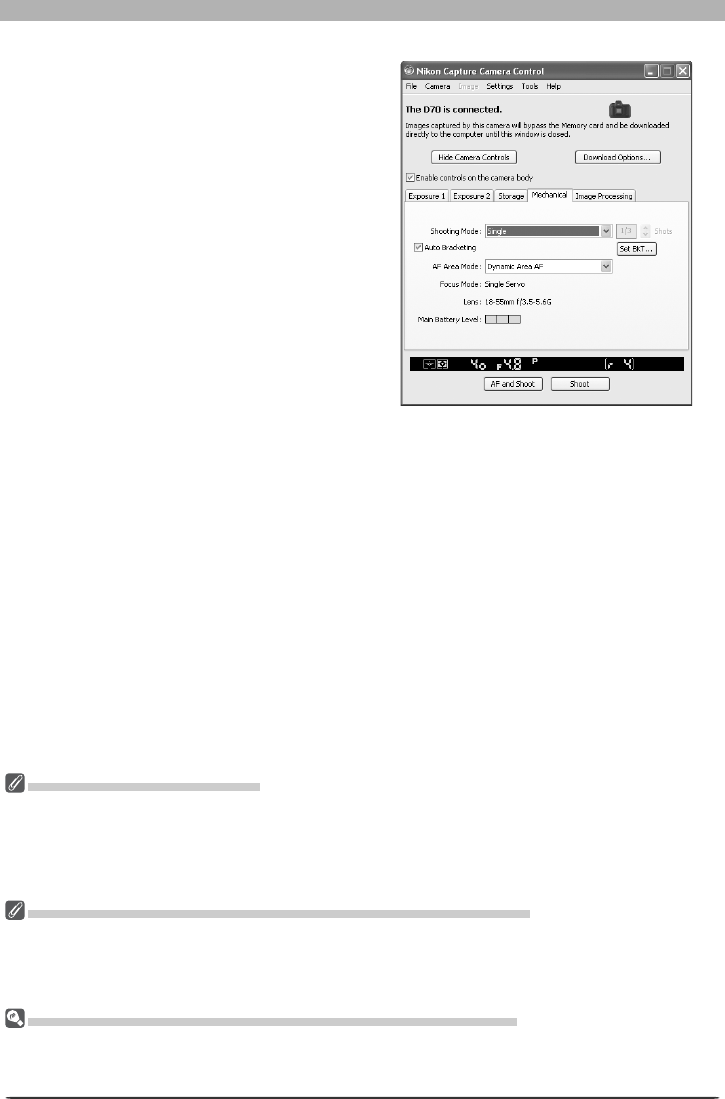
128
The Camera Control Window
The Mechanical Tab
The fol low ing settings can be ad just ed from
the Me chan i cal tab:
Shoot ing Mode: Sets the shooting mode for
D1-series cameras connected in PC mode to
Single or Continuous. Changes to this set-
ting also apply to Custom Setting 30. The
shooting mode for the D70s, D70, and D50
can be selected from Single and Continu-
ous. Unless Enable controls on the cam-
era body is checked in the connection status
area, the shooting mode for D2-series and
D200 cameras can be selected from Single,
Continuous low speed, and Continuous
high speed. If Continuous is selected for
the D70s, D70, or D50 or if Continuous low
speed or Continuous high speed is select-
ed for a D2-series or D200 camera, the AF
and Shoot and Shoot buttons will instead
be labeled AF and Start and Start. If Enable controls on the camera body is checked or
a D100 camera is connected, the current shooting mode will be shown, but changes can only
be made using camera controls. See the camera manual for details.
Maximum Shots (D2 series/D200/D70s/D70/D50 only): Use the arrows to choose the maxi-
mum number of shots that can be taken in a single burst in continuous mode, or enter a value
directly in the text box. The maximum permitted value varies with the current image-quality
setting; the value chosen should not, however, exceed the capacity of the camera memory
buffer as shown at the right edge of the LCD display. Values larger than the capacity of the
camera memory buffer will be shown in red. This setting only applies when the camera is
connected, and differs from the maximum selected in the Custom Settings menu.
D70
Self-Timer and Remote Modes
When a D2-series, D200, D70s, D70, D50, or D100 camera is set to self-timer mode, or when the D70s,
D70 or D50 is set to delayed remote or quick-response remote mode, the Mechanical tab will show a
shooting mode of Single, and any photographs taken with the Nikon Capture 4 Camera Control shoot
but tons will be taken in single-frame mode with no shutter-release delay. To take pictures in self-timer
or remote mode, use the shutter-release button on the camera.
Continuous Mode (D2-Series/D200/D70s/D70/D50 Cameras Only)
When a D2-series, D200, D70s, D70, or D50 camera is connected, the amount of memory remaining in
the camera memory buffer is displayed at the right edge of the simulated LCD panel. This information is
updated at regular intervals, but temporary discrepancies may exist between the display and the actual
amount of memory remaining in the buffer.
Taking Photographs in Continuous Mode (D100 / D1 - S eri es On ly)
When a D100 is connected or a D1-series camera is in PC mode, continuous shooting can only be per-
formed using the camera shut ter-release button. The shoot buttons in the camera control window can
only be used to take one photograph at a time.

129
Getting to Know Nikon Capture 4 Camera Control
Auto Bracketing (D2 series/D200/D70s/D70/
D50 only): Select this option to perform expo-
sure, fl ash, or white balance bracketing during
shooting. To change bracketing options, click
Set BKT. The dialog shown at right will be
displayed.
• AE/WB/Flash Bracketing: Choose the type
of bracketing performed.
• Change Factor when Exposure Mode is set
to Manual (D2 series/D200 only): Choose
how bracketing is performed in manual
exposure mode.
• Bracketing Type / B rac ketin g Ste p / B racket ing
Order / E xp osu re Mo de: Choose the brack-
eting program, exposure or white balance
increment, bracketing order, and exposure
mode. Bracketing type and bracketing order
are not available with the D50.
AF-Area Mode: Choose the AF-area mode. If Enable controls on the camera body is
checked (D2 series/D200 only), the current AF-area mode will be shown, but changes can
only be made using camera controls. See the camera manual for details.
Fo cus Mode: The cur rent focus mode setting is displayed. See the cam era man u al for details.
This set ting can not be changed from Nikon Cap ture.
D2 series/D200
D70s/D70/D50

130
The Camera Control Window
Non-CPU Lenses
The following restrictions apply to Nikon Capture 4 Camera Control when a non-CPU lens is mounted
on the camera (the operations listed can still be performed using the controls on the camera body; see
the camera manual for details):
D2 series/D200 D1
series D100 D70s/D70/D50With lens data No lens data
Exposure
Mode
Can be selected from Aperture-pri-
ority auto and Manual.
Can not be adjusted.
Mode selected with
camera displayed.
Photos can only be
taken in mode M.
Can only be adjusted
if Enable controls on
the camera body is
not checked. Other-
wise same as D100.
Shutter Speed Can only be adjusted in manual exposure mode.
Aperture Shown with
asterisk. Aperture shown as “f/--”. Can not be adjusted.
AF and Shoot Can not be used.
Shoot Can be used.*
* If D100, D70s, D70, or D50 is connected and set to an exposure mode other than manual, a warning
will be displayed.
Lens: Displays the focal length and maximum ap er ture of the lens currently attached to the
cam era. De pend ing on the lens type, some in for ma tion may not be displayed. If the lens
focal length or maximum aperture have been specifi ed manually (see below), an asterisk will
appear next to these values.
Edit… (D2 series/D200 only): This button
is only available when a non-CPU lens is
mounted on the camera. Clicking Edit…
displays the dialog shown at right, where the
lens focal length and maximum aperture can
be entered. Click OK to copy the values to
the camera.
Main Battery Level: Displays the level of the main camera battery. Green indicates that the
battery has enough charge for continued operation. Yellow indicates that battery level is low;
ready a fully charged spare battery pack. Red indicates that the battery is exhausted, and that
no further pho to graphs can be taken until the battery pack has been replaced. You may not
be able to control the camera from Nikon Capture when the battery is exhausted. Replace
with a fully charged spare battery pack or use an AC adapter (available separately).
Clock Battery Level (D1-series only): Displays the level of the camera clock battery. Should
this display turn yellow or red, have the clock battery replaced by an authorized Nikon service
representative (a fee is charged for this service).
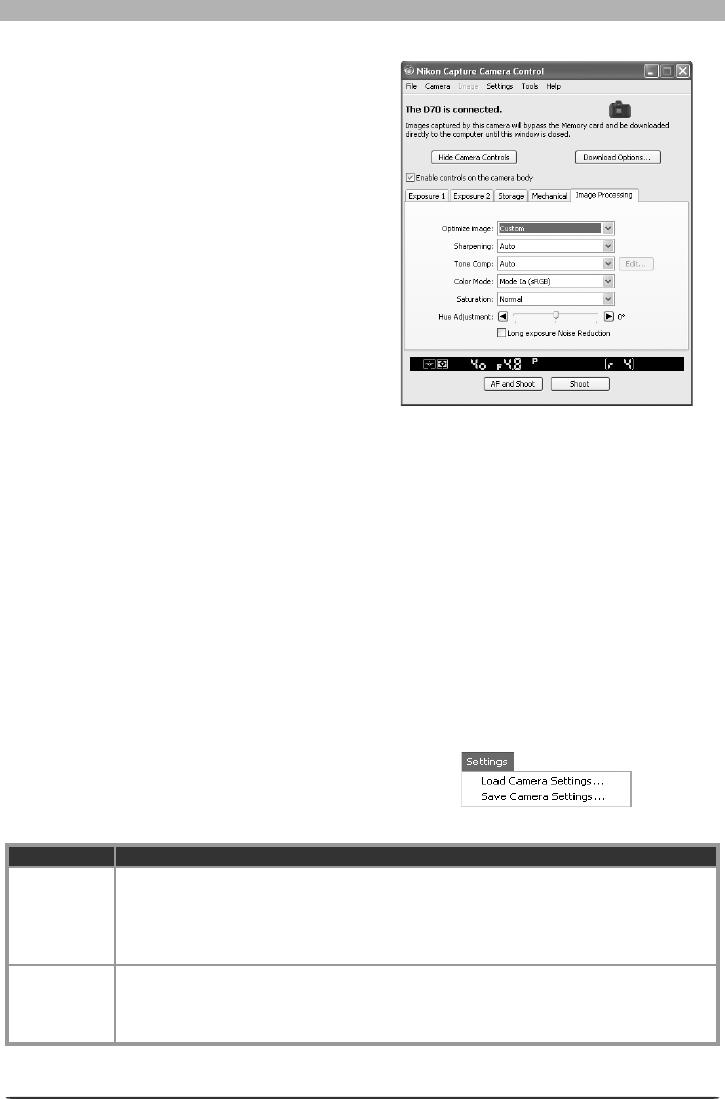
131
Getting to Know Nikon Capture 4 Camera Control
The Image Processing Tab
The following settings can be adjusted from
the Image Pro cess ing tab:
Image Optimize (D200/D70s/D70/D50 only):
Choose the type of image optimization per-
formed. See the cam era man u al for details.
Sharpening: Choose how much the camera
sharp ens outlines. See the camera manual
for details.
Tone Comp: Adjust contrast. See the cam era
man u al for details.
Color Mode (D2 series/D1X/D1H/D200/D100/
D70s/D70/D50 only): Choose a col or mode.
See the camera manual for de tails. With the
D1, colors are op ti mized for the NTSC col or
space, regardless of the op tion chosen.
Saturation (D200/D70s /D70 /D50 only): Ad-
just color saturation. See the camera manual for details.
Hue Adjustment (D2 series/D1x/D1
H
/D200/D100/D70s/D70/D50 only): Modify hue while
leaving brightness and chro ma un af fect ed. Adjustments can be made in the range –9 ° to 9 °,
with 0 ° rep re sent ing the original hues as recorded by the camera (in D1-series cam er as, –9 °
is equiv a lent to a camera hue setting of 0, 0 ° to a setting of 3, and 9 ° to a setting of 6).
Color space (D2X/D200 only): Choose a color space. See the cam era man u al for details.
Long Exposure Noise Reduction (D2 series/D200/D100/D70s/D70/D50 only): Select this op-
tion to reduce noise at slow shutter speeds. See the camera manual for details.
High ISO Noise Reduction (D2X/D2Hs/D200 only): Select On (Normal), On (Low)(D200
only) or On (High) to reduce noise at high sensitivities. See the camera manual for details.
Saving and Loading Camera Control Settings
The Camera Control option in the Set-
tings menu is used to save Nikon Capture
4 Camera Con trol set tings and to load and
apply previously saved settings.
Option De scrip tion
Load Camera
Settings…
Select this item to load camera settings previously saved us ing Save Camera Set-
tings… (see be low). A dialog will be dis played where you can navigate to the drive
(vol ume) and di rec to ry con tain ing the desired set tings fi le (only fi les with the extension
“.ncc” will be dis played). The settings in the Cam era Con trol window will in stant ly
re vert to the saved settings.
Save Camera
Settings…
Select this item to save the settings in the Camera Control window to a named fi le.
These settings can later be recalled using Load Camera Settings…. Choos ing Save
Camera Settings… displays a di a log where you can choose a des ti na tion and fi le name
for current camera settings. Camera set tings are saved with the ex ten sion “.ncc”.
D70
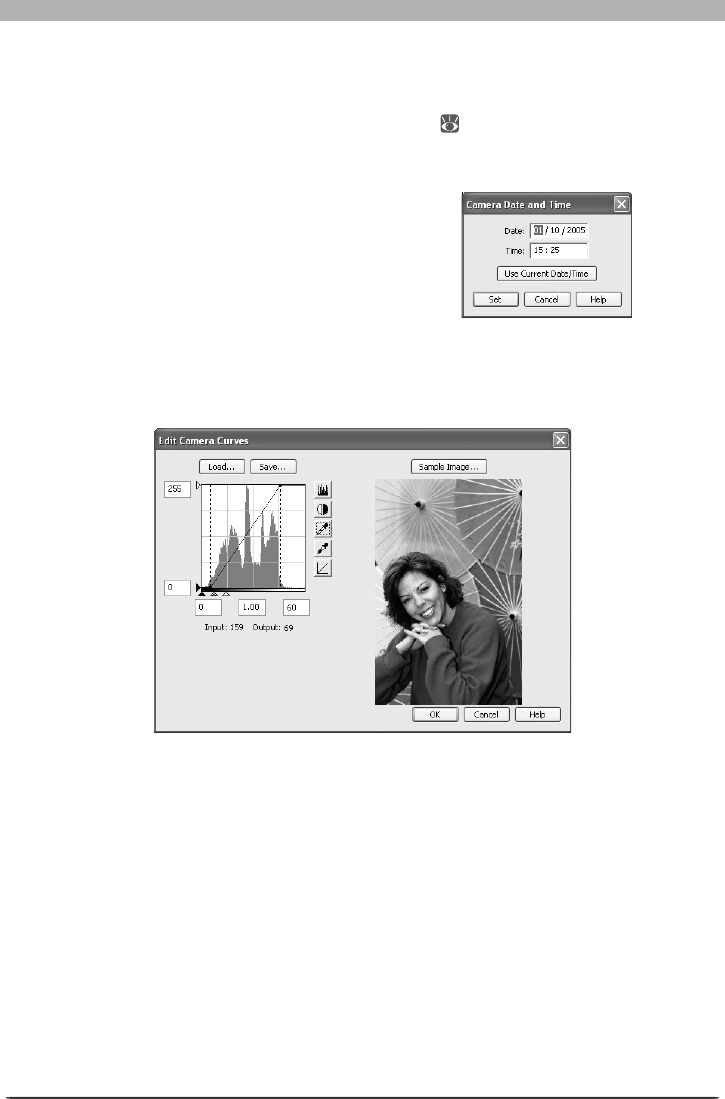
132
The Camera Control Window
The Camera Menu
The commands in the Camera menu are used to adjust the following camera settings:
Custom Settings…
Selecting this option opens the Custom Settings dialog ( 135), where camera Custom Set-
tings can be ad just ed.
Set Date and Time…
Selecting this op tion opens the dialog shown
at right, where you can set the cam era’s
clock calendar to the current date and time.
To view the cur rent time and date set tings,
click Use Current Date/Time. Click Set to
set the clock cal en dar to the time and date
shown.
Edit Cam era Curves…
This op tion is used to create a custom tone com pen sa tion curve and down load it to the cam-
era, where it applies when “Cus tom” is se lect ed for the camera tone compensation option.
The controls in the Edit Camera Curves win dow are identical to those in the Curves win dow,
except in the following respects: (1) only the master channel, not individual RGB channels,
may be edited; (2) there is a limit of 20 spline points; (3) the midpoint may not be edited; (4) a
user-defi ned sample image can be se lect ed by clicking Sample Image… (the sample image
must be a RAW image created with a D2-series, D1-series, D200, D100, D70s, D70, or D50
camera). Any chang es to curves are refl ected in the sample image. To copy the edited curve
to the camera, click OK.
The upper left section of the Edit Camera Curves window contains Load… and Save…
but tons. By clicking the Load… button, previously stored curves, with less than 20 spline
points, can be selected via the “Open” dialog (if the selected fi le has more than 20 spline
points, a warning will be displayed, and no fi le will be loaded). Look for fi les with the “.ntc”
ex ten sion.
The Save… button opens the “Save As” dialog, where you can save the current curve.
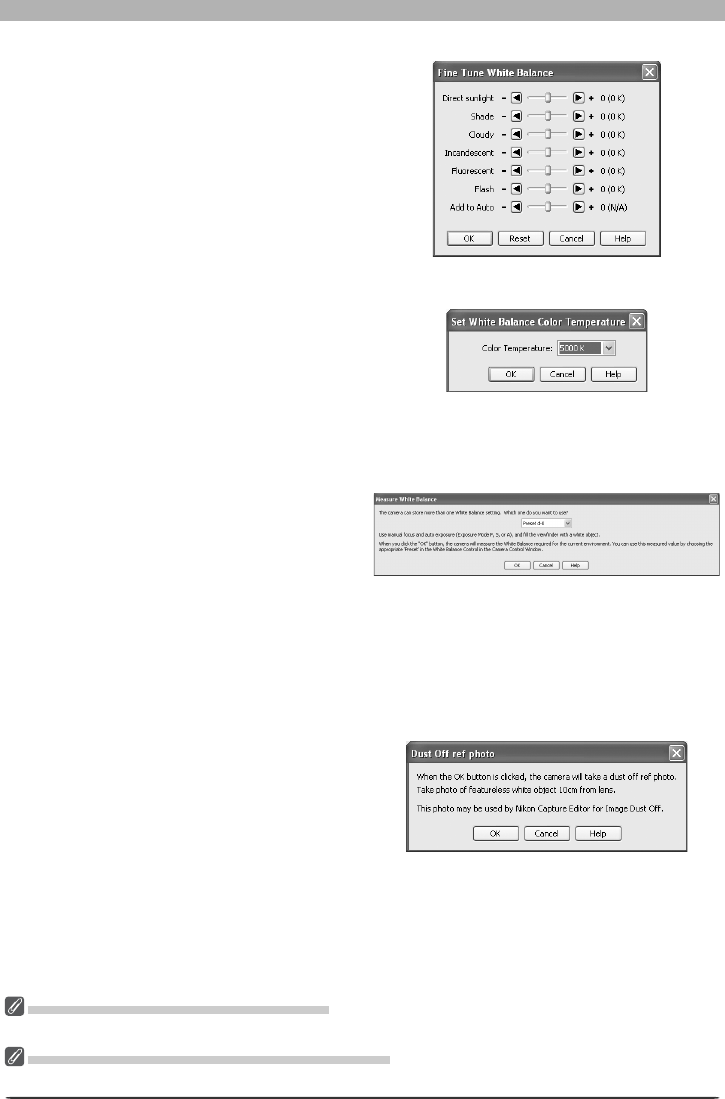
133
Getting to Know Nikon Capture 4 Camera Control
Fine-Tune White Balance… (D2 series/D1 series/D200/D70s/D70 only)
Selecting this op tion displays the dialog
shown at right, where white bal ance can be
fi ne-tuned be tween –3 and +3. The value se-
lected for Add to Auto will be added to the
white balance setting the camera chooses for
auto white balance. Click ing Re set re turns
all values to defaults. Click OK to ap ply the
cur rent set tings to the cam era, or click Can-
cel to dis card any chang es and return to the
Nikon Capture 4 Cam era Con trol win dow.
Set Color Temperature… (D2 series/D200 only)
Selecting this op tion displays the dialog
shown at right, where color temperature can
be chosen from a menu. The value chosen
takes effect whenever Choose color temp.
is selected for white balance. Click OK to ap-
ply the cur rent set tings to the cam era, or click
Cancel to exit without saving changes.
Measure White Balance…
Use this op tion to measure preset white
balance. If the cam era cur rent ly con nect ed
sup ports multiple values for preset white bal-
ance, the set ting that will be used to store
the mea sured val ue can be cho sen from
the pop-up menu at the top of the dialog.
Adjust camera set tings as de scribed in the
sec tion on preset white balance in the cam-
era user’s man u al and click OK to measure a
value for white bal ance.
Dust Off Ref Photo (D2 series/D200/D70s/D70/D50 only)
Choose this option to take a reference photo
for Image Dust Off. The dialog shown at
right will be displayed. With the camera lens
ten centimeters (four inches) from a feature-
less white object, frame the object so that
it fi lls the viewfi nder and click OK to record
an Image Dust Off reference photo. See the
camera manual for details.
Choosing a Mode (D70s/D70/D50 Only)
The Measure White Balance… option is only available in P, S, A, and M modes.
Set Color Temperature… (D2 Series/D200 Only)
The desired results may not be achieved with fl ash or fl uorescent lighting.
D2X (dialogs for other cameras may differ)

134
The Camera Control Window
Edit Image Comment…
Selecting this option displays the dialog
shown at right, where you can enter a com-
ment or title for subsequent pho to graphs. If
the camera cur rent ly con nect ed is in the D1-
se ries, enter a title of thir ty-eight char ac ters
or less and click OK. The title will be used
for all sub se quent pho to graphs taken while
the camera is con nect ed. When a D2-series,
D200, D100, D70s, D70, or D50 cam era is
con nect ed, the title is stored in the cam era as
an im age com ment of thirty-six char ac ters or
less which is ap pend ed to pho to graphs only
when the Attach comment to images box
is checked.
Select Shooting Set tings Bank… (D2 series/D200/D100 only)
Selecting this option dis plays the dialog
shown at right, where you can choose the
shooting menu bank in which chang es to
settings will be stored while the camera is
con trolled from Nikon Capture 4 Camera
Con trol. See the camera manual for details.
The D2 series and D200 allow a descriptive
comment to be added to the name of each
shooting menu bank. Clicking Edit… dis-
plays the dialog shown at right, where the
comments for each bank can be edited. Click
OK to copy the comments to the camera.
Comments can be up to twenty characters
long and contain letters, numbers, quotes,
apostrophes, spaces, and any of the follow-
ing characters: “,” “.” “!” “?” “#” “$” “%”
“&” “(” “)” “[” “]” “{” “}” “*” “+” “-” “/”
“:” “;” “<” “=” “>” “_” and “@”.
Set Bracketing Mode (D2 series/D200/D70s/D70/D50 only)
Selecting this option displays the BKT Mode dialog. See Auto Bracketing in the Mechanical
panel for details ( 129).
Live Batch…
Selecting this option opens the Live Batch dialog ( 116).
Time Lapse Photography…
Selecting this option opens the Time Lapse Photography dialog ( 120).
D2 series/D200/D100/D70s/D70/D50
D1 series
Edit Comment dialog
D2 series/D200
D100
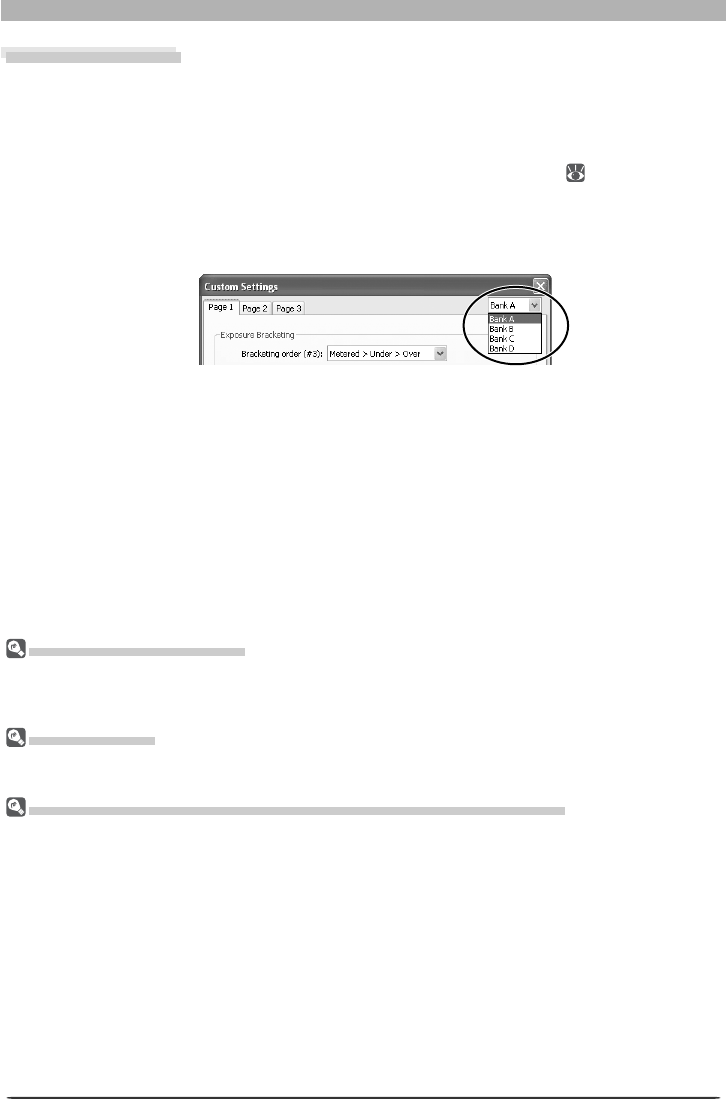
135
Getting to Know Nikon Capture 4 Camera Control
Changes to Custom Settings
Changes made to settings in the Custom Settings dialog are stored in the camera, not on the computer
hard disk. This means that changing settings in the Custom Settings dialog has the same effect as chang -
ing Custom Settings using camera controls.
Custom Settings
Custom Settings can not be saved to a separate fi le. Clicking the Reset button resets all Custom Settings
to their default values.
Settings That Can Not Be Adjusted from the Custom Settings Window
The Custom Settings listed below can not be adjusted in the Custom Settings window.
•Mirror lock-up for CCD cleaning (D1-series Custom Setting 8) /Cleaning mirror up (D100 setup menu):
can only be ad just ed from the camera
•RAW (NEF) image save (D1-series Custom Setting 28): if this option is set to “0” (off) when Nikon
Cap ture is started, a message will be displayed. Clicking OK in this dialog sets Custom Setting 28 to
“1” (uncompressed RAW image save enabled). Custom Setting 28 can only be returned to “0” from
the camera.
•ISO Auto (D100 Custom Setting 3) /ISO Boost (D1-series Custom Setting 31): can be ad just ed from the
Exposure 2 tab of the Camera Control window.
•PC Shooting Mode (D1-series Custom Setting 30): this option is adjusted from the Me chan i cal tab of
the Cam era Control window.
•Tone Compensation (D1-series Custom Setting 24) /Color Mode (D1X/D1H Custom Setting 32) /Hue
Ad just ment (D1X/D1H Custom Setting 33) /Noise Reduction (D100 Custom Setting 4): can be adjusted
from the Processing tab of the Camera Control window.
Custom Settings
Most of the custom settings stored in camera memory can be viewed and adjusted from the
Custom Settings window in Nikon Capture 4 Camera Control. For more information on Cus-
tom Set tings, see the doc u men ta tion pro vid ed with your camera.
1 Select Cus tom Settings… from the Camera menu
The Custom Settings dialog for the current camera will be displayed ( 136).
2 Choose a Custom Settings bank (D2 series/D1 series/D200/D100 only)
Choose a Custom Settings bank (Custom Settings set) from the pop-up menu at the top
right corner or the Cus tom Settings dialog.
The banks available depend on the model of camera currently connected. When the D1
or D100 is con nect ed, you have a choice of banks A or B; when a D2-series, D1X, D1H, or
D200 camera is con nect ed, banks A, B, C, or D can be selected.
3 Click OK
After making any changes to Custom Settings, click OK to save changes in the camera
Custom Settings bank and exit the Custom Settings dialog.
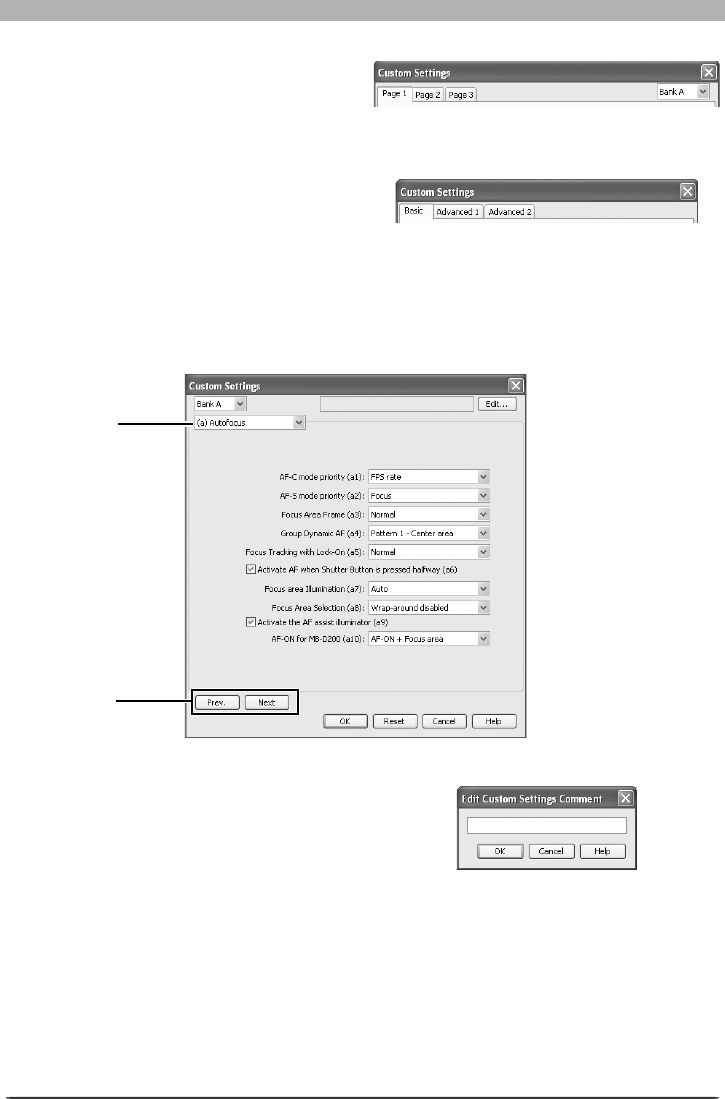
136
The Camera Control Window
D2-series and D200 cameras allow a descrip-
tive comment to be added to the name of
each Custom Settings bank. Clicking Edit…
displays the dialog shown at right, where
the comments for each bank can be edited.
Click OK to copy the comments to the cam-
era. Comments can be up to twenty characters long and contain letters, numbers, quotes,
apostrophes, spaces, and any of the following characters: “,” “.” “!” “?” “#” “$” “%” “&”
“(” “)” “[” “]” “{” “}” “*” “+” “-” “/” “:” “;” “<” “=” “>” “_” and “@”.
Custom Settings for D1-Series and D100 Cameras
Custom Settings for D1-series and D100
cameras are divided among three tabs:
Page 1, Page 2, and Page 3. See the camera
manual for details.
Custom Settings for D70, D70s, and D50 Cameras
Custom Settings for the D70s, D70, and D50
are divided among three tabs: Basic, Ad-
vanced 1, and Advanced 2. See the camera
manual for details.
Custom Settings for D2-Series and D200 Cameras
Custom Settings in each bank are divided into six groups: autofocus, metering / exposure,
timers / auto expo sure and autofocus lock, shooting / display, bracketing / fl ash, and controls.
The group can be chosen from the group menu or by clicking the Next and Prev. buttons.
Group menu
Prev. / Next
buttons
D200
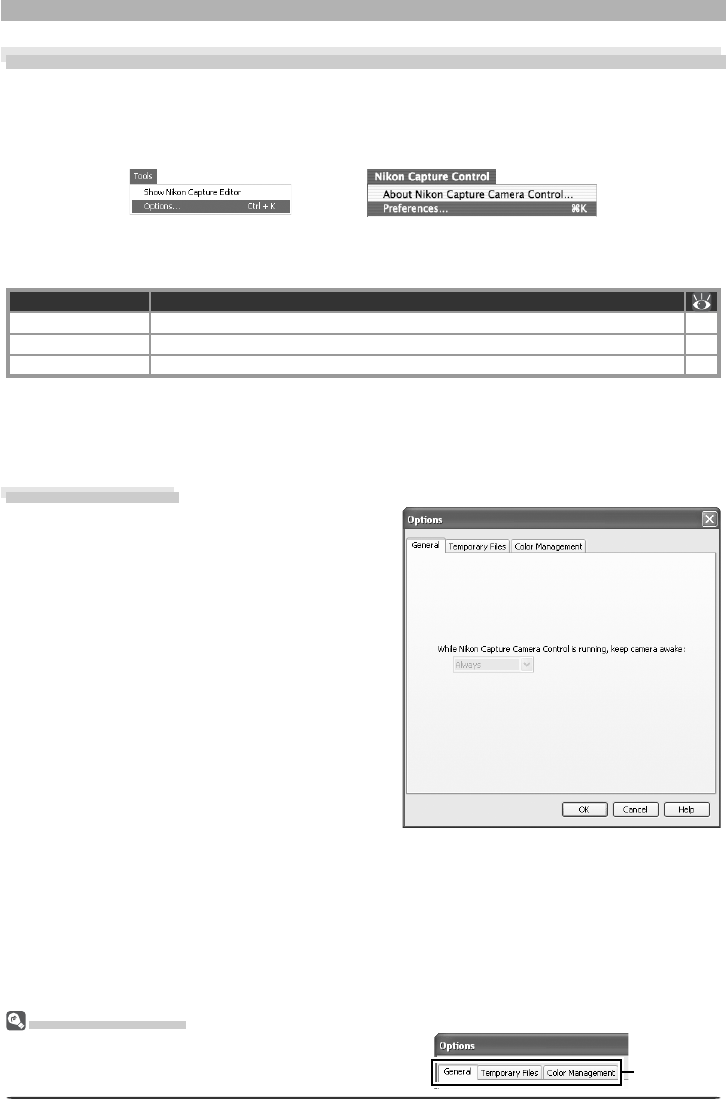
137
Fine-Tuning Nikon Capture 4 Camera Control
Nikon Capture 4 Camera Control Preferences
Fine-Tuning Nikon Capture 4 Camera Control
To view the Preferences (Options) dialog for Nikon Capture 4 Camera Control, select Op-
tions… from the Tools menu (Windows) or select Preferences… from the application menu
(Mac OS X) or Edit menu (Mac OS 9).
Viewing Preferences
To view settings in any of the three panels, click the
appropriate tab.
The Pref er enc es dialog contains the following three tabs:
Tab Description
General Choose how long the exposure meters remain active (D1-series only). 137
Temporary Files Specify the location of the folders used for tem po rary stor age. 138
Color Management Select the color profi les used by the Nikon Color Man age ment System (CMS). 138
After making changes to preferences, click OK to save changes and return to the Nikon
Capture 4 Camera Control window. Click Cancel to cancel any changes to settings and return
to the Nikon Capture 4 Camera Control window.
The General Tab
The General tab contains the following item:
While Nikon Capture Camera Control is
running, keep camera awake
Choose how long the exposure meters remain
on when the cam era is operated on battery
power. This set ting only takes ef fect when the
camera is con nect ed and pow ered on with Nikon
Capture 4 Cam era Control running, and takes
pre ce dence over the auto meter off option cho-
sen using camera Custom Set tings. D2-series,
D200, D100, D70s, D70, and D50 cameras will
stay awake indefi nitely, regardless of the setting
chosen here.
• for 15 min utes (D1-series only): The exposure
meters turn off automatically if no operations
are performed for 15 minutes.
• Always: The exposure meters remain on indefi nitely. Note that this will increase the drain
on the battery.
When powered by an AC adapter (available separately), the camera stays awake indefi nitely,
regardless of the setting chosen.
Mac OS X
Windows
Tab

138
Nikon Capture 4 Camera Control Preferences
The Temporary Files Tab
The Temporary Files tab contains the fol-
low ing item:
Folder for temporary data
Specify the folder or volume in which tem-
po rary data, such as image cache data, will
be stored. The default folder for Windows is
the “TEMP” folder in the Windows directory,
while the default vol ume for the Macintosh is
the start-up disk. To choose a different folder
in the Windows version of the program, click
the Browse… button and navigate to the
de sired location. In the Macintosh version, a
new volume can be chosen from the pop-up
menu.
The Color Management Tab
For more information on the Color Management tab, see “Nikon Capture 4 Editor Preferences”
( 104, 105).
Macintosh
Windows
Folder for Temporary Data
The folder chosen for temporary storage in the Temporary Files tab also applies to Nikon Capture 4
Editor. Changes will only take effect after the program has been restarted.
The Color Management Tab
Changes to settings in the Color Management tab also apply to Nikon Capture 4 Editor, PictureProject,
and Nikon View.

139
The appendices cover the following topics.
Appendix A: Supported Color Profi les
Read this section for a description of the RGB color-space
pro fi les supported under Nikon Capture 4.
Appendix B: Color Matching in Adobe Photoshop
(Version 7.0 or later)
Learn how to preserve color-space profi le information when
open ing images in Adobe Photoshop (version 7.0 or later).
Appendix C:The Nikon NEF Plug-in
Refer to this section for information on using the Nikon NEF
plug-in to view RAW pictures in Adobe Photoshop.
Appendix D: Troubleshooting
Read this section for information on what to do when Nikon
Capture 4 does not function as expected.
Appendix E: Glossary
Refer to this section when you are unsure of the meanings of
the terms used in this manual.
Technical Notes
Appendices

140
Appendix A
Appendix A
Supported Color Profi les
1. Standard RGB Profi les Supported in Nikon Capture 4
1.1 Profi les with a Gamma Value of 1.8
Apple RGB: NKApple.icm (Windows)/Nikon Apple RGB 4.0.0.3000 (Macintosh)
This profi le is used in desk-top publishing applications and in Adobe Photoshop versions 4.0
or earlier, and is the typical RGB profi le for Macintosh monitors. The corresponding RGB
setting in Adobe Photoshop is “Apple RGB.” This profi le is suitable for working with images
dis played on the Macintosh.
ColorMatch RGB: MKCMatch.icm (Windows)/Nikon ColorMatch RGB 4.0.0.3000 (Macintosh)
The ColorMatch profi le is native to Radius PressView monitors. It has a wider gamut than
Apple RGB, with a particularly wide area devoted to the reproduction of blues. The cor re -
spond ing RGB setting in Adobe Photoshop is “Color Match RGB.”
1.2 Profi les with a Gamma Value of 2.2
sRGB: NKsRGB.icm (Windows)/Nikon sRGB 4.0.0.3001 (Macintosh)
This RGB profi le is used in the majority of Windows monitors. It closely resembles the RGB
commonly used in color television, and is also used in the digital television broadcasting sys-
tem that is on its way to becoming the industry standard in the United States of America.
Software and hardware man u fac tur ers use it as a default color profi le and guarantee op-
er a tion when it used. It is also on its way to becoming the standard for images on the web.
This profi le is suited to users who plan to use their digital images “as is,” without editing or
print ing them. It however suffers from the drawback of a narrow gamut with a limited area
available for reproducing blues. The corresponding RGB setting in Adobe Photoshop 5.0 and
5.5 is “sRGB,” the corresponding setting in Adobe Photoshop 6.0 “sRGB IWC61966-2.1.”
Bruce RGB: NKBruce.icm (Windows)/Nikon Bruce RGB 4.0.0.3000 (Macintosh)
This color profi le attempts to expand on the ColorMatch RGB gamut by defi ning the chro ma -
tic i ty for G as lying between the values for G in the Adobe RGB and ColorMatch color-space
profi les. It was proposed by Bruce Fraser, who claims that it includes most of the colors in the
SWOP CMYK gamut. The R and B used in the Bruce RGB and Adobe RGB color-space profi les
match.
NTSC (1953): NKNTSC.icm (Windows)/Nikon NTSC (1953) 4.0.0.3000 (Macintosh)
This is the color space for video defi ned by the National Television Standards Committee (NTSC)
in 1953 and used in early color televisions. This color space is also used in some Far-East
newspaper and printing organizations. The corresponding RGB setting in Adobe Photoshop
is “NTSC (1953).”

141
Supported Color Profi les
Adobe RGB (1998): NKAdobe.icm (Windows)/Nikon Adobe RGB (1998) 4.0.0.3000 (Macintosh)
A color-space profi le defi ned in Adobe Photoshop 5.0. It has a wider gamut than sRGB and
includes the colors found in most CMYK gamuts, making it suitable for users involved in desk-
top publishing. The cor re spond ing RGB setting in Adobe Photoshop 5.0 is “SMPTE-240M,”
the corresponding setting in Adobe Photoshop 5.5 or later “Adobe RGB (1998).”
CIE RGB: NKCIE.icm (Windows)/Nikon CIE RGB 4.0.0.3000 (Macintosh)
A video color-space profi le established by the Commission Internationale de l’Éclairage (CIE).
While it boasts a fairly wide gamut, it suffers from the drawback that the area devoted to the
reproduction of cyan is relatively small. The corresponding RGB setting in Adobe Photoshop
is “CIE RGB.”
Adobe Wide RGB: NKWide.icm (Windows)/Nikon Adobe Wide RGB 4.0.0.3000 (Macintosh)
This color-space profi le, designed by Adobe, incorporates most of the visible colors. This
however has the consequence that most of the colors it can express can not be reproduced
on standard monitors and printers. The corresponding RGB setting in Adobe Photoshop 5.0
or later is “Adobe Wide RGB.”
The gamut of colors that can be expressed in the above color-space profi les is shown in the
following chromaticity (x, y) graph. The greater the area enclosed by the triangle that rep re -
sents the color-space profi le, the wider its gamut.
Gamut
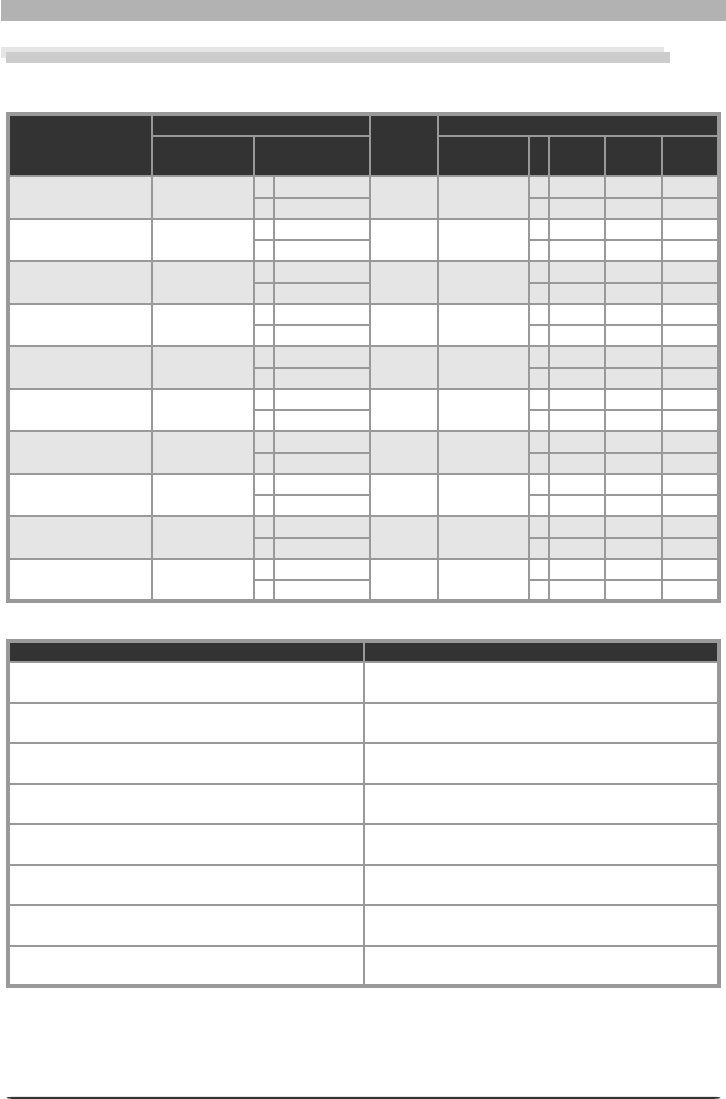
142
Appendix A
2. Technical Data for RGB Profi les Supported in Nikon Capture 4
The following table shows the gamma values for profi les supported in Nikon Capture 4, to-
geth er with the chro ma tic i ty values for the white point and for red, green, and blue.
Profi le
White point
Gamma
value
Chromaticity (x, y)
Color
temperature Value Name R G B
Apple RGB 6500 K (D65)x0.31271591 1.8 Trinitron x0.625 0.28 0.155
y0.32900148 y0.34 0.595 0.07
Color Match RGB 5000 K (D50)x0.34570292 1.8 P22- EBU x0.63 0.295 0.155
y0.3585386 y0.34 0.605 0.077
sRGB 6500 K (D65)x0.31271591 2.2 HDTV (CCIR
709)
x0.64 0.3 0.15
y0.32900148 y0.33 0.6 0.06
NTSC (1953) Std
Illuminant C
x0.3101 2.2 NTSC
(1953)
x0.67 0.21 0.14
y0.3162 y0.33 0.71 0.08
Bruce RGB 6500 K (D65)x0.31271591 2.2 Bruce RGB x0.64 0.28 0.15
y0.32900148 y0.33 0.65 0.06
Adobe RGB (1998) 6500 K (D65)x0.31271591 2.2 Adobe RGB
(1998)
x0.64 0.21 0.15
y0.32900148 y0.33 0.71 0.06
CIE RGB Std
Illuminant C
x0.33333333 2.2 CIE RGB x0.735 0.274 0.167
y0.33333333 y0.265 0.717 0.009
Adobe Wide RGB 5000 K (D50)x0.34570292 2.2 700/525/
450 nm
x0.735 0.115 0.157
y0.3585386 y0.265 0.826 0.018
Default Win dows
monitor 6500 K (D65)x0.31271591 2.2 HDTV
(CCIR 709)
x0.64 0.3 0.15
y0.32900148 y0.33 0.6 0.06
Default Macin tosh
monitor 5000 K (D65)x0.34570292 2.2 Trinitron x0.625 0.28 0.155
y0.3585386 y0.34 0.595 0.07
Nikon Capture 4 and Adobe Photoshop Color Profi les
Nikon Capture 4 output profi le Adobe Photoshop profi le
sRGB
(Nikon sRGB 4.0.0.3001) sRGB
Apple RGB
(Nikon Apple RGB 4.0.0.3000) Apple RGB
Color Match RGB
(Nikon Color Match RGB 4.0.0.3000) Color Match RGB
Bruce RGB
(Nikon Bruce RGB 4.0.0.3000) —
NTSC (1953)
(Nikon NTSC (1953) 4.0.0.3000) NTSC (1953)
Adobe RGB (1998)
(Nikon Adobe RGB (1998) 4.0.0.3000)
Version 5.5 or later: Adobe RGB (1998)
Earlier versions: SMPTE-240M
CIE RGB
(Nikon CIE RGB 4.0.0.3000) CIE RGB
Adobe Wide RGB
(Nikon Adobe Wide RGB 4.0.0.3000)
Version 5.5 or later: Adobe Wide RGB
Earlier versions: Wide Gamut RGB

143
Color Matching in Adobe Photoshop (Version 7.0 or Later)
ColorSync (Macintosh)
The explanation in this section assumes that ColorSync version 3.0 or later is installed on your Macin-
tosh.
Appendix B
Color Matching in Adobe Photoshop (Version 7.0 or Later)
When an image saved in Nikon Capture 4 is opened in Adobe Photoshop, the profi les used in
Adobe Photoshop should match those used in Nikon Capture 4. If the profi les do not match,
the colors seen in Adobe Photoshop may not be the same as those in the original image. The
profi les used with Nikon Capture 4 can be used with Adobe Photoshop version 7.0 or later.
The fi rst step is to match the Nikon Capture 4 monitor profi le with that used in Adobe
Photoshop (Windows only). The point to remember is that you should specify the monitor
profi le for Adobe Photoshop fi rst and then select the same profi le for Nikon Capture 4. This
step can be omitted if an existing monitor profi le has already been selected in the Windows
display property dialog. For more in for ma tion, see “Choos ing a Monitor Profi le.” Macintosh
users will not need to perform this step.
The next step is to save the image from Nikon Capture 4 using a format that supports in-
clu sion of color profi le information. If you save the image in TIFF, JPEG (JFIF), or JPEG (Exif),
in for ma tion about the color profi le used in Nikon Capture 4 will be embedded in the fi le, and
Adobe Photoshop will use this in for ma tion to process colors appropriately when the fi le is
opened. For more information, see “Ad just ing Set tings in Adobe Photoshop” ( 144).
Step 1—Choosing a Monitor Profi le
Choose a monitor profi le as described below.
Creating a New Monitor Profi le
If you have not yet calibrated your monitor, use Adobe Gamma to create a profi le for your
monitor. Adobe Gamma is included in the standard install of Adobe Photoshop.
1 Start Adobe Gamma
Select Adobe Gamma from the system
control panels or double-click the Adobe
Gam ma util i ty icon.
2 Create a color profi le
Follow the on-screen directions to calibrate your monitor. The resulting monitor profi le
will be saved in the folder listed below. Make a note of the fi le name.
• Windows XP / Wi nd ows 2000: Windows/system32/spool/drivers/color
• Windows Me / Windows 98 SE: Windows/System/Color
3 Choose the profi le created in Step 2 for Nikon Capture 4
Choose the profi le created in Step 2 as the Nikon Capture 4 monitor profi le. For details,
see “Nikon Capture 4 Editor Preferences: The Color Management Tab” ( 104).
Using an Existing Monitor Profi le
Choose the existing profi le as the Nikon Capture 4 monitor profi le. For details, see “Nikon
Capture 4 Editor Preferences: The Color Management Tab” ( 104).
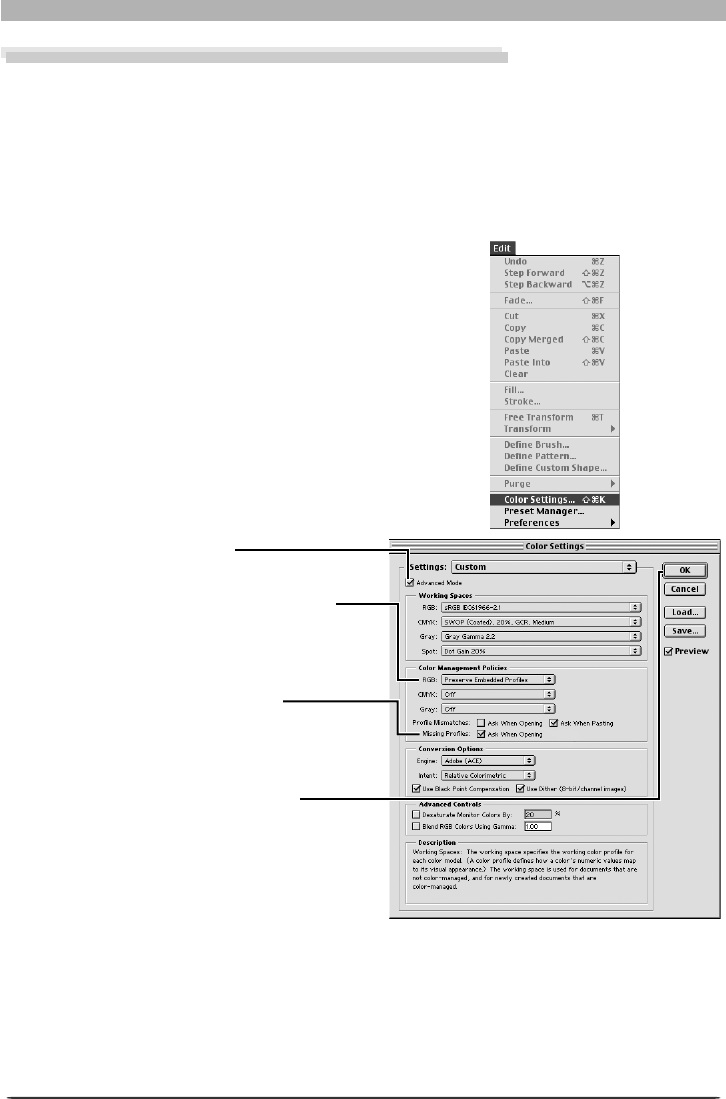
144
Appendix B
Step 2—Adjusting Settings in Adobe Photoshop
The following describes the minimum necessary adjustments to ensure consistent color re-
production in Adobe Photoshop 7.0. The menus and dialogs referred to below are all from
Adobe Photoshop.
Opening TIFF and JPEG Images Created Using Nikon Capture 4
Images saved in TIFF, JPEG (JFIF), and JPEG (Exif) formats include color-space profi le informa-
tion. Open fi les in these formats as described below.
1 Display the Color Settings dialog
Select Color Settings… from the Adobe
Photoshop Edit menu.
2 Check Advanced Mode
3 Select Preserve Embedded Profi les
Select Preserve Embedded Profi les from
the RGB pop-up menu in the Color Man-
age ment Policies section.
4 Deselect Ask When Opening
Remove the check from Ask When Open-
ing in the Profi le Mismatches area of the
Color Man age ment Policies section.
5 Close the Color Settings dialog
Click OK to close the Color Settings dia-
log.
At these settings, a warning may be displayed when an image is opened. To prevent the warn-
ing being displayed again, select the appropriate option in the warning dialog.
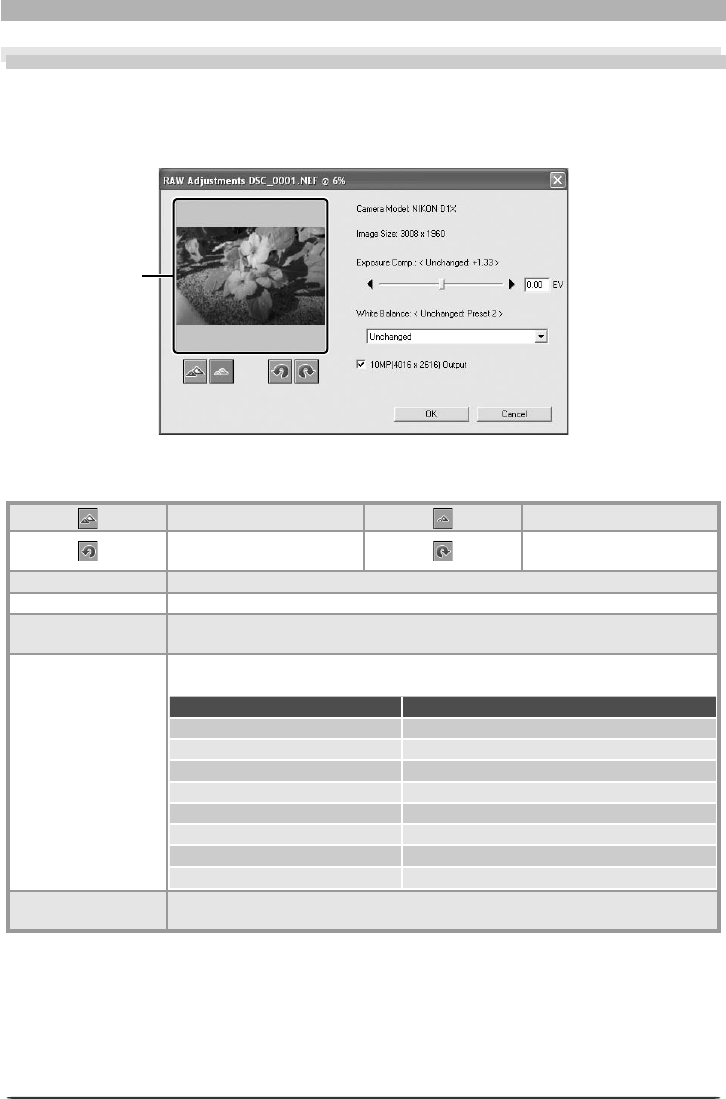
145
The Nikon NEF Plug-in
After adjusting settings as described below, click OK to open the picture. Click Cancel to exit
without opening the picture.
Zoom preview in. Zoom preview out.
Rotate preview 90 ° coun-
terclockwise.
Rotate preview 90 ° clock-
wise.
Camera Model Model of camera used to take picture.
ImageSize Size of picture (width × height) in pixels.
Exposure Comp. Adjust exposure using slider or by entering value between –2 and +2 EV in text
box. Unchanged lists exposure compensation value at time picture was taken.
White Balance
Choose new value for white balance by selecting option from menu. Un-
changed lists white balance setting in effect at time picture was taken.
Option Description
No change No change.
Incandescent New value suited to incandescent lighting.
Fluorescent New value suited to white fl uorescent lighting.
High color rendering fl uorescent New value suited to “cold” fl uorescent lighting.
Daylight New value suited to direct sunlight.
Shade New value suited to outdoor shade.
Cloudy New value suited to overcast conditions.
Flash New value suited to Nikon Speedlights.
10MP (4016 × 2616)
Output
Open picture at size of 4,016 × 2,616 pixels (available only if picture was taken
with D1X).
Preview
Appendix C
The Nikon NEF Plug-in
The Nikon NEF plug-in allows RAW and NEF images created with Nikon digital cameras to be
viewed in Adobe Photoshop. If the plug-in is installed, the following dialog will be displayed
when a RAW image is opened in Adobe Photoshop.

146
Appendix C
Mac OS 9
Color aberration control ( 28, 100) is not applied to images opened in Adobe Photoshop using the
Nikon NEF plug-in under Mac OS 9.
Opening Modifi ed Images
If the image has been modifi ed using other Nikon
software, the message shown at right will be
displayed.
The Nikon NEF Plug-in
When Nikon Capture 4 is installed, the NEF plug-in is copied to the Nikon Capture 4 application folder
(in the Macintosh version, the NEF plug-in is copied to the “File formats” folder in the Nikon Capture
4 application folder). It allows RAW images taken with Nikon digital cameras to be opened in Adobe
Photoshop Elements version 2.0 or later or Adobe Photoshop version 6.0 or later (Windows) or 7.0 or
later (Macintosh).
If a copy of Photoshop is detected at installation, the NEF plug-in will automatically be copied to the
Photoshop “File Formats” plug-ins folder. If you installed Photoshop after installing Nikon Capture 4, you
will need to copy the plug-in to the folder listed below:
Windows: Nikon NEF Plugin.8Bi
•Photoshop CS or later: Plugins\Adobe Photoshop Only\File Formats
•Photoshop 7.0: Plugins\Formats or Plugins\Adobe Photoshop Only\File Formats
•Photoshop 6.0 : Plugins\Adobe Photoshop Only\File Formats
•Photoshop Elements 2.0 or later: Plugins\File Formats
Macintosh: Nikon NEF Plugin
•Photoshop CS or later: Plugins/Adobe Photoshop Only/File Formats
•Photoshop 7.0: Plugins/Adobe Photoshop Only/File Formats
•Photoshop 6.0 : Not supported
•Photoshop Elements 2.0 or later: Plugins/File Formats

147
Troubleshooting
The ReadMe File
Included on the installer CD is a README fi le containing the most current information on Nikon Capture 4.
Please read this fi le before installing and using Nikon Capture, as it may contain im por tant information
that could not be included in this manual. Should you encounter problems with Nikon Capture 4 not
covered in this section, please consult the README fi le for the most up-to-date information.
Appendix D
Troubleshooting
Should you encounter problems with Nikon Capture 4, check the list on the following pages
before consulting your retailer or Nikon representative.
Nikon Capture 4 Does Not Start
Confi rm that your computer system meets all of the requirements specifi ed for using Nikon
Capture 4 (OS, memory, hard disk capacity, etc.). See “System Requirements” ( 5).
Nikon Capture 4 Does Not Recognize the Camera
Verify that Nikon Capture 4 has recognized the camera. D2-series, D1-series, D200, D100,
D70s, D70, and D50 cameras will dis play PC in the con trol panel on top of the camera.
1 Check the power switch and mode dial
• Is the camera on?
• Is the battery fully charged? To reduce the drain on the battery, we recommend that
the camera be powered by an adapter (available separately) when connected to the
com put er.
• If you are using an AC adapter, is it properly connected and plugged in?
• Is the mode dial set to PC (D1-series only)?
• Is the function dial set to P, S, A, or M (D100 only)?
• Is the correct option selected in the USB menu (D2 series, D200, D100, D70s, D70, and
D50 only)? Select PTP when connecting a D2-series, D200, D70s, D70, or D50 camera
to a computer running Nikon Capture 4 Camera Control. Select Mass Storage when
connecting the D100 to a computer running Windows 2000 Professional, Win dows Mil-
lennium Edition (Me), or Windows 98 Second Edition (SE). When connecting the D100
to a Macintosh computer, select PTP.
2 Verify that the interface cable is properly connected
• Is the interface cable securely connected to both camera and computer?
Remember that IEEE 1394 connectors do not make a “click” when fully inserted. If the
cable is securely connected, try disconnecting the cable and reconnecting the devices
in a different order.
• Is there another peripheral connected to the IEEE 1394 bus?
Try disconnecting other IEEE 1394 devices and connecting just the computer and the
camera.
3 Are you using a recommended IEEE 1394 interface (D1-series cameras only)?
See “System Requirements” ( 5). For information on your IEEE 1394 in ter face, see the
manufacturer’s web-site.

148
Appendix D
4 Is the IEEE 1394 interface board correctly registered with the system (Windows
only)?
Check whether:
• The “IEEE 1394 Bus Controller” is not displayed in the Device Manager
• The IEEE 1394 board is listed under “Other Devices” or “Unknown Devices”
• A yellow or red mark appears next to the listing for the IEEE 1394 board
If any of the above apply, the IEEE 1394 board has not been correctly registered with
the system. See the doc u men ta tion provided with the board for information on device
reg is tra tion.
Captured Images are Too Bright, Too Dark, Washed Out, or Out of Focus
• At default settings, Nikon Capture 4 does not modify images when they are cap tured from
the camera. In the General tab of the Preferences dialog, verify that your images are being
captured at Nikon Capture’s default settings and not at the settings of the last image cap-
tured. See “Pref er enc es” for more information ( 98). Alternatively, check the settings in
the Curves, Color Balance, and Unsharp Mask windows. Choose the reset option from the
Settings menu for each window, or turn the Apply button for the window off.
• Are monitor settings correctly adjusted?
Try adjusting your monitor’s contrast/brightness, color system, etc. to be sure that it is
prop er ly set for viewing images. See the documentation provided with your monitor for
in struc tions on ad just ing monitor settings.

149
Glossary
Appendix E
Glossary
This glossary provides defi nitions of some of the terms used in this manual.
Bit depth
The number of bits used to express color, also referred to as color depth. The bit depth deter-
mines the amount of color information in an image. The greater the bit depth, the larger the
number of colors, and the fi ner the gradations, that can be expressed. Bit depth can be used
to refer both to the number of bits per channel and to the combined bit depth for all channels;
thus, for example, an image with a bit depth of eight bits per channel can be said to have a bit
depth of twenty-four bits. An image with a bit depth of one bit has only two colors, typically
black and white, with no gradation between the two. See also Channel.
Black Point
The input value below which all input tones are mapped to the minimum output value (by
default no color, or black). Any details darker than the black point will be lost. See also Tone,
Tone curve.
Channel
The component colors in a given color space. The RGB color space is made up of red, green,
and blue channels and a master channel that combines the three. See also Color space.
Clip
The percentage of pixels at both ends of the curve that are excluded in an auto contrast op-
eration. See also Tone curve.
CMS
See Color management system.
CMYK
A refl ective (subtractive) color model commonly used in printing, which models color using
com bi na tions of the three secondary colors used in printer’s ink, Cyan, Magenta and Yellow.
Because no com bi na tion of these three inks will create a true black, blacK ink is also used.
Color management system
A method of ensuring consistency of color reproduction between devices such as scanners,
monitors, and printers, and between different computer platforms. In the color management
system used in Nikon Capture 4, accurate color reproduction is ensured through the use of
profi les that provide information about the characteristics of the monitor or printer and the
color space used for editing. See also ColorSync, ICC, Profi le.
Color space
A general term encompassing both the model used to defi ne color (for example, CMYK or
RGB) and the range, or gamut, of colors that can be expressed in a given color model. See
also CMYK, Gamut, RGB.
ColorSync
A color management system for Mac OS developed by Apple. See also Color management
system, ICC.

150
Appendix E
Compression
A method for reducing fi le sizes for storage or transmission. Compression algorithms can be
divided into “lossless” algorithms, such as LZW, in which no information is lost when fi les are
restored to their original size for display or editing, and “lossy” algorithms, such as JPEG, in
which some information is lost when the fi le is restored. See also JPEG, TIFF.
Crop
The portion of the image selected in an image window.
Curve
See Tone Curve.
Eyedropper
A tool for sampling white point, black point, or midpoint. See also Black point, Midpoint,
White point.
FireWire
Apple’s term for the IEEE 1394 interface. See IEEE 1394.
Fisheye lens
A “fi sheye” lens is any lens with a view angle of 180 degrees or more. Fisheye lenses may have
a view angle of 180 degrees in all directions or only diagonally. Distortion increases towards
the edges of the picture, with little or no distortion at the center of the image. The Fisheye
Lens palette in Nikon Capture 4 can be used to reduce distortion in images taken with an AF
DX Nikkor ED 10.5 mm f/2.8G lens to create an image close to what would be produced by
an ordinary wide-angle lens.
Gamma
Gamma (also written “γ”), a fundamental property of video systems, determines the intensity
of the output signal relative to the input. When calculating gamma, the maximum possible
input intensity is assigned a value of one, and the minimum possible intensity (no input) is
assigned a value of zero. Output is calculated by raising input to the inverse of the gamma
value (output = input ( 1/ γ ) ).
Gamut
The range of colors that can be expressed by a given input device (for example, scanner or
digital camera), output device (monitor or printer), or color profi le. No gamut can reproduce
all of the colors seen by the human eye. The gamut of primary RGB (Red, Green, and Blue)
transmitted light displays (fi lm transparencies and color monitors) is very different from, and
complementary to, the gamut of secondary CMYK (Cyan, Magenta, Yellow, and blacK) re-
fl ect ed light displays (printed materials). See also CMYK, Profi le, RGB.
Gray point
See Midpoint.
Halo width
The extent of pixels around a selected central pixel affected when Unsharp Mask is applied.
Also referred to as “radius.” Increasing the halo width increases the width of edges affected
by Unsharp Mask. Excessive application of Unsharp Mask results in an undesirable halo along
edges in the image. See also Unsharp Mask.

151
Glossary
Histogram
A bar graph showing the distribution of tones in an image. The horizontal axis shows tone
level (bright ness), the vertical axis the number of pixels. The bars in the graph show the
num ber of pixels of a given brightness in the image. The histogram displayed in the Curves
window shows the distribution of tones for the currently selected channel, and can be used
for ref er ence when editing curves. See also Tone, Tone curve.
ICC
The International Color Consortium, an international organization working to develop stan-
dards for color management and color management profi les. ICC profi les were developed for
the conversion of color space information between devices, and are now on their way to be-
coming a global standard. ICC profi les have been proposed as an International Or ga ni za tion
for Standardization (ISO) standard. See also Profi le.
IEEE 1394
A high-speed transfer protocol defi ned by the Institute of Electrical and Electronics En gi neers
for connecting peripherals such as hard disks, MO drives, and digital cameras to a com put er
via a cable.
JPEG
A standard graphic format designed by the Joint Photographic Experts Group. Images are
compressed using a discrete cosine transform that takes advantage of the properties of hu-
man vision, which is more sensitive to light in the lower wavelengths, to increase quantization
at lower frequencies. JPEG com pres sion is “lossy,” meaning that information is lost when
images are compressed, leading to a drop in image quality. A lossless compression option is
also supported in some implementations. JPEG images can be compressed to as much as 100:
1, though quality will be signifi cantly reduced. At a compression ratio of 20:1, image quality
is not noticeably diminished.
LCD
Liquid Crystal Display. LCDs are notable for their thinness, lightness, and the fact that they
consume relatively little energy.
Memory card
Used for storage of photographs in Nikon digital cameras.
Midpoint
Controls the output level for mid-tones in the original image. See also Tone, Tone curve.
NEF
An abbreviation of Nikon Electronic Format, an image fi le format developed by Nikon to sup-
port high-resolution, twelve-bit RAW image data. In Windows, NEF fi les have the ex ten sion
“.nef”. NEF images can be opened and edited only in Nikon Capture. The advantage of NEF
is that while user settings such as curves and color balance are saved, they are not applied
to the original image data. NEF images may thus be edited and saved several times without
degrading or altering the original image. NEF fi les however require a relatively large amount
of storage space. See also RAW image.

152
Appendix E
Noise
Data in an image fi le that are not a part of the original image, the digital equivalent of fi lm
grain. The presence of noise is refl ected in a loss in image quality. Noise appears primarily
in dark areas of the image, and can be reduced by adjusting exposure or lighting to fi ll in
shad ows.
ppcm
pixels per centimeter, a measure of resolution. The more pixels per centimeter, the higher the
res o lu tion. See also ppi, Resolution.
ppi
pixels per inch, a measure of resolution. The more pixels per inch, the higher the resolution.
See also ppcm, Resolution.
Preferences
Settings controlling basic operations performed by a given program, adjustable by the user.
Profi le
A fi le defi ning the color characteristics of an input device such as a scanner or digital camera,
an output device such as a printer or monitor, or the color space used for editing images.
Profi les are used by color management systems to ensure consistent color reproduction. The
Nikon Color Management System used in Nikon Capture employs ICC profi les. See also Color
space, ICC.
RAW image
A photograph taken at an image quality setting of HI-RAW. “Raw,” unmodifi ed image data
from the camera’s image sensor (charge-coupled display, or CCD) are saved in uncompressed
form at a pixel bit-depth of twelve bits per pixel. RAW images can only be opened in Nikon
Capture 4, and must be saved again in a standard image format such as TIFF or JPEG before
they can be opened in another application. See also NEF.
Resolution
The density of dots or pixels that make up an image, measured in dots per inch (dpi) or pixels
per inch (ppi); the resolution of Macintosh monitors, for example, is 72 ppi. The greater the
density of dots or pixels, the higher the resolution and the greater the capacity to express
detail. Resolution is hence the digital equivalent of fi lm resolving power. Computer monitors
typically have a resolution of 72 ppi or 96 ppi, while printers may have resolutions of 300 dpi,
600 dpi, 1200 dpi, or 2400 dpi. See also ppcm, ppi.
RGB
An additive color model commonly used in monitors, in which light emitted in three primary
colors, Red, Green and Blue, is combined to create a wide variety of colors. White is modeled
by mixing 100% of all three colors.
Scale
The output size of an image as a percentage of the input size. At a scale of 50%, images will
be output at half their original size.
Speedlight
A brand name for Nikon fl ashes.

153
Glossary
Threshold
The limit up to which Unsharp Mask will be applied. While it is generally the case that the
higher the threshold, the greater the amount of sharpening applied, the exact effect depends
on other Unsharp Mask settings, such as halo width. See also Halo width, Unsharp Mask.
Thumbnail
A small preview image, the digital equivalent of a photographic fi lm contact sheet. Images
loaded into Nikon Capture are displayed in a thumbnail list in the Thumbnails section of the
Camera Image window.
TIFF
Tagged Image File Format, an image fi le format for color or grayscale images, suited to stor-
ing bit-mapped images such as digital photographs. In some implementations, TIFF supports
“lossless” LZW and packbit compression (in “lossless” compression methods, no information
is lost when the image is compressed, as opposed to “lossy” compression methods such as
JPEG, in which detail is sacrifi ced to achieve higher compression ratios). LZW compression is
available when saving TIFF (RGB) images in Nikon Capture 4 Ver. 4.3 or later. See also Com-
pression, JPEG.
Tone
Pixel brightness, measured either as the combined intensity for red, green, and blue or the
intensity of each of these colors (channels) individually. The number of tones that can be
expressed depends on the bit depth of the image; Nikon Capture 4 supports 256 tone levels
per channel at a bit depth of eight bits and 4096 tone levels per channel at a bit depth of
twelve bits (data with a bit depth of twelve bits are handled internally as sixteen-bit data).
The distribution of tones in the image can be seen in the Curves window histogram. See also
Bit depth.
Tone curve
A visual tool for editing tones, enhancing brightness and contrast in a selected portion of
the tone range. Changing the shape of the tone curve changes the mapping between input
(the tones in the original image) and output (tones as they appear after editing). The digital
equiv a lent of a densitometric curve. See also Tone.
Unsharp Mask
A fi lter for increasing the apparent sharpness of bit-mapped images. Sometimes abbreviated
as “USM.” Unsharp masks emphasize the differences in color and brightness between edges
(outlines) and the rest of the image. See also Halo width, Threshold.
USB
Universal Serial Bus. A standard for computer serial interfaces which allows automatic “plug-
and-play” recognition of peripheral devices and “hot plug” connection of peripherals while
the computer or device is on. Depending on the type of interface installed on the computer,
USB will operate at high speed (USB 2.0 only), with data transfer rates of up to 480 Mbps, or
full speed (USB 1.1, USB 2.0), with data transfer rates of up to 12 Mbps. For more information,
consult the manufacturer.

154
Appendix E
White balance
The human eye is able to adapt to changes in lighting, and consequently to humans a white
object will still look white whether viewed in direct sunlight or under overcast skies, or indoors
under incandescent or fl uorescent lighting. A digital camera, in contrast, must adjust colors
according to lighting if colors that appear white when viewed directly are also to appear white
in the fi nal photograph. This adjustment is called “white balance.”
White point
The input value above which all input tones are mapped to the maximum output value (the
default for the master channel is white). Any details brighter than the white point will be lost.
See also Tone, Tone curve.

155
Index
Index
A
AC adapter, 130, 137
Adobe Photoshop, 98–99,
140 –141, 143–144
Adobe Photoshop Elements,
142
Adobe RGB, 140, 142
Adobe Wide RGB, 140, 142
Advanced Color tab, 102
Advanced RAW palette, 31, 32,
39–41
Apple RGB, 140, 142
Apply button, 29
Auto brightness, 93, 94
Auto contrast, 48, 51, 58, 102
Auto–contrast clip, 102, 149
B
Batch processing, 92–96. See
also Live Batch
Bird’s Eye palette, 19
Bit depth, 84, 95, 118, 149
Black and white, 64
Black point, 48, 50–53, 102
Bracketing, 121, 129
Brightness, 23, 58, 66–67
Bruce RGB, 140, 142
C
Camera control, 107–138
Camera menu, 132–134
Channel, 48–50, 53, 55, 57–61
Chroma, 57, 60, 63
CIE RGB, 141, 142
CMYK, 104–106
default, 104, 105
profi le, 104–106
Color, 23, 40, 48–55, 57–58,
63, 66, 102, 104–106
Color Aberration Control, 28, 100
Color Balance palette, 31,
66–67
Color Booster palette, 31, 32,
63
Color lightness, 59
Color management, 104–106
ColorMatch RGB, 140, 142
Color Moire Reduction, 71
Color saturation, 40
Color space, 131, 149
profi le, 104–106, 140–141
Color temperature, 33–34, 133
Compression, 83, 127
Connecting a camera, 110
Contrast, 66
Contrast slider, 66
Crop, 22, 150
selection, 22
Crop cursor, 22
Curves palette, 31, 32, 48–56
Custom settings, 135–136
D
Display profi le, 104–106
D-Lighting, 73–74
E
Editing, 7–106
Eyedropper tool, 35, 48, 52, 54,
102, 150
Exposure compensation, 39,
125
F
File formats, 13, 83
File names, 86, 95, 113, 118
Find Tool dialog, 30
FireWire, 4, 150
Fisheye lens , 31, 77–78, 150
Fisheye Lens palette, 31, 77–78
Flash sync mode, 126
Flexible program, 125
Flipping images, 20
Focus area, 28
G
Gamma, 54, 150
Gamut, 141, 150
General tab
Nikon Capture 4 Camera
Con trol, 137
Nikon Capture 4 Editor, 98–99
Gray point, 35–36, 58. See also
mid point
setting, 35–36
Grid lines, 103
H
Halo width, 69, 151
Hand Cursor, 18
Highlights, 25, 49
Histogram, 26, 48, 50, 58, 115,
132, 151
Histogram palette, 26
Hue, 40, 61, 131
I
ICC, 104, 151
IEEE 1394, 4, 151
Image Dust Off, 31, 42–45, 133
Image Dust Off palette, 31,
42–45
Indicator, 30
Information palette, 23–24
Installation, 5
Intensity, 46–47, 59, 60, 69
ISO equivalency. See sen si tiv i ty
J
JPEG, 13, 20, 83, 151
L
LCD, 151
Simulated LCD panel, 123–124
LCH Editor palette, 31, 32,
57–62
Live Batch, 116
–
117
Luminosity, 58
M
Markers palette, 27
Master curve, 48–55
Memory card, 36–37
Metering, 124, 126
Midpoint, 54, 151
Mired, 33
Multi-Image Window, 15–17, 86
N
NEF, 13, 83, 151
Nikon NEF plug-in, 145–146
Nikon Message Center, 4
Nikon View, 3
Noise reduction, 31, 71–72, 131
Noise Reduction palette, 31,
71–72
Nikon Capture 4 Camera
Con trol, 107–137
Nikon Capture 4 Editor, 7–106
NTSC (1953), 140, 142
O
Open, 13–17
Options dialog, see Preferences
Original image, 9
Output size, 79–81
P
Performance, 100
Photo Effects palette, 64
Photo information, 8

156
Index
PictureProject, 3, 110, 113
Pixel, color of, 23
Preferences
Nikon Capture 4 Camera
Con trol, 137–138
Nikon Capture 4 Editor, 97–106
Printer profi le, 103, 105
Printer resolution, 152
Printing images, 88–91
Profi les, 104–106, 140–144, 152
R
RAW, 13, 31, 32, 127, 152. See
also NEF
Red eye Correction, 75–76
Resolution, 79–81, 152
RGB, 152
color–space profi le, 104–106,
140 –141
default RGB profi le, 104, 105
Rotating images, 20
S
Saturation, 40, 131
Save Progress Window, 87, 100
Saving images, 84–87
Scale, 79–80, 152
Sensitivity, 44, 126
Sepia, 64
Settings, saving and loading,
38, 41, 45, 47, 56, 62, 63, 65,
67, 70, 72, 74, 78, 81, 82
Size/Resolution palette, 31,
79–81
Shadows, 25, 49
Sharpening, 39, 131. See also
unsharp mask
Shoot button, 123–124
Shooting data. See photo in for -
ma tion
sRGB, 105, 140, 142
Straightening images, 21
Subdivisions, 103
System requirements, 4
T
Temporary fi les, 101, 138
Threshold, 68–69, 153
Thumbnail, 15–17, 153
TIFF, 13, 31, 83, 86, 99, 153
Time lapse photography,
120–122
Title bar, 8
Tone compensation, 39–40, 131
Tool palettes, 8, 29–32
fi nding, 30
U
Undoing changes, 30
Unsharp mask, 31, 68–70, 153
Unsharp Mask palette, 31,
68–70
USB, 4, 153
V
Vignette control, 31, 46–47
W
White balance, 31, 32, 33–38,
126, 133
fi ne–tuning, 34, 133
White Balance palette, 31, 32,
33–38
White point, 48, 51–53, 102
X
x–y coordinates, 23
Z
Zoom, 18
Zoom ratio, 18

En
User’s Manual
No reproduction in any form of this manual, in whole or in part (except for
brief quotation in critical articles or reviews), may be made without written
authorization from NIKON CORPORATION.
Ver. 4.4 (En)
Ver. 4.4
