Nine Eagles Electronic Technology NEOT017 WIFI Camera User Manual

Shanghai Nine Eagles Electronic Technology Co., Ltd. WIFI Camera

User Manual

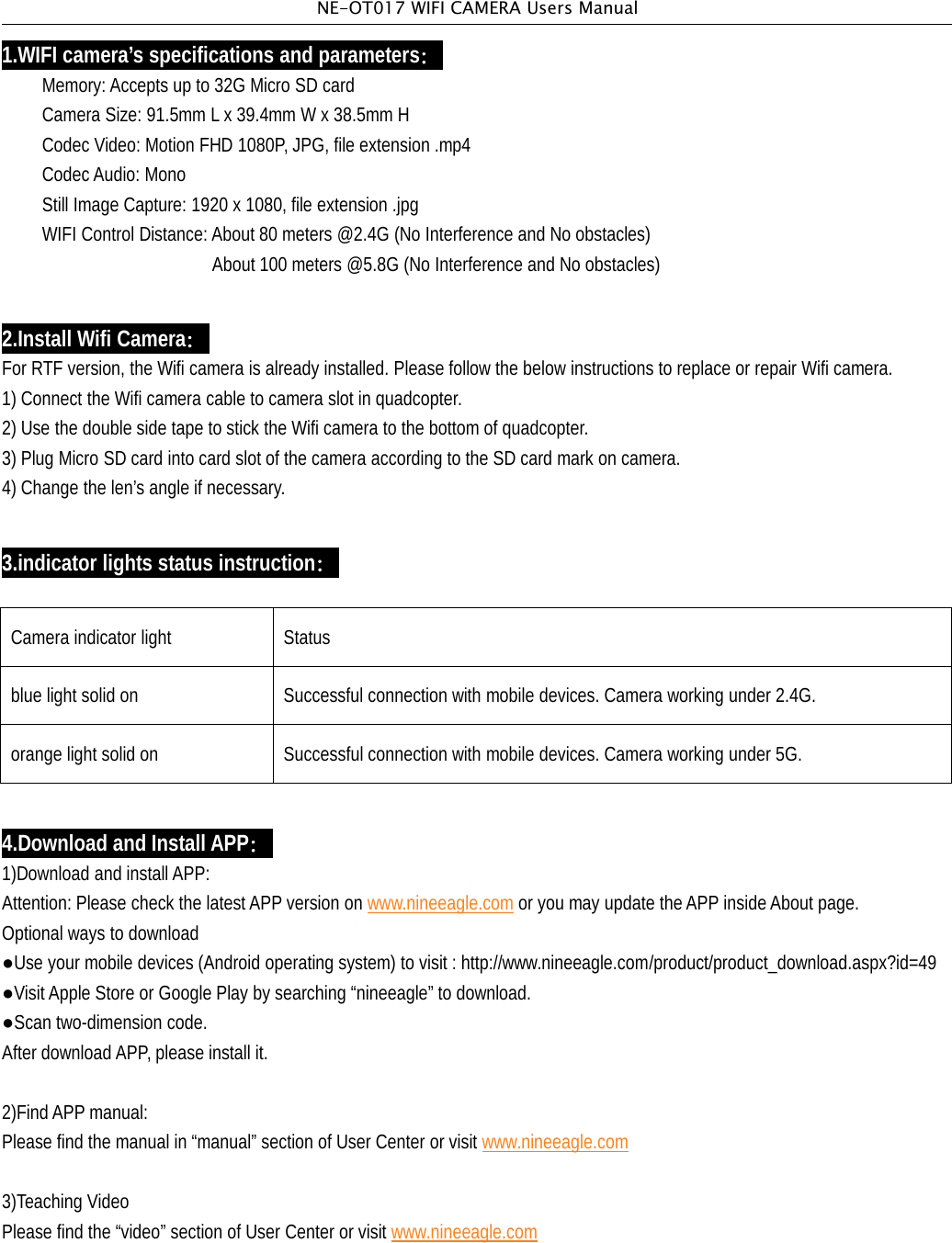
NE-OT017 WIFI CAMERA Users Manual1.WIFI camera’s specifications and parameters:Memory: Accepts up to 32G Micro SD cardCamera Size: 91.5mm L x 39.4mm W x 38.5mm HCodec Video: Motion FHD 1080P, JPG, file extension .mp4CodecAudio: MonoStill Image Capture: 1920 x 1080, file extension .jpgWIFI Control Distance: About 80 meters @2.4G (No Interference and No obstacles)About 100 meters @5.8G (No Interference and No obstacles)2.Install Wifi Camera:For RTF version, the Wifi camera is already installed. Please follow the below instructions to replace or repair Wifi camera.1) Connect the Wifi camera cable to camera slot in quadcopter.2) Use the double side tape to stick the Wifi camera to the bottom of quadcopter.3) Plug Micro SD card into card slot of the camera according to the SD card mark on camera.4) Change the len’s angle if necessary.3.indicator lights status instruction:Camera indicator light Statusblue light solid on Successful connection with mobile devices. Camera working under 2.4G.orange light solid on Successful connection with mobile devices. Camera working under 5G.4.Download and Install APP:1)Download and installAPP:Attention: Please check the latestAPP version on www.nineeagle.com or you may update theAPP insideAbout page.Optional ways to download●Use your mobile devices (Android operating system) to visit : http://www.nineeagle.com/product/product_download.aspx?id=49●VisitApple Store or Google Play by searching “nineeagle” to download.●Scan two-dimension code.After download APP, please install it.2)Find APP manual:Please find the manual in “manual” section of User Center or visit www.nineeagle.com3)Teaching VideoPlease find the “video” section of User Center or visit www.nineeagle.com
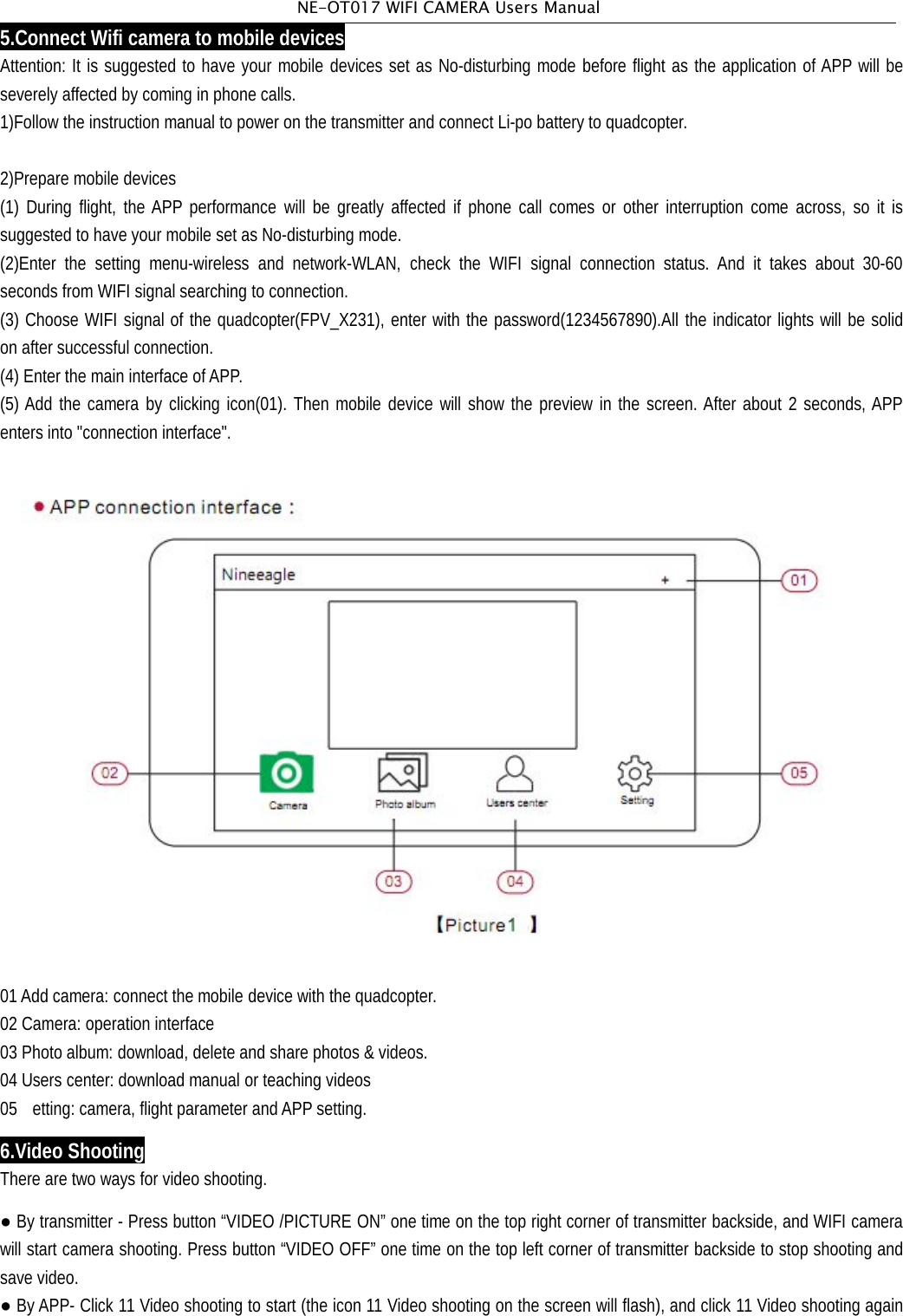
NE-OT017 WIFI CAMERA Users Manual5.Connect Wifi camera to mobile devicesAttention: It is suggested to have your mobile devices set as No-disturbing mode before flight as the application of APP will beseverely affected by coming in phone calls.1)Follow the instruction manual to power on the transmitter and connect Li-po battery to quadcopter.2)Prepare mobile devices(1) During flight, the APP performance will be greatly affected if phone call comes or other interruption come across, so it issuggested to have your mobile set as No-disturbing mode.(2)Enter the setting menu-wireless and network-WLAN, check the WIFI signal connection status. And it takes about 30-60seconds from WIFI signal searching to connection.(3) Choose WIFI signal of the quadcopter(FPV_X231), enter with the password(1234567890).All the indicator lights will be solidon after successful connection.(4) Enter the main interface of APP.(5) Add the camera by clicking icon(01). Then mobile device will show the preview in the screen. After about 2 seconds, APPenters into "connection interface".01Add camera: connect the mobile device with the quadcopter.02 Camera: operation interface03 Photo album: download, delete and share photos & videos.04 Users center: download manual or teaching videos05 etting: camera, flight parameter andAPP setting.6.Video ShootingThere are two ways for video shooting.●By transmitter - Press button “VIDEO /PICTURE ON” one time on the top right corner of transmitter backside, and WIFI camerawill start camera shooting. Press button “VIDEO OFF” one time on the top left corner of transmitter backside to stop shooting andsave video.●By APP- Click 11 Video shooting to start (the icon 11 Video shooting on the screen will flash), and click 11 Video shooting again
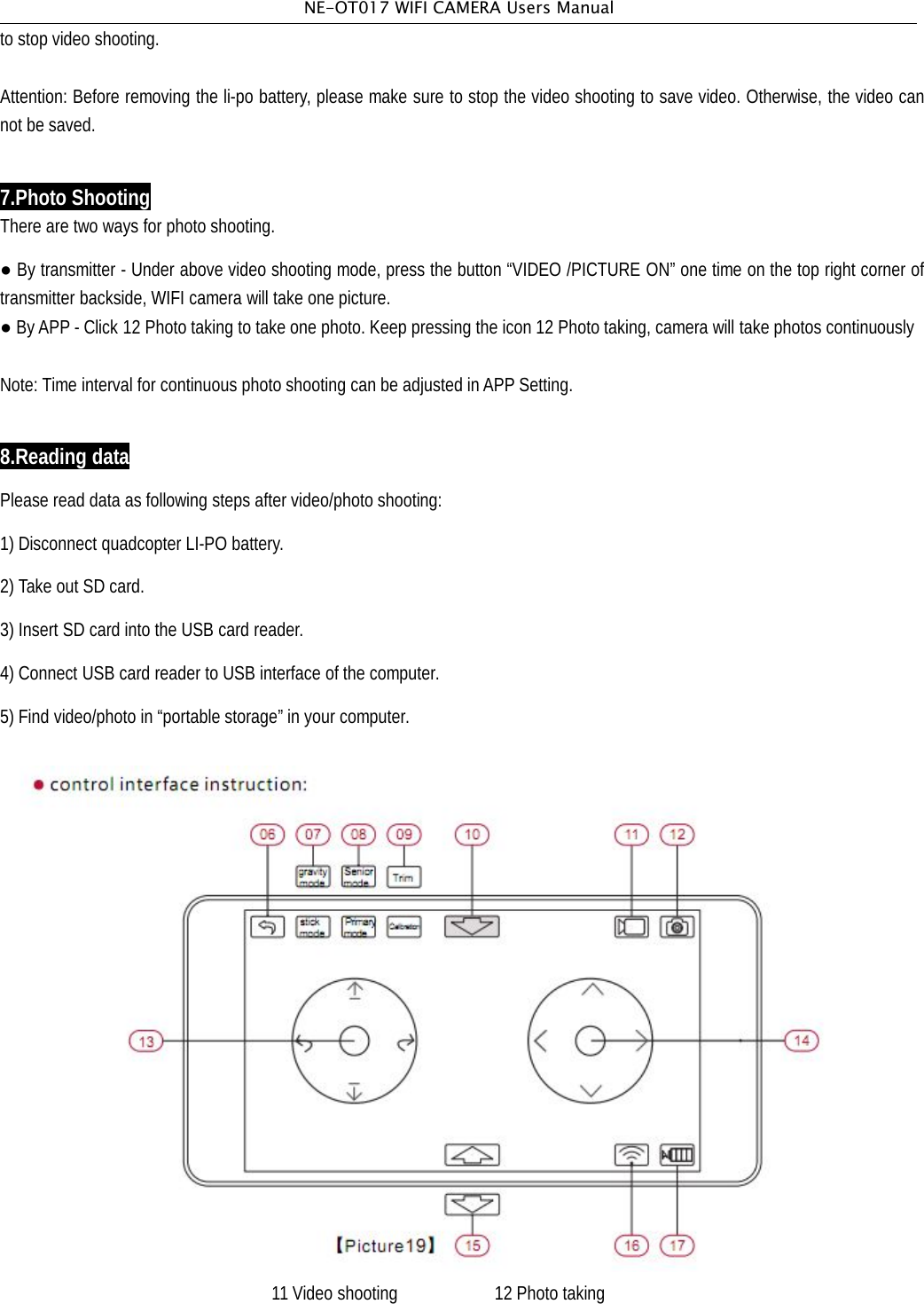
NE-OT017 WIFI CAMERA Users Manualto stop video shooting.Attention: Before removing the li-po battery, please make sure to stop the video shooting to save video. Otherwise, the video cannot be saved.7.Photo ShootingThere are two ways for photo shooting.●By transmitter - Under above video shooting mode, press the button “VIDEO /PICTURE ON” one time on the top right corner oftransmitter backside, WIFI camera will take one picture.●ByAPP - Click 12 Photo taking to take one photo. Keep pressing the icon 12 Photo taking, camera will take photos continuouslyNote: Time interval for continuous photo shooting can be adjusted in APP Setting.8.Reading dataPlease read data as following steps after video/photo shooting:1) Disconnect quadcopter LI-PO battery.2) Take out SD card.3) Insert SD card into the USB card reader.4) Connect USB card reader to USB interface of the computer.5) Find video/photo in “portable storage” in your computer.11 Video shooting 12 Photo taking
NE-OT017 WIFI CAMERA Users ManualFCC STATEMENT1. This device complies with Part 15 of the FCC Rules. Operation is subject to the following two conditions:(1) This device may not cause harmful interference.(2) This device must accept any interference received, including interference that may cause undesired operation.2. Changes or modifications not expressly approved by the party responsible for compliance could void the user's authority tooperate the equipment.NOTE: This equipment has been tested and found to comply with the limits for a Class B digital device, pursuant to Part 15 of theFCC Rules. These limits are designed to provide reasonable protection against harmful interference in a residential installation.This equipment generates uses and can radiate radio frequency energy and, if not installed and used in accordance with theinstructions, may cause harmful interference to radio communications. However, there is no guarantee that interference will notoccur in a particular installation. If this equipment does cause harmful interference to radio or television reception, which can bedetermined by turning the equipment off and on, the user is encouraged to try to correct the interference by one or more of thefollowing measures:Reorient or relocate the receiving antenna.Increase the separation between the equipment and receiver.Connect the equipment into an outlet on a circuit different from that to which the receiver is connected.Consult the dealer or an experienced radio/TV technician for help.FCC Radiation Exposure StatementThis equipment complies with FCC radiation exposure limits set forth for an uncontrolled environment. This equipment should beinstalled and operated with minimum distance 20cm between the radiator & your body

Navigation menu