Ningbo Lumiaudio Electronic Technology WSP Speaker User Manual A02 WSP 6 6S manual
Ningbo Lumiaudio Electronic Technology LTD Speaker A02 WSP 6 6S manual
User Manual

7
USER MANUAL
MULTI-ROOM MUSIC SOLUTION
Airplay Function
For iPhone, iPad and iMac smart device with ios operating system, you can use the Wi-Fi speaker with
Airplay function. Connect your device to the speaker Wi-Fi. In the pull-up menu, click Airplay and choose
the Wi-Fi speaker, then the sound can be steamed from your smart device.
WIRELESS
SPEAKER
Note: This equipment has been tested and found to comply with the limits for a Class
B digital device, pursuant to part 15 of the FCC Rules. These limits are designed to
provide reasonable protection against harmful interference in a residential installation.
This equipment generates, uses and can radiate radio frequency energy and, if not
installed and used in accordance with the instructions, may cause harmful interference
to radio communications. However, there is no guarantee that interference will not
occur in a particular installation. If this equipment does cause harmful interference to
radio or television reception, which can be determined by turning the equipment off
and on, the user is encouraged to try to correct the interference by one or more of the
following measures:
—Reorient or relocate the receiving antenna.
—Increase the separation between the equipment and receiver.
—Connect the equipment into an outlet on a circuit different from that to which the
receiver is connected.
—Consult the dealer or an experienced radio/TV technician for help.
21
Component Checklist
Specification
Wi-Fi feature:
• Built-in Wi-Fi
• Wireless standard: 802.11b/g/n
• Support online audio streaming media
• Support audio format: MP3/WMA/AAC/ACC/ACC+/ALAC/APE/WAV
Amplifier feature:
• Type: Class D(digital)
• RMS Power:2x30W/8ohm
• Power input :DC24V/2.5A
Speaker:
• Frequency response:65Hz-20KHz
• RMS power:2x30W
• Impedance:8 ohms
• Sensitivity(1w/1m):90dB
• Woofer:6.5"Kevlar woven cone
• Tweeter:0.75" Titanium dome
• Treble attenuation:+3dB/-3dB
Moun ting Ho le
Cut-Out Template
WIRELESS
SPEAKER
USER MANUAL
MULTI-ROOM MUSIC SOLUTION
Manual
Mounting Hole
Cut-Out Template Power Adaptor
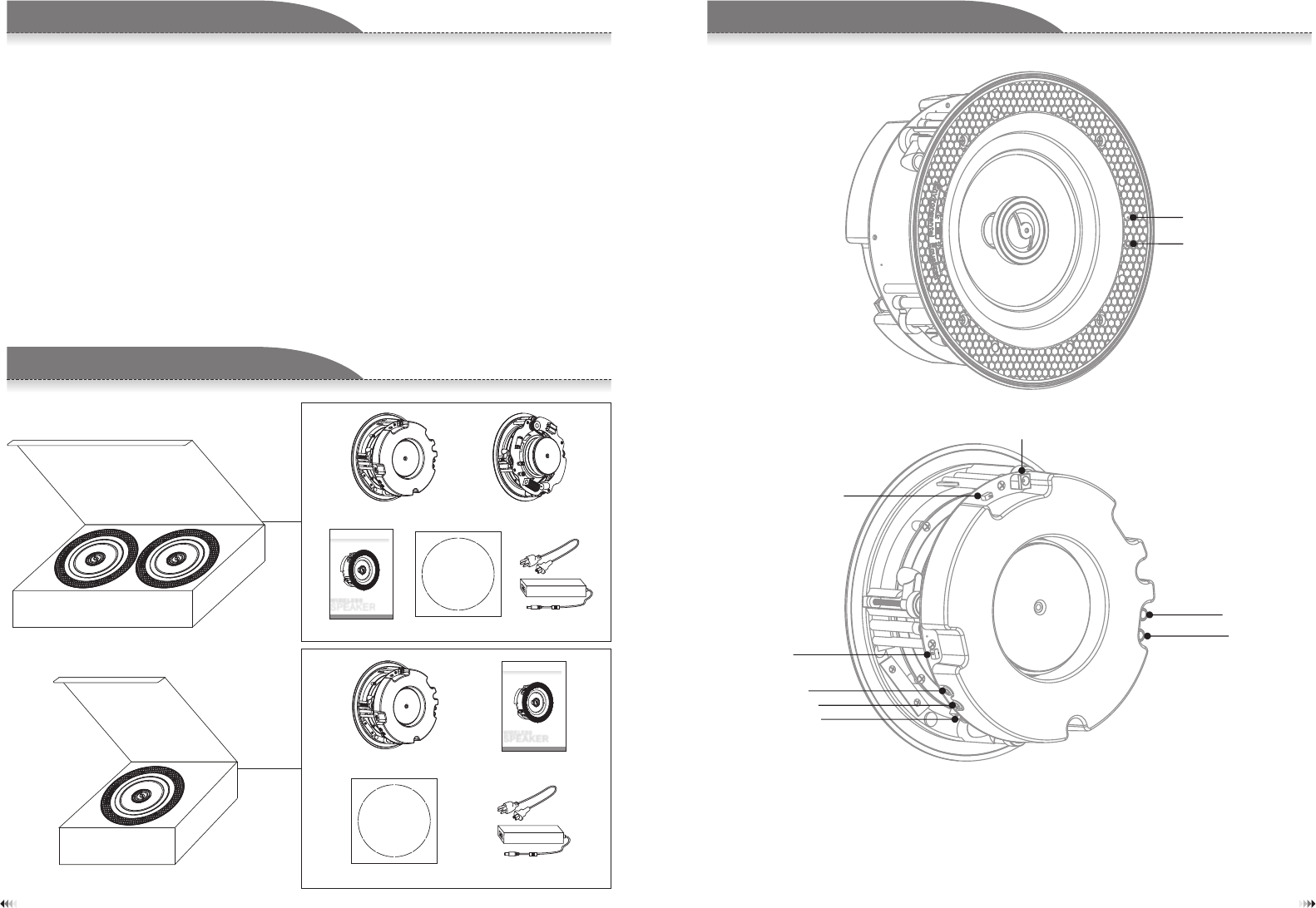
LED indicator: indicate the power, wifi and music working status.
R+(Red) R-(Black): to link passive speaker to stream stereo sound.
RCA: to connect with your home TV set.
Power input: connect with DC adaptor to offer power supply for the speaker.
WPS: the trigger to configure multi-room music network or restore the device to original default settings.
Volume_limit: slide to choose 50%/100% volume output.
Stereo/Mono: slide to choose stereo/mono mode.
Component Checklist
Parts Of The Wi-Fi Speaker
Component Checklist
Package Contents
LED indicator
WPS button
Mounting Hole
Cut- Out Temp late
WIRELESS
SPEAKER
USER MANUAL
MULTI-ROOM MUSIC SOLUTION
Wi-Fi Speaker Passive Speaker
Manual Mounting Hole
Cut-Out Template Power Adaptor
Wi-Fi Speaker
R- (Black)
R+ (Red)
Power input
RCA-(White)
RCA+(Red)
Stereo/Mono
Volume_limit
RJ45

1. Controller APP Installation
Please search "Smartsonix" to download controller app
from Google Play (Android) or Apple App Store (IOS).
Component Checklist
Controller APP Installation
Step 2 Switch the Wi-Fi function and connect your
phone to the Wi-Fi
Step 1 Connect the Wi-Fi speaker to power supply
Step 4 Enter the password of the router and click
NEXT. Please make sure the router is available in
your space.
Step 3 Start the controller APP smartsonix and
click ADD DEVICE
2. Wi-Fi Speaker testing
Before your Wi-Fi speaker is installed into ceilings, please arrange testing to make sure the device
properly works.
Step 6 Later a progress diagram comes, wait for a
few seconds, the device will be connected to your
router automatically. If fails, click RETRY and
repeat the operation of step 4 and step 5.
Step 5 Press the WPS button on the back of the
speaker to configure network and click NEXT.
Step 8 After setting, the Wi-Fi speaker will be in
the device list. If you have more than 1 Wi-Fi
speakers, add devices and name them
accordingly. After these steps, your multi-room
music network is successfully established.
Step 7 Name the device according to the room you
will install and click FINISH.
43
Wi-Fi
speaker
Step 9 Choose a device and play a song in your phone to test whether the device works. If ok, testing
finishes and you can forward the speaker installation.
3.Wi-Fi Speaker Installation
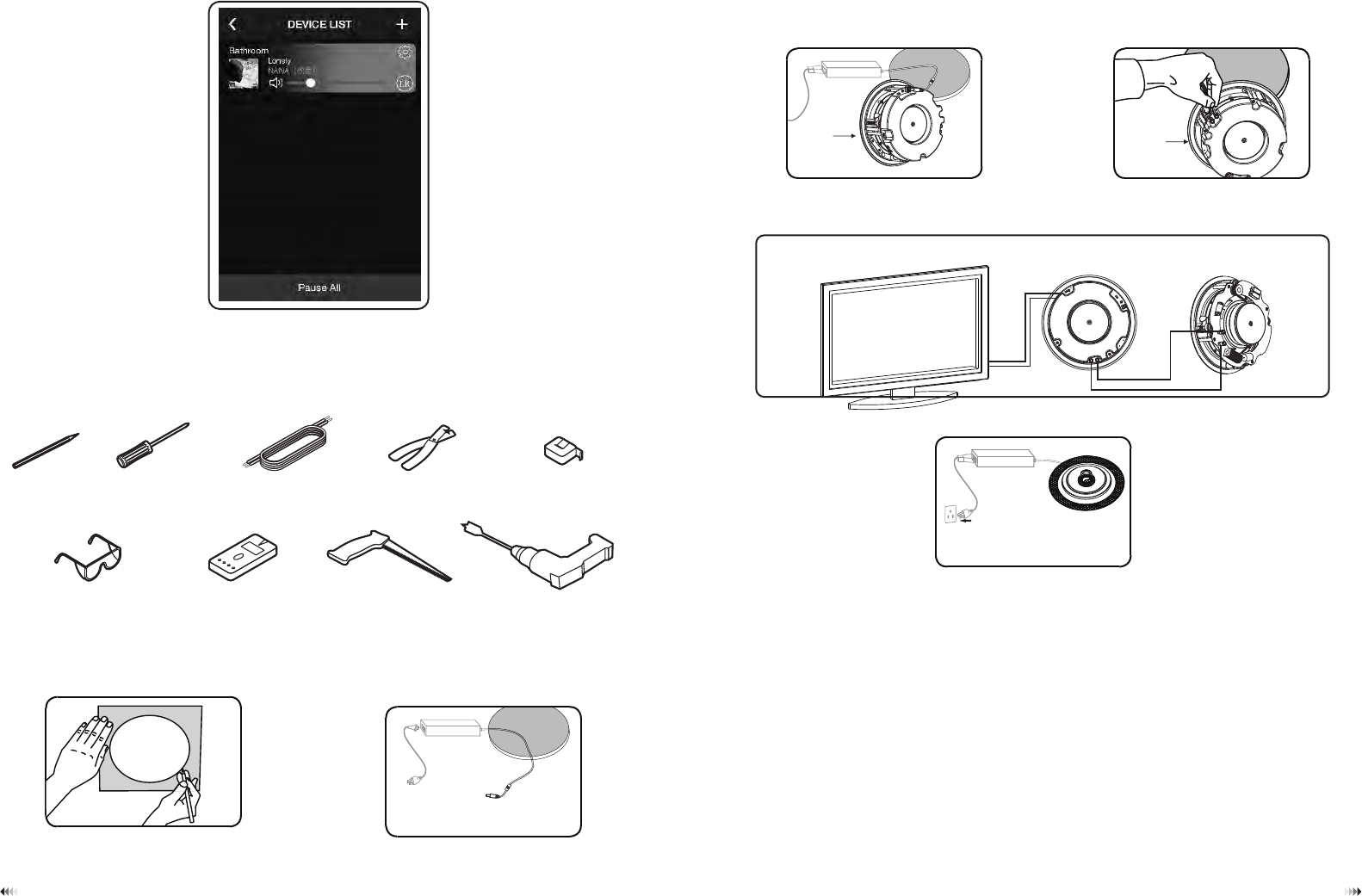
Equipment you will need:
Besides template that is included in the box, you must have a ladder and the equipment shown below to
guarantee installation go smoothly.
Step 1 Use enclosed template to mark out the cut
out, then simply cut along the line. This is the only
cut you will need to make.
Step 3 Connect the jack of DC adaptor to the Wi-Fi
speaker and install the speaker into ceiling. The
installed place should be in accordance with the
room you have set in the controller APP.
Installation dimension: Φ 210 mm
Installation depth: >102mm
65
Step 2 Place the DC adaptor in a suitable place in
your wall or ceiling, leave the plug end and jack
end. During speaker installation, please make
sure the adaptor is cut out from power supply.
Step 4 To enjoy stereo sound and achieve better
sound quality, you can install another passive
speaker to be paired with the Wi-Fi speaker. Lying
loudspeaker cable from passive to the R+ and R-
connectors of the Wi-Fi speaker.
Lying diagram between Wi-Fi speaker and passive speaker or home TV set.
Cables should be lain before Wi-Fi speaker installed.
Step 5 Cover the grill for the installed speaker and connect the plug of DC adaptor to the power supply.
Device Resetting
If the multi-room network fails during operation, you can press the WPS button to restore the speaker to its
original factory default settings.
Uninstall the Wi-Fi speaker from ceiling and press the WPS button for around 5 seconds, during this
operation, make sure the speaker is power supplied.
Device Personal setting
Rename: If you found Wi-Fi speaker wrongly named after installation, you can rename the device to a
correct one.
Password: The initial password is 88888888, which can be reset in Smart Sonix App.
Wi-Fi
speaker
pencil wire cutters
stud finder
screwdriver measuring tape
cutting saw
speaker cable
protective eyewear drill
Wi-Fi
speaker
FCC Statement
Any Changes or modifications not expressly approved by the party responsible for compliance could void
the user’s authority to operate the equipment.
This device complies with part 15 of the FCC Rules. Operation is subject to the following two conditions:
(1) This device may not cause harmful interference, and
(2) This device must accept any interference received, including interference that may cause undesired operation.
FCC Radiation Exposure Statement:
This equipment complies with FCC radiation exposure limits set forth for an uncontrolled environment .
This equipment should be installed and operated with minimum distance 20cm between the radiator& your body.