Noblex Argentina N451 Smart Phone User Manual UserManual

Noblex Argentina S.A. Smart Phone UserManual

UserManual.pdf

                                         1          Android Platform to introduce and use of guidance                                      April 2015                     Version 4.4.2
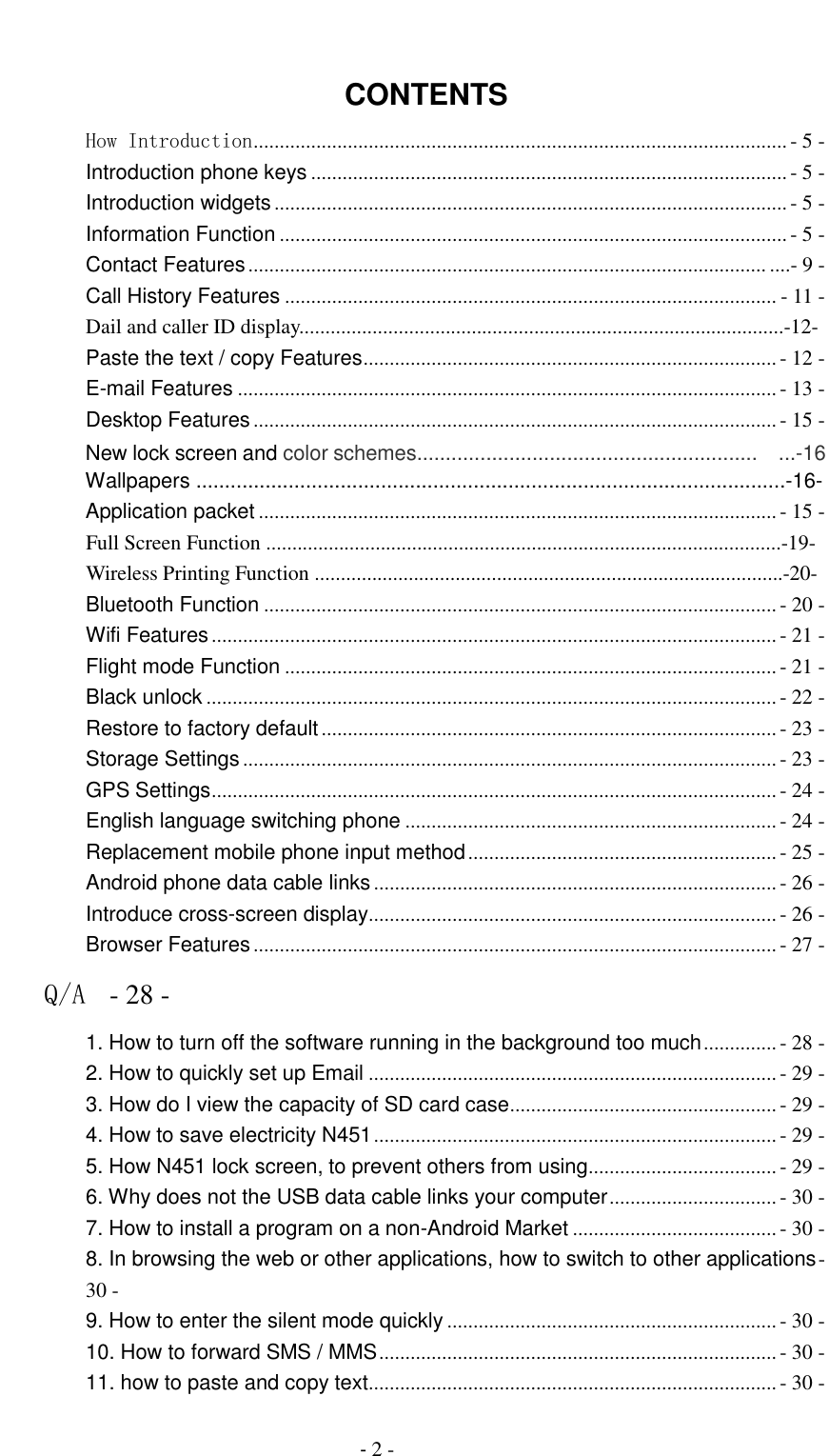
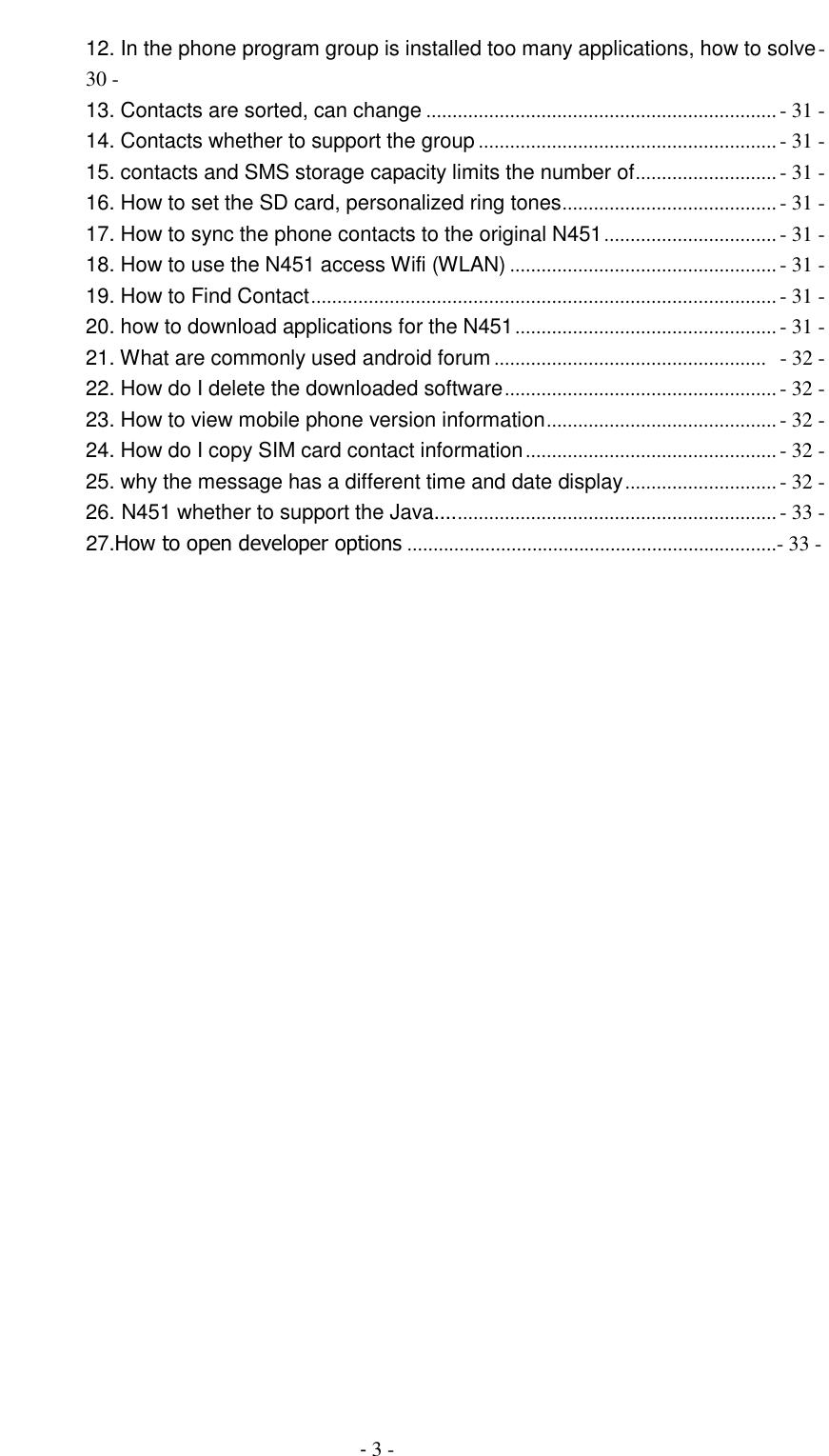
                                         - 2 -  CONTENTS How Introduction ...................................................................................................... - 5 - Introduction phone keys ........................................................................................... - 5 - Introduction widgets .................................................................................................. - 5 - Information Function ................................................................................................. - 5 - Contact Features ................................................................................................... ....- 9 - Call History Features .............................................................................................. - 11 -                 Dail and caller ID display.............................................................................................-12- Paste the text / copy Features ............................................................................... - 12 - E-mail Features ....................................................................................................... - 13 - Desktop Features .................................................................................................... - 15 -                 New lock screen and color schemes...........................................................  ...-16                 Wallpapers ......................................................................................................-16-                 Application packet ................................................................................................... - 15 -                 Full Screen Function ...................................................................................................-19-                 Wireless Printing Function ..........................................................................................-20-         Bluetooth Function .................................................................................................. - 20 - Wifi Features ............................................................................................................ - 21 - Flight mode Function .............................................................................................. - 21 - Black unlock ............................................................................................................. - 22 - Restore to factory default ....................................................................................... - 23 - Storage Settings ...................................................................................................... - 23 - GPS Settings ............................................................................................................ - 24 - English language switching phone ....................................................................... - 24 - Replacement mobile phone input method ........................................................... - 25 - Android phone data cable links ............................................................................. - 26 - Introduce cross-screen display .............................................................................. - 26 - Browser Features .................................................................................................... - 27 - Q/A  - 28 - 1. How to turn off the software running in the background too much .............. - 28 - 2. How to quickly set up Email .............................................................................. - 29 - 3. How do I view the capacity of SD card case ................................................... - 29 - 4. How to save electricity N451 ............................................................................. - 29 - 5. How N451 lock screen, to prevent others from using .................................... - 29 - 6. Why does not the USB data cable links your computer ................................ - 30 - 7. How to install a program on a non-Android Market ....................................... - 30 - 8. In browsing the web or other applications, how to switch to other applications - 30 - 9. How to enter the silent mode quickly ............................................................... - 30 - 10. How to forward SMS / MMS ............................................................................ - 30 - 11. how to paste and copy text .............................................................................. - 30 -
                                         - 3 - 12. In the phone program group is installed too many applications, how to solve - 30 - 13. Contacts are sorted, can change ................................................................... - 31 - 14. Contacts whether to support the group ......................................................... - 31 - 15. contacts and SMS storage capacity limits the number of ........................... - 31 - 16. How to set the SD card, personalized ring tones ......................................... - 31 - 17. How to sync the phone contacts to the original N451 ................................. - 31 - 18. How to use the N451 access Wifi (WLAN) ................................................... - 31 - 19. How to Find Contact ......................................................................................... - 31 - 20. how to download applications for the N451 .................................................. - 31 - 21. What are commonly used android forum ....................................................   - 32 - 22. How do I delete the downloaded software .................................................... - 32 - 23. How to view mobile phone version information ............................................ - 32 - 24. How do I copy SIM card contact information ................................................ - 32 - 25. why the message has a different time and date display ............................. - 32 - 26. N451 whether to support the Java.... ............................................................. - 33 -         27.How to open developer options .......................................................................- 33 -
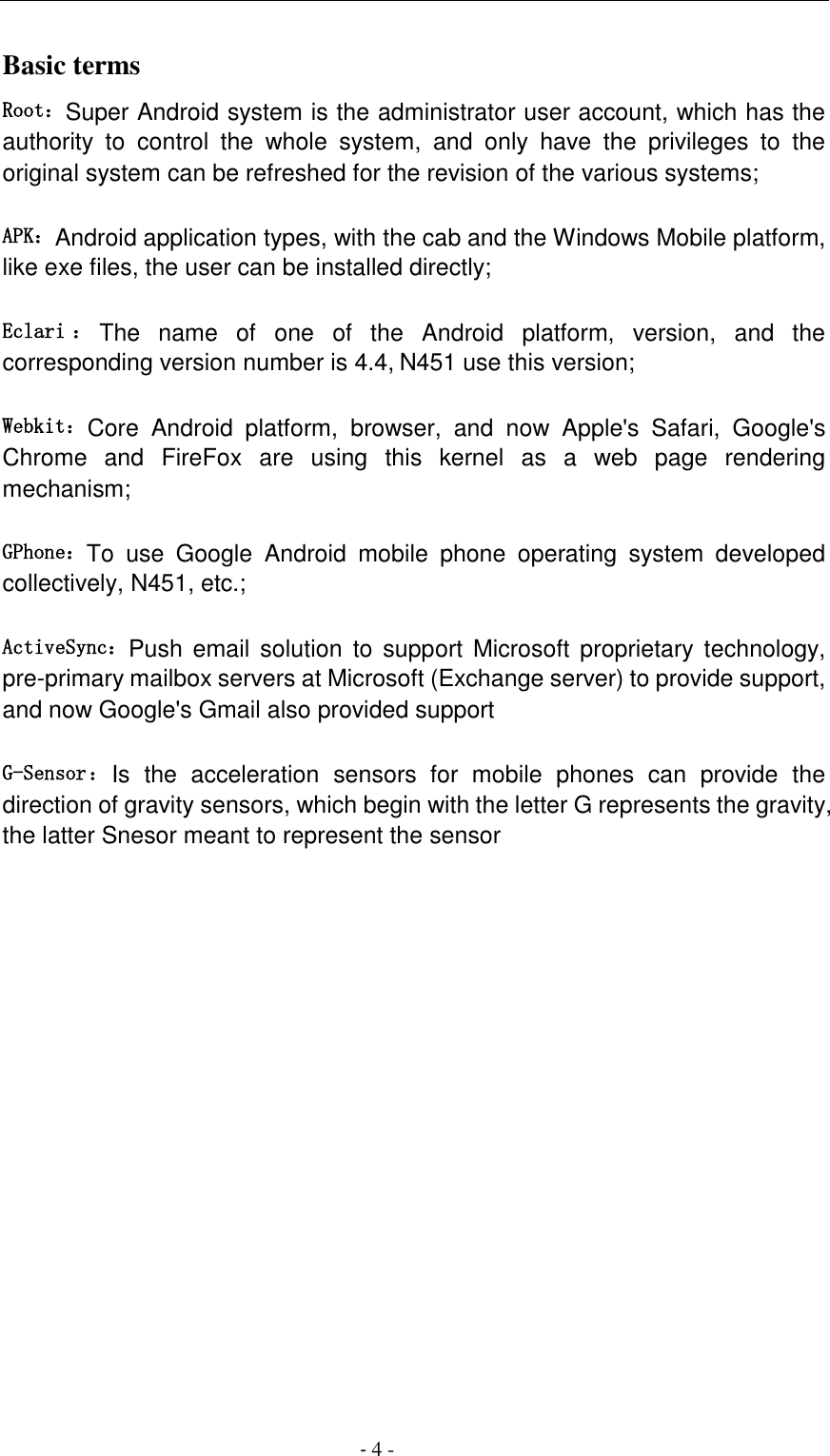
                                         - 4 - Basic terms   Root:Super Android system is the administrator user account, which has the authority  to  control  the  whole  system,  and  only  have  the  privileges  to  the original system can be refreshed for the revision of the various systems;   APK:Android application types, with the cab and the Windows Mobile platform, like exe files, the user can be installed directly;   Eclari :The  name  of  one  of  the  Android  platform,  version,  and  the corresponding version number is 4.4, N451 use this version;  Webkit:Core  Android  platform,  browser,  and  now  Apple's  Safari,  Google's Chrome  and  FireFox  are  using  this  kernel  as  a  web  page  rendering mechanism;   GPhone:To  use  Google  Android  mobile  phone  operating  system  developed collectively, N451, etc.;   ActiveSync:Push  email solution  to  support  Microsoft  proprietary technology, pre-primary mailbox servers at Microsoft (Exchange server) to provide support, and now Google's Gmail also provided support   G-Sensor:Is  the  acceleration  sensors  for  mobile  phones  can  provide  the direction of gravity sensors, which begin with the letter G represents the gravity, the latter Snesor meant to represent the sensor
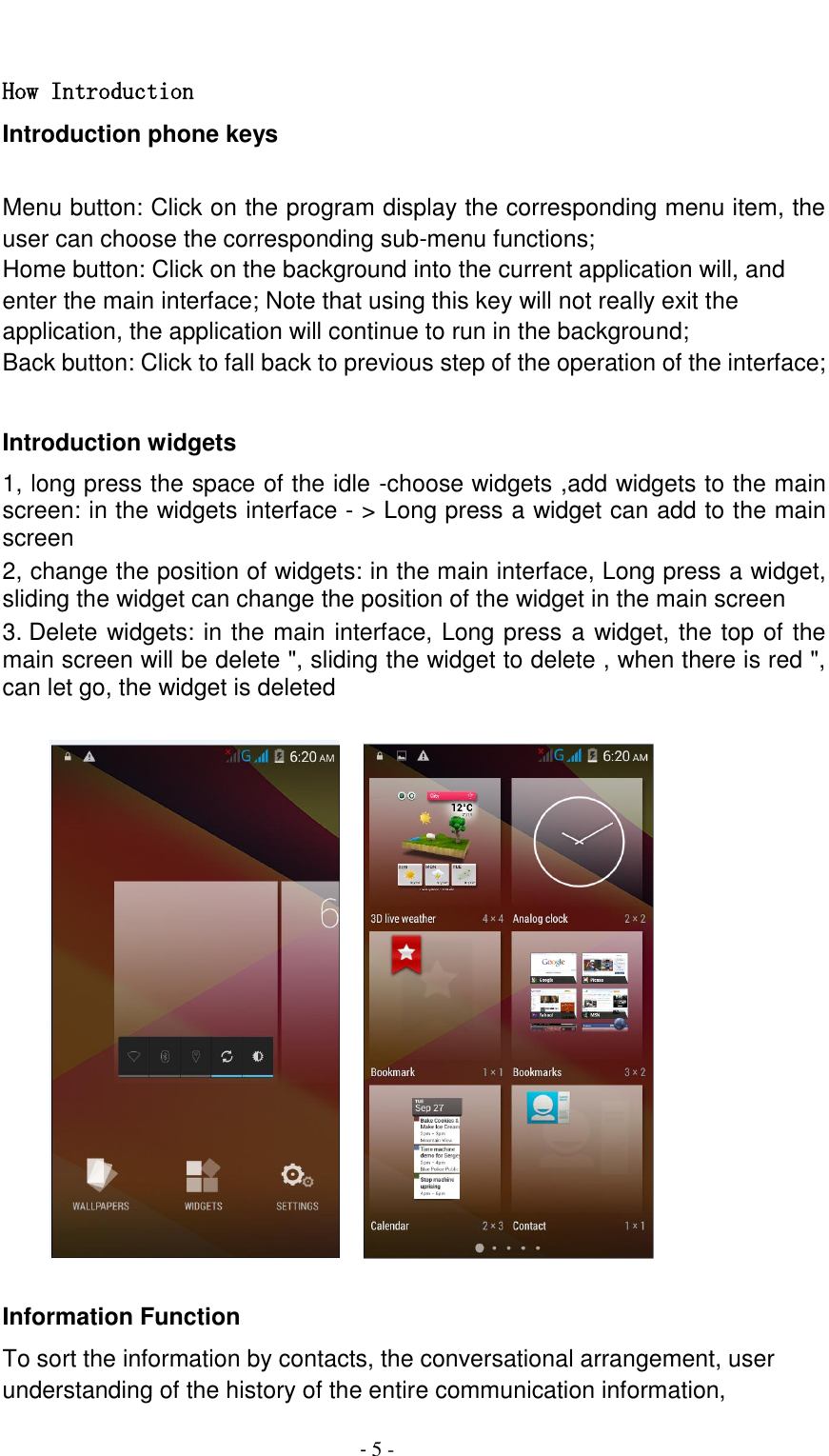
                                         - 5 -  How Introduction Introduction phone keys  Menu button: Click on the program display the corresponding menu item, the user can choose the corresponding sub-menu functions; Home button: Click on the background into the current application will, and enter the main interface; Note that using this key will not really exit the application, the application will continue to run in the background; Back button: Click to fall back to previous step of the operation of the interface;  Introduction widgets 1, long press the space of the idle -choose widgets ,add widgets to the main screen: in the widgets interface - > Long press a widget can add to the main screen 2, change the position of widgets: in the main interface, Long press a widget, sliding the widget can change the position of the widget in the main screen   3. Delete widgets: in the main interface, Long press a widget, the top of the main screen will be delete ", sliding the widget to delete , when there is red ", can let go, the widget is deleted               Information Function To sort the information by contacts, the conversational arrangement, user understanding of the history of the entire communication information,
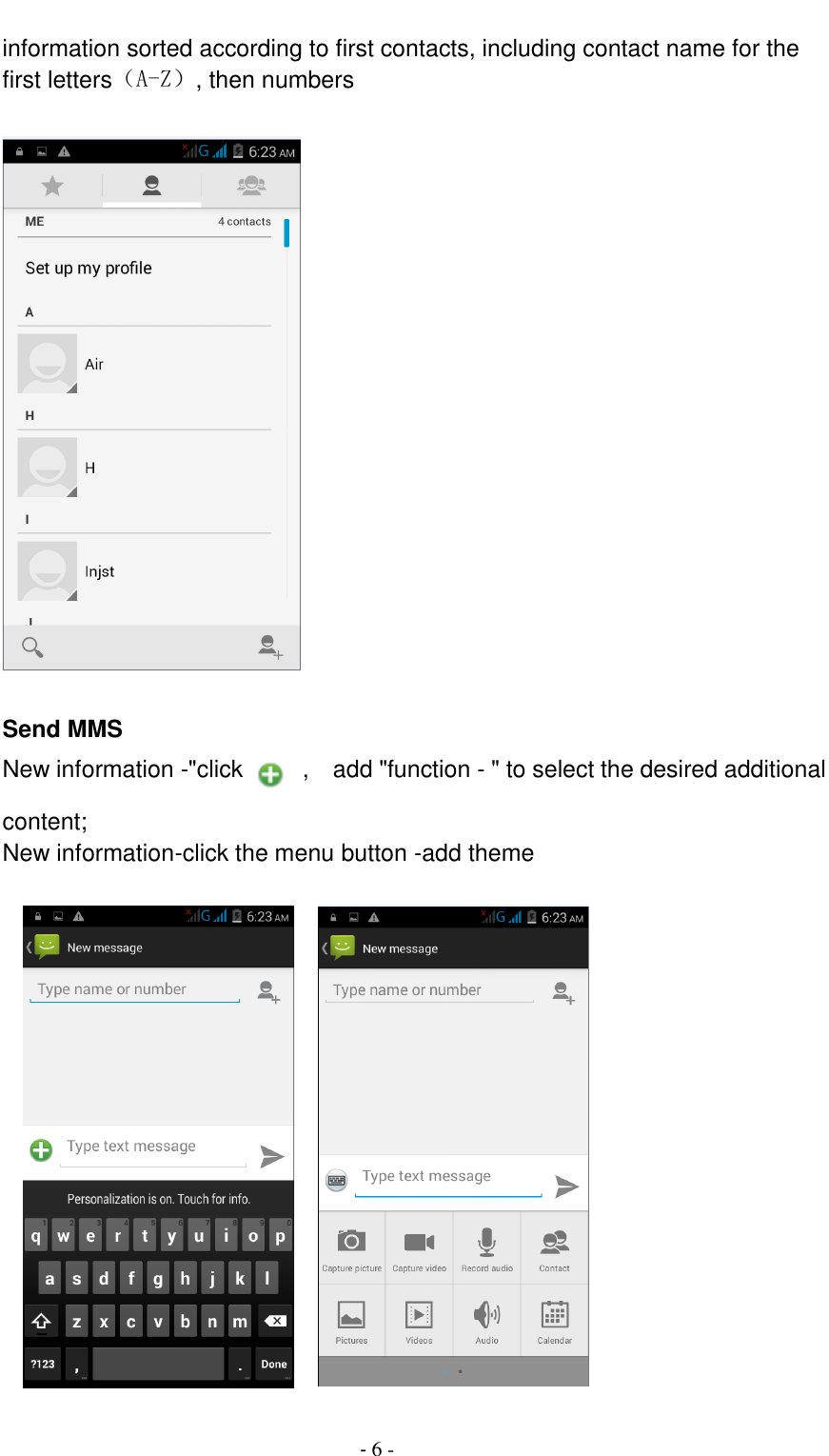
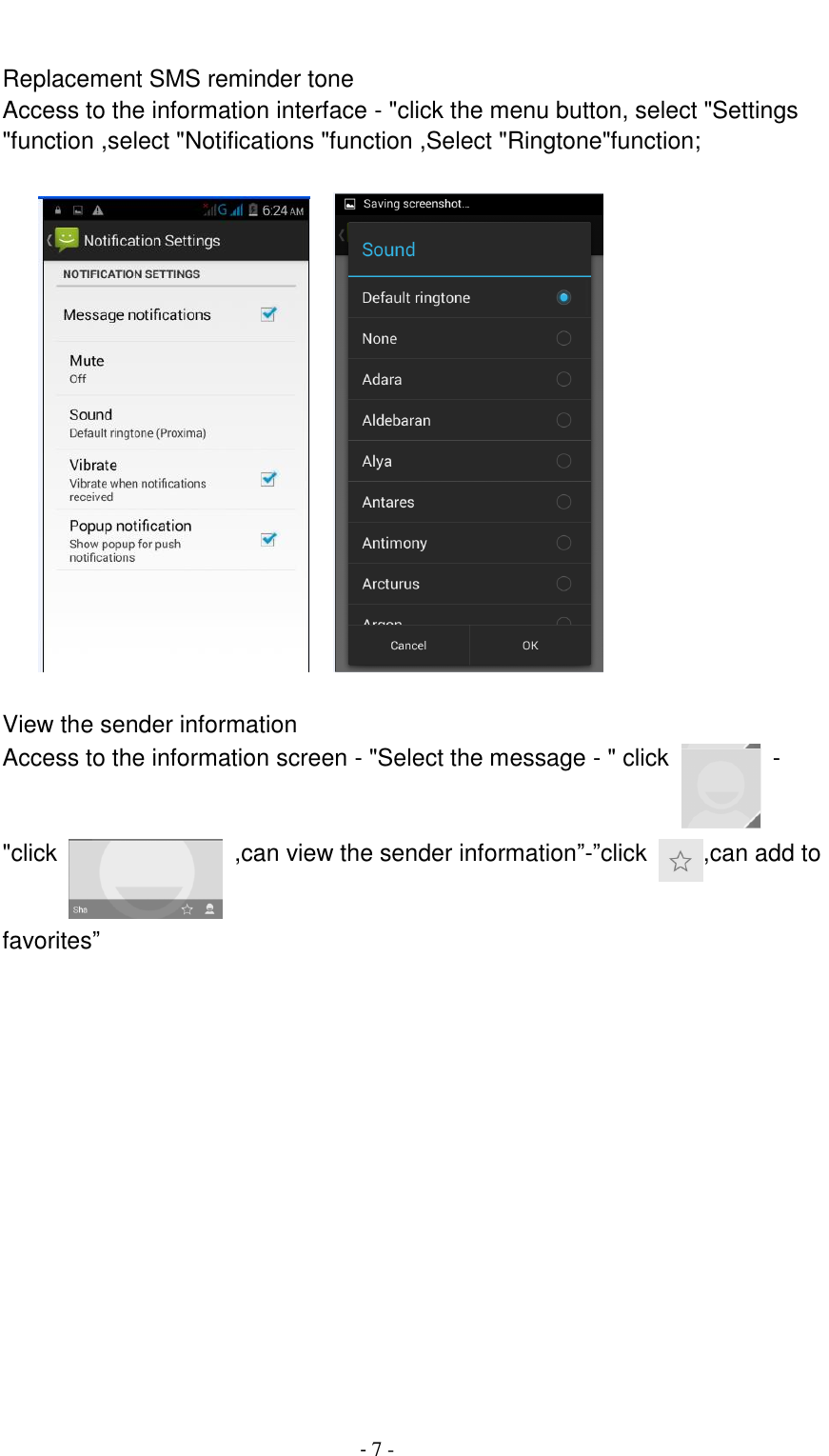
                                         - 6 - information sorted according to first contacts, including contact name for the first letters(A-Z), then numbers    Send MMS New information -"click    ,    add "function - " to select the desired additional content; New information-click the menu button -add theme
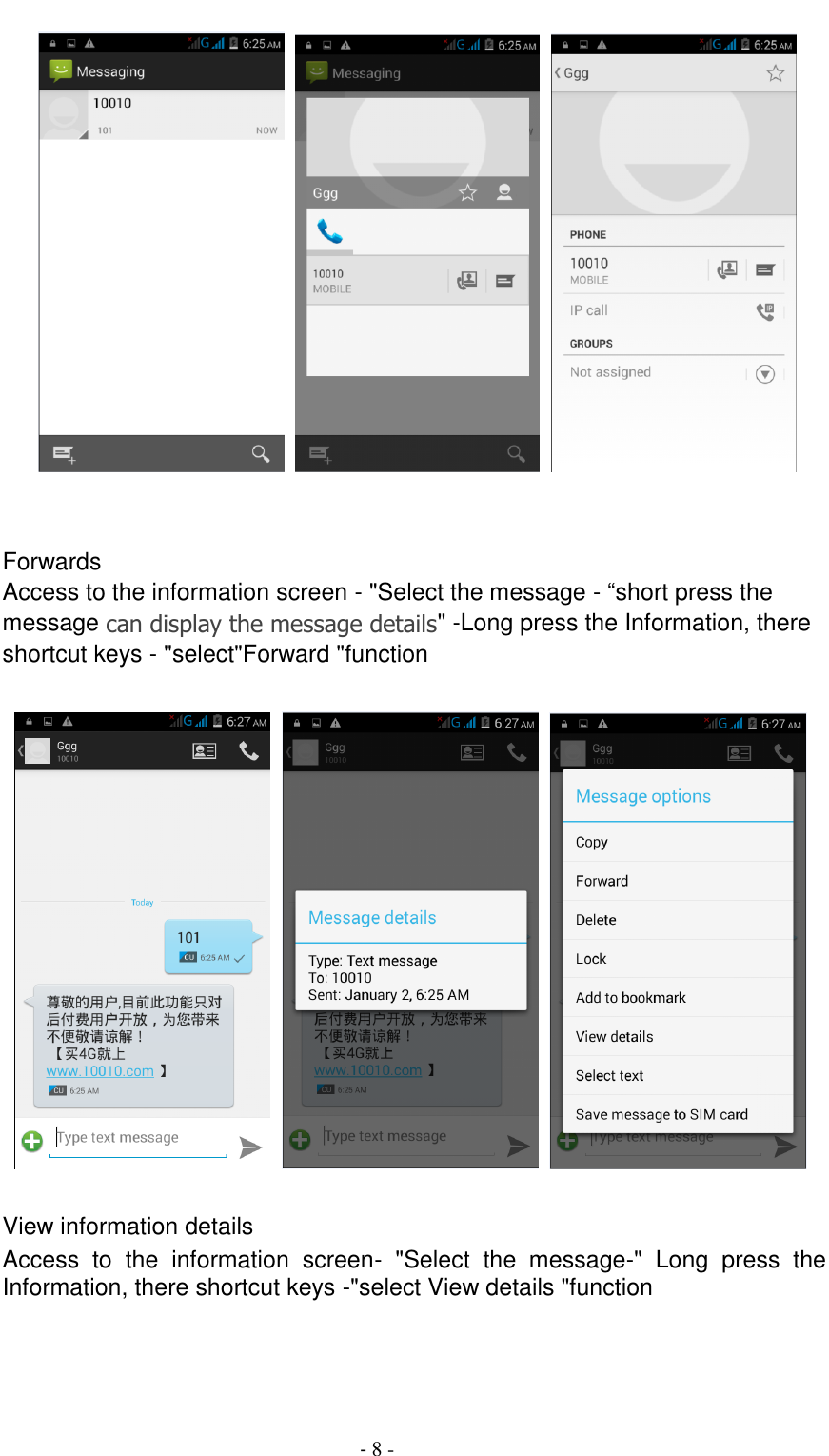
                                         - 7 -   Replacement SMS reminder tone Access to the information interface - "click the menu button, select "Settings "function ,select "Notifications "function ,Select "Ringtone"function;           View the sender information Access to the information screen - "Select the message - " click    - "click    ,can view the sender information”-”click  ,can add to favorites”
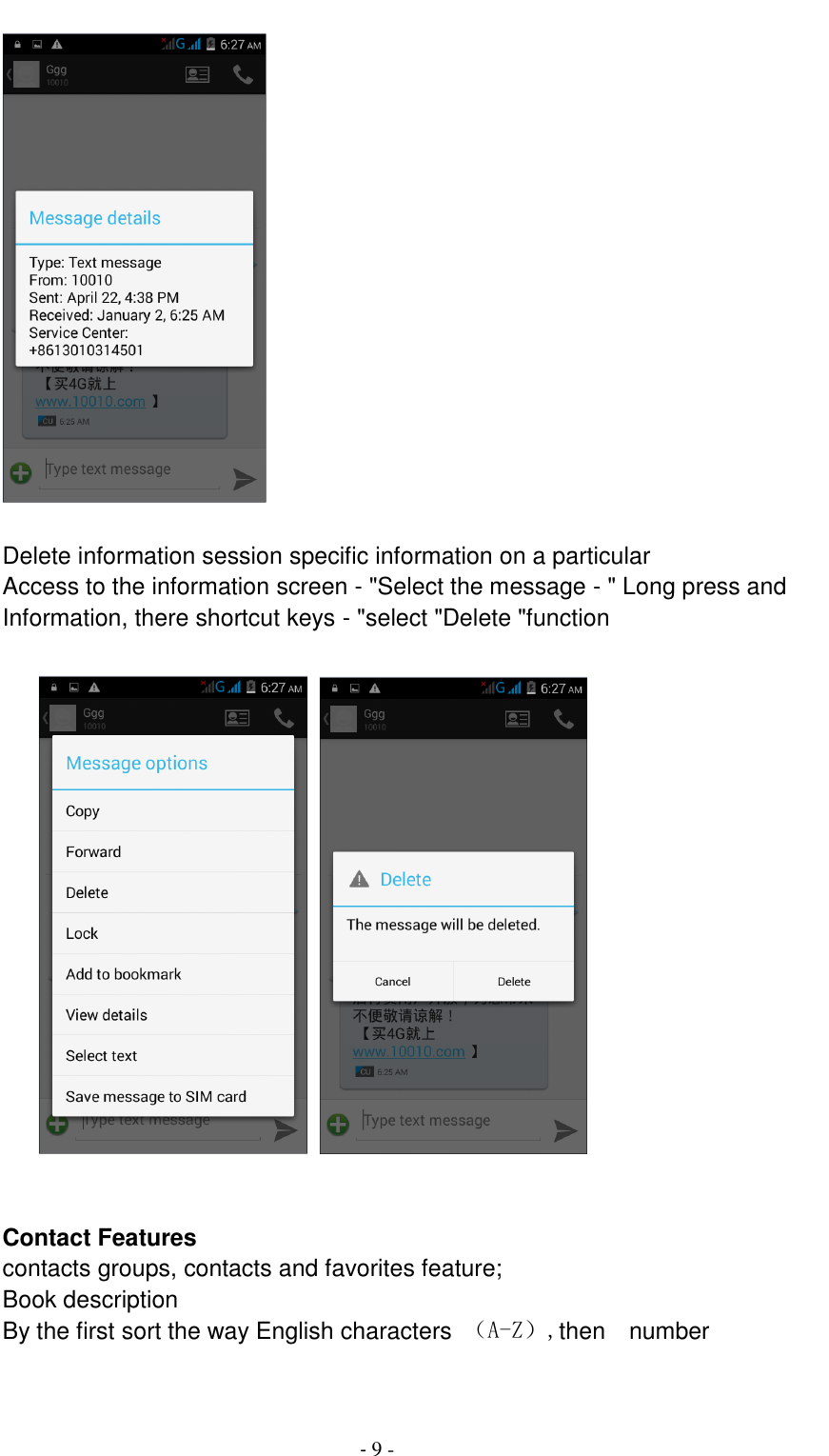
                                         - 8 -             Forwards Access to the information screen - "Select the message - “short press the message can display the message details" -Long press the Information, there shortcut keys - "select"Forward "function              View information details Access  to  the  information  screen-  "Select  the  message-"  Long  press  the Information, there shortcut keys -"select View details "function
                                         - 9 -   Delete information session specific information on a particular Access to the information screen - "Select the message - " Long press and Information, there shortcut keys - "select "Delete "function                Contact Features contacts groups, contacts and favorites feature; Book description By the first sort the way English characters  (A-Z),then    number
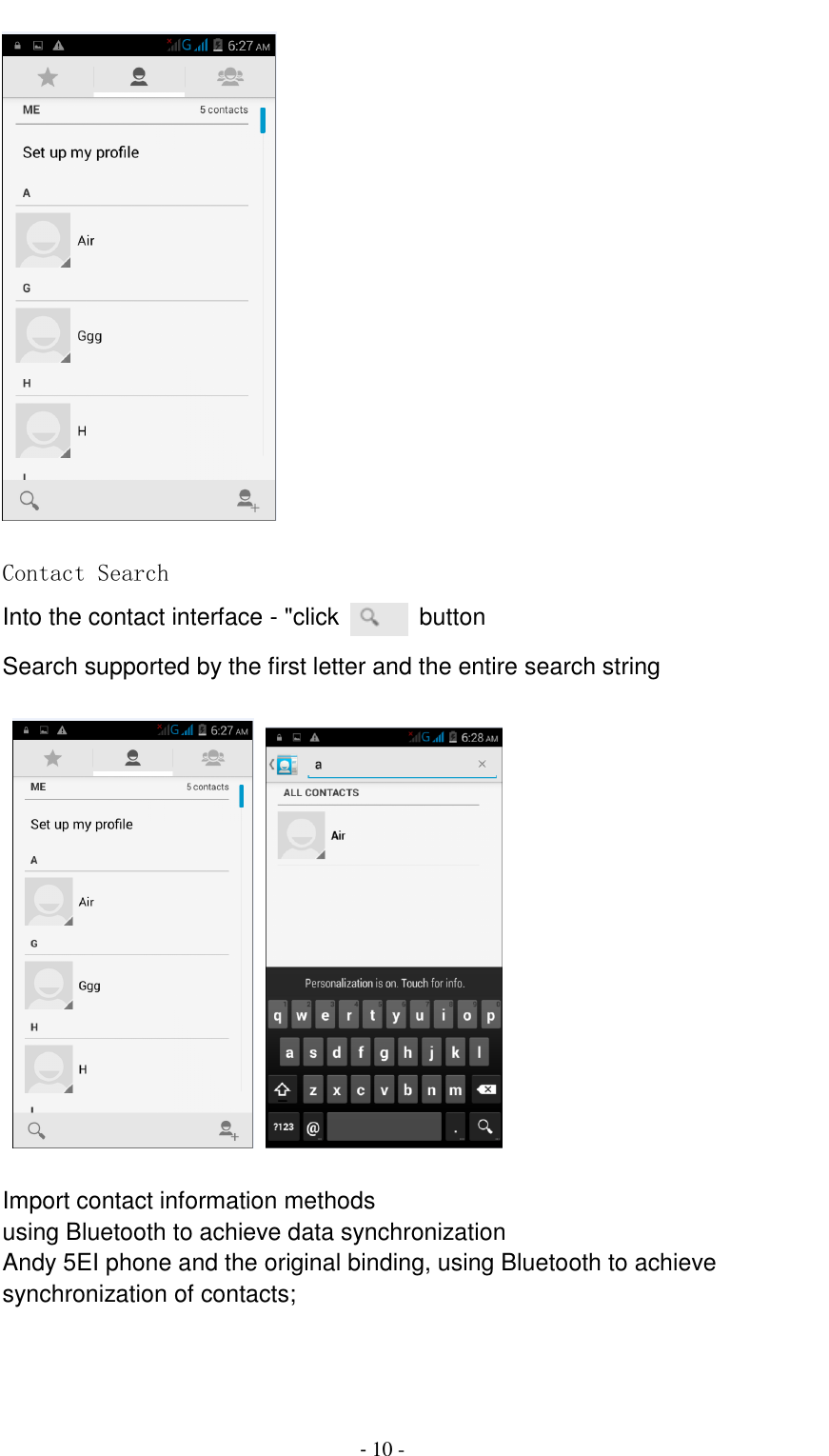
                                         - 10 -   Contact Search Into the contact interface - "click   button   Search supported by the first letter and the entire search string       Import contact information methods using Bluetooth to achieve data synchronization Andy 5EI phone and the original binding, using Bluetooth to achieve synchronization of contacts;
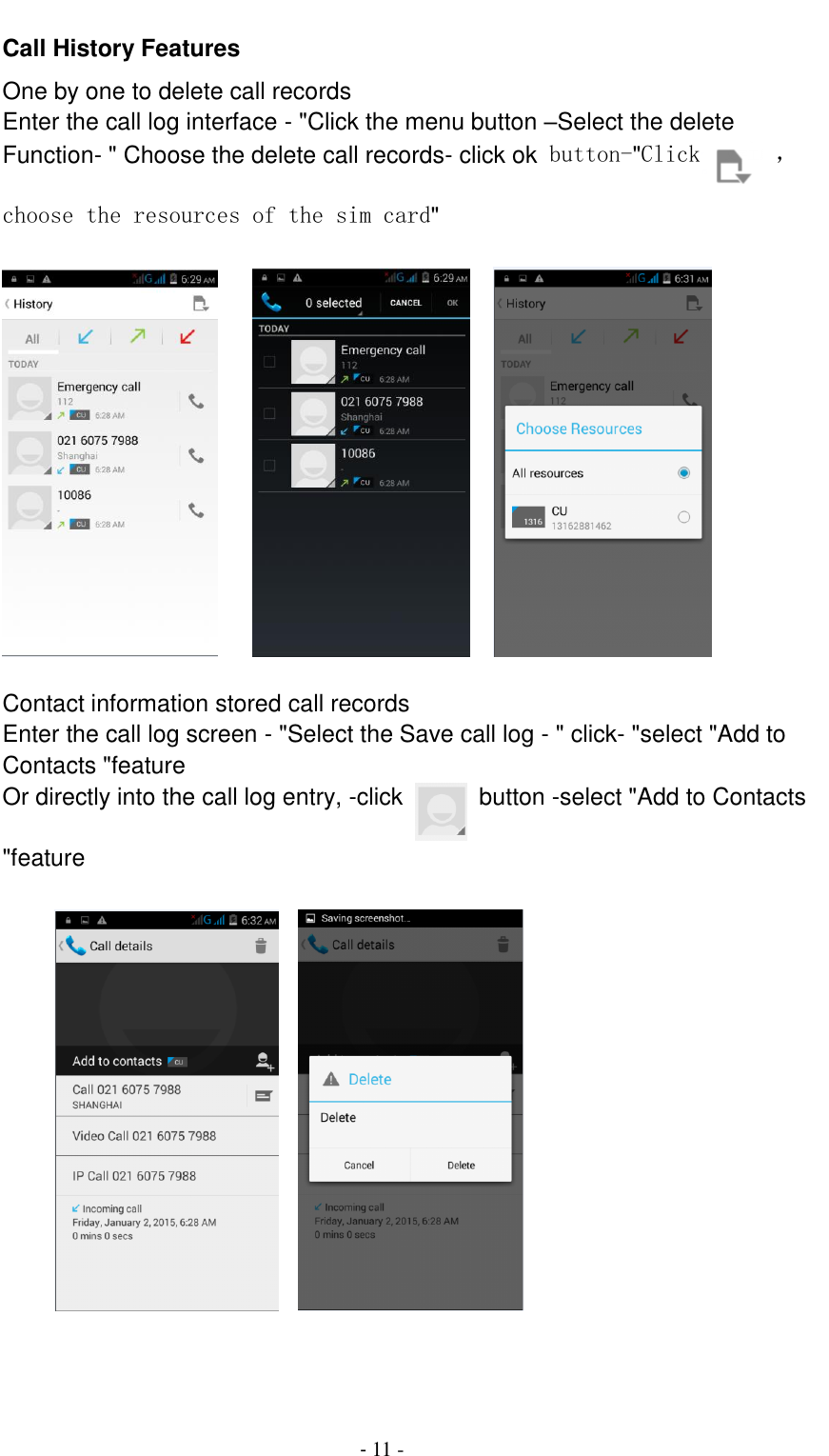
                                         - 11 - Call History Features One by one to delete call records Enter the call log interface - "Click the menu button –Select the delete Function- " Choose the delete call records- click ok button-"Click  ,choose the resources of the sim card"           Contact information stored call records Enter the call log screen - "Select the Save call log - " click- "select "Add to Contacts "feature Or directly into the call log entry, -click    button -select "Add to Contacts "feature
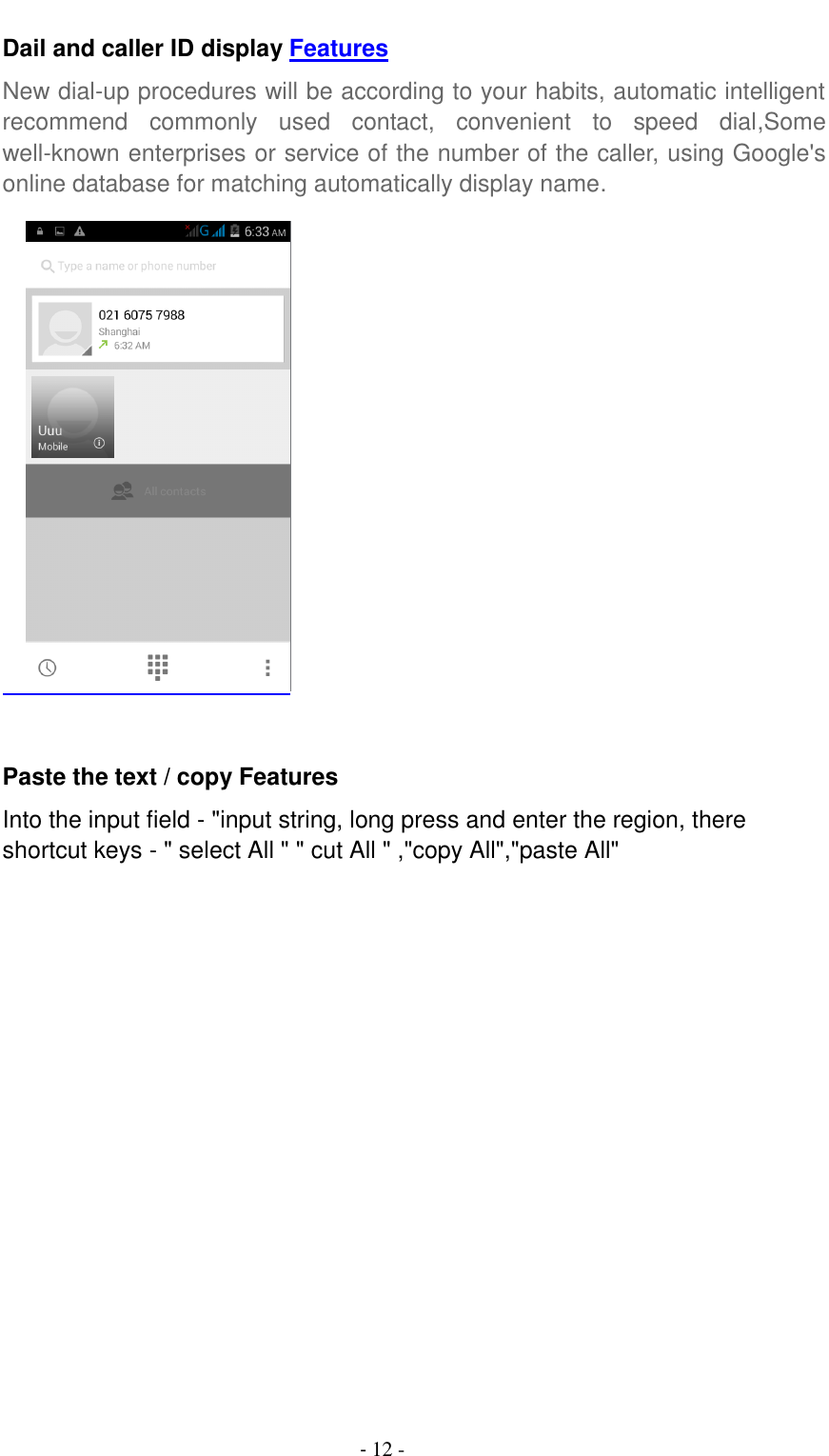
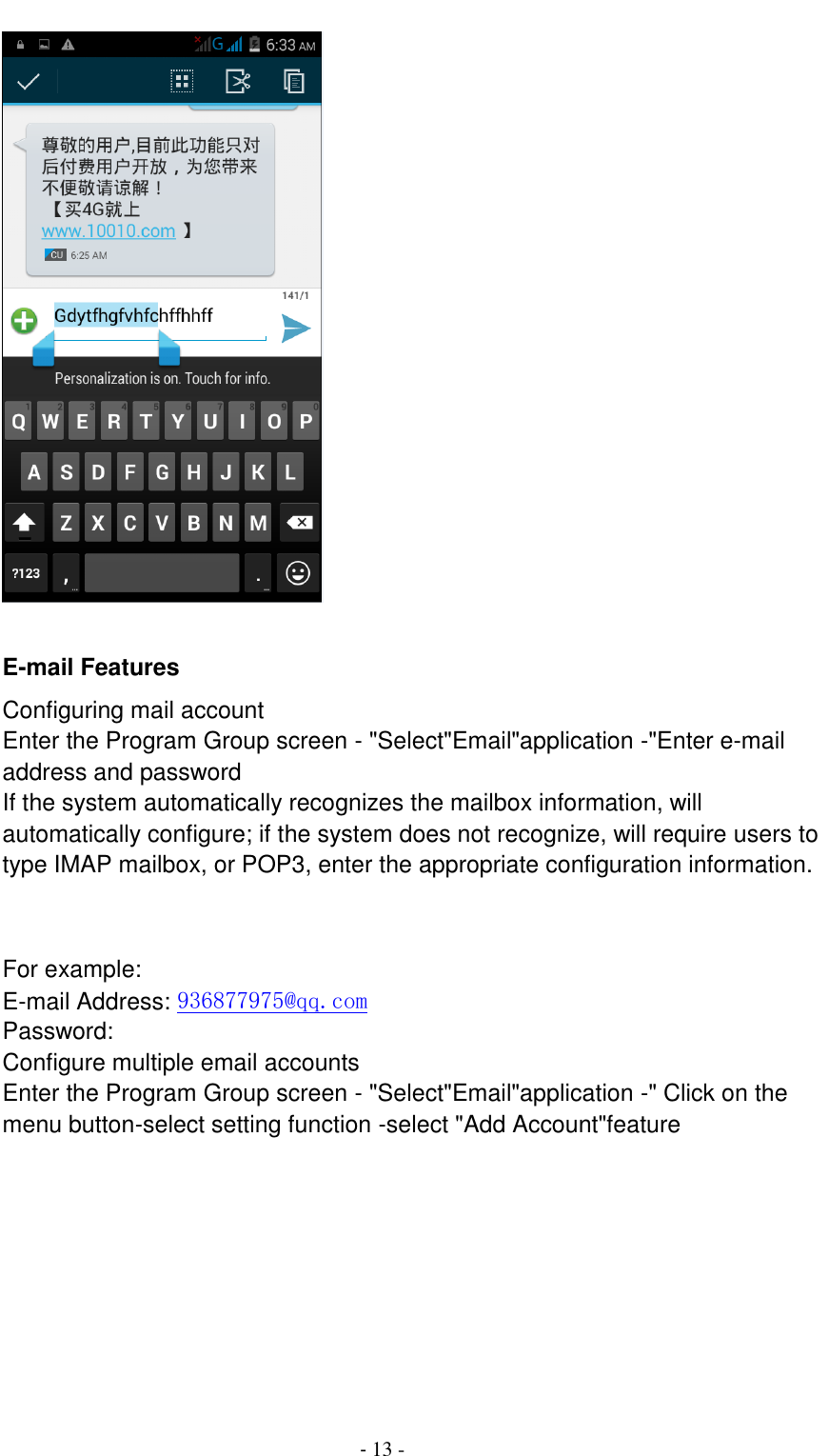
                                         - 12 - Dail and caller ID display Features New dial-up procedures will be according to your habits, automatic intelligent recommend  commonly  used  contact,  convenient  to  speed  dial,Some well-known enterprises or service of the number of the caller, using Google's online database for matching automatically display name.      Paste the text / copy Features Into the input field - "input string, long press and enter the region, there shortcut keys - " select All " " cut All " ,"copy All","paste All"
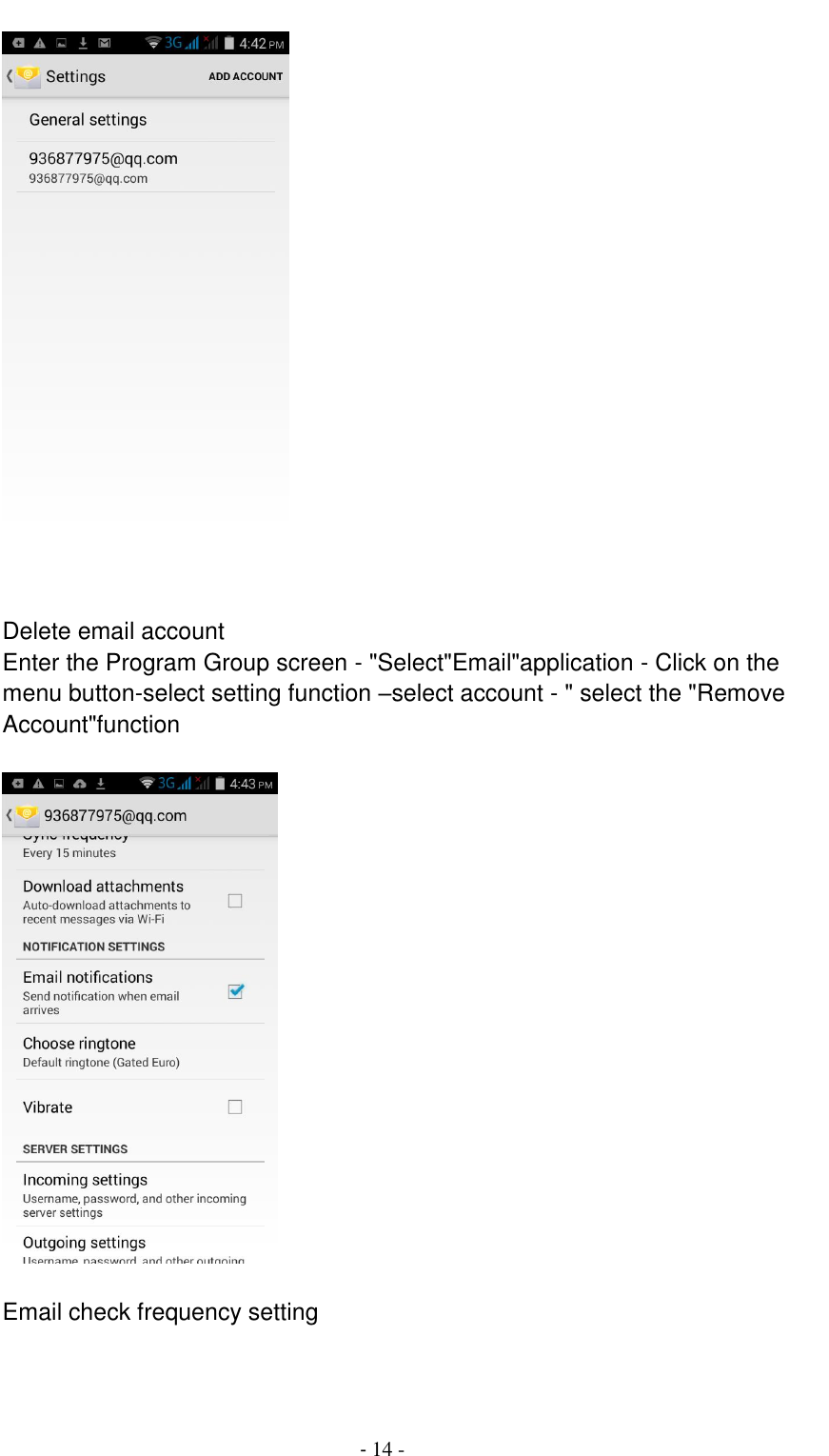
                                         - 13 -       E-mail Features Configuring mail account Enter the Program Group screen - "Select"Email"application -"Enter e-mail address and password If the system automatically recognizes the mailbox information, will automatically configure; if the system does not recognize, will require users to type IMAP mailbox, or POP3, enter the appropriate configuration information.       For example: E-mail Address: 936877975@qq.com Password: Configure multiple email accounts Enter the Program Group screen - "Select"Email"application -" Click on the menu button-select setting function -select "Add Account"feature
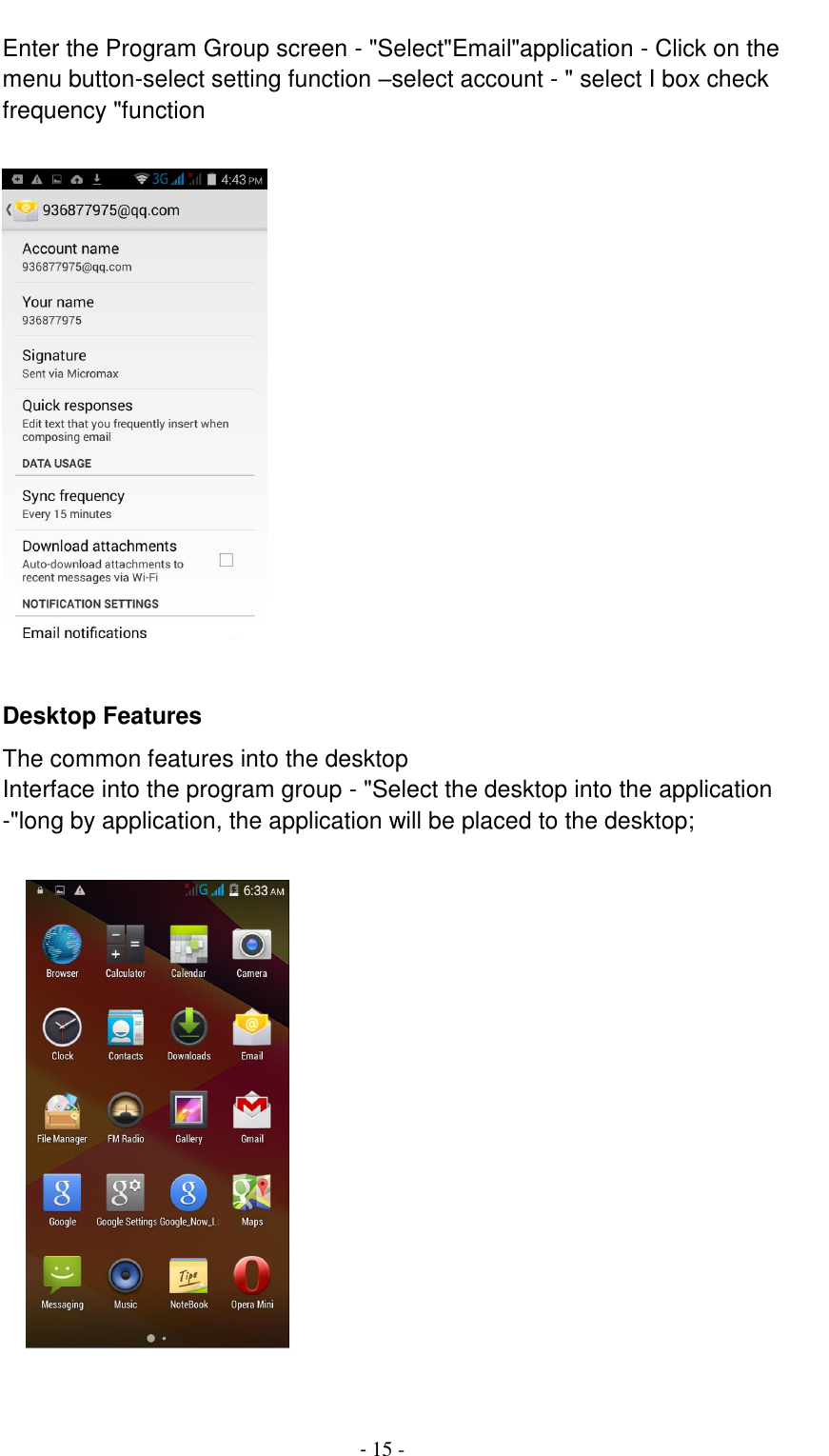
                                         - 14 -    Delete email account Enter the Program Group screen - "Select"Email"application - Click on the menu button-select setting function –select account - " select the "Remove Account"function    Email check frequency setting
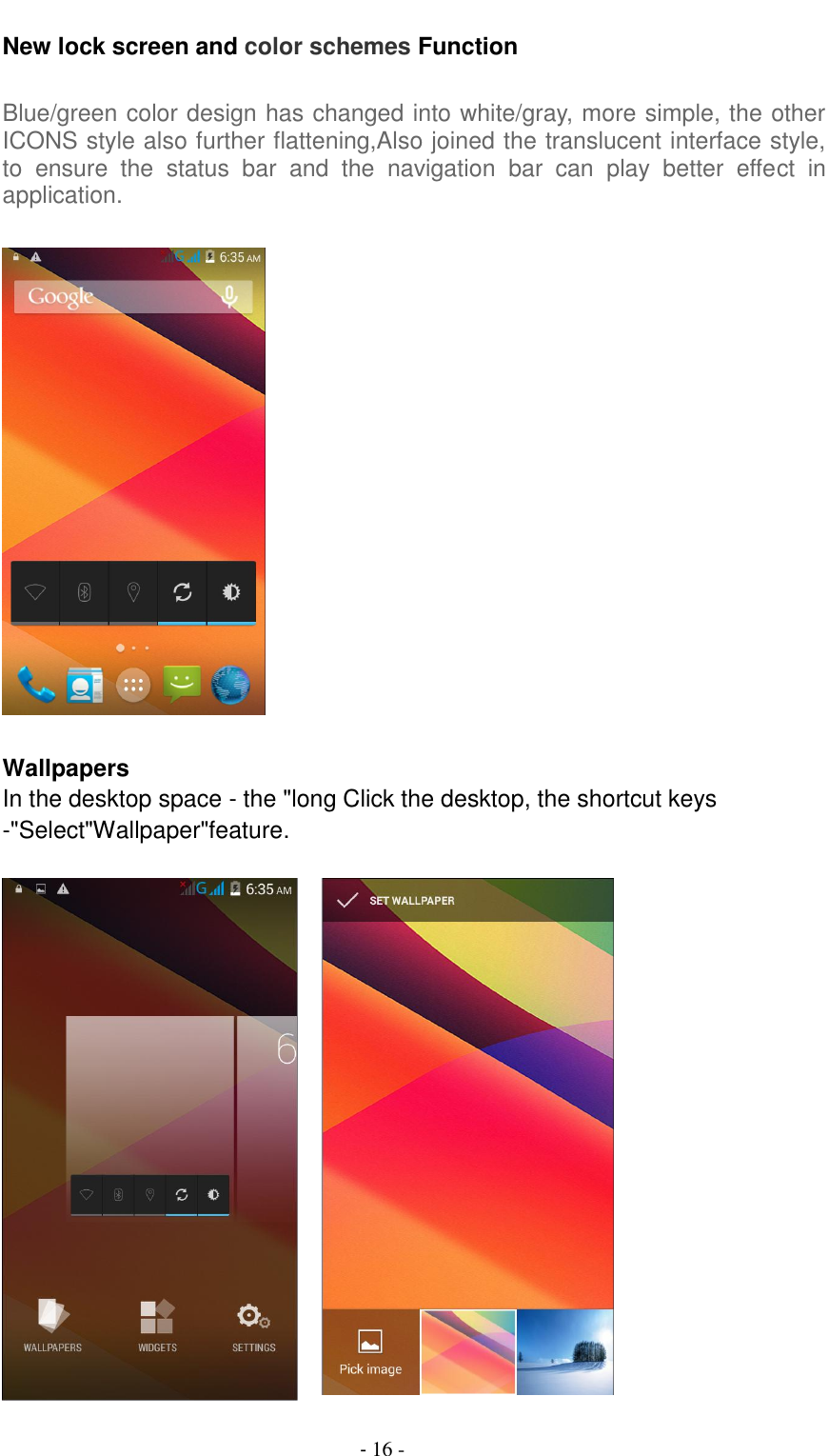
                                         - 15 - Enter the Program Group screen - "Select"Email"application - Click on the menu button-select setting function –select account - " select I box check frequency "function    Desktop Features The common features into the desktop Interface into the program group - "Select the desktop into the application -"long by application, the application will be placed to the desktop;
                                         - 16 - New lock screen and color schemes Function  Blue/green color design has changed into white/gray, more simple, the other ICONS style also further flattening,Also joined the translucent interface style, to  ensure  the  status  bar  and  the  navigation  bar  can  play  better  effect  in application.    Wallpapers In the desktop space - the "long Click the desktop, the shortcut keys -"Select"Wallpaper"feature.
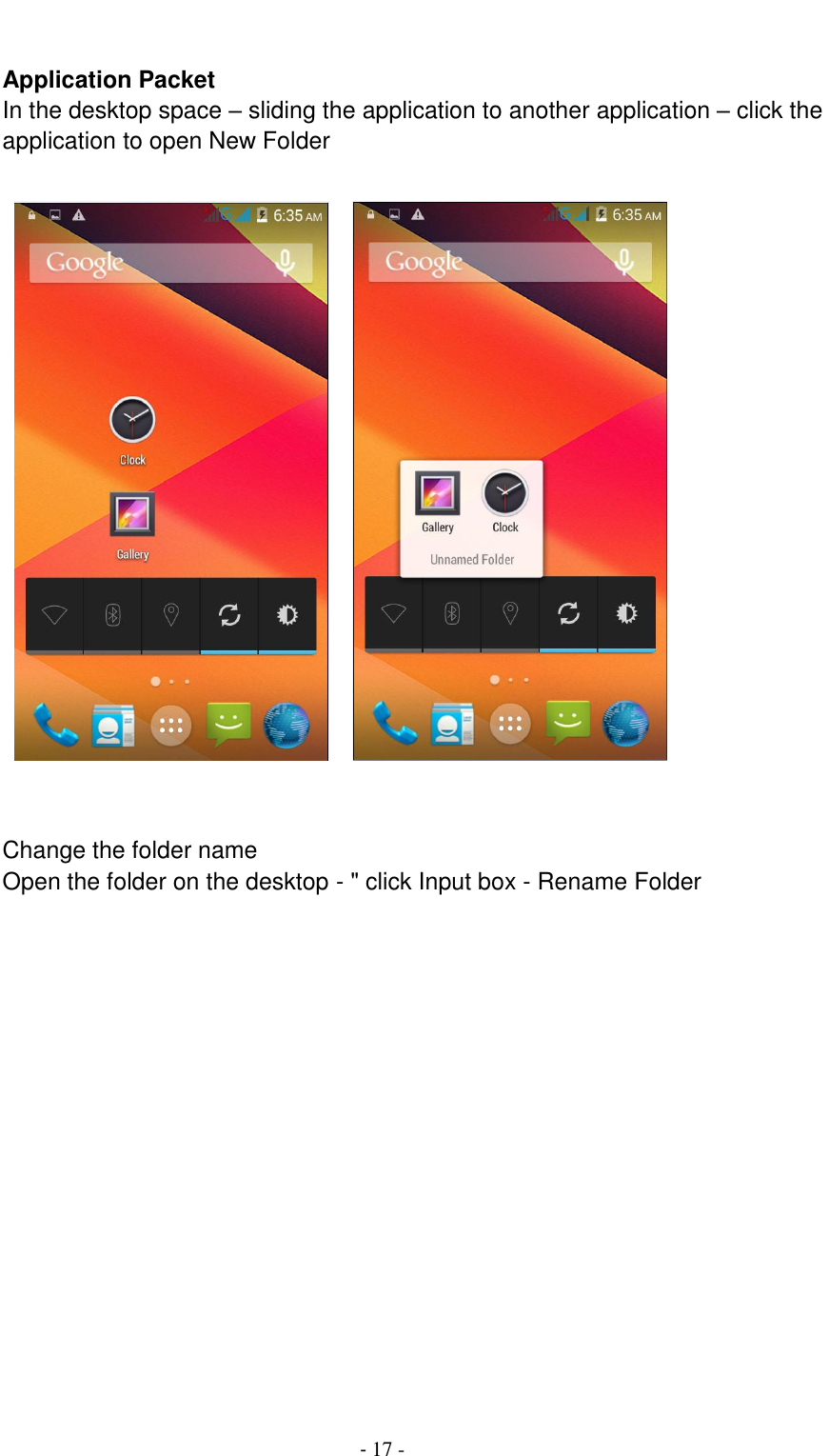
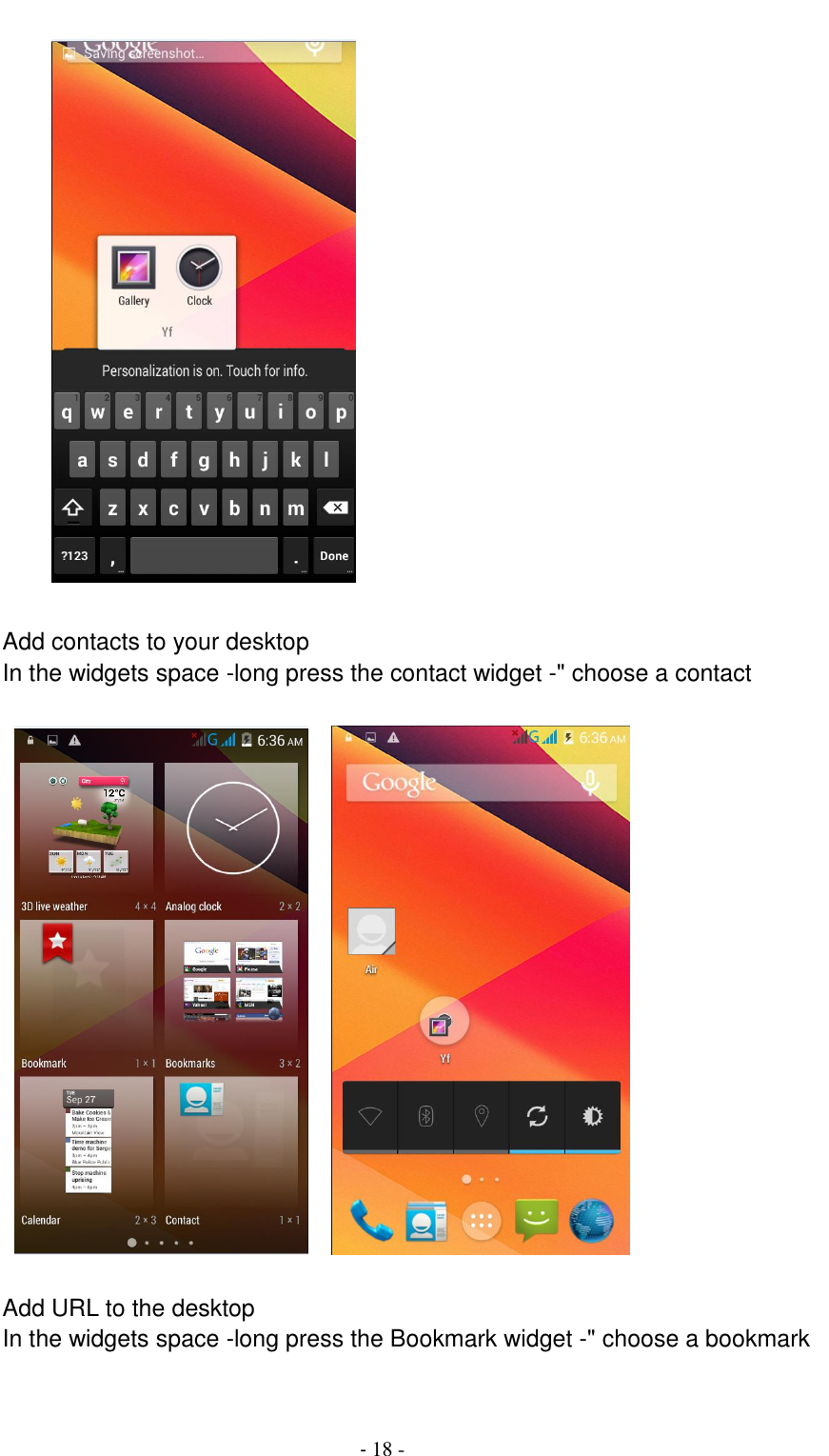
                                         - 17 -  Application Packet In the desktop space – sliding the application to another application – click the application to open New Folder               Change the folder name Open the folder on the desktop - " click Input box - Rename Folder
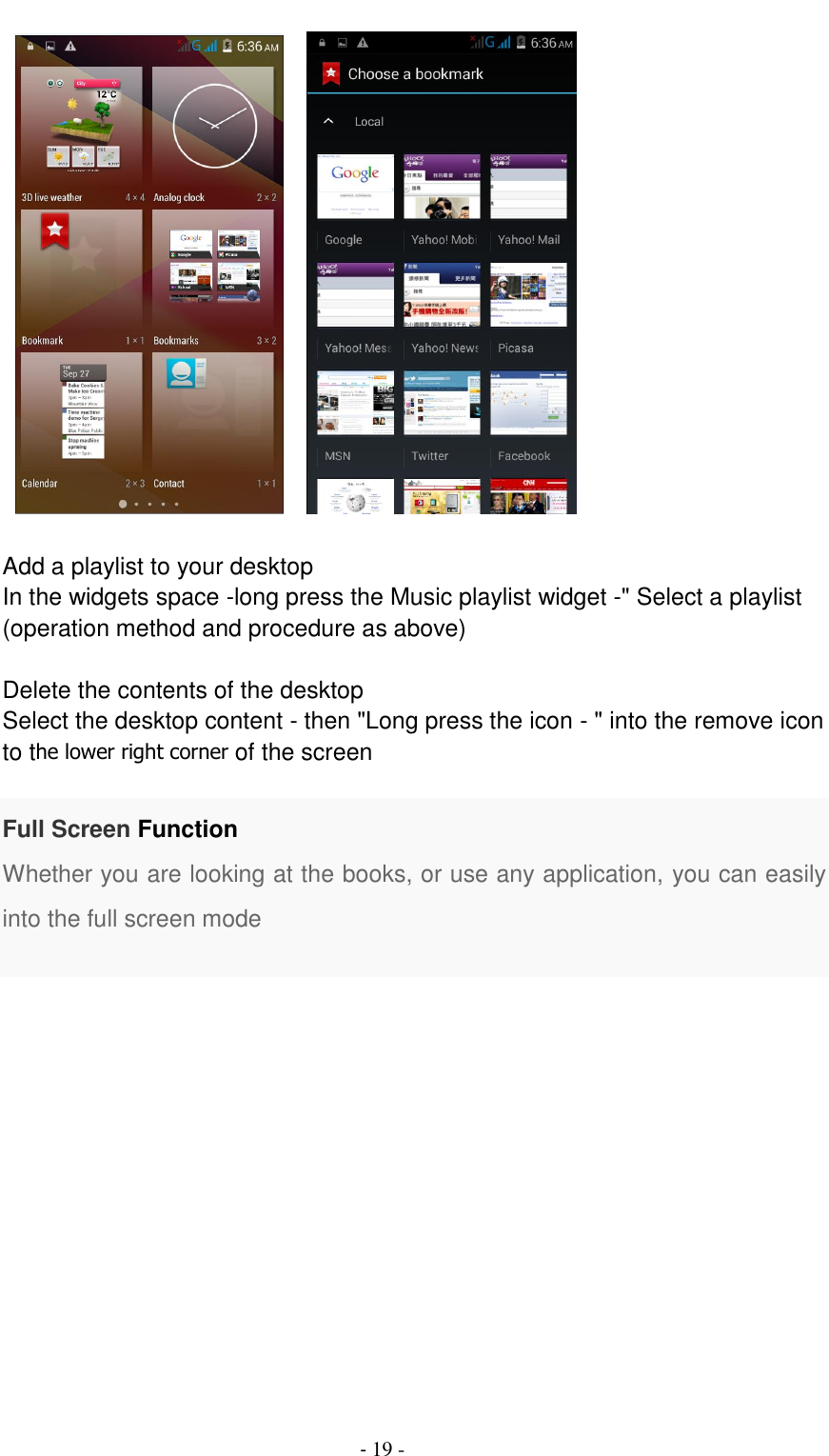
                                         - 18 -             Add contacts to your desktop In the widgets space -long press the contact widget -" choose a contact         Add URL to the desktop In the widgets space -long press the Bookmark widget -" choose a bookmark
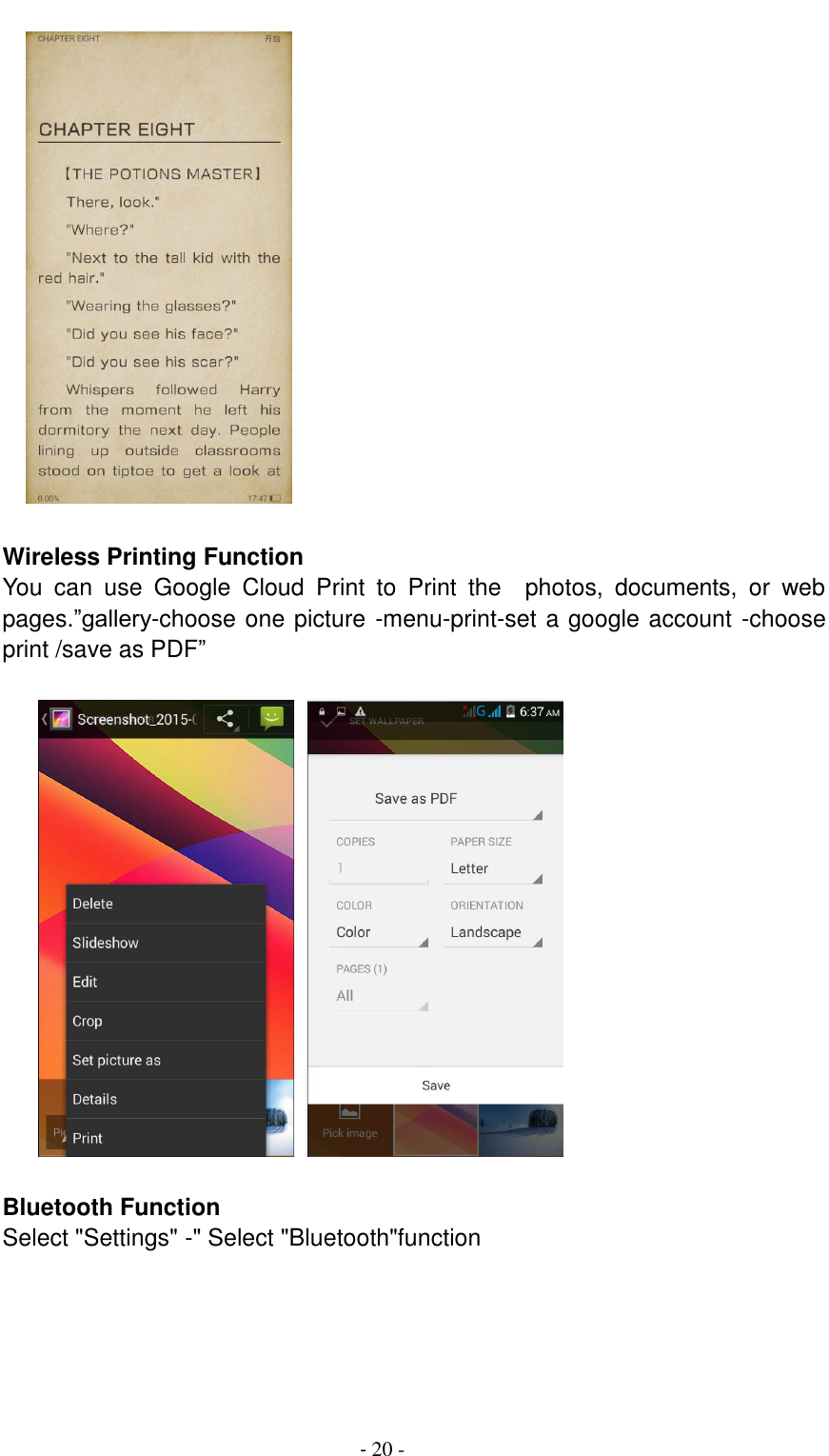
                                         - 19 -       Add a playlist to your desktop In the widgets space -long press the Music playlist widget -" Select a playlist (operation method and procedure as above)  Delete the contents of the desktop Select the desktop content - then "Long press the icon - " into the remove icon to the lower right corner of the screen  Full Screen Function Whether you are looking at the books, or use any application, you can easily into the full screen mode
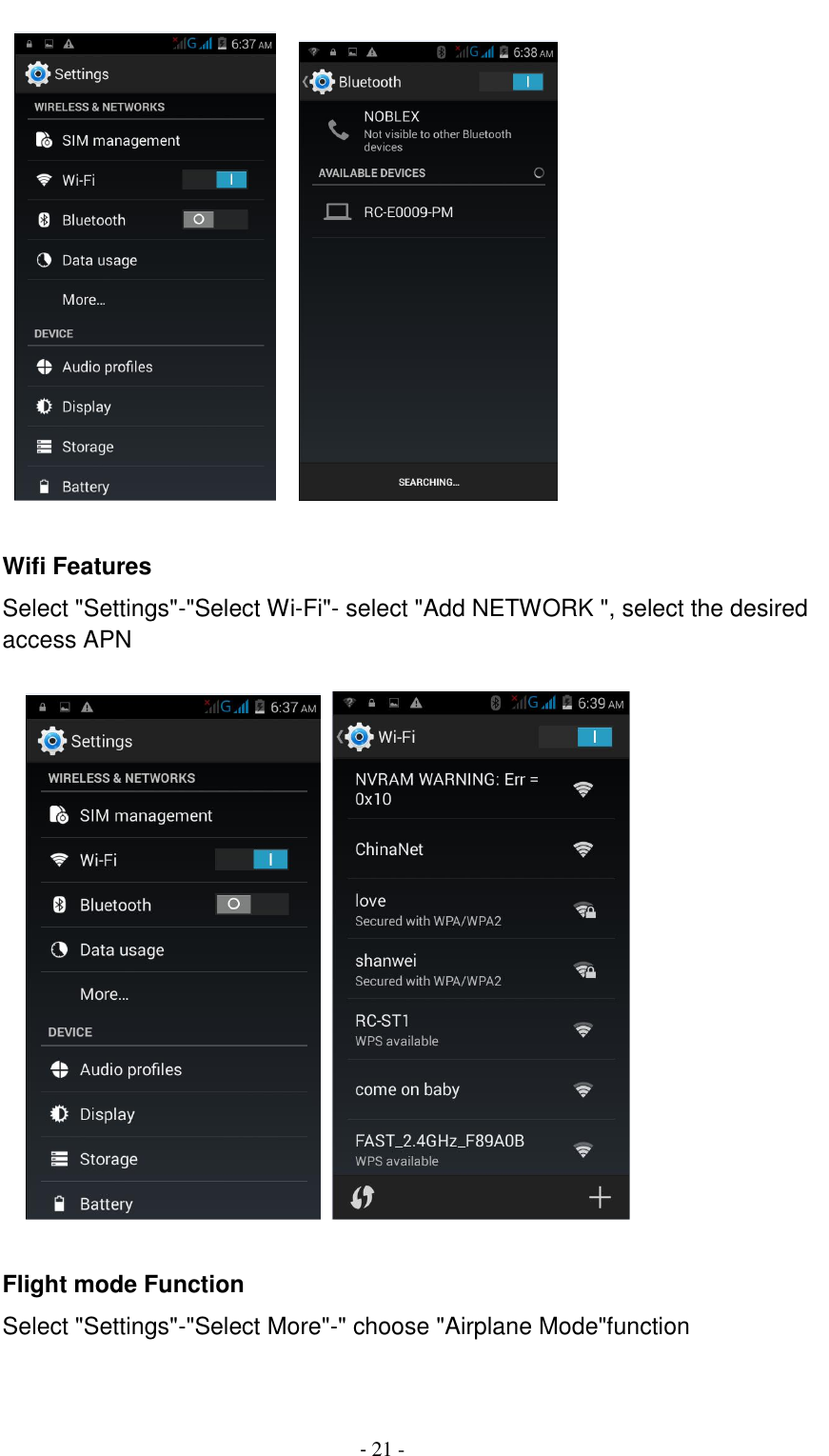
                                         - 20 -      Wireless Printing Function You  can  use  Google  Cloud  Print  to  Print  the    photos,  documents,  or  web pages.”gallery-choose one picture -menu-print-set a google account -choose print /save as PDF”          Bluetooth Function Select "Settings" -" Select "Bluetooth"function
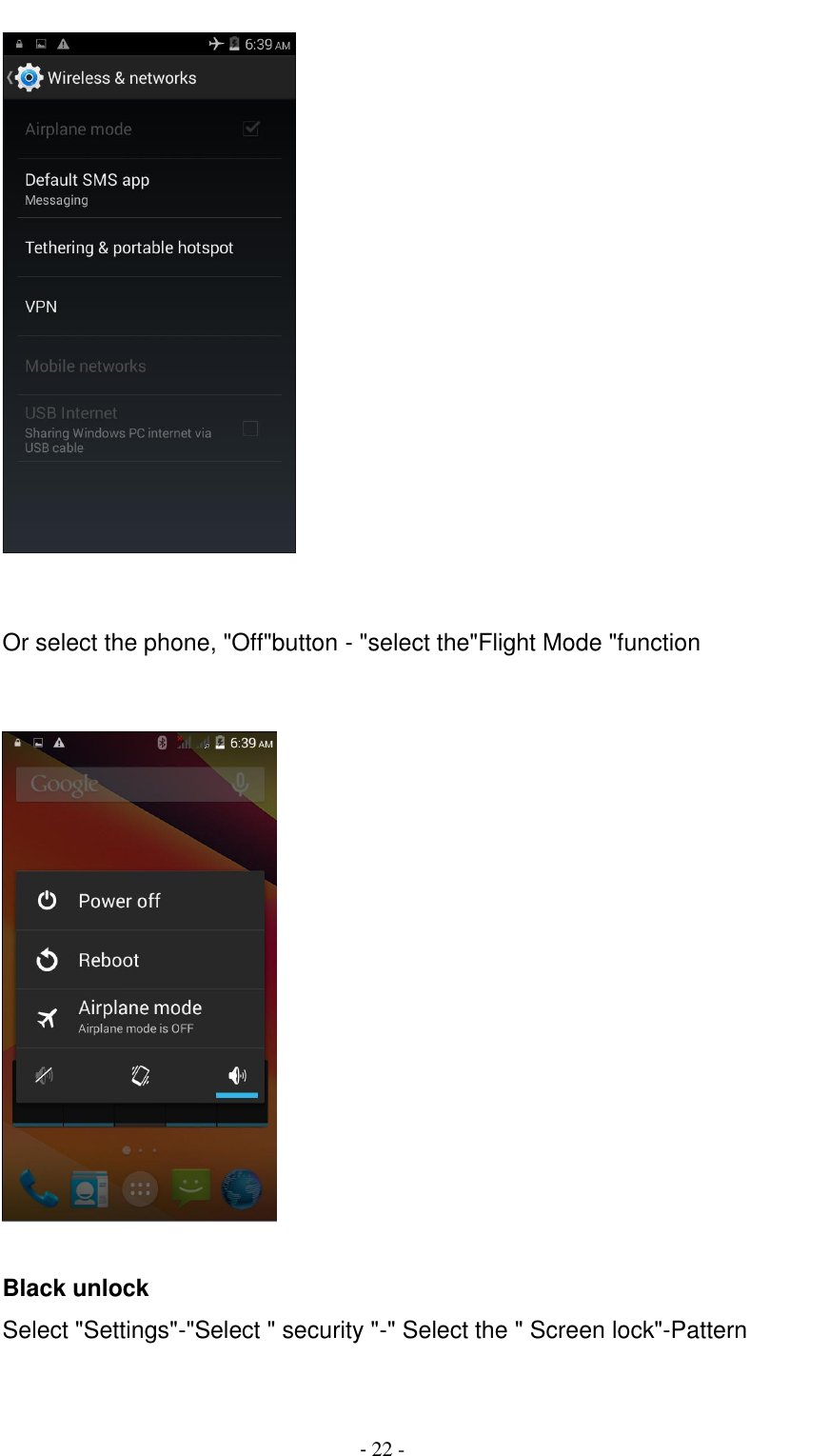
                                         - 21 -        Wifi Features Select "Settings"-"Select Wi-Fi"- select "Add NETWORK ", select the desired access APN               Flight mode Function Select "Settings"-"Select More"-" choose "Airplane Mode"function
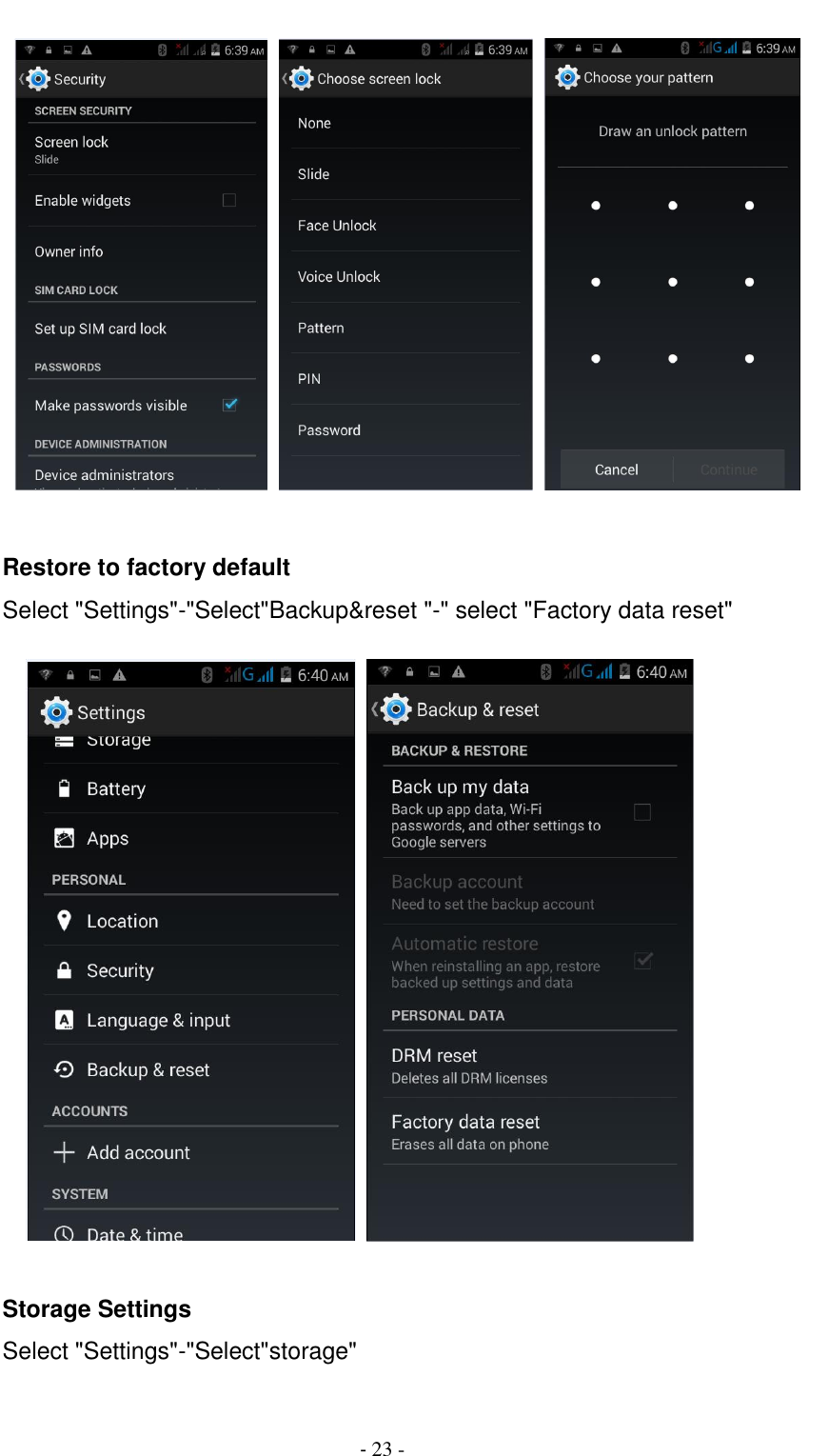
                                         - 22 -    Or select the phone, "Off"button - "select the"Flight Mode "function     Black unlock Select "Settings"-"Select " security "-" Select the " Screen lock"-Pattern
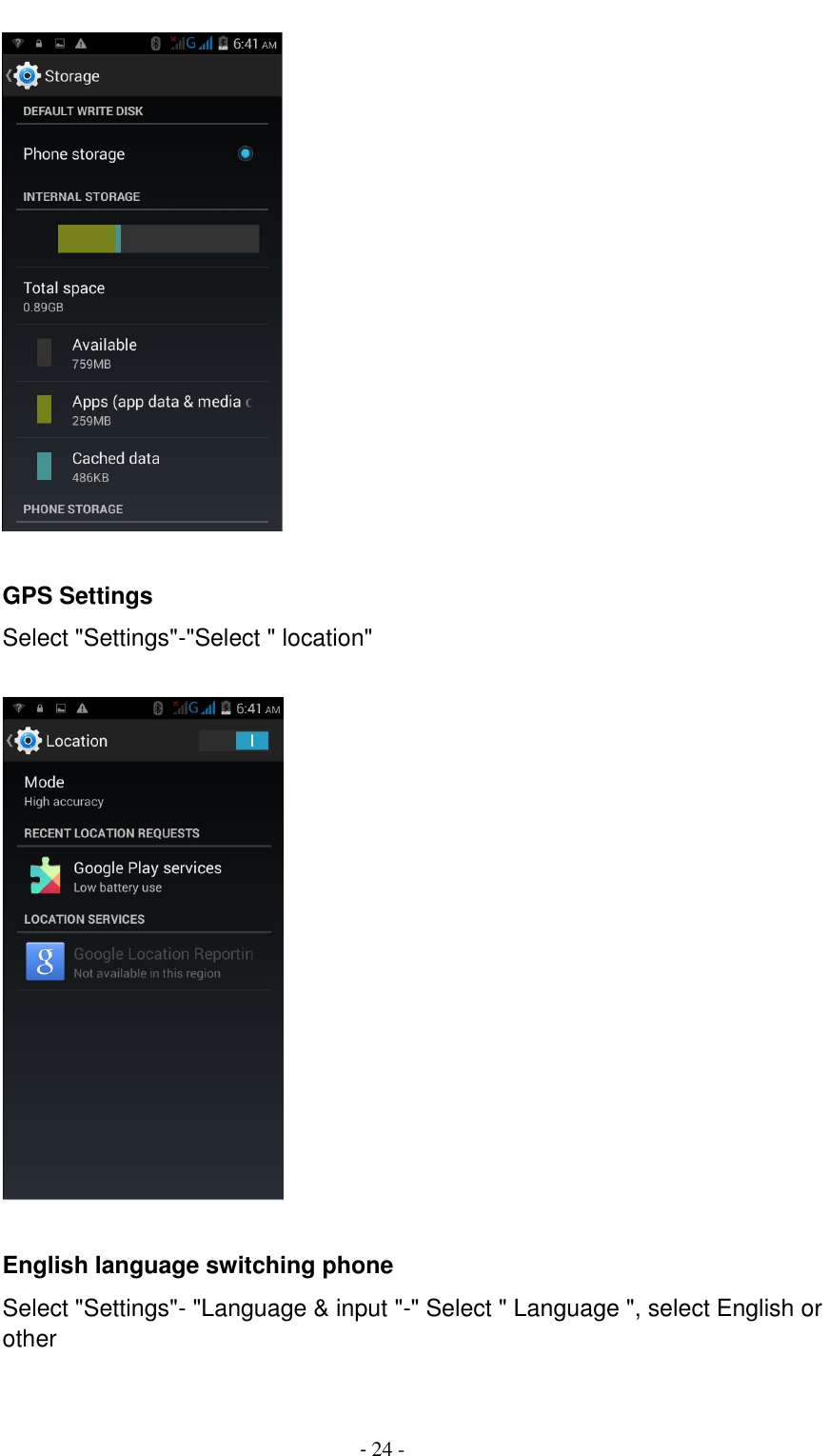
                                         - 23 -         Restore to factory default Select "Settings"-"Select"Backup&reset "-" select "Factory data reset"               Storage Settings Select "Settings"-"Select"storage"
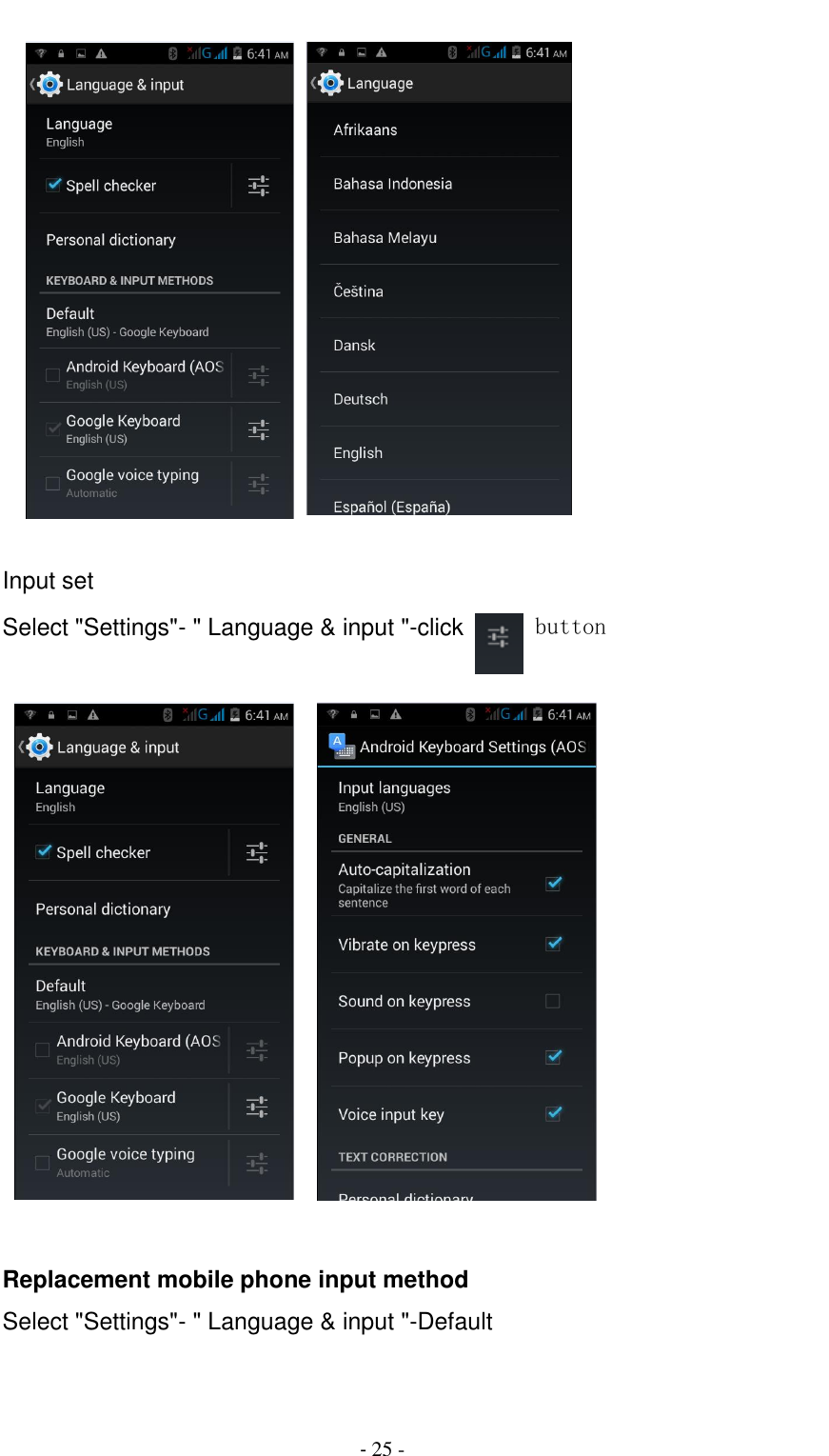
                                         - 24 -   GPS Settings Select "Settings"-"Select " location"    English language switching phone Select "Settings"- "Language & input "-" Select " Language ", select English or other
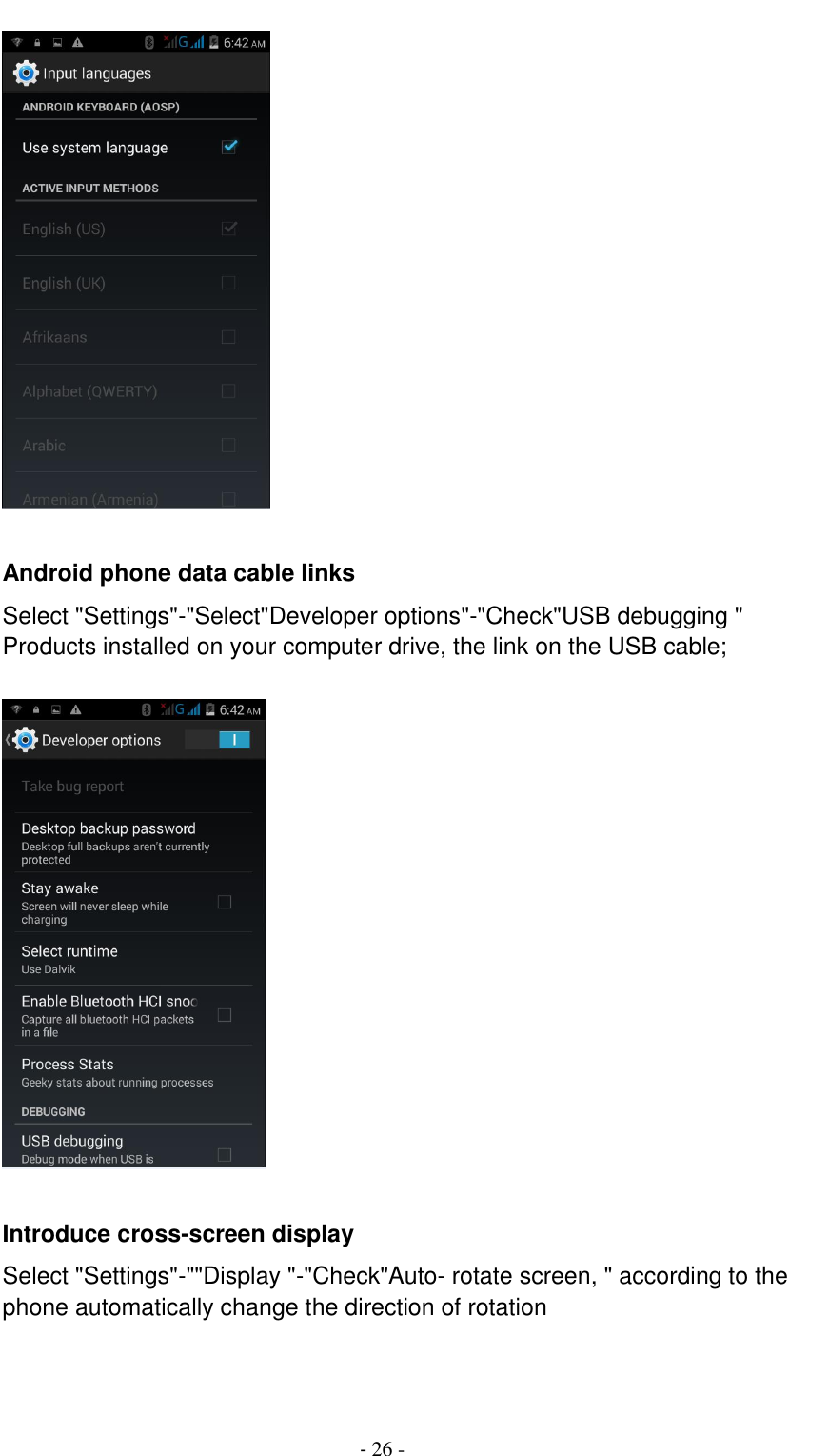
                                         - 25 -            Input set Select "Settings"- " Language & input "-click   button       Replacement mobile phone input method Select "Settings"- " Language & input "-Default
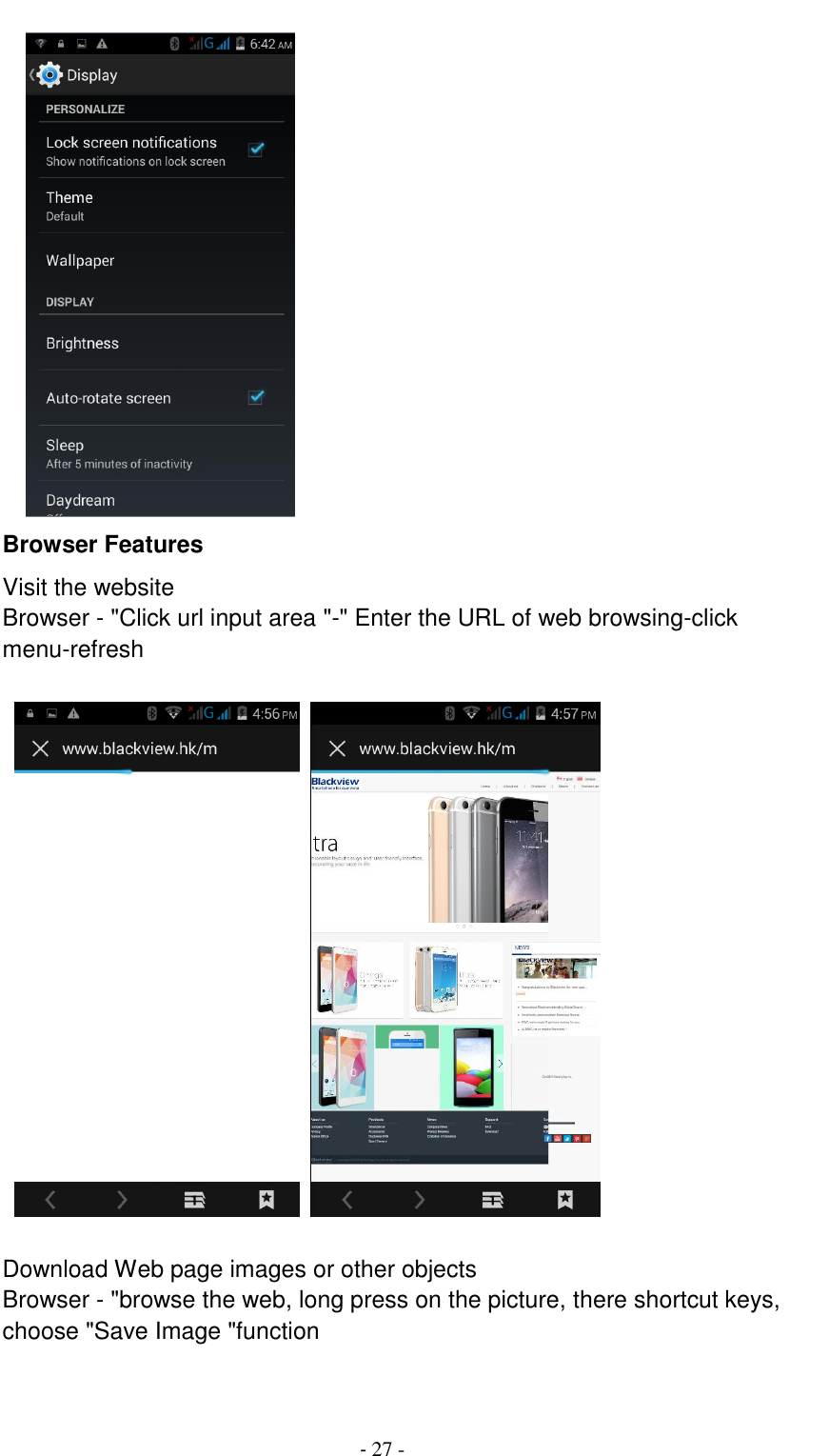
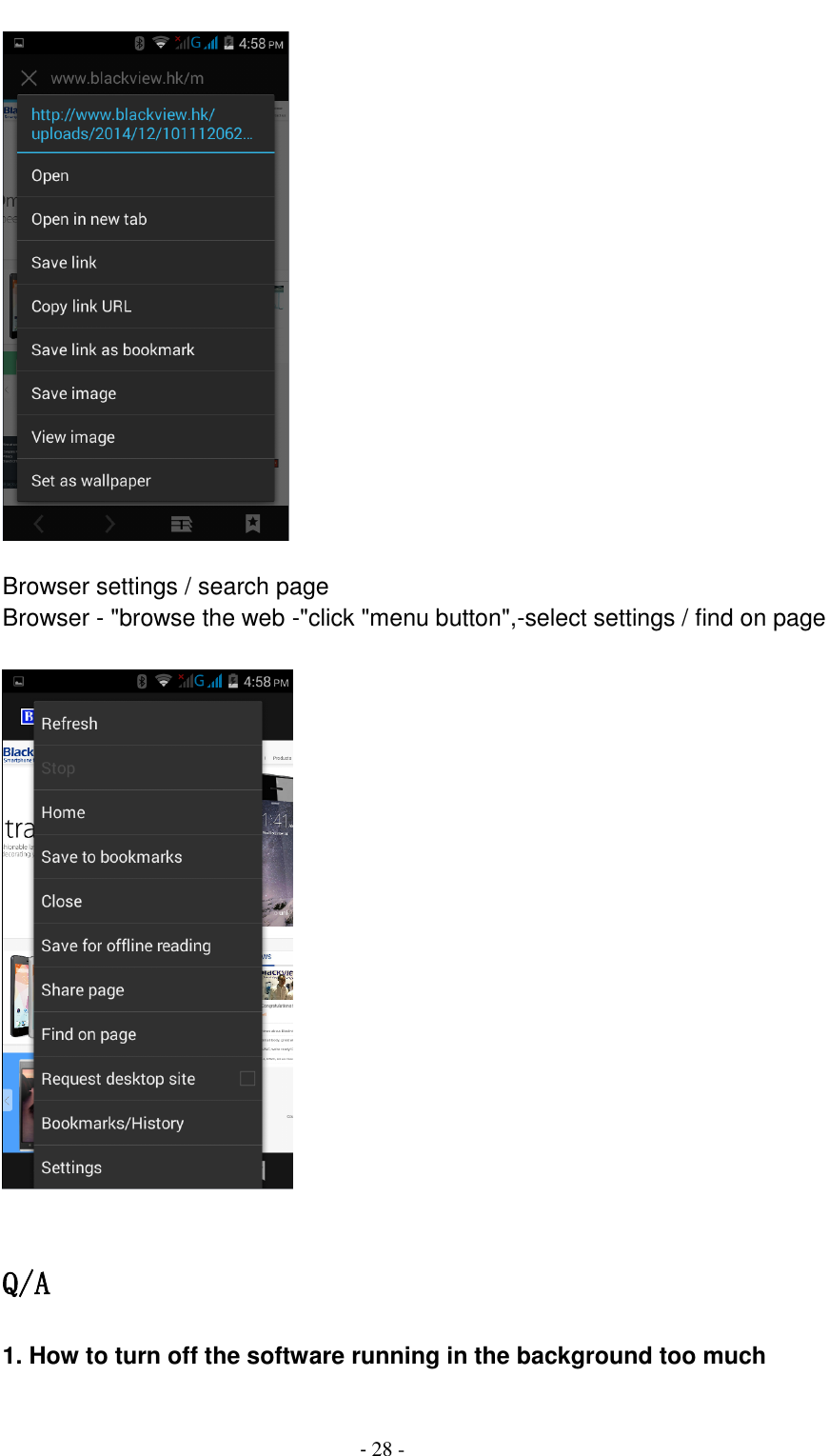
                                         - 26 -   Android phone data cable links Select "Settings"-"Select"Developer options"-"Check"USB debugging " Products installed on your computer drive, the link on the USB cable;    Introduce cross-screen display Select "Settings"-""Display "-"Check"Auto- rotate screen, " according to the phone automatically change the direction of rotation
                                         - 27 -     Browser Features Visit the website Browser - "Click url input area "-" Enter the URL of web browsing-click menu-refresh                                             Download Web page images or other objects Browser - "browse the web, long press on the picture, there shortcut keys, choose "Save Image "function
                                         - 28 -   Browser settings / search page Browser - "browse the web -"click "menu button",-select settings / find on page    Q/A 1. How to turn off the software running in the background too much
                                         - 29 -    Download Advanced Task Manager Advanced Task Manager and select install,  it  can  help  you  achieve,  automatic  end  of  the  program  services,  to switch between programs, display memory information, exclusion list, an end of all widgets, fast uninstall program and other functions, To free up memory space, reducing the CPU's operation long pressure, increase speed, to extend the purpose of standby time.    2. How to quickly set up Email   In the Android system, can automatically set the POP3 or IMAP e-mail most accounts,  the  e-mail  application,  directly  enter  the  e-mail  address  and password, if not automatically fit in the mailbox, the mailbox will be required by user Server information. See details in front of the "E-mail Features"section.   3. How do I view the capacity of SD card case   Select the "Settings"-Select Storage -select "SD card and phone memory", will see the current SD card capacity information phone   4. How to save electricity N451. First, reduce the screen brightness can be used in peacetime by reducing the brightness to reduce battery consumption, in the "Settings " in the "sound and  display" found  on  "brightness",  and  then sliding scale  in  respect  of  the brightness can be set Android phones; Close GPS global positioning, in the "Settings"and select" location services" -uncheck the following "Enable GPS satellite set" can be; Usually if  you do not use the Wi-Fi, Bluetooth headset can be improved by turning off these options to the standby time, turn off the WLAN search can save about 30% to 40% of standby time; Usually close calls and text messages to remind vibration;   5. How N451 lock screen, to prevent others from using In the "Settings", select " Security "and then select "screen lock""pattern", to set individual unlock pattern, to prevent strangers use or purpose of ensuring privacy of confidential documents.
                                         - 30 - 6. Why does not the USB data cable links your computer Confirmed in the phone's "Settings"-""Developer options"-"    in the "USB debugging "functionality check; also installed the correct USB driver   7. How to install a program on a non-Android Market      Select "Settings"-"" Security ", the" unknown source "function check   8.  In  browsing  the  web  or  other  applications,  how  to  switch  to  other applications     If you need to open when browsing other applications, you can long press the Home key to achieving long task switch, long press return directly to the desktop (note that the system default task only last 6 months)   9. How to enter the silent mode quickly     Long press the  power key ,and directly Into the pop menu to select the silent mode.    10. How to forward SMS / MMS Long press and Information applications in the information content of an item in the list, until the pop-up shortcut menu, select "Forward" can be realized.   11. how to paste and copy text    Into the  input  field  -  "input  string,  long  press  and  enter  the  region,  there shortcut keys - " select All " " cut All " ,"copy All"," paste All"   12. In the phone program group is installed too many applications, how to solve    In the desktop space – sliding the application to another application – click the application to open New Folder
                                         - 31 - 13. Contacts are sorted, can change    Sort of way platform, the first number, then letters, then the Chinese way of sorting; the user can not set their own sort   14. Contacts whether to support the group In the contacts interface-select group    15. contacts and SMS storage capacity limits the number of    Platform  reason,  contacts  and  SMS  storage  for  no  clear  limit  value, depending on the size of the current mobile phone memory space   16. How to set the SD card, personalized ring tones    In the SD card, are established "ringtones" (ringtones) "alarms" (alarm tone) "notifications" (SMS notification tone), the ring tones into a different folder, the phone can be automatically identified.   17. How to sync the phone contacts to the original N451 using Bluetooth the way, the two cellphone, sync contacts;   18. How to use the N451 access Wifi (WLAN)   Wifi signal at the scene to ensure that the premise of the specific see "Wifi function "   19. How to Find Contact   Into  the  contact  interface,  select  the  "Search"menu,  you  can  search  for contacts, you can use the first letter of query letters;   20. how to download applications for the N451 1) Visit Google Market http://www.android.com/market/; need to pay to download some software; 2) third-party sites, access to applications, such sites are:
                                         - 32 - http://www.waptw.com/ http://android.sj.91.com/list/rjyxhj.shtml …… More downloaded software will be installed in the SD card and some software may vary depending on operating system version, network access nodes, size or other reasons can not be used.   21. What are commonly used android forum     http://www.waptw.com/   http://sj.91.com/   http://www.android123.com/   http://www.android86.com.cn/   http://www.androidin.net/bbs/index.php   http://bbs.zhiqi.com.cn/forum-33-1.html   http://www.androidin.net/bbs/ http://www.hiapk.com/bbs/    22. How do I delete the downloaded software    "Settings" - ""Manage app"-"Select the application to be deleted   23. How to view mobile phone version information    "Settings"  -  ""  About  phone  "mobile  phone  version  information  can  be obtained,  including  the  Android  version,  Linux  version,  software  version, hardware version, etc.   24. How do I copy SIM card contact information Into the Contacts application, click the menu button, select "Import Contacts", then you can see the SIM card contacts, if only to import one, you can click an item. If all the import needs to long press the menu key, select Import to import all.   25. why the message has a different time and date display   Message displayed on the principle that the display of the day time and date have shown that non-day
                                         - 33 -   26. N451 whether to support the Java  N451 support Java,  27.How to open developer options    Enter the Settings -- the About phone -- click the Build number five times, system will be generated developer options   FCC Statement This device complies with part 15 of the FCC Rules. Operation is subject to the following two conditions: (1) This device may not cause harmful interference, and (2)  this device must accept any interference  received, including  interference that may cause undesired operation. Any Changes  or  modifications not  expressly approved  by  the  party  responsible  for  compliance could void  the user’s authority to operate the equipment.  Note: This equipment has been tested and found to comply with the limits for a Class B digital device, pursuant to part 15 of the FCC Rules. These limits are designed to provide reasonable protection against harmful interference in  a  residential  installation.  This equipment  generates,  uses  and  can  radiate radio  frequency energy and,  if  not installed and used in accordance with the instructions, may cause harmful interference to radio communications. However, there is no guarantee that interference will not occur in a particular installation. If this equipment does cause  harmful  interference  to  radio  or  television  reception,equipment  generates,  uses  and  can  radiate  radio frequency energy and, if not installed and used in accordance with the instructions, may cause harmful interference to radio communications. However, there is no guarantee that interference will not occur in a particular installation. If this equipment does cause harmful interference to radio or television reception, —Reorient or relocate the receiving antenna. —Increase the separation between the equipment and receiver. —Connect the equipment into an outlet on a circuit different from that to which the receiver is connected. —Consult the dealer or an experienced radio/TV technician for help.
                                         - 34 - Specific Absorption Rate (SAR) Information SAR tests are conducted using standard operating positions accepted by the FCC with the Phone transmitting at its highest certified power level in all tested frequency bands, although the SAR is determined at the highest certified power level, the actual SAR level of the phone While operating can be well below the maximum value, in general, the closer you are to a Wireless base station antenna, the lower the power output. Before a new model phone is a available for sale to the public, it must be tested and certified to the FCC that it does not exceed the exposure limit established by the FCC, Tests for each the FCC that it does not exceed the exposure limit established by the FCC, Tests for each required by the FCC.For body worn operation, this model phone has been tested and meets the FCC RF exposure guidelines when used with an accessory designated for this product or when used with an accessory that contains no metal and that positions the  handset  a  minimum  of  10  mm  from  the  body.  Non-compliance  with  the  above  restrictions  may  result  in violation of RF exposure guidelines.

Navigation menu