Novasail NS360 NS Regatta User Manual NS360 Pro Operating Manual English v1 0

Novasail Limited NS Regatta NS360 Pro Operating Manual English v1 0

User Manual

Operating Manualv1.0
2Introduction. . . . . . . . . . . . . . . . . . . . . . . . . . . . . . . . . . . . . . . . . . . . . . . . . . . .  3Installation  . . . . . . . . . . . . . . . . . . . . . . . . . . . . . . . . . . . . . . . . . . . . . . . . . . . .  4Controls and display description . . . . . . . . . . . . . . . . . . . . . . . . . . . . . . . . . .  5• Modes and sub-modes................................................................. 5• Controls and display description .................................................. 5Operations. . . . . . . . . . . . . . . . . . . . . . . . . . . . . . . . . . . . . . . . . . . . . . . . . . . . .  6• Switching power on and off .......................................................... 6• Switching backlight on and off...................................................... 8• Switching modes and sub-modes ................................................ 8• GPS record Status ....................................................................... 9• Speed mode ................................................................................. 9• To reset the maximum speed and the trip distance.................... 10• Velocity made good.................................................................... 10• Magnetic heading compass mode.............................................. 11• Sub-modes of the Magnetic Heading compass.......................... 12• Timer mode ................................................................................ 12• Start line distance  ...................................................................... 14• Waypoint mode: Wxx   ............................................................... 15• Route mode: Rxx  ...................................................................... 17• Current GPS coordinates ........................................................... 18• Central Bar graph....................................................................... 19• Lift and Header indicators .......................................................... 19Advanced Operations  . . . . . . . . . . . . . . . . . . . . . . . . . . . . . . . . . . . . . . . . . .  21• WAY setup mode ....................................................................... 21• PC mode .................................................................................... 22User calibration of the magnetic compass  . . . . . . . . . . . . . . . . . . . . . . . . .  24Limited Warranty  . . . . . . . . . . . . . . . . . . . . . . . . . . . . . . . . . . . . . . . . . . . . . .  34Disclaimer . . . . . . . . . . . . . . . . . . . . . . . . . . . . . . . . . . . . . . . . . . . . . . . . . . . .  35Contents
3       Welcome to the A complete racing system derived from the   legacy, the   includes a GPS speedo, gyro-compensated magnetic compass, race timer, distance to the start line and all other essential and advanced race functions.The new   features a Bluetooth communication transceiver offering a wide range of functions and applications:•Record up to 1248 hours of racing (1 point / 30 seconds)•Replay on Google Earth and other navigational software•Computer management of 100 waypoints, including their coordinates and descriptions•Computer management of 20 routes imported from Google Earth and defined by existing waypoints•Updates with new featuresThe usage of the   is greatly simplified with large and dedicated buttons for starting the timer and defining the start line points, and the port and starboard references at your finger tips. Introduction
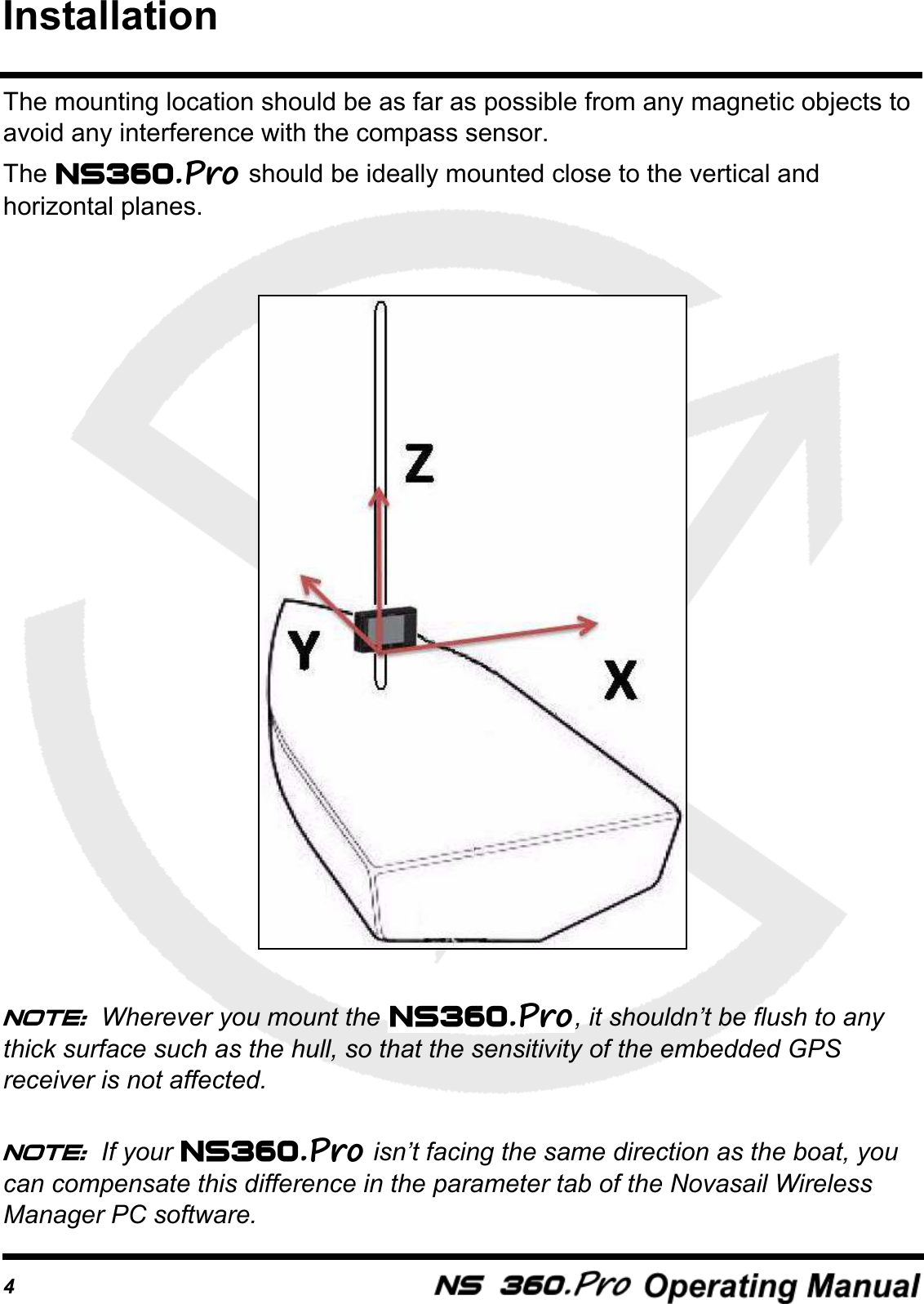
4The mounting location should be as far as possible from any magnetic objects to avoid any interference with the compass sensor.The   should be ideally mounted close to the vertical and horizontal planes. Note: Wherever you mount the  , it shouldn’t be flush to any thick surface such as the hull, so that the sensitivity of the embedded GPS receiver is not affected.Note: If your   isn’t facing the same direction as the boat, you can compensate this difference in the parameter tab of the Novasail Wireless Manager PC software.Installation
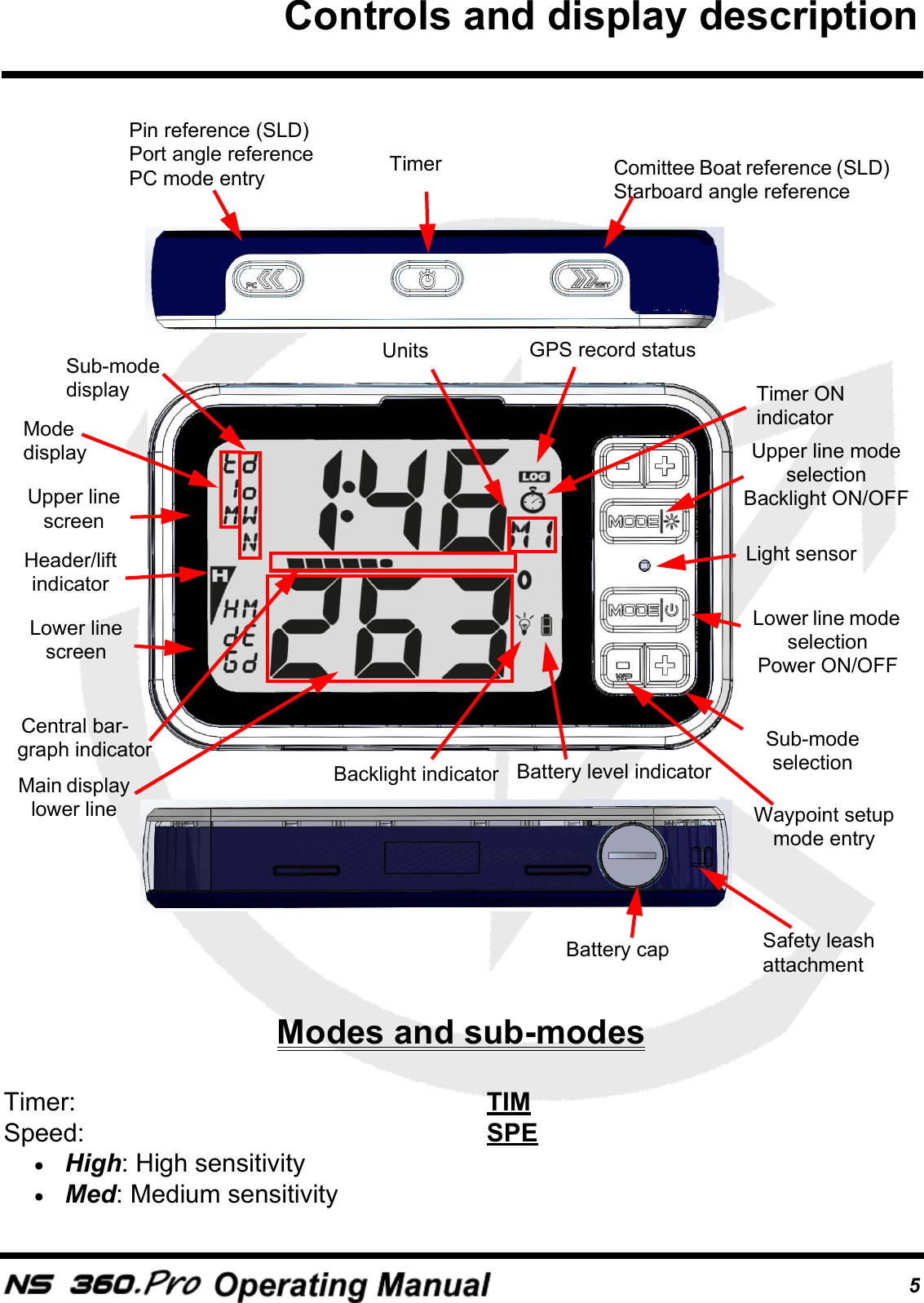
5Modes and sub-modesTimer:  TIMSpeed:  SPE•High: High sensitivity•Med: Medium sensitivityTimerUpper line mode selection Backlight ON/OFFLower line mode selectionPower ON/OFFSub-mode selectionComittee Boat reference (SLD)Starboard angle referenceSafety leash attachmentPin reference (SLD)Port angle referencePC mode entryUpper line screenLower line screenModedisplaySub-modedisplayGPS record statusLight sensorBattery capHeader/lift indicatorBacklight indicator Battery level indicatorTimer ONindicatorCentral bar-graph indicatorUnitsMain displaylower line Waypoint setup mode entryControls and display description
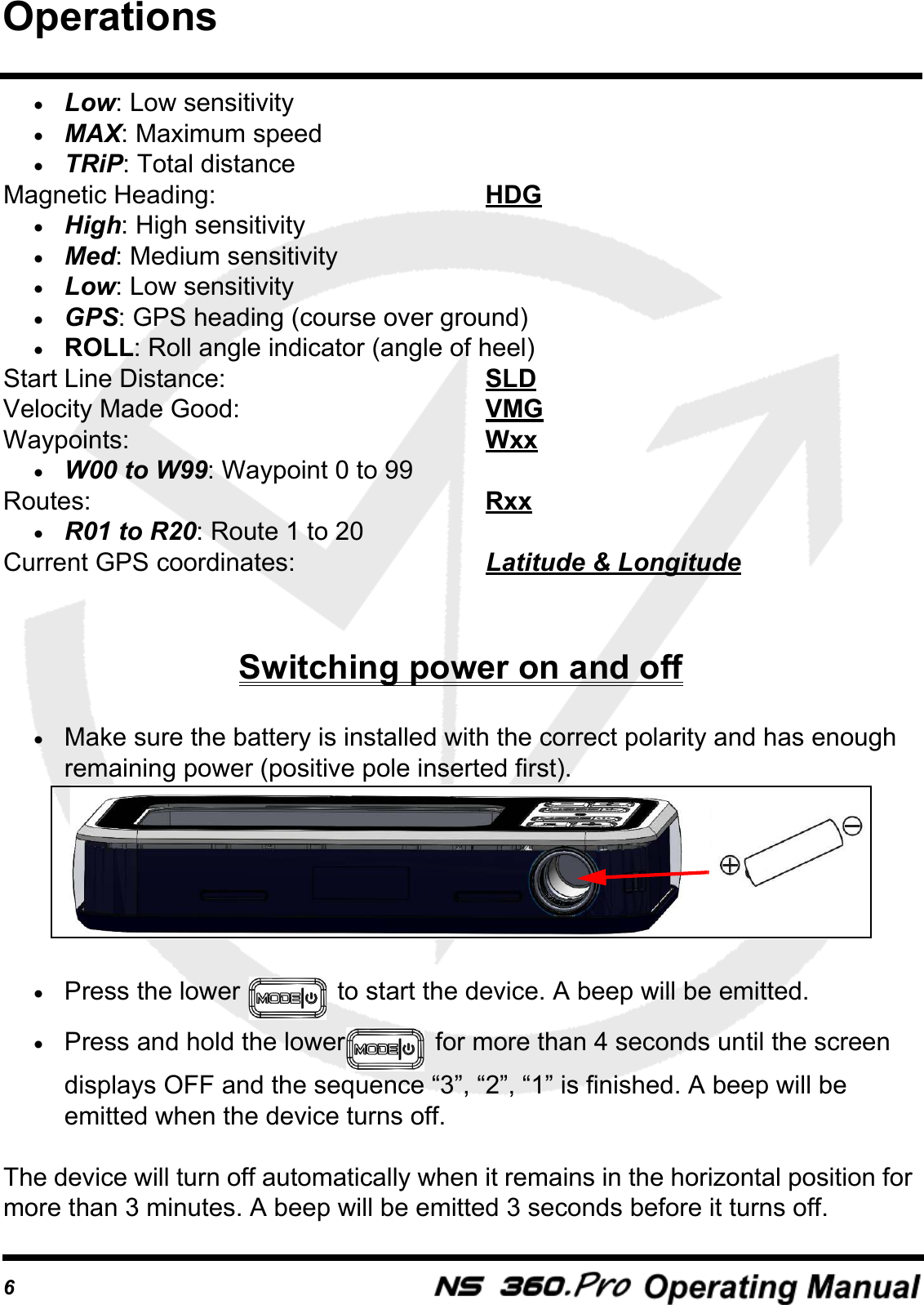
6•Low: Low sensitivity•MAX: Maximum speed•TRiP: Total distanceMagnetic Heading:  HDG•High: High sensitivity•Med: Medium sensitivity•Low: Low sensitivity•GPS: GPS heading (course over ground)•ROLL: Roll angle indicator (angle of heel)Start Line Distance:  SLDVelocity Made Good:  VMGWaypoints:  Wxx•W00 to W99: Waypoint 0 to 99Routes:  Rxx•R01 to R20: Route 1 to 20Current GPS coordinates:  Latitude & LongitudeSwitching power on and off•Make sure the battery is installed with the correct polarity and has enough remaining power (positive pole inserted first).•Press the lower   to start the device. A beep will be emitted.•Press and hold the lower  for more than 4 seconds until the screen displays OFF and the sequence “3”, “2”, “1” is finished. A beep will be emitted when the device turns off.The device will turn off automatically when it remains in the horizontal position for more than 3 minutes. A beep will be emitted 3 seconds before it turns off.Operations
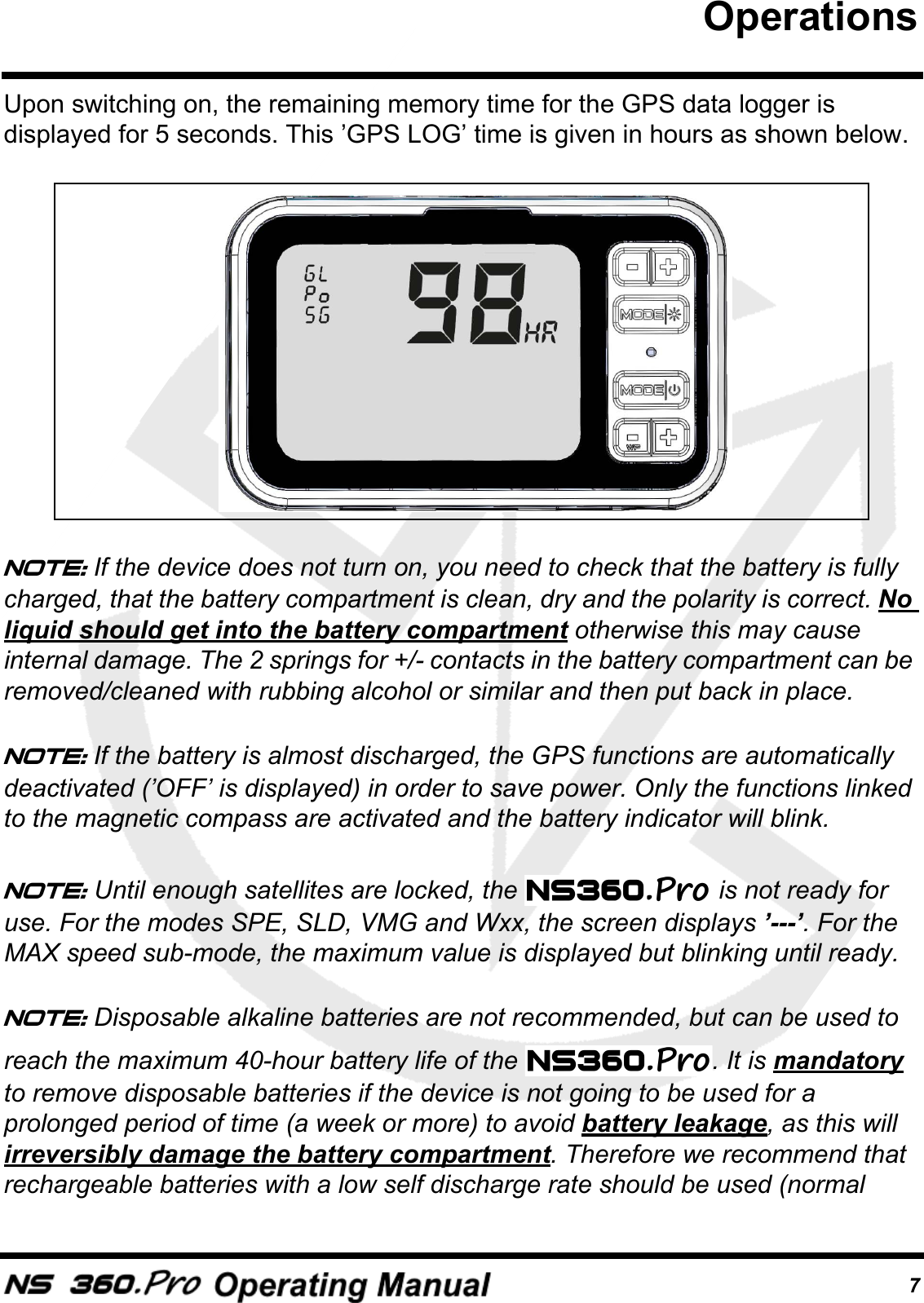
7Upon switching on, the remaining memory time for the GPS data logger is displayed for 5 seconds. This ’GPS LOG’ time is given in hours as shown below.Note: If the device does not turn on, you need to check that the battery is fully charged, that the battery compartment is clean, dry and the polarity is correct. No liquid should get into the battery compartment otherwise this may cause internal damage. The 2 springs for +/- contacts in the battery compartment can be removed/cleaned with rubbing alcohol or similar and then put back in place.Note: If the battery is almost discharged, the GPS functions are automatically deactivated (’OFF’ is displayed) in order to save power. Only the functions linked to the magnetic compass are activated and the battery indicator will blink.Note: Until enough satellites are locked, the   is not ready for use. For the modes SPE, SLD, VMG and Wxx, the screen displays ’---’. For the MAX speed sub-mode, the maximum value is displayed but blinking until ready.Note: Disposable alkaline batteries are not recommended, but can be used to reach the maximum 40-hour battery life of the  . It is mandatory to remove disposable batteries if the device is not going to be used for a prolonged period of time (a week or more) to avoid battery leakage, as this will irreversibly damage the battery compartment. Therefore we recommend that rechargeable batteries with a low self discharge rate should be used (normal Operations
8rechargeable batteries lose their stored energy quickly even when they are not being used), and will last for 30 hours or more. Recommended batteries are SANYO ENELOOP, GP RECYKO+, UNIROSS HYBRIO (2000mA or more typical capacity). Switching backlight on and off•After the power of the   is turned on, the backlight is automatically switched ON/OFF by the internal light sensor detector.•The backlight can be manually switched ON or OFF: press and hold the upper   for more than 1 second until the icon   is displayed on the screen. •To turn off the backlight, press and hold the upper   for more than 1 second until the icon   disappears from the screen.Note: Once the backlight has been switched ON or OFF manually, the automatic light sensor detector will no longer be used and will resume upon the next power cycle.Note: In PC mode (see Advanced Operations, page 22), the backlight can be only switched ON or OFF manually.Switching modes and sub-modes•Choose the mode and sub-mode required by pushing the ‘mode’ button and then the   and   for the sub-mode selection. •You are free to choose any mode on each line independently.Operations
9GPS record status•When the icon   is displayed, the GPS trace is recording. •The Novasail Wireless Manager PC software gives you three options at startup: GPS trace record disabled, GPS trace record always ON and GPS trace record starts at the end of timer countdown. •For more information please refer to the online manual of the Novasail Wireless Manager PC software for the  .Speed mode: SPEThis mode provides the speed over ground of the boat as measured by the GPS receiver. The sub-modes provide several speed resolutions, the trip distance and the maximum speed. The boat speed is displayed in knots (kts) with a resolution of 0.1 knots. The minimum speed is 0.5 knots.•Use the   and   to scroll the sub-modes.Speed sub-modes•High: High sensitivityThe high sensitivity speed allows a very sensitive reading of any speed variation.•Med: Medium sensitivityThis sub-mode provides an average speed of the boat over a short period of time. This is particularly useful when sailing with big waves upwind or downwind.•Low: Low sensitivityThis sub-mode provides an average speed of the boat over a longer period of time. This is particularly useful in rough conditions with lots of speed changes.Operations
10•Max: Speed MAXimumThe maximum speed that the boat has reached since the last reset. •trip: trip distanceThe trip mode displays the total distance made by the vessel since the last reset. To reset the maximum speed or trip distance:•Select the maximum speed or the trip distance in the sub-mode•Tilt the device 90 degrees to the right or left for more than 3 seconds•The value is resetNote: For the ‘Max’ and ’trip’ sub-mode don’t forget to reset the value before your next sail begins to ensure the value displayed refers to the new sail.Velocity made good mode: VMGThis mode provides the projected speed of the boat on the reference (wind) direction, which is deducted from the port and starboard angle references captured. The VMG is shown in knots (kts) and the memorized wind direction in use will be indicated on the main display.To set and adjust the wind direction in VMG mode•Press and hold   to capture the port angle direction•Press and hold   to capture the starboard angle direction•You may enter or adjust the wind direction value with the   and Note: The VMG speed sensitivity is adjusted (High/Med/Low) by using the same sensitivity of the speed in SPE mode on the same line (lines are Operations
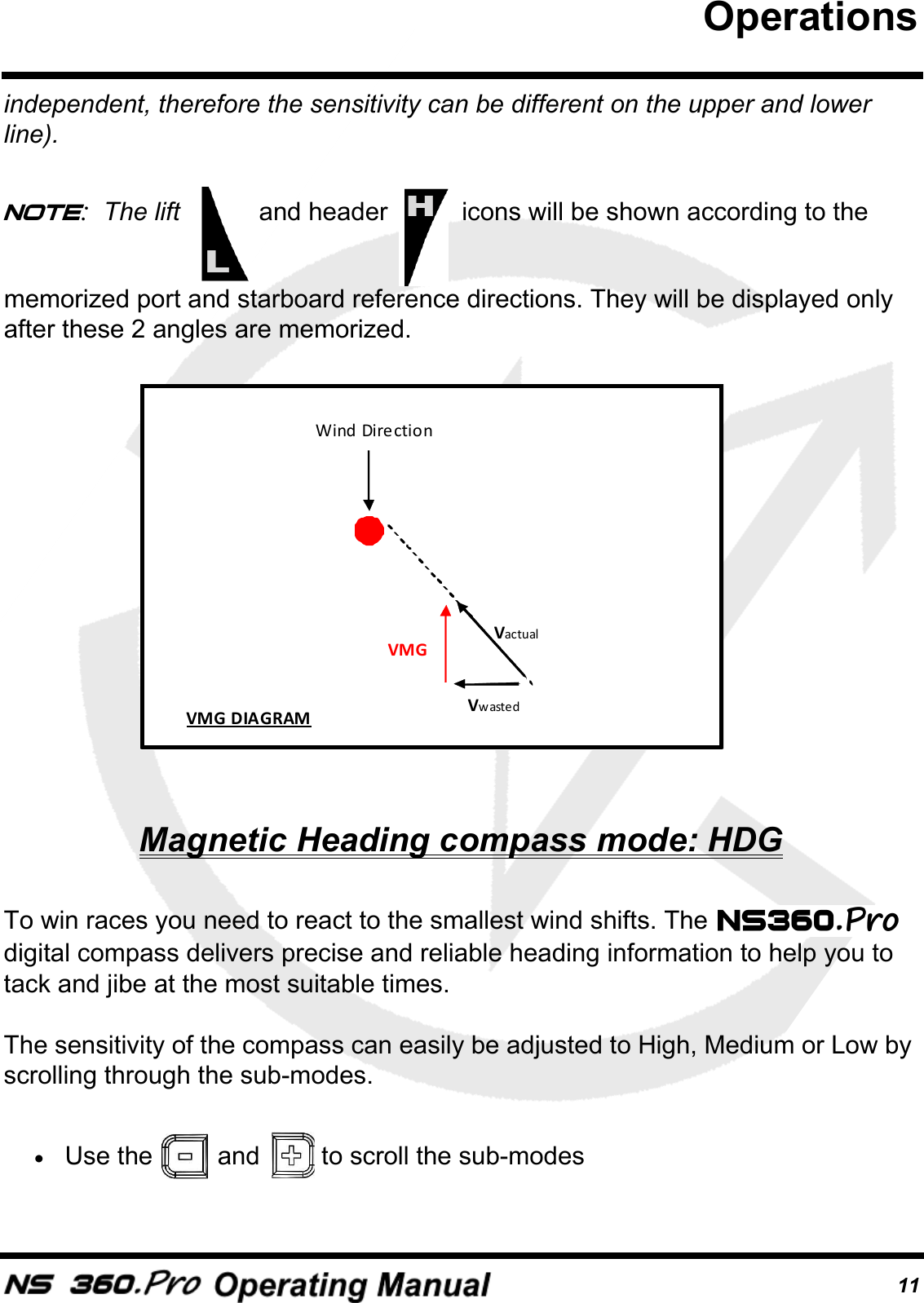
11independent, therefore the sensitivity can be different on the upper and lower line).Note:  The lift   and header   icons will be shown according to the memorized port and starboard reference directions. They will be displayed only after these 2 angles are memorized.Magnetic Heading compass mode: HDGTo win races you need to react to the smallest wind shifts. The   digital compass delivers precise and reliable heading information to help you to tack and jibe at the most suitable times.The sensitivity of the compass can easily be adjusted to High, Medium or Low by scrolling through the sub-modes. •Use the   and   to scroll the sub-modes VMG Vwasted Vactual Wind Direction VMG DIAGRAM Operations
12Sub-modes of the Magnetic Heading compass:•High: high sensitivityWhen sailing with light winds and flat seas, high sensitivity allows you to appreciate very small wind variation.•Med: medium sensitivityMedium sensitivity is more suitable for race boats under medium wind and sea conditions. Dinghy racers will appreciate this mode.•Low: Low sensitivityUnder low sensitivity more subtle variations due to big waves and sudden gusts are filtered.Note: The magnetic variation of your geographical location can be compensated in the parameter tab of the Novasail Wireless Manager PC software.•GPS: GPS based compassThis sub-mode provides the route direction followed by the boat measured by the GPS receiver (course over ground)•ROLL: Roll angle indicator mode (angle of heel)Used in Roll angle indicator (ROLL) mode, the   displays the roll angle of the boat. The angle range can vary from 0 to +/-180 degrees.Note: The roll angle displayed is based on the   mounting roll angle.TIMER mode: TIMThis mode offers a 5-minute countdown timer, which can be synchronized to 5/4/3/2 and 1 minute.Operations
13When counting down, a short beep sounds:•each minute until the last minute•each ten seconds until the last 10 seconds •each second until the start timeAt the start time:•a long beep sounds•the timer starts counting the race duration in minutes and hoursStart and stop the TIMER:•Press   to start the timer countdown at the last synchronized minute (5/4/3/2 or 1 minute)•Press and hold   to stop the timer and reset to the last synchronized minuteSynchronize the TIMER:•In any mode press   will display the timer on the upper line and result in the following action: - if the timer is stopped, start and set the timer value to the last synchronized minute - if the timer is down-counting and the timer value is lower than 3:45, set the timer value to the lower minute - if the timer is down-counting and the timer value is greater than 3:45, set the timer value to 4 minutes•With the timer mode displayed and the timer stopped, press the upper   to synchronize to the lower minute or press the upper   to synchronize to the upper minute. The upper/lower minute selected will be used as the new synchronized minute value (the timer will re-start from this value)Note: With the GPS logger synchronized to the upcounting of the timer, the GPS logger stops when the timer is stopped or restarted in order to log the end of the current sail.Operations
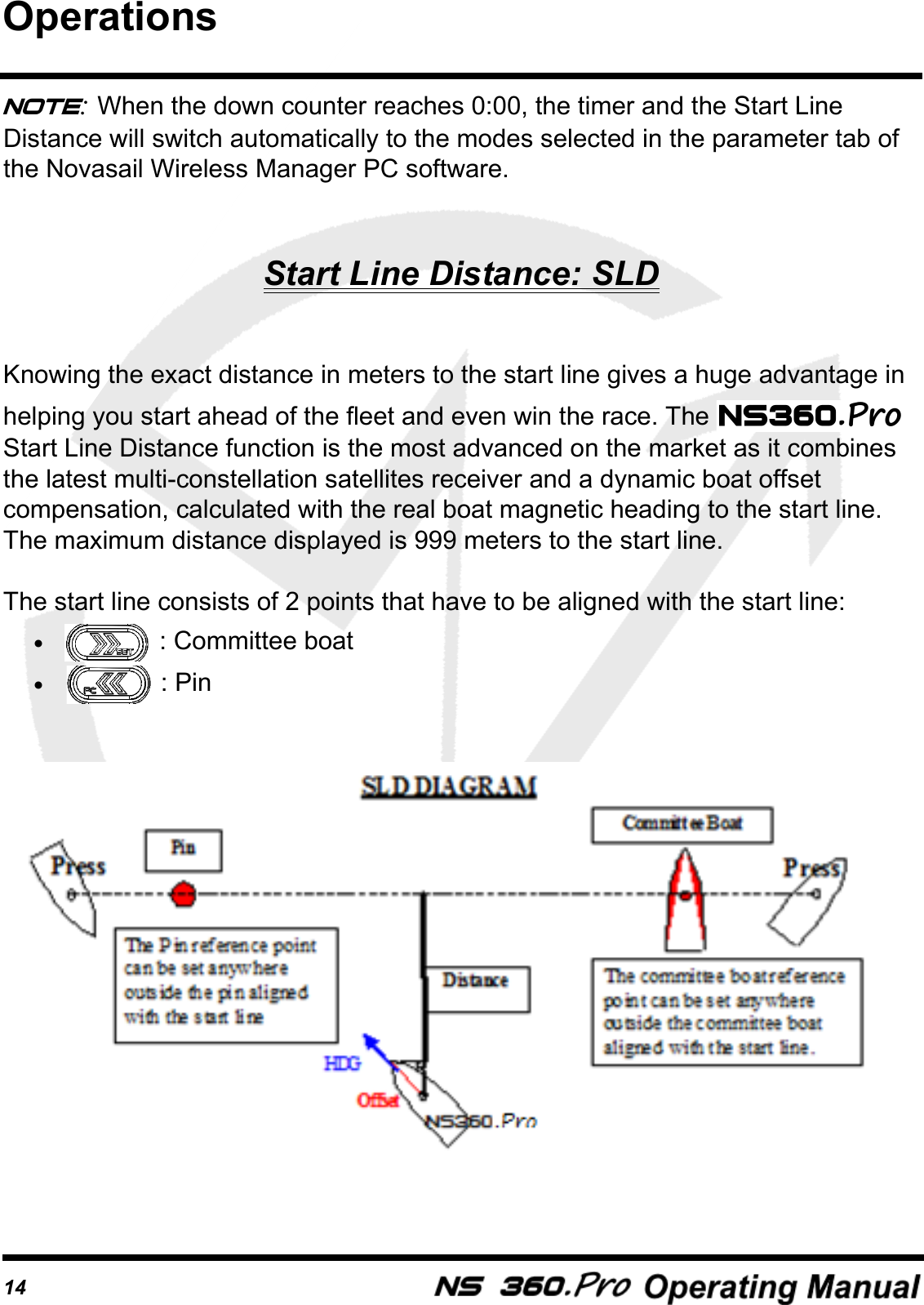
14Note: When the down counter reaches 0:00, the timer and the Start Line Distance will switch automatically to the modes selected in the parameter tab of the Novasail Wireless Manager PC software.Start Line Distance: SLDKnowing the exact distance in meters to the start line gives a huge advantage in helping you start ahead of the fleet and even win the race. The   Start Line Distance function is the most advanced on the market as it combines the latest multi-constellation satellites receiver and a dynamic boat offset compensation, calculated with the real boat magnetic heading to the start line.The maximum distance displayed is 999 meters to the start line.The start line consists of 2 points that have to be aligned with the start line:• : Committee boat• : PinOperations
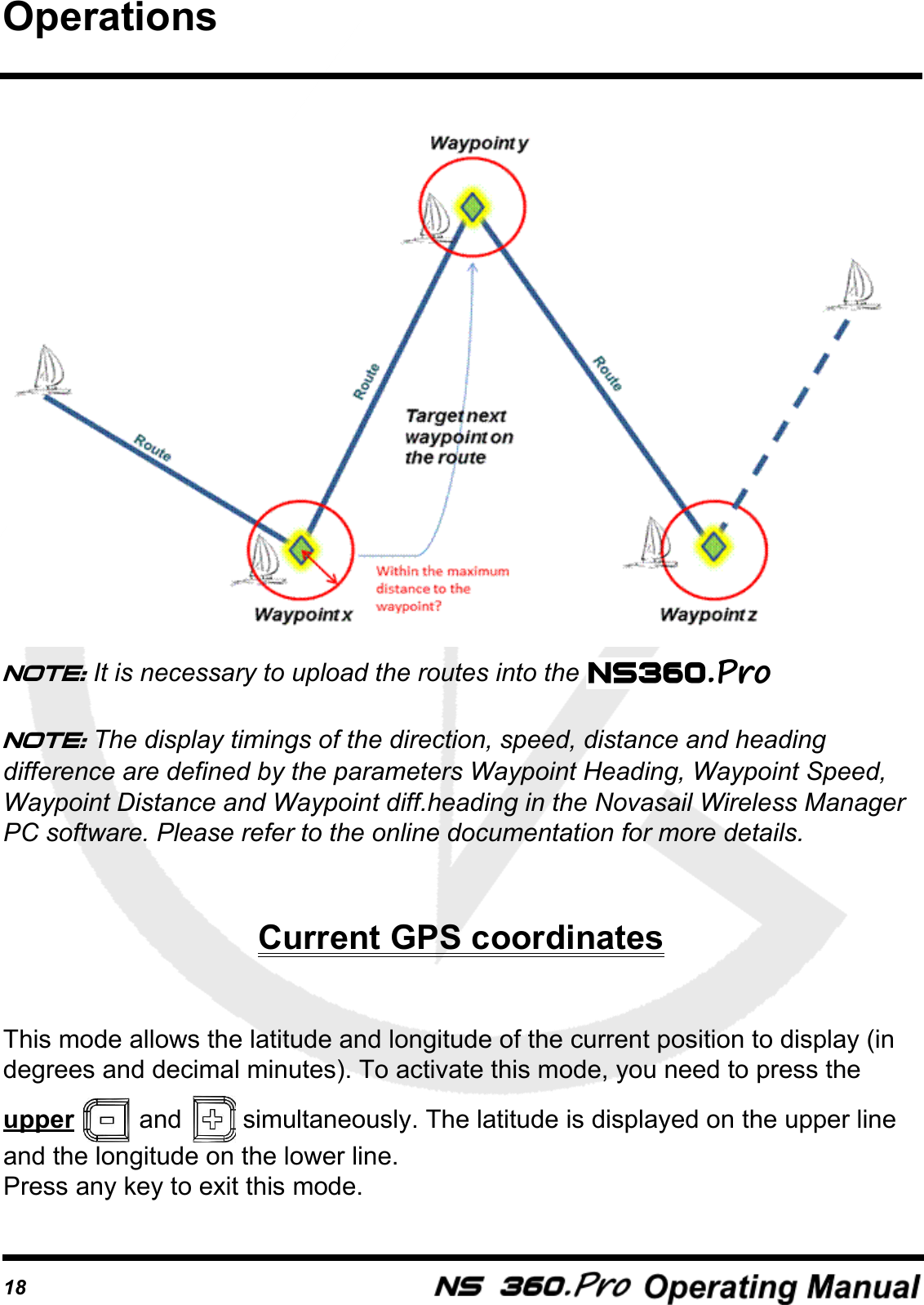
15To memorize the start line points•Press   when you reach the committee boat reference point•Press   when you reach the pin reference point•The distance in meters is now displayed on the data lineNote: If the start line is modified by the committee, you may be required to re-enter one or both reference points.Note: The distance from the front of the boat to the   can be defined in the parameter tab of the Novasail Wireless Manager PC software.Note: When the down counter reaches 0:00, the timer and the Start Line Distance will switch automatically to the modes selected in the parameter tab of the Novasail Wireless Manager PC software.Waypoint mode: WxxThe waypoint mode has been made for those who are sailing island races and require information such as the direction, angle difference, speed and distance to reach the selected pre-defined waypoint. Up to 100 waypoints can be memorized: W00 to W99. For each waypoint selected on the  , the direction, the heading difference between the boat and the direction to the waypoint, speed and distance needed to reach it are displayed sequentially.Note: The display timings of the directions, angle, speed and distance are defined by the parameters Waypoint Heading, Waypoint Speed, Heading Difference and Waypoint Distance in the Novasail Wireles Manager PC software. Please refer to the installed online documentation for more details.Operations
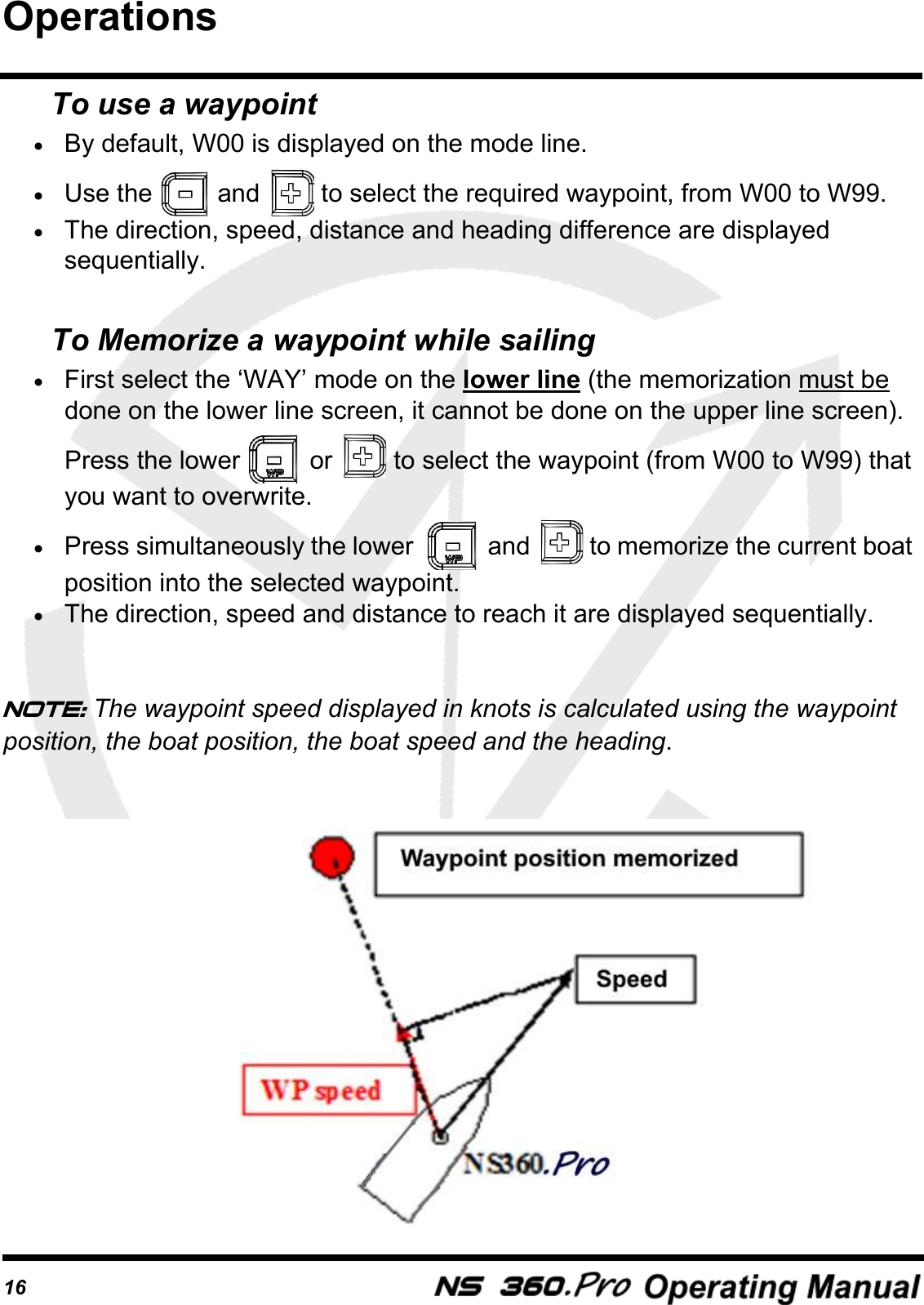
16To use a waypoint•By default, W00 is displayed on the mode line.•Use the   and   to select the required waypoint, from W00 to W99.•The direction, speed, distance and heading difference are displayed sequentially.To Memorize a waypoint while sailing•First select the ‘WAY’ mode on the lower line (the memorization must be done on the lower line screen, it cannot be done on the upper line screen). Press the lower   or   to select the waypoint (from W00 to W99) that you want to overwrite.•Press simultaneously the lower    and   to memorize the current boat position into the selected waypoint.•The direction, speed and distance to reach it are displayed sequentially.Note: The waypoint speed displayed in knots is calculated using the waypoint position, the boat position, the boat speed and the heading.Operations
17Route mode: RxxThe Route mode has been made for those who are sailing island races and require information such as the direction and distance to reach the series of pre-defined waypoints. Up to 20 routes, made up of up to 500 waypoints, can be memorized: R01 to R20. Each time a route is selected, the direction, speed and distance needed to reach its wayoints are displayed sequentially.When getting within 50 to 500 meters of a waypoint (settable thanks to the Novasail Wireless Manager PC software), the route will switch to the next waypoint automatically.To use a route•By default, R01 is displayed.•A long push on   or   will allow the selection of the route from R01 to R20; then a short push on   or   will decrease/increase the route number.•The name and the waypoint number are displayed sequentially on the sub-mode column.•A push on   or   will select the previous or the next waypoint into the current route.•The direction, speed and distance to the target waypoint on the chosen route will be displayed sequentially on the main screen.Operations
18Note: It is necessary to upload the routes into the Note: The display timings of the direction, speed, distance and heading difference are defined by the parameters Waypoint Heading, Waypoint Speed,  Waypoint Distance and Waypoint diff.heading in the Novasail Wireless Manager PC software. Please refer to the online documentation for more details.Current GPS coordinatesThis mode allows the latitude and longitude of the current position to display (in  degrees and decimal minutes). To activate this mode, you need to press the upper   and   simultaneously. The latitude is displayed on the upper line and the longitude on the lower line.Press any key to exit this mode.Operations
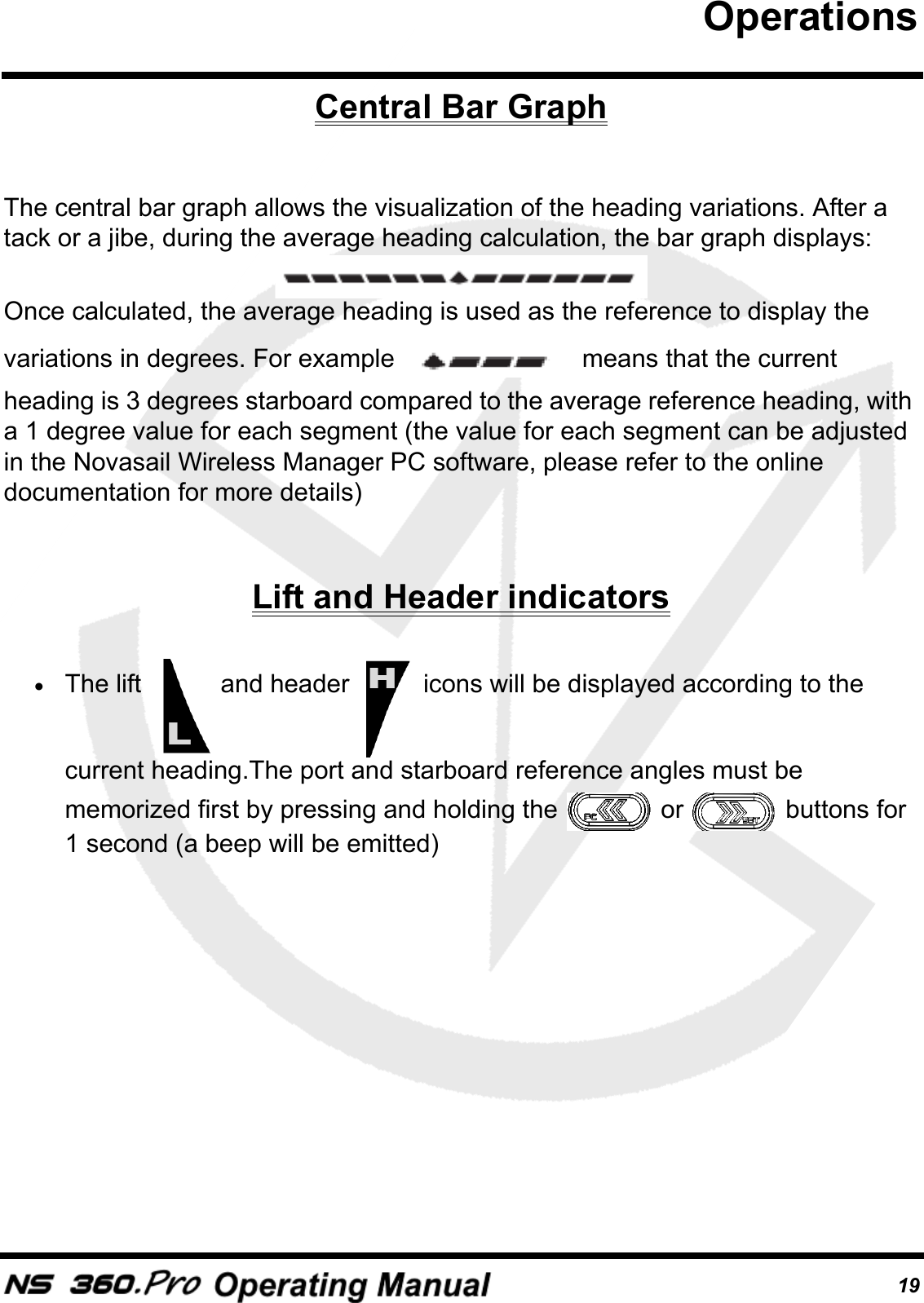
19Central Bar GraphThe central bar graph allows the visualization of the heading variations. After a tack or a jibe, during the average heading calculation, the bar graph displays: Once calculated, the average heading is used as the reference to display the variations in degrees. For example   means that the current heading is 3 degrees starboard compared to the average reference heading, with a 1 degree value for each segment (the value for each segment can be adjusted in the Novasail Wireless Manager PC software, please refer to the online documentation for more details)Lift and Header indicators•The lift   and header   icons will be displayed according to the current heading.The port and starboard reference angles must be memorized first by pressing and holding the   or   buttons for 1 second (a beep will be emitted)Operations
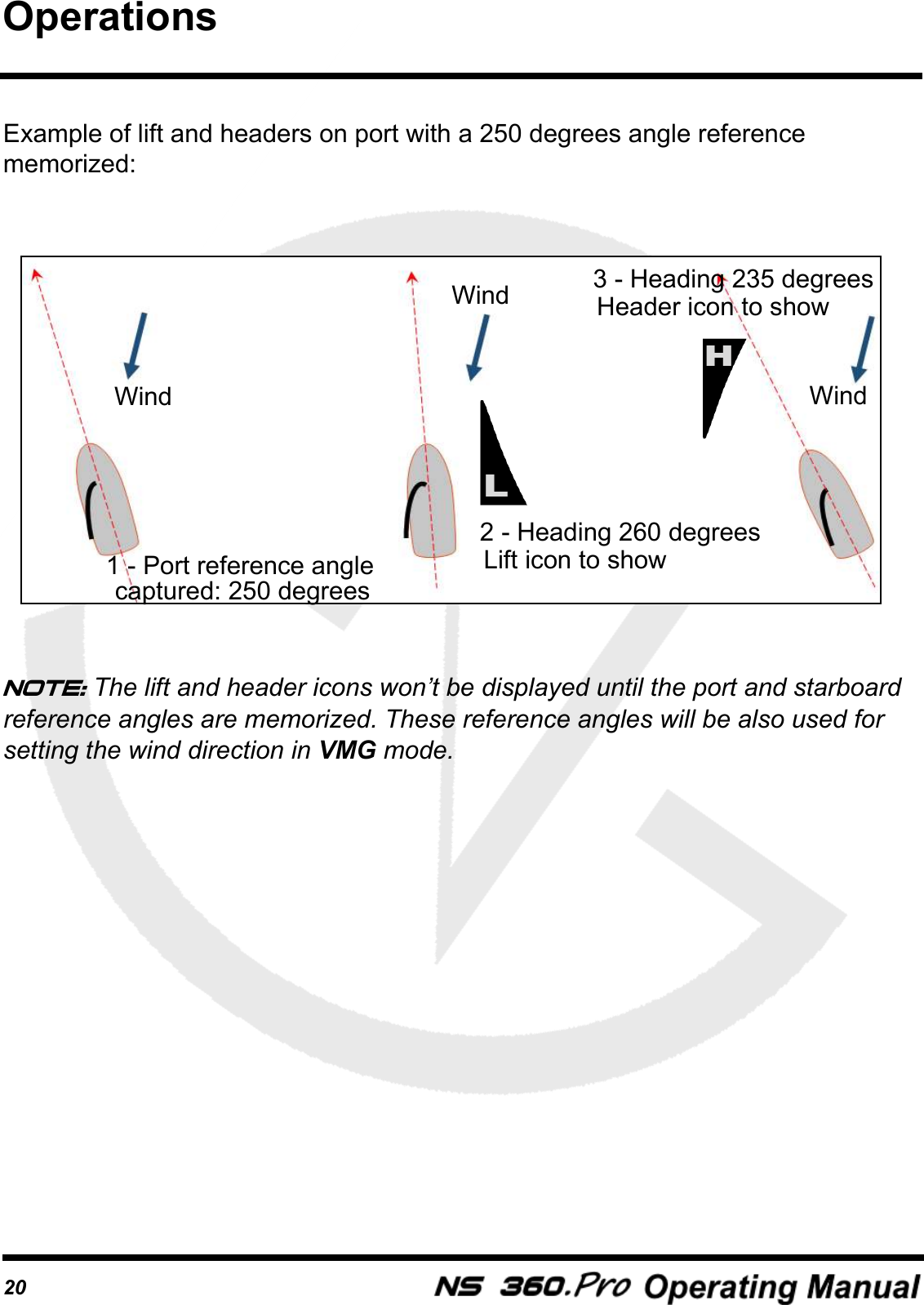
20Example of lift and headers on port with a 250 degrees angle reference memorized:Note: The lift and header icons won’t be displayed until the port and starboard  reference angles are memorized. These reference angles will be also used for setting the wind direction in VMG mode.1 - Port reference anglecaptured: 250 degrees2 - Heading 260 degrees Lift icon to show3 - Heading 235 degrees Header icon to showWindWindWindOperations
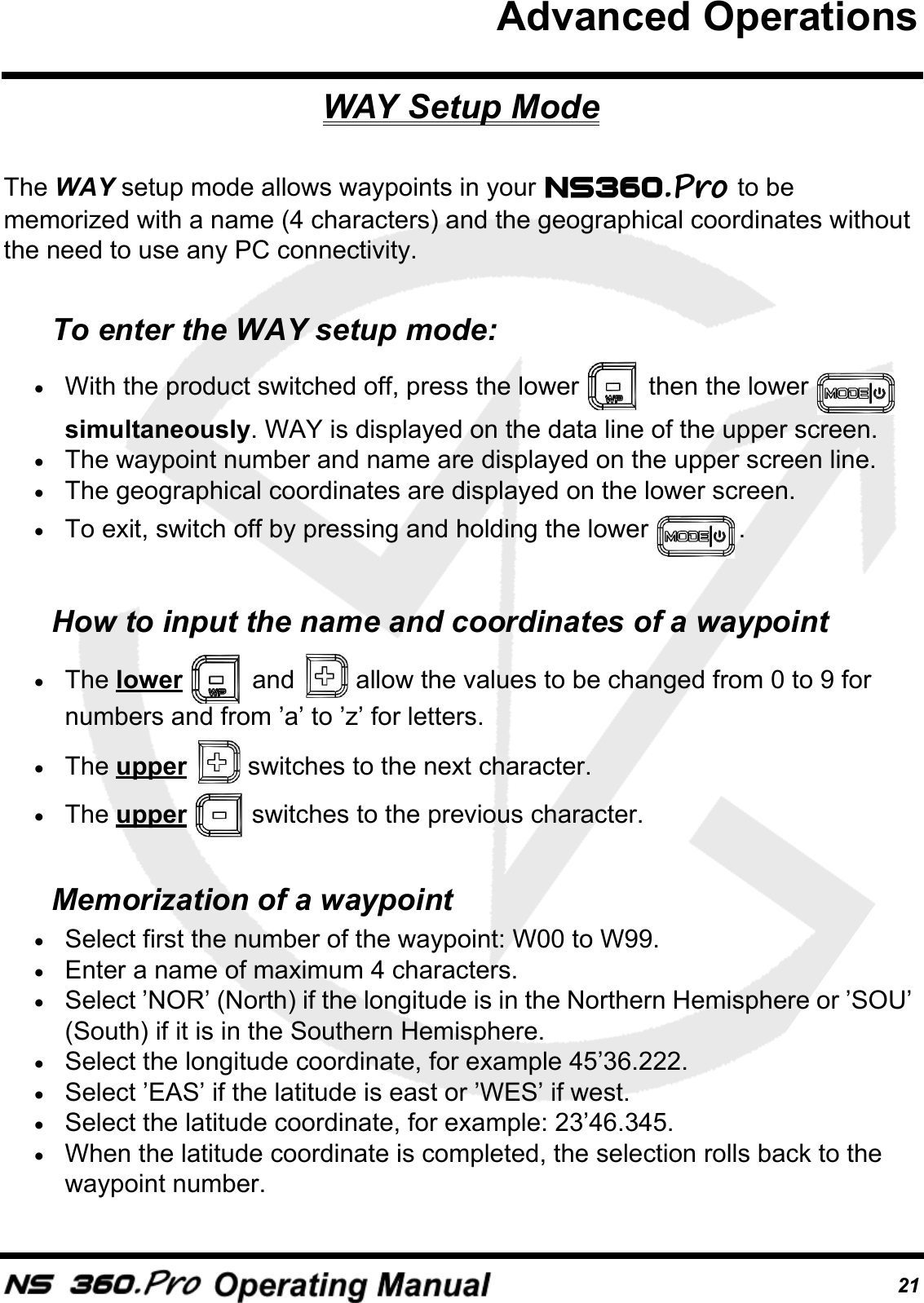
21WAY Setup ModeThe WAY setup mode allows waypoints in your   to be memorized with a name (4 characters) and the geographical coordinates without the need to use any PC connectivity.To enter the WAY setup mode:•With the product switched off, press the lower   then the lower   simultaneously. WAY is displayed on the data line of the upper screen. •The waypoint number and name are displayed on the upper screen line.•The geographical coordinates are displayed on the lower screen.•To exit, switch off by pressing and holding the lower  .How to input the name and coordinates of a waypoint•The lower   and   allow the values to be changed from 0 to 9 for numbers and from ’a’ to ’z’ for letters.•The upper   switches to the next character.•The upper   switches to the previous character.Memorization of a waypoint•Select first the number of the waypoint: W00 to W99.•Enter a name of maximum 4 characters. •Select ’NOR’ (North) if the longitude is in the Northern Hemisphere or ’SOU’ (South) if it is in the Southern Hemisphere.•Select the longitude coordinate, for example 45’36.222.•Select ’EAS’ if the latitude is east or ’WES’ if west. •Select the latitude coordinate, for example: 23’46.345.•When the latitude coordinate is completed, the selection rolls back to the waypoint number.Advanced Operations
22PC ModeThe PC mode is activated to exchange data between the   Bluetooth wireless transceiver and the computer. The Novasail Wireless Manager software allows you to check the communication status, upgrade the embedded firmware, store routes and waypoints, setup the device. Please refer to the Novasail Wireles Manager documentation for more details; the online manual can be open with a right click on the Novasail Wireless Manager main window.To enter in PC connectivity mode•With the product switched off, press the buttons   first and the lower  simultaneously. PC is displayed on the data line of the lower screen (blinking) with “blu” (bluetooth) shown•To exit the PC mode, switch off by pressing and holding the lower Troubleshooting•Make sure the Bluetooth connectivity is activated on the PC•Make sure to allow any Bluetooth device to find the PC in the operating system•Close/re-open the Novasail Wireless Manager app. Remove the  from the previously paired bluetooth devices and launch a new pairing process•Make sure the PC mode on the   is turned on: “PC” must be blinking on the main display and “blu” (Bluetooth) must be shown on the lower line•Confirm the   is indicated on the available Bluetooth devices on the PC•The message ’connected’ should appear in green at the bottom of the Novasail Wireless Manager window within a minute (the delay is PC hardware dependant)Note: to save batteries the   will shut down automatically if no PC connectivity is detected for 10 minutes.Advanced Operations
23Screen capture example, Windows 10 Bluetooth settings. Once the  is paired and in an active connection the device appears as followed:In the Bluetooth options (Windows 10 screen capture), additional information should be displayed as followed (the COM port numbers may be different): Advanced Operations
24User Calibration of the magnetic compass: CALWhen enabled in the parameter tab of the Novasail Wireless Manager PC software, the   enters automatically a set of sub-menus to allow a self calibration of the magnetic compass/accelerometers/gyroscopes at power ON. There are 10 sub-menus that have to be followed in the sequence described below.To allow the maximum accuracy of the calibration procedure, it is recommended to perform this outdoors to avoid any magnetic disturbing fields. A wooden surface is recommended and it is necessary to ensure that there are no ferrous materials nearby (wrist watches should be removed). The unit must be still during each calibration phase, any vibration will lower the calibration accuracy.To start with, draw 2 perpendicular lines (X and Y axis) on a perfectly horizontal plan. On the lower screen of the display, the calibration sub-menu number is displayed. There are 10 steps to follow in order to complete the calibration of your  . Upon completion of the sequence, the  will memorize the new values and shut down automatically. If the    is shut down during the calibration, nothing will be memorized.Note: Whenever necessary, the factory calibration values can be restored at any time in the compass calibration menu of the Novasail Wireless Manager.Advanced Operations
25•Step 1: ’1’ is displayed on the lower screen. The  must be oriented as follows:Push the lower   key when ready. The  will enter the calibration along the axis. After a few seconds, 3 beeps will be emitted to notify the end of step 1. •Step 2: ’2’ is now displayed on the lower screen. The  must be oriented as follows: Push the lower   when ready. The  will enter the calibration along the axis. After a few seconds, 3 beeps will be emitted to notify the end of step 2.ZYXZYXAdvanced Operations
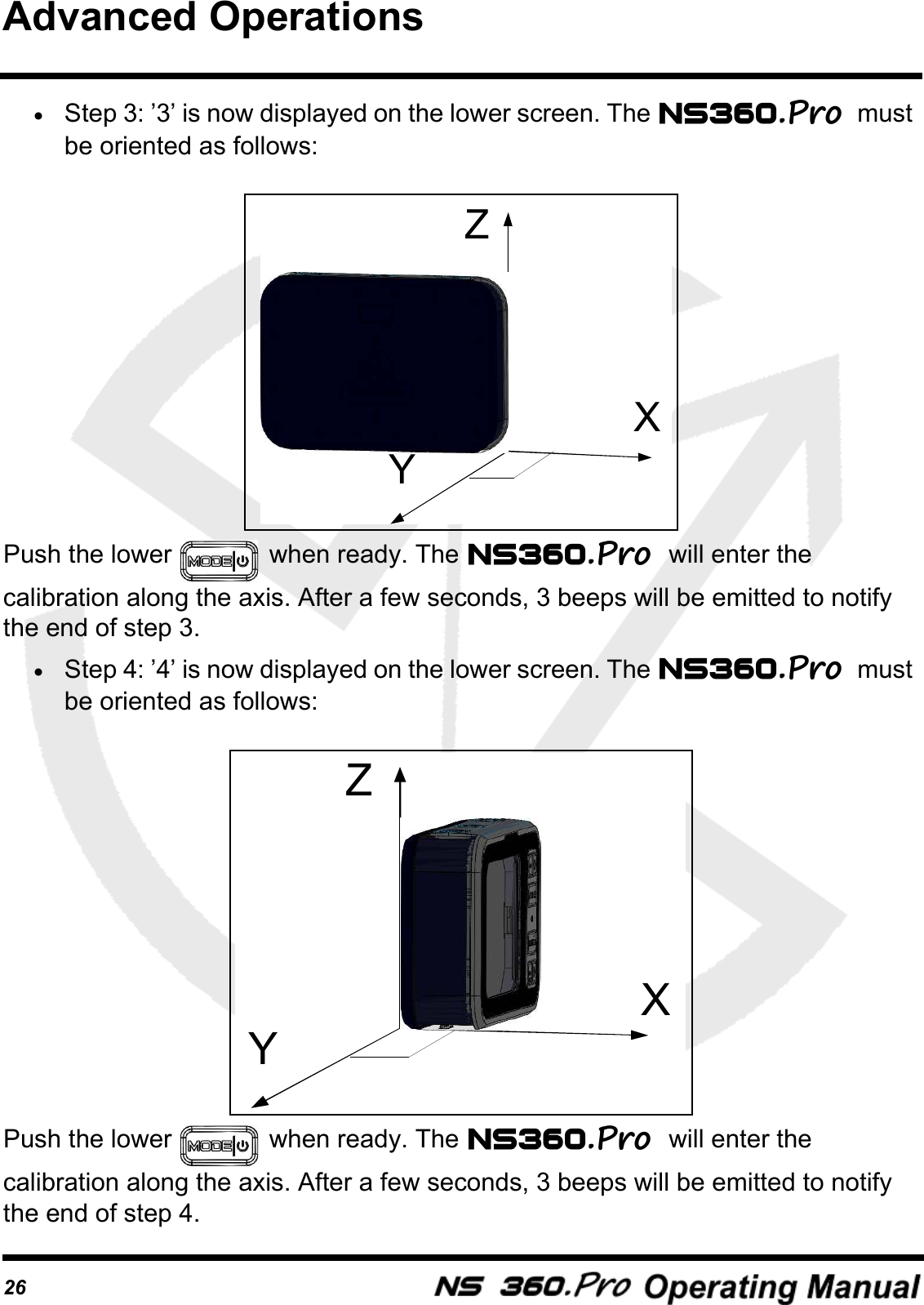
26•Step 3: ’3’ is now displayed on the lower screen. The  must be oriented as follows: Push the lower   when ready. The  will enter the calibration along the axis. After a few seconds, 3 beeps will be emitted to notify the end of step 3.•Step 4: ’4’ is now displayed on the lower screen. The  must be oriented as follows: Push the lower   when ready. The  will enter the calibration along the axis. After a few seconds, 3 beeps will be emitted to notify the end of step 4.ZYXZYXAdvanced Operations
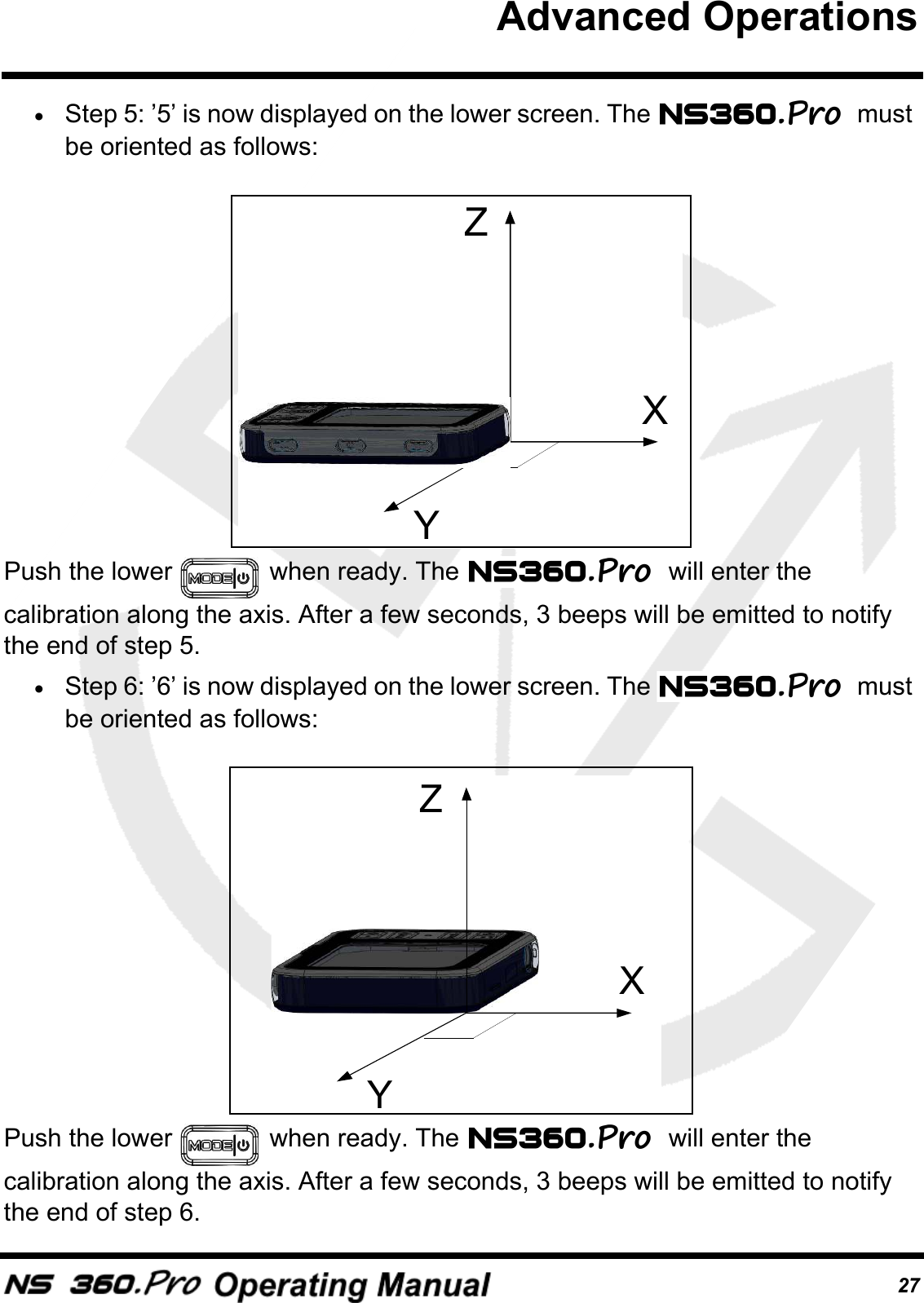
27•Step 5: ’5’ is now displayed on the lower screen. The  must be oriented as follows: Push the lower   when ready. The  will enter the calibration along the axis. After a few seconds, 3 beeps will be emitted to notify the end of step 5.•Step 6: ’6’ is now displayed on the lower screen. The  must be oriented as follows: Push the lower   when ready. The  will enter the calibration along the axis. After a few seconds, 3 beeps will be emitted to notify the end of step 6.ZYXZYXAdvanced Operations
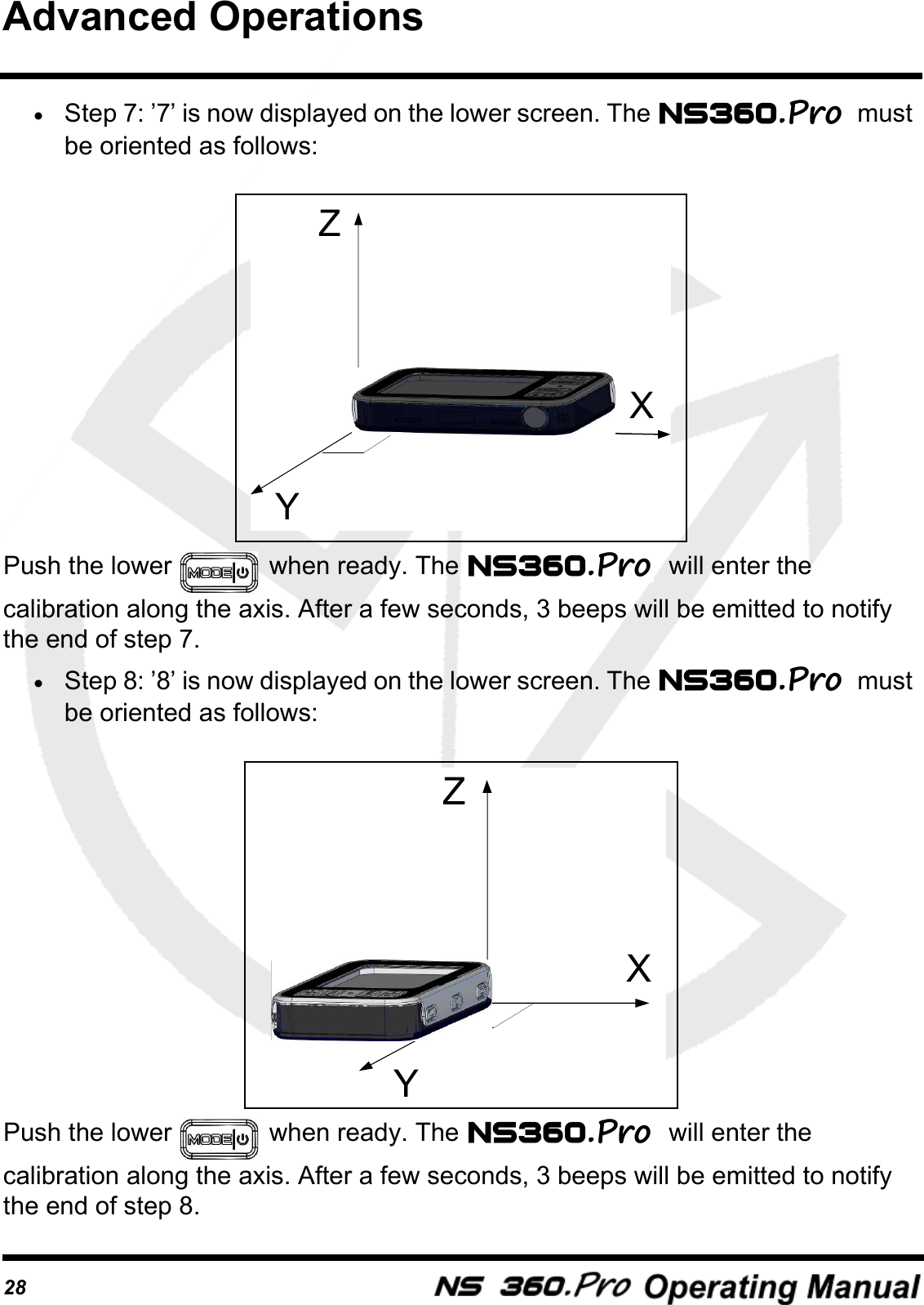
28•Step 7: ’7’ is now displayed on the lower screen. The  must be oriented as follows: Push the lower   when ready. The  will enter the calibration along the axis. After a few seconds, 3 beeps will be emitted to notify the end of step 7. •Step 8: ’8’ is now displayed on the lower screen. The  must be oriented as follows: Push the lower   when ready. The  will enter the calibration along the axis. After a few seconds, 3 beeps will be emitted to notify the end of step 8.ZYXZYXAdvanced Operations
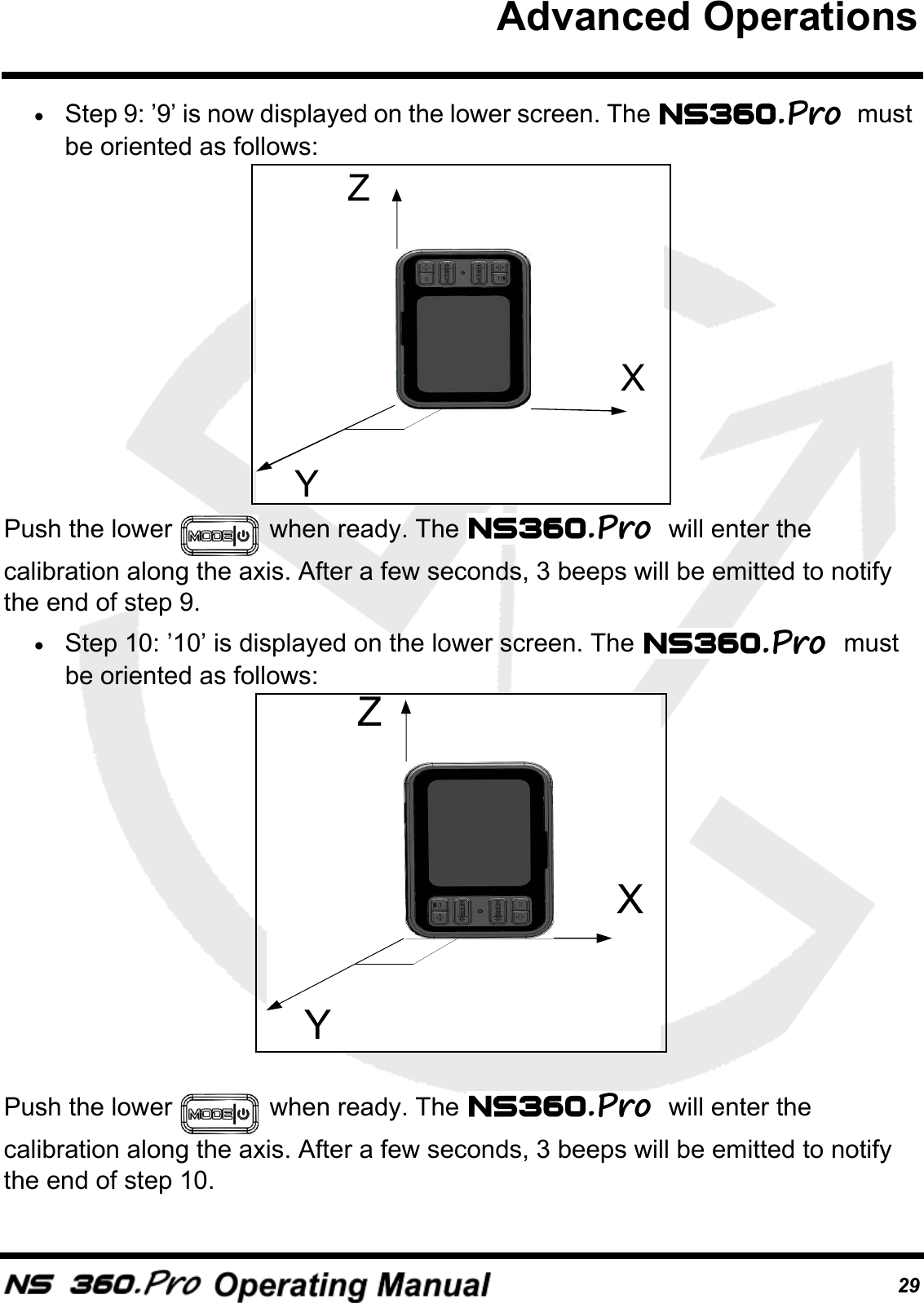
29•Step 9: ’9’ is now displayed on the lower screen. The  must be oriented as follows:Push the lower   when ready. The  will enter the calibration along the axis. After a few seconds, 3 beeps will be emitted to notify the end of step 9.•Step 10: ’10’ is displayed on the lower screen. The  must be oriented as follows:Push the lower   when ready. The  will enter the calibration along the axis. After a few seconds, 3 beeps will be emitted to notify the end of step 10.ZYXZYXAdvanced Operations
30The  will store the new values and switch off automatically. Advanced Operations
31
32
33Version 1.0: First versionDocument history
34This product meets or exceeds all of Novasail’s rigorous quality controls and inspection standards. Complete services will be provided in accordance with the statement of warranty set forth below if any manufacturing defect or natural failure occurs within the warranty period.Warranty Terms and Conditions•If any defect arises under normal conditions of use within the warranty period, our customer service center or specified partner will provide the required repair services at no charge, or legally applicable services according to the appropriate consumer protection laws and regulations of the country in which the product was purchased by the warranty holder.•The product has to be registered using the online service available on the Novasail web site: www.nova-sail.com•Please submit the proof of purchase (invoice) when requesting service.•The actual cost of repair may be charged to the customer or the performance of warranty service may be rendered impossible, even within the warranty period, under the following circumstances:•Product failure caused by accident or carelessness•Disassembly or modification for purposes other than it was originally intended for•Failure caused by a fire, earthquake or flood•Damage/failure caused by an impact•Failure caused by inappropriate services performed by anyone other than Novasail’s customer service center or one of Novasail’s service specified partners•For assitance please contact Novasail service center:E-mail: contact@nova-sail.comwww.nova-sail.comLimited warranty
DISCLAIMER35Information in this document is provided solely in connection with NOVASAIL LTD products. NOVASAIL LTD reserves the right to make changes, corrections, modifications or improvements to this document and the products described herein at any time, without notice.All NOVASAIL LTD products are sold pursuant to NOVASAIL LTD’s terms and conditions of sale.Purchasers are solely responsible for the choice, selection and use of the NOVASAIL LTD products described herein, and NOVASAIL LTD assumes no liability whatsoever relating to the choice, selection or use of the NOVASAIL LTD products described herein.UNLESS OTHERWISE SET FORTH IN NOVASAIL LTD’S TERMS AND CONDITIONS OF SALE,  NOVASAIL LTD DISCLAIMS ANY EXPRESS OR IMPLIED WARRANTY WITH RESPECT TO THE USE AND/OR SALE OF NOVASAIL LTD PRODUCTS, INCLUDING WITHOUT LIMITATION IMPLIED WARRANTIES OF MERCHANTABILITY OR FITNESS FOR A PARTICULAR PURPOSE (AND THEIR EQUIVALENTS UNDER THE LAWS OF ANY JURISDICTION).UNLESS EXPRESSLY APPROVED IN WRITING BY AN AUTHORIZED NOVASAIL LTD REPRESENTATIVE, NOVASAIL LTD PRODUCTS ARE NOT RECOMMENDED, AUTHORIZED OR WARRANTED FOR USE IN MILITARY, AIR CRAFT, SPACE, LIFE SAVING, OR LIFE SUSTAINING APPLICATIONS, NOR IN PRODUCTS OR SYSTEMS WHERE FAILURE OR MALFUNCTION MAY RESULT IN PERSONAL INJURY, DEATH, OR SEVERE PROPERTY OR ENVIRONMENTAL DAMAGE.  Resale of NOVASAIL LTD products with provisions different from the statements and/or technical features set forth in this document shall immediately void any warranty granted by NOVASAIL LTD for the NOVASAIL LTD product or service described herein and shall not create or extend in any manner whatsoever, any liability of NOVASAIL LTD.
  FCC WARNING  This device complies with Part 15 of the FCC Rules. Operation is subject to the following two conditions: (1) This device may not cause harmful interference, and (2) this device must accept any interference received, including interference that may cause undesired operation.  NOTE 1: Any changes or modifications to this unit not expressly approved by the party responsible for compliance could void the user's authority to operate the equipment.
© 2017 NOVASAIL - All rights reservedwww.nova-sail.com

Navigation menu