Novatron NTD37L MULTIMEDIA PLAYER User Manual 8F11V2 NTD37L Manual Eng for CE

Novatron Co., Ltd MULTIMEDIA PLAYER 8F11V2 NTD37L Manual Eng for CE

Contents

USERS MANUAL 1

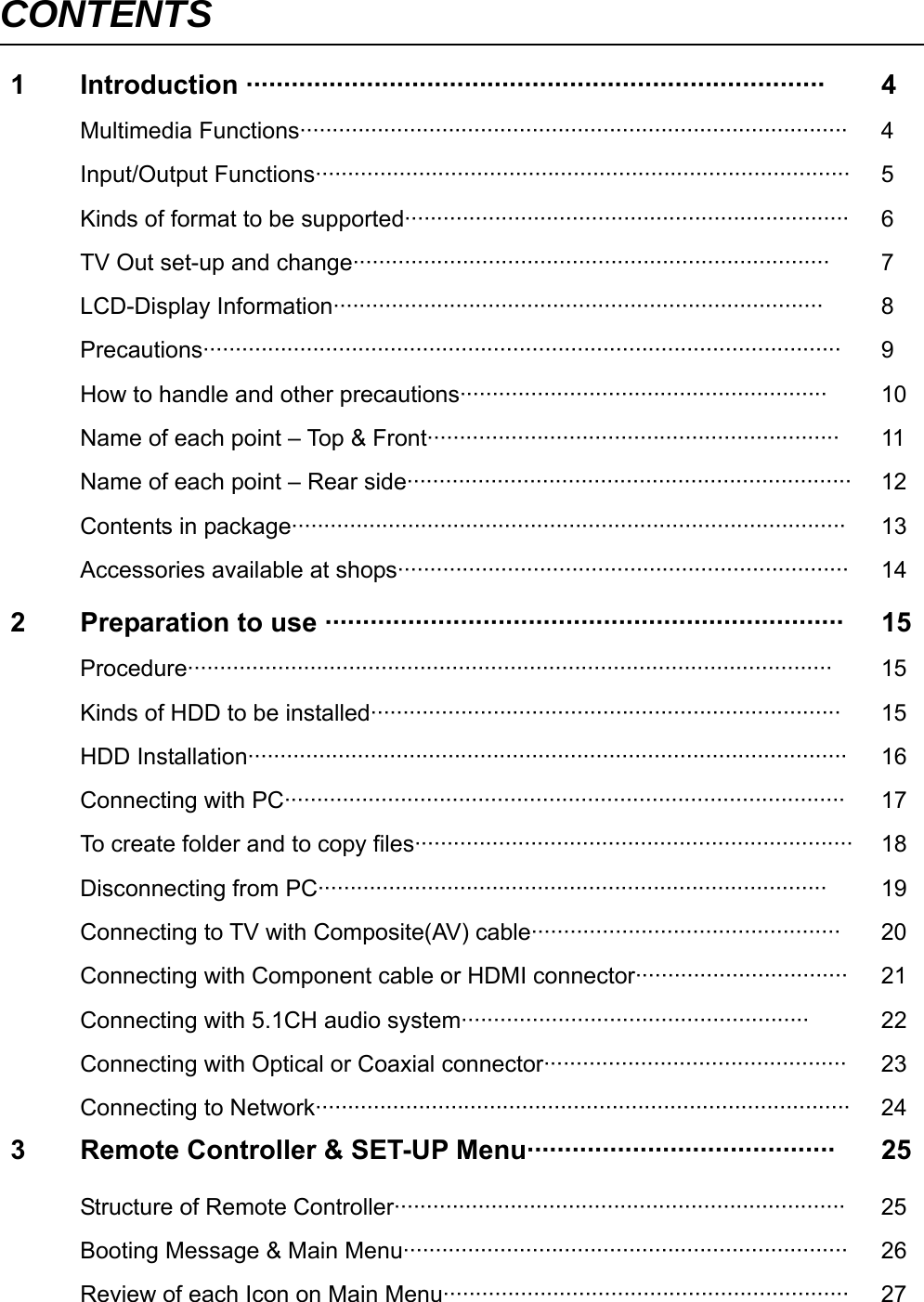
CONTENTS 1 Introduction ············································································· 4  Multimedia Functions····················································································· 4  Input/Output Functions··················································································· 5  Kinds of format to be supported····································································· 6  TV Out set-up and change·········································································· 7  LCD-Display Information············································································ 8  Precautions··································································································· 9  How to handle and other precautions························································· 10 Name of each point – Top & Front································································ 11  Name of each point – Rear side····································································· 12 Contents in package······················································································ 13 Accessories available at shops······································································ 142  Preparation to use ····································································· 15 Procedure···································································································· 15 Kinds of HDD to be installed········································································· 15 HDD Installation····························································································· 16 Connecting with PC······················································································· 17 To create folder and to copy files···································································· 18 Disconnecting from PC··············································································· 19 Connecting to TV with Composite(AV) cable················································ 20 Connecting with Component cable or HDMI connector································· 21 Connecting with 5.1CH audio system······················································ 22 Connecting with Optical or Coaxial connector··············································· 23 Connecting to Network··················································································· 243  Remote Controller & SET-UP Menu········································· 25 Structure of Remote Controller······································································ 25 Booting Message & Main Menu····································································· 26 Review of each Icon on Main Menu······························································· 27
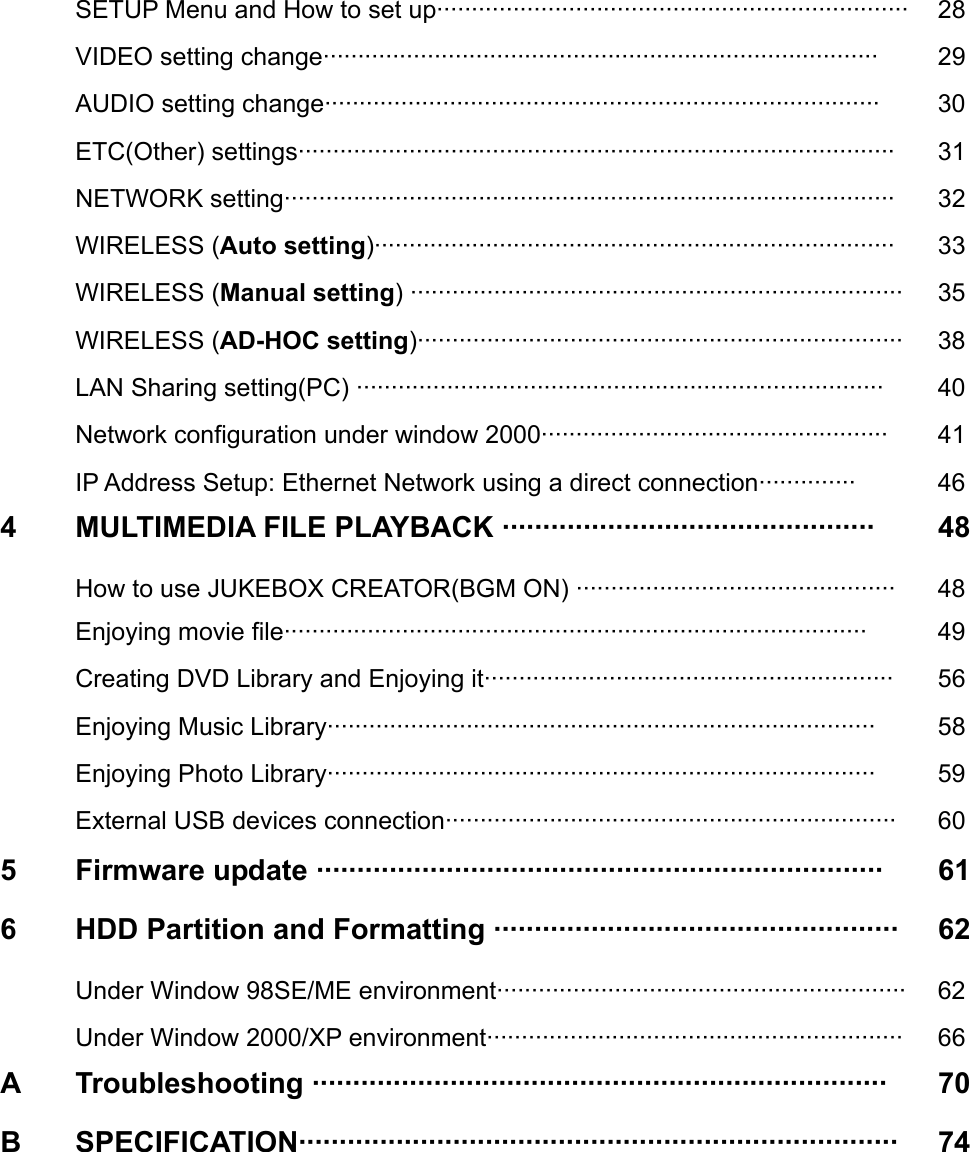
 SETUP Menu and How to set up···································································· 28 VIDEO setting change················································································ 29 AUDIO setting change················································································ 30 ETC(Other) settings······················································································ 31 NETWORK setting························································································ 32 WIRELESS (Auto setting)··········································································· 33 WIRELESS (Manual setting) ······································································· 35 WIRELESS (AD-HOC setting)······································································ 38 LAN Sharing setting(PC) ············································································ 40 Network configuration under window 2000·················································· 41 IP Address Setup: Ethernet Network using a direct connection··············  464  MULTIMEDIA FILE PLAYBACK ·············································· 48 How to use JUKEBOX CREATOR(BGM ON) ·············································· 48 Enjoying movie file···················································································· 49 Creating DVD Library and Enjoying it··························································· 56 Enjoying Music Library··············································································· 58 Enjoying Photo Library··············································································· 59 External USB devices connection································································· 605  Firmware update ······································································ 616  HDD Partition and Formatting ·················································· 62 Under Window 98SE/ME environment··························································· 62 Under Window 2000/XP environment···························································· 66A Troubleshooting ······································································· 70B SPECIFICATION·········································································· 74
 - 4 -  Introduction       Multimedia Functions  To playback a recorded digital HD file As this device supports up to 1920 x 1080 progressive scan, you can enjoy playing back a pre-recorded HDTV program by a digital TV set-top box or person digital video contents taken by a HD camcorder with fantastic displaying quality.  To support various video formats This device supports various latest video formats such as a pre-recorded HD file(tp, ts), WMV9, WMV9 HD, MPEG1/2, MPG, MPEG4(DivX, Xvid), etc.  DVD JUKE BOX Function As this device supports ISO file and IFO file, you can store DVD titles in it and playback those files just like DVD Player. You can store various DVD titles into this device and manage them forever and easily.  Auto Playback, Bookmark and Section Repeat Functions After one file playback is ended, the next file (different in file name only) is play-backed automatically. If you mark a specific position of a movie during playback with “BOOKMARK” button of remote controller, you can start from the marked position again. The function of ‘Section Repeat’ lets you repeat a specific section. Section Repeat function is useful for language study or enjoying sports moving pictures.  Music JUKE BOX Function As this device supports various music files like MP3, Ogg Vorbis, WMA, M3U and PLS, you can store these files in it and enjoy them with easy. And, in case that you make its own playlist by using ‘JUKE BOX CREATOR’ function, you can enjoy music files (playlisted) as background music(BGM function) with easy and convenient.  Digital Photo Album You can enjoy photo with this device together with your family through big screen of TV in your living room, as this device has ‘Photo Slide Show’ and ‘BGM(Background Music)’ functions.
 - 5 -   Input/Output Functions  Analog 5.1CH Audio Output and 2CH Down Mix This player can output analog audio signal(decoded signal), as it can decode digital signal(high quality audio sound signal like AC3, DTS) into analog signal internally by itself. So, you can enjoy 5.1CH high quality sound without an expansive additional device like DTS decoder or Receiver. And, as this device supports 2CH down mix, users who have 2CH speaker only also can enjoy multi channel audio track..  High Quality HDMI Connector As this device has HDMI connector which output high quality digital and audio signal, you can enjoy high quality display and sound without any distortion.  Streaming through Wired/Wireless Network Without the procedure to copy files from PC to this device through USB cable, you can stream various media files in your PC to it and playback them back with TV directly through its Network solution.  Installed Wireless LAN Module and Antenna As this device has Wired LAN as well as Wireless LAN module which supports turbo function, WEP security function and high sensitive 5dBi antenna, you can connect this device easily with any wireless network environment.  HOST USB2.0 lets you connect with various external USB devices As this device has two (2) USB2.0 HOST, you can attaché various external USB devices such as external HDD, USB memory, digital camera, etc.  External Mass Storage As this device works perfectly as an external USB mass-storage for your PC through high speed USB2.0, you can store huge data in it and manage it with easy.
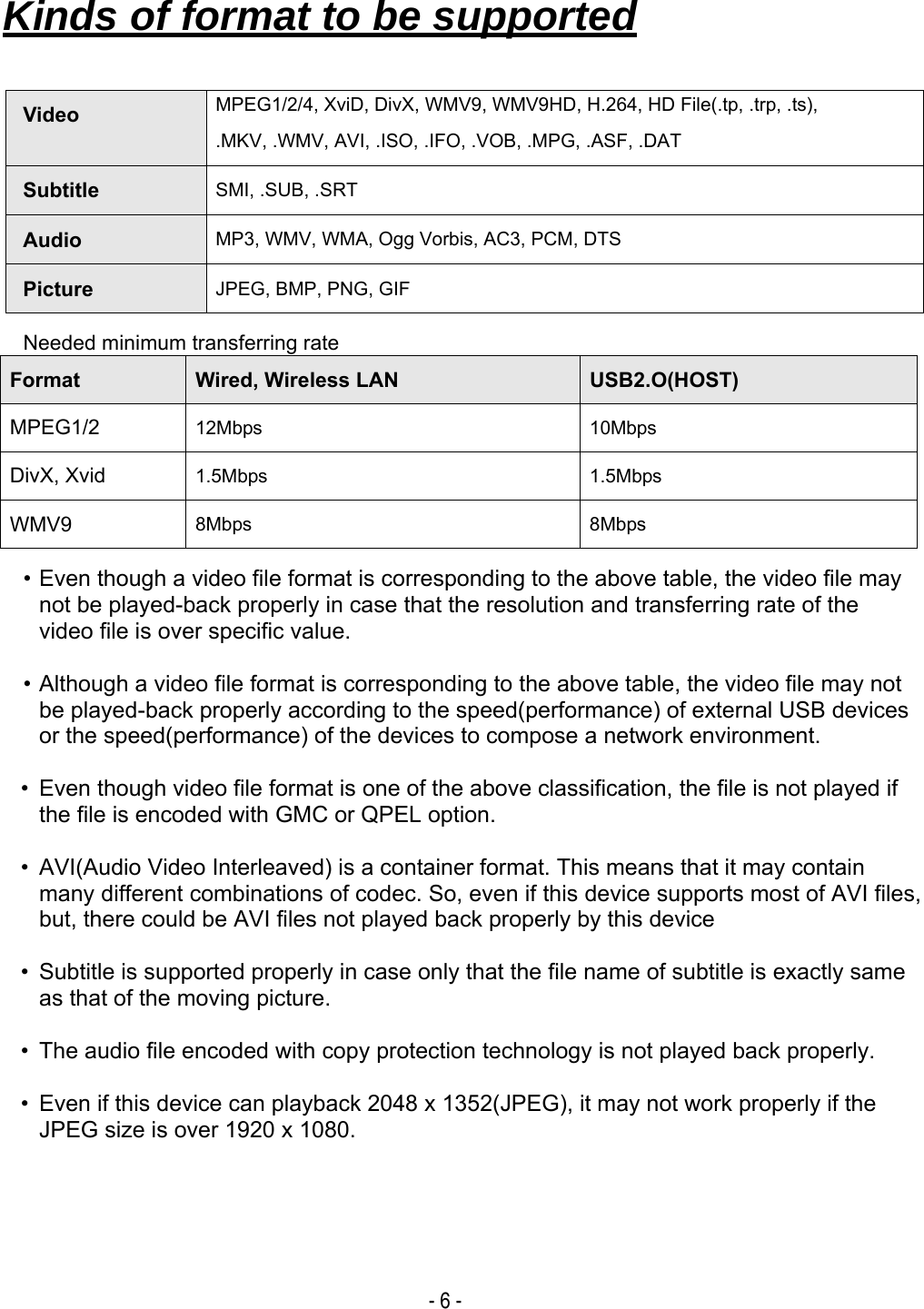
 - 6 -   Kinds of format to be supported  Video  MPEG1/2/4, XviD, DivX, WMV9, WMV9HD, H.264, HD File(.tp, .trp, .ts), .MKV, .WMV, AVI, .ISO, .IFO, .VOB, .MPG, .ASF, .DAT Subtitle  SMI, .SUB, .SRT Audio  MP3, WMV, WMA, Ogg Vorbis, AC3, PCM, DTS Picture  JPEG, BMP, PNG, GIF Needed minimum transferring rate Format  Wired, Wireless LAN  USB2.O(HOST) MPEG1/2  12Mbps 10Mbps DivX, Xvid  1.5Mbps 1.5Mbps WMV9  8Mbps 8Mbps • Even though a video file format is corresponding to the above table, the video file may not be played-back properly in case that the resolution and transferring rate of the video file is over specific value. • Although a video file format is corresponding to the above table, the video file may not be played-back properly according to the speed(performance) of external USB devices or the speed(performance) of the devices to compose a network environment. •  Even though video file format is one of the above classification, the file is not played if the file is encoded with GMC or QPEL option. •  AVI(Audio Video Interleaved) is a container format. This means that it may contain many different combinations of codec. So, even if this device supports most of AVI files, but, there could be AVI files not played back properly by this device •  Subtitle is supported properly in case only that the file name of subtitle is exactly same as that of the moving picture. •  The audio file encoded with copy protection technology is not played back properly. •  Even if this device can playback 2048 x 1352(JPEG), it may not work properly if the JPEG size is over 1920 x 1080.
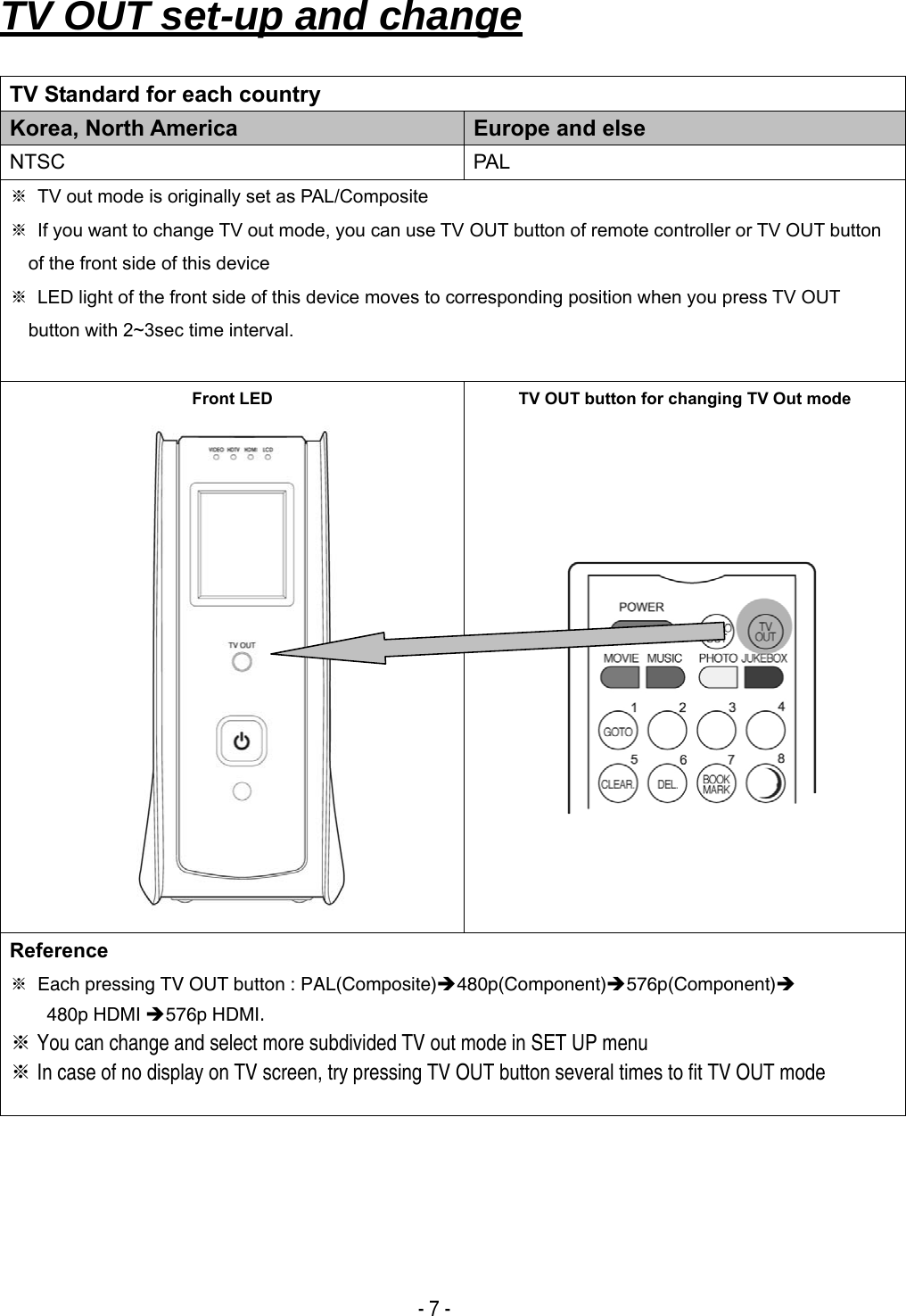
 - 7 - TV OUT set-up and change   TV Standard for each country Korea, North America  Europe and else NTSC PAL ※  TV out mode is originally set as PAL/Composite ※  If you want to change TV out mode, you can use TV OUT button of remote controller or TV OUT button of the front side of this device ※  LED light of the front side of this device moves to corresponding position when you press TV OUT button with 2~3sec time interval.  Front LED        TV OUT button for changing TV Out mode   Reference ※  Each pressing TV OUT button : PAL(Composite)Î480p(Component)Î576p(Component)Î 480p HDMI Î576p HDMI.  You can change and ※select more subdivided TV out mode in SET UP menu  In case of no display on TV screen, try pressing TV OUT button several times to fit TV OUT mode※
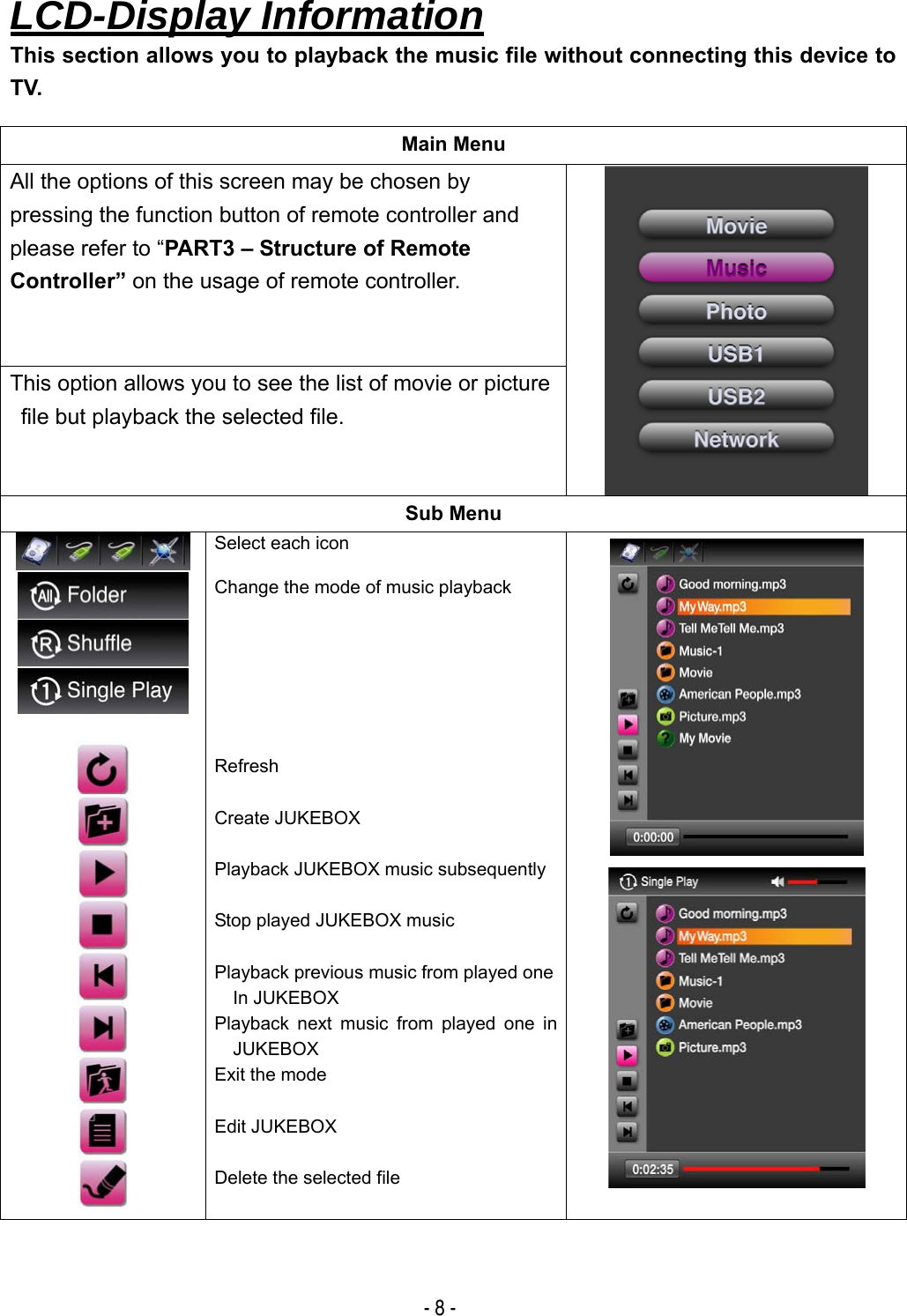
 - 8 - LCD-Display Information This section allows you to playback the music file without connecting this device to TV.    Main Menu All the options of this screen may be chosen by pressing the function button of remote controller and please refer to “PART3 – Structure of Remote Controller” on the usage of remote controller.    This option allows you to see the list of movie or picture file but playback the selected file. Sub Menu               Select each icon    Change the mode of music playback        Refresh   Create JUKEBOX  Playback JUKEBOX music subsequently  Stop played JUKEBOX music    Playback previous music from played one In JUKEBOX Playback next music from played one in JUKEBOX Exit the mode    Edit JUKEBOX    Delete the selected file
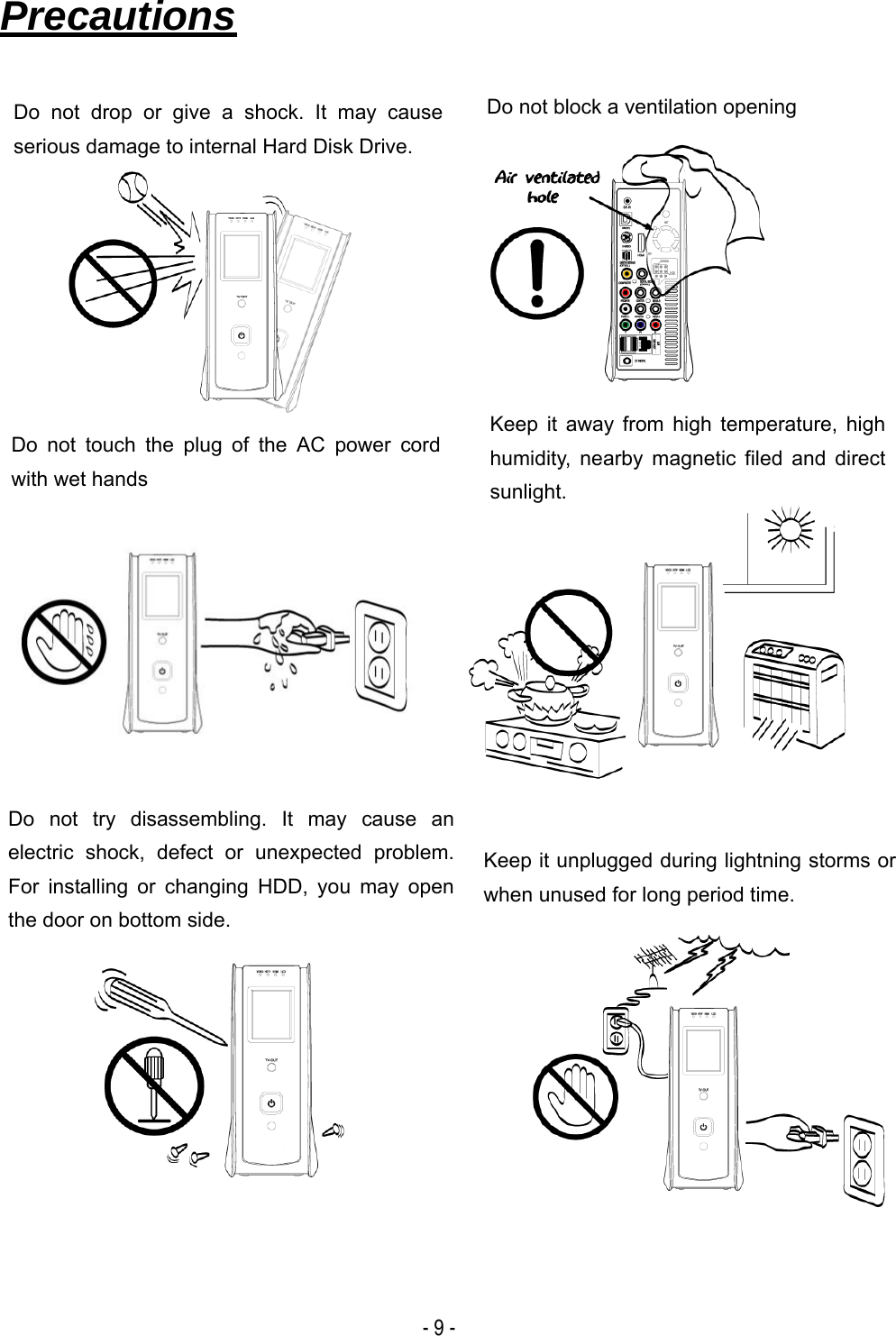
 - 9 - Precautions                                     Do not drop or give a shock. It may cause serious damage to internal Hard Disk Drive. Keep it away from high temperature, high humidity, nearby magnetic filed and direct sunlight. Do not block a ventilation opening Keep it unplugged during lightning storms or when unused for long period time. Do not try disassembling. It may cause an electric shock, defect or unexpected problem. For installing or changing HDD, you may open the door on bottom side. Do not touch the plug of the AC power cord with wet hands
 - 10 - • Make sure that you have to use the AC adapter supplied together with this device. If not, it may cause unexpected problem like breakdown, fire, etc. • In case that this device is used or left in a completely covered and high temperature space(like in a car) for long time, it may cause unexpected problem. • Do not see the light of OPTICAL connector directly. It may have a bad effect on your eyes. • In case of no use for long time, get rid of battery from remote controller. • To clean the exterior of this device, soak a soft cloth in a mild detergent solution diluted with water, tightly squeeze the cloth to remove the excess liquid, wipe the affected area of the exterior, and finish by wiping with a dry cloth. • Make sure that this device is not powered off suddenly during its working (playing-back, file transferring, firmware upgrading, etc). In case of sudden power-off during working, you need to check HDD with Windows utility (Scan Disk) after connecting with your PC system. • When you try disconnecting the USB cable between this device and your PC system after finishing jobs, make sure to follow ‘USB device safety removal’ procedure. • When try connecting HDD to SATA cable, S-Video cable, HDMI cable, be careful not to give some damage to pins of each connector.How to handle and other precautions
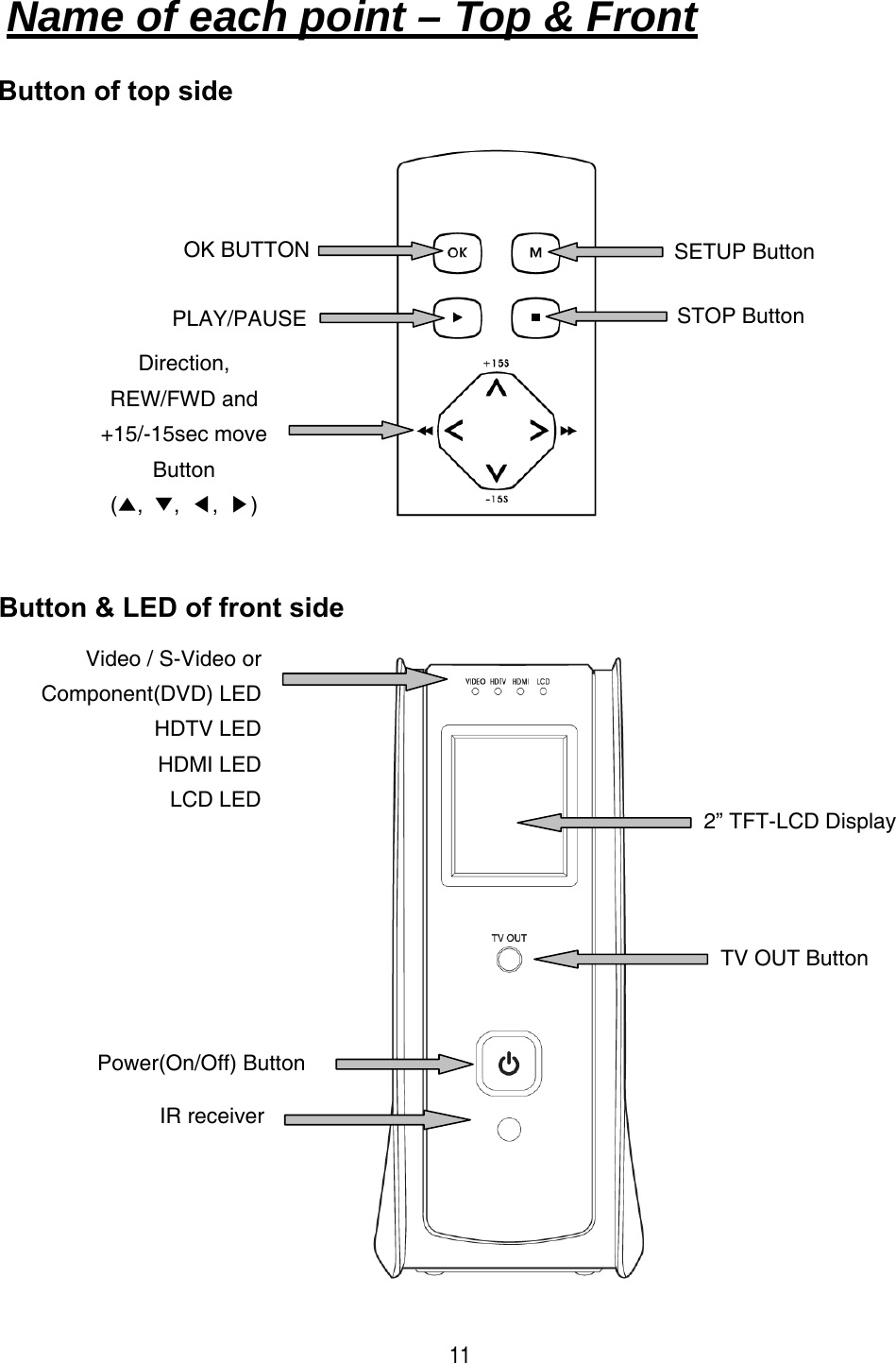
 11                                 Name of each point – Top & Front   Button of top side Button & LED of front side OK BUTTON PLAY/PAUSE Direction, REW/FWD and +15/-15sec move Button (▲,  ▼,  ◀,  ▶) SETUP Button STOP Button Power(On/Off) Button IR receiver Video / S-Video or Component(DVD) LED HDTV LED HDMI LED LCD LED  2” TFT-LCD Display TV OUT Button
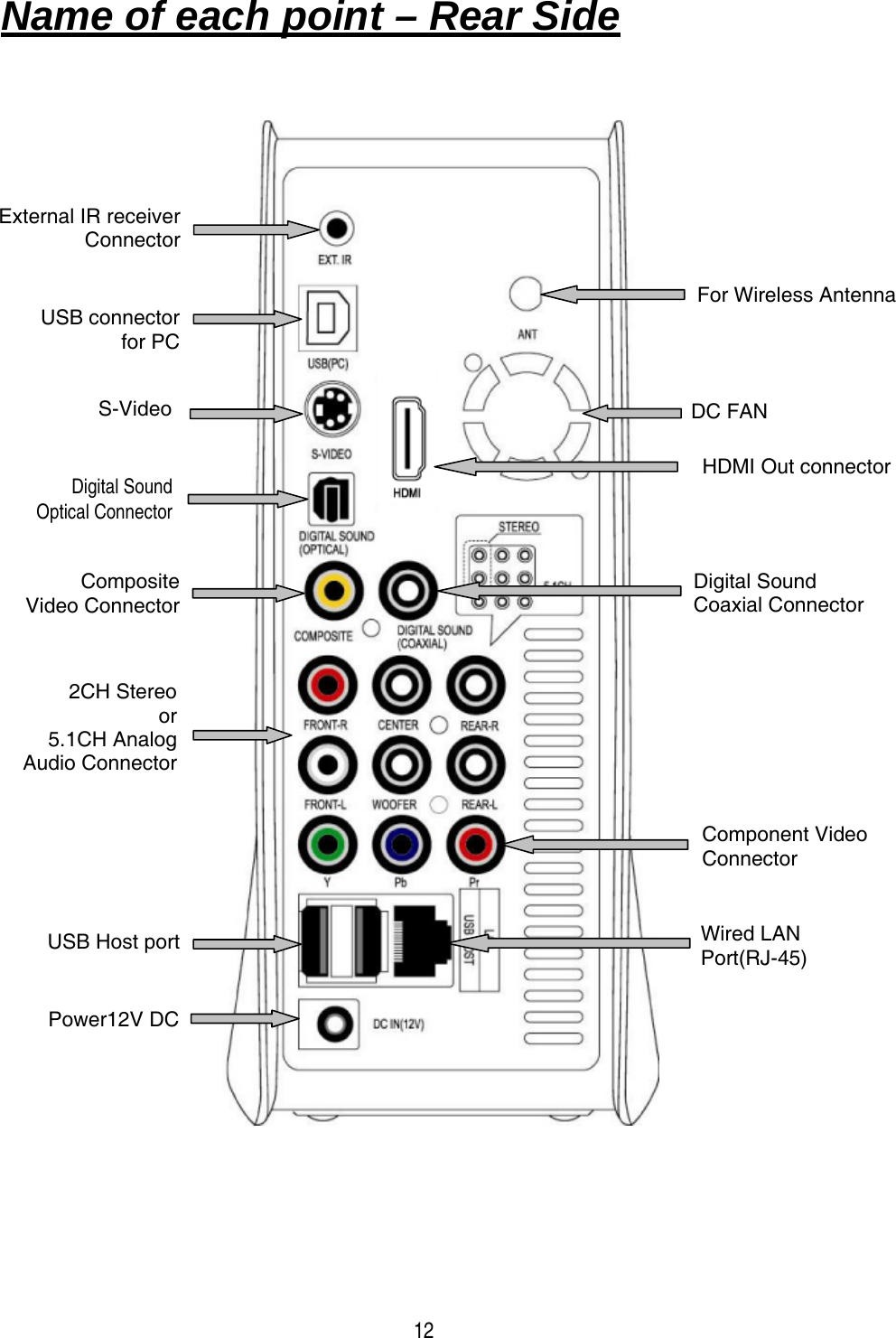
 12                                     Name of each point – Rear Side   External IR receiver Connector USB connector  for PC  S-Video  Digital Sound Optical Connector  Composite  Video Connector  2CH Stereo or  5.1CH Analog Audio Connector  USB Host port    Power12V DC Component Video Connector HDMI Out connector   Digital Sound Coaxial Connector  DC FAN For Wireless Antenna Wired LAN Port(RJ-45)
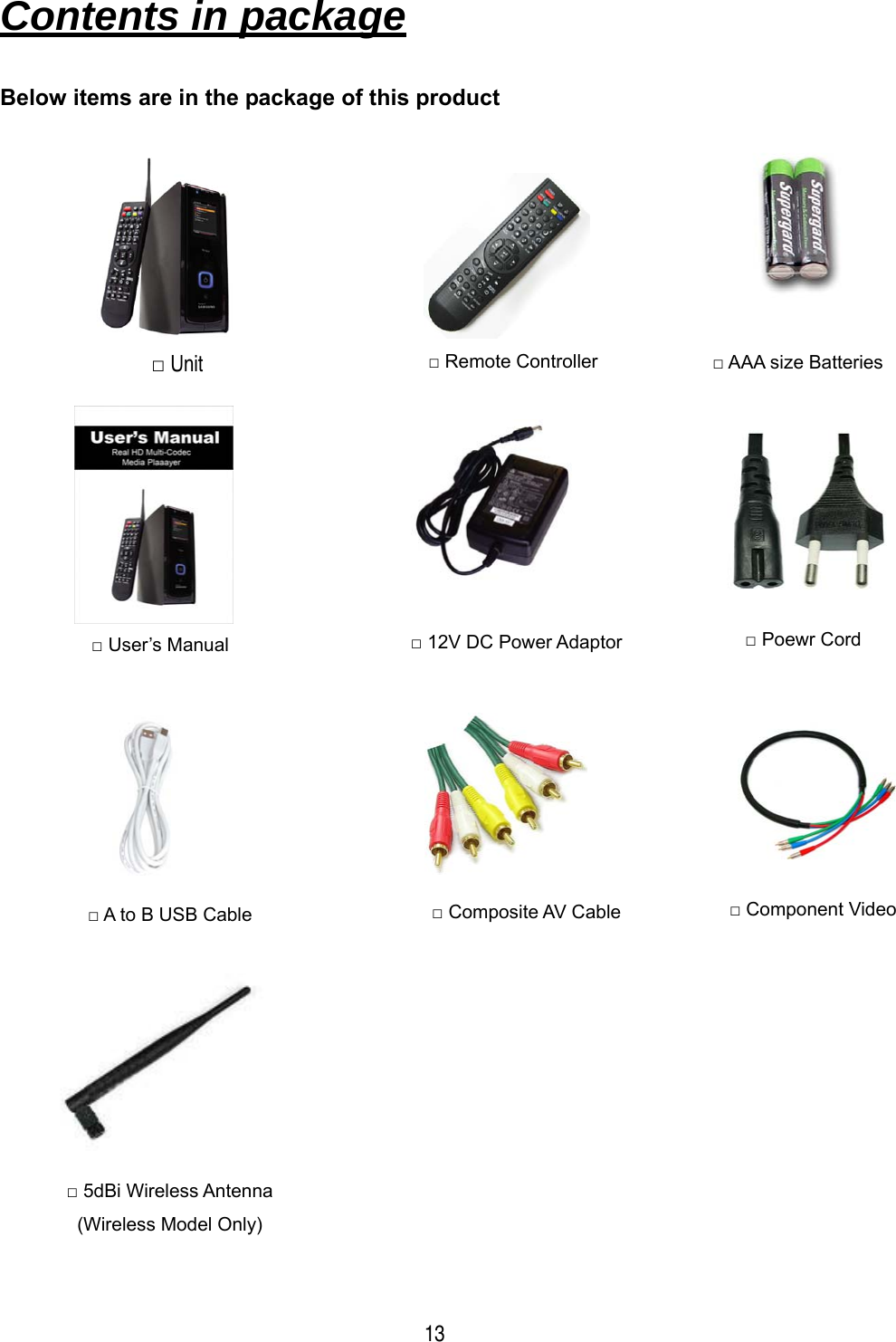
 13 Contents in package   Below items are in the package of this product                                     □ Remote Controller  □ AAA size Batteries □ User’s Manual  □ 12V DC Power Adaptor  □ Poewr Cord □ A to B USB Cable  □ Composite AV Cable  □ Component Video □ 5dBi Wireless Antenna (Wireless Model Only) □ Unit
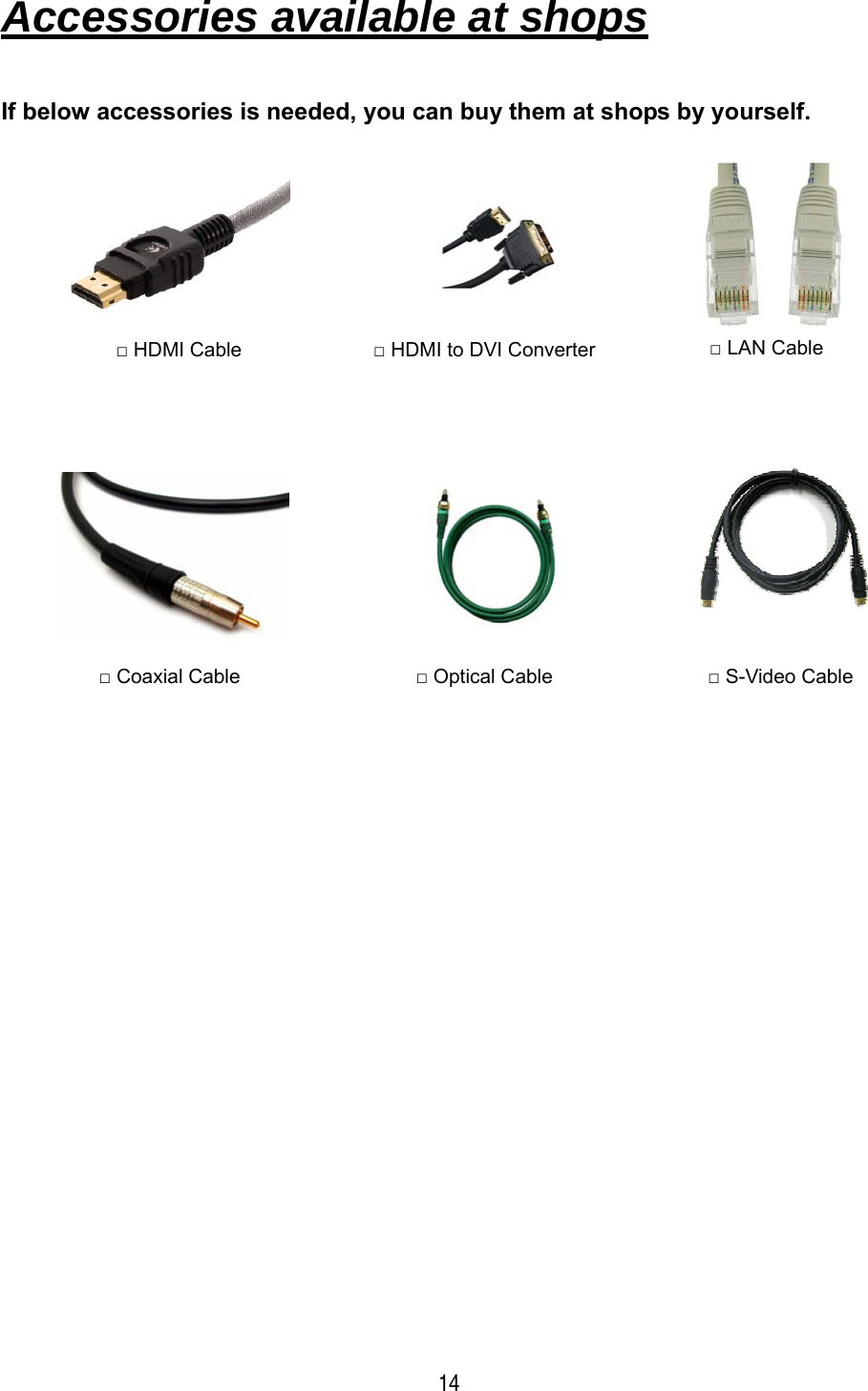
 14   Accessories available at shops   If below accessories is needed, you can buy them at shops by yourself.                               □ HDMI to DVI Converter □ Coaxial Cable  □ Optical Cable  □ S-Video Cable □ HDMI Cable  □ LAN Cable
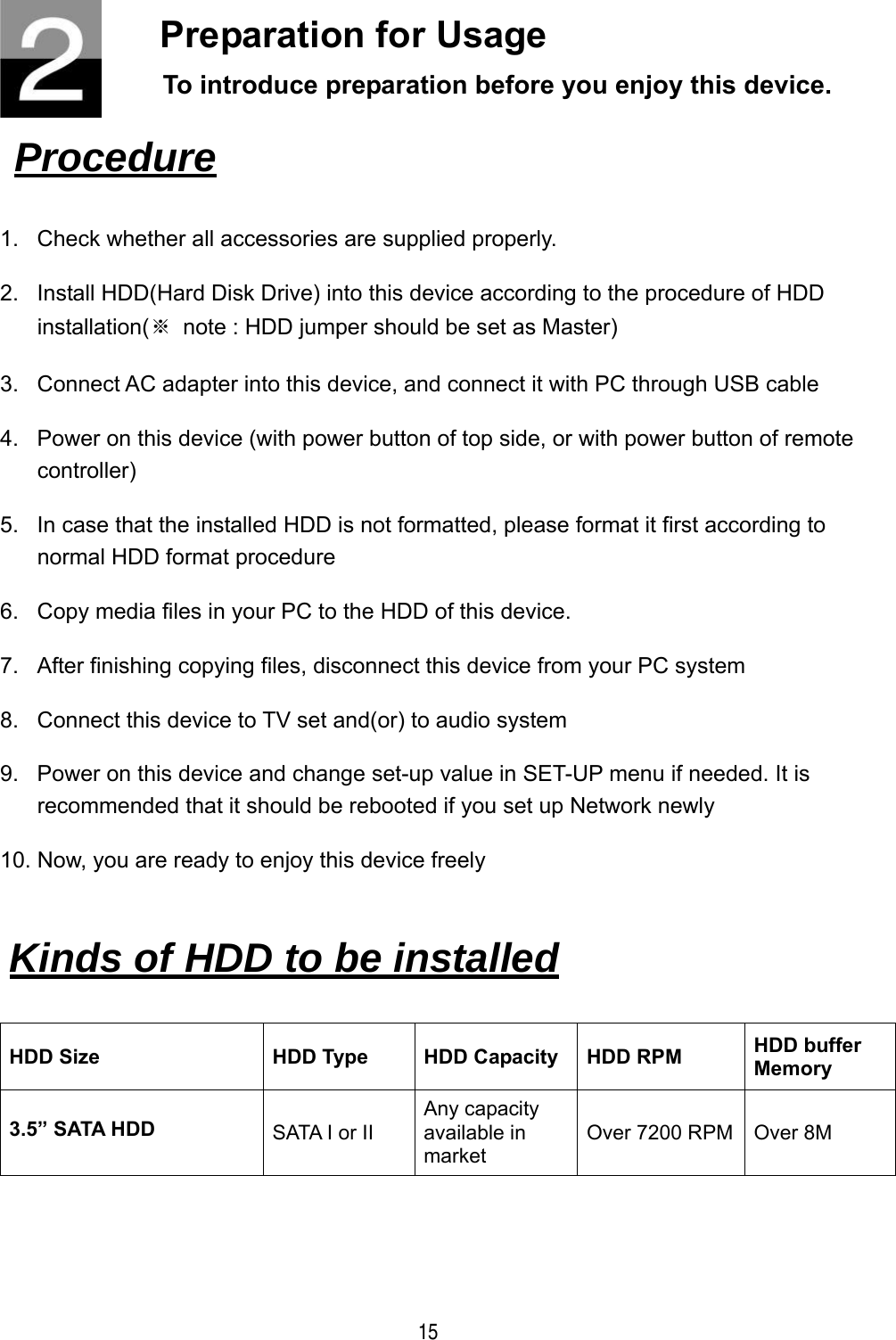
 15 Preparation for Usage To introduce preparation before you enjoy this device.   Procedure   1.  Check whether all accessories are supplied properly. 2.  Install HDD(Hard Disk Drive) into this device according to the procedure of HDD installation(※  note : HDD jumper should be set as Master) 3.  Connect AC adapter into this device, and connect it with PC through USB cable 4.  Power on this device (with power button of top side, or with power button of remote controller) 5.  In case that the installed HDD is not formatted, please format it first according to normal HDD format procedure 6.  Copy media files in your PC to the HDD of this device. 7.  After finishing copying files, disconnect this device from your PC system 8.  Connect this device to TV set and(or) to audio system 9.  Power on this device and change set-up value in SET-UP menu if needed. It is recommended that it should be rebooted if you set up Network newly 10. Now, you are ready to enjoy this device freely  HDD Size  HDD Type  HDD Capacity  HDD RPM  HDD buffer Memory 3.5” SATA HDD  SATA I or II Any capacity available in market Over 7200 RPM  Over 8M   Kinds of HDD to be installed
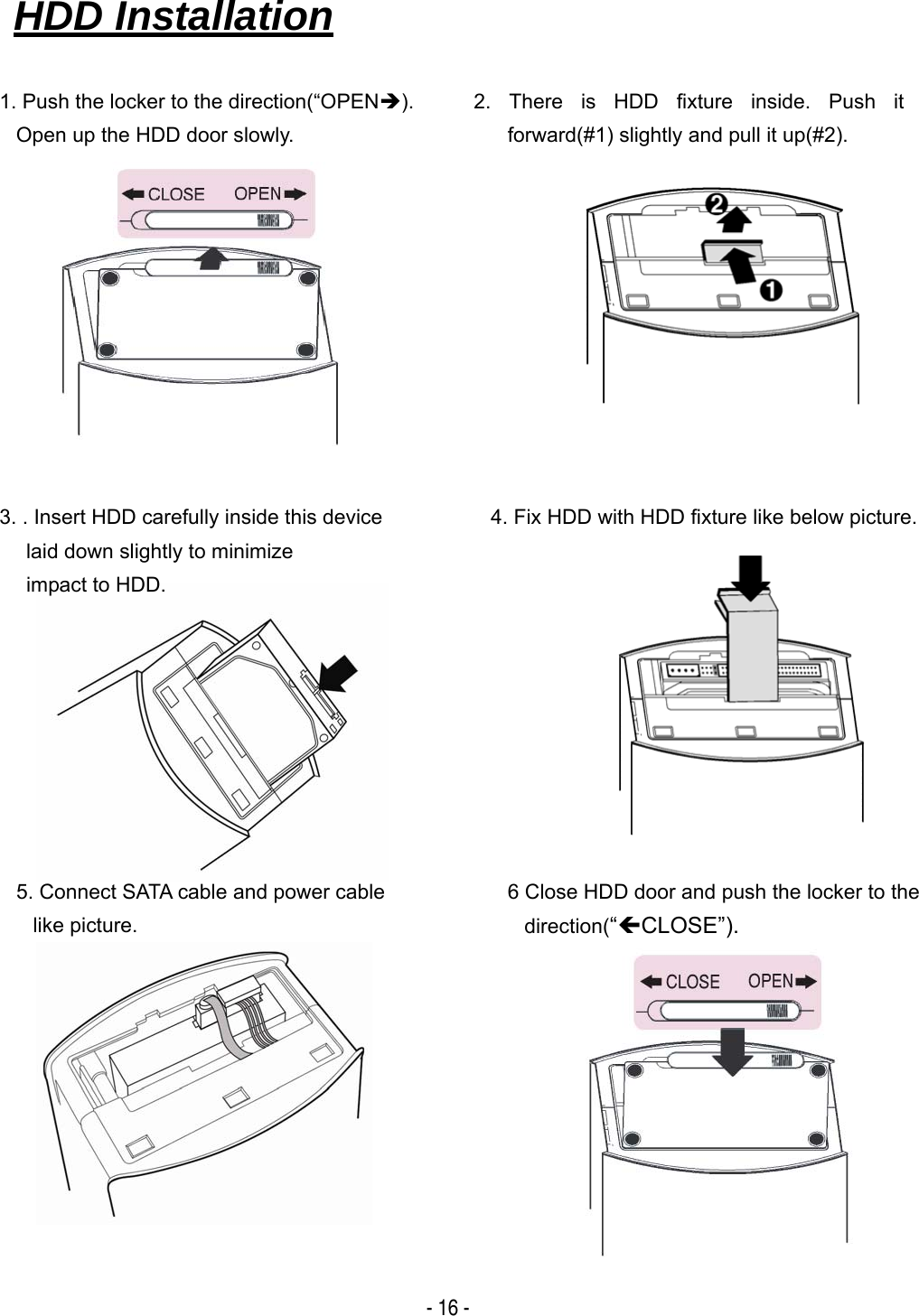
  - 16 -                                                                       HDD Installation   1. Push the locker to the direction(“OPENÎ). Open up the HDD door slowly. 4. Fix HDD with HDD fixture like below picture. 2. There is HDD fixture inside. Push it forward(#1) slightly and pull it up(#2). 5. Connect SATA cable and power cable like picture. 6 Close HDD door and push the locker to the direction(“ÍCLOSE”). 3. . Insert HDD carefully inside this device laid down slightly to minimize   impact to HDD.
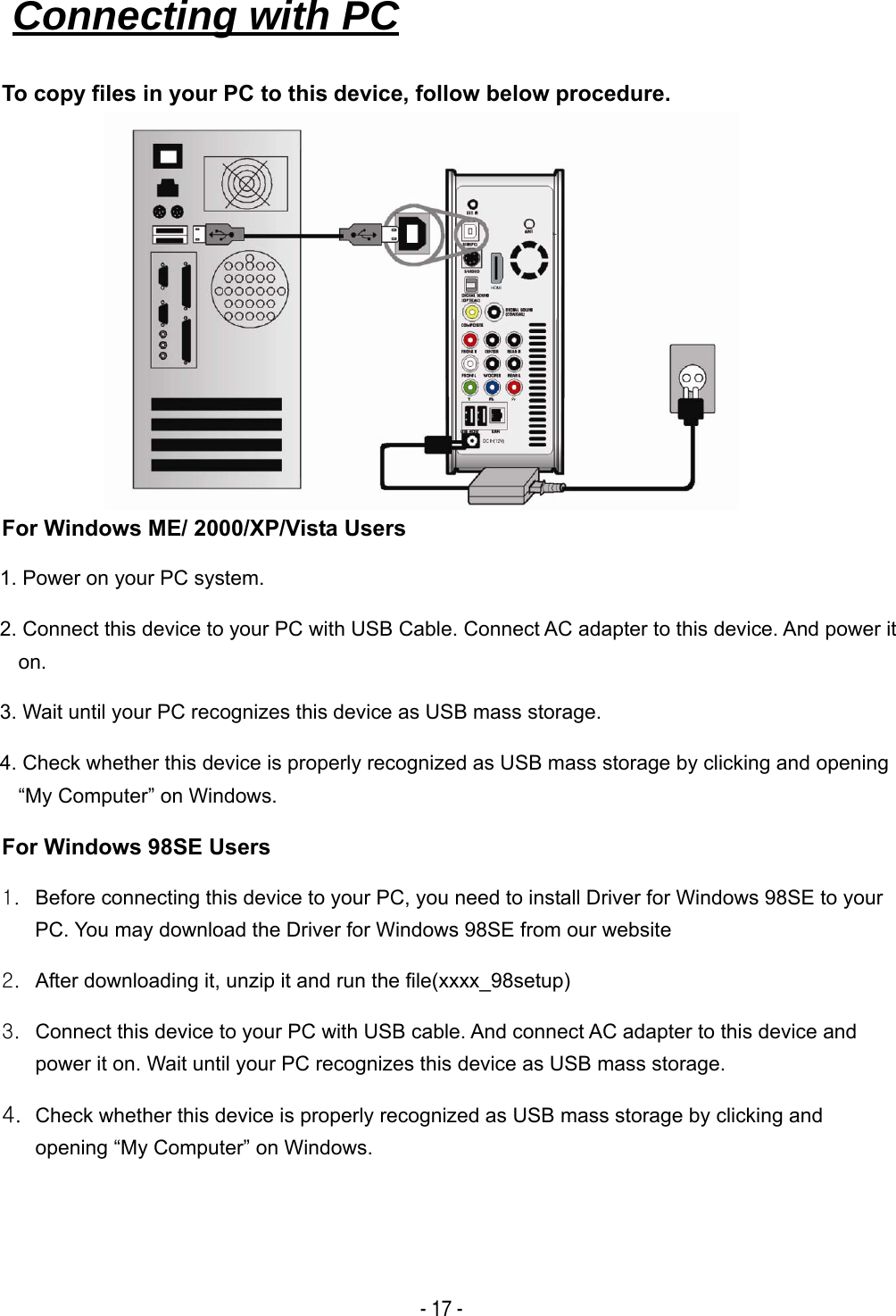
  - 17 - To copy files in your PC to this device, follow below procedure.         For Windows ME/ 2000/XP/Vista Users 1. Power on your PC system. 2. Connect this device to your PC with USB Cable. Connect AC adapter to this device. And power it on.  3. Wait until your PC recognizes this device as USB mass storage. 4. Check whether this device is properly recognized as USB mass storage by clicking and opening “My Computer” on Windows. For Windows 98SE Users 1.  Before connecting this device to your PC, you need to install Driver for Windows 98SE to your PC. You may download the Driver for Windows 98SE from our website 2.  After downloading it, unzip it and run the file(xxxx_98setup) 3.  Connect this device to your PC with USB cable. And connect AC adapter to this device and power it on. Wait until your PC recognizes this device as USB mass storage. 4. Check whether this device is properly recognized as USB mass storage by clicking and opening “My Computer” on Windows. Connecting with PC
  - 18 - Follow below procedure to copy folder and file from PC to this device. • If the HDD has no partition or the HDD is not formatted, you need to do it first. -  We recommend NTFS instead of FAT32. this device supports multi partitions. -  Note : Primary partition should be over one(1) ※  For HDD partition, refer to Chapter 6. • When you make folder in the HDD of this device, it is recommended that you make folders like ‘MOVIE’, ‘MUSIC’, ‘PHOTO’. And, you copy files to each folder corresponding to kind of file. - ‘MOVIE’ folder responds to ‘MOVIE’ button of remote controller and ‘MOVIE’ icon of main menu. - ‘MUSIC’ folder responds to ‘MUSIC’ button of remote controller and ‘MUSIC’ icon of main menu. And, ‘PHOTO’ folder is also same. - You may make any name of folders freely. • Do not store too many files into one folder. - It is recommended that you make several sub folders and store files divisionally. - In case that you did HDD partition with FAT32, it is recommended that you do not store over 3GB files into one folder. • In case that file name(folder name) is too long or has so many specific characters, blanks or period marks, the file(folder) may cause some problem. - In this case, change or reduce file (folder) name. • Moving picture file and subtitle file should be in same folder. -  Moving picture file and subtitle file should be in same folder. And, both files name should be same except for ‘extension name’.   Disconnecting this device from PC after finishing file copy After finishing file copy, make sure that you need to next page procedure for disconnecting this device from PC. Otherwise, copied files may have some damage.   To create folder and to copy files
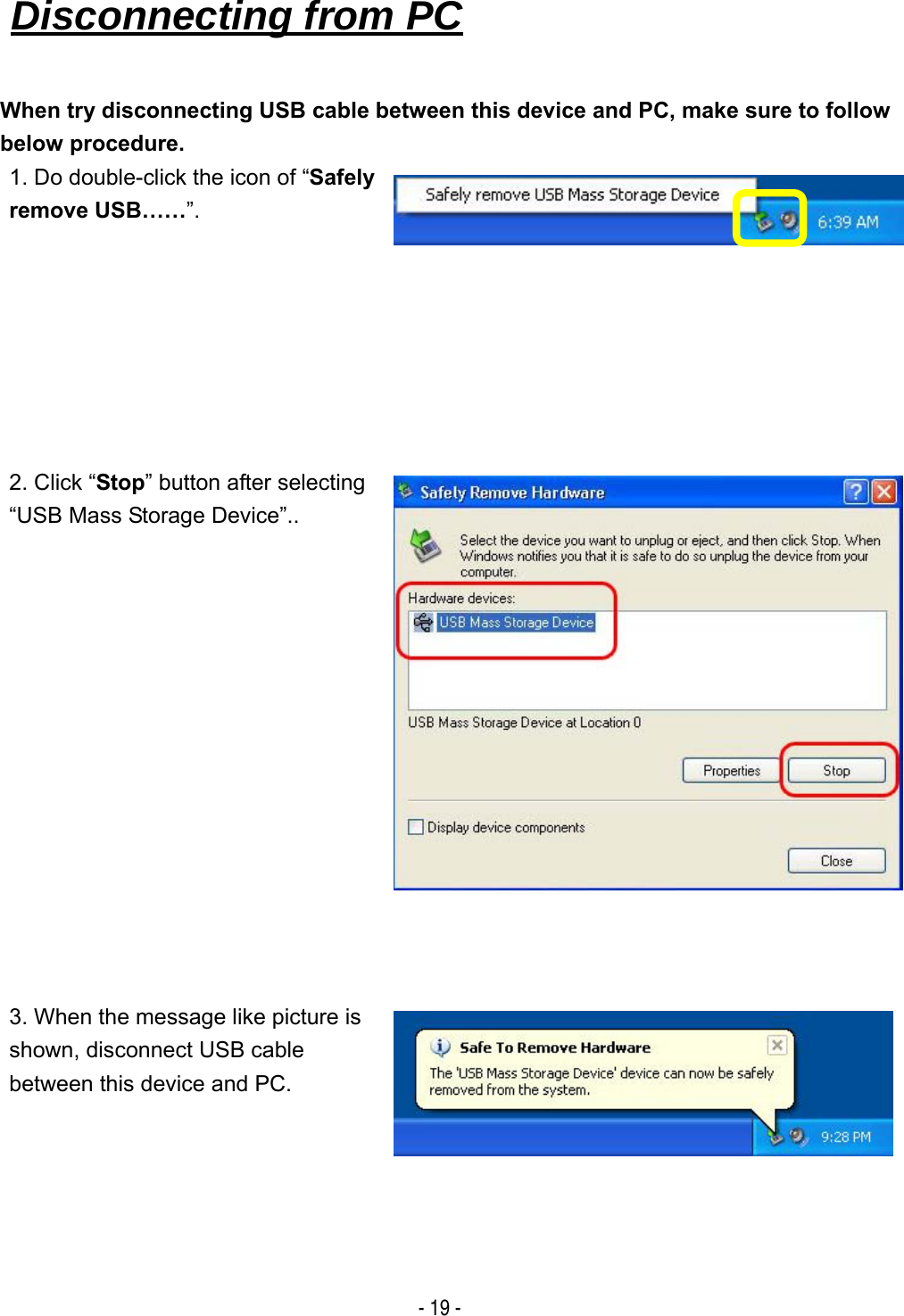
  - 19 - When try disconnecting USB cable between this device and PC, make sure to follow below procedure. 1. Do double-click the icon of “Safely remove USB……”. 2. Click “Stop” button after selecting “USB Mass Storage Device”.. 3. When the message like picture is shown, disconnect USB cable between this device and PC. Disconnecting from PC
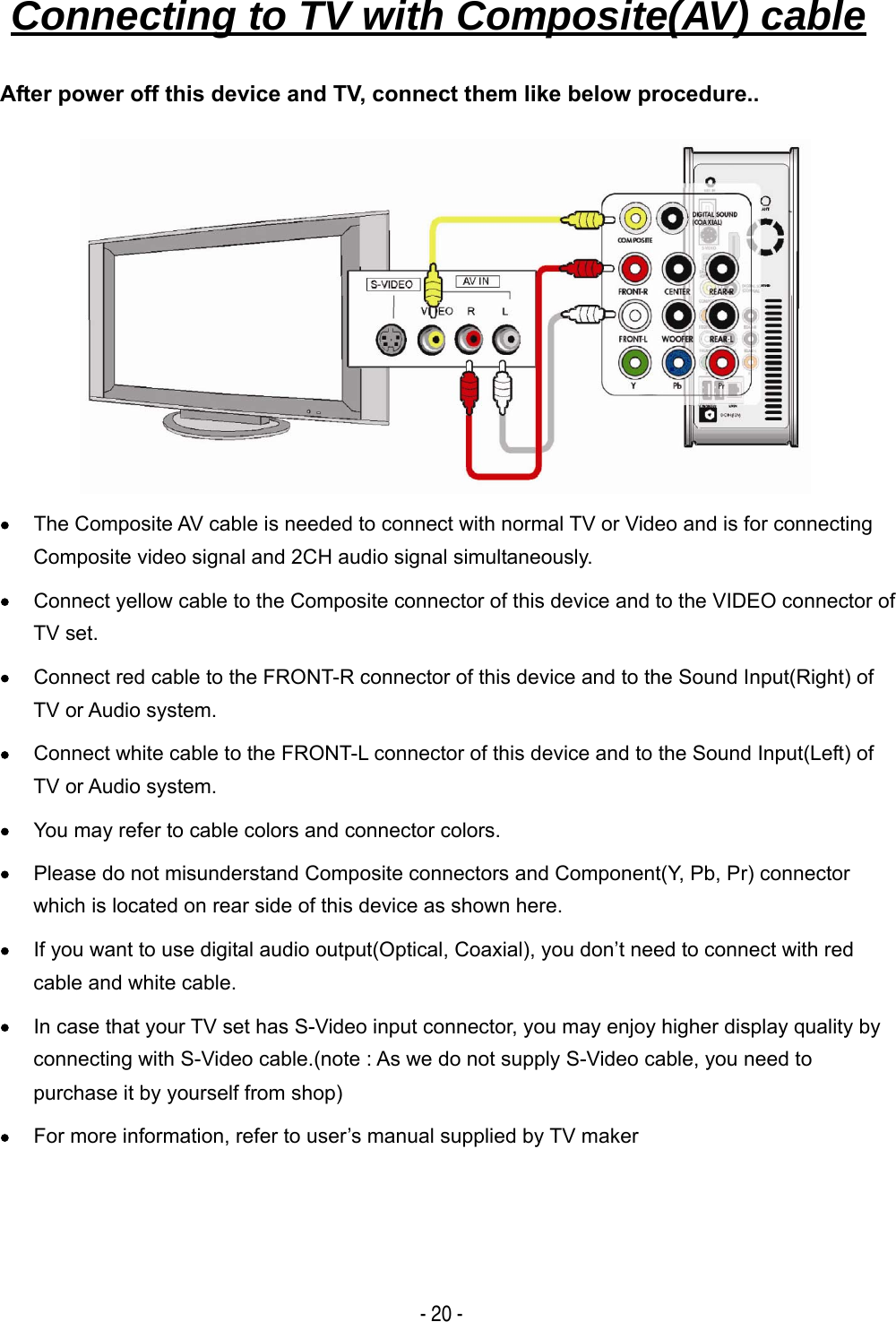
  - 20 - After power off this device and TV, connect them like below procedure..         • The Composite AV cable is needed to connect with normal TV or Video and is for connecting Composite video signal and 2CH audio signal simultaneously. • Connect yellow cable to the Composite connector of this device and to the VIDEO connector of TV set. • Connect red cable to the FRONT-R connector of this device and to the Sound Input(Right) of TV or Audio system. • Connect white cable to the FRONT-L connector of this device and to the Sound Input(Left) of TV or Audio system. • You may refer to cable colors and connector colors. • Please do not misunderstand Composite connectors and Component(Y, Pb, Pr) connector which is located on rear side of this device as shown here. • If you want to use digital audio output(Optical, Coaxial), you don’t need to connect with red cable and white cable. • In case that your TV set has S-Video input connector, you may enjoy higher display quality by connecting with S-Video cable.(note : As we do not supply S-Video cable, you need to purchase it by yourself from shop) • For more information, refer to user’s manual supplied by TV maker Connecting to TV with Composite(AV) cable
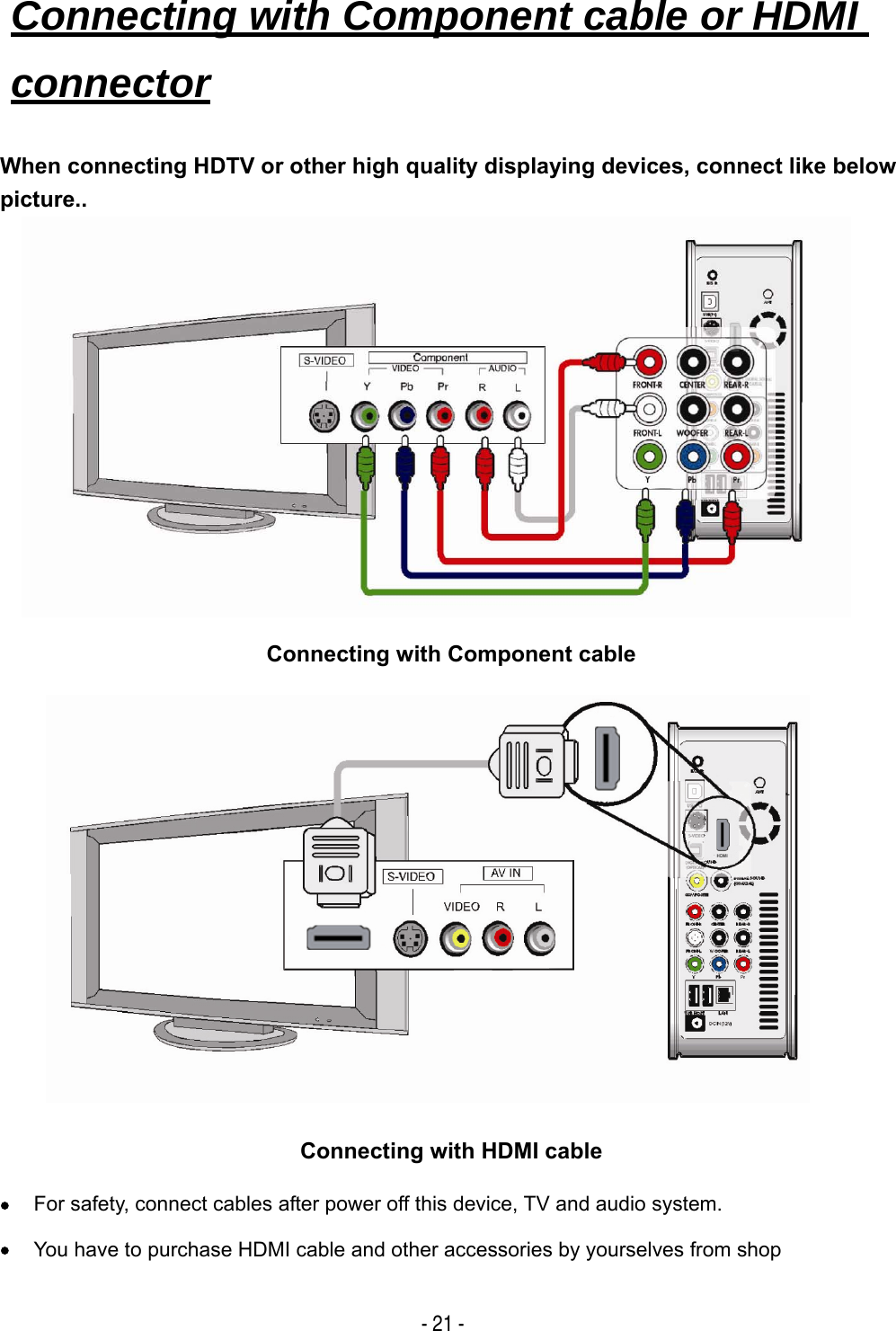
  - 21 - When connecting HDTV or other high quality displaying devices, connect like below picture..           Connecting with Component cable          Connecting with HDMI cable • For safety, connect cables after power off this device, TV and audio system. • You have to purchase HDMI cable and other accessories by yourselves from shop Connecting with Component cable or HDMI connector
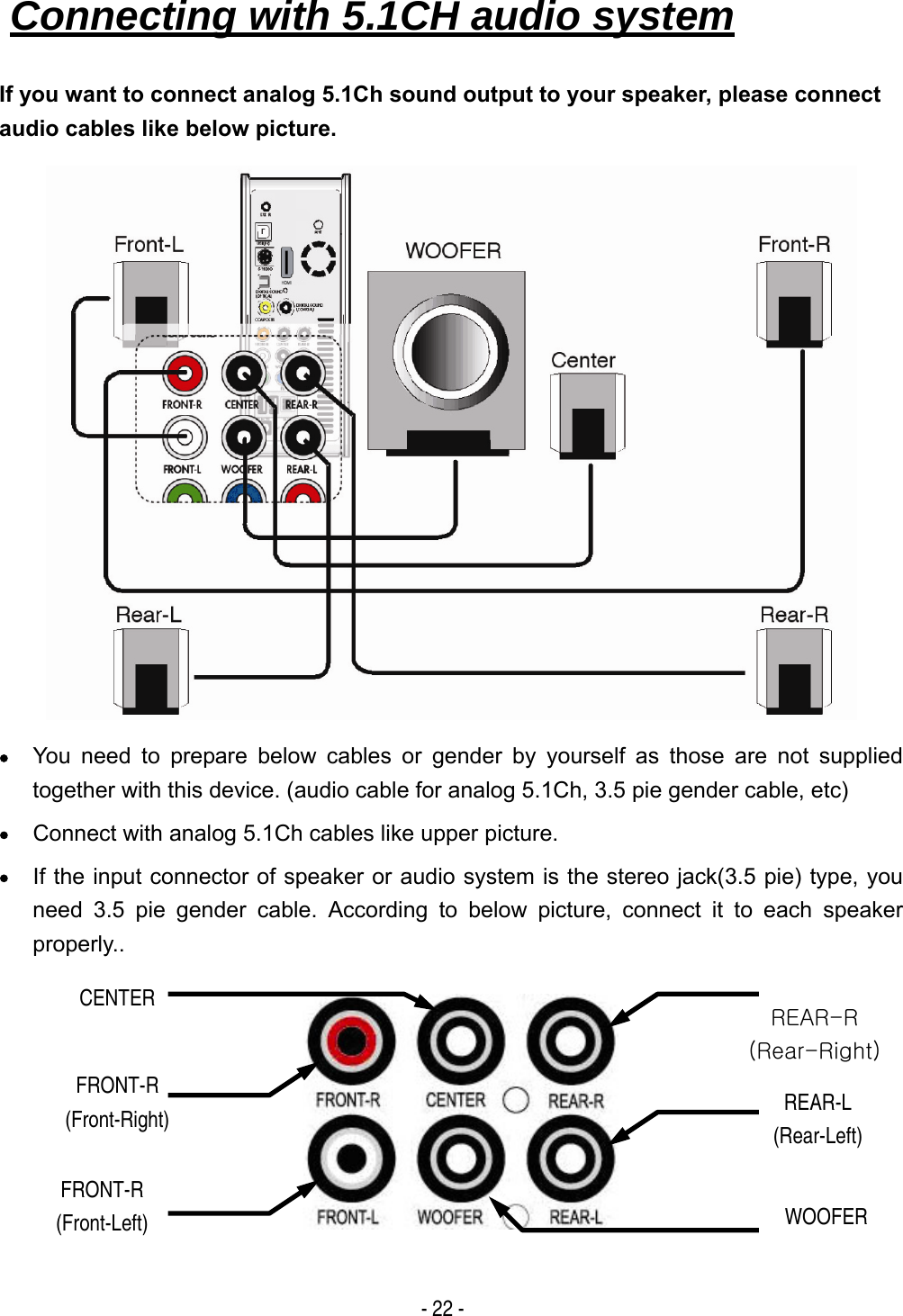
  - 22 - If you want to connect analog 5.1Ch sound output to your speaker, please connect audio cables like below picture.  • You need to prepare below cables or gender by yourself as those are not supplied together with this device. (audio cable for analog 5.1Ch, 3.5 pie gender cable, etc) • Connect with analog 5.1Ch cables like upper picture. • If the input connector of speaker or audio system is the stereo jack(3.5 pie) type, you need 3.5 pie gender cable. According to below picture, connect it to each speaker properly..       Connecting with 5.1CH audio system CENTER  FRONT-R (Front-Right) FRONT-R (Front-Left) REAR-L (Rear-Left) WOOFER REAR-R (Rear-Right)
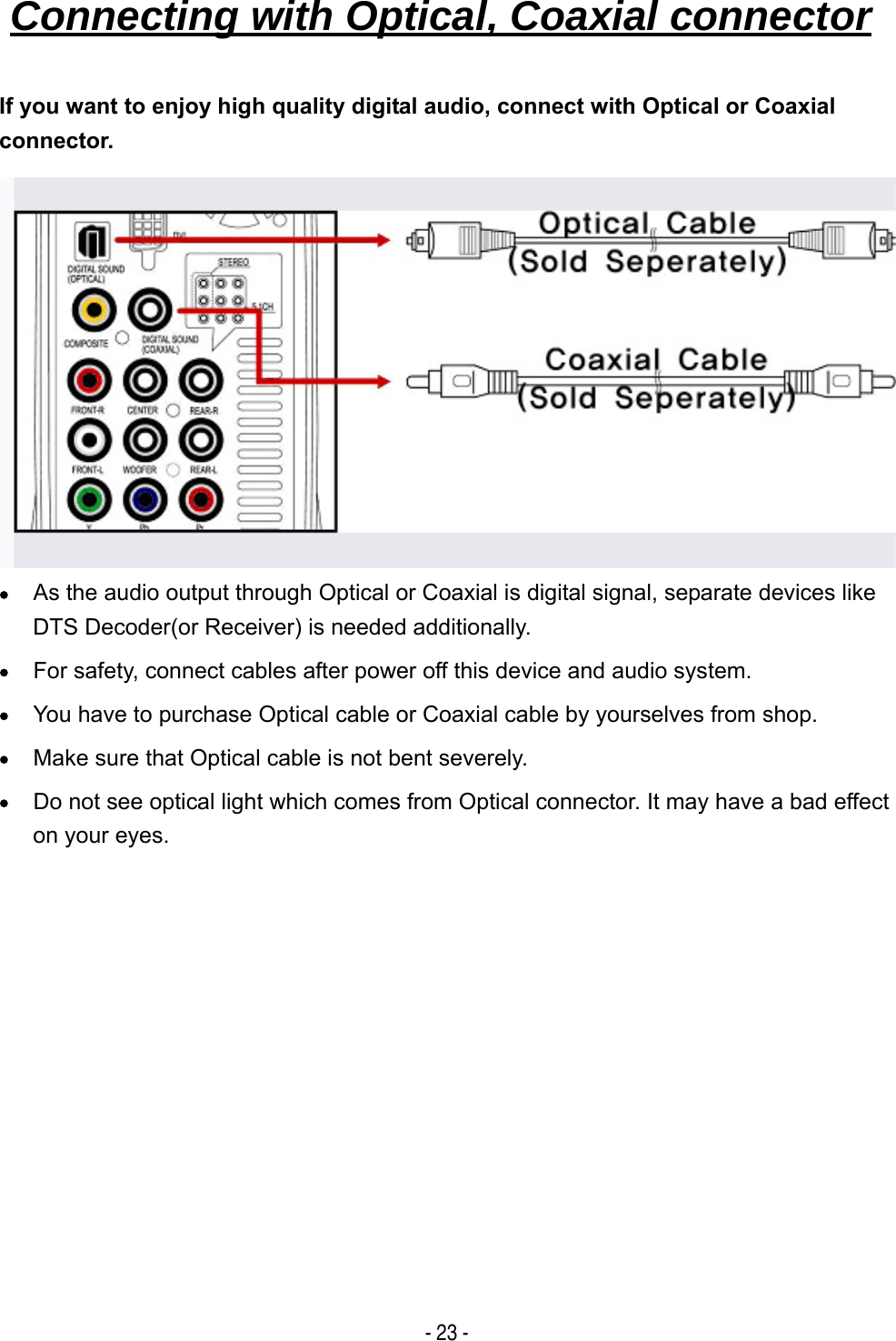
  - 23 - If you want to enjoy high quality digital audio, connect with Optical or Coaxial connector.          • As the audio output through Optical or Coaxial is digital signal, separate devices like DTS Decoder(or Receiver) is needed additionally. • For safety, connect cables after power off this device and audio system. • You have to purchase Optical cable or Coaxial cable by yourselves from shop. • Make sure that Optical cable is not bent severely. • Do not see optical light which comes from Optical connector. It may have a bad effect on your eyes.           Connecting with Optical, Coaxial connector
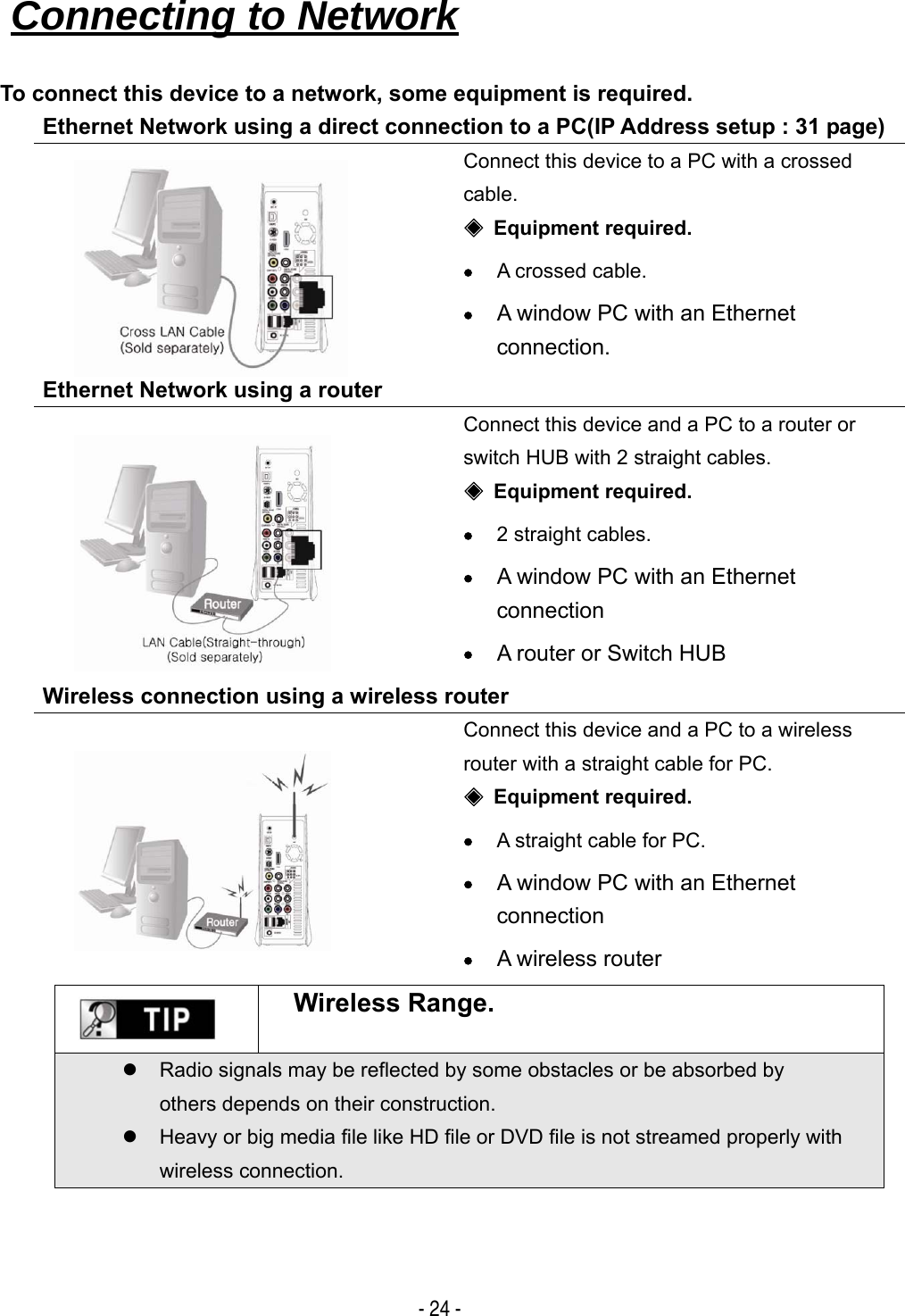
  - 24 - To connect this device to a network, some equipment is required. Ethernet Network using a direct connection to a PC(IP Address setup : 31 page)    Connect this device to a PC with a crossed cable. ◈ Equipment required. • A crossed cable. • A window PC with an Ethernet connection. Ethernet Network using a router  Connect this device and a PC to a router or switch HUB with 2 straight cables. ◈ Equipment required. • 2 straight cables. • A window PC with an Ethernet connection • A router or Switch HUB Wireless connection using a wireless router   Connect this device and a PC to a wireless router with a straight cable for PC. ◈ Equipment required. • A straight cable for PC. • A window PC with an Ethernet connection • A wireless router Wireless Range. z  Radio signals may be reflected by some obstacles or be absorbed by others depends on their construction. z  Heavy or big media file like HD file or DVD file is not streamed properly with wireless connection.     Connecting to Network
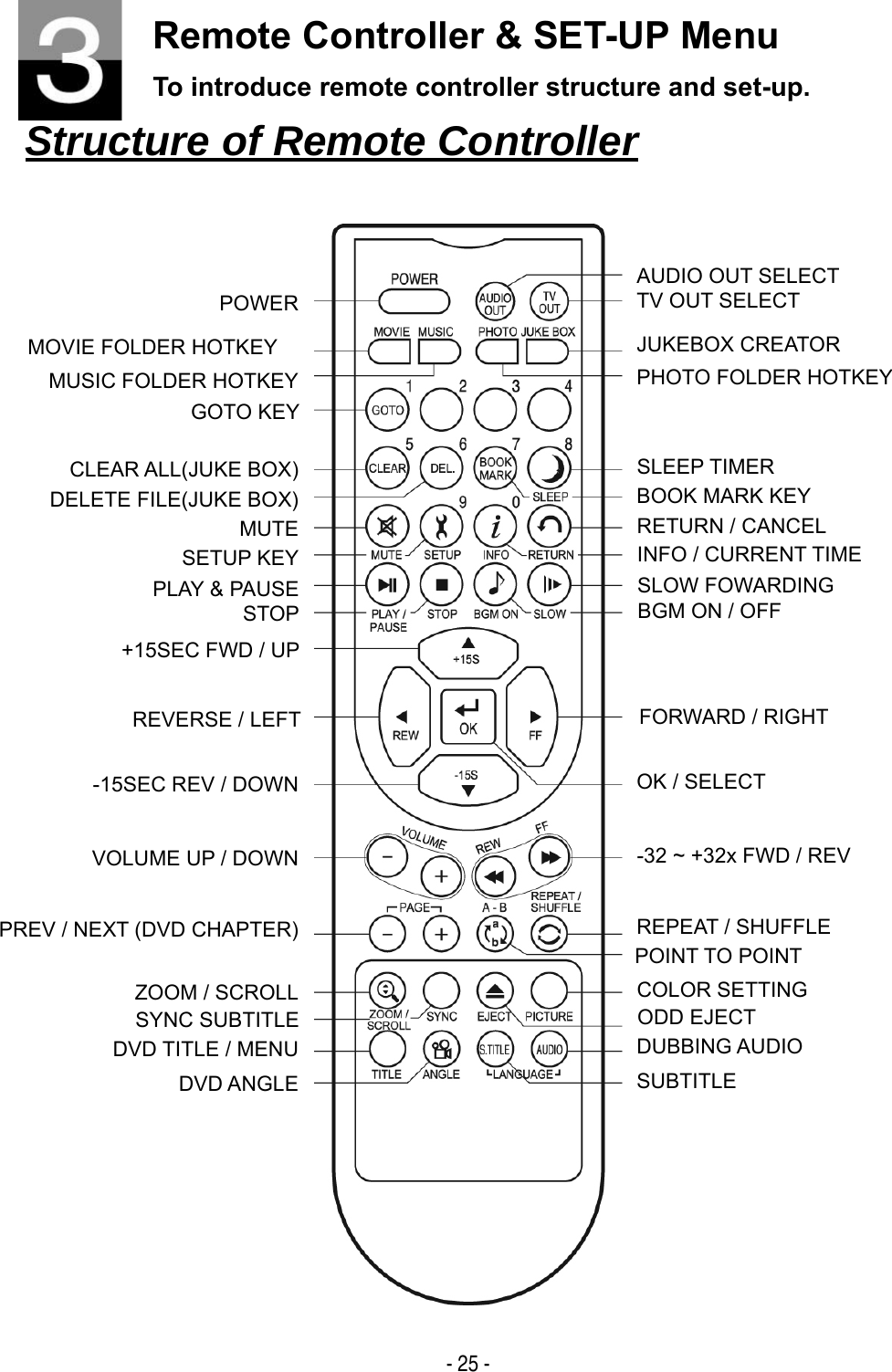
  - 25 - Remote Controller & SET-UP Menu To introduce remote controller structure and set-up. Structure of Remote Controller                   POWER MOVIE FOLDER HOTKEY MUSIC FOLDER HOTKEY GOTO KEY CLEAR ALL(JUKE BOX) DELETE FILE(JUKE BOX) MUTE SETUP KEY PLAY & PAUSE STOP +15SEC FWD / UP REVERSE / LEFT -15SEC REV / DOWN VOLUME UP / DOWN PREV / NEXT (DVD CHAPTER) ZOOM / SCROLL SYNC SUBTITLE DVD TITLE / MENU DVD ANGLE TV OUT SELECT JUKEBOX CREATOR PHOTO FOLDER HOTKEY  SLEEP TIMER BOOK MARK KEY RETURN / CANCEL INFO / CURRENT TIME SLOW FOWARDING BGM ON / OFF FORWARD / RIGHT OK / SELECT -32 ~ +32x FWD / REV REPEAT / SHUFFLE COLOR SETTING ODD EJECT DUBBING AUDIO SUBTITLE AUDIO OUT SELECT POINT TO POINT
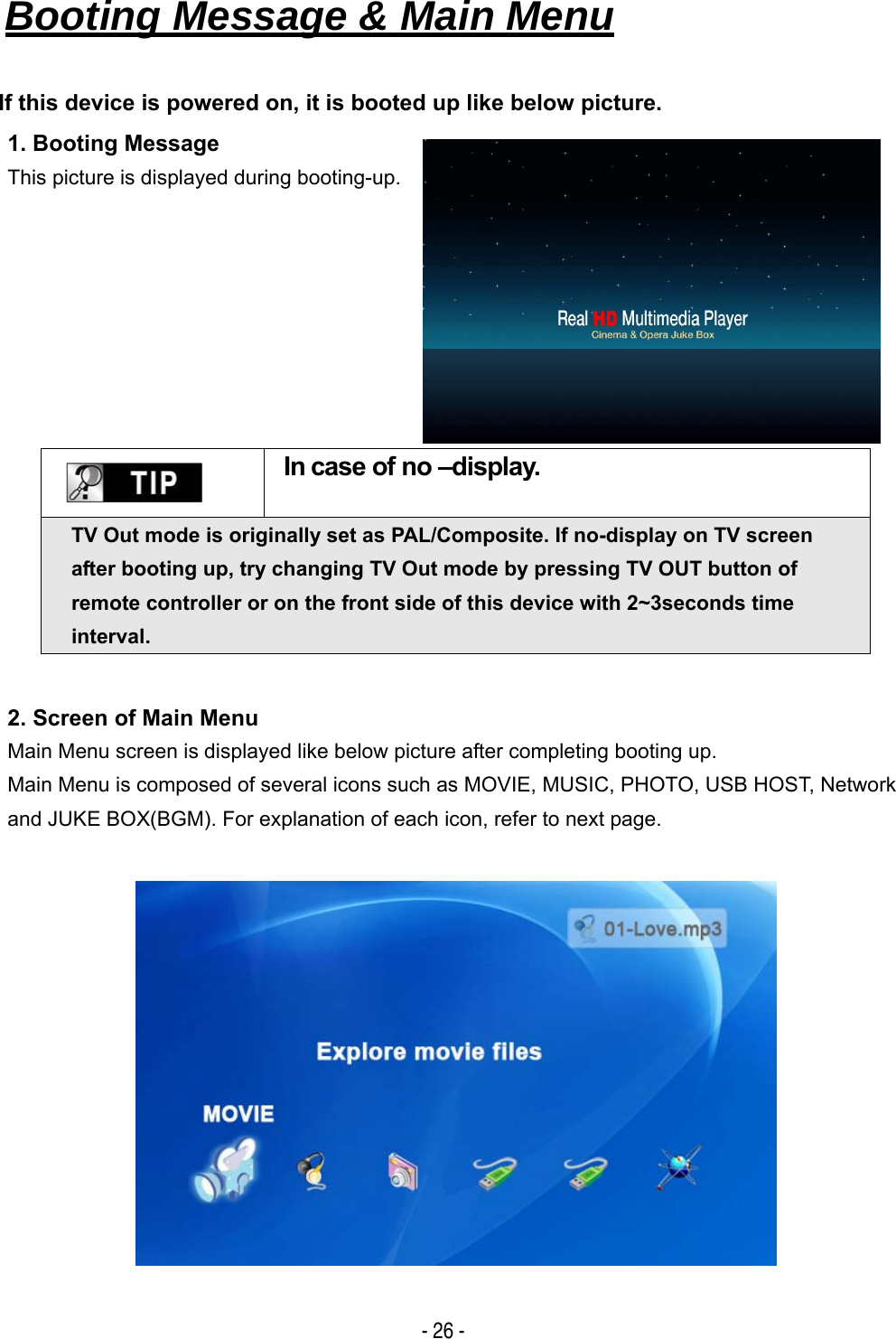
  - 26 - Booting Message & Main Menu   If this device is powered on, it is booted up like below picture. 1. Booting Message This picture is displayed during booting-up.     In case of no –display. TV Out mode is originally set as PAL/Composite. If no-display on TV screen after booting up, try changing TV Out mode by pressing TV OUT button of remote controller or on the front side of this device with 2~3seconds time interval. 2. Screen of Main Menu Main Menu screen is displayed like below picture after completing booting up. Main Menu is composed of several icons such as MOVIE, MUSIC, PHOTO, USB HOST, Network and JUKE BOX(BGM). For explanation of each icon, refer to next page.
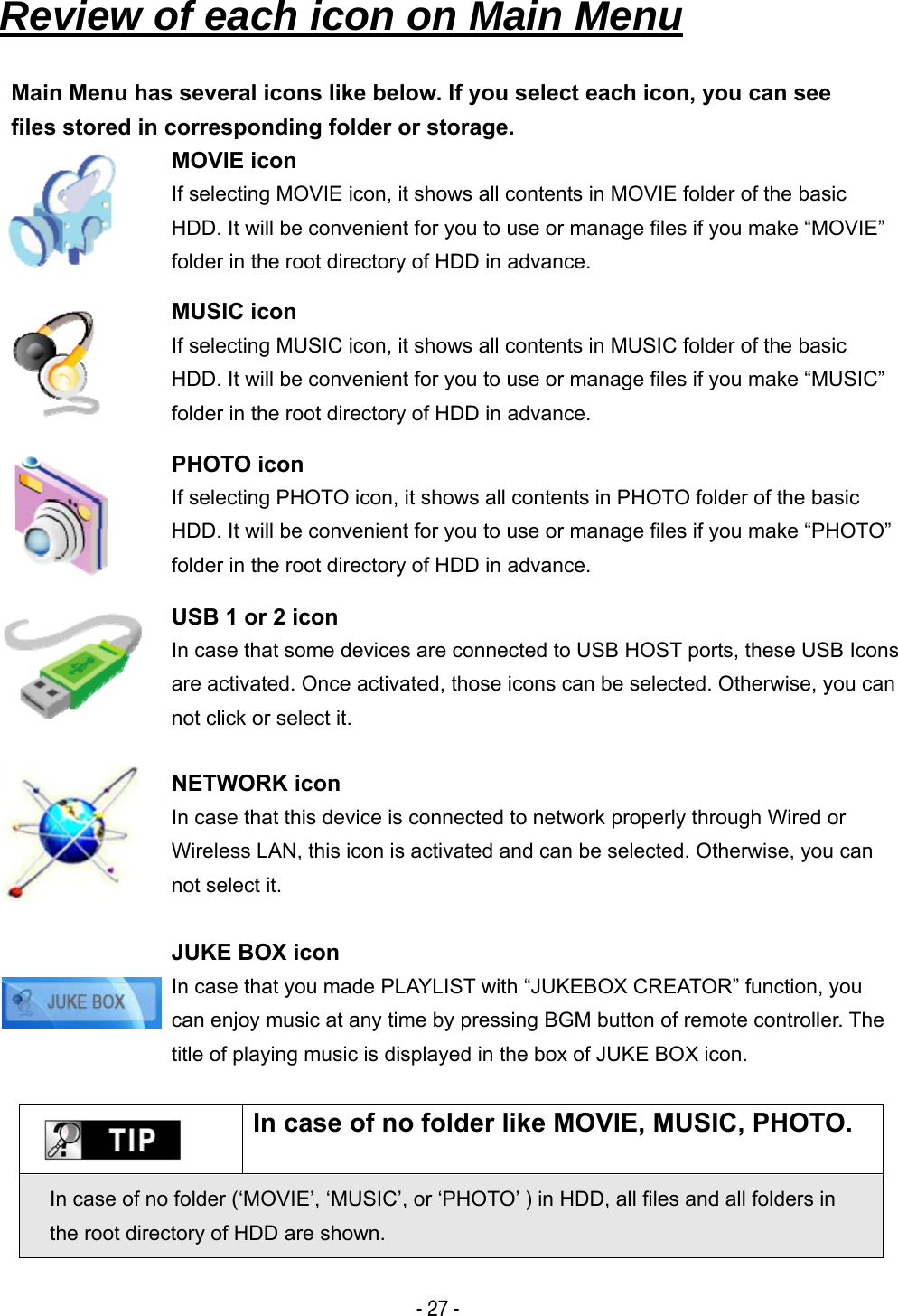
  - 27 -   Review of each icon on Main Menu   Main Menu has several icons like below. If you select each icon, you can see files stored in corresponding folder or storage.  MOVIE icon If selecting MOVIE icon, it shows all contents in MOVIE folder of the basic HDD. It will be convenient for you to use or manage files if you make “MOVIE” folder in the root directory of HDD in advance.  MUSIC icon If selecting MUSIC icon, it shows all contents in MUSIC folder of the basic HDD. It will be convenient for you to use or manage files if you make “MUSIC” folder in the root directory of HDD in advance.  PHOTO icon If selecting PHOTO icon, it shows all contents in PHOTO folder of the basic HDD. It will be convenient for you to use or manage files if you make “PHOTO” folder in the root directory of HDD in advance.  USB 1 or 2 icon In case that some devices are connected to USB HOST ports, these USB Icons are activated. Once activated, those icons can be selected. Otherwise, you can not click or select it.  NETWORK icon In case that this device is connected to network properly through Wired or Wireless LAN, this icon is activated and can be selected. Otherwise, you can not select it.    JUKE BOX icon In case that you made PLAYLIST with “JUKEBOX CREATOR” function, you can enjoy music at any time by pressing BGM button of remote controller. The title of playing music is displayed in the box of JUKE BOX icon.    In case of no folder like MOVIE, MUSIC, PHOTO.   In case of no folder (‘MOVIE’, ‘MUSIC’, or ‘PHOTO’ ) in HDD, all files and all folders in the root directory of HDD are shown.
  - 28 - SETUP Menu and How to set up If needed to change setting values before using this device, you can open SETUP Menu like below picture by pressing SETUP button of remote controller.   • SETUP Menu is classified like VIDEO, AUDIO, ETC, NETWORK, WIRELESS, EXIT. You can select each item with Left/Right (◀,  ▶) button of remote controller or this device. • To change setting values, if selecting main item, sub items are listed up. You can select each item with Up/Down(▼, ▲) button. • After selecting sub item, press OK button. Then, changeable setting values are displayed. • Once you select one of changeable setting values with Up/Down(▼, ▲) button, press OK button. Then, the value is saved and applied. • If you want to go out without changing setting values, press RETURN button before you press OK button for confirming any selected value. Pressing RETURN button, it makes you go to previous step. • After completing new setting, you can go back to main menu by pressing RETURN button several times, by pressing SETUP button or selecting EXIT icon.
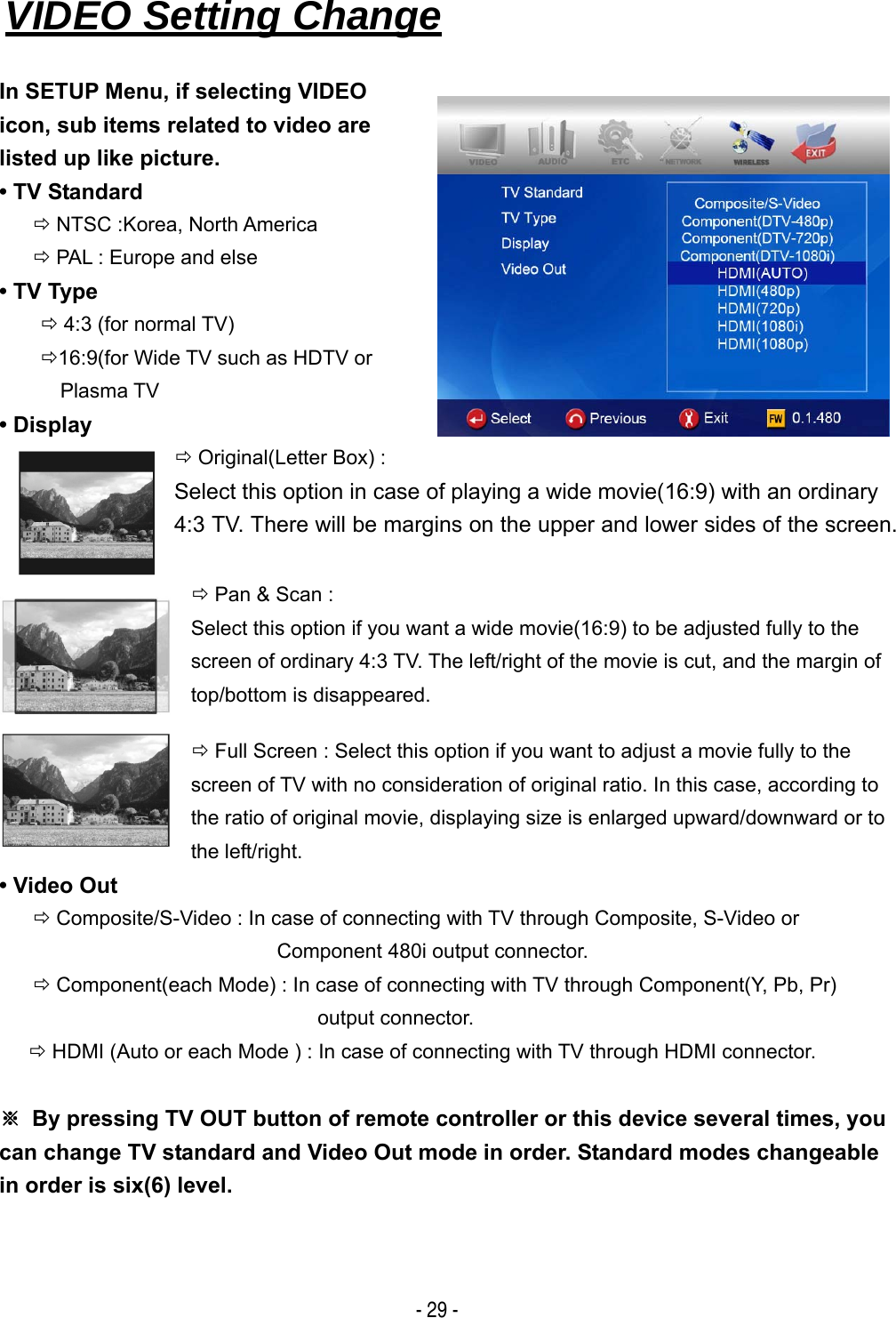
  - 29 - VIDEO Setting Change   In SETUP Menu, if selecting VIDEO   icon, sub items related to video are   listed up like picture. • TV Standard Ö NTSC :Korea, North America Ö PAL : Europe and else • TV Type Ö 4:3 (for normal TV) Ö16:9(for Wide TV such as HDTV or Plasma TV • Display Ö Original(Letter Box) :   Select this option in case of playing a wide movie(16:9) with an ordinary 4:3 TV. There will be margins on the upper and lower sides of the screen.  Ö Pan & Scan :   Select this option if you want a wide movie(16:9) to be adjusted fully to the screen of ordinary 4:3 TV. The left/right of the movie is cut, and the margin of top/bottom is disappeared. Ö Full Screen : Select this option if you want to adjust a movie fully to the screen of TV with no consideration of original ratio. In this case, according to the ratio of original movie, displaying size is enlarged upward/downward or to the left/right. • Video Out Ö Composite/S-Video : In case of connecting with TV through Composite, S-Video or Component 480i output connector. Ö Component(each Mode) : In case of connecting with TV through Component(Y, Pb, Pr) output connector. Ö HDMI (Auto or each Mode ) : In case of connecting with TV through HDMI connector.  ※  By pressing TV OUT button of remote controller or this device several times, you can change TV standard and Video Out mode in order. Standard modes changeable in order is six(6) level.

Navigation menu