ONYX Healthcare lnc 1521DTT-C1 Medical Station User Manual ONYX 1521 manual 1016
ONYX Healthcare lnc. Medical Station ONYX 1521 manual 1016
User manual

Slim Medical Panel PC ONYX-1521
ONYX-1521
15.6” Intel® Atom D525 Dual Core Processor
High Brightness
Slim Medical Panel PC
ONYX-1521 Manual
October, 2012

Slim Medical Panel PC ONYX-1521
Copyright Notice
This document is copyrighted, 2011. All rights are reserved. The
original manufacturer reserves the right to make improvements to
the products described in this manual at any time without notice.
No part of this manual may be reproduced, copied, translated, or
transmitted in any form or by any means without the prior written
permission of the original manufacturer. Information provided in
this manual is intended to be accurate and reliable. However, the
original manufacturer assumes no responsibility for its use, nor
for any infringements upon the rights of third parties, which may
result from its use.
The material in this document is for product information only and
is subject to change without notice. While reasonable efforts have
been made in the preparation of this document to assure its
accuracy, ONYX, assumes no liabilities resulting from errors or
omissions in this document, or from the use of the information
contained herein.
ONYX reserves the right to make changes in the product design
without notice to its users.

Slim Medical Panel PC ONYX-1521
Acknowledgments
z Intel®, CoreTM 2 Duo / Celeron are registered trademarks of
Intel® Corporation.
z IBM, PC/AT, PS/2 are trademarks of International Business
Machines Corporation.
z Microsoft® Windows is a registered trademark of Microsoft®
Corporation.
z RTL is a trademark of Realtek Semi-Conductor Co., Ltd.
z C&T is a trademark of Chips and Technologies, Inc.
z UMC is a trademark of United Microelectronics Corporation.
z ITE is a trademark of Integrated Technology Express, Inc.
All other product names or trademarks are properties of their
respective owners.

Slim Medical Panel PC ONYX-1521
Packing List
Before you begin installing your Slim Medical Panel PC, please
make sure that the following items have been shipped:
ONYX-1521 Slim Medical Panel PC
VESA Screws (M4 x 0.7 x 12mm)
Utility CD-ROM which contains Drivers and Utilities
If any of these items are missing or damaged, you should contact
your distributor or sales representative immediately.
Headquarters
Onyx Healthcare Inc.
2F., No.135, Ln. 235, Baoqiao Rd., Xindian Dist.,
New Taipei City 231, Taiwan (R.O.C.)
TEL: +886-2-8919-2188
FAX: +886-2-8919-1699
E-mail: sales@onyx-healthcare.com
http://www.onyx-healthcare.com
Worldwide Offices:

Slim Medical Panel PC ONYX-1521
Onyx Healthcare, USA Inc.
2663 Saturn street, Brea, CA 92821, USA
Tel : +1-714-996-1800
Fax: +1-714-996-1811
Email: usasales@onyx-healthcare.com
Onyx Healthcare EUROPE B.V.
Ekkersrijt 4002, 5692 DA Son, The Netherlands
Tel : +31-(0)499-462020
Fax: +31-(0)499-462010
Email: eusales@onyx-healthcare.com
Onyx Healthcare Technology GmbH
An der Trift65d
63303 Dreieich , Germany
TEL: +49-(0)61033-7479-00
Fax: +49-(0)61033-7479-49
Email: eusales@onyx-healthcare.com
Onyx Healthcare (Nanjing) INC.

Slim Medical Panel PC ONYX-1521
Room 1318, Metallurgy Building , East Zhongshan Road,
Nanjing, China
Tel: +86-025-58859841
Fax: +86-025-85088070
Email: Jonwang@onyx-healthcare.com
Onyx Healthcare Singapore PTE LTD
57 Genting Lane, #07-00, Singapore 349564
Tel: +65-67498749
Fax +65-67461595
Email: sgsales@onyx-healthcare.com

Slim Medical Panel PC ONYX-1521
Safety & Warranty
1. Read these safety instructions carefully.
2. Keep this user's manual for later reference.
3. Disconnect this equipment from any AC outlet before cleaning.
Do not use liquid or spray detergents for cleaning. Use a damp
cloth.
4. For pluggable equipment, the power outlet must be installed
near the equipment and must be easily accessible.
5. Keep this equipment away from humidity.
6. Put this equipment on a reliable surface during installation.
Dropping it or letting it fall could cause damage.
7. The openings on the enclosure are for air convection. Protect
the equipment from overheating. DO NOT COVER THE
OPENINGS.
8. Make sure the voltage of the power source is correct before
connecting the equipment to the power outlet.
9. Position the power cord so that people cannot step on it. Do not
place anything over the power cord.
10. All cautions and warnings on the equipment should be noted.
11. If the equipment is not used for a long time, disconnect it from
the power source to avoid damage by transient over-voltage.
12. Never pour any liquid into an opening. This could cause fire or
electrical shock.
13. Never open the equipment. For safety reasons, only qualified

Slim Medical Panel PC ONYX-1521
service personnel should open the equipment.
14. If any of the following situations arises, get the equipment
checked by service personnel:
a. The power cord or plug is damaged.
b. Liquid has penetrated into the equipment.
c. The equipment has been exposed to moisture.
d. The equipment does not work well, or you cannot get it
to work according to the users manual.
e. The equipment has been dropped and damaged.
f. The equipment has obvious signs of breakage.
15. DO NOT LEAVE THIS EQUIPMENT IN AN UNCONTROLLED
ENVIRONMENT WHERE THE STORAGE TEMPERATURE IS
BELOW -20° C (-4°F) OR ABOVE 60° C (140° F). IT MAY
DAMAGE THE EQUIPMENT.
16. External equipment intended for connection to signal
input/output or other connectors, shall comply with
relevant UL / IEC standard (e.g. UL 60950-1 for IT equipment
and ANSI/AAMI ES 60601-1 / IEC 60601-1 series for systems –
shall comply with the standard IEC 60601-1-1, Safety
requirements for medical electrical systems. Equipment not
complying with ANSI/AAMI ES 60601-1 shall be kept outside the
patient environment, as defined in the standard.)
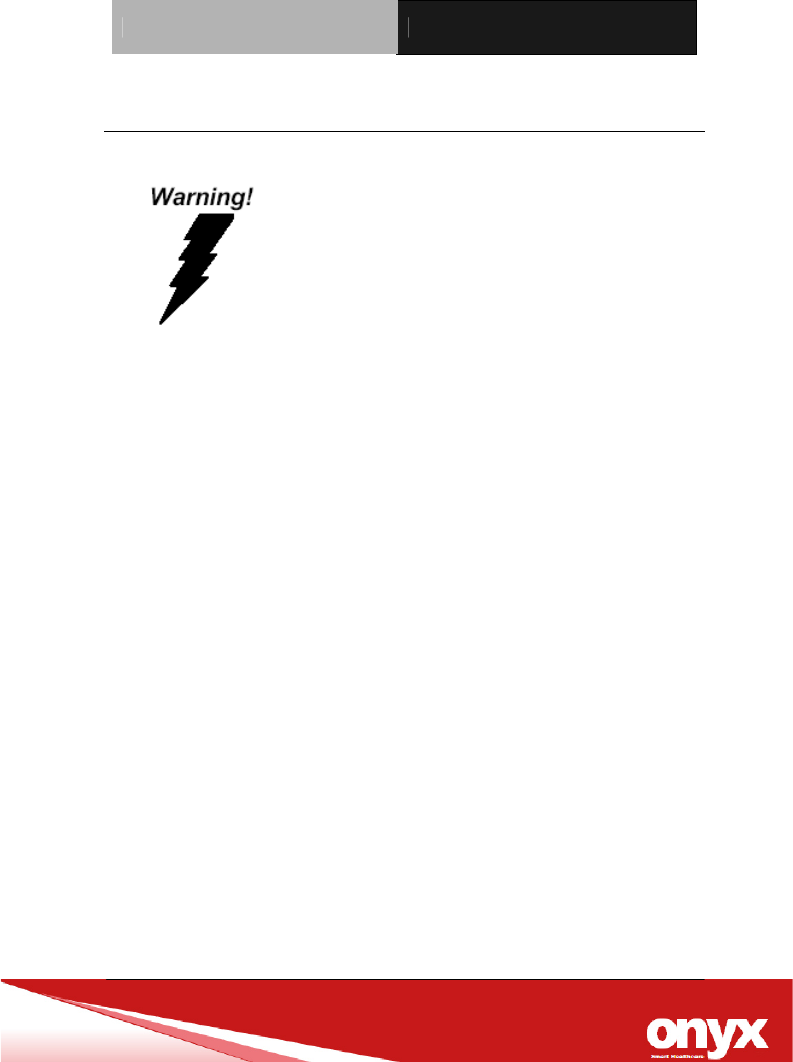
Caution:
It may cause the danger of explosion if battery is incorrectly
replaced. Replace only with same or equivalent type
recommended by the manufacturer.

Slim Medical Panel PC ONYX-1521
Classification
1. Degree of production against electric shock: Not classified.
TYPE B APPLIED PART for Isolation card function (RS-232)
2. Degree of protection against the ingress of water: IPX0
3. Equipment not suitable for use in the presence of a flammable
anesthetic mixture with air or with oxygen or nitrous oxide.
4. Mode of operation: Continuous
5. Type of protection against electric shock: Class I equipment
6. No Applied part, No AP / APG
Slim Medical Panel PC ONYX-1521
FCC
This device complies with Part 15 FCC
Rules. Operation is subject to the
following two conditions: (1) this device
may not cause harmful interference, and (2)
this device must accept any interference
received including interference that may
cause undesired operation.

Slim Medical Panel PC ONYX-1521
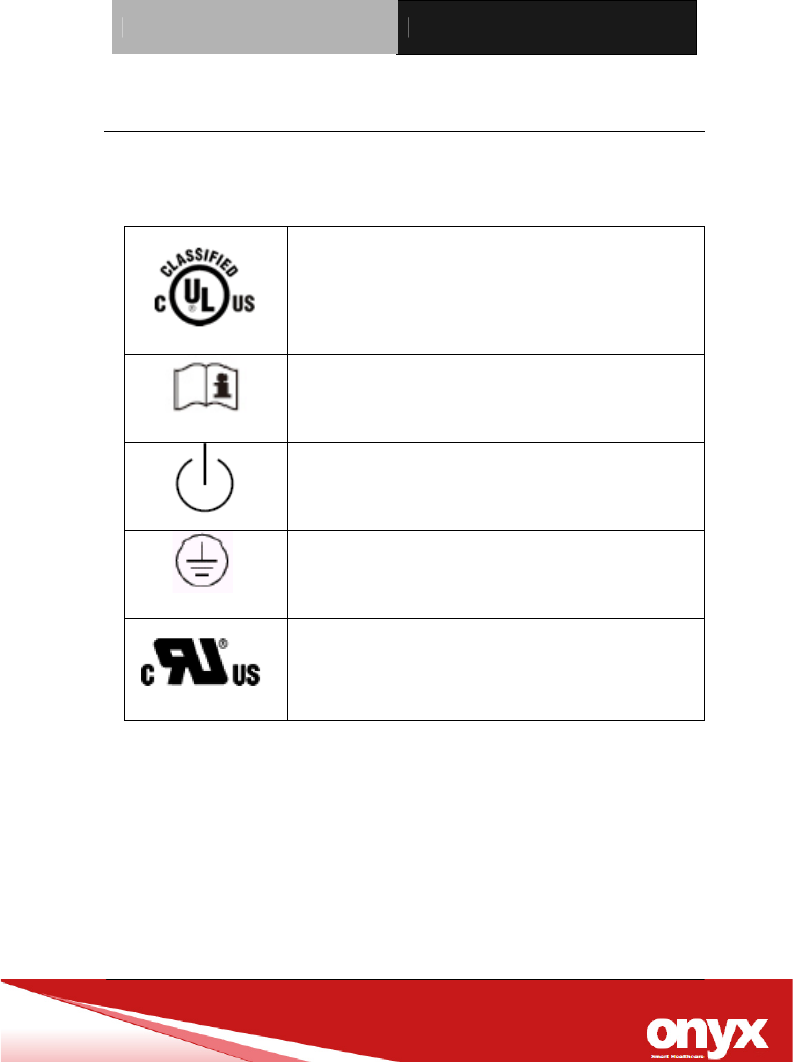
UL Module Description
Onyx-1521 AC modules are developed to
suitable for the Classification Mark
requirement
Slim Medical Panel PC ONYX-1521
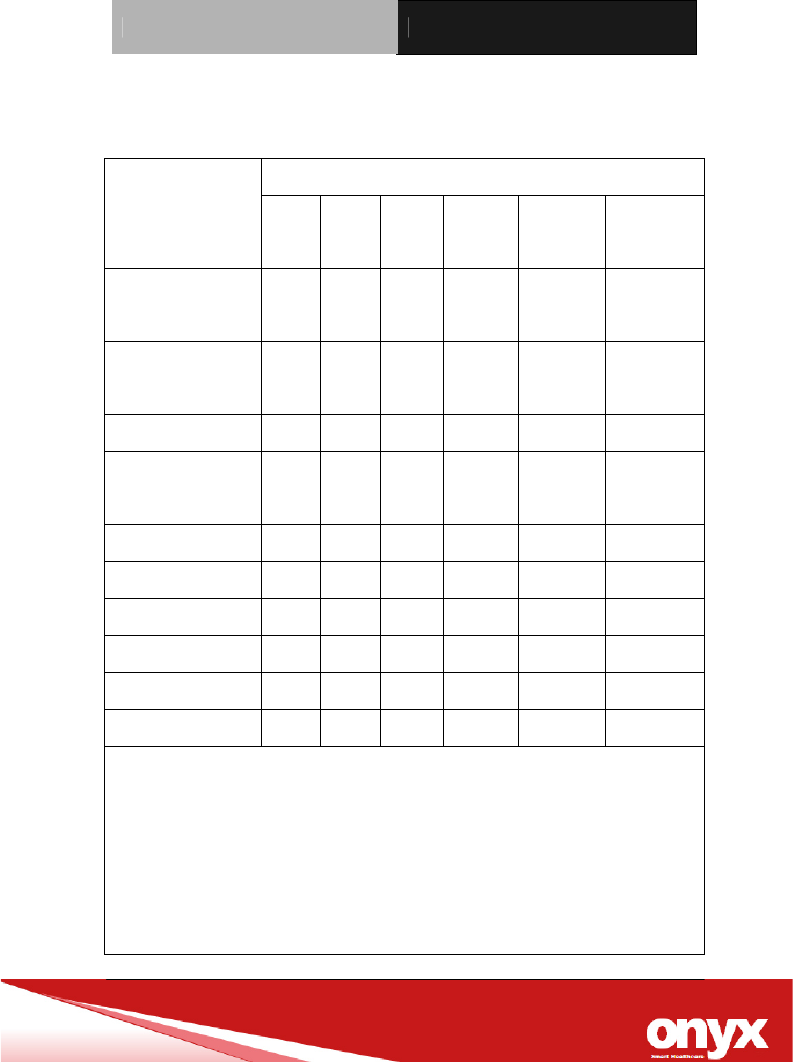
Safety Symbol Description
The following safety symbols are the further explanations for your
reference.
Medical equipment with respect to electric
shock, fire and mechanical hazards only in
accordance with ANSI/AAMI ES 60601-1:
2005 AND CAN/CSA-C22.2 No.
60601-1:08
Attention, consult ACCOMPANYING
DOCUMENTS.
Stand-by (Green light)
Ground wire
Protective Ground wire.
Medical equipment with respect to electric
shock, fire and mechanical hazards only in
accordance with UL 60601-1, and
CAN/CSA C22.2 NO. 601.1
Slim Medical Panel PC ONYX-1521
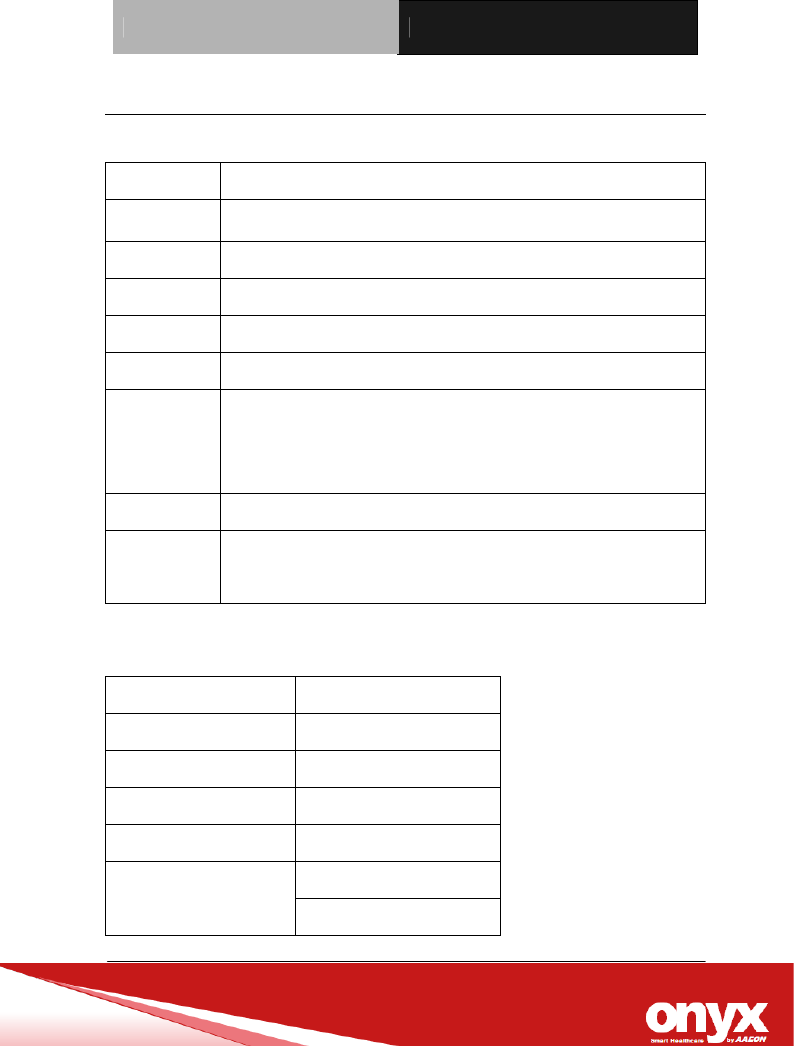
Below Table for China RoHS Requirements
產品中有毒有害物質或元素名稱及含量
ONYX Panel PC/ Workstation
部件名稱
有毒有害物質或元素
鉛
(Pb)
汞
(Hg)
鎘
(Cd)
六價鉻
(Cr(VI))
多溴聯苯
(PBB)
多溴二苯醚
(PBDE)
印刷電路板
及其電子元件 × ○ ○ ○ ○ ○
外部信號
連接器及線材 × ○ ○ ○ ○ ○
外殼 × ○ ○ ○ ○ ○
中央處理器
與記憶體 × ○ ○ ○ ○ ○
硬碟 × ○ ○ ○ ○ ○
液晶模組 × ○ ○ ○ ○ ○
光碟機 × ○ ○ ○ ○ ○
觸控模組 × ○ ○ ○ ○ ○
電源 × ○ ○ ○ ○ ○
O:表示該有毒有害物質在該部件所有均質材料中的含量均在
SJ/T 11363-2006 標準規定的限量要求以下。
X:表示該有毒有害物質至少在該部件的某一均質材料中的含量超出
SJ/T 11363-2006 標準規定的限量要求。
備註:
一、此產品所標示之環保使用期限,系指在一般正常使用狀況下。
二、上述部件物質中央處理器、記憶體、硬碟、光碟機、觸控模組為選購品。

Slim Medical Panel PC ONYX-1521
Contents
Chapter 1 General Information
1.1 Introduction .................................................................... 1-1
1.2 Features .......................................................................... 1-2
1.3 Specification ................................................................... 1-3
1.4 Dimension ....................................................................... 1-7
Chapter 2 Hardware Installation
2.1 Safety Precautions ......................................................... 2-1
2.2 A Quick Tour of the ONYX-1521 ................................... 2-2
2.3 Removing the rear maintenance cover ........................ 2-4
2.4 VESA Mounting Holes.............................................…...2-4
Chapter 3 Driver Installation
3.1 Installation ...................................................................... 3-2
Appendix A Miscellanea
A.1 General Cleaning Tips.................................................. A-2
A.2 Cleaning Tools .............................................................. A-3
A.3 Scrap Computer Recycling ........................................ A-5

Slim Medical Panel PC ONYX-1521
General
Information
Chapter
1

Slim Medical Panel PC ONYX-1521
Chapter1 General Information 1-1
1.1 Introduction
The ONYX-1521 is a Slim Medical Panel PC with Intel® Atom
D525 1.8GHz Dual Core processor-based computer that is
designed to serve as a point of care station. It is a PC-based
system with 15.6” true color TFT LCD display, Zero Noise solution;
integrated multimedia functions make them the perfect platforms to
build comprehensive lifestyle computing applications.
The ONYX-1521 includes all the features of a powerful computer
into a slim and attractive chassis. ONYX-1521 has 300 nits 15.6”
TFT LCD with 1366 x 768 resolution. It supports 2.5” Hard Disk
Drive/SSD storage function and one Mini Card slot for WLAN
expansion. Moreover, it features flexible I/O ports such as six
USB2.0, two isolated RS-232 ports and two isolated Gigabit LANs.
Convenient operation, Silent, compact, mobility and highly
integrated multimedia system let you to focus on healthcare utility,
interactive information displays, automation control systems,
general desktop usage, multimedia recreation, and other medical
requirements.

Slim Medical Panel PC ONYX-1521
Chapter1 General Information 1-2
1.2 Features
z 15.6” 1366x768 TFT LCD Display
z Easy To Use, Compact, Simple Design
z Fanless, Zero Noise
z 500 : 1 Contrast Wide View Angle
z 300 nits High Brightness
z Intel® Atom™ D525 1.8GHz Processor
z 5-wire Resistive Touch Screen
z 802.11 b/g/n Wireless LAN (Optional)
z Weight: 4.3Kg
Slim Medical Panel PC ONYX-1521
Chapter1 General Information 1-3
1.3 Specification
Hardware Specifications
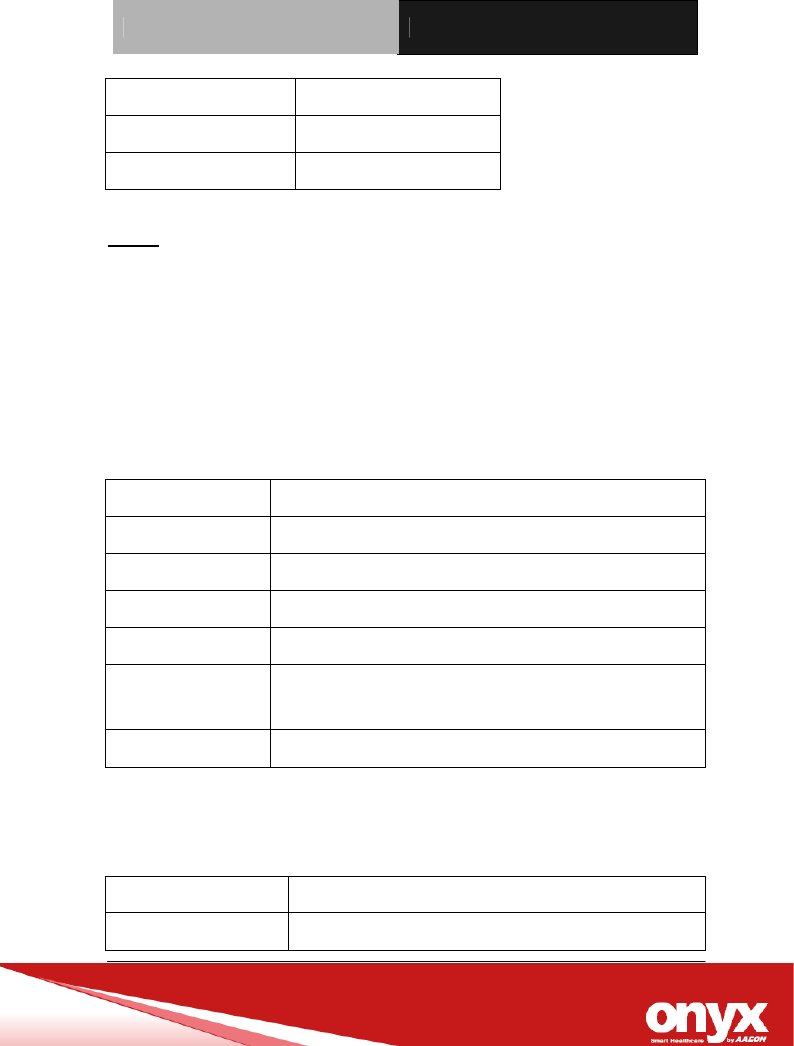
Display ONYX-1521: 15.6” TFT LCD
System
Memory 204-pin DDRIII SODIMM x 2, Max. 4GB
CPU Board Intel® Atom D525 1.8GHz Dual Core Processor
Drive Bay 2.5” Hard Disk Drive/SSD (SATA)
Expansion Mini-Card x 2
Button Brightness: “+” / ”-“; Sound: “+” / ”-“; Power SW
I/O USB 2.0 x 6
Isolated RS-232 x 2
Isolated Gigabit LAN x 2
Line-out, Mic-in
Speaker 3W x 2
Power
Requirement
DC 24V
LCD Specifications
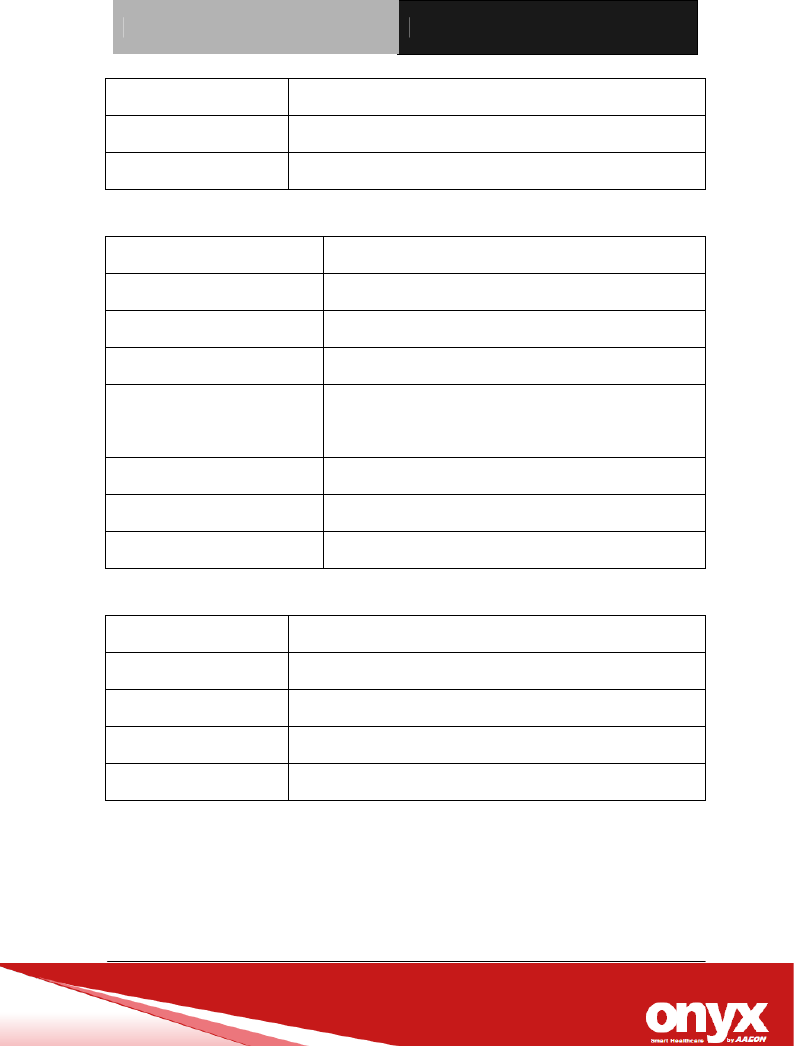
Display Type 15.6” TFT LCD
Max. Resolution 1366 x 768
Max. Colors 16.7M
Pixel Pitch (mm) 0.252 x 0.252
Luminance (cd/m2) 300 (TYP)
Viewing Angle 170°(H)
160°(V)
Slim Medical Panel PC ONYX-1521
Chapter1 General Information 1-4
Contrast Ratio 500 : 1
Brightness Control Yes
Back Light Life Time 50,000 Hrs
Note: All ONYX's LCD products are manufactured with High
precision technology. However, there are a small number of
defective pixels in all LCD panels that are not able to change color.
This is a normal occurrence for all LCD displays from all
manufacturers and should not be noticeable or objectionable under
normal operation. ONYX LCD panels are qualified for industry
standard conditions in the following: total 7 dead pixels on a screen
or if there are 3 within 1 inch square area of each other on the
display.
Mechanical Specifications
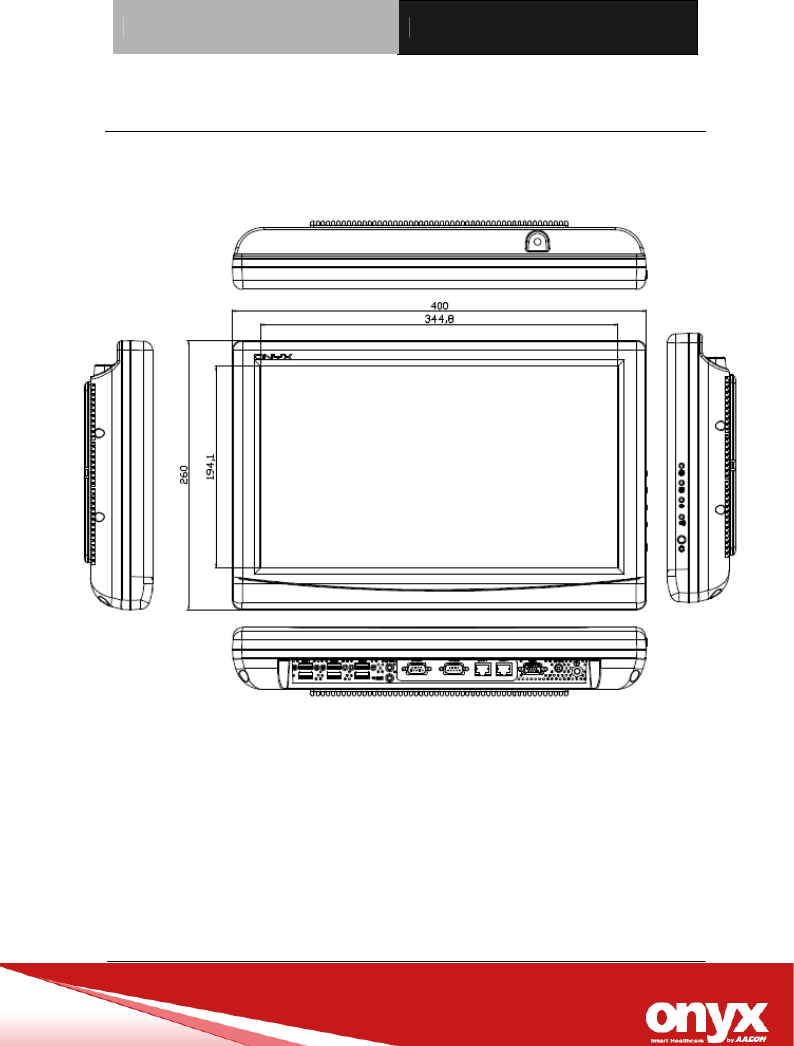
Architecture Close-frame
Front Bezel Plastic bezel with resistive touch screen
Color White
Mounting / Holder VESA 75/100mm
Construction 3mm ABS + PC TYPE Plastic housing
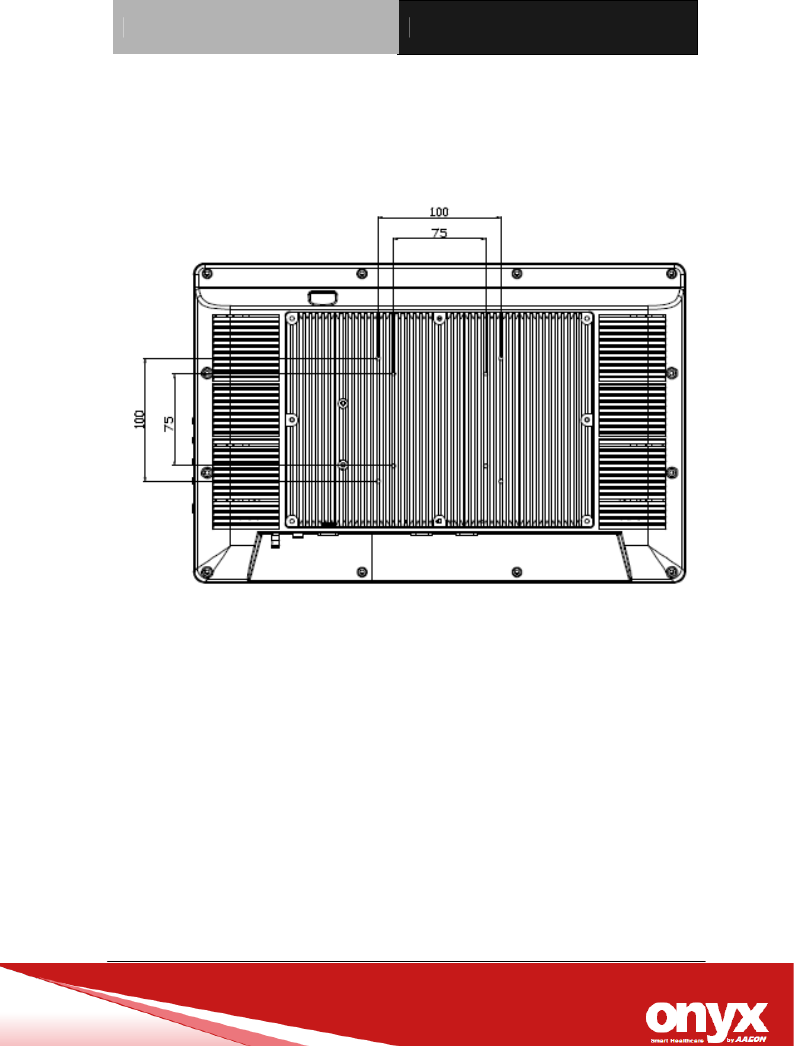
Dimension
(W x H x D)
15.7” x 10.2” x 2.6” (400mm x 260mm x 66mm)
Net Weight 9.5lb(4.3 kg)
Power Supply Specifications
Model No. GMPU70A-6 (Eljintek Inc)
WD Part No. GMPU70A-6-L
Slim Medical Panel PC ONYX-1521
Chapter1 General Information 1-5
Input Voltage 100 ~ 240 Vac, 50/60 Hz, 1.8~0.8A
Output Voltages 24VDC-2.91A, 70W MAX
MTBF 61320 Calculated Hours (7 years)
Environmental Specifications
Operating Temperature 0˚C to 40˚C (32˚F ~104˚F)
Storage Temperature -20˚C to 60˚C (-4˚F ~140˚F)
Storage Humidity 5% to 95%@ 40˚C, non-condensing
Vibration 0.5G / 5 ~ 500Hz (Random) / operation
Shock 15G peak acceleration (11 msec. duration) /
operation
Drop 76cm (1 Corner, 3 Edge, 6 Surface)
EMI / Safety CE / FCC Class B / EN 60601-1
Noise Zero noise
Touch Screen
Type 5-wire, Analog Resistive
Interface USB Interface
Resolution 2048 x 2048
Light Transmission > 80% ± 2%
Life Time 35 million times
Slim Medical Panel PC ONYX-1521
Chapter1 General Information 1-6
1.4 Dimension
ONYX-1521
Unit: mm
Slim Medical Panel PC ONYX-1521
Chapter1 General Information 1-7
ONYX-1521
Unit: mm

Slim Medical Panel PC ONYX-1521
Hardware
Installation
2.1 Safety Precautions
Chapter
2
Slim Medical Panel PC ONYX-1521
Chapter3 Driver Installation 3-1
Always completely disconnect the power cord
from your board whenever you are working on
it. Do not make connections while the power is
on, because a sudden rush of power can
damage sensitive electronic components.
Do not make connections while the power is on,
because a sudden rush of power can damage
sensitive electronic components.
To avoid risk of electric shock, this equipment must
only be connected to a supply mains with protective
earth”
Do not modify this equipment without
authorization of the manufacturer.
Always ground yourself to remove any static
charge before touching the board. Modern
electronic devices are very sensitive to static
electric charges. Use a grounding wrist strap at
all times. Place all electronic components on a
static-dissipative surface or in a static-shielded
bag when they are not in the chassis
Slim Medical Panel PC ONYX-1521
Chapter3 Driver Installation 3-2
2.2 A Quick Tour of the ONYX-1521
Before you start to set up the ONYX-1521, take a moment to
become familiar with the locations and purposes of the controls,
drives, connections and ports, which are illustrated in the figures
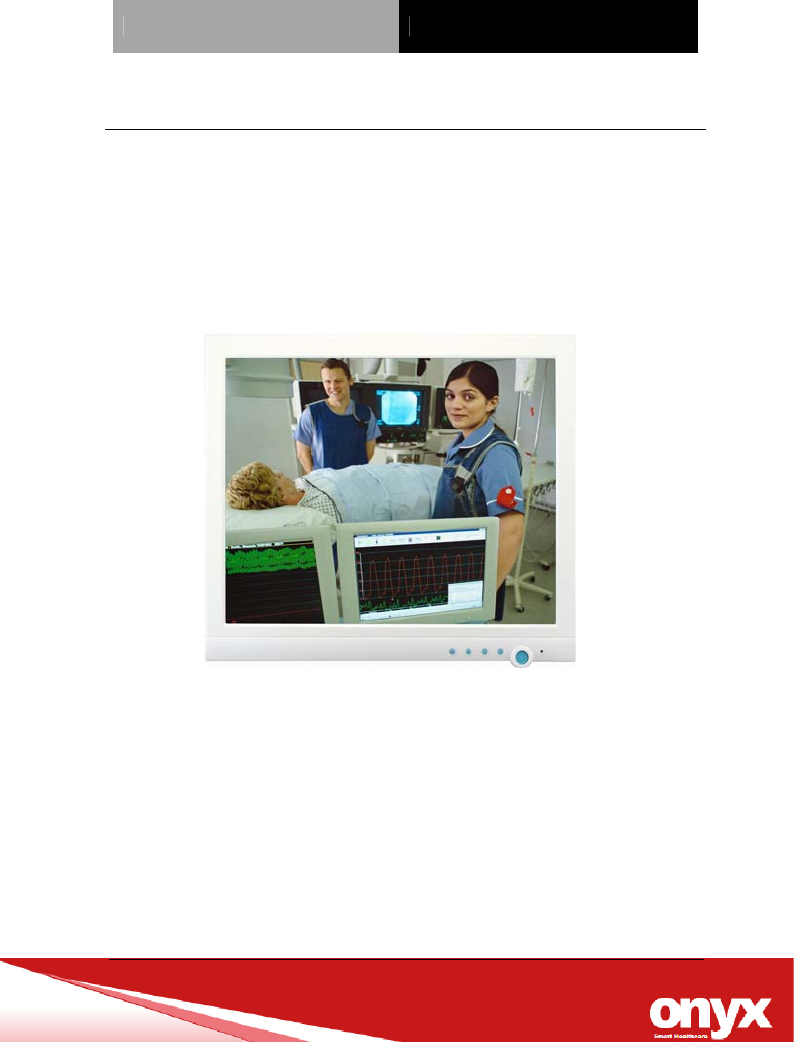
below. When you place the ONYX-1521 upright on the desktop, its
front panel appears as shown in Picture 2-1.
Picture 2-1: Front View of the Slim Medical Panel PC
When you turn the Slim Medical Panel PC around and look at its
rear cover, the sunken I/O section is at the bottom of the PC, as
shown in Picture 2-2. (The I/O section includes various I/O ports,
including DC-in, Serial ports, VGA, Ethernet, USB.) Only assemble
with the Mini card.

Slim Medical Panel PC ONYX-1521
Chapter3 Driver Installation 3-3
ONYX-1521
Figure 2.2: Rear view of the Slim Medical Panel PC
Slim Medical Panel PC ONYX-1521
Chapter3 Driver Installation 3-4
VESA 100 VESA 100
VESA 75
VESA 75
2.3 Removing the rear maintenance cover
Pull USB cover; Unscrew the attachment screws used to hold the
rear maintenance cover and remove rear cover.
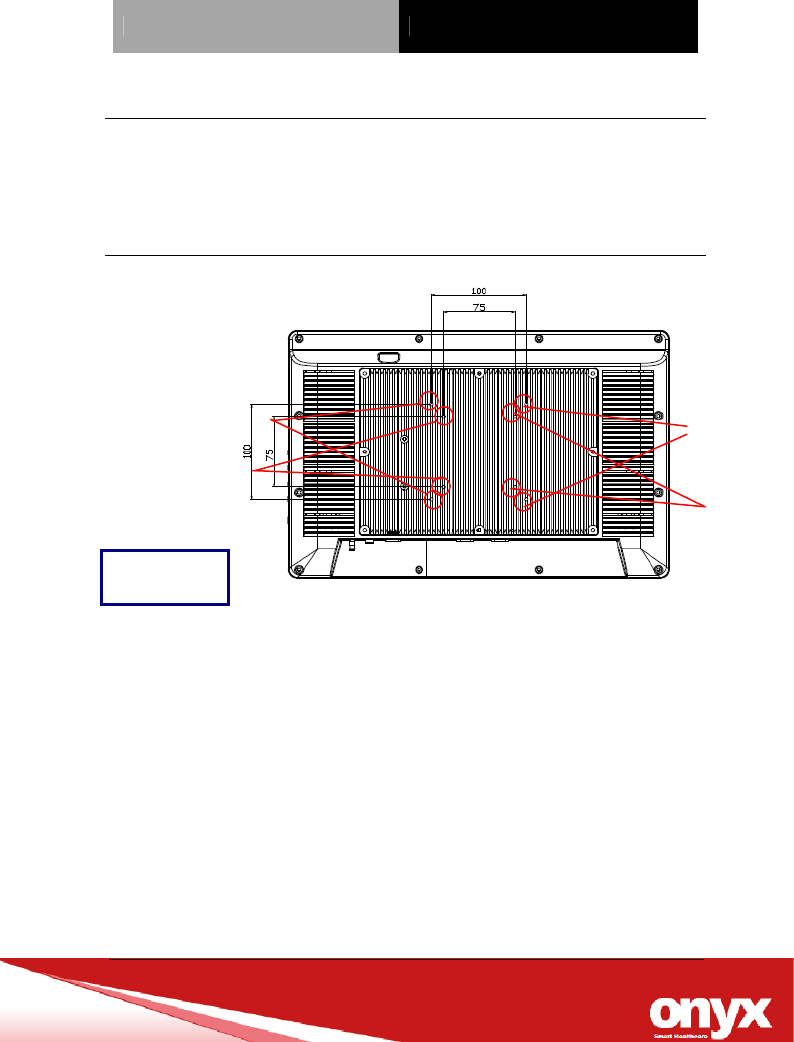
2.4 VESA Mounting Holes
VESA Screws (M4 x 0.7 x 12mm)
ONYX-1521

Slim Medical Panel PC ONYX-1521
Chapter3 Driver Installation 3-5
Driver
Installation
Chapter
3

Slim Medical Panel PC ONYX-1521
Chapter3 Driver Installation 3-6
The ONYX-1521 comes with a CD-ROM that contains all drivers
and utilities that can help you to install the driver automatically.
Insert the driver CD, the driver CD-title will auto start and show the
installation guide. If not, please follow the sequence below to install
the drivers.
Follow the sequence below to install the drivers:
Step 1 – Install Intel® INF Driver
Step 2 – Install Intel® VGA Driver
Step 3 – Install Intel® LAN Driver
Step 4 – Install Audio Driver
Step 5 – Install Touch Driver
Step 6 – Smart Card Driver
Please read instructions below for further detailed installations.

Slim Medical Panel PC ONYX-1521
Chapter3 Driver Installation 3-7
4.1 Installation:
Insert the ONYX-1521 CD-ROM into the CD-ROM drive. And install
the drivers from Step 1 to Step 6 in order.
Step 1 – Install Intel® INF Driver
1. Click on the Step 1 – Inf Driver folder and double click
on the infinst_autol.exe
2. Follow the instructions that the window shows
3. The system will help you install the driver automatically
Step 2 – Install Intel® VGA Driver
1. Click on the Step 2 –VGA driver folder and select the
corresponding folder for your operating system and
double click on Setup.exe file
2. Follow the instructions that the window shows
3. The system will help you install the driver automatically
Step 3 – Install Intel® LAN Driver
1. Click on the Step 3 – LAN driver folder and select the
WinXP folder and double click on setup.exe file
2. Follow the instructions that the window shows
3. The system will help you install the driver automatically

Slim Medical Panel PC ONYX-1521
Chapter3 Driver Installation 3-8
Step 4 –Install Audio Driver
1. Click on the Step 4 –AUDIO driver folder and select the
corresponding folder for your operating system and
double click on Setup.exe file
2. Follow the instructions that the window shows
3. The system will help you install the driver automatically
Step 5 – Install Touch Panel Driver
1. Click on the Touch Driver folder and double click on the
setup.exe
2. Follow the instructions that the window shows
3. The system will help you install the driver automatically
Step 6 – Install Smart Card Driver
1. Click on the Smart Card folder and select the WinXP
folder and double click on the setup.exe
2. Follow the instructions that the window shows
3. The system will help you install the driver automatically

Slim Medical Panel PC ONYX-1521
Appendix B Miscellanea B-0
Miscellanea
Appendix
A

Slim Medical Panel PC ONYX-1521
Appendix A Miscellanea B-1
A.1 General Cleaning Tips
You may need the following precautions before you begin to clean
the computer. When you clean any single part or component for the
computer, please read and understand the details below fully.
1. Never spray or squirt the liquids directly onto any computer
component. If you need to clean the device, please rub it
with a piece of dry cloth.
2. Be cautious of the tiny removable components when you
use a vacuum cleaner to absorb the dirt on the floor.
3. Turn the system off before you start to clean up the
component or computer.
4. Never drop the components inside the computer or get
circuit board damp or wet.
5. Be cautious of all kinds of cleaning solvents or chemicals
when you use it for the sake of cleaning. Some individuals
may be allergic to the ingredients.
6. Try not to put any food, drink or cigarette around the
computer.

Slim Medical Panel PC ONYX-1521
Appendix A Miscellanea B-2
A.2 Cleaning tools
Although many companies have created products to help improve
the process of cleaning your computer and peripherals users can
also use household items to clean their computers and peripherals.
Below is a listing of items you may need or want to use while
cleaning your computer or computer peripherals.
Keep in mind that some components in your computer may only be
able to be cleaned using a product designed for cleaning that
component, if this is the case it will be mentioned in the cleaning
tips.
• Cloth - A piece of cloth is the best tool to use when rubbing
up a component. Although paper towels or tissues can be
used on most hardware as well, we still recommend you to
rub it with a piece of cloth.
• Water or rubbing alcohol – You may moisten a piece of
cloth a bit with some water or rubbing alcohol and rub it on
the computer. Unknown solvents may be harmful to the
plastics parts.
• Vacuum cleaner - Absorb the dust, dirt, hair, cigarette
particles, and other particles out of a computer can be one
of the best methods of cleaning a computer. Over time
these items can restrict the airflow in a computer and cause
circuitry to corrode.

Slim Medical Panel PC ONYX-1521
Appendix A Miscellanea B-3
• Cotton swabs - Cotton swaps moistened with rubbing
alcohol or water are excellent tools for wiping hard to reach
areas in your keyboard, mouse, and other locations.
• Foam swabs - Whenever possible it is better to use lint
free swabs such as foam swabs.
Note:
We strongly recommended that you should shut down the
system before you start to clean any single components.
Please follow the steps below.
1. Close all application programs
2. Close operating software
3. Turn off power switch
4. Remove all device
5. Pull out power cable

Slim Medical Panel PC ONYX-1521
Appendix A Miscellanea B-4
A.3 Scrap Computer Recycling
If the computer equipments need the maintenance or are beyond
repair, we strongly recommended that you should inform us as
soon as possible for the suitable solution. For the computers that
are no longer useful or work well, please contact with worldwide
distributors for recycling.
The worldwide distributors show on the following website:
http://www.onyx-healthcare.com.tw/Contact.php
Note:
Follow the national requirements to dispose unit
FCC 15.21 Information to user.
Any changes or modifications not expressly approved by the party responsible for
compliance could void your authority to operate the equipment.
ISM equipment Note:
(a) The interference potential of the device or system
(b) Maintenance of the system
(c) Simple measures that can be taken by the user to correct interference.
(d) Manufacturers of RF lighting devices must provide an advisory statement, either
on the product packaging or with other user documentation, similar to the following:
This product may cause interference to radio equipment and should not be installed
near maritime safety communications equipment or other critical navigation or
communication equipment operating between 0.45-30 MHz. Variations of this
language are permitted provided all the points of the statement are addressed and may
be presented in any legible font or text style.
RF Radiation Exposure Statement
1. This Transmitter must not be colocated or operating in conjunction with any other
antenna or transmitter.
2. This equipment complies with FCC RF radiation exposure limits set forth for an
uncontrolled environment. This equipment should be installed and operated with a
minimum distance of 20 centimeters between the radiator and your
body.