ONYX Healthcare lnc MD101 Mobile Medical Assistant Tablet User Manual Arial bold 34ptGene 6320
ONYX Healthcare lnc. Mobile Medical Assistant Tablet Arial bold 34ptGene 6320
User Manual
Mobile Medical Assistant
Tablet
O N Y X - M D 1 0 1
Main model: ONYX-MD101
Series Model: xxxONYX-MD101xxxxxxxxxx(x=0~9, A~Z,
a~z or blank or middle bar; for marketing purpose only and no
impact safety related constructions and critical components)
10.1” LCD with LED Backlight
Intel® Cherry Trail Z8350 Processor
Mobile Medical Assistant Tablet
ONYX-MD101 Manual 1st Ed
Jul, 2017

Mobile Medical Assistant
Tablet
O N Y X - M D 1 0 1
Copyright Notice
This document is copyrighted, 2017. All rights are reserved. The
original manufacturer reserves the right to make improvements to the
products described in this manual at any time without notice.
No part of this manual may be reproduced, copied, translated, or
transmitted in any form or by any means without the prior written
permission of the original manufacturer. Information provided in this
manual is intended to be accurate and reliable. However, the original
manufacturer assumes no responsibility for its use, nor for any
infringements upon the rights of third parties, which may result from its
use.
The material in this document is for product information only and is
subject to change without notice. While reasonable efforts have been
made in the preparation of this document to assure its accuracy, ONYX
Healthcare Inc., assumes no liabilities resulting from errors or
omissions in this document, or from the use of the information
contained herein
ONYX Healthcare Inc. reserves the right to make changes in the
product design without notice to its users

Mobile Medical Assistant
Tablet
O N Y X - M D 1 0 1
Acknowledgments
Intel® Cherry Trail is registered trademarks of Intel® Corporation.
Microsoft® Windows is a registered trademark of Microsoft®
Corporation.
All other product names or trademarks are properties of their respec
tive owners.

Mobile Medical Assistant
Tablet
O N Y X - M D 1 0 1
Packing List
Before you begin installing your Medical Tablet PC, please make sure
that the following items have been shipped:
ONYX-MD101 Mobile Medical Assistant Tablet
Medical Power Adapter 15V/2.4A
Utility DVD-ROM, which contains Drivers and Utilities
VESA Cradle (Optional)

Mobile Medical Assistant
Tablet
O N Y X - M D 1 0 1
If any of these items are missing or damaged, you should contact your
distributor or sales representative immediately.
Headquarters
Onyx Healthcare Inc.
2F, No.135, Lane 235, Pao-Chiao Rd.,
Hsin-Tien City, Taipei 231, Taiwan, R.O.C.
TEL: +886-2-8919-2188
FAX: +886-2-8919-1699
E-mail: sales@onyx-healthcare.com
http://www.onyx-healthcare.com
Worldwide Offices:
Onyx Healthcare, USA Inc.
324W. Blueridge Ave., Orange,, CA 92865, USA
Tel : +1-714-792-0774
Fax: +1-714-792-0481
Email: usasales@onyx-healthcare.com
Onyx Healthcare EUROPE B.V.
Primulalaan 42, 5582 GL Waalre, Netherlands
Tel : +31(0)499-745600
Email: eusales@onyx-healthcare.com


Mobile Medical Assistant
Tablet
O N Y X - M D 1 0 1
Safety & Warranty
1. Read these safety instructions carefully.
2. Keep this user's manual for later reference.
3. Disconnect this equipment from any AC outlet before cleaning. Do
not use liquid or spray detergents for cleaning. Use a damp cloth.
4. For pluggable equipment, the power outlet must be installed near the
equipment and must be easily accessible.
5. Keep this equipment away from humidity.
6. Put this equipment on a reliable surface during installation. Dropping
it or letting it fall could cause damage.
7. The openings on the enclosure are for air convection. Protect the
equipment from overheating. DO NOT COVER THE OPENINGS.
8. Make sure the voltage of the power source is correct before
connecting the equipment to the power outlet.
9. Warning: To avoid risk of electric shock, this equipment must
only be connected to a supply mains with protective earth.
(Avertissement: Pour éviter tout risque de choc électrique, cet
appareil doit être connecté à une alimentation secteur avec une
prise de terre)
10. Position the power cord so that people cannot step on it. Do not
place anything over the power cord.
11. All cautions and warnings on the equipment should be noted.
12. If the equipment is not used for a long time, disconnect it from the
power source to avoid damage by transient over-voltage.

Mobile Medical Assistant
Tablet
O N Y X - M D 1 0 1
13. Never pour any liquid into an opening. This could cause fire or
electrical shock.
14. Never open the equipment. For safety reasons, only qualified
service personnel should open the equipment.
15. Warning: Do not modify this equipment without authorization of
the manufacturer. (Avertissement: Ne pas modifier cet équipement
sans l'autorisation du fabricant)
16. Warning : It is necessary for checking or replacing the battery
pack every year. (Avertissement: Il est nécessaire de vérifier ou de
remplacer la batterie chaque année)

Mobile Medical Assistant
Tablet
O N Y X - M D 1 0 1
16. If any of the following situations arises, get the equipment
checked by service personnel:
a. The power cord or plug is damaged.
b. Liquid has penetrated into the equipment.
c. The equipment has been exposed to moisture.
d. The equipment does not work well, or you cannot get it to
work according to the users manual.
e. The equipment has been dropped and damaged.
f. The equipment has obvious signs of breakage.
17. DO NOT LEAVE THIS EQUIPMENT IN AN UNCONTROLLED
ENVIRONMENT WHERE THE STORAGE TEMPERATURE IS
BELOW -20° C (-4°F) OR ABOVE 60° C (140° F). IT MAY DAMAGE
THE EQUIPMENT.
18. External equipment intended for connection to signal
input/output or other connectors, shall comply with relevant UL
/ IEC standard (e.g. UL 1950 for IT equipment and ANSI/AAMI ES
60601-1: 2005 AND CAN/CSA-C22.2 No. 60601-1:08 / IEC 60601
series for systems – shall comply with the standard IEC
60601-1-1, Safety requirements for medical electrical systems.
Equipment not complying with UL 60601-1 shall be kept outside
the patient environment, as defined in the standard.
19. Unplug the power cord from the power adapter jack to
disconnect the device.
Caution:
It may cause the danger of explosion if battery is incorrectly
replaced. Replace only with same or equivalent type
recommended by the manufacturer.

Mobile Medical Assistant
Tablet
O N Y X - M D 1 0 1
Classification
1. Degree of production against electric shock: not classified
2. Degree of protection against the ingress of water: IPX0
3. Mode of operation: Continuous
4. Type of protection against electric shock: Class I equipment
5. No Applied Part, No AP/APG
Mobile Medical Assistant
Tablet
O N Y X - M D 1 0 1
FCC
This device complies with Part 18 FCC Rules.
Operation is subject to the following two
conditions: (1) this device may not cause
harmful interference, and (2) this device must
accept any interference received including
interference that may cause undesired
operation.
Mobile Medical Assistant
Tablet
O N Y X - M D 1 0 1
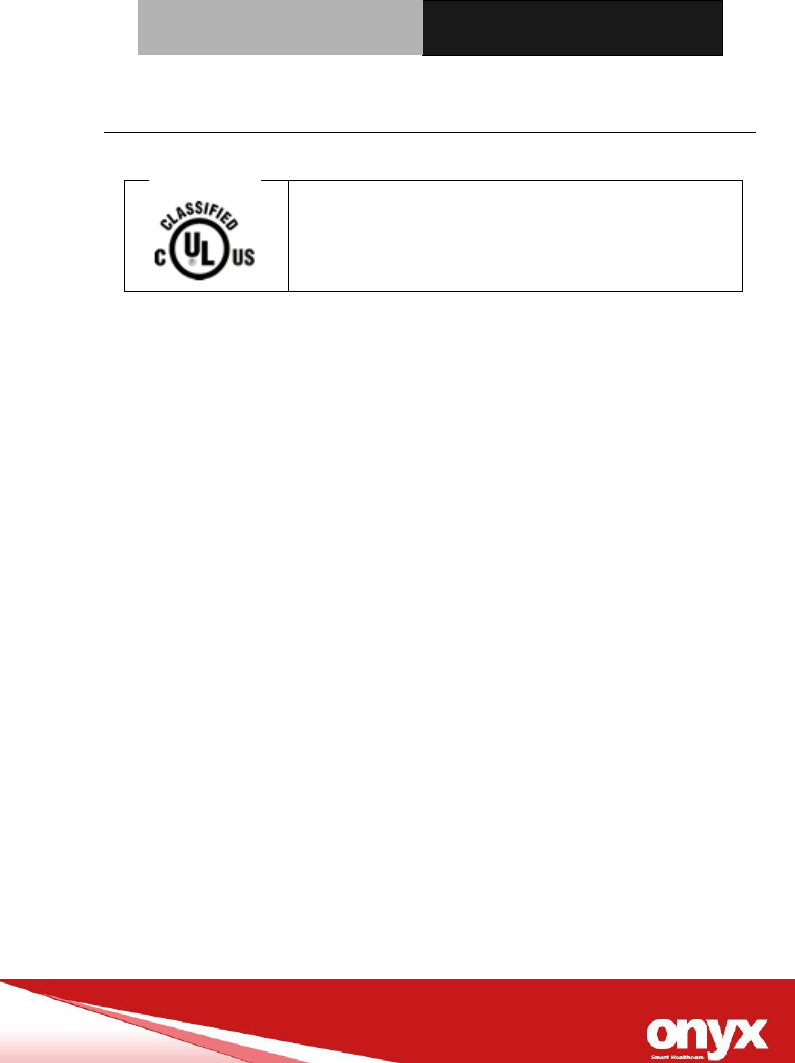
UL Module Description
ONYX-MD101 modules are developed to
suitable for the Classification Mark
requirement
Mobile Medical Assistant
Tablet
O N Y X - M D 1 0 1
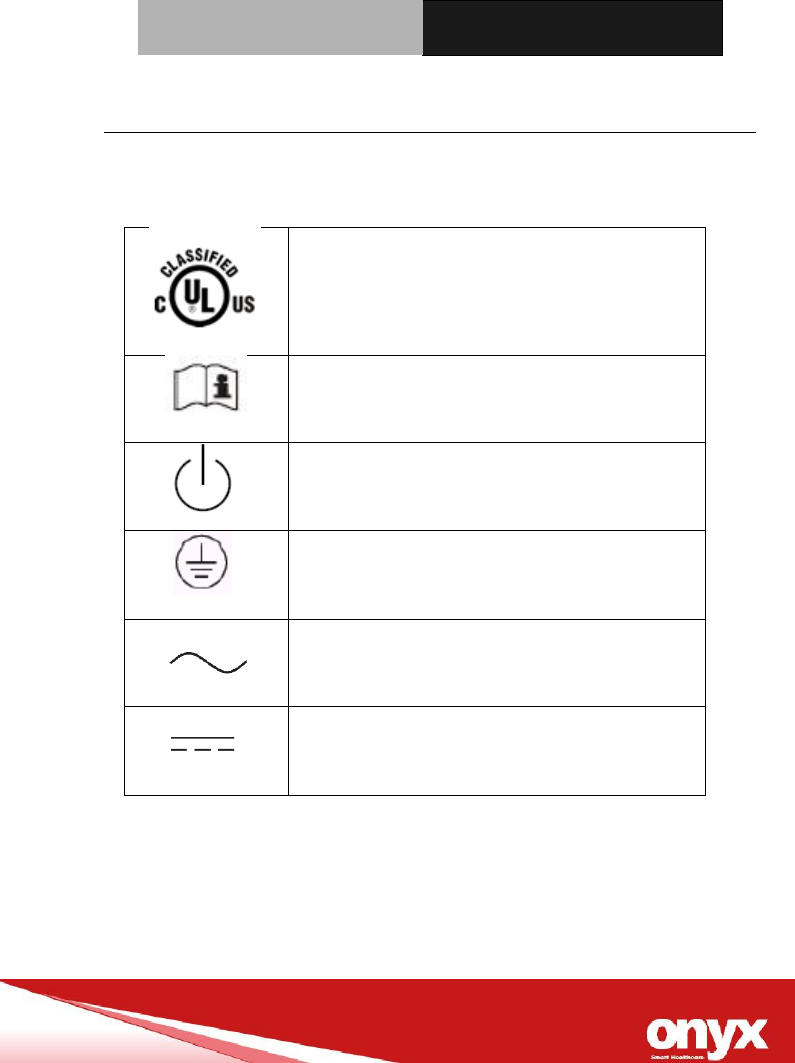
Safety Symbol Description
The following safety symbols are the further explanations for your
reference.
Medical equipment with respect to electric
shock, fire and mechanical hazards only in
accordance with ANSI/AAMI ES 60601-1:
2005 AND CAN/CSA-C22.2 No.
60601-1:08
Attention, consult ACCOMPANYING
DOCUMENTS.
Stand-by
Ground wire
Protective Ground wire.
Alternating current
Direct current

Mobile Medical Assistant
Tablet
O N Y X - M D 1 0 1
Contents
Chapter 1 General Information
1.1 Introduction .................................................................... 1-2
1.2 Feature ............................................................................ 1-3
1.3 Specification ................................................................... 1-4
1.4 Dimension ....................................................................... 1-8
Chapter 2 Hardware Installation
2.1 Safety Precautions ......................................................... 2-2
2.2 Quick Tour of the ONYX-MD101 ................................... 2-3
2.3 Turn On and Boot up into Windows…………………….2-7
2.4 Turn off……………………………………………………….2-7
Chapter 3 Driver Installation
Appendix A Miscellanea
A.1 General Cleaning Tips .................................................. C-2
A.2 Cleaning Tools .............................................................. C-3
A.3 Scrap Computer Recycling ........................................ C-5

Mobile Medical Assistant
Tablet
O N Y X - M D 1 0 1
General
Information
Chapter
1

Mobile Medical Assistant
Tablet
O N Y X - M D 1 0 1
1.1 Introduction
Vital Sign is a building block of all the tasks nurses do every day, and
also a fundamental element for doctors to determine what kind of
treatment and medication should to be given. How to optimize nurses’
time and improve the data correctness by automating the vital sign
frontline reporting is the winning key to deliver an excellent nursing care
service.
ONYX-MD101 is designed for this purpose. With the integration of ECG
devices, e.g. GE V100, and intuitive software UI, ONYX-MD101 is
working as a Gateway to transfer and document all the data liked NIBP,
SpO2, pulse rate and temperature into HL7 format, which is a common
protocol nowadays to be addressed by many different world-known EMR
software.
By consistency, doctors/clinicians can utilize the data among the ward,
operation room, nurse station, pharmacy, and even outside facilities, like
hemodialysis center, nursing care house and home.
Features
1. 10.1” Automated Vital Sign Tablet
2. Fast and complete data exchange among all care areas
3. Improve the accuracy of vital sign records.
4. Seamless integration of various devices, liked BP Monitor,
Respirator, Anesthesia Machine, Injection Pump…etc.
5. Ergonomic roll stand with quiet and stable wheels (Easy to push) for

Mobile Medical Assistant
Tablet
O N Y X - M D 1 0 1
high mobility
6. Considerable Cable management for Pulse Oximetry, Blood
pressure Wristband and Barcode Gun…etc.

Mobile Medical Assistant
Tablet
O N Y X - M D 1 0 1
1.2 Feature
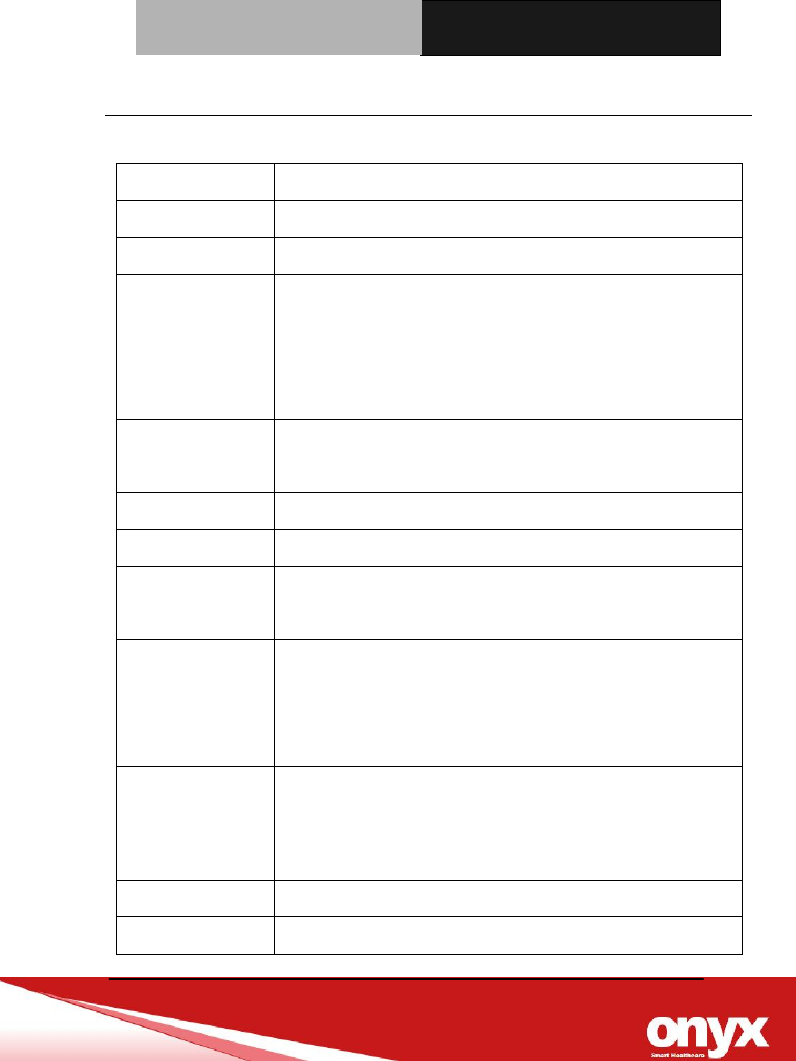
Intel® Cherry Trail processor
Slimmer & light weight design for clinical mobility
Long life battery, supports intensive care service
Standard USB Type-A for easy connection with medical
device
IP54 certified & 3 feet drop resistant
ORION client compatible
Support VESA 75 via mechanical metal adapter
EN60601-1 & UL60601-1 Certified
Ergonomic design for portable and trolley use
Mobile Medical Assistant
Tablet
O N Y X - M D 1 0 1
1.3 Specification
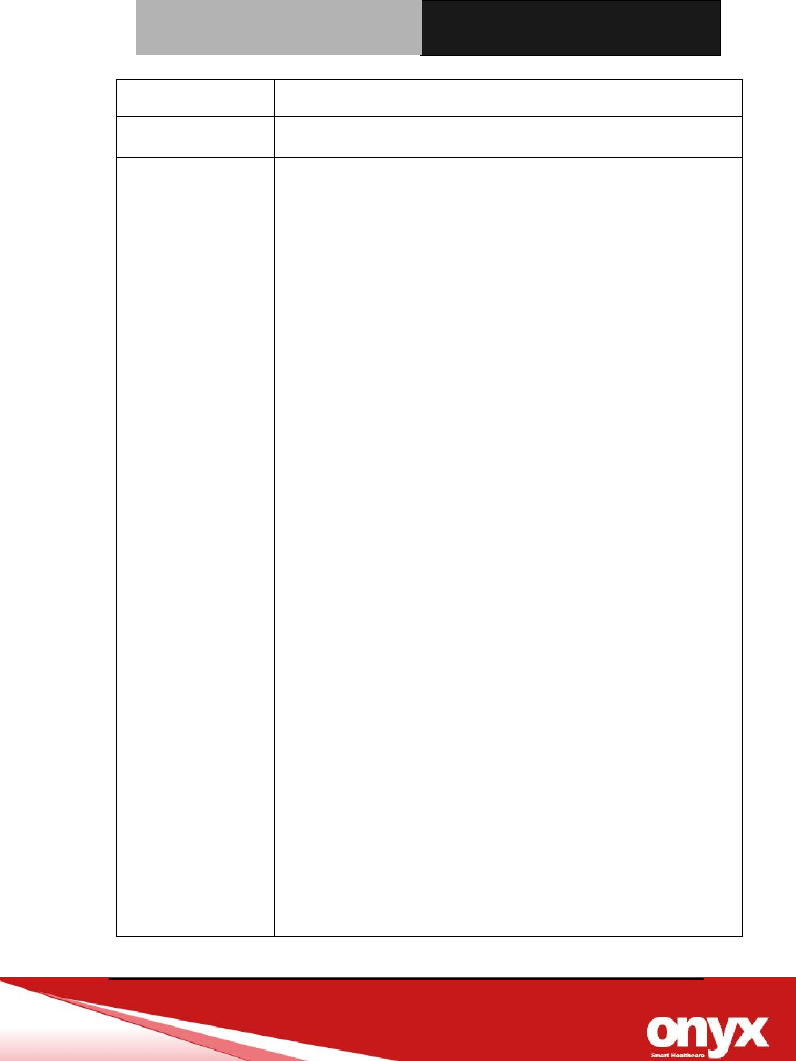
Main System Specifications
CPU
Intel® Cherry Trail Z8350 1.44GHz (2M Cache, up to 1.92 GHz)
System Memory
DDR3L on board, support up to 4GB (2GB/4GB)
Storage
eMMC on board, support up to 128GB (64GB/128GB)
I/O
USB 3.0 (Type-A) x1
3.5mm Combo Audio Jack x1
Micro HDMI Out x1(Removable)
Kensington slot x1
Wireless
Communication
AMPAK.WL334: 802.11 a/b/g/n + BT 4.0
GPS
u-blox.NEO-M8Q-0
Gyroscope Sensor
Bosch.BMG160
Accelerometer
Sensor
Bosch.BMC150
Audio Codec
Main Audio Codec: REALTEK.ALC5672-VB-CGT
2nd Audio Codec needs to be kept for Audio Jack function.
a. Speaker I2C interface
b. Audio Jack USB codec
Speaker
3W speaker x2 (Removable)
[Note]
Reserve one speaker’s space for adding a full mini PCI-E card
with new main board.
Security
fTPM (A Firmware-based TPM)
Power input
15V DC / 2.4A
Mobile Medical Assistant
Tablet
O N Y X - M D 1 0 1
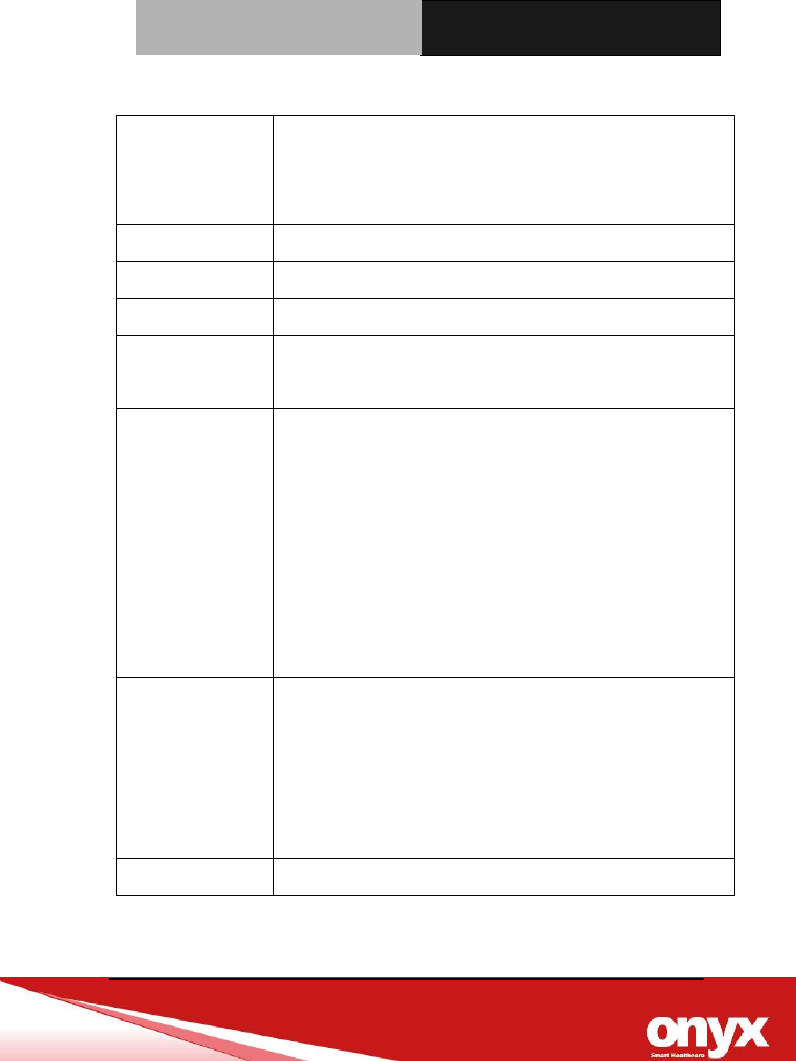
Battery
Liyhium-Ion Battery
System Cooling
Fan less
Output power
IEEE 802.11b: 0.079 W
IEEE 802.11g: 0.143 W
IEEE 802.11n 2.4GHz 20MHz: 0.136 W
IEEE 802.11a:
UNII Band I: 0.016 W
UNII Band II-A: 0.013 W
UNII Band II-C: 0.011 W
UNII Band III: 0.010 W
IEEE 802.11n 5GHz 20MHz:
UNII Band I: 0.011 W
UNII Band II-A: 0.011 W
UNII Band II-C: 0.009 W
UNII Band III: 0.008 W
IEEE 802.11n 5GHz 40MHz:
UNII Band I: 0.017 W
UNII Band II-A: 0.019 W
UNII Band II-C: 0.011 W
UNII Band III: 0.010 W
Mobile Medical Assistant
Tablet
O N Y X - M D 1 0 1
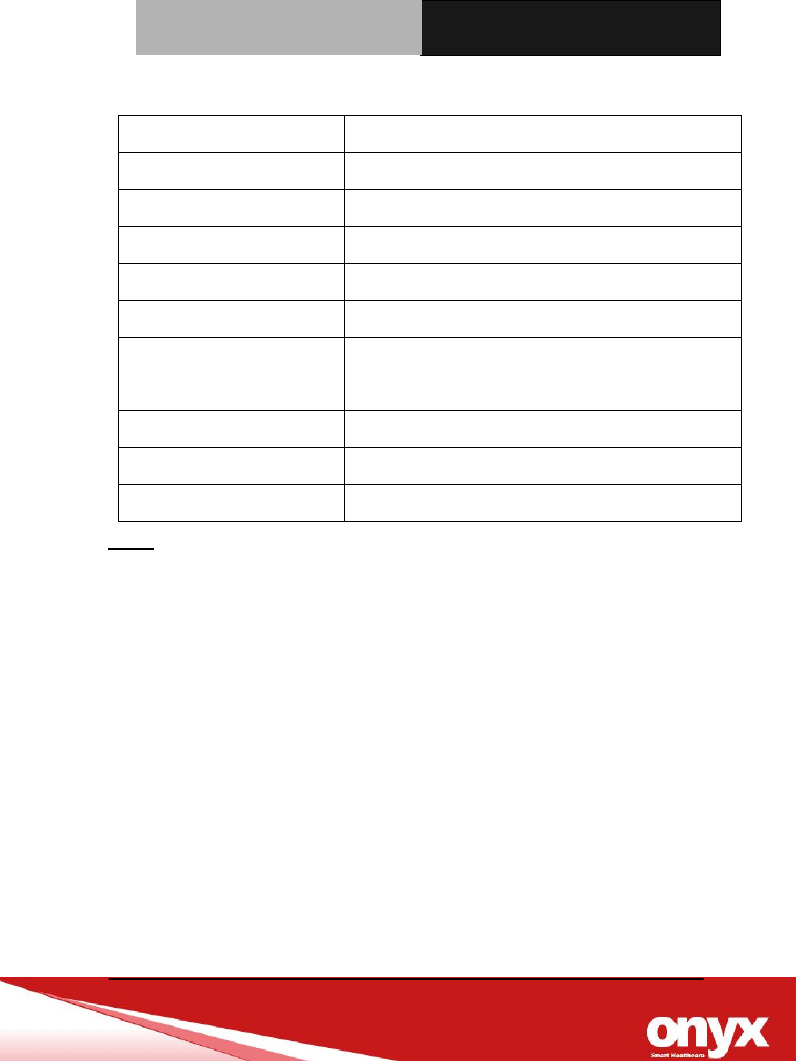
Front Panel Design
Control Button
Power Button : x1
Volume Keys: x2
Home Key: x1
DMIC
Integrated into the Button Board
Camera
Rear 8.0/ Front 2.0M pixels camera (Removable)
RFID
NA
Smart Card
Reader
NA
Alarm Light
(Removable)
Integrate to the Button Board (EC控制)
1. Flick Orange: Every 0.5s
2. Orange:
3. Flick Blue: Every 0.5s
4. Blue:
[Note]
1. Function disable when power off
2. Function reset to LEDs-off after restart to OS
LED Battery
Indicator
[w/ adaptor] Charging => Blue LED.
[w/ adaptor] Full => Green LED.
[no adaptor] <10%, Power Off, Blue LED Flick 3 Times
[no adapteor] Power on & S3, <10%, Blue LED Flick 3 Times
Thermal Sensor detect (>42 degreeC) : Shut down
Light Sensor
YES
Mobile Medical Assistant
Tablet
O N Y X - M D 1 0 1
Display Specification
Note:
All ONYX LCD products are manufactured with High precision technology.
However, there are a small number of defective pixels in all LCD panels that are
not able to change color. This is a normal occurrence for all LCD displays from all
manufacturers and should not be noticeable or objectionable under normal
operation. All LCD panels are qualified for industry standard conditions in the
following: total 7 dead pixels on a screen or if there are 3 within 1 inch square
area of each other on the display.
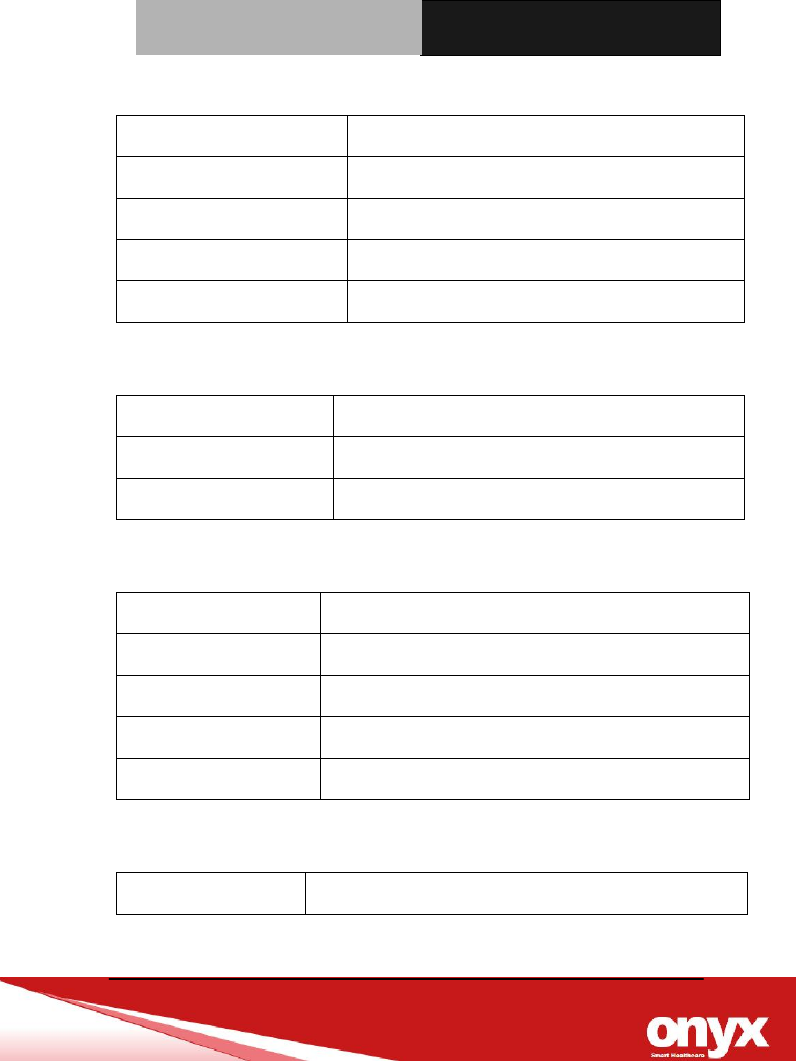
LCD size
10.1” Color TFT-LCD
Brand
ONation
LCD Model Number
OT101ZBWDLN-09
Resolution
1920 x 1200
Luminance (cd/m2)
300
Contrast Ratio
1000:1
Viewing Angel
Horizontal: Right 85 (Typ) / Left 85 (Typ)
Vertical: Up 85 (Typ) / Down 85 (Typ)
Interface
MIPI
Backlight Life Time (Hrs.)
30,000
Weight
127g
Mobile Medical Assistant
Tablet
O N Y X - M D 1 0 1
Touch Screen Specification
Touch Type
PCT
Brand
EDT
Touch Model Number
EP1010MLM2
TS Controller
SIS9255B
Interface
USB
Power Adapter Specification
Model
Medical Adapter
AC input
100-240V AC@50-60 Hz
DC output
15V / 2.4A, 36W max
Mechanical Specifications
Architecture
Magnesium Aluminum Alloy Rear Cover + Plastic casing
Color
Font Cover: Black, Rear Cover: Brown
Mounting
VESA 75mm (Via VESA Cradle)
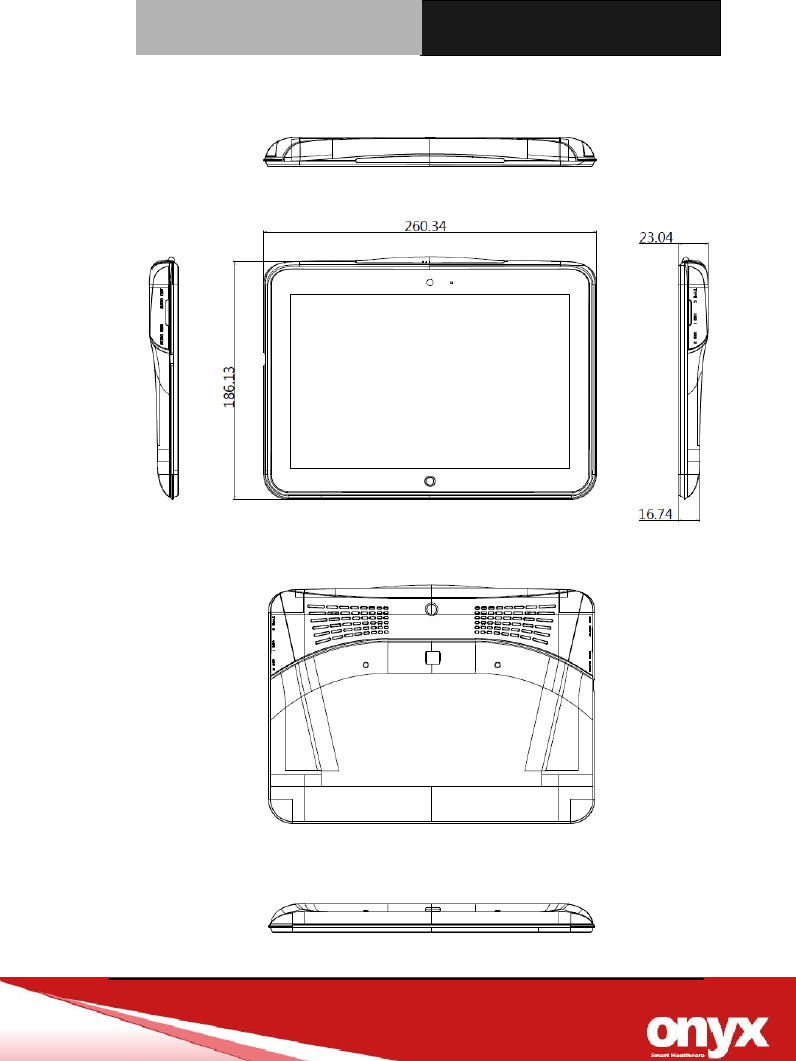
Dimension (W x H x D)
260 x 186 x 23 (mm)
Net Weight
Approx. 1Kg
Accessory
Cradle
VESA 75 with Locking
Mobile Medical Assistant
Tablet
O N Y X - M D 1 0 1
1.4 Dimension

Mobile Medical Assistant
Tablet
O N Y X - M D 1 0 1
Hardware
Installation
Chapter
2
Mobile Medical Assistant
Tablet
O N Y X - M D 1 0 1
2.1 Safety Precautions
Always completely disconnect the power cord
from your board whenever you are working on
it. Do not make connections while the power is
on, because a sudden rush of power can
damage sensitive electronic components.
Always ground yourself to remove any static
charge before touching the board. Modern
electronic devices are very sensitive to static
electric charges. Use a grounding wrist strap at
all times. Place all electronic components on a
static-dissipative surface or in a static-shielded
bag when they are not in the chassis
Mobile Medical Assistant
Tablet
O N Y X - M D 1 0 1
2.2 Quick Tour of the ONYX-MD101
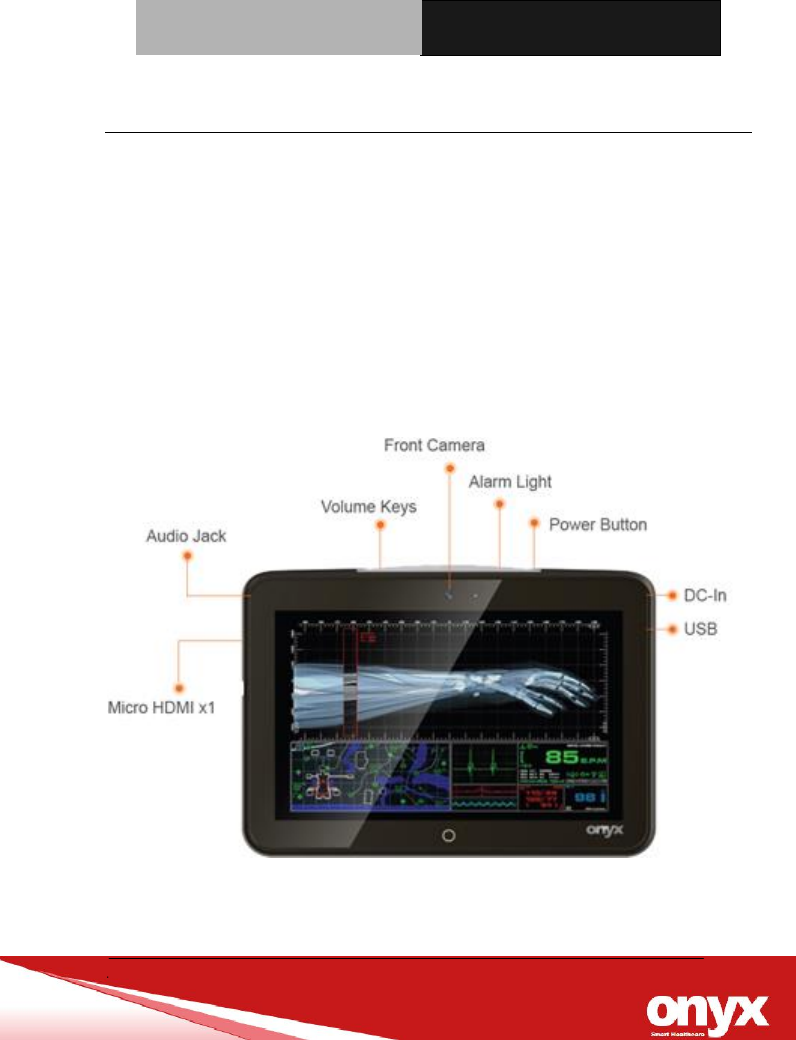
Before you start to set up ONYX-MD101, take a moment to become
familiar with the locations and purposes of the controls, drives,
connections and ports, which are illustrated in the figures below.
When you place ONYX-MD101 upright on the desktop, its front panel
appears as shown in Picture 2-1. The ONYX-MD101 includes various I/O
ports in left and right side, including a DC-IN Jack, an Audio Jack, one
USB ports and one Micro HDMI output.
Picture 2.1: Front View of the ONYX-MD101
Mobile Medical Assistant
Tablet
O N Y X - M D 1 0 1
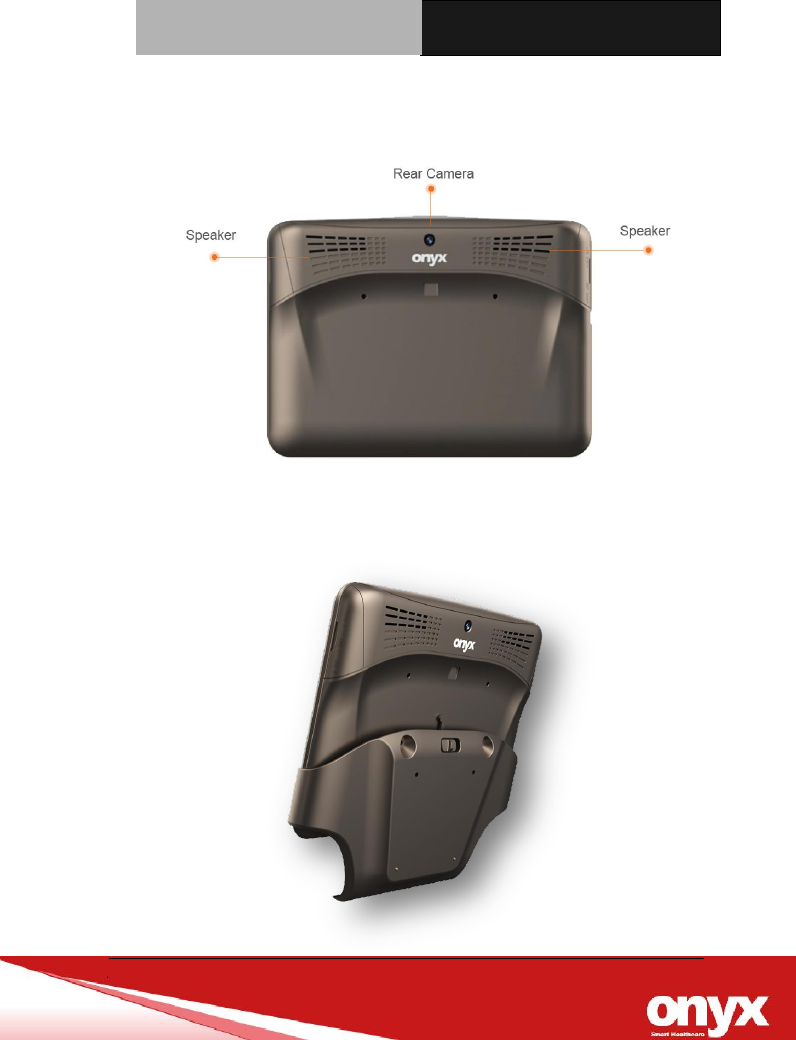
When you turn the ONYX-MD101 around and look at its rear cover, it
contains an 8MP camera and high quality of stereo speakers.
ONYX-MD101 comes with a VESA cradle, which is equipped a standard
VESA 75 holes for wall mount, desk mount or floor mount.

Mobile Medical Assistant
Tablet
O N Y X - M D 1 0 1
2.3 Turn On and Boot up into Windows OS
This section is for Windows operating system only. If you are installing a
different operating system, please contact your vendor for installation
details.
Your ONYX-MD101 will begin loading Windows OS once you push the
power button to turn power on. After less than one minute, Windows
desktop screen will appear.
You can select the programs from the start menu in the left-down corner
of the desktop screen.
2.4 Turn off
Turning off ONYX-MD101 properly is important for system reliability.
There are two ways to turn off the system.
1. On the start menu, click “shut down” and select “OK”
2. Push the power button and then the system will shut down
automatically
.

Mobile Medical Assistant
Tablet
O N Y X - M D 1 0 1
Driver
Installation
Chapter
3

Mobile Medical Assistant
Tablet
O N Y X - M D 1 0 1
There are several installation ways depending on the driver package
under different Operating Systems.
Please follow the sequence below to install the drivers:
For Windows 7/8.1/10
Step 1 – Chipset Driver
Step 2 – Graphics Driver
Step 3 – Realtek LAN Driver
Step 4 – Realtek Audio Driver
Step 5 – TPM 2.0 Driver(for Windows 7)
Step 6 – ME Driver
Step 7 – Resistive Touch Screen Driver(only for ET series)

Mobile Medical Assistant
Tablet
O N Y X - M D 1 0 1
Miscellanea
Appendix
A

Mobile Medical Assistant
Tablet
O N Y X - M D 1 0 1
A.1 General Cleaning Tips
You may need the following precautions before you begin to clean the
computer. When you clean any single part or component for the
computer, please read and understand the details below fully.
1. Never spray or squirt the liquids directly onto any computer
component. If you need to clean the device, please rub it with a
piece of dry cloth.
2. Be cautious of the tiny removable components when you use a
vacuum cleaner to absorb the dirt on the floor.
3. Turn the system off before you start to clean up the component
or computer.
4. Never drop the components inside the computer or get circuit
board damp or wet.
5. Be cautious of all kinds of cleaning solvents or chemicals when
you use it for the sake of cleaning. Some individuals may be
allergic to the ingredients.
6. Try not to put any food, drink or cigarette around the computer.
7. ONYX Healthcare Inc. has tested and verified these cleaning
disinfectants, CIDEX, Viraguard, Control III Disinfectant
Germicide, Caviwipes, Dispatch Disinfectant Cleaner CLH69101,
Puregreen 24 Disinfectant, can be used with the ONYX-MD101.
Use of any other disinfectants will void the warranty.

Mobile Medical Assistant
Tablet
O N Y X - M D 1 0 1
A.2 Cleaning Tools
Although many companies have created products to help improve the
process of cleaning your computer and peripherals users can also use
household items to clean their computers and peripherals. Below is a
listing of items you may need or want to use while cleaning your
computer or computer peripherals.
Keep in mind that some components in your computer may only be able
to be cleaned using a product designed for cleaning that component, if
this is the case it will be mentioned in the cleaning tips.
Cloth - A piece of cloth is the best tool to use when rubbing up a
component. Although paper towels or tissues can be used on
most hardware as well, we still recommend you to rub it with a
piece of cloth.
Water or rubbing alcohol – You may moisten a piece of cloth a
bit with some water or rubbing alcohol and rub it on the computer.
Unknown solvents may be harmful to the plastics parts.
Vacuum cleaner - Absorb the dust, dirt, hair, cigarette particles,
and other particles out of a computer can be one of the best
methods of cleaning a computer. Over time these items can
restrict the airflow in a computer and cause circuitry to corrode.
Cotton swabs - Cotton swaps moistened with rubbing alcohol or
water are excellent tools for wiping hard to reach areas in your
keyboard, mouse, and other locations.

Mobile Medical Assistant
Tablet
O N Y X - M D 1 0 1
Foam swabs - Whenever possible it is better to use lint free
swabs such as foam swabs.
Please follow the steps below.
1. Close all application programs.
2. Close operating software.
3. Turn off power switch
4. Remove all device
5. Pull out power cable
Note:
We strongly recommended that you should shut down the
system before you start to clean any single components.
Mobile Medical Assistant
Tablet
O N Y X - M D 1 0 1
A.3 Scrap Computer Recycling
If the computer equipments need the maintenance or are beyond repair,
we strongly recommended that you should inform us as soon as possible
for the suitable solution. For the computers that are no longer useful or
work well, please contact with worldwide distributors for recycling.
The worldwide distributors show on the following website:
http://www.onyx-healthcare.com.tw/Contact.php
Note:
Follow the national requirement to dispose unit

Mobile Medical Assistant
Tablet
O N Y X - M D 1 0 1
Compliance Information
Appendix
B

Mobile Medical Assistant
Tablet
O N Y X - M D 1 0 1
B.1 FCC Statement
Any changes or modifications not expressly approved by the party
responsible for compliance could void your authority to operate the
equipment.
This device complies with Part 15 of the FCC Rules. Operation is subject
to the following two conditions: (1) this device may not cause harmful
interference and (2) this device must accept any interference received,
including interference that may cause undesired operation.
B1.1 For P15B Equipment
This equipment has been tested and found to comply with the limits for a
Class B digital device, pursuant to part 15 of the FCC rules. These limits
are designed to provide reasonable protection against harmful
interference in a residential installation. This equipment generates, uses
and can radiate radio frequency energy and, if not installed and used in
accordance with the instructions, may cause harmful interference to
radio communications.
However, there is no guarantee that interference will not occur in a
particular installation. If this equipment does cause harmful interference
to radio or television reception, which can be determined by turning the
equipment off and on, the user is encouraged to try to correct the
interference by one or more of the following measures:

Mobile Medical Assistant
Tablet
O N Y X - M D 1 0 1
Reorient or relocate the receiving antenna.
Increase the separation between the equipment and receiver.
Connect the equipment into an outlet on a circuit different from that
to which the receiver is connected.
Consult the dealer or an experienced radio/TV technician for help.
B1.2 For Portable Devices
FCC RF Radiation Exposure Statement:
1. This Transmitter must not be co-located or operating in conjunction
with any other antenna or transmitter.
2. This equipment complies with FCC RF radiation exposure limits set
forth for an uncontrolled environment. This device was tested for typical
hand held operations with the device contacted directly to the human
body to the sides of the device. To maintain compliance with FCC RF
exposure compliance requirements, avoid direct contact to the
transmitting antenna during transmitting.

Mobile Medical Assistant
Tablet
O N Y X - M D 1 0 1
B.2 Radio Wave Exposure and SAR Information
The SAR (Specific Absorbtion Rate) limit as dictated by the FCC (in the
USA) is 1.6W/kg averaged over 1 gram of tissue. In Europe/EU (CE
regulations) it is 2.0 W/kg averaged over 10 grams of tissue. The
Devices, ONYX-MD101 (FCC ID: RZ5-MD101) have been tested against
these SAR limits to maintain compliance with FCC/CE RF exposure
requirements.
This equipment complies with FCC/EU RF radiation exposure limits set
forth for an uncontrolled environment.
The highest SAR value for the ONYX-MD101 device is 0.14 W/kg.

Mobile Medical Assistant
Tablet
O N Y X - M D 1 0 1
B.3 CE Statement
This equipment complies with the requirements relating to
electromagnetic compatibility, the essential protection requirement of
Electromagnetic Compatibility (EMC) Directive 2014/30/EU on the
approximation of the laws of the Member States relating to
electromagnetic compatibility and Radio Equipment Directive (RED)
2014/53/EU to meet the regulation of the radio equipment and
telecommunications terminal equipment.