ONYX NOTE E-reader User Manual

ONYX INTERNATIONAL INC. E-reader Users Manual

Users Manual

 Copyright © 2017 Onyx International. All rights reserved.                1 / 93                  BOOX Note  SMART READING SERIES  User Manual
 www.onyx-international.com                                                                                                                                                                                                  Copyright © 2017 Onyx International. All rights reserved.                2 / 93 Table of Contents 1. About ONYX ........................................................ 3 2. Standard Accessories ......................................... 4 3. Safety Guide ........................................................ 5 4. Product Views ..................................................... 7 5. Interface Introduction ....................................... 9 6. Reading Page .................................................... 17 7. Library ................................................................ 49 8. Storage .............................................................. 55 9. Apps ................................................................... 56 10. Setting ............................................................. 71 11. FAQ ................................................................... 86 12. Warranty ......................................................... 88 13. Specifications ................................................. 90 14.Declaration ....................................................... 93
 www.onyx-international.com                                                                                                                                                                                                  Copyright © 2017 Onyx International. All rights reserved.                3 / 93 1. About ONYX         BOOX is presented by Onyx International, which has a group of professionals who dedicate themselves in  designing state-of-the-art reading terminal. The  beauty  of  the BOOX  is embodied in both its simplicity and its power. As we are going to show you, BOOX is an open and flexible platform for both consumers and content providers.  BOOX is powered by a 16-level grayscale e-ink screen that looks and feels like paper. Passive  lighting  and  diffuse  surface  relax  your  eyes  and  reduce  eye  strain.  By  the hand-writing system, you can take notes while reading and sketch up ideas that happen to emerge. BOOX takes full advantage of new-generation e-ink screens: extremely low power consumption without reflection and backlight. Each full charge can sustain a few weeks'  reading.  By  reducing  paper  consumption  while  providing  a  realistic  paper-like reading experience, digital content helps to protect the environment without sacrificing convenience or life style.  For content partners, we also provide support for custom formats and digital rights management  solutions.  All  of  our  viewers  have  standard  features  such  as  layout management, font adjustment, full text search, zooming, and page flow.  For a  next-generation  information  device,  connectivity  is  essential.  The  user  can connect  to  the  Internet  by  build-in  Wi-Fi to download  new  content or surf  the web. Customized for  the e-ink  screen, WebKit, the same software engine as some powerful desktop browsers such as Safari and Chrome, is the web browser of BOOX.  BOOX gives you a new reading experience.
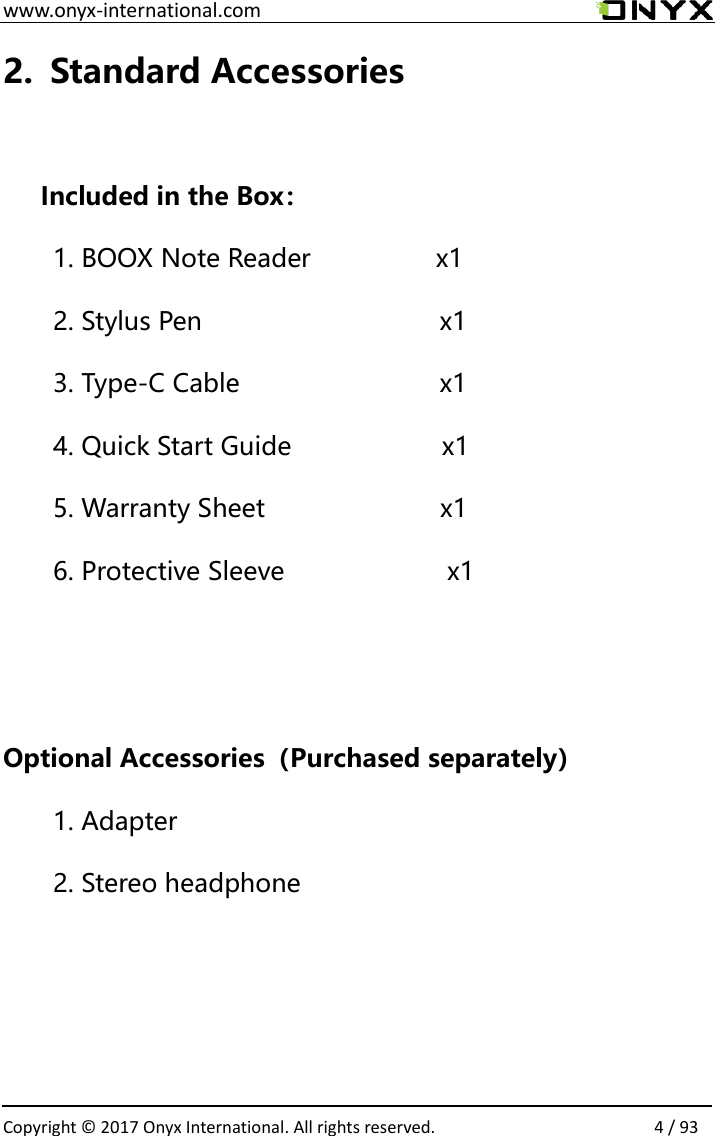
 www.onyx-international.com                                                                                                                                                                                                  Copyright © 2017 Onyx International. All rights reserved.                4 / 93 2. Standard Accessories  Included in the Box: 1. BOOX Note Reader              x1 2. Stylus Pen                               x1 3. Type-C Cable                       x1 4. Quick Start Guide                x1 5. Warranty Sheet                  x1 6. Protective Sleeve              x1   Optional Accessories(Purchased separately) 1. Adapter 2. Stereo headphone
 www.onyx-international.com                                                                                                                                                                                                  Copyright © 2017 Onyx International. All rights reserved.                5 / 93 3. Safety Guide  Please  read  the  Safety  Guide  carefully  before  you  start  to  use  the  device. Contact your BOOX retailer if you have any technical problem; or you can dial our official service line at 4008-400-014 or 4008-860-830 .  Screen protection The device is equipped with Eink screen, which is very fragile. Please have  no  shocking,  squeezing,  pressing  against  the  screen,  or  dropping  the device  from  higher  place.  If  the  screen  is  already  broken,  stop  using  it  and contact the professional or other qualified staff to replace the screen for you. Please don’t dismantle the device without our permission;
 www.onyx-international.com                                                                                                                                                                                                  Copyright © 2017 Onyx International. All rights reserved.                6 / 93 Standard accessories Only  the  battery,  adapter,  and  other  accessories  meeting  our standard safety  rules can be  used for the  device.  For details,  please  refer  to Product Specification. We will not be responsible for any damage caused by incompatible accessories;  Stay away from liquids The  device is  not  waterproof.  Don’t  expose  the  device  to humid environment or use it in the rain. Please keep it away from any corrosive liquids;  Don’t dismantle the device Please don’t dismantle the device in case of any damage ;  Using environment The using environment of the device is 0°C-50°C ;
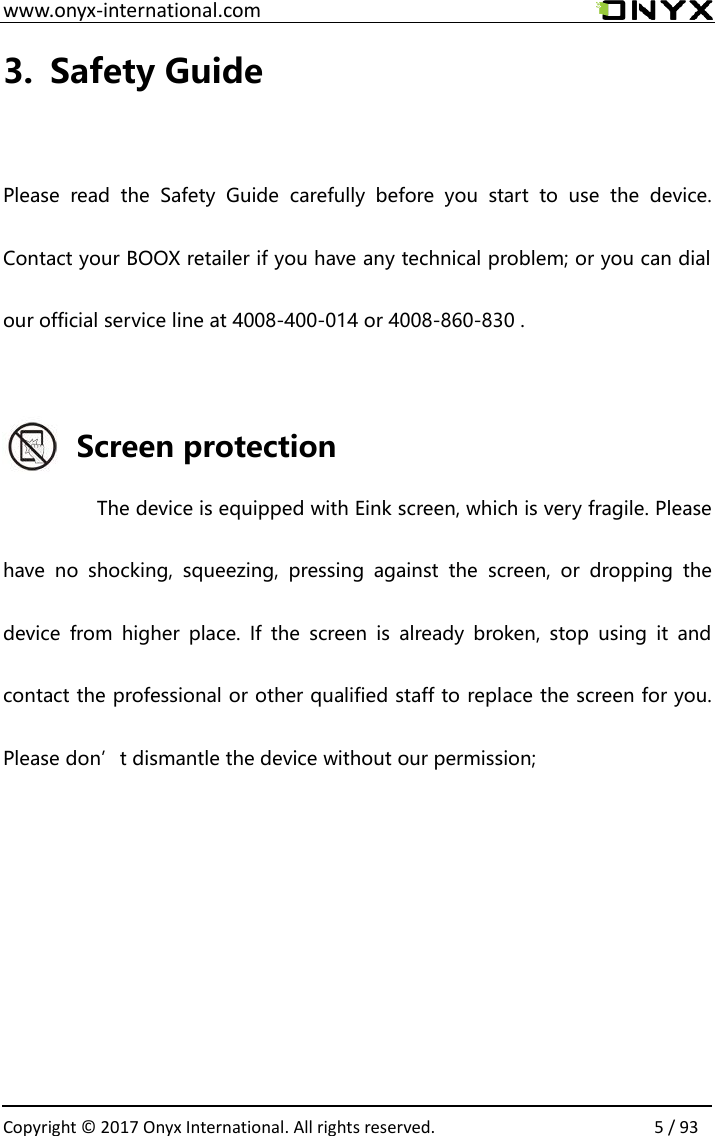
 www.onyx-international.com                                                                                                                                                                                                  Copyright © 2017 Onyx International. All rights reserved.                7 / 93 4. Product Views Front View                                 BACK
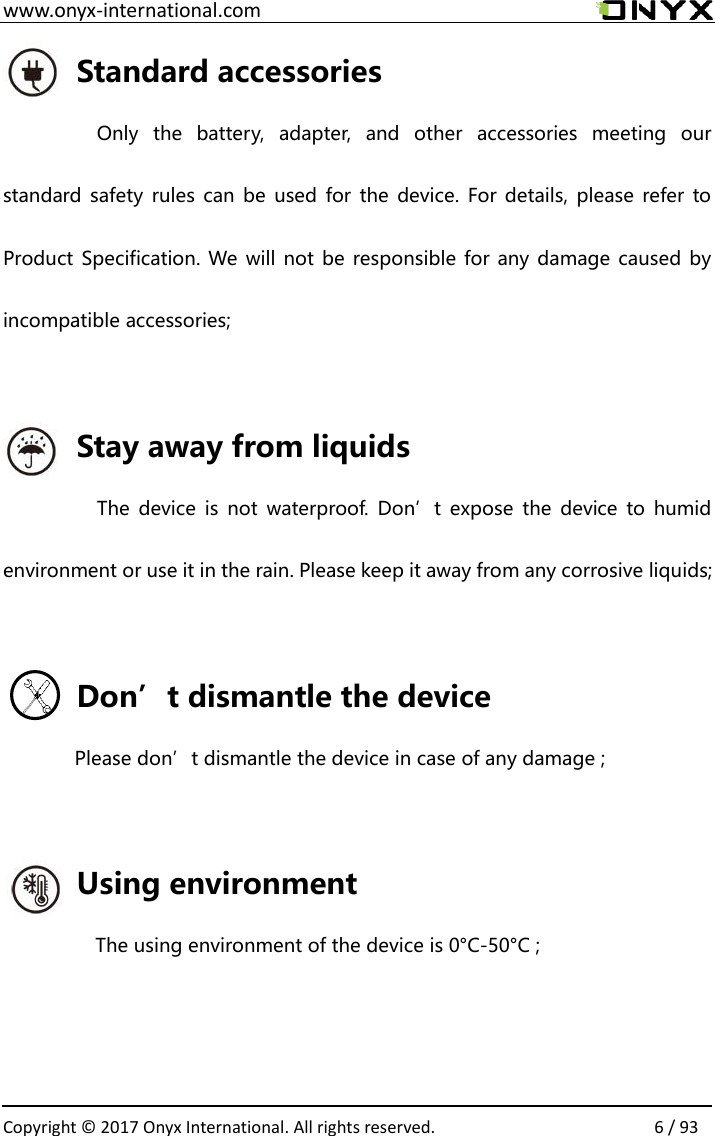
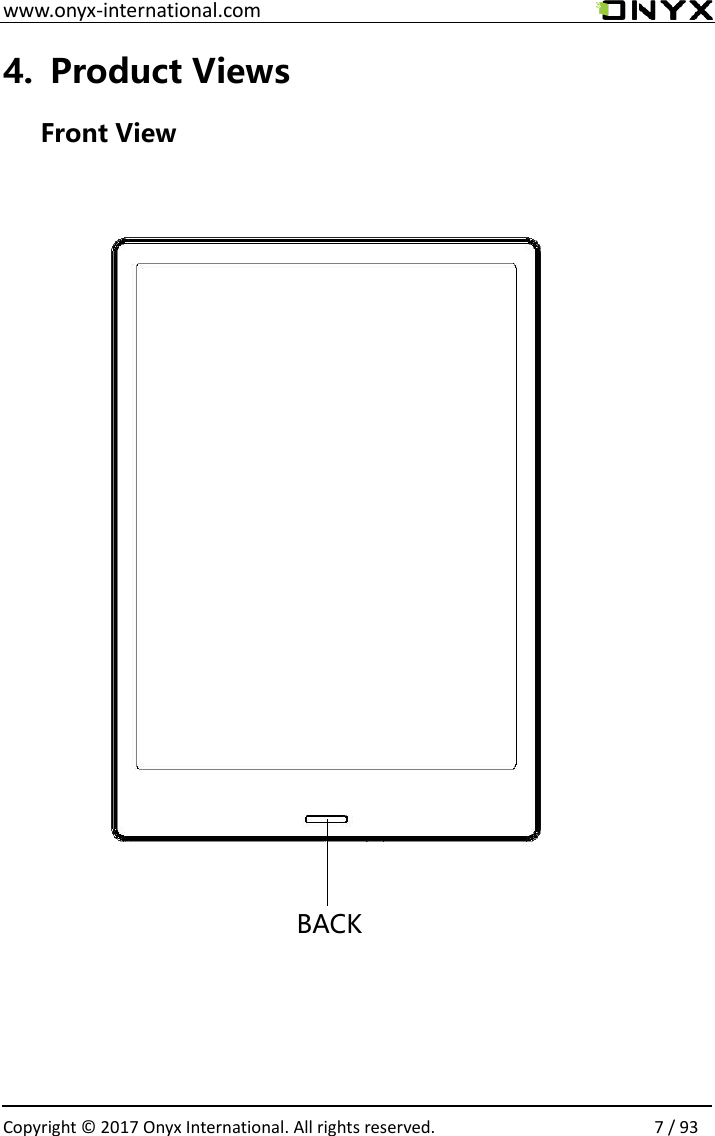
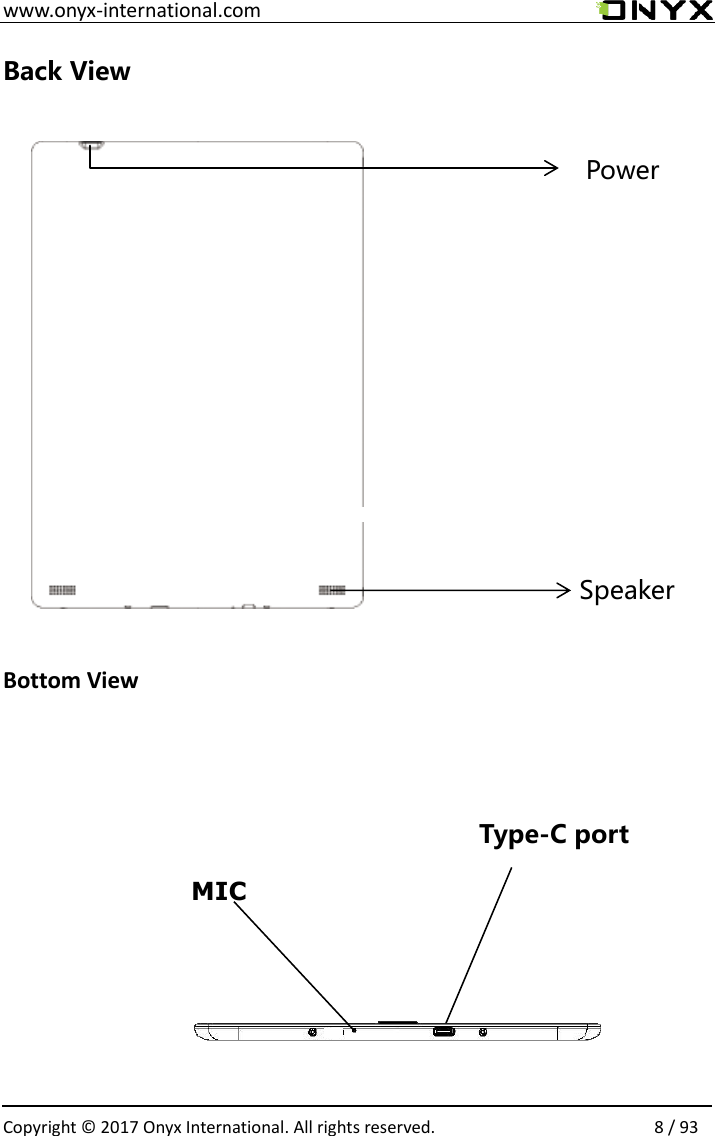
 www.onyx-international.com                                                                                                                                                                                                  Copyright © 2017 Onyx International. All rights reserved.                8 / 93 Back View          Bottom View                Speaker Power Type-C port MIC
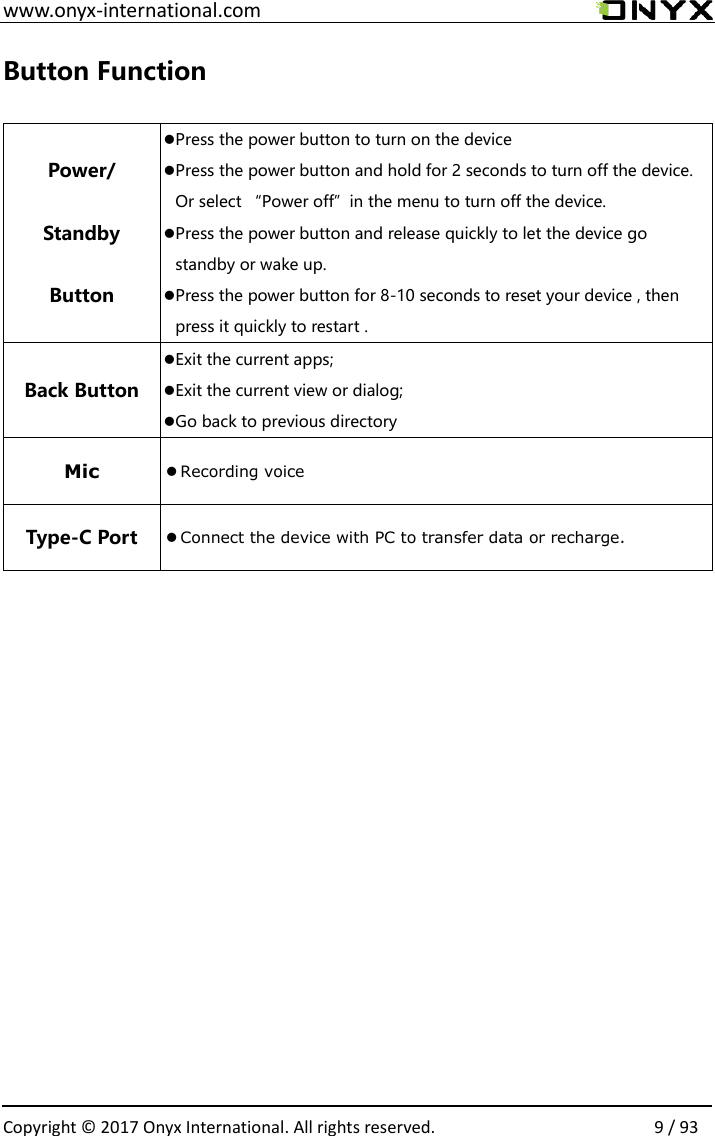
 www.onyx-international.com                                                                                                                                                                                                  Copyright © 2017 Onyx International. All rights reserved.                9 / 93 Button Function  Power/ Standby Button Press the power button to turn on the device Press the power button and hold for 2 seconds to turn off the device. Or select “Power off”in the menu to turn off the device. Press the power button and release quickly to let the device go standby or wake up. Press the power button for 8-10 seconds to reset your device , then press it quickly to restart . Back Button Exit the current apps; Exit the current view or dialog; Go back to previous directory Mic  Recording voice Type-C Port  Connect the device with PC to transfer data or recharge.
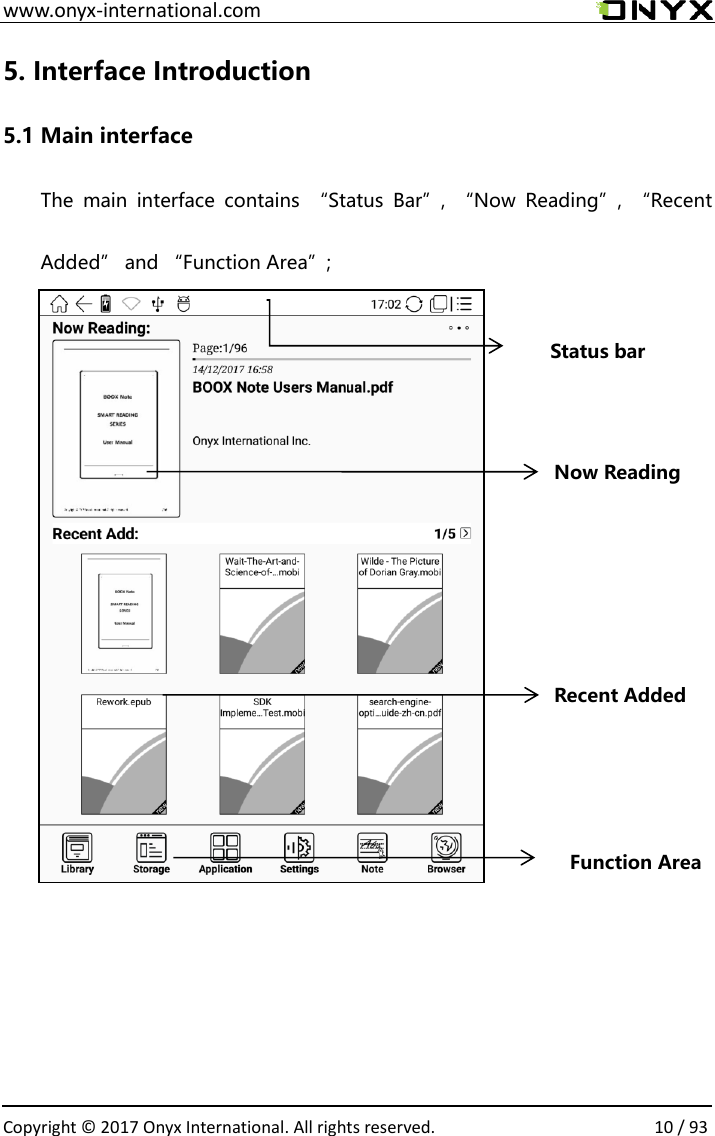
 www.onyx-international.com                                                                                                                                                                                                  Copyright © 2017 Onyx International. All rights reserved.                10 / 93 5. Interface Introduction 5.1 Main interface The  main  interface  contains  “Status  Bar”,  “Now  Reading”,  “Recent Added” and “Function Area”;                                                                               Status bar Now Reading Recent Added Function Area
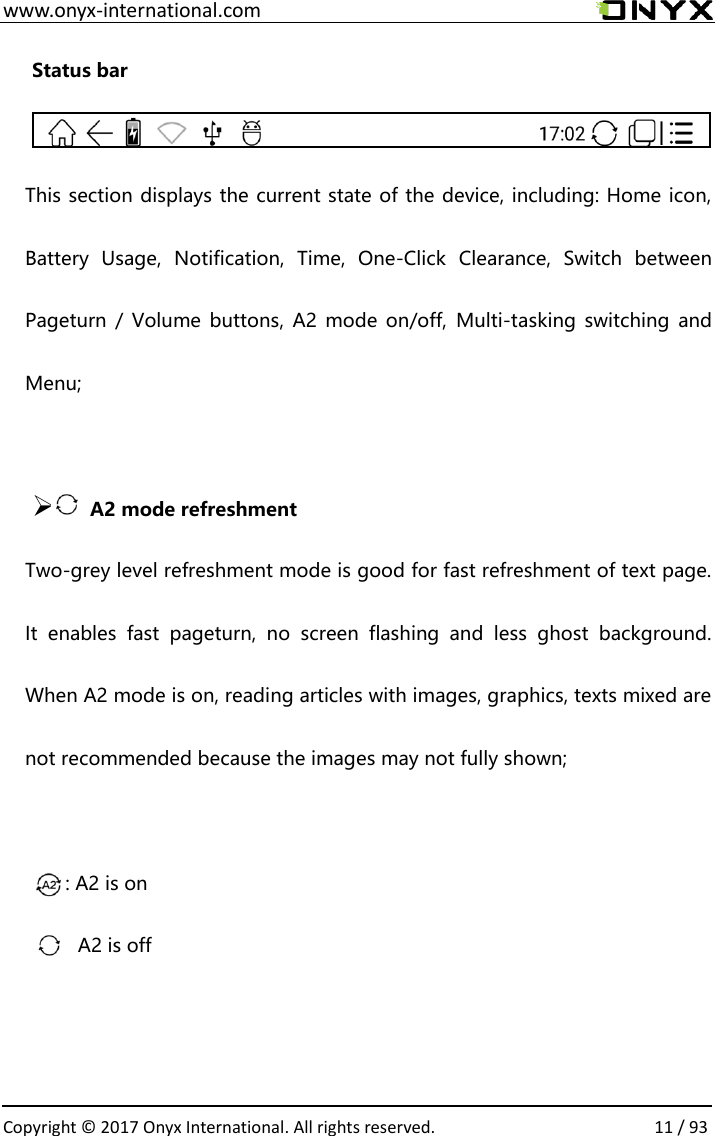
 www.onyx-international.com                                                                                                                                                                                                  Copyright © 2017 Onyx International. All rights reserved.                11 / 93 Status bar  This section displays the current state of the device, including: Home icon, Battery  Usage,  Notification,  Time,  One-Click  Clearance,  Switch  between Pageturn /  Volume  buttons, A2  mode  on/off,  Multi-tasking  switching and Menu;              ➢       A2 mode refreshment   Two-grey level refreshment mode is good for fast refreshment of text page. It  enables  fast  pageturn,  no  screen  flashing  and  less  ghost  background. When A2 mode is on, reading articles with images, graphics, texts mixed are not recommended because the images may not fully shown;      : A2 is on               :A2 is off
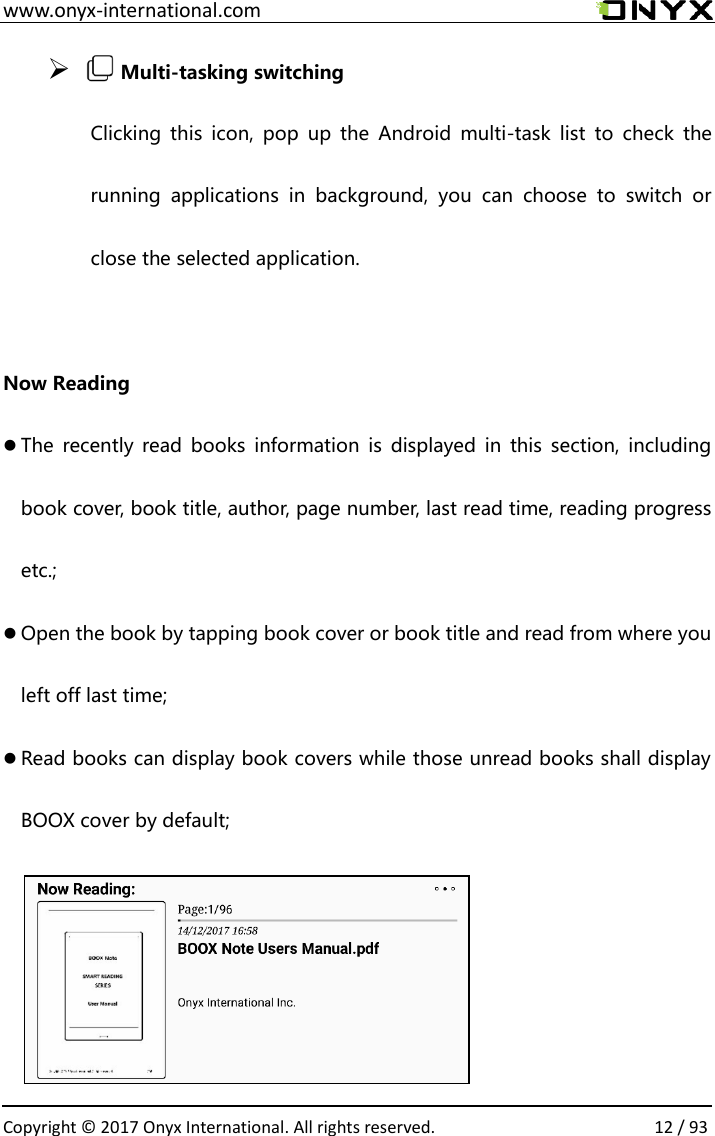
 www.onyx-international.com                                                                                                                                                                                                  Copyright © 2017 Onyx International. All rights reserved.                12 / 93 ➢   Multi-tasking switching Clicking  this  icon,  pop  up the  Android  multi-task  list  to  check  the running  applications  in  background,  you  can  choose  to  switch  or close the selected application.  Now Reading  The  recently  read books  information  is displayed  in  this section,  including book cover, book title, author, page number, last read time, reading progress etc.;  Open the book by tapping book cover or book title and read from where you left off last time;  Read books can display book covers while those unread books shall display BOOX cover by default;
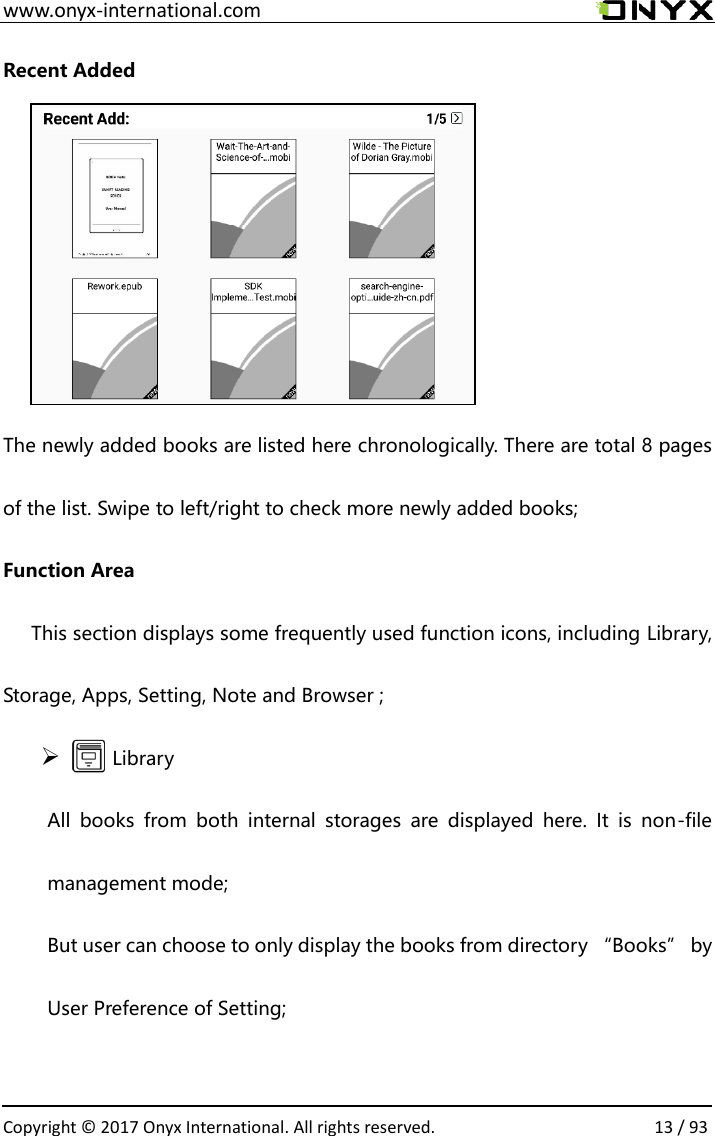
 www.onyx-international.com                                                                                                                                                                                                  Copyright © 2017 Onyx International. All rights reserved.                13 / 93 Recent Added      The newly added books are listed here chronologically. There are total 8 pages of the list. Swipe to left/right to check more newly added books; Function Area       This section displays some frequently used function icons, including Library, Storage, Apps, Setting, Note and Browser ; ➢       Library All  books  from  both  internal  storages  are  displayed  here.  It  is  non-file management mode;   But user can choose to only display the books from directory “Books” by User Preference of Setting;
 www.onyx-international.com                                                                                                                                                                                                  Copyright © 2017 Onyx International. All rights reserved.                14 / 93 ➢   Storage All folders from internal storage will be displayed here. Users can manage documents and folders from page; ➢       APPS management Apps page allows users to manage or uninstall all apps; ➢       Setting Going to Setting page, users can manage settings for the whole device.
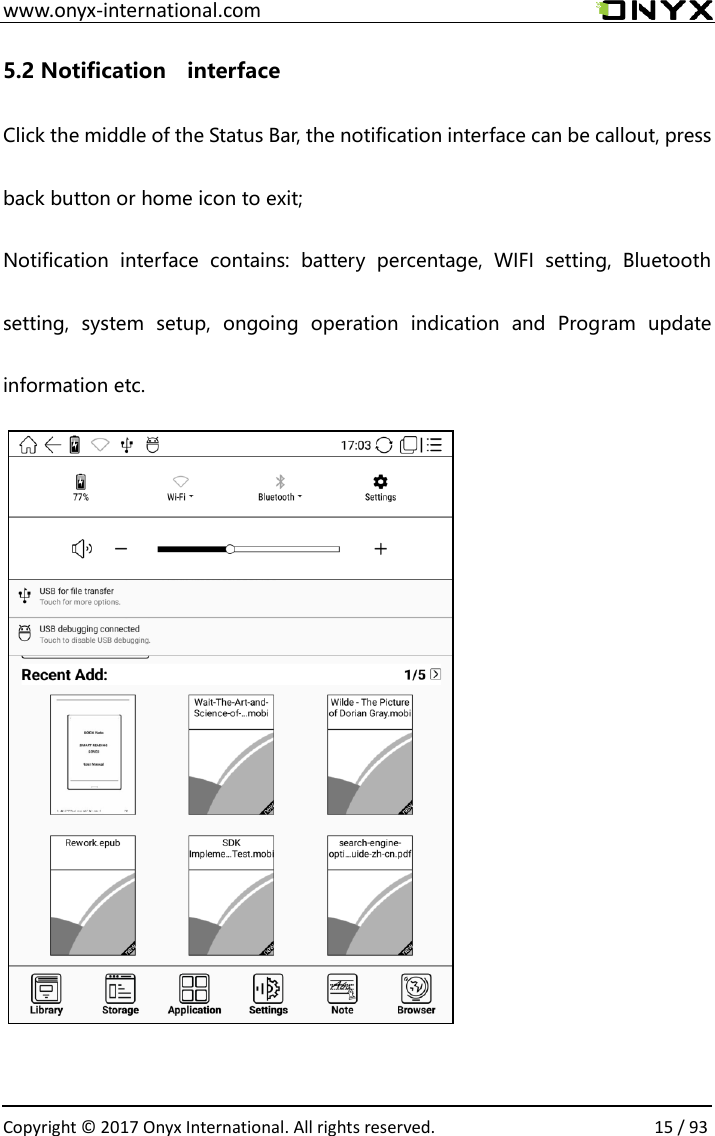
 www.onyx-international.com                                                                                                                                                                                                  Copyright © 2017 Onyx International. All rights reserved.                15 / 93 5.2 Notification    interface Click the middle of the Status Bar, the notification interface can be callout, press back button or home icon to exit; Notification  interface  contains:  battery  percentage,  WIFI  setting,  Bluetooth setting,  system  setup,  ongoing  operation  indication  and  Program  update information etc.
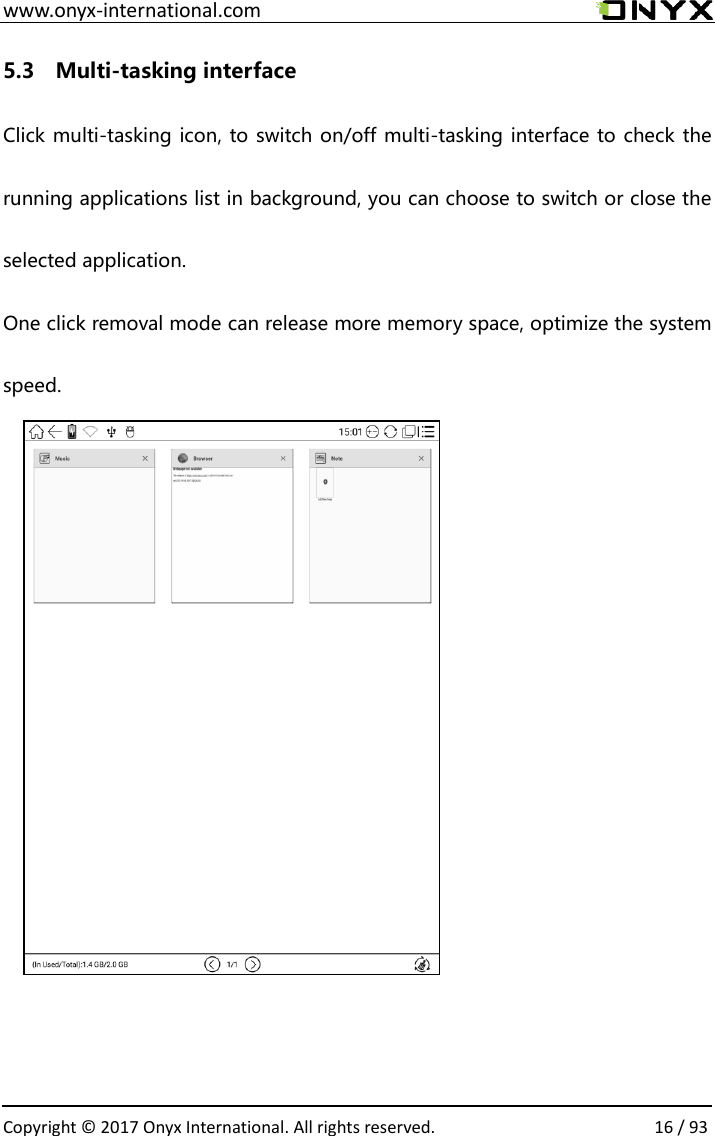
 www.onyx-international.com                                                                                                                                                                                                  Copyright © 2017 Onyx International. All rights reserved.                16 / 93 5.3    Multi-tasking interface Click multi-tasking icon, to switch on/off multi-tasking interface to check the running applications list in background, you can choose to switch or close the selected application. One click removal mode can release more memory space, optimize the system speed.
 www.onyx-international.com                                                                                                                                                                                                  Copyright © 2017 Onyx International. All rights reserved.                17 / 93 6. Reading Page • Tap any book cover to open a book. Full-screen reading without showing status bar and page bar is set by default; • Support multiple document switching, up to 4 documents can be opened at the same time, support for a separate shutdown, exit will not automatically close the document; • The current reading of the document label with highlight; • Hide / show document tab bar by the button on top left;          To page, Crop, Selection to zoom (reflow is not supported);e freely; Other zoom shortcuts are available: To width, To zoom in/out the pag•Zoomsettings.; Reading menu contains: Zoom in/out, Navigation, Notes, Rotation and more •Status bar contains: Back, Prev. / Next, Dictionary, TOC, Search;•bar;Tap middle column of the book content to pop up reading menu and status •Navigation
 www.onyx-international.com                                                                                                                                                                                                  Copyright © 2017 Onyx International. All rights reserved.                18 / 93            • To have options of manual croping、number of columns and reading order;     Notes • To check TOC, Bookmark, Annotation and export Annotation;           Rotation • Horizontal and vertical displays are available to choose; Dictionarymeans more pages available;Icon in grey means no  further previous / next page available; Icon in dark •To view previous or next page quickly ;•Prev. /Next
 www.onyx-international.com                                                                                                                                                                                                  Copyright © 2017 Onyx International. All rights reserved.                19 / 93                      • When  reading,  long  press  on  the  word  to  pop  up  Dictionary  dialog  for look-ups. Stardict\bg\mdict dictionary formats can be supported. Users can download and install dictionary themselves. Put dictionary file on the path root  directory  \dicts\xxx (  e.g  root  directionary\ dicts\ English-french)  ,  or download dictionary online directly. Dictionary is available to use after being installed;               TOC (Table of Contents) • To  access  TOC  page  where  user  can  switch  between  pages  of  Bookmark, Notes, Scribble etc;       refreshment rates are available to choose. never\50\30\9\7\5\3\pageveryEUsers  can  select  screen  refreshment  rate  by  their  preference. •Refreshmentagainst Search Box; To search text within the book; To switch input type methods by long press •Search
 www.onyx-international.com                                                                                                                                                                                                  Copyright © 2017 Onyx International. All rights reserved.                20 / 93              Setting • Page margin, footer, time, navigation and dictionary for current content are shown for setting. •  Sidenotes • The current page can be split into two horizontally, the left side shows the document contents, the right side is a blank handwritten pages, can switch the 2 sides , can do handwritten notes.
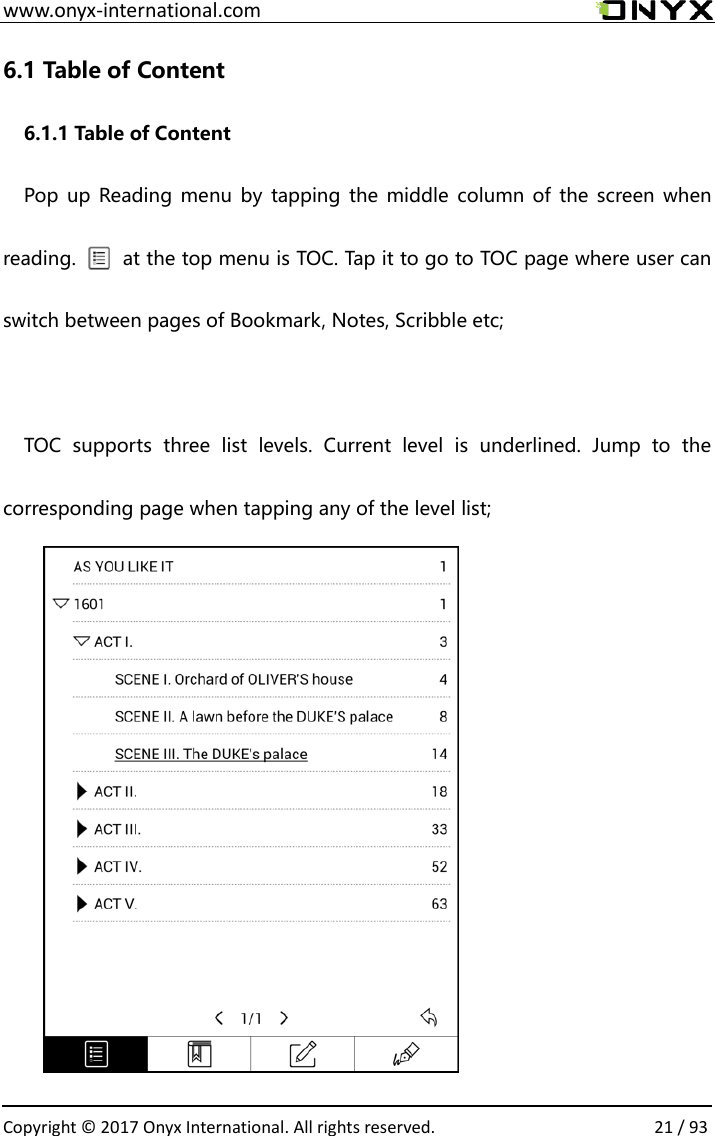
 www.onyx-international.com                                                                                                                                                                                                  Copyright © 2017 Onyx International. All rights reserved.                21 / 93 6.1 Table of Content 6.1.1 Table of Content   Pop up Reading menu by  tapping the  middle  column of  the  screen  when reading.          at the top menu is TOC. Tap it to go to TOC page where user can switch between pages of Bookmark, Notes, Scribble etc;    TOC  supports  three  list  levels.  Current  level  is  underlined.  Jump  to  the corresponding page when tapping any of the level list;
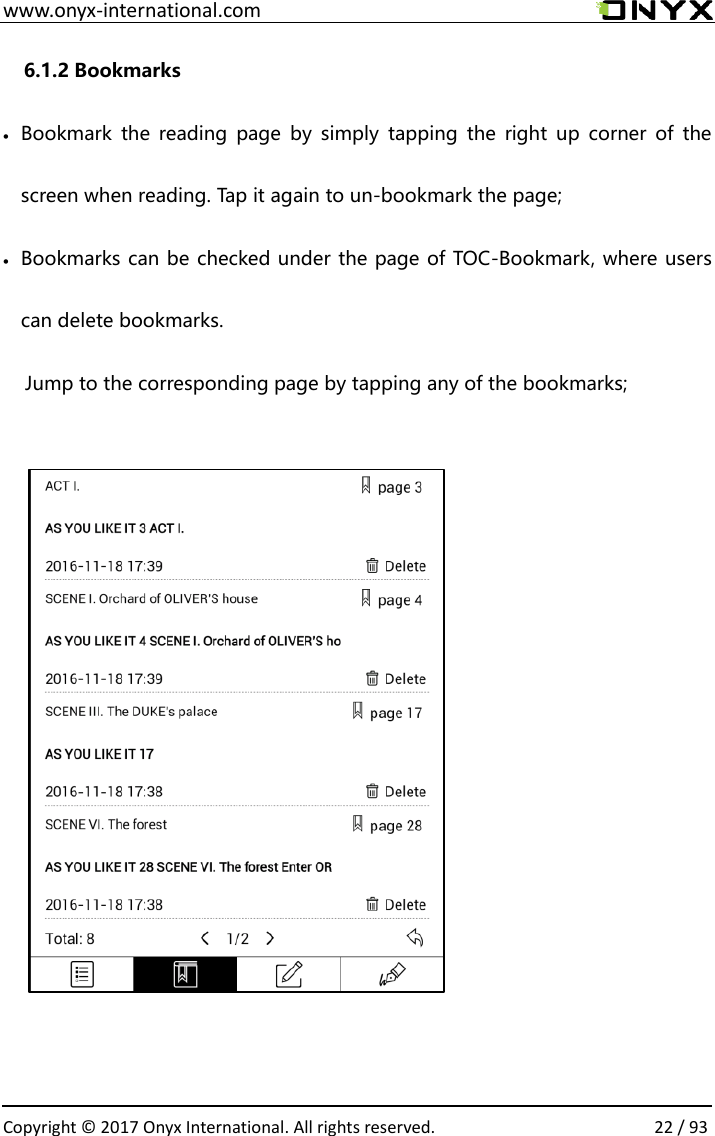
 www.onyx-international.com                                                                                                                                                                                                  Copyright © 2017 Onyx International. All rights reserved.                22 / 93 6.1.2 Bookmarks • Bookmark  the  reading  page  by  simply  tapping  the  right  up  corner of  the screen when reading. Tap it again to un-bookmark the page; • Bookmarks can be checked under the page of TOC-Bookmark, where users can delete bookmarks. Jump to the corresponding page by tapping any of the bookmarks;
 www.onyx-international.com                                                                                                                                                                                                  Copyright © 2017 Onyx International. All rights reserved.                23 / 93 6.1.3 Notes • Long press on any words and drag to select contents /text you want to copy, highlight, add notes to and look up dictionary; • Highlight is set default for selected text/content. Users can switch between highlight and underline from menu\apps\screen\mark; • All  annotations  will  auto-generate  a  file  named  filename–annotation.txt and it will be saved in the path of the source file.           Long press to select the text, then choose “Annotation” to add notes;••All highlighted / underlined / annotated content/text would be listed under the page of TOC-Notes for further searching, editing and deleting;•Jump to the corresponding page/ content by tapping any list;•All  contents  on Note  page  can be exported in  txt  format.  Exported file  is saved under the same directory folder “Export”;
 www.onyx-international.com                                                                                                                                                                                                  Copyright © 2017 Onyx International. All rights reserved.                24 / 93                             6.1.4 Scribbler Interface•pdf、djvu、cbr、cbz formats support scribble mode. Users can write on top of the text. All scribble history can be viewed under the page of TOC-scribble;•Jump to the corresponding page by tapping any page•All  scribble contents can  be exported in  png format  and  saved  under  the same directory folder “Export”;
 www.onyx-international.com                                                                                                                                                                                                  Copyright © 2017 Onyx International. All rights reserved.                25 / 93 6.1.5 Look-Ups • Pop up dictionary to look up the corresponding texts/words by long press on the texts / words. Chinese supports single character, phrases look-up;   • Multiple dictionaries can be supported. Select the desired dictionary from the drop-down list; • This  function  requires  installation  of  dictionaries.  Without  installing dictionaries, words cannot be looked up;   • Exit the dictionary by tapping any blank area;
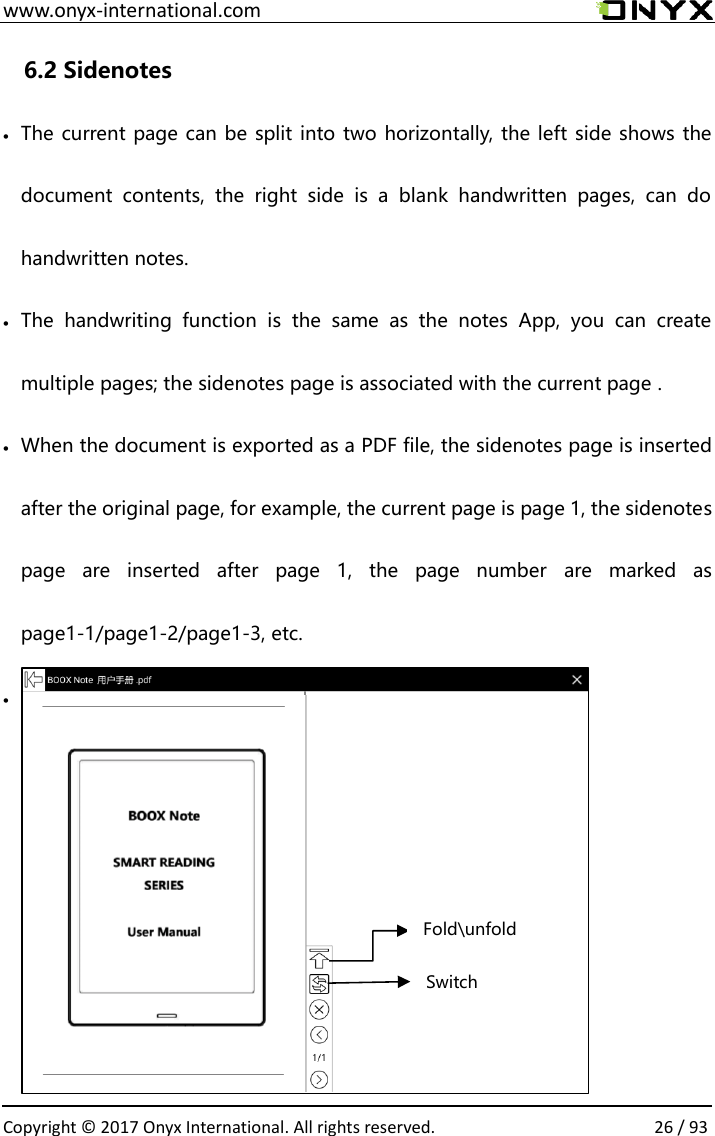
 www.onyx-international.com                                                                                                                                                                                                  Copyright © 2017 Onyx International. All rights reserved.                26 / 93 6.2 Sidenotes • The current page can be split into two horizontally, the left side shows the document  contents,  the  right  side  is  a  blank  handwritten  pages,  can  do handwritten notes. • The  handwriting  function  is  the  same  as  the  notes  App,  you  can  create multiple pages; the sidenotes page is associated with the current page . • When the document is exported as a PDF file, the sidenotes page is inserted after the original page, for example, the current page is page 1, the sidenotes page  are  inserted  after  page  1,  the  page  number  are  marked  as page1-1/page1-2/page1-3, etc.  •            Switch Fold\unfold
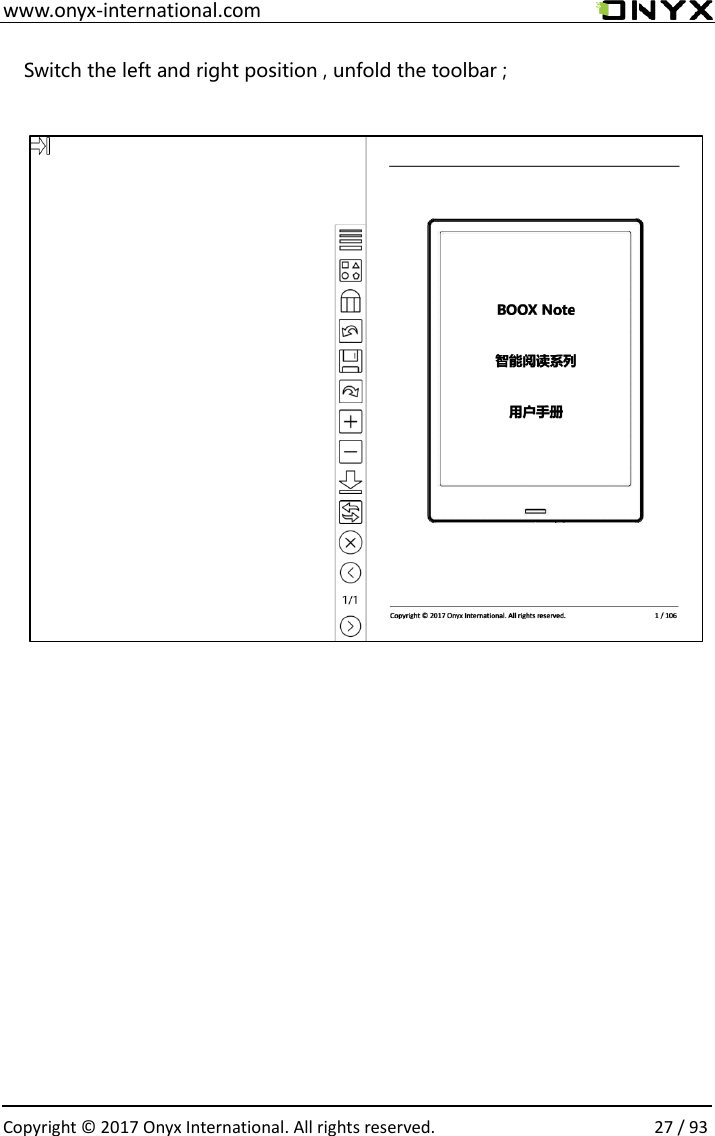
 www.onyx-international.com                                                                                                                                                                                                  Copyright © 2017 Onyx International. All rights reserved.                27 / 93 Switch the left and right position , unfold the toolbar ;
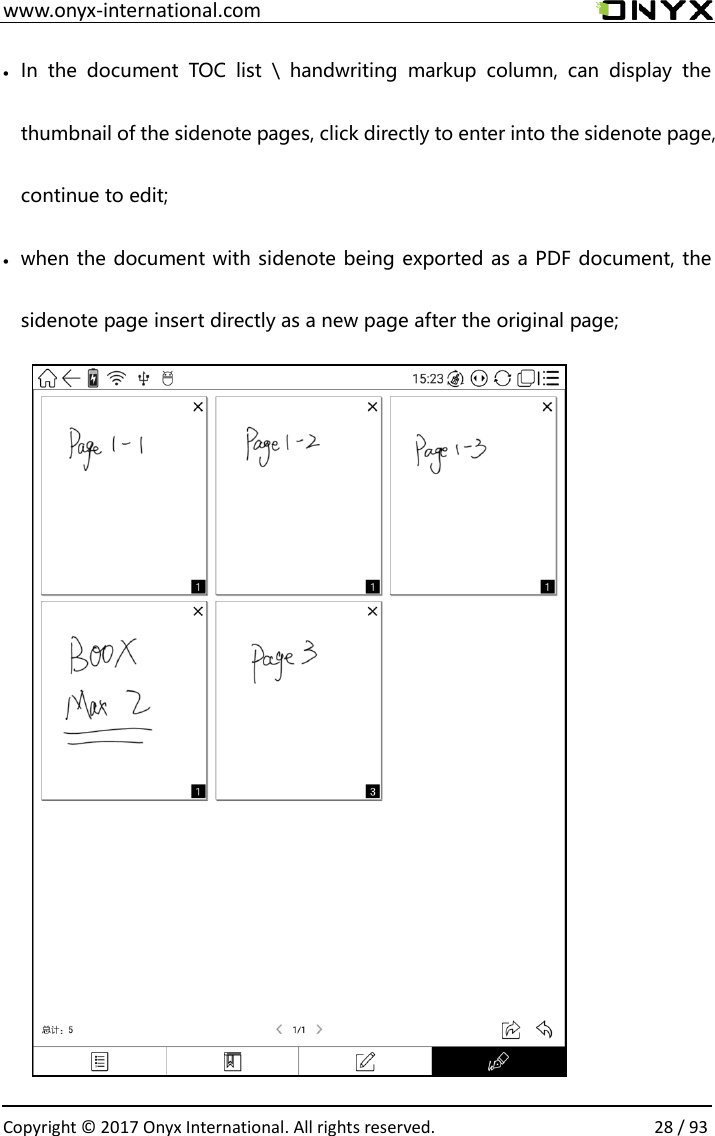
 www.onyx-international.com                                                                                                                                                                                                  Copyright © 2017 Onyx International. All rights reserved.                28 / 93 • In  the  document  TOC  list  \  handwriting  markup  column,  can  display  the thumbnail of the sidenote pages, click directly to enter into the sidenote page, continue to edit; • when the document with sidenote being exported as a PDF document, the sidenote page insert directly as a new page after the original page;
 www.onyx-international.com                                                                                                                                                                                                  Copyright © 2017 Onyx International. All rights reserved.                29 / 93 6.3 Zoom Option Zoom  at  the  bottom  menu  allows  users  to  zoom  in/out  pages.  More customized zoom options are available: To Page, To Width, Crop, Selection to zoom;
 www.onyx-international.com                                                                                                                                                                                                  Copyright © 2017 Onyx International. All rights reserved.                30 / 93 6.4 Navigation   Navigation allows users to have options of reflow of scanned file, Contrast Adjustment, Comic Mode, Article Mode, Resetting and more;
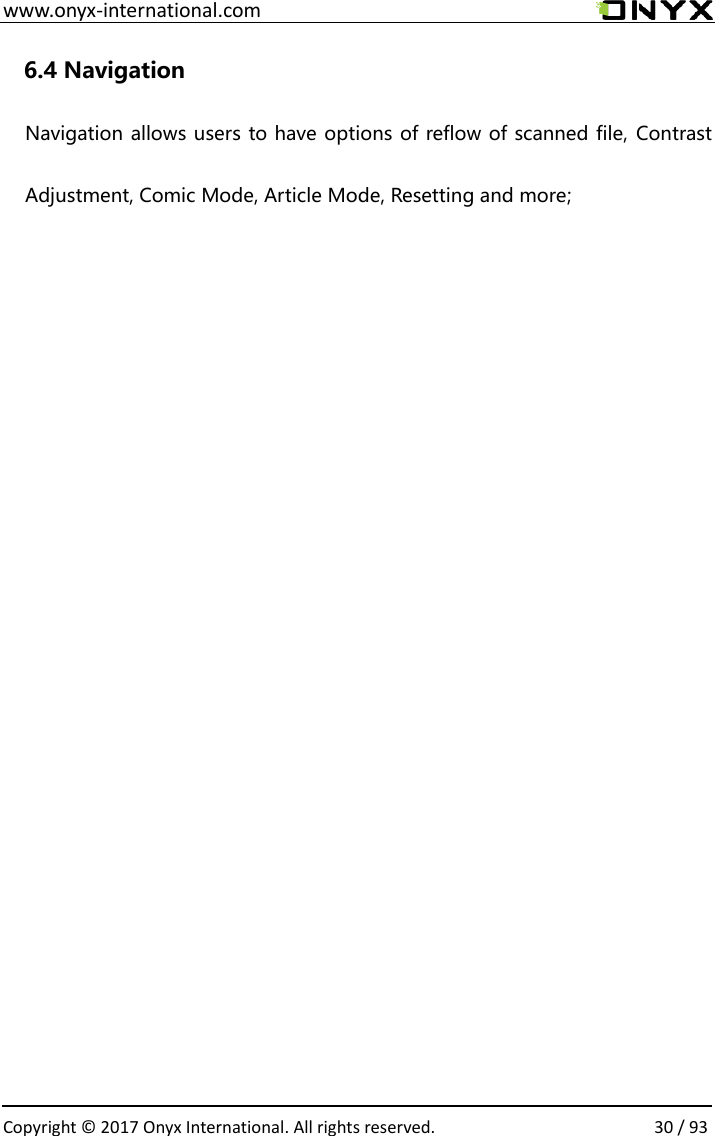
 www.onyx-international.com                                                                                                                                                                                                  Copyright © 2017 Onyx International. All rights reserved.                31 / 93 6.4.1 Reflow Interface   Reflow  of  scanned  PDF  allows  users  to  further  customize  the  layout  of scanned  PDF  page  including:  line  spacing,  page  margin,  font  size, columns…etc;
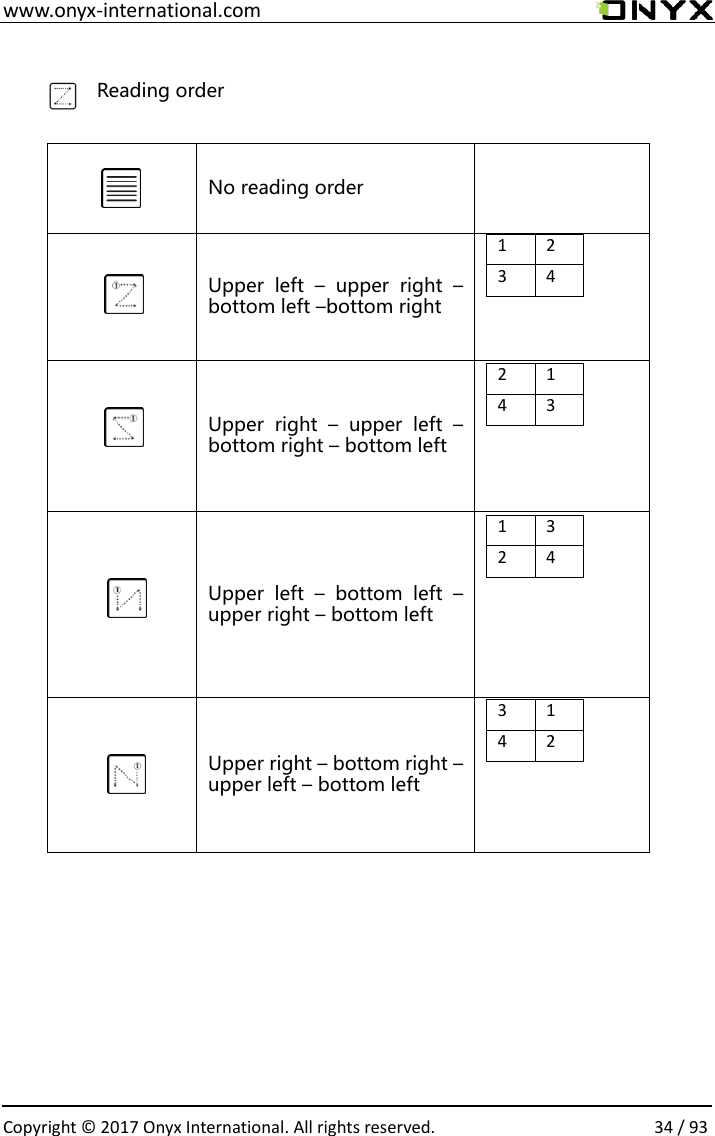
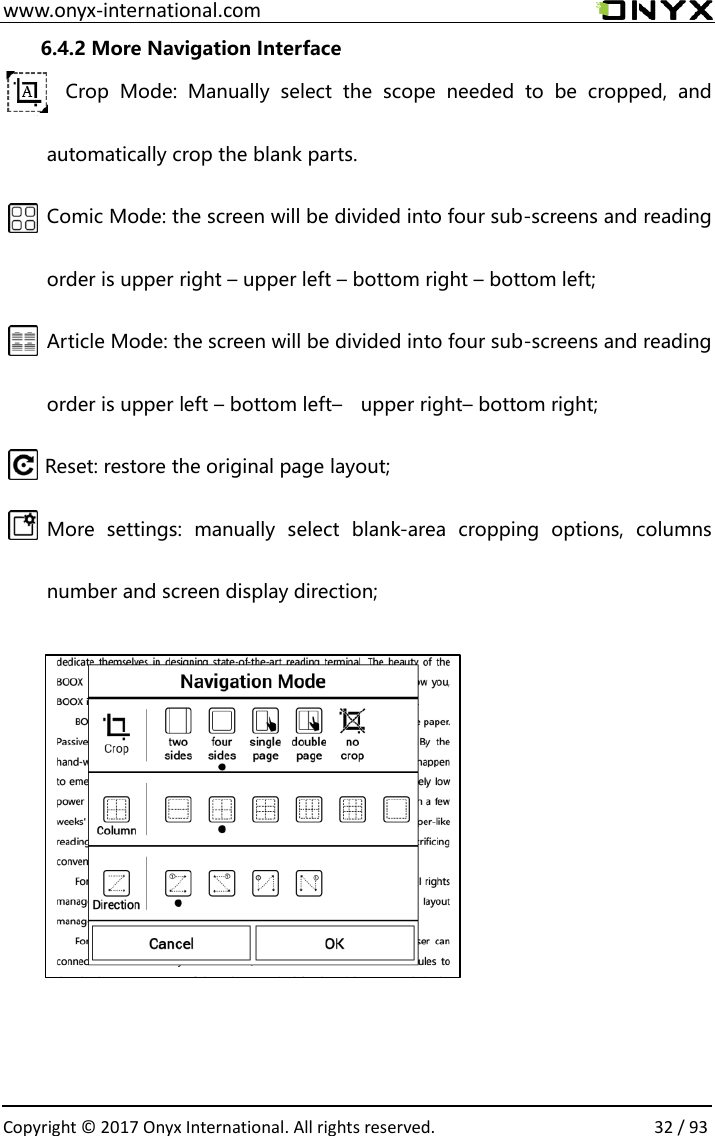
 www.onyx-international.com                                                                                                                                                                                                  Copyright © 2017 Onyx International. All rights reserved.                32 / 93 6.4.2 More Navigation Interface Crop  Mode:  Manually  select  the  scope  needed  to  be  cropped,  and automatically crop the blank parts. Comic Mode: the screen will be divided into four sub-screens and reading order is upper right – upper left – bottom right – bottom left; Article Mode: the screen will be divided into four sub-screens and reading order is upper left – bottom left–  upper right– bottom right; Reset: restore the original page layout; More  settings:  manually  select  blank-area  cropping  options,  columns number and screen display direction;
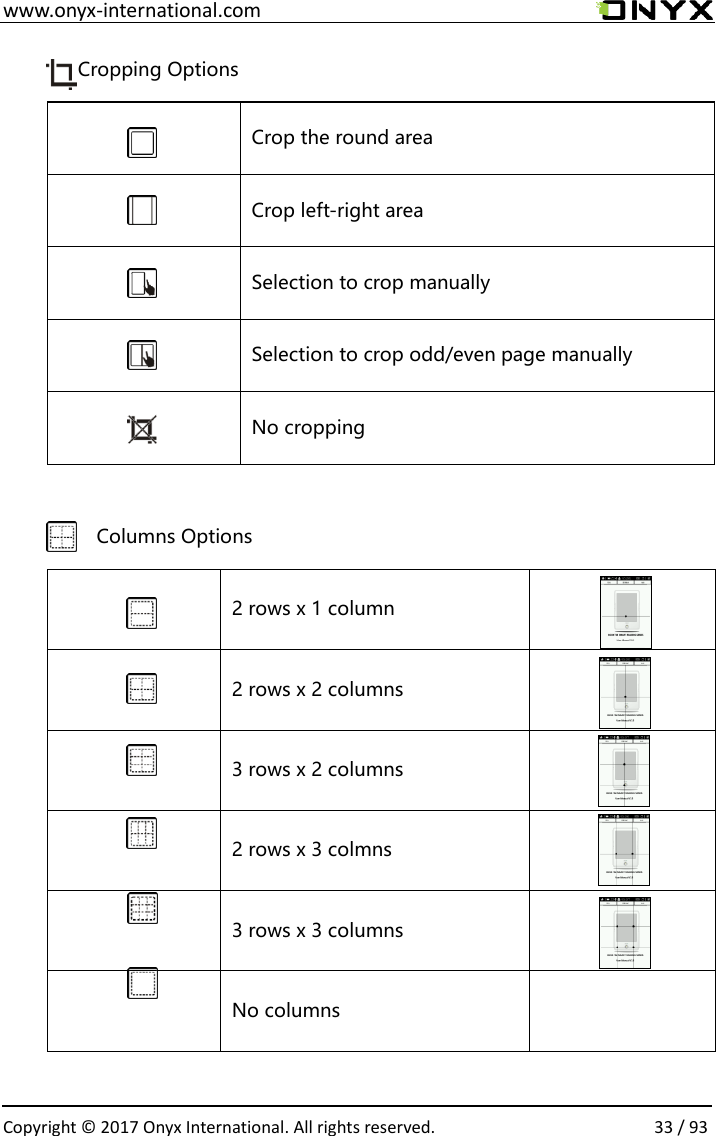
 www.onyx-international.com                                                                                                                                                                                                  Copyright © 2017 Onyx International. All rights reserved.                33 / 93          Cropping Options     Crop the round area   Crop left-right area   Selection to crop manually   Selection to crop odd/even page manually   No cropping                Columns Options   2 rows x 1 column      2 rows x 2 columns     3 rows x 2 columns     2 rows x 3 colmns     3 rows x 3 columns       No columns
 www.onyx-international.com                                                                                                                                                                                                  Copyright © 2017 Onyx International. All rights reserved.                34 / 93   Reading order    No reading order      Upper  left  –  upper  right  – bottom left –bottom right  1 2 3 4  Upper  right  –  upper  left  – bottom right – bottom left    2 1 4 3  Upper  left  –  bottom  left  – upper right – bottom left  1 3 2 4  Upper right – bottom right – upper left – bottom left    3 1 4 2
 www.onyx-international.com                                                                                                                                                                                                  Copyright © 2017 Onyx International. All rights reserved.                35 / 93 6.5 Notes Menu-Notes:  to  write,  hide  Scribbler  and  export  PDF  documents; (supports  pdf 、djvu、cbr 、cbz  formats  only.  Other  formats  are  not supported);
 www.onyx-international.com                                                                                                                                                                                                  Copyright © 2017 Onyx International. All rights reserved.                36 / 93 6.5.1 Scribbler Scribbler  page  provides  options  of  stroke  style,  eraser,  line  weight, Scribble\Touch  swift,  hiding/showing  menu,  redo/undo  and  manual saving;
 www.onyx-international.com                                                                                                                                                                                                  Copyright © 2017 Onyx International. All rights reserved.                37 / 93 6.5.2 Hiding/showing (Scribbler)    For pdf、djvu、cbr、cbz formats, users can choose to hide/show handwritten notes;
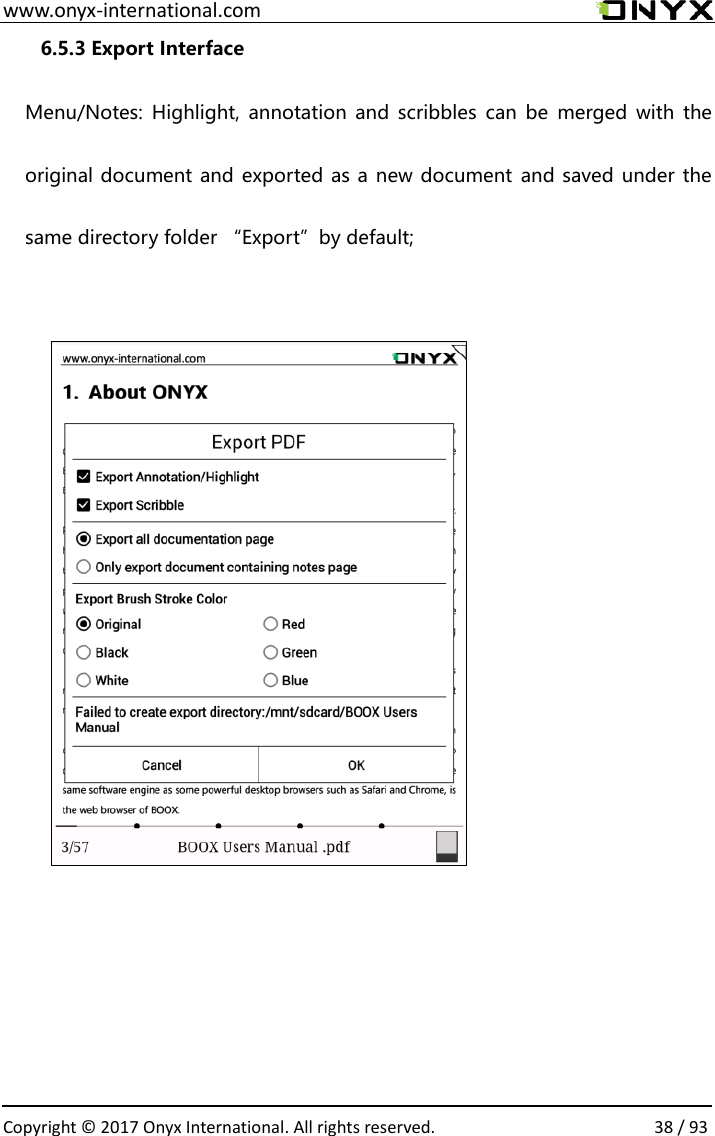
 www.onyx-international.com                                                                                                                                                                                                  Copyright © 2017 Onyx International. All rights reserved.                38 / 93 6.5.3 Export Interface  Menu/Notes:  Highlight,  annotation  and  scribbles  can be  merged  with  the original document and exported as a new document and saved under the same directory folder “Export”by default;  、
 www.onyx-international.com                                                                                                                                                                                                  Copyright © 2017 Onyx International. All rights reserved.                39 / 93 6.6 Rotation  90°、180°、270°、360°  rotation  options  are  available  to  choose.  Text direction is same as shown by menu;
 www.onyx-international.com                                                                                                                                                                                                  Copyright © 2017 Onyx International. All rights reserved.                40 / 93 6.7 More Settings  More  settings  for  TTS,  Screen  Refreshment  Rate  and  Application  are available;
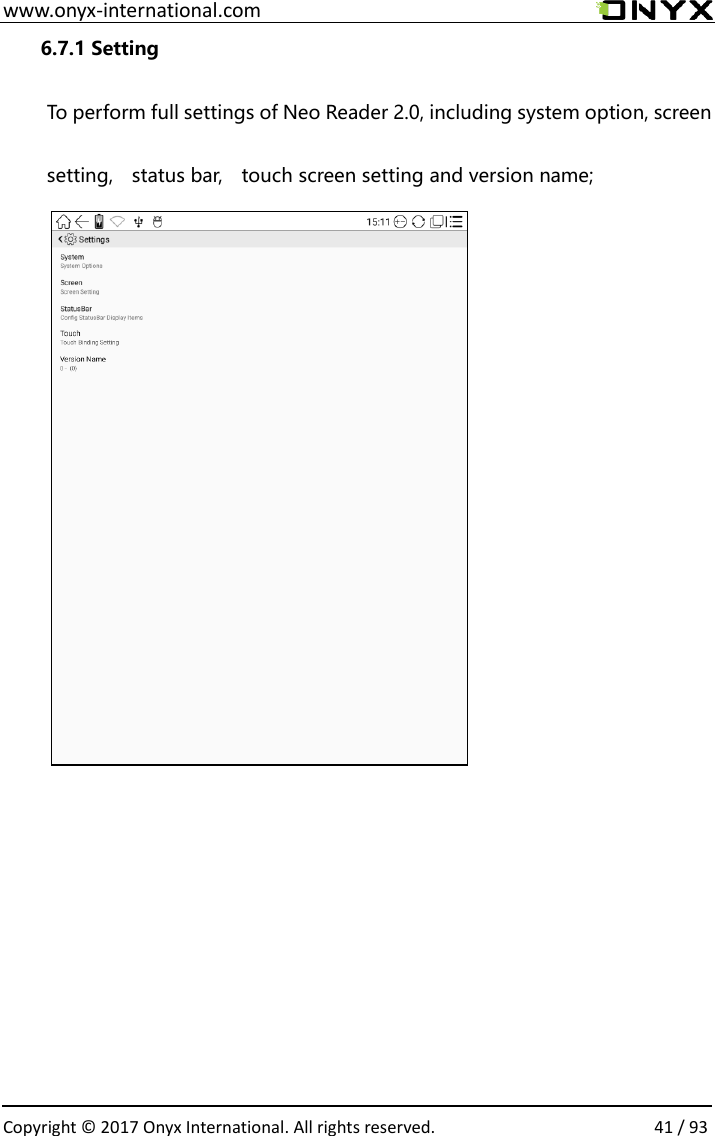
 www.onyx-international.com                                                                                                                                                                                                  Copyright © 2017 Onyx International. All rights reserved.                41 / 93 6.7.1 Setting  To perform full settings of Neo Reader 2.0, including system option, screen setting,    status bar,    touch screen setting and version name;
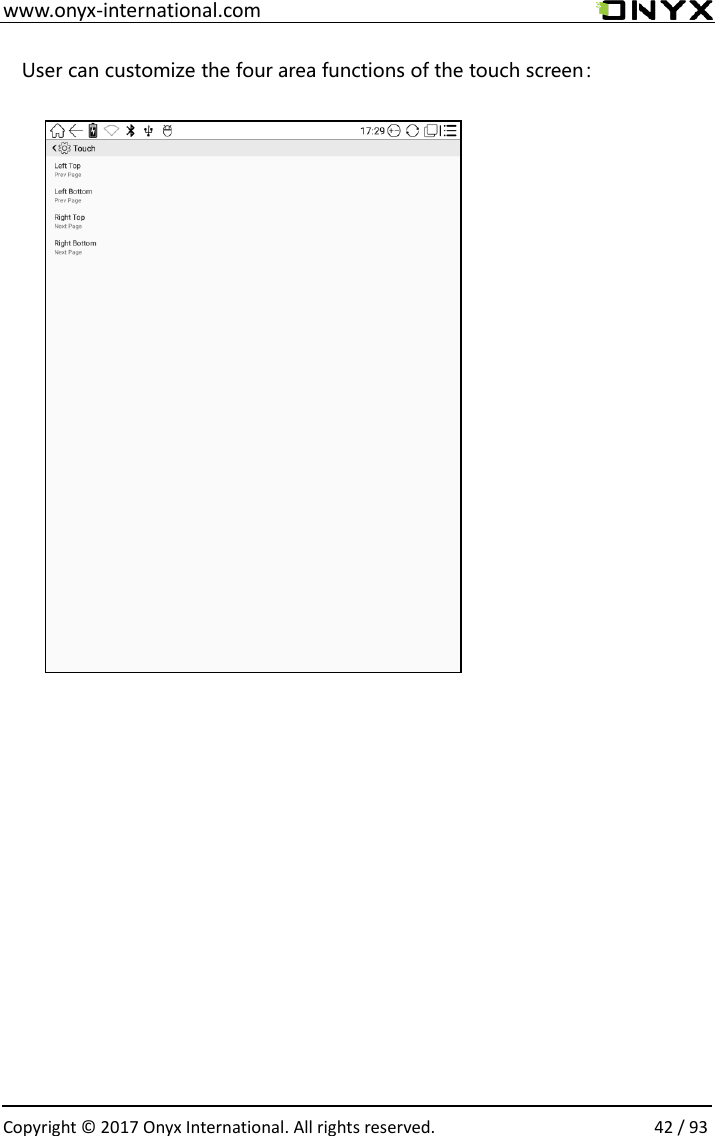
 www.onyx-international.com                                                                                                                                                                                                  Copyright © 2017 Onyx International. All rights reserved.                42 / 93 User can customize the four area functions of the touch screen:
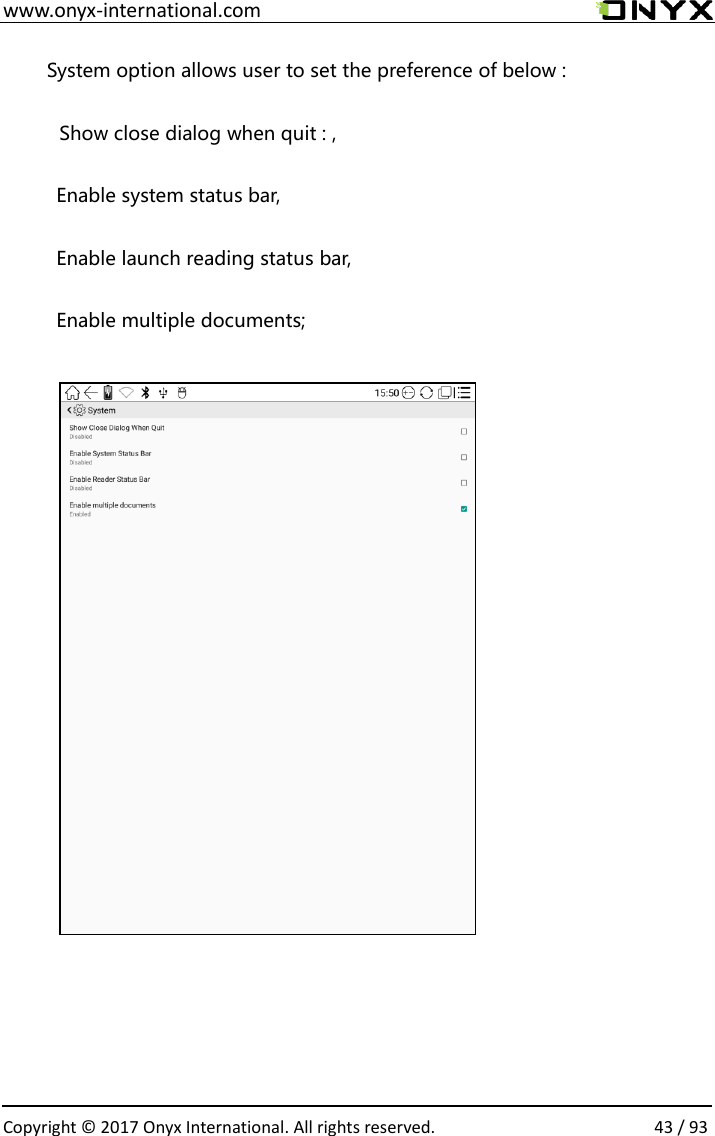
 www.onyx-international.com                                                                                                                                                                                                  Copyright © 2017 Onyx International. All rights reserved.                43 / 93 System option allows user to set the preference of below : Show close dialog when quit : ,   Enable system status bar,   Enable launch reading status bar, Enable multiple documents;
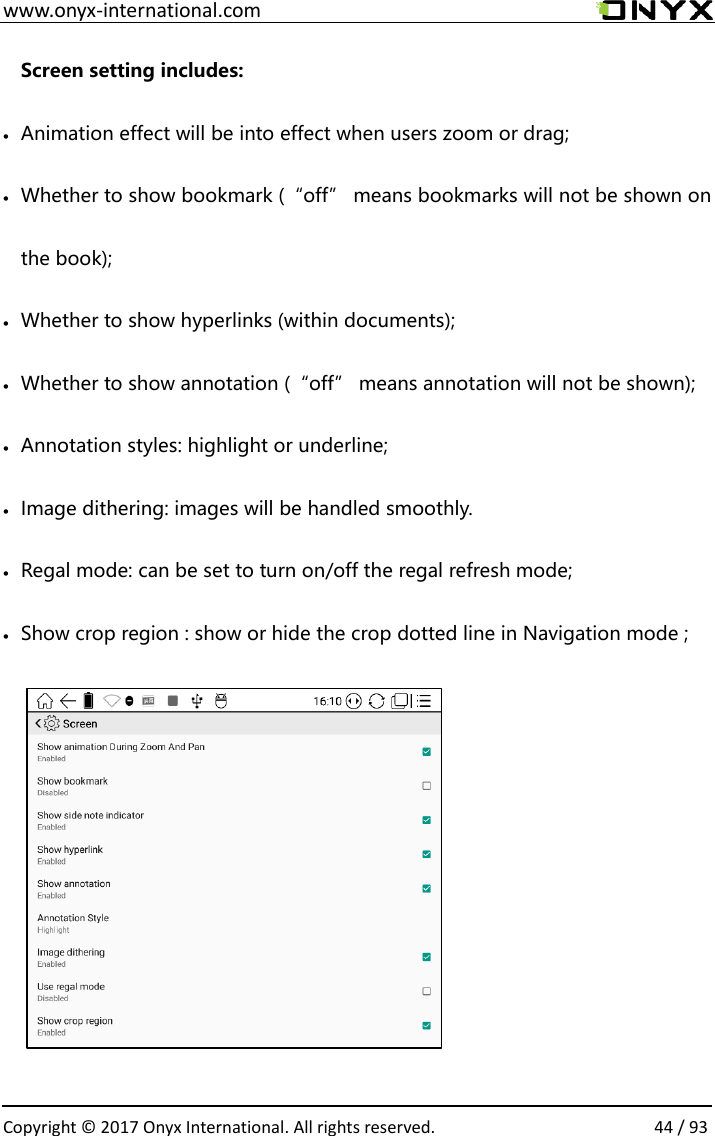
 www.onyx-international.com                                                                                                                                                                                                  Copyright © 2017 Onyx International. All rights reserved.                44 / 93 Screen setting includes: • Animation effect will be into effect when users zoom or drag; • Whether to show bookmark (“off” means bookmarks will not be shown on the book); • Whether to show hyperlinks (within documents); • Whether to show annotation (“off” means annotation will not be shown); • Annotation styles: highlight or underline; • Image dithering: images will be handled smoothly. • Regal mode: can be set to turn on/off the regal refresh mode; • Show crop region : show or hide the crop dotted line in Navigation mode ;
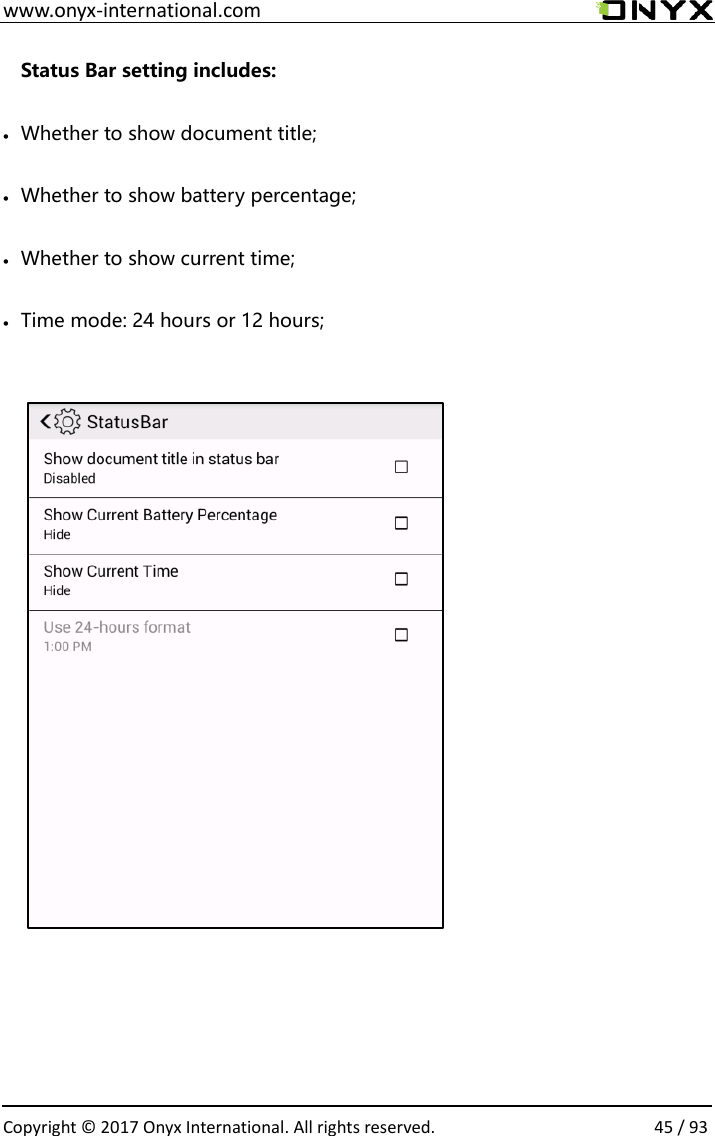
 www.onyx-international.com                                                                                                                                                                                                  Copyright © 2017 Onyx International. All rights reserved.                45 / 93 Status Bar setting includes: • Whether to show document title; • Whether to show battery percentage; • Whether to show current time; • Time mode: 24 hours or 12 hours;
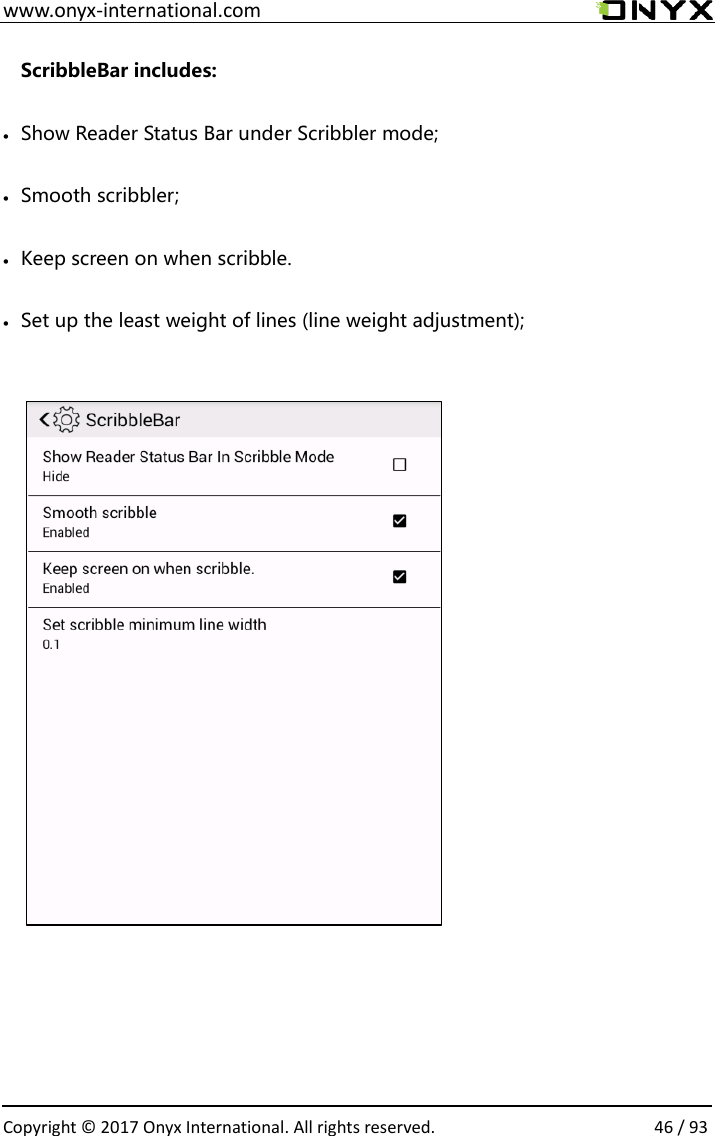
 www.onyx-international.com                                                                                                                                                                                                  Copyright © 2017 Onyx International. All rights reserved.                46 / 93 ScribbleBar includes: • Show Reader Status Bar under Scribbler mode; • Smooth scribbler; • Keep screen on when scribble.   • Set up the least weight of lines (line weight adjustment);
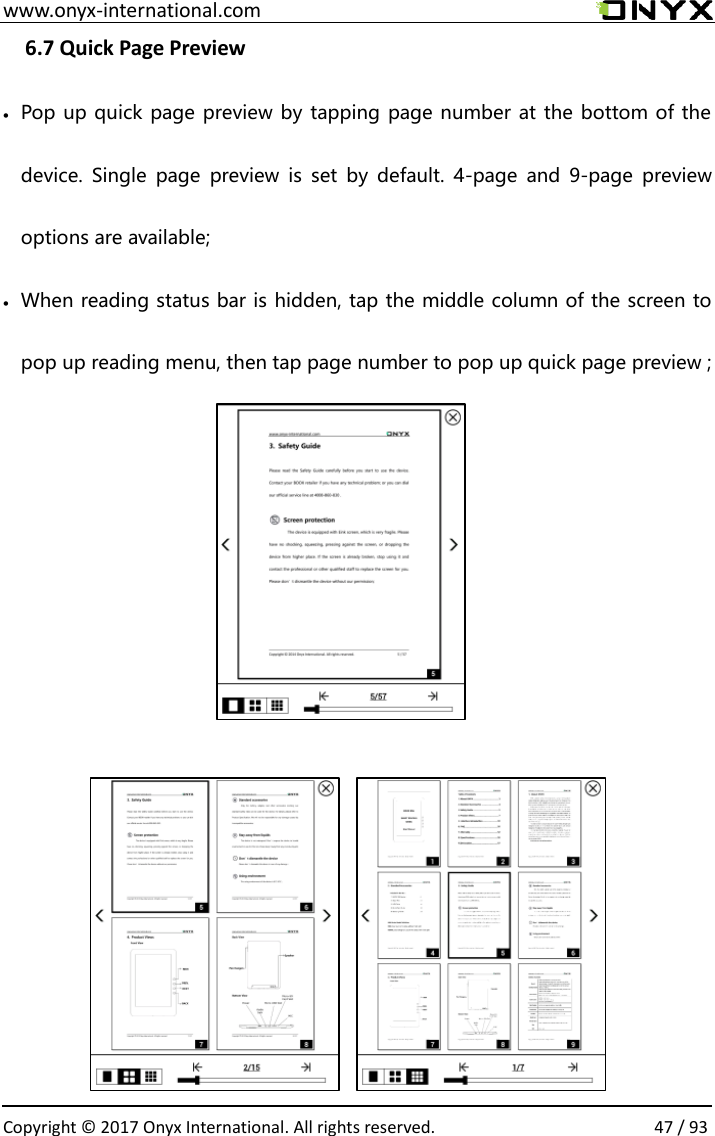
 www.onyx-international.com                                                                                                                                                                                                  Copyright © 2017 Onyx International. All rights reserved.                47 / 93 6.7 Quick Page Preview  • Pop up quick page preview by tapping page number at the bottom of the device.  Single  page  preview  is  set  by  default.  4-page  and  9-page  preview options are available; • When reading status bar is hidden, tap the middle column of the screen to pop up reading menu, then tap page number to pop up quick page preview ;
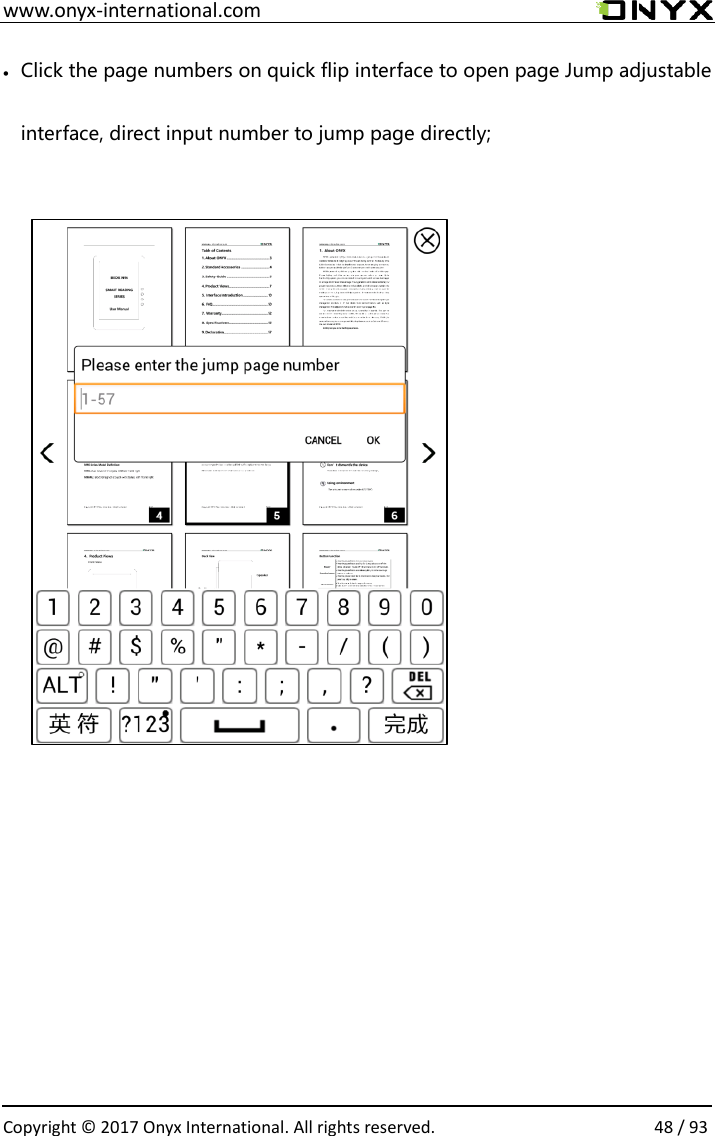
 www.onyx-international.com                                                                                                                                                                                                  Copyright © 2017 Onyx International. All rights reserved.                48 / 93 • Click the page numbers on quick flip interface to open page Jump adjustable interface, direct input number to jump page directly;
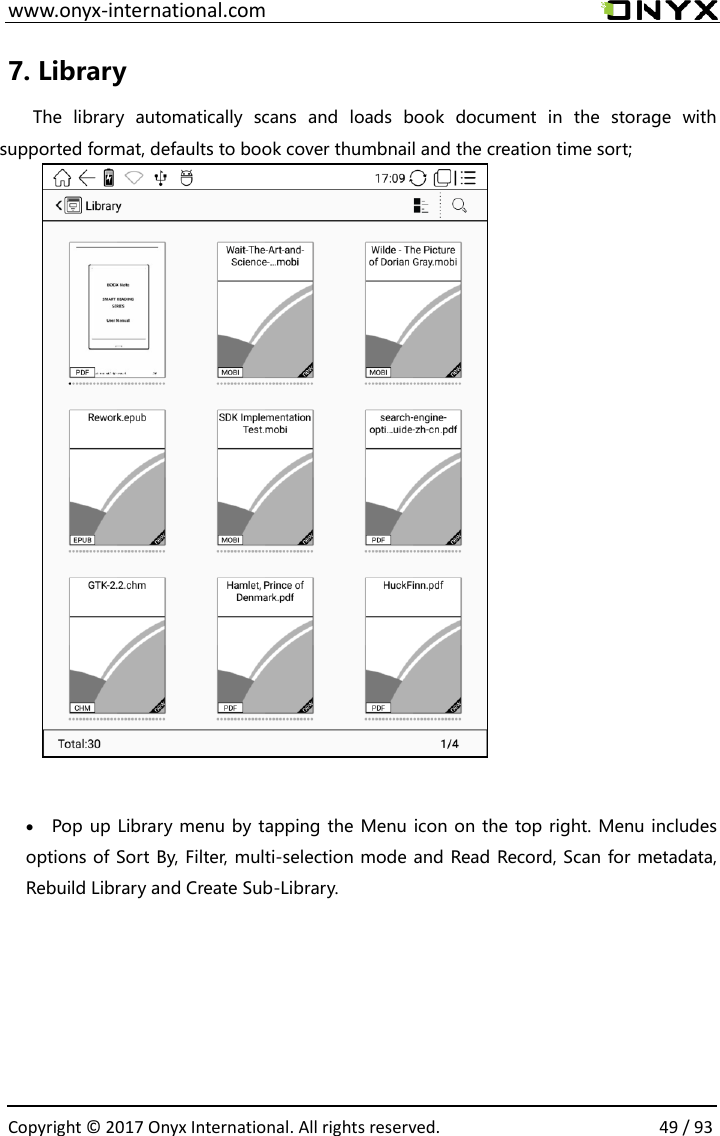
 www.onyx-international.com                                                                                                                                                                                                  Copyright © 2017 Onyx International. All rights reserved.                49 / 93 7. Library   The  library  automatically  scans  and  loads  book  document  in  the  storage  with supported format, defaults to book cover thumbnail and the creation time sort;            • Pop up Library menu by tapping the Menu icon on the top right. Menu includes options of Sort By, Filter, multi-selection mode and Read Record, Scan for metadata, Rebuild Library and Create Sub-Library.
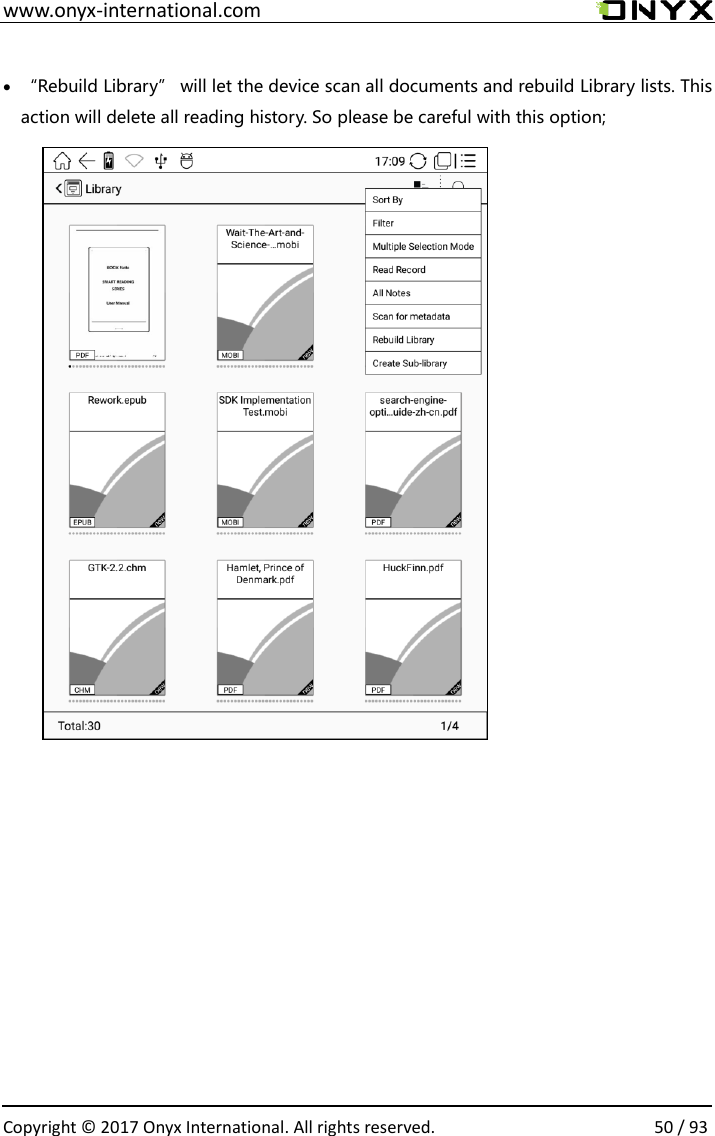
 www.onyx-international.com                                                                                                                                                                                                  Copyright © 2017 Onyx International. All rights reserved.                50 / 93  • “Rebuild Library” will let the device scan all documents and rebuild Library lists. This action will delete all reading history. So please be careful with this option;
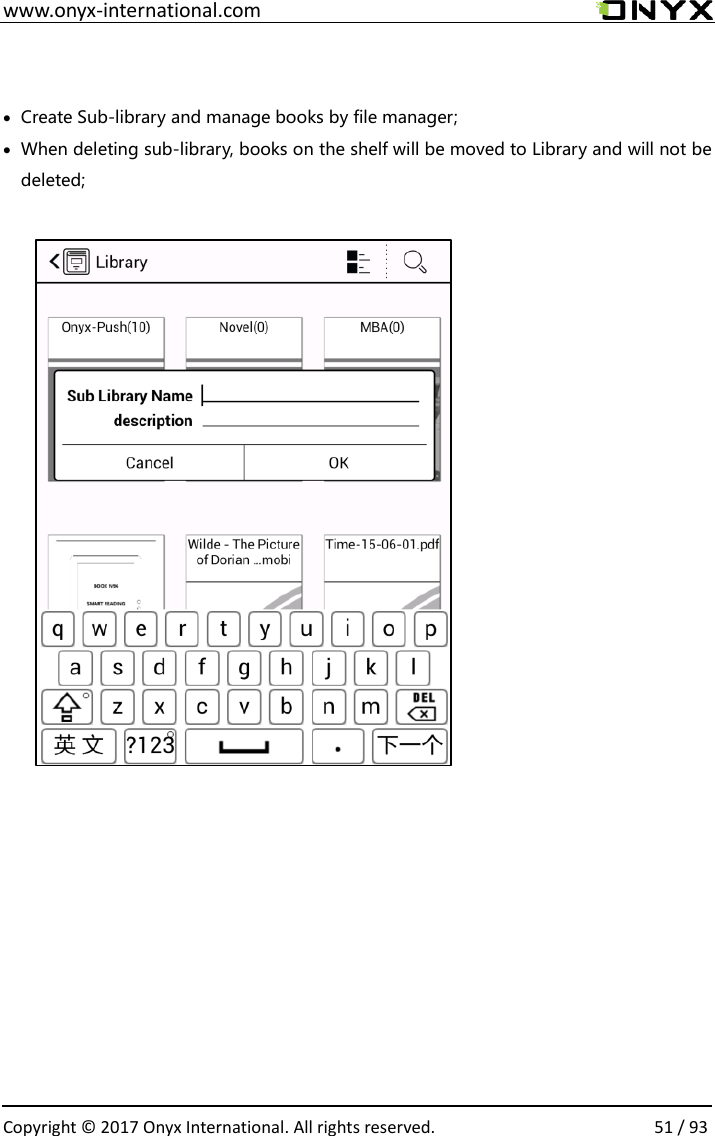
 www.onyx-international.com                                                                                                                                                                                                  Copyright © 2017 Onyx International. All rights reserved.                51 / 93  • Create Sub-library and manage books by file manager; • When deleting sub-library, books on the shelf will be moved to Library and will not be deleted;
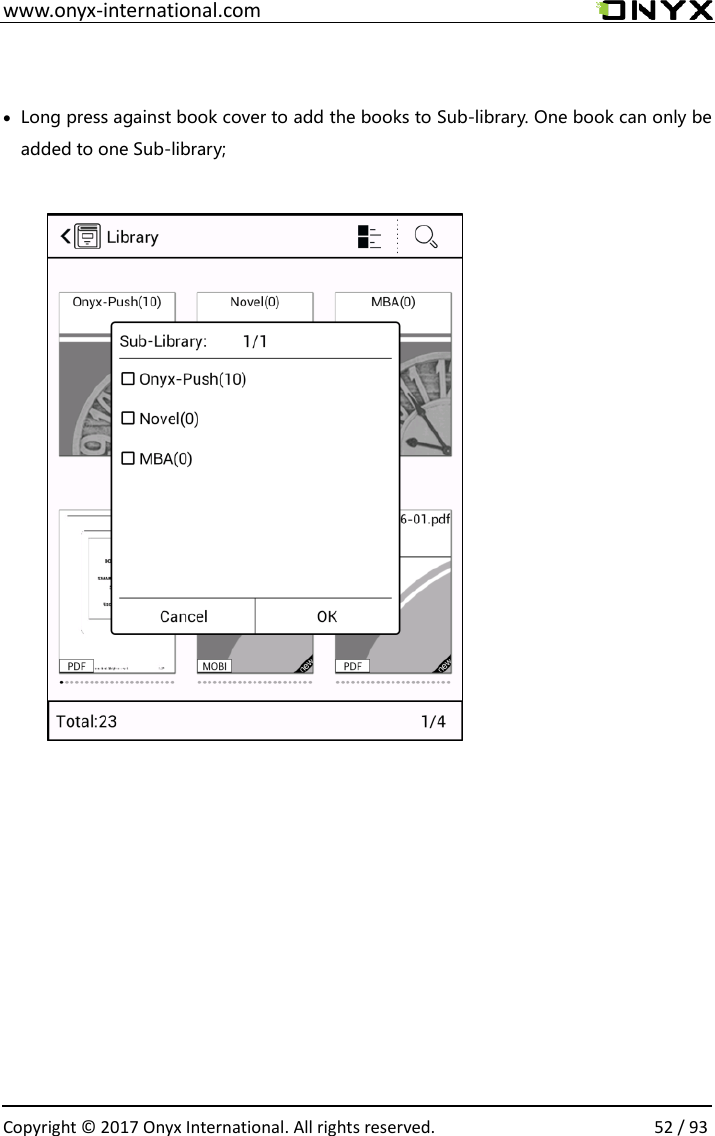
 www.onyx-international.com                                                                                                                                                                                                  Copyright © 2017 Onyx International. All rights reserved.                52 / 93   • Long press against book cover to add the books to Sub-library. One book can only be added to one Sub-library;
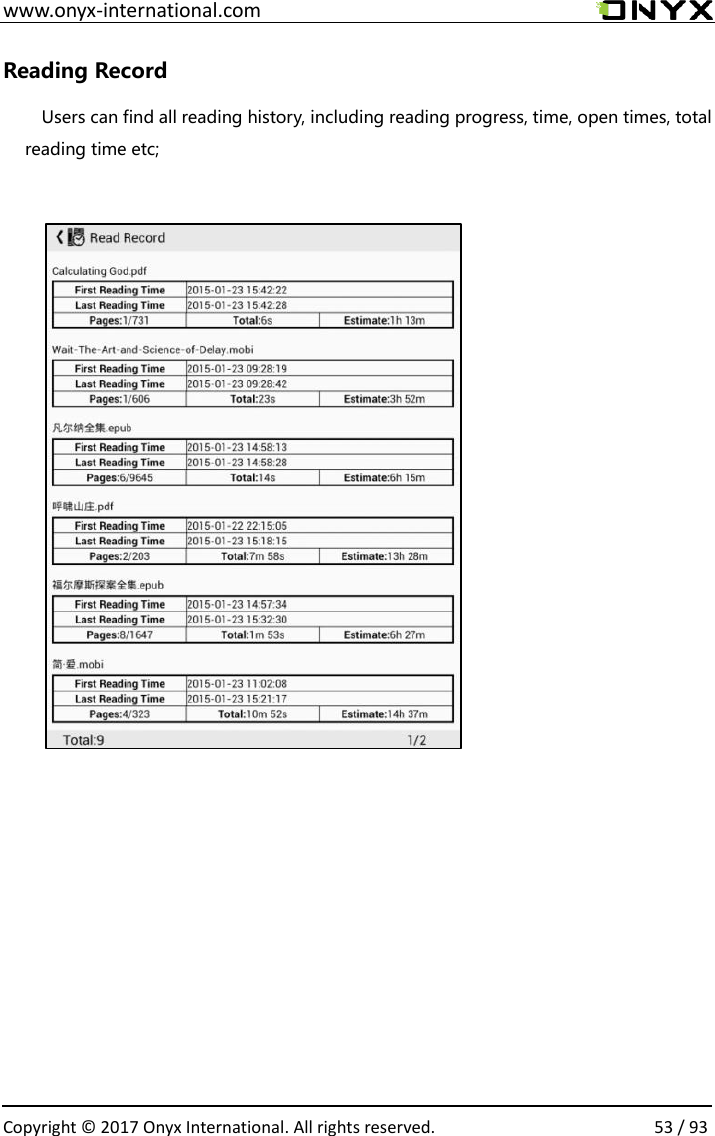
 www.onyx-international.com                                                                                                                                                                                                  Copyright © 2017 Onyx International. All rights reserved.                53 / 93 Reading Record Users can find all reading history, including reading progress, time, open times, total reading time etc;
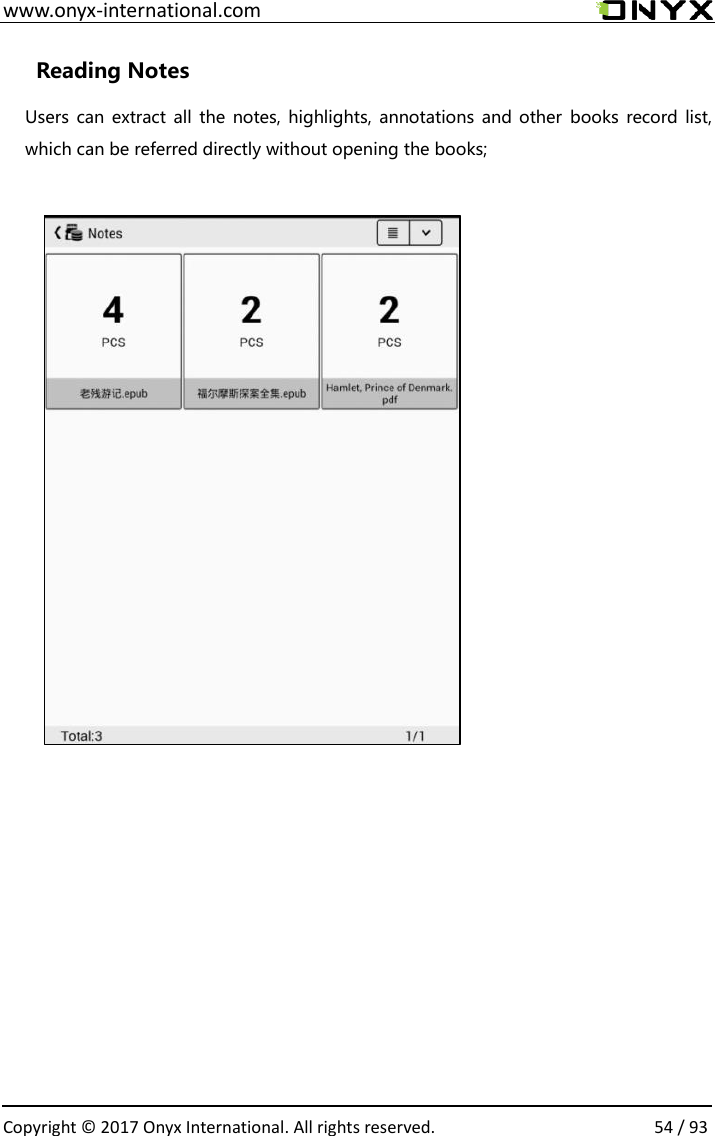
 www.onyx-international.com                                                                                                                                                                                                  Copyright © 2017 Onyx International. All rights reserved.                54 / 93 Reading Notes Users can  extract all  the notes,  highlights,  annotations and  other  books  record list, which can be referred directly without opening the books;
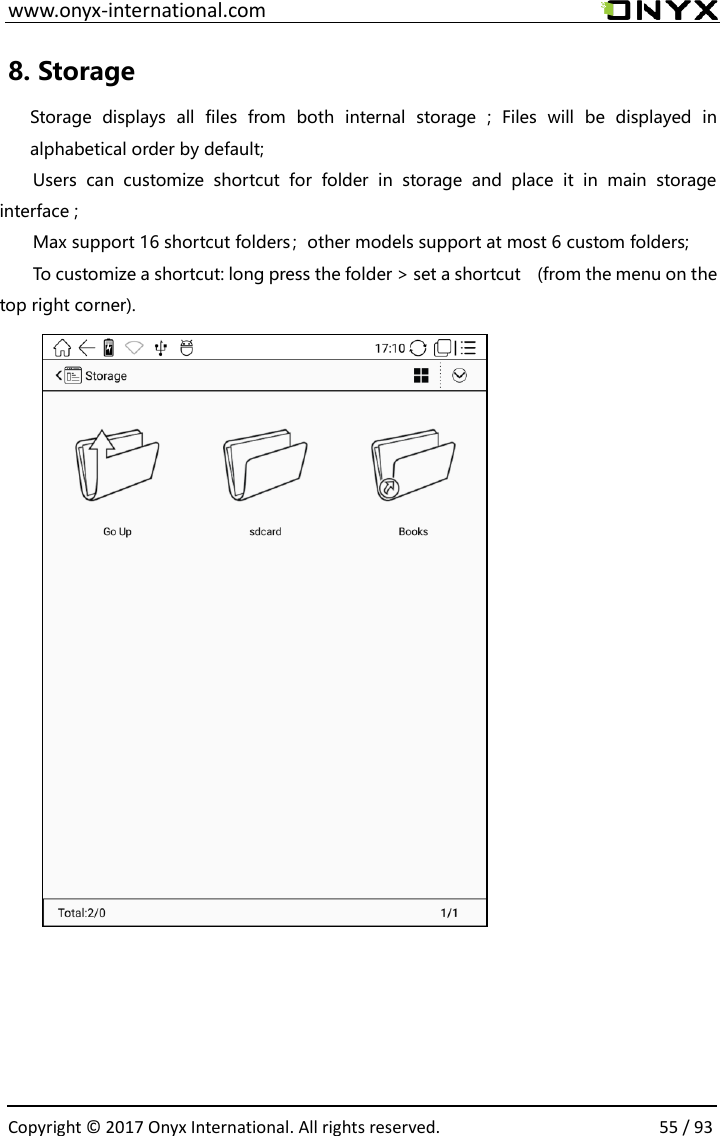
 www.onyx-international.com                                                                                                                                                                                                  Copyright © 2017 Onyx International. All rights reserved.                55 / 93 8. Storage   Storage  displays  all  files  from  both  internal  storage  ;  Files  will  be  displayed  in alphabetical order by default; Users  can  customize  shortcut  for  folder  in  storage  and  place  it  in  main  storage interface ;   Max support 16 shortcut folders;other models support at most 6 custom folders; To customize a shortcut: long press the folder > set a shortcut    (from the menu on the top right corner).
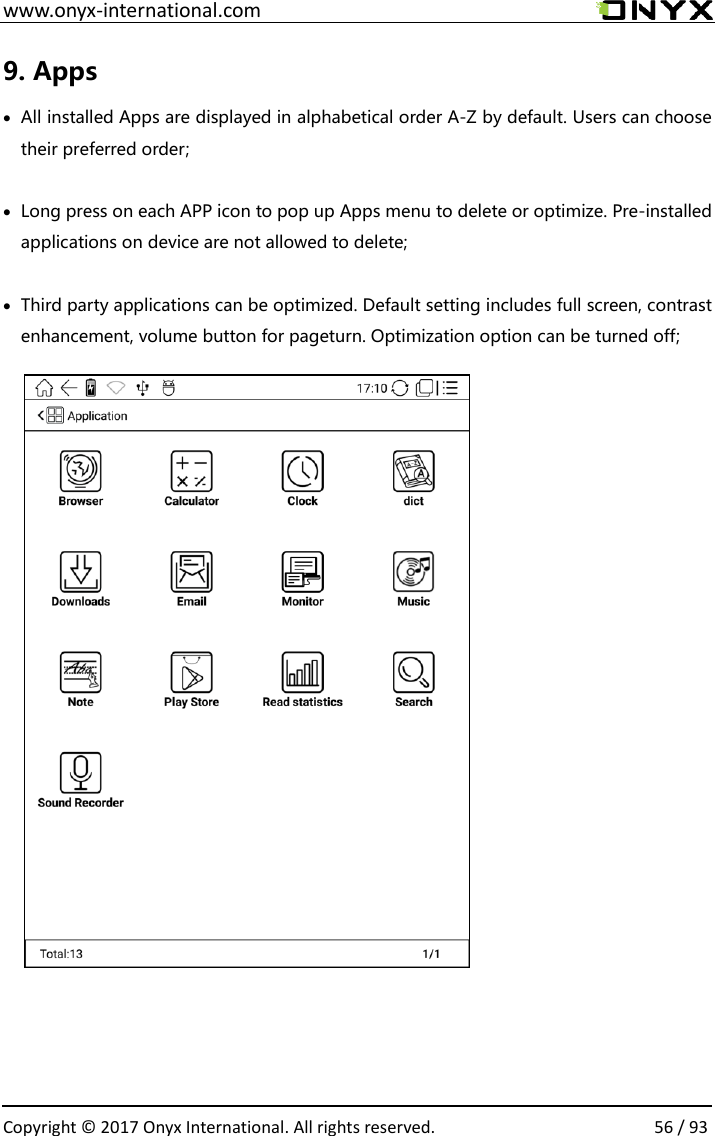
 www.onyx-international.com                                                                                                                                                                                                  Copyright © 2017 Onyx International. All rights reserved.                56 / 93 9. Apps • All installed Apps are displayed in alphabetical order A-Z by default. Users can choose their preferred order;  • Long press on each APP icon to pop up Apps menu to delete or optimize. Pre-installed applications on device are not allowed to delete;  • Third party applications can be optimized. Default setting includes full screen, contrast enhancement, volume button for pageturn. Optimization option can be turned off;
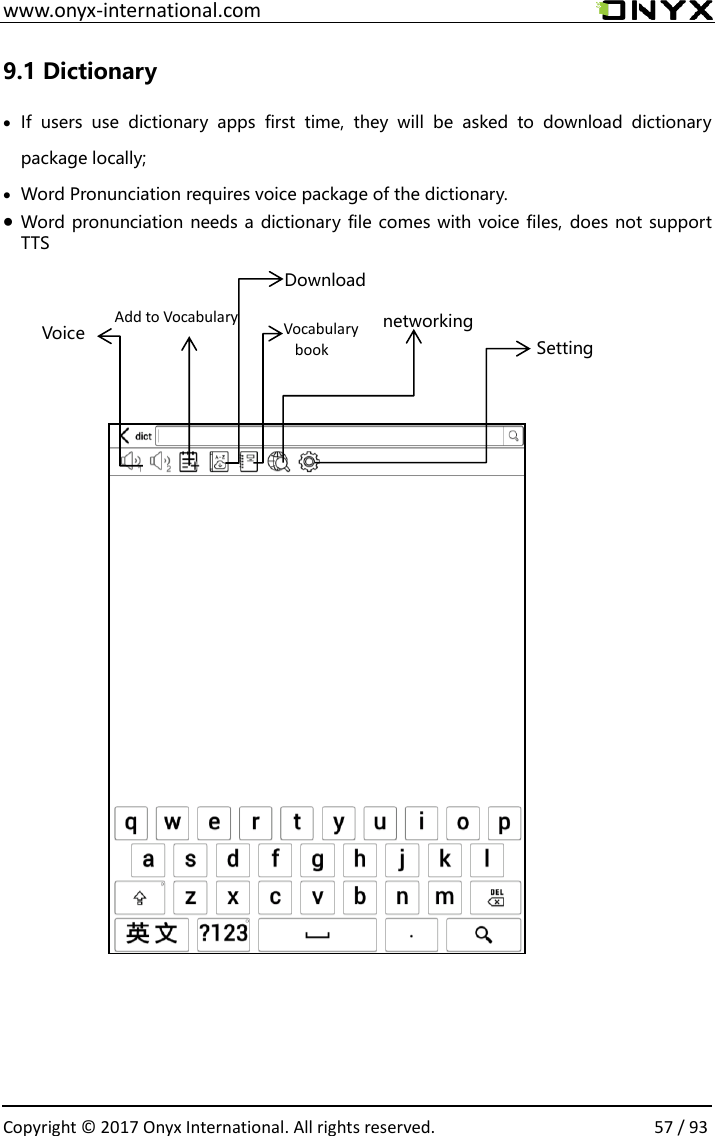
 www.onyx-international.com                                                                                                                                                                                                  Copyright © 2017 Onyx International. All rights reserved.                57 / 93 9.1 Dictionary • If  users  use  dictionary  apps  first  time,  they  will  be  asked  to  download  dictionary package locally; • Word Pronunciation requires voice package of the dictionary.   • Word pronunciation needs a dictionary file comes with voice files, does not support TTS                                           networking Download Add to Vocabulary Voice  Setting Vocabulary book
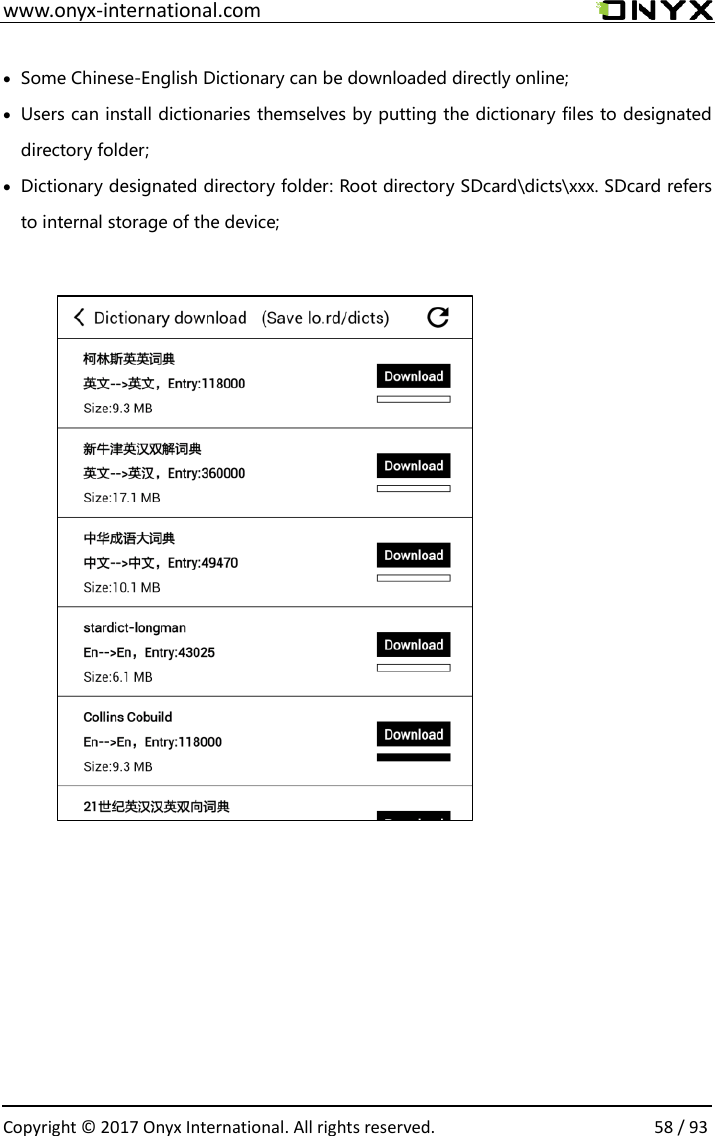
 www.onyx-international.com                                                                                                                                                                                                  Copyright © 2017 Onyx International. All rights reserved.                58 / 93  • Some Chinese-English Dictionary can be downloaded directly online; • Users can install dictionaries themselves by putting the dictionary files to designated directory folder; • Dictionary designated directory folder: Root directory SDcard\dicts\xxx. SDcard refers to internal storage of the device;
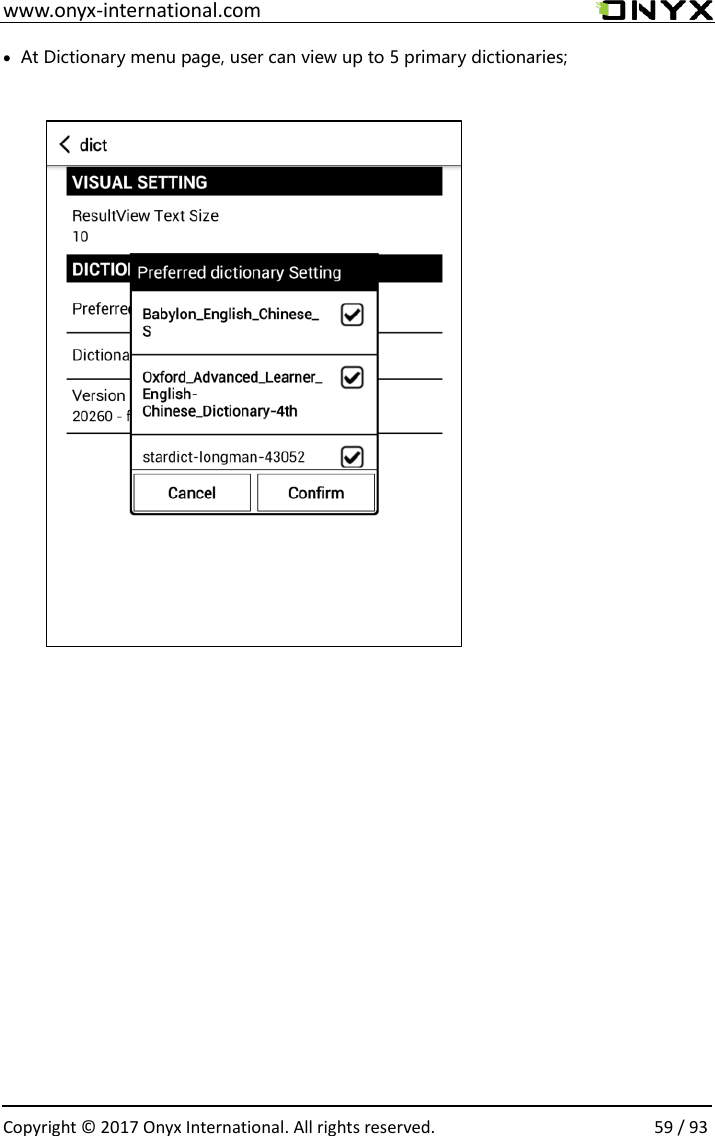
 www.onyx-international.com                                                                                                                                                                                                  Copyright © 2017 Onyx International. All rights reserved.                59 / 93 • At Dictionary menu page, user can view up to 5 primary dictionaries;
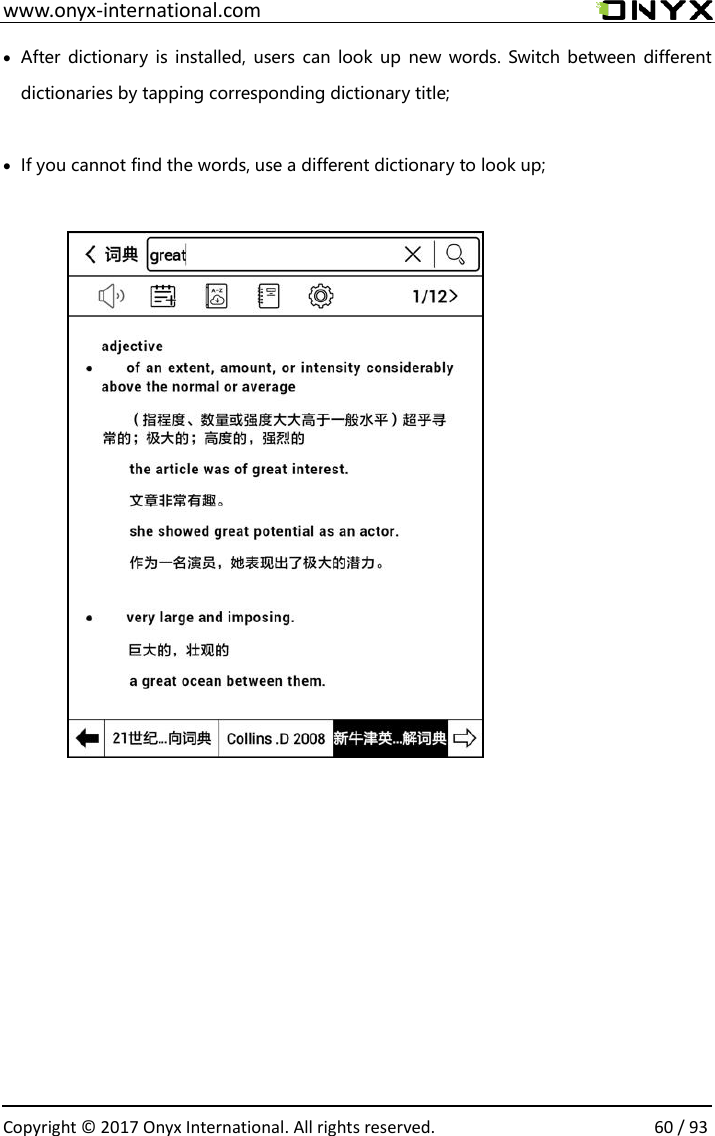
 www.onyx-international.com                                                                                                                                                                                                  Copyright © 2017 Onyx International. All rights reserved.                60 / 93 • After dictionary is installed, users can look up  new words. Switch between  different dictionaries by tapping corresponding dictionary title;  • If you cannot find the words, use a different dictionary to look up;
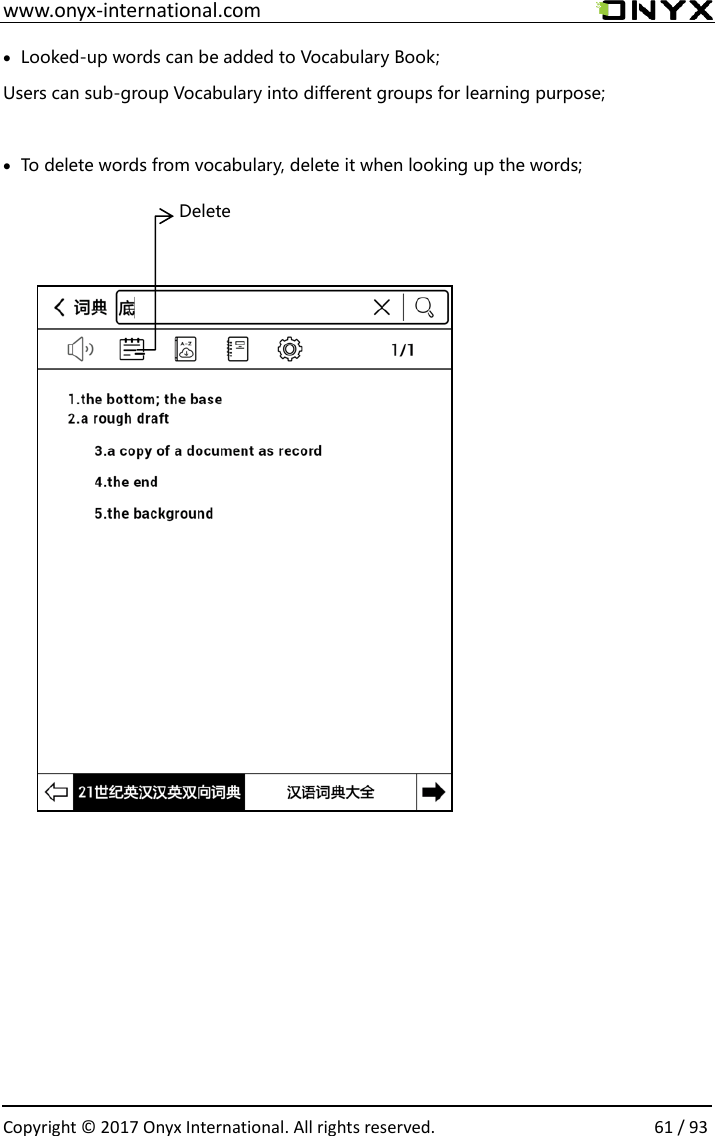
 www.onyx-international.com                                                                                                                                                                                                  Copyright © 2017 Onyx International. All rights reserved.                61 / 93 • Looked-up words can be added to Vocabulary Book;   Users can sub-group Vocabulary into different groups for learning purpose;  • To delete words from vocabulary, delete it when looking up the words;                                           Delete
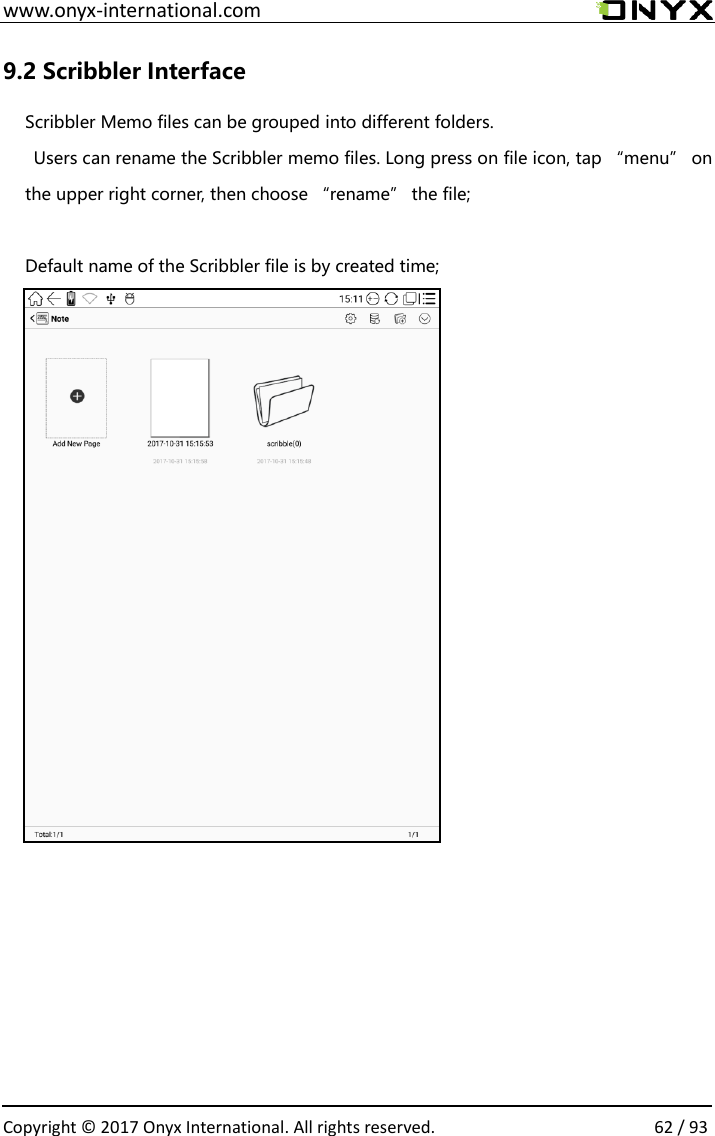
 www.onyx-international.com                                                                                                                                                                                                  Copyright © 2017 Onyx International. All rights reserved.                62 / 93 9.2 Scribbler Interface Scribbler Memo files can be grouped into different folders.       Users can rename the Scribbler memo files. Long press on file icon, tap “menu” on the upper right corner, then choose “rename” the file;    Default name of the Scribbler file is by created time;
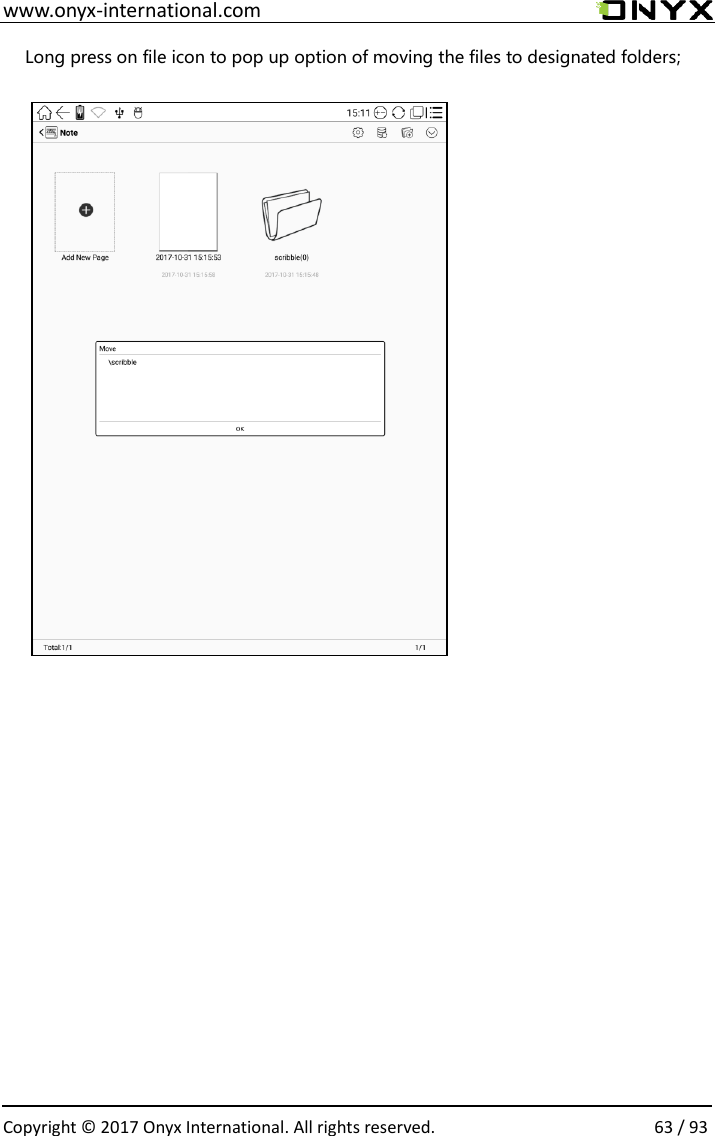
 www.onyx-international.com                                                                                                                                                                                                  Copyright © 2017 Onyx International. All rights reserved.                63 / 93 Long press on file icon to pop up option of moving the files to designated folders;
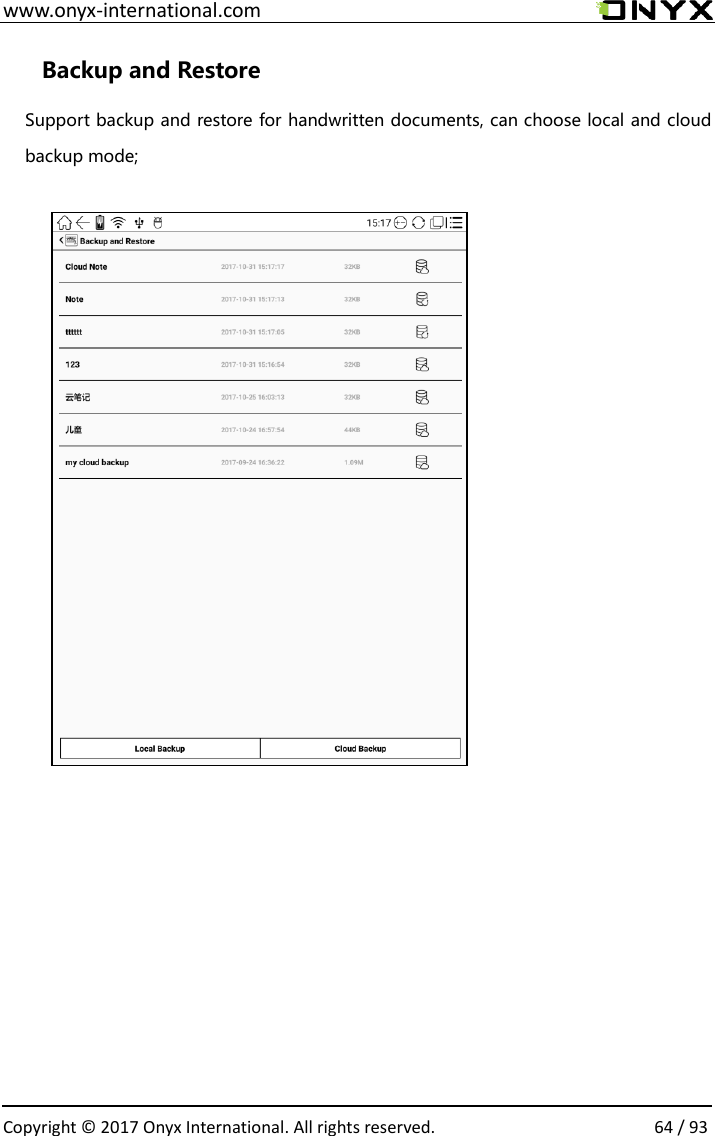
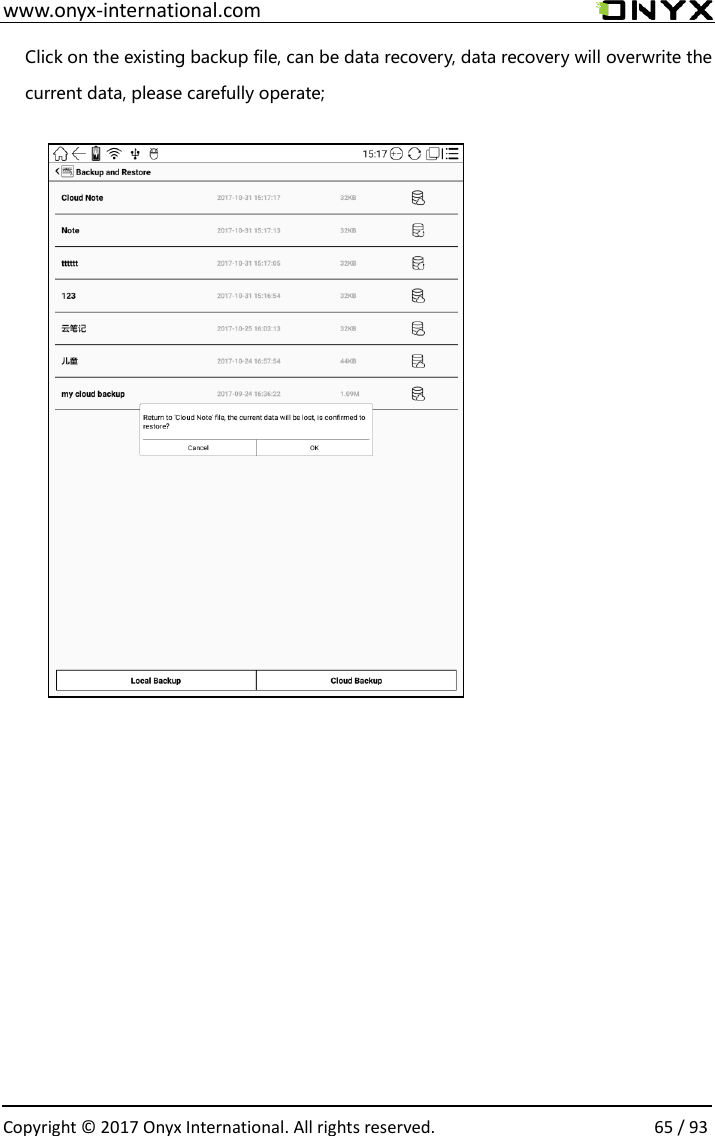
 www.onyx-international.com                                                                                                                                                                                                  Copyright © 2017 Onyx International. All rights reserved.                64 / 93 Backup and Restore Support backup and restore for handwritten documents, can choose local and cloud backup mode;
 www.onyx-international.com                                                                                                                                                                                                  Copyright © 2017 Onyx International. All rights reserved.                65 / 93 Click on the existing backup file, can be data recovery, data recovery will overwrite the current data, please carefully operate;
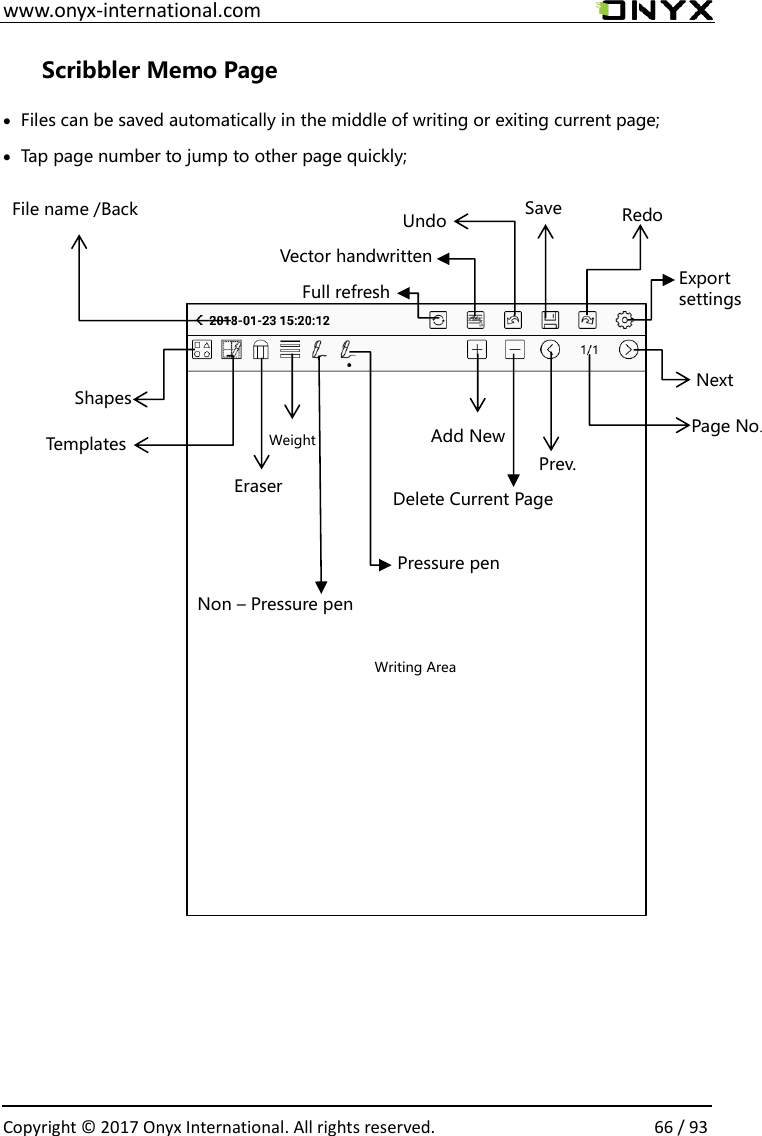
 www.onyx-international.com                                                                                                                                                                                                  Copyright © 2017 Onyx International. All rights reserved.                66 / 93 Scribbler Memo Page • Files can be saved automatically in the middle of writing or exiting current page;     • Tap page number to jump to other page quickly;                                             Redo Save Undo File name /Back Writing Area Next Prev. Page No. Delete Current Page Add New Eraser Shapes   Weight Templates Vector handwritten Export settings Full refresh   Pressure pen Non – Pressure pen
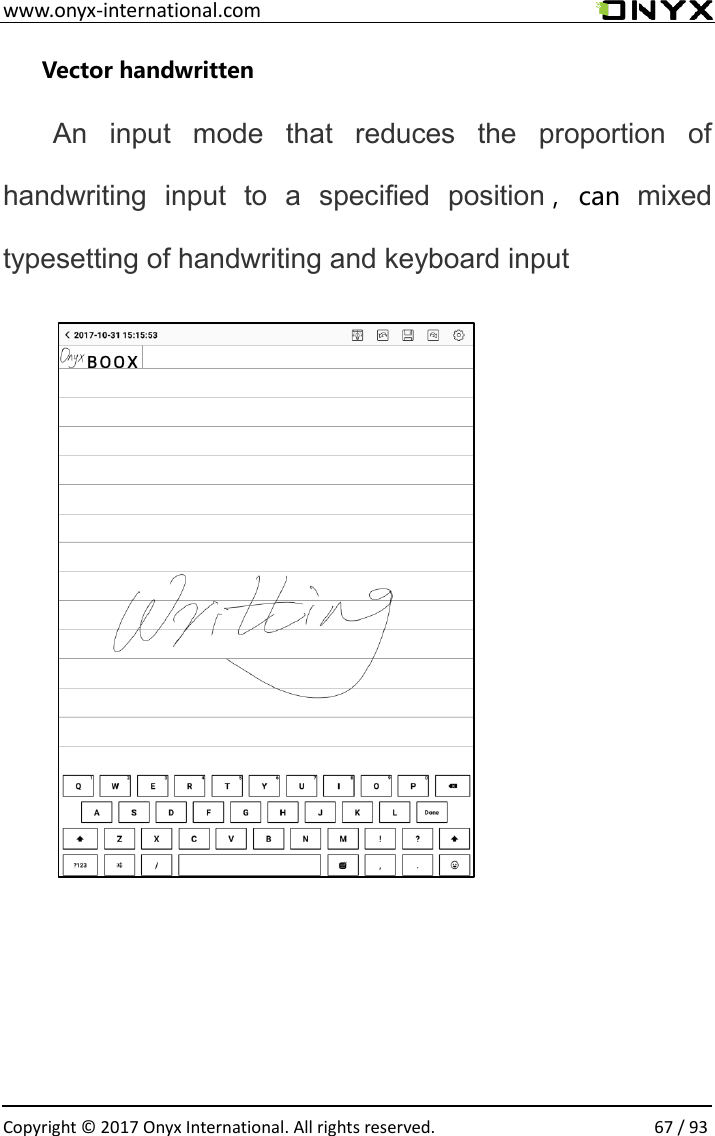
 www.onyx-international.com                                                                                                                                                                                                  Copyright © 2017 Onyx International. All rights reserved.                67 / 93 Vector handwritten An  input  mode  that  reduces  the  proportion  of handwriting  input  to  a  specified  position ,can  mixed typesetting of handwriting and keyboard input
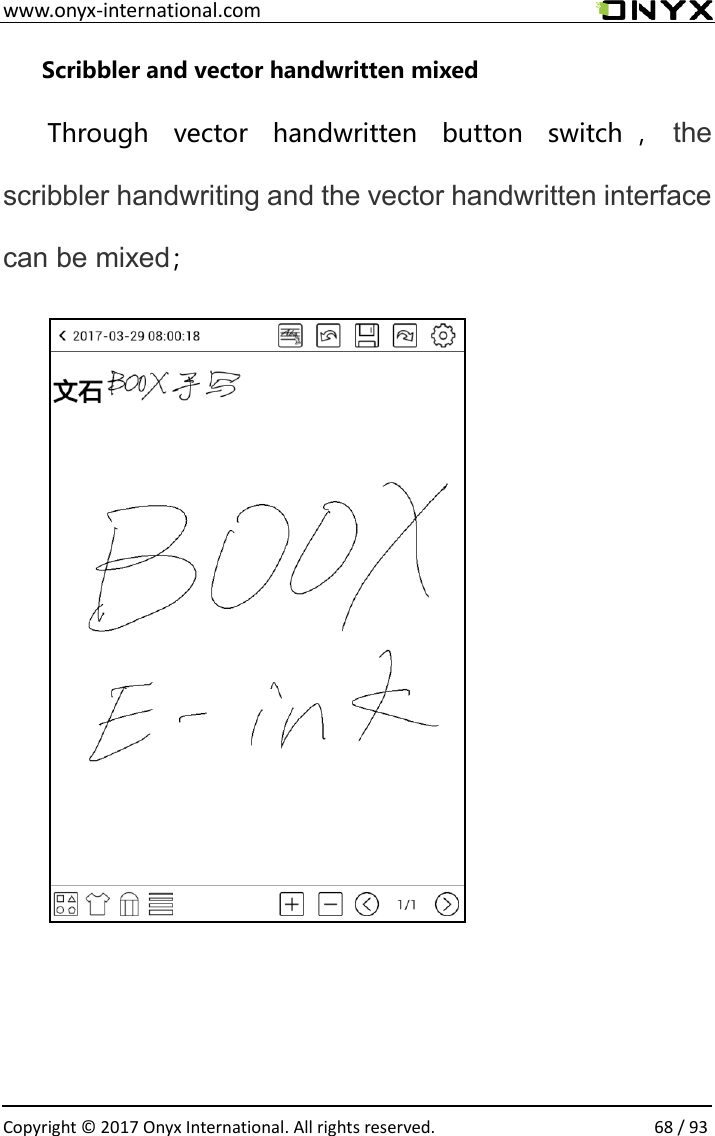
 www.onyx-international.com                                                                                                                                                                                                  Copyright © 2017 Onyx International. All rights reserved.                68 / 93 Scribbler and vector handwritten mixed Through  vector  handwritten  button  switch ,the scribbler handwriting and the vector handwritten interface can be mixed;
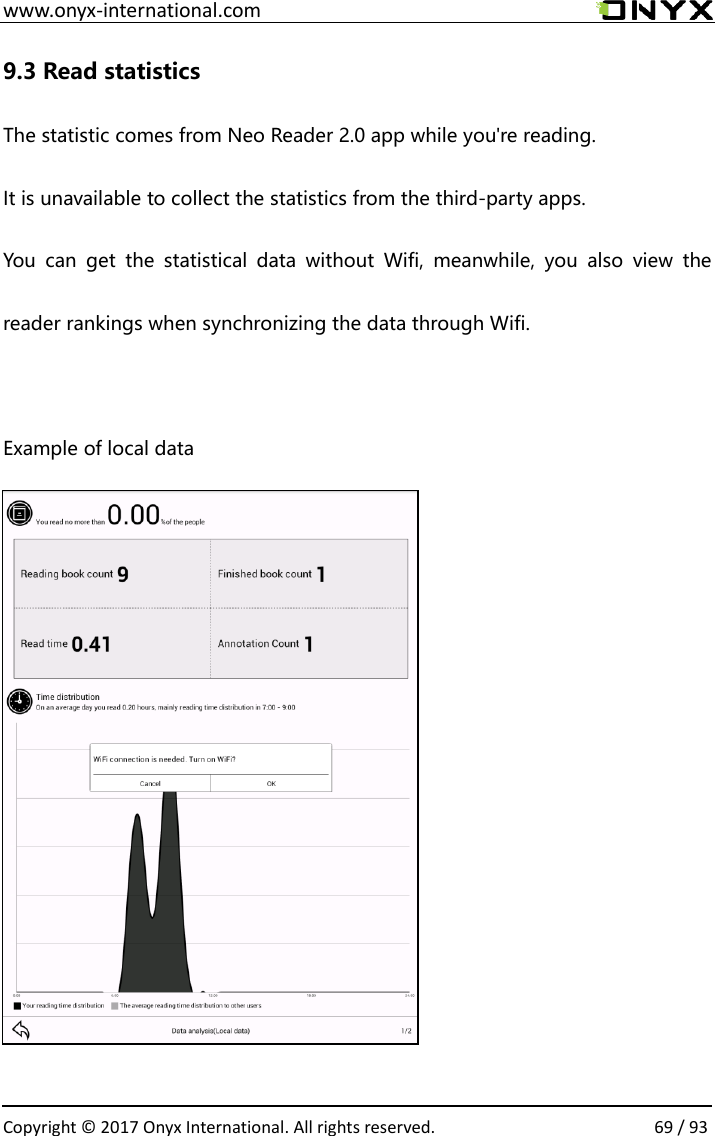
 www.onyx-international.com                                                                                                                                                                                                  Copyright © 2017 Onyx International. All rights reserved.                69 / 93 9.3 Read statistics The statistic comes from Neo Reader 2.0 app while you're reading. It is unavailable to collect the statistics from the third-party apps. You  can  get  the  statistical  data  without  Wifi,  meanwhile,  you  also  view  the reader rankings when synchronizing the data through Wifi.  Example of local data
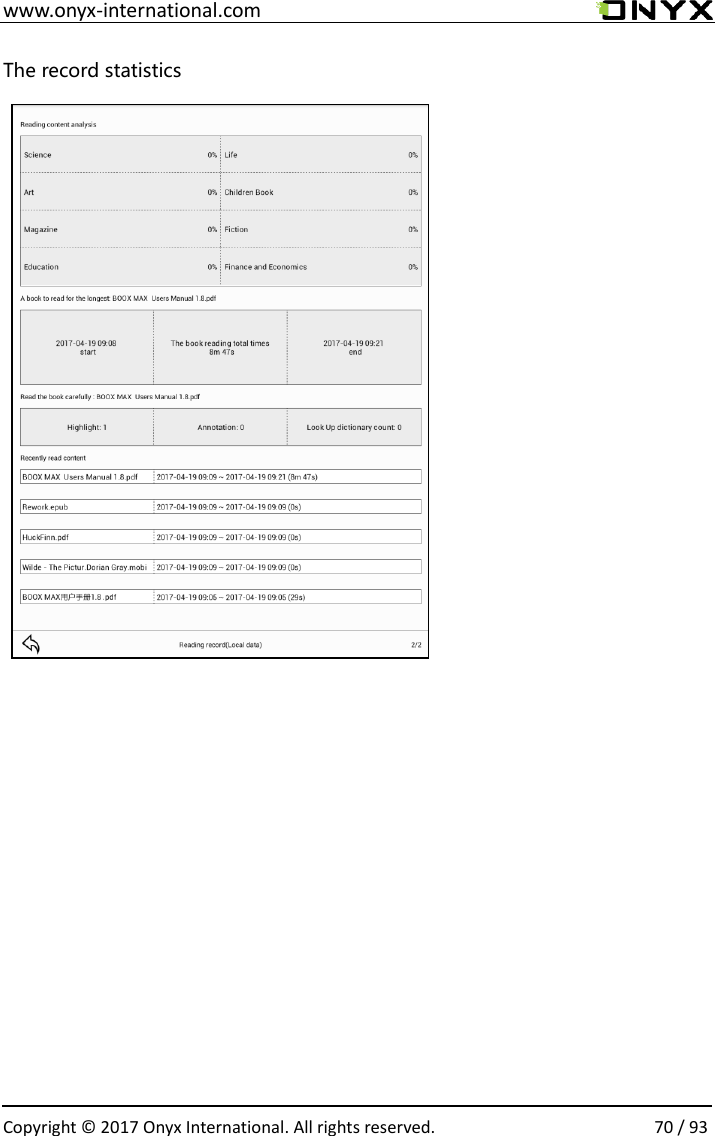
 www.onyx-international.com                                                                                                                                                                                                  Copyright © 2017 Onyx International. All rights reserved.                70 / 93 The record statistics
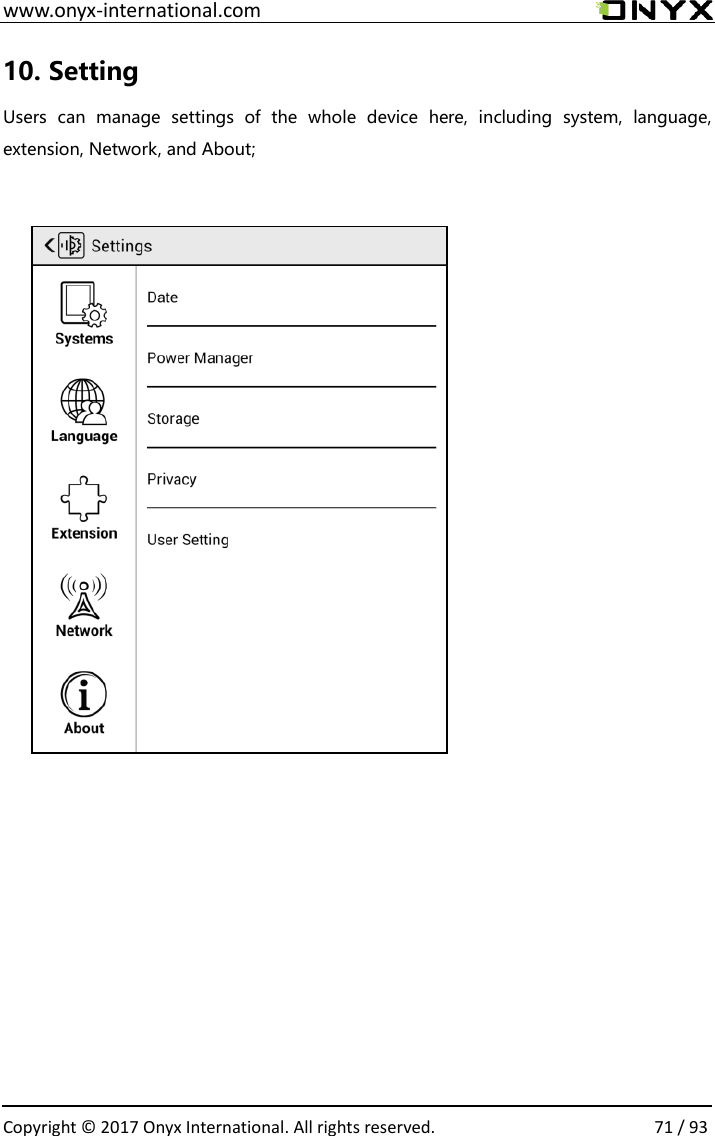
 www.onyx-international.com                                                                                                                                                                                                  Copyright © 2017 Onyx International. All rights reserved.                71 / 93 10. Setting   Users  can  manage  settings  of  the  whole  device  here,  including  system,  language, extension, Network, and About;
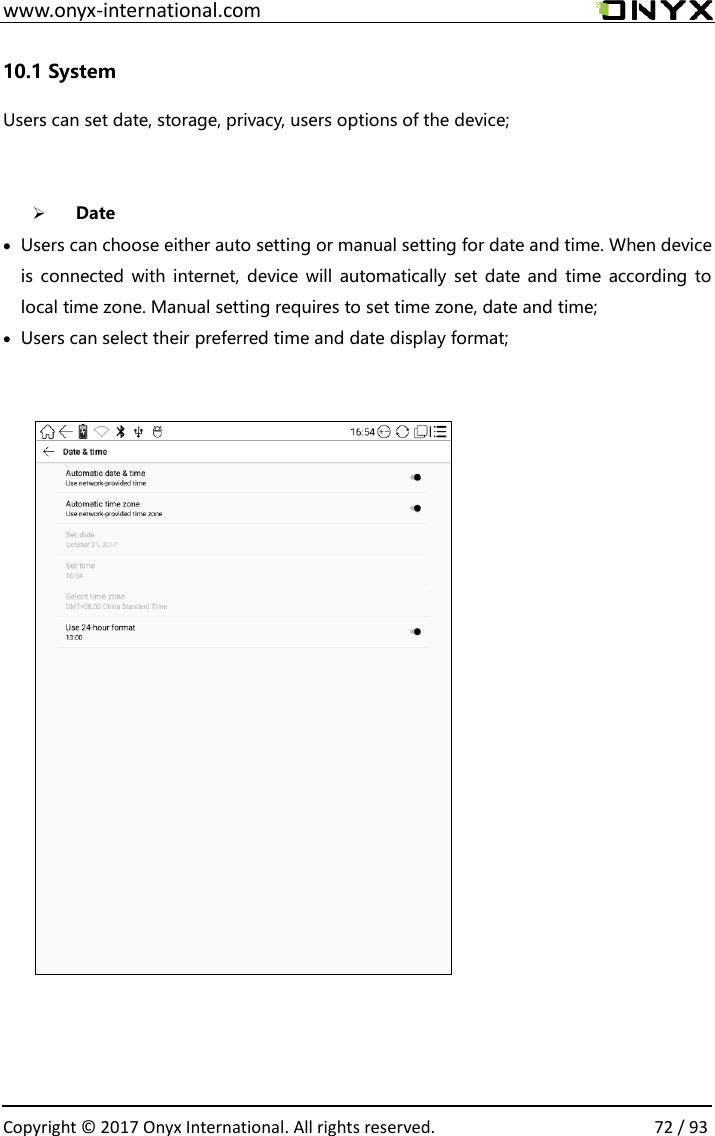
 www.onyx-international.com                                                                                                                                                                                                  Copyright © 2017 Onyx International. All rights reserved.                72 / 93 10.1 System Users can set date, storage, privacy, users options of the device;   ➢ Date • Users can choose either auto setting or manual setting for date and time. When device is connected with internet, device  will automatically set  date and  time  according to local time zone. Manual setting requires to set time zone, date and time; • Users can select their preferred time and date display format;
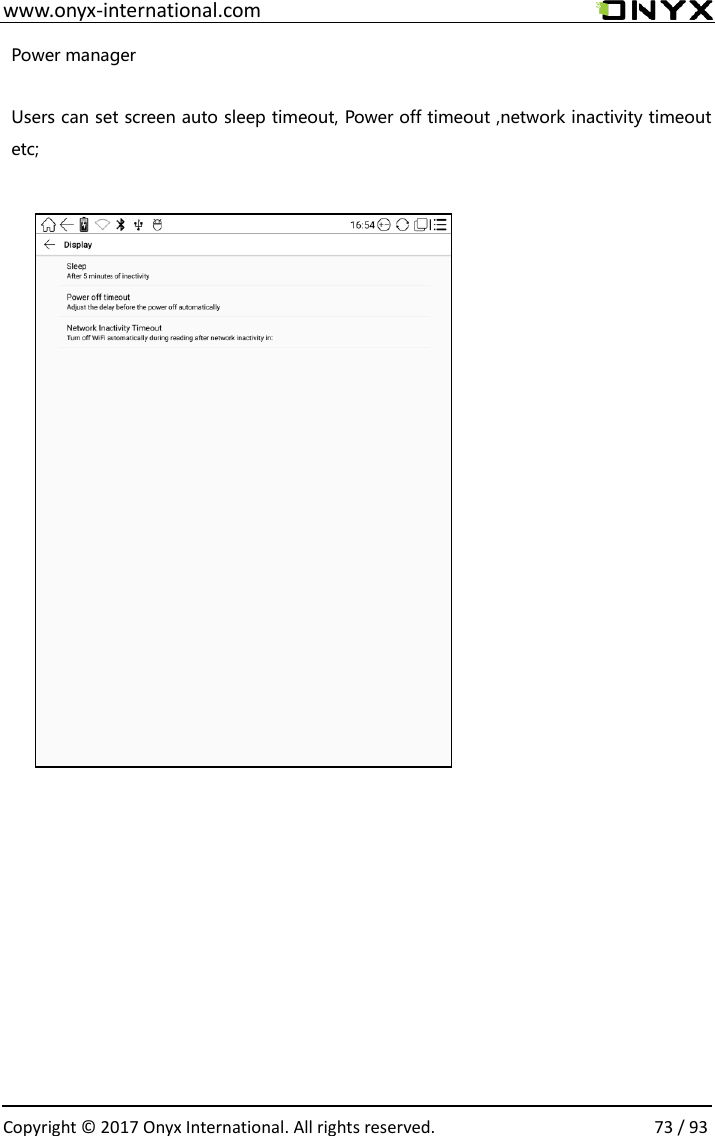
 www.onyx-international.com                                                                                                                                                                                                  Copyright © 2017 Onyx International. All rights reserved.                73 / 93 Power manager  Users can set screen auto sleep timeout, Power off timeout ,network inactivity timeout etc;
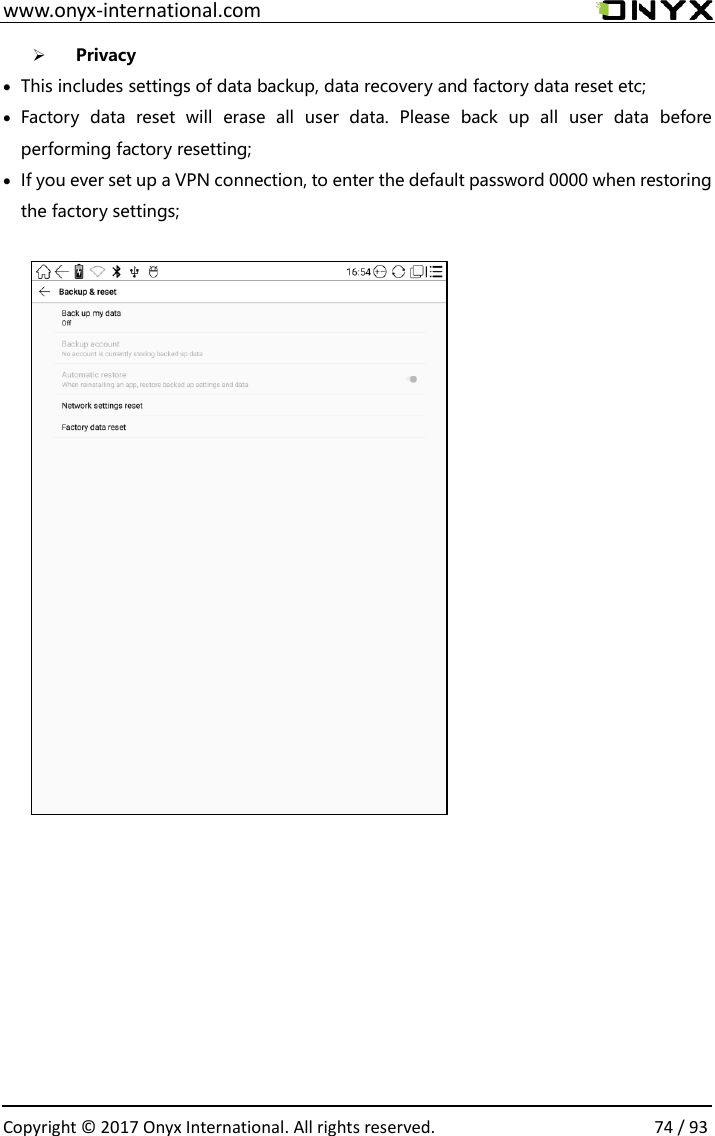
 www.onyx-international.com                                                                                                                                                                                                  Copyright © 2017 Onyx International. All rights reserved.                74 / 93 ➢ Privacy • This includes settings of data backup, data recovery and factory data reset etc; • Factory  data  reset  will  erase  all  user  data.  Please  back  up  all  user  data  before performing factory resetting; • If you ever set up a VPN connection, to enter the default password 0000 when restoring the factory settings;
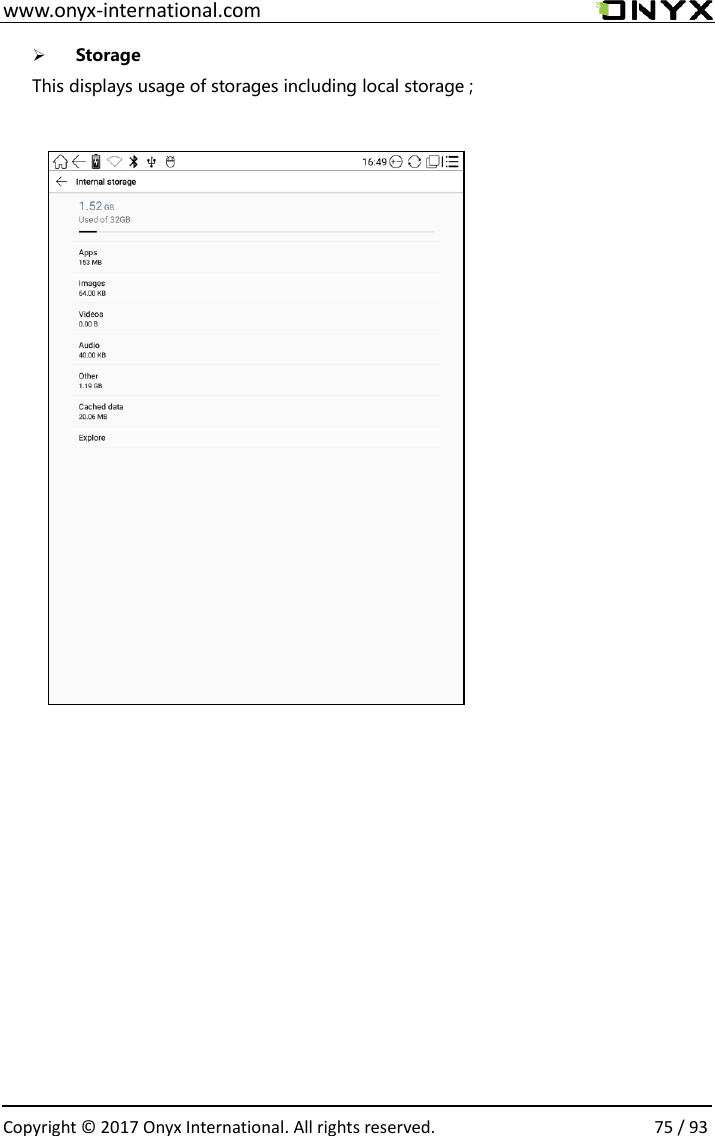
 www.onyx-international.com                                                                                                                                                                                                  Copyright © 2017 Onyx International. All rights reserved.                75 / 93 ➢ Storage This displays usage of storages including local storage ;
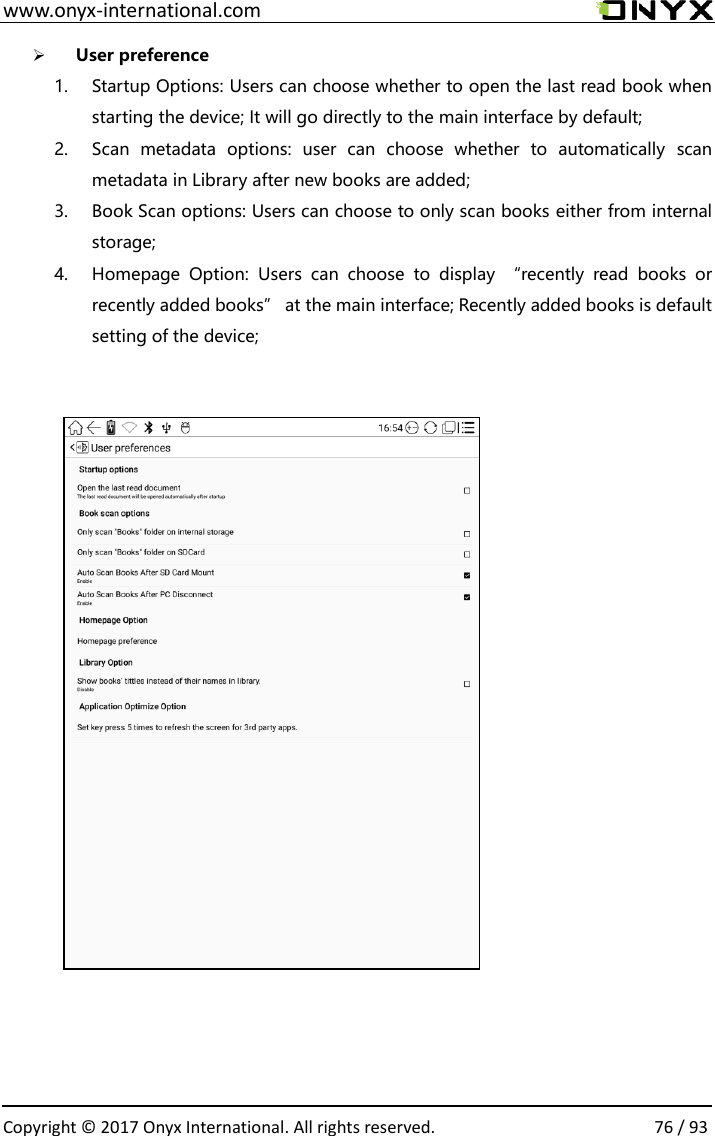
 www.onyx-international.com                                                                                                                                                                                                  Copyright © 2017 Onyx International. All rights reserved.                76 / 93 ➢ User preference 1. Startup Options: Users can choose whether to open the last read book when starting the device; It will go directly to the main interface by default; 2. Scan  metadata  options:  user  can  choose  whether  to  automatically  scan metadata in Library after new books are added; 3. Book Scan options: Users can choose to only scan books either from internal storage; 4. Homepage  Option:  Users  can  choose  to  display  “recently  read  books  or recently added books” at the main interface; Recently added books is default setting of the device;
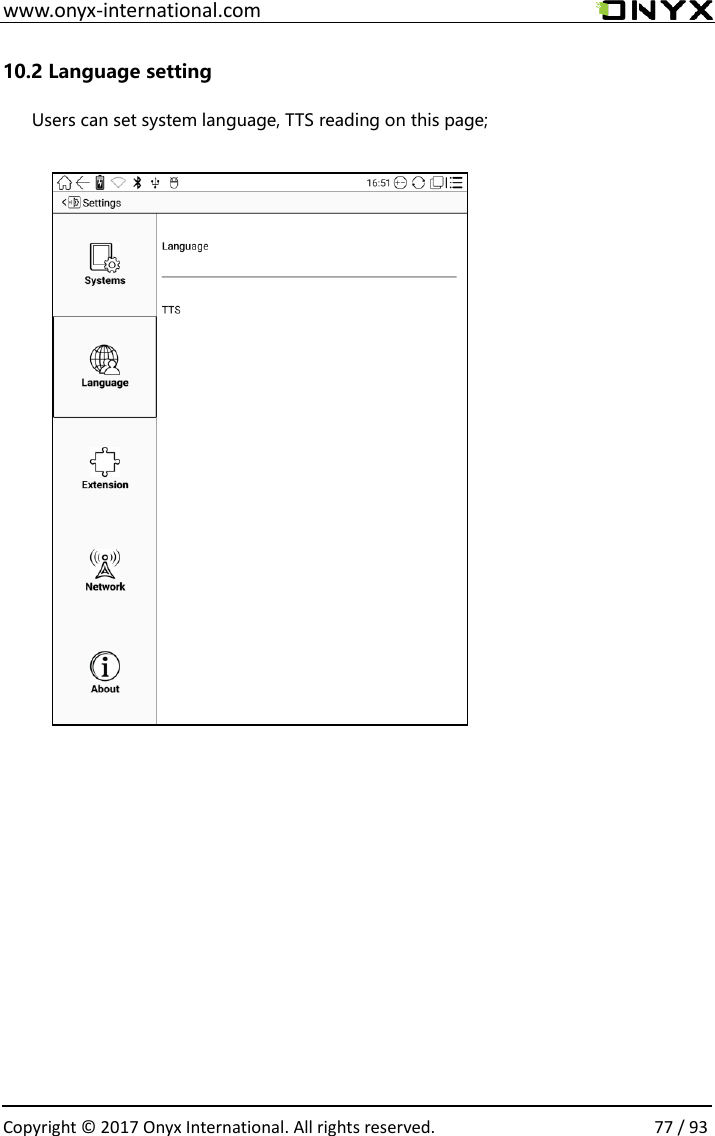
 www.onyx-international.com                                                                                                                                                                                                  Copyright © 2017 Onyx International. All rights reserved.                77 / 93 10.2 Language setting Users can set system language, TTS reading on this page;
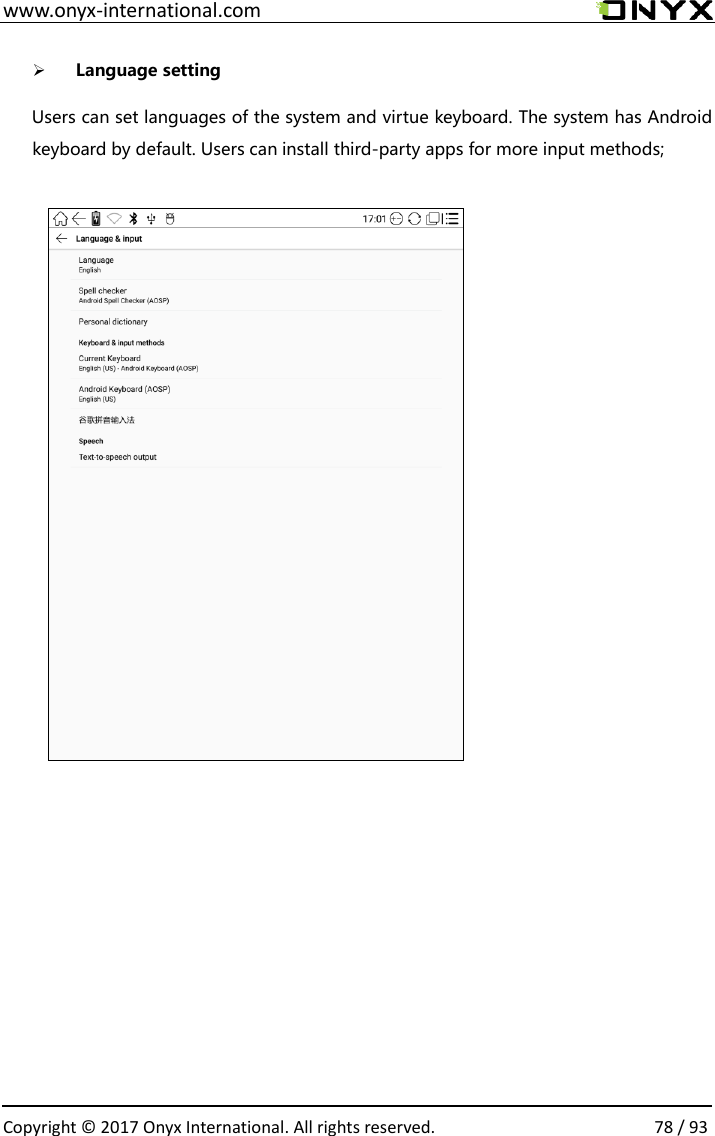
 www.onyx-international.com                                                                                                                                                                                                  Copyright © 2017 Onyx International. All rights reserved.                78 / 93  ➢ Language setting    Users can set languages of the system and virtue keyboard. The system has Android keyboard by default. Users can install third-party apps for more input methods;
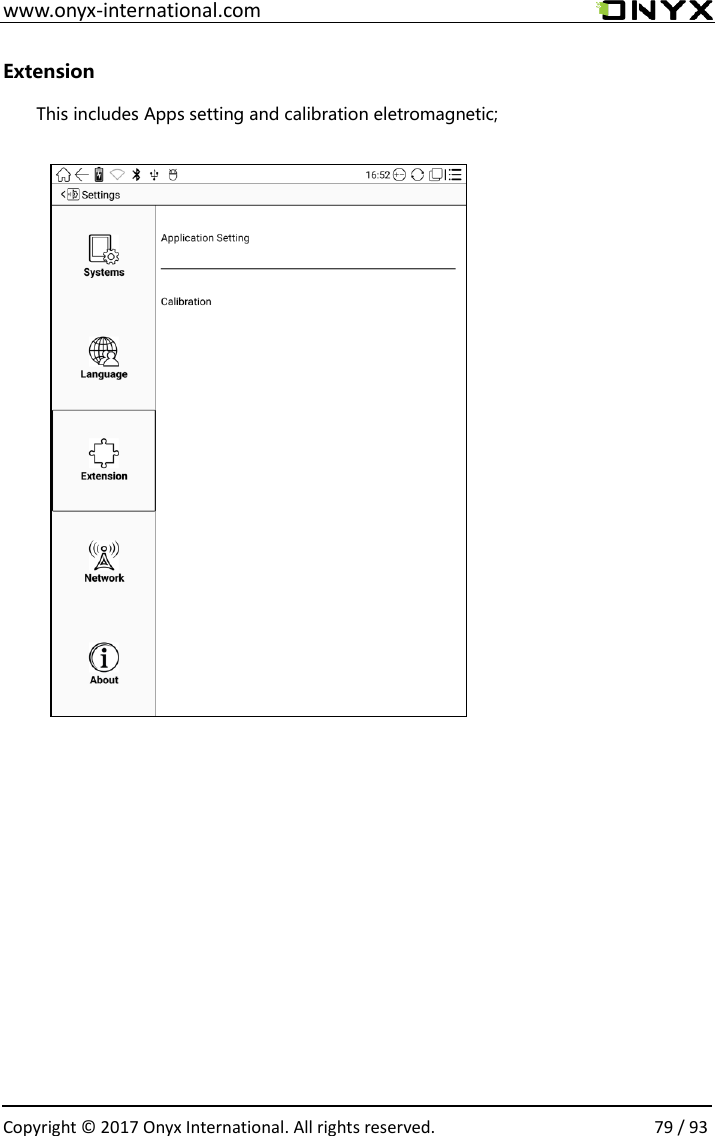
 www.onyx-international.com                                                                                                                                                                                                  Copyright © 2017 Onyx International. All rights reserved.                79 / 93 Extension This includes Apps setting and calibration eletromagnetic;
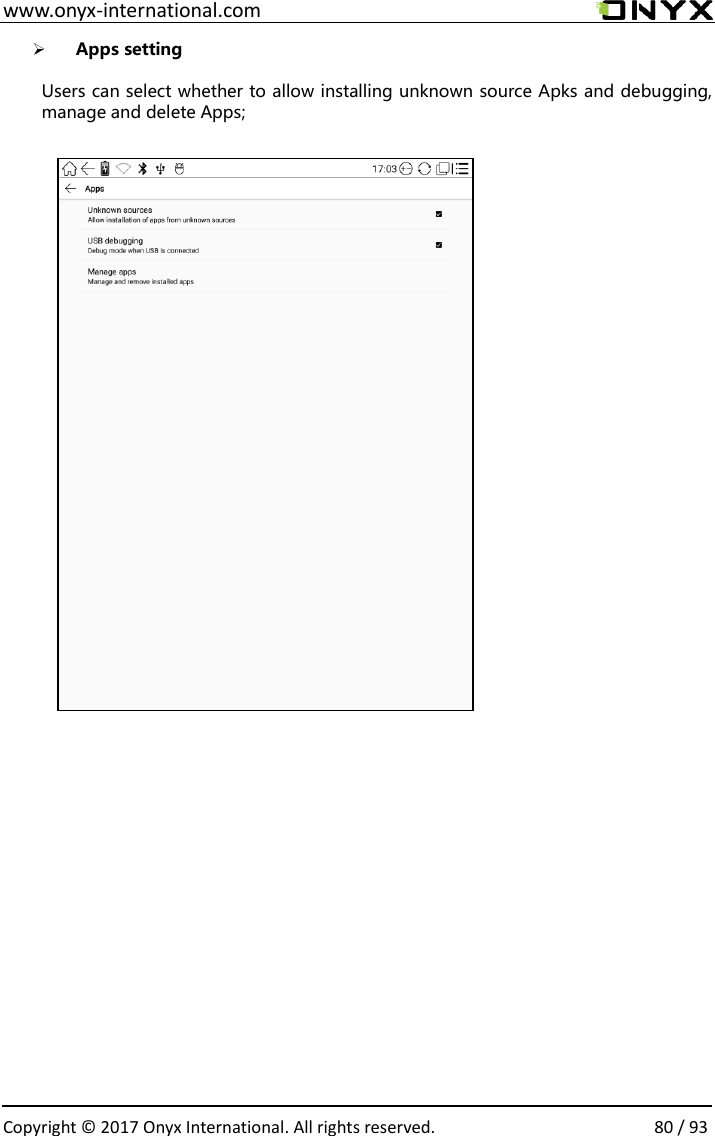
 www.onyx-international.com                                                                                                                                                                                                  Copyright © 2017 Onyx International. All rights reserved.                80 / 93 ➢ Apps setting  Users can select whether to allow installing unknown source Apks and debugging, manage and delete Apps;
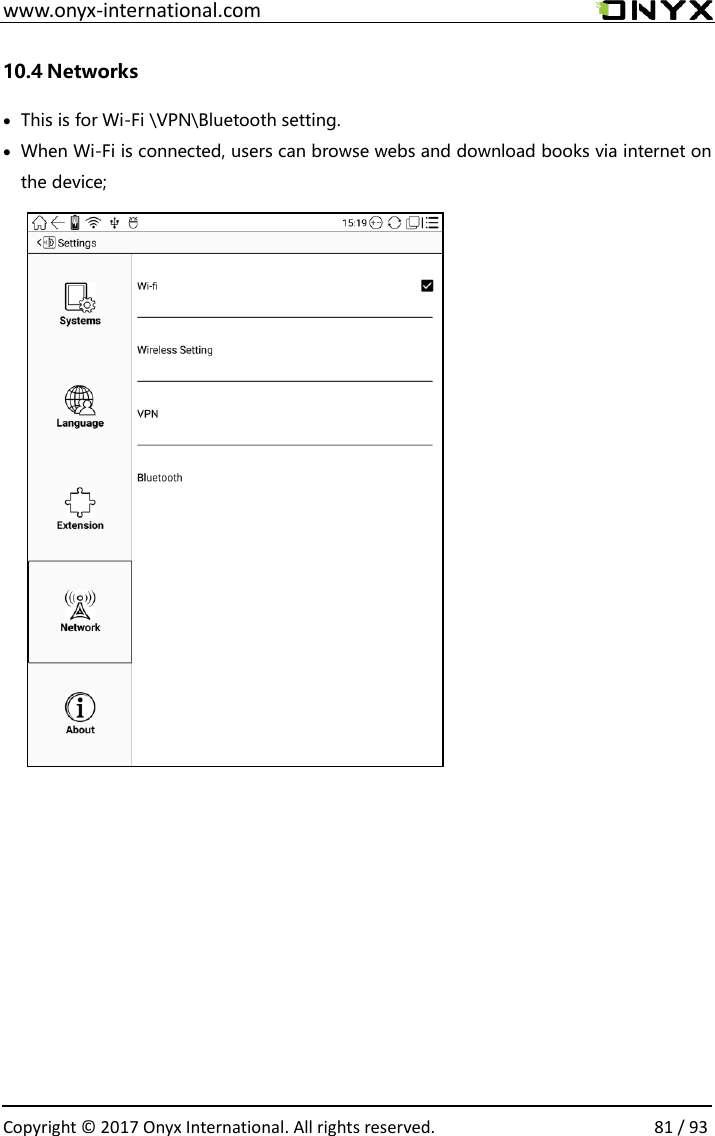
 www.onyx-international.com                                                                                                                                                                                                  Copyright © 2017 Onyx International. All rights reserved.                81 / 93 10.4 Networks • This is for Wi-Fi \VPN\Bluetooth setting.   • When Wi-Fi is connected, users can browse webs and download books via internet on the device;
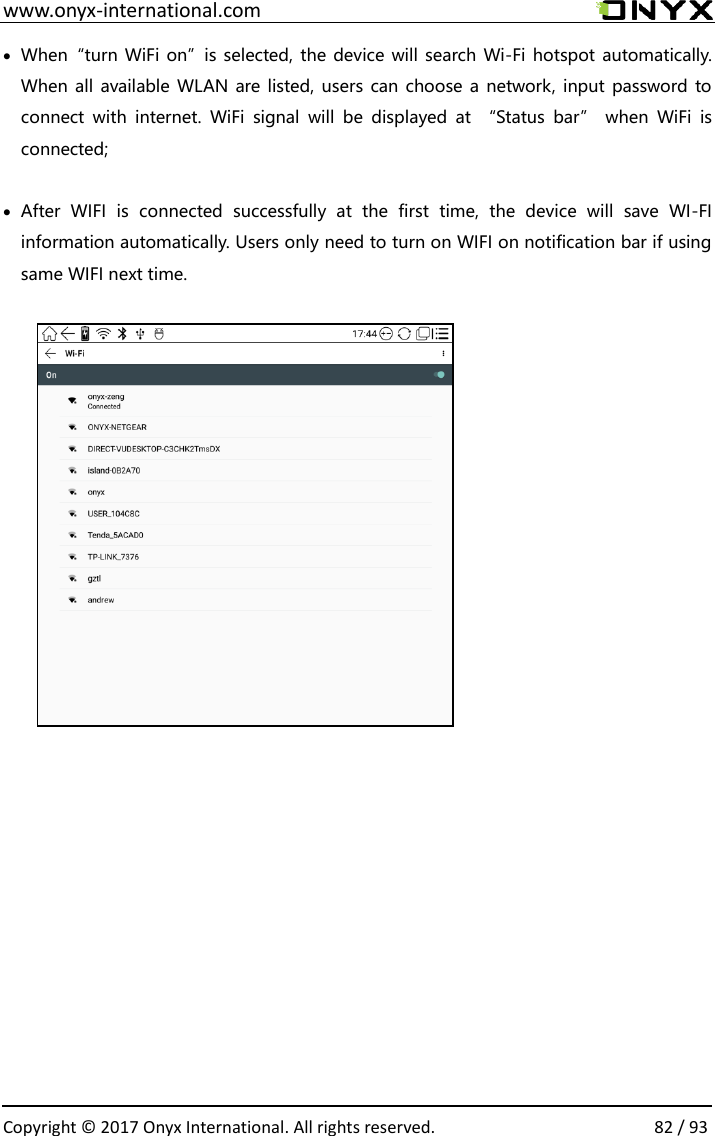
 www.onyx-international.com                                                                                                                                                                                                  Copyright © 2017 Onyx International. All rights reserved.                82 / 93 • When“turn WiFi on”is selected, the device will search Wi-Fi hotspot automatically. When all  available WLAN are listed, users can choose a  network, input password to connect  with  internet.  WiFi  signal  will  be  displayed  at  “Status  bar”  when  WiFi  is connected;  • After  WIFI  is  connected  successfully  at  the  first  time,  the  device  will  save  WI-FI information automatically. Users only need to turn on WIFI on notification bar if using same WIFI next time.
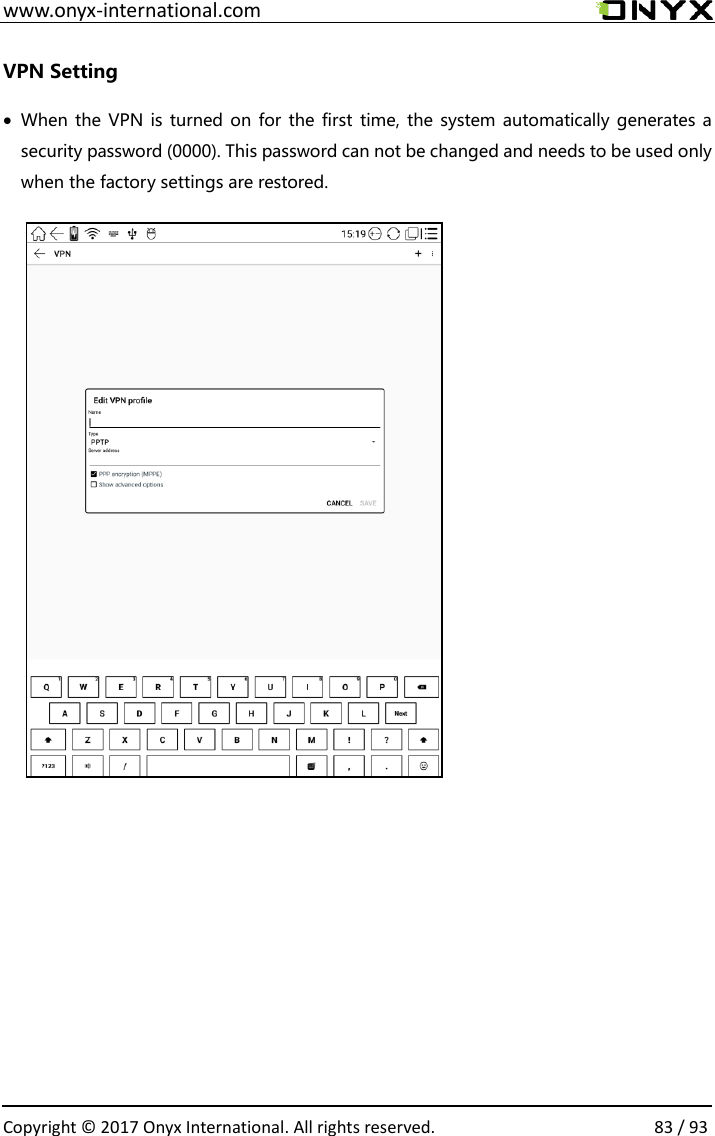
 www.onyx-international.com                                                                                                                                                                                                  Copyright © 2017 Onyx International. All rights reserved.                83 / 93 VPN Setting • When the VPN is turned on for the first  time, the system automatically generates a security password (0000). This password can not be changed and needs to be used only when the factory settings are restored.
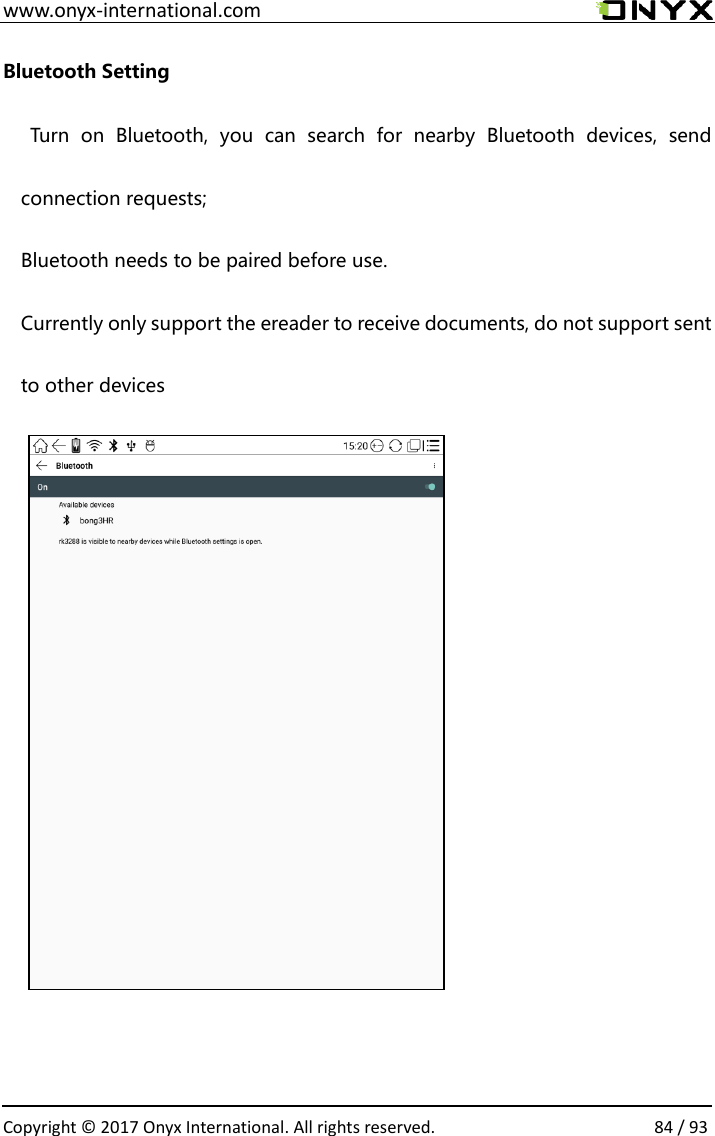
 www.onyx-international.com                                                                                                                                                                                                  Copyright © 2017 Onyx International. All rights reserved.                84 / 93 Bluetooth Setting   Turn  on  Bluetooth,  you  can  search  for  nearby  Bluetooth  devices,  send connection requests; Bluetooth needs to be paired before use. Currently only support the ereader to receive documents, do not support sent to other devices
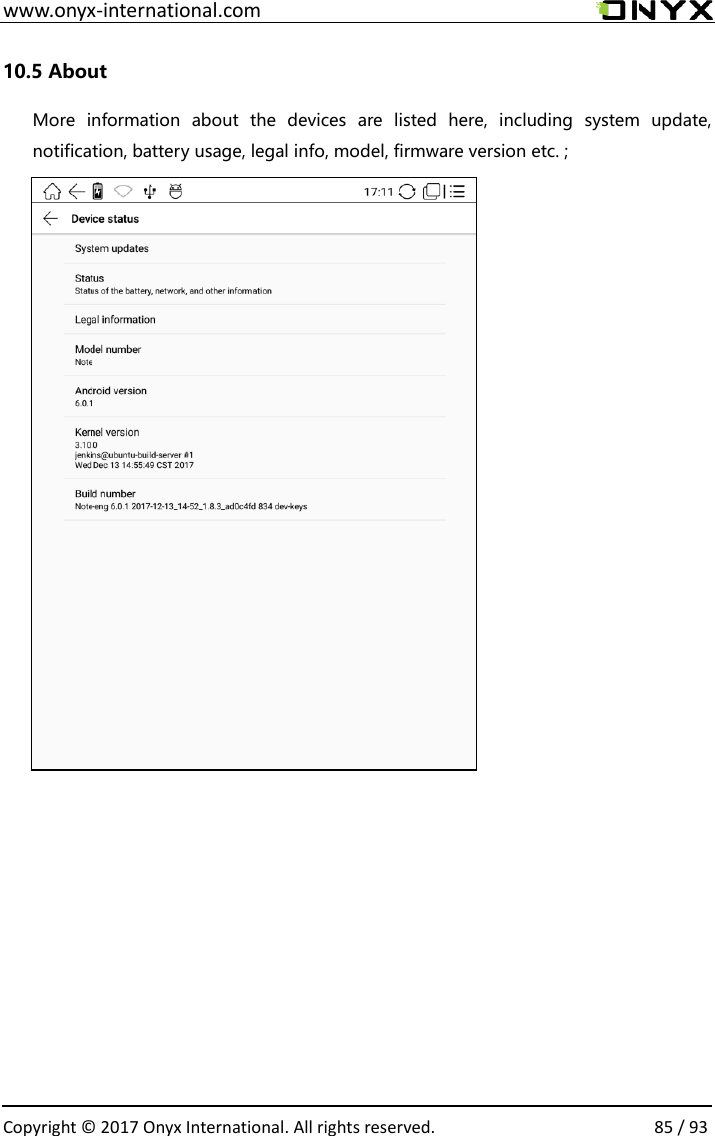
 www.onyx-international.com                                                                                                                                                                                                  Copyright © 2017 Onyx International. All rights reserved.                85 / 93 10.5 About More  information  about  the  devices  are  listed  here,  including  system  update, notification, battery usage, legal info, model, firmware version etc. ;
 www.onyx-international.com                                                                                                                                                                                                  Copyright © 2017 Onyx International. All rights reserved.                86 / 93 11. FAQ 11.1 How to turn the device on/off • When the device is off, press power button for 3-5 seconds to turn the device on; • When the device is on, press power button for 3-5 seconds to turn the device off; • When the device is on, pop up menu, then choose “Shut Off” to turn the device off 11.2   How to charge ✓ Recharge the device by connecting it with PC by USB cable; ✓ Recharge  the  device  by  connecting  with  power  adapter(5V=1A,  optional accessories); ✓ Indicator light is on when the device is charging. The light will be off after battery is fully charged; ✓ It takes around 3 hours to fully charge the device;  11.3 How to transfer data ✓ Transfer data by connecting the device with PC via Type-C cable; ✓ Transfer data by third-party sync apps between PC and the device via WiFi; ✓ Download data or read online by browsing via WiFi; ✓ Download data or read online by log-in of reading apps from third party via WiFi;  11.4 How to install dictionary The device  supports  dictionary formats of stardict\bgl\mdict. Users  can download the dictionary  packages  online,  copy  to  folder  “Root  Directory\dicts\  ”.  Dictionary  is available to use after that when users are reading;
 www.onyx-international.com                                                                                                                                                                                                  Copyright © 2017 Onyx International. All rights reserved.                87 / 93 11.5 How to add fonts Users can download fonts online, then copy the fonts to the folder /fonts; Users can select the installed fonts when reading.    11.6   How to update locally a. Download firmware update.upx from our official web b. Copy the firmware to root directory of local storage.   c. Go to settings –about – system update , click the button check update from local storage , follow the instruction to update the device; d. When update is successful, the device will restart automatically  Note: Please connect the device with power source or PC to make sure of enough power for update ;  11.7   *Update by OTA Users  can  update  the  firmware  online  via  OTA  (Setting\About\System  update).  Please connect WiFi when updating the device by OTA;  Tips:OTA  update  only  supports  some  countries  or  areas.  Please  consult  the  local distributor.  11.8    How to change screen saver/power off   Press PNG format images to pop up    menu, select "Set as screen saver", choose to replace the original standby or shutdown ; Currently 3 standby images and 1 shutdown image are supported.
 www.onyx-international.com                                                                                                                                                                                                  Copyright © 2017 Onyx International. All rights reserved.                88 / 93 12. Warranty 12.1    Scope of Warranty 12.1.1 The device:One-year warranty; 12.1.2  If  within  15  days  from the  date of  purchase,  any  faults  caused  by  quality problem of  the  product  itself  under  normal  operation and  without  overhaul,  you can replace the same type of product or enjoy maintenance services for free; 12.1.3 If  within one year from the date of purchase, any faults caused by quality problem of  the  product  itself  under  normal  operation and  without  overhaul,  you can enjoy    maintenance services for free; 12.1.4 If within three-years from the date of purchase, the product has any faults, you can get maintenance services with a fee; 12.1.5  Above  warranty  or  maintenance  are  limited  to  the  fault  of  electrical components,  including  the  hardware  mainboard  and  display,  not  including  housing, brochures, package, headphones and other consumables and accessories. 12.2 Beyond the scope of warranty The following conditions are not covered by the warranty, even if in the applicable time period, the warranty will no longer works for it, but still can enjoy the fee-based services. 12.2.1 Faulted device without ONYX BOOX brand;           12.2.2 Faulted device caused by dismantling and repairing without permission. 12.2.3 The serial number of the faulted device has been changed or lost.; 12.2.4  The  device  is  damaged due  to  personal  factors  or  not  being  used  under specific environment. For example, use the device in the environment where too wet or too dry, in high temperature or with instable voltage or current, etc.; 12.2.5 The device is damaged by accident or improper use, including devices filled with warter,    rupture,  collision, unnormal pluging,    pests, ect. 12.2.6 Due to natural consumption, including natural consumption, wear and aging of housing and accessories. 12.2.7 Damage caused by force majeure, such as fires ,  floods , earthquakes and other natural disasters 12.2.8 The device is faulted by operating the software beyond the range that SDK permitted. 12.2.9 The device has been identified that it is not produced by ONYX.
 www.onyx-international.com                                                                                                                                                                                                  Copyright © 2017 Onyx International. All rights reserved.                89 / 93 12.3 Precautions for repair 12.3.1 Users need to contact our after-sales department to confirm whether it is in the scope of warranty, whether it is fault and the fault cause. 12.3.2 Users need to provide proof of purchase (invoice or receipt) , warranty card consistent with  the original  barcode. Fill  out the  repair request  form  (download  from official website) and then send to our maintaining department together with the device. 12.3.3    Due  to  the  special  properties  of  the  product  screen,  for  non-  screen maintenance  equipments,  please  ensure  that  the  screen  is  intact  and  reinforce  the packing before send    it to us. Please avoid damage in transportation. We do not receive a damaged screen products for free maintenance. 12.3.4 Please only send the device and the materials required above to us. Do not send the headphones, adapters and other accessories. If lost, our company is not liable for damages; 12.3.5 Please backup data before send it to repair. We are not liable for the data loss due to maintenance.  This  provision  only  applies  to  mainland  China.  It  is  protected  by  the  Chinese consumer protection law; If the same model is purchased in other regions, it cannot enjoy the  above  terms.  Please  consult  related  consumer  protection  law  and  dealers  of  the country where you purchase the device.  ONYX  International  Inc.  reserves  the  right  of  final  interpretation  of  this warranty.
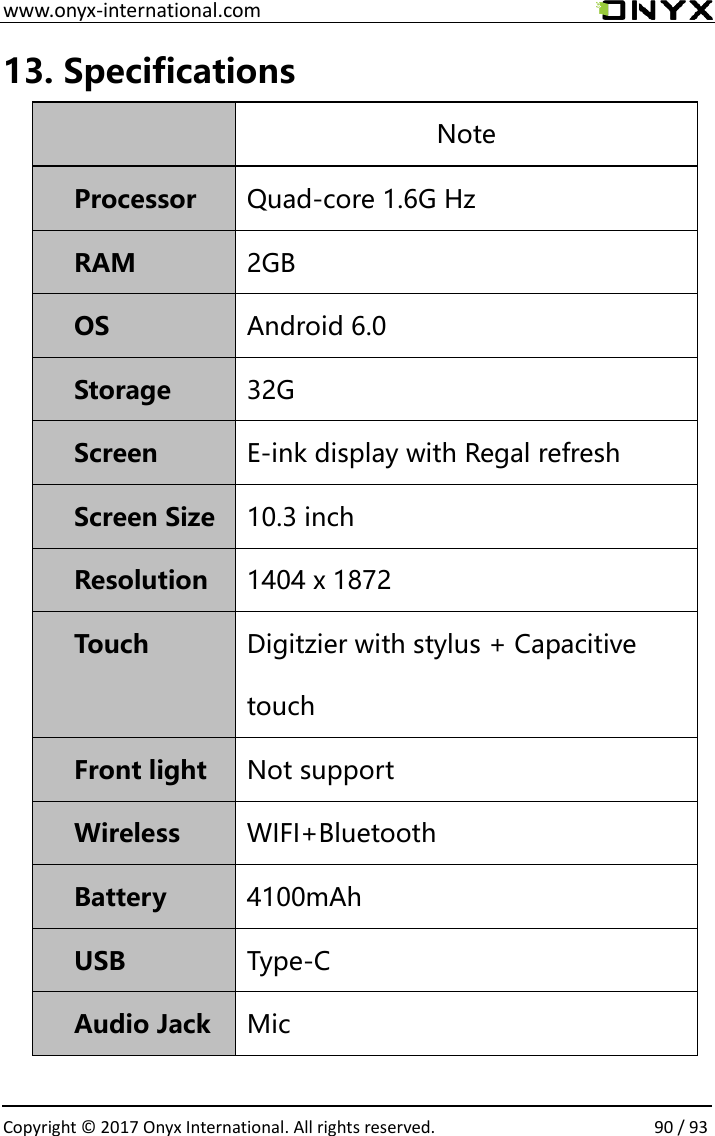
 www.onyx-international.com                                                                                                                                                                                                  Copyright © 2017 Onyx International. All rights reserved.                90 / 93 13. Specifications  Note Processor  Quad-core 1.6G Hz RAM  2GB OS Android 6.0 Storage  32G Screen  E-ink display with Regal refresh Screen Size  10.3 inch Resolution  1404 x 1872 Touch  Digitzier with stylus + Capacitive touch Front light  Not support Wireless  WIFI+Bluetooth Battery  4100mAh USB  Type-C Audio Jack  Mic
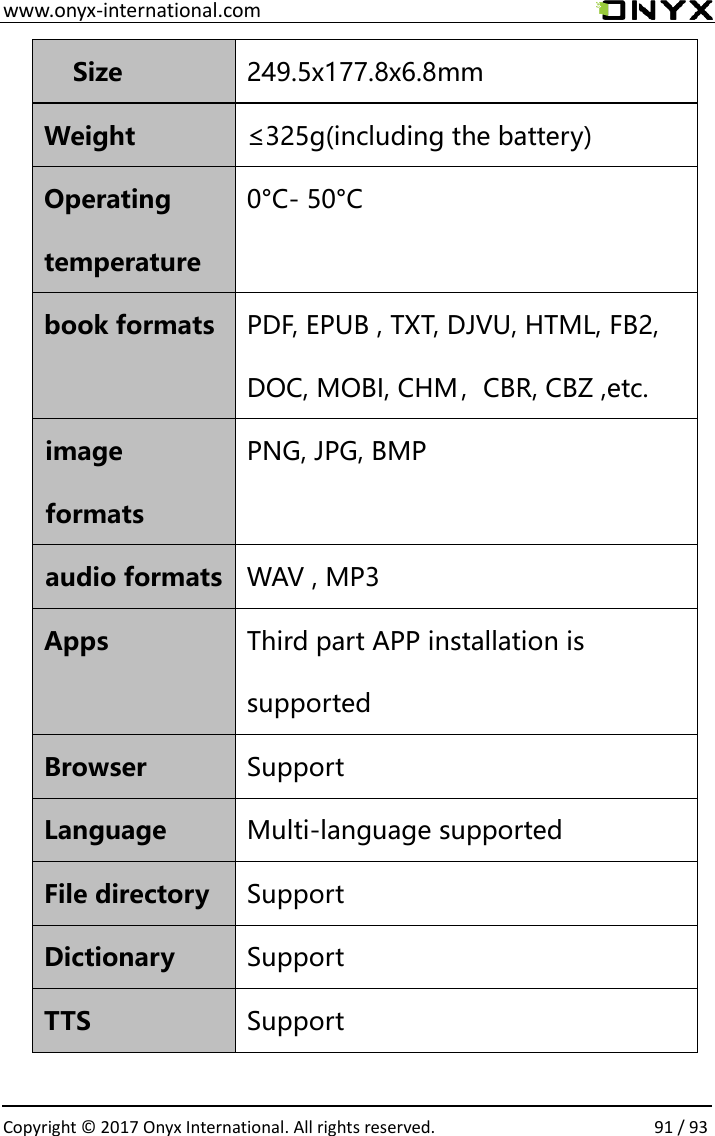
 www.onyx-international.com                                                                                                                                                                                                  Copyright © 2017 Onyx International. All rights reserved.                91 / 93 Size  249.5x177.8x6.8mm Weight  ≤325g(including the battery) Operating temperature 0°C- 50°C book formats  PDF, EPUB , TXT, DJVU, HTML, FB2, DOC, MOBI, CHM,CBR, CBZ ,etc. image formats PNG, JPG, BMP audio formats  WAV , MP3 Apps  Third part APP installation is supported Browser  Support Language  Multi-language supported File directory  Support Dictionary  Support TTS  Support
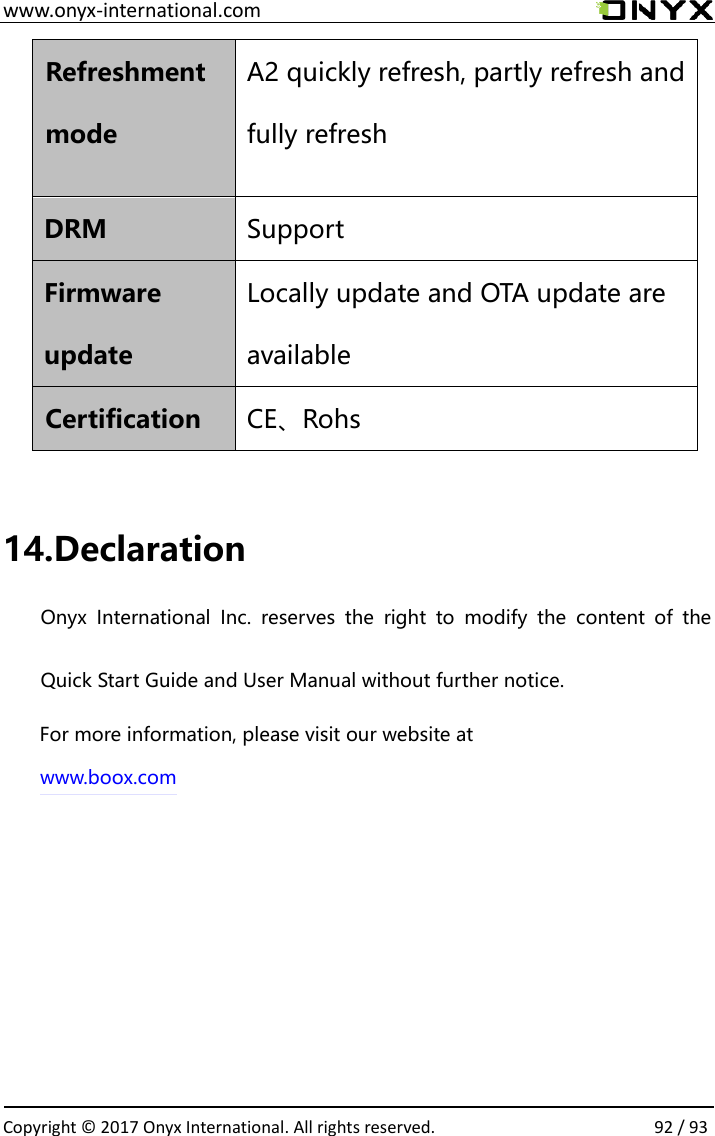
 www.onyx-international.com                                                                                                                                                                                                  Copyright © 2017 Onyx International. All rights reserved.                92 / 93 Refreshment mode A2 quickly refresh, partly refresh and fully refresh  DRM  Support Firmware update Locally update and OTA update are available   Certification  CE、Rohs   14.Declaration Onyx  International  Inc.  reserves  the  right  to  modify  the  content  of  the Quick Start Guide and User Manual without further notice.  For more information, please visit our website at www.boox.com
                                                                                                                                                                                                                                                                  FCC Statement This equipment has been tested and found to comply with the limits for a Class B digital device, pursuant to  part 15 of the FCC Rules. These limits are designed to provide reasonable protection against harmful  interference in a residential installation. This equipment generates, uses and can radiate radio frequency  energy and, if not installed and used in accordance with the instructions, may cause harmful interference to  radio communications. However, there is no guarantee that interference will not occur  in a particular  installation. If this equipment does cause harmful interference to radio or television reception, which can be  determined by turning the equipment off and on, the user is encouraged to try to correct the interference  by one or more of the following measures: • Reorient or relocate the receiving antenna. • Increase the separation between the equipment and receiver. • Connect the equipment into an outlet on a circuit different from that to which the receiver is connected. • Consult the dealer or an experienced radio/ TV technician for help. This device complies with part 15 of the FCC Rules. Operation is subject to the following two conditions: 1. This device may not cause harmful interference. 2. This device must accept any interference received, including interference that may cause undesired  operation. Any changes or modifications not expressly approved by the party responsible for compliance could void  the user’s authority to operate the equipment. This equipment complies with FCC RF radiation exposure limits set forth for an uncontrolled environment.  This device and its antenna must not be co-located or operating in conjunction with any other antenna or  transmitter. international.com-www.onyx93/ 93.. All rights reservedOnyx International7 1Copyright © 20

Navigation menu