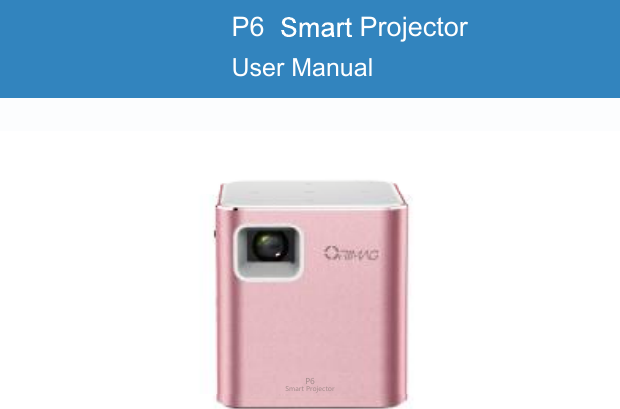
ORIMAG TECHNOLOGY P6 Smart projector User Manual

SHENZHEN ORIMAG TECHNOLOGY CO., LTD. Smart projector

Users manual

Smart ProjectorP6Operation guidanceP6  ProjectorUser Manual
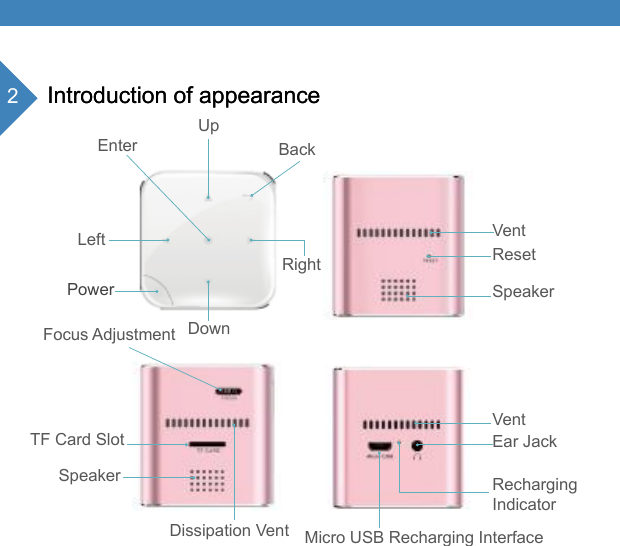
2Introduction of appearanceIntroduction of appearanceUpEnter BackDown Right Left Power  Vent ResetSpeakerSpeakerTF Card SlotFocus AdjustmentDissipation Vent Micro USB Recharging InterfaceVentEar JackRecharging Indicator
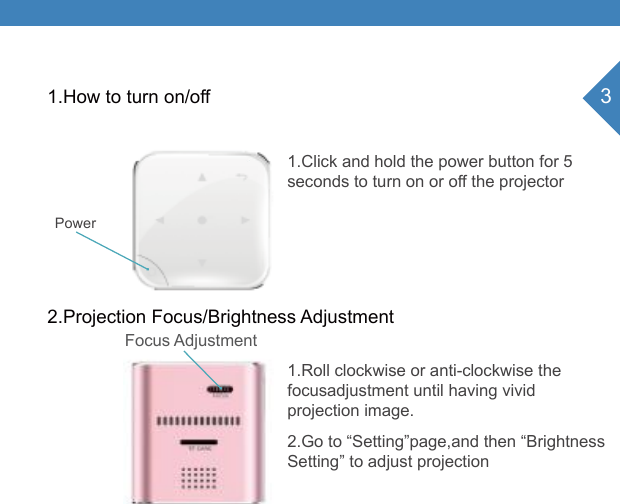
31.How to turn on/offPower 2.Projection Focus/Brightness Adjustment1.Click and hold the power button for 5seconds to turn on or off the projector1.Roll clockwise or anti-clockwise the focusadjustment until having vivid projection image.2.Go to “Setting”page,and then “Brightness Setting” to adjust projectionFocus Adjustment
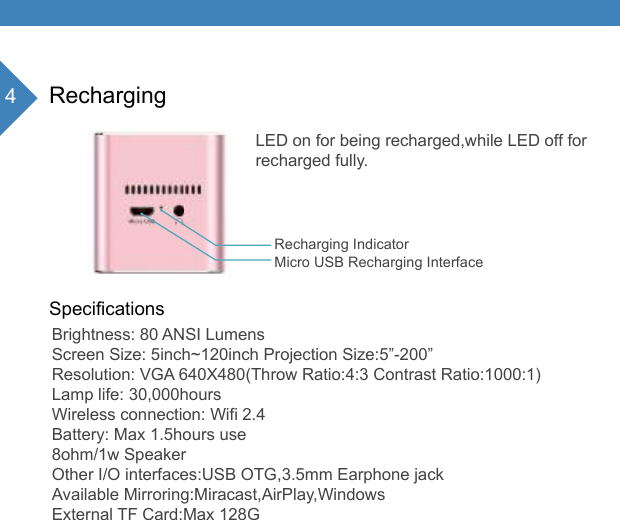
4RechargingSpecificationsRecharging IndicatorMicro USB Recharging InterfaceLED on for being recharged,while LED off forrecharged fully.Brightness: 80 ANSI LumensScreen Size: 5inch~120inch Projection Size:5”-200”Resolution: VGA 640X480(Throw Ratio:4:3 Contrast Ratio:1000:1)Lamp life: 30,000hoursWireless connection: Wifi 2.4Battery: Max 1.5hours use8ohm/1w SpeakerOther I/O interfaces:USB OTG,3.5mm Earphone jackAvailable Mirroring:Miracast,AirPlay,WindowsExternal TF Card:Max 128G
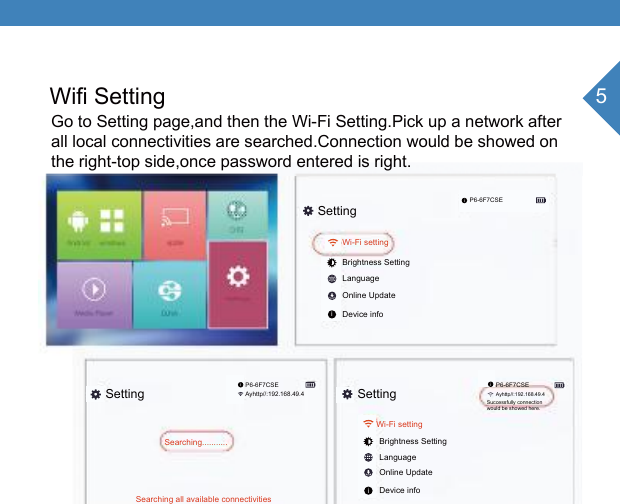
5Wifi SettingGo to Setting page,and then the Wi-Fi Setting.Pick up a network after all local connectivities are searched.Connection would be showed onthe right-top side,once password entered is right.SettingSetting SettingP6-6F7CSEP6-6F7CSE P6-6F7CSEAyhttp//:192.168.49.4Ayhttp//:192.168.49.4Wi-Fi setting Wi-Fi setting Brightness SettingLanguageOnline UpdateDevice infoBrightness SettingLanguageOnline UpdateDevice infoSearching...........Searching all available connectivitiesSuccessfully connectionwould be showed here.iiiii
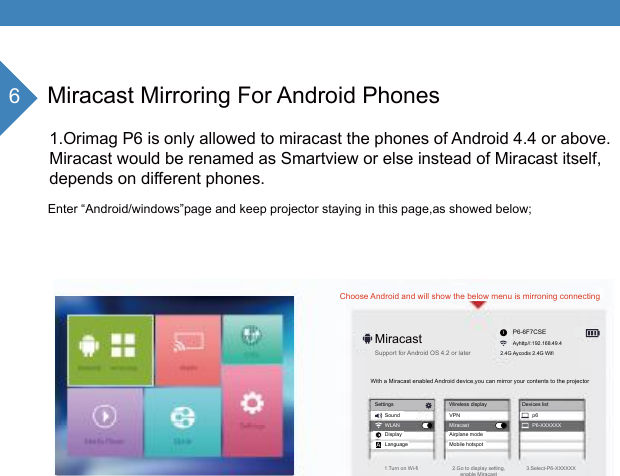
6Miracast Mirroring For Android Phones1.Orimag P6 is only allowed to miracast the phones of Android 4.4 or above.Miracast would be renamed as Smartview or else instead of Miracast itself,depends on different phones.MiracastChoose Android and will show the below menu is mirroning connectingP6-6F7CSEAyhttp//:192.168.49.4Enter “Android/windows”page and keep projector staying in this page,as showed below;2.4G Aycodis 2.4G WifiSupport for Android OS 4.2 or later1.Turn on Wi-fi 2.Go to display setting,enable Miracast3.Select-P6-XXXXXXWith a Miracast enabled Android device,you can mirror your contents to the projectorSettings Wireless display Devices listSound VPN p6Airplane modeMobile hotspotDisplayLanguageWLAN Miracast P6-XXXXXXAi
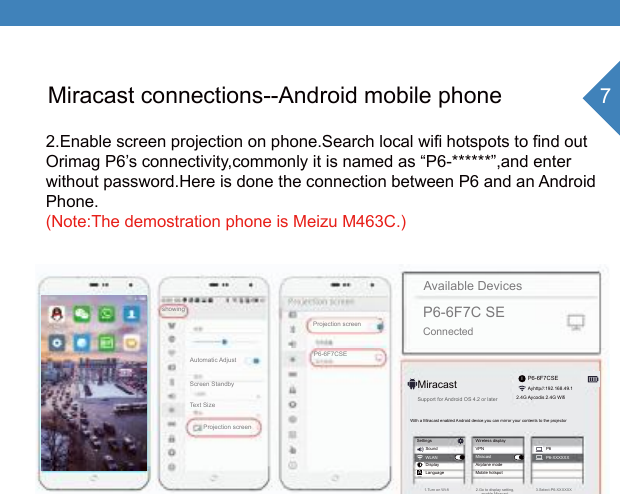
7iAMiracast connections--Android mobile phone2.Enable screen projection on phone.Search local wifi hotspots to find outOrimag P6’s connectivity,commonly it is named as “P6-******”,and enterwithout password.Here is done the connection between P6 and an AndroidPhone.(Note:The demostration phone is Meizu M463C.)P6-6F7CSEP6-6F7C SEConnectedAvailable DevicesP6-6F7CSEAyhttp//:192.168.49.1MiracastSupport for Android OS 4.2 or later1.Turn on Wi-fi 2.Go to display setting,enable Miracast3.Select-P6-XXXXXXWith a Miracast enabled Android device,you can mirror your contents to the projectorSettingsSoundDisplayLanguageWLANWireless displayVPNAirplane modeMobile hotspotMiracastP6P6-XXXXXXshowingAutomatic AdjustScreen StandbyText SizeProjection screenProjection screen2.4G Aycodis 2.4G Wifi
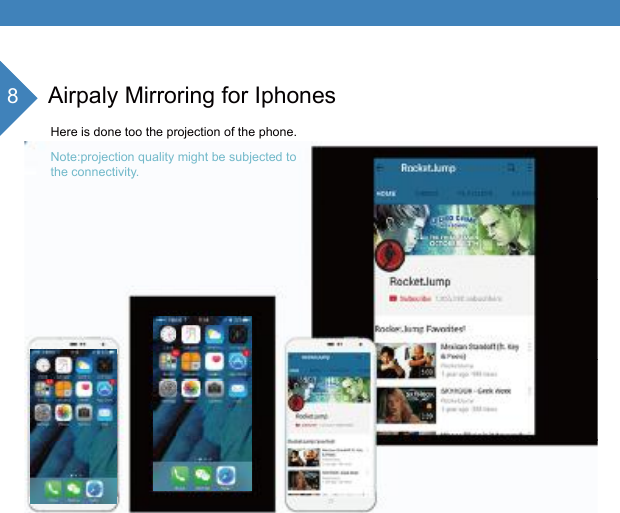
8Airpaly Mirroring for IphonesHere is done too the projection of the phone.Note:projection quality might be subjected tothe connectivity.
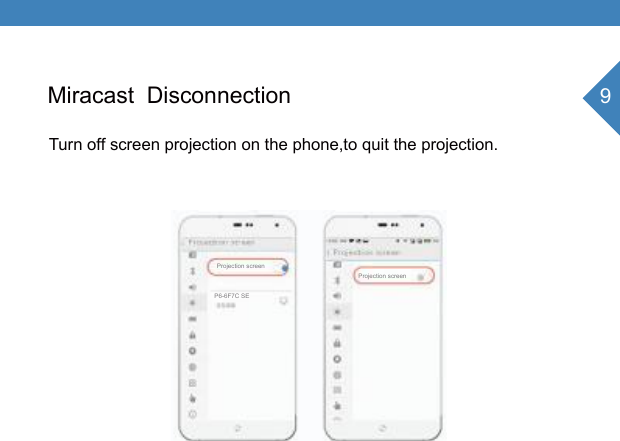
9Miracast  Disconnection Turn off screen projection on the phone,to quit the projection.P6-6F7C SEProjection screenProjection screen
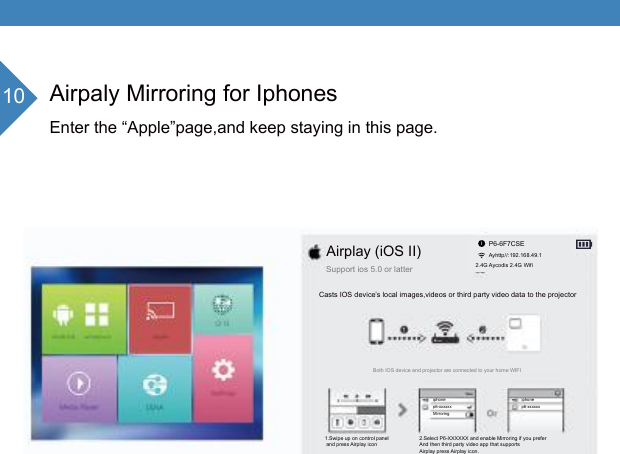
10 Airpaly Mirroring for IphonesEnter the “Apple”page,and keep staying in this page.iphonep6-xxxxxxiphonep6-xxxxxxMirroringAirplay (iOS II)Support ios 5.0 or latter P6-6F7CSEAyhttp//:192.168.49.12.4G Aycodis 2.4G WifiCasts IOS device’s local images,videos or third party video data to the projectorBoth IOS device and projector are connected to your home WIFI1.Swipe up on control panel and press Airplay icon 2.Select P6-XXXXXX and enable Mirroring if you preferAnd then third party video app that supports Airplay press Airplay icon.i
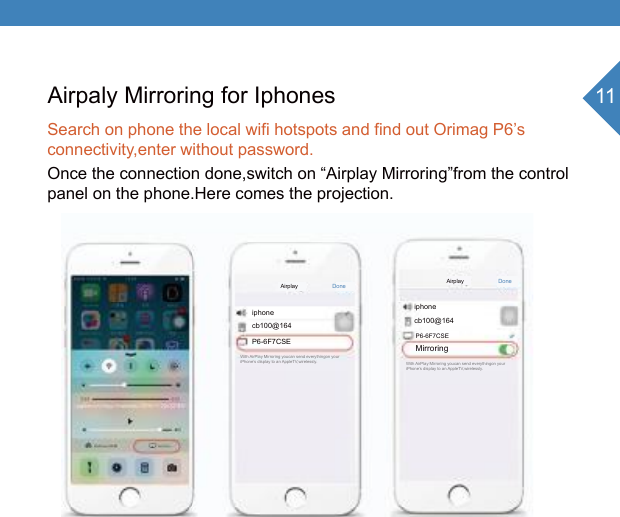
11Airpaly Mirroring for IphonesSearch on phone the local wifi hotspots and find out Orimag P6’s connectivity,enter without password.Once the connection done,switch on “Airplay Mirroring”from the controlpanel on the phone.Here comes the projection. P6-6F7CSE MirroringP6-6F7CSEiphonecb100@164iphonecb100@164With AirPlay Mirroring youcan send everythingon your iPhone’s display to an AppleTV,wirelessly. With AirPlay Mirroring youcan send everythingon your iPhone’s display to an AppleTV,wirelessly. Airplay Done Airplay Done
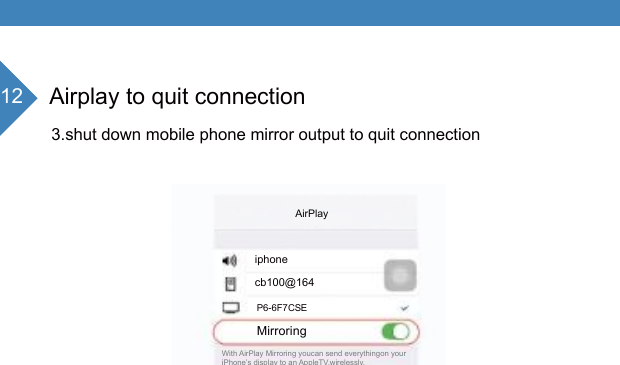
12 Airplay to quit connection3.shut down mobile phone mirror output to quit connectionMirroringP6-6F7CSEiphonecb100@164With AirPlay Mirroring youcan send everythingon your iPhone’s display to an AppleTV,wirelessly.  AirPlay
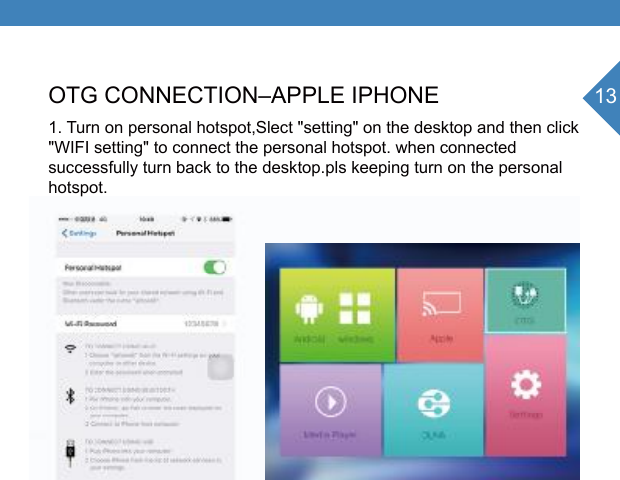
13OTG CONNECTION–APPLE IPHONE1. Turn on personal hotspot,Slect "setting" on the desktop and then click "WIFI setting" to connect the personal hotspot. when connected successfully turn back to the desktop.pls keeping turn on the personalhotspot.SettingP6-6F7CSEAyhttp//:192.168.49.1Wi-fi setting Brightness SettingLanguageOnline UpdateDevice infoClick and connectingWifi successfully connecting stafus2.4giPhone6ii
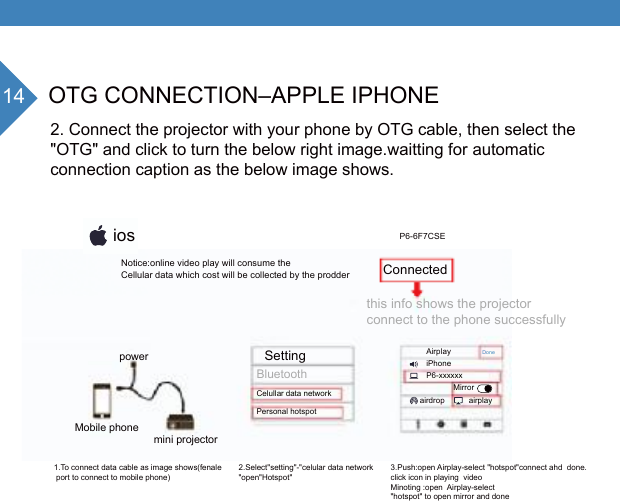
14 OTG CONNECTION–APPLE IPHONE2. Connect the projector with your phone by OTG cable, then select the "OTG" and click to turn the below right image.waitting for automatic connection caption as the below image shows.P6-6F7CSEConnectedthis info shows the projectorconnect to the phone successfullypower SettingBluetoothCelullar data networkPersonal hotspotAirplayiPhoneP6-xxxxxxMirrorairdropairplayDoneMobile phonemini projector1.To connect data cable as image shows(fenale   port to connect to mobile phone)2.Select"setting"-"celular data network"open"Hotspot"3.Push:open Airplay-select "hotspot"connect ahd  done.click icon in playing  video Minoting :open  Airplay-select   "hotspot" to open mirror and done iosNotice:online video play will consume the  Cellular data which cost will be collected by the prodder
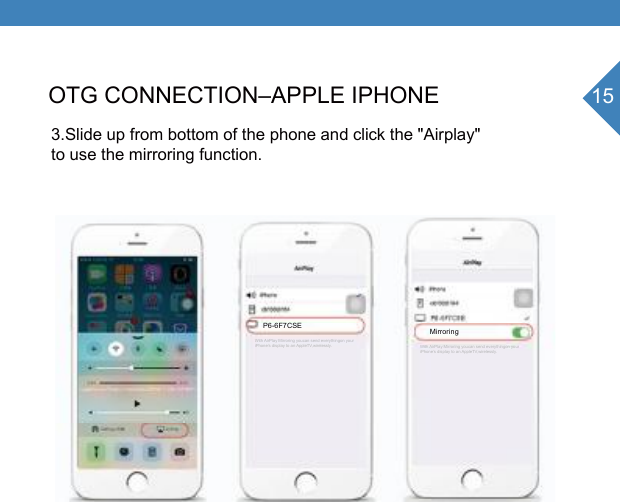
15OTG CONNECTION–APPLE IPHONE3.Slide up from bottom of the phone and click the "Airplay" to use the mirroring function.P6-6F7CSE MirroringWith AirPlay Mirroring youcan send everythingon your iPhone’s display to an AppleTV,wirelessly.  With AirPlay Mirroring youcan send everythingon your iPhone’s display to an AppleTV,wirelessly.
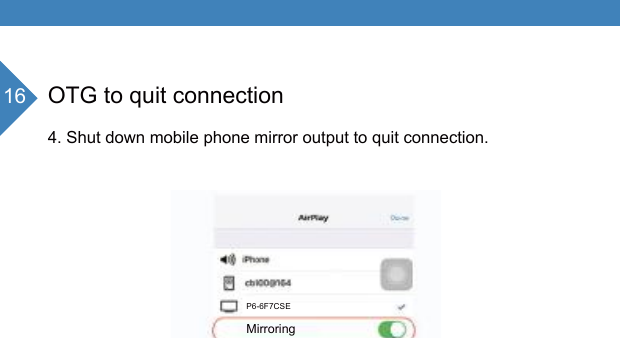
16 OTG to quit connection4. Shut down mobile phone mirror output to quit connection.P6-6F7CSEMirroringWith AirPlay Mirroring youcan send everythingon your iPhone’s display to an AppleTV,wirelessly.
17CONNECT TO WINDOWS SYSTEMSame Wi-Fi “will be shared between the mobile phone and projector. 1.Select  “Windows” from desktop to enter the interface as below right image shows Windows  Miracast P6-6F7CSEAyhttp//:192.168.49.12.4G Aycodis 2.4G WifiWith a Miracast enabled  Windows  device, you can mirror  your contents to the projector ProjectProjectTo Project,connect a diaplay.Add devicesP6-XXXXXXEntertainment deviceConnecting to p6-xxxxxxAdd a devicesSearching devicesSecond screenAdd a wireless displayPC and devlcesLock screenDisplayBluetoothDevicesTypingi
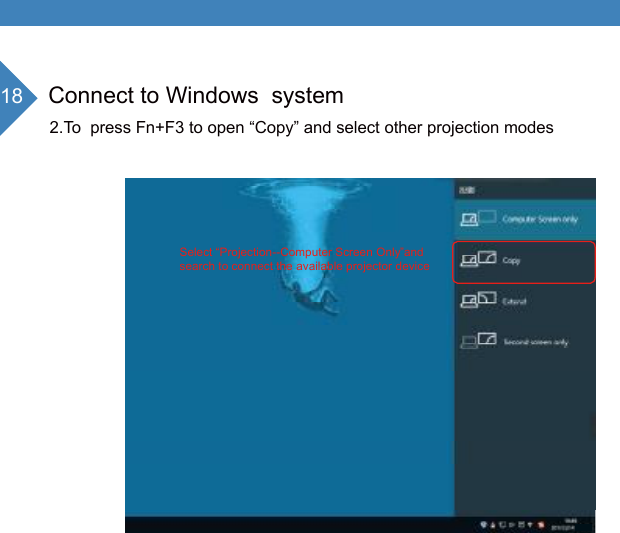
18 Connect to Windows  system 2.To  press Fn+F3 to open “Copy” and select other projection modesSelect “Projection--Computer Screen Only”andsearch to connect the available projector device
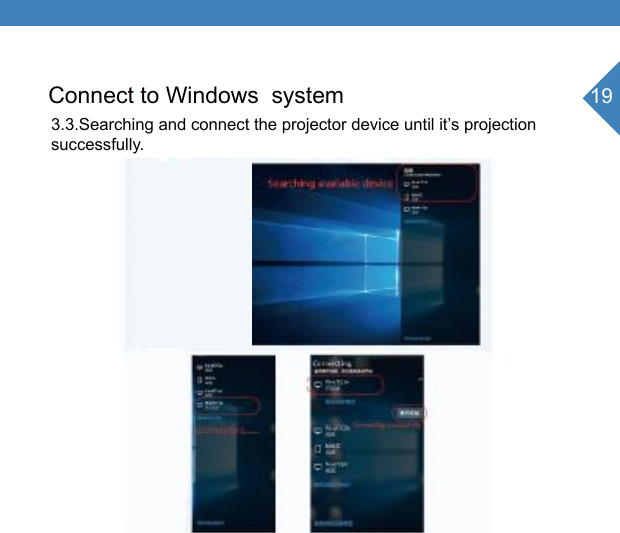
19Connect to Windows  system 3.3.Searching and connect the projector device until it’s projection successfully.
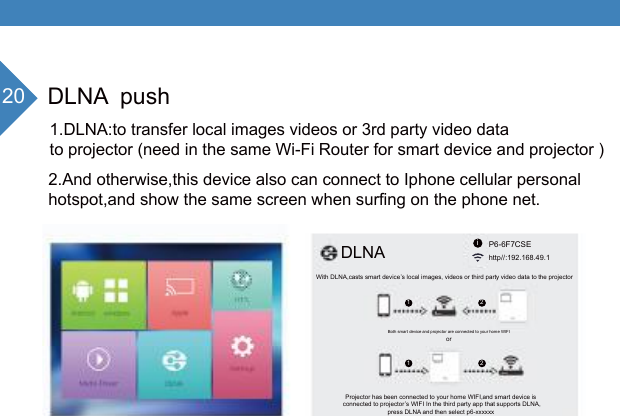
20 DLNA  push1.DLNA:to transfer local images videos or 3rd party video datato projector (need in the same Wi-Fi Router for smart device and projector )2.And otherwise,this device also can connect to Iphone cellular personalhotspot,and show the same screen when surfing on the phone net.P6-6F7CSEhttp//:192.168.49.1With DLNA,casts smart device’s local images, videos or third party video data to the projector 1 21 2Both smart device and projector are connected to your home WIFIorProjector has been connected to your home WIFI,and smart device is connected to projector’s WIFI In the third party app that supports DLNA,press DLNA and then select p6-xxxxxx DLNA i
21DLNA  push3.As the below picture shows.Click the TV Screen Mirroring on the Vedio App.Please Note:Most Vedio App support the DLNA function(such as Tecent video, Thunder KANKAN, PPTV,YOUKU,SOHU video etc.),while still someAPP does not support.
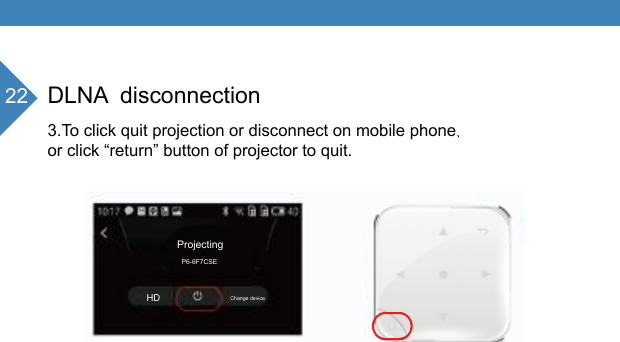
DLNA  disconnection3.To click quit projection or disconnect on mobile phoneor click “return” button of projector to quit.ProjectingP6-6F7CSEHD Change device22
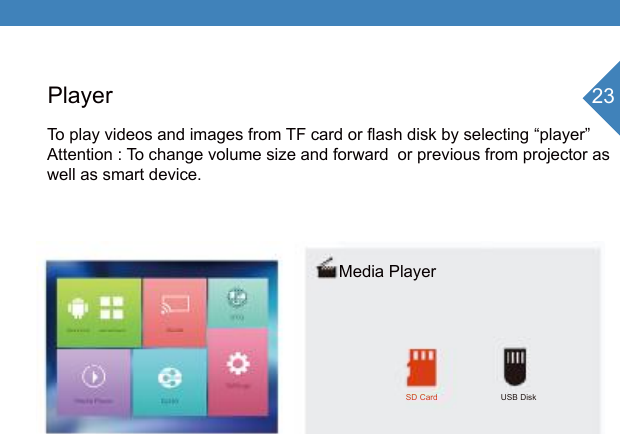
23Player To play videos and images from TF card or flash disk by selecting “player”  Attention : To change volume size and forward  or previous from projector as  well as smart device.Media PlayerSD Card USB Disk
Precautions  To prevent internal overheating,install the projector in a well-ventilated place Do not place anything near the projector that may block its air vents if the air vents  are blocked,the internal temperature  of  the projector will increase.  Be sure to prevent foreign objects such as paper debris from  entering the projector.Do not install the projector in a hot or humid environment.  Never open  any cover on the projector.

Navigation menu