ORing Networking DS-11-WG 1Port Device Server User Manual UM DS 11 W
ORing Industrial Networking Corp. 1Port Device Server UM DS 11 W
User Manual
Industrial Device Server
DS-11-W User’s Manual
Version 1.0
October, 2007.

DS-11-W User’s Manual
1
Table of Content
1 GETTING TO KNOW YOUR DEVICE SERVER ........................................................................... 2
1.1 About the DS-11-W Serial Device Server..........................................................................2
1.2 Software Features.............................................................................................................2
1.3 Hardware Features ...........................................................................................................3
2 HARDWARE INSTALLATION ................................................................................................... 4
2.1 Install DS-11-W on DIN-Rail..............................................................................................4
2.1.1 MOUNT DS-11-W ON DIN-RAIL..................................................................................................4
2.2 Wall Mounting Installation..................................................................................................5
2.2.1 MOUNT DS-11-W ON WALL .........................................................................................................5
3 HARDWARE OVERVIEW ........................................................................................................ 8
3.1 Front Panel........................................................................................................................8
3.2 Front Panel LEDs..............................................................................................................9
3.3 Top Panel ..........................................................................................................................9
3.4 Bottom Panel...................................................................................................................10
3.5 Rear Panel ......................................................................................................................11
4 CABLES ............................................................................................................................ 13
4.1 Ethernet Cables ..............................................................................................................13
5 MANAGEMENT INTERFACE.................................................................................................. 15
5.1 DS-Tool ...........................................................................................................................15
5.1.1 INSTALL DS-TOOL .....................................................................................................................15
5.1.2 USING DS-TOOL........................................................................................................................16
5.1.2.1 Explore DS device servers.............................................................................................16
5.1.2.2 Configure DS device servers..........................................................................................17
5.1.2.3 Configure serial port...................................................................................................... 25
5.2 Configuration by Web Browser........................................................................................32
5.2.1 CONNECT TO THE WEB PAGE ......................................................................................................32
5.2.1.1 System ...........................................................................................................................33
5.2.1.2 Port serial setting ...........................................................................................................36
5.2.1.3 Management ..................................................................................................................41
5.2.1.4 Save/Reboot...................................................................................................................45
5.3 Configuration by SSH Console........................................................................................46
5.3.1 CONNECT TO DS........................................................................................................................46
6 TECHNICAL SPECIFICATIONS .............................................................................................. 47

DS-11-W User’s Manual
2
1
Getting to Know Your Device Server
1.1 About the DS-11-W Serial Device Server
DS-11-W is an innovative 1 port RS232/422/485 to 802.11b/g
WLAN and 1 port LAN device server. Users are able to configure
DS-11-W by DS-Tool via LAN port or WLAN interface, but not
simultaneously. Once LAN port is activated, WLAN interface will enter
standby mode to minimize power consumption. Secondly, DS-11-W
can simultaneously transfer data into 5 host PCs. This feature can
assure all critical data that saved in different host PCs to avoid ethernet
break or host PCs failure. Thirdly, DS-11-W provides dual redundant
power inputs both on DC power jack and terminal block. DS-11-W also provides NAT pass
through function so that users are able to manage DS-11-W inside or outside NAT router. It is
easy for different IP domain users to use the Switch. Therefore, DS-11-W is the best
communication solution for wireless application of serial devices.
1.2 Software Features
High Speed Air Connectivity: WLAN interface support up to 54Mbps link speed
Highly Security Capability: WEP/WPA/WPA2/802.1X/Radius/TKIP supported
NAT-pass through: User can manage DS-11-W through NAT router
Redundant Power Inputs: 12~48VDC on power jack and terminal block
Redundant multiple host devices: 5 simultaneous in Virtual COM, TCP Server, TCP
Client mode, UDP
Secured Management by HTTPS and SSH
Versatile Modes: Virtual Com, Serial Tunnel, TCP Server, TCP Client, UDP
Event Warning by Syslog, Email, SNMP trap, and Beeper

DS-11-W User’s Manual
3
Various Windows O.S. supported: Windows NT/2000/ XP/ 2003/VISTA
1.3 Hardware Features
Redundant Power Inputs: 12~48 VDC on terminal block and power jack
Operating Temperature: -10 to 55oC
Storage Temperature: -20 to 85 oC
Operating Humidity: 5% to 95%, non-condensing
Casing: IP-30
1 10/100Base-T(X) Ethernet port
Reverse SMA connector for 2.4GHz antenna
Dimensions(W x D x H) : 72mm(W)x125 mm(D)x31mm(H)
DS-11-W User’s Manual
4
2
Hardware Installation
2.1 Install DS-11-W on DIN-Rail
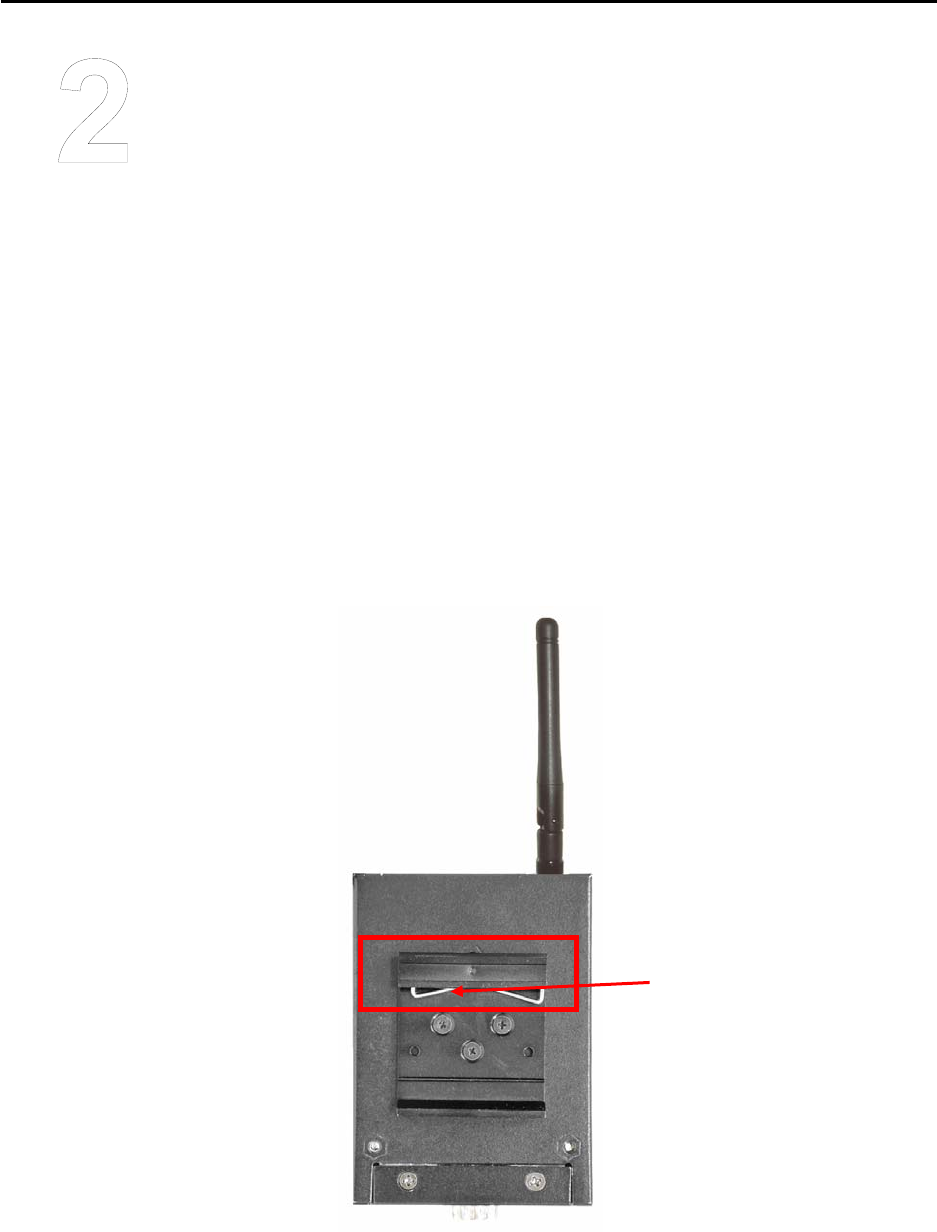
Each DS-11-W has a Din-Rail kit on rear panel. The Din-Rail kit helps DS-11-W to fix on
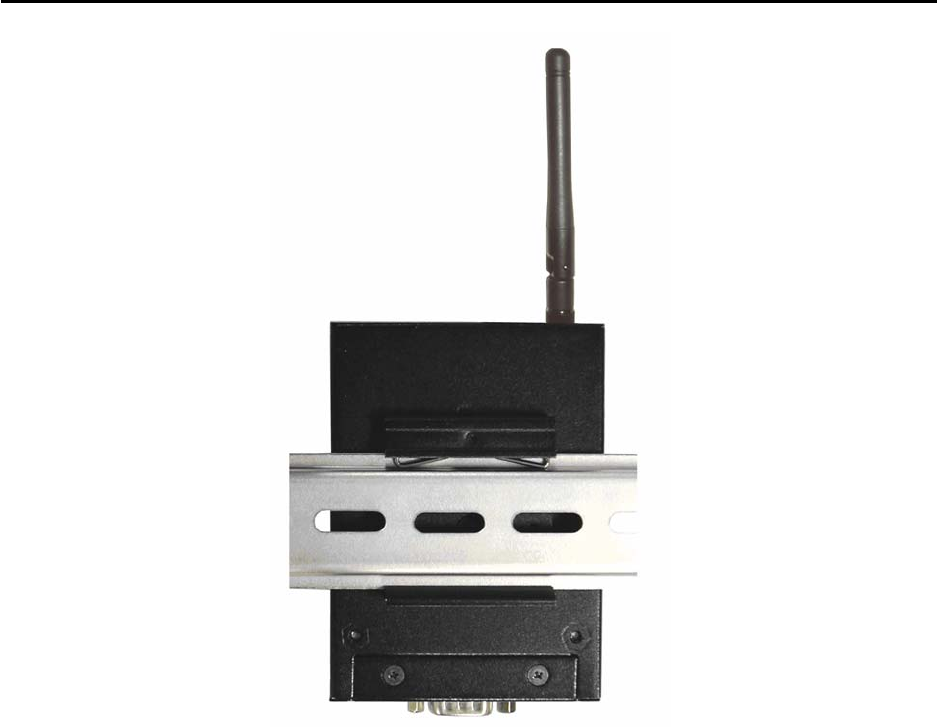
the Din-Rail. It is easy to install the DS-11-W on the Din-Rail:
2.1.1 Mount DS-11-W on DIN-Rail
Step 1: Slant the DS-11-W and mount the metal spring to Din-Rail.
Step 2: Push the DS-11-W toward the Din-Rail until you heard a “click” sound.
Metal
Spring
DS-11-W User’s Manual
5
2.2 Wall Mounting Installation
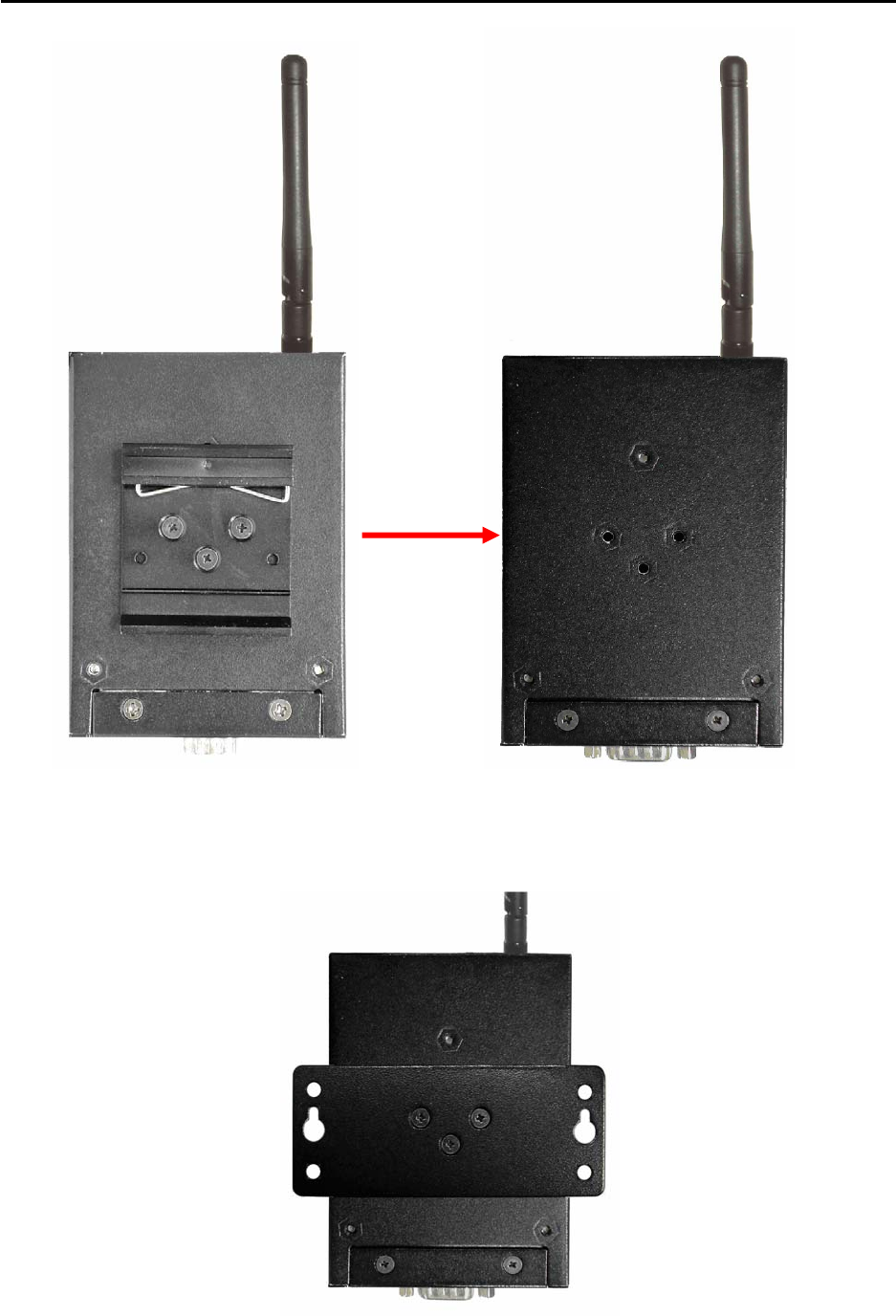
Each DS-11-W has another installation method. A wall mount panel can be found in the
package. The following steps show how to mount the DS-11-W on the wall:
2.2.1 Mount DS-11-W on wall
Step 1: Remove Din-Rail kit.
DS-11-W User’s Manual
6
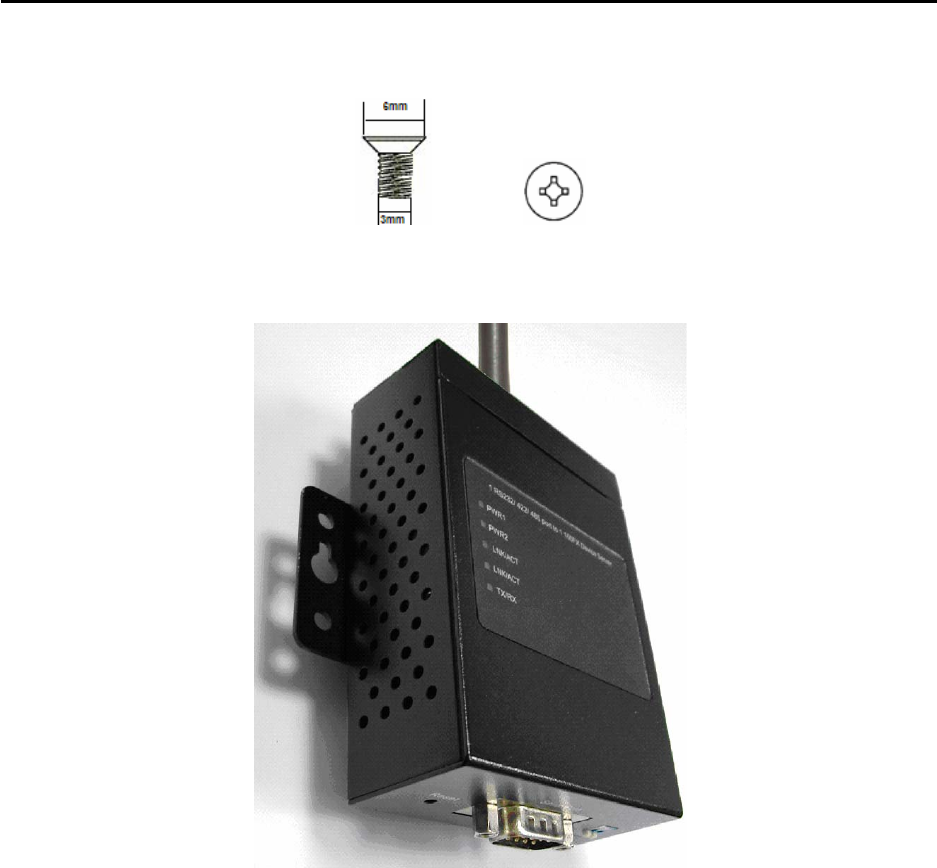
Step 2: Use 3 screws that can be found in the package to combine the wall mount panel. Just
like the picture shows below:
DS-11-W User’s Manual
7
The screws specification shows in the following two pictures. In order to prevent DS-11-W
from any damage, the size of screws should not be larger than the size that used in DS-11-W.
Pozidrive
Step 3: Mount the combined DS-11-W on the wall.
DS-11-W User’s Manual
8
3
Hardware Overview
3.1 Front Panel
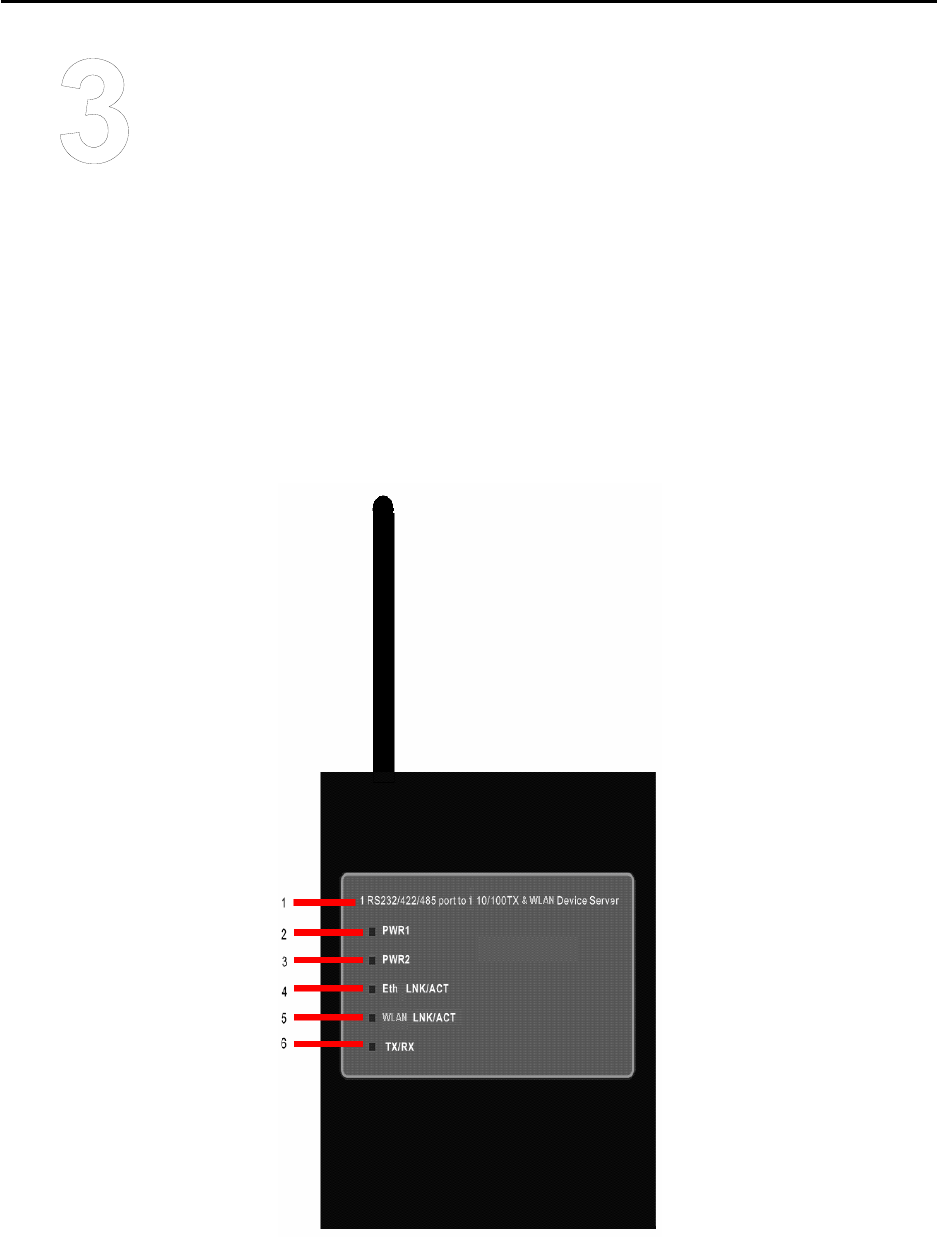
DS-11-W
1. Product description of DS.
2. LED for PWR1 and system status. When the PWR1 links, the green led will be light on.
3. LED for PWR2 and system status. When the PWR2 links, the green led will be light on.
DS-11-W User’s Manual
9
4. LED of 10/100Base-T(X) Ethernet port.
5. LED of 802.11b/g WLAN port.
6. LED of serial port. Green for transmitting, red for receiving
3.2 Front Panel LEDs
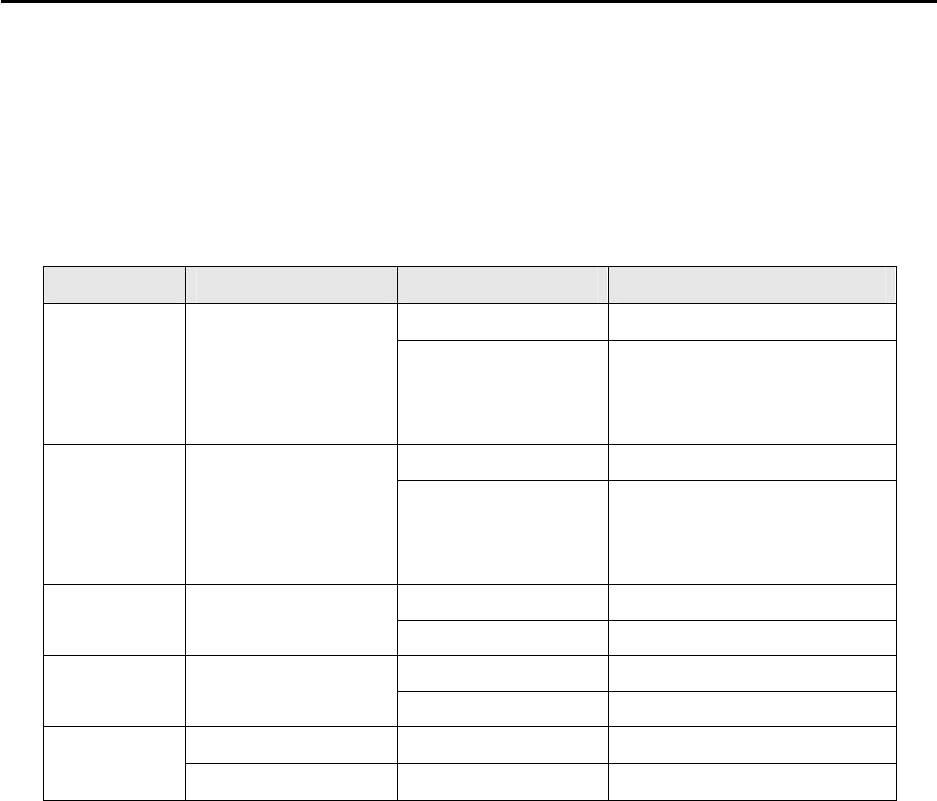
The following table describes the labels that stick on the DS.
LED Color Status Description
On DC power 1 activated.
PWR1 Green/Red Red blinking
Indicates an IP conflict, or
DHCP or BOOTP server did
not respond properly
On DC power 2 activated.
PWR2 Green/Red Red blinking
Indicates an IP conflict, or
DHCP or BOOTP server did
not respond properly
Green On/Blinking 100Mbps LNK/ACT
ETH Green/Amber Amber On/Blinking 10Mbps LNK/ACT
Green On/Blinking WLAN LNK/ACT Signal good
WLAN Green/Amber Amber On/Blinking WLAN LNK/ACT Signal poor
Green Blinking Serial port is transmitting data
Serial Red Blinking Serial port is receiving data
3.3 Top Panel
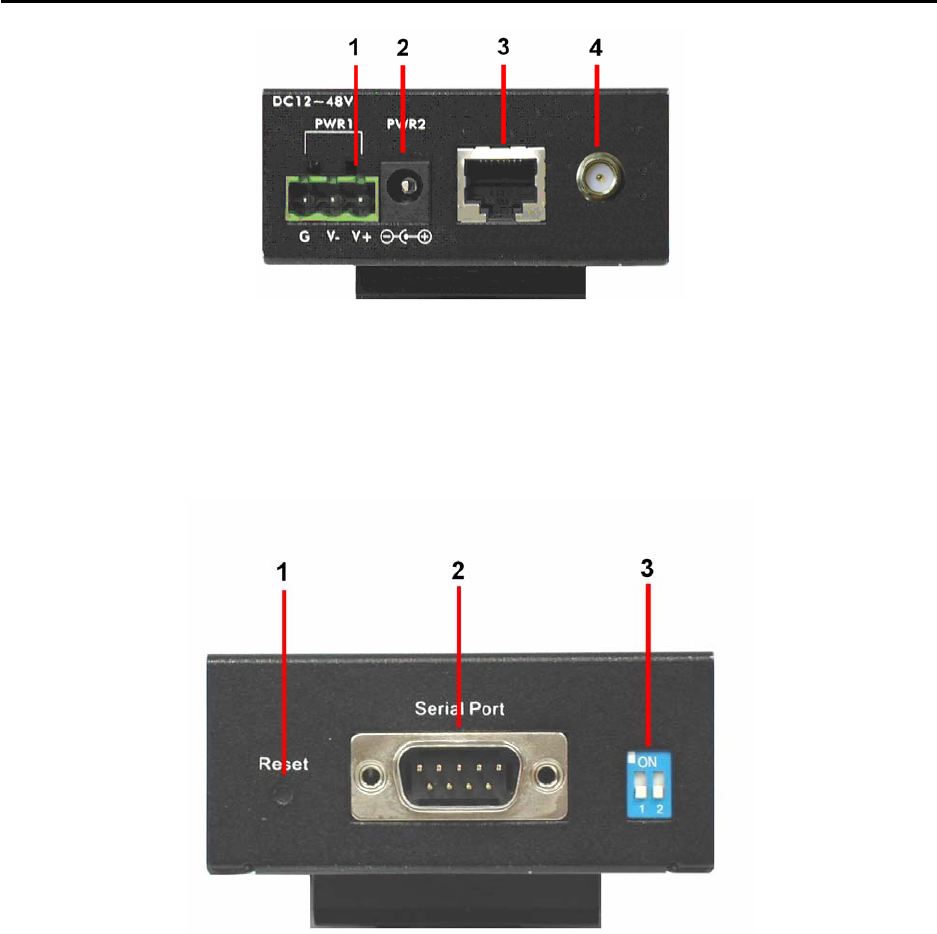
The Top panel components of DS are showed as below:
1. Terminal block include: PWR1 (12 ~ 48V DC)
2. Power Jack include: PWR2 (12 ~ 48V DC)
3. RJ45 Ethernet Connector: 2 10/100Base-T(X) Ethernet interface.
4. Reverse SMA connector for 2.4GHz antenna
DS-11-W User’s Manual
10
3.4 Bottom Panel
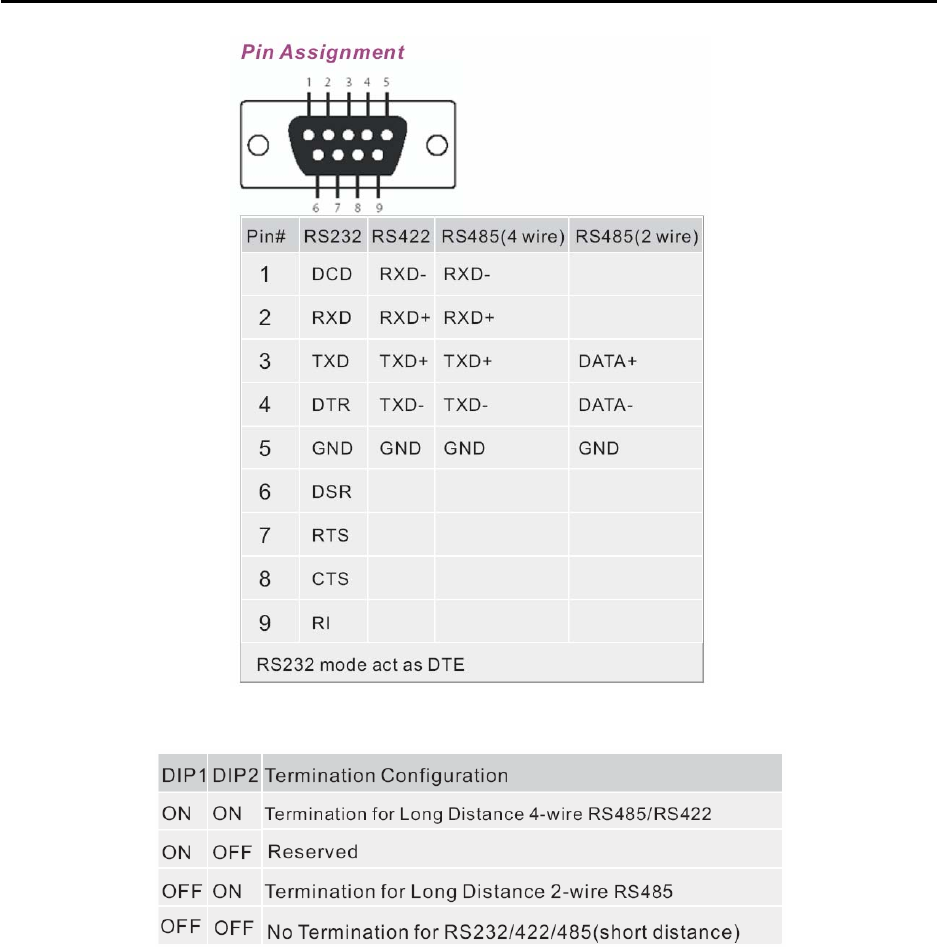
The bottom panel components of DS are showed as below:
1. Reset bottom. 5 seconds for factory default.
2. Male DB9 connector: Serial interface of RS-232/422/485 (2 wire)(4 wire).
DS-11-W User’s Manual
11
3. DIP Switch: Termination for RS-422/485
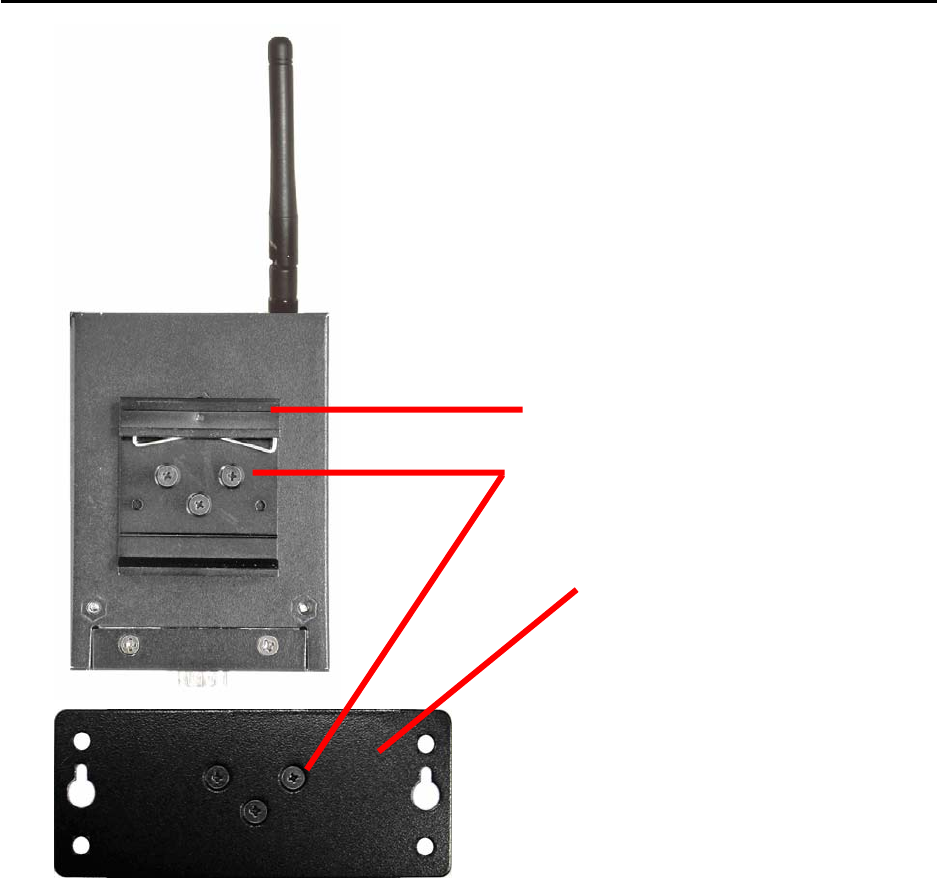
3.5 Rear Panel
The rear panel components of DS are showed as below:
1. Screw holes for wall mount kit and DIN-Rail kit.
2. Din-Rail kit
3. Wall Mount Kit
DS-11-W User’s Manual
12
1
2
3
DS-11-W User’s Manual
13
4
Cables
4.1 Ethernet Cables
The DS-11-W has standard Ethernet ports. According to the link type, the DS-11-W use
CAT 3, 4, 5,5e UTP cables to connect to any other network device (PCs, servers, switches,
routers, or hubs). Please refer to the following table for cable specifications.
Cable Types and Specifications
Cable Type Max. Length Connector
10BASE-T Cat. 3, 4, 5 100-ohm UTP 100 m (328 ft) RJ-45
100BASE-TX Cat. 5 100-ohm UTP UTP 100 m (328 ft) RJ-45
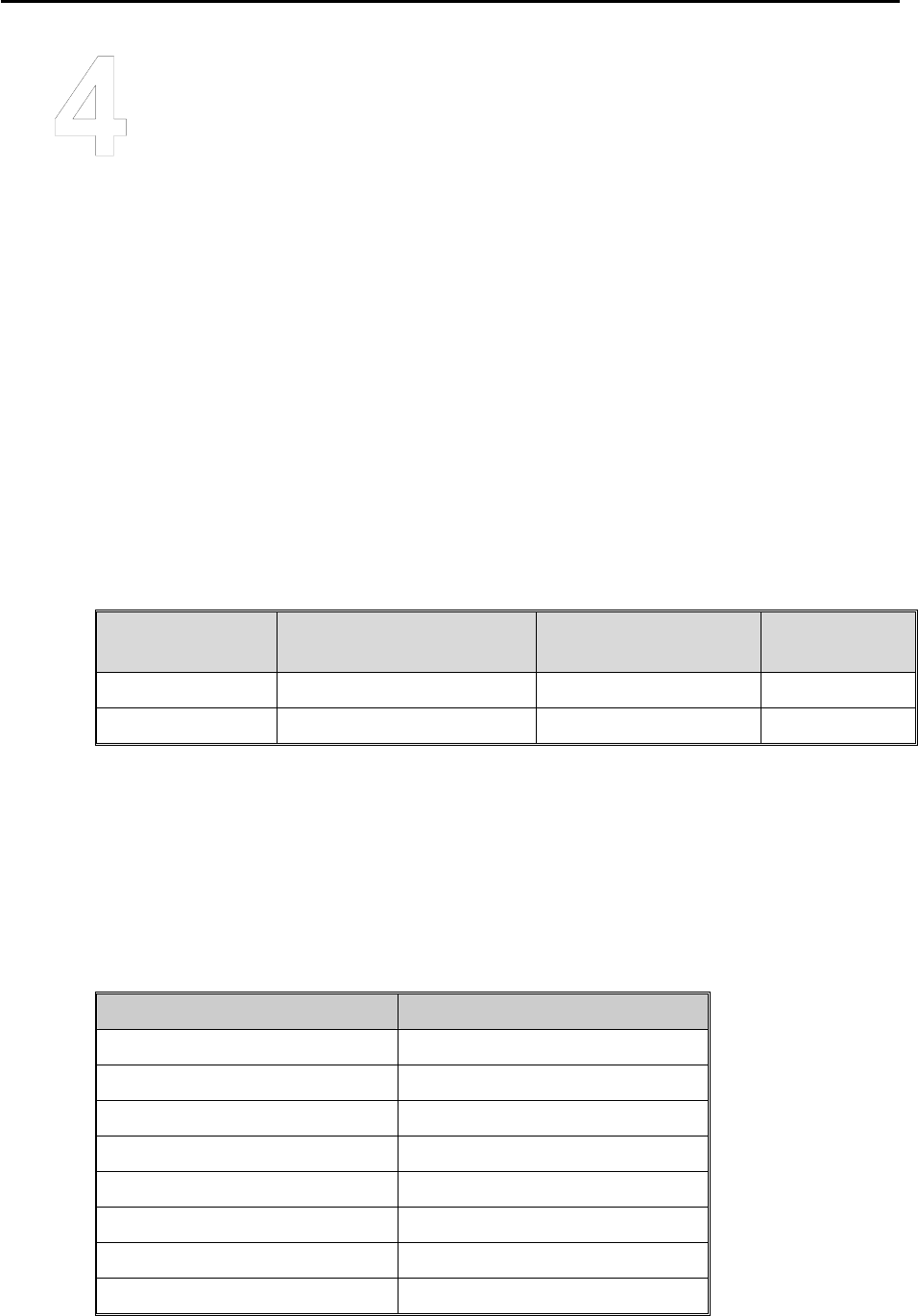
100BASE-TX/10BASE-T Pin Assignments
With 100BASE-TX/10BASE-T cable, pins 1 and 2 are used for transmitting data, and
pins 3 and 6 are used for receiving data.
RJ-45 Pin Assignments
Pin Number Assignment
1 TD+
2 TD-
3 RD+
4 Not used
5 Not used
6 RD-
7 Not used
8 Not used
DS-11-W User’s Manual
14
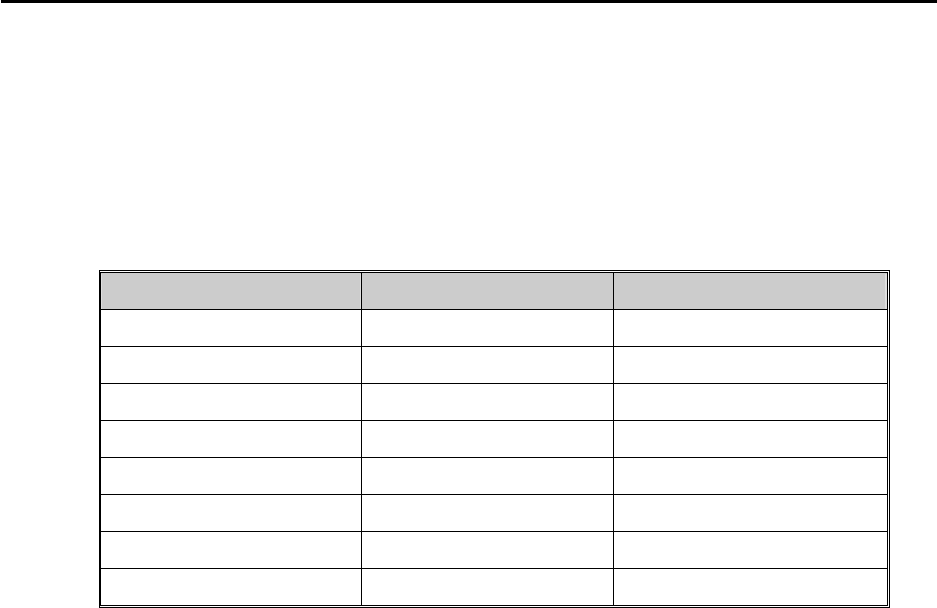
The DS supports auto MDI/MDI-X operation. You can use a straight-through cable to
connect PC to DS-11-W. The following table below shows the 10BASE-T/ 100BASE-TX
MDI and MDI-X port pin outs.
MDI/MDI-X pins assignment
Pin Number MDI port MDI-X port
1 TD+(transmit) RD+(receive)
2 TD-(transmit) RD-(receive)
3 RD+(receive) TD+(transmit)
4 Not used Not used
5 Not used Not used
6 RD-(receive) TD-(transmit)
7 Not used Not used
8 Not used Not used
Note: “+” and “-” signs represent the polarity of the wires that make up each wire pair.
DS-11-W User’s Manual
15
5
Management Interface
5.1 DS-Tool
DS-Tool is a powerful Windows utility for DS series. It supports device discovery, device
configuration, group setup, group firmware update, monitoring functions...etc. It is easy for
you to install and configure devices over the network.
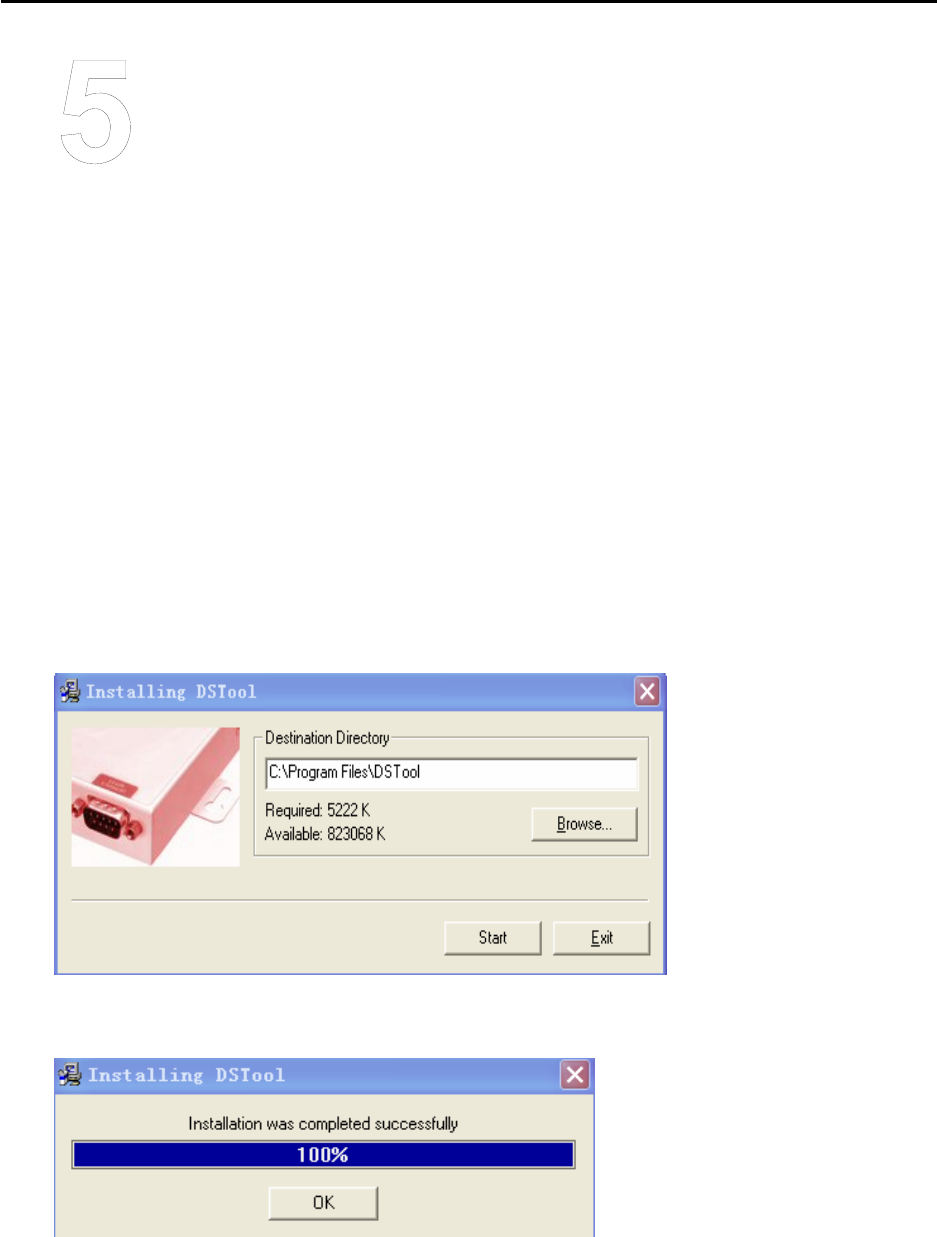
5.1.1 Install DS-Tool
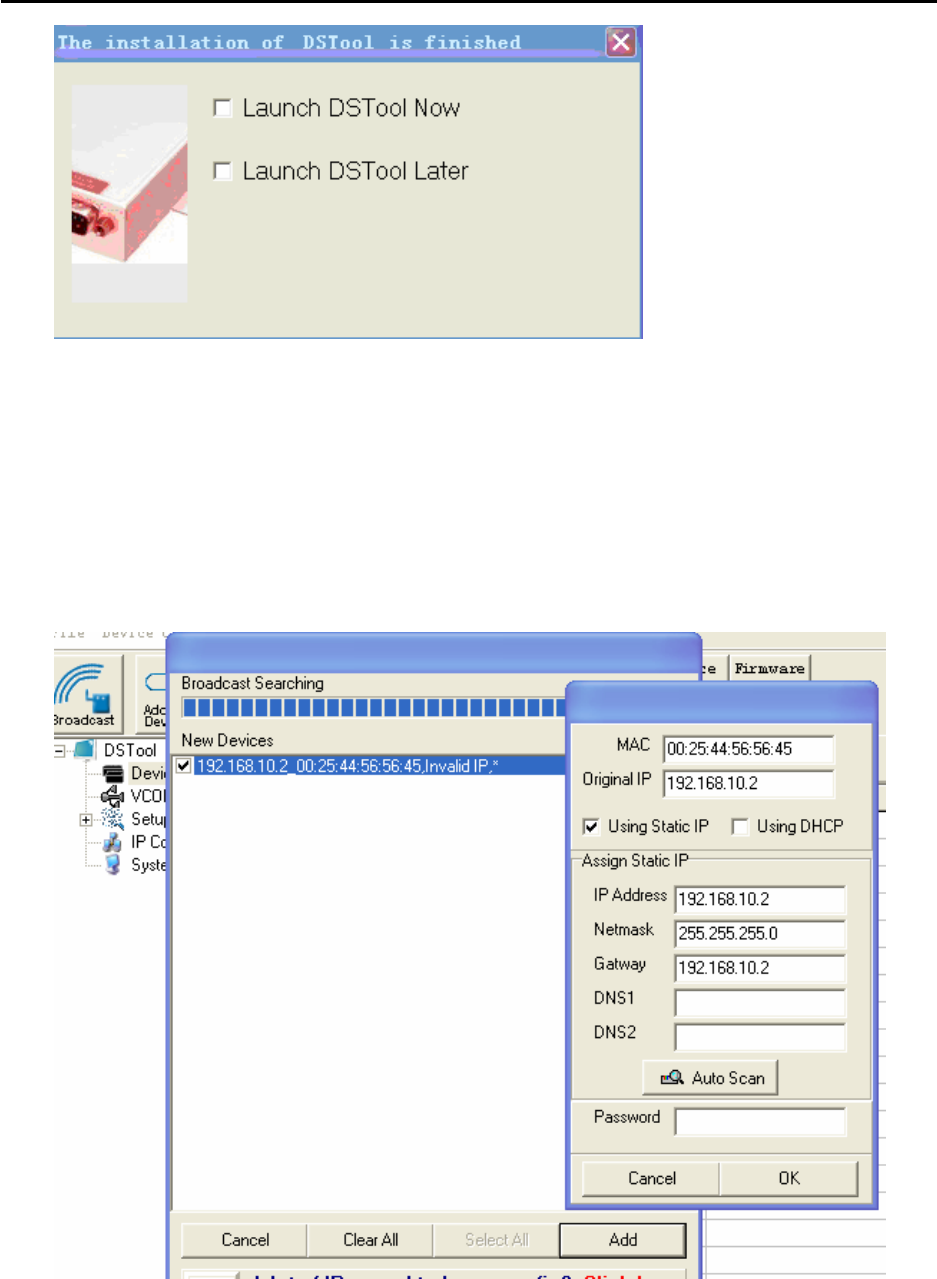
Step 1: Execute the Setup program, click “start” after selecting the folder for DS-Tool.
Step 2: When installation complete successfully, then click “OK”.
Step 3: Check for your selection.
DS-11-W User’s Manual
16
5.1.2 Using DS-Tool
5.1.2.1 Explore DS device servers
DS-Tool will broadcast to the network and search all available DS devices in the network.
The default IP address of the device is “192.168.10.2”, and selects the searching device you
wish to use and press “Add” button. You can set static IP address or in DHCP client mode to
get IP address automatically. Finally, click “OK “button to add the device.
DS-11-W User’s Manual
17
5.1.2.2 Configure DS device servers
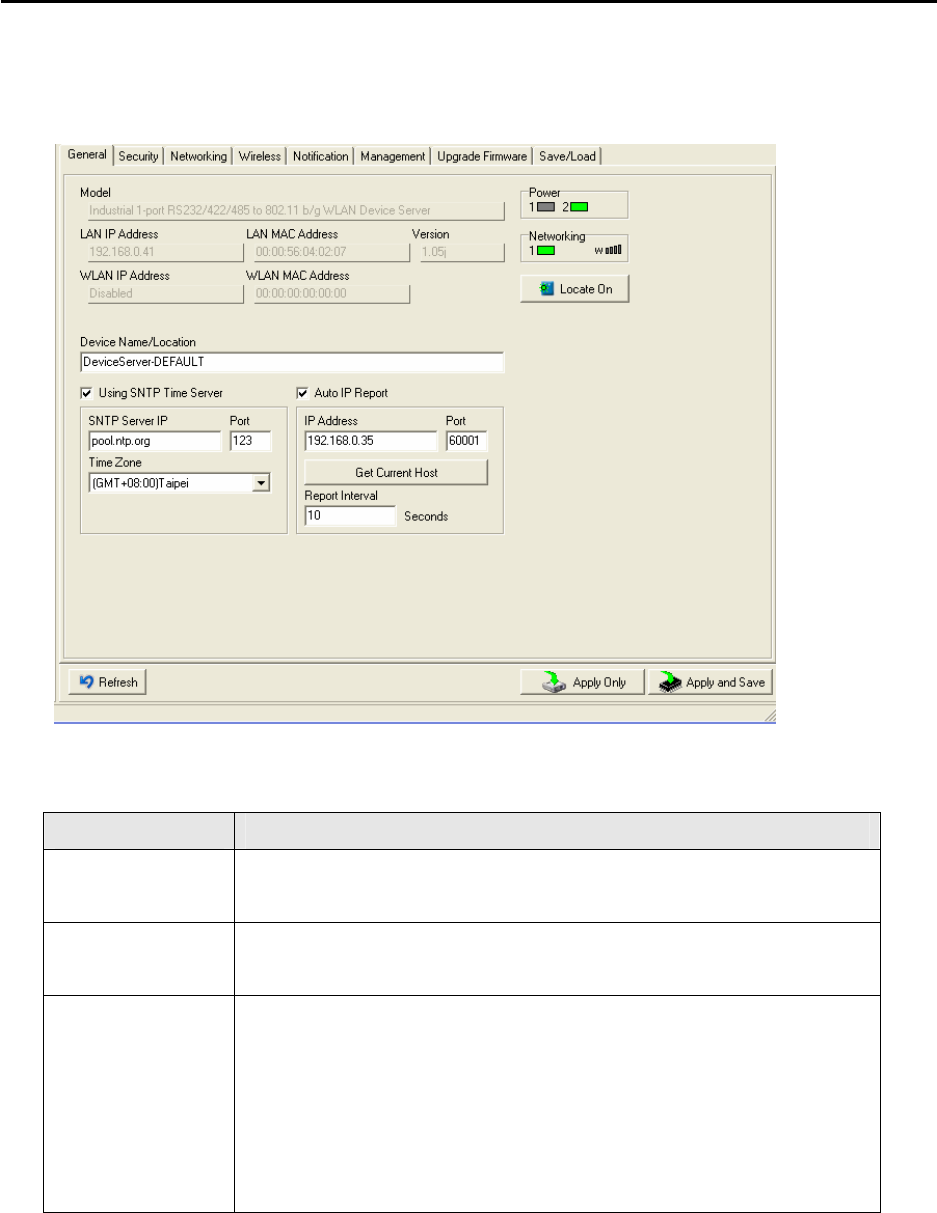
General settings
This page includes the setting of device name, SNTP server and Auto IP Report.
The following table describes the labels in this screen.
Label Description
Device
Name/location
You can set the device name or related information. By clicking
“Locate On” button you can locate the serial server’s position.
Set SNTP Input the SNTP server domain name or IP address, port and select the
Time zone.
Set Auto IP
Report
By Clicking the “Get current Host” button you will get your local IP,
and then set the Report interval time. The device server will report its
status periodically.
At “IP collection “option show the device report information. The
report interval is 0 indicate disable this setting (default), but you can set
the other IP or Port.
DS-11-W User’s Manual
18
Security
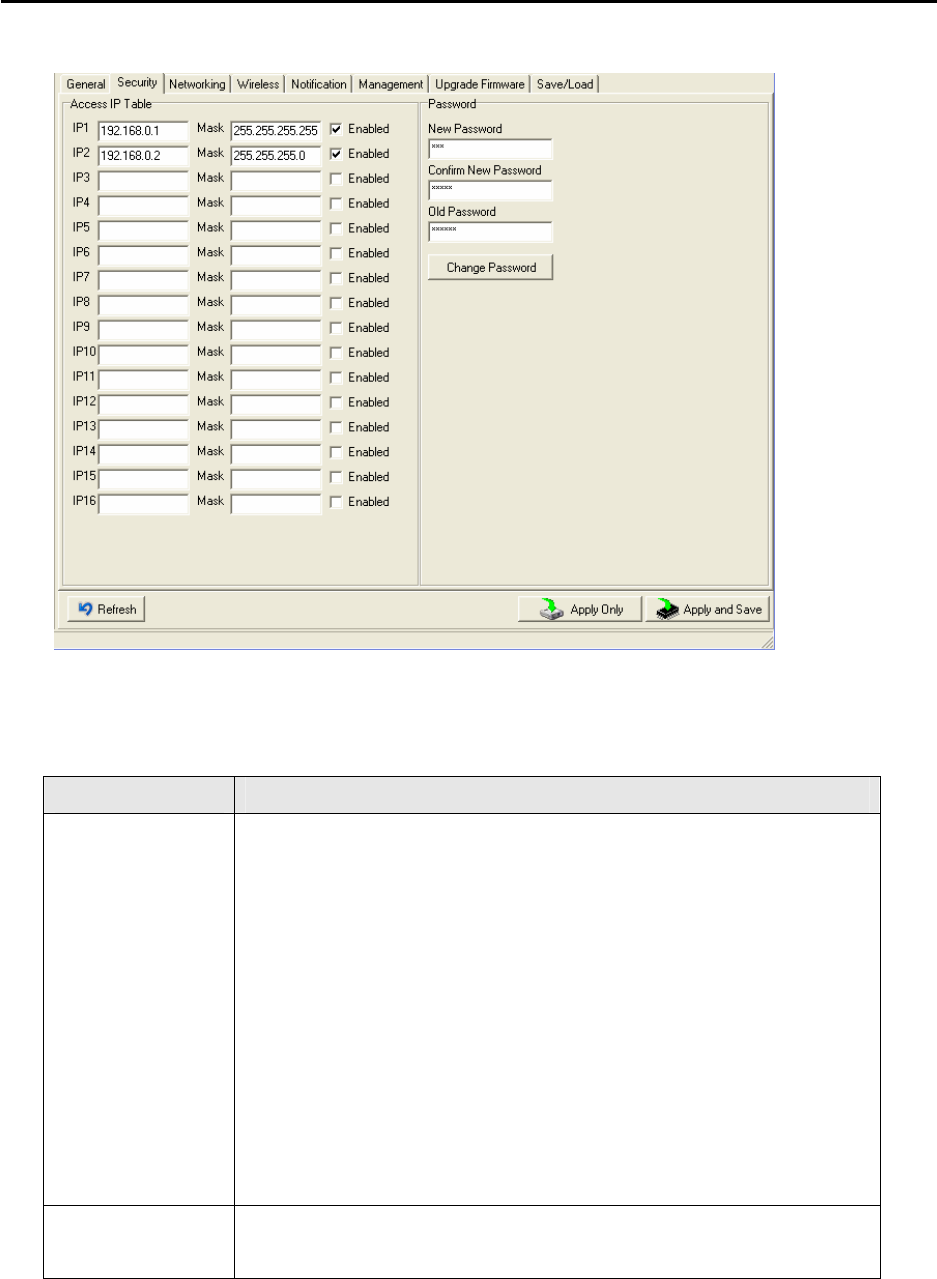
The following table describes the labels in this screen.
Label Description
Accessible IP
Setting
To prevent unauthorized access by setting host IP addresses and
network masks.
1. Only one host with a special IP address can access the
device server , “IP address /255.255.255.255” (e.g.,
“192.168.0.1/255.255.255.255”).
2. Hosts on a specific subnet can access the device server.
“IP address/255.255.255.0” (e.g.,
“192.168.0.2/255.255.255.0”)
3. Any host can access the device server. Disable this
function by un-checking the “Enable IP Filter” checkbox
Password setting You can set the password to prevent unauthorized access from your
server. Factory default is no password.
DS-11-W User’s Manual
19
Network Setting
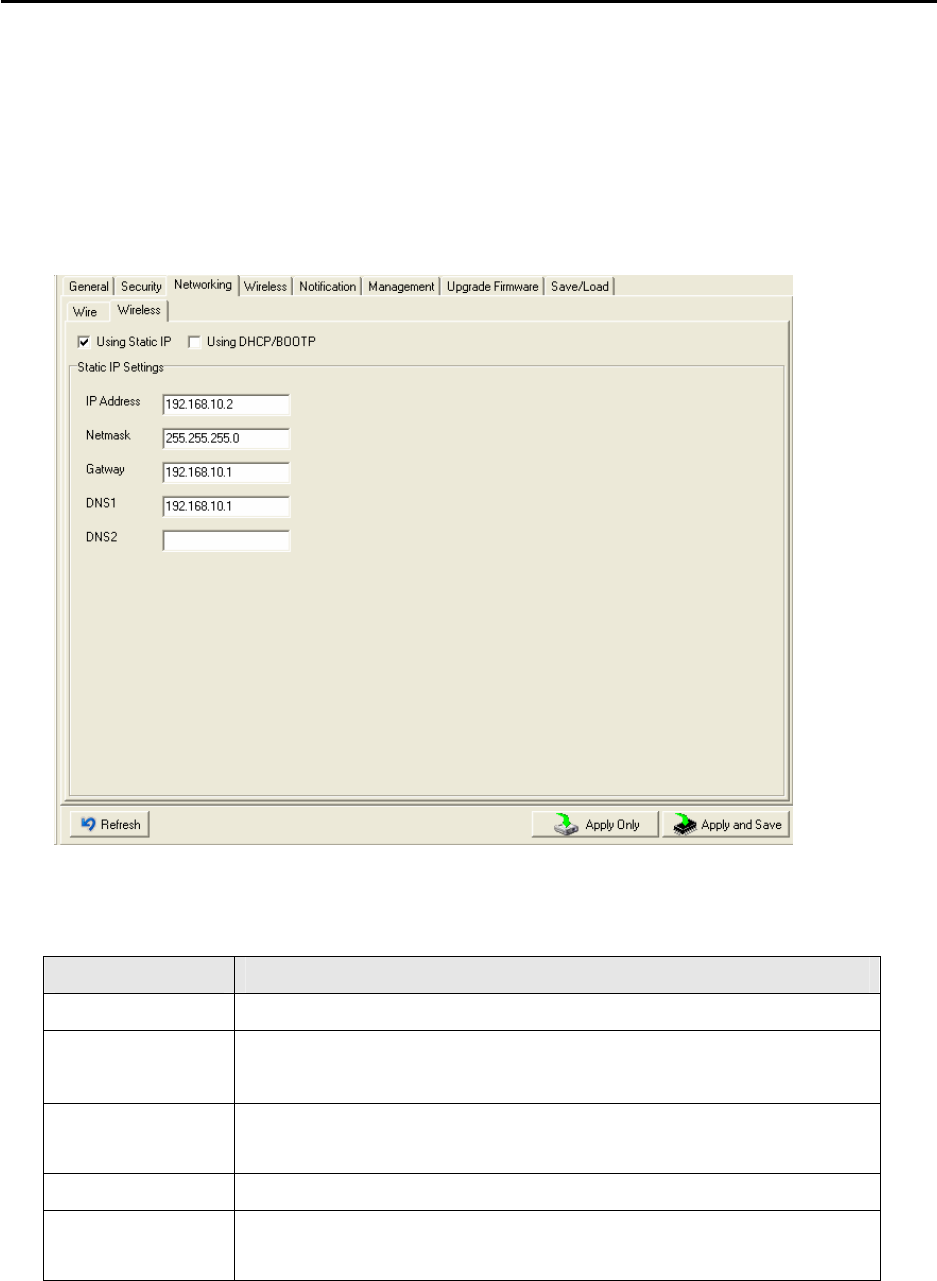
Device DS can connect the Network by wire and wireless. You must assign a valid IP
address for DS before attached in your network environment. Your network administrator
should provide you the IP address and related settings. The IP address must be unique
within the network (otherwise, DS will not have a valid connection to the network). You can
choose from three possible “IP configuration” modes: Static, DHCP/BOOTP. The Factory
Default IP address is “192.168.10.2”
The following table describes the labels in this screen.
Label Description
Using Static IP Manually assigning an IP address.
Using
DHCP/BOOTP IP Address automatically assigned by a DHCP server in your network.
Subnet Mask All devices on the network must have the same subnet mask to
communicate on the network.
Gateway Enter the IP address of the router in you network.
DNS Server Enter the IP address of the DNS server, The DNS server translates
domain names into IP address.
DS-11-W User’s Manual
20
Wireless setting
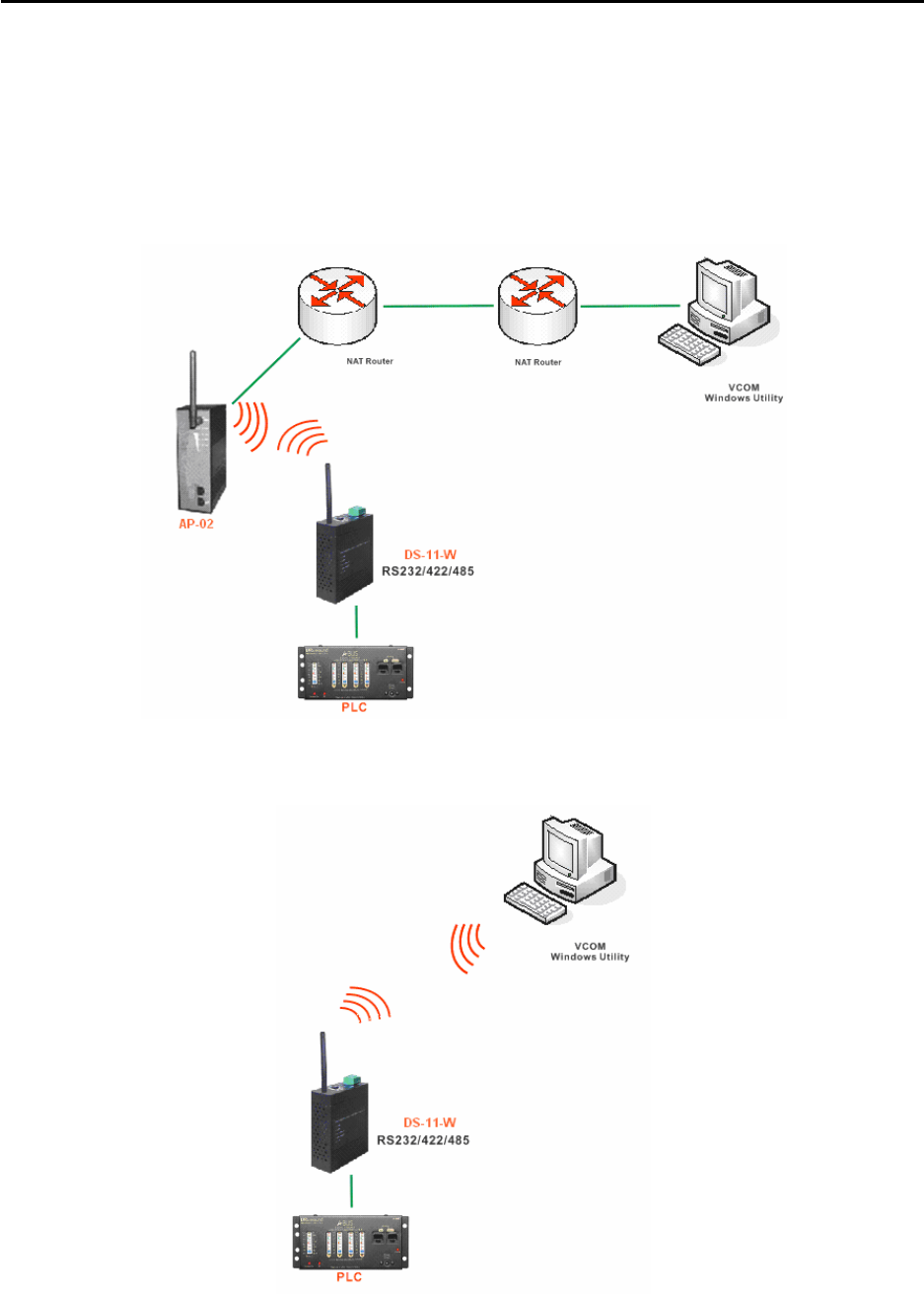
Wireless Network type includes two modes: Infra and Adhoc. The Infra type
connects the network by wireless access point, but the Adhoc is formed by the
association of wireless and mobile devices capable of communicating among
themselves even when there is no networking infrastructure available.
Infra Network
Adhoc Network
DS-11-W User’s Manual
21
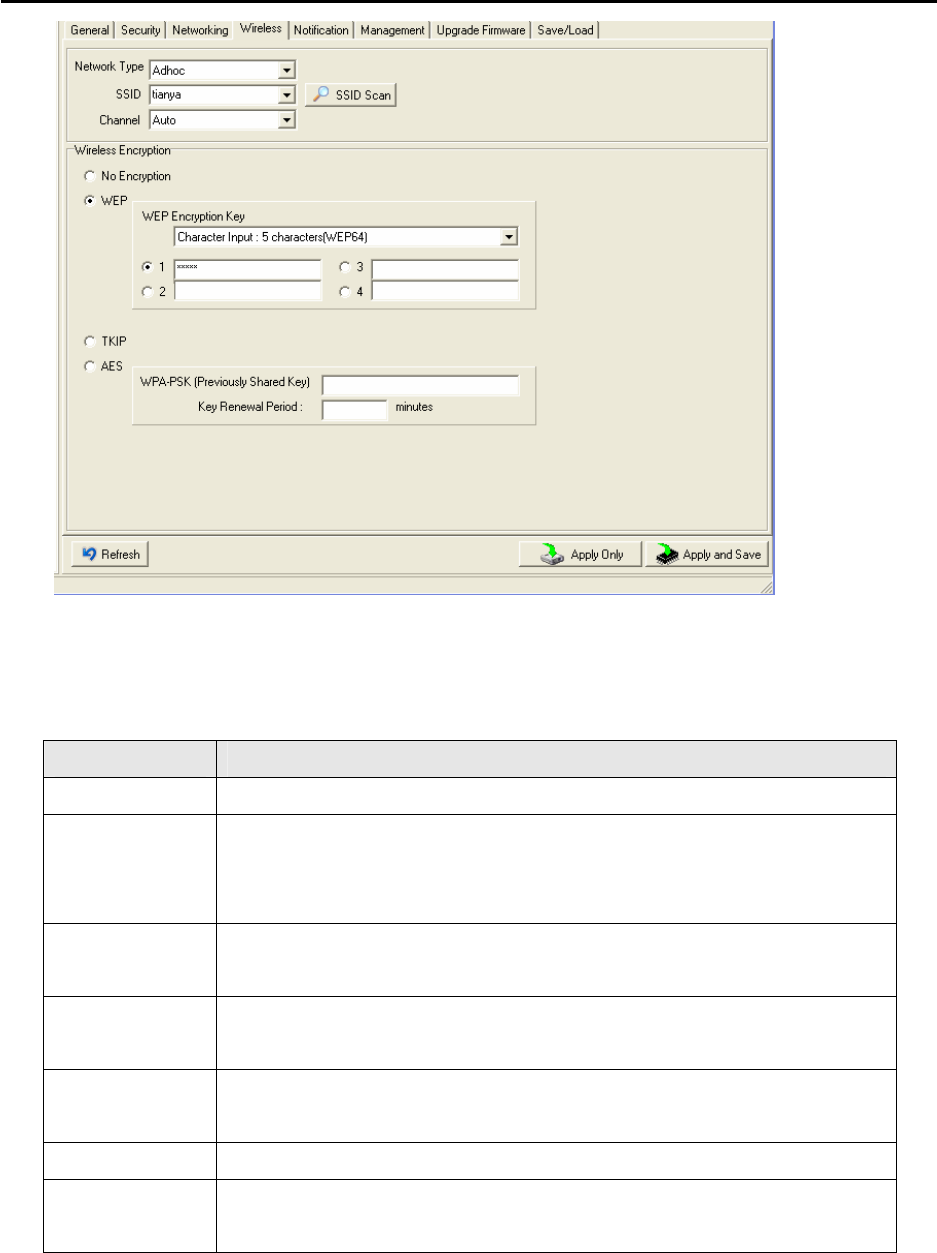
The following table describes the labels in this screen.
Label Description
Network Type Type includes Infra and Adhoc.
SSID Service Set Identifier Default is the default setting. The SSID is a unique
name that identifies a network. All devices on a network must share the
same SSID name in order to communicate on the network.
Channel All devices on the network must be set to the same channel to
communicate on the network. You can select the Auto.
NO Encryption You can set no encryption mode, but this mode is insecurity and don’t
suggest use.
WEP You can set four encryption 5characters (WEP64), 13 characters
(WEP128), 10 digits (WEP64), 26digits (WEP128).
TKIP TKIP (Temporal Key Integrity Protocol) is a key management protocol.
AES AES (Advanced Encryption System) is a variable bit length symmetric
digital encryption algorithm.
*Simply unplug the RJ-45 to change into wireless connection
DS-11-W User’s Manual
22
Notification
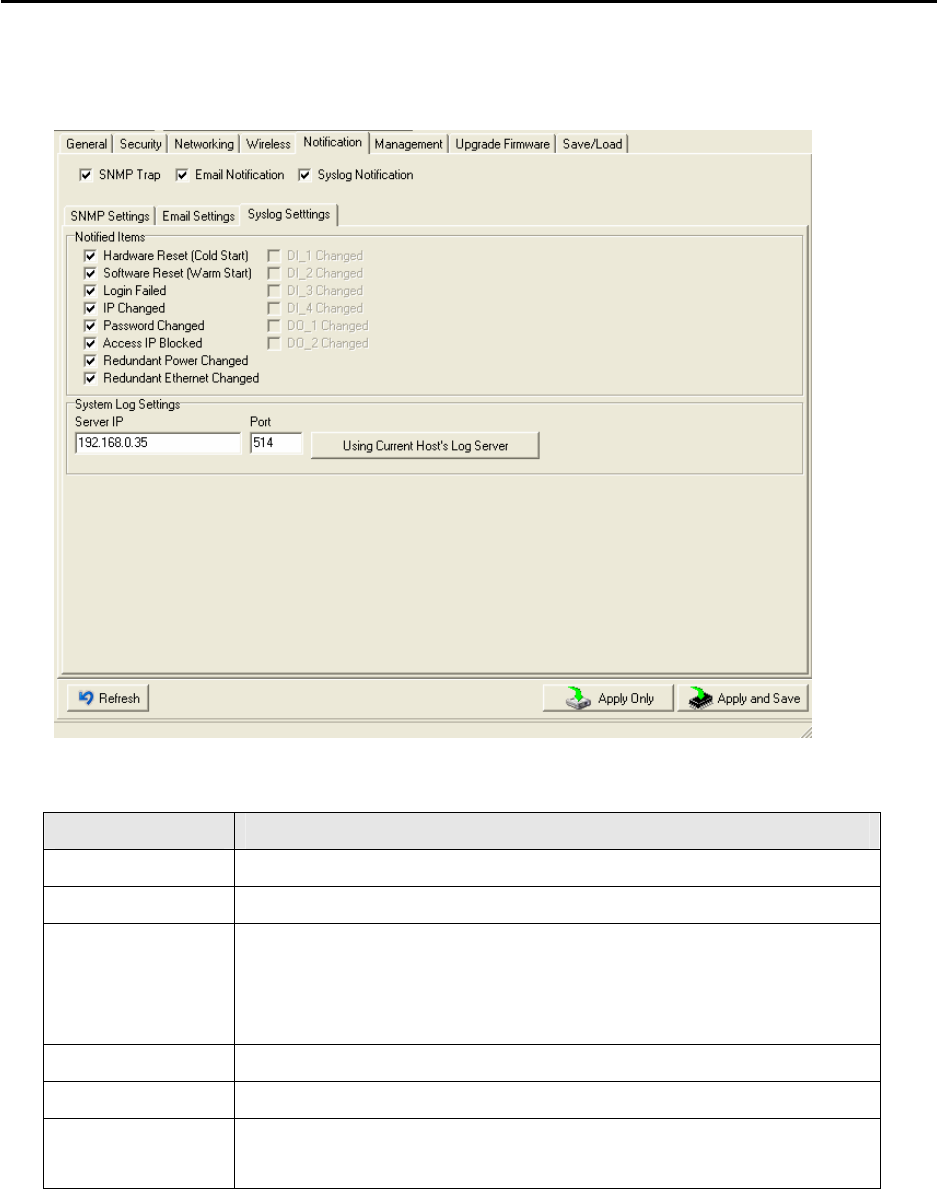
Specify the events that should be notified to the administrator. The events can be notified by
E-mail, SNMP trap, or system log.
The following table describes the labels in this screen.
Label Description
SNMP Trap To notify events information by SNMP trap.
Email Notification To notify events information by Email.
Syslog
Notification
To notify events information by SySlog. You can use the current
Host’s Log server by click “Using Current Host’s Log Server” button.
You also can set other log server. (DS-tool log server port default 514)
Notify items The events to be notified.
Apply Apply current setting, but the setting will be lost after reboot.
Apply and Save Apply and save current setting. Write configuration into flash
memory.
DS-11-W User’s Manual
23
Management
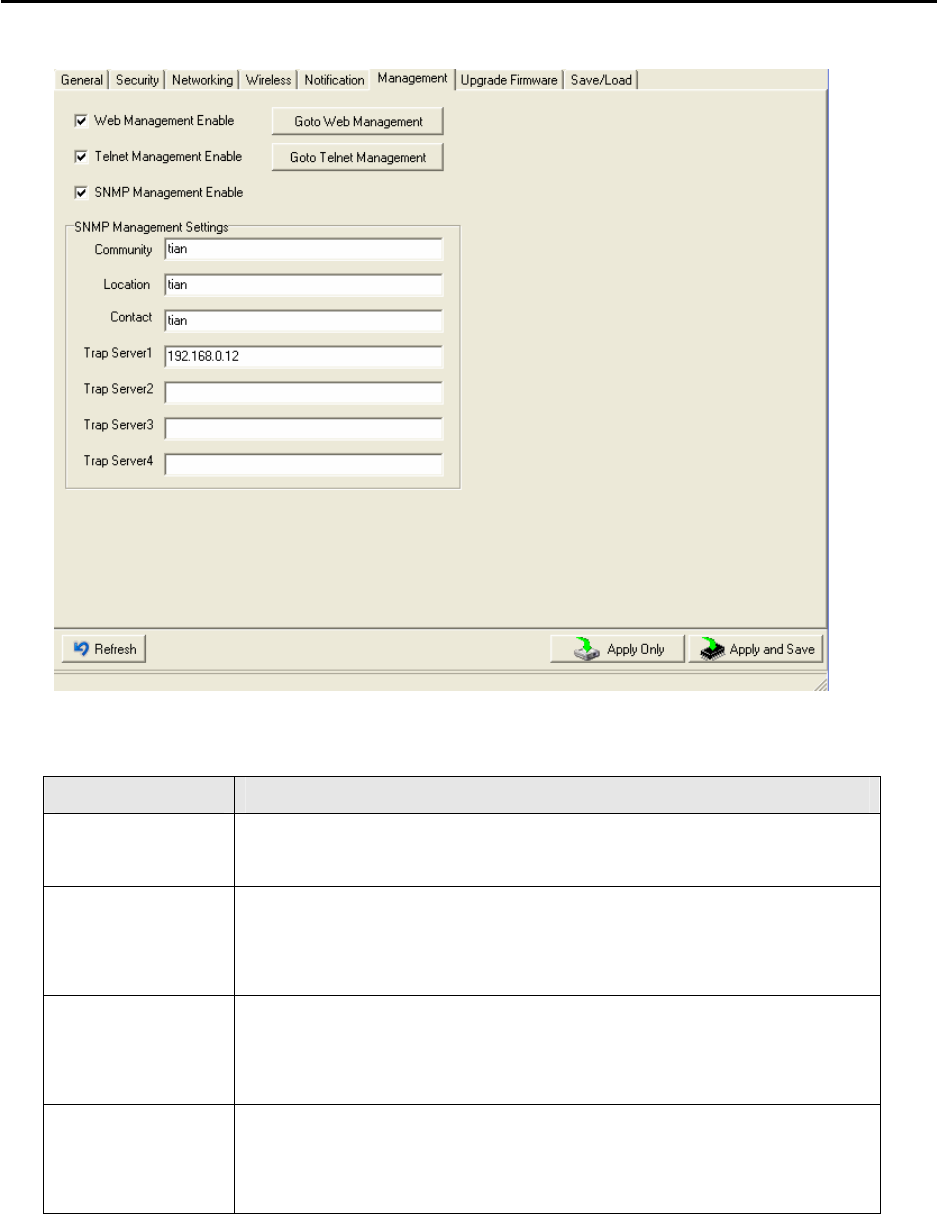
The following table describes the labels in this screen.
Label Description
Web Management
Enable
To enable management from Web. Click “Goto Web Management”
button to access device web page, then set the device by web.
Telnet
Management
Enable
To enable management by Telnet(SSH). Click “Goto Telnet
Management” button to execute Telnet command.
SNMP
Management
Enable
To enable management by SNMP.
SNMP
Management
Settings
To configure SNMP server related settings.
DS-11-W User’s Manual
24
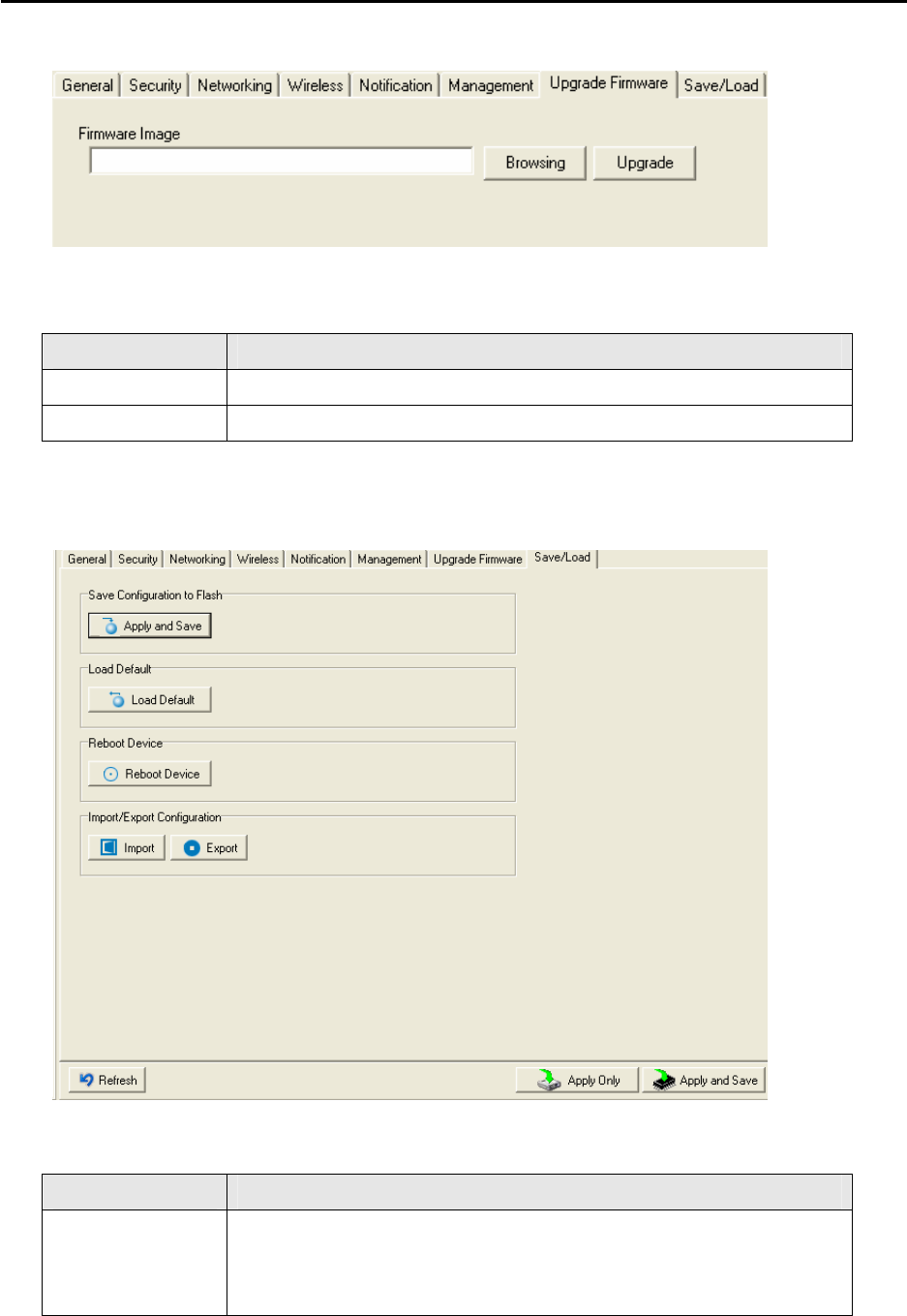
Upgrade Firmware
The following table describes the labels in this screen.
Label Description
Browsing Browse the file and upgrade
Upgrade Enable the firmware upgrade.
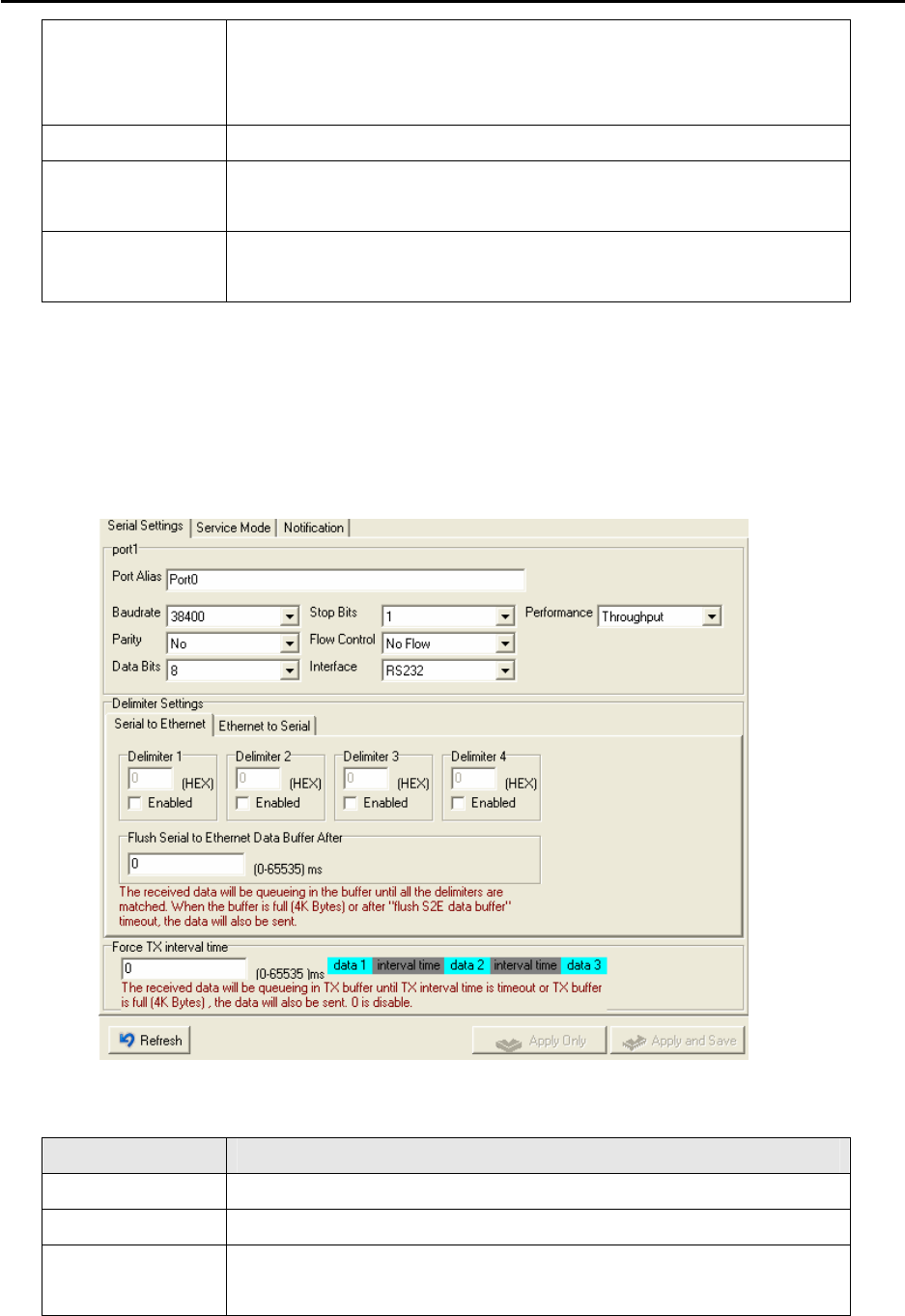
Save/Load
The following table describes the labels in this screen.
Label Description
Save
Configuration to
Flash
Save current configuration into flash memory.
DS-11-W User’s Manual
25
Load Default Load default configuration except the network settings. If you want to
load all factory default, you need to press “Reset” button on the device
(Hardware restore).
Reboot Device Reboot the device server (warm start).
Import
Configuration
Restore the previous exported configuration.
Export
Configuration
Export current configuration to a file to backup the configuration.
5.1.2.3 Configure serial port
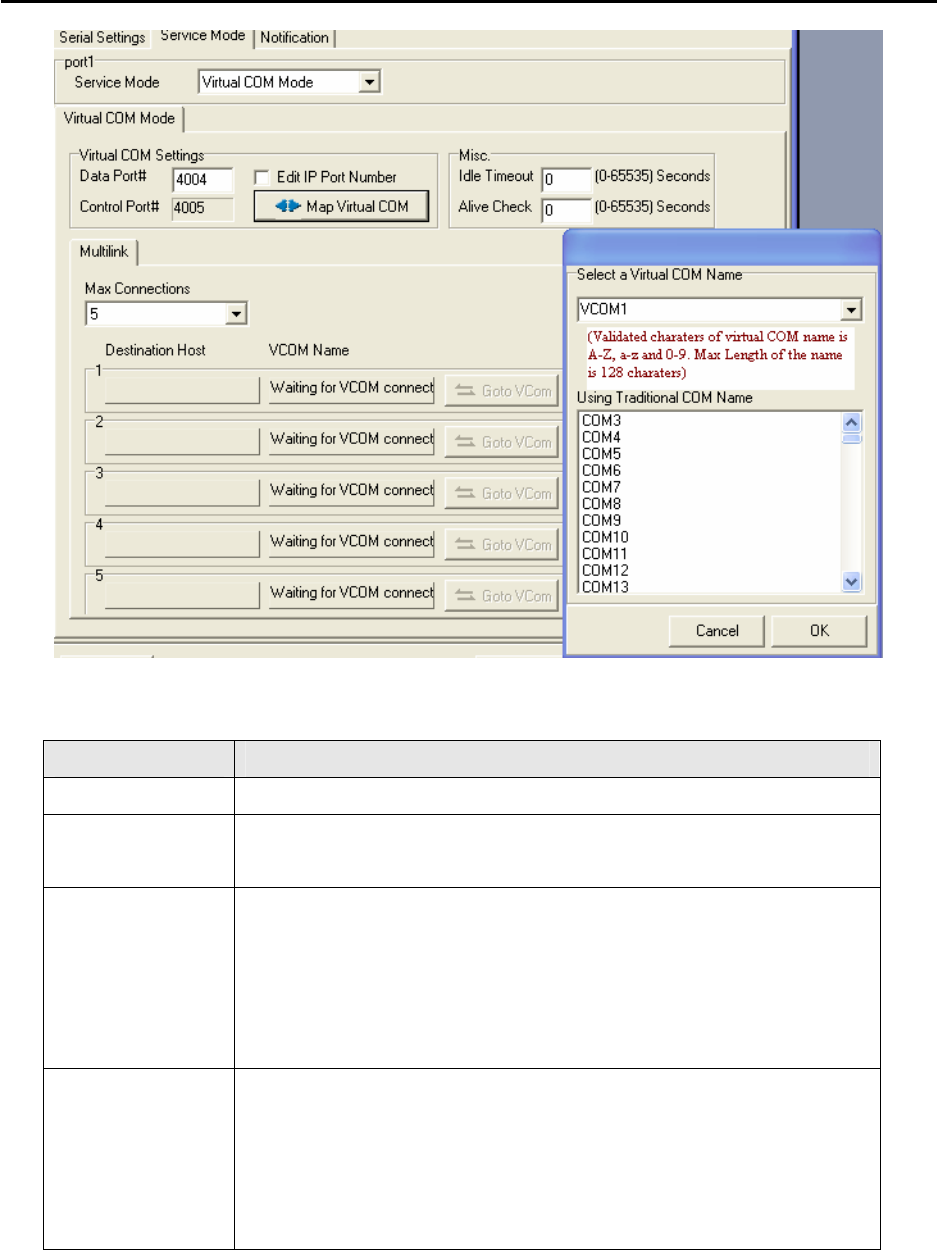
Serial Settings
The following table describes the labels in this screen.
Label Description
Port Alias Remark the port to hint the connected device.
Interface RS232 / RS422 / RS485(2-wires) / RS485(4-wires)
Baud rate 110bps/300bps/1200bps/2400bps/4800bps/9600bps/19200bps/
38400bps/57600bps/115200bps/230400bps

DS-11-W User’s Manual
26
Data Bits 5, 6, 7, 8
Stop Bits 1, 2 (1.5)
Parity No, Even, Odd, Mark, Space
Flow Control No, XON/XOFF, RTS/CTS, DTR/DSR
Performance Throughput: This mode optimized for highest transmission
speed.
Latency: This mode optimized for shortest response time.
Serial to Ethernet Delimiter:
You can define max. 4 delimiters (00~FF, Hex) for each way.
The data will be hold until the delimiters are received or the option
“Flush Serial to Ethernet data buffer” times out. 0 means
disable. Factory default is 0.
Flush Data Buffer After:
The received data will be queuing in the buffer until all the delimiters
are matched. When the buffer is full (4K Bytes) or after "flush S2E
data buffer" timeout the data will also be sent. You can set the time
from 0 to 65535 seconds.
Ethernet to Serial Delimiter:
You can define max. 4 delimiters (00~FF, Hex) for each way.
The data will be hold until the delimiters are received or the option
“Flush Ethernet to Serial data buffer” times out. 0 means
disable. Factory default is 0.
Flush Data Buffer After:
The received data will be queuing in the buffer until all the
delimiters are matched. When the buffer is full (4K Bytes) or
after "flushE2S data buffer" timeout the data will also be sent.
You can set the time from 0 to 65535 seconds.
Force TX Interval
Time
Force TX interval time is to specify the timeout when no data has been
transmitted. When the timeout is reached or TX buffer is full (4K
Bytes), the queued data will be sent. 0 means disable. Factory
default value is 0.
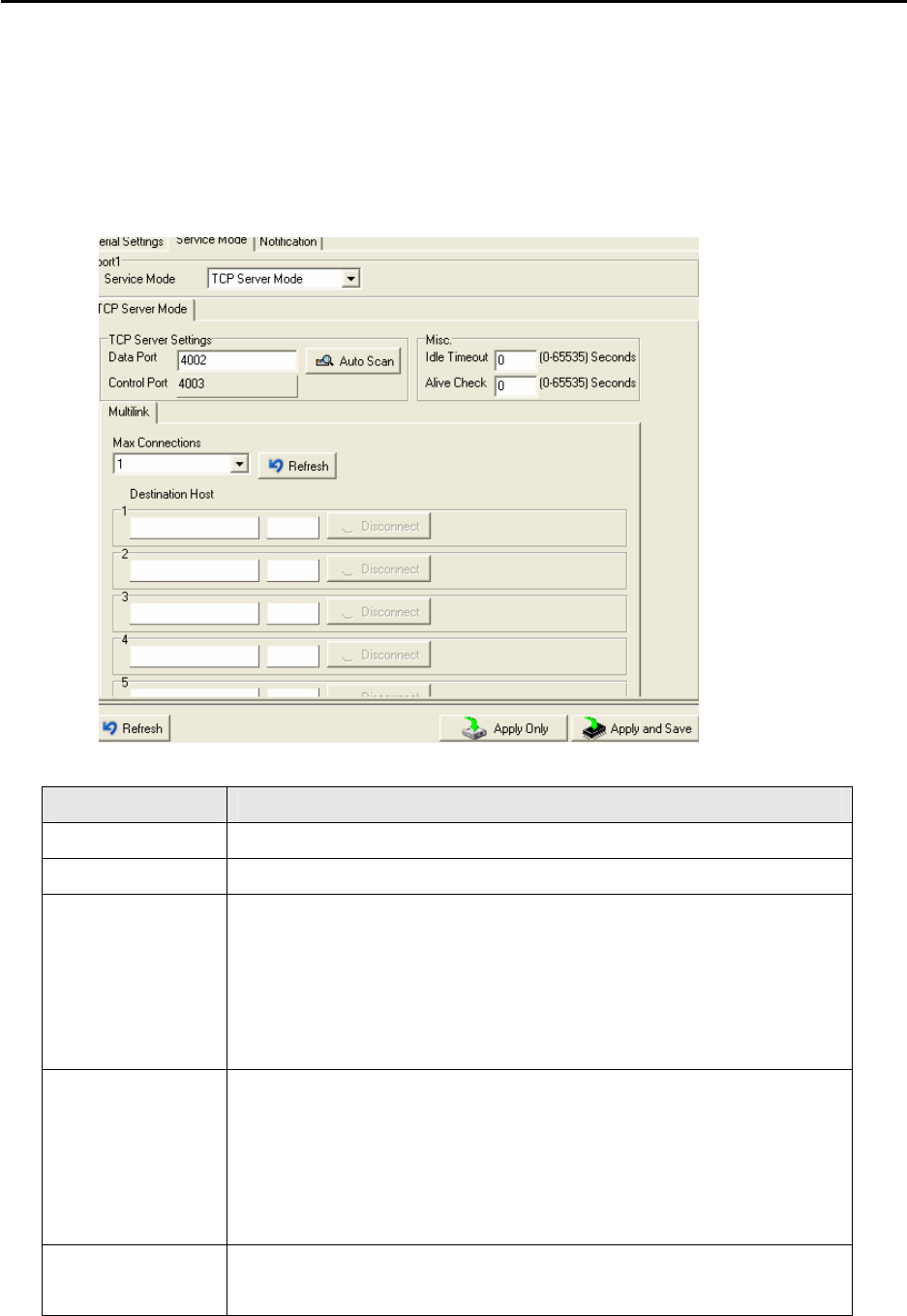
Service Mode – Virtual COM Mode
In Virtual COM Mode, the DS-Tool establishes a transparent connection between host and
serial device by mapping the Port of the serial server serial port to local COM port on the host
computer. Virtual COM Mode also supports up to 5 simultaneous connections, so that
multiple hosts can send or receive data by the same serial device at the same time.
DS-11-W User’s Manual
27
The following table describes the labels in this screen.
Label Description
Map Virtual COM Select a Virtual COM Name to map on.
Max Connection The number of Max connection can support simultaneous connections
are 5, default values is 1.
Idle Timeout When serial port stops data transmission for a defined period of time
(Idle Timeout), the connection will be closed and the port will be freed
and try to connect with other hosts. 0 indicate disable this function.
Factory default value is 0. If Multilink is configured, only the first host
connection is effective for this setting.
Alive Check The serial device will send TCP alive-check package in each defined
time interval (Alive Check) to remote host to check the TCP
connection. If the TCP connection is not alive, the connection will be
closed and the port will be freed. 0 indicate disable this function.
Factory default is 0.
DS-11-W User’s Manual
28
Service Mode – TCP Server Mode
In TCP Server Mode, DS is configured with a unique Port combination on a TCP/IP network.
In this case, DS waits passively to be contacted by the device. After a connection is
established, it can then proceed with data transmission. TCP Server mode also supports up
to 5 simultaneous connections, so that multiple device can receive data from the same serial
device at the same time.
The following table describes the labels in this screen.
Label Description
Data Port Set the port number for data transmission.
Auto Scan Scan the data port automatically.
Idle Timeout When serial port stops data transmission for a defined period of time
(Idle Timeout), the connection will be closed and the port will be freed
and try to connect with other hosts. 0 indicate disable this function.
Factory default value is 0. If Multilink is configured, only the first host
connection is effective for this setting.
Alive Check The serial device will send TCP alive-check package in each defined
time interval (Alive Check) to remote host to check the TCP
connection. If the TCP connection is not alive, the connection will be
closed and the port will be freed. 0 indicate disable this function.
Factory default is 0.
Max Connection The number of Max connection can support simultaneous connections
are 5, default values is 1.
DS-11-W User’s Manual
29
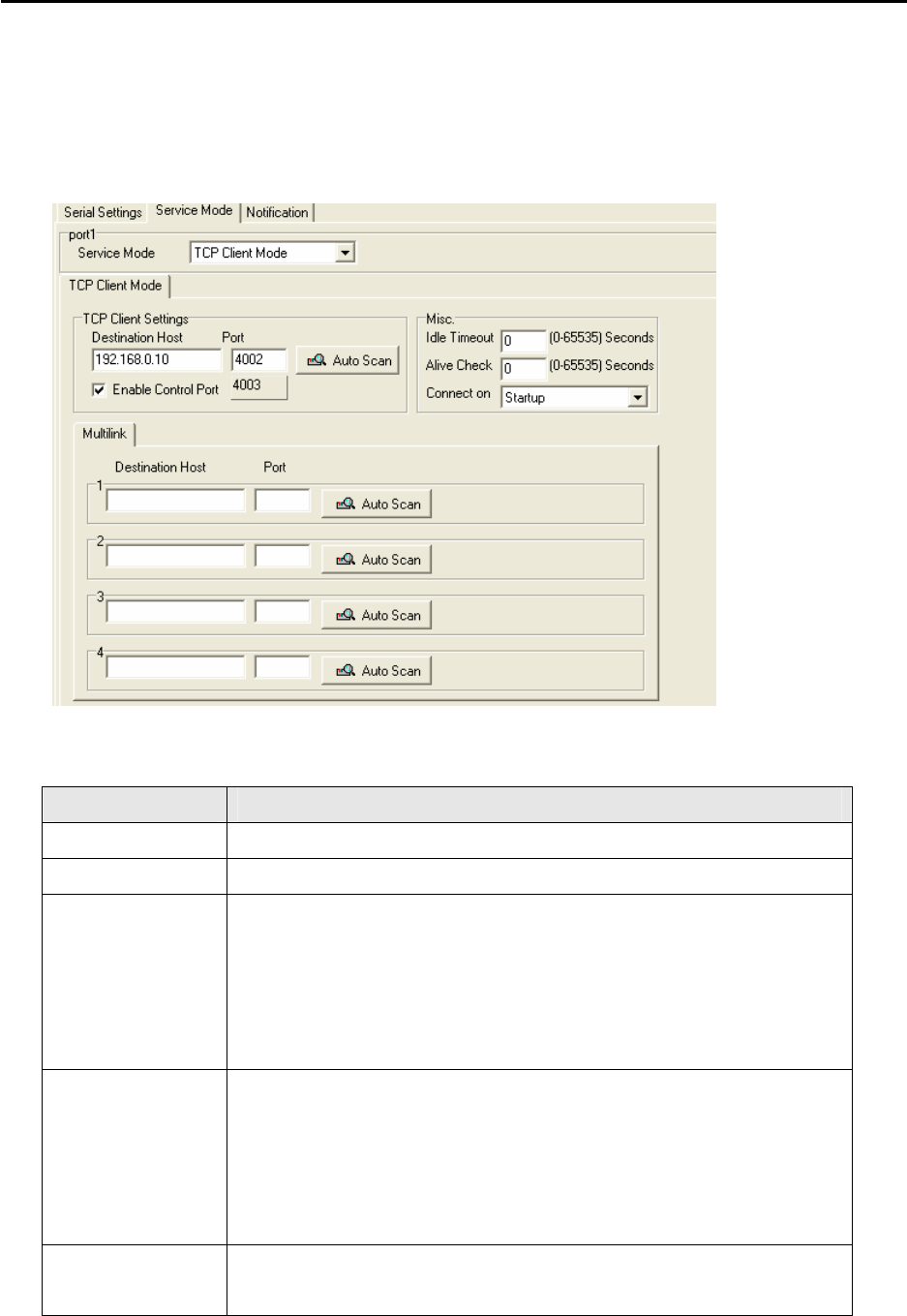
Service Mode – TCP Client Mode
In TCP Client Mode, device can establish a TCP connection with server by the method
you have settled (Startup or any character). After the data has been transferred, device
can disconnect automatically from the server by using the TCP alive check time or idle
time settings.
The following table describes the labels in this screen.
Label Description
Destination Host Set the IP address of host.
Port Set the port number of data port.
Idle Timeout When serial port stops data transmission for a defined period of time
(Idle Timeout), the connection will be closed and the port will be freed
and try to connect with other hosts. 0 indicate disable this function.
Factory default value is 0. If Multilink is configured, only the first host
connection is effective for this setting.
Alive Check The serial device will send TCP alive-check package in each defined
time interval (Alive Check) to remote host to check the TCP
connection. If the TCP connection is not alive, the connection will be
closed and the port will be freed. 0 indicate disable this function.
Factory default is 0.
Connect on
Startup
The TCP Client will build TCP connection once the connected serial
device is started.
DS-11-W User’s Manual
30
Connect on Any
Character
The TCP Client will build TCP connection once the connected serial
device starts to send data.
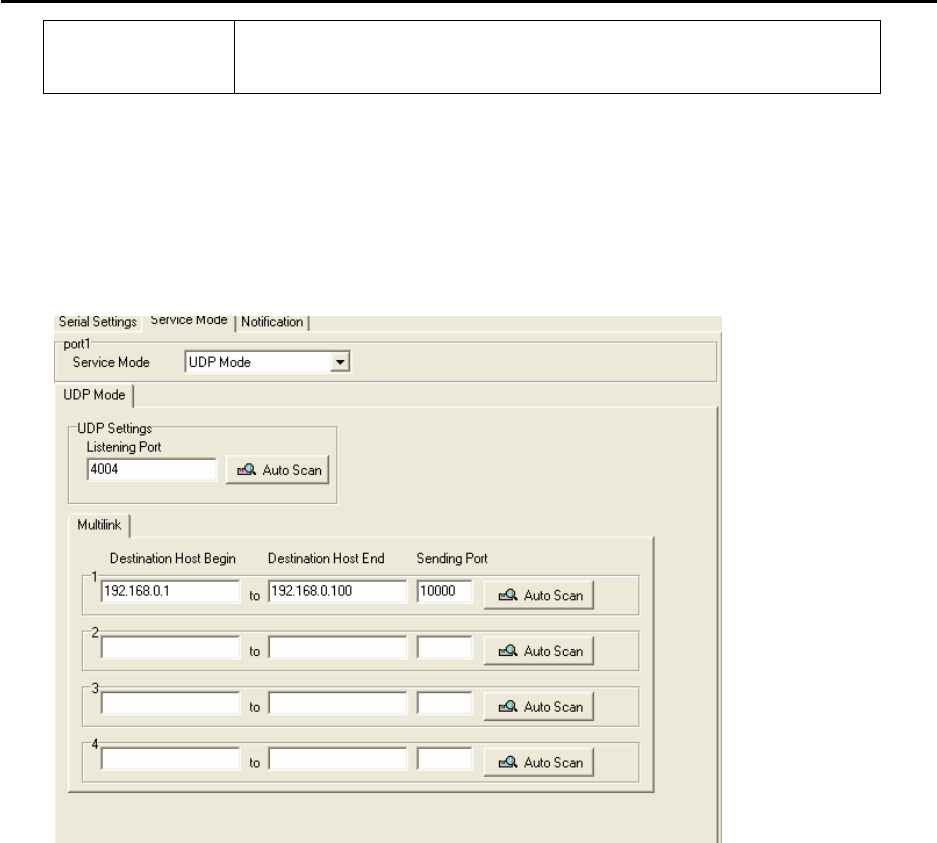
Service Mode – UDP Client Mode
Compared to TCP communication, UDP is faster and more efficient. In UDP mode, you
can Uni-cast or Multi-cast data from the serial device server to host computers, and the
serial device can also receive data from one or multiple host
DS-11-W User’s Manual
31
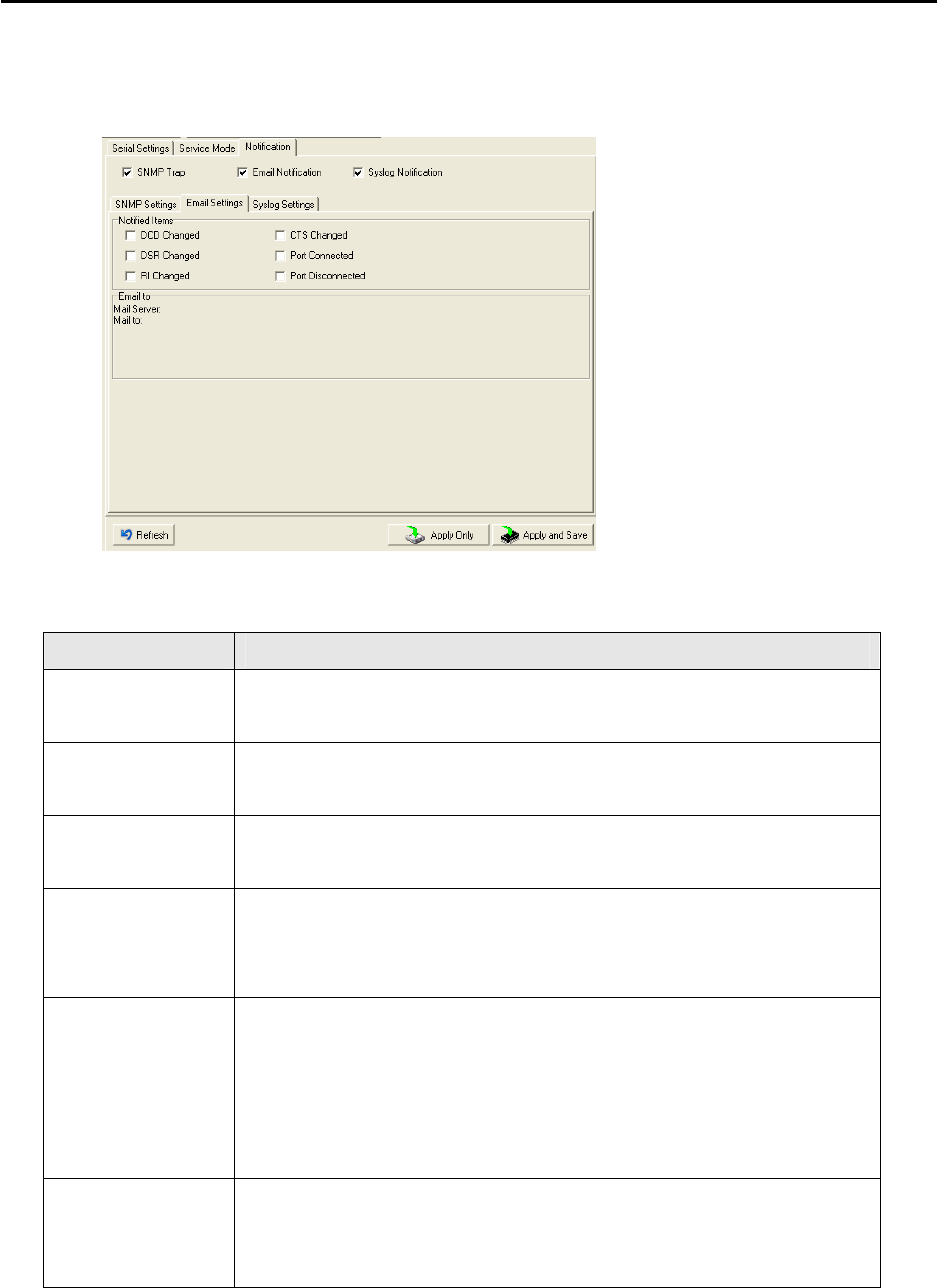
Notification
Specify the events that should be noticed. The events can be notified by E-mail,
SNMP trap or system log.
The following table describes the labels in this screen.
Label Description
DCD changed When DCD (Data Carrier Detect) signal changes, it indicates that the
modem connection status has changed. Notification will be sent.
DSR changed When DSR (Data Set Ready) signal changes, it indicates that the data
communication equipment is powered off. A Notification will be sent.
RI changed When RI (Ring Indicator) signal changes, it indicates that the incoming
of a call. A Notification will be sent.
CTS changed When CTS (Clear To Send) signal changes, it indicates that the
transmission between computer and DCE can proceed. A notification
will be sent.
Port connected In TCP Server Mode, when the device accepts an incoming TCP
connection, this event will be trigger. In TCP Client Mode, when the
device has connected to the remote host, this event will be trigger. In
Virtual COM Mode, Virtual COM is ready to use. A notification will be
sent.
Port
disconnected
In TCP Server/Client Mode, when the device lost the TCP link, this
event will be trigger. In Virtual COM Mode, When Virtual COM is not
available, this event will be trigger. A notification will be sent.
DS-11-W User’s Manual
32
5.2 Configuration by Web Browser
5.2.1 Connect to the Web page
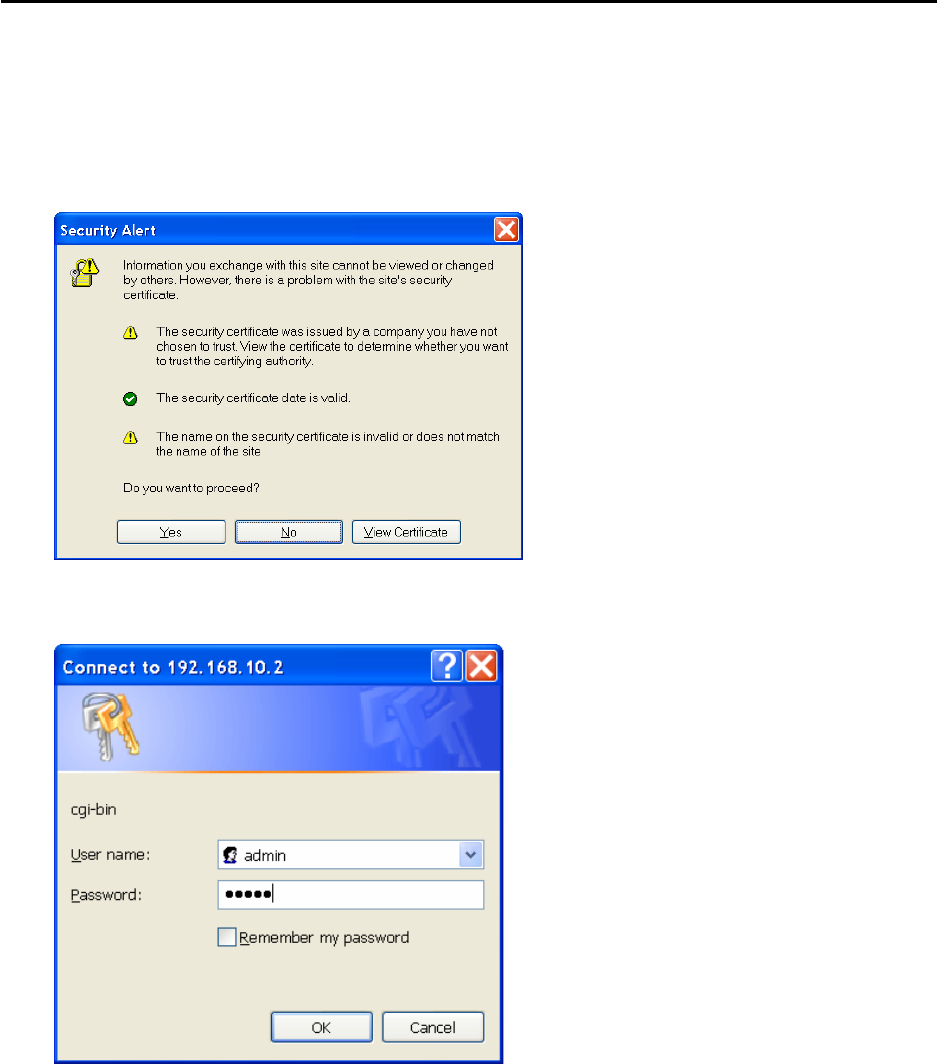
Step 1: Input the IP address of DS with “https://192.168.10.2” in the Address input box of IE.
Step 2: Click “Yes” button on the dialog box.
Step 3: Input the name and password, then click “OK”.
*Only if password is set
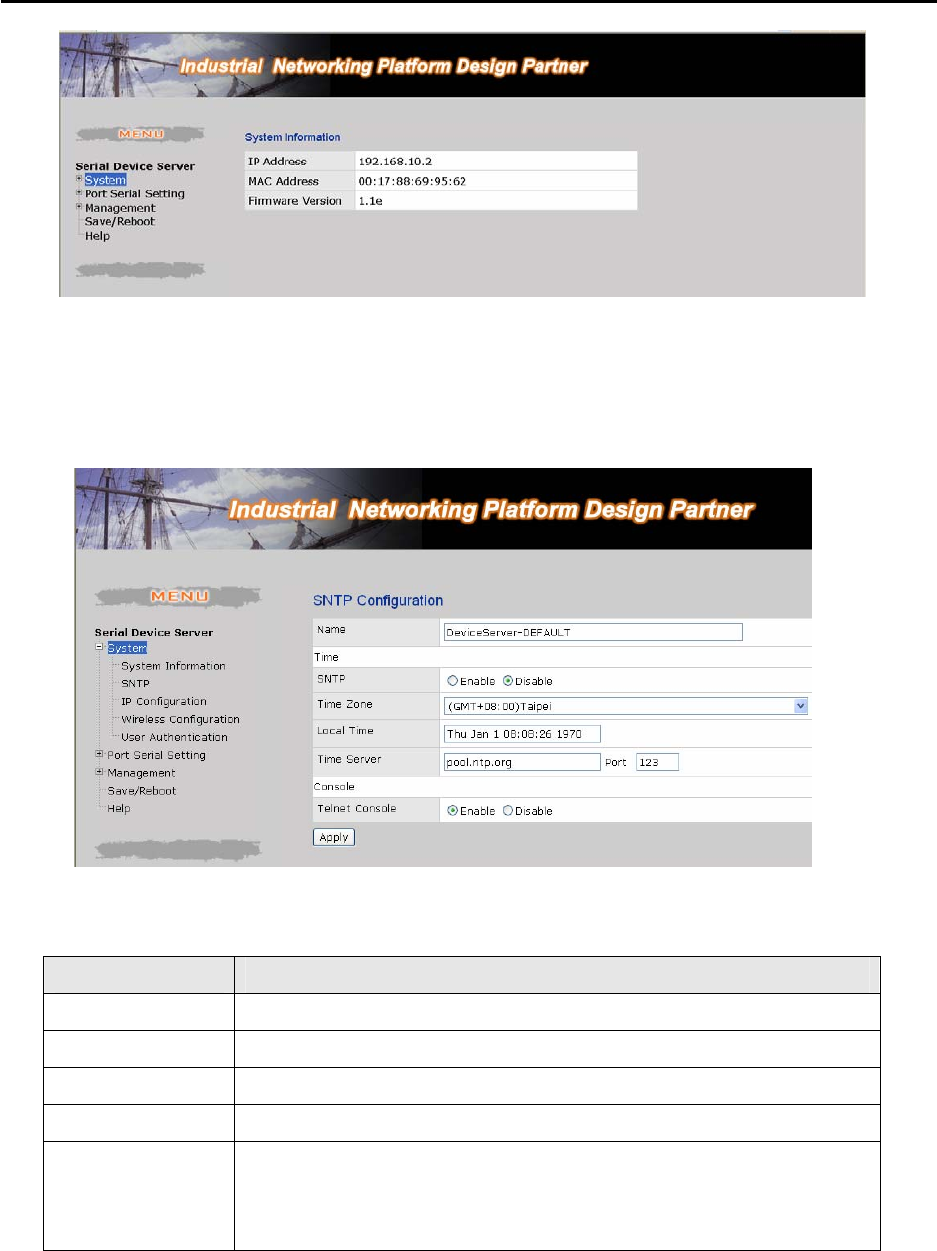
Step 4: The system information will be shown as below.
DS-11-W User’s Manual
33
5.2.1.1 System
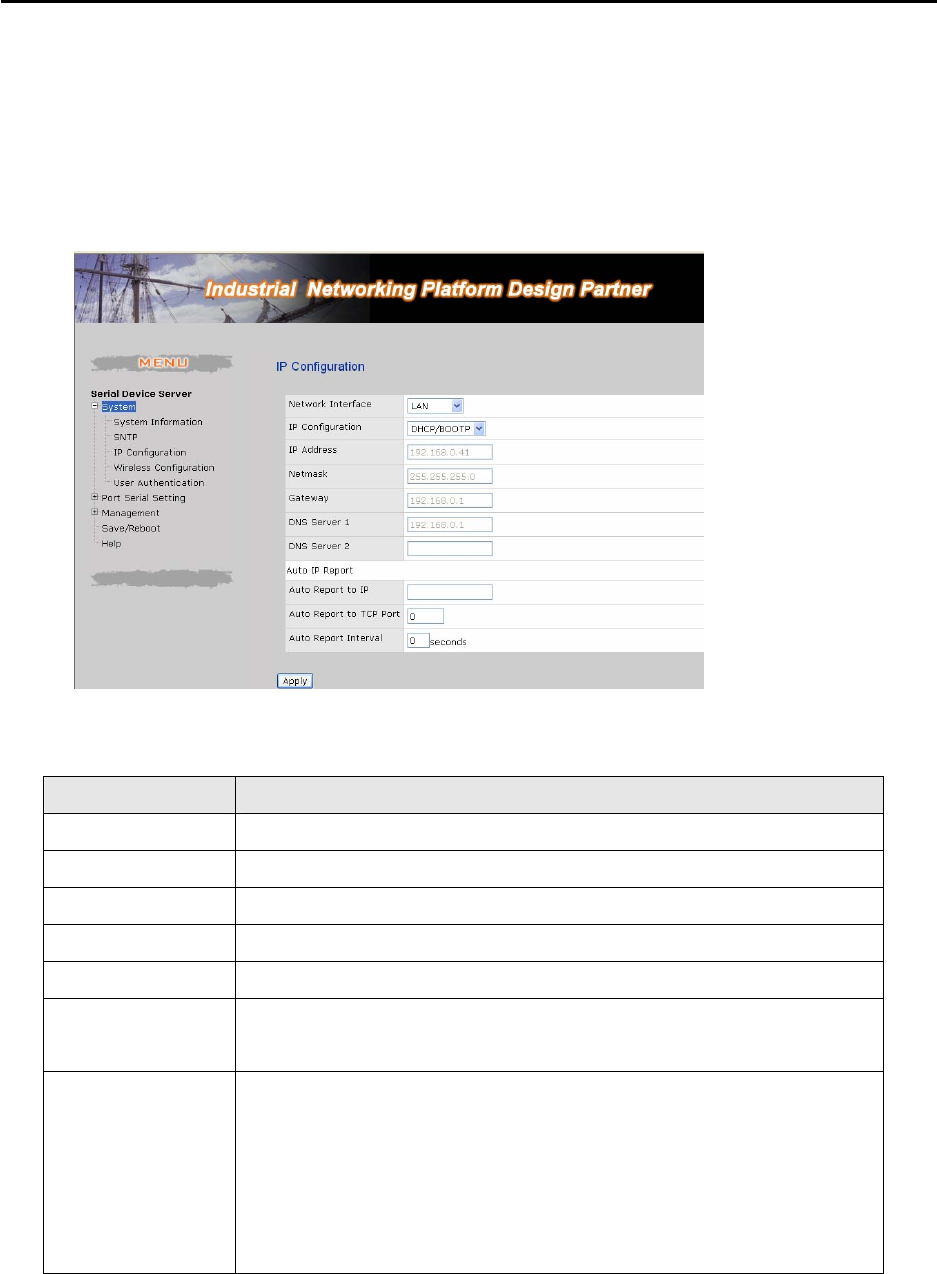
SNTP
The following table describes the labels in this screen.
Label Description
Name You can set the name of DS
SNTP Enable the SNTP server.
Time zone After you set the SNTP enable, select the time zone you located.
Time server Input SNTP server domain name or IP address and Port.
Console Telnet Console (SSH) is included for security reasons. In some
cases, you may need to disable this function to prevent unauthorized
access from internet. The factory default is enable.
DS-11-W User’s Manual
34
IP Configuration
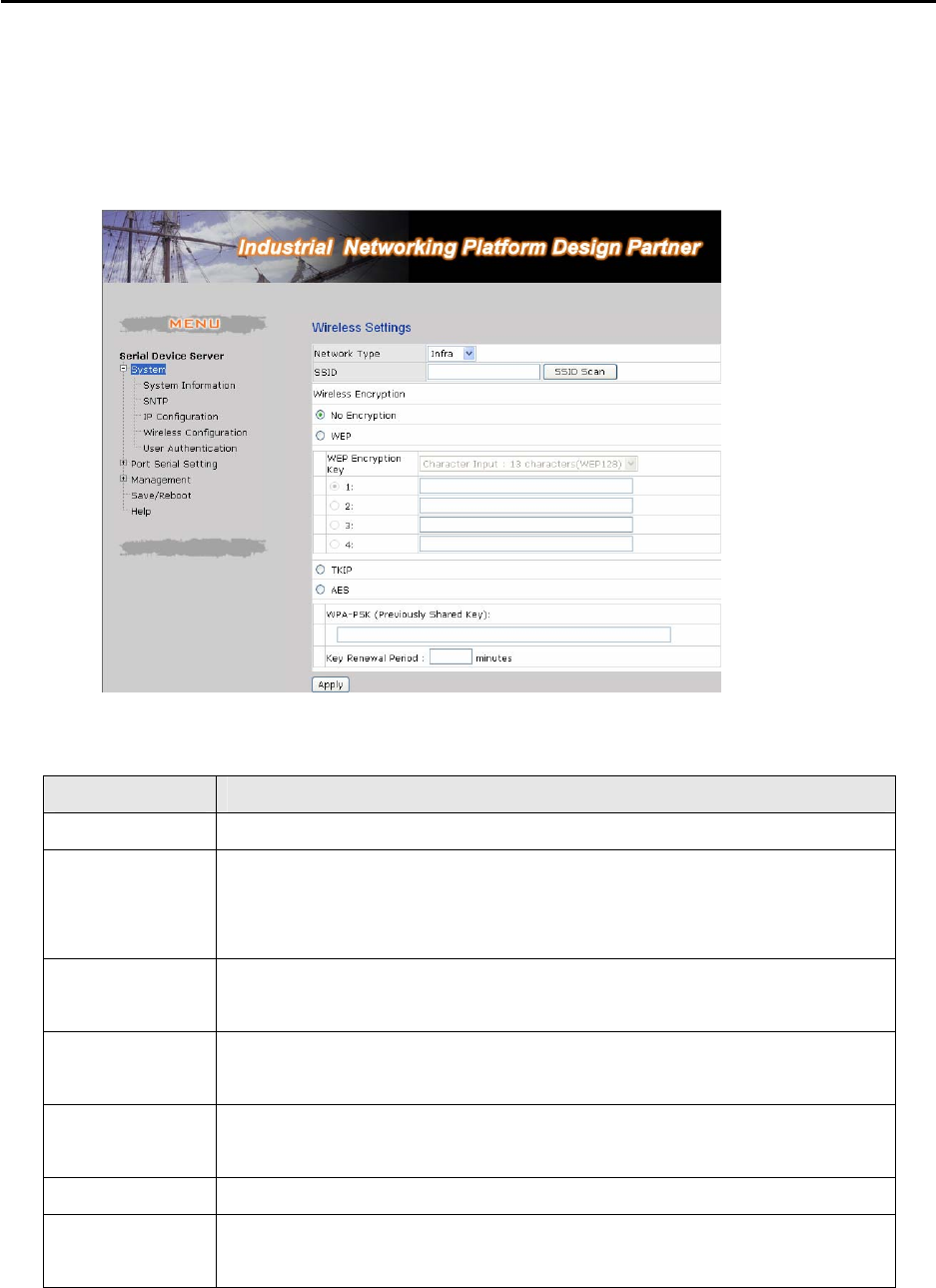
You must assign a valid IP address for DS before attached in your network environment.
Your network administrator should provide you with the IP address and related settings. The
IP address must be unique and within the network (otherwise, DS will not have a valid
connection to the network). You can choose from three possible “IP configuration” modes:
Static, DHCP/BOOTP. The Factory Default IP address is “192.168.10.2”
The following table describes the labels in this screen.
Label Description
Network Type Include Lan and Wireless.
DHCP/BOOTP Obtain the IP address automatically from DHCP server.
Static IP Address Assigning an IP address manually.
Subnet Mask Set the subnet mask to communicate on the network.
Gateway Enter the IP address of the router in you network.
DNS Server Enter the IP address of the DNS server to translate domain names into
IP address.
Auto IP Report Set the report IP address and TCP port (60001 DS-tool default), then
the device server will report it status periodically.
At DS-Tool->IP collection option show the device server status. The
report interval is 0 indicate disable this setting (default). Also you can
set the other IP or Port.
DS-11-W User’s Manual
35
Wireless setting
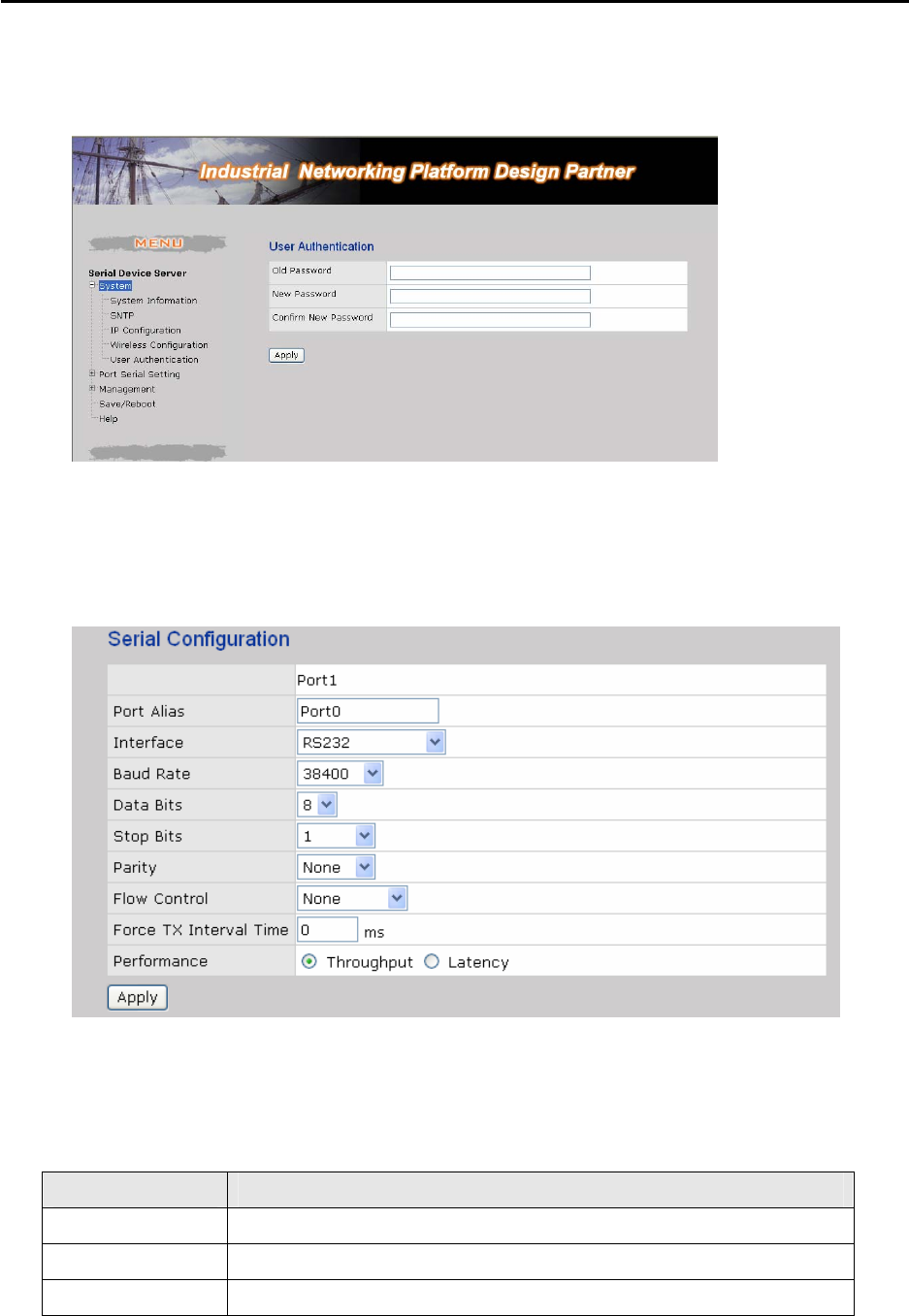
Wireless Network type include two mode, Infra and Adhoc. The Infra type connect
the network by wireless access point, but the Adhoc is formed by the association of
wireless and mobile devices capable of communicating among themselves even if
there is no networking infrastructure available.
The following table describes the labels in this screen.
Label Description
Network Type Type include Infra and Adhoc.
SSID Service Set Identifier Default is the default setting. The SSID is a unique
name that identifies a network. All devices on a network must share the
same SSID name in order to communicate on the network.
Channel All devices on the network must be set to the same channel to
communicate on the network. You can select the Auto.
NO Encryption You can set no encryption mode, but this mode is insecurity and we don’t
suggest to use it.
WEP You can set four encryption 5 characters (WEP64),13
characters(WEP128), 10 digits(WEP64),26 digits(WEP128).
TKIP TKIP (Temporal Key Integrity Protocol) is a key management protocol.
AES AES (Advanced Encryption System) is a variable bit length symmetric
digital encryption algorithm.
DS-11-W User’s Manual
36
Authentication
You can set the password to prevent unauthorized access from network. Input the “Old
password” and “New password” to change the password. Factory default is no password.
5.2.1.2 Port serial setting
Serial configuration
The following table describes the labels in this screen.
Label Description
Port Alias Remark the port to hint the connected device.
Interface RS232 / RS422 / RS485(2-wires) / RS485(4-wires)
Baud rate 110bps/300bps/1200bps/2400bps/4800bps/9600bps/19200bps/
DS-11-W User’s Manual
37
38400bps/57600bps/115200bps/230400bps
Data Bits 5, 6, 7, 8
Stop Bits 1, 2 (1.5)
Parity No, Even, Odd, Mark, Space
Flow Control No, XON/XOFF, RTS/CTS, DTR/DSR
Force TX Interval
Time
Force TX interval time is to specify the timeout when no data has been
transmitted. When the timeout is reached or TX buffer is full (4K
Bytes), the queued data will be sent. 0 means disable. Factory
default value is 0.
Performance Throughput: This mode optimized for highest transmission
speed.
Latency: This mode optimized for shortest response time.
Apply Activate settings on this page.
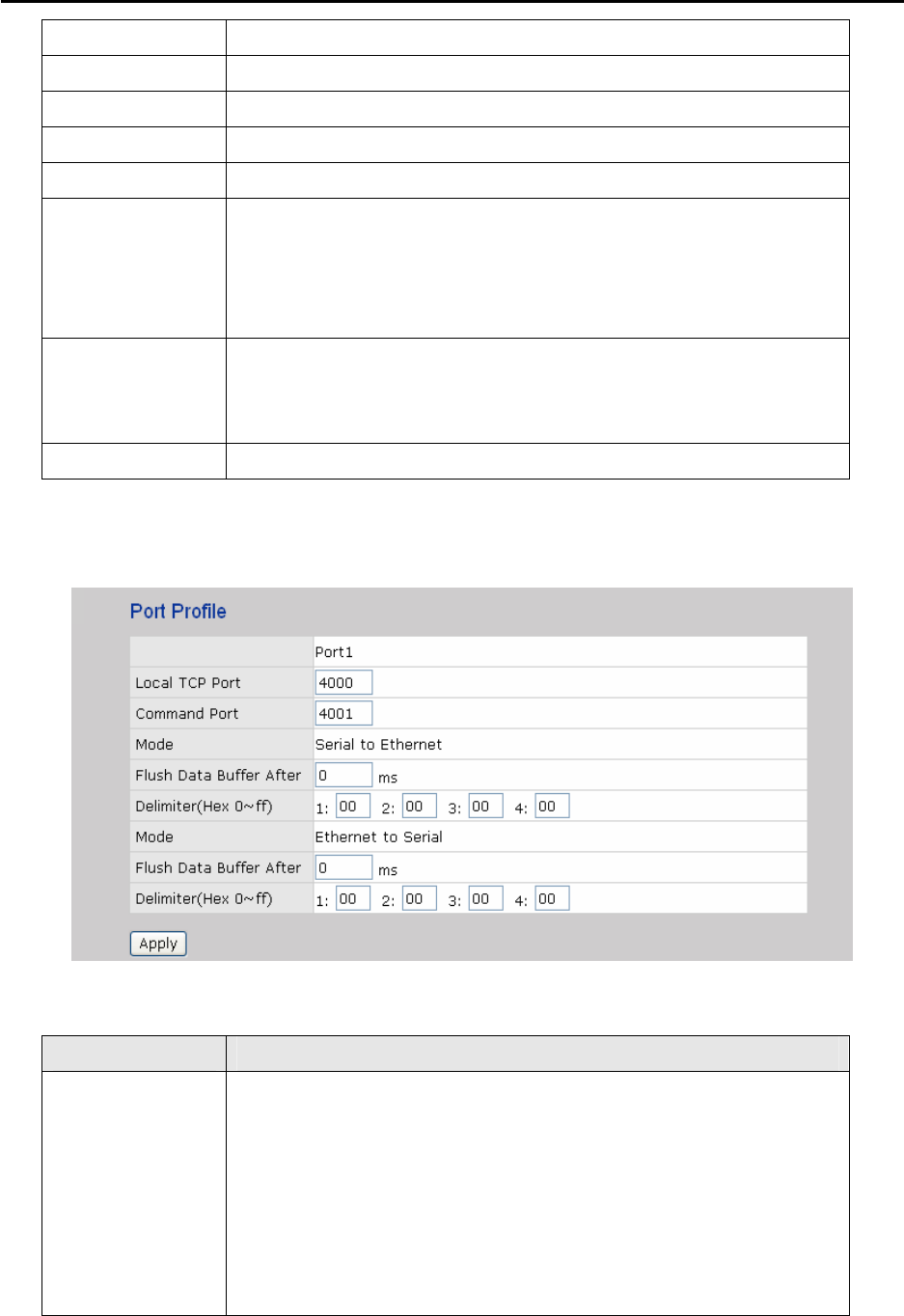
Port Profile
The following table describes the labels in this screen.
Label Description
Serial to Ethernet Flush Data Buffer After:
The received data will be queued in the buffer until all the delimiters
are matched. When the buffer is full (4K Bytes) or after "flush S2E
data buffer" timeout, the data will also be sent. You can set the time
from 0 to 65535 seconds.
Delimiter:
You can define max. 4 delimiters (00~FF, Hex) for each way. The
DS-11-W User’s Manual
38
data will be hold until the delimiters are received or the option “Flush
Serial to Ethernet data buffer” times out. 0 means disable.
Factory default is 0
Ethernet to serial Flush Data Buffer After:
The received data will be queued in the buffer until all the delimiters
are matched. When the buffer is full (4K Bytes) or after "flush E2S
data buffer" timeout, the data will also be sent. You can set the time
from 0 to 65535 seconds.
Delimiter:
You can define max. 4 delimiters (00~FF, Hex) for each way. The
data will be hold until the delimiters are received or the option “Flush
Ethernet to Serial data buffer” times out. 0 means disable.
Factory default is 0
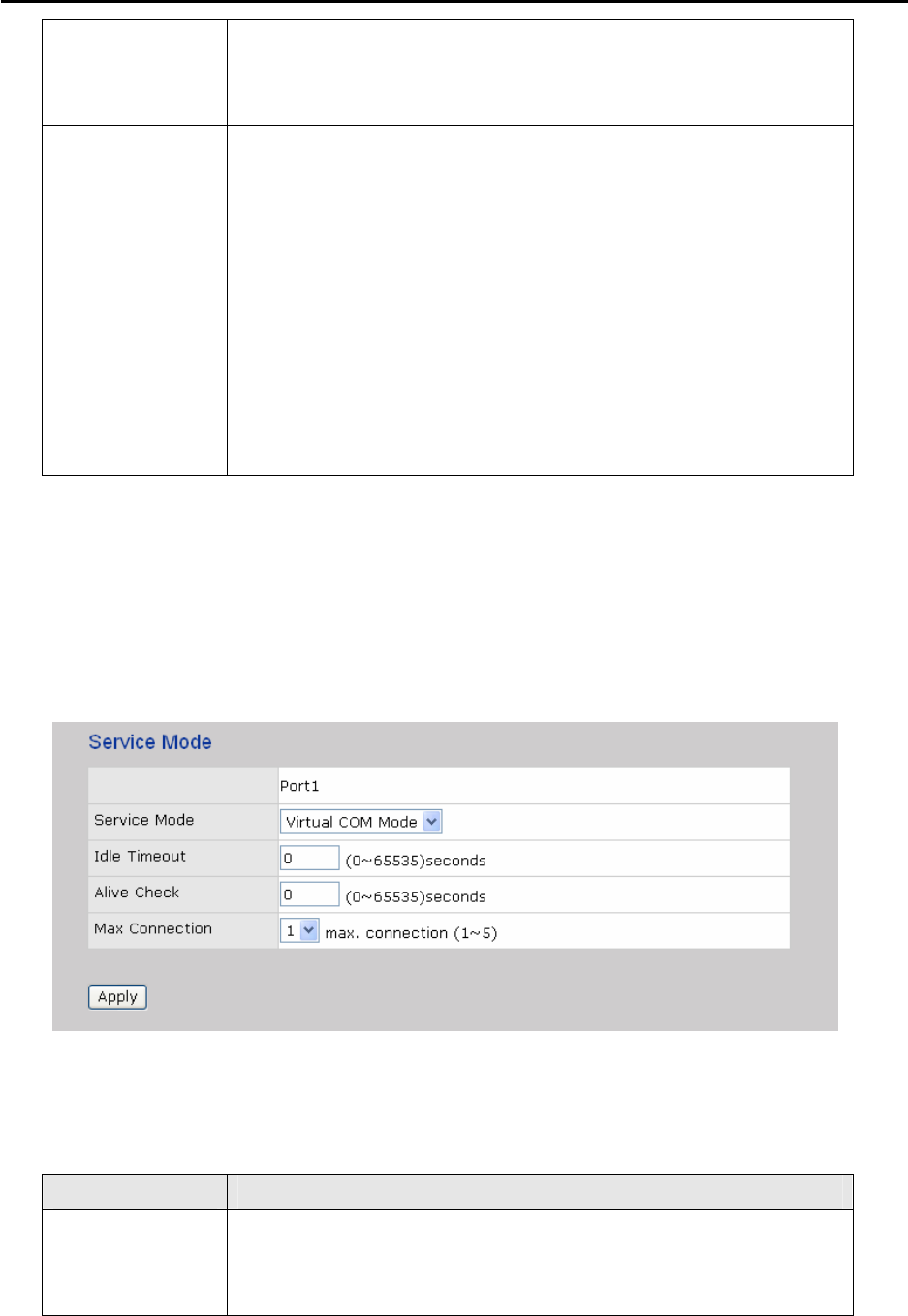
Service Mode – Virtual COM Mode
In Virtual COM Mode, the driver establishes a transparent connection between host and
serial device by mapping the Port of the serial server serial port to local COM port on the host
computer. Virtual COM Mode also supports up to 5 simultaneous connections, so that
multiple hosts can send or receive data by the same serial device at the same time.
*Not allowed to mapping Virtual COM from web
The following table describes the labels in this screen.
Label Description
Idle Timeout When serial port stops data transmission for a defined period of time
(Idle Timeout), the connection will be closed and the port will be freed
and try to connect with other hosts. 0 indicate disable this function.
DS-11-W User’s Manual
39
Factory default value is 0. If Multilink is configured, only the first host
connection is effective for this setting.
Alive Check The serial device will send TCP alive-check package in each defined
time interval (Alive Check) to remote host to check the TCP
connection. If the TCP connection is not alive, the connection will be
closed and the port will be freed. 0 indicate disable this function.
Factory default is 0.
Max Connection The number of Max connection can support simultaneous connections
are 5, default values is 1.
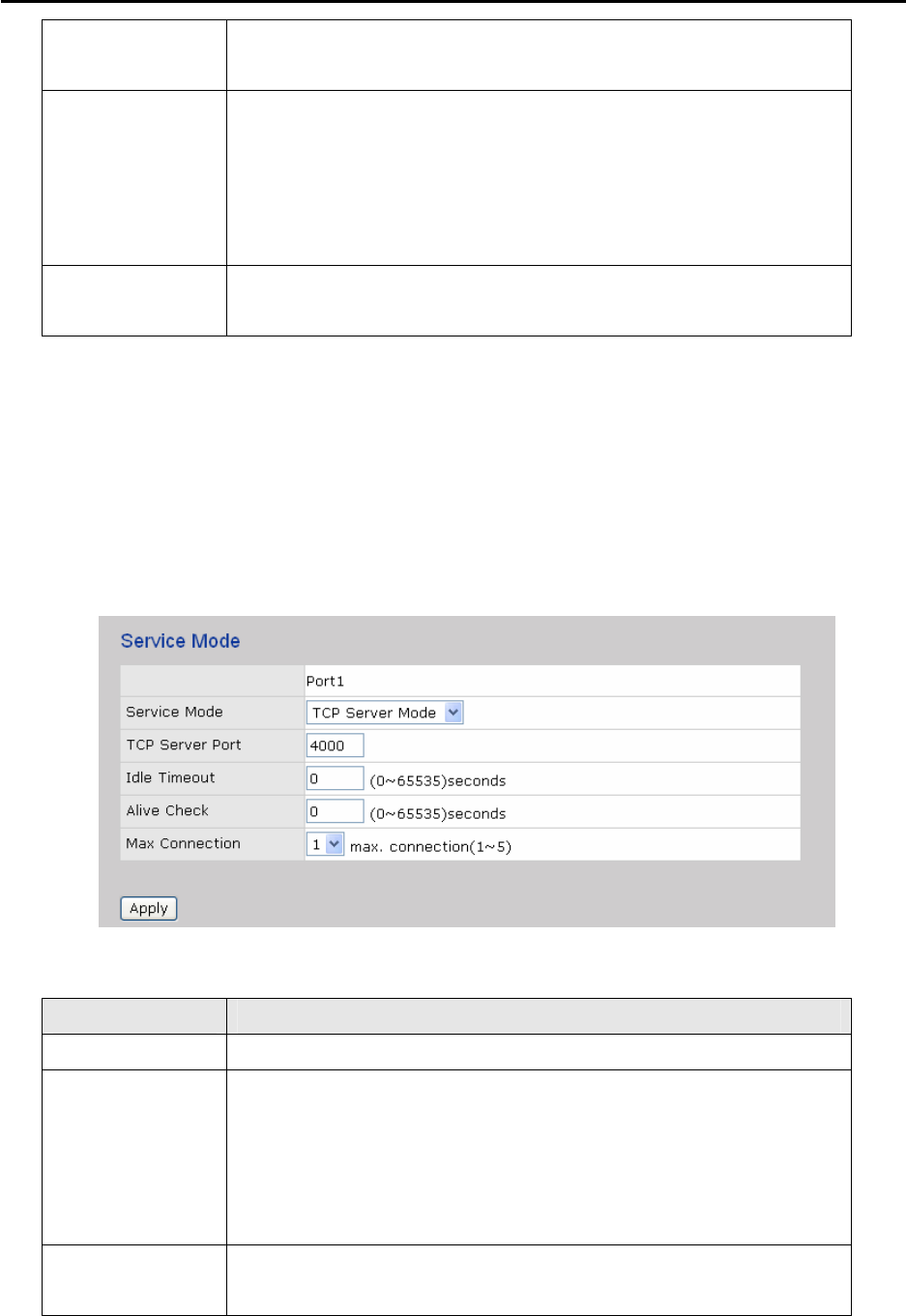
Service Mode – TCP Server Mode
In TCP Server Mode, DS is configured with a unique Port combination on a TCP/IP network.
In this case, DS waits passively to be contacted by the device. After the device establishes a
connection with the serial device, it can then proceed with data transmission. TCP Server
mode also supports up to 5 simultaneous connections, so that multiple device can receive data
from the same serial device at the same time.
The following table describes the labels in this screen.
Label Description
TCP Server Port Set the port number for data transmission.
Idle Timeout When serial port stops data transmission for a defined period of time
(Idle Timeout), the connection will be closed and the port will be freed
and try to connect with other hosts. 0 indicate disable this function.
Factory default value is 0. If Multilink is configured, only the first host
connection is effective for this setting.
Alive Check The serial device will send TCP alive-check package in each defined
time interval (Alive Check) to remote host to check the TCP
DS-11-W User’s Manual
40
connection. If the TCP connection is not alive, the connection will be
closed and the port will be freed. 0 indicate disable this function.
Factory default is 0.
Max Connection Support up to 5 simultaneous connections are 5, default values is 1.
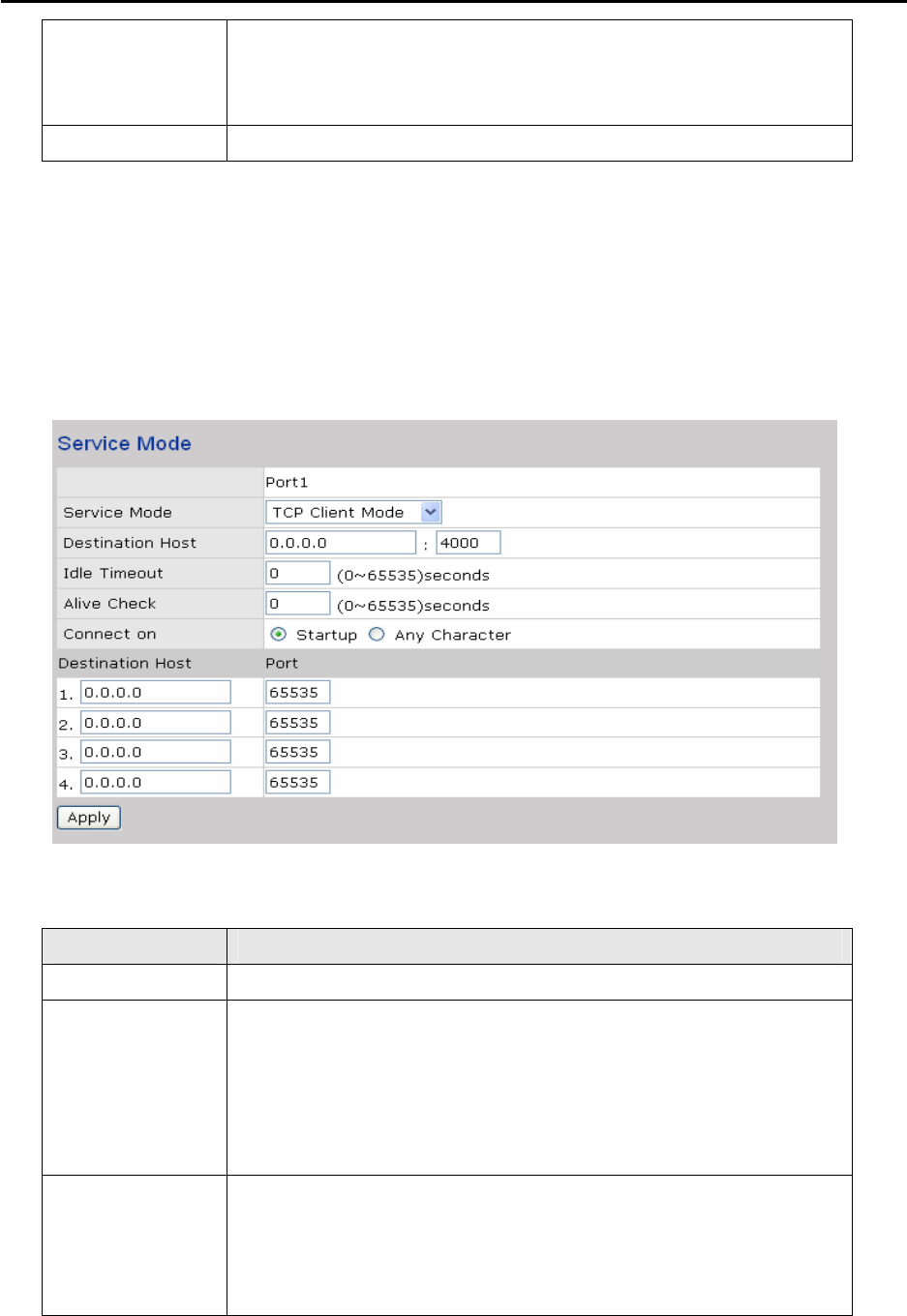
Service Mode – TCP Client Mode
In TCP Client Mode, device can establish a TCP connection with server by the method
you have settled (Startup or any character). After the data has been transferred, device
can disconnect automatically from the server by using the TCP alive check time or idle
time settings.
The following table describes the labels in this screen.
Label Description
Destination Host Set the IP address of host and the port number of data port. .
Idle Timeout When serial port stops data transmission for a defined period of time
(Idle Timeout), the connection will be closed and the port will be freed
and try to connect with other hosts. 0 indicate disable this function.
Factory default value is 0. If Multilink is configured, only the first host
connection is effective for this setting.
Alive Check The serial device will send TCP alive-check package in each defined
time interval (Alive Check) to remote host to check the TCP
connection. If the TCP connection is not alive, the connection will be
closed and the port will be freed. 0 indicate disable this function.
DS-11-W User’s Manual
41
Factory default is 0.
Connect on
Startup
The TCP Client will build TCP connection once the connected serial
device is started.
Connect on Any
Character
The TCP Client will build TCP connection once the connected serial
device starts to send data.
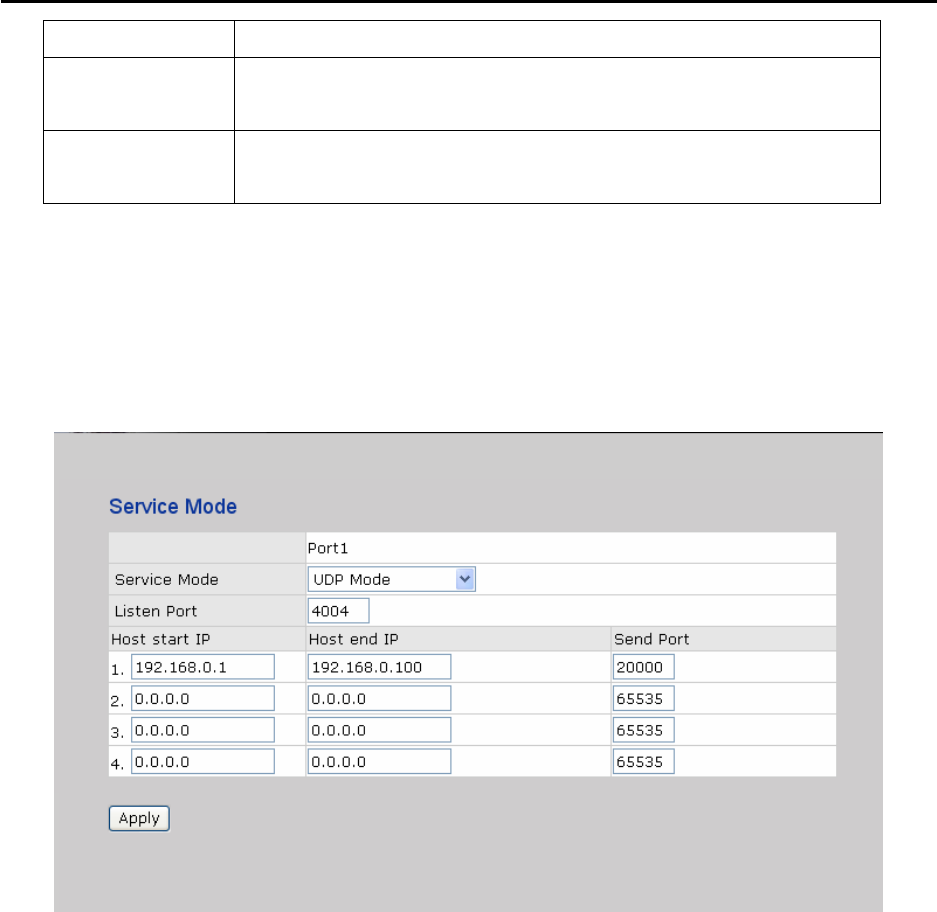
Service Mode – UDP Client Mode
Compared to TCP communication, UDP is faster and more efficient. In UDP mode,
you can Uni-cast or Multi-cast data from the serial device server to host computers, and
the serial device can also receive data from one or multiple host
5.2.1.3 Management
Accessible IP Settings
Accessible IP Settings allow you to add or block the remote host IP addresses to
prevent unauthorized access. If host’s IP address is in the accessible IP table, then the
host will be allowed to access the DS. You can choose one of the following cases by
setting the parameter.
1. Only one host with a special IP address can access the device server, “IP address
/255.255.255.255” (e.g., “192.168.0.1/255.255.255.255”).
2. Hosts on a specific subnet can access the device server. “IP
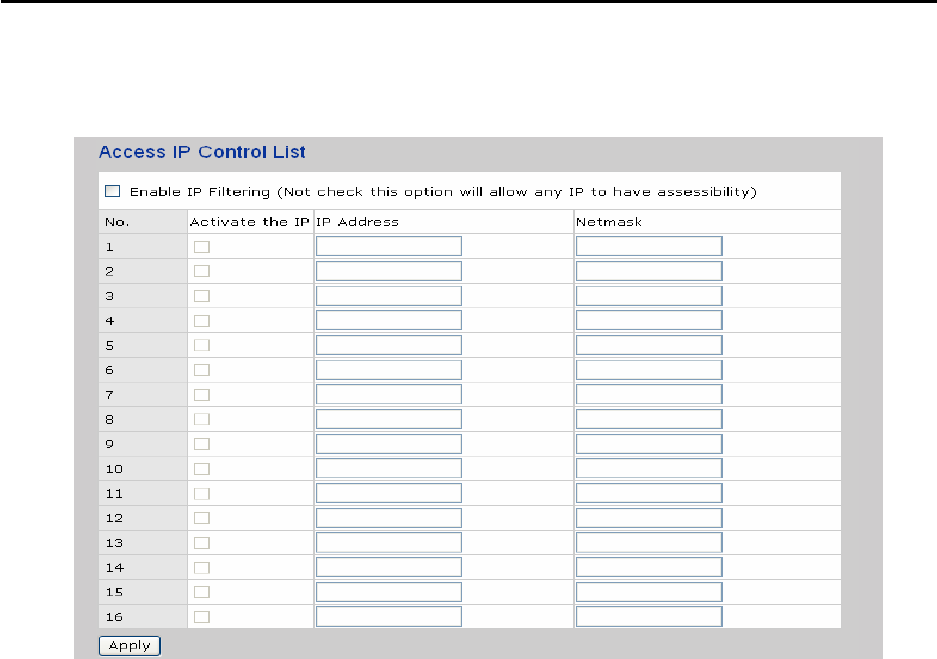
DS-11-W User’s Manual
42
address/255.255.255.0” (e.g., “192.168.0.2/255.255.255.0”)
3. Any host can access the device server. Disable this function by un-checking the
“Enable IP Filter” checkbox
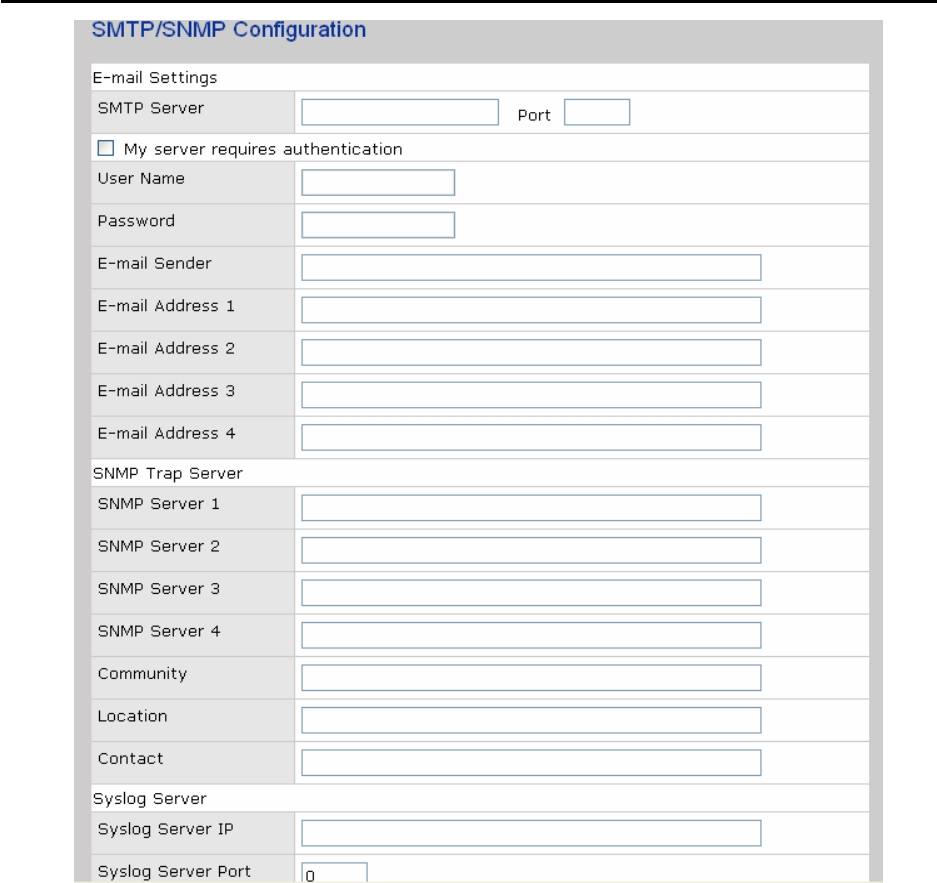
SMTP/SNMP Configuration
Email Server configuration includes the mail server’s IP address or domain. If the
authentication is required, specify your name and password. There are 4 Email
addresses that you can specify to receive the notification.
SNMP Server configuration includes the SNMP Trap Server IP address, Community,
Location and Contact. There are 4 SNMP addresses you can specify to receive the
notification.
SysLog server configuration includes the server IP and server Port. This option need to
use with DS-Tool.
DS-11-W User’s Manual
43
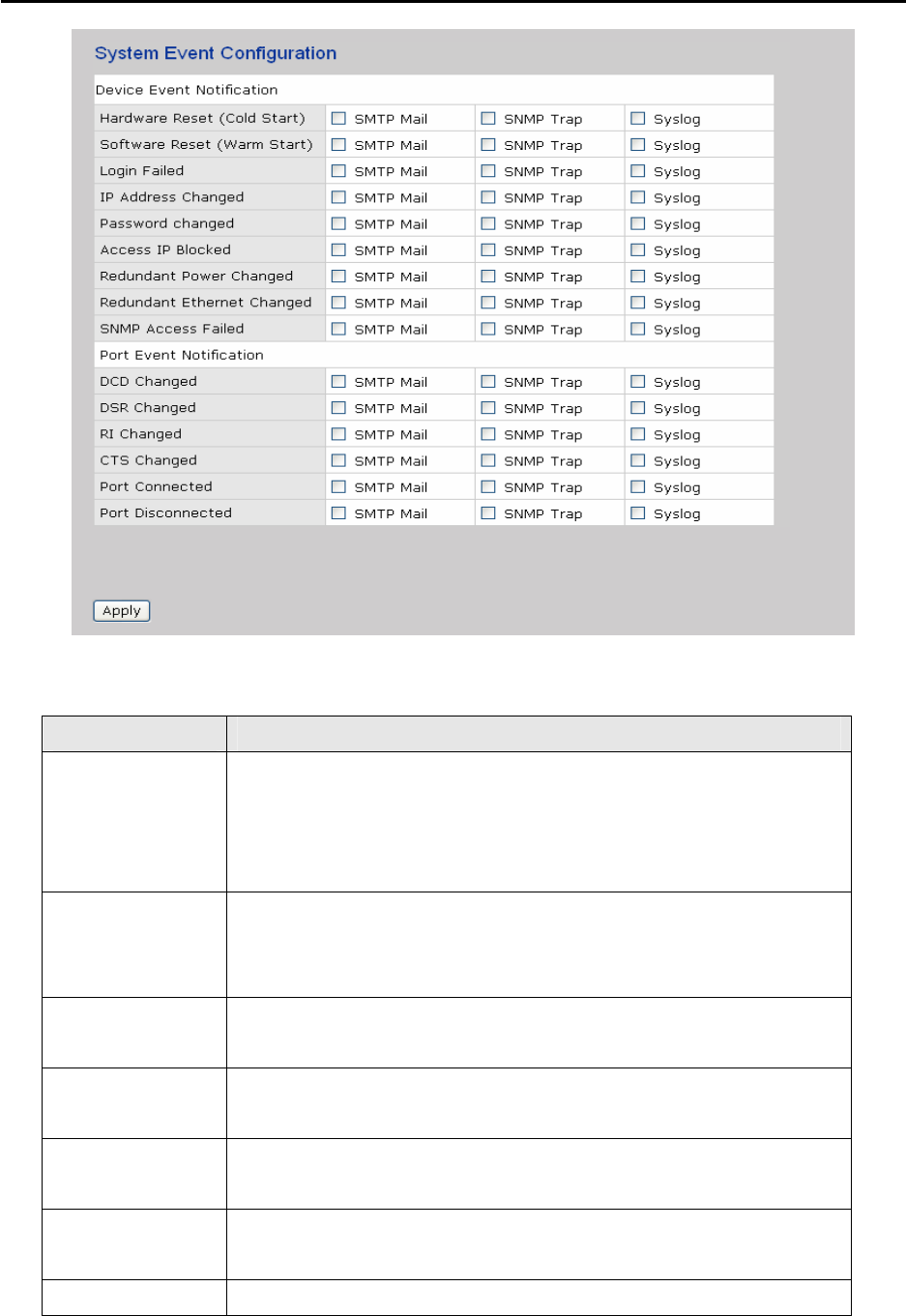
System Event Configuration
Specify the events that should be notified to the administrator. The events can be notified
by E-mail, SNMP trap, or system log.
DS-11-W User’s Manual
44
The following table describes the labels in this screen.
Label Description
Hardware Reset
(Cold Start)
This refers to starting the system from power off (contrast this with
warm start). When performing a cold start, DS will automatically issue
an Auto warning message by sending E-mail, log information or an
SNMP trap after booting.
Software Reset
(Warm Start)
This refers to restart the computer without turning the power off.
When performing a warm start, DS will automatically send an E-mail,
log information or SNMP trap after reboot.
Login Failed When an unauthorized access from the Console or Web interface, a
notification will be sent.
IP Address
Changed
When IP address of device changed, a notification will be sent.
Password
Changed
When password of device changed, a notification will be sent.
Access IP
Blocked
When the host accesses the device with blocked IP addresses, a
notification will be sent.
Redundant When status of power changed, a notification will be sent.
DS-11-W User’s Manual
45
Power Change
DCD changed When DCD (Data Carrier Detect) signal changes, it indicates that the
modem connection status has been changed. A Notification will be
sent.
DSR changed When DSR (Data Set Ready) signal changes, it indicates that the data
communication equipment is powered off. A Notification will be sent.
RI changed When RI (Ring Indicator) signal changes, it indicates an incoming call.
Notification will be sent.
CTS changed When CTS (Clear To Send) signal changes, it indicates that the
transmission between computer and DCE can proceed. A
notification will be sent.
Port connected In TCP Server Mode, when the device accepts an incoming TCP
connection, this event will be trigger. In TCP Client Mode, when the
device has connected to the remote host, this event will be trigger. In
Virtual COM Mode, Virtual COM is ready to use. A notification will be
sent.
Port
disconnected
In TCP Server/Client Mode, when the device lost the TCP link, this
event will be trigger. In Virtual COM Mode, When Virtual COM is not
available, this event will be trigger. A notification will be sent.
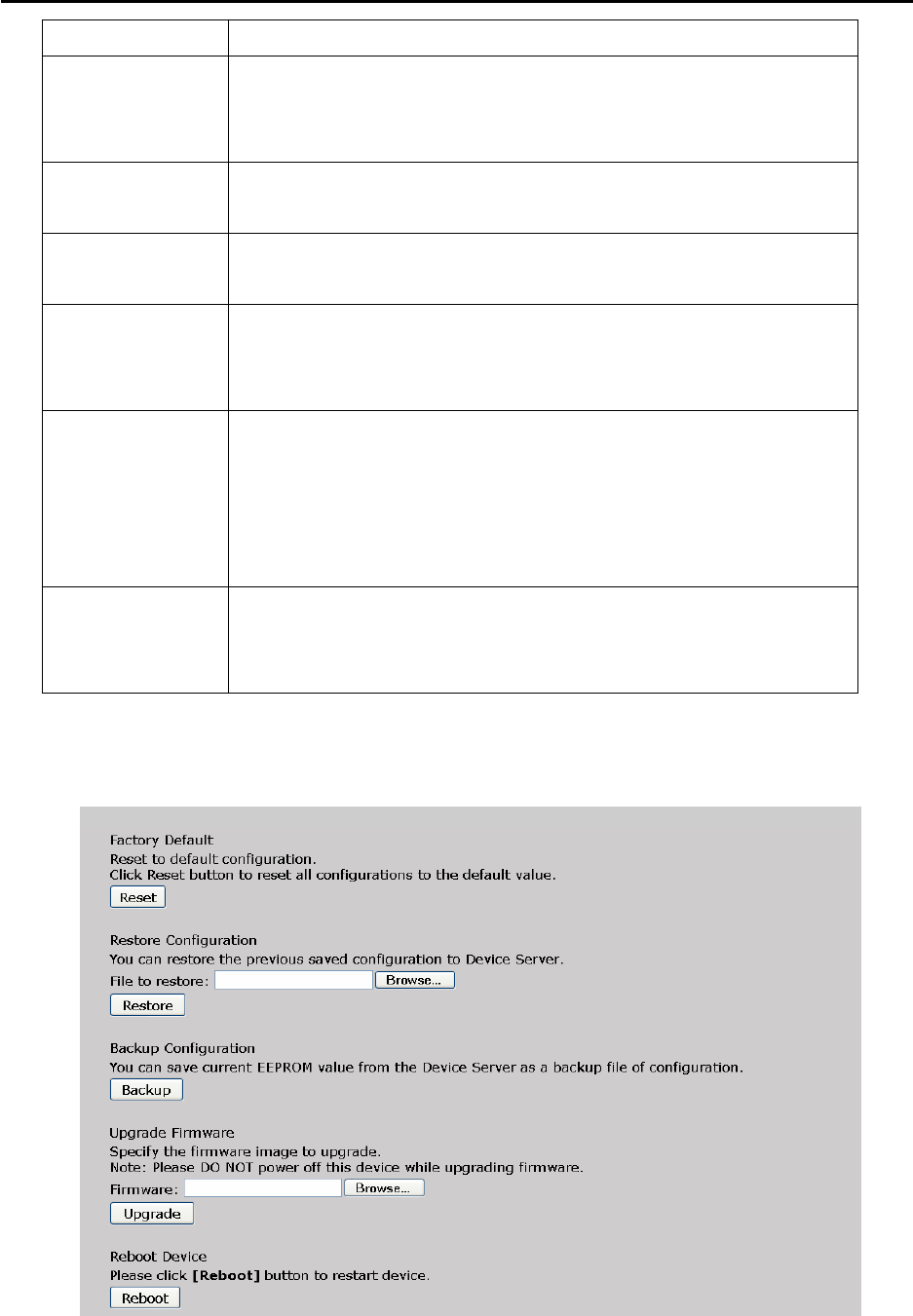
5.2.1.4 Save/Reboot
DS-11-W User’s Manual
46
The following table describes the labels in this screen.
Label Description
Load Factory
Default
Load default configuration except settings of Network. If you want
load all factory default, you should press “Reset” button on the device
(Hardware restore).
Import
Configuration
Restore the previous exported configuration.
Export
Configuration
Export the current configuration to a file.
Upgrade
Firmware
Upgrade to a new firmware with specified file.
Reboot Device Reboot the device server (warm start).
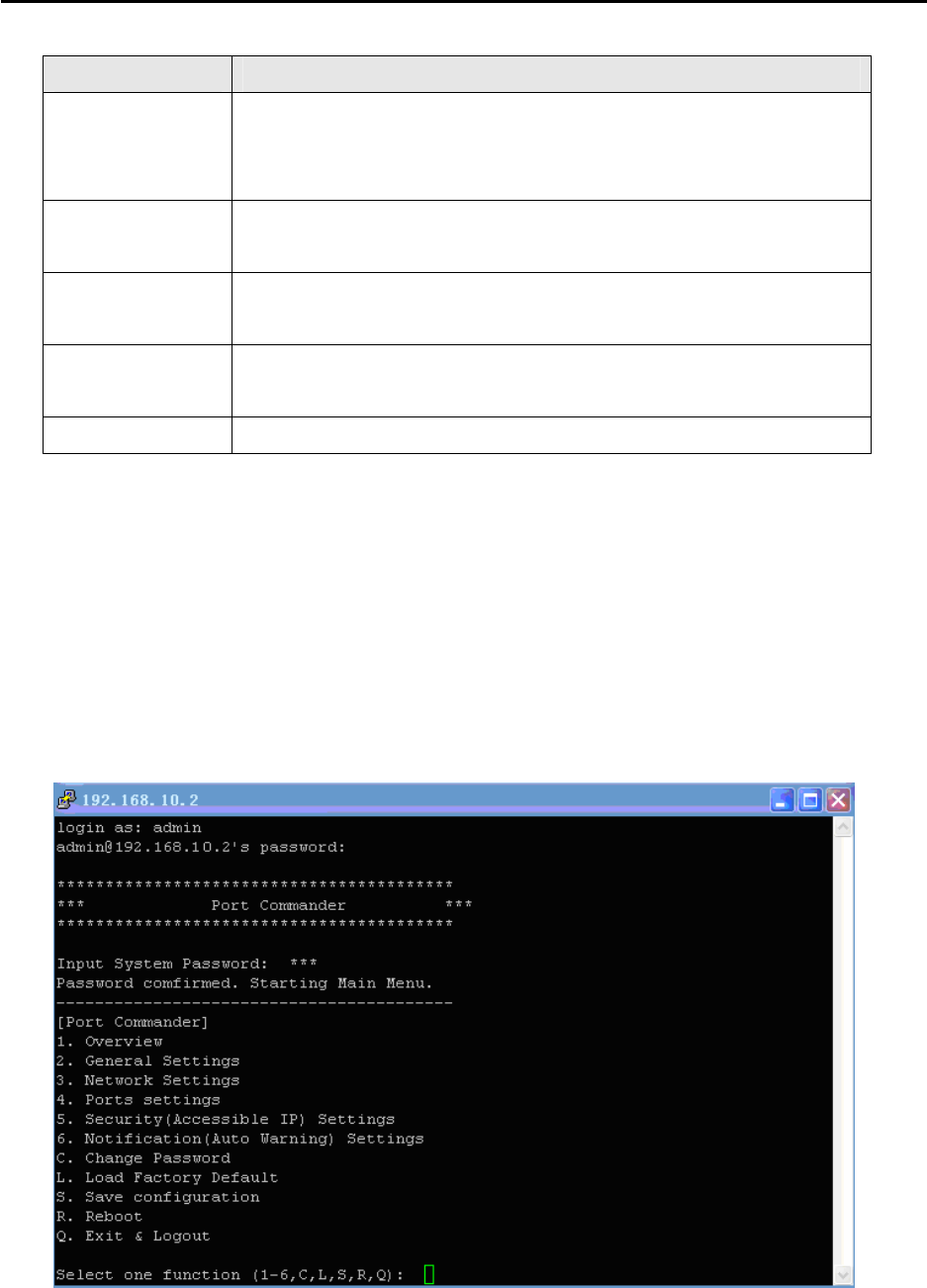
5.3 Configuration by SSH Console
5.3.1 Connect to DS
You can use SSH Tool (e.g., PuTTY) to access SSH console of DS. The SSH console
interface is shown below.

DS-11-W User’s Manual
47
6
Technical Specifications
Network Interface
Ethernet 1x 10/100Base-T(X) LAN
connector RJ-45
Protection Built-in1.5KV magnetic isolation
Protocols ICMP, IP, TCP, UDP, DHCP, BOOTP, ARP/RARP, DNS,
SNMP MIB II, HTTPS, SSH
WLAN Feature
Operating Mode Client mode
Radio Frequency Type DSSS
Modulation
IEEE802.11b: CCK, DQPSK, DBPSK
IEEE802.11g: OFDM with BPSK, QPSK,
16QAM, 64QAM
Frequency Band
America/FCC: 2.412~2.462 GHz (11 channels)
Europe CE/ETSI: 2.412~2.472 GHz (13 channels)
Transmission Rate
IEEE802.11b: 1/ 2/ 5.5/ 11 Mbps
IEEE802.11g: 6/ 9/ 12/ 18/ 24/ 36/ 48/ 54 Mbps
Transmit Power IEEE802.11b/g: 16dBm
Encryption
Security
WEP: (64-bit ,128-bit key supported)
WPA:
WPA2 :802.11i(WEP and AES encryption)
PSK (256-bit key pre-shared key supported) 802.1X and
Radius supported TKIP encryption
Wireless Security SSID broadcast disable
Serial Interface
Interface 1x RS232 / RS422 / 4(2)-Wire RS485. Which can be
configured by DS-Tool
Connector Male DB9

DS-11-W User’s Manual
48
Baud Rate 110 bps to 230.4 Kbps
Data Bits 5, 6, 7, 8
Parity odd, even, none, mark, space
Stop Bits 1. 1.5, 2
RS-232 signals TxD, RxD, RTS, CTS, DTR, DSR, DCD, RI, GND
RS-422 signals Tx+,Tx-, Rx+, Rx-,GND
RS-485 (4 wire) signals Tx+,Tx-, Rx+, Rx-,GND
RS-485 (2 wire) signals Data+, Data-,GND
Flow control XON/XOFF, RTS/CTS, DTR/DSR
Protection Built-in15KV ESD protection
LED Indicators PWR 1(2) / Ready:
1) Red On: Power is on and booting up.
Red Blinking: Indicates an IP conflict, or DHCP or
BOOTP server did not respond properly.
2) Green On: Power is on and functioning normally.
Green Blinking: Located by Administrator.
ETH Link / ACT:
Orange ON/Blinking: 10 Mbps Ethernet
Green ON/Blinking: 100 Mbps Ethernet
WLAN Link /ACT: Green: Link, Orange: Poor signal
Serial TX / RX LEDs:
Red: Serial port is receiving data
Green: Serial port is transmitting data.
Power Requirements
Power Input Voltage PWR1: 12~48VDC in 3-pin Terminal Block
PWR2: 12~48VDC in Power Jack with Power Adapter
Reverse Polarity Protection Present at terminal block
Power Consumption 4 Watts Max
Software Utility
Utility
DS-Tool for Windows NT/2000/XP/2003/VISTA
Device discovery
Auto IP report
Device setting (run-time change, no rebooting)
Access control list
Group setting
Device monitoring
Serial port monitoring
Log info
Group Firmware update

DS-11-W User’s Manual
49
Serial Mode Virtual Com / TCP Server / TCP Client / UDP /
Serial Tunnel
TCP Alive Check Timeout
Inactivity Timeout
Delimiter for Data Packing
Force TX Timeout for Data Packing
Multiple Link
5 Hosts simultaneous connection: Virtual Com /
TCP server / TCP Client / UDP
VCOM Driver Windows NT/2000/XP/2003/VISTA
Configuration Web HTTPS console, SSH console,
DS-Tool for Windows NT/2000/XP/VISTA
Environmental
Operating Temperature -10 to 55°C (14 to 131°F)
Operating Humidity 5% to 95%(Non-condensing)
Storage Temperature -20 to 85°C (-4 to 185 F)°
Mechanical
Dimensions(W x D x H) 72 mm(W)x 125 mm(D)x 31 mm(H)
Casing IP-30 protection
Regulatory Approvals
Shock IEC60068-2-27
Free Fall IEC 60068-2-32
Vibration IEC 60068-2-6
EMI FCC Part 15, CISPR (EN55022) class A
EMS EN61000-4-2 (ESD), EN61000-4-3 (RS), EN61000-4-4
(EFT), EN61000-4-5 (Surge), Level 3, EN61000-4-6
(CS), Level 3
MBTF 200,000 hours at least
Warranty 5 years
FEDERAL COMMUNICATIONS COMMISSION INTERFERENCE STATEMENT
This equipment has been tested and found to comply with the limits for a Class B digital
device, pursuant to Part 15 of the FCC Rules. These limits are designed to provide
reasonable protection against harmful interference in a residential installation. This
equipment generates, uses and can radiate radio frequency energy and, if not installed
and used in accordance with the instructions, may cause harmful interference to radio
communications. However, there is no guarantee that interference will not occur in a
particular installation. If this equipment does cause harmful interference to radio or
television reception, which can be determined by turning the equipment off and on, the
user is encouraged to try to correct the interference by one or more of the following
measures:
– Reorient or relocate the receiving antenna.
– Increase the separation between the equipment and receiver.
– Connect the equipment into an outlet on a circuit different from that to which the
receiver is connected.
– Consult the dealer or an experienced radio/TV technician for help.
CAUTION:
Any changes or modifications not expressly approved by the party responsible for
compliance could void the user's authority to operate the equipment.
This device complies with Part 15 of the FCC Rules. Operation is subject to the following
two conditions:
(1) This device may not cause harmful interference and
(2) This device must accept any interference received, including interference that may
cause undesired operation.
FCC RF Radiation Exposure Statement
This equipment must be installed and operated in accordance with provided instructions
and the antenna(s) used for this transmitter must be installed to provide a separation
distance of at least 20 cm from all persons and must not be co-located or operating in
conjunction with any other antenna or transmitter. End-users and installers must be
provide with antenna installation instructions and transmitter operating conditions for
satisfying RF exposure compliance.