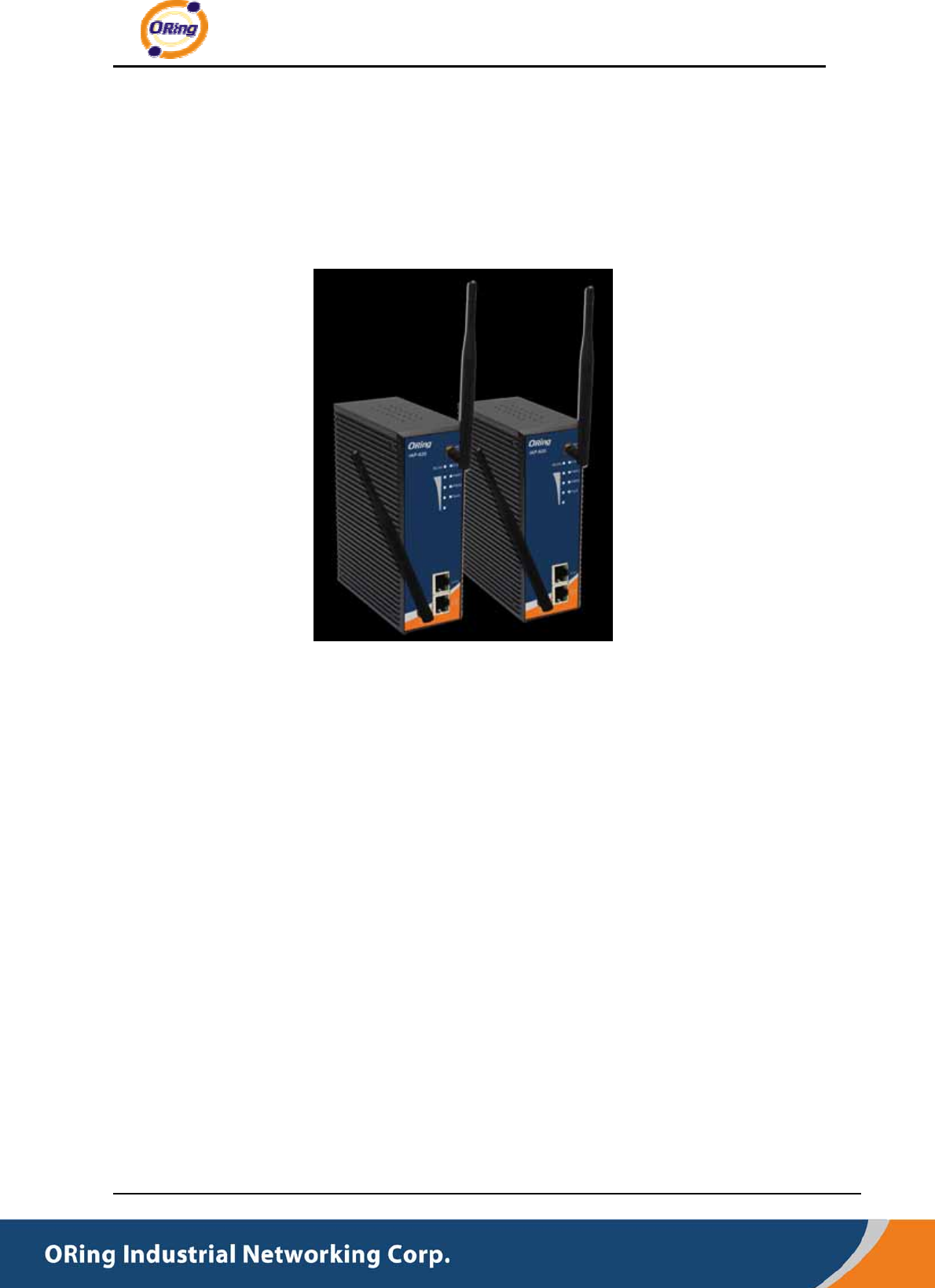
ORing Networking IAP620 Industrial Access Point and Router User Manual
ORing Industrial Networking Corp. Industrial Access Point and Router
User Manual
IAP-620 Series User’s Manual
1 ORing Industrial Networking Corp.
I
IA
AP
P-
-6
62
20
0
S
Se
er
ri
ie
es
s
I
IE
EE
EE
E
8
80
02
2.
.1
11
1
a
a/
/b
b/
/g
g/
/n
n
A
Ac
cc
ce
es
ss
s
P
Po
oi
in
nt
t
U
Us
se
er
r’
’s
s
M
Ma
an
nu
ua
al
l
V
Ve
er
rs
si
io
on
n
1
1.
.0
0
J
Ju
ul
ly
y,
,
2
20
01
12
2
w
ww
ww
w.
.o
or
ri
in
ng
g-
-n
ne
et
tw
wo
or
rk
ki
in
ng
g.
.c
co
om
m

IAP-620 Series User’s Manual
ORing Industrial Networking Corp. 2
COPYRIGHT NOTICE
Copyright © 2011 ORing Industrial Networking Corp.
All rights reserved.
No part of this publication may be reproduced in any form without the prior written consent of
ORing Industrial Networking Corp.
TRADEMARKS
is a registered trademark of ORing Industrial Networking Corp.
All other trademarks belong to their respective owners.
REGULATORY COMPLIANCE STATEMENT
Product(s) associated with this publication complies/comply with all applicable regulations.
Please refer to the Technical Specifications section for more details.
WARRANTY
ORing warrants that all ORing products are free from defects in material and workmanship
for a specified warranty period from the invoice date (5 years for most products). ORing will
repair or replace products found by ORing to be defective within this warranty period, with
shipment expenses apportioned by ORing and the distributor. This warranty does not cover
product modifications or repairs done by persons other than ORing-approved personnel, and
this warranty does not apply to ORing products that are misused, abused, improperly
installed, or damaged by accidents.
Please refer to the Technical Specifications section for the actual warranty period(s) of the
product(s) associated with this publication.
DISCLAIMER
Information in this publication is intended to be accurate. ORing shall not be responsible for
its use or infringements on third-parties as a result of its use. There may occasionally be
unintentional errors on this publication. ORing reserves the right to revise the contents of this
publication without notice.
CONTACT INFORMATION
ORing Industrial Networking Corp.
3F., No.542-2, Zhongzheng Rd., Xindian Dist., New Taipei City 23148, Taiwan (R.O.C.)
Tel: +886-2-2218-1066 // Fax: +886-2-2218-1014
Website: www.oring-networking.com
Technical Support
E-mail: support@oring-networking.com
Sales Contact
E-mail: sales@oring-networking.com (Headquarters)
sales@oring-networking.com.cn (China)

IAP-620 Series User’s Manual
3 ORing Industrial Networking Corp.
Table of Content
Getting to Know Your Access Point ............................................................ 5
1.1About the ORing Access Point..........................................................................................5
1.2Software Features ..............................................................................................................5
1.3Hardware Features.............................................................................................................5
Hardware Installation.................................................................................... 6
2.1Installation AP on DIN-Rail................................................................................................6
2.2Wall Mounting Installation..................................................................................................7
Hardware Overview....................................................................................... 9
3.1Front Panel ..........................................................................................................................9
3.2Front Panel LEDs .............................................................................................................11
3.3Bottom Panel.....................................................................................................................12
3.4Rear Panel.........................................................................................................................12
Cables and Antenna.....................................................................................13
4.1Ethernet Cables ................................................................................................................13
4.2100Base-T(X)/10Base-T Pin Assignments ...................................................................13
4.3Wireless Antenna..............................................................................................................14
Management Interface.................................................................................15
5.1Explore IAP-620/IAP-620+..............................................................................................15
5.1.1Open-Vision_Commander ..............................................................................................15
5.2UPnP Equipment ..............................................................................................................16
5.3Configuration by Web Browser.......................................................................................17
5.4About Web-Based Management ....................................................................................17
5.5Main Interface....................................................................................................................18
5.5.1Basic Setting...................................................................................................................19
Setting Operation Mode ...........................................................................................................19
Setting WDS (Bridge Mode)....................................................................................................20
Setting Wireless........................................................................................................................23
Client........................................................................................................................................28
LAN Setting .............................................................................................................................29
Setting DHCP Server................................................................................................................30

IAP-620 Series User’s Manual
ORing Industrial Networking Corp. 4
5.5.2Advanced Setting............................................................................................................31
Wireless....................................................................................................................................31
X-Roaming...............................................................................................................................33
MAC Filter...............................................................................................................................33
System Event............................................................................................................................34
Email Settings ..........................................................................................................................35
SNMP Settings .........................................................................................................................36
Syslog Server Settings..............................................................................................................37
5.5.3System Tools...................................................................................................................38
Administrator ...........................................................................................................................38
Date & Time.............................................................................................................................40
Configuration ...........................................................................................................................41
Firmware Upgrade ...................................................................................................................42
Miscellaneous...........................................................................................................................42
5.5.4System Status..................................................................................................................43
System Info ..............................................................................................................................43
System Log ..............................................................................................................................44
Traffic Statistics........................................................................................................................44
5.5.5Online Help.....................................................................................................................45
Technical Specifications .............................................................................46
Compliance...................................................................................................48

IAP-620 Series User’s Manual
5 ORing Industrial Networking Corp.
Getting to Know Your Access Point
1.1 About the ORing Access Point
IAP-620/IAP-620+ is reliable IEEE802.11a/b/g/n WLAN with 2
ports LAN Access Point. It can be configured to operate in
AP/Client/Bridge/AP-Client mode. You can configure
IAP-620/IAP-620+ by Windows Utility or WEB interfaces via LAN port
or WLAN interface. IAP-620/IAP-620+ provides dual Ethernet ports in
switch mode, so you can use Daisy Chain to reduce the usage of
Ethernet switch ports. Therefore, IAP-620/IAP-620+ is one of the
best communication solutions for wireless application.
1.2 Software Features
High Speed Air Connectivity: WLAN interface support up to 300Mbps link speed
connection
Highly Security Capability: WEP/WPA/WPA2/802.1x supported
Support AP/Client/Bridge/AP-Client Mode
Switch Mode Supported: Daisy Chain support to reduce usage of switch ports
Secured Management by HTTPS
Event Warning by Syslog, Email, SNMP Trap, Relay and Beeper
1.3 Hardware Features
Fully Compliant with IEEE802.3af (Power Device at ETH2, IAP-620+ only)
Redundant Power Inputs: Dual 12~48 VDC on terminal block
10/100Base-T(X) Ethernet port
Casing: IP-30
Dimensions(W x D x H) : 52 mm(W)x 106 mm( D )x 144 mm(H)
Operating Temperature: -10 to 60oC
Storage Temperature: -40 to 85oC
Operating Humidity: 5% to 95%, non-condensing
IAP-620 Series User’s Manual
ORing Industrial Networking Corp. 6
Hardware Installation
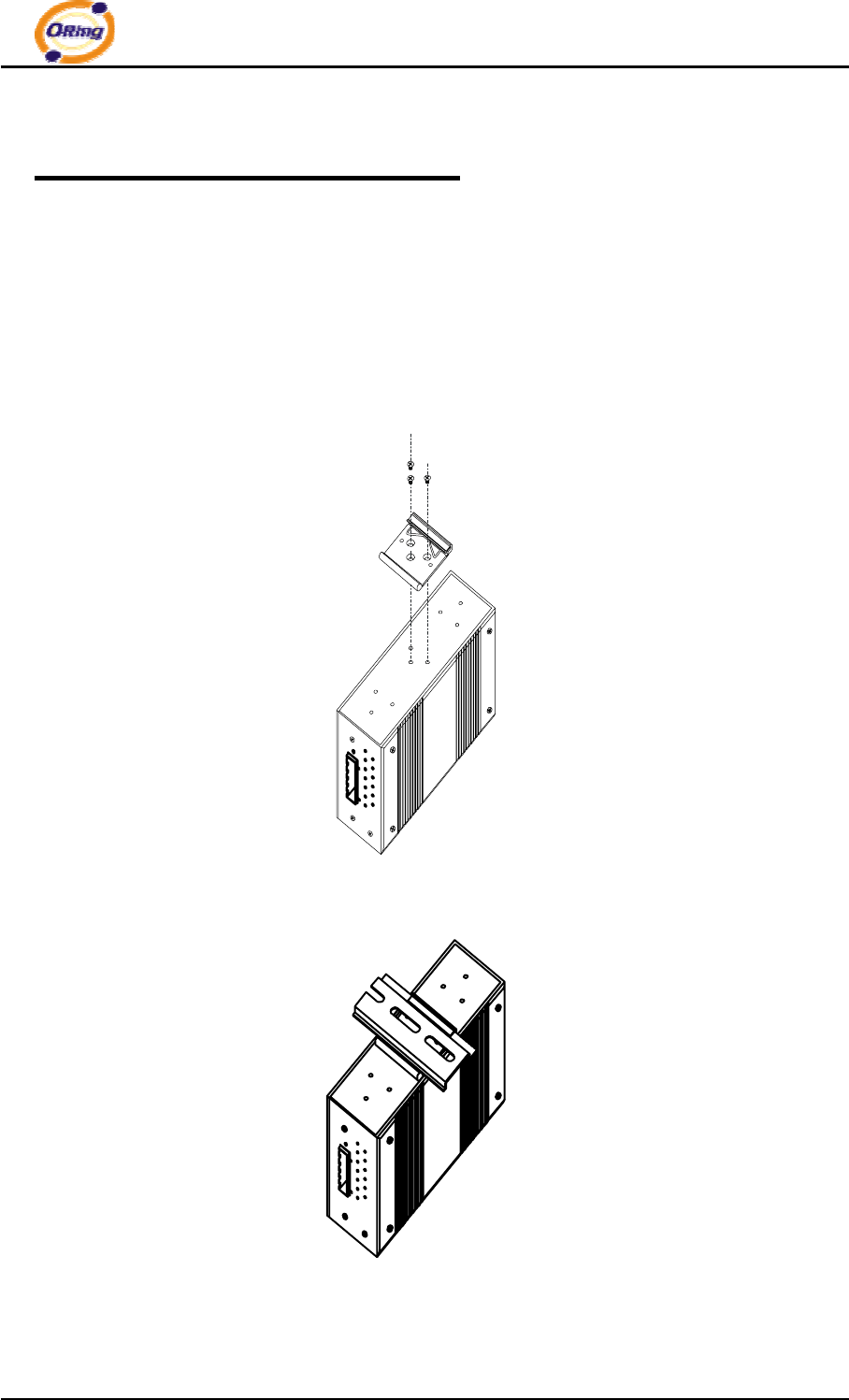
2.1 Installation AP on DIN-Rail
Each AP has a DIN-Rail kit on rear panel. The DIN-Rail kit helps AP to fix on the
DIN-Rail. It is easy to install the AP on the DIN-Rail:
Step 1: Slant the AP and mount the metal spring to DIN-Rail.
Step 2: Push the AP toward the DIN-Rail until you heard a “click” sound.
IAP-620 Series User’s Manual
7 ORing Industrial Networking Corp.
2.2 Wall Mounting Installation
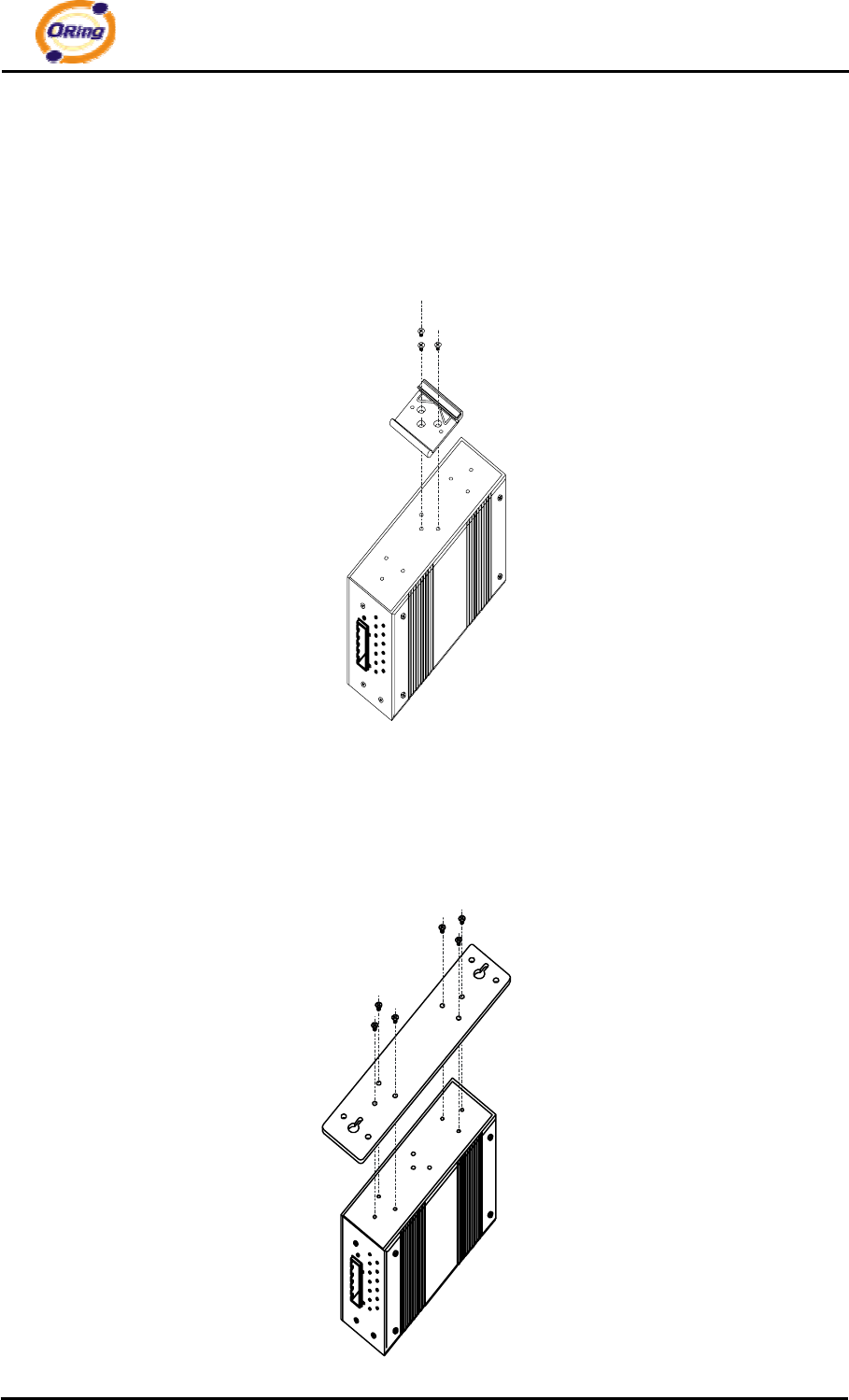
Each AP has another installation method to fix the AP. A wall mount panel can be
found in the package. The following steps show how to mount the AP on the wall:
Step 1: Remove DIN-Rail kit.
Step 2: Use 6 screws that can be found in the package to combine the wall mount panel.
Just like the picture shows below:
IAP-620 Series User’s Manual
ORing Industrial Networking Corp. 8
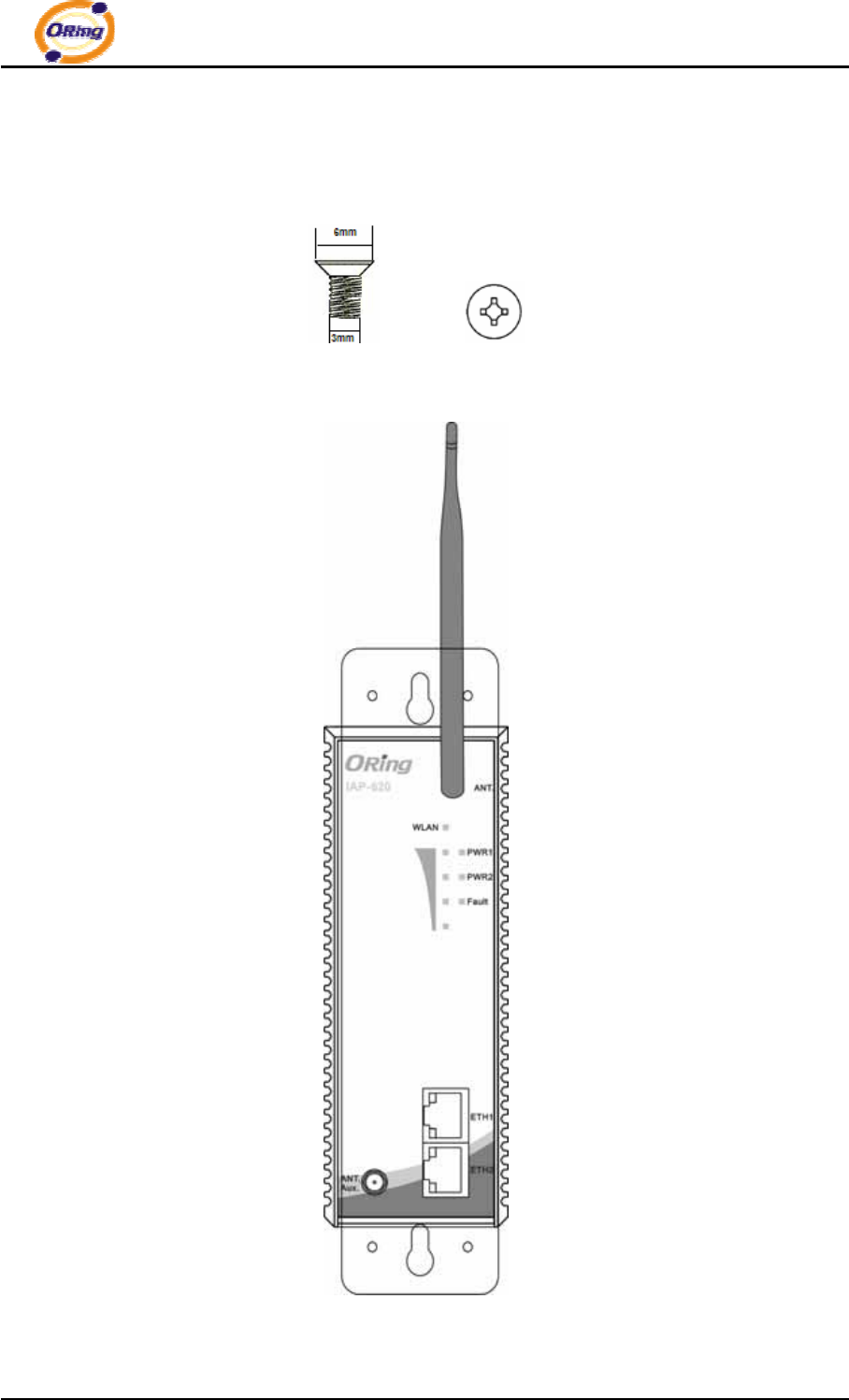
The screws specification shows in the following two pictures. In order to prevent the
AP from any damage, the screws should not larger than the size that used in IAP-620 /
620+.
Pozidrive
Step 3: Mount the combined AP on the wall.
IAP-620 Series User’s Manual
9 ORing Industrial Networking Corp.
Hardware Overview
3.1 Front Panel
The following table describes the labels that stick on the IAP-620/IAP-620+.
Port Description
10/100 RJ-45 fast
Ethernet ports
2 10/100Base-T(X) RJ-45 fast Ethernet ports support
auto-negotiation.
Default Setting :
Speed: auto
PoE P.D. Port ETH2 of IAP-620+ compliant with IEEE802.3af PoE specifications
ANT. Reversed SMA connector for high gain external antenna.
IAP-620 Series User’s Manual
ORing Industrial Networking Corp. 10
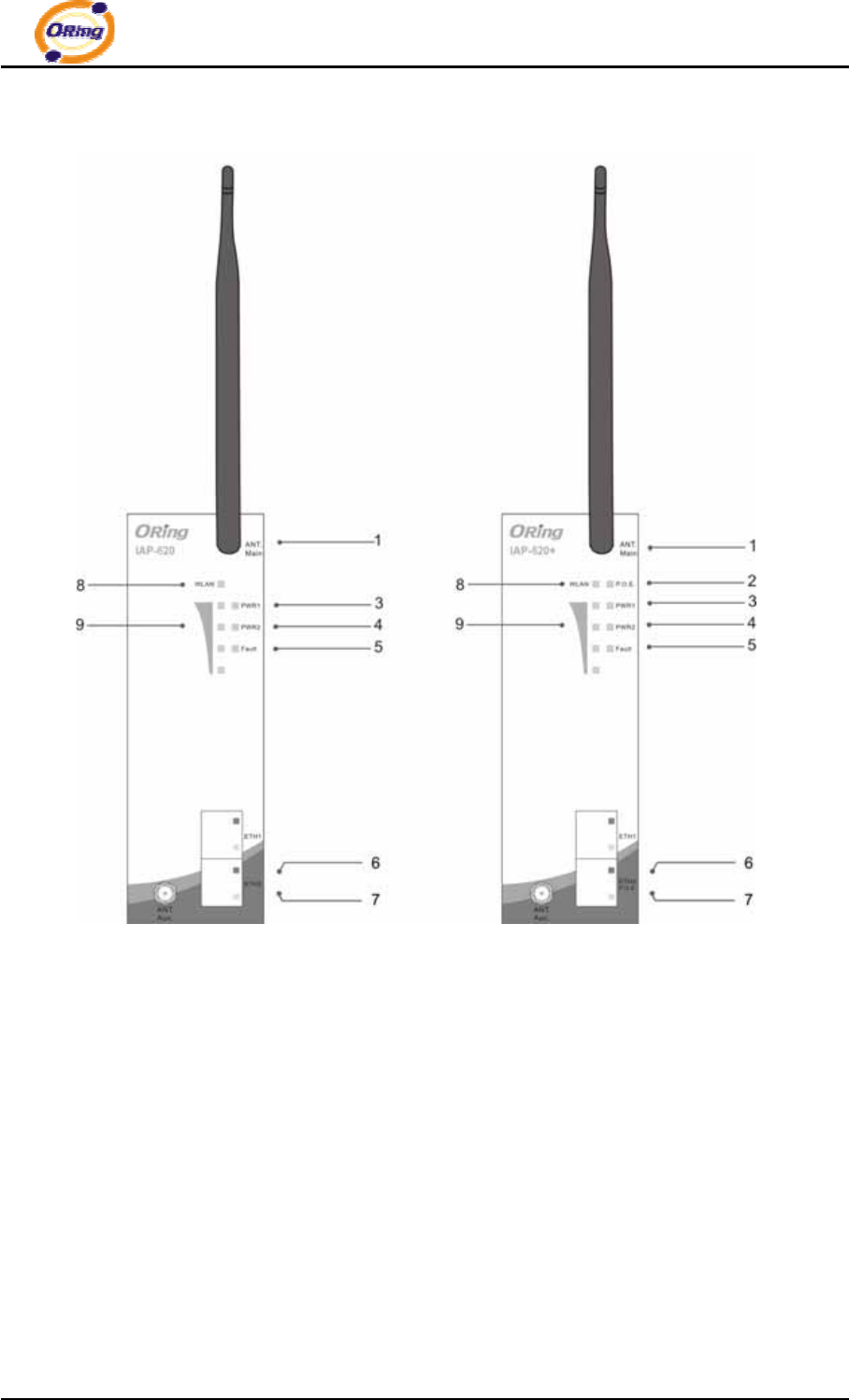
IAP-620 IAP-620+
1 2.4/5 GHz antenna with typical 3.0 dBi antenna.
2 LED for PoE power and system status. When the PoE power links, the green LED will
be light on.
3 LED for PWR1 and system status. When the PWR1 links, the green LED will be light
on.
4 LED for PWR2 and system status. When the PWR2 links, the green LED will be light
on.
5 LED for Fault Relay. When the fault occurs, the amber LED will be light on.
6 10/100Base-T(X) Ethernet ports. (IAP-620+ contains P.D. function of PoE)
7 LED for Ethernet ports status.
8 LED for WLAN link status.
9 LED for WLAN signal strength..
IAP-620 Series User’s Manual
11 ORing Industrial Networking Corp.
3.2 Front Panel LEDs
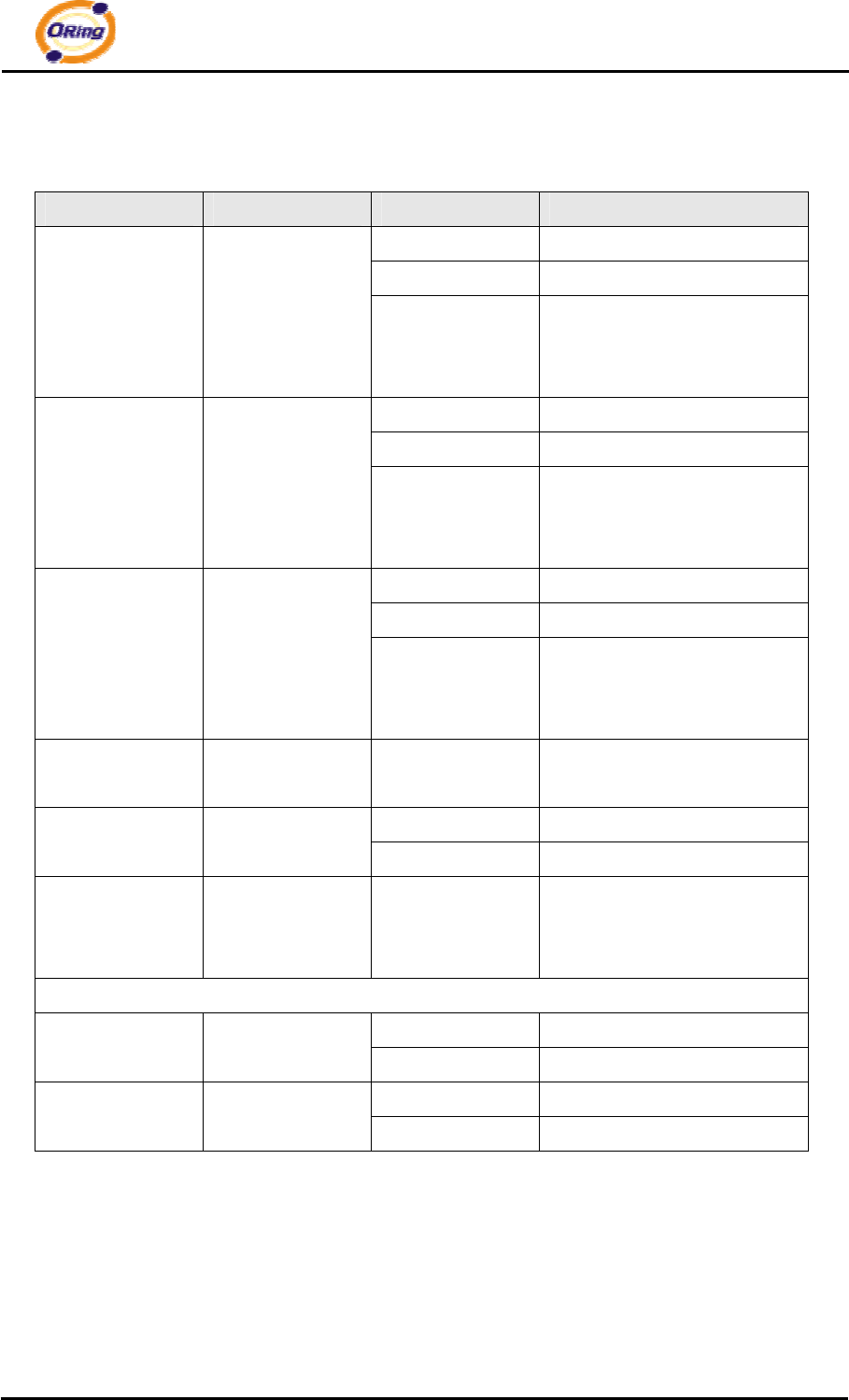
LED Color Status Description
Green On PoE power connected.
Green blinking Device been located
P. O .E .
(IAP-620+) Green/Red
Red blinking
Indicates an IP conflict, or
DHCP or BOOTP server did
not respond properly
Green On DC power 1 activated.
Green blinking Device been located
PWR1 Green/Red
Red blinking
Indicates an IP conflict, or
DHCP or BOOTP server did
not respond properly
Green On DC power 2 activated.
Green blinking Device been located
PWR2 Green/Red
Red blinking
Indicates an IP conflict, or
DHCP or BOOTP server did
not respond properly
Fault Amber On Fault relay. Power failure or
Port down/fail.
On WLAN activated.
WLAN Green Blinking WLAN Data transmitted.
WLAN Strength Green On
WLAN signal strength.
1<25%, 2<50%, 3<75%,
4<100%
10/100Base-T(X) Fast Ethernet ports
On Port link up at 10Mbps.
10Mbps
LNK/ACT Amber Blinking Data transmitted.
On Port link up at 100Mbps.
100Mbps
LNK/ACT Green Blinking Data transmitted.
IAP-620 Series User’s Manual
ORing Industrial Networking Corp. 12
3.3 Bottom Panel
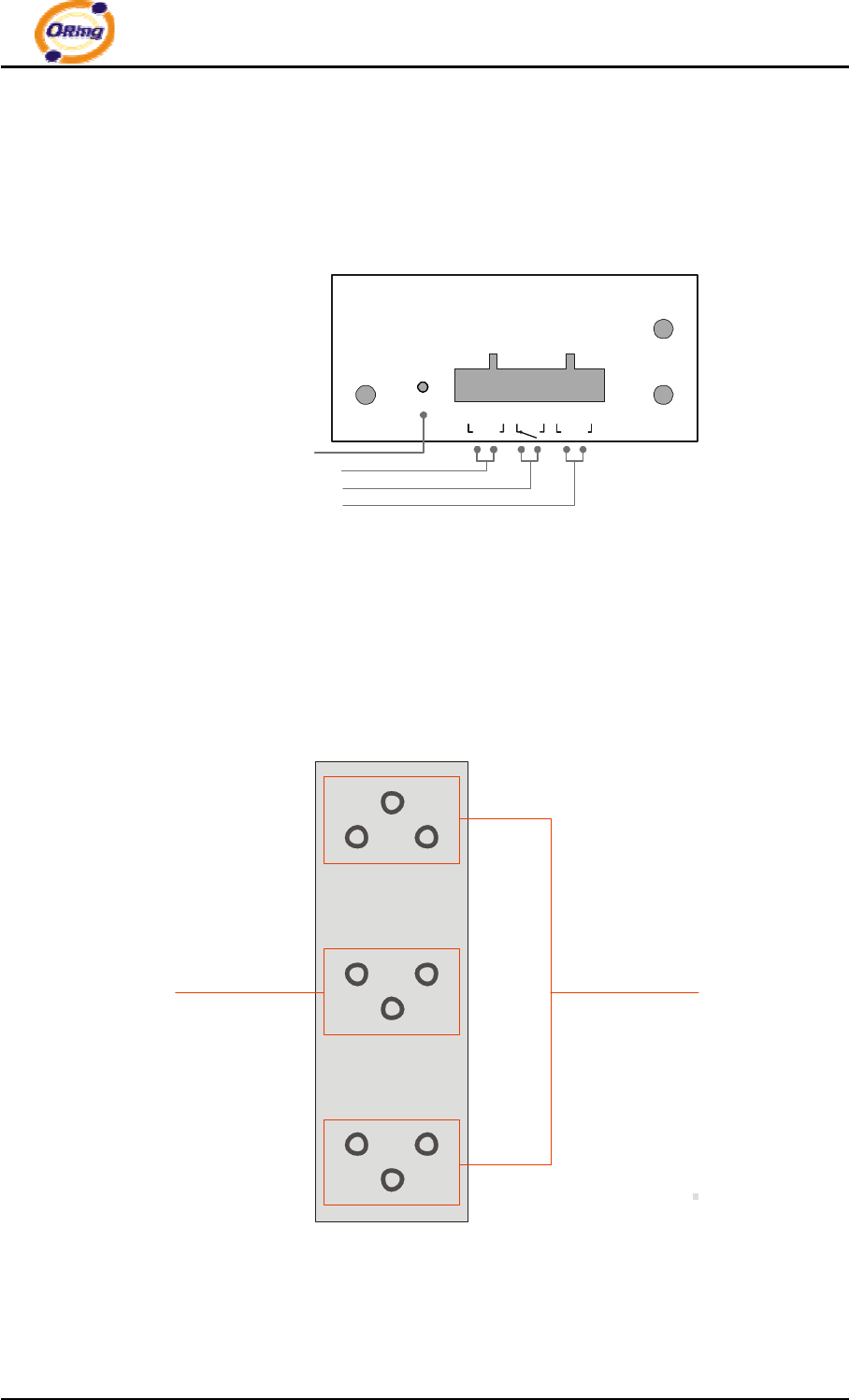
The bottom panel components of IAP-620 / 620+ are showed as below:
1. Terminal block includes: PWR1, PWR2 (12 ~ 48V DC) and Relay output (1A@24VDC).
2. Reset bottom. Push the button 3 seconds for reset; 5 seconds for factory default.
Reset
PWR-2 PWR-1
V2+ V2- Relay V1+ V1-
Reset Button
Terminal Block Power-2 Input
Relay Output Pin
Terminal Block Power-1 Input
Bottom panel of IAP-620 / 620+
3.4 Rear Panel
The rear panel components of IAP-620 / 620+ are showed as below:
1. Screw holes for wall mount kit.
2. DIN-Rail kit
Rear panel of IAP-620 / 620+
12
IAP-620 Series User’s Manual
13 ORing Industrial Networking Corp.
Cables and Antenna
4.1 Ethernet Cables
The IAP-620/IAP-620+ WLAN AP has two 10/100Base-T(X) Ethernet ports.
According to the link type, the AP use CAT 3, 4, 5,5e UTP cables to connect to any other
network device (PCs, servers, switches, routers, or hubs). Please refer to the following
table for cable specifications.
Cable Types and Specifications
Cable Type Max. Length Connector
10Base-T Cat. 3, 4, 5 100-ohm UTP 100 m (328 ft) RJ-45
100Base-T(X) Cat. 5 100-ohm UTP UTP 100 m (328 ft) RJ-45
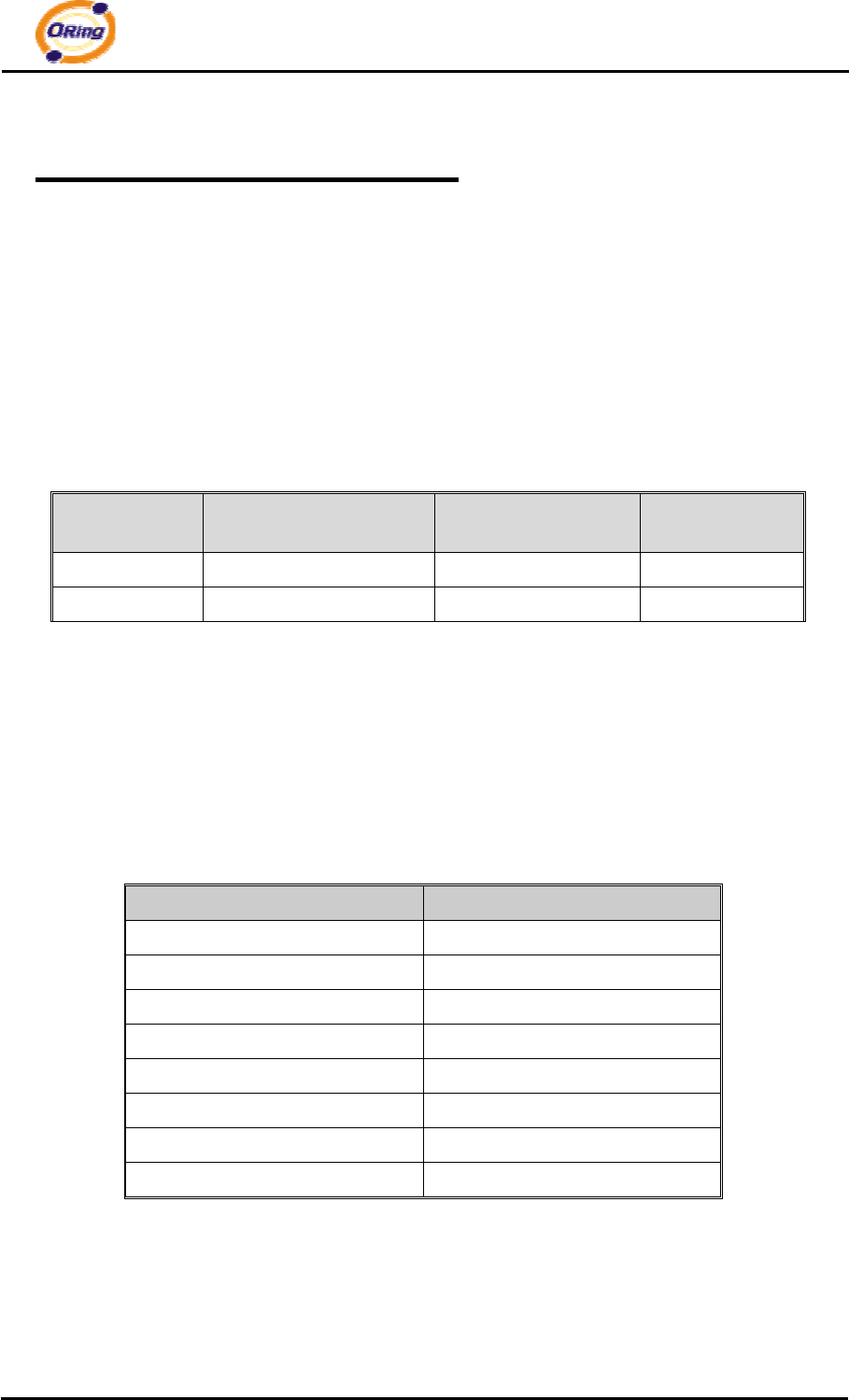
4.2 100Base-T(X)/10Base-T Pin Assignments
With 100Base-T(X)/10Base-T cable, pins 1 and 2 are used for transmitting data, and
pins 3 and 6 are used for receiving data.
RJ-45 Pin Assignments
Pin Number Assignment
1 TD+
2 TD-
3 RD+
4 P.O.E. power input +
5 P.O.E. power input +
6 RD-
7 P.O.E. power input -
8 P.O.E. power input -
The IAP-620/IAP-620+ supports auto MDI/MDI-X operation. You can use a
straight-through cable to connect PC and AP. The following table below shows the
10Base-T/ 100Base-T(X) MDI and MDI-X port pin outs.

IAP-620 Series User’s Manual
ORing Industrial Networking Corp. 14
MDI/MDI-X pins assignment
Pin Number MDI port MDI-X port
1 TD+(transmit) RD+(receive)
2 TD-(transmit) RD-(receive)
3 RD+(receive) TD+(transmit)
4 P.O.E. power input + P.O.E. power input +
5 P.O.E. power input + P.O.E. power input +
6 RD-(receive) TD-(transmit)
7 P.O.E. power input - P.O.E. power input -
8 P.O.E. power input - P.O.E. power input -
Note: “+” and “-” signs represent the polarity of the wires that make up each wire pair.
4.3 Wireless Antenna
2.4GHz/5.8GHz antenna is used for IAP-620/IAP-620+ and connected with a reversed SMA
connector. External RF cable and antenna also can be applied with this connector.
IAP-620 Series User’s Manual
15 ORing Industrial Networking Corp.
Management Interface
5.1 Explore IAP-620/IAP-620+
5.1.1 Open-Vision_Commander
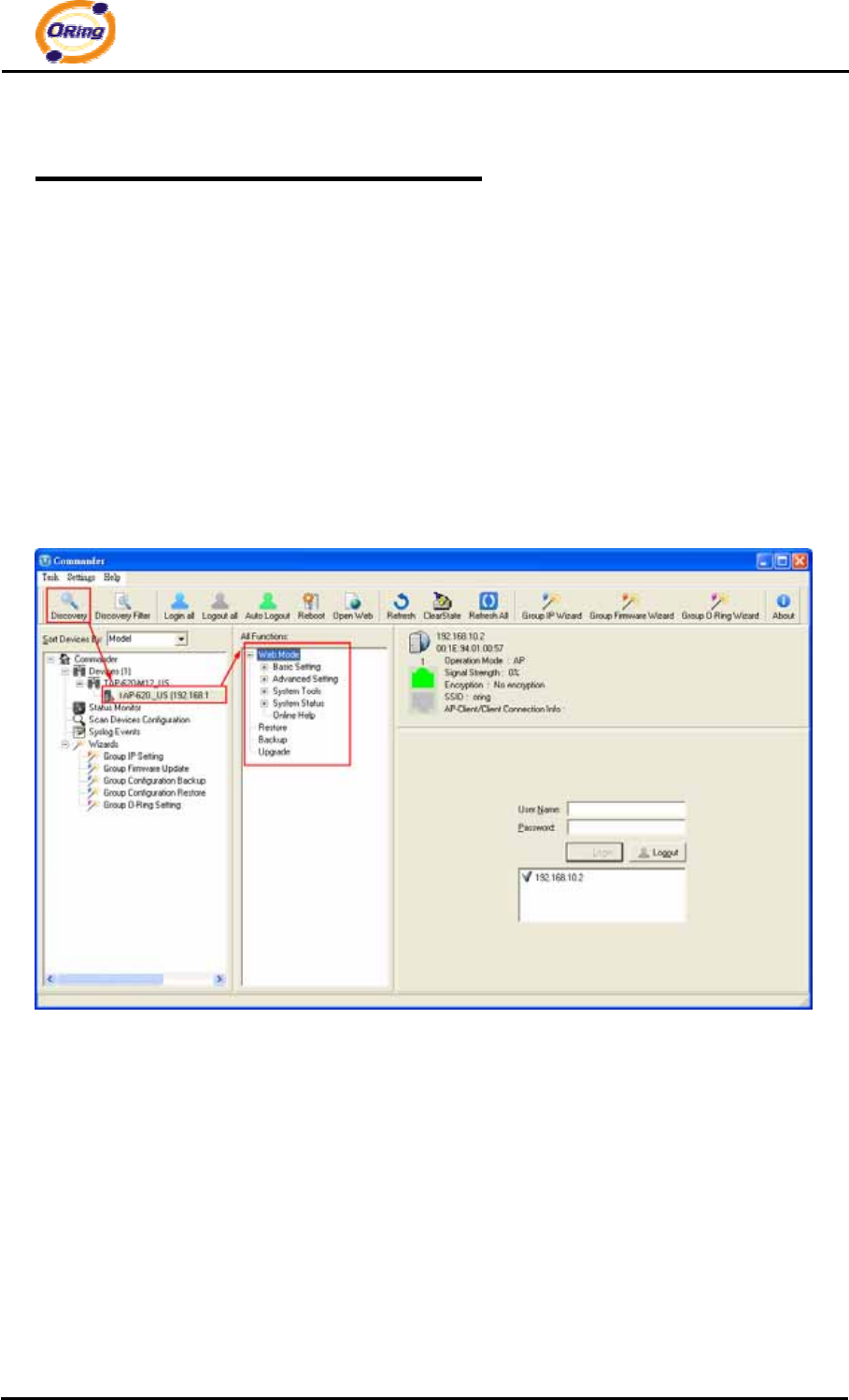
IAP-620/IAP-620+ can also be configure through ORing’s Windows utility Open-Vision
Step 1: Open the commander and click “Discover”, the AP devices will show on the list.
Step 2: Choose your access point, and it will show the AP function tree. Simultaneity,
you can login and then set the AP.
User interface of commander
IAP-620 Series User’s Manual
ORing Industrial Networking Corp. 16
5.2 UPnP Equipment
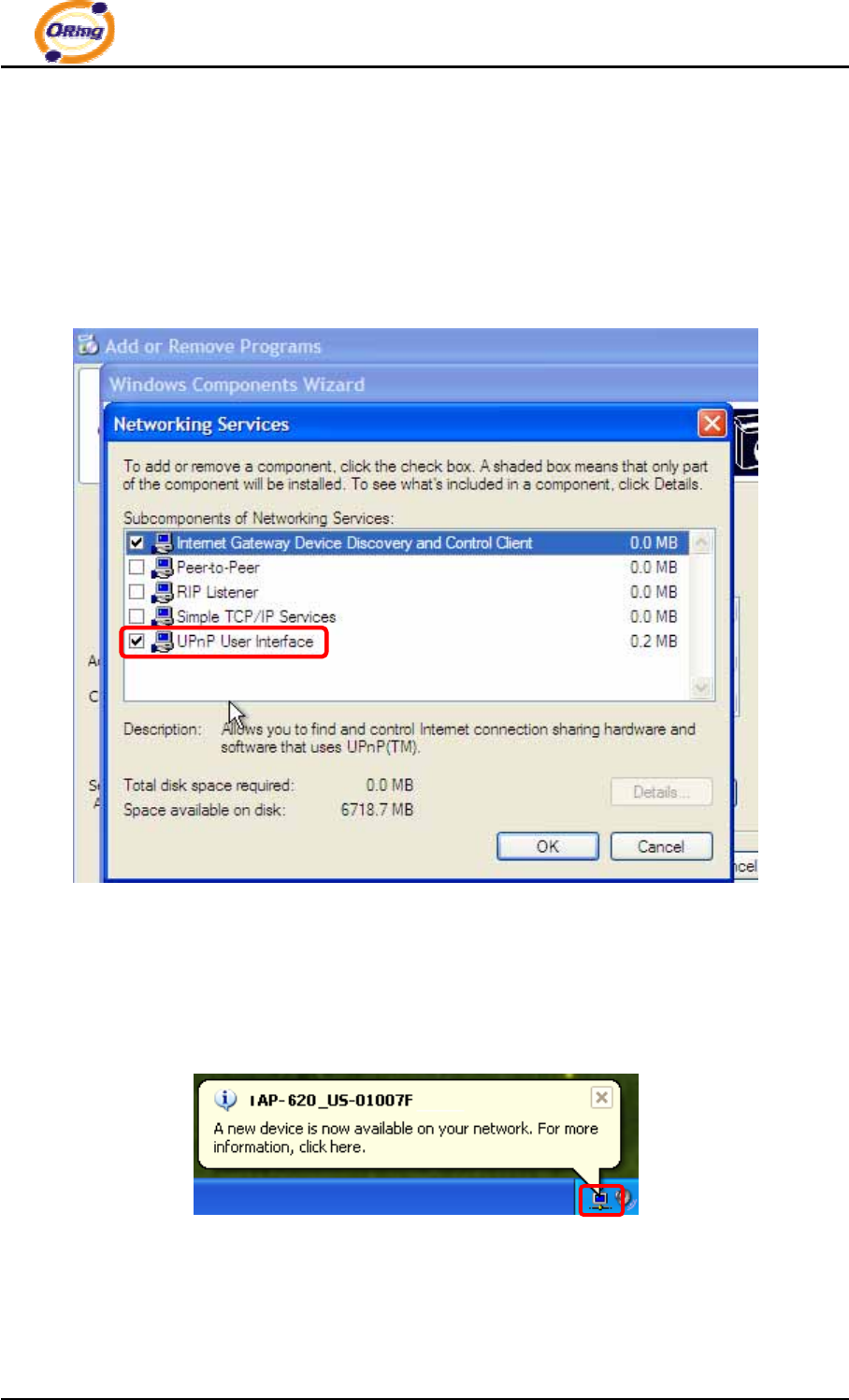
Step 1: To check whether the UPnP UI of the computer is connected to the
IAP-620/IAP-620+, go to Control Panel > Add or Remove Programs > Windows
Components Wizard > Networking Servers > UPnP User Interface and pitch on the
UPnP User Interface.
UPnP configuration page
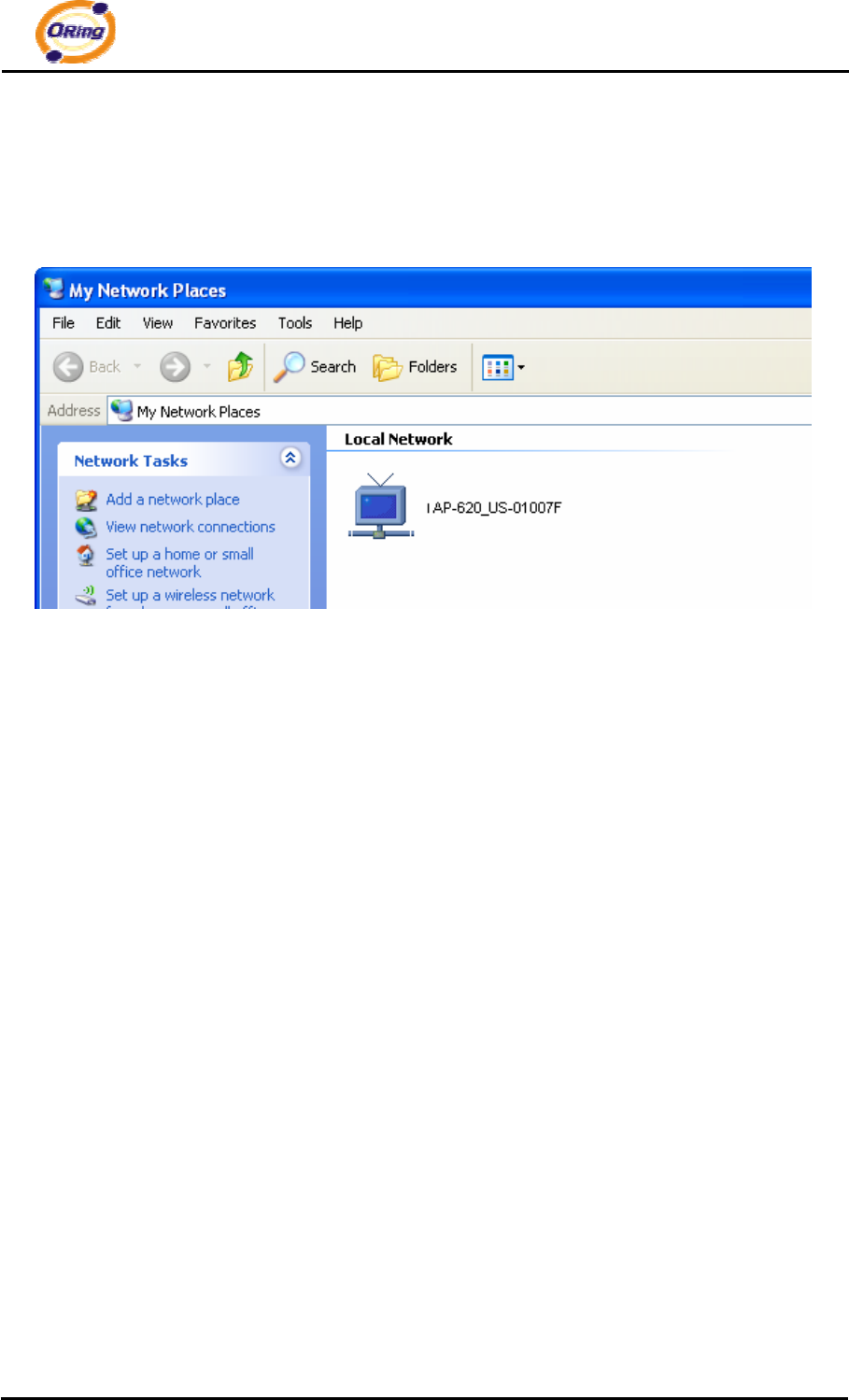
Step 2: At the right-below corner of the computer, you will find a sign of the UPnP
equipment.
IAP-620 Series User’s Manual
17 ORing Industrial Networking Corp.
Step 3: Click the sign of the UPnP equipment, then you will find the UPnP equipment in the
network neighborhood.
Step 4: Right click the UPnP equipment to choose “Properties”, it will show as the following
pictures:
Step 5: Right click the UPnP equipment or double click the UPnP equipment to transfer; it
will go to the web page.
5.3 Configuration by Web Browser
This section introduces the configuration by Web browser.
5.4 About Web-Based Management
An embedded HTML web site resides in flash memory in the system. It contains
advanced management features and allows you to manage the AP from anywhere on the
network through a standard web browser such as Microsoft Internet Explorer.
The Web-Based Management function supports Internet Explorer 5.0 or later. It is based
on Java Applets with an aim to reduce network bandwidth consumption, enhance access
speed and present an easy viewing screen.
Note: By default, IE5.0 or later version does not allow Java Applets to open sockets. You need to explicitly modify
IAP-620 Series User’s Manual
ORing Industrial Networking Corp. 18
the browser setting in order to enable Java Applets to use network ports.
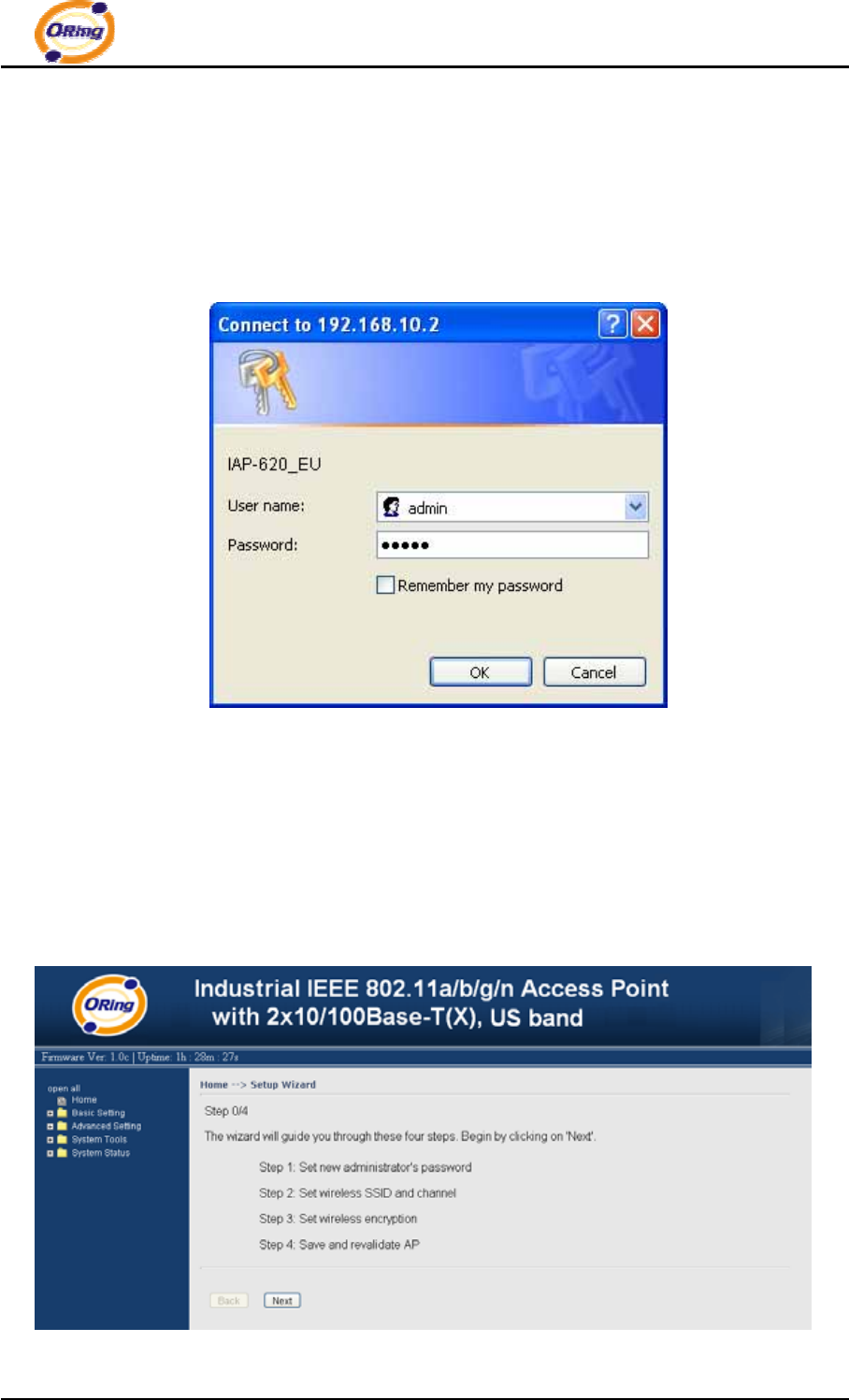
Through the front section’s information, you will see as follows, enter your user name
(admin) and your password (admin), and then click OK to continue.
Login screen
For security reasons, we strongly suggest you change the password. Click on System
Tools > Administrator and modify the password.
5.5 Main Interface
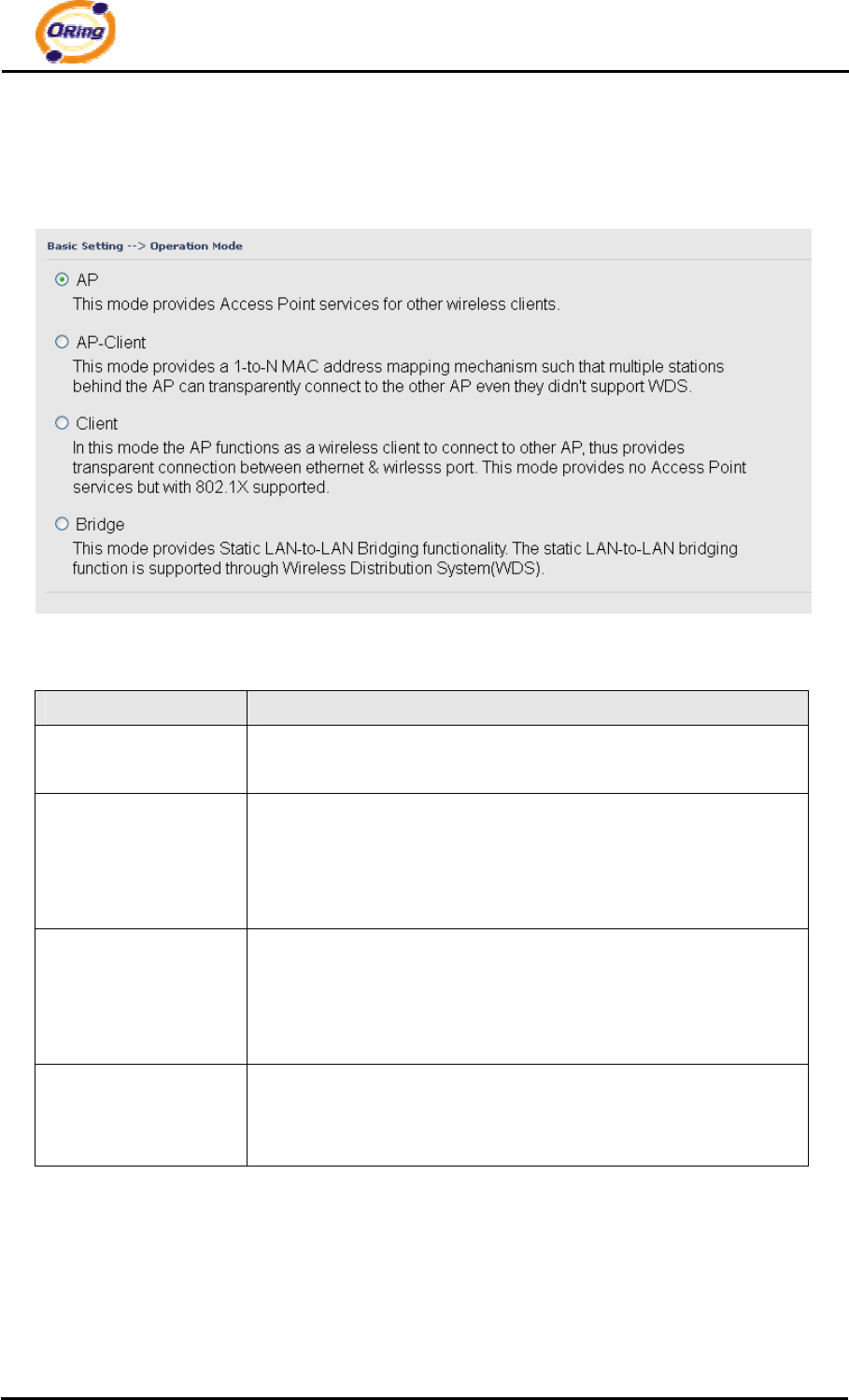
The Home screen will appear. Please click “Run Wizard” to go to the Home > Setup
Wizard page to quick install the AP.
Main interface
IAP-620 Series User’s Manual
19 ORing Industrial Networking Corp.
5.5.1 Basic Setting
Setting Operation Mode
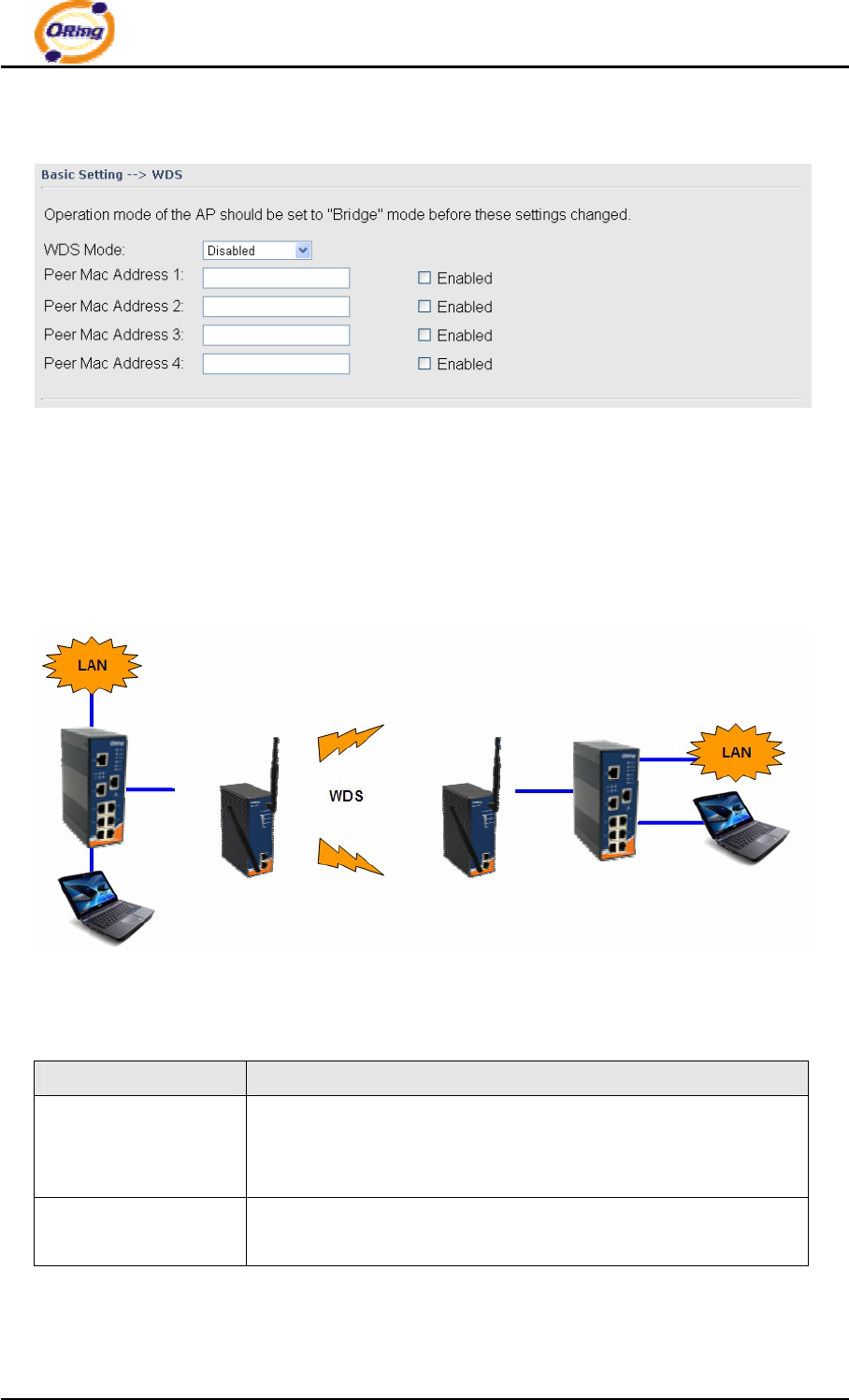
Operation mode interface
The following table describes the labels in this screen.
Label Description
AP This mode provides Access Point services for other wireless
clients.
AP-Client The AP-Client function provides a 1-to-N MAC address mapping
mechanism such that multiple stations behind the AP can
transparently connect to the other AP even they didn’t support
WDS.
Client In this mode the AP functions as a wireless client to connect to
other AP, thus provides transparent connection between Ethernet
& wireless port. This mode provides no Access Point services but
with 802.1X supported.
Bridge This mode provides Static LAN-to-LAN Bridging functionality.
The static LAN-to-LAN bridging function is supported through
Wireless Distribution System (WDS).
In each mode, the IAP-620/IAP-620+ forwards packet between its Ethernet interface and
wireless interface for wired hosts on the Ethernet side, and wireless hosts on the wireless
side.
IAP-620 Series User’s Manual
ORing Industrial Networking Corp. 20
Setting WDS (Bridge Mode)
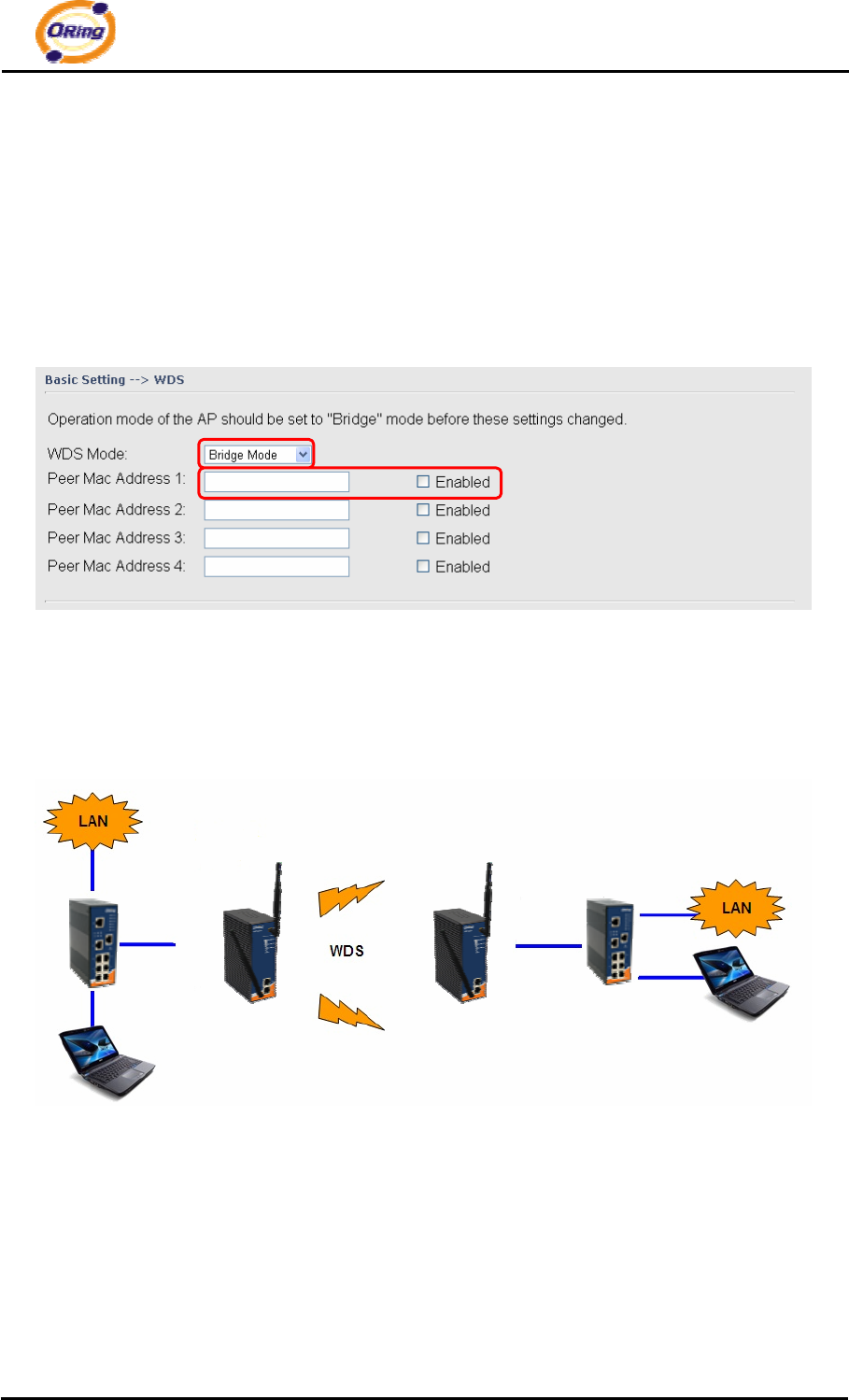
WDS setting interface
This type of wireless link is established between two IEEE 802.11 access points.
Wireless packets transmitted along the WDS link comply with the IEEE 802.11 WDS
(Wireless Distribution System) format at the link layer.
Point-to-Point WDS Link
The following table describes the labels in this screen.
Label Description
WDS Mode This mode provides Static LAN-to-LAN Bridging functionality.
The static LAN-to-LAN bridging function is supported through
Wireless Distribution System (WDS).
Peer MAC Address Set the Mac address of other access point(s). Simultaneity,
choose on “Enable”.
First of all, if APs link with WDS mode, it should obey the following rules:
1. LAN IP Address should set different IP in the same network.
IAP-620 Series User’s Manual
21 ORing Industrial Networking Corp.
2. All AP’s DHCP Server should set shutdown.
3. WDS should set Enable.
4. Each AP should have the same setting except ‘Peer Mac Address’ set to the other’s
Mac address
5. At wireless web setting Security and Channel should be the same,
6. AP’s distance should be limited within a certainty area.
WDS –Bridge Mode
The peer WDS APs are according to the MAC address listed in "Peer Mac Address"
fields.
The working principle of Bridge Mode as follows:
In the figure, the AP behaves as a standard bridge that forwards traffic between WDS links
(links that connect to other AP/wireless bridges) and an Ethernet port. As a standard bridge,
the AP learns MAC addresses of up to 64 wireless or 128 total wired and wireless network
devices, which are connected to their respective Ethernet ports to limit the amount of data to
be forwarded. Only data destined for stations which are known to reside on the peer Ethernet
link, multicast data or data with unknown destinations need to be forwarded to the peer AP via
the WDS link.
IAP-620 Series User’s Manual
ORing Industrial Networking Corp. 22
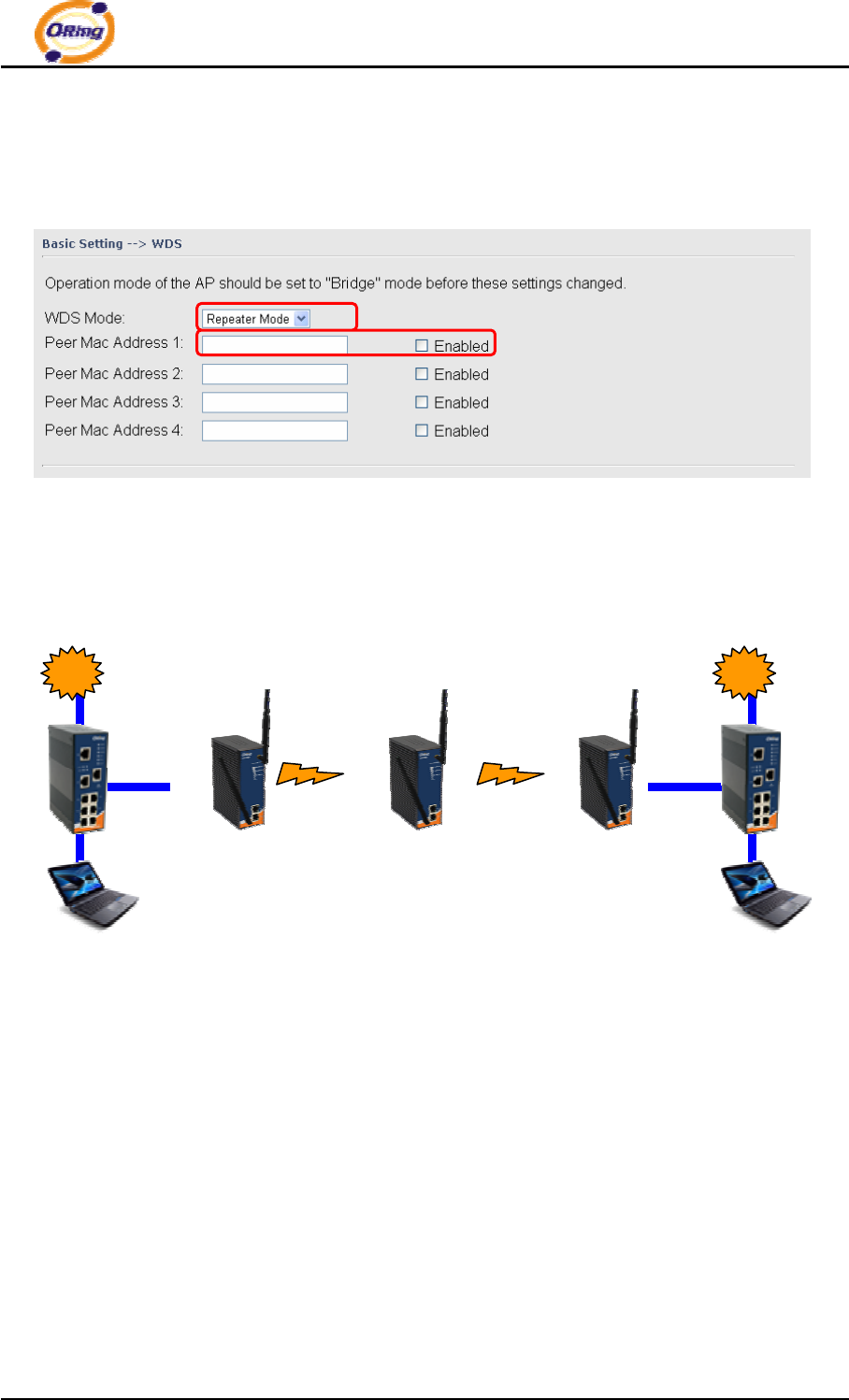
WDS –Repeater Mode
The peer WDS APs are according to the MAC address listed in "Peer Mac Address"
fields.
The working principle of Repeater Mode as follows:
In the figure, Repeater is used to extend the range of the wireless infrastructure by
forwarding traffic between associated wireless stations and another repeater or AP
connected to the wired LAN.
LAN
WDS
LAN
WDS
IAP-620 Series User’s Manual
23 ORing Industrial Networking Corp.
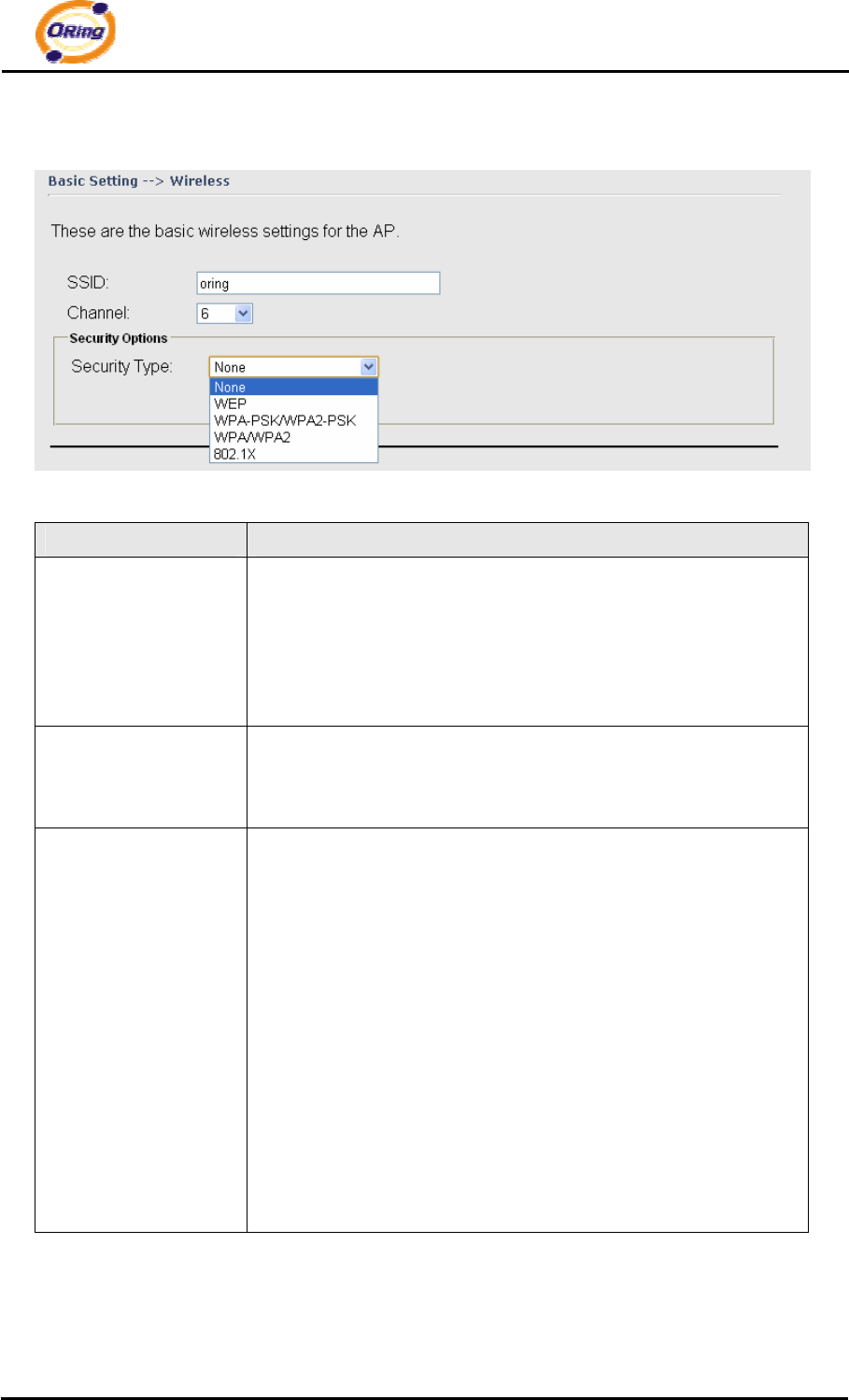
Setting Wireless
The following table describes the labels in this screen.
Label Description
SSID
Service Set Identifier Default is the default setting. The SSID is
a unique name that identifies a network. All devices on the
network must share the same SSID name in order to
communicate on the network. If you change the SSID from the
default setting, input your new SSID name in this field.
Channel
Channel 6 is the default channel, input a new number if you want
to change the default setting. All devices on the network must
be set to the same channel to communicate on the network.
Security options
Select the type of security for your wireless network at Security
Type:
None: Select for no security.
WEP: Select for security WEP.
WPA-PSK/WPA2-PSK: Select for security WPA-PSK or
WPA2-PSK without a RADIUS server.
WPA/WPA2: Select for WPA or WPA2 (Wi-Fi Protected Access)
authentication in conjunction with a RADIUS server.
802.1x: Authentication through RADIUS server
IAP-620 Series User’s Manual
ORing Industrial Networking Corp. 24
Security Type – None
No security protection on your wireless LAN access.
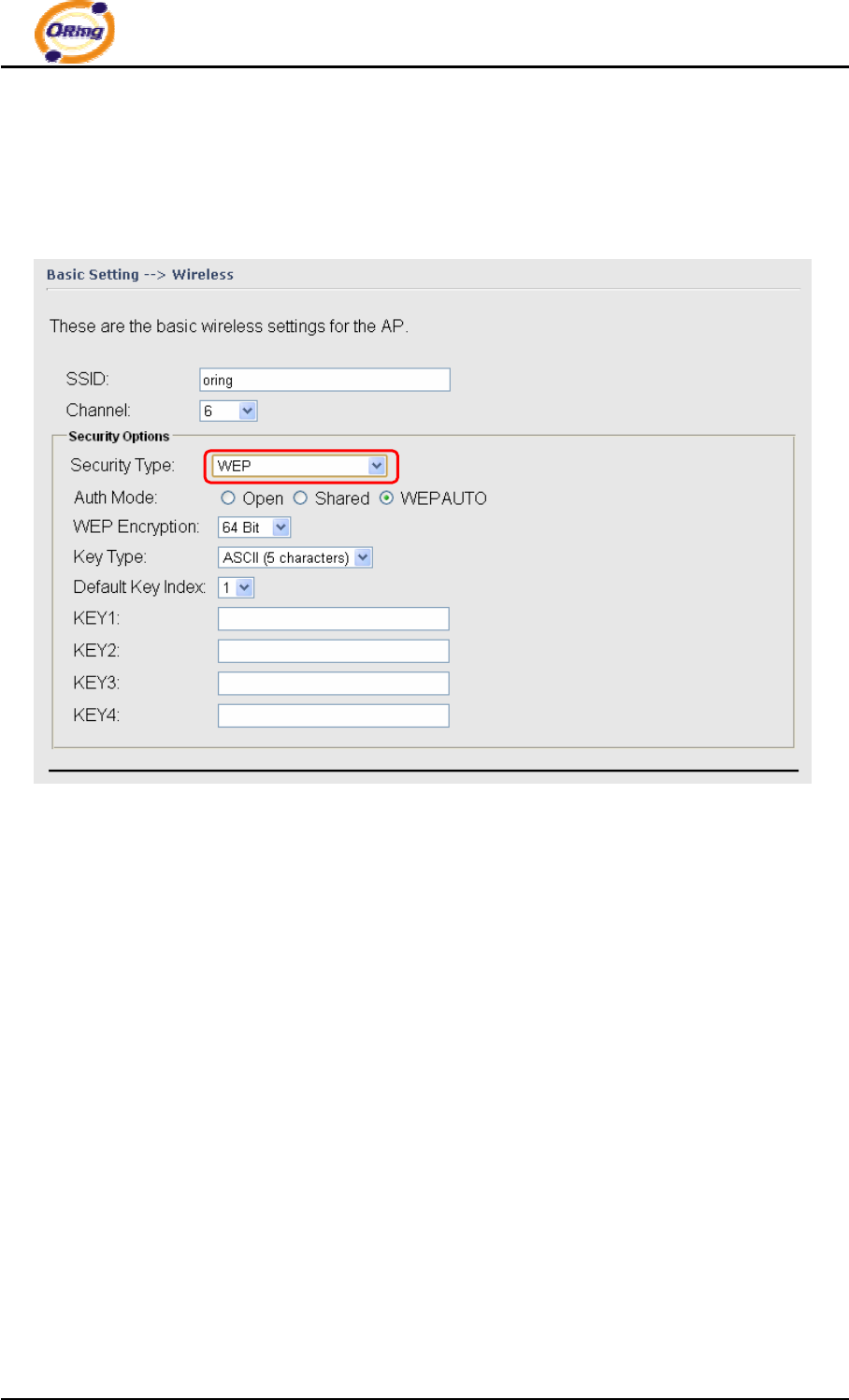
Security Type – WEP
1. Security Type: Select WEP
2. WEP Encryption: Select 64 Bit or 128 Bit WEP encryption.
3. Key Type: Select ASCII or Hex key type.
4. Default Key Index: Select one of the keys to be the active key.
5. Key 1-4: Input up to four encryption keys.
ASCII (American Standard Code for Information Interchange) is a code for representing
English letters as numbers from 0-127. Hex digits consist of the numbers 0-9 and the
letters A-F.
IAP-620 Series User’s Manual
25 ORing Industrial Networking Corp.
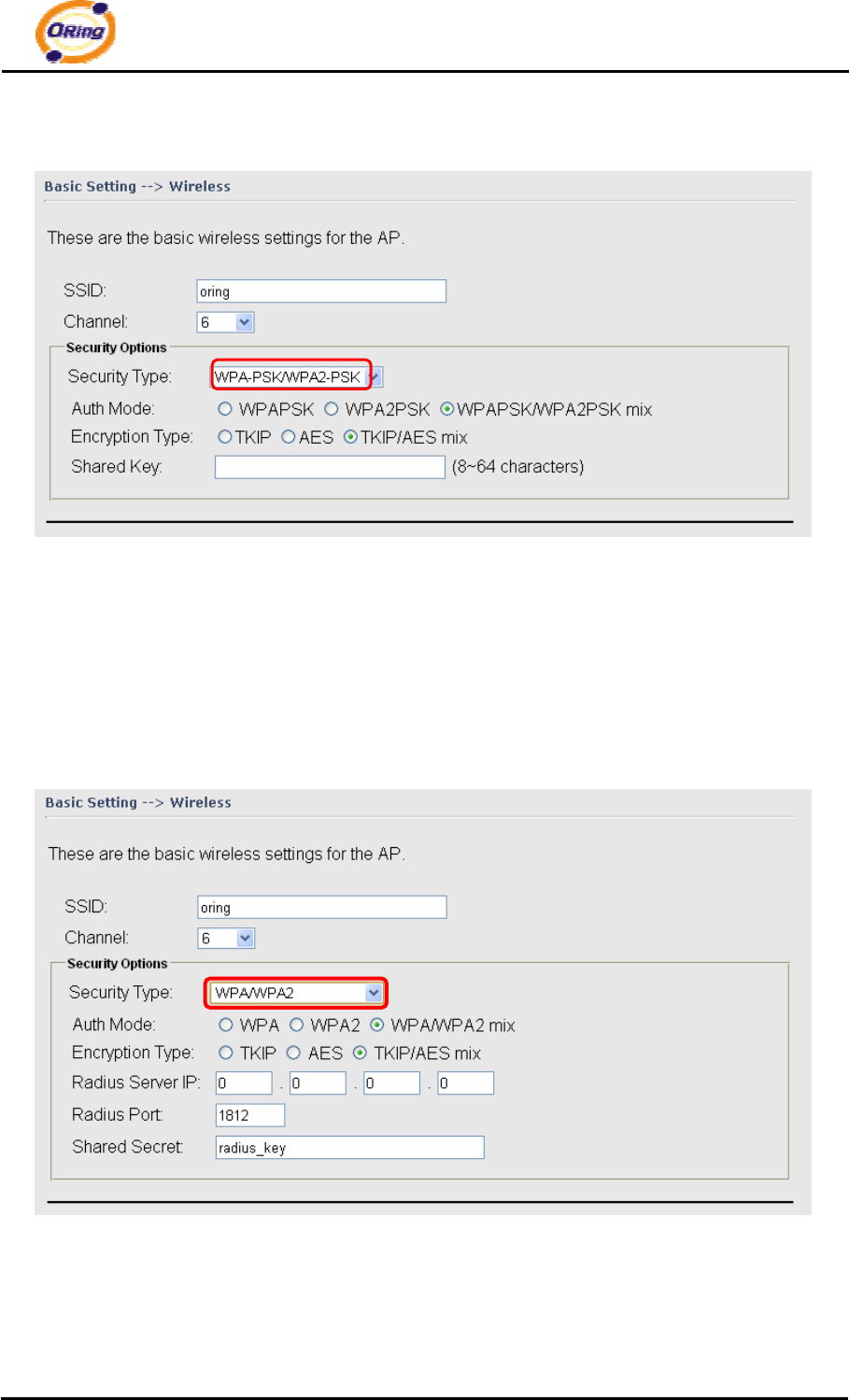
Security Type – WPA-PSK/WPA2-PSK
1. Security Type: Select WPA-PSK/WPA2-PSK.
2. Encryption Type: Select TKIP or AES encryption.
3. Share Key: Enter your password. The password can be between 8 and 64
characters.
Security Type – WPA /WPA2
1. Security Type: Select WPA/WPA2
2. Radius Server IP: Enter the IP address of the RADIUS Server.
3. Port: Enter the RADIUS port (1812 is default).
4. Shared Secret: Enter the RADIUS password or key.
IAP-620 Series User’s Manual
ORing Industrial Networking Corp. 26
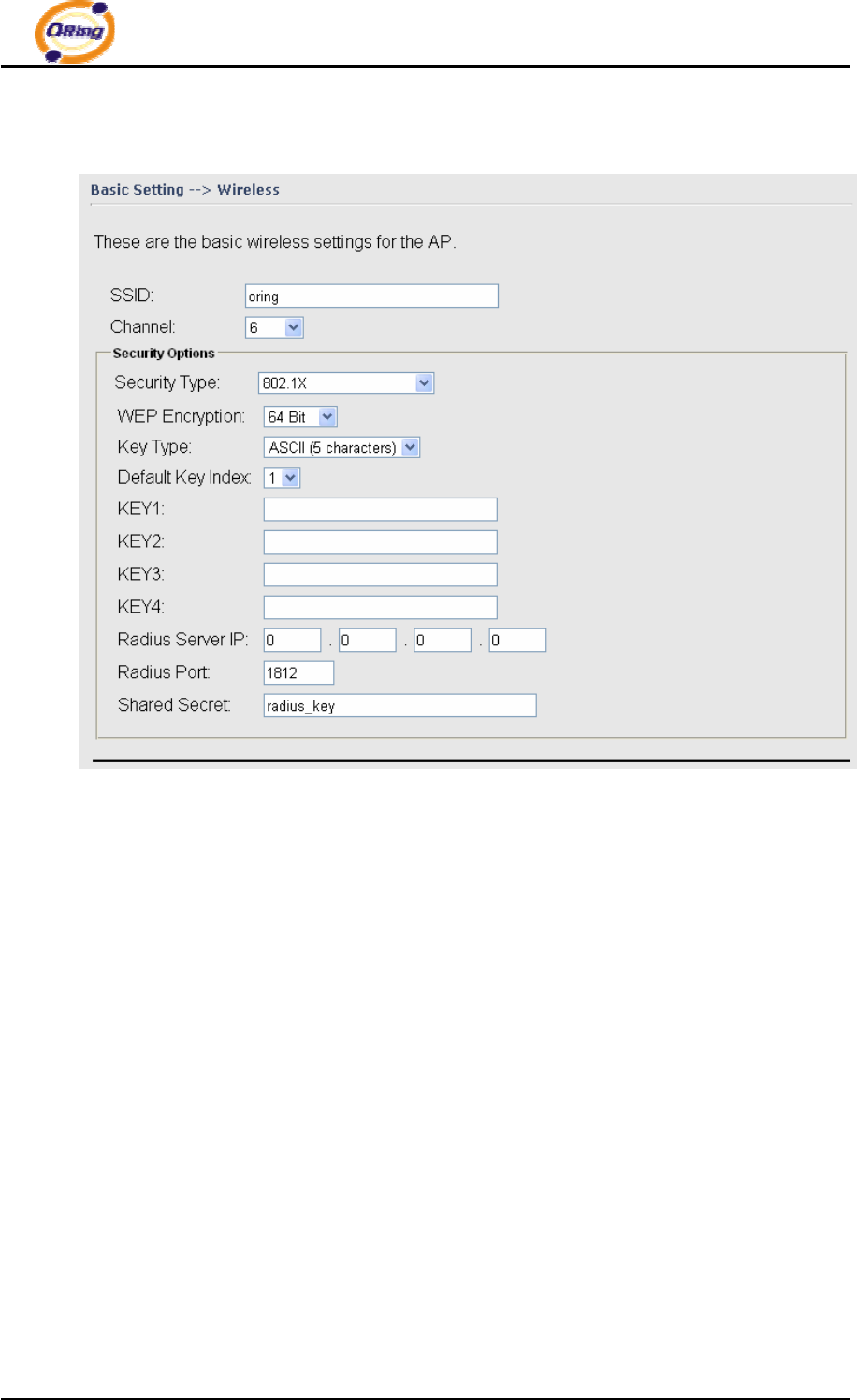
Security Type – 802.1x
1. Security Type: Select 802.1x
2. WEP Encryption: Select 64 Bit or 128 Bit WEP encryption.
3. Key Type: Select ASCII or Hex key type.
4. Default Key Index: Select one of the keys to be the active key.
5. Key 1-4: Input up to four encryption keys.
6. Radius Server IP: Enter the IP address of the RADIUS Server.
7. Port: Enter the RADIUS port (1812 is default).
8. Shared Secret: Enter the RADIUS password or key.
IAP-620 Series User’s Manual
27 ORing Industrial Networking Corp.
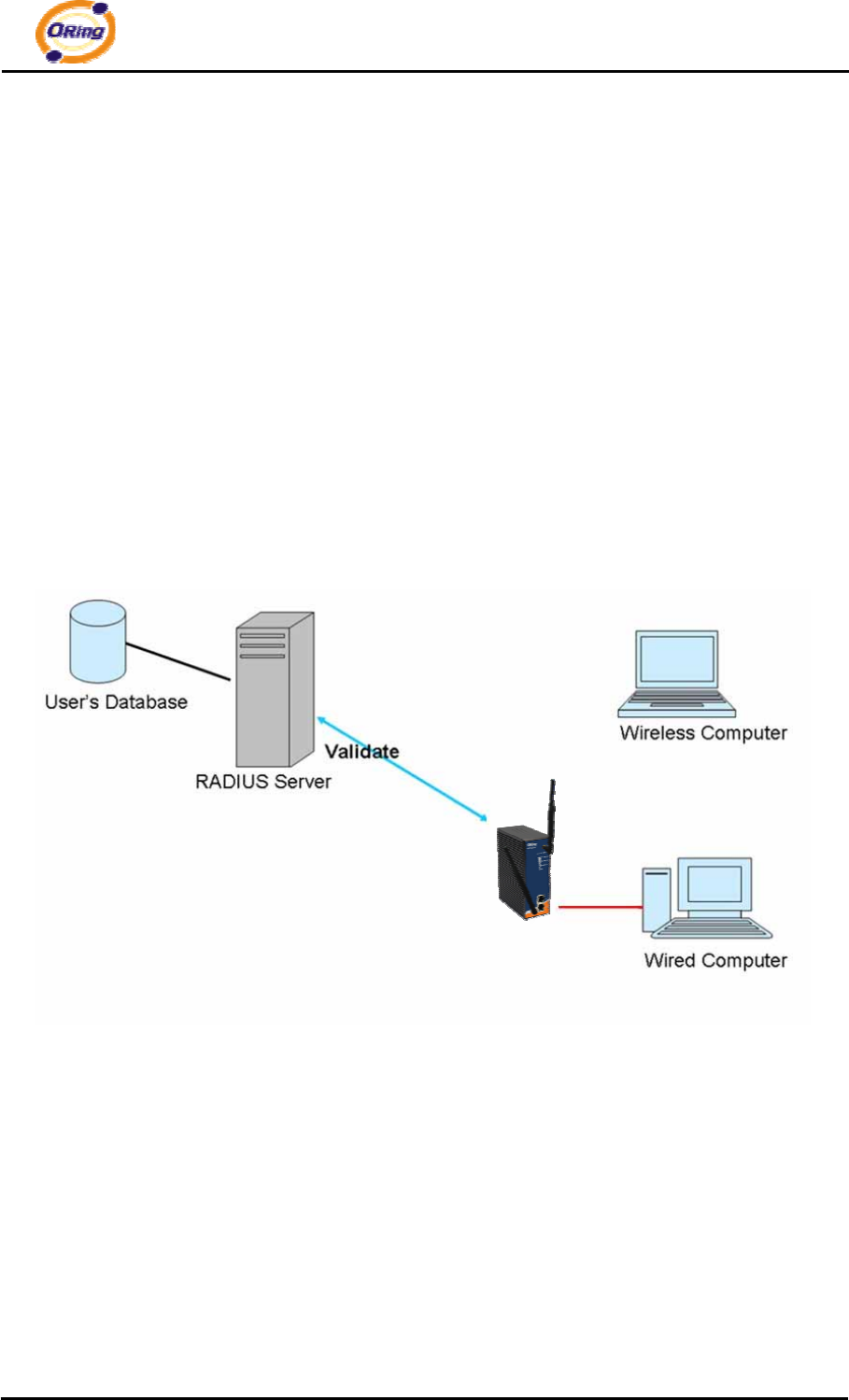
RADIUS (Remote Authentication Dial-in User Service) is the industrial standard
agreement, and it is used to provide an identify verification. The Radius customer (is
usually a dial-in server, VPN server or wireless point) send your proof and the
conjunction parameter to the Radius server by Radius news. The Radius server
validates the request of the Radius customer, and return Radius news to back.
Radius server validates your proof, also carry on the authorization. So the Radius
server received by ISA server responded (point out the customer carries proof to be not
granted) and it means that the Radius server did not authorize you to carry. Even if the
proof has already passed an identify verification, the ISA server may also refuse you to
carry a claim according to the authorization strategy of the Radius server.
The principle of the Radius server shows in the following pictures:
IAP-620 Series User’s Manual
ORing Industrial Networking Corp. 28
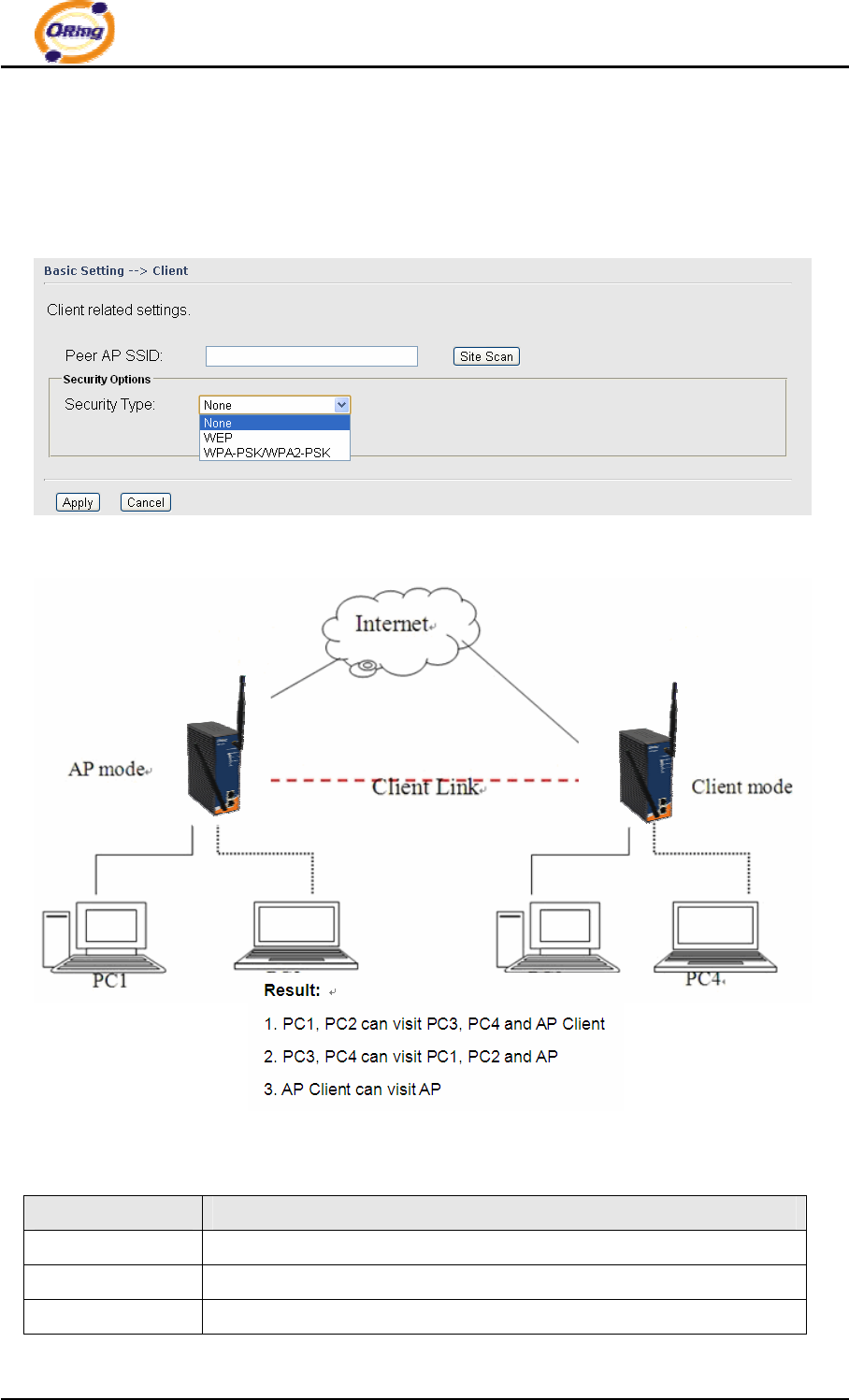
Client
The Basic setting—> Client page is mainly set the client which through the SSID and
Security to connect to other AP. In this mode, the Security Type should be the same with the
AP Server.
The principle of the AP-Client/Client mode shows in the following pictures:
The following table describes the labels in this screen.
Label Description
Peer AP SSID Enter the other AP which used for AP mode.
Site Scan You can scan the APs which used for AP mode in the certainty area
Security Type Set the same security with the AP which you want to connect.
IAP-620 Series User’s Manual
29 ORing Industrial Networking Corp.
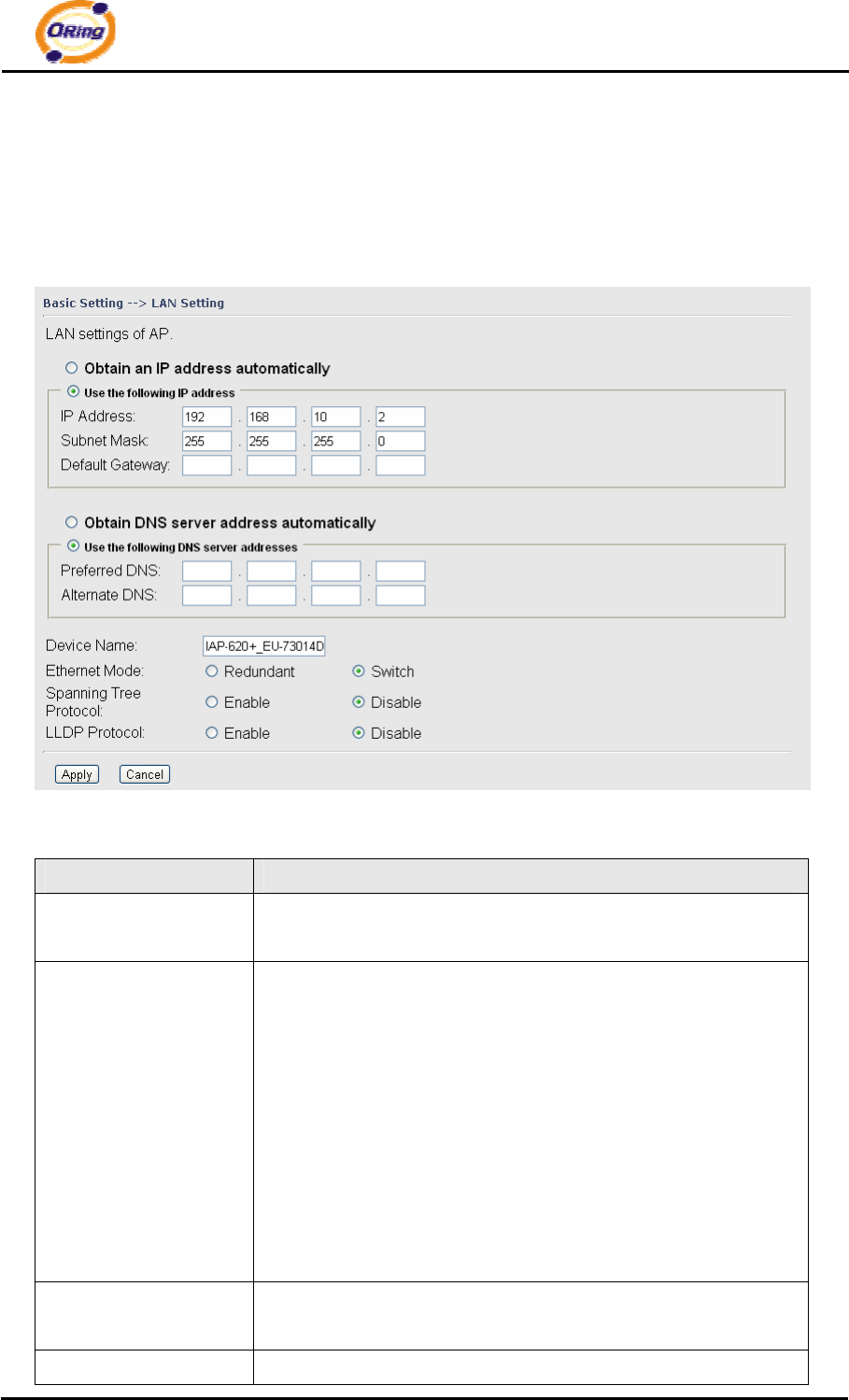
LAN Setting
The Basic Setting > LAN Setting page is mainly set IP address for LAN interface. To
access the AP normally, a valid IP address of your LAN should be specified to the LAN
interface. The default IP setting is DHCP server (Obtain an IP address automatically).
The following table describes the labels in this screen.
Label Description
Obtain an IP address
automatically
Select this option if you would like to obtain an IP address
automatically assigned by DHCP server in your network
Use the following IP
address
Select this option if you are manually assigning an IP address.
IP Address: There is a default IP address in the AP, and you can
input a new IP address.
Subnet Mask: 255.255.255.0 is the default Subnet Mask. All
devices on the network must have the same subnet mask to
communicate on the network.
Default Gateway: Enter the IP address of the router in your
network.
Obtain DNS server
address automatically
This option is selected by DHCP server.
Use the following DNS This option is selected by manually set
IAP-620 Series User’s Manual
ORing Industrial Networking Corp. 30
server addresses Preferred DNS: There is a default DNS server, and you can
input another new DNS server.
Alternate DNS: There is a default DNS server, and you can input
another new DNS server.
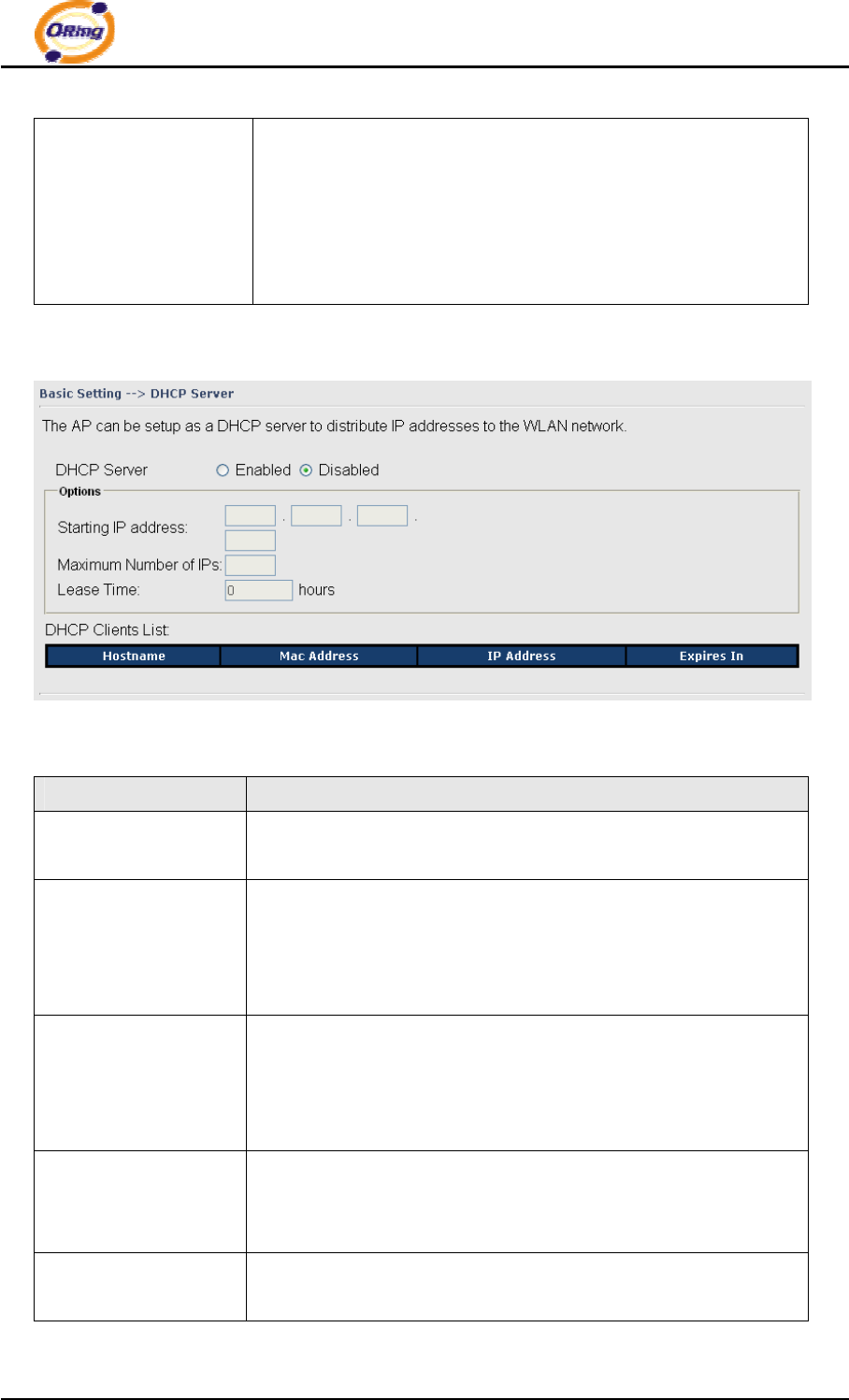
Setting DHCP Server
The following table describes the labels in this screen.
Label Description
DHCP Server Enable or Disable the DHCP Server function. Enable – the AP
will be the DHCP server on your local network
Start IP Address The dynamic IP assign range. Low IP address is the beginning
of the dynamic IP assigns range. For example: dynamic IP
assign range is from 192.168.1.100 to 192.168.1.200.
192.168.1.100 will be the Start IP address.
Maximum Number of
IPs
The dynamic IP assign range. High IP address is the end of the
dynamic IP assigns range. For example: dynamic IP assign
range is from 192.168.1.100 to 192.168.1.200. 100 will be
entering into textbox.
Lease Time (Hour) It is the time period that system will reset the dynamic IP
assignment to ensure the dynamic IP will not been occupied for a
long time or the server doesn’t know that the dynamic IP is idle.
DHCP Clients List List the devices on your network that are receiving dynamic IP
addresses from the IAP-620/IAP-620+.
IAP-620 Series User’s Manual
31 ORing Industrial Networking Corp.
5.5.2 Advanced Setting
Wireless
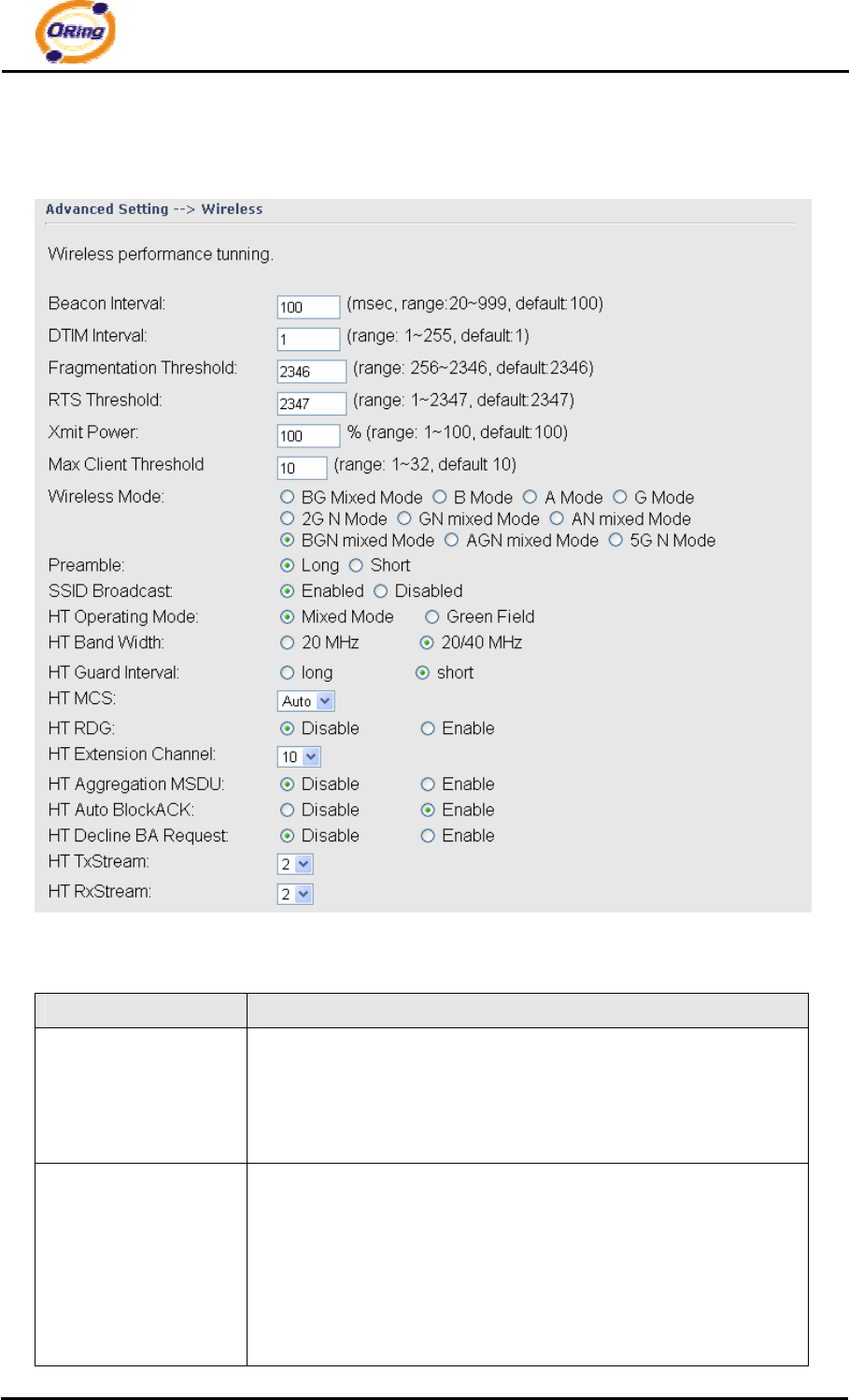
The following table describes the labels in this screen.
Label Description
Beacon Interval The default value is 100. The Beacon Interval value indicates
the frequency interval of the beacon. A beacon is a packet
broadcast by the AP to synchronize the wireless network. 50 is
recommended in poor reception.
DTIM Interval The default value is 1. This value, between 1 and 255
milliseconds, indicates the interval of the Delivery Traffic
Indication Message (DTIM). A DTIM field is a countdown field
informing clients of the next window for listening to broadcast and
multicast messages. When the AP has buffered broadcast or
multicast messages for associated clients, it sends the next DTIM

IAP-620 Series User’s Manual
ORing Industrial Networking Corp. 32
with a DTIM Interval value. Its clients hear the beacons and
awaken to receive the broadcast and multicast messages.
Fragmentation
Threshold
This value should remain at its default setting of 2346. The
range is 256-2346 bytes. It specifies the maximum size for a
packet before data is fragmented into multiple packets. If you
experience a high packet error rate, you may slightly increase the
Fragmentation Threshold. Setting the Fragmentation Threshold
too low may result in poor network performance. Only minor
modifications of this value are recommended.
RTS Threshold This value should remain at its default setting of 2347. The
range is 0-2347 bytes. Should you encounter inconsistent data
flow, only minor modifications are recommended. If a network
packet is smaller than the preset RTS threshold size, the
RTS/CTS mechanism will not be enabled. The AP sends
Request to Send (RTS) frames to a particular receiving station
and negotiates the sending of a data frame. After receiving an
RTS, the wireless station responds with a Clear to Send (CTS)
frame to acknowledge the right to begin transmission.
Xmit Power This value ranges from 1 - 100 percent, default value is 100
percent. A safe increase of up to 60 percent would be suitable
for most users. Higher power settings are not recommended for
users due to excess heat generated by the radio chipset, which
can affect the life of the AP.
Wireless Network
Mode You can select 802.11 a/b/g/n wireless mode mix or single
Transmission Rate The default setting is Auto. The range is from 1 to 300Mbps.
The rate of data transmission should be set depending on the
speed of your wireless network. You can select from a range of
transmission speeds, or keep the default setting, Auto, to have
the AP automatically use the fastest possible data rate and enable
the Auto-Fallback feature. Auto-Fallback will negotiate the best
possible connection speed between the AP and a wireless client.
Preamble Values are Long and Short, default value is Long. If your
wireless device supports the short preamble and you are having
trouble getting it to communicate with other 802.11b devices,
make sure that it is set to use the long preamble
SSID Broadcast When wireless clients survey the local area for wireless networks
IAP-620 Series User’s Manual
33 ORing Industrial Networking Corp.
to associate with, they will detect the SSID broadcast by the AP.
To broadcast the AP SSID, keep the default setting, Enable. If
you do not want to broadcast the AP SSID, then select Disable.
Signal Threshold for
Roaming
Roaming signal threshold setting. When signal below this value
AP will roaming to another client target which the same SSID,
security option and signal strongest within the environment.(This
value just effect on client-mode equipment)
Max Client Threshold Max number of client equipment setting. When client number over
this value AP will reject roaming equipment connection.(This
value just effect on AP-mode equipment)
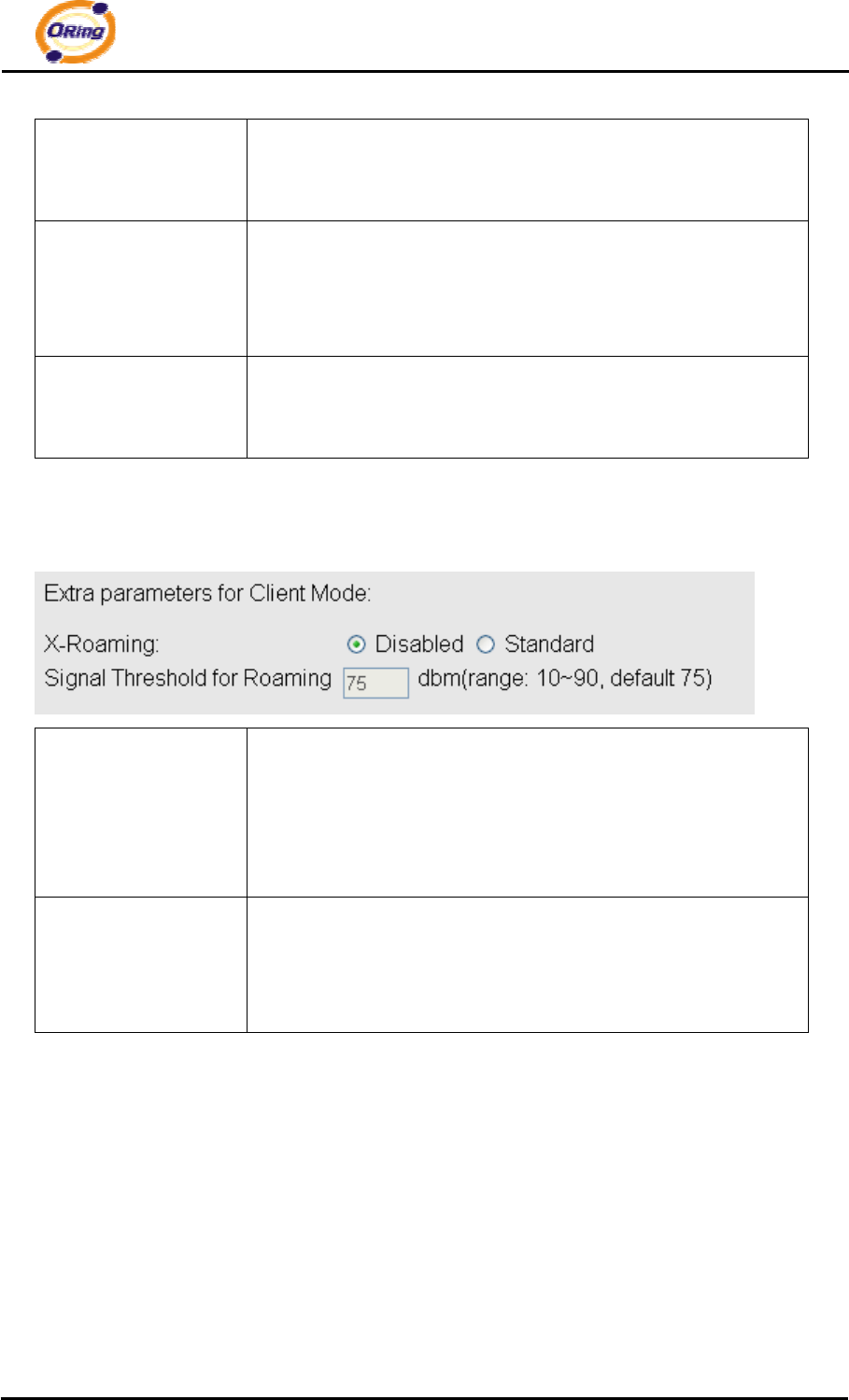
X-Roaming
X-Roaming Disable: Disable X-Roaming protocol.
Standard: Roaming group does not require the same wireless
channel, but slower to switch than the “fixed channel” mode
Fixed channel: Roaming group must be required the same
wireless channel, but faster to switch than the “Standard” mode
Roaming Signal
Threshold
Roaming signal threshold setting. When signal below this value
AP will roaming to another client target which the same SSID,
security option and signal strongest within the environment.(This
value just effect on client-mode equipment)
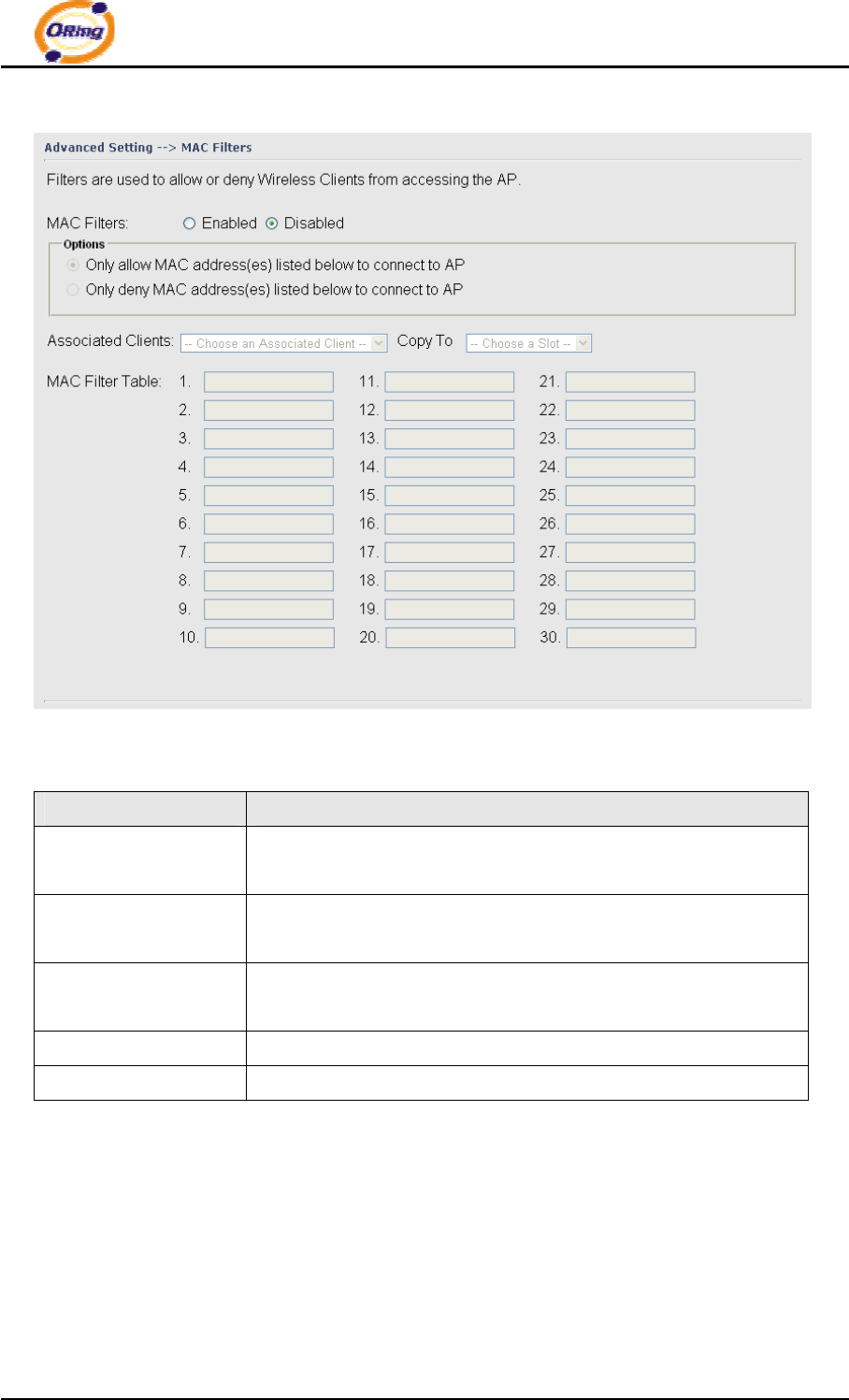
MAC Filter
Use Advanced Setting > MAC Filters to allow or deny wireless clients, by their MAC
addresses, from accessing the IAP-620/IAP-620+. You can manually add a MAC
address or select the MAC address from Connected Clients that are currently
connected to the AP.
IAP-620 Series User’s Manual
ORing Industrial Networking Corp. 34
The following table describes the labels in this screen.
Label Description
MAC Filter Enable or disable the function of MAC filter. MAC address
allowed or denied option is selected by you.
MAC Filter List This list will display the MAC addresses that are in the selected
filter.
Connected Clients This list will display the wireless MAC addresses that linked with
AP.
MAC Address MAC addresses need to be added to or clear from MAC filter list.
Apply Click Apply to set the configurations.
System Event
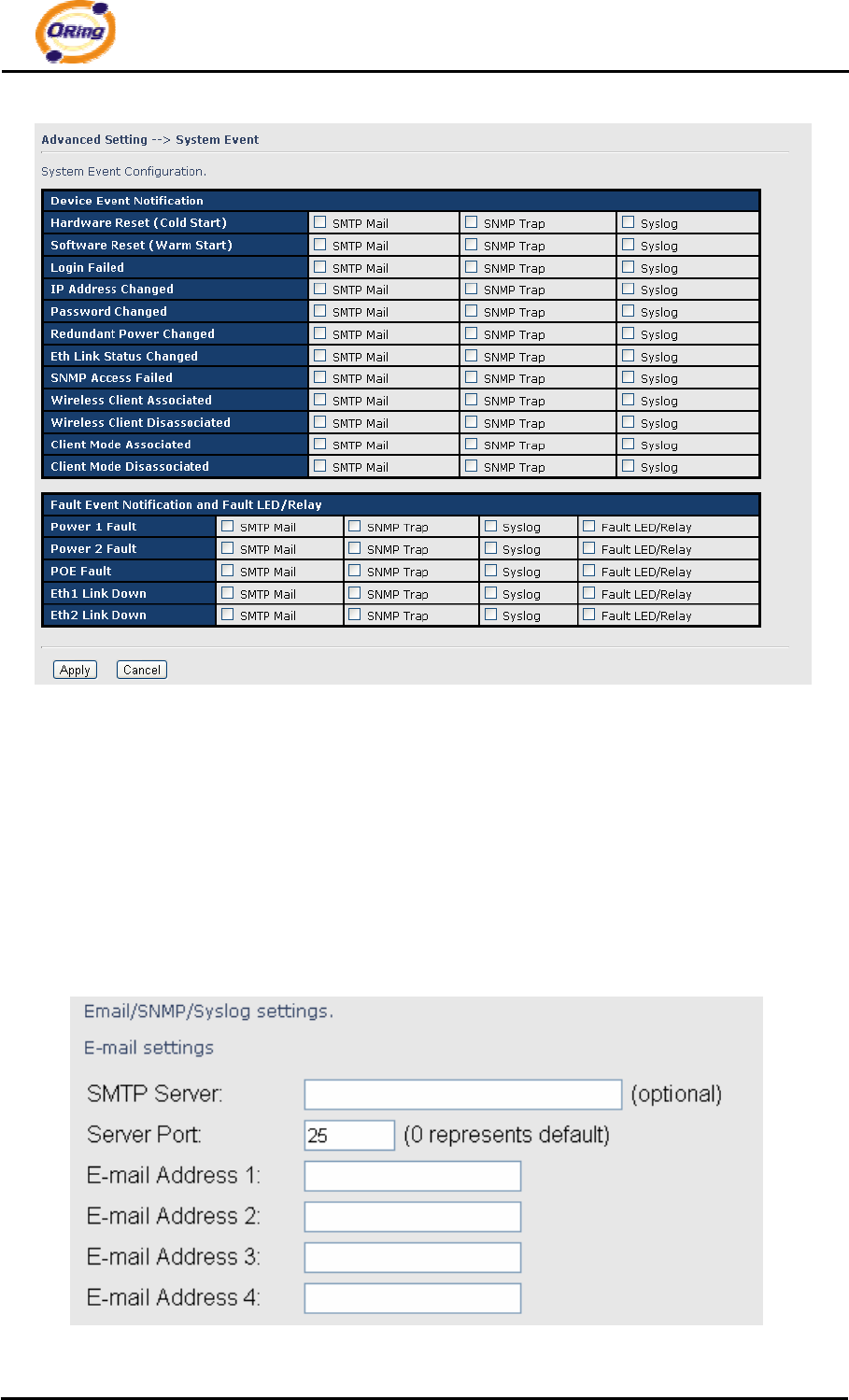
When the AP event triggered, the notification procedure will be performed according to
the type of the event. Which notification would be performed depends on the selection
of corresponding option in the Advanced Setting > System Event page.
IAP-620 Series User’s Manual
35 ORing Industrial Networking Corp.
System events record the activities of the AP system. When the setting changes or
action performs, the event will be sent to administrator by email. A trap will also be sent
to SNMP server. The Syslog will record the event locally and may send the log remotely to
a Syslog server. If serious event occurred, such as the power failure or link down, the
fault LED will be switched on as warning.
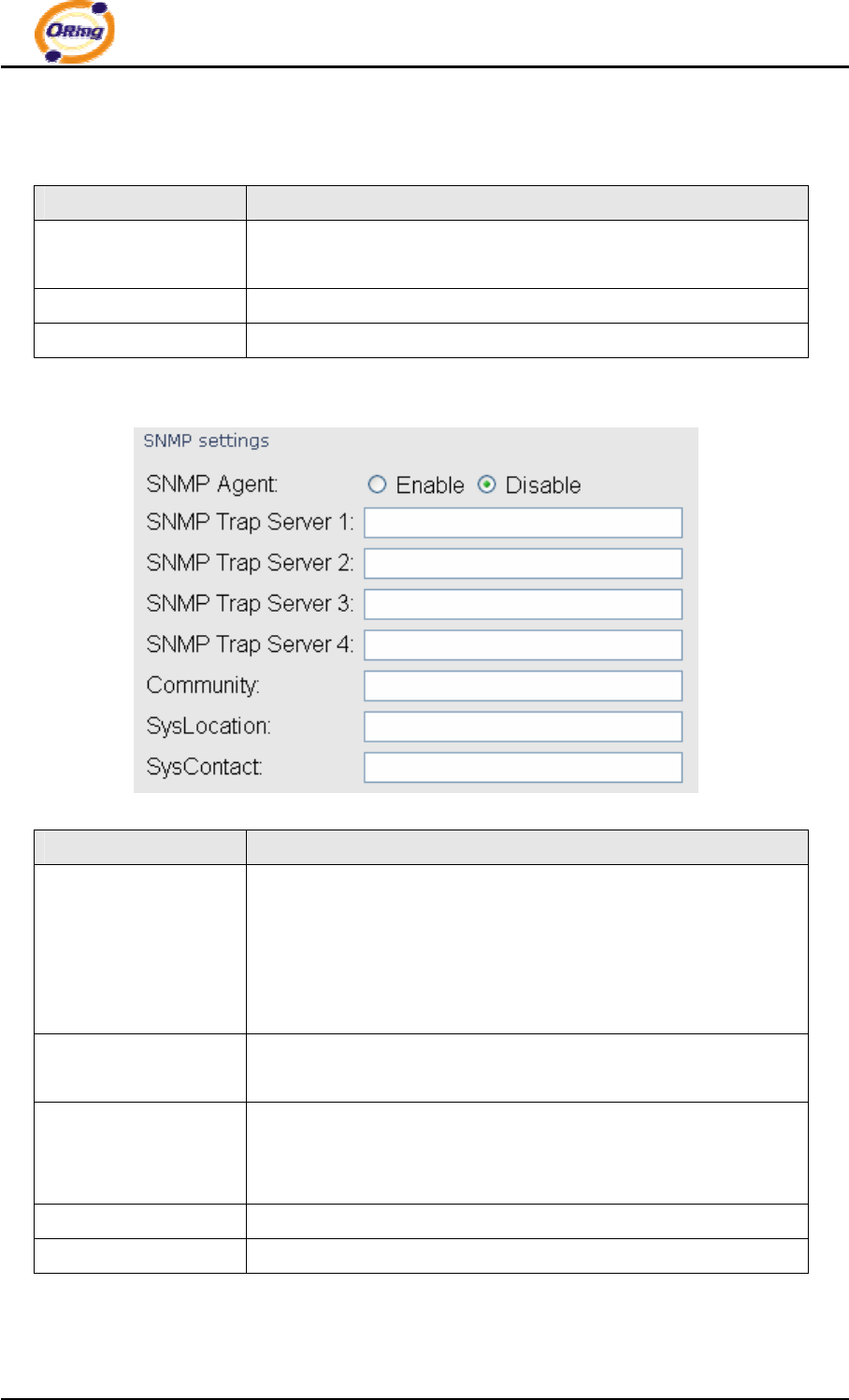
Email Settings
IAP-620 Series User’s Manual
ORing Industrial Networking Corp. 36
The following table describes the labels in this screen.
Label Description
SMTP Server Simple Message Transfer Protocol, enter the backup host to use
if primary host is unavailable while sending mail by SMTP server.
Server Port Specify the port where MTA can be contacted via SMTP server.
E-mail Address 1-4 Inputs specify the destination mail address.
SNMP Settings
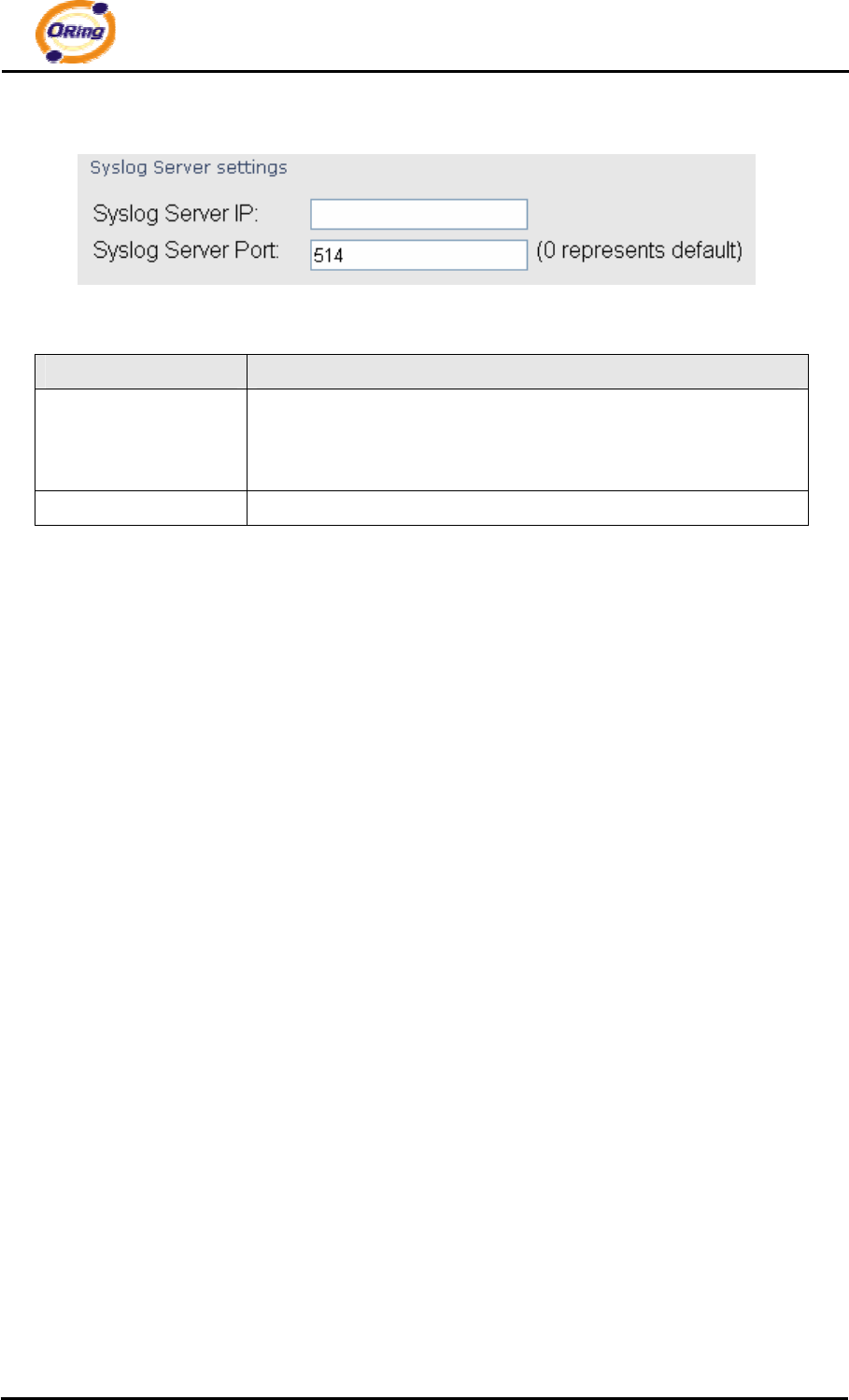
The following table describes the labels in this screen.
Label Description
SNMP Agent SNMP (Simple Network Management Protocol) Agent is a service
program that runs on the access point. The agent provides
management information to the NMS by keeping track of various
operational aspects of the AP system. Turn on to open this
service and off to shutdown it.
SNMP Trap Server
1-4
Specify the IP of trap server, which is the address to which it will
send traps AP generates.
Community Community is essentially password to establish trust between
managers and agents. Normally "public" is used for read-write
community.
SysLocation Specify sysLocation string.
SysContact Specify sysContact string.
IAP-620 Series User’s Manual
37 ORing Industrial Networking Corp.
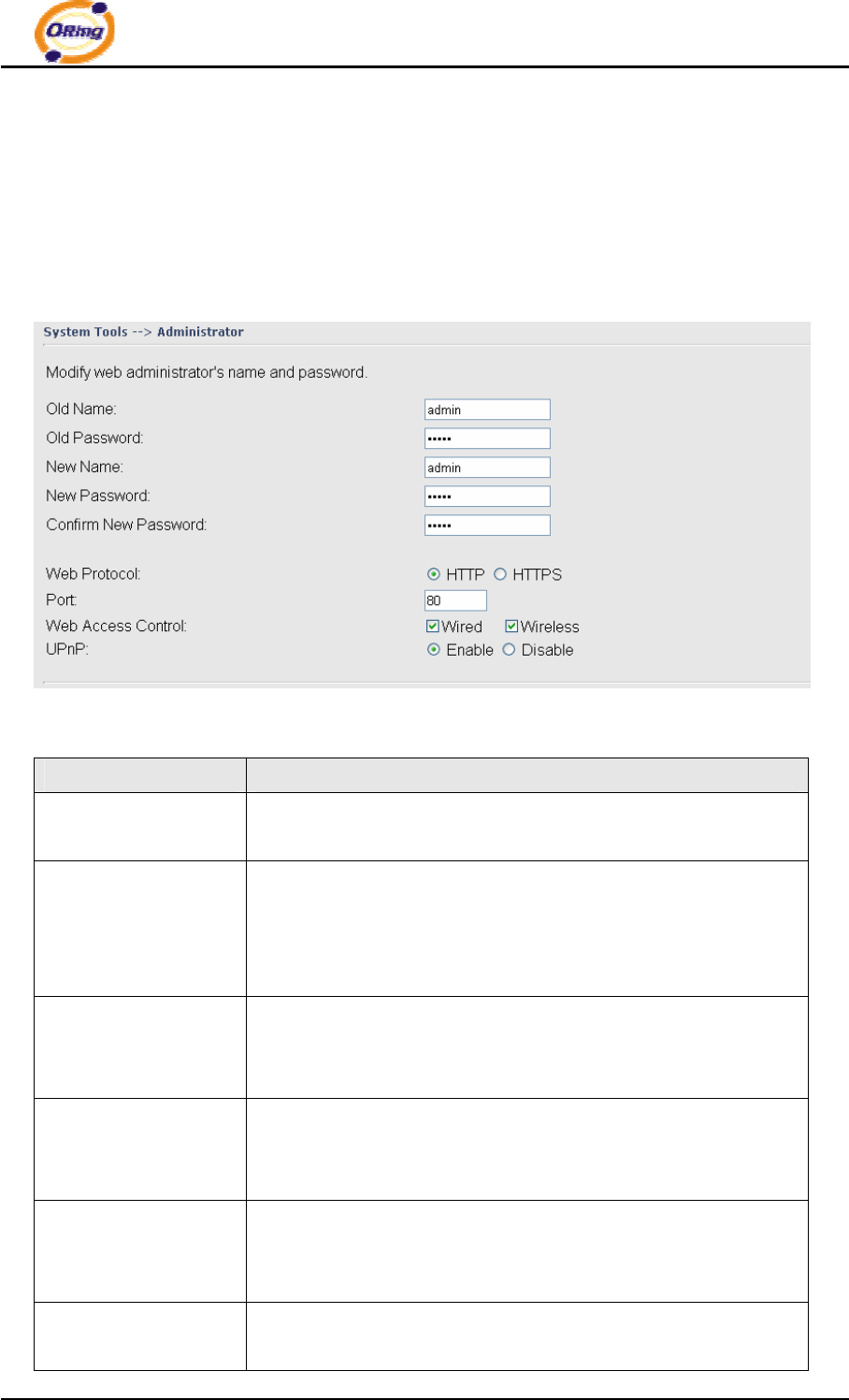
Syslog Server Settings
The following table describes the labels in this screen.
Label Description
Syslog Server IP Not only the syslog keeps the logs locally, it can also log to remote
server. Specify the IP of remote server. Leave it blank to
disable logging remotely.
Syslog Server Port Specify the port of remote logging. Default port is 514.
IAP-620 Series User’s Manual
ORing Industrial Networking Corp. 38
5.5.3 System Tools
Administrator
In this page, you can change the username and password. The new password must
be typed twice to confirm (the default Name and Password is “admin” and “”).
The following table describes the labels in this screen.
Label Description
Old Name This field displays the old login name. It's read only. The default
value of login name is "admin".
Old Password Before making a new setting, you should provide the old
password for a verify check. Acceptable inputs of this field
contains '0-9', 'a-z', 'A-Z' and must be between 0 to 15 characters
in length. The factory default value of login password is null.
New Name Enter a new login name. Acceptable inputs of this field contains
'0-9', 'a-z', 'A-Z' and must be between 1 to 15 characters in length.
This field can not accept null input.
New Password Enter a new login password. Acceptable inputs of this field
contains '0-9', 'a-z', 'A-Z' and must be between 0 to 15 characters
in length.
Confirm New
Password
Retype the password to confirm it. Acceptable inputs of this field
contains '0-9', 'a-z', 'A-Z' and must be between 0 to 15 characters
in length.
Web Protocol Choose on the protocol for web. The default value is HTTP, if
you want the web pages’ security is better, choose the HTTPS

IAP-620 Series User’s Manual
39 ORing Industrial Networking Corp.
protocol.
Port Corresponding to the Web protocol, there is a default port (HTTP:
80, HTTPS: 443). And you can enter another number which
should be in range of 1-65535.
Web Access Control Choose the checkbox of the Wired and Wireless; you can visit the
web page through the mode you choose.
UPnP Pitch on “Enable”, and the UPnP will display in the right-behind
corner.
HTTPS (HTTP over SSL) is a Web protocol developed by Netscape and built into its
browser that encrypts and decrypts user page requests as well as the pages that are
returned by the Web server.
IAP-620 Series User’s Manual
ORing Industrial Networking Corp. 40
Date & Time
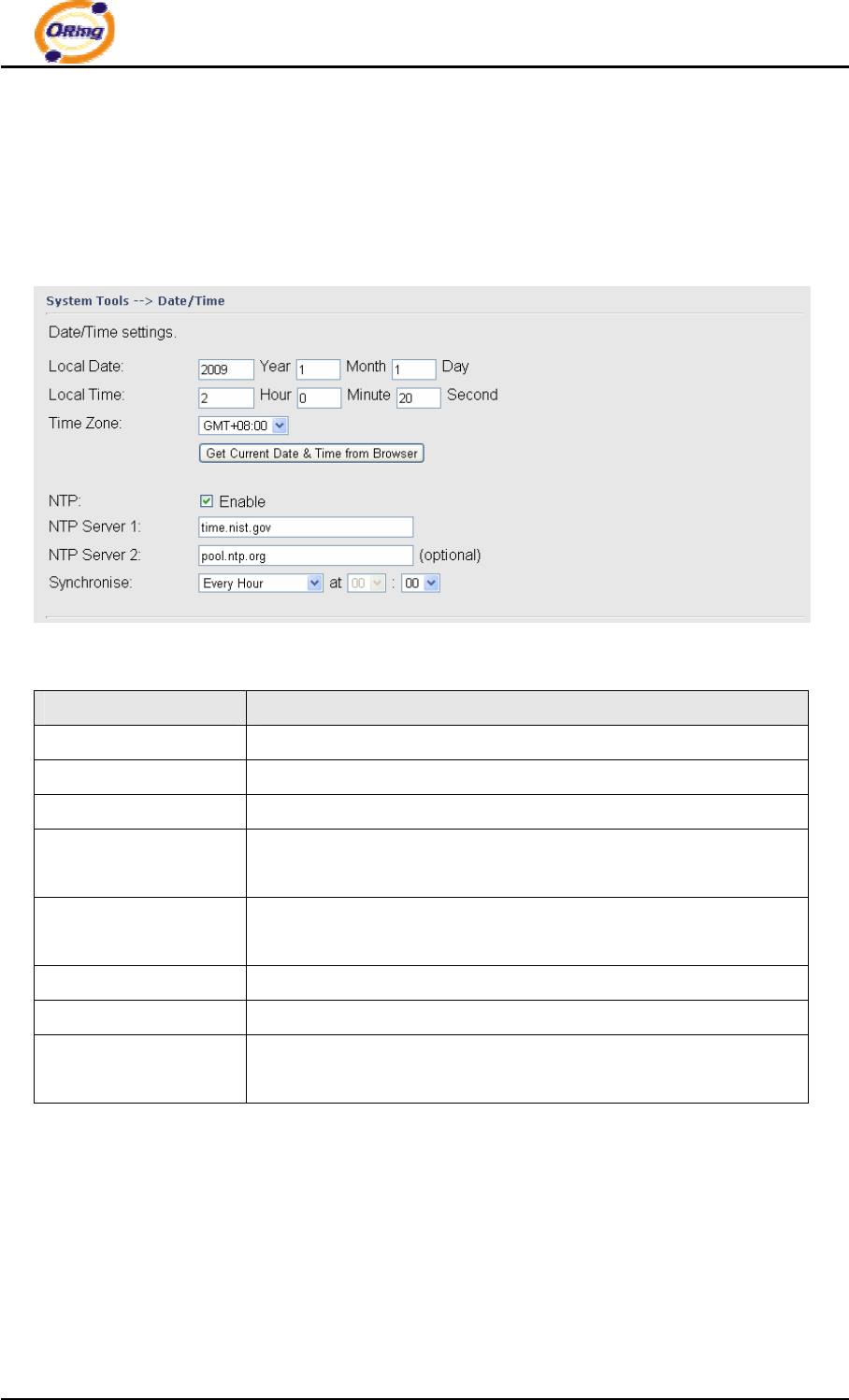
In this page, set the date & time of the device. The correct date & time will be helpful
for logging of system events. A NTP (Network Time Protocol) client can be used to
synchronize date & time with NTP server.
The following table describes the labels in this screen.
Label Description
Local Date Set local date manually.
Local Time Set local time manually.
Time Zone Select the time zone manually
Get Current Date &
Time from Browser
Click this button, you can set the time from browser.
NTP Enable or disable NTP function to get the time from the NTP
server.
NTP Server 1 The initial choice about NTP Server.
NTP Server 2 The second choice about NTP Server.
Synchronize Set the time, and the AP’s time synchronize with the NTP Server
at the time
IAP-620 Series User’s Manual
41 ORing Industrial Networking Corp.
Configuration
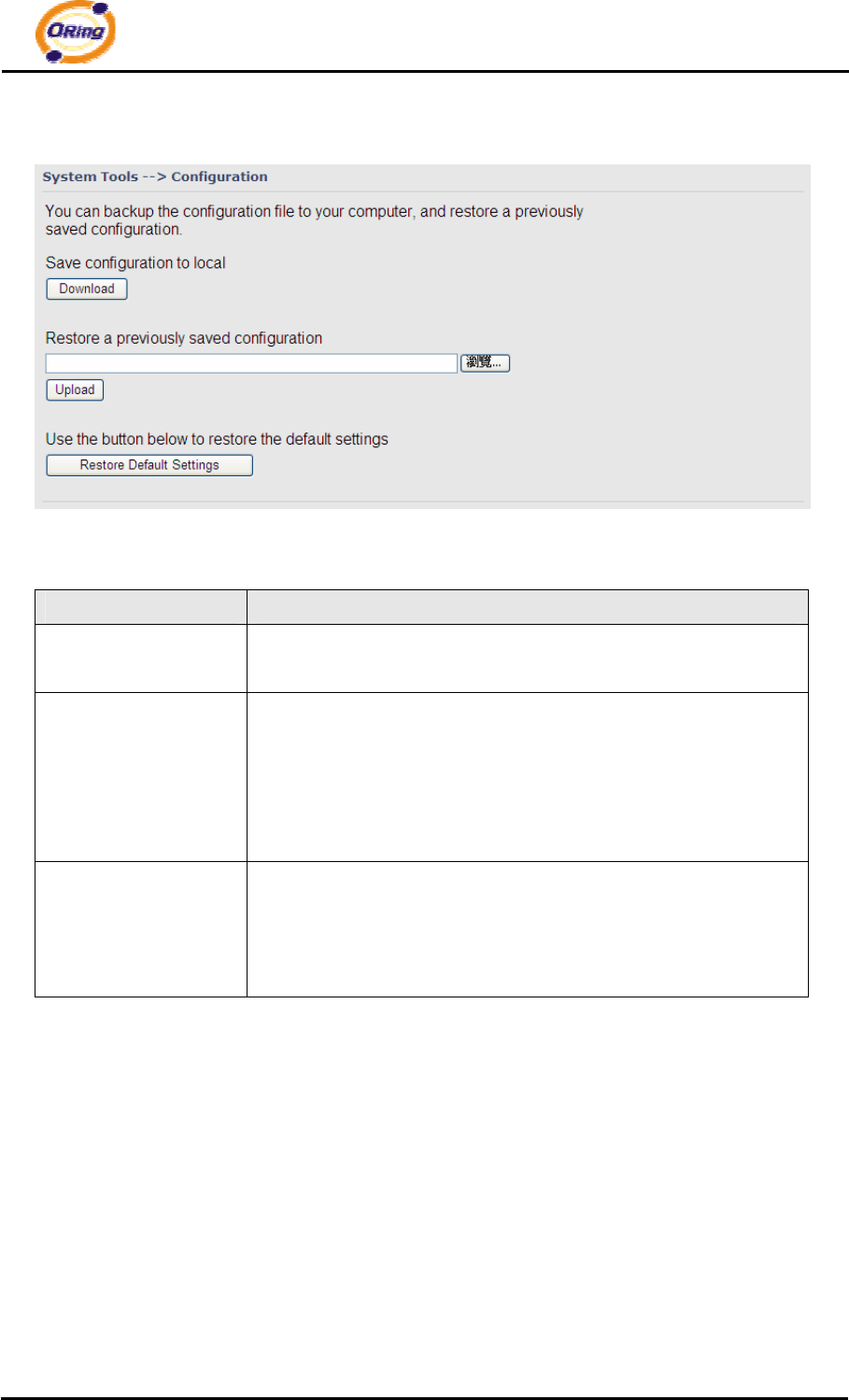
The following table describes the labels in this screen.
Label Description
Download
configuration
The current system settings can be saved as a file onto the local
hard drive.
Upload configuration The saved file or any other saved setting file can be uploaded
back on the AP. To reload a system settings file, click on
Browse to browse the local hard drive and locate the system file
to be used. Click Upload when you have selected the file to be
loaded back onto the AP.
Restore Default
Settings
You may also reset the IAP-120 / 120+ back to factory settings by
clicking on Restore Default Settings. Make sure to save the
unit’s settings before clicking on this button. You will lose your
current settings when you click this button.
IAP-620 Series User’s Manual
ORing Industrial Networking Corp. 42
Firmware Upgrade
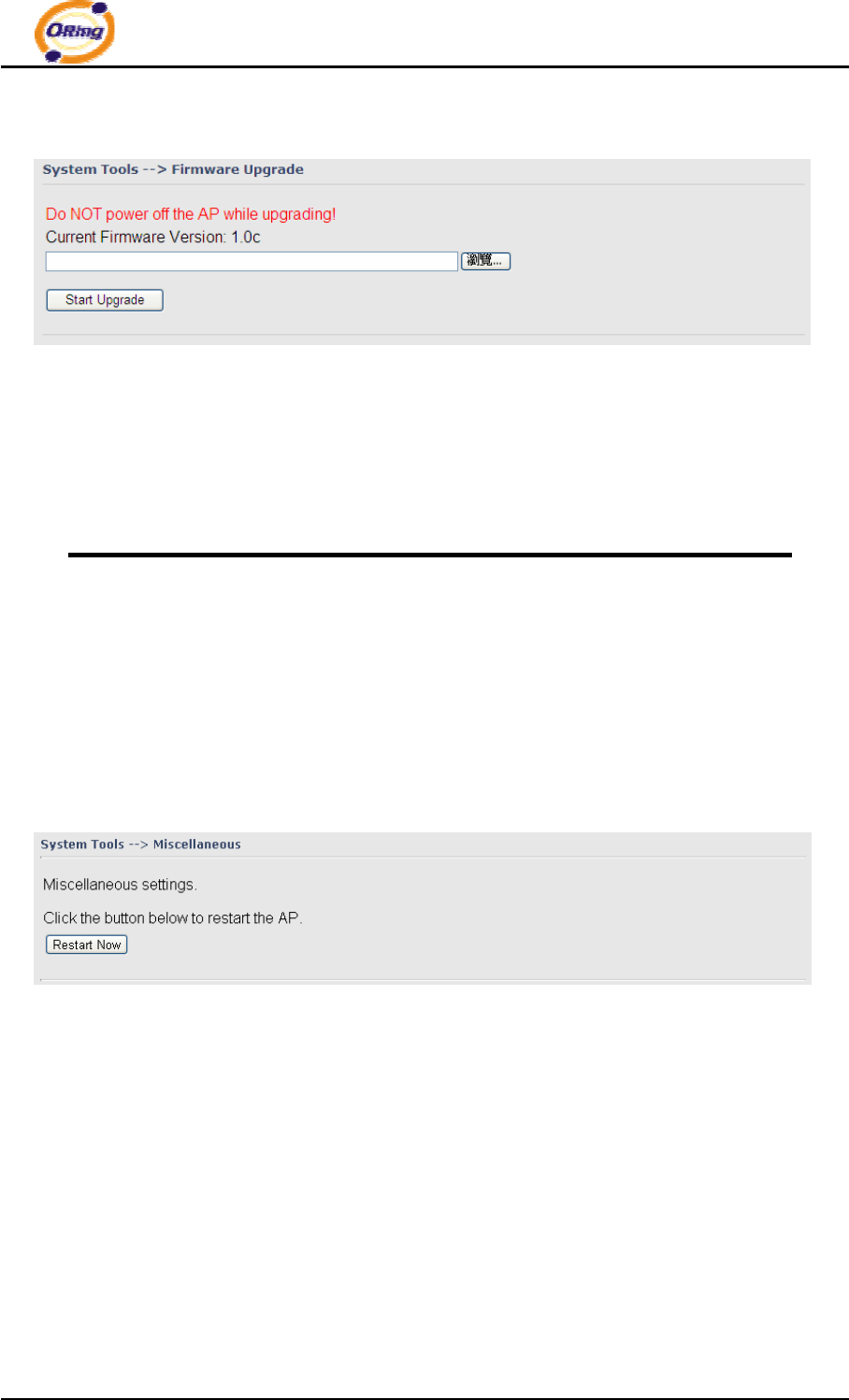
New firmware may provide better performance, bug fixes or more functions. To
upgrade, you need a firmware file correspond to this AP model. It will take several
minutes to upload and upgrade the firmware. After the upgrade is done successfully,
the access point will reboot and get revalidated.
Notice: DO NOT POWER OFF THE AP OR PRESS THE RESET BUTTON WHILE THE
FIRMWARE IS BEING UPGRADED.
Miscellaneous
If you want restart the access point through the Warm Reset, click Restart Now to
restart the AP.
IAP-620 Series User’s Manual
43 ORing Industrial Networking Corp.
5.5.4 System Status
System Info
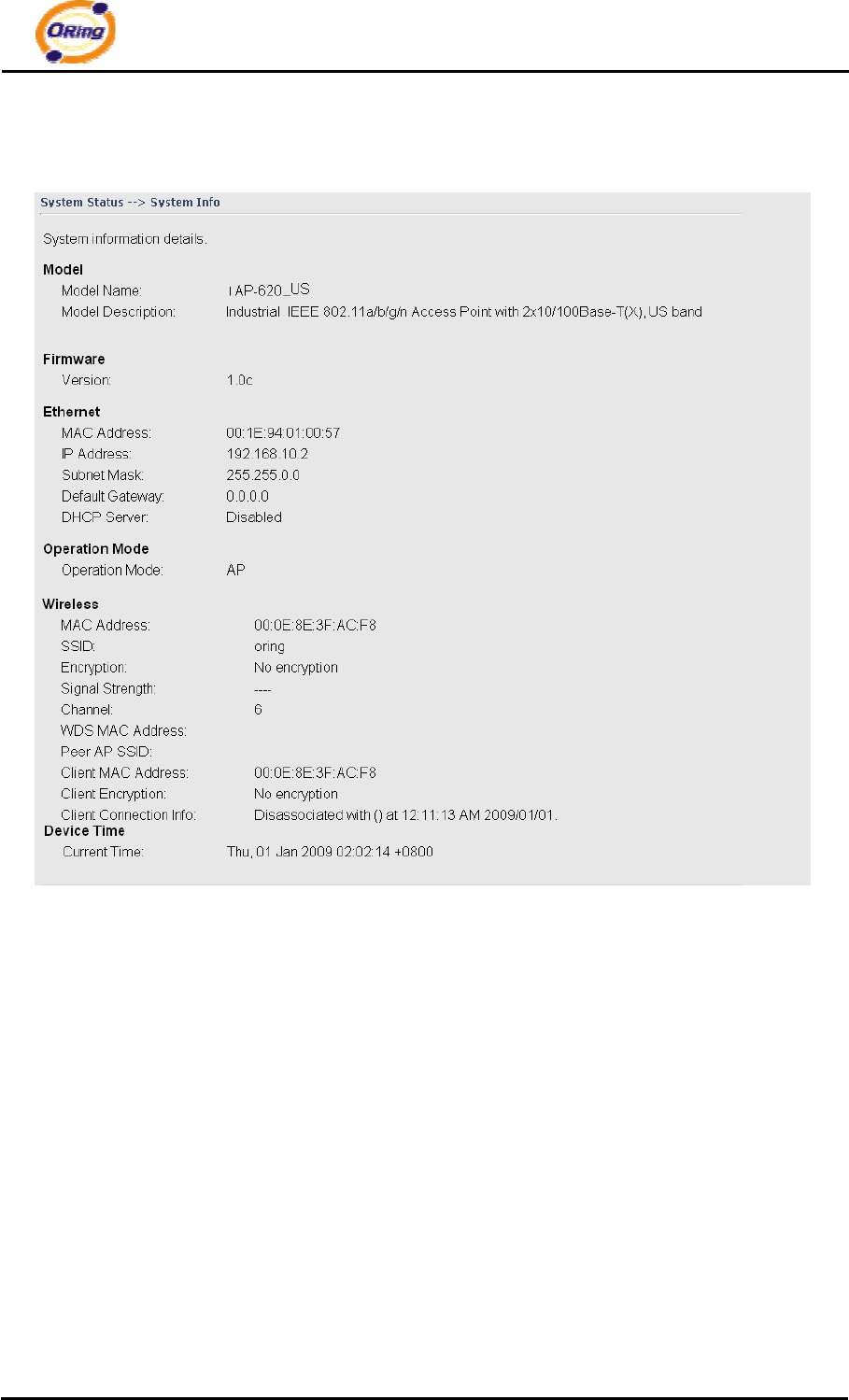
This page displays the current information for the IAP-620/IAP-620+. It will display
model name, as well as firmware version, Ethernet, Wireless info and device time.
IAP-620 Series User’s Manual
ORing Industrial Networking Corp. 44
System Log
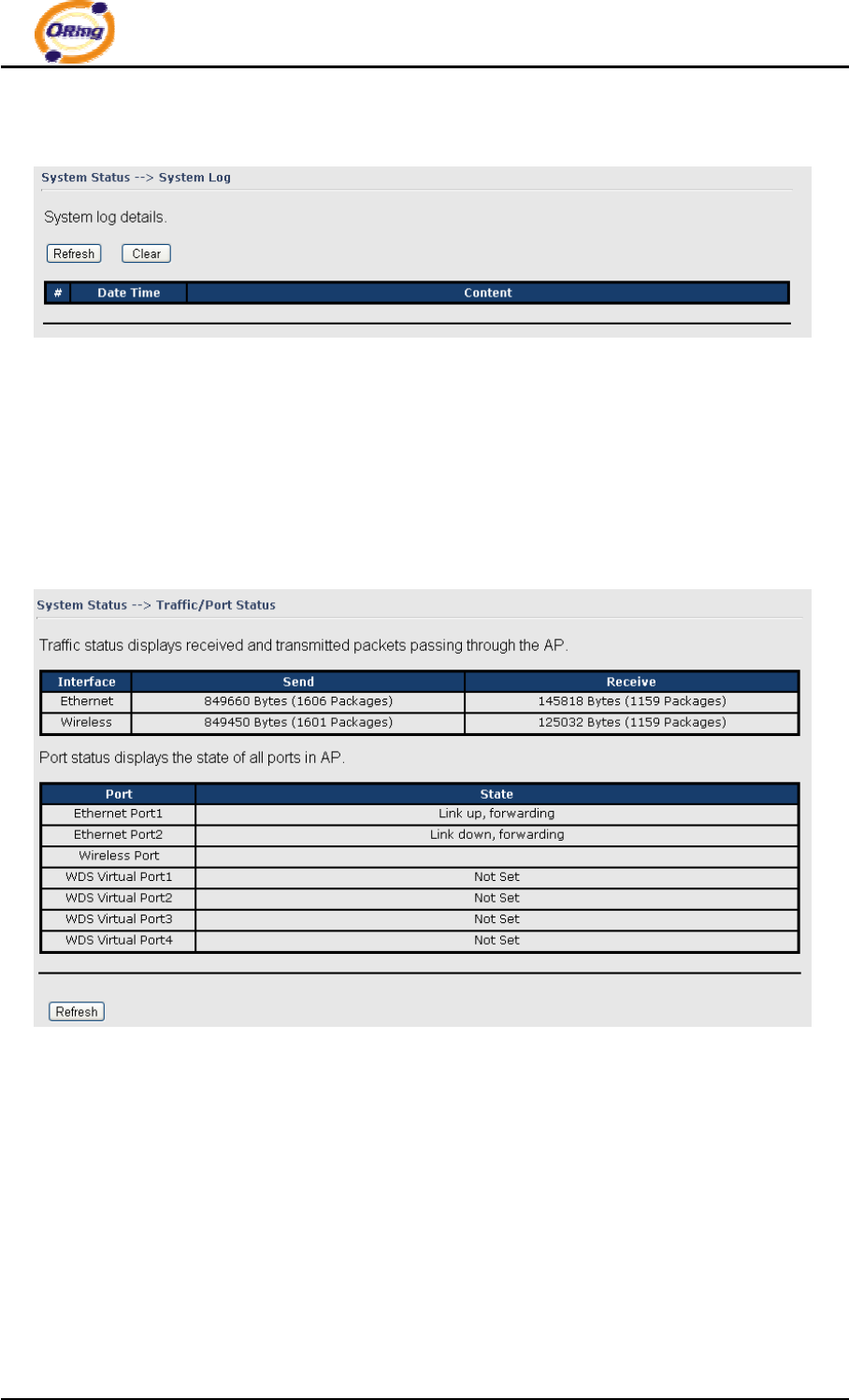
The system log tracks the important events and setting changes of the AP. If the AP is
rebooted, the logs are automatically cleared.
Click the button 'Refresh' to refresh the page; Click the button 'Clear' to clear log entries.
Traffic Statistics
This page displays the network traffic statistics for both received and transmitted
packets through the Ethernet port and wireless connections associated with the AP.
Simultaneity, the traffic counter will reset by the device rebooting.

IAP-620 Series User’s Manual
45 ORing Industrial Networking Corp.
5.5.5 Online Help
Click on any item in the Online Help screen for more information.

IAP-620 Series User’s Manual
ORing Industrial Networking Corp. 46
Technical Specifications
LAN Interface
RJ45 Ports 2 x 10/100Base-T(X), Auto MDI/MDI-X
PoE P.D. (Power Device) Present at ETH2 of IAP-620+
ETH2 act as Power Device (IEEE802.3af):
IEEE 802.3af compliant input interface
Power consumption: 8Watts max.
Over load & short circuit protection
Isolation Voltage: 1000 VDC min.
Isolation Resistance: 108 ohms min
Protocols IP, TCP, UDP, DHCP, BOOTP, ARP/RARP, DNS, SNMP
MIB II, HTTPS, SNMPV1/V2, Trap, Private MIB
WLAN Interface
Operating Mode AP/Client/Bridge/AP-Client
Antenna and Connector 2 antennas with 3dBi for 5GHz and 2dBi for 2.4GHz in
reverse SMA connector
Radio Frequency Type DSSS, OFDM
Modulation IEEE802.11a/n: OFDM with BPSK, QPSK, 16QAM,
64QAM
IEEE802.11b: CCK, DQPSK, DBPSK
IEEE802.11g/n: OFDM with BPSK, QPSK, 16QAM,
64QAM
Frequency Band America / FCC:
2.412~2.462 GHz (11 channels )
5.180~5.240 GHz & 5.745~5.825 GHz ( 9 channels )
Europe CE / ETSI:
2.412~2.472 GHz ( 13 channels )
5.180~5.240 GHz ( 4 channels )
Japan(JP):
2.412~2.484 GHz ( 13 channels )
5.180~5.240 GHz ( 4 channels )
Canada(CA):
2.412~2.462 GHz ( 11 channels )
*5.180~5.825 GHz ( 21 channels )
Transmission Rate 802.11b: 1/2/5.5/11 Mbps

IAP-620 Series User’s Manual
47 ORing Industrial Networking Corp.
802.11a/g: 6/9/12/18/24/36/48/54 Mbps
802.11n(40MHz): UP to 300 Mbps
Transmit Power <Average Power>
802.11a:13dBm ±1.5dBm@54Mbps
802.11b:16dBm ±1.5dBm@11Mbps
802.11g:14dBm ±1.5dBm@54Mbps
802.11n(2.4G@20MHz):13dBm ±1.5dBm
802.11n(2.4G@40MHz):12dBm ±1.5dBm
802.11n(5G@20MHz):12dBm ±1.5dBm
802.11n(5G@40MHz):12dBm ±1.5dBm
<Peak Power>
802.11a:25dBm ±1.5dBm@54Mbps
802.11b:21dBm ±1.5dBm@11Mbps
802.11g:22dBm ±1.5dBm@54Mbps
802.11n(2.4G@20MHz):22dBm ±1.5dBm
802.11n(2.4G@40MHz):20dBm ±1.5dBm
802.11n(5G@20MHz):25dBm ±1.5dBm
802.11n(5G@40MHz):23dBm ±1.5dBm
Receiver Sensitivity 802.11a: -68dBm ±2dBm@54Mbps
802.11b: -82dBm ±2dBm@11Mbps
802.11g: -68dBm ±2dBm@54Mbps
802.11n(2.4G@20MHz, MCS15): -64dBm ±2dBm
802.11n(2.4G@40MHz, MCS15): -60dBm ±2dBm
802.11n(5G@20MHz, MCS15): -64dBm ±2dBm
802.11n(5G@40MHz, MCS15): -60dBm ±2dBm
Encryption Security WEP: (64-bit, 128-bit key supported)
WPA/WPA2:802.11i (WEP and AES encryption)
WPA-PSK (256-bit key pre-shared key supported)
TKIP encryption
Wireless Security SSID broadcast disable
LED Indicators PWR 1(2) (PoE, IAP-620+) / Ready:
1) Red On: Power is on and booting up.
2) Green On: Power is on and functioning normally.
ETH 1(2) Link / ACT:
Orange ON/Blinking: 10 Mbps Ethernet
Green ON/Blinking: 100 Mbps Ethernet
WLAN Link/ACT: Green
IAP-620 Series User’s Manual
ORing Industrial Networking Corp. 48
WLAN Strength:1<25%, 2<50%, 3<75%, 4<100%
Fault: Power or LAN link down (Red)
Power Requirements
Power Input Voltage Dual power inputs PWR1/2: 12 ~ 48VDC in 6-pin
Terminal Block
Reverse Polarity Protection Present
Power Consumption 6 Watts
Environmental
Operating Temperature -10 to 60oC
Storage Temperature -40 to 85oC
Operating Humidity 5% to 95%, non-condensing
Mechanical
Dimensions(W x D x H) 52 mm(W)x 106 mm(D)x 144 mm(H)
Casing IP-30 protection
Regulatory Approvals
EMS
EN61000-4-2 (ESD), EN61000-4-3 (RS),
EN61000-4-4 (EFT), EN61000-4-5 (Surge),
EN61000-4-6 (CS), EN61000-4-8, EN61000-4-11
Shock IEC60068-2-27, EN61373
Free Fall IEC60068-2-32
Vibration IEC60068-2-6, EN61373
Rail Traffic EN50155
Cooling EN60068-2-1
*Due to market segmentation, DFS Channels (5.260GHz to 5.700GHz) is only available in
Canada
Compliance
FCC Statement
This device complies with Part 15 of the FCC Rules. Operation is subject to the following two
conditions:
(1) this device may not cause harmful interference and (2) this device must accept any
interference received, including interference that may cause undesired operation.
RF exposure warning: The equipment complies with RF exposure limits set forth for an
uncontrolled environment. The antenna(s) used for this transmitter must not be co-located or
operating in conjunction with any other antenna or transmitter.

IAP-620 Series User’s Manual
49 ORing Industrial Networking Corp.
You are cautioned that changes or modifications not expressly approved by the party
responsible for compliance could void your authority to operate the equipment. This device
should be operated with minimum distance 20cm between the device and all persons.
Operations in the 5.15-5.25GHz band are restricted to indoor usage only.
Industry Canada Statement
This device complies with Industry Canada licence-exempt RSS standard(s). Operation is
subject to the following two conditions: (1) this device may not cause interference, and (2) this
device must accept any interference, including interference that may cause undesired
operation of the device.
Le présent appareil est conforme aux CNR d'Industrie Canada applicables aux appareils radio
exempts de licence. L'exploitation est autorisée aux deux conditions suivantes : (1) l'appareil
ne doit pas produire de brouillage, et (2) l'utilisateur de l'appareil doit accepter tout brouillage
radioélectrique subi, même si le brouillage est susceptible d'en compromettre le
fonctionnement.
Industry Canada - Class B This digital apparatus does not exceed the Class B limits for radio
noise emissions from digital apparatus as set out in the interference-causing equipment
standard entitled “Digital Apparatus,” ICES-003 of Industry Canada.
Cet appareil numérique respecte les limites de bruits radioélectriques applicables aux
appareils numériques de Classe B prescrites dans la norme sur le matérial brouilleur:
“Appareils Numériques,” NMB-003 édictée par l’Industrie.
Operation is subject to the following two conditions: (1) this device may not cause interference,
and (2) this device must accept any interference, including interference that may cause
undesired operation of the device.
L'opération est soumise aux deux conditions suivantes: (1) cet appareil ne peut causer
d'interférences,et (2) cet appareil doit accepter toute interférence, y compris celles
susceptibles de provoquer fonctionnement du dispositif.
To reduce potential radio interference to other users, the antenna type and its gain should be
so chosen that the equivalent isotropically radiated power (e.i.r.p.) is not more than that
permitted for successful communication.

IAP-620 Series User’s Manual
ORing Industrial Networking Corp. 50
Afin de réduire les interférences radio potentielles pour les autres utilisateurs, le type
d'antenne et son gain doivent être choisie que la puissance isotrope rayonnée équivalente
(PIRE) est pas plus que celle premise pour une communication réussie
RF exposure warning: The equipment complies with RF exposure limits set forth for an
uncontrolled environment. The antenna(s) used for this transmitter must not be co-located or
operating in conjunction with any other antenna or transmitter.
Avertissement d'exposition RF: L'équipement est conforme aux limites d'exposition aux RF
établies pour un incontrôlés environnement. L'antenne (s) utilisée pour ce transmetteur ne
doit pas être co-localisés ou fonctionner en conjonction avec toute autre antenne ou
transmetteur.
You are cautioned that changes or modifications not expressly approved by the party
responsible for compliance could void your authority to operate the equipment.