OTC Wireless 0207232XG 2.4GHz Transceiver Radio With RS232 Interface User Manual 2

OTC Wireless Inc 2.4GHz Transceiver Radio With RS232 Interface 2

User Manual

OTC Wireless    Document Number: DOC-001-0901 AirEZY2411-RS232 Utility User’s Guide     Version 0.2 – Oct 14, 2002  OTC Wireless AirEZY2411-RS232 DIAGNOSTIC AND CONFIGURATION USER’S GUIDE       Document Number: DOC-001-0901 Version 0.1 - July 19, 2002               ABSTRACT  This document describes the AirEZY2411-RS232 product graphical user interface (GUI) for configuration and monitoring of the product.
OTC Wireless    Document Number: DOC-001-0901 AirEZY2411-RS232 Utility User’s Guide     Version 0.2 – Oct. 14, 2002     Copyright 2000,2002 OTC Wireless
OTC Wireless    Document Number: DOC-001-0901 AirEZY2411-RS232 Utility User’s Guide     Version 0.2 – Oct 14, 2002   3 REVISION HISTORY  REV DATE AUTHOR REASON FOR CHANGE 0.1 July 19, 2002 Chau Dang Initial Draft 0.2 October 14, 2002   Yan Zheng Adding FCC warning statement
OTC Wireless    Document Number: DOC-001-0901 AirEZY2411-RS232 Utility User’s Guide     Version 0.2 – Oct 14, 2002   4NOTICE  The information contained in this document is subject to change without notice.  OTC Wireless MAKES NO WARRANTY OF ANY KIND WITH REGARD TO THIS MATERIAL, INCLUDING, BUT NOT LIMITED TO, THE IMPLIED WARRANTIES OF FITNESS AND MERCHANTABILITY FOR A PARTICULAR PURPOSE.  OTC Wireless will not be liable for errors contained herein or for incidental or consequential damages in connection with the furnishing, performance, or use of this material.  OTC Wireless assumes no responsibility for the use or reliability of interconnected equipment that is not furnished by them.  This document contains proprietary information which is protected by copyright.  All rights are reserved.  No part of this document may be photocopied, reproduced, or translated to another language without the prior written consent of OTC Wireless.  The information contained herein has been prepared by OTC Wireless solely for use by OTC Wireless, its employees, agents and customers.  Dissemination of the information and/or concepts contained herein to other parties is prohibited without the prior written consent of OTC Wireless.               Copyright  2000,2001 by OTC Wireless.  All rights reserved.
OTC Wireless    Document Number: DOC-001-0901 AirEZY2411-RS232 Utility User’s Guide     Version 0.2 – Oct 14, 2002   5Regulatory Compliance FCC Part 15 Declaration of Conformity (DoC) The equipment is confirmed to comply with the requirements of FCC Part 15 rules. The operation is subject to the following two conditions: 1.  This device may not cause harmful interference, and 2.  This device must accept any interference received, including interference that may cause undesired operation.   FCC Rules and Regulations - Part 15 Warning: This device has been tested and found to comply with the limits for a Class B digital device pursuant to Part 15 of the Federal Communications Commissions Rules and Regulations. These limits are designed to provide reasonable protection against harmful interference when the equipment is operated in a commercial environment. This equipment generates, uses, and can radiate radio frequency energy and, if not installed and used in accordance with the instruction manual, may cause harmful interference to radio communications. However, there is no guarantee that interference will not occur in a particular installation. If this equipment does cause harmful interference to radio or television reception, which can be determined by turning the equipment off and on, the user is encouraged to try and correct the interference by one or more of the following measures: . Relocate your WLAN equipped laptop computer. . Increase the separation between the WLAN equipped laptop computer and other electronics. . Connect the WLAN equipped laptop computer into an outlet on a circuit different from that of other electronics. . Consult the dealer or an experienced radio/TV technician for help.  Caution:  Changes or modifications not expressly approved by OTC Wireless could void the user’s authority to operate the equipment.  FCC Radiation Exposure Statement This equipment complies with FCC radiation exposure limits set forth for an uncontrolled environment.  This equipment should be installed and operated with minimum distance of 20cm between the radiator & your body. This transmitter must not be co-located or operating in conjunction with any otherantenna or transmitter.
OTC Wireless    Document Number: DOC-001-0901 AirEZY2411-RS232 Utility User’s Guide     Version 0.2 – Oct 14, 2002   6TABLE OF CONTENTS 1. INTRODUCTION................................................................................................... 7 1.1 Scope and Objectives...................................................................................................................................7 1.2 About the Program......................................................................................................................................7 2. THE PROGRAM’S DETAILS.............................................................................. 8 2.1 Protocols:......................................................................................................................................................8 2.2 Main Windows:.............................................................................................................................................8 3. DETAIL FUNCTIONALITY OF THE PROGRAM’S AREAS........................12 3.1 Connection and Overall Status: (Fig 2).................................................................................................12 3.2 Radio Status: (Fig 3)..................................................................................................................................13 3.3 Configuration: (Fig 4)...............................................................................................................................13 3.4 RS232 and WLAN Statistics: (Fig 5)....................................................................................................14 3.5 Security and Advanced Security: (Fig 6 and 7)....................................................................................15 3.6 Testing: (Fig 8)...........................................................................................................................................17
OTC Wireless    Document Number: DOC-001-0901 AirEZY2411-RS232 Utility User’s Guide     Version 0.2 – Oct 14, 2002   71. INTRODUCTION 1.1 Scope and Objectives This document is a User’s Guide for the OTC AirEZY2411-RS232 Diagnostic and Configuration program (“The Program”) that is used to configure, monitor, and additionally, to test the OTC AirEZY2411-RS232 unit (“The Unit”), one of OTC’s wireless products.  This document will give users as very details as possible about the Program and how to use it. 1.2 About the Program  The Program is a Window program, written in C++ using MFC.  It communicates with the Unit thru a COM port of a Personal Computer (Desktop or Laptop).  It is expected to run on all Windows platforms.  At the time this document is written, it runs fine on Win98, Window Millennium Edition, and Win2000.
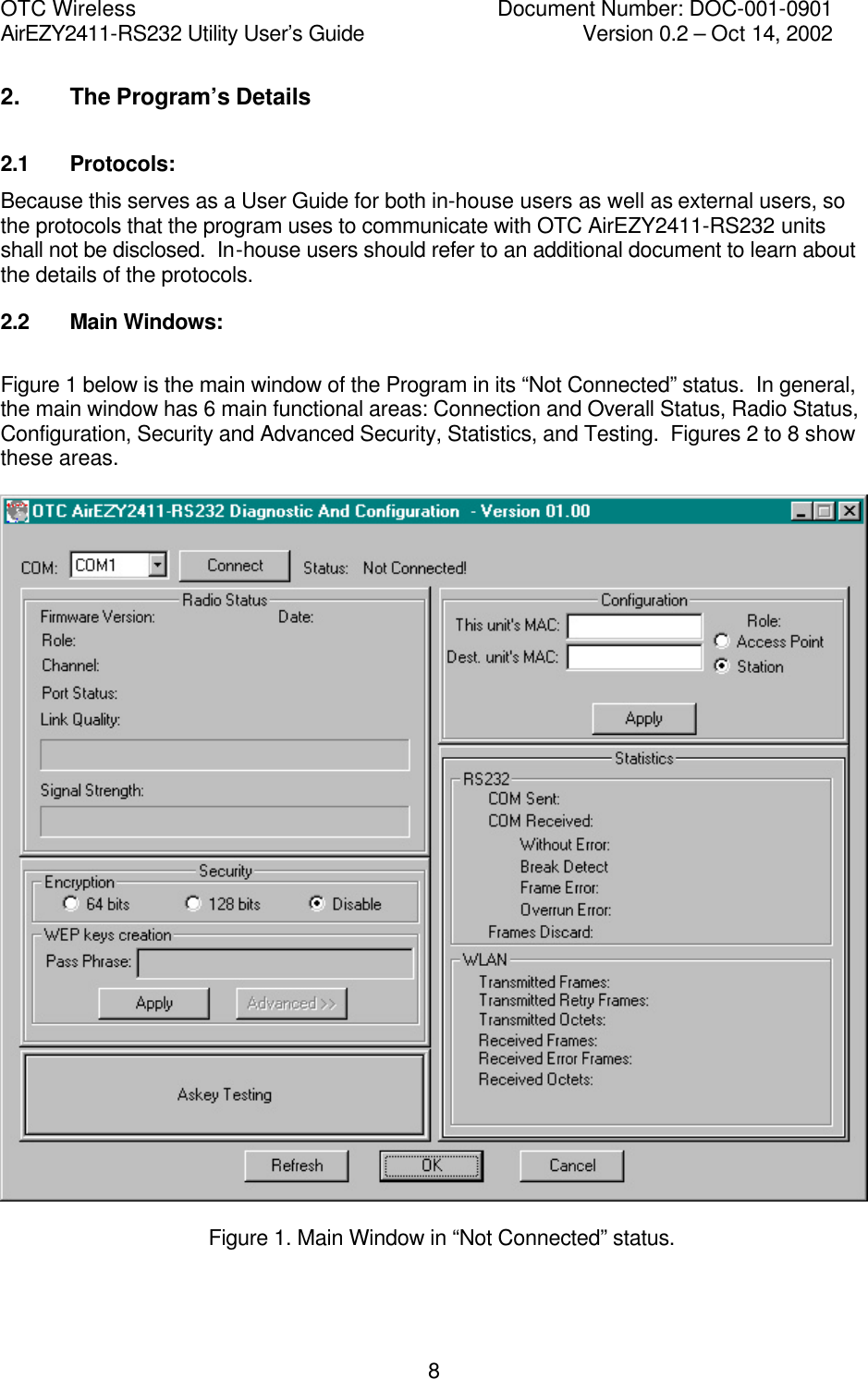
OTC Wireless    Document Number: DOC-001-0901 AirEZY2411-RS232 Utility User’s Guide     Version 0.2 – Oct 14, 2002   82. The Program’s Details 2.1 Protocols: Because this serves as a User Guide for both in-house users as well as external users, so the protocols that the program uses to communicate with OTC AirEZY2411-RS232 units shall not be disclosed.  In-house users should refer to an additional document to learn about the details of the protocols. 2.2 Main Windows:  Figure 1 below is the main window of the Program in its “Not Connected” status.  In general, the main window has 6 main functional areas: Connection and Overall Status, Radio Status, Configuration, Security and Advanced Security, Statistics, and Testing.  Figures 2 to 8 show these areas.       Figure 1. Main Window in “Not Connected” status.
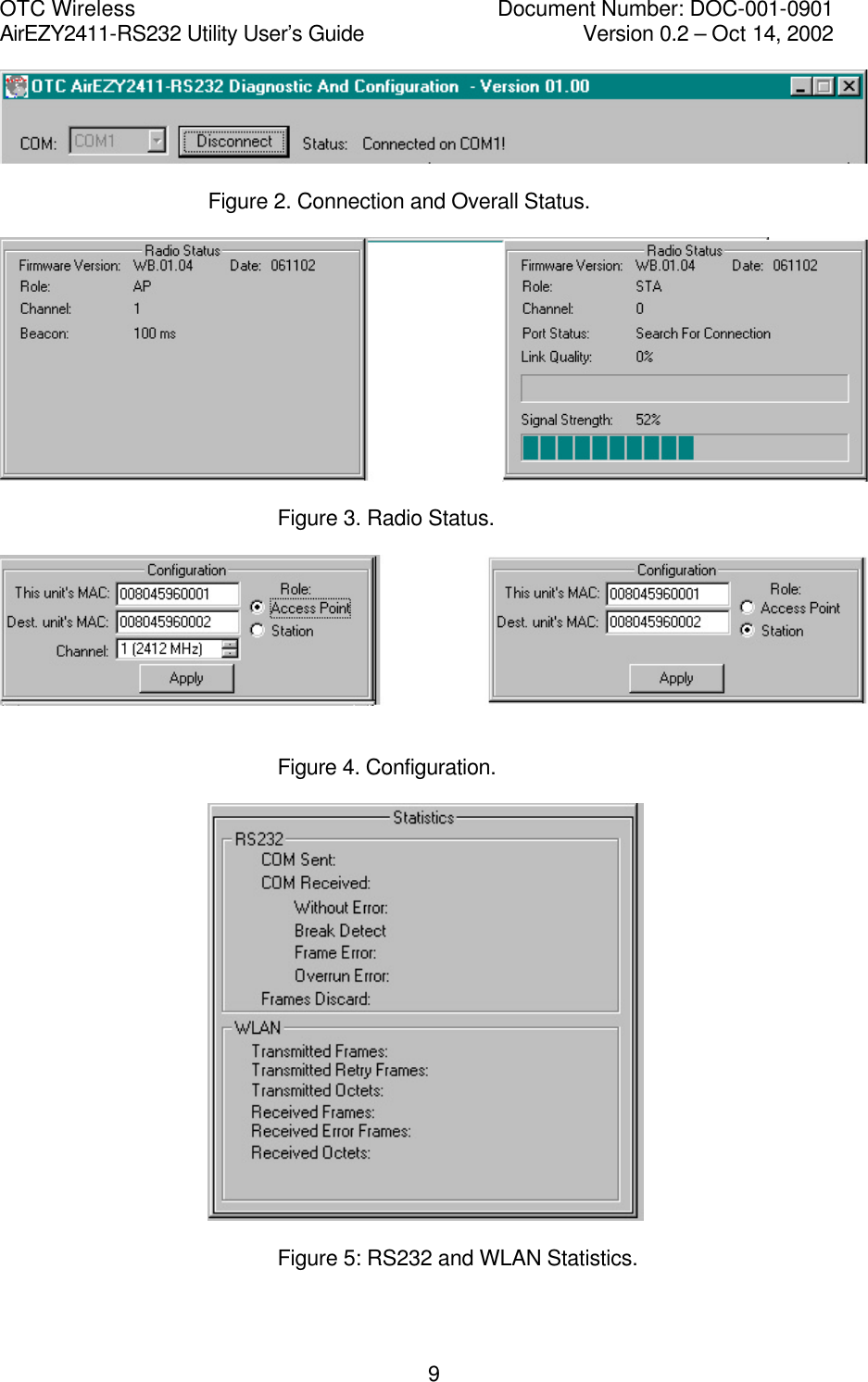
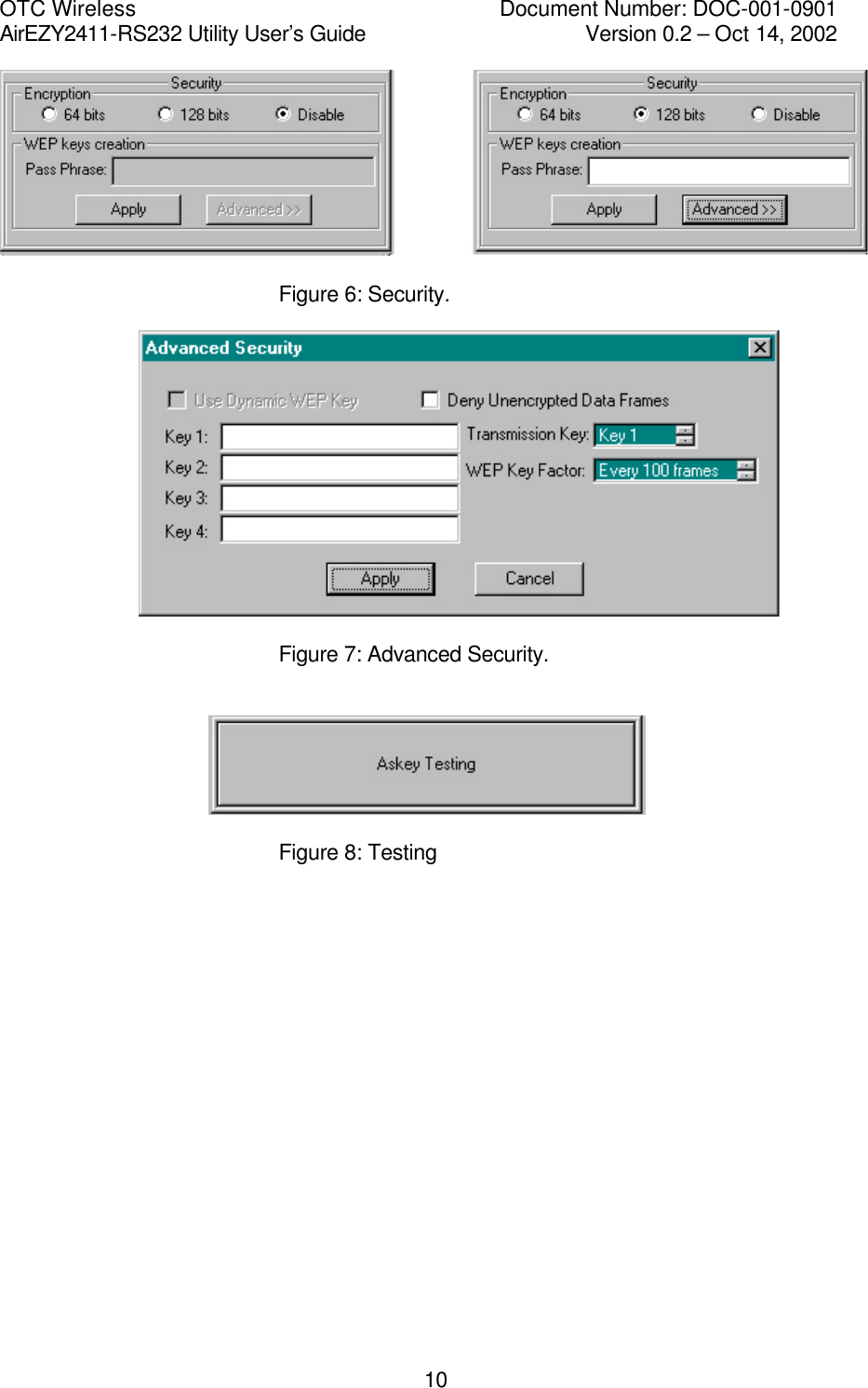
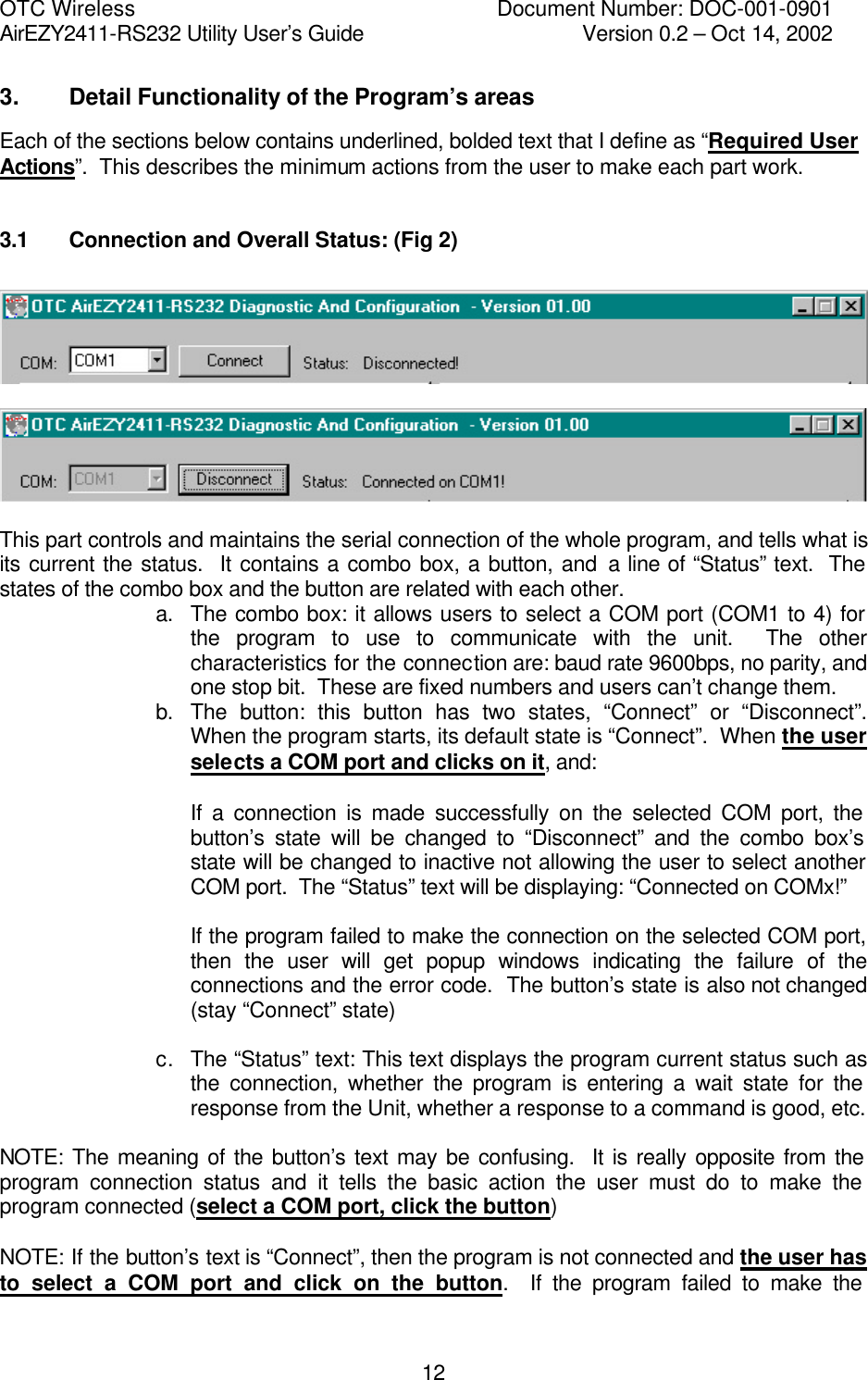
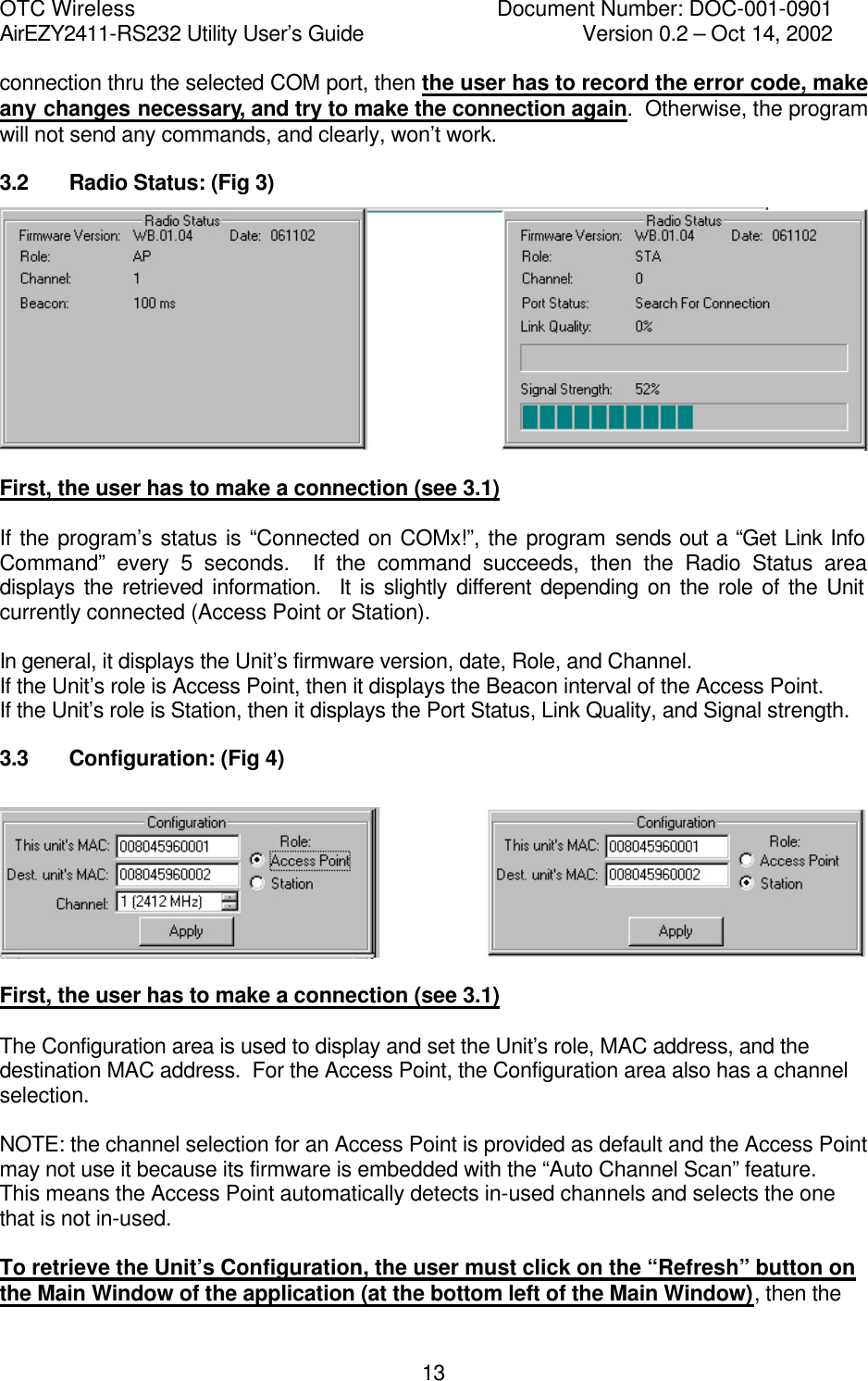
OTC Wireless    Document Number: DOC-001-0901 AirEZY2411-RS232 Utility User’s Guide     Version 0.2 – Oct 14, 2002   9     Figure 2. Connection and Overall Status.       Figure 3. Radio Status.         Figure 4. Configuration.       Figure 5: RS232 and WLAN Statistics.
OTC Wireless    Document Number: DOC-001-0901 AirEZY2411-RS232 Utility User’s Guide     Version 0.2 – Oct 14, 2002   10      Figure 6: Security.        Figure 7: Advanced Security.      Figure 8: Testing
OTC Wireless    Document Number: DOC-001-0901 AirEZY2411-RS232 Utility User’s Guide     Version 0.2 – Oct 14, 2002   11
OTC Wireless    Document Number: DOC-001-0901 AirEZY2411-RS232 Utility User’s Guide     Version 0.2 – Oct 14, 2002   123. Detail Functionality of the Program’s areas Each of the sections below contains underlined, bolded text that I define as “Required User Actions”.  This describes the minimum actions from the user to make each part work.  3.1    Connection and Overall Status: (Fig 2)      This part controls and maintains the serial connection of the whole program, and tells what is its current the status.  It contains a combo box, a button, and a line of “Status” text.  The states of the combo box and the button are related with each other. a. The combo box: it allows users to select a COM port (COM1 to 4) for the program to use to communicate with the unit.  The other characteristics for the connection are: baud rate 9600bps, no parity, and one stop bit.  These are fixed numbers and users can’t change them. b. The button: this button has two states, “Connect” or “Disconnect”.  When the program starts, its default state is “Connect”.  When the user selects a COM port and clicks on it, and:  If a connection is made successfully on the selected COM port, the button’s state will be changed to “Disconnect” and the combo box’s state will be changed to inactive not allowing the user to select another COM port.  The “Status” text will be displaying: “Connected on COMx!”    If the program failed to make the connection on the selected COM port, then the user will get popup windows indicating the failure of the connections and the error code.  The button’s state is also not changed (stay “Connect” state)  c. The “Status” text: This text displays the program current status such as the connection, whether the program is entering a wait state for the response from the Unit, whether a response to a command is good, etc.  NOTE: The meaning of the button’s text may be confusing.  It is really opposite from the program connection status and it tells the basic action the user must do to make the program connected (select a COM port, click the button)  NOTE: If the button’s text is “Connect”, then the program is not connected and the user has to select a COM port and click on the button.  If the program failed to make the
OTC Wireless    Document Number: DOC-001-0901 AirEZY2411-RS232 Utility User’s Guide     Version 0.2 – Oct 14, 2002   13connection thru the selected COM port, then the user has to record the error code, make any changes necessary, and try to make the connection again.  Otherwise, the program will not send any commands, and clearly, won’t work. 3.2   Radio Status: (Fig 3)   First, the user has to make a connection (see 3.1)  If the program’s status is “Connected on COMx!”, the program sends out a “Get Link Info Command” every 5 seconds.  If the command succeeds, then the Radio Status area displays the retrieved information.  It is slightly different depending on the role of the Unit currently connected (Access Point or Station).  In general, it displays the Unit’s firmware version, date, Role, and Channel. If the Unit’s role is Access Point, then it displays the Beacon interval of the Access Point. If the Unit’s role is Station, then it displays the Port Status, Link Quality, and Signal strength. 3.3   Configuration: (Fig 4)    First, the user has to make a connection (see 3.1)  The Configuration area is used to display and set the Unit’s role, MAC address, and the destination MAC address.  For the Access Point, the Configuration area also has a channel selection.  NOTE: the channel selection for an Access Point is provided as default and the Access Point may not use it because its firmware is embedded with the “Auto Channel Scan” feature.  This means the Access Point automatically detects in-used channels and selects the one that is not in-used.  To retrieve the Unit’s Configuration, the user must click on the “Refresh” button on the Main Window of the application (at the bottom left of the Main Window), then the
OTC Wireless    Document Number: DOC-001-0901 AirEZY2411-RS232 Utility User’s Guide     Version 0.2 – Oct 14, 2002   14Program sends out a “Get Configuration Command” and if it succeeds, the Configuration area will display the Unit’s configuration: a. This unit’s MAC: b. Dest. Unit’s MAC: These are 6-byte hexadecimal numbers (must be 12 hexadecimal numbers [0-9, a-f, A-F] on each of the fields). c. This Unit’s Role: Station or Access Point. d. If the Unit is an Access Point, a list-box channel is shown and it displays the current channel of the Access Point.  To set the Unit’s Configuration, the user must click on the “Apply” button on the Configuration area (this area), then the Program will capture this unit’s MAC, destination unit’s MAC, the selected role, and the channel if the role is “Access Point”.    The Program then validates the values, requires the user to re-enter any invalid values, and sends out a “Set Configuration Command”.  After sending out the command, the Program waits for a response from the Unit to verify the command succeeds.  If it is, the Configuration area will display the information as in the “Get Configuration Command”  3.4   RS232 and WLAN Statistics: (Fig 5)    First, the user has to make a connection (see 3.1)  To retrieve the Unit’s Statistics, the user must click on the “Refresh” button on the Main Window of the application (at the bottom left of the Main Window), then the Program sends out two commands: “Get RS232 Statistics Command” and “Get WLAN Statistics Command”.  If they succeed, the Statistics area will display the Unit’s RS232 and WLAN Statistics:  1. RS232 Statistics:
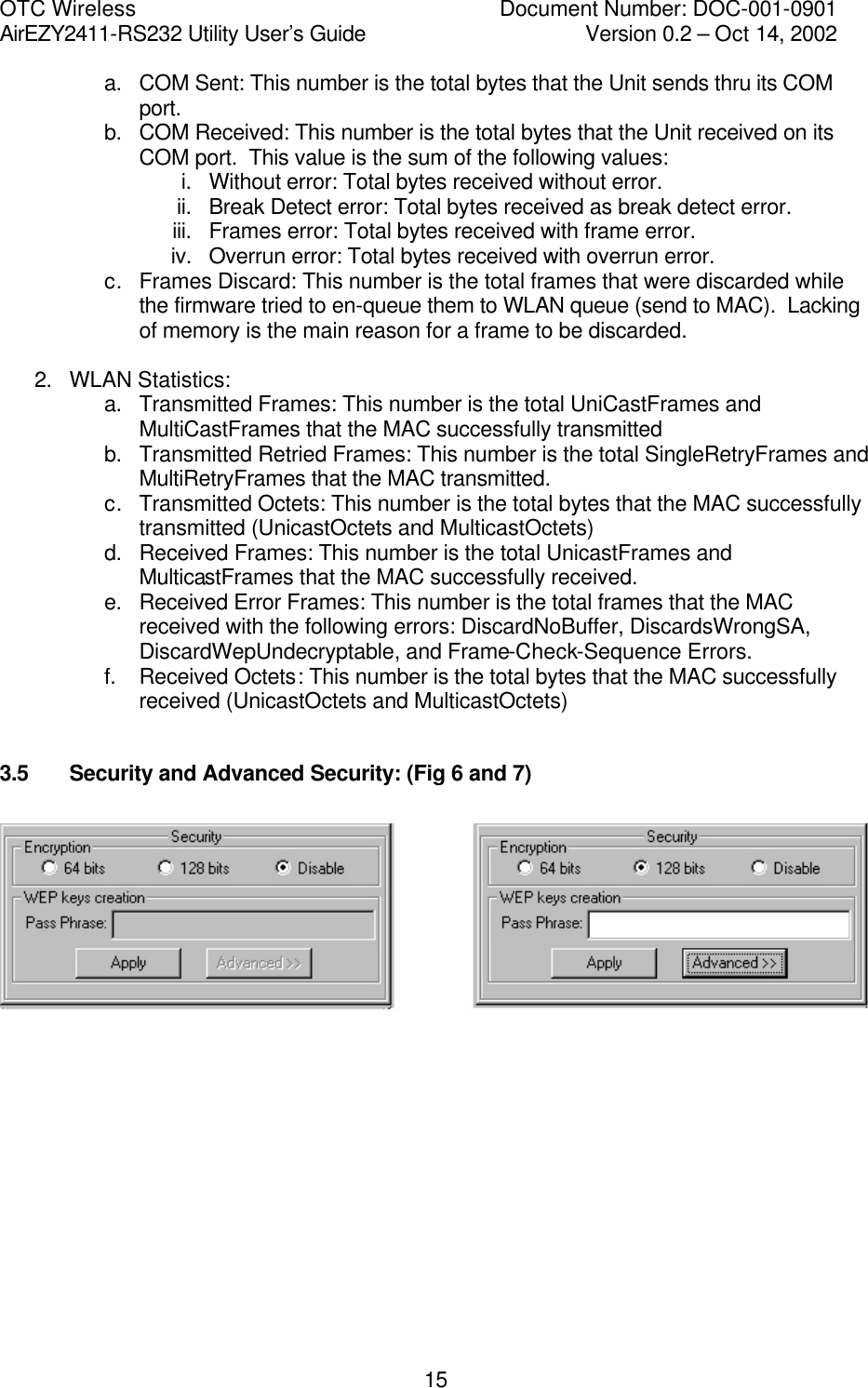
OTC Wireless    Document Number: DOC-001-0901 AirEZY2411-RS232 Utility User’s Guide     Version 0.2 – Oct 14, 2002   15a. COM Sent: This number is the total bytes that the Unit sends thru its COM port. b. COM Received: This number is the total bytes that the Unit received on its COM port.  This value is the sum of the following values: i. Without error: Total bytes received without error. ii. Break Detect error: Total bytes received as break detect error. iii. Frames error: Total bytes received with frame error. iv. Overrun error: Total bytes received with overrun error. c. Frames Discard: This number is the total frames that were discarded while the firmware tried to en-queue them to WLAN queue (send to MAC).  Lacking of memory is the main reason for a frame to be discarded.  2. WLAN Statistics: a. Transmitted Frames: This number is the total UniCastFrames and MultiCastFrames that the MAC successfully transmitted b. Transmitted Retried Frames: This number is the total SingleRetryFrames and MultiRetryFrames that the MAC transmitted.  c. Transmitted Octets: This number is the total bytes that the MAC successfully transmitted (UnicastOctets and MulticastOctets) d. Received Frames: This number is the total UnicastFrames and MulticastFrames that the MAC successfully received. e. Received Error Frames: This number is the total frames that the MAC received with the following errors: DiscardNoBuffer, DiscardsWrongSA, DiscardWepUndecryptable, and Frame-Check-Sequence Errors. f. Received Octets: This number is the total bytes that the MAC successfully received (UnicastOctets and MulticastOctets)  3.5   Security and Advanced Security: (Fig 6 and 7)
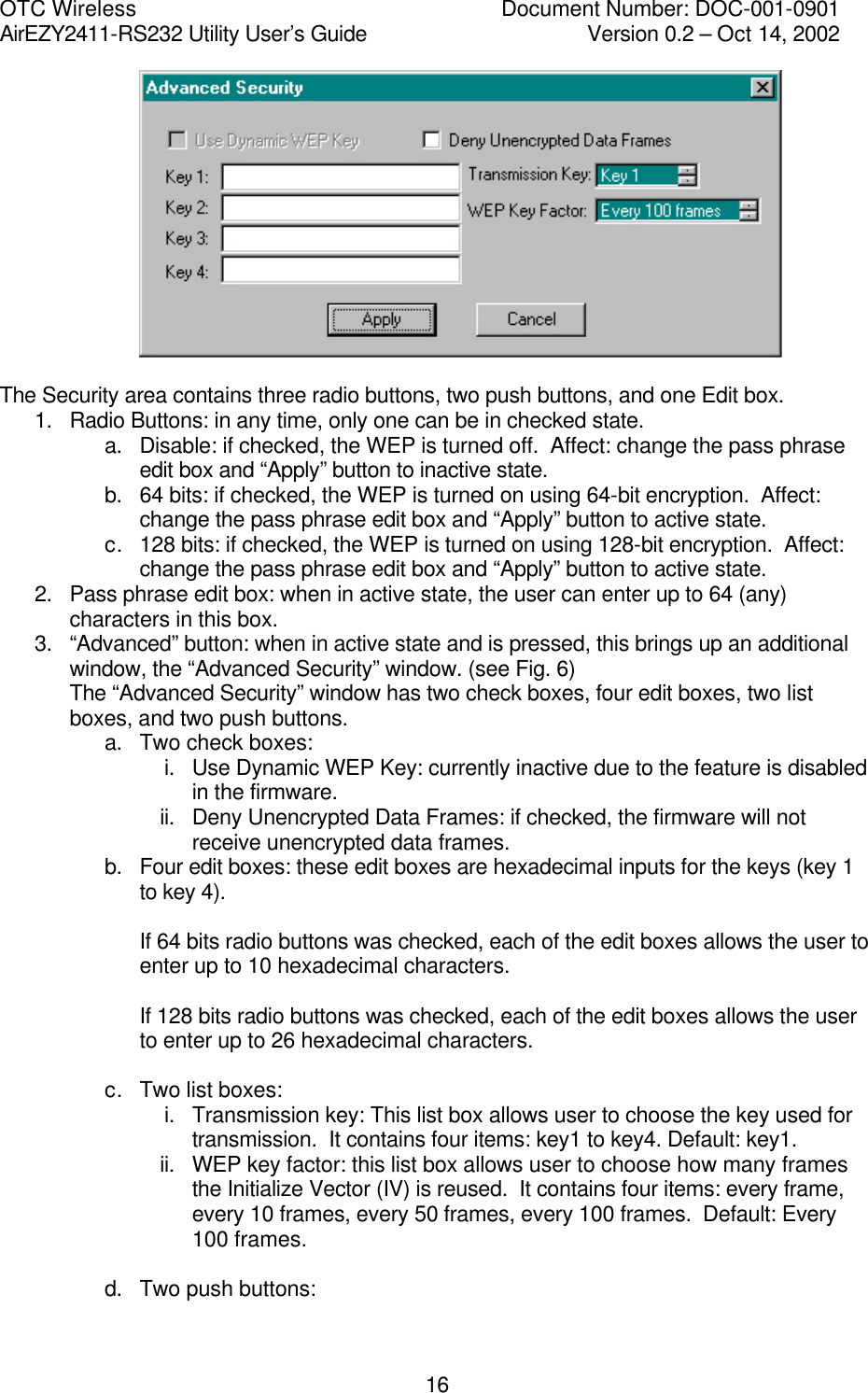
OTC Wireless    Document Number: DOC-001-0901 AirEZY2411-RS232 Utility User’s Guide     Version 0.2 – Oct 14, 2002   16  The Security area contains three radio buttons, two push buttons, and one Edit box. 1. Radio Buttons: in any time, only one can be in checked state. a. Disable: if checked, the WEP is turned off.  Affect: change the pass phrase edit box and “Apply” button to inactive state. b. 64 bits: if checked, the WEP is turned on using 64-bit encryption.  Affect: change the pass phrase edit box and “Apply” button to active state. c. 128 bits: if checked, the WEP is turned on using 128-bit encryption.  Affect: change the pass phrase edit box and “Apply” button to active state. 2. Pass phrase edit box: when in active state, the user can enter up to 64 (any) characters in this box. 3. “Advanced” button: when in active state and is pressed, this brings up an additional window, the “Advanced Security” window. (see Fig. 6) The “Advanced Security” window has two check boxes, four edit boxes, two list boxes, and two push buttons. a. Two check boxes: i. Use Dynamic WEP Key: currently inactive due to the feature is disabled in the firmware. ii. Deny Unencrypted Data Frames: if checked, the firmware will not receive unencrypted data frames. b. Four edit boxes: these edit boxes are hexadecimal inputs for the keys (key 1 to key 4).     If 64 bits radio buttons was checked, each of the edit boxes allows the user to enter up to 10 hexadecimal characters.  If 128 bits radio buttons was checked, each of the edit boxes allows the user to enter up to 26 hexadecimal characters.  c. Two list boxes: i. Transmission key: This list box allows user to choose the key used for transmission.  It contains four items: key1 to key4. Default: key1. ii. WEP key factor: this list box allows user to choose how many frames the Initialize Vector (IV) is reused.  It contains four items: every frame, every 10 frames, every 50 frames, every 100 frames.  Default: Every 100 frames.  d. Two push buttons:
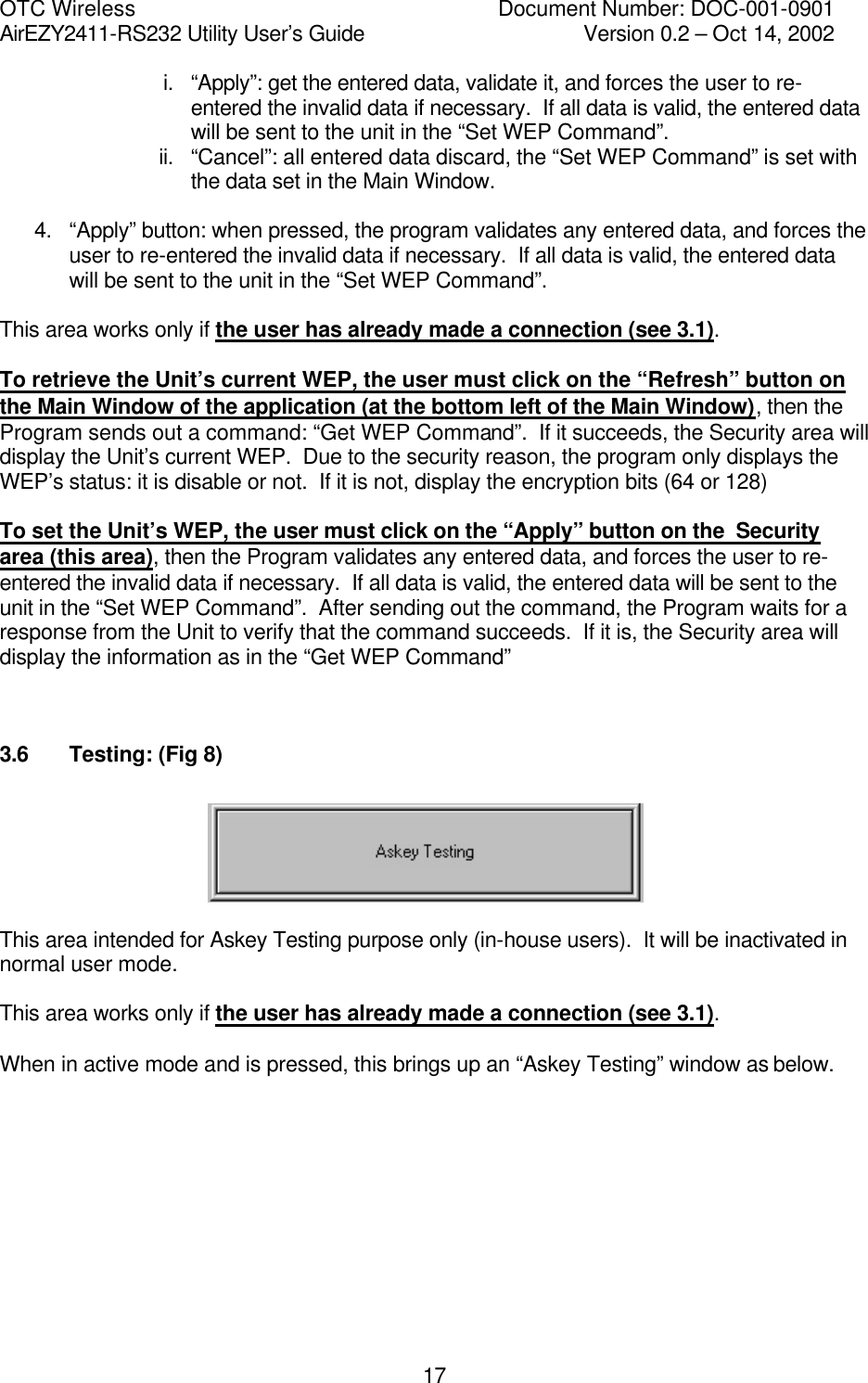
OTC Wireless    Document Number: DOC-001-0901 AirEZY2411-RS232 Utility User’s Guide     Version 0.2 – Oct 14, 2002   17i. “Apply”: get the entered data, validate it, and forces the user to re-entered the invalid data if necessary.  If all data is valid, the entered data will be sent to the unit in the “Set WEP Command”. ii. “Cancel”: all entered data discard, the “Set WEP Command” is set with the data set in the Main Window.  4. “Apply” button: when pressed, the program validates any entered data, and forces the user to re-entered the invalid data if necessary.  If all data is valid, the entered data will be sent to the unit in the “Set WEP Command”.  This area works only if the user has already made a connection (see 3.1).  To retrieve the Unit’s current WEP, the user must click on the “Refresh” button on the Main Window of the application (at the bottom left of the Main Window), then the Program sends out a command: “Get WEP Command”.  If it succeeds, the Security area will display the Unit’s current WEP.  Due to the security reason, the program only displays the WEP’s status: it is disable or not.  If it is not, display the encryption bits (64 or 128)  To set the Unit’s WEP, the user must click on the “Apply” button on the  Security area (this area), then the Program validates any entered data, and forces the user to re-entered the invalid data if necessary.  If all data is valid, the entered data will be sent to the unit in the “Set WEP Command”.  After sending out the command, the Program waits for a response from the Unit to verify that the command succeeds.  If it is, the Security area will display the information as in the “Get WEP Command”   3.6   Testing: (Fig 8)    This area intended for Askey Testing purpose only (in-house users).  It will be inactivated in normal user mode.  This area works only if the user has already made a connection (see 3.1).  When in active mode and is pressed, this brings up an “Askey Testing” window as below.
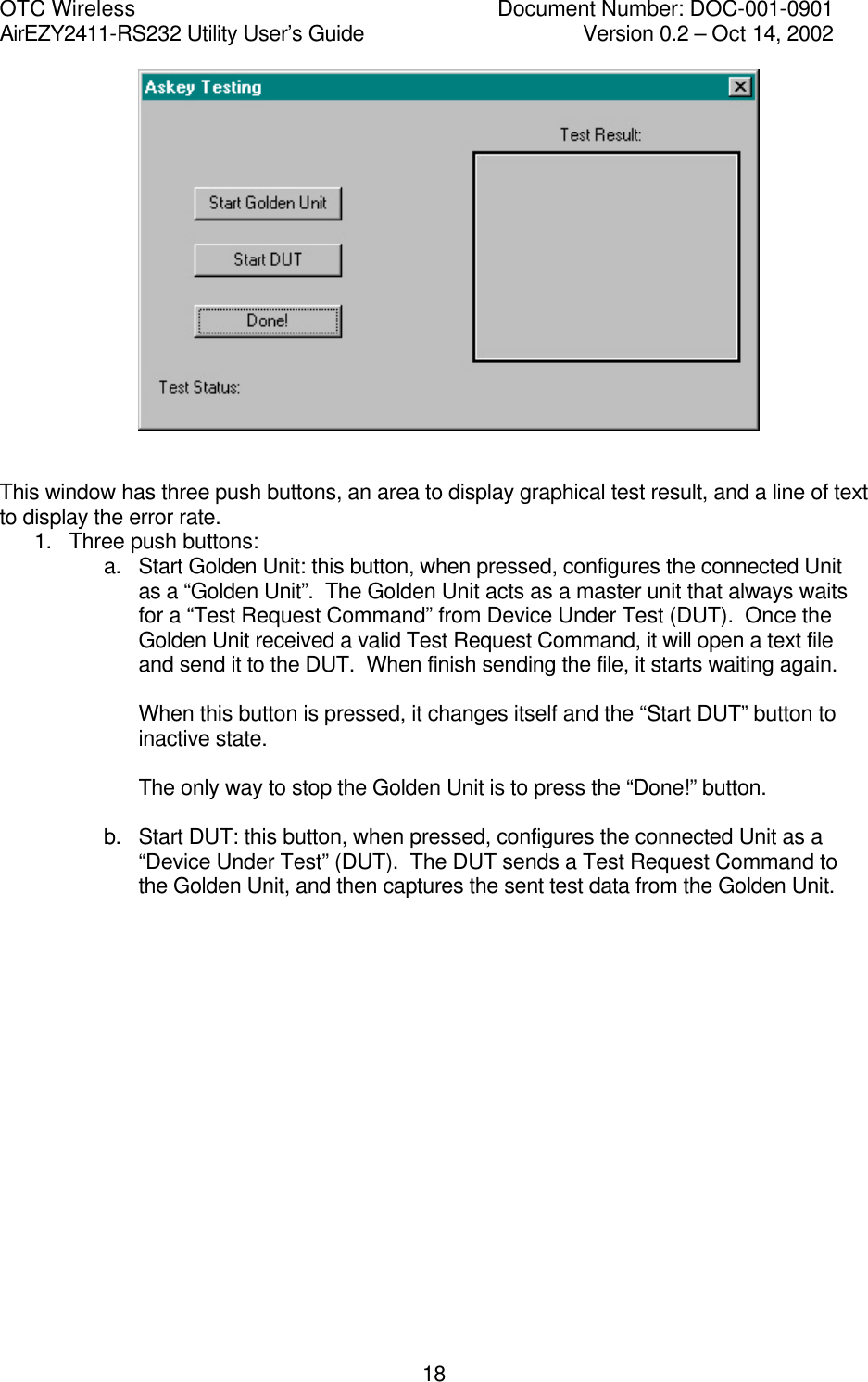
OTC Wireless    Document Number: DOC-001-0901 AirEZY2411-RS232 Utility User’s Guide     Version 0.2 – Oct 14, 2002   18   This window has three push buttons, an area to display graphical test result, and a line of text to display the error rate. 1. Three push buttons: a. Start Golden Unit: this button, when pressed, configures the connected Unit as a “Golden Unit”.  The Golden Unit acts as a master unit that always waits for a “Test Request Command” from Device Under Test (DUT).  Once the Golden Unit received a valid Test Request Command, it will open a text file and send it to the DUT.  When finish sending the file, it starts waiting again.  When this button is pressed, it changes itself and the “Start DUT” button to inactive state.  The only way to stop the Golden Unit is to press the “Done!” button.  b. Start DUT: this button, when pressed, configures the connected Unit as a “Device Under Test” (DUT).  The DUT sends a Test Request Command to the Golden Unit, and then captures the sent test data from the Golden Unit.
OTC Wireless    Document Number: DOC-001-0901 AirEZY2411-RS232 Utility User’s Guide     Version 0.2 – Oct 14, 2002   19

Navigation menu