OTC Wireless 2411EZYLINK-9 2.4GHz Spread Spectrum Station Radio User Manual manual

OTC Wireless Inc 2.4GHz Spread Spectrum Station Radio manual

User manaul

       2411EZYLINK-9   User’s Manual        OTC Wireless, Inc.
 2Copyright ©  1997-2000 OTC Wireless Inc., Fremont, CA.  All rights reserved.  This manual is copyrighted with all rights reserved.  No part of this publication may be reproduced, transmitted, transcribed, stored in a retrieval system or translated into any language in any form by any means without the written permission of OTC Wireless, Incorporated.    Trademarks AirEZY, the AirEZY logo, AMU, OTC Wireless Inc., and the OTC Wireless logo are trademarks of OTC Wireless, Inc.   Limited Warranty, Disclaimer, Limitation of Liability For a period of one (1) year from the date of purchase by the retail customer, OTC Wireless Inc., warrants the 2411EZYLINK-9 wireless Internet access solution against defects in materials and workmanship.  OTC Wireless will not honor this warranty if there has been any attempt to tamper with or remove the unit’s chassis.  This warranty does not cover and OTC Wireless will not be liable for any damage or failure caused by misuse, abuse, acts of God, accidents, or other causes beyond OTC Wireless’s control, or claim by other than the original purchaser.  If, after inspection, OTC Wireless determines there is a defect, OTC Wireless will repair or replace the 2411EZYLINK-9 unit at no cost to you.  To return defective merchandise to OTC Wireless please call OTC Wireless Customer Service at (510)-490-8288 to obtain a Return Merchandise Authorization (RMA) Number.  In no event shall OTC Wireless, Incorporated be responsible or liable for any damages arising:  • From the use of the product • From the loss of use, revenue or profit of the product;  or • As a result of any event, circumstance, action, or abuse beyond the control of OTC Wireless, Incorporated;  whether such damages be direct, indirect, consequential, special or otherwise and whether such damages are incurred by the person to whom this warranty extends or a third party.     Warranty Return Policy  If you have a problem with your 2411EZYLINK-9 product, please call OTC Wireless Technical Support at (510)490-8288.  OTC Wireless Technical Support will assist with resolving any technical difficulties you may have with your OTC Wireless product.  After calling OTC Wireless Technical Support, if your product is found to be defective, you may return the product to OTC Wireless after obtaining an RMA number from OTC Wireless Customer Service.  The product must be returned in its original packaging.  The RMA number should be clearly marked on the outside of the box. OTC Wireless cannot be held responsible for any product returned without an RMA number, and no product will be accepted without an RMA number.  When calling OTC Wireless, please provide the following information to expedite service:  • Customer account number • Invoice number
 3• Date of Sale • Model number of product • Serial number of product  FCC Identification  MKZ2411EZYLINK-9  FCC Warning This equipment has been tested and found to comply with the limits for a Class B digital device, pursuant to Part 15 of the FCC Rules.  These limits are designed to provide reasonable protection against harmful interference in an industrial / commercial installation.  This equipment generates, uses, and can radiate radio frequency energy and, if not installed and used in accordance with the instructions, may cause harmful interference to radio communications.  However, this is not a guarantee that interference will not occur in a particular installation.  IMPORTANT NOTE To comply with FCC RF exposure compliance requirements, the following installation and device operating configuration must be satisfied    • Do not alter the antenna.  Only use the antenna that is installed in this transmitter. • This device must be installed and placed at the position which can provide at least 20cm separation distance from all persons.
 4Table of Content  Chapter    Title        Page  1 Introduction       5 1.1    Theory of Operation      5 1.2 Network Topologies      7  2 Hardware Installation      14 2.1 The Hardware       14 2.2 Installation       16  3 Configuring the AMU      20 3.1 Default Configuration of AMU     21 3.2 Modifying the Default AMU Configuration   21 3.3 Configuring AMU using Web Browser   21 3.4 Configuring AMU using an External SNMP Manager    22 3.5 Telnet        22 3.6 File Transfer to AMU      23  4 Configuring, Monitoring the Base Station   24 and the Client Station       4.1 Using a Browser      24 4.2 Using an External SNMP Manager    34 4.3 AMU Web User Administration    37  5 Product Specifications     40 5.1 Base Station Specifications     40 5.2 Client Station Specifications     41
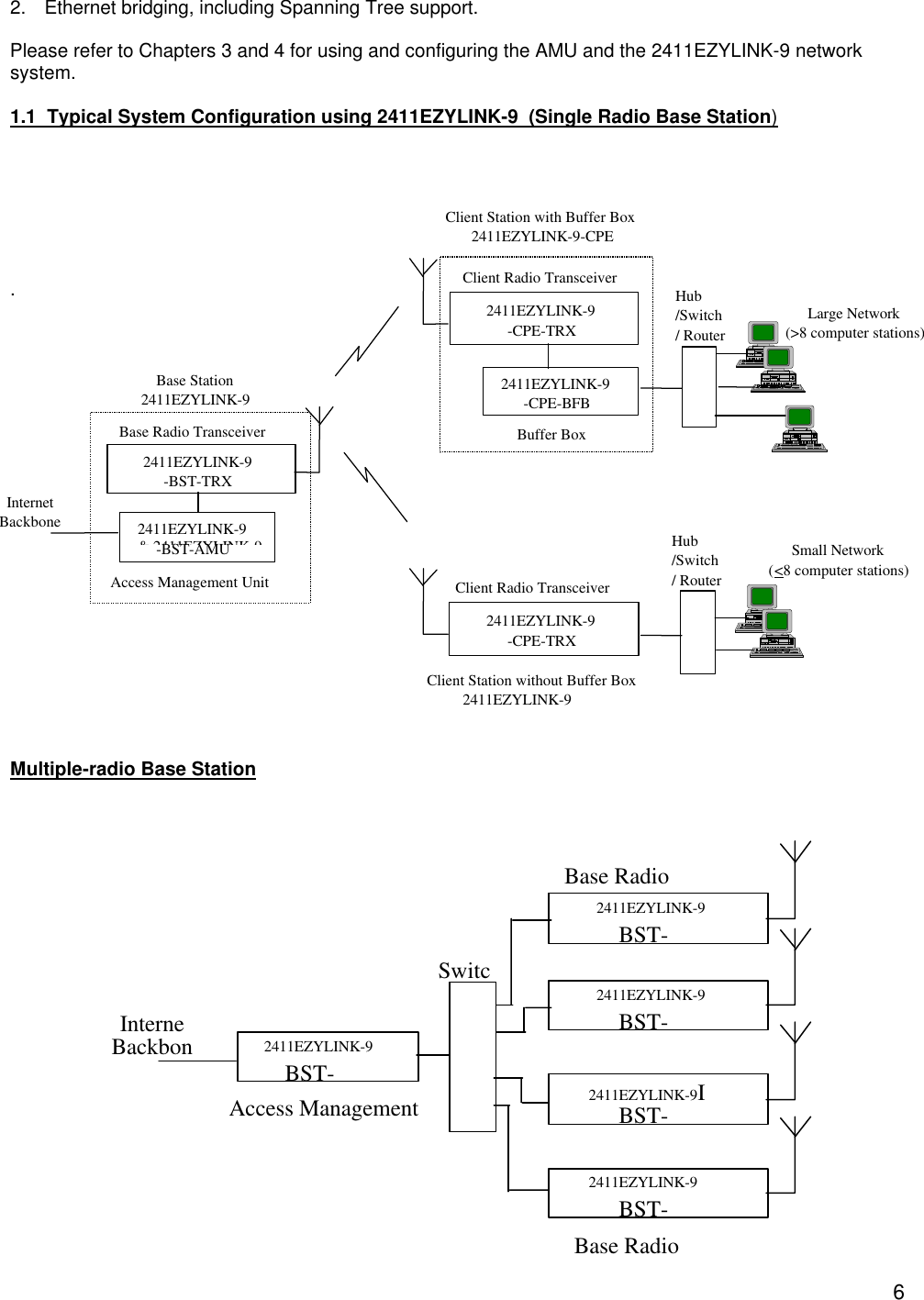
 5 1.  Introduction  2411EZYLINK-9 is a point-to-multiple-points wireless data networking system.  It can be used by internet service providers as a means of last-mile connection to the users.  It can also be used to form a campus network.   Its data-transmitting burst rate is 11 Mbps.  1.1  Theory of Operation  The 2411EZYLINK-9 consists of the Base Station 2411EZYLINK-9-BST and the Client Station 2411EZYLINK-9-CPE.  The Base Station consists of the Access Management Unit (AMU) 2411EZYLINK-9-BST-AMU and the Base Radio Transceiver 2411EZYLINK-9-BST-TRX.  The base station is installed at the site that has access to the Internet backbone or at the central site of a campus network.  The Client Station consists of the Client Radio Transceiver 2411EZYLINK-9-CPE-TRX and/or the Buffer Box 2411EZYLINK-9-CPE-BFB.   The client station is installed at the Internet service subscribers’ site or the satellite site in a campus network.  All the 2411EZYLINK-9 equipment is designed to work with Ethernet interface.  The Radio Transceiver converts the Ethernet data packets into radio packets and uses direct sequence spread spectrum modulation to turn the data packets into 2.4 GHz radio signals.      The Base Radio Transceiver and the Client Radio Transceivers each has a unique RFID.  A packet to be relayed between two stations uses the RFID of the originating transceiver as its source address and the RFID of the intended receiving transceiver as its destination address.  The packet transmitted by the originating transceiver can be received by all the transceivers within the effective receiving range.  Only the transceiver with the correct RFID matching the destination address will process the information contained in the packet.  All the other stations will discard the packet.  Each packet is encrypted before being transmitted by the radio.  The RF channel and the encryption code have to be set the same for two stations to communicate with each other.  The Base Station and all the Client Stations are pre-configured in the factory with the same default RF channel and encryption code.  The user system administrator can use OTC’s system administration software to change the settings (see Chapter 4 for details).  The communication between the Client Stations and the Base Station is based on a polling process.  The RFID of each Client Station to be served by a Base Station needs to be registered in a polling list stored in the Base Station transceiver.  The OTC’s system administration software can be used to add or delete the RFIDs of the Client Station transceivers in the Base Station transceiver.  In addition to the Client Station access management, The Access Management Unit (AMU) provides the following functions:   1. Flow control between the network backbone and multiple Base Radio Transceivers. 2. SNMP and Web based Interface for monitoring and configuring the multiple Base RadioTransceivers  (one AMU can be connected to up to 4 Base Radio Transceivers via a switching hub) and the Client RadioTransceivers servered by each Base Transceiver Radio. 3. Ethernet bridging, including Spanning Tree support.  The use of the Buffer Box at the Client Station is optional.  If the client site has only a small number of computer stations, the use of the Buffer Box may not be required.  When the number of computer stations on the client site is greater than eight, it is recommended that a Buffer Box be used with the Client Radio Transceiver.  The Buffer Box provides the following functions:  1. Flow control between the client’s local network and the Client Transceiver Radio.
 62. Ethernet bridging, including Spanning Tree support.  Please refer to Chapters 3 and 4 for using and configuring the AMU and the 2411EZYLINK-9 network system.  1.1  Typical System Configuration using 2411EZYLINK-9  (Single Radio Base Station)        .                       Multiple-radio Base Station                    Hub /Switch / Router 2411EZYLINK-9 -CPE-TRX Client Station without Buffer Box 2411EZYLINK-9 Small Network  ( < 8 computer stations) 2411EZYLINK-9 -CPE-BFB 2411EZYLINK-9  -CPE-TRX Hub /Switch / Router Client Station with Buffer Box 2411EZYLINK-9-CPE Large Network  (>8 computer stations) Base Station      2411EZYLINK-9 2411EZYLINK-9 & 2411EZYLINK-9 -BST-AMU  2411EZYLINK-9 -BST-TRX Internet Backbone Access Management Unit Base Radio Transceiver Client Radio Transceiver Buffer Box Client Radio Transceiver    2411EZYLINK-9 BST-  2411EZYLINK-9 BST-InterneBackbon  2411EZYLINK-9 BST-2411EZYLINK-9I BST-2411EZYLINK-9 BST-Switc   Access Management Base Radio Base Radio
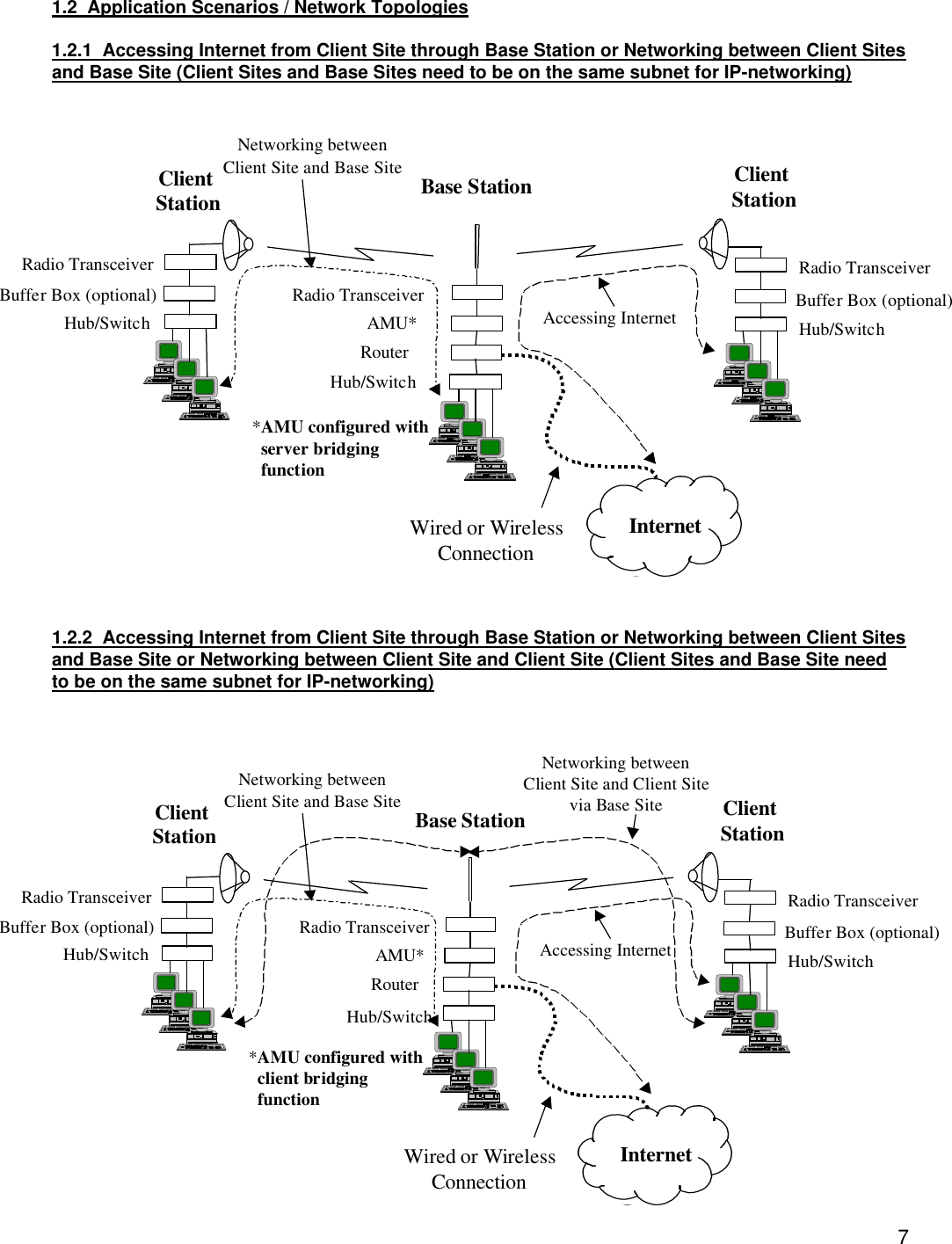
 71.2  Application Scenarios / Network Topologies  1.2.1  Accessing Internet from Client Site through Base Station or Networking between Client Sites and Base Site (Client Sites and Base Sites need to be on the same subnet for IP-networking)                          1.2.2  Accessing Internet from Client Site through Base Station or Networking between Client Sites and Base Site or Networking between Client Site and Client Site (Client Sites and Base Site need to be on the same subnet for IP-networking)                    Wired or WirelessConnectionClient StationHub/SwitchBuffer Box (optional)Radio Transceiver Base StationHub/SwitchAMU*Radio Transceiver RouterClient StationHub/SwitchRadio Transceiver Buffer Box (optional)*AMU configured with   server bridging   functionInternetNetworking betweenClient Site and Base SiteAccessing InternetWired or WirelessConnectionClient StationHub/SwitchBuffer Box (optional)Radio Transceiver Base StationHub/SwitchAMU*Radio Transceiver RouterClient StationHub/SwitchRadio Transceiver Buffer Box (optional)*AMU configured with   client bridging   functionInternetNetworking betweenClient Site and Base SiteAccessing InternetNetworking betweenClient Site and Client Sitevia Base Site
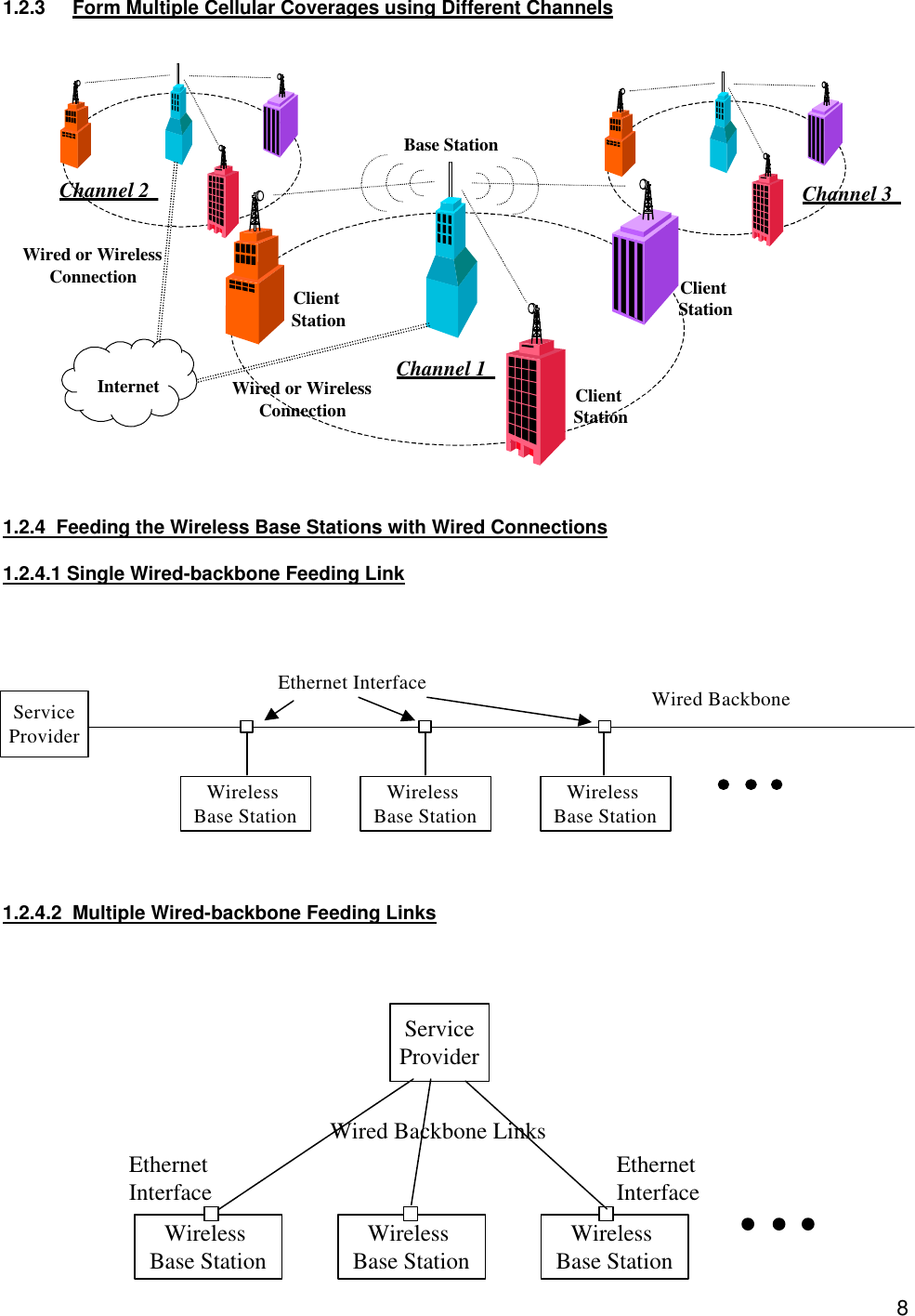
 81.2.3 Form Multiple Cellular Coverages using Different Channels     1.2.4  Feeding the Wireless Base Stations with Wired Connections  1.2.4.1 Single Wired-backbone Feeding Link       1.2.4.2  Multiple Wired-backbone Feeding Links    ServiceProviderWired BackboneWireless Base Station Wireless Base Station Wireless Base StationEthernet InterfaceServiceProviderWireless Base Station Wireless Base Station Wireless Base StationWired Backbone LinksEthernetInterface EthernetInterfaceBase StationClientStationClientStationClientStationInternet Wired or WirelessConnectionWired or WirelessConnectionChannel 1  Channel 2  Channel 3
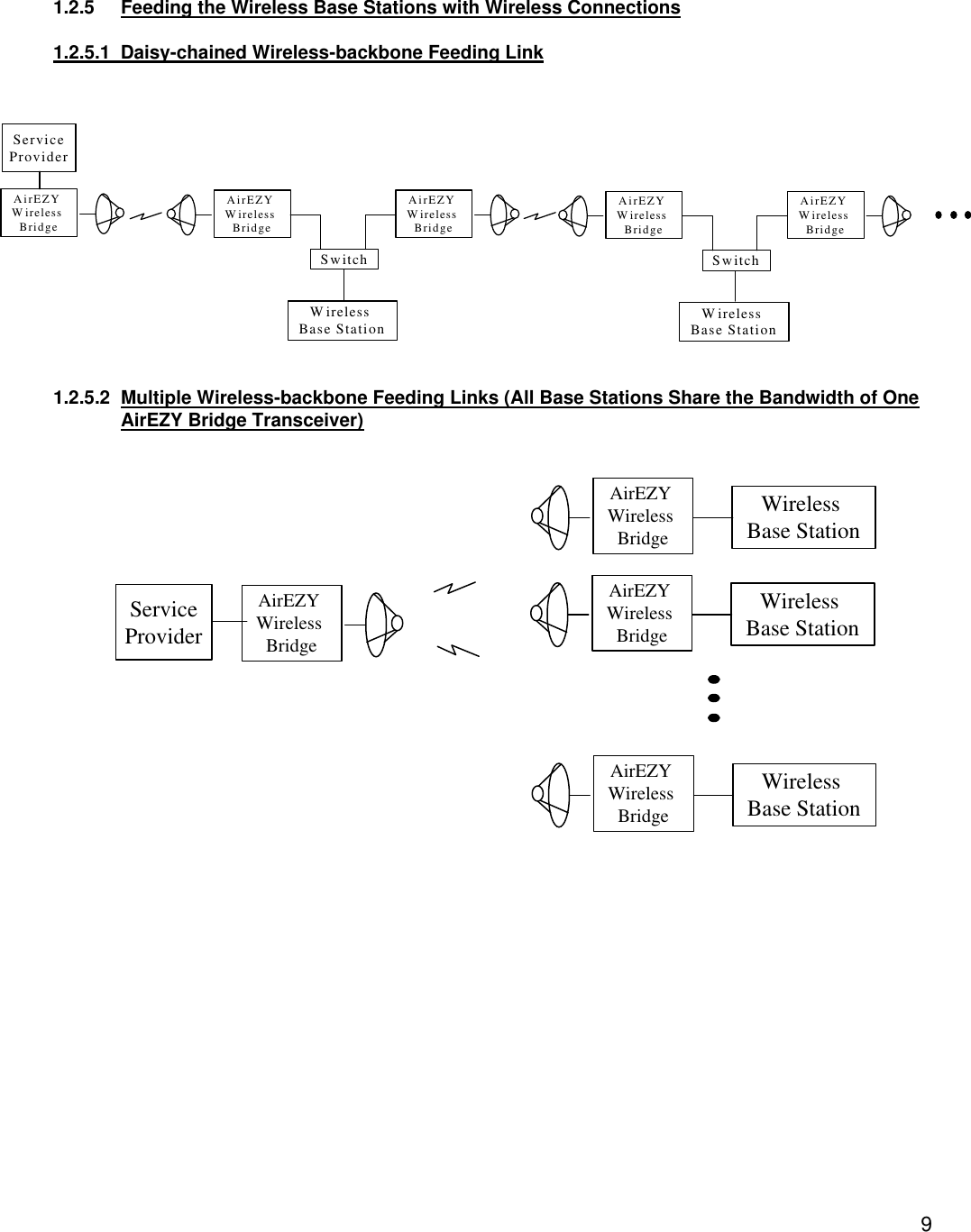
 9  1.2.5 Feeding the Wireless Base Stations with Wireless Connections  1.2.5.1  Daisy-chained Wireless-backbone Feeding Link     1.2.5.2 Multiple Wireless-backbone Feeding Links (All Base Stations Share the Bandwidth of One AirEZY Bridge Transceiver)                ServiceProviderAirEZY Wireless BridgeWireless Base StationSwitchAirEZY Wireless BridgeAirEZY Wireless BridgeWireless Base StationSwitchAirEZY Wireless BridgeAirEZY Wireless BridgeWireless Base StationAirEZY Wireless BridgeServiceProviderAirEZY Wireless BridgeWireless Base StationAirEZY Wireless BridgeWireless Base StationAirEZY Wireless Bridge
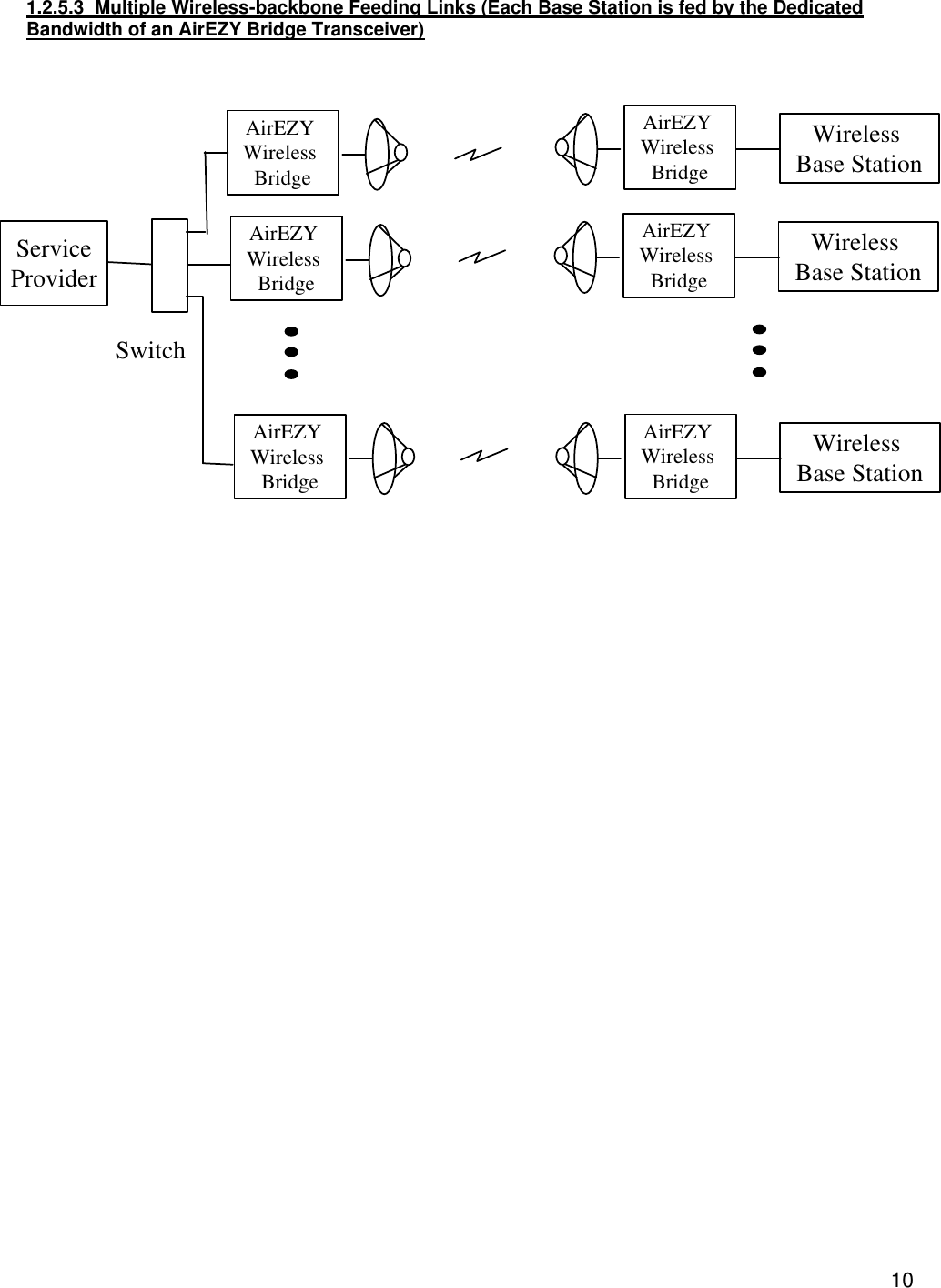
 101.2.5.3  Multiple Wireless-backbone Feeding Links (Each Base Station is fed by the Dedicated Bandwidth of an AirEZY Bridge Transceiver)        Wireless Base StationAirEZY Wireless BridgeWireless Base StationAirEZY Wireless BridgeWireless Base StationAirEZY Wireless BridgeServiceProviderAirEZY Wireless BridgeSwitchAirEZY Wireless BridgeAirEZY Wireless Bridge
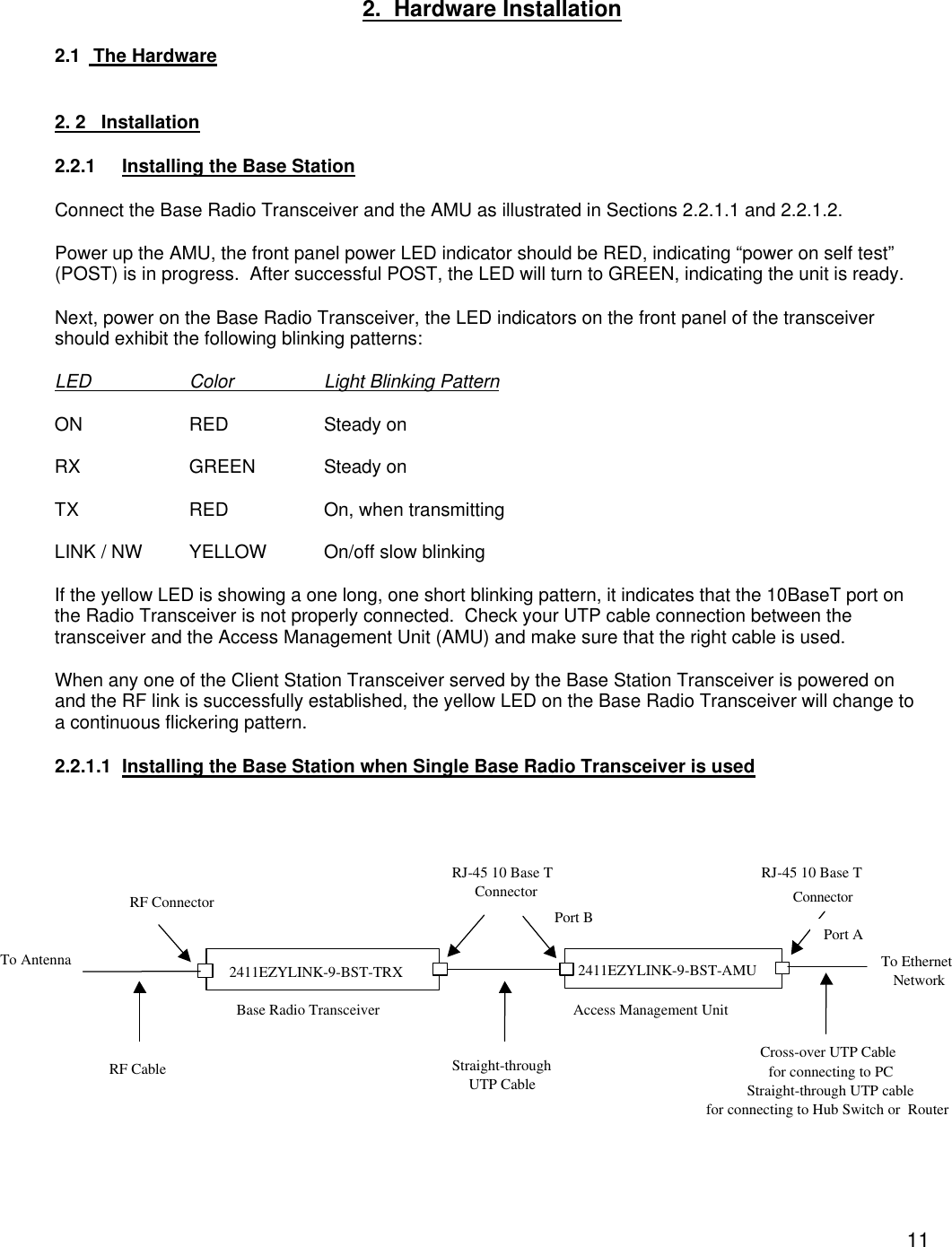
 11 2.  Hardware Installation  2.1  The Hardware   2. 2   Installation  2.2.1 Installing the Base Station  Connect the Base Radio Transceiver and the AMU as illustrated in Sections 2.2.1.1 and 2.2.1.2.    Power up the AMU, the front panel power LED indicator should be RED, indicating “power on self test” (POST) is in progress.  After successful POST, the LED will turn to GREEN, indicating the unit is ready.  Next, power on the Base Radio Transceiver, the LED indicators on the front panel of the transceiver should exhibit the following blinking patterns:  LED    Color    Light Blinking Pattern  ON    RED    Steady on  RX    GREEN   Steady on  TX    RED    On, when transmitting  LINK / NW YELLOW On/off slow blinking  If the yellow LED is showing a one long, one short blinking pattern, it indicates that the 10BaseT port on the Radio Transceiver is not properly connected.  Check your UTP cable connection between the transceiver and the Access Management Unit (AMU) and make sure that the right cable is used.  When any one of the Client Station Transceiver served by the Base Station Transceiver is powered on and the RF link is successfully established, the yellow LED on the Base Radio Transceiver will change to a continuous flickering pattern.  2.2.1.1 Installing the Base Station when Single Base Radio Transceiver is used                    2411EZYLINK-9-BST-TRX 2411EZYLINK-9-BST-AMU RJ-45 10 Base T  Connector To Ethernet  Network RJ-45 10 Base T   Connector RF Connector RF Cable To Antenna Cross-over UTP Cable  for connecting to PC Straight-through UTP cable for connecting to Hub Switch or  Router Straight-through UTP Cable Base Radio Transceiver Access Management Unit Port A Port B
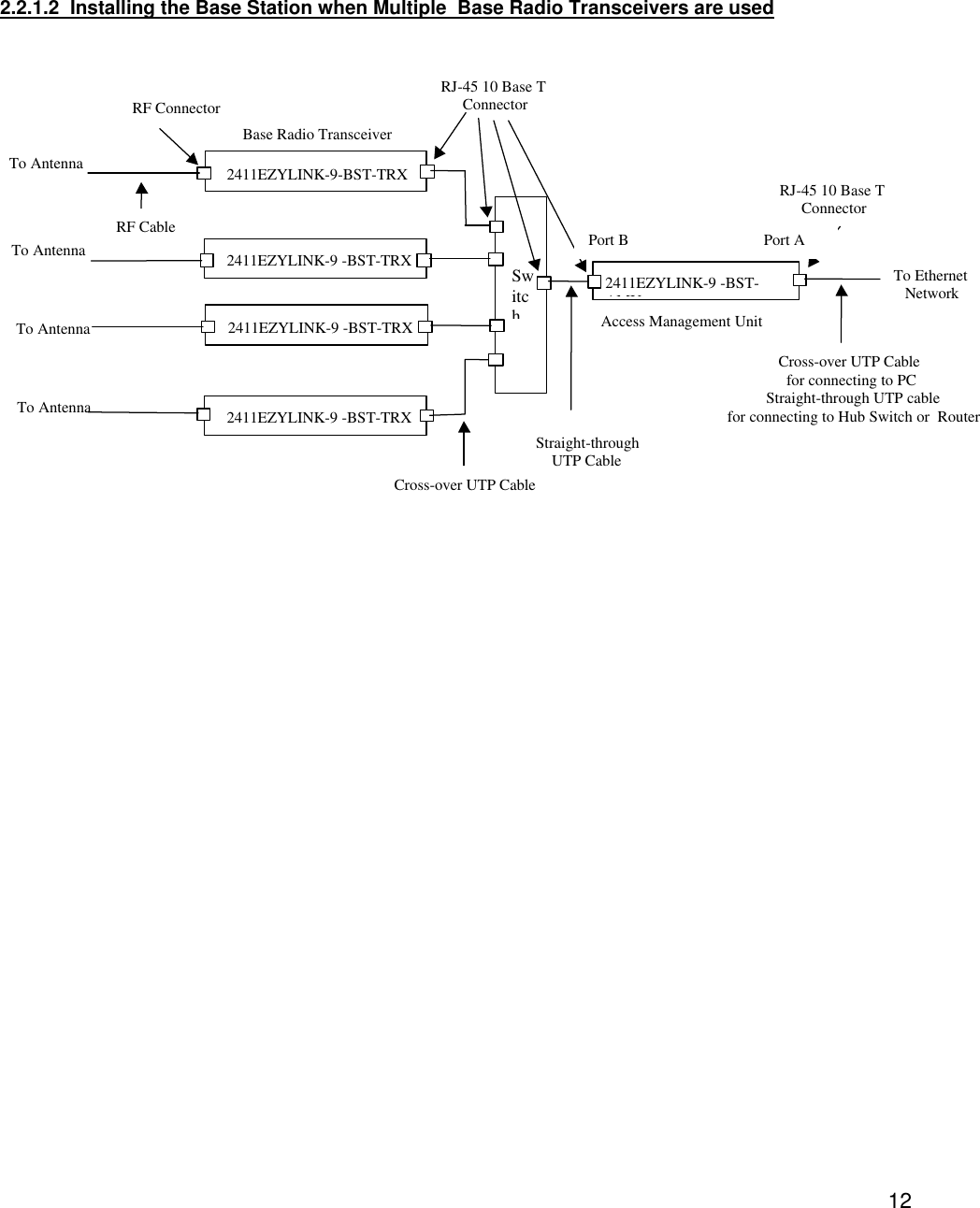
 12     2.2.1.2  Installing the Base Station when Multiple  Base Radio Transceivers are used                         2411EZYLINK-9 -BST-AMU RJ-45 10 Base T  Connector To Ethernet  Network RJ-45 10 Base T  Connector RF Connector To Antenna Cross-over UTP Cable  for connecting to PC Straight-through UTP cable for connecting to Hub Switch or  Router Straight-through UTP Cable Base Radio Transceiver Access Management Unit Switch 2411EZYLINK-9-BST-TRX RF Cable 2411EZYLINK-9 -BST-TRX To Antenna 2411EZYLINK-9 -BST-TRX To Antenna 2411EZYLINK-9 -BST-TRX To Antenna Cross-over UTP Cable  Port A Port B
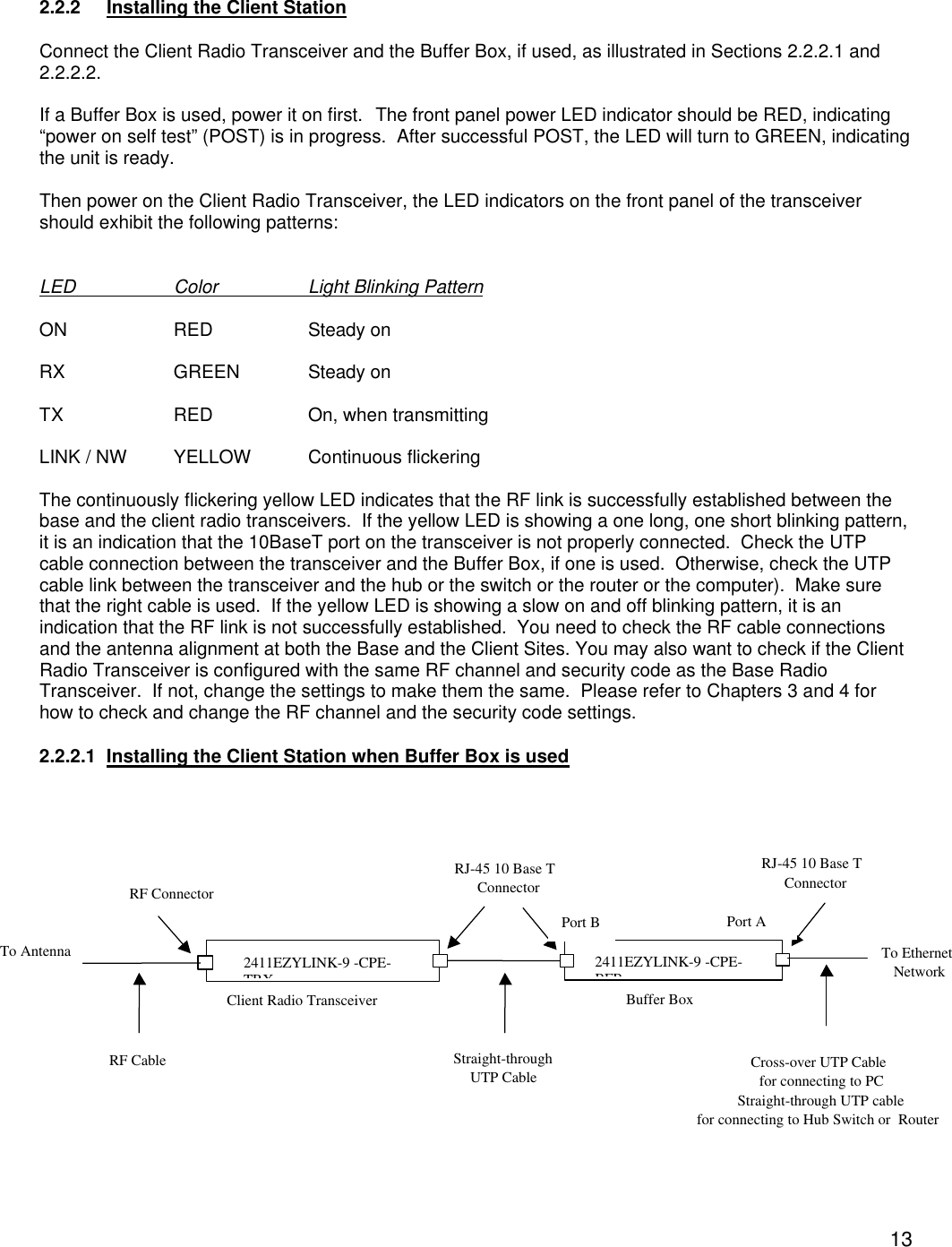
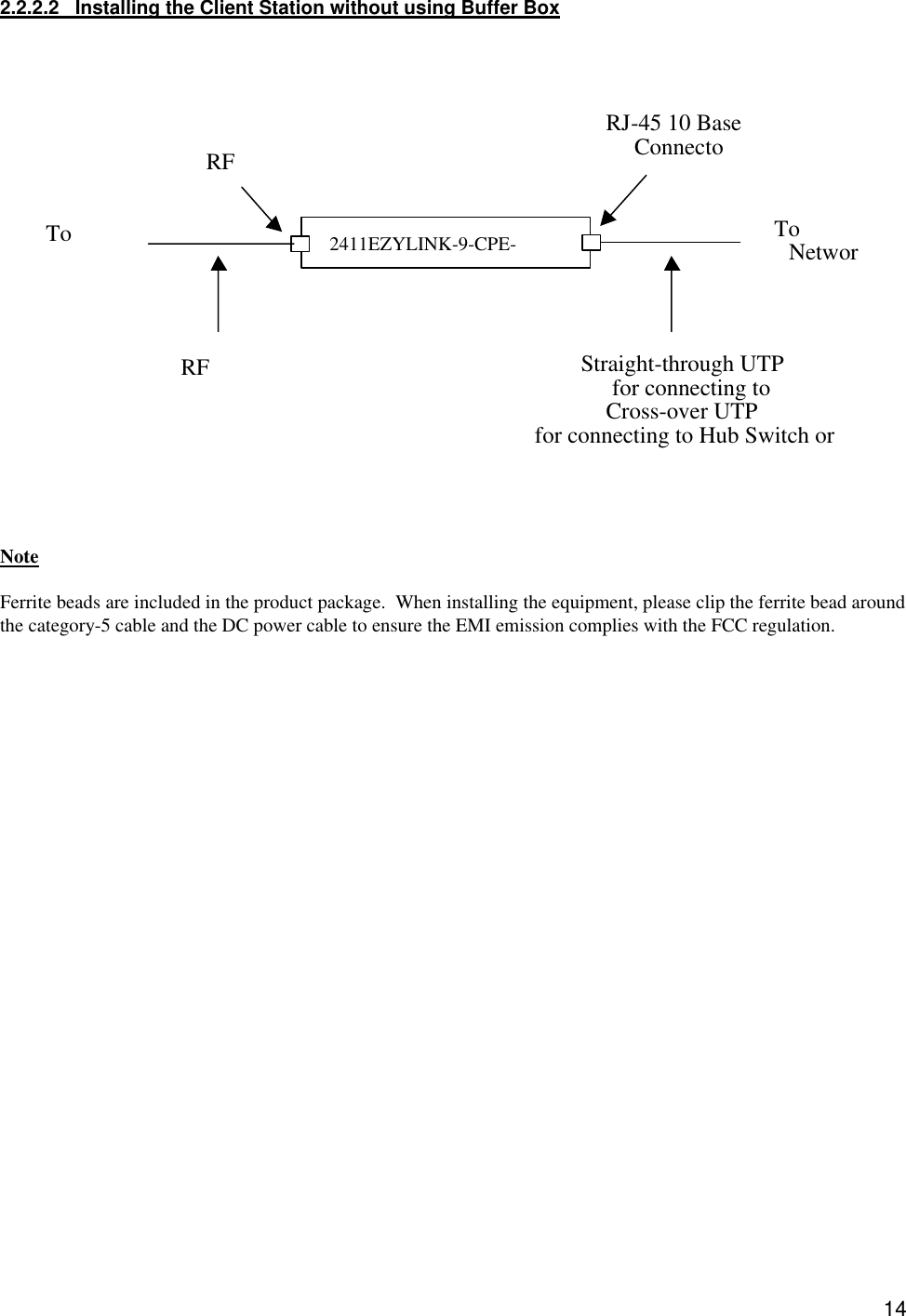
 13 2.2.2 Installing the Client Station  Connect the Client Radio Transceiver and the Buffer Box, if used, as illustrated in Sections 2.2.2.1 and 2.2.2.2.  If a Buffer Box is used, power it on first. The front panel power LED indicator should be RED, indicating “power on self test” (POST) is in progress.  After successful POST, the LED will turn to GREEN, indicating the unit is ready.  Then power on the Client Radio Transceiver, the LED indicators on the front panel of the transceiver should exhibit the following patterns:   LED    Color    Light Blinking Pattern  ON    RED    Steady on  RX    GREEN   Steady on  TX    RED    On, when transmitting  LINK / NW YELLOW Continuous flickering  The continuously flickering yellow LED indicates that the RF link is successfully established between the base and the client radio transceivers.  If the yellow LED is showing a one long, one short blinking pattern, it is an indication that the 10BaseT port on the transceiver is not properly connected.  Check the UTP cable connection between the transceiver and the Buffer Box, if one is used.  Otherwise, check the UTP cable link between the transceiver and the hub or the switch or the router or the computer).  Make sure that the right cable is used.  If the yellow LED is showing a slow on and off blinking pattern, it is an indication that the RF link is not successfully established.  You need to check the RF cable connections and the antenna alignment at both the Base and the Client Sites. You may also want to check if the Client Radio Transceiver is configured with the same RF channel and security code as the Base Radio Transceiver.  If not, change the settings to make them the same.  Please refer to Chapters 3 and 4 for how to check and change the RF channel and the security code settings.   2.2.2.1 Installing the Client Station when Buffer Box is used                    2411EZYLINK-9 -CPE-TRX 2411EZYLINK-9 -CPE-BFB RJ-45 10 Base T  Connector Straight-through UTP Cable Cross-over UTP Cable  for connecting to PC Straight-through UTP cable for connecting to Hub Switch or  Router To Ethernet  Network RJ-45 10 Base T  Connector RF Connector RF Cable To Antenna Client Radio Transceiver Buffer Box Port A Port B
 142.2.2.2   Installing the Client Station without using Buffer Box                        Note  Ferrite beads are included in the product package.  When installing the equipment, please clip the ferrite bead around the category-5 cable and the DC power cable to ensure the EMI emission complies with the FCC regulation.   2411EZYLINK-9-CPE-TRX RJ-45 10 Base ConnectoTo NetworRF RF To Straight-through UTP for connecting to Cross-over UTP for connecting to Hub Switch or
 153.   Configuring the AMU  Note:  The following terms are used interchangeably in this chapter:  2411EZYLINK-9 and AirEZY, Base Radio Transceiver and Server,  Client Radio Transceiver and Client.  Features and Theory of Operation of AMU  The AMU supports the following features:  • Multiple (up to 4) AirEZY servers flow control Due to the discrepancy of the transmission speed for Ethernet port (10 MB) and transceiver port (1.2 MB to 5.5 MB range) in the AirEZY products, a flow control mechanism is needed to overcome possible traffic overflow of AirEZY product. The AMU software implements the OTC proprietary flow control protocol.  • SNMP Support The AMU product contains an embedded SNMP agent. It supports standard MIBs (MIB I and II), as well as OTC proprietary MIB for provisioning and monitoring the AirEZY product. • Web Based Provisioning and Monitoring It is an embedded web server utility that allows a user to use browser to configure and monitor AirEZY servers and clients.  Currently, it supports a single concurrent user.  Using the web based configuration and monitor utilities, the information about the sub-network within the control of an AMU is just a click away.  • Ethernet bridging When bridging option is selected, AMU supports IEEE 802.3 bridging. It is software-enabled bridging.  The bridging software learns the surrounding MAC addresses and builds an address database.  An address in the database includes the interface media that the device uses to associates with the AMU.  The AMU uses the database to forward packets from one interface to another.  If a packet with unknown MAC address is received, the bridging software broadcast an Address Resolution Protocol (ARP) request message out to all the interfaces except over the interface on which the packet is received. If no response is received, the packet is discarded. If an ARP response is received, the bridging software updates its address database and forwards the packet. An entry in the address table is removed if the address (as a source or destination) is not used for a specific period of time. However, when AMU transmits or receives data from the address, the address is added to the database again. • 802.1d Spanning Tree Support The AMU supports IEEE 802.1d Spanning Tree Protocol (STP) when bridging option is selected. The STP is a standard algorithm used to create a loop-free network topology with only one path between every LAN. This is the shortest path for the AMU to each LAN.  If a path within the tree fails, a new path is calculated and added to the tree. The packet forwarding uses the path calculated by the spanning tree algorithm. • Client Bridging
 16If a single server is used, the AMU also supports client bridging provided the option is selected. The client bridging allows clients under the same server to communicate with each other based on MAC address via an AMU. With Ethernet bridging, the packet forwarding only happens between the two Ethernet ports in the AMU (i.e.: packets received from a interface would not be transmitted over the same interface, even the address table indicates that the destination is on the same Ethernet port).  With client bridging, the bridging software compares the destination address against its address table.  If a match is found, the packet would be forwarded to the Ethernet port regardless whether the original message is received on the same port.    3.1  Default Configuration of AMU  Upon factory test and before shipment, each AMU has been configured by the following default values: • Software bridging is turned on with Spanning Tree enabled. • Ethernet A (EthA) is configured with o IP address 192.168.169.170 o IP mask    255.255.255.0 • Ethernet 1 (EthB) is configured with no IP address • Default Gateway IP address: 192.168.169.171  3.2  Modifying the Default AMU Configuration  There are two ways to modify the default configuration of AMU: using a Web based configuration utility embedded in the AMU, or using an external SNMP manager (such as HP Open View).    The following parameters may be configured via either a Web interface or an SNMP manager:  • IP address for EthA • IP network mask for EthA • Default gateway IP address • Disable/Enable Bridging /Routing • Disable/Enable Spanning Tree Protocol  After modification of above items, the AMU must be rebooted in order for the modification to take place. The rebooting process may also be initiated via a Web or a SNMP manager interface.  Note: Client bridging does not work in the multiple base radio transceiver environment. The multi-base radio transceiver environment requires a Ethernet switch between base radio transceivers and AMU, and the Ethernet switch will not forward packets to the AMU if clients associated with the same base radio transceiver try to communicate with each other.  3.3  Configuring AMU using Web Browser  When configuring AMU using Web based configuration utility, an external device (such as a PC or workstation) equipped with an Ethernet port is needed.  An Ethernet crossover cable should be used to connect the PC to the AMU Ethernet port A (EthA).  A general-purpose browser (Netscape or Internet Explore) should be used to configure the unit.  When configuring the AMU for the first time (AMU with default manufacture setting), the steps described below should be used:  Step 1: The device (a PC or a workstation) must be configured with IP address in the 192.168.169.0 network (such as 192.168.169.171).  Don’t use 192.168.169.170 since it is already used by the AMU.
 17  Step 2: Use the EthA IP address as the URL in the browser: Type in http://192.168.169.170 , and hit the Return key.  Step 3: The browser will prompt for user id (pre-configured default id is airezy)and password (pre-configured default password is adairezy). Once correct user id and password is received, the browser displays all the information related to the AMU and associated base radio transceivers.  The factory defaulted user for configuration option “AirEZY control” is a READ user with user id “monitor” and password “monitor1”.  For other details, please see Section 4.1.  Step 4: In the browser   • Double click the value to be modified (IP address, IP mask, Gateway IP, Bridging/routing Protocol, Spanning Tree Protocol). • Provide the correct information in the input field. • Submit it by clicking the submit button. • Verify the changes by a retrieval operation. • Reboot the AMU by clicking Reboot button to allow the newly modified value to take effect.  Note: The user must remember the new IP address/IP mask for EthA for future reference since there is no other easy way to obtain this information (A console terminal must be used to recover the IP address and IP mask information. A console terminal is not a standard device associated with an Access Management Unit).  3.4  Configuring AMU using an External SNMP Manager  When configuring the AMU using an SNMP manager, the SNMP manager station must be configured with an IP address in the 192.168.169.0 network range (such as 192.168.169.171) and connect to the AMU via EthA port (marked as the “A” RJ-45 port on the AMU back panel).  OTC enterprise specific (2874) MIB should be obtained.  The SNMP manager shall use SNMP SET command to modify IP address, IP network mask, or gateway IP address (OID enterprise.2874.1.3.1.0, enterprise.2874.1.3.2.0, enterprise.2874.1.3.5.0). After modification, an SNMP SET command to reboot the AMU is required to allow the new value to take effect. The OID to reboot AMU is enterprise.2874.1.5.4.0.  Note: To ensure the IP address and network mask is configured properly, it is recommended to verify it by retrieving the information prior to rebooting the AMU.  3.5  Telnet The AMU software is designed in such a way that a local console is unnecessary to operate an AMU.  If the need to login to the AMU arises, a telnet session shall be used.    The AMU supports two types of telnet sessions.  telnet ip_address 513 telnet ip_address    3.5.1 telnet ip_address 513 When the command “telnet ip_address 513”  is entered, the user will be prompt with the following message: Please enter your choice:
 180) Display Configuration 1) Configure Bridge 2) Configure Router 3) Reboot AMU 4) Exit This will allow telnet user to configure the AMU without using a browser or a SNMP manager.   If 0 is the input, the current AMU configuration is displayed.  If 1 is the input, a user will be prompt to input IP address and network mask for EthA, and default gateway IP address.  The input shall use a.b.c.d notation for IP address.  If 2 is the input, a user will be prompted to input IP address and network mask for both EthA and EthB, and default gateway IP address. The IP address format shall be a.b.c.d.  If 3 is the input, the AMU will perform a software reboot. It should be used after modification of AMU configuration.  If 4 is entered, the telnet session will terminate.  3.5.2 telnet ip_address  When the command “telnet ip_address” is entered, the user will be prompt with the login prompt.  Once user inputs correct user id and password (usr id: root, password: 1q2w3e4r), user is logged into the AMU.  Since the AMU is designed as an embedded platform, there is only one class of users, i.e. , the “root”, that can login.  3.6 Files Transfers to AMU  The AMU is configured with an FTP server. One way to copy a file into the AMU file system is to FTP a file.  User will simply issue the FTP AirEZY_AMU_IP_ADDRESS command on their host machine and use the root account to log in.   Another way to achieve file transfer is to use UNIX remote copy command. However, a user can only login to the AMU first, and issue a remote copy (rcp) command to copy files from a remote machine. This requires that the remote machine must run UNIX.
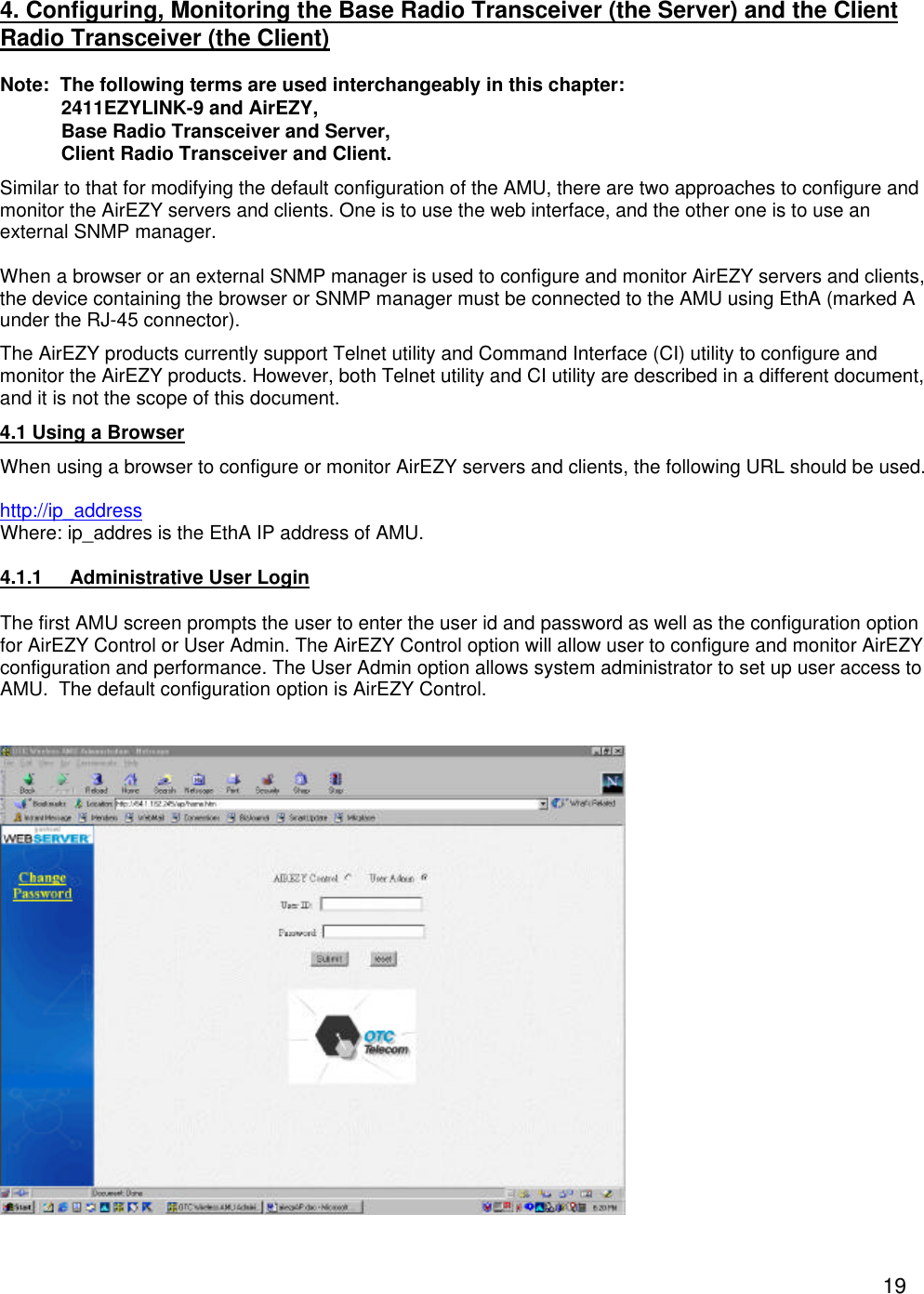
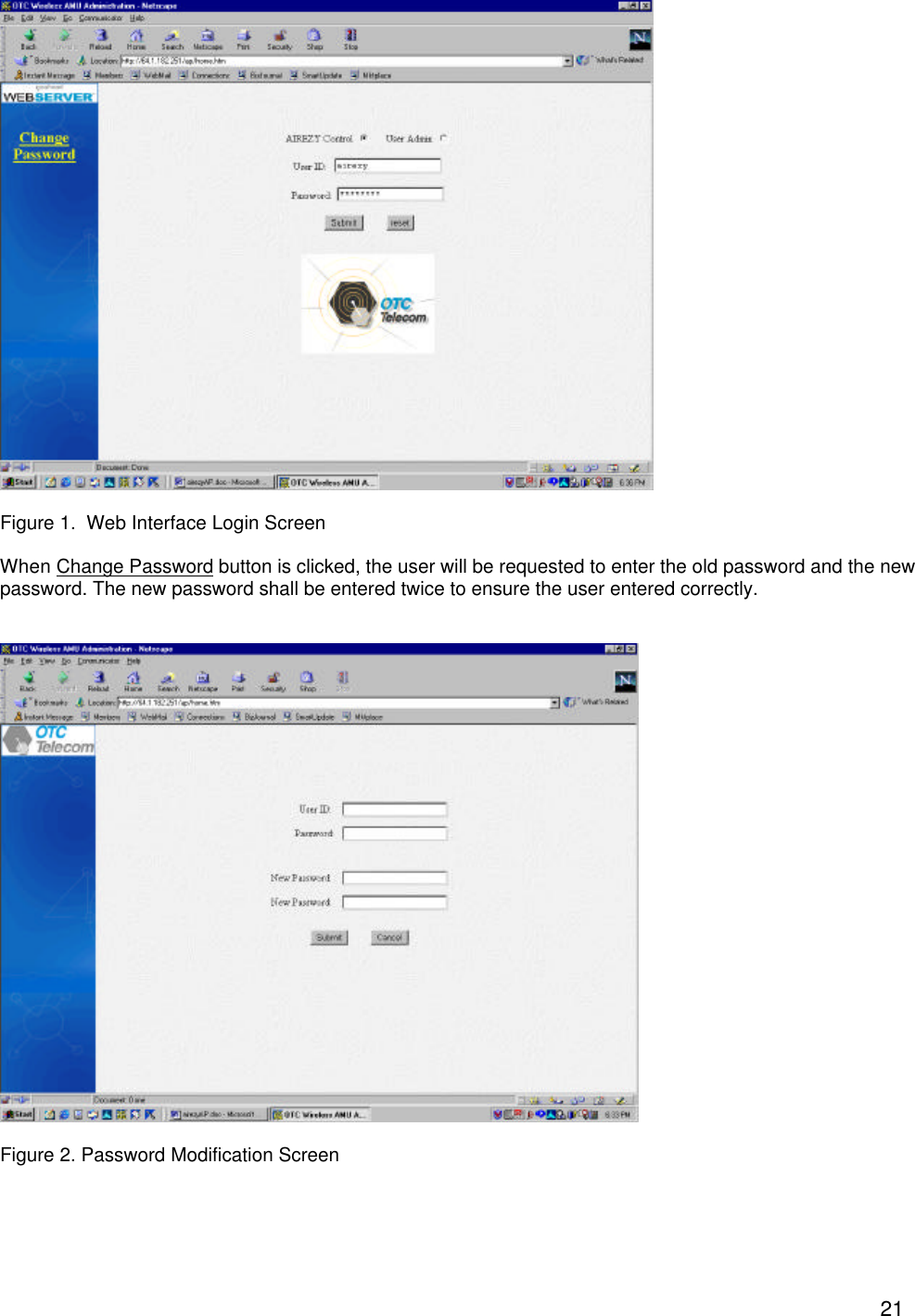
 19 4. Configuring, Monitoring the Base Radio Transceiver (the Server) and the Client Radio Transceiver (the Client)  Note:  The following terms are used interchangeably in this chapter: 2411EZYLINK-9 and AirEZY, Base Radio Transceiver and Server,  Client Radio Transceiver and Client. Similar to that for modifying the default configuration of the AMU, there are two approaches to configure and monitor the AirEZY servers and clients. One is to use the web interface, and the other one is to use an external SNMP manager.    When a browser or an external SNMP manager is used to configure and monitor AirEZY servers and clients, the device containing the browser or SNMP manager must be connected to the AMU using EthA (marked A under the RJ-45 connector).  The AirEZY products currently support Telnet utility and Command Interface (CI) utility to configure and monitor the AirEZY products. However, both Telnet utility and CI utility are described in a different document, and it is not the scope of this document. 4.1 Using a Browser When using a browser to configure or monitor AirEZY servers and clients, the following URL should be used.  http://ip_address Where: ip_addres is the EthA IP address of AMU.  4.1.1 Administrative User Login The first AMU screen prompts the user to enter the user id and password as well as the configuration option for AirEZY Control or User Admin. The AirEZY Control option will allow user to configure and monitor AirEZY configuration and performance. The User Admin option allows system administrator to set up user access to AMU.  The default configuration option is AirEZY Control.
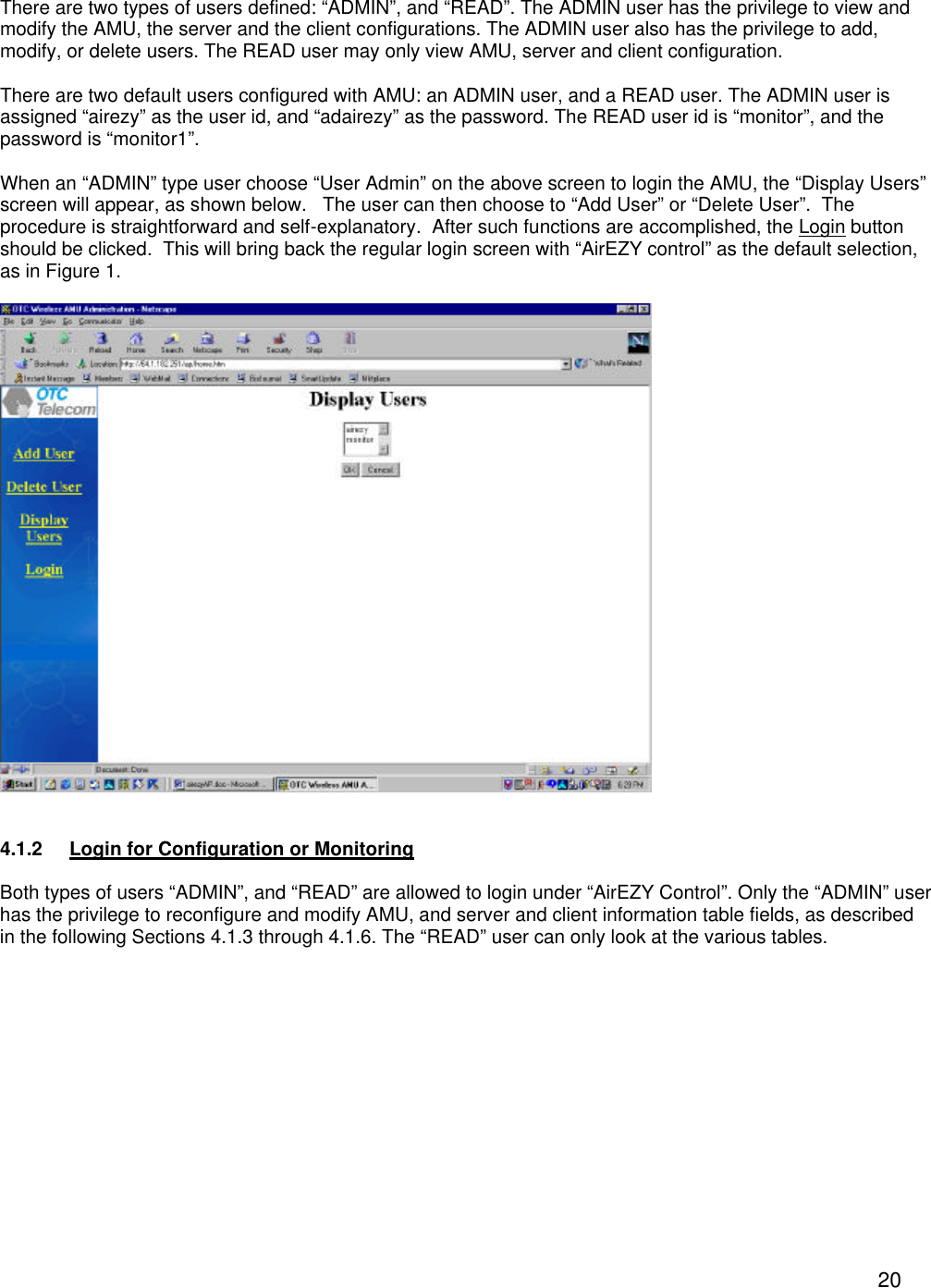
 20 There are two types of users defined: “ADMIN”, and “READ”. The ADMIN user has the privilege to view and modify the AMU, the server and the client configurations. The ADMIN user also has the privilege to add, modify, or delete users. The READ user may only view AMU, server and client configuration.  There are two default users configured with AMU: an ADMIN user, and a READ user. The ADMIN user is assigned “airezy” as the user id, and “adairezy” as the password. The READ user id is “monitor”, and the password is “monitor1”.    When an “ADMIN” type user choose “User Admin” on the above screen to login the AMU, the “Display Users” screen will appear, as shown below.   The user can then choose to “Add User” or “Delete User”.  The procedure is straightforward and self-explanatory.  After such functions are accomplished, the Login button should be clicked.  This will bring back the regular login screen with “AirEZY control” as the default selection, as in Figure 1.    4.1.2 Login for Configuration or Monitoring  Both types of users “ADMIN”, and “READ” are allowed to login under “AirEZY Control”. Only the “ADMIN” user has the privilege to reconfigure and modify AMU, and server and client information table fields, as described in the following Sections 4.1.3 through 4.1.6. The “READ” user can only look at the various tables.
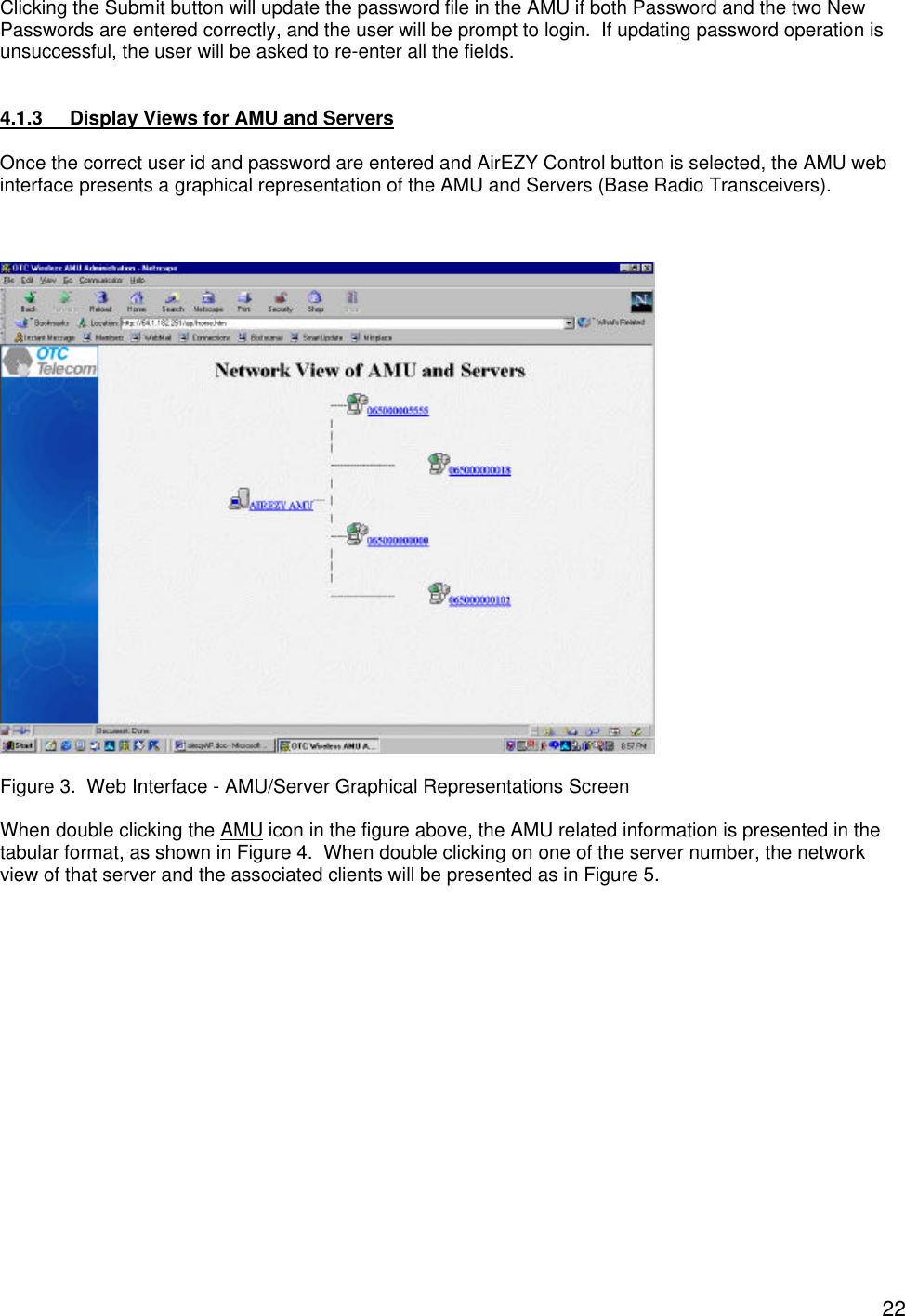
 21  Figure 1.  Web Interface Login Screen  When Change Password button is clicked, the user will be requested to enter the old password and the new password. The new password shall be entered twice to ensure the user entered correctly.     Figure 2. Password Modification Screen
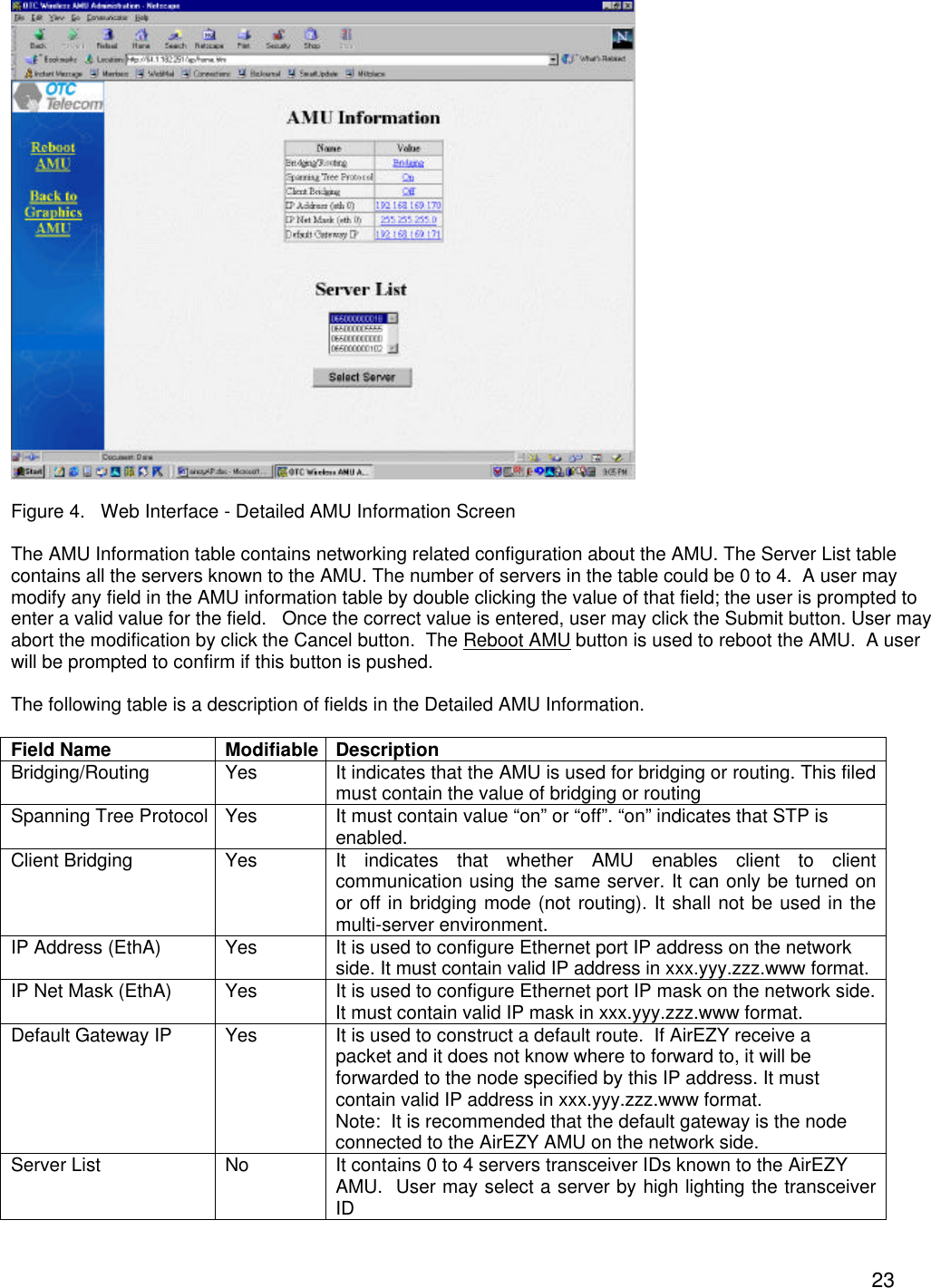
 22Clicking the Submit button will update the password file in the AMU if both Password and the two New Passwords are entered correctly, and the user will be prompt to login.  If updating password operation is unsuccessful, the user will be asked to re-enter all the fields.   4.1.3 Display Views for AMU and Servers  Once the correct user id and password are entered and AirEZY Control button is selected, the AMU web interface presents a graphical representation of the AMU and Servers (Base Radio Transceivers).      Figure 3.  Web Interface - AMU/Server Graphical Representations Screen  When double clicking the AMU icon in the figure above, the AMU related information is presented in the tabular format, as shown in Figure 4.  When double clicking on one of the server number, the network view of that server and the associated clients will be presented as in Figure 5.
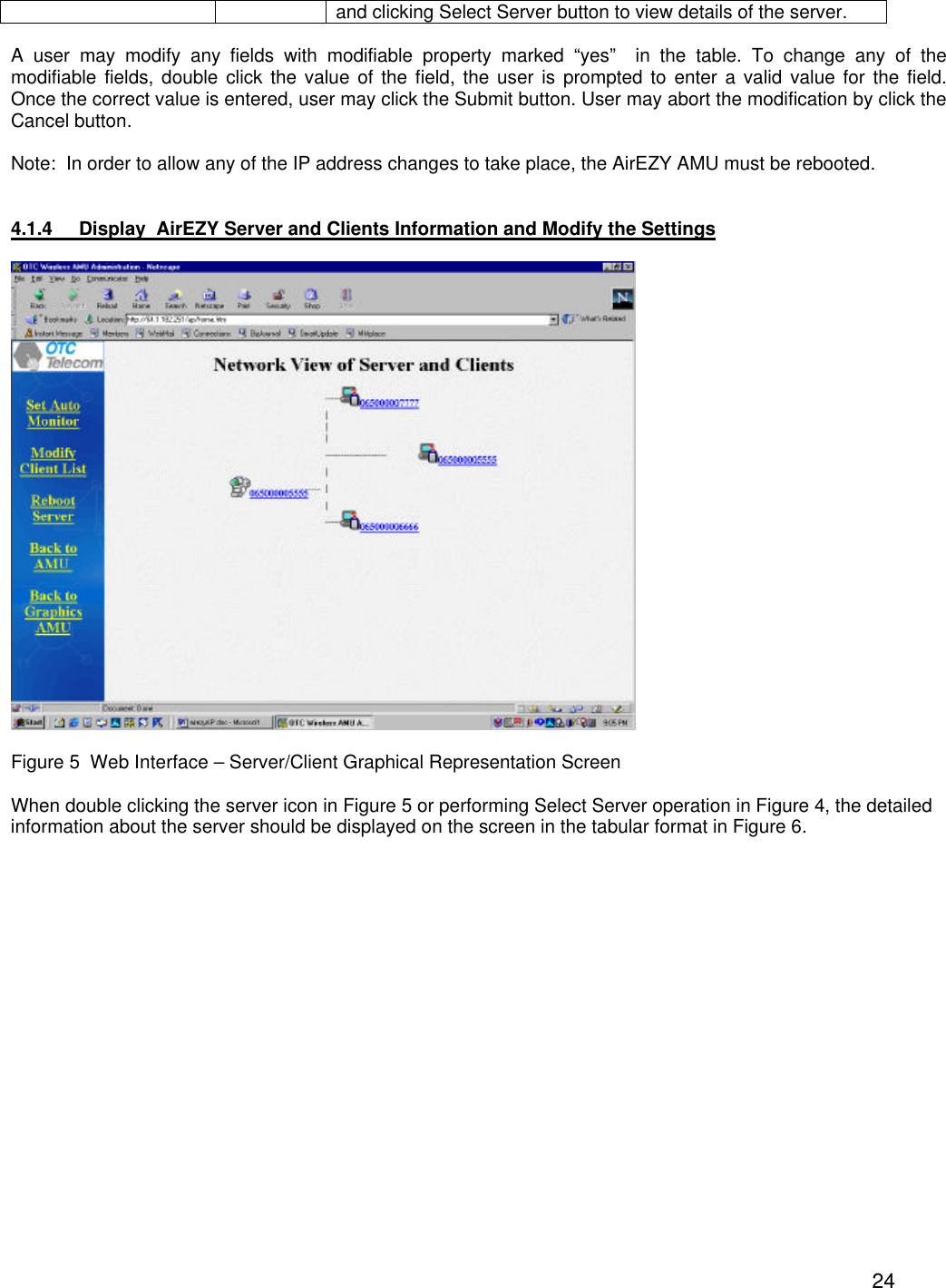
 23  Figure 4.   Web Interface - Detailed AMU Information Screen  The AMU Information table contains networking related configuration about the AMU. The Server List table contains all the servers known to the AMU. The number of servers in the table could be 0 to 4.  A user may modify any field in the AMU information table by double clicking the value of that field; the user is prompted to enter a valid value for the field.   Once the correct value is entered, user may click the Submit button. User may abort the modification by click the Cancel button.  The Reboot AMU button is used to reboot the AMU.  A user will be prompted to confirm if this button is pushed.  The following table is a description of fields in the Detailed AMU Information.   Field Name Modifiable Description Bridging/Routing Yes It indicates that the AMU is used for bridging or routing. This filed must contain the value of bridging or routing Spanning Tree Protocol Yes It must contain value “on” or “off”. “on” indicates that STP is enabled. Client Bridging Yes It indicates that whether AMU enables client to client communication using the same server. It can only be turned on or off in bridging mode (not routing). It shall not be used in the multi-server environment. IP Address (EthA) Yes It is used to configure Ethernet port IP address on the network side. It must contain valid IP address in xxx.yyy.zzz.www format. IP Net Mask (EthA) Yes It is used to configure Ethernet port IP mask on the network side. It must contain valid IP mask in xxx.yyy.zzz.www format. Default Gateway IP   Yes It is used to construct a default route.  If AirEZY receive a packet and it does not know where to forward to, it will be forwarded to the node specified by this IP address. It must contain valid IP address in xxx.yyy.zzz.www format. Note:  It is recommended that the default gateway is the node connected to the AirEZY AMU on the network side. Server List No It contains 0 to 4 servers transceiver IDs known to the AirEZY AMU.  User may select a server by high lighting the transceiver ID
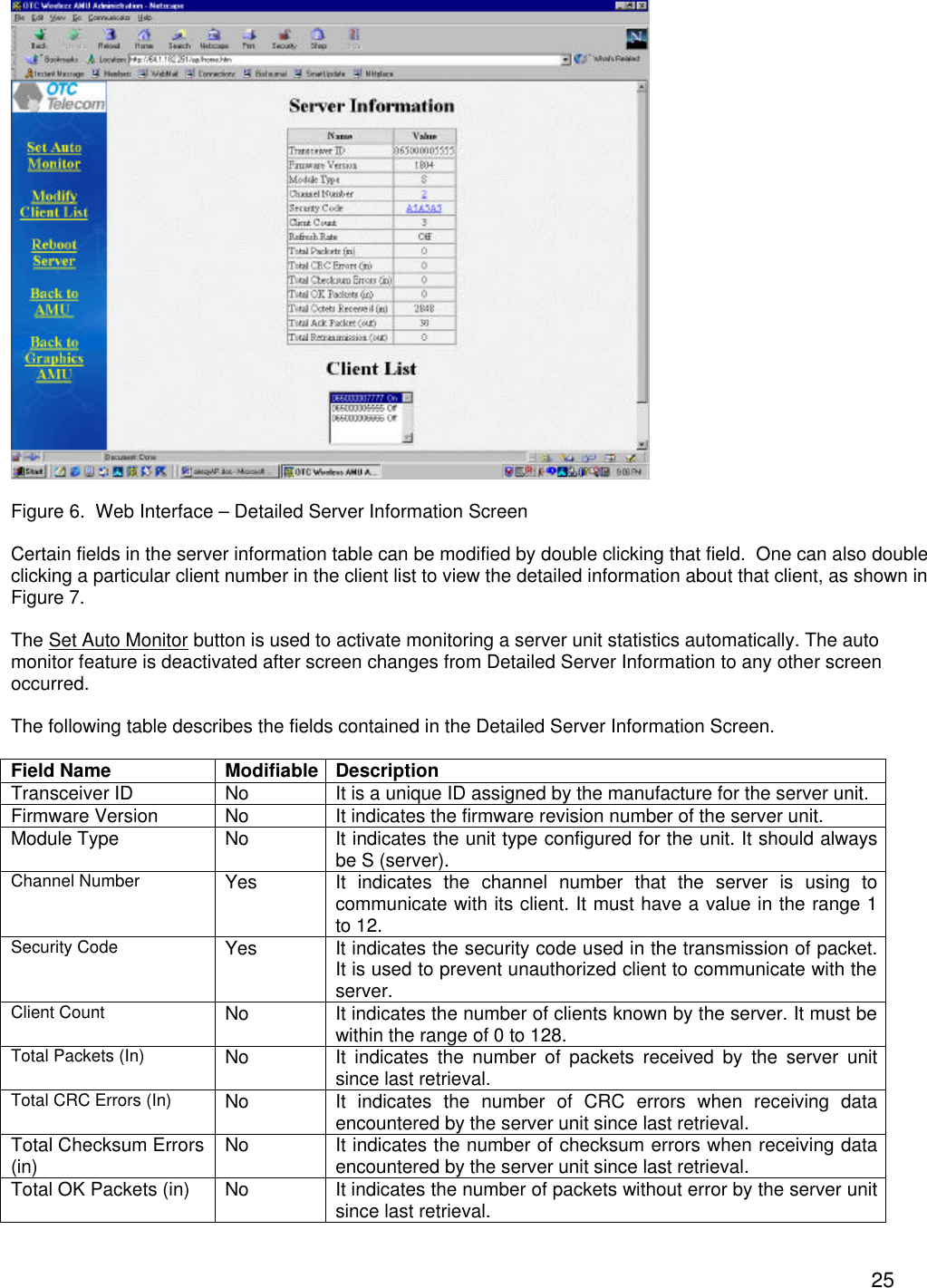
 24and clicking Select Server button to view details of the server.  A user may modify any fields with modifiable property marked “yes”  in the table. To change any of the modifiable fields, double click the value of the field, the user is prompted to enter a valid value for the field.    Once the correct value is entered, user may click the Submit button. User may abort the modification by click the Cancel button.  Note:  In order to allow any of the IP address changes to take place, the AirEZY AMU must be rebooted.   4.1.4 Display  AirEZY Server and Clients Information and Modify the Settings    Figure 5  Web Interface – Server/Client Graphical Representation Screen  When double clicking the server icon in Figure 5 or performing Select Server operation in Figure 4, the detailed information about the server should be displayed on the screen in the tabular format in Figure 6.
 25  Figure 6.  Web Interface – Detailed Server Information Screen  Certain fields in the server information table can be modified by double clicking that field.  One can also double clicking a particular client number in the client list to view the detailed information about that client, as shown in Figure 7.  The Set Auto Monitor button is used to activate monitoring a server unit statistics automatically. The auto monitor feature is deactivated after screen changes from Detailed Server Information to any other screen occurred.  The following table describes the fields contained in the Detailed Server Information Screen.  Field Name Modifiable Description Transceiver ID No It is a unique ID assigned by the manufacture for the server unit.  Firmware Version No It indicates the firmware revision number of the server unit. Module Type No It indicates the unit type configured for the unit. It should always be S (server). Channel Number Yes It indicates the channel number that the server is using to communicate with its client. It must have a value in the range 1 to 12. Security Code Yes It indicates the security code used in the transmission of packet. It is used to prevent unauthorized client to communicate with the server. Client Count No It indicates the number of clients known by the server. It must be within the range of 0 to 128. Total Packets (In) No It indicates the number of packets received by the server unit since last retrieval. Total CRC Errors (In) No It indicates the number of CRC errors when receiving data encountered by the server unit since last retrieval. Total Checksum Errors (in) No It indicates the number of checksum errors when receiving data encountered by the server unit since last retrieval. Total OK Packets (in) No It indicates the number of packets without error by the server unit since last retrieval.
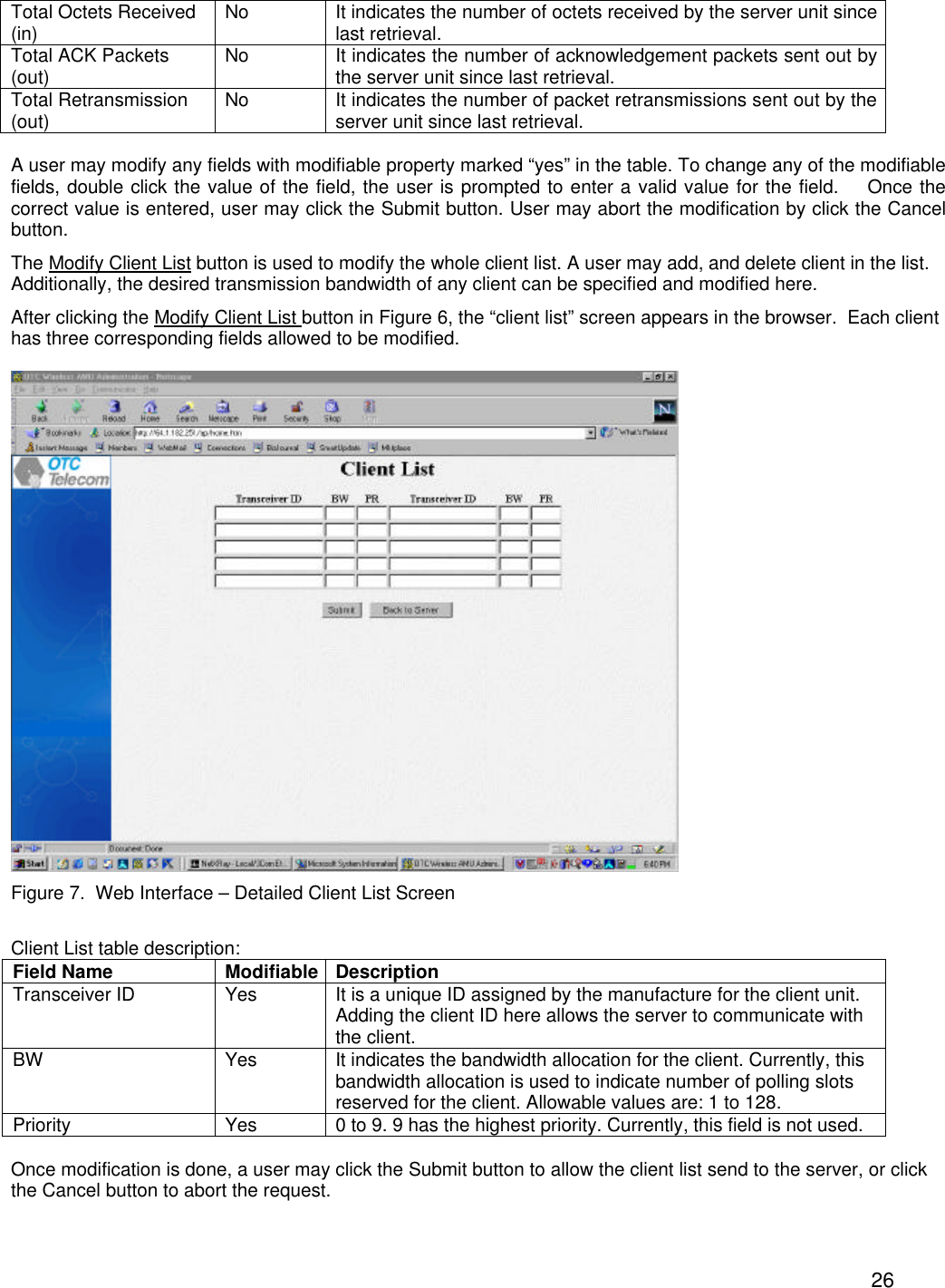
 26Total Octets Received (in) No It indicates the number of octets received by the server unit since last retrieval. Total ACK Packets (out) No It indicates the number of acknowledgement packets sent out by the server unit since last retrieval. Total Retransmission (out) No It indicates the number of packet retransmissions sent out by the server unit since last retrieval.  A user may modify any fields with modifiable property marked “yes” in the table. To change any of the modifiable fields, double click the value of the field, the user is prompted to enter a valid value for the field.    Once the correct value is entered, user may click the Submit button. User may abort the modification by click the Cancel button. The Modify Client List button is used to modify the whole client list. A user may add, and delete client in the list. Additionally, the desired transmission bandwidth of any client can be specified and modified here.  After clicking the Modify Client List button in Figure 6, the “client list” screen appears in the browser.  Each client has three corresponding fields allowed to be modified.    Figure 7.  Web Interface – Detailed Client List Screen  Client List table description: Field Name Modifiable Description Transceiver ID Yes It is a unique ID assigned by the manufacture for the client unit.  Adding the client ID here allows the server to communicate with the client.  BW Yes It indicates the bandwidth allocation for the client. Currently, this bandwidth allocation is used to indicate number of polling slots reserved for the client. Allowable values are: 1 to 128. Priority Yes 0 to 9. 9 has the highest priority. Currently, this field is not used.  Once modification is done, a user may click the Submit button to allow the client list send to the server, or click the Cancel button to abort the request.
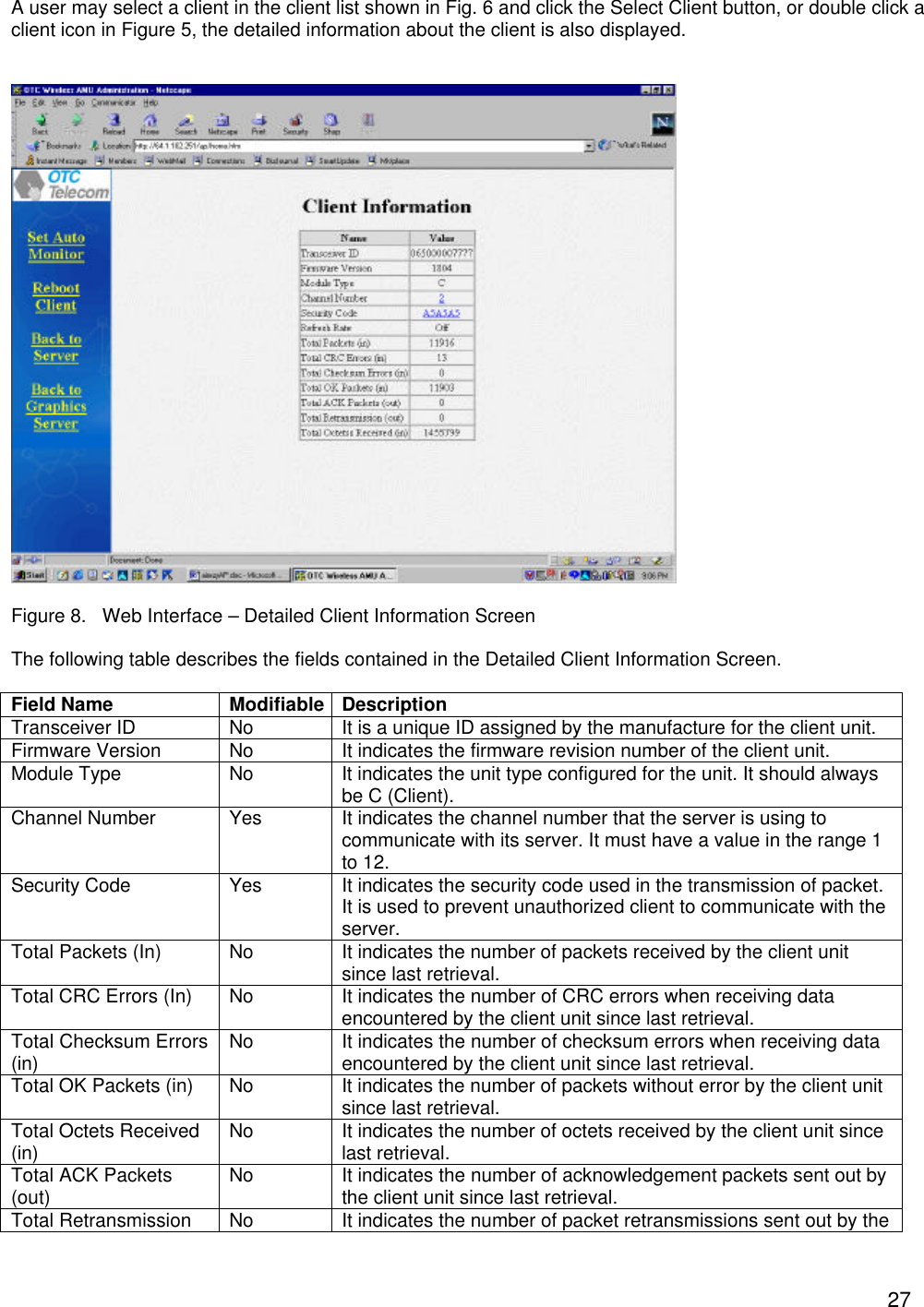
 27A user may select a client in the client list shown in Fig. 6 and click the Select Client button, or double click a client icon in Figure 5, the detailed information about the client is also displayed.     Figure 8.   Web Interface – Detailed Client Information Screen  The following table describes the fields contained in the Detailed Client Information Screen.  Field Name Modifiable Description Transceiver ID No It is a unique ID assigned by the manufacture for the client unit.  Firmware Version No It indicates the firmware revision number of the client unit. Module Type No It indicates the unit type configured for the unit. It should always be C (Client). Channel Number Yes It indicates the channel number that the server is using to communicate with its server. It must have a value in the range 1 to 12. Security Code Yes It indicates the security code used in the transmission of packet. It is used to prevent unauthorized client to communicate with the server. Total Packets (In) No It indicates the number of packets received by the client unit since last retrieval. Total CRC Errors (In) No It indicates the number of CRC errors when receiving data encountered by the client unit since last retrieval. Total Checksum Errors (in) No It indicates the number of checksum errors when receiving data encountered by the client unit since last retrieval. Total OK Packets (in) No It indicates the number of packets without error by the client unit since last retrieval. Total Octets Received (in) No It indicates the number of octets received by the client unit since last retrieval. Total ACK Packets (out) No It indicates the number of acknowledgement packets sent out by the client unit since last retrieval. Total Retransmission No It indicates the number of packet retransmissions sent out by the
 28(out) client unit since last retrieval.  A user may modify any fields with modifiable property marked “yes” in the table. To change any of the modifiable fields, double click the value of the field; the user is prompted to enter a valid value for the field.    Once the correct value is entered, user may click the Submit button. User may abort the modification by click the Cancel button.  In the server (Figure 6) or client (Figure 8) table, only the following fields can be modified by double clicking the individual one:  Channel Number Security Code  When double clicking the Channel Number field, the user is prompted to input a new channel number (range from 1 to 12). By clicking the submit button, the AirEZY unit will be instructed to use the new channel number after next AirEZY reboot.  When double clicking the Security Code field, the user is prompted to input a new security code. By click the submit button, the AirEZY unit starts to use the new security code after next AirEZY reboot.  The following rules must be observed when modifying the channel number and/or the security code for clients and associated server:  1) Modifications to clients and its server must be identical.  2) Clients must be rebooted prior to rebooting the server.  If the above rules are not followed, the AirEZY link between server and clients will be lost.
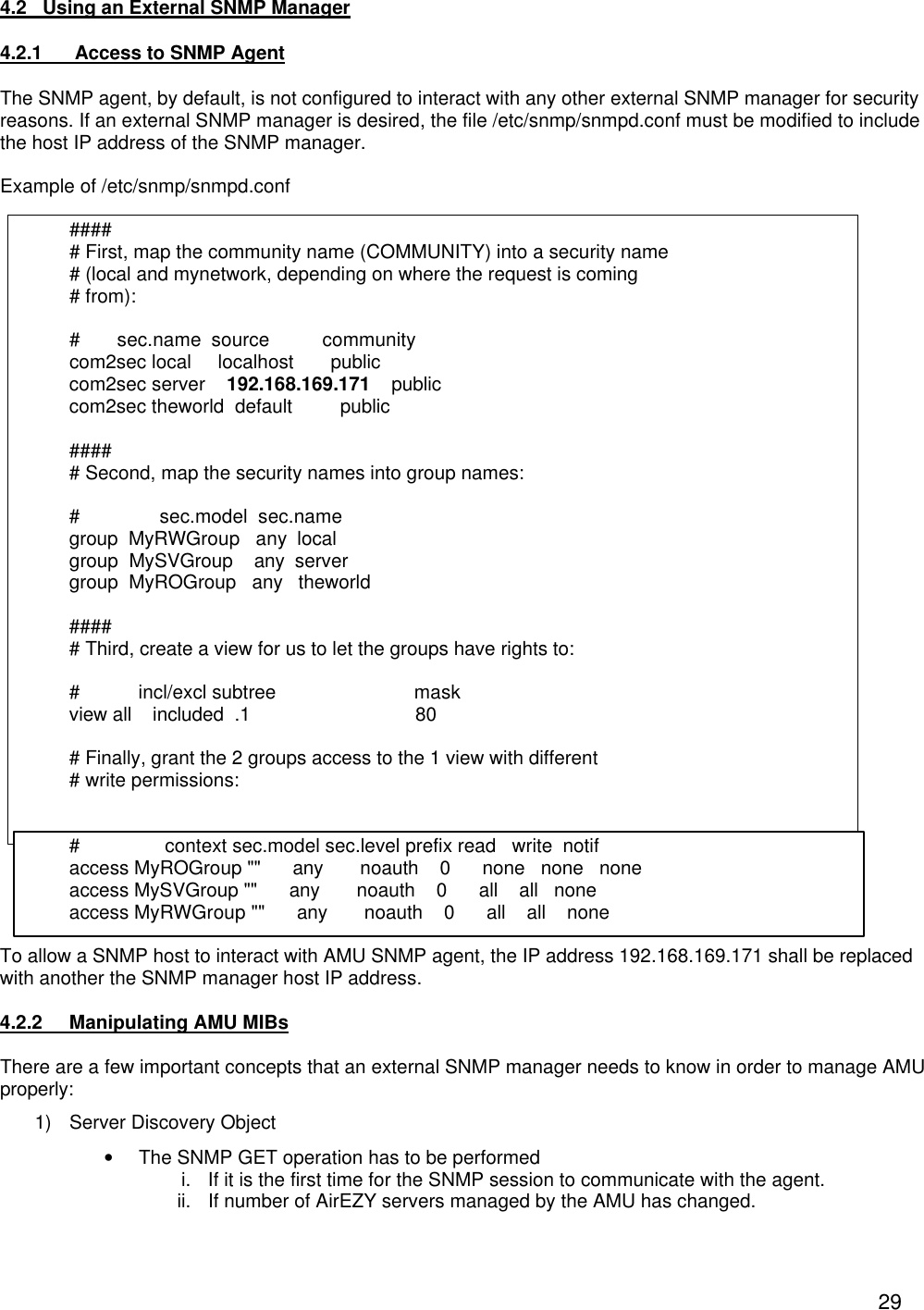
 294.2   Using an External SNMP Manager  4.2.1  Access to SNMP Agent The SNMP agent, by default, is not configured to interact with any other external SNMP manager for security reasons. If an external SNMP manager is desired, the file /etc/snmp/snmpd.conf must be modified to include the host IP address of the SNMP manager.  Example of /etc/snmp/snmpd.conf  #### # First, map the community name (COMMUNITY) into a security name # (local and mynetwork, depending on where the request is coming # from):  #       sec.name  source          community com2sec local     localhost       public com2sec server    192.168.169.171    public com2sec theworld  default         public  #### # Second, map the security names into group names:  #               sec.model  sec.name group  MyRWGroup   any  local group  MySVGroup    any  server group  MyROGroup   any   theworld  #### # Third, create a view for us to let the groups have rights to:  #           incl/excl subtree                          mask view all    included  .1                               80  # Finally, grant the 2 groups access to the 1 view with different # write permissions:   #                context sec.model sec.level prefix read   write  notif access MyROGroup ""      any       noauth    0      none   none   none access MySVGroup ""      any       noauth    0      all    all   none access MyRWGroup ""      any       noauth    0      all    all    none  To allow a SNMP host to interact with AMU SNMP agent, the IP address 192.168.169.171 shall be replaced with another the SNMP manager host IP address.  4.2.2 Manipulating AMU MIBs  There are a few important concepts that an external SNMP manager needs to know in order to manage AMU properly: 1) Server Discovery Object • The SNMP GET operation has to be performed  i. If it is the first time for the SNMP session to communicate with the agent. ii. If number of AirEZY servers managed by the AMU has changed.
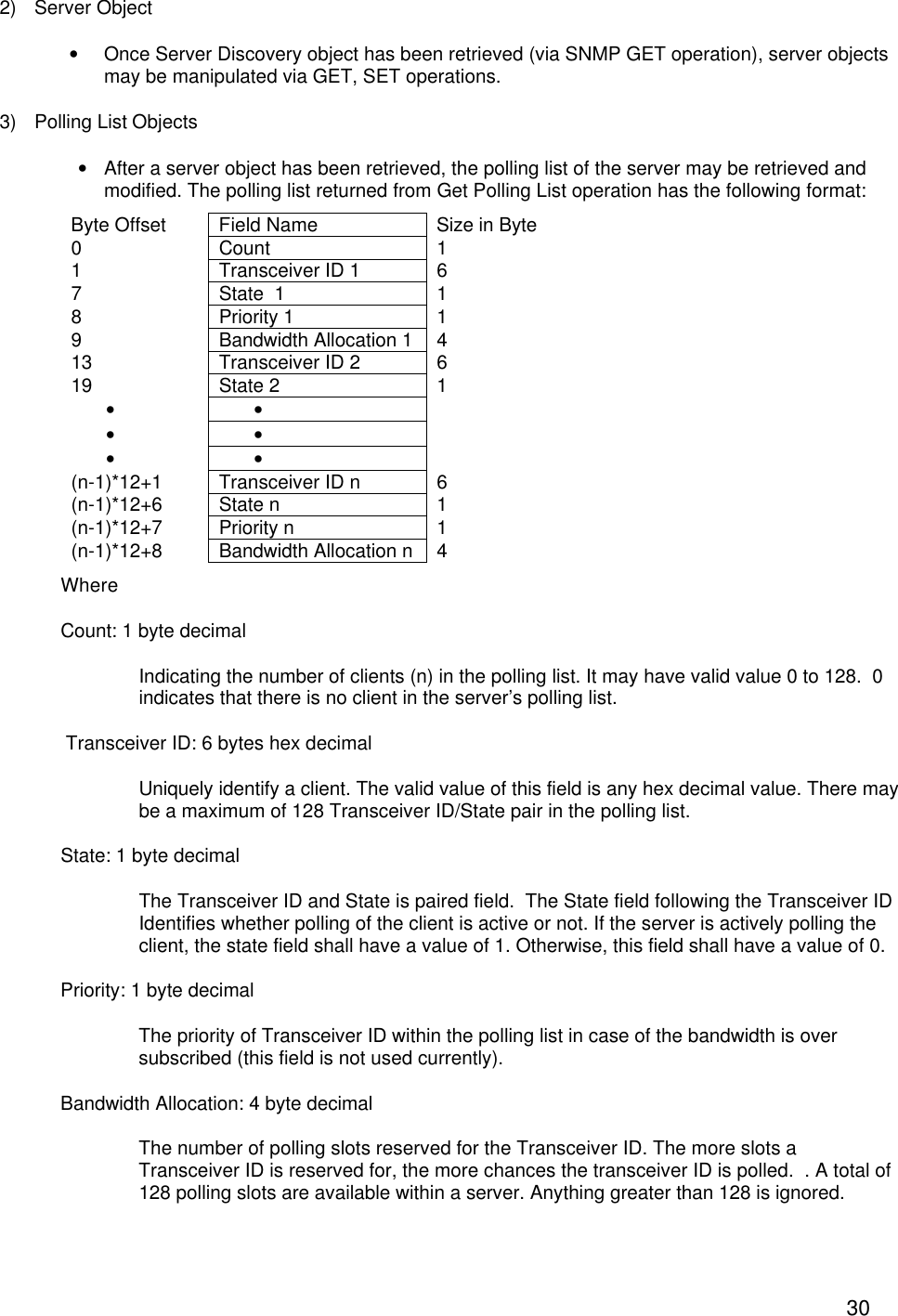
 302) Server Object • Once Server Discovery object has been retrieved (via SNMP GET operation), server objects may be manipulated via GET, SET operations. 3) Polling List Objects • After a server object has been retrieved, the polling list of the server may be retrieved and modified. The polling list returned from Get Polling List operation has the following format: Byte Offset Field Name Size in Byte 0 Count 1 1 Transceiver ID 1 6  7 State  1 1 8 Priority 1 1 9 Bandwidth Allocation 1 4 13 Transceiver ID 2 6 19 State 2 1 •  •   •  •   •  •   (n-1)*12+1 Transceiver ID n 6 (n-1)*12+6 State n 1 (n-1)*12+7 Priority n 1 (n-1)*12+8 Bandwidth Allocation n 4 Where Count: 1 byte decimal  Indicating the number of clients (n) in the polling list. It may have valid value 0 to 128.  0 indicates that there is no client in the server’s polling list.  Transceiver ID: 6 bytes hex decimal  Uniquely identify a client. The valid value of this field is any hex decimal value. There may be a maximum of 128 Transceiver ID/State pair in the polling list. State: 1 byte decimal The Transceiver ID and State is paired field.  The State field following the Transceiver ID Identifies whether polling of the client is active or not. If the server is actively polling the client, the state field shall have a value of 1. Otherwise, this field shall have a value of 0. Priority: 1 byte decimal The priority of Transceiver ID within the polling list in case of the bandwidth is over subscribed (this field is not used currently). Bandwidth Allocation: 4 byte decimal The number of polling slots reserved for the Transceiver ID. The more slots a Transceiver ID is reserved for, the more chances the transceiver ID is polled.  . A total of 128 polling slots are available within a server. Anything greater than 128 is ignored.
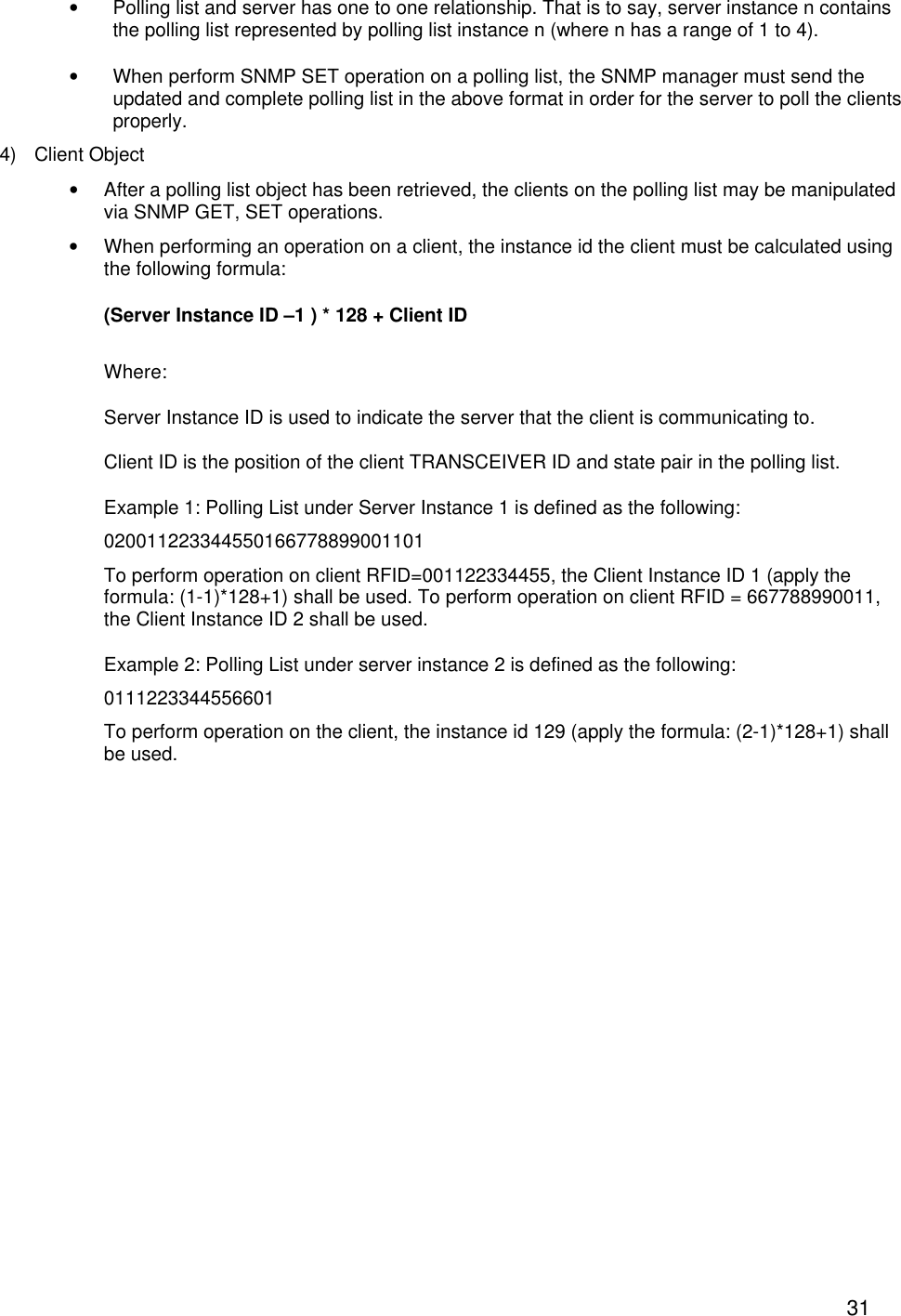
 31• Polling list and server has one to one relationship. That is to say, server instance n contains the polling list represented by polling list instance n (where n has a range of 1 to 4). • When perform SNMP SET operation on a polling list, the SNMP manager must send the updated and complete polling list in the above format in order for the server to poll the clients properly.  4) Client Object  • After a polling list object has been retrieved, the clients on the polling list may be manipulated via SNMP GET, SET operations.  • When performing an operation on a client, the instance id the client must be calculated using the following formula: (Server Instance ID –1 ) * 128 + Client ID Where:   Server Instance ID is used to indicate the server that the client is communicating to. Client ID is the position of the client TRANSCEIVER ID and state pair in the polling list. Example 1: Polling List under Server Instance 1 is defined as the following: 020011223344550166778899001101 To perform operation on client RFID=001122334455, the Client Instance ID 1 (apply the formula: (1-1)*128+1) shall be used. To perform operation on client RFID = 667788990011, the Client Instance ID 2 shall be used. Example 2: Polling List under server instance 2 is defined as the following: 0111223344556601 To perform operation on the client, the instance id 129 (apply the formula: (2-1)*128+1) shall be used.
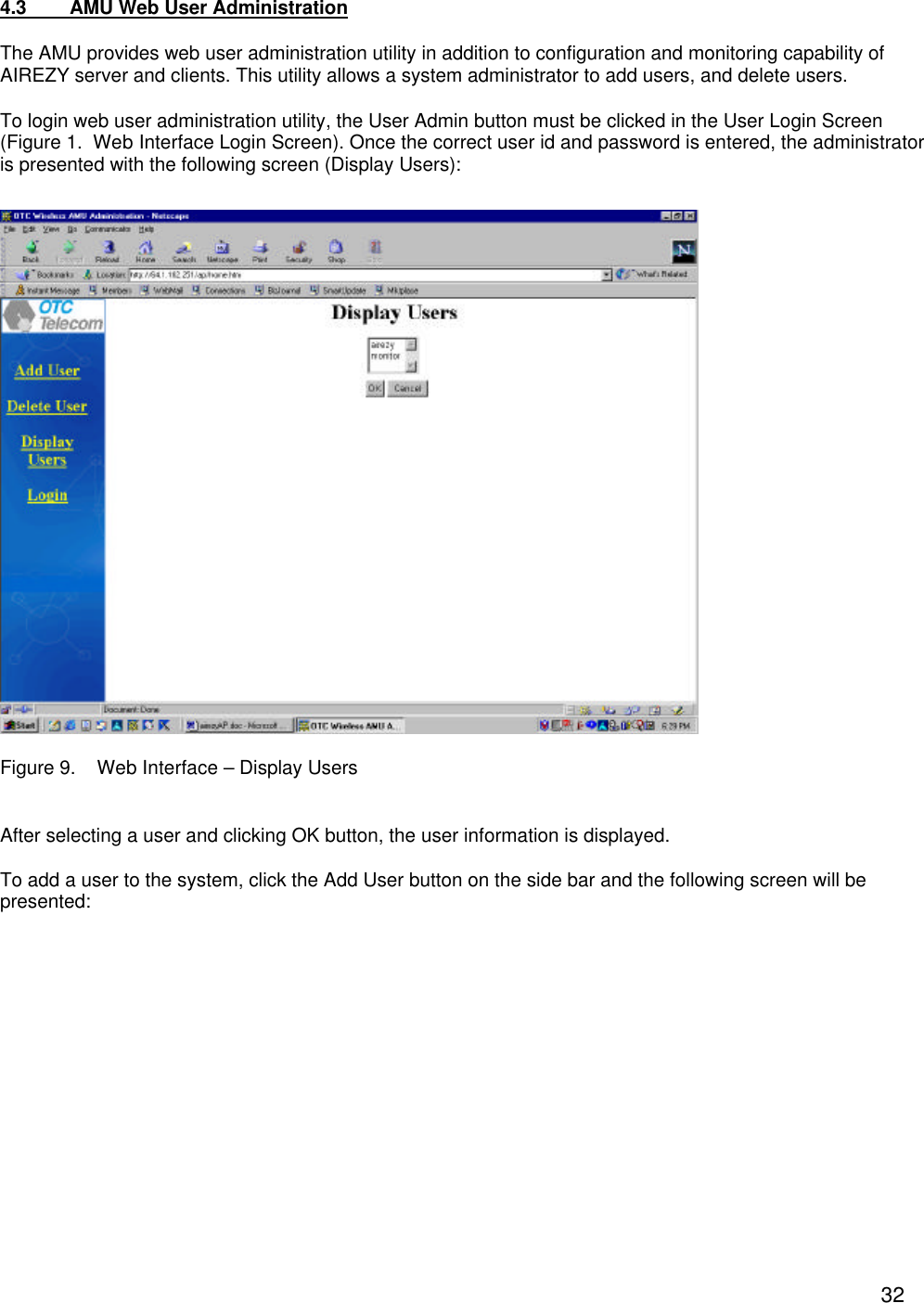
 324.3 AMU Web User Administration The AMU provides web user administration utility in addition to configuration and monitoring capability of AIREZY server and clients. This utility allows a system administrator to add users, and delete users.  To login web user administration utility, the User Admin button must be clicked in the User Login Screen (Figure 1.  Web Interface Login Screen). Once the correct user id and password is entered, the administrator is presented with the following screen (Display Users):  Figure 9.    Web Interface – Display Users   After selecting a user and clicking OK button, the user information is displayed.  To add a user to the system, click the Add User button on the side bar and the following screen will be presented:
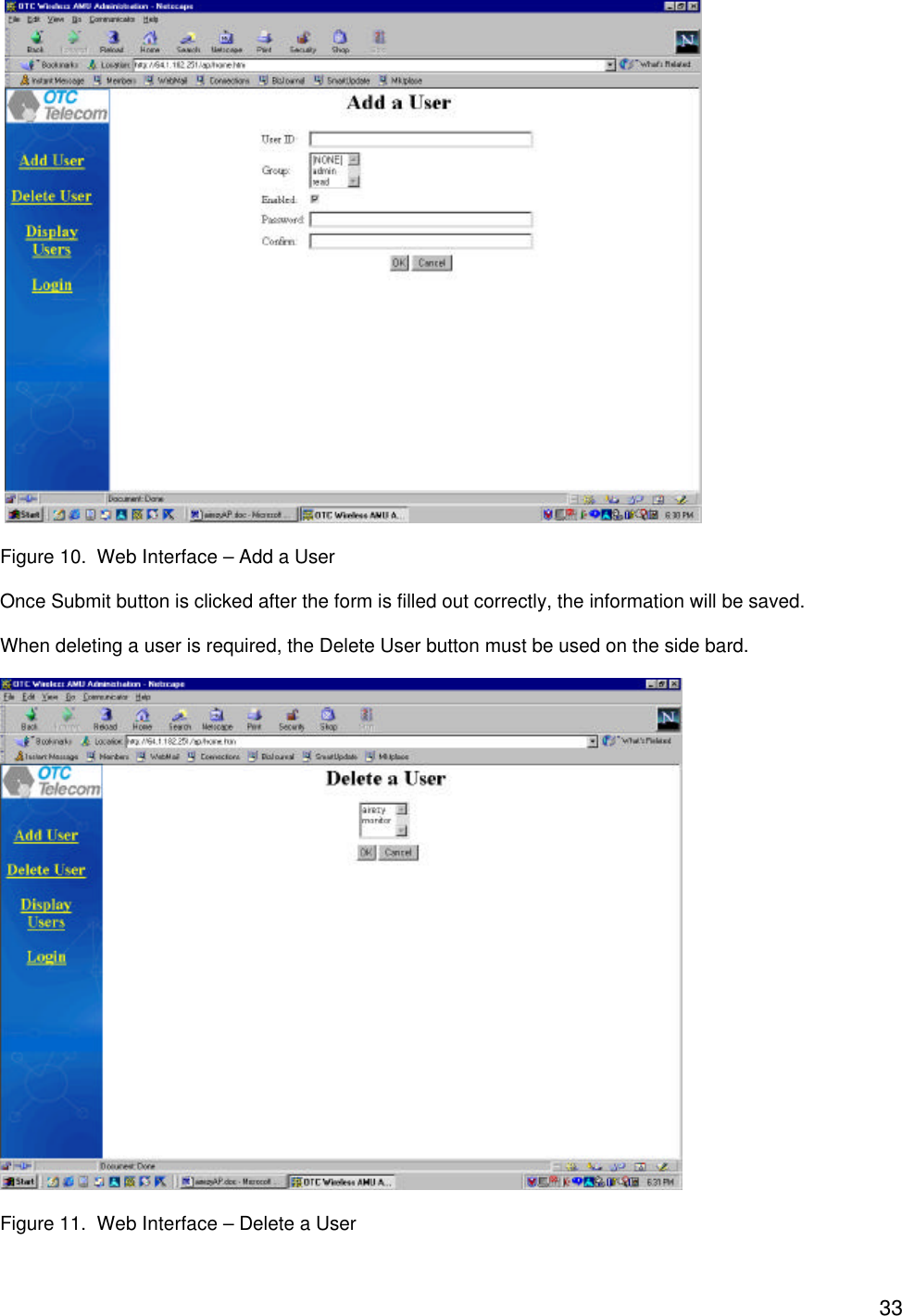
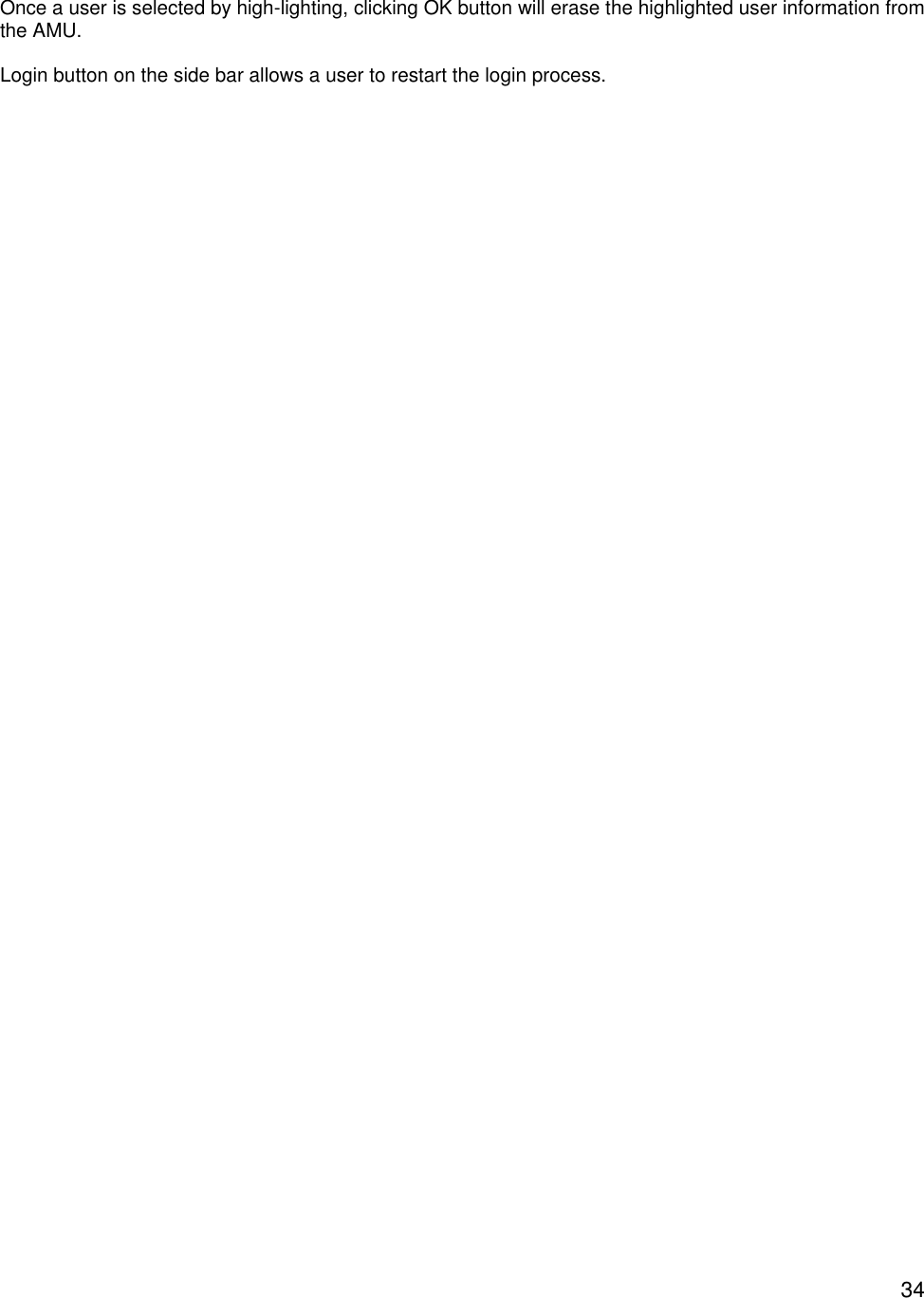
 33   Figure 10.  Web Interface – Add a User  Once Submit button is clicked after the form is filled out correctly, the information will be saved.   When deleting a user is required, the Delete User button must be used on the side bard.    Figure 11.  Web Interface – Delete a User
 34  Once a user is selected by high-lighting, clicking OK button will erase the highlighted user information from the AMU.   Login button on the side bar allows a user to restart the login process.
 355.  Product Specifications  5.1 Base Station Specifications  Base Radio Transceiver  Operating frequency range: 2.4 - 2.483 GHz (US, China, Europe) 2.4 - 2.497 GHz (Japan) Available Channel Central Frequencies:     2.412, 2.417, 2.422, 2.427, 2.432, 2.437, 2.442, 2.447, 2.452, 2.457, 2.462 GHz (U.S., Europe and China)*  2.412, 2.417, 2.422, 2.427, 2.432, 2.437, 2.442, 2.447, 2.452, 2.457, 2.462, 2.484 GHz (Japan)*  *For roaming applications: 2.422, 2.442, 2.462 GHz (U.S., Europe and China)   2.422, 2.442, 2.462, 2484 GHz (Japan)  Number of Simultaneously Operable Channels    3 (US, China, Europe)     4 (Japan) Data Rate:   11 Mbps     Modulation:   QPSK  Spread Spectrum   Direct Sequence Multiple Access Protocol    Polling   Output Power:   100 mW max.  Access Management Unit  Bridging   Server Bridging, Client Bridging, Spanning Tree, Protocol Filtering Management Interface    Web (http),SNMP MIBs    MIBI&II + OTC Proprietary Software maintenance     FTP, TELNET
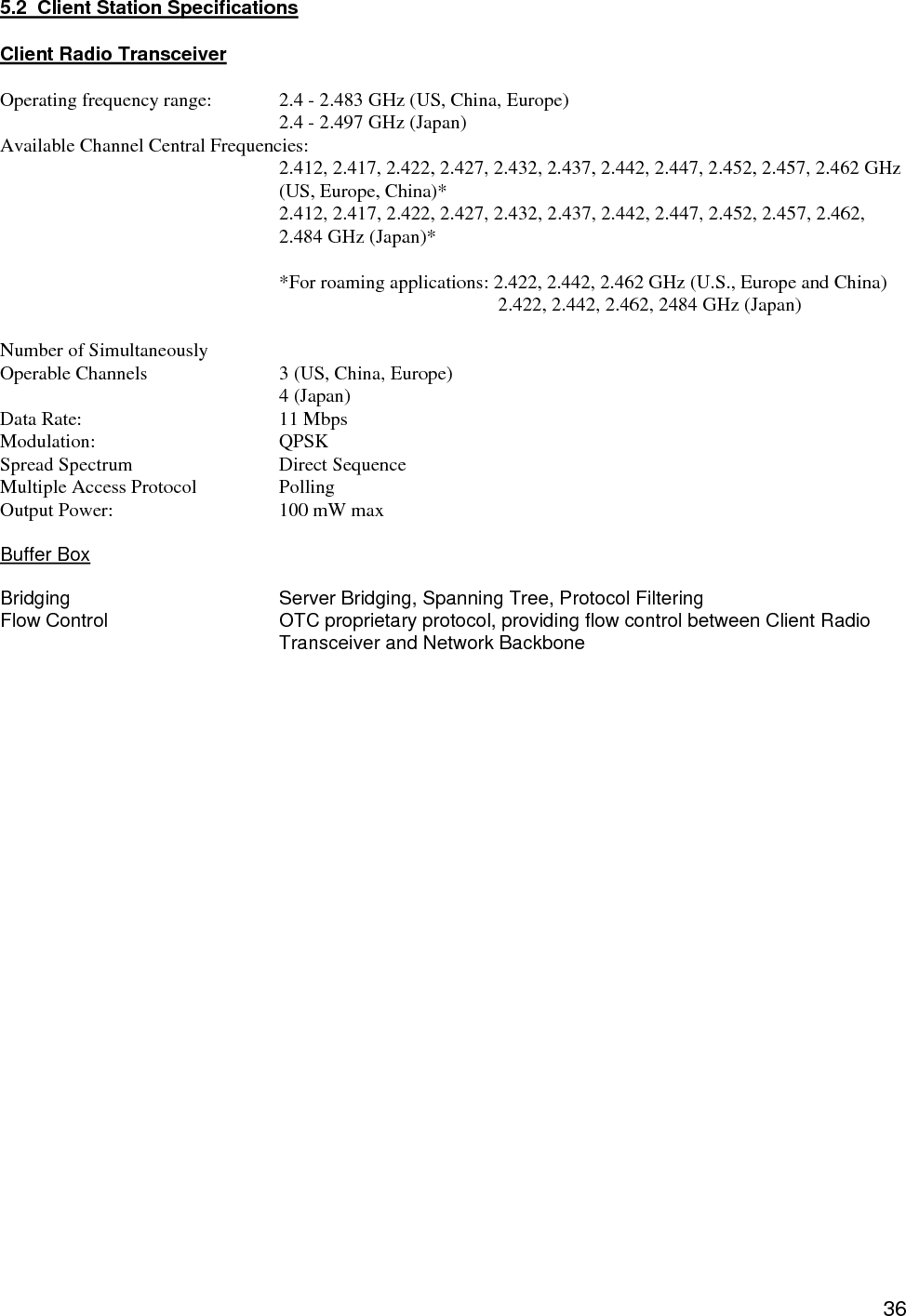
 365.2  Client Station Specifications    Client Radio Transceiver  Operating frequency range: 2.4 - 2.483 GHz (US, China, Europe) 2.4 - 2.497 GHz (Japan) Available Channel Central Frequencies:     2.412, 2.417, 2.422, 2.427, 2.432, 2.437, 2.442, 2.447, 2.452, 2.457, 2.462 GHz (US, Europe, China)*  2.412, 2.417, 2.422, 2.427, 2.432, 2.437, 2.442, 2.447, 2.452, 2.457, 2.462, 2.484 GHz (Japan)*  *For roaming applications: 2.422, 2.442, 2.462 GHz (U.S., Europe and China)   2.422, 2.442, 2.462, 2484 GHz (Japan)  Number of Simultaneously Operable Channels    3 (US, China, Europe)     4 (Japan) Data Rate:   11 Mbps     Modulation:   QPSK  Spread Spectrum   Direct Sequence Multiple Access Protocol    Polling   Output Power:   100 mW max  Buffer Box  Bridging   Server Bridging, Spanning Tree, Protocol Filtering Flow Control OTC proprietary protocol, providing flow control between Client Radio Transceiver and Network Backbone
 37

Navigation menu