OTC Wireless WIJET11G 802.11g Wireless Projector/ Monitor Adapter User Manual WiJET G TM

OTC Wireless Inc 802.11g Wireless Projector/ Monitor Adapter WiJET G TM

Users Manual

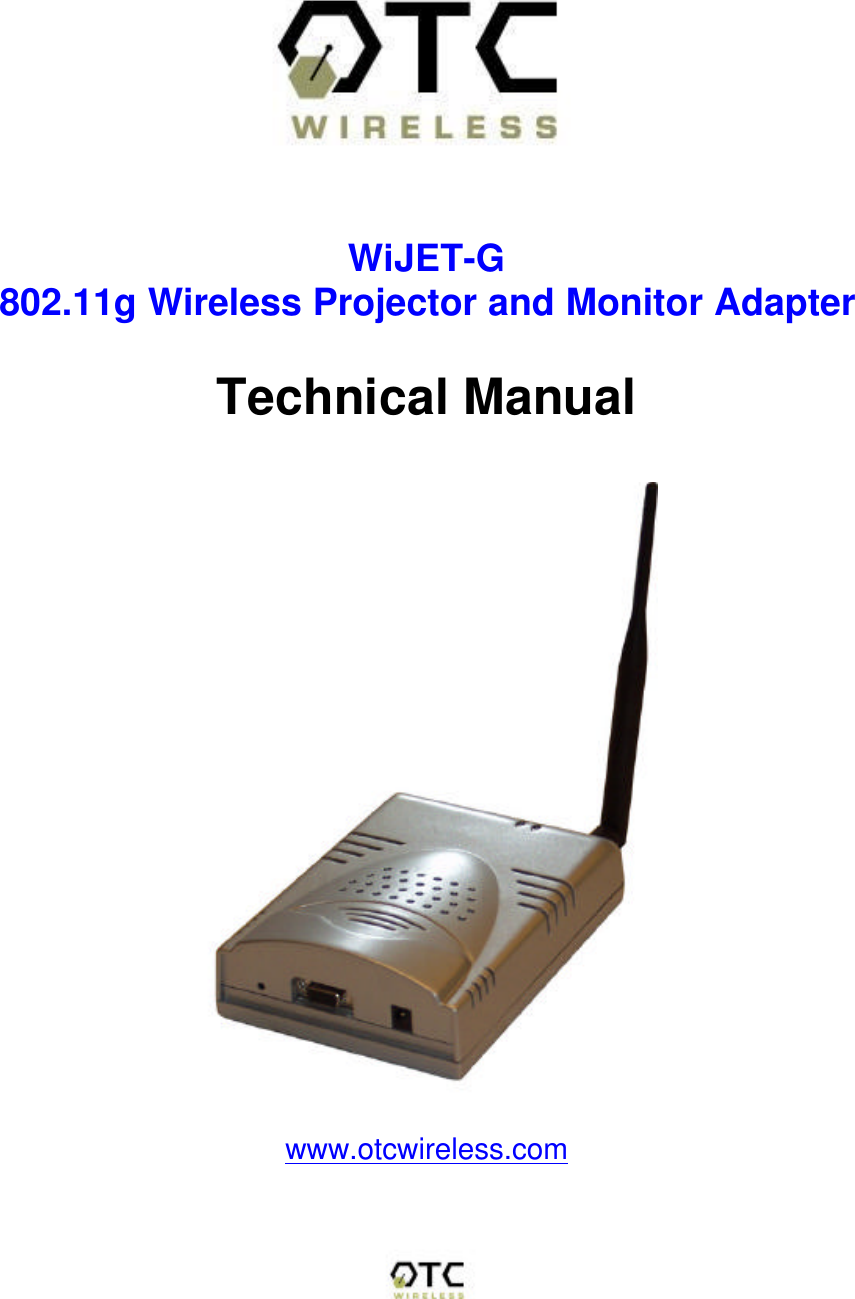
    WiJET-G 802.11g Wireless Projector and Monitor Adapter  Technical Manual     www.otcwireless.com
WiJET-G Technical Manual   ii OTC  WiJET-G 802.11g Wireless Projector and Monitor Adapter Technical Manual Copyright  Information in this document is subject to change without notice. Complying with all applicable copyright laws is the responsibility of the user. No part of this document may be reproduced or transmitted in any form or by any means, electronic or mechanical, for any purpose, without the express written permission of the seller. If, however, your only means of access is electronic, permission to print one copy is hereby granted.  The seller provides this documentation without warranty, term, or condition of any kind. The seller may make improvements or changes in the product(s) and/or the program(s) described in this documentation at any time.  Other product and company names herein may be trademarks of their respective owners.  Copyright 2002, 2003 OTC Wireless, Inc. All rights reserved.  Rev 1.01
WiJET-G Technical Manual   iii Table of Contents  Chapter 1: INTRODUCTION......................................................................................... 1 Key Features..................................................................................................................2 Specifications .................................................................................................................2 Chapter 2: WiJET-G SYSTEM INSTALLATION......................................................... 3 2.1 Safety Statements ..................................................................................................3 2.2 Hardware Installation ..............................................................................................3 2.2.1 Power................................................................................................................3 2.2.2 VGA Connection.................................................................................................3 2.2.3 Status LED’s ......................................................................................................3 2.2.4 Hardware Reset Button.......................................................................................3 2.2.5 Reset to Factory Default......................................................................................3 2.3 Software Installation................................................................................................4 2.3.1 System Requirements for User Software..............................................................4 System Requirements for Web-based Administration Utility...................................................5 Chapter 3: USING WiJET-G......................................................................................... 6 Using the WiJET-G in a Meeting..........................................................................................6 Starting the WiJET-G..........................................................................................................6 Configuring Computer to Control WiJET-G...........................................................................8 Starting WiJET-G Presentation Session Manager.................................................................8 Configuring the Wireless Adapter to Connect WiJET-G.........................................................9 Manually Configure the Wireless Network Adapter..........................................................10 Configure the Wireless Adapter for Windows XP .............................................................10 Start or Resume Your WiJET-G Presentation Session ........................................................13 Release Your WiJET-G Presentation Session.....................................................................13 Exit the WiJET-G Presentation Session Manager................................................................14 WEB-BASED ADMINISTRATION UTILITY.................................................................... 15 Introduction to the Web-Based Administration Utility ...........................................................15 Access the Web-Based Administration Utility......................................................................15 Configure the WiJET-G Using Administration Manager........................................................16 WiJET-G Firmware Version ...........................................................................................17 Configuration................................................................................................................17 Administration ..............................................................................................................19 Firmware and Banner Page Upload ...............................................................................20 TROUBLESHOOTING..................................................................................................... 21 Unable to Connect or Establish a Session with WiJET-G.....................................................21 The Presentation screen appears frozen during a presentation............................................21 The WiJET-G Session is Interrupted During a Presentation .................................................22 Radio Interference............................................................................................................22 Appendix A: LIMITED WARRANTY............................................................................... 24 Wireless LAN Hardware ................................................................................................24 Appendix B: REGULATORY COMPLIANCE................................................................. 25 FCC Part 15 Declaration of Conformity (DoC).................................................................25 FCC ID: MKZWJTL02682..............................................................................................25 FCC Rules and Regulations - Part 15.............................................................................25 European Community (EC) Directives Conformity and Restrictions ..................................26 Industry Canada Compliance Information Statement .......................................................26
WiJET-G Technical Manual   1Chapter 1: INTRODUCTION The WiJET-G is an IEEE 802.11g compliant product designed specifically for wirelessly connecting projectors and monitors to computers.  It connects to the existing VGA connector of the projector/monitor and offers 802.11g connectivity up to 54 Mbps. The advantages of the WiJET-G become obvious in any conference room where the ideal location of the projector or display screen makes it difficult for a laptop or desktop to connect to it while allowing the speaker to maintain audience interest.  All too frequently, projectors placed in the middle of the room force the speaker to present from the middle of the room, because of the VGA cable that exists between the projector and the presenter’s laptop.   The WiJET-G solves this problem by allowing any laptop or desktop with an 802.11g Wi-Fi adapter to give the presentation from anywhere in the conference room that the presenter desires.  Wherever the presenter feels would garner the most amount of interest from the audience.  Truly freedom from wires allows for more flexibility in meetings.  Another application of the WiJET-G is in a situation where multiple presenters must give presentations in rapid succession.  The WiJET-G allows for fast handover of the projector or monitor without the hassle of removing and reattaching the VGA cable.  Using the easy-to-use Presentation Session Manager, the presenters can effortlessly connect to the WiJET-G, give a presentation, and disconnect from the WiJET-G to allow another user to connect to it without touching a single cable.  A third application that showcases the advantages of the WiJET-G is where there are multiple conference rooms with multiple projectors.  A WiJET-G in every conference room will substantially save setup time when the presenter comes into the room.  The presenter only simply selects the WiJET-G number displayed on the projector/monitor screen and he is instantly connected to the projector and able to start his presentation.  This removes a lot of setup time associated with presenters moving from room to room to give their presentations, ultimately saving IT costs. In summary, the WiJET-G is a tool that will change how people come to view conferences and meeting rooms.  Instead of a static meeting place, the conference rooms can now become a dynamic meeting place where new thoughts and ideas are exchanged and created.
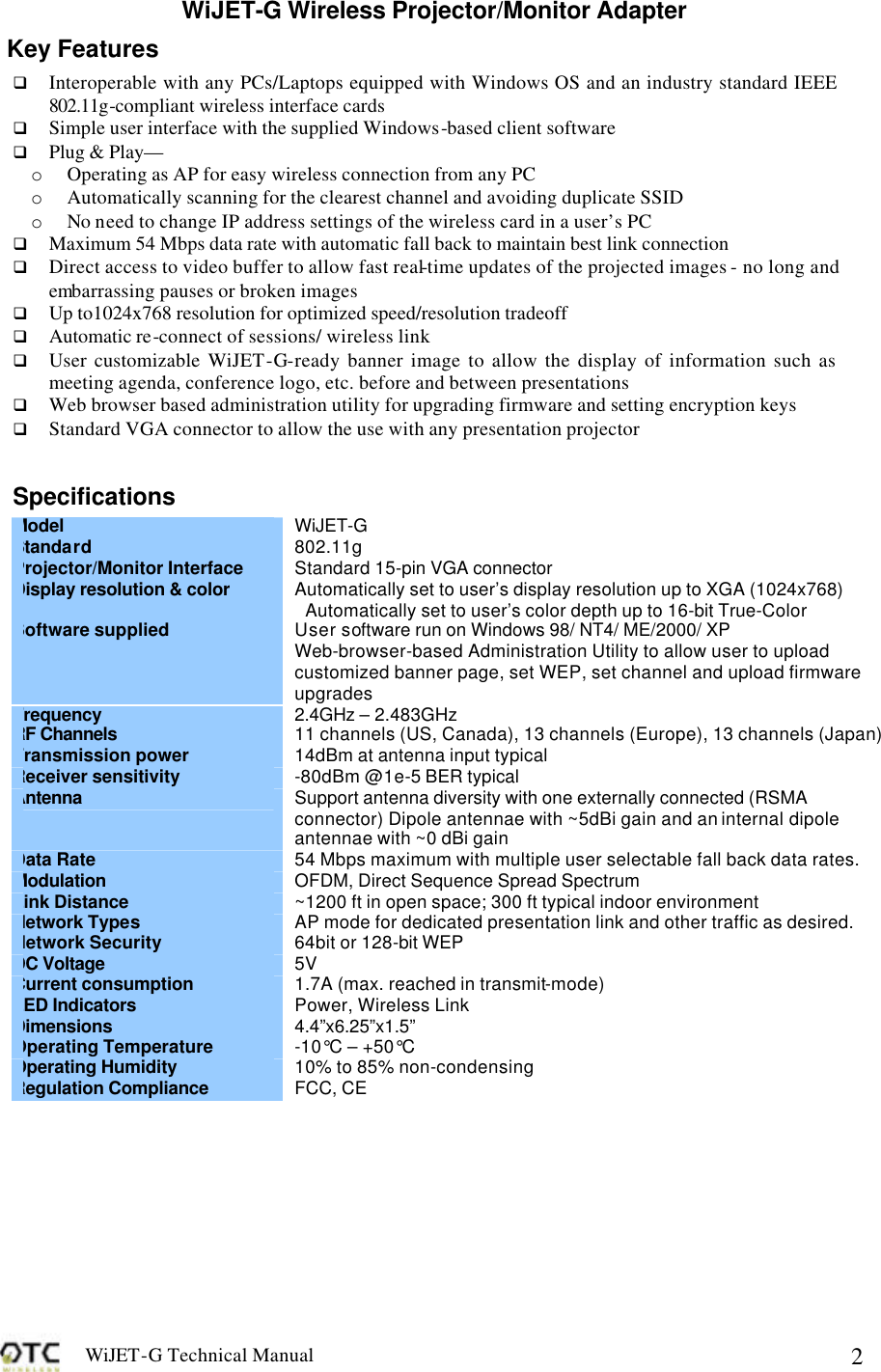
WiJET-G Technical Manual   2WiJET-G Wireless Projector/Monitor Adapter Key Features q Interoperable with any PCs/Laptops equipped with Windows OS and an industry standard IEEE 802.11g-compliant wireless interface cards q Simple user interface with the supplied Windows-based client software q Plug & Play— o Operating as AP for easy wireless connection from any PC o Automatically scanning for the clearest channel and avoiding duplicate SSID o No need to change IP address settings of the wireless card in a user’s PC q Maximum 54 Mbps data rate with automatic fall back to maintain best link connection q Direct access to video buffer to allow fast real-time updates of the projected images - no long and embarrassing pauses or broken images q Up to1024x768 resolution for optimized speed/resolution tradeoff q Automatic re-connect of sessions/ wireless link q User customizable WiJET-G-ready banner image to allow the display of information such as meeting agenda, conference logo, etc. before and between presentations q Web browser based administration utility for upgrading firmware and setting encryption keys q Standard VGA connector to allow the use with any presentation projector  Specifications  Model  WiJET-G Standard 802.11g Projector/Monitor Interface Standard 15-pin VGA connector Display resolution & color Automatically set to user’s display resolution up to XGA (1024x768) Automatically set to user’s color depth up to 16-bit True-Color Software supplied User software run on Windows 98/ NT4/ ME/2000/ XP Web-browser-based Administration Utility to allow user to upload customized banner page, set WEP, set channel and upload firmware upgrades Frequency  2.4GHz – 2.483GHz RF Channels 11 channels (US, Canada), 13 channels (Europe), 13 channels (Japan) Transmission power 14dBm at antenna input typical Receiver sensitivity -80dBm @1e-5 BER typical Antenna Support antenna diversity with one externally connected (RSMA connector) Dipole antennae with ~5dBi gain and an internal dipole antennae with ~0 dBi gain Data Rate 54 Mbps maximum with multiple user selectable fall back data rates. Modulation OFDM, Direct Sequence Spread Spectrum Link Distance ~1200 ft in open space; 300 ft typical indoor environment Network Types AP mode for dedicated presentation link and other traffic as desired. Network Security 64bit or 128-bit WEP DC Voltage 5V Current consumption 1.7A (max. reached in transmit-mode) LED Indicators Power, Wireless Link Dimensions 4.4”x6.25”x1.5” Operating Temperature -10°C – +50°C Operating Humidity 10% to 85% non-condensing Regulation Compliance FCC, CE
WiJET-G Technical Manual   3Chapter 2: WiJET-G SYSTEM INSTALLATION 2.1 Safety Statements Use only the power adapter provided with this product or the manufacturer's authorized replacement power supply. Connect the power adapter to a properly grounded electrical outlet that is near the product and easily accessible. Refer service or repairs, other than those described in the user documentation, to a professional service person.  2.2 Hardware Installation 2.2.1 Power Power is supplied to the WiJET-G via a 1.7 amps 5volt DC power adapter.    Warning:  use only the power supply adapter provided with this product or the manufacturer’s authorized replacement power supply. 2.2.2 VGA Connection This is a standard 15 pin female VGA connector where you will connect the WiJET-G to either a monitor or a projector via a straight-thru monitor cable (either purchased separately or with the one that comes with the projector or monitor). 2.2.3 Status LED’s There are two status LED’s on the WiJET-G.  From the front of the unit, the LED on the left is the power indicator while the LED on the right is the link status and video out indicator.  During boot-up, the link status LED will initially remain unlit.  When the link LED blinks red, it means the WiJET-G is ready for connection to a PC.  Upon connection from a computer, the LED will turn solid green.  Upon disconnection, the LED will revert to blinking red again.  2.2.4 Hardware Reset Button The hardware-reset button is located at the back of the WiJET-G.  It requires a bent paper clip to access the hardware-reset button. The main function of the hardware-reset button is to reboot the WiJET-G. To reboot the WiJET-G, only a light tap on the reset button is all that is required.   2.2.5 Reset to Factory Default To reset the WiJET-G back to the factory default settings, follow the steps below:   1. Turn on or reboot the WiJET-G 2. During the boot-up screen, a message  “Reset to factory default” timer starts appears and the user will have around10 seconds to do the following step.
WiJET-G Technical Manual   43. You can use either hardware reset button or power cycle to reboot the WiJET-G before the timer ends, and that will cause WiJET-G reverting back to factory default settings. 4. Observe that, during the next boot-up screen after above steps, a message of Reset to Factory Default should appear next to the Timer message. It indicates the operation is successful.  Note:  The subsequent boot-up screen should not display the  Reset to Factory Default message unless being triggered using above procedure or having corrupted data in the WiJET-G.  Caution: Please note that resetting the WiJET-G to its factory default means losing all configurations and encryption information you may have set through the web interface!  2.3 Software Installation The following details the steps involved in installing the software needed to control the WiJET-G.   2.3.1 System Requirements for User Software To use the WiJET-G’s user software, your computer must meet the following requirements.    • Wi-Fi or IEEE 802.11g enabled computer (either built-in or add-on NIC); • Windows 98/NT4/ME/2000/XP; and • Minimum equivalent processing power of Pentium 3 at 750 MHz and 64MB of RAM.  2.3.1.1 Installation for the WiJET-G Presentation Session Manager (PSM) This step is optional and can be skipped for those who simply want to run WiJET-G Presentation Session Manager (PSM) without the administration capability. WiJET-G PSM can be executed on CD-ROM without being installed to the local hard drive. To install the WiJET-G utility on your local hard drive, insert the Installation CD in your computer’s CD-ROM drive.  A Selection window would automatically start and the user can choose to run the PSM from CD-ROM or to install the PSM onto the local hard drive.  If the program does not automatically start, go to “My Computer” and double click on the Installation Disc icon.   Click on WiJET.exe once you can see the CDs contents.  Simply follow the instructions from the installation process to install the PSM utility once the installation program starts running.
WiJET-G Technical Manual   52.3.1.2 Installation for the WiJET-G Administration Manager To Install Administration manager, explore the WiJET-G CD in the CD-ROM drive and enter the admin folder. Click on “setup.exe” in the admin folder and follow the instructions for installation of administration manager. For instructions on how to use the Administration Manager, please see Chapter 4: – Using the Web-Based Administration Manager.  2.4 System Requirements for Web-based Administration Utility WiJET-G has a Web-based Administration Utility which can be used to configure the settings of the WiJET-G. The web-based Administration utility can be accessed through WiJET-G Administration Manager. To use the WiJET-G’s Web-based administration utility, the computer must meet the following requirements:  (1) A Web browser must be installed on the computer. The supported Web browsers include Internet Explorer 5.0 and above, Netscape 6.0 and above, Mozilla 1.0 or above and Opera 6.05 or above.  JavaScript for the browser must be enabled.  (2) IEEE 802.11g or Wi-Fi enabled computer (either built-in or add-on NIC).  See Chapter 4: for detailed information on how to configure the WiJET-G using Web-based Utility.
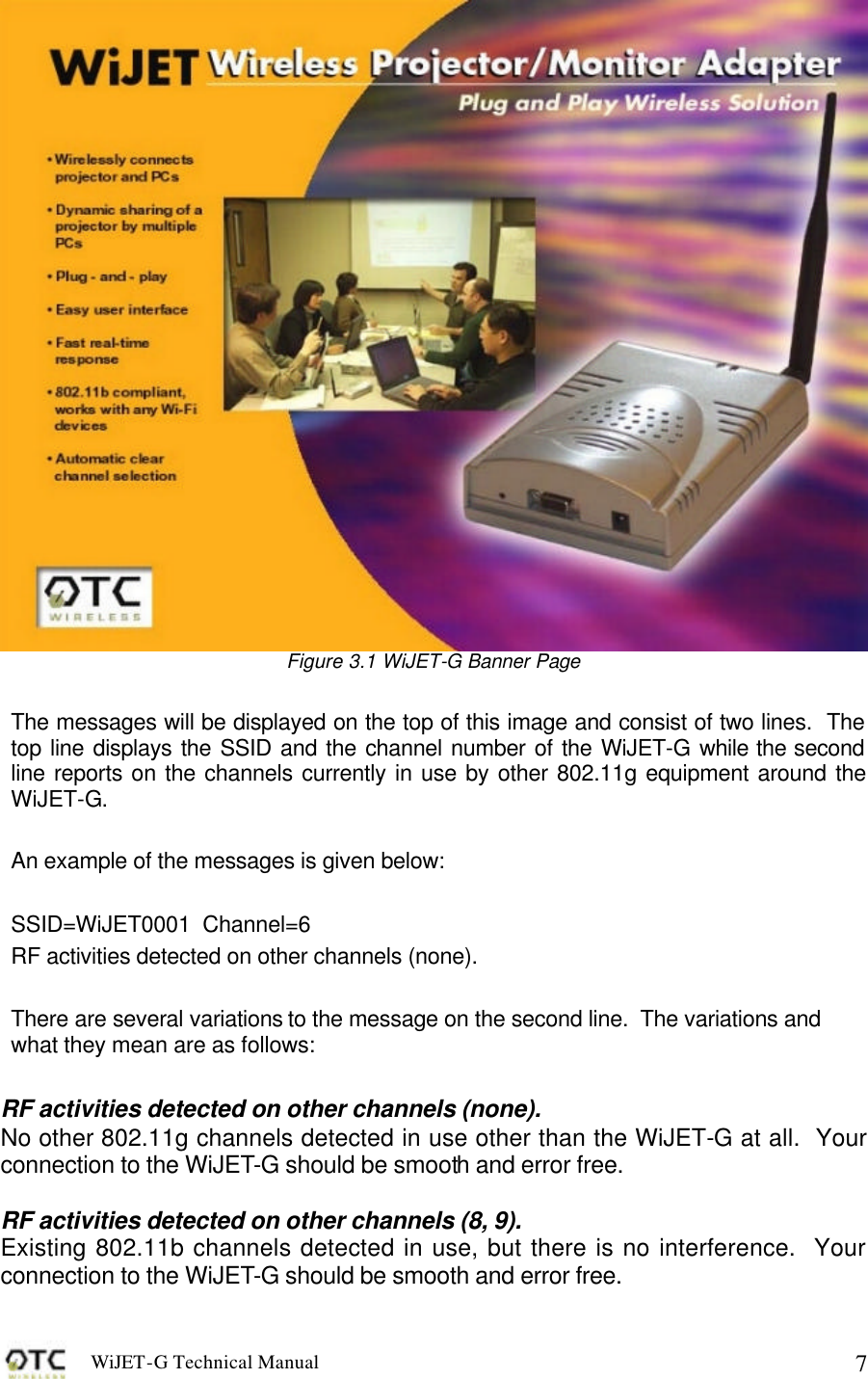
WiJET-G Technical Manual   6Chapter 3: USING WiJET-G 3.1 Using the WiJET-G in a Meeting In addition to the obvious convenience with wireless connection, the most important benefit of eliminating the VGA cable in using presentation projectors or monitors is to enable fast handover of the projector or monitor control among multiple meeting participants. The WiJET-G Presentation Session Manager (PSM) provides a simple user interface allowing quick rotation of presentation among multiple presenters. The following simple steps sketch out how a successful WiJET-G Wireless Presentation Meeting unfolds:  1. Copies of the WiJET-G installation CD are kept with the WiJET-G in the meeting room. The meeting host, before the presentations start, identifies the meeting participants who do not yet have the WiJET-G Presentation Session Manger installed on their computers and hands them the installation CDs. The participants can either run PSM from the CDs or install the PSM onto their system. The installation is automatic and does not require rebooting the computer. 2. The meeting host asks all meeting participants to establish a wireless connection to the WiJET-G before the meeting starts. Most participants can accomplish this by clicking just one button. This wireless connection is kept alive throughout the meeting even if only one presenter can use the projector or monitor at a given time. Confirming wireless connections before the meeting starts assures a smooth presentation session. 3. At any given time, by clicking just one button in the PSM, one designated presenter can start the presentation and exclude other presenters from using the projector/monitor. 4. At the click of one button in the PSM, the incumbent presenter yields the floor (the projector/monitor) to another presenter while still maintaining a live wireless link to the WiJET-G. 5. At the click of one button in the PSM, a waiting presenter, owing to the already established wireless link, can instantaneously take over the projector/monitor.  The normal meeting etiquettes have to be followed to determine how the control of the projector/monitor should be rotated among presenters. The WiJET-G and its PSM make the rotation easy and quick and thereby make the meeting dynamic.  3.2 Starting the WiJET-G When the WiJET-G is first turned on, a boot up sequence will follow.  After about 30 seconds, the WiJET-G will display the following graphic (Figure 3.1) with a few informative messages.
WiJET-G Technical Manual   7 Figure 3.1 WiJET-G Banner Page  The messages will be displayed on the top of this image and consist of two lines.  The top line displays the SSID and the channel number of the WiJET-G while the second line reports on the channels currently in use by other 802.11g equipment around the WiJET-G.  An example of the messages is given below:  SSID=WiJET0001  Channel=6 RF activities detected on other channels (none).  There are several variations to the message on the second line.  The variations and what they mean are as follows:  RF activities detected on other channels (none). No other 802.11g channels detected in use other than the WiJET-G at all.  Your connection to the WiJET-G should be smooth and error free.  RF activities detected on other channels (8, 9). Existing 802.11b channels detected in use, but there is no interference.  Your connection to the WiJET-G should be smooth and error free.
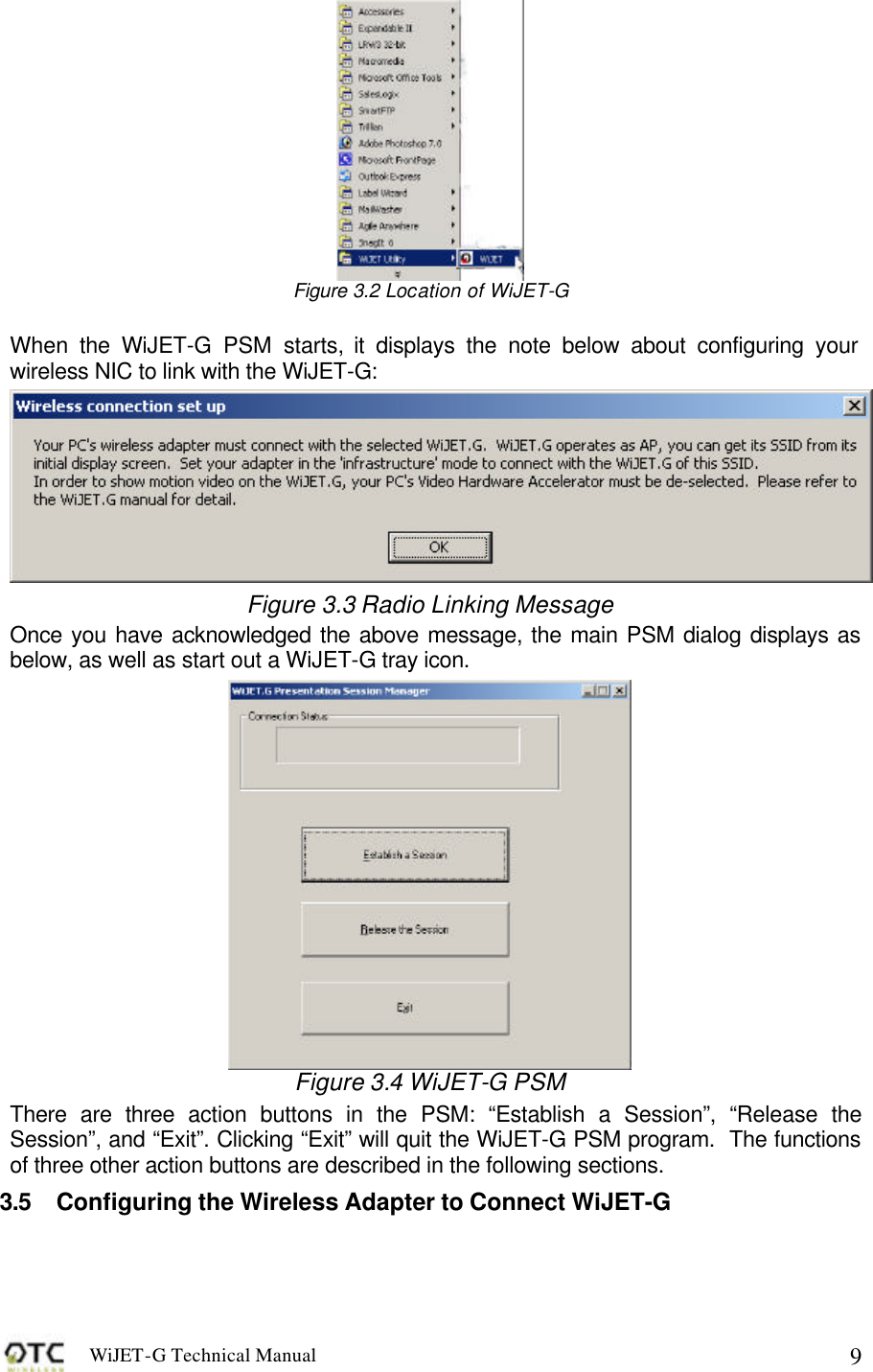
WiJET-G Technical Manual   8  RF activities detected on other channels (1, 5, 8, 11). WARNING: Interference. Existing channels detected and interference found.  The WiJET-G is in a RF noisy environment, you may have trouble connecting and maintaining connections to the WiJET-G even if a connection can be made.  Note:  WiJET-G updates this information whenever the banner page appears. In a noisy environment, channel information might get outdated quickly since the WiJET-G does not monitor channels continuously. Once you have turned the WiJET-G on and noted the above information, you can now configure your computer to connect to the WiJET-G.  3.3 Configuring Computer to Control WiJET-G Before starting the Presentation Session Manager, the network interface of the computer must have a valid IP address. For computers running DHCP client mode while DHCP server is unavailable, it may take a few moments for the computers to obtain a system IP address. If users cannot obtain a valid IP address for the network interface, please refer to any network administration references for how to assign IP address to a network interface/connection.  NOTE:   The computer’s network interface must have a valid IP address before PSM starts. 3.4 Starting WiJET-G Presentation Session Manager You have to start the WiJET-G Presentation Session Manager (PSM) to control the WiJET-G. There are two ways to run the WiJET-G PSM. One is to run the WiJET-G PSM directly from the utility CD while the other is to run a locally installed WiJET-G PSM from a hard-drive.   To run the PSM directly from the utility CD, insert the utility CD into CD-Drive and click the “Run from CD” button in an auto-start window. If the auto-run window does not show up automatically, open My Computer and explore on the CD-Drive where the utility CD is inserted and execute WiJET.exe.   To run the locally installed PSM from a hard-drive, start WiJET-G PSM program located under the Programs Folder in the Windows Start menu, WiJET Utility as shown in Figure 3.2. You can also double-click on the WiJET-G shortcut on Windows desktop to start PSM.
WiJET-G Technical Manual   9 Figure 3.2 Location of WiJET-G    When the WiJET-G PSM starts, it displays the note below about configuring your wireless NIC to link with the WiJET-G:  Figure 3.3 Radio Linking Message Once you have acknowledged the above message, the main PSM dialog displays as below, as well as start out a WiJET-G tray icon.  Figure 3.4 WiJET-G PSM There are three action buttons in the PSM: “Establish a Session”, “Release the Session”, and “Exit”. Clicking “Exit” will quit the WiJET-G PSM program.  The functions of three other action buttons are described in the following sections. 3.5 Configuring the Wireless Adapter to Connect WiJET-G
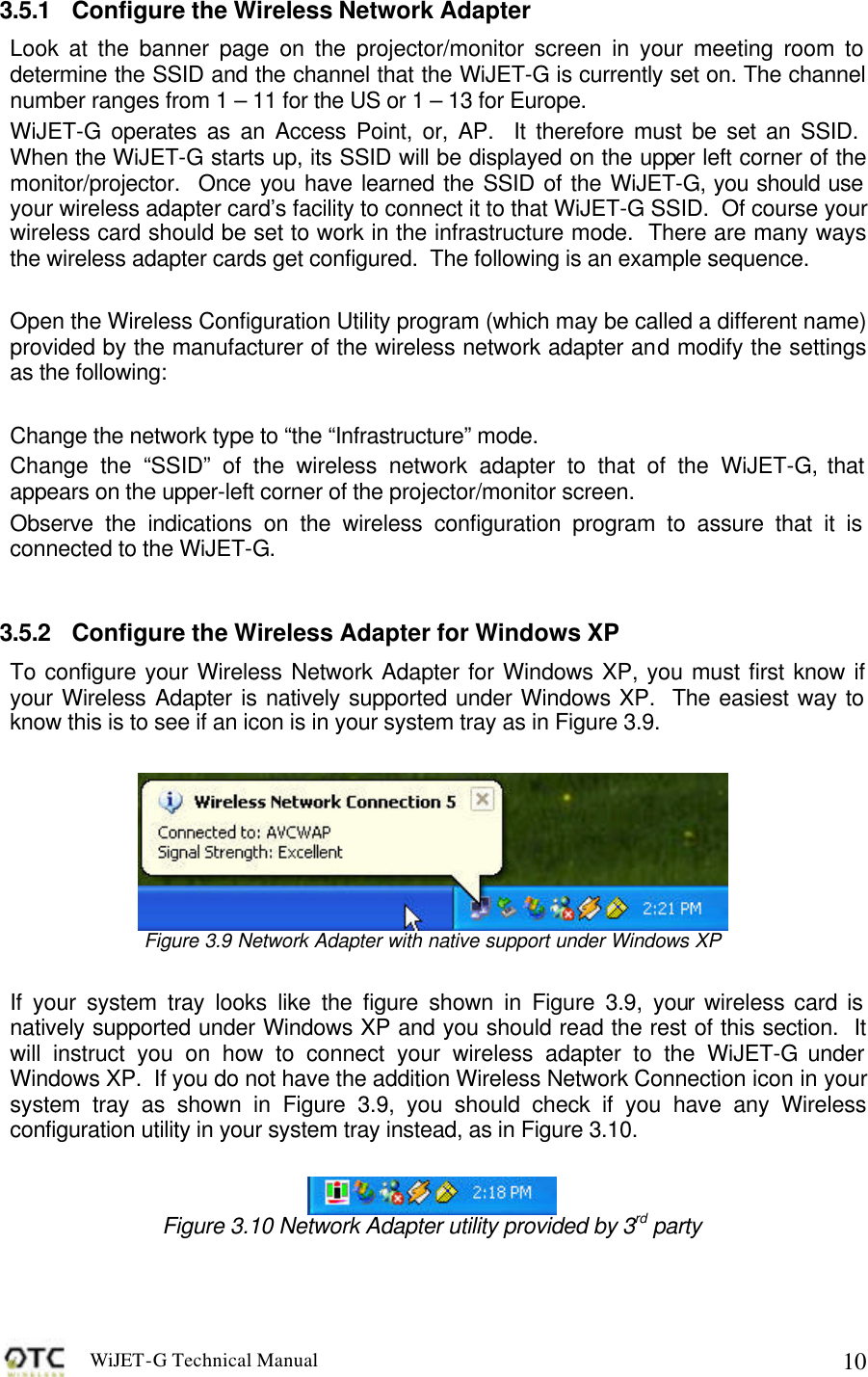
WiJET-G Technical Manual   103.5.1 Configure the Wireless Network Adapter Look at the banner page on the projector/monitor screen in your meeting room to determine the SSID and the channel that the WiJET-G is currently set on. The channel number ranges from 1 – 11 for the US or 1 – 13 for Europe. WiJET-G operates as an Access Point, or, AP.  It therefore must be set an SSID.  When the WiJET-G starts up, its SSID will be displayed on the upper left corner of the monitor/projector.  Once you have learned the SSID of the WiJET-G, you should use your wireless adapter card’s facility to connect it to that WiJET-G SSID.  Of course your wireless card should be set to work in the infrastructure mode.  There are many ways the wireless adapter cards get configured.  The following is an example sequence.  Open the Wireless Configuration Utility program (which may be called a different name) provided by the manufacturer of the wireless network adapter and modify the settings as the following:  Change the network type to “the “Infrastructure” mode. Change the “SSID” of the wireless network adapter to that of the WiJET-G, that appears on the upper-left corner of the projector/monitor screen. Observe the indications on the wireless configuration program to assure that it is connected to the WiJET-G.  3.5.2 Configure the Wireless Adapter for Windows XP  To configure your Wireless Network Adapter for Windows XP, you must first know if your Wireless Adapter is natively supported under Windows XP.  The easiest way to know this is to see if an icon is in your system tray as in Figure 3.9.   Figure 3.9 Network Adapter with native support under Windows XP  If your system tray looks like the figure shown in Figure 3.9, your wireless card is natively supported under Windows XP and you should read the rest of this section.  It will instruct you on how to connect your wireless adapter to the WiJET-G under Windows XP.  If you do not have the addition Wireless Network Connection icon in your system tray as shown in Figure 3.9, you should check if you have any Wireless configuration utility in your system tray instead, as in Figure 3.10.   Figure 3.10 Network Adapter utility provided by 3rd party
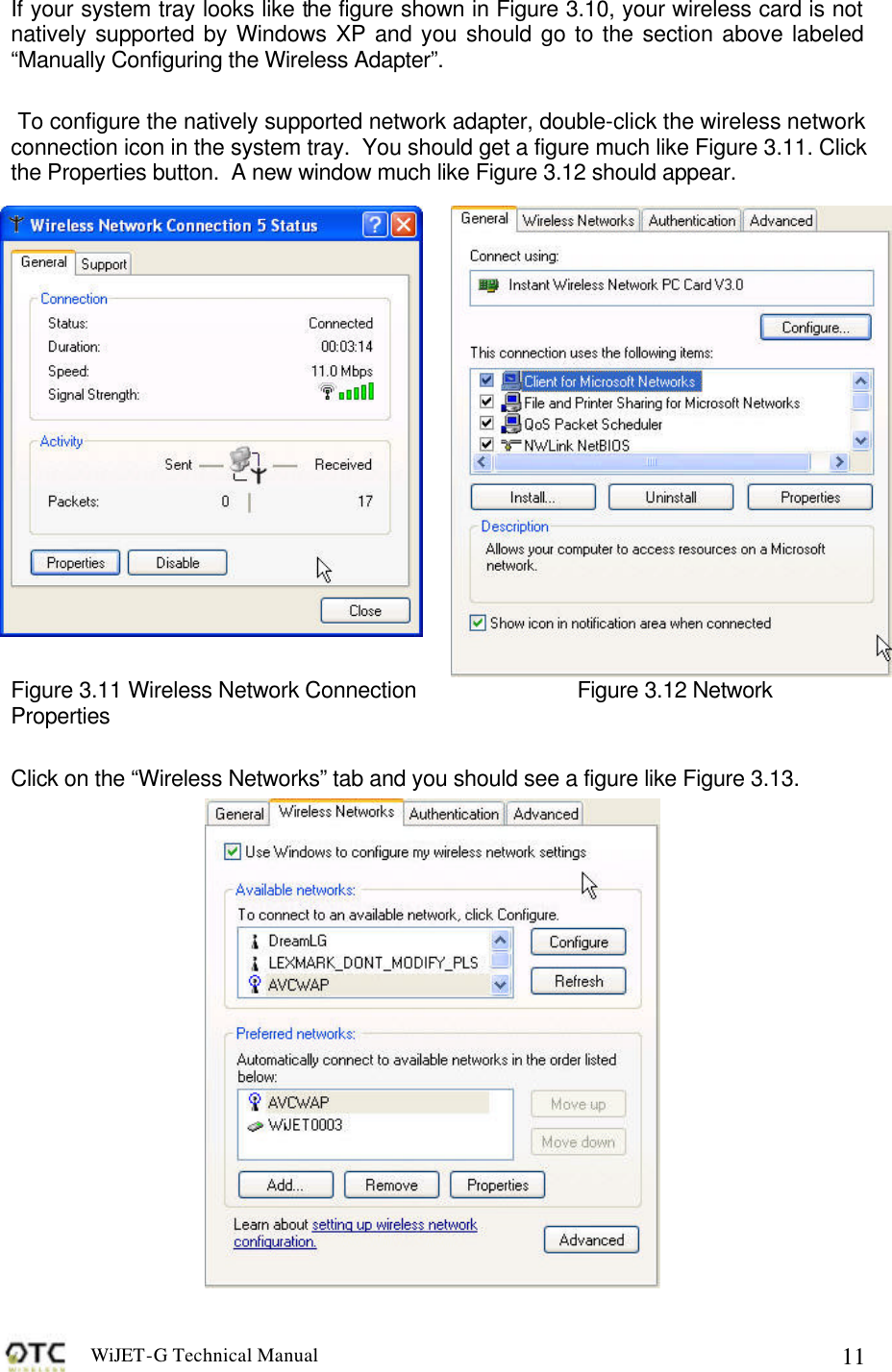
WiJET-G Technical Manual   11If your system tray looks like the figure shown in Figure 3.10, your wireless card is not natively supported by Windows XP and you should go to the section above labeled “Manually Configuring the Wireless Adapter”.     To configure the natively supported network adapter, double-click the wireless network connection icon in the system tray.  You should get a figure much like Figure 3.11. Click the Properties button.  A new window much like Figure 3.12 should appear.  Figure 3.11 Wireless Network Connection   Figure 3.12 Network Properties  Click on the “Wireless Networks” tab and you should see a figure like Figure 3.13.
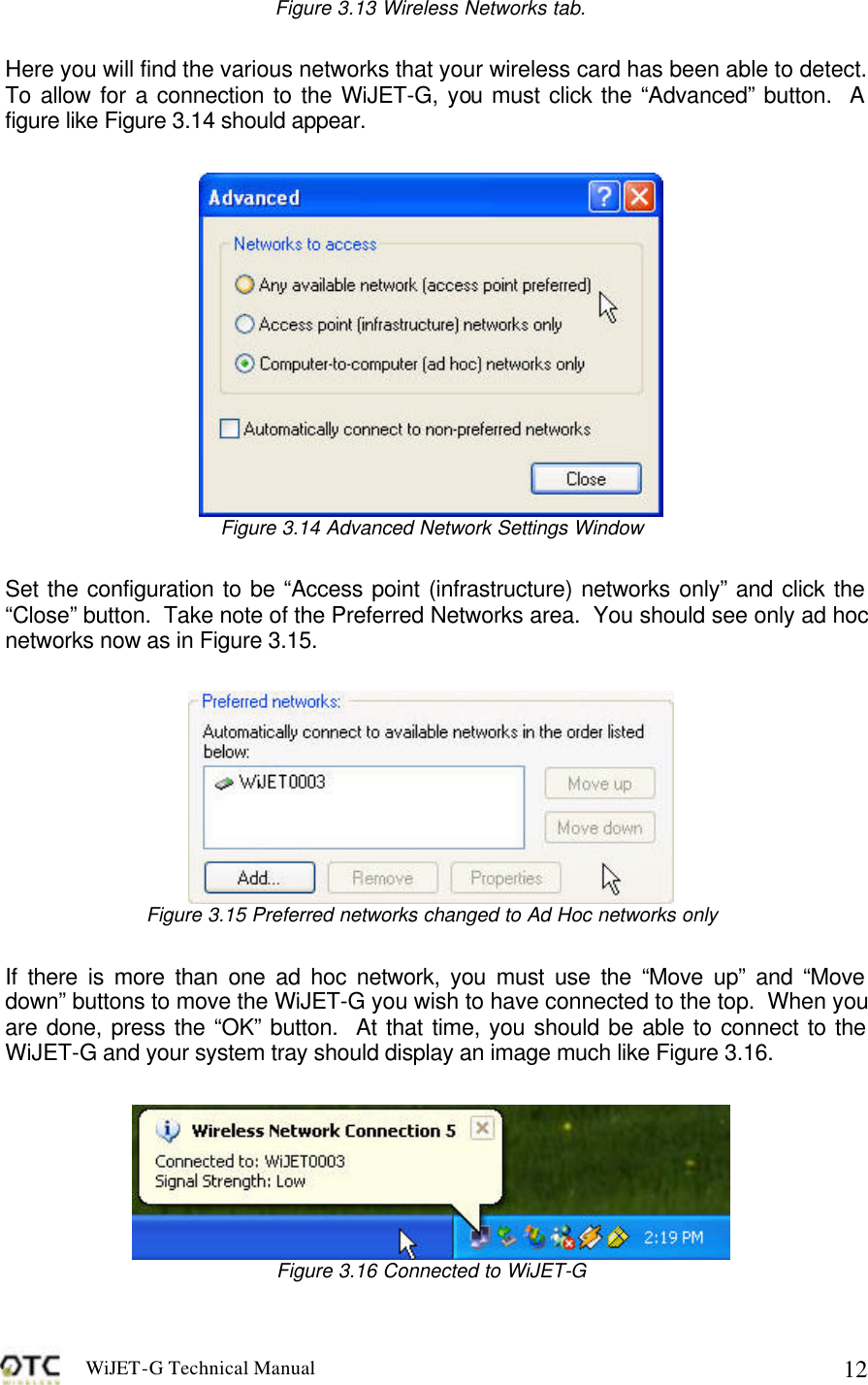
WiJET-G Technical Manual   12Figure 3.13 Wireless Networks tab.  Here you will find the various networks that your wireless card has been able to detect.  To allow for a connection to the WiJET-G, you must click the “Advanced” button.  A figure like Figure 3.14 should appear.   Figure 3.14 Advanced Network Settings Window  Set the configuration to be “Access point (infrastructure) networks only” and click the “Close” button.  Take note of the Preferred Networks area.  You should see only ad hoc networks now as in Figure 3.15.   Figure 3.15 Preferred networks changed to Ad Hoc networks only  If there is more than one ad hoc network, you must use the “Move up” and “Move down” buttons to move the WiJET-G you wish to have connected to the top.  When you are done, press the “OK” button.  At that time, you should be able to connect to the WiJET-G and your system tray should display an image much like Figure 3.16.   Figure 3.16 Connected to WiJET-G
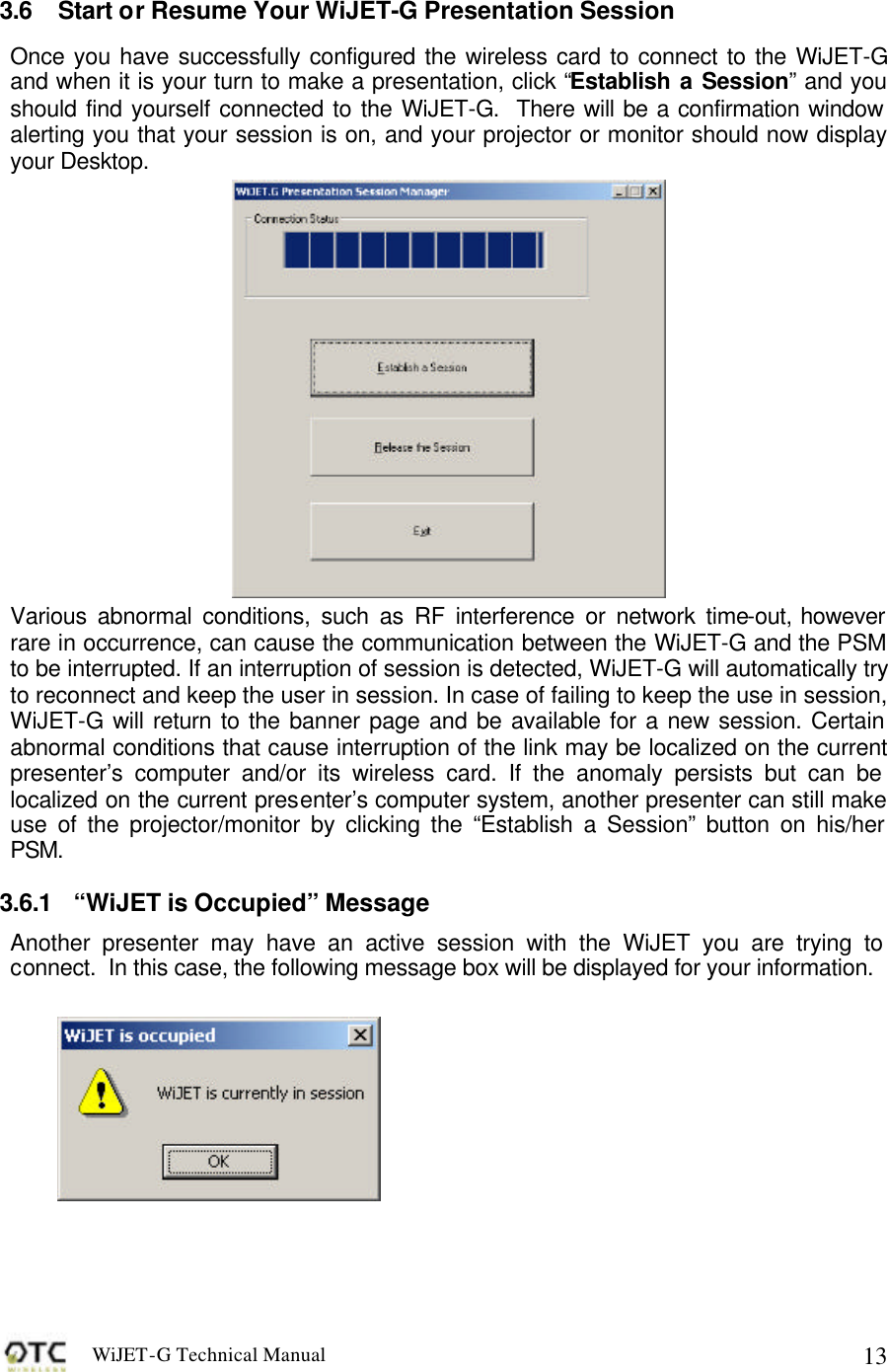
WiJET-G Technical Manual   13 3.6 Start or Resume Your WiJET-G Presentation Session Once you have successfully configured the wireless card to connect to the WiJET-G and when it is your turn to make a presentation, click “Establish a Session” and you should find yourself connected to the WiJET-G.  There will be a confirmation window alerting you that your session is on, and your projector or monitor should now display your Desktop.  Various abnormal conditions, such as RF interference or network time-out, however rare in occurrence, can cause the communication between the WiJET-G and the PSM to be interrupted. If an interruption of session is detected, WiJET-G will automatically try to reconnect and keep the user in session. In case of failing to keep the use in session, WiJET-G will return to the banner page and be available for a new session. Certain abnormal conditions that cause interruption of the link may be localized on the current presenter’s computer and/or its wireless card. If the anomaly persists but can be localized on the current presenter’s computer system, another presenter can still make use of the projector/monitor by clicking the “Establish a Session” button on his/her PSM. 3.6.1 “WiJET is Occupied” Message Another presenter may have an active session with the WiJET you are trying to connect.  In this case, the following message box will be displayed for your information.
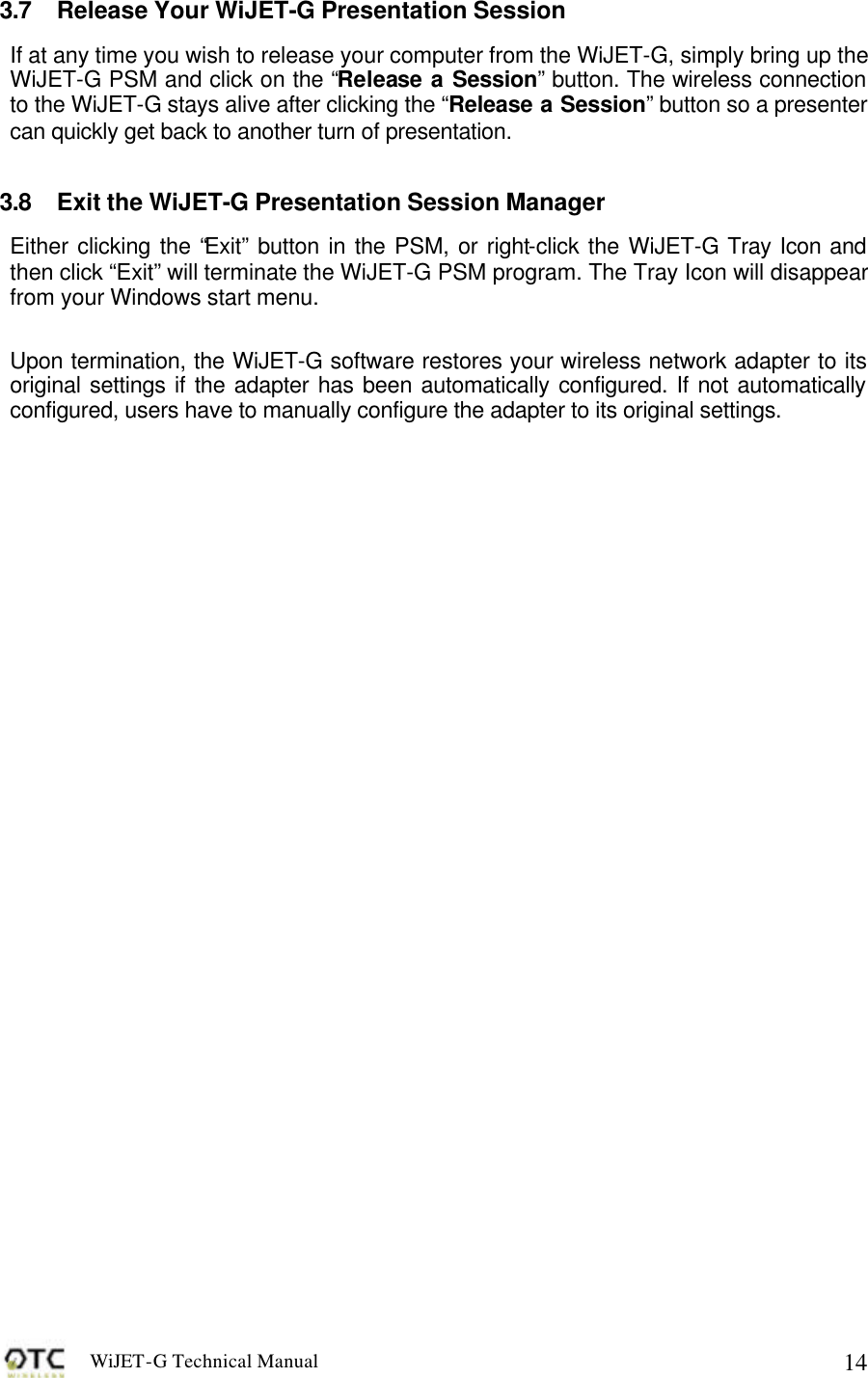
WiJET-G Technical Manual   143.7 Release Your WiJET-G Presentation Session If at any time you wish to release your computer from the WiJET-G, simply bring up the WiJET-G PSM and click on the “Release a Session” button. The wireless connection to the WiJET-G stays alive after clicking the “Release a Session” button so a presenter can quickly get back to another turn of presentation.  3.8 Exit the WiJET-G Presentation Session Manager Either clicking the “Exit” button in the PSM, or right-click the WiJET-G Tray Icon and then click “Exit” will terminate the WiJET-G PSM program. The Tray Icon will disappear from your Windows start menu.  Upon termination, the WiJET-G software restores your wireless network adapter to its original settings if the adapter has been automatically configured. If not automatically configured, users have to manually configure the adapter to its original settings.
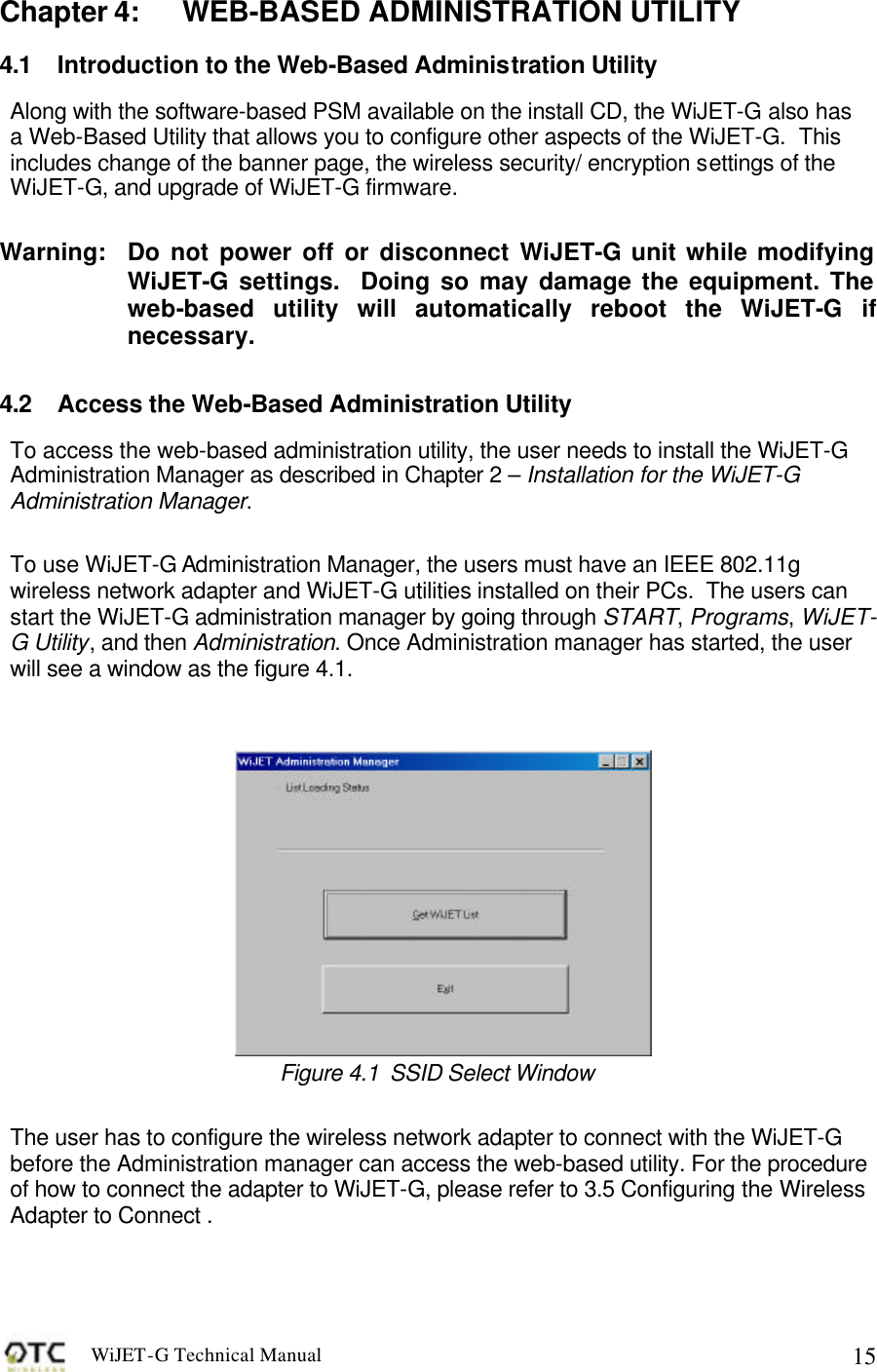
WiJET-G Technical Manual   15Chapter 4: WEB-BASED ADMINISTRATION UTILITY 4.1 Introduction to the Web-Based Administration Utility Along with the software-based PSM available on the install CD, the WiJET-G also has a Web-Based Utility that allows you to configure other aspects of the WiJET-G.  This includes change of the banner page, the wireless security/ encryption settings of the WiJET-G, and upgrade of WiJET-G firmware.   Warning:  Do not power off or disconnect WiJET-G unit while modifying WiJET-G settings.  Doing so may damage the equipment. The web-based utility will automatically reboot the WiJET-G if necessary.  4.2 Access the Web-Based Administration Utility To access the web-based administration utility, the user needs to install the WiJET-G Administration Manager as described in Chapter 2 – Installation for the WiJET-G Administration Manager.    To use WiJET-G Administration Manager, the users must have an IEEE 802.11g wireless network adapter and WiJET-G utilities installed on their PCs.  The users can start the WiJET-G administration manager by going through START, Programs, WiJET-G Utility, and then Administration. Once Administration manager has started, the user will see a window as the figure 4.1.    Figure 4.1  SSID Select Window   The user has to configure the wireless network adapter to connect with the WiJET-G before the Administration manager can access the web-based utility. For the procedure of how to connect the adapter to WiJET-G, please refer to 3.5 Configuring the Wireless Adapter to Connect .
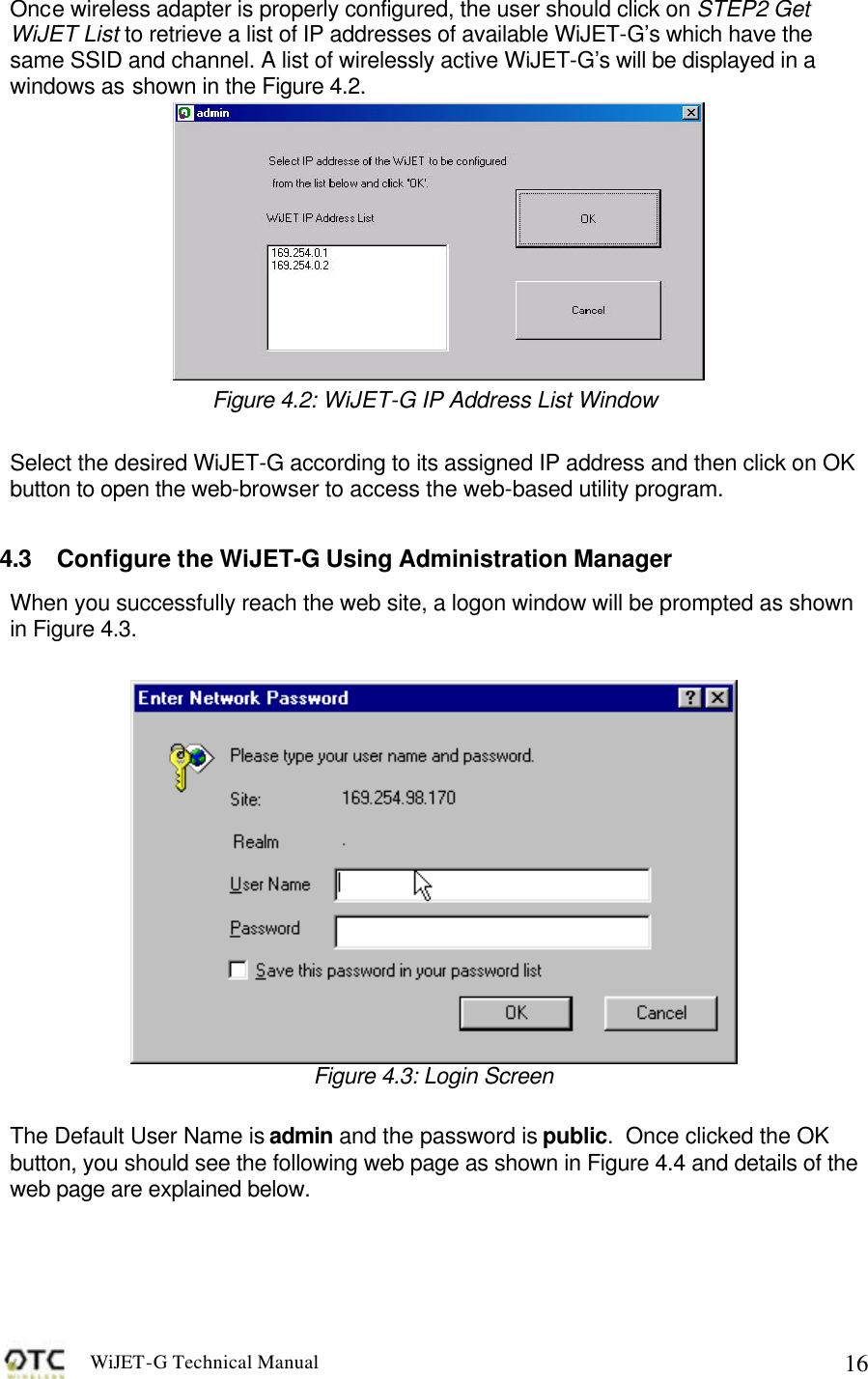
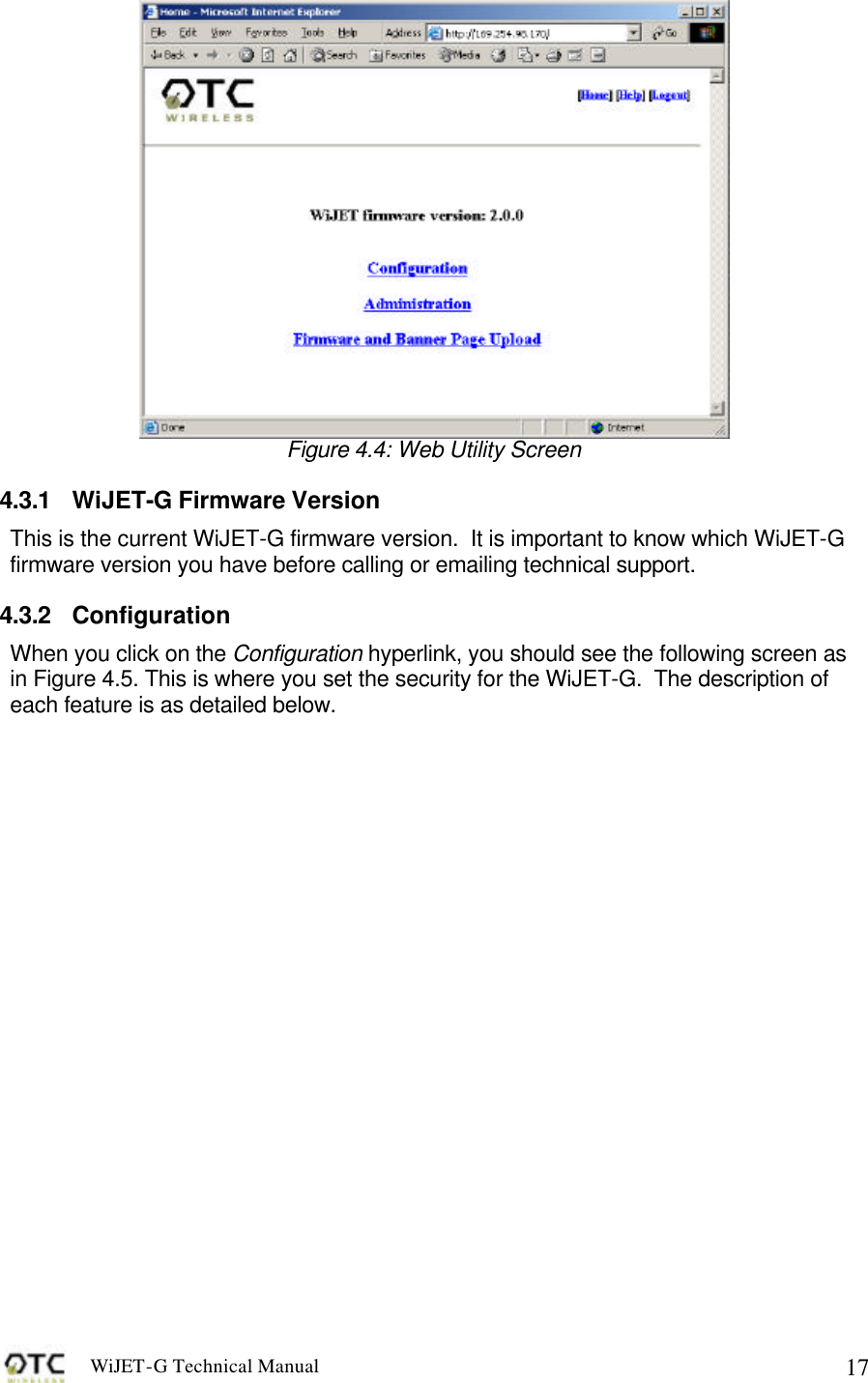
WiJET-G Technical Manual   16Once wireless adapter is properly configured, the user should click on STEP2 Get WiJET List to retrieve a list of IP addresses of available WiJET-G’s which have the same SSID and channel. A list of wirelessly active WiJET-G’s will be displayed in a windows as shown in the Figure 4.2.   Figure 4.2: WiJET-G IP Address List Window  Select the desired WiJET-G according to its assigned IP address and then click on OK button to open the web-browser to access the web-based utility program.  4.3 Configure the WiJET-G Using Administration Manager When you successfully reach the web site, a logon window will be prompted as shown in Figure 4.3.   Figure 4.3: Login Screen  The Default User Name is admin and the password is public.  Once clicked the OK button, you should see the following web page as shown in Figure 4.4 and details of the web page are explained below.
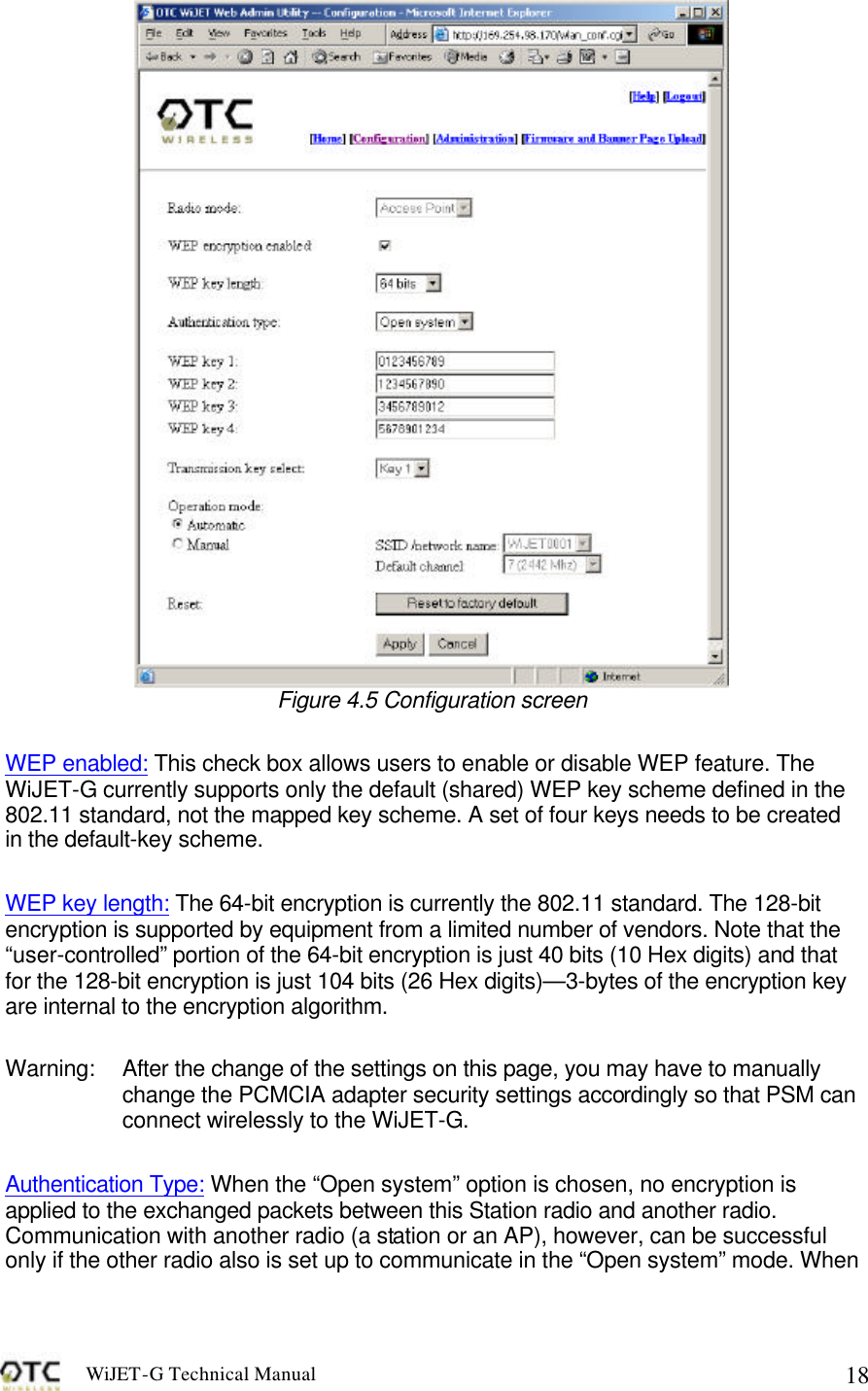
WiJET-G Technical Manual   17 Figure 4.4: Web Utility Screen 4.3.1 WiJET-G Firmware Version This is the current WiJET-G firmware version.  It is important to know which WiJET-G firmware version you have before calling or emailing technical support. 4.3.2 Configuration When you click on the Configuration hyperlink, you should see the following screen as in Figure 4.5. This is where you set the security for the WiJET-G.  The description of each feature is as detailed below.
WiJET-G Technical Manual   18 Figure 4.5 Configuration screen  WEP enabled: This check box allows users to enable or disable WEP feature. The WiJET-G currently supports only the default (shared) WEP key scheme defined in the 802.11 standard, not the mapped key scheme. A set of four keys needs to be created in the default-key scheme.  WEP key length: The 64-bit encryption is currently the 802.11 standard. The 128-bit encryption is supported by equipment from a limited number of vendors. Note that the “user-controlled” portion of the 64-bit encryption is just 40 bits (10 Hex digits) and that for the 128-bit encryption is just 104 bits (26 Hex digits)—3-bytes of the encryption key are internal to the encryption algorithm.  Warning:  After the change of the settings on this page, you may have to manually change the PCMCIA adapter security settings accordingly so that PSM can connect wirelessly to the WiJET-G.  Authentication Type: When the “Open system” option is chosen, no encryption is applied to the exchanged packets between this Station radio and another radio. Communication with another radio (a station or an AP), however, can be successful only if the other radio also is set up to communicate in the “Open system” mode. When
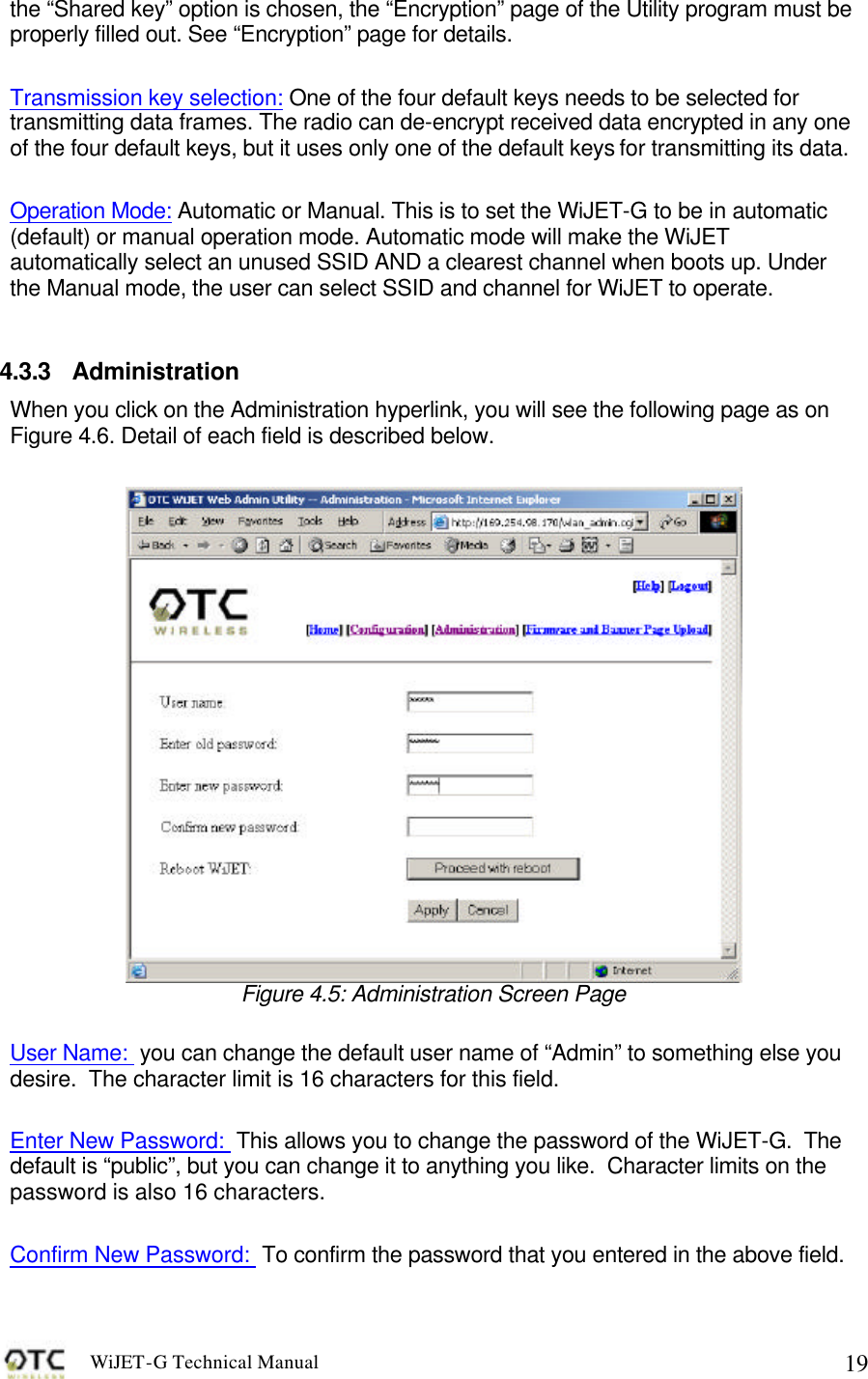
WiJET-G Technical Manual   19the “Shared key” option is chosen, the “Encryption” page of the Utility program must be properly filled out. See “Encryption” page for details.    Transmission key selection: One of the four default keys needs to be selected for transmitting data frames. The radio can de-encrypt received data encrypted in any one of the four default keys, but it uses only one of the default keys for transmitting its data.   Operation Mode: Automatic or Manual. This is to set the WiJET-G to be in automatic (default) or manual operation mode. Automatic mode will make the WiJET automatically select an unused SSID AND a clearest channel when boots up. Under the Manual mode, the user can select SSID and channel for WiJET to operate.   4.3.3 Administration When you click on the Administration hyperlink, you will see the following page as on Figure 4.6. Detail of each field is described below.   Figure 4.5: Administration Screen Page  User Name:  you can change the default user name of “Admin” to something else you desire.  The character limit is 16 characters for this field.    Enter New Password:  This allows you to change the password of the WiJET-G.  The default is “public”, but you can change it to anything you like.  Character limits on the password is also 16 characters.  Confirm New Password:  To confirm the password that you entered in the above field.
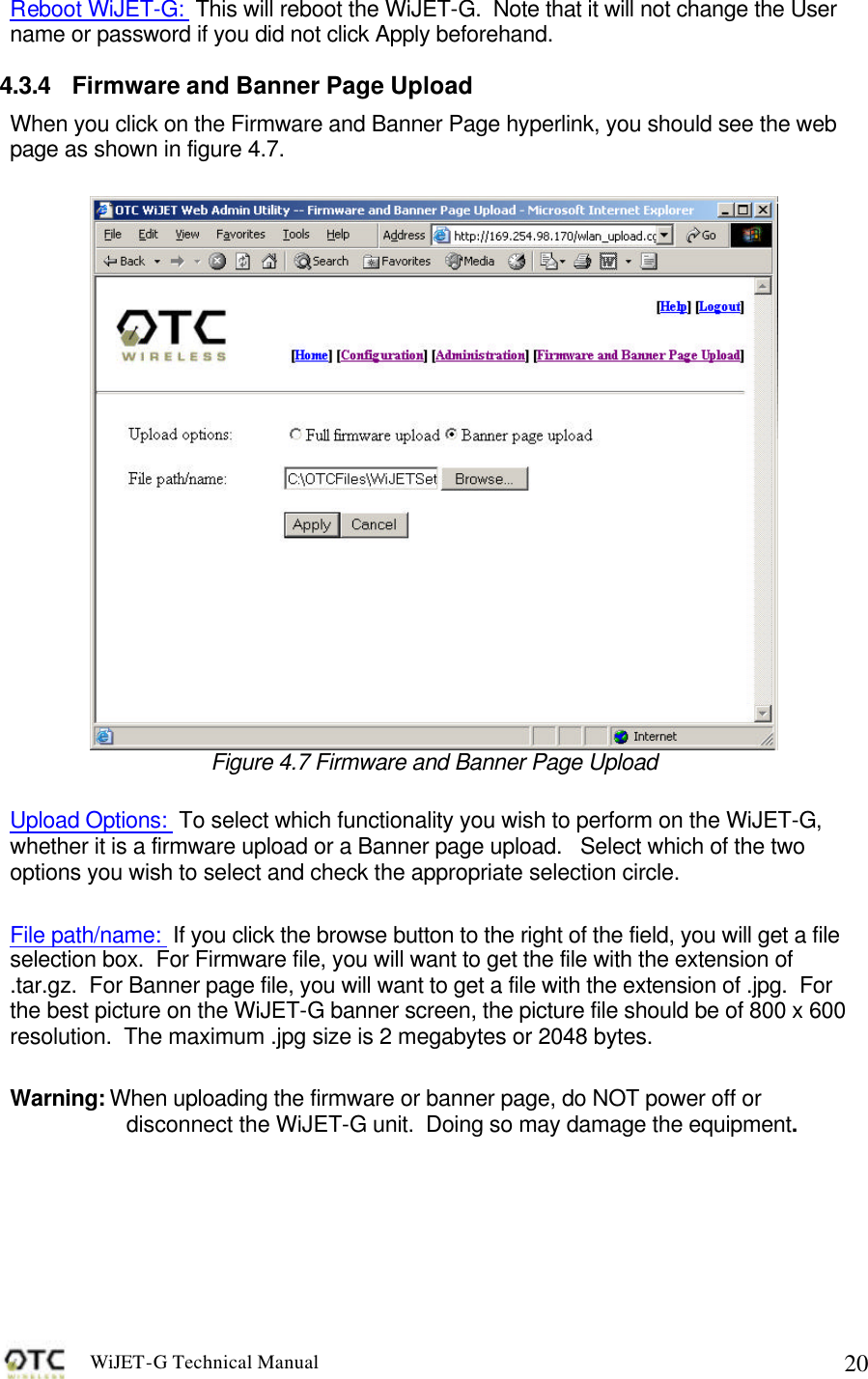
WiJET-G Technical Manual   20Reboot WiJET-G:  This will reboot the WiJET-G.  Note that it will not change the User name or password if you did not click Apply beforehand. 4.3.4 Firmware and Banner Page Upload When you click on the Firmware and Banner Page hyperlink, you should see the web page as shown in figure 4.7.   Figure 4.7 Firmware and Banner Page Upload  Upload Options:  To select which functionality you wish to perform on the WiJET-G, whether it is a firmware upload or a Banner page upload.   Select which of the two options you wish to select and check the appropriate selection circle.  File path/name:  If you click the browse button to the right of the field, you will get a file selection box.  For Firmware file, you will want to get the file with the extension of .tar.gz.  For Banner page file, you will want to get a file with the extension of .jpg.  For the best picture on the WiJET-G banner screen, the picture file should be of 800 x 600 resolution.  The maximum .jpg size is 2 megabytes or 2048 bytes.    Warning: When uploading the firmware or banner page, do NOT power off or disconnect the WiJET-G unit.  Doing so may damage the equipment.
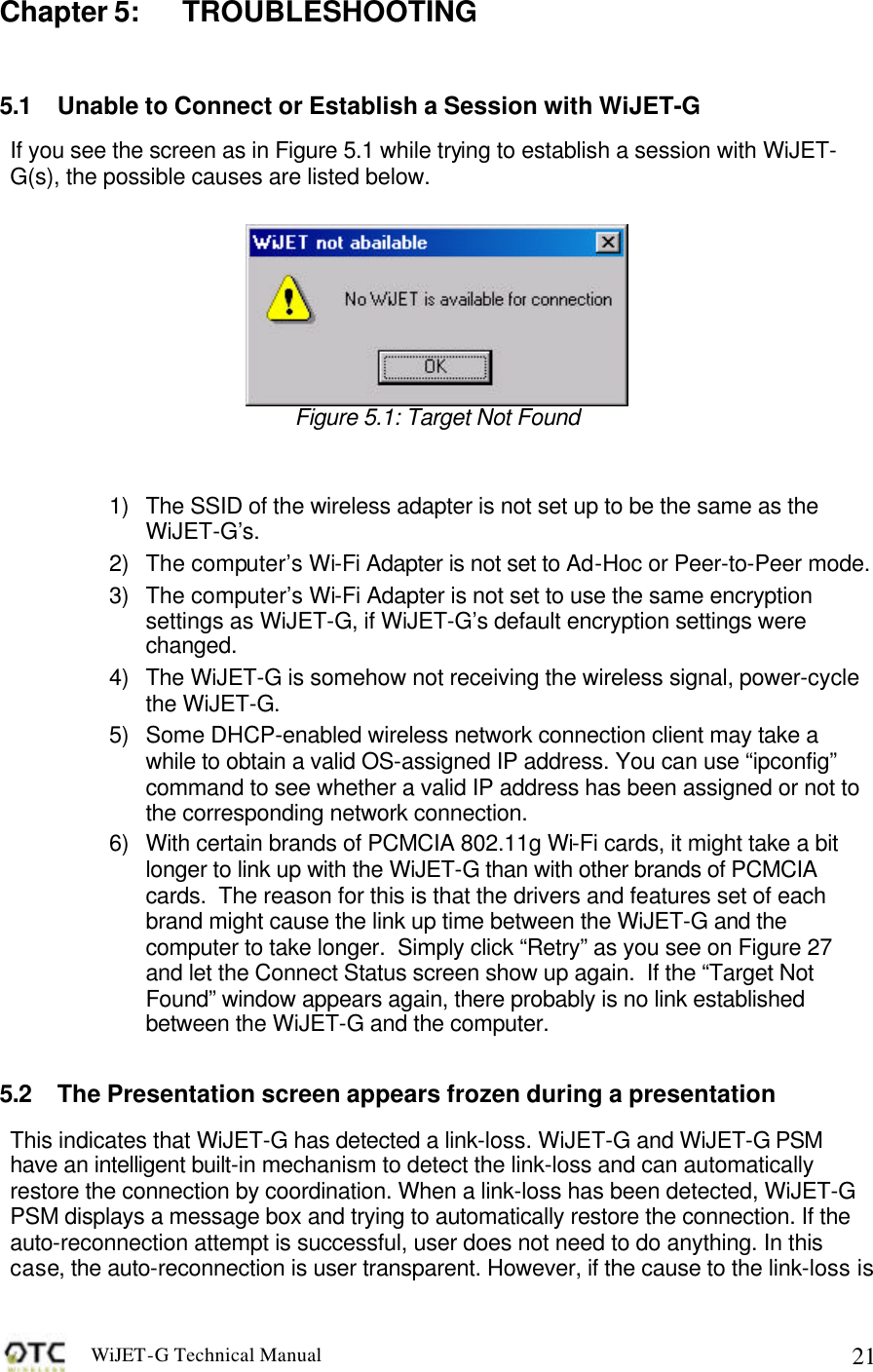
WiJET-G Technical Manual   21Chapter 5: TROUBLESHOOTING  5.1 Unable to Connect or Establish a Session with WiJET-G If you see the screen as in Figure 5.1 while trying to establish a session with WiJET-G(s), the possible causes are listed below.     Figure 5.1: Target Not Found   1) The SSID of the wireless adapter is not set up to be the same as the WiJET-G’s.   2) The computer’s Wi-Fi Adapter is not set to Ad-Hoc or Peer-to-Peer mode. 3) The computer’s Wi-Fi Adapter is not set to use the same encryption settings as WiJET-G, if WiJET-G’s default encryption settings were changed. 4) The WiJET-G is somehow not receiving the wireless signal, power-cycle the WiJET-G. 5) Some DHCP-enabled wireless network connection client may take a while to obtain a valid OS-assigned IP address. You can use “ipconfig” command to see whether a valid IP address has been assigned or not to the corresponding network connection. 6) With certain brands of PCMCIA 802.11g Wi-Fi cards, it might take a bit longer to link up with the WiJET-G than with other brands of PCMCIA cards.  The reason for this is that the drivers and features set of each brand might cause the link up time between the WiJET-G and the computer to take longer.  Simply click “Retry” as you see on Figure 27 and let the Connect Status screen show up again.  If the “Target Not Found” window appears again, there probably is no link established between the WiJET-G and the computer.  5.2 The Presentation screen appears frozen during a presentation This indicates that WiJET-G has detected a link-loss. WiJET-G and WiJET-G PSM have an intelligent built-in mechanism to detect the link-loss and can automatically restore the connection by coordination. When a link-loss has been detected, WiJET-G PSM displays a message box and trying to automatically restore the connection. If the auto-reconnection attempt is successful, user does not need to do anything. In this case, the auto-reconnection is user transparent. However, if the cause to the link-loss is
WiJET-G Technical Manual   22due to physical disconnection, for instance, the PCMCIA card was pulled out,  user needs to restore the physical connection so that the auto-reconnection attempt can succeed. The presentation screen won’t be updated once the link is lost,  unless a reconnection is re-established. However, if link-loss stays for an extended period, the WiJET-G will terminate the reconnection waiting state and display the banner page indicating that a fresh presentation session is ready for being established.   The default duration for a link-loss is 8 seconds.  WiJET-G will retry 3 periods of this duration. If no re-connection is established before the reconnection time running out, WiJET-G returns itself to the banner page.   5.3 The WiJET-G Session is Interrupted During a Presentation This signals that the WiJET-G has detected a link-loss for an extended period of time or severe communication error. Since the WiJET-G is designed to support one presentation at a time, the WiJET-G cleans up the communication error and returns itself to the initial state (where displaying the banner page is a part) of being “available for connection” in order to prevent the WiJET-G from being locked up with one possibly malfunctioning user computer.  With the auto-reconnection feature, this rarely occurs.  When this condition occurs, follow the steps below: 1) The current presenter should click “Establish a Session” to try to resume the presentation. If the presentation is successfully resumed, the abnormal condition is just temporary and no further action is required. 2) If the current presenter failed to resume presentation by clicking “Establish a Session”, another presenter should try to “Establish a Session”. If this new presenter can successfully start a presentation, the problem was localized on the previous presenter’s computer and/or its wireless card. Address that problem after the meeting. 3) If a second presenter also fails to “Establish a Session” to the WiJET-G, a persistent abnormal condition has to be identified. Follow other trouble-shooting tips in this chapter to identify the persistent abnormal condition.  5.4 Radio Interference You may be able to eliminate RF interference by trying the following: • Find the “channel” used by the source of the interference and coordinate your network and the interference source to be on channels that are at least 20MHz, but preferably 30MHz, apart. • Reseat the WiJET-G to a location where the interference is minimized; in general, increase the distance between the wireless computers and the device causing radio interference. • Avoid using 2.4GHz cordless phone in the vicinity of the radio • Keep the computer with the WiJET-G away from the microwave oven and large metal objects. • Consult the dealer or an experienced radio technician for help.
WiJET-G Technical Manual   23 Technical Support Please contact OTC Wireless Technical Support to obtain further assistance.  1-800-770-6698 (USA) 011-510-490-8288 (International) E-mail: support@otcwireless.com
WiJET-G Technical Manual   24Appendix A: LIMITED WARRANTY Wireless LAN Hardware The seller warrants to the end user (“Customer”) that this product will be free from defects in workmanship and materials, under normal use and service, for one (1) year from the date of purchase. The seller’s sole obligation under this express warranty shall be, at the seller’s option and expense, to repair the defective product or part, deliver to Customer an equivalent product or part to replace the defective item.  All products that are replaced will become the property of the seller.  Replacement products may be new or reconditioned.
WiJET-G Technical Manual   25Appendix B: REGULATORY COMPLIANCE The following equipment: Product Name: WiJET-G Wireless Projector/Monitor Adapter Model Number: WiJET-G is herewith confirmed to comply with the requirements of FCC Part 15 rules. The operation is subject to the following two conditions: 1.  This device may not cause harmful interference, and 2.  This device must accept any interference received, including interference that may cause undesired operation. FCC ID: MKZWIJET11G FCC Rules and Regulations - Part 15 Warning: This device has been tested and found to comply with the limits for a Class B digital device pursuant to Part 15 of the Federal Communications Commissions Rules and Regulations. These limits are designed to provide reasonable protection against harmful interference when the equipment is operated in a commercial environment. This equipment generates, uses, and can radiate radio frequency energy and, if not installed and used in accordance with the instruction manual, may cause harmful interference to radio communications. However, there is no guarantee that interference will not occur in a particular installation. If this equipment does cause harmful interference to radio or television reception, which can be determined by turning the equipment off and on, the user is encouraged to try and correct the interference by one or more of the following measures:  .  Relocate your WLAN equipped laptop computer. . Increase the separation between the WLAN equipped laptop computer and other electronics. .  Connect the WLAN equipped laptop computer into an outlet on a circuit different from that of other electronics. .  Consult the dealer or an experienced radio/TV technician for help.  FCC Radiation Exposure Statement This equipment complies with FCC radiation exposure limits set forth for an uncontrolled environment.  This equipment should be installed and operated with minimum distance of 20cm between the radiator & your body.  Caution: Changes or modifications not expressly approved by OTC Wireless could void the user’s authority to operate the equipment.  Warning: This transmitter must not be co-located or operating in conjunction with any other antenna or transmitter.
WiJET-G Technical Manual   26European Community (EC) Directives Conformity and Restrictions This product is in conformity with the protection requirements of EC Council directives 89/336/EEC, 73/23/EEC, and 1999/5/EC on the approximation and harmonization of the laws of the Member States relating to electromagnetic compatibility, safety of electrical equipment designed for use within certain voltage limits and on radio equipment and telecommunications terminal equipment.  Compliance is indicated by the CE marking  . This product satisfies the radio spectrum requirements of EN 300 328-1, the EMC requirements of EN 301 489-17, the safety requirements of EN 60950, and the RF safety requirement of EN 50371.   Industry Canada Compliance Information Statement This device complies with Industry Canada specification RSS-210.  Operation is subject to the following two conditions: (1) this device may not cause interference, and (2) this device must accept any interference, including interference that may cause undesired operation of the device.  To prevent radio interference to the licensed service, this device is intended to be operated indoors and away from windows to provide maximum shielding.  Equipment that is installed outdoors is subject to licensing.

Navigation menu