Ogemray Technology WF5572N4B 300Mbps Wifi Adapter User Manual 54M 150M 300Mbps

Shenzhen Ogemray Technology Co.,Ltd 300Mbps Wifi Adapter 54M 150M 300Mbps

User Manual

User’s Manual Wireless USB Adapter54M/150M/300MbpsUSB WIRELESS ADAPTERUser’s ManualVersion 2.5
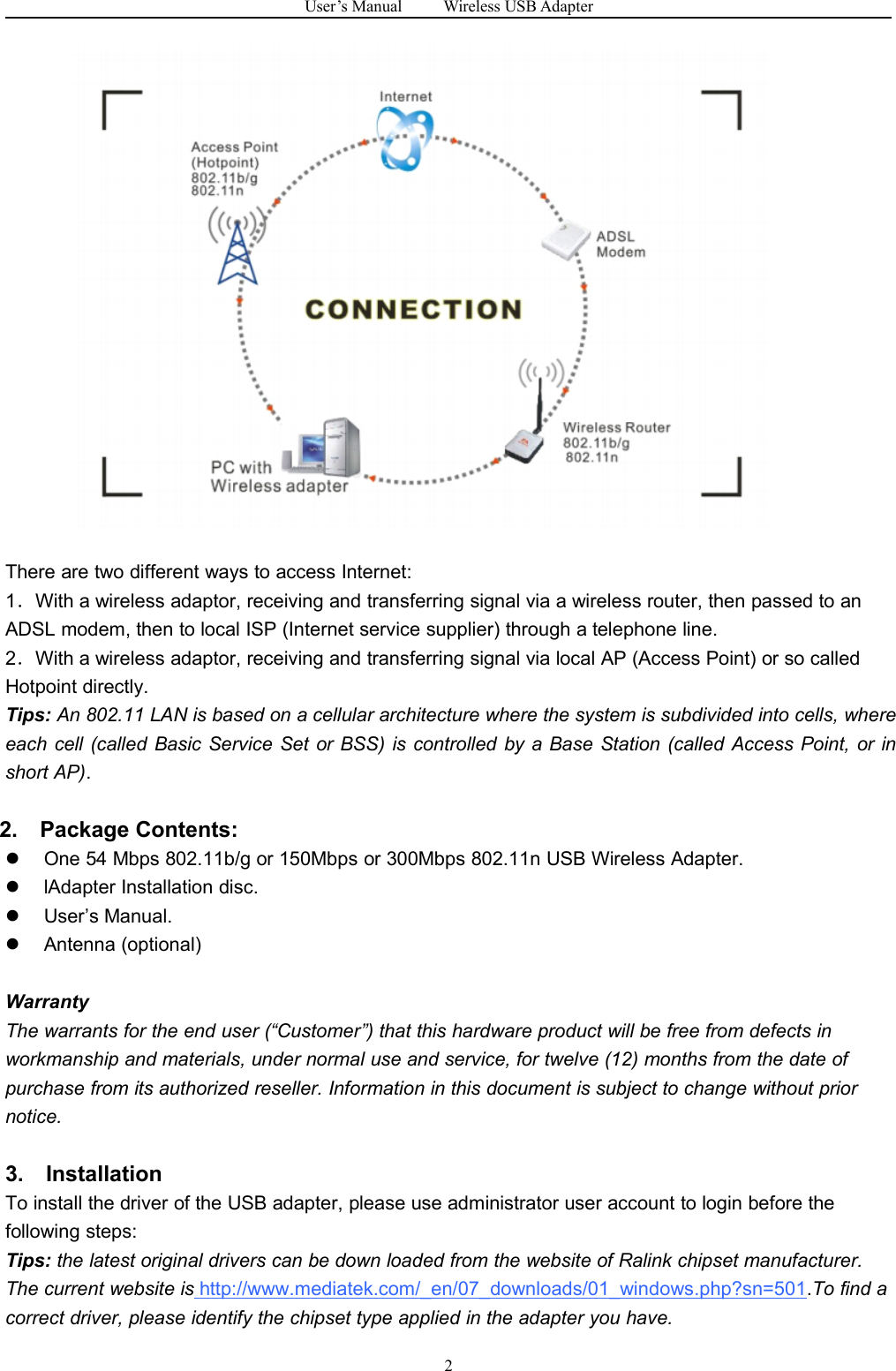
User’s Manual Wireless USB Adapter1Federal Communication Commission Int erference StatementThis equipment has been tested and found to comply with the limits for a Class B digital device, pursuantto Part 15 of the FCC Rules. These limits are designed to provide reasonable protection against harmfulinterference in a residential installation. This equipment generates, uses and can radiate radio frequencyenergy and, if not installed and used in accordance with the instructions, may cause harmful interferenceto radio communications. However, there is no guarantee that interference will not occur in a particularinstallation. If this equipment does cause harmful interference to radio or television reception, which canbe determined by turning the equipment off and on, the user is encouraged to try to correct theinterference by one or more of the following measures:- Reorient or relocate the receiving antenna.- Increase the separation between the equipment and receiver.- Connect the equipment into an outlet on a circuit different from that to which the receiver is connected.- Consult the dealer or an experienced radio/TV technician for help.This device complies with part 15 of the FCC Rules. Operation is subject to the following two conditions:(1) This device may not cause harmful interference, and (2) this device must accept any interferencereceived, including interference that may cause undesired operation.FCC Caution: Any changes or modifications not expressly approved by the party responsible forcompliance could void the user's authority to operate the equipment.The device has been evaluated to meet general RF exposure requirement. The device can be used inportable exposure condition without RF striction.1. IntroductionThank you for purchasing the IEEE 802.11b/g or 802.11n Wireless USB Adapter. This Wireless Adapteris easy to use and easy to setup. If you have been tired of dealing with all those messy wires to connecta laptop or PC to office or home network, this Wireless adapter is an ideal access solution for wirelessInternet connection.A typical Internet access application for the USB wireless adapter is shown as the following figure:
User’s Manual Wireless USB Adapter2There are two different ways to access Internet:1.With a wireless adaptor, receiving and transferring signal via a wireless router, then passed to anADSL modem, then to local ISP (Internet service supplier) through a telephone line.2.With a wireless adaptor, receiving and transferring signal via local AP (Access Point) or so calledHotpoint directly.Tips: An 802.11 LAN is based on a cellular architecture where the system is subdivided into cells, whereeach cell (called Basic Service Set or BSS) is controlled by a Base Station (called Access Point, or inshort AP).2. Package Contents:One 54 Mbps 802.11b/g or 150Mbps or 300Mbps 802.11n USB Wireless Adapter.lAdapter Installation disc.User’s Manual.Antenna (optional)WarrantyThe warrants for the end user (“Customer”) that this hardware product will be free from defects inworkmanship and materials, under normal use and service, for twelve (12) months from the date ofpurchase from its authorized reseller. Information in this document is subject to change without priornotice.3. InstallationTo install the driver of the USB adapter, please use administrator user account to login before thefollowing steps:Tips: the latest original drivers can be down loaded from the website of Ralink chipset manufacturer.The current website is http://www.mediatek.com/_en/07_downloads/01_windows.php?sn=501.To find acorrect driver, please identify the chipset type applied in the adapter you have.
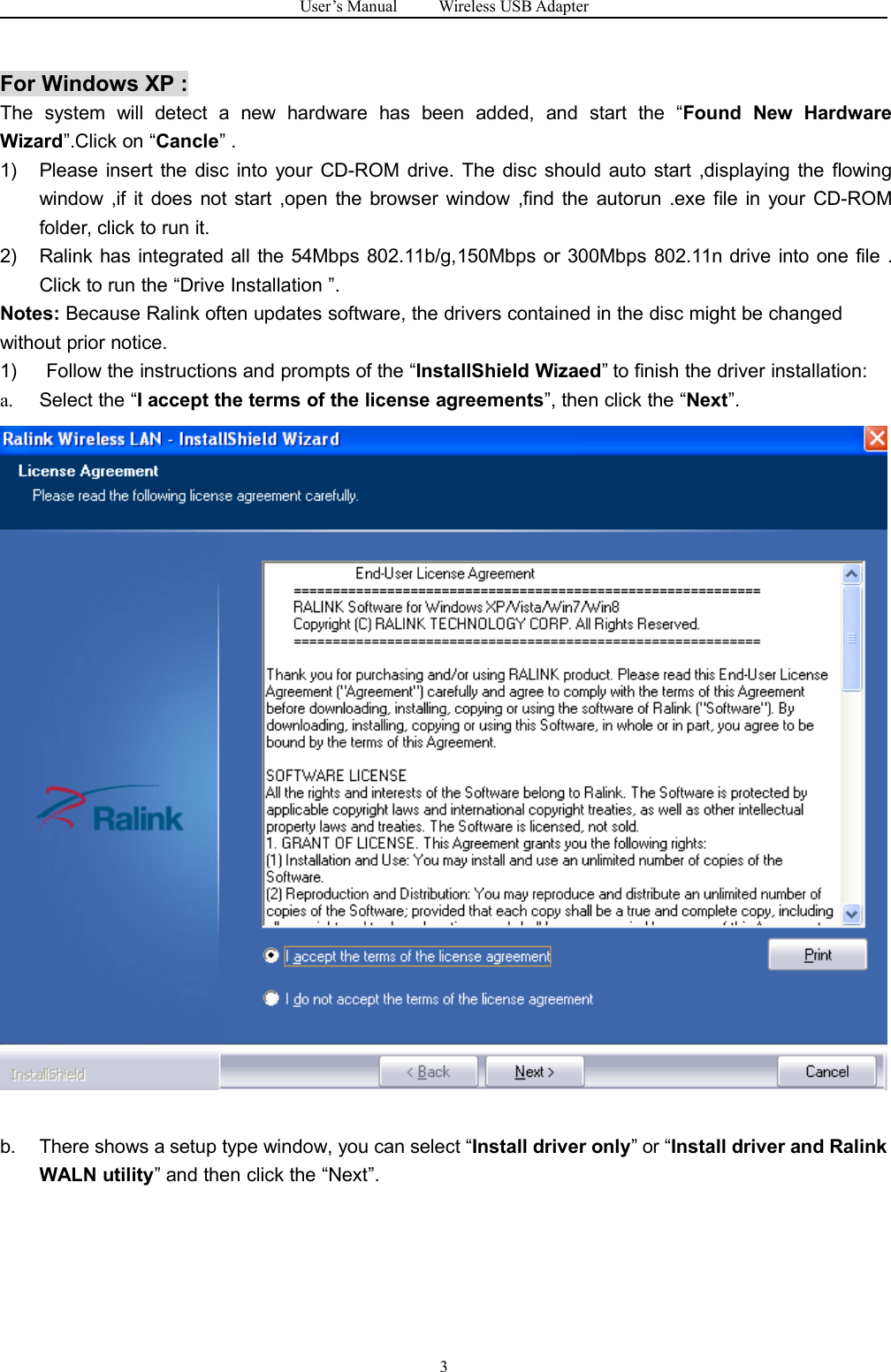
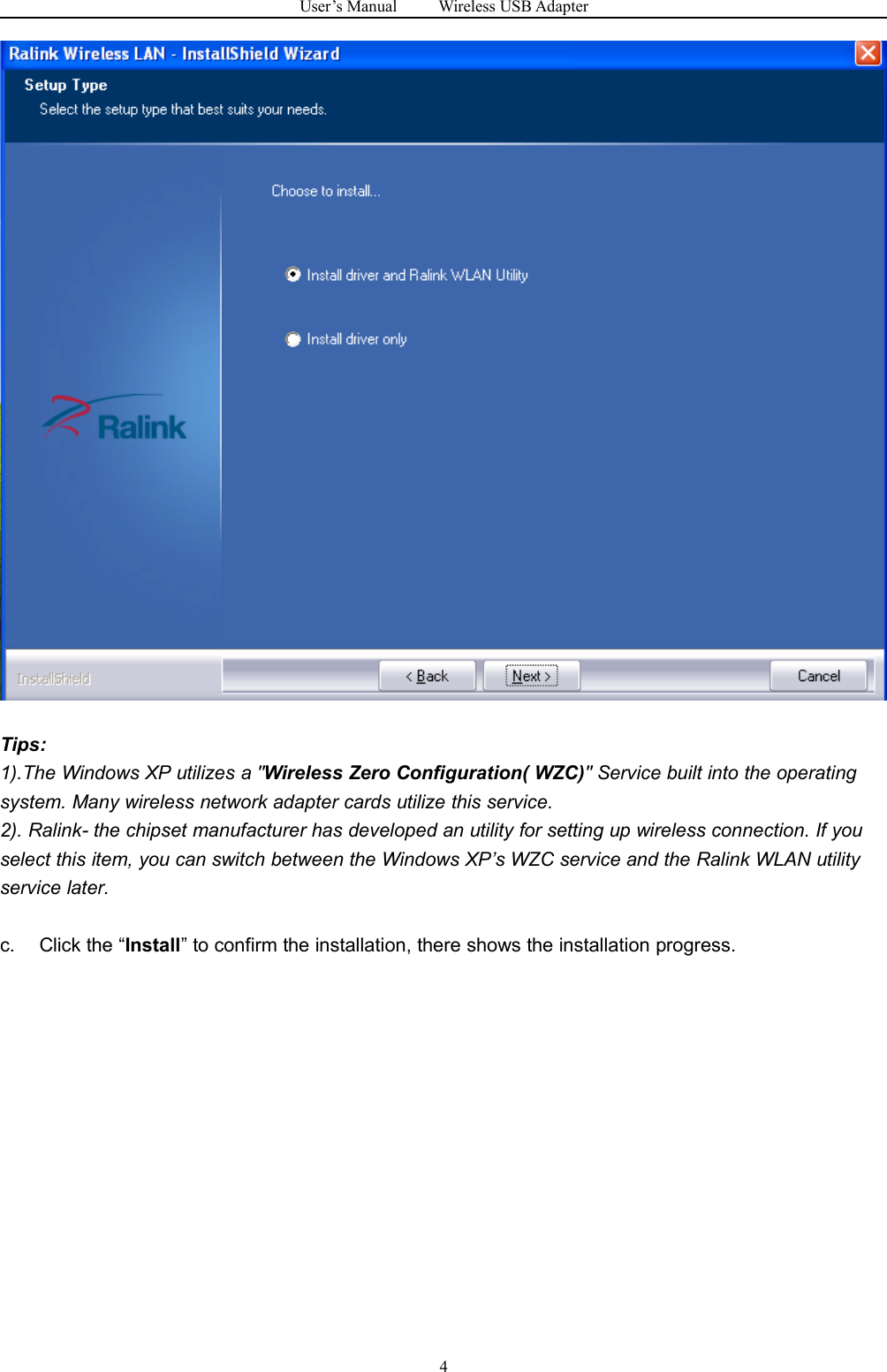
User’s Manual Wireless USB Adapter3For Windows XP :The system will detect a new hardware has been added, and start the “Found New HardwareWizard”.Click on “Cancle” .1) Please insert the disc into your CD-ROM drive. The disc should auto start ,displaying the flowingwindow ,if it does not start ,open the browser window ,find the autorun .exe file in your CD-ROMfolder, click to run it.2) Ralink has integrated all the 54Mbps 802.11b/g,150Mbps or 300Mbps 802.11n drive into one file .Click to run the “Drive Installation ”.Notes: Because Ralink often updates software, the drivers contained in the disc might be changedwithout prior notice.1) Follow the instructions and prompts of the “InstallShield Wizaed” to finish the driver installation:a. Select the “I accept the terms of the license agreements”, then click the “Next”.b. There shows a setup type window, you can select “Install driver only” or “Install driver and RalinkWALN utility” and then click the “Next”.
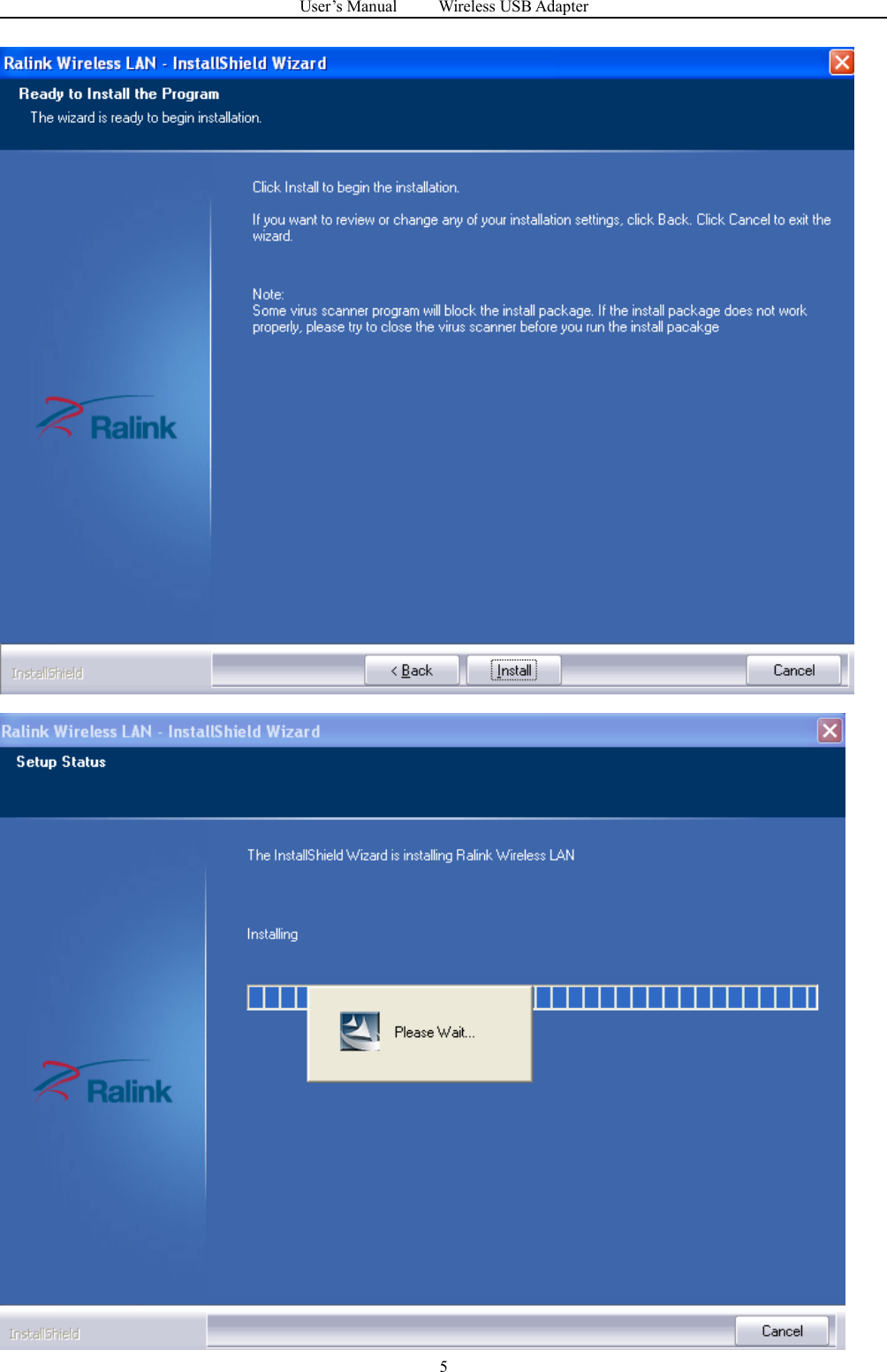
User’s Manual Wireless USB Adapter4Tips:1).The Windows XP utilizes a "Wireless Zero Configuration( WZC)" Service built into the operatingsystem. Many wireless network adapter cards utilize this service.2). Ralink- the chipset manufacturer has developed an utility for setting up wireless connection. If youselect this item, you can switch between the Windows XP’s WZC service and the Ralink WLAN utilityservice later.c. Click the “Install” to confirm the installation, there shows the installation progress.
User’s Manual Wireless USB Adapter5
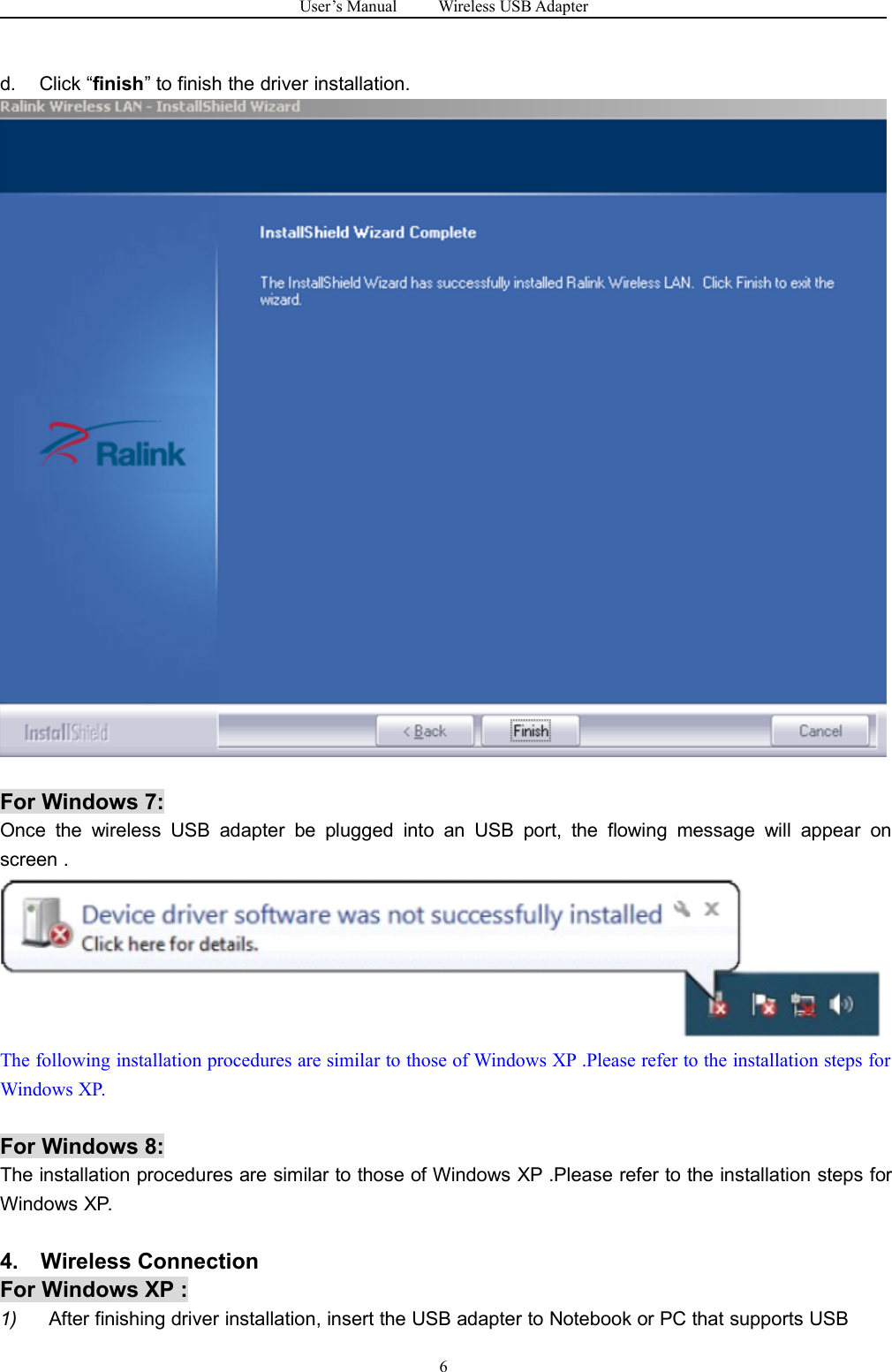
User’s Manual Wireless USB Adapter6d. Click “finish” to finish the driver installation.For Windows 7:Once the wireless USB adapter be plugged into an USB port, the flowing message will appear onscreen .The following installation procedures are similar to those of Windows XP .Please refer to the installation steps forWindows XP.For Windows 8:The installation procedures are similar to those of Windows XP .Please refer to the installation steps forWindows XP.4. Wireless ConnectionFor Windows XP :1) After finishing driver installation, insert the USB adapter to Notebook or PC that supports USB
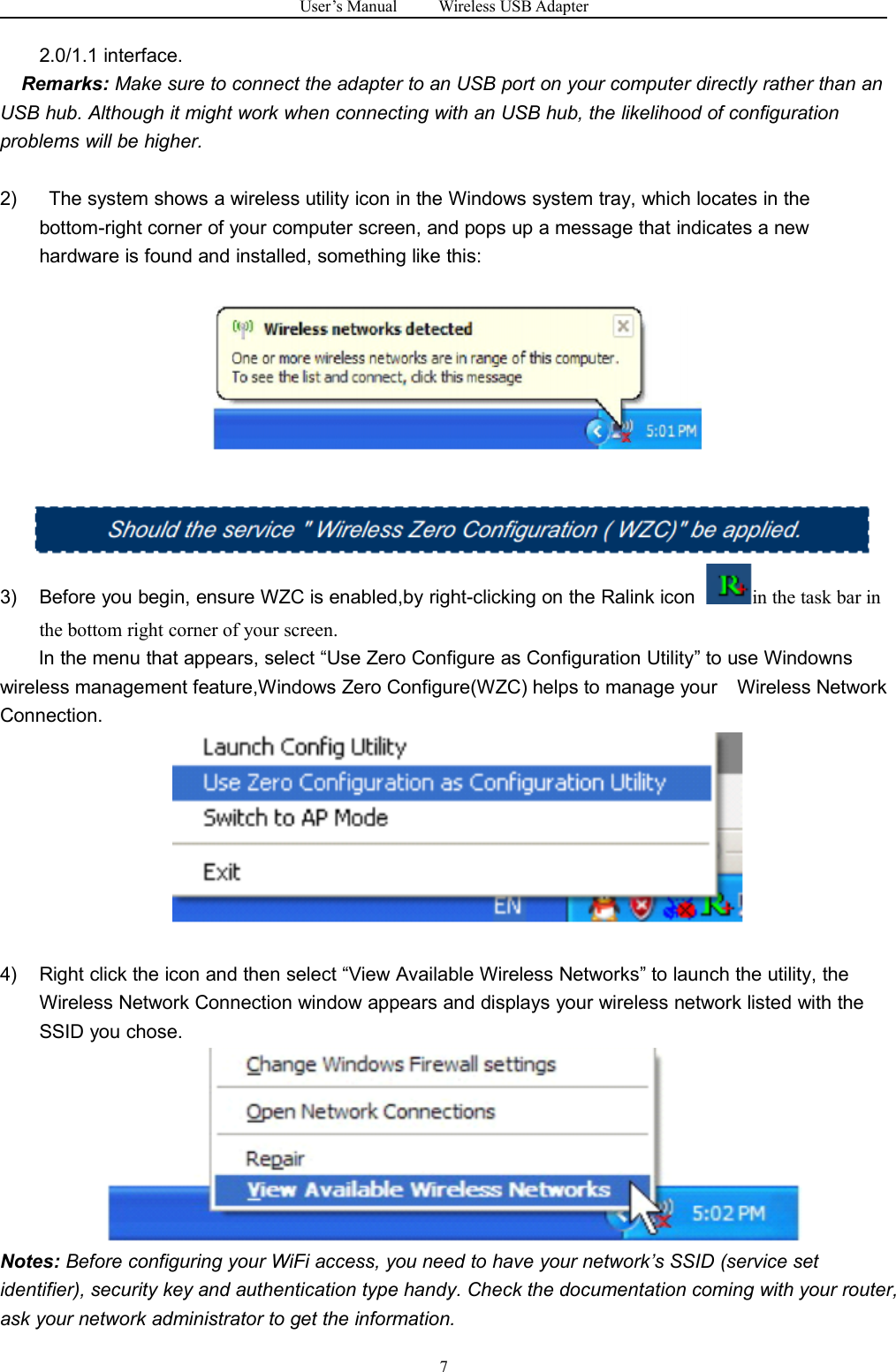
User’s Manual Wireless USB Adapter72.0/1.1 interface.Remarks: Make sure to connect the adapter to an USB port on your computer directly rather than anUSB hub. Although it might work when connecting with an USB hub, the likelihood of configurationproblems will be higher.2) The system shows a wireless utility icon in the Windows system tray, which locates in thebottom-right corner of your computer screen, and pops up a message that indicates a newhardware is found and installed, something like this:3) Before you begin, ensure WZC is enabled,by right-clicking on the Ralink icon in the task bar inthe bottom right corner of your screen.In the menu that appears, select “Use Zero Configure as Configuration Utility” to use Windownswireless management feature,Windows Zero Configure(WZC) helps to manage your Wireless NetworkConnection.4) Right click the icon and then select “View Available Wireless Networks” to launch the utility, theWireless Network Connection window appears and displays your wireless network listed with theSSID you chose.Notes: Before configuring your WiFi access, you need to have your network’s SSID (service setidentifier), security key and authentication type handy. Check the documentation coming with your router,ask your network administrator to get the information.
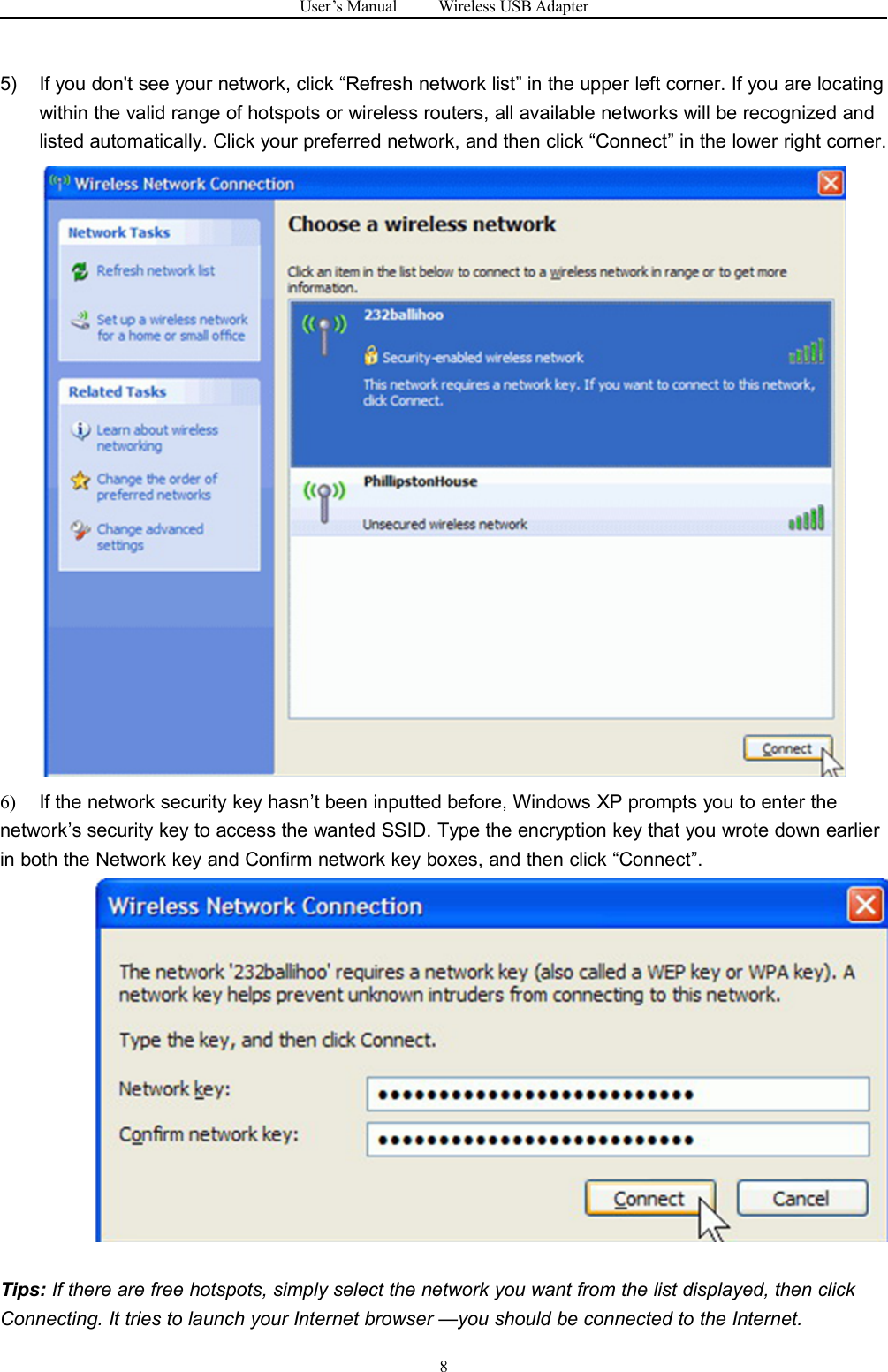
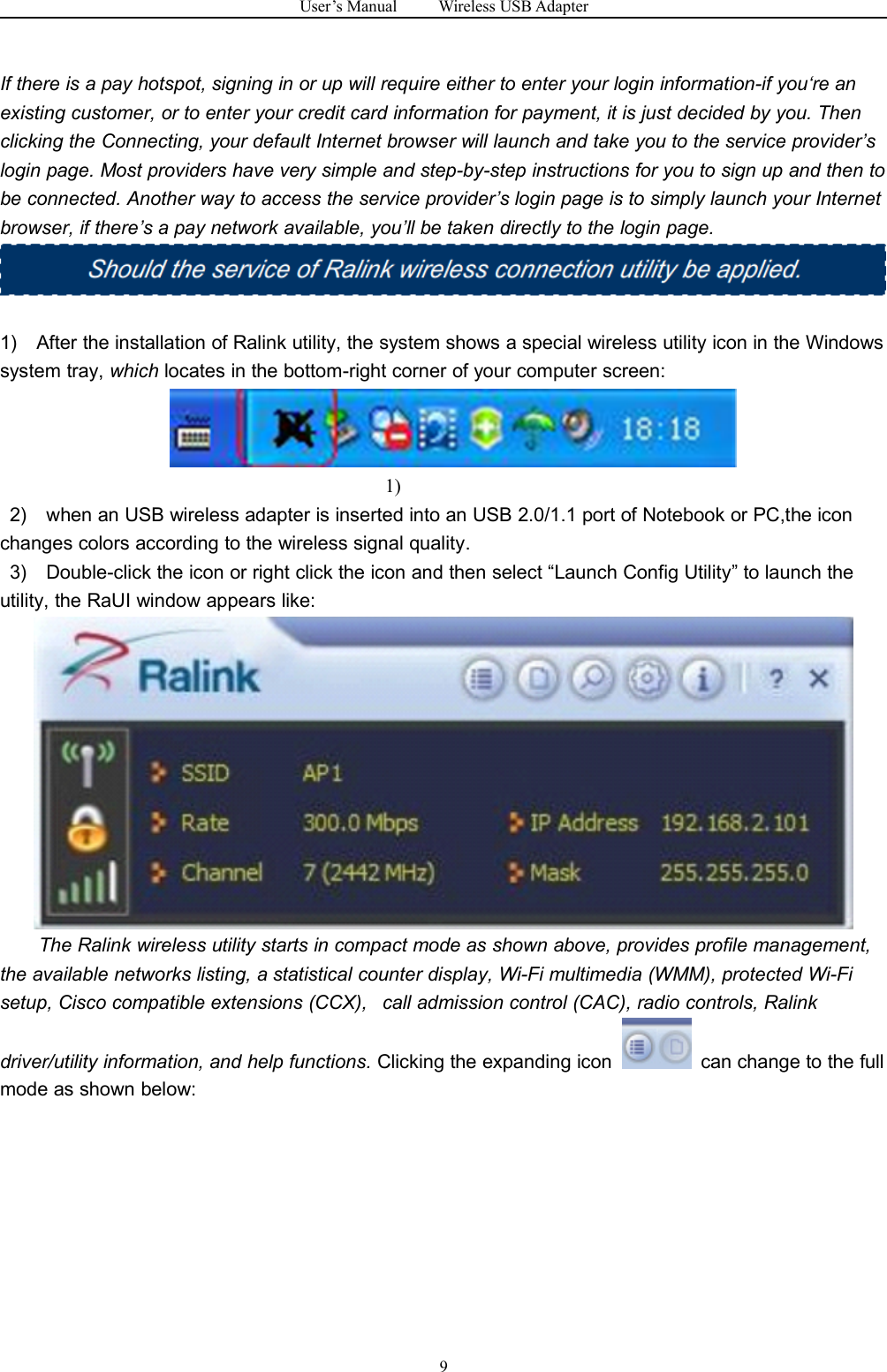
User’s Manual Wireless USB Adapter85) If you don't see your network, click “Refresh network list” in the upper left corner. If you are locatingwithin the valid range of hotspots or wireless routers, all available networks will be recognized andlisted automatically. Click your preferred network, and then click “Connect” in the lower right corner.6) If the network security key hasn’t been inputted before, Windows XP prompts you to enter thenetwork’s security key to access the wanted SSID. Type the encryption key that you wrote down earlierin both the Network key and Confirm network key boxes, and then click “Connect”.Tips: If there are free hotspots, simply select the network you want from the list displayed, then clickConnecting. It tries to launch your Internet browser —you should be connected to the Internet.
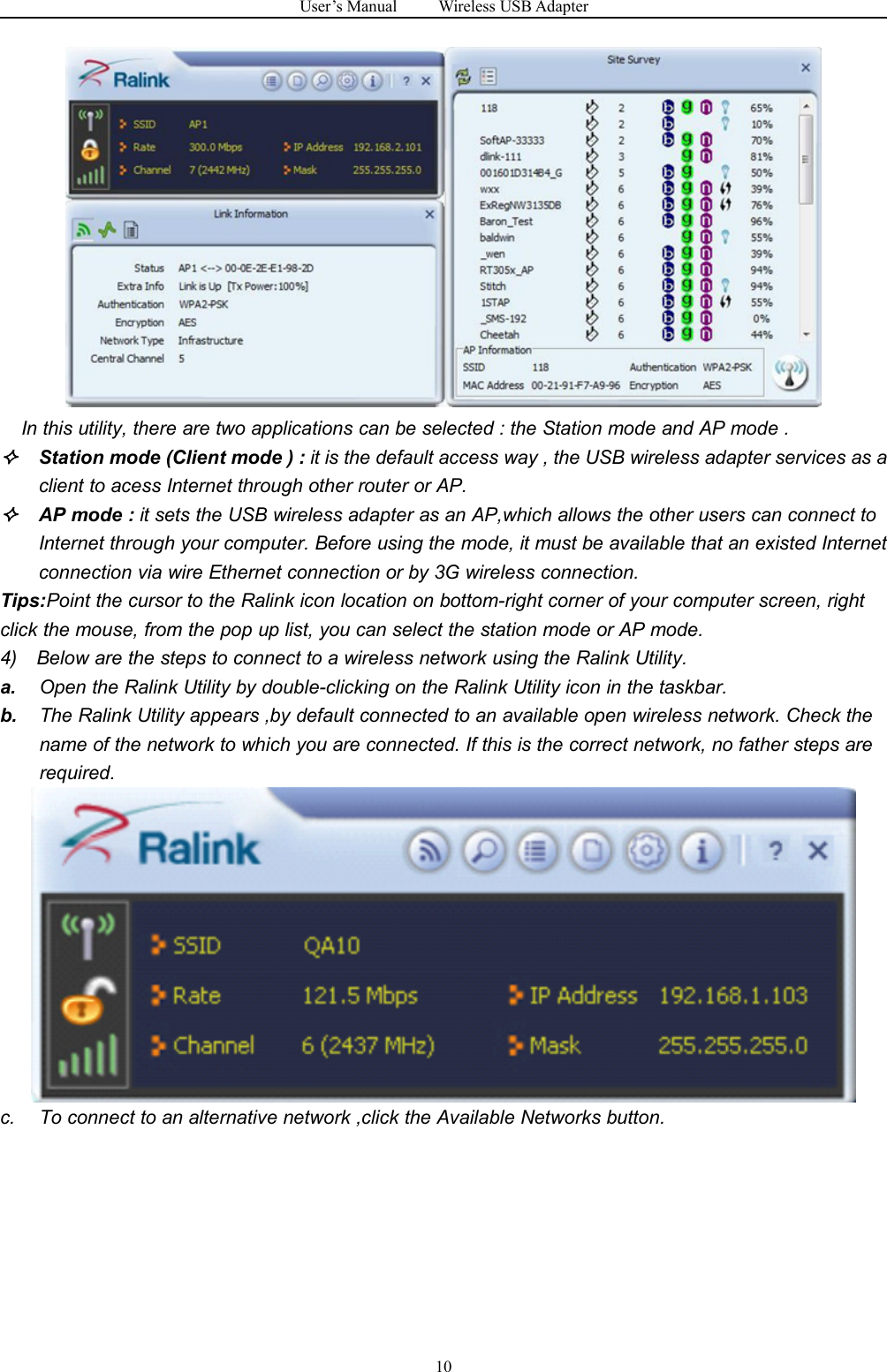
User’s Manual Wireless USB Adapter9If there is a pay hotspot, signing in or up will require either to enter your login information-if you‘re anexisting customer, or to enter your credit card information for payment, it is just decided by you. Thenclicking the Connecting, your default Internet browser will launch and take you to the service provider’slogin page. Most providers have very simple and step-by-step instructions for you to sign up and then tobe connected. Another way to access the service provider’s login page is to simply launch your Internetbrowser, if there’s a pay network available, you’ll be taken directly to the login page.1) After the installation of Ralink utility, the system shows a special wireless utility icon in the Windowssystem tray, which locates in the bottom-right corner of your computer screen:1)2) when an USB wireless adapter is inserted into an USB 2.0/1.1 port of Notebook or PC,the iconchanges colors according to the wireless signal quality.3) Double-click the icon or right click the icon and then select “Launch Config Utility” to launch theutility, the RaUI window appears like:The Ralink wireless utility starts in compact mode as shown above, provides profile management,the available networks listing, a statistical counter display, Wi-Fi multimedia (WMM), protected Wi-Fisetup, Cisco compatible extensions (CCX), call admission control (CAC), radio controls, Ralinkdriver/utility information, and help functions. Clicking the expanding icon can change to the fullmode as shown below:
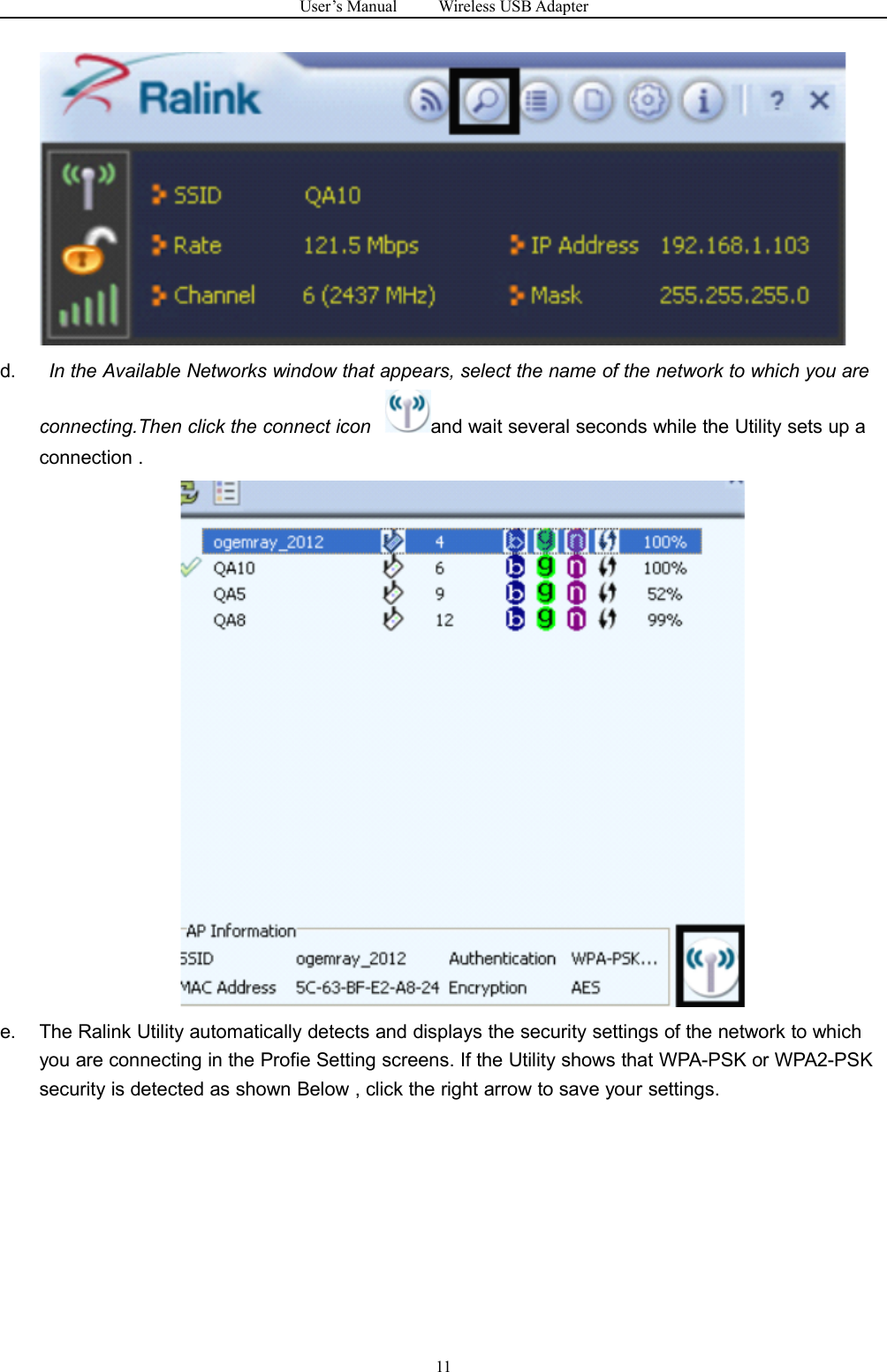
User’s Manual Wireless USB Adapter10In this utility, there are two applications can be selected : the Station mode and AP mode .Station mode (Client mode ) : it is the default access way , the USB wireless adapter services as aclient to acess Internet through other router or AP.AP mode : it sets the USB wireless adapter as an AP,which allows the other users can connect toInternet through your computer. Before using the mode, it must be available that an existed Internetconnection via wire Ethernet connection or by 3G wireless connection.Tips:Point the cursor to the Ralink icon location on bottom-right corner of your computer screen, rightclick the mouse, from the pop up list, you can select the station mode or AP mode.4) Below are the steps to connect to a wireless network using the Ralink Utility.a. Open the Ralink Utility by double-clicking on the Ralink Utility icon in the taskbar.b. The Ralink Utility appears ,by default connected to an available open wireless network. Check thename of the network to which you are connected. If this is the correct network, no father steps arerequired.c. To connect to an alternative network ,click the Available Networks button.
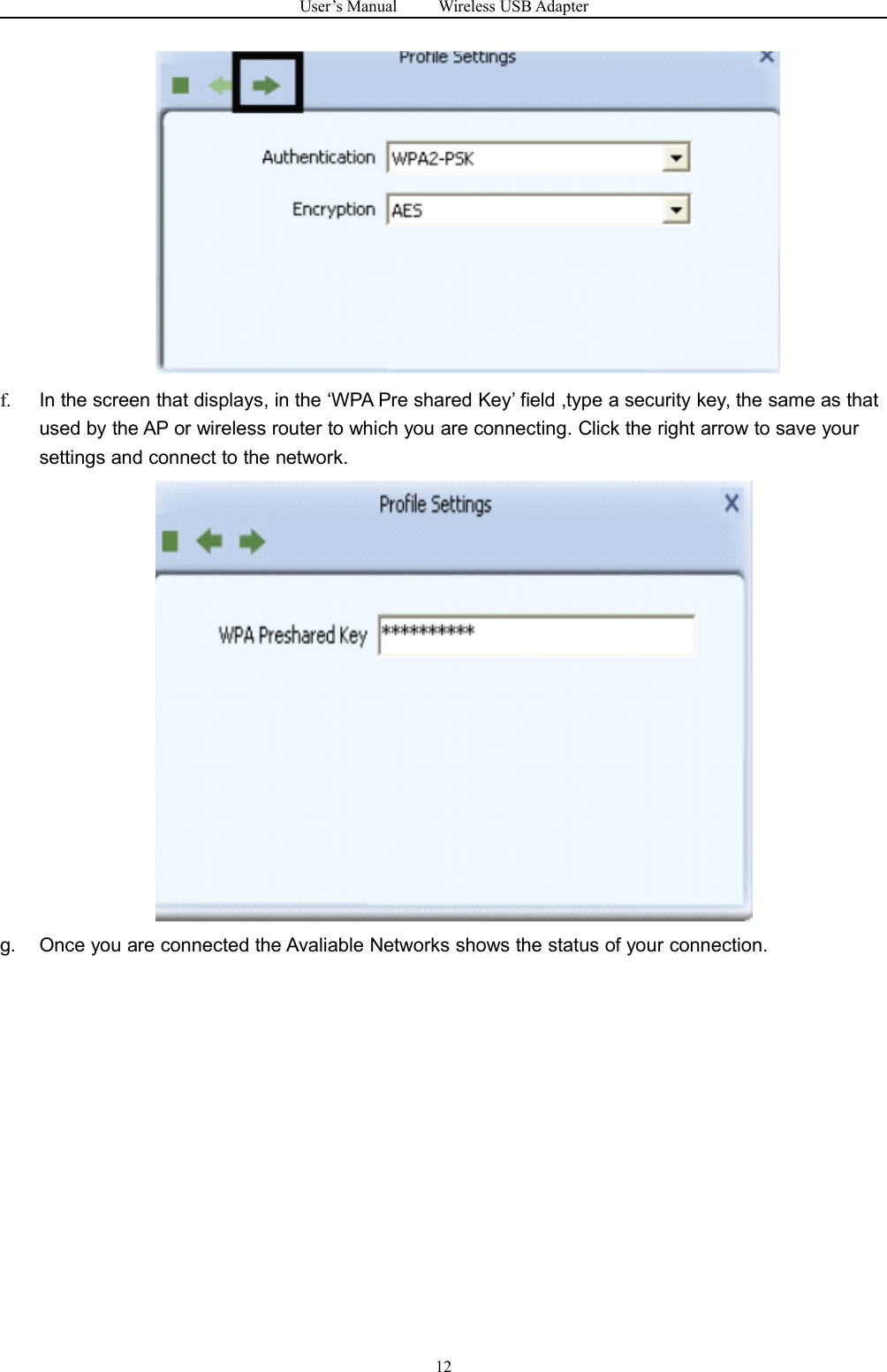
User’s Manual Wireless USB Adapter11d. In the Available Networks window that appears, select the name of the network to which you areconnecting.Then click the connect icon and wait several seconds while the Utility sets up aconnection .e. The Ralink Utility automatically detects and displays the security settings of the network to whichyou are connecting in the Profie Setting screens. If the Utility shows that WPA-PSK or WPA2-PSKsecurity is detected as shown Below , click the right arrow to save your settings.
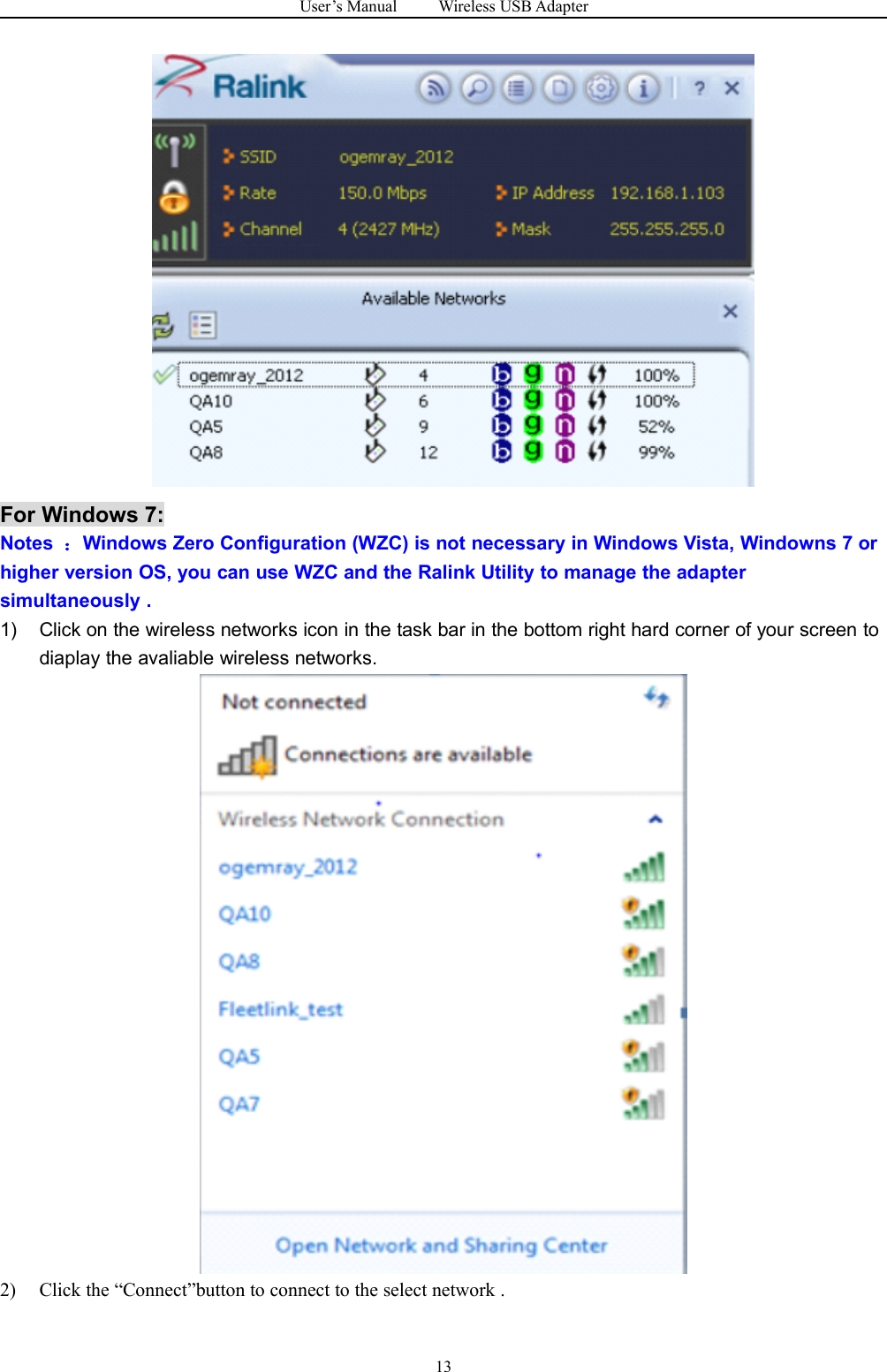
User’s Manual Wireless USB Adapter12f. In the screen that displays, in the ‘WPA Pre shared Key’ field ,type a security key, the same as thatused by the AP or wireless router to which you are connecting. Click the right arrow to save yoursettings and connect to the network.g. Once you are connected the Avaliable Networks shows the status of your connection.
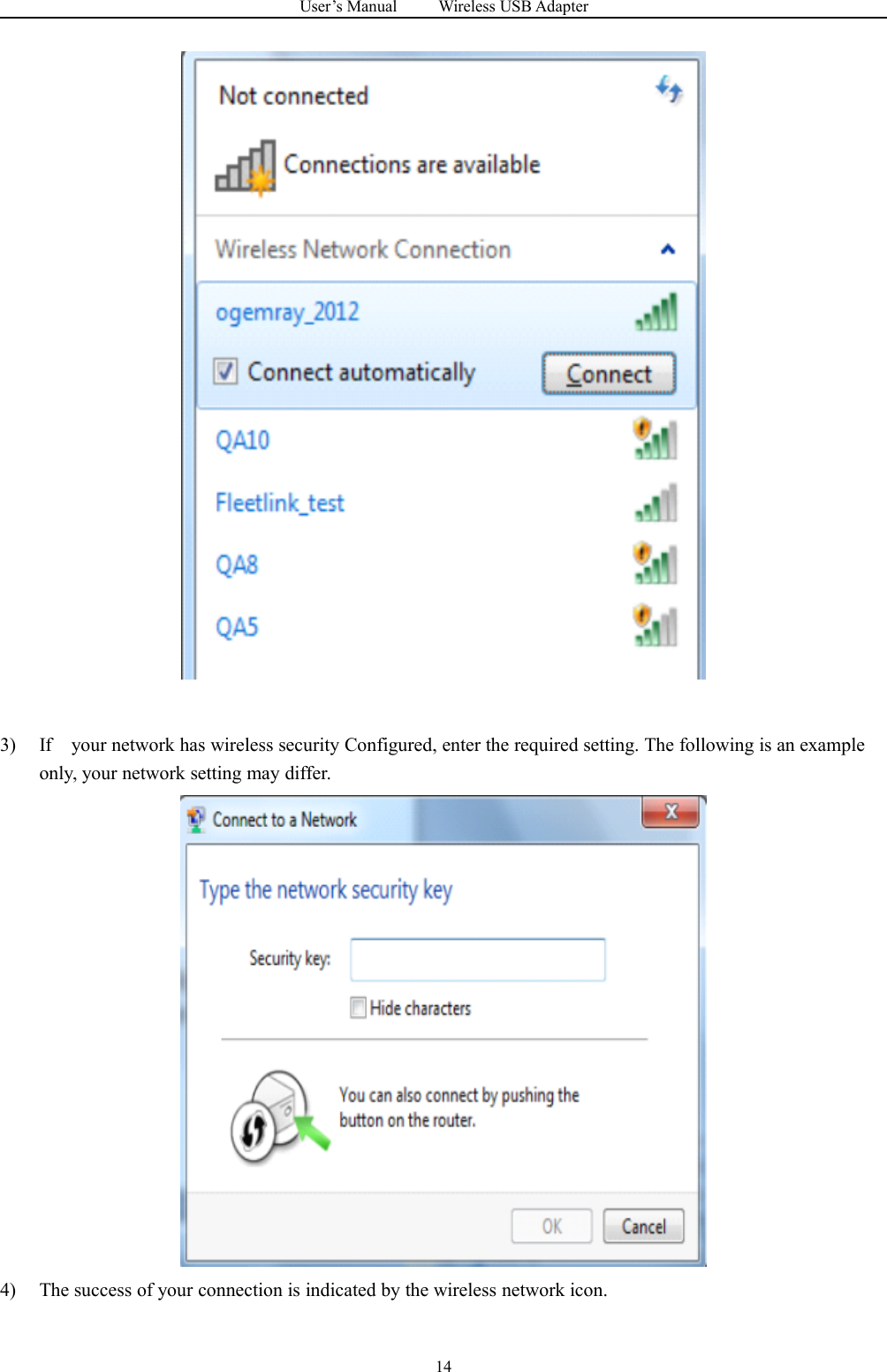
User’s Manual Wireless USB Adapter13For Windows 7:Notes :Windows Zero Configuration (WZC) is not necessary in Windows Vista, Windowns 7 orhigher version OS, you can use WZC and the Ralink Utility to manage the adaptersimultaneously .1) Click on the wireless networks icon in the task bar in the bottom right hard corner of your screen todiaplay the avaliable wireless networks.2) Click the “Connect”button to connect to the select network .
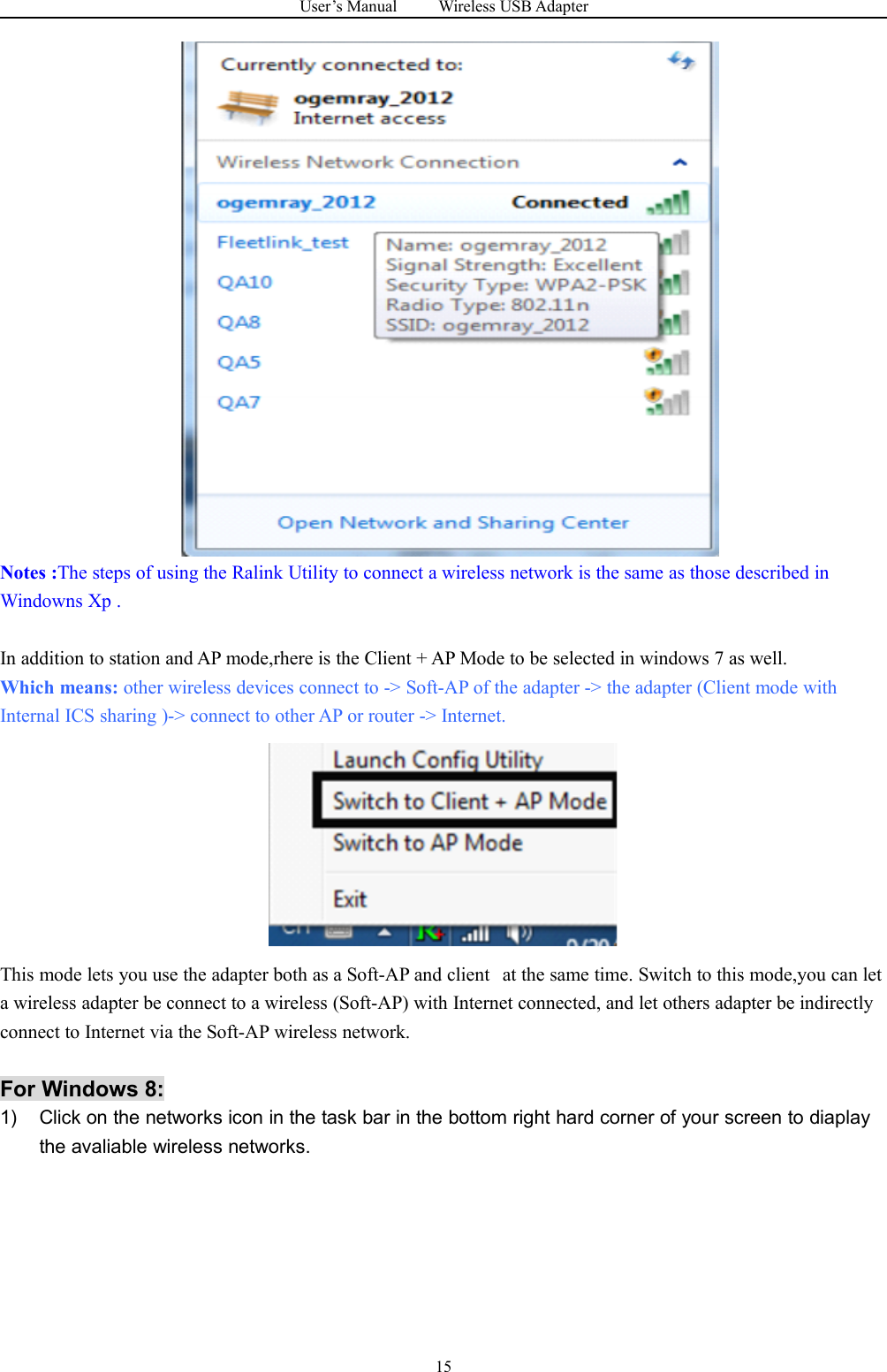
User’s Manual Wireless USB Adapter143) If your network has wireless security Configured, enter the required setting. The following is an exampleonly, your network setting may differ.4) The success of your connection is indicated by the wireless network icon.
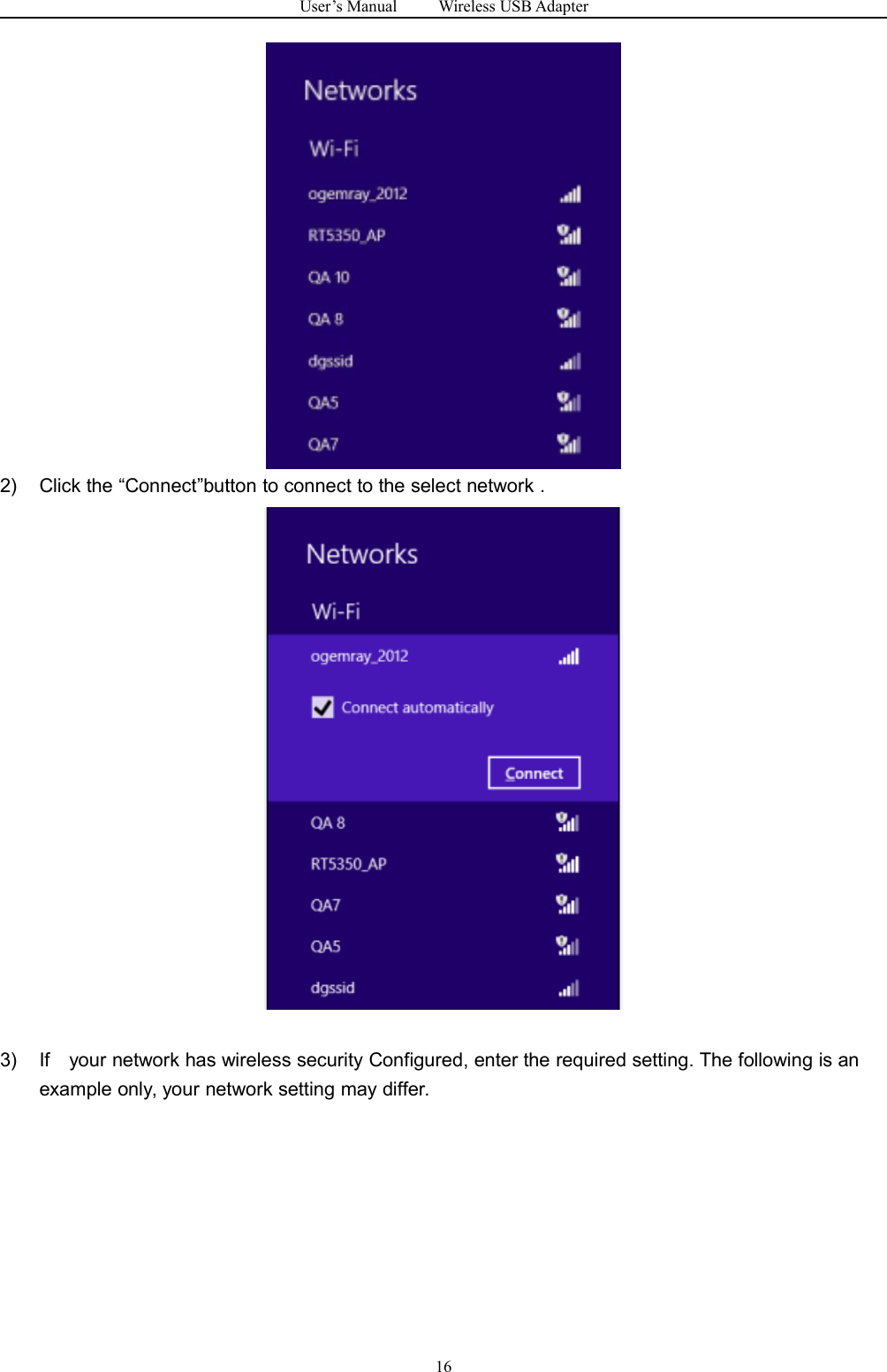
User’s Manual Wireless USB Adapter15Notes :The steps of using the Ralink Utility to connect a wireless network is the same as those described inWindowns Xp .In addition to station and AP mode,rhere is the Client + AP Mode to be selected in windows 7 as well.Which means: other wireless devices connect to -> Soft-AP of the adapter -> the adapter (Client mode withInternal ICS sharing )-> connect to other AP or router -> Internet.This mode lets you use the adapter both as a Soft-AP and client at the same time. Switch to this mode,you can leta wireless adapter be connect to a wireless (Soft-AP) with Internet connected, and let others adapter be indirectlyconnect to Internet via the Soft-AP wireless network.For Windows 8:1) Click on the networks icon in the task bar in the bottom right hard corner of your screen to diaplaythe avaliable wireless networks.
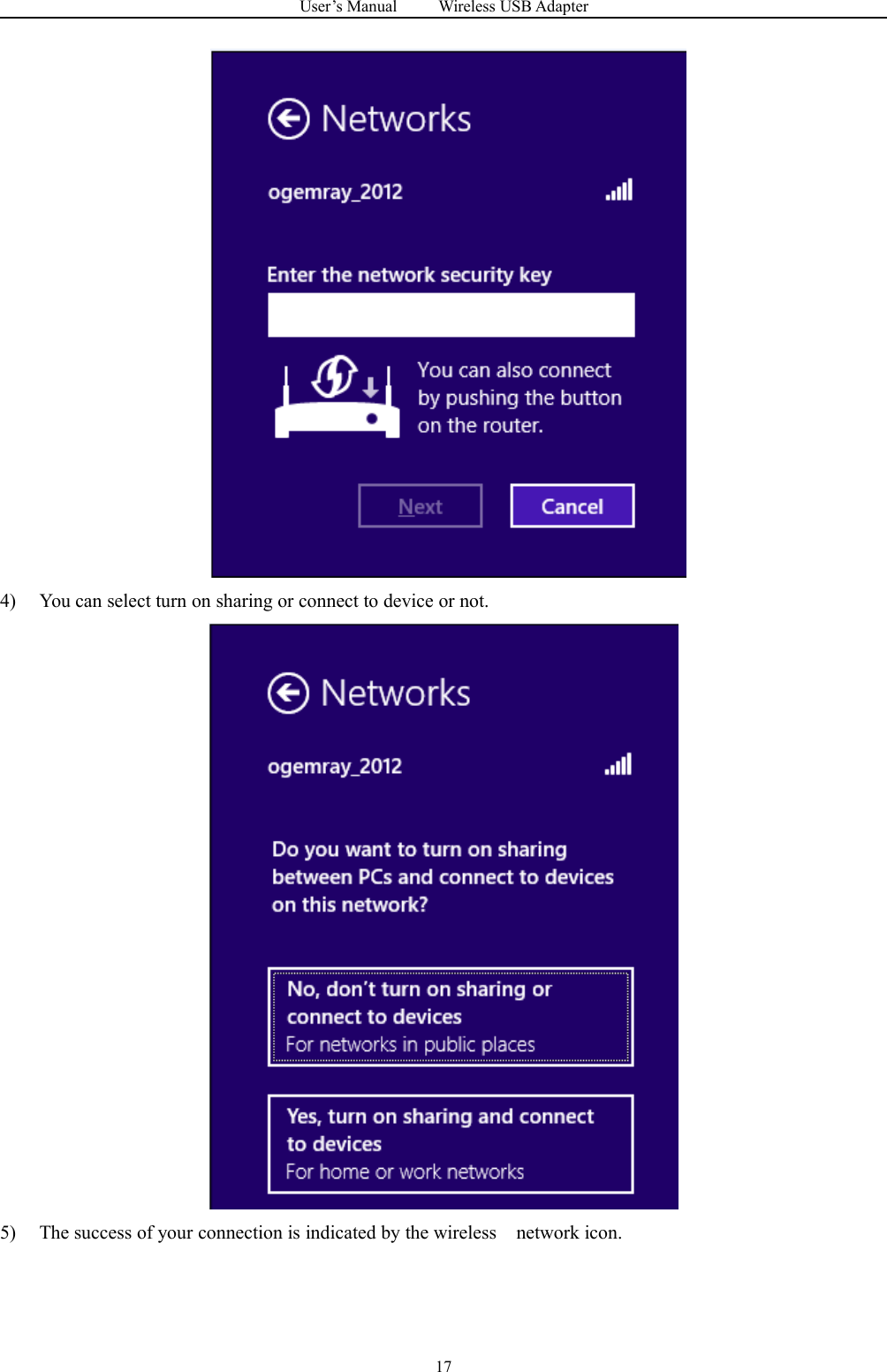
User’s Manual Wireless USB Adapter162) Click the “Connect”button to connect to the select network .3) If your network has wireless security Configured, enter the required setting. The following is anexample only, your network setting may differ.
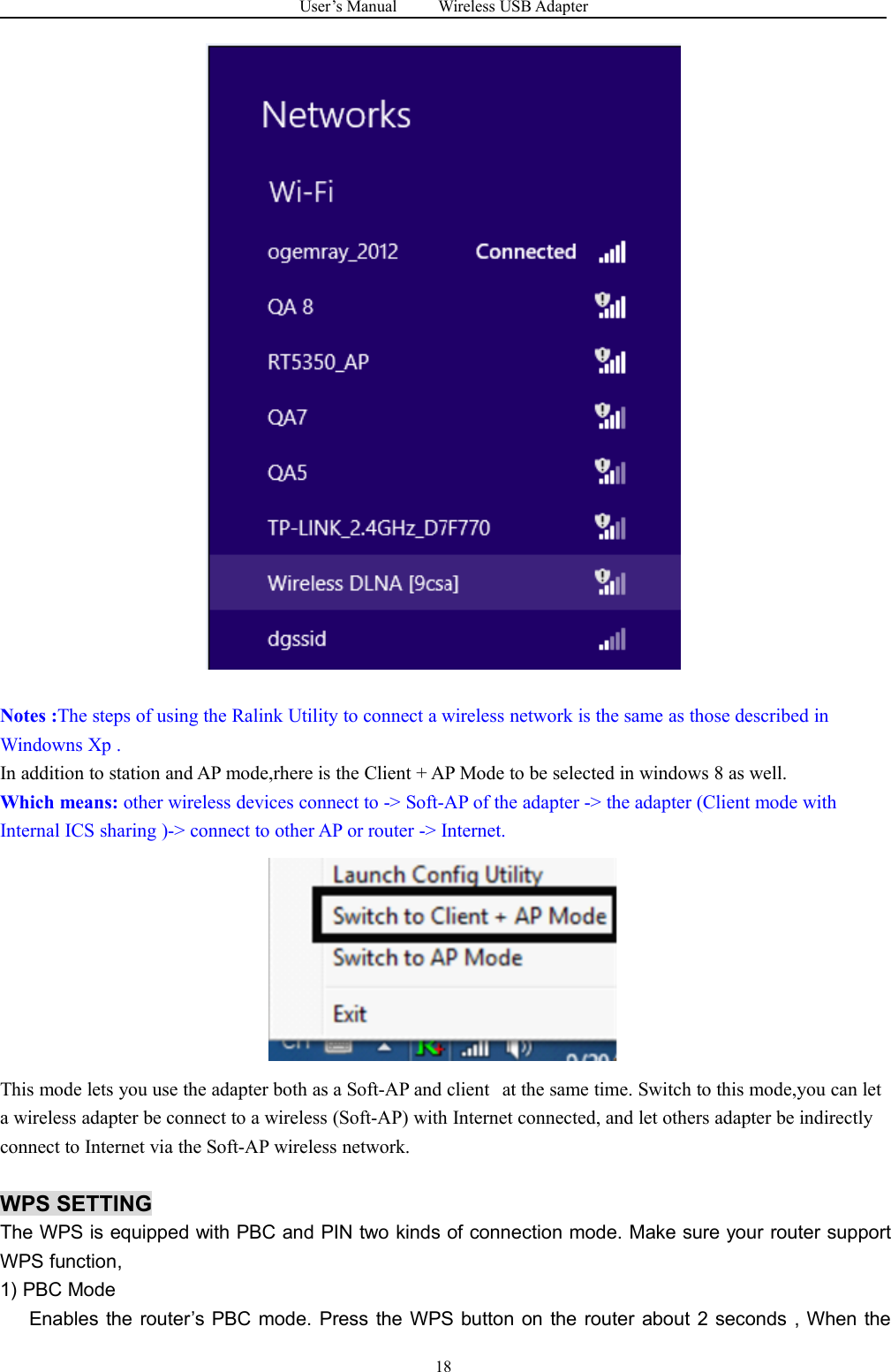
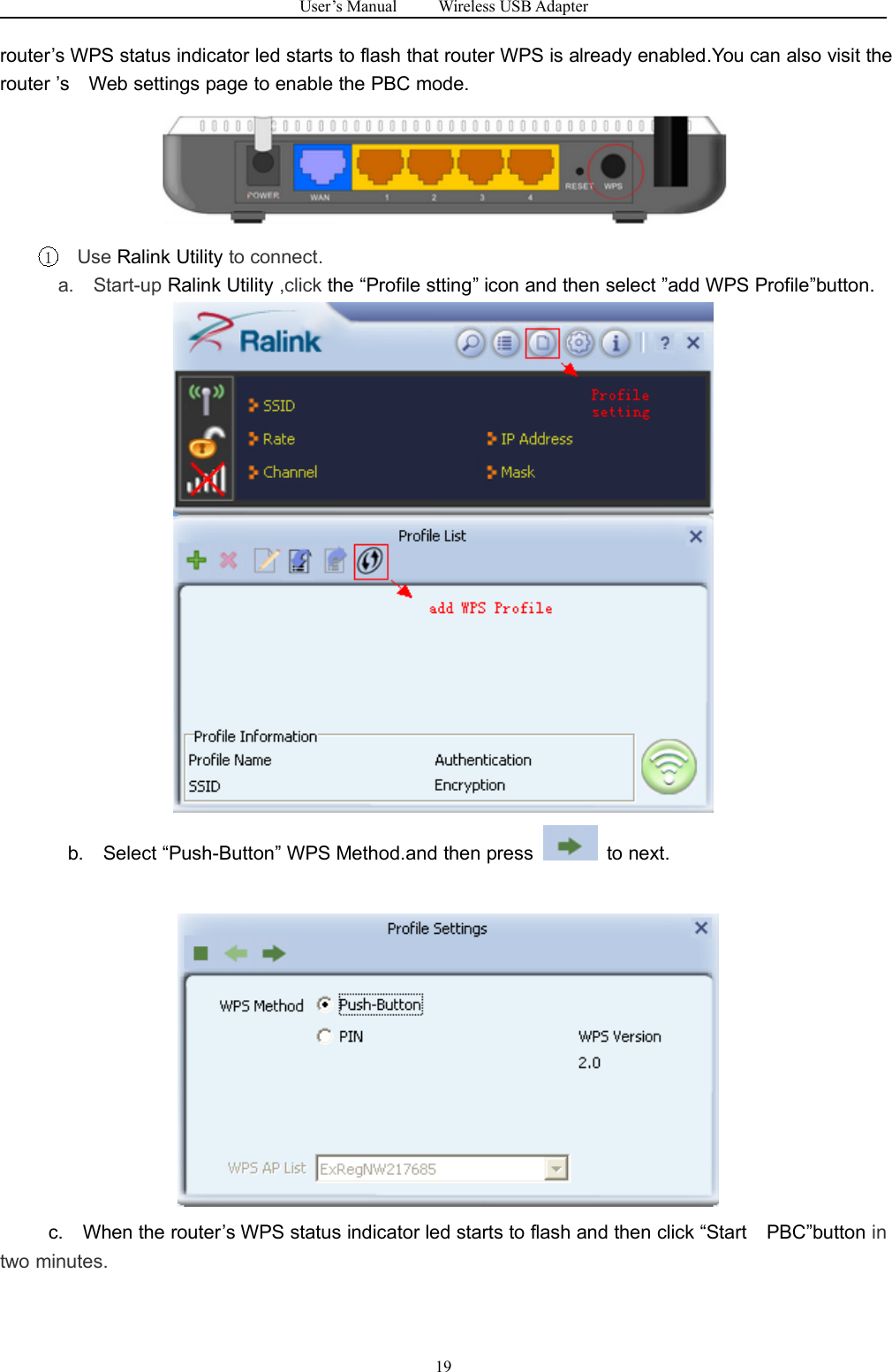
User’s Manual Wireless USB Adapter174) You can select turn on sharing or connect to device or not.5) The success of your connection is indicated by the wireless network icon.
User’s Manual Wireless USB Adapter18Notes :The steps of using the Ralink Utility to connect a wireless network is the same as those described inWindowns Xp .In addition to station and AP mode,rhere is the Client + AP Mode to be selected in windows 8 as well.Which means: other wireless devices connect to -> Soft-AP of the adapter -> the adapter (Client mode withInternal ICS sharing )-> connect to other AP or router -> Internet.This mode lets you use the adapter both as a Soft-AP and client at the same time. Switch to this mode,you can leta wireless adapter be connect to a wireless (Soft-AP) with Internet connected, and let others adapter be indirectlyconnect to Internet via the Soft-AP wireless network.WPS SETTINGThe WPS is equipped with PBC and PIN two kinds of connection mode. Make sure your router supportWPS function,1) PBC ModeEnables the router’s PBC mode. Press the WPS button on the router about 2 seconds , When the
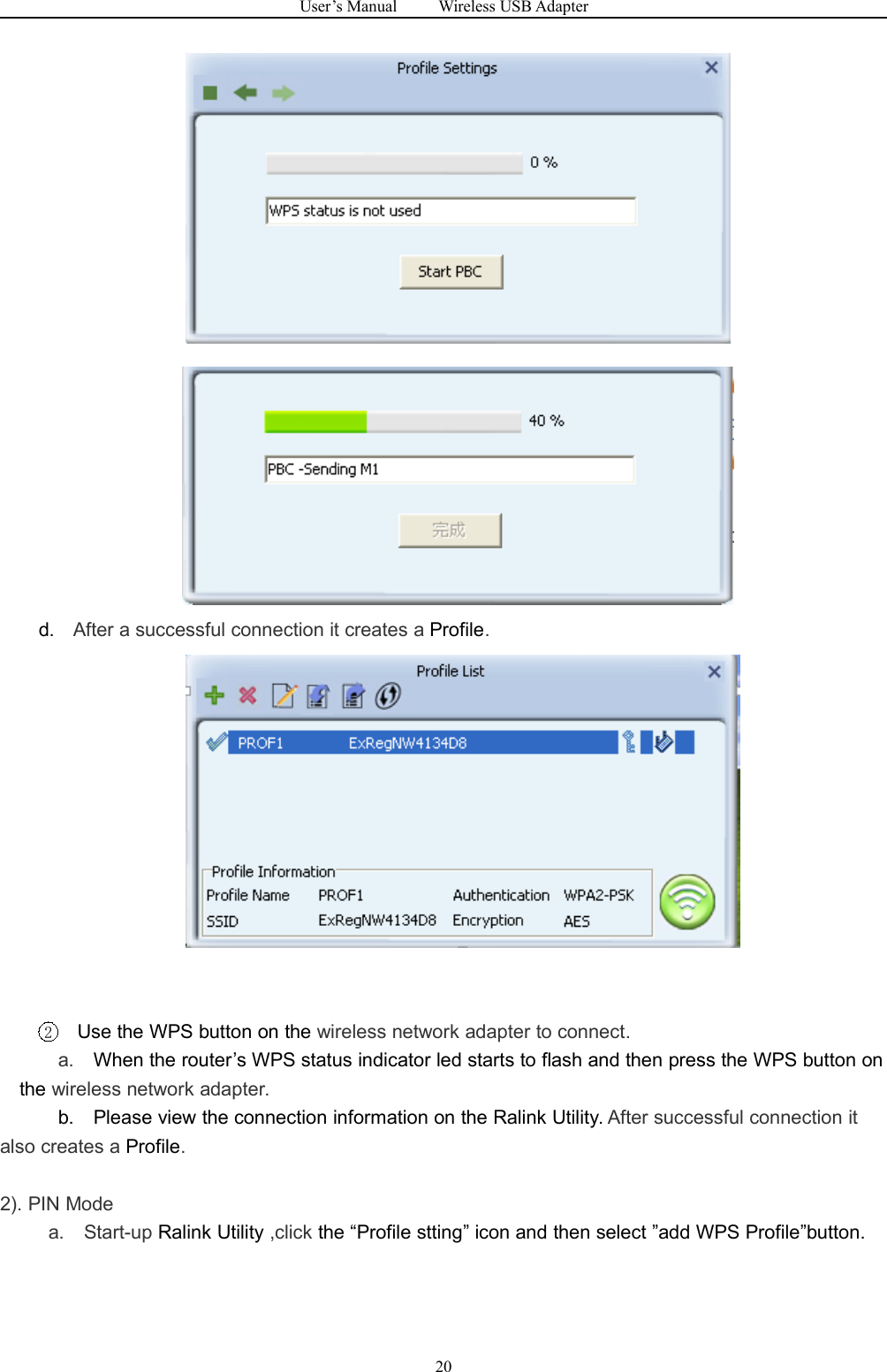
User’s Manual Wireless USB Adapter19router’s WPS status indicator led starts to flash that router WPS is already enabled.You can also visit therouter ’s Web settings page to enable the PBC mode.1Use Ralink Utility to connect.a. Start-up Ralink Utility ,click the “Profile stting” icon and then select ”add WPS Profile”button.b. Select “Push-Button” WPS Method.and then press to next.c. When the router’s WPS status indicator led starts to flash and then click “Start PBC”button intwo minutes.
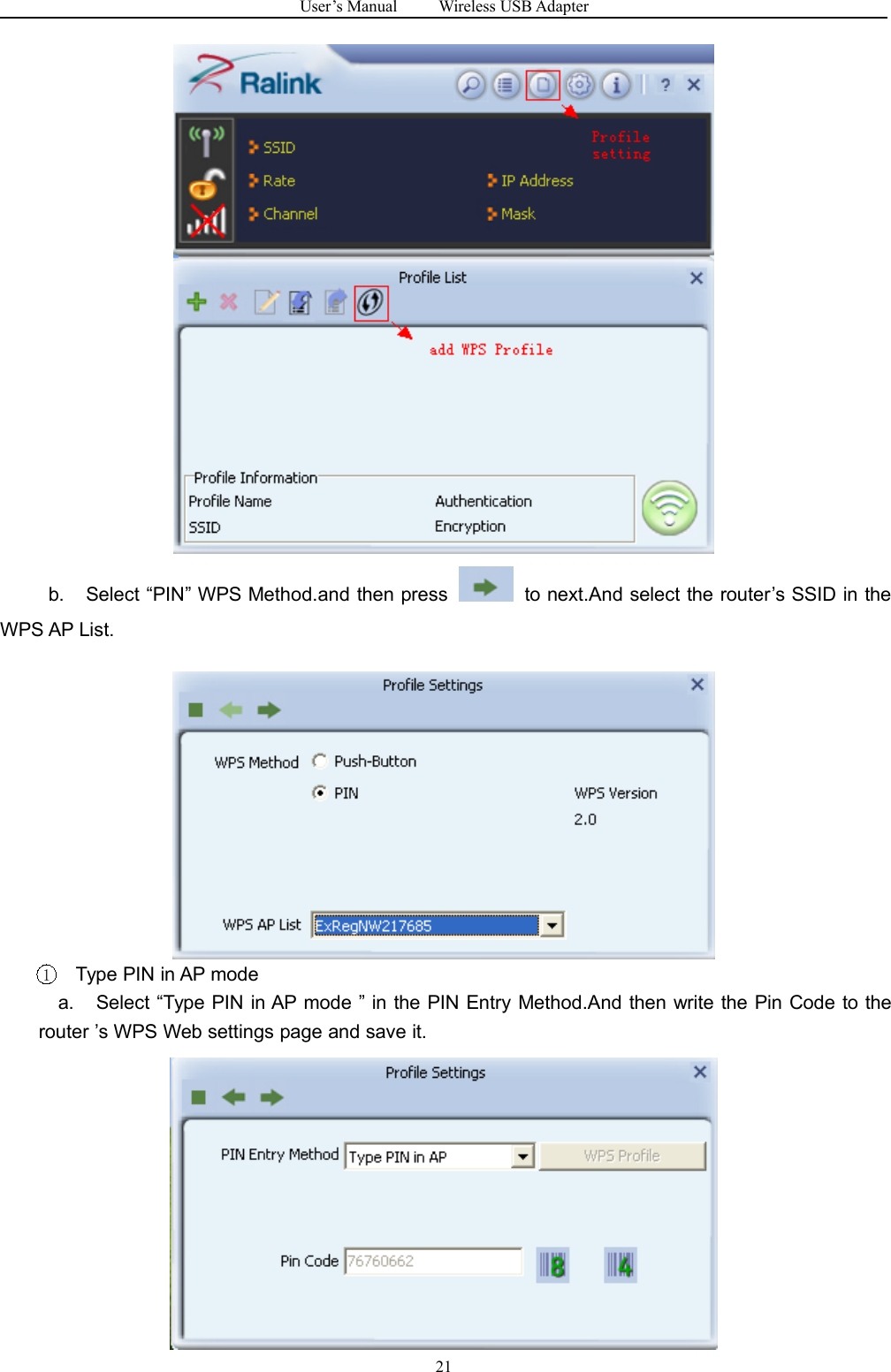
User’s Manual Wireless USB Adapter20d. After a successful connection it creates a Profile.2Use the WPS button on the wireless network adapter to connect.a. When the router’s WPS status indicator led starts to flash and then press the WPS button onthe wireless network adapter.b. Please view the connection information on the Ralink Utility. After successful connection italso creates a Profile.2). PIN Modea. Start-up Ralink Utility ,click the “Profile stting” icon and then select ”add WPS Profile”button.
User’s Manual Wireless USB Adapter21b. Select “PIN” WPS Method.and then press to next.And select the router’s SSID in theWPS AP List.1Type PIN in AP modea. Select “Type PIN in AP mode ” in the PIN Entry Method.And then write the Pin Code to therouter ’s WPS Web settings page and save it.
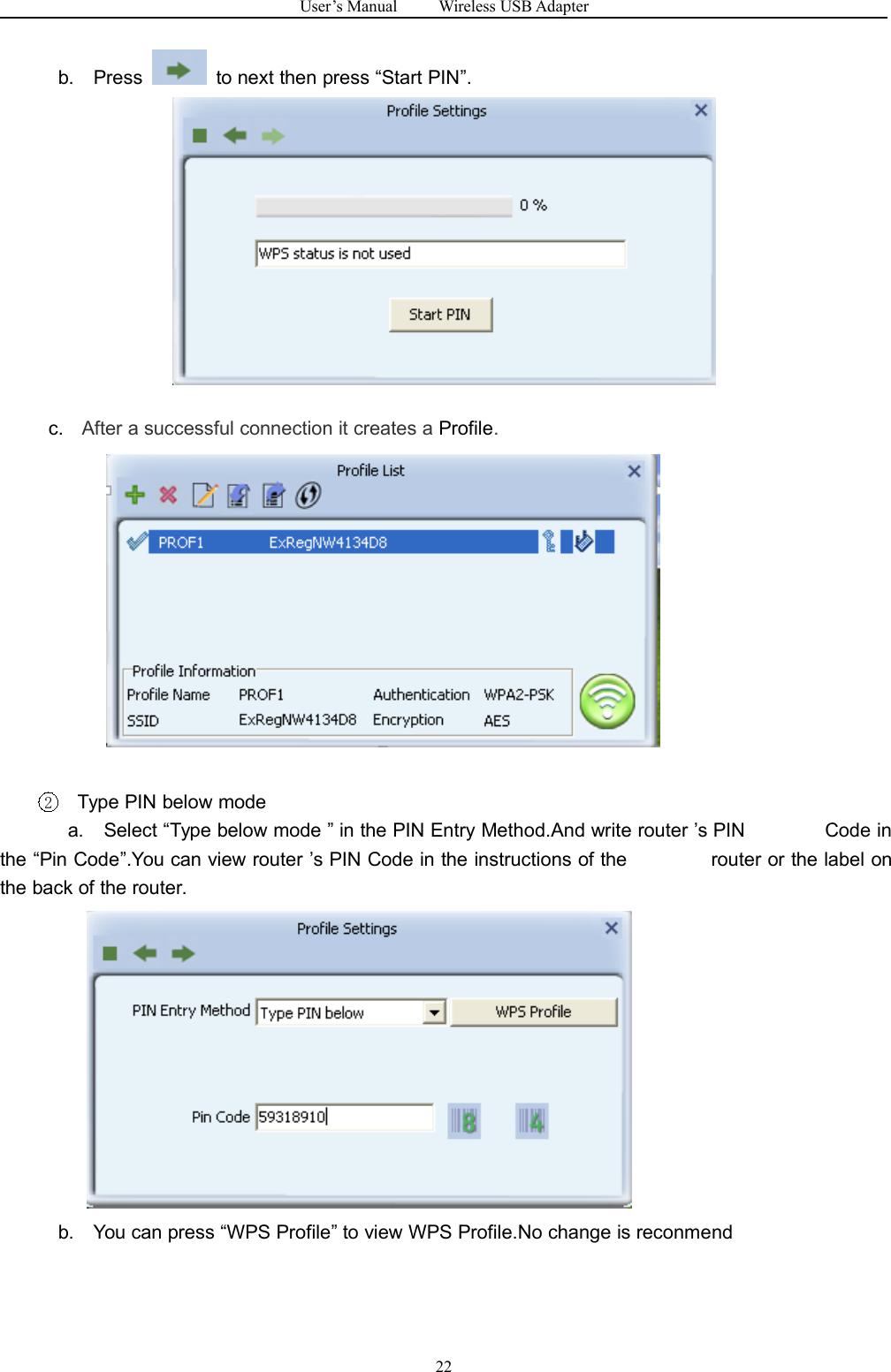
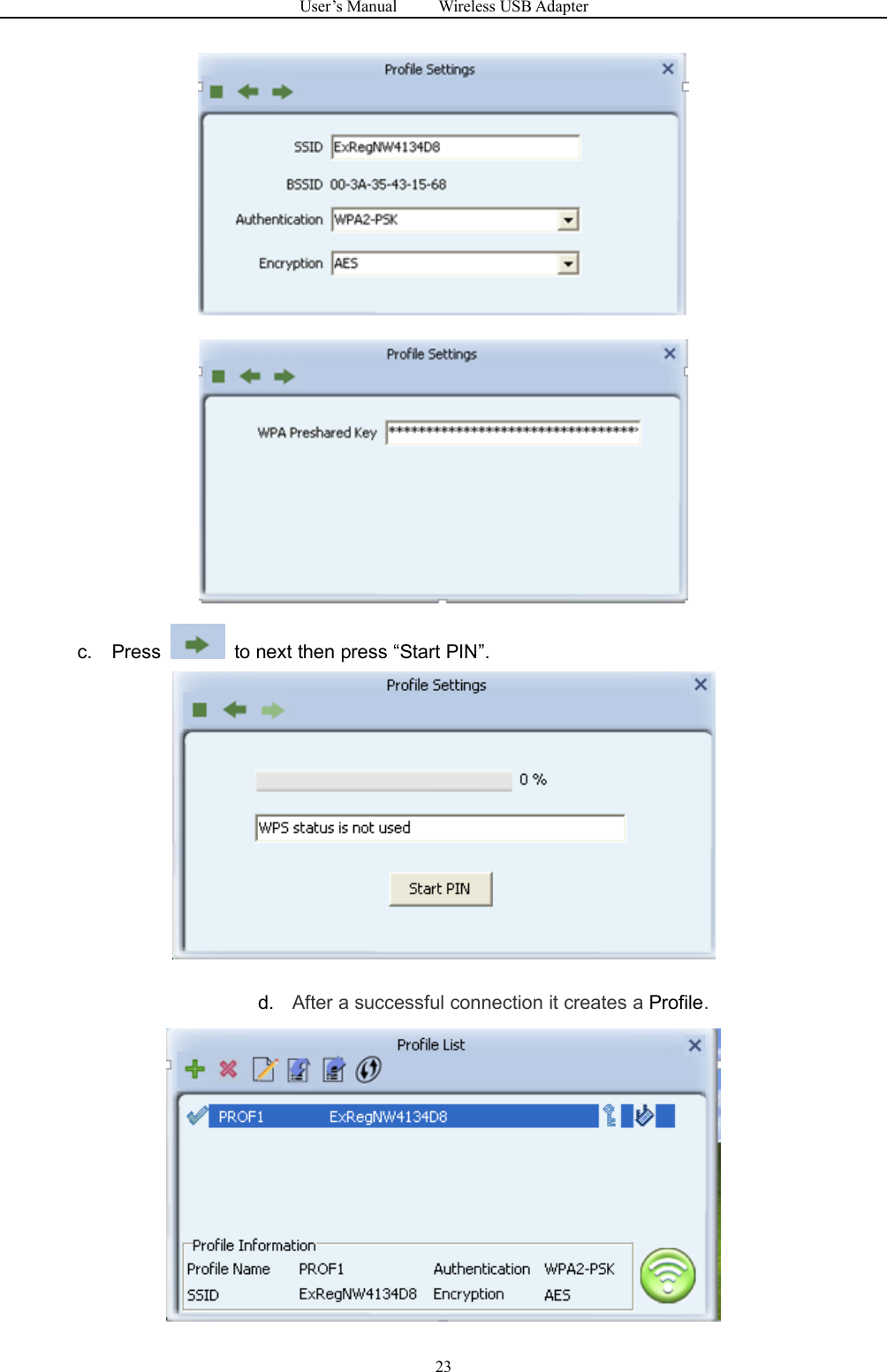
User’s Manual Wireless USB Adapter22b. Press to next then press “Start PIN”.c. After a successful connection it creates a Profile.2Type PIN below modea. Select “Type below mode ” in the PIN Entry Method.And write router ’s PIN Code inthe “Pin Code”.You can view router ’s PIN Code in the instructions of the router or the label onthe back of the router.b. You can press “WPS Profile” to view WPS Profile.No change is reconmend
User’s Manual Wireless USB Adapter23c. Press to next then press “Start PIN”.d. After a successful connection it creates a Profile.
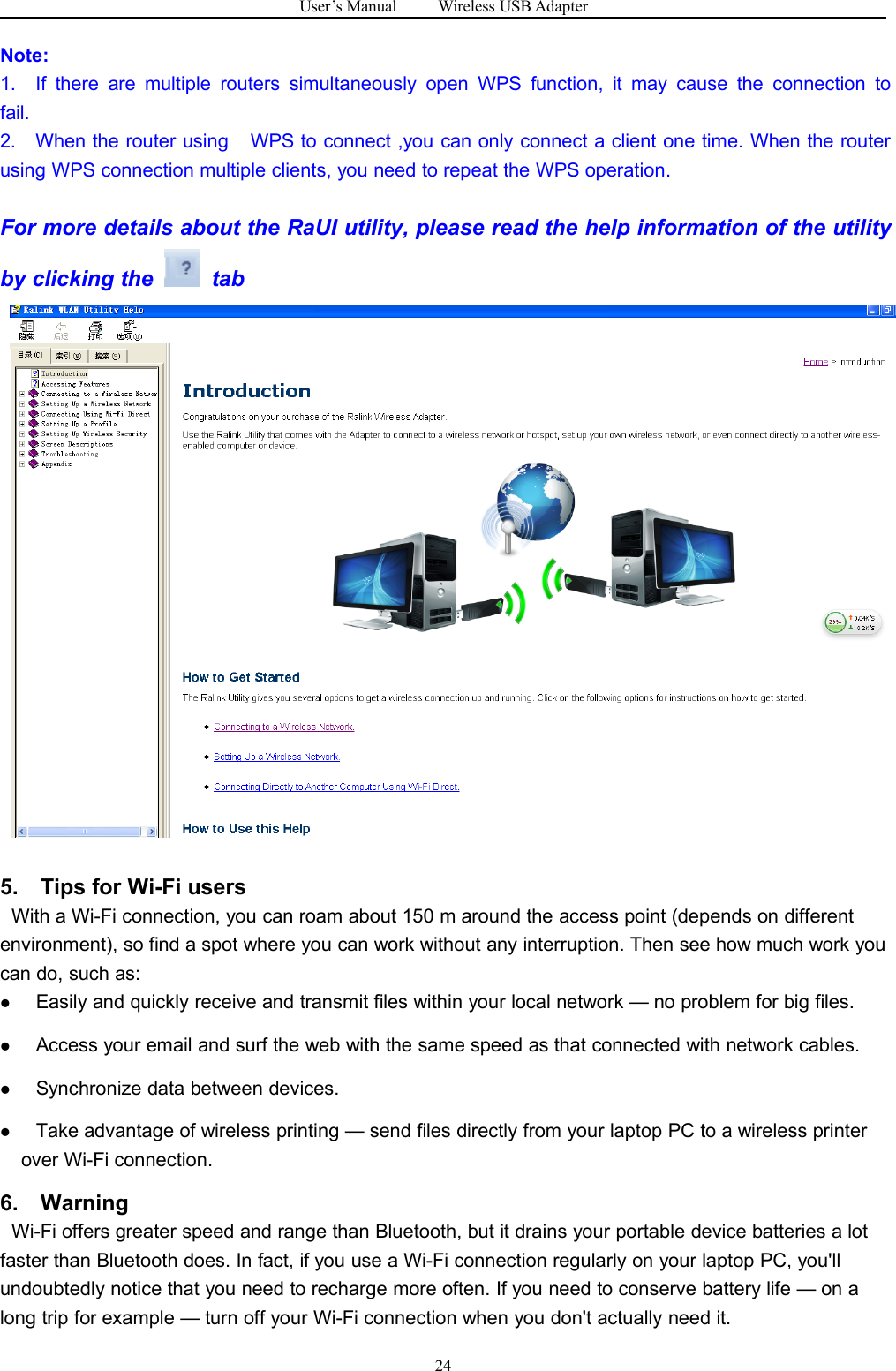
User’s Manual Wireless USB Adapter24Note:1. If there are multiple routers simultaneously open WPS function, it may cause the connection tofail.2. When the router using WPS to connect ,you can only connect a client one time. When the routerusing WPS connection multiple clients, you need to repeat the WPS operation.For more details about the RaUI utility, please read the help information of the utilityby clicking the tab5. Tips for Wi-Fi usersWith a Wi-Fi connection, you can roam about 150 m around the access point (depends on differentenvironment), so find a spot where you can work without any interruption. Then see how much work youcan do, such as:Easily and quickly receive and transmit files within your local network — no problem for big files.Access your email and surf the web with the same speed as that connected with network cables.Synchronize data between devices.Take advantage of wireless printing — send files directly from your laptop PC to a wireless printerover Wi-Fi connection.6. WarningWi-Fi offers greater speed and range than Bluetooth, but it drains your portable device batteries a lotfaster than Bluetooth does. In fact, if you use a Wi-Fi connection regularly on your laptop PC, you'llundoubtedly notice that you need to recharge more often. If you need to conserve battery life — on along trip for example — turn off your Wi-Fi connection when you don't actually need it.
Note: For 5150-5250 MHz, this device is used for indoor only.
 FCC Caution: This device complies with part 15 of the FCC Rules. Operation is subject to the following two conditions: (1) This device may not cause harmful interference, and (2) this device must accept any interference received, including interference that may cause undesired operation.  Any Changes or modifications not expressly approved by the party responsible for compliance could void the user's authority to operate the equipment.  Note: This equipment has been tested and found to comply with the limits for a Class B digital device, pursuant to part 15 of the FCC Rules. These limits are designed to provide reasonable protection against harmful interference in a residential installation. This equipment generates uses and can radiate radio frequency energy and, if not installed and used in accordance with the instructions, may cause harmful interference to radio communications. However, there is no guarantee that interference will not occur in a particular installation. If this equipment does cause harmful interference to radio or television reception, which can be determined by turning the equipment off and on, the user is encouraged to try to correct the interference by one or more of the following measures: -Reorient or relocate the receiving antenna. -Increase the separation between the equipment and receiver. -Connect the equipment into an outlet on a circuit different from that to which the receiver is connected. -Consult the dealer or an experienced radio/TV technician for help.  The device has been evaluated to meet general RF exposure requirement. The device can be used in portable exposure condition without restriction.

Navigation menu