Ogemray Technology WF7601U7A1 Wireless USB Adapter User Manual 54Mbps

Shenzhen Ogemray Technology Co.,Ltd Wireless USB Adapter 54Mbps

User manual

54M/150MUSB WIRELESS ADAPTERUser’s ManualVersion 2.5
User’s Manual Wireless USB AdapterPage 1Federal Communication Commission InterferenceStatementThis equipment has been tested and found to complywith the limits for a Class B digital device, pursuant toPart 15 of the FCC Rules. These limits are designed toprovide reasonable protection against harmfulinterference in a residential installation. This equipmentgenerates, uses and can radiate radio frequency energyand, if not installed and used in accordance with theinstructions, may cause harmful interference to radiocommunications. However, there is no guarantee thatinterference will not occur in a particular installation. Ifthis equipment does cause harmful interference to radioor television reception, which can be determined byturning the equipment off and on, the user is encouragedto try to correct the interference by one or more of thefollowing measures:- Reorient or relocate the receiving antenna.- Increase the separation between the equipment andreceiver.- Connect the equipment into an outlet on a circuitdifferent from that to which the receiver is connected.- Consult the dealer or an experienced radio/TVtechnician for help.This device complies with part 15 of the FCC Rules.Operation is subject to the following two conditions: (1)This device may not cause harmful interference, and (2)this device must accept any interference received,including interference that may cause undesiredoperation.
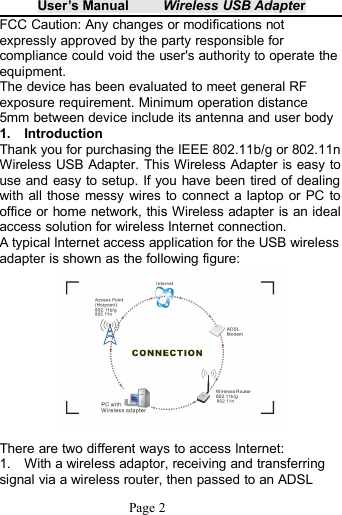
User’s Manual Wireless USB AdapterPage 2FCC Caution: Any changes or modifications notexpressly approved by the party responsible forcompliance could void the user's authority to operate theequipment.The device has been evaluated to meet general RFexposure requirement. Minimum operation distance5mm between device include its antenna and user body1. IntroductionThank you for purchasing the IEEE 802.11b/g or 802.11nWireless USB Adapter. This Wireless Adapter is easy touse and easy to setup. If you have been tired of dealingwith all those messy wires to connect a laptop or PC tooffice or home network, this Wireless adapter is an idealaccess solution for wireless Internet connection.A typical Internet access application for the USB wirelessadapter is shown as the following figure:There are two different ways to access Internet:1. With a wireless adaptor, receiving and transferringsignal via a wireless router, then passed to an ADSL
User’s Manual Wireless USB AdapterPage 3modem, then to local ISP (Internet service supplier)through a telephone line.2. With a wireless adaptor, receiving and transferringsignal via local AP (Access Point) or so called Hotpointdirectly.2. Package Contents:One 54 Mbps 802.11b/g or 150Mbps 802.11n USBWireless Adapter.Adapter Installation disc.User’s Manual.WarrantyThe warrants for the end user (“Customer”) that thishardware product will be free from defects inworkmanship and materials, under normal use andservice, for twelve (12) months from the date of purchasefrom its authorized reseller. Information in this documentis subject to change without prior notice.3. InstallationTo install the driver of the USB adapter, please useadministrator user account to login before the followingsteps:Tips: the latest original drivers can be down loaded fromthe website of Ralink chipset manufacturer. The currentwebsite ishttp://www.mediatek.com/_en/07_downloads/01_windows.php?sn=501.To find a correct driver, please identifythe chipset type applied in the adapter you have.For Windows XP :The system will detect a new hardware has been added,and start the “Found New Hardware Wizard”.Click on
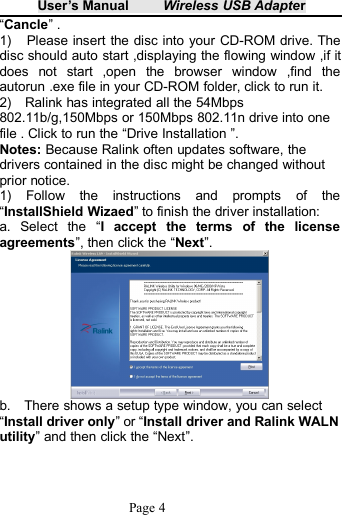
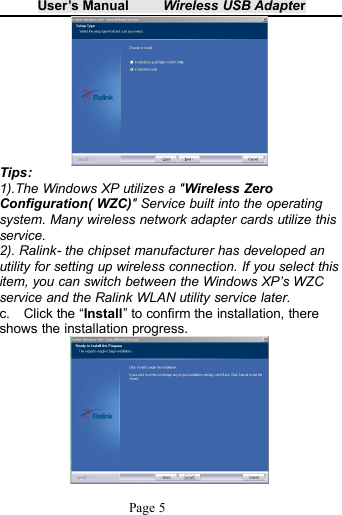
User’s Manual Wireless USB AdapterPage 4“Cancle” .1) Please insert the disc into your CD-ROM drive. Thedisc should auto start ,displaying the flowing window ,if itdoes not start ,open the browser window ,find theautorun .exe file in your CD-ROM folder, click to run it.2) Ralink has integrated all the 54Mbps802.11b/g,150Mbps or 150Mbps 802.11n drive into onefile . Click to run the “Drive Installation ”.Notes: Because Ralink often updates software, thedrivers contained in the disc might be changed withoutprior notice.1) Follow the instructions and prompts of the“InstallShield Wizaed” to finish the driver installation:a. Select the “I accept the terms of the licenseagreements”, then click the “Next”.b. There shows a setup type window, you can select“Install driver only” or “Install driver and Ralink WALNutility” and then click the “Next”.
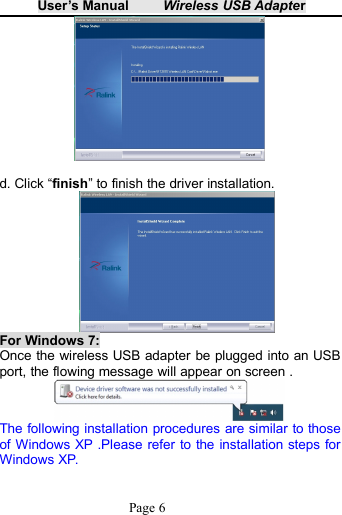
User’s Manual Wireless USB AdapterPage 5Tips:1).The Windows XP utilizes a "Wireless ZeroConfiguration( WZC)" Service built into the operatingsystem. Many wireless network adapter cards utilize thisservice.2). Ralink- the chipset manufacturer has developed anutility for setting up wireless connection. If you select thisitem, you can switch between the Windows XP’s WZCservice and the Ralink WLAN utility service later.c. Click the “Install” to confirm the installation, thereshows the installation progress.
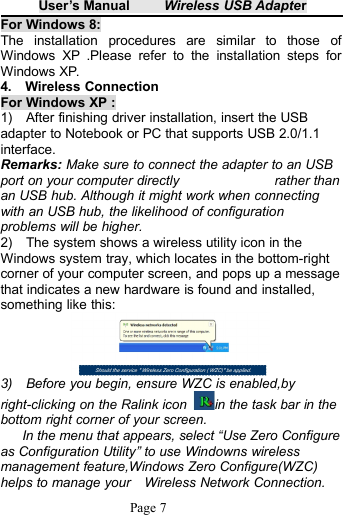
User’s Manual Wireless USB AdapterPage 6d. Click “finish” to finish the driver installation.For Windows 7:Once the wireless USB adapter be plugged into an USBport, the flowing message will appear on screen .The following installation procedures are similar to thoseof Windows XP .Please refer to the installation steps forWindows XP.
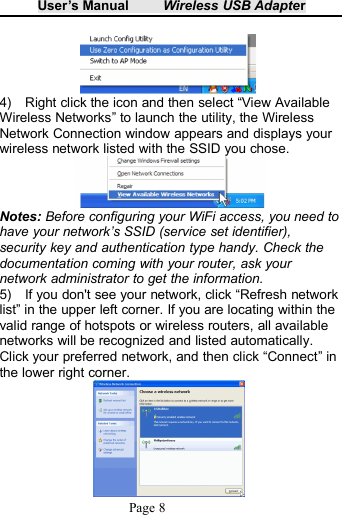
User’s Manual Wireless USB AdapterPage 7For Windows 8:The installation procedures are similar to those ofWindows XP .Please refer to the installation steps forWindows XP.4. Wireless ConnectionFor Windows XP :1) After finishing driver installation, insert the USBadapter to Notebook or PC that supports USB 2.0/1.1interface.Remarks: Make sure to connect the adapter to an USBport on your computer directly rather thanan USB hub. Although it might work when connectingwith an USB hub, the likelihood of configurationproblems will be higher.2) The system shows a wireless utility icon in theWindows system tray, which locates in the bottom-rightcorner of your computer screen, and pops up a messagethat indicates a new hardware is found and installed,something like this:3) Before you begin, ensure WZC is enabled,byright-clicking on the Ralink icon in the task bar in thebottom right corner of your screen.In the menu that appears, select “Use Zero Configureas Configuration Utility” to use Windowns wirelessmanagement feature,Windows Zero Configure(WZC)helps to manage your Wireless Network Connection.
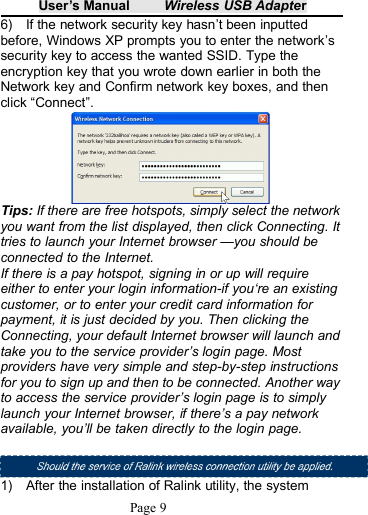
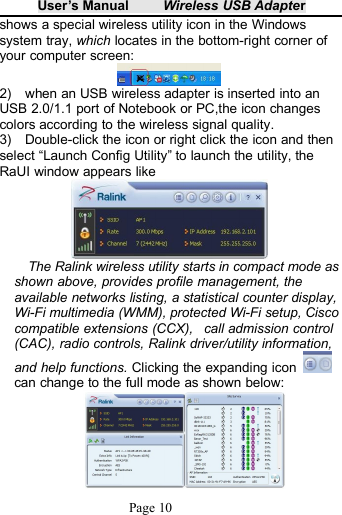
User’s Manual Wireless USB AdapterPage 84) Right click the icon and then select “View AvailableWireless Networks” to launch the utility, the WirelessNetwork Connection window appears and displays yourwireless network listed with the SSID you chose.Notes: Before configuring your WiFi access, you need tohave your network’s SSID (service set identifier),security key and authentication type handy. Check thedocumentation coming with your router, ask yournetwork administrator to get the information.5) If you don't see your network, click “Refresh networklist” in the upper left corner. If you are locating within thevalid range of hotspots or wireless routers, all availablenetworks will be recognized and listed automatically.Click your preferred network, and then click “Connect” inthe lower right corner.
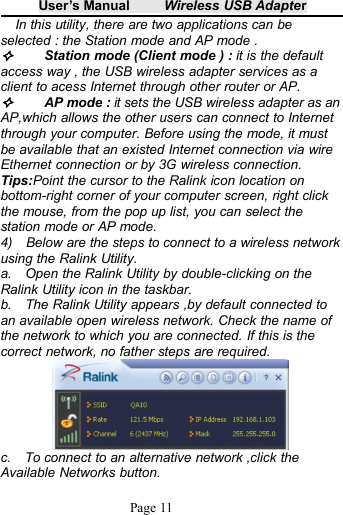
User’s Manual Wireless USB AdapterPage 96) If the network security key hasn’t been inputtedbefore, Windows XP prompts you to enter the network’ssecurity key to access the wanted SSID. Type theencryption key that you wrote down earlier in both theNetwork key and Confirm network key boxes, and thenclick “Connect”.Tips: If there are free hotspots, simply select the networkyou want from the list displayed, then click Connecting. Ittries to launch your Internet browser —you should beconnected to the Internet.If there is a pay hotspot, signing in or up will requireeither to enter your login information-if you‘re an existingcustomer, or to enter your credit card information forpayment, it is just decided by you. Then clicking theConnecting, your default Internet browser will launch andtake you to the service provider’s login page. Mostproviders have very simple and step-by-step instructionsfor you to sign up and then to be connected. Another wayto access the service provider’s login page is to simplylaunch your Internet browser, if there’s a pay networkavailable, you’ll be taken directly to the login page.1) After the installation of Ralink utility, the system
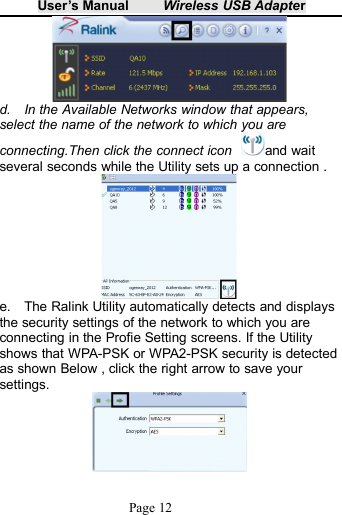
User’s Manual Wireless USB AdapterPage 10shows a special wireless utility icon in the Windowssystem tray, which locates in the bottom-right corner ofyour computer screen:2) when an USB wireless adapter is inserted into anUSB 2.0/1.1 port of Notebook or PC,the icon changescolors according to the wireless signal quality.3) Double-click the icon or right click the icon and thenselect “Launch Config Utility” to launch the utility, theRaUI window appears likeThe Ralink wireless utility starts in compact mode asshown above, provides profile management, theavailable networks listing, a statistical counter display,Wi-Fi multimedia (WMM), protected Wi-Fi setup, Ciscocompatible extensions (CCX), call admission control(CAC), radio controls, Ralink driver/utility information,and help functions. Clicking the expanding iconcan change to the full mode as shown below:
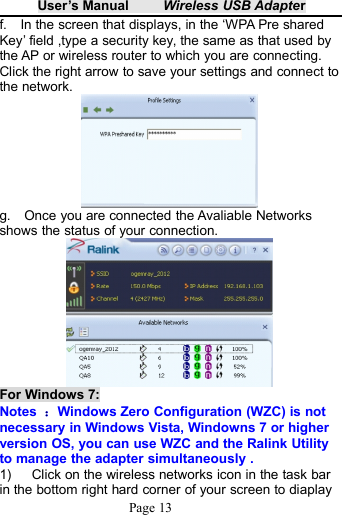
User’s Manual Wireless USB AdapterPage 11In this utility, there are two applications can beselected : the Station mode and AP mode .Station mode (Client mode ) : it is the defaultaccess way , the USB wireless adapter services as aclient to acess Internet through other router or AP.AP mode : it sets the USB wireless adapter as anAP,which allows the other users can connect to Internetthrough your computer. Before using the mode, it mustbe available that an existed Internet connection via wireEthernet connection or by 3G wireless connection.Tips:Point the cursor to the Ralink icon location onbottom-right corner of your computer screen, right clickthe mouse, from the pop up list, you can select thestation mode or AP mode.4) Below are the steps to connect to a wireless networkusing the Ralink Utility.a. Open the Ralink Utility by double-clicking on theRalink Utility icon in the taskbar.b. The Ralink Utility appears ,by default connected toan available open wireless network. Check the name ofthe network to which you are connected. If this is thecorrect network, no father steps are required.c. To connect to an alternative network ,click theAvailable Networks button.
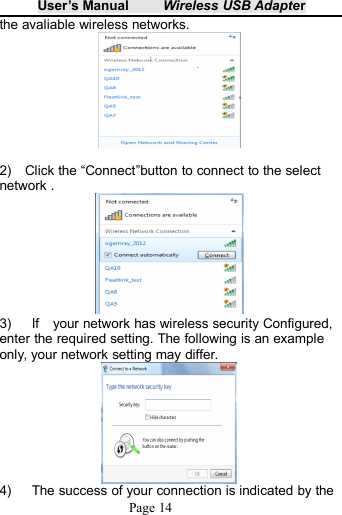
User’s Manual Wireless USB AdapterPage 12d. In the Available Networks window that appears,select the name of the network to which you areconnecting.Then click the connect icon and waitseveral seconds while the Utility sets up a connection .e. The Ralink Utility automatically detects and displaysthe security settings of the network to which you areconnecting in the Profie Setting screens. If the Utilityshows that WPA-PSK or WPA2-PSK security is detectedas shown Below , click the right arrow to save yoursettings.
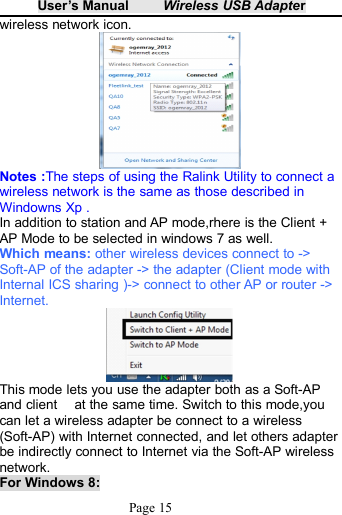
User’s Manual Wireless USB AdapterPage 13f. In the screen that displays, in the ‘WPA Pre sharedKey’ field ,type a security key, the same as that used bythe AP or wireless router to which you are connecting.Click the right arrow to save your settings and connect tothe network.g. Once you are connected the Avaliable Networksshows the status of your connection.For Windows 7:Notes :Windows Zero Configuration (WZC) is notnecessary in Windows Vista, Windowns 7 or higherversion OS, you can use WZC and the Ralink Utilityto manage the adapter simultaneously .1) Click on the wireless networks icon in the task barin the bottom right hard corner of your screen to diaplay
User’s Manual Wireless USB AdapterPage 14the avaliable wireless networks.2) Click the “Connect”button to connect to the selectnetwork .3) If your network has wireless security Configured,enter the required setting. The following is an exampleonly, your network setting may differ.4) The success of your connection is indicated by the
User’s Manual Wireless USB AdapterPage 15wireless network icon.Notes :The steps of using the Ralink Utility to connect awireless network is the same as those described inWindowns Xp .In addition to station and AP mode,rhere is the Client +AP Mode to be selected in windows 7 as well.Which means: other wireless devices connect to ->Soft-AP of the adapter -> the adapter (Client mode withInternal ICS sharing )-> connect to other AP or router ->Internet.This mode lets you use the adapter both as a Soft-APand client at the same time. Switch to this mode,youcan let a wireless adapter be connect to a wireless(Soft-AP) with Internet connected, and let others adapterbe indirectly connect to Internet via the Soft-AP wirelessnetwork.For Windows 8:
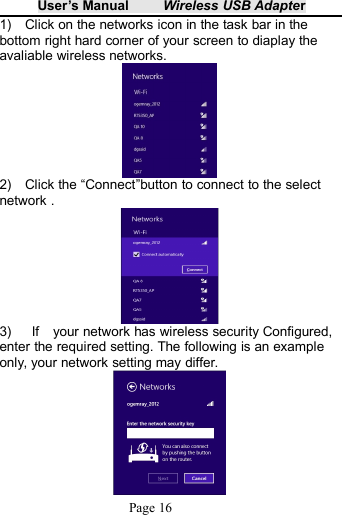
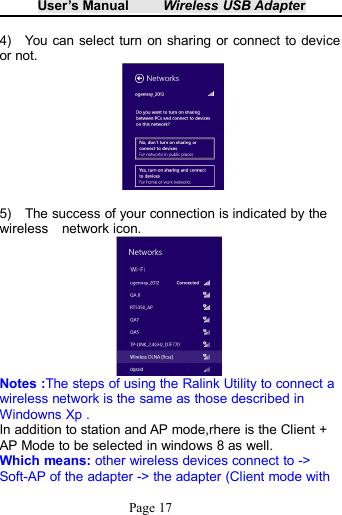
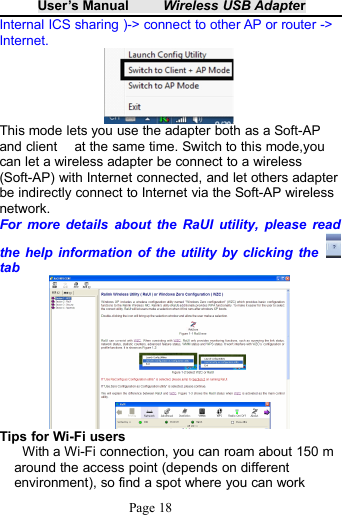
User’s Manual Wireless USB AdapterPage 161) Click on the networks icon in the task bar in thebottom right hard corner of your screen to diaplay theavaliable wireless networks.2) Click the “Connect”button to connect to the selectnetwork .3) If your network has wireless security Configured,enter the required setting. The following is an exampleonly, your network setting may differ.
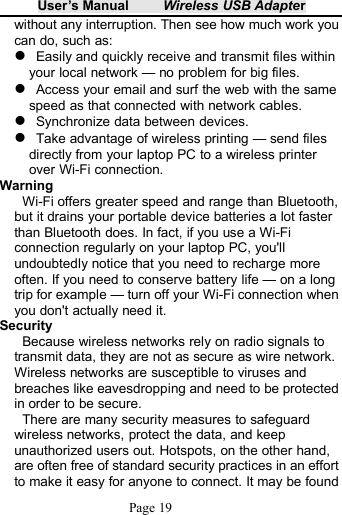
User’s Manual Wireless USB AdapterPage 174) You can select turn on sharing or connect to deviceor not.5) The success of your connection is indicated by thewireless network icon.Notes :The steps of using the Ralink Utility to connect awireless network is the same as those described inWindowns Xp .In addition to station and AP mode,rhere is the Client +AP Mode to be selected in windows 8 as well.Which means: other wireless devices connect to ->Soft-AP of the adapter -> the adapter (Client mode with
User’s Manual Wireless USB AdapterPage 18Internal ICS sharing )-> connect to other AP or router ->Internet.This mode lets you use the adapter both as a Soft-APand client at the same time. Switch to this mode,youcan let a wireless adapter be connect to a wireless(Soft-AP) with Internet connected, and let others adapterbe indirectly connect to Internet via the Soft-AP wirelessnetwork.For more details about the RaUI utility, please readthe help information of the utility by clicking thetabTips for Wi-Fi usersWith a Wi-Fi connection, you can roam about 150 maround the access point (depends on differentenvironment), so find a spot where you can work
User’s Manual Wireless USB AdapterPage 19without any interruption. Then see how much work youcan do, such as:Easily and quickly receive and transmit files withinyour local network — no problem for big files.Access your email and surf the web with the samespeed as that connected with network cables.Synchronize data between devices.Take advantage of wireless printing — send filesdirectly from your laptop PC to a wireless printerover Wi-Fi connection.WarningWi-Fi offers greater speed and range than Bluetooth,but it drains your portable device batteries a lot fasterthan Bluetooth does. In fact, if you use a Wi-Ficonnection regularly on your laptop PC, you'llundoubtedly notice that you need to recharge moreoften. If you need to conserve battery life — on a longtrip for example — turn off your Wi-Fi connection whenyou don't actually need it.SecurityBecause wireless networks rely on radio signals totransmit data, they are not as secure as wire network.Wireless networks are susceptible to viruses andbreaches like eavesdropping and need to be protectedin order to be secure.There are many security measures to safeguardwireless networks, protect the data, and keepunauthorized users out. Hotspots, on the other hand,are often free of standard security practices in an effortto make it easy for anyone to connect. It may be found
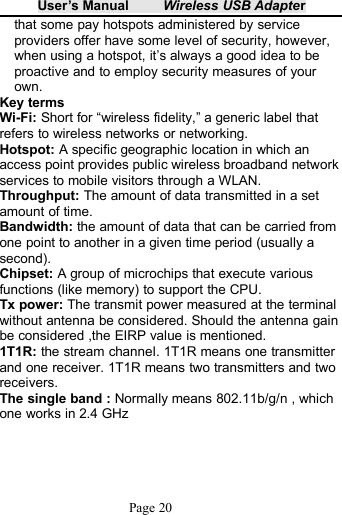
User’s Manual Wireless USB AdapterPage 20that some pay hotspots administered by serviceproviders offer have some level of security, however,when using a hotspot, it’s always a good idea to beproactive and to employ security measures of yourown.Key termsWi-Fi: Short for “wireless fidelity,” a generic label thatrefers to wireless networks or networking.Hotspot: A specific geographic location in which anaccess point provides public wireless broadband networkservices to mobile visitors through a WLAN.Throughput: The amount of data transmitted in a setamount of time.Bandwidth: the amount of data that can be carried fromone point to another in a given time period (usually asecond).Chipset: A group of microchips that execute variousfunctions (like memory) to support the CPU.Tx power: The transmit power measured at the terminalwithout antenna be considered. Should the antenna gainbe considered ,the EIRP value is mentioned.1T1R: the stream channel. 1T1R means one transmitterand one receiver. 1T1R means two transmitters and tworeceivers.The single band : Normally means 802.11b/g/n , whichone works in 2.4 GHz
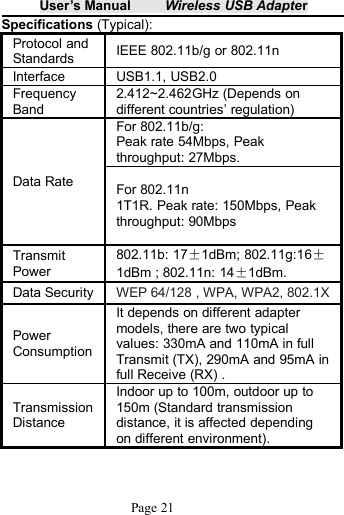
User’s Manual Wireless USB AdapterPage 21Specifications (Typical):Protocol andStandards IEEE 802.11b/g or 802.11nInterface USB1.1, USB2.0FrequencyBand2.412~2.462GHz (Depends ondifferent countries’ regulation)Data RateFor 802.11b/g:Peak rate 54Mbps, Peakthroughput: 27Mbps.For 802.11n1T1R. Peak rate: 150Mbps, Peakthroughput: 90MbpsTransmitPower802.11b: 17±1dBm; 802.11g:16±1dBm ; 802.11n: 14±1dBm.Data SecurityWEP 64/128 , WPA, WPA2, 802.1XPowerConsumptionIt depends on different adaptermodels, there are two typicalvalues: 330mA and 110mA in fullTransmit (TX), 290mA and 95mA infull Receive (RX) .TransmissionDistanceIndoor up to 100m, outdoor up to150m (Standard transmissiondistance, it is affected dependingon different environment).
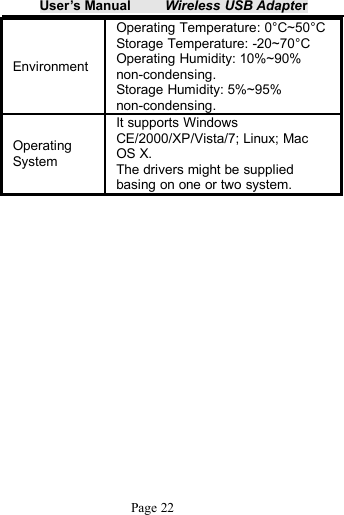
User’s Manual Wireless USB AdapterPage 22EnvironmentOperating Temperature: 0°C~50°CStorage Temperature: -20~70°COperating Humidity: 10%~90%non-condensing.Storage Humidity: 5%~95%non-condensing.OperatingSystemIt supports WindowsCE/2000/XP/Vista/7; Linux; MacOS X.The drivers might be suppliedbasing on one or two system.

Navigation menu