Ogemray Technology WF7610U5B Wireless USB Adapter User Manual Tekom

Shenzhen Ogemray Technology Co.,Ltd Wireless USB Adapter Tekom

User Manual

                         1 / 20 SHENZHEN OGEMRAY TECHNOLOGY CO., LTD PPRROODDUUCCTT  UUSSEERR  MMAANNUUAALL      54M/150M/300M/433Mbps GWF-5B06 Wireless Wi-Fi Adapter User Manual Version:V1.0             All rights reserved All information contained in this sheet may not be changed without permission
                         2 / 20 SHENZHEN OGEMRAY TECHNOLOGY CO., LTD PPRROODDUUCCTT  UUSSEERR  MMAANNUUAALL  CONTENTS  1. Product Information                          3 1.1 Product Introduction                          3 1.2 Product View and Dimension                          3 1.3 Main Parts Introduction                          4 1.4 Main Features                          5 2. Installation Steps                          6 3. System Connection                          9 3.1 Check Device Condition                          9 3.2 Device Connection                          10 4. Home Page Introduction                          13 5. Device Mode Switch                          18 5.1 Client+AP Mode                          18 5.2 AP Mode                          19 6. Agency and Approval                          19 7. Environment Requirements                          19 7.1 Temperature Range                          20 7.2 Humidity Range                          20 8. Disclaimer                          20
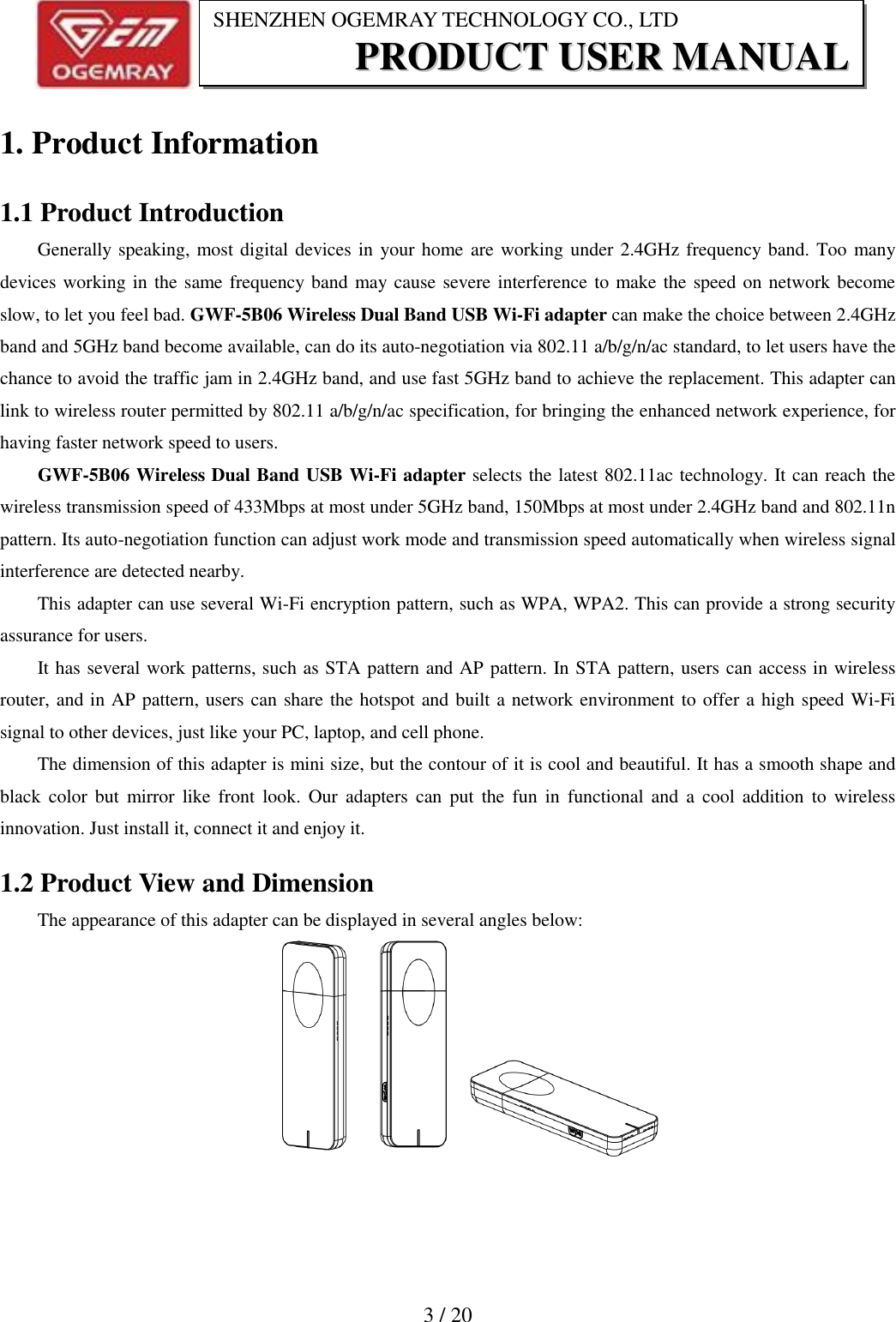
                          3 / 20 SHENZHEN OGEMRAY TECHNOLOGY CO., LTD PPRROODDUUCCTT  UUSSEERR  MMAANNUUAALL  1. Product Information 1.1 Product Introduction Generally speaking, most digital devices in your home are working under 2.4GHz frequency band. Too many devices working in the same frequency band may cause severe interference to make the speed on network become slow, to let you feel bad. GWF-5B06 Wireless Dual Band USB Wi-Fi adapter can make the choice between 2.4GHz band and 5GHz band become available, can do its auto-negotiation via 802.11 a/b/g/n/ac standard, to let users have the chance to avoid the traffic jam in 2.4GHz band, and use fast 5GHz band to achieve the replacement. This adapter can link to wireless router permitted by 802.11 a/b/g/n/ac specification, for bringing the enhanced network experience, for having faster network speed to users.   GWF-5B06 Wireless Dual Band USB Wi-Fi adapter selects the latest 802.11ac technology. It can reach the wireless transmission speed of 433Mbps at most under 5GHz band, 150Mbps at most under 2.4GHz band and 802.11n pattern. Its auto-negotiation function can adjust work mode and transmission speed automatically when wireless signal interference are detected nearby. This adapter can use several Wi-Fi encryption pattern, such as WPA, WPA2. This can provide a strong security assurance for users.   It has several work patterns, such as STA pattern and AP pattern. In STA pattern, users can access in wireless router, and in AP pattern, users can share the hotspot and built a network environment to offer a high speed Wi-Fi signal to other devices, just like your PC, laptop, and cell phone.   The dimension of this adapter is mini size, but the contour of it is cool and beautiful. It has a smooth shape and black  color  but  mirror  like  front  look. Our  adapters  can  put  the fun  in  functional and  a  cool  addition  to  wireless innovation. Just install it, connect it and enjoy it. 1.2 Product View and Dimension The appearance of this adapter can be displayed in several angles below:
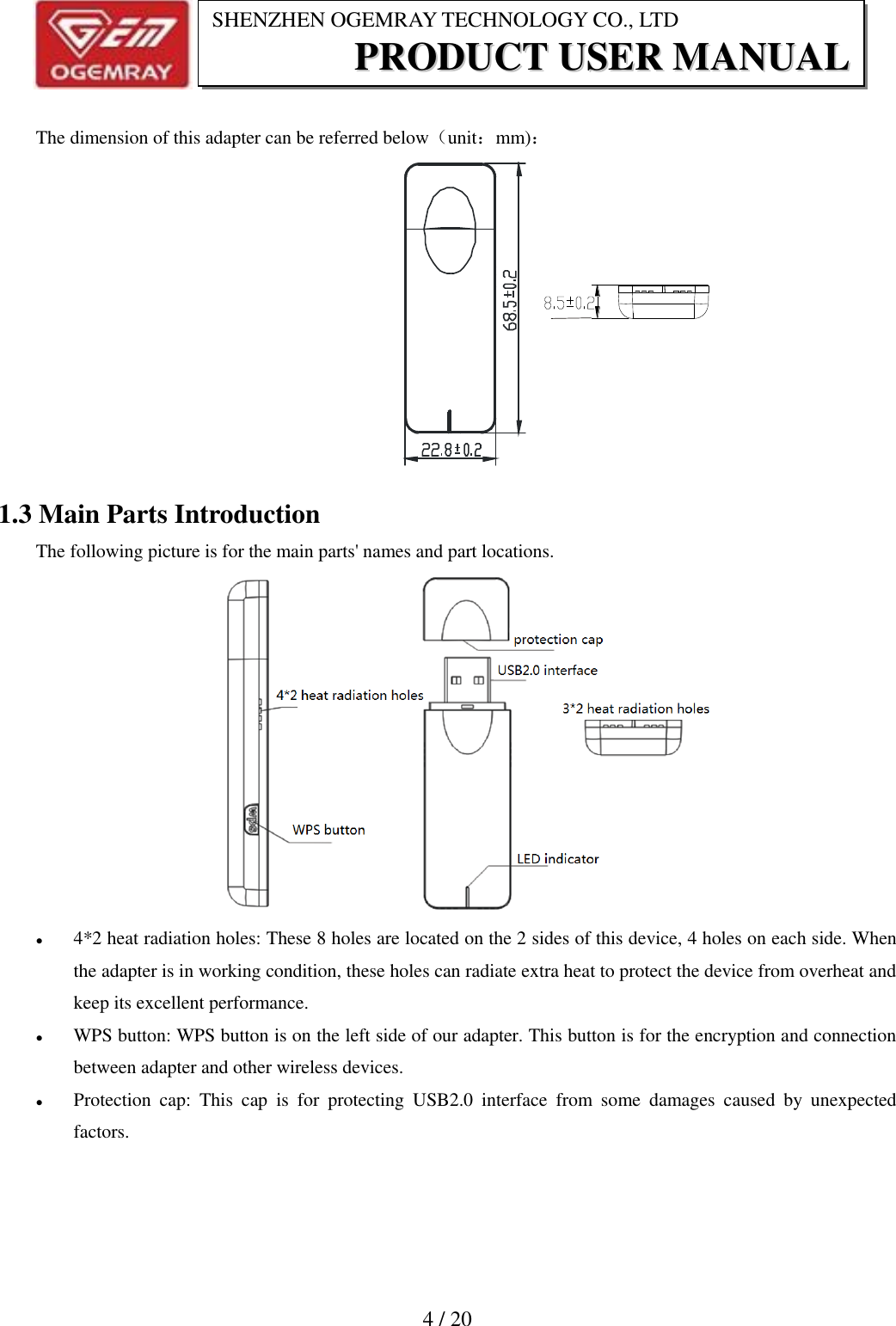
                          4 / 20 SHENZHEN OGEMRAY TECHNOLOGY CO., LTD PPRROODDUUCCTT  UUSSEERR  MMAANNUUAALL   The dimension of this adapter can be referred below(unit:mm):  1.3 Main Parts Introduction The following picture is for the main parts' names and part locations.   4*2 heat radiation holes: These 8 holes are located on the 2 sides of this device, 4 holes on each side. When the adapter is in working condition, these holes can radiate extra heat to protect the device from overheat and keep its excellent performance.    WPS button: WPS button is on the left side of our adapter. This button is for the encryption and connection between adapter and other wireless devices.  Protection  cap:  This  cap  is  for  protecting  USB2.0  interface  from  some  damages  caused  by  unexpected factors.
                          5 / 20 SHENZHEN OGEMRAY TECHNOLOGY CO., LTD PPRROODDUUCCTT  UUSSEERR  MMAANNUUAALL   USB2.0 interface: This is the interface of this adapter. Energy saving and low power consumption. It is the connection between our adapter and target devices. Just plug and play.  LED  indicator:  It  is  on  the  bottom  of  product  front  side  for  indicating  product  working  state.  Under connection situation, the indicator is ON, under working condition, it is blinking, under disconnection state, it is OFF.  3*2 heat radiation holes:These 6 holes are located at the bottom of  this device. When the  adapter is in working  condition,  these  holes  can  radiate  extra  heat  to  protect  the  device  from  overheat  and  keep  its excellent performance. 1.4 Main Features  Dual band wireless connection(2.4GHz and 5GHz) is available  Built-in antenna  With IEEE 802.11a/b/g/n/ac regulations   802.11a:6,9,12,184,36,48,54Mbps   802.11b:1,2,5.5,11Mbps   802.11g:6,9,12,18,24,36,48,54Mbps   802.11n: (20MHz)MCS0-7,up to 72Mbps at most (40MHz)MCS0-7,up to 150Mbps at most   802.11ac:Max 433Mbps(80MHz)  Support WPS function and wireless direct connection  It can reach the wireless transmission speed of 433Mbps at most under 5GHz band, 150Mbps at most under 2.4GHz band  Wireless transmission speed is auto-negotiation according by network condition  Super USB 2.0 interface  Support power consumption management function  LED indicator can indicate product working state  Great anti-interference function  Compatible with many kinds of operation system
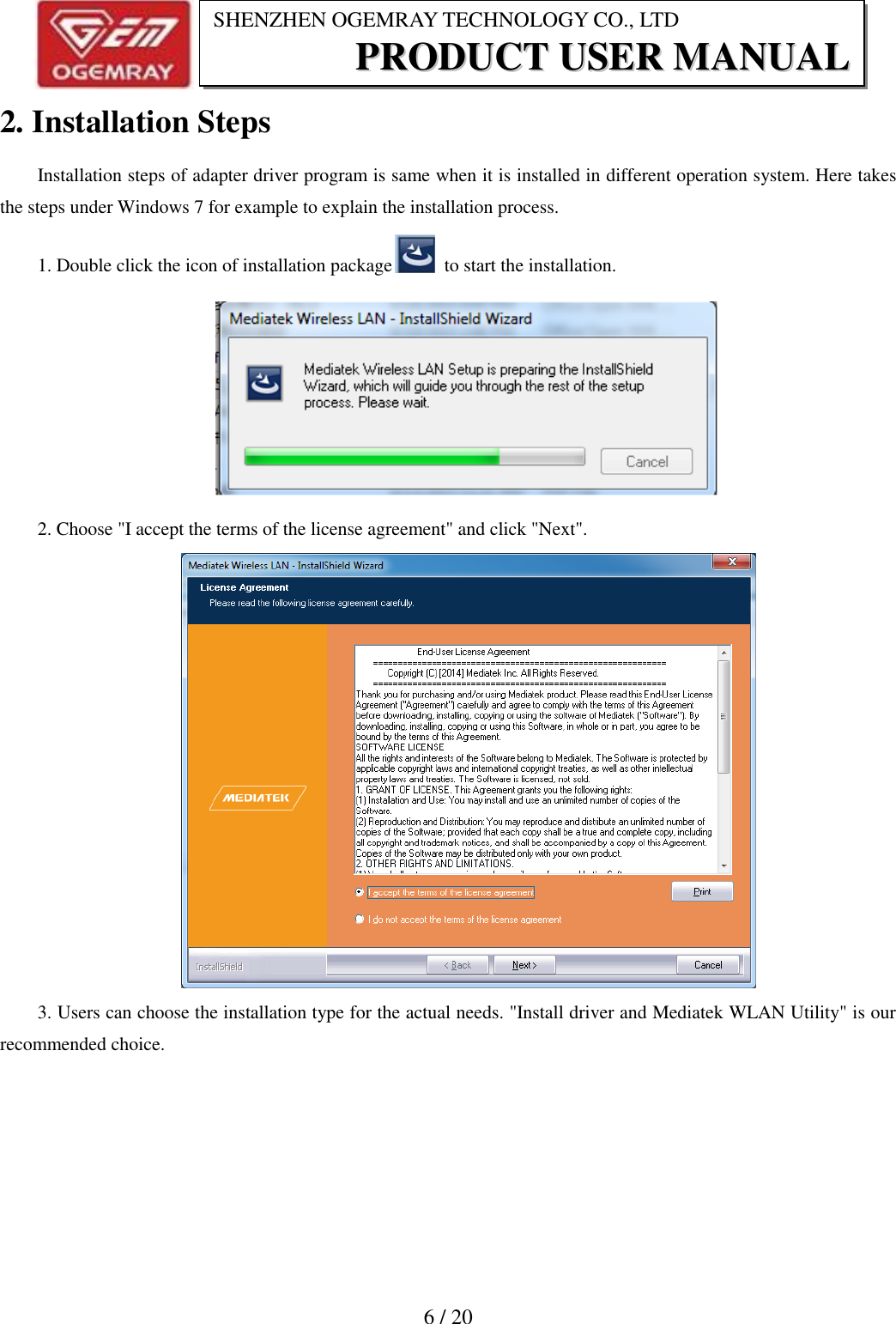
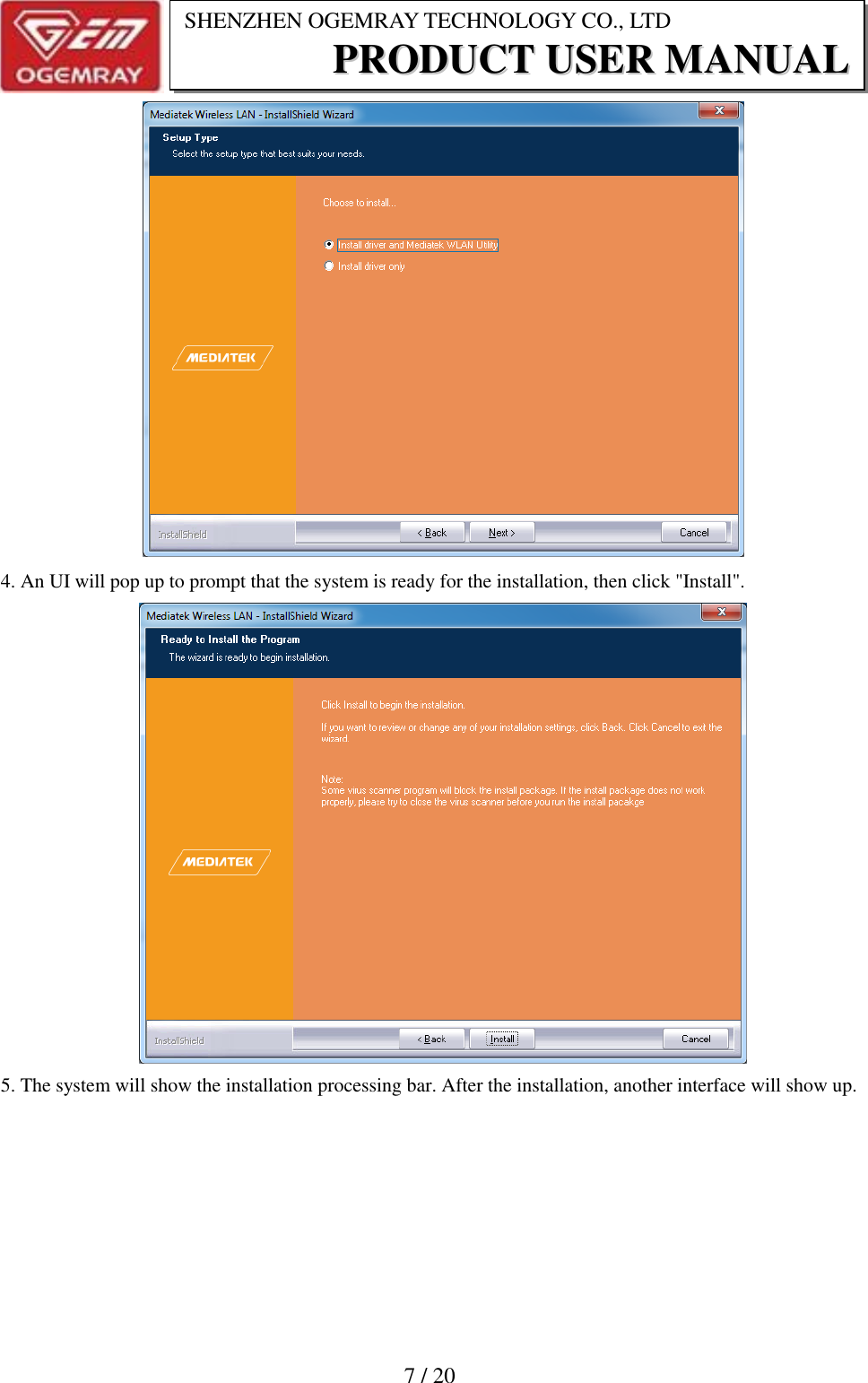
                          6 / 20 SHENZHEN OGEMRAY TECHNOLOGY CO., LTD PPRROODDUUCCTT  UUSSEERR  MMAANNUUAALL  2. Installation Steps Installation steps of adapter driver program is same when it is installed in different operation system. Here takes the steps under Windows 7 for example to explain the installation process. 1. Double click the icon of installation package   to start the installation.  2. Choose "I accept the terms of the license agreement" and click "Next".  3. Users can choose the installation type for the actual needs. "Install driver and Mediatek WLAN Utility" is our recommended choice.
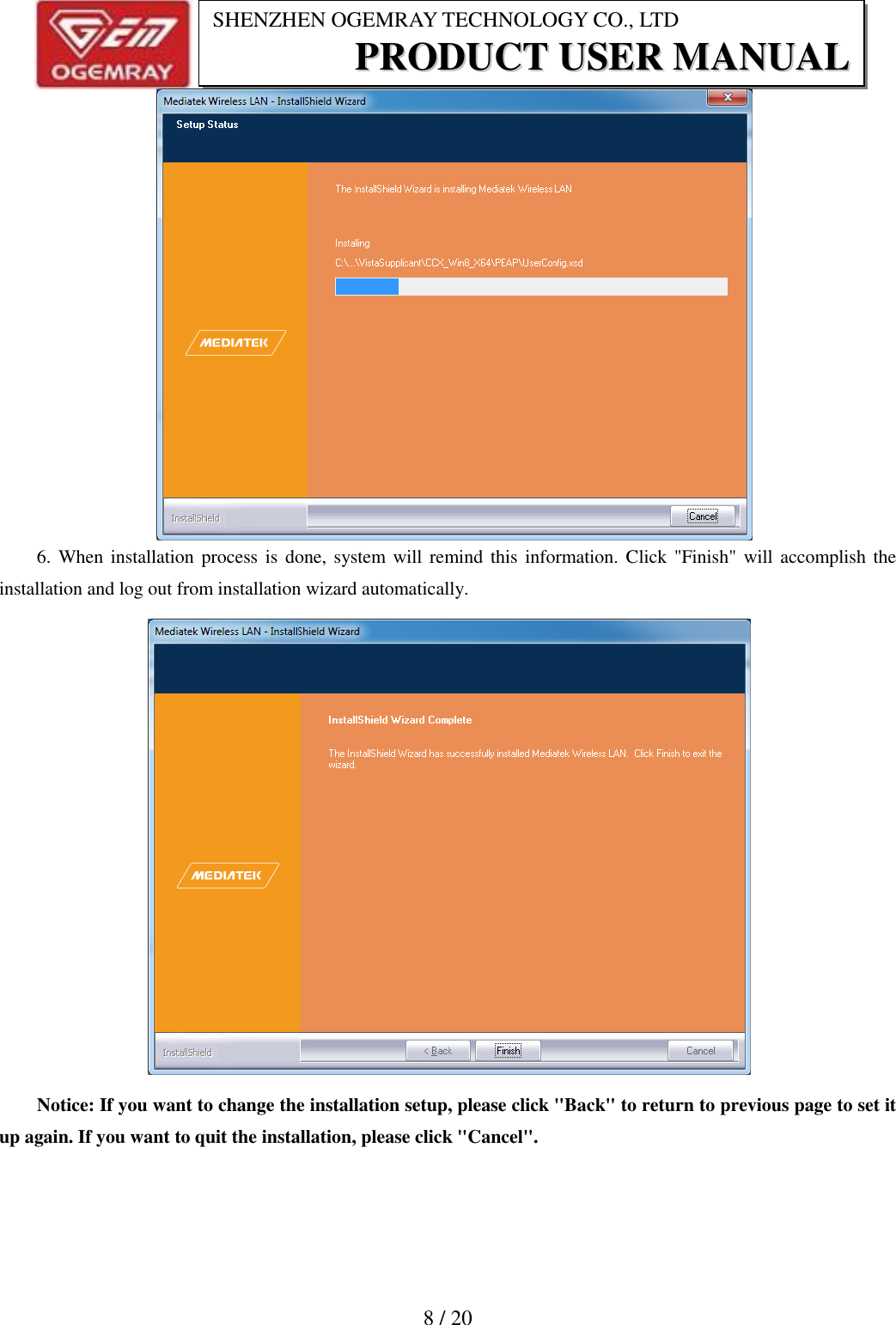
                          7 / 20 SHENZHEN OGEMRAY TECHNOLOGY CO., LTD PPRROODDUUCCTT  UUSSEERR  MMAANNUUAALL      4. An UI will pop up to prompt that the system is ready for the installation, then click "Install".     5. The system will show the installation processing bar. After the installation, another interface will show up.
                          8 / 20 SHENZHEN OGEMRAY TECHNOLOGY CO., LTD PPRROODDUUCCTT  UUSSEERR  MMAANNUUAALL     6. When installation process is  done, system will remind  this information. Click "Finish" will accomplish the installation and log out from installation wizard automatically.  Notice: If you want to change the installation setup, please click "Back" to return to previous page to set it up again. If you want to quit the installation, please click "Cancel".
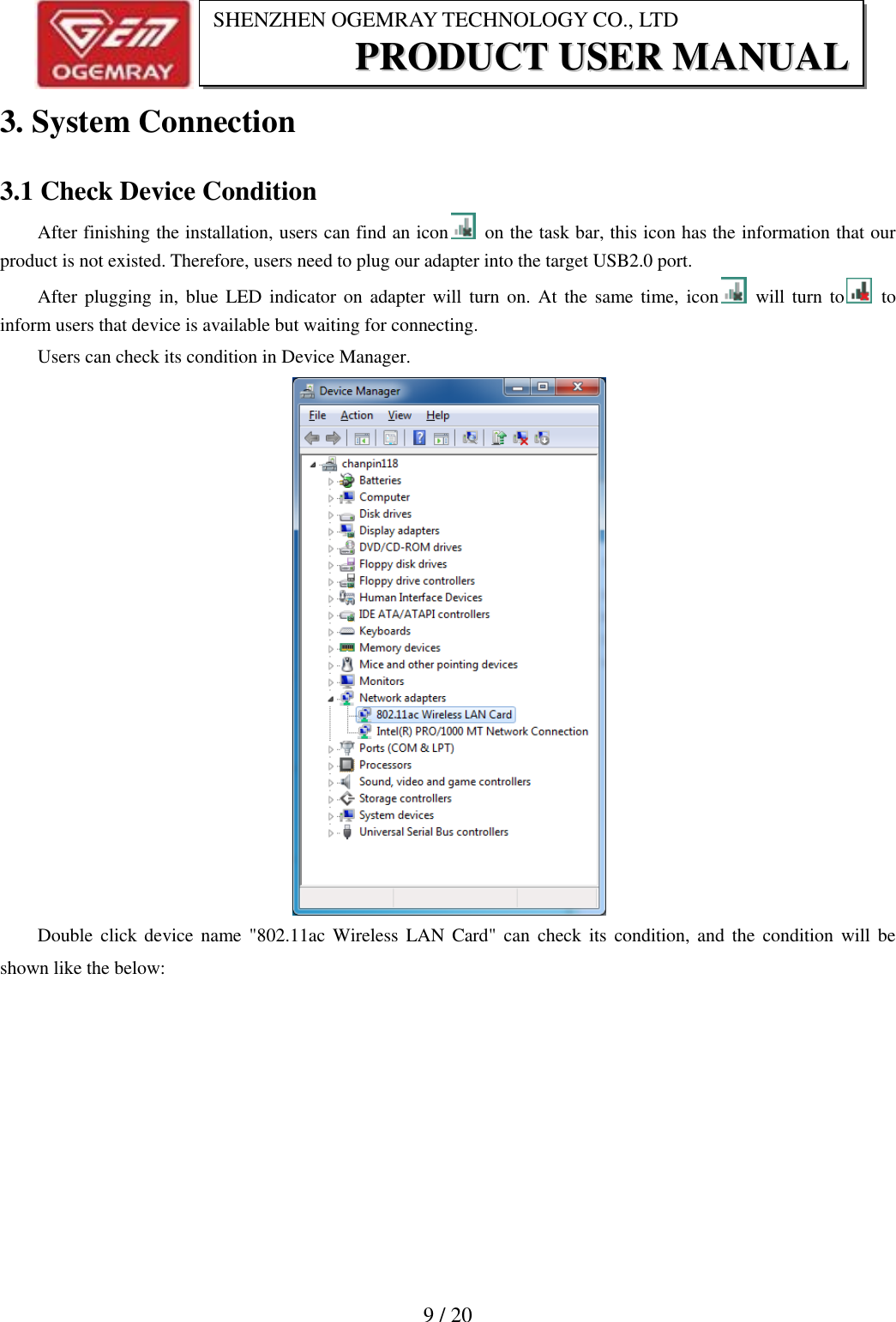
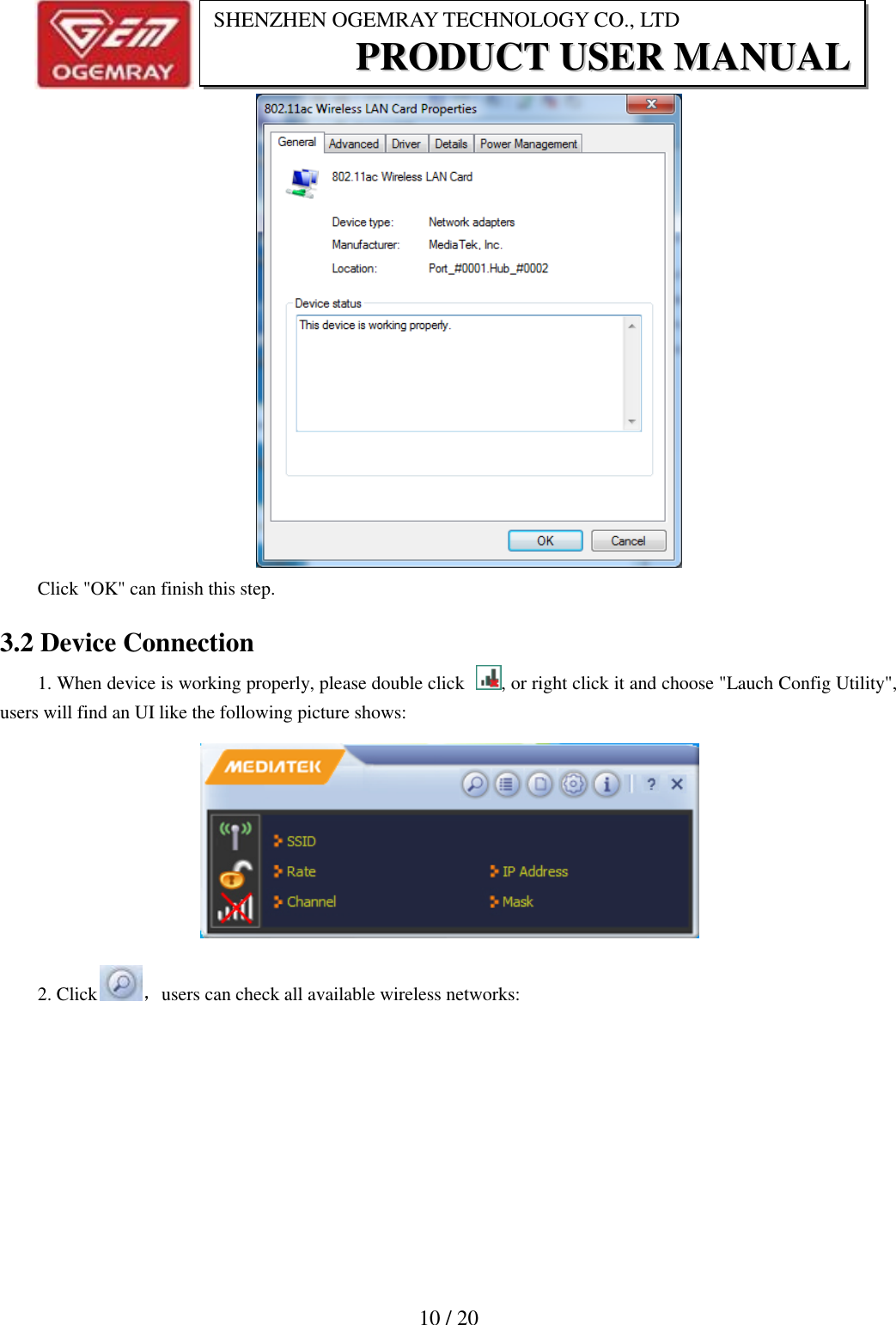
                          9 / 20 SHENZHEN OGEMRAY TECHNOLOGY CO., LTD PPRROODDUUCCTT  UUSSEERR  MMAANNUUAALL  3. System Connection 3.1 Check Device Condition After finishing the installation, users can find an icon   on the task bar, this icon has the information that our product is not existed. Therefore, users need to plug our adapter into the target USB2.0 port. After plugging in,  blue  LED indicator on adapter will turn  on.  At  the  same time,  icon   will turn to   to inform users that device is available but waiting for connecting. Users can check its condition in Device Manager.  Double click device  name  "802.11ac Wireless  LAN Card" can  check its condition, and the condition  will be shown like the below:
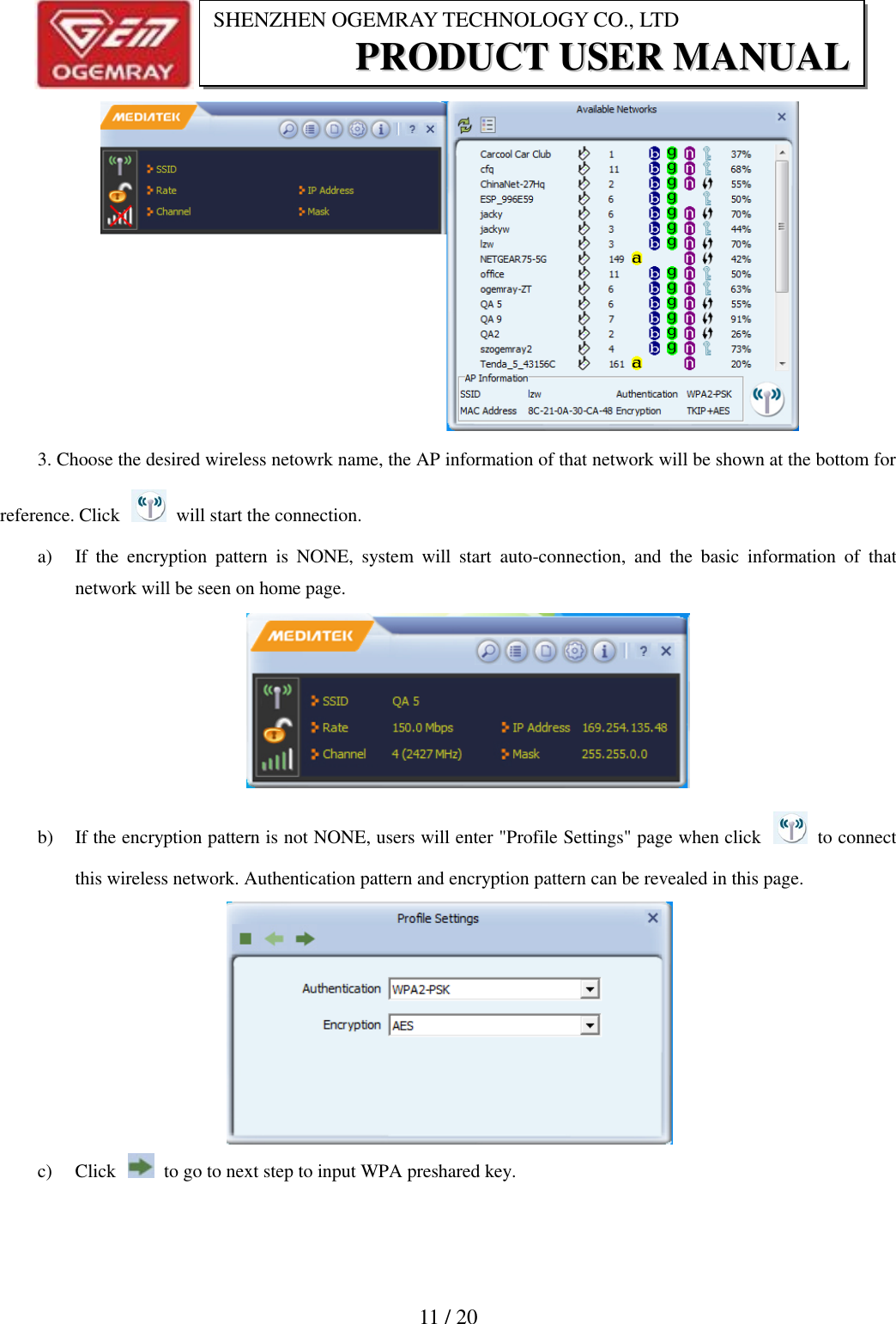
                          10 / 20 SHENZHEN OGEMRAY TECHNOLOGY CO., LTD PPRROODDUUCCTT  UUSSEERR  MMAANNUUAALL   Click "OK" can finish this step. 3.2 Device Connection 1. When device is working properly, please double click  , or right click it and choose "Lauch Config Utility", users will find an UI like the following picture shows:  2. Click ,users can check all available wireless networks:
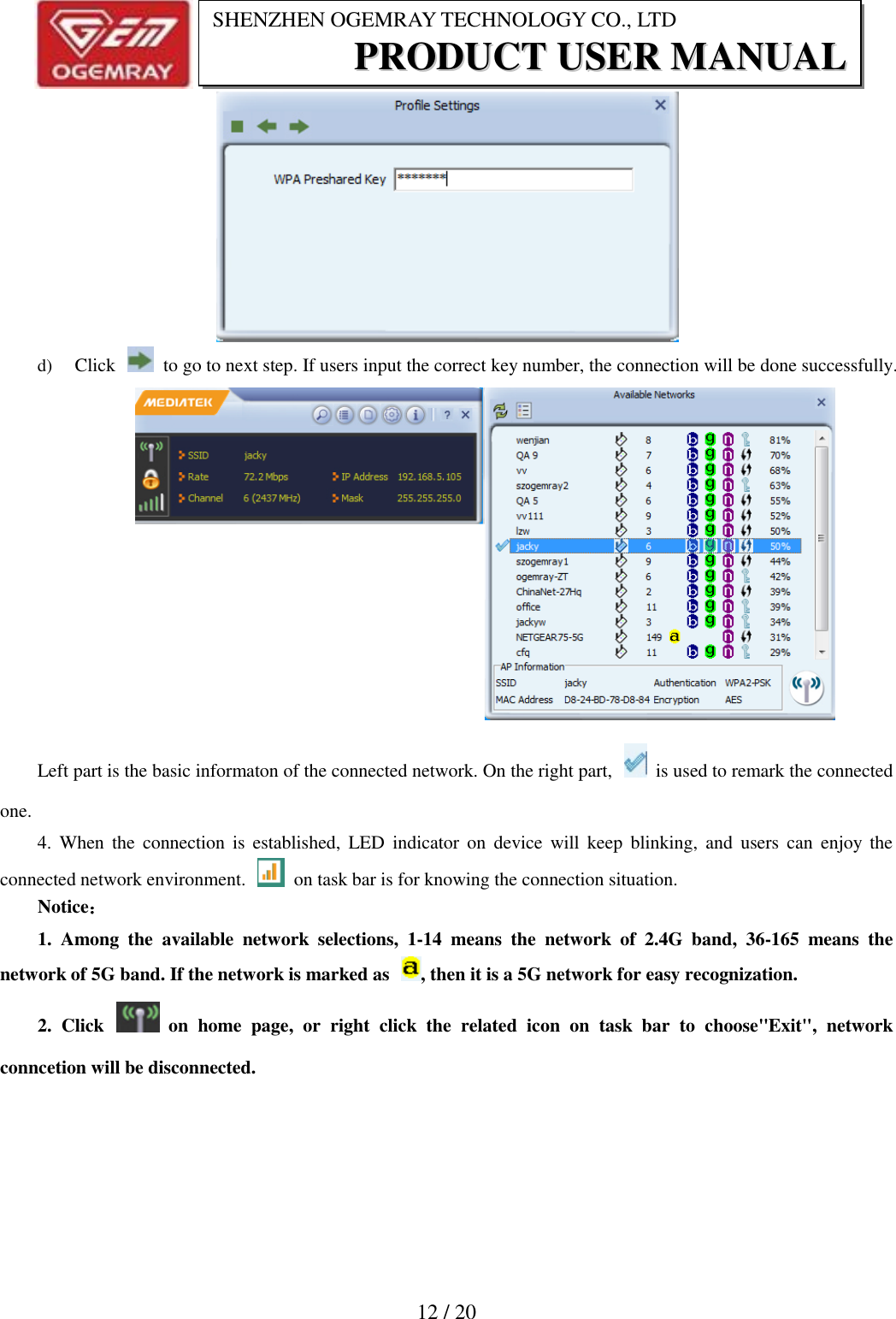
                          11 / 20 SHENZHEN OGEMRAY TECHNOLOGY CO., LTD PPRROODDUUCCTT  UUSSEERR  MMAANNUUAALL   3. Choose the desired wireless netowrk name, the AP information of that network will be shown at the bottom for reference. Click    will start the connection. a) If  the  encryption  pattern  is  NONE,  system  will  start  auto-connection,  and  the  basic  information  of  that network will be seen on home page.  b) If the encryption pattern is not NONE, users will enter "Profile Settings" page when click    to connect this wireless network. Authentication pattern and encryption pattern can be revealed in this page.  c) Click    to go to next step to input WPA preshared key.
                          12 / 20 SHENZHEN OGEMRAY TECHNOLOGY CO., LTD PPRROODDUUCCTT  UUSSEERR  MMAANNUUAALL   d) Click    to go to next step. If users input the correct key number, the connection will be done successfully. Left part is the basic informaton of the connected network. On the right part,    is used to remark the connected one. 4.  When  the  connection  is  established,  LED  indicator  on  device  will  keep  blinking, and  users  can  enjoy  the connected network environment.    on task bar is for knowing the connection situation. Notice: 1.  Among  the  available  network  selections,  1-14  means  the  network  of  2.4G  band,  36-165  means  the network of 5G band. If the network is marked as  , then it is a 5G network for easy recognization. 2.  Click    on  home  page,  or  right  click  the  related  icon  on  task  bar  to  choose"Exit",  network conncetion will be disconnected.
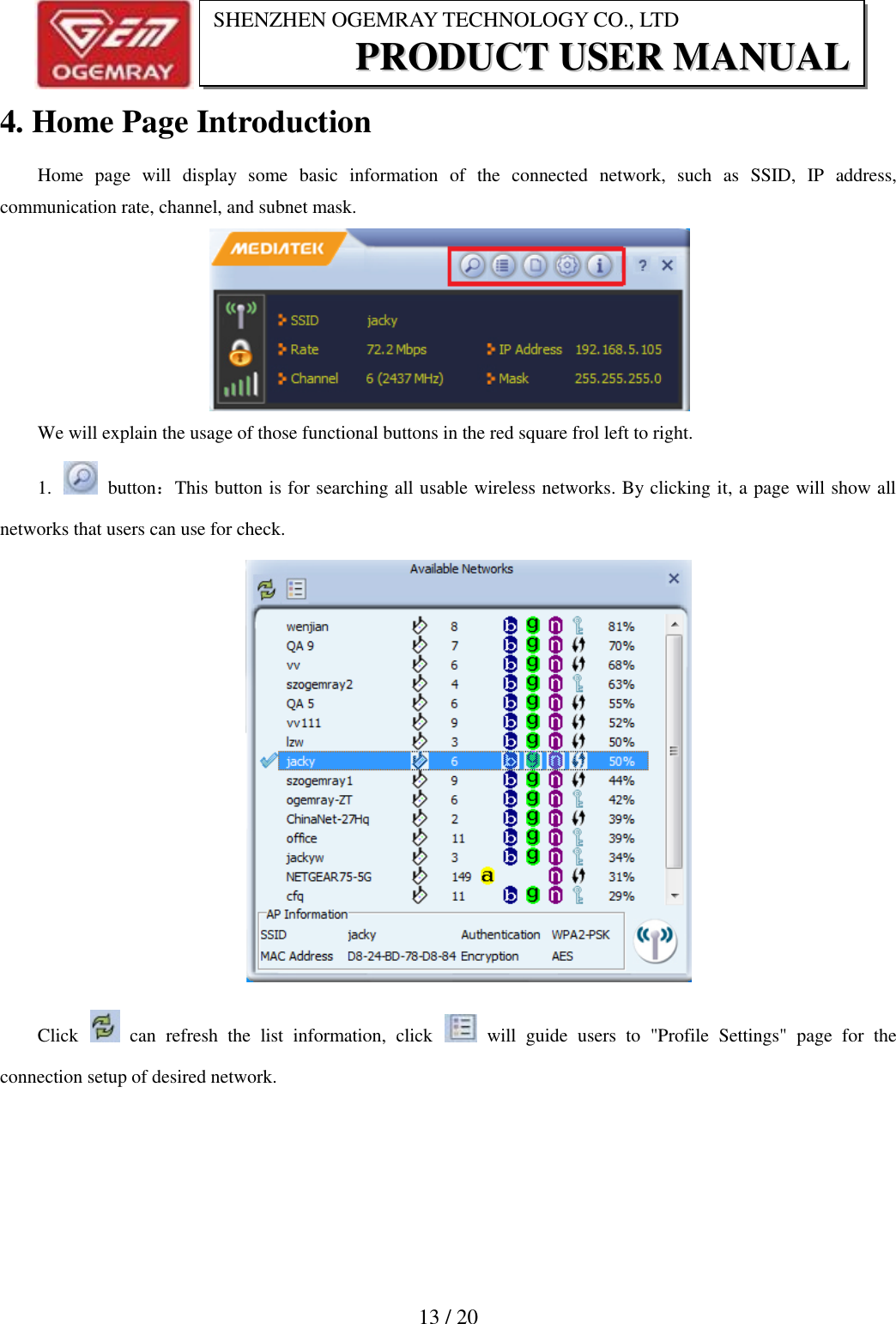
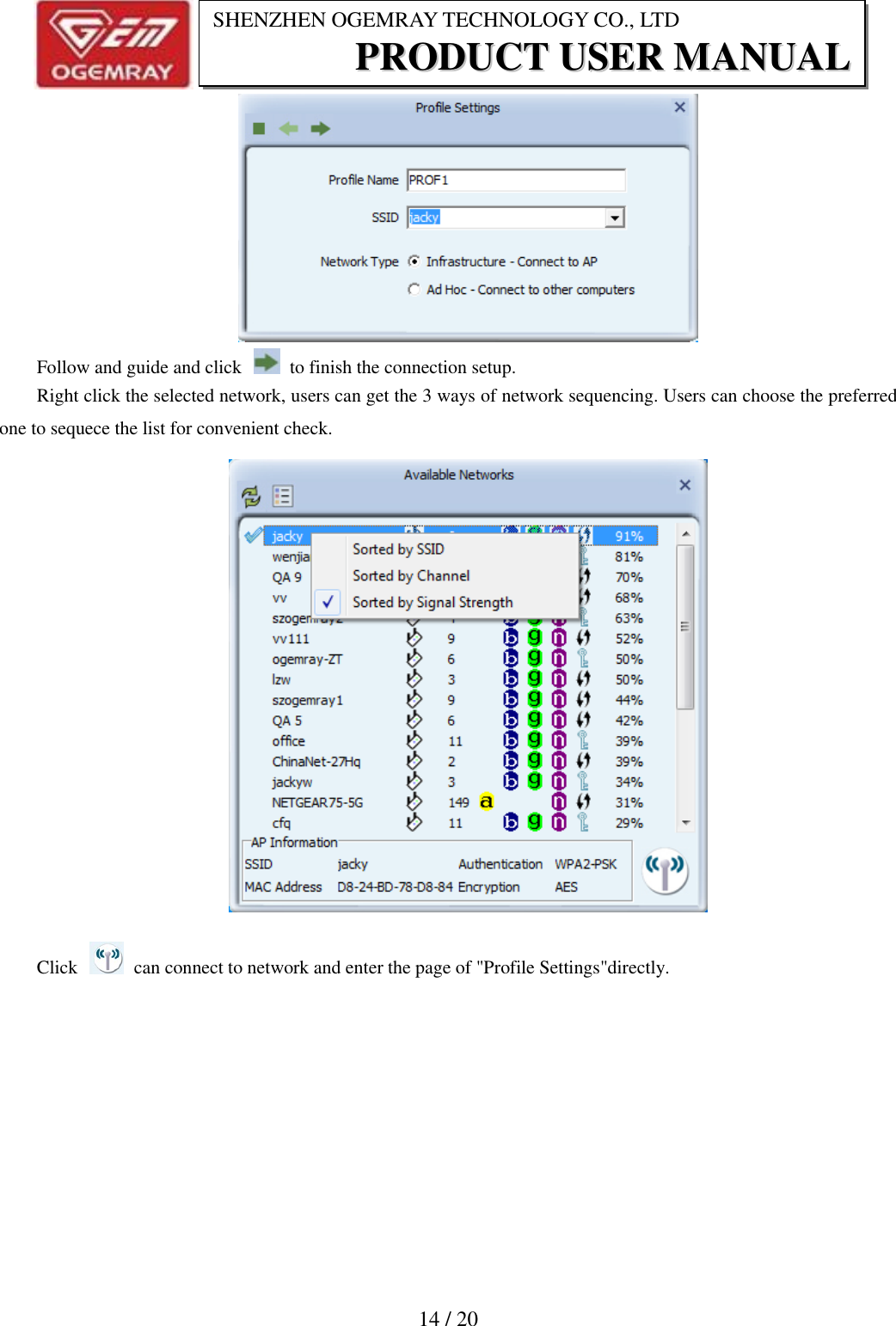
                          13 / 20 SHENZHEN OGEMRAY TECHNOLOGY CO., LTD PPRROODDUUCCTT  UUSSEERR  MMAANNUUAALL  4. Home Page Introduction Home  page  will  display  some  basic  information  of  the  connected  network,  such  as  SSID,  IP  address, communication rate, channel, and subnet mask.  We will explain the usage of those functional buttons in the red square frol left to right. 1.    button:This button is for searching all usable wireless networks. By clicking it, a page will show all networks that users can use for check.    Click    can  refresh  the  list  information,  click    will  guide  users  to  "Profile  Settings"  page  for  the connection setup of desired network.
                          14 / 20 SHENZHEN OGEMRAY TECHNOLOGY CO., LTD PPRROODDUUCCTT  UUSSEERR  MMAANNUUAALL   Follow and guide and click    to finish the connection setup. Right click the selected network, users can get the 3 ways of network sequencing. Users can choose the preferred one to sequece the list for convenient check.  Click    can connect to network and enter the page of "Profile Settings"directly.
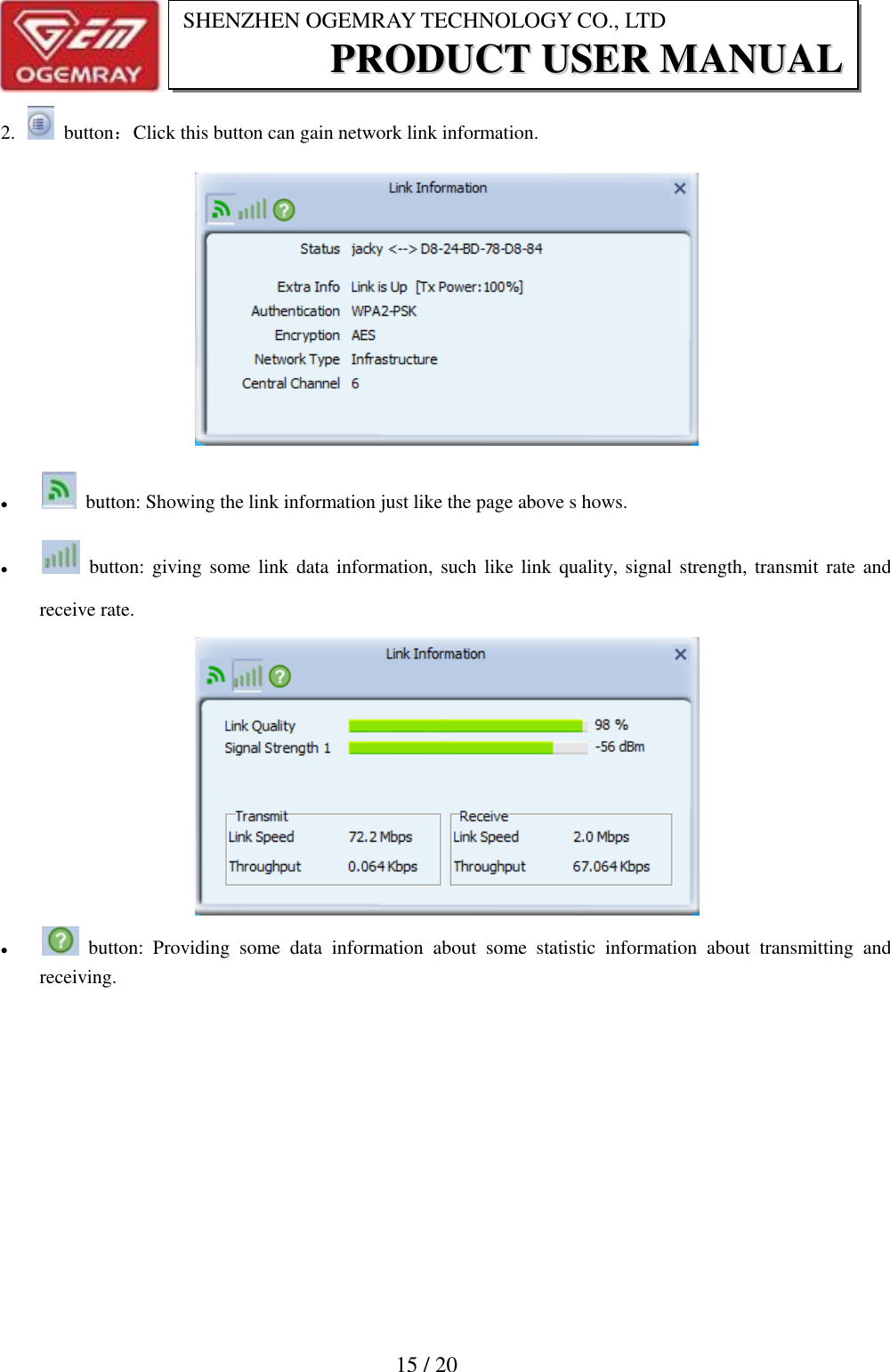
                          15 / 20 SHENZHEN OGEMRAY TECHNOLOGY CO., LTD PPRROODDUUCCTT  UUSSEERR  MMAANNUUAALL  2.    button:Click this button can gain network link information.     button: Showing the link information just like the page above s hows.      button: giving some link data  information, such  like link quality, signal strength, transmit rate  and receive rate.     button:  Providing  some  data  information  about  some  statistic  information  about  transmitting  and receiving.
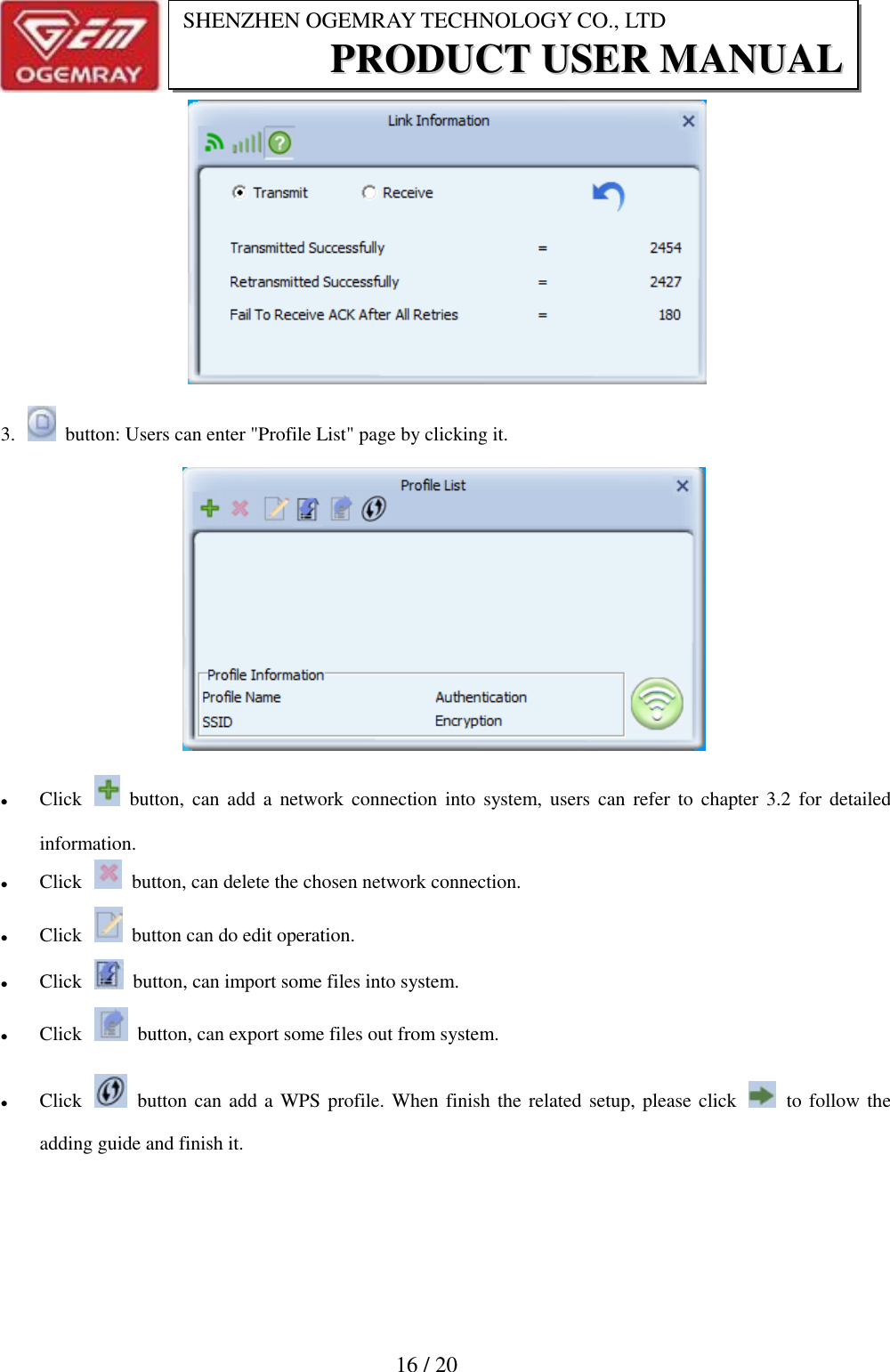
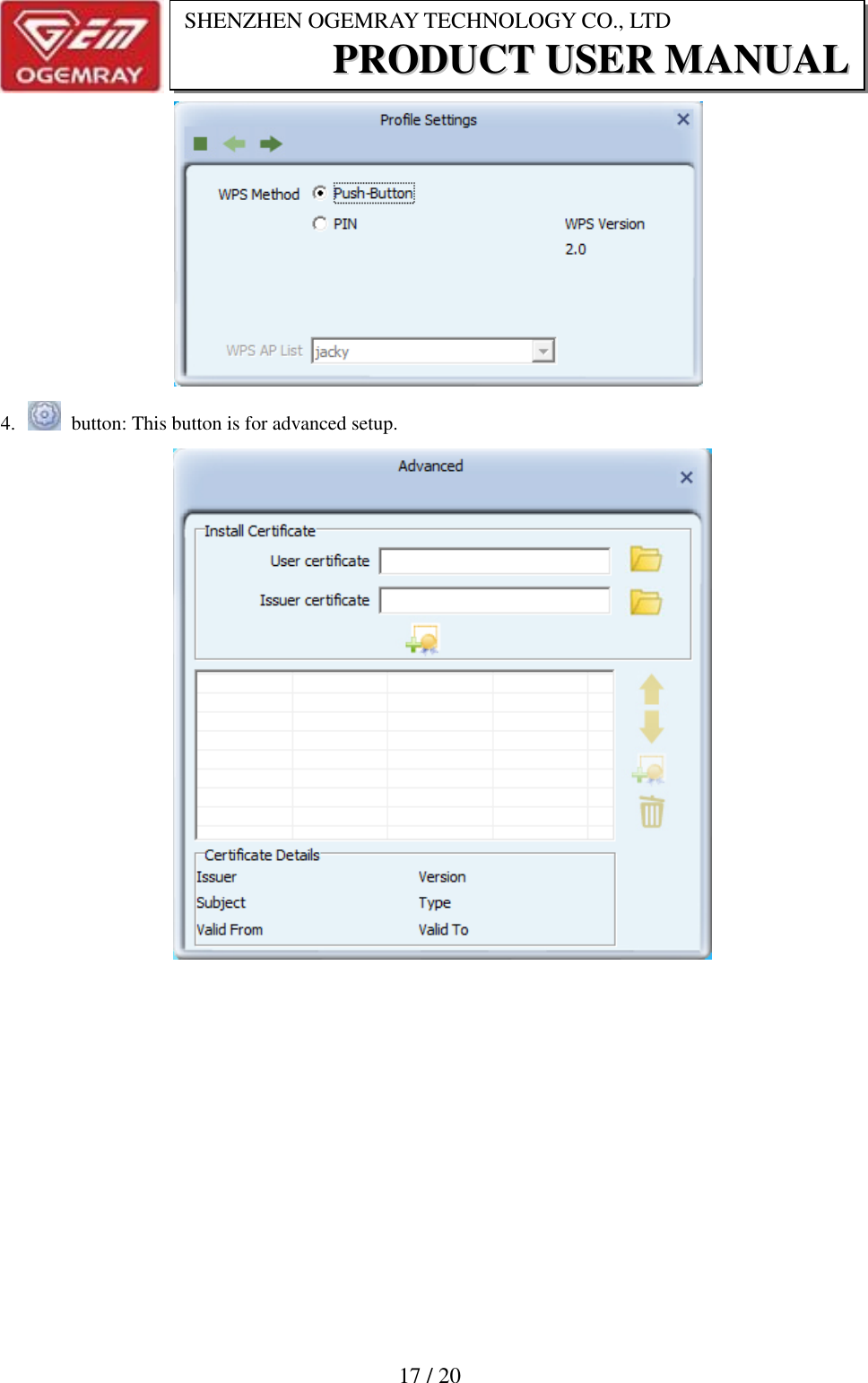
                          16 / 20 SHENZHEN OGEMRAY TECHNOLOGY CO., LTD PPRROODDUUCCTT  UUSSEERR  MMAANNUUAALL                   3.    button: Users can enter "Profile List" page by clicking it.       Click    button, can  add  a  network  connection into system, users can  refer  to  chapter  3.2  for  detailed information.    Click    button, can delete the chosen network connection.  Click    button can do edit operation.  Click    button, can import some files into system.  Click    button, can export some files out from system.  Click    button can add a WPS profile. When finish the related setup, please click    to follow the adding guide and finish it.
                          17 / 20 SHENZHEN OGEMRAY TECHNOLOGY CO., LTD PPRROODDUUCCTT  UUSSEERR  MMAANNUUAALL     4.    button: This button is for advanced setup.
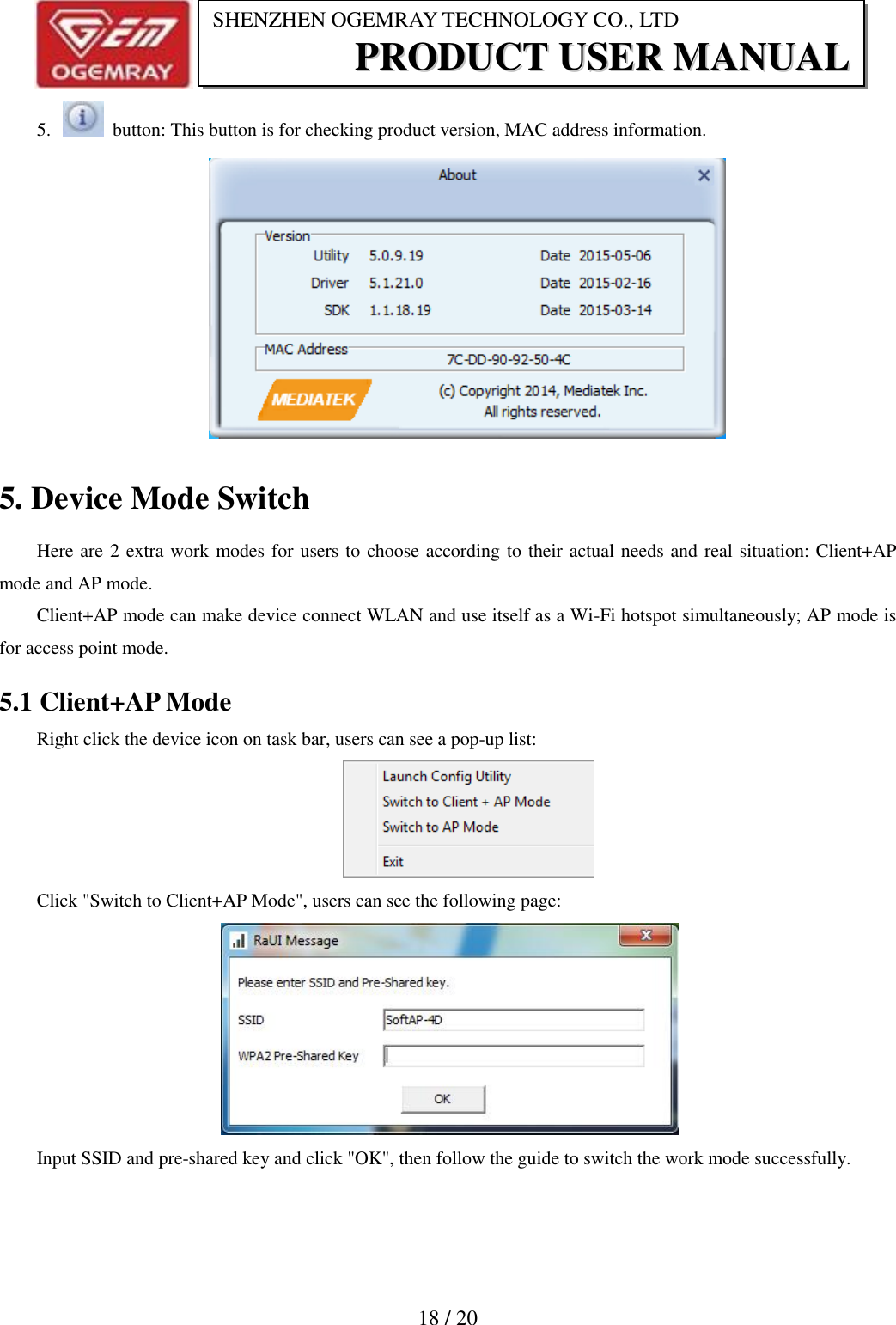
                          18 / 20 SHENZHEN OGEMRAY TECHNOLOGY CO., LTD PPRROODDUUCCTT  UUSSEERR  MMAANNUUAALL  5.    button: This button is for checking product version, MAC address information.  5. Device Mode Switch Here are 2 extra work modes for users to choose according to their actual needs and real situation: Client+AP mode and AP mode. Client+AP mode can make device connect WLAN and use itself as a Wi-Fi hotspot simultaneously; AP mode is for access point mode. 5.1 Client+AP Mode Right click the device icon on task bar, users can see a pop-up list:  Click "Switch to Client+AP Mode", users can see the following page:  Input SSID and pre-shared key and click "OK", then follow the guide to switch the work mode successfully.
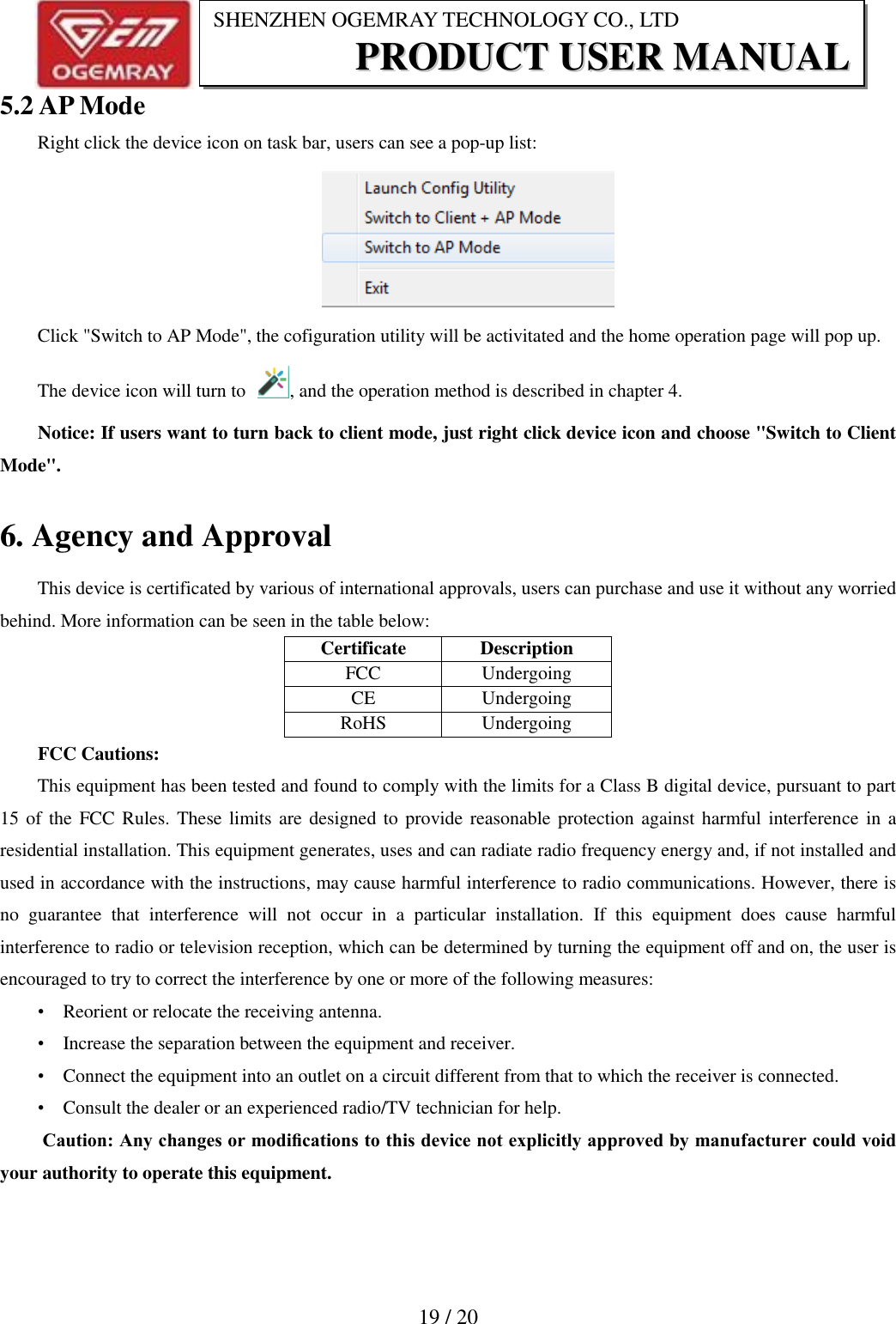
                          19 / 20 SHENZHEN OGEMRAY TECHNOLOGY CO., LTD PPRROODDUUCCTT  UUSSEERR  MMAANNUUAALL  5.2 AP Mode Right click the device icon on task bar, users can see a pop-up list:  Click "Switch to AP Mode", the cofiguration utility will be activitated and the home operation page will pop up. The device icon will turn to  , and the operation method is described in chapter 4. Notice: If users want to turn back to client mode, just right click device icon and choose "Switch to Client Mode". 6. Agency and Approval This device is certificated by various of international approvals, users can purchase and use it without any worried behind. More information can be seen in the table below: Certificate  Description FCC  Undergoing CE  Undergoing RoHS  Undergoing FCC Cautions: This equipment has been tested and found to comply with the limits for a Class B digital device, pursuant to part 15 of  the FCC Rules. These limits are designed to provide reasonable protection against harmful interference  in a residential installation. This equipment generates, uses and can radiate radio frequency energy and, if not installed and used in accordance with the instructions, may cause harmful interference to radio communications. However, there is no  guarantee  that  interference  will  not  occur  in  a  particular  installation.  If  this  equipment  does  cause  harmful interference to radio or television reception, which can be determined by turning the equipment off and on, the user is encouraged to try to correct the interference by one or more of the following measures: •    Reorient or relocate the receiving antenna. •    Increase the separation between the equipment and receiver. •    Connect the equipment into an outlet on a circuit different from that to which the receiver is connected. •    Consult the dealer or an experienced radio/TV technician for help.  Caution: Any changes or modifications to this device not explicitly approved by manufacturer could void your authority to operate this equipment.
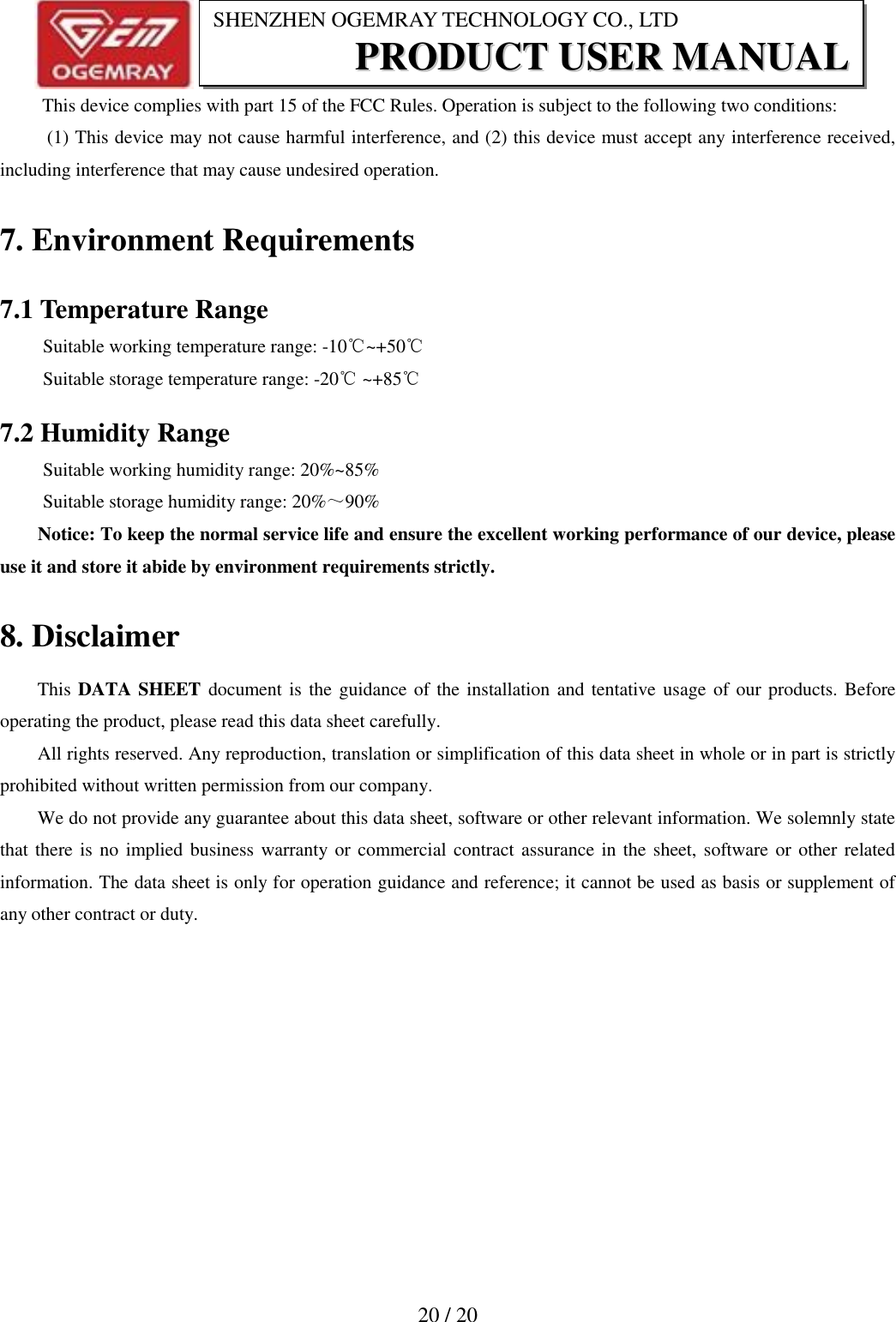
                          20 / 20 SHENZHEN OGEMRAY TECHNOLOGY CO., LTD PPRROODDUUCCTT  UUSSEERR  MMAANNUUAALL   This device complies with part 15 of the FCC Rules. Operation is subject to the following two conditions:   (1) This device may not cause harmful interference, and (2) this device must accept any interference received, including interference that may cause undesired operation. 7. Environment Requirements 7.1 Temperature Range Suitable working temperature range: -10℃~+50℃ Suitable storage temperature range: -20℃ ~+85℃ 7.2 Humidity Range    Suitable working humidity range: 20%~85% Suitable storage humidity range: 20%~90% Notice: To keep the normal service life and ensure the excellent working performance of our device, please use it and store it abide by environment requirements strictly.   8. Disclaimer This DATA SHEET document is the guidance of the installation and tentative usage of our products. Before operating the product, please read this data sheet carefully. All rights reserved. Any reproduction, translation or simplification of this data sheet in whole or in part is strictly prohibited without written permission from our company. We do not provide any guarantee about this data sheet, software or other relevant information. We solemnly state that there is no implied business warranty or commercial contract assurance in the sheet, software or other related information. The data sheet is only for operation guidance and reference; it cannot be used as basis or supplement of any other contract or duty.
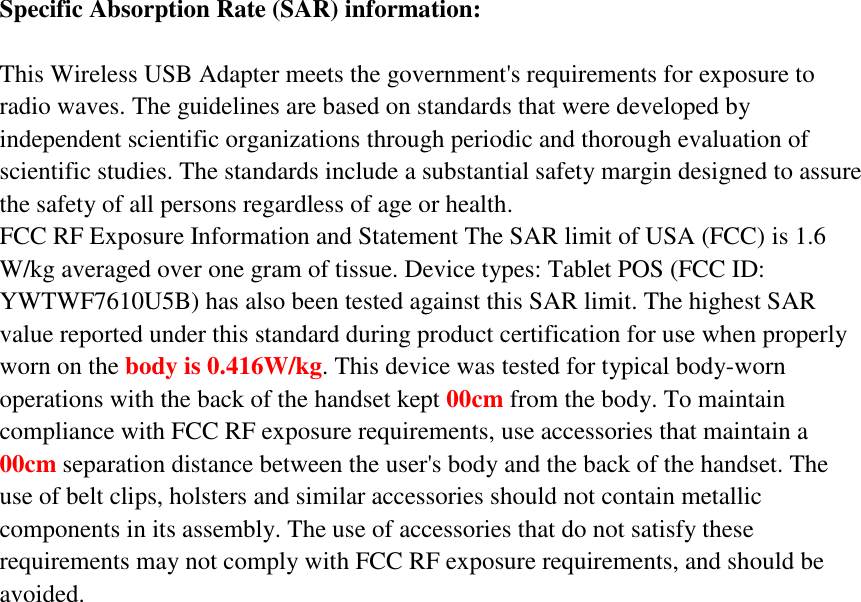
Specific Absorption Rate (SAR) information:  This Wireless USB Adapter meets the government's requirements for exposure to radio waves. The guidelines are based on standards that were developed by independent scientific organizations through periodic and thorough evaluation of scientific studies. The standards include a substantial safety margin designed to assure the safety of all persons regardless of age or health. FCC RF Exposure Information and Statement The SAR limit of USA (FCC) is 1.6 W/kg averaged over one gram of tissue. Device types: Tablet POS (FCC ID: YWTWF7610U5B) has also been tested against this SAR limit. The highest SAR value reported under this standard during product certification for use when properly worn on the body is 0.416W/kg. This device was tested for typical body-worn operations with the back of the handset kept 00cm from the body. To maintain compliance with FCC RF exposure requirements, use accessories that maintain a 00cm separation distance between the user's body and the back of the handset. The use of belt clips, holsters and similar accessories should not contain metallic components in its assembly. The use of accessories that do not satisfy these requirements may not comply with FCC RF exposure requirements, and should be avoided.

Navigation menu