Olympus Mr F30 Series Users Manual USER'S
MR-F30 Series man_mrf30_e
MR-F30 Series to the manual c81f3e71-ad43-4970-b213-23ed651dd6b4
2015-01-26
: Olympus Olympus-Mr-F30-Series-Users-Manual-344591 olympus-mr-f30-series-users-manual-344591 olympus pdf
Open the PDF directly: View PDF  .
.
Page Count: 86
USER’S MANUAL
Digital Audio Player
MR-F30 Series
MR-F30 Series
MRF30_E.book Page 1 Tuesday, July 12, 2005 3:04 PM

2
MR-F30 Series
Thank you for purchasing the Olympus Digital Audio Player MR-F30 Series.
• The product information this USER’S MANUAL conveys is subject to change without
notice. Contact an authorized Olympus service center with the product name and model
number for the latest information.
• While every care has been taken in the preparation of this USER’S MANUAL, if you find
any errors, omissions, or points which are unclear, please contact an authorized Olympus
service center.
• The contents of this USER’S MANUAL may not be reproduced in whole or in part except
for personal use. It may not be transferred without permission.
• Olympus accepts no responsibility for losses suffered by the customer or a third party as
a result of improper use of this product.
• Olympus accepts no responsibility for any damage due to a loss of data resulting from
malfunction of this product, repair by a third party not authorized by Olympus, or other
reason.
• Illustrations in this USER’S MANUAL may not be the same as the actual product.
Introduction
MRF30_E.book Page 2 Tuesday, July 12, 2005 3:04 PM

3
MR-F30 Series
Trademarks/Fonts
• m:robe is a trademark of OLYMPUS CORPORATION.
• Windows is a registered trademark of Microsoft Corporation.
• All other company and product names are registered trademarks and/or trademarks of
their respective owners.
• The screen fonts used by this product belong to Ricoh Corporation.
• “SRS,” “TruBass,” “WOW” and “ ” are trademarks or registered trademarks of
SRS Labs, Inc. The technology of Trubass and WOW is incorporated under license from
SRS Labs, Inc.
• MPEG Layer-3 audio coding technology is licensed from Fraunhofer IIS and Thomson
Multimedia.
Copyright and copyright protection feature (DRM)
By the Copyright Act, any music files and music CDs downloaded from the Internet without
the copyright holder’s permission are not allowed to be reproduced, distributed, publicized/
re-publicized on the Internet, or converted into MP3 or WMA files for the purpose of
commercial business or sale.
A WMA file may be provided with DRM (Digital Right Management) for copyright
protection. DRM limits the file to copy or distribute music files that are converted (ripped)
from a music CD or downloaded from music distribution services.
MRF30_E.book Page 3 Tuesday, July 12, 2005 3:04 PM

4
MR-F30 Series
About sample tracks incorporated into this product
The copyrights of the sample tracks are owned by the artists or their suppliers.
These sample materials must not be reproduced or used for profit and must not be transferred
or resold to third parties.
Failure to comply with these limitations may result in penalties for infringement of
copyrights.
Olympus accepts no responsibility in cases where these copyrights are violated.
Note about loosing data
Data stored in memory could be damaged or lost by operational mistakes, malfunctions, or
repairs, etc. Be sure to back up your data, for example, on the hard disk of your PC. Olympus
will not compensate for any loss or damage of data.
MRF30_E.book Page 4 Tuesday, July 12, 2005 3:04 PM

5
MR-F30 Series
• With the 512 MB*1/1 GB*2 built-in flash memory, you can transfer and store
approximately 120*1*3/240*2*3 music tracks to enjoy anytime, anywhere.
• The organic EL display provides a clearer screen than existing LCD displays.
• You can play not only MP3 files but also WMA and OGG files.
• JPEG files can be viewed (Photo Viewer).
• Improved stereoscopic 3D surround and bass sounds provide deep and sonorous tones
(SRS function).
• You can adjust the alarm and make FM recording reservations with the clock function.
• Playback can be started from the desired point within a file even if the playback time of
the file is long (Bookmark).
• The adjustable pivoting display is convenient and versatile (LCD Pivot).
• A microphone is built-in for you to make your own recordings.
• Contents of CDs and cassette tapes, etc., can also be recorded (Direct Encoding).
• You can listen to and record FM radio programs.
*1MR-F32
*2MR-F33
*3For typical 4-minute tracks recorded at 128 kbps in WMA format
Main features
MRF30_E.book Page 5 Tuesday, July 12, 2005 3:04 PM
6
MR-F30 Series
Introduction. . . . . . . . . . . . . . . . . . . . . . . . . . . . . . . . . . . . . . . . . . . . . . . . . . . . . . . . . . . . . . 2
Main features . . . . . . . . . . . . . . . . . . . . . . . . . . . . . . . . . . . . . . . . . . . . . . . . . . . . . . . . . . . . 5
Table of contents. . . . . . . . . . . . . . . . . . . . . . . . . . . . . . . . . . . . . . . . . . . . . . . . . . . . . . . . . . 6
Read this first
Safety Precautions . . . . . . . . . . . . . . . . . . . . . . . . . . . . . . . . . . . . . . . . . . . . . . . . . . . . . . . . 9
Controls: location and function . . . . . . . . . . . . . . . . . . . . . . . . . . . . . . . . . . . . . . . . . . . . . 16
Getting Started
Setting up your m:robe . . . . . . . . . . . . . . . . . . . . . . . . . . . . . . . . . . . . . . . . . . . . . . . . . . . . 18
Charging battery (using the USB cable). . . . . . . . . . . . . . . . . . . . . . . . . . . . . . . . 18
Transferring music/photos to your m:robe . . . . . . . . . . . . . . . . . . . . . . . . . . . . . . . . . . . . . 20
Disconnecting your m:robe from your PC . . . . . . . . . . . . . . . . . . . . . . . . . . . . . . 22
Connecting the earphones to your m:robe . . . . . . . . . . . . . . . . . . . . . . . . . . . . . . . . . . . . . 23
Basic operations
Turning the power of your m:robe on/off. . . . . . . . . . . . . . . . . . . . . . . . . . . . . . . . . . . . . . 24
Mode selection . . . . . . . . . . . . . . . . . . . . . . . . . . . . . . . . . . . . . . . . . . . . . . . . . . . . . . . . . . 25
Searching for a file . . . . . . . . . . . . . . . . . . . . . . . . . . . . . . . . . . . . . . . . . . . . . . . . . . . . . . . 27
Deleting files . . . . . . . . . . . . . . . . . . . . . . . . . . . . . . . . . . . . . . . . . . . . . . . . . . . . 28
Basic operation of the menu . . . . . . . . . . . . . . . . . . . . . . . . . . . . . . . . . . . . . . . . . . . . . . . . 29
Using the HOLD switch . . . . . . . . . . . . . . . . . . . . . . . . . . . . . . . . . . . . . . . . . . . . . . . . . . . 31
Listening to music
About the playback screen . . . . . . . . . . . . . . . . . . . . . . . . . . . . . . . . . . . . . . . . . . . . . . . . . 32
Playing back music . . . . . . . . . . . . . . . . . . . . . . . . . . . . . . . . . . . . . . . . . . . . . . . . . . . . . . . 33
Table of contents
MRF30_E.book Page 6 Tuesday, July 12, 2005 3:04 PM
7
MR-F30 Series
Using the playlist . . . . . . . . . . . . . . . . . . . . . . . . . . . . . . . . . . . . . . . . . . . . . . . . . . . . . . . . 34
Registering to the playlist . . . . . . . . . . . . . . . . . . . . . . . . . . . . . . . . . . . . . . . . . . 34
Playing back the playlist . . . . . . . . . . . . . . . . . . . . . . . . . . . . . . . . . . . . . . . . . . . 35
Setting playback mode. . . . . . . . . . . . . . . . . . . . . . . . . . . . . . . . . . . . . . . . . . . . . . . . . . . . 36
Selecting playback mode. . . . . . . . . . . . . . . . . . . . . . . . . . . . . . . . . . . . . . . . . . . 36
Setting StudyMode . . . . . . . . . . . . . . . . . . . . . . . . . . . . . . . . . . . . . . . . . . . . . . . 38
Setting interval repeat (A-B) . . . . . . . . . . . . . . . . . . . . . . . . . . . . . . . . . . . . . . . . 39
Setting EQ/WOW . . . . . . . . . . . . . . . . . . . . . . . . . . . . . . . . . . . . . . . . . . . . . . . . . . . . . . . 40
Selecting EQ . . . . . . . . . . . . . . . . . . . . . . . . . . . . . . . . . . . . . . . . . . . . . . . . . . . . 40
Setting WOW . . . . . . . . . . . . . . . . . . . . . . . . . . . . . . . . . . . . . . . . . . . . . . . . . . . 41
Bookmarking music. . . . . . . . . . . . . . . . . . . . . . . . . . . . . . . . . . . . . . . . . . . . . . . . . . . . . . 42
Deleting the registered information. . . . . . . . . . . . . . . . . . . . . . . . . . . . . . . . . . . . . . . . . . 43
Recording
About the music recording screen . . . . . . . . . . . . . . . . . . . . . . . . . . . . . . . . . . . . . . . . . . . 44
Recording voice . . . . . . . . . . . . . . . . . . . . . . . . . . . . . . . . . . . . . . . . . . . . . . . . . . . . . . . . . 45
Recording over Line-in connection . . . . . . . . . . . . . . . . . . . . . . . . . . . . . . . . . . . . . . . . . . 47
Listening to FM radio
About the radio receiver screen . . . . . . . . . . . . . . . . . . . . . . . . . . . . . . . . . . . . . . . . . . . . . 50
Receiving a radio station . . . . . . . . . . . . . . . . . . . . . . . . . . . . . . . . . . . . . . . . . . . . . . . . . . 51
Changing the receiving mode . . . . . . . . . . . . . . . . . . . . . . . . . . . . . . . . . . . . . . . 51
Setting frequencies . . . . . . . . . . . . . . . . . . . . . . . . . . . . . . . . . . . . . . . . . . . . . . . 52
Storing frequencies . . . . . . . . . . . . . . . . . . . . . . . . . . . . . . . . . . . . . . . . . . . . . . . 54
Deleting the stored frequency . . . . . . . . . . . . . . . . . . . . . . . . . . . . . . . . . . . . . . . 56
Recording an FM radio program . . . . . . . . . . . . . . . . . . . . . . . . . . . . . . . . . . . . . . . . . . . . 57
FM recording reservation . . . . . . . . . . . . . . . . . . . . . . . . . . . . . . . . . . . . . . . . . . . . . . . . . 58
MRF30_E.book Page 7 Tuesday, July 12, 2005 3:04 PM
8
MR-F30 Series
Viewing photos
Displaying photos . . . . . . . . . . . . . . . . . . . . . . . . . . . . . . . . . . . . . . . . . . . . . . . . . . . . . . . . 60
Viewing images during music playback. . . . . . . . . . . . . . . . . . . . . . . . . . . . . . . . . . . . . . . 61
Setting Avatar . . . . . . . . . . . . . . . . . . . . . . . . . . . . . . . . . . . . . . . . . . . . . . . . . . . . . . . . . . . 62
Viewing images in Slide Show. . . . . . . . . . . . . . . . . . . . . . . . . . . . . . . . . . . . . . . . . . . . . . 63
Setting and adjusting
Setting your m:robe . . . . . . . . . . . . . . . . . . . . . . . . . . . . . . . . . . . . . . . . . . . . . . . . . . . . . . 64
Additional information
Cleaning . . . . . . . . . . . . . . . . . . . . . . . . . . . . . . . . . . . . . . . . . . . . . . . . . . . . . . . . . . . . . . . 69
Notes when you dispose of your m:robe . . . . . . . . . . . . . . . . . . . . . . . . . . . . . . . . . . . . . . 70
Troubleshooting . . . . . . . . . . . . . . . . . . . . . . . . . . . . . . . . . . . . . . . . . . . . . . . . . . . . . . . . . 73
Rebooting your m:robe. . . . . . . . . . . . . . . . . . . . . . . . . . . . . . . . . . . . . . . . . . . . . 75
Service and maintenance . . . . . . . . . . . . . . . . . . . . . . . . . . . . . . . . . . . . . . . . . . . . . . . . . . 76
Specifications . . . . . . . . . . . . . . . . . . . . . . . . . . . . . . . . . . . . . . . . . . . . . . . . . . . . . . . . . . . 77
Menu list . . . . . . . . . . . . . . . . . . . . . . . . . . . . . . . . . . . . . . . . . . . . . . . . . . . . . . . . . . . . . . . 79
Index . . . . . . . . . . . . . . . . . . . . . . . . . . . . . . . . . . . . . . . . . . . . . . . . . . . . . . . . . . . . . . . . . . 82
Before you contact us . . . . . . . . . . . . . . . . . . . . . . . . . . . . . . . . . . . . . . . . . . . . . . . . . . . . . 85
MRF30_E.book Page 8 Tuesday, July 12, 2005 3:04 PM
9
Read this first
MR-F30 Series
Read this first
Before using this product, read this first to ensure that you know how to operate it safely and
correctly.
Various symbols are used to warn of hazards to yourself and others and prevent damage to
property through misuse of this product. The symbols and their meanings are explained
below.
•Do not use in a place where there is running water. Doing so may cause electric
shock, fire, over heating or explosion. Take extra caution when using this product in rain,
snow, at the seaside or a waterfront. Also, do not use in a bathroom or shower room.
•Do not use or leave this product near a stove or fire. Doing so may cause over
heating, explosion or fire. Be especially careful during charging. Also, if the AC cord
cover is damaged, fire or electric shock may result.
Safety Precautions
Danger This symbol indicates that failure to observe the instructions will
likely result in serious injury or possibly even death.
Warning This symbol indicates that failure to observe the instructions may
result in serious injury or possibly even death.
Caution This symbol indicates that failure to observe the instructions may
result in injury or damage to property.
Precautions when handling this product
Warning
MRF30_E.book Page 9 Tuesday, July 12, 2005 3:04 PM

10
Read this first
MR-F30 Series
•Do not use in the presence of flammable or explosive gas. Do not use this
product if there is the possibility of the presence of such gases in the air. Failure to do so
could result in fire or explosion.
•Keep out of the reach of children. Do not let children use this product without adult
supervision.
•Avoid prolonged contact with the device while applying current. The device
becomes hot during charging. Prolonged contact with the device during use could result
in minor burns.
•Do not use or store this product for a long time in an environment where
there is a lot of dust, dampness, oily smoke or steam. This could result in fire
or electric shock.
•Stop using this product immediately when thunder has occurred. Failure to
do so may cause electric shock. Refrain from using.
•Do not use while driving. Doing so may cause injury or accident. Never watch the on
screen display while driving.
•Do not let any water or other foreign object get inside the device. Should the
device be dropped in water, or water gets into the internal parts, fire or electric shock may
result. Turn the power off immediately and contact an authorized Olympus service center.
•Should you notice an unusual smell, over heating, discoloration, distortion
or smoke, stop using this product immediately. Leaving as it is may cause fire,
electric shock or burns. Contact an authorized Olympus service center.
•Should you notice leakage or an unusual smell, keep this product away
from fire. Failure to do so may cause explosion or fire.
•Do not attempt to disassemble or modify this product. Such action could lead
to electric shock or injury by high-voltage parts inside.
MRF30_E.book Page 10 Tuesday, July 12, 2005 3:04 PM
11
Read this first
MR-F30 Series
•Do not leave this product in places of high temperature, such as in a
sun-heated car. Doing so could result in battery leakage, deterioration of parts or fire.
•Do not touch any leakage that has occurred. Battery leakage, etc., may have
occurred. Getting the liquid into your eyes or touching it may cause injury. In such a case,
wash immediately with clean water and seek medical attention immediately.
Caution
MRF30_E.book Page 11 Tuesday, July 12, 2005 3:04 PM

12
Read this first
MR-F30 Series
• This product contains precision electronic parts. Avoid using or leaving this product for
long periods of time in the following places as this could result in failure or malfunction.
– places of high temperature and high humidity or where the temperature and humidity
fluctuate greatly, such as in direct sunlight, on the beach in summer, in a car with the
windows closed, or next to air conditioning equipment or a humidifier
– places where there is a lot of sand, dust or dirt
– near fire
– near water
• Avoid dropping or hitting this product or subjecting it to severe vibration or impact.
• If the device is subjected to a sudden temperature change, for example by bringing it from
a cold place into a warm room, condensation may form on the inside. Wait until the device
is adjusted to the room temperature before using.
• Do not turn up the volume excessively. Loud sounds can cause hearing loss or injury.
Conditions for use of this product
MRF30_E.book Page 12 Tuesday, July 12, 2005 3:04 PM

13
Read this first
MR-F30 Series
The latest high precision technology has gone into the making of the organic
EL display of this product, but there are some pixels which are permanently
lit or which do not light at all. Also, depending on the angle at which the screen
is viewed, the colors and brightness may appear uneven. This is due to the
structure of the organic EL display and is not a malfunction.
About the organic EL display (OLED)
MRF30_E.book Page 13 Tuesday, July 12, 2005 3:04 PM

14
Read this first
MR-F30 Series
The built-in battery is exclusively for use with m:robe MR-F30 Series. Never use it in other
equipment.
• Discharging
The built-in battery self-discharges while it is not in use. Be sure to charge it regularly
before use. We recommend charging the built-in battery once every 6 months to maintain
its performance if it is not to be used for an extended period of time.
• Life of the built-in battery
– The built-in battery is good for about 500 complete charges and discharges, depending
on usage.
– The life of the built-in battery is limited. The built-in battery’s charge becomes shorter
after repeated use. If the built-in battery discharges soon after charging, it may be time
to replace it. Please contact an authorized Olympus service center for assistance.
• Operating temperature
Built-in batteries are chemical products. The built-in battery’s efficiency may vary, even
when operating within the recommended temperature range, but this is not a malfunction.
– Recommended temperature: 5 °C to 35°C (during charging)
Using this product outside the above temperature range may result in reduced efficiency
and shorter battery life.
Information regarding the built-in battery
MRF30_E.book Page 14 Tuesday, July 12, 2005 3:04 PM

15
Read this first
MR-F30 Series
• Disposal
This product has a built-in lithium polymer battery. Lithium polymer batteries are
recyclable.
When you dispose of this product, return the built-in battery to a recycling location. For
details on removing the built-in battery, refer to “Notes when you dispose of your m:robe”
(gpage 70).
Never disassemble this product except when disposing of it.
MRF30_E.book Page 15 Tuesday, July 12, 2005 3:04 PM
16
Read this first
MR-F30 Series
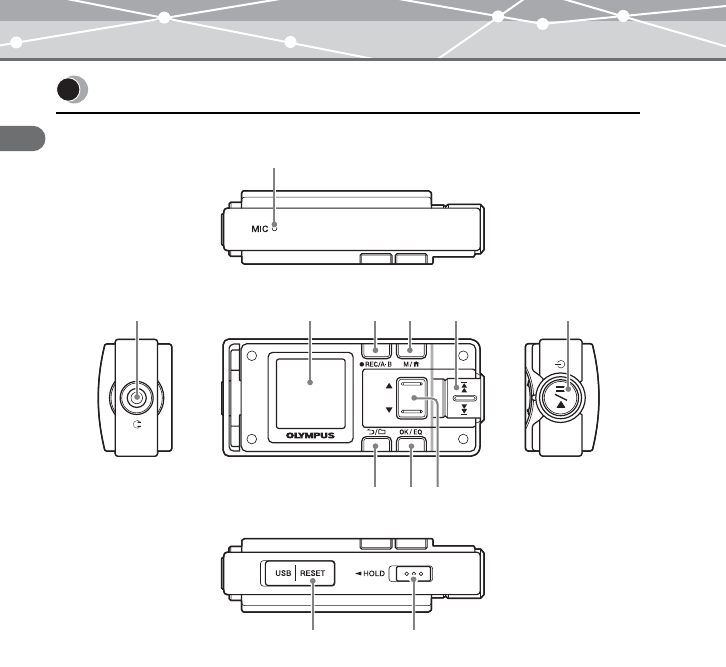
Controls: location and function
B
A
C
L
DEF G
IJ H
K
MRF30_E.book Page 16 Tuesday, July 12, 2005 3:04 PM
17
Read this first
MR-F30 Series
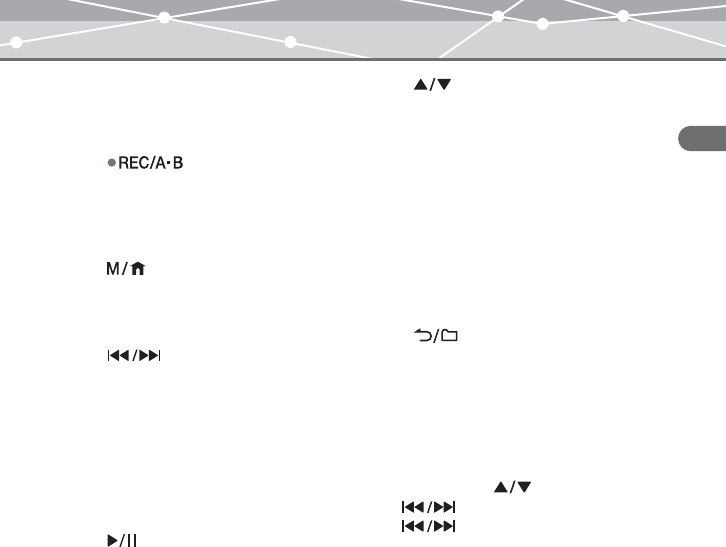
AMicrophone
BEarphones jack
COrganic EL display
D button
Voice recording/music recording/FM
radio recording
During playback: playing back
repeatedly between A and B
E button
Displaying menu screen/mode select
screen
Initializing StopWatch
F dial
During playback: Selecting the
previous/next file
During Navigation search*: Searching
for files in a folder
During FM receiving: Searching for
frequencies
During menu operation*: Selecting the
desired item
G button
Power on/off
Playing/pausing file
Pausing recording/StopWatch
H button
Volume adjusting
During Navigation search*: Searching
for files in a folder
During menu operation*: Selecting the
desired item
IOK/EQ button
Changing playback mode
During music playback: Changing
EQ/Bookmarking
During menu operation: Selecting/
Entering setting item
J button
Starting/Canceling Navigation search
KUSB port/RESET button
LHOLD switch
Locking buttons to prevent
unintentional operation
* You can use H button instead of F
dial. In this USER’S MANUAL, the
dial is used.
MRF30_E.book Page 17 Tuesday, July 12, 2005 3:04 PM
18
Getting Started
MR-F30 Series
Getting Started
Operating system requirements
One of the following operating systems is required for m:robe operation:
– Windows 98SE*, Windows Me, Windows 2000 Professional, Windows XP Professional/
Home Edition
– Mac OS 9.x/X v10.x
* The USB driver should be installed.
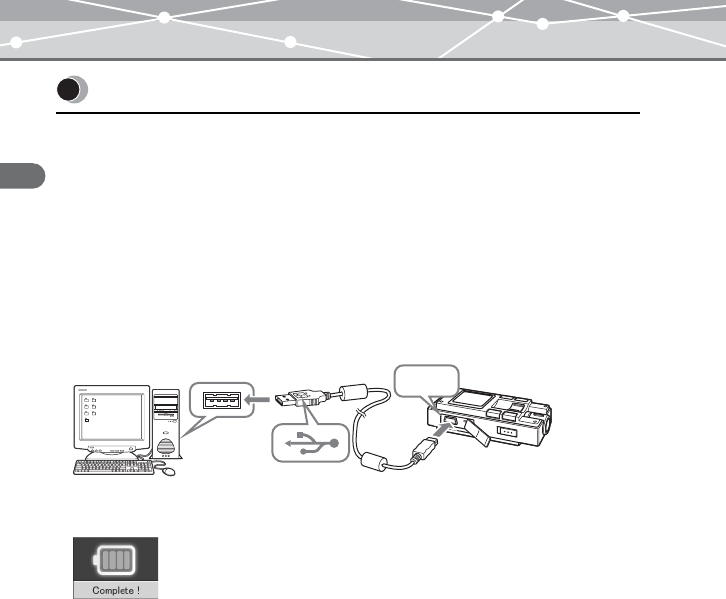
Charging battery (using the USB cable)
Connect the USB cable to your PC and your m:robe.
Charging starts.
The following screen appears after charging completes.
Setting up your m:robe
USB
To USB port
PC
To USB
port
MRF30_E.book Page 18 Tuesday, July 12, 2005 3:04 PM
19
Getting Started
MR-F30 Series
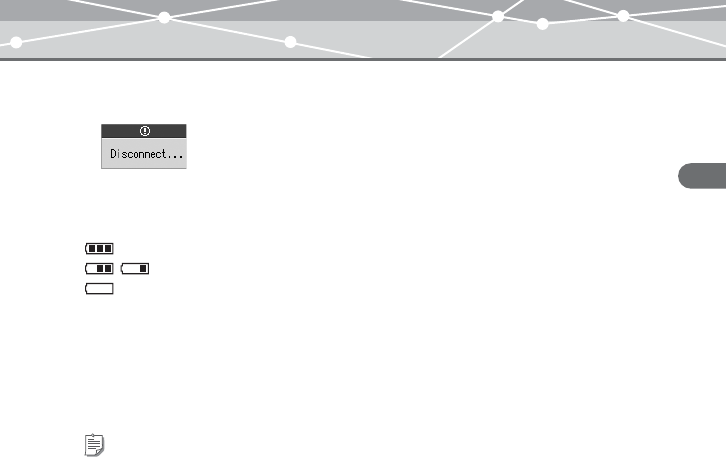
After charging, perform the disconnect procedure. When the following screen appears,
disconnect your m:robe from your PC.
For details, refer to “Disconnecting your m:robe from your PC” (gpage 22).
About the battery power indication
: Battery is fully charged.
/ : Battery power is reduced.
: Battery power is exhausted. Charge the battery.
The following cases indicate the battery power is exhausted or nearly exhausted. Charge the
battery.
– “Low Battery” appears on the screen.
– Your m:robe suddenly stops working, or does not work at all.
– The display does not light up even though you operate your m:robe.
Tips
• The battery is fully charged after approximately 3 hours.
• You can charge the battery while transferring files from your PC.
MRF30_E.book Page 19 Tuesday, July 12, 2005 3:04 PM
20
Getting Started
MR-F30 Series
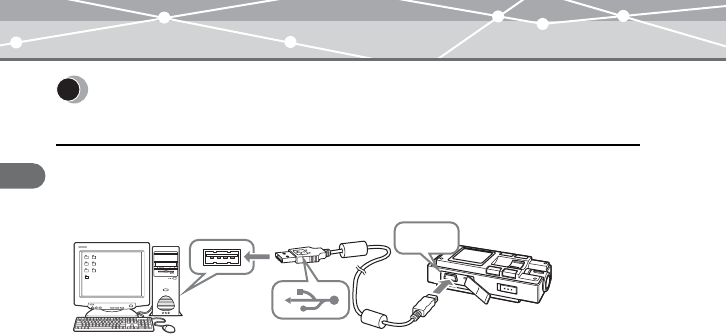
1Connect the USB cable to your PC and your m:robe.
Your PC recognizes your m:robe as a removable disk.
2Transfer files from your PC to your m:robe.
Drag and drop the desired file to m:robe on the screen display of your PC.
File formats supported by m:robe
Music file
– WMA (including VBR)
– MP3 (including VBR)
– OGG
Image file
–JPEG
Transferring music/photos to your
m:robe
USB
To USB port
PC
To USB
port
MRF30_E.book Page 20 Tuesday, July 12, 2005 3:04 PM
21
Getting Started
MR-F30 Series
Notes
• Do not add, correct or delete, on your PC, the CONFIG folder and its files in your m:robe and change
the name of folders or files. If you do, it may cause your m:robe to malfunction.
• Use the dedicated applications provided by music distributors (contents provider) when you transfer
files under DRM protection.
• When you connect your m:robe to a USB hub or a USB port on the keyboard etc., m:robe may not be
recognized. In this case, connect your m:robe directly to the USB port on your PC body.
MRF30_E.book Page 21 Tuesday, July 12, 2005 3:04 PM
22
Getting Started
MR-F30 Series
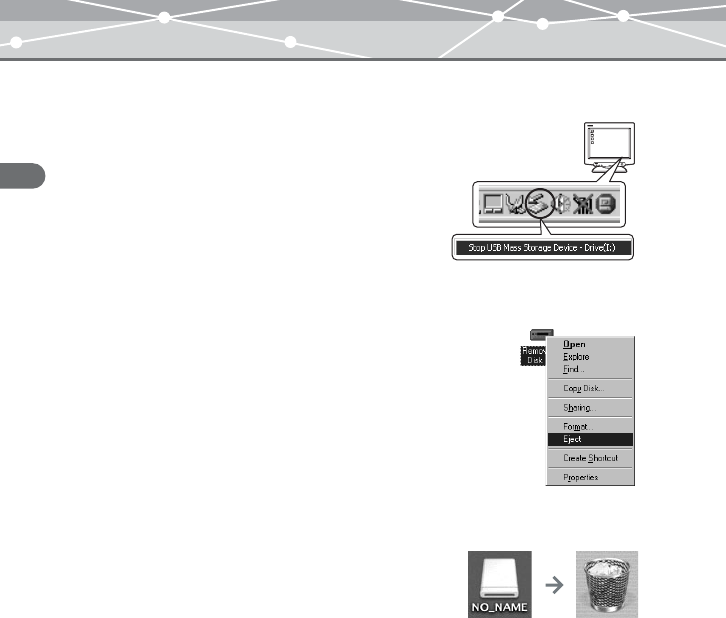
Disconnecting your m:robe from your PC
For Windows Me/2000/XP users:
1Click [Remove the hardware] icon on the
system tray.
2Click the displayed message.
3[The USB storage device can now be safely
removed from the system, remove the USB
cable from computer.] appears. Click [OK].
For Windows 98SE users:
1Double-click [My Computer] icon, then right-
click [Removable Disk] to open a pop-up
menu.
2Click [Eject] on the menu.
For Macintosh users:
Drag and drop [NO_NAME] icon to [trash box].
The icon to indicate the connection of your PC and m:robe
disappears, and your m:robe is disconnected from your PC.
MRF30_E.book Page 22 Tuesday, July 12, 2005 3:04 PM
23
Getting Started
MR-F30 Series
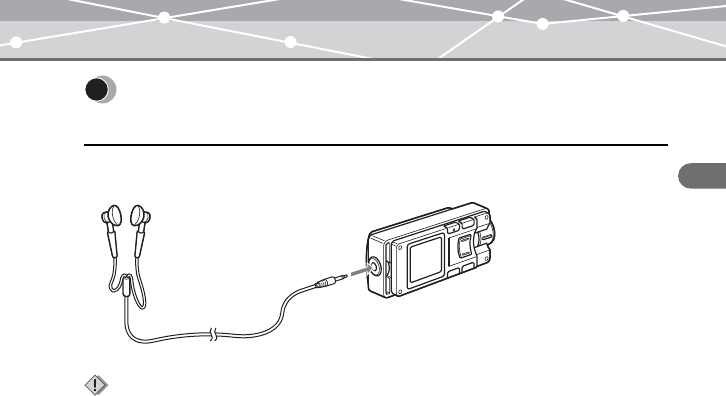
Connect the supplied earphones to your m:robe.
Connecting the earphones to your
m:robe
Notes
• Set the volume level to minimum before wearing earphones to avoid hurting your ears.
For details on adjusting volume, refer to “To control volume” (gpage 33).
• Do not raise the volume excessively. Loud sounds can cause hearing loss or damage.
To the earphones jack
MRF30_E.book Page 23 Tuesday, July 12, 2005 3:04 PM
24
Basic operations
MR-F30 Series
Basic operations
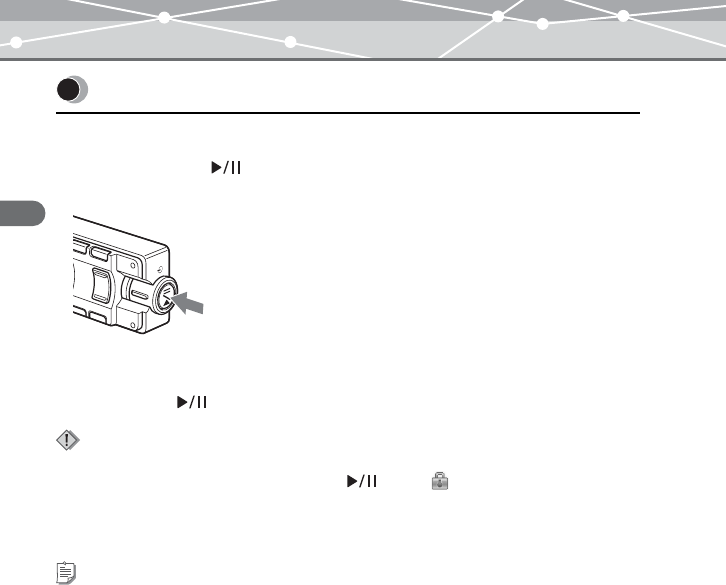
Turning on your m:robe
Press and hold the button.
The power is turned on.
To turn off the power
Press and hold the button.
Turning the power of your m:robe on/off
Notes
• Before turning on your m:robe, make sure the HOLD switch is set to off. When the HOLD function is
on (gpage 31), even if you press and hold the button, “ ” appears, and the power will not
be turned on.
• Charge the battery before turning on your m:robe. If “Low Battery” appears or the display does not light
up, charge the battery (gpage 18).
Tip
“Auto PWR Off” or “Sleep Mode” can be set (gpage 67).
MRF30_E.book Page 24 Tuesday, July 12, 2005 3:04 PM
25
Basic operations
MR-F30 Series
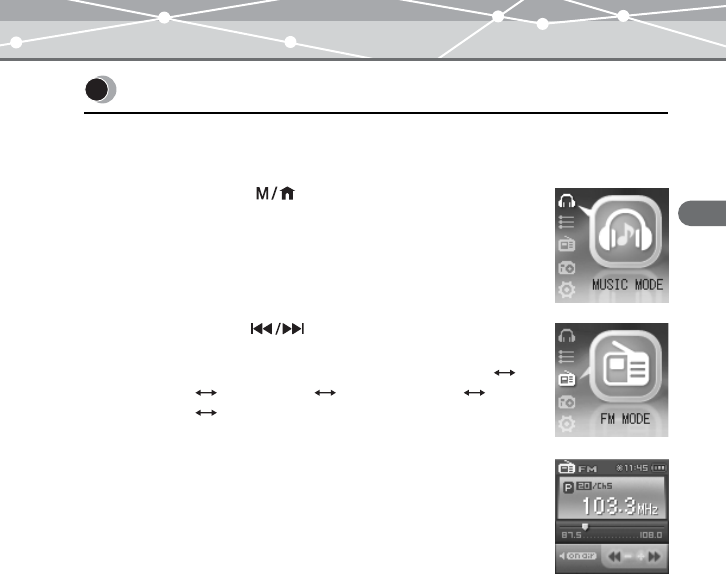
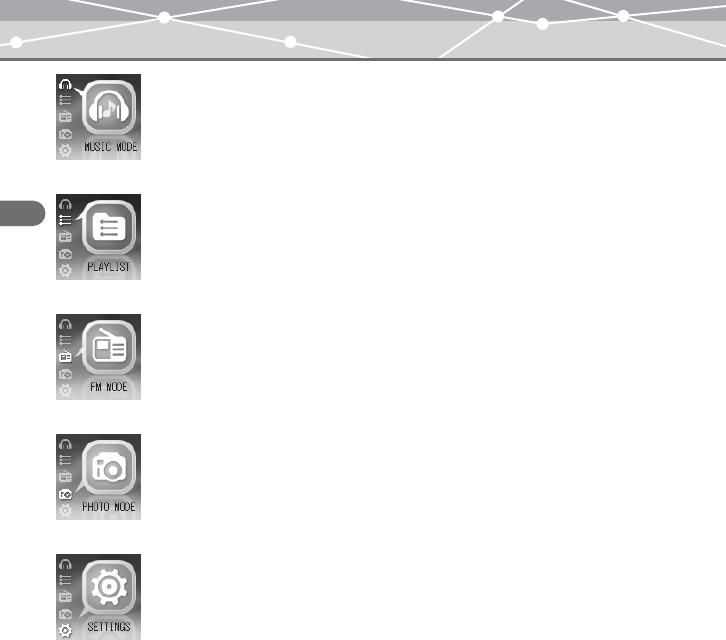
There are 5 modes, and available functions and setting items differ depending on the selected
mode.
1Press and hold the button.
The mode select screen appears.
2Push up/down the dial to select the desired
mode.
The mode changes in the following order: “MUSIC MODE”
“PLAYLIST” “FM MODE” “PHOTO MODE”
“SETTINGS” “MUSIC MODE.”
3Press the OK/EQ button.
The desired mode screen appears.
Mode selection
MRF30_E.book Page 25 Tuesday, July 12, 2005 3:04 PM
26
Basic operations
MR-F30 Series
MUSIC MODE
Selecting playback mode/music playback/setting sound quality
(gpage 32)
PLAYLIST
Playing back the desired track in the playlist easily (gpage 34)
FM MODE
Receiving/recording radio program (gpage 50)
PHOTO MODE
Viewing photos/setting the display mode (gpage 60)
SETTINGS
Setting the screen display/system/watch etc. (gpage 64)
MRF30_E.book Page 26 Tuesday, July 12, 2005 3:04 PM
27
Basic operations
MR-F30 Series
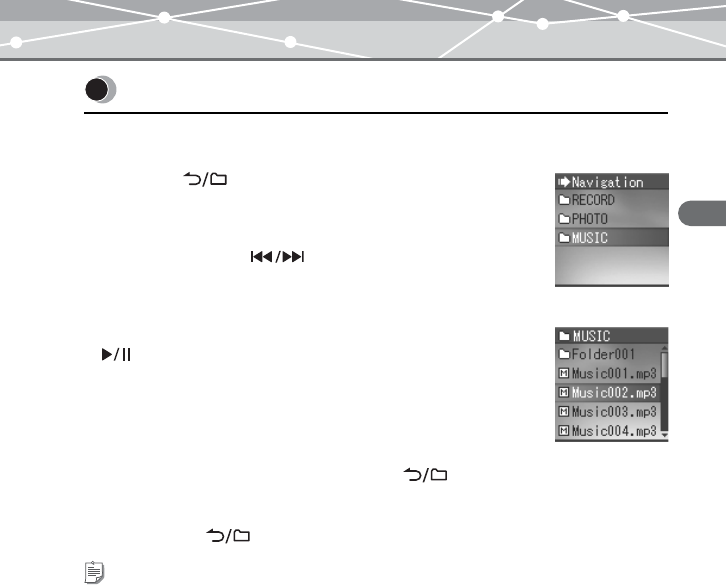
– Navigation search
1Press the button while the playback screen is
displayed.
The Navigation search screen appears.
2Push up/down the dial to select the desired
folder, then press the OK/EQ button.
You can go to the next sublevel of folder hierarchy.
3Repeat step 2 to select the desired file, then press the
button.
Playback starts.
To go back to the previous level folder: Press the button.
To finish Navigation search
Press and hold the button.
Searching for a file
Tips
• After selecting the desired music file in Navigation search, press and hold the OK/EQ button to register
the file to the playlist. Press and hold the OK/EQ button to cancel.
• You can play back the created playlist in Navigation search or the PLAYLIST mode (gpage 35).
MRF30_E.book Page 27 Tuesday, July 12, 2005 3:04 PM
28
Basic operations
MR-F30 Series
Deleting files
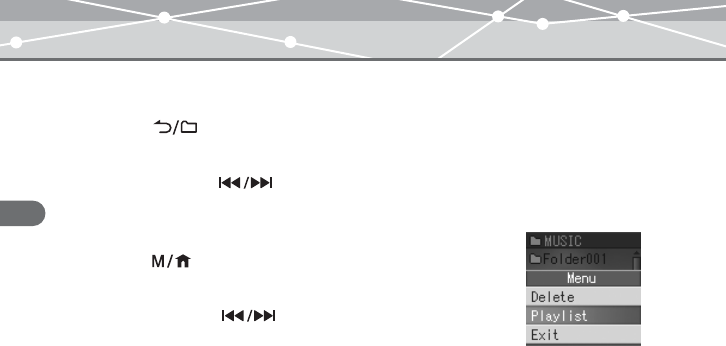
1Press the button while the playback/receiving screen is displayed.
The Navigation search screen appears.
2Push up/down the dial to select the desired folder, then press the
OK/EQ button.
3Repeat step 2 to select a file you want to delete, then
press the button.
The editing menu appears.
4Push up/down the dial to select “Delete,” then
press the OK/EQ button.
The selected file is deleted.
MRF30_E.book Page 28 Tuesday, July 12, 2005 3:04 PM
29
Basic operations
MR-F30 Series
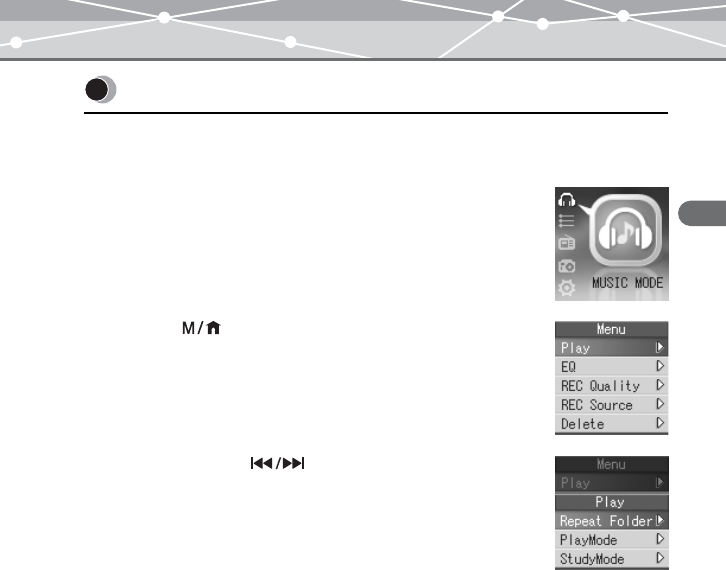
The items you can operate in the menu differ depending on the selected mode. For details on
each menu item, refer to the “Menu list” (gpage 79).
1Select the desired mode.
For details, refer to “Mode selection” (gpage 25).
2Press the button.
The main menu screen appears.
3Push up/down the dial to select a setting
category, then press the OK/EQ button.
The sub menu screen appears.
Basic operation of the menu
MRF30_E.book Page 29 Tuesday, July 12, 2005 3:04 PM
30
Basic operations
MR-F30 Series
4Push up/down the dial to select the desired
item, then press the OK/EQ button.
The setting menu screen appears.
5Push up/down the dial to select the desired setting, then press
the OK/EQ button.
To go back to the previous level screen: Press the button.
Note
After selecting the desired setting in step 5, press the OK/EQ button. If you go back to the previous level
screen without doing so, your selection will not be set.
MRF30_E.book Page 30 Tuesday, July 12, 2005 3:04 PM
31
Basic operations
MR-F30 Series
– HOLD function
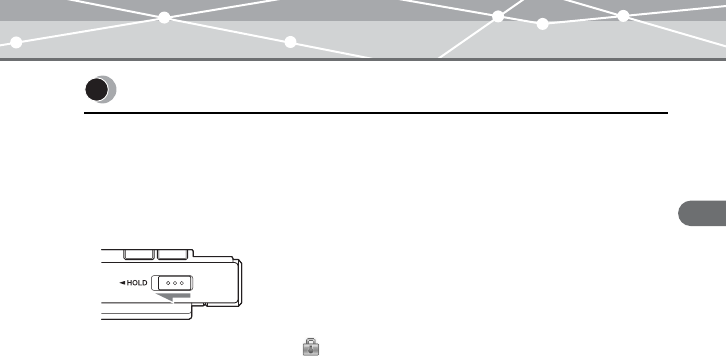
This is used to prevent unintentional operation when carrying your m:robe in a pocket or a
bag.
Slide the HOLD switch in the direction of the arrow on your m:robe.
When the HOLD function is on, “ ” appears on the screen, and the buttons become
inactive.
To set HOLD to off
Slide the HOLD switch in the reverse direction of the arrow.
Using the HOLD switch
MRF30_E.book Page 31 Tuesday, July 12, 2005 3:04 PM
32
Listening to music
MR-F30 Series
Listening to music
About the playback screen
MUSIC MODE
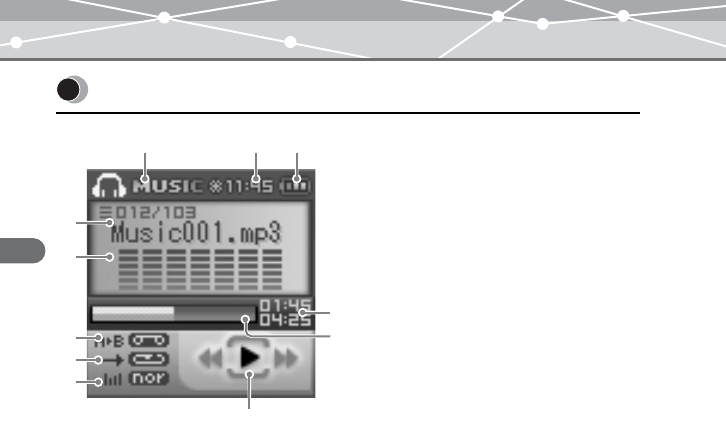
AMode indication (MUSIC)
BTime indication
CRemaining battery power indication
DCurrent play file number/Total number
of playback files indication
ETrack name indication
FRepeat play between A and B
indication
GPlay mode indication
HEQ indication
IElapsed time of track/Total playback
time of track indication (gpage 65)
JFile progress indication
KPlayback condition indication
(play/pause/fast-forward/fast-rewind)
I
K
D
E
G
F
H
ABC
J
MRF30_E.book Page 32 Tuesday, July 12, 2005 3:04 PM
33
Listening to music
MR-F30 Series
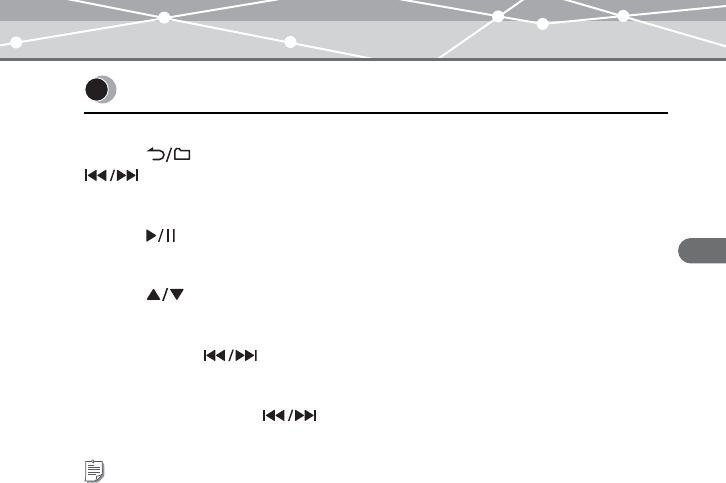
To select the desired music file
Press the button while the playback screen is displayed, then push up/down the
dial to select the desired music file (gpage 27).
To play/pause music
Press the button.
To control volume
Press the button.
To search for the desired music file (Skip)
Push up/down the dial to skip to the previous/next music file.
To search for the desired point of the music file (Search)
Push up/down and hold the dial while playing back, then release your hold at the
desired point.
Playing back music
Tip
The Skip function is available only when “StudyMode” is set to “Off” (gpage 38).
MRF30_E.book Page 33 Tuesday, July 12, 2005 3:04 PM
34
Listening to music
MR-F30 Series
\
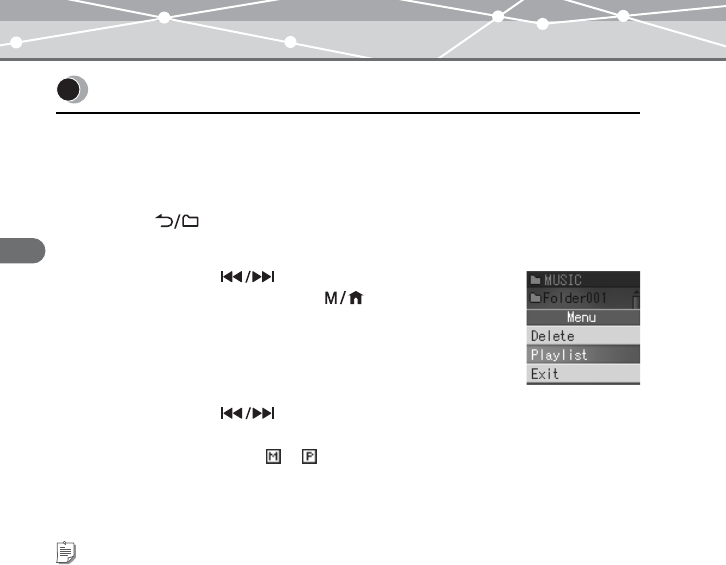
The desired track should be registered to the playlist before playback.
Registering to the playlist
1Press the button while the playback screen is displayed.
The Navigation search screen appears.
2Push up/down the dial to select a music file you
want to register, then press the button.
The editing menu appears.
3Push up/down the dial to select “Playlist,” then press the OK/EQ
button.
The file icon is changed from to , then the file is added to the playlist.
To finish the editing menu
Select “Exit” in step 3, then press the OK/EQ button.
Using the playlist
Tip
You can also register a music file to the playlist in the following way: select the desired music file in step
2, then press and hold the OK/EQ button.
MRF30_E.book Page 34 Tuesday, July 12, 2005 3:04 PM
35
Listening to music
MR-F30 Series
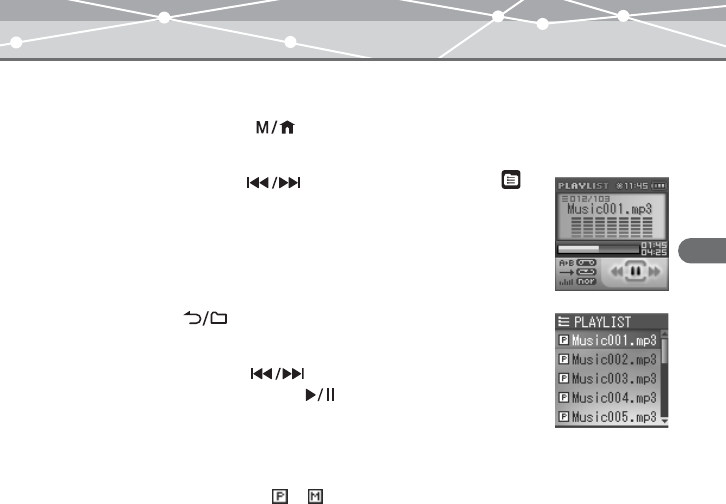
Playing back the playlist
1Press and hold the button while the playback screen is displayed.
The mode select screen appears.
2Push up/down the dial to select “PLAYLIST ,”
then press the OK/EQ button.
The playback screen appears.
3Press the button.
The playlist appears.
4Push up/down the dial to select the desired
music file, then press the button.
Playback starts.
To delete files in the playlist
Select a file you want to delete in step 3, then press the OK/EQ button. The icon of the
selected file is changed from to . Press the OK/EQ button again to cancel.
MRF30_E.book Page 35 Tuesday, July 12, 2005 3:04 PM
36
Listening to music
MR-F30 Series
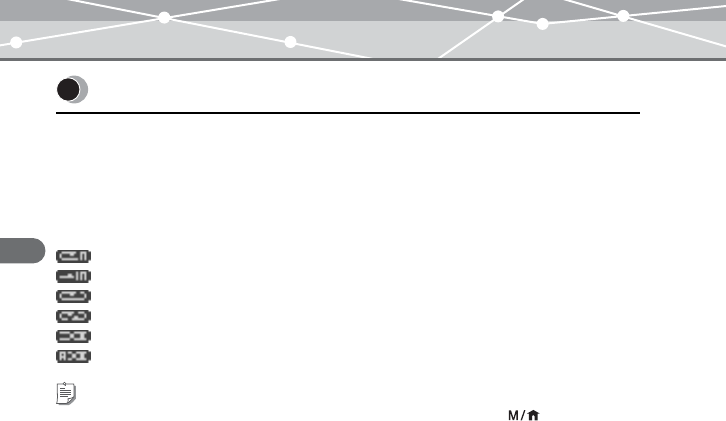
Selecting playback mode
Press the OK/EQ button in playback stop mode.
Playback mode changes in the following order: “Normal”: “Intro”: “Repeat”: “Repeat
All”: “Random”: “Random All”: “Normal.”
(Normal): Music files are played back in sequence.
(Intro): Only the beginning part (10 sec) of the music is played back.
(Repeat): The specified music file is played back repeatedly.
(Repeat All): All the music files are played back repeatedly.
(Random): Music files are played back in random order once.
(Random All): Music files are played back repeatedly in random order.
Setting playback mode
Tips
• You can also select the desired playback mode in the following way: press the button while the
playback screen is displayed, then select “Play”: “PlayMode”: the desired playback mode.
• In playback mode, the files of the folder selected in “Repeat Folder” are played back (gpage 37).
MRF30_E.book Page 36 Tuesday, July 12, 2005 3:04 PM
37
Listening to music
MR-F30 Series
Setting Repeat Folder
You can select to play back the music files in just the current folder or in all folders.
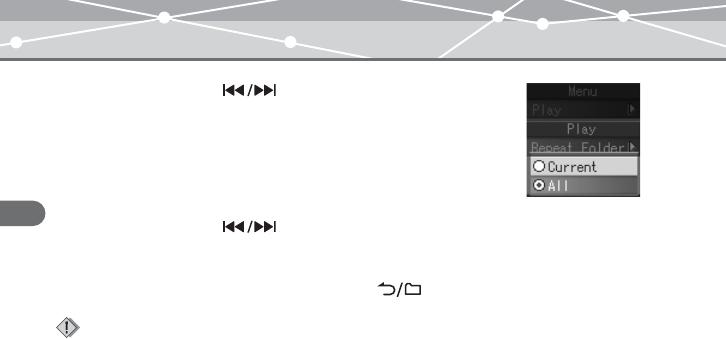
1Press the button while the playback screen is displayed.
2Push up/down the dial to select “Play,” then press the OK/EQ
button.
3Push up/down the dial to select “Repeat Folder,” then press the
OK/EQ button.
The setting menu screen appears.
“Current”: Music files in the current folder are played back.
“All”: Music files in all the folders are played back.
4Push up/down the dial to select the desired setting, then press
the OK/EQ button.
MRF30_E.book Page 37 Tuesday, July 12, 2005 3:04 PM
38
Listening to music
MR-F30 Series
Setting StudyMode
You can fast-rewind/fast-forward and resume the currently playing file by pushing up/down
the dial.
1Press the button while the playback screen is displayed.
2Push up/down the dial to select “Play,” then press the OK/EQ
button.
3Push up/down the dial to select “StudyMode,” then press the OK/
EQ button.
4Push up/down the dial to select “On/Off,” then press the OK/EQ
button.
5Push up/down the dial to select “On,” then press the OK/EQ
button.
6Push up/down the dial to select “Step,” then press the OK/EQ
button.
7Push up/down the dial to select the desired time (2sec/5sec/
15sec/30sec/60sec), then press the OK/EQ button.
To cancel StudyMode
Select “Off” in step 5, then press the OK/EQ button.
MRF30_E.book Page 38 Tuesday, July 12, 2005 3:04 PM
39
Listening to music
MR-F30 Series
Setting interval repeat (A-B)
A music file is repeated in the set interval.
1Play back a music file, and press the button at the point where
you want to start interval repeat (Repeat A).
2Press the button at the point where interval repeat is finished
(Repeat B).
The set interval is played back repeatedly.
To deactivate interval repeat
Press the button.
Tips
• If Repeat B (the point where interval repeat is finished) is not set, the set of Repeat A is canceled.
• Repeat B (the point where interval repeat is finished) can be set in 2 seconds after you set Repeat A (the
point where interval repeat is started).
MRF30_E.book Page 39 Tuesday, July 12, 2005 3:04 PM
40
Listening to music
MR-F30 Series
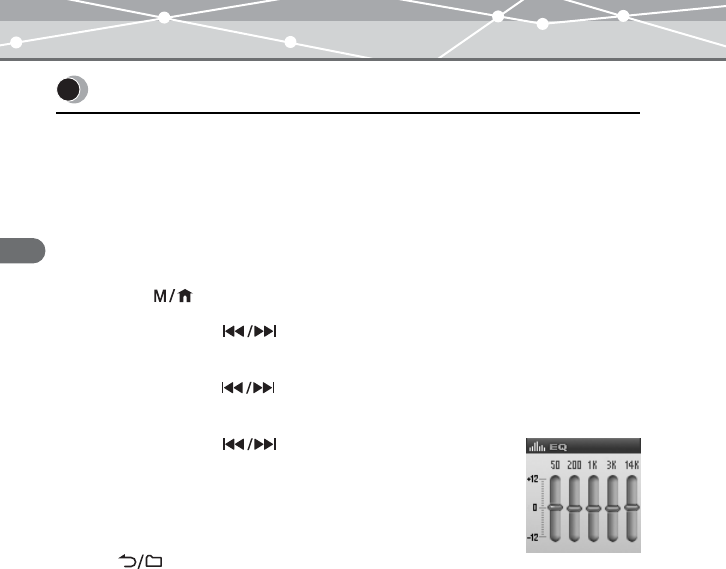
Selecting EQ
Press the OK/EQ button during playback.
EQ changes in the following order: “Normal”: “Rock”: “Jazz”: “Classic”: “Pop”:
“WOW”: “User EQ1”: “User EQ2”: “Normal.”
Adjusting User EQ
1Press the button while the playback screen is displayed.
2Push up/down the dial to select “EQ,” then press the OK/EQ
button.
3Push up/down the dial to select “User EQ1” or “User EQ2,” then
press the OK/EQ button.
4Push up/down the dial to adjust the level, then
press the OK/EQ button.
5Repeat step 4 to adjust the level of each frequency.
To finish adjusting User EQ
Press the button.
Setting EQ/WOW
MRF30_E.book Page 40 Tuesday, July 12, 2005 3:04 PM
41
Listening to music
MR-F30 Series
Setting WOW
You can enjoy natural stereophonic music (SRS) and sonorous bass sounds (Trubass).
1Press the button while the playback screen is displayed.
2Push up/down the dial to select “EQ,” then press the OK/EQ
button.
3Push up/down the dial to select “WOW,” then press the OK/EQ
button.
The setting menu screen appears.
“SRS”: Adjusts 3D surround sounds.
“Trubass”: Adjusts bass sounds.
“Adjust”: Sets for Earphone or Speaker.
4Push up/down the dial to select the desired item, then press the
OK/EQ button.
5Push up/down the dial to select the desired level, then press the
OK/EQ button.
Notes
• WOW setting may cause playback in loud sounds.
• EQ can be set only in MUSIC MODE or PLAYLIST .
MRF30_E.book Page 41 Tuesday, July 12, 2005 3:04 PM
42
Listening to music
MR-F30 Series
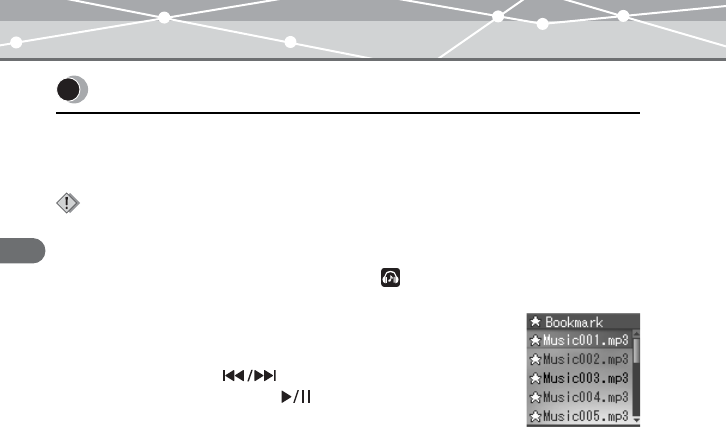
Press and hold the OK/EQ button during playback of the desired music.
A message is displayed, and the music is bookmarked.
Playing back bookmarked music
Bookmarked music is playable in MUSIC MODE .
1Press and hold the OK/EQ button in playback stop
mode.
2Push up/down the dial to select the desired
bookmark, then press the button.
Playback starts at the bookmarked point.
Bookmarking music
Note
A Bookmark cannot be set when a track is not being played.
MRF30_E.book Page 42 Tuesday, July 12, 2005 3:04 PM
43
Listening to music
MR-F30 Series
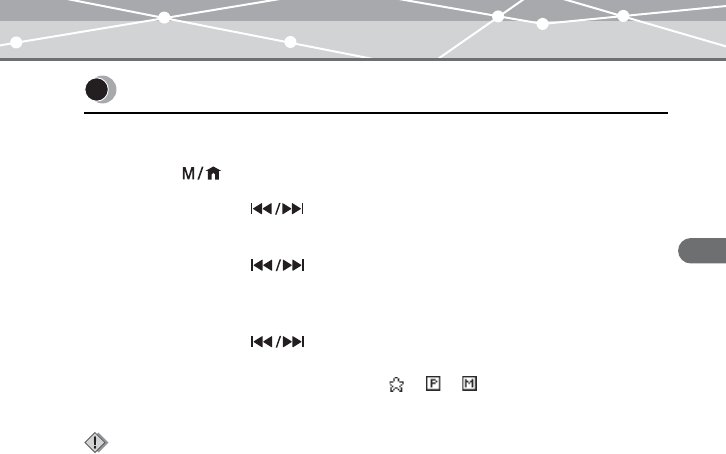
You can delete registered bookmarks and playlist.
1Press the button while the playback screen is displayed.
2Push up/down the dial to select “Delete,” then press the OK/EQ
button.
3Push up/down the dial to select “Bookmark” or “Playlist,” then
press the OK/EQ button.
The registered files are displayed.
4Push up/down the dial to select a file you want to delete, then
press the OK/EQ button.
The icon of the selected file is changed from or to . To cancel, press the OK/EQ
button again.
Deleting the registered information
Note
Only the information of the bookmark or playlist is deleted, but the original file is not deleted.
MRF30_E.book Page 43 Tuesday, July 12, 2005 3:04 PM
44
Recording
MR-F30 Series
Recording
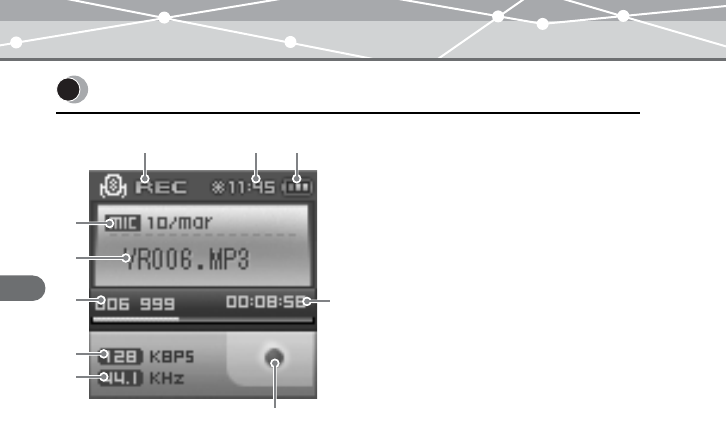
About the music recording screen
Recording mode
AMode indication (REC)
BTime indication
CRemaining battery power indication
DRecording type indication (MIC/ LINE)
EFile name indication
FTotal number of recorded files/Total
number of recordable files (999)
indication
GBit rate indication
HSampling frequency indication
IRecording progress time indication
JRecording condition indication
(in recording/recording pause)
D
G
H
J
F
E
ABC
I
MRF30_E.book Page 44 Tuesday, July 12, 2005 3:04 PM
45
Recording
MR-F30 Series
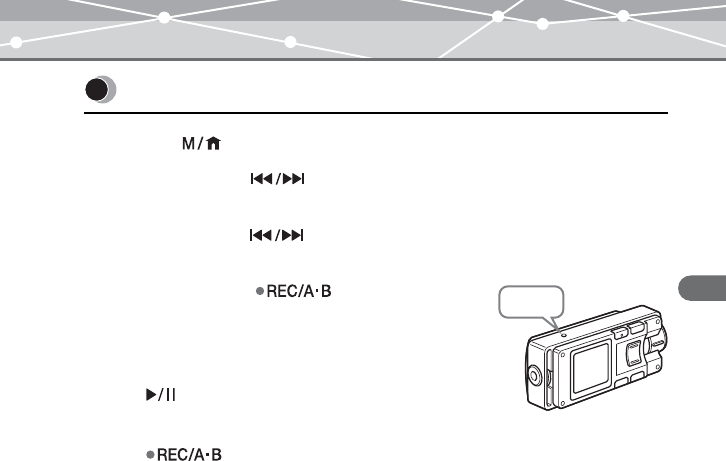
1Press the button while the playback screen is displayed.
2Push up/down the dial to select “REC Source,” then press the
OK/EQ button.
3Push up/down the dial to select “MIC In,” then press the OK/EQ
button.
4Press and hold the button in playback
stop mode.
Recording starts.
To pause/resume recording
Press the button.
To stop recording
Press the button.
Recording voice
MIC
MRF30_E.book Page 45 Tuesday, July 12, 2005 3:04 PM
46
Recording
MR-F30 Series
Listening to recorded voice files
While the playback screen is displayed, press the button to display the Navigation
search screen, select “RECORD”: “VOICE”: the desired voice file, then press the
button.
Setting the sound quality
Press the button while the playback screen is displayed, then select “REC Quality”:
“Voice”: the desired bit rate.
Deleting recorded voice files
Refer to “Deleting files” (gpage 28).
Notes
• If the memory is full, recording stops automatically, and the file is saved up to the point where recording
stopped.
• The recording sound sensitivity depends on the distance to the sound source.
• You cannot record correctly if the battery power is not enough.
Tips
• You can listen to what you are recording with the earphones.
• The higher bit rate you set, the higher music quality will be provided, but the size is larger.
• The recorded files are named automatically, such as VR001.MP3, VR002.MP3…, and stored in the
VOICE folder in MP3 format.
MRF30_E.book Page 46 Tuesday, July 12, 2005 3:04 PM
47
Recording
MR-F30 Series
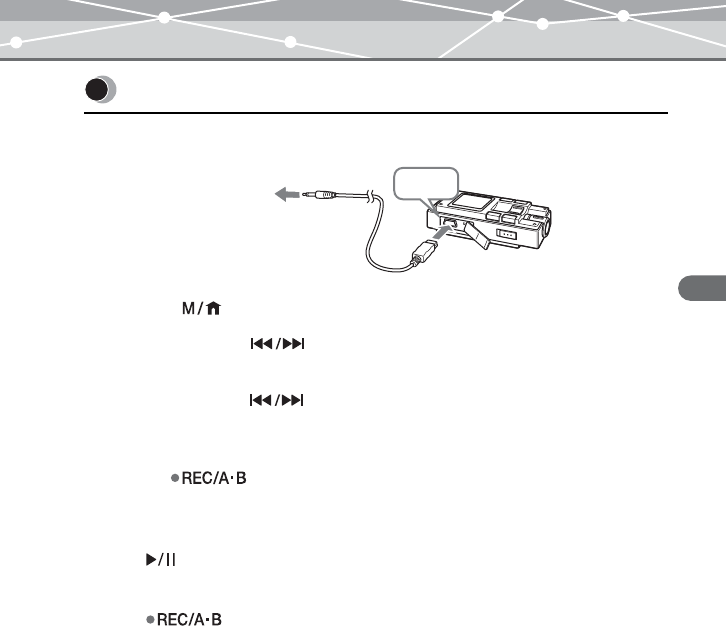
1Connect the line-in cable to your m:robe and the external audio device.
2Press the button while the playback screen is displayed.
3Push up/down the dial to select “REC Source,” then press the
OK/EQ button.
4Push up/down the dial to select “Line In,” then press the OK/EQ
button.
5In playback stop mode, play the external audio device, then press and
hold the button.
Recording starts.
To pause/resume recording
Press the button.
To stop recording
Press the button.
Recording over Line-in connection
USB
To the audio (Line-out) jack of
an external audio device
MRF30_E.book Page 47 Tuesday, July 12, 2005 3:04 PM
48
Recording
MR-F30 Series
Listening to recorded files
While the playback screen is displayed, press the button to display the Navigation
search screen, select “RECORD”: “LINE-IN”: the desired file, then press the
button.
Setting the sound quality
Press the button while the playback screen is displayed, then select “REC Quality”:
“Line In”: the desired bit rate.
Deleting recorded files
Refer to “Deleting files” (gpage 28).
Notes
• If the memory is full, recording stops automatically, and the file is saved up to the point where recording
stopped.
• You cannot record correctly if the battery power is not enough.
Tips
• You can listen to what you are recording with the earphones.
• The higher bit rate you set, the higher music quality will be provided, but the size is larger.
• The recorded files are named automatically, such as AD001.MP3, AD002.MP3…, and stored in the
LINE-IN folder in MP3 format.
MRF30_E.book Page 48 Tuesday, July 12, 2005 3:04 PM
49
Recording
MR-F30 Series
Setting Auto Sync
When music is recorded, a new file is created at where no sound is recorded.
1Press the button while the playback screen is displayed.
2Push up/down the dial to select “REC Quality,” then press the
OK/EQ button.
3Push up/down the dial to select “Auto Sync,” then press the OK/
EQ button.
4Push up/down the dial to select “On,” then press the OK/EQ
button.
“On”: Creates music files track by track.
“Off”: Creates one music file including all tracks.
To cancel Auto Sync
Select “Off” in step 4, then press the OK/EQ button.
MRF30_E.book Page 49 Tuesday, July 12, 2005 3:04 PM
50
Listening to FM radio
MR-F30 Series
Listening to FM radio
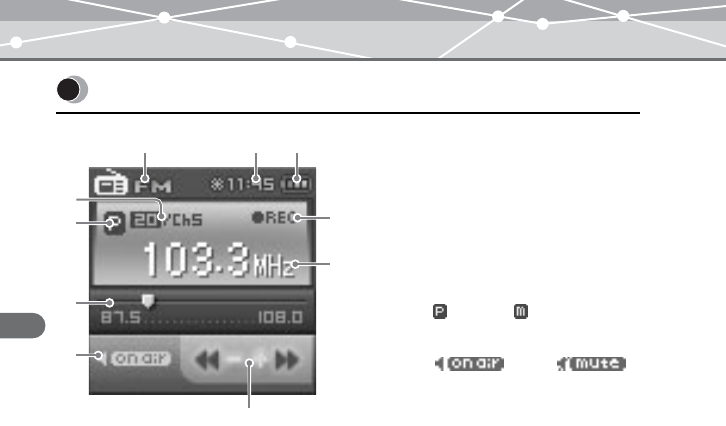
About the radio receiver screen
FM MODE
AMode indication (FM)
BTime indication
CRemaining battery power indication
DTotal number of stored frequencies/
Current selected preset number
indication
EPreset ( )/Manual ( ) mode indication
FFrequency range indication
GOn air ( )/Mute ( )
indication
HFM recording indication
IFrequency indication
JDirection of frequency search
indication
D
E
G
H
F
I
J
ABC
MRF30_E.book Page 50 Tuesday, July 12, 2005 3:04 PM
51
Listening to FM radio
MR-F30 Series
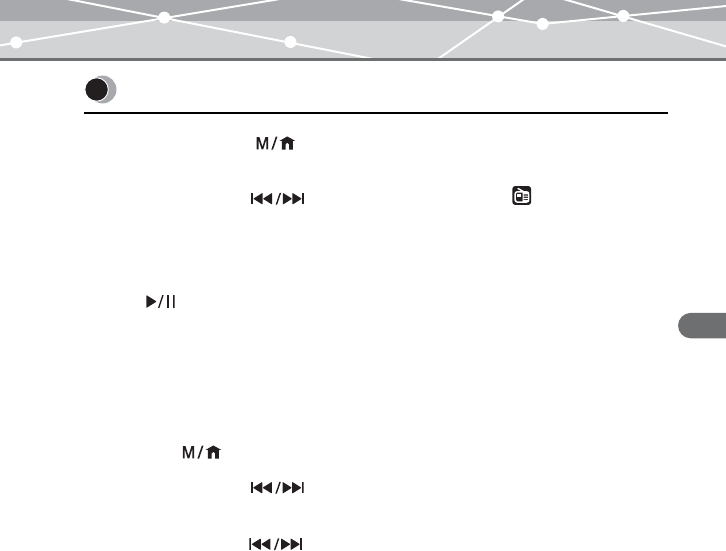
1Press and hold the button.
The mode select screen appears.
2Push up/down the dial to select “FM MODE ,” then press the
OK/EQ button.
The FM receiving screen appears.
To mute the FM broadcast
Press the button.
Changing the receiving mode
You can switch from Manual mode to Preset mode and vice versa. Manual mode allows you
to receive all available frequencies, and Preset mode allows you to search only your stored
frequencies.
1Press the button while the receiving screen is displayed.
2Push up/down the dial to select “Change Mode,” then press the
OK/EQ button.
3Push up/down the dial to select “Preset” or “Manual,” then press
the OK/EQ button.
The receiving mode is changed.
Receiving a radio station
MRF30_E.book Page 51 Tuesday, July 12, 2005 3:04 PM
52
Listening to FM radio
MR-F30 Series
Setting frequencies
Setting in Manual mode
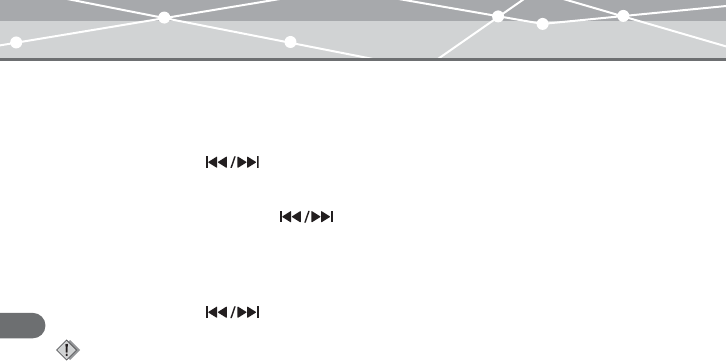
Push up/down the dial.
Frequencies are searched at the set intervals.
Push up/down and hold the dial.
Searching stops when a receivable frequency is found.
Setting in Preset mode
Push up/down the dial to search the registered channel.
Note
Only stored frequencies are received. For details on storing frequencies, refer to “Storing frequencies”
(gpage 54).
MRF30_E.book Page 52 Tuesday, July 12, 2005 3:04 PM
53
Listening to FM radio
MR-F30 Series
Setting the area
The FM radio frequency bands differ depending on the country or region.
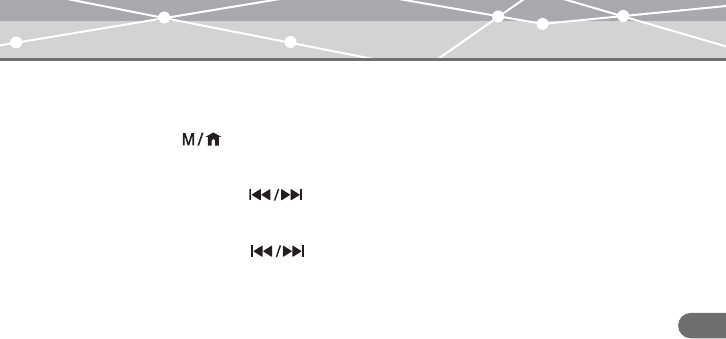
1Press the button while the receiving screen is displayed.
The FM menu screen appears.
2Push up/down the dial to select “Region,” then press the OK/EQ
button.
3Push up/down the dial to select the desired area, “Korea,”
“Japan” or “World,” then press the OK/EQ button.
“Korea”: Searches frequency every 0.1 MHz from 87.0 to 108.0 MHz.
“Japan”: Searches frequency every 0.05 MHz from 76.0 to 108.0 MHz.
“World”: Searches frequency every 0.05 MHz from 87.0 to 108.0 MHz.
MRF30_E.book Page 53 Tuesday, July 12, 2005 3:04 PM
54
Listening to FM radio
MR-F30 Series
Storing frequencies
Storing frequencies manually
1Receive the desired frequency, then press the button.
2Push up/down the dial to select “Save Preset,” then press the
OK/EQ button.
3Push up/down the dial to select the registry number (P1 to P20),
then press the OK/EQ button.
The frequency is stored.
Storing frequencies automatically
1Press the button while the receiving screen is displayed.
2Push up/down the dial to select “Auto Preset,” then press the OK/
EQ button.
3Push up/down the dial to select “On,” then press the OK/EQ
button.
The receivable frequency is stored automatically.
Tip
When “Change Mode” is set to “Manual,” the current frequency can be stored by pressing the OK/EQ
button while receiving FM radio.
Note
If “Auto Preset” is set to “On,” frequency information previously registered will be deleted.
MRF30_E.book Page 54 Tuesday, July 12, 2005 3:04 PM
55
Listening to FM radio
MR-F30 Series
Tips
• While storing frequencies automatically, press the OK/EQ button to interrupt frequency searching.
• The mode is changed to preset mode when storing frequency is done.
• When you store a frequency automatically, be sure to connect the supplied earphones. The earphones
cord works as an antenna.
MRF30_E.book Page 55 Tuesday, July 12, 2005 3:04 PM
56
Listening to FM radio
MR-F30 Series
Deleting the stored frequency
1Press the button while the receiving screen is displayed.
2Push up/down the dial to select “Preset Delete,” then press the
OK/EQ button.
3Push up/down the dial to select “Each,” then press the OK/EQ
button.
4Push up/down the dial to select the registry number of frequency
you want to delete, then press the OK/EQ button.
To delete all the stored frequencies
Select “All” in step 3, then press the OK/EQ button.
MRF30_E.book Page 56 Tuesday, July 12, 2005 3:04 PM
57
Listening to FM radio
MR-F30 Series
Receive the desired frequency, then press and hold the button.
To pause/resume recording
Press the button.
To stop recording
Press the button.
Listening to recorded FM files
While the receiving screen is displayed, press the button to display the Navigation
search screen, select “RECORD”: “FM”: the desired FM file, then press the button.
Setting the sound quality
Press the button while the receiving screen is displayed, then select “FM
Recording”: “Quality”: the desired bit rate.
Deleting recorded FM files
Refer to “Deleting files” (gpage 28).
Recording an FM radio program
Tips
• The higher bit rate you set, the higher music quality will be provided, but the size is larger.
• The recorded files are named automatically, such as FM001.MP3, FM002.MP3…, and stored in the FM
folder in MP3 format.
MRF30_E.book Page 57 Tuesday, July 12, 2005 3:04 PM
58
Listening to FM radio
MR-F30 Series
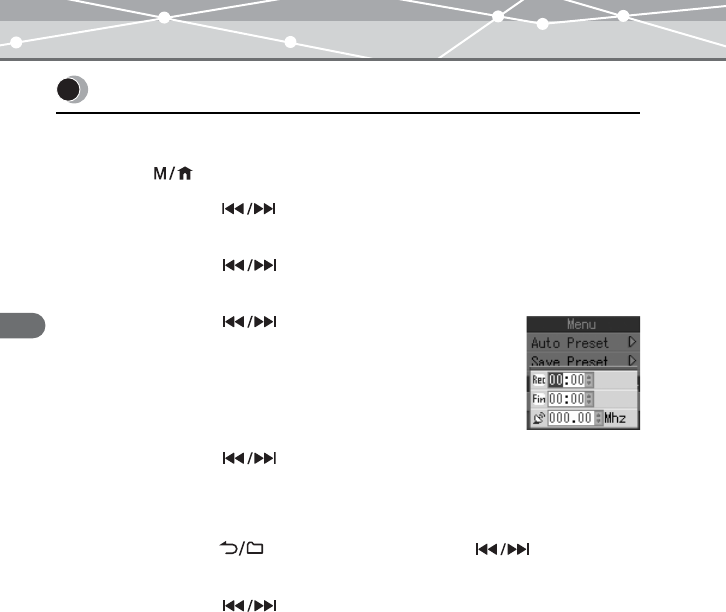
Set the desired time and frequency for the FM radio recording reservation.
1Press the button while the receiving screen is displayed.
2Push up/down the dial to select “FM Recording,” then press the
OK/EQ button.
3Push up/down the dial to select “REC Booking,” then press the
OK/EQ button.
4Push up/down the dial to select “Setting,” then
press the OK/EQ button.
The recording settings screen appears.
5Push up/down the dial to select the desired setting, then press
the OK/EQ button.
6Repeat step 5 to set the recording start/stop time and frequencies.
7After pressing the button, push up/down the dial to select
“On/Off,” then press the OK/EQ button.
8Push up/down the dial to select “On,” then press the OK/EQ
button.
FM recording reservation
MRF30_E.book Page 58 Tuesday, July 12, 2005 3:04 PM
59
Listening to FM radio
MR-F30 Series
To cancel a recording reservation
Select “Off” in step 8, then press the OK/EQ button.
Note
The reservation setting is canceled after recording completes.
MRF30_E.book Page 59 Tuesday, July 12, 2005 3:04 PM
60
Viewing photos
MR-F30 Series
Viewing photos
1Press and hold the button.
The mode select screen appears.
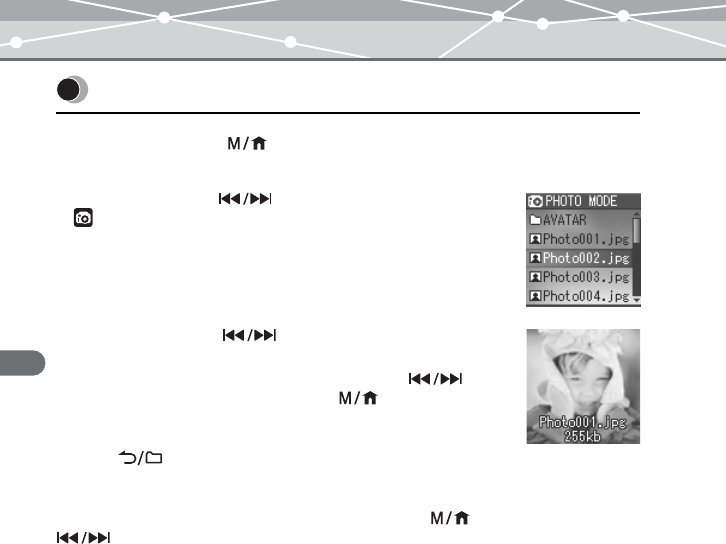
2Push up/down the dial to select “PHOTO MODE
,” then press the OK/EQ button.
The selecting photo screen appears.
3Push up/down the dial to select the desired
photo file, then press the OK/EQ button.
To view the previous/next photo: Push up/down the dial.
To view the photo information: Press the button.
To finish displaying photos
Press the button.
Deleting photos
Select the photo you want to delete in step 3, then press the button. Push up/down the
dial to select “Delete,” then press the OK/EQ button.
Displaying photos
MRF30_E.book Page 60 Tuesday, July 12, 2005 3:04 PM
61
Viewing photos
MR-F30 Series
1Press the button while the selecting photo screen is displayed.
2Push up/down the dial to select “Real Photo,” then press the OK/
EQ button.
3Push up/down the dial to select “On/Off,” then press the OK/EQ
button.
4Push up/down the dial to select “On,” then press the OK/EQ
button.
If you play back a music file, the set photos will be displayed.
To deactivate Real Photo
Select “Off” in step 4, then press the OK/EQ button.
Setting the photo display interval
Select “Interval” in step 3, then select the desired setting (2sec/5sec/10sec).
Setting the photo display mode
Select “Type” in step 3, then select the display mode (Normal/Repeat All/Random/Random
All).
Viewing images during music playback
MRF30_E.book Page 61 Tuesday, July 12, 2005 3:04 PM
62
Viewing photos
MR-F30 Series
The desired photo can be displayed on the m:robe start up screen.
1Press the button while the selecting photo screen is displayed.
2Push up/down the dial to select “Avatar,” then press the OK/EQ
button.
3Push up/down the dial to select “On,” then press the OK/EQ
button.
To cancel avatar
Select “Off” in step 3.
Setting Avatar
Notes
• Only the files in the AVATAR folder, when you set Avatar to on, are displayed.
• Only JPEG files in less than 96 × 96 pixels can be displayed.
• Only image files named from avatar00.jpg, avatar01 to avatar16.jpg can be set to Avatar (a maximum
of 17 files can be set).
MRF30_E.book Page 62 Tuesday, July 12, 2005 3:04 PM
63
Viewing photos
MR-F30 Series
1Press the button while the selecting photo screen is displayed.
2Push up/down the dial to select “Slide Show,” then press the OK/
EQ button.
3Push up/down the dial to select “On/Off,” then press the OK/EQ
button.
4Push up/down the dial to select “On,” then press the OK/EQ
button.
To finish Slide Show
Press the button to go back to the selecting photo screen, then press the button
to select “Slide Show”: “On/Off”: “Off,” and press the OK/EQ button.
To set the photo display interval
Select “Interval” in step 3, then select the desired setting (2sec/5sec/10sec).
Viewing images in Slide Show
Tip
You can go to the previous/next image file by pushing up/down the dial in Slide Show
regardless of the set playing interval.
MRF30_E.book Page 63 Tuesday, July 12, 2005 3:04 PM
64
Setting and adjusting
MR-F30 Series
Setting and adjusting
You can customize and adjust system setting, screen display, timer, watch, and operating
system.
1Press and hold the button.
The mode select screen appears.
2Push up/down the dial to select “SETTINGS ,” then press the
OK/EQ button.
3Push up/down the dial to select the desired item, then press the
OK/EQ button.
The setting menu screen appears.
4Push up/down the dial to select the desired setting, then press
the OK/EQ button.
To go back to the previous level screen: Press the button.
Setting your m:robe
MRF30_E.book Page 64 Tuesday, July 12, 2005 3:04 PM
65
Setting and adjusting
MR-F30 Series
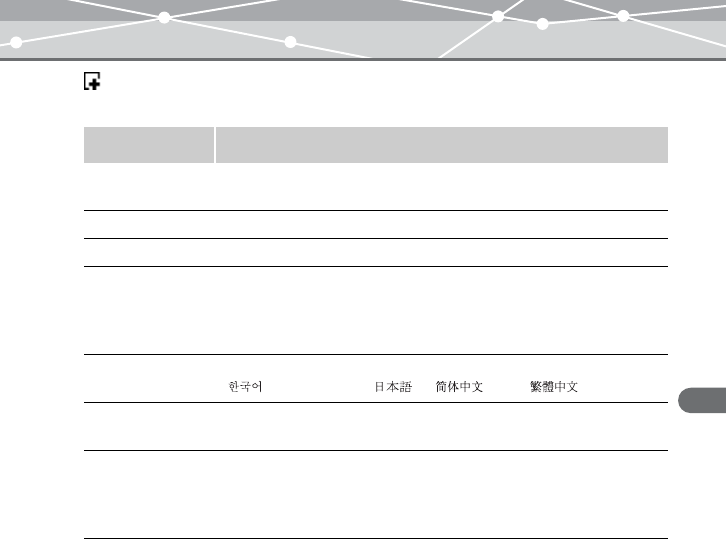
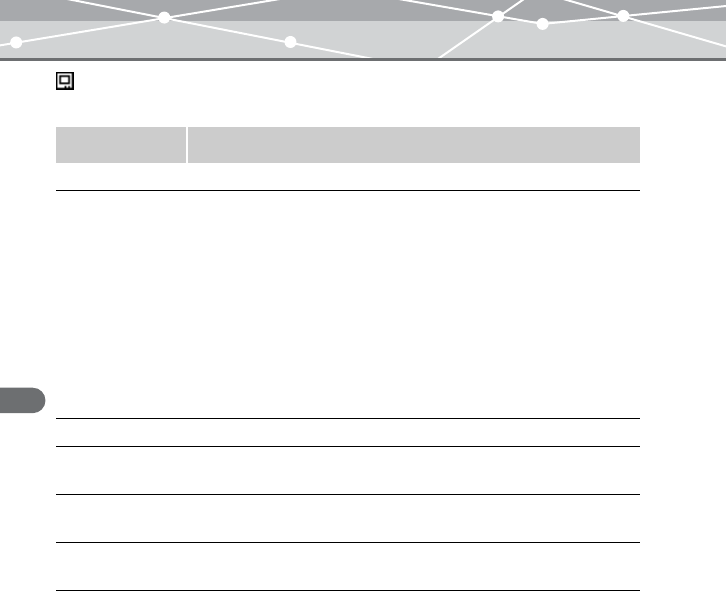
Settings
Set the system functions.
Subjects Explanations
Resume When power is turned on, you can resume playback of the last file
from the point where it was stopped before power was turned off.
Search Speed Speed control to search file can be adjusted (×4/×8/×16).
Fade In You can gradually increase the volume up to the set point.
Time The time display of music playback can be selected.
“Normal”: Displays elapsed playback time.
“Remain”: Displays remaining playback time.
“Total”: Displays both elapsed time and total playback time.
Language The following languages can be selected for the menu screen:
“ ,” “ENGLISH,” “ ,” “ ” and “ .”
Beep Sound Beep sounds when a button is operated while playing back,
searching, etc.
LCD Pivot The information display can be adjusted depending on the direction
of the display.
“ON”: Pivots the displayed information 180°.
“OFF”: Displays in the ordinary direction.
MRF30_E.book Page 65 Tuesday, July 12, 2005 3:04 PM
66
Setting and adjusting
MR-F30 Series
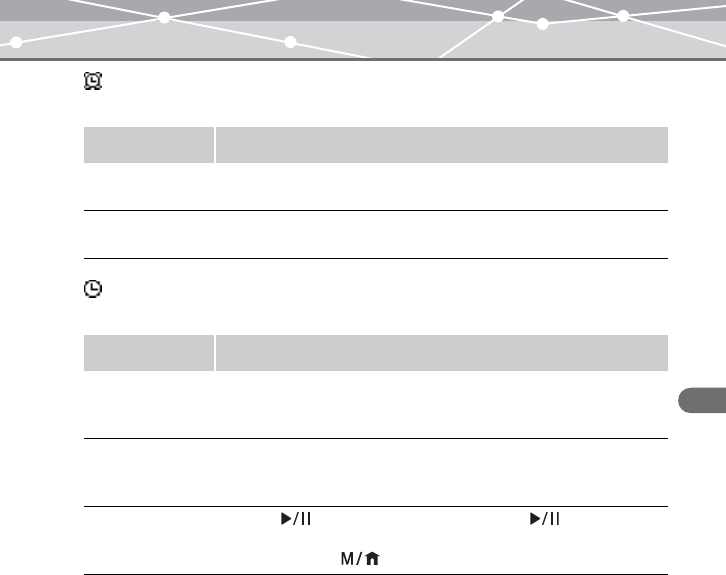
Display
Set the functions of the screen display.
Subjects Explanations
Contrast The screen brightness can be adjusted from “0” to “10.”
Screen Saver If no button is pressed for a certain time, the screen saver is displayed
to protect the screen.
“On/Off”: Sets screen saver to on/off and the time that elapses before
displaying the screen saver (1min/3min/5min/10min).
“Type”: Sets the type of screen saver displayed on the screen.
“Vertical”: Screen saver displays in vertical direction.
“Horizontal”: Screen saver displays in horizontal direction.
“Diagonal”: Screen saver displays in diagonal direction.
“On_Off”: Screen saver fades in and out.
“Moving”: Screen saver moves about on the screen.
“Fade In_Out”: The density of screen saver gradually changes.
Scroll Speed Scroll Speed of file name can be set from “1” to “5.”
Backlit Time The light emitting time of organic EL (5sec/15sec/30sec/60sec/
120sec) can be set.
Graphic EQ The type of graphic equalization (Wave/Stereo Image/Pumping/
Watch/File Info) can be selected.
Track Title The information displayed as a music title (File Name/ID3 TAG) can
be set.
MRF30_E.book Page 66 Tuesday, July 12, 2005 3:04 PM
67
Setting and adjusting
MR-F30 Series
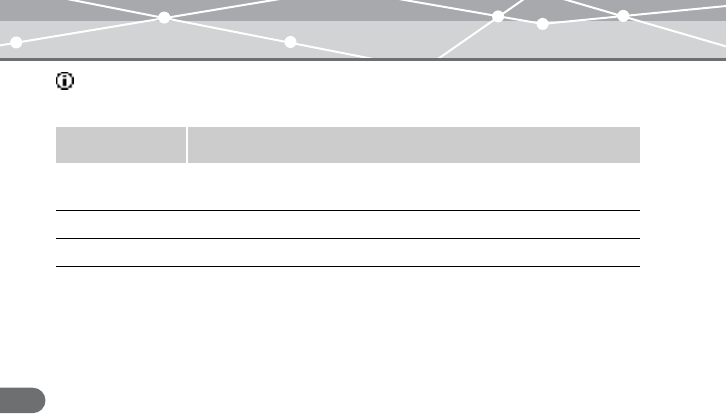
Timer
Set the timer functions.
Watch
Set the watch functions.
Subjects Explanations
Auto PWR Off The power can be set to turn off automatically when no button is
pressed for a certain time (1min to 10min) in pause/stop mode.
Sleep Mode When the set time (10min to 90min) elapses, the power will be
turned off automatically.
Subjects Explanations
Watch Watch is displayed, if there is no operation for a certain time.
“On/Off”: Displays/hides the watch.
“Setting”: Sets year, month, day and time.
Alarm The alarm is turned on at the set time.
“On/Off”: Turns on/off the alarm.
“Setting”: Sets time and occurrence of alarm.
StopWatch Press the button to start counting. Press the button again to
stop counting.
To reset, press the button.
MRF30_E.book Page 67 Tuesday, July 12, 2005 3:04 PM
68
Setting and adjusting
MR-F30 Series
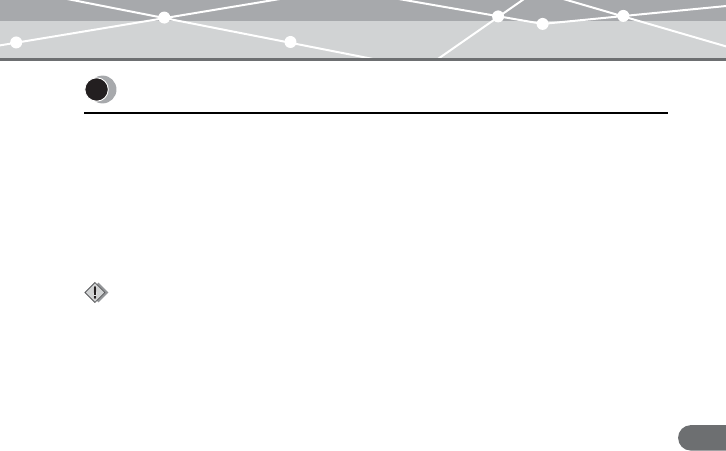
System
Set the OS functions.
Subjects Explanations
Information You can view the OS version, memory capacity and available
memory.
Reset You can return all m:robe settings to the factory default status.
Format You can delete stored files, etc, and format the flash memory.
MRF30_E.book Page 68 Tuesday, July 12, 2005 3:04 PM
69
Additional information
MR-F30 Series
Additional information
Exterior
Wipe gently with a soft cloth. If the device is very dirty, wipe it using a cloth dampened with
a diluted mild detergent and wrung tightly. If you used the device at the beach, clean it using
a cloth dampened with fresh water and wrung tightly.
Organic EL display
Wipe any dust or dirt on the organic EL display gently with a soft cloth.
Cleaning
Note
Do not use strong solvents such as benzine or alcohol, or chemically treated cloths.
MRF30_E.book Page 69 Tuesday, July 12, 2005 3:04 PM
70
Additional information
MR-F30 Series
Remove the built-in battery when you dispose of this product. Never disassemble this
product except when disposing of it.
•Do not allow the +/- terminals of the built-in battery to come in contact with
metal objects, or subject the built-in battery to strong shock. Also, do not carry
or store with a necklace or hairclip, etc. This may cause short-circuiting, resulting in
overheating, explosion or fire.
•Do not heat, disassemble or modify the built-in battery, expose it to water,
or leave it in scorching heat. Doing so may cause overheating, explosion or fire.
•Do not pierce with a nail, beat with a hammer, throw or step on the built-in
battery. Doing so may cause overheating, explosion, fire or battery leakage.
•Before disposing, tape the connector of the built-in battery with insulating
tape. Otherwise, short-circuiting may occur, and result in overheating explosion or fire.
•Keep the built-in battery out of the reach of children. Failure to do so may cause
accident or injury.
•When battery leakage has occurred and the liquid gets into your eyes, wash
immediately with clean water and seek medical attention immediately.
Failure to do so may cause eye or skin injury.
Notes when you dispose of your m:robe
Danger
Warning
MRF30_E.book Page 70 Tuesday, July 12, 2005 3:04 PM
71
Additional information
MR-F30 Series
How to remove the battery
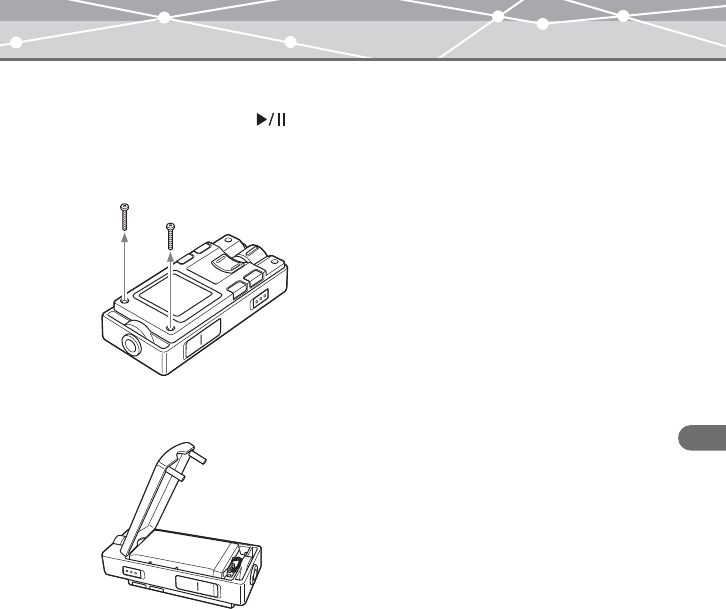
1Press and hold the button to turn off your m:robe if it is turned on.
2Remove the four screws on the side of the organic EL display using a
screwdriver.
3Turn over your m:robe, then remove the front cover.
MRF30_E.book Page 71 Tuesday, July 12, 2005 3:04 PM
72
Additional information
MR-F30 Series
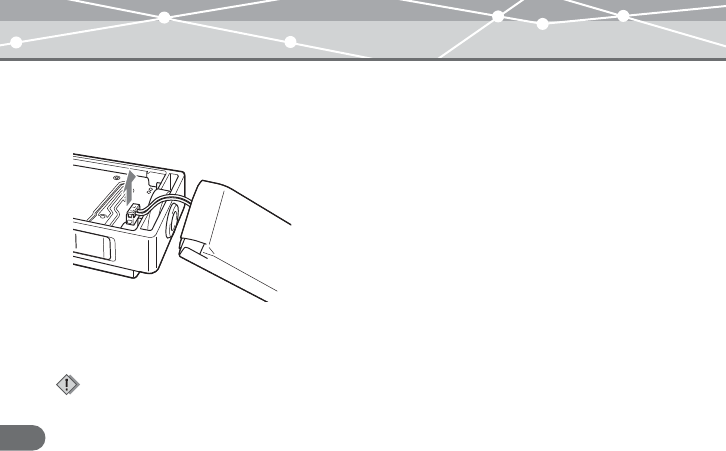
4Remove the built-in battery from your m:robe.
Take out the battery, then disconnect the connector.
After taking out the battery, tape the cable to the battery body, making sure to cover the
connector part, then put the battery in a plastic bag.
Notes
• Check that the battery is completely exhausted before removing it.
• Make sure that your m:robe is turned off before removing the battery.
• Do not reuse the battery once it has been removed.
• Take the removed built-in battery to a recycling location.
• When you dispose of this product, you should obey the local ordinance or rules of your municipality.
For details, contact your local authority.
MRF30_E.book Page 72 Tuesday, July 12, 2005 3:04 PM
73
Additional information
MR-F30 Series
Before sending the product for repair, refer to the following checklist to resolve the problem.
If the problem persists, contact an authorized Olympus service center.
In addition, be sure to back up the data in your m:robe before sending this product for repair
or service. Writing to the memory or deleting data etc., may be necessary during the repair
or service. Due to copyright restrictions, we cannot copy stored data for repair or service.
Restoring the data is not possible. We also recommend backing up your data often to prevent
data loss problems.
Troubleshooting
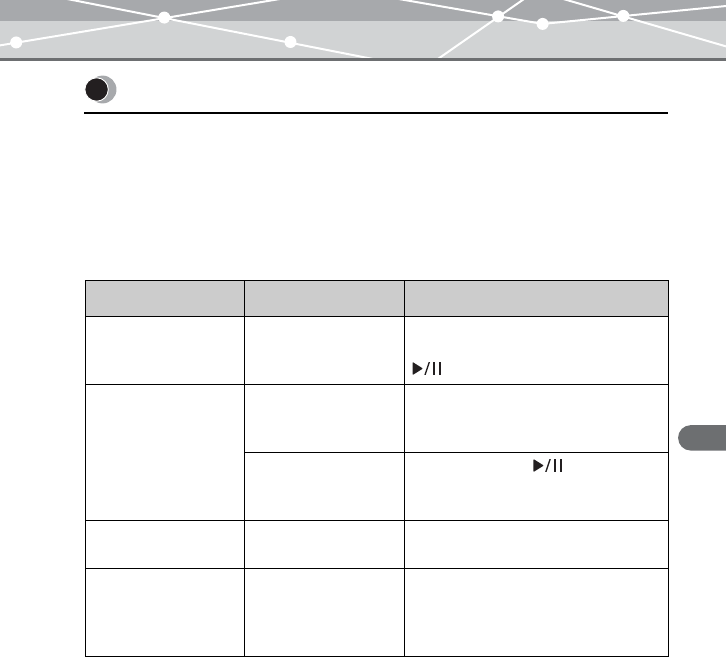
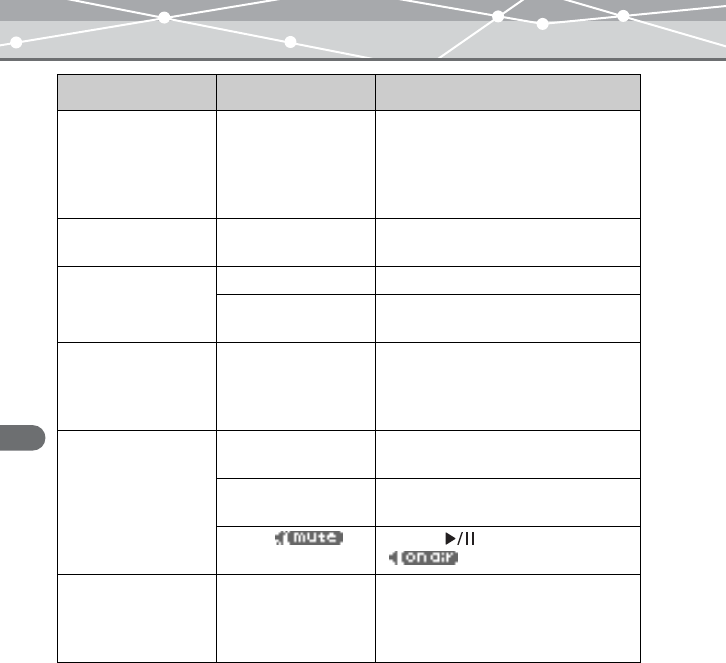
Problem Cause Resolution
The power cannot be
turned on.
The HOLD function
is set to on.
Slide back the HOLD switch to release
the HOLD function, then press the
button (gpage 31).
The player turns off
automatically.
“Auto PWR Off” or
“Sleep Mode” is set.
Set the “Auto PWR Off” or “Sleep
Mode” to “Off” or set the desired time
(gpage 67).
The “Auto PWR Off”
or “Sleep Mode” is
activated.
Press and hold the button to turn
the power on (gpage 24).
The m:robe functions
cannot be operated.
The HOLD function
is set to on.
Slide back the HOLD switch to release
the HOLD function (gpage 31).
The device becomes
hot.
The temperature of
the device increases
after extended periods
of operation.
This is not a malfunction.
MRF30_E.book Page 73 Tuesday, July 12, 2005 3:04 PM
74
Additional information
MR-F30 Series
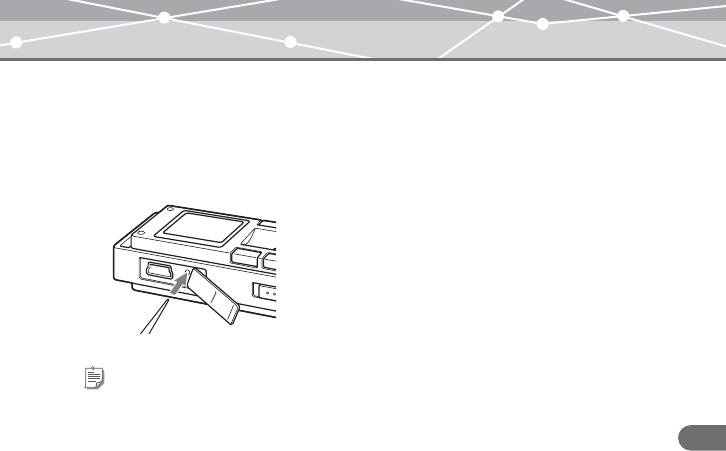
The battery
discharges soon after
charging.
The built-in battery is
good for about 500
complete charges and
discharges, depending
on usage.
Contact an authorized Olympus
service center for a replacement.
Nothing is on the
display.
The battery is empty. Charge the battery (gpage 18).
The display is not
clear.
The battery is empty. Charge the battery (gpage 18).
The brightness setting
is too low.
Adjust settings of the “Contrast”
(gpage 66).
The display is turned
off.
The timer of the light
emitting time of
organic EL is
activated.
Set the desired backlight time
(gpage 66).
There is no sound. The volume is set to
the minimum.
Adjust the volume (gpage 33).
The earphones are not
connected properly.
Check if the earphones jack is
connected properly (gpage 23).
“Mute ( )”
is set in FM MODE.
Press the button to set on air
() (gpage 51).
You cannot find a file
you transferred.
The file you
transferred is saved in
an unsupported
format.
Check and correct the saving format,
then transfer the file again (delete
unrecognized files in your m:robe).
Problem Cause Resolution
MRF30_E.book Page 74 Tuesday, July 12, 2005 3:04 PM
75
Additional information
MR-F30 Series
Rebooting your m:robe
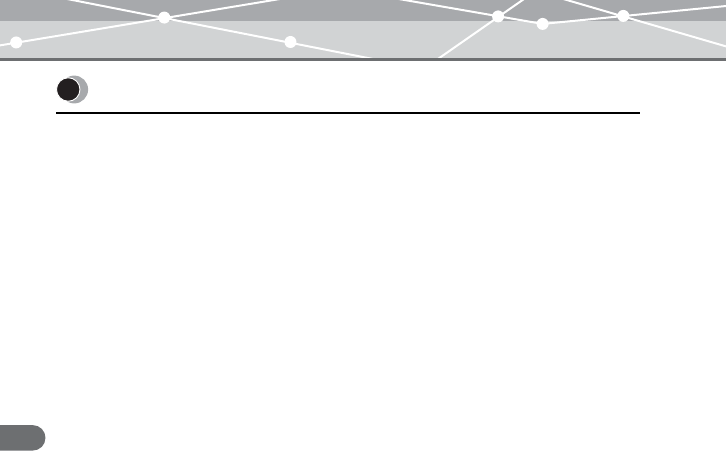
If a problem persists after trying the suggested solution, rebooting your m:robe may solve
the problem.
Push a pointed object, such as a pen, into the RESET button.
Tip
Rebooting your m:robe does not delete data.
MRF30_E.book Page 75 Tuesday, July 12, 2005 3:04 PM
76
Additional information
MR-F30 Series
• The product will come with a Warranty card. Make sure that the dealer name and purchase
date are written or stamped on the warranty. If any of the necessary information is
missing, contact the dealer. Please read through the Warranty card and store it in a safe
place.
• If you have a query about after-sale services for this product or encounter a failure, contact
the dealer or an authorized Olympus service center. Within 1 year of the purchase date,
we will repair the product free of charge if it becomes faulty, provided that the instructions
in this USER’S MANUAL were observed.
• Maintenance parts for this product will be stored for about 5 years after production stops.
Within this period, we can accept repair requests. Even after this period, repair may be
possible. Contact the dealer or an authorized Olympus service center.
• Olympus will not compensate for any damage or loss (including cost when purchase/
obtain audio files) incurred as a consequence of a failure of this product. Postage and
packing costs are the responsibility of the sender.
• When sending this product to us for maintenance, pack the product with sufficient
cushioning to avoid damage during transportation. Use a door-to-door package delivery
service or registered parcel mail so that you have proof of sending the product.
• Ownership of removed parts during repair will belong to us.
• Stored data on the memory may be lost, and writing to the memory or deleting data, etc.,
may be necessary during repair or service. Be sure to back up your data before sending
this product for repair or service. Olympus will take no responsibility for any loss due to
changes of stored data.
• We cannot accept any request for the recovery/restoration of lost data.
Due to copyright restrictions, we cannot copy stored data for repair or service. Therefore,
we may not be able to accept repair of service where restoring data is required.
Service and maintenance
MRF30_E.book Page 76 Tuesday, July 12, 2005 3:04 PM
77
Additional information
MR-F30 Series
m:robe
Product name DIGITAL AUDIO PLAYER
Model name MR-F30
Built-in battery Lithium-polymer rechargeable battery
Weight Approx. 40 g (including battery)
Dimensions 33.5 mm × 73.5 mm × 21 mm
(W×H×D, protruding parts excluded)
Display OLED (organic EL display)
96 × 96 pixels, 260,000 colors
Storage Built-in flash memory
512 MB (MR-F32)*1
1 GB (MR-F33)*1
Supported file formats Music file:
Windows Media Audio (WMA)
MPEG1/2/2.5, Audio Layer 3 (MP3)
Ogg Vorbis (OGG)
Photo file:
Joint Photograph Experts Group (JPEG)
Encode format MP3
Recording format MP3
Number of storable tracks Approx. 120 music tracks (MR-F32)*2
Approx. 240 music tracks (MR-F33)*2
Continuous playback time Approx. 15 hours (MP3)*3
Specifications
MRF30_E.book Page 77 Tuesday, July 12, 2005 3:04 PM

78
Additional information
MR-F30 Series
Bit rate WMA: 32 to 192 kbps (including VBR)
MP3: 16 to 320 kbps (including VBR)
OGG: 16 to 256 kbps (Mono),
64 to 512 kbps (Stereo) (including VBR)
Operating conditions Temperature: 5ºC to 35ºC
Humidity: 30 to 90% (no condensation)
Charge time Approx. 3 hours (using the dedicated USB cable)
USB port USB2.0
Earphones jack 3.5 mm jack/stereo type
*11 GB = 1 billion bytes: the actual formatted capacity is somewhat less
(The actual capacity after formatting will be less than 512 MB/1 GB.)
*2For typical 4-minute tracks recorded at 128 kbps in WMA format
*3When playing WMA/MP3/OGG formatted 128 kbps, 44.1 kHz audio data at room
temperature (25ºC), with the backlight turned off, and with the audio volume set to a
medium level
This value is subject to the operating conditions, an ambient temperature, number of
charging/discharging times, etc., and is for reference only and is not guaranteed.
Specifications and design are subject to change without notice.
MRF30_E.book Page 78 Tuesday, July 12, 2005 3:04 PM
79
Additional information
MR-F30 Series
Menu list
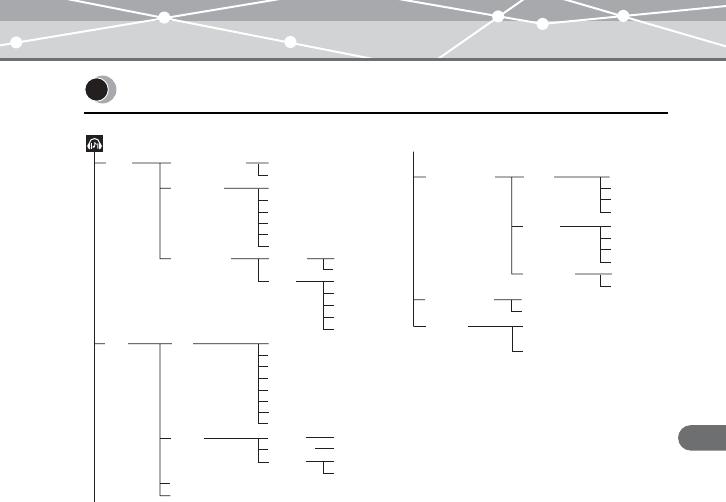
MUSIC MODE
EQ
Play
EQ Normal
Rock
Current
All
OnOn/Off
Step
Off
Normal
Intro
Repeat Folder
PlayMode
Jazz
Classic
Pop
WOW
User EQ1
Repeat
Repeat All
Random
Random All
SRS
WOW
Trubass
Adjust
StudyMode
User EQ2
User EQ1
User EQ2
2sec
5sec
15sec
30sec
60sec
Earphone
Speaker
1~10
1~10
Voice 32
64
96
128
64
96
128
192
Line In
On
Off
Auto Sync
Bookmark
Playlist
MIC In
Line In
REC Quality
REC Source
Delete
MRF30_E.book Page 79 Tuesday, July 12, 2005 3:04 PM
80
Additional information
MR-F30 Series
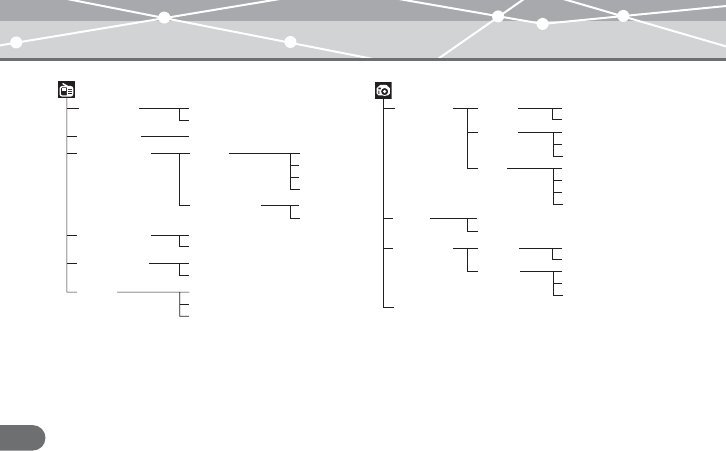
FM MODE
On
Off
On/Off (On,Off)
64
96
128
P1~P20
Auto Preset
Save Preset
32FM Recording
Setting
Quality
REC Booking
Change Mode Preset
Manual
Preset Delete All
Each
Region Korea
Japan
World
PHOTO MODE
Real Photo
Avatar
2sec
5sec
10sec
Normal
Repeat All
Random
Random All
On
Off
Slide Show
Interval
Type
2sec
5sec
10sec
Interval
Delete
On
Off
On/Off
On
Off
On/Off
MRF30_E.book Page 80 Tuesday, July 12, 2005 3:04 PM
81
Additional information
MR-F30 Series
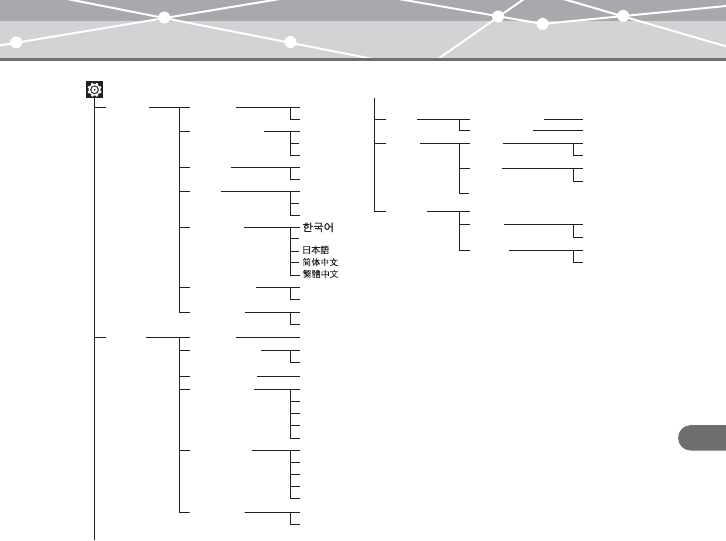
SETTINGS
Settings
X8
Off
On
Resume
X16
X4
Search Speed
Remain
Normal
Time
Off
Off
Total
Language
On
Fade In
On
Beep Sound
Off
On
LCD Pivot
Display 0~10
Contrast
On/Off (Off~10min)
Screen Saver
5sec
15sec
30sec
60sec
120sec
Backlit Time
Stereo Image
Pumping
Watch
File Info
Wave
Graphic EQ
1~5
Scroll Speed
ID3 TAG
File Name
Track Title
Watch
Setting
On/Off (On,Off)
Watch
Setting
On/Off (On,Off)
Alarm
Cancel
OK
StopWatch
System Information
Cancel
OK
Reset
Format
Type (Vertical, Horizontal...)
Timer Off~10min
Auto PWR Off
Off~90min
Sleep Mode
ENGLISH
MRF30_E.book Page 81 Tuesday, July 12, 2005 3:04 PM
82
Additional information
MR-F30 Series
A
Alarm . . . . . . . . . . . . . . . . . . . . . . . . . . . 67
Area . . . . . . . . . . . . . . . . . . . . . . . . . . . . 53
Auto Preset . . . . . . . . . . . . . . . . . . . . . . . 54
Auto PWR Off . . . . . . . . . . . . . . . . . . . . 67
Auto Sync . . . . . . . . . . . . . . . . . . . . . . . 49
Avatar . . . . . . . . . . . . . . . . . . . . . . . . . . 62
B
Backlit Time . . . . . . . . . . . . . . . . . . . . . 66
Battery . . . . . . . . . . . . . . . . . . . . . . . 14, 71
Beep Sound . . . . . . . . . . . . . . . . . . . . . . 65
Bit rate . . . . . . . . . . . . . . . . . . . . 46, 48, 57
Bookmark . . . . . . . . . . . . . . . . . . . . . . . 42
C
Contrast . . . . . . . . . . . . . . . . . . . . . . . . . 66
D
Delete
Bookmark . . . . . . . . . . . . . . . . . . . . 43
Files . . . . . . . . . . . . . . . . . . . . . . . . 28
Playlist . . . . . . . . . . . . . . . . . . . . . . 43
Stored frequencies . . . . . . . . . . . . . 56
Display setting . . . . . . . . . . . . . . . . . . . . 66
E
Earphones . . . . . . . . . . . . . . . . . . . . . . . 23
EQ . . . . . . . . . . . . . . . . . . . . . . . . . . . . . 40
F
Fade In . . . . . . . . . . . . . . . . . . . . . . . . . . 65
FM MODE . . . . . . . . . . . . . . . . . . . . . . 50
FM recording . . . . . . . . . . . . . . . . . . . . . 57
FM recording reservation . . . . . . . . . . . 58
Format . . . . . . . . . . . . . . . . . . . . . . . . . . 68
G
Graphic EQ . . . . . . . . . . . . . . . . . . . . . . 66
H
HOLD . . . . . . . . . . . . . . . . . . . . . . . . . . 31
I
Information . . . . . . . . . . . . . . . . . . . . . . 68
Interval repeat (A-B) . . . . . . . . . . . . . . . 39
Intro . . . . . . . . . . . . . . . . . . . . . . . . . . . . 36
L
Language . . . . . . . . . . . . . . . . . . . . . . . . 65
LCD Pivot . . . . . . . . . . . . . . . . . . . . . . . 65
Index
MRF30_E.book Page 82 Tuesday, July 12, 2005 3:04 PM

83
Additional information
MR-F30 Series
M
Manual mode . . . . . . . . . . . . . . . . . . . . 52
Manual Preset . . . . . . . . . . . . . . . . . . . . 54
Menu list . . . . . . . . . . . . . . . . . . . . . . . . 79
Microphone . . . . . . . . . . . . . . . . . . . . . . 45
MUSIC MODE . . . . . . . . . . . . . . . . . . . 32
Music Recording . . . . . . . . . . . . . . . . . . 47
N
Navigation search . . . . . . . . . . . . . . . . . 27
O
Organic EL display (OLED) . . . . . . . . . 13
OS setting . . . . . . . . . . . . . . . . . . . . . . . 68
P
PHOTO MODE . . . . . . . . . . . . . . . . . . 60
Playback
Music file . . . . . . . . . . . . . . . . . 33, 35
Photo file . . . . . . . . . . . . . . . . . . . . 60
Recorded file . . . . . . . . . . . . . . . . . 48
Voice file . . . . . . . . . . . . . . . . . . . . 46
PLAYLIST . . . . . . . . . . . . . . . . . . . . . . 34
PlayMode . . . . . . . . . . . . . . . . . . . . . . . 36
Power . . . . . . . . . . . . . . . . . . . . . . . . . . 24
Preset mode . . . . . . . . . . . . . . . . . . . . . . 52
R
Random . . . . . . . . . . . . . . . . . . . . . . . . .36
Random All . . . . . . . . . . . . . . . . . . . . . .36
Real Photo . . . . . . . . . . . . . . . . . . . . . . .61
Recording
FM . . . . . . . . . . . . . . . . . . . . . . . . . .57
Music . . . . . . . . . . . . . . . . . . . . . . . .47
Voice . . . . . . . . . . . . . . . . . . . . . . . .45
Repeat . . . . . . . . . . . . . . . . . . . . . . . . . . . 36
Repeat All . . . . . . . . . . . . . . . . . . . . . . . 36
Repeat Folder . . . . . . . . . . . . . . . . . . . . .37
Reset . . . . . . . . . . . . . . . . . . . . . . . . . . . .68
RESET button . . . . . . . . . . . . . . . . . . . .75
Resume . . . . . . . . . . . . . . . . . . . . . . . . . . 65
S
Screen Saver . . . . . . . . . . . . . . . . . . . . . .66
Scroll Speed . . . . . . . . . . . . . . . . . . . . . .66
Search Speed . . . . . . . . . . . . . . . . . . . . .65
SETTINGS . . . . . . . . . . . . . . . . . . . . . . . 64
Settings . . . . . . . . . . . . . . . . . . . . . . . . . .65
Sleep Mode . . . . . . . . . . . . . . . . . . . . . . 67
Slide Show . . . . . . . . . . . . . . . . . . . . . . .63
StopWatch . . . . . . . . . . . . . . . . . . . . . . .67
StudyMode . . . . . . . . . . . . . . . . . . . . . . .38
System setting . . . . . . . . . . . . . . . . . . . .65
MRF30_E.book Page 83 Tuesday, July 12, 2005 3:04 PM

84
Additional information
MR-F30 Series
T
Time . . . . . . . . . . . . . . . . . . . . . . . . . . . . 65
Timer setting . . . . . . . . . . . . . . . . . . . . . 67
Track Title . . . . . . . . . . . . . . . . . . . . . . . 66
U
USB charging . . . . . . . . . . . . . . . . . . . . . 18
V
Voice recording . . . . . . . . . . . . . . . . . . . 45
Volume . . . . . . . . . . . . . . . . . . . . . . . . . 33
W
Watch . . . . . . . . . . . . . . . . . . . . . . . . . . . 67
Watch setting . . . . . . . . . . . . . . . . . . . . . 67
WOW . . . . . . . . . . . . . . . . . . . . . . . . . . . 41
MRF30_E.book Page 84 Tuesday, July 12, 2005 3:04 PM
85
Additional information
MR-F30 Series
• Confirm the following points before contacting us so that we can provide quick and
accurate answers.
• Please fill out this check sheet if you want to contact us by fax or mail.
• Symptom, displayed messages, frequency, and other details of the problem:
PC-related problems are difficult to accurately identify. Please provide as much detail as
possible.
Before you contact us
• Name:
• Contact information: Postal code
Address (your residential address or office address)
Phone/Fax
E-mail
• Product name (model):
• Serial number (located on the side of the product):
• Purchase date:
* Please provide the following information if you are using the storage unit connected to
a PC, or if you are using third party application software:
•Type of PC:
• Manufacturer, model, and other:
• Memory size and free hard disk space:
• Type of operating system and version:
• Settings on Control Panel/System/Device Manager:
• Other peripheral devices connected:
• Name and version of the application software related to your problem:
• Name and version of the OLYMPUS software product related to your problem:
MRF30_E.book Page 85 Tuesday, July 12, 2005 3:04 PM

MR-F30 Series
Printed in Korea P2-NG0883-01
MRF30_E.book Page 86 Tuesday, July 12, 2005 3:04 PM
