Omega Vehicle Security Usb 4761 Users Manual
USB-4761 M4572
USB-4761 to the manual a1461fd7-2853-df84-99e4-6316ece4c29e
2015-02-05
: Omega-Vehicle-Security Omega-Vehicle-Security-Usb-4761-Users-Manual-496629 omega-vehicle-security-usb-4761-users-manual-496629 omega-vehicle-security pdf
Open the PDF directly: View PDF  .
.
Page Count: 39
omega.com
e-mail: info@omega.com
For latest product manuals:
omegamanual.info
User’s Guide
USB-4761
8 Channel Relay/Isolated DI
USB Data Acquisition Module
Shop online at

Servicing North America:
U.S.A.: One Omega Drive, Box 4047
ISO 9001 Certified Stamford, CT 06907-0047
Tel: (203) 359-1660
FAX: (203) 359-7700
e-mail: info@omega.com
Canada: 976 Bergar
Laval (Quebec) H7L 5A1, Canada
Tel: (514) 856-6928
FAX: (514) 856-6886
e-mail: info@omega.ca
For immediate technical or application assistance:
U.S.A. and Canada: Sales Service: 1-800-826-6342/1-800-TC-OMEGA®
Customer Service: 1-800-622-2378/1-800-622-BEST®
Engineering Service: 1-800-872-9436/1-800-USA-WHEN®
Mexico: En Espan˜ol: (001) 203-359-7803
FAX: ( 001) 203-359-7807
e-mail: espanol@omega.com
info@omega.com.mx
Servicing Europe:
Czech Republic: Frystatska 184, 733 01 Karviná, Czech Republic
Tel: +420 (0)59 6311899
FAX: +420 (0)59 6311114
Toll Free: 0800-1-66342
e-mail: info@omegashop.cz
Germany/Austria: Daimlerstrasse 26, D-75392 Deckenpfronn, Germany
Tel: +49 (0)7056 9398-0
FAX: +49 (0)7056 9398-29
Toll Free in Germany: 0800 639 7678
e-mail: info@omega.de
United Kingdom: One Omega Drive, River Bend Technology Centre
ISO 9002 Certified Northbank, Irlam, Manchester
M44 5BD United Kingdom
Tel: +44 (0)161 777 6611
FAX: +44 (0)161 777 6622
Toll Free in United Kingdom: 0800-488-488
e-mail: sales@omega.co.uk
OMEGAnet®Online Service Internet e-mail
omega.com info@omega.com
It is the policy of OMEGA Engineering, Inc. to comply with all worldwide safety and EMC/EMI
regulations that apply. OMEGA is constantly pursuing certification of its products to the European New
Approach Directives. OMEGA will add the CE mark to every appropriate device upon certification.
The information contained in this document is believed to be correct, but OMEGA accepts no liability for any
errors it contains, and reserves the right to alter specifications without notice.
WARNING: These products are not designed for use in, and should not be used for, human applications.

USB-4761
8-channel Relay / Isolated DI
USB Data Acquisition Module
User Manual
Contents
Chapter 1 Introduction ..................................................... 2
1.1
Features
.............................................................................
2
1.1.1 Robust Protection ........................................................... 3
1.1.2 Wide Input Range .......................................................... 3
1.1.3 Reset Protection for Industrial Applications .................. 3
1.1.4 Plug & Play Function ..................................................... 3
1.2
Applications
......................................................................
4
1.3
Installation Guide
..............................................................
4
Figure 1.1:Installation Flow Chart ................................. 5
1.4
Software Overview............................................................
6
1.4.1 Programming Choices for DA&C Module: ................... 6
1.4.2 Device Drivers ............................................................... 6
1.5
Device Driver
Programming
.............................................
7
1.5.1 Programming Tools ....................................................... 7
1.5.2 Programming with Device Drivers Function Library .... 8
1.5.3 Troubleshooting Device Drivers Error .......................... 8
Chapter 2 Installation ..................................................... 10
2.1
Unpacking
.......................................................................
10
2.2
Driver Installation
...........................................................
11
Figure 2.1: Software Setup .......................................... 11
2.3
Hardware Installation
......................................................
12
Figure 2.2:Device Name on the Device Manager ........ 13
Figure 2.3:The (!) Indicates Improper Installation ...... 14
2.4
Device
Setup & Configuration
........................................
14
2.4.1 Setting Up the Device .................................................. 14
Figure 2.4:Device Manager Dialog Box ...................... 15
2.4.2 Configuring the Device ................................................ 15
Figure 2.5:The Device Setting Dialog Box ................. 16
2.5
Device Testing.................................................................
16
2.5.1 Testing Digital Input Function ..................................... 17
Figure 2.6:Digital Input Tab in Device Test Dialog .... 17
2.5.2 Testing Digital Output Function .................................. 17
Figure 2.7:Digital Output Tab in Device Test Dialog . 18
2.6
Hardware Uninstallation
.................................................
18
Figure 2.8:Unplug or Eject Hardware Dialog .............. 19
Figure 2.9:Stop a Hardware device dialog box ............ 19
Chapter 3 Signal Connections ........................................ 22
3.1
Overview
.........................................................................
22
3.2
I/O Connectors
................................................................
22
3.2.1 Pin Assignment ............................................................ 22
Figure 3.1:I/O Connector Pin Assignment .................. 23
3.2.2 I/O Connector Signal Description ................................ 24
v Table of Contents
Table 3.1:I/O Connector Signal Description ............... 24
3.2.3 LED Indicator Status Description ................................ 24
Table 3.2:LED Indicator Status Description ................ 24
3.3
Isolated Digital Input Connections..................................
25
3.3.1 Single-ended Channel Connections ............................. 25
Figure 3.2:Isolated Digital Input Connections ............. 25
3.4
Relay Connections...........................................................
25
Figure 3.3:Relay Output Channel Connections ........... 25
3.5
Field Wiring
Considerations
...........................................
26
Appendix A Specifications ................................................. 28
A.1
Isolated Digital Input.......................................................
28
A.2
Relay Output
...................................................................
28
A.3
General
............................................................................
29
Appendix B Function Block............................................... 32
USB-4761 User Manual vi

1
2
Introduction
This
chapter will provide information
on the features of the
DAS module,
a
quick start
guide for installation,
and
some brief information on software and
accessories for the USB-4761
Module.
Sections include:
•
Features
•
Applications
•
Installation Guide
•
Software Overview
•
Device Driver
Programming

Chapter 1 Introduction
Thank you
for buying the USB-4761
data acquisition
module.
The
USB-
4761 is
a powerful data acquisition (DAS) module for the
USB port. It
features a unique
circuit
design
and
complete functions for data
acquisition and control.
1.1 Features
USB-4761
has the
most requested measurement
& control
functions:
•
8 relay output (Form
C)
and 8 isolated
digital input channels
•
LED indicators
to
show activated relays
•
High-voltage isolation
on
input channels (2,500 VDC)
•
High
ESD protection (2,000 VDC)
•
Wide input range (5 ~ 30 VDC)
•
Interrupt handling
capability
•
Bus-powered
•
Wiring terminal on Modules
Note:
You can install up
to
sixteen
USB-4761’s to a
system
because
of the restriction of device
BoardID
Note:
The power output
of
an USB port is 500 mA,
while the USB-4761 requires 400mA (Max.).
This
means that if an USB hub is used, it will need an
external power supply
to support
more
than one
USB-4761 device.
USB-4761 User Manual 2
1.1.1 Robust Protection
The USB-4761 digital input
channels
feature a robust isolation protection
for industrial,
lab and machinery automation applications.
It durably
withstands voltage up to
2,500 VDC, preventing your host system from
any incidental
harms. If
connected to
an external input source
with surge
protection, the USB-4761 can
offer
up
to
a maximum of 2,000 VDC ESD
(Electrostatic Discharge) protection.
1.1.2 Wide Input Range
The
USB-4761
has a wide range
of
input voltage from 5
to
30 V
DC
, and
it
is
suitable for most industrial applications with 12
and 24 V
DC
input volt-
age.
1.1.3 Reset Protection for Industrial Applications
When the system has
undergone a hot
reset
(i.e. without turning off
the
system power), USB-4761
can either retain outputs values of
each
chan-
nel, or
return to its default
configuration
as open
status,
depending on its
onboard jumper setting. This function protects the system
from wrong
operations during unexpected system
resets.
1.1.4 Plug &
Play Function
USB-4761 is
a portable Plug-&-Play device that
fully complies with the
USB 1.1/2.0 specification. During module installation, all bus-related
configurations such as
base
I/O address
and interrupts are conveniently
taken care of
by the Plug-&-Play function.
You have
virtually
no need to
set any jumpers
or
DIP switches.
Note:
For detailed specifications of
USB-4761,
please
refer
to Appendix A,
Specifications.
3 Chapter 1

1.2 Applications
•
Industrial On/Off
control
•
Switch status
sensing
•
Digital I/O control
•
Industrial and lab
automation
•
SMT/PCB machinery
•
Semi-conductor machinery
•
PC-based Industrial Machinery
•
Testing & Measurement
•
Laboratory & Education
•
External relay driving
1.3 Installation Guide
Before
you install your USB-4761 module, please make sure you
have
the following necessary
components:
•
USB-4761 DAS
Module
•
Shielded
USB 2.0 cable (1.8
m)
•
Driver
software DLL
drivers (included
in the companion
CD-ROM)
•
Personal
computer
or workstation with a
USB port (running
Windows
2000, or
XP)
After you have
the
necessary components
and maybe
some accessories
for enhanced
operation of your USB DAS module,
you can
then begin
the
installation procedure. Figure
1.1
on the next
page
provides a
concise
flow chart
to give
a broad picture
of the
software
and hardware installa-
tion procedures.
USB-4761 User Manual 4
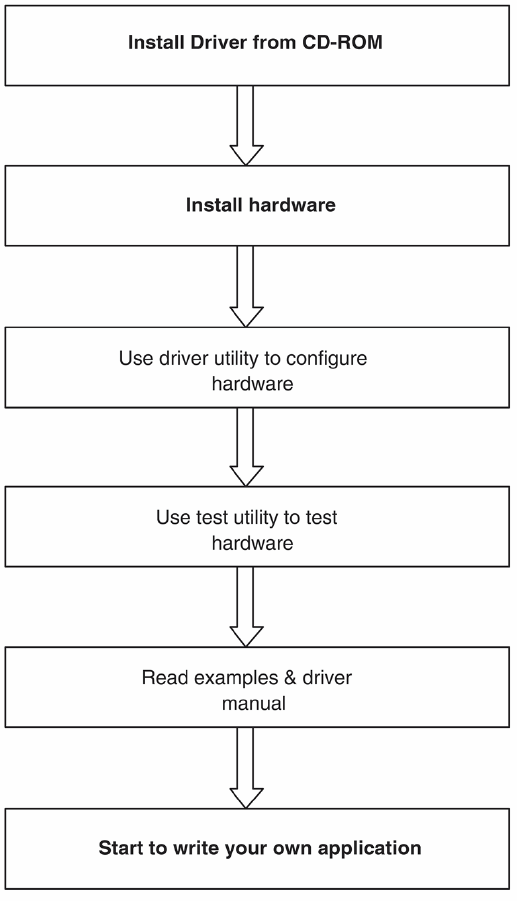
Figure 1.1: Installation
Flow Chart
5 Chapter 1

1.4 Software Overview
OMEGA offers a rich set of DLL drivers, third-party
driver support
and
application software
to help fully exploit the functions of your
USB-4761
module:
•
Device Drivers
(on
the companion CD-ROM)
1.4.1 Programming Choices for DA&C Module:
You
may use
the application software like
the Device Drivers.
On the
other hand, advanced
users
are allowed to use
register- level
programming
as another option, although
this is
not recommended due
to its laborious and time-consuming
nature.
1.4.2 Device Drivers
The Device Drivers software
is included
on the companion CD-ROM.
The
Device Drivers
features a complete I/O function library
to
help boost
your application performance. The Device Drivers for Windows
2000/XP
works
seamlessly with development
tools such as
Visual C++,
Visual
Basic.
USB-4761 User Manual 6

1.5 Device Driver Programming
This section
will provide a roadmap to demonstrate how to build an appli-
cation
from scratch using the Device
Drivers with
your
favorite
development
tools such as
Visual C++, Visual
Basic.
The step-by-step
instructions on
how to build your own applications using each
development tool will be given
in the
Device
Drivers Manual. Moreover,
a rich
set of example source code is also given for your reference.
1.5.1 Programming Tools
Programmers
can
develop application programs
with the following
devel-
opment tools:
•
Visual C++
•
Visual Basic
For instructions on
how
to
begin programming in each
development tool,
a
Tutorial Chapter in
the
Device Drivers Manual is included for your
reference. Please
refer to
the
corresponding sections in
this chapter on the
Device
Drivers Manual to
begin your programming efforts. You can
also
look at the example source code provided for each programming tool,
since they
can
get
you very well
oriented.
The Device Drivers Manual
can
be found
on the companion CD-ROM.
Alternatively, if
you have already
installed the Device
Drivers
on your
system, The
Device Drivers Manual
can
be readily
accessed through the
Start button:
Start/Programs/Omega USB-4700 Series/Device Driver’s
Manual
The example
source code can be
found under the corresponding installa-
tion
folder such as the
default installation path:
C:/Program Files/Omega/USB-4700/Examples
For
information about using other function groups or
other
development
tools, please refer to
Creating Windows 2000/XP Applications with
Device Drivers
chapter
and the
Function Overview
chapter in the Device
Drivers Manual.
7 Chapter 1
1.5.2 Programming with Device Drivers Function Library
The Device Drivers
offer a
rich function library that can be utilized
in
various application programs.
This function library
consists of numerous
APIs that
support many development tools, such as Visual C++, Visual
Basic.
1.5.3 Troubleshooting Device Drivers Error
Driver functions will
return a
status
code when they are called to
perform a
certain task for the application. When a function returns a
code that is not
zero, it
means
the function has
failed
to
perform its designated function.
To troubleshoot the Device
Drivers
error, you
can pass the error code to
DRV_GetErrorMessage function to return the error message.
Alternatively,
you can refer to
the
Device Drivers Error
Codes
Appendix
in the Device
Drivers Manual for a detailed listing of
Error
Codes,
Error
IDs and the Error
Messages.
USB-4761 User Manual 8

2
2
Installation
This
chapter has a
package item check-
list,
proper instructions about unpack-
ing and step-by-step procedures
for
both
driver and USB installation..
Sections include:
•
Unpacking
•
Driver Installation
•
Hardware Installation
•
Device
Setup & Configuration
•
Device Testing
•
Hardware Uninstallation

Chapter 2 Installation
2.1 Unpacking
After receiving your USB-4761 package, please inspect its contents first.
The
package should contain the
following items:
•
USB-4761 Module
•
Shielded USB
2.0
Cable (1.8 m)
•
Companion CD-ROM (DLL driver
included)
The
USB-4761 Module harbors
certain electronic components vulnerable
to
electrostatic discharge
(ESD). ESD could easily damage the integrated
circuits and certain components
if preventive measures
are not carefully
paid attention to.
Before removing the module from
the
antistatic plastic
bag, you should take following precautions
to ward
off possible
ESD
damage:
•
Touch the metal part
of your computer chassis with your hand
to dis-
charge
static electricity accumulated on your body. One can also use
a
grounding strap.
•
Make contact
between the antistatic bag and ground before opening
the
bag.
After taking out
the module, you should first:
Inspect
the
module for any possible signs of external
damage (loose or
damaged components,
etc.). If
the module
is visibly
damaged, please
notify
our
service department or
our local
sales representative immedi-
ately. Avoid using
a damaged module
with your system.
•
Avoid physical contact
with
materials that could hold static
electricity such
as
plastic, vinyl and Styrofoam.
USB-4761 User Manual 10

2.2 Driver Installation
We recommend you install the software driver
before
you install the
USB-4761 module into your system, since
this will guarantee a
smooth
installation process.
The 32-bit DLL
driver Setup program for the USB-4761
module is
included
on
the companion CD-ROM that
is shipped with
your
module
package. Please
follow the
steps below
to install the driver
software:
Step 1:
Insert
the companion CD-ROM into
your
CD-ROM
drive.
Step 2:
The Setup program will be launched automatically
if you
have
the
auto-play function enabled
on your
system.
Note:
If
the auto-play function
is not enabled on
your
computer, use Windows
Explorer or
Windows Run
command to execute Setup.exe
on the companion
CD-ROM.
11 Chapter 2

Step3:
Click
Continue
, and
select the
Installation
option
Step4:
Select
the specific
device and then just
follow the
installation
instructions step by step to complete your device
driver installation and
setup.
For
further
information on driver-related issues, an online version of
the
Device Drivers Manual is
available
by accessing the following
path:
Start/Programs/Omega USB-4700 Series/
Device
Driver’s Manual
2.3 Hardware Installation
Note:
Make
sure you have installed the software driver
before you install
the
module
(please refer to
Section 2.2 Driver Installation)
After the DLL
driver installation is completed, you
can
now go on
to
install the USB-4761 module in
any
USB port
that supports the
USB 1.1/2.0 standard,
on
your
computer. It
is suggested that you refer to
the computer’s user manual or
related
documentation if you have
any
doubts. Please
follow the steps below to install the module
on your sys-
tem.
Step 1:
Touch the metal part
on the surface
of your computer to neutral-
ize
the static electricity
that
might be in your body.
Step 2:
Plug your USB module into the selected USB port. Hold the mod-
ule only by its edges
Plug the module firmly into
place.
Use
of excessive
force
must be avoided;
otherwise
the module might get damaged.
Note:
In case
you installed the
module without installing
the DLL driver first,
Windows 2000/XP
will recog-
nize your
module as an “unknown device”
after
reboot, and
will prompt
you
to provide necessary
driver. You should ignore the prompting messages
(just click
the Cancel button) and set
up the driver
according to the steps described
in Section 2.2
Driver Installation.
USB-4761 User Manual 12
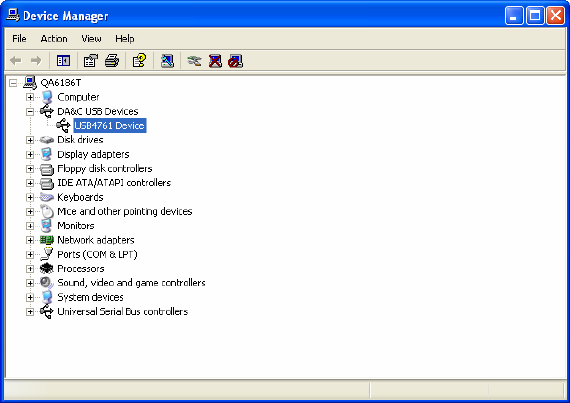
Figure
2.2: Device Name on
the Device Manager
Note:
If your
module is properly installed, you should
see the device name of your module listed on the
Device
Manager
tab. If you
see your device name
listed, but
marked with an
exclamation
sign “!”
,
it means
your module has not been correctly
installed. In
this case,
remove the mod- ule from
Device Manager
by
selecting its device name
and
press the
Remove
button. Then go through
the driver
installation
process again.
13 Chapter 2

After your module is properly installed with your system, you
can
now
configure your device
using the
Device Manager
that has itself already
been installed
on
your
system during driver
setup. A complete
device
installation procedure should include
device setup
,
configuration
and
testing
. The following
sections will guide
you through the Setup,
Configuration and Testing
of your device.
2.4 Device Setup & Configuration
Device Manager
is a
utility
that allows
you to
set up, configure and test
your devices, and later stores your settings in the
system registry. These
settings
will be used when
you call
the
APIs
of
32-bit DLL drivers.
2.4.1 Setting Up the Device
Step 1:
To
complete the device
setup and configuration procedures, you
must first install the
device along
with its driver. (Please
refer
to the
previous section
of Chapter 2 for detailed installation instructions).
USB-4761 User Manual 14
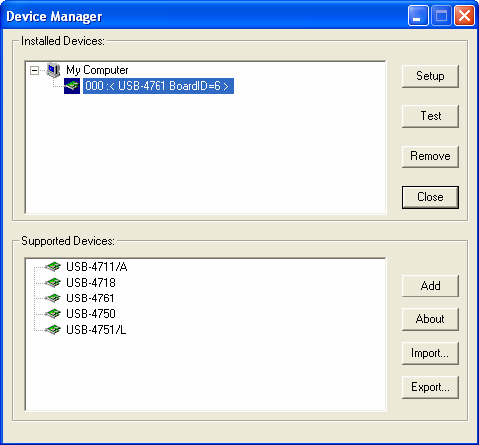
Step2:
You
can
view the device(s) already
installed on your system
(if
any)
in
the Installed Devices list box. If you haven’t installed any devices,
you
might see
a blank list.
Figure 2.4: Device Manager Dialog
Box
Note:
If you have
properly
installed
the device driver
but still
can’t find it
in
Device
Manager, please close
the
Device Manager and restart it.
2.4.2 Configuring the Device
Step 3:
Click “
Setup
” button and you will
see the
“
Device Setting
“dialog
box
as follow. On
the
Device Setting
dialog box, you
can
set the
DI inter-
rupt trigger edge and
the
power-on DO
values.
15 Chapter 2
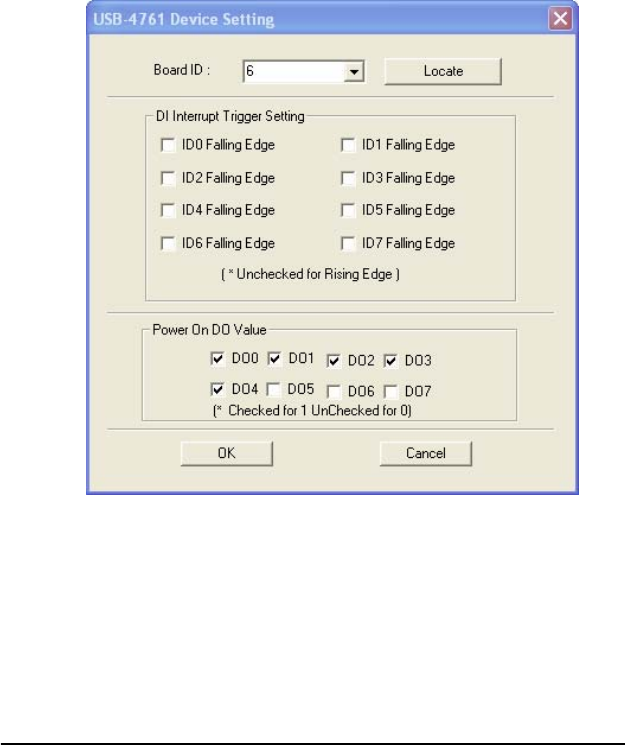
Figure 2.5: The Device Setting Dialog
Box
Note:
Please refer to the software manual
Start/Programs/Omega USB-4700
series/Device Driver’s Manual
for
the firmware
download utility
guidance and further information.
2.5 Device Testing
Following the
Setup
and
Configuration
procedures to the last step
described in
the
previous section, you can now
proceed
to
test the device
by clicking the
Test
Button in the
I/O Device
Installation
dialog
window.
In the
Device Test
dialog
window,
you are free to test the functions of
USB-4761 on Digital
input and Digital output tabs.
USB-4761 User Manual 16
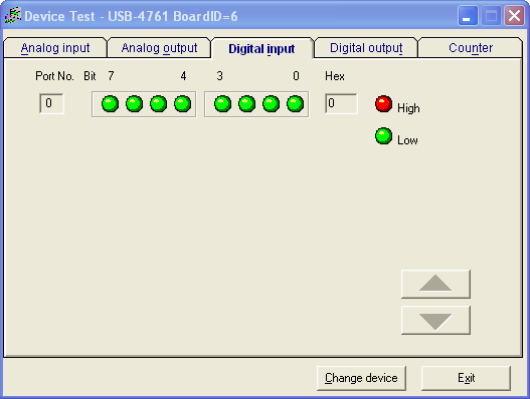
2.5.1 Testing Digital
Input Function
Click the
Digital Input
tab to show the
Digital Input
test panel
as seen
below. By the
color
of the LEDs, you can easily discern whether the
sta-
tus
of each digital
input
channel is high or low.
Figure
2.6: Digital Input
Tab in
Device Test Dialog
2.5.2 Testing Digital
Output
Function
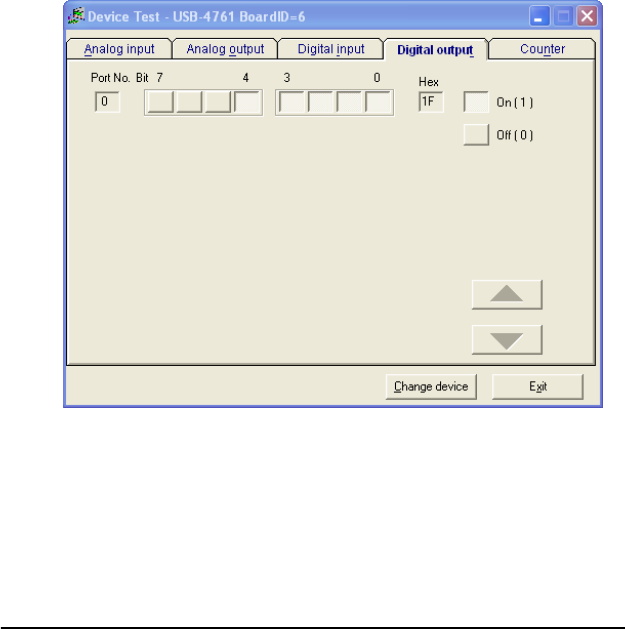
Click the
Digital Output
tab to bring
up
the
Digital Output
test panel
as
shown below. By pressing the buttons on each tab, you can easily set each
digital output
channel as
high
or
low
for the
corresponding port
17 Chapter 2
.
Figure
2.7: Digital Output Tab in
Device
Test Dialog
Only
after your module
device is properly set
up,
configured and tested,
can
the device installation procedure
be considered complete. After the
device installation procedure is
completed, you
can safely proceed
to the
next chapter
, Signal
Connections
.
2.6 Hardware Uninstallation
Though
the USB
modules are hot
swappable, we still
recommend
you to
follow the hardware un-installation
procedure to
avoid any unpredictable
damages
to your device or
your
system.
Step1:
Close the applications of the USB
module (ex. DeviceManager).
USB-4761 User Manual 18
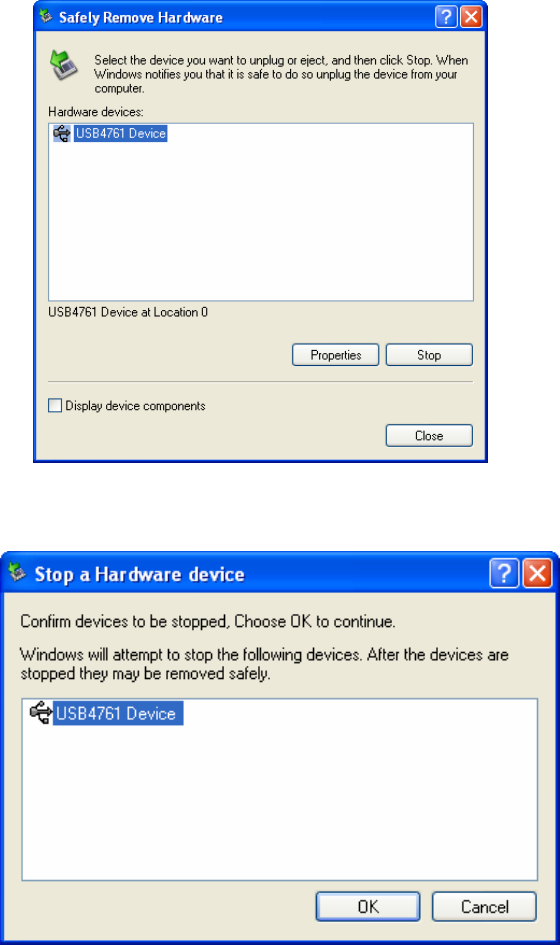
Step2:
Right click the “Unplug or Eject
Hardware”
icon on your
task bar.
Figure
2.8: Unplug or
Eject Hardware Dialog
Step3:
Select
“USB4711
Device” and press “Stop” Button.
Figure 2.9: Stop a Hardware device dialog box
19 Chapter 2
Step4:
Unplug your USB device from
the USB
port.
Note:
Please make
sure that you have
closed the application
programs before
unplugging the USB device, otherwise
some
unexpected system errors or damages may hap-
pen.
USB-4761 User Manual 20

3
2
Signal Connections
This chapter provides useful informa-
tion on how to connect input and output
signals to the
USB-4761 via the I/O
connectors..
Sections include:
•
Overview
•
I/O Connectors
•
Field Wiring Considerations

Chapter 3 Signal Connections
3.1 Overview
Maintaining good
signal connections is
one of the
most important factors
in ensuring that your application
system is sending and receiving
data
correctly. A good signal
connection can avoid unnecessary
and
costly
damage to your PC
and
other
hardware devices.
3.2 I/O Connectors
USB-4761 is equipped with plug-in screw-terminal
connectors that
facilitate connection to the module
without terminal boards or
cables.
3.2.1 Pin
Assignment
Figure 3.1 on next
page shows the pin
assignments
for the
five 10-pin I/O
connectors on USB-4761.
USB-4761 User Manual 22
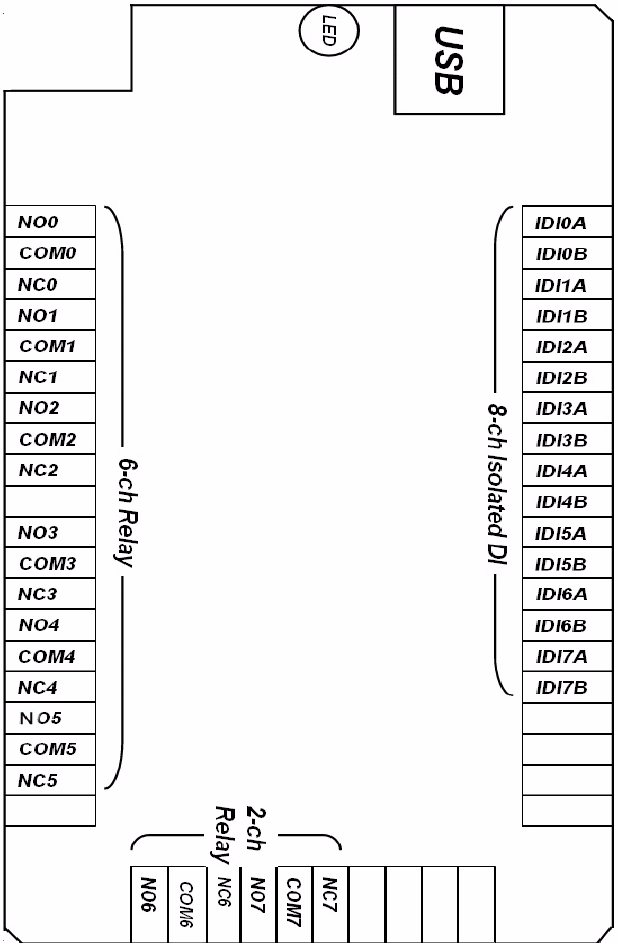
Figure
3.1: I/O Connector
Pin Assignment
23 Chapter 3
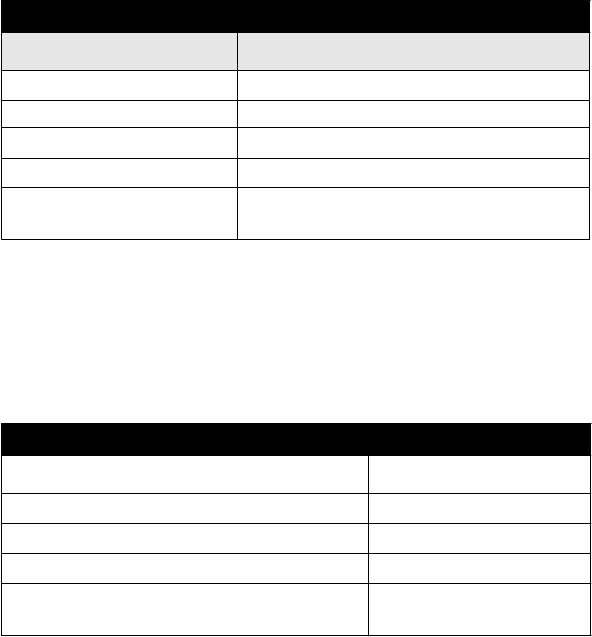
3.2.2 I/O Connector Signal Description
Table 3.1:
I/O
Connector Signal Description
Signal Name Description
NO<0~7> Normally Open pin of relay output
COM<0~7> Common pin of relay output
NC<0~7> Normally Close pin of relay output
IDInA <n=0~7> Isolated digital input A
IDInB <n=0~7> Isolated digital input B
3.2.3 LED Indicator Status Description
The USB Module is
equipped with a
LED indicator to show the
current
status
of
the device. When
you plug
the USB
device into the USB
port,
the LED
indicator will blink
five times
and then
stay lit
to indicate that it
is on.
Please refer to
the
following table for detailed LED
indicator
status
information.
Table
3.2: LED Indicator
Status Description
LED Status Description
ON Device ready for work
Off Device not ready to work
Slow Blinking (5 times) Device Initialization
Fast Blinking
(Depends on data transfer speed).
Device working
USB-4761 User Manual 24
3.3 Isolated Digital Input Connections
3.3.1 Single-ended Channel Connections
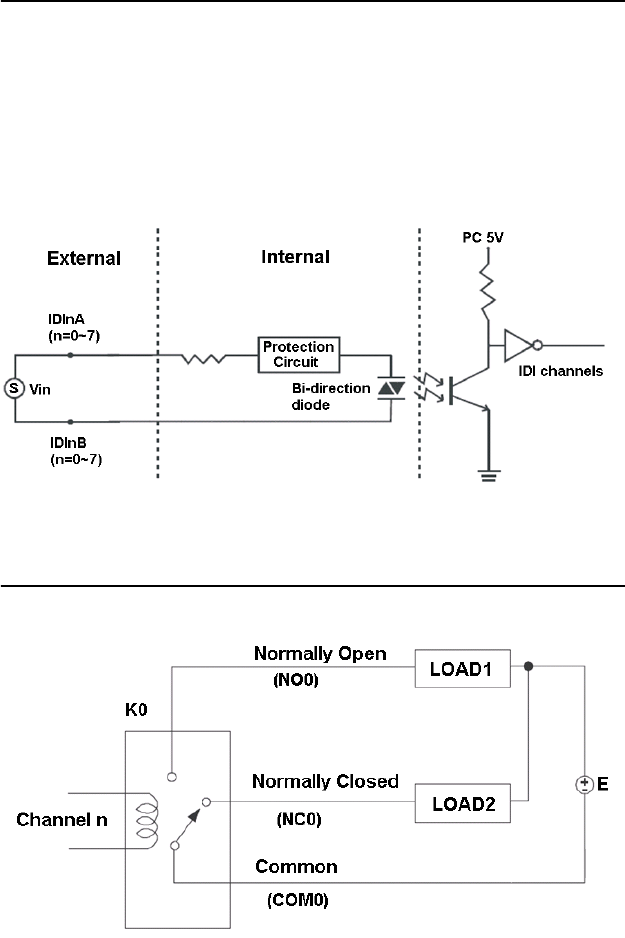
USB-4761 has
8
isolated
digital input channels. Each of isolated digital
input
channel accepts 10~30
V
DC
voltage
inputs, and accept bi-direc-
tional
input.
It
means
that you
can apply positive or negative voltage to an
isolated
input
pin (Vin ). The
figure below shows how
to connect
an
external
input
source to one
of
the card's isolated input channels.
Figure 3.2: Isolated Digital Input
Connections
3.4 Relay Connections
After power on,
the initial relay output status
is shown as below:
Figure 3.3:
Relay Output Channel Connections
25 Chapter 3

3.5 Field Wiring Considerations
•
When
you use USB-4761 to
acquire data
from outside,
noises
in the
environment might
significantly affect
the accuracy
of your measure-
ments
if due cautions are not
taken.
The following
measures will be
helpful to
reduce possible interference running signal
wires between
signal sources and
the
USB-4761.
•
The signal
cables
must be kept
away
from strong electromagnetic
sources such as
power lines, large
electric motors, circuit breakers or
welding machines,
since
they may
cause strong electromagnetic inter-
ference. Keep the
analog signal cables away from
any
video monitor,
since it can significantly
affect a data acquisition system.
•
If the cable travels through an
area
with significant electromagnetic
interference, you should
adopt individually shielded, twisted-pair wires
as the analog input cable.
This
type of cable
has its signal
wires twisted
together and
shielded with a metal
mesh.
The metal mesh should only
be
connected
to one point at the signal source ground.
•
Avoid running the signal cables
through
any conduit that
might have
power
lines in it.
•
If you
have
to place your
signal cable parallel to a power
line that
has a
high
voltage
or high current running through it, try
to keep a
safe
dis-
tance
between them.
Or place the
signal cable in
a right angle
to the
power line
to minimize
the undesirable
effect.
USB-4761 User Manual 26

A
2
Specifications
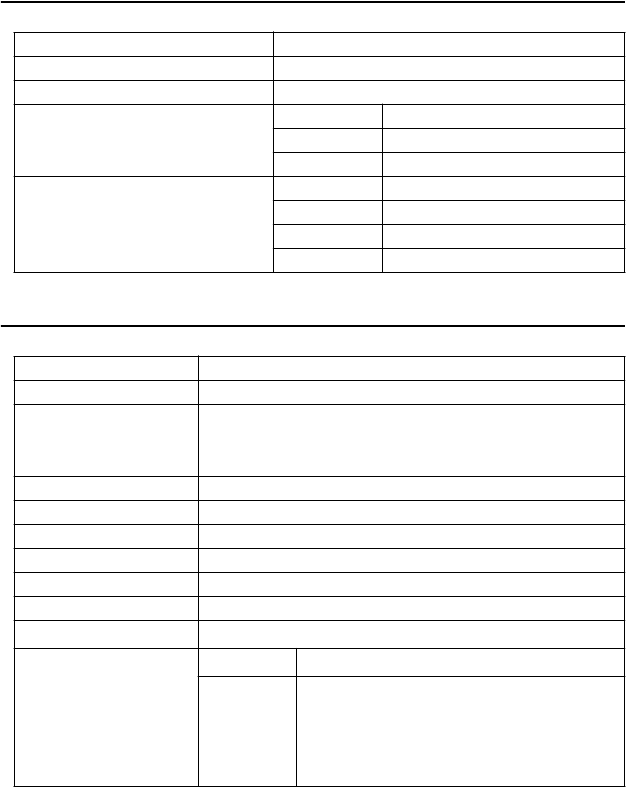
Appendix A Specifications
A.1 Isolated Digital Input
Channels
8
Optical Isolation
2,500 VDC
Opto-isolator response time
25us
Input Voltage
VIH (max.)
30VDC
VIH (min.)
5VDC
VIL (max,)
2VDC
Input current
5VDC
1.2mA
12VDC
3.3mA
24VDC
6.9mA
30VDC
8.7mA
A.2 Relay Output
Channels
8
Relay Type
Form C
Rating (Resistive)
30 VDC@1 A
110 VAC@0.3 A
120 VAC@0.5 A
240 VAC@0.25 A
Max. Switching Power
62.5 VA, 60 W
Max.Switching Voltage
220 VDC,250 VAC
Max. Switching Current
5 A
Breakdown Voltage
1500 V
Operate time
5 ms max.
Release time
4 ms max.
Insulation Resistance
1X10
9
. (at 500 VDC)
Life Expectancy
Mechanical
1X10
8
operations
(typical)
Electrical
12 V@10 mA: 5X10
7
operations (typical)
6 V@100 mA: 1X10
7
operations (typical)
60 V@500 mA: 5X10
5
operations
(typical)
30 V@1000 mA: 1X10
6
operations (typical)
30 V@2000 mA: 2X10
5
operations (typical)
USB-4761 User Manual 28
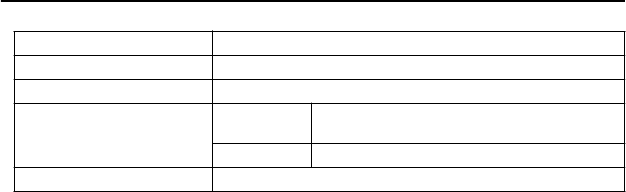
A.3 General
I/O Connector Type
Removable 10-pin screw terminal x 5
Dimensions
132 X 80 X 32 mm (5.2” X 3.2” X 1.3”)
Power
Consumption
60mA@+5V typical, 400mA@+5V max.
Temperature
Operation
0~60
(32~140)
(refer to IEC 68-2-1, 2)
Storage
-20~70
(-4~158)
Relative Humidity
5%~95% RH non-condensing
(refer to IEC 68-2-1, 2)
29 Appendix A
USB-4761 User Manual 30

B
2
Function Block
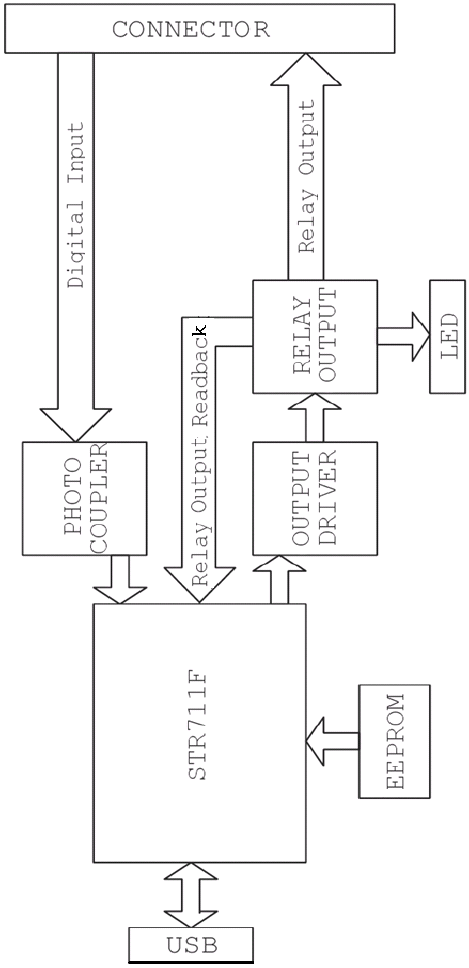
Appendix B Function Block
USB-4761 User Manual 32

WARRANTY/DISCLAIMER
OMEGA ENGINEERING, INC. warrants this unit to be free of defects in materials and
workmanship for a period of 13 months from date of purchase. OMEGA’s WARRANTY adds an
additional one (1) month grace period to the normal one (1) year product warranty to cover
handling and shipping time. This ensures that OMEGA’s customers receive maximum
coverage on each product.
If the unit malfunctions, it must be returned to the factory for evaluation. OMEGA’s Customer
Service Department will issue an Authorized Return (AR) number immediately upon phone or
written request. Upon examination by OMEGA, if the unit is found to be defective, it will be
repaired or replaced at no charge. OMEGA’s WARRANTY does not apply to defects resulting
from any action of the purchaser, including but not limited to mishandling, improper interfacing,
operation outside of design limits, improper repair, or unauthorized modification. This
WARRANTY is VOID if the unit shows evidence of having been tampered with or shows evidence
of having been damaged as a result of excessive corrosion; or current, heat, moisture or vibra-
tion; improper specification; misapplication; misuse or other operating conditions outside of
OMEGA’s control. Components in which wear is not warranted, include but are not limited to
contact points, fuses, and triacs.
OMEGA is pleased to offer suggestions on the use of its various products. However,
OMEGA neither assumes responsibility for any omissions or errors nor assumes liability
for any damages that result from the use of its products in accordance with information
provided by OMEGA, either verbal or written. OMEGA warrants only that the parts
manufactured by the company will be as specified and free of defects. OMEGA MAKES
NO OTHER WARRANTIES OR REPRESENTATIONS OF ANY KIND WHATSOEVER,
EXPRESSED OR IMPLIED, EXCEPT THAT OF TITLE, AND ALL IMPLIED WARRANTIES
INCLUDING ANY WARRANTY OF MERCHANTABILITY AND FITNESS FOR A PARTICULAR
PURPOSE ARE HEREBY DISCLAIMED. LIMITATION OF LIABILITY: The remedies of pur-
chaser set forth herein are exclusive, and the total liability of OMEGA with respect to this
order, whether based on contract, warranty, negligence, indemnification, strict liability or
otherwise, shall not exceed the purchase price of the component upon which liability is
based. In no event shall OMEGA be liable for consequential, incidental or special damages.
CONDITIONS: Equipment sold by OMEGA is not intended to be used, nor shall it be used: (1) as
a “Basic Component” under 10 CFR 21 (NRC), used in or with any nuclear installation or activity;
or (2) in medical applications or used on humans. Should any Product(s) be used in or with any
nuclear installation or activity, medical application, used on humans, or misused in any way,
OMEGA assumes no responsibility as set forth in our basic WARRANTY/DISCLAIMER language,
and, additionally, purchaser will indemnify OMEGA and hold OMEGA harmless from any liability
or damage whatsoever arising out of the use of the Product(s) in such a manner.
RETURN REQUESTS/INQUIRIES
Direct all warranty and repair requests/inquiries to the OMEGA Customer Service Department.
BEFORE RETURNING ANY PRODUCT(S) TO OMEGA, PURCHASER MUST OBTAIN AN
AUTHORIZED RETURN (AR) NUMBER FROM OMEGA’S CUSTOMER SERVICE DEPARTMENT
(IN ORDER TO AVOID PROCESSING DELAYS). The assigned AR number should then be
marked on the outside of the return package and on any correspondence.
The purchaser is responsible for shipping charges, freight, insurance and proper packaging to
prevent breakage in transit.
FOR WARRANTY RETURNS, please have
the following information available BEFORE
contacting OMEGA:
1. Purchase Order number under which
the product was PURCHASED,
2. Model and serial number of the product
under warranty, and
3. Repair instructions and/or specific
problems relative to the product.
FOR NON-WARRANTY REPAIRS,
consult
OMEGA for current repair charges. Have the
following information available BEFORE
contacting OMEGA:
1. Purchase Order number to cover the COST
of the repair,
2. Model and serial number of the product, and
3. Repair instructions and/or specific problems
relative to the product.
OMEGA’s policy is to make running changes, not model changes, whenever an improvement is possible.
This affords our customers the latest in technology and engineering.
OMEGA is a registered trademark of OMEGA ENGINEERING, INC.
© Copyright 2007 OMEGA ENGINEERING, INC. All rights reserved. This document may not be copied, photocopied,
reproduced, translated, or reduced to any electronic medium or machine-readable form, in whole or in part, without
the prior written consent of OMEGA ENGINEERING, INC.

Where Do I Find Everything I Need for
Process Measurement and Control?
OMEGA…Of Course!
Shop online at omega.com
TEMPERATURE
䡺⻬ Thermocouple, RTD & Thermistor Probes, Connectors, Panels & Assemblies
䡺⻬ Wire: Thermocouple, RTD & Thermistor
䡺⻬ Calibrators & Ice Point References
䡺⻬ Recorders, Controllers & Process Monitors
䡺⻬ Infrared Pyrometers
PRESSURE, STRAIN AND FORCE
䡺⻬ Transducers & Strain Gages
䡺⻬ Load Cells & Pressure Gages
䡺⻬ Displacement Transducers
䡺⻬ Instrumentation & Accessories
FLOW/LEVEL
䡺⻬ Rotameters, Gas Mass Flowmeters & Flow Computers
䡺⻬ Air Velocity Indicators
䡺⻬ Turbine/Paddlewheel Systems
䡺⻬ Totalizers & Batch Controllers
pH/CONDUCTIVITY
䡺⻬ pH Electrodes, Testers & Accessories
䡺⻬ Benchtop/Laboratory Meters
䡺⻬ Controllers, Calibrators, Simulators & Pumps
䡺⻬ Industrial pH & Conductivity Equipment
DATA ACQUISITION
䡺⻬ Data Acquisition & Engineering Software
䡺⻬ Communications-Based Acquisition Systems
䡺⻬ Plug-in Cards for Apple, IBM & Compatibles
䡺⻬ Datalogging Systems
䡺⻬ Recorders, Printers & Plotters
HEATERS
䡺⻬ Heating Cable
䡺⻬ Cartridge & Strip Heaters
䡺⻬ Immersion & Band Heaters
䡺⻬ Flexible Heaters
䡺⻬ Laboratory Heaters
ENVIRONMENTAL
MONITORING AND CONTROL
䡺⻬ Metering & Control Instrumentation
䡺⻬ Refractometers
䡺⻬ Pumps & Tubing
䡺⻬ Air, Soil & Water Monitors
䡺⻬ Industrial Water & Wastewater Treatment
䡺⻬ pH, Conductivity & Dissolved Oxygen Instruments M4572/0907
