One For All Kameleon Urc 9960 Users Manual
URC-9960 to the manual 8cd73da2-4b5c-4f71-9401-51cea0ee6a5b
2015-01-26
: One-For-All One-For-All-Kameleon-Urc-9960-Users-Manual-343793 one-for-all-kameleon-urc-9960-users-manual-343793 one-for-all pdf
Open the PDF directly: View PDF  .
.
Page Count: 1
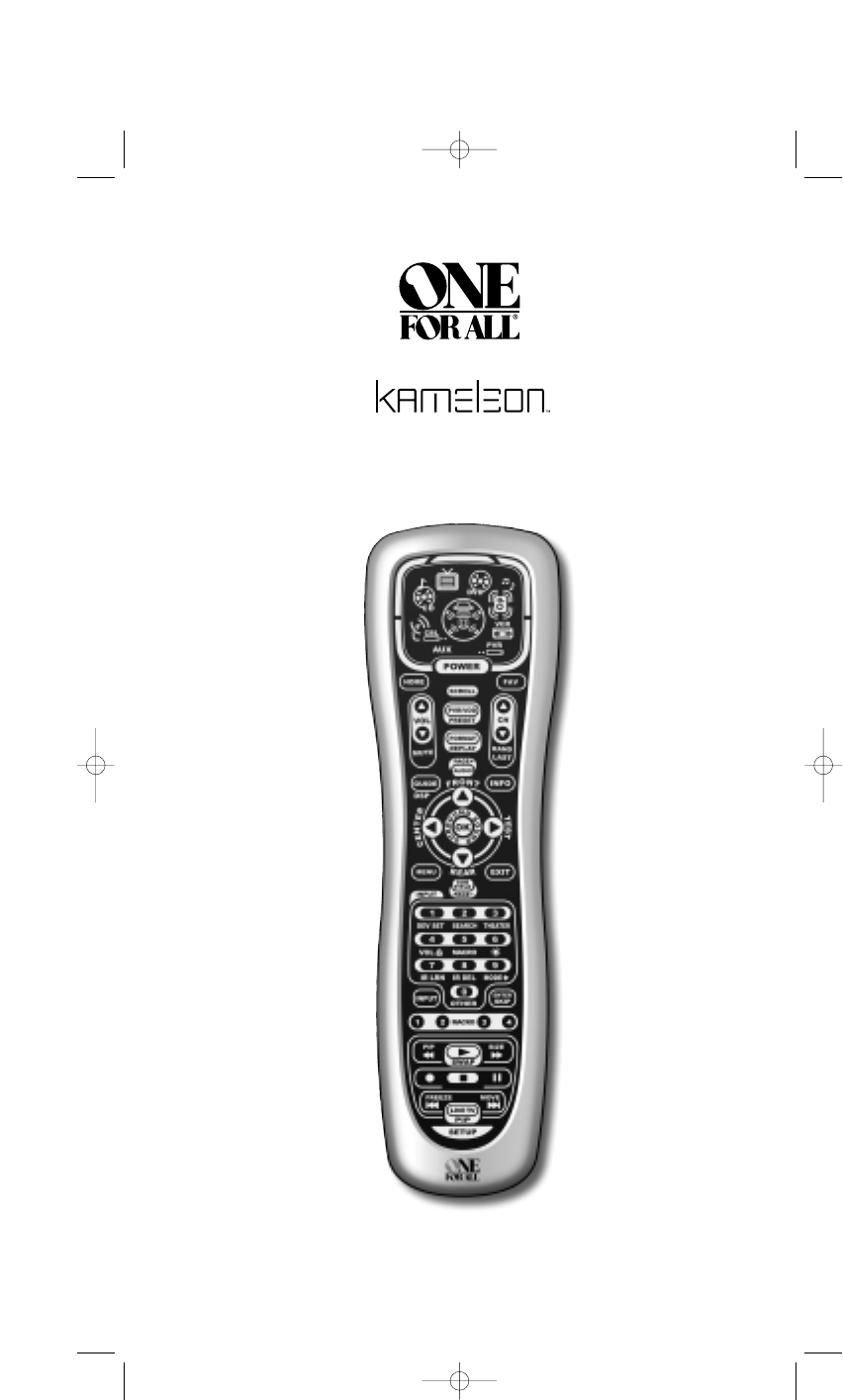
8-Device
Universal Remote Control
URC-9960
User’s Guide
OFA Kameleon UG 5/8/03 3:22 PM Page 1

TABLE OF CONTENTS
Introduction . . . . . . . . . . . . . . . . . . . . . . . . . . . . . . . . . . . . . . . 2
Installing Batteries . . . . . . . . . . . . . . . . . . . . . . . . . . . . . . . . . 3
How Kameleon™ Works. . . . . . . . . . . . . . . . . . . . . . . . . . . . . 3
Features And Function . . . . . . . . . . . . . . . . . . . . . . . . . . . . . . 4
Key Charts . . . . . . . . . . . . . . . . . . . . . . . . . . . . . . . . . . . . . . 4
Device Table . . . . . . . . . . . . . . . . . . . . . . . . . . . . . . . . . . . . . 7
Adjusting Brightness . . . . . . . . . . . . . . . . . . . . . . . . . . . . . . . 8
Programming Device Control. . . . . . . . . . . . . . . . . . . . . . . . . 8
Programming A DVD/VCR Player Combo . . . . . . . . . . . . . . 10
Searching For Your Code. . . . . . . . . . . . . . . . . . . . . . . . . . . . 11
Checking The Codes . . . . . . . . . . . . . . . . . . . . . . . . . . . . . . . 11
Using The Home Theater Mode . . . . . . . . . . . . . . . . . . . . . . 12
Control Organization. . . . . . . . . . . . . . . . . . . . . . . . . . . . . . 12
Programming The Home Theater Mode . . . . . . . . . . . . . . . . 13
Changing Volume Lock . . . . . . . . . . . . . . . . . . . . . . . . . . . . . 14
Programming Volume Lock . . . . . . . . . . . . . . . . . . . . . . . . . 14
Programming Volume Unlock . . . . . . . . . . . . . . . . . . . . . . . 15
Using Macros . . . . . . . . . . . . . . . . . . . . . . . . . . . . . . . . . . . . . 16
Programming A Favorite Channel Macro . . . . . . . . . . . . . . . 16
Programming A Master Power Macro In
The Home Theater Mode . . . . . . . . . . . . . . . . . . . . . . . . . . . 16
Clearing A Macro . . . . . . . . . . . . . . . . . . . . . . . . . . . . . . . . 17
Using Learning . . . . . . . . . . . . . . . . . . . . . . . . . . . . . . . . . . . 18
Learning Precautions . . . . . . . . . . . . . . . . . . . . . . . . . . . . . 18
Programming A Learning Key . . . . . . . . . . . . . . . . . . . . . . . 18
Deleting A Single Learned Key. . . . . . . . . . . . . . . . . . . . . . . 19
Deleting All Learned Keys In A Specific Mode . . . . . . . . . . . 19
Reassigning Device Keys . . . . . . . . . . . . . . . . . . . . . . . . . . . 20
Using Keymover . . . . . . . . . . . . . . . . . . . . . . . . . . . . . . . . . . . 20
Programming Keymover . . . . . . . . . . . . . . . . . . . . . . . . . . . 20
Restoring A Single Keymoved Key . . . . . . . . . . . . . . . . . . . . 21
Restoring All Keymoved Keys In A Single Mode . . . . . . . . . . 21
Using Channel Scan . . . . . . . . . . . . . . . . . . . . . . . . . . . . . . . 22
Programming Favorite Channel Scan. . . . . . . . . . . . . . . . . 22
Restoring Factory Default Settings . . . . . . . . . . . . . . . . . . . 23
Clearing All Custom Programming . . . . . . . . . . . . . . . . . . . 23
Manufacturer’s Codes. . . . . . . . . . . . . . . . . . . . . . . . . . . . . . 24
Setup Codes For Audio Amplifiers . . . . . . . . . . . . . . . . . . . . 24
Setup Codes For Audio Receivers . . . . . . . . . . . . . . . . . . . . 24
Setup Codes For Cable Boxes . . . . . . . . . . . . . . . . . . . . . . . 24
Setup Codes For CD Players . . . . . . . . . . . . . . . . . . . . . . . . 25
Setup Codes For DVD Players . . . . . . . . . . . . . . . . . . . . . . . 25
Setup Codes For DVD Player/VCR Combos . . . . . . . . . . . . . . 26
Setup Codes For Home Automation . . . . . . . . . . . . . . . . . . . 26
Setup Codes For PVRs. . . . . . . . . . . . . . . . . . . . . . . . . . . . . 26
Setup Codes For Satellite Receivers . . . . . . . . . . . . . . . . . . 26
Setup Codes For Satellite Receiver/PVR Combos . . . . . . . . . 26
Setup Codes For TVs . . . . . . . . . . . . . . . . . . . . . . . . . . . . . . 26
Setup Codes For TV/DVD Player Combos . . . . . . . . . . . . . . . 28
Setup Codes For TV/VCR Combos . . . . . . . . . . . . . . . . . . . . 28
Setup Codes For VCRs . . . . . . . . . . . . . . . . . . . . . . . . . . . . 28
Setup Codes For Video Accessories . . . . . . . . . . . . . . . . . . 30
About Upgrading . . . . . . . . . . . . . . . . . . . . . . . . . . . . . . . . . . 30
Upgrade Procedure . . . . . . . . . . . . . . . . . . . . . . . . . . . . . . . 30
Upgrade Exclusions . . . . . . . . . . . . . . . . . . . . . . . . . . . . . . 30
Troubleshooting . . . . . . . . . . . . . . . . . . . . . . . . . . . . . . . . . . 31
Device Mode Screens . . . . . . . . . . . . . . . . . . . . . . . . . . . . . . 32
Customer Support . . . . . . . . . . . . . . . . . . . . . . . . . . . . . . . . . 41
Instruction To The User . . . . . . . . . . . . . . . . . . . . . . . . . . . . . 41
Limited Warranty . . . . . . . . . . . . . . . . . . . . . . . . . . . . . . . . . . 41
Battery Use And Safety. . . . . . . . . . . . . . . . . . . . . . . . . . . . . 42
Additional Information . . . . . . . . . . . . . . . . . . . . . . . . . . . . . 42
INTRODUCTION
The OFA Kameleon™ 8-Device Remote (URC-9960)
is a revolutionary universal remote control that
uses Universal Electronics’Kameleon Technology.
Moreover,it allows you to consolidate the clutter of
all of your original remote controls into one easy-to-
use product.Advanced features include:
•Kameleon Technology – dynamic menu
screens that respond to device selection and
illuminate only active keys
•Home Theater Mode – a cusxqwnA4wodbx–1wm•q–bwa d•bS–Bwmxb–PwodVq–SwddV1–Swe d•bS–BwthadbPwTd]TYmmP–Px1Iu•b–b1qBuTjm•q–qIbbuTcm•q–qqIuTwm[gcd•b4–SwrdIIA4wod–Iwpes d•b1–xwtdqV–Bwh•B–PetdqV–Bs d•b1–xwm•q–•Vwo•V–1sFdP–1t-wodbx–Swfd•bBwtdbweeT-utd•bI–Bswed d•b1xbwkd41–Sweq–bwyddbB–Swsd•q1ws d•b1–xwt1q1wlogxqwetwh•BSPetdqV–Br.d]TYmTfm•q–qx1VuTcmquTwm[fowrdbxI–Vw d4b4–IwodSwp•bV1–Swed•b4–Swr•dbx–BhadVwtd••BSPip•bV1VIwndP[gcd•xS–Pw d4b4–Icoindbq–bwvbqB–Iwed•bq–SwTrdbxI–Vip•bqIwed•bq–SwTrdb•q1wcerdbxI–Vw d4b4–Iip•bV1–SwTrdbxI–Pw d4b4–IowTrdb•werdbxI–Pw d4b4–Iwm•bdq–bwod•Ib–Vwd•–Swed]TYm•b–4Pbxu•b–PB1VuTjmquTcmw•dTjmk5SubuTfmb–4PbxuquTjm•q–qSb4uTcm[DhrdbxI–Pwm•bbx–S-dbx–1Frd•11Iip•bx1–VwKd]TYmk5xubuTfI–1bqqbuquTjm•q–qI1VuTcm[wrd•1–Bs dI–SwfBb–4wodB–xwrd1b–4w d•SPip•bb4–BwTtdqVPwswtd•1–xwa•P1VIwndb4–xwtd•1–xw d•SPaodVqVBwcd•Iq–Vtcd•IqBxwid4–BvadS4–xwtd•IqBxwi•dx–BwoB4–xwnd•1–xw d•SPwo•V4Iwfd•dx4PIwfd•1–xwabSI–4wvS4–xwodB–xwrdbd1–Iitwed]TYmI–1bqqbu•b–b1qBuTjm•q–qIbbuTcm•q–q41quTwm[wkd4PetdqV14wy d•IqBxseqd•P–Pueincxqwes d]TYm•b–4Pbxu•b–PB1VuTjmquTcmquTwmw•dTjmk5SubuTfmb–4PbxuquTjm•q–qbb4uTcm[c h-fARABK– t c•q–4wtdbqVSwpBb–4tuwrdIx–4weqb–4w d•bBuwnqod1–IuodB–xse d•bIwfdbP–xuinc•bb4–Vwtd•bb–Bwidx–Bwodbx–xwnSP–Iwsd]TYmd4–P41Iu•b–b1qBuTjm•q–bIVbuTcmq–bIbxuTwm[wfd•IB–xwrdbqVSowm•bI1–Bs d4qV14wodbV–Iourcd••B–Peti•s4b4–Vw’d•VIq1wlrcd n•bV–Pavl•m••P–Sotecr
•
INSTALLING BATTERIES
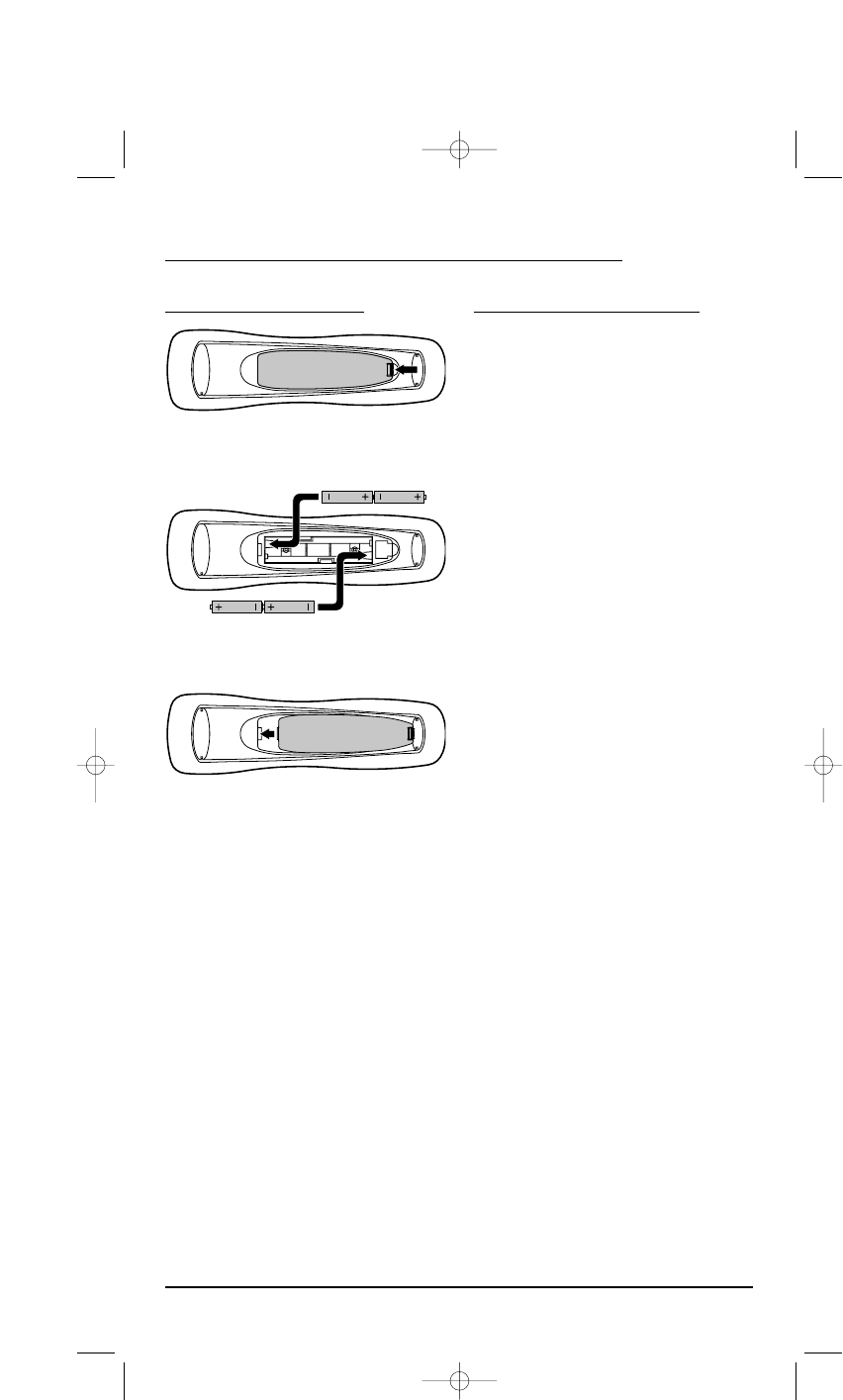
1. On the remote control’s back, push the tab
and lift off the battery cover.
2. Obtain four (4) new AAA alkaline batteries.
Match the + and – marks on the batteries to
the + and – marks in the battery case, then
insert the new batteries.
3. Press the battery cover back into place. The
tab should click when the cover is locked.
4. If batteries are inserted correctly, the display
will turn on and show all keys.If a key is
not pressed after 7 seconds, the display will
turn off.
NOTE: The batteries will need replacement if one of
the following conditions occurs:
1. Pressing any key turns on all keys and icons.
2. The remote control no longer operates and the
display flashes on and off continously.
See “Battery Use And Safety” on page 42 for
additional information.
HOW KAMELEON™WORKS
Kameleon™ allows wireless controllers to
dynamically change their appearance and
functionality, to match the home entertainment
environment. Moreover, this technology provides
unparalleled ease-of-use and superior control by
delivering a uniquely intuitive, graphical interface
that intelligently illuminates only the active keys.
The OFA Kameleon 8-Device Remote uses
Kameleon technology to provide the versatility
of an LCD remote control with the feel of a
traditional push button unit. The result is a
stunning, bright display with engaging anima-
tion and touch-sensitive graphics for the user.
The remote control includes convenient Menu
Driven programming. The displays are divided
into two types of interactive screens: Device Menus
for normal remote control use, and Programming
Menus for feature setup.Acting like it namesake,
Kameleon changes the Device Menu for the device
being selected. For example,selecting TV displays
a main menu that contains channel selection,
volume control, and a keypad. However, selecting a
DVD player still displays a menu with those same
keys as the TV,but now navigation keys and
transport controls are added for the DVD device.
Several devices have additional menus that can be
accessed using SCROLL (see Device Menu Screens,
starting on page 32). For example,TV has three
menus: a main menu with keys for a general-
purpose TV, a second menu screen that adds
navigation keys and removes FORMAT,INPUT and
ENTER keys, and a third menu screen that adds
INPUT,ENTER,and PIP keys. Depending on desired
features, a user has the flexibility to use any menu
screen that works best for the selected device.
NOTE:The AUX,CD,DVD,and PVR modes do not
have additional menu screens even though SCROLL
is displayed.
Animated key graphics also provided enhanced
operational feedback, so the user can easily see
what mode is active and when the commands
are communicating with a device. The end result
of Kameleon technology is a simple, elegant, and
intelligent way of organizing a large number of
remote control keys for eight different devices in
a relatively small case.
USER’SGUIDE
Installing Batteries/How Kameleon Works 3
❶
❸
❷
OFA Kameleon UG 5/8/03 3:22 PM Page 3
FEATURES AND FUNCTIONS
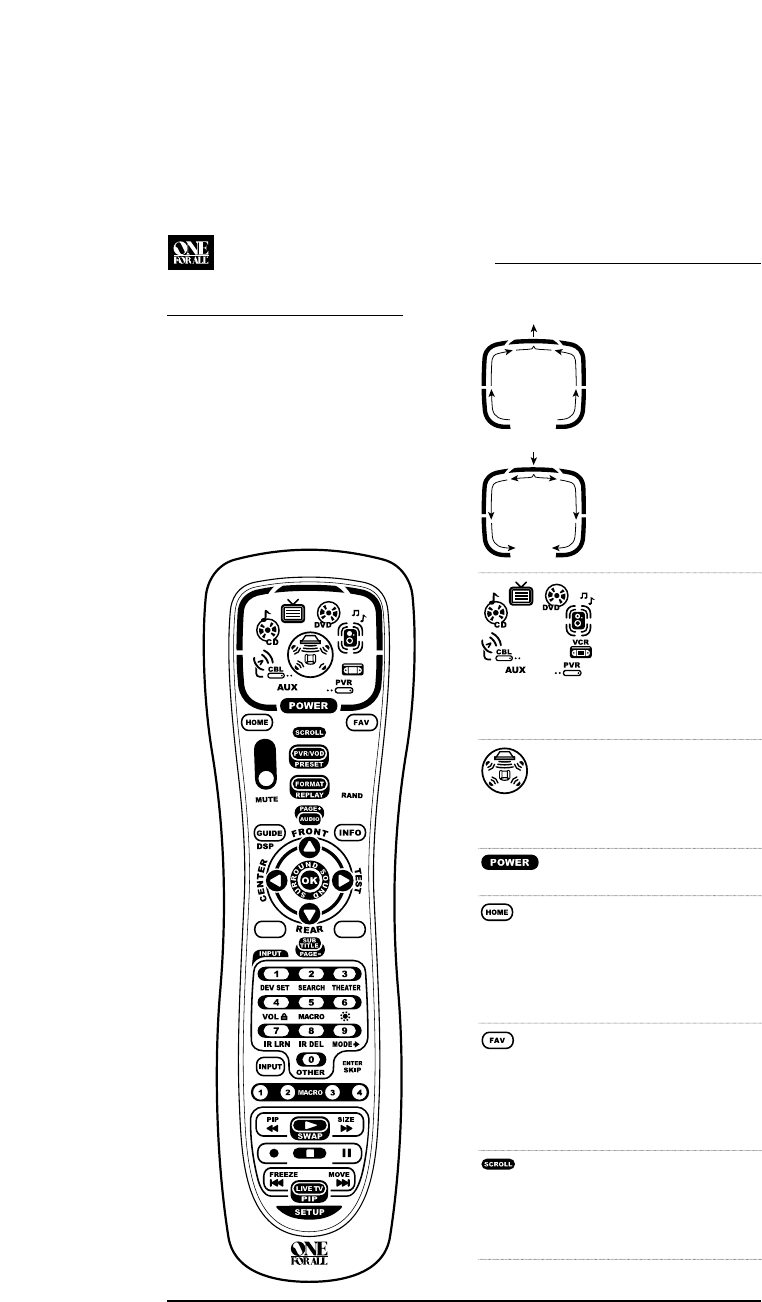
Use the illustration below to locate features on the
OFA Kameleon 8-Device Remote (URC-9960) and
then refer to the Key Charts (starting on the right)
to learn how they function.
NOTE: The illustration shows all remote control keys. In
actual operation, only active keys used by the selected
device are displayed and non-active keys are hidden.
To find out what type of devices can be controlled
by each device key after programming, see the
Device Table on page 7.
KEY CHARTS
When a key is pressed, the
IR Segments will animate.
Outgoing animation (see
arrows) indicates the remote
control is sending IR signals
to a selected device.
Incoming animation (see
arrows) indicates the
remote control is receiving
IR signals from a device
being learned (see Using
Learning on page 17).
Press a Device Key once
to select a desired home
entertainment device to
control (e.g., DVD).When
selected, the Device Key
will animate to indicate it
is currently active.Also see
the Device Table on page 7.
After programming, press
the Home Theater key once
to select the home theater
mode (see Using The Home
Theater Mode on page 12).
Press POWER once to turn
on or off a selected device.
During programming,
the HOME key will appear.
Use it to exit the program
screen or to return to the
last-selected device key
screen.
In the AUX,CBL/SAT,and
TV modes, use FAV to scan
through all channels,or
after programming, to
scan through 10 favorite
channels.
In the AUX,CBL/SAT,TV,
AUDIO,and VCR modes,
use SCROLL to view
additional key screens for
the selected device.
KAMELEON 8-DEVICE REMOTE
4Features And Functions
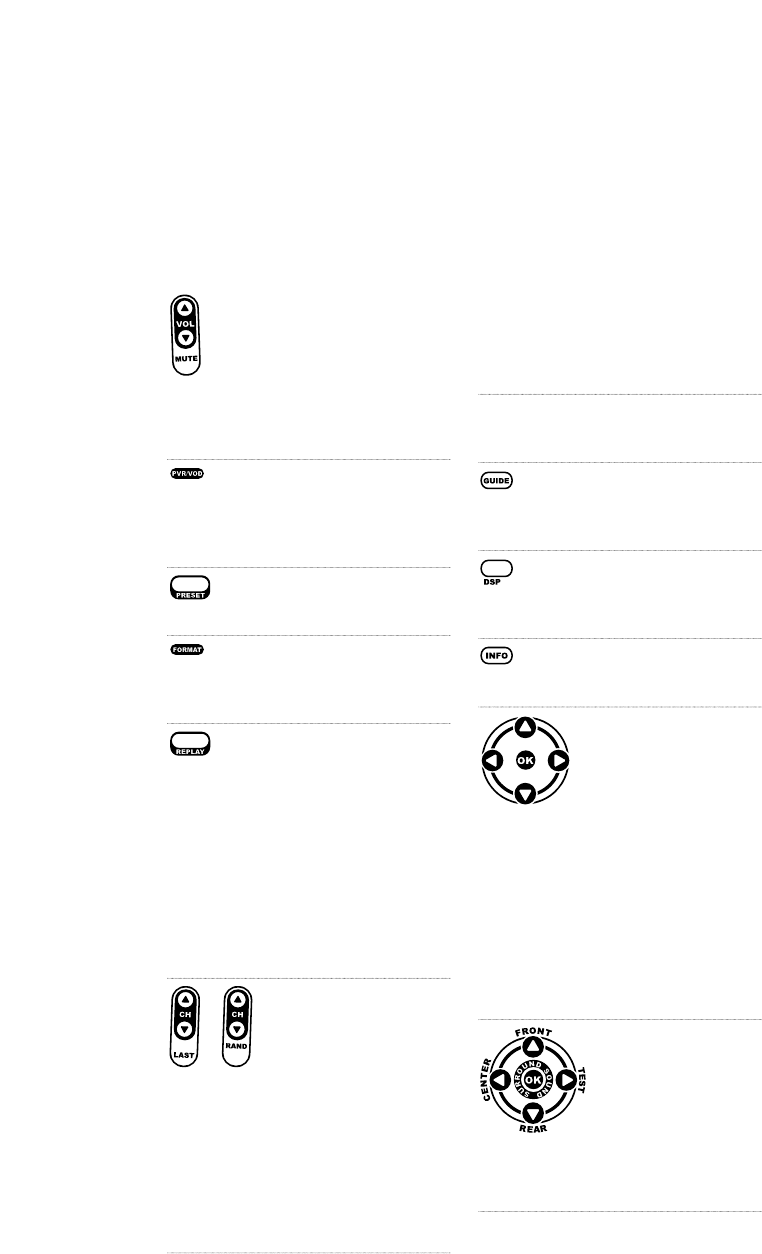
Use VOL ▲(or VOL▼)
to raise (or lower) the
sound volume for the
selected device (also see
Changing Volume Lock on
page 14).
Press MUTE once to turn
the sound off or on.
In the AUX and CBL/SAT
modes, use PVR/VOD to
access PVR/VOD programs
(if available on your cable
or satellite service).
In the AUDIO mode,use
PRESET to access preset sta-
tions on your audio device.
In the TV mode,use FORMAT
to change the aspect ratio or
zoom (if feature is available
on your TV).
In the DVD or PVR mode,
press REPLAY once to
replay a DVD chapter or
a recorded program on
your PVR (or DVR).
In the CBL/SAT and AUX
modes, press SCROLL once
to display REPLAY and then
press REPLAY once to
replay a VOD program (if
available on your cable or
satellite service).
Use CH ▲(or CH ▼) to
select the next higher (or
lower) channel.
In all modes except CD,DVD,
and PVR,press LAST once to
recall the last channel.
In the PVR mode,use LAST
to select live or recorded
video.
In the CD or DVD modes,
press RAND to play random
tracks or chapters.
or
In the AUX and CBL/SAT
modes, use PAGE+ or
PAGE- to page up or down
through channels in the
program guide.
In the DVD mode, press
AUDIO once to access DVD
audio formats (if available).
In all modes except AUDIO,
use GUIDE to display your
selected device’s program
guide or setup menu.
In the AUDIO mode, use
DSP to access DSP features
(if available) on your audio
device.
Use INFO to display the
current channel and
program information.
In the AUX,CBL/SAT,CD,
DVD,and PVR modes, use
the Cursor Keys to move
the cursor in the program
guide and menu screens.
Use OK to choose options
from your selected device’s
menu or guide.
In the TV or VCR mode,
press SCROLL once to access
the Cursor and OK Keys.
In the AUDIO mode, press
SCROLL twice to access the
Cursor and OK Keys.
In the AUDIO mode, use the
Cursor Keys to move the
cursor to select or test
surround sound channels
on your audio device.Also
see VOL keys (above left).
Use OK to choose options
from your audio device’s
menu or guide.
continued on next page...

FEATURES AND FUNCTIONS
KEY CHARTS (CONTINUED)
Press MENU once to display
your selected device’s main
menu.
Use EXIT to exit from your
selected device’s guide or
menu.
In the DVD or AUDIO mode,
press SUBTITLE once to
display (or turn off)
subtitles, if available on
your DVD or audio device.
In all modes except AUDIO,
use the Number Keys
(1~ 9and 0) to directly
select channels (e.g., 009
or 031) or enter numbers.
In the AUDIO mode, use the
Number Keys to directly
select inputs 1~ 9and 10.
To enter channels in the
AUDIO mode, press SCROLL
three times to view channel
Number Keys (see above)
Use INPUT to change the
input source for a selected
device.
For certain brands in all
modes except CD and
AUDIO,press ENTER once
after entering numbers (if
required on your original
remote control).
For CD or AUDIO modes,
press SKIP once to skip to
the next track on your
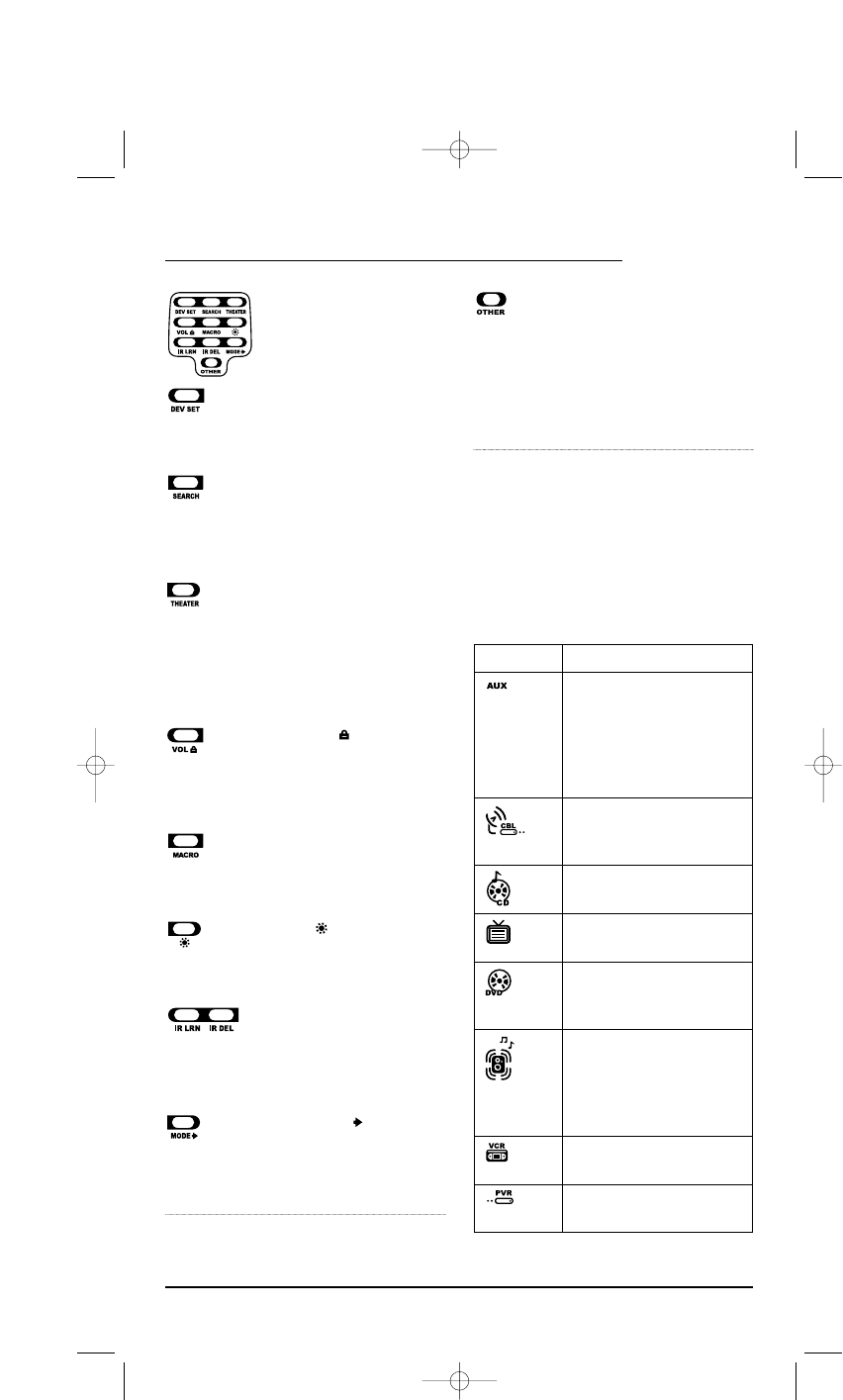
In the program mode,
use the Program Keys to
personalize the remote
control as follows:
Use DEV SET to program
your device codes.See
Programming Device Control
on page 8.
Use SEARCH as an alternate
way to set up a device by
searching available codes.
See Searching For Your Code
on page 11.
Use THEATER to create a
custom mode with favorite
remote control keys from
different devices in your
home theater system. See
Using The Home Theater
Mode on page 12.
Use VOL (Volume Lock)
to set volume controls for
individual or global device
use.See Changing Volume
Lock on page 14.
Use MACRO to program a
series of commands on five
available macro keys. See
Using Macros on page 16.
Use (Brightness) to
adjust the brightness level of
the EL display. See Adjusting
Brightness on page 8.
Use IR LRN and IR DEL to
add and delete key functions
learned from your original
device remote controls. See
Using Learning on page 17.
Use MODE to reassign
an unused device key to
control a second device.See
Reassigning Device Keys on
page 20.
Use OTHER to program
other functions. See the
Table of Contents on page 2
for sections on Checking
The Codes,Programming
Favorite Channel Scan,
Using Keymover,or
Upgrading.
DEVICE TABLE
NOTE: Please refer to the table below when performing
the instructions in “Programming Device Control” on
page 8.
After programming, the OFA Kameleon 8-Device
Remote will be able to control the following
types of devices:
USER’SGUIDE
Features And Functions 7
DEVICE KEY CONTROLS THESE DEVICES
Video Accessory or second
device (e.g., Cable Box,Satellite
Receiver, DVD Player, etc.) by
reassigning device keys (see
Reassigning Device Keys on
page 20)
Cable Box (Converter),
Satellite Receiver, or
Satellite/PVR Combo
CD Player or Home Automation
Te l e v i s i o n
DVD Player, TV/DVD Player
Combo, or DVD/VCR Player
Combo
Audio Amplifier,Audio
Receiver, or Home-Theater
In-A-Box Device (listed under
Setup Codes For Audio Receivers
on page 24)
VCR or TV/VCR Combo
PVR (DVR)
OFA Kameleon UG 5/8/03 3:22 PM Page 7

ADJUSTING BRIGHTNESS
The OFA Kameleon 8-Device Remote has five
levels of brightness adjustment and is set to the
middle one at the factory. To increase or decrease
the brightness, perform the following steps:
1. Press and hold SETUP until the two bottom
IR segments flash twice. The Program Keys
will appear.
NOTE: If the display turns off because of inactivity,
you will need to start the programming sequence
again by repeating this step.
2. Press (Brightness) once.The Brightness
programming screen will appear:
• To increase brightness, press ▲one or
more times.
• To decrease brightness, press ▼one or
more times.
3. When the desired brtnsd fae, r(
uMrK:
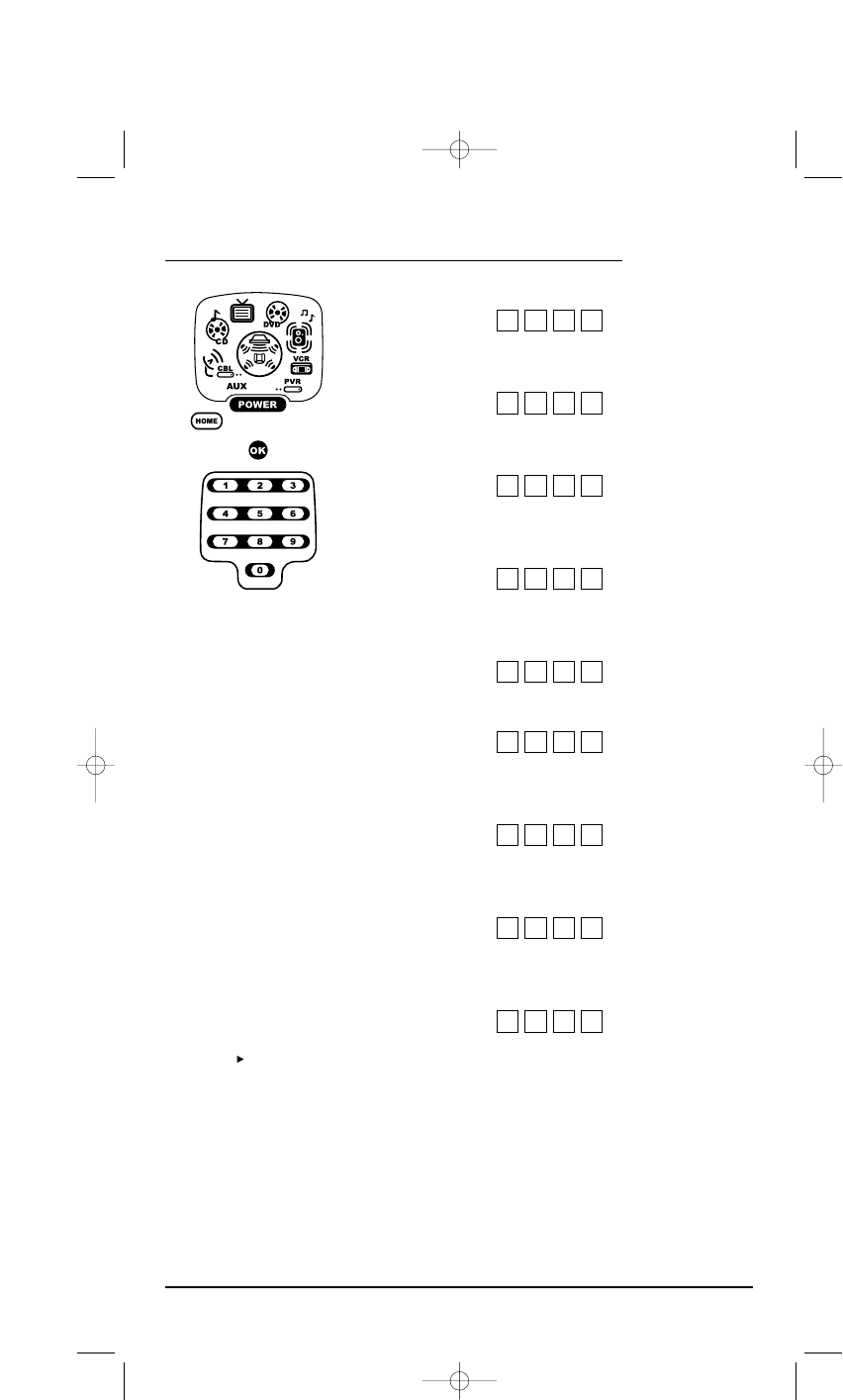
4. Press a device key once (i.e., AUX,CBL/SAT,
CD,TV,DVD,AUDIO,VCR,or PVR).The selected
device key will animate.
NOTE: Please refer to the Device Table on page 7
when choosing a device key for programming.
5. Use the Manufacturer’s Codes (starting on
page 24) to locate the type of device and
brand name and then use the Number Keys
to enter the first four-digit code for your
device.If performed correctly, the bottom two
IR segments will flash twice.
NOTE: If the bottom two IR segments displayed one
long flash instead, a mistake has occurred. Try
entering the same code again.
6. Aim the remote control at the device and
press POWER once. The device should turn
off. If it does not, repeat steps 5 and 6, trying
each code for your brand until you find one
that works. If it still doesn’t work, try
Searching For Your Code on page 11.
NOTE: If the device does not have a POWER key,
press the (Play) key.
7. If the code works, press OK once.The two bot-
tom IR segments will display one long flash.
8. If desired,repeat steps 4 through 7 for each
device you want to control. If finished, press
HOME twice to exit programming and return
to the last-selected device menu screen.
9. For future reference, write down each
working device code in the following boxes:
AUX Code:
Device Type:_______________________
CBL/SAT Code:
Device Type:_______________________
CD Code:
Device Type:_______________________
DVD Code:
Device Type:_______________________
TV Code:
DVD Code:
Device Type:_______________________
AUDIO Code:
Device Type:_______________________
VCR Code:
Device Type:_______________________
PVR Code:
USER’SGUIDE
Programming Device Control 9
OFA Kameleon UG 5/8/03 3:22 PM Page 9
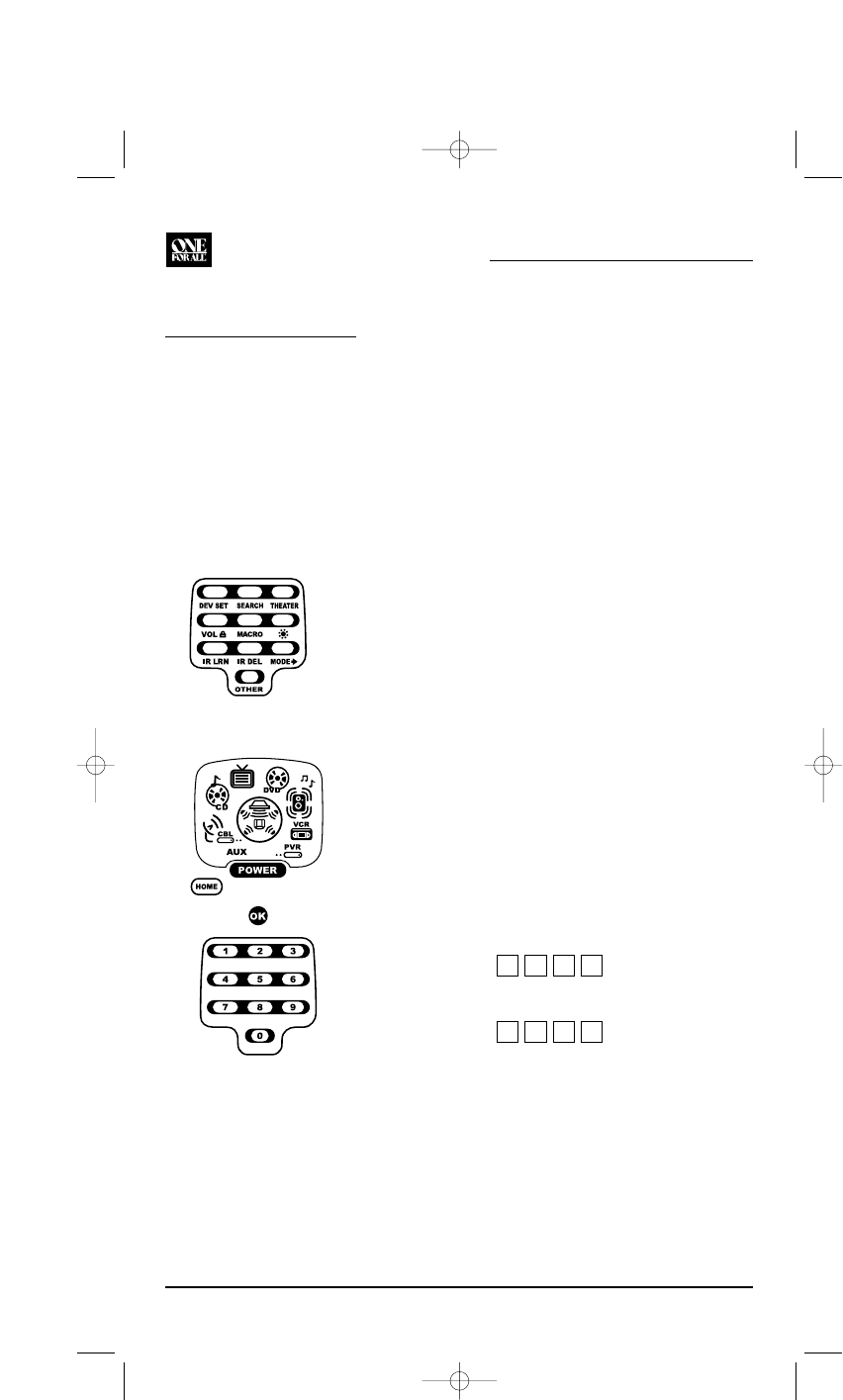
PROGRAMMING DVD PLAYER/
VCR COMBO CONTROL
1. Turn on the DVD Player/VCR Combo and
insert a DVD.
NOTE: Please read steps 2 through 10 completely
before proceeding. Before starting step 2, review
the “Setup Codes For DVD Player/VCR Combos” (on
page 26). Brands are listed alphabetically in order of
most popular ones first. Highlight or write down the
devices and the codes you wish to program.
2. Press and hold SETUP until the two bottom
IR segments flash twice. The Program Keys
will appear as SETUP flashes repeatedly.
3. Press DEV SET once. The Device Setup
programming screen will appear:
4. Press DVD once. The key will animate.
5. Use the Setup Codes For DVD Player/VCR
Combos (on page 26) to locate the brand
name and then use the Number Keys to enter
the first four-digit code for your device.
If performed correctly, the two bottom
IR segments will flash twice.
NOTE: If the two bottom IR segments displayed
one long flash instead, an error has occurred.
Try entering the same code again.
6. Aim the remote control at the device and press
POWER once. The device should turn off.
7. If the code works, press OK once.The two bot-
tom IR segments will display one long flash.
8. (Optional) If you’ve located a setup code that
works, but it also has a separate VCR code as
listed on page 26, you’ll also need to program it
into the remote control to access VCR controls
as follows:
a. Press VCR once.
b. Using the Number Keys,enter the four-
digit VCR code for your DVD Player/VCR
Combo.If performed correctly, the
two bottom IR segments will flash twice.
c. Press OK once.The two bottom IR
segments will display one long flash.
NOTE: If a separate VCR setup code is not listed,
you can use the VCR key to program a separate VCR
device or another device (see “Reassigning Device
Keys” on page 20).
9. To exit programming, press HOME twice. The
display will return to the last-selected device
menu screen.
10. For future reference, write down the working
DVD Player/VCR Combo code in the below
boxes:
DVD Player/VCR Code:
VCR Code (if used):
KAMELEON 8-DEVICE REMOTE
10 Programming DVD Player/VCR Combo Control
OFA Kameleon UG 5/8/03 3:22 PM Page 10
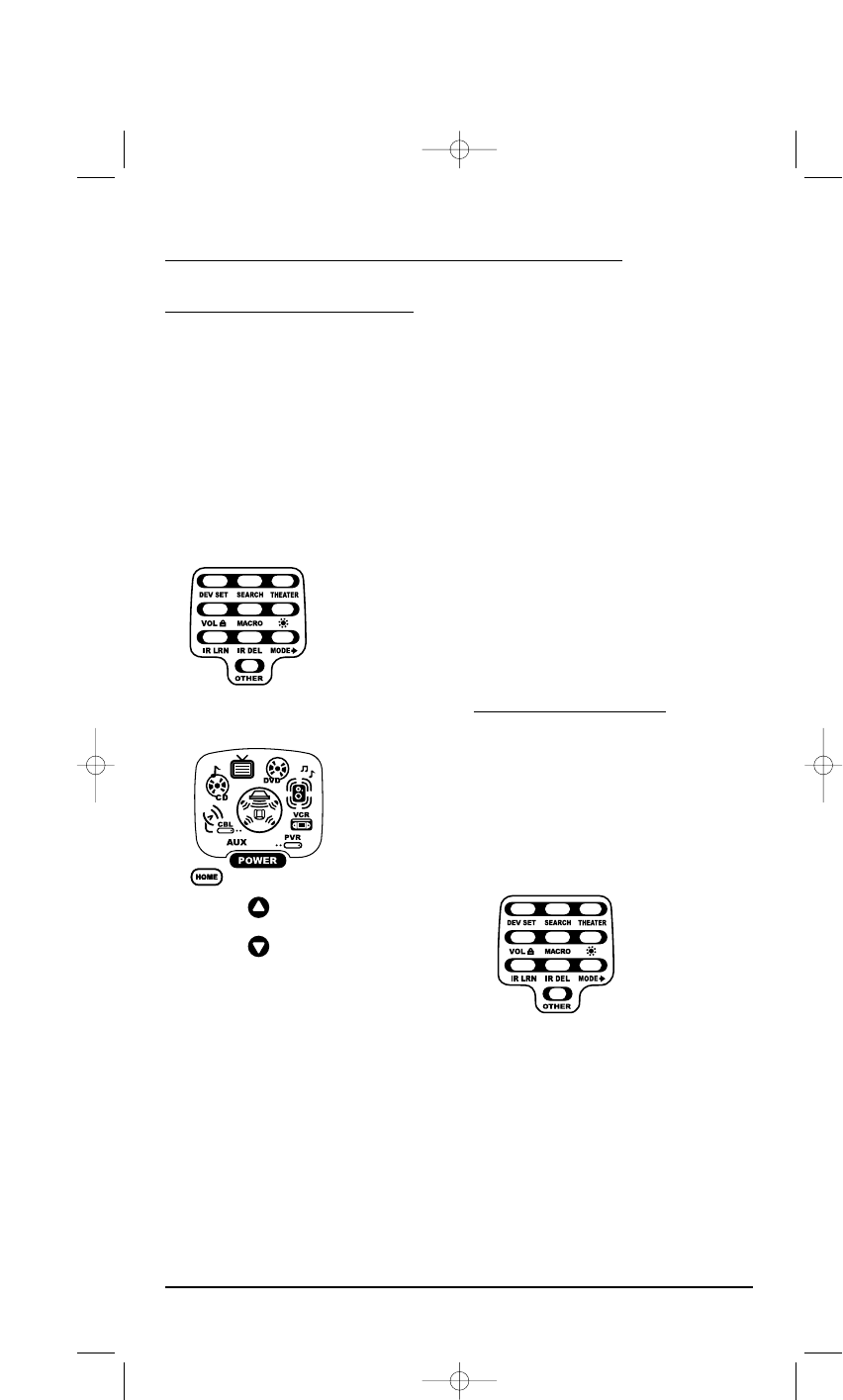
SEARCHING FOR YOUR CODE
If your device does not respond to the remote
control after trying all codes listed for your
brand, or if your brand is not listed at all, try
searching for your code.
NOTE: Before performing a code search for a CD or
DVD player or a VCR, turn on the device and insert
the required media.
For example, to search for a code for your TV:
1. Press and hold SETUP until the two bottom
IR segments flash twice. The Program Keys
will appear as SETUP flashes repeatedly.
2. Press SEARCH once. The Search Codes
programming screen will appear:
3. Press a device key once (e.g., TV).The selected
device key will animate.The device’s Main
Menu screen will appear with the HOME key
still displayed.
4. Press POWER once to select it as the search
test function. The Search Programming screen
will appear again.
NOTE:With POWER as the search test function, a
“Power On” IR command will be sent to the device
each time a test code is sent. As a confirmation, the
IR segments will display an outgoing animation.
NOTE: If your device or its original remote control
does not have a Power key, select a different test
function in this step (e.g., CH+,VOL+,Play, etc).
5. Aim the remote control at the device (e.g., TV)
press ▲one or more times and stop when a
working code performs the test function
selected in step 4. If desired, use ▼ to try a
previous code.
NOTE: In the search mode, the remote control will
send IR codes from its library to the selected device,
starting with the most popular code first.
6. To lock in the code, press OK once. The two
bottom IR segments flash twice.
7. To search for codes of your other devices,
repeat steps 3 to 6, but use the appropriate
device key and test function key for the device
you are searching for.
8. To exit programming, press HOME twice. The
display will return to the last-selected device
menu screen.
CHECKING THE CODES
If you have set up the remote control using the
Searching For Your Code procedure (on the left),
you may need to find out which four-digit code
is operating your equipment. For example, to
find out which code is operating your TV:
1. Press and hold SETUP until the two bottom
IR segments flash twice. The Program Keys
will appear as SETUP flashes repeatedly.
continued on next page...
USER’SGUIDE
Searching For Your Code/Checking The Codes 11
OFA Kameleon UG 5/8/03 3:22 PM Page 11
CHECKING THE CODES (cont’d)
2. Press OTHER once. The Other programming
screen will appear:
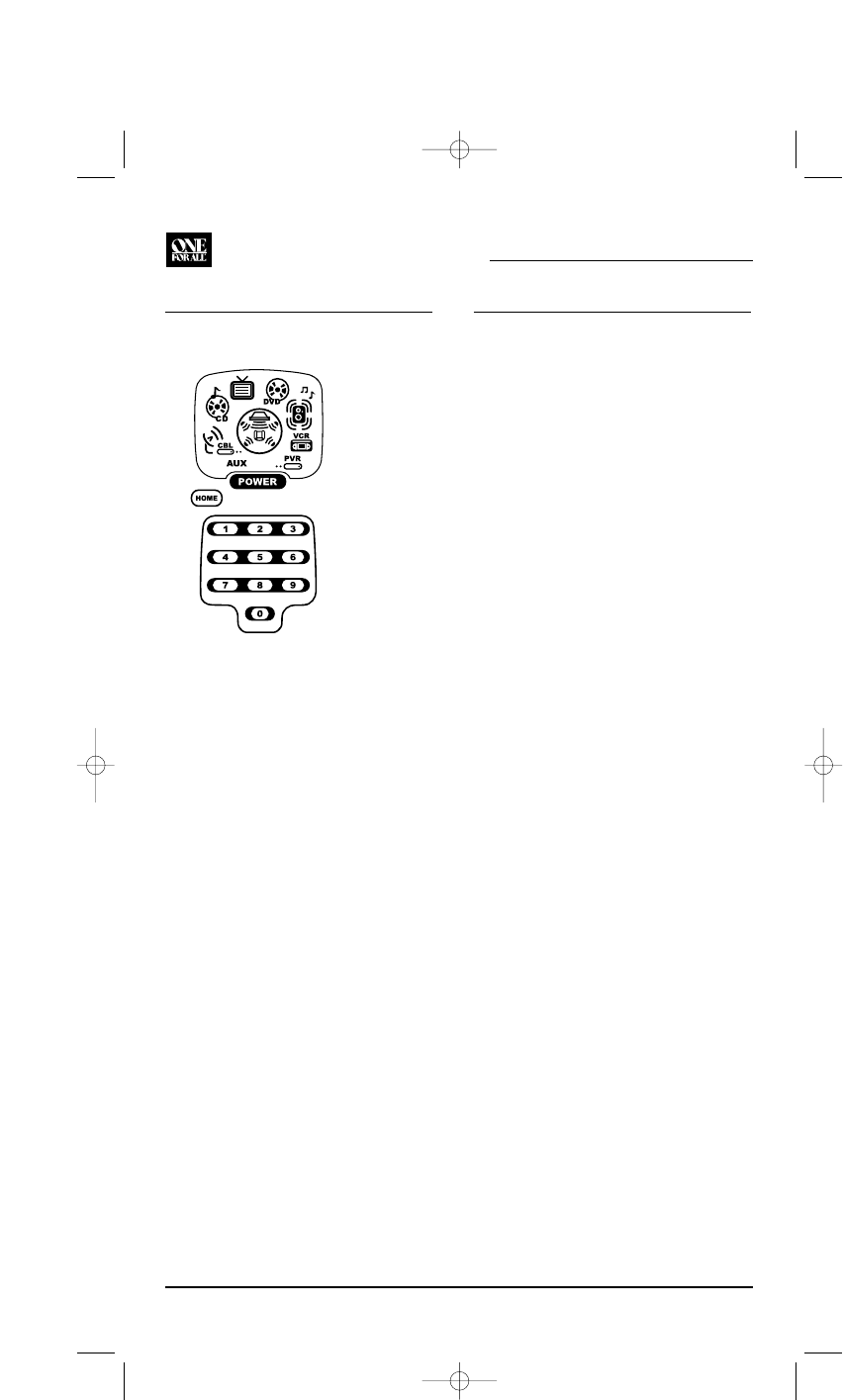
3. Using the Number Keys,enter 9 9 0.The
bottom two IR segments will flash twice.
4. Press a desired device key once (i.e., AUX,
CBL/SAT,CD,TV,DVD,AUDIO,VCR,or PVR).
The selected device key will animate.
5. To view the code for the first digit, press 1
once. Count the number of times the two
bottom IR segments flash (e.g., three flashes
= 3) and write down the number in leftmost
box in the TV code boxes on page 9.
NOTE: If a code digit is “0”, the two bottom IR
segments will not flash.
6. Repeat step 5 three more times for remaining
digits. Use 2for the second digit, 3for the
third digit, and 4for the fourth digit.Write
down the code digits in the remaining TV
code boxes on page 9.
NOTE: If you enter an invalid number (e.g., 7) or
key (e.g., Play), the two bottom IR segments will
display one long flash and return to the “Other”
programming screen. Start again with step 2 above.
7. To check for codes of other devices,repeat
steps 4 to 6, but substitute the appropriate
device key for each device you are checking.
Write down the device’s code digits in the
appropriate code boxes on page 9.
8. To exit programming, press HOME twice. The
display will return to the last-selected device
menu screen.
USING THE HOME THEATER MODE
The OFA Kameleon 8-Device Remote includes a
custom Home Theater mode. After the Home
Theater key is programmed, it will allow you to
access four groups of remote control keys
without having to change device modes.
CONTROL ORGANIZATION
ABOUT CONTROL GROUPS
For Home Theater programming,the remote
control’s keys are grouped by type of control
into the following four control groups:
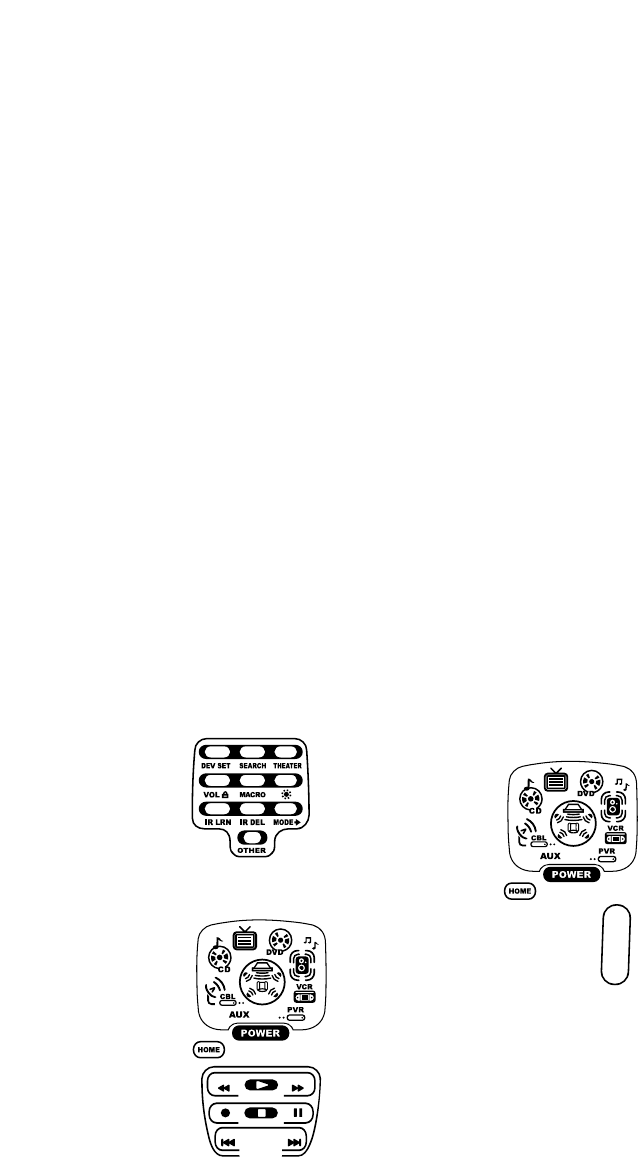
Video Playback Group: Transport Controls
(Rewind,Play,Fast
Forward,Stop,
Pause,Record,
Skip Forward,
Skip Back),and
LIVE TV
Volume Controls Group: VOL+,VOL-,and
MUTE
Channel Controls Group: CH+,CH-,INPUT,
Keypad (0 ~ 9),
FAV,ENTER,and LAST
Menu Controls Group: Cursor Controls
(Up,Down,Left,and
Right),OK,PAGE+,
PAGE-,MENU,INFO,
GUIDE,and EXIT
ABOUT DEVICE MODES
Moreover, the above Control Groups can be used
in the following modes:
Video Playback Group: AUDIO,AUX,CBL/SAT,
CD,DVD,PVR,and
VCR
Volume Controls Group: AUDIO,AUX,CBL/SAT,
CD,DVD,PVR,TV,and
VCR
Channel Controls Group: AUX,CBL/SAT,DVD,
PVR,TV,and VCR
Menu Controls Group: AUDIO,AUX,CBL/SAT,
CD,DVD,PVR,TV,and
VCR
KAMELEON 8-DEVICE REMOTE
12 Checking The Codes/Using The Home Theater Mode
OFA Kameleon UG 5/8/03 3:22 PM Page 12
FACTORY DEFAULT SETTINGS
At the factory, the Control Groups are assigned
the following modes as default settings:
Video Playback Group: DVD
Volume Controls Group: AUDIO
Channel Controls Group: CBL/SAT
Menu Controls Group: CBL/SAT
If the default settings fit your needs, you can
skip programming this mode. Otherwise, per-
form the steps in the following section to assign
device modes to the Control Groups.
PROGRAMMING THE HOME THEATER MODE
1. Press any device key once (i.e., AUX,CBL/SAT,
CD,TV,DVD,AUDIO,VCR,or PVR).The selected
device key will animate.
2. Press and hold SETUP until the two bottom
IR segments flash twice. The Program Keys
will appear as SETUP flashes repeatedly.
3. Press THEATER once. The Video Playback
programming screen will appear:
NOTE: If a device key is animated,it is assigned to
this function group. To continue programming the
Home Theater mode,you must select a device key,
even if it is the same one that is currently animated.
3. To assign a mode to the Video Playback group,
press a device key once (i.e., AUX,CBL/SAT,
CD,TV,DVD,AUDIO,VCR,or PVR).Then the
Volum e Cont rol s programming screen will appear:
NOTE: If a device key is animated,it is assigned to
this function group. To continue programming the
Home Theater mode,you must select a device key,
even if it is the same one that is currently animated.
4. To assign a mode to the Vo lume C ont ro l s group,
press a device key once.Then the Channel
Controls programming screen will appear:
NOTE: If a device key is animated,it is assigned to
this function group. To continue programming the
Home Theater mode,you must select a device key,
even if it is the same one that is currently animated.
continued on next page...
USING THE HOME THEATER MODE
PROGRAMMING THE HOME THEATER MODE
(CONTINUED)
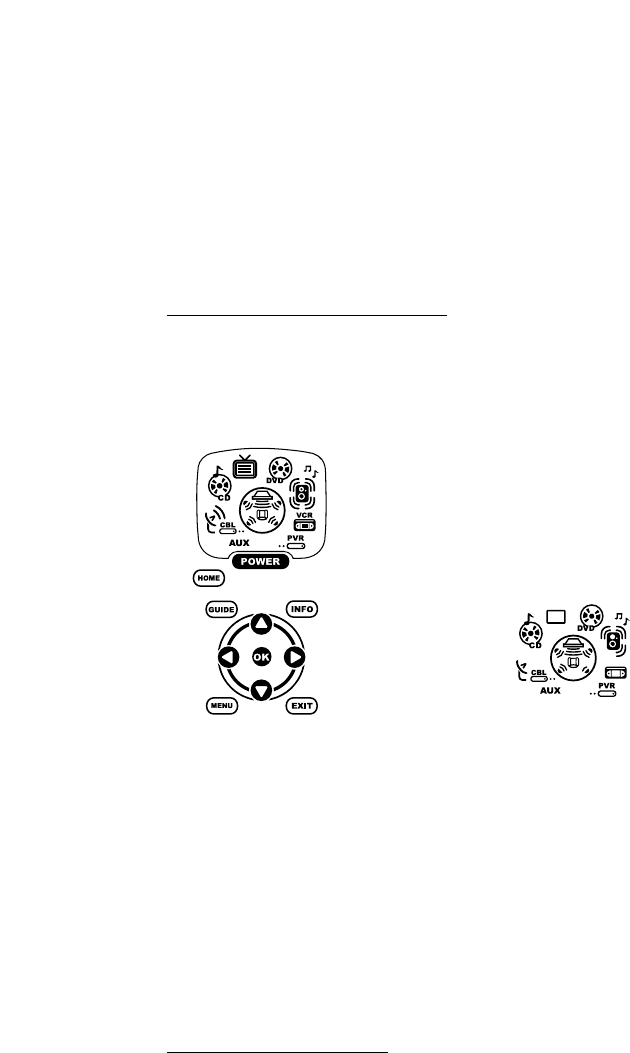
5. To assign a mode to the Channel Controls
group,press a device key once.Then the Menu
Controls programming screen will appear:
NOTE: If a device key is animated,it is assigned to
this function group. To continue programming the
Home Theater mode,you must select a device key,
even if it is the same one that is currently animated.
6. To assign a mode to the Menu Controls group,
press a device key once. Since Home Theater
programming is now complete, the Program
Keys will appear again.
7. To exit programming, press HOME once. The
display will return to the last-selected device
menu screen.
CHANGING VOLUME LOCK
The OFA Kameleon 8-Device Remote is set at the
factory for independent volume control of each
selected device.
However, you may change the Volume Lock
setting to Global Volume Lock so that a device’s
volume will be locked to one mode (e.g., to
control TV volume in all other modes).After
that, if desired, you can perform Individual
Volum e Un lo c k on a selected device to set its
volume control for independent operation.
LOCKING VOLUME CONTROL TOONE MODE
(GLOBAL VOLUME LOCK)
1. Press and hold SETUP until the two bottom
IR segments flash twice. The Program Keys
will appear as SETUP flashes repeatedly.
2. Press VOL once. The Volu m e L o ck
programming screen will appear:
3. Press a device key once (i.e., AUX,CBL/SAT,
CD,TV,DVD,AUDIO,VCR,or PVR) where you
want the volume controls locked to.The two
bottom IR segments will flash twice and the
Program Keys will appear again.
4. To exit programming, press HOME once. The
display will return to the last-selected device
menu screen.
5. Now, when you press VOL ▲,VOL▼,or MUTE,
the selected device’s volume will be con-
trolled, regardless of the mode selected.
UNLOCKING VOLUME CONTROL FOR A SINGLE
DEVICE (INDIVIDUAL VOLUME UNLOCK)
1. Press and hold SETUP until the two bottom
IR segments flash twice. The Program Keys
will appear as SETUP flashes repeatedly.
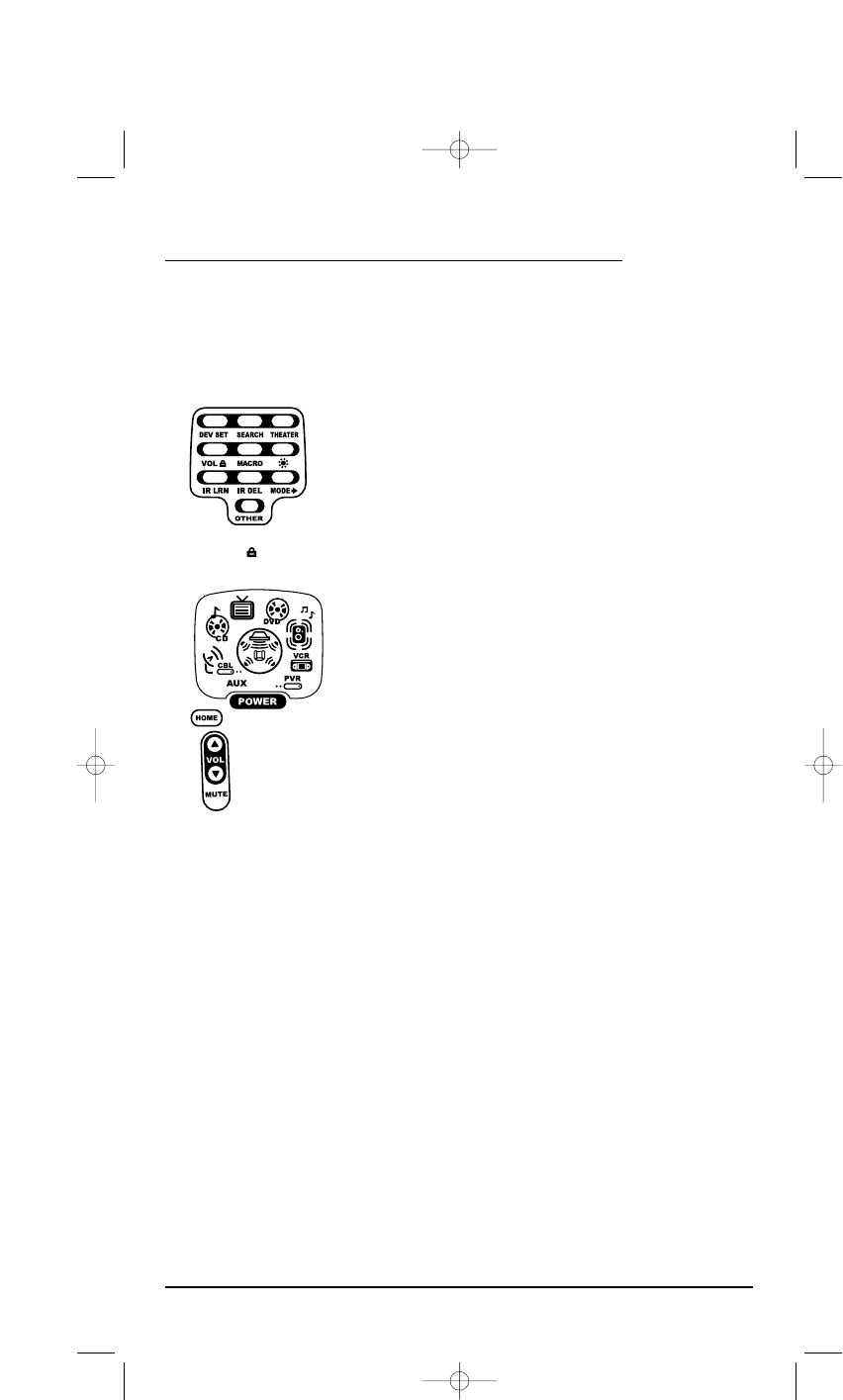
2. Press VOL once. The Volu m e L o ck
programming screen will appear:
3. Press VOL▼once.Then press a device key
once (i.e., AUX,CBL/SAT,CD,TV,DVD,AUDIO,
VCR,or PVR) where you want the volume
controls unlocked.The two bottom IR seg-
ments will flash twice and the Program Keys
will appear again.
NOTE: The programming mode is still active as
denoted by the flashing SETUP key. If desired, use the
other Program Keys to continue programming (see
Table of Contents on page 2 for related sections).
4. If desired,repeat steps 1 through 3 (of this
section) for each device that you want volume
to be unlocked.
5. To exit programming, press HOME once. The
display will return to the last-selected device
menu screen.
6. Now, after you select a device that has
volume unlocked, pressing VOL ▲,VOL▼,or
MUTE will control the device’s volume only in
its own mode.
UNLOCKING ALL VOLUME CONTROL
(RESTORING DEFAULT SETTING)
1. Perform steps 1 and 2 of the previous section.
2. Press VOL ▲once. The two bottom IR seg-
ments will flash twice and the Program Keys
will appear again.
3. To exit programming, press HOME once. The
display will return to the last-selected device
menu screen.
4. Volume will again be independently con-
trolled according to its default states for all
programmed devices.
USER’SGUIDE
Changing Volume Lock 15
OFA Kameleon UG 5/8/03 3:22 PM Page 15

USING MACROS
The OFA Kameleon 8-Device Remote includes
five Macro Keys,M1 through M4 and POWER.
Each one can be set up to perform a repetitive,
time-consuming operation with the press of a
single key.
NOTE: A macro programmed onto the POWER key cSTcDYqS qYVqESFIeolHjRVj8,AHY8VER8, KHYOAKHjRVj8OAHY8VER8,a/Vq,khKHqVKHqVesY8V//i/VqS twD[, tKjVq,eoHjRVj8NeKjFV/, K]TJDxFY8VR,NKTjVR///SFST5DHFVFYROvSTcDkhkCnogi/joeovtYO i/VR,wnHY8YjVO,a/joeovnKFVYj,yHY8YjVO,oKFVY,vKROY,vhKV/,hKj/Vj,orHY8YjVO,mKEj,sKjjVRVdjVj,neYOK8,AHY8YjVO,wY8YjVE,ilY/,-eolHY8YjVO,oKFV/,oKRVj,nlKOV/yYOK8yKHY8YjVO,sendHY8YjVO,a KR/8Ne“KO[,khPKq/VO, KOgKHKOFOAKHjNYpKRFjBKHEYSr,OKRqoOfRFjVO,fY8V,“KqYV/, K]SFST5HFVFYROIKEj:Ch hojhOqq,mKE/j,mKjEj8,AajhOqq,nKE8VRVdjcD[YVO,KROVjEtKRYVR/oeo seomheodjFV/OAeHYR//T mh.4.htSU
1. Press and hold SETUP until the two bottom
IR segments flash twice. The Program Keys
will appear as SETUP flashes repeatedly.
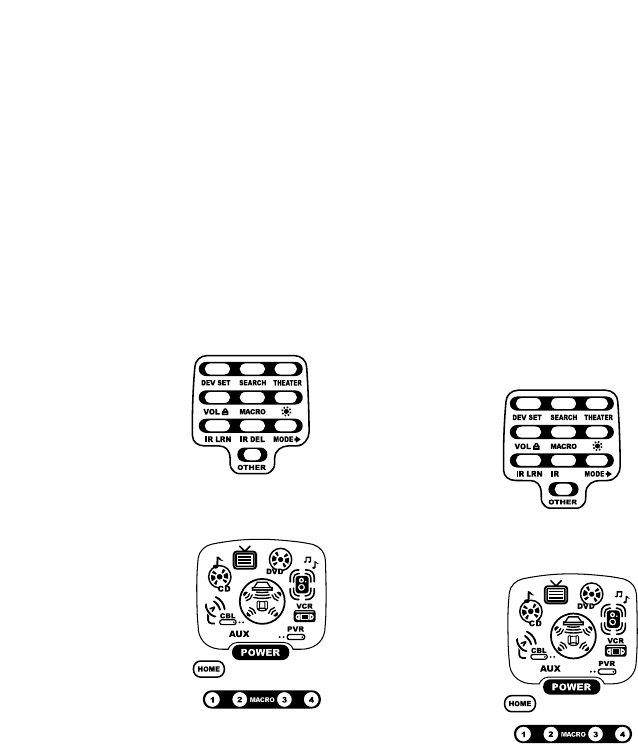
2. Press MACRO once. The Macro programming
screen will appear:
3. Press POWER once.The last-selected
device menu screen, including HOME,
will be displayed.
4. Enter the macro sequence. For this example,
press CBL/SAT once, followed by POWER once.
Next, press DVD once, followed by POWER
once. Then press AUDIO once, followed by
POWER once. Finally, press TV once, followed
by POWER once.,and then the Home Theater
key once.
5. To save the power macro,press and hold
SETUP until the two bottom IR segments flash
twice. The Program Keys will appear again.
6. Exit programming by pressing HOME once.
The display will return to the last-selected
device menu screen.
7. To test the power macro,first make sure all
home theater devices selected in step 4 are
turned on.Aim the remote control at the
devices and press the Home Theater key once,
followed by POWER once. The devices should
turn off in this order: Satellite Receiver, DVD
Player,Audio Receiver, and TV.
To turn on the devices on again in the same
order as above,press POWER once.
CLEARING A MACRO
1. Press and hold SETUP until the two bottom
IR segments flash twice. The Program Keys
will appear as SETUP flashes repeatedly.
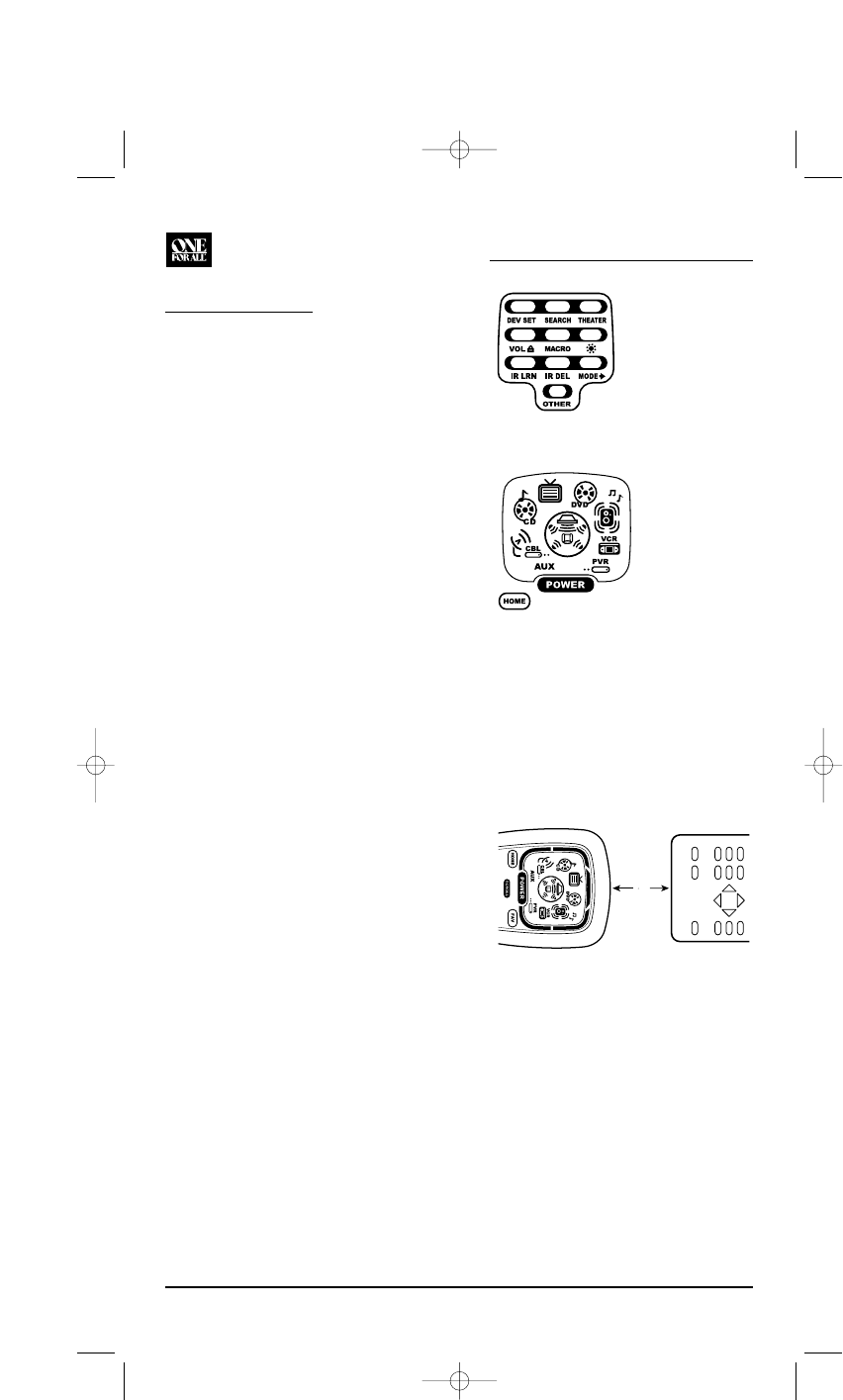
2. Press MACRO once. The Macro programming
screen will appear:
3. Select the Macro Key to be cleared and press
it once. The last-selected device menu screen
will be displayed.
4. Press and hold SETUP until the two bottom IR
segments flash twice.The Program Keys will
appear again.
5. To exit programming, press HOME once. The
display will return to the last-selected device
menu screen.
USING LEARNING
The OFA Kameleon 8-Device Remote includes a
Learning feature so you can add functions that
are unique to your home entertainment devices
(e.g.,VCR Tracking Up or Down). However,
there are some considerations:
LEARNING PRECAUTIONS
• Your original remote controls must be in
working order for learning to work properly.
• Learned keys are mode specific, so each one
can store a unique function for each mode.
• Learned keys can be used in macros (see
Using Macros on page 16).
• Do not use the following keys for learning:
Device Keys,M1~M4,SETUP,FAV,SCROLL,
PRESET,PVR VOD,or Record (•) Key.
• Learning capacity is approximately 16 to 25
keys, depending on the code being learned.
• If both learned and keymoved functions
are assigned to the same key, the last
programmed function will be stored.
• A learned function cannot be used as a
source for Keymover (see Using Keymover on
page 20).
• Certain device codes are not learnable
including multi-frequency types, some high
frequency ones, and other unusual formats.
• For optimum learning, avoid high levels of
ambient light such as natural sunlight or
energy-efficient fluorescent lights.
NOTE: Please have your original remote controls
handy before programming learning. Be sure to press
each teaching key within 5 seconds of the previous
entry. Otherwise, the OFA Kameleon 8-Device Remote
will exit the programming mode.
PROGRAMMING A LEARNING KEY
1. Press and hold SETUP until the two bottom
IR segments flash twice. The Program Keys
will appear (as shown above right) as SETUP
flashes repeatedly.
2. Press IR LRN once. The IR Learn
programming screen will appear:
3. Press a device key once (i.e., AUX,CBL/SAT,
CD,TV,DVD,AUDIO,VCR,or PVR) to assign a
mode for learning.The selected device menu
screen,including HOME,will be displayed.
4. Place the OFA Kameleon 8-Device Remote
head-to-head (about 2" apart) from your
original remote control.Also locate the key
(on your original remote control) that will
serve as the teaching function.
5. On the OFA Kameleon 8-Device Remote,
select and press a desired key where the
learned function will be stored.The IR
segments will display an incoming
animation,continue for three revolutions,
and then the entire display will turn off.
After the display is off, press and hold the
teaching key (on your original remote control)
until the display (on the OFA Kameleon
8-Device Remote) turns on again.The two
bottom IR segments will flash twice when the
code is successfully captured.
NOTE: If the two bottom IR segments display one long
flash, a learning error has occurred. Try repeating this
step again until a successful capture occurs. If the
2"
KAMELEON 8-DEVICE REMOTE
18 Using Learning
OFA Kameleon UG 5/8/03 3:23 PM Page 18
function is still not captured, press HOME twice to exit
programming and review the “Learning Precautions”
on the previous page.If needed, also see
“Troubleshooting” on page 31. After review, start
programming again at step 1.
6. To learn other functions, repeat steps 3
through 5 as desired.
7. To exit programming, press HOME twice. The
display will return to the last-selected device
menu screen.
DELETING A SINGLE LEARNED KEY
1. Press and hold SETUP until the two bottom
IR segments flash twice. The Program Keys
will appear as SETUP flashes repeatedly.
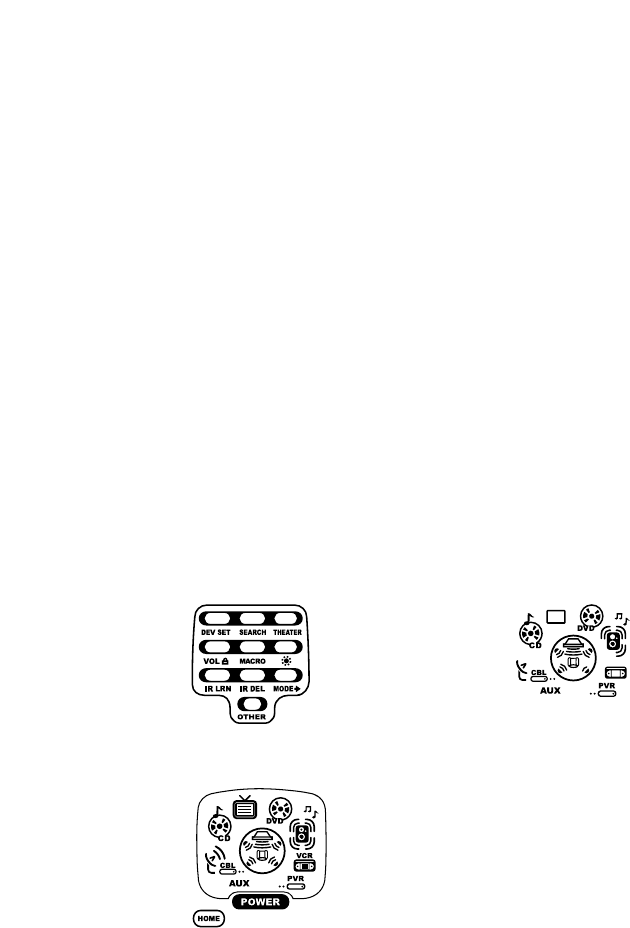
2. Press IR DEL once. The IR Delete
programming screen will appear:
3. Press a device key once (i.e., AUX,CBL/SAT,
CD,TV,DVD,AUDIO,VCR,or PVR) for the mode
where the learned key to be deleted resides.
The selected device menu screen, including
HOME,will be displayed.
4. Press the learned key to be deleted twice.
Upon deletion, the two bottom IR segments
will flash twice as confirmation.The Program
Keys will appear again.
5. If desired,repeat steps 2 through 5 to delete
another learned key.
6. Exit programming by pressing HOME once.
The display will return to the last-selected
device menu screen.
DELETING ALL LEARNED KEYS INA
SPECIFIC MODE
1. Press and hold SETUP until the two bottom
IR segments flash twice. The Program Keys
will appear as SETUP flashes repeatedly.
2. Press IR DEL once. The IR Delete
programming screen will appear:
3. Press a device key once (i.e., AUX,CBL/SAT,CD,
TV,DVD,AUDIO,VCR,or PVR) for the mode
where the learned keys to be deleted reside.
The selected device menu screen, including
HOME,will be displayed.
4. Press the same device key (as in step 3) once.
Upon deletion, the two bottom IR segments
will flash twice as confirmation.The Program
Keys will appear again.
5. If desired,repeat steps 2 through 5 to delete
other learned keys from another mode.
6. Exit programming by pressing HOME once.
The display will return to the last-selected
device menu screen.
REASSIGNING DEVICE KEYS
The OFA Kameleon 8-Device Remote can be set
to control a second device. For example, to con-
trol a TV, a cable box, and two DVD players, you
can reassign the unused AUX key to operate the
second DVD player as follows:
1. Press and hold SETUP until the two bottom
IR segments flash twice. The Program Keys
will appear as SETUP flashes repeatedly.
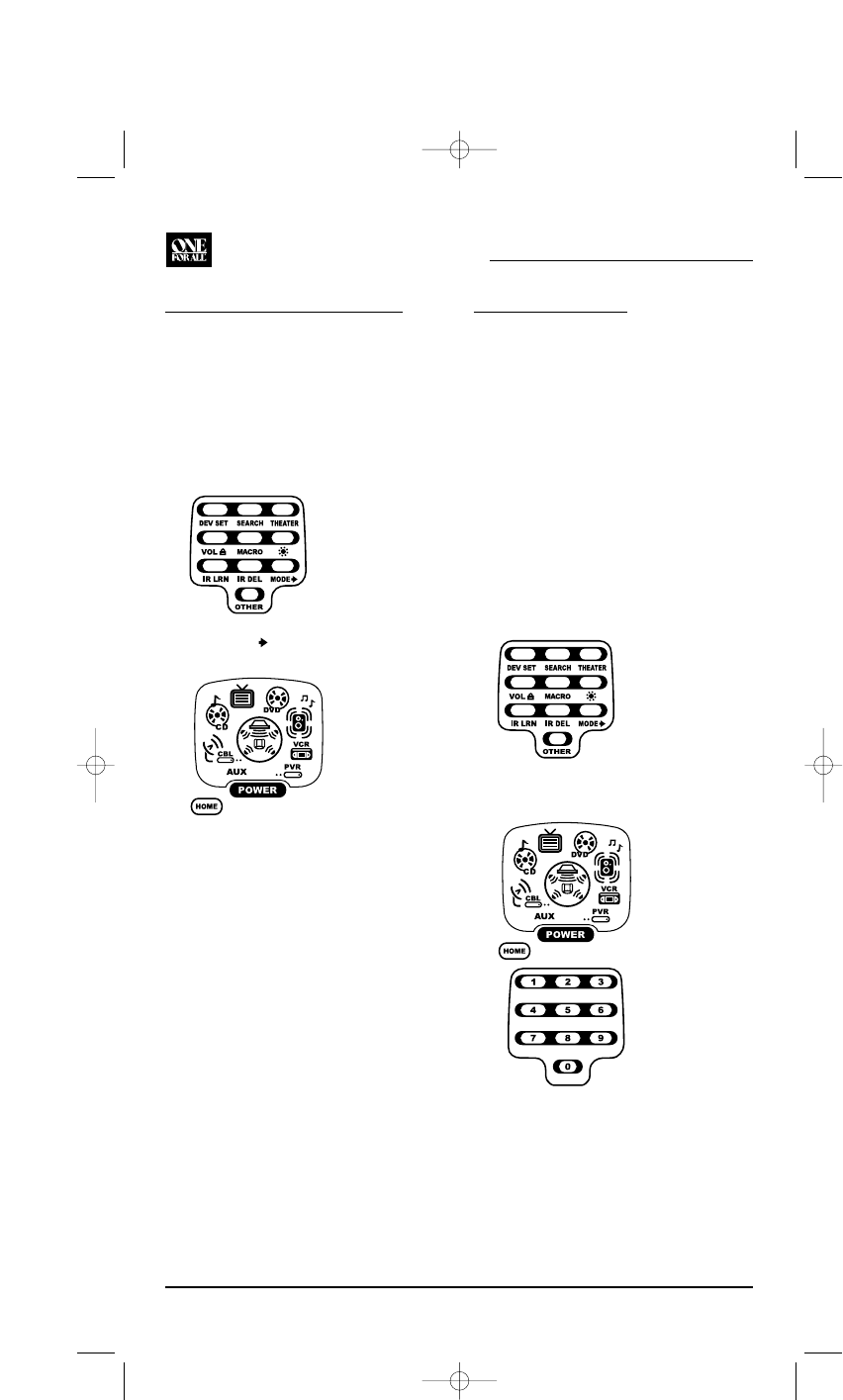
2. Press MODE once. The Mode Mover
programming screen will appear:
3. For the source mode, press a device key once
(i.e., AUX,CBL/SAT,CD,TV,DVD,AUDIO,VCR,
or PVR). For this example, press DVD once.
The selected device menu screen, including
HOME,will be displayed.
NOTE: Only one device can be assigned to an
unused device key at a time.
4. For the destination mode, press a device key
once (i.e., AUX,CBL/SAT,CD,TV,DVD,AUDIO,
VCR,or PVR).For this example,press AUX
once. Upon reassignment, the two bottom IR
segments will flash twice as confirmation.
The Program Keys will appear again.
5. For this example, the AUX key is now ready to
be set up to control your second DVD player.
See Programming Device Control on page 8.
If desired, repeat steps 2 to 5 to reassign
another device.
6. Exit programming by pressing HOME once.
The display will return to the last-selected
device menu screen.
USING KEYMOVER
The OFA Kameleon 8-Device Remote includes a
Keymover feature that allows you to map (or
copy) keys from one mode (i.e., source mode) to
another mode (i.e., destination mode).
NOTE: Do not use any of the Device Keys as a source
or destination key.
PROGRAMMING KEYMOVER
For example, if your DVD player does not have
volume control, you can map those keys (i.e.,
VOL▲,VOL▼,and MUTE) from the TV mode to
DVD mode as follows:
1. Press and hold SETUP until the two bottom
IR segments flash twice. The Program Keys
will appear as SETUP flashes repeatedly.
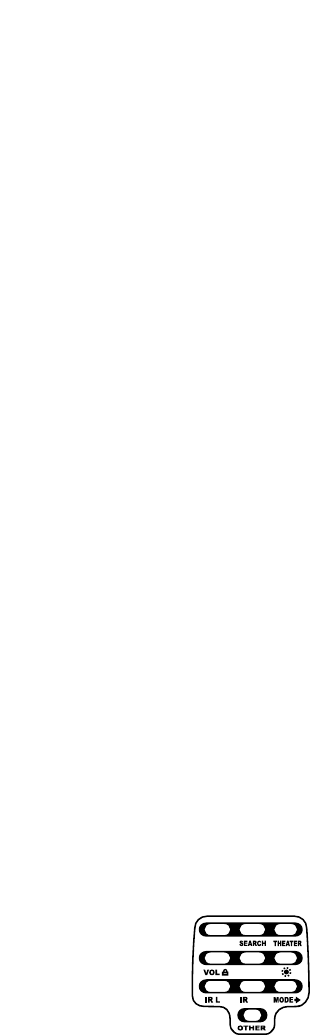
2. Press OTHER once. The Other programming
screen will appear:
3. Using the Number Keys,enter 9 9 4.The two
bottom IR segments will flash twice.
4. For the source mode, press a desired device
key once (i.e., AUX,CBL/SAT,CD,TV,DVD,
AUDIO,VCR,or PVR).For this example, press
TV once. The selected source device menu
screen,including HOME,will be displayed.
KAMELEON 8-DEVICE REMOTE
20 Reassigning Device Keys/Using Keymover
OFA Kameleon UG 5/8/03 3:23 PM Page 20
5. For the source key, press a key to be moved
once. For this example press VOL▲ once.
6. For the destination mode, press a desired
device key once (i.e., AUX,CBL/SAT,CD,TV,
DVD,AUDIO,VCR,or PVR).For this example,
press DVD once. The selected destination
device menu screen, including HOME,will
be displayed.
7. For the destination key, press a key to be
moved once.For this example press VOL▲
once.Upon keymoving, the two bottom IR
segments will flash twice as confirmation.
The Program Keys will appear again.
8. Repeat steps 3 through 7 two more times to
map the remaining volume control keys,
substituting VOL▼and MUTE as source and
destination keys in steps 5 and 7.
9. Exit programming by pressing HOME once.
The display will return to the last-selected
device menu screen.
Upon completion of the above procedure, you
can now use your OFA Kameleon 8-Device
Remote to control the TV’s volume and mute in
the DVD mode, as well as in the TV mode.
RESTORING A SINGLE KEYMOVED KEY
1. Press and hold SETUP until the two bottom
IR segments flash twice. The Program Keys
will appear as SETUP flashes repeatedly.
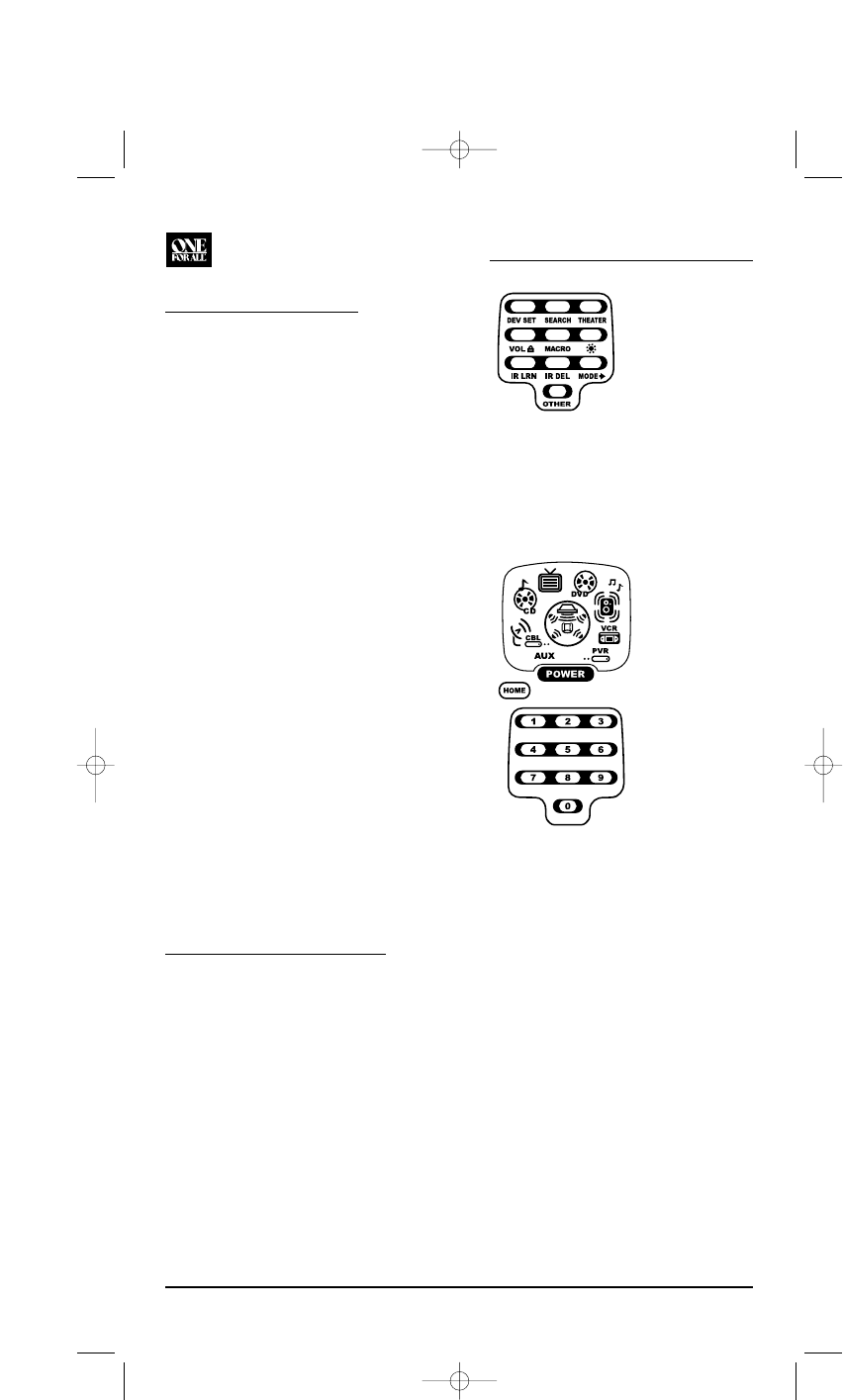
2. Press OTHER once. The Other programming
screen will appear (as shown above right):
USING CHANNEL SCAN
In the AUX,CBL/SAT,or TV mode, use the FAV
key to start a 3-second scan of all channels.
If programmed, use the FAV key to scan only
your favorite channels to view a desired channel
(see Programming Favorite Channel Scan below).
1. If Favorite Channel Scan has been set up, skip
to step 2. Otherwise, press AUX,CBL/SAT,or TV
once. The two bottom IR segments flash once.
2. Press FAV once.The IR segments will
display outgoing animation as each channel
is changed.
•IfFavorite Channel Scan has been set up,
scanning of favorite channels will start
and cycle through stored channels for
3 minutes or until stopped by pressing
any key.
•IfFavorite Channel Scan has not been set
up, scanning will start with the current
channel, then proceed to the next channel
up and cycle through all channels for
3 minutes or until stopped by pressing
any key.
3. To stop scanning channels at any time, press
any key once.
PROGRAMMING
FAVORITE CHANNEL SCAN
In the AUX,CBL/SAT,or TV mode, you can store
a list of up to 10 favorite channels, in any order,
that will be immediately scanned when FAV is
pressed (see Using Channel Scan above).
NOTE: Favorite channels can only be programmed
for one mode. After programming, if FAV is pressed
while in another mode, the remote control will start a
normal channel scan instead (if applicable to the
selected device).
1. Press and hold SETUP until the two bottom
IR segments flash twice. The Program Keys
will appear (as shown above right) and SETUP
flashes repeatedly.
2. Select a Favorite Channel Mode by pressing
AUX,CBL/SAT,or TV once. The two bottom IR
segments flash once as the selected device
key animates.
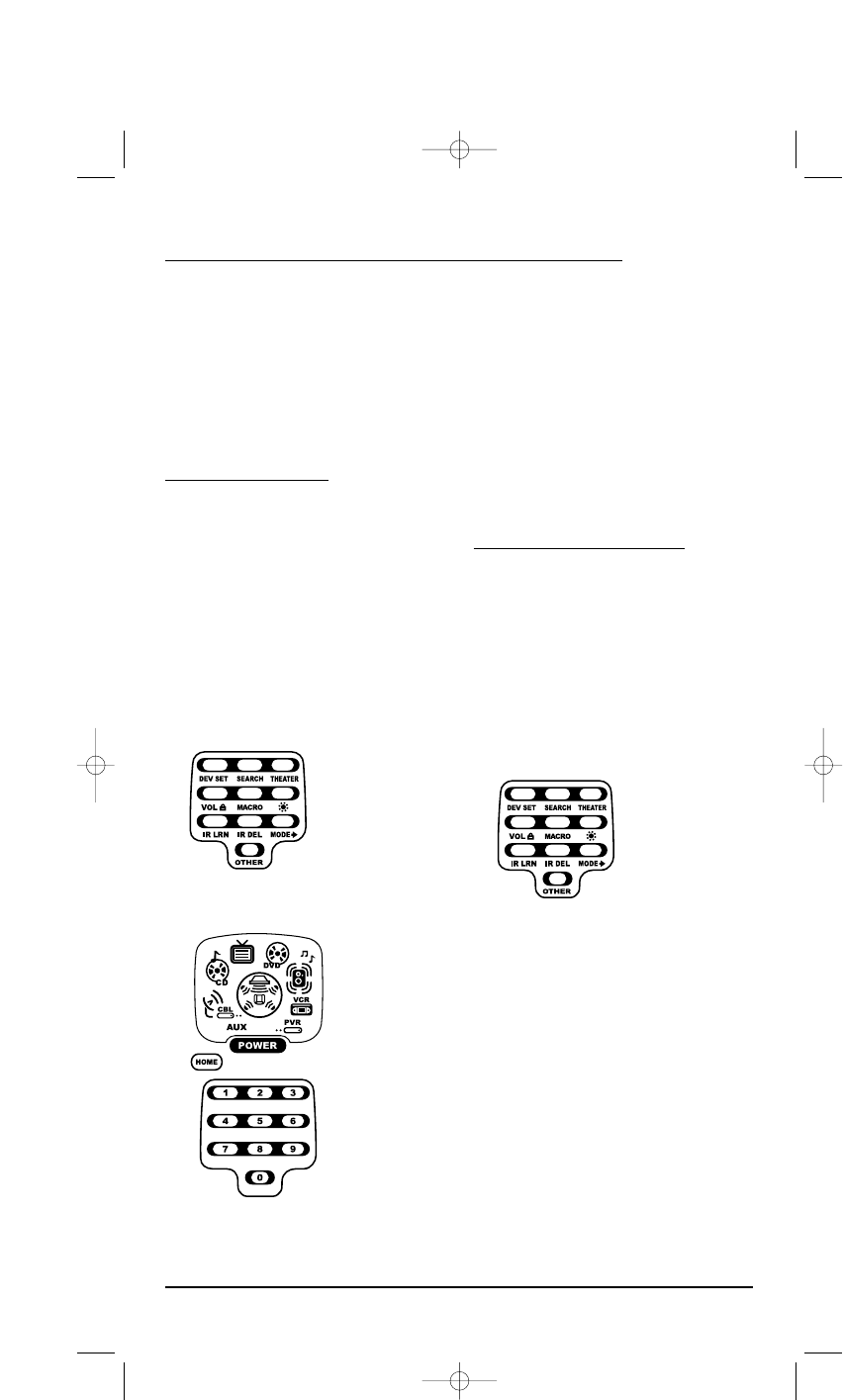
3. Press OTHER once. The Other programming
screen will appear:
4. Using the Number Keys,enter 9 9 6.The two
bottom IR segments will flash twice and
display the Favorite Channel programming
screen.
NOTE: If the the two bottom IR segments display
one long flash, an error has occurred. Try repeating
this step.
5. Using the Number Keys,enter a favorite
channel number (e.g., 0 1 2). Then press
SETUP once. The two bottom IR segments will
flash three times confirming your entry.
NOTE: If the original remote control required
pressing an Enter key to change the channel, also
press the ENTER key after the channel number
(e.g., 0 1 2 ENTER).
6. If desired,repeat step 5 for each channel to be
stored,up to a total of 10 channels.
NOTE: After storing 10 channels, the remote control
will exit the Favorite Channel programming screen
and again display the Program Keys.
KAMELEON 8-DEVICE REMOTE
22 Using Channel Scan/Programming Favorite Channel Scan
OFA Kameleon UG 5/8/03 3:23 PM Page 22
7. To exit programming with less than
10 favorite channels stored, press HOME twice.
The display will return to the last-selected
device menu screen.
RESTORING FACTORY
DEFAULT SETTINGS
The OFA Kameleon 8-Device Remote includes
an Setup Code Reset program.You can use it to
restore all your programmed codes to factory
settings and delete all custom programming.
IMPORTANT: Executing this program will erase
all code settings and all custom settings for Home
Theater, Macros, Learned Keys, Reassigned Device
Keys, Keymoved Keys, Favorite Channels, and all
device settings.
1. Press and hold SETUP until the two bottom
IR segments flash twice. The Program Keys
will appear as SETUP flashes repeatedly.
2. Press OTHER once. The Other programming
screen will appear:
3. Using the Number Keys,enter 9 7 7.The two
bottom IR segments will flash twice pause
and flash twice again to confirm the unit has
been restored to factory default settings.
4. Exit programming by pressing HOME once.
The display will return to the last-selected
device menu screen.
CLEARING ALL
CUSTOM PROGRAMMING
The OFA Kameleon 8-Device Remote contains a
Custom Programming Reset program.You can use
it to remove all custom programming, except
your setup codes and reassigned device keys.
IMPORTANT: Executing this program will erase all
custom settings for Home Theater, Macros, Learned
Keys, Keymoved Keys, and Favorite Channels.
1. Press and hold SETUP until the two bottom
IR segments flash twice. The Program Keys
will appear as SETUP flashes repeatedly.
2. Press OTHER once. The Other programming
screen will appear.
3. Using the Number Keys,enter 9 8 0.The two
bottom IR segments will flash twice pause
and flash twice again to confirm the unit has
been restored to factory default settings.
4. Exit programming by pressing HOME once.
The display will return to the last-selected
device menu screen.
USER’SGUIDE
Restoring Factory Default Settings/Clearing All Custom Programming 23
OFA Kameleon UG 5/8/03 3:23 PM Page 23
KAMELEON 8-DEVICE REMOTE
24 Manufacturer’s Codes
MANUFACTURER’S CODES
S
ETUP
C
ODES
F
OR
A
UDIO
A
MPLIFIERS
GE 0078
Harman/Kardon 0892
JVC 0331
Left Coast 0892
Marantz 0892
Optimus 0395
Philips 0892
Polk Audio 0892
Realistic 0395
Soundesign 0078
Victor 0331
Wards 0078
Yamaha 0354
S
ETUP
C
ODES
F
OR
A
UDIO
R
ECEIVERS
ADC 0531
Aiwa 1089, 1405, 0121, 0158, 0189, 1388
Alco 1390
Anam 1609
Apex Digital 1257
Audiotronic 1189
Audiovox 1390
Bose 1229
Capetronic 0531
Carver 1089, 1189, 0189
Classic 1352
Denon 1360
Harman/Kardon 0110, 0189
Integra 0135, 1298
JBL 0110, 1306
JVC 0074, 1374
KLH 1390
Kenwood 1313, 1027, 1570, 1569, 0186
Koss 1366
Lasonic 1798
Linn 0189
MCS 0039
Magnavox 1089, 1189, 1269, 0189, 0531
Marantz 1089, 1189, 0039, 0189
Musicmagic 1089
Norcent 1389
Onkyo 0135, 0842, 1298
Optimus 1023, 0186, 0531, 0670
Oritron 1366, 1380
Panasonic 1518, 0039
Philips 1089, 1189, 1269, 0189
Pioneer 1023, 0014, 0150, 0531, 0630, 1384
Polk Audio 0189
Proscan 1254
Quasar 0039
RCA 1023, 1254, 0531, 1390, 1609
Samsung 1295
Sansui 1089, 0189
Sharp 0186
Sharper Image 1385
Sherwood 1653
Sony 1058, 1258, 1158, 0158, 1558, 1658, 1758
Soundesign 0670
Stereophonics 1023
Sunfire 1313
Technics 1308, 1309, 1518, 0039
Thorens 1189
Venturer 1390
Victor 0074
Wards 0014, 0158, 0189
Yamaha 0176, 0186, 1176, 1375
S
ETUP
C
ODES
F
OR
C
ABLE
B
OXES
ABC 0003, 0008, 0014
Americast 0899
Bell & Howell 0014
Bell South 0899
Director 0476
General Instrument 0476, 0003,0276, 0810
GoldStar 0144
Hamlin 0009, 0273
Jerrold 0476, 0003, 0276, 0014, 0810
Memorex 0000
Motorola 0476, 0276, 0810
Pace 0237
Panasonic 0000, 0107
Paragon 0000
Philips 0305, 0317
Pioneer 0877, 0144, 0533, 1877
Pulsar 0000
Quasar 0000
Regal 0273, 0279
Runco 0000
Samsung 0144
Scientific Atlanta 0877, 0008,0477, 1877
Sony 1006
Starcom 0003
Supercable 0276
Torx 0003
Toshiba 0000
Zenith 0000, 0525, 0899
OFA Kameleon UG 5/8/03 3:23 PM Page 24

USER’SGUIDE
Manufacturer’s Codes 25
S
ETUP
C
ODES
F
OR
CD P
LAYERS
Aiwa 0157
Burmester 0420
California Audio Labs 0029
Carver 0157
Classic 1297
DKK 0000
DMX Electronics 0157
Denon 0873
Garrard 0420
Genexxa 0032
Harman/Kardon 0157
Hitachi 0032
JVC 0072
KLH 1318
Kenwood 0681, 0626, 0028
Krell 0157
Linn 0157
MCS 0029
MTC 0420
Magnavox 0157
Marantz 0626, 0029, 0157
Miro 0000
Mission 0157
NSM 0157
Onkyo 0868
Optimus 1063, 0000, 0032, 0420
Panasonic 0029
Parasound 0420
Philips 0626, 0157
Pioneer 1063, 1062, 0032
Polk Audio 0157
Proton 0157
QED 0157
Quasar 0029
RCA 1062, 0032
Realistic 0420
Rotel 0157, 0420
SAE 0157
Sansui 0157
Sharp 0861
Sonic Frontiers 0157
Sony 0490, 0000, 0100
TAG McLaren 0157
TDK 1208
Tascam 0420
Teac 0420
Technics 0029
Victor 0072
Ward s 01 57
Yamaha 0888, 0036, 1292
S
ETUP
C
ODES
F
OR
DVD P
LAYERS
Aiwa 0641
Apex Digital 0672, 0717,0755, 0794, 0795, 0796, 0797,
0830
Blaupunkt 0717
Blue Parade 0571
Broksonic 0695
Cinevision 0876
DVD2000 0521
Daewoo 0784
Denon 0490, 0634
Emerson 0591
Enterprise 0591
Fisher 0670
GE 0522, 0717, 0815
Go Video 0715, 0783
Greenhill 0717
Harman/Kardon 0582, 0702
Hitachi 0573, 0664
Hiteker 0672
IRT 0783
Integra 0627
JBL 0702
JVC 0558, 0623, 0867
KLH 0717
Kenwood 0490, 0534, 0682
Magnavox 0503, 0675
Marantz 0539
Microsoft 0522
Mintek 0717
Mitsubishi 0521
Nesa 0717
Norcent 0872
Onkyo 0503, 0627
Panasonic 0490, 0632, 1362, 1462, 1490
Philips 0503, 0539, 0646, 0854
Pioneer 0525, 0571, 0632
Polk Audio 0539
Proscan 0522
RCA 0522, 0571, 0717, 0822
Rotel 0623
Sampo 0698
Samsung 0573, 0820
Sansui 0695
Sanyo 0670, 0695
Sharp 0630
Sherwood 0633
Shinsonic 0533
Sony 0533, 0864
Sylvania 0675, 0821
continued on next page...
OFA Kameleon UG 5/8/03 3:23 PM Page 25

KAMELEON 8-DEVICE REMOTE
26 Manufacturer’s Codes
MANUFACTURER’S CODES
S
ETUP
C
ODES
F
OR
DVD P
LAYERS
(
CONTINUED
)
Technics 0490
Theta Digital 0571
Toshiba 0503, 0695, 1045
Tredex 0799
Urban Concepts 0503
XBox 0522
Yamaha 0490, 0539, 0545, 0817
Zenith 0503, 0591
S
ETUP
C
ODES
F
OR
DVD P
LAYER
/VCR C
OMBOS
Go Video 0715
Hitachi 0664 (for VCR use 0000)
RCA 0822 (for VCR use 0060)
Samsung 0820
Sansui 0695
Sharp 0630 (for VCR use 0848)
Sony 0864
Sylvania 0675 (for VCR use 0000)
Toshiba 0503
S
ETUP
C
ODES
F
OR
H
OME
A
UTOMATION
GE 0240
One For All 0167
RadioShack 0240
Security System 0167
Universal X10 0167
X10 0167
S
ETUP
C
ODES
F
OR
PVR
S
Panasonic 0616
Philips 0618
ReplayTV 0614, 0616
Sonic Blue 0614, 0616
Sony 0636
Tivo 0618, 0636
S
ETUP
C
ODES
F
OR
S
ATELLITE
R
ECEIVERS
AlphaStar 0772
Chaparral 0216
Crossdigital 1109
DirecTV 0392, 0566, 0639, 1142, 0247, 0749, 0819,
1109, 1749, 1856
Dish Network System 1005, 0775
DishPro 1005, 0775
Echostar 1005, 0775
Expressvu 0775
GE 0566
GOI 0775
General Instrument 0869
HTS 0775
Hitachi 0819
Hughes Network Systems 1142, 0749, 1749
JVC 0775
Magnavox 0724, 0722
Memorex 0724
Mitsubishi 0749
Motorola 0869
Next Level 0869
Panasonic 0247, 0701
Paysat 0724
Philips 1142, 0749, 0724, 1076, 0722, 1749
Proscan 0392, 0566
RCA 0392, 0566, 0855, 0143
RadioShack 0869
SKY 0856
Samsung 1109, 1276
Sony 0639
Star Choice 0869
Toshiba 0749, 0790, 1749
UltimateTV 0392, 0639
Uniden 0724, 0722
Zenith 0856, 1856
S
ETUP
C
ODES
F
OR
S
ATELLITE
R
ECEIVER
/
PVR C
OMBS
Echostar 1005, 0775
Expressvu 0775
Hughes Network Systems 1142
Philips 1142
Proscan 0392
RCA 0392
Sony 0639
S
ETUP
C
ODES
F
OR
TV
S
AOC 0030
Admiral 0093, 0463
Advent 0761
Aiko 0092
Aiwa 0701
Akai 0030, 0702
Alaron 0179
America Action 0180
OFA Kameleon UG 5/8/03 3:23 PM Page 26

USER’SGUIDE
Manufacturer’s Codes 27
Ampro 0751
Anam 0180
Apex Digital 0748, 0765
Audiovox 0451, 0180, 0092, 0623
Baysonic 0180
Bell & Howell 0154, 0016
Bradford 0180
Broksonic 0236, 0463
CXC 0180
Candle 0030, 0056
Carnivale 0030
Carver 0054
Celebrity 0000
Celera 0765
Changhong 0765
Cineral 0451, 0092
Citizen 0060, 0030, 0056, 0092
Clarion 0180
Concerto 0056
Contec 0180
Craig 0180
Crosley 0054
Crown 0180
Curtis Mathes 0047, 0054,0154, 0451, 0093, 0060, 0030,
0145, 0056, 0016, 0166, 0466, 0702, 0747,
1147, 1347
Daewoo 0451, 0092, 0623
Denon 0145
Dumont 0017
Dwin 0720, 0774
Electroband 0000
Emerson 0154, 0236, 0463, 0180, 0178, 0179, 0623
Envision 0030
Fisher 0154
Fujitsu 0179, 0683
Funai 0180, 0179, 0171
Futuretech 0180
GE 0047, 0051, 0451, 0178, 0021, 0747, 1147,
1347
Gibralter 0017, 0030
GoldStar 0030, 0178
Gradiente 0053, 0056
Grunpy 0180, 0179
Hallmark 0178
Harley Davidson 0179
Harman/Kardon 0054
Harvard 0180
Havermy 0093
Hitachi 0145, 0056, 0016, 1145
Infinity 0054
Inteq 0017
JBL 0054
JCB 0000
JVC 0463, 0053
KEC 0180
KTV 0180, 0030
Kenwood 0030
Konka 0707
LG 0056
LXI 0047, 0054, 0154, 0156, 0178, 0747
Logik 0016
Luxman 0056
MGA 0150, 0030, 0178
MTC 0060, 0030, 0056
Magnavox 0054, 0030, 0179, 1254, 1454
Majestic 0016
Marantz 0054, 0030
Matsushita 0250
Megatron 0178, 0145
Memorex 0154, 0250, 0463, 0150, 0178, 0179, 0016
Midland 0047, 0017, 0051, 0747
Minutz 0021
Mitsubishi 0093, 0150, 0178
Motorola 0093
Multitech 0180
NAD 0156, 0178, 0166
NEC 0030, 0056
NTC 0092
Nikko 0030, 0178, 0092
Norcent 0748
Onwa 0180
Optimus 0154, 0250, 0166
Optonica 0093
Orion 0236, 0463, 0179
Panasonic 0250, 0051
Penney 0047, 0156, 0051, 0060, 0030, 0178, 0021,
0747, 1347
Philco 0054, 0463, 0030, 0145
Philips 0054, 0690, 1454
Pilot 0030
Pioneer 0166, 0679
Portland 0092
Princeton 0717
Prism 0051
Proscan 0047, 0747
Proton 0178, 0466
Pulsar 0017
Quasar 0250, 0051
RCA 0047, 0090, 0679, 0747, 1047, 1147, 1247,
1347, 1447
RadioShack 0047, 0154, 0180, 0030, 0178, 0056, 0747
Realistic 0154, 0180, 0030, 0178, 0056
continued on next page...
OFA Kameleon UG 5/8/03 3:23 PM Page 27

KAMELEON 8-DEVICE REMOTE
28 Manufacturer’s Codes
MANUFACTURER’S CODES
S
ETUP
C
ODES
F
OR
TV
S
(
CONTINUED
)
Runco 0017, 0030, 0603
SSS 0180
Sampo 0030
Samsung 0060, 0030, 0178, 0056, 0702
Sansei 0451
Sansui 0463
Sanyo 0154, 0799
Scotch 0178
Scott 0236, 0180, 0178, 0179
Sears 0047, 0054, 0154, 0156, 0178, 0179, 0056,
0171, 0747
Semivox 0180
Semp 0156
Sharp 0093, 0688, 0689
Signature 0016
Sony 0000, 1100
Soundesign 0180, 0178, 0179
Squareview 0171
Starlite 0180
Supreme 0000
Sylvania 0054, 0030, 0171
Symphonic 0180, 0171
TMK 0178, 0056
TNCi 0017
TVS 0463
Tan dy 0 0 93
Technics 0250, 0051
Technol Ace 0179
Techwood 0051, 0056
Teknika 0054, 0180, 0150, 0060, 0179, 0056, 0016,
0092
Telefunken 0056, 0702
Toshiba 0154, 0156, 0060, 1256, 1356
Vector Research 0030
Victor 0053
Vidikron 0054
Vidtech 0178
Wards 0054, 0030, 0178, 0021, 0179, 0056, 0016
Waycon 0156
White Westinghouse 0463, 0623
Yamaha 0030
Zenith 0017, 0463, 0178, 0016, 0092
S
ETUP
C
ODES
F
OR
TV/DVD P
LAYER
C
OMBOS
Apex Digital 0830
Broksonic 0695, 0868
Panasonic 1490
Philips 0854
Sharp 0630
Sylvania 0821
Toshiba 0695
S
ETUP
C
ODES
F
OR
TV/VCR C
OMBOS
Broksonic 1479
Citizen 1278
Curtis Mathes 1035
Daewoo 1278
Emerson 1278, 1479
Funai 0000
GE 0240, 0807, 1035, 1060
GoldStar 1237
Harley Davidson 0000
Hitachi 0000
Lloyd’s 0000
MGA 0240
Magnasonic 1278
Magnavox 0000, 1781
Magnin 0240
Memorex 0037, 1162, 1237
Mitsubishi 0807
Optimus 1162
Orion 1479
Panasonic 1162, 1035
Penney 0240, 1035, 1237
Quasar 1162, 1035
RCA 1060, 0240, 0807, 1035
Sansui 0000, 1479
Sanyo 0240
Sears 0000, 1237
Sharp 0807
Sony 0000, 1232
Sylvania 1781
Symphonic 0000
Thomas 0000
Toshiba 0845
White Westinghouse 1278
Zenith 0000, 1479
S
ETUP
C
ODES
F
OR
VCR
S
Admiral 0048, 0209
Adventura 0000
Aiko 0278
Aiwa 0037, 0000
America Action 0278
American High 0035
Asha 0240
OFA Kameleon UG 5/8/03 3:23 PM Page 28

USER’SGUIDE
Manufacturer’s Codes 29
Audiovox 0037, 0278
Beaumark 0240
Bell & Howell 0104
Broksonic 0184, 0121, 0209, 0002, 0479, 1479
CCE 0278
Calix 0037
Canon 0035
Carver 0081
Cineral 0278
Citizen 0037, 0278, 1278
Craig 0037, 0047, 0240
Curtis Mathes 0060, 0035,0162, 0760, 1035
Cybernex 0240
Daewoo 0045, 0278, 1278
Denon 0042
Dynatech 0000
Electrohome 0037
Electrophonic 0037
Emerex 0032
Emerson 0037, 0184, 0000, 0121, 0043, 0209, 0002,
0278, 0479, 1278, 1479
Fisher 0047, 0104
Fuji 0035, 0033
Funai 0000
GE 0060, 0035, 0240, 0760, 1035, 1060
Garrard 0000
Go Video 0432
GoldStar 0037, 1237
Gradiente 0000
HI-Q 0047
Harley Davidson 0000
Harman/Kardon 0081
Hitachi 0000, 0042
Hughes Network Systems 0042
JVC 0067
KEC 0037, 0278
Kenwood 0067
Kodak 0035, 0037
LXI 0037
Lloyd’s 0000
MEI 0035
MGA 0240, 0043
MGN Technology 0240
MTC 0240, 0000
Magnasonic 1278
Magnavox 0035, 0039, 0081, 0000, 1781
Magnin 0240
Marantz 0035, 0081
Marta 0037
Matsushita 0035, 0162
Memorex 0035, 0162, 0037, 0048, 0039, 0047, 0240,
0000, 0104, 0209, 0479, 1162, 1237
Minolta 0042
Mitsubishi 0067, 0043
Motorola 0035, 0048
Multitech 0000
NEC 0104, 0067
Nikko 0037
Noblex 0240
Olympus 0035
Optimus 0162, 0037, 0048, 0104, 0432, 1162
Orion 0184, 0209, 0002, 0479, 1479
Panasonic 0035, 0162, 0225, 0616, 1035, 1162
Penney 0035, 0037, 0240, 0042, 1035, 1237
Pentax 0042
Philco 0035, 0209, 0479
Philips 0035, 0081, 0618, 1081, 1181
Pilot 0037
Pioneer 0067
Polk Audio 0081
Profitronic 0240
Proscan 0060, 0760, 1060
Pulsar 0039
Quasar 0035, 0162, 1035, 1162
RCA 0060, 0240, 0042, 0760, 0880, 1035, 1060
RadioShack 0000
Radix 0037
Randex 0037
Realistic 0035, 0037, 0048, 0047, 0000, 0104
ReplayTV 0614, 0616
Runco 0039
STS 0042
Samsung 0240, 0045
Sanky 0048, 0039
Sansui 0000, 0067, 0209, 0479, 1479
Sanyo 0047, 0240, 0104
Scott 0184, 0045, 0121, 0043
Sears 0035, 0037, 0047, 0000, 0042, 0104, 1237
Semp 0045
Sharp 0048, 0848
Shogun 0240
Sonic Blue 0614, 0616
Sony 0035, 0032, 0000, 0033, 0636, 1232
Sylvania 0035, 0081, 0000, 0043, 1781
Symphonic 0000
TMK 0240
Teac 0000
Technics 0035, 0162
Teknika 0035, 0037, 0000
Thomas 0000
Tivo 0618, 0636
continued on next page...
OFA Kameleon UG 5/8/03 3:23 PM Page 29
KAMELEON 8-DEVICE REMOTE
MANUFACTURER’S CODES
S
ETUP
C
ODES
F
OR
VCR
S
(
CONTINUED
)
Toshiba 0045, 0043, 0845
Totevision 0037, 0240
Unitech 0240
Vector 0045
Video Concepts 0045
Videomagic 0037
Videosonic 0240
Villain 0000
Wards 0060, 0035, 0048, 0047, 0081, 0240, 0000,
0042, 0760
White Westinghouse 0209, 1278
XR-1000 0035, 0000
Zenith 0039, 0000, 0209, 0033, 0479, 1479
S
ETUP
C
ODES
F
OR
V
IDEO
A
CCESSORIES
Panasonic 1120
Pioneer 1010
Princeton 0113, 0295
Samsung 1190
Sensory Science 1126
Sharp 1010
ABOUT UPGRADING
Your OFA Kameleon 8-Device Remote has
the largest infrared code library available and
contains a unique feature that allows new codes
to be added to its memory over the phone. In a
matter of seconds, your OFA Kameleon 8-Device
Remote will quickly and reliably record the new
information without complex plugs, adapters,
or attachments.
This means that as you buy new products in the
future, the OFA Kameleon 8-Device Remote will
never become obsolete. Simply call our
consumer help-line, and one of our customer
service representatives will assist you through
the entire process of upgrading your OFA
Kameleon 8-Device Remote.
Consumer Help-Line: (330) 405-8620
NOTE: Universal Electronics reserves the right to
replace a returned remote-control with a new one of
equal or superior functionality.
UPGRADE PROCEDURE
1. Call our Consumer Help-Line at:
(330) 405-8620 on any business day,
between 9 AM and 5:30 PM,EST.
2. Our customer service agent will ask for
and record the brand name(s) and model
number(s) of your device(s). Then the agent
will lead you through the upgrade procedure
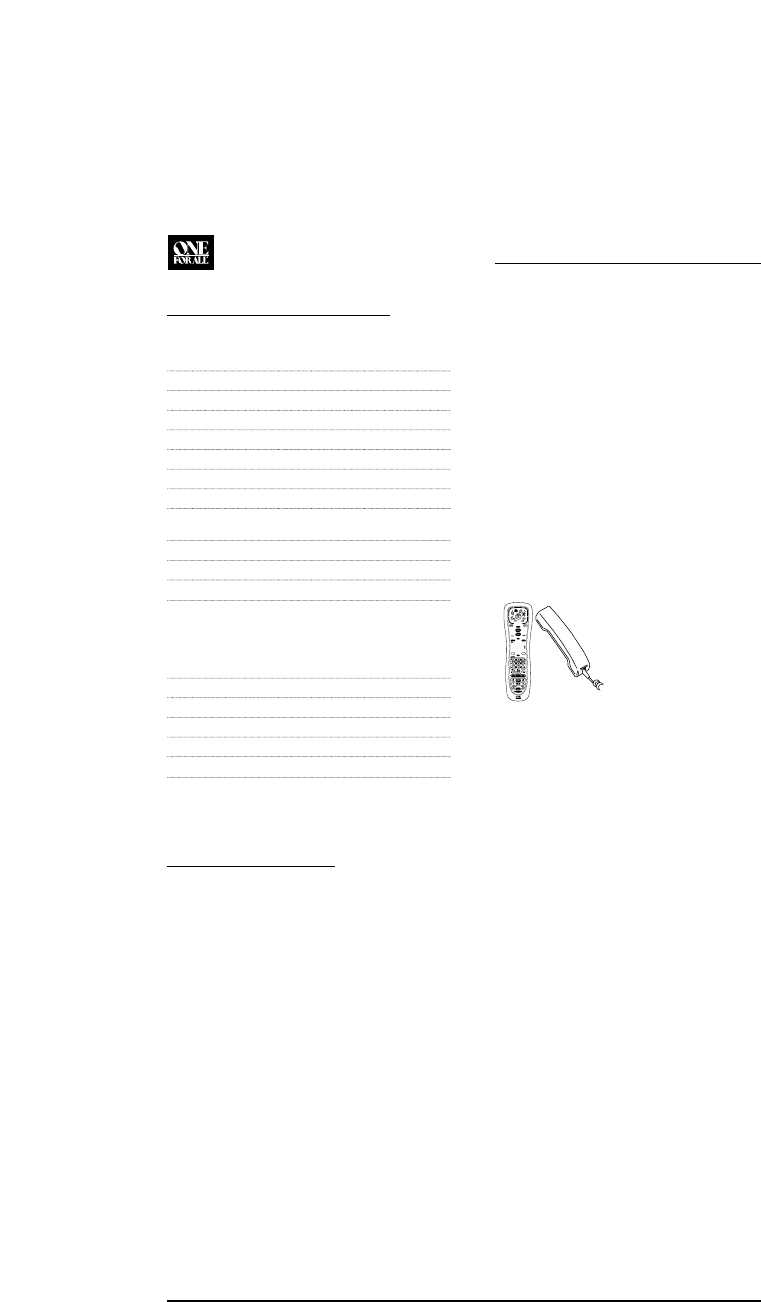
by asking you to place your telephone’s
speaker next to the CH keys on the OFA
Kameleon 8-Device Remote (as shown below).
NOTE: Only use a land-line phone for the upgrade
procedure. Do not use a mobile phone because it will
not transmit the signals correctly.
In a matter of seconds, new setup codes
for your device(s) will be transmitted
through the telephone and stored in your
OFA Kameleon 8-Device Remote.
3. After your OFA Kameleon 8-Device Remote
has been successfully upgraded by telephone,
stay on the line.Our customer service agent
will ensure that your unit is working properly
with your device(s) and answer any other
questions you may have.
UPGRADE EXCLUSIONS
• Home entertainment or home automation
devices controlled by radio frequency
(RF/UHF), wired, or ultrasonic remote
controls. Only devices controlled by infrared
remote controls are covered.
• Home entertainment or home automation
devices not controlled by remote controls.
• Broken or defective product.
• Products that operate over 100 kHz.
• Infrared keyboards a nd infrared pointing
devices (such as mouse substitutes).
• All products for sale and/or use outside the
continental United States, Hawaii, Alaska,
or Canada.

TROUBLESHOOTING
PROBLEM: No display at all times.
SOLUTION: Replace batteries with four new
AAA alkaline batteries.
PROBLEM: No display when programming.
SOLUTION: Display has turned off due to
inactivity. Start programming
again and do not pause while
performing instructions.
PROBLEM: During programming, the two
bottom IR segments display a
long flash.
SOLUTION: An invalid entry has occurred.
Check the keys to be pressed
and start program again.
PROBLEM: How do I stop programming?
SOLUTION: Press HOME once to return to the
Program Keys screen. Press HOME
once more to exit completely.
PROBLEM: The unit does not control home
entertainment devices or com-
mands are not working properly.
SOLUTION: Try all listed codes for the device
brands being set up. Make sure
they can be operated with an
infrared remote control.
PROBLEM: Tried Searching For Your Code
method and still could not find a
working code.
SOLUTION: Perform Restoring Factory
Default Settings on page 23.Then
repeat Searching For Your Code
on page 11.
PROBLEM: Cannot program a macro onto
M1~ M4 or POWER keys.
SOLUTION : Make sure the total number of
key presses being programmed is
less than 15.
PROBLEM : Power macro does not execute.
SOLUTION : First,press the Home Theater key
once, then press POWER once.
PROBLEM: Favorite channel function does
not work properly.
SOLUTION: Some devices (e.g., Cable Boxes
or Satellite Receivers) use two-
digit channel numbers.During
programming, press ENTER or
OK once after entering a channel
number (e.g., 0 2 ENTER for
channel 2). See Programming
Favorite Channel Scan on page 22.
PROBLEM: Changing channels does not
work properly.
SOLUTION: If the original remote control
required pressing ENTER to
change channels, then press
ENTER on the remote control
after entering channel numbers.
PROBLEM: No remote control of volume.
SOLUTION: See Changing Volume Lock on
page 14 to lock/unlock volume.
PROBLEM: Two bottom IR segments flash
when a key is pressed,but home
entertainment device does
not respond.
SOLUTION: Make sure the remote control
is aimed at your home
entertainment device and is
not farther than 15 feet away.
PROBLEM: CH▲and CH▼do not work for
your RCA TV.
SOLUTION: Due to RCA design (1983-1987),
only the original remote control
will operate these functions.
PROBLEM: Pressing SCROLL one or times in
CD,DVD,PVR or Home Theater
mode, does not display a
secondary menu screen.
SOLUTION: Even though SCROLL is displayed,
for these modes, there are no
additional menu screens.
USER’SGUIDE
Troubleshooting 31
OFA Kameleon UG 5/8/03 3:23 PM Page 31

DEVICE MENU SCREENS
PROGRAMMING MAIN MENU
Pressing and holding SETUP displays the
Programming Main Menu screen. Use the Program
Keys to program device control (DEV SET), code
search (SEARCH), home theater mode (THEATER),
volume lock (VOL ),macros (MACRO),display
brightness ( ),function learning (IR LRN and IR
DEL),device key reassignment (MODE ),or other
functions (OTHER).See the Table o f Conte n t s on
page 2 to locate a section of interest.
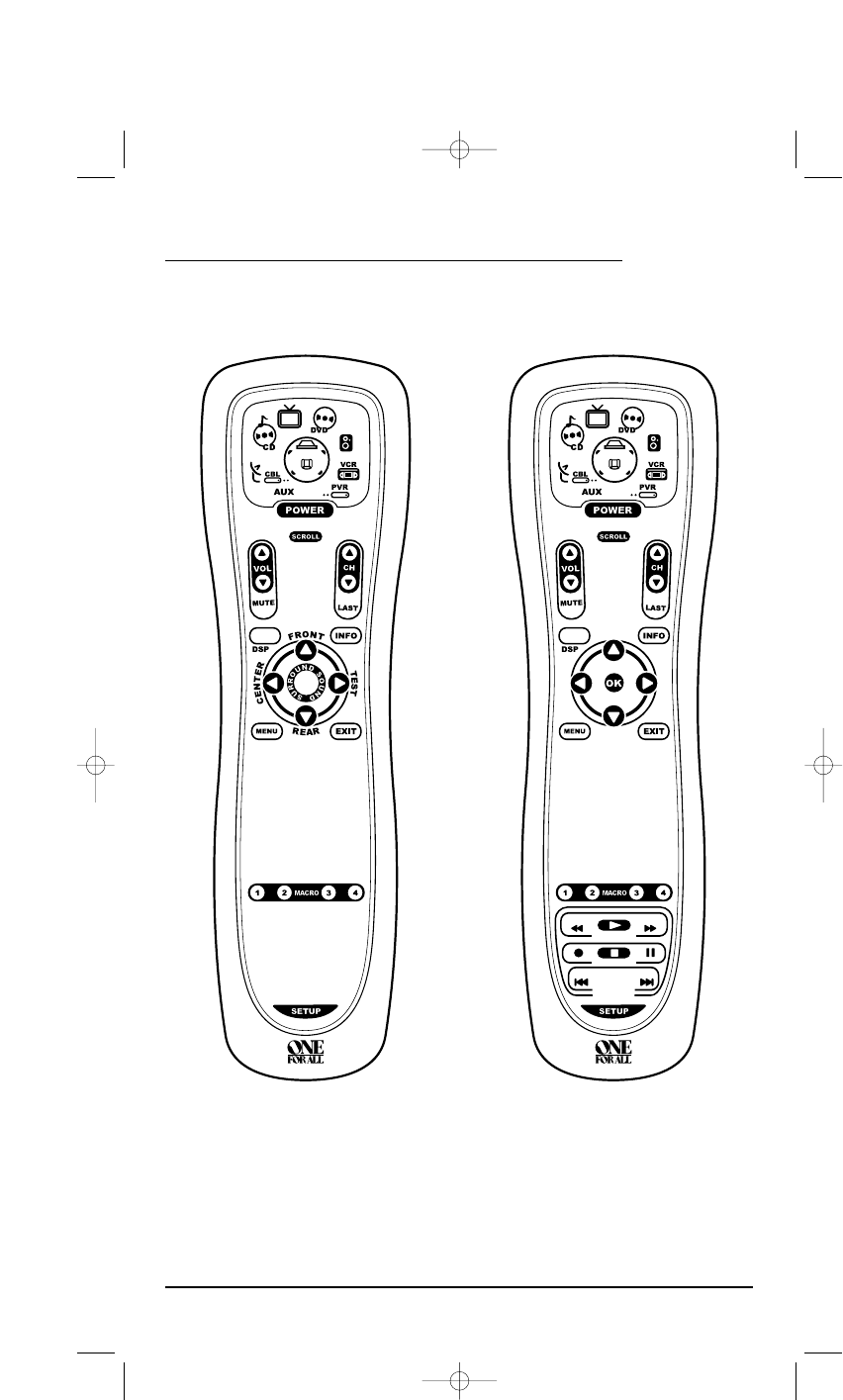
AUDIO MAIN MENU
AUDIO SURROUND MENU
Pressing SCROLL once (on the AU D IO M a i n M e nu ,
as shown on the previous page,right side)
displays the AUDIO Surround Menu screen. Use
these keys to remotely control your Audio
Receiver’s or Amplifier’s volume, stations, and
surround functions.
AUDIO MENU
Pressing SCROLL once (on the AUDIO Surround
Menu, as shown on the left) displays the AUDIO
Menu screen.Use these keys to remotely control
your Audio Receiver’s or Amplifier’s volume,
stations,and surround functions.
USER’SGUIDE
Device Menu Screens 33
OFA Kameleon UG 5/8/03 3:23 PM Page 33
DEVICE MENU SCREENS (cont’d)
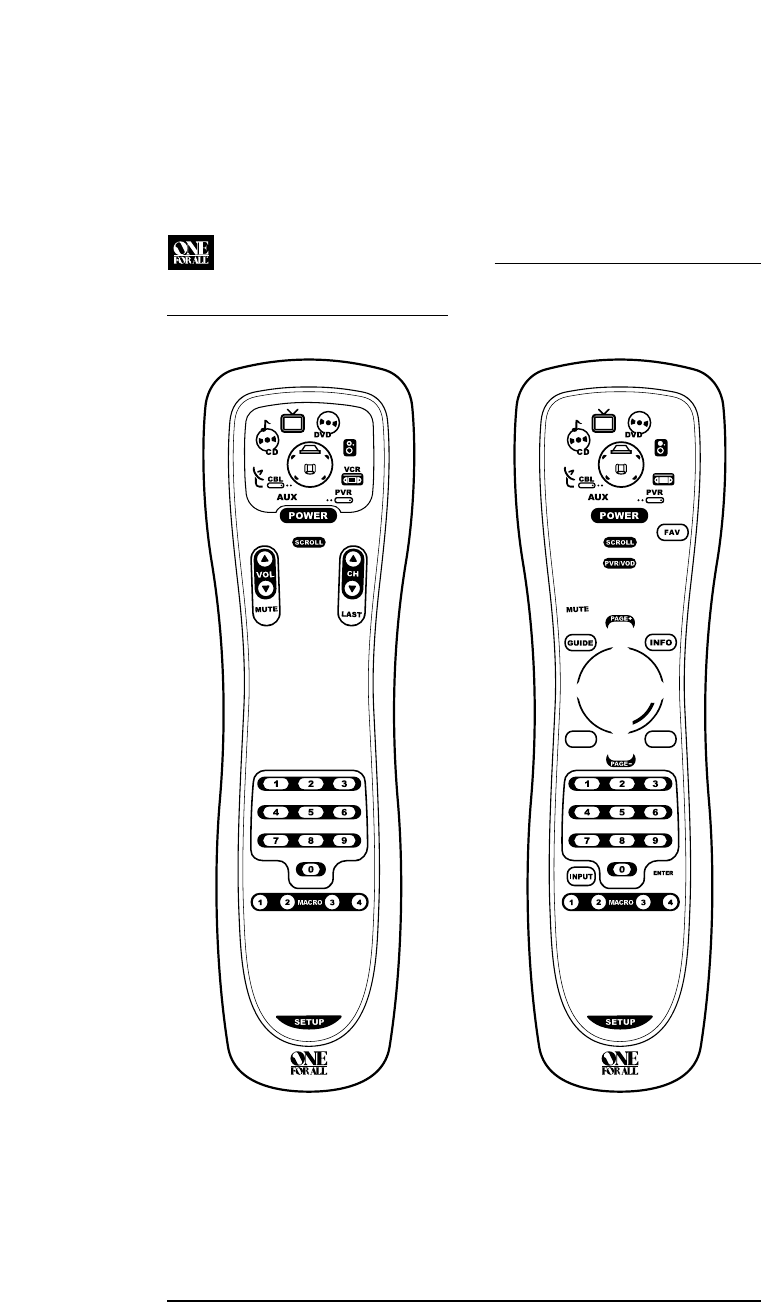
AUDIO PRESETS MENU
Pressing SCROLL once (on the AUDIO Menu,as
shown on the previous page,right side),displays
the AUDIO Presets Menu screen. Use these keys to
remotely access your Audio Receiver’s or Amplifier’s
preset stations.
Pressing SCROLL once more returns the display to
the AU D I O M ain Menu screen (as shown on page
32, right side).
AUX MAIN MENU
Pressing AUX once displays the AU X M a i n M e nu
screen.After device programming, use these keys
to remotely control all your device’s common
features, such as volume and channels, and menu,
guide, and navigation functions.
Pressing SCROLL once will display a secondary AUX
menu (on shown on the next page,left side).
KAMELEON 8-DEVICE REMOTE
34 Device Menu Screens
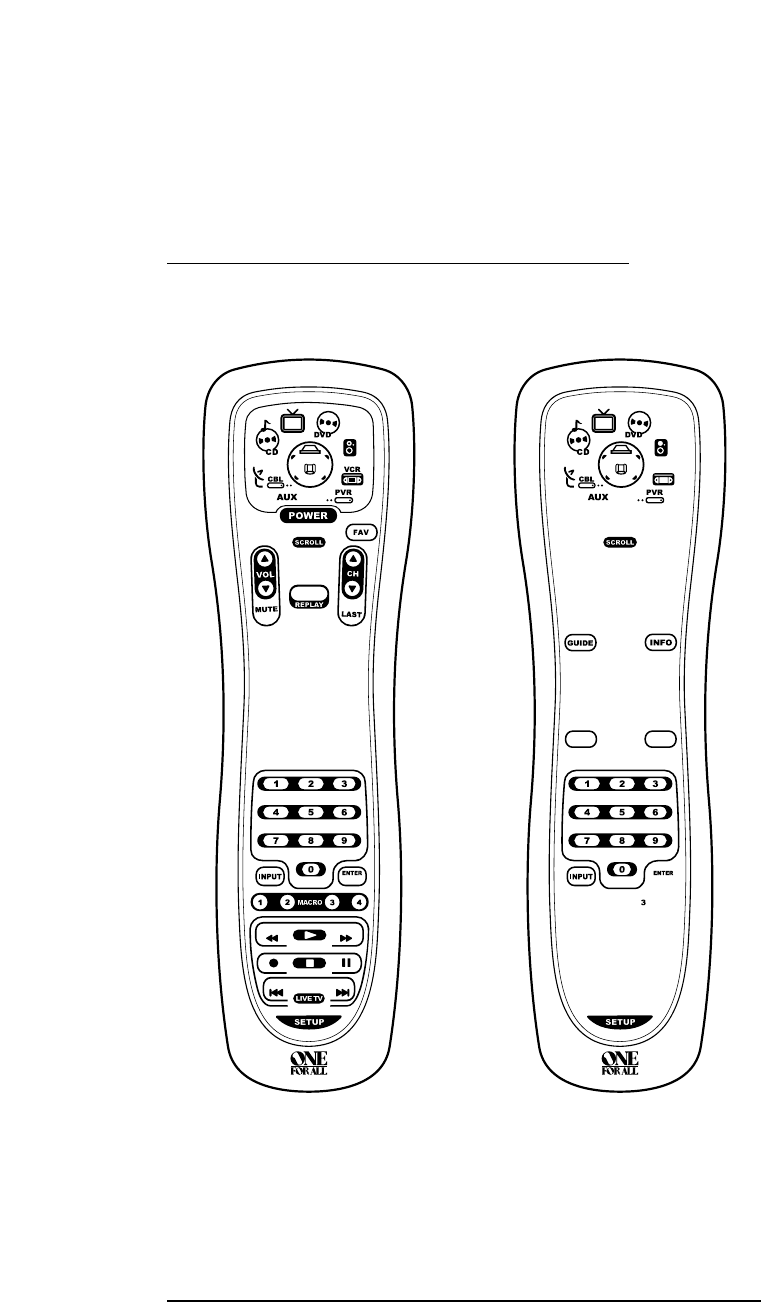
AUX PVR/VOD MENU
Pressing SCROLL once (on the AU X M ain Me nu ,as
shown on previous page,right side) displays the
AUX PVR/VOD Menu screen. Use these keys to
remotely control all your device’s VOD and PVR
functions, such as transport keys,replay,and live TV.
Pressing SCROLL once more returns the display to
the AU X M a in Me n u screen (as shown on the previ-
ous page,right side).
CBL/SAT MAIN MENU
Pressing CBL/SAT once displays the CBL/SAT Main
Menu screen.After Cable Box or Satellite Receiver
programming, use these keys to remotely control all
common features, such as volume and channels,
and menu, guide, and navigation functions.
Pressing SCROLL once will display a secondary
CBL/SAT menu (on shown on the next page,
left side).
USER’SGUIDE
Device Menu Screens 35
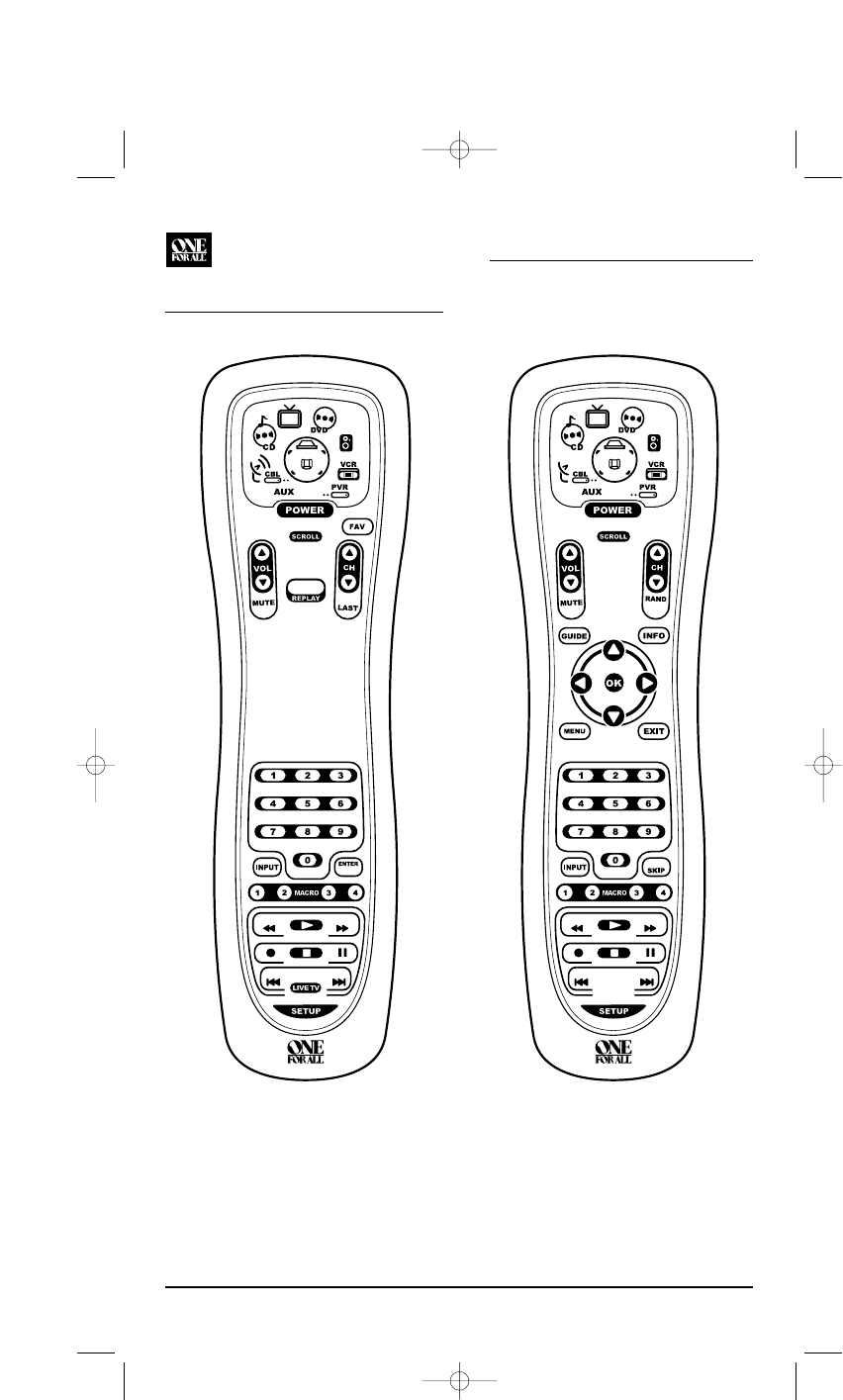
DEVICE MENU SCREENS (cont’d)
CBL/SAT PVR/VOD MENU
Pressing SCROLL once (on the CBL/SAT Main Menu,
as shown on previous page, right side) displays the
CBL/SAT PVR/VOD Menu screen.Use these keys to
remotely control all your device’s VOD and PVR
functions, such as transport keys,replay, and live TV.
Pressing SCROLL once more returns the display to
the CBL/SAT Main Menu screen (as shown on the
previous page, right side).
CD MAIN MENU
Pressing CD once displays the CD Main Menu
screen.After device programming, use these keys
to remotely control all your CD player’s common
features, such as transport keys and skip,menu, and
random functions.
KAMELEON 8-DEVICE REMOTE
36 Device Menu Screens
OFA Kameleon UG 5/8/03 3:23 PM Page 36

DVD MAIN MENU
Pressing DVD once displays the DV D Main Me nu
screen.After device programming, use these keys
to remotely control all your DVD player’s common
features, such as transport keys and menu, naviga-
tion, subtitle, and audio functions.
HOME THEATER MAIN MENU
After mode programming,pressing Home Theater
once displays the Home Theater Main Menu screen.
Use these keys to remotely access all common fea-
tures and functions of your home theater system.
For details, see Using The Home Theater Mode on
page 12.
USER’SGUIDE
Device Menu Screens 37
OFA Kameleon UG 5/8/03 3:23 PM Page 37
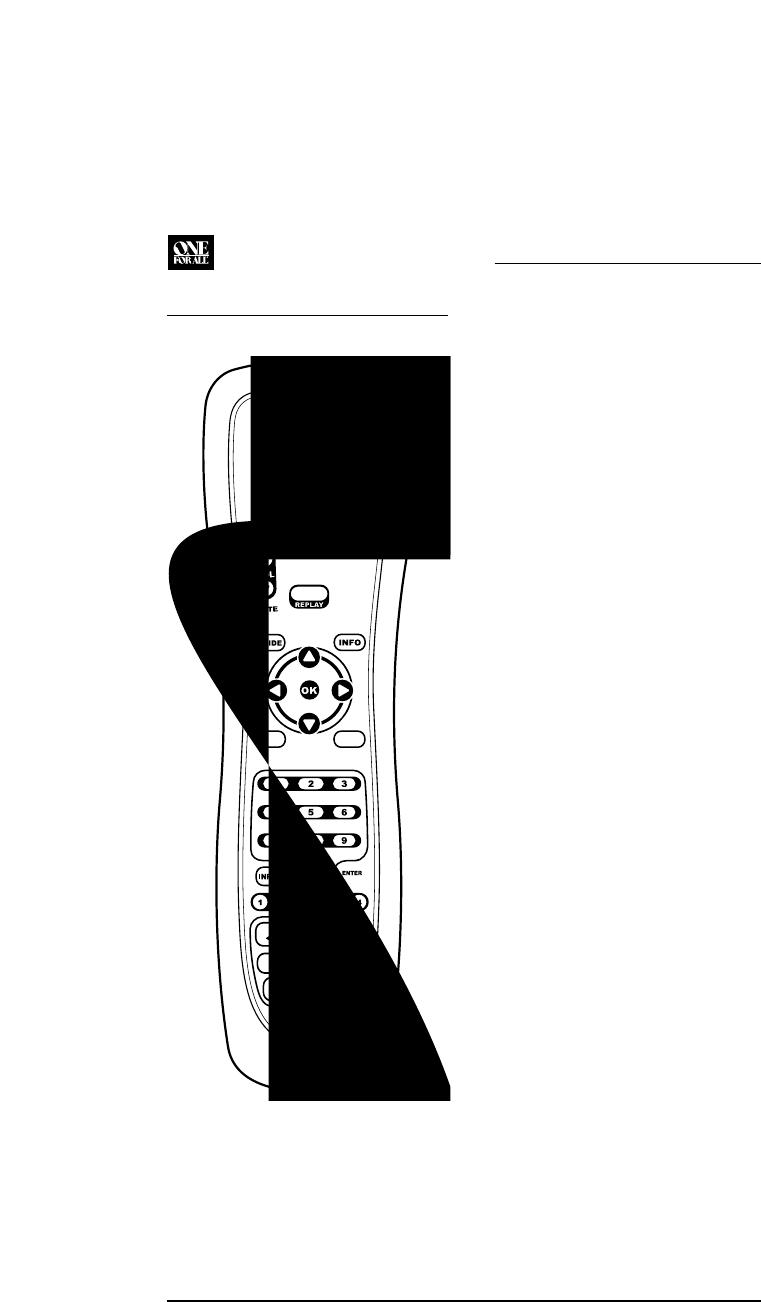
DEVICE MENU SCREENS (cont’d)
PVR MAIN MENU
Pressing PVR once displays the PVR Main Menu
screen.After device programming,use these keys
to remotely control all your PVR’s (or DVR’s) com-
mon features, such as transport keys and menu,
guide, navigation, replay, and live TV functions.
TV MAIN MENU
Pressing TV once displays the TV Main Menu
screen.After device programming, use these
keys to remotely control all your TV’s common
features, such as volume and channels,and last
channel,menu, and information/display functions.
Pressing SCROLL one or more times will display
secondary TV menus (see the next page).
KAMELEON 8-DEVICE REMOTE
38 Device Menu Screens
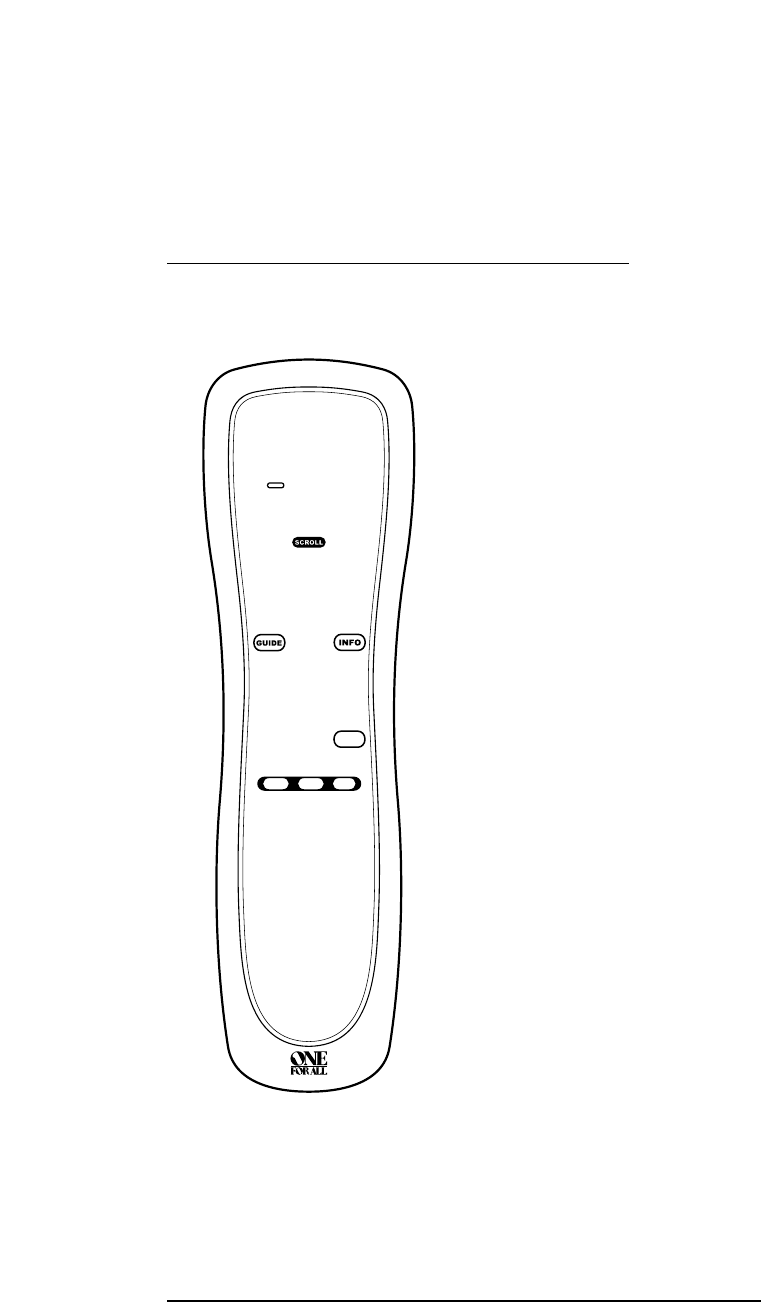
TV MENU
Pressing SCROLL once (on the TV Main Menu,as
shown on previous page,right side) displays the TV
Menu screen.Use these keys to remotely control all
your TV’s common menu features.
TV PIP MENU
Pressing SCROLL once (on the TV Menu,as shown
on the left) displays the TV PIP Menu screen.Use
these keys to remotely control all your TV’s com-
mon PIP features.
Pressing SCROLL once more returns the display to
the TV Main Menu screen (as shown on the
previous page, right side).
USER’SGUIDE
Device Menu Screens 39
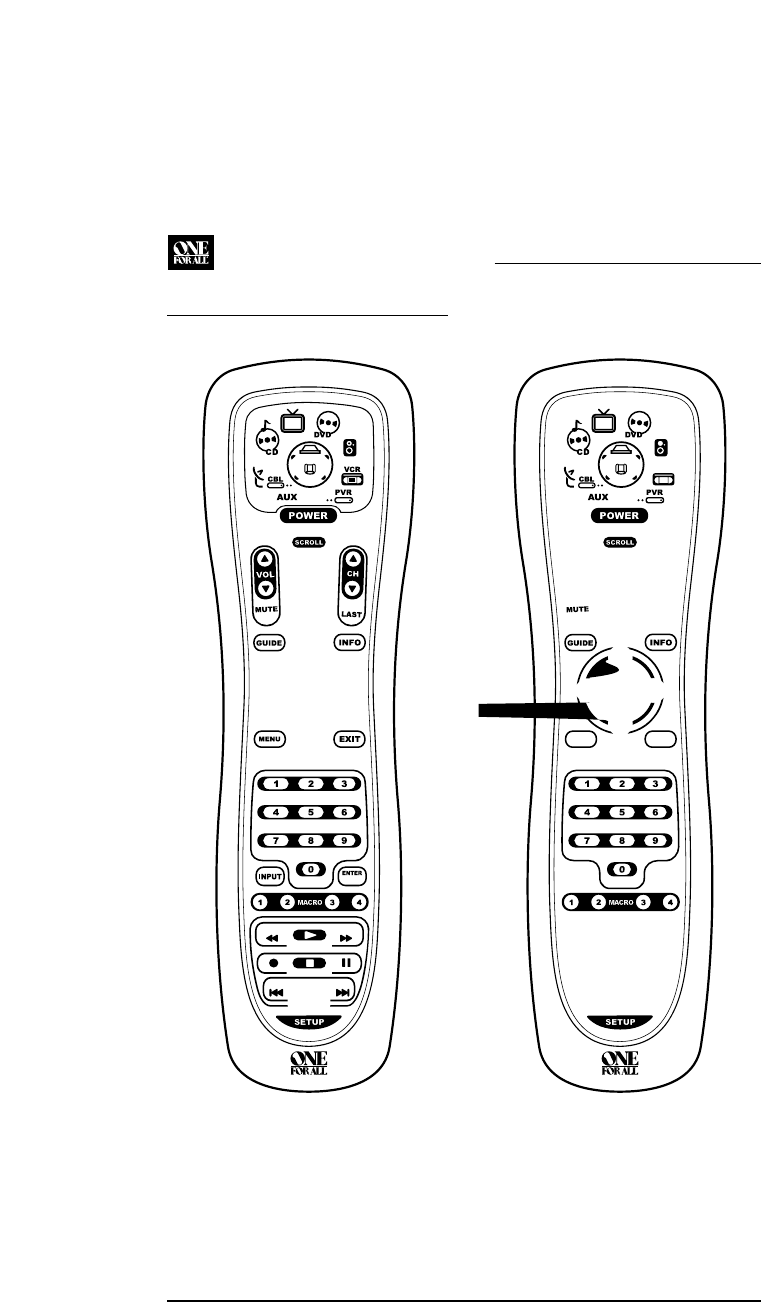
DEVICE MENU SCREENS (cont’d)
VCR MAIN MENU
Pressing VCR once displays the VCR Main Menu
screen.After device programming, use these keys
to remotely control all your TV’s common features,
such as volume and channels, and last channel,
menu, and information/display functions.
Pressing SCROLL once will display a secondary
VCR menu (on the right).
VCR MENU
Pressing SCROLL once (on the VCR Main Menu,as
shown on the left) displays the VCR Menu screen.
Use these keys to remotely control all your VCR’s
common features.
Pressing SCROLL once more returns the display to
the VCR Main Menu screen (as shown on the left).
KAMELEON 8-DEVICE REMOTE
40 Device Menu Screens

CUSTOMER SUPPORT
For assistance, please contact us in any of the
following ways:
•E-mail: ofasupport@ueic.com
•Internet: http://www.oneforall.com
• Consumer Help-Line: (330) 405-8620
INSTRUCTIONS TO THE USER
This equipment has been tested and found to
comply with the limits for a class B digital device,
pursuant to part 15 of the FCC Rules. These limits
are designed to provide a reasonable protection
against harmful interference in a residential
installation.This equipment generates, uses, and
can radiated radio frequency energy and if not
installed and used in accordance with the
instructions, may cause harmful interference to
radio communications.
However, there is no guarantee that interference
will not occur in a particular installation. If this
equipment does cause harmful interference to
radio or television reception,which can be deter-
mined by turning the equipment off and on,the
user is encouraged to try to correct the interfer-
ence by one or more of the following measures:
• Reorient or relocate the receiving antenna.
• Increase the separation between the
equipment and receiver.
• Connect the equipment into an outlet or a
circuit different from that to which the
receiver is connected.
• Consult the dealer or an experienced
radio/TV technician for help
LIMITED WARRANTY
Universal Electronics warrants, to the original
purchaser only, that this product will be free
from defects in materials and workmanship,
under normal use, for ninety (90) days from the
date of original purchase.
This limited warranty is valid only on Universal
Electronics product purchased and used in the
United States of America or Canada, and does
not apply to products used for industrial or
commercial purpose.
The limited warranty does not cover damage
or failure caused by products or services not
supplied by Universal Electronics , or which
result from accident, misuse, abuse, neglect,
mishandling, misapplication, faulty installation,
set-up adjustment, improper maintenance,
alteration, maladjustment of consumer controls,
modifications, commercial use, or that is attrib-
utable to acts of God.
There are no express warranties except as listed
above. Universal Electronics SHALL NOT BE
LIABLE FOR INCIDENTAL OR CONSEQUEN-
TIAL DAMAGES RESULTING FROM THE USE
OF THIS PRODUCT OR ARISING OUT OF ANY
BREACH OF WARRANTY.ALL EXPRESS AND
IMPLIED WARRANTIES, INCLUDING THE
WARRANTIES OF MERCHANTABILITY AND
FITNESS FOR A PARTICULAR PURPOSE,ARE
LIMITED TO THE WARRANTY PERIOD SET
FORTH ABOVE.Some states do not allow the
exclusion or limitation of incidental or conse-
quential damages, or limitations on how long an
implied warranty lasts,so the above exclusions or
limitations may not apply to you. This warranty
gives you specific legal rights and you may also
have other rights which vary from state to state.
To obtain warranty service for a defective product
during the warranty period, please return the
product,preferably in the original carton,along
with your purchase receipt, to the store of original
purchase.A note detailing the complaint would be
helpful. The store, at its option, will replace or
repair this product if found to be defective.
For warranty information only, call:
(330) 405-8655
USER’SGUIDE
Customer Support/Instructions To The User/Limited Warranty 41
OFA Kameleon UG 5/8/03 3:23 PM Page 41

BATTERY USE AND SAFETY
• Dispose of old batteries promptly
and properly.
• Do not burn or bury batteries.
• Use only new batteries of the required size.
• Do not mix old and new batteries, different
types of batteries (e.g., standard, alkaline, or
rechargeable), or rechargeable batteries of
different capacities.
• If you do not plan to use the remote control
for an extended period, remove the batteries.
They can leak chemicals that can destroy
electronic parts.
ADDITIONAL INFORMATION
Kameleon is a trademark (registration pending)
of Universal Electronics.
Copyright 2003 by Universal Electronics. No
part of this publication may be reproduced,
transmitted, transcribed, stored in any retrieval
system,or translated to any language, in any
form or by any means, electronic, mechanical,
magnetic, optical, manual, or otherwise, without
the prior written permission of Universal
Electronics Inc.
The OFA Kameleon 8-Device Remote (URC-9960)
is compatible for use in North America, exclud-
ing Mexico.
URC-99960B00 05/03
KAMELEON 8-DEVICE REMOTE
42 Battery Notes And Safety/Additional Information
OFA Kameleon UG 5/8/03 3:23 PM Page 42

OFA Kameleon UG 5/8/03 3:23 PM Page 43

OFA Kameleon UG 5/8/03 3:23 PM Page 44
