Optimus System 728 Users Manual 13 1275
SYSTEM 728 to the manual de246ff6-0562-4f3e-a2a1-767c50432272
de246ff6-0562-4f3e-a.. de246ff6-0562-4f3e-a2a1-767c50432272
2015-02-05
: Optimus Optimus-System-728-Users-Manual-496936 optimus-system-728-users-manual-496936 optimus pdf
Open the PDF directly: View PDF  .
.
Page Count: 36
Cat. No. 13-1275
OWNER’S MANUAL
MINI STEREO COMPONENT SYSTEM
Please read before using this equipment.
SYSTEM 728
R
13-1275.fm Page 1 Wednesday, July 14, 1999 3:59 PM
2
FEATURES
© 1995 Tandy Corporation.
All Rights Reserved.
Optimus and Radio Shack are registered trademarks used by Tandy Corporation.
Your Optimus System 728 Mini Ste-
reo Compnent System is a versatile
and high quality sound system. Its
components include a 3-disc carou-
sel CD changer with 32-track memo-
ry, AM/FM stereo tuner with 20-
station presets, and dual cassette
players with high-speed dubbing.
You can operate many of the sys-
tem’s functions with its remote con-
trol. The supplied speakers which
include 5-inch woofers and tweeters,
let you immediately begin using your
system.
Its features include:
AM/FM Stereo Tuner
Selectable Electronic Graphic
Equalizer æ lets you select any of
the preset sound characteristic
curves (normal, pop, rock, and clas-
sic).
Preset Tunin
g
Memories æ let you
store up to 20 of your favorite sta-
tions for quick tuning.
Extended Bass æ lets you empha-
size low-bass sound.
CD Changer
Automatic CD Chan
g
er æ lets you
load and play up to three CDs.
Automatic Search æ lets you quick-
ly select any track on the loaded
CDs.
Repeat Pla
y
æ repeats a single
track, all tracks on a single CD, all
CDs in the CD compartment, or a
programmed sequence.
Random Pla
y
æ plays all the loaded
CD’s tracks in random order.
Sequence Track Pro
g
rammin
g
æ
lets you program up to 32 tracks to
play in any order you choose.
5- or 3-Inch CD Compatible æ lets
you play 5- or 3-inch CDs.
Dual Cassette Player
Normal or Hi
g
h-Speed Dubbin
g
æ
lets you dub tapes at normal or twice
normal speed.
Consecutive Pla
y
æ automatically
plays one side of two tapes in se-
quence.
Auto-Stop æ
automatically stops
the tape when it finishes playing or
recording and when it fast-forwards
or rewinds to the end of the side. This
protects the tape and tape-handling
parts.
13-1275.fm Page 2 Wednesday, July 14, 1999 3:59 PM
3
General
Auxiliar
y
Input Jacks æ let you
connect an external audio input
source to your system so you can lis-
ten to or record from it.
Microphone Mixin
g
æ lets you sing
along with the music you are playing.
Important: Most material on com-
pact discs and prerecorded tapes is
copyrighted. Unauthorized duplica-
tion of copyrighted material is a viola-
tion of the copyright laws of most
countries and such duplication may
result in fines and/or imprisonment.
Note, however, that in the United
States, it is not a violation of U.S.
copyright laws for a consumer to use
an audio recording device to dupli-
cate musical recordings for noncom-
mercial (personal) use
Compact discs that you can play on
your system’s CD player have this
mark on them.
Read this manual carefully. It will
help you get the most enjoyment
from your system.
Your system’s serial number is locat-
ed on the back panel. We recom-
mend you record your system’s
serial number here.
Serial Number:
Warnin
g
: To prevent fire or shock
hazard, do not expose this system to
rain or moisture.
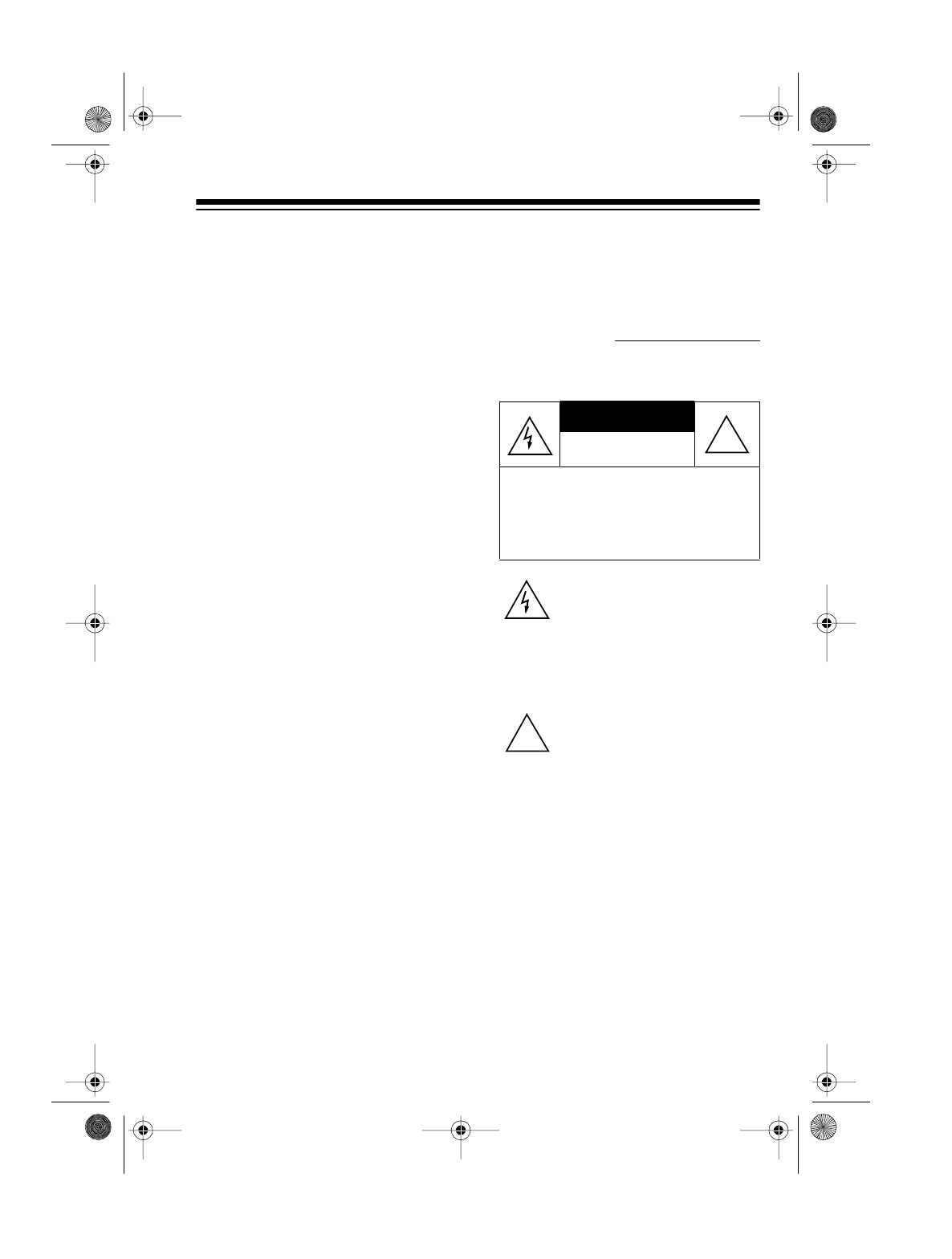
This symbol is intended to alert
you to the presence of uninsulat-
ed dangerous voltage within the
system’s enclosure that might be
of sufficient magnitude to consti-
tute a risk of electric shock. Do not
open the system’s case.
This symbol is intended to inform
you that important operating and
maintenance instructions are in-
cluded in the literature accompa-
nying this system.
Warnin
g
: This system uses a laser
light beam. Only a qualified service
person should remove the cover or
attempt to service this device, due to
possible eye injury.
RISK OF ELECTRIC SHOCK.
DO NOT OPEN.
CAUTION: TO REDUCE THE RISK OF
ELECTRIC SHOCK, DO NOT REMOVE
COVER OR BACK. NO USER-SERVICE-
ABLE PARTS INSIDE. REFER SERVIC-
ING TO QUALIFIED PERSONNEL.
CAUTION
!
!
13-1275.fm Page 3 Wednesday, July 14, 1999 3:59 PM
4
FCC INFORMATION
This system complies with the limits
for a Class B digital device as speci-
fied in part 15 of
FCC Rules
. These
limits provide reasonable protection
against TV or radio interference in a
residential area. However, your sys-
tem might cause TV or radio interfer-
ence even when it is operating
properly.
To eliminate interference, you can try
one or more of the following correc-
tive measures.
• Reorient or relocate the TV or
radio’s receiving antenna.
• Increase the distance between
the system and the TV or radio.
• Use outlets on different electrical
circuits for the system and the
TV or radio.
Consult your local Radio Shack store
if the problem still exists.
13-1275.fm Page 4 Wednesday, July 14, 1999 3:59 PM
5
CONTENTS
Preparation .......................................................................................................7
Connecting the Speakers ............................................................................ 7
Connecting an External Audio Source.........................................................7
Connecting an External Antenna.................................................................7
Installing the Remote Control’s Batteries.....................................................8
Connecting to Power ...................................................................................8
Operation ..........................................................................................................9
Turning Power On/Off ..................................................................................9
Setting the Clock..........................................................................................9
Basic Operation .........................................................................................10
Using Headphones .................................................................................... 11
Listening Safely................................................................................... 11
Displaying the Time ...................................................................................12
Using the Electronic Graphic Equalizer .....................................................12
Using the Mute Button ...............................................................................12
Using the Timer..........................................................................................12
Setting the Timer.................................................................................12
Turning the Timer On/Off..................................................................... 14
Displaying the Timer............................................................................14
Using the Sleep Timer ...............................................................................15
Using the Remote Control .........................................................................15
Usin
g
the Tuner ..............................................................................................16
Manual Tuning ...........................................................................................16
Automatic Seek Tuning..............................................................................17
Memory Tuning..........................................................................................17
Storing Stations in Memory .................................................................17
Manually Tuning to a Preset Station ...................................................18
Scanning the Preset Stations.............................................................. 18
Usin
g
the CD Chan
g
er...................................................................................19
Loading a CD.............................................................................................19
Playing a CD..............................................................................................19
Selecting Another CD ................................................................................20
Automatic Search ......................................................................................20
Random Play .............................................................................................20
13-1275.fm Page 5 Wednesday, July 14, 1999 3:59 PM
6
Repeat Play............................................................................................... 21
Repeating a Single Track.................................................................... 21
Repeating All Tracks on a Selected CD.............................................. 21
Repeating All Tracks on All Loaded CDs ............................................ 21
Repeating a Programmed Sequence.................................................. 21
Programmed Play...................................................................................... 22
Programming and Playing a Sequence of Tracks............................... 22
Reviewing the Programmed Sequence .............................................. 22
Replacing/Adding a Track in a Programmed Sequence ..................... 23
Clearing the Programmed Sequence.................................................. 23
Using the Cassette Deck ............................................................................... 24
Loading a Cassette Tape........................................................................... 24
Playing a Cassette Tape............................................................................ 24
Using Consecutive Play............................................................................. 25
Recording .................................................................................................. 25
Dubbing Cassette Tapes..................................................................... 25
Copying a CD to a Cassette Tape....................................................... 26
Recording from the Tuner or an External Audio Source ..................... 27
Timer Recording.................................................................................. 28
Microphone Mixing ........................................................................................ 29
Care and Maintenance................................................................................... 30
CD Care Tips............................................................................................. 31
Tape Tips ................................................................................................... 31
Erasing a Cassette Tape..................................................................... 31
Preventing Accidental Erasure............................................................ 31
Restoring Tape Tension and Sound Quality........................................ 32
Cleaning the Tape Handling Parts ...................................................... 32
Specifications................................................................................................. 33
13-1275.fm Page 6 Wednesday, July 14, 1999 3:59 PM
7
PREPARATION
Note: Complete all connections be-
fore connecting to AC power and
turning it on.
CONNECTING THE
SPEAKERS
1. Press the red speaker terminal
tab labeled SPEAKER R. Ch
on the back of the system, insert
the stripped end of the right
speaker’s striped wire into the
terminal, then release the tab.
2. Press the black speaker terminal
tab labeled SPEAKER R. Ch
on the back of the system, insert
the stripped end of the right
speaker’s other wire into the ter-
minal, then release the tab.
3. Repeat Steps 1 and 2 to connect
the left speaker to SPEAKER L.
Ch
and
terminals.
CONNECTING AN
EXTERNAL AUDIO
SOURCE
To connect an external audio source
(such as a CD player or a cassette
deck) to your system, connect the
source’s left and right line level out-
put jacks to the AUX IN R and L jacks
on the back of your system.
CONNECTING AN
EXTERNAL ANTENNA
You can attach an FM or VHF anten-
na (not supplied) to the 300 ohm EXT.
ANT. terminals on the back of the sys-
tem.
If you have an outside VHF TV an-
tenna, you can use a signal splitter
with a 300-ohm output to connect
your stereo system and TV set to the
same antenna. Your local Radio
Shack store has a wide selection of
antennas, connectors, and splitters.
+
-
+-
13-1275.fm Page 7 Wednesday, July 14, 1999 3:59 PM
8
INSTALLING THE
REMOTE CONTROL’S
BATTERIES
The remote control requires two AA
batteries (not supplied) for power.
We recommend alkaline batteries,
such as Radio Shack Cat. No. 23-
557.
Follow these steps to install batter-
ies.
1. Press down and slide the battery
compartment cover in the direc-
tion of the arrow.
2. Install the batteries as indicated
by the polarity symbols (+) and
(-) marked inside the compart-
ment.
3. Replace the cover.
Caution: If you are not going to use
the remote control for a month or
more, remove its batteries. Weak
batteries can leak damaging chemi-
cals.
Note: If the remote control operates
erratically or does not work, replace
both batteries.
CONNECTING TO
POWER
After you complete all connections,
plug the music system’s supplied
power cord into a standard AC outlet.
The STAND BY indicator lights, and
and AM 12:00 appear on
the display (see “Setting the Clock”).
Warning: To prevent electric shock,
the AC power cord plug’s blades are
polarized and fit a polarized AC outlet
only one way. If you have difficulty in-
serting the plug, do not force it. Turn
it over and reinsert it.
CLO
13-1275.fm Page 8 Wednesday, July 14, 1999 3:59 PM
9
OPERATION
TURNING POWER ON/
OFF
Warnin
g
: To protect your hearing,
set
VOLUME to MIN before you turn
on the system.
Press POWER to turn on the system.
The STAND BY indicator turns off
and the indicator above CD, TUNER,
TAPE, or AUX lights.
Notes:
• If the indicator above CD, TAPE,
or AUX appears, and the
time appear on the display.
• If the indicator above TUNER
appears, the AM or FM station
previously selected appears on
the display.
SETTING THE CLOCK
1. If necessary, press DISPLAY so
and the time appear on
the display.
2. Press MEMORY. flashes
on the display.
Note: If you do not press TUN-
ING or within 10 sec-
onds after you press MEMORY
,
stops flashing on the dis-
play. Start again from Step 2.
3. While flashes, repeatedly
press TUNING to set the
desired hour. If you press and
hold down TUNING , the hour
advances continuously.
Note: AM or PM appears when
you set an AM or PM hour.
4. While flashes, repeatedly
press TUNING to set the
desired minutes. If you press
and hold down TUNING , the
minutes advance continuously.
5. Press MEMORY again when you
finish setting the time, or just
wait 10 seconds.
CLO
CLO
CLO
〈
〉
CLO
CLO
〈
〈
CLO
〉
〉
13-1275.fm Page 9 Wednesday, July 14, 1999 3:59 PM
10
BASIC OPERATION
Follow these steps to operate your
system.
1. Press CD,
TUNER, TAPE, or AUX
to select the desired audio
source.
2. If you select TUNER, select the
desired station (see “Using the
Tuner”).
If you select CD, TAPE, or AUX,
start the selected audio source
(see “Using the CD Changer” or
“Using the Cassette Deck”).
3. Adjust VOLUME to a comfortable
listening level.
4. Adjust BALANCE until you can
hear the sound equally from the
left and right speakers.
5. Select the desired equalization
by pressing NORMAL, POP,
ROCK, or CLASSIC (see “Using
the Electronic Graphic Equal-
izer”).
6. Press E-BASS to emphasize
bass sounds. To return to nor-
mal bass sounds, press E-BASS
again.
7. To turn off the system, press
POWER so the STAND BY indi-
cator lights.
13-1275.fm Page 10 Wednesday, July 14, 1999 3:59 PM
11
USING HEADPHONES
You can use headphones (not sup-
plied) to listen in privacy. Insert the
headphones’ 1/8-inch (3.5 mm) plug
into the PHONES jack.
Notes:
• Your local Radio Shack store
sells a wide selection of head-
phones.
• Connecting headphones auto-
matically disconnects the speak-
ers.
Listening Safely
To protect your hearing, follow these
guidelines when you use head-
phones.
• Do not listen at extremely high
volume levels. Extended high-
volume listening can lead to per-
manent hearing loss.
• Set the volume to the lowest set-
ting before you begin listening.
After you begin listening, adjust
the volume to a comfortable
level.
• Once you set the volume, do not
increase it. Over time, your ears
adapt to the volume level, so a
volume level that does not
cause discomfort might still
damage your hearing.
13-1275.fm Page 11 Wednesday, July 14, 1999 3:59 PM
12
DISPLAYING THE TIME
To display the clock while you use
the radio, press DISPLAY. To return
to the radio display, press DISPLAY
again.
USING THE
ELECTRONIC GRAPHIC
EQUALIZER
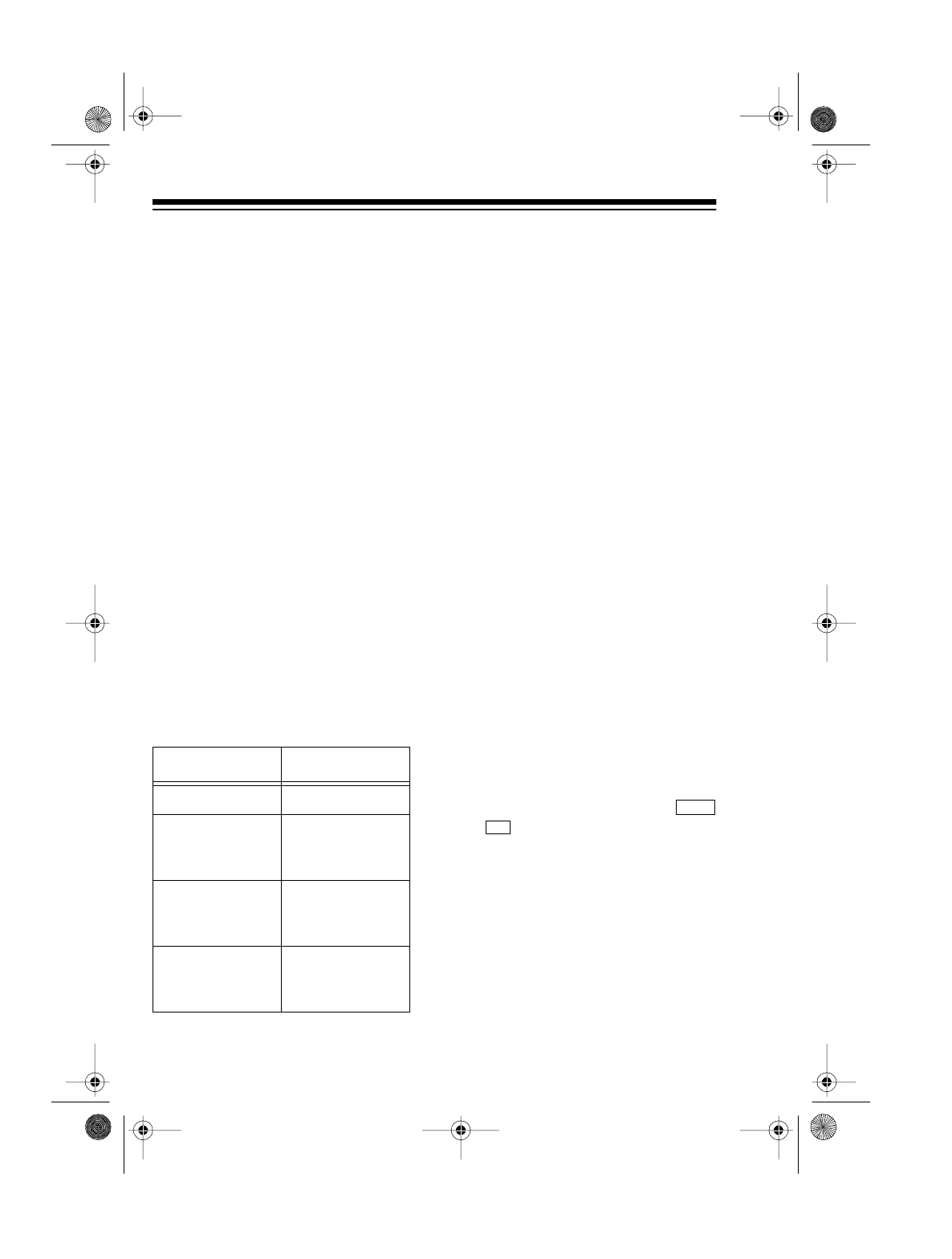
You can select any one of four preset
sound characteristics using the sys-
tem’s electronic graphic equalizer.
Each setting distinctly changes the
music’s character or tone.
USING THE MUTE
BUTTON
The MUTE button lets you temporarily
turn off the sound. Press MUTE once
to turn it off. Press MUTE again to re-
store sound.
USING THE TIMER
You can set the timer to automatical-
ly turn on the system, play from the
tuner or a cassette tape (not from a
CD), then turn off the system.
Note: You can use the system while
the timer is set.
Setting the Timer
1. While the current time appears
on the display, press 1.
flashes on the display.
Note: If TUNER is selected,
press
DISPLAY first so the cur-
rent time appears on the display.
Setting Sound
NORMAL Normal sound
POP More presence
of vocals and
midran
g
e
ROCK Powerful sound
emphasizin
g
tre-
ble and bass
CLASSIC Sound enriched
with heavy bass
and fine treble
TIM
ON
13-1275.fm Page 12 Wednesday, July 14, 1999 3:59 PM
13
Note: If you do not press TUN-
ING or within 10 seconds
after you press 1, dis-
appears from the display. Start
again from Step 1.
2. While flashes, repeat-
edly press TUNING to set the
hour of the desired start time.
Notes:
• Press and hold down TUNING
to continuously advance
the hour.
•AM or PM appears when you
set an AM or PM hour.
3. While continues to
flash, repeatedly press TUNING
to set the minutes of the
desired start time.
Note: Press and hold down
TUNING to continuously
advance the minutes.
4. Press 2. flashes on
the display.
5. While flashes, re-
peatedly press TUNING to
set the hour of the desired end
time.
Notes:
• Press and hold down TUNING
to continuously advance
the hour.
•AM or PM appears when you
set an AM or PM hour.
6. While continues to
flash, repeatedly press TUNING
to set the minutes of the
desired end time.
Note: Press and hold down
TUNING to continuously
advance the minutes.
7. When you finish setting the
alarm timer, press DISPLAY to
return to the current time display,
or wait 10 seconds for the sys-
tem to automatically return to
the current time display.
〉
〈
TIM
ON
TIM
ON
〈
〈
TIM
ON
〉
〉
TIM
O
F
F
TIM
O
F
F
〈
〈
TIM
O
F
F
〉
〉
13-1275.fm Page 13 Wednesday, July 14, 1999 3:59 PM
14
Turning the Timer On/Off
1. Press TUNER or TAPE to select
the desired audio source.
2. If you selected TUNER, select
the desired station (see “Using
the Tuner”) and adjust VOLUME
to a comfortable listening level.
If you selected TAPE, insert the
desired tape, press PLAY
, and
adjust
VOLUME to a comfortable
listening level (see “Using the
Cassette Deck”).
3. Press TIMER to turn on the timer.
The system turns off.
When the selected start time ap-
pears on the display, the system au-
tomatically turns on, plays, and turns
off at the selected end time. The sys-
tem turns on again the next day at
the set start time.
To turn off the timer, simply press
TIMER again.
Notes:
• The system’s controls do not
work when TIMER is pushed to
on. To operate the system, you
must turn off the timer.
• If you played a cassette tape
with the timer, and the timer
turns the system off before the
tape ends, press STOP/EJECT
as soon as possible to release
the tape from the mechanism.
Displaying the Timer
To display the timer’s start time,
press
1 so
and the start
time appear for 10 seconds. To dis-
play the timer’s finish time, press 2 so
and the finish time appear
for 10 seconds.
TIM
ON
TIM
O
F
F
13-1275.fm Page 14 Wednesday, July 14, 1999 3:59 PM
15
USING THE SLEEP
TIMER
You can set the system to play up to
90 minutes, then automatically turn
off.
1. Press CD, TUNER, TAPE, or AUX
to select the desired audio
source.
2. Tune to the desired AM or FM
radio station, or start the
selected CD, tape, or your exter-
nal audio source.
3. Press POWER to turn off the sys-
tem.
4. To turn on the sleep timer, press
and release SLEEP. and
90 appear on the display.
To set the sleep timer to a sleep
time, press and hold down
SLEEP until the desired sleep
time appears on the display. The
displayed sleep time decreases
in 10-minute steps.
The system turns itself off after the
amount of time you selected. To turn
off the sleep timer sooner, press
SLEEP again so disappears
from the display.
USING THE REMOTE
CONTROL
The remote control’s buttons have
the same functions as the corre-
sponding buttons on the main sys-
tem.
To use the remote control, point it to-
ward the remote sensor on the left of
the system’s AM/FM STEREO RE-
CEIVER display and press the de-
sired buttons.
Notes:
• Make sure you have a clear path
between the remote control and
the sensor.
• Weak batteries or direct sunlight
on the remote sensor might
reduce the remote control’s
operating range.
S
LE
S
LE
13-1275.fm Page 15 Wednesday, July 14, 1999 3:59 PM
16
USING THE TUNER
Press TUNER to use the system’s tu-
er. The indicator above TUNER lights.
Note: When you select TUNER, the
system automatically tunes to the
station that was playing when the
system was turned off or when it was
last set to TUNER.
You can tune to AM or FM radio sta-
tions using manual, seek, or memory
tuning.
MANUAL TUNING
1. Press BAND to select the
desired AM or FM band. AM or
FM appears on the display.
Notes:
• The system uses a built-in fer-
rite antenna for AM reception.
For the best AM reception,
rotate the system.
• For the best FM reception,
see “Connecting an External
FM Antenna.”
2. Use FM MODE/AM BEAT to
select the desired AM or FM
band’s mode.
If you selected FM:
• Press it in to select stereo.
The FM STEREO indicator
lights when you receive an
FM broadcast in stereo.
• Press it out to select monau-
ral. The sound is no longer in
stereo, but reception should
improve.
If you selected AM, press it in or
out to the position that gives the
best reception.
3. Repeatedly press TUNING or
to tune up or down the
selected band. If you press and
hold down TUNING or ,
the stereo tunes quickly.
〉
〈
〉
〈
13-1275.fm Page 16 Wednesday, July 14, 1999 3:59 PM
17
AUTOMATIC SEEK
TUNING
1. Press BAND to select the
desired AM or FM band. AM or
FM appears on the display.
2. Press TUNING AUTO. The sys-
tem automatically searches up
the band and stops when it finds
the next strong station.
MEMORY TUNING
You can store up to 10 AM and 10
FM stations in memory.
Storing Stations in Memory
Note: You can assign one frequency
to each memory location. When you
assign another frequency to the
same memory location, the new fre-
quency replaces the first one.
1. Press BAND to select the
desired AM or FM band. AM or
FM appears on the display.
2. Using either manual or auto-
matic seek tuning, select the
station you want to store, then
press
MEMORY.
3. While appears on the
display, follow these guidelines
to store up to 10 stations in
memory.
Note: You must store a station
within 3 seconds. If dis-
appears before you make the
following entries, simply repeat
this step.
• To store stations into memory
locations 1-5, press a memory
location button (1-5). The sta-
tion is stored, disap-
pears, and the display shows
the frequency.
MEM-
MEM-
MEM-
13-1275.fm Page 17 Wednesday, July 14, 1999 3:59 PM
18
• To store stations into memory
locations 6-10, press +5 then
a memory location button (1-
5). The station is stored,
disappears, and the
display shows the frequency.
Note: This increases the
memory location number by
5. For example, if you press
+5, then press memory loca-
tion button 2, the radio stores
the frequency you selected
into memory location 7.
4. Repeat Steps 1-3 to program
stations in the other band.
Manually Tuning to a Preset
Station
Press the desired memory location
button (1 through 5) to directly select
a radio station stored in memory. For
preset stations 6 through 10, press
+5 then the desired memory location
button.
Scanning the Preset
Stations
Press M/SCAN. The system scans
the preset stations and plays each
station for 5 seconds.
Note: Repeatedly press M/SCAN to
quickly step through the stored sta-
tions.
To stop scanning at a desired station,
within 5 seconds after the tuner stops
on that station, press DISPLAY or that
station’s memory location button.
MEM-
(illus - show the
baloon pointing at
the +5 button
13-1275.fm Page 18 Wednesday, July 14, 1999 3:59 PM
19
USING THE CD CHANGER
LOADING A CD
1. Press CD.
2. Press OPEN/CLOSE to open the
CD compartment.
Note: The CD carousel has
three trays, each labeled with a
number, but only two trays show
at a time when you open the CD
compartment.
3. Place a CD in either (or both) of
the exposed trays, label side up.
Note: To load a CD in the third
tray, press CD SKIP
. The carou-
sel rotates, exposing the other
tray.
4. After you load the CDs, press
OPEN/CLOSE to close the CD
compartment. The system dis-
plays the current tray number,
and the total number of tracks
and total playing time of the CD
in the tray.
PLAYING A CD
To play a CD, simply press PLAY/
PAUSE after you load it. The selected
CD begins to play from Track 1. The
display shows , the current tray
number, the CD’s current track num-
ber, the track’s elapsed time, and the
current track number indicator flash-
es. The system plays all the loaded
CDs once.
Notes:
• After you load a CD, do not
press either SKIP
. or
before the track number indica-
tors appear on the display. Oth-
erwise NO DISC appears on the
display and you must reset the
CD player by pressing OPEN/
CLOSE twice (to open and then
close the CD compartment.)
• If a tray does not contain a CD,
the system skips that tray and
automatically plays the CD in
the next tray.
• To temporarily stop play, press
PLAY/PAUSE. ap-pears, the
elapsed timer stops counting,
and the current track number
indicator flashes on the display.
To resume play, press PLAY/
PAUSE again.
To stop play, press STOP.
t
∇
∇
∇
∇
y
13-1275.fm Page 19 Wednesday, July 14, 1999 3:59 PM
20
SELECTING ANOTHER
CD
To select another CD, press CD SKIP
before or during play.
If the system is playing a CD, it stops
playing it and begins playing the first
track of the selected CD.
AUTOMATIC SEARCH
The Automatic Search feature lets
you quickly locate the beginning of
any track on a CD, including the track
currently playing. You can use Auto-
matic Search when a CD is playing or
stopped.
If a CD is playing:
•Press SKIP once to skip
back to the beginning of the cur-
rent track.
• Repeatedly press SKIP to
skip backward to the beginning
of the desired track.
• Repeatedly press SKIP to
skip forward to the beginning of
the desired track.
If the CD is stopped, repeatedly
press
SKIP or
SKIP until
the display shows the number of the
track you want to play, then press
PLAY/PAUSE. The CD player starts
playing the selected track.
RANDOM PLAY
This feature randomly selects and
plays tracks from all loaded CDs.
Note: To randomly select tracks from
only one or two CDs, you must load
only those CDs in the CD tray.
1. Press STOP to cancel any CD
function.
2. Press RANDOM. RANDOM
appears on the display.
3. Press PLAY/PAUSE. After one
track plays, the system ran-
domly selects another track and
plays it and then continues until
all tracks on all loaded CDs are
played.
∇
∇
∇
∇
∇
∇
∇
∇
∇
∇
13-1275.fm Page 20 Wednesday, July 14, 1999 3:59 PM
21
Notes:
• To repeat the current track,
press
SKIP. To play the
next random track, press
SKIP .
• To repeat random play, before
the last track ends, press
REPEAT until REPEAT ALL
appears on the display.
• To stop random play, press
STOP then RANDOM. RAN-
DOM disappears from the dis-
play.
REPEAT PLAY
You can repeat a single track on a
selected CD, all tracks on a selected
CD, all tracks on all loaded CDs, or a
programmed sequence.
Note: To cancel repeat play at any
time, repeatedly press REPEAT until
REPEAT disappears from the dis-
play.
Repeating a Single Track
To repeat a single track, press RE-
PEAT once while the desired track is
playing. REPEAT ONE appears on
the display, and the CD player con-
tinuously replays the track.
Repeating All Tracks on a
Selected CD
To repeat all tracks on a selected
CD, press CD SKIP to select the de-
sired CD. Then repeatedly press RE-
PEAT until REPEAT ONE DISC
appears.
Repeating All Tracks on All
Loaded CDs
To repeat all tracks on all loaded
CDs, repeatedly press REPEAT until
REPEAT ALL DISC appears.
Repeating a Programmed
Sequence
To repeat a programmed sequence,
press REPEAT while the programmed
sequence is playing. REPEAT ALL
appears, and the CD player continu-
ously replays the programmed se-
quence.
∇
∇
∇
∇
13-1275.fm Page 21 Wednesday, July 14, 1999 3:59 PM
22
PROGRAMMED PLAY
You can program up to 32 tracks
from any loaded CDs to play in any
order you choose.
Programming and Playing a
Sequence of Tracks
1. Press STOP to cancel any CD
function.
2. Press PROGRAM. The display
shows MEMORY - - - P-01
(the current position in the pro-
grammed sequence).
3. Press CD SKIP to select the CD
containing the tracks you want
to store.
4. Press
SKIP or SKIP
to select the CD’s track number
you want to store.
5. Press PROGRAM. The track is
stored and the display shows
MEMORY - - - P-02.
6. Repeat Steps 3–5 to program
additional tracks.
Note: FULL appears on the dis-
play after you store the 32nd
track. If you try to program more
than 32 tracks, the new track
replaces the 32nd track.
7. Press PLAY/PAUSE. The CD
player plays the tracks in the
programmed order. MEMORY
,
the tray number, the current
track number, and the track’s
elapsed time appear on the dis-
play.
Notes:
• During play, briefly press or
repeatedly press SKIP or
SKIP as required, to select
a previous or a following pro-
grammed track.
• You cannot use random play or
display the CD’s remaining time
while a programmed sequence
is stored.
• Pressing CD SKIP has no effect
while a programmed sequence
plays.
Reviewing the Programmed
Sequence
While play is stopped, repeatedly
press
PROGRAM to review the pro-
grammed sequence.
∇
∇
∇
∇
∇
∇
∇
∇
13-1275.fm Page 22 Wednesday, July 14, 1999 3:59 PM
23
Replacing/Adding a Track in
a Programmed Sequence
1. While play is stopped, repeat-
edly press PROGRAM until the
track position number you want
to replace or add to appears on
the display.
2. Press CD SKIP to select the CD
containing the new track.
3. Press
SKIP or SKIP
until the desired track appears
on the display.
4. Press PROGRAM. The new track
replaces a previous track or is
added to the programmed
sequence.
Clearing the Programmed
Sequence
To clear the entire programmed se-
quence, press STOP while play is
stopped, or press OPEN/CLOSE.
∇
∇
∇
∇
13-1275.fm Page 23 Wednesday, July 14, 1999 3:59 PM
24
USING THE CASSETTE DECK
The system has two cassette decks.
You can use Deck 1 for normal play-
back, consecutive play, and dubbing
(recording). You can use Deck 2 for
normal playback and consecutive
play.
Both decks (1 and 2) have a full-re-
lease auto-stop system to protect
tapes and prevent pinch roller dam-
age. When a tape reaches the end
while playing, recording, fast-for-
warding, or rewinding, the tape
mechanism automatically stops.
LOADING A CASSETTE
TAPE
Notes:
• Use the control buttons under
the same deck where you
loaded the tape.
• Before loading a cassette tape,
take up any slack in the tape by
turning one of the cassette’s
hubs with a pencil. If you do not
remove excess slack, the tape
might become tangled in the
record/playback mechanism.
Follow these steps to load a cassette
tape in either Deck 1 or Deck 2.
1. Press TAPE. The TAPE indicator
lights.
2. Press STOP/EJECT on either
Deck 1 or Deck 2 to open the
cassette compartment door.
3. Load the cassette by placing it in
the tape guides in the cassette
compartment door, with its open
edge down, the desired side fac-
ing out, and its full reel to the
left.
4. Gently close the compartment
door.
PLAYING A CASSETTE
TAPE
Warnin
g
: To protect your hearing,
set
VOLUME to its lowest setting be-
fore you begin playing a cassette
tape.
Follow these steps to play a cassette
tape in either Deck 1 or Deck 2.
1. Load the cassette.
2. Press PLAY on the deck you are
using. The tape plays until it
reaches the end of the side, then
it automatically stops.
3. Adjust VOLUME to the desired
listening level.
13-1275.fm Page 24 Wednesday, July 14, 1999 3:59 PM
25
4. To fast-forward or rewind the
tape, press STOP/EJECT then
press
FAST-F or REWIND on the
deck you are using.
To temporarily stop playback,
press
PAUSE on the deck you
are using. Press PAUSE again to
continue playback.
To stop playback, fast-forward,
or rewind, press STOP/EJECT on
the deck you are using.
5. To open the cassette compart-
ment and remove the cassette
tape, press STOP/EJECT while
the cassette player is stopped.
USING CONSECUTIVE
PLAY
You can set the tape player to play
one side of a tape in Deck 2, then au-
tomatically play one side of a tape in
Deck 1.
1. Load the cassette you want to
hear first in Deck 2 and the sec-
ond cassette in Deck 1.
2. Press PLAY on Deck 2. The cas-
sette in Deck 2 plays.
3. While the cassette in Deck 2 is
playing, press PAUSE then PLAY
on Deck 1.
When the cassette in Deck 2 finishes
playing, the cassette in Deck 1 auto-
matically begins playback.
RECORDING
Notes:
• Be sure the erase-protection tab
for the cassette you want to
record on is in place (see “Pre-
venting Accidental Erasure”).
• The recording level is preset.
Adjusting E-BASS, the graphic
equalizer, or VOLUME does not
affect the recording level or qual-
ity.
Dubbing Cassette Tapes
You can easily copy a tape by play-
ing it in Deck 2 and recording it onto
another tape in Deck 1. You can se-
lect between normal and high-speed
dubbing, and you can monitor the
tape as you dub it.
1. Load the cassette you want to
copy from into Deck 2 and a
blank cassette, or one you want
to record over, into Deck 1.
13-1275.fm Page 25 Wednesday, July 14, 1999 3:59 PM
26
2. To record at normal speed for
the best quality sound, set HIGH
SPEED DUBBING to OFF.
To record in half the normal
recording time, set HIGH SPEED
DUBBING to ON.
3. On Deck 1, press PAUSE then
RECORD. PLAY on Deck 1 auto-
matically locks down.
Caution: Do not force down
RECORD. This can damage the
recording mechanism.
4. On Deck 2, press PLAY
. PAUSE
on Deck 1 releases and the sys-
tem copies the tape in Deck 2
onto the tape in Deck 1.
Notes:
• To monitor the tape while it is
copying, adjust VOLUME to a
comfortable listening level.
• If you monitor the tape while
high-speed dubbing, the
sound is distorted.
5. To stop copying, press STOP/
EJECT on Deck 1 and Deck 2.
When the tape in either deck reaches
the end, that deck automatically
turns off. If the cassette in the other
deck has not run out of tape, that
tape continues to record or play. If
you were using high-speed dubbing,
the continuing tape plays/records at
normal speed (instead of high
speed).
Copying a CD to a Cassette
Tape
Follow these steps to copy the tracks
from the loaded CDs to a cassette
tape in Deck 1.
1. On Deck 1:
• Load a blank cassette tape, or
one you want to record over.
• Press PLAY and let the tape
play for about 5 seconds so it
plays past the tape leader.
• Press STOP/EJECT to stop the
tape.
• Press PAUSE then RECORD.
Caution: Do not force down
RECORD. This can damage the
recording mechanism.
2. Press CD to select the CD
player.
3. Press
OPEN/CLOSE to open the
CD compartment, then load the
desired CDs in the CD player.
13-1275.fm Page 26 Wednesday, July 14, 1999 3:59 PM
27
Notes:
• To copy a programmed
sequence, store the desired
sequence before continuing
with Step 4.
• To copy a CD’s tracks in ran-
dom sequence, press RAN-
DOM so RANDOM appears on
the display before continuing
with Step 4.
4. Simultaneously press PAUSE on
Deck 1 and PLAY/PAUSE on the
CD player. The system records
from the CD onto the cassette
tape.
5. To stop recording before it auto-
matically stops, press STOP on
the CD player, then press STOP/
EJECT on Deck 1.
Recording from the Tuner or
an External Audio Source
Follow these steps to record from the
tuner or from an external audio
source connected to the system,
such as a VCR or other audio/video
equipment.
1. On Deck 1:
• Load a blank cassette tape, or
one you want to record over.
•Press
PLAY and let the tape
play for about 5 seconds so it
plays past the tape leader.
•Press
STOP/EJECT to stop the
tape.
•Press
PAUSE then RECORD.
Caution: Do not force down
RECORD. This can damage the
recording mechanism.
2. Press TUNER or AUX to select
the desired audio source.
3. Select the desired station or
start the selected audio source,
then press PAUSE on Deck 1.
The cassette records until it
reaches the end of the side, then
it automatically stops.
4. To stop recording before it auto-
matically stops, press STOP/
EJECT on Deck 1.
13-1275.fm Page 27 Wednesday, July 14, 1999 3:59 PM
28
Timer Recording
You can set the system to automati-
cally turn itself on, record from a se-
lected audio source (such as the
tuner or a cassette tape in Deck 2)
onto a cassette tape in Deck 1, then
turn itself off at the time you set.
1. Repeat Steps 1-7 in “Using the
Timer,” to set the start and end
times and select the source you
want to record from.
2. On Deck 1:
• Load a blank cassette tape, or
one you want to record over.
•Press
PLAY and let the tape
play for about 5 seconds so it
plays past the tape leader.
•Press
STOP/EJECT to stop the
tape.
•Press
PAUSE then RECORD.
Caution: Do not force down
RECORD. This can damage the
record mechanism.
3. Press TIMER to turn on the timer.
4. Press PAUSE on Deck 1. At the
preset time, the system turns
itself on and records onto the
cassette in Deck 1 until the end
time is reached.
Caution: If the cassette’s length is
longer than the timer recording peri-
od, RECORD and PLAY stay locked
down when the timer turns off. To
prevent accidental tape tangling,
press
STOP/EJECT on Deck 1 as
soon as possible after the timer turns
off.
To turn off the timer, press TIMER un-
til disappears from the
display. If the tape length is longer
than the timer setting, press STOP/
EJECT on Deck 1.
TIM
ON
O
F
F
13-1275.fm Page 28 Wednesday, July 14, 1999 3:59 PM
29
MICROPHONE MIXING
Using an external microphone with a
1/8-inch plug (not supplied), you can
sing along with selections on CDs or
cassette tapes, or with a song played
over the radio.
Warnin
g
: To prevent damage to
your hearing, set VOLUME to its min-
imum level before you turn on the
system.
Note:
Your local Radio Shack sells a
wide selection of microphones.
1. Connect an external microphone
to the MIC MIX jack.
2. Press CD, TUNER, TAPE, or AUX
to select the desired audio
source.
3. Select the desired station or
start the selected audio source.
4. Adjust VOLUME to a comfortable
listening level.
Note: The microphone input
jack does not have an individual
volume control.
5. Sing or talk into the microphone.
The system mixes your voice
with the selected audio source.
To record your voice and the audio
source mixed together onto a cas-
sette tape, follow the steps in “Copy-
ing a CD to a Cassette Tape” or
“Recording from the Tuner or an Ex-
ternal Audio Source.”
When you finish mixing, remove the
microphone’s plug from the MIC MIX
jack.
13-1275.fm Page 29 Wednesday, July 14, 1999 3:59 PM
30
CARE AND MAINTENANCE
Your Optimus System 728 Mini Stereo Compnent System is an example of su-
perior design and craftsmanship. The following suggestions will help you care for
the system so you can enjoy it for years.
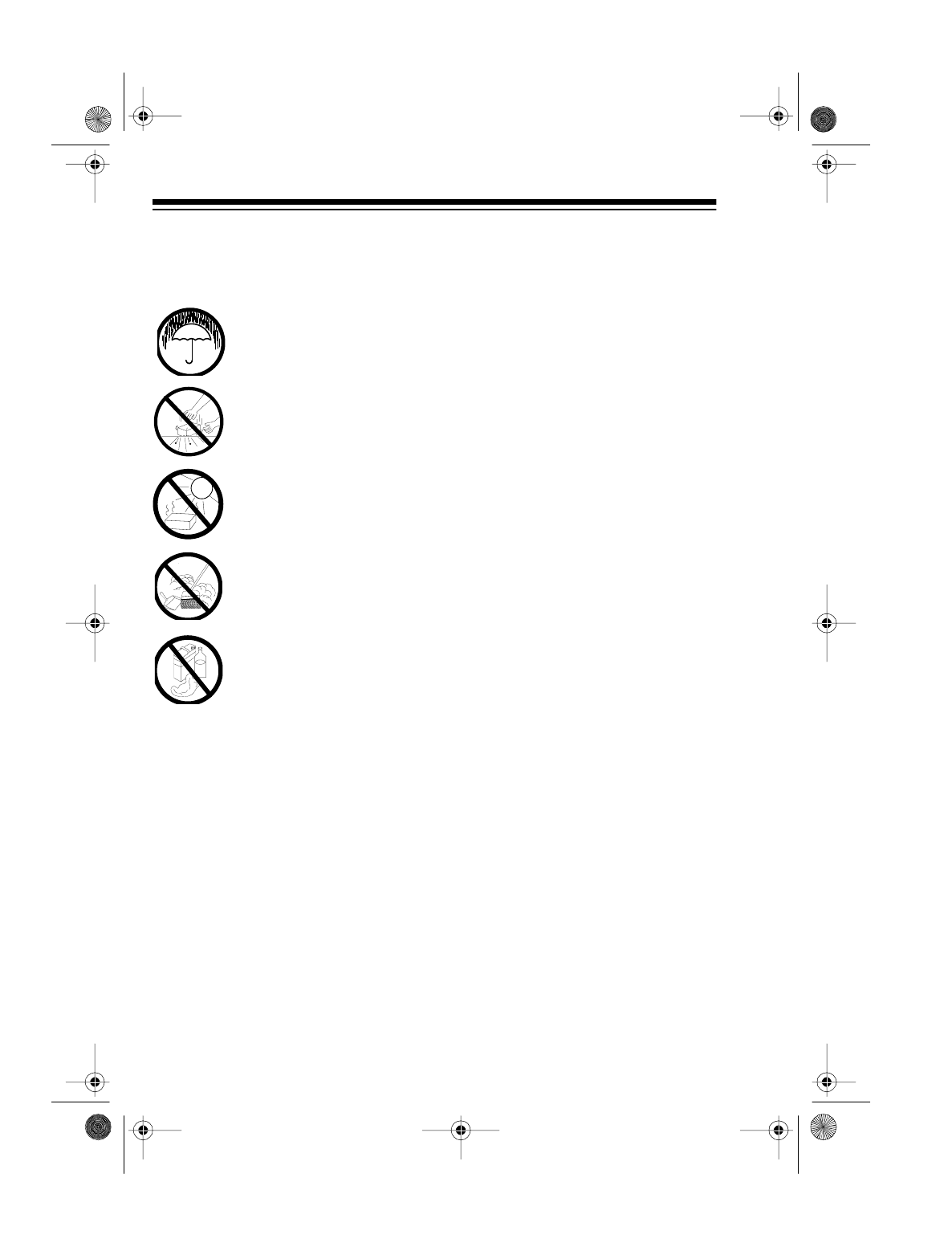
Keep the system dry. If it gets wet, wipe it dry immediately. Liquids
might contain minerals that can corrode the electronic circuits.
Handle the system gently and carefully. Dropping it can damage
circuit boards and cases and can cause the system to work im-
properly.
Use and store the system only in normal temperature environ-
ments. Temperature extremes can shorten the life of electronic
devices and distort or melt plastic parts.
Keep the system away from dust and dirt, which can cause pre-
mature wear of parts.
Wipe the system with a damp cloth occasionally to keep it looking
new. Do not use harsh chemicals, cleaning solvents, or strong de-
tergents to clean the system.
Modifying or tampering with the system’s internal components can cause a mal-
function and might invalidate your system’s warranty and void your FCC autho-
rization to operate it. If your system is not performing as it should, take it to your
local Radio Shack store for assistance.
CLEANER
13-1275.fm Page 30 Wednesday, July 14, 1999 3:59 PM
31
CD CARE TIPS
Even though a compact disc is very
durable, treat the CD surface with
care. We recommend the following
precautions:
• Do not write on either side of the
CD, particularly the non-label
side (signals are read from the
non-label side).
• Do not store CDs in high tem-
perature, high-humidity loca-
tions. They might warp.
• Keep CDs dry. A water drop can
act as a lens and affect the laser
beam’s focus.
• Always handle a CD by the
edges to avoid fingerprints and
always keep it in its protective
case or sleeve when it is not in
use. Fingerprints and scratches
on the CD’s surface can prevent
the laser beam from correctly
reading the digital information. If
the CD gets scratched, use
Scratch n’ Fix (Radio Shack Cat.
No. 42-127).
TAPE TIPS
Erasing a Cassette Tape
To erase a previously recorded sec-
tion of a tape, simply record over it.
To erase the entire cassette tape, let
the tape record to the end with no
source palying.
You can quickly erase both sides of a
cassette tape using a bulk tape eras-
er (such as Cat. No. 44-232, not sup-
plied), available at your local Radio
Shack store.
Preventing Accidental
Erasure
Cassette tapes have two erase-pro-
tection tabs æ one for each side. To
protect a recording from being acci-
dentally recorded over or erased,
use a screwdriver to remove one or
both of the cassette tape’s erase-
protection tabs.
If you want to record on a tape side
after you have removed the erase-
protection tab, place a piece of
strong plastic tape over that side’s
erase-protection hole. Be sure you
cover only the hole originally covered
by the erase-protection tab.
Note: Removing the erase-protec-
tion tabs does not prevent a bulk
eraser from erasing a cassette tape.
(Needs an illus - show
an erase protection tab
bei
g
removed with a
screwdriver.
13-1275.fm Page 31 Wednesday, July 14, 1999 3:59 PM
32
Restoring Tape Tension and
Sound Quality
After you play a cassette tape sever-
al times, the tape might become
tightly wound on the reels. This can
cause playback sound quality to de-
teriorate.
To restore the sound quality, fast-for-
ward the tape from the beginning to
the end of one side, then completely
rewind it. Then loosen the tape reels
by gently tapping each side of the
cassette’s outer shell on a flat sur-
face.
Caution: Be careful not to damage
the cassette when tapping it. Do not
touch the exposed tape or allow any
sharp objects near the cassette.
Cleaning the Tape Handling
Parts
Dirt, dust or particles of the tape’s
coating can accumulate on the tape
heads and other parts that the tape
touches. This can greatly reduce the
performance of the cassette player.
Use the following cleaning procedure
after every 20 hours of tape player
operation. Your local Radio Shack
store sells a wide selection of cas-
sette cleaning supplies.
1. Disconnect power.
2. Open the cassette compartment
doors.
3. Press PLAY on both decks to
expose the tape-handling parts.
4. Use a cotton swab dipped in
denatured alcohol or tape head
cleaning solution to clean the
record/play head, pinch roller,
capstan, and erase head.
5. When you finish cleaning, press
STOP/EJECT on both decks and
close the cassette compartment
doors.
13-1275.fm Page 32 Wednesday, July 14, 1999 3:59 PM
33
SPECIFICATIONS
Cassette
Tape Speed .......................................................................................4.75 cm/sec
Wow and Flutter ............................................................................ 0.35% WRMS
Frequency Response .........................................................125 Hz–8 kHz ± 4 dB
Recording System...................................................................................AC Bias
Erase System ....................................................................................... Magnetic
CD Player
Number of Tracks to be Programmed.................................................. 32 Tracks
Frequency Response .........................................................40 Hz–16 kHz ± 3 dB
Dynamic Range...........................................................................................85 dB
Signal-to-Noise............................................................................... (JIS-A) 75 dB
Harmonic Distortion (at 1 kHz) .....................................................................0.5%
Separation (at 1 kHz) ..................................................................................50 dB
Sampling Frequency ..............................................................................44.1 kHz
Quantization Number ..................................................................................16 Bit
Oversampling .......................................................................................... 2 Times
Pick-Up System.............................................................................Sanyo SF-91P
Optical Source...............................................................................Sanyo SF-901
Wavelength .............................................................................................790 nm
13-1275.fm Page 33 Wednesday, July 14, 1999 3:59 PM
34
General
Speaker Impedance.................................................................................8 Ohms
Power Output .....................................................................10 Watts per Channel
Dimensions of Unit......................................143/16 × 117/16 × 145/16 Inches (HWD)
(360 × 288 × 338 mm)
Dimensions of Each Speaker....................... 143/16 × 713/16 × 611/16 Inches (HWD)
(360 × 200 × 175 mm)
Weight...................................................................................27 lbs 5 oz (12.4 kg
Power Supply................................................................... 120V AC, 60 Hz, 48 W
Tuning Range.........................................................................AM: 530–1710 kHz
FM: 88–108 MHz
Speaker Size...........................................................................................5 Inches
Specifications are typical; individual units might vary. Specifications are subject
to change and improvement without notice.
13-1275.fm Page 34 Wednesday, July 14, 1999 3:59 PM
35
NOTES
13-1275.fm Page 35 Wednesday, July 14, 1999 3:59 PM
RADIO SHACK
A Division of Tandy Corporation
Fort Worth, Texas 76102
7A5 Printed in Hong Kong
RADIO SHACK LIMITED WARRANTY
This product is warranted a
g
ainst defects for 90 days from date of pur-
chase from Radio Shack company-owned stores and authorized Radio
Shack franchisees and dealers. Within this period, we will repair it with-
out char
g
e for parts and labor. Simply bring your Radio Shack sales
slip as proof of purchase date to any Radio Shack store. Warranty does
not cover transportation costs. Nor does it cover a product subjected to
misuse or accidental dama
g
e.
EXCEPT AS PROVIDED HEREIN, RADIO SHACK MAKES NO
EXPRESS WARRANTIES AND ANY IMPLIED WARRANTIES ARE LIM-
ITED IN DURATION TO THE DURATION OF THE WRITTEN LIMITED
WARRANTIES CONTAINED HEREIN. Some states do not permit limita-
tion or exclusion of implied warranties; therefore, the aforesaid limita-
tion(s) or exclusion(s) may not apply to the purchaser.
This warranty
g
ives you specific le
g
al ri
g
hts and you may also have other ri
g
hts which vary
from state to state.
We Service What We Sell
9/94
13-1275.fm Page 36 Wednesday, July 14, 1999 3:59 PM
