SM T330 User Guide (SM T330) Samsung Galaxy Tab 4
User Manual: PDF User Guide (SM-T330) Samsung User Guides
Open the PDF directly: View PDF  .
.
Page Count: 127 [warning: Documents this large are best viewed by clicking the View PDF Link!]
- Samsung Galaxy Tab 4
- Section 1: Getting Started
- Section 2: Understanding Your Device
- Section 3: Accounts and Contacts
- Section 4: Messaging
- Section 5: Multimedia
- Section 6: Camera and Video
- Section 7: Connections
- Section 8: Applications
- Updating Applications
- Accessing Applications
- Alarm
- Calculator
- Calendar
- Camera
- Chrome
- Contacts
- Drive
- Dropbox
- Gallery
- Gmail
- Google Settings
- Google+
- Hancom Viewer
- Hangouts
- Help
- Internet
- Maps
- Memo
- Music
- My Files
- Netflix
- Photos
- Play Books
- Play Games
- Play Movies & TV
- Play Music
- Play Newsstand
- Play Store
- S Voice
- Samsung Apps
- Screen Saver
- Settings
- Video
- Voice Search
- WatchON
- World Clock
- YouTube
- Section 9: Settings
- About Settings
- Connections
- Wi-Fi
- Bluetooth
- Airplane Mode
- Data Usage
- Location
- More Networks
- Nearby Devices
- Screen Mirroring
- Device
- Sound
- Display
- Multi Window
- Lock Screen
- Wallpaper
- Font
- Notification Panel
- Accessibility
- Blocking Mode
- Controls
- Language and Input
- Palm Motion
- Smart Screen
- General Settings
- Accounts
- Cloud
- Backup and Reset
- Date and Time
- Accessories
- Application Manager
- Default Applications
- Users
- Battery
- Power Saving Mode
- Storage
- Security
- About Device
- Index
ANDROID TABLET
User Manual
Please read this manual before operating your
device and keep it for future reference.
GEN_SM-T330NU_UM_Eng_NC9_TN_042414_F4
Warning!
This product contains chemicals known to the State of California to cause cancer and reproductive toxicity.
Intellectual Property
All Intellectual Property, as defined below, owned by or which is otherwise the property of Samsung or its respective suppliers
relating to the SAMSUNG Galaxy Tab, including but not limited to, accessories, parts, or software relating there to (the “Galaxy Tab
System”), is proprietary to Samsung and protected under federal laws, state laws, and international treaty provisions. Intellectual
Property includes, but is not limited to, inventions (patentable or unpatentable), patents, trade secrets, copyrights, software,
computer programs, and related documentation and other works of authorship. You may not infringe or otherwise violate the
rights secured by the Intellectual Property. Moreover, you agree that you will not (and will not attempt to) modify, prepare
derivative works of, reverse engineer, decompile, disassemble, or otherwise attempt to create source code from the software. No
title to or ownership in the Intellectual Property is transferred to you. All applicable rights of the Intellectual Property shall remain
with SAMSUNG and its suppliers.
Open Source Software
Some software components of this product incorporate source code covered under GNU General Public License (GPL), GNU Lesser
General Public License (LGPL), OpenSSL License, BSD License and other open source licenses. To obtain the source code covered
under the open source licenses, please visit:
http://opensource.samsung.com
.
Disclaimer of Warranties; Exclusion of Liability
EXCEPT AS SET FORTH IN THE EXPRESS WARRANTY CONTAINED ON THE WARRANTY PAGE ENCLOSED WITH THE PRODUCT, THE
PURCHASER TAKES THE PRODUCT "AS IS", AND SAMSUNG MAKES NO EXPRESS OR IMPLIED WARRANTY OF ANY KIND
WHATSOEVER WITH RESPECT TO THE PRODUCT, INCLUDING BUT NOT LIMITED TO THE MERCHANTABILITY OF THE PRODUCT OR
ITS FITNESS FOR ANY PARTICULAR PURPOSE OR USE; THE DESIGN, CONDITION OR QUALITY OF THE PRODUCT; THE
PERFORMANCE OF THE PRODUCT; THE WORKMANSHIP OF THE PRODUCT OR THE COMPONENTS CONTAINED THEREIN; OR
COMPLIANCE OF THE PRODUCT WITH THE REQUIREMENTS OF ANY LAW, RULE, SPECIFICATION OR CONTRACT PERTAINING
THERETO. NOTHING CONTAINED IN THE INSTRUCTION MANUAL SHALL BE CONSTRUED TO CREATE AN EXPRESS OR IMPLIED
WARRANTY OF ANY KIND WHATSOEVER WITH RESPECT TO THE PRODUCT. IN ADDITION, SAMSUNG SHALL NOT BE LIABLE FOR
ANY DAMAGES OF ANY KIND RESULTING FROM THE PURCHASE OR USE OF THE PRODUCT OR ARISING FROM THE BREACH OF
THE EXPRESS WARRANTY, INCLUDING INCIDENTAL, SPECIAL OR CONSEQUENTIAL DAMAGES, OR LOSS OF ANTICIPATED PROFITS
OR BENEFITS.
Modification of Software
SAMSUNG IS NOT LIABLE FOR PERFORMANCE ISSUES OR INCOMPATIBILITIES CAUSED BY YOUR EDITING OF REGISTRY SETTINGS,
OR YOUR MODIFICATION OF OPERATING SYSTEM SOFTWARE.
USING CUSTOM OPERATING SYSTEM SOFTWARE MAY CAUSE YOUR DEVICE AND APPLICATIONS TO WORK IMPROPERLY. YOUR
CARRIER MAY NOT PERMIT USERS TO DOWNLOAD CERTAIN SOFTWARE, SUCH AS CUSTOM OS.

Samsung Electronics America (SEA), Inc
©2014 Samsung Telecommunications America, LLC. Samsung is a registered trademark of Samsung Electronics Co., Ltd.
Do you have questions about your Samsung Mobile Device?
For 24 hour information and assistance, we offer a new FAQ/ARS System (Automated Response System) at:
www.samsung.com/us/support
Address:
85 Challenger Road
Ridgefield Park,
New Jersey
07660
Toll Free
Telephone:
1-800-SAMSUNG
Internet
Address:
http://www.samsung.com
The Bluetooth® word mark, figure mark (stylized “B Design”), and combination mark (Bluetooth word mark and “B Design”) are
registered trademarks and are wholly owned by the Bluetooth SIG.
microSDTM, microSDHCTM, and the microSD logo are Trademarks of the SD Card Association.
Google, the Google logo, Android, the Android logo, Google Play, Gmail, Google Mail, Google Maps, Google Music, Google Talk,
Hangouts, Picasa, YouTube and other marks are trademarks of Google Inc.
Wi-Fi is a registered trademark of the Wireless Fidelity Alliance, Inc.
Peel and the Peel logo are marks owned by Peel Technologies, Inc. and may be registered.

1
Table of Contents
Section 1: Getting Started ...........................4
Understanding This User Manual . . . . . . . . . . . .4
Battery . . . . . . . . . . . . . . . . . . . . . . . . . . . . . . .5
Turning Your Device On and Off . . . . . . . . . . . . . 7
Setting Up Your Device . . . . . . . . . . . . . . . . . . .8
Memory Card . . . . . . . . . . . . . . . . . . . . . . . . . .8
Securing Your Device . . . . . . . . . . . . . . . . . . . . 9
Holding the Device . . . . . . . . . . . . . . . . . . . . . .9
Section 2: Understanding Your Device .....10
Features . . . . . . . . . . . . . . . . . . . . . . . . . . . . .10
Front and Sides . . . . . . . . . . . . . . . . . . . . . . . . 11
Back, Top, and Bottom . . . . . . . . . . . . . . . . . . 12
Navigating Your Device . . . . . . . . . . . . . . . . . .13
Using the Touch Screen . . . . . . . . . . . . . . . . . .14
Home Screen . . . . . . . . . . . . . . . . . . . . . . . . . 16
Notifications . . . . . . . . . . . . . . . . . . . . . . . . . . 19
Status Bar . . . . . . . . . . . . . . . . . . . . . . . . . . . . 20
Shortcuts and Widgets . . . . . . . . . . . . . . . . . .22
Folders . . . . . . . . . . . . . . . . . . . . . . . . . . . . . . 23
Wallpapers . . . . . . . . . . . . . . . . . . . . . . . . . . . 23
Apps Screen . . . . . . . . . . . . . . . . . . . . . . . . . .24
Multi Window . . . . . . . . . . . . . . . . . . . . . . . . .24
Task Manager . . . . . . . . . . . . . . . . . . . . . . . . .27
Screen Capture . . . . . . . . . . . . . . . . . . . . . . . .27
Entering Text . . . . . . . . . . . . . . . . . . . . . . . . . .28
Section 3: Accounts and Contacts ...........30
Accounts . . . . . . . . . . . . . . . . . . . . . . . . . . . . .30
Your Google Account . . . . . . . . . . . . . . . . . . . .31
Your Samsung Account . . . . . . . . . . . . . . . . . .31
Contacts . . . . . . . . . . . . . . . . . . . . . . . . . . . . .31
Groups . . . . . . . . . . . . . . . . . . . . . . . . . . . . . . .35
Favorites . . . . . . . . . . . . . . . . . . . . . . . . . . . . .37
Section 4: Messaging ...............................38
Types of Messages . . . . . . . . . . . . . . . . . . . . .38
Gmail . . . . . . . . . . . . . . . . . . . . . . . . . . . . . . . .38
Email . . . . . . . . . . . . . . . . . . . . . . . . . . . . . . . .39
Hangouts . . . . . . . . . . . . . . . . . . . . . . . . . . . . .41
Google+ . . . . . . . . . . . . . . . . . . . . . . . . . . . . .42
Section 5: Multimedia ...............................43
Listening to Music . . . . . . . . . . . . . . . . . . . . . .43
Play Music . . . . . . . . . . . . . . . . . . . . . . . . . . . .43
2
Music Player . . . . . . . . . . . . . . . . . . . . . . . . . 44
WatchON . . . . . . . . . . . . . . . . . . . . . . . . . . . . 46
Section 6: Camera and Video ................... 47
Camera . . . . . . . . . . . . . . . . . . . . . . . . . . . . . 47
Gallery . . . . . . . . . . . . . . . . . . . . . . . . . . . . . . 52
Video . . . . . . . . . . . . . . . . . . . . . . . . . . . . . . . 55
Section 7: Connections ............................ 57
Wi-Fi . . . . . . . . . . . . . . . . . . . . . . . . . . . . . . . 57
Wi-Fi Direct . . . . . . . . . . . . . . . . . . . . . . . . . . 59
Bluetooth . . . . . . . . . . . . . . . . . . . . . . . . . . . . 60
Connect to a Computer . . . . . . . . . . . . . . . . . 63
Section 8: Applications ............................ 65
Updating Applications . . . . . . . . . . . . . . . . . . 65
Accessing Applications . . . . . . . . . . . . . . . . . 65
Alarm . . . . . . . . . . . . . . . . . . . . . . . . . . . . . . . 66
Calculator . . . . . . . . . . . . . . . . . . . . . . . . . . . 66
Calendar . . . . . . . . . . . . . . . . . . . . . . . . . . . . 67
Camera . . . . . . . . . . . . . . . . . . . . . . . . . . . . . 68
Chrome . . . . . . . . . . . . . . . . . . . . . . . . . . . . . 68
Contacts . . . . . . . . . . . . . . . . . . . . . . . . . . . . 68
Drive . . . . . . . . . . . . . . . . . . . . . . . . . . . . . . . 69
Dropbox . . . . . . . . . . . . . . . . . . . . . . . . . . . . . 69
Email . . . . . . . . . . . . . . . . . . . . . . . . . . . . . . . 69
Gallery . . . . . . . . . . . . . . . . . . . . . . . . . . . . . . 69
Gmail . . . . . . . . . . . . . . . . . . . . . . . . . . . . . . . 70
Google . . . . . . . . . . . . . . . . . . . . . . . . . . . . . . 70
Google Settings . . . . . . . . . . . . . . . . . . . . . . . 70
Google+ . . . . . . . . . . . . . . . . . . . . . . . . . . . . . 70
Hancom Viewer . . . . . . . . . . . . . . . . . . . . . . . 70
Hangouts . . . . . . . . . . . . . . . . . . . . . . . . . . . . 71
Help . . . . . . . . . . . . . . . . . . . . . . . . . . . . . . . . 71
Internet . . . . . . . . . . . . . . . . . . . . . . . . . . . . . 71
Maps . . . . . . . . . . . . . . . . . . . . . . . . . . . . . . . 71
Memo . . . . . . . . . . . . . . . . . . . . . . . . . . . . . . 72
Music . . . . . . . . . . . . . . . . . . . . . . . . . . . . . . . 73
My Files . . . . . . . . . . . . . . . . . . . . . . . . . . . . . 73
Netflix . . . . . . . . . . . . . . . . . . . . . . . . . . . . . . 74
Photos . . . . . . . . . . . . . . . . . . . . . . . . . . . . . . 74
Play Books . . . . . . . . . . . . . . . . . . . . . . . . . . . 74
Play Games . . . . . . . . . . . . . . . . . . . . . . . . . . 74
Play Movies & TV . . . . . . . . . . . . . . . . . . . . . . 75
Play Music . . . . . . . . . . . . . . . . . . . . . . . . . . . 75
Play Newsstand . . . . . . . . . . . . . . . . . . . . . . . 75
Play Store . . . . . . . . . . . . . . . . . . . . . . . . . . . . 75
S Voice . . . . . . . . . . . . . . . . . . . . . . . . . . . . . . 76
Samsung Apps . . . . . . . . . . . . . . . . . . . . . . . . 76
Screen Saver . . . . . . . . . . . . . . . . . . . . . . . . . 76
Settings . . . . . . . . . . . . . . . . . . . . . . . . . . . . . 77
3
Video . . . . . . . . . . . . . . . . . . . . . . . . . . . . . . . .77
Voice Search . . . . . . . . . . . . . . . . . . . . . . . . . . 77
WatchON . . . . . . . . . . . . . . . . . . . . . . . . . . . . .77
World Clock . . . . . . . . . . . . . . . . . . . . . . . . . . .77
YouTube . . . . . . . . . . . . . . . . . . . . . . . . . . . . .78
Section 9: Settings ....................................79
About Settings . . . . . . . . . . . . . . . . . . . . . . . . .79
Connections . . . . . . . . . . . . . . . . . . . . . . . . . .80
Wi-Fi . . . . . . . . . . . . . . . . . . . . . . . . . . . . . . . .80
Bluetooth . . . . . . . . . . . . . . . . . . . . . . . . . . . .80
Airplane Mode . . . . . . . . . . . . . . . . . . . . . . . . . 81
Data Usage . . . . . . . . . . . . . . . . . . . . . . . . . . .81
Location . . . . . . . . . . . . . . . . . . . . . . . . . . . . .82
More Networks . . . . . . . . . . . . . . . . . . . . . . . .83
Nearby Devices . . . . . . . . . . . . . . . . . . . . . . . .85
Screen Mirroring . . . . . . . . . . . . . . . . . . . . . . .85
Device . . . . . . . . . . . . . . . . . . . . . . . . . . . . . . .86
Sound . . . . . . . . . . . . . . . . . . . . . . . . . . . . . . .86
Display . . . . . . . . . . . . . . . . . . . . . . . . . . . . . .87
Multi Window . . . . . . . . . . . . . . . . . . . . . . . . .88
Lock Screen . . . . . . . . . . . . . . . . . . . . . . . . . .88
Wallpaper . . . . . . . . . . . . . . . . . . . . . . . . . . . .91
Font . . . . . . . . . . . . . . . . . . . . . . . . . . . . . . . .91
Notification Panel . . . . . . . . . . . . . . . . . . . . . . 92
Accessibility . . . . . . . . . . . . . . . . . . . . . . . . . .92
Blocking Mode . . . . . . . . . . . . . . . . . . . . . . . . .95
Controls . . . . . . . . . . . . . . . . . . . . . . . . . . . . . .96
Language and Input . . . . . . . . . . . . . . . . . . . . .96
Palm Motion . . . . . . . . . . . . . . . . . . . . . . . . .100
Smart Screen . . . . . . . . . . . . . . . . . . . . . . . .100
General Settings . . . . . . . . . . . . . . . . . . . . . .101
Accounts . . . . . . . . . . . . . . . . . . . . . . . . . . . .101
Cloud . . . . . . . . . . . . . . . . . . . . . . . . . . . . . . .102
Backup and Reset . . . . . . . . . . . . . . . . . . . . .102
Date and Time . . . . . . . . . . . . . . . . . . . . . . . .103
Accessories . . . . . . . . . . . . . . . . . . . . . . . . . .104
Application Manager . . . . . . . . . . . . . . . . . . .104
Default Applications . . . . . . . . . . . . . . . . . . . .106
Users . . . . . . . . . . . . . . . . . . . . . . . . . . . . . . .106
Battery . . . . . . . . . . . . . . . . . . . . . . . . . . . . .108
Power Saving Mode . . . . . . . . . . . . . . . . . . . .109
Storage . . . . . . . . . . . . . . . . . . . . . . . . . . . . .109
Security . . . . . . . . . . . . . . . . . . . . . . . . . . . . .111
About Device . . . . . . . . . . . . . . . . . . . . . . . . .115
Index .........................................................117

Getting Started 4
Section 1: Getting Started
This section helps you to quickly start using your device.
Understanding This User Manual
The sections of this manual generally follow the features of
your device. A robust index for features begins on page 117.
Also included is important safety information, beginning on
page 119, that you should know before using your device.
This manual gives navigation instructions according to the
default display settings. If you select other settings,
navigation steps may be different.
Unless otherwise specified, all instructions in this manual
assume that you are starting from a Home screen. To get to a
Home screen, you may need to unlock the device. For more
information, refer to “Securing Your Device” on page 9.
Note: Instructions in this manual are based on default settings
and may vary from your device depending on the
software version on your device and any changes to the
device’s settings.
Note: Unless stated otherwise, instructions in this user
manual start with the device unlocked, at the Home
screen.
All screen images in this manual are simulated. Actual
displays may vary depending on the software version of your
device and any changes to the device’s settings.
Special Text
In this manual, some text is set apart from the rest. This
special text is intended to point out important information,
share quick methods for activating features, define terms,
and more. The definitions for these methods are as follows:
• Note: Presents alternative options for the current feature,
menu, or sub-menu.
• Tip: Provides quick or innovative methods or useful
shortcuts.
• Important: Points out important information about the
current feature that could affect performance.
5
• Warning: Brings important information to your attention
that can help to prevent loss of data or functionality or
damage to your device.
Text Conventions
This manual provides condensed information about how to
use your device. To make this possible, the following text
conventions are used to represent often-used steps:
Battery
Your device is powered by a rechargeable, standard Li-Ion
battery. A Wall/USB Charger (Charging Head and USB cable)
are included with the device for charging the battery.
Warning! Use only approved charging devices. Approved
accessories are designed to maximize battery life.
Using other accessories may invalidate your
warranty and may cause damage.
Battery Indicator
The Battery icon in the Status Bar shows the battery
power level. When battery power is 15% or less, your device
prompts you to charge the battery. If you continue to operate
the device without charging, the device powers off. For
battery use information, see “About Device” on page 115.
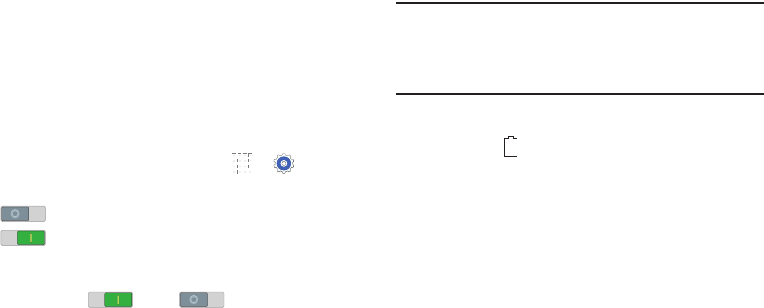
➔ Arrows are used to represent the sequence of
selecting successive options in longer, or
repetitive, procedures.
For example:
From a Home screen, touch ➔ Settings
➔Connections tab ➔ Wi-Fi.
Certain features and options use an OFF/ON
button.
For example:
Touch the OFF/ON button to turn Bluetooth
ON or OFF .
Getting Started 6
Charging the Battery
Your device comes with a Wall/USB Charger (Charging Head
and USB cable) to charge your device from any standard
AC power outlet.
Note: The battery comes partially charged. You must fully
charge the battery before using your device for the first
time. After the first charge, you can use the device
while charging.
Important! You cannot charge the battery using the USB
cable and your PC.
Note: If the battery is completely discharged, allow it to
charge for a few minutes before you try to turn on the
device.
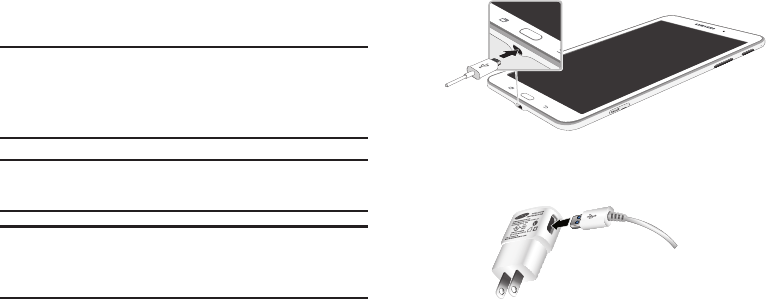
1. Insert the USB cable into the device’s Charger/
Accessory Port.
2. Insert the USB cable into the Charging Head.
7
3. Plug the Charging Head into a standard AC power
outlet.
Warning! While the device is charging, if the touch screen
does not function due to an unstable power supply,
unplug the USB power adapter from the power
outlet or unplug the USB cable from the device.
4. When charging is complete, unplug the Charging Head
from the power outlet and remove the USB cable from
the device.
Turning Your Device On and Off
Turning Your
Device On
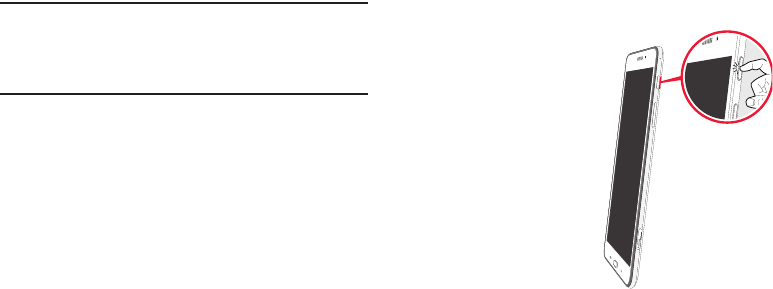
Press and hold the
Power/Lock Key.
For more information, refer to
“Unlocking the Device” on
page 9.
Turning Your
Device Off
1. Press and hold the
Power/Lock Key.
2. On the Device options
menu, touch Power off
➔ OK.
Getting Started 8
Setting Up Your Device
When you turn on your device for the first time, it displays a
Welcome screen. Follow the prompts to set up features and
preferences on your device.
Some screens can be skipped (touch Next) or re-displayed
(touch Back).
Note: If your screen dims or turns off, press the
Home
key to continue.
Memory Card
Your device supports removable microSD or microSDHC
memory cards with maximum capacities of 64 GB (not
included). Memory cards are used to store music, photos,
videos, and other files.
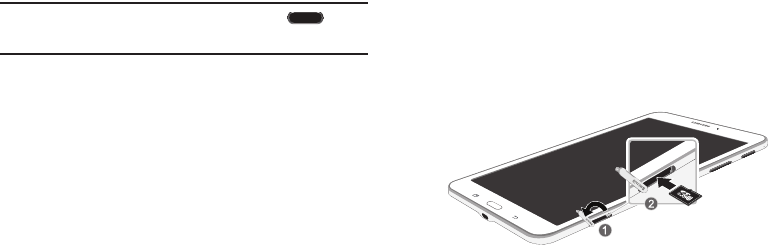
Installing a Memory Card
1. Open the memory card slot cover and turn to expose
the slot.
2. With the gold contacts facing down, carefully slide the
memory card into the slot, pushing gently until it clicks
into place.
3. Close the memory card slot cover.
9
Securing Your Device
By default, the device locks automatically when the screen
times out or you can lock it manually.
Unlock the tablet by swiping your finger across the
screen. This is the default Screen lock (Swipe), and
offers no security.
Prevent others from using or accessing personal data
and information stored in the device by using a secure
Screen Lock.
For more information about creating and enabling a secure
Screen Lock, see “Lock Screen” on page 88.
For other settings related to securing your device, see
“Security” on page 111.
Locking the Device Manually
Press the Power/Lock Key.
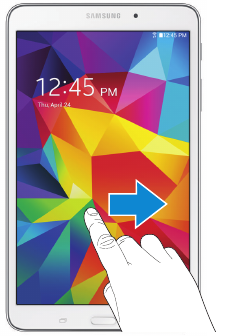
Unlocking the Device
1. Press the Power/Lock Key. The Lock screen displays.
2. Swipe across the screen as shown. This is the default
Swipe screen lock and offers no security.
Holding the Device
Your device’s internal antenna is located along the top back
of the device. Do not block the antenna; doing so may affect
signal quality and may cause the device to operate at a
higher power level than is necessary.

Understanding Your Device 10
Section 2: Understanding Your Device
This section outlines key features of your device and
describes the screen and the icons that appear when the
device is in use. It also shows how to navigate through
the device.
Features
• 8-inch WXGA (1280 X 800) TFT (PLS) LCD touch screen
• Android Version: KitKat 4.4
• Wi-Fi, 1.2 GHz quad-core processor
• Full HTML Web Browser
• Bluetooth 4.0 Wireless technology. For more information,
refer to “Bluetooth” on page 60.
• Built-in Wi-Fi technology (802.11 a/b/g/n)
• 3 megapixel camera and camcorder, plus 1.3 megapixel
full HD forward-facing camera for video chat
• Full integration of Google applications (Gmail, YouTube,
Google Maps, and Voice Search)
• Photo gallery that supports BMP, GIF, JPG, and PNG formats
• Messaging Features:
–Gmail
–Email (corporate and personal)
–Google Hangouts (Instant Messaging and Video Chat)
• HD Video player (1080p) that supports MP4, 3GP, WMV,
ASF, AVI, FLV, MKV, and WEBM formats
• Music player that supports MP3, M4A, 3GA, AAC, OGG,
WAV, WMA, and FLAC formats
• Support for microSD and microSDHC memory cards
• Preloaded applications such as Google Play Books, Google
Play Store, and more. For more information, refer to
“Applications” on page 65.
11
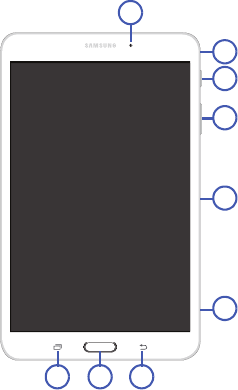
Front and Sides
The following items can be found on the front and sides of
your device.
1. Front-Facing Camera Lens: Takes photos or records
videos.
2. Microphone: Records audio.
3. Power/Lock Key: Press and hold to turn the device on
or off. Press to lock the device or to wake the screen
for unlocking.
4. Volume Key: From a Home Screen, press to adjust
master volume. During music playback, press to adjust
volume.
5. Infrared Blaster: Emits infrared signals used for
controlling external devices.
6. Memory Card Slot: Install a memory card for storage
of files (not included).
7. Back Key: Return to the previous screen or option.
8. Home Key: Display the central Home Screen.
9. Recent Key: Touch and hold to display recently
used apps.
2
3
4
1
6
8 79
5
Understanding Your Device 12
Back, Top, and Bottom
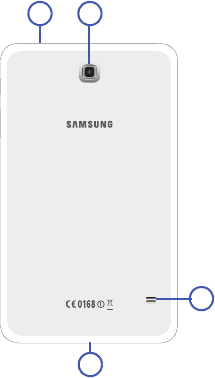
The following items can be found on the back, top, and
bottom of your device.
1. 3.5mm Headset Jack: Plug in for headphones.
2. Camera: Takes photos or recording videos.
3. Speaker: Plays music, notification tones, and audio.
4. Charger/Accessory Port: Plug in a USB cable for
charging or to sync music and files.
4
1
3
2

13
Navigating Your Device
Use command keys and the touch screen to navigate.
Command Keys
Recent Apps
To display a list of recently used apps:
Touch Recent apps. Touch an app to open it.
To close an app:
Drag the app preview up or down.
To end all running apps:
Touch Close all.
To manage running apps, downloads, device memory, and
storage:
Touch Recent apps ➔ Task Manager.
For more information, refer to “Task Manager” on page 27.
Home
To display the main Home screen:
Touch
Home.
To launch Google Now:
Touch and hold
Home.
Back
To return to the previous screen, option, or step:
Touch
Back.
Understanding Your Device 14
Using the Touch Screen
Use only fingers to touch the screen.
Caution! Do not allow the touch screen to come into contact
with other electrical devices. Electrostatic discharges
can cause the touch screen to malfunction.
Caution! To avoid damaging the touch screen, do not touch it
with anything sharp or apply excessive pressure to it
with your fingertips.
Leaving the touch screen idle for extended periods may
result in afterimages (screen burn-in) or ghosting. Turn off
the touch screen when you do not use the device.
Finger Gestures
Touching
To open an application, select a menu item, press an
onscreen button, or enter a character using the onscreen
keyboard, touch it with a finger.
Touching and Holding
Touch and hold an item for more than 2 seconds to access
available options.
Dragging
To move an icon, thumbnail, or preview to a new location,
touch and hold it and drag it to the target position.
Double-Tapping
Double-tap on a web page, map, or image to zoom in a part.
Double-tap again to zoom out again.
Swipe
Swipe left or right on the Home screen or the Applications
screen to see another panel. Swipe up or down to scroll
through a web page or a list, such as contacts.
Pinching and Spreading
Spread two fingers apart on a web page, map, or image to
zoom in. Pinch to zoom out.
15
Rotating the Screen
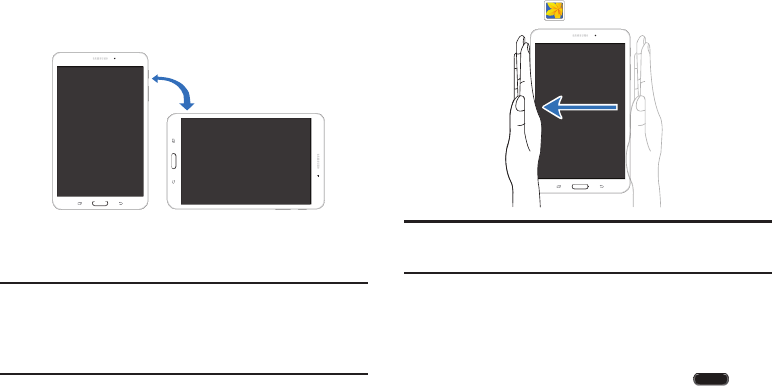
Many applications allow display in either portrait or
landscape orientation. Rotating the device causes the display
to automatically adjust to fit the new screen orientation.
To prevent the display from rotating automatically, open the
Notification Panel and deselect Screen rotation.
Note: Some applications do not allow screen rotation. Some
applications display a different screen depending on the
orientation. For example, the calculator turns into a
scientific calculator when rotated to landscape.
Sweeping
Sweep your hand across the screen to capture a screenshot.
The image is saved in Gallery ➔ Screenshots album.
Note: It may not be possible to capture a screenshot while
using some applications.
Covering
Cover the screen with a palm to pause media playback.
Capturing Screenshots
Press and hold the Power/Lock Key and
Home
to capture and save an image of the current screen.
Understanding Your Device 16
Note: A copy of the screenshot is automatically saved to the
clipboard.
To view the screenshot:
1. From a Home screen, touch ➔My Files.
2. Under Categories ➔ touch Images.
3. Touch a screenshot file to display it.
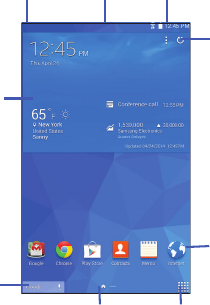
Home Screen
The main Home screen is the starting point for many
applications and functions and it contains items like
application icons, shortcuts, folders, or Google widgets,
which gives you instant access to information and
applications. This is the default page and accessible from
any menu by pressing
Home.
Note: Unless stated otherwise, instructions in this user
manual start with the device unlocked, at the Home
screen.
17
Extended Home Screen
The Home screen consists of the Home panel plus additional
panels that extend beyond the display width to provide more
space for adding shortcuts and widgets.
Slide your finger horizontally across the screen to scroll to
the left or right side panels. As you scroll, the indicator at the
bottom of the display shows your current position.
Customizing the Home Screens
To customize the Home screens to suit your preferences:
1. Navigate to one of the Home screen panels.
2. Touch and hold on the screen until the Home screen
pop-up displays.
3. Touch Set wallpaper to change the Home screen
wallpaper. For more information, refer to “Wallpapers”
on page 23.
4. Under Add to home screen touch:
• Apps and widgets to add app or widget shortcuts on
the Home screen.
•Folder to add a folder on a Home screen. For more
information, refer to “Folders” on page 23.
•Page to add a Home screen.
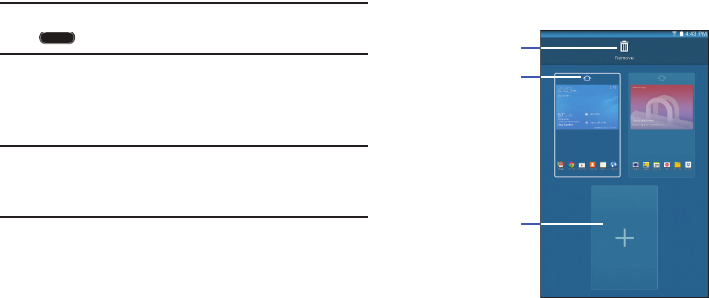
Apps Screen
Refresh
Content
Status Indicators
App
Shortcuts
Notifications Status
Bar
Widgets
Current
Screen
Google
Search
Understanding Your Device 18
Display Settings
You can customize display screen settings to your
preferences. For more information, refer to “Display” on
page 87.
Adding and Removing Home Screen Panels
Your device comes with seven Home screen panels. You can
customize the Home screen by removing or adding panels.
Note: The default Home screen displays when you touch
Home.
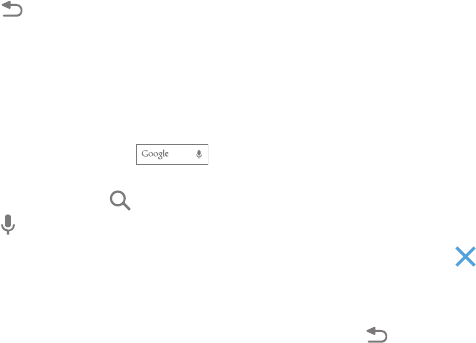
From a Home screen, pinch the screen from the left
and right side to the center to display the editing
screen.
Tip: Touch and hold on the screen until the Home screen
pop-up displays. Under Add to Home screen, touch
Page to add a Home screen.
Use these controls to configure panels:
1. Remove: Touch and drag a panel to the Trash Can to
remove the panel from the Home screen.
2. Default Home Page: Touch the Home icon on a panel
to set it as the default home screen.
3. Add: Touch to add a new panel, up to a total of seven.
This option is available when less than seven panels
have been added.
Remove
Default Home
Screen
Add
19
To rearrange the order of panels:
Touch and drag a panel to a new location.
To return to the Home screen:
Touch
Back.
Google Search Bar
The Google Search Bar provides an onscreen Internet search
engine powered by Google.
1. From the main Home screen, swipe the screen to the
left to bring up the next Home screen.
2. Touch the Google Search bar .
3. Use the onscreen keyboard to enter the item you want
to search for, then touch .
4. Touch to use Google Voice Search. Follow the
onscreen instructions.
Notifications
Notification icons appear on the Status Bar at the top of the
screen to report new messages, calendar events, device
status, and more. For details about these notifications, open
the Notification Panel.
Notification Panel
To view the Notification Panel:
1. On the Home screen, touch and hold the Status Bar
and then drag downward to display the Notification
Panel.
2. Scroll down the list to see additional notification
details.
3. Touch an item to view or open it.
4. To clear a single notification, drag the notification left
or right. Touch to clear all notifications.
To close the Notification Panel:
Swipe upward from the bottom of the screen or touch
Back.
Understanding Your Device 20
Accessing Additional Panel Functions
In addition to notifications, the Notification Panel also
provides quick and ready access to separate device
functions. These can be quickly activated or deactivated by
toggling them on or off. You can also select which functions
are displayed.
1. To go to Settings, touch Settings. For more
information, refer to “Settings” on page 79.
2. Touch to display additional quick settings buttons.
•Touch to configure the Notification panel. For more
information, refer to “Notification Panel” on page 92.
•Touch to display your primary quick settings
buttons and notifications.
3. To set the display brightness, touch the Brightness
slider and drag it to set the brightness. For more
information, refer to “Display” on page 87.
4. To adjust the system volume, touch the Sound
slider and drag it to set the Notification sound level or
touch to set the level for Notifications, Media, and
System sounds. For more information, refer to “Sound”
on page 86.
Status Bar
The Status Bar at the top of the home screen provides device
information (such as network status, signal strength, battery
charge, and time) on the right side and notification alerts on
the left.
To display the Status Bar:
From a Home screen, swipe downward from the top of
the screen. The grey Status Bar will appear. It will
disappear after a few seconds.
21
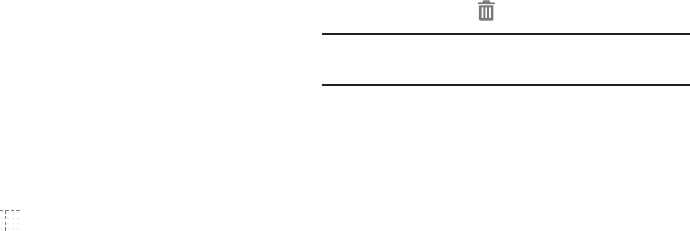
Status Bar Icons
Some common status and notification icons are shown
below.
Connectivity Icons
Messaging Icons
Device Status Icons
Other Icons
Wi-Fi connected
Bluetooth enabled
Bluetooth paired
Connected to computer
Wi-Fi Direct is active and your tablet is connected
to another device.
The Nearby devices setting is enabled.
New email
New Gmail
Battery full
Battery charging
Battery low
GPS enabled
Mute mode enabled
Error occurred or caution required
Alarm activated
Airplane mode activated
Blocking mode activated
Understanding Your Device 22
Shortcuts and Widgets
You can add, reposition, or remove shortcuts and widgets
from the Home screen.
• Shortcuts: Icons on the Home screen that launch
applications.
• Widgets: Small applications that run on the Home screen.
Adding a Shortcut or Widget
You can customize the Home screen by adding shortcuts
and widgets.
1. From a Home screen, touch and hold on an empty area
of the screen until the Home screen pop-up displays.
Touch Apps and Widgets.
– or –
Touch to display the Apps screen.
2. For shortcuts, touch the Apps tab. For widgets, touch
the Widgets tab.
3. Touch and hold the shortcut or widget, and then drag it
to the Home screen and release.
Removing a Shortcut or Widget
Shortcuts and widgets can be removed from the
Home screen.
Touch and hold the shortcut or widget until it detaches,
and then drag it to Remove and release.
Note: Removing a shortcut does not delete the application;
it simply removes the shortcut from the Home screen.

23
Folders
Place folders on the Home screen to organize items.
Adding Folders
1. From a Home screen, touch and hold on an empty area
of the screen until the Home screen pop-up appears.
2. Touch Folder.
3. Enter a name for the folder and touch OK.
Using Folders
Touch the folder to open it and access the shortcuts
inside.
To add shortcuts to the folder, touch and hold the
shortcut, and then drag it to the folder and release.
To delete a folder, touch and hold the folder until it
detaches, and then drag it to Remove and release.
Note: All shortcuts contained in the folder will also be deleted.
Wallpapers
You can choose a picture to display on the Home Screen,
Lock screen, or on both the Home and Lock screens. Choose
from preloaded wallpapers, or select a photo you have
downloaded or taken with the Camera.
1. From a Home screen, touch and hold on an empty area
of the screen until the Home screen pop-up displays.
2. Touch Home Screen, Lock screen, or Home and
lock screens for options:
• Gallery: Access the Gallery to select a photo.
• Live wallpapers: Choose from pre-loaded interactive
animated wallpapers (Home screen only).
•Photos: Access Google Photos to select a photo (Home
screen only).
• Wallpapers: Choose from pre-loaded wallpaper
images.
Note: You can also set the wallpaper in Settings. From a
Home screen, touch ➔ Settings ➔ Device tab
➔ Wallpaper.

Understanding Your Device 24
Apps Screen
The Apps screen displays all applications installed on your
tablet. Applications that you download and install from
Google Play or from the web are also added to a Home
screen.
For more information, refer to “Applications” on page 65.
To arrange the Apps icons in alphabetical order:
1. From a Home screen, touch .
2. Touch Menu ➔ View type.
3. Touch Alphabetical grid.
To manually change the order of the icons on the
Apps screen:
1. From a Home screen, touch .
2. Touch Menu ➔ Edit.
3. Touch and hold an icon and drag it to a new position.
4. Touch Save to save the changes.
You can place shortcuts to applications on the Home screen
for quick access to the application. For more information,
refer to “Adding a Shortcut or Widget” on page 22.
To view your downloaded applications:
1. From a Home screen, touch .
2. Touch Download to view downloaded apps.
3. Touch an icon on the Downloaded applications
screen to launch the application.
– or –
Add an App Shortcut to a Home screen by dragging the
App icon onto the Home screen. For more information,
refer to “Adding a Shortcut or Widget” on page 22.
Application Information
To view information about an App, such as the amount of
storage it uses, force the App to stop, uninstall updates, and
clear data:
1. From a Home screen, touch ➔ Settings ➔
General tab ➔ Application manager.
2. Touch the All tab, scroll through the apps list, and
touch the app to open a screen with details about
the App.
Multi Window
Multi task by using up to four applications at the same time.
25
Note: Only applications displayed on the Multi window panel
can be used with the Multi window feature.
Activate Multi Window
1. From a Home screen, touch ➔ Settings ➔
Device tab.
2. Touch the OFF/ON button under Multi window to turn
Multi window ON .
3. If desired, touch Multi window and then touch Open
in multi window view to automatically view content in
Multi window when you open files from My Files or
Video player, or attachments from email.
Note: You can also activate Multi window from the Notification
Panel. For more information, refer to “Notification
Panel” on page 19.
Note: Once Multi window is activated, to show the Multi
window panel, touch and hold Recent apps. The
Multi window panel appears at the right side of the
screen. To hide the Multi window panel, touch
Back.
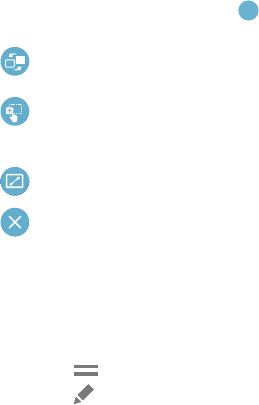
Multi Window Controls
Multi Window
Panel
App 1
Panel Controls
App 2
Understanding Your Device 26
Multi Window Panel
Multi window apps are displayed on the Multi window panel.
Display the Multi window panel:
1. Activate Multi window.
2. Swipe the right edge of the screen toward the center to
display the Multi window panel. After a few seconds,
the panel will be hidden again.
Using Multi Window Applications
You can use Multi window to run two applications at the
same time.
1. With Multi window activated, swipe the right edge of
the screen toward the center to display the Multi
window panel.
2. Drag an app off the panel and release. Drag up to three
more apps off of the panel and release them into one of
the highlighted windows.
Window Controls
Select an application window and touch in the middle of
the windows. Window controls appear:
Panel Configuration
You can rearrange the apps on the Multi window panel, add
new apps, or remove apps.
On the Multi window panel:
1. Touch to access the panel controls.
2. Touch Edit.
Switch locations between Multi window
applications.
Share items between the application windows. Drag
an item to share from one window to another. Some
applications may not support this feature.
Maximize the application.
Close the application.
27
Configuring Apps
To remove an app from the panel:
Touch and drag it off of the panel and place it in the
storage area.
To add an app to the panel:
Touch and drag it from the storage area to the panel.
To relocate an app:
Touch and drag it to a new location.
To save your changes:
Touch Done.
Task Manager
Your device can run applications simultaneously and some
applications run in the background.
Use Task Manager to see which applications are running on
your device and to end running applications to extend battery
life. You can also uninstall applications from your device and
see how much memory is used by applications.
To access the Task Manager:
1. Touch Recent apps ➔ Task manager.
2. Touch each tab for options:
3. Active applications: View applications running on
your device. Touch End to terminate an application or
End all to terminate all running applications.
4. Downloaded: View applications installed from Google
Play. Touch Uninstall to remove an application from
your device.
5. RAM manager: Display the amount of Random Access
Memory (RAM) currently in use. Touch Clear memory
to clear inactive and background processes.
6. Storage: View internal (System storage) and external
(SD card) storage memory statistics.
Screen Capture
Touch and hold the Power/Lock Key and
Home
to capture and save an image of the current screen.
Note: A copy of the screenshot is automatically saved to the
clipboard.
To view the screen shots:
1. From a Home screen, touch ➔ Gallery.

Understanding Your Device 28
2. Touch to open the Screenshots album.
3. Touch a screen capture to view it.
Entering Text
Use the Samsung keyboard or the voice input feature to
enter text.
Note: Text entry is not supported in some languages. To enter
text, you must change the input language to one of the
supported languages.
Using the Keyboard
To choose a text input method while entering text:
1. Touch any text field.
2. Touch the top of the screen and swipe downward.
The Notification Panel screen displays.
3. Touch Select input method, and then select the
type of keyboard to use.
Entering Uppercase
Touch before entering a character. For all caps, touch
it twice.
Changing the Keyboard Type
Touch and hold Options, and then touch to change
the keyboard type. Options are: Normal, Floating, and Split.
Changing Language Keyboards
Add languages to the keyboard, and then slide the space key
left or right to change language keyboards.
29
Handwriting
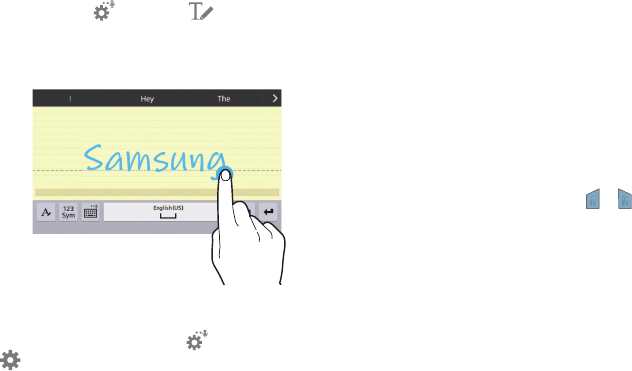
Touch and hold Options ➔ Handwriting, and then
write a word with a finger. As you write, suggestions are
offered in the word options area in case the correct letters
were not recognized. Select a suggested word.
Use handwriting gestures to perform actions, such as editing
or deleting characters and inserting spaces. To view the
gesture guides, touch and hold Options, and then touch
Settings ➔ Help ➔ Keyboard ➔ Using handwriting
gestures.
Entering Text By Voice
Activate the voice input feature and then speak into the
microphone. The device displays what you speak.
If the device does not recognize your words, touch the
underlined text and select an alternative word or phrase from
the drop-down list.
To change the language or add languages for voice
recognition, touch the current language.
Copying and Pasting
Touch and hold over text, drag or to select more or less
text, and then touch Copy to copy or Cut to cut. The selected
text is copied to the clipboard.
To paste it into a text entry field, touch and hold at the point
where it should be inserted, and then touch Paste.

Accounts and Contacts 30
Section 3: Accounts and Contacts
This section explains how to manage accounts and contacts.
Accounts
Your device can synchronize with a variety of accounts. With
synchronization, information on your device is updated with
any information that changes in your accounts.
• Samsung Account: Add your Samsung Account.
• Dropbox: Add your Dropbox Account.
• Email: Add an Email Account to sync Contacts.
• Google: Add your Google Account to sync your Contacts,
Calendar, and Gmail.
• LDAP: Add an LDAP Account to find entries in an LDAP
directory.
• Microsoft Exchange ActiveSync: Add your Exchange
Account to sync Contacts, Calendar, and Email.
• Facebook: Add a Facebook Account to sync apps.
• Twitter: Add a Twitter Account.
Setting Up Accounts
Set up and manage your synchronized accounts with the
Accounts setting.
1. From a Home screen, touch ➔ Settings ➔
General tab ➔ Accounts ➔ Add account.
2. Touch the account type.
3. Follow the prompts to enter your account credentials to
complete the set up process.
Your tablet communicates with the appropriate account
servers to set up your account. When complete, your
account displays in the Accounts area of the Settings
screen.
31
Your Google Account
In order to utilize your device to the fullest extent, you will
need to create a Google Account when you first use your
device. With a Google Account, Google applications will
always be in sync between your tablet and computer.
1. From a Home screen, touch ➔ Settings ➔
General tab ➔ Accounts ➔ Add account ➔ Google.
2. Follow the prompts to sign into your existing account or
create a new account.
Your Samsung Account
Create a Samsung Account for access to Samsung apps
and services, and much more.
1. From a Home screen, touch ➔ Settings ➔
General tab ➔ Accounts ➔ Add account ➔
Samsung account.
2. Follow the prompts to sign into your existing account or
create a new account.
Contacts
Store contact information for your friends, family, and
colleagues to quickly access information or to send a
message.
To access Contacts:
From a Home screen, touch ➔ Contacts.
Add a Contact
1. Touch Contacts ➔ Create. The Save contact
to pop-up displays.
2. To choose where the contact is stored, touch Device or
an account.
– or –
Touch Add new account to add a different account.
For more information, refer to “Setting Up Accounts”
on page 30.
3. Touch each field to enter information. Touch to add
another entry, or to remove an entry. Touch to
choose a label.
•Picture: Touch the picture icon to assign a picture to
the new contact.
Accounts and Contacts 32
•Name: Enter the name. Touch to display additional
name fields.
•Phone: Enter a phone number.
•Email: Enter an email address.
•Groups: Assign the contact to a group.
•Add another field: Add additional fields for the
contact.
4. Touch Save.
Note: Your personal Contact entry is always listed at the top of
the Contacts list under ME. Touch Set up profile to add
your contact information.
Updating Contacts
1. Touch Contacts.
2. Touch a contact in the Contacts list to view its
information.
3. Touch Edit.
4. Touch any field to edit. For more information, refer to
“Add a Contact” on page 31.
Deleting Contacts
1. Touch Contacts.
2. Touch a contact in the Contacts list to display it.
3. Touch Delete.
4. At the prompt, touch OK.
Contacts Display Options
There are various ways to display your contacts.
1. Touch Contacts.
2. Touch the Groups tab, Favorites tab, or Contacts tab
to view contacts in various ways:
•Groups: Display contacts sorted into groups—such as
Not assigned, Co-workers, Family, Friends, etc. The
number of contacts in each group is displayed next to
the group name. Touch a group name to show only
contacts in that group. For more information, refer to
“Create a New Group” on page 35.
•Favorites: Show only your favorite (or starred),
contacts. For more information, refer to “Favorites” on
page 37.

33
•Contacts: Show all your contacts. Touch the Search
field and enter a keyword to list contacts that contain
that keyword.
3. While viewing Groups, Favorites, or Contacts, touch
Menu for options.
4. While viewing the Contacts tab, touch Menu ➔
Settings for Contact settings.
Linked Contacts
Your device can synchronize with multiple accounts,
including Google, Corporate Exchange, and other email
providers. When you synchronize contacts from these
accounts with your device, you may have multiple contacts
for the same person.
Linking, or joining, imported contact records allows you to
see all of a contact’s numbers and addresses together in a
single contact entry. Linking also helps you keep your
contacts updated, because any changes that your contacts
make to their information in the respective accounts are
automatically updated the next time you synchronize with
that account.
Linking Contacts
1. Touch Contacts.
2. Touch a contact in the Contacts list to display it.
3. Touch Menu ➔ Link contact.
4. Touch the contact you want to link. The linked contact’s
information is displayed with the original contact’s
information.
5. Repeat Steps 3 and 4 to link other contacts.
Separating Contacts
1. Touch Contacts.
2. Touch a contact in the Contacts list to display it.
3. Touch Menu ➔ Separate contact. A list of linked
contacts is displayed.
4. Touch to separate a linked contact.
Accounts and Contacts 34
My Personal Contact
Your own personal Contact entry is listed under ME at the top
of the Contacts list. You can send your personal Contact entry
as a vCard via Bluetooth or as a message attachment.
Creating Your Personal Contact Entry
1. Touch Contacts.
2. Touch
Set up profile
, then enter your information
in the
Contact fields.
For more information, see “Add a
Contact” on page 31.
Sharing Your Personal Contact Entry
You can send your personal Contact entry as a vCard via
Bluetooth to other Bluetooth devices, or as a message
attachment.
1. Touch Contacts.
2. Touch your personal Contact entry to display your
Contact information.
3. Touch
Menu
➔
Share namecard via
.
4. Choose a sending method, then follow the prompts to
send the profile.
Sharing Contact Information
You can send a contact’s information using Bluetooth to other
Bluetooth devices, or in an Email or Gmail as an attachment.
Note: Not all Bluetooth devices accept contacts and not all
devices support transfers of multiple contacts. Check
the target device’s documentation.
1. Touch Contacts.
2. Touch Menu ➔ Share namecard via.
3. Touch Selected contact to share only the displayed
contact, or touch Multiple contacts.
4. Touch a sending method, such as Bluetooth or email.
5. Follow the prompts to send the contact information.

35
Importing and Exporting Contacts
To back up and restore your contacts, you can export your
contacts list to a storage device (such as a PC), or import
your contacts list from a storage device.
1. Use the USB cable to connect your device to the
storage device.
2. Touch Contacts.
3. Touch Menu ➔ Settings ➔ Import/Export.
4. Touch an option and then follow the prompts.
Groups
Assign contacts to Groups to make searching for contacts
faster or to quickly send messages to group members.
Create a New Group
Create a new group when you add or edit a contact.
1. Touch Contacts ➔ Groups tab.
2. Touch Create.
3. Touch the Group name field and enter a name.
4. Touch Add member, touch individual contacts or touch
Select all, and then touch Done to add the selected
contacts to the group.
5. Touch Save.
Tip: Contacts can belong to more than one group. While
editing a contact, touch the Groups field to add additional
groups.
Once you create a new group, the Contacts list can be set to
display only the contacts in that group. For more information,
refer to “Contacts Display Options” on page 32.

Accounts and Contacts 36
Adding Group Members
To add a contact to a group, just edit a contact’s Group field.
For more information, refer to “Updating Contacts” on
page 32.
To add multiple contacts to a group:
1. Touch Contacts ➔ Groups tab.
2. Touch the group to which you want to add members.
3. Touch Menu ➔ Add member.
The contacts that can be added display.
4. Touch Select all or the name of each contact to add.
5. Touch Done to add the contacts to the group.
Removing Group Members
1. Touch Contacts ➔ Groups tab.
2. Touch the group from which you want to remove
members.
3. Touch Menu ➔ Remove member.
4. Touch Select all or the name of each contact to
remove.
5. Touch Done to remove the contacts.
Contacts are removed from the group and the group
name is removed from each contact’s Group field.
Renaming a Group
1. Touch Contacts ➔ Groups tab.
2. Touch the group you want to rename.
3. Touch Menu ➔ Edit group.
4. Touch the Group name field and enter a new name.
5. Touch Save.
37
Deleting Groups
1. Touch Contacts ➔ Groups tab ➔ Menu ➔
Delete groups.
2. Touch individual groups or touch Select all, then
touch Done.
3. Touch Group only to delete only the group or Group
and group members to delete both the group and the
group’s members.
Favorites
Mark contact records with a gold star to identify them as
favorites.
Mark a Contact as a Favorite
1. Touch Contacts.
2. Touch a contact in the Contacts list to display it.
3. Touch the Star so that it turns gold .
Tip: You do not have to edit the contact to mark it as a
favorite.
View Favorites
1. Touch Contacts.
2. Touch the Favorites tab. Only your starred contacts are
displayed.
– or –
Touch the Groups tab, then touch Starred in Android
to list only your starred contacts that are being saved
to your Google Account.
Remove Favorites
1. Touch Contacts ➔ Favorites tab.
2. Touch Menu ➔ Remove from Favorites.
3. Touch individual contacts or touch Select all, then
touch Done to remove.
Note: To remove the currently displayed contact from your
favorites list, touch the Star next to the contact’s
name so that it is no longer gold .
Messaging 38
Section 4: Messaging
This section describes how to send and receive messages
and other features associated with messaging.
Types of Messages
Your device supports these types of messages:
• Gmail
• Email
• Hangouts
• Google+
Note: Your Wi-Fi-only device does NOT support voice calling
and messaging services. Please disregard any “dial”
and “message” related menus because some Gmail
options are identically set in all Android devices.
Gmail
Send and receive email with Gmail, Google’s web-based
email service.
From a Home screen, touch ➔ Gmail.
Setting Up Your Gmail Account
If you did not set up a Google Account during the initial
configuration, the first time you launch Gmail, your device
prompts you to set up your Google Account.
1. Touch Gmail.
2. Follow the prompts to sign in or create a new account.
The device communicates with the Google server to set
up your account and synchronize your email. When
complete, your Gmail displays in the Inbox.
Note: You can use more than one Google Account on your
device. From a Home screen, touch ➔
Settings ➔ General tab ➔ Accounts ➔ Add
account to add an additional Google Account.
39
Composing and Sending Gmail
1. Touch Gmail.
2. Touch Compose, then touch fields to compose
the message. While composing a message, touch
Menu for options.
3. Touch SEND to send this message.
– or –
Touch Menu ➔ Save draft to save a draft of this
message.
Refreshing Your Gmail Account
Refresh your account to update your device from the Gmail
servers.
1. Touch Gmail.
2. While viewing your Inbox, drag your finger downward
across your messages.
Gmail Settings
Use the Gmail Settings to configure your Gmail preferences.
1. Touch Gmail.
2. Touch Menu ➔ Settings for settings.
Email
Use Email to view and manage all your email accounts in one
application.
From a Home screen, touch ➔ Email.
Configuring Email Accounts
You can configure Email for most accounts in just a
few steps.
1. Touch Email.
2. The first time you set up an email account, at the Set
up email screen, enter an Email address and
Password, then touch Next.
– or –
For additional accounts, touch Menu ➔ Settings ➔
Add account.
3. Follow the onscreen instructions to set up your email
account.
The device communicates with the appropriate server
to set up your account and synchronize your email.
When complete, your email appears in the Inbox for
the account.
Messaging 40
Note: To configure email account settings at any time, use
Menu ➔ Settings. Touch the account to display
Account settings.
Composing and Sending Email
1. Touch Email.
2. If you have multiple accounts set up, choose an
account from the menu at the top of the screen.
3. Touch Compose, then touch fields to enter
recipients and the email text.
4. While composing a message:
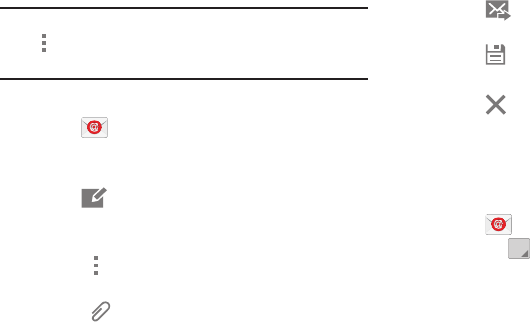
•Touch Menu to display options: Schedule sending,
Priority, Tracking options, and Security options.
•Touch Attach to add a file to the message.
Available options depend on the type of email account.
5. Touch the body of the email to enter the text of your
email. Touch the text option buttons to edit and format
your message text.
6. Touch Send to send the message.
– or –
Touch Save to save the email to the Drafts folder.
– or –
Touch Discard to discard the email.
Managing Your Email Accounts
If you add more than one email account, you can view email
you receive for all accounts in the Combined view screen or
you can view email accounts individually.
1. Touch Email.
2. Touch the
drop-down menu at the top left of the
screen to select:
• Combined view: View all email in a combined inbox.
•<Account Name>: View email for the account.
41
Refreshing Your Email Account
Refresh your account to update your device from your email
servers.
1. Touch Email.
2. In the Application Bar, touch Refresh.
Deleting Email Accounts
To delete an Email account:
1. Touch Email.
2. Touch Menu ➔ Settings ➔ Delete account.
Email Settings
Use the Email Settings to configure your Email preferences.
Note: Available settings depend on the email provider.
1. Touch Email.
2. Touch Menu ➔ Settings, then touch
General settings. Some common options are:
•Display: Set how email is shown in the email list and
when you open them.
• Composing and sending: Set what functions are
available while composing and sending email.
•Auto advance: Set the screen to show after deleting a
message. Choices are: Next email, Previous email, or
Email list.
• Confirm deletions: Ask for confirmation before
deleting email.
• Priority senders: Enter email addresses that you want
treated as a priority.
•Spam addresses: Manage your spam address list.
• Rules for filtering: Create rules for filtering email
based on names, address, or subject.
3. Touch an account to configure specific settings for that
account.
Hangouts
Google Hangouts is an online place to meet friends and
family, share photos, and host video calls. Conversation logs
are automatically saved to a Chats area in your Gmail
account.
From a Home screen, touch ➔ Hangouts.

Messaging 42
Google+
Google+ makes messaging and sharing with your friends a
lot easier. You can set up Circles of friends, visit the Stream
to get updates from your Circles, or use Instant Upload to
automatically upload videos and photos to your own private
album on Google+.
From a Home screen, touch ➔ Google+.
43
Section 5: Multimedia
This section explains how to use the music features of your
device including Google Play Music and Music Player.
WatchON is also described.
Listening to Music
You can listen to music using your device’s built-in speakers,
through a wired headset, or through a Bluetooth headset.
For more information, refer to “Bluetooth” on page 60.
Press the Volume Key on the side of the device to activate
onscreen volume control, then touch and drag on the scale to
set the volume. You can also press the Volume Key to adjust
playback volume.
Play Music
Note: Some options require a Google Account.
Google Play Music is a Google service that gives you instant
access to your personal music collection stored on the
Internet and your device. Google Play Music lets you browse,
shop, and play back songs purchased from the Google Play
Store app, as well as songs you have loaded from your own
music library
For more information, visit music.google.com.
From a Home screen, touch ➔ Play Music.
Multimedia 44
Music Player
Use the Music application to listen to music.
To access Music Player:
From a Home screen, touch ➔Music.
Note: Some file formats are not supported depending on the
software installed on the device. Some files may not
play properly depending on the encoding method used.
Playing Music
Select a music category, and then select a song to play.
Touch the album image at the bottom of the screen to open
the music player screen.
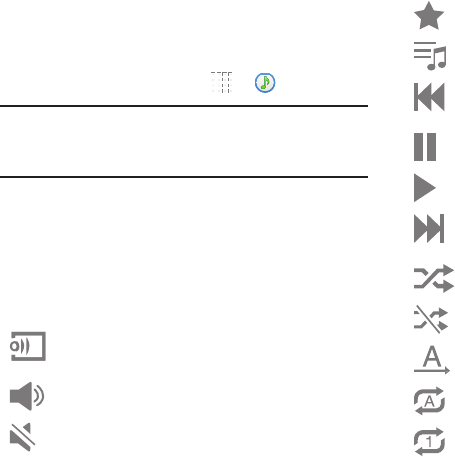
The following Music controls are available:
Streams the current music file to another device via
Samsung Link.
Volume control and SoundAlive.
Volume control showing volume muted.
Assign the current song as a Favorite.
Lists the current playlist songs.
Touch and hold to rewind the song. Touch to go to
previous song.
Pause the song.
Start the song after pausing.
Touch and hold to fast-forward the song. Touch to go
to next song.
Shuffles the current list of songs randomly.
Songs play in order and are not shuffled.
Plays the entire song list once.
Replays the current list when the list ends.
Repeats the currently playing song.

45
To listen to songs at equal volume levels:
Touch Menu ➔ Settings ➔ Player ➔ Smart
volume.
Caution! When Smart volume is activated, the volume may
end up louder than the device volume level. Use
caution to avoid long-term exposure to loud sounds
to prevent damage to your hearing.
Note: Smart Volume may not be activated for some files.
To set a personalized sound while listening to songs with
a headset:
Touch Menu ➔ Settings ➔ Player ➔ Adapt Sound
➔On.
When you turn the volume up to level 14 or higher, the adapt
sound option is not applied to music playback. If you turn the
volume down to level 13 or lower, the option is reapplied.
Setting a Song as an Alarm Ringtone
To use the currently-playing song as an alarm ringtone:
Touch Menu ➔ Set as alarm tone.
Creating Playlists
To create a playlist of songs.
1. Touch the Playlists tab.
2. Touch Menu ➔ Create playlist.
3. Enter a title and touch OK.
4. Touch Add tracks, select songs to include, and then
touch Done.
To add the currently-playing song to a playlist:
Touch Menu ➔ Add to playlist.
Playing Music by Mood
Play music grouped by mood. The playlist is automatically
created by the device.
Touch Menu ➔ Music square and select a cell of
mood.
– or –
Select multiple cells by dragging your finger across
multiple cells.

Multimedia 46
WatchON
Enjoy all of your favorite movies and TV shows with
WatchON.
Important! Before you use WatchON, verify that you have an
active Internet connection available. For more
information, refer to “Wi-Fi” on page 57.
Notes
1. Before beginning your initial WatchON application
setup, make sure that your TV is turned off.
2. Sign into your Samsung account before using
WatchON. For more information, refer to “Your
Samsung Account” on page 31.
Initial Configuration
1. From a Home screen, touch ➔ WatchON.
The Set up WatchON screen displays.
2. Touch Set up WatchON.
The Privacy policy displays.
3. Read the Privacy policy, check the I have read and
accept the terms of the above privacy policy box,
and touch Next.
4. Follow the onscreen instructions.
WatchON Menu
1. From a Home screen, touch ➔ WatchON.
2. Touch Menu for the following options.
• Sign in: Sign in to your Samsung account to improve
your WatchON experience.
• Settings: Configure Samsung WatchON settings.
Follow the onscreen instructions.
•Help: Displays Samsung WatchON help information
and a Contact us telephone number.
47
Section 6: Camera and Video
Camera
Use this application to take photos or videos.
Use Gallery to view photos and videos taken with the
device’s camera.
From a Home screen, touch ➔ Camera.
Note: The camera automatically shuts off when unused.
Note: Make sure that the lens is clean. Otherwise, the device
may not work properly in some modes that require high
resolutions.
Camera Etiquette
• Do not take photos or videos of other people without their
permission.
• Do not take photos or videos where legally prohibited.
• Do not take photos or videos in places where you may
violate other people’s privacy.
Taking Photos
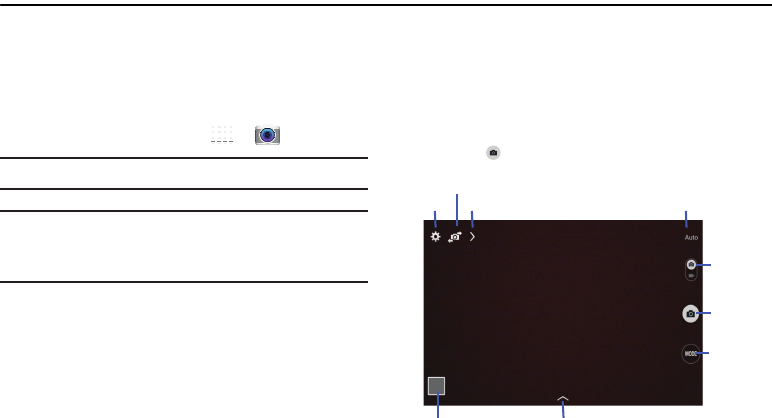
1. Touch the image on the preview screen where the
camera should focus.
When the subject is in focus, the focus frame turns
green.
2. Touch to take the photo.
Settings
Front / Rear Camera
More Options Current Mode
Camera /
Record
Video
Camera
Button
Shooting
Mode
Gallery / View
Photos and Videos Effects

Camera and Video 48
Shooting Mode
Several photo effects are available. Some modes are not
available when taking self-portraits.
Touch MODE, and then scroll up or down the screen at
the right side of the screen.
•Auto: Use this to allow the camera to evaluate the
surroundings and determine the ideal mode for the
photo.
• Beauty face: Take a photo with lightened faces for
gentler images.
–Touch to take multiple photos. To get the best
shot, hold the camera steady and remain still while
taking photos. When Gallery opens, touch the yellow
frame on each face, and choose the best individual
pose for the subject. After choosing a pose for each
individual, touch Save to merge the images into a
single photo, and save it.
• Sound & shot: Use this to take a photo with sound.
–Touch to take a photo. The device records a few
seconds of audio after taking a photo.
Note: While taking photos in this mode, sound is recorded by
the internal microphone.
• Panorama: Take a photo composed of many photos
strung together.
To get the best shot, follow these tips:
–Move the camera slowly in one direction.
–Keep the camera’s viewfinder within the guide frame.
–Avoid taking photos of a subject in front of
unrecognizable backgrounds, such as empty skies or
plain walls.
•Sports: Use this setting for fast-moving subjects.
•Night: Take brighter, clearer pictures in low light
without a flash.
49
Panoramic Photos
A panoramic photo is a wide landscape image consisting of
multiple shots.
1. Touch MODE ➔ Panorama.
2. Touch and move the camera in one direction. When
the blue frame aligns with the viewfinder, the camera
automatically takes another shot in a panoramic
sequence. To stop shooting, touch . If the
viewfinder is out of the direction, the device
stops shooting.
Applying Filter Effects
Use the filter effects to take unique photos or videos.
Touch and select a filter effect. The available
options vary by mode.
Recording Videos
To record a video, touch the Camera / Record Video
switch and swipe downward.
To start or continue recording, touch .
To pause recording, touch .
To stop recording, touch .
Recording Mode
Touch Options ➔ Recording mode to change
the recording mode.
•Normal: Use this mode for normal quality.
• Limit for email: Use this mode to lower quality for
sending via messages.
Camera and Video 50
Zooming In and Out
Use one of the following methods:
Use the Volume button to zoom in or out.
Spread two fingers apart on the screen to zoom in, and
pinch to zoom out.
Note: The zoom in and out effect is available when using the
zoom feature while shooting video.
Share Shot
Touch Options ➔ and select one of the
following:
•Share shot: Send a photo directly to another device via
Wi-Fi Direct.
• Buddy photo share: Set the device to recognize a
person’s face that you have tagged in a photo and send
it to that person.
• Remote viewfinder: Set a device to control the
camera remotely.
Controlling the Camera Remotely
Set a device as a viewfinder to control the camera remotely.
Touch Options ➔ ➔ Remote viewfinder, and then
connect the device and the camera using Wi-Fi Direct. Touch
to take a photo remotely using the device as a viewfinder.
Configuring Settings for Camera
Touch to configure settings for Camera. Not all of
the following options are available in both still camera
and video camera modes. The available options vary
depending on the mode used.
Camera:
•Photo size: Select a resolution. Use higher resolution
for higher quality. Higher resolution photos take up
more memory.
• Metering: Select a metering method. This determines
how light values are calculated. Center-weighted
measures background light in the center of the scene.
Matrix averages the entire scene. Spot measures
the light value at a specific location.
51
Video recorder:
• Video size: Select a resolution. Use higher resolution
for higher quality. Higher resolution videos take up more
memory.
Settings:
•Location tag: Attach a GPS location tag to the photo.
Note: To improve GPS signals, avoid shooting in locations
where the signal may be obstructed, such as between
buildings or in low-lying areas, or in poor weather
conditions.
Tip: Your location may appear on your photos when you
upload them to the Internet. To avoid this, deactivate the
GPS tag setting.
•Review: Set to show photos or videos after taking
them.
• Volume key: Set the device to use the Volume button
to control the shutter or zoom function.
•Timer: Use this for delayed-time shots.
• White balance: Select an appropriate white balance,
so images have a true-to-life color range. The settings
are designed for specific lighting situations. These
settings are similar to the heat range for white-balance
exposure in professional cameras.
• Brightness: Change the exposure value. This
determines how much light the camera’s sensor
receives. For low light situations, use a higher
exposure.
• Guidelines: Display viewfinder guides to help
composition when selecting subjects.
• Voice control: Set the camera to take photos with
voice commands.
• Contextual filename: Set the camera to display
contextual tags. Activate this to use Tag Buddy in
Gallery and Story Album.
• Save as flipped: Invert the image to create a mirror-
image of the original scene.
•Storage: Select the memory location for storage.
• Reset: Reset the camera settings.
•Help: Access help information for using the camera.
Camera and Video 52
Shortcuts
Reorganize shortcuts for easy access to the camera’s various
options.
1. Touch Options.
2. Touch and hold a shortcut icon to display all shortcuts.
3. Touch and hold an option and drag it to a slot at the top
of the screen.
Note: The other icons can be moved within the list by
touching and dragging them.
Tip: Touch Reset to reset the quick settings layout to the
default settings.
Gallery
Use this application to view images and videos.
From a Home screen, touch ➔ Gallery.
Note: Some file formats are not supported depending on the
software installed on the device. Some files may not
play properly depending on the encoding method used.
Viewing Images
Launching Gallery displays available folders. When another
application, such as Email, saves an image, the Download
folder is automatically created to contain the image.
Likewise, capturing a screenshot automatically creates the
Screenshots folder. Select a folder to open it.
In a folder, images are displayed by creation date. Select an
image to view it in full screen.
Scroll left or right to view the next or previous image.
Zooming In and Out
Use one of the following methods to zoom in or out on
an image:
Double-tap anywhere on the screen to zoom in or
zoom out.
Spread two fingers apart on any place to zoom in.
Pinch the screen to zoom out.
Playing Videos
Video files show the icon on their thumbnails.
Select a video to watch it and touch .

53
Trimming Segments of a Video
1. Select a video, and then touch Trim.
2. Move the start bracket to the desired starting point,
move the end bracket to the desired ending point, and
then save the video.
Image Options
While viewing an image, touch Menu and use the
following functions:
•Favorite: Add to the favorites list.
• Slideshow: Start a slideshow with the images in the
current folder.
• Photo frame: Use this to add a frame and a note to an
image. The edited image is saved in the Photo frame
folder.
•Photo note: Use this to write a note on the back of the
image. Touch to edit the note.
• Copy to clipboard: Copy to clipboard.
•Print: Print the image via a USB or Wi-Fi connection.
Some printers may not be compatible with the device.
•Rename: Rename the file.
• Buddy photo share: Send the image to a person
whose face is tagged in the image.
•Rotate left: Rotate counter-clockwise.
•Rotate right: Rotate clockwise.
•Crop: Resize the blue frame to crop and save the
image in it.
•Set as: Set the image as wallpaper or a contact image.
• Details: View image details.
•Settings: Change the Gallery settings.
Favorite Images
While viewing an image, touch Menu ➔ Favorite to
add the image to the favorites list.
Sharing Images
Use one of the following methods:
In a folder, touch Menu ➔ Select item, select
images by ticking, and then touch to send them to
others or share them via social network services.
When viewing an image, touch to send it to others
or share it via social network services.
Camera and Video 54
Setting as Wallpaper
When viewing an image, touch Menu ➔ Set as to
set the image as wallpaper or to assign it to a contact.
Tagging Faces
1. Touch Menu ➔ Settings ➔ Tags ➔ Face tag.
A yellow frame appears around the recognized face.
2. Touch the face, touch Add name, and then select or
add a contact.
3. When the face tag appears on an image, touch the face
tag and use available options, such as sending
messages.
Note: Face recognition may fail depending on the face angle,
face size, skin color, facial expression, light conditions,
or accessories the subject is wearing.
Using Tag Buddy
To display a contextual tag (weather, location, date, and
person’s name) when opening an image:
1. Touch Menu ➔ Settings ➔ Tags ➔ Tag buddy.
2. Touch the OFF/ON button to turn Tag buddy
ON .
Deleting Images
Use one of the following methods:
In a folder, touch Menu ➔ Select item, select
images by ticking, and then touch Delete.
When viewing an image, touch Delete.
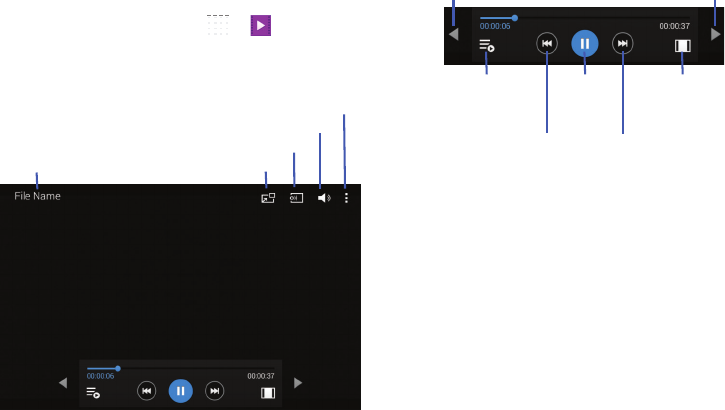
55
Video
Use this application to play video files.
From a Home screen, touch ➔ Video.
Playing Videos
Select a video to play.
Notes:
Move forwards or backwards by touching and dragging
the Progress Bar. Under the Progress Bar, the elapsed
time displays to the left and the total time to the right.
Use the Rewind button to restart the current video or
skip to the previous video. Touch and hold to move
backwards quickly.
Use the Fast Forward button to skip to the next video.
Touch and hold to move forwards quickly.
File Name
Pop-up Player
Search for Other Devices
Volume Control
Additional Options
Move Controls
to the Left Move Controls
to the Right
Pause /
Resume
Playback
Rewind Fast
Forward
Open the
Playlist Change
Screen Ratio
Camera and Video 56
Note: Some file formats are not supported depending on the
device's software. Some files may not play properly
depending on the encoding method used.
Deleting Videos
Touch Menu ➔ Delete, select videos by ticking, and
then touch Delete.
Sharing Videos
Touch Menu ➔ Share via, select videos by ticking, touch
Done, and then select a sharing method.
Using Popup Video Player
Use this feature to use other applications without closing the
video player.
While watching videos, touch to use the pop-up
player.
Spread two fingers apart on the screen to enlarge the
player or pinch to reduce it.
To move the player, drag the player to another location.
57
Section 7: Connections
Your device includes features to connect to the internet and
to other devices via Wi-Fi, Bluetooth, or a USB cable.
Wi-Fi
Wi-Fi is a wireless networking technology that provides
access to local area networks.
Wi-Fi communication requires access to an existing Wi-Fi
network. Wi-Fi networks can be Open (unsecured), or
Secured (requiring you to provide login credentials).
Your device supports Wi-Fi 802.11 a/b/g/n.
Turn Wi-Fi On or Off
Turn your device’s Wi-Fi service on or off. When you turn
Wi-Fi service on, your device automatically searches for
available, in-range WAPs (Wireless Access Points).
From the Notification Panel
1. From any screen, touch the top of the screen and
swipe downward. The Notification Panel displays.
2. Touch Wi-Fi to turn Wi-Fi ON (green) or OFF (grey).
From Settings
1. From a Home screen, touch ➔ Settings ➔
Connections tab ➔ Wi-Fi.
2. Touch the OFF/ON button to turn Wi-Fi ON or
OFF .
Scan and Connect to a Wi-Fi Network
When you turn on Wi-Fi, your device searches for available
Wi-Fi connections and displays them.
1. From a Home screen, touch ➔ Settings ➔
Connections tab ➔ Wi-Fi.
2. Touch the OFF/ON button to turn Wi-Fi ON .
3. When your device completes a scan, touch a Wi-Fi
network to connect. If the Wi-Fi network is open, you
will be automatically connected. If the Wi-Fi network is
secured, enter the password at the prompt to connect.
Note: To begin a new scan for available WAPs, touch Scan.
Connections 58
Add a Wi-Fi Network Manually
1. From a Home screen, touch ➔ Settings ➔
Connections tab ➔ Wi-Fi.
2. Touch the OFF/ON button to turn Wi-Fi ON .
3. Touch Add Wi-Fi Network (below the available
networks), then enter these fields:
• Network Name (SSID): Enter the name of the Wi-Fi
network.
•Security: Select the type of security used by the Wi-Fi
network.
• Password: If the network is secured, enter the
password. Touch Show password to display it.
• Show advanced options: Select the Proxy settings
and IP settings for the network.
4. Touch Connect to save the settings and connect to
the network.
Wi-Fi Status Indicators
The following icons show your current Wi-Fi connection
status at a glance:
Settings
Set up and manage wireless access points.
1. From a Home screen, touch ➔ Settings ➔
Connections tab ➔ Wi-Fi.
2. Touch the OFF/ON button to turn Wi-Fi ON .
3. Touch Menu for options:
•Advanced:
–Network notification: Send a notification when an
open network is available.
–Sort by: Sort Wi-Fi networks by alphabet or RSSI
(received signal strength indicato).r
Displays when Wi-Fi is connected, active, and
communicating with a Wireless Access Point (WAP).
Displays when there is a Wi-Fi network is available but
you are not connected to it. It may also display if there is
a communication issue with the Wireless Access Point
(WAP).
59
–Keep Wi-Fi on during sleep: Specify when to
switch from Wi-Fi to mobile data for data
communications when the device goes to sleep
(when the backlight goes out).
–Always allow scanning: Allow Google location
service and other apps to scan for networks, even
when Wi-Fi is turned off.
–Wi-Fi timer: Automatically connect to or disconnect
from Wi-Fi networks.
–Install certificates: Install certificates from a
memory card.
–MAC address: View your device’s MAC address
(not configurable).
–IP address: View your device’s IP address
(not configurable).
• WPS push button: Set up a connection to a WPS (Wi-
Fi Protected Setup) router or other equipment.
• WPN PIN entry: View the PIN used by your device to
set up a PIN-secured connection to a Wi-Fi router or
other equipment (not configurable).
•Help
: Learn about setting up and using Wi-Fi networks.
Wi-Fi Direct
Wi-Fi Direct allows devices to connect to each other directly
via Wi-Fi, without a Wi-Fi network or hotspot, and without
having to set up the connection.
Important! All devices must be Wi-Fi Direct-enabled.
Turn Wi-Fi Direct On
1. From a Home screen, touch ➔ Settings ➔
Connections tab ➔ Wi-Fi.
2. Touch the OFF/ON button to turn Wi-Fi ON .
(Wi-Fi must be enabled to use Wi-Fi Direct.)
3. Touch Wi-Fi Direct to turn Wi-Fi Direct on.
Turn Wi-Fi Direct Off
1. From a Home screen, touch ➔ Settings ➔
Connections tab ➔ Wi-Fi.
2. Touch Wi-Fi Direct to view connections.
3. Touch End connection to turn Wi-Fi Direct off and
terminate all Wi-Fi Direct connections
Note: Turning Wi-Fi off also turns off Wi-Fi Direct and
terminates all Wi-Fi Direct connections
Connections 60
Connect to Wi-Fi Direct Devices
1. From a Home screen, touch ➔ Settings ➔
Connections tab ➔ Wi-Fi.
2. Touch the OFF/ON button to turn Wi-Fi ON .
(Wi-Fi must be enabled to use Wi-Fi Direct.)
3. Touch Wi-Fi Direct to turn Wi-Fi Direct on.
4. Enable Wi-Fi Direct on the target device. Consult the
target device’s documentation for more information.
5. On your device, touch Wi-Fi Direct to scan for the
other device.
6. In the scanned list, touch the target device to connect
with it, or touch Multi-connect to connect to multiple
devices (not all devices support multi-connect).
7. Follow the prompts on both devices to complete the
connection.
Note: Once connected, the target device will show as
Connected in your list of Wi-Fi Direct devices and the
icon will display on the Status Bar.
Bluetooth
Bluetooth is a short-range wireless communications
technology for exchanging information over a distance
of about 30 feet. If the devices are in range, you can
exchange information between them, even if they are
in different rooms.
Your device can use Bluetooth to share photos, contacts and
other content with other Bluetooth devices. Many of the apps
on your device provide options for sharing via Bluetooth
under
Menu.
Note: Due to different specifications and features of other
Bluetooth-compatible devices, display and operations
may be different, and functions such as transfer or
exchange may not be possible with all Bluetooth-
compatible devices.
61
Turn Bluetooth On or Off
From the Notification Panel
1. From any screen, touch the top of the screen and
swipe downward. The Notification Panel displays.
2. Touch Bluetooth to turn Bluetooth ON (green) or
OFF (grey).
From Settings
1. From a Home screen, touch ➔ Settings ➔
Connections tab ➔ Bluetooth.
2. Touch the OFF/ON button to turn Bluetooth ON
or OFF .
Note: The icon displays on the Status bar when Bluetooth is
active.
Pair with a Bluetooth Device
Pairing initiates a connection between your device and the
target device, usually by using a passcode or PIN. After
pairing, your device and the target device recognize each
other and exchange information without having to enter a
passcode or PIN.
1. From a Home screen, touch ➔ Settings ➔
Connections tab ➔ Bluetooth.
2. Touch the OFF/ON button to turn Bluetooth ON .
3. Make sure that the target device is discoverable, so
that your device can find it. Refer to the target device’s
documentation for more information.
4. Touch Scan. Your device will start to scan for Bluetooth
devices within range.
5. From the list of scanned devices, touch the target
device and follow the prompts to complete the pairing:
•If the target device requires a PIN, enter a PIN for the
target device and touch OK. When prompted, enter the
PIN on the target device.
•If the device allows automatic or smart pairing, your
device will attempt to pair with the device automatically.
Follow the prompts on your device and the target device
to complete the pairing.
Note: Once paired, the target device will be listed under
Paired Devices.
Connections 62
Reconnect to a Bluetooth Device
1. From a Home screen, touch ➔ Settings ➔
Connections tab ➔ Bluetooth.
2. Touch the OFF/ON button to turn Bluetooth ON .
3. Make sure that the target device is discoverable.
4. Touch the target device's name in the Bluetooth
devices section.
5. If prompted to enter a passcode, try 0000 or 1234, or
consult the target device's documentation.
Disconnect or Unpair from a
Bluetooth Device
Disconnect from a Bluetooth Device
You can disconnect your device from a Bluetooth device,
such as a headset. Disconnecting does not unpair the
Bluetooth device—the next time you connect, your device
and the target device will recognize each other and exchange
information without having to enter a passcode or PIN.
1. From a Home screen, touch ➔ Settings ➔
Connections tab ➔ Bluetooth.
2. Touch the OFF/ON button to turn Bluetooth ON .
3. Touch the connected device, and then touch OK to
disconnect.
Unpair from a Bluetooth Device
You can make your device forget its pairing connection with
another Bluetooth device. To connect to the other device
again, you may need to enter or confirm a passcode again.
1. From a Home screen, touch ➔ Settings ➔
Connections tab ➔ Bluetooth.
2. Touch the OFF/ON button to turn Bluetooth ON .
3. Under Paired devices, touch next to the device, and
then tap Unpair.
63
Bluetooth Settings
When Bluetooth is on, additional settings are available.
1. From a Home screen, touch ➔ Settings ➔
Connections tab ➔ Bluetooth.
2. Touch the OFF/ON button to turn Bluetooth ON .
3. Touch your device's name to enable or disable visibility
to other Bluetooth devices. When your device is visible,
other devices can find your device during a scan. Your
device remains visible for the period of time set in the
Visibility timeout setting.
4. Touch beside a paired device for options:
•Rename: Enter a new name for the paired device.
•Unpair: Delete the Bluetooth connection to this device.
To connect to the other device again, you may need to
enter or confirm a passcode again.
5. Touch Menu for options:
• Visibility timeout: Set the length of time your device is
visible to other devices when you turn on visibility.
• Received files: View files transferred to your device.
• Rename device: Change the name of your device.
•Help: Learn about Bluetooth, and other settings.
Connect to a Computer
Connect your device to a computer to transfer data between
your device and the computer. Use the USB cable that comes
with your device, or use one of the pre-loaded apps on your
device to connect wirelessly.
Transfer Data
Connect your device to a computer, via USB cable, to transfer
data as a Media device using MTP (Media Transfer Protocol),
or as a Camera using PTP (Photo Transfer Protocol).
1. Attach your device to the computer with a USB data
cable. Your device recognizes the connection as the
last connection method you used, and displays a
connection alert in the Status bar and Notifications.
2. From the Home screen, sweep your finger downward
to display Notifications, then touch the alert.
3. Select a connection method:
• Media device (MTP): Transfer media files with
Windows, or using Android file transfer on a Mac
(see android.com/filetransfer).
• Camera (PTP): Transfer photos using camera
software, and transfer files to computers that do not
support MTP.
Connections 64
4. On your computer, choose a method for accessing your
device. Available options depend on the programs
installed on your computer.
5. Transfer files to the memory card. When finished, you
can disconnect the USB cable.

65
Section 8: Applications
This section contains a description of each application that is
available on the Apps screen, its function, and how to
navigate through that particular application. If the application
is described in another section of this user manual, then a
cross reference to that description is provided.
Updating Applications
Once you have registered your device (see “Software
Update” on page 116) and signed into your Google Account
(see “Your Google Account” on page 31), you may see the
Updates Available notification in the Status Bar if there
is a new version of one or more apps available or, when you
open an application that is preloaded on your device, an
Update Available message may be displayed.
To update the applications:
1. Touch the top of the screen and swipe downward.
2. Touch Updates available.
Accessing Applications
The Apps screen displays all applications installed on your
wireless device. Applications that you download and install
from Google Play or from the web are also added to a
Home screen.
To access applications:
1. From a Home screen, touch .
The Apps screen displays.
2. Locate the application’s icon and touch it to launch the
application.
Tip: To open applications quickly, add the icons of frequently-
used applications to one of the Home screens, if it is not
there by default. For more information, refer to “Adding a
Shortcut or Widget” on page 22.
Applications 66
Alarm
Set alarms for reminders or for wake-up times.
1. Touch Alarm.
2. Touch Turn alarm on to activate the alarm. A gray
alarm means the alarm is deactivated.
3. Touch an alarm to change any of its settings and then
touch Save to save the updates.
Note: When an alarm is set, displays in the Status Bar.
Setting Alarms
Touch Create, set a time for the alarm to go off,
select days for the alarm to repeat, and then touch
Save.
• Location alarm: Set a location. The alarm goes off
only when you are in the location.
• Snooze: Set an interval and the number of times for
the alarm to repeat after the preset time.
• Smart alarm: Set a time for the alarm to go off before
the preset time.
Stopping Alarms
Drag outside the large circle to stop an alarm.
Drag outside the large circle to repeat the alarm
after a specified length of time.
Deleting Alarms
Touch and hold the alarm, and then touch Delete.
Calculator
The Calculator provides basic and advanced arithmetic
functions.
1. Touch Calculator.
2. Enter the first number using the numeric keys.
3. Enter the operation for your calculation by touching the
corresponding onscreen arithmetic function key.
4. Enter the next number.
5. To view the result, touch the = (equals) key.
6. Repeat Steps 3 through 5 as many times as required.
To clear the result:
Touch .
67
To clear the calculator history:
Touch Menu ➔ Clear history.
For more advanced problems, use the advanced operators
sin, ln, cos, log, tan, and so on, just as you would on a
pocket calculator.
To copy or cut the contents of the display:
Touch and hold entries in the Calculator's display field.
Copied to clipboard displays. Paste the copied value
in another app.
Calendar
Use this application to manage events and tasks.
Touch Calendar.
Creating Events or Tasks
1. Touch and use one of the following methods:
•Event: Enter an event with an optional repeat setting.
•Task: Enter a task with an optional priority setting.
– or –
Touch a date on the calendar to select it and touch
it again.
Enter a title and specify which calendar to use or sync
with. Then touch Edit event details or Edit task
details to add more details, such as how often the
event repeats, when it has an advance alert, or where
it takes place.
2. Attach a map showing the location of the event. Enter
the location in the Location field, touch next to the
field, and then pinpoint the precise location by touching
and holding on the map that appears.
Syncing with Google Calendar
1. On a Home screen, touch ➔ Settings ➔
General tab ➔ Accounts ➔ Google.
2. Touch a Google Account ➔ Sync Calendar ➔ Sync
now.
To manually sync for updating:
Touch Calendar ➔ Menu ➔ Sync.
To display synced events or tasks:
Touch Calendar ➔ Menu ➔ Calendars, and
then check mark the Google Account.
Applications 68
Changing Calendar Type
At the top of the screen:
1. Touch a calendar type: Year, Month, Week, or Day.
2. Touch List to list all events or Task to list all tasks.
Options
Addition options for events and tasks:
• Search for events or tasks: Touch Search to search
for an event.
• View today’s events: Touch Today at the top of the
screen.
• Delete an event or task: Touch the entry. On the pop-up,
touch Menu ➔ Delete.
– or –
Touch Menu ➔ Delete, select events, and then touch
Delete.
• Share an event or task: Touch the entry. On the pop-up,
touch Menu ➔ Share via, and then select a sharing
method.
Camera
Use this application to take photos or videos.
Touch Camera.
For more information, refer to “Camera” on page 47.
Chrome
Use Chrome to browse the internet and bring your open tabs,
bookmarks and omnibox data from your computer to your
tablet.
Touch Chrome.
Contacts
Store contact information for your friends, family, and
colleagues, to quickly access information or to send a
message.
Touch Contacts.
For more information, refer to “Contacts” on page 31.
69
Drive
Use the Google Drive app to open, view, rename, and share
your Google Docs and files.
1. Touch Drive.
2. Sign in to your Google account. For more information,
refer to “Setting Up Your Gmail Account” on page 38.
A product tour displays the first time you access Drive.
3. Touch Next to view the product tour or touch Go to
Drive to get started.
Tip: Touch Menu ➔ Product Tour to repeat the product
tour at any time.
4. Follow the onscreen instructions to use Drive.
•Touch Menu ➔ Settings to configure your Drive
preferences.
•Touch Menu ➔ Help to display additional help
information.
Dropbox
Use this application to save and share files with others via
the Dropbox cloud storage. When you save files to Dropbox,
your device automatically syncs with the web server and any
other computers that have Dropbox installed.
1. Touch Dropbox
2. Follow the onscreen instructions to complete the setup
and begin using Dropbox.
Email
Send and receive email using popular email services.
Touch Email.
For more information, refer to “Email” on page 39.
Gallery
Use Gallery to view, capture, and manage photos and videos.
For more information, refer to “Gallery” on page 52.
Touch Gallery.
Applications 70
Gmail
Send and receive email with Gmail, Google’s web-based
email.
Touch Gmail.
For more information, refer to “Gmail” on page 38.
Google
Use this application to search not only the Internet, but also
applications and their contents on the device as well.
Touch Google.
Google Now
Google Now recognizes repeated actions performed on the
device (including accessing locations, repeated calendar
appointments, search queries, and more). Google Now uses
these actions to automatically send updates for user-specific
information in the form of “cards.”
For more information, visit google.com/landing/now.
To enable Google Now:
1. Press and hold Home.
2. Follow the prompts to set up and use Google Now.
Note: When Google Now is enabled, you can also access it by
touching Google.
Google Settings
Use this application to configure settings for some features
provided by Google.
Touch Google Settings.
Google+
Share updates and see what is going on around you with
Google+ for mobile.
Touch Google+.
Hancom Viewer
Hancom Office Viewer opens and manages Hancom Office
Hanword (*.hwp) and Hanshow (*.show) documents.
1. Touch Hancom Viewer.
The app is installed.
2. For more information, touch About Hancom Viewer ➔
Online Support.
71
Hangouts
Hangouts is an online place to meet friends and family, share
photos, and host video calls.
Touch Hangouts.
Help
Access help information to learn how to use the device and
applications or configure important settings.
Touch Help.
Internet
Your device is equipped with a HTML browser that gives you
access to the Internet.
To access the Internet app:
Touch Internet.
Command Keys
Touch
Back or to return to the previous
page.
Touch Forward to go forward to a recent page.
Touch Home to display your Internet Home screen.
Touch Refresh to reload the current page.
Searching the Web by Voice
Touch the address field, touch ➔ , speak a
keyword, and then select one of the suggested
keywords that appear.
Maps
Use Google Maps to find your current location, get directions,
and other location-based information.
Note: You must enable location services to use Maps. For
more information, refer to “Location” on page 82.
Touch Maps.
Applications 72
Memo
Use this application to record important information to save
and view at a later date.
Touch Memo.
Viewing a Memo
1. Touch the memo thumbnail to open it.
2. To edit the memo, touch the content of the memo.
3. To delete the memo, touch Delete
4. To send the memo to others, touch Share via.
5. To print a memo, touch .
Composing a Memo
Touch Create memo, enter a memo, and then
touch Save.
To change the category, touch .
To insert an image into the memo, touch .
To use your voice to insert text into the memo,
touch .
Browsing Memos
Browse memo thumbnails by scrolling up or down.
To edit a memo, touch a memo thumbnail, and then
touch the content of the memo.
To search for a memo, touch .
Editing the Category List
To edit the category list:
Touch Menu ➔ Edit categories.
Delete a Memo
To delete memos, touch Menu ➔ Delete.
73
Music
Play music and other audio files that you copy from your
computer.
Touch Music.
For more information, refer to “Music Player” on page 44.
My Files
Use this application to access all kinds of files stored in the
device, including images, videos, songs, and sound clips.
Touch My Files.
Viewing Files
Files stored in the device are sorted by criteria.
1. From the left pane of the screen, select one of the
following categories:
• Timeline: View files that are grouped by date.
• Favorite folders: View shortcuts to folders or FTP
servers.
•Folders: View files stored in the internal memory or a
memory card.
•Categories: View files sorted by their types.
•Apps: View files stored or created in specific apps.
2. Touch a file or folder to open it.
3. Touch Menu for general options.
4. Touch Menu ➔ Select, and select a file or folder.
Then select an option to share, delete, move, or copy a
file, or select additional options.
5. Additional options:
•Touch Search, and then enter search criteria.
•Touch Storage to view memory information for your
device and memory card.
•Touch to change the view mode.
•From the Folders category, touch Create folder,
enter a name for the folder, and then touch OK.
•To add a shortcut to frequently-used folders in Favorite
folders, select a folder and then touch Menu ➔
Add to Favorite folders.
•To add an FTP server shortcut in Favorite folders, touch
Menu ➔ Add FTP, enter details for the FTP server,
and then touch Done.
Applications 74
Netflix
Watch TV shows and movies, streaming from Netflix.
Note: The Netflix application is part of your Netflix
membership. For more information about membership
visit netflix.com.
Touch Netflix.
Photos
Automatically save every photo you take with your device to
your Google+ account. Then it is easy to view, organize, and
share them with friends and family of your choice.
Visit google.com/+/learnmore/photos to learn more.
Note: This app requires a Google Account.
Touch Photos.
Play Books
With Google Play Books, you can find more than 3 million
free e-books and hundreds of thousands more to buy in the
eBookstore.
Visit play.google.com/store/books to learn more.
Note: This app requires a Google Account.
Touch Play Books.
Play Games
Discover hundreds of games for download and purchase
through the Google Play Store.
Visit play.google.com/store/apps/category/GAME to learn
more.
Note: This app requires a Google Account.
Touch Play Games.
75
Play Movies & TV
Watch movies and TV shows purchased from Google Play.
You can stream them instantly, or download them for viewing
when you’re not connected to the Internet. You can also view
videos saved on your device.
Visit play.google.com/about/movies to learn more.
Note: This app requires a Google Account.
Touch Play Movies & TV.
Play Music
With Google Play Music, you can play music you’ve
downloaded, and music you copied from your computer.
Visit play.google.com/about/music to learn more.
Note: This app requires a Google Account for some features.
Touch Play Music.
Play Newsstand
Play Newsstand brings you free and paid news, magazine
subscriptions, and much more all in one place.
Visit play.google.com/store/newsstand to learn more.
Note: This app requires a Google Account.
Touch Play Newsstand.
Play Store
All your favorite apps, movies and tv shows, music, books,
magazines, and games are available in Google Play Store.
Visit play.google.com/store to learn more.
Note: This app requires a Google Account.
Touch Play Store.
Applications 76
S Voice
Use this application to command the device by voice to
perform various functions.
1. Touch S Voice.
2. Read the information on the Say what you want,
Wake up S Voice, and Edit what you said screens,
and touch Next to display the next screen.
3. Read the information on the Help and then touch
Finish.
4. At the S Voice screen, touch or say “Hi Galaxy”
to wake up S voice.
5. Speak into the device and follow the instructions.
6.
Touch
Menu for Settings.
Here are several examples of spoken commands:
• “Open music”
• “Launch calculator”
• “Check schedule”
Tips for better voice recognition:
• Speak clearly.
• Speak in quiet places.
• Do not use offensive or slang words.
• Avoid speaking in dialectal accents.
Samsung Apps
Use this application to purchase and download dedicated
Samsung applications.
For more information, visit samsungapps.com.
Touch Samsung Apps.
Note: This app requires a Samsung Account.
Screen Saver
When your tablet screen automatically times out, instead of a
blank screen, enable the Galaxy Tab 4 Screen Saver, which is
actually an action-packed video tour of all the fantastic
features that you will find on your Galaxy Tab 4.
1. Touch
Screen Saver
.
2. Follow the onscreen instructions to set up
Screen Saver.
Tip: Touch
Back
to stop the Screen Saver video even if
Enable Touch To Stop is enabled.
77
Settings
Configure your device to your preferences.
For more information, refer to “Settings” on page 79.
Touch Settings.
Video
Use this application to play video files.
Touch Video.
For more information, refer to “Video” on page 55.
Voice Search
Use this application to search web pages by speaking.
1. Touch Voice Search.
2. Speak a keyword or phrase when Speak now appears
on the screen.
WatchON
Enjoy all of your favorite movies and TV shows with
WatchON.
For more information, refer to “WatchON” on page 46.
Touch WatchON.
World Clock
Use this application to check the time of many major cities in
the world.
1. Touch World Clock.
A list of the locations you have added displays.
To add another city to the list:
1. Touch Add city to add another city to the list.
2. Scroll through the list of cities to find the city you want
to add or touch the Search bar and use the keyboard to
enter the name of the city you want to add.
Tip: Touch the first letter of the city’s name, to the right of the
list, to find the city more quickly.
3. Touch the city. The list of your locations displays
including the city just added.
To set Daylight Savings time:
1. Touch and hold a city.
2. Touch .
3. Select Automatic, DST off, or 1 hour. If Daylight
Savings Time is active, appears on the city’s entry.

Applications 78
To delete a World Clock entry:
1. Touch World Clock.
2. Touch and hold a city. Touch any other cities you want
to delete.
3. Touch Delete.
YouTube
Watch videos from the YouTube website.
Touch YouTube.

79
Section 9: Settings
About Settings
Use this application to configure the device, set application
options, and add accounts.
Accessing Settings
From a Home screen, touch ➔ Settings.
– or –
From any screen, touch the top of the screen and
swipe downward, to display the Notification Panel, and
then touch Settings. For more information, refer to
“Notification Panel” on page 19.
Settings Tabs
The Settings are divided into four main groups. When the
Settings screen displays, the following four tabs are located
at the top of the screen.
• Connections (page 80)
Connect to Wi-Fi networks, Bluetooth devices, and more.
• Device (page 86)
Personalize your device, including sounds and the
display, accessibility, and more.
• Controls (page 96)
Access settings to configure Language and input,
Voice control, Motions, Palm motion, and Smart screen.
• General Settings (page 101)
Create and modify your accounts (such as, Email,
Google Account, Samsung Account, and so on). Manage
security, location services, storage, and other features of
the device.
Settings 80
The Settings Screen
Some options are enabled or disabled by touching the
OFF/ON button to turn the option ON or OFF .
For some options, you must touch the field, such as Wi-Fi, to
display and set more options.
Some options are enabled or disabled by touching a check
box. When enabled, a check mark displays. Touch the
check mark to remove it and disable the option.
Connections
Control your device’s wireless connections.
Wi-Fi
Wi-Fi is a wireless networking technology that provides
access to local area networks.
Wi-Fi communication requires access to an existing Wi-Fi
network. Wi-Fi networks can be Open (unsecured), or
Secured (requiring you to provide login credentials).
For more information about using your device’s Wi-Fi
features, see “Wi-Fi” on page 57.
Bluetooth
Bluetooth is a short-range wireless communications
technology for exchanging information over a distance
of about 30 feet. If the devices are in range, you can
exchange information between them, even if they are
in different rooms.
For more information about using Bluetooth, see “Bluetooth”
on page 60.
81
Airplane Mode
Airplane mode allows you to use many of your tablet’s
features, such as the camera, music and video apps, etc.
when you are in an airplane or in any other area where
accessing data networks is prohibited.
Important! When your tablet is in Airplane mode, it cannot
access online information or applications.
Press and hold the Power/Lock Key then touch
Airplane mode.
– or –
Touch the top of the screen and swipe downward,
to display the Quick Settings, and then touch
Airplane mode.
For more information, refer to “Notifications” on
page 19.
– or –
From a Home screen, touch ➔ Settings ➔
Connections tab ➔ Airplane mode, and then touch
the OFF/ON button to turn Airplane mode ON .
Data Usage
View your Wi-Fi data usage.
1. From a Home screen, touch ➔ Settings ➔
Connections tab ➔ Data usage.
2. Touch the Data usage cycle drop-down menu and
select a date.
The data usage displays as a visual (chart) and also
displays a list of each application with a breakdown of
data usage by application.
•Slide the vertical bars over the graphic to adjust the
date.
Note: Data is measured by your device. Your service provider
may account for data usage differently.
3. Touch Menu for options:
• Auto sync data: Automatically sync data. Disabling
auto sync will reduce data usage and conserve battery
power, but notifications and updates will need to be
manually synchronized.
• Mobile hotspots: Display all mobile hotspots near you.
Settings 82
Location
Your device only acquires your location when you allow it.
To use location-based services, you must first enable
location services on your device.
1. From a Home screen, touch ➔ Settings ➔
Connections tab ➔ Location.
2. Touch the OFF/ON button to turn Location services
ON .
3. Touch Mode to select how your location is determined:
• High accuracy: Use GPS, Wi-Fi, and mobile networks.
• Power saving: Use Wi-Fi and mobile networks
(no GPS).
• GPS only: Use GPS only.
4. Apps that have requested your location are listed under
Recent location requests. Touch an entry to view its
settings.
Location Reporting
Google uses Location Reporting to store and use your
device’s most recent location data. Google apps, such as
Google Maps, can use this data to improve your search
results based on places that you have visited.
To manage your Location Reporting settings:
1. From a Home screen, touch ➔ Settings ➔
Connections tab ➔ Location.
2. Touch Google Location Reporting for options:
• Location Reporting: Allow Google apps to use your
device’s most recent location data. Touch the OFF/ON
button to turn Location Reporting ON .
• Location History: Allow Google to store a history of
your location data. Touch the OFF/ON button to turn
Location History ON . Touch DELETE
LOCATION HISTORY to permanently delete your
location history.
•Touch Menu ➔ Help for more information.

83
My Places
You can save your favorite locations for use with services
that require location information. This information can
improve your search results and other location-related
activities.
1. From a Home screen, touch ➔ Settings ➔
Connections tab ➔ Location.
2. Touch My places.
3. Touch a category (Home, Work, or Car) to add a
location:
•Touch Select method to select how your location is
determined for that particular place.
•Touch Save.
4. Touch Add to add additional categories.
5. Touch Menu ➔ Delete to delete a custom category.
Note: Home, Office, and Car cannot be deleted.
More Networks
This option displays additional Connectivity information.
From a Home screen, touch ➔ Settings ➔
Connections tab ➔ More networks.
Printing
To manage your printers:
1. From a Home screen, touch ➔ Settings ➔
Connections tab ➔ More networks ➔ Printing.
2. Touch a print service to configure it.

Settings 84
VPN
The VPN settings menu allows you to set up and manage
Virtual Private Networks (VPNs).
Adding a VPN
Note: You must set a screen lock PIN or password before
setting up a VPN. For more information, refer to “Screen
Security” on page 88.
1. From a Home screen, touch ➔ Settings ➔
Connections tab ➔ More networks ➔ VPN.
2. Touch .
3. Enter the information provided by your network
administrator.
4. Touch Save to save your VPN settings.
Connecting to a VPN
1. From a Home screen, touch ➔ Settings ➔
Connections tab ➔ More networks ➔ VPN.
2. Touch the VPN to which you want to connect.
3. In the pop-up window, enter any requested credentials.
4. Touch Connect.
Edit or Delete a VPN
1. From a Home screen, touch ➔ Settings ➔
Connections tab ➔ More networks ➔ VPN.
2. Touch and hold the VPN that you want to edit or delete.
3. In the pop-up window, touch:
• Edit network, make the desired VPN setting changes,
and touch Save.
– or –
• Delete network to delete the VPN.
VPN Options
Touch Menu ➔ Always-on VPN to select a VPN
profile to always stay connected.
Ethernet
Manage your ethernet connection and ethernet device.
1. From a Home screen, touch ➔ Settings ➔
Connections tab ➔ More networks ➔ Ethernet.
2. Touch Ethernet and follow the onscreen instructions to
connect to an ethernet network.
85
Nearby Devices
This option allows you to share your media files with nearby
DLNA (Digital Living Network Alliance) enabled devices.
Warning! If file sharing is enabled, other devices can access
your data. Use this option with care.
1. From a Home screen, touch ➔ Settings ➔
Connections tab ➔ Nearby devices.
2. Touch the OFF/ON button to turn Nearby devices
ON .
The device name displays under Device name.
3. In the Advanced section, set the following options:
• Shared contents: Select the content to share. Choices
are: Videos, Photos, and Music.
• Allowed devices: Indicate the devices accessible to
your device.
• Denied devices list: Indicate the devices not
accessible to your device.
• Download to: Set whether to download data to Device
or SD card.
• Download from other devices: If a nearby device
attempts to download data, this setting indicates the
response. Options are: Always accept, Always ask, and
Always reject.
Screen Mirroring
To share your device’s screen with another device, enable
Screen Mirroring.
1. From a Home screen, touch ➔ Settings ➔
Connections tab ➔ Screen Mirroring.
2. Touch the OFF/ON button next to Share your device’s
screen with another device to turn Screen Mirroring
ON .
Available devices are listed.
3. Touch Scan to find more devices.
4. Touch Menu ➔ Help to for more information.
Settings 86
Device
This section of the Settings screen contains settings for your
device.
Sound
Volume
Set the volume level for all types of sounds.
1. From a Home screen, touch ➔ Settings ➔
Device tab ➔ Sound ➔ Volume.
2. Touch and drag the sliders to set the volume for:
•Music, video, games and other media: Sounds
made by music apps, video apps, and more.
• Notifications: Sounds for alerts to new messages and
other events.
• System: Application sounds and other sounds made by
your device.
Tip: You can also set System volume from a Home screen by
pressing the Volume Key.
Notifications
Select a default ringtone for message, alarm, and other
notifications.
1. From a Home screen, touch ➔ Settings ➔
Device tab ➔ Sound ➔ Notifications.
2. Touch a ringtone to hear a sample and select it.
Feedback
You can activate or deactivate both touch and screen lock
sounds.
1. From a Home screen, touch ➔ Settings ➔
Device tab ➔ Sound.
2. The following options are available:
• Touch sounds: Play a sound when you touch the
screen.
• Screen lock sound: Play a sound when your screen is
locked or unlocked.
87
Samsung Applications
Set your applications’ notification sound settings.
1. From a Home screen, touch ➔ Settings ➔
Device tab ➔ Sound.
2. The following options are available:
•Email: Touch an account to adjust its notification
settings.
• Calendar: Configure your event notifications.
Samsung Keyboard
Set the keyboard sounds.
1. From a Home screen, touch ➔ Settings ➔
Device tab ➔ Sound.
2. The following option is available:
• Sound when tapped: Enable auditory feedback when
you touch an onscreen key.
More Settings
Find the best sound and audio settings for you.
1. From a Home screen, touch ➔ Settings ➔
Device tab ➔ Sound ➔ Adapt Sound.
2. Read the instructions and touch Start when you are
ready to begin.
Display
Use the Display settings to configure the way your device’s
screen operates.
From a Home screen, touch ➔ Settings ➔
Device tab ➔ Display.
The following options are available:
• Brightness: Touch and drag the slider to set the
display brightness.
• Screen timeout: Set the length of delay between the
last key press or screen touch and the automatic
screen timeout (dim and lock).
•Daydream: Set the device to launch a screen saver
when your device is connected to a desktop dock or
charging. Touch the OFF/ON button to turn Daydream
ON . Touch Daydream for additional options.
• Show battery percentage: Set the device to display
the remaining battery life on the Status Bar.
Settings 88
Multi Window
Set the device to use Multi Window.
1. From a Home screen, touch ➔ Settings ➔
Device tab ➔ Multi window.
2. Touch the OFF/ON button to turn Multi Window
ON .
3. Touch Open in multi window view to automatically
view content in a multi window when you open files
from My Files or Video, or attachments from email and
messages.
For more information, refer to “Home Screen” on page 16.
Lock Screen
Screen Security
Choose settings for unlocking your screen. For more
information about using the lock and unlock features, see
“Securing Your Device” on page 9.
1. From a Home screen, touch ➔ Settings ➔
Device tab ➔ Lock screen.
2. Touch Screen lock for these settings:
•Swipe: Swipe the screen to unlock it. This option
provides no security.
• Pattern: A screen unlock pattern is a touch gesture you
create and use to unlock your device.
•PIN: Select a PIN to use for unlocking the screen.
• Password: Create a password for unlocking the
screen.
•None: Do not lock the screen.
Note: Additional options are available based on the
Screen lock selected.
89
Swipe Options
The options are available when Swipe is selected:
• Clock widget options: Set the size of the Clock widget
that is displayed on your Home screens, and whether to
show the date.
• Shortcuts: Set shortcuts to appear at the bottom of the
Lock screen.
• Personal message: Display a personal message.
• Owner Information: Show owner information on the lock
screen.
–Touch Owner information and then touch Show owner
info on lock screen to enable or disable the option.
–Touch the text field and enter the owner information to
display.
• Unlock effect: Set the effect you receive when unlocking
the tablet. You can select None, Watercolor, or Ripple.
• Help text: Show help information on the Lock screen.
Pattern Options
The options are available when Pattern is selected:
• Clock widget options: Set the size of the Clock widget
that is displayed on your Home screens, and whether to
show the date.
• Personal message: Display a personal message.
• Owner Information: Show owner information on the lock
screen.
–Touch Owner information and then touch Show owner
info on lock screen to enable or disable the option.
–Touch the text field and enter the owner information to
display.
• Make pattern visible: See the pattern as you draw it.
• Lock automatically: Set how quickly to lock the screen
after the screen automatically turns off.
• Lock instantly with power key: Use this option to enable
the Lock screen when the Power Key is pressed. If this
option is not enabled, the screen dims or brightens when
the Power Key is pressed.
Settings 90
PIN Options
The options are available when PIN is selected:
• Clock widget options: Set the size of the Clock widget
that is displayed on your Home screens, and whether to
show the date.
• Personal message: Display a personal message.
• Owner Information: Show owner information on the lock
screen.
–Touch Owner information and then touch Show owner
info on lock screen to enable or disable the option.
–Touch the text field and enter the owner information to
display.
• Lock automatically: Set how quickly to lock the screen
after the screen automatically turns off.
• Lock instantly with power key: Use this option to enable
the Lock screen when the Power Key is pressed. If this
option is not enabled, the screen dims or brightens when
the Power Key is pressed.
Password Options
The options are available when Password is selected:
• Clock widget options: Set the size of the Clock widget
that is displayed on your Home screens, and whether to
show the date.
• Personal message: Display a personal message.
• Owner Information: Show owner information on the lock
screen.
–Touch Owner information and then touch Show owner
info on lock screen to enable or disable the option.
–Touch the text field and enter the owner information to
display.
• Lock automatically: Set how quickly to lock the screen
after the screen automatically turns off.
• Lock instantly with power key: Use this option to enable
the Lock screen when the Power Key is pressed. If this
option is not enabled, the screen dims or brightens when
the Power Key is pressed.

91
Wallpaper
You can choose a picture to display on the Home screen,
Lock screen, or to both the Home and Lock screens. Choose
from preloaded wallpaper images or select a photo you have
downloaded or taken with the Camera.
1. From a Home screen, touch ➔ Settings ➔
Device tab ➔ Wallpaper.
2. Touch Home Screen, Lock screen, or Home and
lock screens.
The Select wallpaper from screen displays the
following options: Gallery, Live wallpapers (Home
screen only), Photos (Home screen only), and
Wallpapers
.
For more information, refer to “Wallpapers” on page 23.
Font
Set the font for screen displays and the size you want it to
display.
1. From a Home screen, touch ➔ Settings ➔
Device tab ➔ Font.
2. Touch Font style and select a font or touch Download
to browse and download a new font.
3. Touch Font size and select a font size.
Settings 92
Notification Panel
Customize the Notification Panel.
1. From a Home screen, touch ➔ Settings ➔
Device tab ➔ Notification panel.
2. Touch Brightness and volume to create a check mark
if you want to be able to adjust the screen brightness
and volume from the Notification Panel.
3. Recommended apps display on the Notification Panel
after certain actions, such as plugging in earphones.
Touch the OFF/ON button to turn Recommended
apps . Touch Recommended apps for options:
•Earphones: Touch to select which apps to display
on the Notification Panel when you use earphones.
4. To customize which quick setting buttons appear at the
top of the Notification Panel, touch and drag buttons to
reorder them. Touch Reset use the default layout.
For more information, refer to “Notification Panel” on
page 19.
Accessibility
Accessibility services are special features to make using the
device easier for those with certain physical disabilities. Use
the Accessibility settings to activate these services.
Note: You can download accessibility applications from the
Google Play and manage their use here.
1. From a Home screen, touch ➔ Settings ➔
Device tab ➔ Accessibility.
2. Configure the following settings:
Accessibility
• Auto rotate screen: Set the screen orientation to
automatically change when you rotate the device. When
this option is not checked, the screen orientation locks
in the current orientation (landscape or portrait) and the
orientation does not change when you rotate the
device.

93
Tip: From any screen, touch the top of the screen and swipe
downward, to display the Notification Panel. Touch
Screen rotation to enable or disable the auto rotate
feature. For more information, refer to “Notification
Panel” on page 19.
• Screen timeout: Select the screen delay time the screen
delays shutting off after inactivity for the selected period of
time.
• Lock Automatically: Lock the screen in 5 seconds
after screen automatically turns off. (This option only
appears when certain Screen locks are enabled.) For
more information, refer to “Screen Security” on
page 88.
• Speak passwords: Speaks passwords to enter them.
• Single tap mode: Tap to stop/snooze alarms, calendar
events, and timer alerts, and to accept/reject incoming
calls.
•Show shortcut: Set this option to display an
Accessibility shortcut on the Device options pop-up
when you press and hold the power key.
• Manage accessibility: Save and update your
accessibility settings or share them with another
device. You can export your settings, import a
previously saved file, or share your file with another
device.
Services
• TalkBack: Activate the TalkBack feature, which speaks
feedback aloud to help blind and low-vision users.
Important! TalkBack can collect all of the text you enter,
except passwords, including personal data and
credit card numbers. It may also log your user
interface interactions with the device.
Vision
•Font size: Set the font size.
• Magnification gestures: Use exaggerated gestures
such as triple-tapping, double pinching, and dragging
two fingers across the screen. Touch the OFF/ON
button to turn the feature ON .
Settings 94
• Negative colors: Reverse the display of onscreen
colors from White text on a Black background to Black
text on a White background.
• Color adjustment: Adjust the display colors, if you are
color blind and have difficulty reading the display
because of the colors. Touch the OFF/ON button to turn
the feature ON . Touch Color adjustment and
follow the onscreen instructions to begin the color
adjustment process.
• Notification reminder: Play a beep when a
notification for a call, message, and so on, has been
missed. Touch OFF/ON button to turn it ON .
• Accessibility shortcut: Quickly enable accessibility
features in two quick steps. Touch the OFF/ON button
to turn the feature ON .
• Text-to-speech options: Set your preferred TTS
engine. Touch Speech rate to set the speed at which
the text is spoken. Touch Listen to an example to
play a short speech demonstration. For more
information, refer to “Speech” on page 98.
Hearing
• Sound balance: Use the slider to set the Left and
Right balance when using a stereo device.
• Mono audio: When Mono audio is enabled, you can
listen through one earphone to mono audio sound.
• Turn off all sounds: Turn off all sounds including
receiver voice.
• Google subtitles (CC): Use Google subtitles with
multimedia files when available. Touch the OFF/ON
button to turn the feature ON . Touch Google
subtitles (CC) for options.
• Samsung subtitles (CC): Use Samsung subtitles with
multimedia files when available. Touch the OFF/ON
button to turn the feature ON . Touch
Samsung subtitles (CC) for options.
95
Dexterity
• Assistant menu: Improve the device accessibility for
users with reduced dexterity. Touch OFF/ON button to
turn the feature ON . Follow the onscreen
instructions.
• Press and hold delay: Select a time interval for this
gesture.
Recognition
• Interaction control: Enable or disable motions and
screen timeout. You can also block areas of the screen
from touch interaction. Touch the OFF/ON button to
turn the feature ON . Follow the onscreen
instructions.
Blocking Mode
Turn off notifications for selected features.
1. From a Home screen, touch ➔ Settings ➔
Device tab ➔ Blocking mode.
2. Touch the OFF/ON button to turn Blocking mode
ON .
3. Touch Turn off notifications to block all notifications.
4. Touch Turn off alarm to block all alarms.
5. The Set time option allows you to set Blocking mode
for a specific time range or Always.
Touch the Always field to disable it and configure the
From and To time fields.
Note: When this option is enabled, displays in the
Status Bar.
Settings 96
Controls
Access settings to configure Language and input, Motions,
Palm motion, and Smart screen.
Language and Input
Language
Set the language used by your device.
1. From a Home screen, touch ➔ Settings ➔
Controls tab ➔ Language and input ➔ Language.
2. Touch a language/locale from the list.
Keyboards and Input Methods
Set the keyboard used by your device.
1. From a Home screen, touch ➔ Settings ➔
Controls tab ➔ Language and input ➔ Default.
2. Select a keyboard. (Samsung keyboard is the only
selection available for this device.)
3. Touch Set up input methods.
Configuring the Samsung Keyboard
1. From a Home screen, touch ➔ Settings ➔
Controls tab ➔ Language and input.
2. Touch next to Samsung keyboard to display the
following options:
• Select input languages: Used to set a default text
entry language. Touch this field, scroll through the
options, and touch the desired input language.
•Predictive text: Allow Predictive text to suggest words
matching your text entries, and, optionally, complete
common words automatically. Touch the OFF/ON
button to turn it ON . Touch Predictive text
for options:
–Live word update: Automatically update with
popular new words every day.
–Personalized data: Enter personalized data to
improve prediction results.
–Learn from Facebook: Log in to let your device
learn your Facebook style.
–Learn from Gmail: Log in to let your device learn
your Gmail style.

97
–Learn from Twitter: Log in to let your device learn
your Twitter style.
–Learn from Contacts: Allow your device to learn
your Contacts style.
–Clear server data: Delete your anonymous data
stored on the personalization server.
–Clear personal data: Remove all personalized data
entered.
–Privacy Policy: Read the privacy policy regarding
Predictive Text and the use of your personalization
data.
• Auto replacement: Complete or replace the word you
are typing with the most probable word when you touch
the space bar. Touch the OFF/ON button to turn it
ON . Touch Auto replacement for options.
• Auto capitalization automatically capitalizes the first
letter of the first word in each sentence (standard
English style).
• Auto spacing: automatically inserts spaces between
words.
• Auto punctuate automatically inserts a full stop in a
sentence by touching the space bar twice when using
the onscreen QWERTY keyboard.
•Keyboard swipe:
–None: Disable the keyboard swipe feature.
–Continuous input: Enter text by sliding your finger
across the keyboard.
–Cursor control: Move the cursor by sliding your
finger across the keyboard.
• Key-tap feedback:
–Sound: Enable or disable auditory feedback when
you touch an onscreen key.
–Character preview: Provide an automatic preview
of the current character selection within the text
string. This is helpful when multiple characters are
available within one key.
• More settings:
–Help: Access help information for using the
Samsung keyboard.
–Reset settings: Reset Samsung keyboard settings.

Settings 98
Google Voice Typing
1. From a Home screen, touch ➔ Settings ➔
Controls tab ➔ Language and input.
2. Touch Google voice typing to automatically use
Google voice typing.
3. Touch next to Google voice typing.
The following options are available:
• Choose input languages: Touch Automatic to use
the local language or select a language from the list.
• Block offensive words: Enable or disable blocking of
recognized offensive words from the results of your
voice-input Google searches.
• Offline speech recognition: Enable voice input while
offline. Touch the All tab to download speech
recognition for other languages.
Speech
Set voice search and text-to-speech options.
Voice Search
1. From a Home screen, touch ➔ Settings ➔
Controls tab ➔ Language and input.
2. Touch Voice search to configure:
• Language: Choose a language for your voice input.
• Speech output: Always provides audible readout of
text, or only when using Hands-free functions.
• Block offensive words: Block recognized offensive
words from the results of your voice-input Google
searches.
• Hotword detection: Say “Google” to launch a voice
search.
• Offline speech recognition: Enable voice input while
offline. Touch the All tab to download speech
recognition for other languages.
• Bluetooth headset: Record audio through a Bluetooth
headset, if available.

99
Text-To-Speech Options
1. From a Home screen, touch ➔ Settings ➔
Controls tab ➔ Language and input.
2. Touch Text-to-speech options and select the
preferred TTS engine.
3. Touch next to the preferred TTS engine and
configure.
4. Under General, configure the following:
• Speech rate: Set the speed at which the text is
spoken.
• Listen to an example: Play a sample of speech
synthesis (available if voice data is installed).
• Default language status: Display the default
language in use.
Mouse/Trackpad
This option sets your pointer speed for an external mouse or
trackpad (not included).
1. From a Home screen, touch ➔ Settings ➔
Controls tab ➔ Language and input.
2. Touch Pointer speed then drag the slider to the right to
go faster or to the left to go slower.

Settings 100
Palm Motion
Activate the palm motion feature to control the device by
touching the screen.
1. From a Home screen, touch ➔ Settings ➔
Controls tab ➔ Palm motion.
2. Touch the OFF/ON button to turn the feature
ON .
3. Configure the following options (touch each option for
details):
• Capture screen: Capture an image of the screen
when you sweep your hand left or right across the
screen.
• Mute/pause: Set the device to pause media playback
when you touch the screen with your palm.
Smart Screen
Use the Smart screen options to customize your screen
settings to make the screen more responsive and easier to
use.
From a Home screen, touch ➔ Settings ➔
Controls tab ➔ Smart screen.
The following option displays:
•Smart stay: Set the screen to stay on as long as you
look at it.

101
General Settings
Create and modify your accounts (such as, Email, Google
Account, Samsung Account, and so on). Manage security,
location services, storage, and other features of the device.
Accounts
Set up and manage accounts, including your Google
Accounts, Samsung accounts, and email accounts.
Your device can synchronize information from a variety of
accounts, including Email, Facebook, Google, and your
Samsung account. Depending on the account, you can
choose to synchronize your calendar, contacts, and other
types of content.
With synchronization, you can ensure that the information on
your device is updated with any information that changes in
your accounts.
Adding an Account
1. From a Home screen, touch ➔ Settings ➔
General tab ➔ Accounts ➔ Add account.
2. Touch one of the account types.
3. Follow the prompts to enter your credentials and set up
the account.
Tip: For more information about the types of accounts that
you can add, see “Accounts” on page 30.
Managing Accounts
To view the accounts you have added:
1. From a Home screen, touch ➔ Settings ➔
General tab ➔ Accounts ➔ <account>.
The <account> is either Google, Samsung account, or
some other account you have added, such as Email.
2. Touch Sync all to synchronize all accounts listed.
Touch Cancel sync to stop the synchronization.
3. Touch an account to view the sync settings for that
account.
•Touch Sync now to synchronize all data for the
selected account.
•To remove the account, touch Remove account and
then touch Remove account at the prompt to remove
the account and delete all its messages, contacts, and
other data.

Settings 102
Cloud
Back up your personal data using your Samsung Account or
use Dropbox to sync your device content.
1. From a Home screen, touch ➔ Settings ➔
General tab ➔ Cloud.
2. Under Personal data:
If you have not signed in to your Samsung Account,
touch Add account. For more information about
Samsung accounts, see “Adding an Account” on
page 101.
If you have signed in to your Samsung Account:
•Touch your Samsung Account to manage your sync
settings or remove your Samsung Account.
•Touch Storage usage to show the storage used and
the remaining storage available.
•Touch Sync settings to sync your calendar, contacts,
Internet, S Note, and Scrapbook settings with your
Samsung Account.
•Touch Backup to manage your back up and restore
options.
•Touch Restore to retrieve data from your Samsung
account.
3. Under Dropbox:
If you have not signed in to you Dropbox account, touch
Link Dropbox account. For more information, refer to
“Dropbox” on page 69.
Backup and Reset
You can also back up your data to the Google server and
reset your device to its factory defaults.
Backup and Restore
To enable or disable backup of your information to the
Google server.
1. From a Home screen, touch ➔ Settings ➔
General tab ➔ Backup and reset.
2. Touch Back up my data to enable or disable back up
of application data, Wi-Fi passwords, and other
settings to the Google server.
Once the Back up my data option is enabled, then the
Backup account and the Automatic restore options
are available.
103
3. Touch Backup account and touch your Google Gmail
account or touch Add account to set your Google
Gmail account to be backed up to the Google server.
4. Touch Automatic restore to enable automatic
restoration of settings from the Google server. When
enabled, backed-up settings are restored when you
reinstall an application.
Factory Data Reset
Use Factory data reset to return your device to its factory
defaults. This setting erases all data from the device,
including Google or other email account settings, system and
application data and settings, and downloaded applications,
as well as your music, photos, videos, and other files. If you
reset the tablet in this way, the next time you turn on your
tablet you are prompted to reenter the same kind of
information as when you first started Android.
1. From a Home screen, touch ➔ Settings ➔
General tab ➔ Backup and reset ➔ Factory data
reset.
2. Touch Reset device, then follow the prompts to
perform the reset.
Date and Time
By default, your device receives date and time information
from the wireless network. When you are outside network
coverage, you may want to set date and time information
manually using the Date & time settings.
1. From a Home screen, touch ➔ Settings ➔
General tab ➔ Date and time.
2. Configure the following settings:
•Set date: Enter the current date (only available when
the Automatic setting is disabled).
•Set time: Enter the current time (only available when
the Automatic setting is disabled).
• Select time zone: Choose your local time zone (only
available when the Automatic setting is disabled).
• Use 24-hour format: Set the format for time displays.
• Select date format: Set the format for date displays.

Settings 104
Accessories
To change accessory settings:
From a Home screen, touch ➔ Settings ➔
General tab ➔ Accessories.
Dock
• Dock sound: play a sound when your device is
connected to or removed from a desktop dock.
• Audio output mode: use the dock speaker when your
device is connected to a desktop dock.
Book cover
• Automatic unlock: Flip the cover open to unlock the
screen when secure lock is turned off.
Application Manager
You can download and install applications from Google Play
or create applications using the Android SDK and install them
on your device. Use Application manager settings to manage
applications.
Warning! Because this device can be configured with system
software not provided by or supported by Google or
any other company, end-users operate these devices
at their own risk.
Memory Usage
See how memory is being used by Downloaded or Running
applications.
1. From a Home screen, touch ➔ Settings ➔
General tab ➔ Application manager.
2. Touch DOWNLOADED, SD CARD, or RUNNING to
display memory usage for that category of
applications.
The graph at the bottom of the DOWNLOADED tab
shows used and free device memory. The graph at the
bottom of the RUNNING tab shows used and free RAM.

105
Downloaded
Displays apps you have downloaded onto your device.
1. From a Home screen, touch ➔ Settings ➔
General tab ➔ Application manager.
2. Touch DOWNLOADED to view a list of all the
downloaded applications on your device.
3. To switch the order of the lists displayed in the
DOWNLOADED tabs, touch Menu ➔ Sort by size or
Sort by name.
4. To reset your application preferences, touch Menu
➔ Reset app preferences.
5. Touch an application to view and update information
about the application, including memory usage, default
settings, and permissions.
The following options are displayed:
• Force stop: Stop an app that is misbehaving. Restart
your device if stopping an app, process, or service
causes your device to stop working correctly.
•Uninstall: Delete the application from the tablet.
•Move to SD card: Move this app to your microSD
card.
• Clear data: Clear application data from memory.
• Clear cache: If the app stores data in a temporary area
of the device's memory, and the amount of information
stored is displayed, touch this button to clearing the
temporary storage.
• Clear defaults: If you have configured an app to
launch certain file types by default, clear that setting.
• Permissions: Lists the kinds of information about your
device and data to which the app has access.
Running Services
View and control services running on your device.
1. From a Home screen, touch ➔ Settings ➔
General tab ➔ Application manager.
2. Touch the RUNNING tab. All the applications that are
currently running on the device display.
3. Touch Show cached processes to display all the
cached processes that are running. Touch Show
services in use to switch back.
Settings 106
4. Touch one of the applications to view application
information. The following options display:
•Stop: Stops the application from running on the device.
This is usually done prior to uninstalling the application.
Warning! Not all services can be stopped. Stopping services
may have undesirable consequences on the
application or Android System.
•Report: Report failure and other application
information.
Note: Options vary by application.
Default Applications
Set and manage your default applications.
1. From a Home screen, touch ➔ Settings ➔
General tab ➔ Default applications.
2. Touch an app to set it as the default application.
– or –
Touch an app to remove it as the default application.
Users
Shared this tablet with multiple people by creating User
accounts and Profiles.
• Users have their own space, which they can customize
with their own apps, wallpaper, and so on. Users can also
adjust tablet settings like Wi-Fi that affect everyone.
• Restricted profiles are restricted accounts that allow only
limited access to apps and content.
Setting Up Users and Profiles
By setting up multiple user profiles, several users can share
the device without affecting the personal settings of others,
such as email accounts, wallpaper preferences, and more.
1. From a Home screen, touch ➔ Settings ➔
General tab ➔ Users.
2. Touch Add user and select User or Restricted
profile.
3. Follow the onscreen prompts to set up the account.
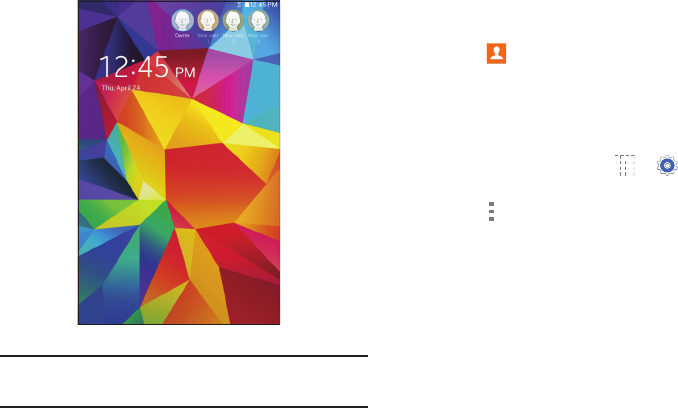
107
Changing Users
To access the device with a user profile, select a profile at
the top right of the locked screen.
Tip: You can also switch between users by sliding down the
Notification Panel and touching the current user.
Change User Account Nicknames and Photo IDs
The photo and name each user uses in their personal Contact
entry (listed under ME at the top of their Contacts list) is used
as their User account ID.
To change a user’s photo or name:
1. Touch Contacts.
2. Touch their personal Contact entry to edit their Contact
information. For more information, refer to “My
Personal Contact” on page 34.
– or –
1. From a Home screen, touch ➔ Settings ➔
General tab ➔ Users.
2. Touch Menu and edit the user’s personal Contact
entry.
Settings 108
Deleting a User or Profile
Each user can only delete their own account, while the
Owner can delete any user account.
If you are the Owner:
1. From a Home screen, touch ➔ Settings ➔
General tab ➔ Users.
2. Touch a user, and then touch
Delete
.
If you are a User:
1. From a Home screen, touch ➔ Settings ➔
General tab ➔ Users.
2. Touch Menu ➔ Delete [user] from this device.
Battery
See how much battery power is used for device activities.
1. From a Home screen, touch ➔ Settings ➔
General tab ➔ Battery.
The battery level displays as a percentage. The amount
of time the battery has been used also displays.
Battery usage displays in percentages per application.
2. Touch Screen, Android System, or Android OS to
view how the display and the Android system are
affecting battery use.
Note: Other applications may be running that affect
battery use.
3. Touch Show battery percentage to display the device
battery status next to the battery icon.
109
Power Saving Mode
When enabled, your device automatically analyzes the
screen and adjusts the brightness to conserve battery power.
1. From a Home screen, touch ➔ Settings ➔
General tab ➔ Power saving mode.
2. Touch the OFF/ON button to turn the feature
ON
3. Turn Power saving on and touch the Power saving
mode settings (CPU performance or Screen output)
to enable or disable them.
4. Touch Learn about power saving to display more
information about conserving power.
Storage
View the device memory and usage, or mount, unmount, or
format an optional memory card (not included).
Device Memory
From a Home screen, touch ➔ Settings ➔
General tab ➔ Storage. The Device memory displays
as Total space, System memory, Used space, Cached
data, Miscellaneous files, and Available space.
SD Card
Once a memory card has been installed in your device, the
card memory displays as Total space and Available space.
Mounting an SD Card
When you install a memory card, it is automatically mounted
(connected to the tablet) and prepared for use. However,
should you unmount the card without removing it from the
tablet, you will need to mount it before it can be accessed.
1. Install an SD card. For more information, refer to
“Installing a Memory Card” on page 8.
2. From a Home screen, touch ➔ Settings ➔
General tab ➔ Storage.
3. Touch Mount SD card.
Settings 110
Unmounting an SD Card
Important! To prevent damage to information stored on the
memory card, always unmount the card before
removing it from the device.
1. From a Home screen, touch ➔ Settings ➔
General tab ➔ Storage.
2. Touch Unmount SD card.
3. At the prompt, select OK to safely unmount the
memory card.
4. Remove the SD card from the slot.
Important! Unmounting an SD card will stop some
applications from functioning. Applications may
not be available until you remount the SD card.
Removing a Memory Card
Important! To prevent damage to information stored on the
memory card, unmount the card before removing
it from the device.
1. From a Home screen, touch ➔ Settings ➔
General tab ➔ Storage.
2. Under SD card, touch Unmount SD card and then
touch OK.
3. Open the memory card slot cover and turn to expose
the slot.
4. Gently press inward on the memory card so that it pops
out from the slot, and carefully pull the card out.
5. Close the memory card slot cover.
111
Formatting an SD Card
When formatting an SD card you will want to backup your
music and photo files that are stored on the card because
formatting the SD card deletes all the stored data.
1. From a Home screen, touch ➔ Settings ➔
General tab ➔ Storage.
2. Touch Format SD card and then touch Format SD
card again on the warning screen.
3. Touch Delete all.
Security
Use the Security settings to secure your device.
Encryption
To require a numeric PIN or password to decrypt your tablet
each time you power it on or encrypt the data on your SD
card each time it is connected:
1. From a Home screen, touch ➔ Settings ➔
General tab ➔ Security.
2. Touch Encrypt device. For more information, read the
displayed help screen.
3. Touch Encrypt external SD card to enable the
encryption on SD card data that requires a password
be entered each time the microSD card is connected.
Tip: Make sure your battery is charged more than 80 percent.
Encryption takes an hour or more.
Settings 112
Find My Mobile
Use this option to allow your device to be locked and tracked,
and for your data to be deleted remotely. You must sign up
for a Samsung account and enable Google location service to
use Remote controls.
Sign In to Your Samsung Account
1. From a Home screen, touch ➔ Settings ➔
General tab ➔ Security.
2. Touch Remote controls. Read the information and
touch OK to acknowledge the information.
3. Touch Add account to create a Samsung account.
For more information about Samsung accounts, see
“Your Samsung Account” on page 31.
Enable or Disable Remote Controls
Once you have signed in to your Samsung Account, you can
enable or disable Remote controls.
1. From a Home screen, touch ➔ Settings ➔
General tab ➔ Security ➔ Remote controls.
2. Enter your Samsung account password in the pop-up
Enter password field and touch Done.
Touch Do not show for 90 days to temporarily disable
this screen.
3. Touch OK.
The Remote controls screen displays.
4. Touch the OFF/ON button to turn the feature
ON
5. Touch Use wireless networks to enable location
information using the wireless network.
113
Find My Mobile Web Page
To launch the Find My Mobile web page:
1. From a Home screen, touch ➔ Settings ➔
General tab ➔ Security ➔ Go to website.
2. Select which application to launch the application.
Touch Internet or Chrome and select Always or
Just once.
The Find My Mobile webpage displays.
3. Follow onscreen instructions.
Passwords
When enabled, password characters display briefly as you
touch them while entering passwords.
1. From a Home screen, touch ➔ Settings ➔
General tab ➔ Security.
2. Touch Make passwords visible to enable or disable
brief displays of password characters.
Device Administration
To add or remove device administrators:
1. From a Home screen, touch ➔ Settings ➔
General tab ➔ Security.
2. Touch Device administrators.
To enable or disable installation of non-Google Play
applications.
1. From a Home screen, touch ➔ Settings ➔
General tab ➔ Security.
2. Touch Unknown sources.
3. Read the message and touch OK to allow installation of
non-Google Play applications.
Warning! Enabling this option causes your tablet and
personal data to be more vulnerable to attack by
applications from unknown sources.
4. To block or warn before installing apps that may cause
harm, touch Verify apps.

Settings 114
Security Update Service
To set security update service settings:
1. From a Home screen, touch ➔ Settings ➔
General tab ➔ Security.
2. Touch Security policy updates for these options:
• Automatic updates: Automatically check for changes
to the security policy and download any updates to
improve security.
• Check for updates: Check for updates manually.
3. Touch Send security reports to send security reports
to Samsung via Wi-Fi for threat analysis.
Credential Storage
If a certificate authority (CA) certificate gets compromised or
for some other reason you do not trust it, you can disable or
remove it.
1. From a Home screen, touch ➔ Settings ➔
General tab ➔ Security.
2. Touch Storage type to set a storage type for credential
contents.
3. Touch Trusted credentials.
The trusted credentials screen has two tabs:
• System: Displays CA certificates that are permanently
installed in the ROM of your device.
•User: Displays any CA certificates that you installed, for
example, in the process of installing a client certificate.
4. Touch a CA certificate to examine its details.
A scrolling screen displays the details.
Scroll to the bottom of the details screen and touch
Turn off to disable a System certificate.

115
Caution! When you disable a system CA certificate, the
Turn off button changes to Turn on, so you can
enable the certificate again, if necessary.
Touch OK to return to the certificate list.
5. Touch Install from device storage, then choose a
certificate and follow the prompts to install encrypted
certificates stored on the USB storage.
Note: You must have installed a memory card containing
encrypted certificates to use this feature.
6. Touch Clear credentials to erase the credential
contents from the device and reset the password.
Note: This setting only appears if you have installed
encrypted certificates.
About Device
View information about your device, including status,
legal information, hardware and software versions, and
battery use.
1. From a Home screen, touch ➔ Settings ➔
General tab ➔ About device.
2. Touch items to view details:
• Software update: Connect to the network and
download new software updates for your device, if
available.
•Status: View Battery status, Battery level, IP address,
Wi-Fi MAC address, Bluetooth address, Ethernet MAC
address, Serial number, Up time, and Device status.
• Legal information: Touch an option to display Open
source licenses, Google and Samsung legal
information, and Privacy Alert.
• Device name: Enter the name for your device. The
default is the model number.
• Model number: Display your device’s model number.
• Android version: Display the firmware version of your
device.

Settings 116
• Kernel version: Display the kernel version of your
device.
• Build number: Display your device’s build number.
• SE for Android status: Display Security
Enhancements for Android status information.
Software Update
The Software Update feature enables you to use your
device to connect to the network and download any new
software directly to your device. The device automatically
updates with the latest available software when you access
this option.
Software Update Options
To register your device and check for a software update:
1. From a Home screen, touch ➔ Settings ➔
General tab ➔ About device ➔ Software update.
2. Touch Update now.
Your device is connected to the server and a search is
performed for a software update.
3. Touch Auto update to check for updates automatically.

117
Index
A
About Device 115
Accessibility Settings 92
Accessory Settings 104
Accounts 101
setting up 30
Adapt Sound 87
Airplane Mode 81
Alarm 66
delete 66
set 66
stop 66
Antenna 9
Application Manager 104
downloaded apps 105
memory usage 104
running services 105
Applications 65
access 65
updating 65
Apps
adding to Home screen 22
app information 24
removing from Home screen 22
Apps Screen 24
B
Back Key 13
Backup and Reset 102
backup and restore 102
factory data reset 103
Battery 5
charging 6
indicator 5
settings 108
show battery percentage 87
Blocking Mode 95
Bluetooth 60
disconnect or unpair 62
reconnect 62
settings 63
turning on or off 61
Buddy Photo Share 50
C
Calculator 66
Calendar 67
change calendar type 68
create event or task 67
options 68
sync with Google Calendar 67
Camera 47
applying filter effects 49
controlling the camera
remotely 50
etiquette 47
panoramic photos 49
recording video 49
settings 50
shooting modes 48
shortcuts 52
taking photos 47
Chrome 68
Cloud Settings 102
Computer
connect to 63
118
Contacts 31
add 31
delete 32
display options 32
exporting and importing 35
favorites 37
groups 35
linking 33
my personal contact 34
namecards 34
separate linked 33
starred contacts 37
updating 32
Covering Gesture 15
D
Data Usage 81
Date and Time Settings 103
Default Applications Settings 106
Device
Back Key 13
back, top, and bottom features 12
command keys 13
features and specifications 10
front and side features 11
Home Key 13
navigation 13
Recent Apps Key 13
screen rotation 15
Display
Using Negative Colors 94
Display Settings 87
Daydream 87
font style and size 91
screen timeout 87
Double-Tapping Gesture 14
Dragging Gesture 14
Drive 69
Dropbox 69
E
Email 39
composing and sending 40
configuring accounts 39
deleting accounts 41
manage accounts 40
refreshing 41
settings 41
Ethernet Settings 84
Events 67
F
Factory Data Reset 103
Files
sharing via computer 63
Find My Mobile 112
Finger Gestures 14
Fonts
settings 91
G
Gallery 52
delete 54
favorites 53
image options 53
playing videos 52
set as wallpaper 54
sharing images 53
Tag Buddy 54
tagging faces 54
view images 52
zoom in and out 52
Gestures
finger 14
119
Gmail 38
account settings 39
composing and sending 39
refreshing your account 39
setting up your account 38
Google
Drive 69
Gmail 38
Google Account 31
Maps 71
Photos 74
Play Books 74
Play Games 74
Play Movies & TV 75
Play Music 75
Play Newsstand 75
Play Store 75
Voice Search 77
Google Now 70
Google Search 70
Google Search Bar 19
Google Settings 70
Google Voice Typing
settings 98
Groups
add members 36
creating 35
delete 37
remove member 36
rename 36
H
Hancom Viewer 70
Holding the Device 9
Home Key 13
Home Screen 16
customize 17
folders 23
panels 18
wallpaper 23
I
Icons, Status Bar 21
Internet 71
command keys 71
searching the web via voice 71
K
Keys 13
Back Key 13
Home Key 13
Recent Apps 13
L
Language and Input Settings 96
select language 96
Location Settings 82
Lock Screen 88
Password options 90
Pattern options 89
PIN options 90
screen security 88
Shortcuts 89
Swipe options 89
Locking and Unlocking
locking the device manually 9
unlocking the keypad 9
120
M
Maps 71
Memo 72
browsing 72
composing 72
delete 72
editing the category list 72
viewing 72
Memory Card 8
formatting 111
installing 8
mounting 109
removing 110
unmounting 110
Messages
email 39
Gmail 38
types 38
Microphone 11
Motions
screen rotation 15
Mouse/Trackpad Settings 99
Multi Window 16, 24
activate 25
applications 26
configuring apps 27
panel 26
panel configuration 26
settings 88
window controls 26
Multimedia 43
Music
listening to 43
Play Music 75
Music Player 44, 73
playing music by mood 45
playlist, create 45
playlist, manage 44
use song as alarm ringtone 45
My Files (App) 73
My Personal Contact 34
N
Namecards
sending 34
Nearby Devices
settings 85
Netflix 74
Notification Panel 19
settings 92
Notifications 19
P
Palm Motion
Settings 100
Panoramic Photos 49
Photos
viewing in Gallery 52
Photos (App) 74
Pinching and Spreading Gestures 14
Play Books 74
Play Games 74
Play Movies & TV 75
Play Music 75
Play Newsstand 75
Play Store 75
Playlists
creating 45
managing 44
Pop-Up Player 56
Power Saving Mode 109
121
Powering On and Off 7
Predictive Text
settings 96
Printing 83
R
Recent Apps Key 13
Remote Viewfinder 50
Reset Factory Data 103
S
S Voice 76
Samsung Account 31
Samsung Apps 76
Samsung Keyboard
entering text 28
Predictive text settings 96
Screen
rotating 15
Screen Mirroring 85
Screen Saver 76
Screen Security 88
Screenshot, Capturing 15, 27
Security
locking and unlocking 9
locking your device manually 9
Security Settings 111
credential storage 114
device administration 113
encryption 111
Find My Mobile 112
passwords 113
remote controls 112
security update service 114
Settings
accessing 79
Connections tab 80
Controls tab 96
Device tab 86
Location 82
tabs 79
the settings screen 80
Share Shot 50
Shooting Modes 48
Shortcuts
adding to Home screen 22
removing from Home screen 22
Smart Screen Settings 100
Software Update 116
Sound Settings
feedback 86
more settings 87
notifications 86
Samsung Applications 87
Samsung Keyboard 87
volume 86
Speech Settings 98
Status Bar 20
icons 21
Storage 109
device memory 109
SD card 109
Sweeping Gesture 15
Swipe Gesture 14
T
Tag Buddy 54
Taking Photos 47
Task Manager 27
Tasks 67
Text
entering 28
Samsung keyboard 28
Text-To-Speech Options 99
122
3.5mm Headset Jack 12
Touch Gesture 14
Touch Screen 14
finger guestures 14
Touching and Holding Gesture 14
Touchscreen
covering gesture 15
double-tapping gesture 14
dragging gesture 14
pinching and spreading
gestures 14
sweeping gesture 15
swipe gesture 14
touch gesture 14
touching and holding gesture 14
Turning Your Device On and Off 7
U
User Manual 4
special text 4
text conventions 5
Users 106
changing users 107
delete 108
setting up 106
V
Video
playing 52
recording 49
recording mode 49
remote viewfinder 50
settings 50
Share Shot 50
trimming segments of video 53
Video Player 55
zooming in and out 50
Video Buddy Photo Share 50
Video Player 55
delete 56
playing videos 55
Pop-Up Player 56
share 56
Voice Search 77
settings 98
Volume Key 11
VPN 84
adding 84
connecting to 84
edit or delete 84
options 84
W
Wallpaper 23
settings 91
WatchON 46
help 46
Initial Configuration 46
settings 46
Widgets
adding to Home screen 22
removing from Home screen 22
Wi-Fi 57
adding a connection manually 58
scanning and connecting 57
settings 58
status indicators 58
turning on or off 57
Wi-Fi Direct 59
connecting to devices 60
Wireless Networking
Bluetooth 60
Wi-Fi 57
World Clock 77
Y
YouTube 78
