PHOENIX SOLUTIONS BHM060001 BLUETOOTH MONO HEADSET User Manual
PHOENIX Solutions Co., Ltd BLUETOOTH MONO HEADSET Users Manual
USERS MANUAL
Table of Contents
1. Introduction........................................................ 2
2. The Packing Content..................................................................... 3
3. Getting Start - Charging the battery........................................................... 3
4. Pairing the Bluetooth headset with Mobile phone (Pin Code : 0000)...... 3
5. Disconnecting the Bluetooth headset from the phone.... 4
6. Reconnecting the paired Bluetooth headset to the compatible phone... 4
7. Powering Up........................................................................ 5
8. Making calls......................................................................... 5
9. Answering and ending a call.............................................. 5
10. Rejecting a call.................................................................... 5
11. Redialing the last dialed number....................................... 5
1. Introduction
Thanks for purchasing BT Headset which is a stylish headset that enables comfortable handsfree
communication with compatible phone that supports Bluetooth technology.
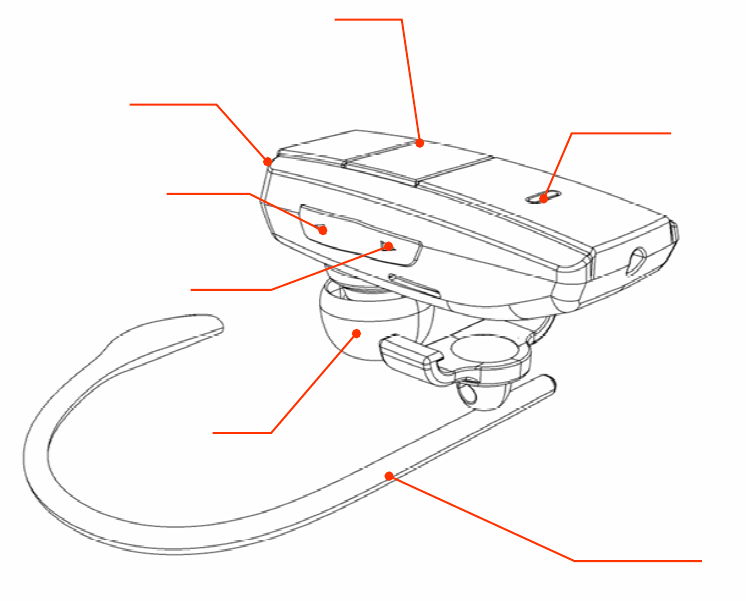
The Key Feature:
(1) Power / Answer
n Switches the headset on and off
n Answer incoming call
n End active call
n Reject incoming call
(2) Indicator Light
n Power on –Blue LED starts flash and beep once.
n Pairing state –Blue/Red light flashing alternatively, the flashing continues for approximately 2
minutes or until the headset is connected to a compatible phone. If the headset can’t be
connected to the phone during this time, the headset enters connectable status.
n Connectable –Blue light flashing once every 8 seconds.
n Connection active –Blue light flashing once every 6 seconds.
(1)
Power
/ Answer
(3) Volume + Key
(7)
Ear Hook
(2) Indication Light
(6)
Earpiece
(4)
Volume
-
Key
(5)
Charger Connector

n Incoming call –Blue light flashing 2 times every 3 second.
n Active call –Blue light flashing once every 6 seconds..
n Power off –Red light constant on for 1 seconds and beep once.
n Low battery – The Led frequency is ten times of the Led current status, and beep on every 20
seconds
(3) Volume up: Increase the earpiece volume
(4) Volume down: Decrease the earpiece volume
(5) Charger connector: For headset battery charging
(6) Earpiece: Relay the caller’s voice.
(7) Ear Hook
Function Key – Operation Instructions
Function Headset state Button LED Indicator
Power on Power off Press (1) button for 2 seconds. Blue LED starts flash
Power off Power on Press (1) button for 2 second Red LED displayed briefly
Pairing Power off Press (1) button for 7 second Blue/red LED flash alternatively
Answer call Connected/Ring hints
Short press (1) button Blue light flashing 2 times every 3 seconds
End call Ongoing call Short press (1) button Blue light flashing 1 times every 6 seconds
Reject call Connected/Ring hints
press (1) button for 2 second Blue light flashing 2 times every 3 seconds
Volume + Ongoing call Short press (3) button
Volume - Ongoing call Short press (4) button Blue light flashing 1 times every 6 seconds
Redial Connected press (3) button for 2 second
Voice dialing Connected Short press (1) button Blue light flashing 1 times every 6 seconds
2. The Packing content:
1. Headset
2. User Manual
3. Adjustable Angle Ear-hook
4. USB Charger
3. Getting Start - Charging the battery
Before using BT Headset, you must charge the product for approximately 2 hours. When the
battery is fully charged, it provides up to 4 ~ 6 hours of talk time and up to 200 hours of standby
time.
1. Connect the charger cable to BT Headset
2. Plug the AC adapter into a wall outlet. When BT Headset is charging, red indicator light will
display.
3. When the battery is fully charged, the Red light is off.
4. Pairing the Bluetooth headset with Mobile phone (Pin Code : 0000)
Pairing is the process of linking the headset with your Bluetooth enabled mobile phone. After this
process is completed, you can use the BT Headset only with this paired mobile phone. If you want
to use it with another mobile phone, you must repeat the pairing process again. The BT Headset
can be paired with up to 8 compatible phones but connected to only one phone at a time.
1. Make sure that the Mobile phone is turned on and within 10 meters of the headset.
2. Turn on BT Headset and make sure the headset is charged. Press “Power on/off” button for 7
seconds. The blue and red LEDs will flash alternatively. Release both buttons and the headset
are now in pairing mode.
3. Activate the Bluetooth connection from the phone. You may need to consult with user guide of
your phone regarding how to do that.
4. Set the phone to start searching for Bluetooth devices as instructed in user guide of your phone.
5. Enter the pin code 0000 to connect (or “pair”) BT Headset to the phone. BT Headset beeps once
and an active Bluetooth connection is displayed by a blinking blue indicator light.
6. Start using the headset.
5. Disconnecting the Bluetooth headset from the phone
To disconnect BT Headset from the phone, do one of the following:
1 Turn off
2. Disconnect BT Headset in the phone menu.
3. Move the headset more than 10 meters away from the phone.
Note that you do not need to delete the pairing with the headset to disconnect it. When you
reconnect a paired headset, you will not be asked for its pin code again.
6. Reconnecting the paired Bluetooth headset to the compatible phone
To reconnect BT Headset to the last phone used, simply switch on the headset and it will
automatically connect to the phone. There are occasions when headset is temporarily out of
Bluetooth operating range (up to 10 meters, e.g. user wearing the headset walks away from the
phone), the headset will be disconnected from
the phone and user will hear a warning tone from the headset.
Headset is now in powered on but no Bluetooth connection mode (blue light flashes once every 5
seconds). If the headset is back in range within 10 minutes, the BT Headset auto-reconnects with
the last phone. If the headset is out of range for over 10 minutes, long press both Multifunction and
Volume + buttons or both Multifunction and Volume - buttons to reactivate the connection.
7. Powering Up
n To turn on
Press and hold the power key for 2 seconds. BT Headset beeps and the blue indicator light
starts blinking. (First time use requires pressing it for 7 seconds.)
n To turn off
Press and hold the power key for 2 second, BT Headset beeps and the red
indicator light is displayed briefly.
8. Making calls
When BT Headset is connected to the phone, make a call by using the phone in the normal way.
Note that the call functions depend on the phone that you use.
9. Answering and ending a call (Power Key)
When you receive a call, you hear a ringing tone through the headset. Short press the
power/send/end key to answer the call or to end the currently active call. You can also answer and
end the call using the phone.
Note: Some phones offer Auto Answer function and may be used with Headset or Handsfree, but
this is a phone dependent feature. Please check out the manual of your phone about how to use
that function.
10. Rejecting a call (Power key – 2 second)
When you receive an incoming call that you do not want to answer, press the power / answer key
for 2 second.
11. Redialing the last dialed number (Volume + Key – 2 seconds)
Press the volume up key and hold it for 2 seconds when no call is in progress.
FCC Information
This device complies with Part 15 of the FCC rules.
Operation is subject to the following two conditions: (1) this device may not cause
harmful interference, and (2) this device must accept any interference received;
including interference that may cause undesired operation.
Federal Communications Commission (FCC) Statement
This Equipment has been tested and found to comply with the limits for a Class B digital
device, pursuant to Part 15 of the FCC rules. These limits are designed to provide
reasonable protection against harmful interference in a residential installation. This
equipment generates, uses and can radiate radio frequency energy and, if not installed
and used in accordance with the instructions, may cause harmful interference to radio
communications. However, there is no guarantee that interference will not occur in a
particular
installation. If this equipment does cause harmful interference to radio or television
reception, which can be determined by turning the equipment off and on, the user is
encouraged to try to correct the interference by one or more of the following measures:
- Reorient or relocate the receiving antenna.
- Increase the separation between the equipment and receiver.
- Connect the equipment into an outlet on a circuit different from that to which the
receiver is connected.
- Consult the dealer or an experienced radio/TV technician for help.
Warning: Changes or modifications to this unit not expressly approved by the party
responsible for compliance could void the user authority to operate the equipment.
Tested to comply with FCC standard. FOR HOME OR OFFICE USE.
Warning :
This equipment complies with FCC RF radiation exposure limits set forth for an
uncontrolled environment. & This device and its antenna(s) must not be co-located or
conjunction with any other antenna or transmitter.