PHOENIX SOLUTIONS BHS1100001 Bluetooth Stereo Headset User Manual
PHOENIX Solutions Co., Ltd Bluetooth Stereo Headset
User Manual
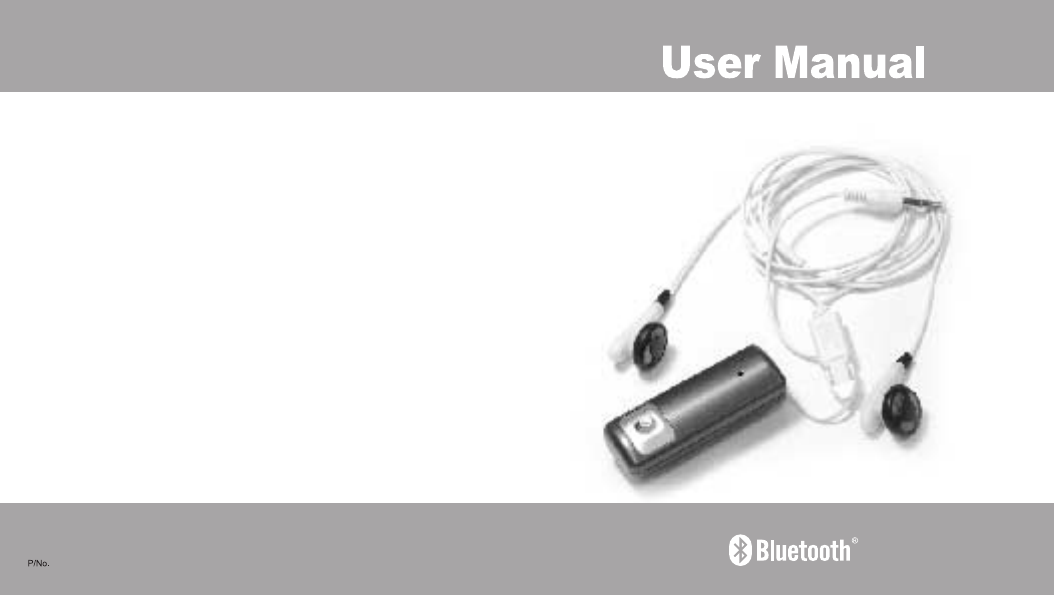
Bluetooth Stereo Headset

1
Table of Contents
Thank You ................................................................................................
- Box content
Overview ..................................................................................................
Getting Start ............................................................................................
- Charge battery
- Power On
- Pairing
- Volume Control
Use with mobile phone............................................................................
- Pairing
- To make a call
- To receive a Call
- To reject a Call
Use with computer device ......................................................................
Important Information .............................................................................
French ......................................................................................................
German.....................................................................................................
Spanish ....................................................................................................
Italian ........................................................................................................
Dutch ........................................................................................................
Portuguese...............................................................................................
CE Statements .........................................................................................
FCC Safety Statements ..........................................................................
Warranty ...................................................................................................
002
002
003
005
006
007
010
018
026
034
042
050
058
058
059
32
Thank you for purchasing the Bluetooth Stereo Headset. The steveo headset is designed for
audio device users to have a digital stereo sound and a wireless operating range up to 10
meters. Please read the instruction manual to make the best use of the steveo headset. We
hope you will enjoy the digital stereo sound and the power of Bluetooth wireless technology.
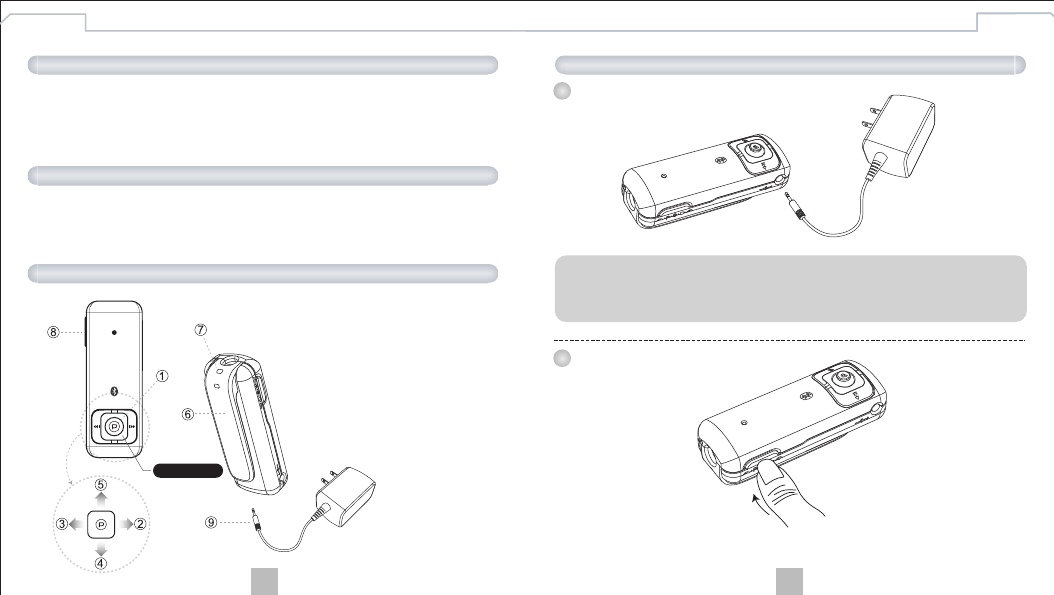
- Bluetooth Stereo Headset
- Power Adapter
- User Manual
Box content
Overview
Thank you Getting Start
English English
1 Charge battery
Note:
For the first time use, it takes 4 hours to fully charge the batteries and 2 hours afterward.
With the batteries fully charged, the working time is around 6.5 hours and the standby time is
around 230 hours.
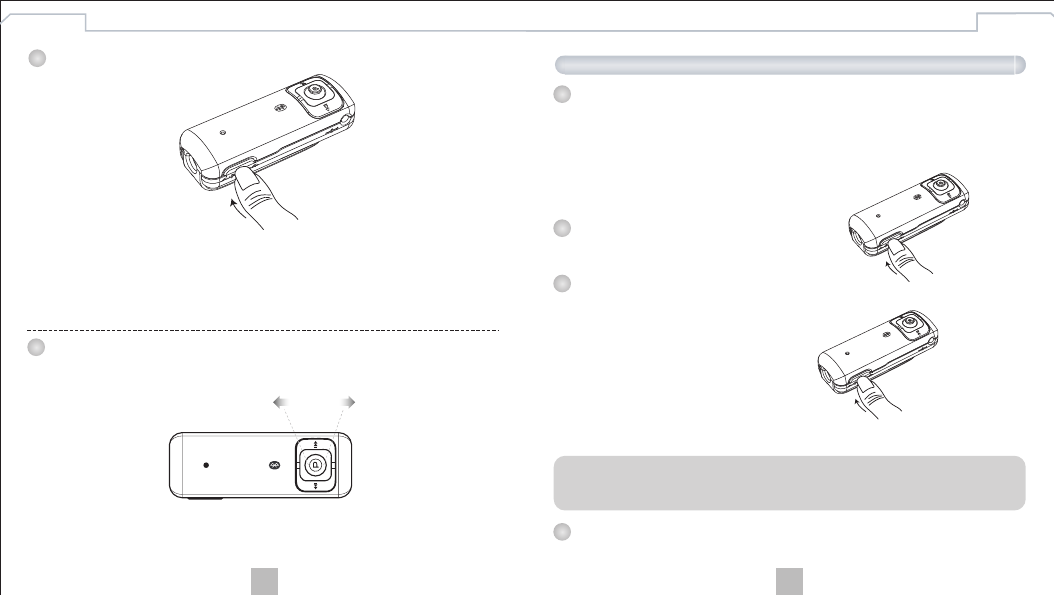
- Use the power button to turn on the power
2 Power On
1.Play /Pause
2.Previous
3.Next
4.Vol +
5.Vol -
6.Clip
7.Hang hole
8.Pick up/Hang up/Power on/
Power off/Pairing/Stop
9.Power adapte
5-Way Button
54
English English
- Use the volume buttons on the Stereo Headset to adjust volume.
3 Pairing
4 Volume Control
- Press and hold the pairing button on the Stereo Headset for 6 seconds until the blue and
red LEDs flash alternately. This device name is set to be “Bluetooth Stereo Headset”.
If you are asked to enter pin-code during pairing, please enter 1234.
(Note: The “1234” is default pin-code pre-stored in this Stereo Headset.)
from “Use with mobile phone”
Use with mobile phone
1 Pairing
2 To make a call
Press and hold the pairing button on the Stereo Headset for 6 seconds to set the Stereo
Headset into pairing mode. The blue and red LEDs will be flashing when the Stereo
Headset is in pairing mode. To properly perform pairing procedure on your mobile phone,
please refer to the user manual of your mobile phone for its own pairing instruction. This
device name is set to be “Bluetooth Stereo Headset”. If you are asked to enter pin-code
during pairing, please enter 1234.
(Note: The “1234” is default pin-code pre-stored in this
Stereo Headset.)
- Dial out the number from your mobile phone.
- Voice is automatically transferred to the headset.
4 To reject a Call
- Press the reject button on the mobile phone to reject a call.
3 To receive a Call:
1. When there is an incoming call, press the answer button to answer the call and the audio
channel will be switched to the mobile phone.
2. Press the Volume control button to adjust the volume.
3. When finish talking, press the answer button to end the call and the audio channel will be
switched back to the audio device.
Note:
To have music streaming, make sure your mobile phone supports Bluetooth Stereo
functions
6 sec.
Vol+Vol-
76
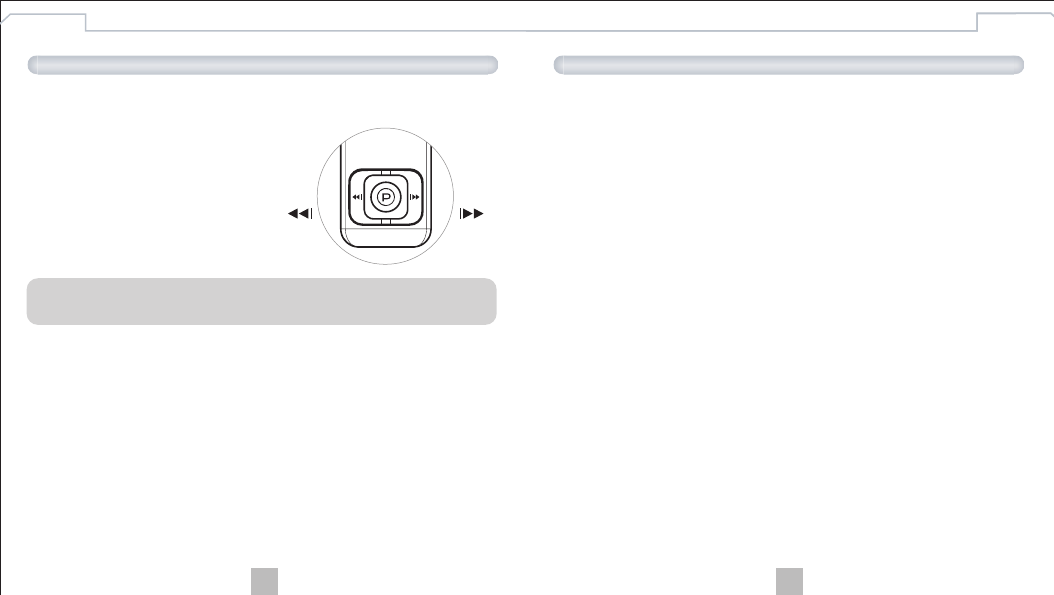
Without the Stereo Adapter, the Stereo Headset can be used with PC, Notebook or PDA that
support Bluetooth Stereo functions (A2DP Profile) for Stereo Sound Streaming.
Music playback
The Stereo Headset provides a track wheel that allows
music playback on Windows Media Player in PCs that
support Bluetooth Stereo functions.
Use with computer device
Product care
- Use of non-original accessories may result in performance deterioration, injury, products
damage, electronic shock, and warranty termination.
- Attempt to disassemble your Stereo Headset or stereo adapter may damage it, and the
warranty will be void.
- Always store the Bluetooth Stereo Headset with the power turned off.
- Avoid exposing the Bluetooth Stereo Headsetto direct sunlight or other heat source.
- Do not expose the Bluetooth Stereo Headset to water or other liquids.
Children
Please keep the Stereo Headset and stereo adapter away from children, as the small parts
may cause choking hazard.
Battery Information
- New batteries
For time first time use, please charge the battery for at least 4 hours.
- Battery care
•Only qualified Service Centers are authorized to remove or replace the battery.
•The rechargeable battery has a long service life if treated with care.
•The battery can only be charged in a temperature range of -10C to 45C.
•The battery capacity may be reduced if operating in a cold environment.
Important Information
English English
Note:
- "A2DP profile" is required to support stereo sound.
Use with audio player and mobile phone at same time.
1. The Stereo Headset needs to be paired and connected with both devices.
2. When there is an incoming call, a notice tone will be played from the Stereo Headset.
3. Users can press the answer button on the Stereo Headset to answer the call or press the
reject button on the mobile phone to reject the call.

98
1. Can I change Bluetooth passkey?
No, the Bluetooth passkey is written into the device when it manufactured and cannot be
changed.
2. Can I use Stereo Headset with audio device and mobile phone at same time?
Yes, the Stereo Headset can be used with audio device and mobile phone at same time.
However, there could be some compatibility issues on certain brands of models of mobile
phones.
3. Can I use Stereo Headset while it is in charging mode?
No, the Stereo Headset cannot be used while it is in charging mode.
4. What is the operating range of Bluetooth Stereo Headset?
The operating range of Bluetooth Stereo Headset is up to 10 meters.
5. How come the track control does not work with my MP3 player?
The track control is a special feature designed for Windows Media Player. It doesn’t apply to
MP3 player because most of MP3 players do not support such functions.
Troubleshooting
1. The track control is not working.
- The track control is designed for Windows Media Player only.
- Make sure that you are using Windows Media Player.
2. Music is on and off when the Stereo Headset is paired with
audio device/pc and mobile phone.
- When you try to use Stereo Headset and audio device / pc at same time, there could be
some compatibility issues on certain brands of models of mobile phones. However, this
problem shouldn’t occur when use Stereo Headset with single device.
English English
What is pairing?
Pairing is a process of associating Bluetooth devices with each other. It will establish a
permanent security link between the devices and enable quick access to the services provided
without the need to enter passkeys.
Bluetooth Passkey
The Bluetooth Stereo Headset has a default passkey 1234 for pairing, which is stored in its
internal memory. Usually you are required to enter the passkey 1234 in a pairing process with
a Bluetooth mobile phone or other devices; however it depends on the kind of Bluetooth
device that the Stereo Headset is connected to. Please refer to the users’ manual of the
devices for the specific operation.
About Pairing FAQ
Note:
The paired devices remain paired even when both of the devices are powered off, or
when a service connection is interrupted or stopped.

5958
This device has been tested and found to comply with the requirements set up in the council
directive on the approximation of the law of member states relating to EMC Directive
89/336/EEC, Low Voltage Directive 73/23/EEC and R&TTE Directive 99/5/EC.
CE Statements
This device complies with Part 15 of the FCC rules. Operation is subject to the following two
conditions:
(1) This device may not cause harmful interference.
(2) This device must accept any interference received, including interference that may cause
undesired operation.
The radiated output power is far below the FCC Radio frequency exposure limits.
Nevertheless, this device should be used in such a manner that the potential for human
contact during normal operation is minimized.
Warning: Changes or modifications made to this equipment not expressly approved by the
manufacturer. May void the FCC authorization to operate this equipment.
Important! Please note the following:
This equipment has been tested and found to comply with the limits for a Class B digital
device, pursuant to part 15 of the FCC Rules. These limits are designed to provide reasonable
protection against harmful interference in a residential installation. This equipment generates,
uses and can radiate radio frequency energy and, if not installed and used in accordance with
the instructions, may cause harmful interference to radio communications. However, there is
no guarantee that interference will not occur in a particular installation. If this equipment does
cause harmful interference to radio or television reception, which can be determined by turning
the equipment off and on, the user is encouraged to try to correct the interference by one or
more of the following measures:
- Reorient or relocate the receiving antenna.
- Increase the separation between the equipment and receiver.
- Connect the equipment into an outlet on a circuit different from that to which the receiver is
connected.
- Consult the dealer or an experienced radio/TV technician for help.
FCC Safety Statements
The manufacturer warrants that the Bluetooth Stereo Headset shall conform to her published
specifications, which may be subject to change, and remain free from defects in materials and
workmanship under normal, proper and intended use within warranty time, provide that proof
of purchase be furnished with any returned equipment.
During the warranty period, if any component part of the equipment becomes defective by
reason of material or workmanship, the manufacturer is immediately notified of such defect.
The manufacturer shall supply a replacement part or request return of equipment, freight
prepaid, and its designated facility for repair. In the event that no fault is found on a product
returned for repair, the manufacturer reserves the right to charge the customer its standard
published repair charge.
This warranty shall not apply to any product that has been subject to misuse, bending,
twisting, neglect, alteration, improper installation, operation outside of the parameters of the
published specification, use in any non-approved countries or unauthorized repair performed
by anyone other than a designated repair facility. Any non-warranty repairs or maintenance
shall be at the manufacture's standard in effect at the time.
This warranty is in lieu of all other warranties, whether expressed, implied, or statutory,
including but not limited to, implied warranties or merchantability and fitness for a particular
purpose. In no event shall the manufacturer be liable, whether in contract, in tort, or on any
other basis, for any damage sustained be its customers or any other person arising from or
related to loss of use, failure or interruption in the operation of any products, or delay in
maintenance, or for incidental, consequential, indirect, or special damages or liabilities, or for
loss of revenue, loss of business, or other financial loss arising out of or in connection with the
sale, lease, maintenance, use, performance, failure, or interruption of theses products.
Warranty
Copyright 1998-2005 Cellink Co. Ltd. All rights reserved. The Cellink logo is trademark of
Cellink Co. Ltd in Taiwan and may be registered in other countries. All other products are
trademarks or registered trademarks of their respective owners and hereby recognized as
such. All specifications are subject to change without prior notice.
Copyright and Trademark Notices
English English