PIPO TECHNOLOGY DS975 Mobile Internet Device User Manual
Pipo Technology Co., Ltd. Mobile Internet Device Users Manual
User Manual
User Manual
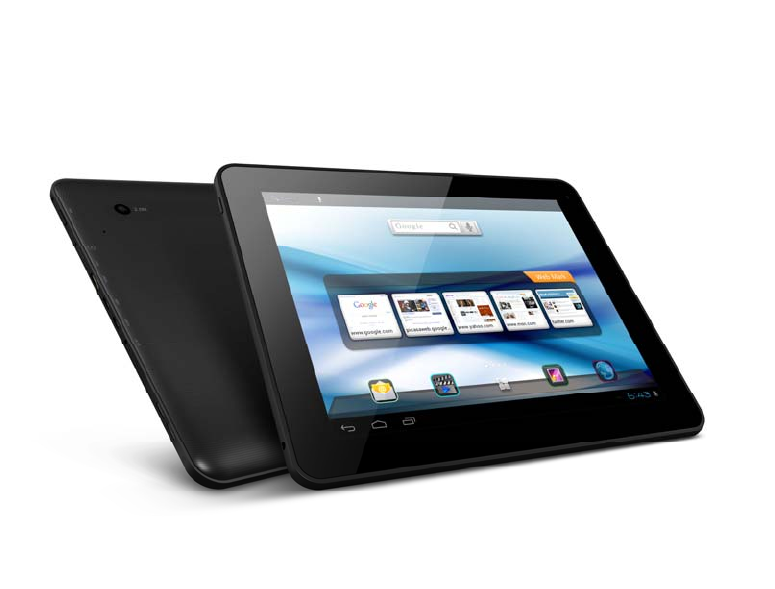
9.7" Tablet Android 4.0
(Dual core, RK3066)

2
Welcome............................................................3
Important Notices..................................................3
Keys and Functions.................................................4
I. Getting Started.................................................5
1.1 Turn on/off .................................................5
1.1.1 Turn on...............................................5
1.1.2 Turn off...............................................5
1.2 Lock/unlock the screen (sleep mode) .......................5
1.3 Connect to computer........................................6
II. Your Home Screen...............................................6
2.1 Change wallpaper for home screen: ........................7
2.2 Add/delete applications on home screen: ..................7
2.3 Add widgets to home screen:...............................7
III. Network Connection............................................7
3.1 Wi-Fi .......................................................7
3.1.1 Turn on Wi-Fi..........................................8
3.1.2 Turn off Wi-Fi..........................................8
3.1.3 Add a Wi-Fi network ..................................8
IV. Internet Browsing..............................................8
4.1 Internet Browsing...........................................8
V. Install and Manage Apps.........................................9
5.1 Install Apps ................................................9
5.2 Manage Apps ...........................................10
VI. Multi-media Functions........................................10
6.1 Music....................................................10
6.2 Video ...................................................11
6.3 Gallery ..................................................12
6.4 Camera .................................................13
6.5 E-book reader ...........................................14
VII. Settings....................................................15
VII. Battery.....................................................16
Troubleshooting..................................................17
3
Welcome
Thank you for purchasing this tablet.
It brings you much convenience for your business (supports Word, Excel,
send & receive e-mails...) and entertainment (supports 3D game,
chatting, movie playback, eBooks.....).
Running on Android 4.0 OS, with dual core, RK3066, with1.6GHz
processor and highly responsive capacitive touch screen, it brings you
wonderful user experience.
Before beginning, please refer to this user manual carefully.
Important Notices
⊙ The new battery will be in its best condition after 2-3 times full charge
and discharge.
⊙ While using the earphone, if the volume is excessively high it may
cause hearing damage. So please adjust the volume of the player
to a moderate level and balance the time of using.
⊙ Do not disconnect the tablet suddenly when formatting or uploading
and downloading, which can lead to program errors.
⊙ Do not dismantle the tablet by yourself, and do not use alcohol,
thinner or benzene to clean its surface.
⊙ Do not use the tablet while driving or walking.
⊙ The tablet is not moisture and water resistant. Please do not use it in a
damp environment.
⊙ Do not drop or hit it to hard surface, or the screen may get
damaged.
⊙ Do not upgrade the firmware by yourself. This would cause damage
to your tablet.
4
Keys and Functions
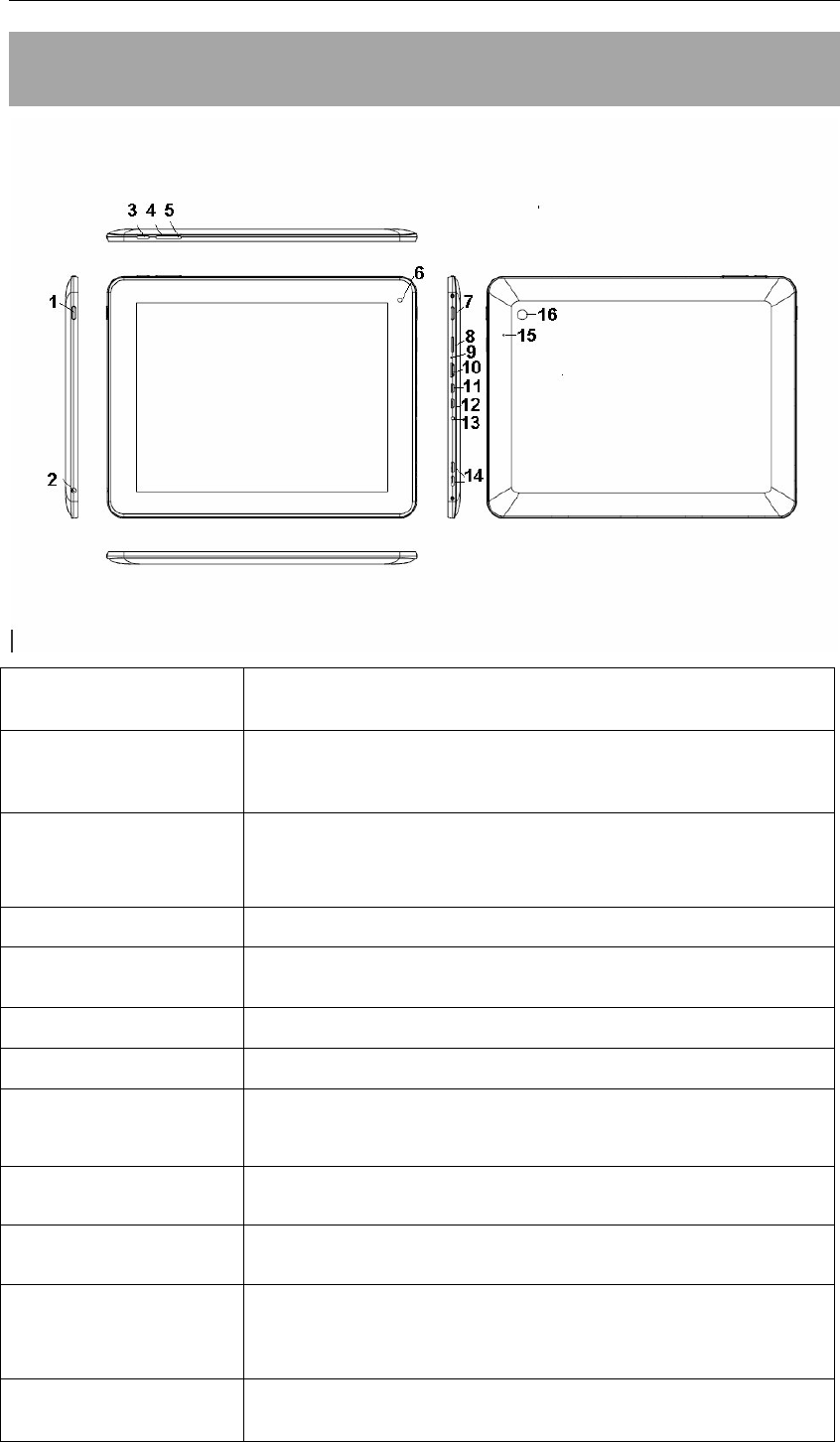
1. Power and lock
key
Hold and press to turn on or turn off the unit.
Briefly press to turn on or turn off the screen.
2. Earphone Jack To connect your earphone
3. Menu key
Tap to view the option menu. When you Tap the
Menu key from within an application, you will see
the sub-menus for the application.
4. Vol- Key Press to decrease the volume
5. Vol+ Key Press to increase the volume
6. Front camera 2M pixel Front camera
7. ESC To go to your home screen
8. TF card slot To insert your TF card
9. MIC MIC
10. HDMI port To connect with TV
11. Mini-USB slot
Connect to a computer via a USB cable to
transfer data(e.g., music, videos, photos, and
other files)
12. USB OTG
. USB OTG, supports mouse, keyboard, USB flash
disk, etc, with a converting cable 5V output
5
13. DC-in Connect to a adaptor as included in the
accessories
14. Speakers Speakers
15. Reset Hole Reset it to restart the tablet PC when it does not
work normally.
16. Backside
camera
2M pixel rear camera
I. Getting Started
1.1 Turn on/off
1.1.1 Turn on
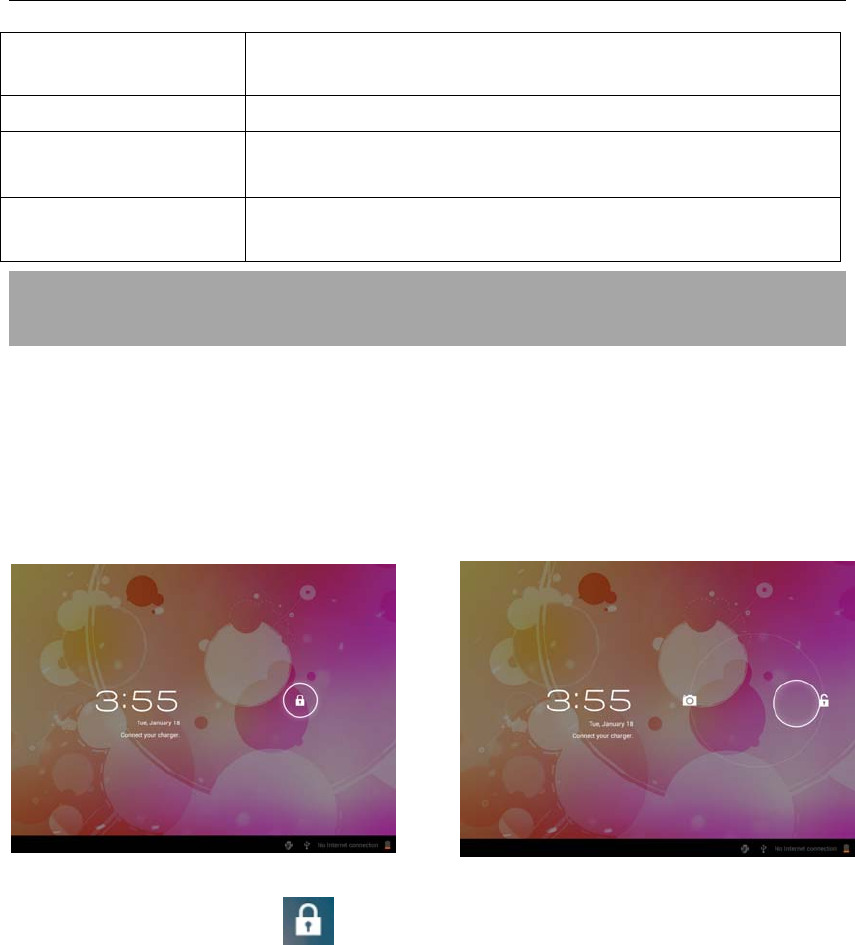
To start your tablet, press and hold the power key at the right side of
your tablet for a while. Tab and drag the lock out of the circle to unlock.
→
Tab and drag the lock out of the circle to unlock.
Drag the lock to right: you will go to the home screen.
Drag the lock to left: you will go to camera directly.
1.1.2 Turn off
To power off your tablet, press and hold the power button until the
“Would you like to shut down?” dialog appears and tap “OK” to power
it off.
1.2 Lock/unlock the screen (sleep mode)
To save battery, you should put your tablet in sleep mode by turning off
the LCD display. To do this, shortly press the power key. Press it again to
wake up the screen.
6
1.3Connecttocomputer
You can connect your tablet to your computer with the supplied USB
cable so you can transfer media files.
If your computer is XP system, please install a Windows Media Player 11
for your computer before transfer media fiels as android 4.0 system
needs Windows Media Player 11 support.
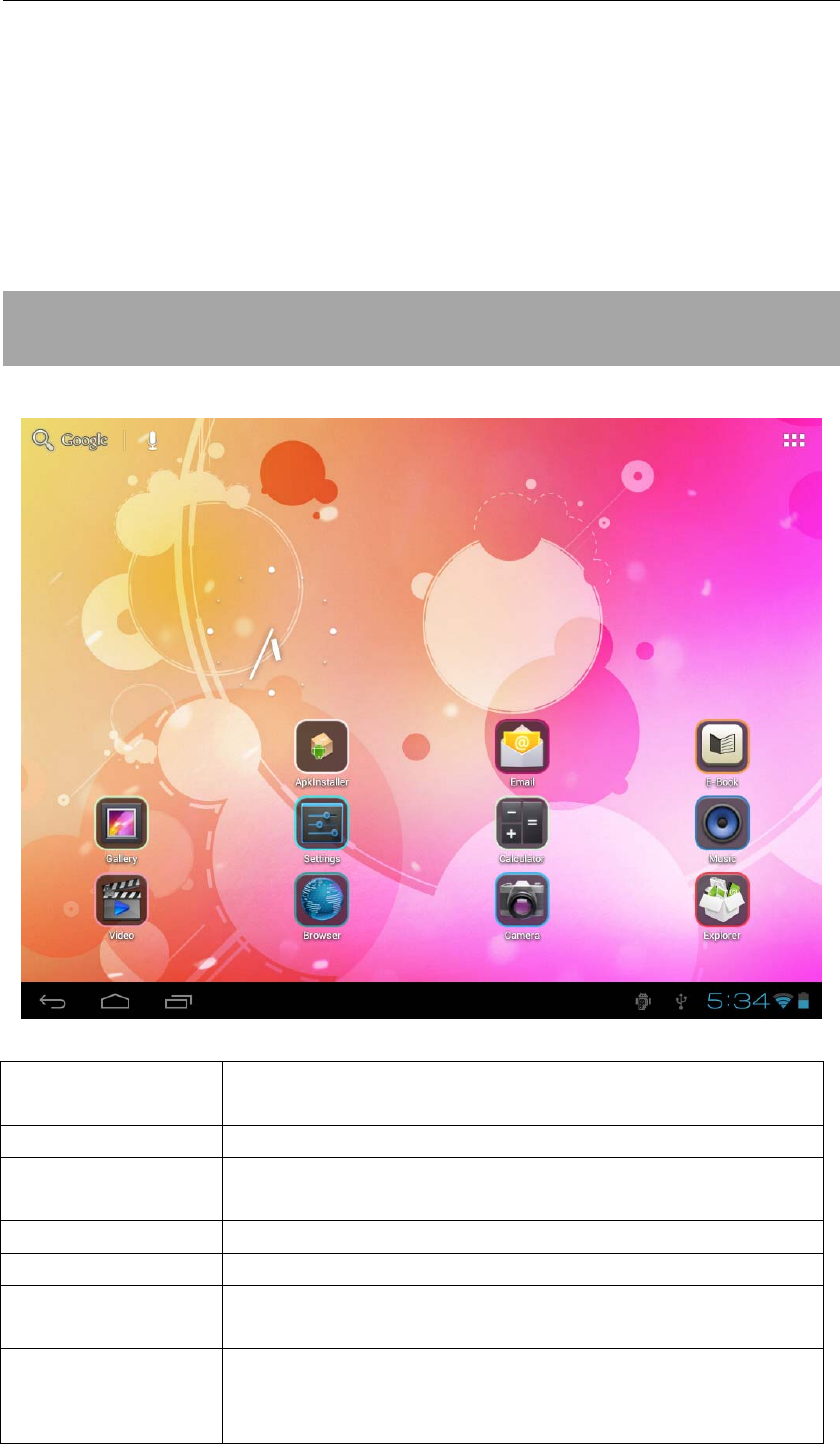
II. Your Home Screen
a. Google
search Tap to enter Google search page
b. Voice search Tap to open voice search
c. All apps
Launcher Tap to show all the applications installed
d. ESC key Tap to return to the previous screen/ page.
e. Home Tap to return to your home page
f. Recent
operations Tap to show your recent operations
g. Connect to
PC
When connect to PC, this icon will show here. Slide
to choose connected as a media device or
camera
a b c
d e f
g
h i
j
7
h. System time Show the system current time
i. Wi-Fi Wi-Fi signal show here if connected with Wi-Fi
j. Battery status Show battery status
2.1 Change wallpaper for home screen:
Tab and hold your finger in any blank space of the home screen, you
will see a pop-up options; you can choose wallpaper from Gallery, live
Wallpapers or Wallpapers.
2.2 Add/delete applications on home screen:
There are several apps in the home screen, you can also add more
frequently-used app icons in this home page and delete some less
frequently-used ones.
Tab the app launcher in the top right corner to go to all apps panel, tap
and move the app you want to the home screen.
To delete an app from home screen, tap and hold it, and them movie it
to the remove icon
2.3 Add widgets to home screen:
Tab all Apps launcher→Tab WIDGETS. There are Analog clock,
bookmarks, calendar, Email, and lots of other widgets. Drag the widget
you want to the home screen.
Tips: Besides your home screen, you can access to other four panels by
sliding left or right in your home screen. You can also customize these
panels.
III. Network Connection
3.1 Wi-Fi
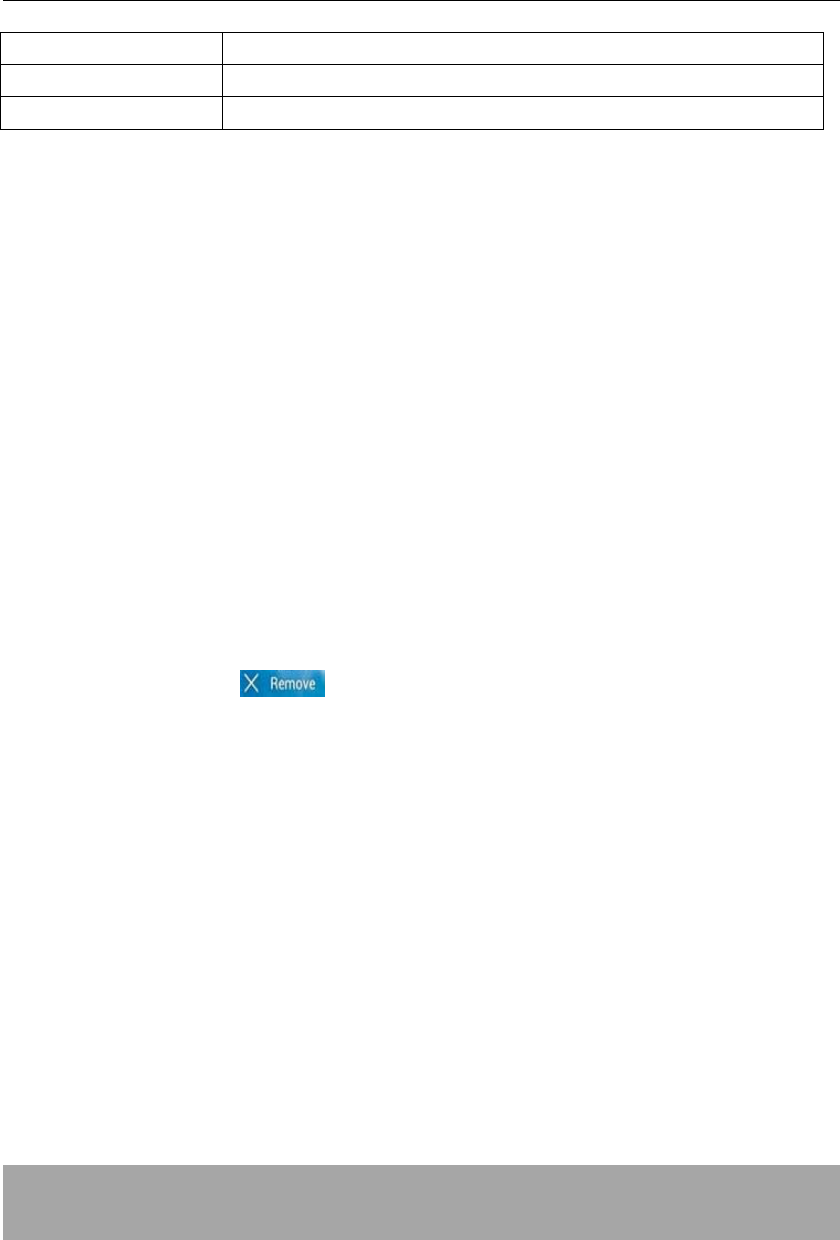
Wi-Fi can only be used when it connects with home Wi-Fi Access Point
(AP) or a free unsecured Wi-Fi hotpot. Under “Wireless & networks”, tap
“Wi-Fi” to turn it on. After a moment, your Wi-Fi networks list should
populate. If you need to rescan for available networks, tap "scan"
8
3.1.1 Turn on Wi-Fi
Within the App Panel, tap “Settings” → then “Wireless & networks” →
“Wi-Fi” to turn on wifi.
Your tablet lists the networks it finds within range. Tap a network to
connect. If necessary, enter Network SSID, Security, and Wireless
password, and tap “Connect”. When your tablet is connected to the
network, the wireless indicator appears in the status bar. Waves
indicate connection strength.
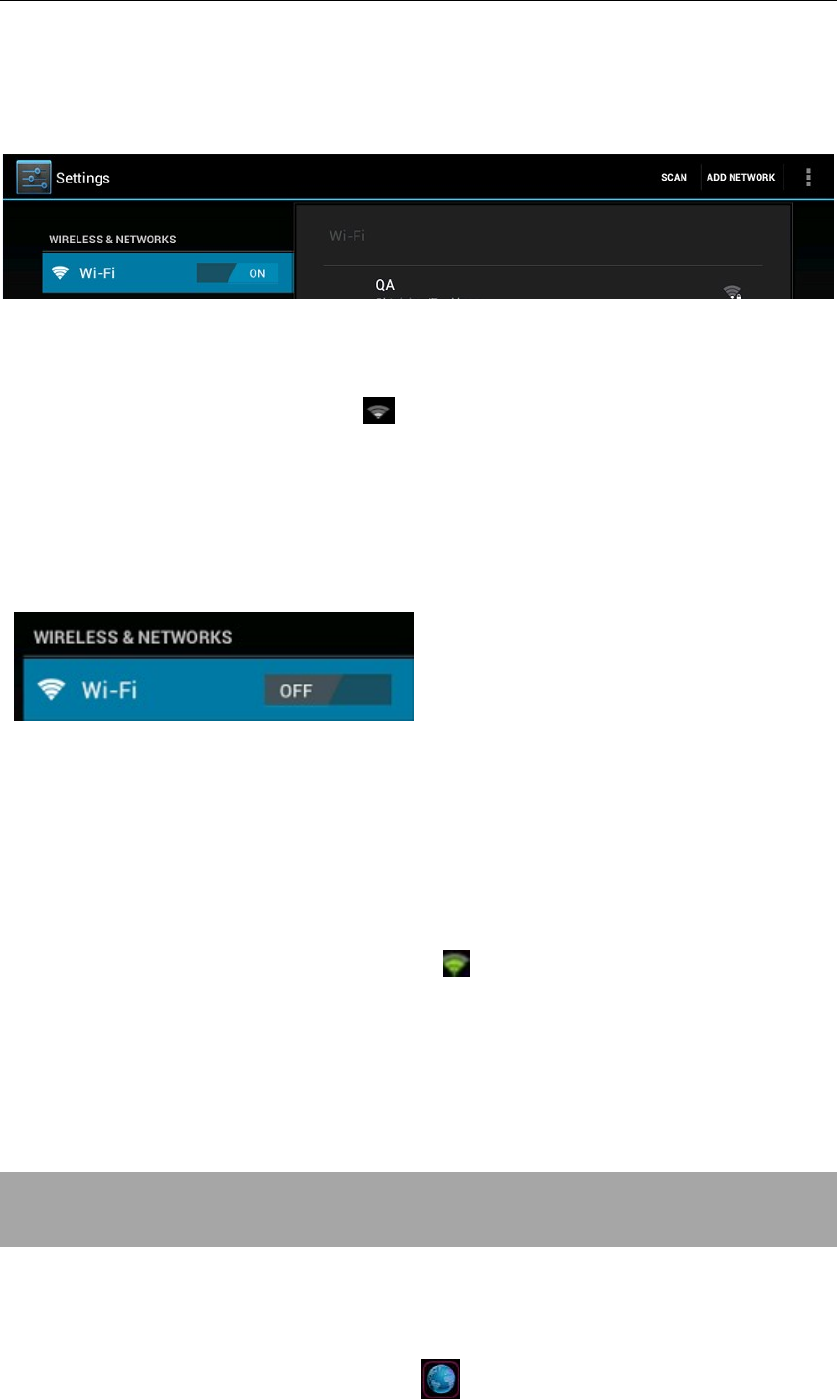
3.1.2 Turn off Wi-Fi
Please turn off Wi-Fi if you’re not using it to save the battery. To turn off
Wi-Fi, Tab it again.
3.1.3 Add a Wi-Fi network
Users may also add a Wi-Fi network under “Wi-Fi settings”. In “Wi-Fi
settings”, tap “Add network”. Enter the SSID (name) of the network. If
necessary, enter security or other network configuration details. Touch
Save.
Note: Network status icons turn green if you have a Google Account
added to your tablet and the tablet is connected to Google services,
for syncing your Gmail, Calendar events, contacts, for backing up your
settings, and so on.
3.2
IV. Internet Browsing
4.1 Internet Browsing
Before using your browser, make sure Wi-Fi or internet is connected.
In your app panel, Tab the browser icon to open your browser.

9
Tap the address bar, the Android keyboard will appear for your entry of
keywords or URL.
New tab bookmark this page Open bookmarks
Tab the icon in the top corner of the brower page to open the
submenu.
V. Install and Manage Apps
5.1 Install Apps
Go to the “ApkInstaller” to install and manage your apps. To
install an application, follow below steps:
1. Tap to open the ‘APKInstaller’ → ‘Install’ → then tap “Internal
Memory” or “TF Card”. Available .apk files will appear at the right side.
Touch the required one to install it.
Note: Make sure the .apk file is workable on android 4.0, and the suffix
is .apk. e.g. “angrybirds.apk”.
submenu
10
In some cases, there may be no icon on in the App Panel after a .apk
file is installed. Possible reasons may be that this app is not compatible
with your OS or the downloaded .apk file is a broken one so you may
need to download a full version.
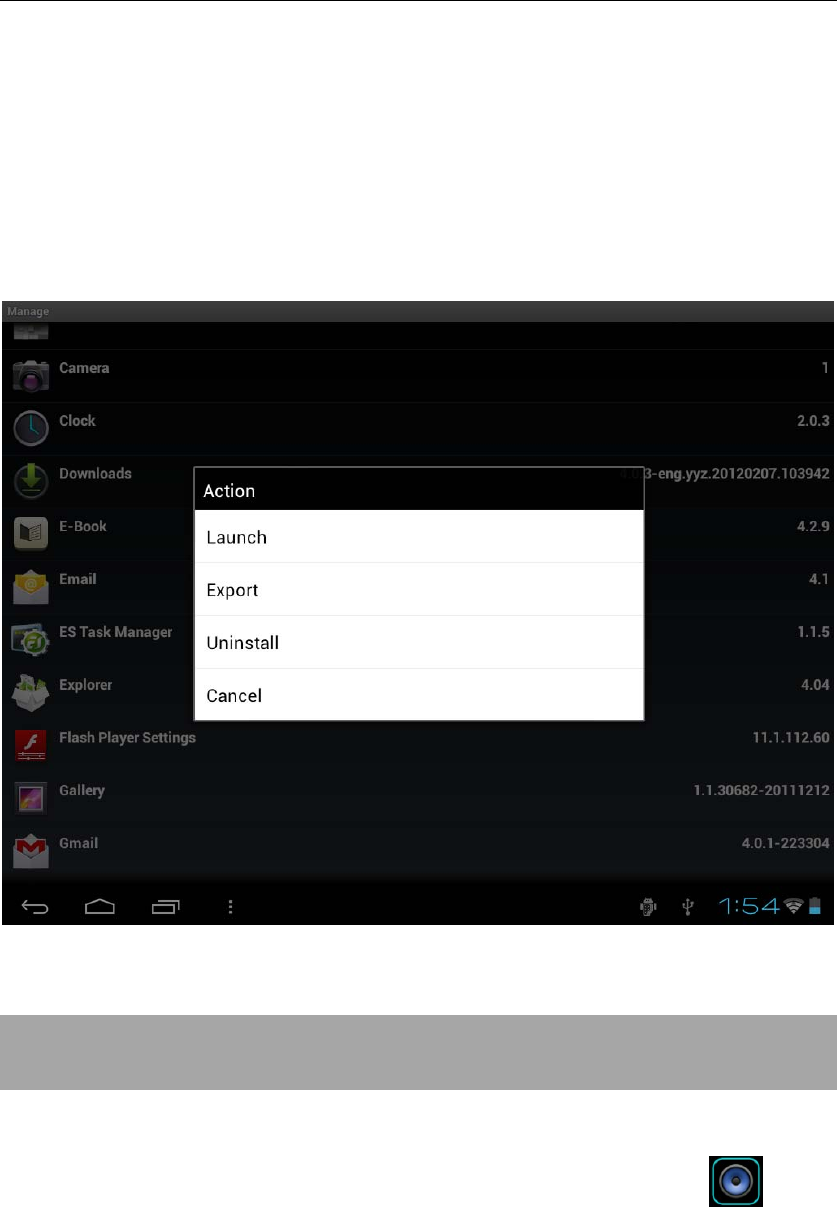
5.2 Manage Apps
Tap to open the ‘APKInstaller’ → ‘Manage’. Tab the app and then you
can launch, export, uninstall it.
You can also go to “AppS” under “Settings” to manage apps.
VI. Multi-media Functions
6.1 Music
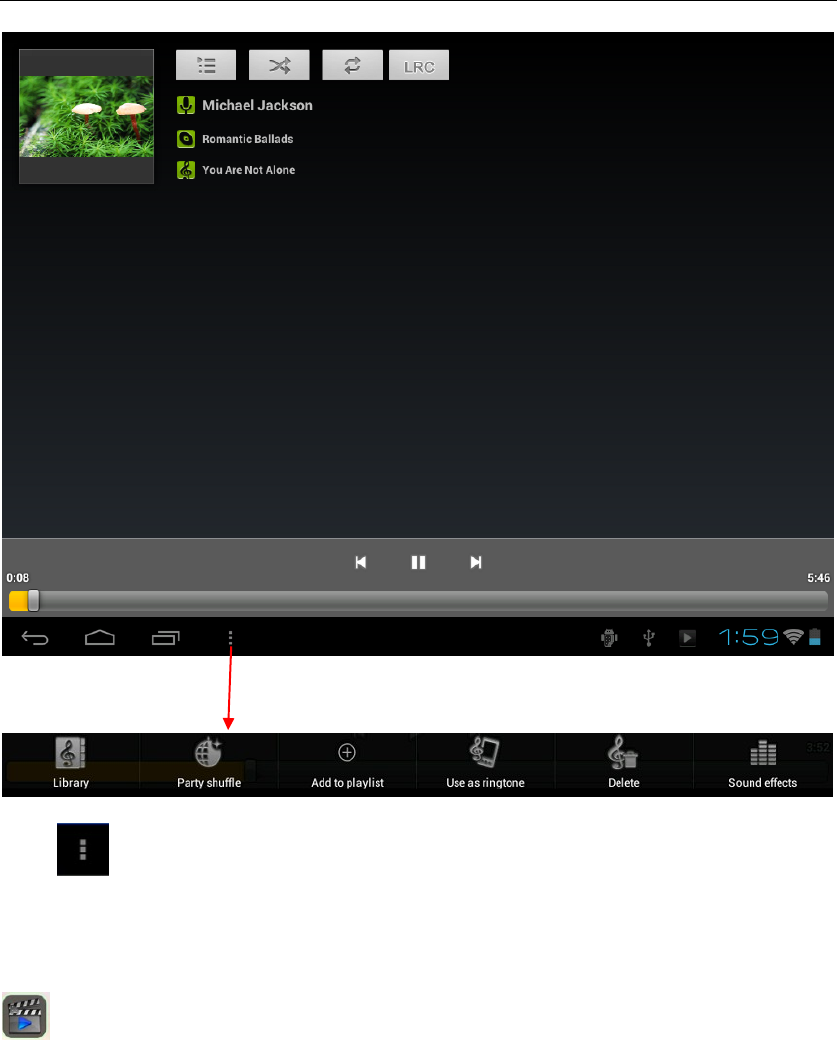
After loading your music into your tablet, tap the music icon to
open the music player. You can select songs by Artist, Albums, songs or
Playlists. Tap to select. The media player allows you to shuffle, skip, or
pause your current selection and even displays the album artwork when
available.
11
Tab in the bottum line to open a submenu in music playing page.
6.2 Video
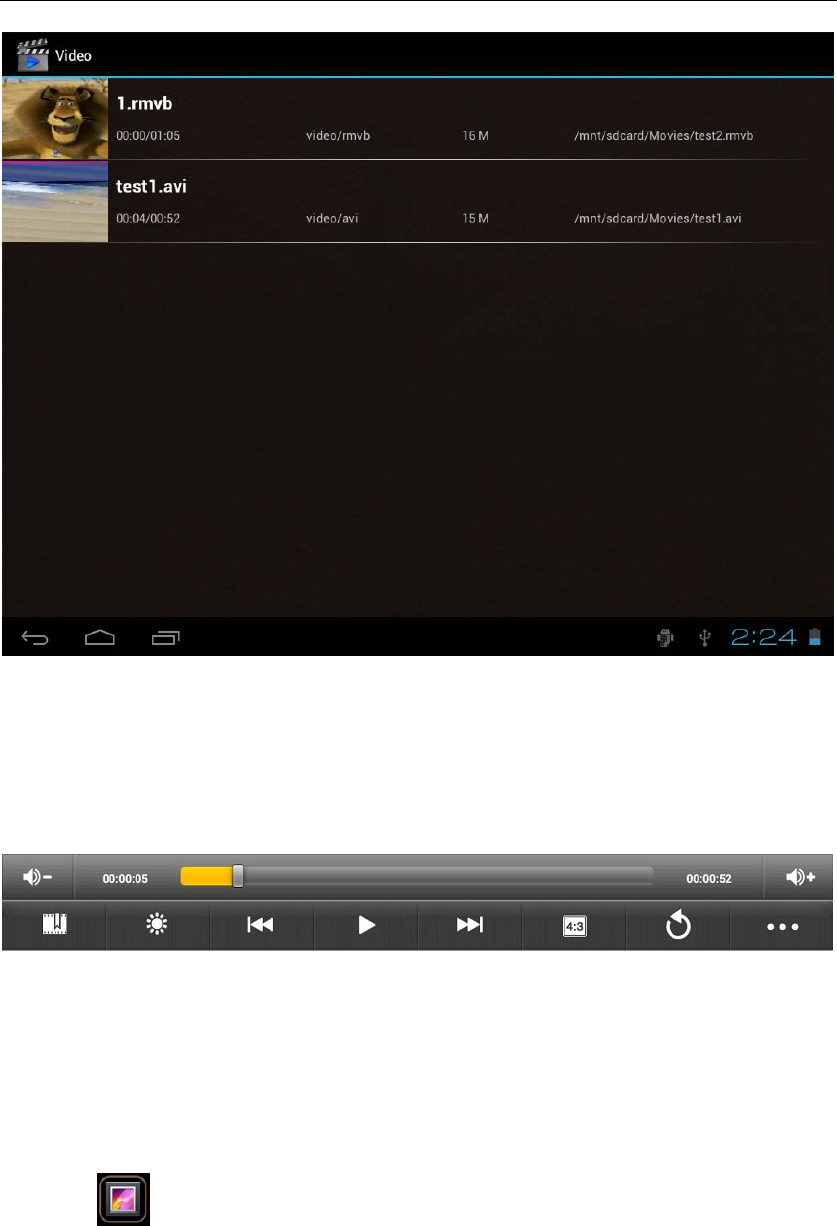
You can play videos saved in your tablet or TF card. To play, tap Video
icon to launch the video player:
12
Tab the video you would like to play. Tab the screen to show the video
tool bar. You can play back, fast forward, pause your video here. You
can also add bookmark for your video, adjust brightness, or set screen
ratio here. Here is the toolbar:
With the Wi-Fi on, you are also able to view an on-line video.
6.3 Gallery
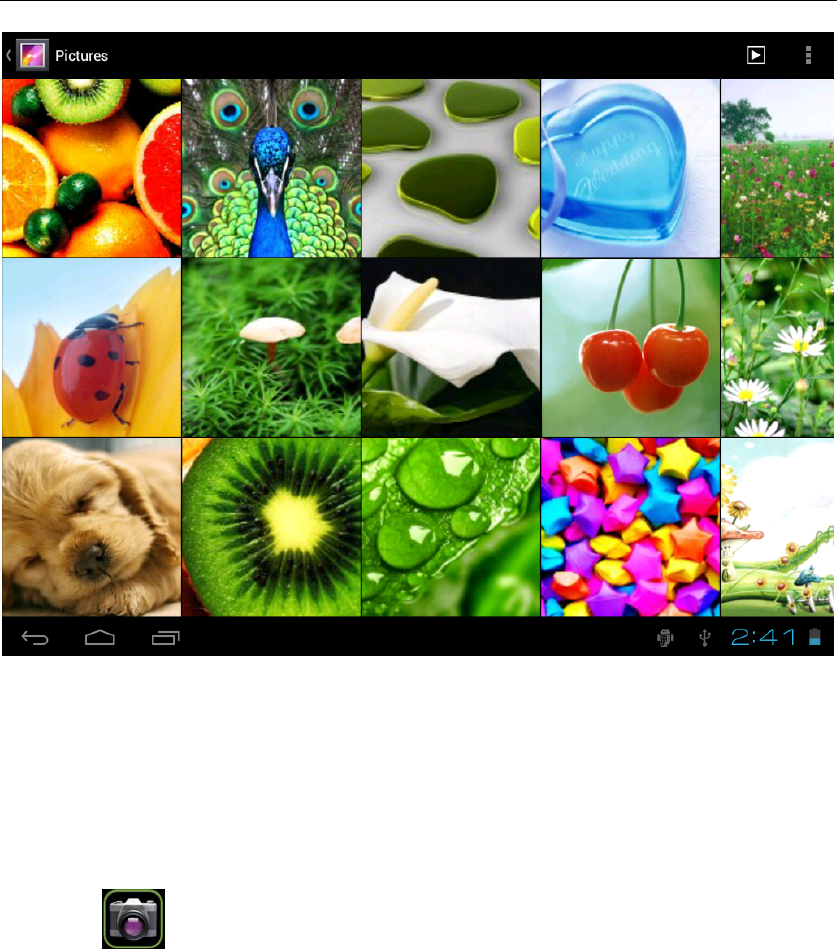
You can view, show off, and even edit your digital pictures on the
tablet’s full color, high-resolution display. After loading your media, tap
Gallery to display your pictures:
13
Tab the picture you want to display it, and slide right or left to show
other pictures.
Tap the menu icon, you can edit, rotate, crop, or set it as wallpaer.
6.4 Camera
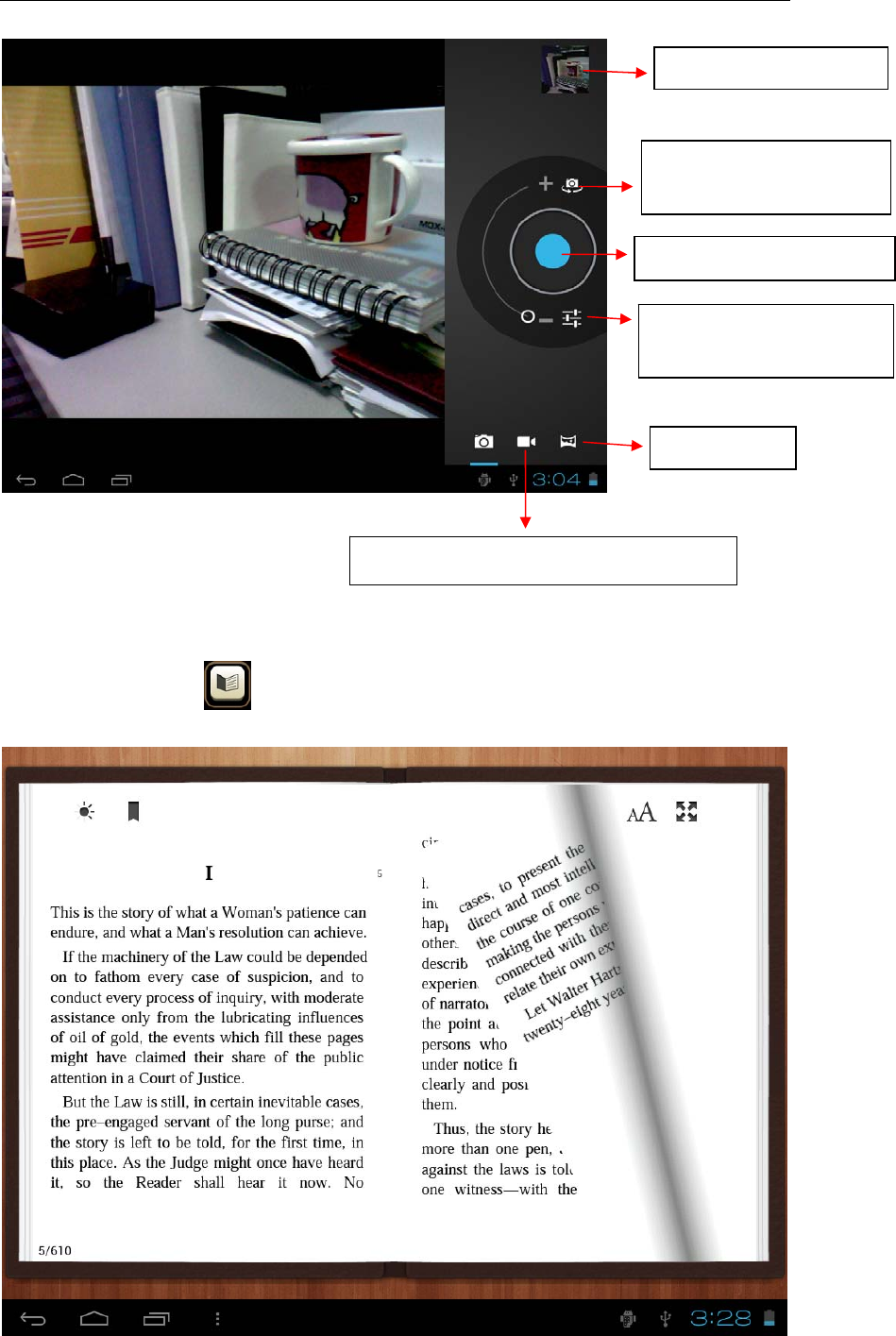
Tap the icon to open camera. Your tablet is built in 2M front
camera and 2M rear camera. You can take a photo, or a video both
by front camera and rear camera.
Note: After you power on your tablet, you can go to camera directly by
drag the lock to left.
14
6.5 E-book reader
The tablet supports many eBook formats like PDF, Text, E-Pub, FB2....
Tap the “e-book” icon to open e-book shelves. Tab an e-book to
open the book and read.
To view
p
hotos
To select Front/
back camera
Tab to take a photo
Set white balance,
Scene mode, etc.
Pan-shot
Change to video-taking Interface
15
You can page up or page down by sliding your finger right or left.
Tab or the menu button to check the sub-menus. You can set the
font size, Go To Page jump, check your bookmarks, set the auto flip time,
etc.
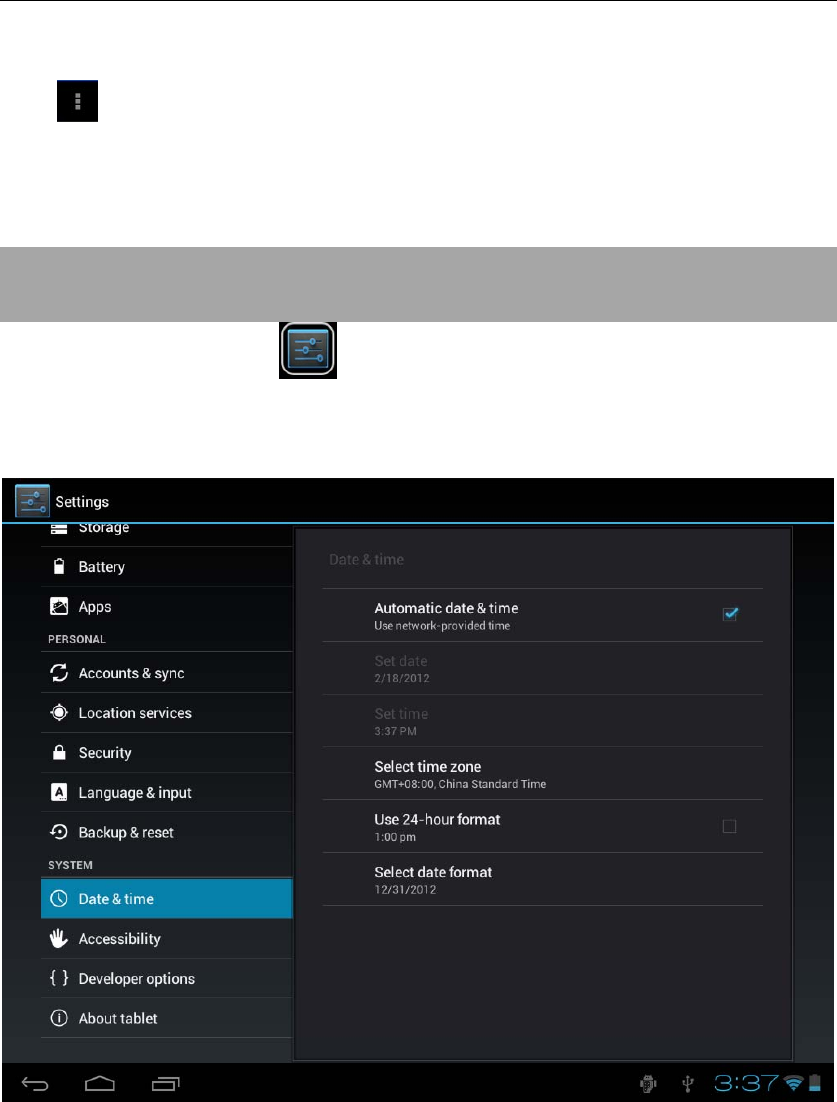
VII. Settings
Tap the “Settings” icon to go to settings.
you can check and set wireless&networks, sound, display, storage,
Battery, Accounts &sync, security, language, date&time, about tablet,
etc.
Wi-Fi: tap “Settings” → “Wireless & networks” to turn on wifi and scan.
It will show a list of Wi-Fi networks scanned in range. Choose a strong
Wi-Fi network to connect. (You may need to input the password).
Display: To set Brightness, Wallpaper, Sleep time-out, Font size here.
Storage: Check internal storage here. If you insert an Micro SD card, or
USB disk, you can check the total and available space for your Micro SD
card or USB disk. Please unmount it to safely remove it.
Battery: Check the Battery status here.
Display: Tab “Settings” → “Display” to set brightness, screen time-out,
etc.
16
Language & input: to set language and keyboard input.
Backup & reset: to go to submenu "back up my data" and "Factory
data reset". If you choose factory data reset, all data from your
tablet's internal storage will be erased. Choose this option carefully.
About Tablet: To check information about your tablet, such as Model
number, android version, etc.
VII. Battery
Very Low Battery Full Battery Charging Battery
‘’ indicates that the power of Battery is full. When the battery level
becomes too low, a prompt comes up to note you to charge your
tablet.
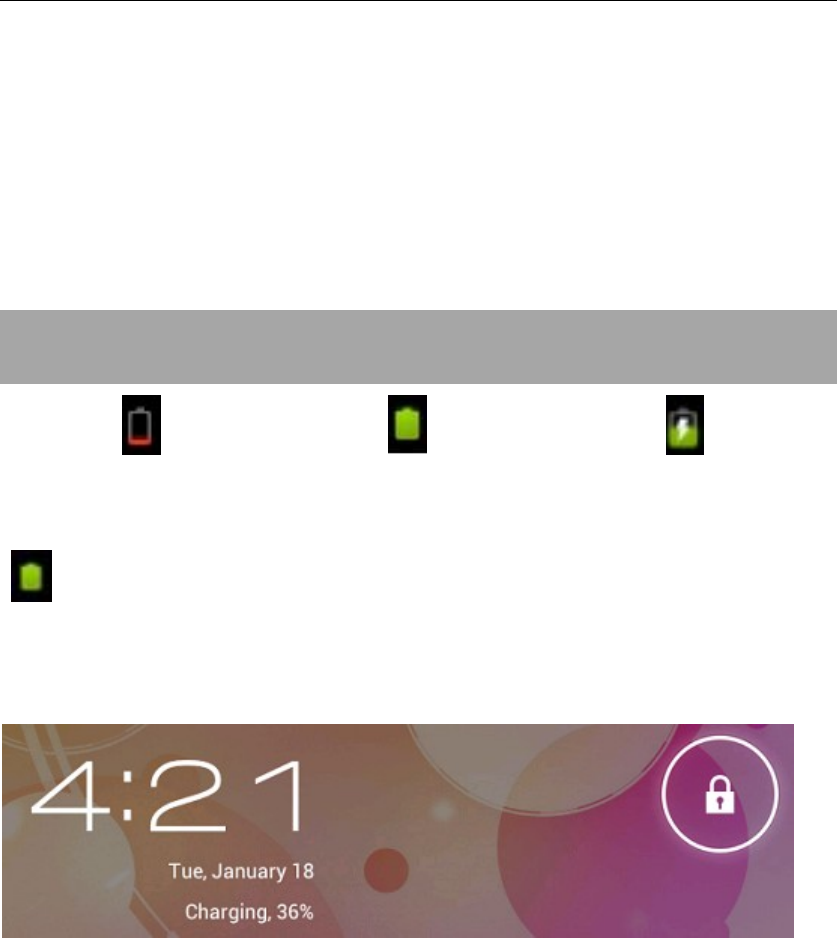
While charging, you can check the charging status in the lock screen:
It takes around 5 hours to charge your tablet to full battery. Please only
use a 9V /2.5A adaptor included in the gift box to charge it.

17
Troubleshooting
1. Can not turn on the tablet
Check the tablet’s power level, please charge it before starting it. In
case your tablet still cannot be turned on, you may try to reset it
2. No sound from earphone
Check if volume is set to ‘0’. Or earphone may be broken, please
change for another one.
3. Big noise
Check if there is dust in the earphone or speaker. Check if the file is
broken.
4. Screen drift or unresponsive screen
To pin the reset button to reset your tablet and power it on again.
5. Application not workable
Possible reasons may be that this app is not compatible with your OS or
the downloaded .apk file is broken so you may need to download a full
version.
6. How delete a Google account?
If an account is added, the account is shown in “Accounts & sync” of
“Settings”, where you may also add another account. To delete an
undesired account, go to “Settings” → “Privacy settings” → “Factory
data reset”. Your tablet’s internal storage, downloaded apps, etc. will
also be deleted, except the info in your flash memory. Be careful before
you carry out this operation.

18
FCC STATEMENT
1. This device complies with Part 15 of the FCC Rules.
Operation is subject to the following two conditions:
(1) This device may not cause harmful interference, and
(2) This device must accept any interference received, including
interference that may cause undesired operation.
2. Changes or modifications not expressly approved by the party
responsible for compliance could void the user’s authority to
operate the equipment.
NOTE: This equipment has been tested and found to comply with the
limits for a Class B digital device, pursuant to Part 15 of the FCC
Rules. These limits are designed to provide reasonable protection
against harmful interference in a residential installation. This
equipment generates, uses and can radiate radio frequency
energy and, if not installed and used in accordance with the
instructions, may cause harmful interference to radio
communications. However, there is no guarantee that
interference will not occur in a particular installation. If this
equipment does cause harmful interference to radio or television
reception, which can be determined by turning the equipment
off and on, the user is encouraged to try to correct the
interference by one or more of the following measures:
-- Reorient or relocate the receiving antenna.
-- Increase the separation between the equipment and receiver.
-- Connect the equipment into an outlet on a circuit different
from that to which the receiver is connected.
-- Consult the dealer or an experienced radio/TV technician for
help.
FCC Radiation Exposure Statement:
The device has been evaluated to meet general RF exposure requirement.
The device can be used in portable exposure condition without RF striction.