PIPO TECHNOLOGY X9 Media box User Manual

PIPO TECHNOLOGY CO., LIMITED Media box

User Manual

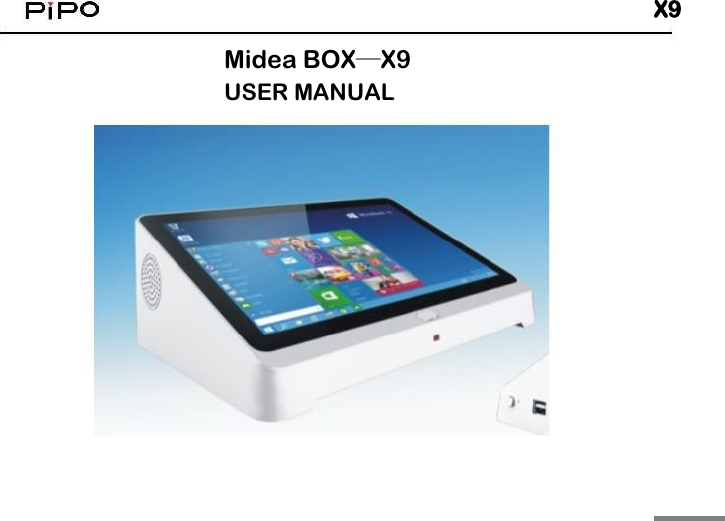
X9Midea BOX—X9USER MANUAL
X9WELCOME!Thank you for purchasing this device。it brings you wonderful userexperience.Before beginning,please refer to this user manual carefully.IncaseofanydoubtsregardingPIPOX9,you are welcomed to visit the PIPOOfficial Facebook website: www.facebook.com/pipo.cn, for raising yourQuestions and sharing your experience。Thank you!Product features:WiFiconnection,achievedisplayingsynchronizationeasily;BasedonIntelBaytrail3736Farchitecture,processor frequencyis2.16GHz;
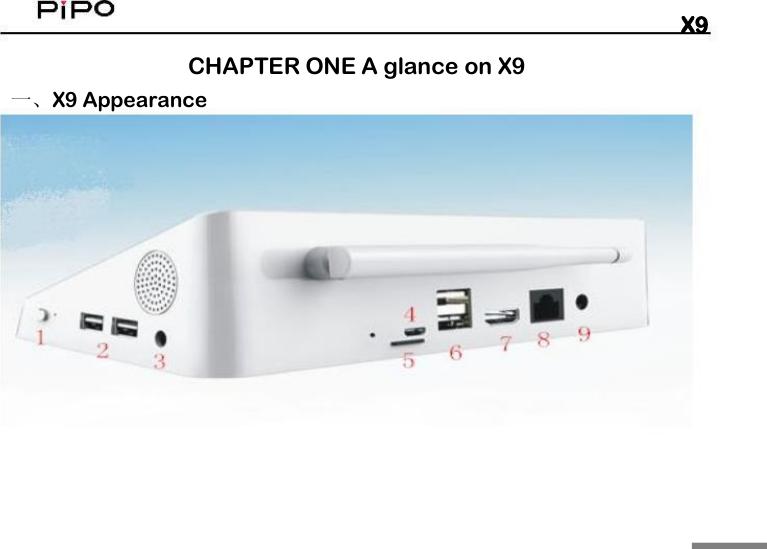
X9CHAPTER ONE A glance on X9一、X9 Appearance
X9KEYS1:Power Switch key,2/6:USB port,for connecting peripherals3:Earphone jack4:Micro USB for connecting to PC,whenX9 is running Android OS5:TF card slot:for TF card,maximumto64GB7:HDMI port8:LanRJ45forinternetcable9:DC12Vpowersupplyjack二、Product Specifications
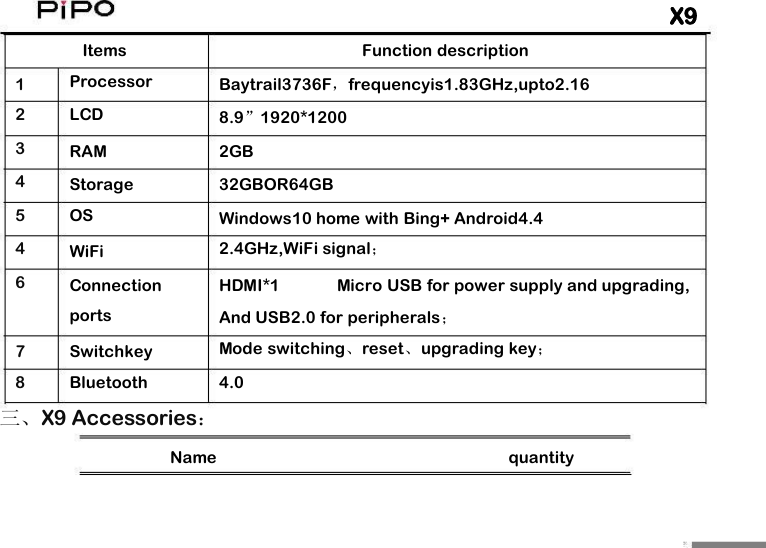
X9ItemsProcessorLCDFunction description1234546Baytrail3736F,frequencyis1.83GHz,upto2.168.9”1920*1200RAM2GBStorageOS32GBOR64GBWindows10 home with Bing+ Android4.42.4GHz,WiFi signal;WiFiConnectionportsHDMI*1Micro USB for power supply and upgrading,And USB2.0 for peripherals;Mode switching、reset、upgrading key;4.078SwitchkeyBluetooth三、X9 Accessories:Namequantity
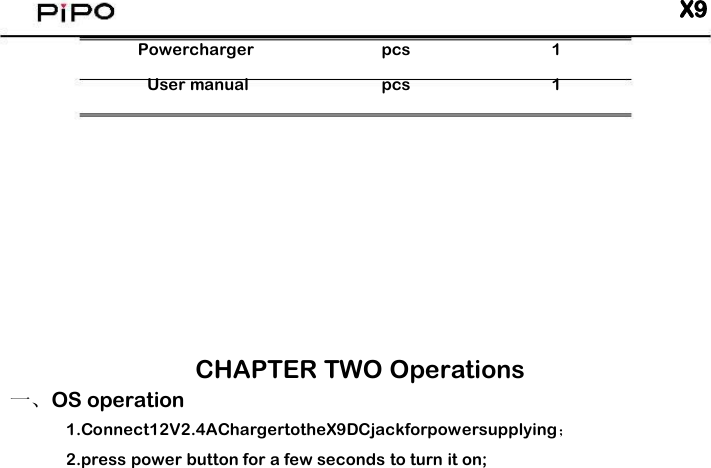
X9PowerchargerUser manualpcspcs11CHAPTER TWO Operations一、OS operation1.Connect12V2.4AChargertotheX9DCjackforpowersupplying;2.press power button for a few seconds to turn it on;
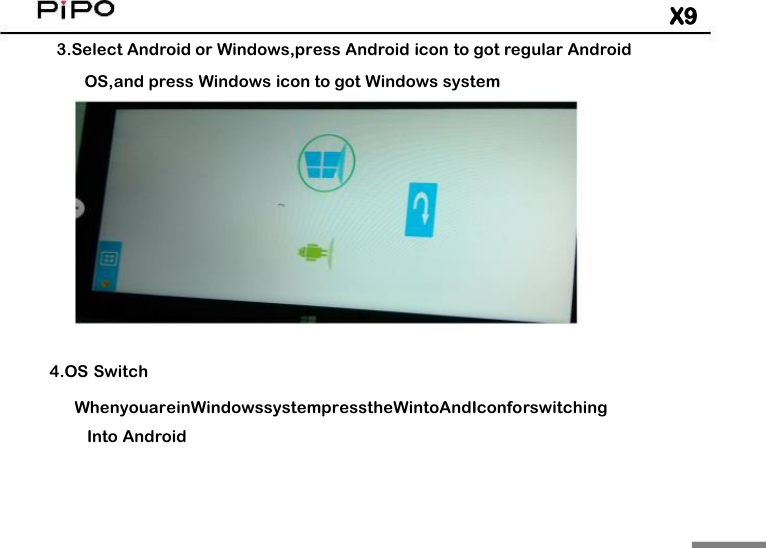
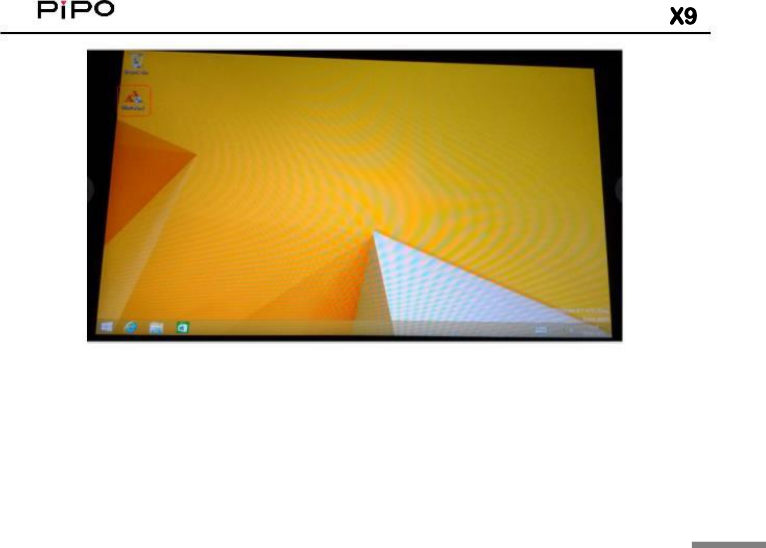
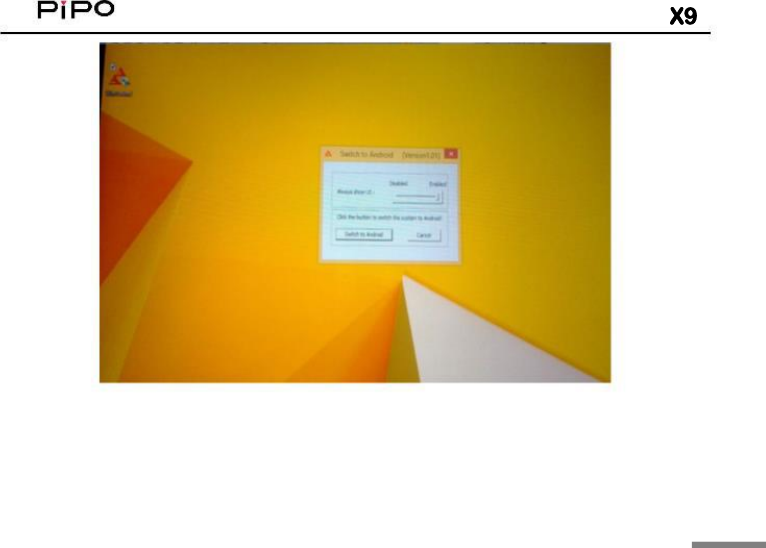
X93.Select Android or Windows,press Android icon to got regular AndroidOS,and press Windows icon to got Windows system4.OS SwitchWhenyouareinWindowssystempresstheWintoAndIconforswitchingInto Android
X9
X9
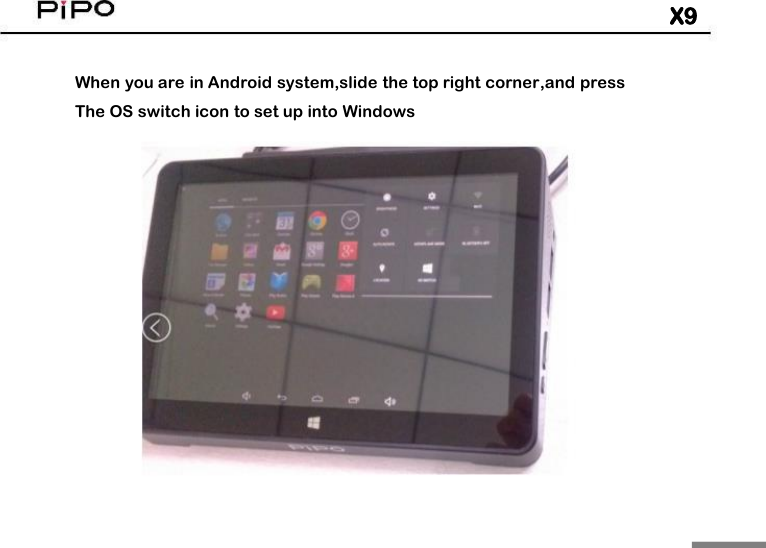
X9When you are in Android system,slide the top right corner,and pressThe OS switch icon to set up into Windows
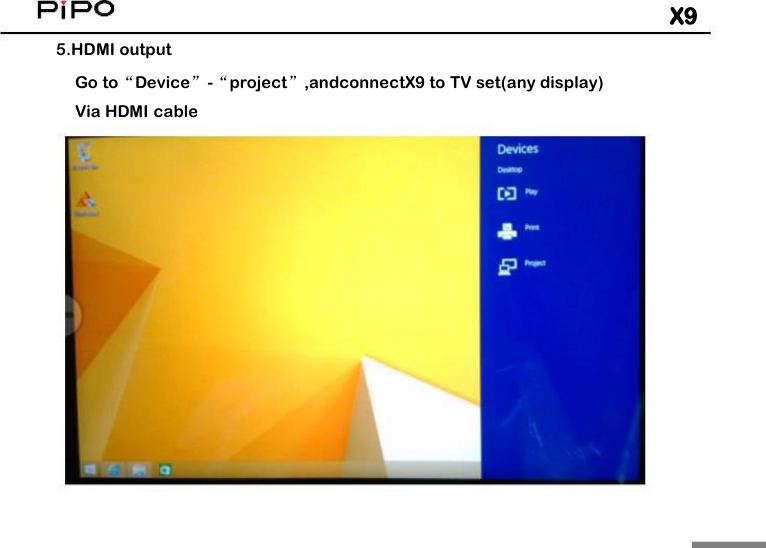
X95.HDMI outputGo to“Device”-“project”,andconnectX9 to TV set(any display)Via HDMI cable
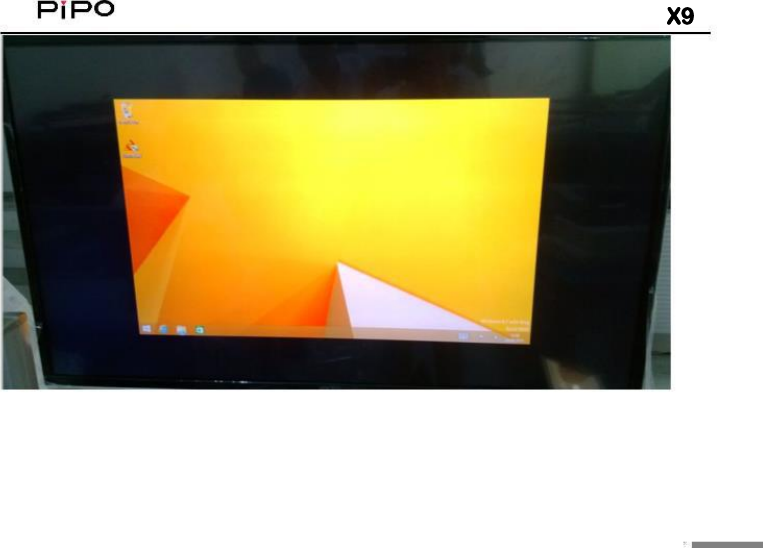
X95.1PCscreenonlyImagescouldbeshownonlyinTVBOXX9,HDMI output will be cutoff5.2 DuplicateThe HDMI output on the TV set maybe not by full screen,This isBecause the X9LCD solution is1920*1200,so the HDMI output on theTVsetisalsoshownby1920*1200.
X9
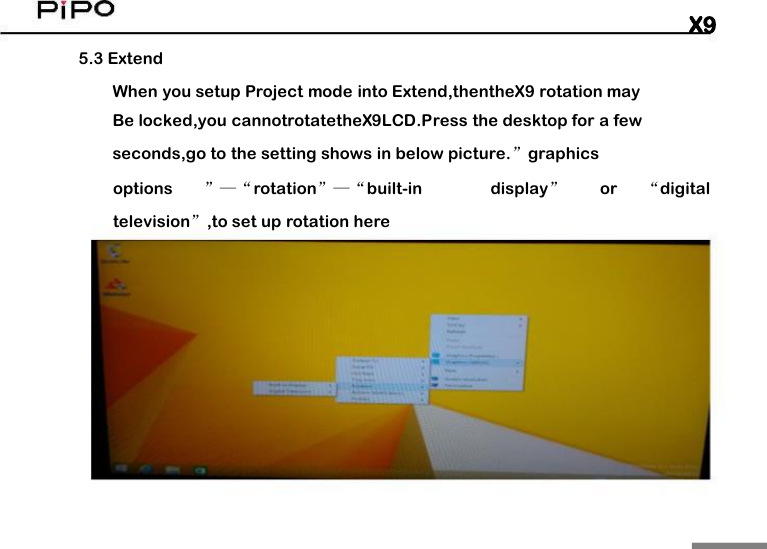
X95.3 ExtendWhen you setup Project mode into Extend,thentheX9 rotation mayBe locked,you cannotrotatetheX9LCD.Press the desktop for a fewseconds,go to the setting shows in below picture.”graphicsoptions”—“rotation”—“built-indisplay”or“digitaltelevision”,to set up rotation here
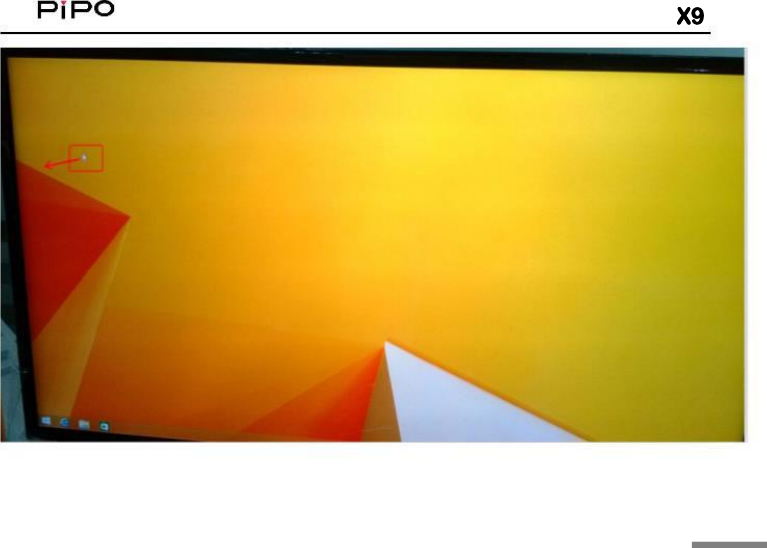
X9TheX9 LCD is the first screen,and the TV set display is the second screen,Move the mouse pointer out side of first screen,it will jump into secondscreenandifyoumovethemousepointeroutsideofscreenscreen,theMouse pointer will jump into first screen.First screen and second screenAre separate displays,you can do different task on first screen andSecond screen.For example watching video on second screen,and the theSame time Skype chat or what’s app chat with friends on the first screen.There is a lot of fun in the Extend mode,just explore into it!
X9
X9
X95.4SecondscreenonlyInthismode,theimagescouldonlybeshownontheTVsetdisplay,AndtheX9LCDwillbelightoff.And the second screen image maybeUp side down.Then please rotate the X9,place the X9 to be landscapeMode or portrait mode,the second screen could be adjusted to normaldisplaying.
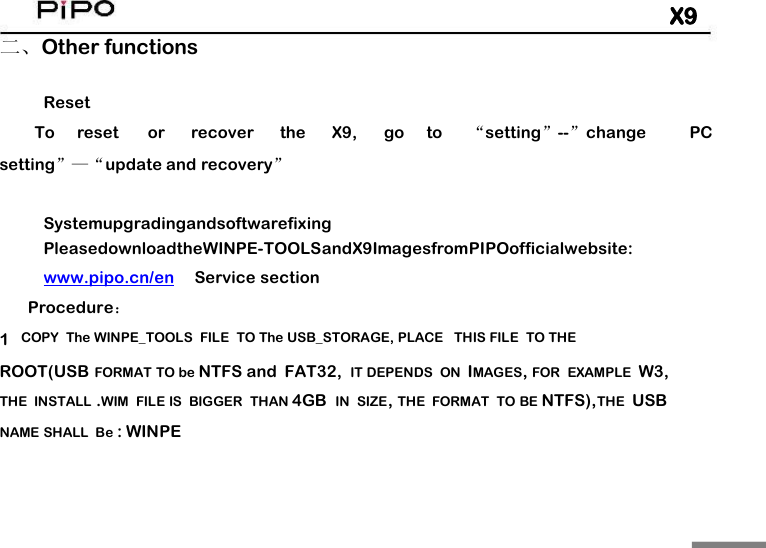
X9二、Other functionsResetToresetorrecovertheX9,goto“setting”--”changePCsetting”—“update and recovery”SystemupgradingandsoftwarefixingPleasedownloadtheWINPE-TOOLSandX9ImagesfromPIPOofficialwebsite:www.pipo.cn/enService sectionProcedure:1COPY The WINPE_TOOLS FILE TO The USB_STORAGE, PLACE THIS FILE TO THEROOT(USB FORMAT TO be NTFS and FAT32, IT DEPENDS ON IMAGES,FOR EXAMPLE W3,THE INSTALL .WIM FILE IS BIGGER THAN 4GB IN SIZE,THE FORMAT TO BE NTFS),THE USBNAME SHALL Be : WINPE
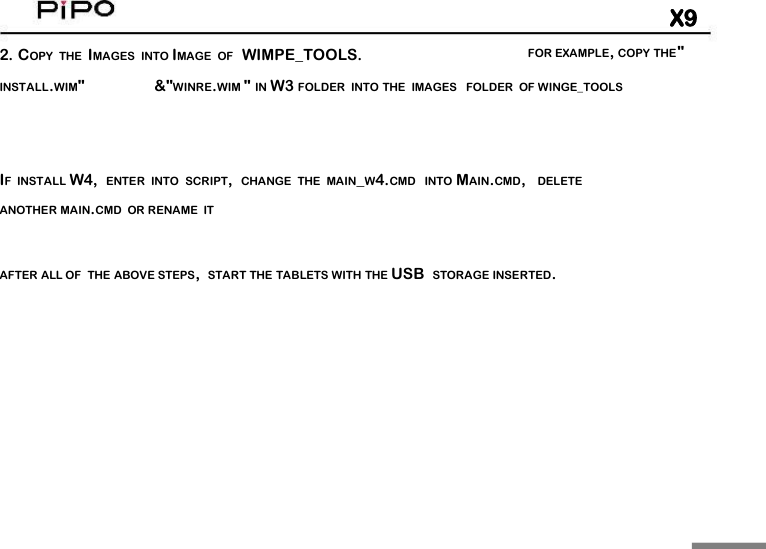
X92. COPY THE IMAGES INTO IMAGE OF WIMPE_TOOLS.FOR EXAMPLE,COPY THE"INSTALL.WIM"&"WINRE.WIM "IN W3 FOLDER INTO THE IMAGES FOLDER OF WINGE_TOOLSIF INSTALL W4, ENTER INTO SCRIPT,CHANGE THE MAIN_W4.CMD INTO MAIN.CMD,DELETEANOTHER MAIN.CMD OR RENAME ITAFTER ALL OF THE ABOVE STEPS,START THE TABLETS WITH THE USB STORAGE INSERTED.
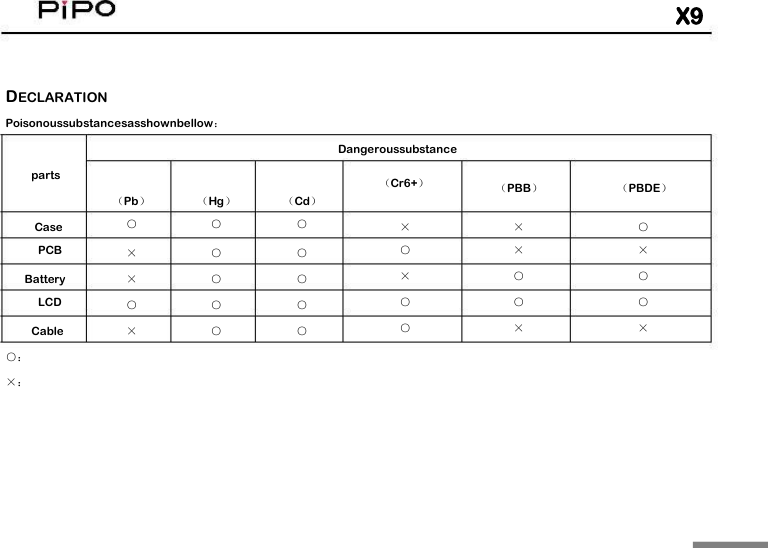
X9DECLARATIONPoisonoussubstancesasshownbellow:Dangeroussubstance(Cr6+)parts(PBB)(PBDE)(Pb)○(Hg)○(Cd)○CasePCB×○×○○××○○×○×○○××○○BatteryLCD×○○○○○Cable×○○○:×:
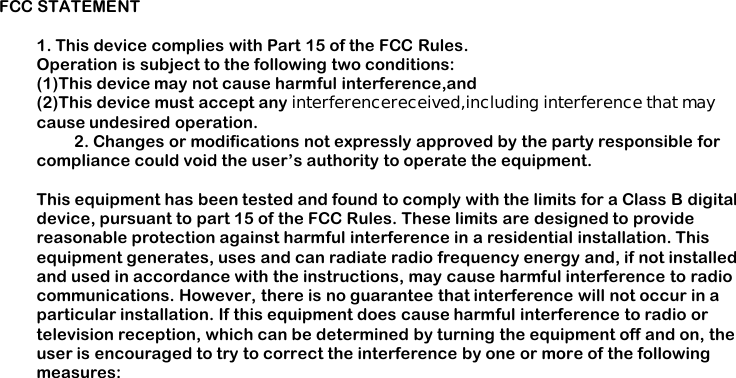
FCC STATEMENT1. This device complies with Part 15 of the FCC Rules.Operation is subject to the following two conditions:(1)This device may not cause harmful interference,and(2)This device must accept any interferencereceived,including interference that maycause undesired operation.2. Changes or modifications not expressly approved by the party responsible forcompliance could void the user’s authority to operate the equipment.This equipment has been tested and found to comply with the limits for a Class B digitaldevice, pursuant to part 15 of the FCC Rules. These limits are designed to providereasonable protection against harmful interference in a residential installation. Thisequipment generates, uses and can radiate radio frequency energy and, if not installedand used in accordance with the instructions, may cause harmful interference to radiocommunications. However, there is no guarantee that interference will not occur in aparticular installation. If this equipment does cause harmful interference to radio ortelevision reception, which can be determined by turning the equipment off and on, theuser is encouraged to try to correct the interference by one or more of the followingmeasures:
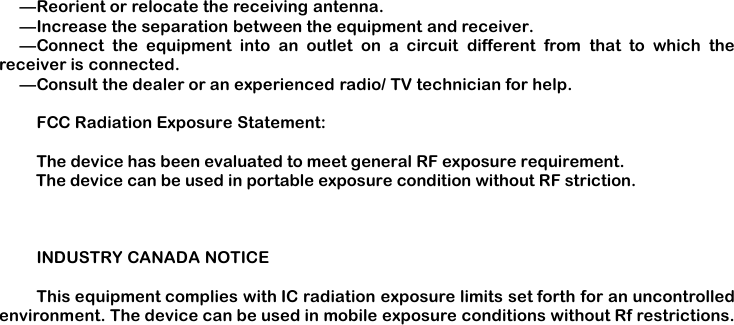
—Reorient or relocate the receiving antenna.—Increase the separation between the equipment and receiver.—Connect the equipment into an outlet on a circuit different from that to which thereceiver is connected.—Consult the dealer or an experienced radio/ TV technician for help.FCC Radiation Exposure Statement:The device has been evaluated to meet general RF exposure requirement.         The device can be used in portable exposure condition without RF striction.INDUSTRY CANADA NOTICEThis equipment complies with IC radiation exposure limits set forth for an uncontrolledenvironment. The device can be used in mobile exposure conditions without Rf restrictions.
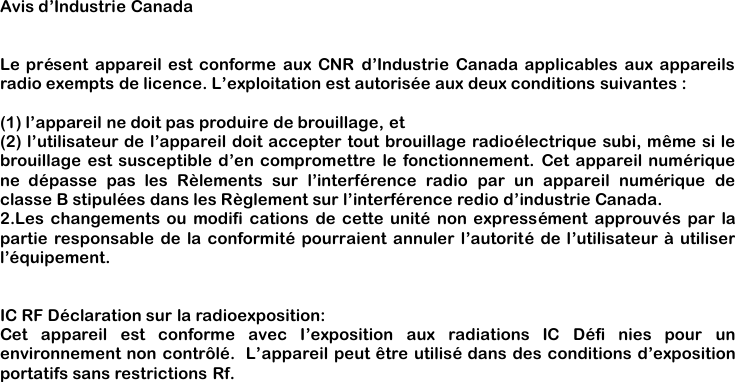
Avis d’Industrie CanadaLe présent appareil est conforme aux CNR d’Industrie Canada applicables aux appareilsradio exempts de licence. L’exploitation est autorisée aux deux conditions suivantes :(1) l’appareil ne doit pas produire de brouillage, et(2) l’utilisateur de l’appareil doit accepter tout brouillage radioélectrique subi, même si lebrouillage est susceptible d’en compromettre le fonctionnement. Cet appareil numériquene dépasse pas les Rèlements sur l’interférence radio par un appareil numérique declasse B stipulées dans les Règlement sur l’interférence redio d’industrie Canada.2.Les changements ou modifi cations de cette unité non expressément approuvés par lapartie responsable de la conformité pourraient annuler l’autorité de l’utilisateur à utiliserl’équipement.IC RF Déclaration sur la radioexposition:Cet appareil est conforme avec I’exposition aux radiations IC Défi nies pour unenvironnement non contrôlé. L’appareil peut être utilisé dans des conditions d’expositionportatifs sans restrictions Rf.

Navigation menu