PRIMOS HUNTING CALLS DOGG002 Electronic Game Caller User Manual Part One
Primos Hunting Calls Electronic Game Caller Users Manual Part One
Contents
- 1. Users Manual Part One
- 2. Users Manual Part Two
Users Manual Part One
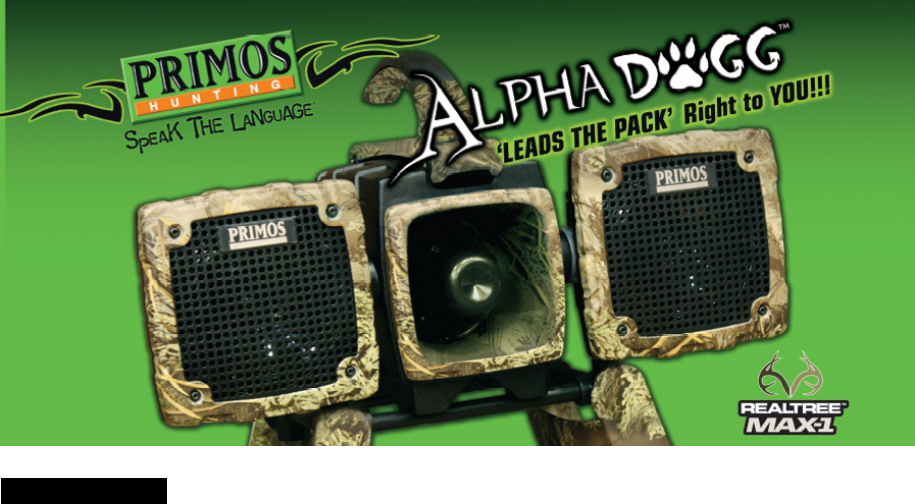
Alpha Dogg Instructions
Model No. 3756-R & 3756-S
INTRODUCTION
Alpha Dogg Electronic Caller
Apex of Predator Calling Technology!
The Alpha Dogg doesn’t give you just individual sounds to choose from, it has Expert™ Hunts which
allow you to have Randy Anderson and other Team Primos members actually calling for you! These are
proven hunt sets that get dogs in!
This is the most powerful “No Distortion” speaker system available. It has 2 cone speakers that can be
adjusted to cover 180 degrees and one forward facing horn speaker. The 180° Rotating Cone Speakers
cover more area and produce more realistic, dynamic sound.
Powered by Dual 25 watt digital amps there is No Distortion!
Simple to use Remote can be operated quickly with one hand and has a range of 200 yards. Remote sound
list is displayed on easy to read 2.5” High Res LCD screen and sounds are organized by species such as
coyote, fox, bobcat, deer, elk, etc.
Comes with 75 sounds and 6 complete Expert™ Hunts. Professional Sound library allows you to add
sounds and other newly released Expert™ Hunts. Stores up to 1000 sounds on 2GB of memory.
Take the guess work out of “Speaking the Language” with the Alpha Dogg! ~ Will Primos
PRIMOS HUNTING
604 First Street, Flora, MS 39071 – 601-879-9323 – primos.com
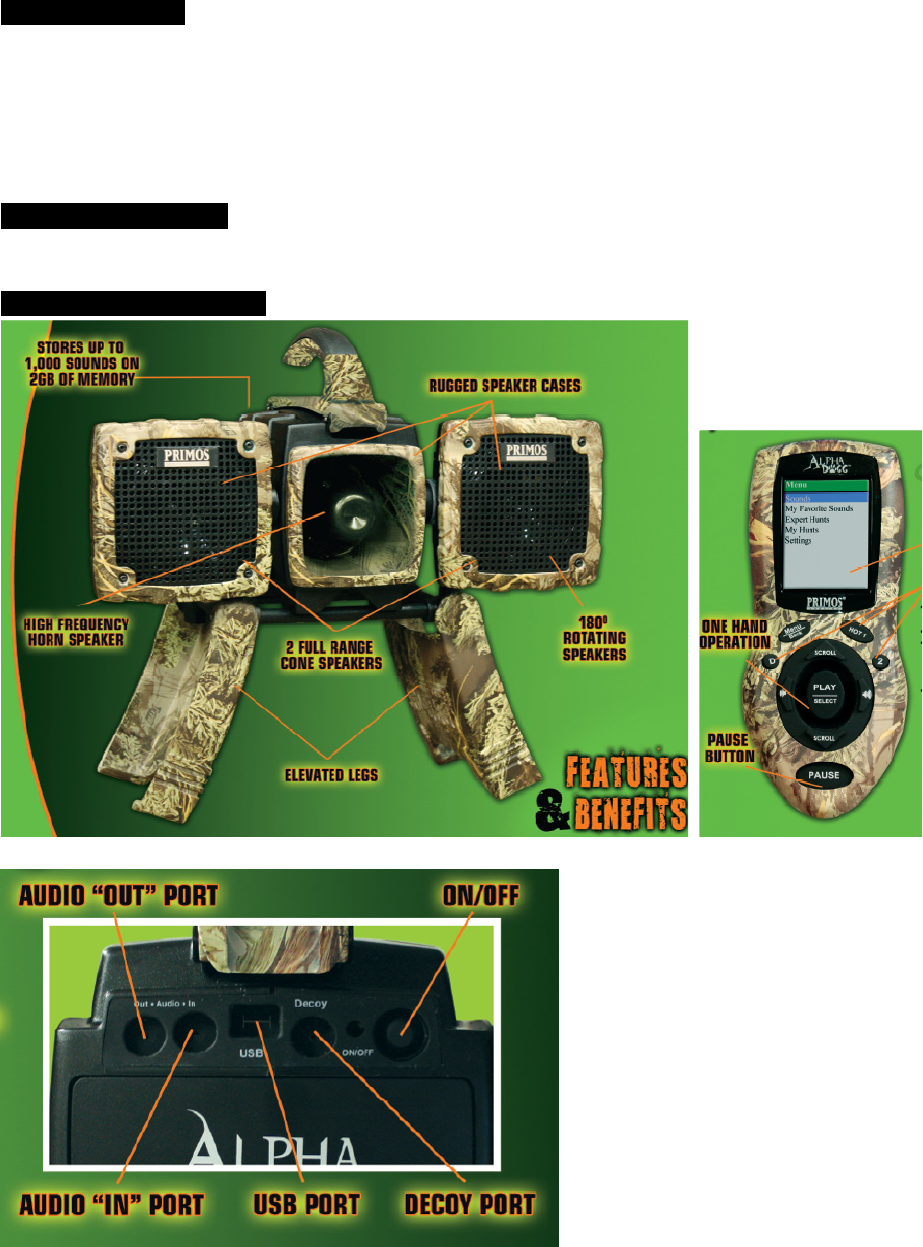
ITEMS INCLUDED:
1. Alpha Dogg Speaker System
2. Alpha Dogg Remote
3. Alpha Dogg Speaker Handle
4. Instruction Manual
5. Warranty Registration Card
NEEDED TO OPERATE
1. Eleven (11) (8 for Speaker and 3 for Remote) “AA” Alkaline, Lithium or Rechargeable Batteries
ALPHA DOGG OVERVIEW
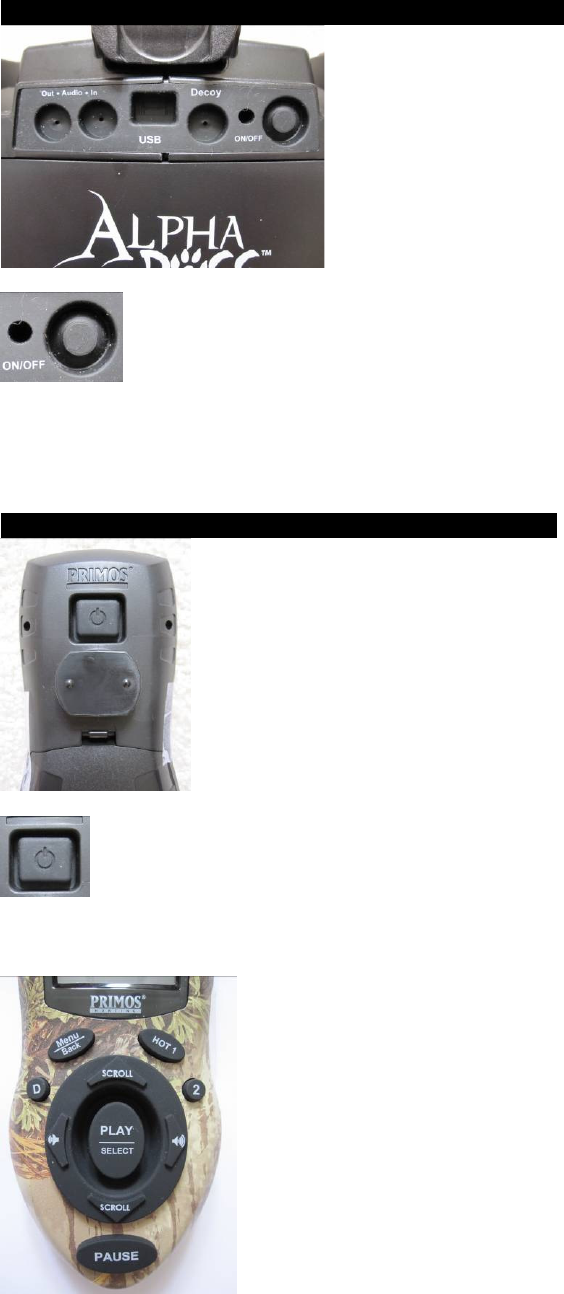
UNDERSTANDING BUTTON FUNCTIONS ON SPEAKER.
POWER BUTTON
- TURN ON: Press button to turn unit ‘ON’
- Red status light is illuminated
- TURN OFF: Press button to turn unit ‘OFF’
- Red status light is not lit.
UNDERSTANDING BUTTON FUNCTIONS ON REMOTE.
POWER BUTTON
- TURN ON: Press button to turn remote ‘ON’
- TURN OFF: Press button to turn unit ‘OFF’
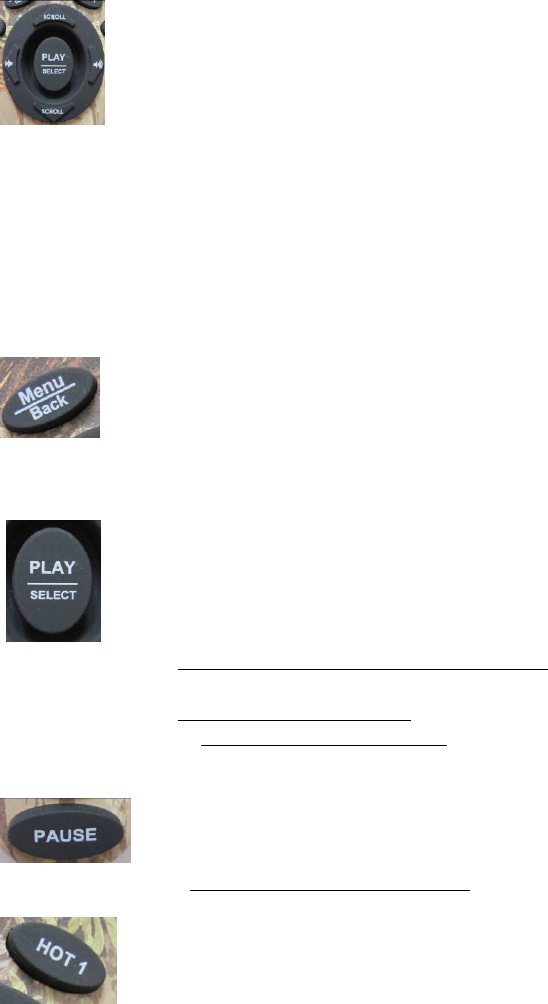
SCROLL UP – SCROLL DOWN - VOLUME LEFT – VOLUME RIGHT ARROW
BUTTONS
- NAVIGATE: Use to navigate thru sounds, hunts and menu options. TIP: Hold button down
to quickly scroll through sounds, hunts and menu options.
- CHANGE SOUND VOLUME: Use to increase or decrease sound volume
o Left Arrow – Decrease volume. TIP: Hold button down to quickly change sound
volume.
o Right Arrow – Increase volume. TIP: Hold button down to quickly change sound
volume.
MENU / BACK BUTTON
- MENU: Press to enter Alpha Dogg Menu
- BACK: Press to return to previous shown screen
PLAY / SELECT BUTTON
- PLAY: When in File Containing Sounds or Hunts, press PLAY to play highlighted sound
file. Use SCROLL ARROW buttons to select new sound. Press Play again to change sound.
- PLAY: When PAUSE is activated, press PLAY to resume playing sound.
- SELECT: When in Alpha Dogg Menu press SELECT button to select setting. Use ARROW
buttons to change setting. Press SELECT again to save setting.
PAUSE BUTTON
- PAUSE: When Sound or Hunt is playing, press PAUSE to stop playing sound or hunt. Press
PLAY or PAUSE to resume playing sound or hunt at paused position.
HOT 1 BUTTON
- HOT 1: Performs programmed action instantly no matter what is playing or where you are in
the menu.
- Factory programmed to play KI-YI sound. Press HOT 1 to instantly play KI-YI sound.
- Can be programmed for following functions:
o Instantly play any selected sound in sound library.
o Instantly go to My Favorite Sounds.
o Recall previous played sound.
o Instantly change volume level to predetermined level.
o When motion decoy is connected to Decoy Port, control decoy motion.
HOT 2 BUTTON
- HOT 2: Performs programmed action instantly no matter what is playing or where you are in
the menu.
- Factory programmed to play Rodent Distress sound. Press HOT 2 to instantly play Rodent
Distress sound.
- Can be programmed for following functions:
o Instantly play any selected sound in sound library.
o Instantly go to My Favorite Sounds.
o Recall previous played sound.
o Instantly change volume level to predetermined level.
o When motion decoy is connected to Decoy Port, control decoy motion.
DECOY BUTTON
- DECOY BUTTON: When motion decoy is connected to Decoy Port, controls decoy motion
by turning motion On/Off.
NOTE: Requires standard audio wire & connector not included.
- DECOY BUTTON can be programmed to act as HOT 3 BUTTON.
- Can be programmed for following functions:
o Instantly play any selected sound in sound library.
o Instantly go to My Favorite Sounds.
o Recall previous played sound.
o Instantly change volume level to predetermined level.
o When motion decoy is connected to Decoy Port, control decoy motion.
INITIAL ALPHA DOGG SETUP .
1. Install recommended batteries into speaker and remote with polarities as indicated in
Battery Compartments. Speaker requires 8 “AA” batteries. Remote requires 3 “AA”
batteries.
2. Install handle on Speaker.
3. Turn on speaker by pushing POWER button. Red LED will illuminate.
4. Turn on remote by pushing POWER button. The color LCD screen will turn on and show
the Alpha Dogg Menu. Push SCROLL ▲ or
▼
to navigate through all Menu options.
5. Use SELECT and BACK buttons to navigate in and out of folders.
6. Position Speaker so signal strength on Remote has a minimum of 1 signal bar.
7. Your caller is ready to use!
8. To turn off caller, reverse above instructions.
BATTERY LEVEL INDICATOR
The constantly displays the battery level:
Full charge
Low battery
Please change the battery
REGISTER YOUR ALPHA DOGG CALLER
1. It is very important to register your caller. This activates your warranty, allows you to download
latest software updates, allows you to download sounds and Expert
TM
Hunts, and keeps you
updated with latest information on your caller.
2. To register your caller visit www.Primos.com and/or fill out and return enclosed registration card.
Note: You will need to include the serial number of the caller. It is located inside the battery
compartment.
PLAYING SOUNDS .
1. In Menu screen push SCROLL ▲ or
▼
to navigate through all Menu options and highlight
Sounds and push Select.
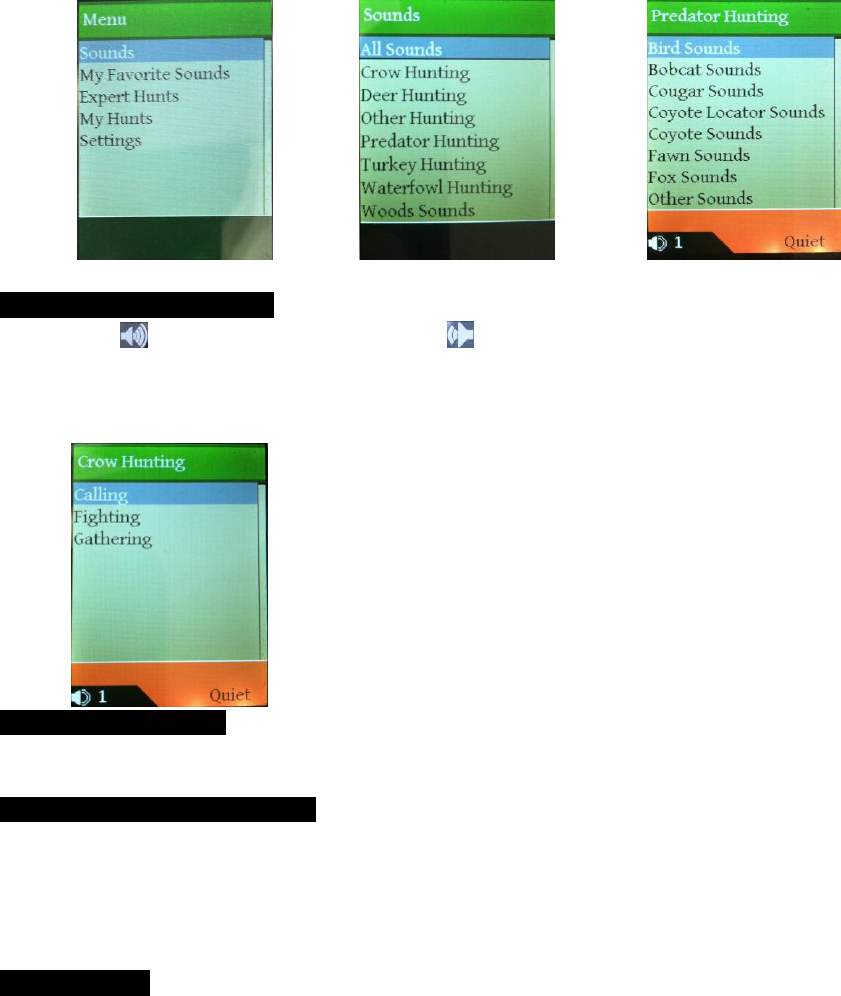
2. In Sounds screen push SCROLL ▲ or
▼
to navigate through all sound options and highlight
desired sound category and push SELECT.
Example: Select Predator Hunting. This enters you in a menu to select sound types for hunting
predators. Push SCROLL ▲ or
▼
to navigate through Predator Sound Types and highlight
desired predator category and push SELECT. This enters you into a list of sounds tracks
available to use on your caller. Navigate through sounds tracks and highlight desired sound.
Push PLAY/SELECT to begin playing sound track.
ADJUST SOUND VOLUME .
1. Push to increase volume slowly. Push to decrease volume. Hold either button down to
rapidly increase/decrease volume.
2. Volume number is in lower left corner.
SOUND TRACK TIME .
1. Sound track length is displayed on screen along with time played.
STOP SOUND FROM PLAYING .
1. Push PAUSE button to stop sound track from playing. To resume playing track in paused
position, push PAUSE.
2.
To start paused sound track from beginning, use SCROLL ▲ or
▼ buttons to highlight sound track
and push PLAY/SELECT.
SOUND LOOP .
1. When sound track is finished playing, caller will automatically loop to beginning of track and
start playing. This looping feature can be changed in Setting so sound track stops when track has
finished. See Setting section in manual.
NOTE: When playing MY HUNTS, when track is finished playing, caller will automatically start
playing next track in hunt set. When last track of hunt set is finished, caller will stop playing.
SELECTING NEW SOUND WHILE SOUND IS PLAYING .
1. With sound playing use SCROLL ▲ or
▼ to highlight next desired sound track or
push BACK
button to navigate to new sound menu.
2. When new sound track is highlighted, push PLAY/SELECT to start playing new sound track.
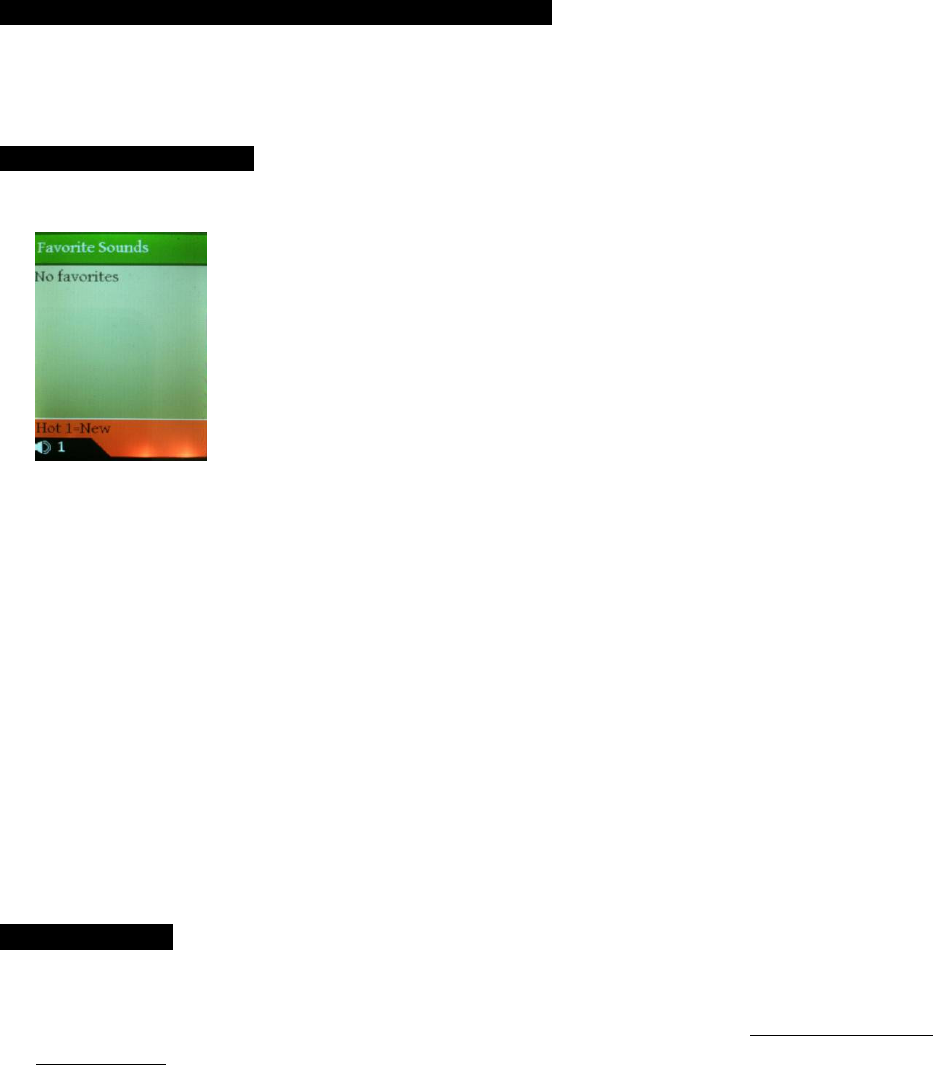
MY FAVORITE SOUNDS .
This feature allows user to place favorite sounds and most used sounds in a folder so they are quickly
accessible. This folder can hold up to 25 sounds.
Add Sounds to Favorite Sounds Folder:
1. Navigate to My Favorite Sounds Folder.
2. Push HOT 1 button to add new favorite sound.
3.
Use SCROLL ▲ or
▼ to highlight desired sound track.
4. Push SELECT and sound track will be added to favorite sounds folder.
Play Favorite Sounds:
1. In My Favorite Sounds Folder, use
SCROLL ▲ or
▼ to highlight sound track to be played.
2. Push PLAY/SELECT button and sound track will play.
NOTE: Sound track will loop (play continuously) until stopped or new sound track is selected.
Delete Sounds from Favorite Sounds Folder:
1. In My Favorite Sounds Folder, use
SCROLL ▲ or
▼ to highlight sound track to be deleted.
2. Press and hold SELECT button and screen will ask if want to delete sound?
3.
Use SCROLL to highlight YES/NO and press SELECT button.
EXPERT HUNTS .
This feature allows user to play Expert™ Hunts which are successful sets that Team Primos™
experts, such as Randy Anderson, have proven to be most effective. No longer do you have to be the
expert from day one, simply select one-of-many Expert Hunt™ sets and literally let the experts do the
calling for you!
Play Expert™ Hunts:
1. In EXPERT HUNTS Folder, use
SCROLL ▲ or
▼ to highlight Expert
™
Hunt Set to be played.
2. Push PLAY/SELECT button and
Expert
™
Hunt Set
will play.
NOTE: When playing EXPERT™ HUNTS, when track is finished playing, caller will automatically
start playing next track in hunt set. When last track of hunt set is finished, caller will stop playing.
Add Expert™ Hunts:
See Adding Sounds and Expert Hunts Section in Manual.
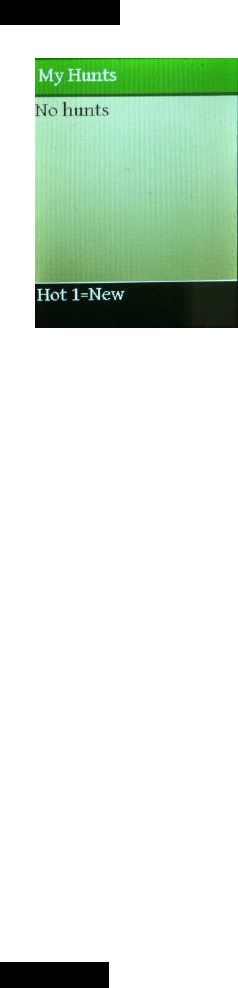
MY HUNTS.
This feature allows you to create and play your own Hunt sets.
Add Hunt Set to My Hunts Folder:
1. Navigate to My Hunts folder.
2. Push HOT 1 button to create new hunt set.
3.
Use SCROLL ▲ or
▼ to highlight desired first sound track in hunt.
4. Push SELECT and sound track will be added to hunt set.
5. Continue selecting and adding sound tracks to hunt set.
6. When hunt set is complete move curser to and select hunt set complete.
7. Use scroll keys to name hunt.
8. Hunt Set is now created and ready to be used.
Play Favorite Sounds:
1. In MY HUNTS folder, use
SCROLL ▲ or
▼ to highlight Hunt Set to be played.
2. Push PLAY/SELECT button and
Hunt Set
will play.
NOTE: When playing MY HUNTS, when track is finished playing, caller will automatically start
playing next track in hunt set. When last track of hunt set is finished, caller will stop playing.
Delete Hunt Set from My Hunts Folder:
1. In My Hunts folder, use
SCROLL ▲ or
▼ to highlight Hunt Set to be deleted.
2. Press and hold SELECT button and screen will ask if want to delete sound?
3.
Use SCROLL to highlight YES/NO and press SELECT button.
SETTINGS.
This feature allows you to customize and personalize your caller to your own needs.
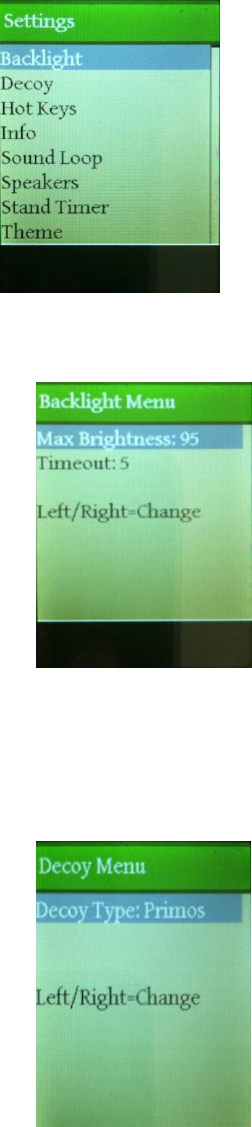
Backlight:
1.
Use SCROLL ▲ or
▼ to highlight Backlight and push SELECT.
2. Use Left/Right arrow (volume) buttons to adjust backlight brightness.
3. Use Left/Right arrow (volume) buttons to adjust Timeout time. Adjusts amount of time needed to dim
backlight.
Decoy:
1.
Use SCROLL ▲ or
▼ to highlight Decoy and push SELECT.
2. Use Left/Right arrow (volume) buttons to adjust between Primos Decoy and other decoy.
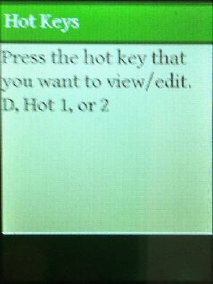
Hot Keys:
1.
Use SCROLL ▲ or
▼ to highlight Hot Keys and push SELECT.
2. Press hot key button you want to view/edit – HOT 1, 2 or D.
3.
HOT 1 Button: Factory programmed to play KI-YI sound. Change programmed function by
SCROLL ▲ or
▼ to desired Hot Key function and push SELECT.
a. Selected sound in sound library.
b. Go to My Favorite Sounds Folder.
c. Recall previous played sound.
d. Change volume level to predetermined level.
e. When motion decoy is connected to Decoy Port, control decoy motion.
4.
2 Button: Factory programmed to play Rodent Distress sound. Change programmed function by
SCROLL ▲ or
▼ to desired Hot Key function and push SELECT.
a. Selected sound in sound library.
b. Go to My Favorite Sounds Folder.
c. Recall previous played sound.
d. Change volume level to predetermined level.
e. When motion decoy is connected to Decoy Port, control decoy motion.
5. D Button: When motion decoy is connected to Decoy Port (using standard audio wire &
connector not included), controls decoy motion by turning motion On/Off. When motion decoy is
not connected D Button can be programmed to act as additional HOT button. Change
programmed function by SCROLL ▲ or
▼ to desired Hot Key function and push SELECT.
a. Selected sound in sound library.
b. Go to My Favorite Sounds Folder.
c. Recall previous played sound.
d. Change volume level to predetermined level.
Info:

1.
Use SCROLL ▲ or
▼ to highlight Info and push SELECT.
2. Show Serial Number of Speaker (needed to purchase additional sounds and Expert
TM
Hunts and
update software). Shows version of software on caller.
Sound Loop:
1.
Use SCROLL ▲ or
▼ to highlight Sound Loop and push SELECT.
2. Use Left/Right arrow (volume) buttons to turn Sound Looping On/Off.
Speakers:
1.
Use SCROLL ▲ or
▼ to highlight Speakers and push SELECT.
2. Use Left/Right arrow (volume) buttons to select which speakers are being used.
a. All – Both Side Cone Speakers and Middle Horn Speaker are On. Aux Output Off.
b. Horn & Aux Output – Middle Horn Speaker and Aux Output is On. Side Cone Speakers Off.
c. Cone Speakers – Cone Speakers On. Middle Horn and Aux Output Off.
d. MP3 Auxiliary Input – Turns AMP on to play MP3 player through all speakers.
Stand Timer:
1.
Use SCROLL ▲ or
▼ to highlight Stand Timer and push SELECT.
2. Use Left/Right arrow (volume) buttons to start Stand Timer.
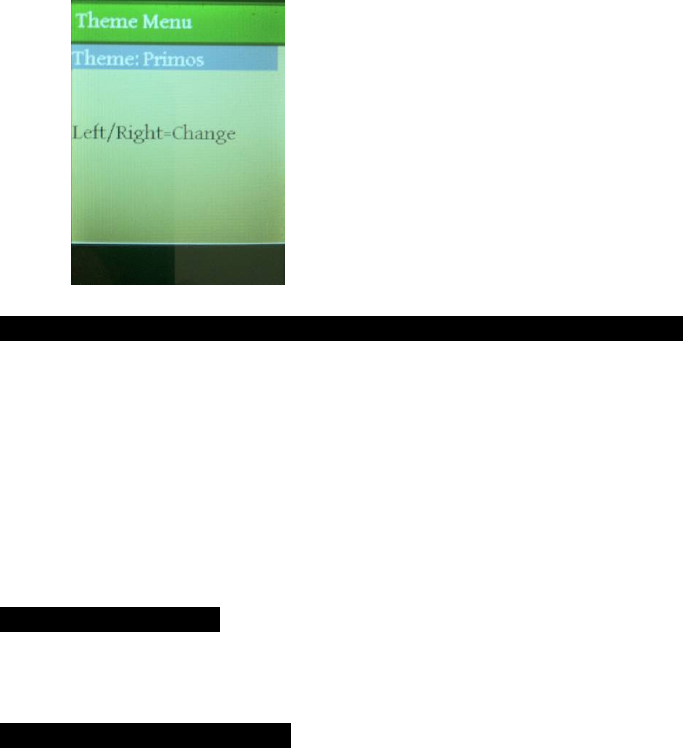
Theme Menu:
1.
Use SCROLL ▲ or
▼ to highlight Theme Menu and push SELECT.
2. Use Left/Right arrow (volume) buttons to change Theme.
CONNECTING SPEAKER TO COMPUTER (PC & MAC COMPATIBLE).
3. Turn power on speaker and computer. Using USB cord, connect cord to USB Connection on
back of Speaker. Then connect USB cord to computer.
4. Alpha Dogg folder should automatically pop up. Simply drag and drop sounds to folders.
5. Disconnect USB from computer by following USB removal instructions on your computer.
6. Remove USB cable for Speaker.
7. Leave Speaker on and turn on Remote. May take a few seconds for Remote to download updated
information from Speaker.
8. Caller is ready for use.
POWERING UNIT OFF
Push power button on back of remote. Then push power button on back of speaker.
CARING FOR YOUR CALLER
Your caller contains sensitive electronic components that can be permanently damaged if exposed to
excessive shock or vibration. To minimize the risk of damage to your unit, avoid dropping your unit and
operating it in high-shock and high-vibration environments.
- Do not store your unit where prolonged exposure to extreme temperatures can occur, because
it can cause permanent damage.
- Do not expose to prolonged exposure to moisture. This can cause this unit to malfunction.
(Always use the rubber plugs to seal the power and USB ports)
- Never use a hard or sharp object to operate this unit or damage may result.
Cleaning the Unit:

The Alpha Dogg is constructed of high-quality materials and does not require user maintenance other than
cleaning. Clean the outer casings (not the screen) using a cloth dampened with a mild detergent solution,
and then wipe dry.
Avoid chemical cleaners and solvents that can damage plastic components.
Cleaning Screen:
Clean the screen with a soft, clean, lint-free cloth. Use water, or eyeglass cleaner, if needed. Apply the
liquid to the cloth, and then gently wipe the screen.
Caution: The caller is water resistant - not waterproof.
TROUBLE SHOOTING
Check batteries in speaker and remote control if caller is not functioning properly.
If call continues to function incorrectly once batteries are replaced, call Customer Service at 601-879-
9323.
FCC STATEMENT
Changes not expressly approved by Primos could void the user's authority to operate the equipment.
Note: This equipment has been tested and found to comply with the limits for a Class B digital device,
pursuant to Part 15 of the FCC Rules. These limits are designed to provide reasonable protection against
harmful interference in a residential installation. This equipment generates, uses and can radiate radio
frequency energy and, if not installed and used in accordance with the instructions, may cause harmful
interference to radio communications. However, there is no guarantee that interference will not occur in a
particular installation. If this equipment does cause harmful interference to radio or television reception,
which can be determined by turning the equipment off and on, the user is encouraged to try to correct the
interference by one or more of the following measures:
- Reorient or relocate the receiving antenna.
- Increase the separation between the equipment and receiver.
- Connect the equipment into an output on a circuit different from that to which the receiver is connected.
- Consult the dealer or an experienced radio/TV technician for help.
This product complies with FCC OET Bulletin 65 radiation exposure limits set forth for an uncontrolled
environment.
Operation is subject to the following two conditions: (1) This device may not cause harmful interference.
and (2) this device must accept any interference received, including interference that may cause undesired
operation.
SOFTWARE LICENSE AGREEMENT:
BY USING THE PRIMOS ALPHA DOGG, YOU AGREE TO BE BOUND BY THE TERMS AND
CONDITIONS OF THE FOLLOWING SOFTWARE LICENSE AGREEMENT CAREFULLY. Primos
grants you a limited license to use the software embedded in this device (the “Software”) in binary
executable form in the normal operation of the product. Title, ownership rights, and intellectual property
rights in and to the software remain in Primos.

You acknowledge that the Software is the property of Primos and is protected under the United States of
America copyright laws and international copyright treaties. You further acknowledge that the structure,
organization, and code of the Software are valuable trade secrets of Primos. You agree not to decompile,
disassemble, modify, reverse assemble, reverse engineer, or reduce to human readable form the Software
or any part thereof or create any derivative works based on the software. You agree not to export or re-
export the Software to any county in violation of the export control laws of the United States of America.
ONE YEAR SERVICE GUARANTEE
Primos Alpha Dogg Limited One Year Service Guarantee
For warranty or service information, e-mail service@primos.com or call customer service at (601) 879-
9323.