Panasonic India Pvt S54E7E Smart Phone User Manual
Panasonic India Pvt Ltd Smart Phone
User Manual

1
ALLRIGHTSRESERVED
©2017. All rights reserved! No replication allowed!
This handbook is for reference only. Software might upgr
ade any time, and no further notifications will be announc
ed.
SAFETY PRECAUTIONS
Please read the following safety guidelines before using
the device.
Donotusethephonewhileyouaredriving.
Donotplacemagneticstoragemedianearyour
phone.Radiationfromthephonemayerasethe
informationstoredonthem.
Keepyourphoneanditsaccessoriesawayfrom
children.
Mobilephonescaninterferewiththe
functioningofmedicaldevicessuchashearing
aidsorpacemakers.Contactshavingactive
medicalimplantsshouldkeeptheircellphoneat
least15cmawayfromtheimplant.
Permanenthearinglossmayoccurifyouuse
earphonesorheadphonesathighvolume.
Useawirelesshands‐freesystem(headphone/
headset)withalowpowerBluetoothemitter.
MakesurethecellphonehasalowSAR.
Keepyourcallsshortorsendatextmessage
(SMS)instead.Thisadviceappliesspeciallyto
childrenadolescentsandpregnantwomen.
Usecellphonewhenthesignalqualityisgood.
2
1.UNDERSTANDINGYOURDEVICE
1.1DEVICEOVERVIE
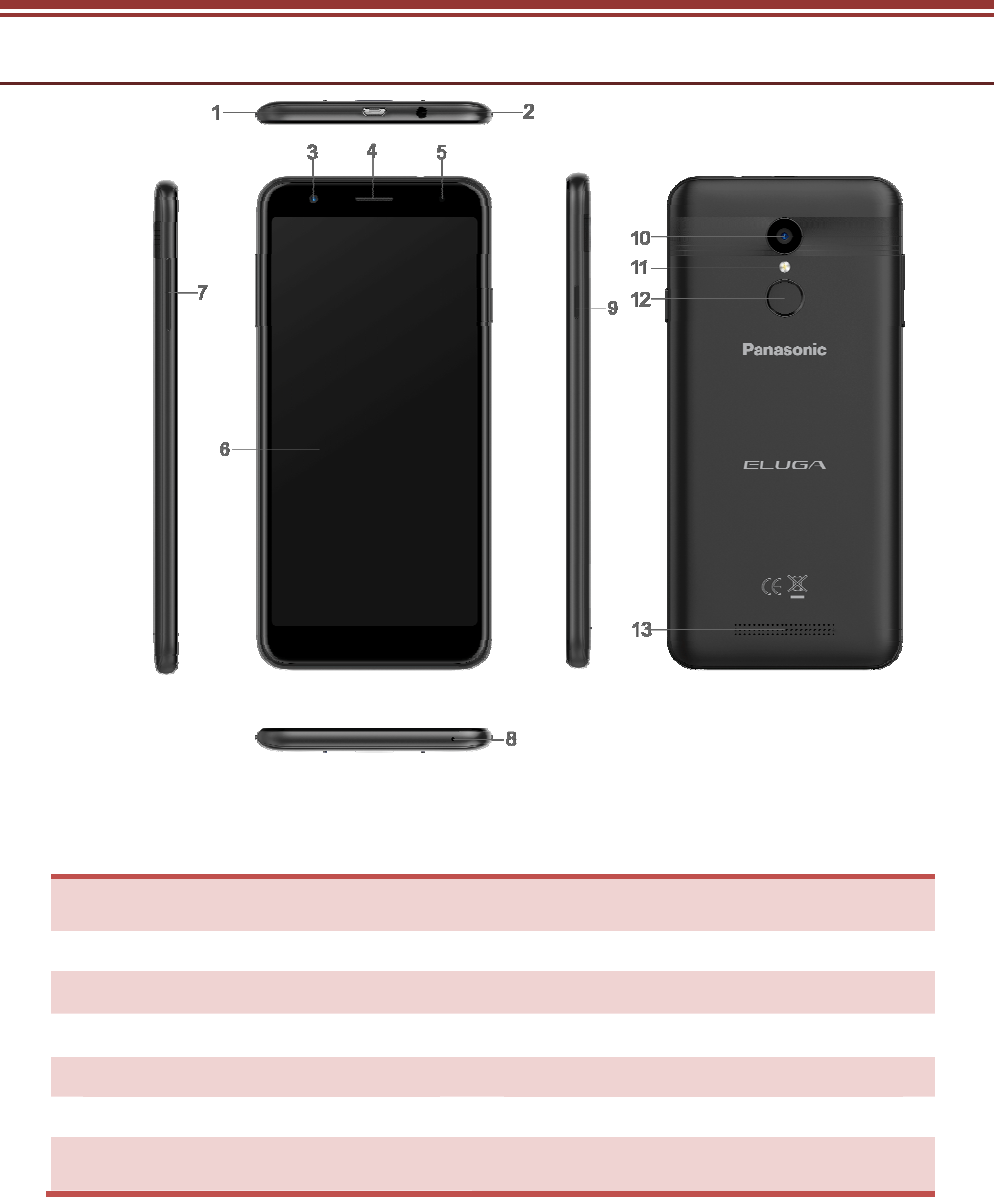
Positionofkeys
1.USBport 2.Earphonejack
3.Frontcamera 4.Earpiece
5.Breathelight6.Touchscreen
7.Volumekey 8.Microphone
9.Powerkey 10.Backcamera
11.Flash12.Fingerprint
13. Speaker
3
2.INSTALLINGCARDS
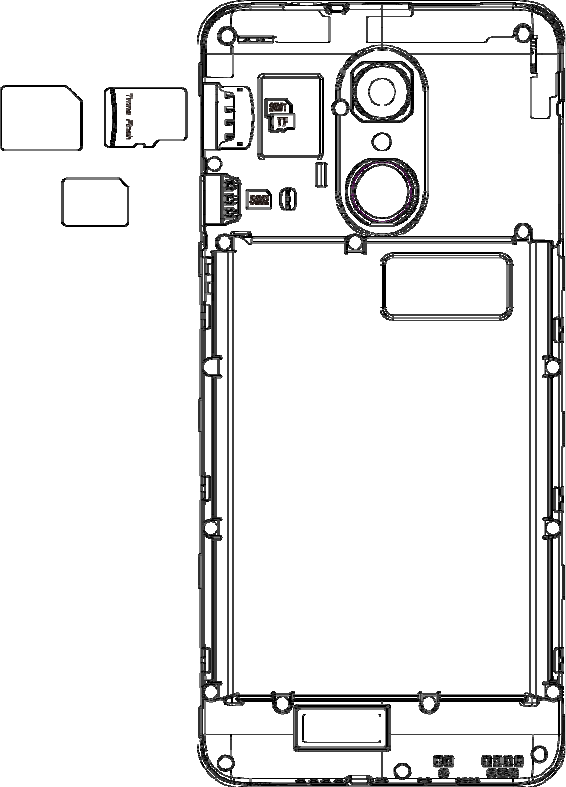
Pleasepoweroffyourdevicebeforeinsertingorremovingthe
SIMcardandmemorycard.
InstallingSIMcardorMemorycard
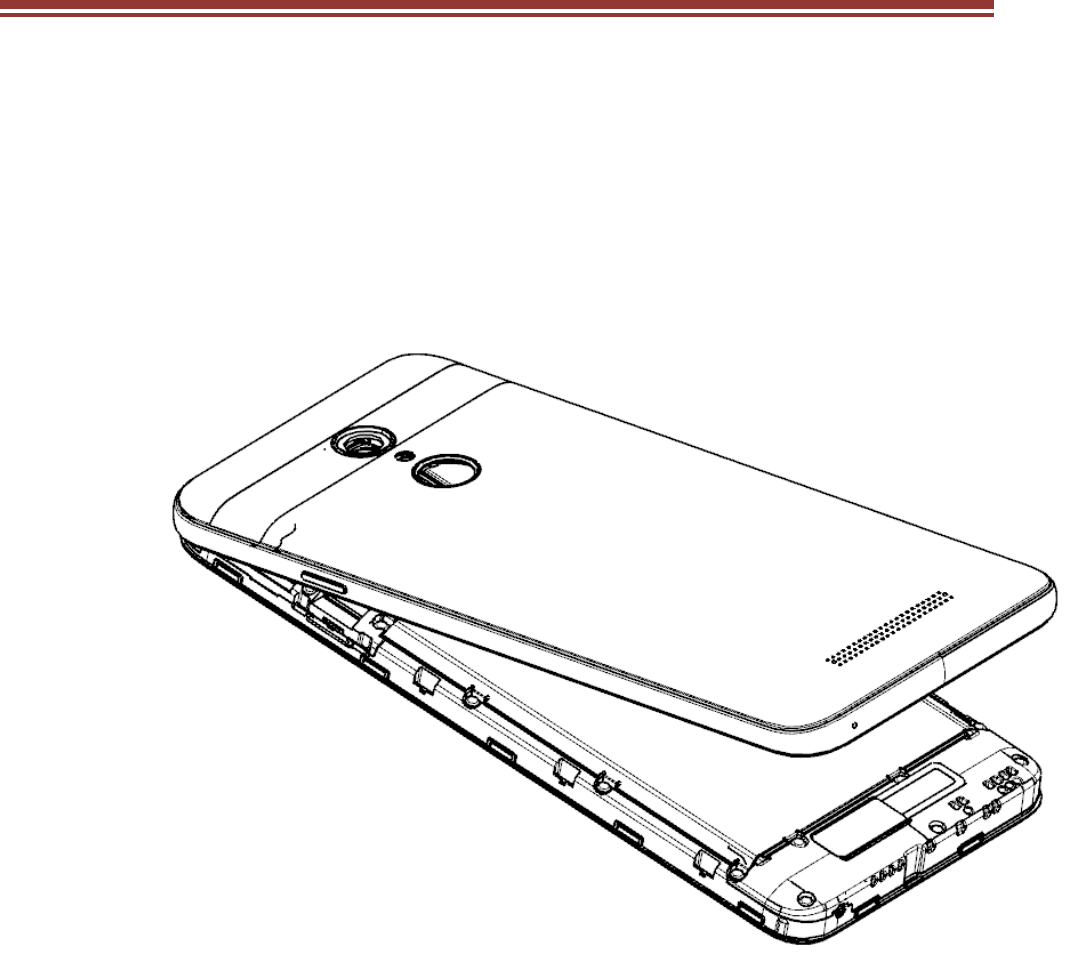
Removethebackcoverofthedevice.
InserttheNanocardorTFcardcorrectly.
PushtheNanocardtothecorrectposition.
4

5
3.POWERINGON/OFFTHEDEVICE
Turning On the Device
After installing the SIM cards and charging the battery,
you are now ready to turn on your device.
Long press the Power key to turn on the
device.
The first screen that appears is known as
the Home/Idle Screen.
Drag up the unlock icon to release the
screen.
If the screen turns off, then short press
the Power key to turn on the display.
Turning Off the Device
Long press the Power key.
A pop-up window appears, select “Power
off”.
6
3.SYSTEMGUIDE
3.1MAINSCREENOPERATING
Notification Panel
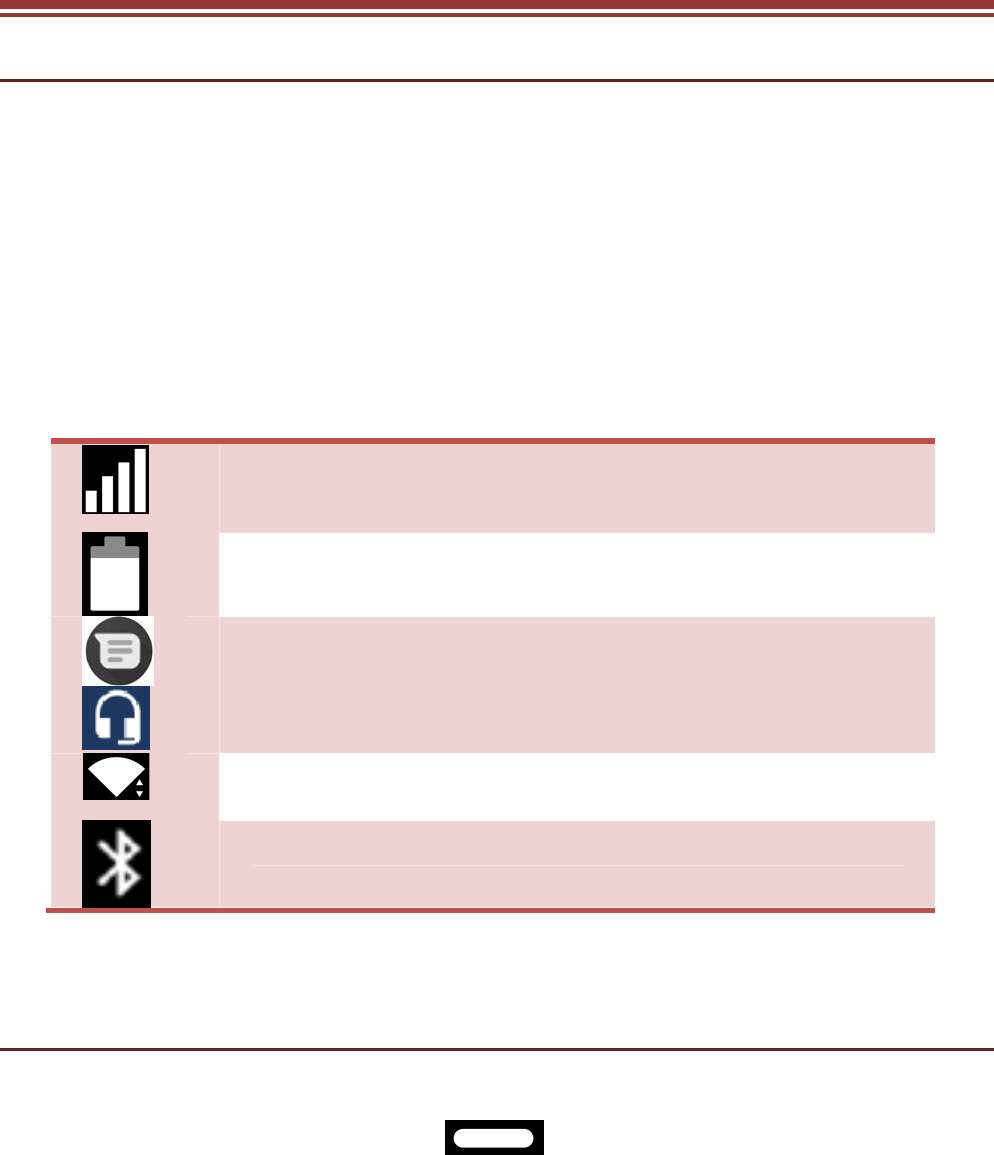
The table below lists various icons that
might appear on the notification Panel of
the device.
Network intensity of SIM card 1 or SIM
card 2
Battery level of the device
New short message
Headset is plugged in
Wi-Fi is connected
Bluetooth is activated
3.2USINGYOURPHONE
Enter main menu
In idle mode slide up the key to enter the main
menu on the desktop and press the Home or Back key to
return.
Enter sub menu
7
In the main menu click the icon to select the sub menu,
press the Back key to return to the previous menu, and
press the Home key to return to the Home screen.
3.3CALLING
To Make Calls
If the icon appears on the screen, then you can
make or receive calls.
To make a call, please follow the steps mentioned below:
Tap , enter the phone number using the
on-screen keyboard.
Tap to delete a wrong number. Tap
and hold it to erase the entire number.
After entering phone number, tap .
To end the call, tap
3.4MESSAGING
For using your device for sending and receiving of SMS
(Short Message Service) and MMS (Multimedia Message
Service), go to Main Menu and then select Messaging.
Creating a Message
Tap Compose new message.

8
In “Type name or number” field; enter the
recipient’s phone number or email
address and enter the Subject.
Type message in the “Type text message”
field.
Tap to Send.
Receiving and Managing Messages
When you send and receive messages to or from a
contact, these messages are grouped as a message
thread. A message thread looks like an exchanged
conversation.
MULTIMEDIA MESSAGE
A Multimedia message or MMS can contain letters, an
image, an audio or video file. To create and send a MMS,
please follow the steps mentioned below:
Enter the Main Menu, select Messaging.
Tap Compose new message.
Select Menu > Add subject.
In “Type name or number” field;enter the
recipient’s phone number or email
address and enter the Subject.

9
To insert text, tap Type to compose, and
then enter your message.
3.5CONTACTS
You can save information such as name, phone numbers,
etc. for each contact listed in your Contacts menu.
To add a Contact
Enter the Main Menu select Contacts.
Tap add to contacts .
Store the contact to SIM card or Phone
contact.
You can fill out as many or as little fields
as you’d like for the contact.
Tap Done to save the contact.
3.6BROWSER
The Browser is the tool which enables you to access the
Internet.

10
4.HOMESCREEN
4.1CUSTOMIZINGSCREEN
The device features a touchscreen with idle displays and
access to utilities at just one-touch. So swipe right or left
to navigate through various screens accessing your
favorite features without entering the main menu. Each
screen can be customized by adding various widgets,
shortcuts and folders.
Shortcuts
In order to add a shortcut on the screen: Long press on
the desired application to add on the screen.
Widgets
Save time with live updates right on Home screen and get
all of your personalized updates at one place.
Setting the wallpaper
You can customize the wallpaper of your Home screen
with default wallpaper or with pictures taken from your
device.
Long press the idle/Home Screen >
Wallpapers.
Rotating Your Mobile Phone Screen
The orientation of most screens will
change to landscape or portrait view when
you rotate your phone sideways.
11
On the Home screen, Settings > Display >
When devices is rotated>Stay in portrait
view.
12
5.MULTIMEDIA
Your device features various multimedia options, such as
Music Player, Camera and Video Player.
5.1FILEMANAGER
You can browse, open and manage the data saved in the
Device and Memory card by accessing the File Manager
sub-menu. The device provides a certain space for users
to manage files and supports the T-Flash card. You can
use the file browser to conveniently manage various
directories and files on the T-Flash card.
5.2CAMERA
Your device is equipped with a camera and camcorder
that enable you to capture photos and videos.
5.3GALLERY
You can view the captured images, recorded video clips,
and downloaded images in the Gallery.
The picture folder and video folder will be displayed.
Select to view the camera pictures or camera videos. The
images or videos will be displayed in thumbnails.
5.4FMRADIO
You can use your phone to listen to FM radio stations
once the original Headset is plugged into the connector.
Please press the side key to adjust music volume.
Tap to pause FM radio function. Tap the ( ) to
search the channels.
13
6.APPLICATIONS&UTILITIES
For your entertainment purpose, your device is provided
with several interesting games, applications and utilities.
Please ensure that you have GPRS setting in your device
to access the applications. Contact your operator for
GPRS settings.
6.1CALCULATOR
Calculator helps you perform basic arithmetic functions,
such as addition, subtraction, multiplication and division.
6.2CLOCK
This function gives you an access to the alarm clock.
Slide up Clock
Tap > tap to add alarm.

14
ENVIRONMENTALCONCERN
We strive to make products that are safe for our
consumers as well as the environment. Come join hands
with us and make world a better place to live in.
Preserve natural resources for future generations by
recycling your phone. The phone contains some metals,
when recycled properly; these can be put back into
circulation, decreasing the need for new metal mining.
Recycling reduces the need for raw materials, saves
energy, helps mitigate Global Warming and reduces
pollution, reduces waste products in landfills; therefore,
preserves natural resources for the future and saves the
planet.
Follow some simple steps and contribute towards saving
the planet.
DOs
Recycle your handset and its accessories.
To protect natural resources and to promote re-use of the
material, kindly separate batteries from other type of
waste.
DONTs
Do not dispose of your mobile and its battery in fire.
Do not dispose your mobile with regular waste.
Do not overcharge your handset. Remove the charger
when battery is full.
Don’t trash your phone, instead RECYCLE it.
This logo signifies that this product and/or its constituents
should not be disposed off with other household waste.

15
Hazards of Improper handling, accidental breakage,
damage and /or improper recycling of hazardous
elements
If this product is improperly handled, broken or damaged
or carelessly recycled or disposed off in the fire, can
result in environmental and data security concerns,
including the following:
Affect nearly every system in the human body and result
in birth defects, brain, heart, liver, kidney and skeletal
system damage. They will also significantly affect the
nervous and reproductive systems of the human body;
When burned, create cancer-producing dioxins which are
released into the air we breathe; If thrown in landfills, may
leach into groundwater affecting your local community;
In warm climates, the oxidation of mercury in the
environment can be accelerated, leading to the creation
of oxidized Hg atoms that are known to be associated
with ozone depletion; and Improper recycling additionally
results in data security issues, as private electronic
information remains on the hard drive, if not properly
removed before disposal.
How to Recycle
Please get your electronic devices recycled only through
authorized recyclers, approved by the Pollution Control
Board. We provide a facility of recycling of our
products. For details of our collection centers,
please visit our website or call our customer
care. Help us to GO GREEN.
16
Constitution of Hazardous Elements in your Device:
Your device does not contain the following hazardous
elements in a proportion higher than the limits provided
hereunder: maximum concentration value of 0.1% by
weight in homogenous materials for lead, mercury,
hexavalent chromium, polybrominated biphenyls and
polybrominated diphenyl ethers; and maximum
concentration value of 0.01% by weight in homogenous
materials for cadmium.
FCC Caution:
Any Changes or modifications not expressly approved by
the party responsible for compliance could void the user's
authority to operate the equipment.
This device complies with part 15 of the FCC Rules.
Operation is subject to the following two conditions: (1)
This device may not cause harmful interference, and (2)
this device must accept any interference received,
including interference that may cause undesired
operation.
IMPORTANT NOTE:
Note: This equipment has been tested and found to
comply with the limits for a Class B digital device,
pursuant to part 15 of the FCC Rules. These limits are
designed to provide reasonable protection against
harmful interference in a residential installation. This
equipment generates, uses and can radiate radio
frequency energy and, if not installed and used in
accordance with the instructions, may cause harmful
interference to radio communications. However, there is
no guarantee that interference will not occur in a
17
particular installation. If this equipment does cause
harmful interference to radio or television reception,
which can be determined by turning the equipment off
and on, the user is encouraged to try to correct the
interference by one or more of the following measures:
—Reorient or relocate the receiving antenna.
—Increase the separation between the equipment and
receiver.
—Connect the equipment into an outlet on a circuit
different from that to which the receiver is connected.
—Consult the dealer or an experienced radio/TV
technician for help.
Specific Absorption Rate (SAR) information
SAR tests are conducted using standard operating
positions accepted by the FCC with the PHONE
transmitting at its highest certified power level in all tested
frequency bands, although the SAR is determined at the
highest certified power level, the actual SAR level of the
PHONE while operating can be well below the maximum
value.
Before a new mobile PHONE is a available for sale to the
public, it must be tested and certified to the FCC that it
does not exceed the exposure limit established by the
FCC, tests for each PHONE are performed in positions
and locations as required by the FCC.
For body worn operation, this mobile PHONE has been
tested and meets the FCC RF exposure guidelines when
used with an accessory designated for this product or
when used with an accessory that contains no metal and
that positions the handset a minimum of10mm from the
body.
18
Non-compliance with the above restrictions may result in
violation of RF exposure guidelines