Panasonic CF 45 For All OS (Jul 7‚ 1998) Cover1 User Manual : Operation Instructions Cf45insm
User Manual: Panasonic CF-45 for all OS (Jul 7‚ 1998) : Operation Instructions CF-45 for all OS (Jul 7‚ 1998)
Open the PDF directly: View PDF  .
.
Page Count: 28
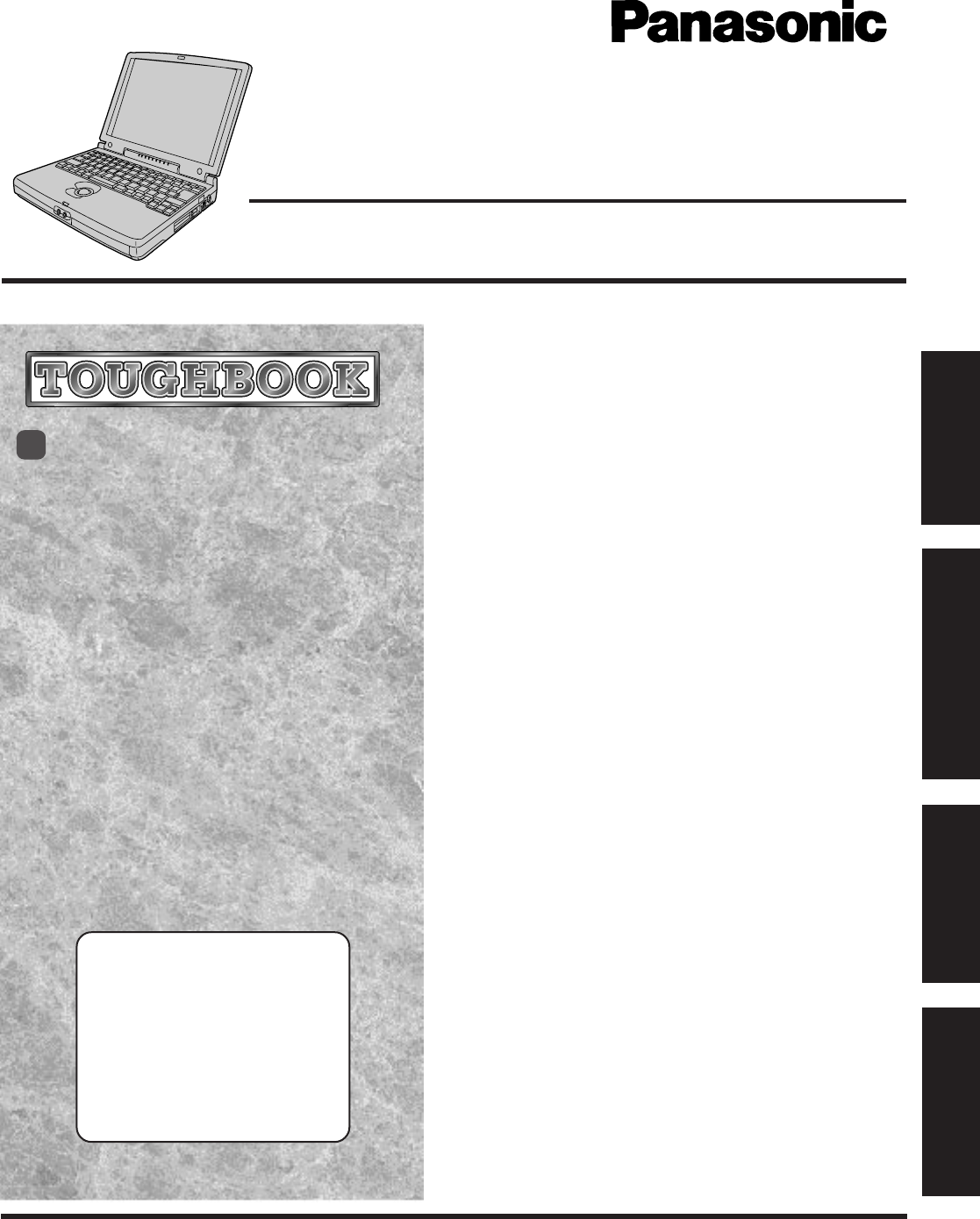
CF-45 Series
OPERATING INSTRUCTIONS
Personal Computer
®
Appendix
LIMITED USE LICENSE AGREEMENT ....... 22
Names and Functions of Parts...................... 24
Specifications ................................................26
Troubleshooting
Computer Diagnosis ..................................... 16
Dealing with Problems .................................. 17
Reinstalling Software .................................... 19
Operation
Starting Up/Shutting Down............................ 11
Usage, Carrying and Maintenance ............... 15
Getting Started
Read Me First ................................................. 6
First-time Operation ........................................ 7
Contents
Getting Started
Troubleshooting Operation
Appendix
[Additional Manual]
Reference Manual
This manual can be accessed on your
computer and explains extended
measures on how to make greater use
of the computer. For information on
how to access the Reference Manual,
please refer to page 14.
95
2
Introduction
Thank you for purchasing the Panasonic computer. Please read the operating instructions thoroughly for proper operation of your
new computer.
Customer's Record
Serial
No.
or
Date
of
Purchase
Model
No.*
Code
No.
Dealer's
Name
Dealer's
Address
NOTE:NOTE provides a useful fact or helpful information.
CAUTION:CAUTION indicates a condition that may result in minor or moderate injury.
WARNING:WARNING indicates a hazard that may result in moderate or serious injury.
[Start]-[Shut Down]:This illustration means to click [Start], then to click [Shut Down].
(For some applications, you may need to double-click.)
Enter : This illustration means to press the [Enter] key.
Fn + F5 : This illustration means to press [Fn], and while holding down on [Fn], to press [F5].
:Where to go for referred information.
: This illustration means to refer to the Reference Manual, which is available on your
computer. On how to access the manual, please refer to page 14.
Illustrations in this Manual
Copyright
This manual is copyrighted by Matsushita Electric Industrial Co., Ltd. with all rights reserved. No part of this manual may be
reproduced in any form without the prior written permission of Matsushita Electric Industrial Co., Ltd.
No patent liability is assumed with respect to the use of the information contained herein.
©Matsushita Electric Industrial Co., Ltd. 1998. All Rights Reserved.
Disclaimer
Computer specifications and manuals are subject to change without notice. Matsushita Electric Industrial Co., Ltd. assumes no
liability for damage incurred directly or indirectly from errors, omissions or discrepancies between the computer and the manuals.
Trademarks
PS/2™ is a trademark of International Business Machines Corporation.
Microsoft®, MS-DOS® and Windows® are registered trademarks of Microsoft Corporation of the United States and/or other coun-
tries.
Pentium® is a registered trademark, and MMXTM is a trademark of Intel Corporation.
PhoenixCard Manager™ and Phoenix Card Executive™ are trademarks of Phoenix Technologies Ltd.
Acrobat® is a registered trademark of Adobe Systems Incorporated.
Panasonic® is a registered trademark of Matsushita Electric Industrial Co., Ltd.
For the Model No., insert the 11 digit number (for example, CF-45NJ48AAM) located on the
bottom of the computer.
3
Federal Communications Commission Radio
Frequency Interference Statement
For U.S.A.
Note: This equipment has been tested and found to comply with
the limits for a Class B digital device, pursuant to Part 15 of the
FCC Rules. These limits are designed to provide reasonable
protection against harmful interference in a residential
installation. This equipment generates, uses and can radiate radio
frequency energy and, if not installed and used in accordance
with the instructions may cause harmful interference to radio
communications. However, there is no guarantee that
interference will not occur in a particular installation. If this
equipment does cause harmful interference to radio or television
reception, which can be determined by turning the equipment
off and on, the user is encouraged to try to correct the interference
by one or more of the following measures:
Reorient or relocate the receiving antenna.
Increase the separation between the equipment and receiver.
Connect the equipment into an outlet on a circuit different
from that to which the receiver is connected.
Consult the Panasonic Service Center or an experienced ra-
dio/TV technician for help.
Warning
To assure continued compliance, use only shielded interface
cables when connecting to a computer or peripheral. Also, any
changes or modifications not expressly approved by the party
responsible for compliance could void the user's authority to
operate this equipment.
This device complies with Part 15 of the FCC Rules. Operation
is subject to the following two conditions:
(1) This device may not cause harmful interference, and
(2) This device must accept any interference received, including
interference that may cause undesired operation.
Warnung bezüglich der Lithiumbatterie
(Sicherungsbatterie)
Lithiumbatterie!
Dieser Computer enthält eine Lithiumbatterie zur Sicherung von
Datum und Uhrzeit der eingebauten Uhr sowie anderer
Systemdaten im Speicher bei einer Unterbrechung der
Hauptstromversorgung. Diese Sicherungsbatterie darf nur von
Kundendienstpersonal ausgewechselt werden.
Warnung! Bei falschem Gebrauch besteht Explosionsgefahr!
Entsorgung gebrauchter Batterien nach Angaben des Herstellers.
Lithium Battery!
This computer contains a lithium battery to enable the date, time,
and other data to be stored in it.
The battery should only be exchanged by service personnel.
Warning! Risk of explosion from incorrect installation or mis-
application!
Lithium Battery
Avertissement concernant la pile au lithium
(pile de sauvegarde)
Pile au lithium!
Le micro-ordinateur renferme une pile au lithium qui permet de
sauvegarder certaines données comme la date et l'heure
notamment. Elle ne devra être remplacée que par un technicien
qualifié.
Avertissement! Risque d'explosion en cas de non respect de cette
mise en garde!
CD-ROM Drive Caution
CAUTION!
THIS PRODUCT UTILIZES A LASER.
USE OF CONTROLS, ADJUSTMENTS OR PERFORMANCE OF
PROCEDURES OTHER THAN THOSE SPECIFIED HEREIN MAY
RESULT IN HAZARDOUS RADIATION EXPOSURE.
DO NOT OPEN COVERS AND DO NOT REPAIR YOURSELF.
REFER SERVICING TO QUALIFIED PERSONNEL
WARNUNG!
DIESES PROUKT ERZEUGT LASERSTAHLUNG.
DURCHFÜHRUNG ANDERER VORGÄNGE ALS DER HIER
ANGEGEBENEN KANN ZU GEFÄHRLICHER STRAHLUNG
FÜHREN.
REPARATUREN DÜRFEN NUR VON QUALIFIZIERTEM
FACHPERSONAL DURCHGEFÜHRT WERDEN.
AVERTISSEMENT!
CET APPAREIL UTILISE UN LASER.
L'UTILISATION DE COMMANDES OU DE RÉGLAGES OU
L'EXÉCUTION DE PROCÉDURES AUTRES QUE CELLES
SPÉCIFIÉES ICI PEUVENT PROVOQUER UNE EXPOSITION À
DES RADIATIONS DANGEREUSES.
NE PAS OUVRIR LES COUVERCLES NI ESSAYER DE RÉPARER
SOI-MÊME.
CONFIER TOUT TRAVAIL D'ENTRETIEN À UN PERSONNEL
QUALIFIÉ.
Bottom
CLASS 1 LASER PRODUCT
LASER KLASSE1
4
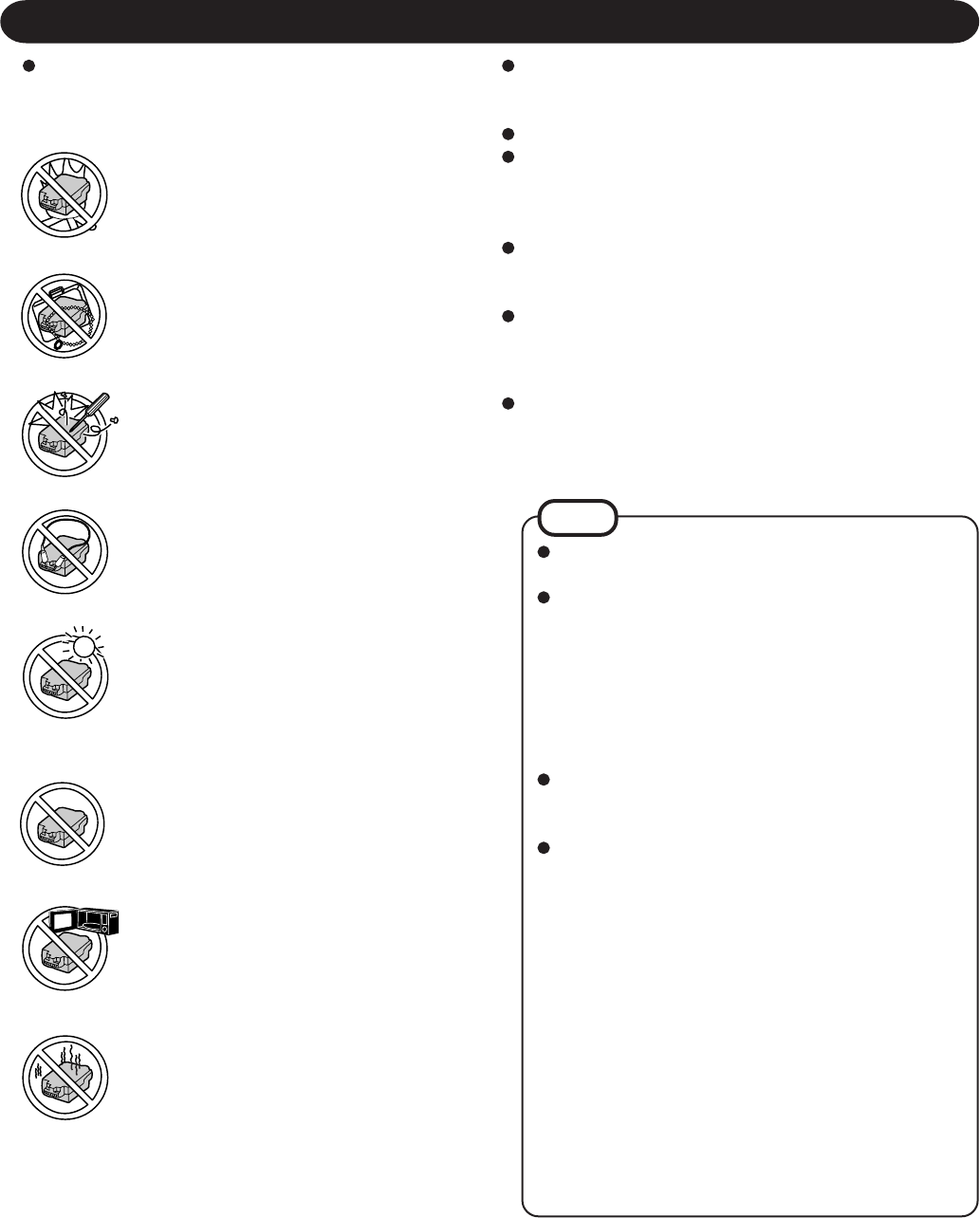
Incorrectly using peripheral devices may lead to a decrease
in performance, an increase in temperature and/or damage
your computer. For more information on peripheral devices,
please refer to the Reference Manual.
Cables
Use of an interface cable longer than 3 m (9.84 feet) is not
recommended.
Handling
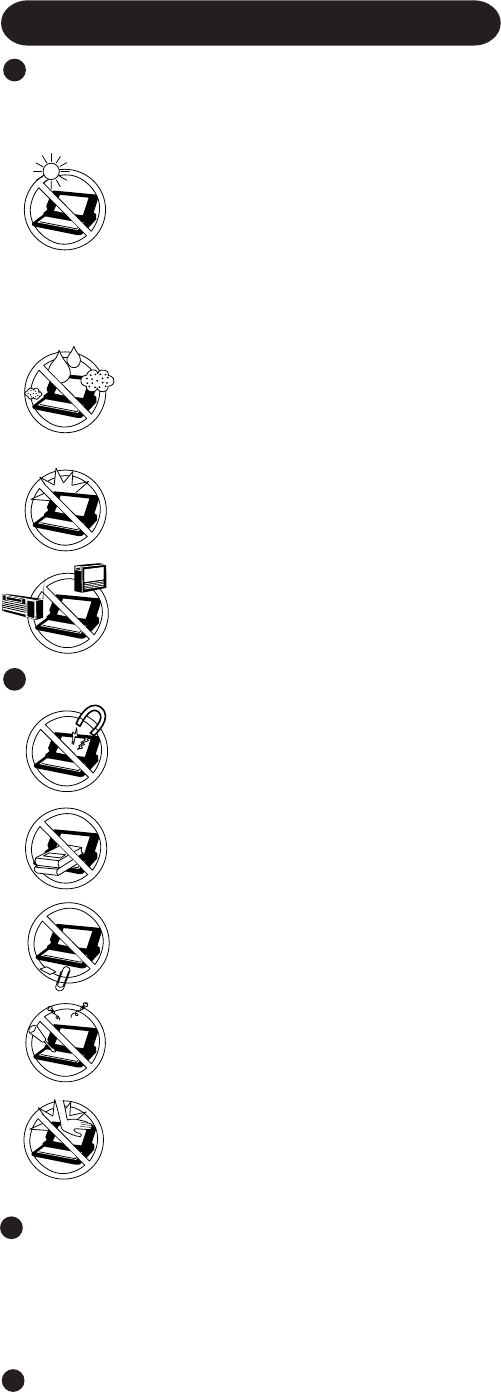
Avoid Magnetic Fields
Keep the computer away from magnets.
Avoid Stacking
Do not place heavy objects on top of the
computer.
Do Not Disassemble the Computer
Do not attempt to disassemble your computer.
Keep Small Objects Away
Do not insert paper clips or other small objects
into the computer.
Avoid Radio Frequency Interference
Do not place the computer near a television or
radio receiver.
Prevent Shock
Avoid subjecting the computer to severe
vibrations or impact. Do not place the computer
inside a car trunk.
Avoid Humidity, Liquids and Dust
Do not store or use the computer in locations
exposed to high humidity, liquids (including rain)
or dust.
Avoid Direct Sunlight on the LCD Panel
The LCD panel should not be exposed to direct
sunlight or ultraviolet light.
Avoid Extreme Heat and Cold
Do not store or use the computer in locations
exposed to heat, direct sunlight, or extreme cold.
Avoid moving the computer between locations
with large temperature differences.
Operation: 5 oC to 35 oC (41 oF to 95 oF)
Storage: -20 oC to 60 oC (-4 oF to 140 oF)
Usage
Avoid Excessive Force on the LCD Panel
Do not apply excessive downward force on the
display when it is completely opened, especially
when plugs and/or cables are connected to the
rear of the computer.
Precautions
Peripherals
5
NOTE
The battery pack may become warm during recharg-
ing or normal use. This is completely normal.
Recharging will not commence outside of the allow-
able temperature range (0 °C to 35 °C (32°F to 95
°F)). To allow the battery to charge, adjustments have
to be made to the temperature. Once the allowable
range requirement is satisfied, charging begins auto-
matically. Note that the recharging time varies based
on the usage conditions. (Recharging takes longer than
usual when the temperature is 10 °C (48 °F) or less.)
If the temperature is low, the operating time is short-
ened. Therefore, please use the computer within the
allowable temperature range.
Although the battery has not begun to run out, the bat-
tery indicator may light up red or emit a beep. This
indicates a significant rise in the temperature of the
battery pack. This is typically caused by the fact that
the battery pack has been delivering a high level of
power because the computer has been used with the
display at the brightest setting and with the power-
saving function off.
To protect the battery pack from increases in tempera-
ture, the brightness of the display automatically de-
creases, allowing the temperature of the battery to drop.
In this condition, if the computer is left as is, it will
automatically go off after about three minutes have
elapsed. Within that period, therefore, be sure to con-
nect the AC adapter or shut the computer OFF after
saving any open data (if necessary).
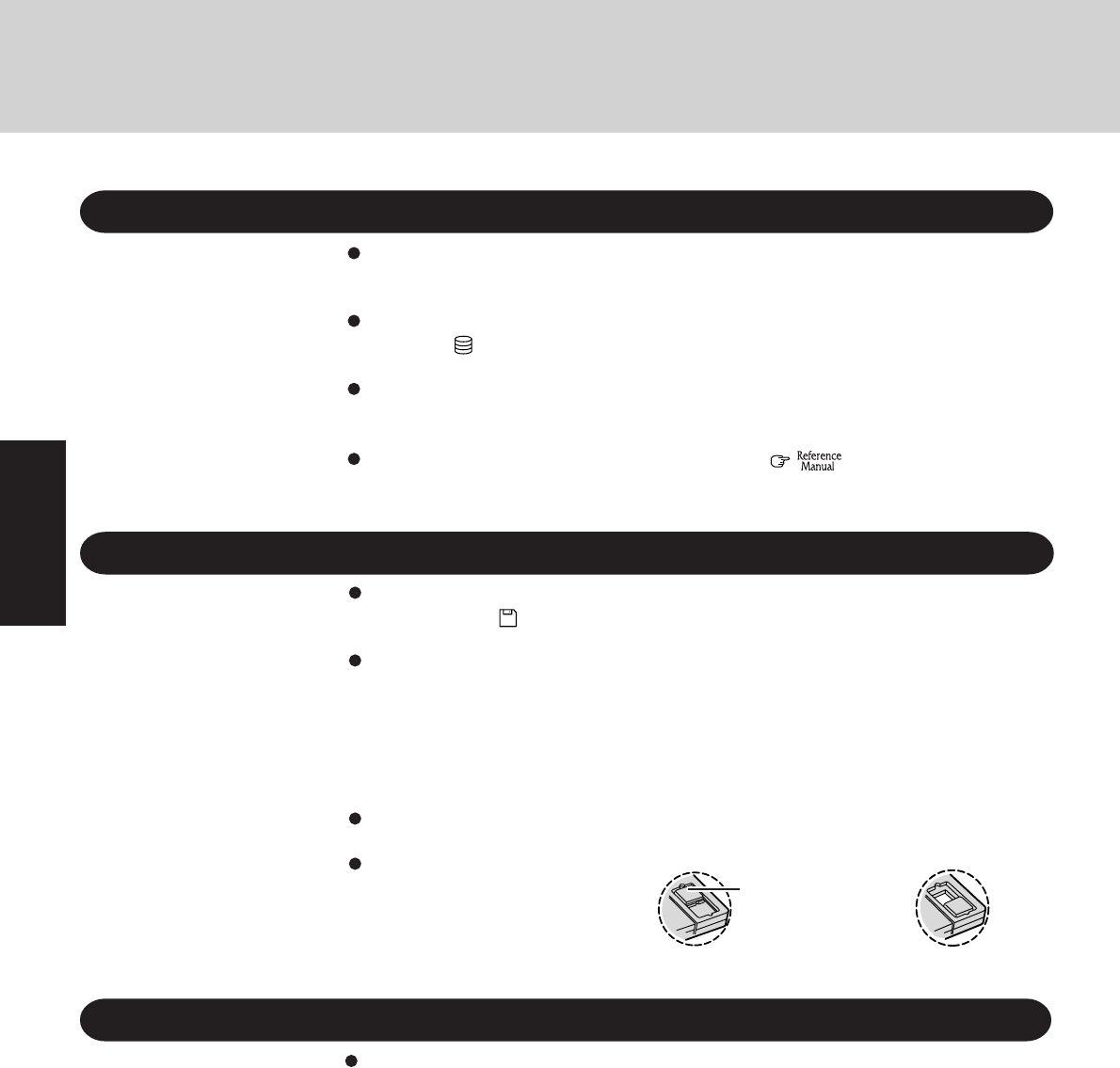
Care should be exercised with regard to the following in
order to avoid the possibility of liquid leakage, overheat-
ing, or bursting.
Avoid Heat
Do not throw the battery pack into a fire or
expose it to excessive heat.
Do Not Disassemble
Do not insert sharp objects into the battery pack,
expose it to bumps or shocks, deform, disas-
semble, or modify it.
Do Not Short
Do not short the positive (+) and negative (-)
contacts.
Do Not Put into a Microwave
Do not put the battery into a microwave oven or
a pressurized chamber.
Avoid Extreme Heat, Cold and Direct Sunlight
Keep Articles Away
Do not place the battery pack together with ar-
ticles such as necklaces or hairpins when carry-
ing or storing.
Do not touch the terminals on the battery pack. The battery
pack may no longer function properly if the contacts are dirty
or damaged.
Do not expose the battery to water, or allow it to become wet.
If the battery pack will not be used for a long period of time
(a month or more), charge the battery pack until the remain-
ing battery level becomes 30% to 50% and store it in a cool,
dry place.
This computer prevents overcharging of the battery by re-
charging only when the remaining power is less than approx.
95% of capacity.
The battery pack is not charged when the computer is first
purchased. Be sure to charge it before using it for the first
time. When the AC adapter is connected to the computer,
charging begins automatically.
Should the battery leak and some of the fluid gets into your
eyes, do not rub your eyes. Immediately flush your eyes with
clear water and see a doctor for medical treatment as soon as
possible.
Discontinue Use
Should the battery emit an abnormal odor, be-
come hot to the touch, become discolored,
change shape, or become in any way different
from normal, remove it from the unit or charger
and discontinue use.
Do Not Use With Other Computer
The battery pack is a rechargeable and was in-
tended for the specified computer or charger. Do
not use it with a computer other than the one for
which it was designed.
Battery Pack Usage
Do not charge, use or leave the battery pack for
extended periods where it will be exposed to
direct sunlight, in a hot place (in an automobile
on a sunny day, for example), or in a cold place.
6
Do not power down your computer or press the floppy disk drive eject button while the
FDD indicator ( ) is on.
Doing so may damage the data on the floppy disk and render the disk useless.
Use care when handling floppy disks.
To protect the data on your floppy disks or to prevent a floppy disk from becoming stuck in
your computer, avoid the following:
• Sliding the shutter on the floppy disk manually.
• Exposing the disk to a magnetic field.
• Storing the disk in locations prone to high temperatures, low pitched noise, dampness, or dust.
• Applying more than one label on the disk.
Confirm the contents of a floppy disk before formatting it.
Confirm that no important data is on the disk, because all data on the disk will be erased.
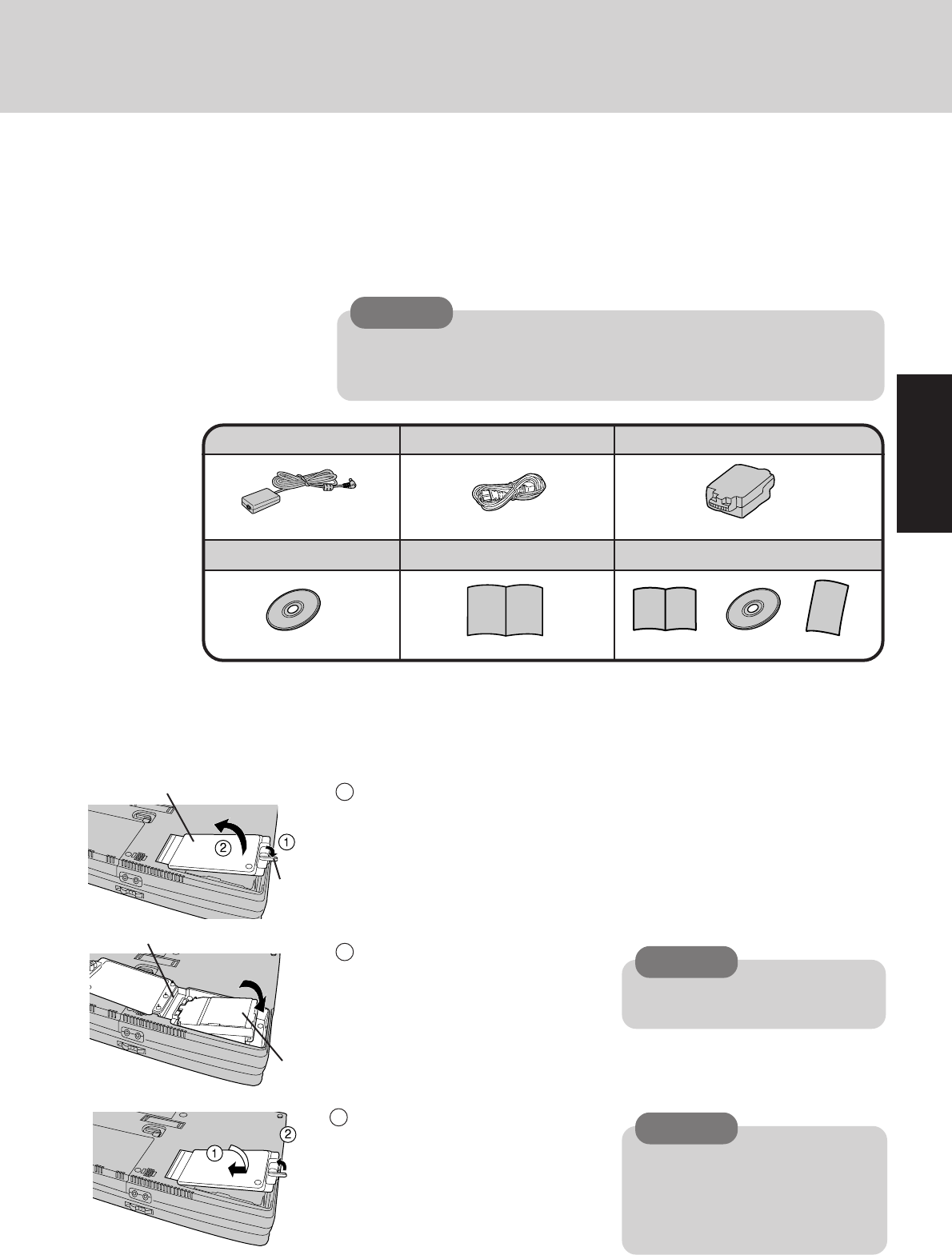
Use the write-protect tab.
This is a must for preserving im-
portant data. This prevents your
data from being erased or overwrit-
ten.
Read Me First
Do not expose your computer to shock.
Please use care when handling your computer, shock may damage your hard disk or make
your software applications and data unusable.
Do not power down your computer while software applications are running or HDD
indicator ( ) is on.
Properly shut Windows* down to avoid problems ([Start]-[Shut Down] ).
Save all valuable data to floppy disks.
Backing up data to floppy disks will limit damage should trouble occur to your computer or
should you inadvertently change or erase data.
Use the security function for all important data. (
"Security Measures")
Saving Data on the Hard Disk
Write Enable Write Disable
Write-protect Tab
Saving Data on Floppy Disks
Users are advised to purchase the latest versions of virus protection software and use
them regularly.
Computer Viruses
We recommend you run the software:
• When booting your computer.
• After receiving data.
We recommend that you check data received on floppy disks or from external sources, such
as data downloaded from the Internet, e-mail, etc. (For compressed files, please uncompress
them before running a check).
* This computer uses Microsoft® Windows® 95 Operating System.
7
First-time Operation
Please read the steps below to help you learn what parts are included, and to gain an understand-
ing of some basic computer-related operations.
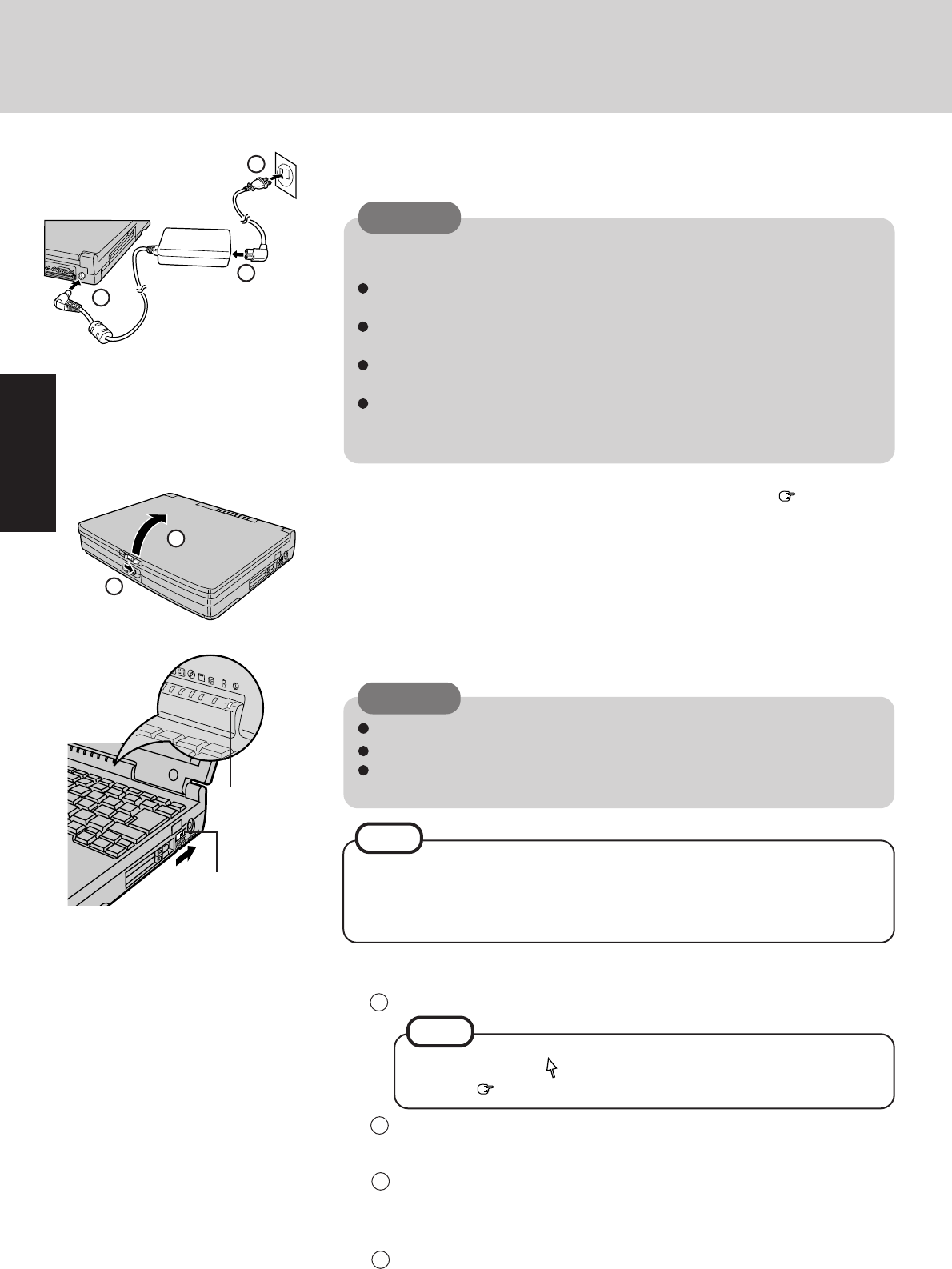
1
Confirm the inclusion of all parts
Make sure the parts shown in the figure have been supplied. If any of these items are
missing or is not working properly, please contact Panasonic Technical Support.
CAUTION
CF-AA1639
AC Cord ....... 1
Have 2HD floppy disks prepared to create disks that will allow you to reinstall
the operating system should a problem occur. Be sure that these disks are not
write-protected. (It is not necessary for these disks to be preformatted.)
AC Adapter .....1 Battery Pack ...1
2
Lever
CAUTION
Cover
Connector
CAUTION
Turn the computer over, unlock the lever then open the cover.
Connect the battery to the connector
part, and return it to its proper location.
Be sure the battery pack is properly
connected to the connector.
Put the cover back by using the arrow as
a guide. Then, lock the lever into place.
Confirm that the lever lock is correctly
in place. Should you decide to carry
your computer without the lever lock
in place, the cover may open causing
the battery pack to fall out.
3
2
1
Connect the battery pack
CF-VZS251AW
Battery Pack
CD-ROM Registration Card
Windows 95 System Pack .... 1
Windows® 95 Book
Operating Instructions ... 1
FIRSTAID CD .....1
8
First-time Operation
4After reading the agreement, select [I accept the agreement] or [I don't accept
the agreement], then press [Next].
Set Windows 95 up
5
Turn your computer on
4
Slide the power switch toward the rear of the computer and hold it for approximately
one second until the power indicator turns on before releasing it.
3Enter your name and your company’s name, then press [Next].
(It is possible to omit the company name item.)
The License Agreement will be displayed.
Select settings for your region, then press [Next].
Select your keyboard layout, then press [Next].
(for U.S.A.: United States 101)
2
1
Moving the cursor ( ) or clicking buttons can be performed with the
trackball ( page 12).
NOTE
Power Switch
Read the LIMITED USE LICENSE AGREEMENT (page 22)
3
To open the display, slide the latch located at the front and lift open the display. Before
removing the seal covering the power switch, please read the LIMITED USE LICENSE
AGREEMENT. Removal of this seal indicates agreement to the terms specified. After
you have agreed to the terms, you may turn your computer on.
CAUTION
Do not slide the power switch and hold it for more than four seconds.
Do not slide the power switch repeatedly.
Once the computer is powered off, you must wait at least ten seconds before
powering it on again.
2
1
Power Indicator
Connect your computer to a power outlet
CAUTION
Handling the AC adapter
Do not twist or pull the AC power cord forcefully. Doing so may damage the
connections.
Use only the specified AC adapter with your computer. Using an AC adapter
other than the one supplied might damage the battery and/or the computer.
When the DC plug is not connected to the computer, disconnect the AC cord
from your AC wall outlet well.
Problems such as sudden voltage drops/surges may arise during periods of thun-
der and lightning. Since this could adversely affect your computer, an
uninterruptible power source (UPS) is highly recommended.
Be sure the AC adapter is connected until completing Step
8
on page 10.
2
1
3
6
NOTE
The power saving function is factory set to remove power from the LCD if the
computer is not operated or no access is made to a device for two minutes. The LCD
will resume normal operation if the trackball is moved or if a key on the keyboard is
depressed.
9
If [I accept the agreement] is selected, the [Certificate of Authenticity] will
appear. If [I don't accept the agreement] is selected, the Windows setup will
be aborted.
NOTE
Press [Next] to install Internet Explorer. Simply follow the on-screen instruc-
tions.
9
5
Press [Finish].
Input the Product Number written on the “Certificate of Authenticity” located in
the Windows® 95 book that comes with this computer then press [Next].
6
Input the correct time, date and time zone and press [Close] .
You can also complete these settings at a later time.
7
Simply follow the on-screen instructions. You can also complete these set-
tings at a later time.
If you wish to complete the printer settings, press [Next]. If not, press [Cancel].8
NOTE
Label-side up
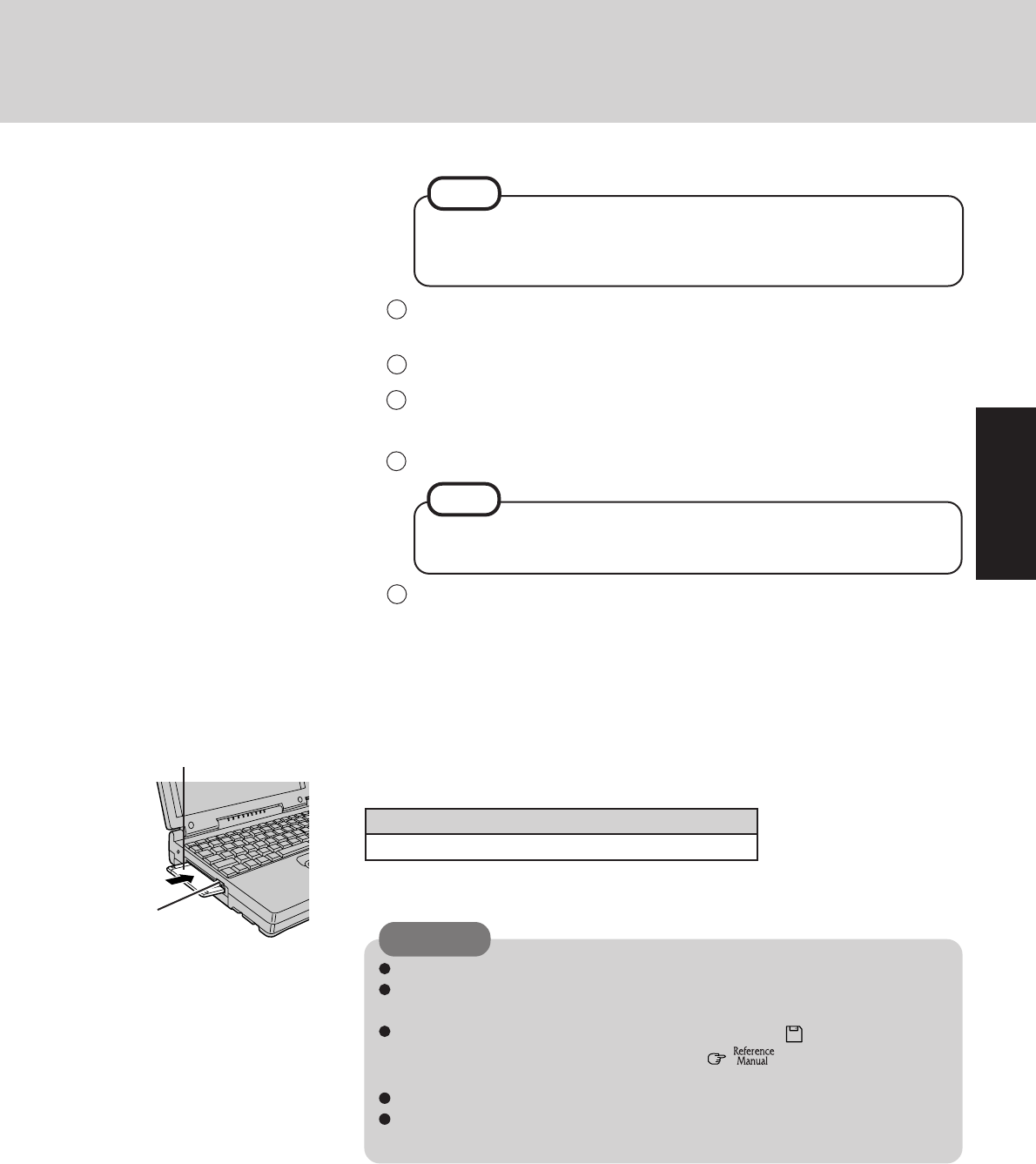
Label on the top sur-
face, and inserting the
shutter-side headfirst.
7
Eject Button
Names of created backup disks
FIRSTAID FD, Backup Disk*
Prepare 2HD floppy disks and make sure they are not in the write-protected state (for
the number to prepare, follow the on-screen instructions). Then, select [Start] - [Pro-
grams] - [Panasonic] - [Create FIRSTAID FD]. Follow the instructions on the dis-
play. After this, place a label on each disk for identification purposes.
Create floppy disks
* There are instances where it is not necessary to create backup disks.
It may take several minutes to reboot the computer.
Please store the floppy disks in a safe place. They will enable you to return your
computer to factory default settings should any problems occur.
Do not remove the floppy disk while the FDD indicator ( ) is on, power down
your computer or use the suspend function ( "Suspend / Hibernation
Functions").
When creating floppy disks, do not run any other application program.
When creating floppy disks and the message [Insufficient files to copy] is dis-
played, press [OK] and then contact Panasonic Technical Support.
CAUTION
10
8
Install the Acrobat® Reader 3.0
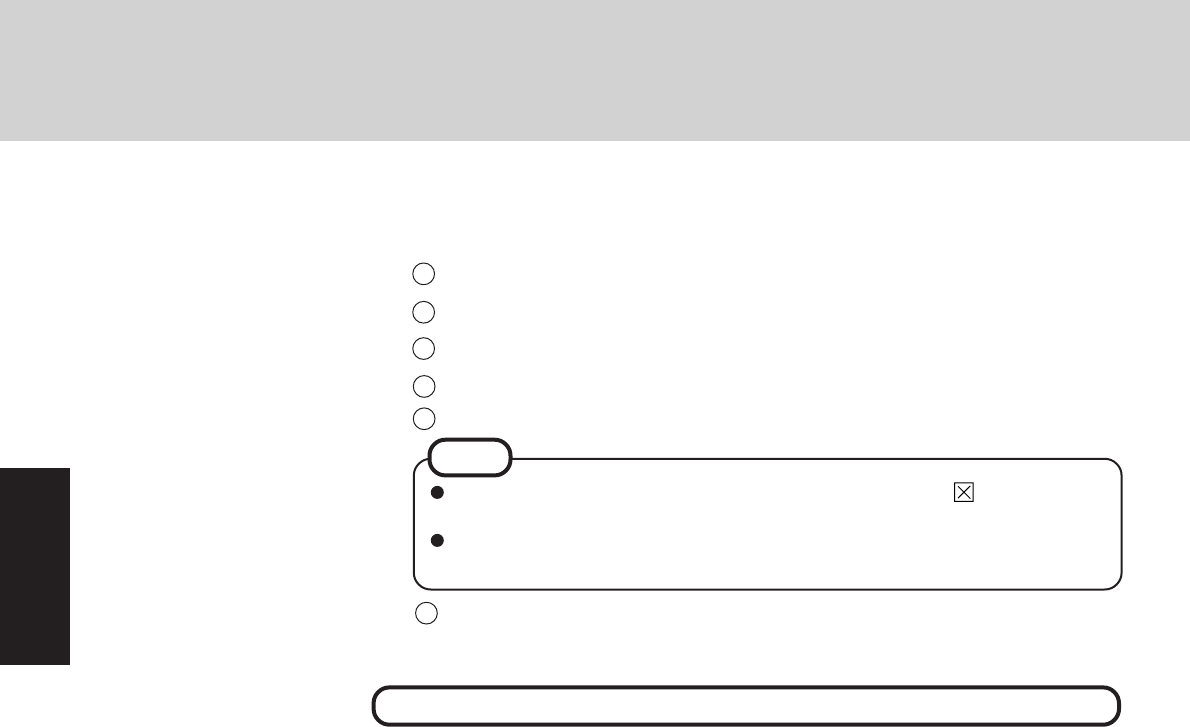
2
3
1In [Start] - [Run], input [c:\util\avapp\reader\setup.exe], then press [OK].
After reading the "Software License Agreement", select [Yes] if you agree to the terms.
Press [Next].
4
Press [Finish].
5
Press [Next] and set up the Acrobat® Reader 3.0.
This concludes the first-time use operation guidelines.
Press [OK].6
Read the [Readme] file as necessary. To close the file, click in the top right
corner of the window.
Use Acrobat® Reader to view the Reference Manual, which explains detailed
operational procedures concerning your computer.
First-time Operation
NOTE
11
1
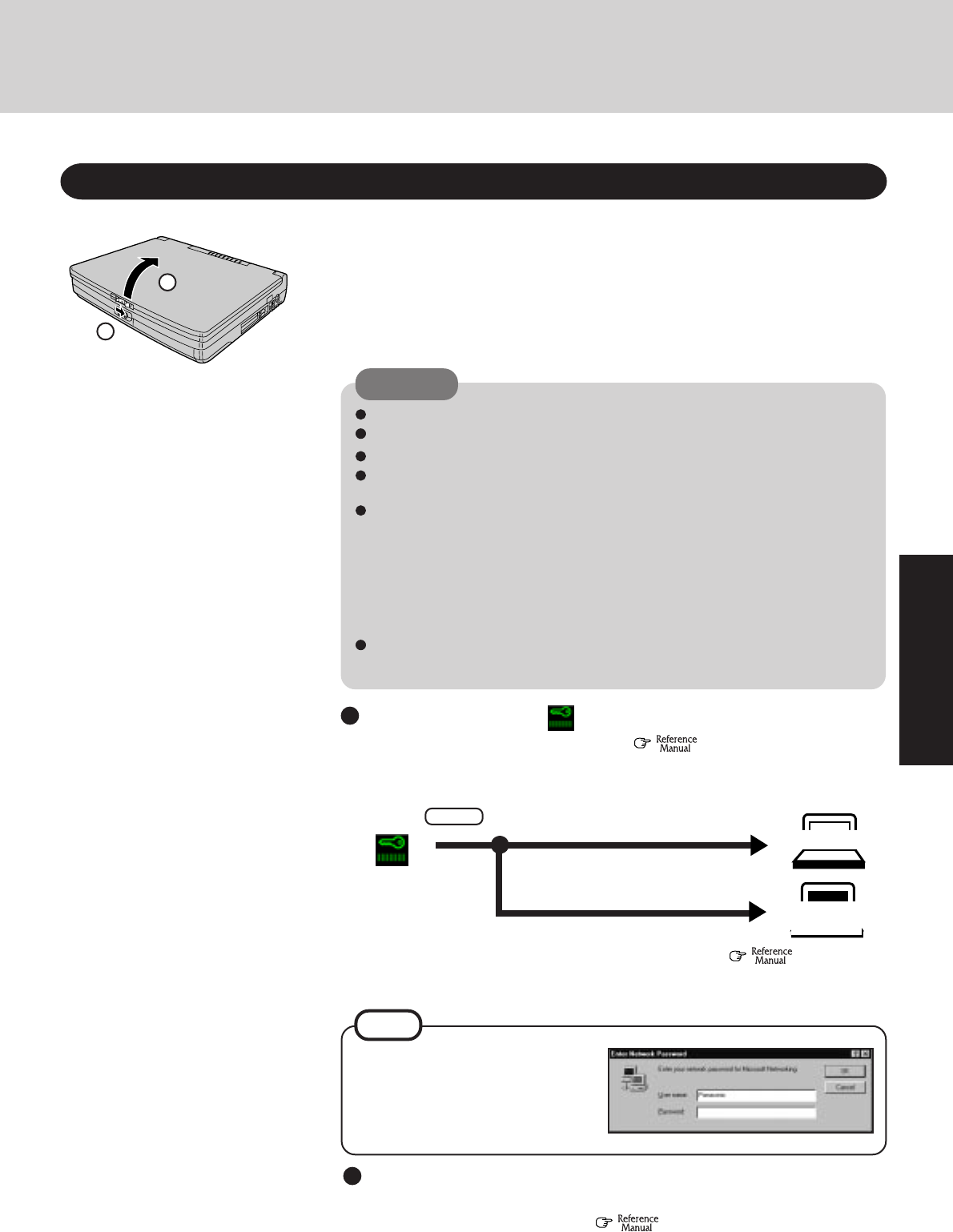
Open the display
Starting Up/Shutting Down
Starting Up
2
Turn your computer on
If security indicator ( ) is displayed,
you must first enter your User Password (
"Security Measures")
*If you are starting from the suspend mode (
"Suspend / Hiber-
nation Functions"), if after three attempts the correct password is not in-
put, or if no password is entered for about a minute, the computer returns
to the suspend mode.
NOTE
When an application or file that was previously displayed
appears on your screen,
The suspend or hibernation mode (
"Suspend / Hibernation Functions")
has been set.
Over three incorrect attempts,
If the correct password is input, Will Start
Will Not Start*
(Power off)
If the display on the right appears,
The network password has been set.
To read and write data to other com-
puters, the correct password must
be entered.
Upon entering your User
Password and pressing
Enter
Slide the latch as shown and lift open the display.
Slide the power switch toward the rear of the computer and hold it for approximately
one second until the power indicator turns on before releasing it.
CAUTION
The computer will not power on when the LCD panel is closed.
Do not slide the power switch and hold it for more than four seconds.
Do not slide the power switch repeatedly.
Once the computer is powered off, you must wait at least ten seconds before
powering it on again.
If the computer does not power on when the power switch is activated, the CPU
temperature may have exceeded its normal operating temperature. In this case,
a function designed to prevent it from overheating is triggered automatically
and prevents the computer from turning on. Should this happen, allow the com-
puter to cool down then switch the power on again.
If the computer still does not turn on, please contact Panasonic Technical Sup-
port.
Do not perform any keyboard or trackball (or mouse) operations until Windows
has completely started up.
2
1
12
Starting Up/Shutting Down
3
Select your application
You are able to start working on your computer.
NOTE
Use the trackball to move the cursor on the display and perform normal computer operations.
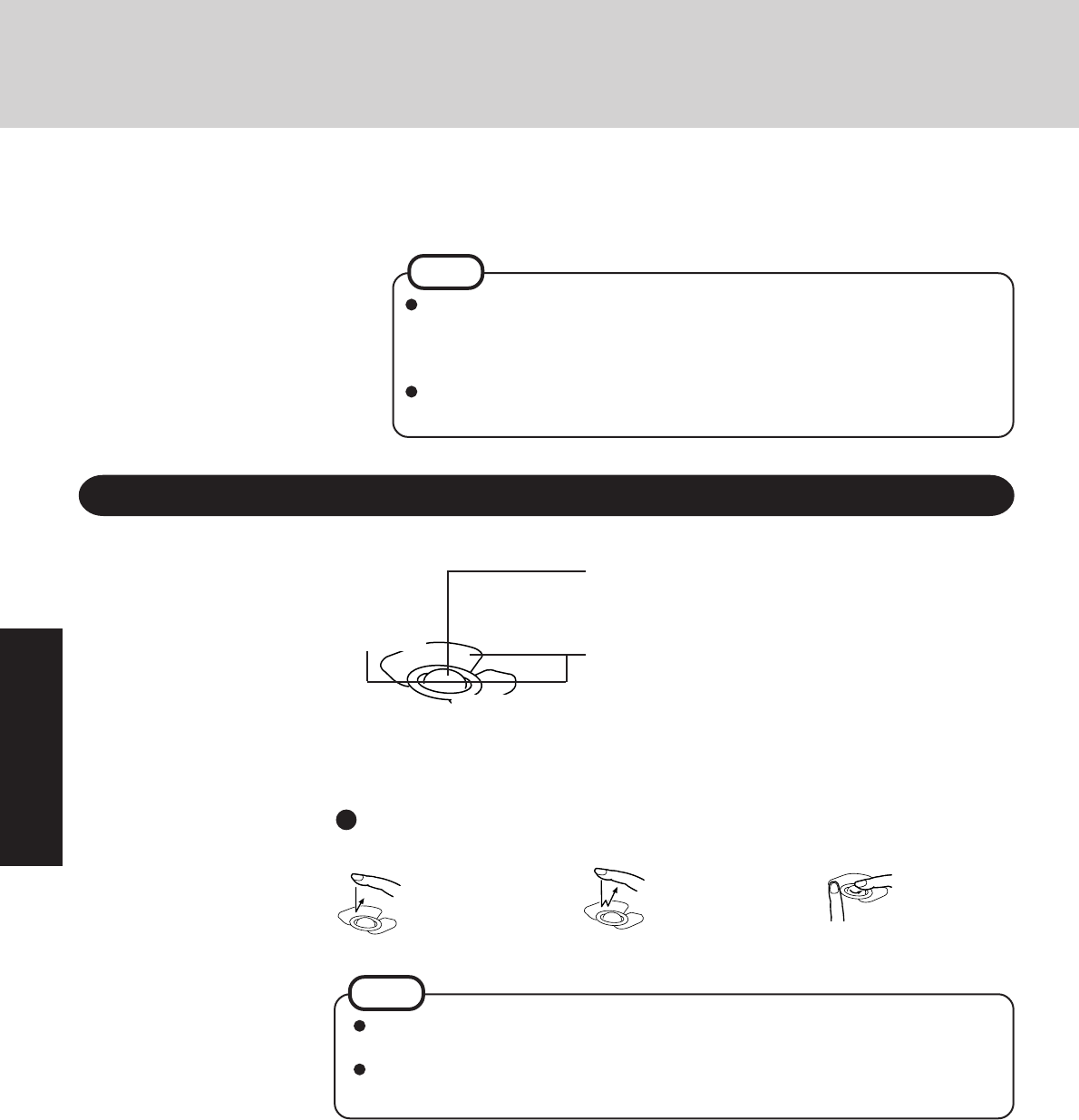
Using the Trackball
Clicking this button displays a pop-up menu corresponding
to the area of the display the cursor is at.
Clicking the front button is equivalent to clicking the mouse
right button. Clicking the rear button is equivalent to click-
ing the mouse left button.
Dragging: While holding
down the rear
button or front
button, spinning
the trackball with
your fingers.
Rear Button
Trackball
Click Buttons
Basic Operations
Clicking: Simply tap and
release a finger
on the front or
rear button.
Double-clicking: Simply tap and
release a finger
two times in
succession on
the front or rear
button.
The action of the two buttons vary according to the software application being used.
Normally the rear button is used to perform actions.
To change the settings for the front and rear buttons of the trackball, and the left and
right buttons of the mouse, select [Start] - [Settings] - [Control Panel] - [Mouse].
NOTE
Front Button
If the trackball is moved forward/backward and left/right,
the cursor will move in the corresponding directions.
The power saving function is factory set to remove power from the LCD if the
computer is not operated or no access is made to a device for two minutes. The
LCD will resume normal operation if the trackball is moved or if a key on the
keyboard is depressed.
[System Devices] in [Device Manager] contains a device bearing an exclama-
tion mark. This does not indicate a malfunction.
13
1
To quickly resume computer operation after shutting down,
The suspend or hibernation function is available(
"Suspend / Hi-
bernation Functions")
NOTE
Shutting Down (power off your computer)
From the keyboard,
You may choose to press down on , then select the menu with or .
2
NOTE
Restarting your computer (without shutting down)
Select [OK] after selecting [Restart].
Confirm shutdown
Select [Shut down].
Your computer will power off automatically.
(In the OFF state, if you are not recharging your battery pack or if the pack is fully charged, your computer
consumes approximately 3.0W.)
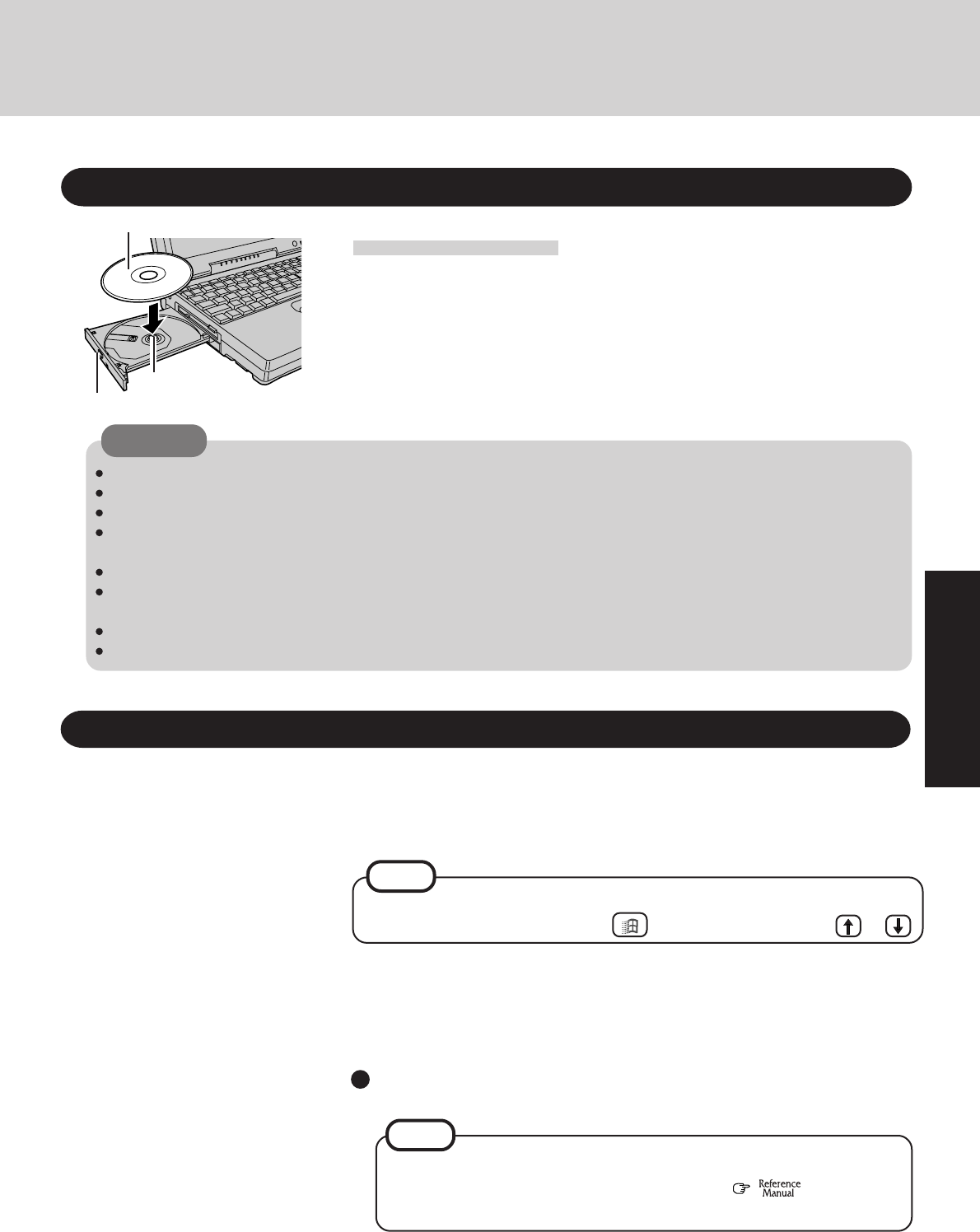
Using the CD-ROM Drive
Installing the CD
1
Turn your computer on
2
Press the CD eject button
3
Place the CD securely on the center holder
4
Close the tray
Title-side up
Center Holder
CD-ROM Drive Eject Button
CAUTION
Do not place items other than CDs on the tray.
Do not leave the tray in the open position. Also, Do not touch the lens area with your fingers.
When the tray is opened, applying too much force to it could cause it to break.
Do not open the CD-ROM drive or move the computer while an application is in the process of accessing the CD-ROM
drive. Doing so could cause it to malfunction.
Cleaning the CD-ROM drive using a CD lens cleaner (except the liquid type cleaner) is recommended if it malfunctions.
Do not use the CD-ROM drive in a location where there is a lot of oily smoke or tobacco smoke. Doing so could shorten
the service life of the lens.
Never insert foreign objects such as paper clips into the slot in the CD-ROM drive.
Do not use CDs that have become deformed (warped, not completely round, etc.).
Display the shutdown screen
After saving important data:
Select [Shut Down] from the [Start] menu.
This procedure is shutting down without using the suspend or hibernation function.
14
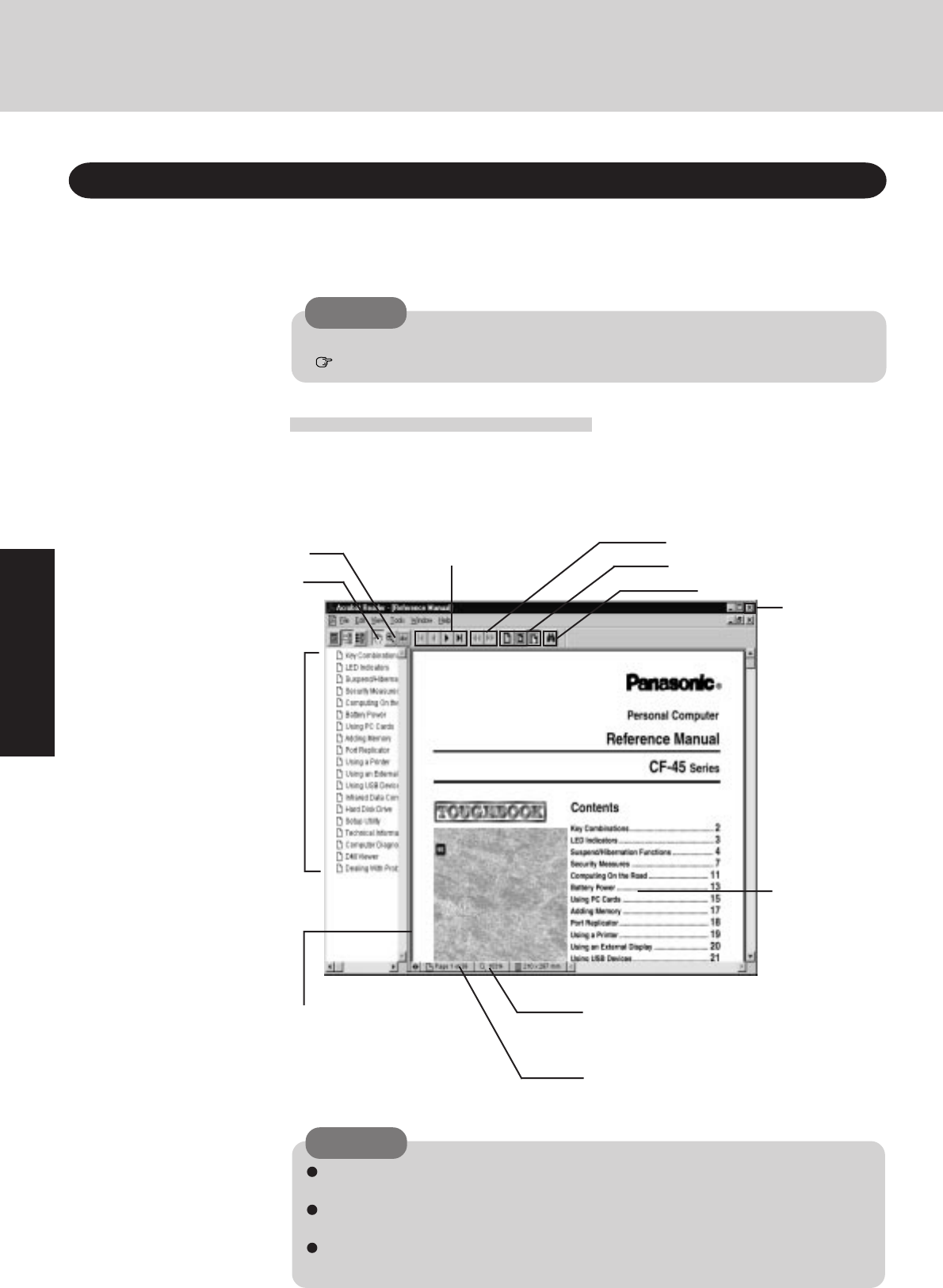
Run the Reference Manual
1
Turn your computer on
2
Select [Reference Manual] in [Start] - [Program] - [Panasonic]
Exit
About the "Reference Manual"
(The display varies depending on the models.)
CAUTION
When you read the "Reference Manual", it is necessary to install the Acrobat Reader 3.0.
(page 10)
Zoom-In
CAUTION
The Reference Manual can be accessed on your computer. When a printer is connected, it is
also possible to print out the manual.
This manual explains functions for you to make greater use of the computer, such as how to add
peripheral devices, how the Setup Utility works and other useful information.
Hand Tool:
To move around
the current page.
Go forward or back a page, or to
the beginning or end of a document Cancel or correct an operation
Change the display size
Do a “find” operation
Display of the
manual
Table of Content (Items):
By clicking an item, the
corresponding page will
be displayed.
Movable splitter bar:
This bar can be dragged, for example,
to the right to enlarge the display of the
Table of Contents.
Change the display size:
You can choose to magnify/de-magnify the
display.
Page indicator:
A desired page can be displayed by inputting
the page number.
Illustrations may be difficult to view depending on the magnification. If this is the case,
we recommend that the display be magnified.
When the taskbar is hidden at the bottom portion of Acrobat® Reader, set the maximum
display window size.
If a printer is connected, we recommend printing the Reference Manual. The illustra-
tions and display samples may not print with a high quality.
Starting Up/Shutting Down
15
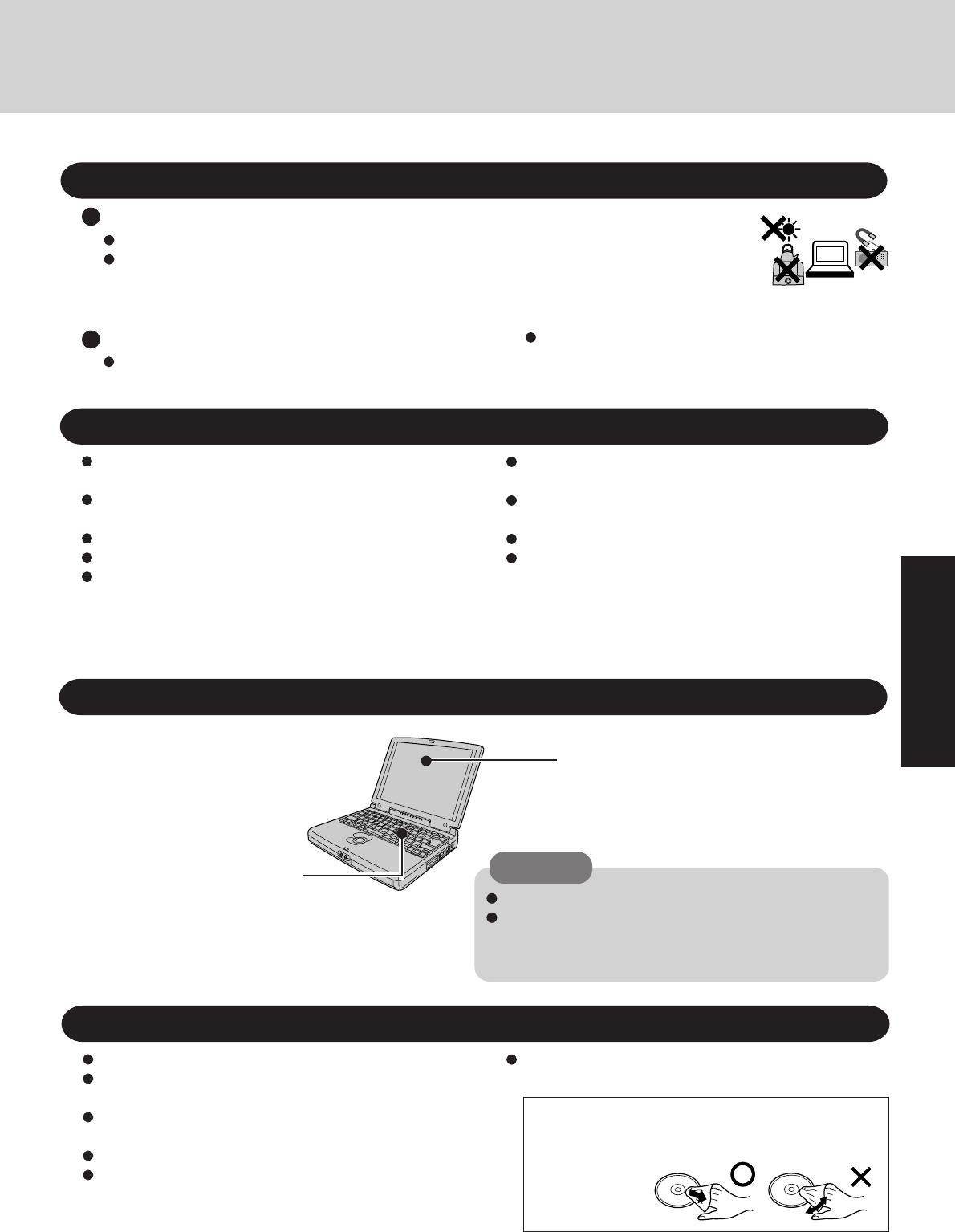
Usage, Carrying and Maintenance
CAUTION
Environment
Place the computer on a flat stable surface.
In use:
Temperature: 5 °C to 35 °C (41 °F to 95 °F)
Humidity: 30% to 80% RH
(No condensation)
Not in use:
Temperature: -20 °C to 60 °C
(-4 °F to 140 °F)
Humidity: 30% to 90% RH
(No condensation)
Usage Environment
Such areas may result in damage to the computer.
Areas exposed to direct sunlight
Places not to use your computer Do not leave things near the computer that are sensitive
to heat. During operation, the computer can become
quite hot.
Maintenance
It is a good idea to make backup copies on floppy disks and
carry them with you.
Do not leave a floppy disk in the drive while transporting your
computer.
Do not carry your computer when it is ON.
Remove all cables before transporting your computer.
We recommend preparing a fully charged battery (and op-
tional charger, if possible).
When transporting spare batteries inside a package, brief-
case, etc., it is recommended that the batteries be stored in a
plastic bag.
Transporting
Do not carry the computer while the display is open, or
carry it by gripping the display.
Do not put anything (e.g., a piece of paper) between the
display and keyboard.
Do not drop or hit your computer against solid objects.
Always carry your computer with you. Never check it
with luggage. For use of the computer inside an aircraft,
we recommend asking the airlines regarding their policy
on this issue.
CD-ROM
Do not allow CDs to become dirty or scratched.
Do not place or store CD in locations exposed to heat, direct
sunlight, humidity or dust.
Do not write on the surface of the CD with a ball-point pen or
other writing instrument, or apply label on the CD.
Do not drop, bend, or place heavy objects on top of CDs.
If the CD is brought from a cold into a warm environment,
moisture may form on the disc. Wipe this moisture off with a
soft, dry, lint-free cloth before using the CD.
After wiping the CD with a moist, soft cloth, wipe it
with a dry cloth. Always wipe from the center toward
the edge.
Do not use benzene or thinner, or disinfectant-type alcohol.
Do not directly use water, liquid detergents or spray-type
cleaners. If liquid enters the computer, this may cause the
computer to malfunction or become defective.
Areas excluding the display:
Wipe these areas with a soft cloth,
after applying water or detergent
diluted with water to the soft cloth
and firmly wringing it.
Display:
Use a soft dry cloth like gauze
to lightly wipe the display.
Areas with electronic equipment
These areas may interfere with your
display or cause your computer to
produce strange sounds.
Areas with extremely high/low
temperatures
Cleaning the CD using a CD disk cleaner (LF-K022DC)
is recommended once every 2 or 3 months.
16
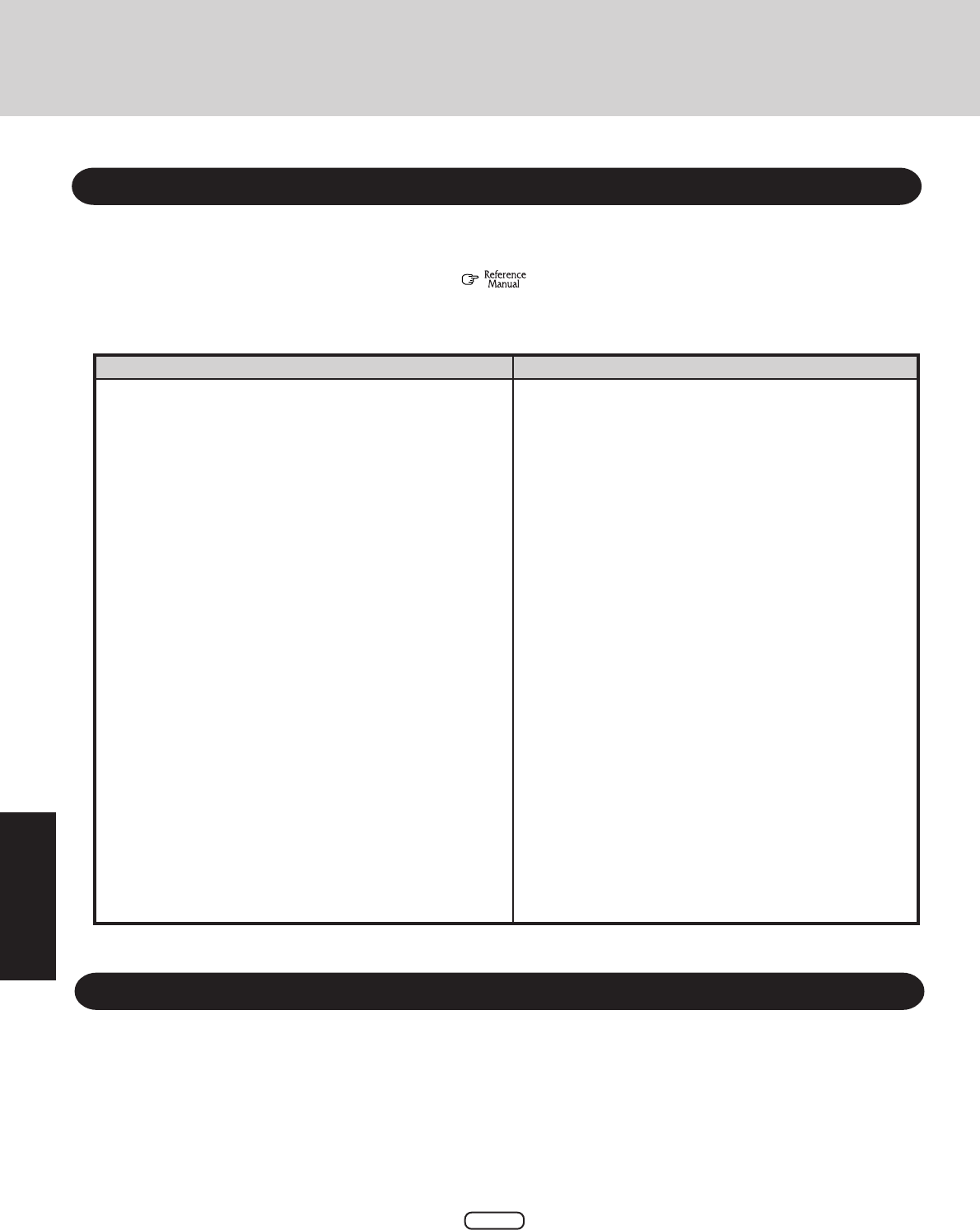
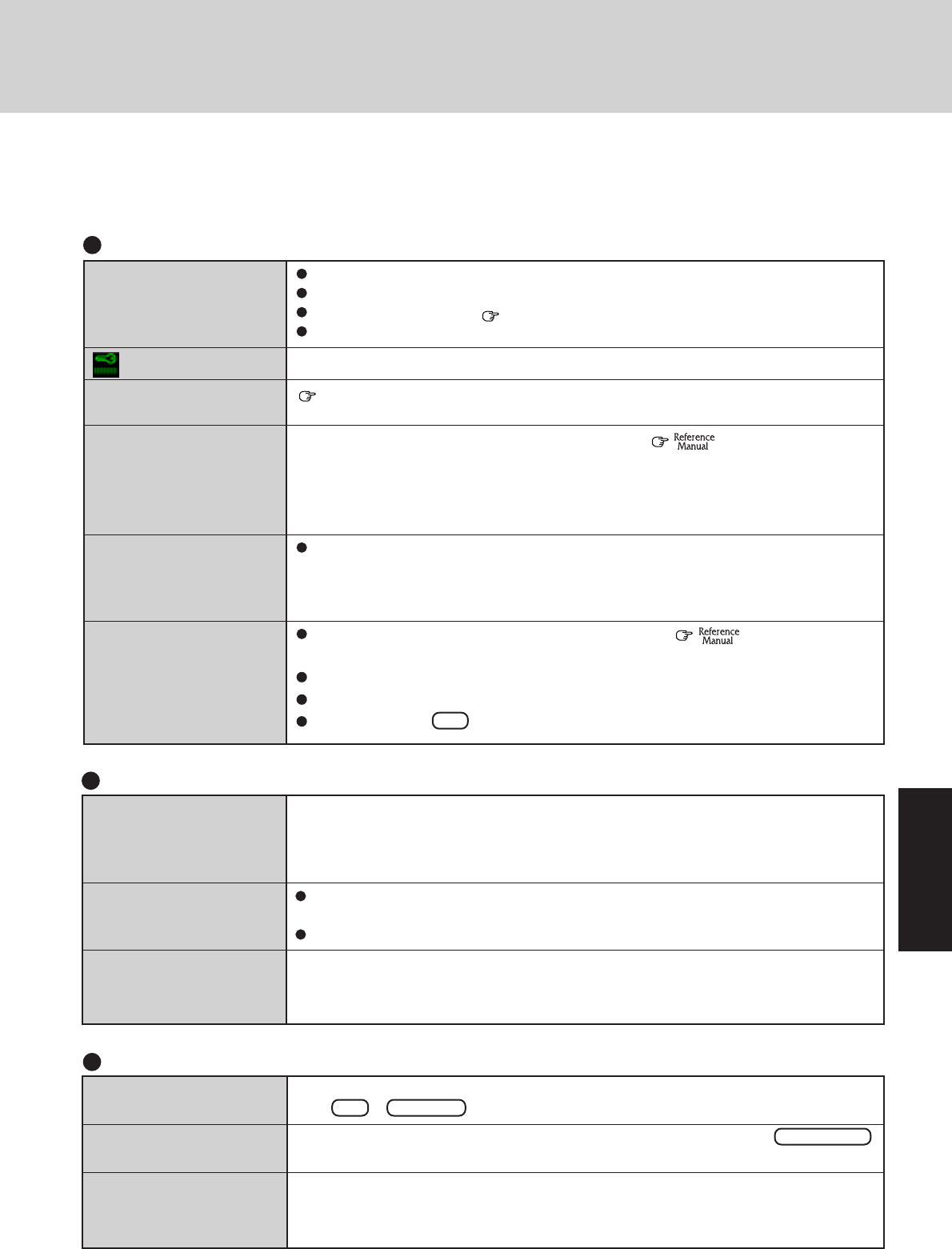
Computer Diagnosis
List of Error Codes
If a problem occurs with your hardware, and [POST Start up Error(s)] is displayed along with
the error code(s), follow the on-screen instructions.
Setup:Setup Utility (
"Setup Utility") is started. Run [Load Default Settings (PnP)].
Rerun the Setup Utility to input the appropriate operating environment settings.
Exit:Ignore the error message(s), and restart the computer.
1
Using the Self-diagnosis Program
Follow the procedure below to check whether each part of your computer is operating properly.
062 Boot failure--default configuration used Default configuration in use
101 System Board Failure Interrupt controller failure
102 System Board Failure Timer 2 test failure
106 System Board Failure Diskette controller failure
114 Adapter ROM Error Adapter ROM checksum error
151 System Board Failure Real-time clock failure
161 Bad CMOS Battery Dead battery
162 Configuration Change Has Occurred Configuration error
162 Configuration Error CMOS checksum error
163 Date and Time Incorrect Real-time clock is not updating
173 Configuration Change Has Occurred ROM configuration has changed
201 Memory Size Error Memory size/data error
301 Keyboard Error Keyboard failure
303 Keyboard Error Keyboard controller failure
604 Diskette Drive Error Diskette drive 0 failure
605 Diskette Drive Error Diskette unlocked problem
1780 Hard Disk Error Fixed disk 0 failure
1800 PCI Error No more IRQs available
1801 PCI Error No more room for optional ROM
1802 PCI Error No more I/O space available
1803 PCI Error No more memory (above 1 MB) available
1804 PCI Error No more memory (below 1 MB) available
1805 PCI Error Checksum error or 0 size optional ROM
1962 An operating system could not be found
8603 Pointing Device Error Pointing device failure
I9990301 Hard disk failure
I9990305 An operating system could not be found
Code Description
Follow the messages on the screen.
At the MS-DOS prompt (A:\WINDOWS\COMMAND>), input
the following:
diag45 Enter
Select [1] from the menu
To run the program, insert the FIRSTAID FD you created into
the floppy disk drive, then turn your computer on
2
3
17
Dealing With Problems
When a problem occurs, please refer to this page. The "Reference Manual" also contains detailed information. If a problem
appears to be related to a software application, read the software related manual. If you still cannot troubleshoot the problem,
please contact Panasonic Technical Support.
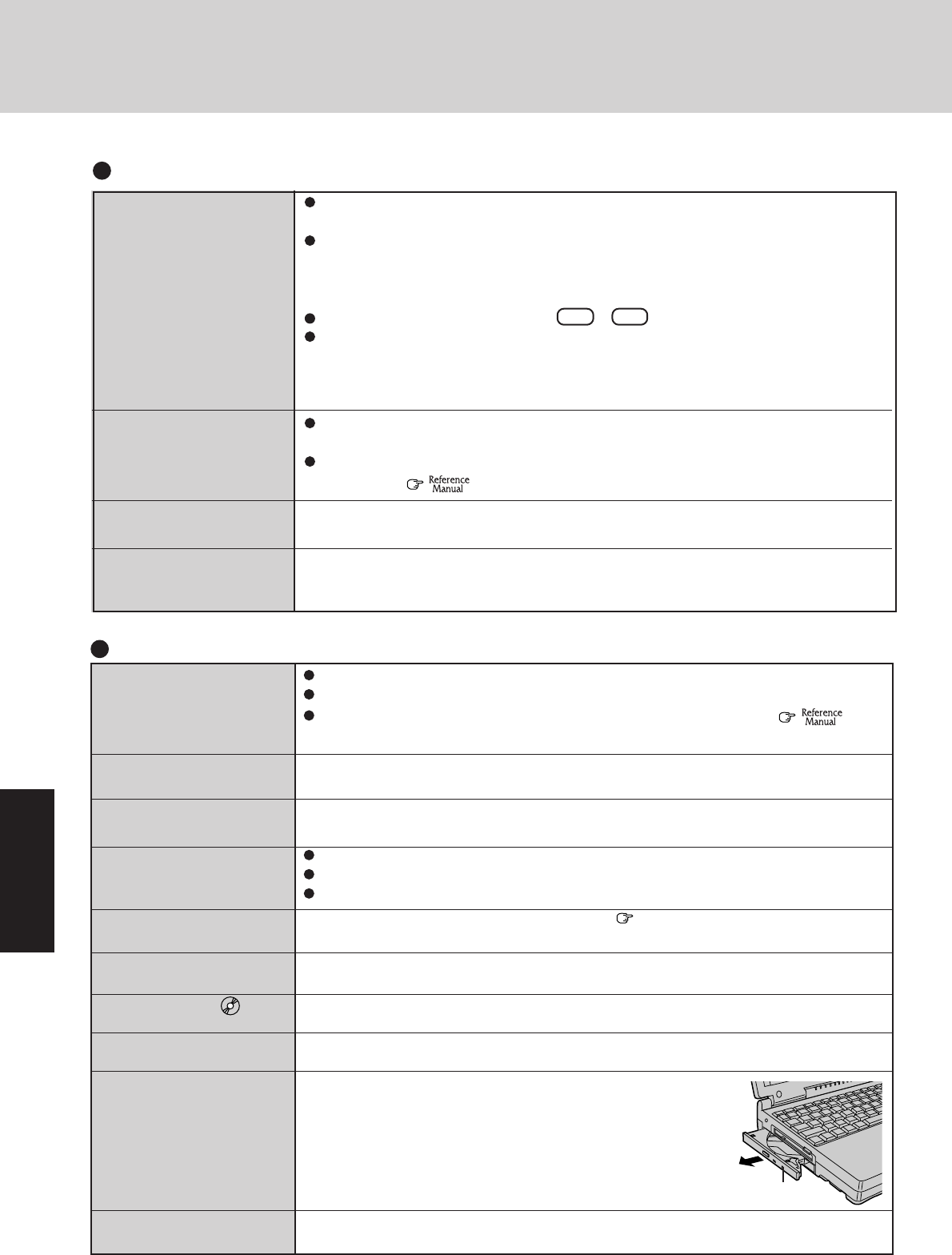
Starting Up
The power indicator or bat-
tery indicator is not lit
is displayed
[POST Start Up Error(s)] is
displayed
The pre-memory count,
Windows startup, or an op-
eration is extremely slow
The date and time are
incorrect
When the previous item is
not the cause
Check the cable connection for the AC adapter.
Check to see if a fully charged battery is properly installed.
Pressing the reset button ( page 24) will solve the problem.
Remove the battery pack and disconnect the AC adapter, then connect them again.
Please input your password. If you have forgotten it, contact Panasonic Technical Support.
page 16
Run [Load Default Settings] (PnP) in the Setup Utility (
"Setup Utility"). This will
restore the Setup Utility's settings to their default values (except the password settings). Then,
the Setup Utility must be run once again for you to input the appropriate operating environment
settings. (The processing speed depends on the application software used, so this operation may
not cause the processing speed to increase.)
You can set the date and time through [Date/Time] in [Start] - [Settings] - [Control Panel].
If you continue to experience problems, the internal battery maintaining the clock may
need to be replaced. Please contact Panasonic Technical Support.
Run [Load Default Settings] (PnP) in the Setup Utility (
"Setup Utility"). This
will restore the Setup Utility's settings to their default values (except the password settings).
Try removing all peripheral devices.
In the MS-DOS mode, run SCANDISK to check the hard disk.
At start-up, press F8 to operate the computer in the Safe mode.
The red battery indicator
lights.
Repeated beeps sound while
the computer is in use.
The red indicator blinks
After the AC adapter is con-
nected, the orange indicator
blinks five times
The battery level is low. Save your data and power off your computer.
After connecting the AC adapter or replacing the battery pack with a fully charged one, turn
your computer on.
The battery pack or recharging function may be defective. Quickly remove the battery
pack and disconnect the AC adapter, then connect them again.
If the problem persists, contact Panasonic Technical Support.
Unable to charge because of an improper temperature range.
Battery Indicator
Character Input
Unable to input anything
but numerals
Only capital letters are
being input
How to input European
characters (ß, à, ç) or
symbols is unclear
If NumLk and Key Pad are on, the Numeric Key Pad is ON. To switch it OFF,
press Fn + Key Pad .
If CapsLock is on, the Caps Lock function is ON. To switch it OFF, press Caps Lock .
Select [Start] - [Programs] - [Accessories] - [Character Map]. The Character Map will be
displayed. Point to the desired font name and select it.
18
Dealing with Problems
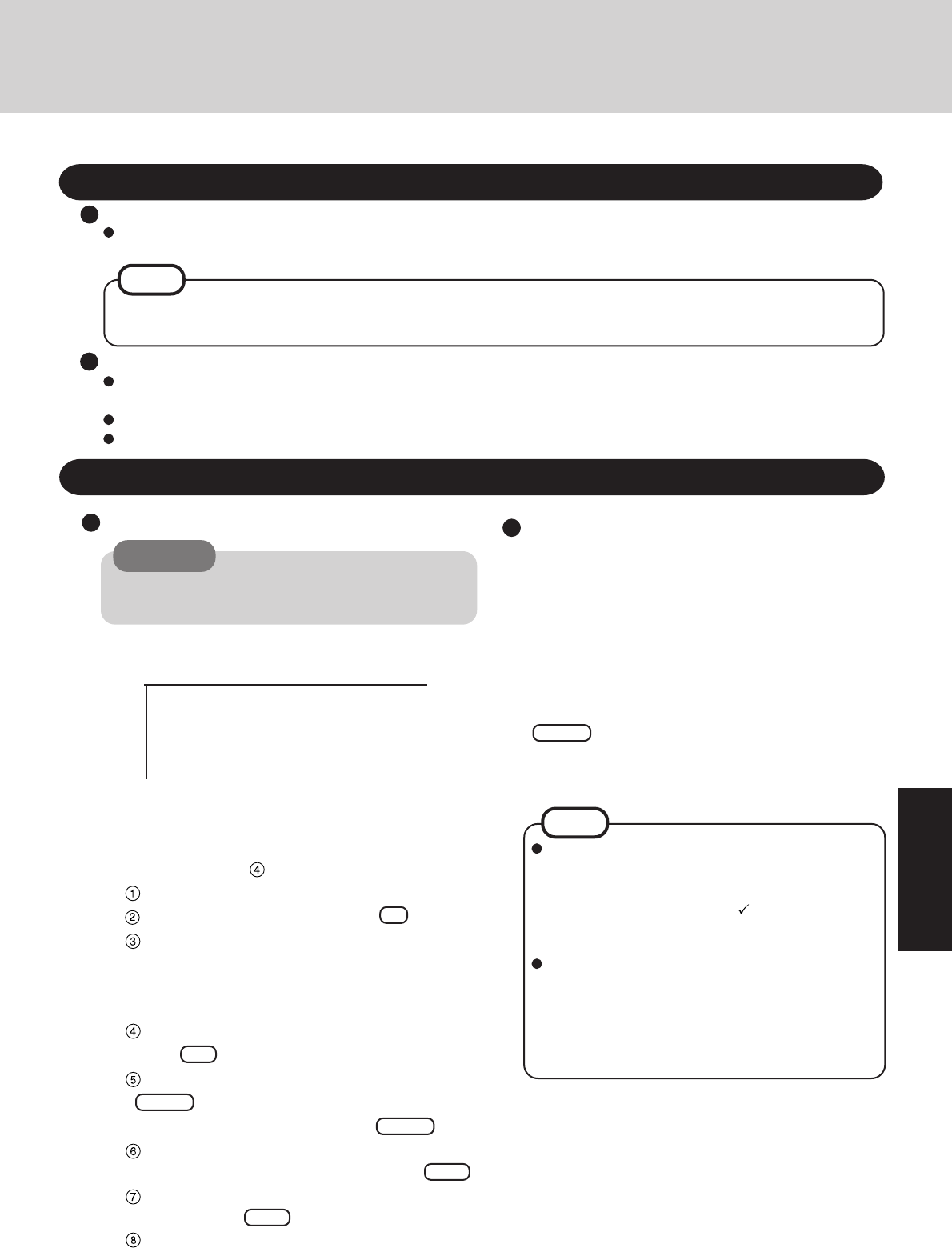
Cannot read/write to a
floppy disk
Unable to write to a floppy
disk
How to format a floppy
disk is unclear
Unable to read/write to the
hard disk
Trouble has occurred with
the CD
When the previous item is
not the cause
The access lamp ( ) does
not light
Cannot play CD or read
data from it
Cannot eject CD
The CD-ROM drive vi-
brates a lot
Disk Operations
Has the floppy disk been correctly inserted?
Has the floppy disk been correctly formatted?
Has the Setup Utility been used to set [Floppy Operation] to [Enable]? (
"Setup
Utility")
Is the floppy disk write-protected?
Select [Format] in [My Computer] - [3 1/2 Floppy (A:)] - [File]. After confirming the disk
volume and format type, start formatting.
Your drive or file may not have been properly set.
Check to see if the hard disk is full. If it is full, delete unnecessary files.
Your hard disk content may be corrupted. Contact Panasonic Technical Support.
You may need to clean the lens or CD; refer to ( page 16) on how to do so.
Try testing another drive or media.
Is the CD loaded on the tray correctly?
Is the CD bent, scratched, or dirty?
Is the computer powered on?
To remove a CD when the computer is powered off, insert
a sharp object such as the bent-out tip of a paper clip
into the emergency hole. Pushing it completely to the
end will free the tray so that it can be pulled out.
Is the CD bent or labeled?
No display after powering
on
The power has not been cut,
but after a certain period of
time, there is no display
An afterimage appears
The motion of the mouse
cursor is not smooth
At the time of purchase, the display setting is preset for an external display. If you connect
an external display, the screen is displayed on the external display.
When there is no display to an external display,
• Check your cable connection to the external display.
• Confirm your display is powered on.
• Check the settings for your external display.
Try changing the display by pressing Fn + F3
If your computer is connected to an external display and the internal LCD has been set to
"off", and the computer is placed in the hibernation or suspend mode, the internal LCD
will remain in the "off" mode if the external display is not connected when the computer
is restarted. In this case, re-connect the external display and reboot the computer.
Has the computer been set to the power-saving mode?
To resume operation of your computer, press any key, or move the trackball or mouse.
To save power, your computer may have automatically entered the suspend or hiberna-
tion mode. (
"Suspend / Hibernation Functions")
If an image is displayed for a prolonged period of time, an afterimage may appear. This is
not a malfunction. The afterimage will disappear when a different screen is displayed.
Select [Start]-[Settings]-[Control Panel]-[Mouse]-[Motion] and check [Show pointer trails].
Display
Emergency Hole
19
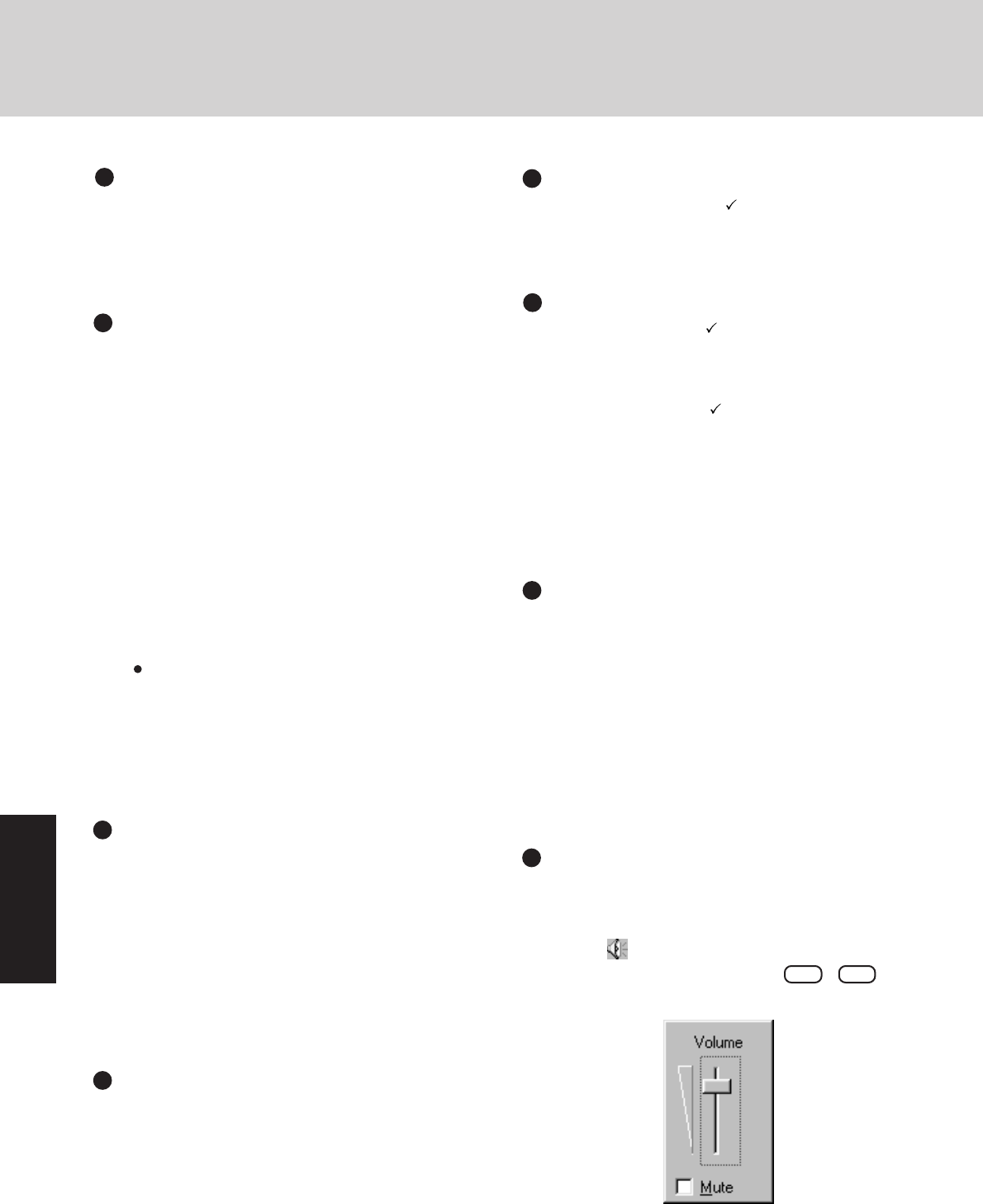
2
You can choose to create the hibernation domain.
To use the hibernation function, follow this procedure
and be sure to create the hibernation domain. (If you
decide not create this domain, after restarting the com-
puter, go on to step .)
Select [2.Initialize the HDD for the Hibernation function].
At the confirmation message, press Y .
When the message [Press any key to continue...] is
displayed, confirm that the FIRSTAID FD has been
set in the floppy drive, and then press a key.
The computer will reboot.
When the message [Press F1 for Setup] is displayed,
press F1 and then run the Setup Utility.
Select [Load Default Settings (PnP)], then press
Enter .
At the confirmation message, press Enter .
In [Power Management], set [Power Switch] to [On-
Off] and set [Power Saving] to [OFF], press Esc .
Set [USB Controller] in [Supervisor Setup] to
[Enable], press Esc .
Save the settings and then close the Setup Utility. The
computer will reboot, and will then return to the dis-
play shown in step
1
.
Reinstalling Software
Before Reinstallation
Preparing
Reinstalling
8
At the [Finishing Setup], remove the floppy disk and
press [Finish]. Windows will restart after all the set-
tings have automatically been made.
9
At the [Date/Time Properties], press [Close].
10
At the [Add Printer Wizard], press [Cancel].
11
When the display appears indicating the establishment
of the system settings, press [OK]. The computer will
reboot.
CAUTION
With the exception of the instruction below, please
select all default values displayed by the Setup Wiz-
ard.
Be sure to add the check mark to [Sound, MIDI, or
Video Capture Card] at the [Analyzing Your Com-
puter].
Have a floppy disk on hand to create a "Windows 95
Startup Disk". Immediately after creating this disk,
enter the FIRSTAID FD into the floppy disk drive and
press [OK]. (Note: A system error will result if the
FIRSTAID FD is not inserted. If this occurs, insert the
FIRSTAID FD and press [Retry].
1
Insert the FIRSTAID FD, and turn the computer on; this
screen should appear.
If data on your hard disk is compressed, the data should
be uncompressed.
Important
Save all important data. If reinstallation is carried out, all data existing prior to the installation will be lost. The reinstal-
lation will return the computer to factory condition.
Be sure to remove all PC Cards and disconnect all peripherals before the reinstallation procedure.
Be sure the AC adapter is connected until completing reinstallation.
You will need the FIRSTAID CD, CD-ROM included in the Windows 95 System Pack and the FIRSTAID FD you made
earlier.
If you have not created the FIRSTAID FD, you can create by selecting [Create FIRSTAID FD] in [Start]-[Programs]-
[Panasonic]. If for some reason, you do not have this disk or it is corrupted, please contact Panasonic Technical Support.
NOTE
Windows 95 (HDD format)
3
Select [3. Restore the HDD to factory default].
4
At the confirmation message, press any key.
5
When your computer prompts you to insert the
FIRSTAID CD, please set the specified CD and press
any key.
6
When your computer prompts you to insert the "Win-
dows 95 CD-ROM", please set the specified CD and
press any key.
7
When the [To continue, press Enter...] appears, press
Enter .
After Microsoft ScanDisk completes, the computer will
automatically return to the Windows 95 setup.
Simply follow the on-screen instructions .
Microsoft Windows 95 Startup Menu
------------------------------------------------------
1. Boot
2. Initialize the HDD for the Hibernation function
3. Restore the HDD to factory default
Enter a choice: 1
Windows 95 (reinstalling)
NOTE
20
Device Manager 1
14
In [Start] - [Settings] - [Control Panel] - [System] - [Device
Manager], select [PCIC or compatible PCMCIA control-
ler] in [PCMCIA socket]. Remove the check for [Dis-
able in this hardware profile] in [Properties] - [General]
and then press [OK].
15
Press [Next] at the display for the [Display Driver Wiz-
ard for PC Cards (PCMCIA)], press [Next] again and then
press [Finish].
16
When the message appears asking whether to reboot the
computer, select [No].
17
Check [View devices by connection] at [Device Manager] and
select [PCI bus] in [Plug and Play BIOS], press [Remove], then
press [OK]. The display will ask you to restart Windows, press
[Yes]. Rebooting will be done automatically. If the computer
asks you to insert the Windows 95 CD-ROM, press [OK].
Input [c:\cabs], then press [OK].
Then, when the [Version Conflict] appears, select [Yes].
18
Press [Next] at the [Update Device Driver Wizard of PCI
Universal Serial Bus] and [Finish].
19
Press [Next] at the [Update Device Driver Wizard of Stan-
dard PCI Graphics Adapter (VGA)] and [Finish]. The dis-
play will ask you to restart Windows, press [Yes]. (at times,
the message may appear a few times)
Sound driver
20
In [Control Panel] - [System] -[Device Manager],
for each item in [Sound, video and game controller],
press [Remove] to delete it, then press [OK] to con-
firm the deletion.
21
Press [Refresh] and press [Next] at the [Update Device
Driver Wizard of Unknown Devices].
22
Select [Other Locations], input [c:\util\drivers\sound],
then press [OK].
23
At the [Update Device Driver Wizard of YAMAHA
OPL3-SAx], press [Finish].
Video Driver
26
Delete the check mark for [When powered by AC
power] and [When powered by batteries] in [Start] -
[Settings] - [Control Panel] - [Power] - [Disk Drives],
then press [OK].
Power Management
Device Manager 2
27
Add the check mark for [DMA] in [Control Panel]
- [System] - [Device Manager] - [CDROM] - [TEAC
CD-220EA] - [Settings].
28
Set [L:] for [Reserved drive letters], then press [OK].
29
Add the check mark for [DMA] in [Device Man-
ager] - [Disk drives] - [GENERIC IDE DISK
TYPE**] - [Settings], then press [OK].
30
Set [Mobile or docking system] in [System] - [Perfor-
mance] - [File System] - [Hard Disk] - [Typical role of
this machine], then press [OK].
31
At the [System Properties], press [Close]. The display
will ask you to restart Windows, then press [Yes].
Display Driver
32
Select [Super VGA 1024 X 768] for [Models] in [Con-
trol Panel] - [Display] - [Settings] - [Advanced Proper-
ties] - [Monitor] - [Change], then press [OK].
33
Confirm that there is a check mark for [Automatically
detect Plug & Play monitor] in [Options] for the [Moni-
tor], and then press [Close].
34
Set [True Color (24 bit)] for the [Color palette], set [800
by 600 pixels] for the [Desktop area] and then press
[OK].
• When [Compatibility Warning] is displayed, press
[OK].
35
Select [Control Panel] - [OPL3-SAx Config], increase
both the Treble and Bass in [Tone Control] by two or-
ders and then press [OK].
36
Select on the taskbar, set the maximum volume.
37
Decrease the volume by pressing Fn + F5 twice.
Tone and Volume adjustment
12
In [Start] - [Run], input [c:\install.bat], then press [OK].
Rebooting will be done automatically.
It may take several minutes to reboot the computer.
13
In [Start] - [Programs] - [Windows Explorer], delete
the "c:\install.bat" and "c:\install.pif" files.
System setup
24
In [Device Manager] - [Display adapters] - [Standard
PCI Graphics Adapter (VGA)] - [Driver] - [Update
Driver], select [Yes (Recommended).], then press [Next].
25
Select [Other Locations], input [c:\util\drivers\video],
press [OK], then press [Finish]. The display will ask
you to restart Windows; remove the floppy disk and
press [Yes].
Reinstalling Software

21
Infrared
40
Select [Control Panel] - [Add New Hardware].
41
Press [Next] at the [Add New Hardware Wizard].
42
Select [No], then press [Next] .
43
Select [Infrared] in [Hardware types] and press [Next].
44
Press [Next], and press [Next] again.
45
Select [Generic Ir Serial Port[COM2]] in [Select the
port that infrared device...].
46
From here on, follow the instructions given on the dis-
play followed by pressing [Next].
If the computer asks you to insert the Windows 95 CD-
ROM, press [OK]. Input [c:\cabs], then press [OK].
47
Press [Finish].
Installing USB
Installing Internet Explorer 4.0
1
Insert the Windows 95 CD-ROM.
2
In [Start] - [Run], input [L:\other\updates\usb\usbsupp.exe],
then press [OK].
At the confirmation message, press [Yes].
3
Read the [END-USER LICENSING AGREEMENT] and
press [Yes] or [No].
• Installation will start if [Yes] is pressed. A message will
appear asking whether to restart the computer; press [OK].
• Installation will be aborted if [No] is pressed.
4
At the display indicating the completion of installation,
press [OK]. The computer will automatically restart.
5
In [Start] - [Run], input [L:\other\updates\usb\usbupd2.exe],
then press [OK].
6
In [Start] - [Shut Down], select [Restart the computer],
then press [OK].
7
In [Start] - [Run], input [c:\util\msupdate\usbcopy.bat], then
press [OK].
8
Click at the upper right corner to close the display.
9
In [Start] - [Settings] - [Control Panel] - [System] - [Device Man-
ager], select [PCI Universal Serial Bus] in [Other devices],
press [Remove], then press [OK].
10
Press [Refresh].
11
At the [System Properties], press [Close].
12
In [Start] - [Shut Down], select [Restart the computer],
then press [OK].
13
When the message [Press F1 for Setup] is displayed, press
F1 and then run the Setup Utility.
14
Set [USB Controller] in [Supervisor Setup] to [Disable],
press Esc .
15
Save the settings and then close the Setup Utility.
Reinstalling Windows causes an older version of Internet Ex-
plorer to be installed.
To return the computer to the state it was in when you purchased
it, follow the steps below to install the newer version of Internet
Explorer.
1
Insert the Windows 95 CD-ROM included in the Windows
95 System Pack.
2
In [Start] - [Run], input [L:\win95\ie4setup.exe], then press
[OK]. Follow the on-screen instructions. The display will
ask you to restart Windows, then press [Yes].
Installing Acrobat Reader 3.0
page 10, Step
8
DMI Viewer setup
38
Insert the FIRSTAID CD.
39
In [Start] - [Run], input [L:\en\dmi\setup.exe], then press
[OK].
DMI Viewer setup will start automatically. Simply fol-
low the on-screen instructions. The display will ask
you to restart Windows; press [Yes].

22
YOU MAY NOT REVERSE ASSEMBLE, REVERSE COMPILE, OR MECHANICALLY OR ELECTRONICALLY TRACE
THE PROGRAMS, OR ANY COPY THEREOF, IN WHOLE OR IN PART.
YOU MAY NOT USE, COPY, MODIFY, ALTER, OR TRANSFER THE PROGRAMS OR ANY COPY THEREOF, IN
WHOLE OR IN PART, EXCEPT AS EXPRESSLY PROVIDED IN THE LICENSE.
IF YOU TRANSFER POSSESSION OF ANY COPY OF ANY PROGRAM TO ANOTHER PARTY, EXCEPT AS PERMIT-
TED IN PARAGRAPH E ABOVE, YOUR LICENSE IS AUTOMATICALLY TERMINATED.
This license is effective only for so long as you own or lease the Product, unless earlier terminated. You may terminate
this license at any time by destroying, at your expense, the Programs and related documentation together with all copies
thereof in any form. This license will also terminate effective immediately upon occurrence of the conditions therefor set
forth elsewhere in this Agreement, or if you fail to comply with any term or condition contained herein. Upon any such
termination, you agree to destroy, at your expense, the Programs and related documentation together with all copies
thereof in any form.
A. MEI hereby grants you a personal, non-transferable and non-exclusive right and license to use the Programs in
accordance with the terms and conditions stated in this Agreement. You acknowledge that you are receiving only
a LIMITED LICENSE TO USE the Programs and related documentation and that you shall obtain no title, owner-
ship nor any other rights in or to the Programs and related documentation nor in or to the algorithms, concepts,
designs and ideas represented by or incorporated in the Programs and related documentation, all of which title,
ownership and rights shall remain with MEI or its suppliers.
B. You may use the Programs only on the single Product which was accompanied by the Programs.
C. You and your employees and agents are required to protect the confidentiality of the Programs. You may not
distribute or otherwise make the Programs or related documentation available to any third party, by time-sharing
or otherwise, without the prior written consent of MEI.
D. You may not copy or reproduce, or permit to be copied or reproduced, the Programs or related documentation for
any purpose, except that you may make one (1) copy of the Programs for backup purposes only in support of your
use of the Programs on the single Product which was accompanied by the Programs. You shall not modify, or
attempt to modify, the Programs.
E. You may transfer the Programs and license them to another party only in connection with your transfer of the
single Product which was accompanied by the Programs to such other party. At the time of such a transfer, you
must also transfer all copies, whether in printed or machine readable form, of every Program, and the related
documentation, to the same party or destroy any such copies not so transferred.
F. You may not remove any copyright, trademark or other notice or product identification from the Programs and you
must reproduce and include any such notice or product identification on any copy of any Program.
LICENSE
TERM
YOU ACKNOWLEDGE THAT YOU HAVE READ THIS AGREEMENT, UNDERSTAND IT AND AGREE TO BE BOUND
BY ITS TERMS AND CONDITIONS. YOU FURTHER AGREE THAT IT IS THE COMPLETE AND EXCLUSIVE STATE-
MENT OF THE AGREEMENT BETWEEN US, WHICH SUPERSEDES ANY PROPOSAL OR PRIOR AGREEMENT,
ORAL OR WRITTEN, AND ANY OTHER COMMUNICATIONS BETWEEN US, RELATING TO THE SUBJECT MATTER
OF THIS AGREEMENT.
THE SOFTWARE PROGRAM(S) ("PROGRAMS") FURNISHED WITH THIS PANASONIC® PRODUCT ("PRODUCT")
ARE LICENSED ONLY TO THE END-USER ("YOU"), AND MAY BE USED BY YOU ONLY IN ACCORDANCE WITH
THE LICENSE TERMS DESCRIBED BELOW. YOUR USE OF THE PROGRAMS SHALL BE CONCLUSIVELY DEEMED
TO CONSTITUTE YOUR ACCEPTANCE OF THE TERMS OF THIS LICENSE.
Matsushita Electric Industrial Co., Ltd. ("MEI") has developed or otherwise obtained the Programs and hereby licenses
their use to you. You assume sole responsibility for the selection of the Product (including the associated Programs) to
achieve your intended results, and for the installation, use and results obtained therefrom.
LIMITED USE LICENSE AGREEMENT

23
A. MEI vous octroie par les présentes le droit et la licence personnels, non cessibles et non exclusifs d'utiliser les
Logiciels conformément aux termes, clauses et conditions de ce Contrat. Vous reconnaissez ne recevoir qu'un
droit limité d'utiliser les Logiciels et la documentation les accompagnant et vous vous engagez à n'obtenir aucun
droit de titre, propriété ni aucun autre droit vis-à-vis des Logiciels et de la documentation les accompagnant ni vis-
à-vis des algorithmes, concepts, dessins, configurations et idées représentés par ou incorporés dans les Logiciels
et la documentation les accompagnant, dont les titres, propriété et droits resteront tous à MEI ou à leurs
propriétaires.
B. Vous ne pouvez utiliser les Logiciels que sur le Produit unique qui est accompagné par les Logiciels.
C. Vous et vos employés ou agents êtes requis de protéger la confidentialité des Logiciels. Vous ne pouvez ni
distribuer ni mettre les Logiciels et la documentation les accompagnant à la disposition d'un tiers, par partage de
temps ou de quelque autre manière que ce soit, sans l'autorisation écrite préalable de MEI.
D. Vous ne pouvez ni copier ni reproduire ni permettre la copie ni la reproduction des Logiciels ni de la documenta-
tion les accompagnant pour quelque fin que ce soit, à l'exception d'une (1) copie des Logiciels à des fins de
sauvegarde uniquement pour soutenir votre utilisation des Logiciels sur le Produit unique qui est accompagné
par les Logiciels. Vous ne pouvez ni modifier ni tenter de modifier les Logiciels.
E. Vous ne pouvez céder les Logiciels et en octroyer la licence à une autre partie qu'en rapport avec votre cession
du Produit unique qui est accompagné par les Logiciels à cette autre partie. Au moment de cette cession, vous
devez céder également toutes les copies, que ce soit sous forme imprimée ou lisible par la machine, de tous les
Logiciels ainsi que de la documentation les accompagnant, à la même partie ou détruire les copies non cédées.
F. Vous ne pouvez retirer aucune marque de droits d'auteur, marque ou autre ni aucune identification de produit des
Logiciels et vous devez reproduire et inclure toutes ces notices ou identifications de produit sur toutes les copies
des Logiciels.
Vous ne pouvez assembler en sens inverse, compiler en sens inverse ni retracer les Logiciels ni aucune de leurs copies,
de façon électronique ou mécanique, en tout ou en partie.
Vous ne pouvez utiliser, copier, modifier, altérer ni céder les Logiciels ni aucune de leurs copies, en tout ou en partie, à
l'exception de ce qui est expressément stipulé dans ce contrat.
Si vous cédez la possession de toute copie ou de tout Logiciel à une autre partie, à l'exception de ce qui est autorisé au
paragraphe E ci-dessus, votre licence est automatiquement résiliée.
Licence
Termes, clauses et conditions
Cette licence n'est effective que pour la durée de possession ou de crédit-bail du Produit, à moins d'une résiliation
antérieure. Vous pouvez résilier cette licence à tout moment en détruisant, à vos frais, les Logiciels et la documentation
les accompagnant avec toutes leurs copies, sous quelque forme que ce soit. Cette licence sera également résiliée, avec
application immédiate, si les conditions de résiliation définies ailleurs dans ce contrat se sont réalisées ou si vous ne
respectez pas les termes, clauses et conditions qui y sont contenues. Au moment de la résiliation, vous acceptez de
détruire, à vos frais, les Logiciels et la documentation les accompagnant avec toutes leurs copies, sous quelque forme
que ce soit.
Vous reconnaissez avoir lu ce contrat, en avoir compris toute la substance et avoir accepté de respecter ses termes,
clauses et conditions. Vous reconnaissez en outre qu'ils sont la description complète et exclusive du contrat conclu entre
nous, contrat qui remplace et annule toute proposition ou contrat précédent, écrit ou oral, et toute autre communication
entre nous, relativement à l'objet du présent contrat.
Le(s) logiciel(s) (les "Logiciels") fournis avec ce produit Panasonic® (le "Produit") sont exclusivement concédés en
licence à l'utilisateur ultime ("vous"), et ils ne peuvent être utilisés que conformément aux clauses contractuelles ci-
dessous. En utilisant les logiciels, vous vous engagez de manière définitive à respecter les termes, clauses et conditions
des présentes.
Matsushita Electric Industrial Co., Ltd. ("MEI") a mis au point ou obtenu les Logiciels et vous en concède l'utilisation par
les présentes. Vous assumez l'entière responsabilité du choix de ce Produit (y compris des Logiciels associés) pour
obtenir les résultats escomptés, ainsi que de l'installation, de l'utilisation et des résultats obtenus.
Contrat de licence d'usage limité
24
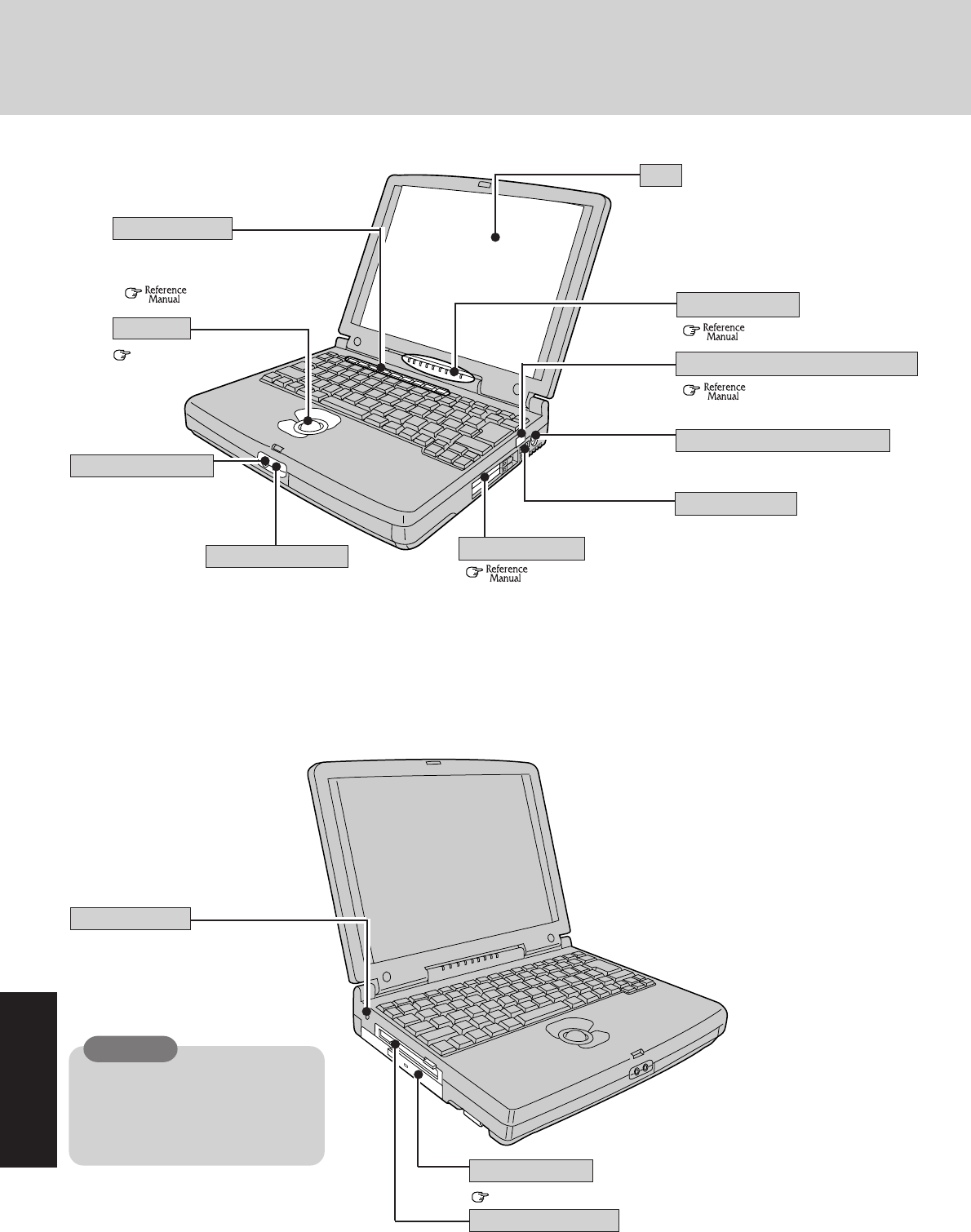
Names and Functions of Parts
page12
( "Using PC Card")
( "LED Indicators")
PC Card Slots
Infrared Communication Port
Ext. Keyboard/Mouse Port
LED Indicators
Power Switch
Reset Button
When resetting your computer, use a
dull pointed object like a ball point pen.
Do not use a pencil. Pencil lead can
break off inside the computer and dam-
age the computer's circuit.
Use this connector to connect
headphones or amplifier-
equipped speakers. Audio out-
put from the internal speaker
is disabled when headphones
or outside speakers are con-
nected.
Headphone Jack
CD-ROM Drive
page 13
Floppy Disk Drive
CAUTION
If a problem occurs but your com-
puter does not lock, we recommend
not resetting the machine. Pressing
the reset button will cause you to lose
data if an application is open.
Microphone Jack
( "Infrared Data
Communications")
For information on the key combi-
nations available.
( "Key Combinations").
Function Keys
Before using the computer for the first
time, carefully read the [Limited Use
License Agreement]. If you agree to
the conditions, remove the seal.
Trackball
LCD
25
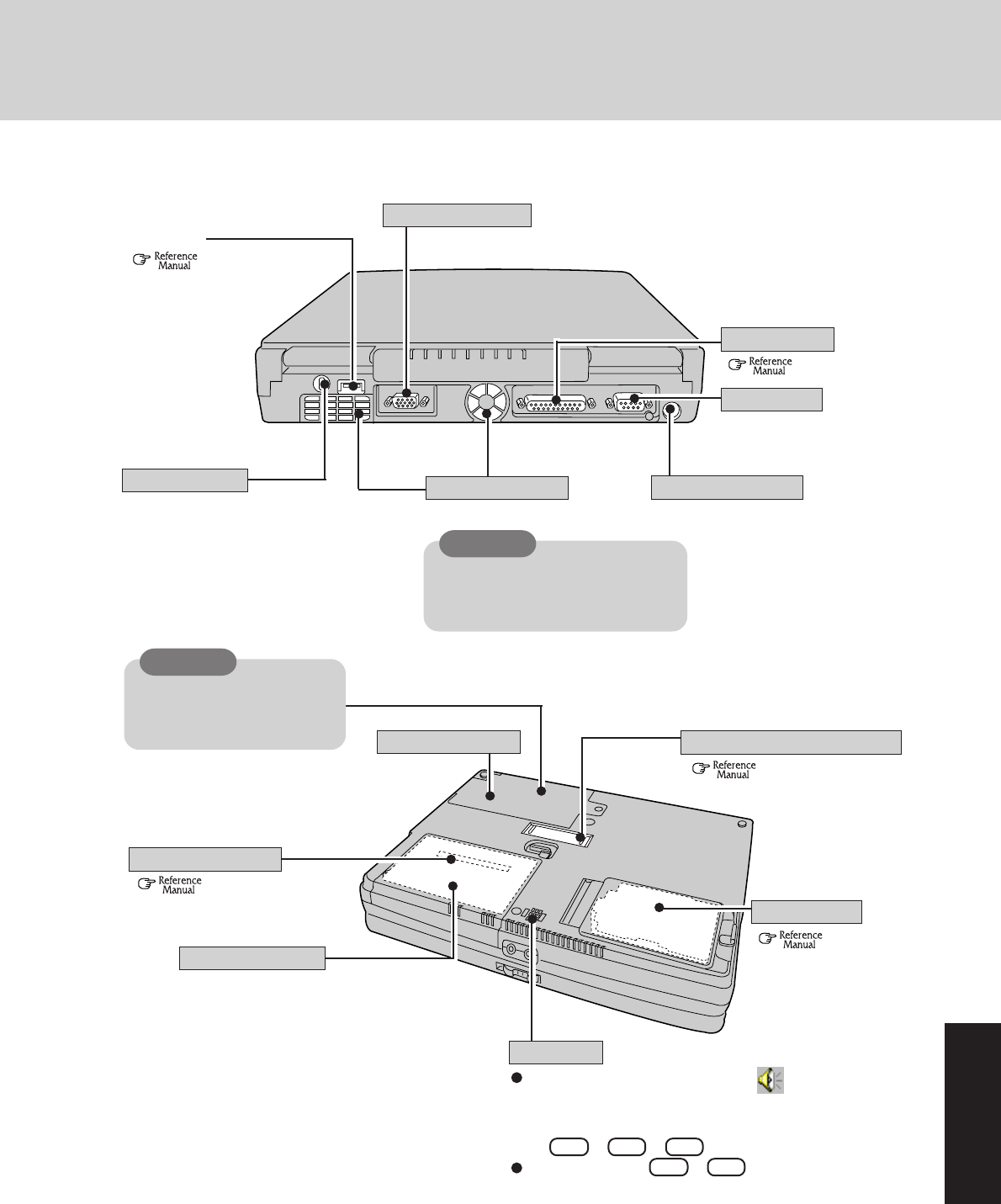
USB Port
DC-IN Connector
Speaker
To adjust the volume*, select the on the task bar,
then [Volume Control].
*You may also use the function keys to perform this operation
( Fn + F5 or F6 ).
Speaker on/off : Fn + F4
Serial Port
Parallel Port
Ext. Display Port
Security Lock
A Kensington cable can be
connected to prevent theft of
your computer. For more in-
formation, please read the
manual that comes with the
cable.
( "Using USB
Devices")
( "Using a Printer")
These holes allow heat to exit.
CAUTION
Do not block or place the computer
in a location that may prevent proper
ventilation.
Ventilation Hole
Battery Pack
( "Battery Power")
Hard Disk Drive
RAM Module Slot
( "Adding Memory")
( "Port Replicator")
Expansion Bus Connector
Ventilation Hole
This cover is not to be opened
by anyone except authorized
service personnel.
CAUTION
26
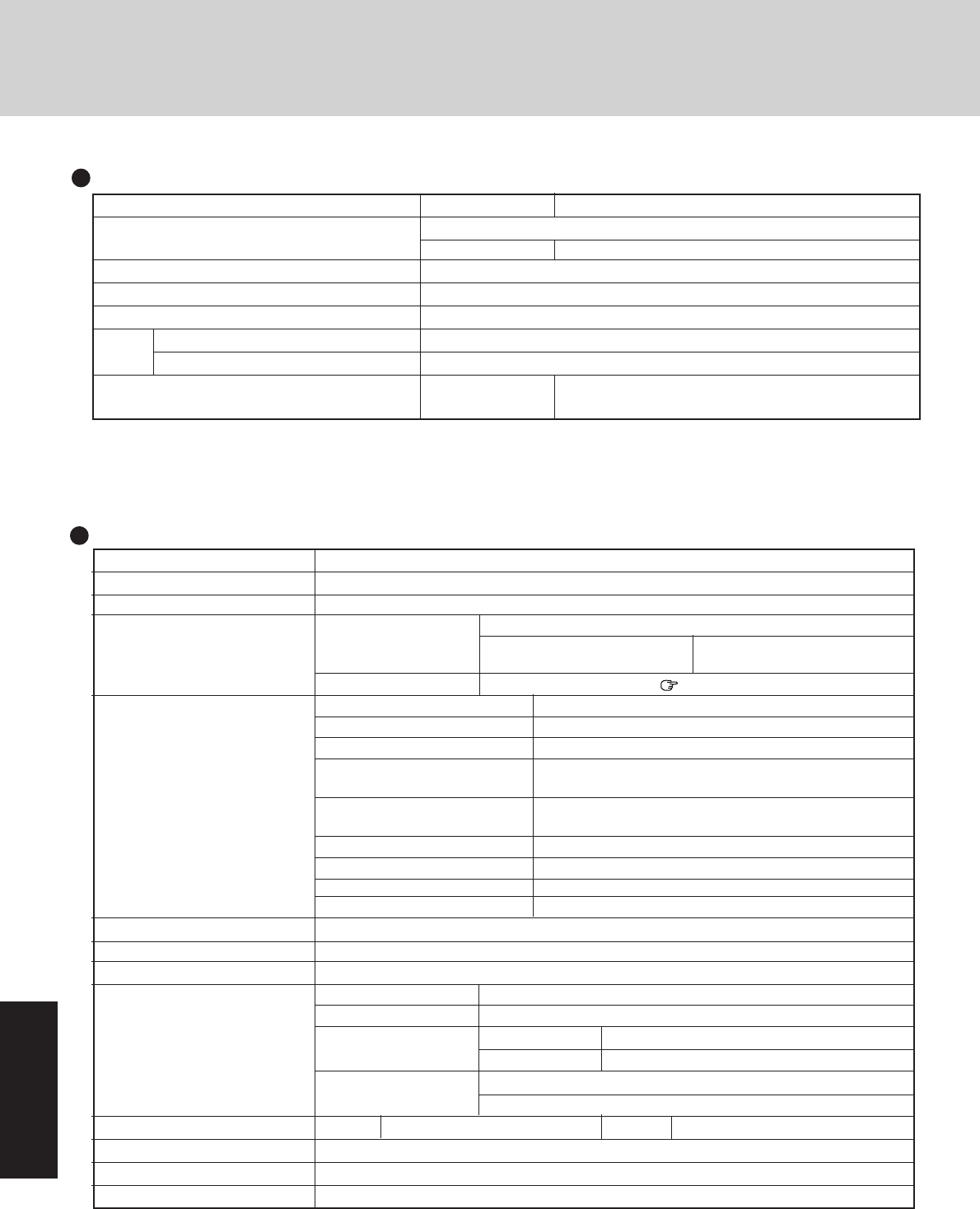
Keyboard Windows 95 keyboard (for U.S.A.: 87 keys)
Floppy Disk Drive 720 KB/1.44 MB (two-mode)
CD-ROM Drive 20X speed (MAX)
PC Card Slots Two Type I or Type II, or one Type III
Slots Allowable current 3.3 V: 400 mA, 5 V: 400 mA,
(total for two slots) 12 V: 120 mA
RAM Module Slot 144-pin, 3.3-V, SO-DIMM page 25
Parallel Port Dsub 25-pin female
Ext. Display Port Mini Dsub 15-pin female
Serial Port Dsub 9-pin male
Microphone Jack Miniature jack, 3.5 DIA
Input impedance 600 Ω, Input voltage range 0.01 Vp-p
Interface Headphone Jack Miniature jack, 3.5 DIA
Impedance 32 Ω, Output Power 4 mW (Impedance 32 Ω) x 2
Infrared Communication Port IrDA 1.1 compliant, 4 Mbps data transmission speed*
Ext. Keyboard/Mouse Port Mini DIN 6-pin female
Expansion Bus Connector Dedicated 100-pin female
USB Connector 4-pin
Pointing Device Optical Trackball (Φ19)
Speaker Mono Speaker (built in)
Sound 16 bits, 44.1 kHz PCM/FM sound (Sound Blaster PRO Compatible)
Battery Pack Lithium Ion 10.8 V, 2300 mAh
Operating Time Approx. 1.0 - 2.5 hours**
Battery Charging Time Power On Approx. 3.5 hours**
Power Off Approx. 2.0 hours**
Clock Battery Coin type lithium battery 3.0 V
Operating Time Approx. 10 years
AC Adapter*** Input 100 -240 V AC, 50 / 60 Hz Output 15.6 V DC, 3.2 / 3.85A
Power Consumption Approx. 55 W**** (maximum when recharging in the ON state)
Physical Dimensions
(W X H X D)
297 mm X 50.7mm X 230 mm (11.7 " X1.9 " X 9.1 ")
Weight Approx. 2.9 kg (Approx. 6.4 lbs)
Specifications
Model No. CF-45MJF8AAM CF-45NJ48AAM/CF-45NJ48JAM/CF-45NJ48JCM
CPU Pentium® Processor with MMXTM technology
200 MHz 233 MHZ
Cache Memory (second cache memory) 32 KB (256 KB)
EDO Memory (Expandable to) 32MB (96 MB Max. )
Video Memory 2 MB
LCD Type 12.1" (TFT)
Displayed Colors* 256/65536/262144 colors (640 x 480 dots/800 x 600 dots)
Hard Disk Drive (including about 200 MB used 2 GB** 4 GB**
specifically by the system)
Main Specifications
Other Specifications
* 800 x 600 16-color resolution is not supported. If this resolution is selected, the message "There is an error in the display
settings" will appear when you reboot. Start up again, selecting 256 Colors, High Color (16 bits), or True Color (24 bits),
following the instructions on the screen.
Besides this phenomenon, you might encounter some unexpected behavior. Do not select 16 color mode in any resolution.
** 1GB = 109 bytes
* Separate communications software is necessary.
** Varies depending on the usage conditions.
*** The AC adapter is compatible with power sources up to 240 V AC adapter.
The unit for North America (identified by the suffix 'M' on the model number) is supplied with a 125 V AC compatible AC cord.
**** Approx. 1.5 W when the battery pack is fully charged (or not being charged) and the computer is OFF.
27
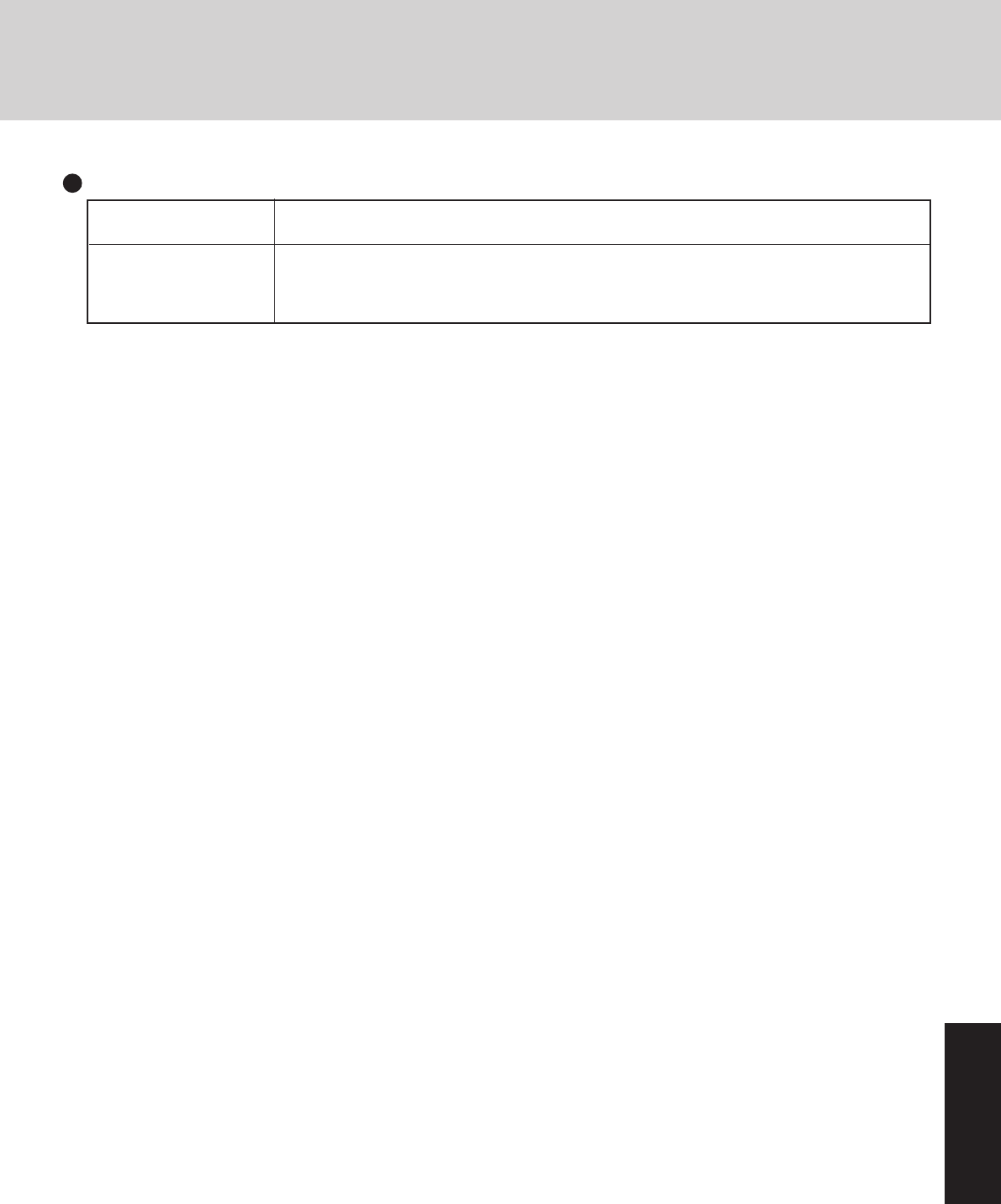
Operating System Microsoft® Windows® 95
(FAT32 File System)
Utility Programs Diagnostics program
Setup Utility
DMI Viewer
PhoenixCard ManagerTM for Windows® 95
Software

Outline of the International ENERGY STAR® Office Equipment Program
As an ENERGY STAR® Partner, Panasonic has determined that this product
meets the ENERGY STAR® guidelines for energy efficiency.
FJ0698-0
DFQX2572ZAPrinted in Japan
The international ENERGY STAR® Office Equipment Program is an international program
that promotes energy saving through the use of computers and other office equipment.
The program backs the development and dissemination of products with functions that
effectively reduce energy consumption. It is an open system in which business proprietors
can participate voluntarily. The targeted products are office equipment such as computers,
displays, printers, facsimiles, and copiers. Their standards and logos are uniform among
participating nations.
