Panasonic DMC TZ3 User Manual DIGITAL CAMERA Manuals And Guides L0704178
PANASONIC Cameras, All Manual L0704178 PANASONIC Cameras, All Owner's Manual, PANASONIC Cameras, All installation guides
User Manual: Panasonic DMC-TZ3 DMC-TZ3 PANASONIC DIGITAL CAMERA - Manuals and Guides View the owners manual for your PANASONIC DIGITAL CAMERA #DMCTZ3. Home:Electronics Parts:Panasonic Parts:Panasonic DIGITAL CAMERA Manual
Open the PDF directly: View PDF  .
.
Page Count: 54
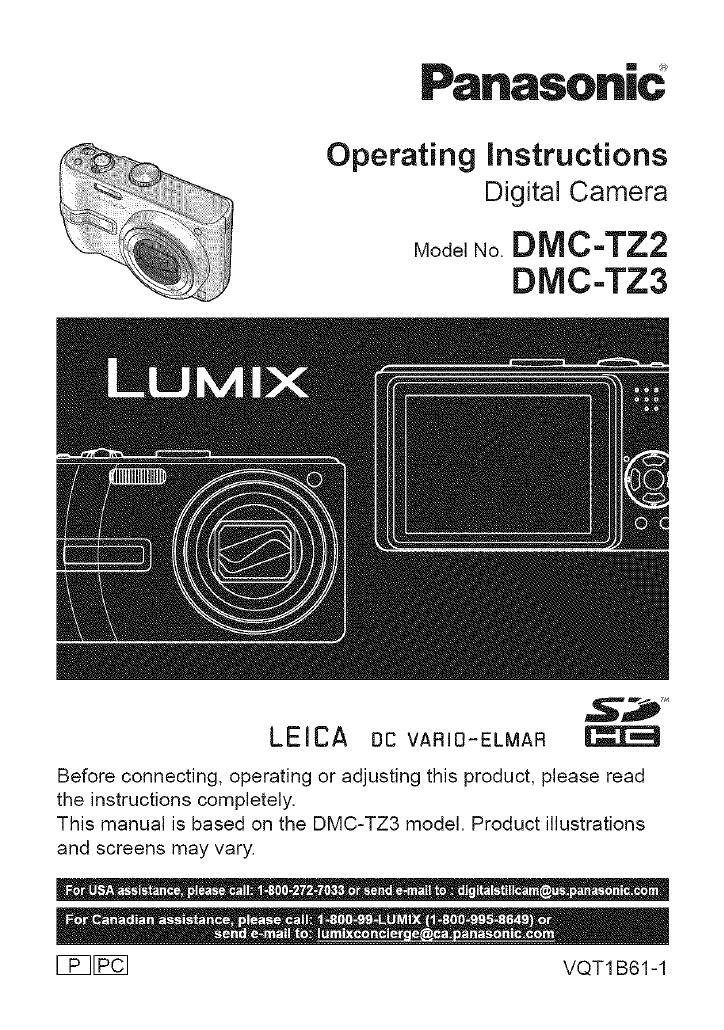
Operating instructions
Digital Camera
Model No. DMC-TZ2
DMC-TZ3
LEICA oc VARIO-ELMAR
Before connecting, operating or adjusting this product, please read
the instructions completely,
This manual is based on the DMC-TZ3 model, Product illustrations
and screens may vary,
I_FP_ VQT1 B61-1
Dear Customer,
Thank you for choosing Panasonic!
You have purchased one of the most
sophisticated and reliable products on the
market today. Used properly, we're sure
it wilt bring you and your family years of
enjoyment. Please take time to fill in the
information below.
The serial number is on the tag located
on the underside of your Camera. Be sure
to retain this manual as your convenient
Camera information source.
I odel No.
Serial No.
TO REDUCE THE RISK OF FIRE,
ELECTRIC SHOCK OR PRODUCT
DAMAGE, :,
• DO NOT EXPOSE THIS APPARATUS ;:
TO RAIN, MOISTURE, DRIPPING :::
OR SPLASHING AND THAT NO ::
OBJECTS FILLED WITH LIQUIDS, ::i
SUCH AS VASES, SHALL BE ;:
PLACED ON THE APPARATUS. ;:
• USE ONLY THE RECOMMENDED ;:
ACCESSORIES. ;:
• DO NOT REMOVE THE COVER ;:
THEREARE NO USER :::(ORBACK);
SERVICEABLE PARTS INSIDE, ::
REFER SERVICING TO QUALIFIED ::
SERVICE PERSONNEL,
Carefully observe copyright laws.
Recording of pre-recorded tapes or
discs or other published or broadcast
material for purposes other than your
own private use may infringe copyright
laws. Even for the purpose of private
use, recording of certain material may
be restricted.
THE SOCKET OUTLET SHALL BE
INSTALLED NEAR THE EQUIPMENT
CAUTION
Danger of explosion if battery is
incorrectly replaced. Replace only
with the same or equivalent type
recommended by the manufacturer,
Dispose of used batteries according to
the manufactureCs instructions,
i Warning I
| Risk of fire, explosion and burns. Do not |
| dis.as?emble, heat above 60 °C (140 °F) |
or incinerate.
.......Markin;s;gn ;siocated on bottom of the :
S unit.
Q A lithium ion/polymer battery that is recyctabte powers the product you
have purchased. Please call 1-800-8-BATTERY for information on how
to recycle this battery.
VQT1B61
THE FOLLOWING APPLIES ONLY iN
THE U.S.A.
FCC Note: (U.S. only)
This equipment has been tested and
found to comply with the limits for a
Class B digital device, pursuant to
Part 15 of the FCC Rules. These limits
are designed to provide reasonable
protection against harmful interference
in a residential installation. This
equipment generates, uses, and can
radiate radio frequency energy and, if
not installed and used in accordance
with the instructions, may cause harmful
interference to radio communications.
However, there is no guarantee that
interference wilt not occur in a particular
installation. If this equipment does
cause harmful interference to radio
or television reception, which can be
determined by turning the equipment off
and on, the user is encouraged to try to
correct the interference by one or more
of the following measures:
*Reorient or relocate the receiving
antenna.
*Increase the separation between the
equipment and receiver.
*Connect the equipment into an outlet
on a circuit different from that to which
the receiver is connected.
*Consult the dealer or an experienced
radio/TV technician for help.
FCC Caution: To assure continued
compliance, follow the
attached installation
instructions and use only
shielded interface cables
with ferrite core when
connecting to computer or
peripheral devices.
Any changes or modifications not
expressly approved by the party
responsible for compliance could void
the user's authority to operate this
equipment.
Declaration of Conformity
Trade Name: Panasonic
Mode! No.: DMC-TZ2
DMC-TZ3
Responsible party: Panasonic
Corporation of
North America One
Panasonic Way,
Secaucus, NJ 07094
Support Contact: Panasonic Consumer
Electronics Company
1-800-272-7033
This device complies with Part 15 of the
FCC Rules. Operation is subject to the
following two conditions: (1) This device
may not cause harmful interference,
and (2) this device must accept any
interference received, including
interference that may cause undesired
operation.
_Panason|c
DMC-TZB
_Pa.asonic
DMC-TZ3
THE FOLLOWING APPLIES ONLY iN
CANADA
This Class B digital apparatus complies
with Canadian ICES-003.
VQT1B61 3
-If you see this symbol-
Information on Disposal in other
Countries outside the European
Union
This symbol is only valid in the
European Union, If you wish to discard
this product, please contact your local
authorities or dealer and ask for the
correct method of disposal,
About the battery pack
Battery pack (Lithium ion battery pack)
• Use the specified unit to recharge the
battery pack.
• Do not use the battery pack with
equipment other than the specified
unit.
• Do not get dirt, sand, liquids, or other
foreign matter on the terminals.
• Do not touch the plug terminals (+ and
-) with metal objects.
• Do not disassemble, remodel, heat or
throw into fire.
If any electrolyte should come into
contact with your hands or clothes, wash
it off thoroughly with water.
If any electrolyte should come into
contact with your eyes, never rub the
eyes. Rinse eyes thoroughly with water,
and then consult a doctor.
About the battery charger
CAUTION!
DO NOT INSTALL OR PLACE THIS
UNIT IN A BOOKCASE, BUILT-
IN CABINET OR IN ANOTHER
CONFINED SPACE. ENSURE THE
UNIT IS WELL VENTILATED. TO
PREVENT RISK OF ELECTRIC
SHOCK OR FIRE HAZARD DUE
TO OVERHEATING, ENSURE
THAT CURTAINS AND ANY OTHER
MATERIALS DO NOT OBSTRUCT THE
VENTILATION VENTS.
Battery charger
This battery charger operates on AC
between I10V and 240 V.
But
• In the U.S.A. and Canada, the battery
charger must be connected to a 120V
AC power supply only.
• When connecting to an AC supply
outside of the U.S.A. or Canada, use
a plug adaptor to suit the AC outlet
configuration.
Example screens displayed in this manual are for DMC-TZ3 model.
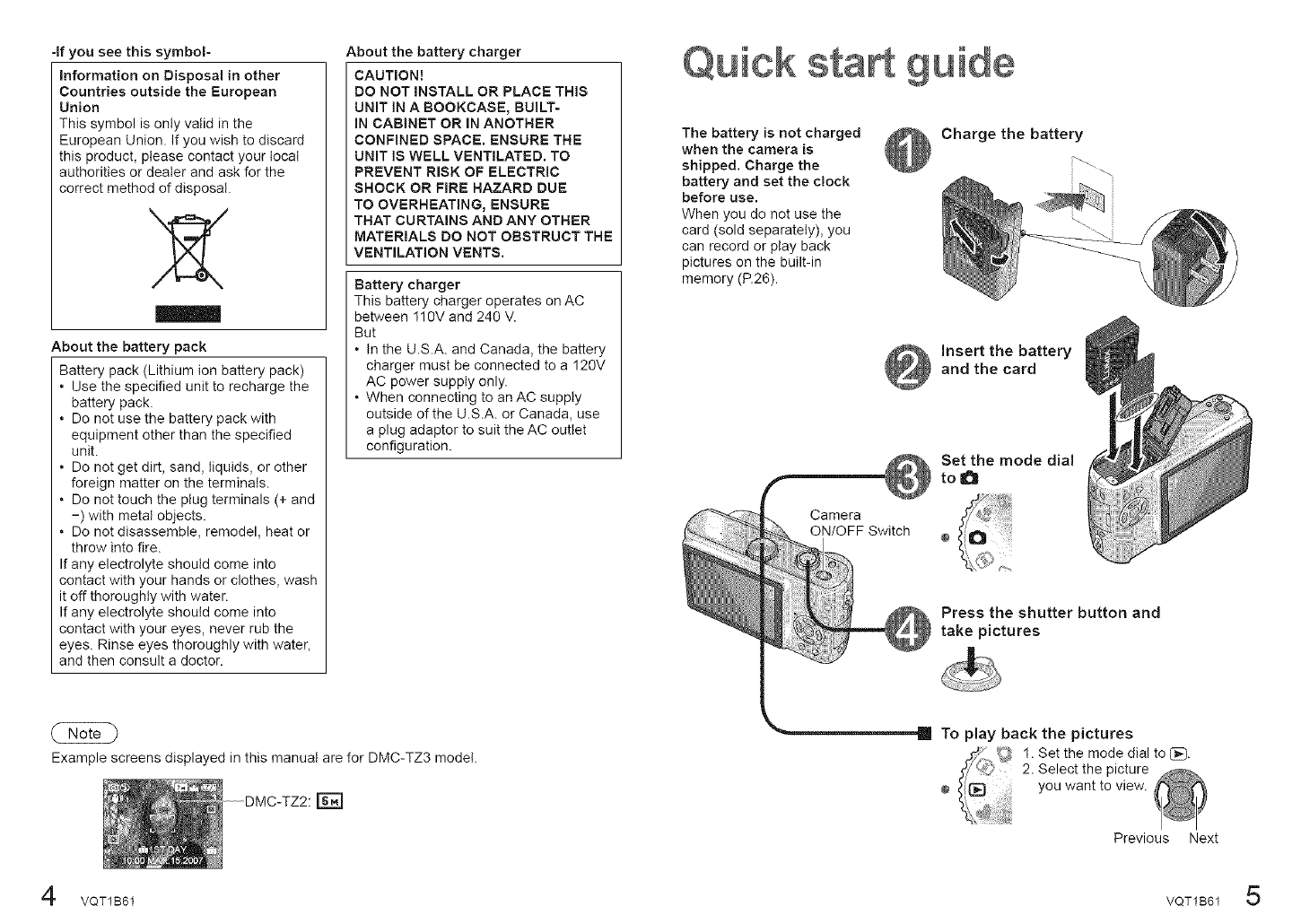
The battery is not charged
when the camera is
shipped. Charge the
battery and set the clock
before use.
When you do not use the
card (sold separately), you
can record or play back
pictures on the built-in
memory (P.26).
Camera
ON/OFF Switch
Charge the battery
Insert the battery
and the card
Set the mode dial
to O
Press the shutter button and
take pictures
To play back the pictures
1. Set the mode dial to I_.
2. Select the picture
you want to view.
Previous Next
VQT1B61 VQT1B61 5
VJeW save precious moments°
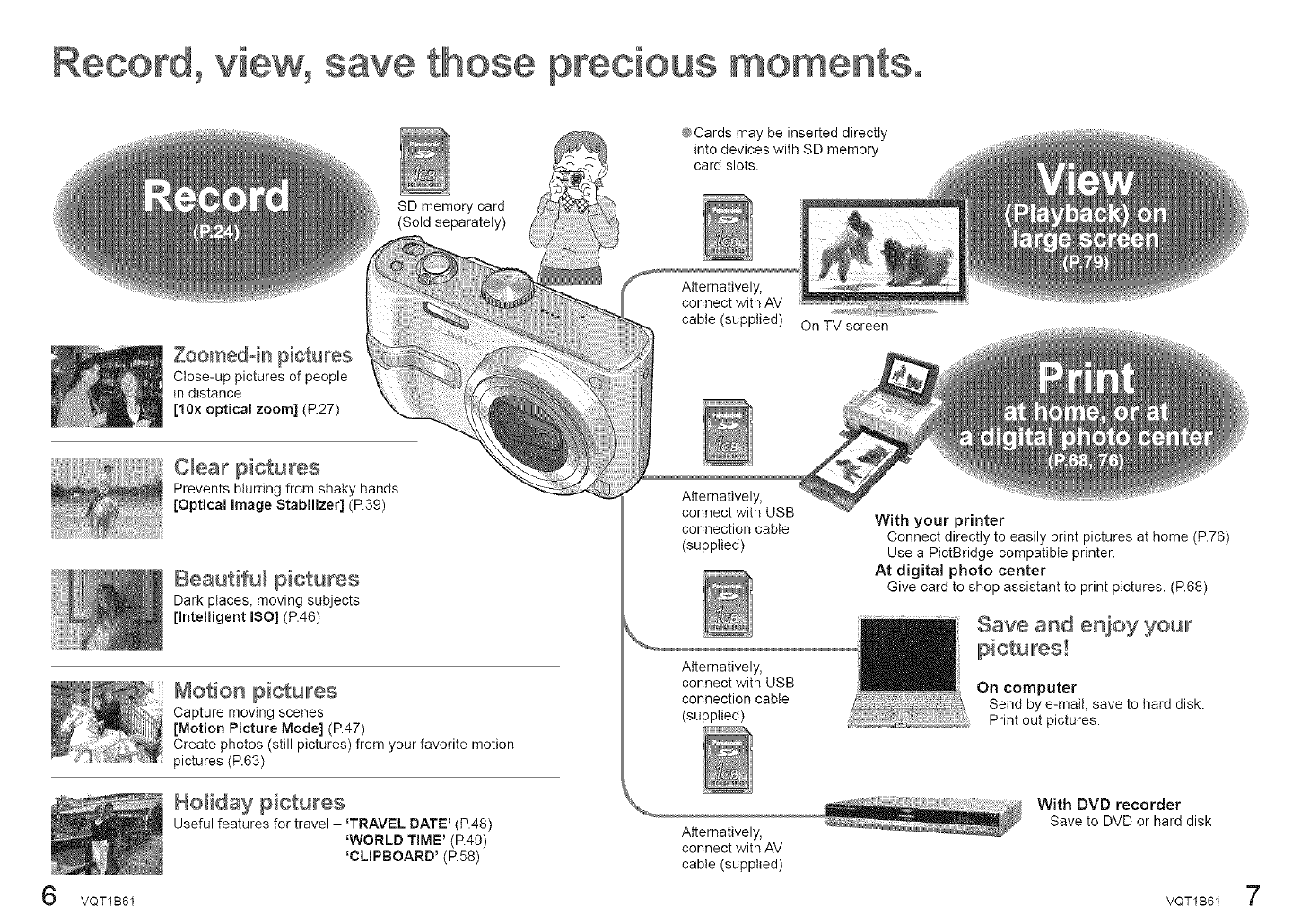
SD memory card
(Sold separately)
@Cards may be inserted directly
into devices with SD memory
card slots.
Zoomedoin pictures
Close-up pictures of people
in distance
[10x optical zoom] (P.27)
Alternatively,
connect with AV
cable (supplied) On TV screen
C_ear pictures
Prevents blurring from shaky hands
[Optical image Stabilizer] (P.39)
Beautifu_ pictures
Dark places, moving subjects
[Intelligent ISO] (P.46)
#_otion pictures
Capture moving scenes
[Motion Picture Mode] (R47)
Create photos (still pictures) from your favorite motion
pictures (P.63)
Holiday pictures
Useful features for travel - 'TRAVEL DATE' (P.48)
'WORLD TIME' (P.49)
'CLIPBOARD' (P.58)
Alternatively,
connect with USB
connection cable
(supplied)
Alternatively,
connect with USB
connection cable
(supplied)
Alternatively,
connect with AV
cable (supplied)
With your printer
Connect directly to easily print pictures at home (P.76)
Use a PictBridge-compatible printer.
At digital photo center
Give card to shop assistant to print pictures. (P.68)
Save and enioy your
On computer
Send by e-mail, save to hard disk.
Print out pictures.
With DVD recorder
Save to DVDor hard disk
VQT1B61 VQT1B61 7
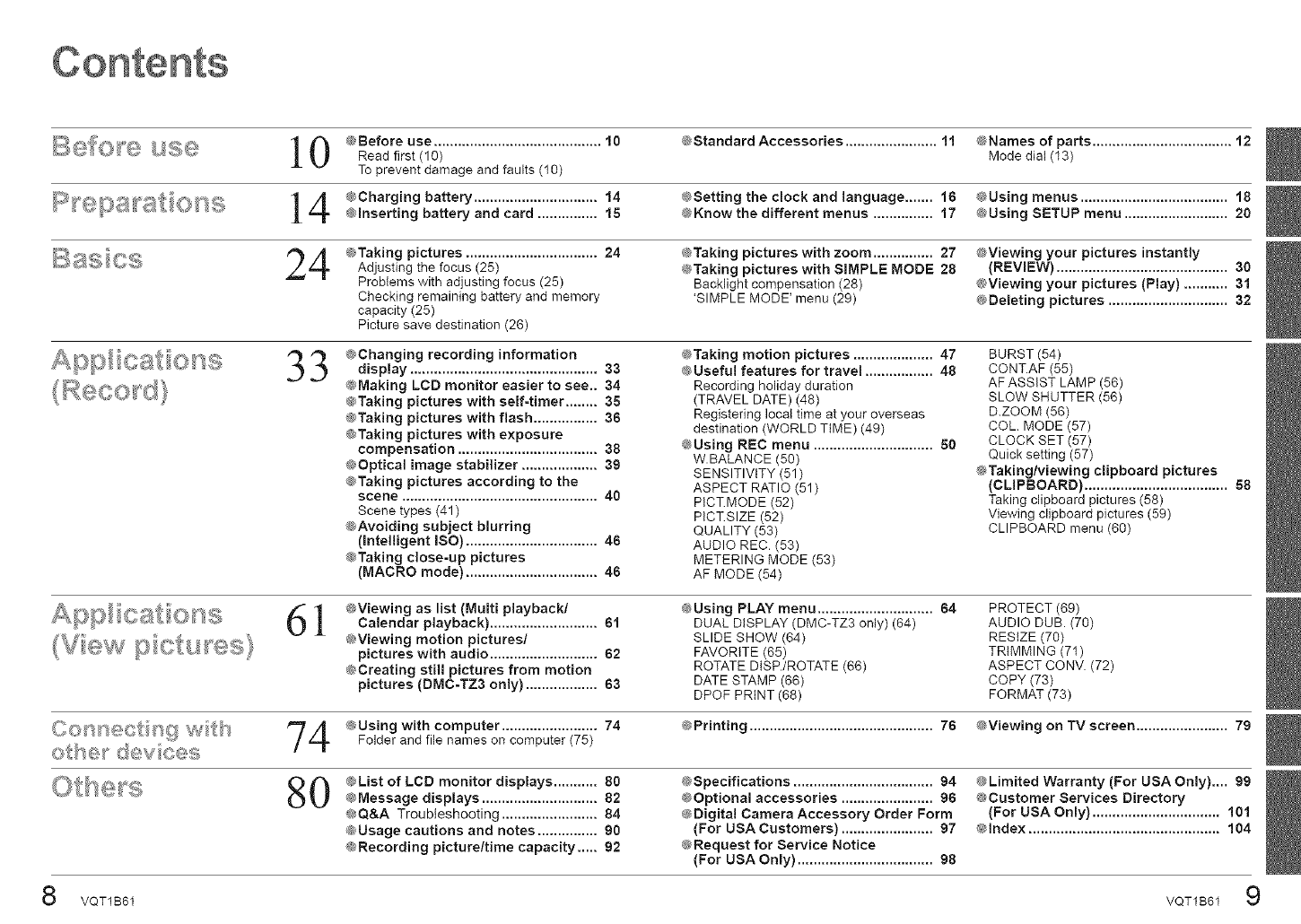
_:_?{_ _,_,_ _ _;_;_,:? ®_Before use .......................................... 10 @Standard Accessories ....................... 11 @Names of parts ................................... 12
......._'"_'+_"J'_'" _J_'_".'__'" Read first (10) Mode dial (13)
To prevent damage and faults (10)
4 Charging battery ............................... 14 @Setting the clock and language ....... 16 @Using menus ..................................... 18
@Inserting battery and card ............... 15 @Know the different menus ............... 17 Using SETUP menu .......................... 20
4 _Taking pictures ................................. 24 @Taking pictures with zoom ............... 27 @Viewing your pictures instantly
Adjusting the focus (25) @Taking pictures with SIMPLE MODE 28 (REVIEW) ........................................... 30
Problems with adjusting focus (25) Backlight compensation (28) @Viewing your pictures (Play) ........... 3!
Checking remaining battery and memory 'SIMPLE MODE' menu (29) @Deleting pictures .............................. 32
capacity (25)
Picture save destination (26)
,_ _ @Changing recording information @Taking motion pictures .................... 47 BURST (54)
.3 .3 display ............................................... 33 @Usefu! features for travel ................. 48 CONT.AF (55)
@Making LCD monitor easier to see.. 34 Recording holiday duration AFASSIST LAMP (56)
@Taking pictures with self-timer ........ 35 (TRAVEL DATE) (46) SLOW SHUTTER (56)
@Taking pictures with flash ................ 36 Registering local time at your overseas D.ZOOM (56)
@Taking pictures with exposure destination (WORLD TIME) (49) COL. MODE (57)
compensation ................................... 38 @Using REC menu .............................. 50 CLOCK SET (57)
@Optical image stabilizer ................... 39 W BALANCE (50)
SENSITIVITY (51)
@Taking pictures according to the ASPECT RATIO (51)
scene ................................................. 40 PICT.MODE (52)
Scene types (41) PICT.SIZE (52)
@Avoiding subject blurring QUALITY (53)
(Intelligent ISO) ................................. 46 AUDIO REC (53)
@Taking close-up pictures METERING MODE (53)
(MACRO mode) ................................. 46 AF MODE (54)
61 @Viewing as list (Multi playback/
Calendar playback) ........................... 61
@Viewing motion pictures/
pictures with audio ........................... 62
@Creating still pictures from motion
pictures (DMC-TZ3 only) .................. 63
@Using PLAY menu ............................. 64
DUAL DISPLAY (DMC-TZ3 only) (64)
SLIDE SHOW (64)
FAVORITE (65)
ROTATE DISP./ROTATE (66)
DATE STAMP (66)
DPOF PRINT (68)
Quick sett)ng (57)
@Taking/viewing clipboard pictures
(CL(PBOARD) .................................... 58
Taking clipboard pictures (58)
Viewing clipboard pictures (59)
CLIPBOARD menu (60)
PROTECT (69)
AUDIO DUB. (70)
RESIZE (70)
TRIMMING (71)
ASPECT CONV. (72)
COPY (73)
FORMAT (73)
4 @Using with computer ........................ 74 @Printing .............................................. 76 @Viewing on TV screen ....................... 79
Folder and file names on computer (75)
@List of LCD monitor displays ........... 80
@Message displays ............................. 82
@Q&A Troubleshooting ........................ 84
@Usage cautions and notes ............... 90
@Recording picture/time capacity ..... 92
@Specifications ................................... 94
@Optional accessories ....................... 96
@Digital Camera Accessory Order Form
(For USA Customers) ....................... 97
@Request for Service Notice
(For USA Only) .................................. 98
@Limited Warranty (For USA Only).... 99
@Customer Services Directory
(For USA Only) ................................ 10!
@Index ................................................ 104
8O
VQT1B61 VQT1B61 9
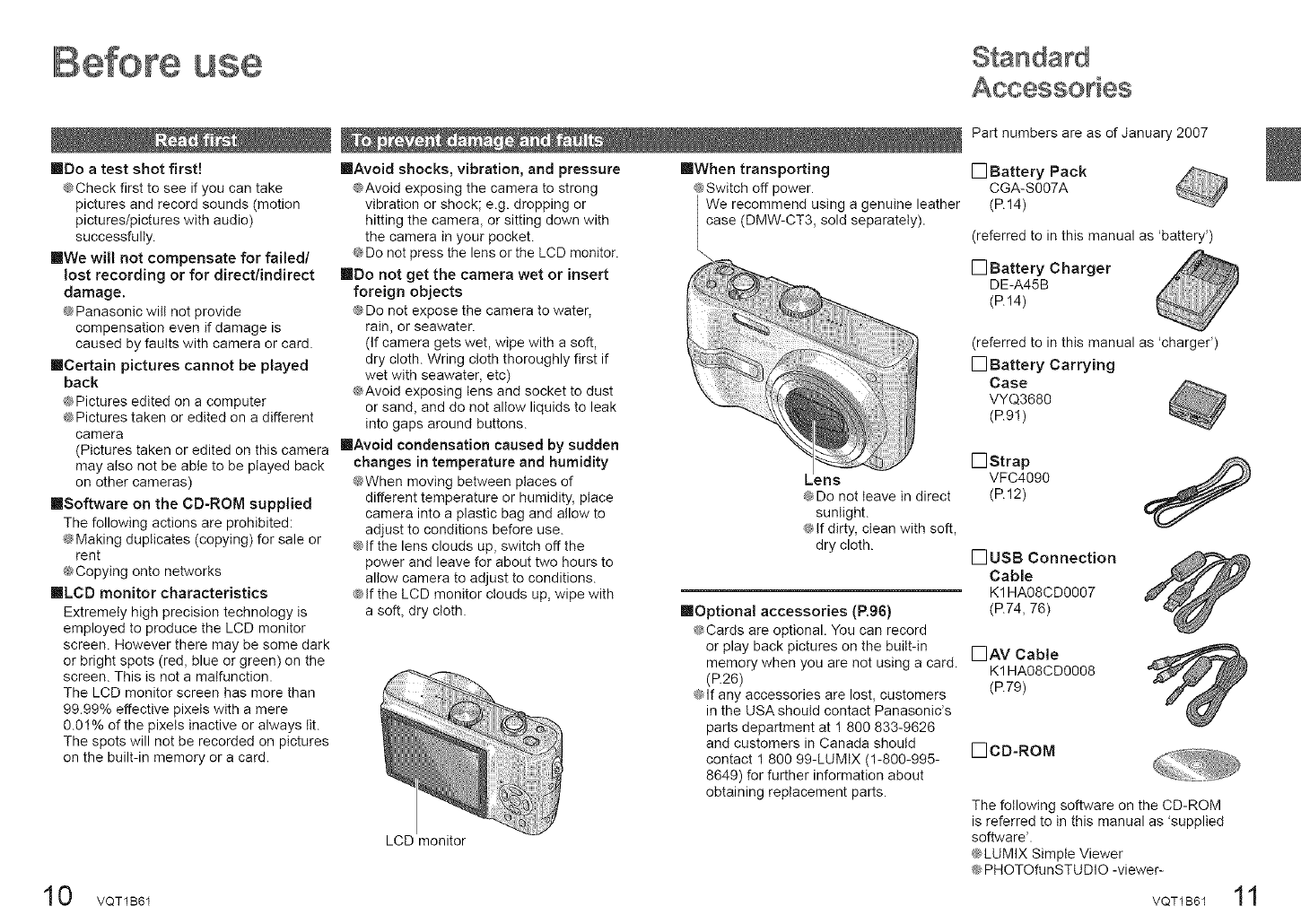
Part numbers are as of January 2007
IIBo atest shot first!
@Check first to see if you can take
pictures and record sounds (motion
pictures/pictures with audio)
successfully.
[]We will not compensate for failed/
lost recording or for direct/indirect
damage.
@Panasonic will not provide
compensation even if damage is
caused by faults with camera or card.
mCertain pictures cannot be played
back
@Pictures edited on a computer
@Pictures taken or edited on a different
camera
IIAvoid shocks, vibration, and pressure
@Avoid exposing the camera to strong
vibration or shock; e.g. dropping or
hitting the camera, or sitting down with
the camera in your pocket.
@Do not press the lens or the LCD monitor.
[]Do not get the camera wet or insert
foreign objects
@Do not expose the camera to water,
rain, or seawater.
(If camera gets wet, wipe with a soft,
dry cloth. Wring cloth thoroughly first if
wet with seawater, etc)
@Avoid exposing lens and socket to dust
or sand, and do not allow liquids to leak
into gaps around buttons.
(Pictures taken or edited on this camera IIAvoid condensation caused by sudden
may also not be able to be played back
on other cameras)
IISoftware on the CB-ROM supplied
The following actions are prohibited:
@Making duplicates (copying) for sale or
rent
@Copying onto networks
[LCD monitor characteristics
Extremely high precision technology is
employed to produce the LCD monitor
screen. However there may be some dark
or bright spots (red, blue or green) on the
screen. This is not a malfunction.
The LCD monitor screen has more than
99.99% effective pixels with a mere
0.01% of the pixels inactive or always lit.
The spots will not be recorded on pictures
on the built-in memory or a card.
changes in temperature and humidity
@When moving between places of
different temperature or humidity, place
camera into a plastic bag and allow to
adjust to conditions before use.
@If the lens clouds up, switch off the
power and leave for about two hours to
allow camera to adjust to conditions.
@if the LCD monitor clouds up, wipe with
a soft, dry cloth.
LCD monitor
0 VQT1B61
IIWhen transporting
@Switch off power.
We recommend using a genuine leather
case (DMW-CT3, sold separately).
@
__ens _
@Do not leave in direct
sunlight.
_NIfdirty, clean with soft,
dry cloth.
[] Battery Pack
CGA-S007A
(R14)
(referred to in this manual as 'battery')
[] Battery Charger
DE-A45B
(R14)
(referred to in this manual as 'charger')
[] Battery Carrying
Case
VYQ3680
(R91)
[] Strap
VFC4090
(P.12)
[Optional accessories (R96)
@Cards are optional. You can record
or play back pictures on the built-in []AV Cable
memory when you are not using a card. K1HA08CD0008
[]USB Connection
Cable
K1HA08CD0007
(R74, 76)
(R79)
[]CD-ROM
(R26)
@If any accessories are lost, customers
in the USA should contact Panasonic's
parts department at 1 800 833-9626
and customers in Canada should
contact 1 800 99-LUMIX (1-800-995-
8649) for further information about
obtaining replacement parts. The following software on the CD-ROM
is referred to in this manual as 'supplied
software'.
@LUMIX Simple Viewer
@PHOTOfunSTUDIO -viewer-
VQT1B61 11
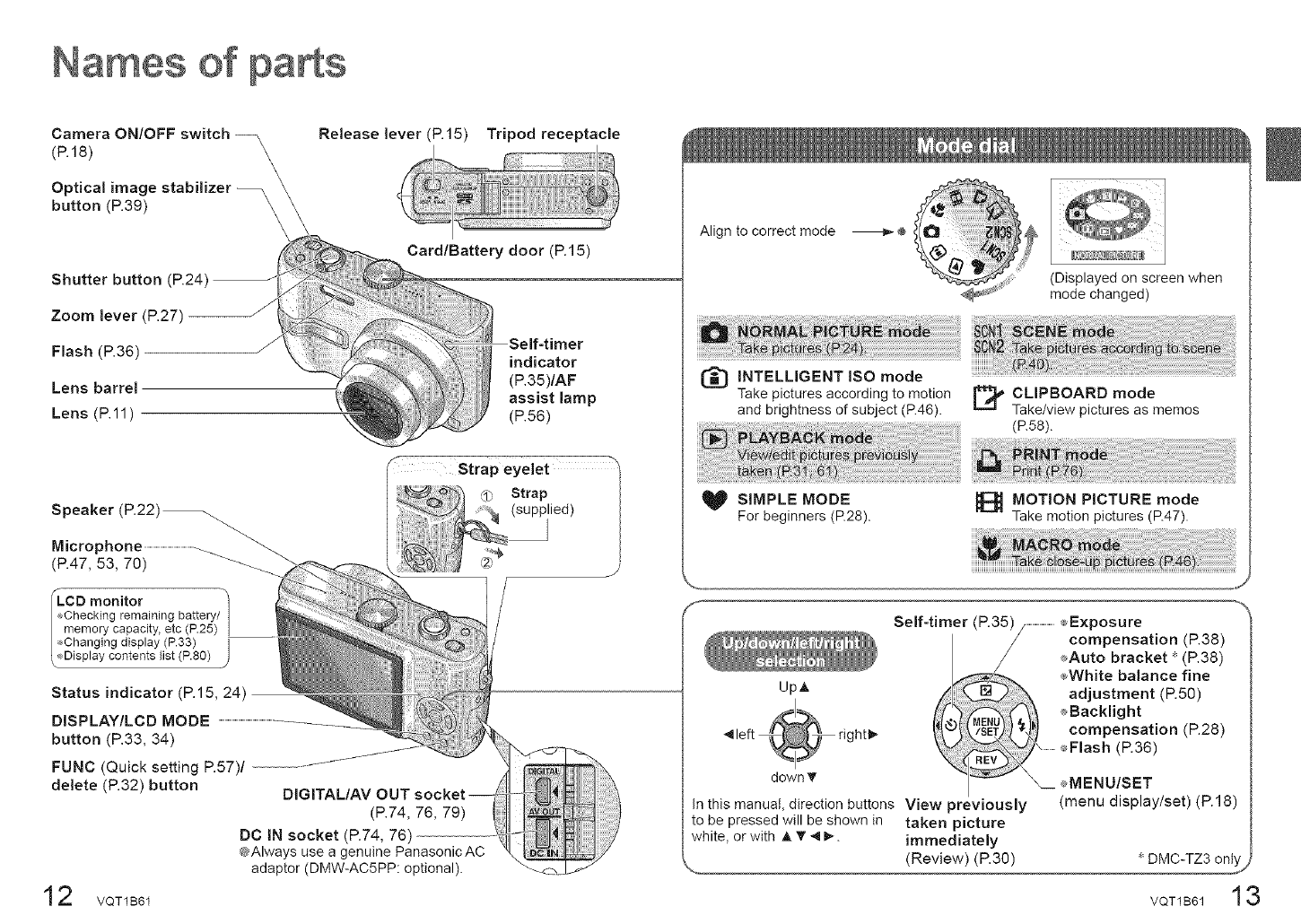
Camera ON/OFF switch
(P.18)
Optical image stabilizer
button (P.39) \
Release lever (P.15) Tripod receptacle
Shutter button (P.24)
Zoom lever (P.27)
Flash (P.36)
Lens barrel
Lens (P.11)
Speaker (P.22)_
Microphone ...............................................
(P.47, 53, 70)
Card/Battery door (P.15)
i!!i!!!J_ii _
lamp
/- Strap eyelet _
_ Strap
(supplied)
1
CD monitor
hecking remaining battery/
memory capacity, etc (P.25)
Changing display (P.33) I
Display contents list (P.80) .)
Status indicator (R15, 24)
DISPLAY/LCD MODE
button (R33, 34)
FUNC (Quick setting P.57)/
delete (R32) button
2VQT1B61
DIGITAL/AV OUT
(P.74, 76, 79)
DO IN socket (P.74, 76)
_Always use a genuine PanasonicAC
adaptor (DMW-AC5PP: optional).
Align to correct mode _÷
(Displayed on screen when
_/_ mode changed)
r_ INTELLIGENT ISO mode
Take pictures according to motion
and brightness of subject (P.46).
SIMPLE MODE
For beginners (P.28).
@ CLIPBOARD mode
Take/view pictures as memos
(P.58).
_C_ MOTION PICTURE mode
Take motion pictures (P.47).
UpA
J
Self-timer (P.35) /..........................._ Exposure
/compensation (P.38)
_Auto bracket (P.38)
_White balance fine
adjustment (P.50)
_Backlight
compensation (P.28)
.............eFlash (P.36)
_ _,MENU/SET
)reviously (menu display/set) (P.18)
picture
white, or with A V"_1_. immediately
(Review) (P.30) " DMC-TZ3 only
13
rightl_
down T
In this manual, direction buttons View
to be pressed will be shown in taken
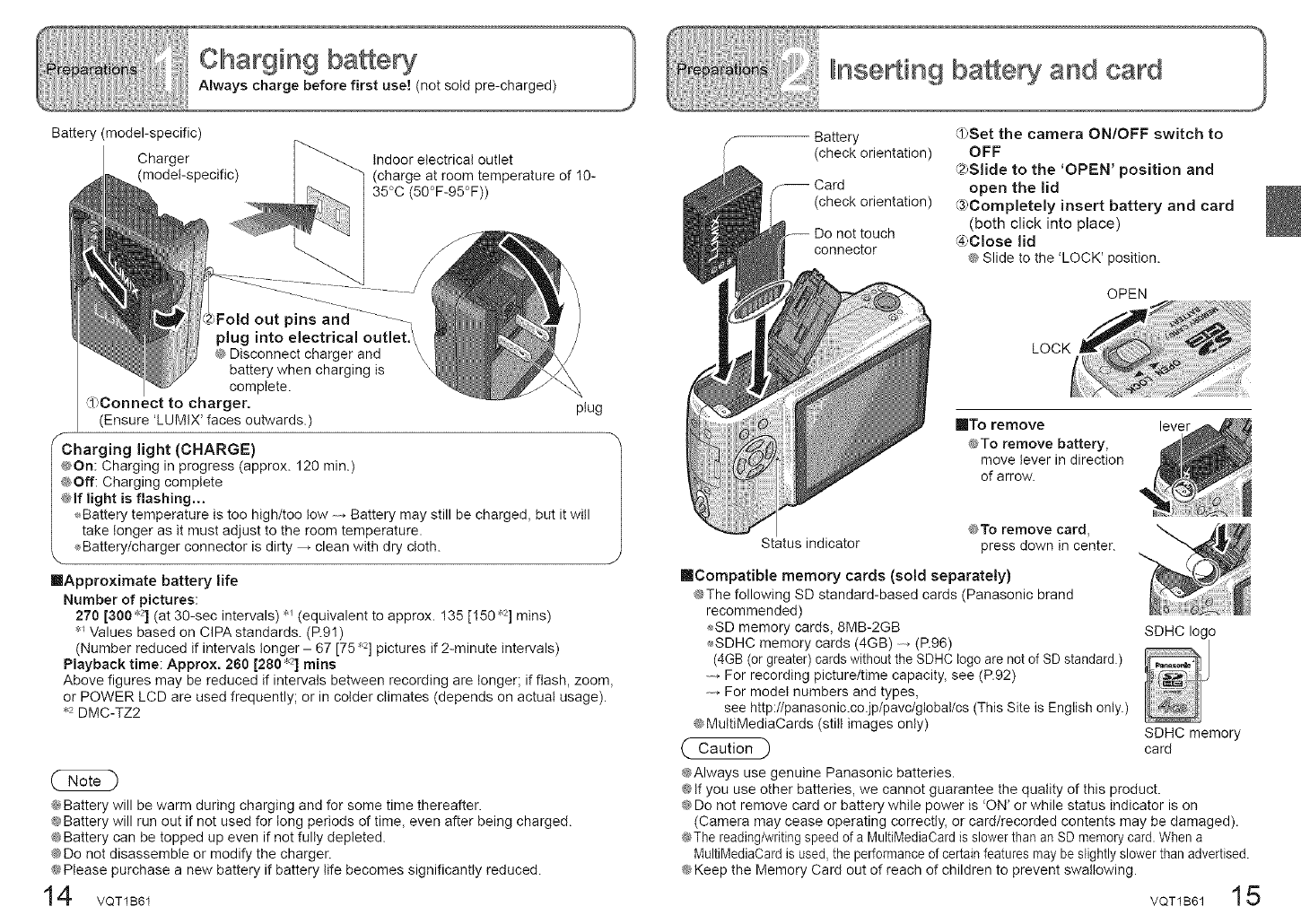
Battery(model-specific)
Charger
(model-specific) Indoorelectricaloutlet
(chargeatroomtemperatureofI0-
35°C(50°F-95°F))
batterywhenchargingis
complete.
(Ensure'LUMIX' faces outwards.) plug
light (CHARGE) l
@On: Charging in progress (approx. 120 min.)
@Off: Charging complete
@if light is flashing.,.
_,,Battery temperature is too high/too tow ,Battery may still be charged, but it witl
take longer as it must adjust to the room temperature.
®Battery/charger connector is dirty ,clean with dry cloth.
[Approximate battery life
Number of pictures:
270 [300 _2] (at 30-sec intervals) _ (equivalent to approx. I35 [150 _2] mins)
_ Values based on CIPA standards. (R91)
(Number reduced if intervals longer - 67 [75 _,2]pictures if 2-minute intervals)
Playback time: Approx. 280 [280 _2] mins
Above figures may be reduced if intervals between recording are longer; if flash, zoom,
or POWER LCD are used frequently; or in colder climates (depends on actual usage).
•2 DMC-TZ2
(2 Z)
@Battery will be warm during charging and for some time thereafter.
@Battery will run out if not used for tong periods of time, even after being charged.
@Battery can be topped up even if not fully depleted.
@Do not disassemble or modify the charger.
@Please purchase a new battery if battery tife becomes significantly reduced.
14 VOT1B61
Battery
(check orientation)
Card
(check orientation)
Do not touch
connector
@Set the camera ON/OFF switch to
OFF
@2)Slide to the 'OPEN' position and
open the lid
@Completely insert battery and card
(both click into place)
@Close lid
_ Slide to the 'LOCK' position.
OPEN
LOCK
[]To remove
@To remove battery,
move lever in direction
of arrow.
lever
Status indicator @To remove card,
press down in center.
[Compatible memory cards (sold separately)
@The following SD standard-based cards (Panasonic brand
recommended)
SD memory cards, 8MB-2GB SDHC logo
_SDHC memory cards (4GB) , (R96)
(4GB (or greater) cards without the SDHC logo are not of SD standard.)
For recording picture/time capacity, see (P.92)
,For model numbers and types,
see http:llpanasonic.co.jplpavclgloballcs (This Site is English only.)
@MuttiMediaCards (still images only) SDHC memory
( Caution _ card
@Always use genuine Panasonic batteries.
@tf you use other batteries, we cannot guarantee the quality of this product.
@Do not remove card or battery while power is 'ON' or while status indicator is on
(Camera may cease operating correctly, or card/recorded contents may be damaged).
_ The reading/writing speed of a MultiMediaCard is slower than an SD memory card. When a
MultiMediaCard is used, the performance of certain features may be slightly slower than advertised.
@Keep the Memory Card out of reach of children to prevent swallowing. VOT1B6 15
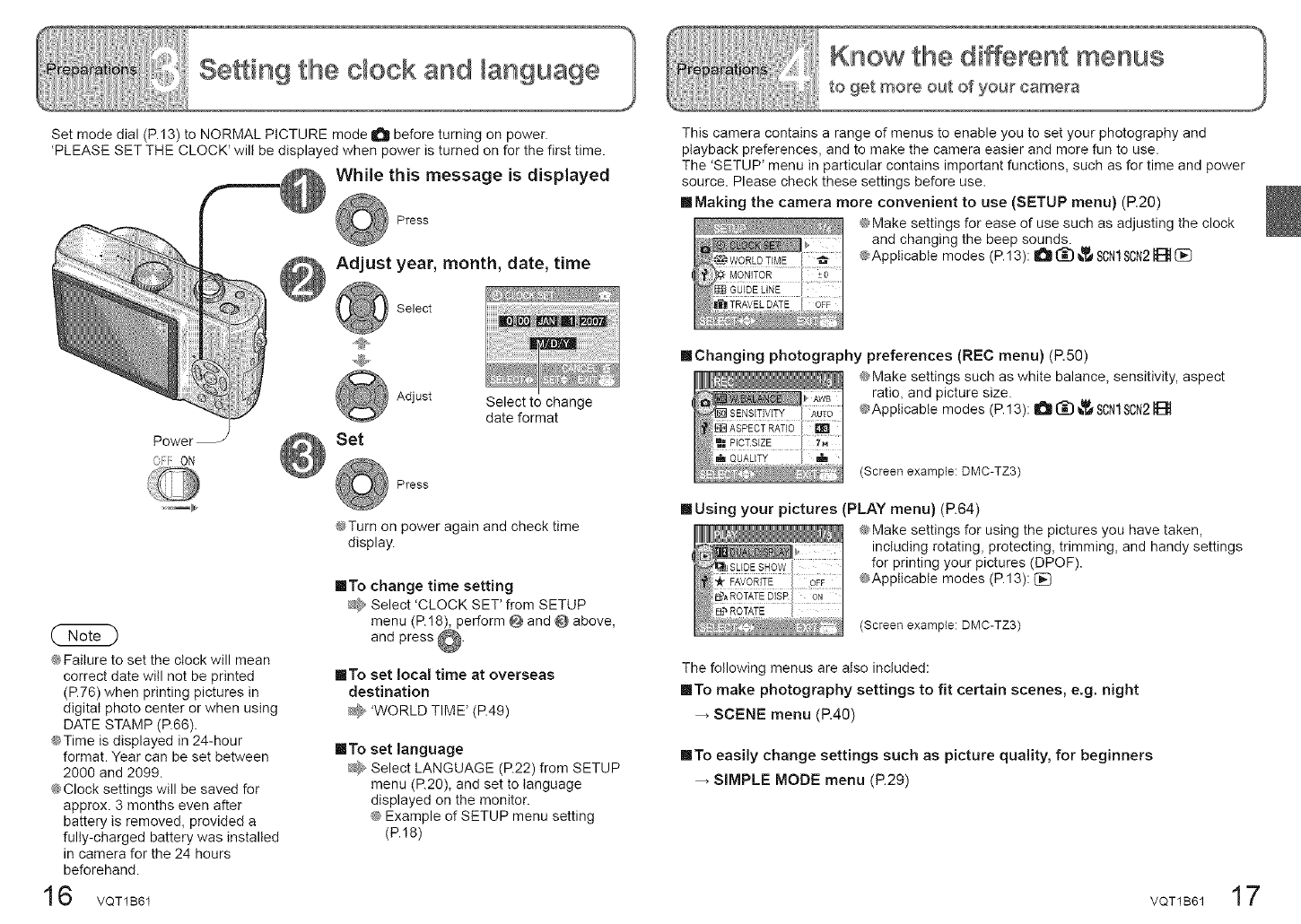
Set mode dial (P.13)to NORMAL PICTURE mode I_! before turning on power.
'PLEASE SET THE CLOCK' will be displayed when power is turned on for the first time.
While this message is displayed
Press
Power
C: ON
Adjust year, month, date, time
Select
Set
Adjust Select to change
date format
Press
@Turn on power again and check time
display.
@Failure to set the clock will mean
correct date will not be printed
(R76) when printing pictures in
digital photo center or when using
DATE STAMP (P.66).
@Time is displayed in 24-hour
format. Year can be set between
2000 and 2099.
@Clock settings will be saved for
approx. 3 months even after
battery is removed, provided a
fully-charged battery was installed
in camera for the 24 hours
beforehand.
16 voT1B61
IIITo change time setting
Ab Select 'CLOCK SET' from SETUP
menu (P.18), perform @ and @ above,
and press @.
IITo set local time at overseas
destination
_;_ 'WORLD TIME' (P.49)
IITo set language
_ Select LANGUAGE (R22) from SETUP
menu (R20), and set to language
displayed on the monitor.
@ Example of SETUP menu setting
(PJ8)
This camera contains a range of menus to enable you to set your photography and
playback preferences, and to make the camera easier and more fun to use.
The 'SETUP' menu in particular contains important functions, such as for time and power
source. Please check these settings before use.
remaking the camera more convenient to use (SETUP menu) (R20)
@Make settings for ease of use such as adjusting the clock
and changing the beep sounds.
@Applicable modes (P. 13): I_1 _ _,_ SON1SCN2HE_
mChanging photography preferences (RED menu) (R50)
@Make settings such as white balance, sensitivity, aspect
ratio, and picture size.
_Applicable modes (P.13): O _ _,_ SON1SCN2
(Screen exampEe: DMC-TZ3)
mUsing your pictures (PLAY menu) (P.64)
@Make settings for using the pictures you have taken,
including rotating, protecting, trimming, and handy settings
for printing your pictures (DPOF).
@Applicable modes (P.13):
(Screen exampEe: DMC-TZ3)
The following menus are also included:
IIITo make photography settings to fit certain scenes, e.g. night
SCENE menu (P.40)
IlTo easily change settings such as picture quality, for beginners
SIMPLE MODE menu (P.29)
VQT1B61 17
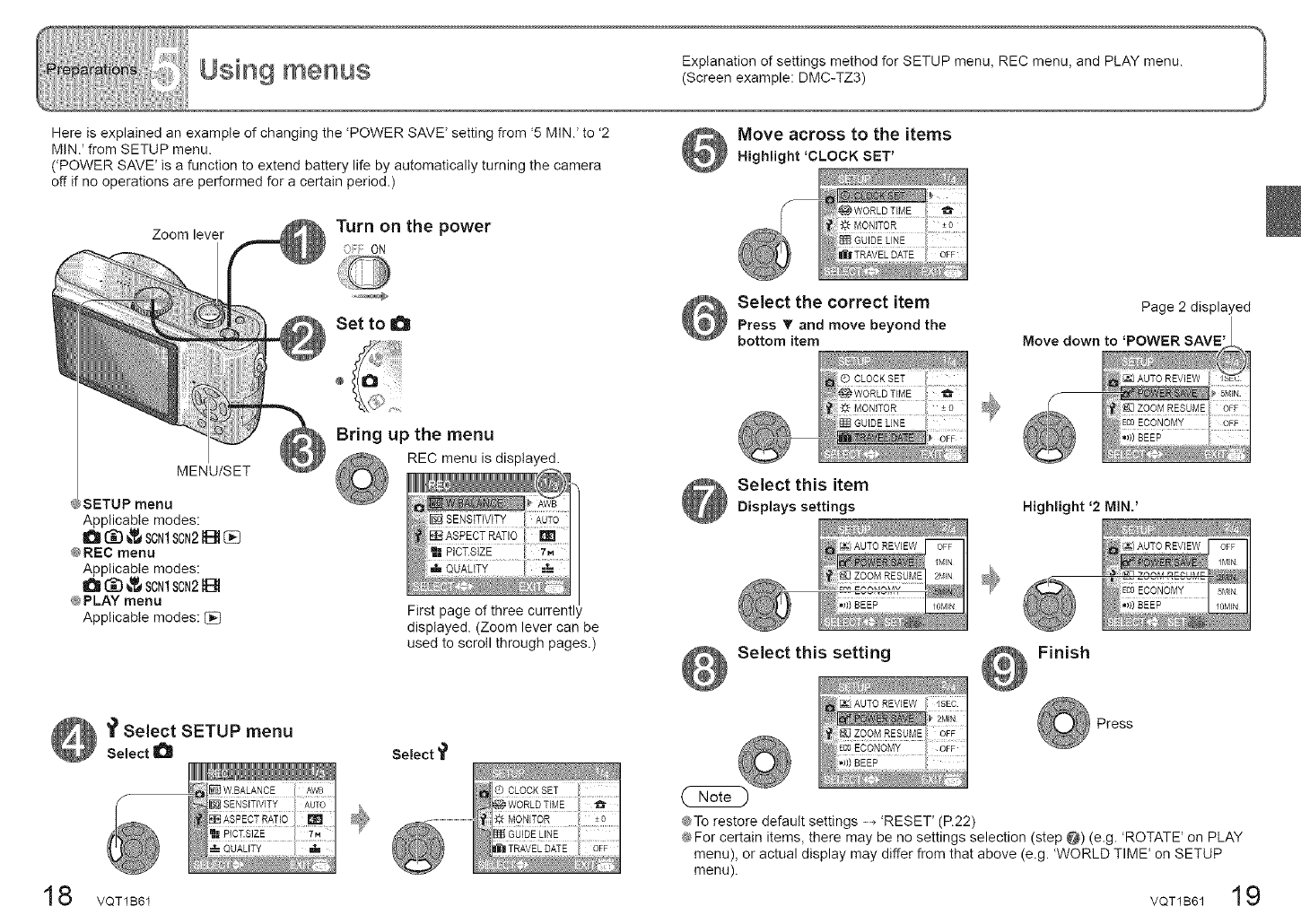
Here is explained an example of changing the 'POWER SAVE _setting from '5 MINJ to '2
MIN.' from SETUP menu.
(POWER SAVE _is a function to extend battery life by automatically turning the camera
off if no operations are performed for a certain period.)
Zoom lever Turn on the power
Oi:F ON
Set to O
MENU/SET
SETUP menu
Applicablemodes:
0 t_3 _,_ SCN1SCN2B I_
@REC menu
Applicable modes:
0 _ _,_ SCNISCN28
@PLAY menu
Applicable modes: _]
Bring up the menu
REC menu is displayed.llU (@1
_:: i QUALITY I =t..
First page of three currentl
displayed. (Zoom lever can be
used to scroll through pages.)
"?Select SETUP menu
Select Select '1_
TR_ELD_E
8 VQT1B61
Move across to the items
Highlight 'CLOCK SET'
Select the correct item
Press _" and move beyond the
bottom item
Page 2 displayed
Move down to 'POWER SAVE'
Select this item
Displays settings Highlight '2 MIN.'
BEEP
Select this setting Finish
Press
@To restore default settings _ 'RESET' (R22)
@For certain items, there may be no settings selection (step @) (e.g. 'ROTATE' on PLAY
menu), or actual display may differ from that above (e.g. 'WORLD TIME' on SETUP
menu). 19
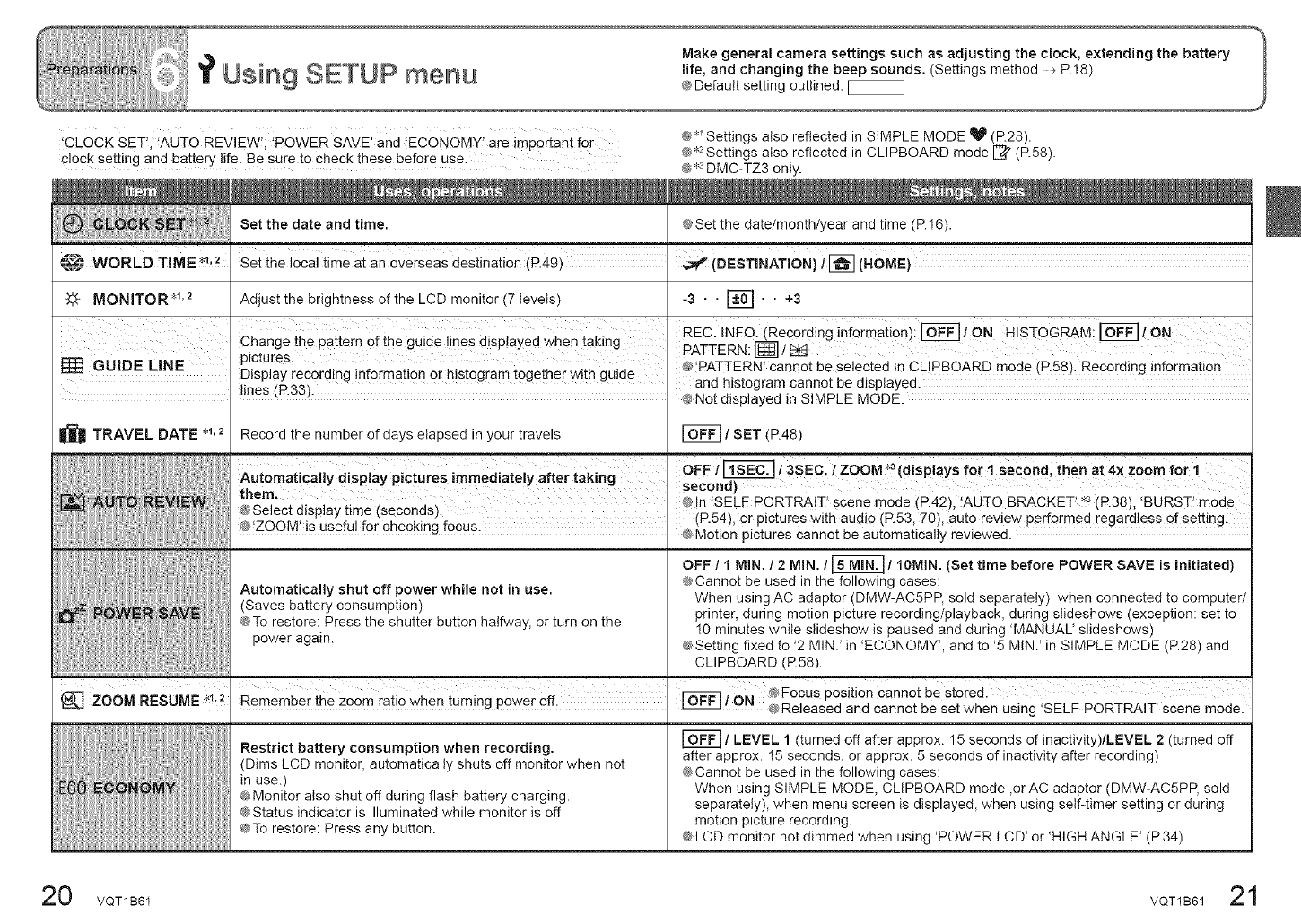
CLOCK SET !,AUTO REVIEW!I POWER SAVE' and !EcoNoMY' are importantfor
cloc k setting and battery life. Be sure to check thes e before use.
@'_ Settings also reflected in SIMPLE MODE V (P.28).
@_2Settings also reflected in CLIPBOARD mode I_ (P.58).
@_"_DMC-TZ3 only.
Set the date and time. @Set the date/month/year and time (P.16).
Set the i0oai time at an overseas destination (P.49) _ (DESTINATION)i [_] (HOME)
4;_ MONITOR4'1'2 Adjust the brightness of the LCD monitor (7 levels). -3 • • F_ ' ' +3
' ' L: :; :. ::: . ...... : .... I REC. INFO.(Recordinginformation):_lON HISTOGRAM:r_F]/ON
L'nange me Pa[[em aT_ne gu_ae !lnes @sp!ayea wnen _aK_ng PATTERN. 1_7 /isgl
pictu[es _
[] GUIDE LINE Dis la rec rdin informati0n0rhist0 ramt0 etherwith uide I @'PATTERN' cannot be selected in CLIPBOARD mode (P.58). Recording information
P Y O g g g g I and histogram cannot be displayed.
lines (P.33). @Not displayed in SIMPLE MODE.
TRAVEL DATE _1,2 Record the number of days elapsed in your travels. _ /SET (P.48)
: ::_::;::,,: .4;._:':: :,:;: ::_ '2_:1:':,: :_=_-:::_,.;:: OFF 1_13SEC f ZOOM _ (displays for i second then at 4× zoom for t
them _; o ), i ._ i ,
.......... :: . , , @In SELF PORTRAIT scene mode (P.42) AUTO BRACKET' (P.38) BURST mode
_P_e_e_c.[asplay_lme _s,eco,nas). (P.54) 0r pictures with audio(P.53 70)autoreviewperformedregardlessOfsetting.
_>!LUUIVI' IS userul ror checking Tocus ' ' '
CbMotion p_ctures cannot be automatically reviewed.
OFF /1MIN, /2MIN. /_/1OMIN. (Set time before POWER SAVE is initiated)
@Cannot be used in the following cases:
Automatically shut off power while not in use. When using AC adaptor (DMW-AC5PP, sold separately), when connected to computer/
(Saves battery consumption) printer, during motion picture recording/playback, during stideshows (exception: set to
@To restore: Press the shutter button halfway, or turn on the 10 minutes while slideshow is paused and during 'MANUAL' slideshows)
power again. @Setting fixed to '2 MIN.' in 'ECONOMY', and to '5 MIN.' in SIMPLE MODE (P.28) and
CLIPBOARD (P.58).
_/ON @Focus position cannot be stored.
_] ZOOM RESUME *_,2 Remember the Zoom ratio when turning power ofL_ @ReleaSed and cannot be Set when Using 'SELF PORTRAIT' scene mode.
WORLD TIME_,2
Restrict battery consumption when recording,
(Dims LCD monitor, automatically shuts off monitor when not
in use.)
@Monitor also shut off during flash battery charging.
@Status indicator is illuminated while monitor is off.
@To restore: Press any button.
[_] /LEVEL 1 (turned off after approx. 15 seconds of inactivity)/LEVEL 2 (turned off
after approx. 15 seconds, or approx. 5 seconds of inactivity after recording)
@Cannot be used in the following cases:
When using SIMPLE MODE, CLIPBOARD mode ,orAC adaptor (DMW-AC5PP, sold
separately), when menu screen is displayed, when using self-timer setting or during
motion picture recording,
@LCD monitor net dimmed when using 'POWER LCD' or 'HIGH ANGLE' (P.34).
20 VQT1B61 VQT1B6121
@'_ Settings also reflected in SIMPLE MODE V (P.28).
@*2Settings also reflected in CLIPBOARD mode I_ (P.58).
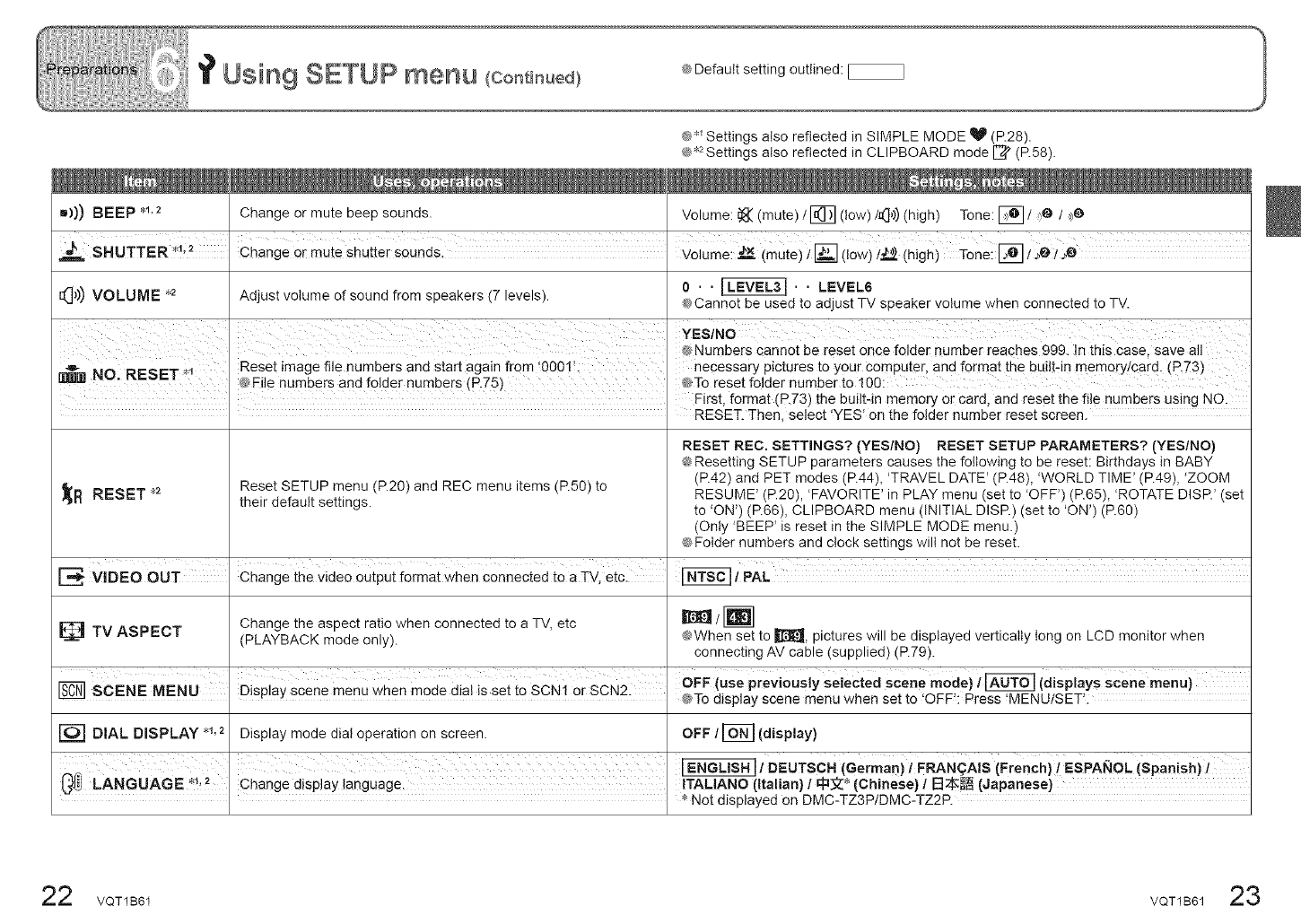
• ))) BEEP ,1.2 Change or mute beep sounds. Volume: _((mute) /F_ (tow)/<],)) (high) Tone: E_ /:>@/.>)@
i
_, 2
SHUTTER Change or mute shutter sounds. Volume: _x (mute)/[] (low)t_ (high)Tone: [] 1._OI._O
I:(]1)) VOLUME _,2 Adjust volume of sound from speakers (7 levels). 0. . _ . . LEVEL6
@Cannot be used to adjust TV speaker volume when connected to TV.
I_[] NO. RESET _t Reset image file numbers and start again from +000!! necessary pictures to your Computer and format the built:in memorylcard. (R73)
@File numbers and folder numbers (R75) _*To reset folder number to 1g0:
I . First, format (P.73) the built4n memory or card, and reset the file numbers using NO.
I I RESET. Then, select 'YES' on the folder number reset screen.
RESET REC. SETTINGS? (YES/NO) RESET SETUP PARAMETERS? (YES/NO)
@Resetting SETUP parameters causes the following to be reset: Birthdays in BABY
(P.42) and PET modes (P.44), 'TRAVEL DATE' (P.48), 'WORLD TIME _(P.49), 'ZOOM
Reset SETUP menu (P.20) and REC menu items (P.50) to RESUME' (P.20), 'FAVORITE' in PLAY menu (set to 'OFF') (P.65), 'ROTATE DISP.' (set
_R their default settings, to 'ON') (P.66), CLIPBOARD menu (INITIAL DISP.) (set to 'ON') (P.60)
RESET _2
(Only 'BEEP' is reset in the SIMPLE MODE menu.)
@Folder numbers and clock settings will not be reset.
I I
F_. VIDEO OUT Change the vide@output format when connected to a TV, etc, _tPAL
the aspect ratio when connected to a TV, etc _ /Iml
Change
TV ASPECT (PLAYBACK mode only). @When set to _[_, pictures will be displayed vertically tong on LCD monitor when
connecting AV cable (supplied) (P.79).
I
SCENE MENU Display scene menu when mode dial is set to SCN1 Or sca2 OFF (use previously selected scene mode) i_ (displays scene menu)
@To display scene menu when set to 'OFF': Press 'MENUiSET'.
[-O--] DIAL DISPLAY *_,2 Display mode dia! operation on screen. OFF /_(display)
I _/DEUTSCH (German)t FRANQAB (French)/ESPAP4OL (Spanish)!
LANGUAGE _,2 , Change disp!ay language. ITALIANO (italian) I_3Z _ (Chinese) tE]7_--=__ (Japanese)
Not displayed on DMC-TZ3P/DMC-TZ2P.
22 VQT1B61 VQT1B61 23
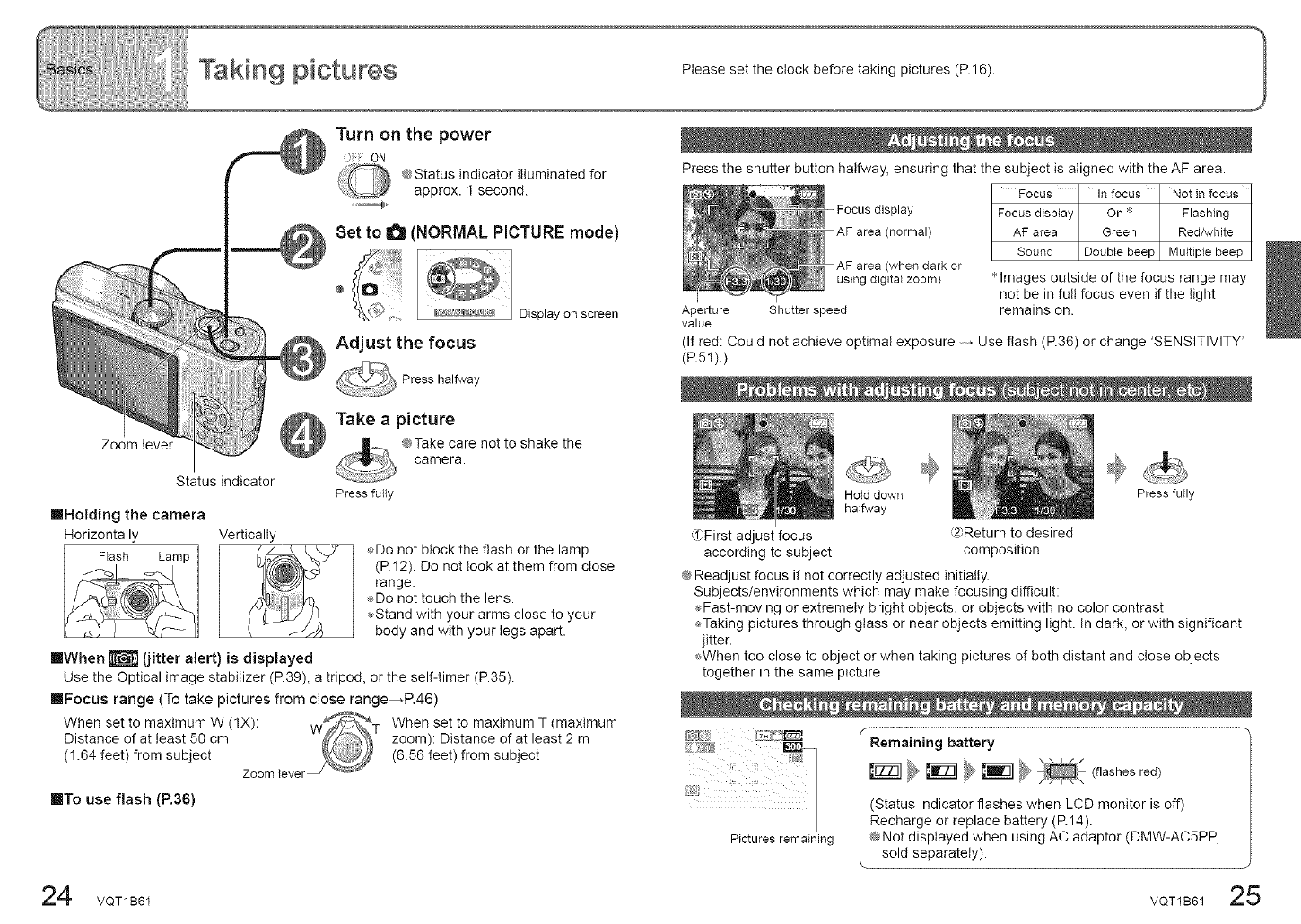
Zoom lever
Status indicator
llHolding the camera
Horizontally Vertically
Turn on the power
OFFON
_ Status indicator illuminated for
approx. I second.
Set to i_ (NORMAL PICTURE mode}
@
Adjust the focus
Press halfway
Display on screen
Take apicture
@Take care not to shake the
camera.
Press fully
Flash Lamp _Do not block the flash or the lamp
(R12). Do not took at them from close
range.
_Do not touch the lens.
,_Stand with your arms close to your
body and with your legs apart.
IIWhen _ (jitter alert) is displayed
Use the Optical image stabilizer (P.39), a tripod, or the self-timer (P.35).
IIFocus range (To take pictures from close range_P.46)
When set to maximum W (1X): W T When set to maximum T (maximum
Distance of at least 50 cm zoom): Distance of at least 2 m
(I .64 feet) from subject (6.56 feet) from subject
Zoom lever_ °_
inTo use flash (R36)
Press the shutter button halfway, ensuring that the subject is aligned with the AF area.
Focus In focus Not in focus
Focus display
AF area (normal)
(when dark or
using digital zoom)
Aperture Shutter speed
value
Focusdisplay On '_ Flashing
AF area Green Red/white
Sound Double beep Multiple beep
'_Images outside of the focus range may
not be in full focus even if the light
remains on.
(If red: Could not achieve optimal exposure Use flash (P.36) or change 'SENSITIVITY'
(P.51).)
{l}First adjust focus
according to subject
Hold down
halfway
_Return to desired
composition
Press fully
@Readjust focus if not correctly adjusted initially.
Subjects/environments which may make focusing difficult:
_,.Fast-moving or extremely bright objects, or objects with no color contrast
÷Taking pictures through glass or near objects emitting light. In dark, or with significant
jitter.
_,When too close to object or when taking pictures of both distant and close objects
together in the same picture
Pictures remaining
Remaining battery
_ _ _ _¢ (flashes red)
(Status indicator flashes when LCD monitor is off)
Recharge or replace battery (R14).
@Not displayed when using AC adaptor (DMW-AC5PP,
sold separately).
24 VQT1B61 VQT1B61 25
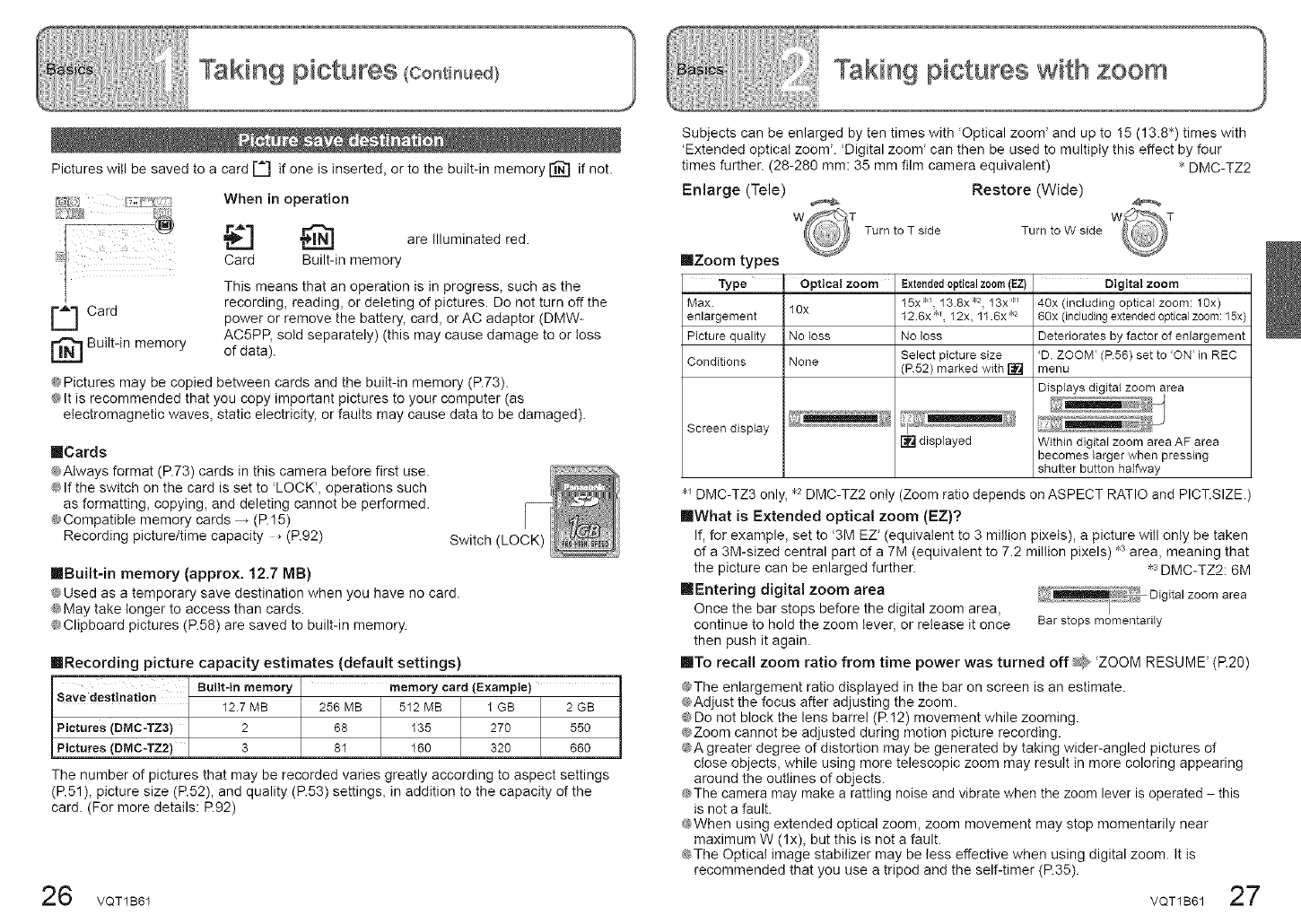
Pictures will be saved to a card _ if one is inserted, or to the built-in memory [_ if not.
l:_!i; When in operation
_ are Illuminated red.
Card Built-in memory
r_Card
_ Built-in memory
This means that an operation is in progress, such as the
recording, reading, or deleting of pictures. Do not turn off the
power or remove the battery, card, or AC adaptor (DMW-
AC5PP, sold separately) (this may cause damage to or toss
of data).
@Pictures may be copied between cards and the built-in memory (P.73).
@It is recommended that you copy important pictures to your computer (as
electromagnetic waves, static electricity, or faults may cause data to be damaged).
IIICards
@Always format (R73) cards in this camera before first use.
@If the switch on the card is set to 'LOCK _,operations such
as formatting, copying, and deleting cannot be performed.
@Compatible memory cards ,(R 15)
Recording picture/time capacity _ (P.92) Switch (LOCK)
reBuilt-in memory (approx. 12.7 MB)
@Used as a temporary save destination when you have no card.
@May take longer to access than cards.
@Clipboard pictures (P.58) are saved to built-in memory.
ImRecording picture capacity estimates (default settings)
Built-in memory memory card (Example)
Save destination 12.7 MB 256 MB 512 MB 1 GB 2 GB
Pictures (DMC-TZ3) 2 68 135 270 550
Pictures (DMC-TZ2) 3 81 160 320 660
The number of pictures that may be recorded varies greatly according to aspect settings
(P.51), picture size (P.52), and quality (P.53) settings, in addition to the capacity of the
card. (For more details: P.92)
6 VQT1B61
Subjects can be enlarged by ten times with 'Optical zoom' and up to 15 (13.8") times with
'Extended optical zoom'. 'Digital zoom' can then be used to multiply this effect by four
times further. (28-280 mm: 35 mm film camera equivalent)
Enlarge (Tele) Restore (Wide)
Turnto T side Turn to W side
mZoom types
Type Optical zoom
Max. 1Ox
enlargement
Picture quality No loss
Conditions None
Screen display
* DMC-TZ2
Extendedopticalzoom(EZ) Digital zoom
15x *_, 13.8x _2, 13x* 40x (including optical zoom: 10x)
126x *_, 12x, 11.6x .2 60x (including extended optical zoom: 15x)
No loss Deteriorates by factor of enlargement
Select picture size 'D. ZOOM' (P.56) set to 'ON' in REC
(P52) marked with [] menu
Displays digital zoom area
[] displayed Within digital zoom area AF area
becomes larger when pressing
shutter button halfway
DMC-TZ3 only, ,2 DMC-TZ2 only (Zoom ratio depends on ASPECT RATIO and PICT.SIZE.)
ImWhat is Extended optical zoom (EZ)?
If, for example, set to '3M EZ' (equivalent to 3 million pixels), a picture will only be taken
of a 3M-sized central part of a 7M (equivalent to 7.2 million pixels) ,3 area, meaning that
the picture can be enlarged further. ,3 DMC-TZ2: 6M
ImEntering digital zoom area
Once the bar stops before the digital zoom area,
continue to hold the zoom lever, or release it once Bar stops momentarily
then push it again.
ImITo recall zoom ratio from time power was turned off _ 'ZOOM RESUME' (R20)
@The enlargement ratio displayed in the bar on screen is an estimate.
@Adjust the focus after adjusting the zoom.
@Do not block the lens barrel (R12) movement while zooming.
@Zoom cannot be adjusted during motion picture recording.
@A greater degree of distortion may be generated by taking wider-angled pictures of
close objects, while using more telescopic zoom may result in more coloring appearing
around the outlines of objects.
@The camera may make a rattling noise and vibrate when the zoom lever is operated - this
is not a fault.
@When using extended optical zoom, zoom movement may stop momentarily near
maximum W (lx), but this is not a fault.
@The Optical image stabilizer may be less effective when using digital zoom. it is
recommended that you use a tripod and the self-timer (R35). 27
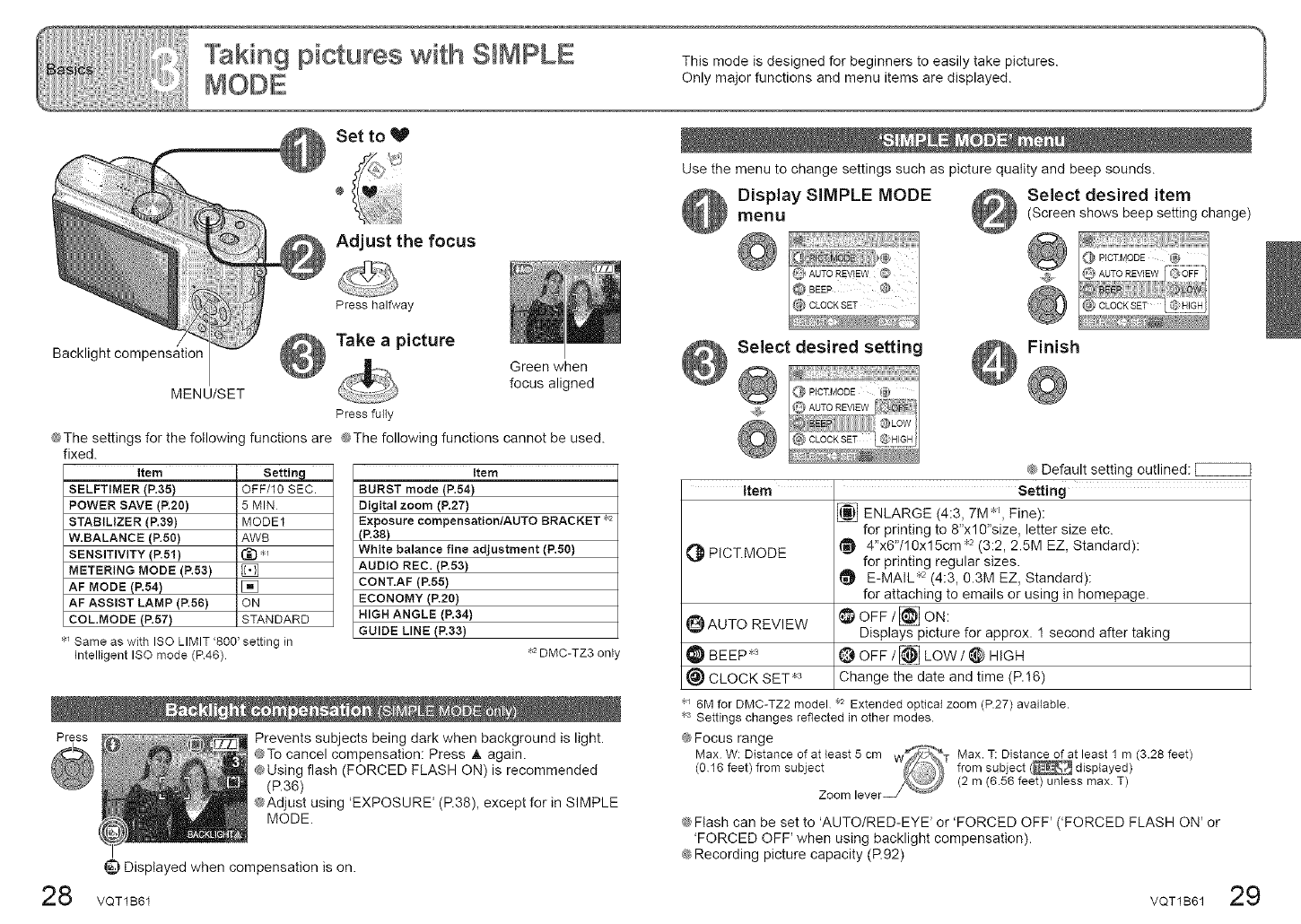
Set to V
Adjust the focus
Press halfway
Backlight compensation Take a picture
Green when
focus aligned
MENU/SET
Press fully
@The settings for the following functions are @The following functions cannot be used.
fixed.
item Settin_
SELFTIMER (P.35)
POWER SAVE (P.20)
STABILIZER (P.39)
W.BALANCE (P.50)
SENSiTiViTY (P.51)
METERING MODE (P.53)
AF MODE (P.54)
AF ASSIST LAMP (P.56)
COL.MODE (P.57)
OFF/1OSEC.
5 MIN
MODE1
AWB
ON
STANDARD
_ Same as with ISO LIMIT '800' setting in
Intelligent ISO mode (P46)
item
BURST mode (P.54)
Digital zoom (R27)
Exposure compensation/AUTOBRACKET _2
(P.38)
White balance fine adjustment (P.50)
AUDIO REC. (P.53)
CONT.AF (P.55)
ECONOMY (P.20)
HIGH ANGLE (P.34)
GUIDE LINE (P.33)
,,2DMC-TZ3 only
Press Prevents subjects being dark when background is light.
@To cancel compensation: Press A again.
@Using flash (FORCED FLASH ON) is recommended
(P.36)
@Adjust using 'EXPOSURE' (R38), except for in SIMPLE
MODE.
_) Displayed when compensation is on.
28 VOT1B81
Use the menu to change settings such as picture quality and beep sounds.
Display SIMPLE MODE
menu
{_ AUTOREY!EW@ I
@CLOOKSET/
Select desired setting
@PlO_MODE9,
@" gLOW]I
@ CLOCK EET HIGH i
@Default setting outlined: [_
item Setting
ENLARGE (4:3, 7M _l, Fine):
for printing to 8"xl0"size, letter size etc.
@ PICT.MODE _ 4"x6"/10x15cm _2(3:2, 2.5M EZ, Standard):
for printing regular sizes.
E-MAIL •{:2(4:3, 0.3M EZ, Standard):
for attaching to emails or using in homepage.
_ AUTO REVIEW _) OFF/[_ ON:
Displays picture for approx. 1 second after taking
_BEEP "3 _OFF/_ LOW/@ HIGH
_) CLOCK SET '¢ Change the date and time (P.16)
Select desired item
(Screen shows beep setting change)
i
_, /_AUTOREWEW
Finish
6M for DMC-TZ2 model _2 Extended optical zoom (P.27) available.
Settings changes reflected in other modes.
@ Focus range
Max. T: Distance of at least 1 m (3.28 feet)
from subject (_ displayed)
(2 m (6.58 feet) unless max T)
@Flash can be set to 'AUTO/RED-EYE' or 'FORCED OFF' ('FORCED FLASH ON' or
'FORCED OFF' when using backlight compensation).
@Recording picture capacity (P.92)
VQT1B61 29
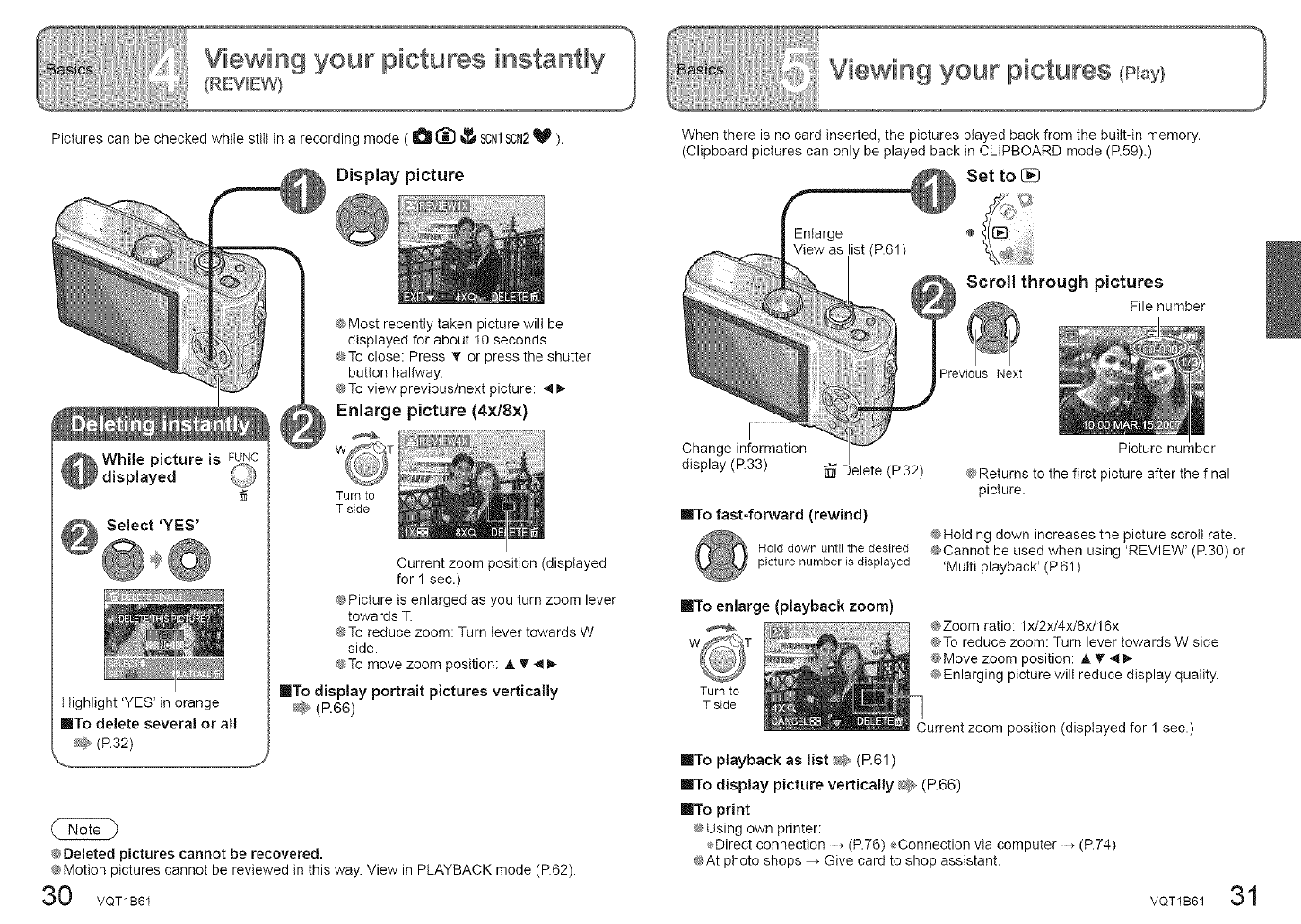
Pictures can be checked while still in a recording mode ( O_ _I_SCNlSCN2_ ).
Display picture
_ While picture is
displayed
Highlight 'YES' in orange
IITo delete several or all
@Most recently taken picture will be
displayed for about I0 seconds.
@To close: Press T or press the shutter
button halfway.
_s,To view previous/next picture: _ I_
Enlarge picture (4x/Sx)
w
Turn to
T side
Current zoom position (displayed
for 1 sec.)
@Picture is enlarged as you turn zoom lever
towards T.
@To reduce zoom: Turn lever towards W
side.
@To move zoom position: A _" ,,I I_
IITo display portrait pictures vertically
@Deleted pictures cannot be recovered.
@Motion pictures cannot be reviewed in this way. View in PLAYBACK mode (P.62).
30 VOT1B61
When there is no card inserted, the pictures played backfrom the built-in memory.
(Clipboard pictures can only be played back in CLIPBOARD mode (P.59).)
Set to I]_
Enlarge
View as ist (P.61)
Scroll through pictures
File number
Previous Next
Change information
display (P.33) _ Delete (P.32)
IITo fast-forward (rewind)
Hold down until the desired
picture number is displayed
Picture nut lber
@Returns to the first picture after the final
picture.
@Holding down increases the picture scroll rate.
@Cannot be used when using 'REVIEW' (P.30) or
'Multi playback' (P.61).
lITo enlarge (playback zoom)
Turn to
T side
@Zoom ratio: 1x/2x/4x/8x/16x
@To reduce zoom: Turn lever towards W side
@Move zoom position: @T 4
@Enlarging picture will reduce display quality.
urrent zoom position (displayed for 1 sec.)
into playback as list _ (R61)
inTo display picture vertically _@ (R66)
ImTo print
@Using own printer:
Direct connection + (P.76) _Connection via computer _(P.74)
@At photo shops Give card to shop assistant.
VQT1B61 31
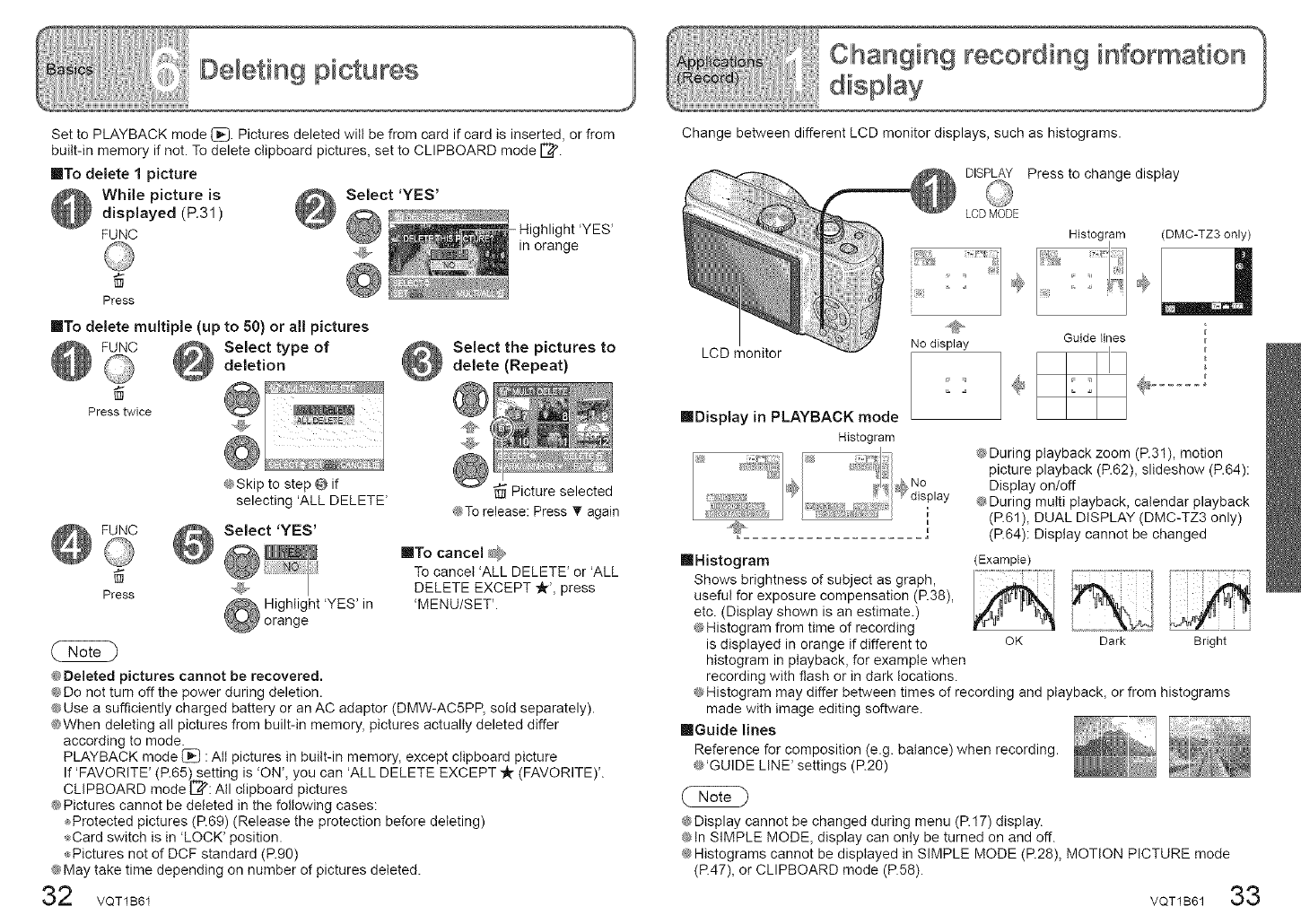
DelHetin9 piictures
Bet to PLAYBACK mode _)i_, Pictures deleted will be from card if card is inserted, or from
built-in memory if not. To delete clipboard pictures, set to CLIPBOARD mode [_.
IITo delete 1 picture
While picture is
displayed (P.31)
FUNC
Press
Select 'YES'
ht 'YES'
,,$ in orange
IIITo delete multiple (up to 50) or all pictures
FUNC Select type of
deletion
Press twice
Select the pictures to
delete (Repeat)
FUNC
Press
@Skip to step @ if
selecting 'ALL DELETE'
Select 'YES'
Highlight 'YES' in
orange
Picture selected
@To release: Press T again
ImTo cancel _*_
To cancel 'ALL DELETE' or 'ALL
DELETE EXCEPT "k', press
'MENU/SET'.
@Deleted pictures cannot be recovered.
@Do not turn off the power during deletion.
@Use a sufficiently charged battery or an AC adaptor (DMW-AC5PP, sold separately).
@When deleting all pictures from built-in memory, pictures actually deleted differ
according to mode.
PLAYBACK mode _ : All pictures in built-in memory, except clipboard picture
If 'FAVORITE' (P.65) setting is 'ON', you can 'ALL DELETE EXCEPT _ir (FAVORITE)'.
CLIPBOARD mode [_: All clipboard pictures
@Pictures cannot be deleted in the following cases:
Protected pictures (R69) (Release the protection before deleting)
,4Card switch is in 'LOCK' position.
_Pictures not of DCF standard (P.90)
@May take time depending on number of pictures deleted.
2VQT1B61
Clhangin9 recording iilnformatioln 1
Change between different LCD monitor displays, such as histograms.
DISPLAY Press to change display
LCD monitor
LCD MODE
Nodisplay
F
Guide lines
(DMC-TZ3 only)
liB!splay in PLAYBACK mode
Histogram
@During playback zoom (P.31), motion
picture playback (P.62), slideshow (P.64):
Display on/off
@During multi playback, calendar playback
(R61), DUAL DISPLAY (DMC-TZ3 only)
(R64): Display cannot be changed
@Display cannot be changed during menu (R17) display.
@tn SIMPLE MODE, display can only be turned on and off.
@Histograms cannot be displayed in SIMPLE MODE (R28), MOTION PICTURE mode
(R47), or CLIPBOARD mode (P.58). VOT1B6133
IIHistogram (Example)
Shows brightness of subject as graph,
useful for exposure compensation (R38),
etc. (Display shown is an estimate.)
@Histogram from time of recording
is displayed in orange if different to OK Dark Bright
histogram in playback, for example when
recording with flash or in dark locations.
@Histogram may differ between times of recording and playback, or from histograms
made with image editing software.
mGuide lines
Reference for composition (e.g. balance) when recording,
@'GUIDE LINE' settings (P.2O)
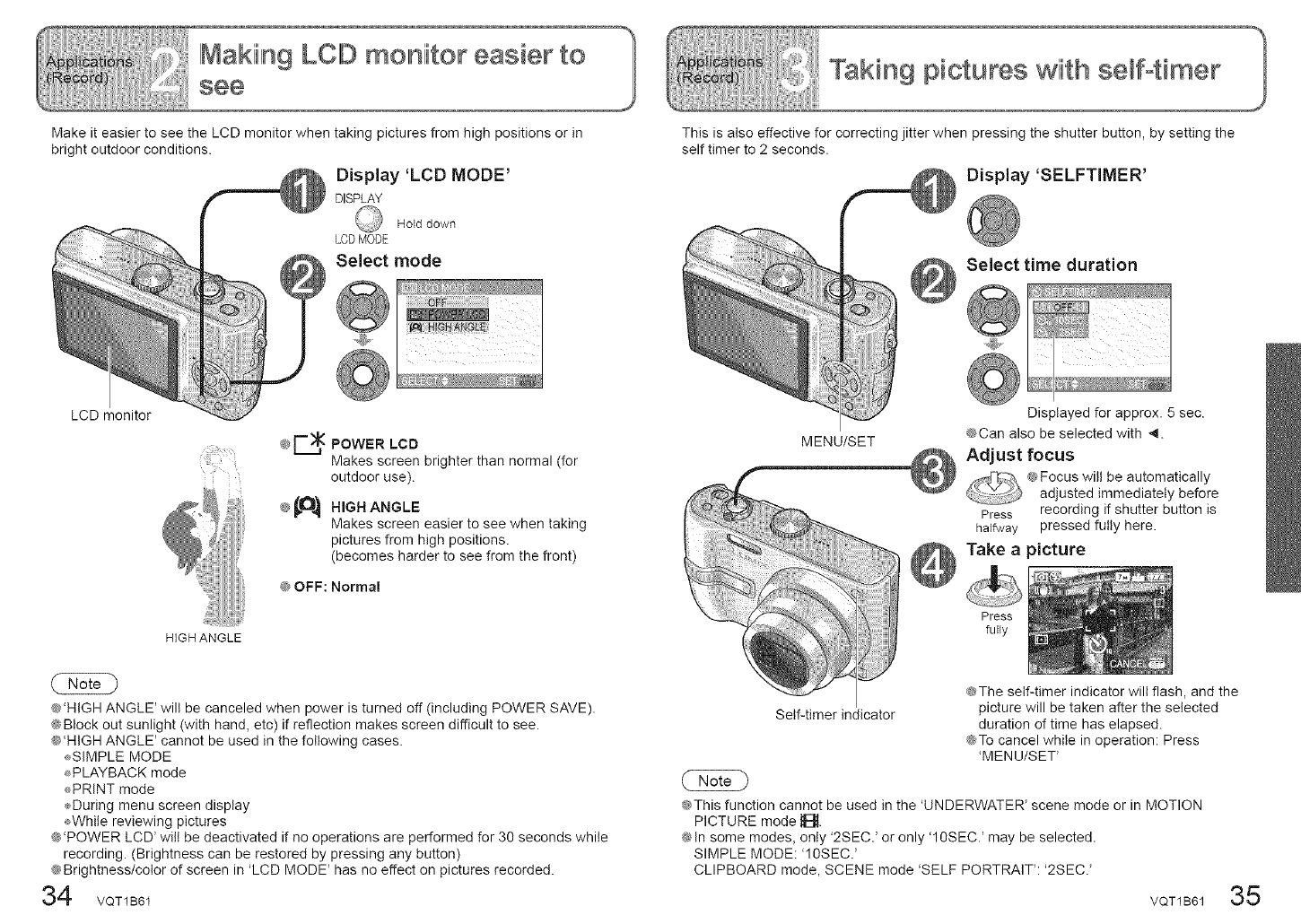
MakeiteasiertoseetheLCDmonitorwhentakingpicturesfromhighpositionsorin
brightoutdoorconditions.
LCDmonitor
HIGH ANGLE
Display 'LCD MODE'
DISPLAY
Hold down
LCDMODE
Select mode
@E.__ POWER LCD
Makes screen brighter than normal (for
outdoor use).
_O_ NIGH ANGLE@
HMakes screen easier to see when taking
pictures from high positions.
(becomes harder to see from the front)
@OFF: Norma!
@'HIGH ANGLE' wilt be canceled when power is turned off (including POWER SAVE)•
@Block out sunlight (with hand, etc) if reflection makes screen difficult to see.
@'HIGH ANGLE' cannot be used in the following cases.
_SIMPLE MODE
PLAYBACK mode
PRINT mode
During menu screen display
_While reviewing pictures
@'POWER LCD' will be deactivated if no operations are performed for 30 seconds while
recording• (Brightness can be restored by pressing any button)
@Brightness/color of screen in 'LCD MODE' has no effect on pictures recorded.
34
This is also effective for correcting jitter when pressing the shutter button, by setting the
self timer to 2 seconds•
Display 'SELFTIMER'
Select time duration
MENU/SET
Self-timer indicator
Displayed for approx• 5 sec.
@Can also be selected with _.
Adjust focus
_Zi_ \ _ Focus wilt be automatically
adjusted immediately before
Press recording if shutter button is
haffway pressed fully here.
Take a picture
Press
fully
@The self-timer indicator wilt flash, and the
picture will be taken after the selected
duration of time has elapsed.
@To cancel while in operation: Press
'MENUISET'
@This function cannot be used in the 'UNDERWATER' scene mode or in MOTION
PICTURE mode _.
@In some modes, only '2SEC.' or only '10SEC.' may be selected•
SIMPLE MODE: '10SEC.'
CLIPBOARD mode, SCENE mode 'SELF PORTRAIT: '2SEC/
VQT1B61 35
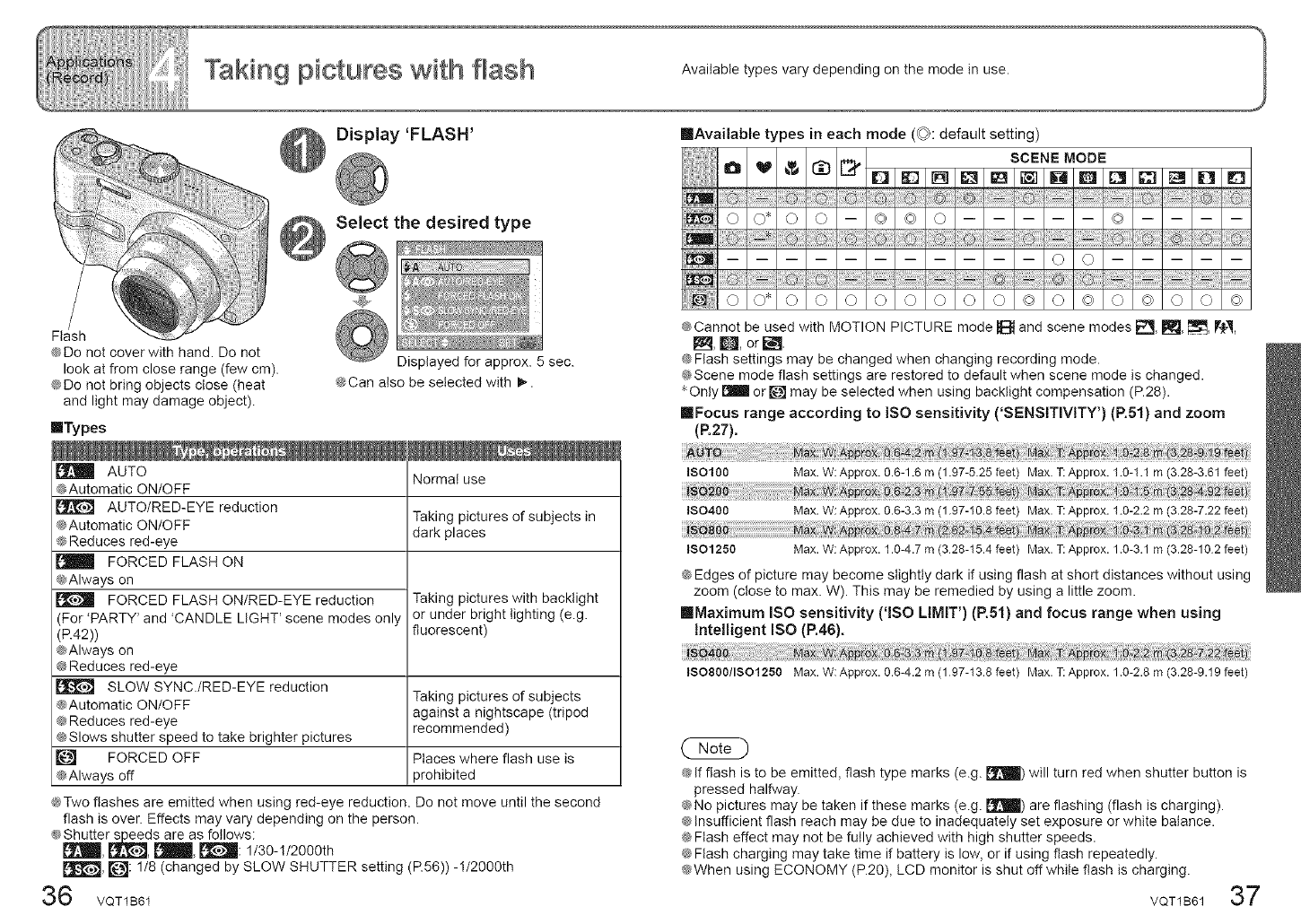
Taking pictures witlh flash Available types vary depending on the mode in use.
Display 'FLASH'
Select the desired type
Flash
@Do not cover with hand. Do not
look at from close range (few cm).
@Do not bring objects close (heat
and light may damage object).
IITypes
Displayed for approx. 5 sec.
@Can also be selected with I_.
AUTO
@Automatic ON/OFF
AUTO/RED-EYE reduction
@Automatic ON/OFF
@Reduces red-eye
FORCED FLASH ON
@Always on
FORCED FLASH ON/RED-EYE reduction
(For 'PARTY' and 'CANDLE LIGHT' scene modes only
(R42))
@Always on
@Reduces red-eye
PJ_J SLOW SYNC./RED-EYE reduction
@Automatic ON/OFF
@Reduces red-eye
@Slows shutter speed to take brighter pictures
FORCED OFF
@Always off
Normal use
Taking pictures of subjects in
dark places
Taking pictures with backlight
or under bright lighting (e.g.
fluorescent)
Taking pictures of subjects
against a nightscape (tripod
recommended)
Places where flash use is
prohibited
@Two flashes are emitted when using red-eye reduction. Do not move until the second
flash is over. Effects may vary depending on the person.
@Shutter speeds are as follows:
[_, I_, I_, I_: 1/30-1/2000th
_, ['_J: 1/8 (changed by SLOW SHUTTER setting (P.56)) -1/2000th
6 VQT1B61
IIIAvaiiable types in each mode (©: default setting)
SCENE MODE
O _ _ I]bl_ D E] I_ i_ iml _] U B _ _3 m! D
0 O* 0 0 -- ©) © 0 ©
[]
o o
o o* o o o o o o o o © o © o © o o ©
@Cannot be used with MOTION PICTURE mode _ and scene modes _, _, _, V{_,
I_,_, orE.
@Flash settings may be changed when changing recording mode.
@Scene mode flash settings are restored to default when scene mode is changed.
* Only _ or _ may be selected when using backtight compensation (P.28).
mlFocus range according to ISO sensitivity ('SENSITIVITY') (R51) and zoom
(P.27).
ISO100 Max.W:Approx. 0.6-1.6m (1.97-5.25feet) Max.T:Approx. 1.0-I.1 m (3.28-3.61feet)
180400 Max.W:Approx. 0.6-3.3 m (1.97-10.8feet) Max.T:Approx.!.0-2.2 m (3.28-7.22feet)
1SO1250 Max.W:Approx. 1.0-4.7m (328-15.4 feet) Max.T:Approx. 1.6-3.1 m (3.28-162 feet)
@Edges of picture may become slightly dark if using flash at short distances without using
zoom (close to max. W). This may be remedied by using a little zoom.
mlMaximum ISO sensitivity ('lSO LIMIT') (R51) and focus range when using
Intelligent ISO (R46).
lso800/IS01250 Max.W:Approx. 0.6-4.2m (197-13.8 feet) Max.T:Approx. 1.6-2.8 m (3.28-9.19feet
@If flash is to be emitted, flash type marks (e.g. P'JJt_ll)will turn red when shutter button is
pressed halfway.
@No pictures may be taken if these marks (e.g. Pit,Ill) are flashing (flash is charging).
@Insufficient flash reach may be due to inadequately set exposure or white balance.
@Flash effect may not be fully achieved with high shutter speeds.
@Flash charging may take time if battery is low, or if using flash repeatedly.
@When using ECONOMY (P.20), LCD monitor is shut off white flash is charging.
VQT1B61 37
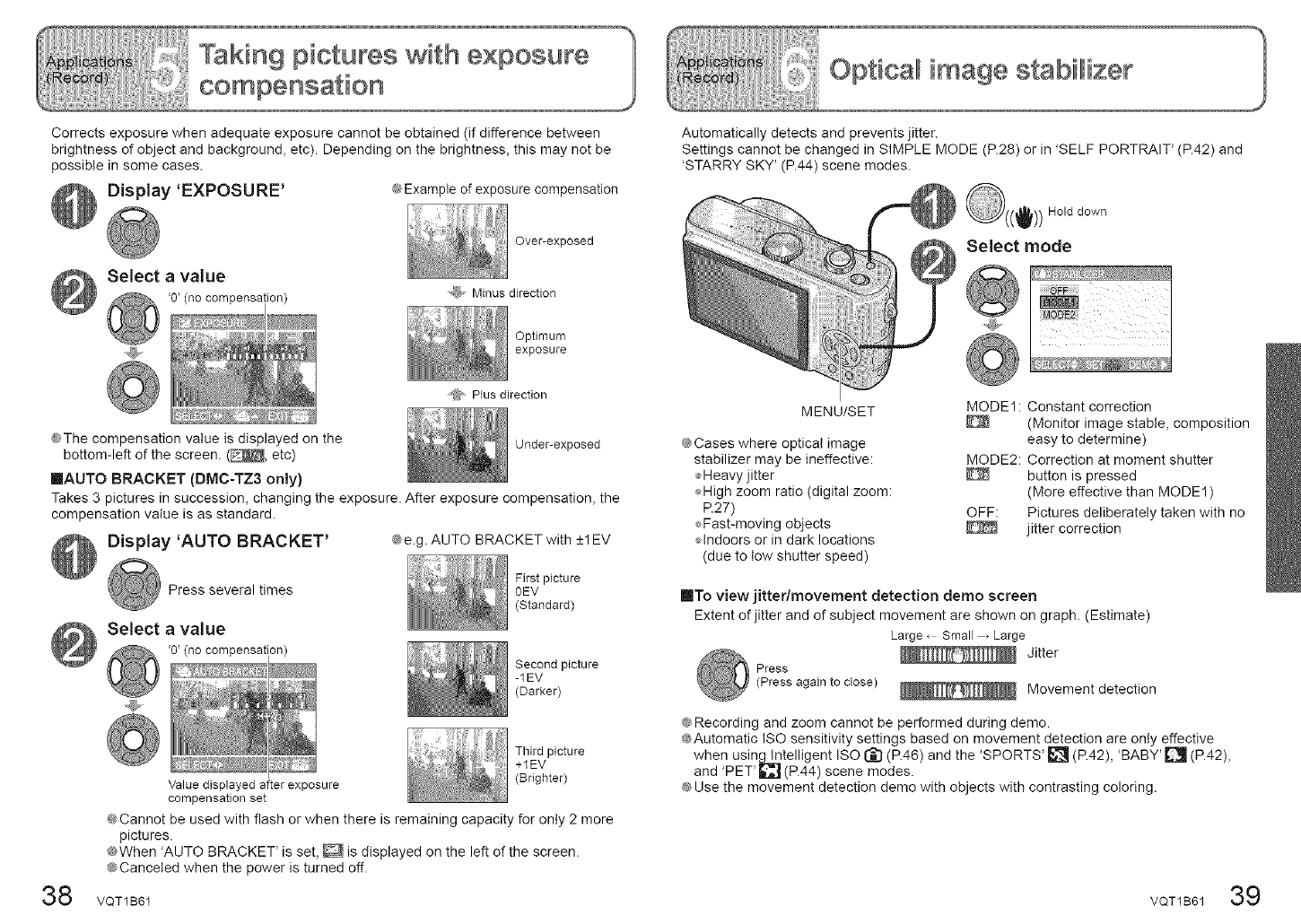
Corrects exposure when adequate exposure cannot be obtained (if difference between
brightness of object and background, etc). Depending on the brightness, this may not be
possible in some cases.
Display 'EXPOSURE' ®Example of exposure compensation
Select a value
on)
Over-exposed
,,_. Minus direction
Optimum
exposure
"@, Plus direction
@The compensation value is displayed on the Under-exposed
bottom-left of the screen. (_, etc)
IIAUTO BRACKET (DMC-TZ3 only)
Takes 3 pictures in succession, changing the exposure. After exposure compensation, the
compensation value is as standard.
Display 'AUTO BRACKET' #me.g. AUTO BRACKET with +1EV
38
Press several times
Select a value
on)
First picture
OEV
(Standard)
Second picture
- 1EV
(Darker)
Third picture
+IEV
Value displayed after exposure (Brighter)
compensation set
@Cannot be used with flash or when there is remaining capacity for only 2 more
pictures.
@When 'AUTO BRACKET is set, D is displayed on the left of the screen.
@Canceled when the power is turned off.
VQT1B61
Automatically detects and prevents jitter.
Settings cannot be changed in SIMPLE MODE (P.28) or in 'SELF PORTRAIT' (P.42) and
'STARRY SKY' (P.44) scene modes.
se,ectmo0e
I!I
MENU/SET MODE1: Constant correction
@Cases where optical image
stabilizer may be ineffective:
_,,Heavy jitter
÷High zoom ratio (digital zoom:
R27)
_,Fast-moving objects
,Hndoors or in dark locations
(due to tow shutter speed)
(Monitor image stable, composition
easy to determine)
MODE2: Correction at moment shutter
button is pressed
(More effective than MODE1 )
OFF: Pictures deliberately taken with no
jitter correction
ImTo view jitter/movement detection derno screen
Extent of jitter and of subject movement are shown on graph. (Estimate)
Large _ Small _ Large
Jitter
Press
(Press again to close) _ Movement detection
@Recording and zoom cannot be performed during demo.
@Automatic ISO sensitivity settings based on movement detection are only effective
when usin_._telligent ISO [_ (P.46) and the 'SPORTS __ (P.42), 'BABY' _ (P.42),
and 'PET' _ (P.44) scene modes.
@Use the movement detection demo with objects with contrasting coloring.
VQT1B61 39
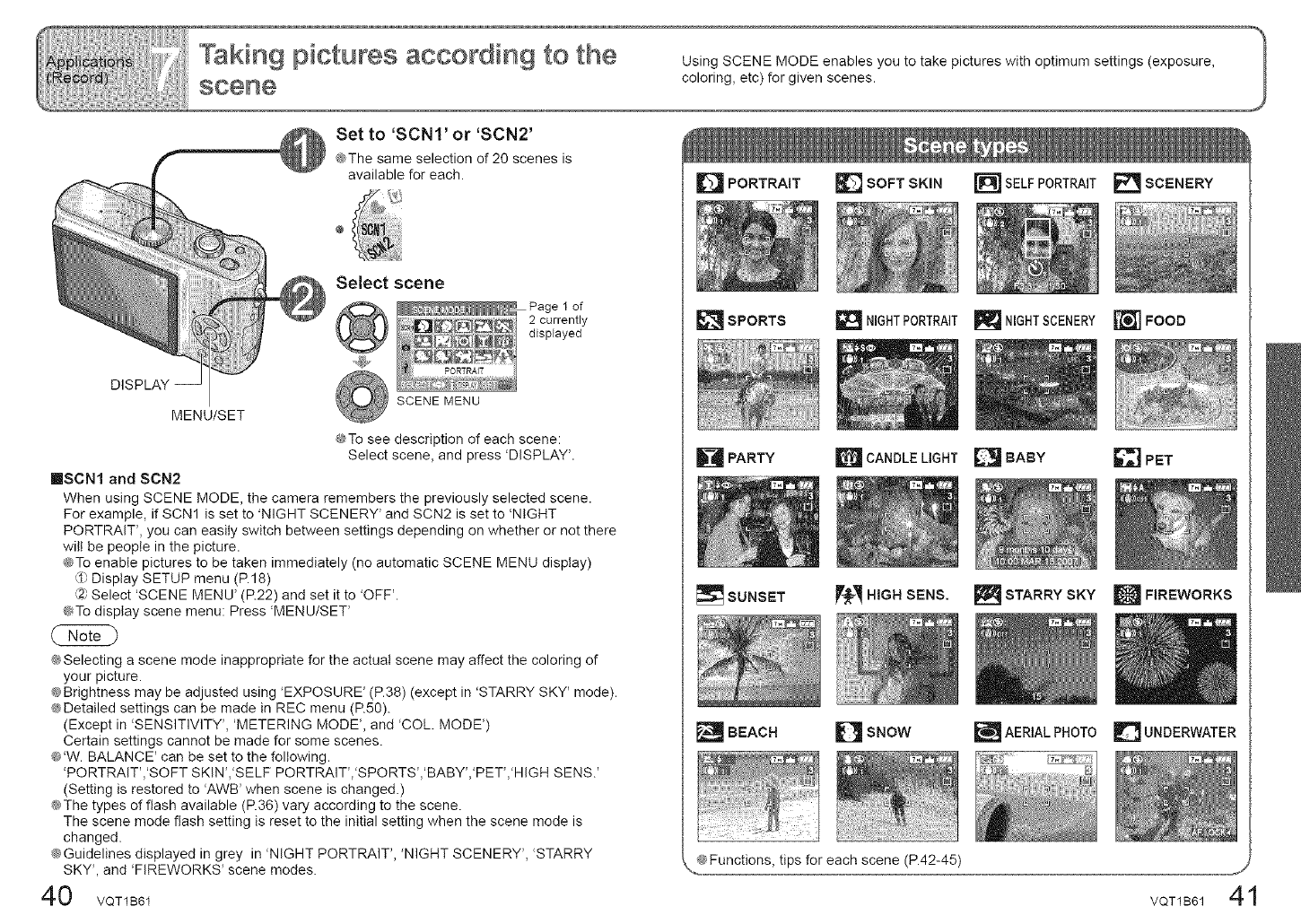
Set to 'SCNI' or 'SCN2'
_The same selection of 20 scenes is
available for each.
DISPLAY --
Select scene
@
SCENE MENU
1 of
2 currently
dispFayed
MENU/SET
@To see description of each scene:
Select scene, and press 'DISPLAY'.
[]SCN1 and SCN2
When using SCENE MODE, the camera remembers the previously selected scene.
For example, if SCN1 is set to 'NIGHT SCENERY' and SCN2 is set to 'NIGHT
PORTRAIT', you can easily switch between settings depending on whether or not there
wilt be people in the picture.
@To enable pictures to be taken immediately (no automatic SCENE MENU display)
_1_Display SETUP menu (P.18)
{2}Select 'SCENE MENU' (R22) and set it to 'OFF'.
@To display scene menu: Press 'MENU/SET'
@Selecting a scene mode inappropriate for the actual scene may affect the coloring of
your picture.
@Brightness may be adjusted using 'EXPOSURE' (P.38) (except in 'STARRY SKY' mode).
@Detailed settings can be made in REC menu (R50).
(Except in 'SENSITIVITY', 'METERING MODE', and 'COL. MODE')
Certain settings cannot be made for some scenes.
@'W. BALANCE' can be set to the following.
'PORTRAIT'/SOFT SKIN'/SELF PORTRAIT','SPORTS','BABY','PET','HIGH SENS.'
(Setting is restored to 'AWB' when scene is changed.)
@The types of flash available (R36) vary according to the scene.
The scene mode flash setting is reset to the initial setting when the scene mode is
changed.
@Guidelines displayed in grey in 'NIGHT PORTRAIT', 'NIGHT SCENERY', STARRY
SKY', and 'FIREWORKS' scene modes.
0 VQT1B61
[] PORTRAIT _'] SOFT SKiN
_SPORTS NIGHTPORTRAIT
RPARTY _ CANDLE LIGHT
[] SELFPORTRAIT
NIGHTSCENERY
BABY
E_SCENERY
_] FOOD
_PET
SUNSET VI_ HIGH $ENS. _ STARRY SKY W FIREWORKS
L_AERtALPHOTOBEACH _SNOW _UNDERWATER
VQT1B61 41
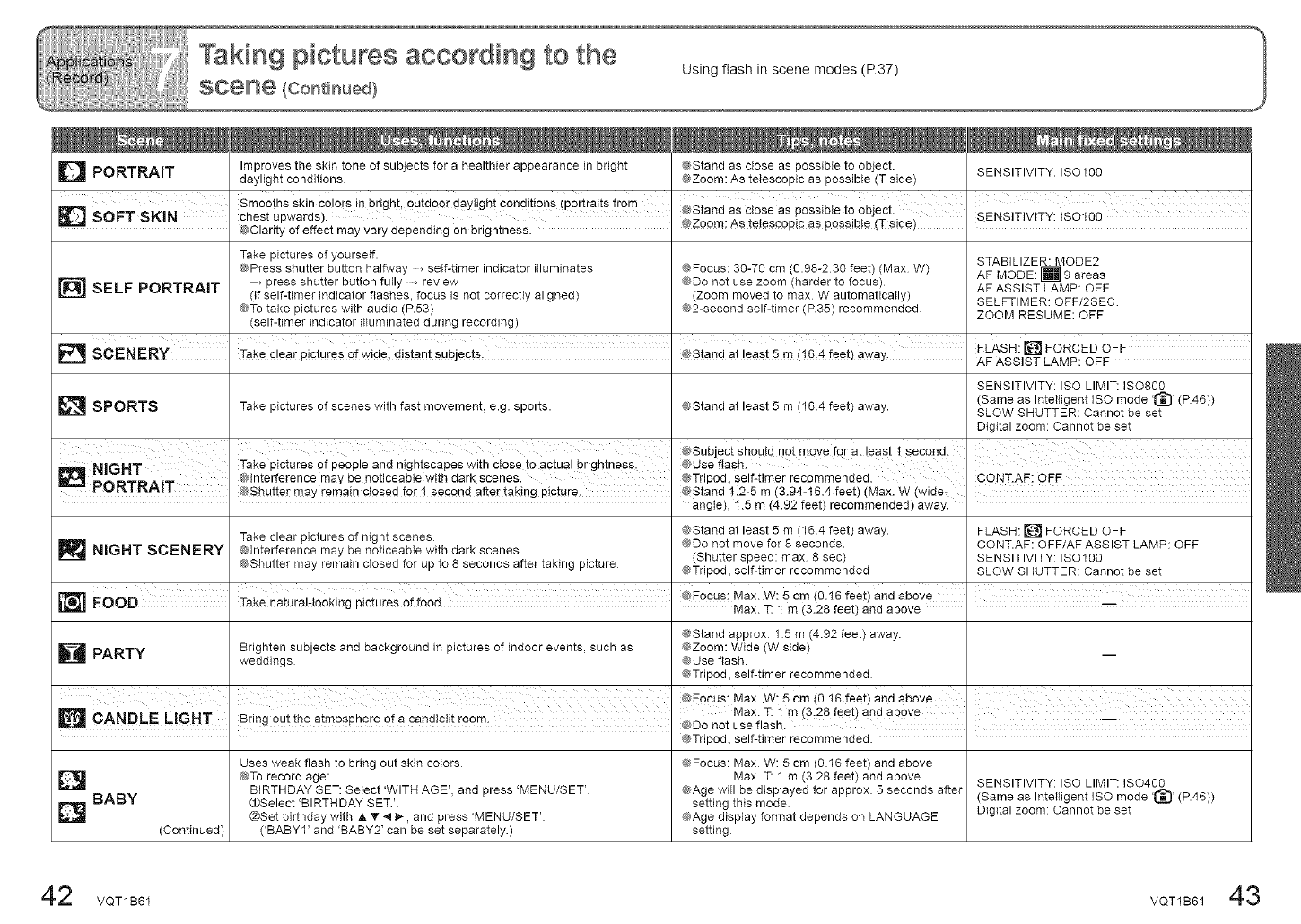
Improves the skin tone of subjects for a healthier appearance in bright @Stand as close as possible to object.
D PORTRAIT daylight conditions @Zoom: As te@scopic as possib@ (T side) SENSITIVITY: ISO1OO
Smooths skin €olors in bright, outdoor day lght cond!tlons portraits fro m @Stand as close as possibIe to Object.
_ SOFT SKIN chest upwards). @Zoom; As te!escopic as possJb!e (T side) SENS!T!V!TY! !s°! 0O
@Clarity of effect may vary depending on brightness.
Take pictures of yourself. STABILIZER: MODE2
@Press shutter button halfway _seGtimer indicator illuminates @Focus: 30-70 cm (0.98-230 feet) (Max W) AF MODE: [] 9 areas
, press shutter button fully _review @Do not use zoom (harder to focus)
[_ SELF (if self-timer indicator flashes, focus is not correctly aligned) (Zoom moved to max W automatically)
PORTRAIT AF ASSIST LAMP: OFF
SELFT]MER: OFF/2SEC
@To take pictures with audio (P.53) @2-second self-timer (P35) recommended ZOOM RESUME: OFF
(self-timer indicator Hiuminated during recording)
SCENERY Take c!ear pictures of widel distant subjects, @Stand at least 5 m (!6,4 feet) away, FLASH: [] FORCED 0FE
AF ASSIST LAMP: OFF
SENSITIVITY: ]SO LIMIT: ]SO800
_ SPORTS Take pictures of scenes with fast movement, e.g. sports. @Stand at least 5 m (184 feet) away. (Same as Intelligent ]SO mode (P.46))
SLOW SHUTTER: Cannot be set
Digital zoom: Cannot be set
I @Subject Sh0utd n0t move for at !east 1 second, i
NIGHT Take pictures 0f Pe0ple and nightscapes with Cl°se to actual brightness: @Use flash J
@interference may be noticeable with dark scenes. @Tripod, self-timer recommended. CONT.AF: OFF
_ PORTRArr @Shutter may remain closed for ! Second after taking picture. @Stand t :2-5 m (3.94-t6.4 feet) (Max. W (wide-
angte), t.5 m (4.92 feet) recommended) away.
Take clear pictures of night scenes @Stand at least 5 m (164 feet) away. FLASH: [] FORCED OFF
@Do not move for 8 seconds. CONT.AF: OFF/AF ASSIST LAMP: OFF
_ NIGHT @Interference may be noticeable with dark scenes.
SCENERY (Shutter speed: max 8 sec) SENSITIVITY: iSO1OO
@Shutter may remain closed for up to 8 seconds after taking picture @Tripod, self-timer recommended SLOW SHUTTER: Cannot be set
__ _ ,i . i( .,. _ @Focus: Max. W: 5 cm (0.16 feet) and above I
[_ FOOD lake naruraHooKing p_crures or Tooo. Max T f m (3 28 feet) and above I
@Stand approx 15 m (4.92 feet) away.
Brighten subjects and background in pictures of indoor events, such as @ _Z_om: Wide (W side)
_-_ PARTY weddings @Use flash.
@Tripod, self-timer recommended
' @Tripod, self-timer recommended.
Uses weak flash to bring out skin colors @Focus: Max W: 5 cm (0.16 feet) and above
@To record age: Max T: 1 m (3.28 feet) and above SENSITIVITY: ]SO LIMIT: ]SO4OO
BIRTHDAY SET: Select 'WITH AGE', and press 'MENU/SET'. @Age will be displayed for approx. 5 seconds after (Same as Intelligent ]SO mode '(_' (P.46))
_BABY (_Select 'BIRTHDAY SET' setting this mode Digital zoom: Cannot be set
(_Set birthday with A _" _ I_-, and press 'MENU/SET'. @Age @splay format depends on LANGUAGE
(Continued) ('BABY1' and 'BABY2' can be set separately.) setting
42 VQT1B61 VQT1B61 43
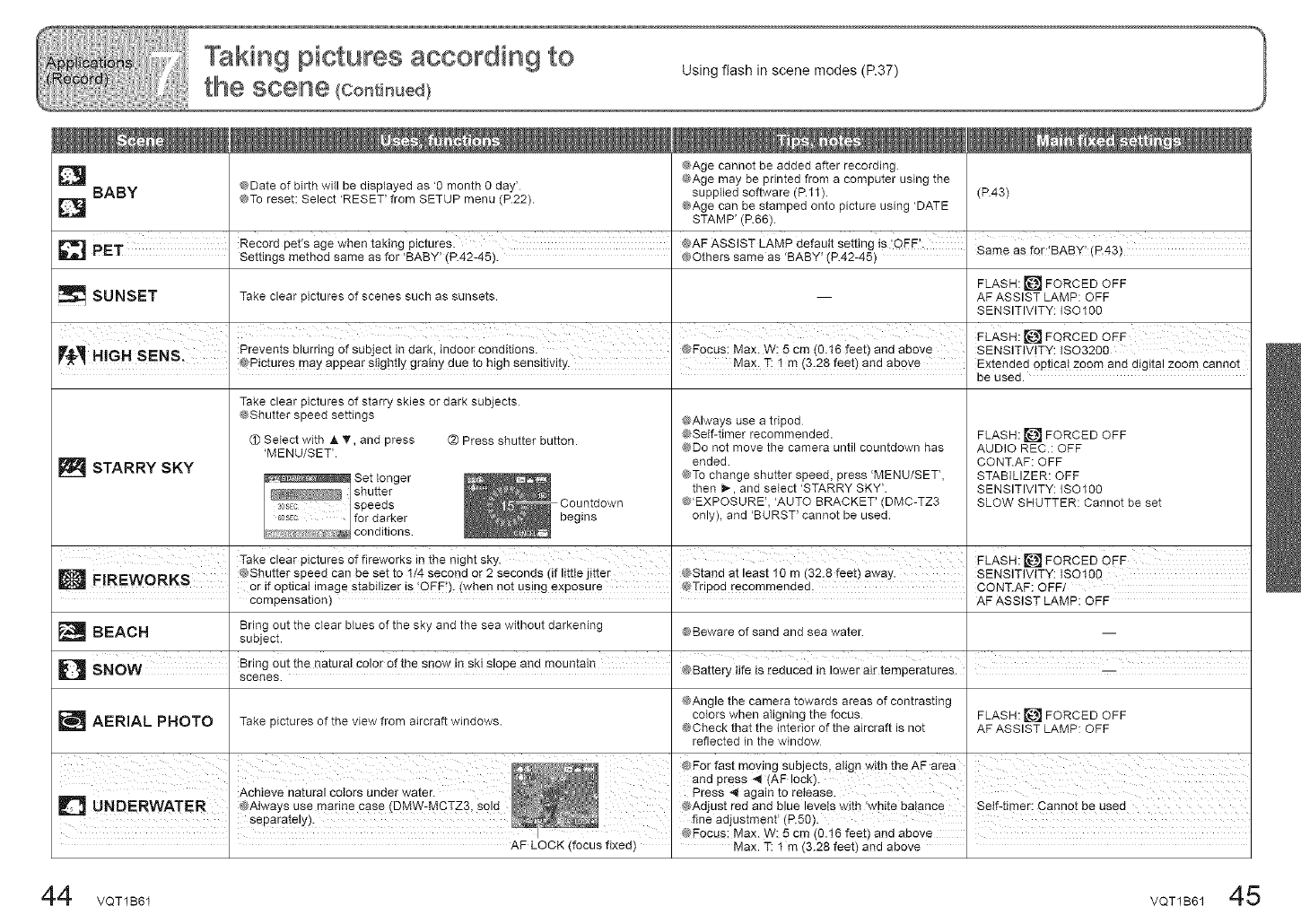
@Age cannot be added after recording
@Age may be printed from a computer using the
_BABY @Date of birth will be displayed as '0 month 0 day' supplied software (P.11). (P.43)
@To reset: Select 'RESET' from SETUP menu (P.22). @Age can be stamped onto picture using 'DATE
STAMP' (P.66).
Record pet's age when taking picturesl @AF ASSIST LAMP default setting is OFF. Same as for 'BABY' P43
_'_1PET Settings method same as for 'BABY' (P.42-45). @Others same as 'BABY' (P.42-45) ( ')
FLASH: [] FORCED OFF
_SU NSET Take clear pictures of scenes such as sunsets. -- AF ASSIST LAMP: OFF
SENSITIVITY: ISO100
FLASH: [] FORCED OFF
r'_lW!lHIGH SENS, Prevents blurring of subject in dark, indoor conditions. @FOCUS:Max. W_ 5 cm (0.t6 feet) and above SENSITIVITY: ISO3200
@Pictures may appear slightly grainy due to high sensitMty, I Max. T; f m (3.28 feet) and above Extended opticat zoom and digita! zoom Cannot
be used.
Take clear pictures of starry skies or dark subjects
@Shutter speed settings @Always use a tripod
@Soft-timer recommended. FLASH: [] FORCED OFF
(D Select with A V, and press Q Press shutter button.
'MENU/SET'. @Do not move the camera until countdown has AUDIO REC.: OFF
ended CONT.AF: OFF
STARRY SKY _ Set longer __ @To change shutter speed, press 'MENU/SET', STABILIZER: OFF
shutter ___ _ COgintsd then I_ , and select 'STARRY SKY'. SENSITI\dTY: ISO 100
_:SEC speeds own @'EXPOSURE', 'AUTO BRACKET' (DMC-TZ3 SLOW SHUTTER: Cannot be set
G_SEC for darker only), and 'BURST' cannot be used
conditions
Take €lear pictures of fireworks in the night Skyl I r@ FLASH: [] FORCED OFF
H F!RI_WORKS @Shutter speed Can be set to t/4 Second or 2 seconds (if little jitter @Stand at least 10 rn (32.8 feet) away. SENSITIVITY: ISO160
or if optical image stabilizer is OFF), (when not using exposure @TdPod recommended, CONT.AF: OFF/
compensation) AF ASSIST LAMP: OFF
Bring out the clear blues of the sky and the sea without darkening
_ BI::AOH @Beware of sand and sea water --
subject.
_':_ SNOW Bring out the natural celor ef the snow in ski s!ope and mountain @Batterytifeis[educedinlewerai[temperatures.
scenes.
@Angle the camera towards areas of contrasting
colors when aligning the focus FLASH: [] FORCED OFF
L;_AE RIAL PHOTO Take pictures of the view from aircraft windows @Check that the interior of the aircraft is not AF ASSIST LAMP: OFF
reflected in the window
@For fast mo@ng sub ects, align with the AF area I
and PrOss @ (AF !°ck)- 'I
Press @ again to release. I
@Adjust red and blue levels with 'white balance I Seft4imer: Cannot be used
fine adjustment' (P.50). I
@Focus: Max. W: 5 cm (0.16 feet) and above
AF LOCK (focus fixed) Max. T: t m (3.28 feet) and above
44 VQT1B61 VQT1B61 45
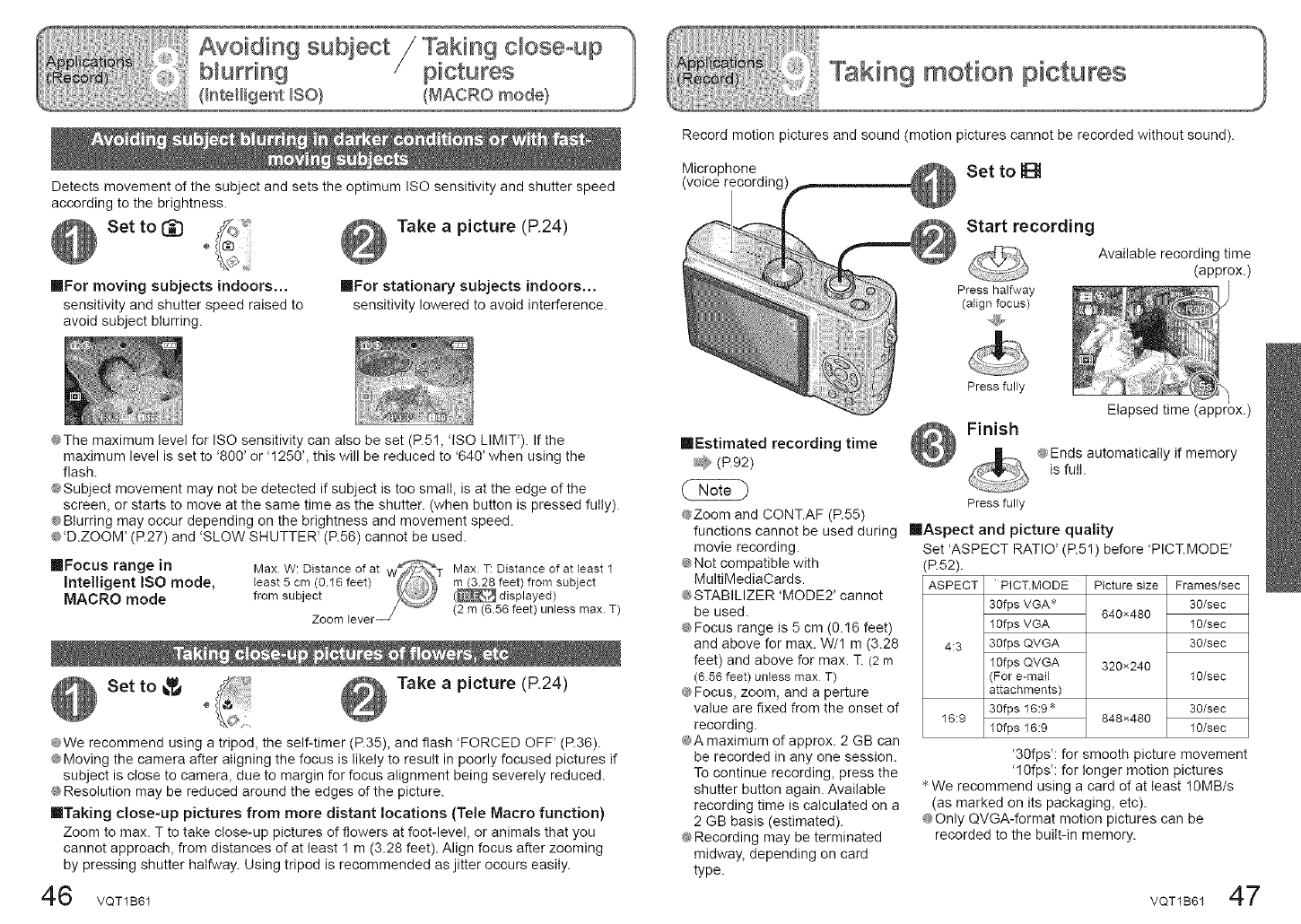
Takiing motion piictures
Detects movement of the subject and sets the optimum ISO sensitivity and shutter speed
according to the brightness.
Set to _ i_f_,_'
lilllFor moving subjects indoors,,,
sensitivity and shutter speed raised to
avoid subject blurring.
Take apicture (P.24)
IIFor stationary subjects indoors,,,
sensitivity lowered to avoid interference.
@The maximum level for ISO sensitivity can also be set (P.5t, 'lSO LIMIT'). If the
maximum level is set to '800' or '1250', this will be reduced to '640' when using the
flash.
@Subject movement may not be detected if subject is too small, is at the edge of the
screen, or starts to move at the same time as the shutter. (when button is pressed fully).
@Blurring may occur depending on the brightness and movement speed.
@'D.ZOOM' (R27) and 'SLOW SHUTTER' (P.56) cannot be used.
ImFocus range in
Intelligent ISO mode,
MACRO mode
Max W: Distance of at W%_</_t_TMax T: Distance of at least 1
least 5 cm (0.16feet) _ _feet) from subjectfrom subject (_._ displayed)
lever/_ (2 m (6.56feet) unless max.T)
Zoom
Set to _ Take a picture (P.24)
@We recommend using a tripod, the self-timer (P.35), and flash 'FORCED OFF' (R36).
@Moving the camera after aligning the focus is likely to result in poorly focused pictures if
subject is close to camera, due to margin for focus alignment being severely reduced.
@Resolution may be reduced around the edges of the picture.
IITaking close-up pictures from more distant locations (Tele Macro function)
Zoom to max. T to take close-up pictures of flowers at foot-level, or animals that you
cannot approach, from distances of at least 1 m (3.28 feet). Align focus after zooming
by pressing shutter halfway. Using tripod is recommended as jitter occurs easily.
6 VQT1B61
Record motion pictures and sound (motion pictures cannot be recorded without sound).
Microphone Set to B
(voice recording)
Start recording
Press halfway
(align focus)
Press fully
Finish
IIEstimated recording time
_, (P.92)
Press fully
@Zoom and CONT.AF (P.55)
functions cannot be used during IIAspect and picture quality
Available recording time
(approx.)
Elapsed time
movie recording.
@Not compatible with
MultiMediaCards.
@STABILIZER 'MODE2' cannot
be used.
@Focus range is 5 cm (0.16 feet)
and above for max. W/1 m (3.28
feet) and above for max. T. (2 m
(656 feet) unless max T)
@Focus, zoom, and aperture
value are fixed from the onset of
recording.
@A maximum of approx. 2 GB can
be recorded in any one session.
To continue recording, press the
shutter button again. Available
recording time is calculated on a
2 GB basis (estimated).
@Recording may be terminated
midway, depending on card
type.
@Ends automatically if memory
is full.
Set 'ASPECT RATIO' (P.51) before 'PICT.MODE'
Picture size Frames/sec
30/sec
640x480 10/sec
30/sec
320×240 10/sec
30/sec
848×480 10/sec
(R52).
ASPECT PICT.MODE
30fps VGA _€"
10fps VGA
4:3 30fps QVGA
10fps QVGA
For e-mail
attachments)
30fps 16:9"
16:9 10fps 16:9
'30fps': for smooth picture movement
'10fps': for longer motion pictures
* We recommend using a card of at least IOMB/s
(as marked on its packaging, etc).
@Only QVGA-format motion pictures can be
recorded to the built-in memory.
VQT1B61 47
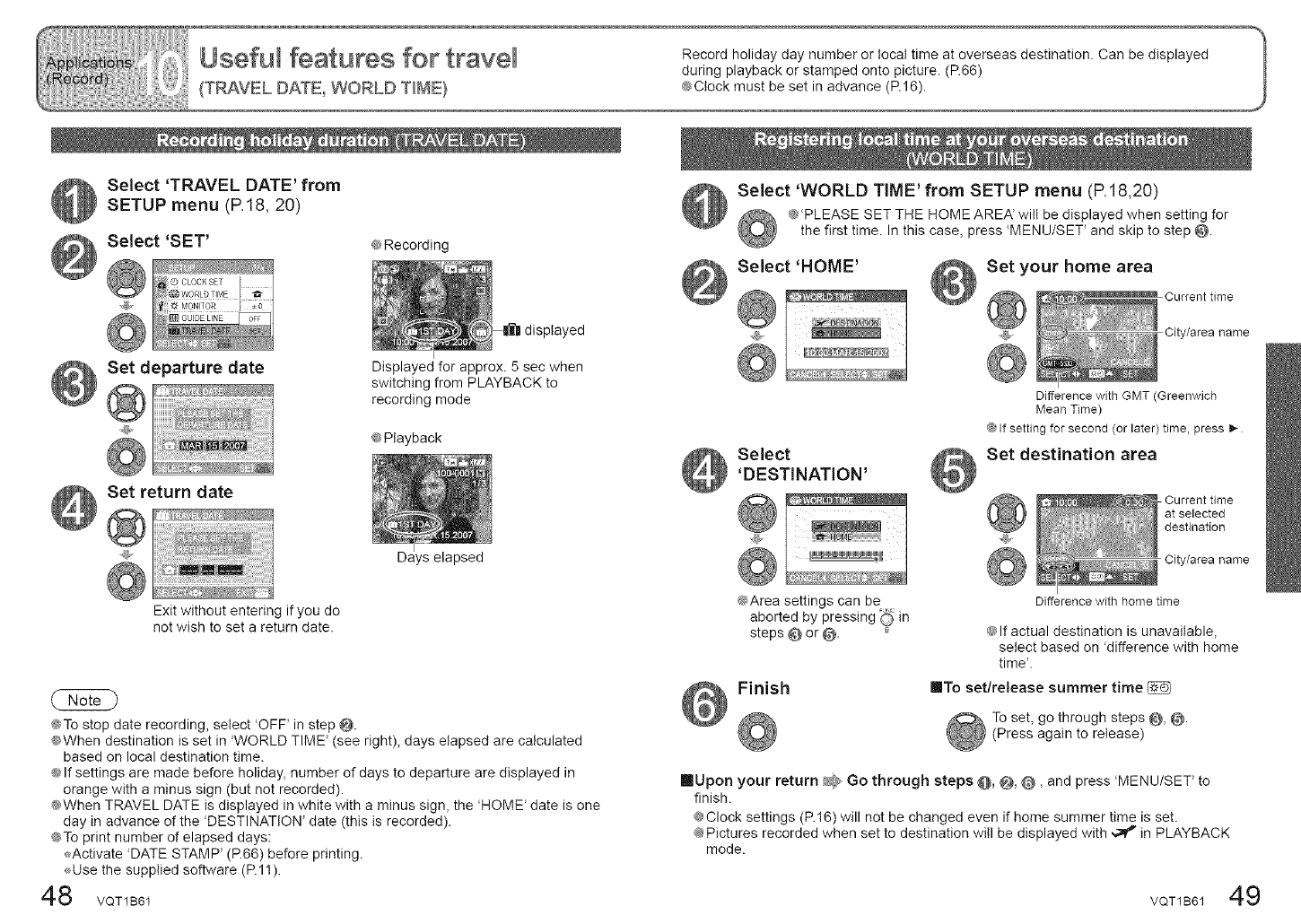
Select 'TRAVEL DATE' from
SETUP menu (P.18, 20)
Select 'SET' @Recording
Set departure date
Set return date
displayed
Displayed for approx. 5 sec when
switching from PLAYBACK to
recording mode
@Playback
Days elapsed
Exit without entering if you do
not wish to set a return date.
@To stop date recording, select 'OFF' in step @.
@When destination is set in WORLD TIME' (see right), days elapsed are calculated
based on local destination time.
@If settings are made before holiday, number of days to departure are displayed in
orange with a minus sign (but not recorded).
@When TRAVEL DATE is displayed in white with a minus sign, the 'HOME' date is one
day in advance of the 'DESTINATION' date (this is recorded).
@To print number of elapsed days:
_Activate 'DATE STAMP' (P.66) before printing.
Use the supplied software (Rll).
48 VQT1B61
Select 'WORLD TIME' from SETUP menu (P.18,20)
@'PLEASE SET THE HOME AREA' will be displayed when setting for
the first time. In this case, press 'MENU/SET' and skip to step @.
Select 'HOME' Set your home area
Current time
City/area name
Select
'DESTINATION'
@
Difference with GMT (Greenwich
Mean Time)
@if setting for second (or later)time, press lb-
Set destination area
Current time
at selected
destination
City/area name
@Area settings can be
aborted by pressing '_ in
steps @ or @.
Finish
Difference with home time
@If actual destination is unavailable,
select based on 'difference with home
time'.
IIITo set/release summer time
To set, go through steps @, @.
(Press again to release)
mUpon your return _ Go through steps @, @, @, and press 'MENU/SET' to
finish.
@Clock settings (P.16) will not be changed even if home summer time is set.
@Pictures recorded when set to destination will be displayed with _ in PLAYBACK
mode.
VQT1B61 49
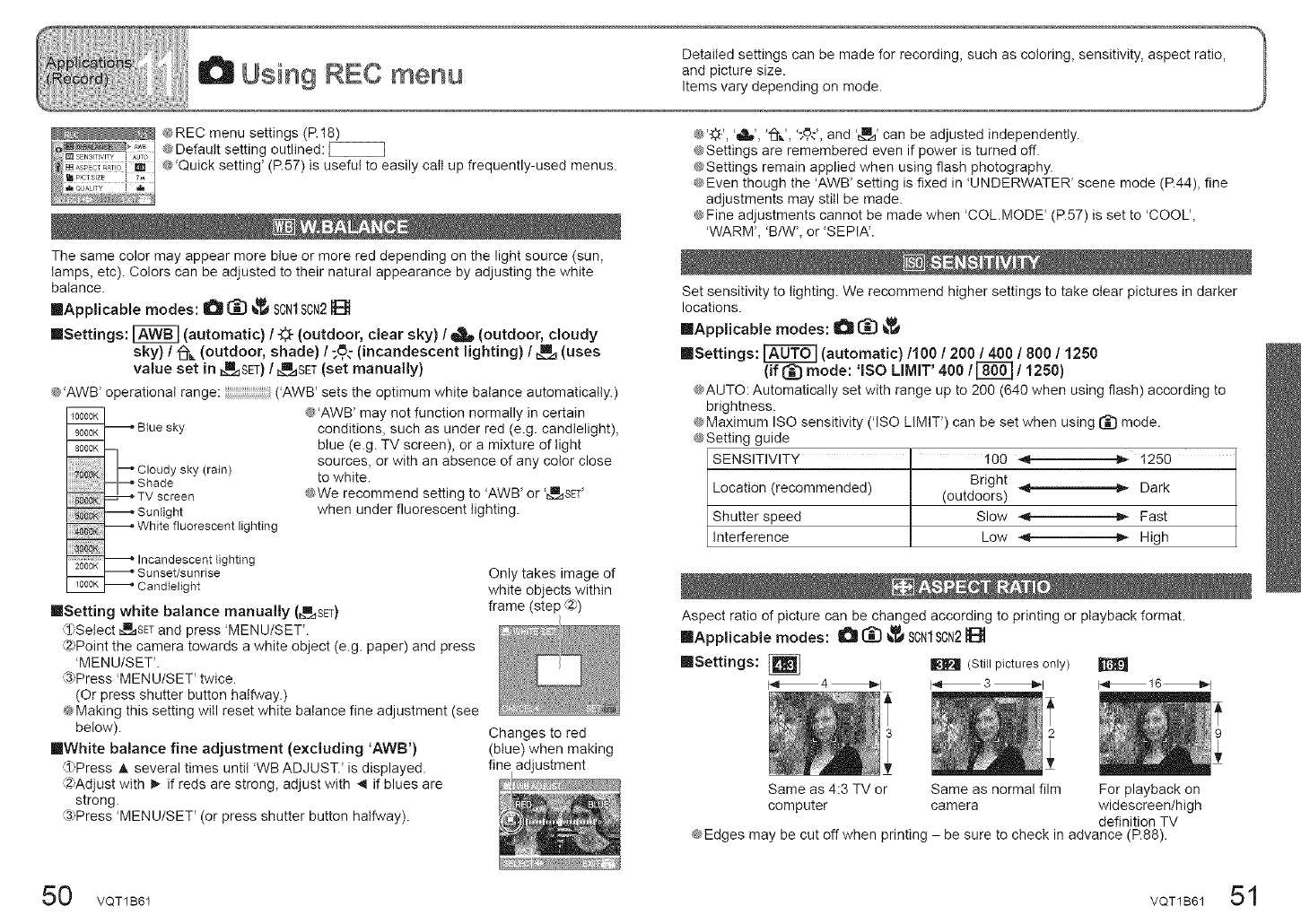
@REC menu settings (P.18)
@Default setting outlined:
@Quick setting' (P.57) is useful to easily catt up frequently-used menus.
The same color may appear more blue or more red depending on the light source (sun,
lamps, etc). Colors can be adjusted to their natural appearance by adjusting the white
balance.
[Applicable modes: _ (_ _ SCN1SON2_{_
mSettings: _ (automatic) /_ (outdoor, clear sky) /_ (outdoor, cloudy
sky) /1_ (outdoor, shade) /_,.: (incandescent lighting) /_ (uses
value set in _SET) /_.namSET(set manually)
@'AWB' operational range: ('AWB' sets the optimum white balance automatically.)
IO000K
9000K _ Blue sky
8000_
p Cloudy sky (rain)
Shade
_#NN _ TV screen
_ Sunlight
White fluorescent lighting
@'AWB _may not function normally in certain
conditions, such as under red (e.g. candlelight),
blue (e.g. TV screen), or a mixture of light
sources, or with an absence of any color close
to white.
@We recommend setting to 'AWB' or _SET'
when under fluorescent lighting.
_ Incandescent lighting
2000K
__ _ Sunset/sunrise
moo_ _ Candlelight
resetting white balance manually (_SET)
3)Select _SET and press 'MENU/SET'.
_2_'Pointthe camera towards a white object (e.g. paper) and press
'MENU/SET'.
@Press MENU/SET' twice.
(Or press shutter button halfway.)
@Making this setting witl reset white balance fine adjustment (see
below).
[]White balance fine adjustment (excluding 'AWB')
3_Press @ several times until 'WB ADJUST.' is displayed.
_2_Adjustwith _ if reds are strong, adjust with .,I if blues are
strong.
@Press 'MENU/SET' (or press shutter button halfway).
Only takes image of
white objects within
frame ._2_
(step ,_)
Changes to red
(blue) when making
fine adjustment
@'_/_','d,_', "_.', ';_,#, and '_' can be adjusted independently.
@Settings are remembered even if power is turned off.
@Settings remain applied when using flash photography.
@Even though the 'AWB' setting is fixed in 'UNDERWATER' scene mode (P.44), fine
adjustments may still be made.
@Fine adjustments cannot be made when 'COL.MODE' (P.57) is set to 'COOL',
'WARM', 'B/W', or 'SEPIA'.
Set sensitivity to lighting. We recommend higher settings to take clear pictures in darker
locations.
inApplicable modes: _ _ _i_
[]Settings: _ (automatic)/100 /200 /400 /800 /1250
(if _ mode: 'lSO LIMIT' 400 /_/1250)
@AUTO: Automatically set with range up to 200 (640 when using flash) according to
brightness.
@Maximum ISO sensitivity ('ISO LIMIT') can be set when using (_ mode.
@Setting guide
SENSITIVITY " 100 *< _ t250
Bright __ _* Dark
Location (recommended) (outdoors)
Shutter speed Slow _ >- Fast
Interference Low _ _,- High
Aspect ratio of picture can be changed according to printing or playback format.
[Applicable modes: _ (_ _ SCN1SCN2
[]Settings: [_ _ (still pictures only)
14 4 _1 I_ 3 _1 I_ 16_1
For playback on
Same as 4:3 TV or Same as normal film
computer camera widescreen/high
definition TV
@Edges may be cut off when printing - be sure to check in advance (R88).
50 VQT1B61 VQT1B61 51
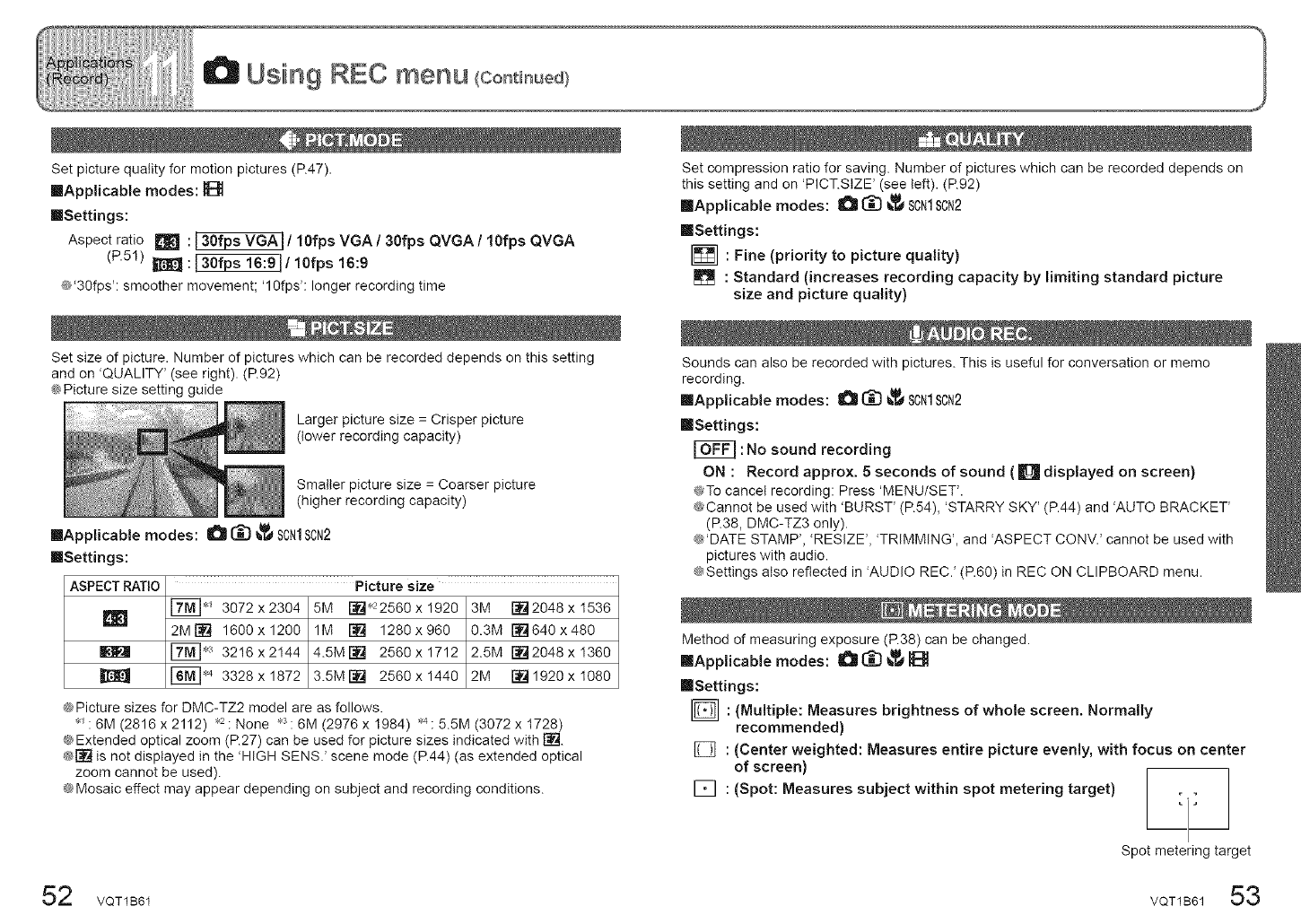
Set picture quality for motion pictures (R47).
IIApplicabte modes: lt_
IISettings:
Aspect ratio _ : 13Ofps VGAI/1Ofps VGA /3Ofps QVGA /10fps QVGA
(P.51) _:130fps 16:91/10fps 16:9
@'30fps': smoother movement; '10fps': longer recording time
Set size of picture. Number of pictures which can be recorded depends on this setting
and on 'QUALITY' (see right). (P.92)
@Picture size setting guide
Larger picture size = Crisper picture
(lower recording capacity)
Smaller picture size = Coarser picture
(higher recording capacity)
inapplicable modes: _ I_ _ SCN1SCN2
mSettings:
ASPECT RATIO
m
Picture size
[_'_ 3072x2304 5M i-'#_'22560x1920 3M []2048xI536
2MI-:_I 1600x1200 1M [] 1280x960 0.3M []640x480
[_,3 3216x2144 4.5M[] 2568x1712 2.5M []2048xi360
[_< 3328x1872 3.5M[] 2568x1440 2M []192Oxi080
@Picture sizes for DMC-TZ2 model are as follows.
_ : 6M (2816 x 2112) ,2 : None ,3 : 6M (2976 x 1984) _ : 5.5M (3072 x I728)
@Extended optical zoom (R27) can be used for picture sizes indicated with [].
@1"#-_is not displayed in the 'HIGH SENS.' scene mode (P.44) (as extended optical
zoom cannot be used).
@Mosaic effect may appear depending on subject and recording conditions.
Set compression ratio for saving. Number of pictures which can be recorded depends on
this setting and on 'PICT.StZE' (see left). (P.92)
inapplicable modes: I_ (_ _,_ SCN1SCN2
mSettings:
[] : Fine (priority to picture quality)
: Standard (increases recording capacity by limiting standard picture
size and picture quality)
Sounds can also be recorded with pictures. This is useful for conversation or memo
recording.
inapplicable modes: I_ I_ _I_ SON1SCN2
mSettings:
: No sound recording
ON : Record approx. 5 seconds of sound ( [] displayed on screen)
@To cancel recording: Press 'MENU/SET'.
@Cannot be used with 'BURST' (P.54), 'STARRY SKY' (P.44) and 'AUTO BRACKET'
(P.38, DMC-TZ3 only).
@'DATE STAMP', 'RESIZE', 'TRIMMING', and 'ASPECT CONV.' cannot be used with
pictures with audio.
@Settings also reflected in AUDIO REC.' (P.6O) in REC ON CLIPBOARD menu.
Method of measuring exposure (R38) can be changed.
inApplicable modes: !_ I_ _,_
mSettings:
[] : (Multiple: Measures brightness of whole screen. Normally
recommended)
[] : (Center weighted: Measures entire picture evenly, with focus on center
of screen)
['_ :(Spot:Measuressubjectwithinspotmeteringtarget)L] I
Spot metering target
52 VQT1B61 VQT1B6153
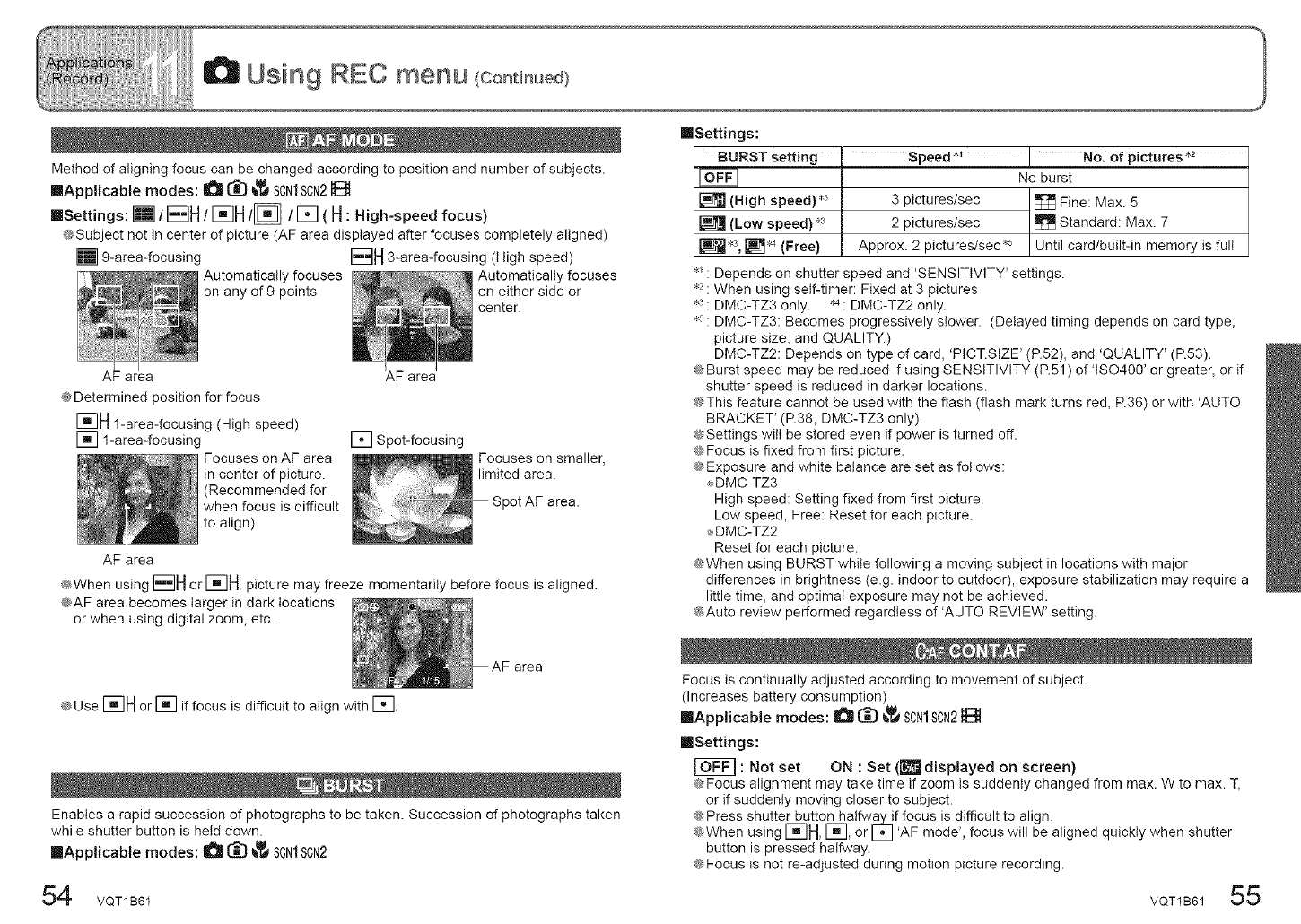
Method of aligning focus can be changed according to position and number of subjects.
[]Applicable modes: O _ _ SON1SON2
mSettings:[] /EBH/I IH/[] /[] (H: High-speed focus)
@Subject not in center of picture (AF area displayed after focuses completely aligned)
[] 9-area-focusing
Automatically focuses
on any of 9 points
area
@Determined position for focus
[]H @area-focusing (High speed)
[] 1-area-focusing
Focuses on AF area
in center of picture.
(Recommended for
when focus is difficult
to align)
AF area
3-area-focusing (High speed)
Automatically focuses
on either side or
center.
area
[] Spot-focusing
Focuses on smaller,
limited area.
Spot AF area.
@When using I_IH orI_qH,picture may freeze momentarily before focus is aligned.
@AF area becomes larger in dark locations
or when using digital zoom, etc.
@Use I_IH or [] if focus is difficult to align with [].
Enables a rapid succession of photographs to be taken. Succession of photographs taken
while shutter button is held down.
[]Applicable modes: O [_} _ SCN1SCN2
[]Settings:
BURST setting ' Speed *_ No. of pictures _
No burst
(High speed) .3 3 pictures/sec _ Fine: Max. 5
(Low speed) ,3 2 pictures/sec _ Standard: Max. 7
_,3, []_ (Free) Approx. 2 pictures/sec *_ Until card/built-in memory is full
_: Depends on shutter speed and 'SENSITIVITY' settings.
_ : When using self-timer: Fixed at 3 pictures
: DMC-TZ3 only. *_: DMC-TZ2 only.
: DMC-TZ3: Becomes progressively slower. (Delayed timing depends on card type,
picture size, and QUALITY.)
DMC-TZ2: Depends on type of card, 'PICT.SlZE' (P.52), and 'QUALITY' (R53).
@Burst speed may be reduced if using SENSITIVITY (P.51) of 'lSO400' or greater, or if
shutter speed is reduced in darker locations.
@This feature cannot be used with the flash (flash mark turns red, P.36) or with 'AUTO
BRACKET' (R38, DMC-TZ3 only).
@Settings will be stored even if power is turned off.
@Focus is fixed from first picture.
@Exposure and white balance are set as follows:
DMC-TZ3
High speed: Setting fixed from first picture.
Low speed, Free: Reset for each picture.
_DMC-TZ2
Reset for each picture.
@When using BURST while following a moving subject in locations with major
differences in brightness (e.g. indoor to outdoor), exposure stabilization may require a
little time, and optimal exposure may not be achieved.
@Auto review performed regardless of 'AUTO REVIEW' setting.
Focus is continually adjusted according to movement of subject.
(Increases battery consumption)
[]Applicable modes: _ (_ _,_ SON1SON2}_
[]Settings:
: Not set ON : Set (r_! displayed on screen)
@Focus alignment may take time if zoom is suddenly changed from max. W to max. T,
or if suddenly moving closer to subject.
@Press shutter button halfway if focus is difficult to align.
@When using E_H, E_, or [] 'AF mode', focus will be aligned quickly when shutter
button is pressed halfway.
@Focus is not re-adjusted during motion picture recording.
54 VQT1B61 VQT1B61 55
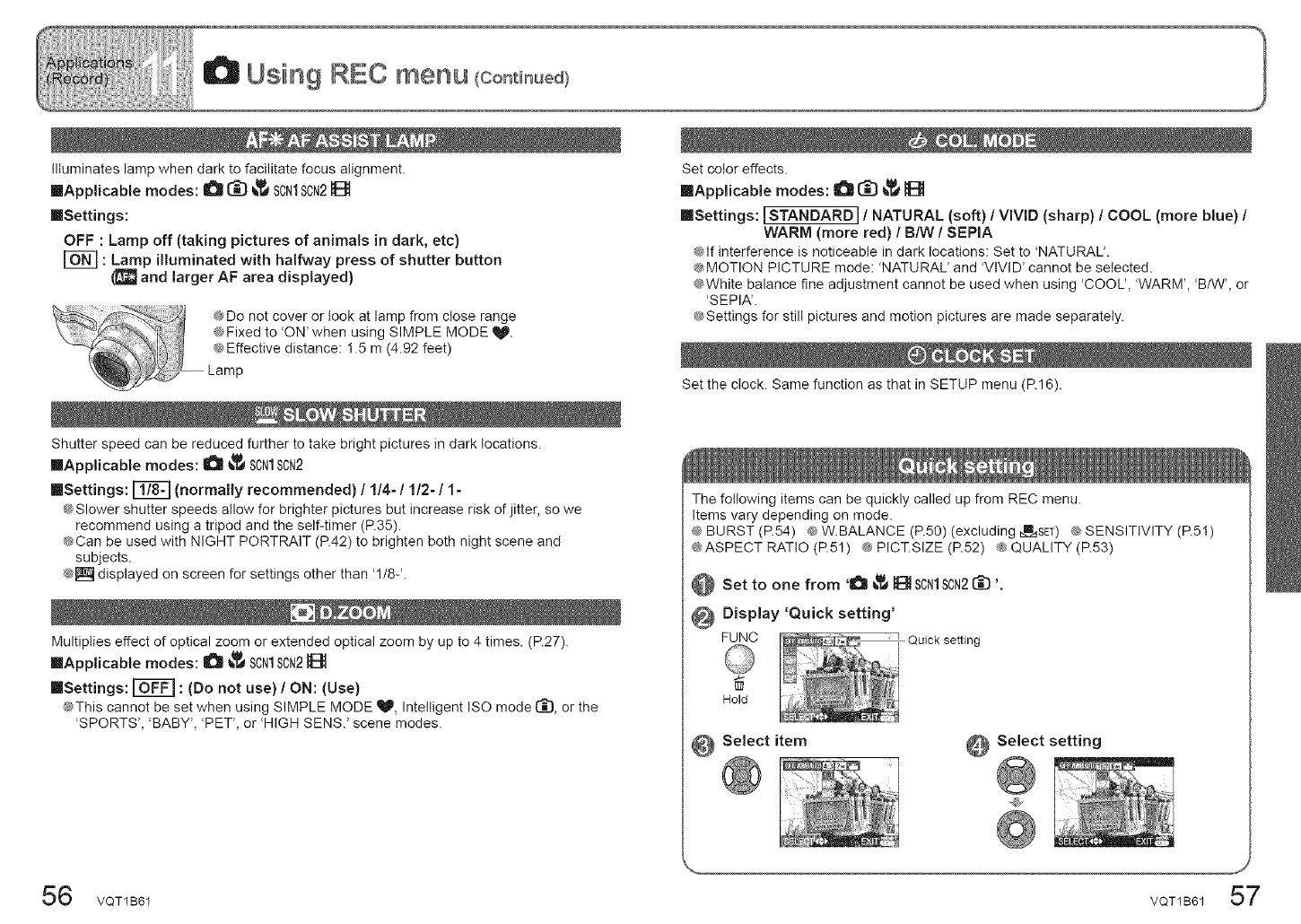
Illuminates lamp when dark to facilitate focus alignment.
[]Applicable modes: (1_ _ _ SON1SON2
[]Settings:
OFF : Lamp off (taking pictures of animals in dark, etc)
: Lamp illuminated with halfway press of shutter button
(m_J and (arger AF area displayed)
Shutter speed can be reduced further to take bright pictures in dark locations.
inapplicable modes: O _ SCN1SCN2
[Settings: _ (normally recommended) /1/4- /1/2- /1-
@Slower shutter speeds allow for brighter pictures but increase risk of jitter, so we
recommend using a tripod and the self-timer (P.35).
@Can be used with NIGHT PORTRAIT (P.42) to brighten both night scene and
subjects.
@[] displayed on screen for settings other than '1/8-'.
Multiplies effect of optical zoom or extended optical zoom by up to 4 times. (P.27).
inApplicable modes: O _ SCN1SCN2
[]Settings: _ : (Do not use) /ON: (Use)
@This cannot be set when using SIMPLE MODE V, Intelligent ISO mode (_, or the
'SPORTS', 'BABY', 'PET', or 'HIGH SENS.' scene modes.
Set color effects.
[Applicable modes: I_ (_ _
[]Settings: ISTANDARD I/NATURAL (soft) /VIVID (sharp) /COOL (more blue) /
WARM (more red) /B/W /SEPIA
@if interference is noticeable in dark locations: Set to 'NATURAL'.
@MOTION PICTURE mode: 'NATURAL' and 'VIVID' cannot be selected.
@White balance fine adjustment cannot be used when using 'COOL', 'WARM', 'BIW', or
'SEPIA'.
@Settings for still pictures and motion pictures are made separately.
Set the clock. Same function as that in SETUP menu (P.16).
The following items can be quickly called up from REC menu.
Items vary depending on mode.
@BURST (R54) @W.BALANCE (P.50) (excluding m_.=_SET)@SENSITIVITY (R51)
@ASPECT RATIO (R51) @ PICT.SIZE (R52) @QUALITY (R53)
@ Set to one from 'O _ 1{_ SON1SCN2(_ '.
Display 'Quick setting'
FUNC Quick setting
Hold
Select item _ Select setting
6 VQT1B61 VOT1B6157
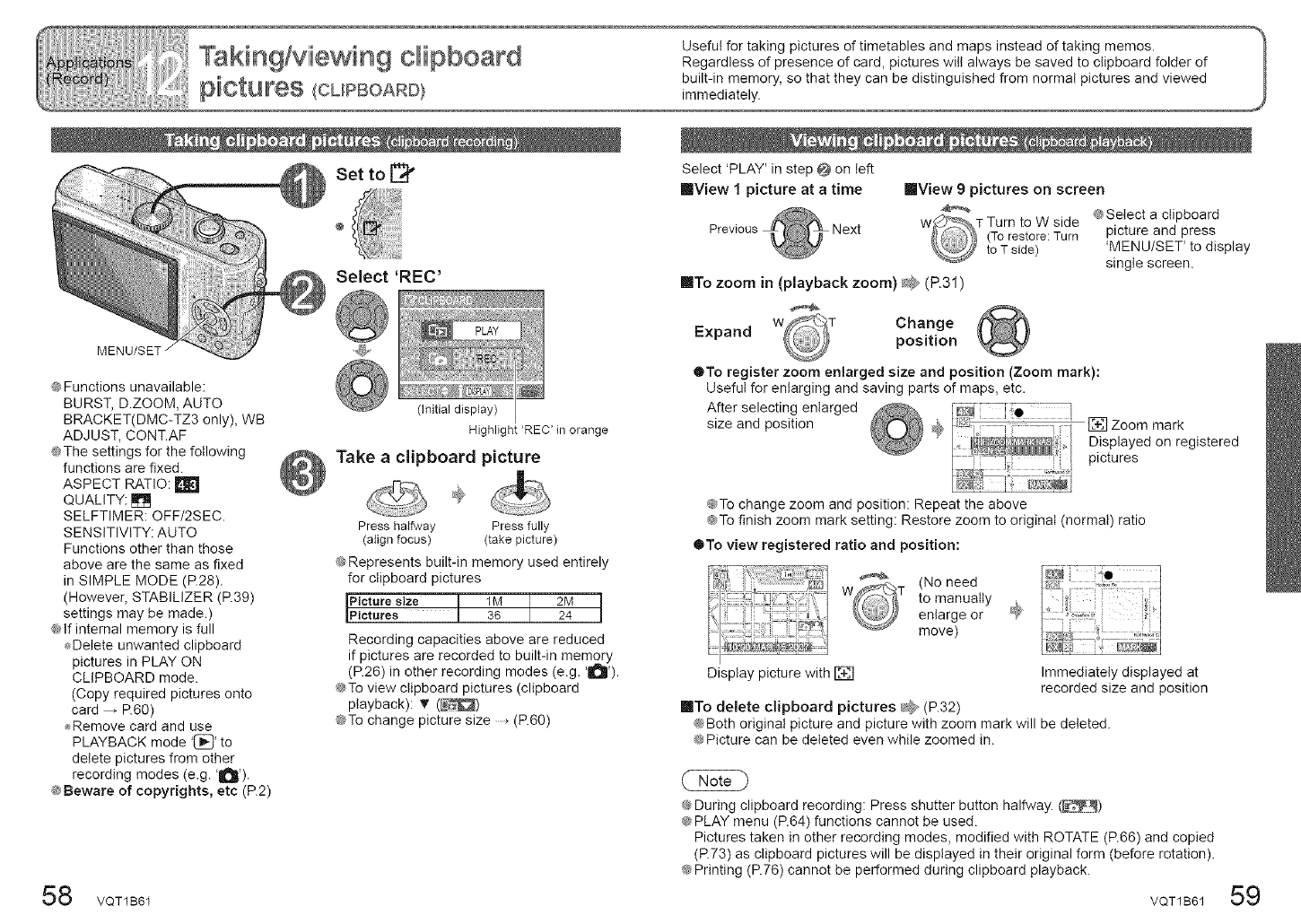
MENU/SET /
@Functions unavailable:
BURST, D.ZOOM, AUTO
BRACKET(DMC-TZ3 only), WB
ADJUST, CONT.AF
@The settings for the following
functions are fixed.
ASPECT RATIO:
QUALITY: []
SELFTIMER: OFF/2SEC.
SENSITIVITY: AUTO
Functions other than those
above are the same as fixed
in SIMPLE MODE (R28).
(However, STABILIZER (R39)
settings may be made.)
@If internal memory is full
_Delete unwanted clipboard
pictures in PLAY ON
CLIPBOARD mode.
(Copy required pictures onto
card ,R60)
,_Remove card and use
PLAYBACK mode '_' to
delete pictures from other
recording modes (e.g. '1_').
@Beware of copyrights, etc (P.2)
Set to [_
Select 'REC'
0nitial display)
Highlight 'REC' inorange
Take aclipboard picture
Press halfway Press fully
(align focus) (take picture)
@Represents built-in memory used entirely
for clipboard pictures
Picture size 1M 2M
P cturee 36 24
Recording capacities above are reduced
if pictures are recorded to built-in memory
(P.26) in other recording modes (e.g. '_').
@To view clipboard pictures (clipboard
playback): 'F (_)
@To change picture size (P.60)
8 VQT1B61
Select 'PLAY' in step O on left
|View 1 picture at a time
Previous Next
IIView 9 pictures on screen
@Select a clipboard
picture and press
'MENU/SET' to display
single screen.
inTo zoom in (playback zoom) d;_ (P.31)
Expand Change
position
@To register zoom enlarged size and position (Zoom mark):
Useful for enlarging and saving parts of maps, etc.
After selecting enlarged
size and position [] Zoom mark
Displayed on registered
pictures
@To change zoom and position: Repeat the above
@To finish zoom mark setting: Restore zoom to original (normal) ratio
@To view registered ratio and position:
_-_=,_ _:%:-.
It:% ",_ {Noneed
to manually
'_ _ enlarge or
= _, move)
Display picture with [] Immediately displayed at
recorded size and position
inTo delete clipboard pictures _2 (P.32)
@Both original picture and picture with zoom mark will be deleted.
@Picture can be deleted even while zoomed in.
@During clipboard recording: Press shutter button halfway. (__)
@PLAY menu (P.64) functions cannot be used.
Pictures taken in other recording modes, modified with ROTATE (P.66) and copied
(R73) as clipboard pictures will be displayed in their original form (before rotation).
@Printing (R76) cannot be performed during clipboard playback.
VQT1B61 59
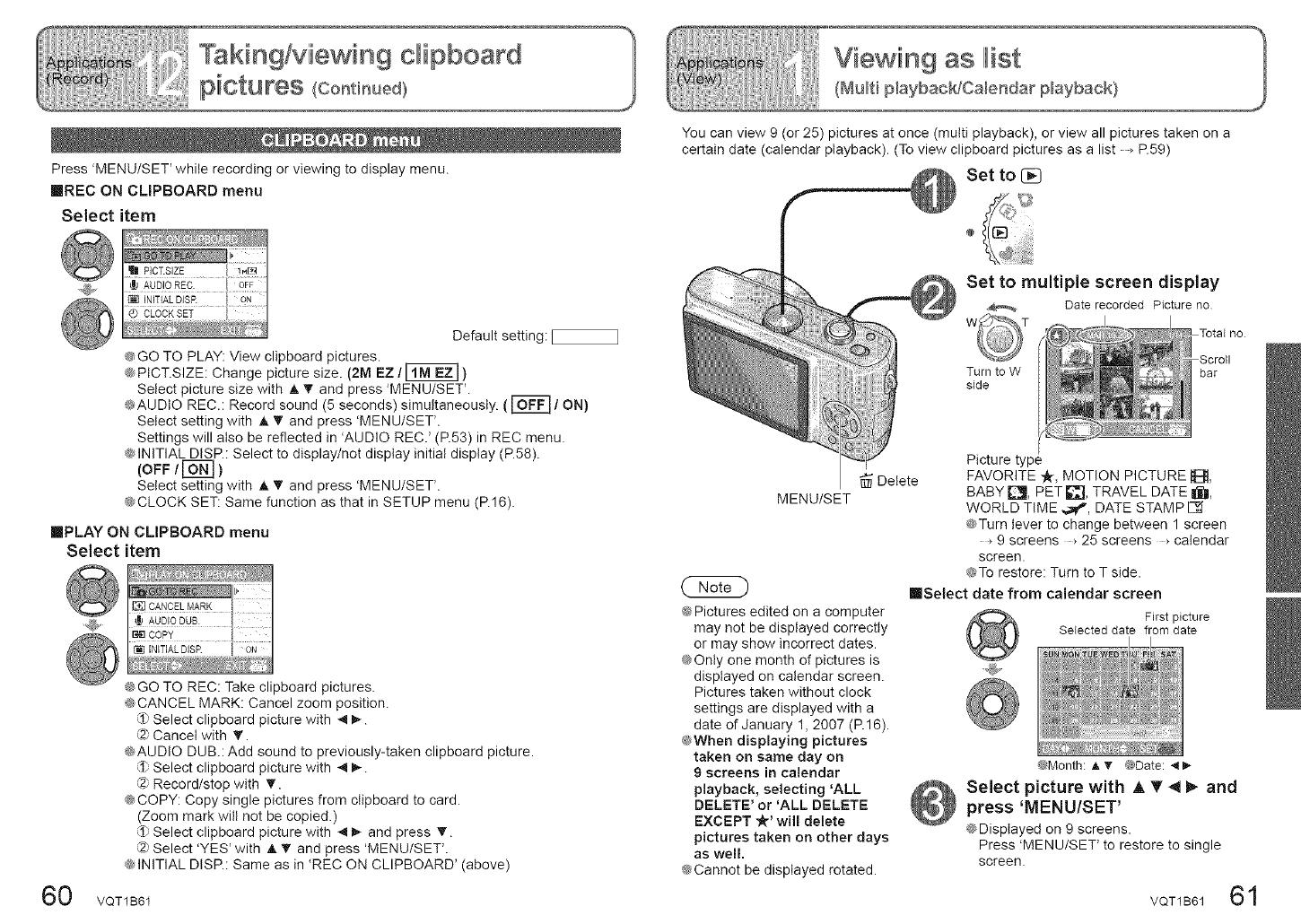
Press 'MENU/SET' while recording or viewing to display menu.
IIIREC ON CLIPBOARD menu
Select item
I__ _!!
!1 P]CT.SIZE i._ I
[_INmALDJSP. I ON I Default setting:
@GO TO PLAY: View clipboard pictures.
@PtCT.SIZE: Change picture size. (2M EZ /_ )
Select picture size with A T and press 'MENU/SET'.
@AUDIO REC.: Record sound (5 seconds) simultaneously. ( _ /ON)
Select setting with A _' and press 'MENU/SET'.
Settings will also be reflected in 'AUDIO REC.' (P.53) in REC menu.
@INITIAL DISP.: Select to display/not display initial display (P.58).
(OFF /_ )
Select setting with A _" and press 'MENU/SET.
@CLOCK SET: Same function as that in SETUP menu (P.16).
IIPLAY ON CLIPBOARD menu
Select item
60
@GO TO REC: Take clipboard pictures.
@CANCEL MARK: Cancel zoom position.
LI_Select clipboard picture with _1_-.
_2_Cancel with '_.
@AUDIO DUB.: Add sound to previously-taken clipboard picture.
_1_Select clipboard picture with _1_-.
(2_Record/stop with _'.
@COPY: Copy single pictures from clipboard to card.
(Zoom mark wilt not be copied.)
_1_Select clipboard picture with _1_ and press T.
C2_Select 'YES' with A _' and press 'MENU/SET'.
@INITIAL DISP.: Same as in 'REC ON CLIPBOARD' (above)
VQT1B61
Youcan view 9 (or 25) pictures at once (multi playback), or view all pictures taken on a
certain date (calendar playback). (Toview clipboard pictures as a list _P.59)
Set to
Delete
MENU/SET
@Pictures edited on a computer
may not be displayed correctly
or may show incorrect dates.
@Only one month of pictures is
displayed on calendar screen.
Pictures taken without clock
settings are displayed with a
date of January 1, 2007 (R16).
@When displaying pictures
taken on same day on
9 screens in calendar
playback, selecting 'ALL
DELETE' or 'ALL DELETE
EXCEPT "k' will delete
pictures taken on other days
as well.
@Cannot be displayed rotated,
Set to multiple screen display
Date recorded Picture no
Turn to W
side bar
Picture type
FAVORITE -,/_,MOTION PICTURE IBm,
BABY PJI, PET _'_l, TRAVEL DATE I_11,
WORLD TIME ,,,_f', DATE STAMP []
@Turn lever to change between 1 screen
9 screens _ 25 screens _calendar
screen.
@To restore: Turn to T side.
IIISetect date from calendar screen
First picture
Selected date from date
@Month: A'V @Date: ._l)-
Select picture with A T 4 1_ and
press 'MENU/SET'
@Displayed on 9 screens.
Press 'MENU/SET' to restore to single
screen.
61
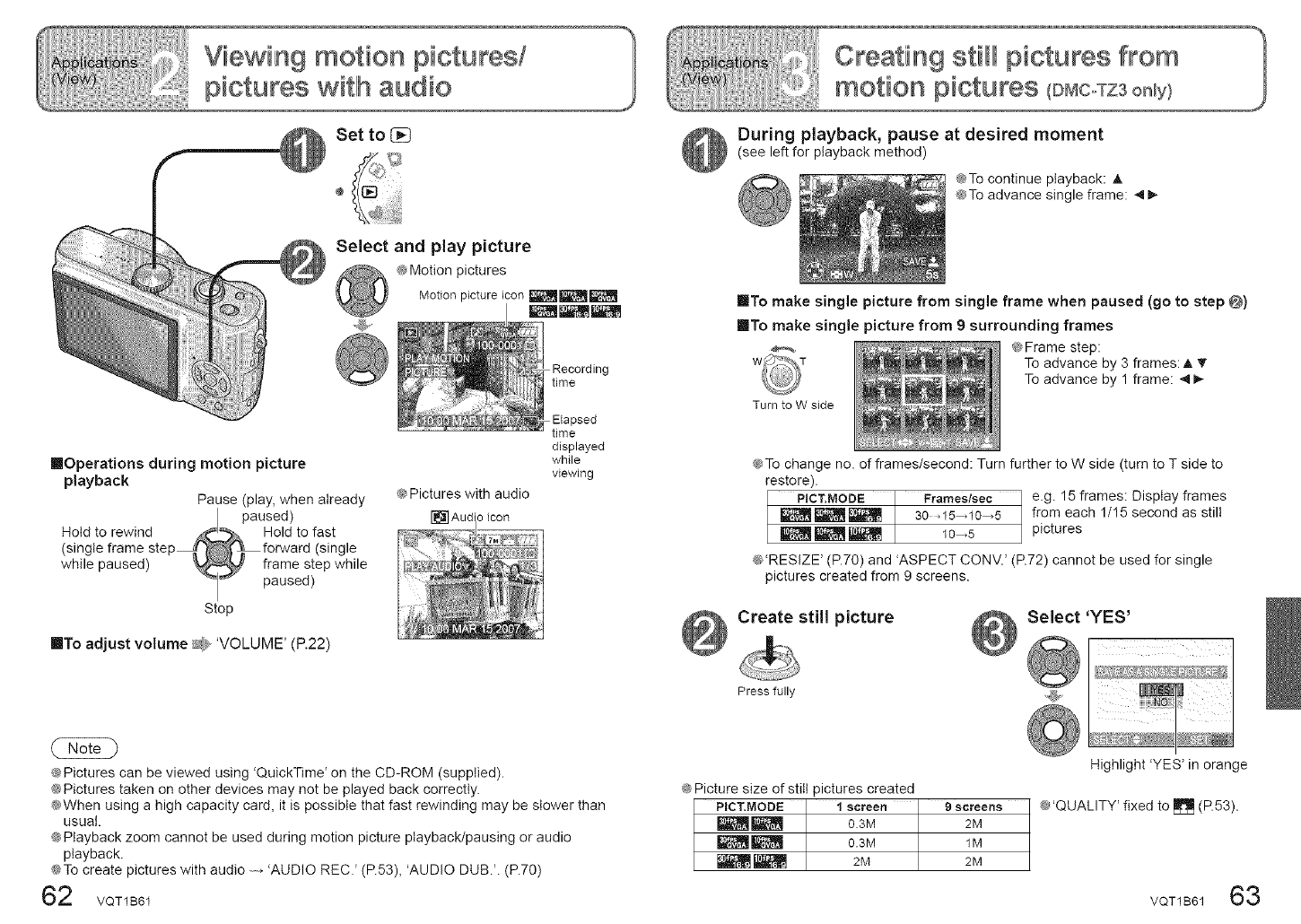
Set to
._ Select and play picture
@Motion pictures
Motion picture icon __
mOperations during motion picture
playback
Pause (play, when already
I paused)
Hold to rewind _ Hold to fast
(single frame step _ _,_ _ forward (single
while paused) _ frame step while
"_'_ paused)
Stop
@Pictures with audio
r_] Audi ) icon
Recording
time
Elapsed
time
displayed
while
viewing
into adjust volume _, 'VOLUME' (P.22)
@Pictures can be viewed using 'QuickTime' on the CD-ROM (supplied).
@Pictures taken on other devices may not be played back correctly.
@When using a high capacity card, it is possible that fast rewinding may be slower than
usual.
@Playback zoom cannot be used during motion picture playback/pausing or audio
playback.
@To create pictures with audio 'AUDIO REC.' (R53), 'AUDIO DUB.'. (P.70)
62 voT1B61
Creating still pictures from
motiioln piictures (D CoTZSonUy)
During playback, pause at desired moment
(see left for playback method)
@To continue playback: A
@To advance single frame: _ _-
mlTo make sing(e picture from single frame when paused (go to step @)
mlTo make single picture from 9 surrounding frames
@Frame step:
To advance by 3 frames: A T
To advance by 1 frame: ,,I _-
Turn to W side
@To change no. of frames/second: Turn further to W side (turn to T side to
restore).
PICT.MODE Frames/see _Ie.g. 15frames: Disptayframes
__ 30 _15_10_5 from each 1/15 second as still
_ _ 10_5 pictures
@'RESIZE' (P.70) and 'ASPECT CONV.' (R72) cannot be used for single
pictures created from 9 screens.
Create still picture Select 'YES'
Press fully
@Picture size of still pictures created
PICT.MODE 1 screen 9 screens
_i_ O.SM 2M
_ 0.3M 1M
_ 2M 2M
Highlight 'YES' in orange
@'QUALITY' fixed to _ (P.53).
VQT1B61 63
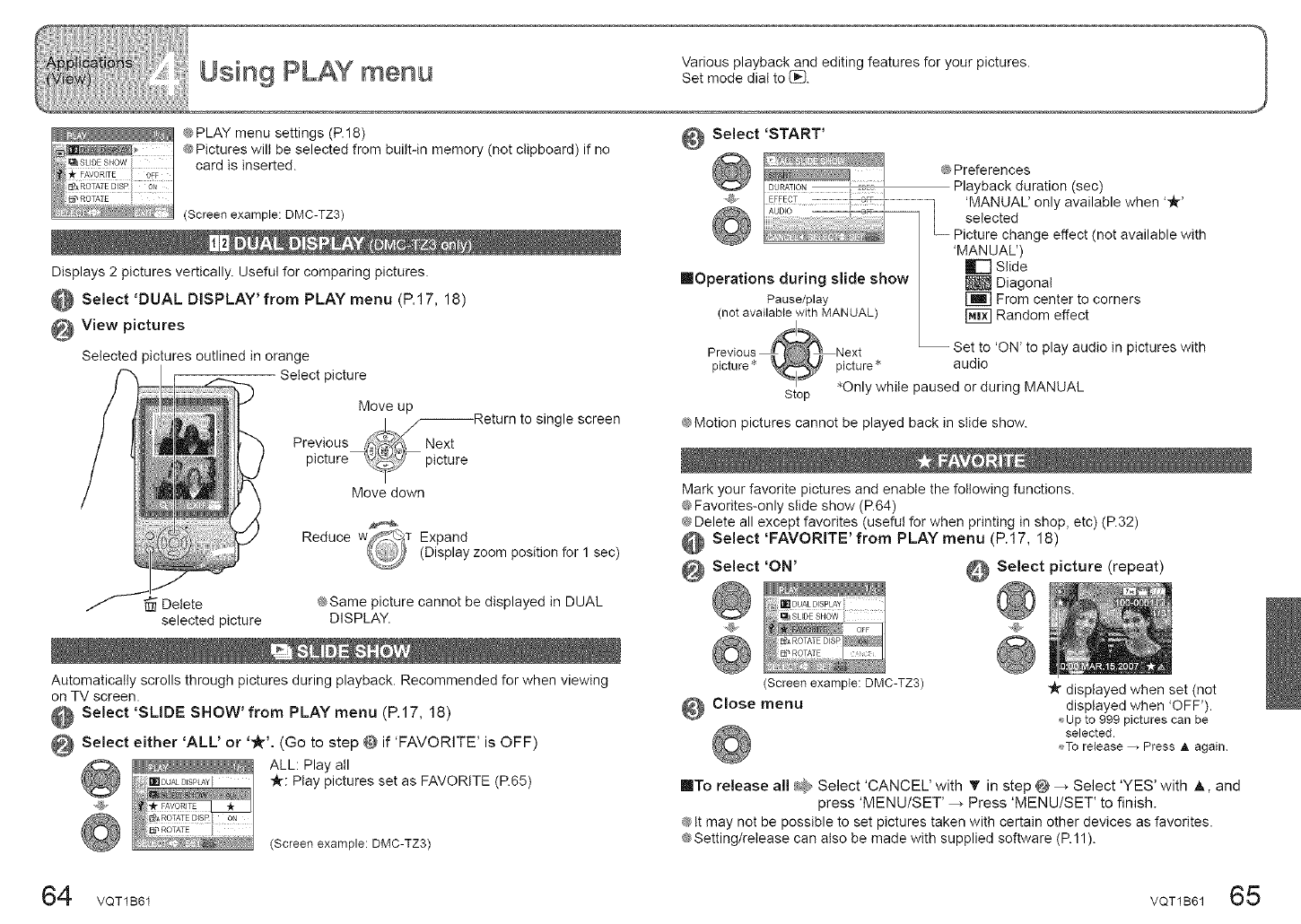
Various playback and editing features for your pictures.
00'=--vSm_ PLAY menu Set mode dial to 12:].
_ PLAY menu settings (P.18)
@Pictures will be selected from built-in memory (not clipboard) if no
card is inserted.
(Screen example: DMC-TZ3)
Displays 2 pictures vertically. Useful for comparing pictures.
Select 'DUAL DISPLAY' from PLAY 17, 1
menu (P. 8)
View pictures
Selected pictures outlined in orange
Select picture
Move up
| _Return to single screen
Previous
picture_'_ -_ picture
Move down
Reduce T Expand
(Display zoom position for 1 sec)
Delete @Same picture cannot be displayed in DUAL
selected picture DISPLAY.
Automatically scrolls through pictures during playback. Recommended for when viewing
on TV screen.
Select 'SLIDE SHOW' from PLAY menu (P.17, 18)
@ Select either 'ALL' or '_-'. (Go to step @ if 'FAVORITE' is OFF)
ALL: Play all
[]DUAL_SPLA¥ Y_: Play pictures set as FAVORITE (P.65)
(Screen example: DMC-TZ3)
@Preferences
Playback duration (sec)
'MANUAL')
mr-] Slide
mOperations during slide show _ Diagonal
Pause/play _ From center to corners
(not available with MANUAL) _ Random effect
_1
Previous _Next -- Set to 'ON' to play audio in pictures with
picture_ picture_ audio
Stop _Only while paused or during MANUAL
@Motion pictures cannot be played back in slide show.
Mark your favorite pictures and enable the following functions.
@Favorites-only slide show (P.64)
@Delete all except favorites (useful for when printing in shop, etc) (P.32)
Select 'FAVORITE' from PLAY menu (P.17, 18)
@ Select 'ON' @ Select picture (repeat)
(Screen example: DMC-TZ3)
@ Close menu
"k displayed when set (not
displayed when 'OFF').
,_Up to 999 pictures can be
selected.
,_To release _ Press A again
into release all _ Select 'CANCEL' with _' in step @__ Select 'YES' with _,, and
press 'MENU/SET' _ Press 'MENU/SET' to finish.
@tt may not be possible to set pictures taken with certain other devices as favorites.
@Setting/release can also be made with supplied software (R 11).
64 VQT1Bdl VQT1B61 65
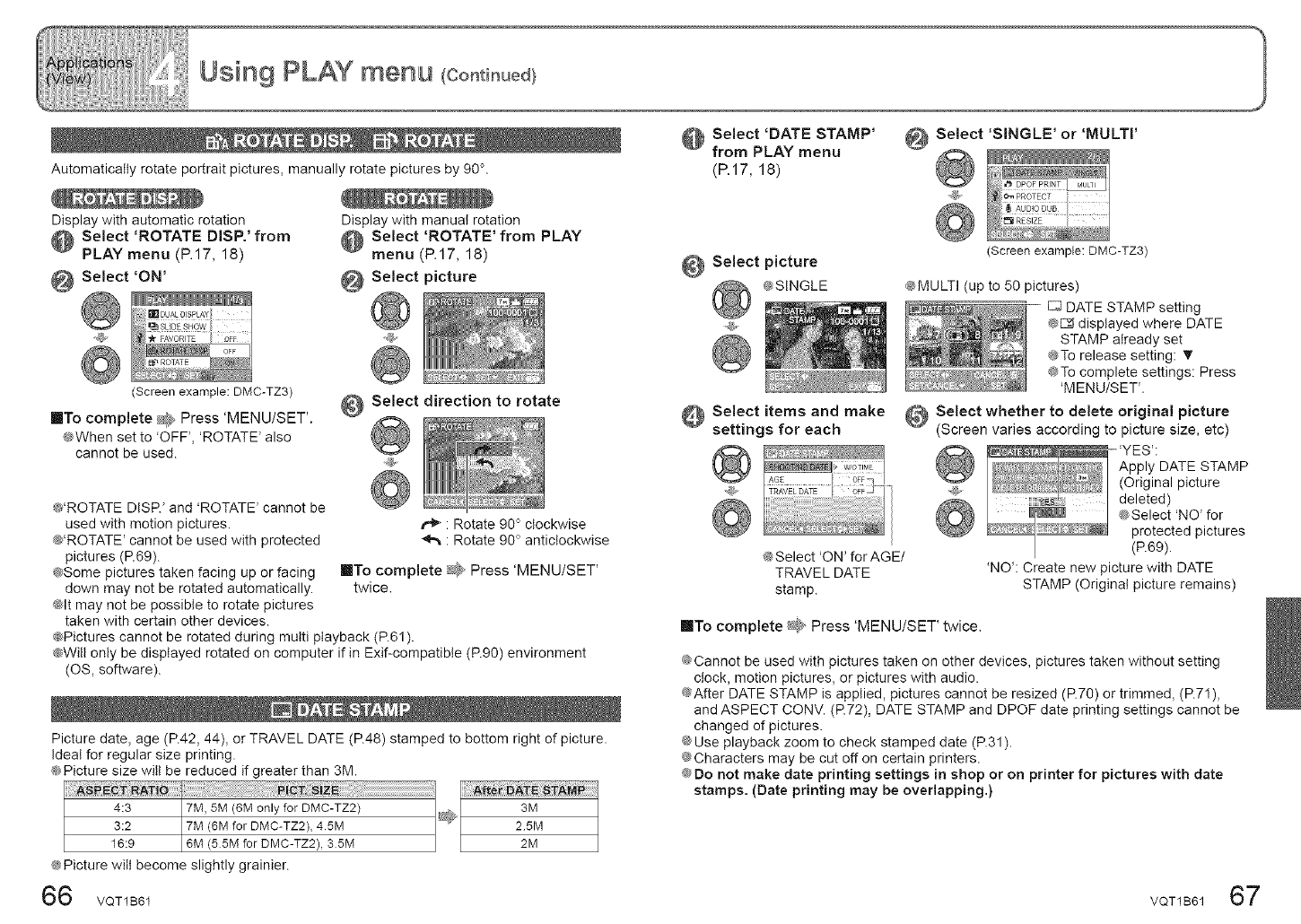
Automatically rotate portrait pictures, manually rotate pictures by 90 °.
Display with automatic rotation
Select 'ROTATE DISP.' from
PLAY menu (P.17, 18)
Select 'ON'
Display with manual rotation
Select 'ROTATE' from PLAY
menu (P.17, 18)
Select picture
(Screen example: DMC-TZ3)
IITo complete _@JPress 'MENU/SET'.
@When set to 'OFF _,'ROTATE _also
cannot be used.
Select direction to rotate
@'ROTATE DISR' and ROTATE' cannot be
used with motion pictures.
@'ROTATE' cannot be used with protected
pictures (R69).
@Some pictures taken facing up or facing
down may not be rotated automatically.
@It may not be possible to rotate pictures
taken with certain other devices.
@Pictures cannot be rotated during multi playback (P.61).
@Will only be displayed rotated on computer if in Exif-compatible (P.90) environment
(OS, software).
r_ : Rotate 90 ° clockwise
41_ : Rotate 90 ° antictockwise
IITo complete _* Press 'MENU/SET'
twice.
Picture date, age (P.42, 44), or TRAVEL DATE (P.48) stamped to bottom right of picture.
Ideal for regular size printing.
@Picture size witt be reduced if greater than 3M.
4:3 7M, 5M (6M only for DMC-TZ2)
3:2 7M (6M for DMC-TZ2), 45M
16:9 6M (55M for DMC-TZ2), 35M
@Picture wilt become slightly grainier.
6 VQT1B61
Select 'DATE STAMP'
from PLAY menu
(P.17, 18)
Select picture
@SINGLE
Select items and make
settings for each
@
@Select 'ON' for AGE/
TRAVEL DATE
stamp.
Select 'SINGLE' or 'MULTI'
_@
@Screen example: DMC-TZ3)
@MULTI (up to 50 pictures)
[] DATE STAMP setting
@E:_displayed where DATE
STAMP already set
@To release setting:
@To complete settings: Press
'MENU/SET'.
OSelect whether to delete original picture
(Screen varies according to picture size, etc)
Apply DATE STAMP
(Original picture
deleted)
@Select 'NO' for
protected pictures
(P.69).
'NO': Create new picture with DATE
STAMP (Original picture remains)
inTo complete _# Press 'MENU/SET' twice.
@Cannot be used with pictures taken on other devices, pictures taken without setting
clock, motion pictures, or pictures with audio.
@After DATE STAMP is applied, pictures cannot be resized (R70) or trimmed, (R7I),
and ASPECT CONV. (R72), DATE STAMP and DPOF date printing settings cannot be
changed of pictures.
@Use playback zoom to check stamped date (P.31).
@Characters may be cut off on certain printers.
@Do not make date printing settings in shop or on printer for pictures with date
stamps. (Date printing may be overlapping.)
VQT1B61 67
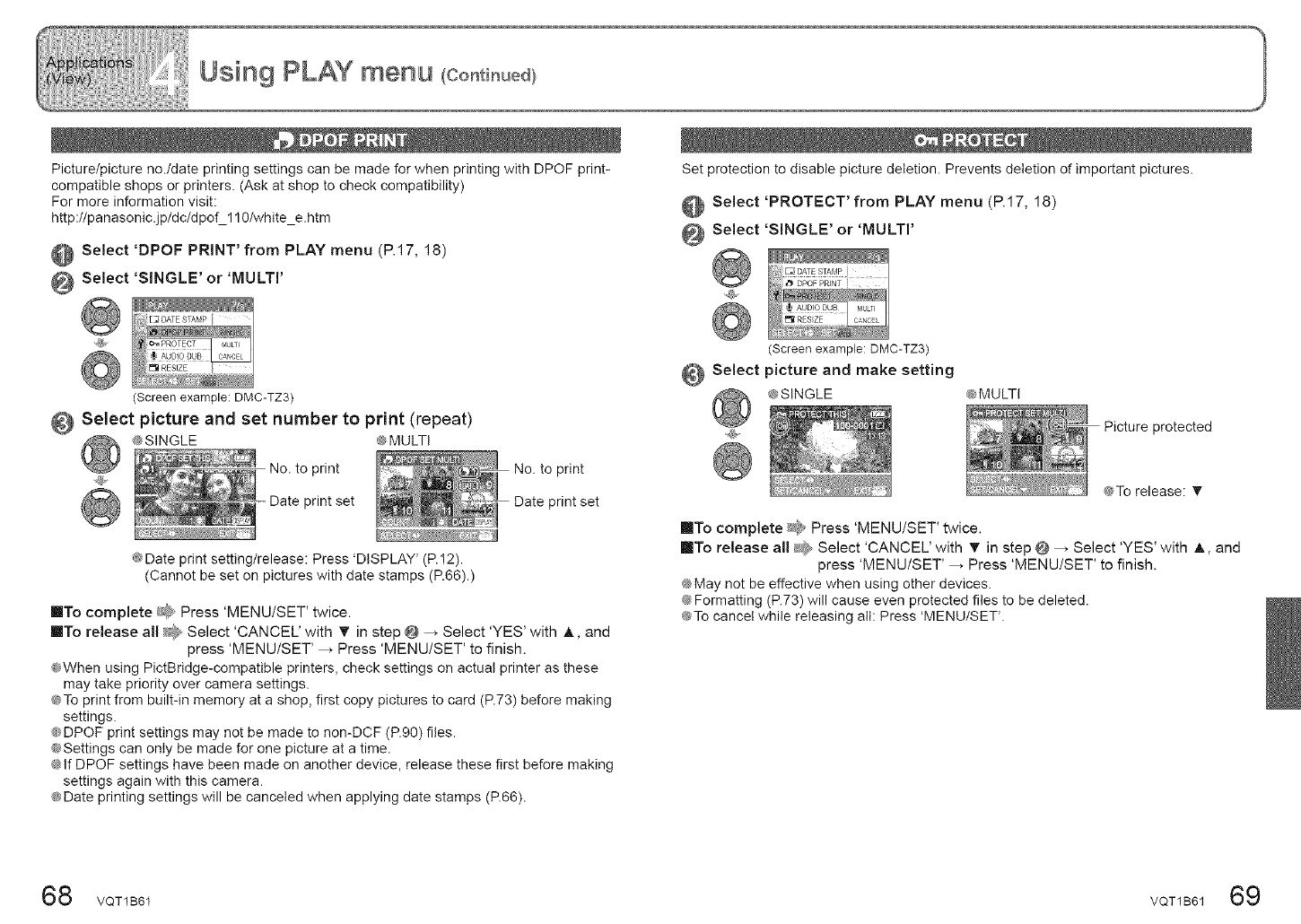
Picture/picture no./date printing settings can be made for when printing with DPOF print-
compatible shops or printers. (Ask at shop to check compatibility)
For more information visit:
http :llpanasonic.jpldcldpof_l 10/white_e.htm
Select 'DPOF PRINT' from PLAY menu (P.17, 18)
Select 'SINGLE' or 'MULTi'
(Screen example: DMC-TZ3)
Select picture and set number to print (repeat)
@SINGLE @MULTI
No. to print
_rint set
0rint
orint set
@Date print setting/release: Press 'DISPLAY' (P.12).
(Cannot be set on pictures with date stamps (P.66).)
into complete _ Press 'MENU/SET' twice.
into release at{ _ Select 'CANCEL' with T in step @ > Select 'YES' with @, and
press 'MENU/SET' _ Press 'MENU/SET' to finish.
@When using PictBridge-compatible printers, check settings on actual printer as these
may take priority over camera settings.
@To print from built-in memory at a shop, first copy pictures to card (P.73) before making
settings.
@DPOF print settings may not be made to non-DCF (P.90) files.
@Settings can only be made for one picture at a time.
@If DPOF settings have been made on another device, release these first before making
settings again with this camera.
@Date printing settings will be canceled when applying date stamps (P.66).
Set protection to disable )icture deletion. Prevents deletion of important pictures.
Select 'PROTECT' from PLAY menu (P.17, 18)
Select 'SINGLE' or 'MULTI'
Select
Screen example: DMC-TZ3)
_icture and make setting
@SINGLE @MULTI
Picture protected
@To release: T
[]To complete _ Press 'MENU/SET' twice.
[]To release all @_ Select 'CANCEL' with T in step O > Select 'YES' with ,A, and
press 'MENU/SET' ,, Press 'MENU/SET' to finish.
@May not be effective when using other devices.
@Formatting (P.73) will cause even protected files to be deleted.
@To cancel while releasing att: Press 'MENUISET'.
68 VQT1B61 VQT1B61 69
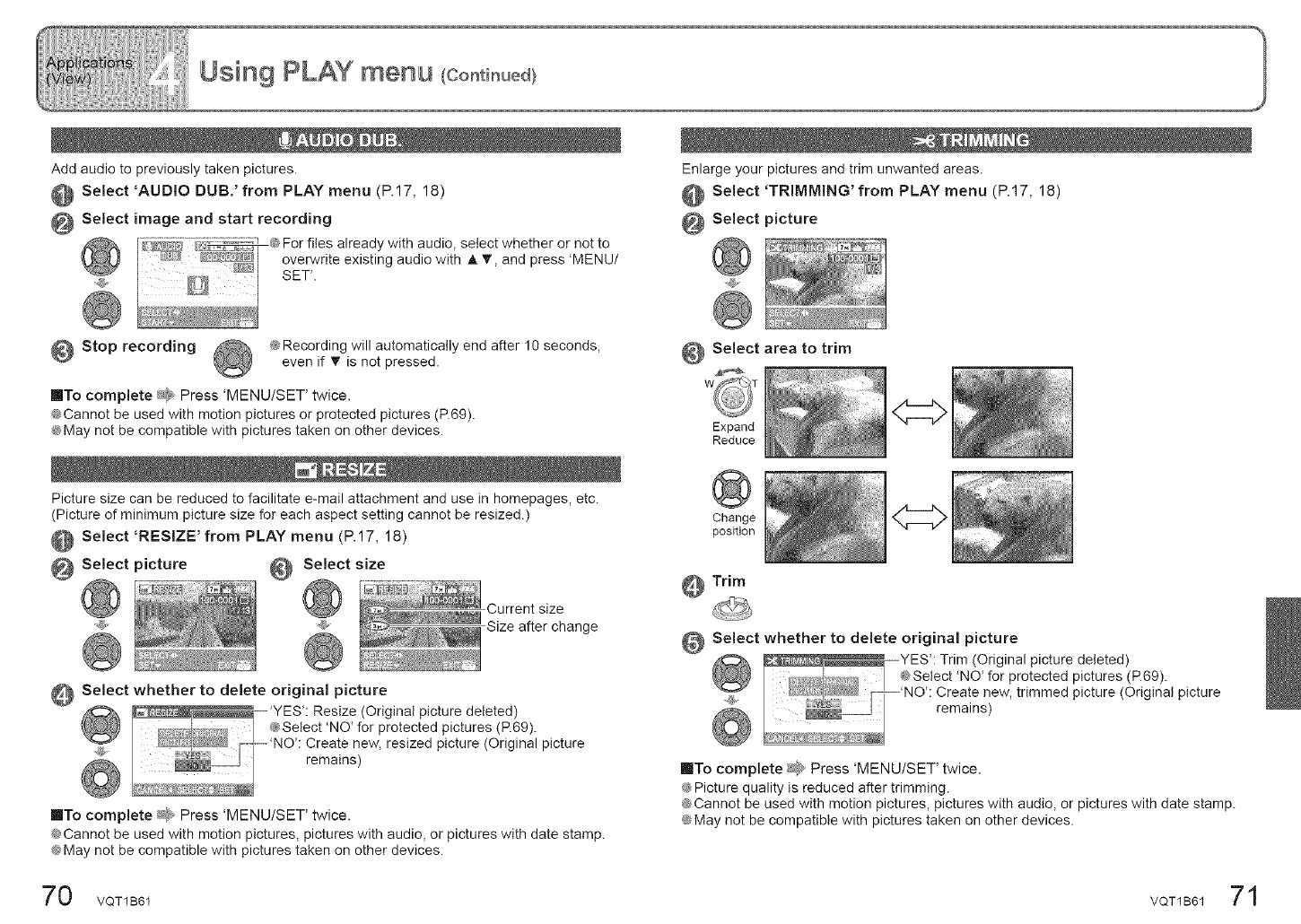
Add audio to previously taken pictures.
Select 'AUDIO DUB.' from PLAY menu (P.17, 18)
Select image and start recording
@For files already with audio select whether or not to
b_,_ "I overwrite existing audio with AT andpress'MENU/
/
Stop recording @Recording will automatically end after 10 seconds,
even if T is not pressed.
IIITo complete _,_ Press 'MENU/SET' twice.
@Cannot be used with motion pictures or protected pictures (P.69).
@May not be compatible with pictures taken on other devices.
Picture size can be reduced to facilitate e-mail attachment and use in homepages, etc.
(Picture of minimum picture size for each aspect setting cannot be resized.)
Select 'RESIZE' from PLAY menu (P.17, 18)
@ Select picture @ Select size
Current size
Size after change
_ Select whether to delete original picture
'YES': Resize (Original picture deleted)
_t_i,_l,,_¢y_ I @Select 'NO' for protected pictures (P.69).
F---'NO': Create new resized picture (Original
@ remains) 'picture
IITo complete _9_ Press 'MENU/SET' twice.
@Cannot be used with motion pictures, pictures with audio, or pictures with date stamp.
@May not be compatible with pictures taken on other devices.
Enlarge your pictures and trim unwanted areas.
Select 'TRIMMING' from PLAY menu (P.17, 18)
Select picture
Select area to trim
Expand
Reduce
<:::::>
Change
position
_Trim
O Select whether to delete original picture
-YES': Trim (Original picture deleted)
@Select 'NO' for protected pictures (P.69).
'NO': Cereaties_ew, trimmed picture (Original picture
into complete _}_ Press 'MENU/SET' twice.
@Picture quality is reduced after trimming.
@Cannot be used with motion pictures, pictures with audio, or pictures with date stamp.
¢_May not be compatible with pictures taken on other devices.
70 VQT1B61 VQT1B61 71
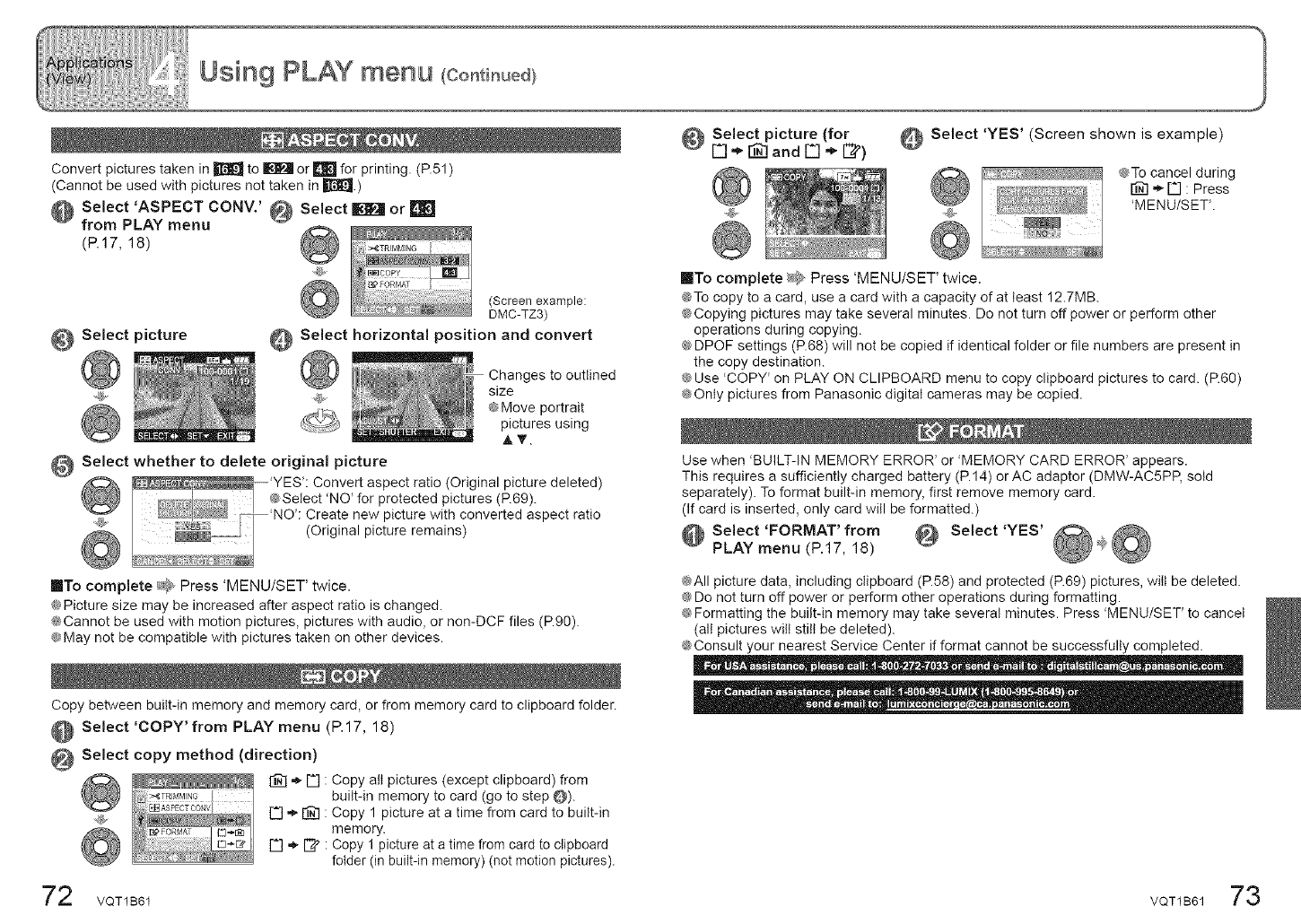
Convert pictures taken in _ to _ or _ for printing. (P.51)
(Cannot be used with pictures not taken in _.)
@ Select'ASPECTCO.W@ Selectm orm
from PLAY menu
(P.17, 18)
Select picture
(Screen example:
DMC-TZ3)
_ Select horizontal position and convert
Changes to outlined
size
@Move portrait
pictures using
AT.
O Select whether to delete original picture
_ -.--_ ....... . 'YES': Convert aspect ratio (Original picture deleted)_J_ I @Select 'NO' for protected pictures (P.69).
I _.] _'NO' Create new p cture w th converted aspect rat o
_ / v. / (Original picture remains)
IIITo complete/@_ Press 'MENU/SET' twice.
@Picture size may be increased after aspect ratio is changed.
@Cannot be used with motion pictures, pictures with audio, or non-DCF files (P.90).
@May not be compatible with pictures taken on other devices.
.@
Copy between built-in memory and memory card, or from memory card to clipboard folder.
Select 'COPY' from PLAY menu (P. 17, 18)
Select copy method (direction)
_"_ D : Copy all pictures (except clipboard) from
built-in memory to card (go to step O).
_ E] "_"_ : Copy 1 picture at a time from card to built-in
memory.
r"] ,_ [_" : copy 1 picture at a time from card to clipboard
folder (in built-in memory) (not motion pictures).
@ Select picture (for
[.._]"_ r_ an d [._] '_ [_) Select 'YES' (Screen shown is example)
<€To cancel during
[_] '_ D : Press
'MENU/SET'.
into complete _b, Press 'MENU/SET' twice.
@To copy to a card, use a card with a capacity of at least 12.7MB.
@Copying pictures may take several minutes. Do not turn off power or perform other
operations during copying.
@DPOF settings (P.68) will not be copied if identical folder or file numbers are present in
the copy destination.
@Use COPY' on PLAY ON CLIPBOARD menu to copy clipboard pictures to card. (R60)
@Only pictures from Panasonic digital cameras may be copied.
Use when 'BUILT-IN MEMORY ERROR' or 'MEMORY CARD ERROR' appears.
This requires a sufficiently charged battery (P.14) or AC adaptor (DMW-AC5PP, sold
separately). To format built-in memory, first remove memory card.
(If card is inserted, only card will be formatted.)
@Select 'FORMAT' from @ Select 'YES'
PLAY menu (P.17, 18) _
@All picture data, including clipboard (P.58) and protected (P.69) pictures, wilt be deleted.
@Do not turn off power or perform other operations during formatting.
@Formatting the built-in memory may take several minutes. Press 'MENU/SET' to cancel
(all pictures wilt still be deleted).
@Consult your nearest Service Center if format cannot be successfully completed.
72 VQT1B61 VQT1B6173
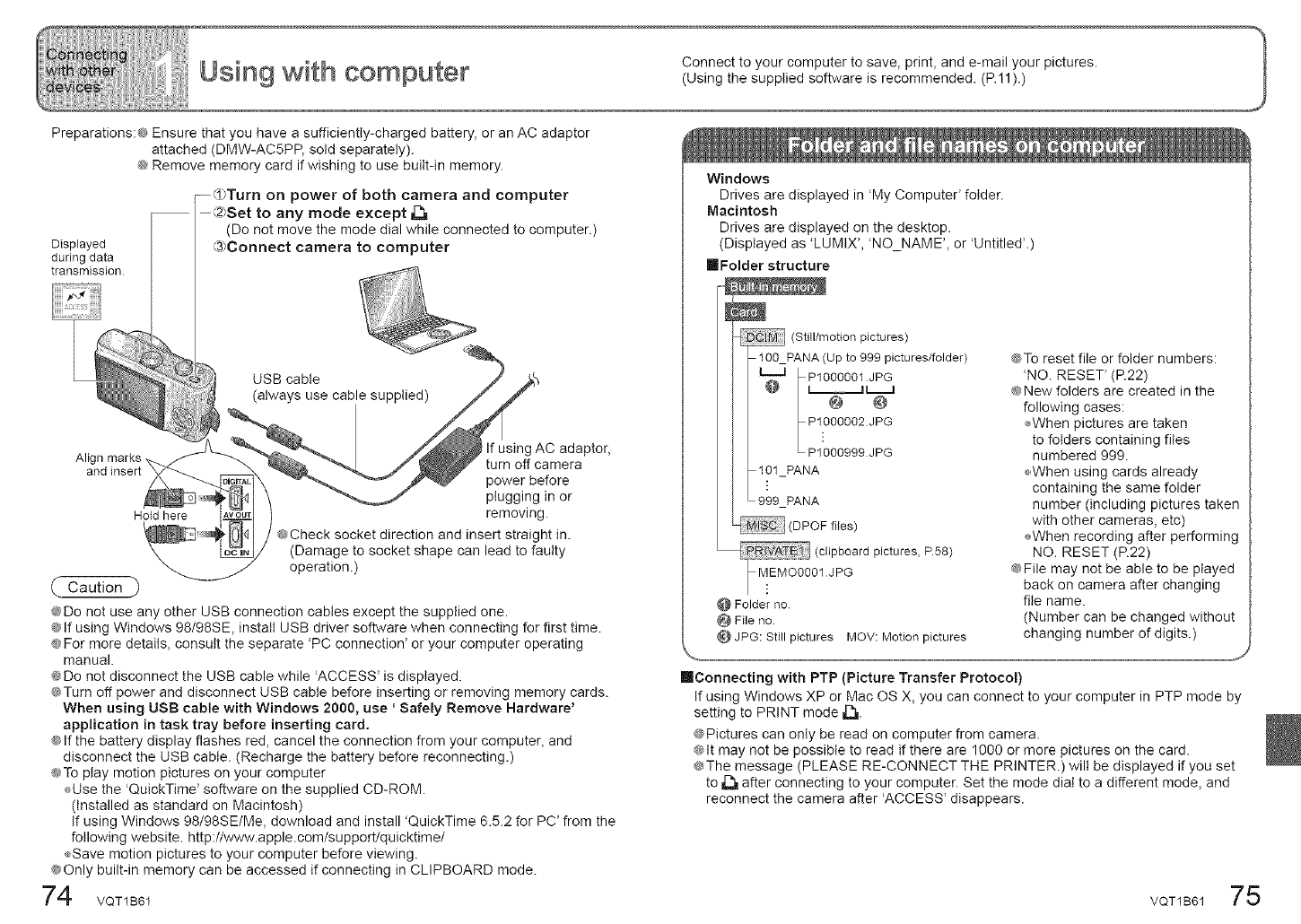
Preparations:@ Ensure that you have a sufficient@charged battery, or an AC adaptor
attached (DMW-AC5PP, sold separately).
@Remove memory card if wishing to use built-in memory.
Displayed
during data
transmission
on power of both camera and computer
--(2)Set to any mode except ,[_
(Do not move the mode dial while connected to computer.)
_3hConnect camera to computer
USB cable
(always use cable supplied)
If using AC adaptor,
Align marks turn off camera
power before
plugging in or
Hold here removing.
@Check socket direction and insert straight in.
(Damage to socket shape can lead to faulty
operation.)
( Caution )
@Do not use any other USB connection cables except the supplied one.
@If using Windows 98/98SE, install USB driver software when connecting for first time.
@For more details, consult the separate 'PC connection' or your computer operating
manual.
@Do not disconnect the USB cable while 'ACCESS' is displayed.
@Turn off power and disconnect USB cable before inserting or removing memory cards.
When using USB cable with Windows 2000, use ' Safely Remove Hardware'
application in task tray before inserting card.
@If the battery display flashes red, cancel the connection from your computer, and
disconnect the USB cable. (Recharge the battery before reconnecting.)
_To play motion pictures on your computer
Use the 'QuickTime' software on the supplied CD-ROM.
(installed as standard on Macintosh)
If using Windows 98/98SE/Me, download and install 'QuickTime 6.5.2 for PC' from the
following website, http://www.apple.cem/suppert/quicktime/
Save motion pictures to your computer before viewing.
@Only built-in memory can be accessed if connecting in CLIPBOARD mode.
74
Windows
Drives are displayed in 'My Computer' folder.
Macintosh
Drives are displayed on the desktop.
(Displayed as 'LUMIX', 'NO_NAME', or 'Untitled'.)
mFolder structure
(Still/motion pictures)
10O_PANA(Up to 999 pictures/folder)
P1000O01JPG
i ii i
@ @
P1000002 JPG
P1000999 JPG
101_PANA
999_PANA
(DPOF files)
(clipboard pictures, P.58)
01JPG
@ Folder no
@ File no
_} JPG: Still pictures MOV: Motion pictures
@To reset file or folder numbers:
'NO. RESET' (R22)
@New folders are created in the
following cases:
÷When pictures are taken
to folders containing files
numbered 999.
,_When using cards already
containing the same folder
number (including pictures taken
with other cameras, etc)
_,When recording after performing
NO. RESET (R22)
@File may not be able to be played
back on camera after changing
file name.
(Number can be changed without
changing number of digits.)
S
reconnecting with PTP (Picture Transfer Protocol)
If using Windows XP or Mac OS X, you can connect to your computer in PTP mode by
setting to PRINT mode Zh,
@Pictures can only be read on computer from camera.
@It may not be possible to read if there are 1000 or more pictures on the card.
@The message (PLEASE RE-CONNECT THE PRINTER.) will be displayed if you set
to _ after connecting to your computer. Set the mode dial to a different mode, and
reconnect the camera after 'ACCESS' disappears.
VQT1B61 75
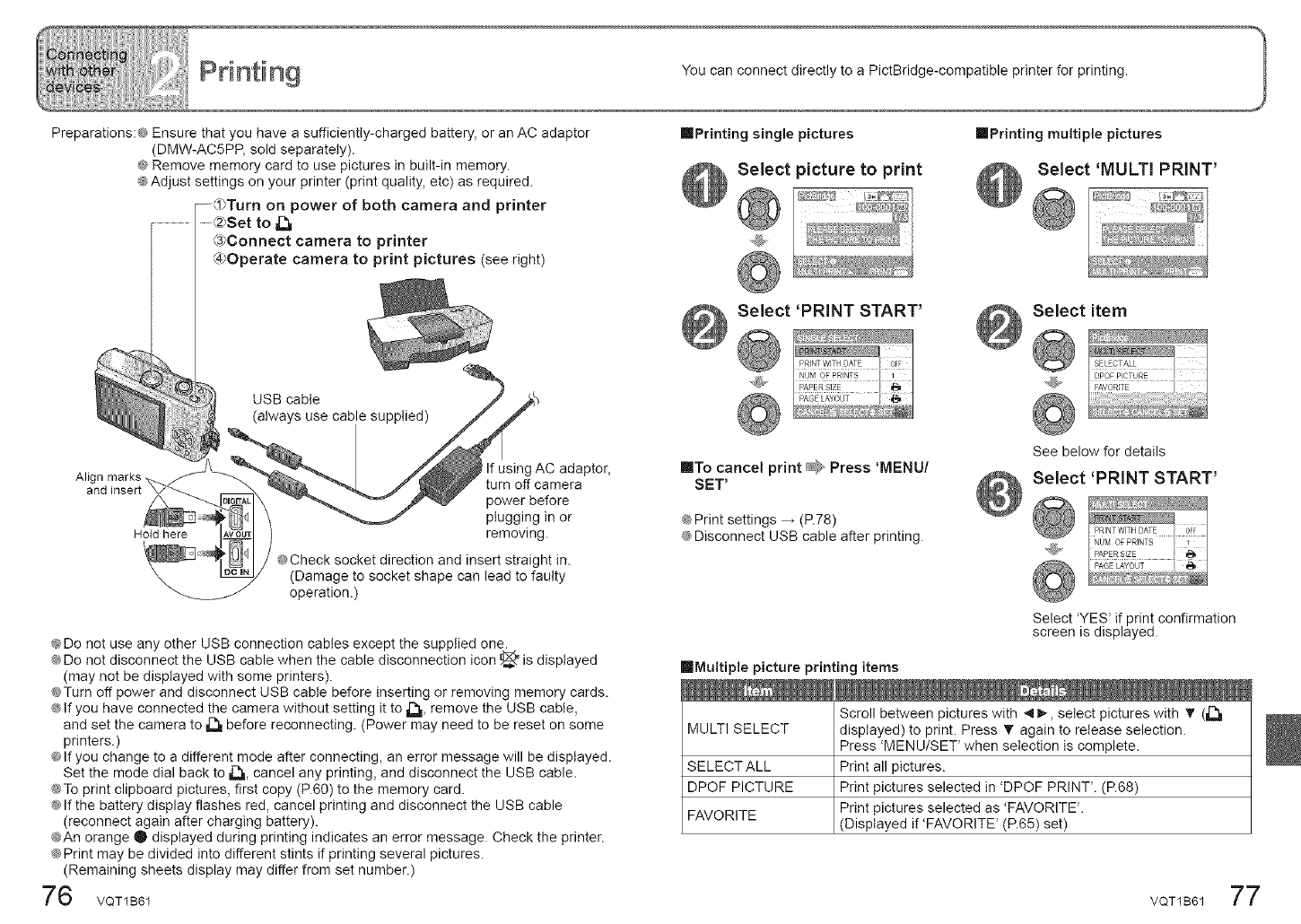
Preparations:@ Ensure that you have a sufficiently-charged battery, or an AC adaptor
(DMW-AC5PP, sold separately).
@Remove memory card to use pictures in built-in memory.
@Adjust settings on your printer (print quality, etc) as required.
--_}Turn on power of both camera and printer
.......(2}Set to
@Connect camera to printer
@Operate camera to print pictures (see right)
USB cable
(always use cable supplied)
Align marks
Hold here
If using AC adaptor,
turn off camera
power before
plugging in or
removing.
@Check socket direction and insert straight in.
(Damage to socket shape can lead to faulty
operation.)
@Do not use any other USB connection cables except the supplied one.
@Do not disconnect the USB cable when the cable disconnection icon _' is displayed
(may not be displayed with some printers).
@Turn off power and disconnect USB cable before inserting or removing memory cards.
@If you have connected the camera without setting it to J-%,remove the USB cable,
and set the camera to _ before reconnecting. (Power may need to be reset on some
printers.)
@If you change to a different mode after connecting, an error message will be displayed.
Set the mode dial back to _, cancel any printing, and disconnect the USB cable.
@To print clipboard pictures, first copy (P.60) to the memory card.
@If the battery display flashes red, cancel printing and disconnect the USB cable
(reconnect again after charging battery).
@An orange • displayed during printing indicates an error message. Check the printer.
@Print may be divided into different stints if printing several pictures.
(Remaining sheets display may differ from set number.)
76 voT1B61
You can connect directly to a PictBridge-compatible printer for printing.
ImPrinting single pictures
Select picture to print
/
, _ _/
rePrinting multiple pictures
Select 'MULTI PRINT'
@Print settings _(P.78)
@Disconnect USB cable after printing.
Select item
SELECTALL
0_@P@_RE ....
'@" FAVORIT£
See below for details
Select 'PRINT START'
mMultiple picture printing items
Select 'YES' if print confirmation
screen is displayed.
MULTI SELECT
SELECTALL
DPOF PICTURE
FAVORITE
Scroll between pictures with _11_, select pictures with @ (_
displayed) to print. Press T again to release selection.
Press 'MENU/SET' when selection is complete.
Print all pictures.
Print pictures selected in <DPOF PRINTL (R68)
Print pictures selected as 'FAVORITE'.
(Displayed if 'FAVORITE _(P.65) set)
VQT1B61 77
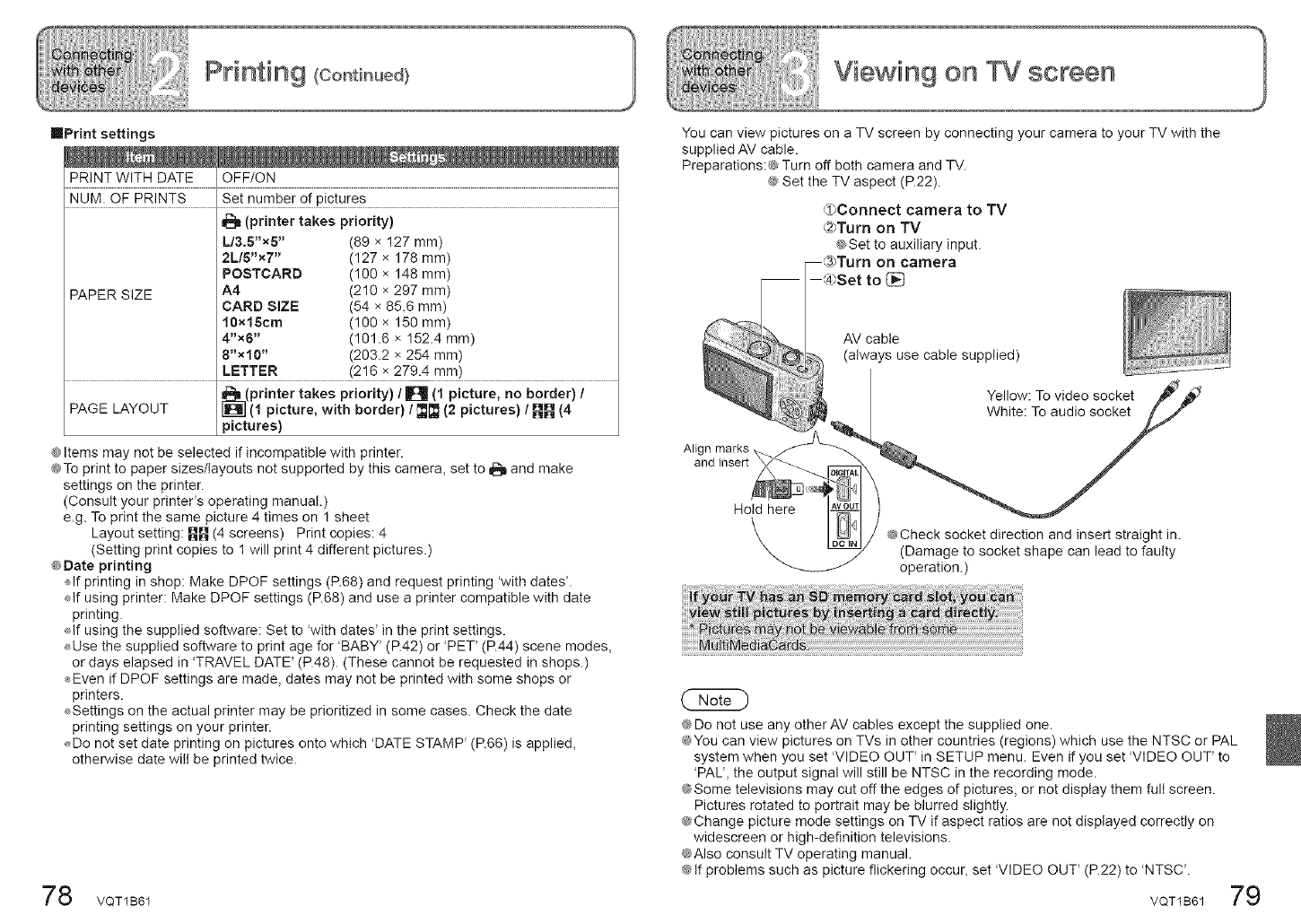
Pdntiing {C@ thu÷dt
rePrint settings
PRINT WITH DATE OFF/ON
NUM. OF PRINTS Set number of pictures
(printer takes priority)
PAPER SIZE
L/3.B"xS" (89 x I27 mm)
2L/5"x7" (127 x 178 mm)
POSTCARD (100 x 148 mm)
A4 (210 x 297 mm)
CARD SiZE (54 x 85.6 mm)
10×lScm (100 x 150 mm)
4"x6" (101.6 x 152.4 mm)
8"x10" (203.2 x 254 mm)
LETTER (216 x 279.4 mm)
_(printer takes priority) /B (1 picture, no border) /
PAGE LAYOUT _ (1 picture, with border) /_(2 pictures) /_(4
pictures)
@Items may not be selected if incompatible with printer.
@To print to paper sizes/layouts not supported by this camera, set to _ and make
settings on the printer.
(Consult your printer's operating manual.)
e.g. To print the same picture 4 times on I sheet
Layout setting: _BB (4 screens) Print copies: 4
(Setting print copies to I will print 4 different pictures.)
@Date printing
If printing in shop: Make DPOF settings (P.68) and request printing 'with dates'.
_lf using printer: Make DPOF settings (R68) and use a printer compatible with date
printing.
If using the supplied software: Set to 'with dates' in the print settings.
Use the supplied software to print age for 'BABY' (R42) or 'PET' (R44) scene modes,
or days elapsed in 'TRAVEL DATE' (P.48). (These cannot be requested in shops.)
,_Even if DPOF settings are made, dates may not be printed with some shops or
printers.
Settings on the actual printer may be prioritized in some cases. Check the date
printing settings on your printer.
Do not set date printing on pictures onto which 'DATE STAMP' (R66) is applied,
otherwise date wilt be printed twice.
8 VQT1B61
You can view pictures on a TV screen by connecting your camera to your TV with the
supplied AV cable.
Preparations:@ Turn off both camera and TV.
@ Set the TV aspect (P.22).
,,_l_Connect camera to TV
(2_Turn on TV
@Set to auxiliary input.
on camera
(49Set to
Align
and insert
AV cable
(always use cable supplied)
Yellow: To video socket
White: To audio socket
Hold here
@Check socket direction and insert straight in.
(Damage to socket shape can lead to faulty
operation.)
@Do not use any other AV cables except the supplied one.
@You can view pictures on TVs in other countries (regions) which use the NTSC or PAL
system when you set 'VIDEO OUT' in SETUP menu. Even if you set 'VIDEO OUT' to
'PAL', the output signal will still be NTSC in the recording mode.
@Some televisions may cut off the edges of pictures, or not display them full screen.
Pictures rotated to portrait may be blurred slightly.
@Change picture mode settings on TV if aspect ratios are not displayed correctly on
widescreen or high-definition televisions.
@Also consult TV operating manual.
@If problems such as picture flickering occur, set 'VIDEO OUT' (P.22) to 'NTSC'.
79
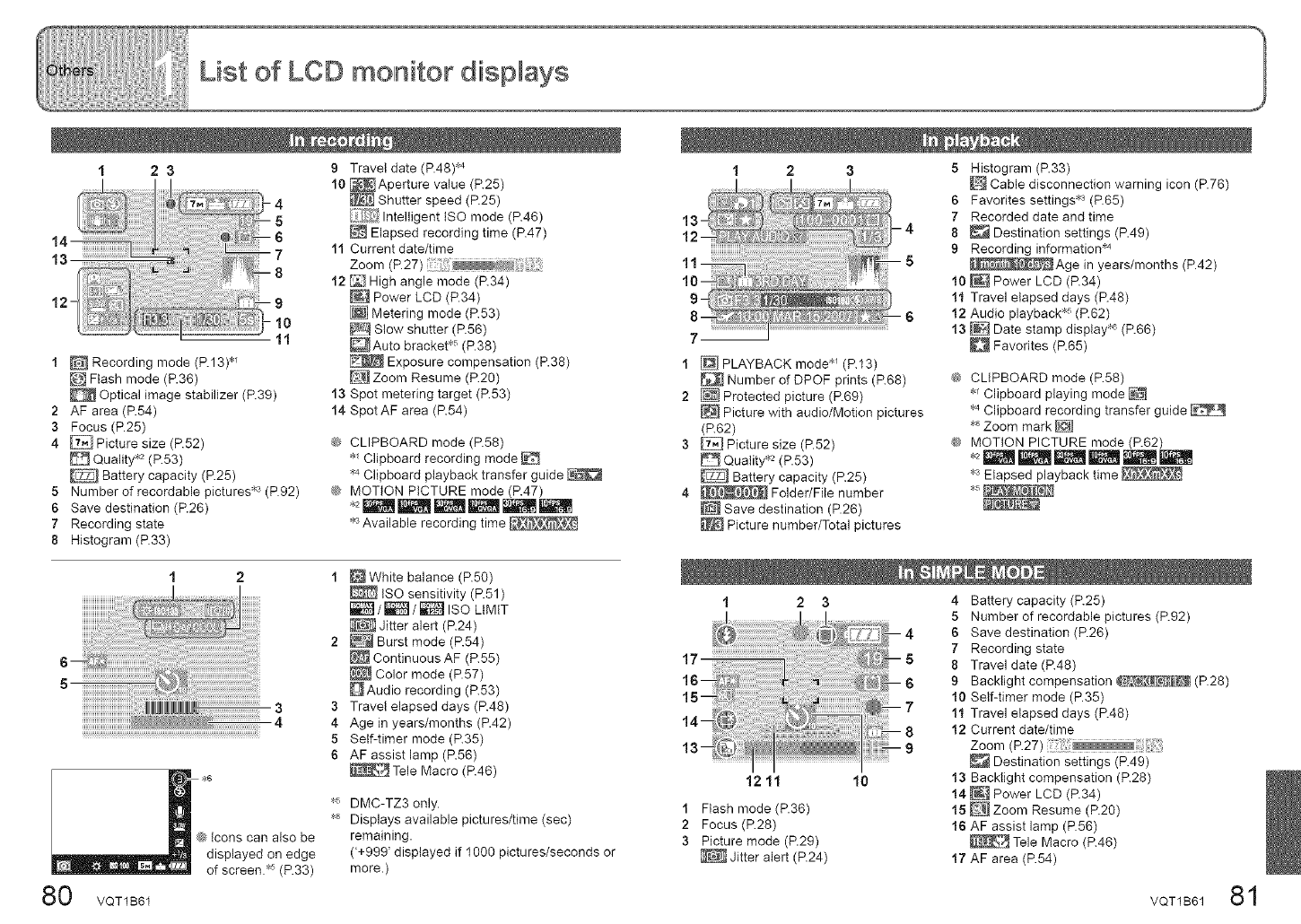
1 2 3 9 Travel date (P.48) _<
10 _ Aperture value (R25)
Shutter speed (R25)
Intelligent ISO mode (R46)
Elapsed recording time (R47)
11 Current date/time
Zoom (P.27) : i
12 [_] High angle mode (R34)
Power LCD (P.34)
I_ Metering mode (R53)
_7_ Slow shutter (R56)
_Auto bracket _ (P.38)
Exposure compensation (P.38)
_] Zoom Resume (R2O)
13 Spot metering target (R53)
14 Spot AF area (R54)
11
I _ Recording mode (R13) _
_ Flash mode (P.36)
Optical image stabilizer (P.39)
2 AF area (P.54)
3 Focus (P.25)
4 _ Picture size (R52)
Quality _ (R53)
Battery capacity (P.25)
5 Number of recordable pictures_3 (P.92)
6 Save destination (P.26)
7 Recording state
8 Histogram (P.33)
@ CLIPBOARD mode (R58)
Clipboard recording mode
"4 Clipboard playback transfer guide _
@ MOTION PICTURE mode (R47)
_3Available recording time
12
_6
1 _ White balance (R50)
tSO sensitivity (R51)
_/_/_ISO LIMIT
Jitter alert (R24)
2 _ Burst mode (R54)
Continuous AF (R55)
Color mode (P.57)
Audio recording (R53)
3 Travel elapsed days (R48)
4 Age in years/months (P.42)
5 Self-timer mode (R35)
6 AF assist lamp (R56)
_ Tele Macro (R46)
0 VQT1B61
@Icons can also be
displayed on edge
of screen/_ (P.33)
DMC-TZ3 only.
Displays available pictures/time (sec)
remaining.
('+999' displayed if 1000 pictures/seconds or
more.)
1 2 3 5 Histogram (P.33)
Cable disconnection warning icon (P.76)
6 Favorites settings _3 (P.65)
13- 7 Recorded date and time
12- 4 8 _ Destination settings (P.49)
9 Recording information _4
5 Age in years/months (P.42)
10 _ Power LCD (R34)
11 Travel elapsed days (R48)
6 12 Audio playback _5 (R62)
13 [_ Date stamp display __ (R66)
Favorites (R65)
9-
7
1
2
3
PLAYBACK mode _/ (R13)
Number of DPOF prints (R68)
_/Protected picture (R69)
Picture with audio/Motion pictures
(R62)
[if:_:! Picture size (P.52)
Quality _ (P.53)
Battery capacity (R25)
Folder/File number
Save destination (P.26)
Picture number/Total pictures
@ CLIPBOARD mode (P.58)
_ Clipboard playing mode
_ Clipboard recording transfer guide _.'_
'_ Zoom mark [_]
@ MOTION PICTURE mode (R62)
_3Elapsed playback time
_5
1 2 34 Battery capacity (R25)
12 11 10
17
4
5
6
7
8
9
1 Flash mode (P.36)
2 Focus (R28)
3 Picture mode (P.29)
Jitter alert (R24)
5 Number of recordable pictures (R92)
6 Save destination (P.26)
7 Recording state
8 Travel date (R48)
9 Backlight compensation (P.28)
10 Se@timer mode (P.35)
11 Travel elapsed days (R48)
12 Current date/time
Zoom (P.27)
Destination settings (P.49)
13 Backlight compensation (R28)
14 _ Power LCD (R34)
15 E:_] Zoom Resume (R20)
16 AF assist lamp (P.56)
_ Tele Macro (R46)
17 AF area (P.54)
VQT1B61 81
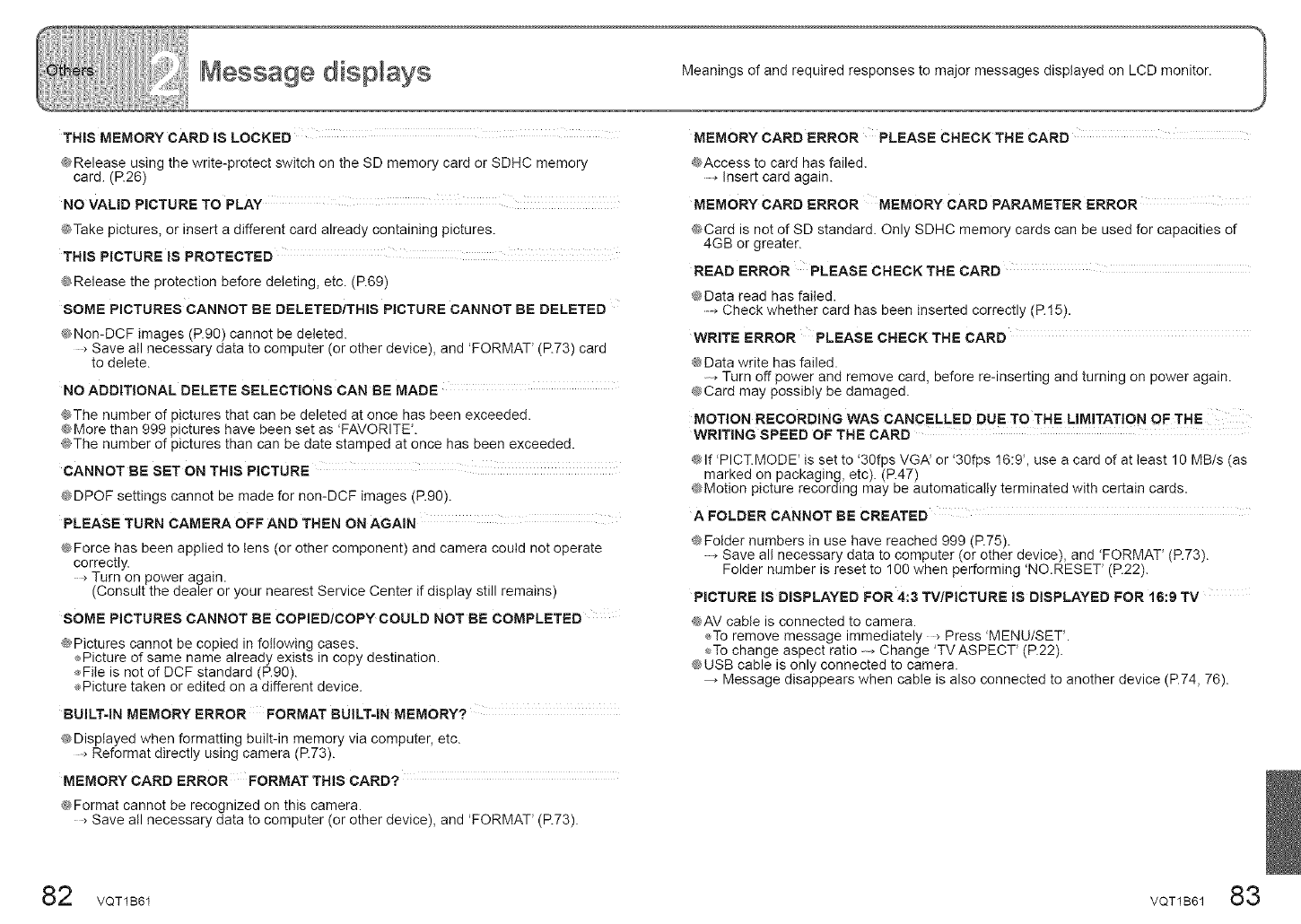
THIS MEMORY CARD iS LOCKED
@Release using the write-protect switch on the SD memory card or SDHC memory
card. (P.26)
NO VALID PICTURE TO PLAY
@Take pictures, or insert a different card already containing pictures.
THIS PICTURE IS PROTECTED
@Release the protection before deleting, etc. (P.69)
SOME PICTURES CANNOT BE DELETED/THIS PICTURE CANNOT BE DELETED
@Non-DCF images (P.90) cannot be deleted.
....>Save all necessary data to computer (or other device), and 'FORMAT' (P.73) card
to delete.
NO ADDITIONAL DELETE SELECTIONS CAN BE MADE
@The number of pictures that can be deleted at once has been exceeded.
@More than 999 pictures have been set as 'FAVORITE'.
@The number of pictures than can be date stamped at once has been exceeded.
CANNOT BE SET ON THiS PICTURE
@DPOF settings cannot be made for non-DCF images (P.90).
PLEASE TURN CAMERA OFF AND THEN ON AGAIN
@Force has been applied to tens (or other component) and camera could not operate
correctly.
...._Turn on power again.
(Consult the dealer or your nearest Service Center if display still remains)
SOME PICTURES CANNOT BE COPIED/COPY COULD NOT BE COMPLETED
@Pictures cannot be copied in following cases.
_Picture of same name already exists in copy destination.
_File is not of DCF standard (P.90).
ePicture taken or edited on a different device.
BUILT-IN MEMORY ERROR FORMAT BUILT-IN MEMORY?
@Displayed when formatting built-in memory via computer, etc.
Reformat directly using camera (P.73).
MEMORY CARD ERROR FORMAT THIS CARD?
@Format cannot be recognized on this camera.
Save all necessary data to computer (or other device), and 'FORMAT' (P.73).
Meanings of and required responses to major messages displayed on LCD monitor.
MEMORY CARD ERROR PLEASE CHECK THE CARD
@Access to card has failed.
.......Insert card again.
MEMORY CARD ERROR MEMORY CARD PARAMETER ERROR
GCard is not of SD standard. Only SDHC memory cards can be used for capacities of
4GB or greater.
READ ERROR PLEASE CHECK THE CARD
@Data read has failed.
......Check whether card has been inserted correctly (P.15).
WRITE ERROR PLEASE CHECK THE CARD
@Data write has failed.
,Turn off power and remove card, before re-inserting and turning on power again.
@Card may possibly be damaged.
MOTION RECORDING WAS CANCELLED DUE TO THE LIMITATION OF THE
WRITING SPEED OF THE CARD
@If 'PICT.MODE' is set to '30fps VGA' or '30fps 16:9', use a card of at least 10 MB/s (as
marked on packaging, etc). (P.47)
@Motion picture recording may be automatically terminated with certain cards.
AFOLDER CANNOT BE CREATED
@Folder numbers in use have reached 999 (P.75).
.......Save all necessary data to computer (or other device), and 'FORMAT' (P.73).
Folder number is reset to 100 when performing 'NO.RESET' (P.22).
PICTURE IS DISPLAYED FOR 4:3 TVtPICTURE IS DISPLAYED FOR 16:9 TV
@AV cable is connected to camera.
_,Toremove message immediately _ Press 'MENU/SET'.
To change aspect ratio ,Change 'TV ASPECT' (P.22).
@USB cable is only connected to camera.
Message disappears when cable is also connected to another device (R74, 76).
82 VQT1B61 VQT1B6183
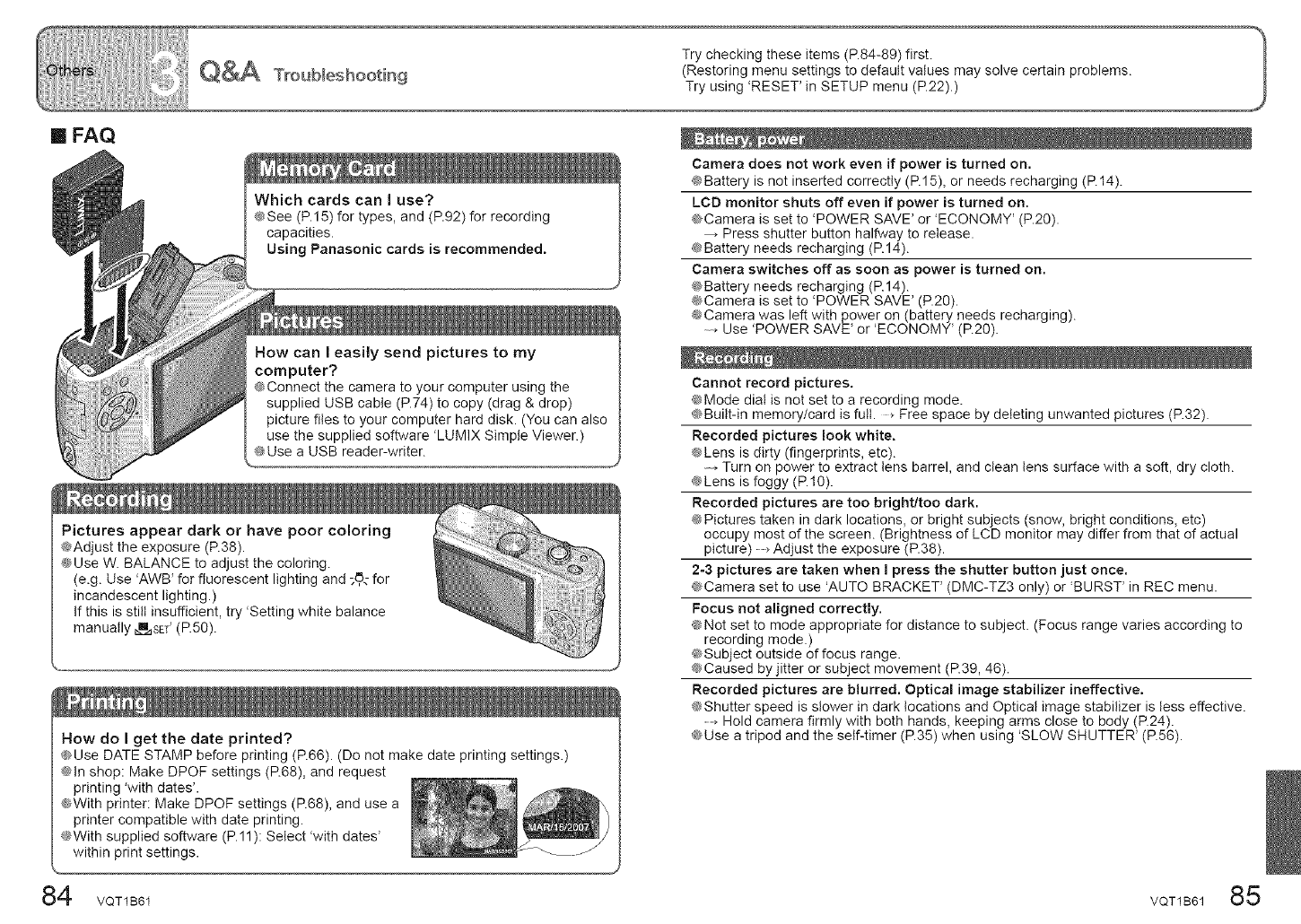
[] FAQ
How do I get the date printed?
@Use DATE STAMP before printing (P.66). (Do not make date printing settings.)
@In shop: Make DPOF settings (R68), and request
printing 'with dates'.
@With printer: Make DPOF settings (R68), and use a
printer compatible with date printing.
@With supplied software (P.11): Select 'with dates'
within print settings.
84 voT1B61
Camera does not work even if power is turned on.
@Battery is not inserted correctly (R15), or needs recharging (RI4).
LCD monitor shuts off even if power is turned on.
@Camera is set to 'POWER SAVE' or 'ECONOMY' (P.20).
,Press shutter button halfway to release.
¢ Battery needs recharging (P.14).
Camera switches off as soon as power is turned on.
@Battery needs recharging (P.14).
@Camera is set to 'POWER SAVE' (P.20).
@Camera was left with power on (battery needs recharging).
Use 'POWER SAVE' or 'ECONOMY' (P.20).
Cannot record pictures.
@Mode dial is not set to a recording mode.
@Built-in memory/card is full. _ Free space by deleting unwanted pictures (P.32).
Recorded pictures look white.
@Lens is dirty (fingerprints, etc).
Turn on power to extract tens barrel, and clean tens surface with a soft, dry cloth.
@Lens is foggy (P.10).
Recorded pictures are too bright/too dark.
@Pictures taken in dark locations, or bright subjects (snow, bright conditions, etc)
occupy most of the screen. (Brightness of LCD monitor may differ from that of actual
picture) _ Adjust the exposure (P.38).
2-3 pictures are taken when I press the shutter button just once.
@Camera set to use 'AUTO BRACKET' (DMC-TZ3 only) or 'BURST' in REC menu.
Focus not aligned correctly.
@Not set to mode appropriate for distance to subject. (Focus range varies according to
recording mode.)
@Subject outside of focus range.
@Caused by jitter or subject movement (R39, 46).
Recorded pictures are blurred. Optical image stabilizer ineffective.
@Shutter speed is slower in dark locations and Optical image stabilizer is less effective.
...........Hold camera firmly with both hands, keeping arms close to body (P.24).
@Use a tripod and the self-timer (P.35) when using 'SLOW SHUTTER' (P.56).
VQT1B61 85
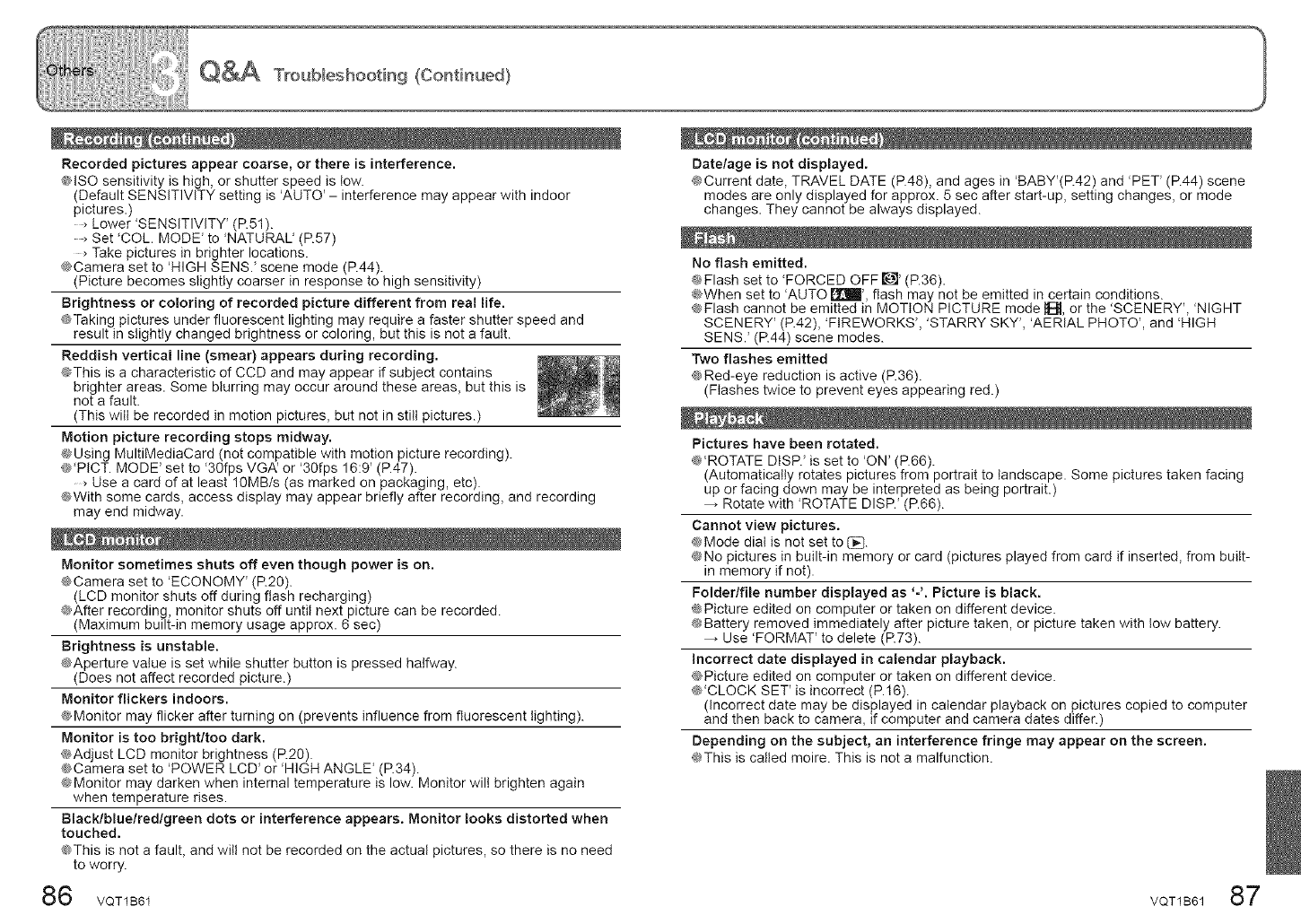
Recorded pictures appear coarse, or there is interference.
@lSO sensitivity is high, or shutter speed is tow.
(Default SENSITIVITY setting is 'AUTO' - interference may appear with indoor
pictures.)
Lower 'SENSITIVITY _(R51).
Set 'COL. MODE _to 'NATURAU (R57)
Take pictures in brighter locations.
@Camera set to 'HIGH SENS/scene mode (R44).
(Picture becomes slightly coarser in response to high sensitivity)
Brightness or coloring of recorded picture different from real life.
@Taking pictures under fluorescent lighting may require a faster shutter speed and
result in slightly changed brightness or coloring, but this is not a fault.
Reddish vertical line (smear) appears during recording.
@This is a characteristic of CCD and may appear if subject contains
brighter areas. Some blurring may occur around these areas, but this is
not a fault.
(This wilt be recorded in motion pictures, but not in still pictures.)
Motion picture recording stops midway.
@Using MultiMediaCard (not compatible with motion picture recording).
@'PICT. MODE' set to '30fps VGA' or '30fps 16:9' (P.47).
Use a card of at least 10MB/s (as marked on packaging, etc).
@With some cards, access display may appear briefly after recording, and recording
may end midway.
Monitor sometimes shuts off even though power is on.
_®Camera set to 'ECONOMY' (P.20).
(LCD monitor shuts off during flash recharging)
@After recording, monitor shuts off until next picture can be recorded.
(Maximum built-in memory usage approx. 6 sec)
Brightness is unstable.
@Aperture value is set while shutter button is pressed halfway.
(Does not affect recorded picture.)
Monitor flickers indoors.
@Monitor may flicker after turning on (prevents influence from fluorescent lighting).
Monitor is too bright/too dark.
_Adjust LCD monitor brightness (P.20).
@Camera set to 'POWER LCD' or 'HIGH ANGLE' (P.34).
@Monitor may darken when internal temperature is low. Monitor will brighten again
when temperature rises.
BlackJblue/red/green dots or interference appears. Monitor looks distorted when
touched,
@This is not a fault, and wilt not be recorded on the actual pictures, so there is no need
to worry.
6 VQT1B61
Date/age is not displayed.
@Current date, TRAVEL DATE (P.48), and ages in 'BABY'(R42) and 'PET' (R44) scene
modes are only displayed for approx. 5 sec after start-up, setting changes, or mode
changes. They cannot be always displayed.
No flash emitted.
@Flash set to 'FORCED OFF [_' (P.36).
@When set to 'AUTO _', flash may not be emitted in certain conditions.
@Flash cannot be emitted in MOTION PICTURE mode 1{_, or the 'SCENERY', 'NIGHT
SCENERY' (P.42), 'FIREWORKS', 'STARRY SKY', 'AERIAL PHOTO', and HIGH
SENS.' (R44) scene modes.
Two flashes emitted
@Red-eye reduction is active (P.36).
(Flashes twice to prevent eyes appearing red.)
Pictures have been rotated.
@'ROTATE DtSP.' is set to 'ON' (P.66).
(Automatically rotates pictures from portrait to landscape. Some pictures taken facing
up or facing down may be interpreted as being portrait.)
Rotate with 'ROTATE DISP.' (P.66).
Cannot view pictures.
@Mode dial is not set to (_.
@No pictures in built-in memory or card (pictures played from card if inserted, from built-
in memory if not).
Folder/file number displayed as '-'. Picture is black.
@Picture edited on computer or taken on different device.
@Battery removed immediately after picture taken, or picture taken with tow battery.
Use 'FORMAT' to delete (R73).
Incorrect date displayed in calendar playback.
@Picture edited on computer or taken on different device.
@'CLOCK SET' is incorrect (P.t6).
(Incorrect date may be displayed in calendar playback on pictures copied to computer
and then back to camera, if computer and camera dates differ.)
Depending on the subject, an interference fringe may appear on the screen.
@This is called moire. This is not a malfunction.
VQT1B61 87
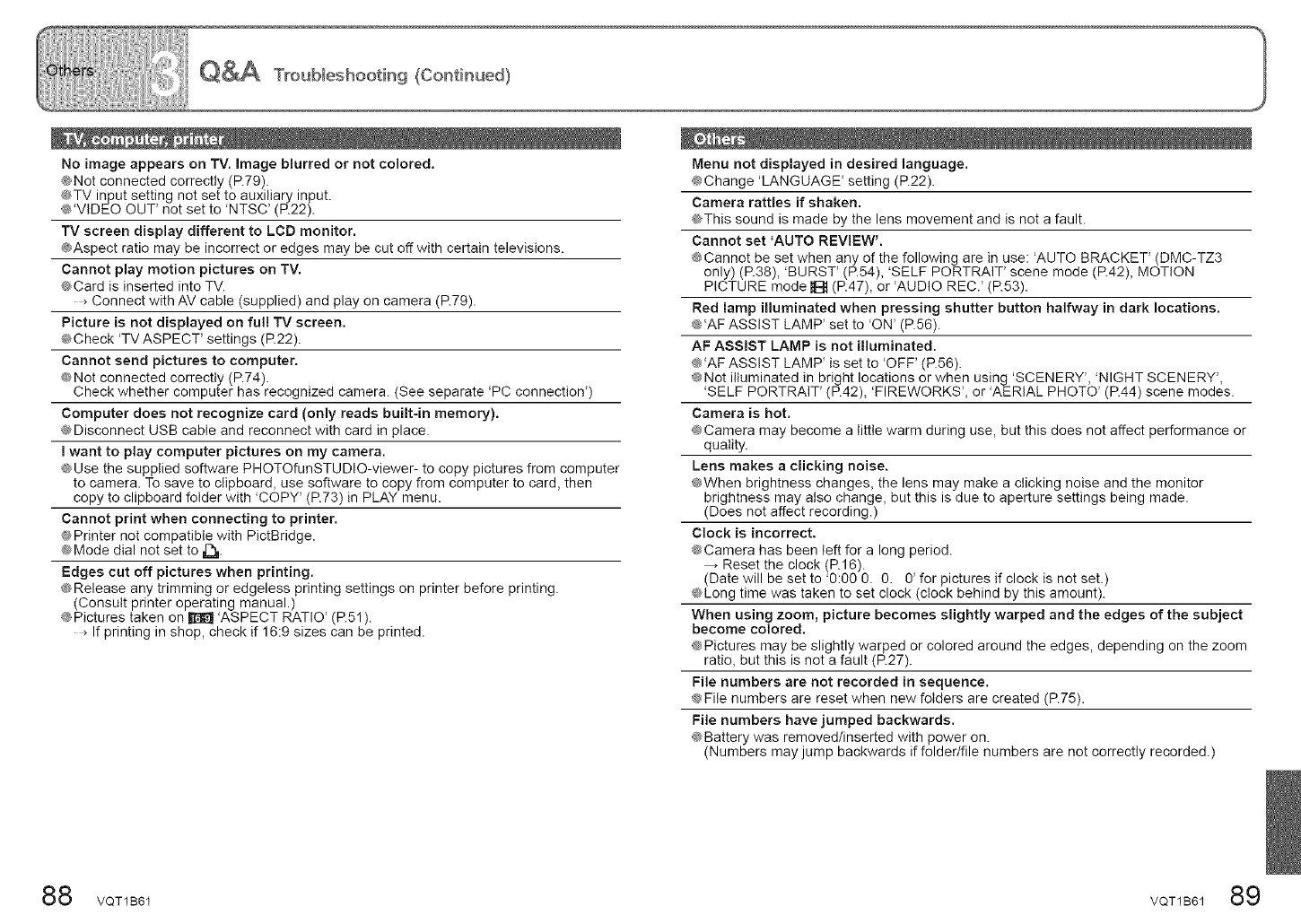
No image appears on TV. Image blurred or not colored.
@Not connected correctly (P.79).
@TV input setting not set to auxiliary input.
_'VIDEO OUT' not set to 'NTSC' (P.22).
TV screen display different to LCD monitor.
@Aspect ratio may be incorrect or edges may be cut off with certain televisions.
Cannot play motion pictures on TV.
@Card is inserted into TV.
Connect with AV cable (supplied) and play on camera (R79).
Picture is not displayed on fu!l TV screen.
@Check 'TV ASPECT' settings (R22).
Cannot send pictures to computer.
¢_Not connected correctly (P.74).
Check whether computer has recognized camera. (See separate 'PC connection')
Computer does not recognize card (only reads built-in memory).
@Disconnect USB cable and reconnect with card in place.
I want to play computer pictures on my camera.
@Use the supplied software PHOTOfunSTUDIO-viewer- to copy pictures from computer
to camera. To save to clipboard, use software to copy from computer to card, then
copy to clipboard folder with 'COPY' (P.73) in PLAY menu.
Cannot print when connecting to printer.
@Printer not compatible with PictBridge.
@Mode dial net set to =r_.
Edges cut off pictures when printing.
@Release any trimming or edgeless printing settings on printer before printing.
(Consult printer operating manual.)
@Pictures taken on _ 'ASPECT RATIO' (P.51).
If printing in shop, check if 16:9 sizes can be printed.
Menu not displayed in desired language.
@Change 'LANGUAGE' setting (R22).
Camera rattles if shaken.
@This sound is made by the lens movement and is not a fault.
Cannot set 'AUTO REVIEW'.
¢'_Cannot be set when any of the following are in use: 'AUTO BRACKET' (DMC-TZ3
only) (P.38), 'BURST' (P.54), 'SELF PORTRAIT' scene mode (P.42), MOTION
PICTURE mode B (P.47), or 'AUDIO REC.' (P.53).
Red lamp imluminated when pressing shutter button halfway in dark locations.
'AF ASSIST LAMP' set to 'ON' (P.56).
AF ASSIST LAMP is not illuminated.
@'AF ASSIST LAMP' is set to 'OFF' (P.56).
@Not illuminated in bright locations or when using 'SCENERY', 'NIGHT SCENERY',
'SELF PORTRAIT' (R42), 'FIREWORKS', or 'AERIAL PHOTO' (R44) scene modes.
Camera is hot.
@Camera may become a little warm during use, but this does not affect performance or
quality.
Lens makes a clicking noise.
_When brightness changes, the lens may make a clicking noise and the monitor
brightness may also change, but this is due to aperture settings being made.
(Does net affect recording.)
Clock is incorrect.
@Camera has been left for a long period.
,Reset the clock (P.16).
(Date will be set to @:00 0. 0. 0' for pictures if clock is not set.)
®_Long time was taken to set clock (clock behind by this amount).
When using zoom, picture becomes slightly warped and the edges of the subject
become colored.
_Pictures may be slightly warped or colored around the edges, depending on the zoom
ratio, but this is not a fault (P.27).
File numbers are not recorded in sequence.
@File numbers are reset when new folders are created (P.75).
File numbers have jumped backwards.
@Battery was removed/inserted with power on.
(Numbers may jump backwards if folder/file numbers are net correctly recorded.)
88 VQT1B61 VQT1B61 89
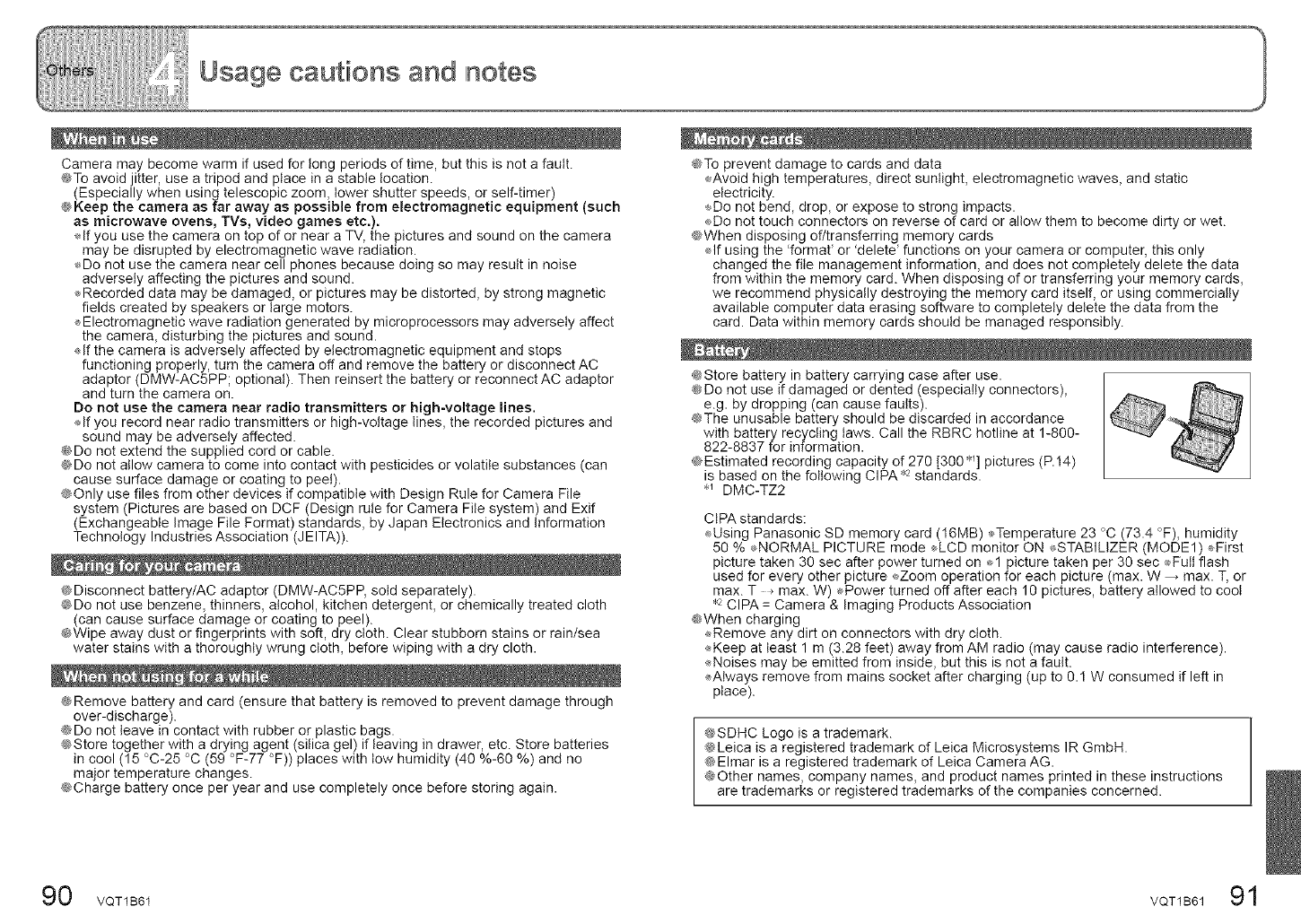
Camera may become warm if used for long periods of time, but this is not a fault.
@To avoid jitter, use a tripod and place in a stable location.
(Especially when using telescopic zoom, lower shutter speeds, or self-timer)
@Keep the camera as far away as possible from electromagnetic equipment (such
as microwave ovens, TVs, video games etc.).
_,,Ifyou use the camera on top of or near a TV, the pictures and sound on the camera
may be disrupted by electromagnetic wave radiation.
_,,Donot use the camera near cell phones because doing so may result in noise
adversely affecting the pictures and sound.
÷Recorded data may be damaged, or pictures may be distorted, by strong magnetic
fields created by speakers or large motors.
÷Electromagnetic wave radiation generated by microprocessors may adversely affect
the camera, disturbing the pictures and sound.
_,,Ifthe camera is adversely affected by electromagnetic equipment and stops
functioning properly, turn the camera off and remove the battery or disconnect AC
adaptor (DMW-AC5PP; optional). Then reinsert the battery or reconnect AC adaptor
and turn the camera on.
Do not use the camera near radio transmitters or high-voltage lines.
_01fyou record near radio transmitters or high-voltage lines, the recorded pictures and
sound may be adversely affected.
@Do not extend the supplied cord or cable.
@Do not allow camera to come into contact with pesticides or volatile substances (can
cause surface damage or coating to peel).
@Only use files from other devices if compatible with Design Rule for Camera File
system (Pictures are based on DCF (Design rule for Camera File system) and Exif
(Exchangeable Image File Format) standards, by Japan Electronics and Information
Technology Industries Association (JEITA)).
@Disconnect battery/AC adaptor (DMW-AC5PP, sold separately).
@Do not use benzene, thinners, alcohol, kitchen detergent, or chemically treated cloth
(can cause surface damage or coating to peel).
@Wipe away dust or fingerprints with soft, dry cloth. Clear stubborn stains or rain/sea
water stains with a thoroughly wrung cloth, before wiping with a dry cloth.
@Remove battery and card (ensure that battery is removed to prevent damage through
over-discharge).
@Do not leave in contact with rubber or plastic bags.
@Store together with a drying agent (silica gel) if leaving in drawer, etc. Store batteries
in cool (15 °C-25 °C (59 °F-77 °F)) places with tow humidity (40 %-60 %) and no
major temperature changes.
@Charge battery once per year and use completely once before storing again.
@To prevent damage to cards and data
_Avoid high temperatures, direct sunlight, electromagnetic waves, and static
electricity.
_Do not bend, drop, or expose to strong impacts.
_Do not touch connectors on reverse of card or allow them to become dirty or wet.
@When disposing of/transferring memory cards
If using the 'format' or 'delete' functions on your camera or computer, this only
changed the file management information, and does not completely delete the data
from within the memory card. When disposing of or transferring your memory cards,
we recommend physically destroying the memory card itself, or using commercially
available computer data erasing software to completely delete the data from the
card. Data within memory cards should be managed responsibly.
@Store battery in battery carrying case after use.
@Do not use if damaged or dented (especially connectors),
e.g. by dropping (can cause faults).
@The unusable battery should be discarded in accordance
with battery recycling laws. Call the RBRC hotline at 1-800-
822-8837 for information.
@Estimated recording capacity of 270 [300 *_] pictures (P.14)
is based on the following CIPA .2 standards.
*_ DMC-TZ2
CtPA standards:
Using Panasonic SD memory card (16MB) 4_Temperature 23 °C (73.4 °F), humidity
50 % <,NORMAL PICTURE mode LCD monitor ON *_STABILIZER (MODE1) _First
picture taken 30 sec after power turned on 1 picture taken per 30 sec Full flash
used for every other picture Zoom operation for each picture (max. W ,max. T, or
max. T _ max. W) _Power turned off after each 10 pictures, battery allowed to cool
,2 CIPA = Camera & Imaging Products Association
@When charging
,,_Remove any dirt on connectors with dry cloth.
,,_Keepat least 1 m (3.28 feet) away from AM radio (may cause radio interference).
,,_Noises may be emitted from inside, but this is not a fault.
,_AIways remove from mains socket after charging (up to 0.1 W consumed if left in
place).
@SDHC Logo is a trademark.
@Leica is a registered trademark of Leica Microsystems IR GmbH.
@Elmar is a registered trademark of Leica Camera AG.
@Other names, company names, and product names printed in these instructions
are trademarks or registered trademarks of the companies concerned.
90 VQT1B61 VQT1B61 91
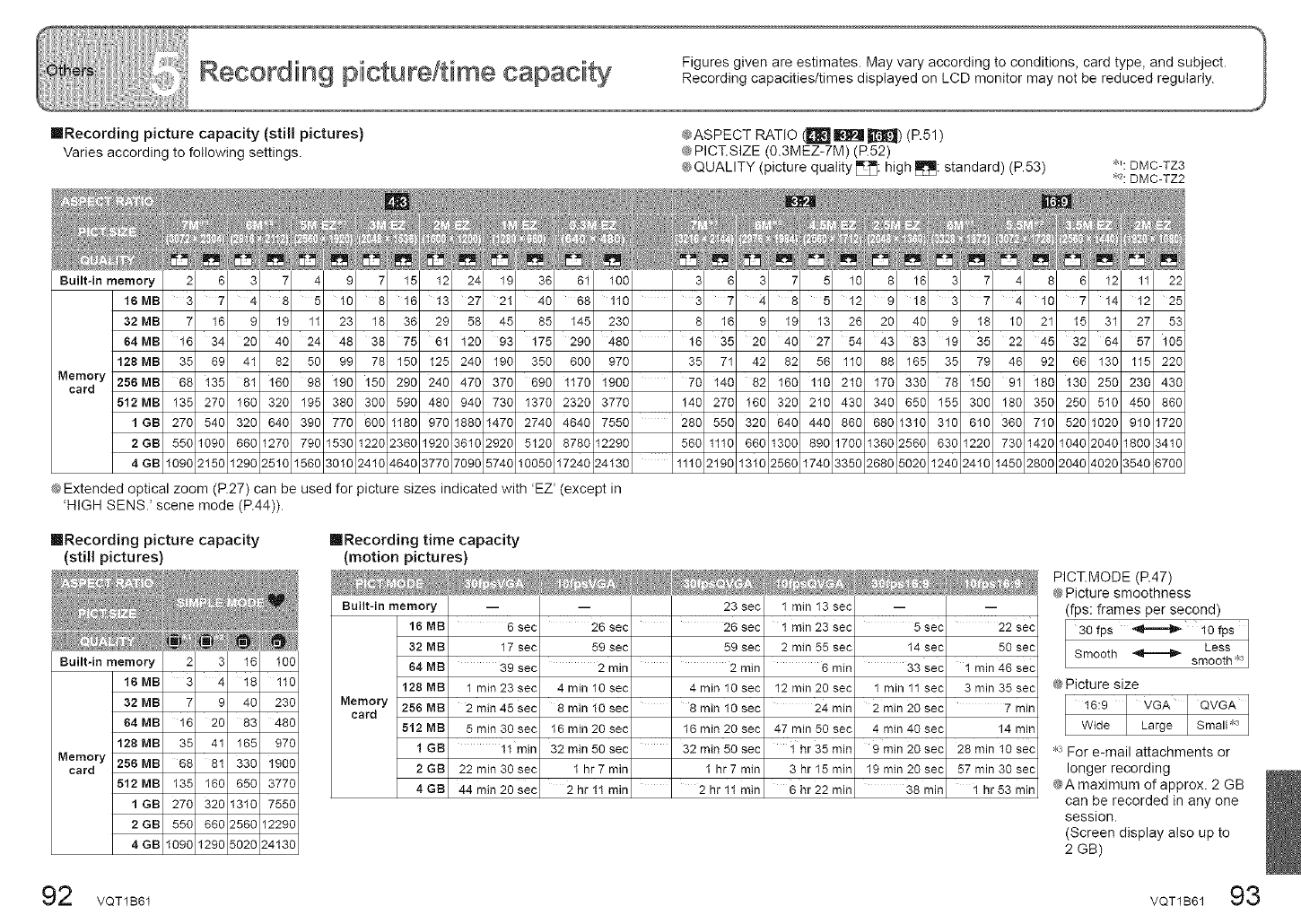
Figures given are estimates. May vary according to conditions, card type, and subject.
Recording capacities/times displayed on LCD monitor may not be reduced regularly.
mRecording picture capacity (still pictures) @ASPECT RATIO (_[_J _ _]1_) (P.51)
Varies according to following settings. @PICT.SIZE (0.3MEZ-7M) (P.52)
@ QUALITY (picture quality _: high _: standard) (P.53) _': BMC-TZ3
_2:DMC-TZ2
Built-in memory
16 MB 3 4 8 5 1C 8 16 13 27 21 40 68 110 3 2 4 8 5 12 c 18 3 2 4 18 7 14 12 25
32 MB 7 1E 9 19 11 23 18 36 29 58 45 85 145 230 8 16 c 19 13 26 2C 40 9 18 lC 21 15 31 27 53
64 MB 16 34 20 40 24 48 38 75 61 120 93 175 290 480 16 35 20 40 27 54 43 83 19 35 22 45 32 64 57 105
128 MB 35 6c 41 82 50 9c 78 150 125 240 190 350 600 970 35 71 42 82 56 110 88 165 35 79 4_ 92 66 130 115 220
Memory 256MB 68 13_ 81 160 98 190 150 290 240 470 370 690 1170 1900 76 146 82 166 116 216 170 336 78 156 91 180 136 256 230 436
card 512MB 135 27C 160 320 195 38C 300 590 480 94C 730 1370 2320 3770 140 270 160 320 210 430 340 650 155 300 180 350 250 510 450 860
1 GB 270 54C 320 640 390 77C 660 1180 970 188C 1470 2740 4640 7550 280 550 320 640 440 860 680 1310 310 610 360 710 520 1020 910 1720
2 GB 550 1090 660 1270 790 1530 1220 2360 1920 3610 2920 5120 8780 12290 560 1110 660 1300 890 1700 1360 2560 630 1220 730 1420 1040 2040 1800 3410
4 GB 1090 2150 1290 2510 1560 301C 2410 4640 3770 709C 5740 10050 17240 24130 11t0 2190 t3t0 2560 t740 3350 2680 5020 t240 24t0 t450 2800 2040 4020 3540 6700
@Extended optical zoom (P127) can be used for picture sizes indicated with 'EZ' (except in
'HIGH SENS.' scene mode (P.44)).
mRecording picture capacity
(still pictures)
Built-in memory
16 MB I: 2:I81 110
32MB 7 401230
64 MB 831 480
128MB351411651970
MemOrYeardMB 6818t 38011960
MB1351 6 013770
1GB2701131017 50
2 GB 550 66C 2560 12290
4 GB 1090 129C 5020 24130
mRecording time capacity
(motion pictures)
Built-in memory
16 MB
32 MB
64 MB
128 MB
Memory 256 MB
card
512 MB
1 GB
2GB
4GB
6 sec
17 sec
39 sec
1 min 23 sec
2 rain 45 sec
5 min 30 sec
11 rain
22 min 30 sec
44 rain 20 sec
-- 23 sec
26 sec 26 sec
59 sec 59 sec
2 rain 2 min
4 min 10 sec 4 min 10 sec
8 min 10 sec 8 min 10 sec
16 min 20 sec 16 min 20 sec
32 min 50 ses 32 min 50 ses
1 hr 7 min 1 hr 7 min
2 hr 11 min 2 hr 11 rain
1 min 13 sec
1 min 23 sec
2 min 55 sec
6 min
12 min 20 sec
24 rain
47 min 50 sec
1 hr 35 rain
3 hr 15 min
6 hr 22 min
5 sec
14 sec
33 sec
1 min 11 se¢
2 min 20 sec
4 min 40 sec
9 min 29 sec
19 min 20see
38 rain
22 sec
50 sec
1 min 46 sec
3 min 35 sec
7 min
14 min
28 min 10 sec
57 min 30 sec
1 hr 53 rain
PICT.MODE (R47)
@ Picture smoothness
(fps: frames per second)
30 fps _ 10 fps I
Less I
Smooth ,_-====,1_ smooth 8
@ Picture size
16:9 VGA QVGA
Wide Large Small ,3
•3 For e-mail attachments or
longer recording
@A maximum of approx. 2 GB
can be recorded in any one
session.
(Screen display also up to
2GB)
92 o 1s61 o 1s6193
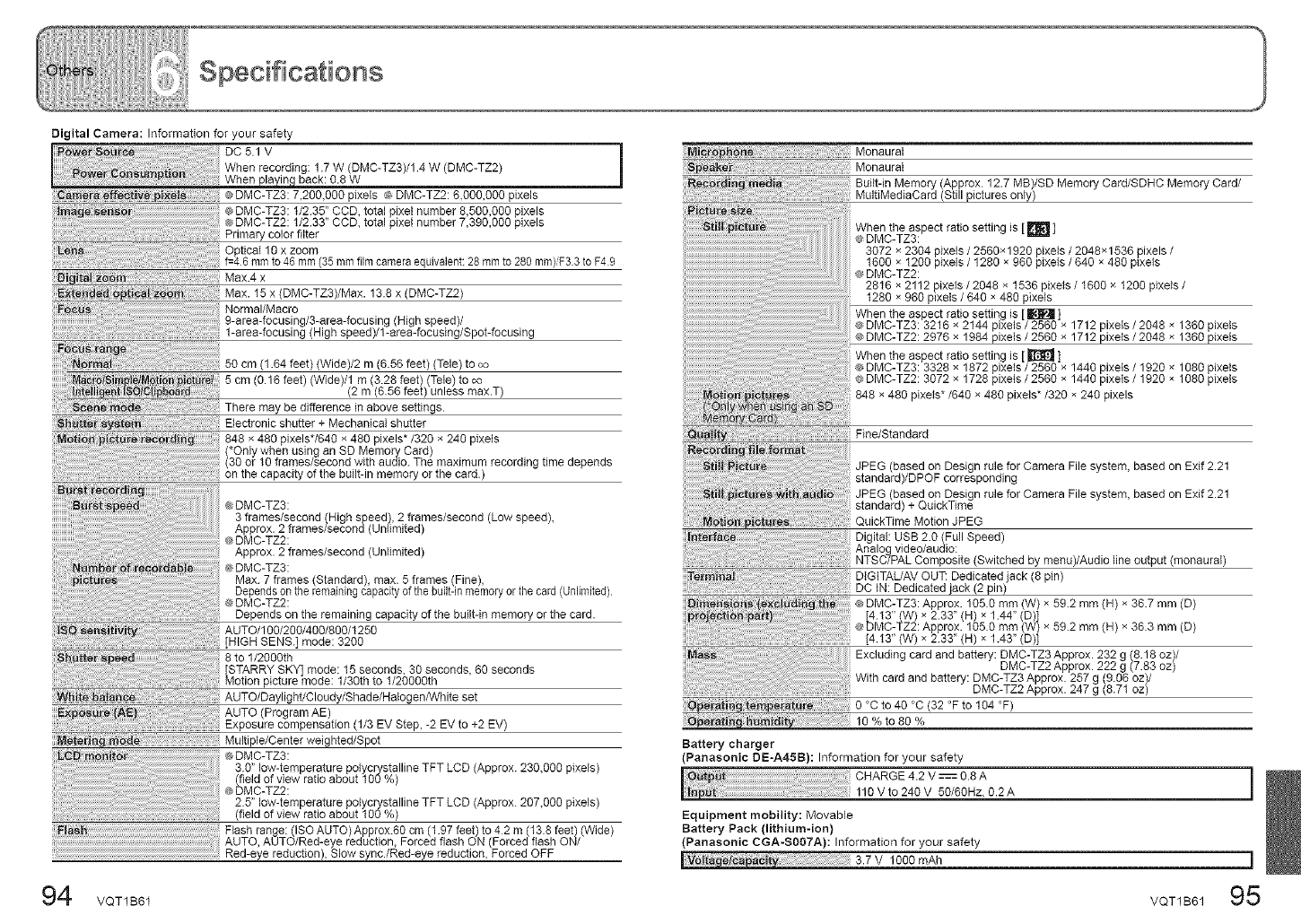
Digital Camera: Information for your safety
DC51 V
When recording: 1.7 W (DMC-TZ3)/1.4 W (DMC-TZ2)
back: 0.8 W
',20O,O0Opixels _ DMC-TZ2:6.000,000 pixels
_ DMC-TZ3: I/2.35" CCD, total pixei number 8,500,000 pixels
@DMC-TZ2: 1/2.33" CCD, total pixe{ number 7,390,000 pixels
Primary color filter
Max.4 x
Max. 15 x (DMC-TZ3)/Msx. 13.8 x (DMC-TZ2)
9-area-focusing/3-area-focusing (High speed)/
1-area-focusing (High speed)/1-area-focusing/Spot-focusing
(1.64 feet) (Wide)/2 m (6.56 feet) (Tele) to co
5 cm (0.16 feet) Wide/1 m 3.28 feet Tele) to co
2 m 656 feet un ess max.T
be difference in above settings.
Electronic shutter + Mechanical shutter
848 × 480 pixels*/640 × 480 pixels*/320 x 240 pixels
*Only when using an SD Memory Card)
30 or I0 frames/second with audio. The maximum recording time depends
on the capacity of the built-in memory or the card.)
3 frames/second (High speed), 2 frames/second (Low speed),
Approx. 2 frames/second(Unlimited)
@DMC-TZ2:
Approx. 2 frames/second (Unlimited)
@DMC-TZ3:
Max. 7 frames Standard), max. 5 frames (Fine),
Depends on the reman ng capec y of _ebu - n memory or he card Un med.
@DMC-TZ2:
Depends on the remaining capacity of the built-in memory or the card.
8 to 1/2000th
mode: 30 seconds, 60 seconds
AUTO/Daylight/Cloudy/Shade/malogenNVhite set
AUTO (Program RE)
Exposure compensa on 1 3 EV Step, -2 EV to +2 EV)
Multiple/Center weighted/Spot
@DMC-TZ3:
3.0" low-temperature poiycrystalline TFT LCD (Approx. 230,000 pixels)
(field of view ratio about 100%)
@DMC-TZ2:
2.5" low-temperature polycrystalline TFT LCD (Approx. 207,000 pixels)
(field of view ratio about I00 %)
Monaural
Monaural
_ rd Built-in Memory (Approx. 12.7 MB)/SD Memory Card/SDHC Memory Card/
MultiMediaCard (Still pictures only)
When the aspect ratio setting is [m]
@DMC-TZ3:
3072 x 2304 pixels /2560x1920 pixels /2048×1536 pixels /
1600 × I200 pixels /1280 x 960 pixels /640 x 480 plxels
e; DMC-TZ2:
28t6 x 2112 pixels /2048 × 1536 pixels /I600 × I200 pixels /
1280 x 960 pixeis /640 x 480 pixels
When the aspect ratio setting is [1_ ]
¢ DMC-TZ3:3216 × 2144 pixels/2560 x 1712 pixeis/2048 × 1360 pixels
® DMC-TZ2:2976 x 1984 pixeis /2560 x 1712 pixels /2048 × 1360 pixeis
When the aspect ratio setting is [ _ ]
_ DMC-TZ3:3328 × 1872 pixels /2560 x 1440 pixeis /1920 × 1080 pixels
DMC-TZ2:3072 x 1728 pixels /2560 x 1440 pixeis /1920 × 1080 pixels
848 x 480 pixels*/640 × 480 pixeis*/320 × 240 pixels
Fine/Standard
JPEG (based on Design rule for Camera File system, based on Exif 2.21
standard)/DPOF corresponding
JPBe based on Design rule for Camera File system, based on Bxif 2.21
s andard + Qu ckT me
QuickTime Motion JPEG
Digital: USB 2.0 (Full Speed)
Analog video/audio:
NTSC/PAL Composite (Switched by menu)/Audio line output (monaural)
Tem _ DIGITAL/AV OUT: Dedicated jack (8 pin)
DC iN: Dedicated jack (2 pin)
_ DMC-TZ3: Approx. 105.0 mm W x 59.2 mm H × 36.7 mm (U)
[4.13" W x 2.33" H x 144" D ]
@DMC-TZ2: Approx. 105.0 mm W) × 59.2 mm H × 363 mm (D)
[4. I3" (W) × 2.33" (H) x 1.43" (D)]
Excluding card and battery: DMC-TZ3 Approx. 232 g 8.18 oz /
DMC-TZ2 Approx. 222 g (7.83 oz)
With card and battery: DMC-TZ3 Approx. 257 g (9.06 oz//
DMC-TZ2 Approx. 247 g (8.7I oz)
0 °C to 40 °C (32 °F to 104 °F)
10 % to 80 %
Battery charger
(Panasonic DE-A45B): Information for your safety
CHARGE 4.2 V _ 0.8 A ]
!110 V to 240 V 50/6OHz, 0.2 A
Equipment mobility: Movable
Battery Pack (lithium-ion)
(Panasonic CGA-SO07A): Information for your safety
3.7 V 1000 mAh ]
94 VQT1B61 VQT1B61 95
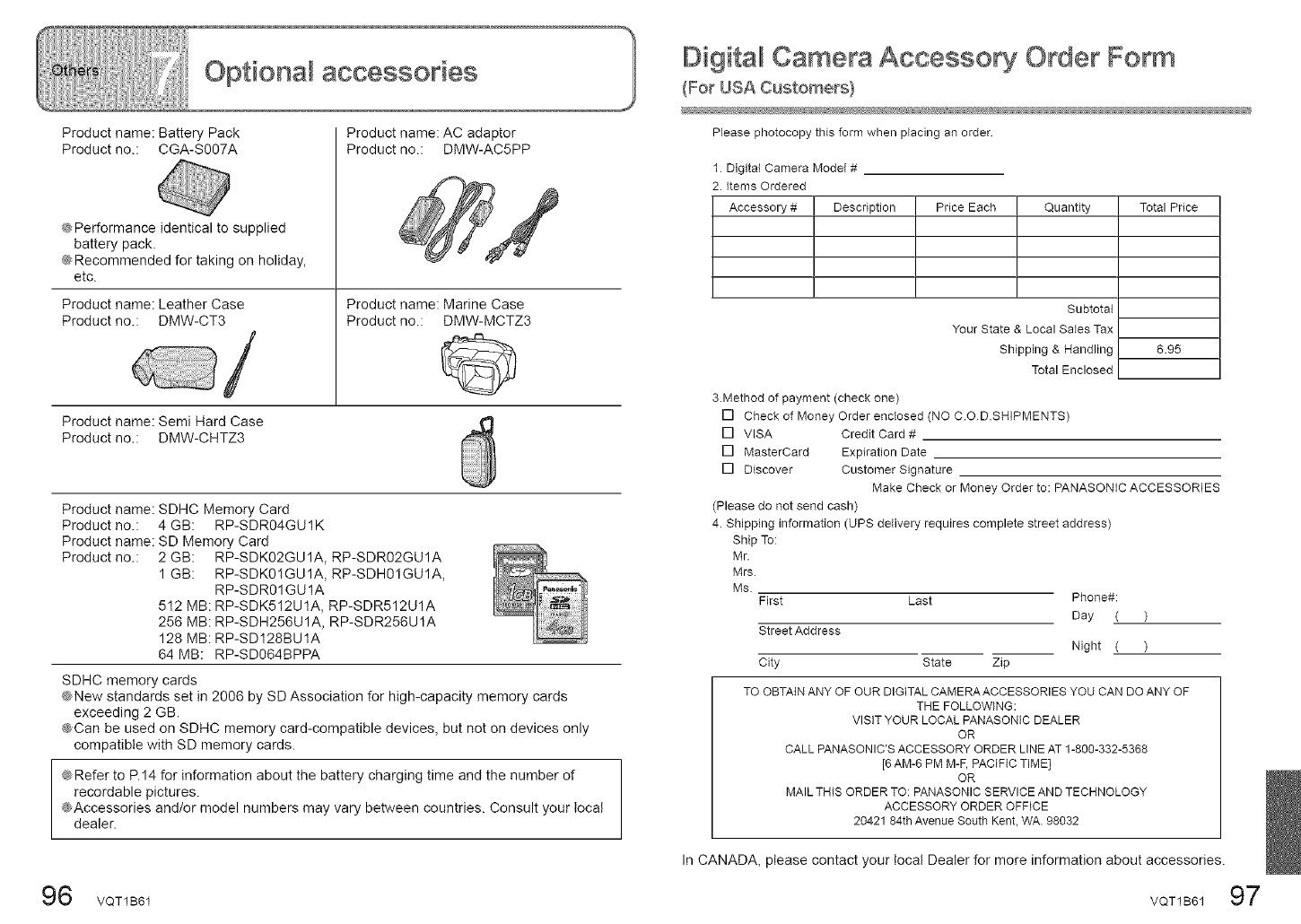
Optiona accessories
Product name: Battery Pack
Product no.: CGA-S007A
@Performance identical to supplied
battery pack.
@Recommended for taking on holiday,
etc.
Product name: Leather Case
Product no.: DMW-CT3 /
Product name: Semi Hard Case
Product no.: DMW-CHTZ3
Product name: AC adaptor
Product no.: DMW-AC5PP
Product name: Marine Case
Product no.: DMW-MCTZ3
Product name: SDHC Memory Card
Product no.: 4 GB: RP-SDR04GU1K
Product name: SD Memory Card
Product no.: 2 GB: RP-SDK02GU1A, RP-SDR02GU1A
1 GB: RP-SDK01GU1A, RP-SDH01GU1A,
RP-SDR01GUIA
512 MB: RP-SDK512U1A, RP-SDR512U1A
256 MB: RP-SDH256U1A, RP-SDR256U1A
128 MB: RP-SD128BU1A
64 MB: RP-SD064BPPA
SDHC memory cards
@New standards set in 2006 by SD Association for high-capacity memory cards
exceeding 2 GB.
@Can be used on SDHC memory card-compatible devices, but not on devices only
compatible with SD memory cards.
@Refer to P.14 for information about the battery charging time and the number of
recordable pictures.
@Accessories and/or model numbers may vary between countries. Consult your local
dealer.
IDigitall Camera Accesso Order Form
(For USA Customers}
Please photocopy this form when placing an order.
1. Digital Camera Model #
2. Items Ordered
Accessory # Description Price Each Quantity Total Price
Subtotal
Your State & Local Sales Tax
Shipping & Handling
Total Enclosed
6.95
3.Method of payment (check one)
[] Check of Money Order enclosed (NO C.O D.SHIPMENTS)
[] VISA Credit Card #
[] MasterCard Expiration Date
[] Discover Customer Signature
Make Check or Money Order to: PANASONIC ACCESSORIES
(Please do not send cash)
4. Shipping information (UPS delivery requires complete street address)
Ship To:
Mr.
Mrs
Ms. First Last
Street Address
City State Zip
Phone#:
Day ( )
Night ( )
TO OBTAIN ANY OF OUR DIGITAL CAMERA ACCESSORIES YOU CAN DO ANY OF
THE FOLLOWING:
VISIT YOUR LOCAL PANASONIC DEALER
OR
CALL PANASONIC'S ACCESSORY ORDER LINE AT 1-808-332-5368
[6 AM-6 PM M-F, PACIFIC TIME]
OR
MAIL THIS ORDER TO: PANASONIC SERVICE AND TECHNOLOGY
ACCESSORY ORDER OFFICE
20421 84th Avenue South Kent, WA. 98032
In CANADA, please contact your local Dealer for more information about accessories.
96 VQT1B61 VQT1B61 97
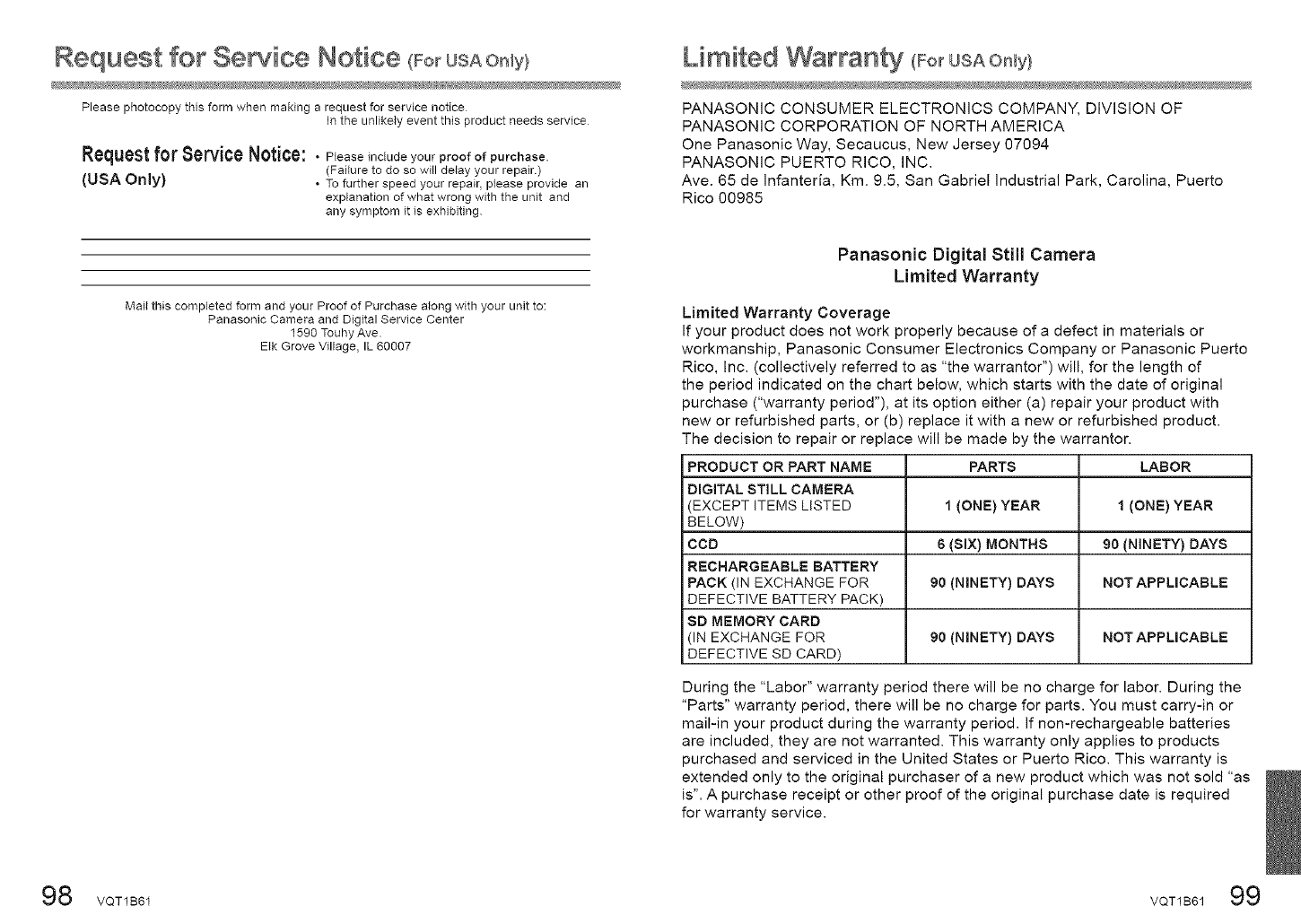
Request for 8e iice Notice (Fo USA
Please photocopy thisform when making a request for service notice
In the unlikely event this product needs service
'_-*"--'m_qu_for ServiceNotice: • Pleaseincludeyourproof of purchase.
(Failure to do so will delay your repair.)
(USA Only) • Tofurther speed your repair, please provide an
explanation of what wrong with the unit and
any symptom it is exhibiting
Mail this completed form and your Proof of Purchase along with your unit to:
Panasonic Camera and Digital Service Center
1590 Touhy Ave.
Elk Grove Village, IL 60007
Limiited Warranty (ForUSAOn y)
PANASONIC CONSUMER ELECTRONICS COMPANY, DIVISION OF
PANASONIC CORPORATION OF NORTH AMERICA
One Panasonic Way, Secaucus, New Jersey 07094
PANASONIC PUERTO RICO, INC.
Ave. 65 de Infanteria, Km. 9.5, San Gabriel Industrial Park, Carolina, Puerto
Rico 00985
Panasonic Digital Still Camera
Limited Warranty
Limited Warranty Coverage
If your product does not work properly because of a defect in materials or
workmanship, Panasonic Consumer Electronics Company or Panasonic Puerto
Rico, Inc. (collectively referred to as "the warrantor") will, for the length of
the period indicated on the chart below, which starts with the date of original
purchase ("warranty period"), at its option either (a) repair your product with
new or refurbished parts, or (b) replace it with a new or refurbished product.
The decision to repair or replace will be made by the warrantor.
PRODUCT OR PART NAME PARTS LABOR
DIGITAL STILL CAMERA
(EXCEPT ITEMS LISTED 1 (ONE) YEAR 1 (ONE) YEAR
BELOW)
CCD 6 (SIX) MONTHS 90 (NINETY) DAYS
RECHARGEABLE BATTERY
PACK (IN EXCHANGE FOR 90 (NINETY) DAYS NOT APPLICABLE
DEFECTIVE BATTERY PACK)
SD MEMORY CARD
(IN EXCHANGE FOR 90 (NINETY) DAYS NOT APPLICABLE
DEFECTIVE SD CARD)
During the "Labor" warranty period there will be no charge for labor. During the
"Parts" warranty period, there will be no charge for parts. You must carry-in or
mail-in your product during the warranty period. If non-rechargeable batteries
are included, they are not warranted. This warranty only applies to products
purchased and serviced in the United States or Puerto Rico. This warranty is
extended only to the original purchaser of a new product which was not sold "as
is". A purchase receipt or other proof of the original purchase date is required
for warranty service.
98 VQT1B61 VQT1B6199
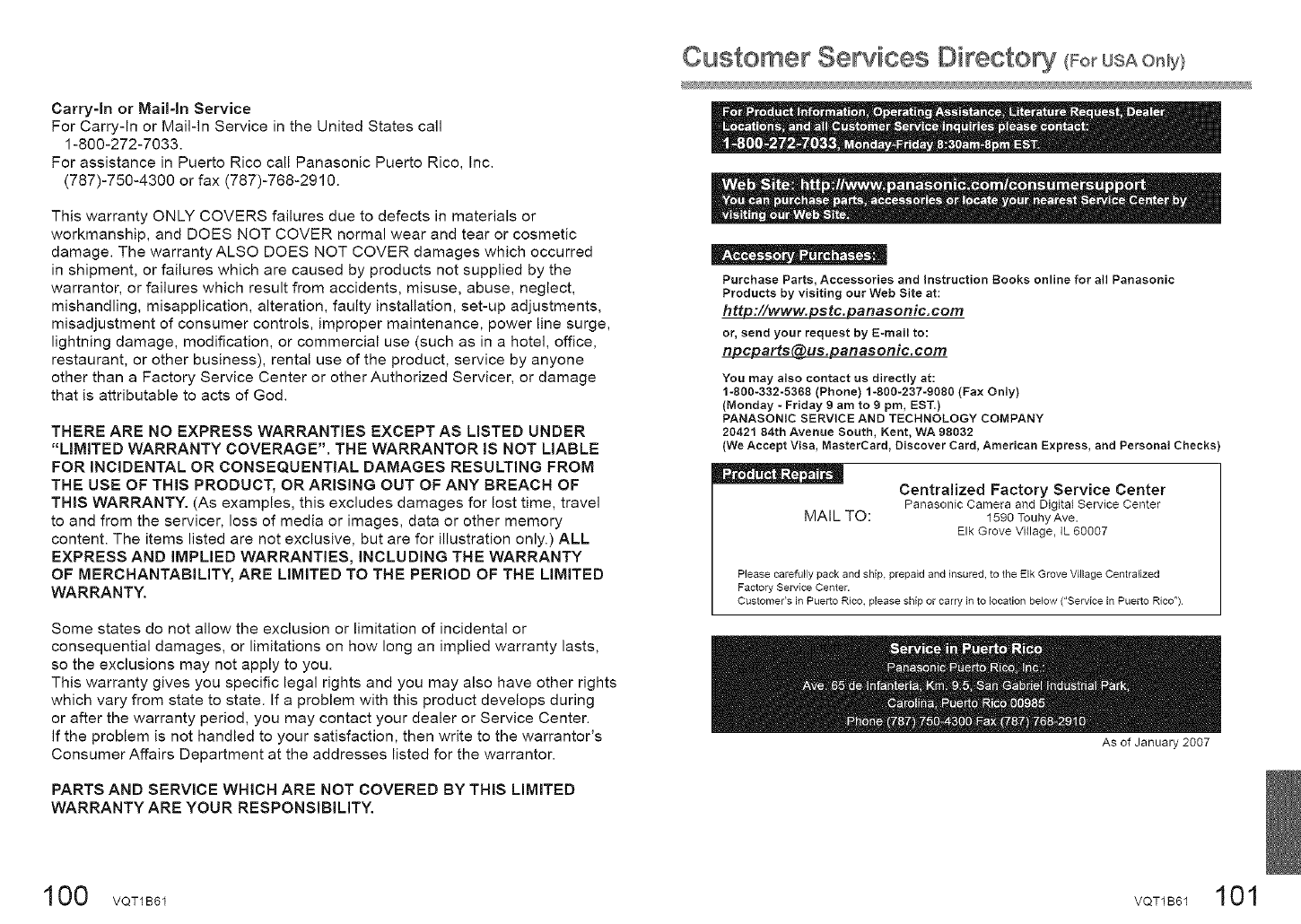
Carry-In or Mail-In Service
For Carryqn or Mail-in Service in the United States call
1-800-272-7033.
For assistance in Puerto Rico call Panasonic Puerto Rico, Inc.
(787)-750-4300 or fax (787)-768-2910.
This warranty ONLY COVERS failures due to defects in materials or
workmanship, and DOES NOT COVER normal wear and tear or cosmetic
damage. The warranty ALSO DOES NOT COVER damages which occurred
in shipment, or failures which are caused by products not supplied by the
warrantor, or failures which result from accidents, misuse, abuse, neglect,
mishandling, misapplication, alteration, faulty installation, set-up adjustments,
misadjustment of consumer controls, improper maintenance, power line surge,
lightning damage, modification, or commercial use (such as in a hotel, office,
restaurant, or other business), rental use of the product, service by anyone
other than a Factory Service Center or other Authorized Servicer, or damage
that is attributable to acts of God.
THERE ARE NO EXPRESS WARRANTIES EXCEPT AS LISTED UNDER
"LIMITED WARRANTY COVERAGE". THE WARRANTOR IS NOT LIABLE
FOR INCIDENTAL OR CONSEQUENTIAL DAMAGES RESULTING FROM
THE USE OF THIS PRODUCT, OR ARISING OUT OF ANY BREACH OF
THIS WARRANTY. (As examples, this excludes damages for lost time, travel
to and from the servicer, loss of media or images, data or other memory
content. The items listed are not exclusive, but are for illustration only.) ALL
EXPRESS AND IMPLIED WARRANTIES, INCLUDING THE WARRANTY
OF MERCHANTABILITY, ARE LIMITED TO THE PERIOD OF THE LIMITED
WARRANTY.
Some states do not allow the exclusion or limitation of incidental or
consequential damages, or limitations on how long an implied warranty lasts,
so the exclusions may not apply to you.
This warranty gives you specific legal rights and you may also have other rights
which vary from state to state. If a problem with this product develops during
or after the warranty period, you may contact your dealer or Service Center.
If the problem is not handled to your satisfaction, then write to the warrantor's
Consumer Affairs Department at the addresses listed for the warrantor.
PARTS AND SERVICE WHICH ARE NOT COVERED BY THIS LIMITED
WARRANTY ARE YOUR RESPONSIBILITY.
Customer Services Directo (ForUSAOnHy}
Purchase Parts, Accessories and Instruction Books online for all Panasonic
Products by visiting our Web Site at:
http://www.pstc.panasonic.com
or, send your request by E-mail to:
_.panasonic.com
You may also contact us directly at:
1-800-332-5388 (Phone) 1-800-237-9080 (Fax Only)
(Monday - Friday 9 am to 9 pro, EST.)
PANASONIC SERVICE AND TECHNOLOGY COMPANY
20421 84th Avenue South, Kent, WA 98032
(We Accept Visa, MasterCard, Discover Card, American Express, and PersonalChecks
Centralized Factory Service Center
Panasonic Camera and Digital Service Center
MAIL TO: 1590 TouhyAve.
Elk Grove VHlage, IL 60007
Please carefully pack and ship, prepaid and insured, to the Elk Grove Village Centralized
Factory Service Center.
Customer's in Puerto Rico, please ship or carry in to location below ("Service in Puerto Rico")
As of January 2007
100 voT1E61 VOT1B61101
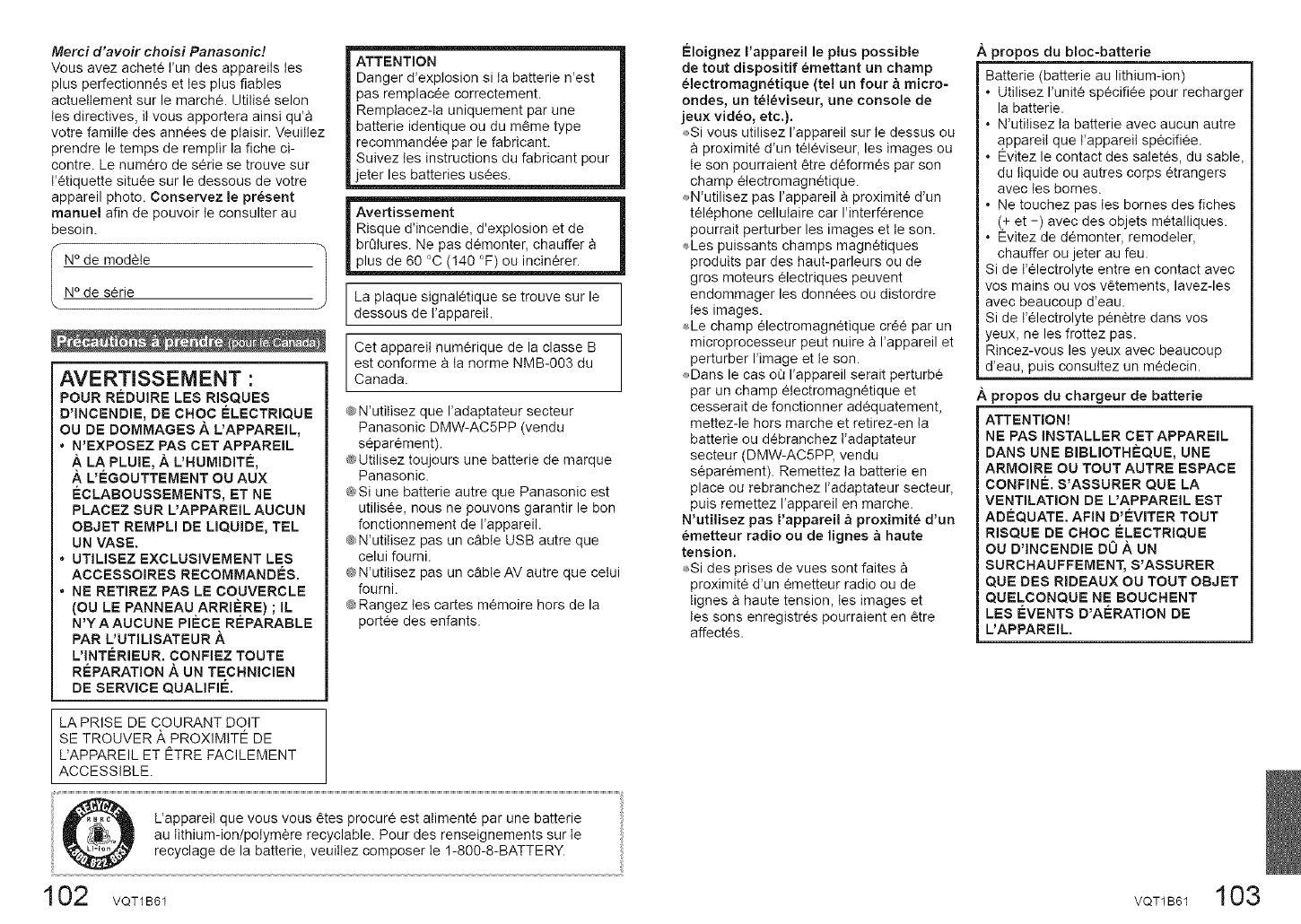
Merci d'avoir choisi Panasonic!
Vous avez achete Fun des appareils les
plus perfectionnes et tes plus fiables
actueItement sur le marche. Utilise selon
tes directives, it vous apportera ainsi qu'a
votre famille des annees de piaisir. VeuiItez
prendre le temps de remplir la fiche ci-
contre. Le numero de serie se trouve sur
F_tiquette situee sur le dessous de votre
appareil photo. Conservez le present
manuel afin de pouvoir te consulter au
besoin.
N de mod_le
N° de serie
AVERTISSEMENT :
POUR R_:DUIRE LES RBQUES
D'INCENDIE, DE CNOC ELECTRIQUE
OLI DE DOMMAGES ,_ L'APPAREIL,
* N'EXPOSEZ PAS GET APPAREIL
A LA PLUIE, A L'NUMIDITE,
AL'EGOLITTEMENT OU ALIX
ECLABOUSSEMENTS, ET NE
PLACEZ SUR L'APPAREIL ALICLIN
OBJET REMPM DE LJQLIJDE,TEL
UN VASE.
. UTILISEZ EXCLLISIVEMENT LES
ACCESSOIRES RECOMMANDES.
NE RETIREZ PAS LE COLIVERCLE
(OU LE PANNEAU,ARRIE, RE) ; IL
N'YAALICLINE PIECE REPARABLE
PAR L'LITJLISATEUR A
L'INTERIELIR. CONFIEZ TOLITE
REPARATION ALIN TECNNJCIEN
DE SERVICE QUALIFIE.
ATTENTION
Danger d'expiosion si la batterie n'est
pas remplacee correctement.
Rempiacezda uniquement par une
batterie identique ou du m¢me type
recommand_e par le fabricant.
Suivez les instructions du fabricant pour
jeter les batteries usees_
Avertissement
Risque d'incendie, d'exp!osion et de
brCiIures. Ne pas demonter, chauffer
plus de 60 °C (140 °F) ou incinerer.
La plaque signaletique se trouve sur le
dessous de t'appareit.
Cet appareit numerique de la classe B
est conforme a ta norme NMB-003 du
Canada.
@N'utitisez que I'adaptateur secteur
Panasonic DMW-AC5PP (vendu
separement).
@Utilisez toujours une batterie de marque
Panasonic.
@Si une batterie autre que Panasonic est
utilisee, nous ne pouvons garantir le bon
fonctionnement de I'appareil.
@N'utitisez pas un c_ble USB autre que
celui fourni.
@N'utitisez pas un cSble AV autre que celui
fourni.
@Rangez tes cartes m_moire hers de la
portee des enfants.
LA PRISE DE COURANT DOlT
SE TROUVER ,g, PROXIMITE DE
L'APPAREIL ET ETRE FACILEMENT
ACCESSIBLE.
L'appareit que vous vous _tes procure est alimente par une batterie
_. _'_;_..m au tithium-ion/polymere recyclable. Pour des renseignements sur te
recyclage de la batterie, veuittez composer te 1-800-8-BATTERY.
102 VQT1B61
Eloignez I'appareil le plus possible
de tout dispositif _mettant un champ
electromagnetique (te! un four & micro-
ondes, un tel_viseur, une console de
jeux video, etc.}.
Si vous utilisez I'appareil sur le dessus ou
proximite d'un televiseur, les images ou
te son pourraient _tre d6formes par son
champ electromagnetique.
_N'utilisez pas I'appareil a proximite d'un
telephone ceilulaire car I'interf_rence
pourrait perturber les images et te son.
Les puissants champs magnetiques
produits par des haut-parleurs ou de
gros moteurs electriques peuvent
endommager les donn_es ou distordre
les images.
Le champ ¢lectromagnetique cr6e par un
microprocesseur peut nuire a I'appareil et
perturber I'image et le son.
_Dans le cas o8 I'appareil serait perturb€
par un champ electromagn_tique et
cesserait de fonctionner adequatement,
mettezde hers marche et retirez-en ta
batterie ou d6branchez t'adaptateur
secteur (DMW-AC5PP, vendu
separement). Remettez ta batterie en
place ou rebranchez I'adaptateur secteur,
puis remettez I'appareil en marche.
N'utilisez pas I'appareil _ proximit_ d'un
emetteur radio ou de lignes _ haute
tension.
Si des prises de vues sont faites
proximite d'un emetteur radio ou de
tignes a haute tension, les images et
tes sons enregistres pourraient en Ctre
affectes.
._ propos du bloc-batterie
Batterie (batterie au lithium-ion)
*Utilisez I'unite sp6cifiee pour recharger
la batterie.
*N'utitisez ta batterie avec aucun autre
appareil que t'appareil specifiee.
*Evitez le contact des satetes, du sable,
du liquide ou autres corps etrangers
avec tes bornes.
°Ne touchez pas les bornes des fiches
(+ et -) avec des objets metatliques.
°Evitez de demonter, remodeler,
chauffer ou jeter au feu.
Si de Felectrolyte entre en contact avec
vos mains ou vos vCtements, lavez-les
avec beaucoup d'eau.
Si de Felectrolyte penCtre dans vos
/eux, ne les frottez pas.
Rincez-vous les yeux avec beaucoup
d'eau, puis consuitez un medecin.
Apropos du chargeur de batterie
ATTENTION!
NE PAS INSTALLER CET APPAREIL
DANS LINE BIBLIOTH_:QUE, UNE
ARMOIRE OU TOUT AUTRE ESPACE
CONFINE. S'ASSURER QUE LA
VENTILATION DE L'APPAREIL EST
ADI-QLIATE. AFIN D'EVITER TOUT
RISQUE DE CNOC ELECTRIQUE
OU D'INCENDIE DU AUN
SURCHAUFFEMENT, S'ASSURER
QUE DES RIDEALIX OU TOUT OBJET
QUELCONQUE NE BOUCNENT
LES EVENTS D'AERATION DE
L'APPAREIL
VQT1B61 103
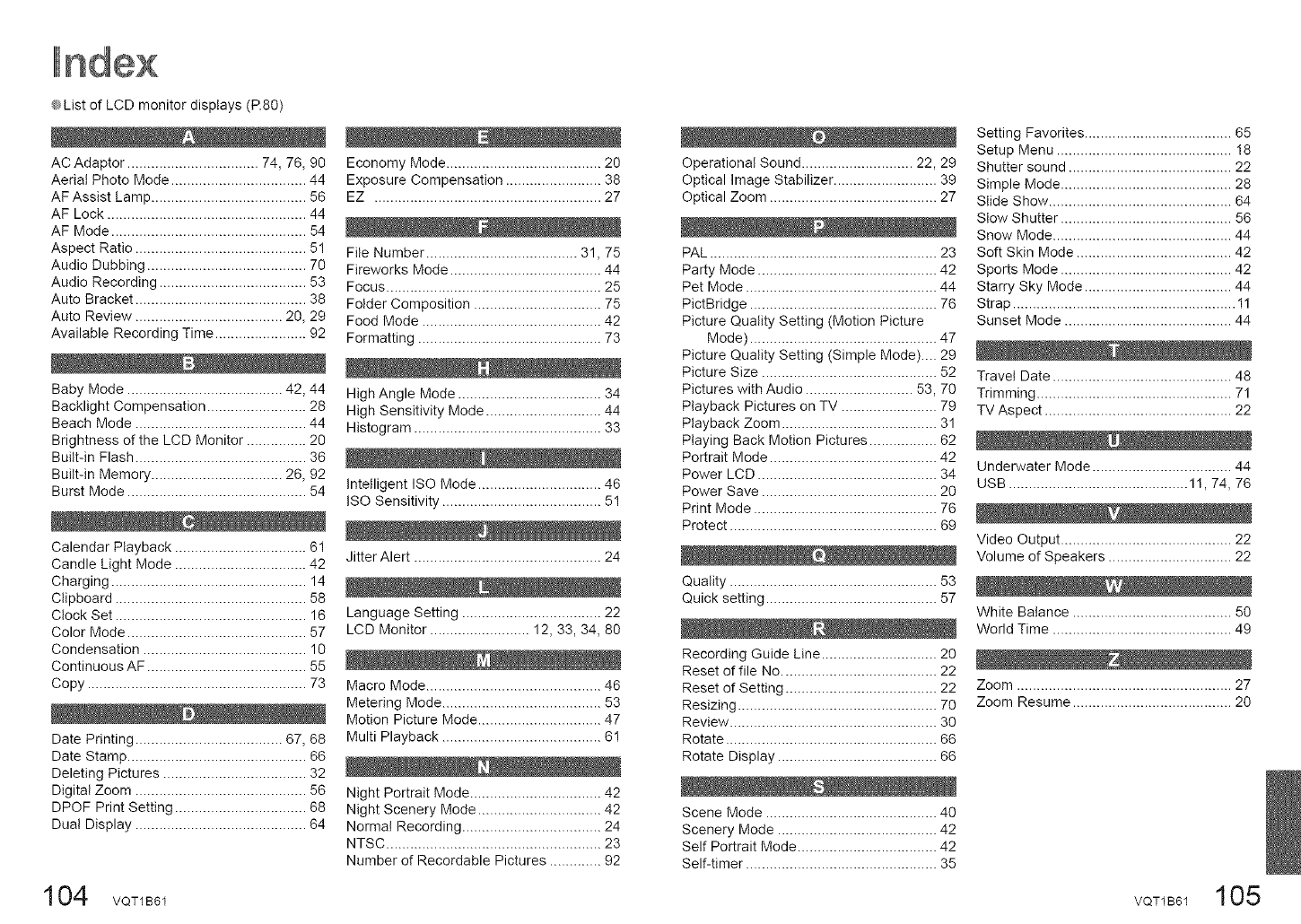
@List of LCD monitor displays (P.80)
AC Adaptor ................................. 74, 76, 90
Aerial Photo Mode .................................. 44
AF Assist Lamp ....................................... 56
AF Lock .................................................. 44
AF Mode ................................................. 54
Aspect Ratio ........................................... 51
Audio Dubbing ........................................ 70
Audio Recording ..................................... 53
Auto Bracket ........................................... 38
Auto Review ..................................... 20, 29
Available Recording Time ....................... 92
Baby Mode ....................................... 42, 44
Backlight Compensation ......................... 28
Beach Mode ........................................... 44
Brightness of the LCD Monitor ............... 20
Built-in Flash ........................................... 36
Built-in Memory ................................. 26, 92
Burst Mode ............................................. 54
Calendar Playback ................................. 61
Candle Light Mode ................................. 42
Charging ................................................. 14
Clipboard ................................................ 58
Clock Set ................................................ 16
Color Mode ............................................. 57
Condensation ......................................... 10
Continuous AF ........................................ 55
Copy ....................................................... 73
Date Printing ..................................... 67, 68
Date Stamp ............................................. 66
Deleting Pictures .................................... 32
Digital Zoom ........................................... 56
DPOF Print Setting ................................. 68
Dua! Display ........................................... 64
Economy Mode ....................................... 20
Exposure Compensation ........................ 38
EZ ......................................................... 27
File Number ...................................... 31,75
Fireworks Mode ...................................... 44
Focus ...................................................... 25
Folder Composition ................................ 75
Food Mode ............................................. 42
Formatting .............................................. 73
High Angle Mode .................................... 34
High Sensitivity Mode ............................. 44
Histogram ............................................... 33
Intelligent ISO Mode ............................... 46
ISO Sensitivity ........................................ 51
Jitter Alert ............................................... 24
Language Setting ................................... 22
LCD Monitor ......................... 12, 33, 34, 80
Macro Mode ............................................ 46
Metering Mode ........................................ 53
Motion Picture Mode ............................... 47
Multi Playback ........................................ 6I
Night Portrait Mode ................................. 42
Night Scenery Mode ............................... 42
Normal Recording ................................... 24
NTSC ...................................................... 23
Number of Recordable Pictures ............. 92
Operational Sound ............................ 22, 29
Optical Image Stabilizer .......................... 39
Optical Zoom .......................................... 27
PAL ......................................................... 23
Party Mode ............................................. 42
Pet Mode ................................................ 44
PictBridge ............................................... 76
Picture Quality Setting (Motion Picture
Mode) ............................................... 47
Picture Quality Setting (Simple Mode).... 29
Picture Size ............................................ 52
Pictures with Audio ........................... 53, 70
Playback Pictures on TV ........................ 79
Playback Zoom ....................................... 31
Playing Back Motion Pictures ................. 62
Portrait Mode .......................................... 42
Power LCD ............................................. 34
Power Save ............................................ 20
Print Mode .............................................. 76
Protect .................................................... 69
Quality .................................................... 53
Quick setting ........................................... 57
Recording Guide Line ............................. 20
Reset of file No ....................................... 22
Reset of Setting ...................................... 22
Resizing .................................................. 70
Review .................................................... 30
Rotate ..................................................... 66
Rotate Display ........................................ 66
Scene Mode ........................................... 40
Scenery Mode ........................................ 42
Self Portrait Mode ................................... 42
Self-timer ................................................ 35
Setting Favorites ..................................... 65
Setup Menu ............................................ I8
Shutter sound ......................................... 22
Simple Mode ........................................... 28
Slide Show .............................................. 64
Stow Shutter ........................................... 56
Snow Mode ............................................. 44
Soft Skin Mode ....................................... 42
Sports Mode ........................................... 42
Starry Sky Mode ..................................... 44
Strap ........................................................ 11
Sunset Mode .......................................... 44
Travel Date ............................................. 48
Trimming ................................................. 71
TV Aspect ............................................... 22
Underwater Mode ................................... 44
USB ............................................. 11,74, 76
Video Output ........................................... 22
Volume of Speakers ............................... 22
White Balance ........................................ 50
World Time ............................................. 49
Zoom ...................................................... 27
Zoom Resume ........................................ 20
104 voT1B61 VOT1B61105

QuickTime and the QuickTime logo are trademarks or registered
trademarks of Apple Computer, Inc., used under license therefrom.
QuickTime
Panasonic Consumer Electronics Company,
Division of Panasonic Corporation of North America
One Panasonic Way, Secaucus, NJ 07094
Panasonic Puerto Rico, Inc.
Ave. 65 de Infanteria, Km. 9.5, San Gabriel Industrial Park, Carolina, Puerto Rico 00985
Panasonic Canada inc.
5770 Ambler Drive, Mississauga, Ontario, L4W 2T3
© 2007 Matsushita Electric Industrial Co., Ltd.
VQT1B61-1
M0207KZ2037 (40000 ©)
