Panasonic Dmc Lf1 Owners Manual
DMC-LF1K to the manual 7ef87503-d60b-464b-979c-127238b6011b
DMC-LF1 - Owner’s Manual for Advanced Features DMCLF1_ADV_EN Free User Guide for Panasonic Camera, Manual - page3
2015-08-19
: Panasonic Panasonic-Dmc-Lf1-Owners-Manual-792189 panasonic-dmc-lf1-owners-manual-792189 panasonic pdf
Open the PDF directly: View PDF  .
.
Page Count: 285 [warning: Documents this large are best viewed by clicking the View PDF Link!]
- Contents
- Preparations
- Basics
- Sequence of operations
- Using the control ring
- Taking pictures with automatic settings [Intelligent Auto] Mode
- Taking pictures with your own settings [Program AE] Mode
- How to adjust focus
- Recording motion pictures
- Viewing your pictures
- Viewing motion pictures
- Deleting pictures
- Setting the menu
- Using the [Setup] menu
- [Clock Set]
- [World Time]
- [Travel Date]
- [Airplane Mode]
- [Beep]
- [Speaker Volume]
- [Cust.Set Mem.]
- [Fn Button Set]
- [Control Ring Set]
- [Monitor Display] / [Viewfinder]
- [Monitor Luminance]
- [Composition Guide]
- [Histogram]
- [Video Rec Area]
- [Remaining Disp.]
- [Lens Resume]
- [MF Assist]
- [Economy]
- [Auto Review]
- [Self Timer Auto Off]
- [No.Reset]
- [Reset]
- [Reset Wi-Fi Settings]
- [USB Mode]
- [Output]
- [VIERA Link]
- [3D Playback]
- [Rotate Disp.]
- [Version Disp.]
- [Format]
- [Language]
- [Stabilizer Demo.]
- Entering Text
- Application (Record)
- Switching between the monitor and viewfinder
- Switching the display of recording information, etc.
- Taking pictures with the composition determined [Composition Guide]
- Using the level gauge
- Using Zoom
- Taking pictures with flash
- Taking close-up pictures (Macro recording)
- Taking pictures with Auto Focus
- Taking pictures by locking the focus and/or exposure [AF/AE Lock]
- Taking pictures with Manual Focus
- Taking pictures with self-timer
- Taking pictures with Exposure Compensation
- Taking pictures by setting the aperture value [Aperture-Priority] Mode
- Taking pictures by setting the shutter speed [Shutter-Priority] Mode
- Taking pictures by setting the aperture value and shutter speed [Manual Exposure] Mode
- Taking Pictures with different picture effects [Creative Control] mode
- Recording panorama pictures [Panorama Shot] Mode
- Taking pictures according to the scene [Scene Mode]
- Register your own settings and record [Custom] Mode
- Registering preferred functions to the [Fn] button
- Changing the settings assigned to the control ring
- Burst function
- Recording with the Face Recognition function [Face Recog.]
- Useful features for travel
- Using the [Rec] menu
- [Aspect Ratio]
- [Picture Size]
- [Quality]
- [Sensitivity]
- [Extended ISO]
- [White Balance]
- [AF Mode]
- [Quick AF]
- [Face Recog.]
- [AF/AE Lock]
- [Metering Mode]
- [i.Exposure]
- [Min. Shtr Speed]
- [i.Resolution]
- [Digital Zoom]
- [Color Mode]
- [AF Assist Lamp]
- [Red-Eye Removal]
- [Motion Deblur]
- [iHandheld Nite Shot]
- [iHDR]
- [Stabilizer]
- [Date Stamp]
- [Clock Set]
- Using the [Motion Picture] menu
- Application (View)
- Changing the picture information display, etc.
- Playing back still pictures recorded using the burst function
- Different playback methods [Playback Mode]
- Selecting pictures to play back [Filtering Play]
- Playing back pictures in order automatically [Slide Show]
- Searching by recording date [Calendar]
- Retouching pictures
- Using the [Playback] menu
- Wi-Fi/NFC
- Wi-Fi® Function and NFC Function
- What you can do with the Wi-Fi function
- Operating the camera using a smartphone
- Installing the smartphone/tablet app “Panasonic Image App”
- Connecting to a smartphone/tablet
- Connecting to a smartphone using NFC function
- Taking pictures via a smartphone/tablet (remote recording)
- Saving pictures in the camera to the smartphone
- Sending pictures in the camera to social networking services
- Sending location information to the camera from a smartphone/tablet
- Operating the camera to send pictures to a smartphone or tablet
- Displaying still pictures on a TV
- Sending still pictures to a printer
- Sending pictures to AV equipment
- Sending pictures to a PC
- Using WEB services
- Using “LUMIX CLUB”
- Transferring pictures automatically [Smart Transfer]
- About connections
- [Wi-Fi Setup] menu
- Connecting with other devices
- Others
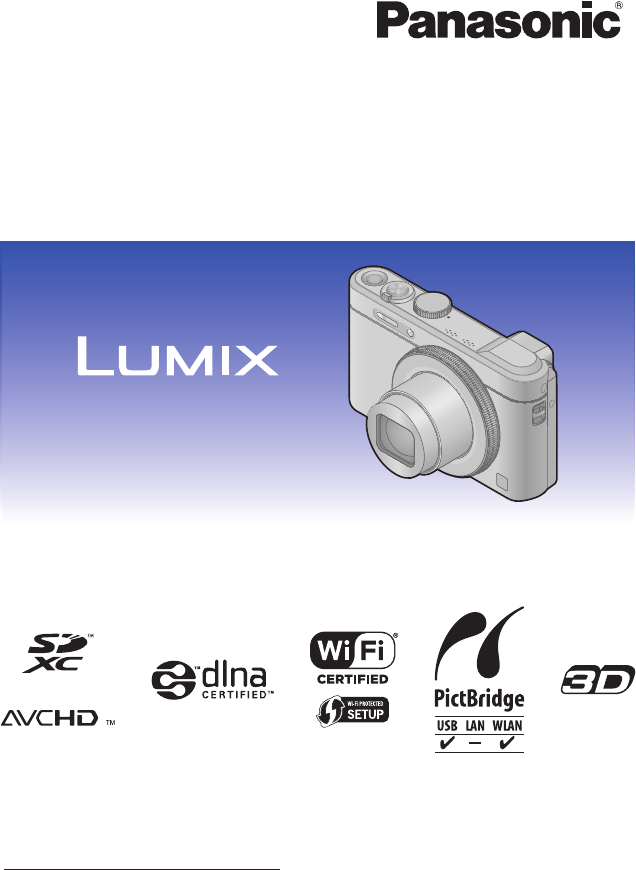
VQT5A33-1
M0513KZ1063
Owner’s Manual
for advanced features
Digital Camera
Model No. DMC-LF1
Please read these instructions carefully before using this product, and
save this manual for future use.
Register online at
www.panasonic.com/register
(U.S. customers only)

Contents
VQT5A33- 2 -
Preparations
Before use .............................................. 7
Standard Accessories ........................... 9
Names and Functions of Main Parts
... 10
Cursor button/Control dial ...........................12
Putting on the hand strap ............................12
Charging battery .................................. 13
Inserting the battery ....................................14
Charging the battery ....................................15
Remaining battery .......................................17
Guidelines for number of recordable
pictures and operating time .........................17
Inserting and removing the card
(optional) .............................................. 19
Saving your pictures
(cards and built-in memory) ............... 20
Recording capacity guidelines
(pictures/recording time) .............................21
Setting the clock .................................. 23
To change time setting ................................24
Basics
Sequence of operations ...................... 25
Using the control ring ......................... 27
Using Quick menu .......................................28
Taking pictures with automatic settings
[Intelligent Auto] Mode ........................ 29
About flash ..................................................29
Automatic Scene Detection .........................30
Defocusing the background ........................31
About the Happy color setting .....................32
[Motion Deblur] ............................................32
[iHandheld Nite Shot] ..................................32
[iHDR] ..........................................................33
AF Tracking .................................................34
[Intelligent Auto Plus] Mode .........................35
About [Intelligent Auto] setting items ..........37
Taking pictures with your own settings
[Program AE] Mode ............................. 38
How to adjust focus ............................ 39
Recording motion pictures ................. 40
About recording modes ...............................41
Recording still pictures while a motion
picture is being recorded .............................43
Viewing your pictures ......................... 44
Zooming in and viewing
“Playback Zoom” .........................................45
Viewing a list of pictures
“Multi Playback” ...........................................46
Viewing pictures by their recording date
[Calendar] ....................................................47
Viewing motion pictures ..................... 48
Capturing still pictures from motion
pictures ........................................................49
Deleting pictures ................................. 50
To delete multiple (up to 100)/
To delete all pictures ...................................51
Setting the menu ................................. 52
Menu type ...................................................53

Contents
VQT5A33
- 3 -
Using the [Setup] menu ...................... 54
[Clock Set] ...................................................54
[World Time] ................................................54
[Travel Date] ................................................54
[Airplane Mode] ...........................................54
[Beep] ..........................................................54
[Speaker Volume] ........................................55
[Cust.Set Mem.] ..........................................55
[Fn Button Set] ............................................55
[Control Ring Set] ........................................55
[Monitor Display] / [Viewfinder] ....................55
[Monitor Luminance] ....................................56
[Composition Guide] ....................................56
[Histogram] ..................................................57
[Video Rec Area] .........................................57
[Remaining Disp.] ........................................58
[Lens Resume] ............................................58
[MF Assist] ...................................................58
[Economy] ...................................................59
[Auto Review] ..............................................60
[Self Timer Auto Off] ....................................60
[No.Reset] ...................................................60
[Reset] .........................................................61
[Reset Wi-Fi Settings] .................................61
[USB Mode] .................................................61
[Output] .......................................................62
[VIERA Link] ................................................62
[3D Playback] ..............................................62
[Rotate Disp.] ..............................................63
[Version Disp.] .............................................63
[Format] .......................................................64
[Language] ..................................................64
[Stabilizer Demo.] ........................................64
Entering Text ........................................ 65
Application (Record)
Switching between the monitor and
viewfinder ............................................. 66
Switching the display of recording
information, etc. ................................... 67
Taking pictures with the
composition determined
[Composition Guide] ........................... 68
Using the level gauge.......................... 70
Using Zoom .......................................... 71
Zoom types and use ....................................72
[Step Zoom] .................................................74
Taking pictures with flash ................... 75
Taking close-up pictures
(Macro recording) ................................ 78
Focus range ................................................79
[Macro Zoom] ..............................................80
Taking pictures with Auto Focus ....... 81
Taking front-on pictures of people
(Face Detection) ..........................................82
Automatically locking the focus on a
moving subject (AF Tracking) ......................83
Subject not centered in picture
(23-area-focusing) .......................................84
Determined position for focus
(1-area-focusing) .........................................84
Taking pictures by locking the
focus and/or exposure
[AF/AE Lock] ........................................ 86
Taking pictures with Manual Focus ... 87
Taking pictures with self-timer ........... 89
Taking pictures with Exposure
Compensation ...................................... 90
Recording while exposure is changed
automatically ([Auto Bracket]) .....................91
Taking pictures by setting the
aperture value
[Aperture-Priority] Mode ..................... 92
Taking pictures by setting the
shutter speed
[Shutter-Priority] Mode ....................... 93
Taking pictures by setting the
aperture value and shutter speed
[Manual Exposure] Mode .................... 94

Contents
VQT5A33
- 4 -
Taking Pictures with different
picture effects
[Creative Control] Mode ...................... 96
[Expressive] .................................................98
[Retro] .........................................................98
[Old Days] ...................................................98
[High Key] ....................................................99
[Low Key] ....................................................99
[Sepia] .........................................................99
[Dynamic Monochrome] ............................100
[Impressive Art] .........................................100
[High Dynamic] ..........................................100
[Cross Process] .........................................101
[Toy Effect] ................................................101
[Miniature Effect] .......................................102
[Soft Focus] ...............................................103
[Star Filter] .................................................103
[One Point Color] .......................................104
Recording panorama pictures
[Panorama Shot] Mode ..................... 105
Taking pictures according to the scene
[Scene Mode] ..................................... 108
[Portrait] .....................................................109
[Soft Skin] ..................................................109
[Scenery] ...................................................109
[Sports] ...................................................... 110
[Night Portrait] ........................................... 110
[Night Scenery] ..........................................110
[Handheld Night Shot] ............................... 111
[HDR] ........................................................ 111
[Food] ........................................................ 111
[Baby] ........................................................ 112
[Pet] ........................................................... 112
[Sunset] ..................................................... 112
[Starry Sky] ................................................113
[Glass Through] .........................................113
[3D Photo Mode] ....................................... 114
Register your own settings and record
[Custom] Mode .................................. 115
[Cust.Set Mem.] ........................................ 115
[Custom] .................................................... 116
Registering preferred functions to
the [Fn] button ................................... 117
Changing the settings assigned to
the control ring ................................. 118
Burst function .................................... 119
Recording with the Face Recognition
function [Face Recog.]
....................... 122
Registering face pictures ..........................124
Editing or deleting information about
registered persons ...................................125
Useful features for travel .................. 126
[Travel Date] ..............................................126
[World Time] .............................................127
Using the [Rec] menu ........................ 128
[Aspect Ratio] ............................................128
[Picture Size] .............................................128
[Quality] .....................................................129
[Sensitivity] ................................................130
[Extended ISO] ..........................................131
[White Balance] .........................................131
[AF Mode] ..................................................133
[Quick AF] ..................................................133
[Face Recog.] ............................................133
[AF/AE Lock] .............................................133
[Metering Mode] ........................................134
[i.Exposure] ...............................................134
[Min. Shtr Speed] ......................................135
[i.Resolution] .............................................135
[Digital Zoom] ............................................135
[Color Mode] ..............................................136
[AF Assist Lamp] .......................................136
[Red-Eye Removal] ...................................136
[Motion Deblur] ..........................................137
[iHandheld Nite Shot] ................................137
[iHDR] ........................................................137
[Stabilizer] .................................................137
[Date Stamp] .............................................138
[Clock Set] .................................................138
Using the [Motion Picture] menu ..... 139
[Rec Format] .............................................139
[Rec Quality] ..............................................139
[Still Picture Size] ......................................140
[Continuous AF] .........................................140
[Wind Cut] .................................................141

Contents
VQT5A33
- 5 -
Application (View)
Changing the picture information
display, etc. ........................................ 142
Playing back still pictures recorded
using the burst function ................... 143
Different playback methods
[Playback Mode] ................................ 145
[2D/3D Settings] ........................................145
Selecting pictures to play back
[Filtering Play] .................................... 146
Narrowing down by selecting picture
type ...........................................................147
Narrowing down by selecting picture
category or a person in the picture ............148
Narrowing down by selecting recording
date ...........................................................149
Narrowing down by selecting favorite
pictures ......................................................149
Playing back pictures in order
automatically [Slide Show] .............. 150
Searching by recording date
[Calendar] ........................................... 152
Retouching pictures .......................... 153
[Auto Retouch] ..........................................153
[Creative Retouch] ....................................154
Using the [Playback] menu............... 156
[Location Logging] .....................................156
[Title Edit] ..................................................158
[Text Stamp] ..............................................159
[Retouch] ...................................................160
[Video Divide] ............................................161
[Resize] .....................................................162
[Cropping] ..................................................164
[Favorite] ...................................................165
[Print Set] ..................................................166
[Protect] .....................................................167
[Face Rec Edit] ..........................................168
[Copy] ........................................................169
Wi-Fi/NFC
Wi-Fi® Function and NFC Function
... 170
[Airplane Mode] .........................................172
What you can do with the
Wi-Fi function ..................................... 173
Operating the camera using a
smartphone ....................................... 174
Installing the smartphone/tablet app
“Panasonic Image App” .............................174
Connecting to a smartphone/tablet ...........175
Connecting to a smartphone using
NFC function .............................................177
Taking pictures via a smartphone/tablet
(remote recording) .....................................179
Saving pictures in the camera to the
smartphone ..............................................180
Sending pictures in the camera to social
networking services ...................................183
Sending location information to the
camera from a smartphone/tablet .............184
Operating the camera to send pictures to
a smartphone or tablet ..............................185
Displaying still pictures on a TV ...... 190
Sending still pictures to a printer .... 192
Sending pictures to AV equipment
... 194
Sending pictures to a PC .................. 199
Using WEB services .......................... 204
When sending images to WEB service .....205
When sending images to
[Cloud Sync. Service] ................................210
Using “LUMIX CLUB” ........................ 214
About the [LUMIX CLUB] ..........................214
Configuring the external AV device
settings ......................................................220
Transferring pictures automatically
[Smart Transfer] ................................. 222
Setting [Smart Transfer] ............................224
[Smart Transfer] ........................................225
Changing transfer destination and
settings of pictures ....................................227

Contents
VQT5A33
- 6 -
About connections ............................ 229
Connecting at home
(through a network) ...................................230
Connecting when you are out
(direct connection) .....................................233
Connecting quickly with the same
settings as used previously
([History Connection]/
[Favorite Connection]) ...............................234
Settings for sending pictures .....................237
[Wi-Fi Setup] menu ............................ 239
Connecting with other devices
Viewing on TV screen ....................... 241
VIERA Link (HDMI) (HDAVI Control™) .....243
Viewing 3D still pictures ............................245
Keeping the still pictures and
motion pictures in the recorder ....... 247
Copy by inserting the SD card into the
recorder .....................................................247
Dubbing playback pictures via AV cables
(optional) ...................................................247
Keeping the still pictures and
motion pictures on your PC ............. 248
About supplied software ............................249
Installing supplied software .......................251
Copying still pictures and motion
pictures ......................................................252
Printing ............................................... 255
Printing multiple pictures ...........................257
Print with date and text ..............................257
Making print settings on the camera .........258
Others
List of LCD monitor/Viewfinder
displays .............................................. 259
In recording ...............................................259
In playback ................................................262
Message displays .............................. 264
Q&A Troubleshooting ...................... 268
Usage cautions and notes ................ 279
Preparations
Before use
VQT5A33- 7 -
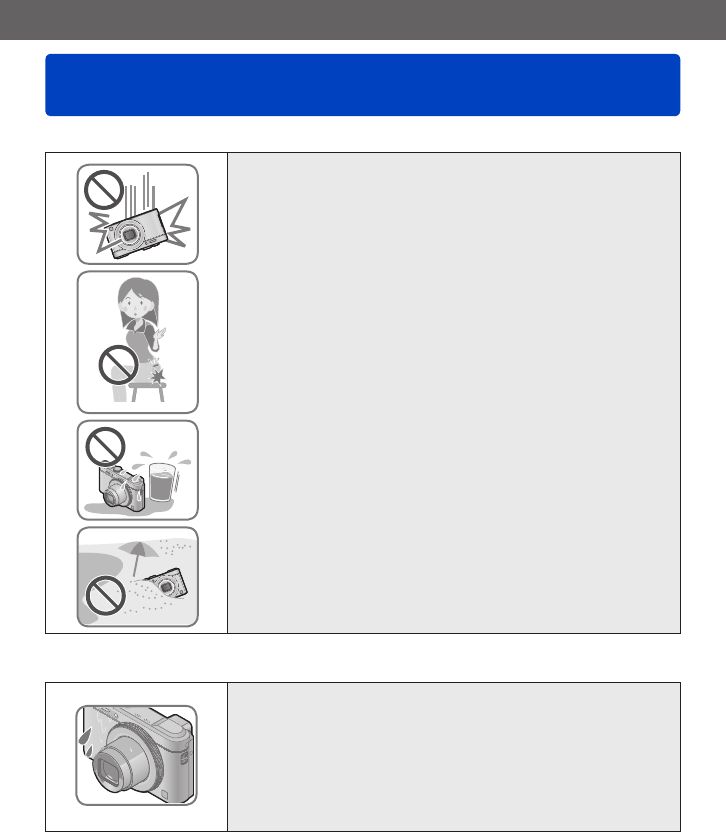
■Camera handling
Keep the camera away from excessive vibration, force,
or pressure.
●Avoid using the camera under the following conditions,
which may damage the lens, LCD monitor, viewfinder,
or camera body. This may also cause the camera to
malfunction or prevent recording.
• Dropping or hitting the camera against a hard surface
• Sitting down with the camera in your pants pocket or
forcing it into a full bag
• Adding accessories to the camera strap
• Pushing with excessive force on the lens or LCD monitor
The camera is not dust resistant, splash resistant, or
waterproof.
Avoid using the camera in places with excessive dust
or sand, or where water can come into contact with the
camera.
●Avoid using the camera under the following conditions,
which present a risk that sand, water, or foreign material
may enter the camera through the lens or openings around
buttons. Be especially careful because these conditions
may damage the camera, and such damage may not be
repairable.
• In extremely dusty or sandy places
• In the rain or by the shore, where the camera may be
exposed to water
■
Condensation (When the lens, the LCD monitor, or viewfinder, is fogged up)
●Condensation may occur when the camera is exposed to
sudden changes of temperature or humidity. Avoid these
conditions, which may make the lens, LCD monitor, or
viewfinder, dirty, cause mold, or damage the camera.
●If condensation does occur, turn off the camera and wait
about two hours before using it. Once the camera adjusts
to the surrounding temperature, the fogging will clear
naturally.
Preparations
Preparations
Before use
VQT5A33
- 8 -
■Always take a test shot first
Before important events when you will use the camera (at weddings, for example),
always take a test shot to make sure that pictures and sound record correctly.
■No compensation for missed shots
We cannot compensate for missed shots if technical problems with the camera or card
prevent recording.
■Carefully observe copyright laws
Unauthorized use of recordings which contain works with copyright for purposes other
than personal use is prohibited under copyright law. Recording of certain material may
be restricted even for the purpose of personal use.
■Also refer to “Usage cautions and notes” (→279)
●Please note that the actual controls and components, menu items, and other
information for your digital camera may differ from those in the illustrations and
screens provided in this manual.
●Some parts of displays, for example some of the icons, may be omitted from screens
illustrated in this manual.
●Recording mode icons
In recording modes that show icons in black, you can select and execute indicated
menus and functions.
* and will differ depending on the recording modes registered under custom settings.

Preparations
Standard Accessories
VQT5A33- 9 -
Check that all the accessories are supplied before using the camera.
●The accessories and their shape will differ depending on the country or area where the
camera was purchased.
For details on the accessories, refer to Basic Owner’s Manual.
●Battery Pack is indicated as battery pack or battery in the text.
●SD Memory Card, SDHC Memory Card and SDXC Memory Card are indicated as card
in the text.
●Please dispose of all packaging appropriately.
●Keep small parts in a safe place out of the reach of children.
■Optional accessories
• Cards are optional. You can record or play back pictures on the built-in memory
when you are not using a card. (→20)
• If any accessories are lost, customers in the USA and Puerto Rico should contact
Panasonic’s parts department at 1-800-833-9626 and customers in Canada should
contact 1-800-99-LUMIX (1-800-995-8649) for further information about obtaining
replacement parts.
Preparations
Names and Functions of Main Parts
VQT5A33- 10 -
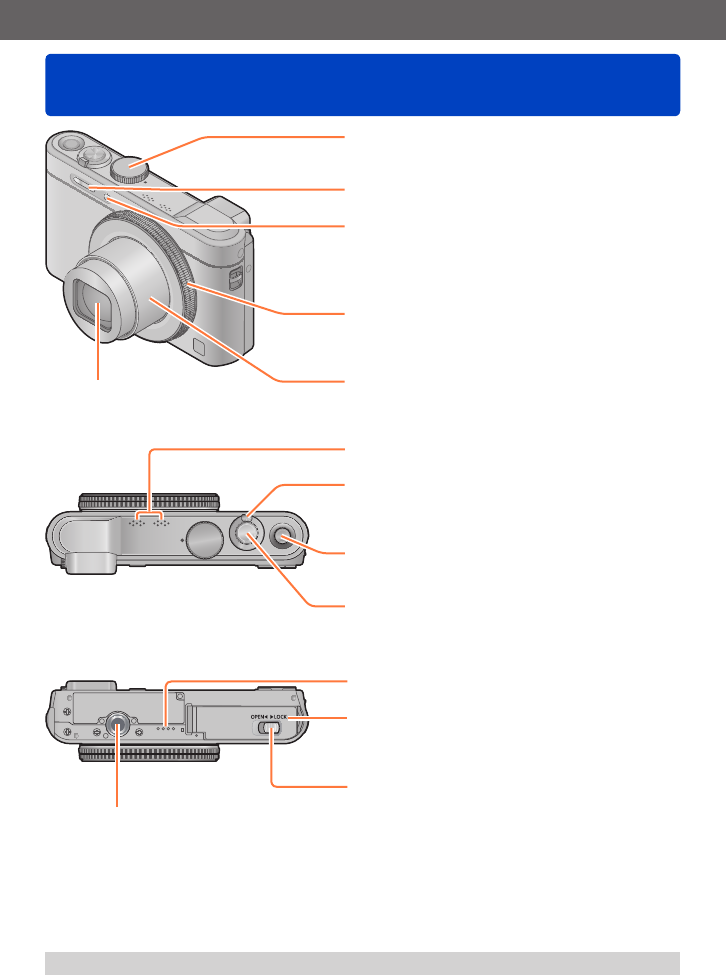
Mode dial (→25)
Use this to select the recording mode.
Flash (→75)
Self-timer indicator (→89) /
AF Assist Lamp (→136)
Illuminates when the self-timer is set or when the
Auto Focus is operated in dark locations.
Control ring (→27)
Allows you to zoom and adjust settings when
recording.
Lens barrel
Speaker (→55)
Card/Battery door (→14, 19)
Open this door to insert and remove a card or
battery.
Release lever (→14, 19)
Microphones (→26, 40)
Zoom lever (→71)
Use the lever to zoom in and enlarge a distant
subject.
Camera [ON/OFF] button
Use this to turn the camera on and off.
Shutter button
Lens
Tripod mount (→281)
Do not attach to a tripod with a 5.5 mm (0.22 inch) or longer screw.
Doing so may damage this unit.
(Top)
(Bottom)
●The illustrations and screens in this manual may differ from the actual product.
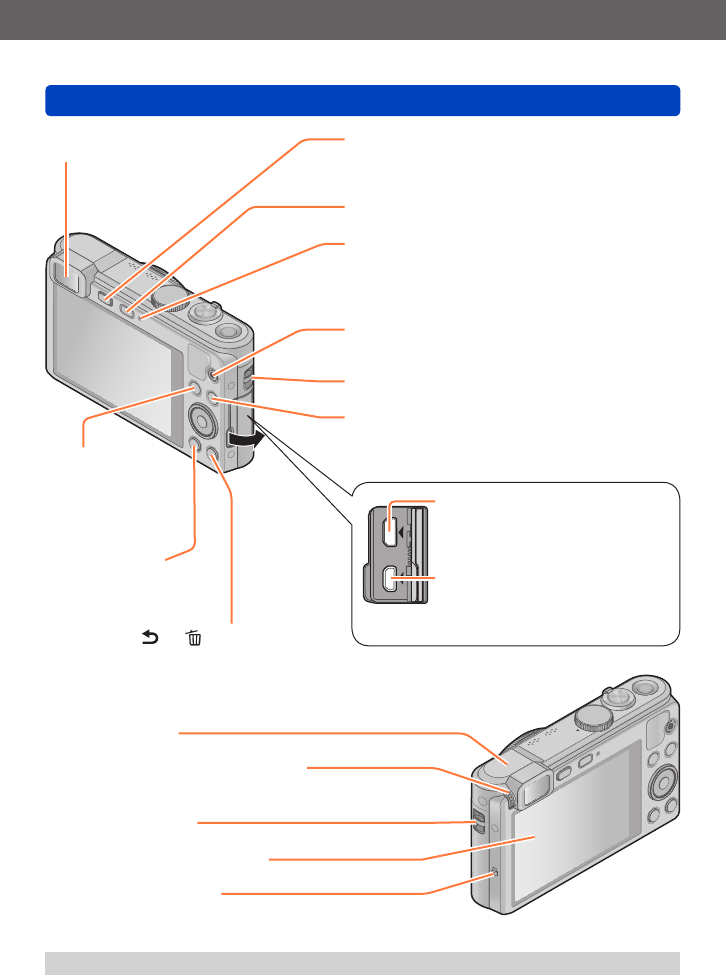
Preparations
Names and Functions of Main Parts
VQT5A33
- 11 -
[HDMI] socket (→241, 243)
Do not connect any other cables
except the HDMI micro cable.
Doing so may cause malfunction.
[AV OUT/DIGITAL] socket
(→241, 252, 255)
This socket is also used when
charging the battery. (→15)
[LVF] button (→66)
Use this to switch display between viewfinder and
LCD monitor.
[Wi-Fi] button (→171)
Charging lamp (→15) /
Wi-Fi® connection lamp (→171)
• Charging in progress: Red
• When the Wi-Fi function is ON: Blue
Motion picture button (→40)
Record motion pictures.
Strap eyelet (→12)
Playback button
Use this to select the recording mode or playback
mode.
●The illustrations and screens in this manual may differ from the actual product.
Viewfinder (→66)
[Fn] button
(→117)
Use this to
use registered
functions.
[Q.MENU/ ] / [ ] button
You can display the Quick Menu (→28) and
erase pictures (→50).
[DISP.] button
(→67, 142)
Use this to change
display.
[Wi-Fi] antenna
Diopter adjustment dial (→66)
Turn the dial to adjust the focus in the viewfinder.
Strap eyelet (→12)
LCD monitor (→55, 56, 259)
NFC antenna (→177)
Preparations
Names and Functions of Main Parts
VQT5A33
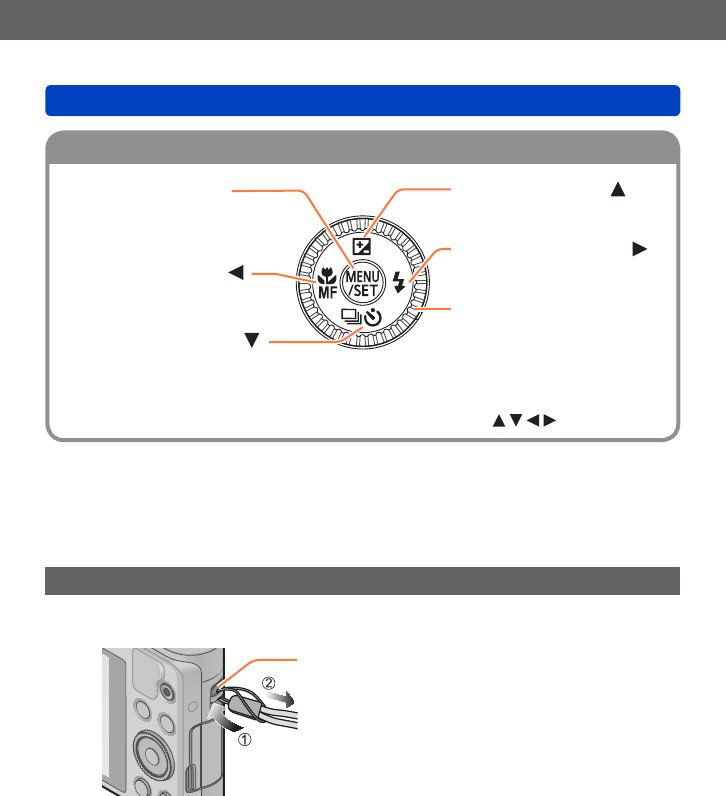
Cursor button/Control dial
- 12 -
[MENU/SET] button
• Use this button to display the
menus, enter the settings, etc.
(→52)
Left cursor button ( )
• Macro recording (→78, 80),
Manual Focus (→87)
Down cursor button ( )
• Drive Mode (Burst (→119)),
Auto Bracket (→91),
self-timer (→89)
Up cursor button ( )
• Exposure Compensation (→90)
Right cursor button ( )
• Flash (→75)
Control dial
• Turn the dial to select setting
items and change setting
values.
●In this manual, the button that is to be used is indicated by .
Putting on the hand strap
We recommend using the supplied hand strap to avoid dropping the camera.
Strap eyelet
Preparations
Charging battery
VQT5A33- 13 -
Always use the dedicated AC adaptor (supplied), USB connection cable (supplied),
and battery for this camera.
• Always charge before first use! (battery shipped uncharged)
• Charge the battery while it is in the camera.
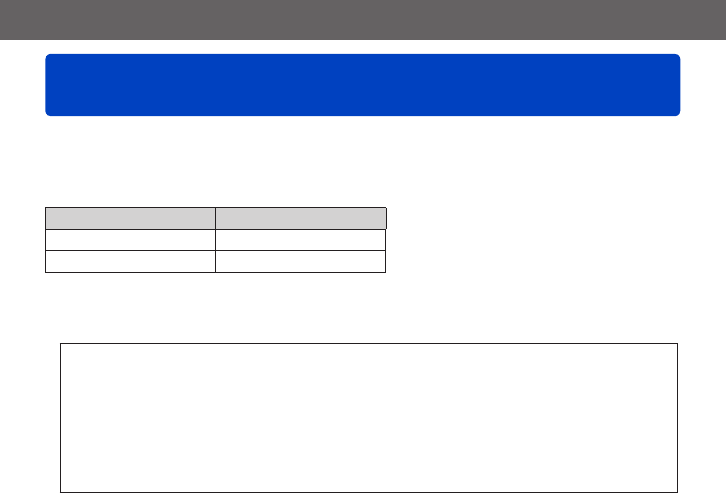
Camera status Charge
Turn off Yes
Turn on No
■About batteries that you can use with this unit
It has been found that counterfeit battery packs which look very similar to the
genuine products are made available to purchase in some markets. Some of
these battery packs are not adequately provided with internal protection to
meet the requirements of appropriate safety standards. There is a possibility
that these battery packs may lead to fire or explosion. Please be advised that
we are not liable for any accident or failure occurring as a result of use of a
counterfeit battery pack. To ensure that safe products are used we recommend
that a genuine Panasonic battery pack is used.
■Power supply
By using the AC adaptor (supplied) when the battery is in the unit and turning on the
unit, the unit can be powered from an electrical outlet through the USB connection
cable (supplied).
• The battery may become drained during recording. If the battery is drained, the unit
will turn off.
• The unit can be powered only if the battery is in it.
• Turn off the unit before inserting or removing the AC adaptor (supplied).
Preparations
Charging battery
VQT5A33
- 14 -
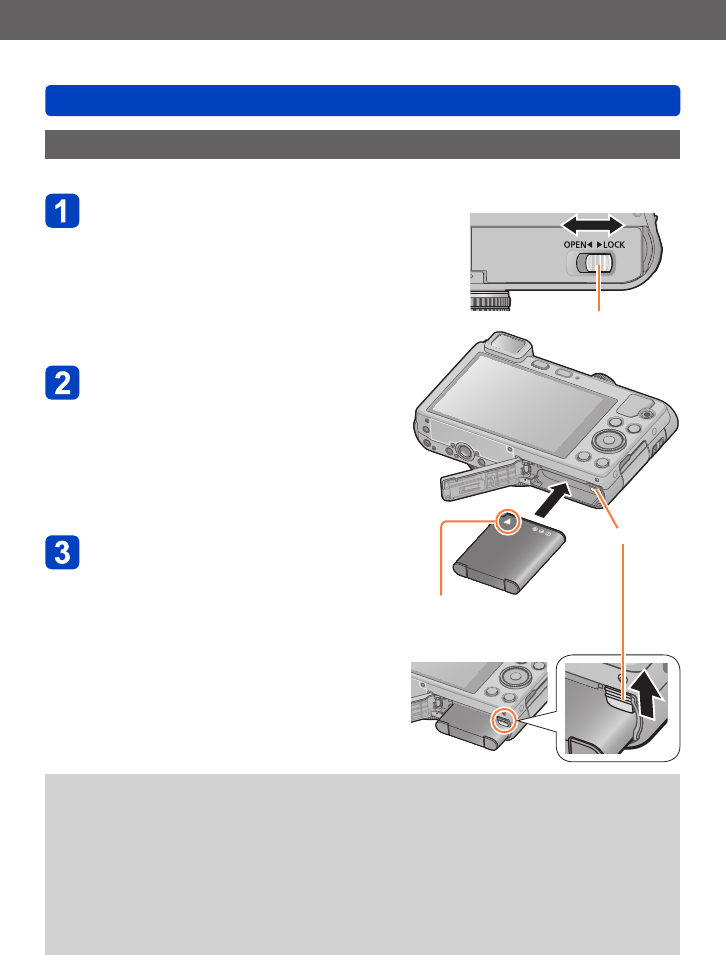
Inserting the battery
To charge the battery, insert it into the camera.
Slide the release lever to the
[OPEN] position and open the
card/battery door
Insert the battery all the way
• Insert the battery all the way firmly and
check that it is locked by lever.
Close the card/battery door
• Slide the release lever to the [LOCK]
position.
[OPEN] [LOCK]
Release lever
Lever
Make sure to insert the battery
in the correct orientation.
■To remove battery
Move the lever in the card/battery
compartment in the direction of the arrow.
●Always use genuine Panasonic batteries.
●If you use other batteries, we cannot guarantee the quality of this product.
●Remove battery from camera after use.
• Keep the battery in a plastic bag, making sure that it is kept away from metallic objects (such as
clips) when carrying or storing the battery.
●To remove the battery, turn the camera off and wait until the LUMIX indicator on the
LCD monitor goes off. (Failure to wait may cause the camera to malfunction and may
damage the card or recorded data.)
●The unusable battery should be discarded in accordance with battery recycling laws.
Call the RBRC hotline at 1-800-822-8837 for information.
Preparations
Charging battery
VQT5A33
- 15 -
Charging the battery
We recommend charging in a location where the ambient temperature is between 10 °C
and 30 °C (50 °F to 86 °F) (same for the battery temperature).
Make sure that the camera is turned off.
USB connection cable (supplied)
• Always check the direction of the pins and
hold the plug straight to insert or remove it.
(If the cable is inserted in the wrong
direction, the pins could become deformed
and cause faulty operation.)
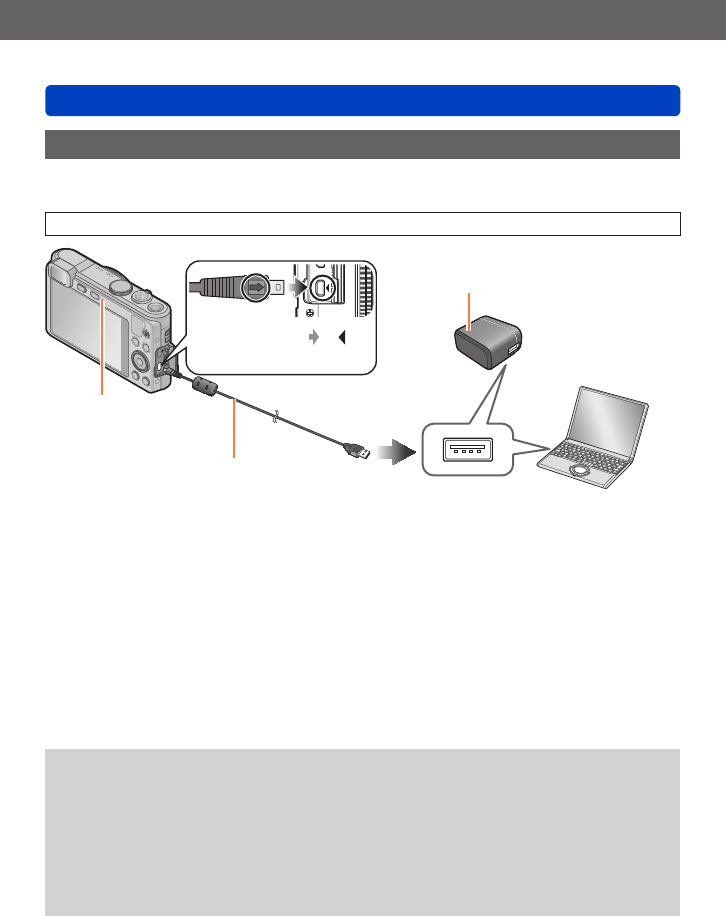
Align the marks ( to )
and insert the plug.
Computer
Getting ready:
Turn on the computer.
AC adaptor
(supplied)
Charging lamp
■Charging the battery by connecting the camera to the electrical outlet
Connect the AC adaptor (supplied) and the camera using the USB connection cable
(supplied), and plug the AC adaptor (supplied) into the electrical outlet.
• Be sure to only use the AC adaptor (supplied) indoors.
■Charging the battery through the computer
Connect the camera to a computer using the USB connection cable (supplied).
●It may not be possible to charge the battery from some computers depending on the
computer specifications.
●If the computer enters sleep mode during charging, charging may be stopped.
●If a notebook computer that is not connected to an electrical outlet is connected to
the camera, the battery of the notebook computer will be depleted. Do not leave the
camera and notebook connected for a long period of time.
●Always connect the USB connection cable to the USB connector on your computer.
Do not connect the USB connection cable to the USB connector of the monitor,
keyboard, printer, or USB hub.
Preparations
Charging battery
VQT5A33
- 16 -
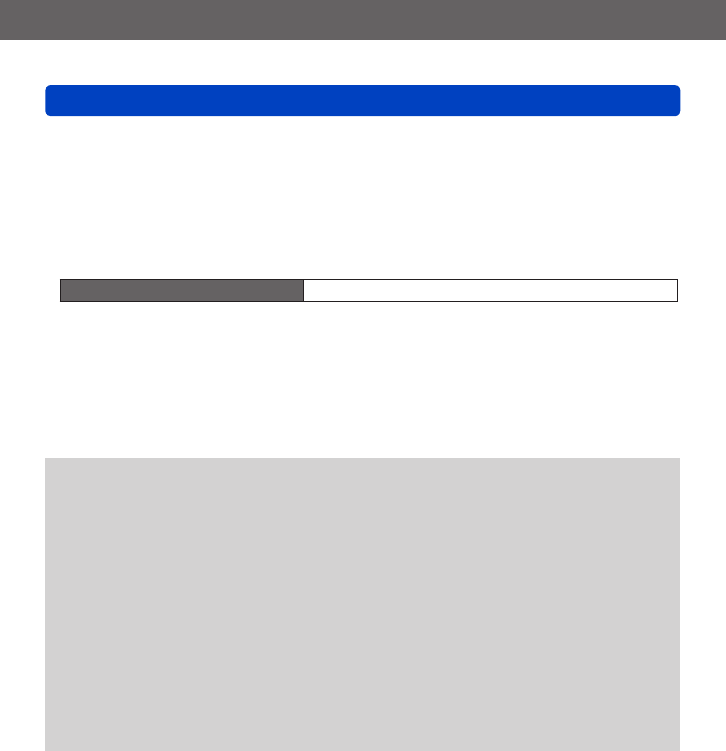
■Charging lamp indications
On: Charging in progress (Red)
Off: Charging stops (After charging stops, disconnect the camera from the electrical
outlet or your computer.)
■Notes on charging time
When using the AC adaptor (supplied)
Charging time Approx. 160 min
• The charging time indicated above is the time required for charging in case when the
battery is completely used up. The time required for charging differs depending on
conditions of battery usage. Charging takes longer in cases when temperatures are
either high or low and when the battery has not been used for a long period of time.
• The time required for charging through the computer varies depending on the
specifications of the computer.
●Do not use any other USB connection cables except the supplied one or a genuine
Panasonic USB connection cable (optional). Doing so may cause malfunction of the
camera.
●Do not use any other AC adaptors except the supplied one.
●Do not use a USB extension cable.
●The AC adaptor (supplied) and the USB connection cable (supplied) are dedicated
accessories of this camera. Do not use them for other devices.
●If there is any trouble related to the electrical outlet (i.e. power failure), charging may
not complete properly. Disconnect the USB connection cable (supplied) and reconnect
it to the camera.
●If the charging lamp does not light or flashes even when the camera is properly
connected to the AC adaptor (supplied) or your computer, charging has been put in
pause status because the temperature is not in the appropriate range for charging.
This is not a malfunction. Reconnect the USB connection cable (supplied) and retry
charging in a place where ambient temperature is 10 °C to 30 °C (50 °F to 86 °F)
(temperature conditions also apply to the battery itself).
Preparations
Charging battery
VQT5A33
- 17 -
Remaining battery
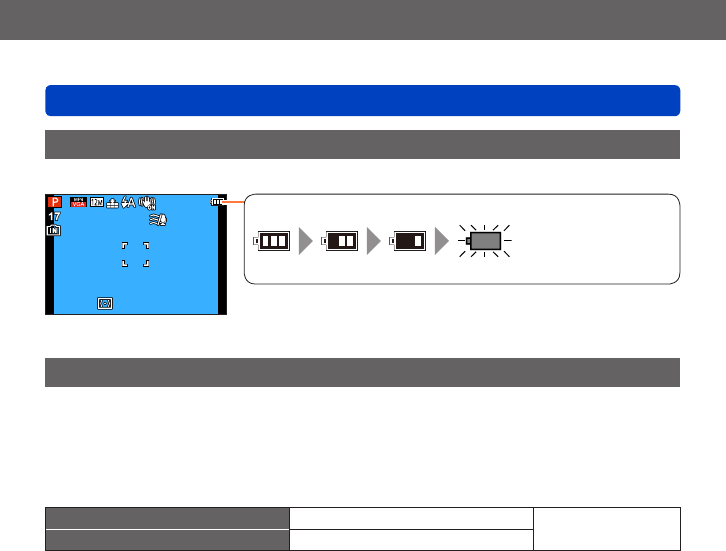
When using the camera, the remaining battery capacity is displayed.
Remaining battery
(flashes red)
If the battery mark flashes red, recharge or replace battery.
Guidelines for number of recordable pictures and operating time
The number of recordable pictures or available operating time may vary according to
surrounding environment and usage conditions. Figures may be reduced if flash, zoom,
or other functions are used frequently, or in colder climates.
■Recording still pictures (When using LCD monitor)
Number of recordable pictures Approx. 250 pictures By CIPA standard
Recording time Approx. 125 min
●Recording conditions by CIPA standard
CIPA is an abbreviation of “Camera & Imaging Products Association”.
• [Program AE] Mode
• Temperature: 23 °C (73.4 °F)/Humidity: 50%RH when LCD monitor is on.
• Using a Panasonic SDHC Memory Card.
• Using the supplied battery.
• Starting recording 30 seconds after the camera is turned on. (When [Stabilizer] is set
to [ON])
• Recording once every 30 seconds with full flash every second recording.
• Rotating the zoom lever from Tele to Wide or vice versa in every recording.
• Turning the camera off every 10 recordings and leaving it until the temperature of the
battery decreases.
Number reduced if intervals are longer (e.g. to approx. one quarter for 2-minute
intervals under the above conditions).
Preparations
Charging battery
VQT5A33
- 18 -
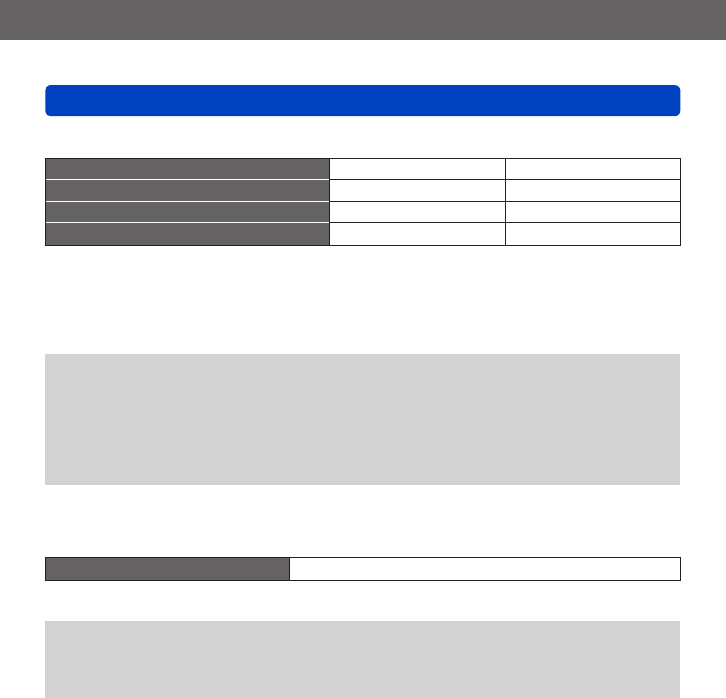
■Recording motion pictures (When using LCD monitor)
[Rec Format]
[AVCHD] [MP4]
[Rec Quality]
[FHD] [FHD]
Available recording time Approx. 70 min Approx. 80 min
Actual available recording time*Approx. 30 min Approx. 35 min
* The time you can actually record when repeatedly turning the camera on and off, starting and
stopping recording and using zoom.
●Recording conditions
• Temperature 23 °C (73.4 °F), humidity 50%RH
●Remaining time for continuous recording is displayed on the screen
• You can continuously record a motion picture in [MP4] for up to 29 minutes
59 seconds or approx. 4 GB. (Since recording in [MP4] with [FHD] creates larger
files, the recording time for such motion pictures will be shorter than 29 minutes 59
seconds.)
• If [Rec Quality] of [AVCHD] motion pictures is set to [FHD], you can continuously
record a motion picture for up to 29 minutes 59 seconds.
■Viewing pictures (When using LCD monitor)
Playback time Approx. 150 min
●The number of recordable pictures or available operating time may vary according to
surrounding environment and usage conditions.
●If available battery power is significantly reduced, battery is reaching end of lifespan.
Please purchase a new battery.
Preparations
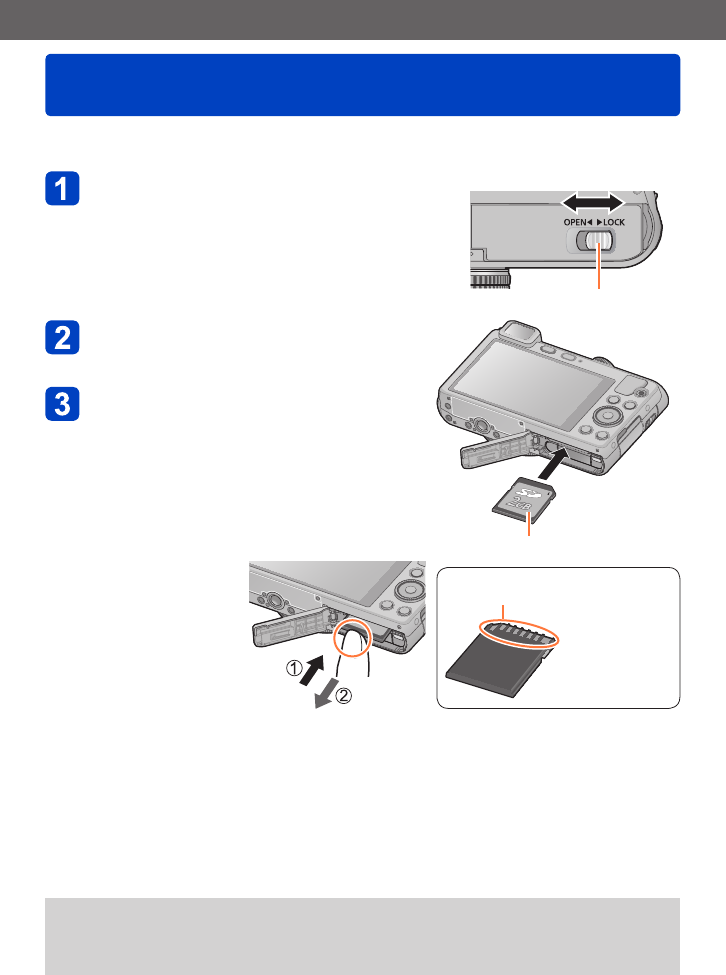
Inserting and removing the card (optional)
VQT5A33- 19 -
●Keep the Memory Card out of reach of children to prevent swallowing.
●To remove the card, turn the camera off and wait until the LUMIX indicator on the
LCD monitor goes off. (Failure to wait may cause the camera to malfunction and may
damage the card or recorded data.)
• Make sure that the camera is turned off.
Slide the release lever to the
[OPEN] position and open the card/
battery door
[OPEN] [LOCK]
Release lever
Insert the card all the way
• Push in until it clicks.
Card (Check orientation)
Do not touch the terminals on
the back of the card.
Close the card/battery door
• Slide the release lever to the [LOCK] position.
■To remove card
Press the center of the
card
Press
Pull out
Preparations
Saving your pictures (cards and built-in memory)
VQT5A33- 20 -
Pictures will be saved to a card if one is inserted, or to the built-in memory if not.
■Built-in memory (approx. 87 MB)
●Pictures may be copied between cards and the built-in memory. (→169)
●The access time for the built-in memory may be longer than the access time for a
card.
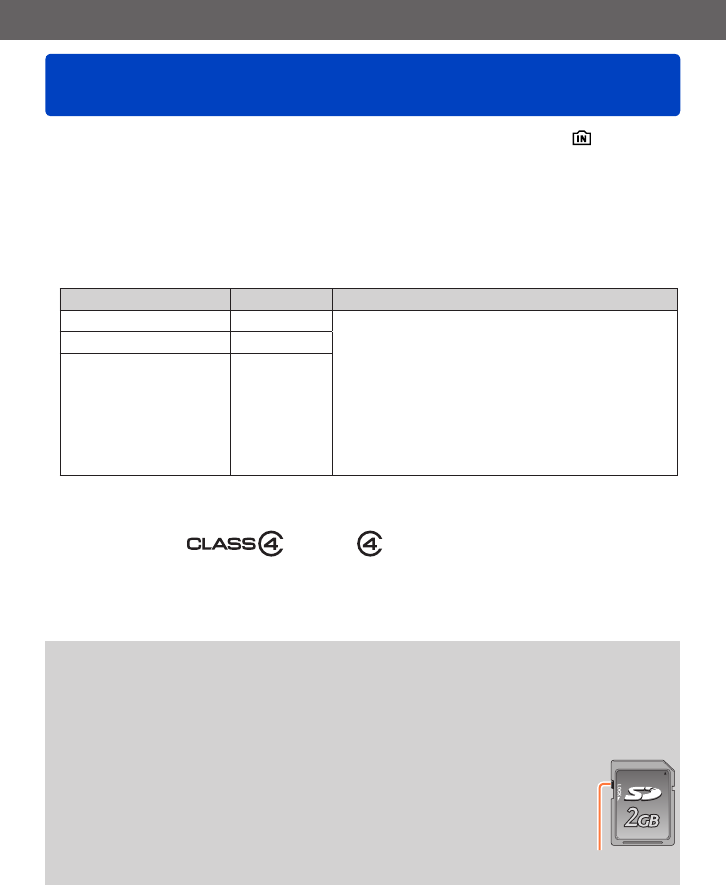
■Compatible memory cards (optional)
The following SD standard-based cards (Panasonic brand recommended) can be used.
Type of Card Capacity Notes
SD Memory Cards 8 MB – 2 GB • Can be used with devices compatible with the
respective formats.
• Before using SDXC Memory Cards, check that
your computer and other devices support this type
of card.
http://panasonic.net/avc/sdcard/information/SDXC.html
• Use a card of SD Speed “Class 4”* or higher for
recording motion pictures.
• Only the cards listed on the left with the given
capacities are supported.
SDHC Memory Cards 4 GB – 32 GB
SDXC Memory Cards 48 GB, 64 GB
* SD speed class refers to a specification for sustained write speeds. Confirm the SD speed by
checking the card label or other card related materials.
(Example)
• Latest information:
http://panasonic.jp/support/global/cs/dsc/
(This site is available in English only.)
●While the camera is accessing the card or built-in memory (for an operation such as
picture writing, reading, deleting, or formatting), do not turn off the camera or remove
the battery, card, AC adaptor (supplied). Do not subject the camera to vibrations,
impact, or static electricity. The card or the data on the card may be damaged, and
this unit may no longer operate normally. If operation fails due to vibration, impact or
static electricity, perform the operation again.
●Please reformat the card with this camera if it has already been
formatted with a computer or another device. (→64)
●If the write-protect switch is set to “LOCK”, the card cannot be used to
record or delete pictures, and it cannot be formatted.
●It is recommended that you copy important pictures to your computer
(as electromagnetic waves, static electricity, or faults may cause data
to be damaged).
Switch
Preparations
Saving your pictures (cards and built-in memory)
VQT5A33
- 21 -
Recording capacity guidelines (pictures/recording time)
The number of pictures you can take and the recording time vary in proportion to card
capacity (and depending on recording conditions and type of card).
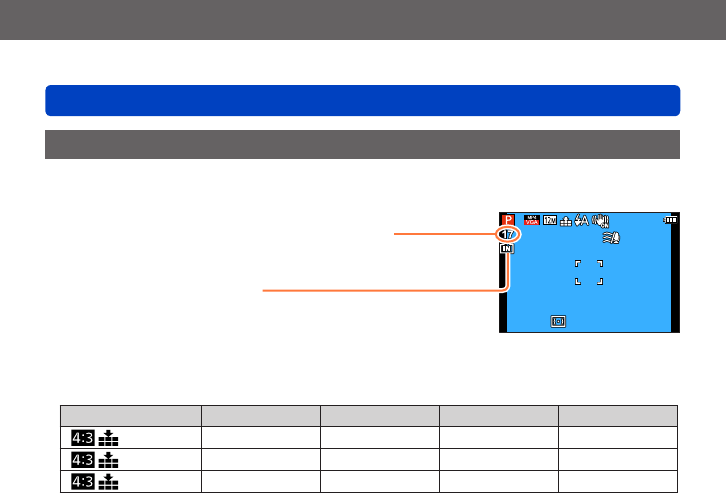
Estimated remaining pictures or recording time capacity
(switch with [Remaining Disp.] (→58))
Displayed when no card is inserted
(pictures will be saved to built-in memory)
■Recording picture capacity (still pictures)
[Picture Size] Built-in memory 2 GB 32 GB 64 GB
12M 17 380 6260 12670
5M 29 650 10620 21490
0.3M 460 10050 162960 247150
• When the number of recordable pictures exceeds 99,999, “+99999” is displayed.
Preparations
Saving your pictures (cards and built-in memory)
VQT5A33
- 22 -
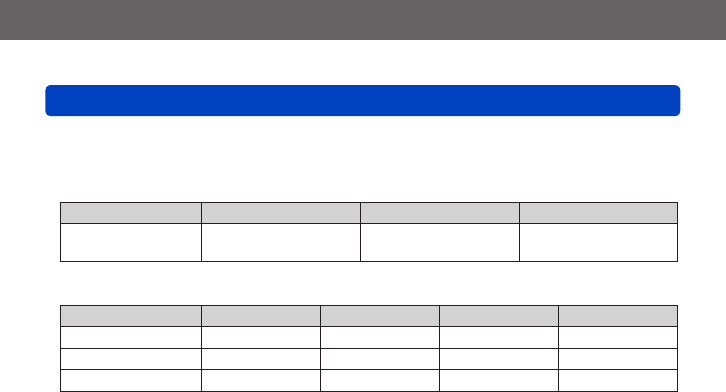
■Recording time capacity (motion pictures)
([h], [m] and [s] indicate “hour”, “minute” and “second”.)
When [Rec Format] is [AVCHD]
[Rec Quality] 2 GB 32 GB 64 GB
[FHD]
[HD] 14m00s 4h10m00s 8h26m00s
When [Rec Format] is [MP4]
[Rec Quality] Built-in memory 2 GB 32 GB 64 GB
[FHD] — 11m00s 3h22m00s 6h50m00s
[HD] — 22m00s 6h27m00s 13h04m00s
[VGA] 2m00s 50m00s 14h12m00s 28h46m00s
• The time displayed in the table is the total time.
●Remaining time for continuous recording is displayed on the screen
• You can continuously record a motion picture in [MP4] for up to 29 minutes
59 seconds or approx. 4 GB. (Since recording in [MP4] with [FHD] creates larger
files, the recording time for such motion pictures will be shorter than 29 minutes
59 seconds.)
• If [Rec Quality] of [AVCHD] motion pictures is set to [FHD], you can continuously
record a motion picture for up to 29 minutes 59 seconds.
Preparations
Setting the clock
VQT5A33- 23 -
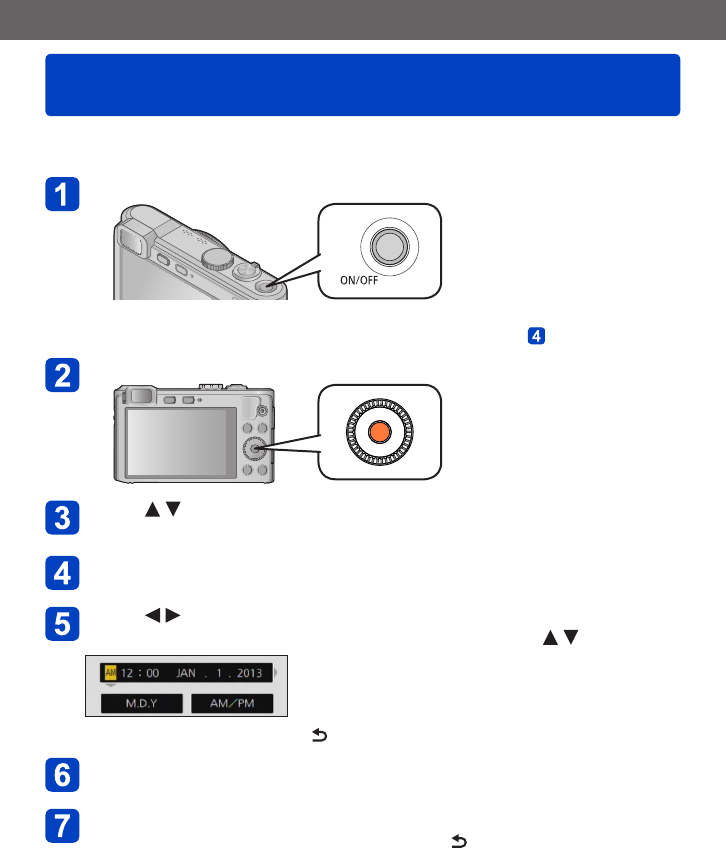
The clock is not set when the camera is shipped.
• Disconnect the unit from the AC adaptor (supplied).
Press the Camera [ON/OFF] button
The camera is turned on.
If the language select screen is not displayed, proceed to step .
Press [MENU/SET] while the message is displayed
Press to select the language, and press [MENU/SET]
• The [Please set the clock] message appears.
Press [MENU/SET]
Press to select the items (year, month, day, hour, minute,
display order or time display format), and press to set
• To cancel → Press [Q.MENU/ ] button.
Press [MENU/SET] to set
Press [MENU/SET]
• To return to the previous screen, press [Q.MENU/ ] button.
Preparations
Setting the clock
VQT5A33
- 24 -
●If the clock is not set, the correct date cannot be printed when you order a photo
studio to print the picture, or when you stamp the date on the pictures with [Date
Stamp] or [Text Stamp].
●If the clock is set, the correct date can be printed even if the date is not displayed on
the screen of the camera.
To change time setting
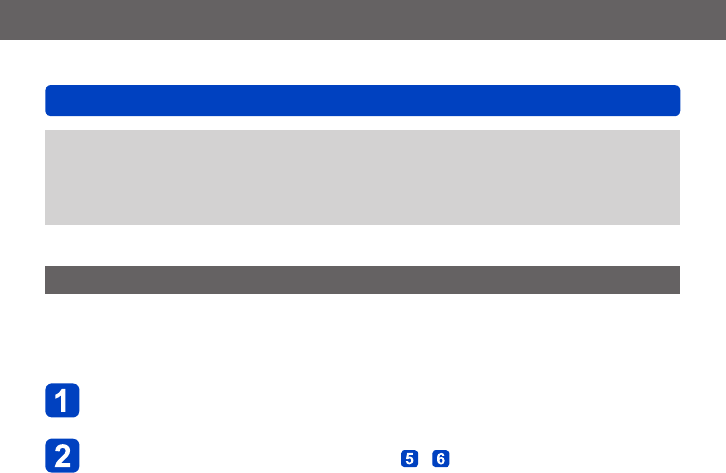
When resetting date and time, select [Clock Set] from the [Setup] menu or [Rec] menu.
• Clock settings will be saved for approx. 3 months even after the battery is removed,
provided a fully charged battery was installed in the camera for 24 hours beforehand.
Select [Clock Set] from the [Setup] menu or [Rec] menu
• For details about how to set the menu (→52)
Set the date and time (Perform steps - . (→23))
Basics
Sequence of operations
VQT5A33- 25 -
Basics
1
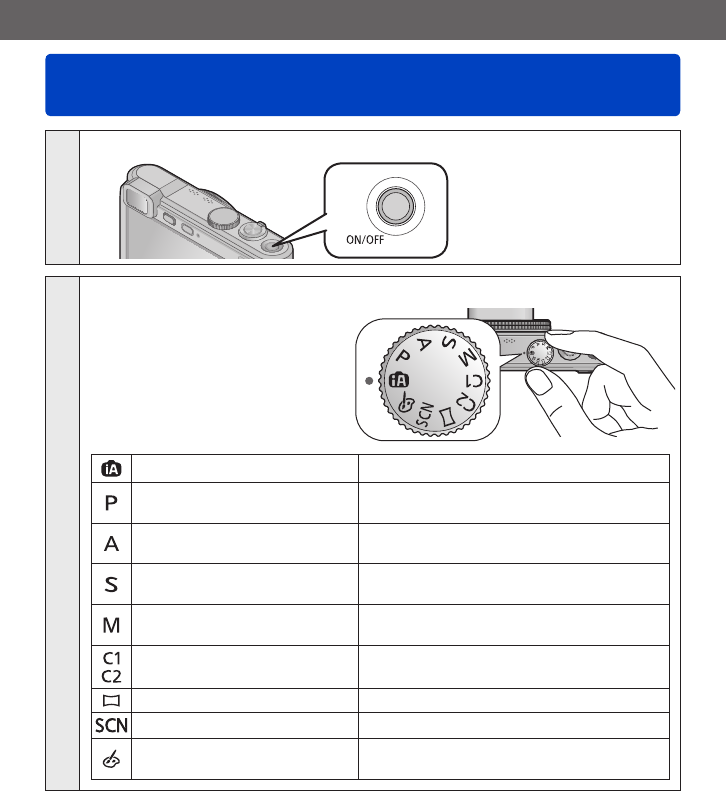
Press the Camera [ON/OFF] button to turn on the camera
2
Set to the desired recording mode
Align the mode dial correctly to
the mode that you want to use. →
[Intelligent Auto] Mode Take pictures with automatic settings. (→29)
[Program AE] Mode Take pictures with automatic shutter
speed and aperture value settings. (→38)
[Aperture-Priority] Mode Determine aperture, then record pictures.
(→92)
[Shutter-Priority] Mode Determine shutter speed, then record
pictures. (→93)
[Manual Exposure] Mode Determine aperture and shutter speed,
then record pictures. (→94)
[Custom] Mode Record pictures using pre-registered
settings. (→115)
[Panorama Shot] Mode Record panorama pictures. (→105)
[Scene Mode] Take pictures using Scene modes. (→108)
[Creative Control] Mode Take pictures by selecting your preferred
picture effect. (→96)
(Continued on the next page)
Basics
Sequence of operations
VQT5A33
- 26 -
3
Aim the camera and shoot
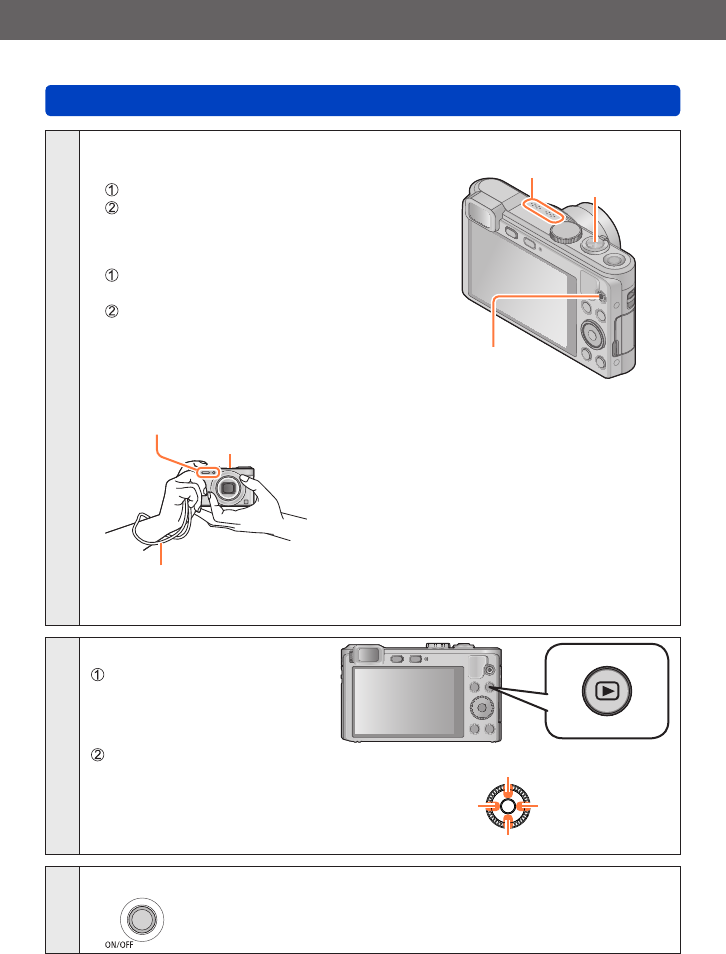
■Taking still pictures
Press the shutter button halfway to focus
Press the shutter button fully to take the
picture
■Recording motion pictures
Press the motion picture button to start
recording
Press the motion picture button again to
finish recording
Motion picture
button
Shutter button
Microphones
■Holding the camera
Flash/AF Assist Lamp
Hand strap
Microphones
• To avoid camera shake, hold it with both hands
keeping your arms close to your body while
standing with your feet slightly apart.
• Do not touch the lens.
• Do not block the microphone when recording
motion pictures.
• Do not block the flash or the lamp. Do not look
at it from close range.
• Make sure that the camera does not move at
the moment the shutter button is pressed.
●We recommend using the supplied hand strap to avoid dropping the camera.
4
Play back pictures
Press the Playback button
View pictures (→44) During motion picture/panorama picture playback
Play/pause
Previous Next
Stop
5
Press the Camera [ON/OFF] button to turn off the camera
Basics
Using the control ring
VQT5A33- 27 -
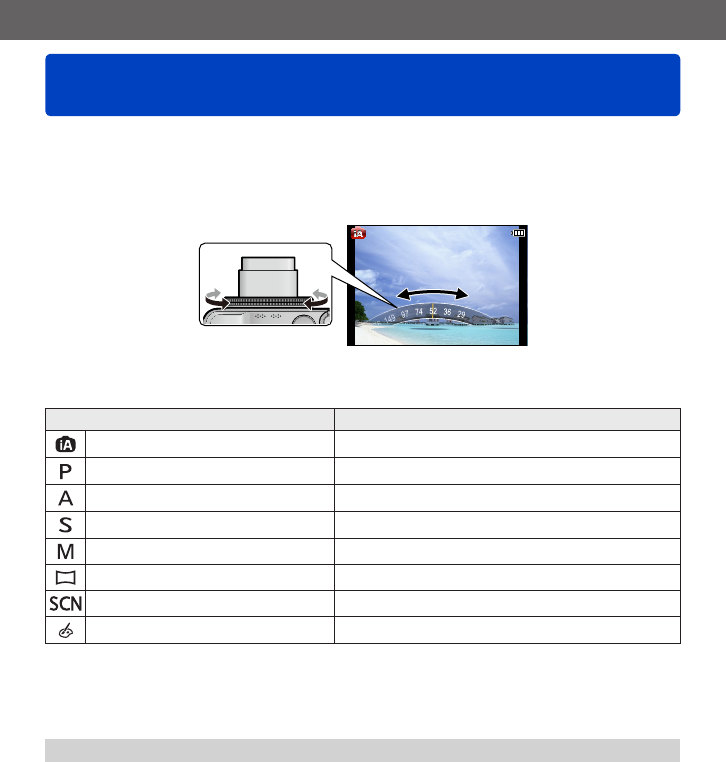
The “Control Ring” is an easy and convenient way to adjust several settings, depending
on the camera mode selected. You can use the control ring to change the settings of the
unit.
(In [Intelligent Auto] Mode)
Items that can be set by the control ring vary depending on recording modes.
Following are the pre-assigned settings.
Recording mode Setting
[Intelligent Auto] Mode Step Zoom (→74)
[Program AE] Mode ISO Sensitivity (→130)
[Aperture-Priority] Mode Aperture adjustment (→92)
[Shutter-Priority] Mode Shutter speed adjustment (→93)
[Manual Exposure] Mode Aperture adjustment (→94)
[Panorama Shot] Mode Picture effects change (→105)
[Scene Mode] Step Zoom (→74)
[Creative Control] Mode Picture effects change (→96)
• The control ring can be used to change to your preferred settings. (→118)
• You can also perform operations with the control dial. (Some operations may differ
under certain recording conditions such as [Manual Exposure] mode.)
●When Manual Focus is set, it is assigned to focus adjustment. (→87)
Basics
Using the control ring
VQT5A33
- 28 -
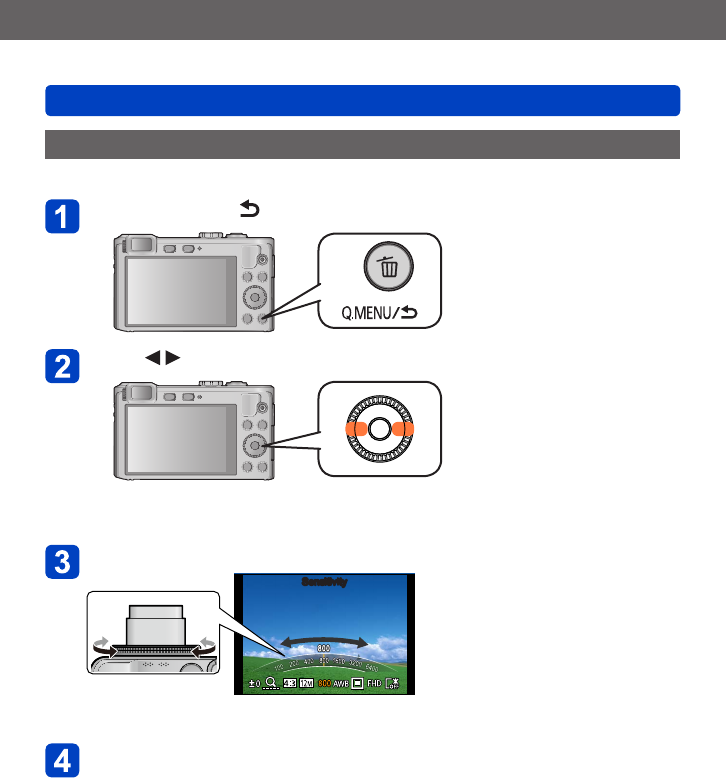
Using Quick menu
Using the Quick menu, you can change camera settings with the control ring.
Press [Q.MENU/ ] button
Press to select menu items
• The menu items and setting items that are displayed differ depending on the
recording mode.
Turn the control ring to change the setting
Sensitivity
• You can also change settings with the control dial.
Press [MENU/SET]
Basics
Taking pictures with automatic settings
[Intelligent Auto] Mode
VQT5A33
- 29 -
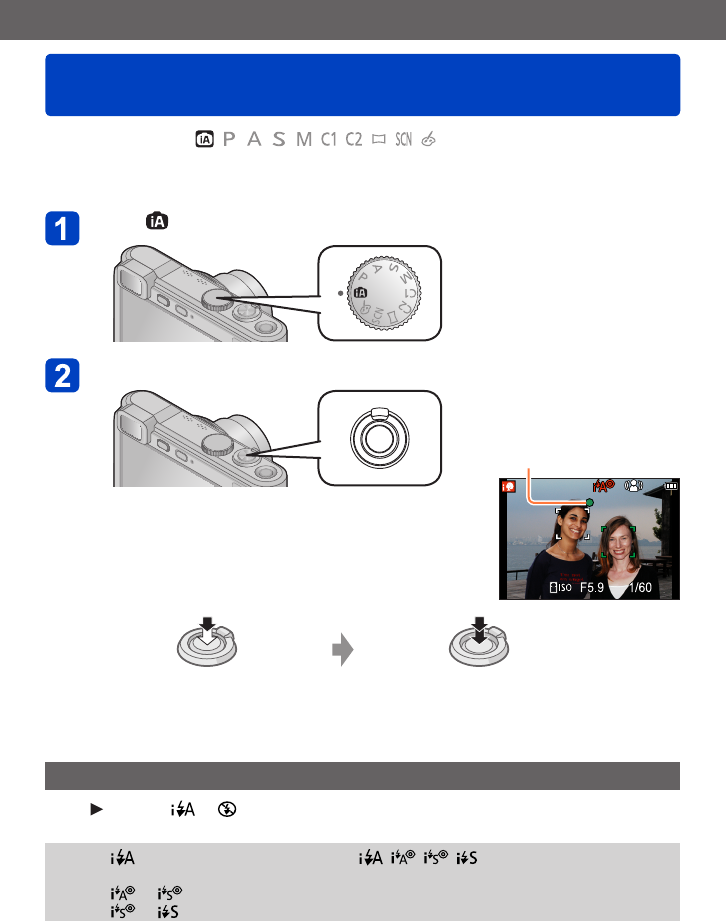
■Recording mode:
This mode is recommended for those who want to point and shoot or beginners as the
camera optimizes settings to match the subject and recording environment.
Set to ([Intelligent Auto] Mode)
Take a picture
Focus display
( When focus is aligned:
illuminated
When focus is not aligned:
flashing)
Press halfway
(press lightly to focus)
Press fully
(press the button all the way to record)
About flash
Press to select or .
●When is selected, the optimum flash ( , , , ) is selected automatically
depending on conditions.
●When or is selected, the red-eye reduction function is activated.
●When or is selected, the shutter speed is reduced.
Basics
Taking pictures with automatic settings [Intelligent Auto] Mode
VQT5A33
- 30 -
Automatic Scene Detection
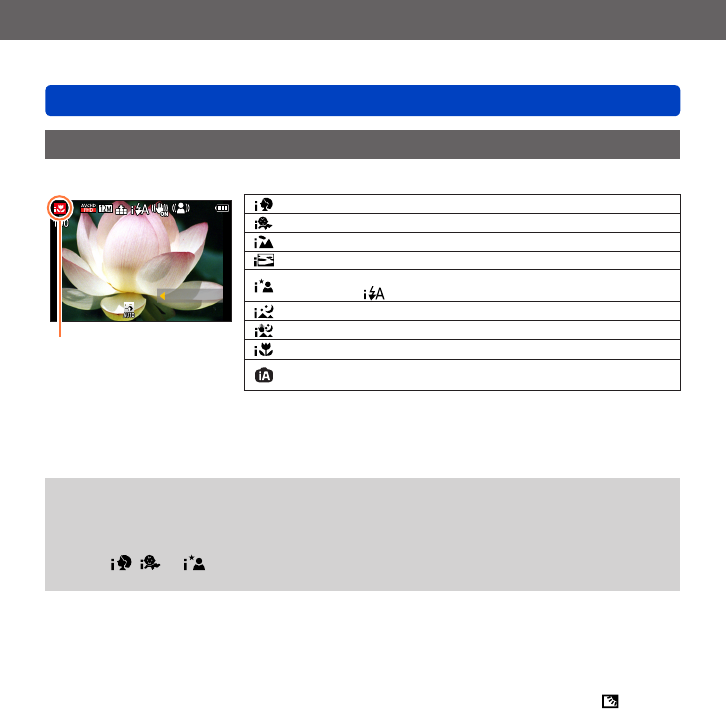
Camera reads scene when pointed at subject, and makes optimum settings automatically.
AF Tracking
AF Tracking
The icon of scene
detected
Recognizes people
Recognizes babies*1
Recognizes landscapes
Recognizes sunsets
Recognizes night scenes and people in them*2
(Only when is selected)
Recognizes night scenes*2
Recognizes night scenes without a tripod.*3
Recognizes close-ups
Reads subject movement to avoid blurring when scene does
not correspond to any of the above.
*1 When children (that are registered in the camera with Face Recognition) under 3 years old are
recognized.
*2 We recommend using a tripod and the self-timer.
*3 When [iHandheld Nite Shot] is [ON].
●Depending on recording conditions, different scene types may be determined for the
same subject.
●If desired scene type is not selected, we recommend manually selecting the
appropriate scene mode.
●When , or is detected, Face Detection is activated, and the focus and
exposure are adjusted for the recognized faces.
■About Backlight Compensation
Backlight compensation is automatically activated in [Intelligent Auto] mode. Backlight
is a condition where a light shines from behind a subject. When there is a backlight,
the subject appears darker and the camera will automatically attempt to correct it by
increasing the brightness of the picture. When the camera detects backlight, is
displayed on the LCD monitor. (Depending on the backlighting conditions, backlighting
may not be detected correctly.)
Basics
Taking pictures with automatic settings [Intelligent Auto] Mode
VQT5A33
- 31 -
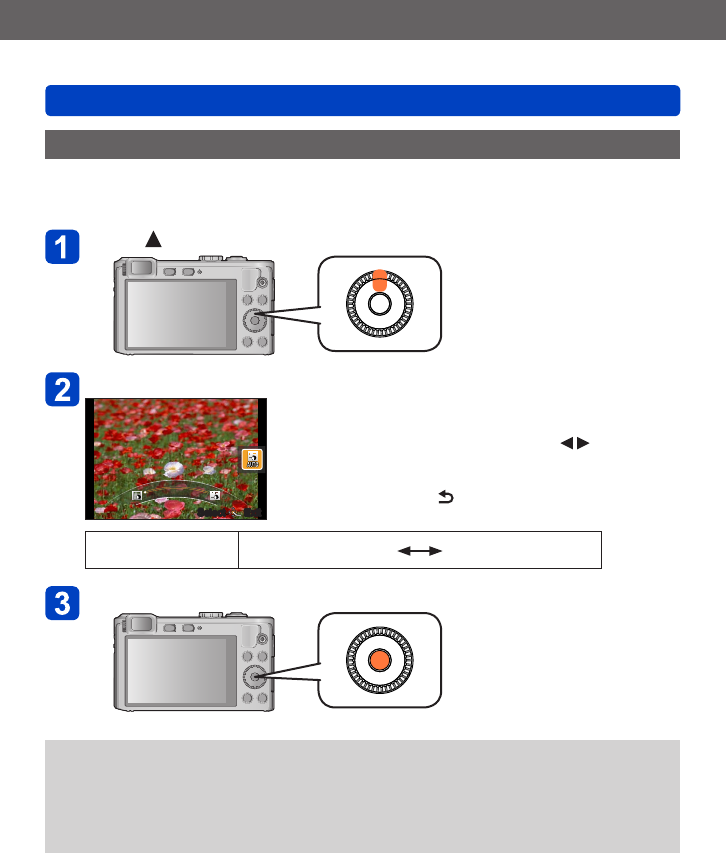
Defocusing the background
You can also use [Intelligent Auto] Mode to adjust background defocusing easily, as with
in [Aperture-Priority] mode.
Press
Turn the control ring to adjust background defocusing
Select Exit
• [AUTO] is displayed in the icon during automatic
adjustment.
• You can also make adjustments with and the
control dial.
• To return to automatic adjustment
→ Press [Q.MENU/ ] button
Defocus background
condition
Defocus the
background Focus the background
Press [MENU/SET] to finalize the setting
●When you record motion pictures, the camera performs aperture control within the
appropriate exposure range, and the background defocusing may not change for
some subject brightness.
●You can use [Intelligent Auto Plus] Mode to adjust brightness and coloring. (→35)
●If the camera is turned off or the recording mode is changed, the background
defocusing setting returns to [AUTO].
Basics
Taking pictures with automatic settings [Intelligent Auto] Mode
VQT5A33
- 32 -
About the Happy color setting
When [Color Mode] is set to [Happy], pictures are recorded with vivid coloring.
■Settings
Press [MENU/SET]
Use cursor button to select [Rec] menu and press [MENU/SET]
Press to select [Color Mode] and press [MENU/SET]
Press to select [Happy] and press [MENU/SET]
[Motion Deblur]
[Motion Deblur] automatically sets the optimum shutter speed in accordance with the
movements of the subject to minimize the blur of the subject.
It is preset to [ON] with this unit.
■Settings
Press [MENU/SET]
Use cursor button to select [Rec] menu and press [MENU/SET]
Press to select [Motion Deblur] and press [MENU/SET]
Press to select either [ON] or [OFF] and press [MENU/SET]
●When [Motion Deblur] is set to [ON], appears on the screen.
●The subject may be recorded in a picture size smaller than the number of pixels that
has been set.
[iHandheld Nite Shot]
If a night scene is detected automatically while the camera is handheld, [iHandheld Nite
Shot] can record a still picture with less jitter and less noise by combining a burst of
pictures.
It is preset to [ON] with this unit.
■Settings
Press [MENU/SET]
Use cursor button to select [Rec] menu and press [MENU/SET]
Press to select [iHandheld Nite Shot] and press [MENU/SET]
Press to select either [ON] or [OFF] and press [MENU/SET]
●When the camera is fixed in place on a tripod or by other means, [iHandheld Nite
Shot] will not be identified.
Basics
Taking pictures with automatic settings [Intelligent Auto] Mode
VQT5A33
- 33 -
[iHDR]
When there is, for example, strong contrast between the background and the subject,
[iHDR] records multiple still pictures with differing exposures and combines them to
create a single still picture rich in gradation.
It is preset to [ON] with this unit.
■Settings
Press [MENU/SET]
Use cursor button to select [Rec] menu and press [MENU/SET]
Press to select [iHDR] and press [MENU/SET]
Press to select either [ON] or [OFF] and press [MENU/SET]
●This function is automatically activated only when is displayed on the LCD monitor.
●In the case that a single picture is going to be composed from a burst, a message
indicating that multiple pictures are to be recorded appears on the screen and burst
recording is carried out. Note that burst recording will not take place if the camera
determines that it can compensate for the difference in contrast without composing
the picture from a burst.
●The camera does not combine pictures in the following cases:
• When the zoom ratio exceeds the maximum optical zoom ratio
• [Burst] mode
• When the flash fires
●In the case of composition from a burst, afterimages may appear if the subject was
moving.
Basics
Taking pictures with automatic settings [Intelligent Auto] Mode
VQT5A33
- 34 -
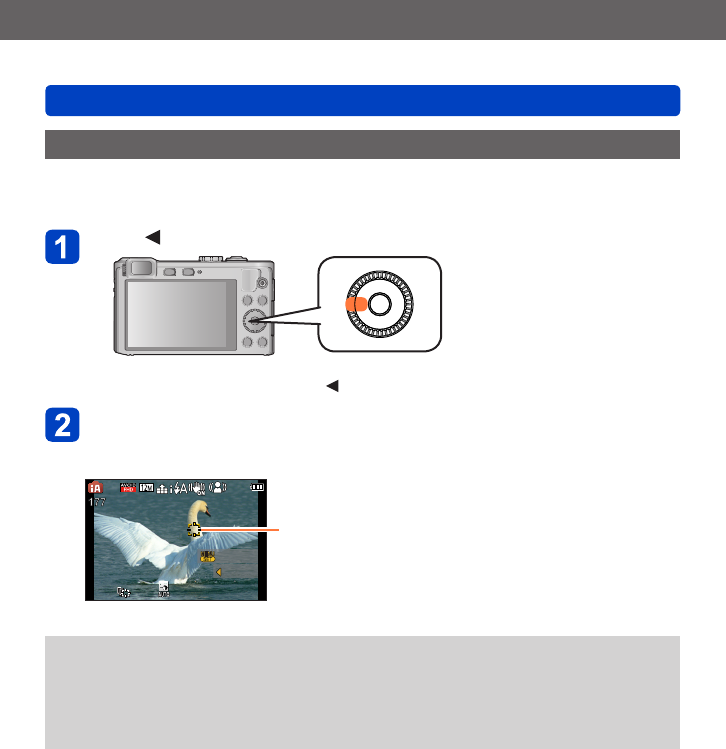
AF Tracking
This function enables the camera to continue to focus on the subject and adjust the
exposure of the subject even when the subject is moving.
Press to set [AF Mode] to AF Tracking
• To cancel AF Tracking → Press .
Align the AF Tracking frame with the subject and press the
shutter button halfway to lock
• To cancel AF Lock → Press [MENU/SET].
Cancel
Lock Off
Lock Off
Cancel
AF Tracking frame
AF Lock successful: Yellow
AF Lock failed: Red
●The optimal scene for the AF locked subject is automatically identified.
●Face Recognition will be inactive while using AF Tracking.
●Under certain recording conditions, such as when the subject is small or when it is
dark, [AF Tracking] may not operate correctly.
●When you press the shutter button halfway to activate AF lock, the AF Assist Lamp
will not turn on.
Basics
Taking pictures with automatic settings [Intelligent Auto] Mode
VQT5A33
- 35 -
[Intelligent Auto Plus] Mode
When [Intelligent Auto Plus] (iA+) mode is selected, you can easily adjust the brightness
and coloring, in addition to the background defocusing, without compromising the user-
friendly operation of the [Intelligent Auto] Mode.
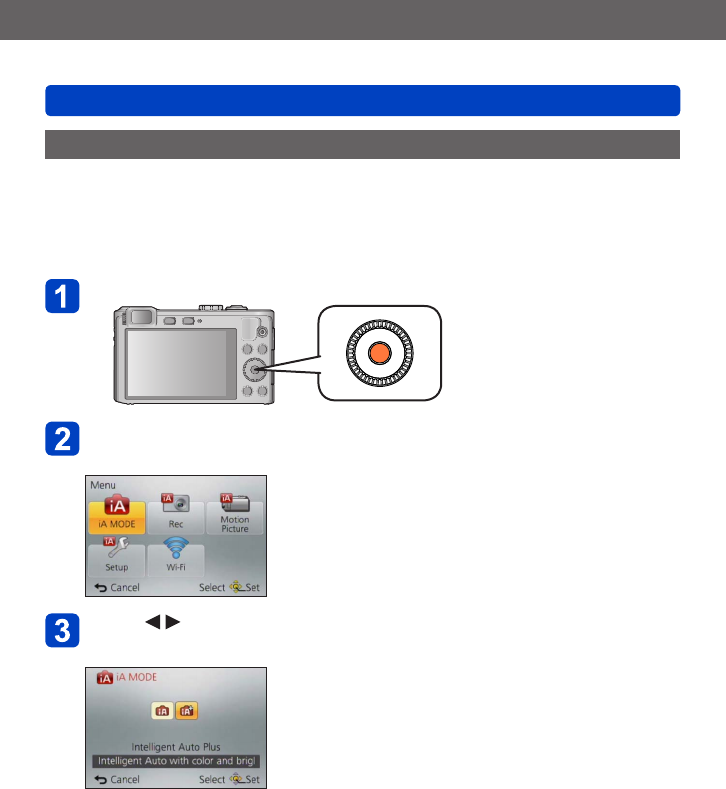
■Switching to [Intelligent Auto Plus] Mode
Use the [iA MODE] menu to switch the mode.
Press [MENU/SET]
Use cursor button to select [iA MODE] menu and press
[MENU/SET]
Press to select [Intelligent Auto Plus] and press
[MENU/SET]
Basics
Taking pictures with automatic settings [Intelligent Auto] Mode
VQT5A33
- 36 -
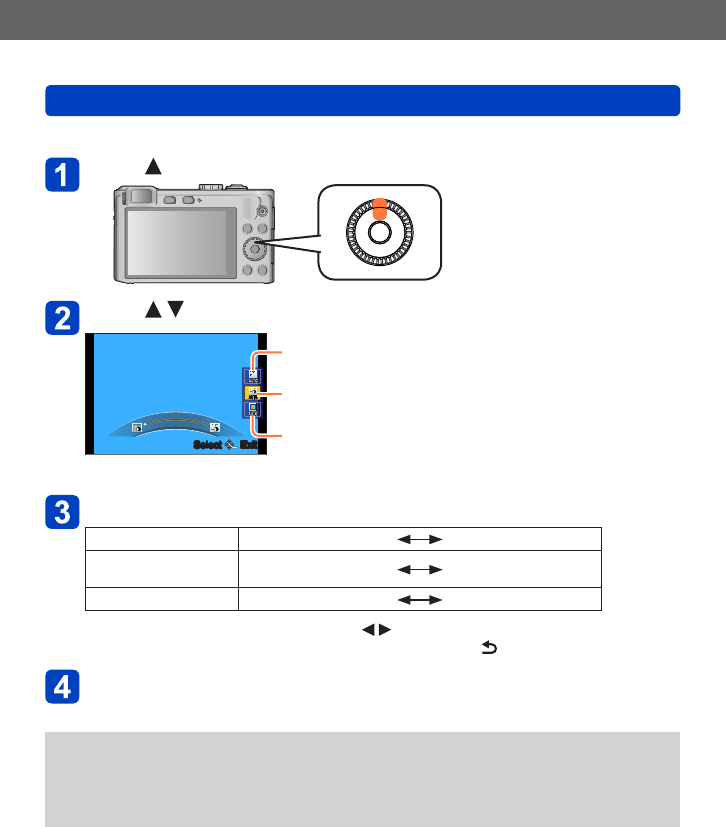
■Adjusting brightness, coloring, and background defocusing
Press
Press to select an item to adjust
Select Exit
Adjusts brightness.
Adjusts background defocusing.
Adjusts coloring.
• [AUTO] is displayed in the icon during automatic adjustment.
Use the control ring to make adjustments
Brightness Underexposure (dark) Overexposure (bright)
Defocus background
condition
Defocus the
background Focus the background
Coloring Warm colors Cool colors
• You can also make adjustments with and the control dial.
• To return to automatic adjustment → Press [Q.MENU/ ] button.
Press [MENU/SET]
●When you record motion pictures, the camera performs aperture control within the
appropriate exposure range, and the background defocusing may not change for
some subject brightness levels.
●If the camera is turned off or the recording mode is changed, all settings return to
[AUTO].
Basics
Taking pictures with automatic settings [Intelligent Auto] Mode
VQT5A33
- 37 -
About [Intelligent Auto] setting items
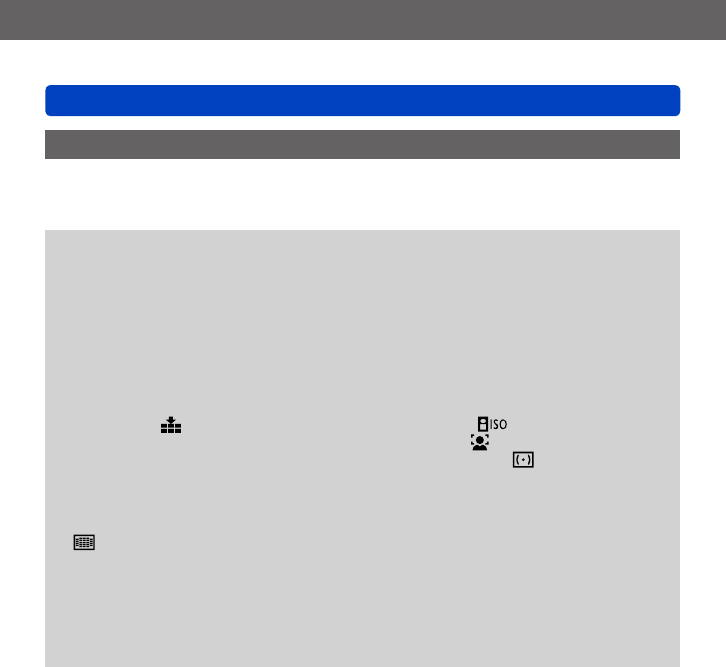
Only the menu items which are displayed in the [Intelligent Auto] Mode can be set.
The settings selected in the [Program AE] or other modes will reflect on the menu items in
the [Setup] menu that are not displayed.
●The settings for the following items are different from other recording modes:
• [Picture Size] and [Color Mode] on the [Rec] menu
• [Beep] on the [Setup] menu ([Beep Level] and [Shutter Vol.] only)
●The settings for the following functions are fixed:
[Setup] menu
• [Fn Button Set]: [Composition Guide]
• [Auto Power Off]: [5MIN.]
• [Control Ring Set]: [Step Zoom]
• [Auto Review]: [2SEC]
[Rec] menu
• [Quality]: [Fine]
• [White Balance]: [AWB]
• [Quick AF]: [ON]
• [i.Exposure]: [ON]
• [AF Assist Lamp]: [ON]
• [Stabilizer]: [ON]
• [Sensitivity]:
• [AF Mode]: [Face Detection]*
• [Metering Mode]: [Multi Metering]
• [i.Resolution]: [i.ZOOM]
• [Red-Eye Removal]: [ON]
* (23-area-focusing) when face cannot be recognized
[Motion Picture] menu
• [Continuous AF]: [ON] • [Wind Cut]: [AUTO]
●The following functions cannot be used:
[Histogram], [Video Rec Area], [Exposure Comp.], [Auto Bracket], [WB Adjust.],
[Min. Shtr Speed], [Digital Zoom]
Basics
Taking pictures with your own settings
[Program AE] Mode
VQT5A33
- 38 -
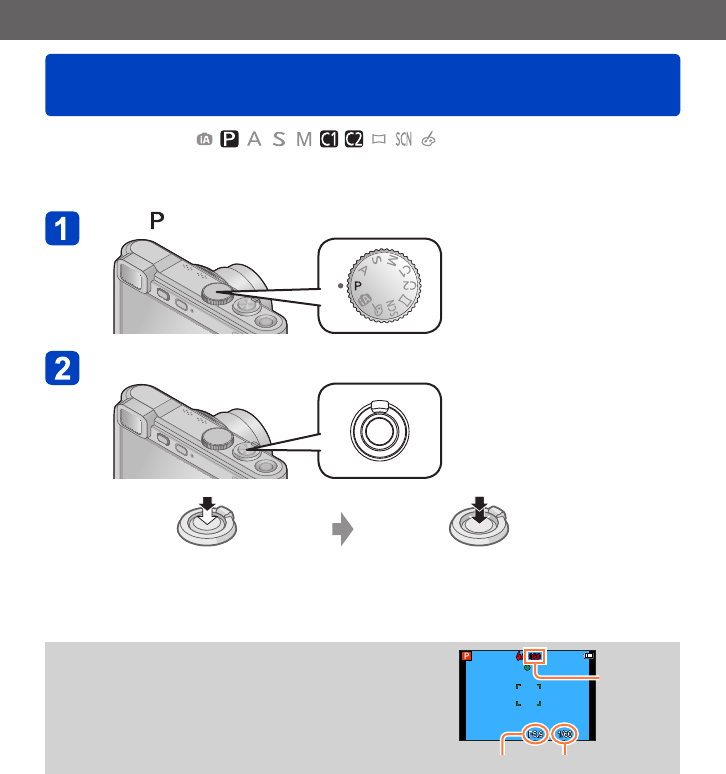
■Recording mode:
Take pictures with automatic shutter speed and aperture value settings.
Using the [Rec] menu to change settings and set up your own recording environment.
Set to ([Program AE] Mode)
Take a picture
Press halfway
(press lightly to focus)
Press fully
(press the button all the way to record)
●If a warning is displayed about jitter, use [Stabilizer],
a tripod, or [Self Timer].
●If aperture and shutter speed are shown in red, you
do not have appropriate exposure. You should either
use the flash, change [Sensitivity] settings or set
[Min. Shtr Speed] to a slower speed.
Jitter alert
display
Aperture value Shutter speed
Basics
How to adjust focus
VQT5A33- 39 -
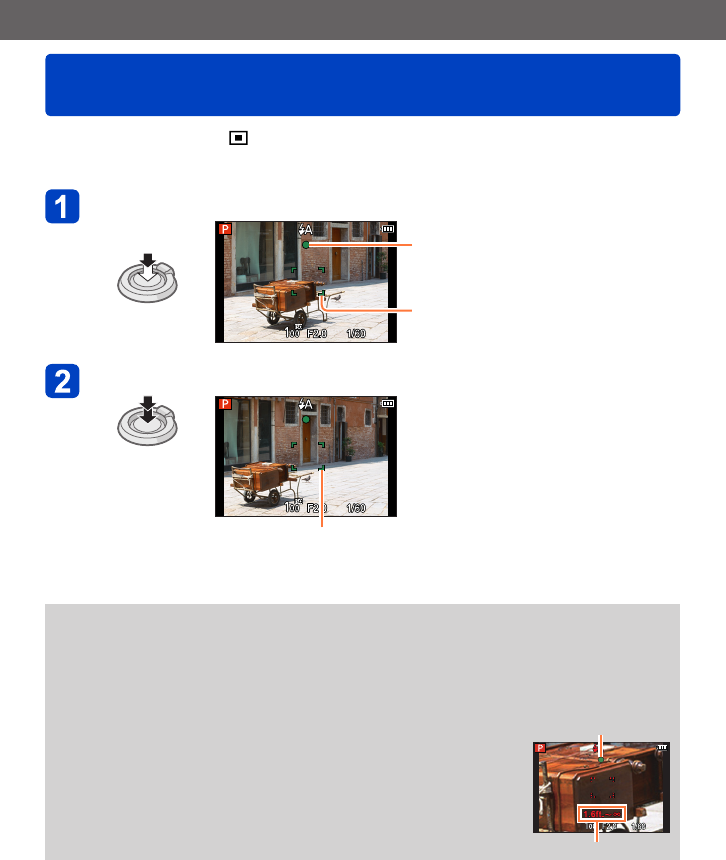
When [AF Mode] is set to (1-area-focusing), focus on the AF area in the center of the
picture. If a subject you want to record is not in the center, follow the steps below.
First adjust focus according to subject
Align the AF area
with the subject
Hold down halfway
Focus display
( When focus is aligned: illuminated
When focus is not aligned: flashing)
AF area
( When focus is aligned: green
When focus is not aligned: red)
Return to desired composition
Press fully
AF area
●Subjects/environments which may make focusing difficult:
• Fast-moving or extremely bright objects, or objects with no color contrast.
• Taking pictures through glass or near objects emitting light.
• In the dark, or with significant jitter.
• When too close to object or when taking pictures of both distant and close objects
together in the same picture.
●The focus display flashes and beep sounds when focus is not
aligned.
Use the focus range displayed in red as a reference.
Even if the focus display is lit, the camera may be unable to
bring the subject into focus if it is out of range.
●The AF area display may be larger depending on recording
conditions such as dark locations or zoom ratio.
Focus display
Focus range
Basics
Recording motion pictures
VQT5A33- 40 -
■Recording mode: *1 *2
*1 You cannot record motion pictures in [3D Photo Mode].
*2 You cannot record motion pictures in [Soft Focus] and [Star Filter].
You can record motion pictures with audio (stereo).
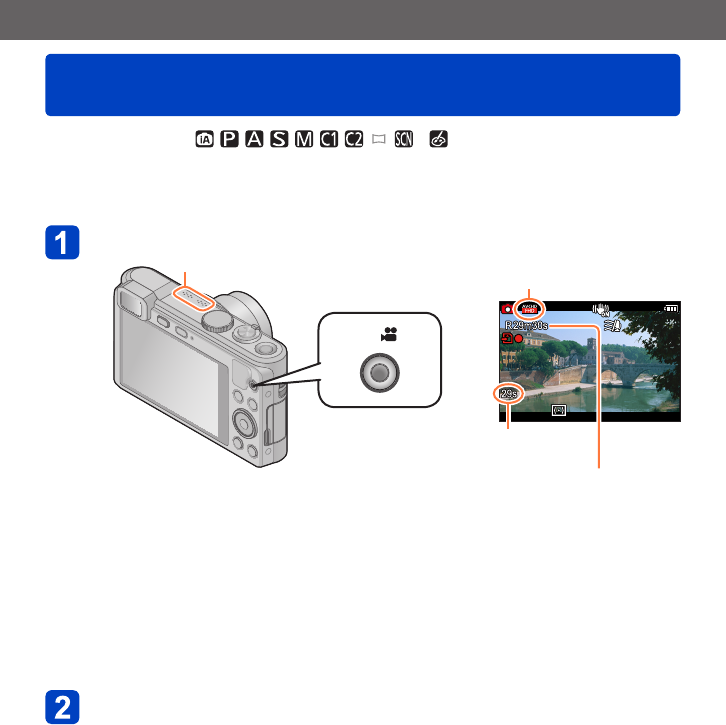
Press the motion picture button to start recording
Microphones [Rec Format] (→139)/
[Rec Quality] (→139)
Elapsed
recording time
Remaining recording time
(approx.)
●Do not block the microphones when recording motion
pictures.
●Immediately release the motion picture button after
pressing it.
●You can also use zoom while recording motion
pictures.
• The zoom speed will be slower than normal.
• The operating sounds of the zoom lever may be
recorded in some cases.
●Still pictures can be taken during motion picture
recording. (→43)
Press the motion picture button again to end recording
Basics
Recording motion pictures
VQT5A33
- 41 -
About recording modes
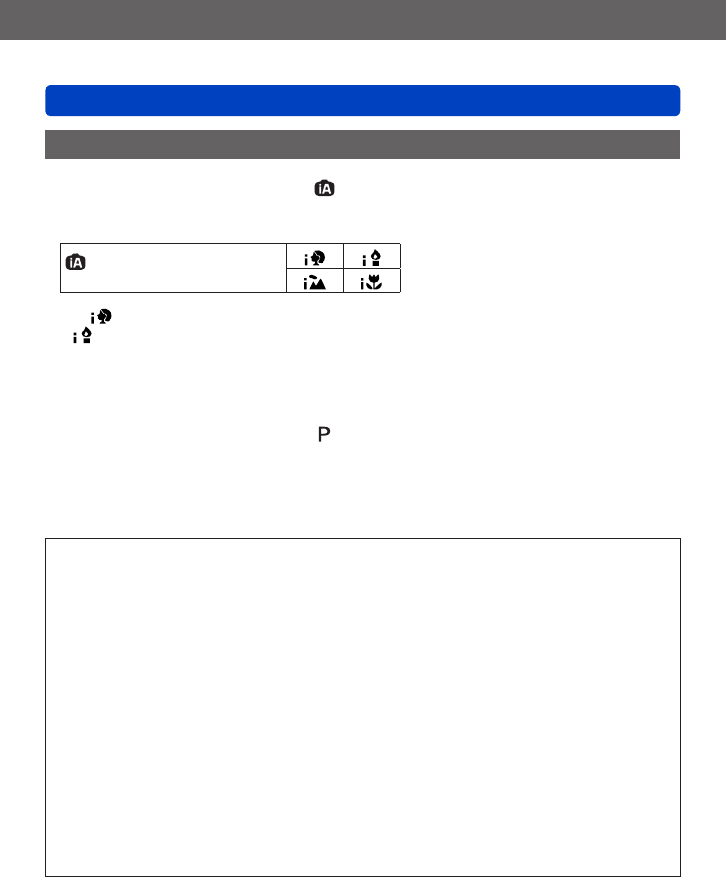
■Recording motion pictures in
The camera automatically detects the scene to record motion pictures with optimal
settings.
When scene does not
correspond to any on the right.
• In mode, focus and exposure will be set according to the face detected.
• will be selected for nightscapes and other dark scenes.
• If the camera does not select your desired Scene Mode, choosing an appropriate
mode manually is recommended.
• The following menu options in the [Motion Picture] menu can be set:
• [Rec Format] • [Rec Quality] • [Still Picture Size]
■Recording motion pictures in
Aperture and shutter speed are automatically set.
■Motion picture recording in other recording modes
For details, refer to the pages relating to the respective recording modes.
■About the recording format for recording motion pictures
This unit can record motion pictures in either AVCHD or MP4 formats.
AVCHD:
You can record high definition quality images with this format. It is suitable for
viewing motion pictures on a high-resolution TV or for saving them to a disc.
MP4:
This is a simpler video format best used when extensive editing is needed, or when
uploading videos to WEB services.
• You can record a motion picture to the built-in memory only in [MP4] using the
[VGA] setting.
■About the compatibility of the recorded motion pictures
Motion pictures recorded in [AVCHD] or [MP4] may be played back with poor picture
or sound quality or playback may not be possible even when played back with
equipment compatible with these formats. Also, the recording information may not
be displayed properly. In this case, use this unit.
Basics
Recording motion pictures
VQT5A33
- 42 -
●If the surrounding temperature is high, or a motion picture is recorded
continuously, is displayed and recording may be stopped halfway through
to protect the camera.
●When using zoom while recording motion pictures, it may take some time to focus.
●Depending on the environment when recording motion pictures, the screen may
turn black for an instant or noise may be recorded because of static electricity,
electromagnetic waves, etc.
●The available recording time displayed on the screen may not decrease regularly.
●If data is repeatedly recorded and deleted, the total available recording time on the
SD card may be reduced. To restore the original capacity, use the camera to format
the SD card. Be sure to save all important data to your computer or other media
before formatting, as all data saved to the card will be erased.
●[Stabilizer] functions regardless of the settings before a motion picture is recorded.
●The following functions are not available:
Extended optical zoom, flash, [Face Recog.], [Rotate Disp.] for pictures taken
vertically.
●For certain memory cards, recording may end while in progress.
●The recording range may become narrower in motion pictures compared to still
pictures. Also, if the aspect ratio is different for still pictures and motion pictures, the
angle of view will change when starting to record a motion picture. The recordable
area is displayed by setting [Video Rec Area] (→57) to [ON].
●If Extended optical zoom is used before pressing the motion picture button, these
settings will be cleared, and the recordable area will be changed significantly.
Basics
Recording motion pictures
VQT5A33
- 43 -
Recording still pictures while a motion picture is being recorded
Still pictures can be recorded even while a motion picture is being recorded.
Press the shutter button fully during the motion picture
recording
Still pictures can be taken while a motion picture is being recorded.
[Still Picture Size] (→140) Maximum number of pictures
9M
15 pictures6M
2M
• The clicking sound made when the shutter button is operated may be recorded.
• When still pictures are recorded during zooming, the zooming may stop.
• Using [Miniature Effect] in [Creative Control] Mode, a still picture may be taken
with a slight delay from the time when the shutter button is pressed fully.
■Burst function
When the burst function has been set in advance, a burst of still pictures can be
recorded during motion picture recording.
• When the burst setting is set to , or , still pictures are automatically recorded
using the setting.
• Even at the or setting, the focus is fixed at the first picture.
●When you press the shutter button halfway during motion picture recording, the
camera will automatically refocus on a subject. This refocus movement is recorded
even during motion picture recording. When priority is to be given to the motion
picture videos, press the shutter button fully, and record the still pictures. Still pictures
can also be created after motion picture recording. (→49)
●When the shutter button is pressed halfway, the picture size and the number of
recordable pictures are displayed.
●Still pictures cannot be recorded in the following cases:
• When [Rec Quality] is set to [VGA]
●The flash is set to [Forced Flash Off].
●Since the electronic shutter is used for recording, the pictures recorded may be
distorted.
●Compared to normal still picture recording, the picture quality may be coarser.
●You cannot record pictures in RAW file format. (Only pictures in JPEG file format with
the [Quality] setting [ ] can be recorded.)
Basics
Viewing your pictures
VQT5A33- 44 -
When a card is in the camera, pictures are played back from the card, and without a card,
pictures are played back from the built-in memory.
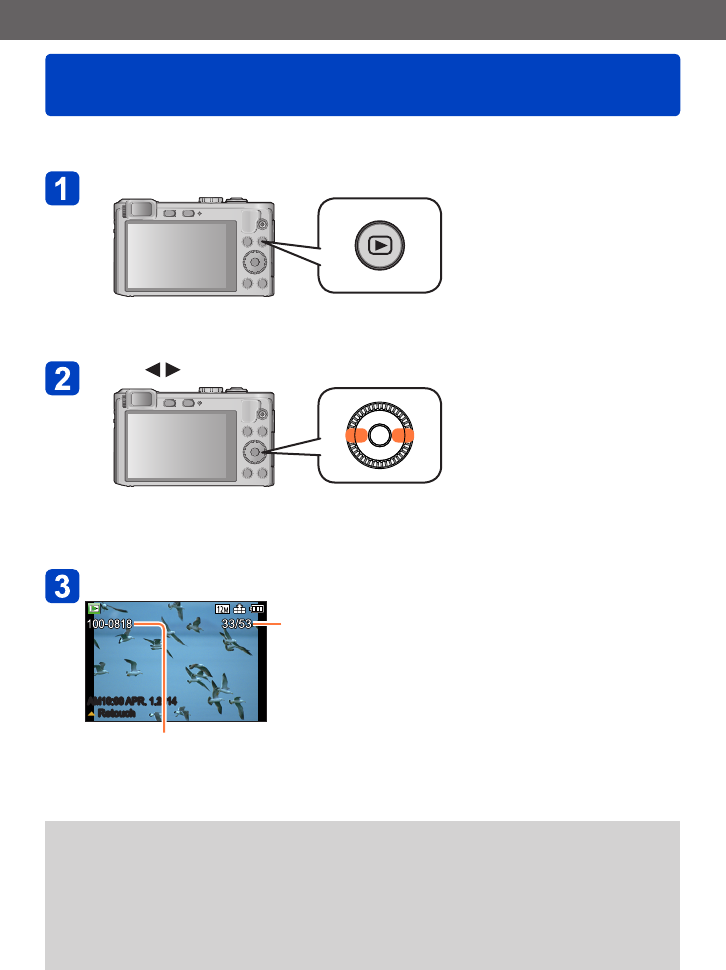
Press the Playback button
• By holding down the Playback button while the camera is off, you can turn the
camera on in Playback Mode.
Press to select a picture to be displayed
• When the buttons are held down, the pictures can be scrolled quickly forward or
backward.
• Pictures can also be selected with the control dial.
View pictures
AM10:00 APR. 1.2014
Retouch
Picture number/Total pictures
Folder/File number
• To switch to Recording Mode, press the playback button again or press the
shutter button halfway during playback.
●It may not be possible to view pictures on this camera that were previously edited on
a computer.
●When the camera is switched to playback mode, the lens barrel will be retracted after
approx. 15 seconds.
●This camera is compliant with the unified DCF (Design rule for Camera File system)
standard formulated by the Japan Electronics and Information Technology Industries
Association (JEITA), and with Exif (Exchangeable image file format). Files that are not
DCF-compliant cannot be played back.
Basics
Viewing your pictures
VQT5A33
- 45 -
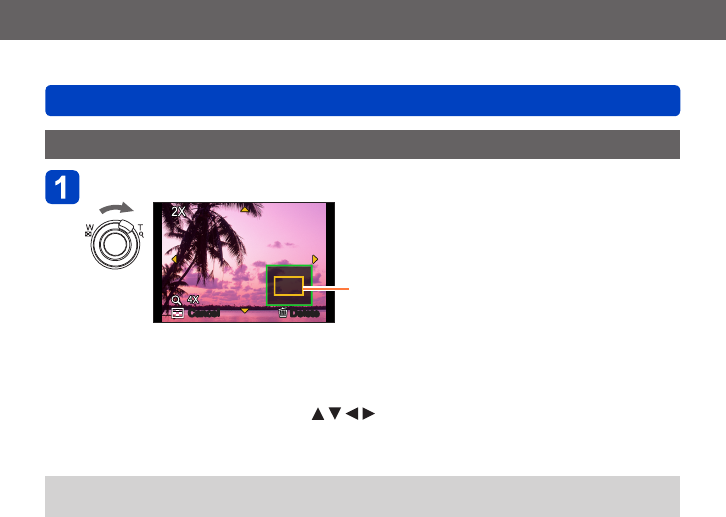
Zooming in and viewing “Playback Zoom”
Move the zoom lever toward T side
Cancel Delete
Current zoom position
• Each time you move the zoom lever toward the T side, the magnification
increases through four levels: 2x, 4x, 8x, and 16x. (The picture quality displayed
becomes successively lower.)
• To reduce zoom → Move the zoom lever toward W side
• Move zoom position → Press
●Playback zoom cannot be used during motion picture playback or panorama picture
playback.
Basics
Viewing your pictures
VQT5A33
- 46 -
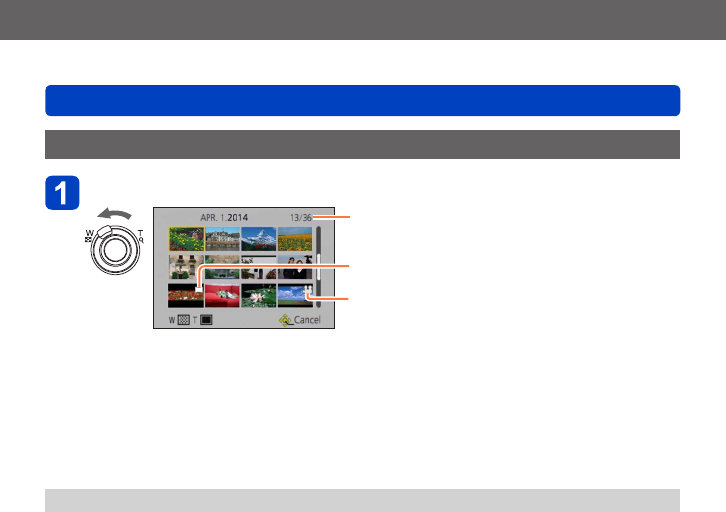
Viewing a list of pictures “Multi Playback”
Move the zoom lever toward W side
Picture no./Total no.
Panorama pictures
Motion pictures
• Move the zoom lever toward the W side and you can switch the display methods
in the following order: 1-picture screen (full-screen) → 12-picture screen →
30-picture screen → Calendar screen. (Move the lever to the T side to return.)
• When you select a picture using the cursor button and press [MENU/SET] on the
12-picture or 30-picture screen, the selected picture is displayed on the 1-picture
screen (full-screen).
• Pictures can also be selected with the control dial.
●Pictures displayed with [!] cannot be played back.
Basics
Viewing your pictures
VQT5A33
- 47 -
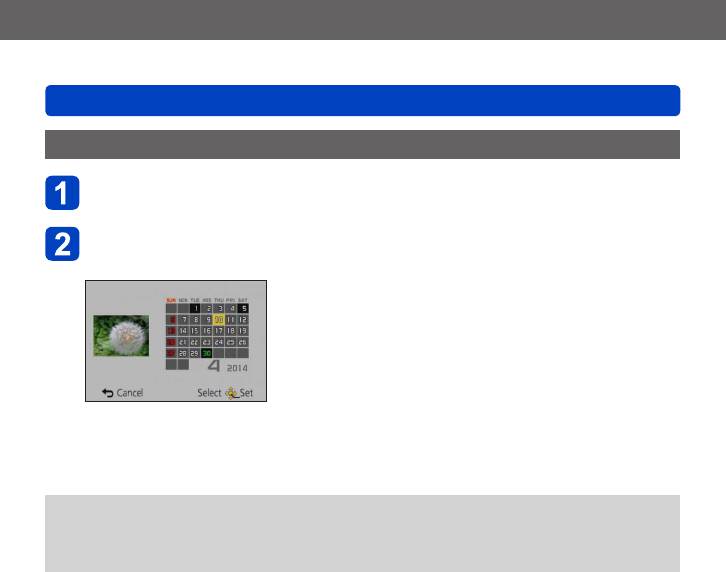
Viewing pictures by their recording date [Calendar]
Move the zoom lever toward W side several times
Use cursor button to select recording date and press
[MENU/SET]
• Pictures are displayed in Multi Playback (30-picture screen). The cursor will
appear on the first picture taken on the selected date.
• You can also select the date with the control dial.
●Only months when pictures were taken are shown on the calendar screen. Pictures
taken without clock settings are displayed with the date January 1st, 2013.
●Pictures taken with destination settings made in [World Time] are displayed in the
calendar screen using the appropriate date for the destination’s time zone.
Basics
Viewing motion pictures
VQT5A33- 48 -
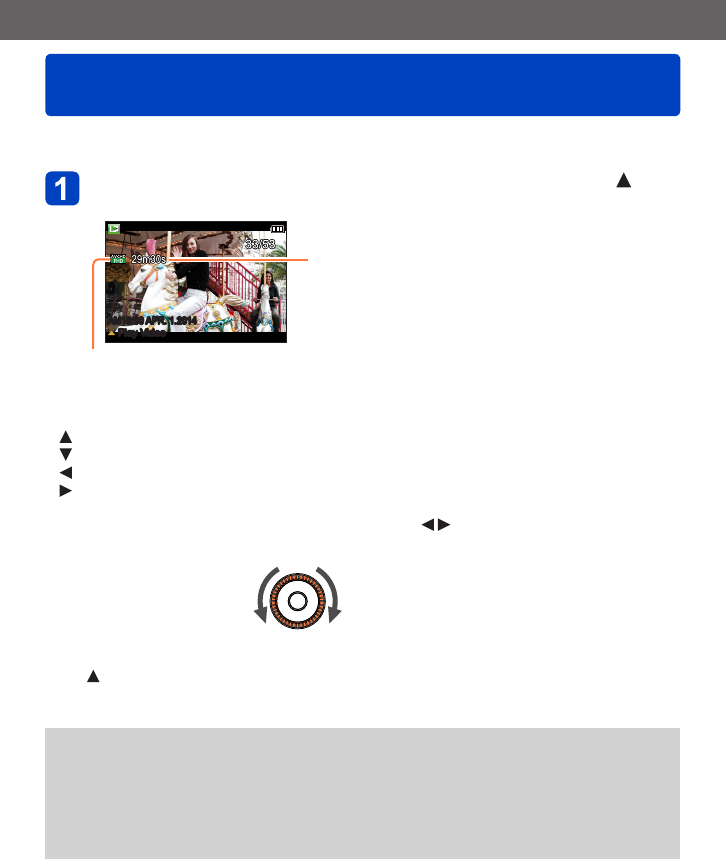
This unit was designed to play motion pictures using the AVCHD, MP4 and QuickTime
Motion JPEG formats.
Select a picture with the motion picture icon, and press
Playback now starts.
AM10:00 APR. 1.2014
Play Video
Motion picture recording time
Motion picture icon (differs depending on the recording mode and picture quality setting)
■Operations during motion picture playback
: Pause/play
: Stop
: Fast rewind (2 steps*1)/Single-frame rewind (while paused)
: Fast forward (2 steps*1)/Single-frame forward (while paused)
[MENU/SET]: Capturing still pictures from motion pictures (while paused) (→49)
*1 The fast forward or rewind speed increases if you press again.
• You can also perform these operations with the control dial.
Fast rewind (2 steps*2)/
Single-frame rewind
(while paused)
Fast forward (2 steps*2)/
Single-frame forward
(while paused)
*2 The fast forward or rewind speed increases if you turn the control dial again.
• If is pressed during fast forward or rewind, it will return to normal playback speed.
• Volume can be adjusted with the zoom lever.
●It may not be possible to properly play back the motion pictures recorded using other
cameras.
●Some information will not be displayed for motion pictures recorded in [AVCHD].
●Motion pictures can be viewed on your computer using “PHOTOfunSTUDIO” on the
supplied CD-ROM.
●Motion pictures recorded with [Miniature Effect] in [Creative Control] Mode play back
at approximately 10 times speed.
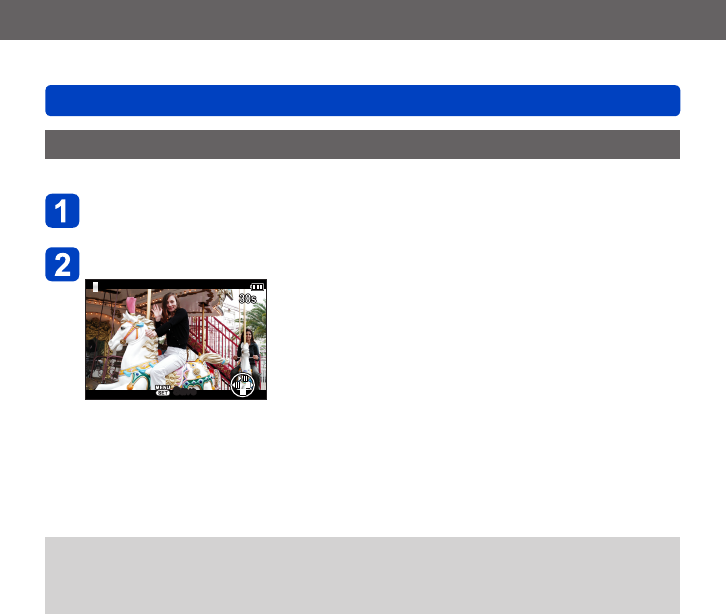
Basics
Viewing motion pictures
VQT5A33
- 49 -
Capturing still pictures from motion pictures
Save a scene from a motion picture as a still picture.
Display the picture that you want to capture as a still picture
by pausing a motion picture during playback
Press [MENU/SET]
Save
• A confirmation screen is displayed.
Select [Yes] with cursor button and then press
[MENU/SET].
• Still pictures are saved with [Aspect Ratio] setting of 16:9 and [Picture Size] at
2M*.
* In the following cases, saved pictures become 4:3, 0.3M.
• MP4 motion pictures with [Rec Quality] of [VGA]
●The picture quality becomes slightly lower depending on the [Rec Quality] setting of
the original motion picture.
●It may not be possible to capture still pictures from motion pictures that were recorded
with a different camera.
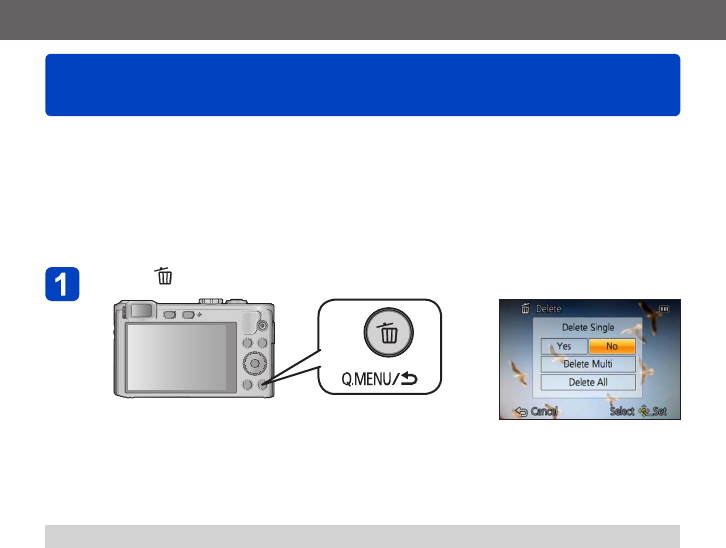
Basics
Deleting pictures
VQT5A33- 50 -
Pictures will be deleted from the card if the card is inserted, or from the built-in memory if
the card is not inserted. (Deleted pictures cannot be recovered.)
However, pictures will not be deleted in the following cases.
• Protected pictures
• Card switch is in “LOCK” position.
• Pictures not of DCF standard (→44)
Press [ ] button to delete displayed picture
• A confirmation screen is displayed. Select [Yes] with cursor button and then press
[MENU/SET].
●Do not turn off the camera during deletion.
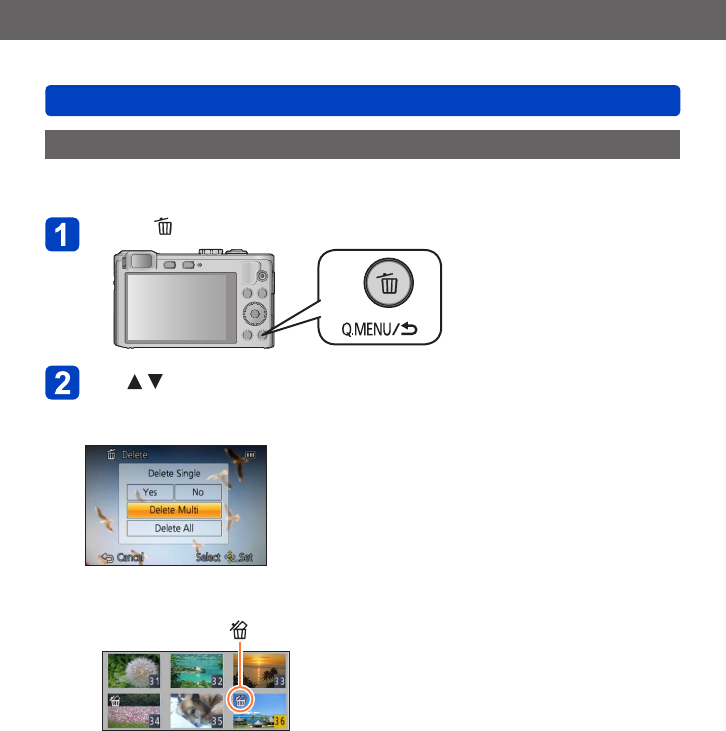
Basics
Deleting pictures
VQT5A33
- 51 -
To delete multiple (up to 100)/To delete all pictures
A picture group (→143) is handled as 1 picture. (All the pictures in the selected picture group
are deleted)
Press [ ] button while viewing a picture
Use to select [Delete Multi]/[Delete All] and press
[MENU/SET]
• Items can also be selected by turning the control dial.
●[Delete Multi]
Use cursor button to select picture and press [DISP.] button
Picture selected
• To cancel → Press [DISP.] button again.
• To execute → Press [MENU/SET].
• Pictures can also be selected with the control dial.
• You can select [All Delete Except Favorite] in [Delete All] if there are pictures that
have been set as [Favorite] (→165).
• A confirmation screen is displayed. Select [Yes] with cursor button and then press
[MENU/SET].
• May take time depending on number of pictures deleted.
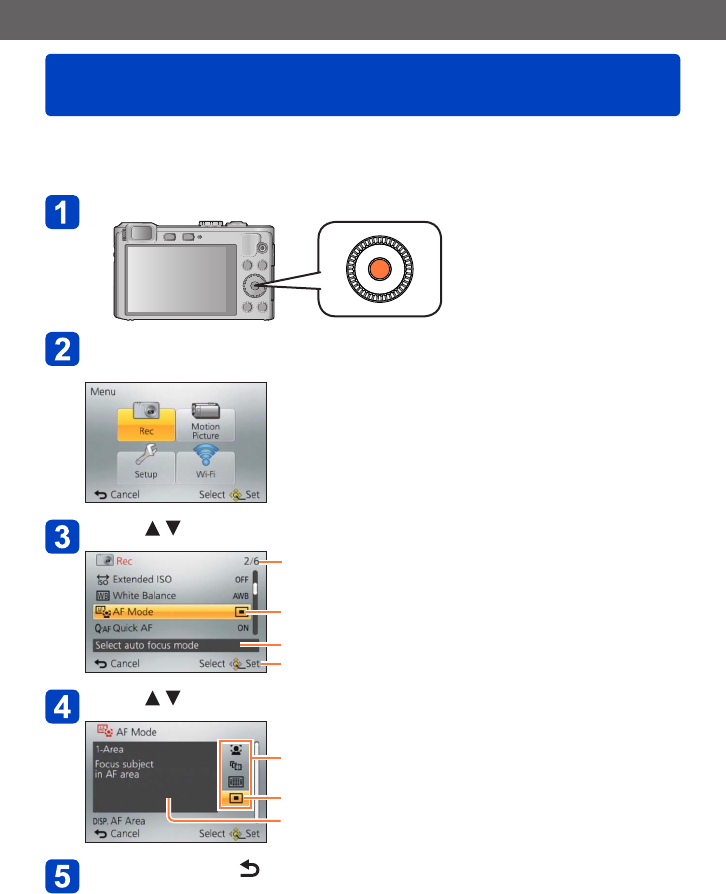
Basics
Setting the menu
VQT5A33- 52 -
Refer to the procedure below for an example on how to operate the menus.
Example: Changing [AF Mode] in the [Rec] menu in [Program AE] Mode
Press [MENU/SET]
Use cursor button to select [Rec] menu and press [MENU/SET]
• Items can also be selected by turning the control dial.
Press to select [AF Mode] and then press [MENU/SET]
Pages (The pages can also be selected with the zoom lever.)
Menu items
Menu description
Operation guide
Press to select a setting, and then press [MENU/SET]
Setting items that can be selected
Selected setting
Setting description
Press [Q.MENU/ ] button several times
The menu closes and the monitor returns to the previous screen.
• In recording mode, the menu screen can also be exited by pressing the shutter
button halfway.
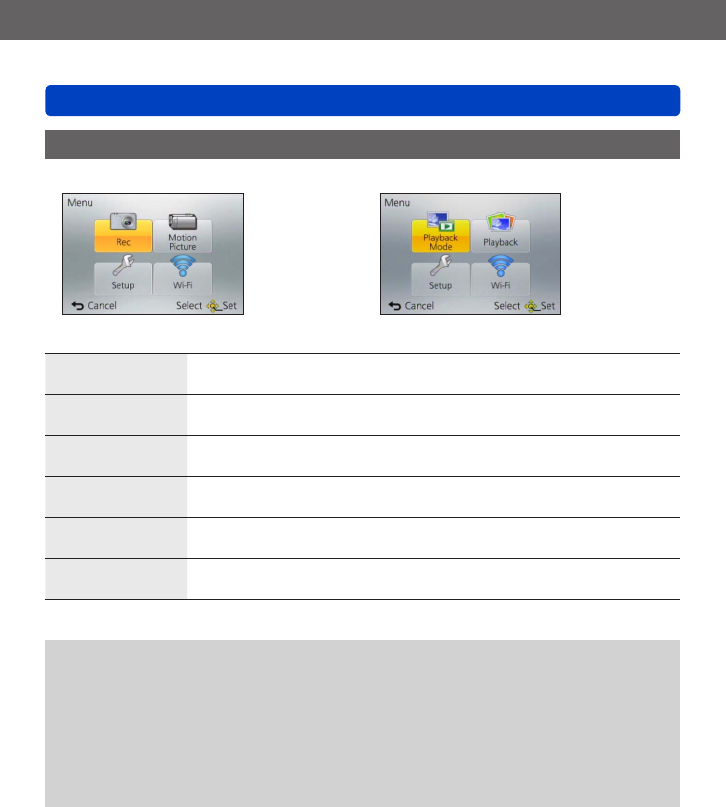
Basics
Setting the menu
VQT5A33
- 53 -
Menu type
●In recording mode ●In playback mode
[Rec] You can perform settings such as tones, Sensitivity, Aspect Ratio,
and Picture Size.
[Motion Picture] You can select the recording format and picture quality and other
settings.
[Setup] You can perform settings for convenience of use such as the clock
setting and changing of the beep sounds.
[Wi-Fi] You can perform settings required to use a Wi-Fi connection and
Wi-Fi functions.
[Playback Mode] You can choose the playback method to see [Slide Show] or to
narrow down the pictures for display, etc.
[Playback] You can specify picture protection, resizing, print settings, and other
settings for pictures you have taken.
●The operation screen examples in this manual may differ from the actual screen
display or some parts of the screen display are omitted.
●The menu types and items that are displayed vary according to the mode.
●The setting methods vary depending on the menu item.
●The following menus are also displayed depending on the recording mode.
• In the [Intelligent Auto] mode: [iA MODE] menu (→35)
• In the [Creative Control] mode: [Creative Control] menu (→96)
• In the [Scene Mode] mode: [Scene Mode] menu (→108)
• In the [Custom] mode: [Custom] menu (→116)
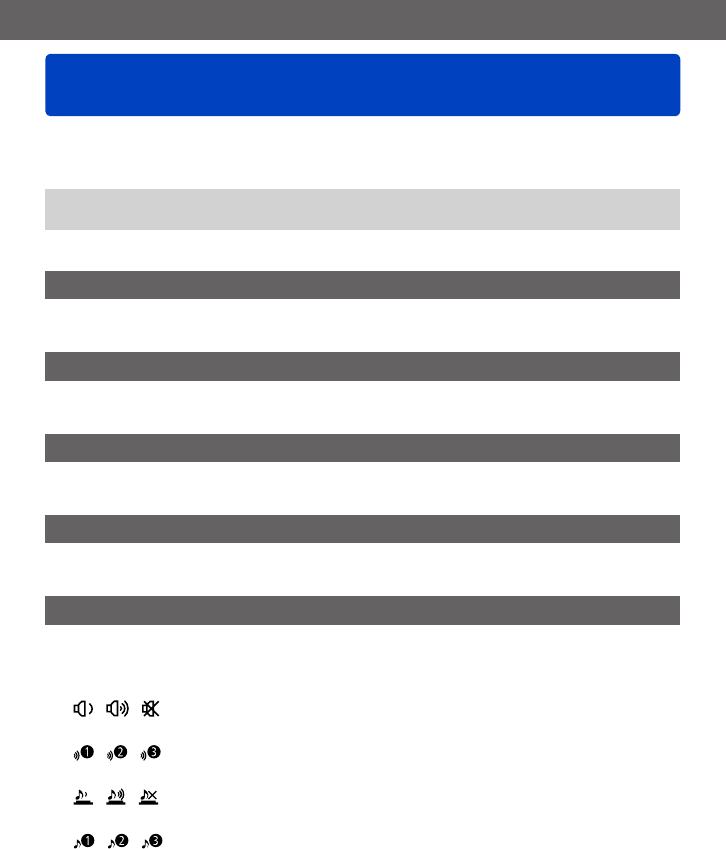
Basics
Using the [Setup] menu
VQT5A33- 54 -
[Clock Set], [Economy] and [Auto Review] are important for clock setting and
battery life. Please check these before use.
• For the setting procedures of the menu. (→52)
●In [Intelligent Auto] Mode, only [Clock Set], [World Time], [Airplane Mode], [Beep],
[Composition Guide], [Stabilizer Demo.] and [Language] are set.
[Clock Set]
Set time, date, and display format. (→23)
[World Time]
Set the local time at travel destination. (→127)
[Travel Date]
Record the number of days elapsed in your travels. (→126)
[Airplane Mode]
Disable the Wi-Fi function. (→172)
[Beep]
Change or mute the beep/shutter sounds.
■Settings
[Beep Level]
/ / : Low / High / Mute
[Beep Tone]
/ / : Change beep tone.
[Shutter Vol.]
/ / : Low / High / Mute
[Shutter Tone]
/ / : Change shutter tone.
Basics
Using the [Setup] menu
VQT5A33
- 55 -
• For the setting procedures of the menu. (→52)
[Speaker Volume]
Adjust volume of sound from speakers (7 levels).
■Settings: [0] / [1] / [2] / [3] / [4] / [5] / [6]
●Cannot be used to adjust TV speaker volume when connected to TV.
[Cust.Set Mem.]
Register the current camera settings. (→115)
[Fn Button Set]
Register frequently used functions from the [Rec] menu, [Setup] menu or other menus to
the [Fn] button for faster operation. (→117)
[Control Ring Set]
Changes the settings assigned to the control ring. (→118)
[Monitor Display] / [Viewfinder]
Adjust brightness and color of the LCD monitor or Viewfinder. It is suggested to use the
default settings.
These are intended to provide a preview of the actual picture, as accurately as possible.
Press to select the setting item and press to make adjustments
Press [MENU/SET]
●Some subjects may look different from their actual appearance, but the recorded
picture will not be affected.
Basics
Using the [Setup] menu
VQT5A33
- 56 -
• For the setting procedures of the menu. (→52)
[Monitor Luminance]
Make LCD monitor easier to see.
■Settings
[Auto Power Monitor]
The brightness is adjusted automatically depending on how bright it
is around the camera.
[Power Monitor]
The brightness becomes higher than usual for easy viewing outdoors.
[OFF] —
●Cannot select [Auto Power Monitor] in playback mode.
●[Power Monitor] returns to ordinary brightness if there is no operation for 30 seconds
when recording. (Press any button to make the screen brighter again.)
●Because the picture shown on the LCD monitor screen emphasizes brightness, some
subjects may look different than their actual appearance, but this will not affect the
recorded picture.
●Setting [Monitor Luminance] reduces the operating time.
[Composition Guide]
Selects guideline display and type.
By setting the basic composition, you can take more impressive still pictures. (→68)
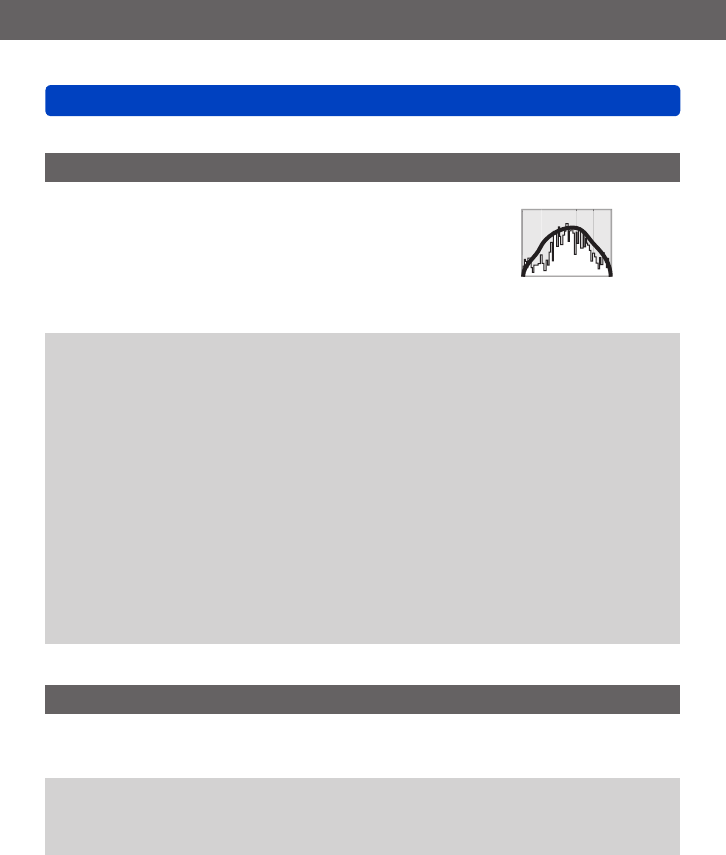
Basics
Using the [Setup] menu
VQT5A33
- 57 -
• For the setting procedures of the menu. (→52)
[Histogram]
Displays distribution of brightness in picture – e.g.
if the graph peaks at the right, this means there are
several bright areas in the picture. A peak in the center
represents correct brightness (correct exposure). This
can be used as a reference for exposure correction, etc.
(Example)
Dark ← OK → Bright
■Settings: [ON] / [OFF]
●When the histogram is not the same as that of the recorded picture under the
following conditions, histogram will be displayed in orange.
• In dark places.
• When manual exposure assist indicates settings other than 0 EV in [Manual
Exposure] mode or during Exposure Compensation.
• When the flash fires.
●The histogram displayed during recording is only a reference.
●The histogram displayed during recording and that displayed during playback may be
different.
●The histogram is different from those displayed using the image editing software of a
computer.
●The histogram will not be displayed in the following cases.
• [Intelligent Auto] Mode
• Playback Zoom
• During motion picture recording
• Multi Playback
• When the HDMI micro cable is connected
[Video Rec Area]
Enables verification of the recordable area for a motion picture before recording.
■Settings: [ON] / [OFF]
●Recordable area displayed for motion pictures should be interpreted as a guideline.
●When using Extended optical zoom, the recordable area may not always be displayed
for certain zoom ratios.
●For [Intelligent Auto] Mode, the setting is fixed to [OFF].
Basics
Using the [Setup] menu
VQT5A33
- 58 -
• For the setting procedures of the menu. (→52)
[Remaining Disp.]
Switch the display between the remaining number of still pictures you can take or the
remaining recording time of a motion picture that you can record for the available card or
built-in memory.
■Settings
Displays the number of pictures that can be recorded.
Displays the remaining recording time.
[Lens Resume]
●[Zoom Resume]
Remember the zoom position when turning the camera off.
■Settings: [ON] / [OFF]
●[MF Resume]
The camera will remember the Manual Focus focus position when the unit is turned off
and when the focus mode is set to other than [MF]. The next time the unit is turned on
or the focus mode is set to [MF], it will return to the remembered focus position.
■Settings: [ON] / [OFF]
[MF Assist]
Set whether to enlarge the focus point when Manual Focus is used to adjust focus. (→88)

Basics
Using the [Setup] menu
VQT5A33
- 59 -
• For the setting procedures of the menu. (→52)
[Economy]
Turn off the camera or make the LCD monitor go dark while not using the camera to
minimize battery consumption.
●[Auto Power Off]
Automatically shut off the camera while not in use.
■Settings: [2MIN.] / [5MIN.] / [10MIN.] / [OFF]
●To restore → Turn on the camera again.
●Cannot be used in the following cases:
• When connected to computer/printer
• During motion picture recording/playback
• During Slide Shows
●Settings fixed to [5MIN.] in [Intelligent Auto] Mode.
●[Monitor Power Save]
The LCD monitor goes dark to minimize power consumption.
■Settings: [ON] / [OFF]
●Reduces the picture quality of the LCD monitor display during recording to minimize
battery consumption (except for the Digital Zoom area). Note, however, that there is
no effect on the recorded picture.
●The setting in [Monitor Luminance] is prioritized over the setting in [Monitor Power
Save] for the brightness of the LCD monitor.
Basics
Using the [Setup] menu
VQT5A33
- 60 -
• For the setting procedures of the menu. (→52)
[Auto Review]
Automatically display still pictures immediately after taking them.
■Settings
[1SEC] / [2SEC] Displays the playback screen for the set time before automatically returning to
the recording screen.
[HOLD] Keeps the automatic playback screen displayed until [MENU/SET] is pressed.
[OFF] —
●For [Intelligent Auto] Mode, the setting is fixed to [2SEC].
●Motion pictures cannot be automatically reviewed.
[Self Timer Auto Off]
The self-timer is canceled if the unit is turned off.
■Settings: [ON] / [OFF]
●At the time of purchase, the camera is set to [ON], so the self-timer is canceled when
the unit is turned off.
[No.Reset]
Reset picture file numbers. (The folder number is updated and the file number starts from
0001.)
• To reset folder number to 100:
First, format the built-in memory or card, and reset the file numbers using [No.Reset].
Then, select [Yes] on the folder number reset screen.
●A folder number between 100 and 999 can be assigned.
Numbers cannot be reset once folder number reaches 999. In this case, save all
necessary pictures to your computer, and format the built-in memory/card (→64).
Basics
Using the [Setup] menu
VQT5A33
- 61 -
• For the setting procedures of the menu. (→52)
[Reset]
Reset to the default settings.
●[Reset Rec. settings?]
●[Reset setup parameters?]
●Information registered in [Face Recog.] is reset if recording settings are reset.
●Resetting the setup parameters will also reset the following:
• Age in years/months and names in [Baby] and [Pet] Scene Modes
●Folder numbers and clock settings will not be reset.
●Camera movement may be audible as the lens function is reset. This is not a fault.
[Reset Wi-Fi Settings]
Returns all [Wi-Fi] menu settings to default settings.
●If you want to dispose or give away your camera, always reset it to prevent your
personal information from being mistakenly used.
●When you request your camera to be fixed, backup your personal information and
always reset it as well.
[USB Mode]
Select communication method for when connecting camera to a computer or printer with
USB connection cable (supplied).
■Settings
[Select on connection]
Select communication method each time you connect to a computer
or PictBridge-compatible printer.
[PictBridge(PTP)] Select when connecting to a PictBridge-compatible printer.
[PC] Select when connecting to a computer.
Basics
Using the [Setup] menu
VQT5A33
- 62 -
• For the setting procedures of the menu. (→52)
[Output]
Change the settings to be used when the camera is connected to a TV or other device.
[TV Aspect] (This setting performs when an AV cable (optional) is connected.)
■Settings: /
[VIERA Link]
Enable automatic linking with other VIERA Link-compatible devices, and operability with a
VIERA remote control when connecting via an HDMI micro cable (→243).
■Settings
[ON]
Operations may be performed via the remote control of the VIERA Link-compatible
device.
• Not all operations will be available.
• Operability of the camera’s own buttons will be limited.
[OFF] Operations must be performed via the camera’s own buttons.
[3D Playback]
Set how 3D still picture is output.
■Settings: [3D] / [2D]
●If you want to play back a picture in 2D (conventional picture) on a 3D television, set
to [2D].
●This item of the menu functions when an HDMI micro cable is connected.
●For the procedure for playing back a 3D still picture. (→245)
Basics
Using the [Setup] menu
VQT5A33
- 63 -
• For the setting procedures of the menu. (→52)
[Rotate Disp.]
Automatically rotate portrait still pictures.
■Settings
Rotate and display pictures displayed on a TV screen as well as those displayed on the
LCD monitor of the camera in portrait orientation.
Rotate and display only pictures displayed on a TV screen in portrait orientation.
[OFF] —
●[Rotate Disp.] cannot be used with motion pictures.
●Still pictures taken with the lens surface facing up or down, or still pictures taken on
other cameras may not rotate.
●Pictures cannot be rotated during Multi Playback.
●Will only be displayed rotated on computer if in Exif-compatible (→44) environment
(OS, software).
[Version Disp.]
Check the camera firmware version or display software information.
●When you press [MENU/SET] while the version is displayed, software information
such as the license is displayed.

Basics
Using the [Setup] menu
VQT5A33
- 64 -
• For the setting procedures of the menu. (→52)
[Format]
Use when [Built-In Memory Error] or [Memory Card Error] appears, or when formatting
the built-in memory or card.
When a card/built-in memory is formatted, the data cannot be restored. Check the
content of the card/built-in memory carefully before formatting.
●When formatting the built-in memory, remove the cards.
(Only inserted card will be formatted if present; built-in memory will be formatted if no
card is inserted.)
●All protected pictures and other picture data will be deleted.
●Do not turn off the camera or perform other operations during formatting.
●Always format cards with this camera.
●Formatting the built-in memory may take several minutes.
●If the card cannot be formatted, please try another card before contacting your
nearest Service Center.
For USA and Puerto Rico assistance, please call: 1-800-211-PANA(7262) or, contact
us via the web at: http://www.panasonic.com/contactinfo
For Canadian assistance, please call: 1-800-99-LUMIX (1-800-995-8649).
[Language]
Change display language.
Set the language displayed on the screen.
[Stabilizer Demo.]
Extent of jitter is shown on graph (estimate).
Extent of jitter
Extent of jitter after correction
●During demo screen display, the Optical Image Stabilizer switches ON and OFF every
time [MENU/SET] is pressed.
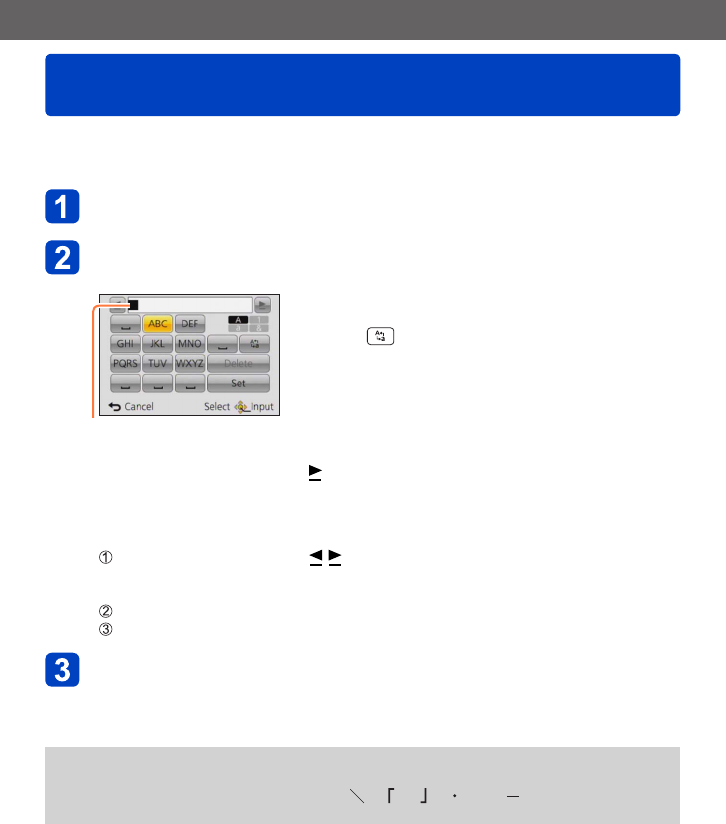
Basics
Entering Text
VQT5A33- 65 -
Use the cursor button to enter names with the Face Recognition function and in Scene
Modes [Baby] and [Pet], or to register locations in [Travel Date] etc.
Use cursor button to select characters
Press [MENU/SET] several times until the desired character is
displayed
Cursor position
Text is inserted at the cursor position.
• To change the character type
→ Select , and press [MENU/SET].
■To continue entering characters
• Use cursor button to select , and then press [MENU/SET]
• Move the zoom lever toward T side
• Turn the control dial to the right
■Editing text
Use cursor button to select and press [MENU/SET]. Then, move the
cursor to the text to edit
• You can also use the zoom lever or control dial to reposition the cursor.
Use cursor button to select [Delete] and press [MENU/SET]
Use cursor button to select the correct text, and then press [MENU/SET]
When you are finished entering text, use cursor button to
select [Set] and press [MENU/SET]
●A maximum of 30 characters can be entered. (Maximum of 9 characters for [Face
Recog.] names)
●Up to 15 characters can be entered for [ ], [ ], [ ], [ ] and [ ]. (Maximum of
6 characters for [Face Recog.] names)
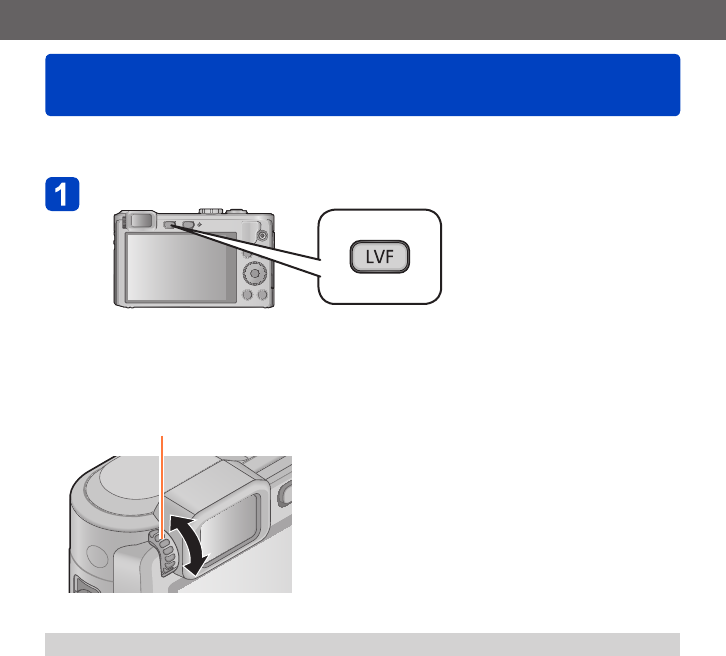
Application (Record)
Switching between the monitor and viewfinder
VQT5A33- 66 -
Application (Record)
By using the viewfinder, you can check the view of the subject even if you are in a bright
area.
Press [LVF] button
■About diopter adjustment
Turn the diopter adjustment dial to adjust until you are able to clearly see the characters
displayed in the viewfinder.
Diopter adjustment dial
●When doing diopter adjustment, align the center of the viewfinder with your eye.
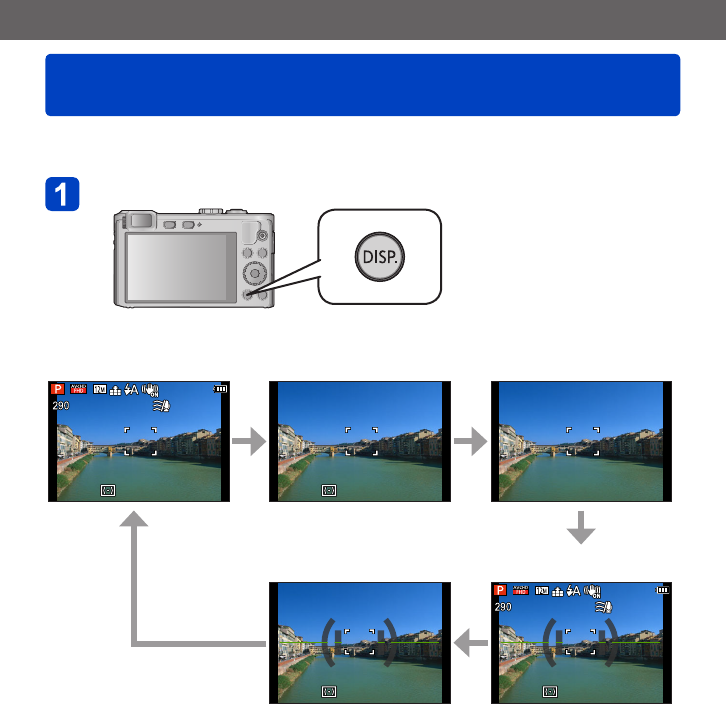
Application (Record)
Switching the display of recording information,
etc.
VQT5A33- 67 -
You can also turn off the recording information (such as icons for various settings) and the
level gauge (→70).
Press [DISP.] button to change display
With information*With information
(simple display) Without information
With information (simple display) +
level gauge
With information and with
level gauge*
* Set [Histogram] to display a histogram. (→57)
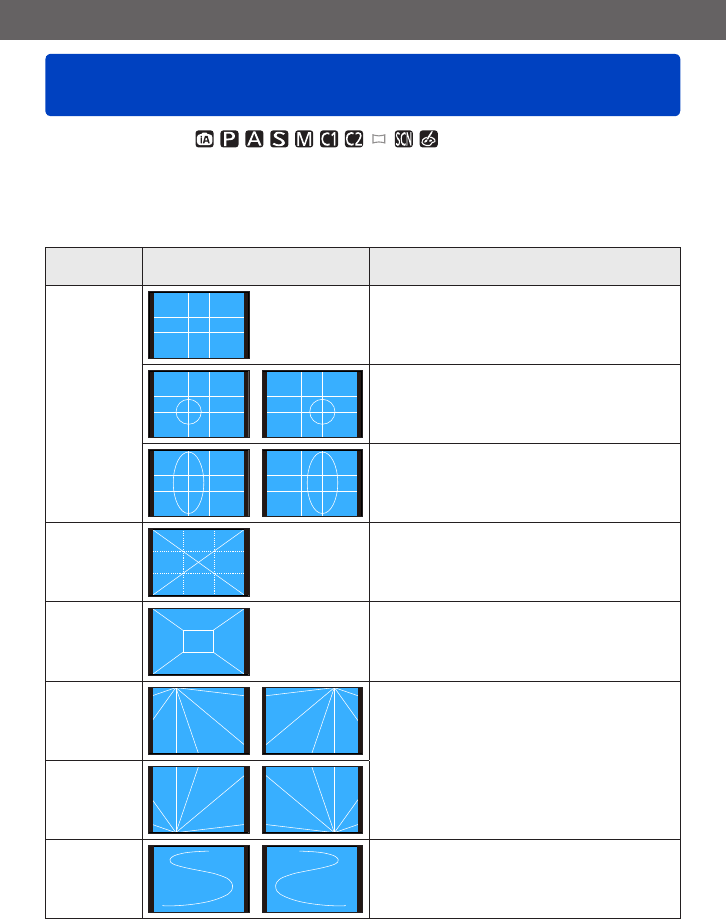
Application (Record)
Taking pictures with the composition determined
[Composition Guide]
VQT5A33
- 68 -
■Recording mode:
By using the viewfinder or LCD monitor to consider the placement of your subject (the
composition), you can take more impressive still pictures.
The following guidelines can be used.
Composition
name Guideline Description
[Rule of
Thirds Offset]
This composition creates a more interesting
photo by offsetting the subject from the center.
This composition creates a more interesting
photo by offsetting the flower from the center.
This composition creates a more interesting
photo by offsetting the person from the center.
[Diagonal
lines]
This composition gives an alternate perspective
by realigning the subject along the diagonal
lines.
[Tunnel] This composition is intended to emphasize the
depth of long narrow scenes.
[Radiation 1] This composition adds an expansive perspective
to your photo by aligning the subject along the
radial lines.
[Radiation 2]
[S-shape] This composition can enhance your photo by
drawing attention to wandering elements of the
scene.
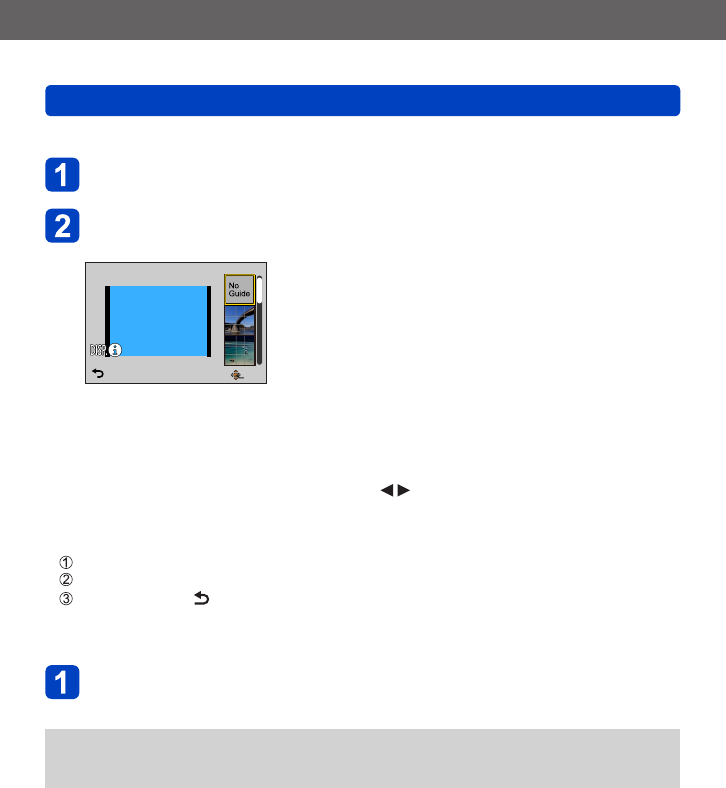
Application (Record)
Taking pictures with the composition determined [Composition Guide]
VQT5A33
- 69 -
■How to select guidelines
Press [Fn] button
Use cursor button to select the guideline to display and press
[MENU/SET]
Select SetCancel
Composition Guide
• You can also select the guideline with the control dial.
• Explanations and examples of the composition will be displayed in turn when you press
the [DISP.] button.
• If the guideline allows horizontal flipping, use to flip.
• To turn off guideline display, select [No Guide].
●When other functions are registered to the [Fn] button
Select [Composition Guide] from the [Setup] menu and press [MENU/SET]
Use cursor button to select the guideline to display and press [MENU/SET]
Press [Q.MENU/ ] button several times
■Taking still pictures with a guideline
Referring to the guideline, align your subject and press the
shutter button
●When pictures are taken in portrait orientation, the guidelines are automatically
changed to the portrait orientation.
●The guidelines will not appear on the actual still picture.
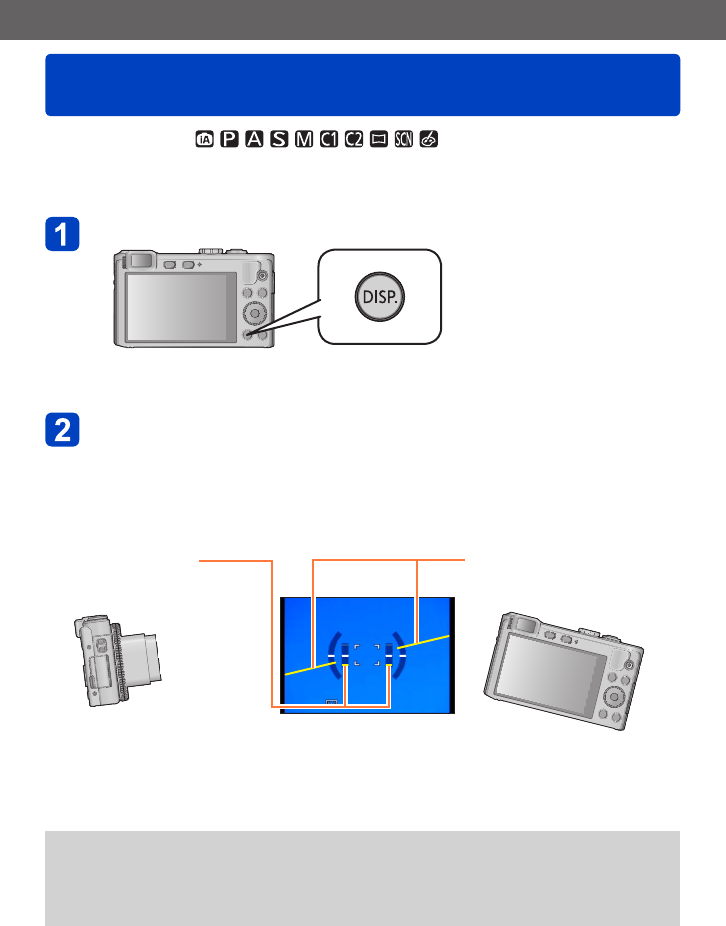
Application (Record)
Using the level gauge
VQT5A33- 70 -
■Recording mode:
If you want to make sure that the camera is not slanted or tilted, for example, when you
take a picture of a landscape, use the level gauge indication as a reference.
Press [DISP.] button to switch the display
Press the button to switch the display. Press the button until the level gauge is
displayed.
Correct camera angle
■Using the level gauge
The yellow line indicates the current angle (horizontal line). Correct the angle of the
camera so that it matches the white line.
Tilting up or down
• In this case, it is facing
upward.
Tilting left or right
• In this case, the right side has
dropped.
• When the camera’s angle is minimal, the level gauge will turn green.
• When pictures are taken in portrait orientation, the level gauge is automatically
switched to one for portrait orientation.
●Even when angle is more or less corrected, there may be an error of about ±1 degree.
●When the camera is being moved, the level gauge may not be displayed correctly.
●The level gauge may not be displayed correctly or the direction detect function may
not operate correctly if the pictures are taken with the camera pointing sharply up or
down.
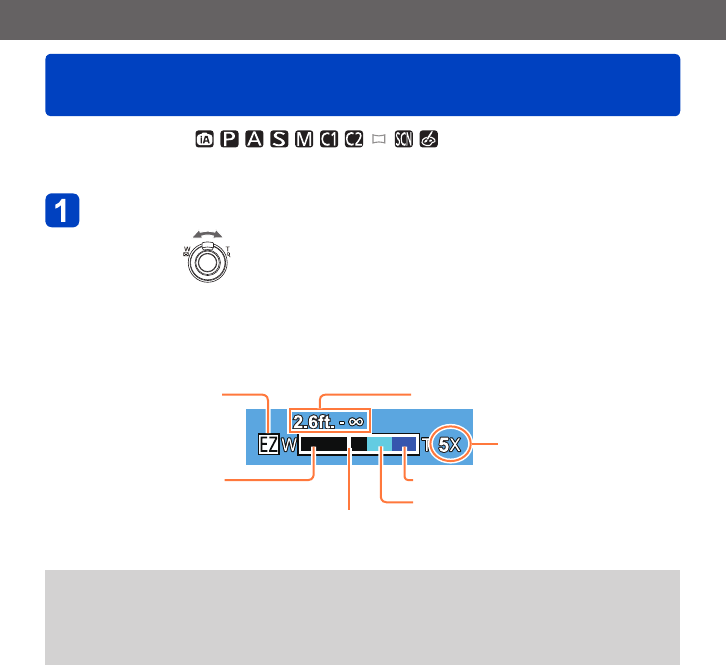
Application (Record)
Using Zoom
VQT5A33- 71 -
■Recording mode:
You can adjust the area of a picture to be taken using zoom.
Zoom In/Out
Capture a
wider area
(wide-angle)
Enlarge
the subject
(telephoto)
• The zoom speed can be set to one of 2 levels using the angle at which the zoom
lever is moved.
When Extended optical
zoom is set
Optical Zoom range
Zoom bar
Digital Zoom range
i.Zoom range
Zoom ratio
Focus range
●Do not touch the lens barrel during zooming.
●Adjust the focus after adjusting the zoom.
●The zoom ratio and the zoom bar displayed on the screen are estimates.
●The camera may make a rattling noise and vibrate when the zoom lever is operated -
this is not a malfunction.
Application (Record)
Using Zoom
VQT5A33
- 72 -
Zoom types and use
The zoom ratio changes when the number of recording pixels is changed.
■Optical Zoom
Zooming in up to 7.1x is possible if pictures without have been selected by [Picture
Size] on the [Rec] menu. (→128)
●Optical Zoom cannot be used in the following cases:
• [Macro Zoom]
• Scene Mode ([3D Photo Mode])
■Extended optical zoom
Zooming in up to 13.9x is possible when pictures with have been selected by
[Picture Size] on the [Rec] menu (→128). EZ is short for “Extended optical zoom”.
●Extended optical zoom cannot be used in the following cases:
• [Macro Zoom]
• Motion picture
• When the [Burst] setting is set to or
• Scene Modes ([HDR], [3D Photo Mode])
• [Creative Control] Mode ([Toy Effect])
• When the [Quality] setting is set to [ ], [ ] or [ ]
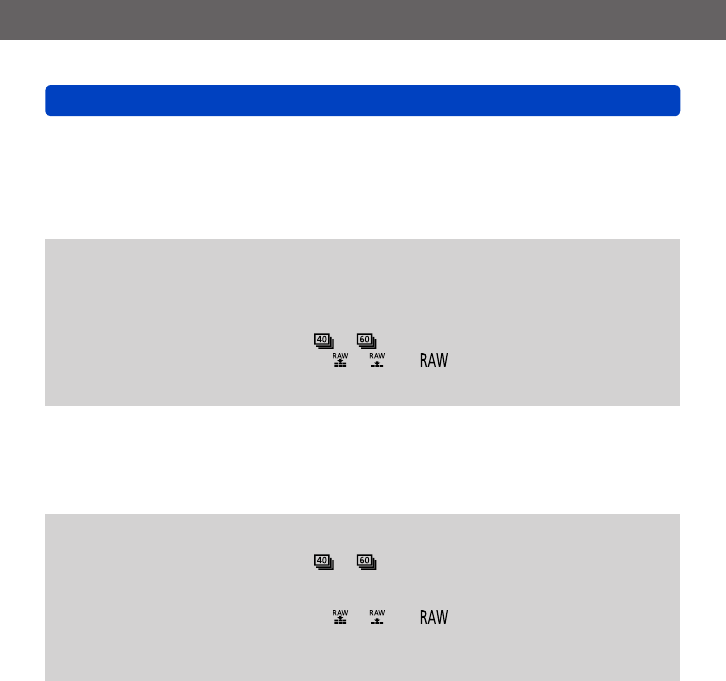
Application (Record)
Using Zoom
VQT5A33
- 73 -
To increase the zoom ratio further, the following zoom can be used in combination.
■[i.ZOOM]
You can use the camera’s Intelligent Resolution technology to increase the zoom ratio
up to 2x higher than the original zoom ratio with limited deterioration of picture quality.
Set [i.Resolution] to [i.ZOOM] on the [Rec] menu. (→135)
●When [i.Resolution] is set to [i.ZOOM], Intelligent Resolution technology is applied to
the picture.
●[i.ZOOM] always works when in [Intelligent Auto] Mode.
●[i.ZOOM] does not function in the following cases.
• [Macro Zoom]
• When the [Burst] setting is set to or
• When the [Quality] setting is set to [ ], [ ] or [ ]
• Scene Modes ([Handheld Night Shot], [HDR], [3D Photo Mode])
• [Creative Control] Mode ([Toy Effect])
■[Digital Zoom]
Zoom 4x further than Optical/Extended optical zoom. Note that, with Digital Zoom,
enlarging will decrease picture quality. Set the [Digital Zoom] in the [Rec] menu to [ON].
(→135)
●Digital Zoom cannot be used in the following modes:
• [Intelligent Auto] Mode
• When the [Burst] setting is set to or
• Scene Modes ([Handheld Night Shot], [HDR], [3D Photo Mode])
• [Creative Control] Mode ([Toy Effect], [Miniature Effect])
• When the [Quality] setting is set to [ ], [ ] or [ ]
●This is fixed to [ON] when [Macro Zoom] is set.
●When [Digital Zoom] is used simultaneously with [i.ZOOM], you can only increase the
zoom ratio up to 2x.
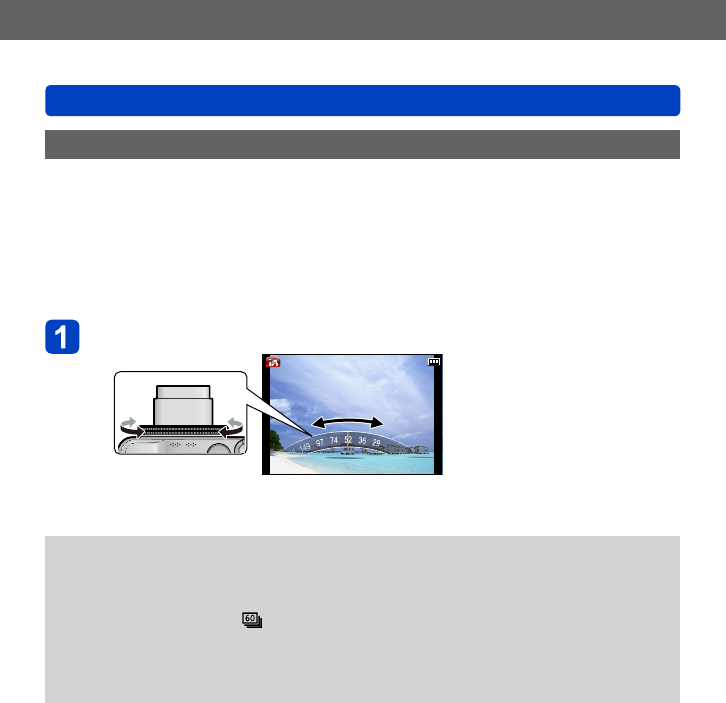
Application (Record)
Using Zoom
VQT5A33
- 74 -
[Step Zoom]
You can set the zoom operation to allow easy visualization of the angle of view (picture
angle) for the focal length of a regular fixed focal length lens (as with a 35 mm film
camera). When using the Step Zoom, you can operate the zoom ratio as easily as
changing the camera lens.
• If recording in [Intelligent Auto] Mode or Scene Mode, you can adjust the [Step Zoom]
with the control ring.
If the setting assigned to the control ring is [Step Zoom], [Step Zoom] will also be
available for use in other modes. (→118)
Turn the control ring
●When the control ring is operated, the focal length is displayed on a standard picture
aspect ratio of 4:3 as a reference.
●The focal length will change in the following cases:
• When [iHandheld Nite Shot] is set to [ON]
• When [Burst] is set to [ ]
• When [Handheld Night Shot] is set in Scene mode
●[Step Zoom] cannot be used in the following cases:
• When recording motion pictures
• Scene Mode ([3D Photo Mode])
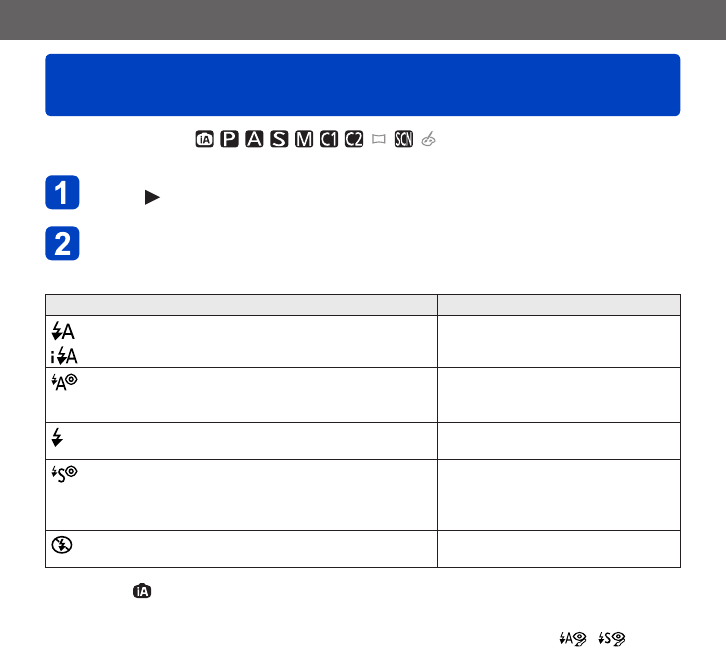
Application (Record)
Taking pictures with flash
VQT5A33- 75 -
■Recording mode:
Press to display [Flash]
Use cursor button to select the desired type and press
[MENU/SET]
Type, operations Uses
*1
[Auto]
• Automatically judges whether or not to flash Normal use
[Auto/Red-Eye]*2
• Automatically judges whether or not to flash
(reduce red-eye)
Taking pictures of subjects in dark
places
[Forced Flash On]
• Always flash
Taking pictures with backlight or
under bright lighting (e.g. fluorescent)
[Slow Sync./Red-Eye]*2
• Automatically judges whether or not to flash
(reduce red-eye; slow shutter speed to take
brighter pictures)
Taking pictures of subjects against a
nightscape (tripod recommended)
[Forced Flash Off]
• Never flash Places where flash use is prohibited
*1 Only in the mode
*2 Two flashes will be emitted. Do not move until after the second flash. Interval between flashes
varies according to brightness of subject.
When [Red-Eye Removal] in the [Rec] menu is set to [ON], the icon changes to [ ]/[ ], red-
eye is automatically detected and the picture data is corrected. (only if the camera has detected a
face)
Application (Record)
Taking pictures with flash
VQT5A33
- 76 -
●Do not put your hands over the light-emitting area of the flash (→10) or look at it
from close range.
Do not use the flash at close distances to other subjects (heat/light may
damage subject).
●The effect of red-eye reduction varies depending on the subject and is affected by
factors such as distance to the subject, whether the subject is looking at the camera
during preliminary flash, and so on. In some cases, the effect of red-eye reduction
may be negligible.
●Flash settings may be changed when changing recording mode.
●Scene Mode flash settings are restored to default when Scene Mode is changed.
●Edges of picture may become slightly dark if using flash at short distances without
using zoom (close to max. W). This may be remedied by using a little zoom.
●No pictures may be taken if these marks (e.g. ) are flashing (flash is charging).
●If light from the flash on a subject is insufficient, neither the proper exposure nor White
Balance is achieved.
●The flash effect may not be sufficient in the following cases:
• When the shutter speed is fast
• When [Burst] is set to [ ]
●Flash charging may take time if battery is low, or if using flash repeatedly.
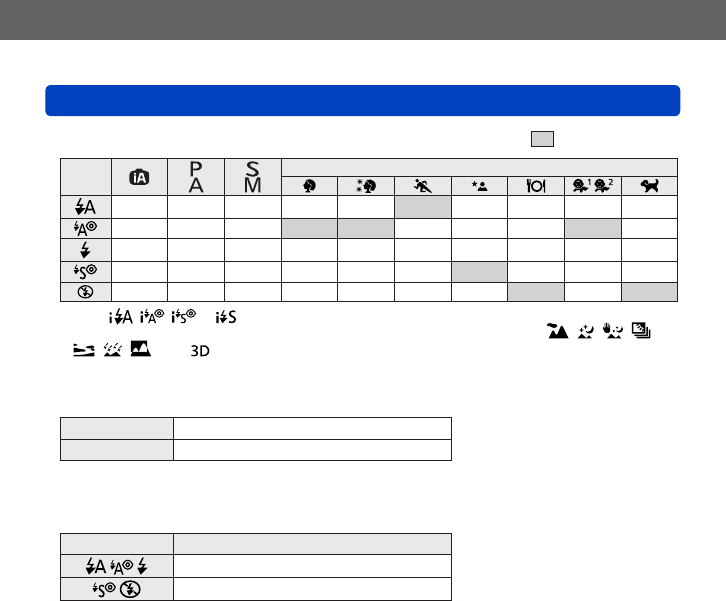
Application (Record)
Taking pictures with flash
VQT5A33
- 77 -
■Available types in each mode (○: Available, –: Not available, : Default setting)
[Scene Mode]
○*○○○○○–○○○
–○○○○–––○–
–○○○○○–○○○
–○––––○–––
○○○○○○○○○○
*
Set to , , or depending on the subject and brightness.
• The flash cannot be used when recording motion pictures or in the , , , ,
, , , and Scene Modes.
■The available flash range when [Sensitivity] setting is [AUTO]
Max. Wide Approx. 0.6 m - 7.0 m (2.0 feet - 23 feet)
Max. Tele Approx. 0.8 m - 2.3 m (2.6 feet - 7.5 feet)
■Shutter speeds for each flash mode
Setting Shutter speed (seconds)
1/60*1 - 1/4000th
1*1*2 - 1/4000th
*1 Varies according to [Min. Shtr Speed] setting.
*2
When [Min. Shtr Speed] is set to [AUTO], and a jitter is detected when [Stabilizer] is turned to
[ON], the maximum speed is 1/4 second. Also varies according to [Intelligent Auto] Mode and
Scene Modes, etc.
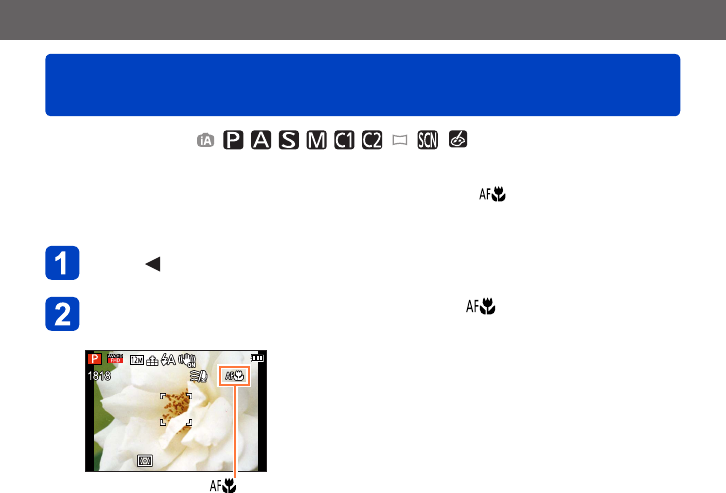
Application (Record)
Taking close-up pictures (Macro recording)
VQT5A33
- 78 -
■Recording mode: *
* Only [3D Photo Mode] can be set.
When you want to enlarge the subject, setting to [AF Macro] ( ) enables you to take
pictures at an even closer distance than the normal focus range (up to 3 cm (0.098 feet)
for max. Wide).
Press
Use cursor button to select [AF Macro] ( ) and press
[MENU/SET]
display
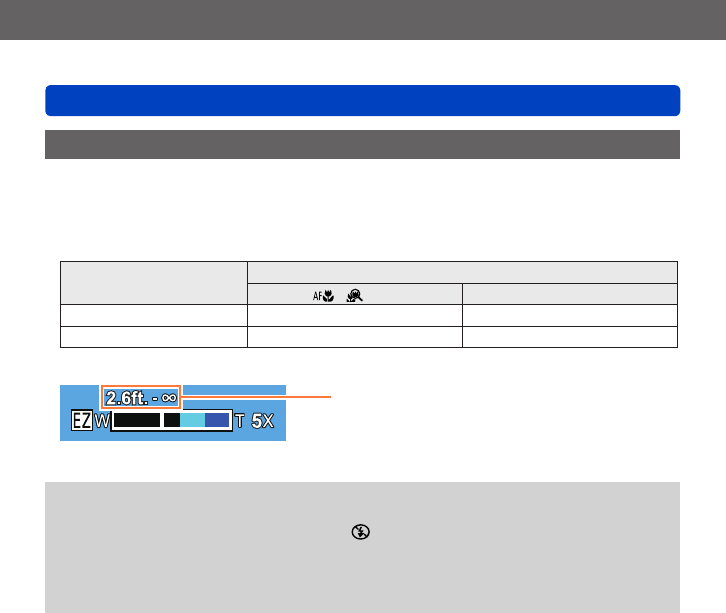
Application (Record)
Taking close-up pictures (Macro recording)
VQT5A33
- 79 -
Focus range
When a subject is too close to the camera, the picture may not be properly focused.
■Shortest recording distance
The shortest recording distance is the distance from the lens front to the subject. This
distance changes gradually depending on the zoom position.
Zoom Focus Mode
[] [ ] [MF] [AF]
Max. W 3 cm (0.098 feet) 50 cm (1.6 feet)
Max. T 80 cm (2.6 feet) 80 cm (2.6 feet)
• Focus range is displayed when operating the zoom, etc.
Focus range
●It may take some time until distant subjects come into focus.
●Using a tripod and [Self Timer] is recommended. Also, when recording a subject that
is close to the camera, setting [Flash] to [Forced Flash Off] is recommended.
●Moving the camera after aligning the focus is likely to result in poorly focused pictures
if subject is close to the camera, due to the margin for focus alignment being severely
reduced.
●Resolution may be reduced around the edges of the picture.
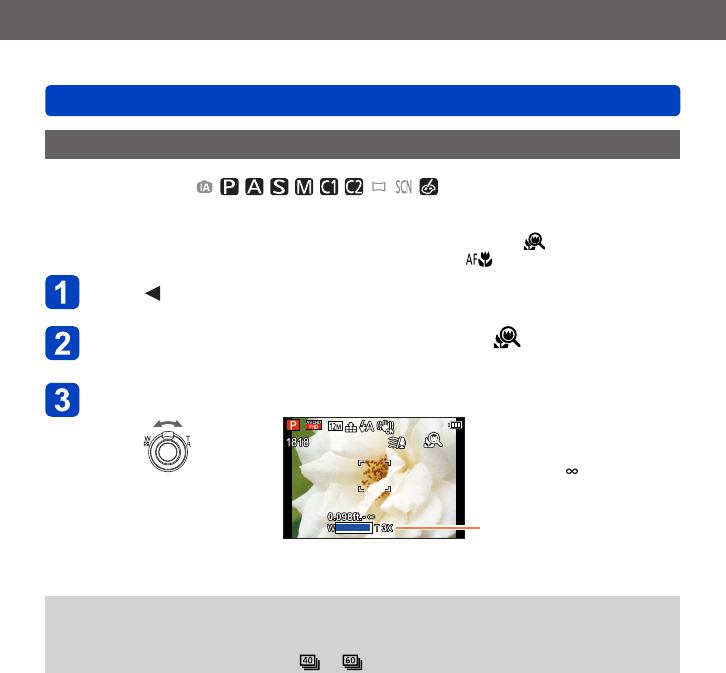
Application (Record)
Taking close-up pictures (Macro recording)
VQT5A33
- 80 -
[Macro Zoom]
■Recording mode: *
* Cannot be set in the following modes: [Toy Effect], [Miniature Effect]
To take even larger images of the subject, setting to [Macro Zoom] ( ) enables the
subject to appear even larger than when using [AF Macro] ( ).
Press
Use cursor button to select [Macro Zoom] ( ) and press
[MENU/SET]
Adjust the magnification with the zoom lever
Return Enlarge
The zoom position is fixed at
the Wide end.
Focus range is 3 cm
(0.098 feet) - .
Magnification (1 x to 3 x)
●In [Macro Zoom], higher magnification results in lower picture quality.
●When [Macro Zoom] is set, Extended optical zoom or [i.ZOOM] does not work.
●When [AF Tracking] is set, zoom macro is canceled.
●When the [Burst] setting is set to or , the [Macro Zoom] cannot be set.
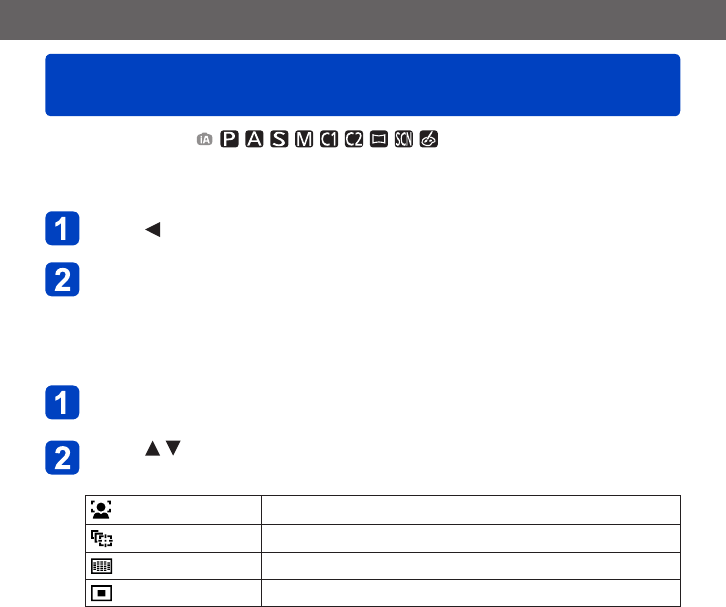
Application (Record)
Taking pictures with Auto Focus
VQT5A33- 81 -
■Recording mode:
When Auto Focus is enabled, press the shutter button halfway to focus. Focusing
methods differ depending on [Rec] mode and [AF Mode] setting.
Press
Use cursor button to select [AF] and press [MENU/SET]
■Switching [AF Mode]
Select [AF Mode] from the [Rec] menu
• For the setting procedures of the menu. (→52)
Press to select Auto Focus mode items and press
[MENU/SET]
(Face Detection) Taking front-on pictures of people (→82)
(AF Tracking) Automatically locking the focus on a moving subject (→83)
(23-area-focusing) Subject not centered in picture (→84)
(1-area-focusing) Determined position for focus (→84)
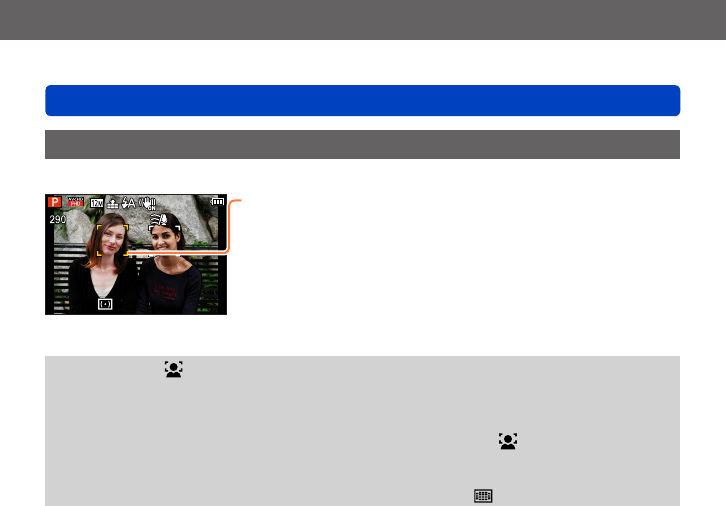
Application (Record)
Taking pictures with Auto Focus
VQT5A33
- 82 -
Taking front-on pictures of people (Face Detection)
Recognizes faces (up to 15 people) and adjusts exposure and focus accordingly.
AF area
Yellow: When the shutter button is pressed halfway, the frame turns
green when the camera is focused.
White: Displayed when more than one face is detected. Other faces
that are the same distance away as faces within the yellow AF
area are also focused.
●Cannot set to (Face Detection) in the following cases:
• Scene Modes ([Night Scenery] [Handheld Night Shot] [Food] [Starry Sky])
• [Creative Control] Mode ([Miniature Effect] [Soft Focus])
• [Panorama Shot] Mode
●If the camera misinterprets a non-human subject as a face in (Face Detection)
setting, switch to another setting.
●If conditions prevent the face from being recognized, such as when the movement of
the subject is too rapid, the [AF Mode] setting switches to (23-area-focusing).
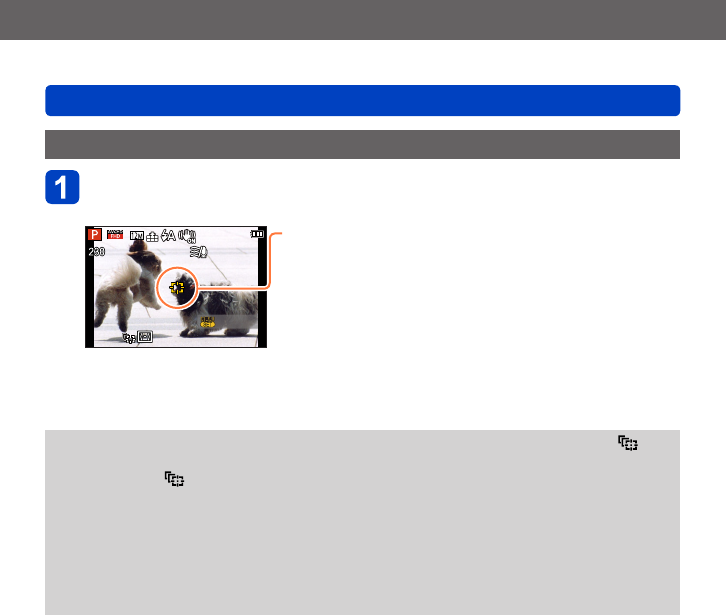
Application (Record)
Taking pictures with Auto Focus
VQT5A33
- 83 -
Automatically locking the focus on a moving subject (AF Tracking)
Align the AF Tracking frame with the subject and press the
shutter button halfway
Lock Off
Lock Off
AF Tracking frame
When the subject is recognized, the AF Tracking frame changes
from white to yellow, and the subject is automatically kept in
focus.
If AF Lock fails, a red frame flashes.
• To release AF Tracking → Press [MENU/SET].
• Focus range (same as macro recording)
●Under certain recording conditions, such as when the subject is small or dark, (AF
Tracking) may not operate correctly.
●Cannot set to (AF Tracking) in the following cases.
• [Starry Sky] Scene Mode
• [Creative Control] Mode ([Sepia] [Dynamic Monochrome] [High Dynamic]
[Toy Effect] [Miniature Effect] [Soft Focus])
• [Panorama Shot] Mode
• [Color Mode] ([B&W] [SEPIA])
●When you press the shutter button halfway to activate AF lock, the AF Assist Lamp
will not turn on.
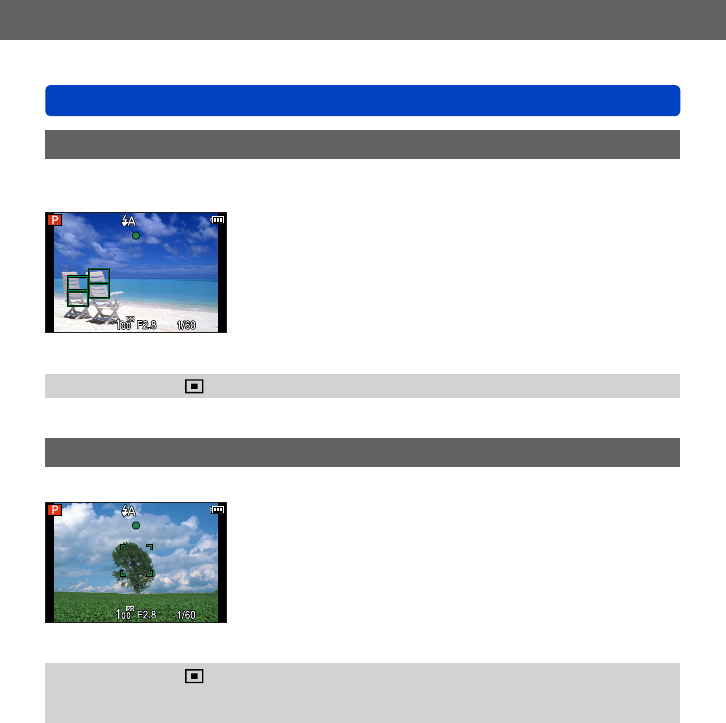
Application (Record)
Taking pictures with Auto Focus
VQT5A33
- 84 -
Subject not centered in picture (23-area-focusing)
Focuses on the subject in the wide range area (up to 23-area-focusing) on the recording
screen.
●Focus is fixed to (1-area-focusing) during motion picture recording.
Determined position for focus (1-area-focusing)
Focuses on AF area in center of picture. (Recommended when focus is difficult to align)
• You can adjust the position of the AF area. (→85)
●Focus is fixed to (1-area-focusing) in the following cases:
• [Starry Sky] Scene Mode
• [Miniature Effect] in [Creative Control] Mode
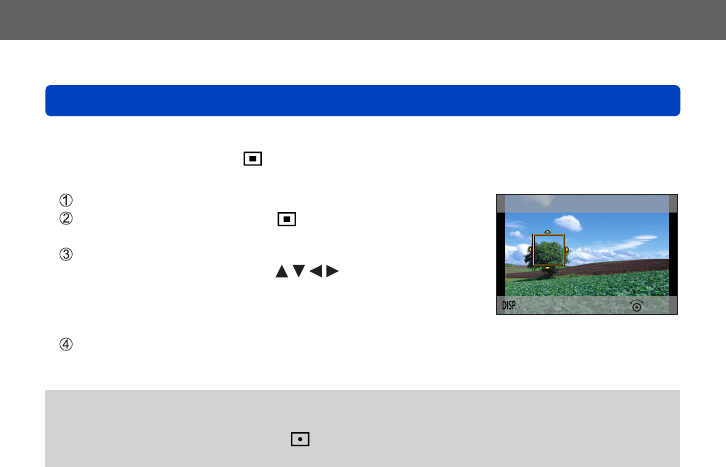
Application (Record)
Taking pictures with Auto Focus
VQT5A33
- 85 -
■Changing the position and size of the AF area
When [AF Mode] is set to (1-area-focusing), you can move the position or size of the
AF area at the center.
Select [AF Mode] from the [Rec] menu
Use cursor button to select [ ] from the [AF Mode]
items and press [DISP.] button
To change the AF area
To move the AF area: Press
To change the size of the AF area: Turn the control dial
• To restore the AF area to its initial state (position and
size) → Press [DISP.] button
Press [MENU/SET]
AF Area
Reset Size
●Cannot be changed during motion picture recording.
●When the AF area is small, it may be difficult to adjust the focus.
●When [Metering Mode] is set to (spot-focusing), the new position of the AF area
will be measured.
Application (Record)
Taking pictures by locking the focus and/or
exposure [AF/AE Lock]
VQT5A33
- 86 -
■Recording mode: *
* AF lock only
The AF/AE Lock function is convenient, for example, when there is too much contrast with
the subject and you cannot get appropriate exposure (AE Lock) or when you want to take
a still picture composed with the subject outside the AF area (AF Lock).
Preparation:
To execute the AF/AE Lock function, it is necessary to register [AF/AE Lock] to the [Fn]
button. (→117)
Align the AF area with the subject
Press [Fn] button to lock the focus and/or exposure
• To cancel AF/AE Lock → Press [Fn] button
Move the camera to compose the still picture you want to take,
and press the shutter button fully
• When AE is set, press the shutter button halfway to focus, then press it fully.
■AF/AE Lock switching
By using [AF/AE Lock] in the recording menu, you can set whether to lock focus and/or
exposure.
[AE] Locks exposure only. ([AEL] is displayed on the screen.)
[AF] Locks focus only. ([AFL] is displayed on the screen.)
[AF/AE] Locks focus and exposure. ([AFL] and [AEL] are displayed on the screen.)
●During Manual Focus, only AE Lock can be used.
●Lock is canceled when a zoom operation is performed after locking the exposure and/
or focus.
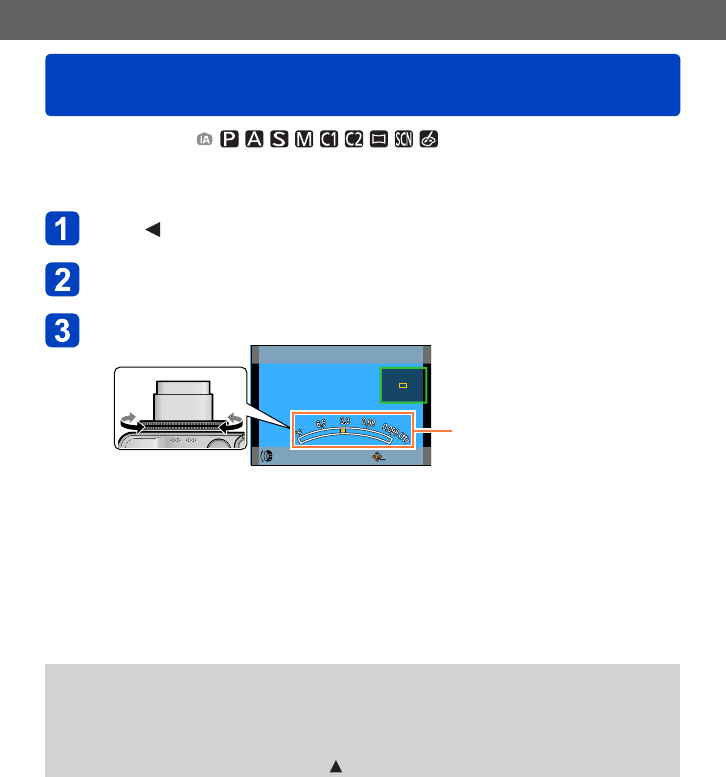
Application (Record)
Taking pictures with Manual Focus
VQT5A33- 87 -
■Recording mode:
Manual Focus is convenient when you want to lock the focus to take pictures or when it is
difficult to adjust focus using Auto Focus.
Press
Use cursor button to select [MF] and press [MENU/SET]
Use the control ring to adjust focus
MF Assist
Adjust. MF Area
Focus range indication
• Settings assigned to the control ring in each mode are made with the control dial.
■1 Shot AF
When [1 Shot AF] is registered in [Fn Button Set] (→117), you can press the [Fn]
button once to temporarily activate Auto Focus and focus on a subject.
• First use [1 Shot AF] to focus on an area close to the subject. This makes it
easier to adjust the focus with the control ring.
●After zoom operation, readjust the focus.
●The focus range displayed by Manual Focus is a reference value. Confirm the focus
on the screen ([MF Assist] screen).
●The control ring cannot be used to adjust focus if the control ring settings have been
changed.
●You can adjust the focus by pressing and turning the control dial.
Application (Record)
Taking pictures with Manual Focus
VQT5A33
- 88 -
■Enlarged display (MF assist)
When [MF Assist] in the [Setup] menu is [ON] and you perform the Manual Focus
operation, an enlarged display appears.
• Shortly after you stop operating Manual Focus, the display switches to normal.
●To change the position of an enlarged display
Press [MENU/SET] during the Manual Focus operation (while the enlarged display
is displayed)
Use cursor button to move the enlarged display
• To return to the original position → Press [DISP.] button
Press [MENU/SET]
●MF assist is not displayed in the Digital Zoom area.
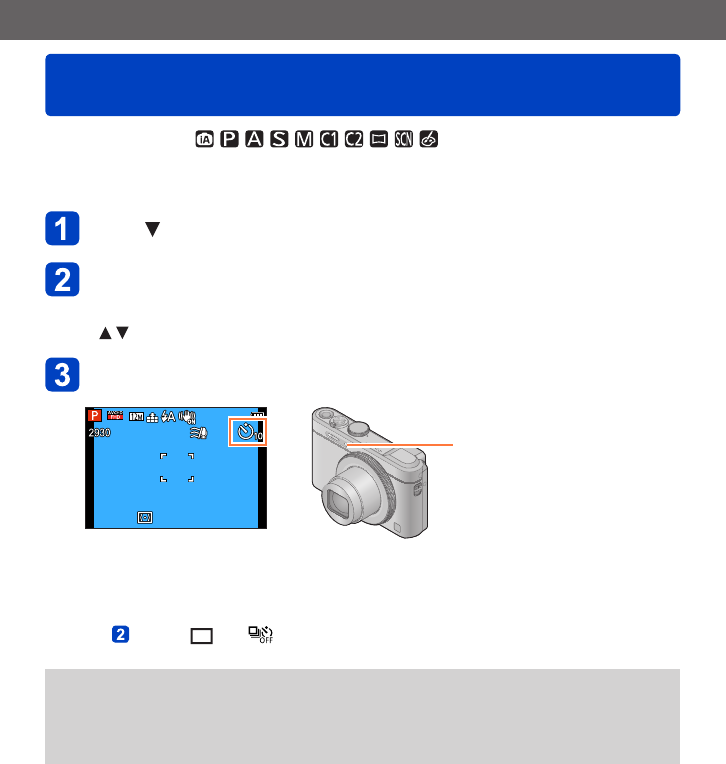
Application (Record)
Taking pictures with self-timer
VQT5A33- 89 -
■Recording mode:
We recommend using a tripod. This is also effective for correcting jitter when pressing the
shutter button, by setting the self-timer to 2 seconds.
Press
Use cursor button to select [Self Timer] and press
[MENU/SET]
• To change the time setting, press the [DISP.] button and select a time setting with
.
Take a picture
Press the shutter button fully to start recording after the preset time.
Self-timer indicator
(Flashes for set duration)
• To cancel while in operation → Press [MENU/SET]
■To cancel self-timer
In step , select [ ] or [ ].
●The self-timer is canceled if the camera is turned off as [Self Timer Auto Off] is set to
[ON] at the time of purchase. (→60)
●After Self-timer indicator stops flashing, it may then be lit for AF Assist Lamp.
●This function cannot be used in the following cases:
• Recording motion pictures
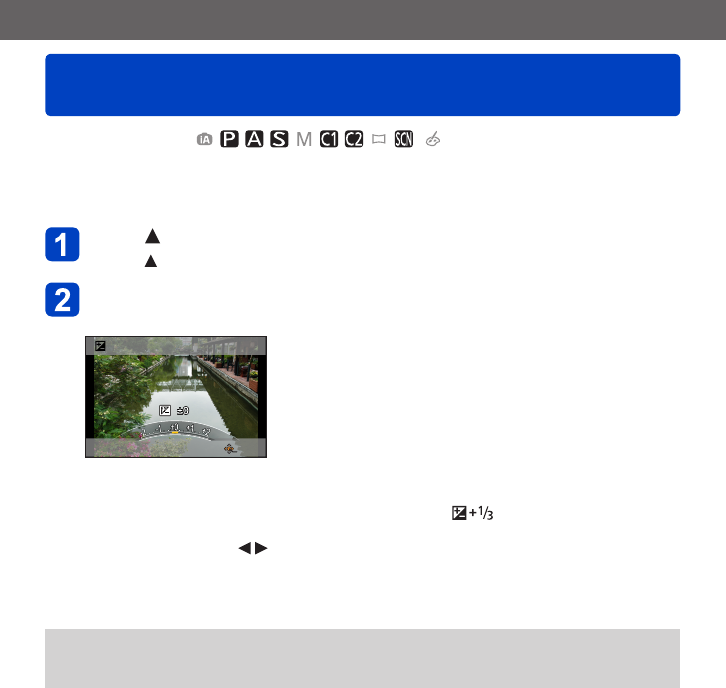
Application (Record)
Taking pictures with Exposure Compensation
VQT5A33- 90 -
■Recording mode: *
* Cannot be set when using [Starry Sky].
Corrects the exposure when there is a backlight or when the subject is too dark or too
bright.
Press
• Press again if Manual Focus is set.
Use the control ring to select a compensation value and press
[MENU/SET]
Exposure Comp.
Select Exit
• If the picture is too dark, adjust the exposure to the “+” direction.
• If the picture is too bright, adjust the exposure to the “-” direction.
• After exposure adjustment, the adjustment value ( for example) is displayed
in the bottom-left corner of the screen.
• You can also press to make adjustments.
• You can also make adjustments with the control dial.
●Depending on the brightness, this may not be possible in some cases.
●The Exposure Compensation value you set is retained even after the camera is
turned off.
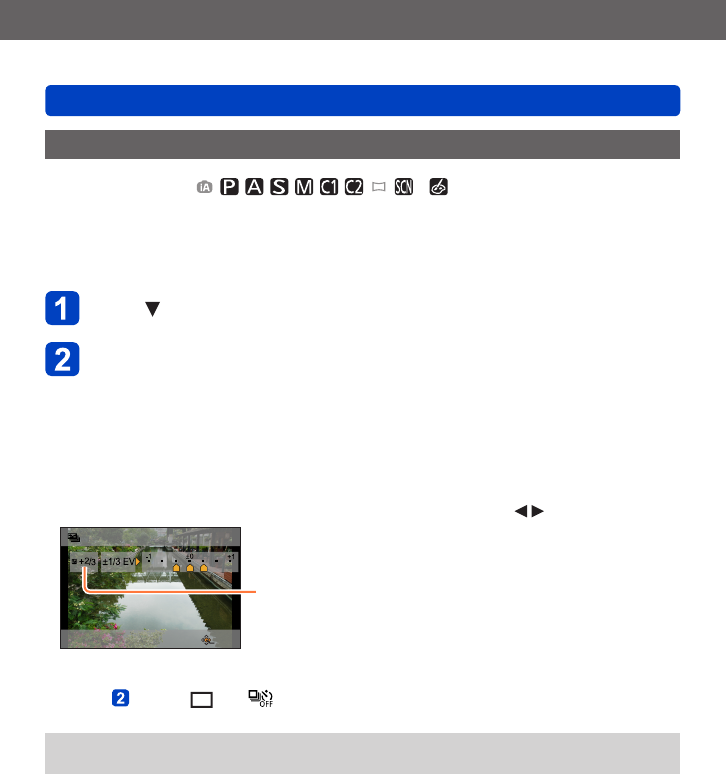
Application (Record)
Taking pictures with Exposure Compensation
VQT5A33
- 91 -
Recording while exposure is changed automatically ([Auto Bracket])
■Recording mode: *1 *2
*1 Cannot be set in the following modes: [Handheld Night Shot] [HDR] [Starry Sky] [3D Photo Mode]
*2 Cannot be set in the following modes: [Toy Effect] [Miniature Effect] [Soft Focus] [Star Filter]
Records 3 pictures in continuous succession while exposure is changed automatically.
After exposure adjustment, the adjustment value is set as the standard.
Press
Use cursor button to select [Auto Bracket] and press
[MENU/SET]
• The first still picture is recorded without compensation, the second still picture is
recorded with exposure adjusted in the “-” direction, and the third still picture is
recorded with exposure adjusted in the “+” direction.
■To change the compensation margin
Press the [DISP.] button and select a compensation margin with .
Auto Bracket
Select Set
Value displayed after Exposure Compensation set
■To cancel [Auto Bracket]
In step , select [ ] or [ ].
●Cannot be used with flash.
●During motion picture recording, [Auto Bracket] cannot be set.
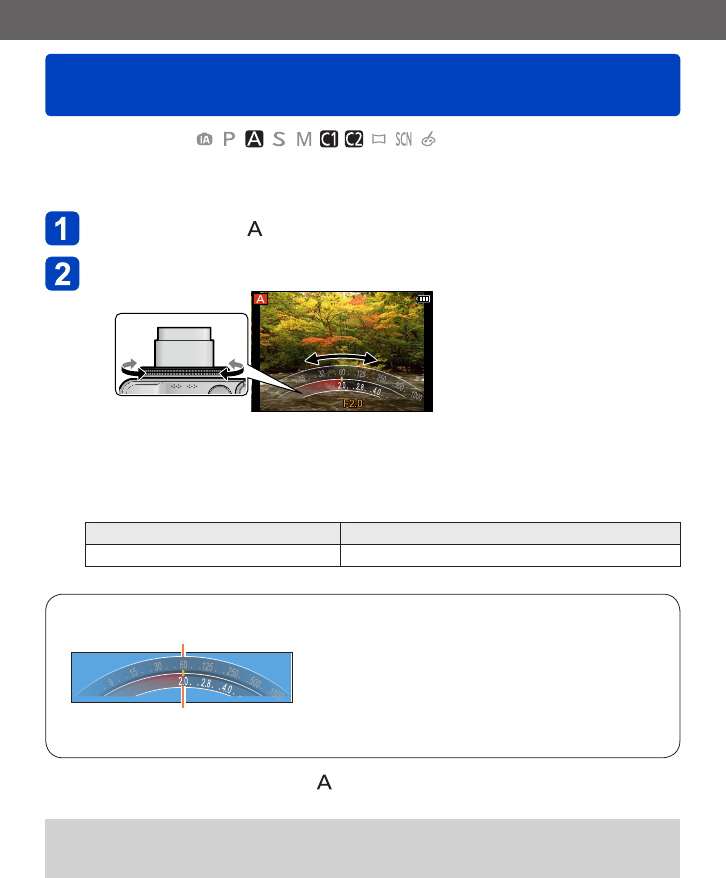
Application (Record)
Taking pictures by setting the aperture value
[Aperture-Priority] Mode
VQT5A33
- 92 -
■Recording mode:
When recording, you can control the aperture value to meet your recording purposes.
Shutter speed is automatically adjusted to be appropriate for the set aperture value.
Set mode dial to
Turn the control ring to select the aperture value
• You can also make adjustments with the control dial.
• When the aperture value is increased, the range of depth in focus expands, and
the picture shows up clearly from the position of the camera to the background.
When the aperture value is reduced, the range of depth in focus shrinks, and the
background can get blurry.
Aperture values that can be set*Shutter speed set (seconds)
F2.0 - F8.0 8 - 1/4000
* You may not be able to select some values depending on zoom position.
About the exposure meter
Shutter speed (Automatic adjustment)
Set aperture value
• Proper exposure is not possible in the range indicated in red.
■Recording motion pictures in
• Aperture and shutter speed are automatically set.
●When the picture is too bright or too dark or there is incorrect exposure, the numbers
for the aperture value and shutter speed are shown in red.
●LCD monitor or viewfinder brightness may vary from the actual still picture recorded.
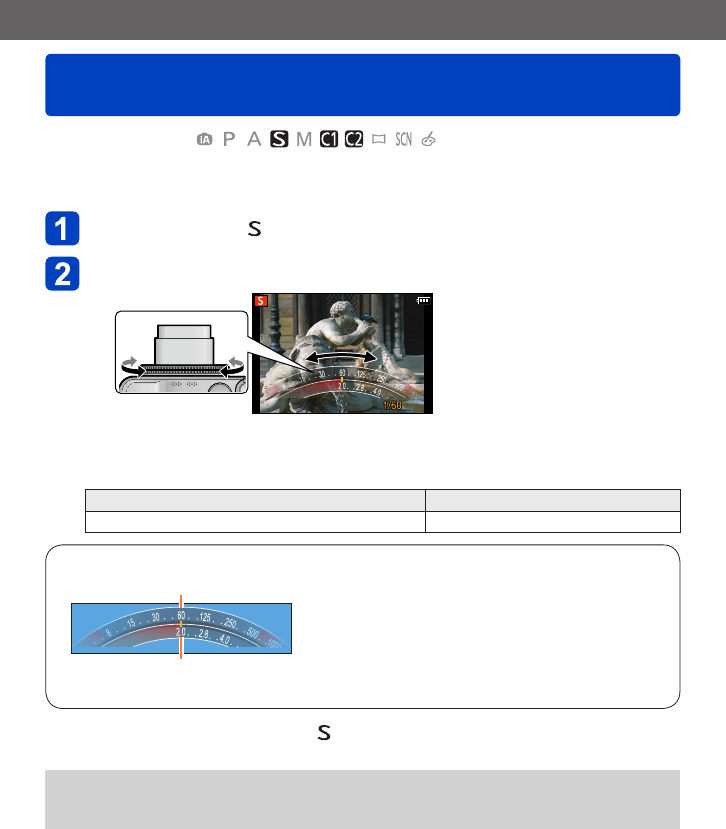
Application (Record)
Taking pictures by setting the shutter speed
[Shutter-Priority] Mode
VQT5A33
- 93 -
■Recording mode:
When recording, you can control the shutter speed to meet your recording purposes.
Aperture is automatically adjusted to be appropriate for the set shutter speed.
Set mode dial to
Turn the control ring to select the shutter speed
• You can also make adjustments with the control dial.
• At faster shutter speeds, movements by the subject show as if they are still. At
slower shutter speeds, subjects that are moving show as jittery.
Shutter speeds that can be set (seconds) Aperture value set
8 - 1/4000 F2.0 - F8.0
About the exposure meter
Set shutter speed
Aperture value (Automatic adjustment)
• Proper exposure is not possible in the range indicated in red.
■Recording motion pictures in
• Aperture and shutter speed are automatically set.
●When the picture is too bright or too dark or there is incorrect exposure, the numbers
for the aperture value and shutter speed are shown in red.
●LCD monitor or viewfinder brightness may vary from the actual still picture recorded.
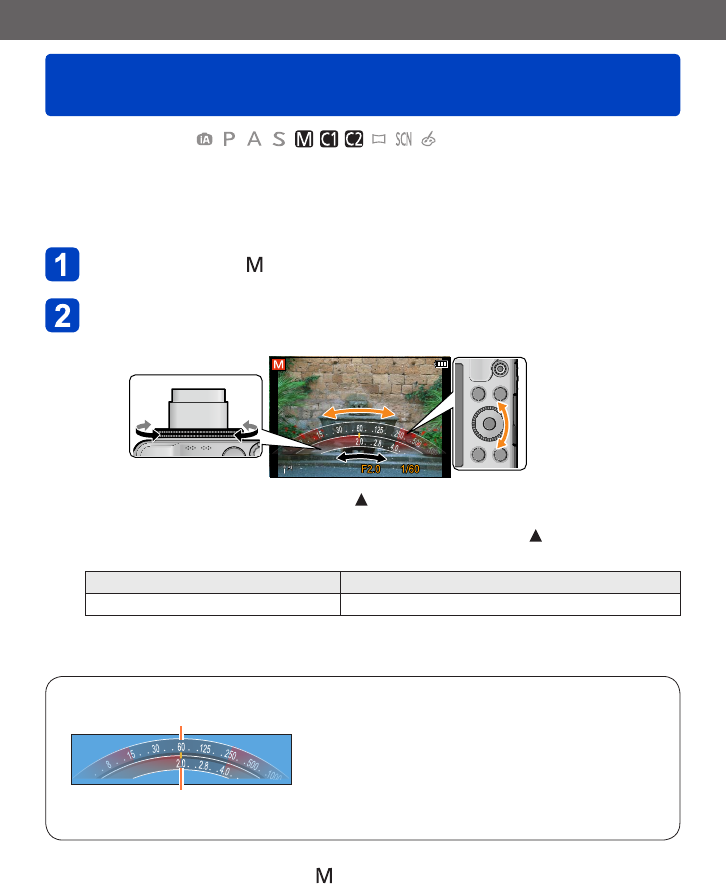
Application (Record)
Taking pictures by setting the aperture value and
shutter speed [Manual Exposure] Mode
VQT5A33
- 94 -
■Recording mode:
You can use this recording mode to set the desired shutter speed and aperture value
when you want to take pictures using the same exposure (same combination of shutter
speed and aperture value) or when you cannot obtain pictures at the desired brightness
even after compensating the exposure.
Set mode dial to
Turn the control ring to select the aperture value, and turn the
control dial to select the shutter speed
• If Manual Focus is set (→87), press twice to be able to adjust the aperture value
with the control dial.
• If the control ring settings have been changed (→118), press to be able to adjust
the aperture value with the control dial.
Aperture values that can be set*1Shutter speeds that can be set (seconds)*2
F2.0 - F8.0 250 - 1/4000
*1 You may not be able to select some values depending on zoom position.
*2 You may not be able to select some values depending on the aperture value.
About the exposure meter
Set shutter speed
Set aperture value
• Proper exposure is not possible in the range indicated in red.
■Recording motion pictures in
• Aperture and shutter speed are automatically set.
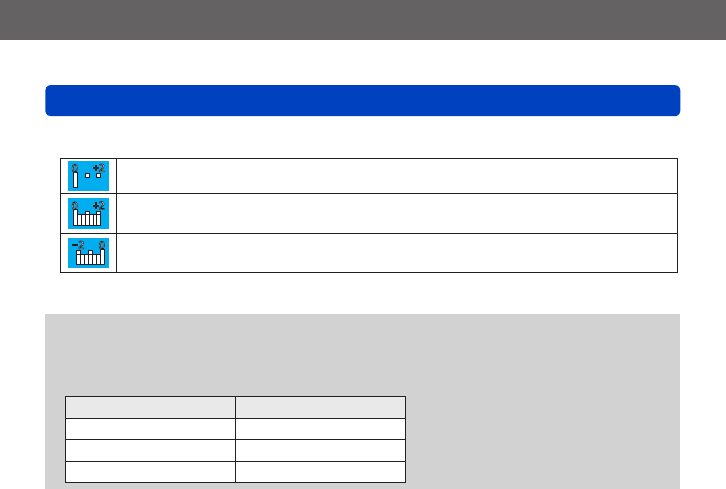
Application (Record)
Taking pictures by setting the aperture value and shutter speed [Manual Exposure] Mode
VQT5A33
- 95 -
■Manual exposure assist (estimate)
Shows pictures with standard brightness.
Shows brighter pictures. For standard brightness, either use a faster shutter speed or
increase aperture value.
Shows darker pictures. For standard brightness, either use a slower shutter speed or
reduce aperture value.
●When the picture is too bright or too dark or there is incorrect exposure, the numbers
for the aperture value and shutter speed are shown in red.
●LCD monitor or viewfinder brightness may vary from the actual still picture recorded.
●The shutter speed setting range changes depending on the [Sensitivity] setting.
[Sensitivity] Shutter speed
80 - 1600 250 - 1/4000th
3200 30 - 1/4000th
6400/H.12800 8 - 1/4000th
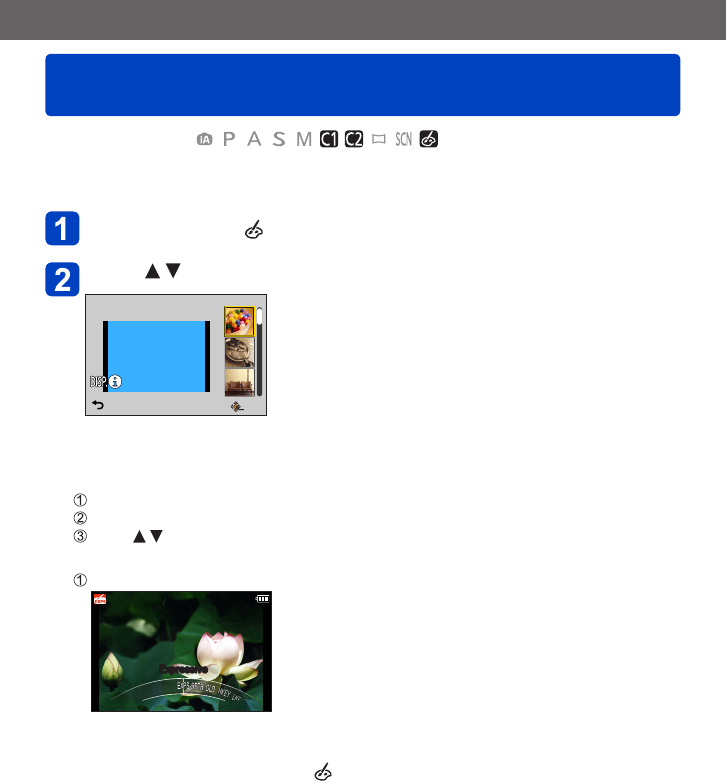
Application (Record)
Taking Pictures with different picture effects
[Creative Control] Mode
VQT5A33
- 96 -
■Recording mode:
You can select your own settings from various effects and take pictures while confirming
these effects on the LCD monitor.
Set mode dial to
Press to select an effect, and then press [MENU/SET]
Select SetCancel
Creative Control
Expressive
• If you press the [DISP.] button, an explanation of the
effect appears.
■Changing the selected picture effects
●[Creative Control] menu
Press [MENU/SET]
Use cursor button to select [Creative Control] menu and press [MENU/SET]
Press to select a setting, and then press [MENU/SET]
●Control ring
Turn the control ring to select the effect
Expressive
• You can also select effects with the control dial.
■Recording motion pictures in
Records a motion picture at the optimum settings for the selected effects.
• You cannot record motion pictures with [Soft Focus] or [Star Filter].
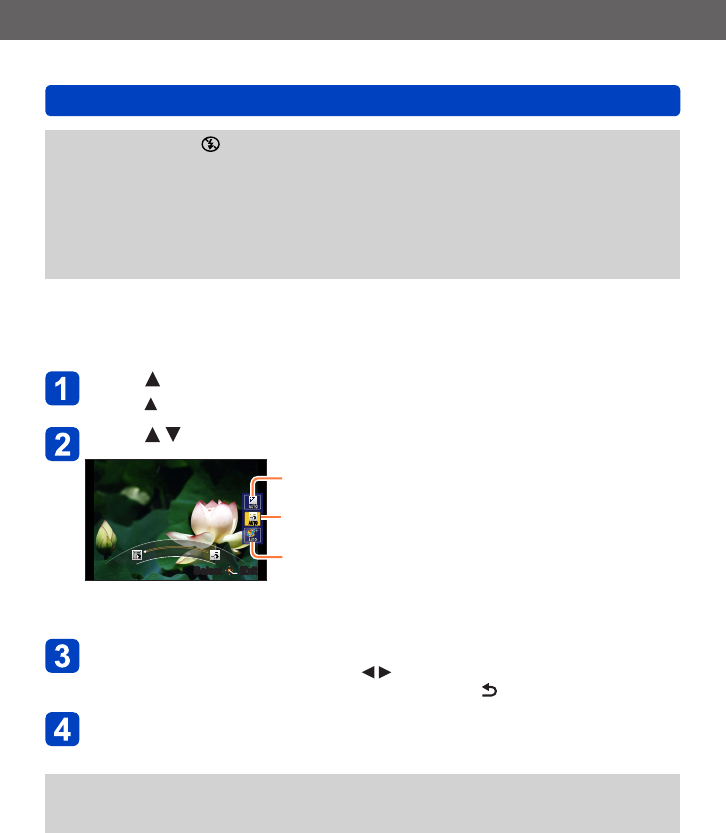
Application (Record)
Taking Pictures with different picture effects [Creative Control] Mode
VQT5A33
- 97 -
●The flash is set to [ ] ([Forced Flash Off]).
●The display of a picture reflecting a selected effect in the preview screen or recording
screen may differ from the actual recorded pictures.
●A setting that was selected in [Creative Control] mode is retained even after the
camera is turned off.
●Following [Rec] menu settings will be automatically adjusted and cannot be selected
manually.
[Sensitivity], [White Balance], [i.Exposure], [Min. Shtr Speed], [Color Mode]
■Adjusting the brightness, background defocusing condition, setting
conditions of a selected effect, etc.
Press
• Press again if Manual Focus is set.
Press to select an item to adjust
Select Exit
Adjusts the brightness.
Adjusts background defocusing.
Adjusts the setting conditions of the selected effect, etc. (The
settings to be adjusted vary depending on the selected effect.)
• [AUTO] is displayed in the icon during automatic adjustment.
• The items that can be adjusted differ depending on the selected effect.
Turn the control ring to make adjustments
• You can also make adjustments with and the control dial.
• To return to automatic adjustment → Press [Q.MENU/ ] button.
Press [MENU/SET]
●When you record motion pictures, the camera performs aperture control within the
appropriate exposure range, and the background defocusing may not change for
some subject brightness levels.
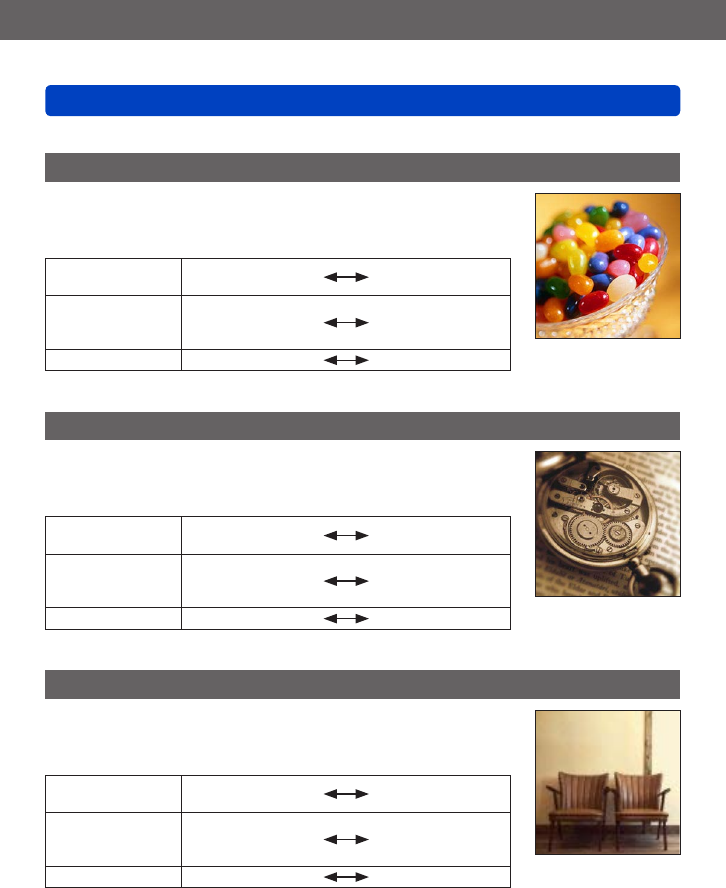
Application (Record)
Taking Pictures with different picture effects [Creative Control] Mode
VQT5A33
- 98 -
For the [Creative Control] menu setting procedures. (→96)
[Expressive]
This picture effect creates a pop art style picture that enhances
the color.
■Items that can be set (→97)
Brightness Underexposure
(darker)
Overexposure
(brighter)
Degree of
background
defocusing
Defocuses the
background
The background is
in focus as well
Vividness Subdued coloring Gaudy coloring
[Retro]
This picture effect creates the soft appearance of a tarnished
picture.
■Items that can be set (→97)
Brightness Underexposure
(darker)
Overexposure
(brighter)
Degree of
background
defocusing
Defocuses the
background
The background is
in focus as well
Coloring Yellowish coloring Reddish coloring
[Old Days]
This effect adds a bright, soft and nostalgic feel to the overall
image.
■Items that can be set (→97)
Brightness Underexposure
(darker)
Overexposure
(brighter)
Degree of
background
defocusing
Defocuses the
background
The background is
in focus as well
Contrast Low contrast High contrast
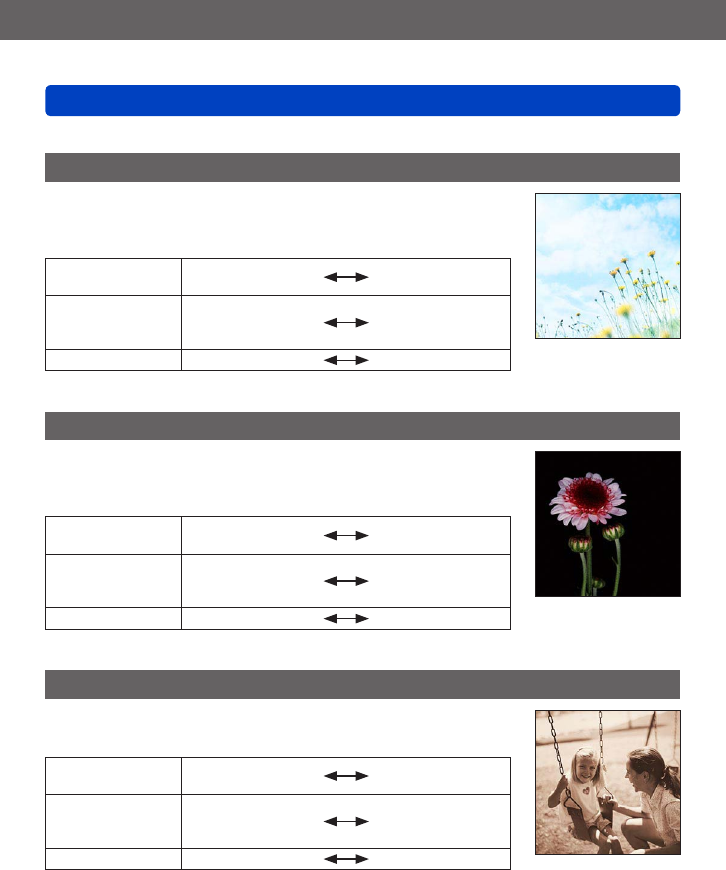
Application (Record)
Taking Pictures with different picture effects [Creative Control] Mode
VQT5A33
- 99 -
For the [Creative Control] menu setting procedures. (→96)
[High Key]
This picture effect creates a brighter and lighter toned
appearance for the entire picture.
■Items that can be set (→97)
Brightness Underexposure
(darker)
Overexposure
(brighter)
Degree of
background
defocusing
Defocuses the
background
The background is
in focus as well
Coloring Pinkish coloring Light-bluish coloring
[Low Key]
This picture effect creates a darker somber appearance for the
entire picture to emphasize the bright portions.
■Items that can be set (→97)
Brightness Underexposure
(darker)
Overexposure
(brighter)
Degree of
background
defocusing
Defocuses the
background
The background is
in focus as well
Coloring Reddish coloring Bluish coloring
[Sepia]
This picture effect creates a picture with sepia tone.
■Items that can be set (→97)
Brightness Underexposure
(darker)
Overexposure
(brighter)
Degree of
background
defocusing
Defocuses the
background
The background is
in focus as well
Contrast Low contrast High contrast
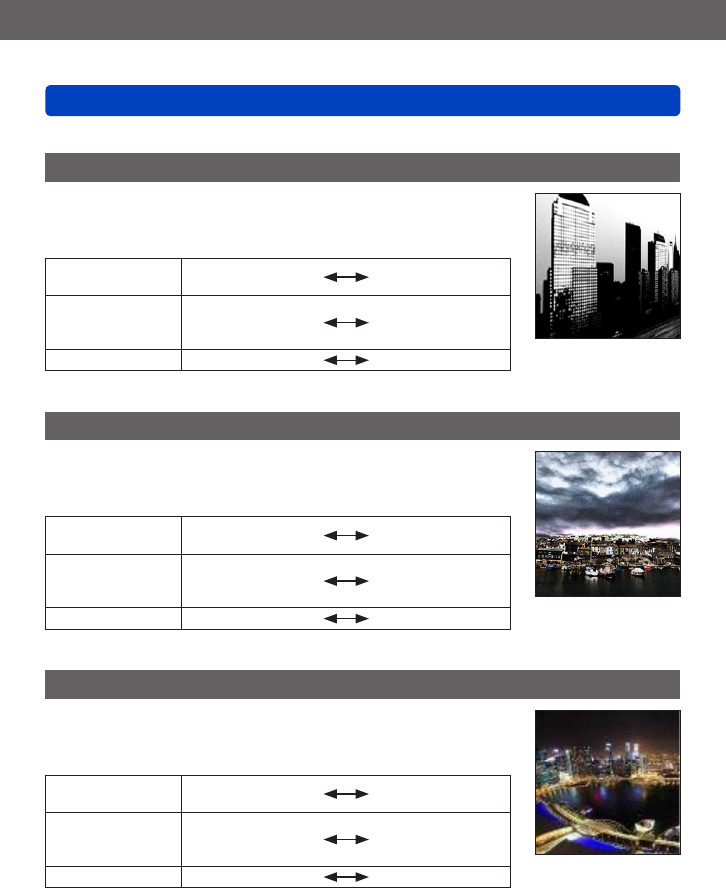
Application (Record)
Taking Pictures with different picture effects [Creative Control] Mode
VQT5A33
- 100 -
For the [Creative Control] menu setting procedures. (→96)
[Dynamic Monochrome]
This picture effect creates a monochromatic picture with a higher
contrast and more dramatic atmosphere.
■Items that can be set (→97)
Brightness Underexposure
(darker)
Overexposure
(brighter)
Degree of
background
defocusing
Defocuses the
background
The background is
in focus as well
Contrast Low contrast High contrast
[Impressive Art]
A picture effect with strong contrast that illustrates a surreal and
dramatic atmosphere.
■Items that can be set (→97)
Brightness Underexposure
(darker)
Overexposure
(brighter)
Degree of
background
defocusing
Defocuses the
background
The background is
in focus as well
Vividness Black & white Gaudy coloring
[High Dynamic]
This picture effect creates a picture with a well-balanced
brightness for the entire picture (from dark areas to bright areas).
■Items that can be set (→97)
Brightness Underexposure
(darker)
Overexposure
(brighter)
Degree of
background
defocusing
Defocuses the
background
The background is
in focus as well
Vividness Black & white Gaudy coloring
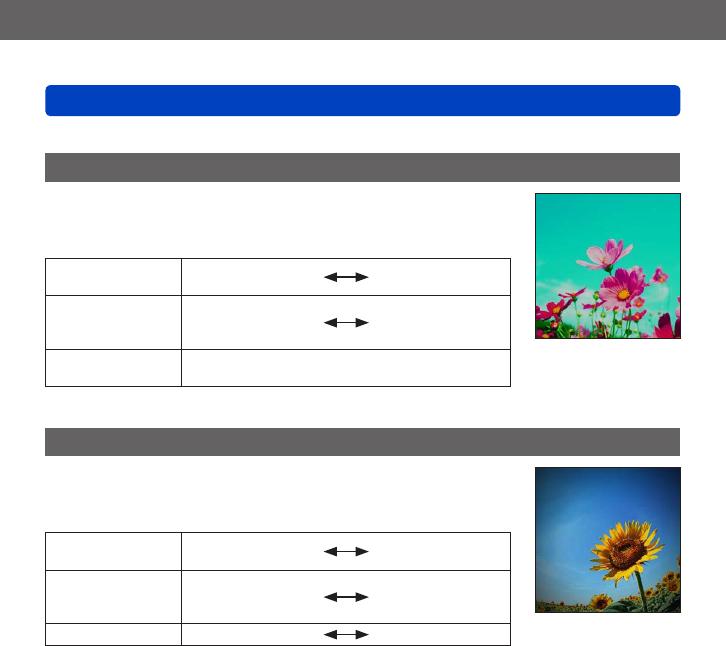
Application (Record)
Taking Pictures with different picture effects [Creative Control] Mode
VQT5A33
- 101 -
For the [Creative Control] menu setting procedures. (→96)
[Cross Process]
This picture effect creates a unique atmosphere with surprising
colors.
■Items that can be set (→97)
Brightness Underexposure
(darker)
Overexposure
(brighter)
Degree of
background
defocusing
Defocuses the
background
The background is
in focus as well
Coloring Greenish coloring / Bluish coloring /
Yellowish coloring / Reddish coloring
[Toy Effect]
This picture effect creates a picture that resembles pictures taken
by a toy camera with a reduced amount of peripheral light.
■Items that can be set (→97)
Brightness Underexposure
(darker)
Overexposure
(brighter)
Degree of
background
defocusing
Defocuses the
background
The background is
in focus as well
Coloring Orangish color Bluish coloring
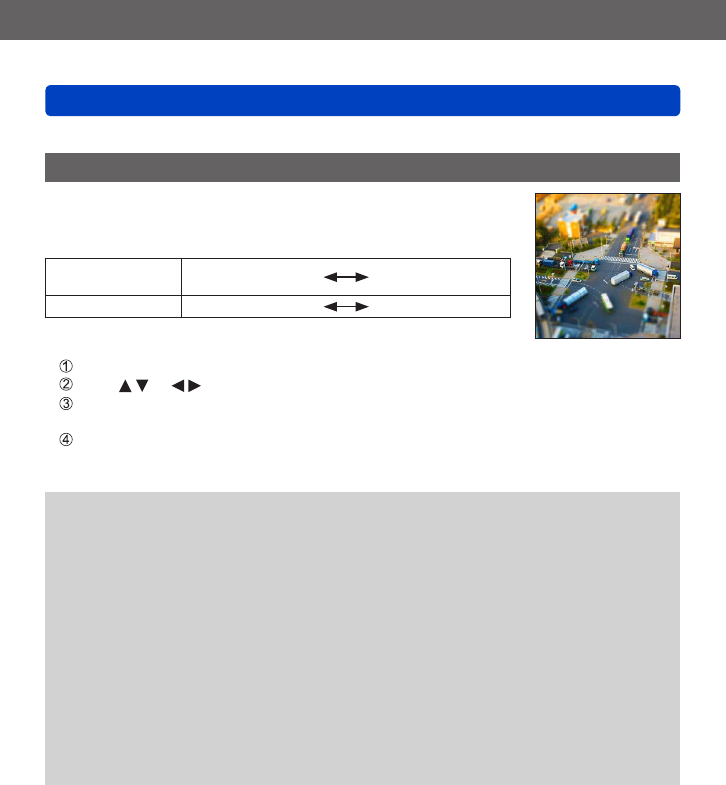
Application (Record)
Taking Pictures with different picture effects [Creative Control] Mode
VQT5A33
- 102 -
For the [Creative Control] menu setting procedures. (→96)
[Miniature Effect]
This effect blurs peripheral areas to give the impression of a
diorama.
■Items that can be set (→97)
Brightness Underexposure
(darker)
Overexposure
(brighter)
Vividness Subdued coloring Gaudy coloring
■Defocusing a picture
Press [Fn] button
Press or to move the focusing area (frame)
Turn the control dial to select the size of the focusing area
(frame)
Press [MENU/SET]
• When you press [DISP.] button, the initial setting condition
is restored.
●The recording screen is displayed like a frame dropping with a slight delay compared
to normal recording.
●Portrait orientation recording does not affect the blurred part. (The left and right edges
will be blurred.)
●No audio is recorded for motion pictures.
●When a motion picture is recorded, the finished recording will be approximately 1/10th
of the actual recorded time period. (If you record a motion picture for 10 minutes,
the resulting motion picture recording time will be approximately 1 minute.) The
recordable time displayed on the camera is approx. 10x longer than actual time
needed for recording. When the recording mode is changed, be sure to check the
recordable time.
●If you stop recording motion pictures too soon, the camera may continue recording
until a certain time. Hold the camera until the camera stops recording.
●When you take a picture using a large picture size setting, the screen will become
dark for a certain period of time after the picture is taken. However, this occurs due to
signal processing and is not a defect.
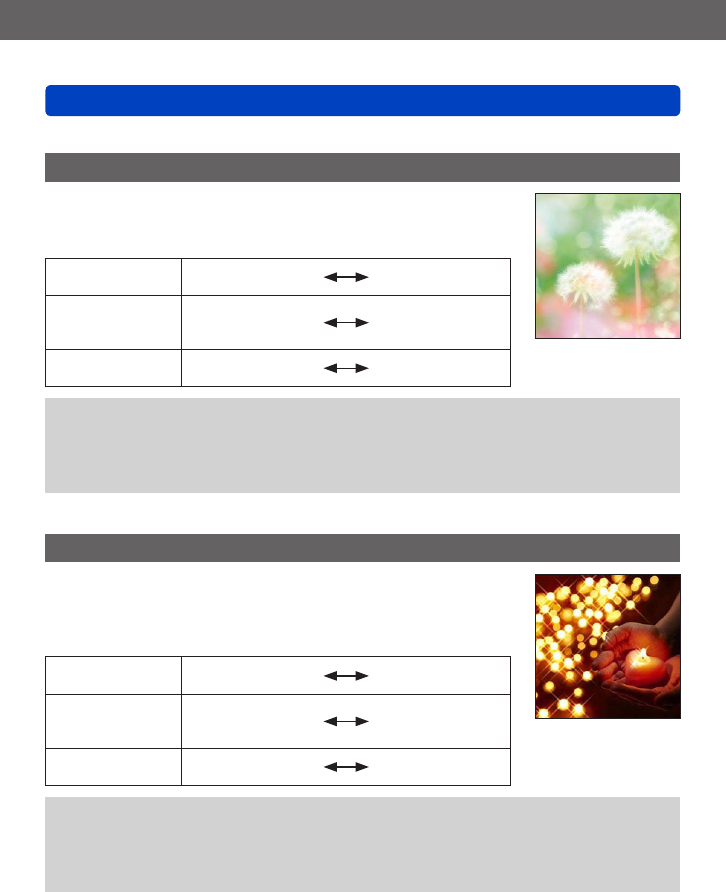
Application (Record)
Taking Pictures with different picture effects [Creative Control] Mode
VQT5A33
- 103 -
For the [Creative Control] menu setting procedures. (→96)
[Soft Focus]
This picture effect creates a soft appearance by intentionally
blurring the entire picture.
■Items that can be set (→97)
Brightness Underexposure
(darker)
Overexposure
(brighter)
Degree of
background
defocusing
Defocuses the
background
The background is
in focus as well
Degree of
defocusing Slight defocusing Strong defocusing
●The recording screen is displayed like a frame dropping with a slight delay compared
to normal recording.
●When you take a picture using a large picture size setting, the screen will become
dark for a certain period of time after the picture is taken. However, this occurs due to
signal processing and is not a defect.
[Star Filter]
This picture effect creates a picture with the light from the light
source that shines in the shape of a cross, creating a gorgeous
atmosphere.
■Items that can be set (→97)
Brightness Underexposure
(darker)
Overexposure
(brighter)
Degree of
background
defocusing
Defocuses the
background
The background is
in focus as well
Length of the rays
of light
Rays of light is
short Rays of light is long
●The recording screen is displayed like a frame dropping with a slight delay compared
to normal recording.
●When you take a picture using a large picture size setting, the screen will become
dark for a certain period of time after the picture is taken. However, this occurs due to
signal processing and is not a defect.
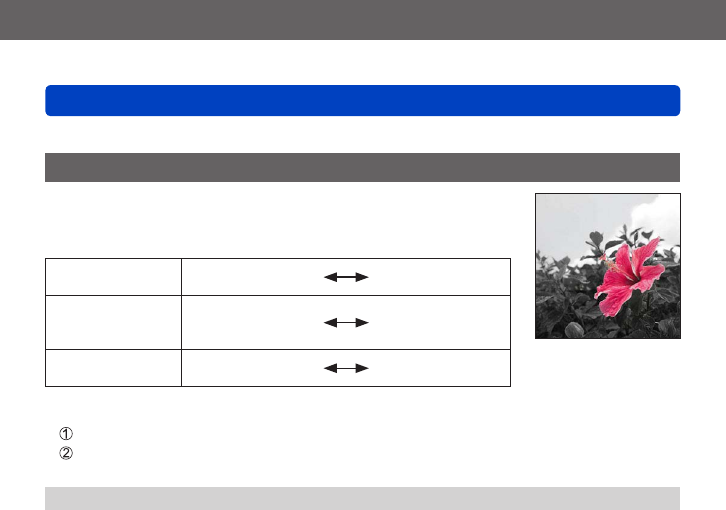
Application (Record)
Taking Pictures with different picture effects [Creative Control] Mode
VQT5A33
- 104 -
For the [Creative Control] menu setting procedures. (→96)
[One Point Color]
This picture effect creates a monochromatic picture by retaining
the color you selected only, and adds memorable emphasis to it.
■Items that can be set (→97)
Brightness Underexposure
(darker)
Overexposure
(brighter)
Degree of
background
defocusing
Defocuses the
background
The background is
in focus as well
Amount of color
retained
Leaves a small
amount of color
Leaves a large
amount of color
■Selecting color
Press [Fn] button
Select the color to be retained using the frame in the center
of the screen and press [MENU/SET]
●The selected color may not be retained for some subjects.
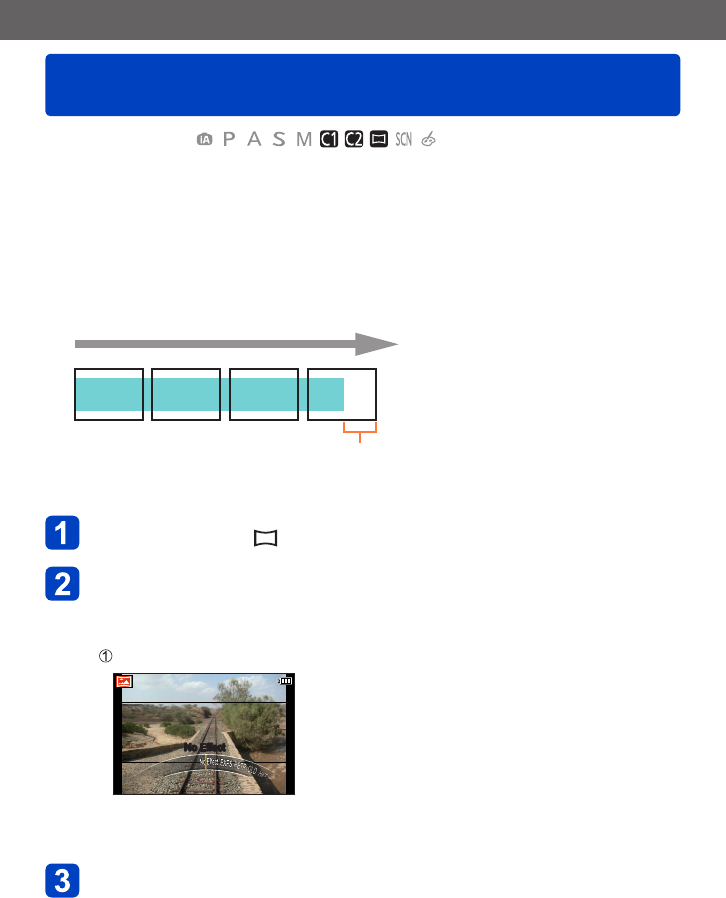
Application (Record)
Recording panorama pictures [Panorama Shot] Mode
VQT5A33
- 105 -
■Recording mode:
You can easily record a panorama picture by panning the camera towards the direction
you want to record, and automatically combining the burst of pictures taken during that
time.
• The recording direction is set as “left → right” at the time of purchase.
■Tips
• Pan the camera in the recording direction as steadily as possible. If the camera
shakes too much, it may not be able to take pictures or may end up creating a narrow
(small) panorama picture.
Pan the camera to a point slightly ahead of the point that you want to take.
(However, the last frame is not recorded to the end.)
Set mode dial to [ ]
Check the recording direction and press [MENU/SET]
If you take pictures “left → right” or “right → left”, a horizontal guide is displayed. If
you take pictures “up → down” or “down → up”, a vertical guide is displayed.
• Changing picture effects
Turn control ring or control dial to select picture effect
No Effect
• For more details about picture effects. (→98 - 104)
• If you do not want to add picture effects, please
select [No Effect].
• You cannot select [Toy Effect] or [Miniature
Effect].
• You can adjust the brightness and setting
condition of the selected effect.
For details. (→97)
• If the control ring settings have been changed.
(→106)
Press the shutter button halfway to focus
(Continued on the next page)
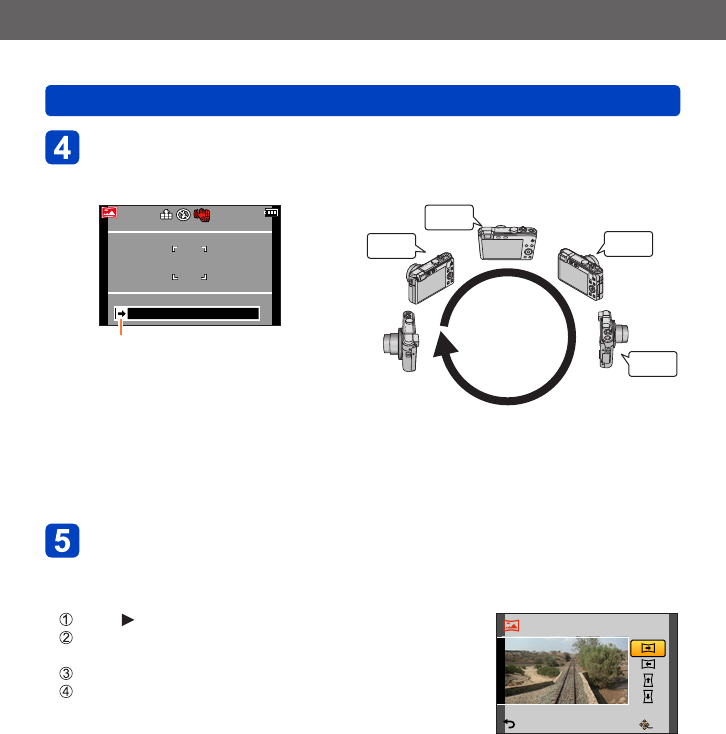
Application (Record)
Recording panorama pictures [Panorama Shot] Mode
VQT5A33
- 106 -
Press the shutter button fully and pan the camera in a small
circular motion in the selected direction to start recording
• Taking pictures from left to right
Recording direction and progress status
(approximate)
1 sec.
2 sec.
3 sec.
4 sec.
• Pan the camera so that you make a complete circuit in approx. 8 seconds
- Pan the camera at a constant speed.
- You may not be able to take pictures successfully if you move the camera too
quickly or too slowly.
- Pan the camera in a small circular motion.
Press the shutter button fully again to end recording
• You can also end recording if you stop panning the camera while taking pictures.
■Changing the recording direction or picture effects
Press
Use cursor button to select the recording direction to
change
Press [MENU/SET]
Use cursor button to select the picture effect and press
[MENU/SET]
Select SetCancel
Panorama Shot
Left → Right

Application (Record)
Recording panorama pictures [Panorama Shot] Mode
VQT5A33
- 107 -
●The zoom position is fixed to the W end.
●The focus, exposure and White Balance are all fixed to optimal values for the first
picture.
If the focusing or brightness of pictures recorded as part of a Panorama picture after
the first picture are significantly different from those of the first picture, the Panorama
picture as a whole (when all pictures are stitched together) may not have consistent
focus and brightness.
●The following functions are fixed to the settings indicated below.
[Stabilizer]: [OFF] [Date Stamp]: [OFF]
●[White Balance] cannot be set when applying picture effects.
●Since several pictures are stitched together to create a Panorama picture, some
subjects may be distorted or the joining portions of successively taken pictures that
are stitched may be noticeable.
●The number of recording pixels per horizontal line and vertical line of a Panorama
picture varies depending on the recording direction and number of stitched pictures.
The maximum number of recording pixels is as follows:
• Taking pictures in landscape orientation: Approx. 8000 x 1080
• Taking pictures in portrait orientation: Approx. 1440 x 8000
●Panorama pictures may not be created or pictures may not be recorded properly
when taking pictures of the following subjects or when taking pictures in the following
recording conditions:
• Subjects that have a continuous monotone or pattern (sky, beach, etc.)
• Moving subjects (person, pet, vehicle, waves, or flowers swaying in the wind, etc.)
• Subjects whose colors or patterns change quickly (such as an image appearing on
a display)
• Dark locations
• Locations with a flickering light source (fluorescent lamp, candle light, etc.)
●When set to [High Key], the effect may be difficult to see, depending on the brightness
of the subject.
●When set to [Impressive Art], stitches may stand out.
●While recording with [Soft Focus] [Star Filter], you cannot see the effects on the LCD
monitor or viewfinder.
●Settings will be stored even if the camera is turned off.
■About panorama playback
Panorama pictures can be enlarged by operating the zoom lever the same way as with
other still pictures. If you play back panorama pictures in the same way as playing back
a motion picture, the panorama pictures are scrolled automatically. (→48)
• Unlike motion picture playback, you cannot perform fast forward or fast rewind while
the panorama pictures are scrolling automatically. (You can perform single-frame
forward or rewind while the automatic scrolling operation is paused.)
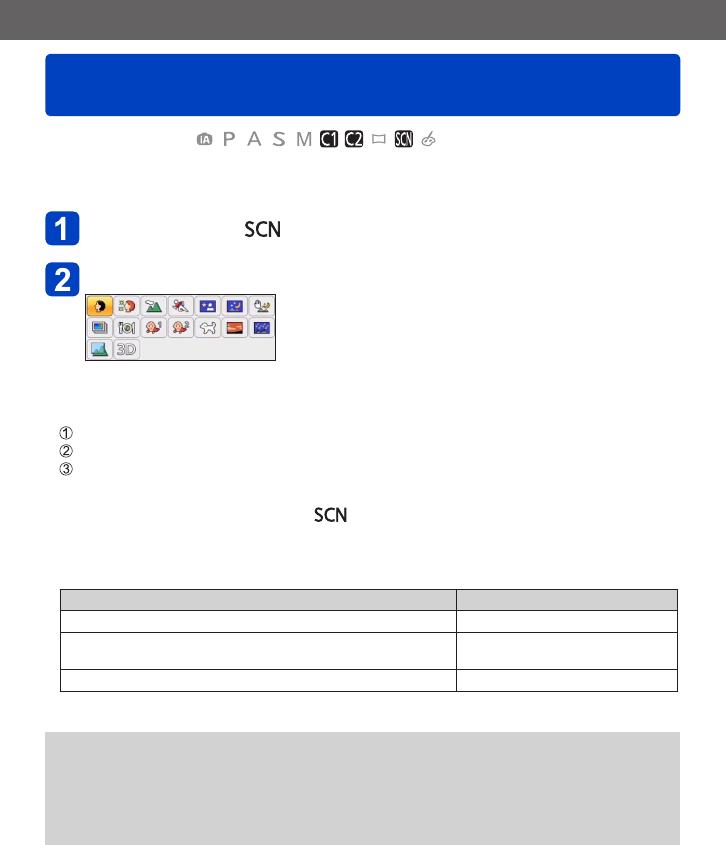
Application (Record)
Taking pictures according to the scene [Scene Mode]
VQT5A33
- 108 -
■Recording mode:
Using [Scene Mode] enables you to take pictures with optimum settings (exposure,
coloring, etc.) for given scenes.
Set mode dial to
Use cursor button to select the scene and press [MENU/SET]
■Changing the selected scene mode
Press [MENU/SET]
Use cursor button to select [Scene Mode] menu and press [MENU/SET]
Use cursor button to select the scene and press [MENU/SET]
■Recording motion pictures in
Records a motion picture at the optimum settings for the selected scene.
• You cannot record motion pictures in [3D Photo Mode].
• Some scenes are switched to the following scenes:
Selected scene Scenes for motion picture
[Baby] Portrait motion picture
[Night Portrait], [Night Scenery], [Handheld Night Shot],
[Starry Sky] Low light motion picture
[Sports], [HDR], [Pet] Normal motion picture
●Selecting a Scene Mode inappropriate for the actual scene may affect the coloring of
your picture.
●Following [Rec] menu settings will be automatically adjusted and cannot be selected
manually.
[Sensitivity], [Metering Mode], [i.Exposure], [Min. Shtr Speed], [i.Resolution],
[Color Mode]

Application (Record)
Taking pictures according to the scene [Scene Mode]
VQT5A33
- 109 -
• How to select a scene (→108)
[Portrait]
Improves the skin tone of subjects for a healthier appearance in bright daylight conditions.
■Tips
• The more the zoom is drawn towards T side and a distant background is selected, the
greater the effect will be.
[Soft Skin]
Smooths skin colors in bright, outdoor daylight conditions (portraits from chest upwards).
■Tips
• The more the zoom is drawn towards T side and a distant background is selected, the
greater the effect will be.
[Scenery]
Takes clear pictures of wide, distant subjects.

Application (Record)
Taking pictures according to the scene [Scene Mode]
VQT5A33
- 110 -
• How to select a scene (→108)
[Sports]
Takes pictures of scenes with fast movement, e.g. sports.
■Tips
• Stand at least 5 m (16 feet) away.
●Shutter speed may slow down up to 1 second.
[Night Portrait]
Takes pictures of people and nightscapes with close to actual brightness.
■Tips
• Use flash.
• Subject should not move.
• Tripod, self-timer recommended.
●Shutter speed may slow down up to 8 seconds.
●After recording, the shutter may stay closed (up to 8 seconds) to process the signal.
This is not a malfunction.
[Night Scenery]
Takes clear pictures of night scenes.
■Tips
• Tripod, self-timer recommended.
●Shutter speed may slow down up to 8 seconds.
●After recording, the shutter may stay closed (up to 8 seconds) to process the signal.
This is not a malfunction.

Application (Record)
Taking pictures according to the scene [Scene Mode]
VQT5A33
- 111 -
• How to select a scene (→108)
[Handheld Night Shot]
Takes clear still pictures of night scenes with less jitter and less noise by combining a
burst of still pictures.
■Tips
• After the shutter button has been pressed, do not move the camera during the burst
operation.
• Stand at least 5 m (16 feet) away.
●Since a burst of still pictures are combined after they have been recorded, it will be a
few moments before you will be able to record another picture.
[HDR]
The camera can combine several still pictures taken with different exposures into a single
properly exposed picture with rich gradation. The individual pictures used to create the
HDR picture are not saved. You can minimize the loss of gradations in bright areas and
dark areas when, for example, the contrast between the background and the subject is
large.
■What is HDR?
HDR stands for High Dynamic Range and refers to a technique for expressing a wide
contrast range.
■Tips
• After the shutter button has been pressed, do not move the camera during the burst
operation.
●Since a burst of still pictures are combined after they have been recorded, it will be a
few moments before you will be able to record another picture.
●A subject that was in motion when it was recorded may be recorded as an afterimage.
●The camera may take a single still picture instead of several pictures under certain
recording conditions.
[Food]
Takes natural-looking pictures of food.
Application (Record)
Taking pictures according to the scene [Scene Mode]
VQT5A33
- 112 -
• How to select a scene (→108)
[Baby]
This takes pictures of a baby with a healthy complexion. When you use the flash, the light
from it is weaker than usual.
■To record age and name
[Baby1] and [Baby2] can be set separately.
Use cursor button to select [Age] or [Name] and press
[MENU/SET]
Select [SET] with cursor button and then press [MENU/SET]
Set the birthday and name
Age: Set birthday with cursor button, and press [MENU/SET].
Name: (See “Entering Text”: (→65))
Use cursor button to select [Exit] and press [MENU/SET]
■Tips
• Make sure [Age] and [Name] are [ON] before taking a picture.
●Age display format depends on [Language] setting.
●Shutter speed may slow down up to 1 second.
●[Age] and [Name] print setting can be made on your computer using
“PHOTOfunSTUDIO” on the supplied CD-ROM. Text may also be stamped onto the
still picture using [Text Stamp].
[Pet]
Records pet’s age and name when taking pictures.
• Refer to [Baby] for other tips etc.
[Sunset]
Takes clear pictures of scenes such as sunsets.
Application (Record)
Taking pictures according to the scene [Scene Mode]
VQT5A33
- 113 -
• How to select a scene (→108)
[Starry Sky]
Gives starry skies and dark subjects a clear appearance.
Use cursor button to select shutter speed, and then press
[MENU/SET]
■Settings: [15 sec.] / [30 sec.] / [60 sec.]
■Tips
• Tripod, self-timer recommended.
●Do not move the camera until the countdown is finished. After taking the picture, the
countdown is displayed again while the signal is processed.
●[Stabilizer] does not work.
[Glass Through]
The camera prioritizes focusing on distant subjects. Most suitable for taking pictures such
as a landscapes through the transparent glass of a train/vehicle or building.
●If there are stains such as dust or a reflection on the glass, the camera may focus on
the glass instead of a subject.
●The color of pictures may appear unnatural due to the color of the glass. (You may be
able to reproduce the appropriate color by adjusting the White Balance.)
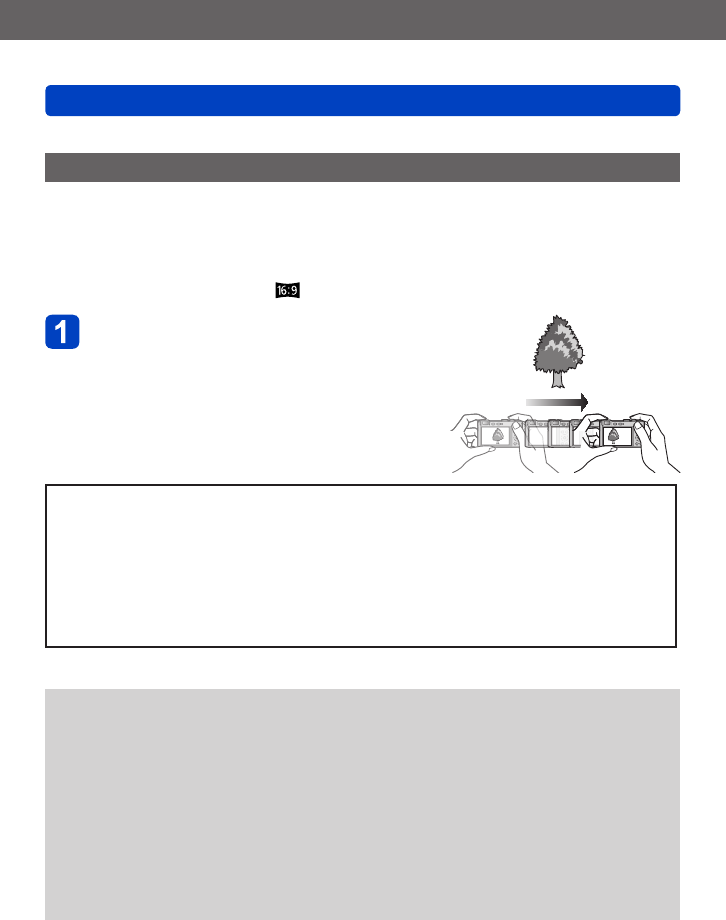
Application (Record)
Taking pictures according to the scene [Scene Mode]
VQT5A33
- 114 -
• How to select a scene (→108)
[3D Photo Mode]
Pictures are recorded continuously while moving the camera horizontally, and two
pictures selected automatically are combined to make a single 3D picture.
To view 3D pictures, a television that supports 3D is required (This unit will play back in
2D). (→245)
• 3D still pictures are recorded in MPO format (3D).
• The picture size is fixed to 2M .
Start the recording and then pan the
camera horizontally straight from left
to right
• A guide is displayed while recording.
• Move the camera approximately 10 cm
(0.33 feet) within approximately 4 seconds using
the guide.
Tips for recording pictures
• Record a stationary subject.
• Record a picture outdoors or in other bright locations.
• Press the shutter button halfway to fix the focus and the exposure, press the shutter
button fully, and then pan the camera.
• Hold the camera so that the subject is slightly to the right of the center on the
display at the start of the recording. This makes it easier to position the subject in
the center of the recorded picture.
●3D still pictures cannot be recorded by holding this camera vertically.
●The zoom position is fixed to the W end.
●ISO Sensitivity is automatically adjusted. However, ISO Sensitivity is increased to
make the shutter speed faster.
●Motion pictures cannot be recorded.
●[Stabilizer] does not work.
●When any of the recording conditions listed below exists, it may be impossible to
record any images at all. Or there may be no 3D effect, or the image may be distorted
even if a picture is recorded.
• When the subject is too dark or too bright
• When the subject’s brightness changes
• When the subject is moving
• When the subject lacks contrast
Application (Record)
Register your own settings and record
[Custom] Mode
VQT5A33
- 115 -
Registering your preferred recording mode, [Rec] menu settings, etc. to [Cust.Set Mem.]
and setting the mode dial to / allows you to switch quickly to those settings.
[Cust.Set Mem.]
■Recording mode:
Up to 4 current camera settings can be registered.
Select the recording mode you wish to register and set the
[Rec] menu, [Motion Picture] menu, [Setup] menu, etc.
Select [Cust.Set Mem.] from the [Setup] menu
• For the setting procedures of the menu. (→52)
Use cursor button to select custom set for registration and
press [MENU/SET]
• A confirmation screen is displayed. Select [Yes] with cursor button and then press
[MENU/SET].
• The custom settings registered in [C1] can be used with the of the mode dial.
It will be convenient if the custom setting used often is registered, since it can be
used by just setting the mode dial.
• The custom settings registered in [C2-1], [C2-2] or [C2-3] can be selected in the
of the mode dial. Up to 3 custom settings can be registered, so select the one
matching the needs.
●Some menu items are not saved, such as [Clock Set] and [Beep].
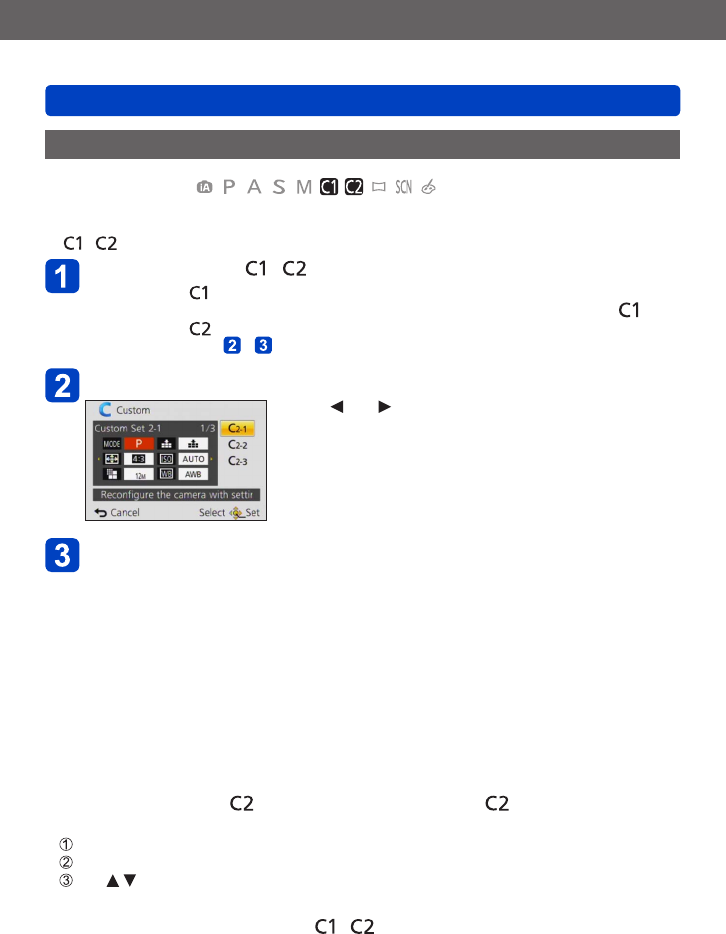
Application (Record)
Register your own settings and record [Custom] Mode
VQT5A33
- 116 -
[Custom]
■Recording mode:
Settings registered in [Cust.Set Mem.] can be quickly called up by setting the mode dial
to / .
Set mode dial to / ([Custom] mode)
• When set to
→ The camera switches to the recording mode and settings registered in .
• When set to
→ Perform steps -
Use cursor button to select custom set
• Use and to confirm the registered settings.
• Only the main menu items are displayed.
Press [MENU/SET] to enter the settings
The camera switches to the recording mode and settings of the selected custom
set.
■When changing the menu settings
Even if the menu settings are changed temporarily when [C1], [C2-1], [C2-2] or
[C2-3] is selected for using the custom set, the currently registered settings will
remain unchanged.
To change the currently registered settings, overwrite the registered data using [Cust.
Set Mem.] (→115) on the [Setup] menu.
■Changing from one custom setting to another custom setting
([Custom] menu)
Press [MENU/SET]
Select [Custom] menu and press [MENU/SET]
Use to select custom set and press [MENU/SET]
■Recording motion pictures in /
Records motion pictures in registered recording mode.
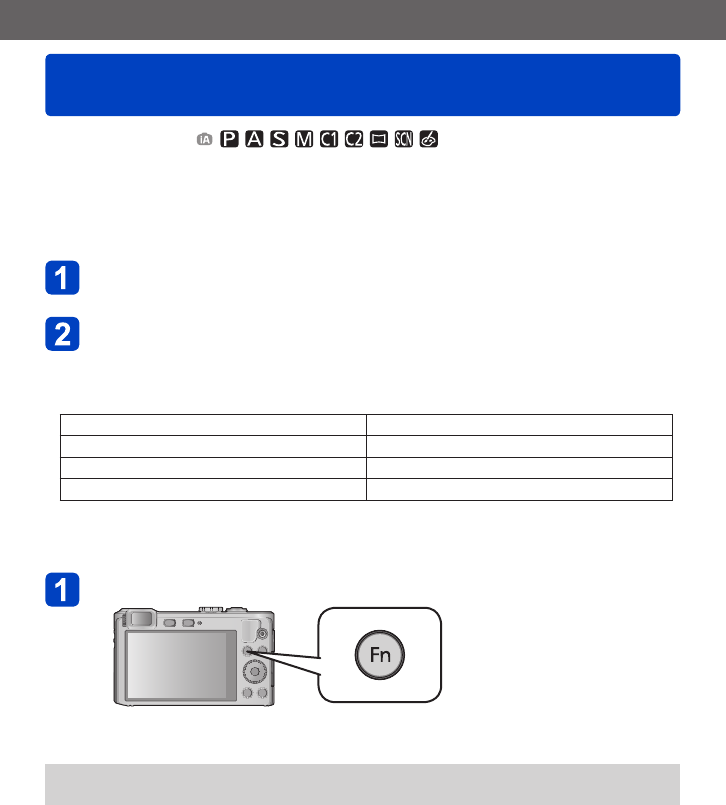
Application (Record)
Registering preferred functions to the [Fn] button
VQT5A33- 117 -
■Recording mode:
Register frequently used functions from the [Rec] menu, [Setup] menu or other menus to
the [Fn] button for faster operation.
• It is set to [Composition Guide] at the time of purchase.
■How to register
Select [Fn Button Set] from [Setup] menu and press
[MENU/SET] (→52)
Use cursor button to select the function to register and press
[MENU/SET]
●Functions that can be registered
[Focus Area Set] (→85) [Quality] (→129)
[Composition Guide] (→68) [Histogram] (→57)
[AF/AE Lock] (→86) [1 Shot AF] (→87)
[Metering Mode] (→134) [AF Mode] (→81)
■Using registered functions
Press [Fn] button
• The registered function is called.
●[Fn Button Set] does not function in the following cases.
• [Creative Control] Mode ([Miniature Effect], [One Point Color])
Application (Record)
Changing the settings assigned to the
control ring
VQT5A33- 118 -
■Recording mode:
Changes the settings assigned to the control ring.
Select [Control Ring Set] from [Setup] menu and press
[MENU/SET] (→52)
Use cursor button to select the setting to change and press
[MENU/SET]
●Settings that can be assigned
• [Step Zoom] (→74)
• [Exposure Comp.] (→90)
• [Aspect Ratio] (→128)
• [Sensitivity] (→130)
• [White Balance] (→131)
●To return to the default setting, select [Default Control] from [Control Ring Set].
●The changed setting may not work depending on the recording mode.
●The control ring cannot be used to adjust Manual Focus if the control ring settings
have been changed.
●For [Intelligent Auto] Mode, the setting is fixed to [Step Zoom].
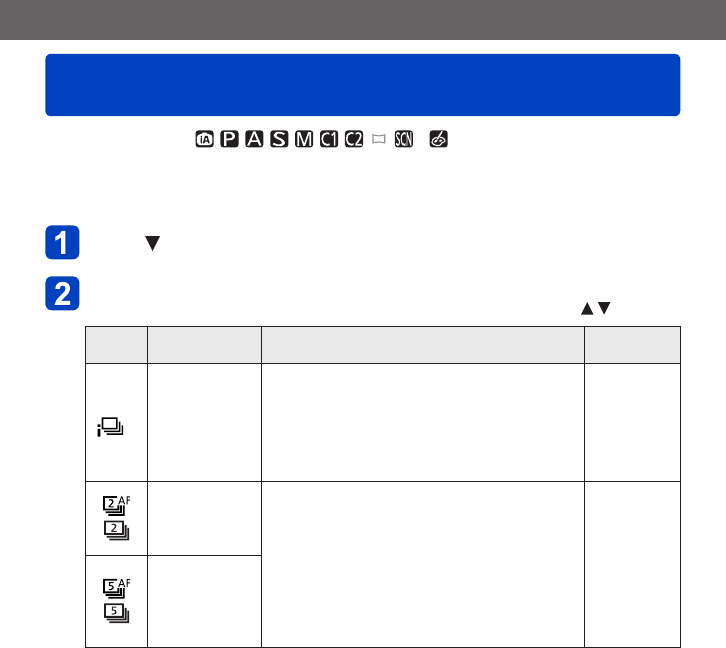
Application (Record)
Burst function
VQT5A33- 119 -
■Recording mode: *1 *2
*1 Cannot be set in the following modes: [Handheld Night Shot] [HDR] [Starry Sky] [3D Photo Mode]
*2 Cannot be set in the following modes: [Toy Effect] [Miniature Effect] [Soft Focus] [Star Filter]
A burst of still pictures can be recorded while the shutter button is pressed fully.
Press
Use cursor button to select [Burst] and press [MENU/SET]
• To change the setting, press [DISP.] button and select a setting with .
Setting Speed Description No. of
pictures*2
*1Approx. 2 - 10
pictures/sec.
• The burst speed is adjusted automatically in
accordance with the movements of people, pets
or other subjects. ([Intelligent Burst mode])
• When a fast-moving subject is recorded, the
frame rate becomes faster and the number
of pictures that can be recorded in a series is
restricted to about 10.
100
Approx. 2
pictures/sec.
• The subject is brought into focus as far as this
is allowed by the burst speed (excluding [MF]).
However, when the burst function is operating
during motion picture recording, the focus is
fixed to the first picture.
• The pictures are taken with the burst function
while the exposure and White Balance are
being adjusted.
• The burst speed may be reduced under certain
recording conditions.
100
Approx. 5
pictures/sec.
*1 [Intelligent Auto] Mode only
*2 The number of burst pictures is limited by the picture-taking conditions and the type and/or
status of the card used.
(Continued on the next page)
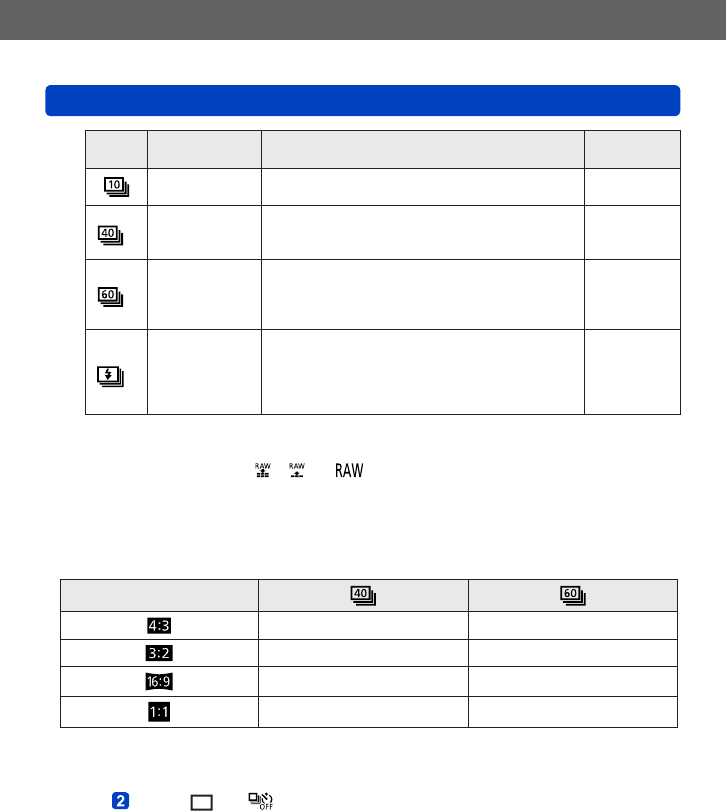
Application (Record)
Burst function
VQT5A33
- 120 -
Setting Speed Description No. of
pictures*1
Approx. 10
pictures/sec.
• Focus, exposure and White Balance are fixed in
the first picture. 12
*240 pictures/sec.
• Focus, exposure and White Balance are fixed in
the first picture.
• Note on the picture size setting.
40
*260 pictures/sec.
• Focus, exposure and White Balance are fixed in
the first picture.
• The recordable range is reduced.
• Note on the picture size setting.
60
*3
Complies with
recording
conditions
• The burst of still pictures can be recorded even
in low light conditions as the flash is used.
([Flash Burst])
• The focus, exposure, and flash level are all
fixed to the settings for the first picture.
5
*1 The number of burst pictures is limited by the picture-taking conditions and the type and/or
status of the card used.
*2 When [Quality] is set to [ ], [ ] or [ ], pictures are not recorded.
*3 Only in [Program AE], [Aperture-Priority] and [Shutter-Priority] modes
■Note on the picture size setting
[Aspect Ratio]
5M, 3M, 0.3M 2.5M, 0.3M
4.5M, 2.5M, 0.3M 3M, 0.3M
3.5M, 2M, 0.2M 3.5M, 0.2M
3.5M, 2.5M, 0.2M 2M, 0.2M
■To cancel burst
In step , select [ ] or [ ].
Application (Record)
Burst function
VQT5A33
- 121 -
●Pictures taken with the or setting are recorded together as a group (picture
group). (→143)
●Depending on changes in the brightness of the subject, the second and subsequent
pictures may be recorded brighter or darker when using the burst function at the ,
, or setting.
●Burst speed may be reduced if shutter speed is reduced in darker locations.
●The pictures taken using the burst function at the or setting may be distorted if
the subjects were moving or the camera was moved.
●The flash is set to [Forced Flash Off]. (Excluding [Flash Burst])
●Settings will be stored even if the camera is turned off.
●When [Intelligent Auto] mode is set or Scene Mode is set to [Night Portrait] or [Night
Scenery], and cannot be selected.
●It may take a while to store still pictures that were taken using the burst function. If
you continue to record while storing, the number of burst pictures that can be taken
will be reduced. A high-speed card is recommended when recording using the burst
function.
●You cannot use zoom during burst recording.
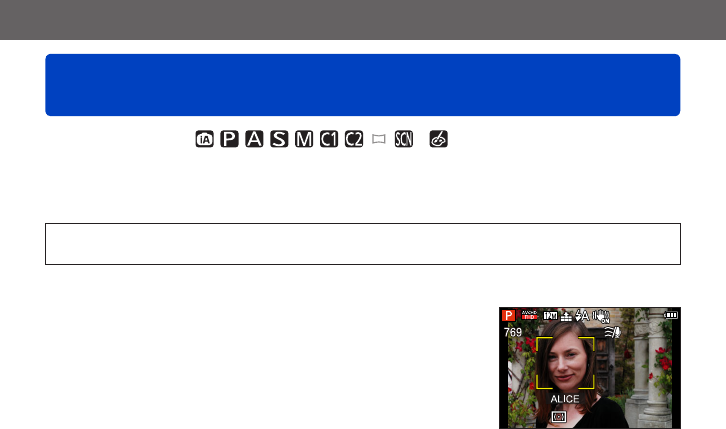
Application (Record)
Recording with the Face Recognition function
[Face Recog.]
VQT5A33
- 122 -
■Recording mode: *1 *2
*1 Cannot be set in the following modes: [Night Scenery] [Handheld Night Shot] [Food] [Starry Sky]
[3D Photo Mode]
*2 Cannot be set in the following modes: [Miniature Effect] [Soft Focus]
• Default [Face Recog.] setting is [OFF].
• When the face pictures are registered, the setting will be [ON] automatically.
■How the Face Recognition function works
During recording
• The camera recognizes a registered face and adjusts
focus and exposure.
• When registered faces that have set names are
recognized, the names are displayed (up to 3 people).
During playback
• The name and age are displayed (if information is
registered).
• The names that have been set for the recognized faces are displayed
(up to 3 people).
• Only pictures of the selected registered people are played back ([Category Selection]
in [Filtering Play] or [Slide Show]).
■Recording tips when registering face pictures
• Make sure the subject’s eyes are open and mouth closed; have the subject face the
camera directly, and make sure the outline of the face, the eyes and eyebrows are
not hidden by hair.
• Make sure there are no heavy shadows on the face. (During registration, the flash is
not used.)
■If the camera seems to have difficulty recognizing faces when recording
• Register additional pictures of the same person’s face, indoors and outdoors or with
different expressions or angles.
• Register additional pictures at the place you are recording.
• If a registered person is no longer recognized, re-register that person.

Application (Record)
Recording with the Face Recognition function [Face Recog.]
VQT5A33
- 123 -
●Face Recognition searches for faces similar to those registered, but there is no
guarantee it will always recognize these faces. In some cases, the camera cannot
recognize or incorrectly recognizes even registered people depending on their
expression or the environment.
●Even if Face Recognition information is changed, Face Recognition information
for previously recorded pictures is not changed.
For example, if a name is changed, pictures recorded before the change are not
categorized for Face Recognition in [Category Selection].
●When Burst is performed, recording information relating to Face Recognition is only
added to the first picture.
●If you press the shutter button halfway, then point the camera at a different subject
and record, recording information for a different person may be added to the picture.
●Face recognition does not work during motion picture recording.
●Even if Face Recognition information is registered, pictures recorded when the name
is [OFF] are not categorized for Face Recognition in [Category Selection].
●To change name information for pictures already recorded, perform a [REPLACE]
(→168) in [Face Rec Edit].
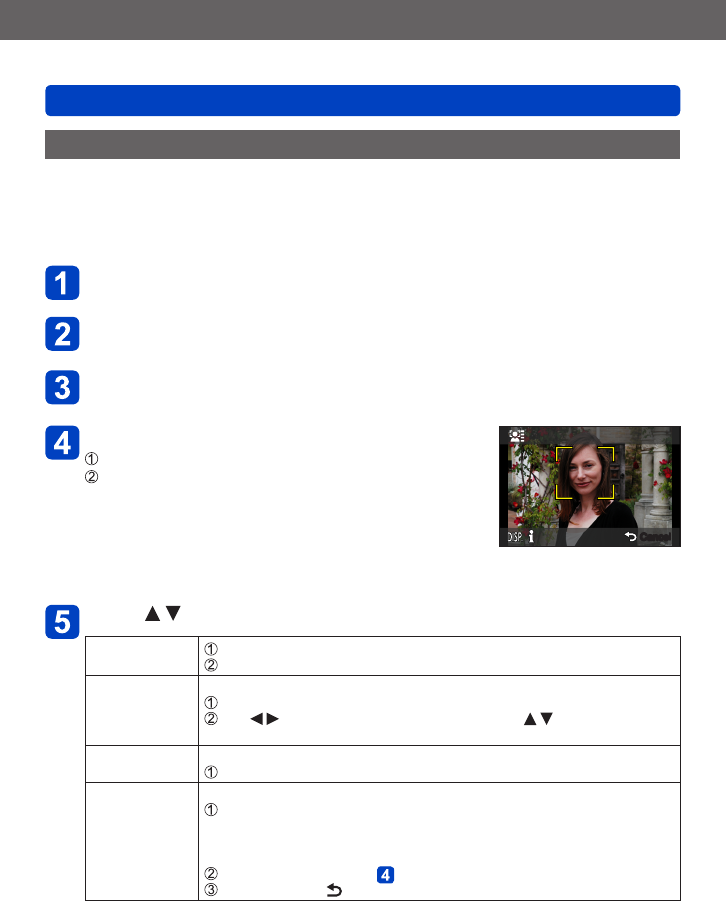
Application (Record)
Recording with the Face Recognition function [Face Recog.]
VQT5A33
- 124 -
Registering face pictures
Up to 6 people’s face pictures can be registered along with such information as name and
birthdate.
You can facilitate Face Recognition by the way you register faces: for example, register
multiple face pictures of the same person (up to 3 pictures in one registration).
Select [Face Recog.] from the [Rec] menu (→52)
Select [MEMORY] with cursor button and then press
[MENU/SET]
Select [New] with cursor button and then press [MENU/SET]
• If 6 people are already registered, first delete a registered person. (→125)
Record the face picture
Align the face with the guide and record.
Select [Yes] with cursor button and then press
[MENU/SET].
• If re-recording, select [No]
• Faces of subjects other than people (e.g. pets) cannot
be registered.
• When [DISP.] button is pressed, an explanation is
displayed.
Register Face
Cancel
Press to select the item for editing and press [MENU/SET]
[Name] Select [SET] with cursor button and then press [MENU/SET]
Enter the name (See “Entering Text”: (→65))
[Age] Set the birthdate.
Select [SET] with cursor button and then press [MENU/SET]
Use to select year, month and day, set with , and press
[MENU/SET]
[Focus Icon] Change the icon that is displayed when the subject is in focus.
Select the focus icon with cursor button and then press [MENU/SET]
[Add Images] Up to 3 face pictures of the person can be registered.
Use cursor button to select [Add Images] and press [MENU/SET]
• When a registered face picture is selected with cursor button, a screen to
confirm deletion is displayed. Select [Yes] to delete the face picture.
(If only one picture is registered, it cannot be deleted.)
Record the picture (Step above)
Press [Q.MENU/ ] button
Application (Record)
Recording with the Face Recognition function [Face Recog.]
VQT5A33
- 125 -
Editing or deleting information about registered persons
Information about registered people can be edited or deleted.
Select [Face Recog.] from the [Rec] menu (→52)
Select [MEMORY] with cursor button and then press
[MENU/SET]
Use cursor button to select the picture of the person to be
edited or deleted and press [MENU/SET]
Use cursor button to select the item and press [MENU/SET]
[Info Edit] Edit name or other registered information. (→124)
[Priority] Set priority order for focus and exposure.
Select the registration order with cursor button and then press
[MENU/SET]
[Delete] Delete information and face pictures of registered persons.
Application (Record)
Useful features for travel
VQT5A33- 126 -
[Travel Date]
If you set your travel schedule and record pictures, the day of your trip on which the
picture was taken will be recorded.
Select [Travel Date] from the [Setup] menu (→52)
Use cursor button to select [Travel Setup] and press
[MENU/SET]
Use cursor button to select [SET] and press [MENU/SET]
Use cursor button to select the departure date and press
[MENU/SET]
Use cursor button to select the return date and press
[MENU/SET]
■To record [Location]
Once the [Travel Setup] is set, you can set the location.
Select [Location] in step above
Use cursor button to select [SET] and press [MENU/SET]
Enter your location (Entering text (→65))
●The travel date is calculated from the set departure date and the date set in the
camera’s clock. When destination is set in [World Time], days elapsed are calculated
based on local destination time.
●When [Travel Setup] is set to [OFF], the number of days elapsed is not recorded. It is
not displayed even if [Travel Setup] is set to [SET] after recording.
●If settings are made before departure date, number of days to departure are not
recorded.
●To print [Location] or the number of days that have passed, either use [Text Stamp] or
print using the “PHOTOfunSTUDIO” software on the supplied CD-ROM.
●[Travel Date] cannot be recorded for AVCHD motion pictures.
●[Location] cannot be recorded for MP4 motion pictures.
●Cannot be set when using [Intelligent Auto] Mode. The settings in other Recording
Mode are applied.
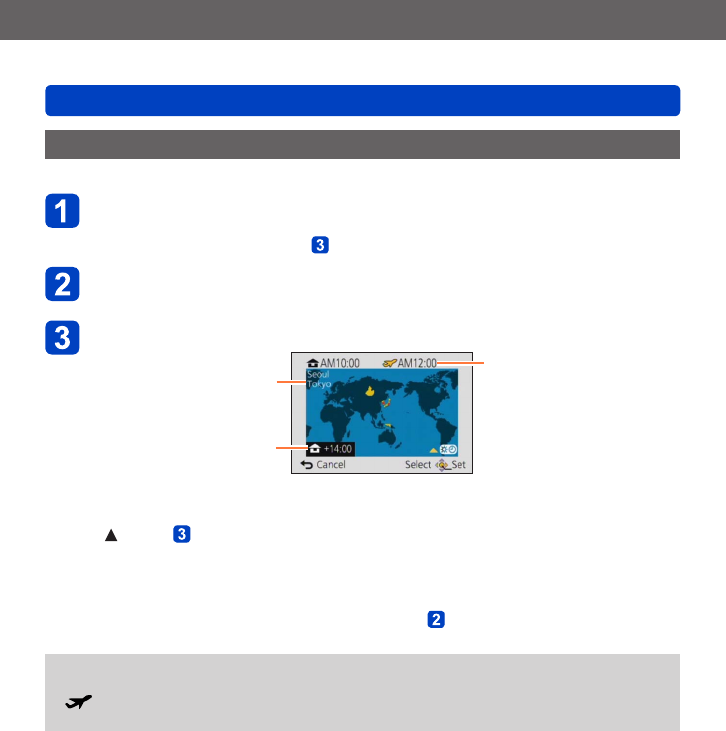
Application (Record)
Useful features for travel
VQT5A33
- 127 -
[World Time]
Set the recording date and time with the local time at your destination.
Select [World Time] from the [Setup] menu (→52)
• Message will be displayed when setting for the first time. In this case, press
[MENU/SET] and skip to step .
Use cursor button to select [Destination] and press
[MENU/SET]
Use cursor button to select area and press [MENU/SET]
City/area name
Difference with home time
Current time at selected
destination
■To set daylight savings
Press in step . (Press again to release the setting)
• When daylight savings is set, the current time is advanced by 1 hour. If the setting is
canceled, the time automatically returns to the current time.
■When you come back from your travel destination
Select [Home] and press [MENU/SET] twice in step
●If you cannot find your destination in the area displayed on the screen, set based on
difference with home time.
● is displayed on the screen for pictures recorded at the destination when they are
played back.
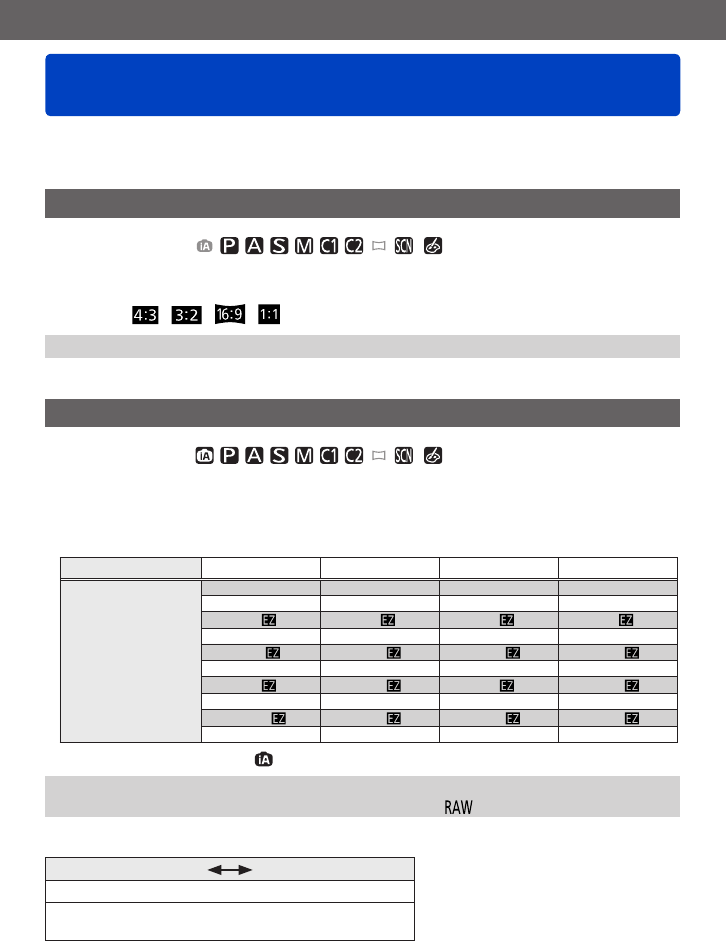
Application (Record)
Using the [Rec] menu
VQT5A33- 128 -
You can perform settings such as tones, Sensitivity, Aspect Ratio, and Picture Size.
• For the setting procedures of the menu. (→52)
[Aspect Ratio]
■Recording mode: *
* Cannot be set when using [3D Photo Mode].
Set the aspect ratio of still pictures.
■Settings: / / /
●Edges may be cut off when printing – be sure to check in advance.
[Picture Size]
■Recording mode: *
* Cannot be set when using [3D Photo Mode].
Set the size (number of pixels) of still pictures. Number of pictures which can be recorded
depends on this setting and on [Quality].
■Settings
[Aspect Ratio] 4:3 3:2 16:9 1:1
Picture Size
12M 10.5M 9M 9M
4000×3000 4000×2672 4000×2248 2992×2992
8M *7M *6M *6M *
3264×2448 3264×2176 3264×1840 2448×2448
5M 4.5M *3.5M *3.5M *
2560×1920 2560×1712 2560×1440 1920×1920
3M *2.5M *2M *2.5M *
2048×1536 2048×1360 1920×1080 1536×1536
0.3M 0.3M *0.2M *0.2M *
640×480 640×424 640×360 480×480
* This setting is not available in ([Intelligent Auto] Mode).
●Mosaic effect may appear depending on subject and recording conditions.
●You cannot set [Picture Size] when [Quality] is set to [ ].
Setting guide
Larger picture size Smaller picture size
Sharper Less detailed
Lower recording
capacity
Higher recording
capacity
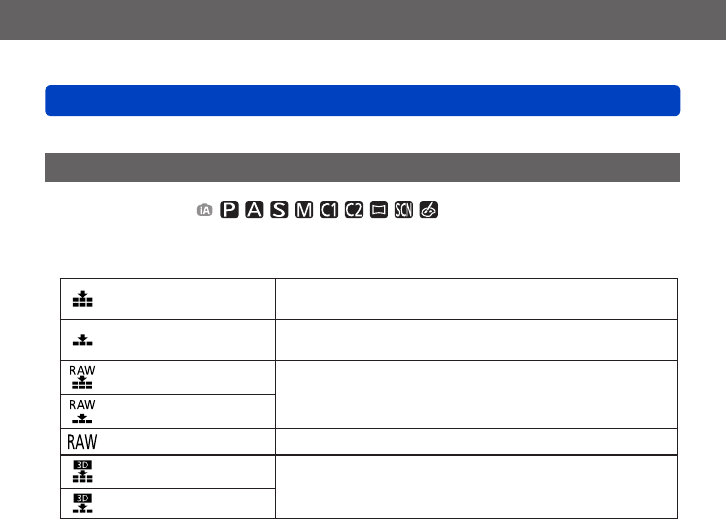
Application (Record)
Using the [Rec] menu
VQT5A33
- 129 -
• For the setting procedures of the menu. (→52)
[Quality]
■Recording mode:
Set quality of picture.
■Settings
[Fine] Gives priority to picture quality and saves pictures in
JPEG file format.
[Standard] Saves pictures in JPEG file format using standard
picture quality.
[RAW+Fine] Saves pictures in JPEG file format in addition to the
RAW file format.*1
[RAW+Standard]
[RAW] Saves pictures in the RAW file format.*2
[3D+Fine] Simultaneously saves 3D still picture data (MPO) and
pictures in JPEG file format. (Only when [3D Photo
Mode] Scene Mode is set.)
[3D+Standard]
*1 If you delete a RAW file from the camera, the corresponding JPEG file is also deleted.
*2 You cannot set the picture size. (The pictures are saved using the maximum
recordable pixels for each image aspect ratio.)
■About RAW file
You can perform advanced editing of RAW pictures using the software (“SILKYPIX
Developer Studio” developed by Ichikawa Soft Laboratory) on the CD-ROM (supplied).
(The edited pictures can be saved in a file format such as JPEG that can be displayed
on your computer.)
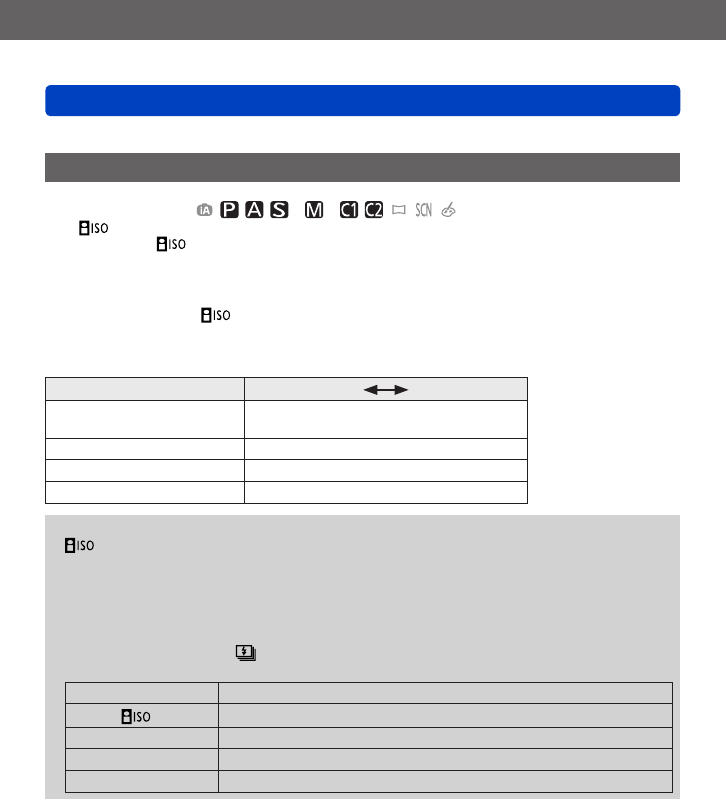
Application (Record)
Using the [Rec] menu
VQT5A33
- 130 -
• For the setting procedures of the menu. (→52)
[Sensitivity]
■Recording mode: *1 *2
*1 [ ] cannot be set.
*2 [AUTO] and [ ] cannot be set.
Set ISO Sensitivity (sensitivity to lighting) manually.
We recommend higher settings to take clear pictures in darker locations.
■Settings: [AUTO] / / [80] / [100] / [200] / [400] / [800] / [1600] / [3200] / [6400] /
[H.12800]*
Setting guide
[Sensitivity] [80] [H.12800]*
Location
(recommended)
Bright
(outdoors) Dark
Shutter speed Slow Fast
Interference Low High
Subject blur High Low
●[AUTO] is automatically set in a range up to 1600 based on subject brightness.
● is automatically set in a range up to 1600 based on subject movement and
brightness.
●The [Sensitivity] is automatically set in the following cases:
• When recording motion pictures
• [Panorama Shot] Mode
• Scene Modes
• When [Burst] is set to
●The shutter speed is restricted as follows based on the [Sensitivity] setting.
[Sensitivity] Shutter speed
AUTO / Automatically changes depending on the [Sensitivity] setting.
80 - 1600 250 - 1/4000th
2000 - 3200 30 - 1/4000th
4000 - 12800*8 - 1/4000th
* Only when [Extended ISO] is [ON].
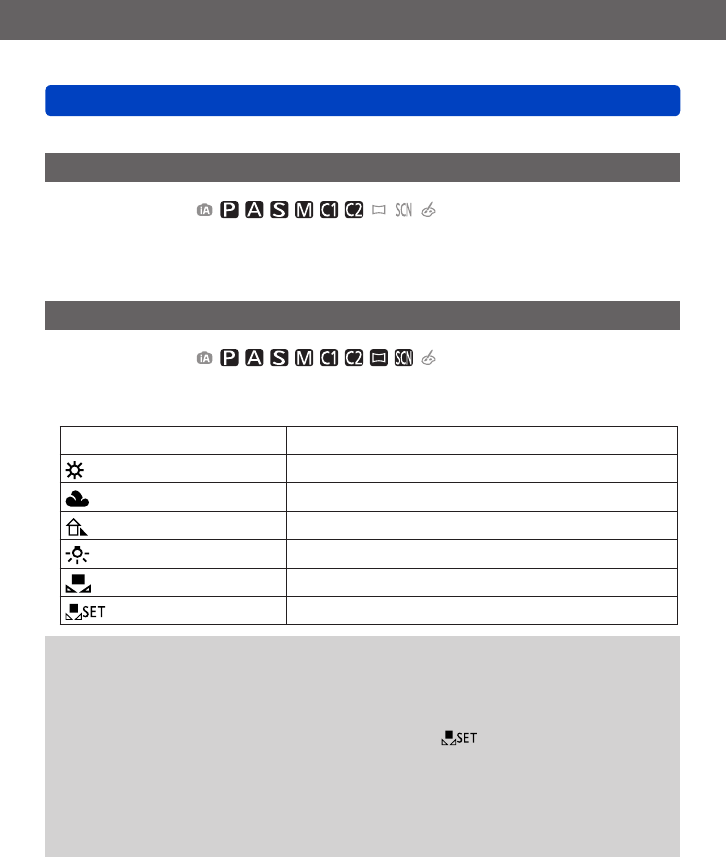
Application (Record)
Using the [Rec] menu
VQT5A33
- 131 -
• For the setting procedures of the menu. (→52)
[Extended ISO]
■Recording mode:
Extends the [Sensitivity] setting to [H.12800].
■Settings: [ON] / [OFF]
[White Balance]
■Recording mode:
Adjust the color depending on the light source to ensure natural color.
■Settings
AWB (automatic) Automatic adjustment in accordance with the light source.
(clear sky) Adjust to the color under a clear sky.
(cloudy sky) Adjust to the color under a cloudy sky.
(shade) Adjust to the color in the shade.
(Incandescent lighting) Adjust to the color under incandescent lights.
(set mode) Using the preset White Balance.
(set mode settings) Adjust white balance manually.
●When [AWB] (Automatic White Balance) is set, the coloring is adjusted in accordance
with the light source. However, if the scene is too bright or too dark or if other extreme
conditions apply, the pictures may appear reddish or bluish. The White Balance may
not operate correctly if there is a multiple number of light sources.
●Under fluorescent lighting, LED lighting fixture etc., the appropriate White Balance will
vary depending on the lighting type, so use [AWB] or .
●[White Balance] setting is fixed to [AWB] in the following cases:
• Scene Modes ([Scenery], [Night Portrait], [Night Scenery], [Handheld Night Shot],
[Food], [Sunset], [Starry Sky])
• Except when [Panorama Shot] Mode effect is [No Effect]
●Even if the camera is turned off, the set White Balance is remembered. (If the Scene
Mode is changed, the white balance setting returns automatically to [AWB].)
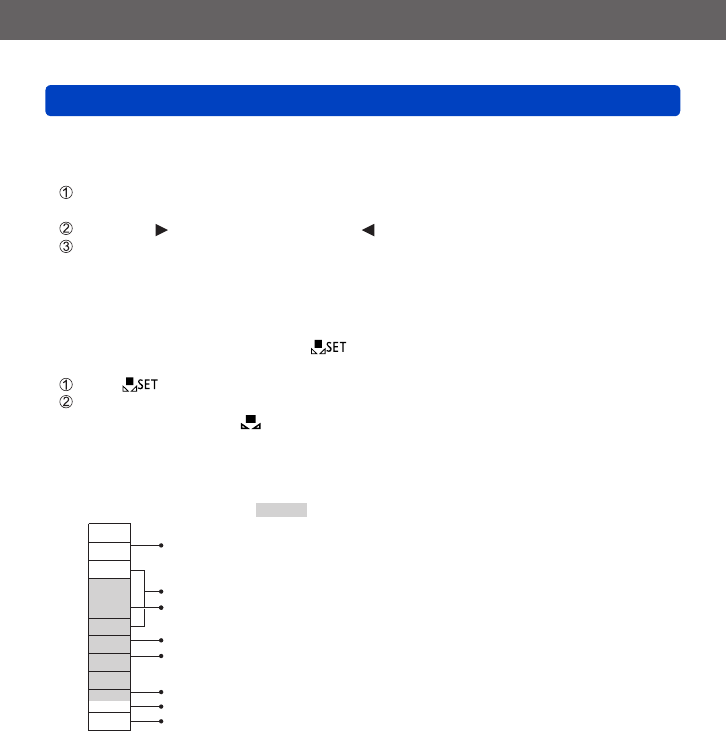
Application (Record)
Using the [Rec] menu
VQT5A33
- 132 -
■White Balance fine adjustment (excluding [AWB])
White Balance settings can be individually fine-tuned if colors still do not appear as
anticipated.
Select the white balance to be fine-tuned, and press the [DISP.] button to display the
[WB Adjust.] screen
Adjust with if red is strong, adjust with if blue is strong
Press [MENU/SET]
• Settings are remembered even if the camera is turned off.
• Settings remain applied when using flash.
• Fine adjustments cannot be made when [Color Mode] (→136) is set to [B&W] or
[SEPIA].
■Setting White Balance manually ( )
Take a picture of a white object under the target light source to adjust colors.
Select and press [MENU/SET]
Point the camera towards a white object (e.g. paper) and press [MENU/SET]
White Balance is set to .
• Even if the camera is turned off, the set White Balance is remembered.
• It may not be possible to set the correct White Balance if subjects are too bright or too
dark. In this case, adjust the brightness and try to set the White Balance again.
■[AWB] operational range:
10000K
9000K
8000K
7000K
6000K
5000K
4000K
3000K
2000K
Cloudy sky (rain)
Shade
Incandescent lighting
Sunset/sunrise
Candlelight
Sunlight
White fluorescent lighting
Blue sky
K=Kelvin Color Temperature
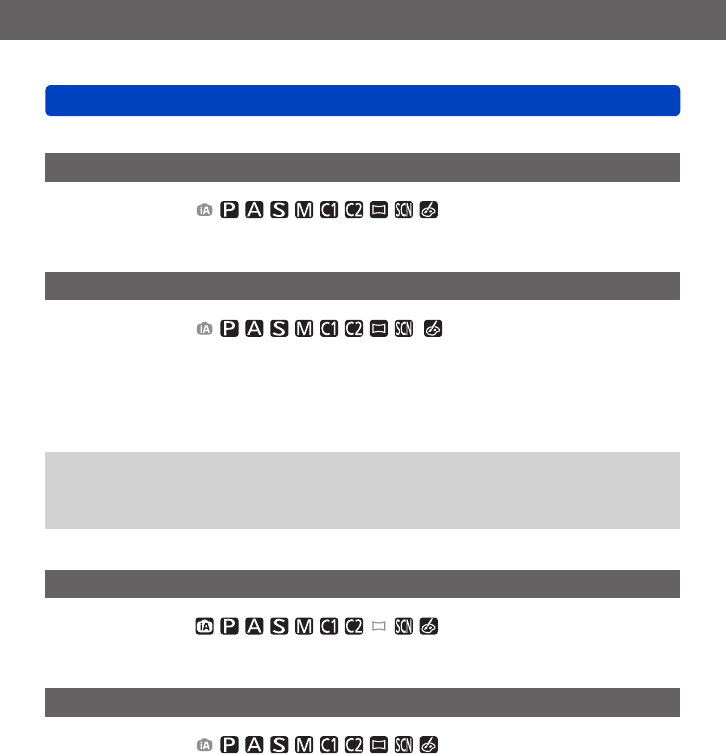
Application (Record)
Using the [Rec] menu
VQT5A33
- 133 -
• For the setting procedures of the menu. (→52)
[AF Mode]
■Recording mode:
For details (→81).
[Quick AF]
■Recording mode: *
* The following modes are fixed to [OFF]: [Night Portrait] [Night Scenery] [Handheld Night Shot]
[Starry Sky]
The focus is automatically adjusted when camera blurring is small even when the shutter
button is not pressed. (Increases battery consumption)
■Settings: [ON] / [OFF]
●Focus alignment may take time if zoom is suddenly changed from max. W to max. T,
or if suddenly moving closer to subject.
●Press shutter button halfway if focus is difficult to align.
●[Quick AF] will not work while AF Tracking is operating.
[Face Recog.]
■Recording mode:
For details (→122).
[AF/AE Lock]
■Recording mode:
For details (→86).
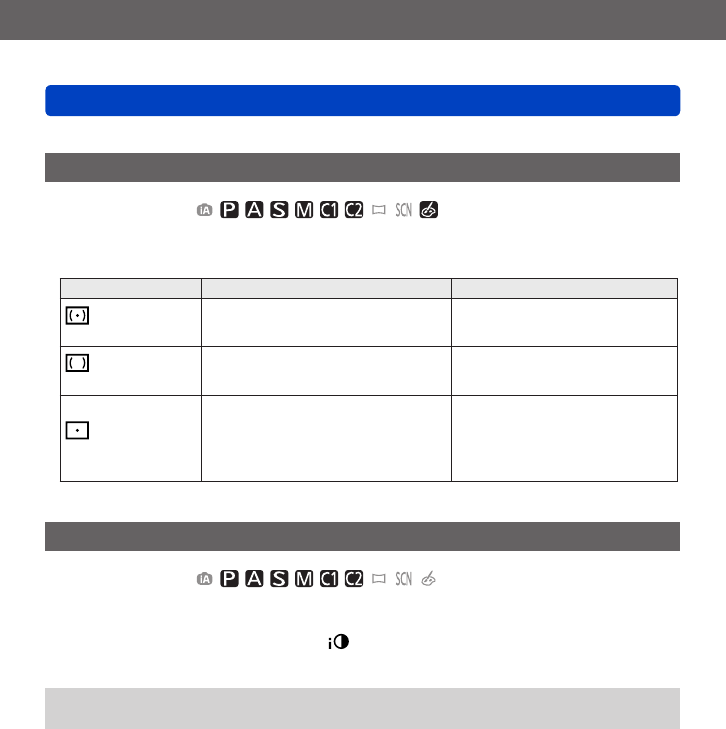
Application (Record)
Using the [Rec] menu
VQT5A33
- 134 -
• For the setting procedures of the menu. (→52)
[Metering Mode]
■Recording mode:
You can change the position for measuring brightness when correcting exposure.
■Settings
[Metering Mode] Brightness measurement position Conditions
[Multi Metering]
Whole screen Normal usage (produces balanced
pictures)
[Center Weighted] Center and surrounding area Subject in center
[Spot] Center and close surrounding area
Great difference between
brightness of subject and
background
(e.g. person in spotlight on stage,
backlighting)
[i.Exposure]
■Recording mode:
Automatically adjusts contrast and exposure to give more lifelike colors when there is
significant contrast between background and subject.
• When [i.Exposure] works, the color of changes.
■Settings: [ON] / [OFF]
●Even if [Sensitivity] is set to [80] or [100], when [i.Exposure] is activated, pictures may
be taken at a higher ISO Sensitivity than the setting.
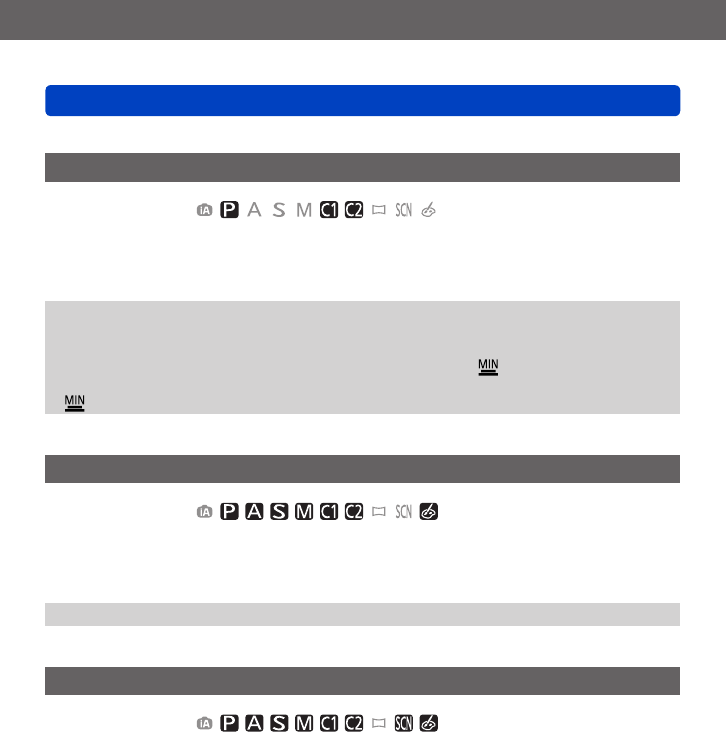
Application (Record)
Using the [Rec] menu
VQT5A33
- 135 -
• For the setting procedures of the menu. (→52)
[Min. Shtr Speed]
■Recording mode:
Sets the minimum value for the shutter speed. We recommend using slower shutter
speeds to take brighter pictures in dark locations.
■Settings: [AUTO] [1/250] [1/125] [1/60] [1/30] [1/15] [1/8] [1/4] [1/2] [1]
●Slower shutter speeds allow for brighter pictures but increase risk of jitter, so we
recommend using a tripod and the self-timer.
●As still pictures may become dark when using faster values such as [1/250], we
recommend that still pictures are taken in bright locations ( flashes red when
shutter button is pressed halfway if still picture will be dark).
● displayed on screen for settings other than [AUTO].
[i.Resolution]
■Recording mode:
You can use the camera’s Intelligent Resolution technology to record still pictures with
sharper outlines and clearer resolution.
■Settings: [ON] / [i.ZOOM] / [OFF]
●About [i.ZOOM] (→73)
[Digital Zoom]
■Recording mode:
Zoom 4 times further than Optical/Extended optical zoom. Note that enlarging will
decrease picture quality with Digital Zoom.
For details (→73).
■Settings: [ON] / [OFF]
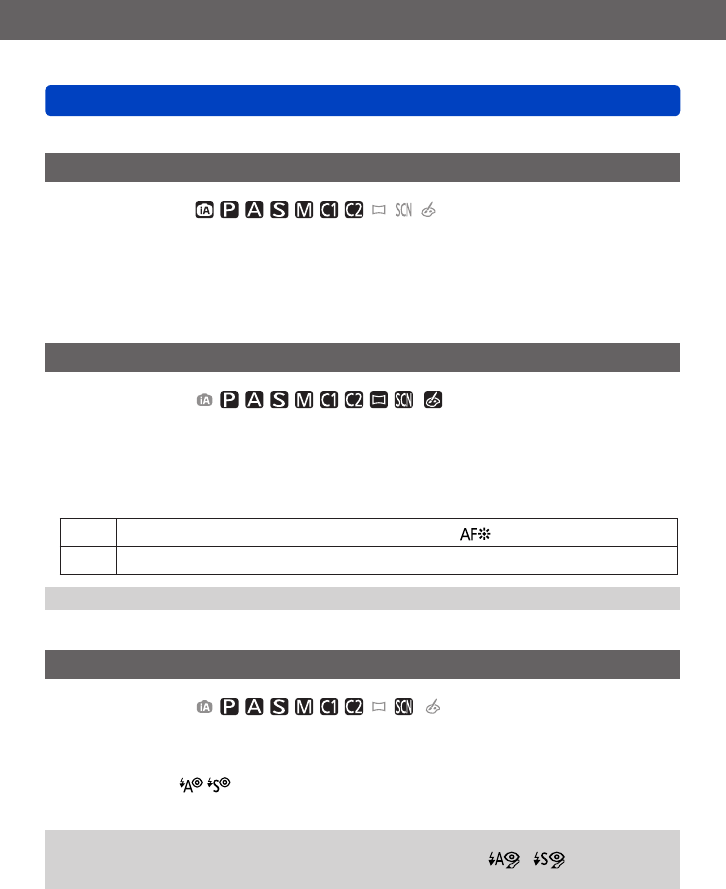
Application (Record)
Using the [Rec] menu
VQT5A33
- 136 -
• For the setting procedures of the menu. (→52)
[Color Mode]
■Recording mode:
■Settings: [STANDARD] / [VIVID]*1 (Vivid looking picture) /
[Happy]*2 (Take a picture with higher level of color brightness and
vividness) / [B&W] / [SEPIA]
*1 Except [Intelligent Auto] Mode
*2 [Intelligent Auto] Mode only
[AF Assist Lamp]
■Recording mode: *
* The following modes are fixed to [OFF]: [Scenery] [Night Scenery] [Handheld Night Shot] [Sunset]
[Glass Through]
Illuminates lamp when dark to facilitate focus alignment.
• The AF Assist Lamp has an effective distance of 1.5 m (4.9 feet).
■Settings
[ON] Lamp illuminated with halfway press of shutter button ( appears)
[OFF] Lamp is not illuminated. (taking pictures of animals in the dark, etc.)
●Do not block the lamp with your fingers or look at it from close range.
[Red-Eye Removal]
■Recording mode: *
* The setting is set to [OFF] except in the following Scene Modes: [Portrait] [Soft Skin]
[Night Portrait] [Baby]
Automatically detects red-eye and corrects still picture data when recording with flash
red-eye reduction ( ).
■Settings: [ON] / [OFF]
●Depending on the circumstance, it may not be possible to correct red-eye.
●When this function is set to [ON], the flash icon changes to [ ]/[ ].
●This function only works when the camera detects a subject as a face.
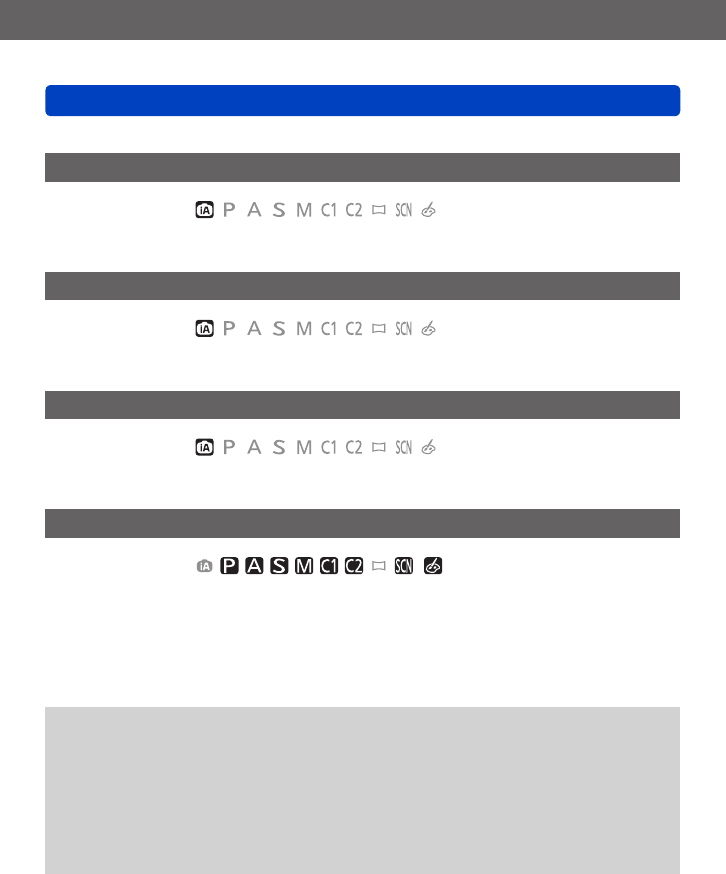
Application (Record)
Using the [Rec] menu
VQT5A33
- 137 -
• For the setting procedures of the menu. (→52)
[Motion Deblur]
■Recording mode:
For details (→32).
[iHandheld Nite Shot]
■Recording mode:
For details (→32).
[iHDR]
■Recording mode:
For details (→33).
[Stabilizer]
■Recording mode: *
* [Handheld Night Shot] is fixed to [ON].
The following modes are fixed to [OFF]: [Starry Sky] [3D Photo Mode]
Automatically detects and prevents jitter. When recording motion pictures, [Active Mode]
(stabilizer for motion pictures) will automatically function. This decreases the jitter of the
image when recording motion pictures while walking, etc.
■Settings: [ON] / [OFF]
●Cases where the stabilizer function may be ineffective:
• When there is a lot of jitter
• When the zoom magnification is high (also in the Digital Zoom range)
• When taking pictures while following a moving subject
• When the shutter speed becomes slower to take pictures indoors or in dark places
●In [Active Mode], stronger effect of the correction can be achieved at the wide end.
●In the following case, [Active Mode] will not function even when recording motion
pictures.
• When [Rec Quality] is set to [VGA] in [MP4]
Application (Record)
Using the [Rec] menu
VQT5A33
- 138 -
• For the setting procedures of the menu. (→52)
[Date Stamp]
■Recording mode:
Still pictures can be taken with the recording date and time stamped on the still picture.
■Settings: [W/O TIME] / [WITH TIME] / [OFF]
●Do not request date printing in store or make date printing on printer for still pictures
with date stamps. (Date printing may be overlapped.)
●Date stamps on still pictures cannot be erased.
●The date cannot be stamped when [Auto Bracket] or [Burst] is set, when recording a
motion picture, or when the [3D Photo Mode] Scene Mode is set.
●Cannot change the setting in [Intelligent Auto] Mode. The setting in other Recording
Mode is applied.
[Clock Set]
■Recording mode:
Set the clock. Same function as that in [Setup] menu. (→24)
Application (Record)
Using the [Motion Picture] menu
VQT5A33- 139 -
You can select the recording mode and picture quality and other settings.
• For the setting procedures of the menu. (→52)
[Rec Format]
■Recording mode:
Sets the data format of the motion picture that is recorded.
■Settings
[AVCHD] This is a data format suitable for playback on high-definition TVs.
[MP4] This data format is suited for playing back motion pictures on a computer and other
such devices.
●For details (→41)
[Rec Quality]
■Recording mode:
Sets the picture quality of the motion picture that is recorded.
■Settings
[AVCHD] in [Rec Format]
Item Picture size fps Bit rate
[FHD] 1920×1080 60i Approx. 17 Mbps
[HD] 1280×720 60p Approx. 17 Mbps
[MP4] in [Rec Format]
Item Picture size fps Bit rate
[FHD] 1920×1080 30p Approx. 20 Mbps
[HD] 1280×720 30p Approx. 10 Mbps
[VGA] 640×480 30p Approx. 4 Mbps
■About motion picture icon
[Rec Format]
Picture size
Application (Record)
Using the [Motion Picture] menu
VQT5A33
- 140 -
●What is bit rate
This is the volume of data for a definite period of time, and the quality becomes
higher when the number gets bigger. This unit is using the “VBR” recording method.
“VBR” is an abbreviation of “Variable Bit Rate”, and the bit rate (volume of data for
definite period of time) is changed automatically depending on the subject to record.
Therefore, the recording time is shortened when a subject with fast movement is
recorded.
• For the setting procedures of the menu. (→52)
[Still Picture Size]
■Recording mode:
Set [Still Picture Size] for when you take still pictures while recording motion pictures.
■Settings
[9M] For printing up to A3 (11x14″) size prints.
[6M] For printing up to A3 (11x14″) size prints.
[2M] Suitable for display on a high-definition television.
●The aspect ratio becomes [ ].
[Continuous AF]
■Recording mode: *
* [Starry Sky] is fixed to [OFF].
Either allow the focus to be constantly adjusted during motion picture recording, or fix the
focus position at the start of recording.
■Settings
[ON]
[OFF]: Fix focus position at the start of motion picture recording.
Application (Record)
Using the [Motion Picture] menu
VQT5A33
- 141 -
• For the setting procedures of the menu. (→52)
[Wind Cut]
■Recording mode: *
* Cannot be set when using [Miniature Effect].
Automatically detects wind sounds (wind noise) captured by the microphones and
suppresses the sound if the wind is blowing too strongly.
■Settings
[AUTO]: Wind noise is automatically suppressed depending on volume
[OFF]
●When [Wind Cut] is set to [AUTO], the sound quality may differ from that of normal
recordings.
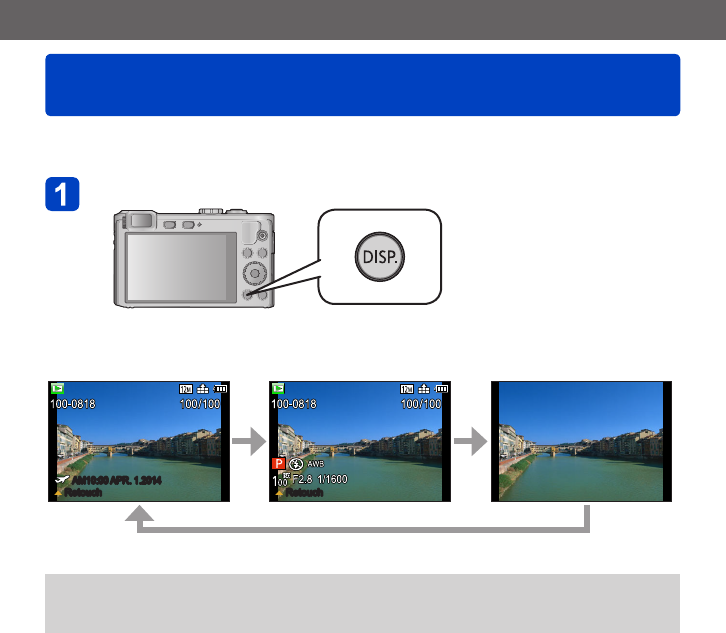
Application (View)
Changing the picture information display, etc.
VQT5A33- 142 -
Application (View)
You can disable the display of picture information (file number, etc.) and recording
information (settings used for recording, etc.) when a picture is played back.
Press [DISP.] button to change display
Has picture information
(recording date and time, etc.)
Has recording information
([Flash], [Sensitivity] etc.) No display
AM10:00 APR. 1.2014
Retouch Retouch
●During Playback Zoom, Motion Picture Playback, Slide Show:
You can only turn the display on or off.
●During Multi Playback or calendar screen: Display cannot be changed.
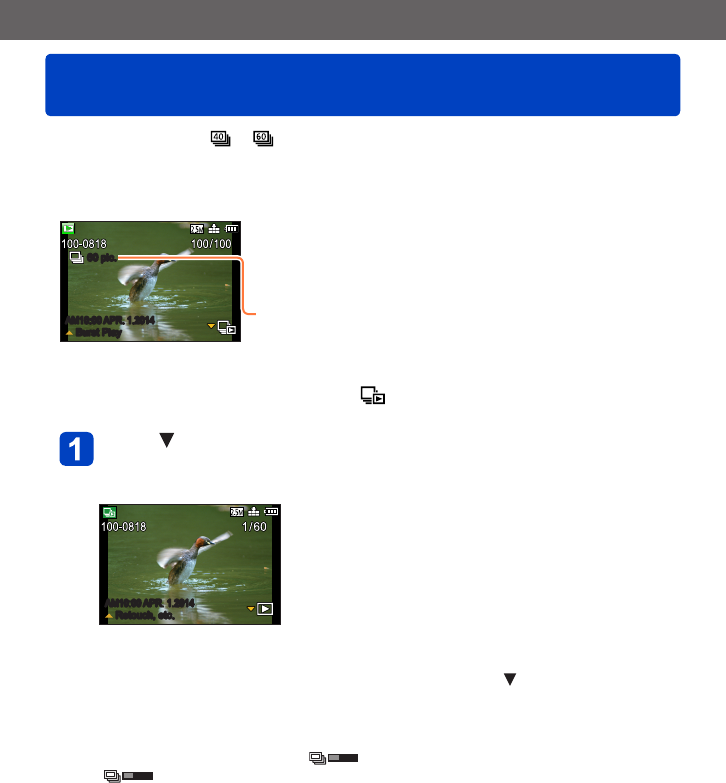
Application (View)
Playing back still pictures recorded using the
burst function
VQT5A33- 143 -
Pictures taken with the or setting are recorded together as a group (picture group).
■Representative picture display
A representative picture (first burst picture) is displayed when it is displayed together
with other still pictures or with motion pictures.
AM10:00 APR. 1.2014
Burst Play
60 pic.
• All the still pictures in a picture group can be deleted or
edited together.
• Continuous playback can be performed using the same
operations as for motion pictures. (→48)
Number of burst pictures
■Display within each picture group ( )
Still pictures recorded by a single burst can be displayed separately or as a list.
Press while the representative first burst picture is being
displayed
The display within each picture group appears on the screen.
AM10:00 APR. 1.2014
Retouch, etc.
On the display within each picture group, only the series of burst still pictures are
displayed.
• To return to the representative screen display → Press .
■Re-acquiring the picture group information
When the camera is turned on, the (acquiring information icon) may appear.
While is displayed, pictures cannot be deleted and the [Playback] menu cannot
be used. Only [All] or [Calendar] is available as the [Playback Mode].

Application (View)
Playing back still pictures recorded using the burst function
VQT5A33
- 144 -
●If only one still picture is left over in a picture group after deletion or other operations,
it will not be formed into a group.
●Burst pictures will not be grouped if recorded without setting the clock.
●When pictures set to [Favorite] are played back using [Slide Show] or [Filtering Play],
the pictures cannot be displayed in a group.
●The following operation cannot be performed while a representative first burst picture
is being displayed.
• [Auto Retouch]
• [Creative Retouch]
• [Cropping] of [Playback] menu
●The burst pictures recorded by another device may not be recognized as picture
group pictures.
●If the total number of still pictures exceeds 50,000, subsequently recorded pictures
will not be grouped.
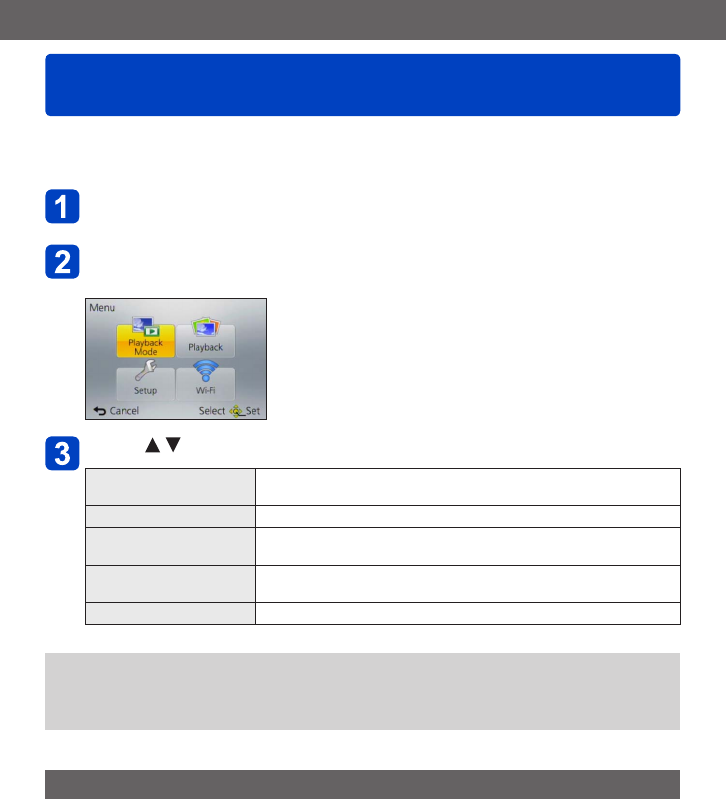
Application (View)
Different playback methods [Playback Mode]
VQT5A33
- 145 -
Recorded pictures can be played back in a variety of ways.
To change the Playback Mode, refer to and perform the following steps.
Press [MENU/SET] in playback mode
The menu selection screen is displayed.
Use cursor button to select [Playback Mode] menu and press
[MENU/SET]
Press to select the Playback Mode and press [MENU/SET]
[2D/3D Settings] Switches the output format between 2D and 3D pictures. (Only
available during HDMI output.) (→245)
[All] Plays back all pictures. (→44)
[Slide Show] Automatically plays back recorded pictures, one after another.
(→150)
[Filtering Play] Plays back the pictures after narrowing them down according to
various conditions. (→146)
[Calendar] Displays pictures by date of recording. (→152)
●If the pictures displayed with [Slide Show] or [Filtering Play] are narrowed down,
selecting [All] will cancel the filtering.
●The playback method automatically becomes [All] when the camera is turned on, or
when switching from [Rec] mode to [Playback Mode].
[2D/3D Settings]
• For switching [Playback Mode] (above)
The playback method for the 3D pictures can be switched. This menu is only displayed
during HDMI output. For the procedure for playing back a 3D still picture (→245).
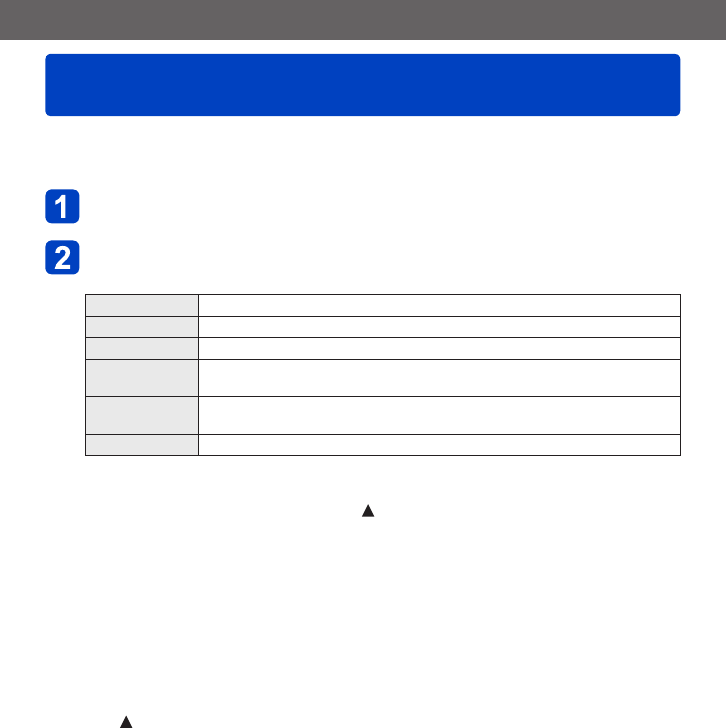
Application (View)
Selecting pictures to play back [Filtering Play]
VQT5A33
- 146 -
You can narrow down the pictures to be displayed with set filters, such as recording
dates, categories, or favorite pictures.
Select [Filtering Play] from the [Playback Mode] menu (→145)
Select the filtering method using cursor button, and press
[MENU/SET]
[Picture Only] Play back still pictures. (→147)
[Video Only] Play back motion pictures. (→147)
[3D Play] Play back only 3D still pictures. (→147)
[Category
Selection]
Play back pictures that have been narrowed down by category, such as
Scene Mode. (→148)
[Select Date] Select the date when the pictures were taken, and play the pictures back.
(→149)
[Favorite] Play back pictures set as [Favorite]. (→149)
■About operations during [Filtering Play]
During [Filtering Play], the operation when is pressed in the 1-picture Playback
screen is different. Select the operation you want to perform and press [MENU/SET].
• [Retouch]: Retouching pictures (→153)
• [Burst Play]: Play back continuously recorded still pictures, one after another (→143)
• [Play Video]: Play back motion pictures (→48)
• [Play Panorama]: Play back panorama pictures (→107)
• [Change Date]: Change recording date to display (→149)
• [Filtering Off]: Switch Playback Mode to [All] (→145)
■Cancel filtering
During [Filtering Play], only pictures under the set filters are displayed.
In the following cases, filtering will be canceled.
• When is pressed in the 1-picture Playback screen and [Filtering Off] is selected
• When [All] is selected from the [Playback Mode] menu
• When switching to Recording Mode
• When the camera is turned off
Application (View)
Selecting pictures to play back [Filtering Play]
VQT5A33
- 147 -
Narrowing down by selecting picture type
Select picture type, such as still pictures only or motion pictures only, then play them
back.
Select [Picture Only] / [Video Only] / [3D Play] in [Filtering
Play] and press [MENU/SET] (→146)
[Picture Only] Play back still pictures. (Also applies to panorama pictures and continuously
recorded pictures)
[Video Only] Play back AVCHD motion pictures and MP4 motion pictures.
[3D Play] Plays back 3D still pictures recorded using [3D Photo Mode] Scene Mode.
Application (View)
Selecting pictures to play back [Filtering Play]
VQT5A33
- 148 -
Narrowing down by selecting picture category or a person in the picture
Play back pictures that have been narrowed down by category, such as Scene Mode.
Also, from among the pictures recorded using the Face Recognition function (→122), select
a person in the picture and play back.
Select [Category Selection] in [Filtering Play] and press
[MENU/SET] (→146)
Use cursor button to select the setting and press [MENU/SET]
[Face Recog.] Select a person registered to Face Recognition and display the pictures
Use cursor button to select a person and press [MENU/SET]
[Portrait etc.] Only display pictures recorded with [Portrait], [Soft Skin], [Night Portrait],
[Baby] from Scene Mode*
[Scenery etc.] Only display pictures recorded with Panorama Mode, and [Scenery],
[Sunset], [Glass Through] from Scene Mode*
[Night Scenery
etc.]
Only display pictures recorded with [Night Portrait], [Night Scenery],
[Handheld Night Shot], [Starry Sky] from Scene Mode*
[Events] Only display pictures recorded with [Sports] from Scene Mode
[Baby] Only display pictures recorded with [Baby] from Scene Mode*
[Pet] Only display pictures recorded with [Pet] from Scene Mode
[Food] Only display pictures recorded with [Food] from Scene Mode
[Travel Date] Only display pictures recorded when [Travel Date] is set.
[Burst] Only display pictures recorded with , in Burst
* Even if the scene is auto-detected with [Intelligent Auto] Mode, it will be categorized in the
same way.
Application (View)
Selecting pictures to play back [Filtering Play]
VQT5A33
- 149 -
Narrowing down by selecting recording date
Select the recorded date, and play the pictures back.
Select [Select Date] in [Filtering Play] and press [MENU/SET]
(→146)
Use cursor button to select recording date and press
[MENU/SET]
■To change the date to display
Press in the 1-picture Playback screen
Use cursor button to select [Change Date] and press [MENU/SET]
●Only months when pictures were taken are shown on the calendar screen. If the clock
was not set, pictures will be displayed as January 1st, 2013.
●Pictures taken with destination settings made in [World Time] are displayed in the
calendar screen using the appropriate date for the destination’s time zone.
Narrowing down by selecting favorite pictures
Select pictures that were set in [Favorite] from the [Playback] menu, and play the pictures
back.
Select [Favorite] in [Filtering Play] and press [MENU/SET] (→146)
Application (View)
Playing back pictures in order automatically
[Slide Show]
VQT5A33
- 150 -
Automatically play pictures in order. Recommended when viewing on TV screen.
Select [Slide Show] from the [Playback Mode] menu (→145)
Use cursor button to select [Start] and press [MENU/SET]
■To select pictures for automatic play back
If you have previously selected the pictures to display for [Filtering Play] from the
[Playback Mode] menu, the Slide Show will play back with the same criteria.
If you want to reselect pictures to play back, use cursor button to select [Filtering], then
press [MENU/SET].
• For details on how to narrow down (→146)
• The filtering will not be canceled, even after the Slide Show finishes.
• If you select [All], the filtering will be canceled.
■To change settings such as music or display time
Use cursor button to select [Setup] and press [MENU/SET]
[Effect] [NATURAL] / [SLOW] / [SWING] / [URBAN] / [OFF]*
[Duration]*[1SEC] / [2SEC] / [3SEC] / [5SEC]
[Repeat] [ON] / [OFF]
[Sound] [OFF]: Music and audio will not play back.
[AUTO]: With still pictures, music will play back, and with motion pictures, audio
will play back.
[Music]: Music effect will play back.
[Audio]: Audio is played back from motion pictures.
* In the following case, [Effect] is fixed to [OFF]. The [Duration] setting is also disabled.
• [Motion Pic. Only]
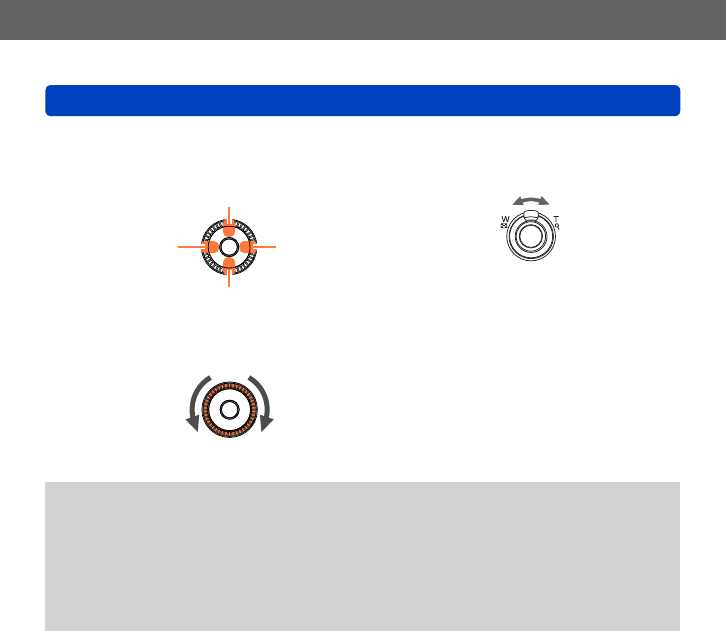
Application (View)
Playing back pictures in order automatically [Slide Show]
VQT5A33
- 151 -
■Operations during Slide Show
●Cursor button
The operation guide appears on the bottom right of the LCD monitor.
Pause/play
Previous Next
Stop
Volume down Volume up
• If you do not perform any operation for approx. 2 seconds, the operation guide is
turned off. To display the guide again, press the [DISP.] button.
●Control dial
Previous Next
●When [URBAN] has been selected, the picture may appear in black and white as a
screen effect.
●When panorama pictures, motion pictures, or burst pictures (picture group) are played
back, the [Duration] setting is disabled.
●Part of [Effect] cannot be used when displaying pictures on television using an HDMI
micro cable or when displaying pictures recorded in portrait position.
●Screen effects do not operate during a [3D Play] slide show.
●Music effects cannot be added.
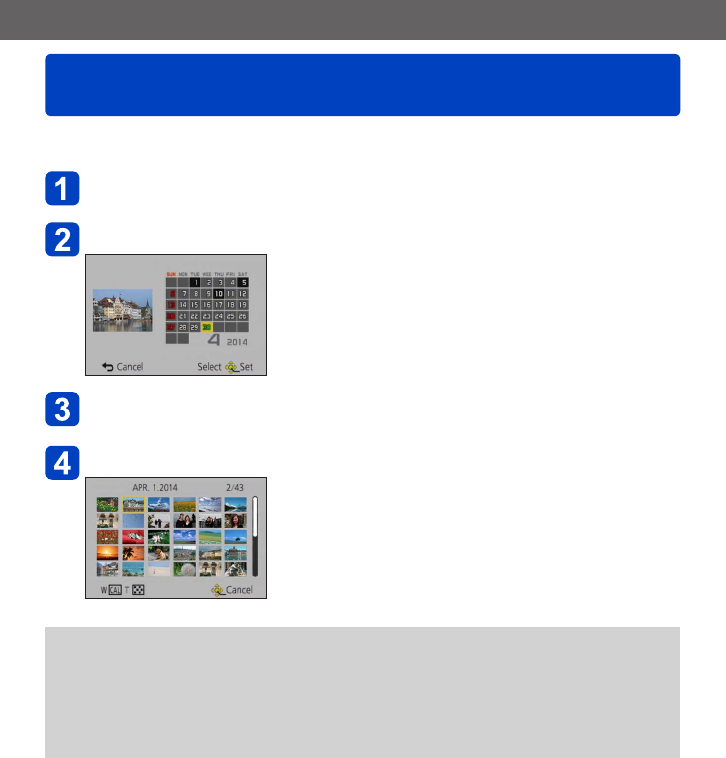
Application (View)
Searching by recording date [Calendar]
VQT5A33
- 152 -
You can search for pictures by the date they were recorded.
Select [Calendar] from the [Playback Mode] menu (→145)
Use cursor button to select the recording date to display
• Only months when pictures were taken are shown on
the calendar screen.
Press [MENU/SET] to display a list of pictures from the
selected date
Use cursor button to select picture and press [MENU/SET]
●If there is more than one picture recorded on the same date, the first picture taken on
that date will be selected.
●You can display the calendar between January 2000 to December 2099.
●Pictures recorded without configuring [Clock Set] will show the date January 1st,
2013.
●Pictures taken with destination settings made in [World Time] are displayed in the
calendar screen using the appropriate date for the destination’s time zone.
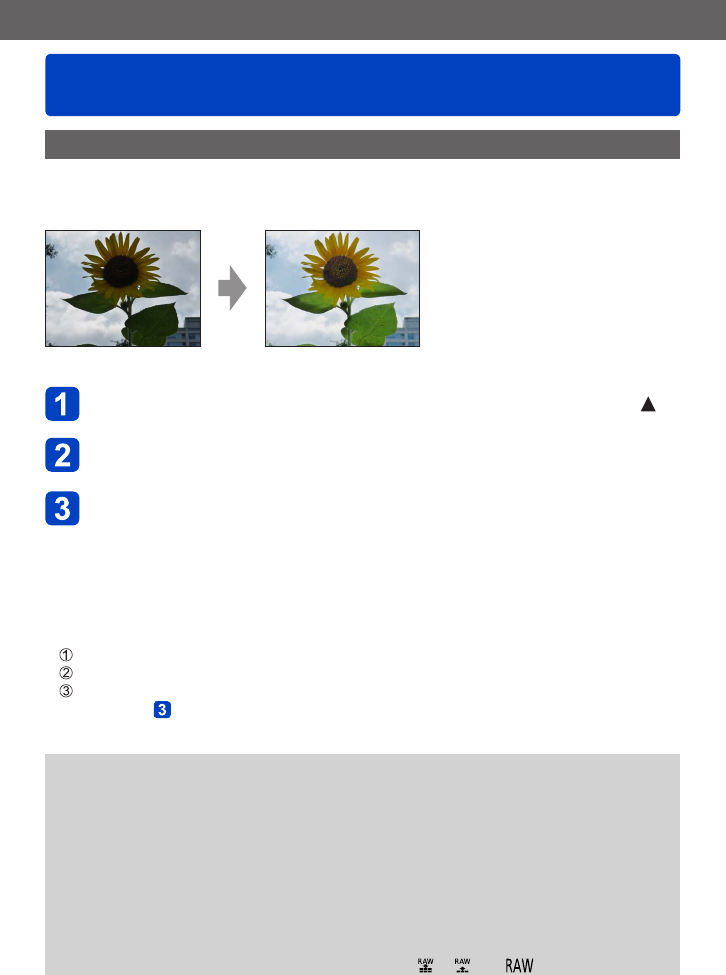
Application (View)
Retouching pictures
VQT5A33- 153 -
[Auto Retouch]
You can adjust the color and brightness of a still picture to bring them into balance.
• New pictures are created after editing pictures with [Auto Retouch]. Before starting to
edit, make sure that there is enough free space in the built-in memory or memory card.
• Example picture
Select a still picture to retouch during playback and press
Use cursor button to select [Auto Retouch] and press
[MENU/SET]
Use cursor button to select [ON] and press [MENU/SET]
• A confirmation screen is displayed. If you select [Yes], the new retouched still
picture is saved.
• When [OFF] is selected, you can restore a picture to its original condition (before
retouching).
■Operation from the [Playback] menu
Select [Retouch] in the [Playback] menu, and then press [MENU/SET]
Use cursor button to select [Auto Retouch] and press [MENU/SET]
Use cursor button to select picture and press [MENU/SET]
Read Step above to perform further steps.
●The retouch effect may be less apparent in some still pictures.
●Some still pictures may have higher noise levels after retouching.
●It may not be possible to use [Auto Retouch] with still pictures that have already been
retouched.
●It may not be possible to retouch still pictures recorded with other cameras.
●You cannot retouch the pictures in a picture group as a group. Retouch each picture in
a picture group after displaying it.
●[Auto Retouch] is unable to perform in the following cases:
• Motion pictures
• Panorama pictures
• 3D still pictures
• Still pictures recorded with the [Quality] setting [ ], [ ] or [ ]
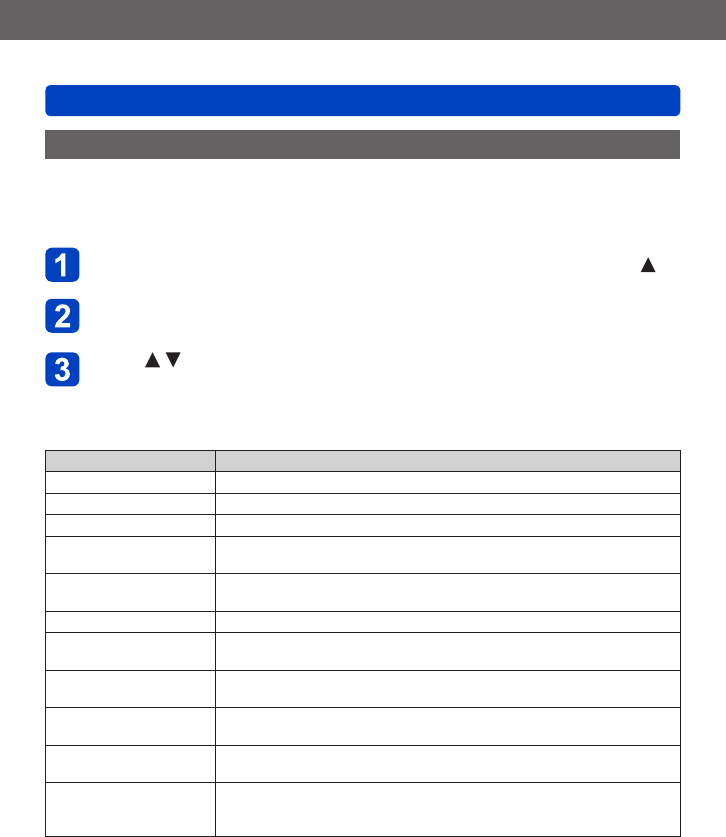
Application (View)
Retouching pictures
VQT5A33
- 154 -
[Creative Retouch]
You can retouch recorded still pictures by selecting the effect that you want to apply.
• New pictures are created after editing pictures with [Creative Retouch]. Before starting
to edit, make sure that there is enough free space in the built-in memory or memory
card.
Select a still picture to retouch during playback and press
Use cursor button to select [Creative Retouch] and press
[MENU/SET]
Press to select effect
• The picture retouched with the selected effect is displayed.
• When [No Effect] is selected, you can restore a picture to its original condition
(before retouching).
Setting Effect
[Expressive] This picture effect creates a pop art style picture that enhances the color.
[Retro] This picture effect creates the soft appearance of a tarnished picture.
[Old Days] This effect adds a bright, soft and nostalgic feel to the overall image.
[High Key] This picture effect creates a brighter and lighter toned appearance for the
entire picture.
[Low Key] This picture effect creates a darker somber appearance for the entire
picture to emphasize the bright portions.
[Sepia] This picture effect creates a picture with sepia tone.
[Dynamic Monochrome] This picture effect creates a monochromatic picture with a higher
contrast and more dramatic atmosphere.
[Impressive Art] A picture effect with strong contrast that illustrates a surreal and dramatic
atmosphere.
[High Dynamic] This picture effect creates a picture with a well-balanced brightness for
the entire picture (from dark areas to bright areas).
[Cross Process] This picture effect creates a unique atmosphere with surprising colors.
• Use cursor button to adjust coloring, then press [MENU/SET].
[Toy Effect]
This picture effect creates a picture that resembles pictures taken by a
toy camera with a reduced amount of peripheral light.
• Use cursor button to adjust coloring, then press [MENU/SET].
(Continued on the next page)
Application (View)
Retouching pictures
VQT5A33
- 155 -
Setting Effect
[Miniature Effect] This effect blurs peripheral areas to give the impression of a diorama.
[Soft Focus] This picture effect creates a soft appearance by intentionally blurring the
entire picture.
[Star Filter] This picture effect creates a picture with the light from the light source
that shines in the shape of a cross, creating a gorgeous atmosphere.
[One Point Color]
This picture effect creates a monochromatic picture by retaining the color
you selected only, and adds memorable emphasis to it.
• Use cursor button to move the frame in the center of the screen, select
the color to retain, and then press [MENU/SET].
• For more information about picture effects (→98 - 104)
• When you press [DISP.] button, a description of the selected effect is displayed.
Press [MENU/SET]
• A confirmation screen is displayed. If you select [Yes], the new retouched still
picture is saved.
■Operation from the [Playback] menu
Select [Retouch] in the [Playback] menu, and then press [MENU/SET]
Use cursor button to select [Creative Retouch] and press [MENU/SET]
Use cursor button to select picture and press [MENU/SET]
Read Step (→154) to perform further steps.
●The retouch effect may be less apparent in some still pictures.
●The image effect may appear weak compared to the effect given by the [Creative
Control] Mode.
●It may not be possible to retouch still pictures recorded with other cameras.
●You cannot retouch the pictures in a picture group as a group. Retouch each picture in
a picture group after displaying it.
●[Creative Retouch] is unable to be performed in the following cases:
• Motion pictures
• Panorama pictures
• 3D still pictures
• Still pictures recorded with the [Quality] setting [ ], [ ] or [ ]
Application (View)
Using the [Playback] menu
VQT5A33- 156 -
You can specify picture protection, resizing, print settings, and other settings for pictures
you have taken.
• For the setting procedures of the menu. (→52)
• The setting methods vary depending on the menu item.
●In the following cases, new pictures are created after they have been edited. Before
starting to edit, make sure that there is enough free space in the built-in memory or
memory card.
• [Text Stamp]
• [Retouch]
• [Resize]
• [Cropping]
●It may not be possible to set or edit pictures taken with other cameras.
[Location Logging]
You can send location information (latitude and longitude) obtained with your smartphone/
tablet to this unit, and write the location information to the pictures.
• Location information cannot be written to still pictures in the built-in memory. If you want
to record location information on them, copy the pictures in the built-in memory to a
memory card, then perform [Location Logging].
Preparation:
Send location information to this unit from your smartphone/tablet (→184)
Use cursor button to select [Add Location Data] and press
[MENU/SET]
Use cursor button to select a period for writing location
information, and then press [MENU/SET]
• Confirmation screen is displayed. If you select [Yes], the operation is executed.
• Location information is written to the picture.
• [ ] is displayed for pictures that have location information written to it.
Application (View)
Using the [Playback] menu
VQT5A33
- 157 -
■Abort writing location information
Press [MENU/SET] while location information is being written
• [ ] is displayed for the period of the abort operation.
If selected again while [ ] is displayed, writing location information will resume where
it left off.
■Delete received location information
Use cursor button to select [Delete Location Data] and press [MENU/SET]
Use cursor button to select a period for deleting location information, and then press
[MENU/SET]
• Confirmation screen is displayed. If you select [Yes], the operation is executed.
●Location information may not be written if there is not enough free space on your
card.
●If the card is locked, you cannot write location information to pictures or delete
received location information.
●You can only write location information to pictures recorded with this unit.
●Location information will not be written to pictures that were recorded after you
selected [Send location data] (→184).
●Location information will not be written to AVCHD motion pictures.
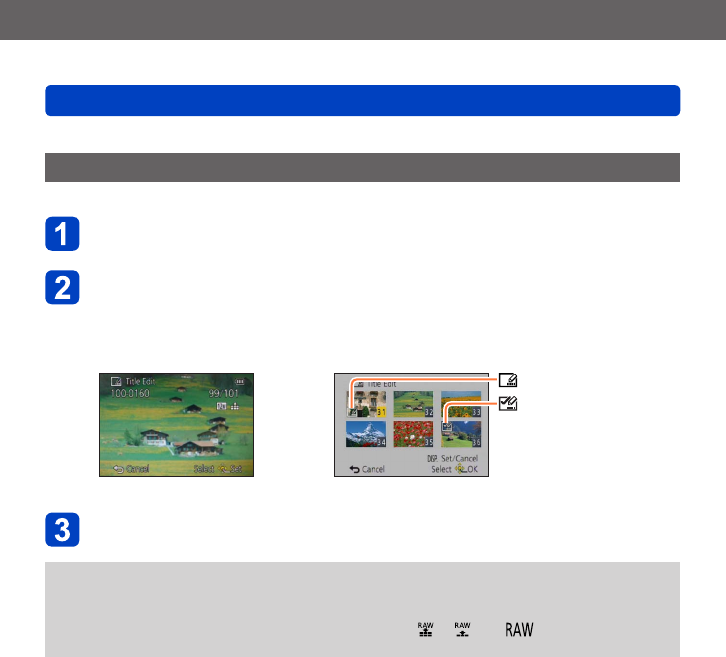
Application (View)
Using the [Playback] menu
VQT5A33
- 158 -
• For the setting procedures of the menu. (→52)
[Title Edit]
You can give titles, etc. to your favorite still pictures.
Use cursor button to select [SINGLE] or [MULTI], and then
press [MENU/SET]
Select a still picture
●[SINGLE]
Use cursor button to select a
still picture and press
[MENU/SET]
●[MULTI]
(up to 100 pictures with the same text)
Use cursor button to select a still picture and
press [DISP.] button
[Title Edit] setting
[Title Edit] already set
• To cancel
→ Press [DISP.] button
again.
• To execute
→ Press [MENU/SET].
Enter characters (Entering text (→65))
• To delete a title, delete all the characters in the character input screen.
●Cannot be used in the following cases:
• Motion pictures
• 3D still pictures
• Still pictures recorded with the [Quality] setting [ ], [ ] or [ ]
●To print text, use [Text Stamp] or “PHOTOfunSTUDIO” on the supplied CD-ROM.
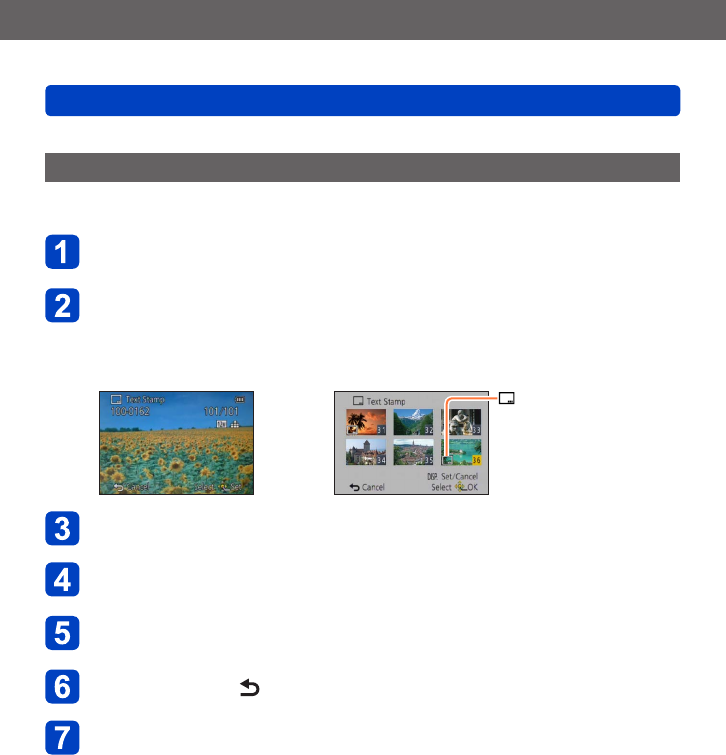
Application (View)
Using the [Playback] menu
VQT5A33
- 159 -
• For the setting procedures of the menu. (→52)
[Text Stamp]
You can stamp the recording date and time, names, travel destination, travel dates, etc.
on the recorded still pictures.
Use cursor button to select [SINGLE] or [MULTI], and then
press [MENU/SET]
Select a still picture
●[SINGLE]
Use cursor button to select a
still picture and press
[MENU/SET]
●[MULTI] (up to 100 pictures)
Use cursor button to select a still picture and
press [DISP.] button
[Text Stamp] setting
• To cancel
→ Press [DISP.] button
again.
• To execute
→ Press [MENU/SET].
Use cursor button to select [Set] and press [MENU/SET]
Use cursor button to select items and press [MENU/SET]
(→160)
Use cursor button to select settings and press [MENU/SET]
(→160)
Press [Q.MENU/ ] button
Use cursor button to select [OK] and press [MENU/SET]
• Confirmation screen is displayed. If you select [Yes], the operation is executed.
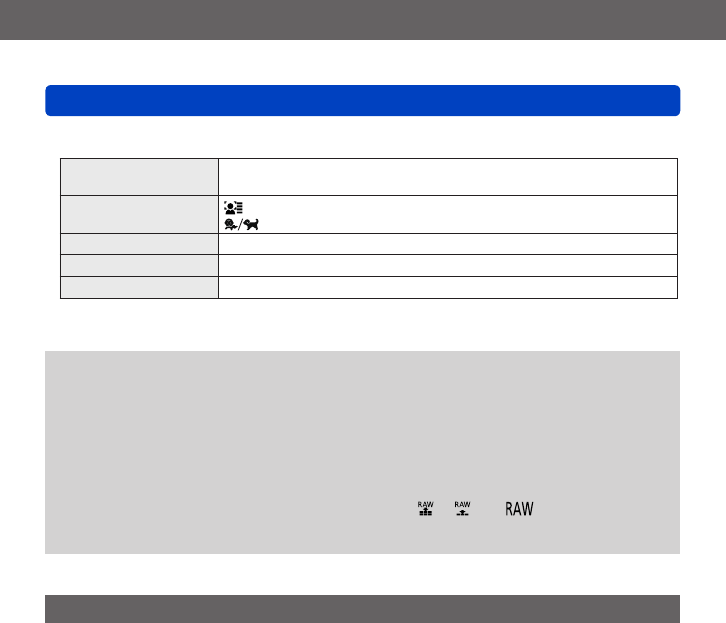
Application (View)
Using the [Playback] menu
VQT5A33
- 160 -
■Items that can be stamped
[Shooting Date] [W/O TIME]: Stamp recording date
[WITH TIME]: Stamp recording date and time
[Name] : Stamp name registered in Face Recognition
: Stamp name registered in [Baby] or [Pet]
[Location] Stamp location registered in [Setup] menu’s [Travel Date]
[Travel Date] Stamp Travel Date set in [Setup] menu’s [Travel Date]
[Title] Stamp text registered in [Title Edit]
• Items set to [OFF] are not stamped.
●Do not request date printing in store or make date printing on printer for still
pictures with date stamps. (Date printing may be overlapping.)
●Cannot stamp texts on the following pictures.
• Motion pictures
• 3D still pictures
• Panorama pictures
• Still pictures that date or other texts had already been stamped
• Still pictures taken without setting clock
• Still pictures recorded with the [Quality] setting [ ], [ ] or [ ]
●Characters may be cut off on certain printers.
●Text is difficult to read when stamped on pictures of 0.3M or less.
[Retouch]
[Auto Retouch]: For details (→153)
[Creative Retouch]: For details (→154)
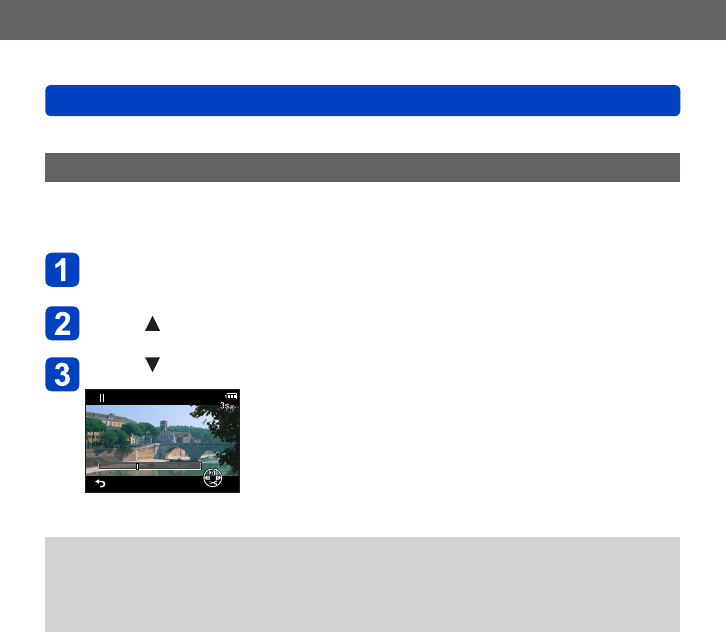
Application (View)
Using the [Playback] menu
VQT5A33
- 161 -
• For the setting procedures of the menu. (→52)
[Video Divide]
A single motion picture can be split into 2 parts. This is convenient when you want to keep
just the necessary scenes, or if you wish to delete unnecessary scenes to increase free
space on your card, such as when traveling.
Select the motion picture to split with cursor button and then
press [MENU/SET]
Press at where you want to split a motion picture to pause it
Press
Video Divide
Cancel
• A confirmation screen is displayed.
Select [Yes] with cursor button and then press
[MENU/SET].
• The original motion picture that was split does not
remain.
(There will only be the 2 motion pictures that were created
after the split.)
●During splitting, do not turn off the camera or remove the card or battery. If you do so,
the motion picture may be deleted.
●Splitting a motion picture recorded in [MP4] changes the order of pictures. It is
recommended to display with [Calendar] (Calendar Playback) or [Filtering Play].
●Motion pictures with a short recording time cannot be divided.
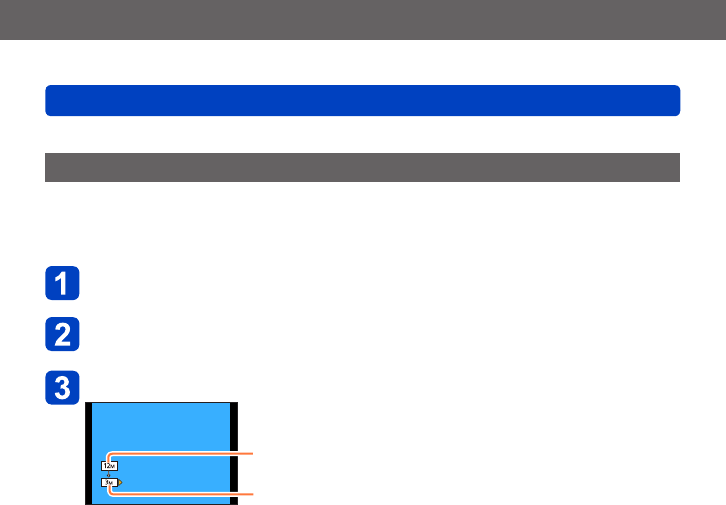
Application (View)
Using the [Playback] menu
VQT5A33
- 162 -
• For the setting procedures of the menu. (→52)
[Resize]
Picture size can be reduced to facilitate e-mail attachment and use in web pages, etc.
(Still pictures recorded at the smallest recording pixel level cannot be further reduced.)
■[SINGLE]
Use cursor button to select [SINGLE] and press [MENU/SET]
Use cursor button to select a still picture and press
[MENU/SET]
Use cursor button to select size and press [MENU/SET]
Current size
Size after change
• Confirmation screen is displayed. If you select [Yes], the operation is executed.
(Continued on the next page)
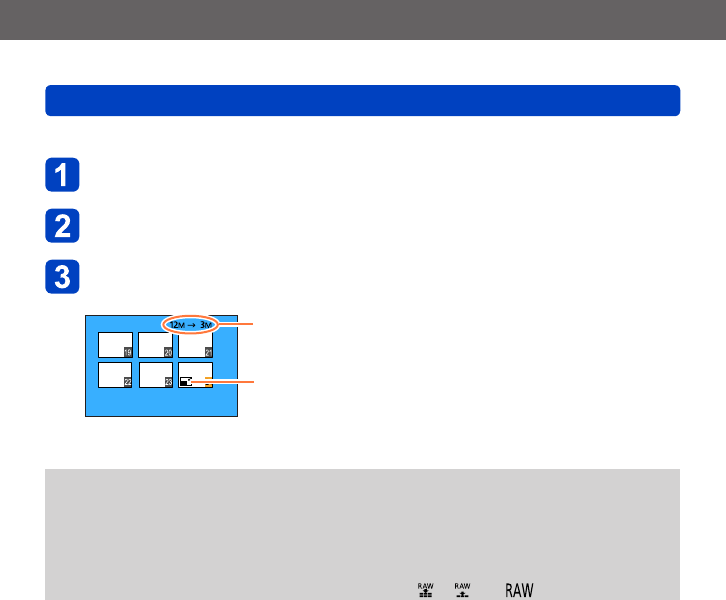
Application (View)
Using the [Playback] menu
VQT5A33
- 163 -
■[MULTI]
Use cursor button to select [MULTI] and press [MENU/SET]
Use cursor button to select size and press [MENU/SET]
Use cursor button to select a still picture and press [DISP.]
button (up to 100 pictures)
Number of pixels before/after
resizing
Resize setting
• To cancel
→ Press [DISP.] button again.
• To execute
→ Press [MENU/SET].
• Confirmation screen is displayed. If you select [Yes], the operation is executed.
●Picture quality is reduced after resizing.
●Cannot resize the following pictures.
• Motion pictures
• 3D still pictures
• Panorama pictures
• Still pictures that date or other texts had already been stamped
• Still pictures recorded with the [Quality] setting [ ], [ ] or [ ]
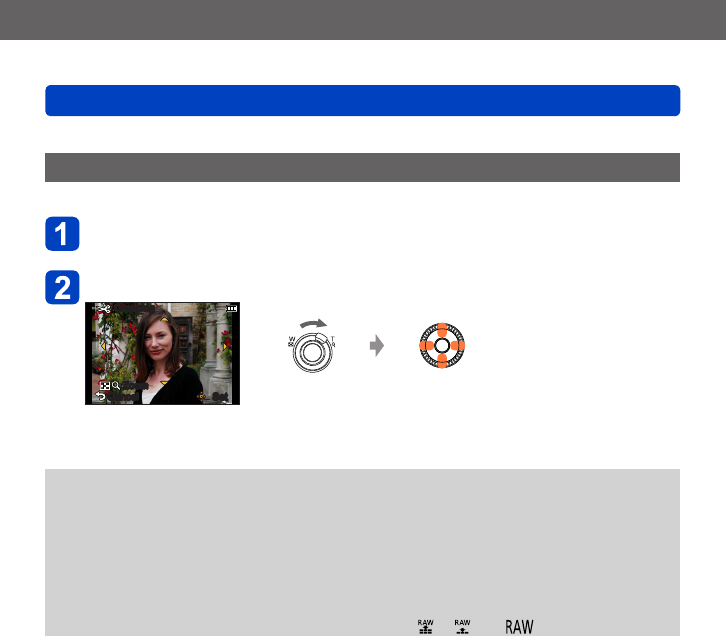
Application (View)
Using the [Playback] menu
VQT5A33
- 164 -
• For the setting procedures of the menu. (→52)
[Cropping]
Enlarge your still pictures and crop unwanted areas.
Use cursor button to select a still picture, and then press
[MENU/SET]
Select area to crop and press [MENU/SET]
Cropping
Cancel
Zoom
Set
Expand Change position
• Confirmation screen is displayed. If you select [Yes], the operation is executed.
• You can also enlarge the still picture with the control dial.
●Original Face Recognition information will not be copied when still pictures are
cropped.
●Picture quality is reduced after cropping.
●Cannot crop the following pictures.
• Motion pictures
• 3D still pictures
• Panorama pictures
• Still pictures that date or other texts had already been stamped
• Still pictures recorded with the [Quality] setting [ ], [ ] or [ ]
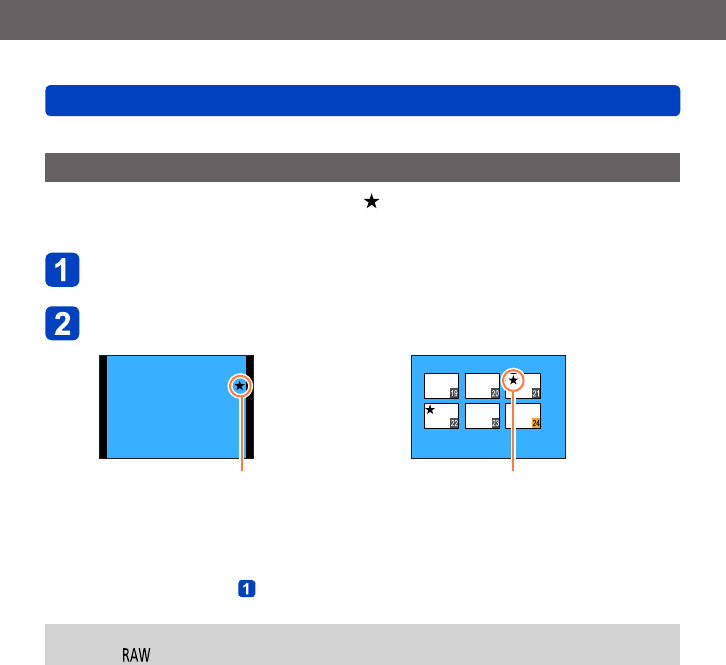
Application (View)
Using the [Playback] menu
VQT5A33
- 165 -
• For the setting procedures of the menu. (→52)
[Favorite]
By labeling your favorite pictures with a star ( ), you can play back your favorite pictures
only, or you can delete all pictures except your favorites. Up to 999 pictures can be set as
favorites.
Use cursor button to select [SINGLE] or [MULTI] and press
[MENU/SET]
Use cursor button to select picture and press [MENU/SET]
●[SINGLE]
Favorite picture setting
●[MULTI]
Favorite picture setting
• To cancel → Press [MENU/SET] again.
■To clear all
Select [CANCEL] in step and select [Yes].
●You cannot select the [Favorite] setting for still pictures recorded with the [Quality]
setting [ ].
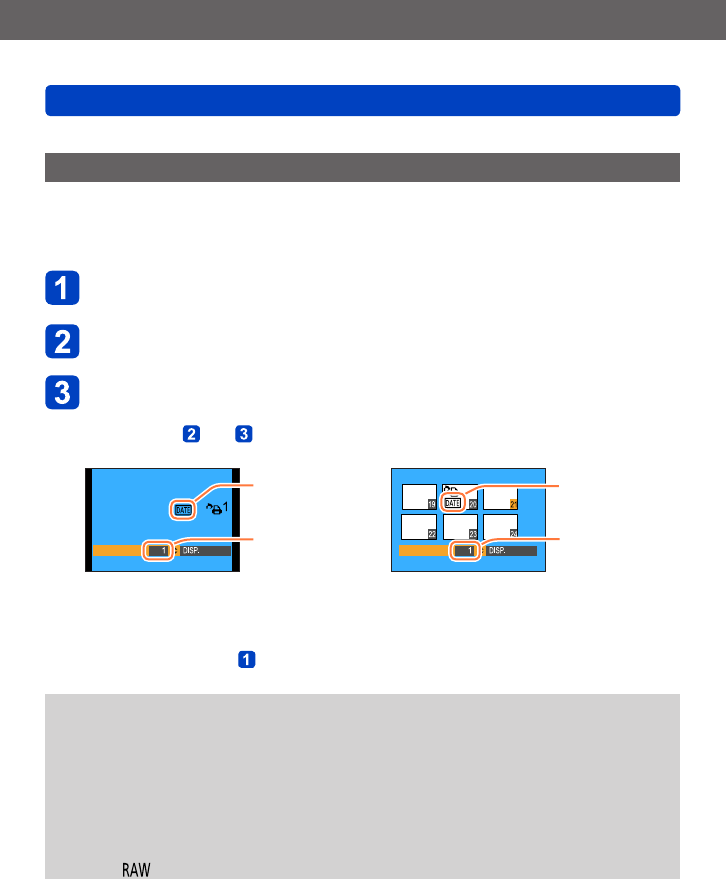
Application (View)
Using the [Playback] menu
VQT5A33
- 166 -
• For the setting procedures of the menu. (→52)
[Print Set]
Picture/picture no./date printing settings can be made for when printing with DPOF print-
compatible shops or printers. (Ask at the shop to check for compatibility.)
For more information visit:
http://panasonic.jp/dc/dpof_110/white_e.htm
Use cursor button to select [SINGLE] or [MULTI] and press
[MENU/SET]
Use cursor button to select picture and press [MENU/SET]
Use cursor button to set number of pictures and press
[MENU/SET]
(repeat steps and when using [MULTI] (up to 999 pictures))
●[SINGLE]
Count Date
Date print set
No. to print
●[MULTI]
Count Date
Date print set
No. to print
• Date print setting/release → Press [DISP.] button
■To clear all
Select [CANCEL] in step and select [Yes].
●Date print setting cannot be made for still pictures that have been taken with [Date
Stamp] and pictures with a [Text Stamp] applied.
●Depending on the type of printer, the printer settings may take priority over camera
settings.
●Cannot be set for files that are not compliant with the DCF standard.
●Some DPOF information set by other equipment cannot be used. In such cases,
delete all of the DPOF information and then set it again with this camera.
●Print setting cannot be made for motion pictures.
●You cannot select the [Print Set] setting for still pictures recorded with the [Quality]
setting [ ].
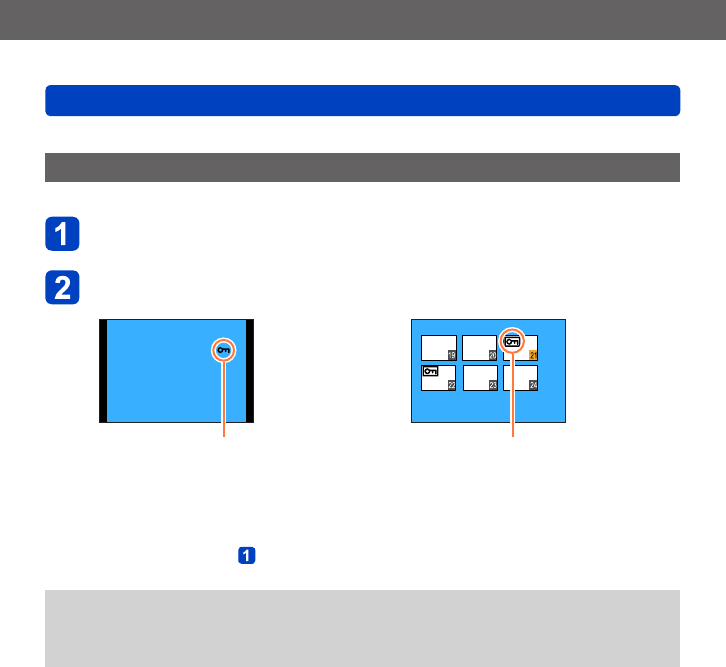
Application (View)
Using the [Playback] menu
VQT5A33
- 167 -
• For the setting procedures of the menu. (→52)
[Protect]
Set protection to disable picture deletion. Prevents deletion of important pictures.
Use cursor button to select [SINGLE] or [MULTI] and press
[MENU/SET]
Use cursor button to select picture and press [MENU/SET]
●[SINGLE]
Picture protected
●[MULTI]
Picture protected
• To cancel → Press [MENU/SET] again.
■To clear all
Select [CANCEL] in step and select [Yes].
●The picture is erased when formatting, even if it is protected.
●May not be effective when using other devices.
●When you set the write-protect switch on the card to the “LOCK” position, the picture
is not erased.
Application (View)
Using the [Playback] menu
VQT5A33
- 168 -
• For the setting procedures of the menu. (→52)
[Face Rec Edit]
Edit or delete the recognition information for pictures with mistaken Face Recognition.
Use cursor button to select [REPLACE] or [DELETE] and
press [MENU/SET]
Use cursor button to select the picture and press [MENU/SET]
Use cursor button to select a person and press [MENU/SET]
• If [DELETE], go to step .
• People whose Face Recognition information has not been registered cannot be
selected.
Use cursor button to select the person to replace for another
and press [MENU/SET]
Use cursor button to select [Yes] and press [MENU/SET]
●When Face Recognition information is deleted, it cannot be restored.
●Pictures for which all Face Recognition information has been deleted are not
categorized in Face Recognition during [Category Selection].
●Recognition information cannot be edited in protected pictures.
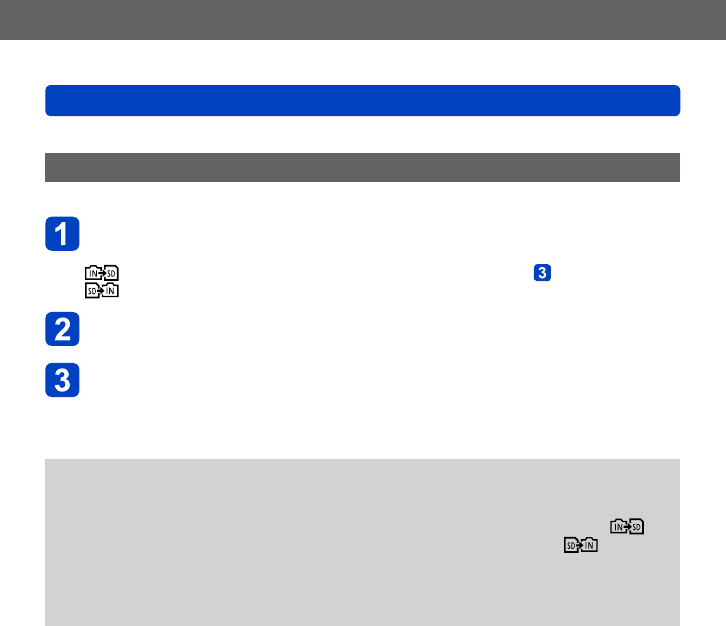
Application (View)
Using the [Playback] menu
VQT5A33
- 169 -
• For the setting procedures of the menu. (→52)
[Copy]
You can copy pictures between built-in memory and memory card.
Use cursor button to select the copy method (direction) and
press [MENU/SET]
: Copy all pictures from built-in memory to card (go to step ).
: Copy 1 picture at a time from card to built-in memory.
Use cursor button to select picture and press [MENU/SET]
Use cursor button to select [Yes] and press [MENU/SET]
• To cancel → Press [MENU/SET].
●Copying pictures may take several minutes. Do not turn off the camera or perform
other operations during copying.
●If identical names (folder/file numbers) are present in the copy destination, a new
folder for copying will be created when copying from built-in memory to card ( ).
Identically-named files will not be copied from card to built-in memory ( ).
●The following settings are not copied. Set them again after copying.
- [Print Set] - [Protect] - [Favorite]
●Only pictures from Panasonic digital cameras (LUMIX) may be copied.
●Motion pictures recorded in [AVCHD] format cannot be copied.

Wi-Fi/NFC
Wi-Fi® Function and NFC Function
VQT5A33- 170 -
Wi-Fi/NFC
■Use the camera as a wireless LAN device
When using equipment or computer systems that require more reliable security than
wireless LAN devices, ensure that the appropriate measures are taken for safety
designs and defects for the systems used. Panasonic will not take any responsibility
for any damage that arises when using the camera for any purpose other than as a
wireless LAN device.
■Use of the Wi-Fi function of this camera is presumed to be in countries
where this camera is sold
There is the risk that the camera violates the radiowave regulations if used in countries
other than those where this camera is sold, and Panasonic takes no responsibility for
any violations.
■There is the risk that data sent and received via radio waves may be
intercepted
Please note that there is the risk that data sent and received via radio waves may be
intercepted by a third party.
■Do not use the camera in areas with magnetic fields, static electricity or
interference
• Do not use the camera in areas with magnetic fields, static electricity or interference,
such as near microwave ovens. Radio waves may not reach the camera.
• Using the camera near devices such as microwave ovens or cordless telephones
that use the 2.4 GHz radio wave band may cause a decrease in performance in both
devices.
■Do not connect to the wireless network you are not authorized to use
When the camera utilizes its Wi-Fi function, wireless networks will be searched
automatically. When this happens, wireless networks that you are not authorized to use
(SSID*) may be displayed, however do not attempt to connect to the network as it may
be considered as unauthorized access.
* SSID refers to the name that is used to identify a network over a wireless LAN connection. If the
SSID matches for both devices, transmission is possible.
■Before Use
• To use the Wi-Fi function on this unit, a wireless access point or a destination device
equipped with the wireless LAN function is required.
■The camera is compatible with NFC
Using the NFC (Near Field Communication) function,
the camera and a smartphone can easily exchange the
information needed to establish a Wi-Fi connection.
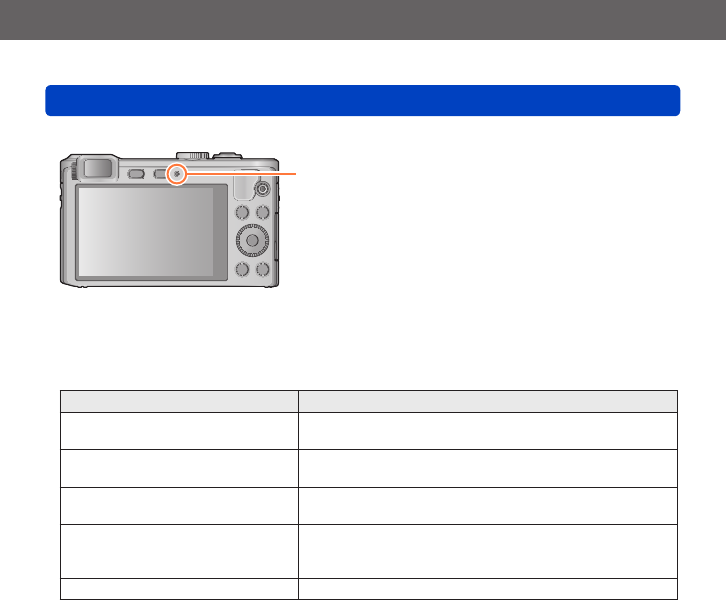
Wi-Fi/NFC
Wi-Fi® Function and NFC Function
VQT5A33
- 171 -
■About the Wi-Fi connection lamp
Wi-Fi connection lamp
Lit blue: When the Wi-Fi function is ON
Blinking blue: When sending data
■Pressing the [Wi-Fi] button during a Wi-Fi connection
Pressing the [Wi-Fi] button during a Wi-Fi connection enables the following operation.
(excluding [Remote Shooting & View])
Item Description
[Terminate the Connection] Terminates the Wi-Fi connection.
• Closing the connection ([Remote Shooting & View]) (→176)
[Change the Destination] Terminates the Wi-Fi connection, and allows you to select a
different Wi-Fi connection.
[Change Settings for Sending
Images]*For details (→238).
[Register the Current Destination to
Favorite]
Registering the current connection destination or the
connection method, you can easily connect with the same
connection method next time.
[Network Address] Displays the MAC address and IP address of this unit. (→240)
* This item will not be displayed if the destination for [Playback on TV] or [Send Images Stored in the
Camera] is set to [Printer].
Wi-Fi/NFC
Wi-Fi® Function and NFC Function
VQT5A33
- 172 -
●The camera cannot be used to connect to a public wireless LAN connection.
●Use a IEEE802.11b, IEEE802.11g or IEEE802.11n compatible device when using a
wireless access point.
●We strongly recommend that you set an encryption to maintain information security.
●We recommend that you use a fully charged battery when you send pictures.
●When the battery indicator is flashing red, the connection with other equipment may
not start or the connection may be disrupted. (A message such as [Communication
error] is displayed.)
●When sending images on a mobile network, high packet communication fees may be
incurred depending on the details of your contract.
●Pictures may not be completely sent depending on radio wave conditions. If the
connection is terminated while sending pictures, pictures with missing sections may
be sent.
●Do not remove the memory card or battery or move to an area without any
reception while sending images.
●The monitor display may become distorted for an instant while connected to the
service, however this will not affect the image being sent.
[Airplane Mode]
To disable Wi-Fi connection, set [Airplane Mode] to [ON].
Select [Airplane Mode] from [Setup] menu and press
[MENU/SET] (→52)
Use cursor button to select [ON] and press [MENU/SET]
●Electromagnetic waves from the camera can affect instruments and meters. In
airplane cabins or in other restricted areas, set [Airplane Mode] to [ON].
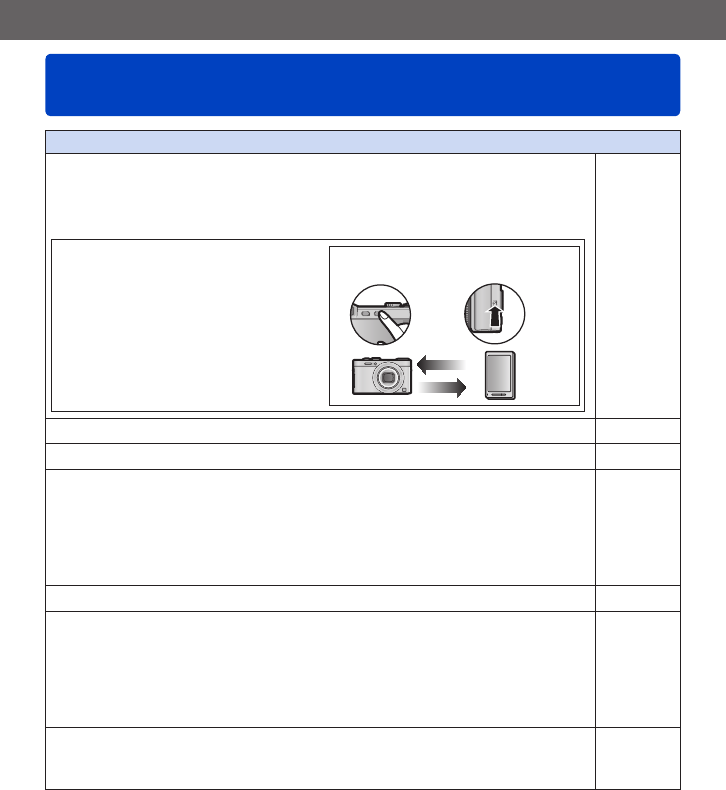
Wi-Fi/NFC
What you can do with the Wi-Fi function
VQT5A33- 173 -
What you can do
Operating the camera using a smartphone
Record by smartphone
Save pictures in the camera to the smartphone
Send pictures to social networking services
Connect easily, transfer
pictures easily
You can easily use the Wi-Fi
function by pressing and holding
the [Wi-Fi] button or using the
NFC function.
or
Press and
hold
Hold the device
close to the camera (→174)
Displaying still pictures on a TV (→190)
Sending still pictures to a printer (→192)
Sending pictures to AV equipment
Still pictures and motion pictures can be sent to AV equipment in the home
(home AV equipment).
Through LUMIX CLUB, you can also send your still pictures and motion
pictures to AV equipment of family and friends far away (outside AV
equipment).
(→194)
Sending pictures to a PC (→199)
Using WEB services
Through LUMIX CLUB, you can send still pictures and motion pictures to
social networking services, etc. By selecting the setting to automatically
transfer still pictures and motion pictures to [Cloud Sync. Service], you
can receive the transferred still pictures and motion pictures on a PC or a
smartphone.
(→204)
Transferring pictures automatically [Smart Transfer]
Transfer recorded images to a PC, an AV device or a Cloud Folder
automatically.
(→222)
• Hereafter, this manual uses the term “smartphone” for both smartphones and tablets
unless it is particularly distinguishing between them.
Wi-Fi/NFC
Operating the camera using a smartphone
VQT5A33- 174 -
You can remotely operate the camera using a smartphone.
The “Panasonic Image App” (hereafter “Image App”) must be installed on your
smartphone.
Installing the smartphone/tablet app “Panasonic Image App”
The “Image App” is an application provided by Panasonic that allows your smartphone to
perform the following operations of a Wi-Fi-compatible LUMIX.
For Android™ apps For iOS apps
Supported
OS
Android 2.2 - Android 4.2*iOS 4.3 - iOS 6.1
Installation
procedure
Connect your Android device to a
network
Select “Google PlayTM Store”
Enter “Panasonic Image App” into the
search box
Select “Panasonic Image App” and
install it
• The icon will be added to the
menu.
Connect the iOS device to the
network
Select “App StoreSM”
Enter “Panasonic Image App” into the
search box
Select “Panasonic Image App” and
install it
• The icon will be added to the
menu.
• Use the latest version.
• The service may not be able to be used properly depending on the type of smartphone
being used. For information on the “Image App”, refer to the support site below.
http://panasonic.jp/support/global/cs/dsc/ (This site is available in English only.)
• When downloading the app on a mobile network, high packet communication fees may
be incurred depending on the details of your contract.
* To connect this unit with [Wi-Fi Direct], Android OS 4.0 or above is required and the device must be
compatible with Wi-Fi Direct™.
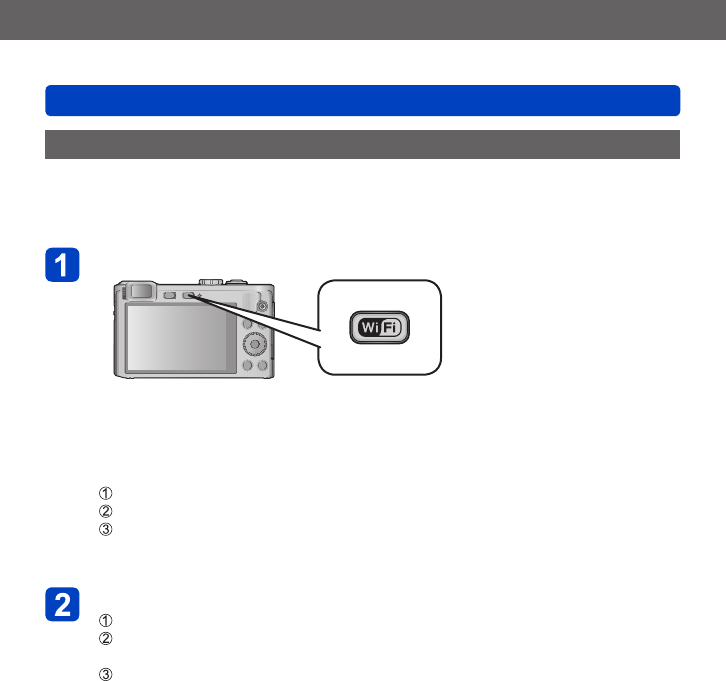
Wi-Fi/NFC
Operating the camera using a smartphone
VQT5A33
- 175 -
Connecting to a smartphone/tablet
You can easily establish a Wi-Fi connection on the camera by pressing and holding the
[Wi-Fi] button or using the NFC function.
Preparation: Install “Image App” in advance. (→174)
Press and hold the [Wi-Fi] button
• The information (SSID and password) required for directly connecting your
smartphone to this unit is displayed.
• To change the connection method, press the [DISP.] button and select the
connection method.
• The same screen can be displayed by selecting items from the menu as follows.
Press [Wi-Fi] button
Use cursor button to select [New Connection] and press [MENU/SET]
Use cursor button to select [Remote Shooting & View] and press [MENU/SET]
• By holding down the [Wi-Fi] button while the camera is turned off, you can turn the
camera on.
Operate the smartphone
Set Wi-Fi function to “ON”
Select the SSID that matches the one displayed on the screen of this unit, and
then enter the password
Start “Image App” (→174)
• When the connection is complete, live images being captured by the camera
are displayed on the smartphone.
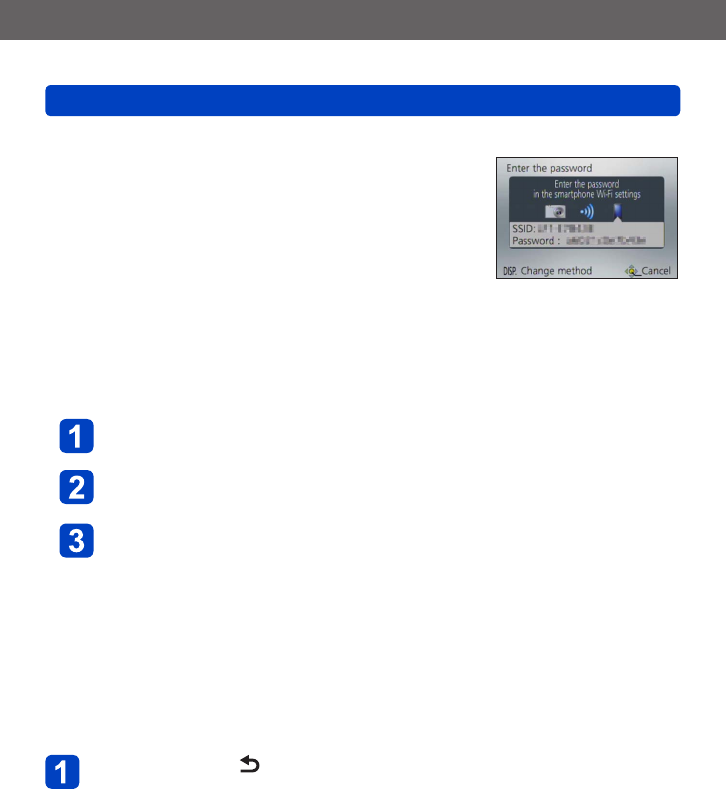
Wi-Fi/NFC
Operating the camera using a smartphone
VQT5A33
- 176 -
■Changing the connection method
To change the connection method, press the [DISP.] button
and select the connection method.
(On the camera)
Select [Via Network] or [Direct] to connect (→230)
(On your smartphone)
●When connecting with [Via Network]
Set Wi-Fi function to “ON”
Select the wireless access point you want to connect to, and
set
Start “Image App” (→174)
●When connecting with [Wi-Fi Direct] or [WPS Connection] in [Direct]
Start “Image App” (→174)
■Closing the connection ([Remote Shooting & View])
After use, close the connection with the smartphone. When the connection is canceled,
you will be able to record and play back pictures on the camera as normal.
Press [Q.MENU/ ] button
• A confirmation screen is displayed. Select [Yes] with cursor button and then press
[MENU/SET].
Wi-Fi/NFC
Operating the camera using a smartphone
VQT5A33
- 177 -
Connecting to a smartphone using NFC function
Using the NFC (Near Field Communication) function, the camera and a smartphone can
easily exchange the information needed to establish a Wi-Fi connection.
Compatible models:
This function can be used with NFC compatible devices with Android (2.3.3 or above).
(Not available in certain models)
• See the operating instructions of your NFC-compatible smartphone for more
information about smartphone operation and settings.
Preparations:
(On the camera)
• Set [NFC Operation] to [ON] (→240)
(On your smartphone)
• Check if your smartphone is a compatible model
• Set Wi-Fi function to “ON”
• Install “Image App” in advance (→174)
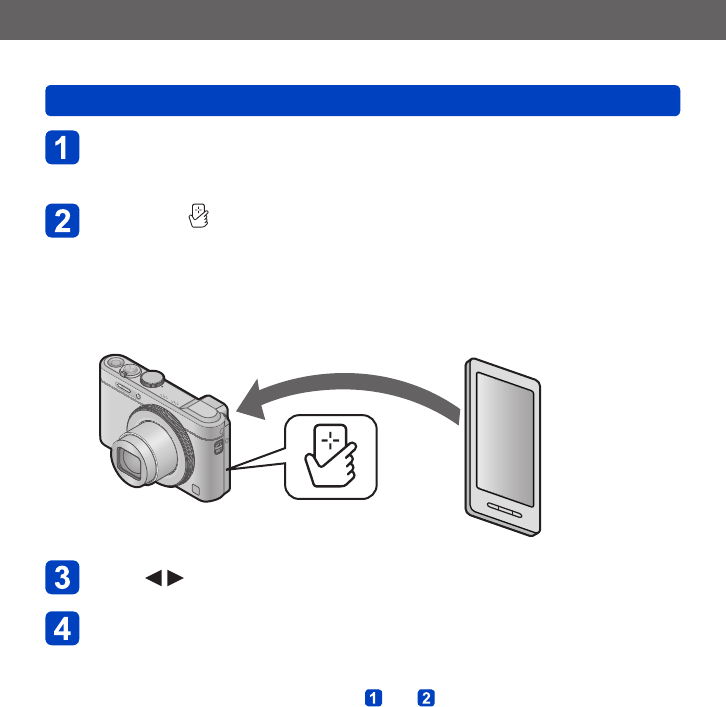
Wi-Fi/NFC
Operating the camera using a smartphone
VQT5A33
- 178 -
Start “Image App” on your smartphone
• After it has started, a screen is displayed from which you select a connection
destination.
While the [ ] is displayed on the connection screen of the
“Image App”, hold the smartphone close to the camera
• It may take some time to complete connecting.
• When the connection is complete, live images captured by the camera will be
displayed on your smartphone.
• If you connect during playback of one picture, it will be transferred to the
smartphone. (→181)
Hold the smartphone close to this area
(within 5 mm (0.20 inch))
Press to select [Yes], then press [MENU/SET]
Hold the smartphone close to this area of the unit again
• When the connection is complete, live images captured by the camera will be
displayed on your smartphone.
• Connected smartphones are registered to this unit. From the next time and on,
you can connect by performing steps and .
Wi-Fi/NFC
Operating the camera using a smartphone
VQT5A33
- 179 -
●You can register up to 20 smartphones. If the number of registered smartphones
exceeds 20, registrations will be deleted starting from the smartphone touched first.
●If you perform [Reset Wi-Fi Settings], smartphone registration will be deleted.
●If the communication environment is bad, the NFC function may not be usable.
●If there is not a response immediately, shift the position slightly.
●Do not bump your smartphone strongly against this unit.
●See the operating instructions of your NFC-compatible smartphone for more
information about smartphone operation and settings.
●Metal objects between this unit and the smartphone may interfere with
communication. Also, any stickers, etc., near the NFC area may affect communication
performance.
●You can still connect to the smartphone even if the camera is turned off. The camera
lens may come out when the power is turned on after making a connection. Be careful
that the vibration does not cause the camera to drop.
●The NFC function cannot be used in the following cases:
• When connected to a television, computer, or printer
• When recording motion pictures
• During motion picture playback, during slide shows, and during panorama playback
(including pauses in each case)
• While sending pictures by Wi-Fi
• While recording still pictures (during self-timer countdown)
• While editing
• When the [Airplane Mode] is [ON]
●After “Image App” is forced to end or after the connection has been canceled, it is
necessary to hold the smartphone close to the camera again.
Taking pictures via a smartphone/tablet (remote recording)
Connect to a smartphone (→175)
Select [ ] from “Image App”
• The recorded images are saved in the camera.
• Motion pictures can also be recorded.
• Some settings are not available.
• When the camera is in [Panorama Shot] Mode or when [Scene Mode] is set to
[3D Photo Mode], recording will be in [Program AE] Mode.
• The screen differs depending on the operating system.
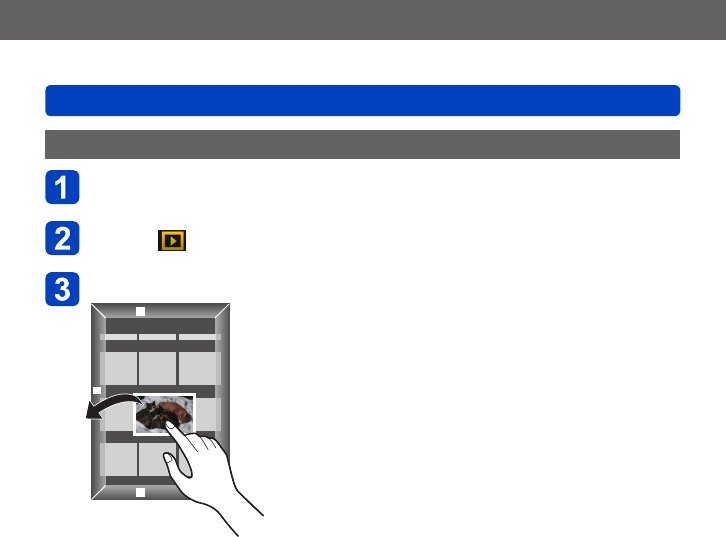
Wi-Fi/NFC
Operating the camera using a smartphone
VQT5A33
- 180 -
Saving pictures in the camera to the smartphone
Connect to a smartphone (→175)
Select [ ] from “Image App”
Drag the picture and save it to the smartphone
• When the picture is tapped, it is played back at a larger size. (Motion pictures
cannot be played back.)
• Functions can be assigned to the top, bottom, left and right as you wish.

Wi-Fi/NFC
Operating the camera using a smartphone
VQT5A33
- 181 -
■Easily transferring pictures in the camera
You can establish a Wi-Fi connection using the NFC function and easily transfer the
picture on display simply by holding the smartphone close to the camera. Pictures can
be transferred as soon as they are recorded, so you can easily transfer them to your
friends’ and family’s smartphones.*
* “Image App” must be installed to use this function.
Preparations:
(On the camera)
• Set [NFC Operation] to [ON] (→240)
(On your smartphone)
• Check if your smartphone is a compatible model
• Set Wi-Fi function to “ON”
• Install “Image App” in advance (→174)
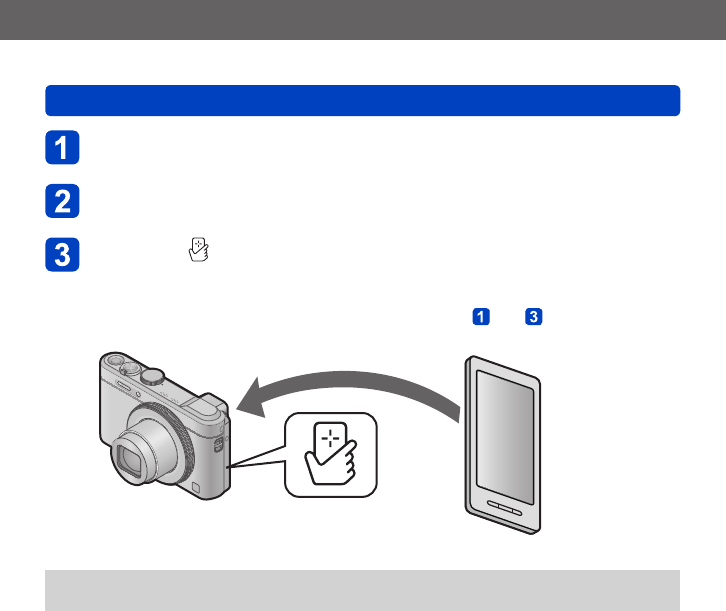
Wi-Fi/NFC
Operating the camera using a smartphone
VQT5A33
- 182 -
On the camera, play back the picture you wish to transfer to a
smartphone
Start “Image App” on the smartphone you are transferring the
picture to
While the [ ] is displayed on the connection screen of the
“Image App”, hold the smartphone close to the camera
• It may take some time to complete connecting.
• If you are transferring multiple pictures, repeat steps and . (Multiple pictures
cannot be transferred in one batch.)
Hold the smartphone close to this area
(within 5 mm (0.20 inch))
●It may take several minutes to complete the picture transfer depending on the
environment used.
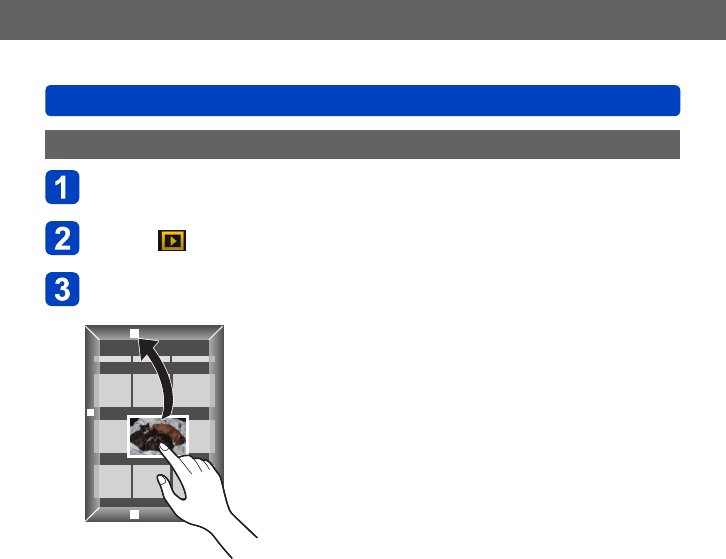
Wi-Fi/NFC
Operating the camera using a smartphone
VQT5A33
- 183 -
Sending pictures in the camera to social networking services
Connect to a smartphone (→175)
Select [ ] from “Image App”
Drag the picture and send it to the social networking service,
etc.
• The picture will be sent to the social networking service or other WEB services.
• Functions can be assigned to the top, bottom, left and right as you wish.

Wi-Fi/NFC
Operating the camera using a smartphone
VQT5A33
- 184 -
Sending location information to the camera from a smartphone/tablet
You can acquire location information from a smartphone, and write it on images
afterwards.
Refer to (→156) for how to write the location information on the images recorded by this unit.
●Read the [Help] in the “Image App” menu for further details on how to operate.
●Caution:
Be sure to pay special attention to the privacy, the likeness rights, etc. of the
subject when you use this function. Use at your own risk.
●If you have changed the clock setting of this unit or the smartphone after [Time sync],
perform [Time sync] again.
●On the smartphone, you can set the acquisition interval of location information and
check the transfer status of location information. Refer to [Help] in the “Image App”
menu for details.
●(When using “Image App” for iOS)
If you press the Home or On/Off button of a smartphone while [Rec. loc. Info] is
working, location information recording is stopped.
●The smartphone may fail to acquire location information in China and the border area
in the neighboring countries of China. (As of March 2013)
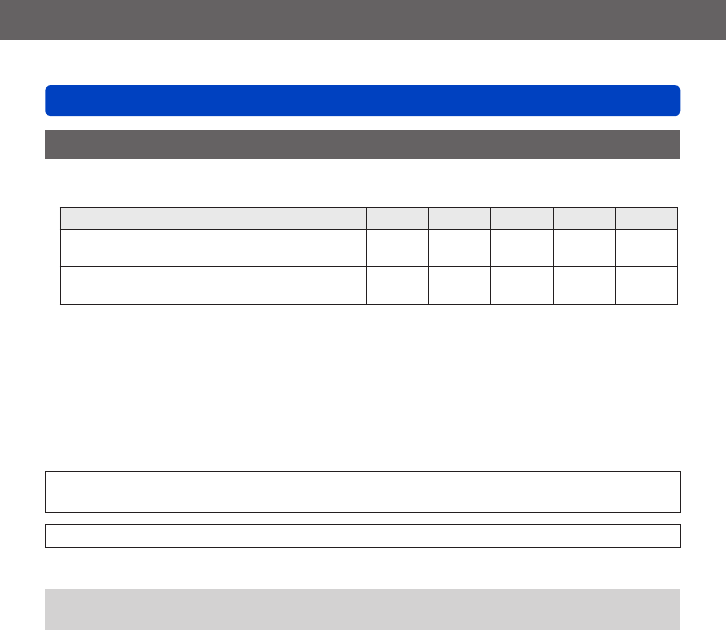
Wi-Fi/NFC
Operating the camera using a smartphone
VQT5A33
- 185 -
Operating the camera to send pictures to a smartphone or tablet
■Sending method, and pictures that can be sent
JPEG RAW MP4 AVCHD 3D
Sending a picture each time one is recorded
[Send Images While Recording] Yes No No No No
Sending selected pictures
[Send Images Stored in the Camera] Yes No Yes No No
• Some images may not be played back or sent depending on the device.
• See the operating instructions of the destination device for more information about
picture playback.
• For more details about picture sending methods. (→237)
Preparation: Install “Image App” in advance. (→174)
See the part of the manual that applies to your objective.
Sending a picture each time one is recorded ([Send Images While Recording])
(→186)
Sending selected pictures ([Send Images Stored in the Camera]) (→188)
●When sending images on a mobile network, high packet communication fees may be
incurred depending on the details of your contract.
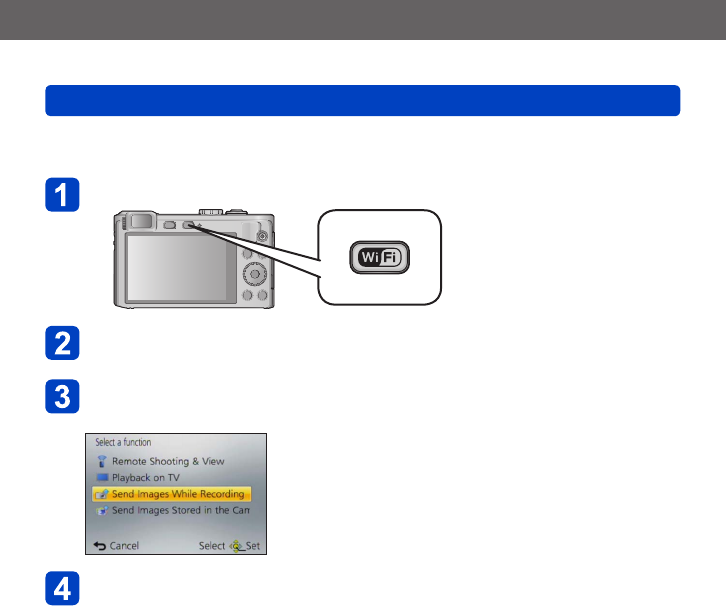
Wi-Fi/NFC
Operating the camera using a smartphone
VQT5A33
- 186 -
■Sending a picture each time one is recorded ([Send Images While
Recording])
Press [Wi-Fi] button
Use cursor button to select [New Connection] and press
[MENU/SET]
Use cursor button to select [Send Images While Recording]
and press [MENU/SET]
Use cursor button to select [Smartphone] and press
[MENU/SET]
(Continued on the next page)
Wi-Fi/NFC
Operating the camera using a smartphone
VQT5A33
- 187 -
Select [Via Network] or [Direct] to connect (→229)
(On your smartphone)
●When connecting with [Via Network]
Set Wi-Fi function to “ON”
Select a wireless access point and set
Start “Image App”* (→174)
●When connecting with [Wi-Fi Direct] or [WPS Connection] in [Direct]
Start “Image App”* (→174)
●When connecting with [Manual Connection] in [Direct]
Set Wi-Fi function to “ON”
Select the SSID that matches the one displayed on the screen of this unit, and
then enter the password
Start “Image App”* (→174)
*
A window indicating that the smartphone is connecting to the camera is displayed. Press the
“Back” button on Android devices. Select “Close” on iOS devices.
Select the device you wish to connect to
• When the connection is established, the screen is displayed. To change the send
setting, press the [DISP.] button. (→238)
Take still pictures
• The still pictures are sent automatically after taking them.
• To change the setting or disconnect, press [Wi-Fi] button.
You cannot change the settings while sending still pictures. Wait until sending is
complete.
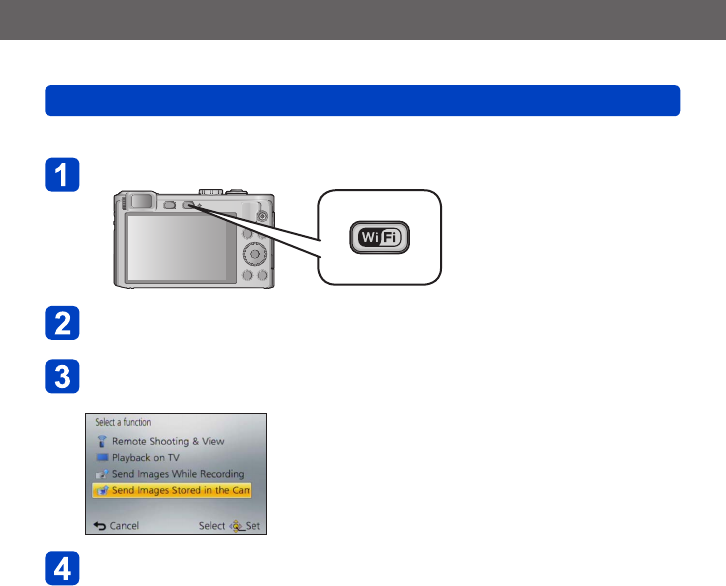
Wi-Fi/NFC
Operating the camera using a smartphone
VQT5A33
- 188 -
■Sending selected pictures ([Send Images Stored in the Camera])
Press [Wi-Fi] button
Use cursor button to select [New Connection] and press
[MENU/SET]
Use cursor button to select [Send Images Stored in the
Camera] and press [MENU/SET]
Use cursor button to select [Smartphone] and press
[MENU/SET]
(Continued on the next page)
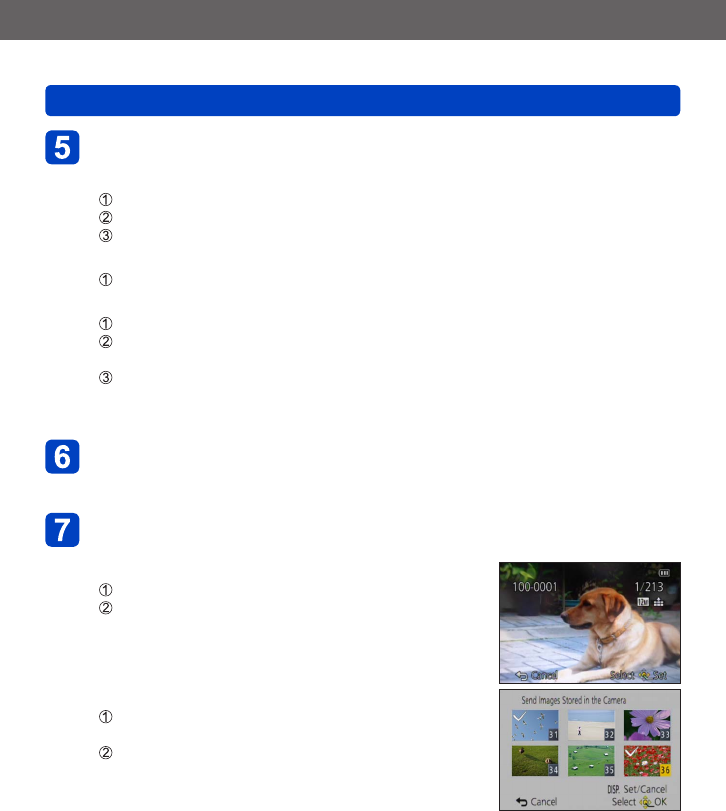
Wi-Fi/NFC
Operating the camera using a smartphone
VQT5A33
- 189 -
Select [Via Network] or [Direct] to connect (→229)
(On your smartphone)
●When connecting with [Via Network]
Set Wi-Fi function to “ON”
Select a wireless access point and set
Start “Image App”* (→174)
●When connecting with [Wi-Fi Direct] or [WPS Connection] in [Direct]
Start “Image App”* (→174)
●When connecting with [Manual Connection] in [Direct]
Set Wi-Fi function to “ON”
Select the SSID that matches the one displayed on the screen of this unit, and
then enter the password
Start “Image App”* (→174)
*
A window indicating that the smartphone is connecting to the camera is displayed. Press the
“Back” button on Android devices. Select “Close” on iOS devices.
Select the device you wish to connect to
• When the connection is established, the screen is displayed. To change the send
setting, press the [DISP.] button. (→238)
Select [SINGLE] or [MULTI]
• To change the setting or disconnect, press [Wi-Fi] button. (→171)
■When [SINGLE] is selected
Select the picture
Select [Set]
■When [MULTI] is selected
Select the picture (repeat)
• If selected again, the setting will be canceled.
Select [OK]
• The number of pictures that can be sent by
[MULTI] is limited.
• Confirmation screen is displayed. If you select [Yes], the operation is executed.
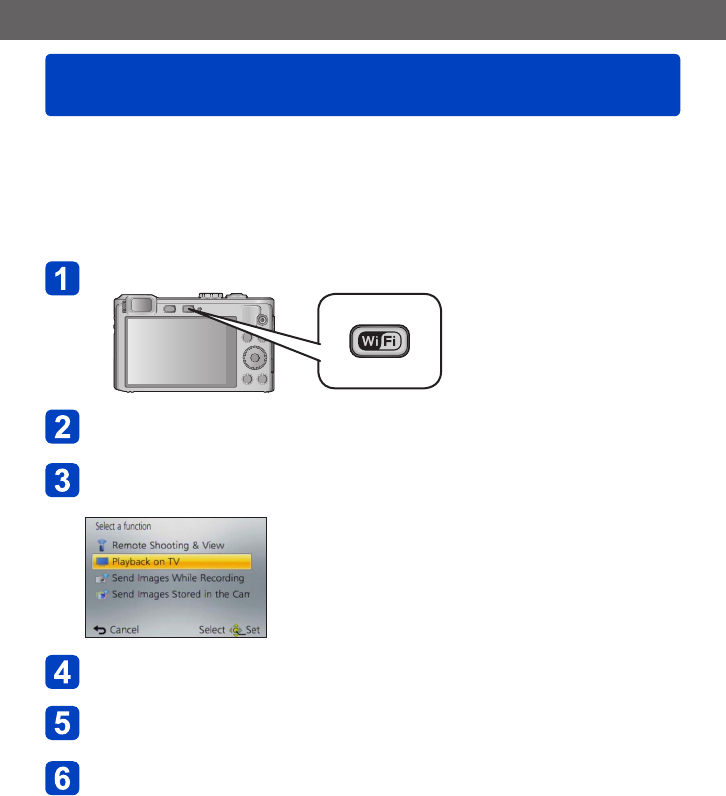
Wi-Fi/NFC
Displaying still pictures on a TV
VQT5A33- 190 -
You can display still pictures on a TV that is compatible with a DLNA certified digital
media renderer (DMR) function.
Preparations: Set the TV to DLNA waiting Mode.
• Read the operating instructions for your TV.
• For details about compatible devices, refer to the website below.
http://panasonic.jp/support/global/cs/dsc/ (This site is available in English only.)
Press [Wi-Fi] button
Use cursor button to select [New Connection] and press
[MENU/SET]
Use cursor button to select [Playback on TV] and press
[MENU/SET]
Select [Via Network] or [Direct] to connect (→229)
Select the device you wish to connect to
• When the connection is established, the screen is displayed.
Take or play back still pictures on this unit
• To change the setting or disconnect, press [Wi-Fi] button. (→171)

Wi-Fi/NFC
Displaying still pictures on a TV
VQT5A33
- 191 -
●When a TV is connected to this unit, the TV screen may temporarily return to the
status before the connection. Pictures are displayed again when you take or play back
pictures.
●[Effect] and [Sound] of the Slide Show are disabled.
●Motion pictures cannot be played back.
●During the multi/calendar playback, pictures displayed on the screen of this unit are
not displayed on TV.

Wi-Fi/NFC
Sending still pictures to a printer
VQT5A33- 192 -
You can send still pictures to a compatible printer and print them wirelessly.
■Sending method, and pictures that can be sent
JPEG RAW MP4 AVCHD 3D
Sending selected pictures
[Send Images Stored in the Camera] Yes No No No No
• Some images may not be played back or sent depending on the device.
• For more details about picture sending methods. (→237)
Preparation:
• You can print out recorded still pictures wirelessly from a PictBridge (wireless LAN-
compatible)* printer.
* Compliant with the DPS over IP standards. Contact the printer manufacturers for details on
PictBridge (wireless LAN-compatible) printers.
Press [Wi-Fi] button
Use cursor button to select [New Connection], and then press
[MENU/SET]
Use cursor button to select [Send Images Stored in the
Camera], and then press [MENU/SET]
Use cursor button to select [Printer], and then press
[MENU/SET]
Select [Via Network] or [Direct] to connect (→229)
Select a printer you want to connect
(Continued on the next page)

Wi-Fi/NFC
Sending still pictures to a printer
VQT5A33
- 193 -
Select the still picture and print
• Pictures are selected the same way as when connecting by USB connection
cable (supplied). For more details (→255).
• To change the setting or disconnect, press [Wi-Fi] button. (→171)
●When sending still pictures on a mobile network, high packet communication fees
may be incurred depending on the details of your contract.
●Motion pictures cannot be printed out.
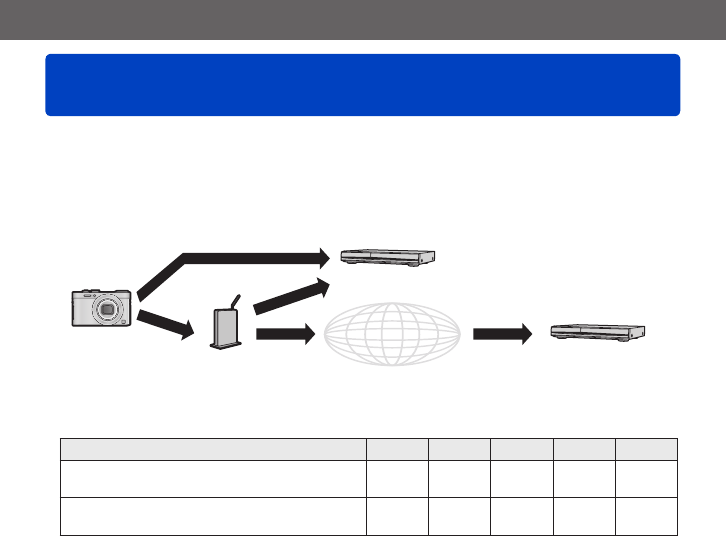
Wi-Fi/NFC
Sending pictures to AV equipment
VQT5A33- 194 -
Still pictures and motion pictures can be sent to AV equipment in the home (home AV
equipment), such as DLNA compatible recorders. Through LUMIX CLUB, you can also
send your still pictures and motion pictures to AV equipment of family and friends far
away (outside AV equipment).
You can make a setting so that pictures in the camera can be sent to AV equipment
automatically while the camera battery is charging. ([Smart Transfer] (→222))
Wireless access point
Home AV
equipment
Outside AV
equipment
LUMIX CLUB
■Sending method, and pictures that can be sent
JPEG RAW MP4 AVCHD 3D
Sending a picture each time one is recorded
[Send Images While Recording]
Yes No No No Yes
Sending selected pictures
[Send Images Stored in the Camera] Yes No No No Yes
• Some images may not be played back or sent depending on the device.
• See the operating instructions of the destination device for more information about
picture playback.
• For more details about picture sending methods. (→237)
Wi-Fi/NFC
Sending pictures to AV equipment
VQT5A33
- 195 -
Preparations:
When sending a picture to [Home], set your device to DLNA waiting mode.
• Read the operating instructions of your device for details.
When sending images to [External], the following are required:
• Registration to “LUMIX CLUB”. (→214)
• Address number and access number acquired by the destination External AV device.
(→220)
See the part of the manual that applies to your objective.
Sending a picture each time one is recorded ([Send Images While Recording])
(→196)
Sending selected pictures ([Send Images Stored in the Camera]) (→197)
●When sending images on a mobile network, high packet communication fees may be
incurred depending on the details of your contract.
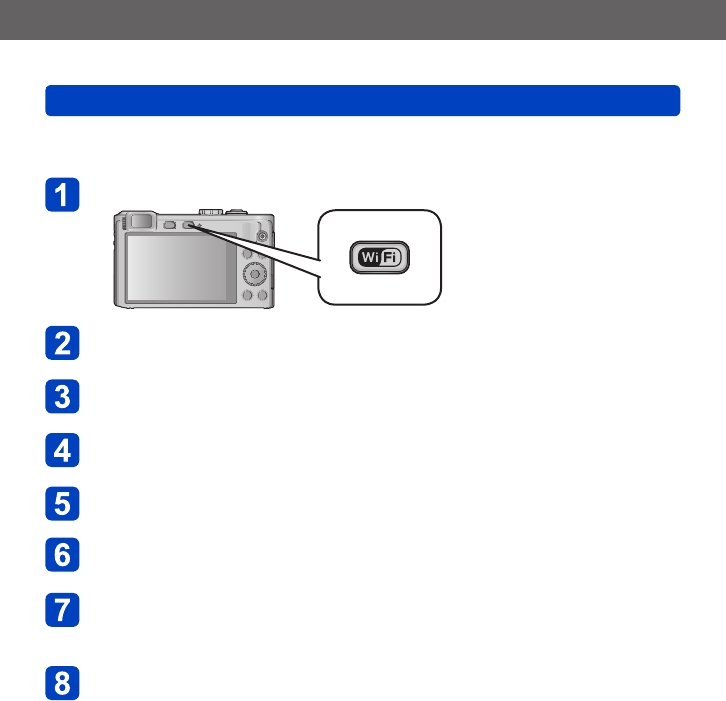
Wi-Fi/NFC
Sending pictures to AV equipment
VQT5A33
- 196 -
■Sending a picture each time one is recorded ([Send Images While
Recording])
Press [Wi-Fi] button
Use cursor button to select [New Connection], and then press
[MENU/SET]
Use cursor button to select [Send Images While Recording],
and then press [MENU/SET]
Use cursor button to select [AV device], and then press
[MENU/SET]
Select [Home] or [External]
Select [Via Network] or [Direct] to connect (→229)
• [Direct] cannot be selected when [External] has been selected.
Select the device you wish to connect to
• When the connection is complete, the screen is displayed. To change the send
setting, press [DISP.] button. (→238)
Take still pictures
• To change the setting or disconnect, press [Wi-Fi] button. (→171)
You cannot change the settings while sending still pictures. Wait until sending is
complete.
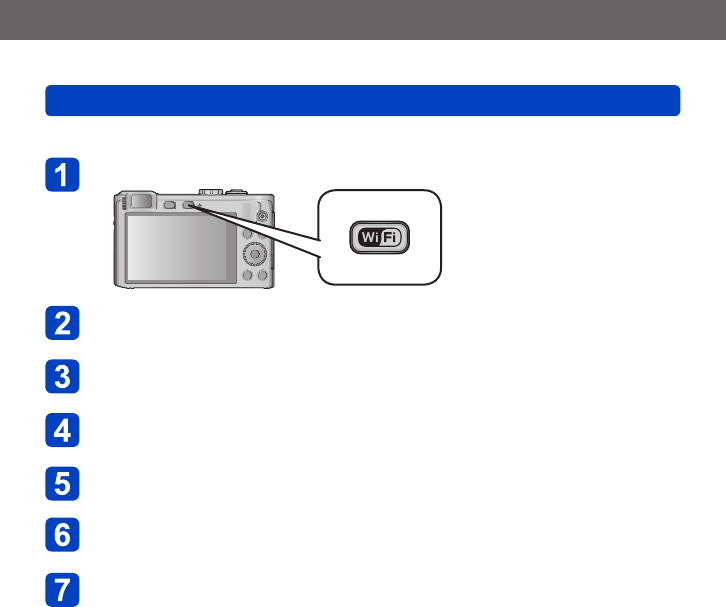
Wi-Fi/NFC
Sending pictures to AV equipment
VQT5A33
- 197 -
■Sending selected pictures ([Send Images Stored in the Camera])
Press [Wi-Fi] button
Use cursor button to select [New Connection], and then press
[MENU/SET]
Use cursor button to select [Send Images Stored in the
Camera], and then press [MENU/SET]
Use cursor button to select [AV device], and then press
[MENU/SET]
Select [Home] or [External]
Select [Via Network] or [Direct] to connect (→229)
• [Direct] cannot be selected when [External] has been selected.
Select the device you wish to connect to
• When the connection is complete, the screen is displayed. To change the send
setting, press [DISP.] button. (→238)
(Continued on the next page)
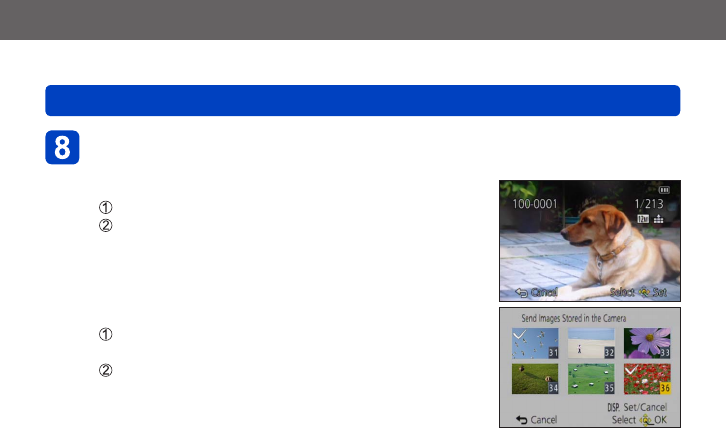
Wi-Fi/NFC
Sending pictures to AV equipment
VQT5A33
- 198 -
Select [SINGLE] or [MULTI]
• To change the setting or disconnect, press [Wi-Fi] button. (→171)
■When [SINGLE] is selected
Select the picture
Select [Set]
■When [MULTI] is selected
Select the picture (repeat)
• If selected again, the setting will be canceled.
Select [OK]
• The number of pictures that can be sent by
[MULTI] is limited.
• Confirmation screen is displayed. If you select [Yes], the operation is executed.
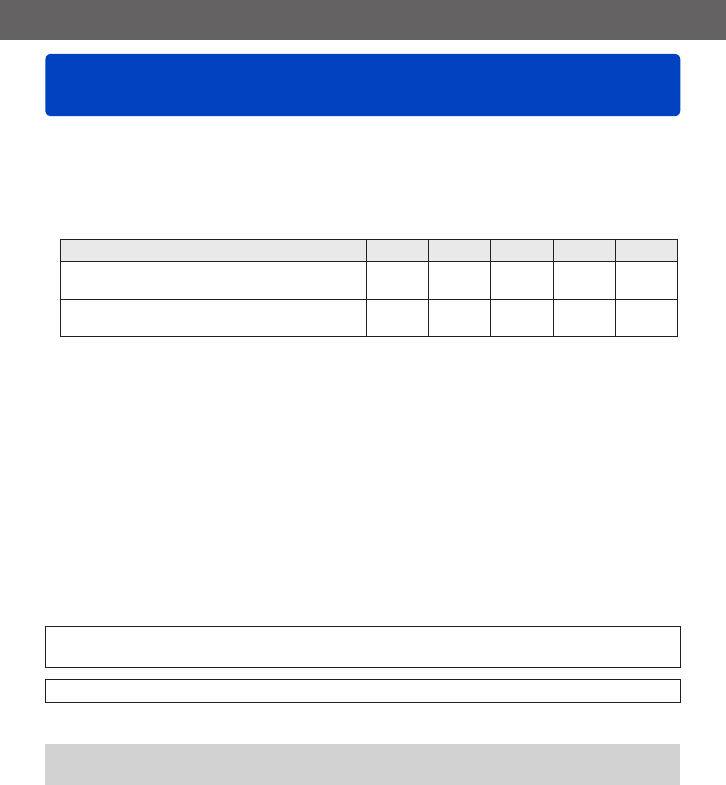
Wi-Fi/NFC
Sending pictures to a PC
VQT5A33- 199 -
Still pictures and motion pictures recorded by the camera can be sent to a PC.
You can make a setting so that pictures in the camera can be sent to a PC automatically
while the camera battery is charging. ([Smart Transfer] (→222))
■Sending method, and pictures that can be sent
JPEG RAW MP4
AVCHD
*3D
Sending a picture each time one is recorded
[Send Images While Recording] Yes Yes No No Yes
Sending selected pictures
[Send Images Stored in the Camera] Yes Yes Yes Yes Yes
* Motion pictures recorded in [AVCHD] can be sent in file sizes of up to 4 GB. Files larger than 4 GB
cannot be sent.
• Some images may not be played back or sent depending on the device.
• See the operating instructions of the destination device for more information about
picture playback.
• For more details about picture sending methods. (→237)
Preparations:
• Turn the computer on.
• Prepare folders for receiving images on the PC before sending a picture to the PC.
(→200)
• If the standard settings are changed for the workgroup on the connected PC, you must
change settings in [PC Connection] on this unit. (→239)
See the part of the manual that applies to your objective.
Sending a picture each time one is recorded ([Send Images While Recording])
(→201)
Sending selected pictures ([Send Images Stored in the Camera]) (→202)
●When sending images on a mobile network, high packet communication fees may be
incurred depending on the details of your contract.
Wi-Fi/NFC
Sending pictures to a PC
VQT5A33
- 200 -
■To create a folder that receives images
• Create a PC user account (account name (up to 254 characters) and password (up to
32 characters)) consisting of alphanumeric characters. An attempt to create a receive
folder may fail if the account includes non-alphanumeric characters.
■When using “PHOTOfunSTUDIO”
Install “PHOTOfunSTUDIO” to the PC
• For details on hardware requirements and installation, read “Installing supplied
software” (→251).
Create a folder that receives images with “PHOTOfunSTUDIO”
• To create the folder automatically, select [Auto-create]. To specify a folder, create
a new folder, or set a password to the folder, select [Create manually].
• For details, refer to the operating instructions of “PHOTOfunSTUDIO” (PDF).
■When not using “PHOTOfunSTUDIO”
(For Windows)
Supported OS: Windows 8 / Windows 7 / Windows Vista / Windows XP
Example: Windows 7
Select a folder you intend to use for receiving, then right-click
Select [Properties], then enable sharing of the folder
• For details, refer to the operating instructions of your PC or Help on the operating
system.
(For Mac)
Supported OS: OS X v10.4 to v10.8
Example: OS X v10.8
Select a folder you intend to use for receiving, then click on
the items in the following order
[File] → [Get Info]
Enable sharing of the folder
• For details, refer to the operating instructions of your PC or Help on the operating
system.
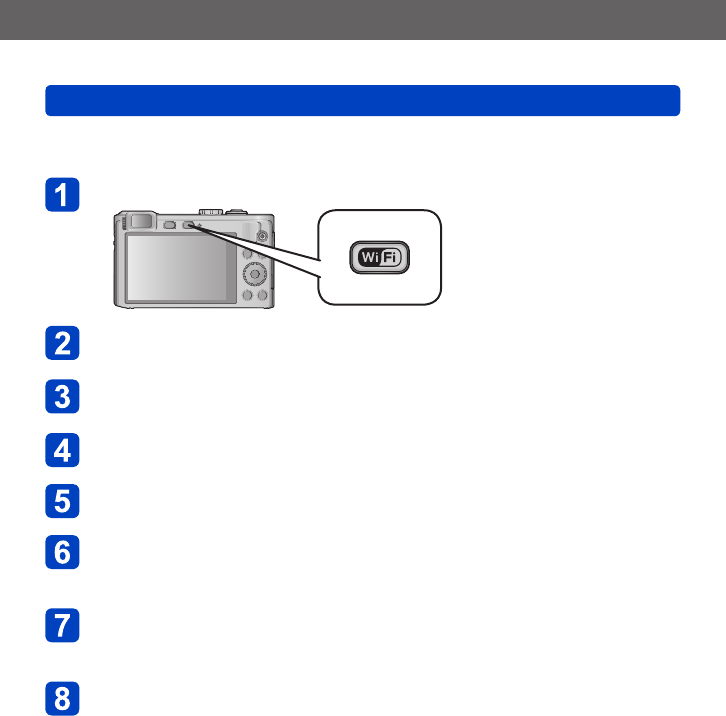
Wi-Fi/NFC
Sending pictures to a PC
VQT5A33
- 201 -
■Sending a picture each time one is recorded ([Send Images While
Recording])
Press [Wi-Fi] button
Use cursor button to select [New Connection] and press
[MENU/SET]
Use cursor button to select [Send Images While Recording]
and press [MENU/SET]
Use cursor button to select [PC] and press [MENU/SET]
Select [Via Network] or [Direct] to connect (→229)
Select the PC you want to connect to
• If the PC you want to connect to does not display, select [Manual Input], then
enter the computer name (for Mac, enter the NetBIOS name).
Select the folder you want to send to
• When the connection is complete, the screen is displayed. To change the send
setting, press [DISP.] button. (→238)
Take still pictures
• To change the setting or disconnect, press [Wi-Fi] button. (→171)
You cannot change the settings while sending still pictures. Wait until sending is
complete.
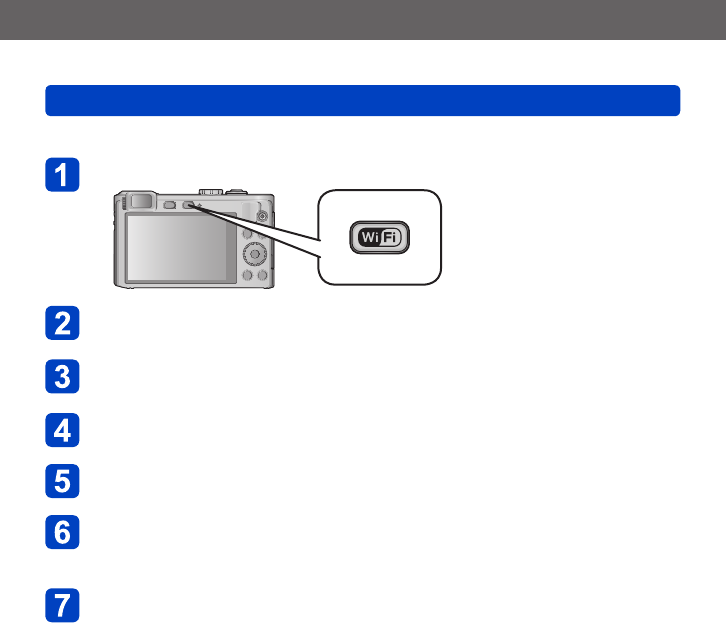
Wi-Fi/NFC
Sending pictures to a PC
VQT5A33
- 202 -
■Sending selected pictures ([Send Images Stored in the Camera])
Press [Wi-Fi] button
Use cursor button to select [New Connection], and then press
[MENU/SET]
Use cursor button to select [Send Images Stored in the
Camera], and then press [MENU/SET]
Use cursor button to select [PC] and press [MENU/SET]
Select [Via Network] or [Direct] to connect (→229)
Select the PC you want to connect to
• If the PC you want to connect to does not display, select [Manual Input], then
enter the computer name (for Mac, enter the NetBIOS name).
Select the folder you want to send to
• When the connection is complete, the screen is displayed. To change the send
setting, press [DISP.] button. (→238)
(Continued on the next page)
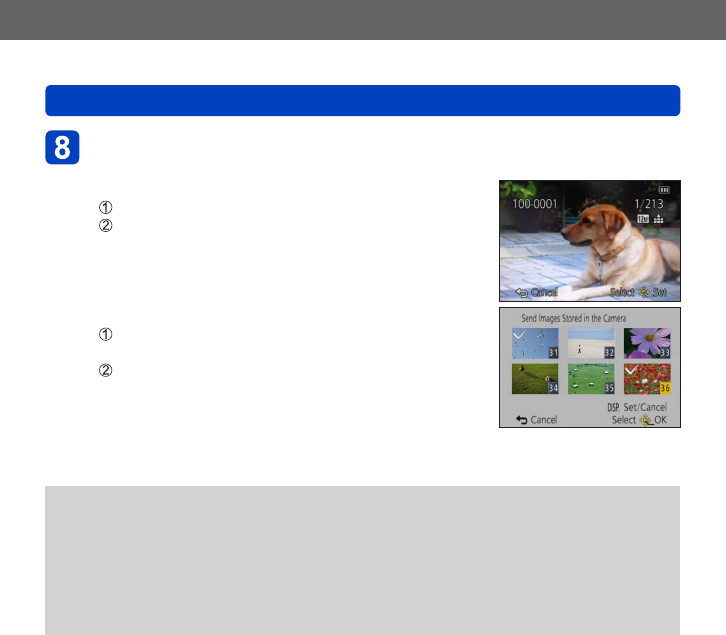
Wi-Fi/NFC
Sending pictures to a PC
VQT5A33
- 203 -
Select [SINGLE] or [MULTI]
• To change the setting or disconnect, press [Wi-Fi] button. (→171)
■When [SINGLE] is selected
Select the picture
Select [Set]
■When [MULTI] is selected
Select the picture (repeat)
• If selected again, the setting will be canceled.
Select [OK]
• The number of pictures that can be sent by
[MULTI] is limited.
• Confirmation screen is displayed. If you select [Yes], the operation is executed.
●Folders sorted by the sent date are created in the specified folder, and pictures are
saved in those folders.
●If the screen for a user account and password entry appears, enter the one you set on
your PC.
●If the computer name (for Mac, the NetBIOS name) contains spaces, etc., the name
may not be properly recognized. If you cannot connect, we recommend changing
the computer name (for Mac, the NetBIOS name) to a combination of 15 or less
alphanumeric characters only.
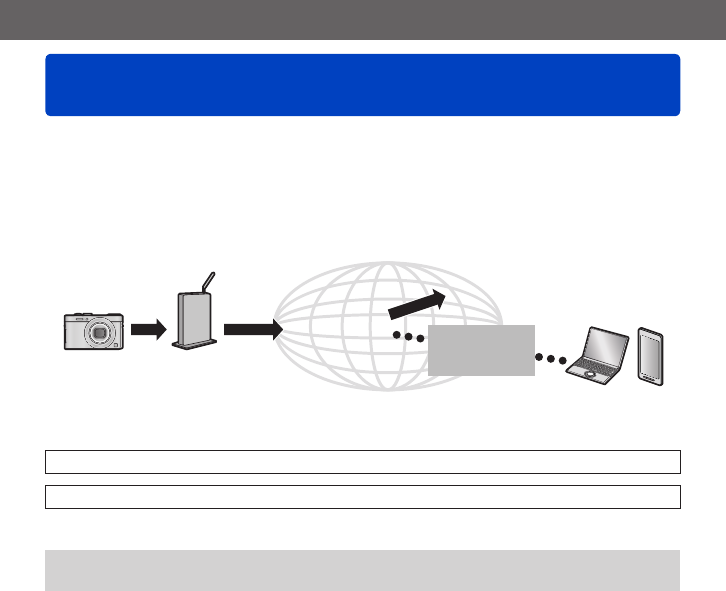
Wi-Fi/NFC
Using WEB services
VQT5A33- 204 -
Through LUMIX CLUB, you can send still pictures and motion pictures to social
networking services, etc. By selecting the setting to automatically transfer still pictures
and motion pictures to [Cloud Sync. Service], you can receive the transferred still pictures
and motion pictures on a PC or a smartphone.
You can make a setting so that pictures in the camera can be sent to a WEB service or
cloud synchronization service automatically while the camera battery is charging. ([Smart
Transfer] (→222))
Wireless access point
WEB services
Cloud
synchronization
services
LUMIX CLUB
See the part of the manual that applies to your objective.
When sending images to WEB service (→205)
When sending images to [Cloud Sync. Service] (→210)
●When sending images on a mobile network, high packet communication fees may be
incurred depending on the details of your contract.
Wi-Fi/NFC
Using WEB services
VQT5A33
- 205 -
When sending images to WEB service
■Sending method, and pictures that can be sent
JPEG RAW MP4 AVCHD 3D
Sending a picture each time one is recorded
[Send Images While Recording] Yes No No No Yes
Sending selected pictures
[Send Images Stored in the Camera] Yes No Yes No Yes
• Some images may not be played back or sent depending on the device.
• For details about playback of pictures, check the WEB service to which you will send
the pictures.
• For more details about picture sending methods. (→237)
Preparation:
You need to register to “LUMIX CLUB” (→214) to send a picture to a WEB service.
When sending images to WEB services, such as Facebook or YouTube, the WEB
service being used must be registered with the “LUMIX CLUB”. Registering multiple WEB
services will send images to all services simultaneously. (→207)
See the part of the manual that applies to your objective.
Sending a picture each time one is recorded ([Send Images While Recording])
(→208)
Sending selected pictures ([Send Images Stored in the Camera]) (→209)
Wi-Fi/NFC
Using WEB services
VQT5A33
- 206 -
●Images uploaded to the WEB service cannot be displayed or deleted with this camera.
Check images by accessing the WEB service with your smartphone or computer.
●If sending images fails, a report email outlining the failure will be sent to the email
address registered with “LUMIX CLUB”.
●Images may contain personal information that can be used to identify the user,
such as a title, the time and date when the images were taken, and the location
where the image was taken. Check this information before uploading images to
WEB services.
●Panasonic assumes no responsibility for the damages resulting from the leakage,
loss, etc. of images uploaded on WEB services.
●When uploading images to the WEB service, do not delete images from this
camera, even after they have finished sending, until you have checked that
they have been properly uploaded to the WEB service. Panasonic assumes no
responsibility for the damages resulting from the deletion of images stored in this
unit.
Wi-Fi/NFC
Using WEB services
VQT5A33
- 207 -
■Using WEB services
When sending images to WEB services, such as Facebook or YouTube, the WEB
service being used must be registered with the “LUMIX CLUB”. Registering multiple
WEB services will send images to all services simultaneously.
• Check the “FAQ/Contact us” on the following site for compatible WEB services.
http://lumixclub.panasonic.net/eng/c/lumix_faqs/
Preparation:
Make sure that you have created an account on the WEB service you want to use, and
have the login information available.
Connect to the “LUMIX CLUB” site using a smartphone or
computer
http://lumixclub.panasonic.net/eng/c/
Enter your “LUMIX CLUB” login ID and password and log in to
the service (→214)
Register your email address
Select the WEB service to be used and register it
• Follow the instructions on the screen to register the service.
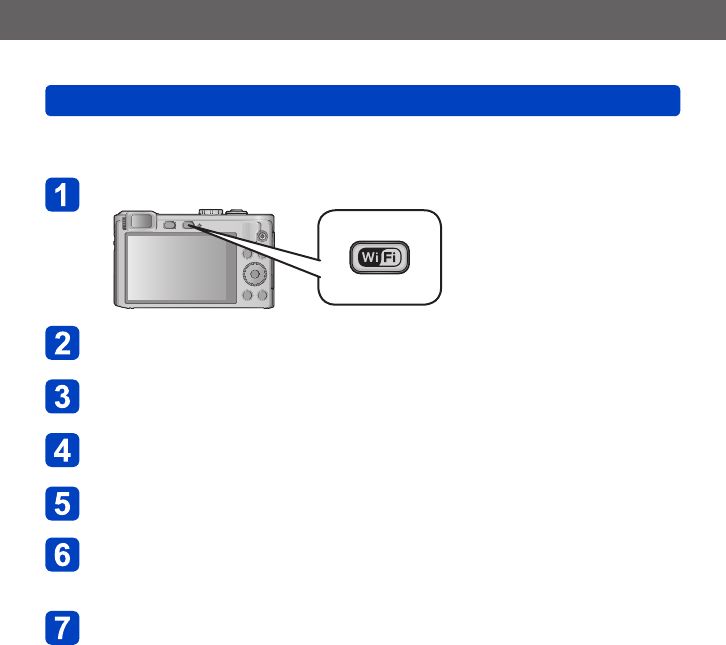
Wi-Fi/NFC
Using WEB services
VQT5A33
- 208 -
■Sending a picture each time one is recorded ([Send Images While
Recording])
Press [Wi-Fi] button
Use cursor button to select [New Connection], and then press
[MENU/SET]
Use cursor button to select [Send Images While Recording],
and then press [MENU/SET]
Use cursor button to select [Web service], and then press
[MENU/SET]
Select [Via Network] and connect (→230)
Select a WEB service you want to connect
• When the connection is complete, the screen is displayed. To change the send
setting, press [DISP.] button. (→238)
Take still pictures
• To change the setting or disconnect, press [Wi-Fi] button. (→171)
You cannot change the settings while sending still pictures. Wait until sending is
complete.
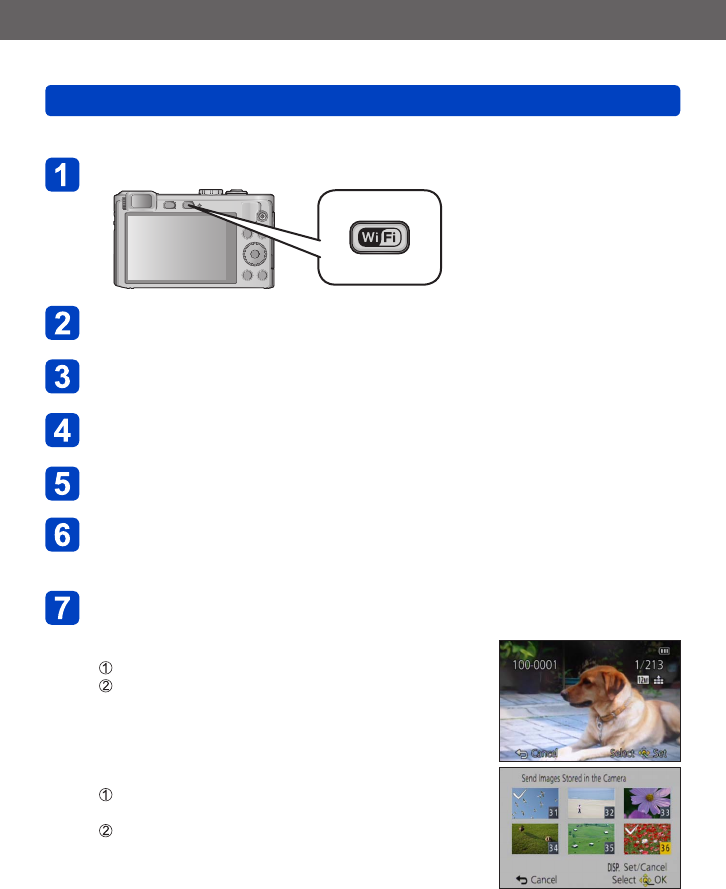
Wi-Fi/NFC
Using WEB services
VQT5A33
- 209 -
■Sending selected pictures ([Send Images Stored in the Camera])
Press [Wi-Fi] button
Use cursor button to select [New Connection], and then press
[MENU/SET]
Use cursor button to select [Send Images Stored in the
Camera], and then press [MENU/SET]
Use cursor button to select [Web service], and then press
[MENU/SET]
Select [Via Network] and connect (→230)
Select a WEB service you want to connect
• When the connection is complete, the screen is displayed. To change the send
setting, press [DISP.] button. (→238)
Select [SINGLE] or [MULTI]
• To change the setting or disconnect, press [Wi-Fi] button. (→171)
■When [SINGLE] is selected
Select the picture
Select [Set]
■When [MULTI] is selected
Select the picture (repeat)
• If selected again, the setting will be canceled.
Select [OK]
• The number of pictures that can be sent by
[MULTI] is limited.
• Confirmation screen is displayed. If you select [Yes], the operation is executed.
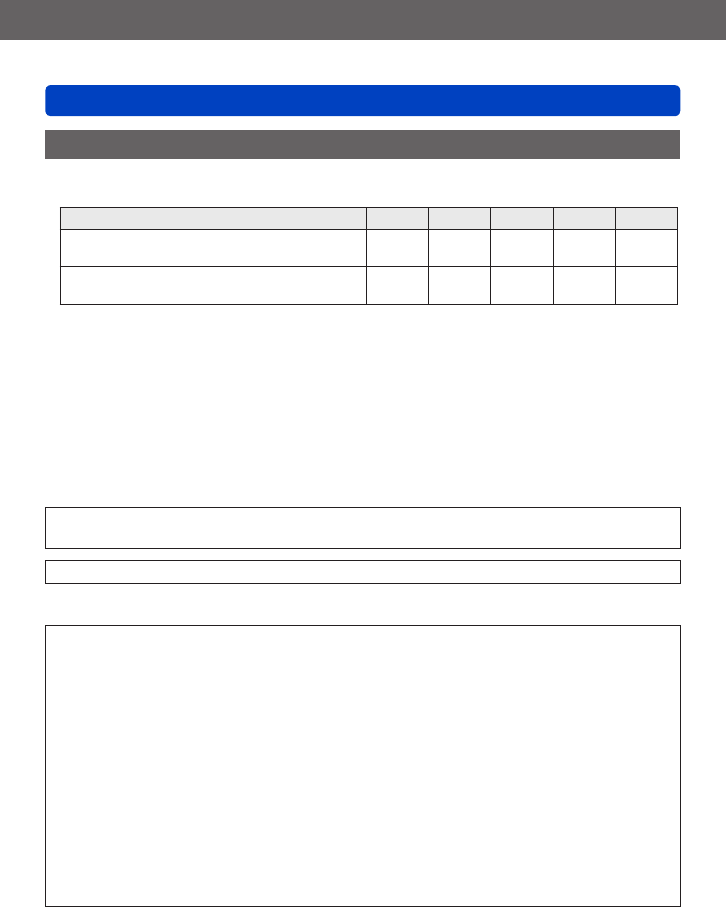
Wi-Fi/NFC
Using WEB services
VQT5A33
- 210 -
When sending images to [Cloud Sync. Service]
■Sending method, and pictures that can be sent
JPEG RAW MP4 AVCHD 3D
Sending a picture each time one is recorded
[Send Images While Recording] Yes No No No Yes
Sending selected pictures
[Send Images Stored in the Camera] Yes No Yes No Yes
• Some images may not be played back or sent depending on the device.
• See the operating instructions of the destination device for more information about
picture playback.
• For more details about picture sending methods. (→237)
Preparations:
You need to register to “LUMIX CLUB” (→214) and configure the Cloud Sync. setting to send
a picture to a Cloud Folder.
See the part of the manual that applies to your objective.
Sending a picture each time one is recorded ([Send Images While Recording])
(→211)
Sending selected pictures ([Send Images Stored in the Camera]) (→212)
■About the images sent to a Cloud Folder by the use of [Cloud Sync.
Service] (As of March 2013)
To send images to a PC, Cloud Sync. setting is required. Configure the settings on a
PC with “PHOTOfunSTUDIO” or on a smartphone with “Image App”.
• If you set the picture destination to [Cloud Sync. Service], sent pictures are
temporarily saved in the cloud folder, and they can be synchronized with the device
in use, such as the PC or smartphone.
• A Cloud Folder stores transferred images for 30 days (up to 1000 pictures).
Transferred images are deleted automatically 30 days after the transfer.
Furthermore, when the number of stored images exceeds 1000, some images may
be deleted depending on the [Cloud Limit] (→238) setting even within 30 days after the
transfer.
• When the download of images from a Cloud Folder to all specified devices is
complete, images may be deleted from the Cloud Folder even within 30 days after
the transfer.
Wi-Fi/NFC
Using WEB services
VQT5A33
- 211 -
■Sending a picture each time one is recorded ([Send Images While
Recording])
Press [Wi-Fi] button
Use cursor button to select [New Connection], and then press
[MENU/SET]
Use cursor button to select [Send Images While Recording],
and then press [MENU/SET]
Use cursor button to select [Cloud Sync. Service], and then
press [MENU/SET]
Press [MENU/SET]
Select [Via Network] and connect (→230)
Check the send setting
• When the connection is complete, the screen is displayed. To change the send
setting, press [DISP.] button. (→238)
Take still pictures
• To change the setting or disconnect, press [Wi-Fi] button. (→171)
You cannot change the settings while sending still pictures. Wait until sending is
complete.
Wi-Fi/NFC
Using WEB services
VQT5A33
- 212 -
■Sending selected pictures ([Send Images Stored in the Camera])
Press [Wi-Fi] button
Use cursor button to select [New Connection], and then press
[MENU/SET]
Use cursor button to select [Send Images Stored in the
Camera], and then press [MENU/SET]
Use cursor button to select [Cloud Sync. Service], and then
press [MENU/SET]
Press [MENU/SET]
Select [Via Network] and connect (→230)
Check the send setting
• When the connection is complete, the screen is displayed. To change the send
setting, press [DISP.] button. (→238)
(Continued on the next page)
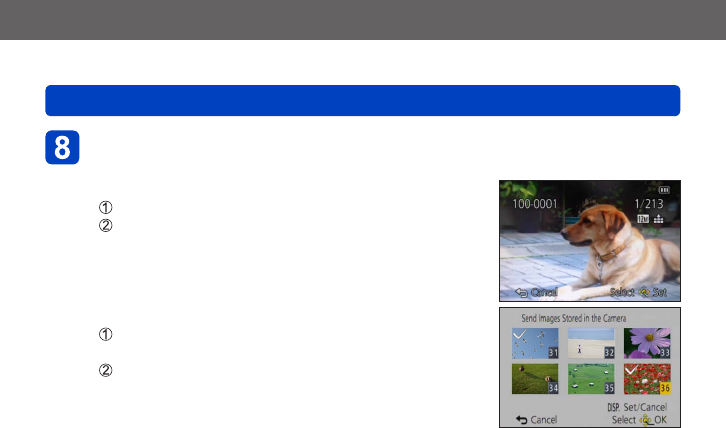
Wi-Fi/NFC
Using WEB services
VQT5A33
- 213 -
Select [SINGLE] or [MULTI]
• To change the setting or disconnect, press [Wi-Fi] button. (→171)
■When [SINGLE] is selected
Select the picture
Select [Set]
■When [MULTI] is selected
Select the picture (repeat)
• If selected again, the setting will be canceled.
Select [OK]
• The number of pictures that can be sent by
[MULTI] is limited.
• Confirmation screen is displayed. If you select [Yes], the operation is executed.
Wi-Fi/NFC
Using “LUMIX CLUB”
VQT5A33- 214 -
About the [LUMIX CLUB]
Acquire a “LUMIX CLUB” login ID (free).
If you register this unit to the “LUMIX CLUB”, you can synchronize images between the
devices you are using, or transfer these images to WEB services.
Use the “LUMIX CLUB” when uploading pictures to WEB services or external AV device.
• You can set the same “LUMIX CLUB” login ID for this unit and a smartphone. (→218)
Refer to the “LUMIX CLUB” site for details.
http://lumixclub.panasonic.net/eng/c/
Please note;
• The service may be suspended due to regular maintenance or unexpected problems,
and service contents may be changed or added to, without prior notice to the users.
• The service may be stopped in whole or in part with a reasonable period of advance
notice.
Select [Wi-Fi Setup] in the [Wi-Fi] menu, and press
[MENU/SET] (→52)
Use cursor button to select [LUMIX CLUB], and press
[MENU/SET]
Select [Set/Add Account]
Select [New account]
• Connect to the network. Proceed to the next page by selecting [Next].
• A confirmation screen will be displayed if a login ID has already been acquired for
the camera. Select [Yes] to acquire a new login ID, or [No] if you do not need to
acquire a new login ID.
(Continued on the next page)
Wi-Fi/NFC
Using “LUMIX CLUB”
VQT5A33
- 215 -
Select the method for connecting to a wireless access point,
and set
• For details (→230).
• The settings screen will only appear during the first connection. Connection
methods set on this unit are stored and will be used for subsequent connections.
If you want to change the wireless access point to connect to, press the [DISP.]
button, then change the connecting destination.
Press [MENU/SET]
Read through the “LUMIX CLUB” terms of use and select
[Agree]
• You can press to switch pages.
• Press [Q.MENU/ ] button to cancel the process without acquiring a login ID.
Enter the password
• Enter any combination of 8 to 16 characters and numbers for the password.
• For details on how to enter characters, refer to “Entering Text” (→65).
(Continued on the next page)
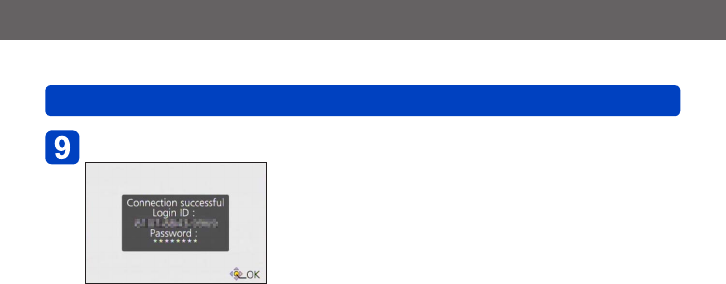
Wi-Fi/NFC
Using “LUMIX CLUB”
VQT5A33
- 216 -
Check the login ID and select [OK]
• The login ID (12-digit number) will be displayed automatically.
When logging in to the “LUMIX CLUB” with a computer, you only need to enter the
numbers.
• A message is displayed when the connection is complete. Select [OK].
• Be sure to make a note of the login ID and password.
• Close the menu after changing settings.
Wi-Fi/NFC
Using “LUMIX CLUB”
VQT5A33
- 217 -
■Using a previously acquired login ID/confirming and changing login ID
and password ([Set Login ID])
Preparation:
To use a previously acquired login ID, confirm your ID and password.
To change the “LUMIX CLUB” password on the camera, access the “LUMIX CLUB”
website from your smartphone or PC and change the “LUMIX CLUB” password in
advance.
Select [Wi-Fi Setup] in the [Wi-Fi] menu, and press
[MENU/SET] (→52)
Use cursor button to select [LUMIX CLUB], and press
[MENU/SET]
Select [Set/Add Account]
Select [Set Login ID]
• The login ID and password are displayed.
• The password is displayed as “ ”.
• Close the menu if only checking the login ID.
Select the item you wish to change
• The confirmation screen is displayed when changing the login ID. Select [Yes].
Enter your login ID or password
• Refer to “Entering Text” (→65) for information on how to enter text.
• Enter the new password you have created on your smartphone or PC into the
camera. If the password differs from the one you created on your smartphone or
PC, you will not be able to upload images.
• Close the menu after changing settings.
Wi-Fi/NFC
Using “LUMIX CLUB”
VQT5A33
- 218 -
■To set the same login ID for the camera and the smartphone/tablet
• Setting the same login ID on this unit and your smartphone is convenient for sending
images on this unit to other devices or WEB services.
■When either this unit or the smartphone/tablet has acquired the login ID
Connect this unit to the smartphone (→175)
From the “Image App” menu, set the common login ID
• The login IDs for this unit and the smartphone become the same.
• After connecting this unit to the smartphone, the setup screen for a common login ID
may appear when you display the playback screen. You can also set a common login
ID by following the on-screen instructions.
• This operation is not available for [Wi-Fi Direct] connection.
■
When this unit and the smartphone/tablet have acquired different login IDs
(When you want to use the smartphone’s login ID for this unit)
Change the login ID and password for this unit to those acquired
by the smartphone
(When you want to use this unit’s login ID for the smartphone)
Change the login ID and password for the smartphone to those
acquired by this unit
■Check the “LUMIX CLUB” terms of use
Check the details if the terms of use have been updated.
Select [Wi-Fi Setup] in the [Wi-Fi] menu, and press
[MENU/SET] (→52)
Use cursor button to select [LUMIX CLUB], and press
[MENU/SET]
Select [Terms of use]
• The camera will connect to the network and the terms of use will be displayed.
Close the menu after checking the terms of use.
Wi-Fi/NFC
Using “LUMIX CLUB”
VQT5A33
- 219 -
■Delete your login ID and account from the “LUMIX CLUB”
Delete the login ID from the camera when transferring it to another party or disposing of
it. You can also delete your “LUMIX CLUB” account.
Select [Wi-Fi Setup] in the [Wi-Fi] menu, and press
[MENU/SET] (→52)
Use cursor button to select [LUMIX CLUB], and press
[MENU/SET]
Select [Delete account]
• The message is displayed. Select [Next].
Select [Yes] in the login ID delete confirmation screen
• The message is displayed. Select [Next].
Select [Yes] on the confirmation screen for deleting the
“LUMIX CLUB” account
• If you want to continue using the service, selecting [No] will only delete the login
ID. Exit the menu after it is executed.
Select [Next]
• The login ID is deleted, and then the message notifying the deletion of your
account is displayed. Select [OK].
• Exit the menu after it is executed.
●Changes and other actions to login IDs can only be made to the login ID acquired with
the camera.
Wi-Fi/NFC
Using “LUMIX CLUB”
VQT5A33
- 220 -
Configuring the external AV device settings
Images can be sent to the AV device of relatives and acquaintances via “LUMIX CLUB”.
• See the following site for AV device that is compatible with “LUMIX CLUB”.
http://panasonic.jp/support/global/cs/dsc/ (This site is available in English only.)
Preparation:
Check the address number (16-digit number) and access number (4-digit number) of the
destination AV device issued by “LUMIX CLUB”.
(Refer to the AV device instruction manual for details)
Select [Wi-Fi Setup] in the [Wi-Fi] menu, and press
[MENU/SET] (→52)
Use cursor button to select [External AV device], and press
[MENU/SET]
Select [Add new device]
Enter the address number
Enter the access number
Enter any name
• Up to 28 characters can be entered. A double-byte character will be treated as
two characters.
• Close the menu after changing settings.
●Refer to “Entering Text” (→65) for information on how to enter text.
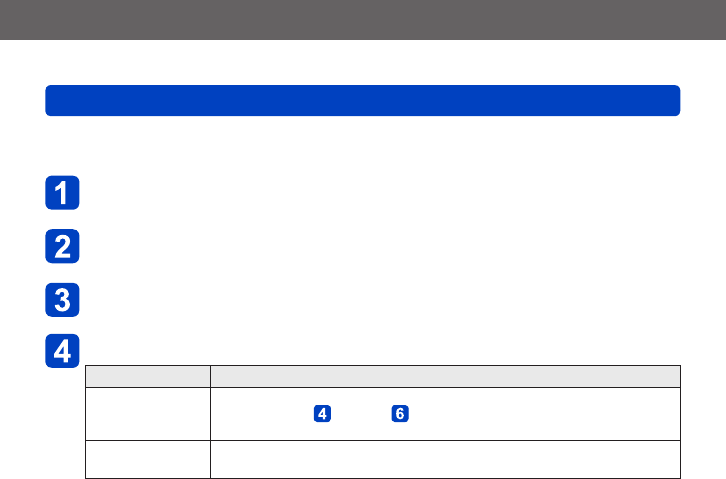
Wi-Fi/NFC
Using “LUMIX CLUB”
VQT5A33
- 221 -
■Change or delete information on registered AV device
Information on AV device that has already been registered can be changed or deleted.
Select [Wi-Fi Setup] in the [Wi-Fi] menu, and press
[MENU/SET] (→52)
Use cursor button to select [External AV device], and press
[MENU/SET]
Select the AV device you want to change or delete
Select [Edit] or [Delete]
Item Description
[Edit] Change information on AV device that has already been registered.
Perform steps through of “Configuring the external AV device
settings”. (→220)
[Delete] Delete information on AV device that has already been registered.
• Confirmation screen is displayed. It is executed when [Yes] is selected.
• Exit the menu after it is executed.
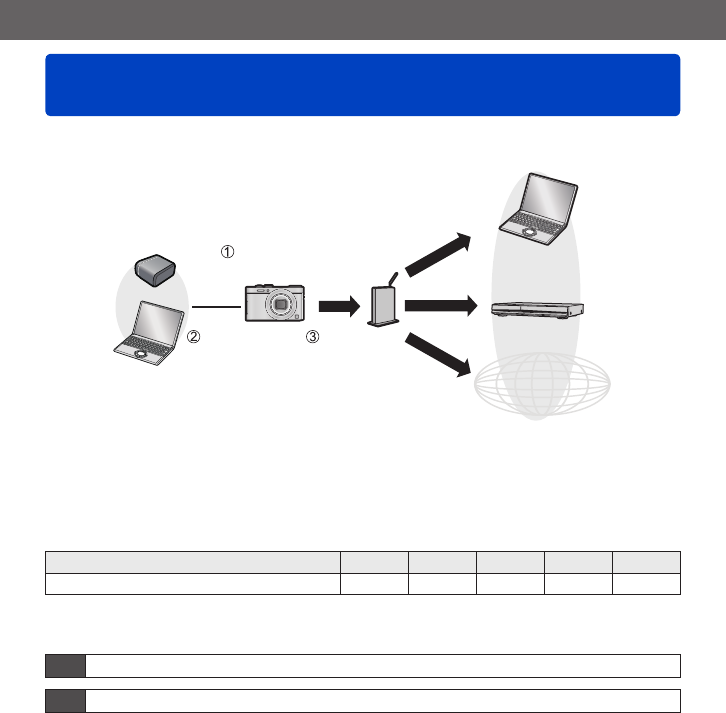
Wi-Fi/NFC
Transferring pictures automatically [Smart Transfer]
VQT5A33
- 222 -
[Smart Transfer] automatically transfers pictures from your camera to your PC, AV
equipment or Cloud Folder.
AC adaptor
(supplied)
PC
[Auto Transfer]
set to [ON]
PC
AV device
Web services,
Cloud Folder
Charging Start
transferring
• [Smart Transfer] is executed while the camera battery is charging ([Auto Transfer]).
Battery will not be used up just for transferring pictures.
• Pictures in the camera that were recorded after the setting was made are transferred.
Pictures recorded before that are not transferred.
Pictures that can be sent with [Smart Transfer]
JPEG RAW MP4 AVCHD 3D
[Smart Transfer] Yes No Yes No Yes
Follow the procedures below to perform [Smart Transfer].
1Setting [Smart Transfer] (→224)
2[Smart Transfer] (→225)
* Pictures in the camera can also be transferred regardless of whether the battery is charging.
([Transfer Now])

Wi-Fi/NFC
Transferring pictures automatically [Smart Transfer]
VQT5A33
- 223 -
●When [Auto Transfer] is set to [ON], the camera automatically uploads recorded
pictures. For this reason pictures may be uploaded unintentionally if, for example,
you share this unit with other people. Panasonic assumes no responsibility for any
damages caused by uploaded images.
●Panasonic assumes no responsibility for any damages caused by the use of [Smart
Transfer].
●Electromagnetic waves from the camera can affect instruments and meters. If you are
on an airplane or anyplace where the use of functions like Wi-Fi or NFC is prohibited,
turn [Airplane Mode] to [ON].
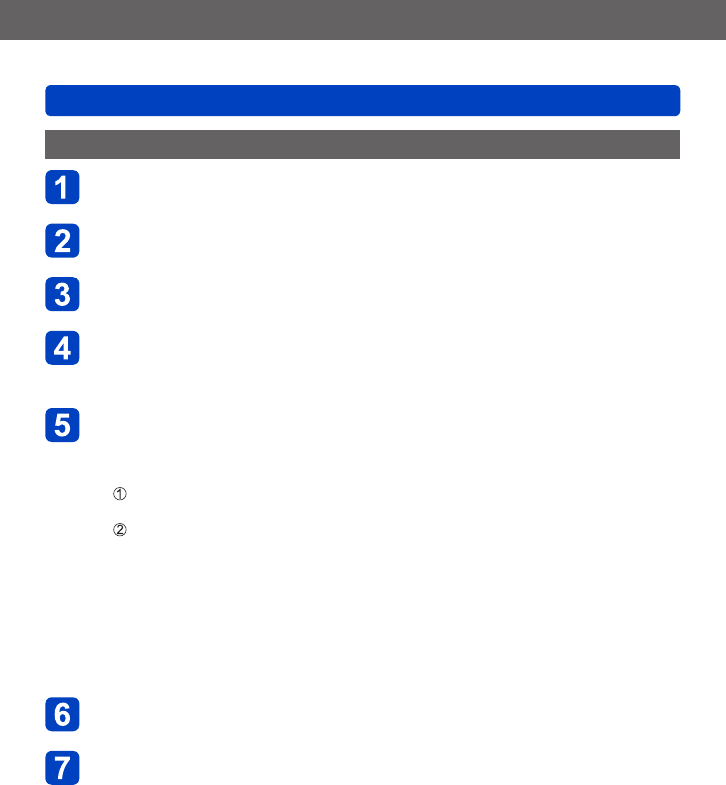
Wi-Fi/NFC
Transferring pictures automatically [Smart Transfer]
VQT5A33
- 224 -
Setting [Smart Transfer]
Select [Wi-Fi Setup] in the [Wi-Fi] menu, and press
[MENU/SET] (→52)
Use cursor button to select [Smart Transfer] and press
[MENU/SET]
Use cursor button to select transfer destination and press
[MENU/SET]
Select the method for connecting to a wireless access point,
and set
• For details (→230).
Set the transfer destination
When [PC] is selected
• For details regarding preparation before transfer, read “Sending pictures to a
PC”. (→199)
Use cursor button to select a PC you want to connect, and then press
[MENU/SET]
Use cursor button to select the folder you want to send to, and then press
[MENU/SET]
When [Cloud Sync. Service] is selected
• For details regarding preparation before transfer, read “When sending images to
[Cloud Sync. Service]”. (→210)
When [AV device] is selected
• For details, read “Sending pictures to AV equipment”. (→194)
• Select the AV device you want to connect, and then press the [MENU/SET]
button.
Use cursor button to select [Auto Transfer] and press
[MENU/SET]
Use cursor button to select [ON] and press [MENU/SET]
• Only the images you recorded when [Auto Transfer] is set to [ON] is transferred.
Wi-Fi/NFC
Transferring pictures automatically [Smart Transfer]
VQT5A33
- 225 -
[Smart Transfer]
Preparation: Set [Smart Transfer]. (→224)
Turn off the camera
(When using a power outlet)
Connect the AC adaptor (supplied) and the camera using the
USB connection cable (supplied), and plug the AC adaptor
(supplied) into the electrical outlet
(When using a PC)
Connect the camera to a computer using the USB connection
cable (supplied)
• [Smart Transfer] starts automatically according to the [Charge Priority] (→228)
setting.
• [Smart Transfer] is not available when the memory card is locked.
• Depending on the specifications of the PC, [Smart Transfer] may fail.
●Except at the ambient temperature between 0 °C and 40 °C (32 °F to 104 °F), [Smart
Transfer] may not work.
●When [Destination] is set to [PC], the pictures are stored in the incoming folder
created. (→200)
●If there are pictures that are not transferred when [Auto Transfer] is set to [OFF],
the message that confirms whether to transfer these pictures is displayed. Select a
desired option.
Wi-Fi/NFC
Transferring pictures automatically [Smart Transfer]
VQT5A33
- 226 -
■Transferring pictures now
Preparation: Set [Smart Transfer]. (→224)
Connect the AC adaptor (supplied) and the camera using the
USB connection cable (supplied), and plug the AC adaptor
(supplied) into the electrical outlet
• Switch to Playback Mode.
Select [Wi-Fi Setup] in the [Wi-Fi] menu, and press
[MENU/SET] (→52)
Use cursor button to select [Smart Transfer] and press
[MENU/SET]
Use cursor button to select [Transfer Now] and press
[MENU/SET]
• Confirmation screen is displayed. It is executed when [Yes] is selected.
Exit the menu after it is executed.
Wi-Fi/NFC
Transferring pictures automatically [Smart Transfer]
VQT5A33
- 227 -
Changing transfer destination and settings of pictures
Select [Wi-Fi Setup] in the [Wi-Fi] menu, and press
[MENU/SET] (→52)
Use cursor button to select [Smart Transfer] and press
[MENU/SET]
Use cursor button to select [Set Destination] and press
[MENU/SET]
Use cursor button to select an item and press [MENU/SET]
Item Description
[Destination] Change the transfer destination.
[PC], [Cloud Sync. Service], [AV device]
• If you are not changing the wireless access point you want to connect
to, press the [Q.MENU/ ] button.
■
To change the wireless access point you want to connect to
Select [Change Access Point] and press [MENU/SET]
(If you selected [Cloud Sync. Service], select [Yes] at the confirmation
screen of the connection destination and press [MENU/SET])
Select the method for connecting to a wireless access point, and set
• For details (→230).
[Size] Change the size of the picture to be transferred.
[Original], [Change]
• [Change]: [M] or [S] can be selected for picture size.
The aspect ratio of the pictures does not change.
[File Format]*1[JPG], [RAW+JPG], [RAW]
[Delete Location
Data]*2
You can select whether to delete location information from the picture
when transferring pictures.
[ON]: Erase location information and transfer.
[OFF]: Transfer without deleting location information.
• The location information is only deleted for the transferred pictures.
(Location information is not deleted from pictures in this unit)
[Cloud Limit]*2You can select whether to perform [Smart Transfer] when the capacity of
the Cloud Folder runs out of free space.
[ON]: Do not transfer pictures.
[OFF]: Delete oldest pictures in order and transfer new pictures.
[Exit] Exit the destination setting menu.
*1 Only available when the [Destination] is set to [PC].
*2 Only available when the [Destination] is set to [Cloud Sync. Service].
Wi-Fi/NFC
Transferring pictures automatically [Smart Transfer]
VQT5A33
- 228 -
■To change priority settings for charging and picture transfer
[Charge Priority]
Select [Wi-Fi Setup] in the [Wi-Fi] menu, and press
[MENU/SET] (→52)
Use cursor button to select [Smart Transfer] and press
[MENU/SET]
Use cursor button to select [Charge Priority] and press
[MENU/SET]
Use cursor button to select an item and press [MENU/SET]
Item Description
[ON] Give priority to charging. Pictures are transferred after charging.
[OFF] Give priority to picture transfers.
• When remaining battery is low, charging may be prioritized.
• Exit the menu after it is executed.
■Checking transfer history of the pictures [Display Log]
You can check the day the picture was sent and its details.
Select [Wi-Fi Setup] in the [Wi-Fi] menu, and press
[MENU/SET] (→52)
Use cursor button to select [Smart Transfer] and press
[MENU/SET]
Use cursor button to select [Display Log] and press
[MENU/SET]
• Dates and content of transferred images are displayed. Close the menu after
checking.
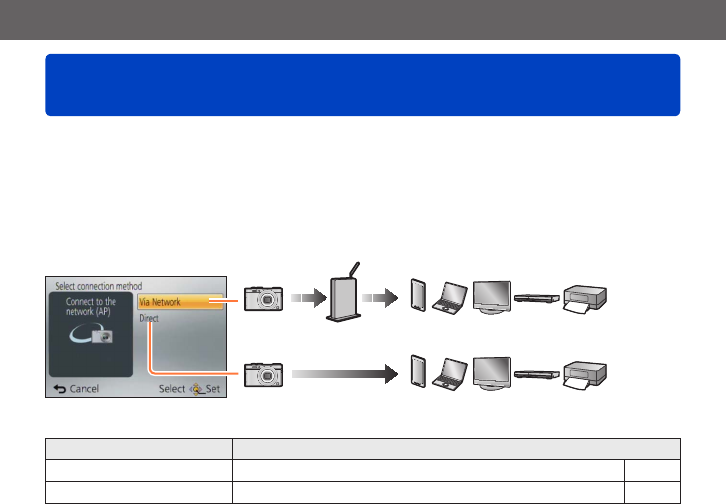
Wi-Fi/NFC
About connections
VQT5A33- 229 -
After selecting the Wi-Fi function and sending destination, select the connection method.
If you are out and unable to use your wireless access point, or temporarily connecting to
equipment you do not ordinarily use, or in a similar situation, it is convenient to make a
direct connection.
If you are connecting with the same settings as used previously, you can quickly start
using the Wi-Fi function by connecting with [History Connection] or [Favorite Connection].
Wireless access point
Connection method Description
[Via Network] Connects through a wireless access point. (→230)
[Direct] Your equipment connects directly to the camera. (→233)
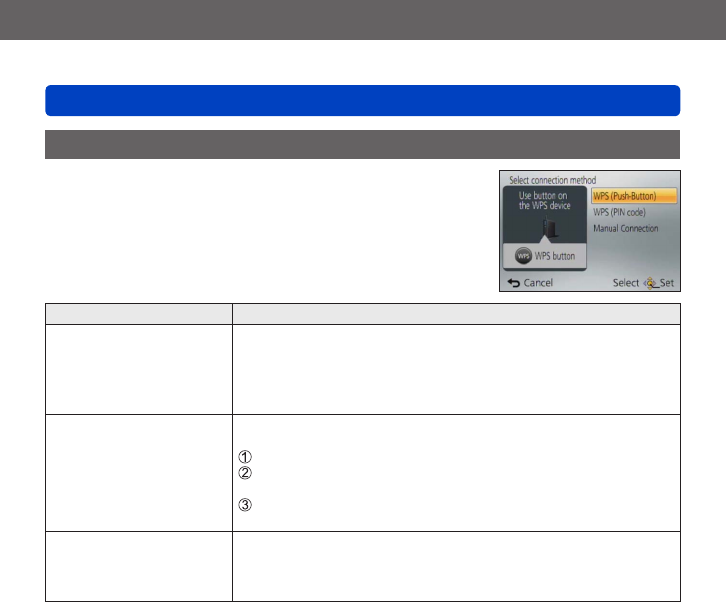
Wi-Fi/NFC
About connections
VQT5A33
- 230 -
Connecting at home (through a network)
Select a connection method to the wireless access point.
* WPS refers to a function that allows you to easily configure the
settings related to the connection and security of wireless LAN
devices. To check if the wireless access point you are using is
compatible with WPS, refer to the manual of the wireless access
point.
Connection method Description
[WPS (Push-Button)]
Save push button type wireless access point that is compatible with
Wi-Fi Protected Setup™ with a WPS mark.
Press the wireless access point WPS button until it
switches to WPS Mode
• Refer to the wireless access point instruction manual for details.
[WPS (PIN code)]
Save PIN code type wireless access point that is compatible with
Wi-Fi Protected Setup with a WPS mark.
Select the wireless access point you are connecting to
Enter the PIN code displayed on the camera screen into the
wireless access point
Press [MENU/SET]
• Refer to the wireless access point instruction manual for details.
[Manual Connection]
Select this option when you are not sure about the WPS compatibility,
or when you want to search for and connect to a wireless access
point.
• For details (→231).
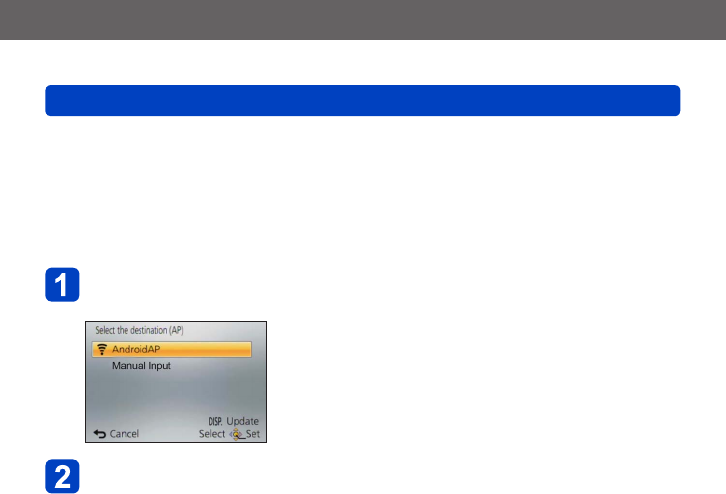
Wi-Fi/NFC
About connections
VQT5A33
- 231 -
■If you are not sure about the WPS compatibility
(connecting by [Manual Connection])
Search for available wireless access points.
• Confirm encryption key of the selected wireless access point if the network
authentication is encrypted.
• When connecting by [Manual Input], confirm SSID, encryption type, encryption key of
the wireless access point you are using.
Use cursor button to select the wireless access point you are
connecting to, and press [MENU/SET]
• Pressing [DISP.] button will search for a wireless
access point again.
• If no wireless access point is found, refer to “When
connecting with [Manual Input]” (→232).
(If network authentication is encrypted)
Enter the encryption key
• For details on how to enter characters, refer to “Entering Text” (→65).
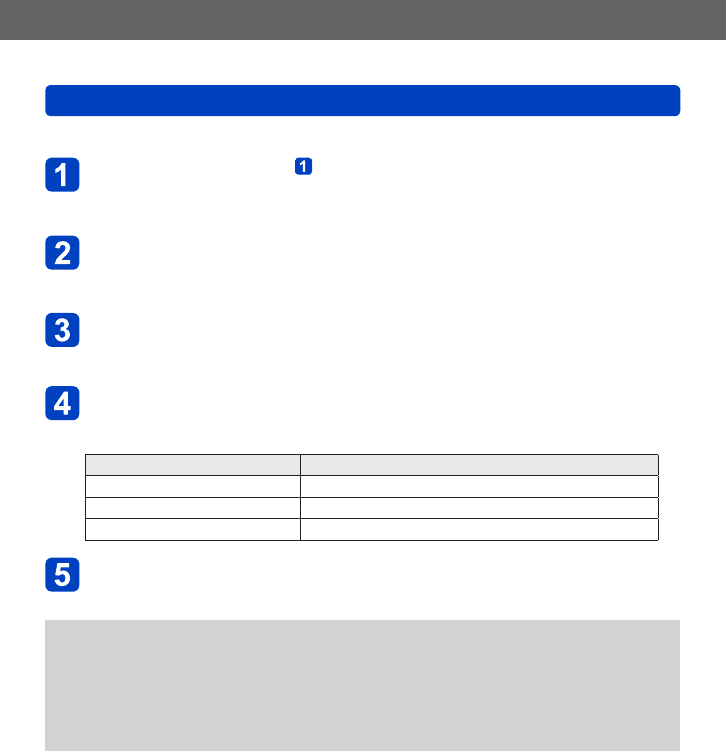
Wi-Fi/NFC
About connections
VQT5A33
- 232 -
■When connecting with [Manual Input]
On the screen of step of “If you are not sure about the WPS
compatibility (connecting by [Manual Connection])”, select
[Manual Input] (→231)
Enter the SSID of the wireless access point you are
connecting to, then select [Set]
• For details on how to enter characters, refer to “Entering Text” (→65).
Select the network authentication type
• For information on network authentication, see the manual of the wireless access
point.
Select the encryption type
• The type of settings that can be changed may vary depending on the details of
network authentication settings.
Network authentication type Encryption types that can be set
[WPA2-PSK] / [WPA-PSK] [TKIP] / [AES]
[Common Key] [WEP]
[Open] [No Encryption] / [WEP]
(When an option other than [No Encryption] is selected)
Enter the encryption key
●Check the wireless access points instruction manual and settings when a saving
wireless access point.
●If no connection can be established, the wireless access point’s radio waves may
be too weak. Refer to “Message displays” (→264) and “Q&A Troubleshooting” (→268) for
details.
●Transmission speed may decrease, or may not be usable depending on the
environment it is used in.
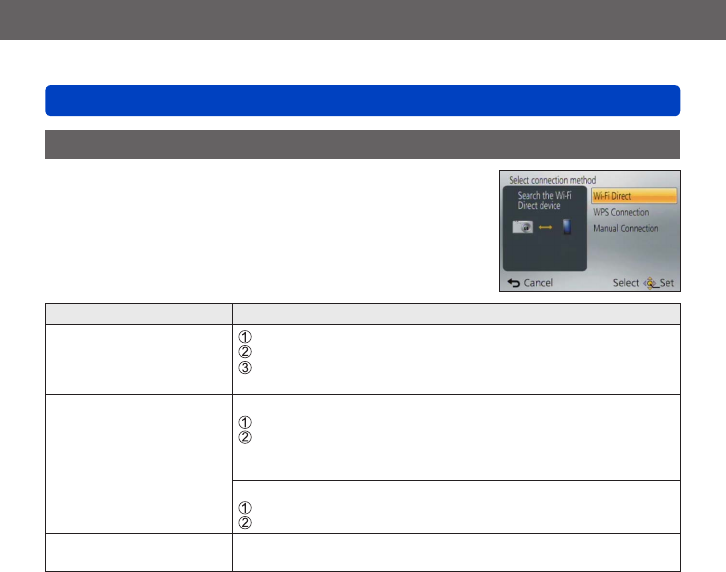
Wi-Fi/NFC
About connections
VQT5A33
- 233 -
Connecting when you are out (direct connection)
You can select the connection method to your equipment.
Select a connection method with which your equipment is
compatible.
Connection method Description
[Wi-Fi Direct]
Set the device to Wi-Fi Direct™ mode
Select [Wi-Fi Direct]
Select the device to connect to
• Read the operating instructions of your device for details.
[WPS Connection]
[WPS (Push-Button)]
Select [WPS (Push-Button)]
Set the device to WPS mode
• You can wait longer for a connection by pressing the [DISP.] button
on this unit.
[WPS (PIN code)]
Select [WPS (PIN code)]
Enter the PIN code of the device into this unit
[Manual Connection] Enter the SSID and password into the device. The SSID and
password are displayed on the connection waiting screen of this unit.
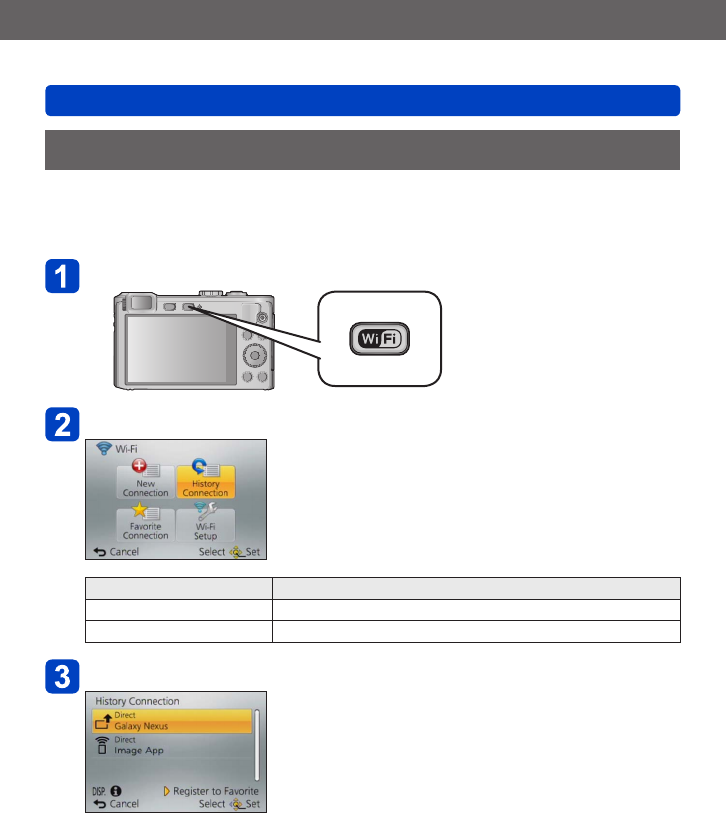
Wi-Fi/NFC
About connections
VQT5A33
- 234 -
Connecting quickly with the same settings as used previously
([History Connection]/[Favorite Connection])
The camera keeps a History of times you used the Wi-Fi function. You can register items
in the History to Favorite.
You can easily connect with the same settings as used previously by connecting from
History or Favorite.
Press [Wi-Fi] button
Select [History Connection] or [Favorite Connection]
Item Description
[History Connection] Connects using the same settings as used previously.
[Favorite Connection] Connects using settings registered in Favorite.
Select the desired connection setting
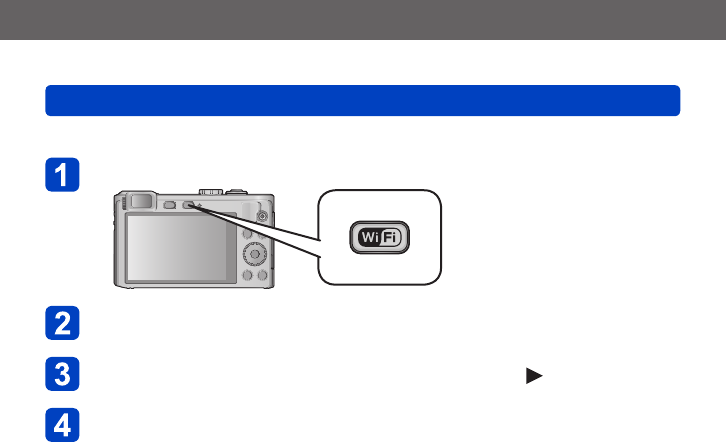
Wi-Fi/NFC
About connections
VQT5A33
- 235 -
■Registering History items to Favorite
Press [Wi-Fi] button
Select [History Connection]
Select the item you wish to register and press
Enter a registration name
• For details on how to enter characters, refer to “Entering Text” (→65).
• Up to 30 characters can be entered. A double-byte character will be treated as
two characters.
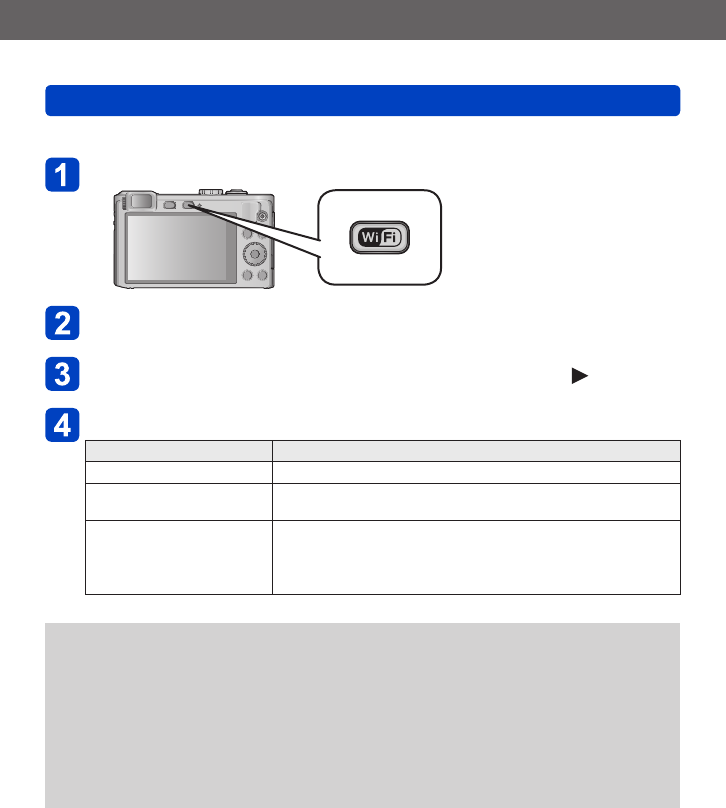
Wi-Fi/NFC
About connections
VQT5A33
- 236 -
■Editing items registered in Favorite
Press [Wi-Fi] button
Select [Favorite Connection]
Select the Favorite item you wish to edit and press
Select item
Item Description
[Remove from Favorite] —
[Change the Order in
Favorite] Select the destination
[Change the Registered
Name]
• For details on how to enter characters, refer to “Entering Text”
(→65).
• Up to 30 characters can be entered. A double-byte character
will be treated as two characters.
●The number of settings that can be saved in the history is limited. We recommend that
you register and save frequently used Wi-Fi connection settings to Favorite. (→235)
●When selecting History or Favorite items, you can view connection details by pressing
the [DISP.] button.
●Performing [Reset Wi-Fi Settings] deletes content registered in History and Favorite.
●When using [History Connection] or [Favorite Connection] to connect to a network
to which many PCs are connected, it may be difficult to make the connection
because the camera searches for previously connected equipment out of a large
number of equipment pieces. If you cannot connect, retry the connection using [New
Connection].
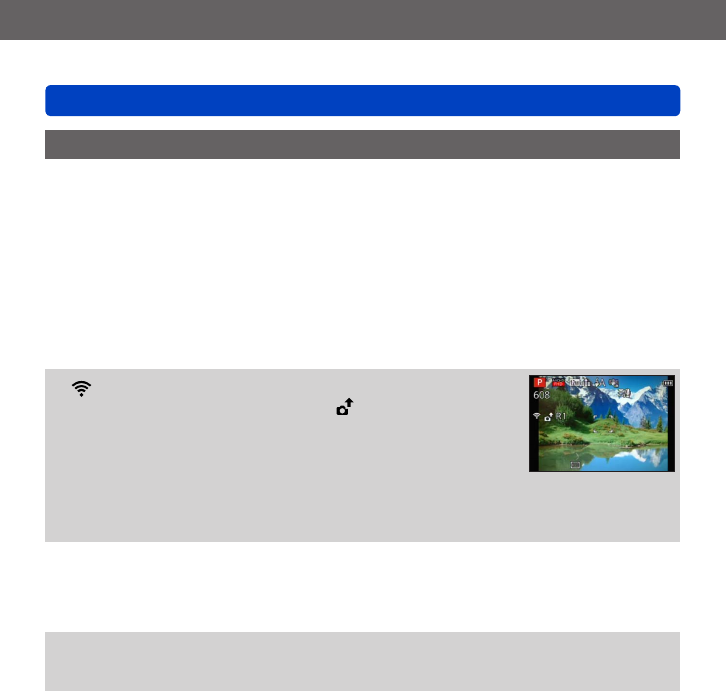
Wi-Fi/NFC
About connections
VQT5A33
- 237 -
Settings for sending pictures
When sending pictures, first select [New Connection], then select the method of sending
pictures.
After you have completed connecting, you can also change the sending settings, such as
the size of pictures to be sent.
• When sending images on a mobile network, high packet communication fees may be
incurred depending on the details of your contract.
■Send Images While Recording
A picture can be automatically sent to a specified device every time you take it.
• Since the camera gives priority to recording, sending may take longer.
●[ ] is displayed on the recording screen while connected by
[Send Images While Recording], and [ ] is displayed while
files are being sent.
●If you turn off the camera before you have completed sending,
or if you close the Wi-Fi connection, or in similar situations,
unsent files will not be resent.
●You may not be able to delete files or use the playback menu
while sending.
●Motion pictures cannot be sent.
■Send Images Stored in the Camera
You can select and send recorded images.
●Details of the playback menu [Favorite] or [Print Set] settings will not be sent.
●Some images taken with a different camera may not be able to be sent.
●Images that have been modified or edited with a computer may not be able to be sent.
Wi-Fi/NFC
About connections
VQT5A33
- 238 -
■Changing the settings for sending images
After you have completed connecting, you can change the sending settings, such as
the size of pictures to be sent, by pressing the [DISP.] button.
Item Description
[Size]
Resize the image to send.
[Original]/[Auto]*1/[Change]
• If you select [Auto], the image size is determined by the
circumstances at the destination.
• You can select the image size for [Change] from [M] or [S].
The aspect ratio does not change.
[File Format]*2[JPG], [RAW+JPG], [RAW]
[Delete Location Data]*3
Select whether to delete the location information from images
before sending them.
[ON]: Delete the location information, then send.
[OFF]: Keep the location information and send.
• This operation only deletes the location information from the
images that are set to be sent. (The location information will not
be deleted from the original images stored in this unit.)
[Cloud Limit]*4
You can select whether to send images when the Cloud Folder
runs out of free space.
[ON]: Do not send images.
[OFF]: Delete images from the oldest ones, then send new
images.
*1 Only available when the destination is set to [Web service].
*2 Only available when the destination is set to [PC].
*3 Only available when the destination for [Send Images Stored in the Camera] is set to [Cloud Sync.
Service], [Web service] or [External] in [AV device].
*4 Only available when the destination is set to [Cloud Sync. Service].
Wi-Fi/NFC
[Wi-Fi Setup] menu
VQT5A33- 239 -
Configure the settings required for the Wi-Fi function.
[Wi-Fi Setup] cannot be changed when connected to Wi-Fi. (excluding [Network Address])
• For details on how to select the [Setup] menu settings, refer to (→52).
Select [Wi-Fi Setup] in the [Wi-Fi] menu
Use cursor button to select item, and press [MENU/SET]
Item Description
[Smart Transfer] • For details (→222).
[LUMIX CLUB]
Acquires or changes the
“LUMIX CLUB” login ID.
• For details (→214).
[PC Connection]
You can set the workgroup.
You must connect to the same workgroup as the destination
computer when sending pictures to the computer.
(The default is set to “WORKGROUP”)
[Change Workgroup Name]:
Enter the workgroup of the connecting computer. Close the menu
after changing settings.
[Restore to Default]:
Returns settings to default settings. Confirmation screen is
displayed. It is executed when [Yes] is selected.
Exit the menu after it is executed.
• Refer to “Entering Text” (→65) for information on how to enter text.
• To use with a computer of the standard settings, you do not have
to change the workgroup.
[Device Name]
You can change the name of
this unit.
Press [DISP.] button
Enter the desired device name
• Refer to “Entering Text” (→65) for information on how to enter
text.
• Up to 32 characters can be entered.
[External AV device]
Images can be sent to the
AV device of relatives and
acquaintances via “LUMIX
CLUB”.
• For details (→220).
(Continued on the next page)
Wi-Fi/NFC
[Wi-Fi Setup] menu
VQT5A33
- 240 -
Item Description
[NFC Operation]
Makes NFC function setting.
[ON]: The NFC function works.
[OFF]
• It is set to [ON] at the time of purchase.
[Wi-Fi Password]
To prevent incorrect operation
or use of the Wi-Fi function
by a third party and to protect
saved personal information,
it is recommended that you
protect the Wi-Fi function with
a password.
Setting a password will automatically display the password input
screen when the Wi-Fi function is used.
[Setup]:
Enter any 4-digit numbers as the password. Close the menu after
changing settings.
[Delete]:
Confirmation screen is displayed. It is executed when [Yes] is
selected.
Exit the menu after it is executed.
• For details on how to enter characters, refer to “Entering Text”
(→65).
• Make a copy of password. If you forget the password, you can
reset it with [Reset Wi-Fi Settings] in the [Setup] menu, however
other settings will also be reset. (excluding [LUMIX CLUB])
[Network Address]
Displays the MAC address and
IP address of this unit.
• A “MAC Address” is a unique address that is used to identify
network equipment.
• “IP address” refers to a number that identifies a PC connected to
a network such as the Internet. Usually, the addresses for homes
are automatically assigned by the DHCP function such as a
wireless access point. (Example: 192.168.0.87)
[Approved Regulations]
Display approved regulations. –
• For details on how to select the [Setup] menu settings, refer to (→52).
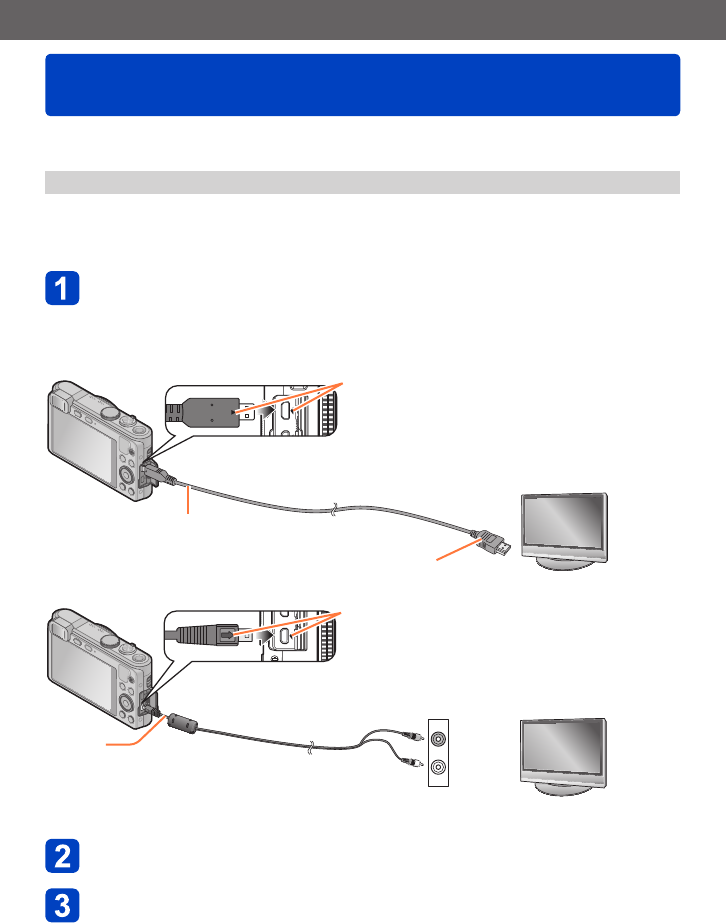
Connecting with other devices
Viewing on TV screen
VQT5A33- 241 -
Connecting with other devices
You can view pictures on a TV screen by connecting your camera to your TV with the
HDMI micro cable or AV cable (optional).
●Also consult TV operating manual.
Preparation:
• Set [TV Aspect] to connect your camera to a TV using the AV cable (optional) (→62).
• Turn off both camera and TV.
Connect camera to TV
■To connect with an HDMI micro cable
An HDMI micro cable can be used to enable viewing of still and motion pictures in high
resolution.
Check the plug direction and insert it straight in.
(If the cable is inserted in the wrong direction, the
plug could become deformed and cause faulty
operation)
Also, do not insert into the wrong socket. Doing so
may cause damage to this unit.
HDMI micro cable
To HDMI video/audio input socket
■To connect with an AV cable (optional)
Check the plug direction and insert it straight in.
(If the cable is inserted in the wrong direction, the
plug could become deformed and cause faulty
operation)
AV cable
(optional)
White: To audio socket*
* Monaural audio output.
Yellow: To video socket
Turn on TV
●Set to auxiliary input.
Turn on the camera and press the playback button
• By holding down the Playback button while the camera is turned off, you can turn
the camera on in Playback Mode.
Connecting with other devices
Viewing on TV screen
VQT5A33
- 242 -
■To connect with an HDMI micro cable
●Use a “High Speed HDMI micro cable” with the HDMI logo. Cables that do not
comply with the HDMI standards will not work.
“High Speed HDMI micro cable” (TypeD-TypeA plug, up to 2 m (6.6 feet) long)
●Some of the playback functions cannot be performed.
●The following menus cannot be used: [Setup], [Playback], and [Wi-Fi].
●Bars may appear at the sides or at the top and bottom of the screen, depending on
the aspect ratio setting.
●Cables that do not comply with HDMI standards will not work.
●When an HDMI micro cable is connected, pictures are not displayed on the LCD
monitor.
●HDMI output will be canceled if a USB connection cable (supplied) is connected
simultaneously.
●When the AV cable (optional) and HDMI micro cable are connected at the same
time, no picture is output from the AV cable.
●Pictures may be momentarily distorted immediately after commencing playback or
pausing on certain televisions.
●Audio output is stereo.
■To connect with an AV cable (optional)
●Always use a genuine Panasonic AV cable (optional).
●Pictures rotated to portrait may be blurred slightly.
●Change picture mode settings on TV if aspect ratios are not displayed correctly on
widescreen or high-definition televisions.
●Viewfinder display cannot be used.
When you insert a card into the SD card slot in a television or a DVD recorder,
you can play back recorded still pictures.
• AVCHD motion pictures can be played back on Panasonic televisions (VIERA)
displaying the AVCHD logo.
• You may not be able to play back panorama pictures. Also you cannot perform
automatic scrolling playback of panorama pictures.
• When using both SDHC and SDXC Memory Cards, be sure to play each type of card
in equipment compatible with the particular format.
Connecting with other devices
Viewing on TV screen
VQT5A33
- 243 -
VIERA Link (HDMI) (HDAVI Control™)
What is VIERA Link (HDMI)?
●VIERA Link is a function that automatically links this camera to VIERA Link-
compatible devices by connecting HDMI micro cables for enabling easy operation
with the VIERA remote control. (Some operations are not available.)
●VIERA Link (HDMI) is an exclusive Panasonic function added to the industry-
standard HDMI control functions known as HDMI CEC (Consumer Electronics
Control). Operation is not guaranteed when connecting with non-Panasonic HDMI
CEC-compatible devices. Refer to your product manual to verify compatibility with
VIERA Link (HDMI).
●This camera supports VIERA Link (HDMI) Version 5. This is the Panasonic standard
that also supports previous Panasonic VIERA Link devices.
●Use a “High Speed HDMI micro cable” with the HDMI logo. Cables that do not comply
with the HDMI standards will not work.
“High Speed HDMI micro cable” (TypeD-TypeA plug, up to 2 m (6.6 feet) long)
●If you do not know if your TV is VIERA Link (HDMI) compatible, see the TV’s operating
instructions.
●Cables that do not comply with HDMI standards will not work.
●If the [VIERA Link] setting on the camera is [ON], operations via the camera buttons
will be limited.
●Ensure that the television you are connecting to has been set up to enable VIERA
Link (HDMI) (consult your television operating instructions for details).
Connecting with other devices
Viewing on TV screen
VQT5A33
- 244 -
Preparation: Set [VIERA Link] to [ON] (→62).
Connect the camera to a VIERA Link (HDMI)-compatible
Panasonic television (VIERA) with an HDMI micro cable (→241)
Turn on the camera and press the playback button
• By holding down the Playback button while the camera is turned off, you can turn
the camera on in Playback Mode.
Proceed with the operation while referring to what is displayed
on the TV screen
• When operating, refer to the VIERA Link operating panel.
■Other related operations
●Turning the unit OFF
The camera can also be turned off when the television is turned off with the remote
control.
●Automatic input select
• This function automatically switches the television input to the camera screen
whenever the camera is turned on while it is connected via the HDMI micro cable.
The television can also be switched on via the camera from Standby Mode
(if “Power on link” on the television is set to “on”).
• If VIERA Link (HDMI) does not function correctly (→276)
Connecting with other devices
Viewing on TV screen
VQT5A33
- 245 -
Viewing 3D still pictures
If you connect this camera to a 3D-capable TV, and play back still pictures that you
recorded in 3D, you can enjoy impressive 3D still pictures on the TV. If a 3D-capable TV
has an SD card slot, you can play back 3D still pictures that you recorded by inserting the
card into the slot.
Preparation: Set [3D Playback] to [3D] (→62).
Connect the camera to a 3D-capable TV by use of an HDMI
micro cable to display the playback screen (→241)
Display still pictures recorded in 3D
• When the [VIERA Link] setting on the camera is set to [ON] and the camera is
connected to a VIERA Link (HDMI)-compatible Panasonic television (VIERA), the
television automatically switches its input and the playback screen is displayed.
• [3D] appears on the thumbnail of the 3D still pictures.
■To perform Slide Show playback of only still pictures recorded in 3D
Select [3D Play] in [Slide Show] of the [Playback Mode] menu (→150)
■To select and play back only still pictures recorded in 3D
Select [3D Play] in [Filtering Play] of the [Playback Mode] menu (→146)
Connecting with other devices
Viewing on TV screen
VQT5A33
- 246 -
■To switch the playback method for the still pictures recorded in 3D
Select the picture recorded in 3D
Select [2D/3D Settings] on the [Playback Mode] menu and then press [MENU/SET]
(→145)
• Playback method will switch to 3D if it is playing back in 2D (conventional image), or it
will switch to 2D if it is playing back in 3D.
• If you feel tired, uncomfortable or otherwise strange when playing back pictures
recorded in 3D, set to 2D.
●Viewing 3D still pictures too close to a TV may cause eyestrain.
●When an image is not suitable for 3D viewing (due to excessive parallax, etc.)
• During Slide Show playback: The image is displayed in 2D.
• During [Filtering Play]: A message appears confirming whether to display the image
in 3D or not.
●When a 3D image is played back on a TV that is not 3D-capable, 2 pictures may
appear side-by-side on the screen.
●On the LCD monitor of this camera, 3D still pictures will be played back in 2D
(conventional pictures).
●If you switch between 3D still pictures and normal still pictures while playing back
pictures, a black screen will be displayed for a few seconds.
●If you select a thumbnail of 3D still pictures or display a thumbnail after playing back
3D still pictures, it may take a few seconds to start playing back or displaying the
pictures.
●When a TV has not been converted for viewing 3D still pictures, do necessary
preparation on the TV. (For details about the necessary preparation of the TV, read
the manual for the TV.)
●During 3D playback, the [Wi-Fi] menu, [Setup] menu, [Playback] menu, Playback
Zoom, and delete operation cannot be used.
●You can store 3D still pictures on a computer or Panasonic recorder. (→247, 248)
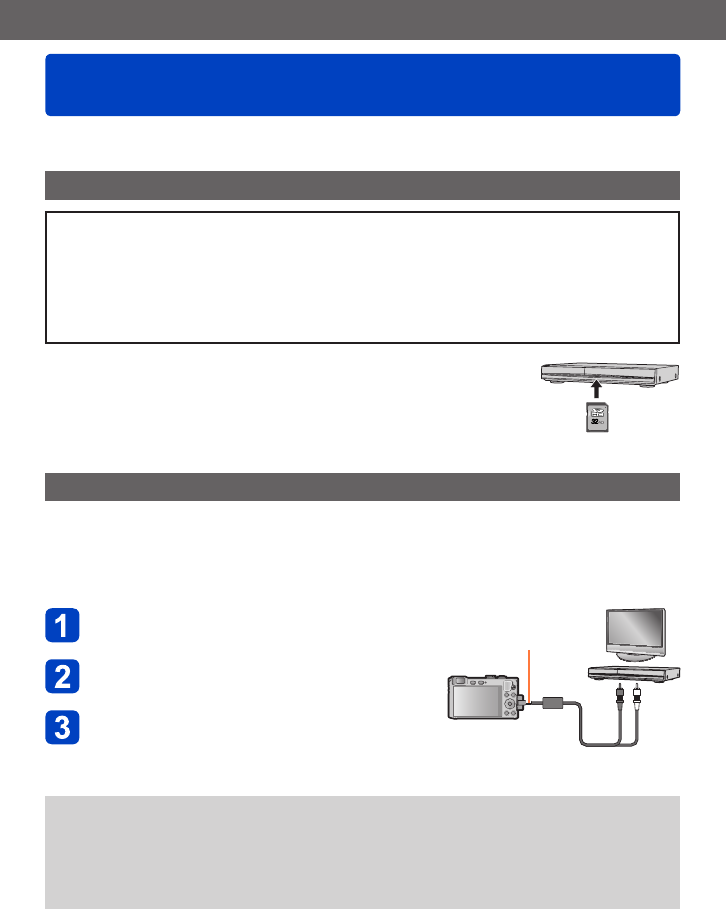
Connecting with other devices
Keeping the still pictures and motion pictures in
the recorder
VQT5A33- 247 -
Follow the correct method for your device.
Copy by inserting the SD card into the recorder
You can copy pictures using Panasonic equipment (such as Blu-ray disc
recorders) with support for each file format.
Check the latest information about equipment that is compatible with this camera
on the following website.
• Note that the equipment described may not be available in certain countries
and regions.
http://panasonic.jp/support/global/cs/dsc/ (This site is available in English only.)
• See the instruction manual for the recorder for details for
copying and playing back.
32
3232
Dubbing playback pictures via AV cables (optional)
Videos that are played on this camera can be dubbed on media such as a disc, hard disk
or videotape using a device such as a video recorder. This method is useful as it allows
dubbing to be performed even with devices that are not compatible with high definition
images. Picture quality will be reduced from high definition to standard definition. Audio
will be monaural.
Connect camera to recorder
To recorder’s input socket
AV cable
(optional)
Start playback on camera
Start recording on recorder
• To stop recording (dubbing), stop the recording
on your recorder first before stopping the
playback on the camera.
●Always use a genuine Panasonic AV cable (optional).
●When using a TV with a 4:3 aspect ratio, always change the camera’s [TV Aspect]
setting (→62) to [4:3] before dubbing. Motion pictures copied in the [16:9] setting will
appear vertically stretched when viewed on a 4:3 TV screen.
●For details on dubbing and playback methods, refer to your recorder’s operating
instructions.
Connecting with other devices
Keeping the still pictures and motion pictures on
your PC
VQT5A33- 248 -
Still/motion pictures can be copied from the camera to your computer by connecting the
two together.
• Some computers can read directly from the camera’s memory card.
For details, see the manual for your computer.
• If your computer does not support SDXC Memory Cards a message will be displayed
requesting you to format the card. (Do not format the card. This will erase recorded
pictures.) If the card is not recognized, refer to the following support website.
http://panasonic.net/avc/sdcard/information/SDXC.html
■Computer specifications
You can connect the camera to a computer that can detect a mass storage device
(device that stores a large volume of data).
• Windows: Windows 8 / Windows 7 / Windows Vista / Windows XP
• Mac: OS X v10.1 - v10.8
Some motion pictures recorded in [AVCHD] may not be scanned correctly by copying
a file or folder.
• When using Windows, be sure to use the “PHOTOfunSTUDIO” software on the
supplied CD-ROM to copy motion pictures recorded in [AVCHD].
• When using Mac, you can copy motion pictures recorded in [AVCHD] using
“iMovie ’11”. (For details about iMovie ’11, please contact Apple Inc.)
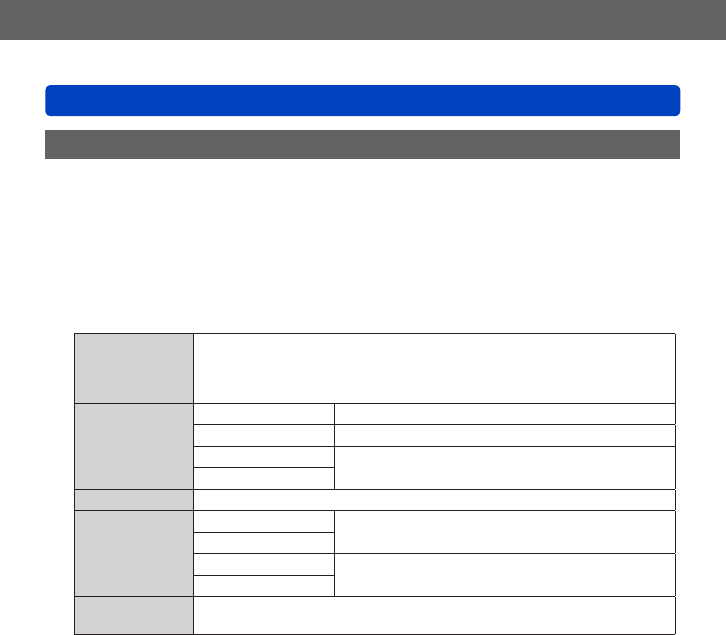
Connecting with other devices
Keeping the still pictures and motion pictures on your PC
VQT5A33
- 249 -
About supplied software
The supplied CD-ROM contains the following software.
Install the software on your computer before using.
■PHOTOfunSTUDIO 9.2 AE
You can capture still pictures or motion pictures to your PC, or organize captured
pictures by categorizing by recording date, model name of the digital camera used to
record, etc. You can also correct still pictures, edit motion pictures, or write to DVD.
• Operating environment
Supported OS
Windows® XP (32-bit) SP3
Windows Vista® (32-bit) SP2
Windows® 7 (32-bit/64-bit) and SP1
Windows® 8 (32-bit/64-bit)
CPU
Windows® XP Pentium® III 500 MHz or higher
Windows Vista®Pentium® III 800 MHz or higher
Windows® 7Pentium® III 1 GHz or higher
Windows® 8
Display 1024×768 pixels or more (1920×1080 pixels or more recommended)
RAM
Windows® XP 512 MB or more
Windows Vista®
Windows® 71 GB or more (32-bit) / 2 GB or more (64-bit)
Windows® 8
Free hard disk
space 450 MB or more for installing software
Refer to the Operating Instructions of “PHOTOfunSTUDIO” (PDF) for further
information about the operating environment.
Connecting with other devices
Keeping the still pictures and motion pictures on your PC
VQT5A33
- 250 -
■SILKYPIX Developer Studio
This software develops and edits RAW file pictures. Edited pictures can be saved in a
file format such as JPEG or TIFF that can be displayed on a PC, etc.
• Operating environment
Supported
OS
Windows® XP
Windows Vista®
Windows® 7
Windows® 8
Mac® OS X v10.4/v10.5/v10.6/v10.7/v10.8
• For details on how to use the SILKYPIX Developer Studio, refer to the “Help” or the
Ichikawa Soft Laboratory’s support website:
http://www.isl.co.jp/SILKYPIX/english/p/support/
■LoiLoScope 30 day full trial version (Windows XP / Vista / 7 / 8)
LoiLoScope is a video editing software that draws out the full power of your PC.
Creating videos is as easy as organizing cards on top of a desk. Use your music,
picture and video files to create videos to share with your friends and family by burning
it to a DVD, uploading it to websites, or simply share your videos with your friends via
e-mail.
• This will only install a shortcut to the trial version download site.
For more information on how to use LoiLoScope, read the LoiLoScope
manual available for download at the link below.
Manual URL: http://loilo.tv/product/20
Connecting with other devices
Keeping the still pictures and motion pictures on your PC
VQT5A33
- 251 -
Installing supplied software
The software compatible with your PC will be installed.
Preparation:
• Check your PC’s specifications and operating environment for each software.
• Before inserting the CD-ROM (supplied), close all running applications.
■Windows:
Insert the CD-ROM with the supplied software
• The installation menu runs.
Click [Recommended Installation]
• Continue the installation procedure following the instructions displayed on the
screen.
■Mac (SILKYPIX Developer Studio):
Insert the CD-ROM with the supplied software
Double-click the recognized disc to open
Double-click the [SILKYPIX] folder to open
Double-click an icon in the folder
• Continue the installation procedure following the instructions displayed on the
screen.
●PHOTOfunSTUDIO / LoiLoScope are not compatible with Mac.
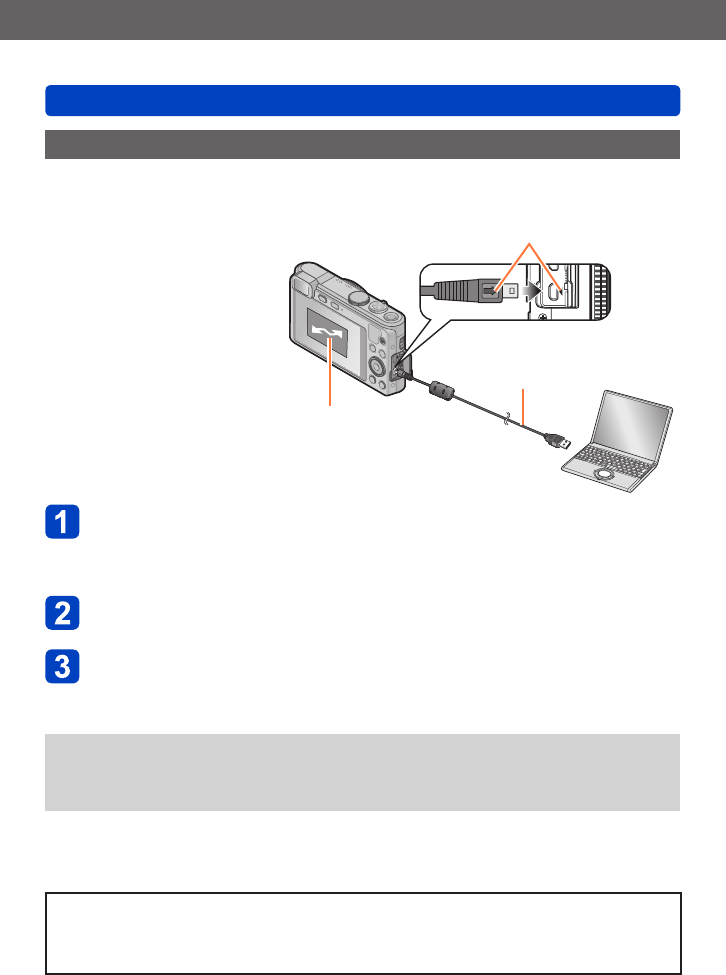
Connecting with other devices
Keeping the still pictures and motion pictures on your PC
VQT5A33
- 252 -
Connect camera to computer
• Do not use any other USB connection cables except the supplied one or a
genuine Panasonic USB connection cable (optional).
Using cables other than the above may cause a malfunction.
Use cursor button on the camera to select [PC], and press
[MENU/SET]
Use “PHOTOfunSTUDIO” to copy pictures to your computer
• For details on how to use “PHOTOfunSTUDIO”, see the “PHOTOfunSTUDIO”
manual (PDF).
●Files and folders containing copied AVCHD motion pictures cannot be played back
or edited if they have been deleted, modified, or moved using Windows Explorer or
similar methods. Always use “PHOTOfunSTUDIO” when handling AVCHD motion
pictures.
Preparation:
• When importing pictures from
the built-in memory, remove
any memory cards.
• Install “PHOTOfunSTUDIO”
on your computer before
starting the copying
procedure. (→251)
• Turn on the camera and
computer.
Check the plug direction and insert it straight in.
(If the cable is inserted in the wrong direction, the plug
could become deformed and cause faulty operation)
Also, do not insert into the wrong socket. Doing so may
cause damage to this unit.
[Access] (sending data)
• Do not disconnect
the USB connection
cable (supplied) while
[Access] is displayed.
USB connection cable (supplied)
Copying still pictures and motion pictures
To cancel connection
• Windows: Execute “Safely Remove Hardware” on the taskbar
• Mac: Open the Finder and click the eject icon that appears on the sidebar
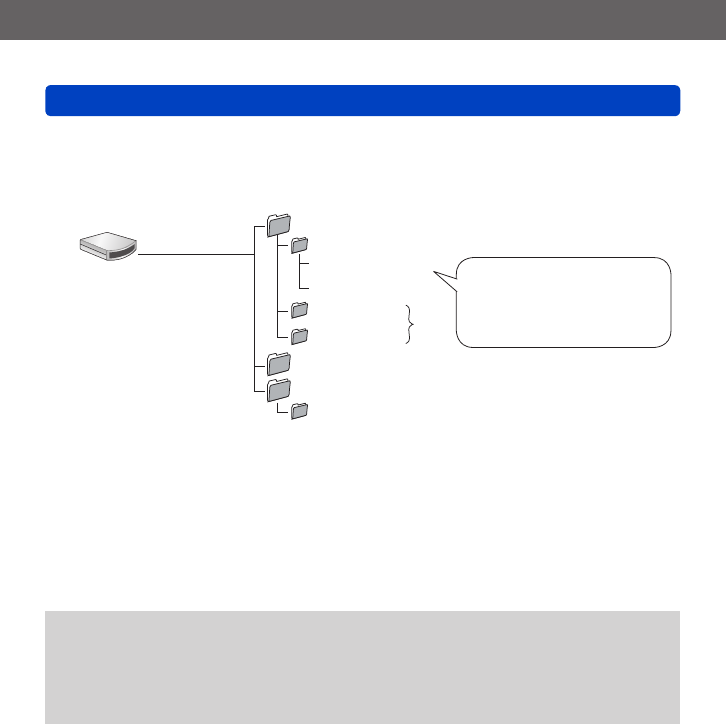
Connecting with other devices
Keeping the still pictures and motion pictures on your PC
VQT5A33
- 253 -
■Copying to your computer without using “PHOTOfunSTUDIO”
(except AVCHD motion pictures)
You can save pictures to use on your computer by dragging and dropping folders and
files into separate folders on your computer.
DCIM (Still/motion pictures)
100_PANA (Up to 999 pictures/folder)
P1000001.JPG
:
P1000999.JPG
101_PANA
:
999_PANA
MISC (DPOF files, Favorite)
PRIVATE*2
AVCHD (Motion pictures in AVCHD)
*1
●Windows
Drives are displayed
in “My Computer” or
“Computer” folder.
●Mac
Drives are displayed on
the desktop.
(Displayed as “LUMIX”,
“NO_NAME”, or
“Untitled”.)
.JPG: Still pictures
.RW2: Still pictures recorded in
RAW file
.MP4: [MP4] Motion Pictures
.MPO: 3D still pictures
*1 New folders are created in the following cases:
• When the number of files in a folder exceeds 999.
• When using cards already containing the same folder number (for example, pictures taken with
other cameras, etc.).
• When recording after performing [No.Reset].
*2 This folder is not created in the built-in memory.
●Turn off the camera before inserting or removing memory cards.
●When the battery begins to run out during communication, a warning beep sounds.
Cancel communication via your computer immediately.
●Setting the [USB Mode] to [PC] removes the need to make the setting each time the
camera is connected to the computer.
●For more details, consult your computer operating manual.

Connecting with other devices
Keeping the still pictures and motion pictures on your PC
VQT5A33
- 254 -
■For PTP mode
The camera can be connected to your computer even if [USB Mode] (→61) is set to
[PictBridge(PTP)].
• Only picture output can be performed.
• If you cannot connect to your PC in PTP mode, set [USB Mode] to [PC] and
reconnect.
• It may not be possible to import if there are 1000 or more pictures on the card.
• Motion pictures, 3D still pictures or RAW pictures cannot be read.
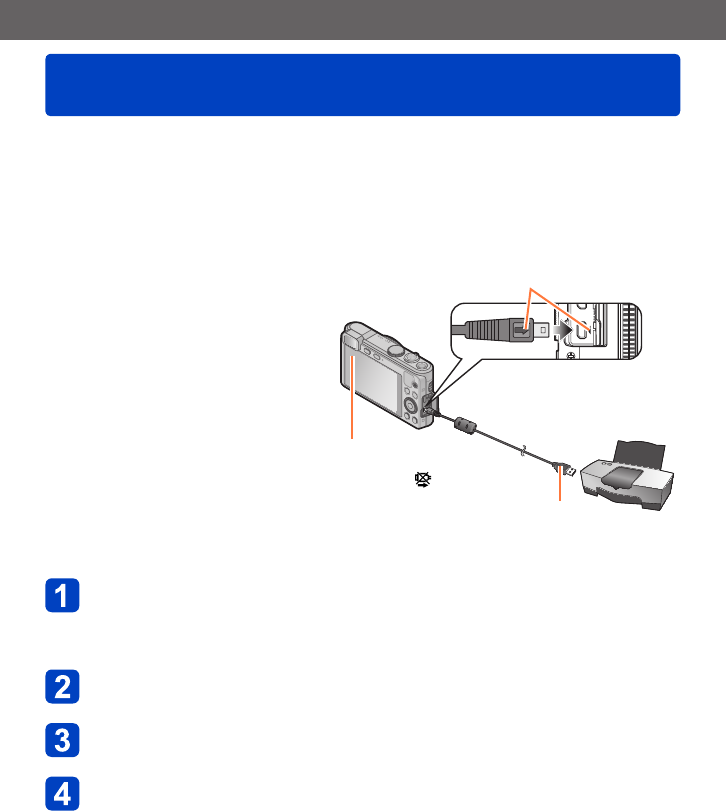
Connecting with other devices
Printing
VQT5A33- 255 -
Preparation:
• When printing pictures from the
built-in memory, remove any memory
cards.
• Adjust the print quality or other
settings on your printer, as needed.
• Turn on the camera and printer.
Connect camera to printer
• Do not use any other USB connection cables except the supplied one or a
genuine Panasonic USB connection cable (optional).
Using cables other than the above may cause a malfunction.
Use cursor button on the camera to select [PictBridge(PTP)],
and press [MENU/SET]
Use cursor button to select a picture to print and press
[MENU/SET]
Use cursor button to select [Print start] and press [MENU/SET]
(Print settings (→258))
■To cancel print
Press [MENU/SET].
Check the plug direction and insert it straight in.
(If the cable is inserted in the wrong direction, the
plug could become deformed and cause faulty
operation)
Also, do not insert into the wrong socket. Doing so
may cause damage to this unit.
• Do not disconnect the USB
connection cable (supplied) when
the cable disconnection icon is
displayed (may not be displayed with
some printers). USB connection cable
(supplied)
You can connect directly to a PictBridge-compatible printer for printing.
• Some printers can print directly from the camera’s memory card.
For details, see the manual for your printer.

Connecting with other devices
Printing
VQT5A33
- 256 -
●Turn off the camera before inserting or removing memory cards.
●Disconnect USB connection cable (supplied) after printing.
●When the battery begins to run out during communication, a warning beep sounds.
Cancel printing and disconnect USB connection cable (supplied).
●Still pictures recorded in a RAW file cannot be printed. (The still pictures recorded in
JPEG file format at the same time as the RAW file can be printed.)
●Motion pictures cannot be printed.
Connecting with other devices
Printing
VQT5A33
- 257 -
Printing multiple pictures
Use cursor button to select [Multi Print] in step (→255)
Use cursor button to select item and press [MENU/SET]
• [Multi Select]: Scroll between pictures with cursor button, select pictures
to print with the [DISP.] button. (Press [DISP.] button again
to release selection.)
Press [MENU/SET] when selection is complete.
• [Select All]: Print all pictures.
• [Print Set (DPOF)]: Print pictures selected in [Print Set]. (→166)
• [Favorite]: Print pictures selected as [Favorite]. (→165)
Use cursor button to select [Print start] and press [MENU/SET]
(Print settings (→258))
• Select [Yes] if print confirmation screen is displayed.
●An orange “●” displayed during printing indicates an error message.
●Print may be divided into several pictures if printing a large amount of pictures.
(Remaining sheets display may differ from the number of pictures set for printing.)
Print with date and text
■Printing date without [Text Stamp]
●Printing in store: Only recording date can be printed. Request date printing in store.
• Making [Print Set] (→166) settings on the camera in advance allows settings for
numbers of copies and date printing to be designated before giving the card to the
store.
• When printing still pictures of 16:9 Aspect Ratio, check in advance that the store
can accept this size.
●Using computer: Print settings for recording date and text information can be made
using “PHOTOfunSTUDIO” software on the supplied CD-ROM.
●Using printer: Recording date can be printed by setting [Print Set] on the camera,
or by setting [Print with Date] (→258) to [ON] when connecting to a
printer compatible with date printing.
• Time and date can be set to be printed on the picture when taking the picture by
activating the [Date Stamp] function in the [Rec] menu. (→138)
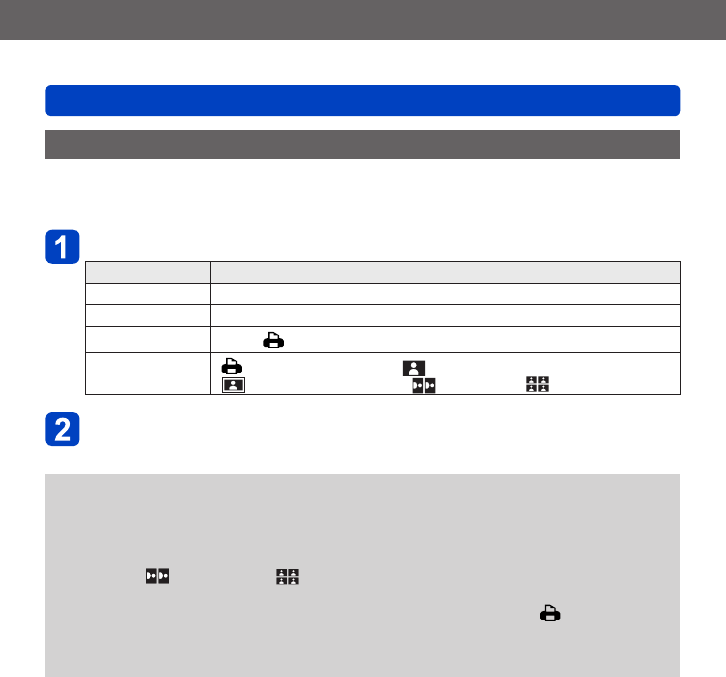
Connecting with other devices
Printing
VQT5A33
- 258 -
Making print settings on the camera
Setting options include the number of printed pictures and their size. Make settings before
selecting [Print start].
Use cursor button to select the item and press [MENU/SET]
Item Settings
[Print with Date] [ON] / [OFF]
[Num.of prints] Set number of pictures (up to 999 pictures)
[Paper Size] When is selected, the printer settings take priority.
[Page Layout] (printer takes priority) / (1 picture, no border) /
(1 picture, with border) / (2 pictures) / (4 pictures)
Use cursor button to select setting and press [MENU/SET]
●When setting [Print with Date] to [ON], check the date printing settings on the printer
(printer settings may be prioritized).
●To print a picture on which text or a date has been stamped, set [Print with Date] to
[OFF]. (The still picture is printed with the date superimposed on it.)
●Items may not be displayed if incompatible with printer.
●To arrange “2 pictures” or “4 pictures” in the same still picture, set the number
of prints for the still picture to 2 or 4.
●To print to paper sizes/layouts not supported by this camera, set to and make
settings on the printer. (Consult your printer’s operating manual.)
●Even with completed [Print Set] settings, dates may not be printed, depending on the
shop or printer used.
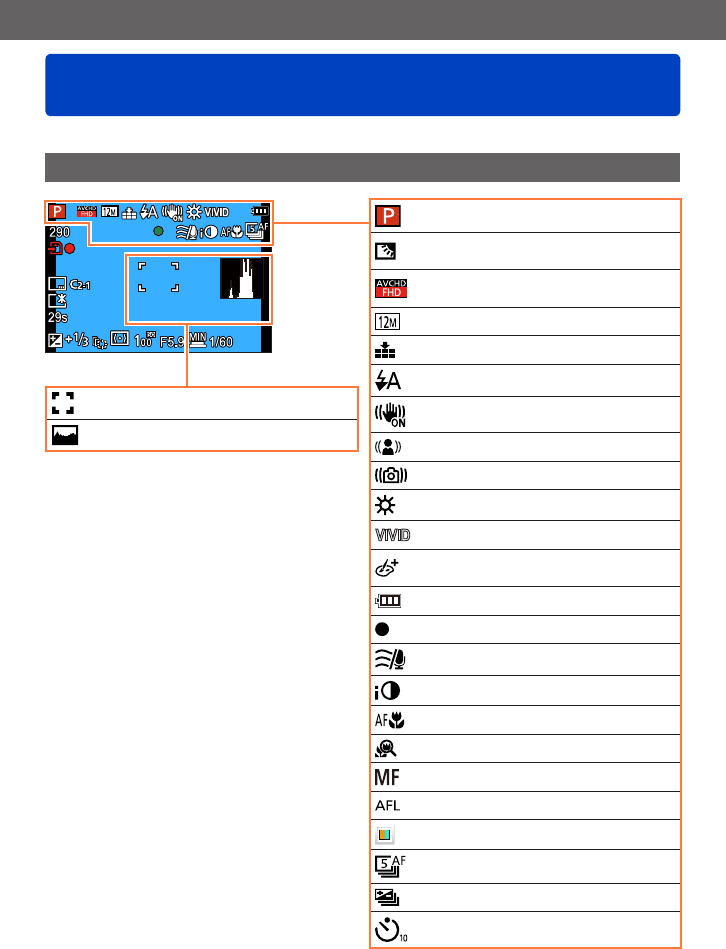
Others
List of LCD monitor/Viewfinder displays
VQT5A33- 259 -
Screens shown here are only examples. The actual display may vary.
In recording
Recording Mode (→25)
Backlight Compensation
(→30, 33, 137)
Rec Format (→139)
Rec Quality (→139)
Picture Size (→128)
Quality (→129)
Flash Mode (→75)
Stabilizer (→38, 137)
Motion Deblur (→32)
Jitter alert (→38)
White Balance (→131)
Color Mode (→136)
Creative control adjustment
display (→97)
Battery capacity (→17)
Focus (→39)
Wind cut (→141)
Intelligent exposure (→134)
AF macro (→78)
Macro zoom (→80)
Manual Focus (→87)
AF Lock (→86)
Coloring (→36)
Burst Mode (→119)
Auto Bracket (→91)
Self-timer (→89)
AF area (→39)
Histogram (→57)
Others
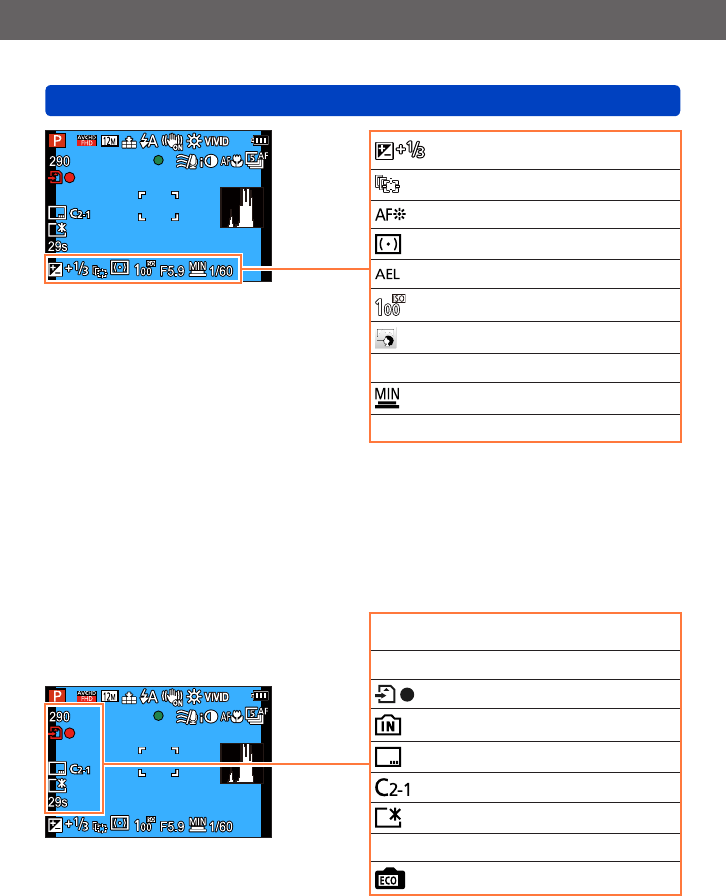
Others
List of LCD monitor/Viewfinder displays
VQT5A33
- 260 -
Brightness (→36)
Exposure Compensation (→90)
AF Tracking (→34, 83)
AF Assist Lamp (→136)
Metering Mode (→134)
AE Lock (→86)
ISO Sensitivity (→130)
Defocusing control (→31, 36, 97)
F5.9 Aperture value (→38, 92, 94)
Minimum shutter speed (→135)
1/60 Shutter speed (→38, 93, 94)
* XXhXXmXXs, RXXhXXmXXs
[h], [m] and [s] indicate “hour”, “minute” and “second”.
290 Number of recordable pictures
(→21)
R29m59s Remaining recording time* (→40)
Recording state
Save destination (→20)
Date Stamp (→138)
Custom Set (→115)
Monitor Luminance (→56)
29s Elapsed recording time* (→40)
Monitor Power Save (→59)
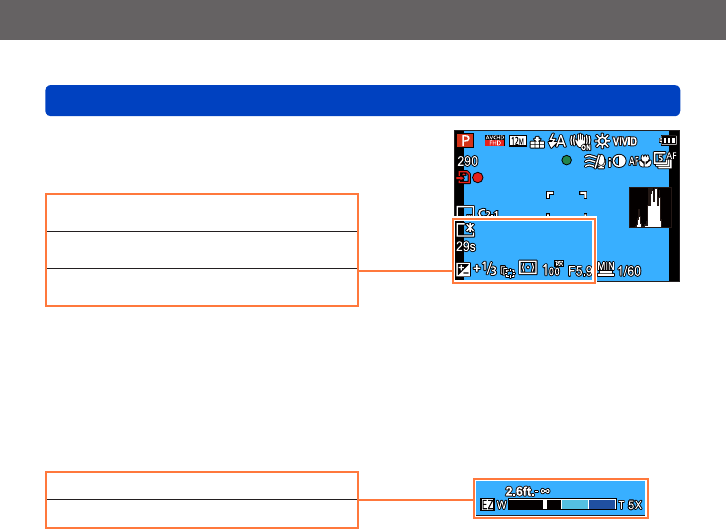
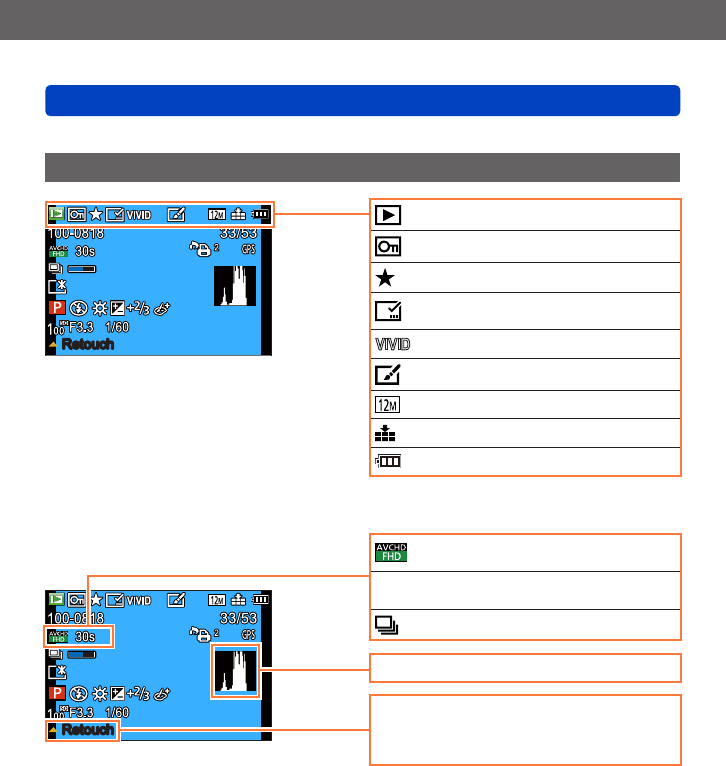
Others
List of LCD monitor/Viewfinder displays
VQT5A33
- 262 -
Retouch
Retouch
Screens shown here are only examples. The actual display may vary.
In playback
Playback Mode (→145)
Protected picture (→167)
Favorites (→165)
Date/text stamped display
(→138, 159)
Color Mode (→136)
Retouched picture (→153, 154)
Picture Size (→128)
Quality (→129)
Battery capacity (→17)
Rec Format (→139)
Rec Quality (→139)
30s Motion picture recording time*
(→40)
Burst (→143)
Histogram (→57)
Retouch (→153)
Motion picture playback (→48)
Panorama playback (→107)
Burst playback (→143)
* XXhXXmXXs
[h], [m] and [s] indicate “hour”, “minute” and “second”.
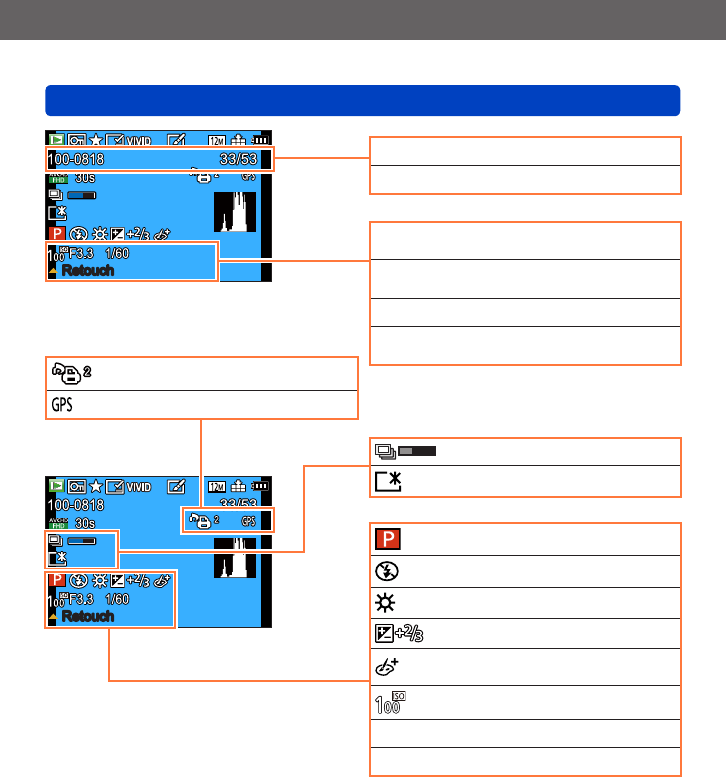
Others
List of LCD monitor/Viewfinder displays
VQT5A33
- 263 -
Retouch
Retouch
Print settings (→166)
With location information (→156)
Acquiring information icon (→143)
Monitor Luminance (→56)
Recording Mode (→25)
Flash Mode (→75)
White Balance (→131)
Exposure Compensation (→90)
Creative control adjustment
display (→97)
ISO Sensitivity (→130)
F3.3 Aperture value (→38, 92, 94)
1/60 Shutter speed (→38, 93, 94)
Folder/File number (→44, 253)
Picture number/Total pictures (→44)
Recording date/time
World time (→127)
Name* (→112, 124)
Age in years/months* (→112, 124)
Title* (→158)
Destination settings* (→126)
Travel elapsed days* (→126)
* The displaying is performed in the following priority order: title, travel destination, name ([Baby]/
[Pet]), and name ([Face Recog.]). When the number of days elapsed from day of departure is
displayed, age in years/months is not displayed.

Others
Message displays
VQT5A33- 264 -
The following explains the meaning of major messages displayed on the LCD monitor or
viewfinder, and how to respond to them.
[This memory card cannot be used]
●Not compatible with the camera. Use a compatible card.
[Some pictures cannot be deleted] [This picture cannot be deleted]
●Non-DCF pictures (→44) cannot be deleted.
→ Save needed data on a computer or other device, and then use [Format] on the camera. (→64)
[No additional selections can be made]
●The number of pictures that can be deleted at once has been exceeded.
●More than 999 pictures have been set as [Favorite].
●The number of pictures allowing [Title Edit], [Text Stamp] or [Resize] (multiple settings) at once has
been exceeded.
[Cannot be set on this picture]
●[Print Set], [Title Edit], or [Text Stamp] cannot be made for non-DCF pictures (→44).
[Please turn camera off and then on again] [System Error]
●The lens is not working correctly.
→ Turn the camera on again.
(Consult the dealer or your nearest Service Center if display still remains)
[Some pictures cannot be copied] [Copy could not be completed]
●Pictures cannot be copied in following cases.
→ Picture of same name already exists in built-in memory when copying from card.
→ File is not of DCF standard (→44).
→ Picture taken or edited on a different device.
[Not enough space on built-in memory] [Not enough memory on the card]
●There is no space left on the built-in memory or the card. When you copy pictures from the built-in
memory to the card (batch copy), the pictures are copied until the capacity of the card becomes full.
[Built-In Memory Error] [Format built-in memory?]
●Displayed when formatting built-in memory via computer, etc.
→ Reformat directly using camera. Data will be deleted.
[Memory card error. This card cannot be used in this camera. Format this card?]
●The card format cannot be used with this camera.
→ Save needed data on a computer or other device, and then use [Format] on the camera. (→64)
[Insert SD card again] [Try another card]
●Access to card has failed.
→ Insert card again.
●Try with a different card.

Others
Message displays
VQT5A33
- 265 -
[Memory card parameter error]
●Card is not of SD standard.
●When cards in capacities of 4 GB or more are used, only SDHC or SDXC Memory Cards are
supported.
[Read Error] / [Write Error] [Please check the card]
●Data read has failed.
→ Check whether card has been inserted correctly (→19).
●Data write has failed.
→ Turn off the camera and remove the card. Reinsert the card and turn the camera on again.
●Card may possibly be damaged.
●Try with a different card.
[Cannot record due to incompatible format(NTSC/PAL) data on this card.]
●Format the card after saving necessary data on a PC etc. (→64)
→ Insert a different card.
[Motion recording was cancelled due to the limitation of the writing speed of the card]
●Motion picture recording may be automatically terminated with certain cards.
→ If recording stops even when using a card of the recommended speed class (→20), the data writing
speed has dropped. If this happens, we recommend backing up the data on the memory card
and formatting it (→64).
[A folder cannot be created]
●Folder numbers in use have reached 999.
→ Save needed data on a computer or other device, and then use [Format] on the camera. (→64)
Folder number is reset to 100 when performing [No.Reset] (→60).
[Picture is displayed for 16:9 TV] [Picture is displayed for 4:3 TV]
●AV cable (optional) is connected to camera.
→ To remove message immediately → Press [MENU/SET].
→ To change aspect ratio → Change [TV Aspect] (→62).
●USB connection cable (supplied) is only connected to camera.
→ Message disappears when cable is also connected to another device.
[This battery cannot be used]
●Use a genuine Panasonic battery.
●Battery cannot be recognized as terminal is dirty.
→ Wipe any dirt away from the battery terminal.
[Recording failed.]
●Recording may be impossible if the recording location for a 3D image is too dark/too bright, or if the
subject lacks contrast.

Others
Message displays
VQT5A33
- 266 -
[Failed to connect wireless access point] / [Connection failed] / [No destination found]
●Check following regarding the wireless access point.
→ The wireless access point information set on this unit is wrong. Check the authentication type,
encryption type, and encryption key. (→232)
→ Power of the wireless access point is not turned on.
→ Setting of the wireless access point is not supported by this unit.
●Check the network setting of the destination.
●Radio waves from other devices may block the connection to a wireless access point.
→ Check other devices that are connected to the wireless access point and devices that use the
2.4 GHz band.
[No picture to send]
●This is displayed when there is no image to transmit due to the restriction of the destination.
Check the file type of the image to transmit. (→185, 192, 194, 199, 205, 210)
[Connection failed. Please retry in a few minutes.] /
[Network disconnected. Transfer stopped.]
●Radio waves from the wireless access point are getting weak.
→ Perform the connection closer to the wireless access point.
●There is no reply from the server or it has exceeded the communication processing time.
→ Try again after a while.
●Depending on the wireless access point, connection may be automatically disconnected after
specific time has passed.
→ Reconnect the connection again.
[Upload to the Cloud Folder is available after Cloud Sync settings have been set up on
downloadable devices such as PCs or smartphones.]
●Devices that download images from a cloud folder are not registered.
●Perform Cloud Sync setting. Configure the settings on a PC with “PHOTOfunSTUDIO” or on a
smartphone with “Image App”. For details on [Cloud Sync. Service], refer to (→210).
[Connection failed]
●Check following regarding the smartphones you intend to connect.
→ The smartphone does not operate.
→ Change the access point to connect to in the smartphone Wi-Fi settings to this camera.
→ There is no free storage space on the smartphone.
[Login failed. Please check Login ID and Password.]
●Login ID or password for the “LUMIX CLUB” is not correct. Please enter it again. If you have
forgotten the login ID or the password, there is information in the login screen of the “LUMIX CLUB”
website.
[Some files cannot be sent because of destination limit] /
[Transfer completed. Some files are left because of destination limit.]
●Check the file format of the image to send.
●Sending motion pictures may fail if the file size is too large. Split the motion picture using [Video
Divide]. (→161)

Others
Message displays
VQT5A33
- 267 -
[Unavailable. Please set Login settings on LUMIX CLUB web site.]
●Login to the “LUMIX CLUB” from your smartphone or PC, and set the login details of the destination
WEB service.
[Both picture and video sharing service cannot be selected together]
●WEB services designed only for pictures, and WEB services designed only for motion pictures
cannot be selected at the same time. Deselect one of the services.
[Cannot get IP address. Please set wireless AP’s IP address setting to DHCP.]
●Turn on DHCP settings of the IP address of the connected wireless access points.
[Cannot connect to server]
●If a message is displaying asking to update the root certificate, agree to update the root certificate.
Others
Q&A Troubleshooting
VQT5A33
- 268 -
Try checking these items (→268 - 278) first.
If the problem persists, performing [Reset] in the [Setup] menu may resolve the issue
(→61). (Note that except for some items such as [Clock Set], all settings are returned to
their values at the time of purchase.)
Battery, power
The charging lamp turns off before the battery is fully charged.
●Charging is being performed in a place with extremely high or low temperature.
→ Reconnect the USB connection cable (supplied) and retry charging in a place where ambient
temperature is 10 °C to 30 °C (50 °F to 86 °F) (temperature conditions also apply to the battery
itself).
(When the USB connection cable is reconnected after the battery is fully charged, the charging
lamp will light for approximately 15 seconds.)
Camera does not work even if the camera is turned on.
●Battery is not inserted correctly (→14), or needs recharging.
Camera switches off as soon as the camera is turned on.
●Battery needs recharging.
This unit is turned off automatically.
●If you connect to a TV compatible with VIERA Link (HDMI) with an HDMI micro cable and turn off
the TV with the remote control for the TV, this unit also turns off.
→ If you are not using VIERA Link (HDMI), set [VIERA Link] to [OFF]. (→62)
Others
Q&A Troubleshooting
VQT5A33
- 269 -
Recording
Cannot record pictures.
●Built-in memory/card is full.
→ Free space by deleting unwanted pictures (→50).
Recorded pictures look white.
●Lens is dirty (fingerprints, etc.).
→ Turn the camera on to extract lens barrel, and clean lens surface with a soft, dry cloth.
●Lens is foggy (→7).
Recorded pictures are too bright/too dark.
●Adjust the exposure (→90).
●[Min. Shtr Speed] is set to fast speed. Check the setting (→135).
Some pictures are taken when I press the shutter button just once.
●Camera is set to use [Auto Bracket] or [Burst].
Focus not aligned correctly.
●Not set to mode appropriate for distance to subject. (Focus range varies according to recording
mode.)
●Subject outside of focus range. (→79)
●Caused by jitter or subject movement. (→38)
Recorded pictures are blurred. The stabilizer function ineffective.
●Shutter speed is slower in dark locations and the stabilizer function is less effective.
→ Hold camera firmly with both hands, keeping arms close to body.
●Use a tripod and the self-timer (→89) when using slower shutter speed with [Min. Shtr Speed].
Cannot use [Auto Bracket].
●Only enough memory for 2 pictures or fewer.
Recorded pictures appear coarse, or there is interference.
●ISO Sensitivity is high, or shutter speed is low.
(Default [Sensitivity] setting is [AUTO] – interference may appear with indoor pictures.)
→ Lower [Sensitivity] (→130).
→ Take pictures in brighter locations.
Striping or flicker may appear under lighting such as fluorescent lighting
and LED lighting fixture.
●This is characteristic of MOS sensors which serve as the camera’s pickup sensors.
This is not a malfunction.
Brightness or coloring of recorded picture different from real life.
●When recording under fluorescent or LED lighting fixture etc., increasing the shutter speed may
introduce slight changes to brightness and color. These are a result of the characteristics of the light
source and do not indicate a malfunction.
●When recording subjects in extremely bright locations or recording under fluorescent lighting, LED
lighting fixture, mercury lamp, sodium lighting etc., the colors and screen brightness may change or
horizontal striping may appear on the screen.
Others
Q&A Troubleshooting
VQT5A33
- 270 -
Recording (continued)
Reddish horizontal streaks appear on the LCD monitor during recording.
●This is characteristic of MOS sensors which serve as the camera’s pickup sensors. It appears when
the subject has a bright part. Some unevenness may occur in the surrounding areas, but this is not
a malfunction. It is recorded in motion pictures but is not recorded on still pictures.
●It is recommended that you take pictures while taking care not to expose the screen to sunlight or
any other source of strong light.
Motion picture recording stops midway.
●If the surrounding temperature is high, or a motion picture is recorded continuously, is displayed
and recording may be stopped halfway through to protect the camera.
●With some cards, access display may appear briefly after recording, and recording may end midway.
●Use a card of SD Speed “Class 4” or higher. If recording stops even when using a card of the
recommended speed class, the data writing speed has dropped. If this happens, we recommend
backing up the data on the memory card and formatting it (→64).
Panorama picture recording stops before finishing.
●If the pan motion of the camera is too slow, the camera assumes that the operation has been
aborted and stops recording.
●If the pan motion of the camera is too shaky when it is moved toward the recording direction, the
camera stops recording.
→ To record panorama pictures, pan the camera in a small circular motion parallel to the recording
direction at a speed of approx. 8 seconds per revolution (guideline).
The subject cannot be locked. (AF track fails)
●If the color of the subject is similar to that of its background, AF Tracking may not function. Set the
AF area to those colors specific to the subject by aligning that area with the AF area.
Others
Q&A Troubleshooting
VQT5A33
- 271 -
LCD monitor/Viewfinder
Pictures do not show on the LCD monitor.
●The camera is set for viewfinder display.
→ Press [LVF] button and switch to LCD monitor display.
Brightness is unstable.
●Aperture value is set while shutter button is pressed halfway. (Does not affect recorded picture.)
This symptom may also occur when the brightness changes because the zoom is operated or the
camera is moved. This is the automatic aperture operation of the camera and is not a malfunction.
Monitor flickers indoors.
●The LCD monitor may flicker for a few seconds after turning on. This is an operation to correct
flicker caused by lighting such as fluorescent lights, LED lights etc. and is not a malfunction.
Monitor is too bright/too dark.
●[Monitor Luminance] is activated (→56)
●Use [Monitor Display] to adjust the brightness of the LCD monitor. (→55)
Black/blue/red/green dots or interference appears. Monitor looks distorted when
touched.
●This is not a fault, and will not be recorded on the actual pictures.
Cannot switch between the LCD monitor and viewfinder when pressing [LVF] button.
●When it is connected to a computer or printer, the camera can display pictures on the LCD monitor
only.
Flash
No flash emitted.
●Flash set to [Forced Flash Off] (→75).
●The flash becomes unavailable in the following cases :
• [Auto Bracket]
• [Burst] (Excluding [Flash Burst])
• Scene Modes ([Scenery], [Night Scenery], [Handheld Night Shot], [HDR], [Sunset], [Starry Sky],
[Glass Through], [3D Photo Mode])
• [Creative Control] Mode
• [Panorama Shot] Mode
Multiple flashes are emitted.
●Red-eye reduction is active (→75). (Flashes twice to prevent eyes appearing red.)
●[Burst] is set to [Flash Burst].
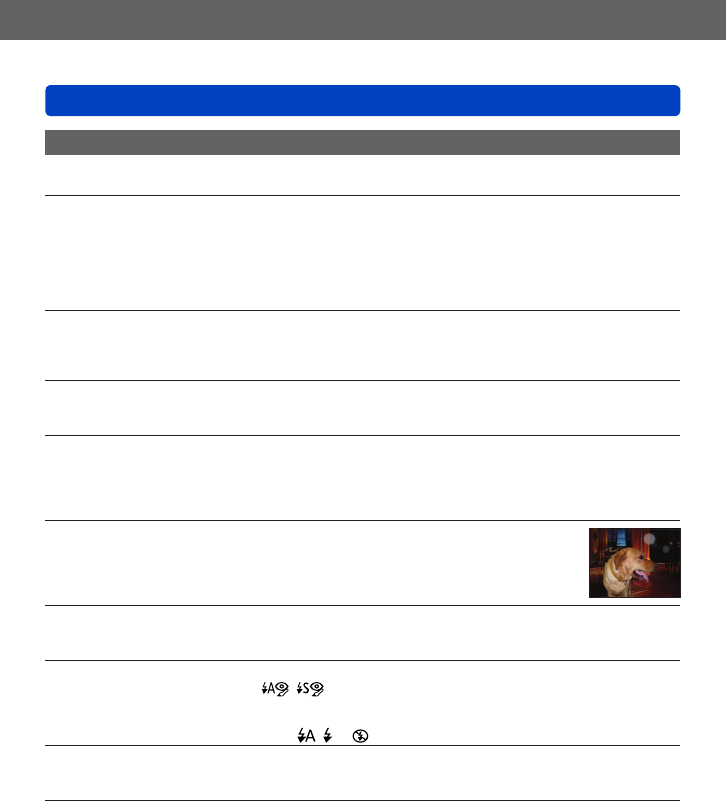
Others
Q&A Troubleshooting
VQT5A33
- 272 -
Playback
Pictures have been rotated.
●[Rotate Disp.] is activated (→63)
Cannot view pictures. There are no recorded pictures.
●No pictures in built-in memory or card (pictures played from card if inserted, from built-in memory if
not).
●Has the file name of the picture been changed on a computer? If so, it cannot be played back on the
camera.
●During [Filtering Play], only pictures under the set filters are displayed.
→ Cancel filtering (→146).
Folder/file number displayed as [-]. Picture is black.
●Picture edited on computer or taken on different device.
●Battery removed immediately after picture taken, or picture taken with low battery.
→ Use [Format] to delete (→64).
Picture display takes a lot of time during Multi Playback.
●When you have many pictures that were edited with [Resize], [Retouch], etc., it may take several
minutes for all pictures to be displayed during Multi Playback.
Incorrect date displayed in Calendar Search.
●Picture edited on computer or taken on different device.
●[Clock Set] is incorrect (→24).
(Incorrect date may be displayed in Calendar Search on pictures copied to a computer and then
back to this unit, if computer and camera dates differ.)
White round spots like soap bubbles appear on the recorded picture.
●If you take a picture with the flash in a dark place or indoors, white round spots may
appear on the picture caused by the flash reflecting particles of dust in the air. This is
not a fault. A characteristic of this is that the number of round spots and their position
differ in every picture.
[Thumbnail is displayed] is shown on the screen.
●The pictures may have been recorded on another device. If so, they may be displayed with poor
picture quality.
Blacken red areas of recorded pictures.
●When digital red-eye correction ( , ) is operating, if a subject is recorded that has skin-
colored areas with red areas inside, the digital red-eye correction function may blacken the red
areas.
→ We recommend setting the flash to , or , or [Red-Eye Removal] to [OFF] before recording.
Sounds of camera operations such as zoom will be recorded in motion pictures.
●Camera operation sounds may be recorded as camera automatically adjusts lens aperture during
motion picture recording; this is not a fault.
Motion pictures taken by this camera cannot be played in other cameras.
●Even if a device is compatible with AVCHD and MP4, the motion pictures that were recorded on this
unit may have bad picture quality or sound quality upon playback, or may be unable to be played
back. Also, there might be a case that a recording information does not display correctly.

Others
Q&A Troubleshooting
VQT5A33
- 273 -
About the Wi-Fi function
It cannot connect to the wireless LAN. Radio waves get disconnected.
●Use within the communication range of the wireless LAN network.
●Connection types and security setting methods are different depending on the wireless access point.
→ Refer to the operating instructions of the wireless access point.
●When the radio waves are interrupted, the condition may improve by moving the location or
changing the angle of the wireless access point.
●It may not automatically connect when the network SSID of the wireless access point is set not to
broadcast.
→ Set the network SSID of the wireless access point to broadcast.
●Is any device, such as microwave oven, cordless phone, etc., that uses 2.4 GHz frequency operated
nearby?
→ Radio waves may get interrupted when used simultaneously. Use them sufficiently away from the
device.
●Is the 5 GHz/2.4 GHz switchable wireless access point connected to other equipment using the
5 GHz band?
→ The use of a wireless access point that can use 5 GHz/2.4 GHz simultaneously is recommended.
It cannot be used simultaneously with this camera if it is not compatible.
●When the battery indicator is flashing red, the connection with other equipment may not start or the
connection may be disrupted. (A message such as [Communication error] is displayed.)
Wireless access point is not displayed. Or it cannot be connected.
●Check if the wireless access point to connect is in operating state.
●The camera may not display or connect to a wireless access point depending on the radio wave
condition.
→ Perform the connection closer to the wireless access point.
●It may not display even if the radio waves exist depending on the setting of the wireless access
point.
→ Check the settings of the wireless access point.
●The wireless access point may not be found depending on the radio wave condition.
→ Perform the [Manual Connection]. (→231)
●Is the network SSID of the wireless access point set not to broadcast?
→ It may not be detected when it is set not to broadcast. Enter and set the network SSID. (→232)
●Try the following:
→ Move this unit closer to the wireless access point
→ Remove the obstacles between this unit and the wireless access point
→ Change the direction of this unit
It takes long time every time to connect to a smartphone.
●It may take longer time to connect depending on the Wi-Fi connection setting of the smartphone, but
it is not a malfunction.
This unit is not displayed in the Wi-Fi setting screen of the smartphone. It takes time to
setup the connection.
●Try switching the ON/OFF of the Wi-Fi function in the Wi-Fi settings of the smartphone.
I have forgotten the login ID or password for the “LUMIX CLUB”.
●Check the information in the login screen of “LUMIX CLUB”.
http://lumixclub.panasonic.net/eng/c/
I do not have a wireless access point at my home, but I would like to perform service
user registration of the “LUMIX CLUB”.
●Service user registration for the “LUMIX CLUB” is not possible in the environment without a wireless
access point.
Others
Q&A Troubleshooting
VQT5A33
- 274 -
About the Wi-Fi function (continued)
Pictures cannot be transmitted to the computer.
●If a firewall is enabled by the OS or security software, this unit may be unable to connect to the
computer.
Images cannot be transmitted to the WEB service.
→ Confirm that the login information (login ID/user name/email address/password) is correct.
●WEB service server or the network may be busy.
→ Try again after a while.
→ Check the site of the WEB service you are sending the image to.
It takes time to transmit an image to the WEB service.
●Is the size of the image too large?
→ Transmit after dividing the motion picture with [Video Divide] (→161).
→ Reduce the image size at [Size] (→238), and then send.
●It may take longer time to transmit when distance to the wireless access point is far.
→ Transmit closer to the wireless access point.
The image that was supposed to have uploaded to the WEB service is not there.
●Upload may not complete when it is disconnected while transmitting the image.
●It may take some time after uploading the image to be reflected in the WEB service depending on
the status of the server.
→ Wait for a while and try again.
●You can check the transmission status on the WEB service link settings by logging into “LUMIX
CLUB”.
I would like to return the image in the WEB service to the camera.
●The images in the WEB Service cannot be saved (downloaded) to this unit. Do not delete the
uploaded images, and make a backup of them.
I cannot display or delete the images uploaded to the WEB service by this unit.
●The images uploaded to the WEB service cannot be displayed or deleted by this unit.
→ Perform the task using a smartphone or a PC.
Your “LUMIX CLUB” login ID and password were deleted after sending the camera in to
be repaired.
●The settings stored in the camera may be deleted depending on the type of repair.
→ Always make a copy of important settings.
There is an image that could not be transmitted.
●Is the size of the image too large?
→ Divide the motion picture using [Video Divide] (→161).
→ Reduce the image size at [Size] (→238), and then send.
●Capacity or number of images in the WEB service is full.
→ Login to “LUMIX CLUB”, and check the status of the destination on the WEB service link settings.
I have forgotten the password for the Wi-Fi.
→ Execute the [Reset Wi-Fi Settings] in the [Setup] menu. (→61)
→ However, all the information you have set on the [Wi-Fi Setup] menu, which includes the “LUMIX
CLUB” login settings, will be reset. (excluding [LUMIX CLUB])
Others
Q&A Troubleshooting
VQT5A33
- 275 -
About the Wi-Fi function (continued)
Transmission of the image fails midway.
●Is the size of the image too large?
→ Transmit after dividing the motion picture with [Video Divide] (→161).
→ Reduce the image size at [Size] (→238), and then send.
→ Image cannot be transmitted when the battery indicator is flashing red.
Motion picture cannot be transmitted.
●File format of the motion picture that can be sent differs depending on the destination.
(→185, 192, 194, 199, 205, 210)
●Is the size of the image too large?
→ Transmit after dividing the motion picture with [Video Divide] (→161).
I cannot send images to an AV device.
●Sending may fail depending on the operational status of the AV device.
Also, sending may take a while.
I cannot connect using the NFC function.
●The smartphone is not NFC compatible.
This function can be used with NFC compatible devices with Android (2.3.3 or above).
●Is the NFC function on the smartphone turned off?
●The [NFC Operation] on this unit is set to [OFF]. (→240)
●The camera has a hard time recognizing some smartphone models. If it is not recognized, slowly
shift the smartphone while it is beside the unit.
Others
Q&A Troubleshooting
VQT5A33
- 276 -
TV, computer, printer
No image appears on TV. Image blurred or not colored.
●Not connected correctly (→241).
●The television has not been switched to auxiliary input.
TV screen display different to LCD monitor.
●Aspect ratio may be incorrect or edges may be cut off with certain televisions.
Cannot play motion pictures on TV.
●Card is inserted into TV.
→ Connect with AV cable (optional) or HDMI micro cable and play on camera (→241).
Picture is not displayed on full TV screen.
●Check [TV Aspect] settings (→62).
No sound is output from the camera speaker.
●When the AV cable (optional) or HDMI micro cable is connected to the camera, no sound is output
from the camera.
VIERA Link (HDMI) is not working.
●Is the HDMI micro cable connected correctly? (→241)
→ Check that the HDMI micro cable is fully inserted.
●Is the camera’s [VIERA Link] setting set to [ON]? (→62)
→ The input setting may not be able to be changed automatically with certain television HDMI
sockets. In this case, please change the input setting with your television’s remote control
(consult your television’s operating instructions for details).
→ Check the VIERA Link (HDMI) settings on the device you are connecting to.
→ Turn the camera off and on again.
→ Turn the “VIERA Link control (HDMI device control)” setting on your television (VIERA) to off and
then to on again. (Consult your VIERA’s operating instructions for details.)
Cannot communicate with the computer.
●Not connected correctly (→252).
●Check whether computer has recognized camera.
→ Set [USB Mode] to [PC] (→61).
→ Turn the unit off and then back on again.
Others
Q&A Troubleshooting
VQT5A33
- 277 -
TV, computer, printer (continued)
Computer does not recognize card (only reads built-in memory).
●Disconnect USB connection cable (supplied) and reconnect with card in place.
Computer does not recognize card. (When using an SDXC Memory Cards)
→ Check whether your computer is compatible with SDXC Memory Cards.
http://panasonic.net/avc/sdcard/information/SDXC.html
→ A message prompting you to format the card may appear when you connect it. Do not format the
card.
→ If the [Access] indicator on the LCD monitor does not go off, turn the camera off before
disconnecting the USB connection cable.
Cannot print when connecting to printer.
●Printer not compatible with PictBridge.
●Set [USB Mode] to [PictBridge(PTP)] (→61).
The edges of pictures are cut off when printing.
●Release any trimming or edgeless printing settings on printer before printing.
(Consult printer operating manual.)
●The pictures were recorded in aspect ratio.
→ If printing in shop, check if 16:9 sizes can be printed.
Cannot print panorama pictures properly.
●The aspect ratio of panorama pictures is different from that of regular still pictures, and some
panorama pictures may not be printed correctly.
→ Use a printer with support for panorama pictures. (Refer to the instruction manual for the printer.)
→ We recommend adjusting the size of a picture in accordance with print paper using the
“PHOTOfunSTUDIO” software on the CD-ROM (supplied).
Others
Q&A Troubleshooting
VQT5A33
- 278 -
Others
Menu not displayed in desired language.
●Change [Language] setting (→64).
Camera rattles if shaken.
●This sound is made by the lens movement and is not a fault.
Red lamp illuminated when pressing shutter button halfway in dark locations.
●[AF Assist Lamp] is set to [ON] (→136).
AF Assist Lamp is not illuminated.
●[AF Assist Lamp] is set to [OFF] (→136).
●Not illuminated in bright locations.
Camera is hot.
●Camera may become a little warm during use, but this does not affect performance or quality.
Lens makes a clicking noise.
●When brightness changes, the lens may make a clicking noise and the LCD monitor or viewfinder
brightness may also change, but this is due to aperture settings being made.
(Does not affect recording.)
Clock is incorrect.
●Camera has been left for a long period.
→ Reset the clock (→24).
●A long time was taken to set the clock (clock will be behind by the same lapse of time).
When using zoom, picture becomes slightly warped and the edges of the subject
become colored.
●Pictures may be slightly warped or colored around the edges, depending on the zoom ratio, but this
is not a fault.
Zoom does not reach the maximum ratio.
●If the zoom ratio stops at 3 x, [Macro Zoom] has been set. (→80)
File numbers are not recorded in sequence.
●File numbers are reset when new folders are created (→253).
File numbers have jumped backwards.
●Battery was removed/inserted with the camera turned on.
(Numbers may jump backwards if folder/file numbers are not correctly recorded.)

Others
Usage cautions and notes
VQT5A33- 279 -
When in use
●Camera may become warm if used for long periods of time, but this is not a fault.
●Keep this unit as far away as possible from electromagnetic equipment (such as microwave
ovens, TVs, video games etc.).
• If you use this unit on top of or near a TV, the pictures and/or sound on this unit may be disrupted
by electromagnetic wave radiation.
• Do not use this unit near cell phones because doing so may result in noise adversely affecting the
pictures and/or sound.
• Recorded data may be damaged, or pictures may be distorted, by strong magnetic fields created
by speakers or large motors.
• Electromagnetic wave radiation generated by microprocessors may adversely affect this unit,
disturbing the pictures and/or sound.
• If this unit is adversely affected by electromagnetic equipment and stops functioning properly, turn
this unit off and remove the battery or disconnect AC adaptor (supplied). Then reinsert the battery
or reconnect AC adaptor and turn this unit on.
Do not use this unit near radio transmitters or high-voltage lines.
• If you record near radio transmitters or high-voltage lines, the recorded pictures and/or sound may
be adversely affected.
●Do not extend the supplied cord or cable.
●Do not allow camera to come into contact with pesticides or volatile substances (can cause surface
damage or coating to peel).
●Do not keep objects that may be influenced magnetically close to the speaker.
• Magnetized objects such as bank cards, commuter passes, watches, may be adversely affected
by the magnetic influence of the speaker.
●Never leave the camera and the battery in a car or on a car hood in the summer.
It may cause leakage of the battery electrolyte, a generation of heat, and may cause a fire and the
battery to burst due to the high temperature.
Caring for your camera
To clean your camera, remove the battery or disconnect the power plug from the outlet, and wipe with
a soft, dry cloth.
●Use a damp cloth to remove stubborn stains, before wiping with a dry cloth.
●Do not use benzine, thinners, alcohol, or kitchen detergent, as these may damage the outer casing
and finish of the camera.
●If using a chemically-treated cloth, read the supplied instructions carefully.
●Do not touch the lens barrier.
Lens barrier
Others
Usage cautions and notes
VQT5A33
- 280 -
When not using for a while
●Turn off the camera before removing battery and card (ensure that battery is removed to prevent
damage through over-discharge).
●Do not leave in contact with rubber or plastic bags.
●Store together with a drying agent (silica gel) if leaving in drawer, etc. Store batteries in cool (15 °C
to 25 °C (59 °F to 77 °F)) places with low humidity (40%RH to 60%RH) and no major temperature
changes.
●Charge battery once per year and use completely before storing again.
Memory cards
●To prevent damage to cards and data
• Avoid high temperatures, direct sunlight, electromagnetic waves, and static electricity.
• Do not bend, drop, or expose to strong impacts.
• Do not touch terminals on reverse of card or allow them to become dirty or wet.
●When disposing of/transferring memory cards
• If using the “format” or “delete” functions on your camera or computer, this only changes the file
management information, and does not completely delete the data from within the memory card.
When disposing of or transferring your memory cards, we recommend physically destroying the
memory card itself, or using commercially available computer data erasing software to completely
delete the data from the card. Data within memory cards should be managed responsibly.
LCD Monitor/Viewfinder
●Do not press hard on the LCD monitor. This may cause uneven display and damage the monitor.
●In cold climates or other situations when the camera becomes cold, the LCD monitor or the
viewfinder may appear slightly darker than normal immediately after the camera is turned on.
Normal brightness will return once the internal components have warmed up.
The LCD monitor and viewfinder are made with extremely high precision technology. However
there may be some dark or bright spots (red, blue or green) on the screen. This is not a
malfunction. The LCD monitor and viewfinder screens are controlled with extremely high precision
(greater than 99.99%), but some pixels (under 0.01%) may be inactive. The spots will not be
recorded on pictures on the built-in memory or a card.

Others
Usage cautions and notes
VQT5A33
- 281 -
About charging the battery
●The time required for charging varies depending on conditions of battery usage. Charging takes
longer at high or low temperatures and when the battery has not been used in some time.
●Battery will be warm during charging and for some time thereafter.
●Battery will run out if not used for long periods of time, even after being charged.
●Do not leave any metal items (such as clips) near the contact areas of the power plug.
Otherwise, a fire and/or electric shocks may be caused by short-circuiting or the resulting heat
generated.
●Frequently charging up battery is not recommended.
(Frequently charging battery reduces maximum usage time and can cause battery to expand.)
●If available battery power is significantly reduced, battery is reaching end of lifespan. Please
purchase a new battery.
●When charging:
• Wipe dirt from the battery terminal with a dry cloth.
• Keep at least 1 m (3.3 feet) away from AM radio (may cause radio interference).
●Do not use a damaged or dented battery (especially connectors), e.g. by dropping (can cause
faults).
●Do not peel off or scratch the covering on the battery.
• Using a battery with a part of or all of its covering removed or broken may cause malfunction.
About AC adaptor (supplied)
●Keep at least 1 m (3.3 feet) away from AM radio (may cause radio interference).
●The AC adaptor (supplied) may generate whirring sounds when it is being used. This is not a
malfunction.
●After use, be sure to disconnect the power supply device from the electrical outlet. (A very small
amount of current is consumed if it is left connected.)
Lens
●Images may appear slightly white if lens is dirty (fingerprints, etc.). Turn the camera on, hold the
extracted lens barrel with your fingers, and gently wipe the lens surface with a soft, dry cloth.
●Do not leave the lens exposed to direct sunlight.
●Do not touch the lens barrier, as this may damage lens. Be careful when removing camera from
bag, etc.
When using a tripod or unipod
●Do not apply excessive force or tighten screws when they are crooked. (This may damage the
camera, screw hole, or label.)
●Ensure that the tripod is stable. (Refer to the tripod instructions.)
●You may not be able to remove the card or the battery when using a tripod or unipod.

Others
Usage cautions and notes
VQT5A33
- 282 -
About 3D viewing
●Anyone who is hypersensitive to light, suffers from heart disease or is otherwise unwell should avoid
viewing 3D pictures.
• Viewing 3D pictures may have an adverse effect to the individual.
●If you feel tired, uncomfortable or otherwise strange when viewing 3D pictures, stop viewing at once.
• Continuing to view may cause illness.
• After stopping viewing, please rest appropriately.
●When viewing 3D pictures, we recommend taking a break every 30 to 60 minutes.
• Viewing for extended periods may cause eye-fatigue.
●Short-sighted or long-sighted persons, those with differences in the sight of their right and left eyes,
and those with astigmatism are advised to correct their vision by wearing glasses etc.
Stop viewing if you can clearly see a double image while viewing 3D pictures.
• There are differences in the way that different people experience 3D pictures. Please correct your
sight appropriately before viewing 3D pictures.
• You can change the 3D setting of your television or 3D output setting of the unit to 2D.
Personal Information
To protect personal information, we recommend that you set a Wi-Fi password. (→240)
If names or birthdays are set in [Baby] Mode or in the [Face Recog.] function, keep in mind that the
camera and recorded pictures will contain personal information.
●Disclaimer
• Data containing personal information can be altered or lost due to malfunction, static electricity,
accidents, breakdowns, repairs, or other operations.
Panasonic will not be liable for any damage that occurs, direct or indirect, as a result of the
alteration or loss of data containing personal information.
●When ordering repairs or transferring/disposing of the camera
• To protect your personal information, please reset the settings. (→61)
• If any pictures are contained in the built-in memory, copy (→169) them to a memory card if
necessary, and then format (→64) the built-in memory.
• Remove the memory card from the camera.
• When ordering repairs, the built-in memory and other settings may be returned to the initial
purchase state.
• If the above operations cannot be performed because of a camera malfunction, consult with the
dealer or nearest Service Center.
●When transferring or disposing of your memory card, see “When disposing of/transferring
memory cards” in the previous section (→280).
●Uploading pictures to Web services
• Pictures may contain personal information that can be used to identify the user, such as titles,
recording dates and times, and location information. Before uploading the pictures to Web
services, check the pictures carefully for information that should not be disclosed.
Others
Usage cautions and notes
VQT5A33
- 283 -
• SDXC Logo is a trademark of SD-3C, LLC.
• HDMI, the HDMI Logo, and High-Definition Multimedia Interface
are trademarks or registered trademarks of HDMI Licensing
LLC in the United States and other countries.
• HDAVI Control™ is a trademark of Panasonic Corporation.
• “AVCHD” and the “AVCHD” logo are trademarks of Panasonic
Corporation and Sony Corporation.
• Manufactured under license from Dolby Laboratories.
Dolby and the double-D symbol are trademarks of Dolby
Laboratories.
• Windows and Windows Vista are either registered trademarks
or trademarks of Microsoft Corporation in the United States
and/or other countries.
• iMovie, Mac and Mac OS are trademarks of Apple Inc.,
registered in the U.S. and other countries.
• QuickTime and the QuickTime logo are trademarks or
registered trademarks of Apple Inc., used under license
therefrom.
• App Store is a service mark of Apple Inc.
• Android and Google Play are trademarks or registered
trademarks of Google Inc.
Others
Usage cautions and notes
VQT5A33
- 284 -
• The Wi-Fi CERTIFIED Logo is a certification mark of the Wi-Fi Alliance.
• The Wi-Fi Protected Setup Mark is a mark of the Wi-Fi Alliance.
• “Wi-Fi”, “Wi-Fi Protected Setup”, “Wi-Fi Direct”, “WPA” and “WPA2” are marks or
registered marks of the Wi-Fi Alliance.
• DLNA, the DLNA Logo and DLNA CERTIFIED are trademarks, service marks, or
certification marks of the Digital Living Network Alliance.
• This product uses “DynaFont” from DynaComware Corporation. DynaFont is a
registered trademark of DynaComware Taiwan Inc.
• Other names, company names, and product names mentioned in these instructions are
trademarks or registered trademarks of the companies concerned.
This product is licensed under the AVC patent portfolio license for the personal and non-commercial
use of a consumer to (i) encode video in compliance with the AVC Standard (“AVC Video”) and/or
(ii) decode AVC Video that was encoded by a consumer engaged in a personal and non-commercial
activity and/or was obtained from a video provider licensed to provide AVC Video. No license is
granted or shall be implied for any other use. Additional information may be obtained from MPEG
LA, LLC.
See http://www.mpegla.com.

Others
Usage cautions and notes
VQT5A33
- 285 -
This product incorporates the following software:
(1) the software developed independently by or for Panasonic Corporation,
(2) the software owned by third party and licensed to Panasonic Corporation, and/or
(3) open source software
The software categorized as (3) is distributed in the hope that it will be useful,
but WITHOUT ANY WARRANTY, without even the implied warranty of
MERCHANTABILITY or FITNESS FOR A PARTICULAR PURPOSE.
Please refer to the detailed terms and conditions thereof displayed by selecting
[MENU/SET] → [Setup] → [Version Disp.] → [Software info].
