Panasonic Gd87 Instruction Manual GD87_English_dpk11C1.vp
Panasonic Gd88 panasonic_gd88 panasonic_gd88 manuals phones s.theinformr.com 3:
GD87 - Operation Manual gd87_english Free User Guide for Panasonic Mobile Phone, Manual
2015-08-19
: Panasonic Panasonic-Gd87-Instruction-Manual-792376 panasonic-gd87-instruction-manual-792376 panasonic pdf
Open the PDF directly: View PDF  .
.
Page Count: 114 [warning: Documents this large are best viewed by clicking the View PDF Link!]
- New Table of Contents
- Contents 3
- Quick Reference 4
- Important Information 5
- SAR 7
- Accessories 9
- Care and Maintenance 11
- Getting to Know Your Phone 12
- Getting Started 13
- Basic Operation 17
- Phonebook 22
- My Phone 31
- Phone Security 36
- Applications 38
- Infrared 43
- Messages 47
- Call Information 61
- Advanced Operation 65
- Data Folder 70
- Schedule 76
- Games 78
- WAP Browser 79
- Deactivating the Browser 83
- Camera Operation 84
- Additional Features 88
- Text Entry 92
- Troubleshooting 94
- Glossary of Terms 98
- Specifications 100
- EU Warranty 101
- Personal Settings 107
- Menu Structure 108
- Licencing 109
- Notes 110
- Index 113
- New Index
- A
- B
- C
- Calculator 41
- Call Charges 63
- Call Duration 62
- Call Identification 64
- Call Transfer 67
- Caller ID 19
- Camera Controls 84
- Camera Operation 84 - 87
- Cell Broadcasts 51
- Changing the Language 34
- Changing the Ringtone 32
- Changing the security codes 36
- Changing the Wallpaper 31
- Changing to a New Network 69
- Charging the Battery 14
- Chat SMS 51
- Clock 38
- Creating a New MMS Message 54
- Creating a Text Message 48
- Currency Convertor 42
- Cut, Copy & Paste Message Text 50
- D
- E
- F
- G
- H
- I
- K
- L
- M
- N
- O
- P
- R
- S
- SAR 7 - 8
- Second Clock 90
- Self Portrait 86
- Setting a Holiday Reminder 77
- Setting a Power On/Off Time 41
- Setting Quiet Mode 21
- Setting the Alarm 39
- Setting the Backlight Time 34
- Setting the Clock for Summer Time 39
- Setting the Clock Format 38
- Setting the Key Tone Type 21
- Setting the Message Centre Number 47
- SMS 47
- Storing a number in the Mobile Phonebook 23
- Storing a number in the SIM Phonebook 22
- Switching the Phone On/Off 17
- T
- U
- V
- W

Contents
Contents
3
Contents
Contents .......................3
Quick Reference ...................4
Important Information.................5
SAR..........................7
Accessories......................9
Care and Maintenance ...............11
Getting to Know Your Phone ............12
Getting Started ...................13
Basic Operation ...................17
Phonebook .....................22
My Phone ......................31
Phone Security ...................36
Applications .....................38
Infrared .......................43
Messages ......................47
Call Information ...................61
Advanced Operation ................65
Data Folder .....................70
Schedule ......................76
Games .......................78
WAP Browser ....................79
Deactivating the Browser ..............83
Camera Operation .................84
Additional Features .................88
Text Entry ......................92
Troubleshooting ...................94
Glossary of Terms..................98
Specifications ...................100
EU Warranty ....................101
Personal Settings .................107
Menu Structure ..................108
Licencing......................109
Notes........................110
Index ........................113
Quick Reference
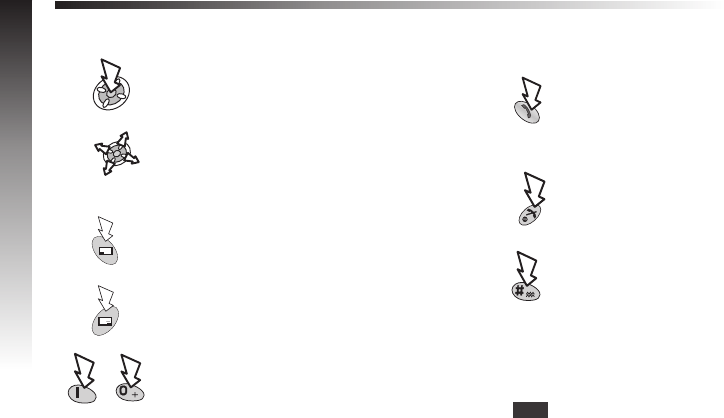
“Press (F) to select”.
Direction which the user can move around
the display screen using the Navigation key.
Secondary Softkey.
Negative Softkey/Back Key.
Numeric key pads.
Answer a call or call a dialled number.
To end a call or return to Idle screen or F
+Hold to switch the phone on or off.
Switches Quiet Mode on and off.
RIndicates that a function is Network and/or
third party service dependent.
Menu Representation of screen menu option.
4
Quick Reference
-
Important Information
Thank you for purchasing this Panasonic digital cellular phone. This phone is designed to operate on GSM networks - GSM900,
GSM1800 and GSM1900. It also supports GPRS for packet data connections. Please ensure the battery is fully charged before
use. We, Matsushita Mobile Communications Development of Europe Ltd, declare, that the EB-GD87 conforms with the essential
and other relevant requirements of the directive 1999/5/EC.
A declaration of conformity to this effect can be found at http://www.panasonicmobile.com
Safety Considerations
The following information should be read and understood as it provides details which will enable you to operate your phone in a
manner which is both safe to you and your environment, and conforms to any legal requirements regarding the use of cellular
phones.
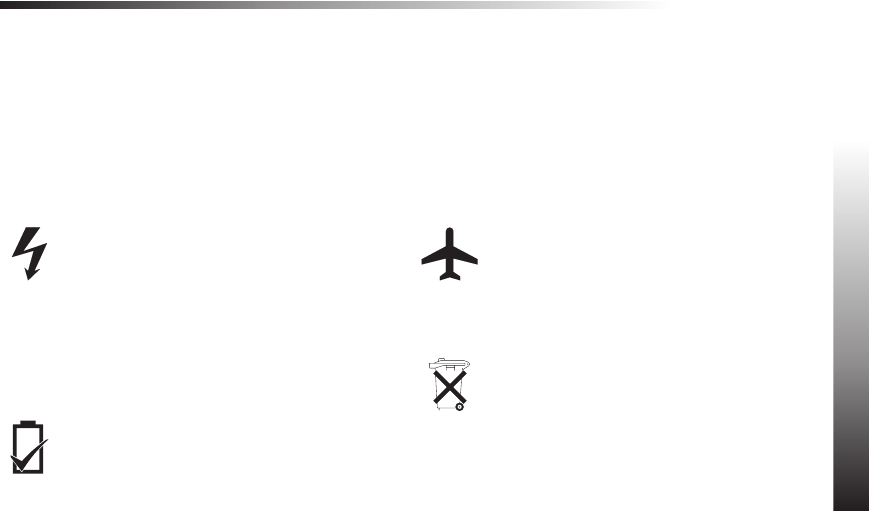
This equipment should only be charged with Panasonic
approved charging equipment to ensure optimum
performance and avoid damage to your phone. Other
usage will invalidate any approval given to this
apparatus and may be dangerous. Ensure the voltage
rating of the Fast Travel Charger is compatible with the
area of use when travelling abroad. A Fast Travel
Charger (EB-CAD95xx*) is supplied with the Main Kit.
Other recommended equipment for charging -Car
Charger (EB-CDD95).
Note* xx identifies the Charger region, e.g. CN, EU,
HK, UK.
Use of Battery pack other than that recommended by
the manufacturer may result in a safety hazard.
Switch off your cellular phone when in an aircraft. The
use of cellular phones in an aircraft may be dangerous
to the operation of the aircraft, disrupt the cellular
network and may be illegal. Failure to observe this
instruction may lead to the suspension or denial of
cellular phone services to the offender, or legal action
or both.
Do not incinerate or dispose of the battery as ordinary
rubbish. The battery must be disposed of in
accordance with local legislation and may be recycled.
Important Information
5
Important Information

It is advised not to use the equipment at a
refuelling point. Users are reminded to observe
restrictions on the use of radio equipment in fuel
depots, chemical plants or where blasting
operations are in progress. Never expose the
battery to extreme temperatures (in excess of
60°C).
It is imperative that the driver exercises proper
control of the vehicle at all times. Do not hold a
phone while you are driving; find a safe place to
stop first. Do not speak into a Handsfree
microphone if it will take your mind off the road.
Always acquaint yourself thoroughly with
restrictions concerning the use of cellular phones
within the area you are driving and observe them
at all times.
Care must be taken when using the phone in
close proximity to personal medical devices, such
as pacemakers and hearing aids.
Do not leave the camera facing direct sunlight to
avoid impair of the camera performance.
If you use a feature which keeps key backlight on
continuously for a long time, such as Camera,
Game, or browser, battery life will become
extremely short. To maintain longer battery life,
set the key backlight off. See “Setting the Key
Backlight on/off.”
For most efficient use hold the phone as you would
any normal phone. To avoid deterioration of signal
quality or antenna performance, do not touch or
“cup” the antenna area while the phone is switched
on. (See ‘SAR Statement’). Unauthorised
modifications or attachments may damage the
phone and violate applicable regulations. The use
of an unapproved modification or attachment may
result in the invalidation of your guarantee – this
does not affect your statutory rights.
This equipment should only be used with
Panasonic approved accessories to ensure
optimum performance and avoid damage to your
phone. Panasonic is not responsible for damages
caused by using non-Panasonic approved
accessories.
This Panasonic mobile phone is designed,
manufactured and tested to ensure that it complies
with the specifications covering RF exposure
guidelines applicable at the time of manufacture, in
accordance with EU, USA FCC, and Australian
ACA regulations; or as specifically stated in the
separate declaration leaflet enclosed with this
product.
Please refer to our website for latest
information/standards compliance in your
country/region of use.
http://www.panasonicmobile.com
6
Important Information
Important Information

SAR
European union - RTTE
THIS PANASONIC PHONE (MODEL EB-GD87) MEETS THE EU REQUIREMENTS FOR EXPOSURE TO RADIO WAVES.
Your mobile phone is a radio transmitter and receiver. It is designed and manufactured not to exceed the limits for exposure to radio
frequency (RF) energy recommended by The Council of the European Union. These limits are part of comprehensive guidelines
and establish permitted levels of RF energy for the general population. The guidelines were developed by independent scientific
organisations through periodic and thorough evaluation of scientific studies. The limits include a substantial safety margin designed
to assure the safety of all persons, regardless of age and health.
The exposure standard for mobile phones employs a unit of measurement known as the Specific Absorption Rate, or SAR. The
SAR limit recommended by The Council of the European Union is 2.0 W/kg.* Tests for SAR have been conducted using standard
operating positions with the phone transmitting at its highest certified power level in all tested frequency bands. Although the SAR is
determined at the highest certified power level, the actual SAR level of the phone while operating can be well below the maximum
value. This is because the phone is designed to operate at multiple power levels so as to use only the power required to reach the
network. In general, the closer you are to a base station antenna, the lower the power output.
Before a phone model is available for sale to the public, compliance with the European R&TTE directive must be shown. This
directive includes as one essential requirement the protection of the health and the safety for the user and any other person. The
SAR value for this model phone, when tested for use at the ear, for compliance against the standard was 0.633 W/kg. While there
may be differences between the SAR levels of various phones and at various positions, they all meet the EU requirements for RF
exposure.
* The SAR limit for mobile phones used by the public is 2.0 watts/kilogram (W/kg) averaged over ten grams of tissue. The limit
incorporates a substantial margin of safety to give additional protection for the public and to account for any variations in
measurements. SAR values may vary depending on national reporting requirements and the network band.
For SAR information in other regions please look under product information at http://www.panasonicmobile.com/health.html
SAR
7
SARSAR

European union - RTTE
THIS PANASONIC PHONE (MODEL EB-GD87) MEETS THE EU REQUIREMENTS FOR EXPOSURE TO RADIO WAVES.
Your mobile phone is a radio transmitter and receiver. It is designed and manufactured not to exceed the limits for exposure to radio
frequency (RF) energy recommended by The Council of the European Union. These limits are part of comprehensive guidelines
and establish permitted levels of RF energy for the general population. The guidelines were developed by independent scientific
organisations through periodic and thorough evaluation of scientific studies. The limits include a substantial safety margin designed
to assure the safety of all persons, regardless of age and health.
The exposure standard for mobile phones employs a unit of measurement known as the Specific Absorption Rate, or SAR. The
SAR limit recommended by The Council of the European Union is 2.0 W/kg.* Tests for SAR have been conducted using standard
operating positions with the phone transmitting at its highest certified power level in all tested frequency bands. Although the SAR is
determined at the highest certified power level, the actual SAR level of the phone while operating can be well below the maximum
value. This is because the phone is designed to operate at multiple power levels so as to use only the power required to reach the
network. In general, the closer you are to a base station antenna, the lower the power output.
Before a phone model is available for sale to the public, compliance with the European R&TTE directive must be shown. This
directive includes as one essential requirement the protection of the health and the safety for the user and any other person. The
SAR value for this model phone, when tested for use at the ear, for compliance against the standard was 0.633 W/kg. While there
may be differences between the SAR levels of various phones and at various positions, they all meet the EU requirements for RF
exposure.
* The SAR limit for mobile phones used by the public is 2.0 watts/kilogram (W/kg) averaged over ten grams of tissue. The limit
incorporates a substantial margin of safety to give additional protection for the public and to account for any variations in
measurements. SAR values may vary depending on national reporting requirements and the network band.
For SAR information in other regions please look under product information at http://www.panasonicmobile.com/health.html
8
SAR
SARSAR
Accessories
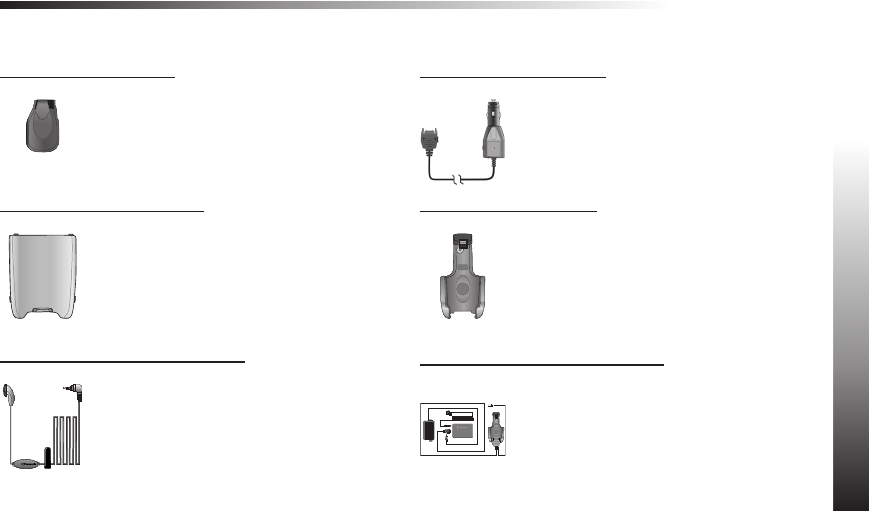
Personal
Carry Case (EB-YKD87)
This attractive hip case protects your phone
and by using the belt clip keeps it close at
hand.
Li-Ion Battery (EB-BSD87)
Double your talk time by having a spare
battery.
Personal Handsfree (EB-EMD87)
Talk and move while keeping your hands free
by using this accessory. Just place the
earpiece in your ear and the adaptor in the side
of the handset - and talk.
Car
Car Charger (EB-CDD95)
Top up your battery in your vehicle by attaching
this accessory to your phone and to the
cigarette lighter socket.
Car Holder (EB-KAD87)
This compact Car Holder can be mounted in
your vehicle, providing a convenient and
attractive means of storing your phone.
Handsfree Car Kit (EB-HFD87Z)
Drive safely - install a Handsfree car kit and
remove the need to hold your phone while
driving.
Accessories
9
AccessoriesAccessories
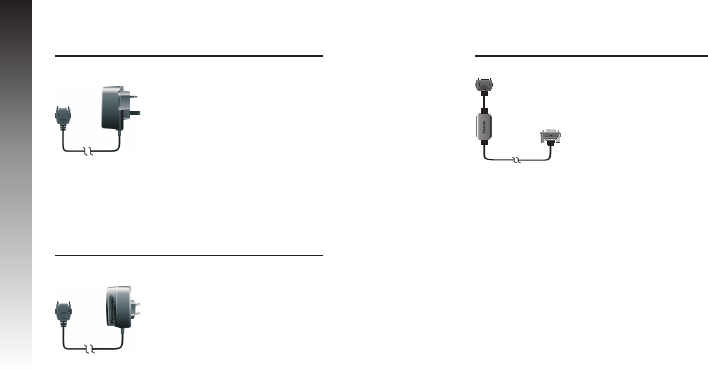
Office
Fast Travel Charger (EB-CAD95UK)
Carry a lightweight portable charger wherever
you go to ensure you always have power to
talk.
Fast Travel Charger (EB-CAD95EU)
Charge Data Cable (EB-RSD67)
This Charge Data Cable is used to connect
your phone to a PC, allowing data
communication between them. This should be
used in conjunction with the Free Panasonic
Data Connection Assistant Software.
The software can be downloaded from:
http://www.panasonicmobile.com/support/software
How to Identify a Genuine Panasonic
Accessory
Panasonic produces some of the most advanced mobile
phones available. So, as you’d expect from this class leader,
the range of accessories are second to none.
Most genuine Panasonic accessories will have a label showing
an “EB-XXX00” model number.
10
Accessories
AccessoriesAccessories
Care and Maintenance
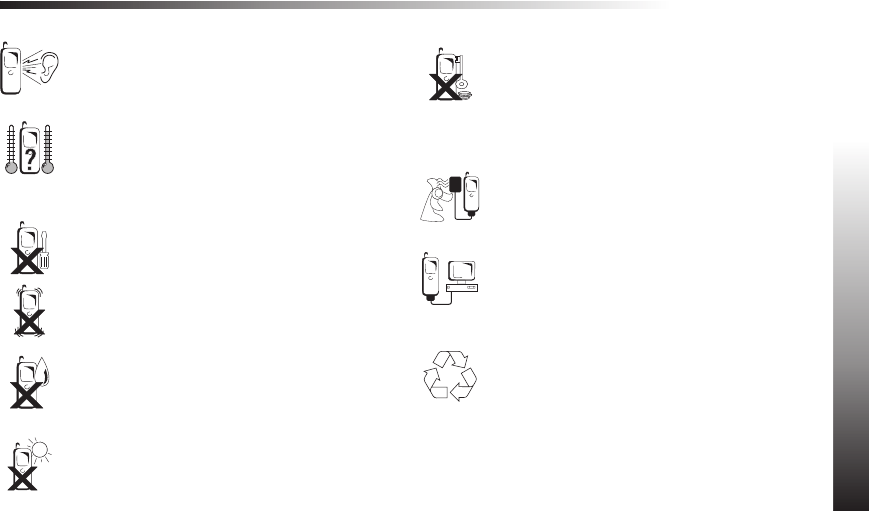
Pressing any of the keys may produce a loud tone.
Avoid holding the phone close to the ear while
pressing the keys.
Extreme temperatures may have a temporary effect
on the operation of your phone. This is normal and
does not indicate a fault.
If you use the phone for a long time in temperatures
over 40°C, the display quality may deteriorate.
Do not modify or disassemble the equipment. There
are no user serviceable parts.
Do not subject the equipment to excessive vibration
or shock.
Do not drop the battery.
Avoid contact with liquids. If the equipment becomes
wet immediately remove the power and contact your
dealer.
Do not leave the equipment in direct sunlight or a
humid, dusty or hot area.
Never throw a battery into a fire. It may explode.
Keep metallic items that may accidentally touch the
terminals away from the equipment/battery.
Batteries can cause property damage, injury, or
burns if terminals are touched with a conductive
material (for example, metal jewellery, keys etc).
Always charge the battery in a well ventilated area,
not in direct sunlight, between +5°C and +35°C. It is
not possible to recharge the battery if it is outside
this temperature range.
When connecting the phone to an external source,
read the operating instructions of the equipment for
the correct connection and safety precautions.
Ensure the phone is compatible with the product it is
being connected to.
When disposing of any packing materials or old
equipment check with your local authorities for
information on recycling.
Care and Maintenance
11
Care and MaintenanceCare and Maintenance
Getting to Know Your Phone
12
Getting to Know Your PhoneGetting to Know Your Phone
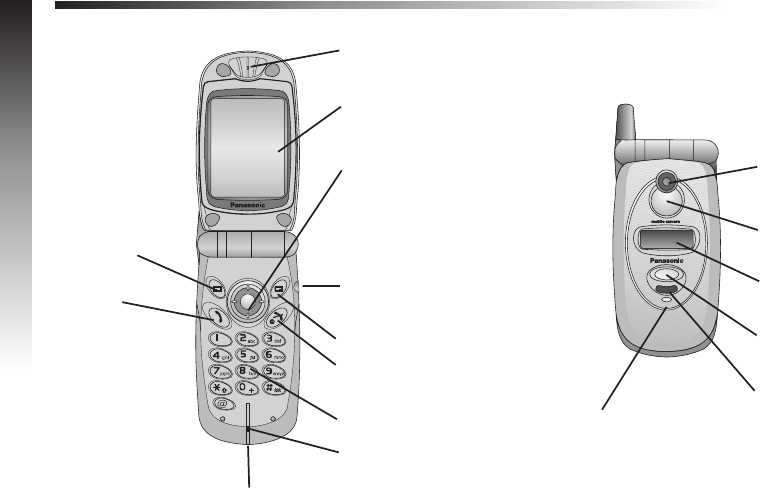
Main Display
Earpiece
Call Key
Headset
Connector
Left Softkey
Right Softkey
Keypad
Power / End /
Back Key
Accessory Connector
Navigation Key
Microphone
Camera Lens
Sub Display
Voice Memo Key /
Camera Shutter
Key
IrDA (Infrared)
Charging Indicator
Self Portrait
Mirror
Getting Started
Some services detailed, are network dependent or may only be available on a subscription basis. Some functions are SIM
dependent. For more information contact your service provider.
Fitting, and Removing the SIM
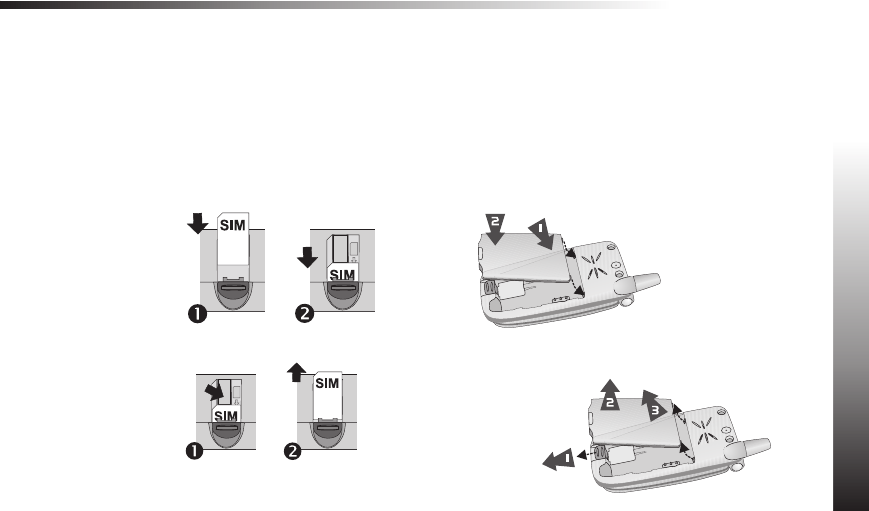
The SIM is inserted into the back of the phone underneath the
battery.
Fitting the SIM
Removing the SIM
Fitting, and Removing the Battery
Before removing the battery, ensure that the phone is switched
off and the charger disconnected from the phone.
Fitting the Battery
Removing the Battery
Getting Started
13
Getting StartedGetting Started
Charging the Battery
Connecting, and disconnecting the Fast Travel
Charger
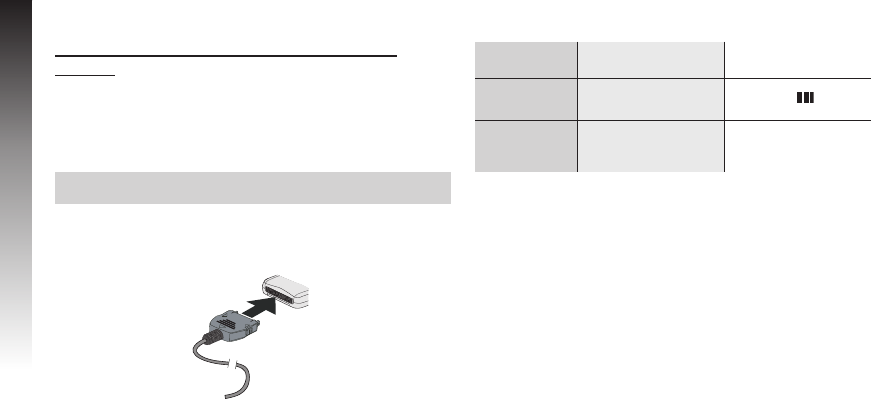
The battery must be fitted in the phone before the charger is
connected. Insert the connector into the base of the phone,
ensuring the arrows on the connector face to the front of the
phone.
Note: DO NOT force the connector as this may damage the
phone and/or the charger.
Connect the charger to the AC outlet. When the phone is
charging, the charging indicator will light and a flashing plug
icon will appear in the main display and in the sub display.
When charging is complete turn off the mains power supply and
disconnect the charger.
Operation of Battery Level Indicator
While charging Charging complete
Phone on .
Phone off .Battery Charge
Indicator off
Low Battery Warning
When the battery power is low, a warning tone will sound, and a
flashing LOW BATTERY message will be displayed. If this
occurs during conversation, finish your call immediately. The
power will automatically shut off after the warning tone. Fully
recharge the battery. See “Charging the Battery”. (Calls can be
made and received while the phone is charging).
14
Getting Started
Getting StartedGetting Started
G
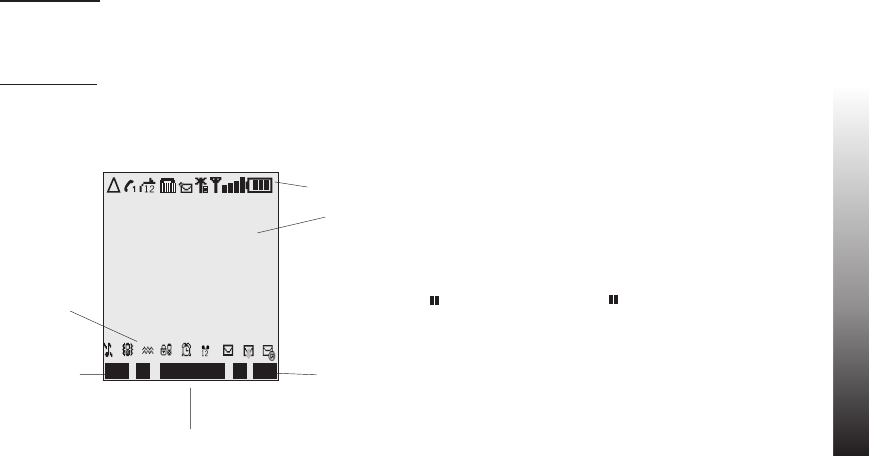
Menu System
Display Icons
After some operations, the display will automatically clear after
three seconds or after pressing any key.
Status Icons
The status icons are displayed according to the currently
activated functions. The Antenna, Signal and Battery icons are
displayed when the handset is switched on and connected to a
network.
Yis displayed when you are registered to a non-home
network - Roaming
tIndicates Call divert is enabled
]Indicates Vibration Alert is enabled
[Indicates All tones or ring volume is off
NIndicates a new message has been received
$Indicates the message store is full
OIndicates Phone lock is on
SIndicates it is possible to make emergency calls only
TGSM signal strength: \- weak signal, T- strong signal
qGPRS service available
Indicates Battery level: - full, G(flashing) - low
battery
?Indicates Alarm is set
>Indicates current Phonebook entry is from the Mobile
Phonebook
<Indicates current Phonebook entry is from the SIM
Phonebook
Getting Started
15
Getting StartedGetting Started
Information
Area
Left Hand
Selection
area
Main
Display
Right Hand
Selection
area
Status Icons
Primary Selection Area
G
G
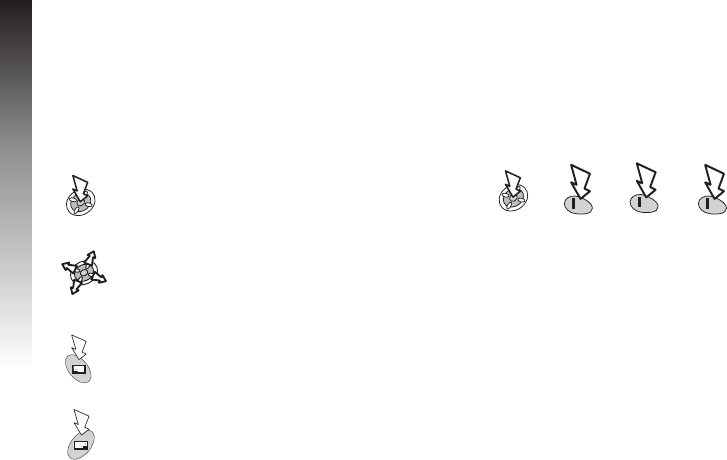
Using the Menu System
The menu system provides the means for accessing all the
functions which do not have their own dedicated buttons on the
keypad.
Key Examples of function
Access the Menu system
Display a sub-menu
Confirm a selection
Navigate around a menu
Select an option
Access the Phonebook
Switch between text entry types
Cancel the current operation and
return to the previous menu
Shortcuts
When familiar with the menu system, use the keypad to enter
the Menu Number instead of navigating through the display
menus. For example, to browse the Data Folder function:
(This may change depending on your phone or SIM.)
From Idle mode:
Information
Icons indicate the current top level menu, the sub-menu
number, text entry mode, Phonebook source, Phonebook
location number, or the alarm set icon depending on the current
mode of operation.
?indicates alarm is set
>indicates current Phonebook entry is from the Mobile
Phonebook
<indicates current Phonebook entry is from the SIM
Phonebook
16
Getting Started
Getting StartedGetting Started
Basic Operation
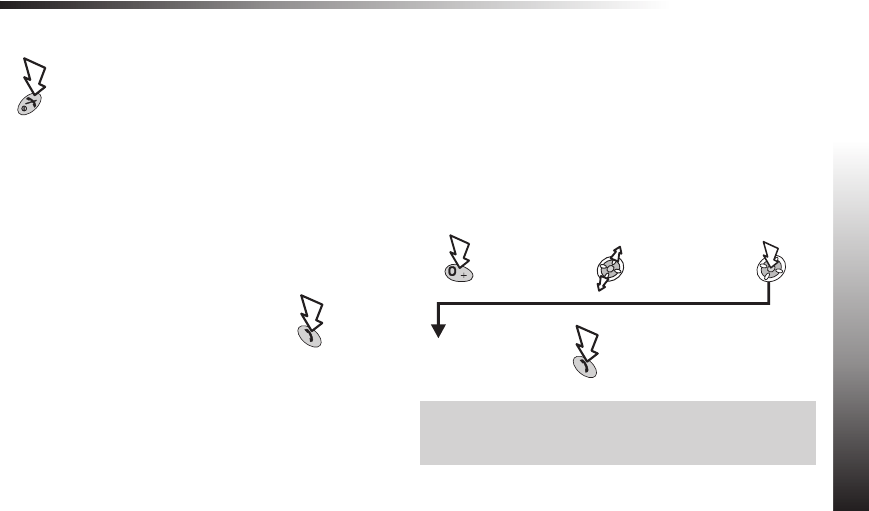
Switching the Phone On/Off
Press and hold
When the phone is switched on a greeting will be displayed and
then the phone will go into Idle mode.
Making Calls
Ensure that the phone is switched on, the network operator logo
is displayed and the signal strength icon shows network
coverage is available in the current area.
Enter area code and phone number
International Dialling
Using the automatic international access code (+) you will be
able to dial international numbers without having to know the
code for the international exchange.
If the international number is known then it can be entered in
the normal fashion followed by the area code and phone
number.
From Idle mode:
Press and hold
until + is
displayed
Select
abbreviated
international
number
Enter area code and
phone number
Note: Many countries / regions include an initial “0” in the area
code. This should, in most cases, be omitted when dialling
international numbers. If you have difficulties making
international calls, contact your service provider.
Basic Operation
17
Basic OperationBasic Operation
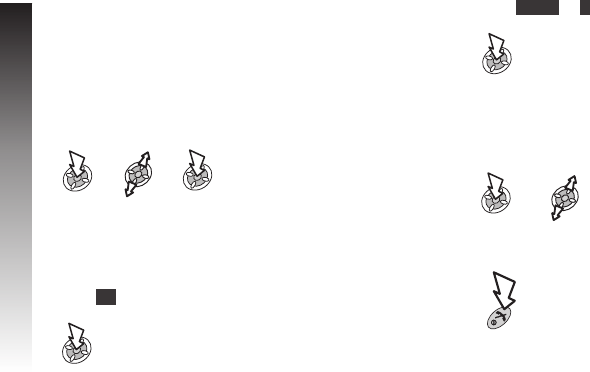
Emergency Calls
To make an emergency call the antenna symbol (S) must be
present.
If a SIM is installed
Enter 112
If a SIM is not installed
Automatic Redial
If a connection is unsuccessful
When OK is displayed:
To stop redialling:
When Cancel or Cis displayed:
To mute :
During call:
Ending Calls
18
Basic Operation
Basic OperationBasic Operation
Select Mute to mute
your voice
Answering a Call
To receive a call the phone must be switched on and the signal
strength icon must be displayed.
To answer a call:
Press any key except
To reject a call:
Note: If a call is not answered, or is rejected, the number of
incoming calls missed will be displayed. Press any key to clear
the display
Caller ID
The caller’s phone number, and name if stored in Phonebook,
will be displayed during an incoming call.
Note: Caller ID may not always be available.
Earpiece Volume
Select the required volume level
Note: Volume control for the Personal Handsfree accessory is
adjusted in the same manner.
Phone Lock
Phone Lock restricts use to answering incoming calls and
making emergency calls.
The Phone Lock Code is preset to “0000”.
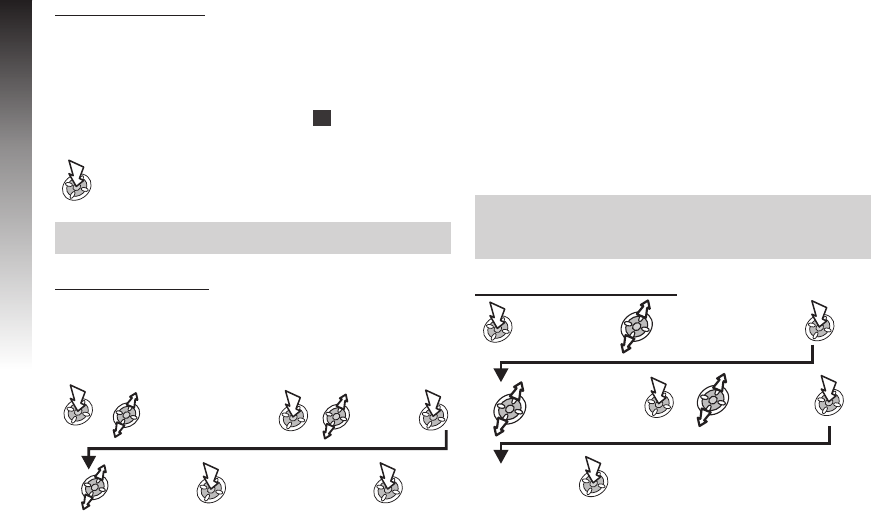
From Idle mode:
Phone Option >
Security >
Phone Lock >
On / Off
On or
Off
Enter the
4-digit code
The lock icon will
be displayed
Basic Operation
19
Basic OperationBasic Operation
Unlocking the Phone
When the lock icon is displayed:
Enter the 4-digit code
When the correct code has been entered Ok will appear in the
primary selection area.
Note: When you turn the phone off and on again the Lock Code
will need to be re-entered.
Disabling Phone Lock
The phone must be unlocked before the phone lock can be
disabled.
From Idle mode:
Phone Option >
Security >
Phone Lock
Using the PIN
The PIN protects your SIM against unauthorised use. If you
enable the PIN, every time the phone is turned on you will be
prompted to enter the PIN.
The PIN2 controls security for the Fixed Dial Store, Call Charge
metering and Barred Dial.
If either PIN/PIN2 is entered incorrectly 3 times the phone will
be locked and the user will need to enter the PUK/PUK2 code.
Contact your service provider for the PUK/PUK2 code.
Note: If the PUK/PUK2 code is entered incorrectly 10 times, the
phone will cease to operate permanently. All information stored
in the SIM will be lost and the SIM will need to be replaced.
Contact your service provider for more details.
Enabling/Disabling the PIN
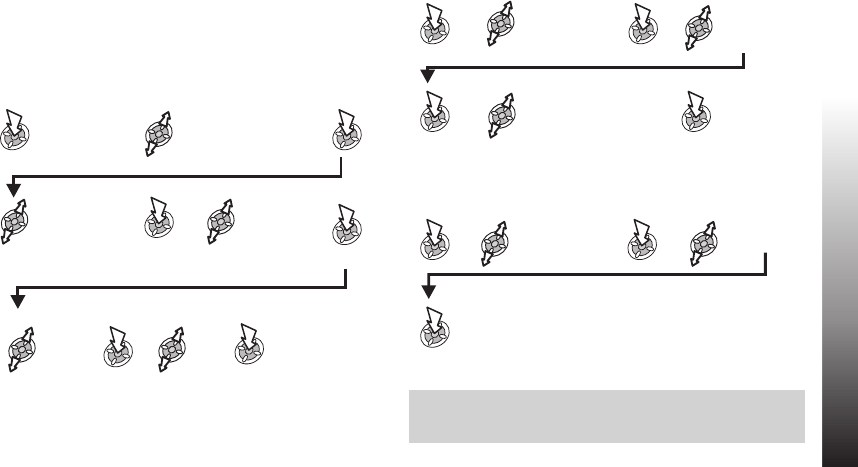
Phone Option >
Security >
PIN
Select Enable/
Disable
Enter PIN
(4 ~ 8 digits)
20
Basic Operation
Basic OperationBasic Operation
On/Off Select
Enable or
Disable
Enter the 4-digit
code
Select
Off
Setting Quiet Mode
This mode silences the tones, such as low battery and key
tones, etc. Vibration and/or ring tone can be changed to make
your own Quiet Mode setting.
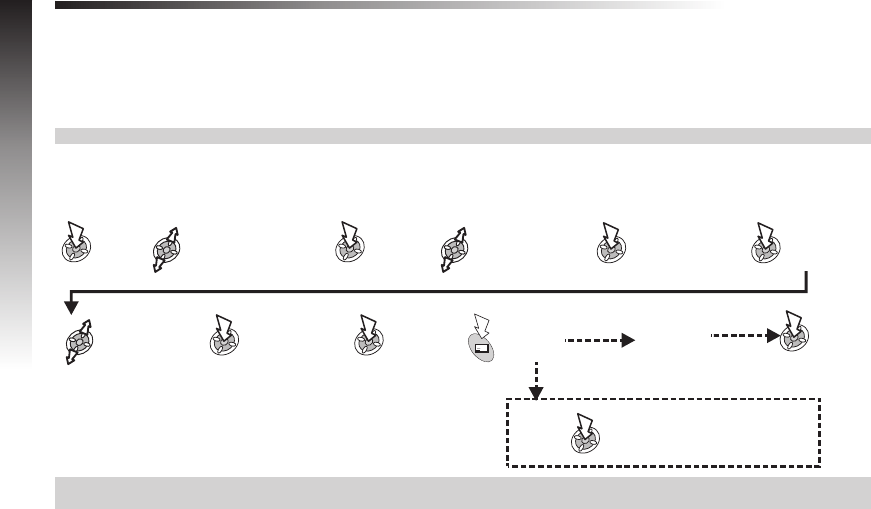
From Idle mode:
My Phone >
Quiet Mode
Select Ring
Volume or
Vibration
Select
required
setting
Setting Ring and Key Volume
My Phone >
Sounds
Select
Ring Volume
or Key
Volume
Adjust the
volume level
Setting the Key Tone Type
My Phone >
Sounds >
Key Tone
Select
required
tone
Note: If you increase the ring volume above maximum it will set
an escalating ringtone. If you turn the ring volume off, the silent
indicator icon ([) will be displayed.
Basic Operation
21
Basic OperationBasic Operation
On/Off
On
Phonebook
Phone numbers can be stored in two locations:
ØSIM Phonebook, where the number of locations, length of name and numbers are SIM dependent.
ØMobile Phonebook, where phonebook entries can be grouped together and additional data can be stored with numbers.
This Phonebook is retained if you change the SIM.
Note: see ‘Text Entry’ section for descriptions of the different text entry methods available for making Phonebook entries.
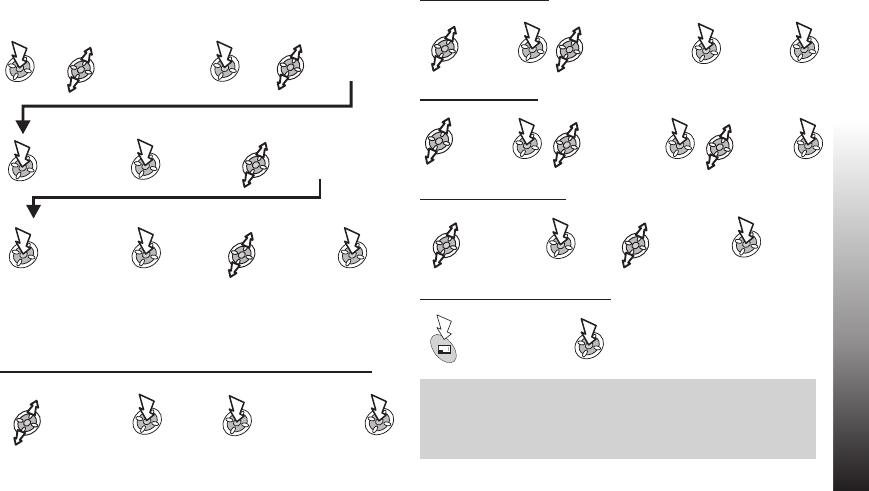
Storing a number in the SIM Phonebook
From Idle mode:
Note: If you amend an entry in the phonebook that has a Voice Dial Command assigned to it, you will need to delete and reassign
that Voice Dial Command (See “Using Voice Commands”).
22
Phonebook
x2
Phonebook >
Create > SIM
Phonebook
Select the
Name Icon
Enter the
name
Select the Phone
Number Icon
Enter phone
number x2
Specify
location? Yes
No
Entry will go in next
available location
Enter location
number
Storing a number in the Mobile Phonebook
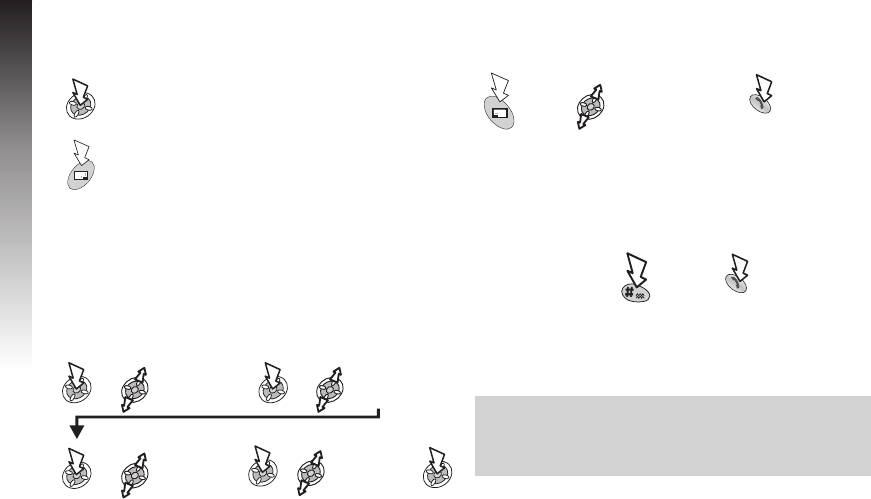
From Idle mode:
You can add additional information to each phonebook entry
such as additional telephone numbers, e-mail address,
ringtone, picture, group, notes and LCD colour.
Adding E-Mail Addresses and Telephone Numbers
You can store up to 2 telephone numbers and 2 E-Mail
addresses for each phonebook entry.
Adding Ringtones
Adding Pictures
Adding LCD Colours
Saving a Phonebook Entry
Note: If you amend an entry in the phonebook that has a Voice
Dial Command assigned to it, you will need to delete and
reassign that Voice Dial Command (See ‘Using Voice
Commands’). You may not be able to select some data in Data
Folder.
Phonebook
23
PhonebookPhonebook
Select E-Mail
Icon or
Phone
Number Icon
x2
Select the
Name Icon
Enter the
name
Select the
Phone
Number Icon
Enter phone
number x2
Select an
icon for the
number
Enter
text
Select
Ringtone
icon
Select Fixed Data,
Data Folder or
Default (see
‘Changing the Ring
Tone’)
Select
Camera
icon
Select Picture
Folder
Select
Rainbow
icon
Select Any
Location
Phonebook >
Create > Mobile
Phonebook
Select
Colour
Select
Image to
display
x2
Select
icon
Select
required
data when
necessary
Overwrite Protection
If you select a location in a phonebook that is already occupied
you will be prompted to confirm the overwriting of the current
information.
To overwrite
To choose an
alternative location
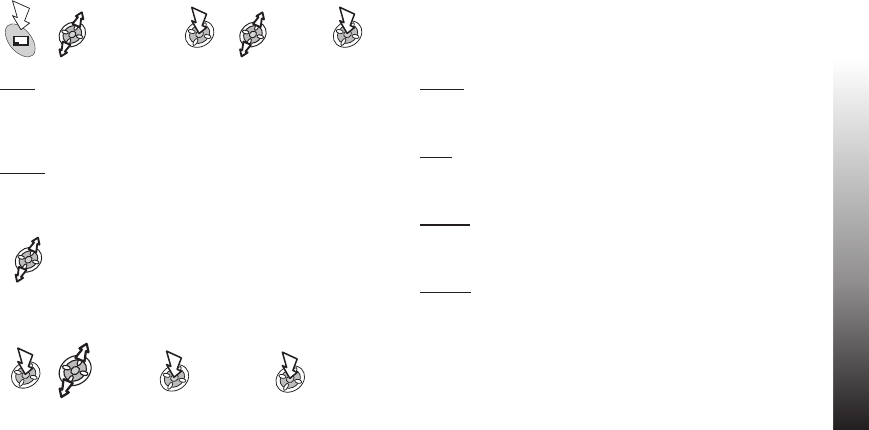
Browsing the Phonebook
You can search the Phonebook by either Name or Location.
The default setting for browsing is by name. When browsing by
name pressing a lettered key will take you to the first entry
starting with that letter.
From Idle mode:
Phonebook >
Browse
Select required
Phonebook
Select required
name or
Enter location
number
Retrieving a Number
From Idle mode:
Select required
phone number or
name
To dial the
selected
number
Speed Dialling a number stored in the SIM Phonebook
From Idle mode:
Enter location number
Note:
The Phonebook you last viewed will be the default when you
next select Phonebook access key.
To change the default, use the Phonebook menu to select the
required Phonebook.
24
Phonebook
PhonebookPhonebook
By Name
OR
By Location
Editing Phonebook Entries
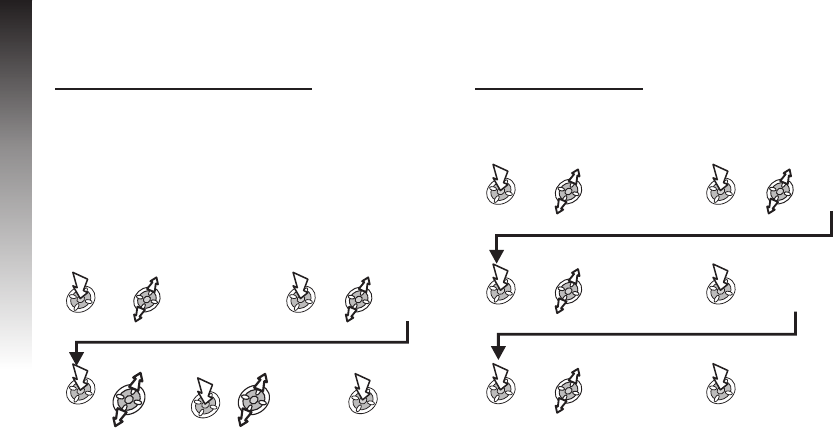
It is possible to View,Detail,Recall,Edit,Delete or Create information in the Phonebook. To access any of these functions follow
the same procedure for each one.
View
Displays an individual name and phone number in the names
list.
Detail
Displays each element of the selected Phonebook entry.
Select the next or previous
element of the entry
Each element may be edited:
x2
Recall
Displays the phone number, allowing you to call it or change it.
Edit
Displays the entry allowing you to make changes as required.
Delete
Deletes the entry from the Phonebook.
Create
Creates a new entry in the Phonebook.
Phonebook
25
PhonebookPhonebook
Select
Edit
Edit as
required
Select a
name or
number
Select
required
function
Grouping Phonebook Entries
The ability to group phonebook entries together is an extra function of the Mobile Phonebook.
Retrieving a Number from a Group
Groups are used to collect together types of Phonebook entries,
e.g. business and personal. Each group can be suitably titled
for quick access to the entries contained within.
An alert profile can be attributed to groups, or a phone number,
thus allowing incoming calls to indicate the type of caller. See
“Alert Profiles”.
From Idle mode:
Phonebook >
Group Setting
Select the
group
number
required
Select
entry
required x2
Retitling Group Names
From Idle mode:
Phonebook >
Group Setting
Select
group
Select Edit Clear the current title
and re-enter - see
“Text Entry”
Select OK
26
Phonebook
PhonebookPhonebook
Select
View
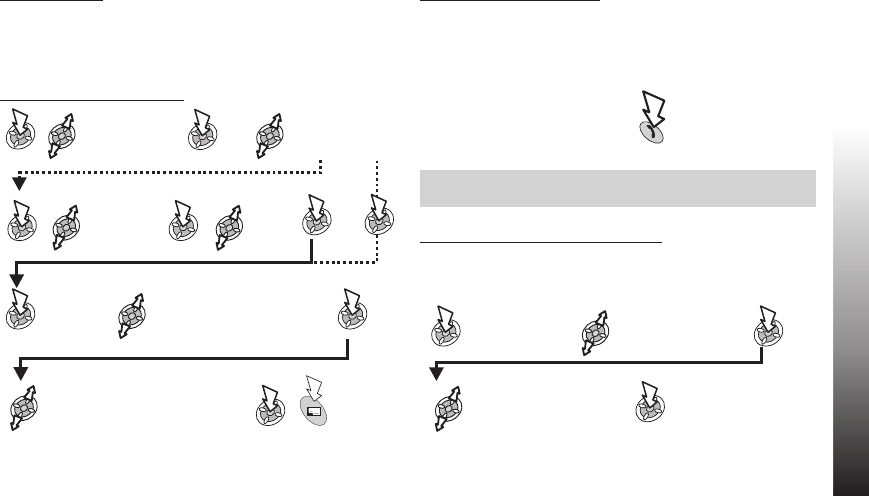
Alert Profiles
Alert Profile allows you to identify callers with a particular
ringtone or display picture/animation, making it easier to
distinguish between callers or groups of callers.
Creating an Alert Profile
Hot Key Phone Numbers
Your favourite phone numbers from the Phonebook or Service
Dial part of the Phonebook can be dialled quickly.
(1-9only)
Press and hold a Digit
key (1~9)
Note: In some instances, a long press on the 9key will
initiate the games menu (depending on your SIM)
Setting the Hot Key Dial Source
From Idle mode:
Phonebook >
Hot Key Dial
Select SIM Phonebook
or Mobile Phonebook
Phonebook
27
PhonebookPhonebook
Phonebook >
Alert Profile
Select
Group
Recall
x2 Select Fixed Data or
Data Folder
Select required fixed data or file
from data folder
x2 Personal or
Select an
entry from
the phone
book
To Save
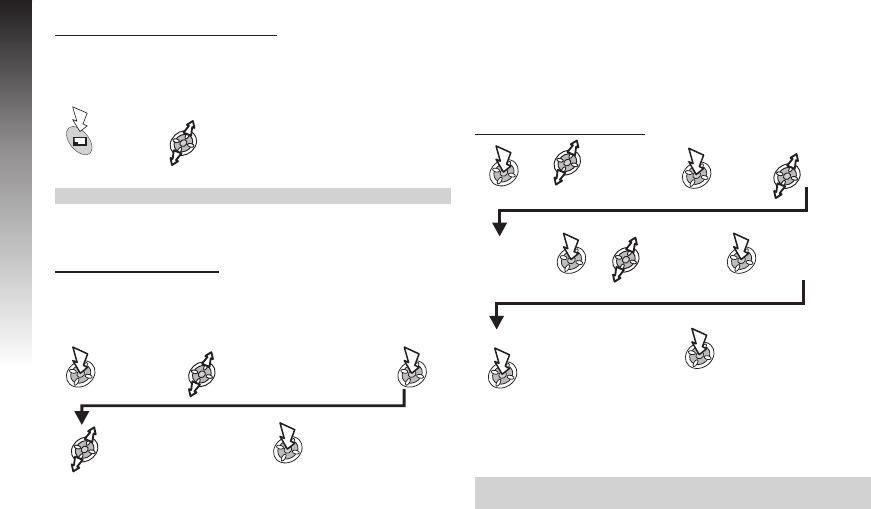
Info Numbers or Service Dial
Some special numbers may be programmed into your SIM
(R). It is not possible to modify these.
and hold Browse through the
Service Dial List
Note: The selected phone number can be recalled or dialled.
Review the Phonebook
The Review function in the Phonebook menu shows how many
locations are available in the Phonebook.
Phonebook >
Review
Select SIM
Phonebook or
Mobile Phonebook
A summary of the
selected Phonebook
will be displayed
Using Voice Commands
Before any of the phone’s voice activated functions can be
used, it is necessary to configure the phone so that it will
recognise a particular voice and intonation.
Voice Dial Entry Setup
Phonebook >
Voice
Command >
Voice Dial
Select
entry to
have voice
command
Select
Recall
Hold phone
20cm away
from your
mouth
Speak clearly to
record the required
name
When prompted,
speak clearly to
repeat the
recording of the
required name
When recording has finished, the display will indicate if it has
been successful or not. If unsuccessful, repeat as necessary.
Note: Each recording is short in length, so be ready to speak
soon after initiating the recording.
28
Phonebook
PhonebookPhonebook
x2
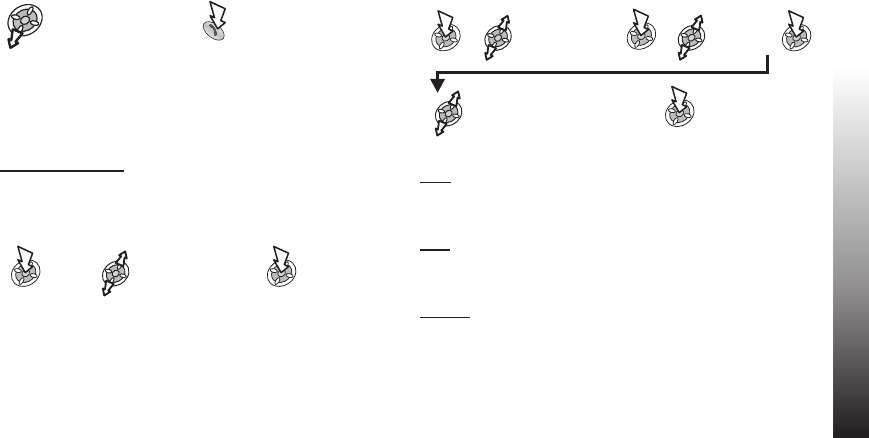
Recalling Voice Dial Entries
From Idle mode:
Say clearly which
name to recall
Dialling Voice Dial Entries
Using Permission
Allows voice recalled entries to be dialled automatically.
From Idle mode:
Phonebook >
Voice Command >
On/Off
Select Enable
or Disable
Repeat to disable the Permission function returning to Voice
Dial recall only.
Editing the Voice Dial Entries
From Idle mode:
Phonebook >
Voice
Command >
Voice Dial
Select
required
entry
Select required
option and edit as
required
Add
To add a new Voice Dial entry.
Play
To listen to the recording of a Voice Dial entry.
Delete
To delete an entry.
Phonebook
29
PhonebookPhonebookPhonebook
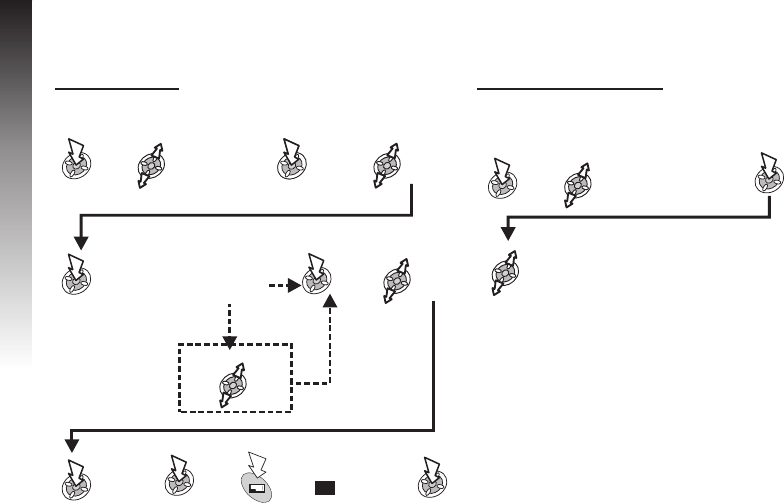
My Profiles
My Profiles is a convenient part of Phonebook where voice, fax and data phone numbers can be stored and viewed.
Adding Numbers
From Idle mode:
Viewing Stored Numbers
From Idle mode:
Phonebook >
My Profile
If necessary cycle through
listed numbers
* Using T9®predictive text input dramatically reduces the number of key
presses required. See ‘Text Entry’.
30
Phonebook
PhonebookPhonebook
Phonebook >
My Profile >
SIM Profile or
Mobile Profile
x2 Select
Create
Enter the
name
(See Text
Entry)
*Using T9®
text input?
No
Yes
x2
Enter the
Phone
Number
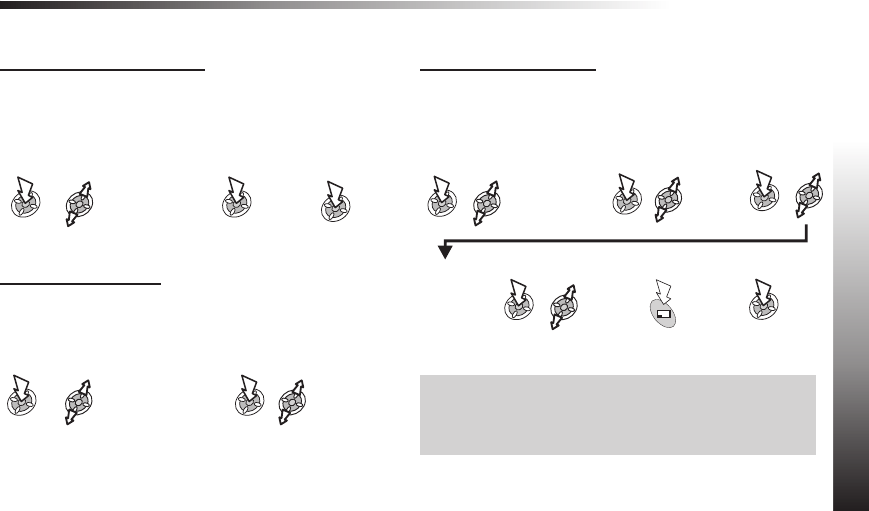
Enter location number
OR
Select Any
x
x2 x2
Select
Phone
Number
My Phone
Adding a Start-up Greeting
A personalised greeting can be programmed for when the
phone is switched on.
From Idle mode:
My Phone >
Display Settings >
Power On Setting >
Greeting
Enter
greeting
(See ‘Text
Entry’)
Displaying Animations
Animations can be displayed during the phone power on and off
sequences.
From Idle mode:
My Phone >
Display Settings >
Power On Setting >
Animation
Select On or
Off
Changing the Wallpaper
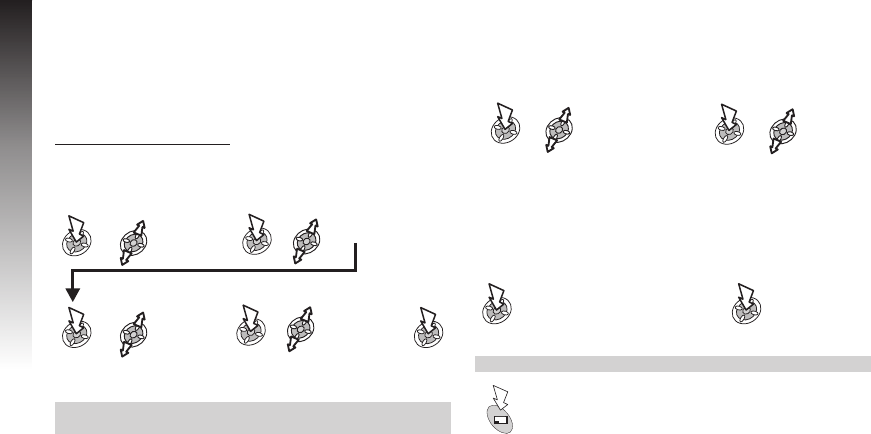
A personal picture (wallpaper) can be displayed when the
phone is in Idle mode.
From Idle mode:
My Phone >
Display Settings >
Wallpaper
If Data Folder
is selected,
select the
required
folder.
Note: Pictures are normally stored in the following folders:
Picture,Mail (E-mail or MMS), Received (IrDA or data
connection), Download or User (optional stored locations).For
creating and saving pictures for use as wallpaper, see ‘Camera
Operation’.
My Phone
31
My PhoneMy Phone
x2
Select
Fixed
Data, Data
Folder
Select
required
picture
Preview
an
image
Select
an
image
Changing the Ringtone
The ringtone of the phone can be changed to one of many
pre-defined sounds, or a downloaded ringtone. All voice, fax,
data and messages can have a different ringtone.
To change the Ringtone
From Idle mode:
My Phone >
Sounds >
Ring Type
Select
call type
Select
Fixed Data
or
Data Folder
Select required
Fixed Data or
required file
from Data
Folder or contents
Note: See ‘Composing a Melody’ to generate a custom
ringtone.
Composing a Melody
From Idle mode:
My Phone >
Sounds >
Melody Composer
Create
Using the table as a reference, enter the notes (from the choice
of Low, - High), rests, and the durations of each, to generate
your composition.
When the composition is complete:
x2 Enter filename x2
Note: At any time during composing:
To play back the current melody
32
My Phone
My PhoneMy Phone
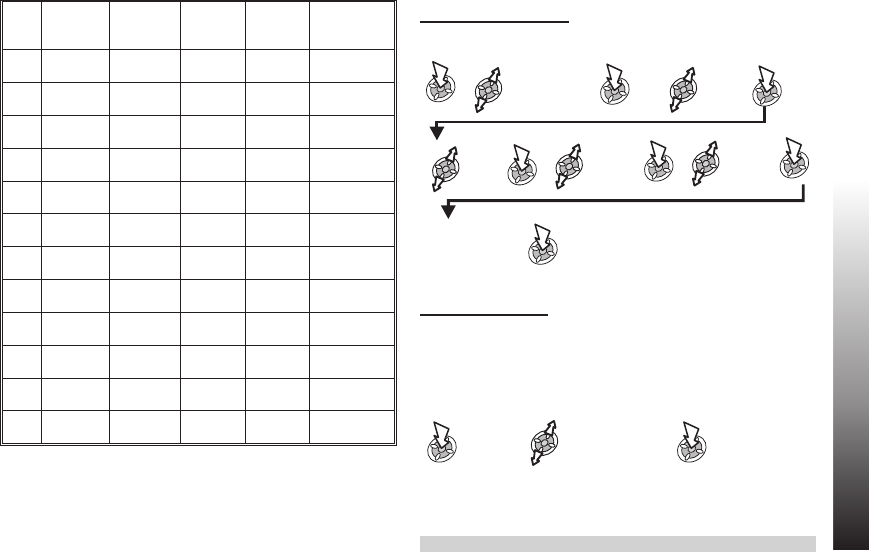
Key 1st press 2nd press 3rd press 4th press 5th press
1C Middle C3High C4Low C1
2D Middle D3High D4Low D1
3E Middle E3High E4Low E1
4F Middle F3High F4Low F1
5G Middle G3High G4Low G1
6A Middle A3High A4Low A1
7B Middle B3High B4Low B1
8
9
0Rest
*1/8 1/4 1/2 1/1 1/16
#Sharp
Editing your Melody
Once the ringtone has been saved:
Download Melody
Melodies may be downloaded from the Internet, details of this
service are available on our website:
http://www.panasonicbox.com
When a message has been received containing a melody:
Select Message
location x2
The melody is now stored and can be selected as a pre-defined
melody.
Note: Downloaded melodies will be stored in the Data Folder
My Phone
33
My PhoneMy Phone
Edit
Melody
Use the relevant
keys in the table
to insert new
notes/rests
x4To save
Sound
My Phone >
Sounds >
Melody
Composer
Select
required
Melody
Edit
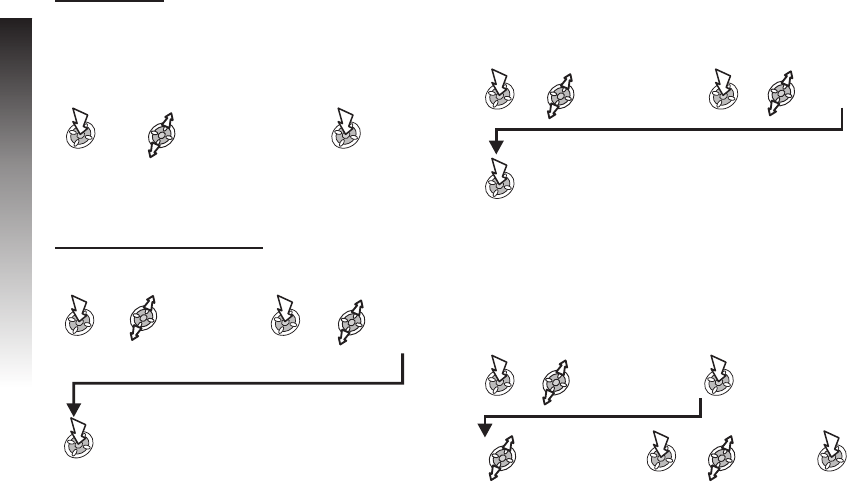
Download Logo
Logos may be downloaded from the Internet, details of this
service are available on our website:
http://www.panasonicbox.com
When a message has been received containing a Logo:
Select logo location x2
The Logo is now stored and can be selected as Wallpaper from
the My Phone menu or as a picture for the Alert Profile set up.
Disabling/Enabling all Tones
From Idle mode:
My Phone >
Sounds >
All Tones
Select Off
or On
When Idle is resumed the silent indicator icon ([) will be
displayed if All Tones has been disabled
Setting the Backlight Time
From Idle mode:
My Phone >
Display Settings >
Backlight Time
Cycle
through
available
times
To select desired time
Changing the Language
It is possible to change the language that the phone uses for
either display messages and/or text entry.(R)
From Idle mode:
My Phone >
Language
Select Display
Language OR
Tegic Language
(text entry)
Select
language
34
My Phone
My PhoneMy Phone

Setting the Key Backlight On/Off
Longer battery life can be maintained by setting the key
backlight off.
From Idle mode:
Restoring the Default Phone Settings
Any personal settings can be returned to their factory default,
with the exception of some features, such as the Phone Lock
code and the Language.
From Idle mode:
My Phone >
Defaults x2
My Phone
35
My PhoneMy Phone
My Phone >
Display Settings >
Key Backlight
Select
On or Off
Phone Security
This phone has security options to stop unauthorised use and to limit access to some features. We recommend you memorise your
security codes. If you write them down, don’t write them in a way that someone else could recognise.
If you forget your codes, contact your dealer for the Phone Lock Code and your service provider for the PIN and PIN2.
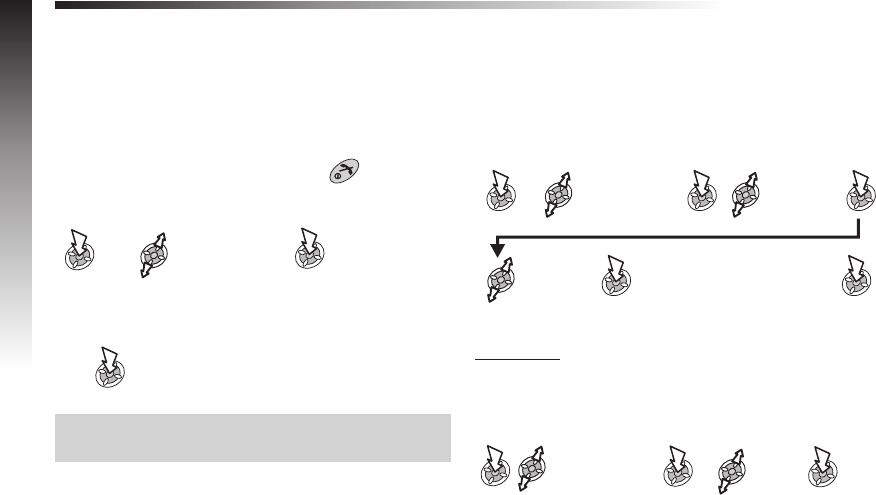
Key Guard
Key Guard stops the keys from performing their normal function
if accidentally pressed. When a call is received, Key Guard is
temporarily disabled, press any key except to answer
the call.
Enabling Key Guard
Disabling Key Guard
Note: Emergency calls can still be made with Key Guard
enabled but there will be no indication that you are dialling a
number.
Changing the security codes
Use the following to change Phone Lock,PIN or PIN2:
From Idle mode:
Restricting Calls
Barred Dial
Stops all phone numbers pre-programmed in the SIM from
being dialled. To use this function the PIN2 code is required.
From Idle mode:
36
Phone Security
My Phone >
Key Guard x2
Phone Option >
Security
Phone Lock /
PIN /PIN2
Select
Change
code
Enter the current code, press:
Enter the new code, press:
Verify the new code, press:
Phone Option >
Security >
Barred Dial
Enter
PIN2
x2
Enable
or
Disable
Call Barring
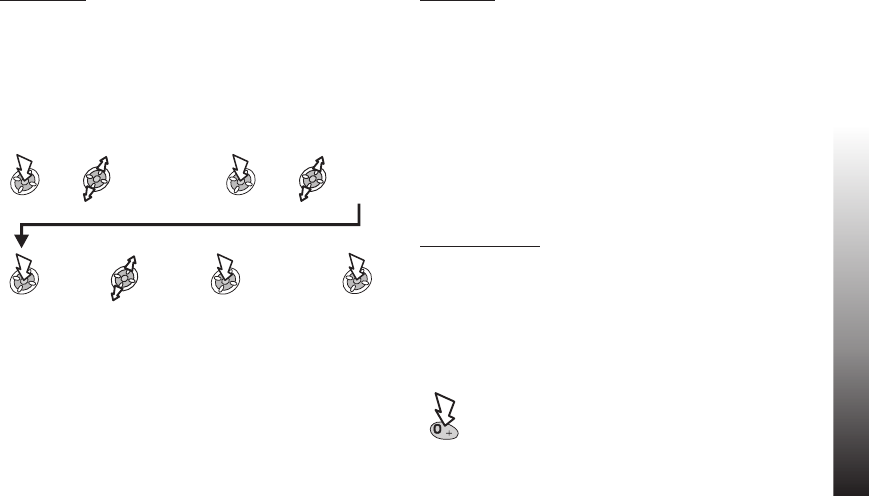
Call Barring restricts certain outgoing and/or incoming calls
using a password supplied by your service provider. When
updating/checking the status of Call Bar the phone must be
registered with a network. Varying call restrictions can be used
for voice, fax and data calls.
From Idle mode:
Fixed Dial
Fixed Dial is part of the Phonebook, but with added security.
When Fixed Dial is enabled:
ØOnly numbers that are in the Fixed Dial Store may be
dialled.
ØAny manually dialled phone numbers must match a number
already in the Fixed Dial Store.
ØA phone number may be stored, edited or deleted. You will
be prompted for your PIN2 code.
“Wild” Numbers
Wild numbers are spaces that can be stored in a phone
number. The wild numbers must be filled before the phone
number is dialled. Used in conjunction with Fixed Dial, calls can
be restricted, for example, to a specific area by storing the area
code of a phone and when recalled the remainder can be
added. The wild numbers can be anywhere within a stored
phone number.
Phone Security
37
Phone Security
Phone Option >
Security >
Call Bar
Bar Voice /
Bar Fax /
Bar Data
Select
level
Enter
Password
x2
Press and hold until
__ is displayed
When the phone number
is recalled, enter the wild
number
Applications
Clock
This phone incorporates a clock with date/time, an alarm and a power on/off feature.
A second clock for dual time is also included - see ‘Second Clock’.
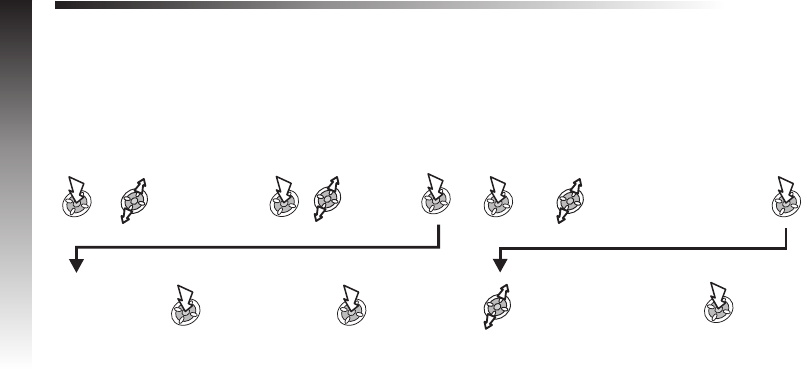
Initially Setting the Home Time
From Idle mode:
Setting the Clock Format
From Idle mode:
38
Applications
Applications >
Clock Function >
Clock Set >
Home >
Time Set
Applications >
Clock Function >
Clock Format >
Display Format
Select clock/date format
Enter date
(day/month/year)
Enter time (use
24 hour clock)
Select
Summertime
On/Off
Altering the Time/Date
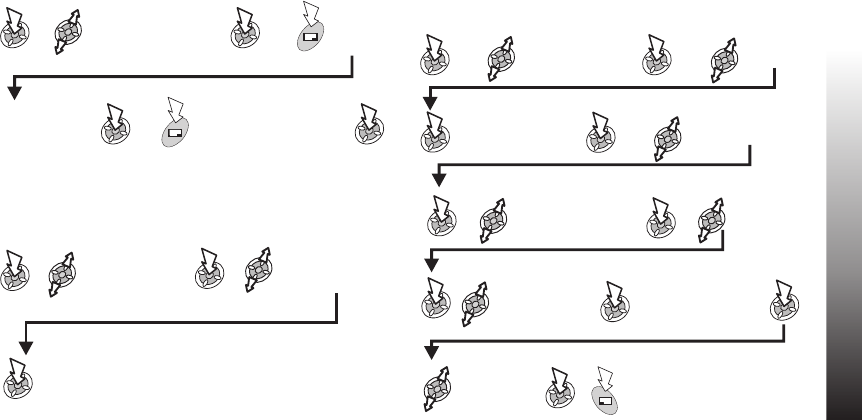
From Idle mode:(Initial time)
Setting the Clock for Summer Time
From Idle mode:
Setting the Alarm
If the clock hasn’t been set, the user will be prompted to do so
prior to setting the alarm.
There are four separate alarms, each of which may be set
independently.
From Idle mode:
Applications
39
Applications
Applications >
Clock Function >
Alarm Set
Select alarm
to be set
Enter time Select alarm
frequency
Select ring
type
Applications >
Clock Function >
Clock Set >
Home >
Time Set
Applications >
Clock Function >
Clock Set >
Home >
Summer Time
Select On
or Off
Press and
hold
Press and
hold
Enter time
(use 24 hour
clock)
Enter date
(day/month/year) x2
Select Repeat
Daily,Once or
Disabled
Select Fixed Data
or Data Folder
Select
required sound
If using Data Folder,
select the required
folder
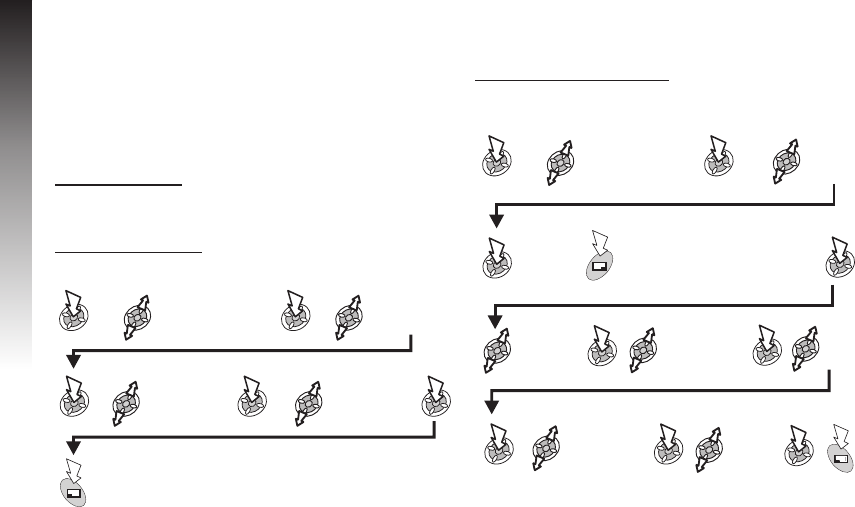
When the alarm has been set, an alarm clock will be displayed
when the phone is in Idle.
The alarm is activated based on the current clock (Home or
Second).
Muting the Alarm
When the set time is reached the alarm will sound and the
display will flash with an alarm message. The alarm will sound
for 30 seconds. If the alarm is due during a call, it will activate
vibration alert.
To end the alarm
Disabling the Alarm
From Idle mode:
When disabled, following the same procedure will re-enable the
alarm.
Adjusting the Alarm Time
From Idle mode:
40
Applications
Applications
Press any key
Applications >
Clock Function >
Alarm Set Select alarm to
disable
Select alarm
frequency icon
Applications >
Clock Function >
Alarm Set Select alarm
to adjust
Select alarm
frequency
Press and hold
Select
ring
type
Enter time
Select
Disabled
x2
Select Repeat
Daily,Once or
Disabled
Select Fixed
Data or Data
Folder
Select
required
sound
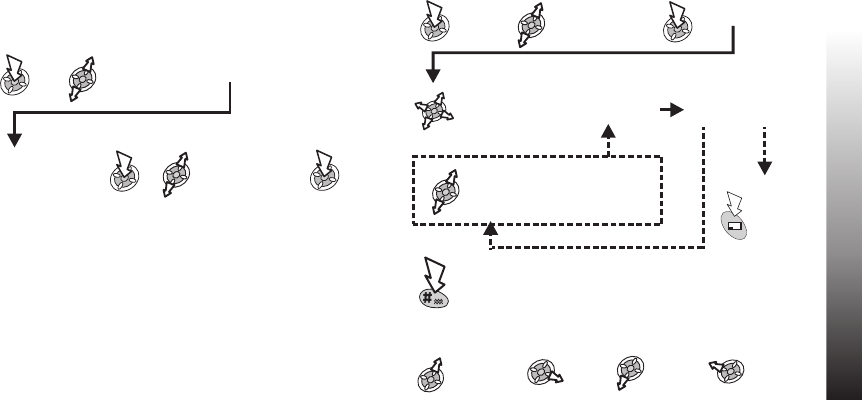
Setting a Power On/Off Time
The phone can be set to turn itself on or off automatically at a
specified time using the Power On/Off feature. Setting/adjusting
the Power On/Off automatically is similar to setting the time on
the clock. Select Power On Time or Power Off Time in the
Clock Function menu.
From Idle mode:
Caution: Ensure that the setting of the Alarm or Power On
function will not automatically power on when in an aircraft or
medical facility etc. - see ‘Important Information’.
Calculator
The four function calculator will enable the user to perform
simple arithmetic calculations (addition / subtraction /
multiplication and division).
From Idle mode:
For arithmetic operations:
Applications
41
Applications
Applications > Clock Function > Power On
Time or Power Off Time
Enter time (use 24
hour clock)
Applications >
Calculator
Enter number
(max. 10 digits)
Select arithmetic
operation
Complete a further
sum?
No
Yes
Enter number
(max. 10 digits)
Press to
complete
the sum
Press and hold to add a decimal
point
To
multiply
To
add
To
divide
To
subtract
Select next
arithmetic
operation
Intermediate
sum result
shown
Select
Frequency
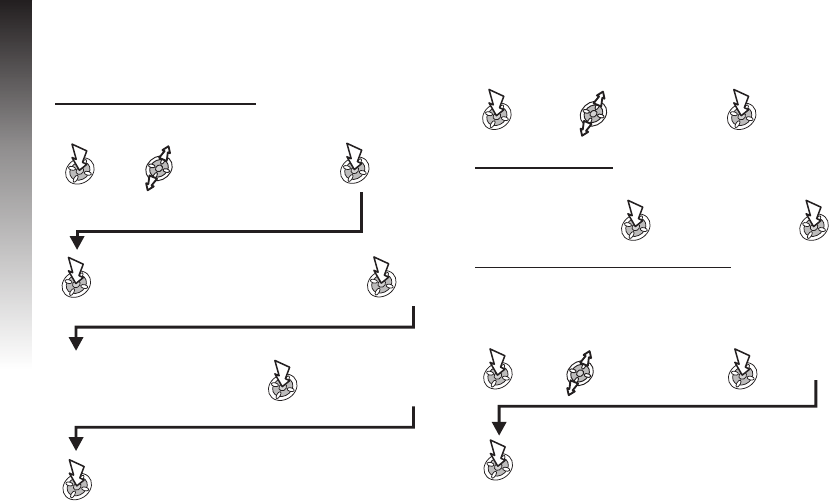
Currency Convertor
The currency convertor enables the user to convert from/to a
home currency using a conversion rate that you enter.
Entering a Conversion Rate
From Idle mode:
The conversion rate will be retained in the phone once entered.
The next time the convertor is used, the conversion rate /
currency abbreviation can be edited while in the Currency/rate
display.
Converting a Value
Swapping the Currency Conversion
When you have accepted the conversion rate and are ready to
enter the value to be converted, you can swap the currencies to
convert from the foreign currency into the home currency.
42
Applications
Applications
Applications >
Unit Converter
Enter abbreviation for the home
currency (max. 3 characters) x2
Enter abbreviation for the foreign
currency (max. 3 characters) x2
Enter currency
conversion rate
x2
Select Edit
Confirm conversion
rate is correct x2
Enter value to
convert x2
Select Swap
Enter value to
convert
x2
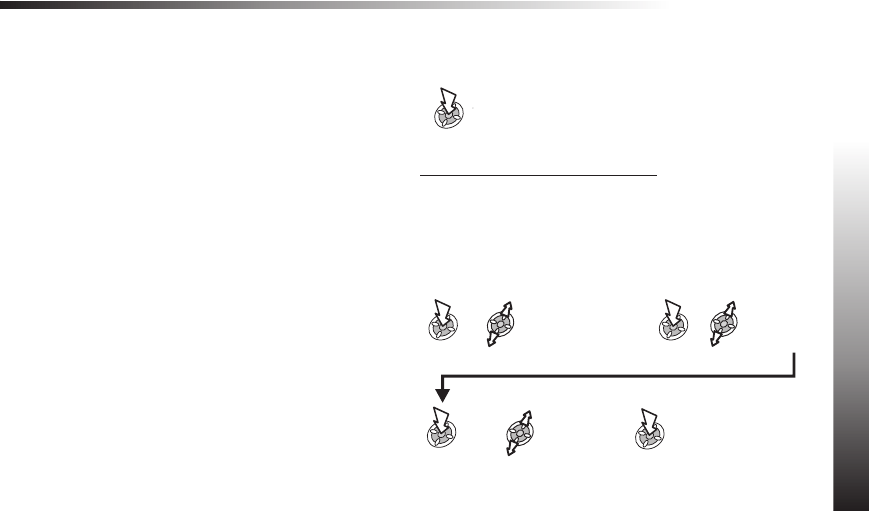
Infrared
By using infrared connection with another GD87 or with other devices with an infrared port, you can transfer data between the
devices. Also it enables you to use GSM fax and data services, and it provides access to Internet and e-mail, through existing
applications.
Preparing for Infrared Connection
ØPlace GD87 and another device with an infrared port within
the effective range of infrared connection with each other.
ØThere must be no obstruction between the two
communicating devices.
ØThe infrared ports of both devices must point at each other.
ØIf you use a PC, you need to set up infrared connection on
the PC.
(Example: Start > Settings > Control Panel > Infrared >
Options tab > Enable Infrared Communication)
Sending Data
The types of data you can send are: Phonebook, My Profile,
Schedule, files in Data Folder.
Ensure that the infrared ports of your GD87 and the second
phone or device are pointing at each other with no obstructions
in between.
Sending Images and Music Data
Images and Music data can be transferred among GD87s. The
receiver has to get ready to receive data in advance (see
“Receiving Data via Infrared Port”).
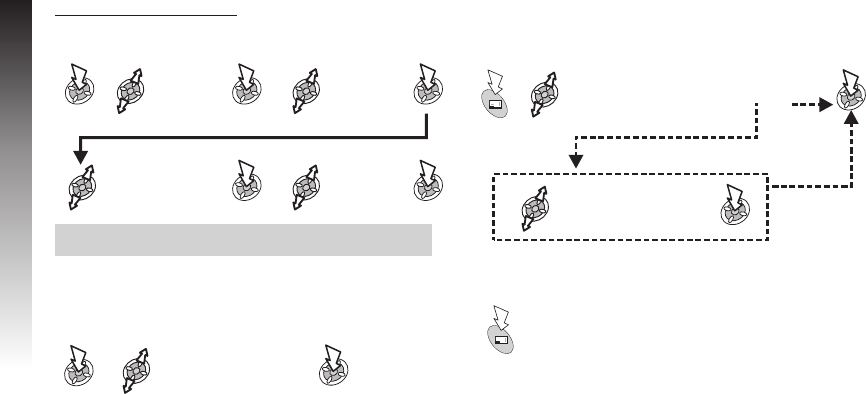
From Idle mode:
Infrared
43
Infrared
My Phone >
Data Folder >
Browse >
Picture OR Sound
Select the
data to send
Select Send
IrDA
Press to stop the transmission at any time
Sending My Profile Data
From Idle mode:
Note: If you try to send data that cannot be forwarded or
saved, an error message will be displayed.
Receiving Data via Infrared Port
From Idle mode:
Once data is displayed:
Øfor Phone Book data:
Øfor Schedule data:
Øfor all other data: the received data will automatically be saved
in the Received Folder.
44
Infrared
Infrared
Applications >
Infrared >
Data Receive
Select SIM Phonebook
OR Mobile Phonebook
Enter location
number
OR
SIM Phone
Book selected? Yes
No
Phonebook >
My Profile
Select
Send IrDA
Select SIM
Profile or
Mobile
Profile
Select
required name
if necessary

Using the Internet and Faxing
You can join your GD87 and a PC together via an infrared
connection to access the Internet, and to send and receive
faxes. The following explains how to set up communication
between the GD87 and a PC. These instructions should be
used in conjunction with your Internet platform software and/or
your fax software.
Prerequisites
Faxing: contact your mobile phone network operator to
determine whether this feature is available to you.
Ensure that you have set up a dial up account with an Internet
Service Provider.
You will need the installation CD from your ISP, or your account
details (i.e. phone number, user name and password) to
configure Dial Up Networking within Windows.
When you set up your Internet account for the first time, make
sure that you select GD87 as the connecting modem device.
(For more details contact your Internet Service Provider, or for
help using Windows Dial Up Networking, search Windows Help
[Start>Help])
Testing the Infrared Connection
The following process will set up a PC to connect to your GD87
using the Windows standard communication software,
HyperTerminal, as an example (the process described may
vary slightly for other software packages).
Note: Depending on how your computer has been set up
‘HyperTerminal’ may not be located in ‘Communications’ (as
detailed in the first instruction).
ØSelect Start > Programs > Accessories >
Communications > HyperTerminal
ØDouble click on HyperTerminal.
In the Connection Description dialogue box, enter a name of
your choice in the Name field and click OK.
ØIn the Phone Number dialog box, select the country/region
code, enter your Internet Service Provider’s phone number
and confirm that GD87 is selected in the “Connect using”
box.
Click OK.
When the connect dialogue box is displayed, click Cancel.
ØSelect File > properties and confirm that GD87 is selected.
Click OK.
ØIn the HyperTerminal window, type AT+CGMI and click.
If GD87 has connected successfully you will receive the
reply OK.
Infrared
45
Infrared
Connecting to the Internet
To connect to the Internet, you need to type in AT command in
the terminal screen on your PC.
On the PC:
ØDisplay the terminal screen in the communication software
on your PC. (in our example: select Start > Programs >
Accessories > Communications > HyperTerminal)
On the GD87:
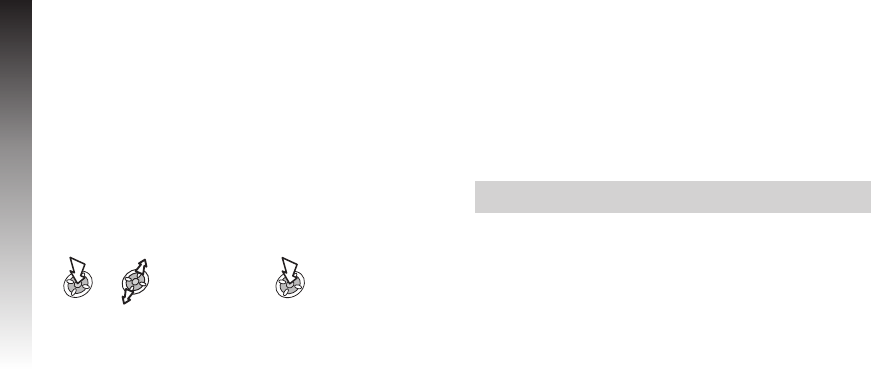
From Idle mode:
ØWhen Ready for Communication is displayed, type in the
AT command in the terminal screen on your PC.
ØEnter the phone number to connect to for Circuit Switch.
Use the dedicated phone number to packet for Packet
connection.
ØEnter AT commands as necessary.
Faxing
Ensure that you have fax application software installed on your
PC. We recommend you use one of the following packages:
Microsoft Fax (www.Microsoft.com)
WinFax Pro or ProComm Plus (www.symantec.com)
HotFax 3.0 (www.smithmicro.com)
Note: Ensure the fax application is set up to use the area code
and, for international calls, the country/region code.
46
Infrared
Infrared
Applications >
Infrared >
Dial-Up
Messages
This phone has various messaging features including SMS, MMS and E-mail:
SMS: You can enter the recipient’s phone number to send text.
MMS: You can attach images and music to text messages. The recipient can play it as a Slide show.
E-Mail: You can enter an e-mail address to send a message to another mobile phone or a PC via the Internet.
SMS
It is possible to receive, display, edit and/or send text messages
of up to 459 characters (dependent upon the language being
used) to mobile phones on your service provider’s network or
any network that has a roaming agreement (dependent on the
recipient’s phone parameters.)
Phone Setup for SMS
Before a message can be sent, it is necessary to enter the
Message Centre number into Parameters.
The Message Centre number may have been preprogrammed
on the SIM.
Setting the Message Centre Number
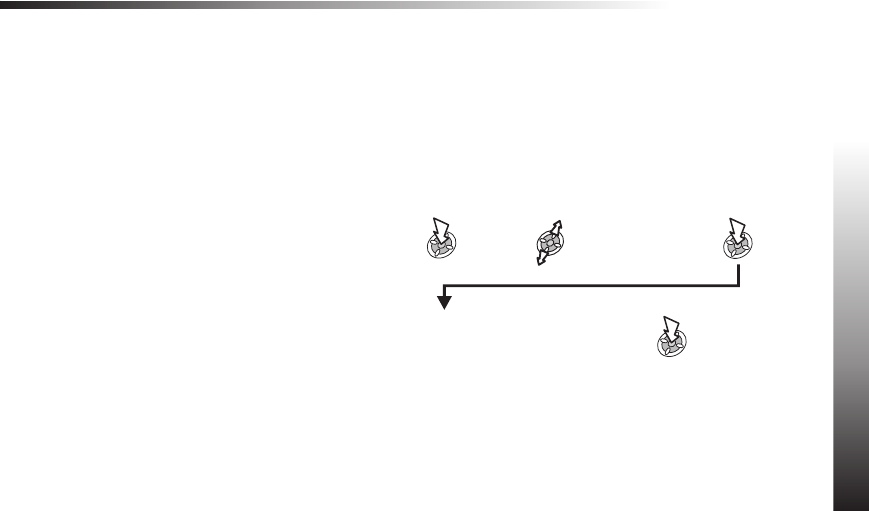
From Idle mode:
Messages
47
Messages
Messages >
SMS >
Parameters >
Message Centre
Enter message centre number in
international dial format (see
‘International Dialling’) x2
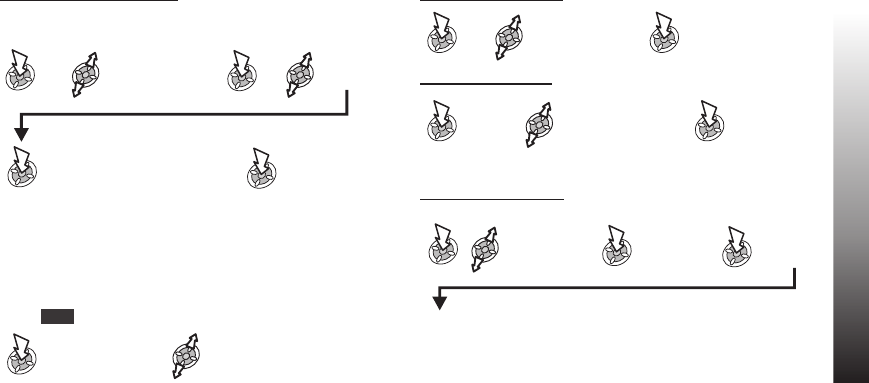
Creating a Text Message
To access Character menu:
ØIn Numeric mode: Character menu not available
ØIn T9 mode:
Select Character List
or Press and Hold 1
ØUsing T9®predictive text input dramatically reduces
the number of key presses required. See ‘Text
Entry’.
ØIn other text modes:
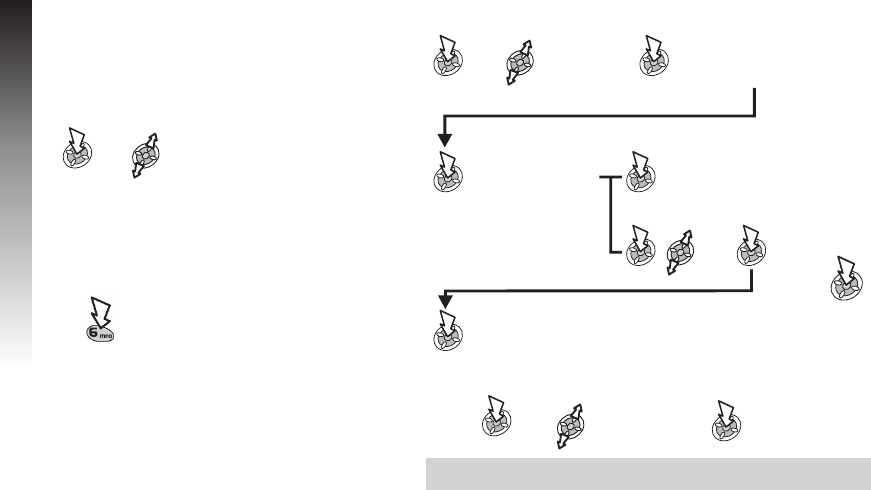
From Idle mode:
ØThe user may be asked if delivery confirmation is required:
Note: The default setting for delivery confirmation can be
enabled/disabled using the Report parameter in the Parameters menu.
48
Messages
Messages
Press and hold a
Digit key (1-9)
Select Yes /No
Messages >
SMS >
Create
Create text message -
max. 459 characters
(see ‘Text Entry’)
x2
If phone number is entered:
If phonebook is recalled:
Enter destination
phone number / recall
and select a number
from Phonebook
(see ‘Retrieving a
Number’)
x3
Recall
x2
If several
numbers are
in the list,
select required
number and
User Messages
When creating a text message, it is possible to use short
messages stored in the phone.
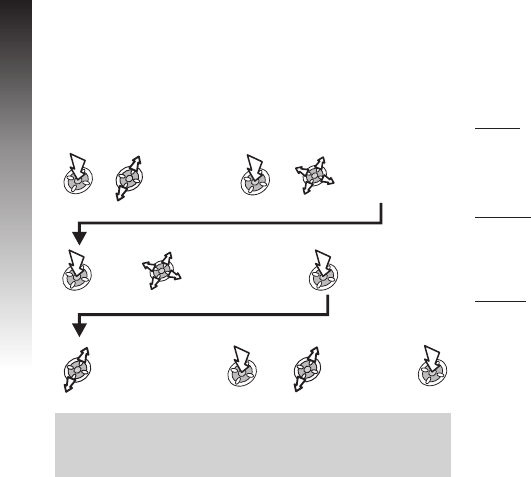
To Edit a User Message
From Idle mode:
Receiving Text Messages
NIndicates a new message has been received.
$Indicates the message store is full.
When Read is displayed:
Message Options
When a message is received and read the following options are
available:
Reply to a Message
Delete a Message
To enable the auto-deletion of messages, see ‘Parameters’
Forward a Message
Messages
49
Messages
Move through the message,
identify the sender and the time
the message was sent
Press to read
message
Select Delete
Select Forward
Press to edit
message
See ‘Creating a Text Message’ to send the message
See ‘Creating a Text
Message’ to send the
message
Reply
X2
My Phone >
User Messages
Select a
User
Message
Edit message as required X2
Cut, Copy & Paste Message Text
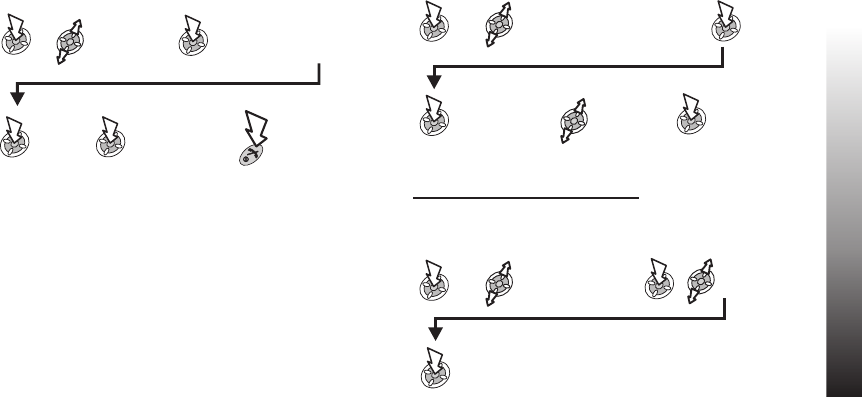
This function allows the user to cut or copy message text from a
user defined message or a user created message, into a new or
existing message. It can also be used to paste text to a
previously sent message.
With a message displayed:
Note: The cut or copied text will remain in the phone memory
until other text is cut or copied.
To cut or copy text from a received message, select Forward
and repeat above as necessary.
Managing Message Lists
The messages will be stored in the phone until they are deleted.
A stored message can be replied to, edited or deleted.
Inbox
Received messages are stored in the Inbox. A Nin the
receive list indicates an unread message.
Outbox
When a message has been sent or edited, it is stored in the
Outbox.
Create
This allows you to create a new message or reply to a
message.
50
Messages
Messages
Select Cut /
Copy
Put cursor at start of
text to edit
Highlight text
to edit
Select text screen
where text is to be
placed
Select
Paste
Chat SMS
Chat SMS allows you to read sent and received messages with
another party on one screen.
When reading a previously sent or received message:
ØWhen receiving a message in chat mode, the text appears
above your previous message.
ØIf the phone is not in chat mode when receiving a reply to a
chat message, it will be received as a normal SMS.
ØIf a voice call is received when in chat mode, you can
accept the incoming call and return to chat mode at the end
of the call.
ØOnly the last sent and received messages are stored, all
other messages from the latest chat are automatically
deleted.
Cell Broadcasts
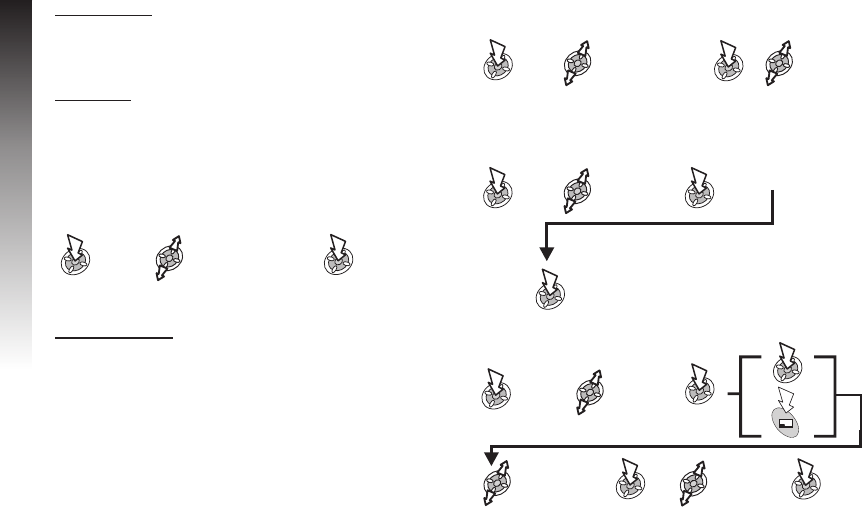
You need to specify the topic(s) of information that you wish to
receive as broadcasts before you can receive them.
From Idle mode:
Enabling/Disabling Broadcasts
From Idle mode:
Messages
51
Messages
Select
Chat SMS
Enter your
Nickname
See ‘Creating a
Text Message’
to send the
message
To end the Chat
Messages >
SMS >
Broadcasts >
Receive
Select On or
Off
Messages >
SMS >
Broadcasts >
Topics
x2to insert a
new topic
x2
Select
the required
topic
Message List
This is a store for the last received broadcast messages.
Messages can be deleted from here.
Languages
The language in which broadcast messages are displayed can
be changed.
Parameters
From Idle mode:
The following parameters can be set:
Recipient Group
Recipient Group enables you to send one message to up to ten
destinations at once. It is possible to create up to five separate
groups. After Recipient Group is selected, the following options
may be chosen. “Rename” will define the group name. “Select”
will add destinations in the phonebook to the group.
Setting Recipient Group
To rename a recipient group (after selecting a required
group)
Adding names to a recipient group (after selecting a
required group)
52
Messages
Messages
Messages >
SMS >
Parameters
Messages >
SMS >
Parameters >
Recipient Group
Select
required
group
Select required
name Recall x2
Rename
Enter new name, see ‘Text
Entry’
Select
x2
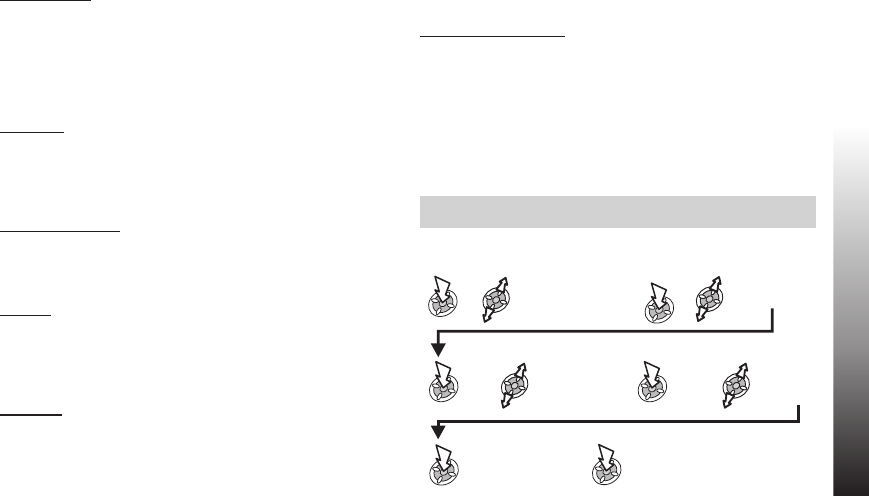
Auto Delete
When set, this feature automatically erases messages:
Received Read - will overwrite the oldest read message.
Received Any - will overwrite the oldest read message. If there
is no read message, it will overwrite the oldest unread
message.
Lifetime
This is the duration that your message is stored at the Message
Centre. Delivery attempts will be repeated until the message
has been delivered or the Lifetime expires.
Message Centre
Allows the Message Centre phone number to be edited - see
‘Setting the Message Centre Number’.
Report
When your message has been delivered a confirmation will be
received if Report is set to Yes. If set to Ask the recipient will
be prompted if they want to send a reply.
Protocol
The Message Centre may be able to convert the message to
the format specified by the selected protocol.
Multimedia Message Service (MMS)
MMS Configuration
MMS configuration must be done before you can send or
receive an MMS message. You can create up to three server
profiles on the phone.
Your phone is designed to be compatible with certain MMS
services. Please note, however, that the availability of MMS and
other related services is dependent on your individual
service/network provider and/or other network conditions.
Note: Your MMS settings may have been pre-configured by
your service provider.
From Idle mode:
Messages
53
Messages
Messages >
MMS >
Server List
Select required
server
Enter the profile
name, see ‘Text
Entry’
Profile
Name
Leave it on this
screen to set the
server profile
options
x2
Edit
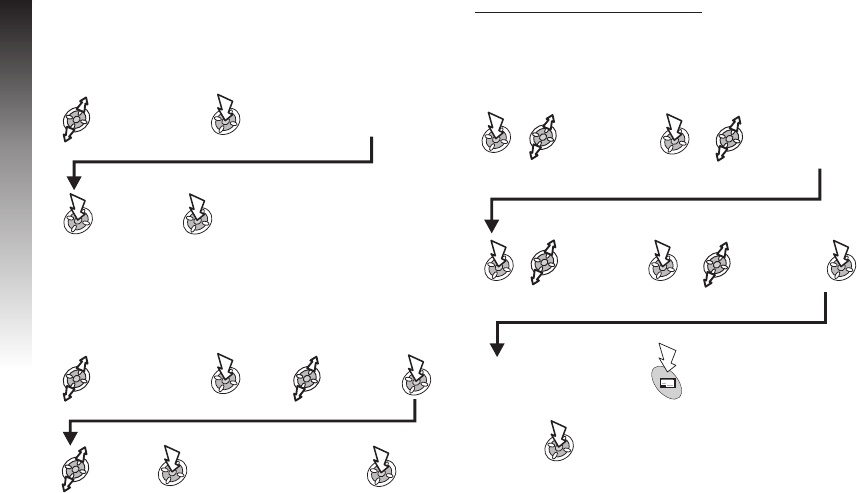
Server Profile Settings
The Server URL and Gateway IP are all set using the same
method.
When Bearer Type is the selected option:
Creating a New MMS Message
Attaching Image or Audio files
From Idle mode:
54
Messages
Messages
Enter the options details,
see ‘Text Entry’ or select
the required setting
Select
required
option
Repeat this process until all
required options are set
Circuit Switch /
GPRS Edit
Select
an item
Enter the options details,
see ‘Text Entry’ or select
the required setting x2
Messages >
MMS >
Create
Select
Add Picture or
Add sound
Select
a folder in
Data folder
x2
Select
a required
file
If you prefer to add text
or other options,
If not,
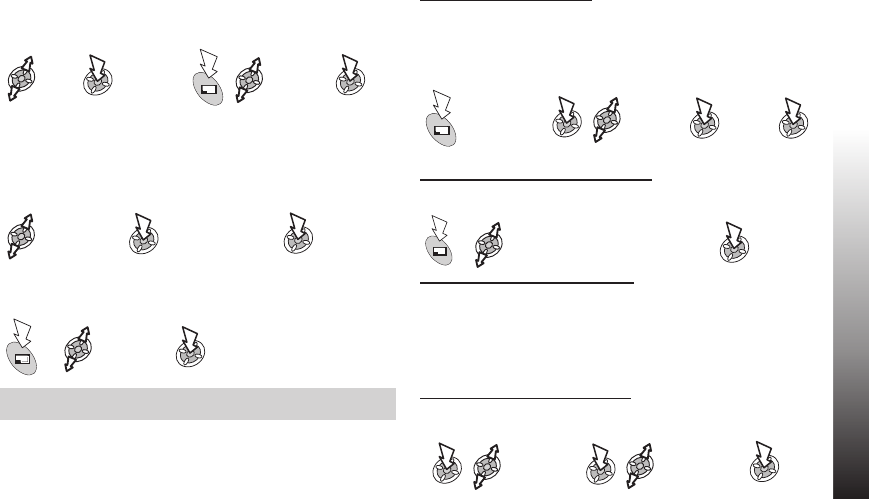
Adding a recipient
In Create mode :
Attaching the subject
In Create mode :
Your MMS can now be sent or saved by returning to the Create
menu and:
Note: If Save is selected, the message is stored in the Outbox
to be sent or edited later.
Message Delivery Time
It is possible for the user to delay the delivery time of a
message.
After adding the recipent(s) details:
Sending or Saving the Message
After adding the recipient (s):
Sent and Received Messages
Received messages are stored in the Inbox, if there are any
unread messages, the number is displayed next to Inbox.
Sent messages are stored in the Outbox.
Reading a Received Message
From Idle mode:
Messages
55
MessagesMessages
Select
To
Enter
recipient’s
address from
Phonebook
x4
Messages >
MMS >
Inbox
Select required
message
Select
Subj:
Enter subject
See ‘text entry’
Select Send
or Save
Select
required
destination
x2
Select
Other Options
Select
Delivery
time
Enter
delivery
time
x2
Select Send or Save. If Save is
selected, the message is stored in
the outbox to be sent or edited later
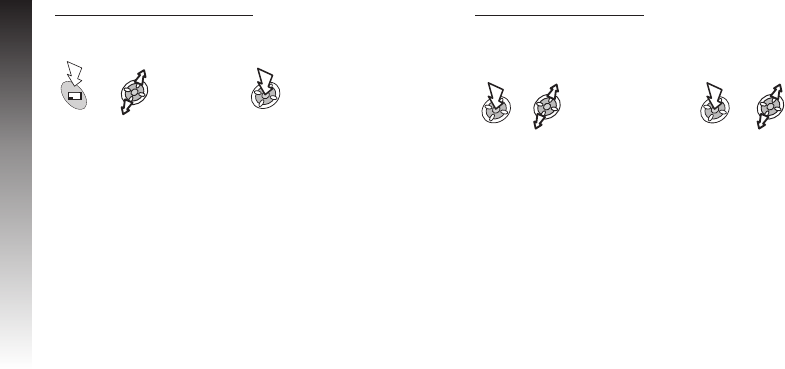
Received Message Options
With the message displayed:
ØReply: Compose a reply to the sender.
ØReply to All: Compose a reply to all the people who have
been sent the message.
ØForward: Pass a copy of the message on to another
person.
ØFont Size: Font size in the message can be changed.
ØPhonebook: Save the sender’s address in your
Phonebook.
ØProtect: Lock the message against deletion.
ØDelete: Delete the message.
Message Send Options
From Idle mode:
ØLifetime: Select Maximum or choose a time limit to set the
lifetime for sent messages.
ØSender Visibility: Allows the recipient to view your details,
useful when replying to your message.
ØReport: Request a delivery report on the status of a sent
message.
56
Messages
Messages
Messages >
MMS >
Options >
Mail Option
Select required
item and set as
necessary
Select
required
option
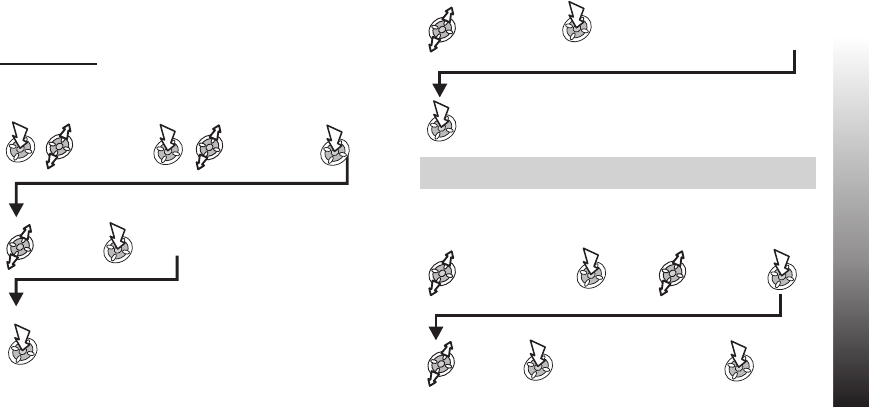
Internet E-Mail
E-Mails can be sent and received via the mail server of an
Internet Service Provider that supports POP3 / SMTP protocols.
Prior to using the Internet E-Mail feature, your SIM must be
data enabled and a contract with an Internet Service Provider
must be in place.
E-Mail Setup
From Idle mode:
Server Profile Settings
The Mail Address, SMTP Server, POP3 Server, POP3 Account,
Password, Mail Delivery, Primary DNS and Secondary DNS are
all set using the same method.
Note: For the Mail Delivery option, select between Leave Msg.
and Delete Msg.
When Bearer Type is the selected option:
Messages
57
MessagesMessages
Messages >
e-mail >
Server List
Select required
server
Select
Profile
Name
Leave it on this screen to set the server
profile options
Enter the options details,
see ‘Text Entry’ or select
the required setting
Select
required
option
Repeat this process until all
required options are set
Circuit Switch or
GPRS Edit
Select
an item
Enter the options details,
see ‘Text Entry’ or select
the required setting x2
x2
x2
Enter profile
name
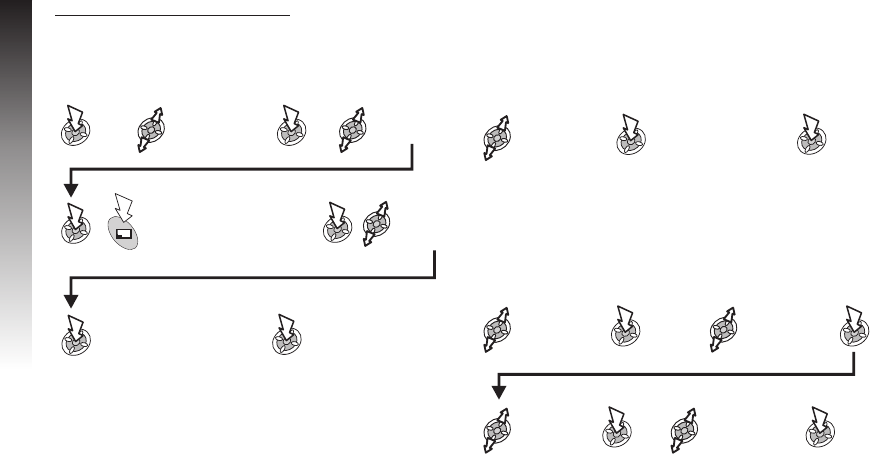
Creating a New E-Mail Message
Adding a recipient(s)
From Idle mode:
Adding the Subject or Message
After adding the recipient(s):
Attaching files
After adding the recipient(s):
58
Messages
Messages
Messages >
e-Mail >
Create
Select To,Cc
or Bcc
Select Add
Enter e-mail
address, see ‘Text
Entry’ x4
Press the Phonebook key
to select an entry from the
MobilePhonebook list
Select Subj
or Message
Enter text, see ‘Text
Entry’ x2
Select File x2 Select Add
Select
required
folder
Select
required file x3
Or
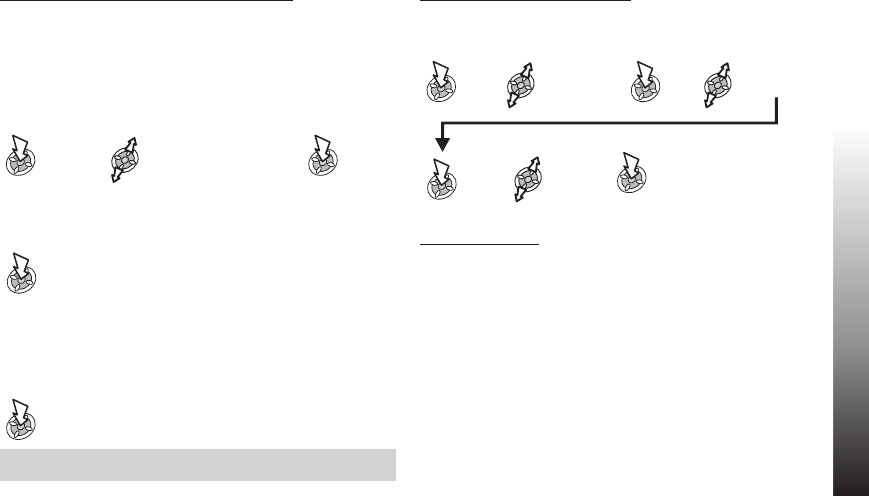
Sending and Receiving E-Mail Messages
Use this function to send and receive e-mails at the same time.
Any messages awaiting to be sent, are sent. If there are any
messages in your server mailbox they will be downloaded to the
phone.
From Idle mode:
If there are any unsent messages in the Outbox, you will be
prompted to send them.
If there are any new messages on the server, you will be
prompted to receive them. The messages will be downloaded to
the Inbox, with the number of messages displayed next to the
Inbox.
Note: If no messages are sent or received and the connection
is left idle, it will terminate after 60 seconds.
Reading a Received Message
From Idle mode:
Message Status
Messages have three possible states, each one is indicated by
a different icon:
^Indicates a message which has been read or sent.
NIndicates an unread or pending message.
%Indicates the message is locked.
Messages
59
MessagesMessages
Messages >
e-mail >
Send/Receive
Messages >
e-mail >
Inbox
Select required
message
View
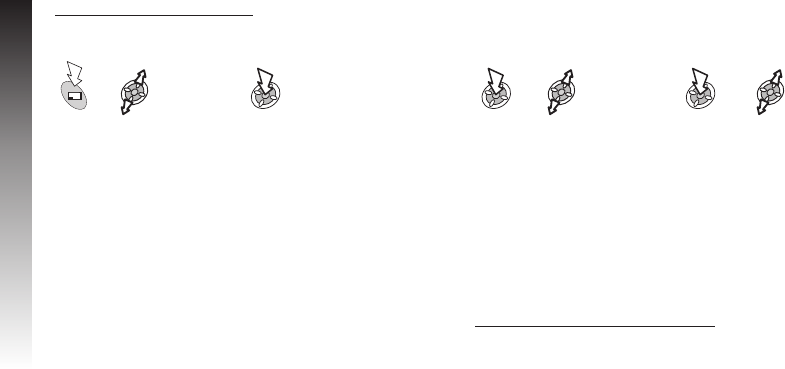
Received Message Options
With the message displayed:
ØReply: Compose a reply to the sender.
ØReply to All: Compose a reply to all the people who have
been sent the message.
ØForward: Pass a copy of the message on to another
person.
ØFont Size: Font size in the message can be changed.
ØPhonebook: Save the sender’s address in your
Phonebook.
ØProtect: Lock the message against deletion.
ØDelete: Delete the message.
Messages Setup Options
From Idle mode:
ØRecipient Group: Enables you to preset the destination of
E-Mail messages. There are 5 different recipient groups,
allowing you to store up to ten destinations in each.
ØSignature: You can insert essential information into
outgoing messages, e.g. a disclaimer.
ØAuto Quote: Enables you to attach text from the message
that you are replying to. Set to On or Off.
Managing the Inbox and Outbox
Once the Inbox or Outbox store are full, any new messages
received or created will overwrite existing messages from the
oldest first. To prevent messages being overwritten each list
should periodically be cleaned up, deleting any messages
which are no longer required.
Important messages can have a lock applied to them so that
they cannot be overwritten when the Send/Receive process is
activated.
60
Messages
Messages
Select
required
option
Messages >
e-mail >
Options >
Send Options
Select required
item
Call Information
Recent Numbers
Recently dialled phone numbers will be stored in Last Call.
If Caller Identification is available, the caller’s phone number for an answered call will be stored in the Answered menu and an
unanswered call will be stored in the Unanswered menu. If Caller Identification is not available then calls will still be stored but will
have the date and time attributed to them.
When the store is full the next phone number will overwrite the oldest.
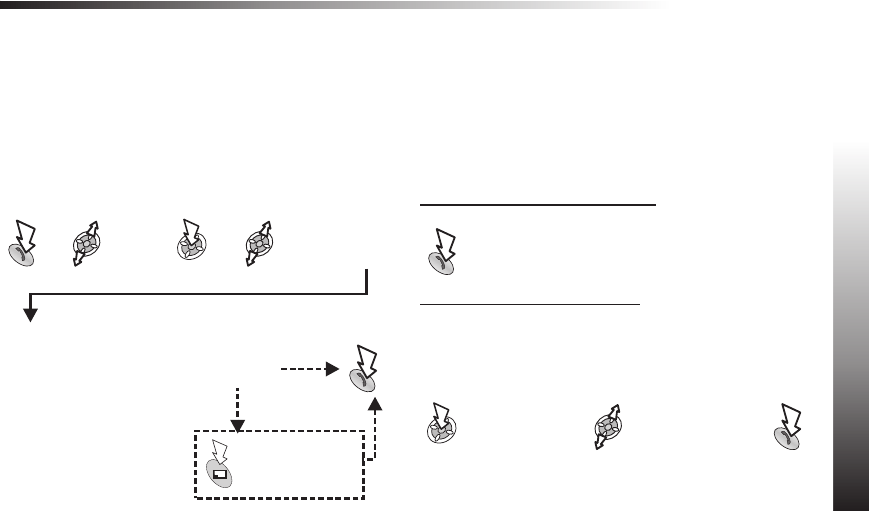
From Idle mode: Calling the Last Dialled Number
Returning an Unanswered Call
When the display shows that you have received calls but not
answered them.
Call Information
61
Call InformationCall Information
Select
option
If required, edit number
(see ‘Editing Phonebook
Entries’)
Select number/name
to redial
Press while number
is displayed
Store number in
Phonebook? No
Yes
x2
Last caller’s number
will be displayed, if
available
Select number/name
to redial
International Dialling
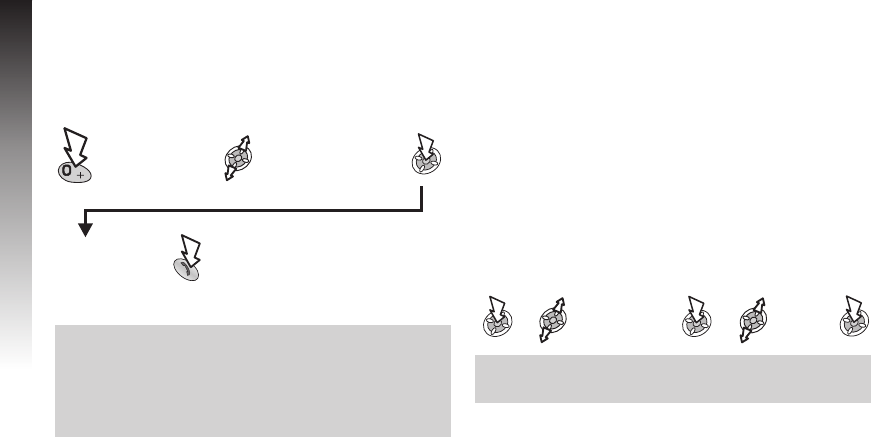
Using the automatic international access code (+) you will be
able to dial international numbers without having to know the
code for the international exchange.
From Idle mode:
Notes: If the international code is known then it can be entered
in the normal fashion followed by the area code and phone
number.
Many countries / regions include an initial “0” in the area code.
This should, in most cases, be omitted when dialling
international numbers. If you have difficulties making
international calls, contact your service provider.
Call Duration
Use the Calls submenu to display information as follows:
ØLast Call - displays the duration and call charge if available,
of the last call. Times are indicated as: hours (0-99),
minutes (0-59), seconds (0-59) - HH:MM:SS.
ØAll Calls - displays the duration and call charge, if available,
of Incoming and Outgoing calls. The lock code or PIN2 is
required to reset the timer and call charge.
ØCall Waiting - Check the Call Waiting status.
ØCaller’s ID - Check the Caller’s ID status.
ØWithhold ID - Access the Withhold ID status.
From Idle mode:
Note: The Calls function is SIM dependent. If the SIM does not
support this function, then items under the Calls submenu will
be found directly under the Call Service menu.
62
Call Information
Call InformationCall Information
Press and hold until
+is displayed
Select international
code name
Enter area code
and phone number
Phone Option >
Call Service >
Calls
Select
function
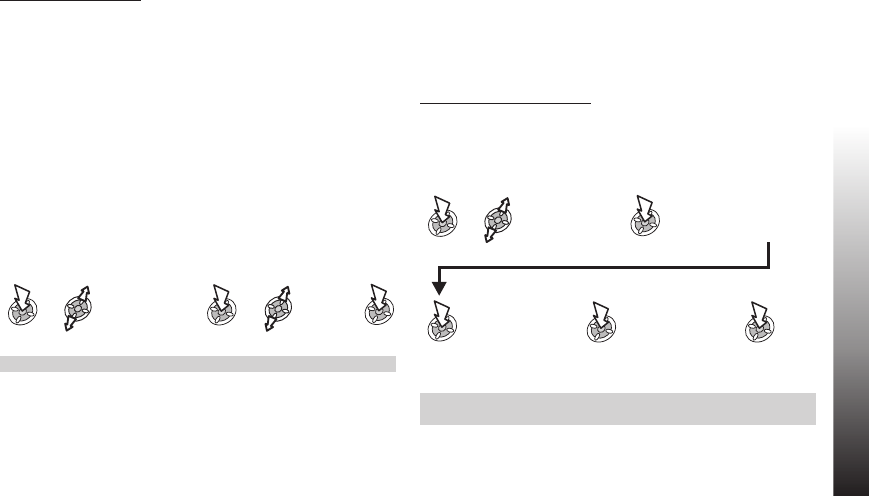
GPRS Call Duration
Use the Connections submenu to display information as
follows:
ØLast Connection - displays the duration and amount of
data transfer of the last call. Times are indicated as: hours
(0-99), minutes (0-59), seconds (0-59) - HH:MM:SS.
ØAll Connections - displays the accumulated duration and
amount of data transfer. The lock code or PIN2 is required
to reset the timer.
ØCall Priority - determines whether an incoming voice call
should interrupt a data call. Select between On and Off.
From Idle mode:
Note: The Connections function is SIM dependent.
Call Charges
To maintain control over the cost of calls that are made, the
phone can be set to restrict use to a finite number of units
overall.
Setting the Unit Price R
Firstly, a price per unit must be entered. This is the cost that the
service provider charges for one unit of call time.
From Idle mode:
Note: The “Service Charges” function is SIM/service provider
dependent.
Call Information
63
Call Information
Phone Option >
Call Service >
Connections
Select
function
Phone Option >
Call Service >
Service Charges >
Price Unit
x2
Enter currency
unit (max. 3
characters)
Enter security
code
x2
Enter unit
price x2
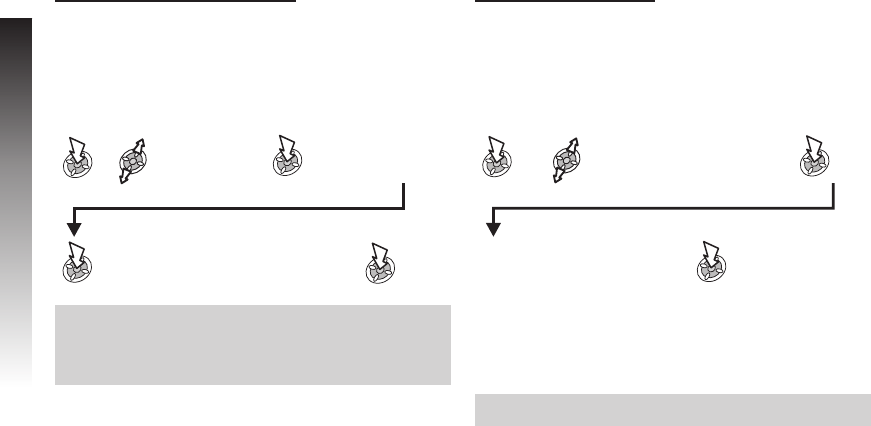
Setting the Maximum Unit Level
This function allows the user to pre-determine the maximum
cost of calls made.
From Idle mode:
Note: The duration of one unit may vary during the day, peak
and off-peak times. Therefore, the call charge can be calculated
accordingly. However, call charge information may not give an
accurate reflection of the tariffs charged by your service
provider.
Setting a Warning Level
A warning can be set as an indication that the maximum cost is
about to be reached. This function is SIM dependent.
From Idle mode:
Call Identification
In the Call Service menu, the Caller’s ID and Withhold ID
functions allow you to check the status of whether a Caller’s
Identification is sent or can be received.
Note: When checking the status the phone must be registered
with a network.
64
Call Information
Call InformationCall Information
Phone Option >
Call Service >
Service Charge >
Max Cost
x3
Enter maximum units permitted
(corresponding cost will be displayed)
Enter security
code
x2
Phone Option >
Call Service >
Service Charge >
Warning At
x2
Enter value in units at which
point warning will sound x2
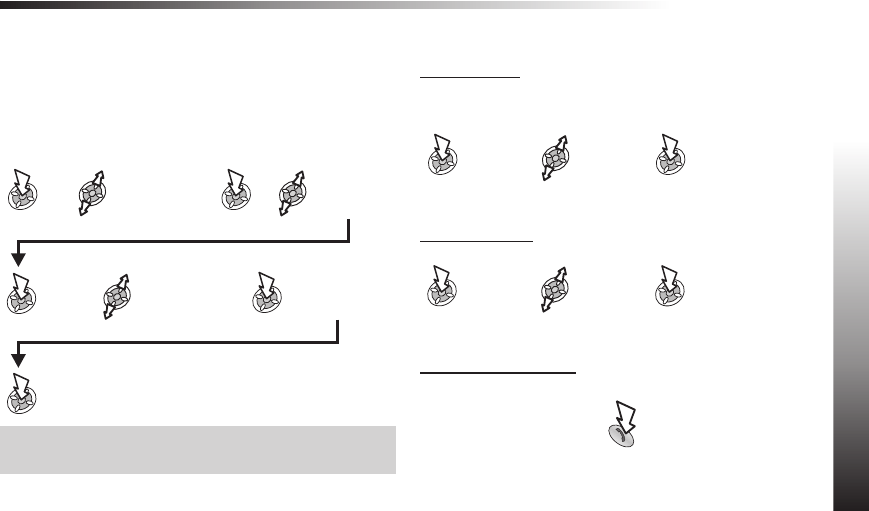
Advanced Operation
Diverting Calls
Voice, fax and data calls can be diverted using different
circumstances and to different numbers. For example, you may
wish voice calls to be diverted to Voicemail in the event that the
phone is switched off.
From Idle mode:
Notes: When Divert is enabled the divert icon is displayed.
When updating or checking the status of Call Divert the phone
must be registered with a network.
Holding Calls and Call Waiting
Holding a Call
During a call:
Resuming a Call
Making a Second Call
The first call will be placed on hold.
Advanced Operation
65
Advanced Operation
Phone Option >
Call Divert
Select type of
calls to divert
Enter number
to divert to
x2
Select
circumstances
to initiate divert
Select
Hold
Select
Resume
Enter number / recall from
Phonebook (see ‘Retrieving a
Number’)
x2
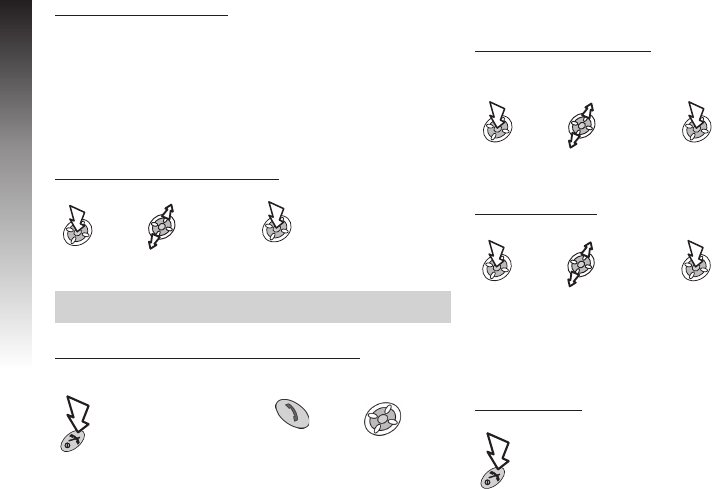
Receiving a Second Call
If Call Waiting is enabled on a second call can be received. This
is enabled from Phone Option > Call Service > Calls > Call
Waiting.
It is not possible to have more than one fax or data call at a
time. All voice calls must be ended before you can make or
receive a fax or data call.
Accept / Reject a Second Call
Note: If you accept the second call, the current call is placed on
hold.
End Current Call and Receive Second Call
With a call waiting:
Operation During Two Calls
Swapping Between Calls
An icon indicates the current call.
End Current Call
The held call remains held.
End Both Calls
66
Advanced Operation
Advanced Operation
Select
Accept or
Reject
Select
Swap
Select
End
Press any key except for
the following two: and
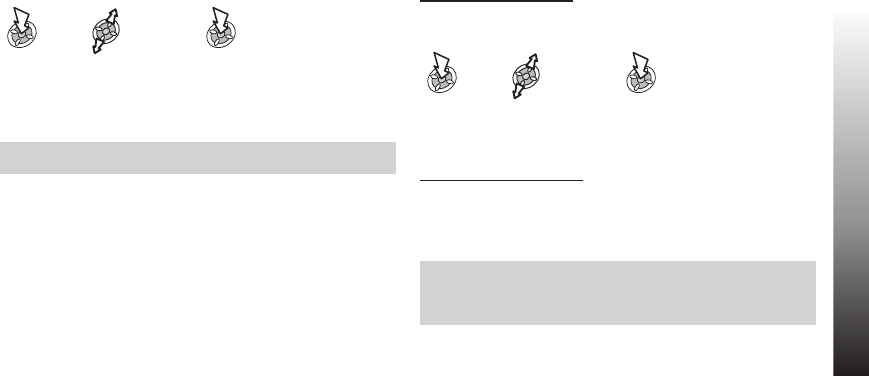
Call Transfer
With two calls connected, Call Transfer lets you connect them
together, ending your connection and leaving the two callers to
talk together.
When two calls are in use:
The two calls will be connected to each other and your call will
be ended.
Note: Two call transfer cannot be utilised while in Multi-party
mode.
Multi-party Calls
A Multi-party call enables three to five people to be in
conversation at the same time. It is possible to swap between a
Multi-party call and another call in the same way as with two
separate calls.
Enabling Multi-party
With two calls connected (one active, one on hold):
A Multi-party call has been enabled, all three people will be able
to talk to each other.
Adding to Multi-party
It is possible to add to the Multi-party call (up to a maximum of
five) either by making a call or accepting an incoming call. The
call can then be merged into the Multi-party.
Note: When making a call or accepting an incoming call the
Multi-party call will be placed on hold. The callers in the
Multi-party call can continue to communicate with each other
while on hold.
Advanced Operation
67
Advanced Operation
Select
Trans.
Select
Merge
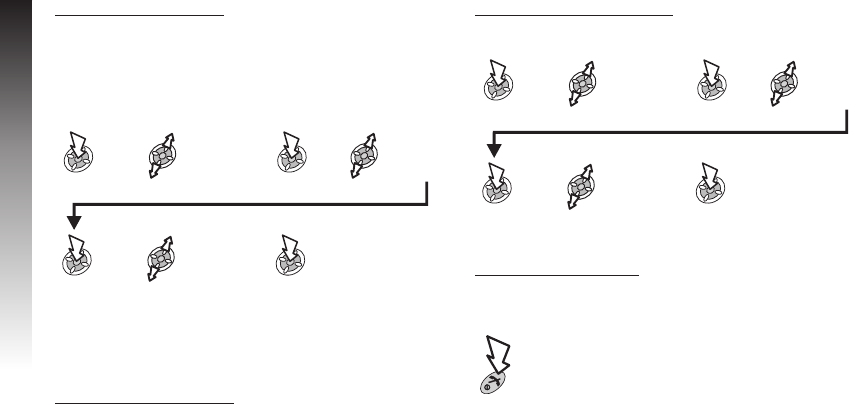
Splitting a Multi-party
The user can select an individual from the Multi-party and
remove their connection. This enables you to talk privately
without the participation of the rest of the Multi-party.
During a Multi-party call:
The selected caller will be split from the Multi-party call and the
Multi-party call will be placed on hold (the remaining Multi-party
call callers can still communicate).
Ending Multi-party Calls
The user can either select an individual in the Multi-party and
end the call or end the entire Multi-party call. If a call is held, or
another call is incoming then an individual call cannot be ended.
Ending a Single Connection
During a Multi-party call:
Ending all Connections
During a Multi-party call:
68
Advanced Operation
Advanced Operation
Select
Option
Select a
caller
Select
Split
Select
Option
Select a
caller
Select
End
Press to end all calls
Changing to a New Network
When not in your home Country / Region, the user may use a
network that is not directly subscribed to, this is called
ROAMING.
National Law may not permit roaming in your home region.
The New Network function is used to manually select a network
that is available in your current location.
From Idle mode:
An X will be displayed in the information area if you cannot
register with the selected network.
When the Search Mode is set to Manual the phone will only use
a selected network. If coverage is lost another network should
be selected.
When the Search Mode is set to Automatic the phone will
automatically reselect a new network in order to maintain
optimum network availability. The Network List is used when
the Search Mode is set to Automatic. The location numbers in
the Preferred Network List show the search priority. Amend the
List as follows:
ØInsert - stores a new network in the currently displayed
location and then moves other networks down.
ØEdit - overwrites the old network with a new one.
ØAdd - stores a new network at the end of the list.
Advanced Operation
69
Advanced Operation
Phone Option >
Network >
New Network
Select
network
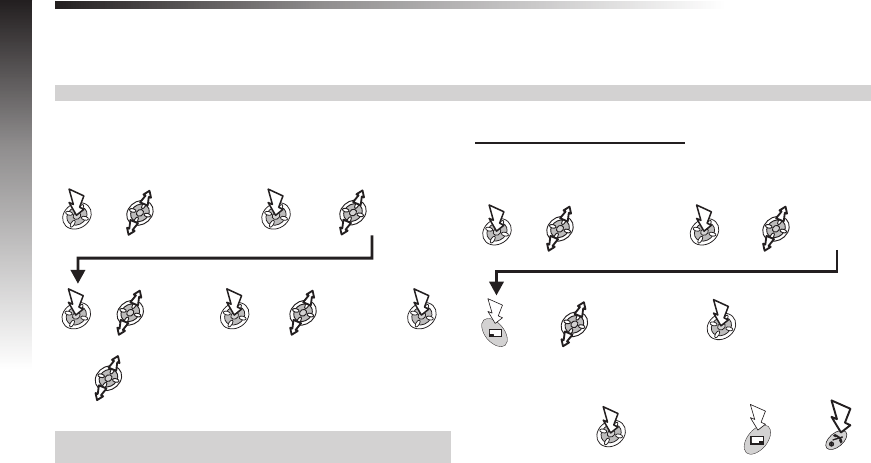
Data Folder
The data saved in GD87 is located in the Data Folder. There are six pre-defined folders (Picture, Sound, Mail, Download, Received,
Phonebook) plus five folders you can customise. The maximum capacity of Data Folder is 1MB, holding up to 900 files. The
maximum size of a file is 50 kilobytes.
Note: Changing SIM does not affect the contents of stored data.
Display Images and Text
From Idle mode:
Use to scroll through the displayed image or text.
Note: The phone cannot display a file that is not in one of the
supported formats.
Display Images Continuously
You can display all the images and animations stored in one
folder in the order listed, as a slide show.
70
Data Folder
My Phone >
Data Folder >
Browse
Select folder
where file is
located
Select
file
Select View
My Phone >
Data Folder >
Browse
Select folder
where file is
Select
Slide Show
A new image
appears every
5 seconds
Press to stop slide
show (not while an
animation is being
shown):
To move to
next image
press any key
except:
Or
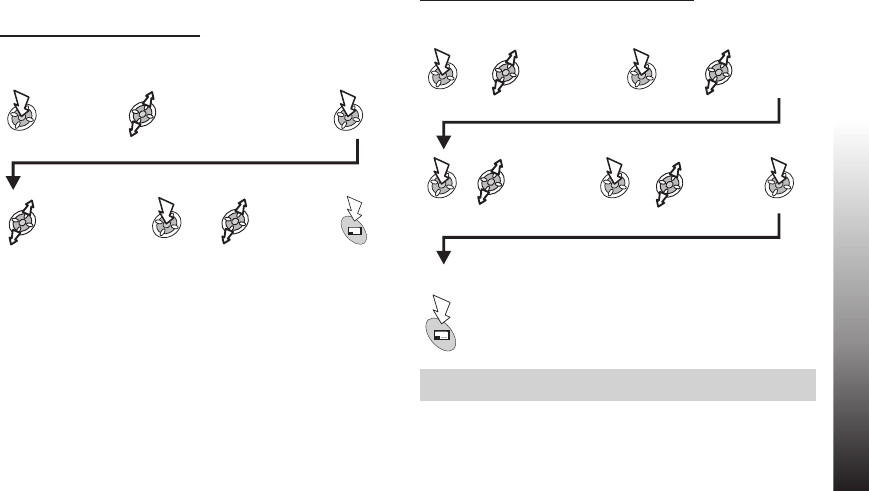
Melodies, Ringtones, Music and Images
Playing Melodies and Music
From Idle mode:
Edit Melodies, Ringtones and Images
From Idle mode:
If Edit Image is selected,
Note: You cannot edit polyphonic ringtones, music files and
files that cannot be forwarded or saved.
Data Folder
71
Data Folder
My Phone >
Data Folder >
Browse
Select folder
where the file is
located
Select file
My Phone >
Data Folder >
Browse
Select folder
where file is
located
Select file Edit
Melody
OR
Edit Image
and select
an option
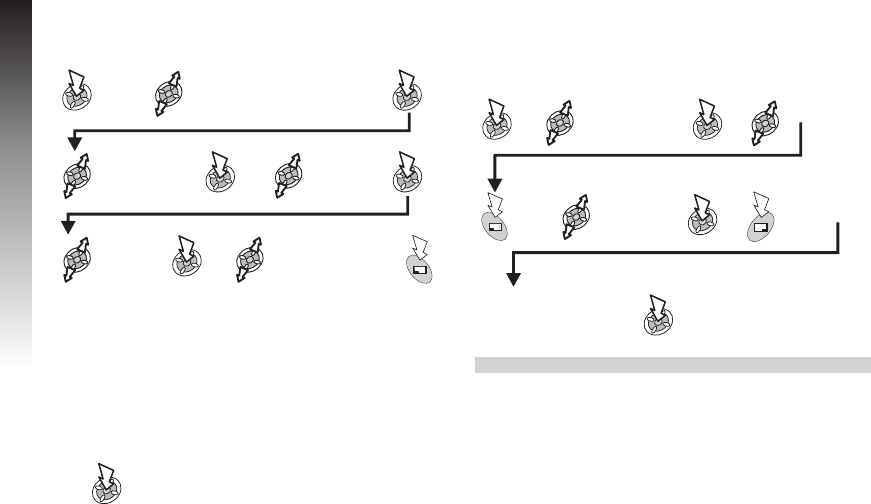
Copy & Paste and Move Files
From Idle mode:
ØYou cannot:
- copy a file that cannot be forwarded or saved;
- move or paste a file into a folder defined for a different file
type.
- move files in Phonebook.
ØYou can :
- move or paste a file into the folder it is copied from;
- to select Copy or Move while the file is displayed.
Customise Folders
You can customise and rename the folders User1 to User5.
From Idle mode:
Note: Do not use special characters in the new name.
72
Data Folder
Data Folder
My Phone >
Data Folder >
Browse
Select folder to
rename
Select
Rename
Type in new
name (max. 20
characters)
Delete
displayed name
My Phone >
Data Folder >
Browse
Select folder
where the file is Select file
Select
Copy or
Move
Select folder where
the file will be pasted
or moved to
x2
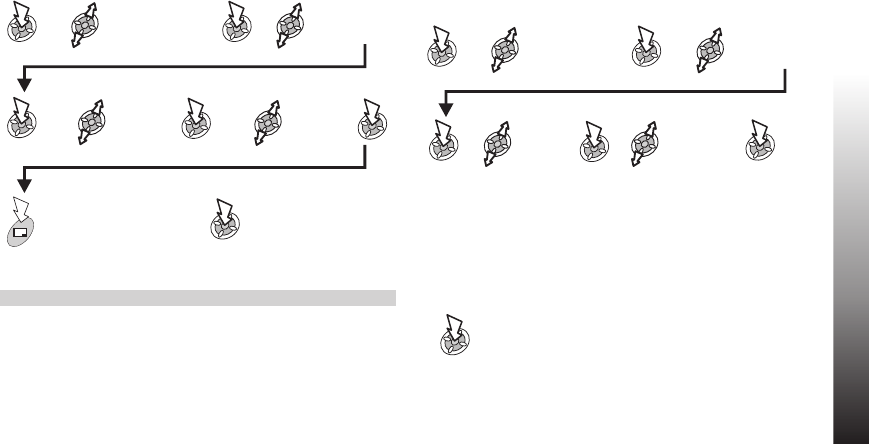
Rename Files
From Idle mode:
Note: Do not use special characters in the new name.
Jump to Create MMS Screen from Files
for MMS Attachment
From Idle mode:
The phone will display the ‘Create’ screen.
ØYou cannot:
Copy a file that cannot be forwarded or saved.
ØYou can:
To select MMS or e-mail while the file displayed.
To enable to send e-mail, set e-mail setting first.
Data Folder
73
Data Folder
My Phone >
Data Folder >
Browse
Select folder
where the file is
located
Select
MMS
Select
file
My Phone >
Data Folder >
Browse
Select folder
where the file is
Select
Rename
Type in new
name (max. 20
characters) x2
Delete
displayed
name
Select
file
x3
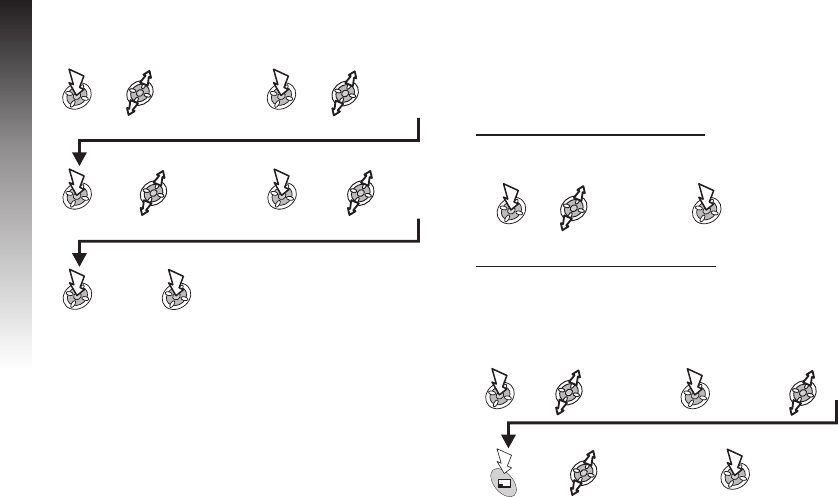
Delete Files
From Idle mode:
Transfer Files via Infrared
You can transfer images and sound files to another GD87 or
other devices with an infrared port. See ‘Infrared’ for details.
74
Data Folder
Data Folder
My Phone >
Data Folder >
Browse
Select folder
where the file
to be deleted is
Select
Delete
Select
file
Press again if Set Confirmation for
Delete? is displayed
x2
Display File Information
Display Number of Saved Files
From Idle mode:
Display Folder and File Property
Folder Property
You can see the name of the folder and the number of files
stored in the folder.
From Idle mode:
My Phone >
Data Folder >
Status
My Phone >
Data Folder >
Browse
Select
folder
Select
Property
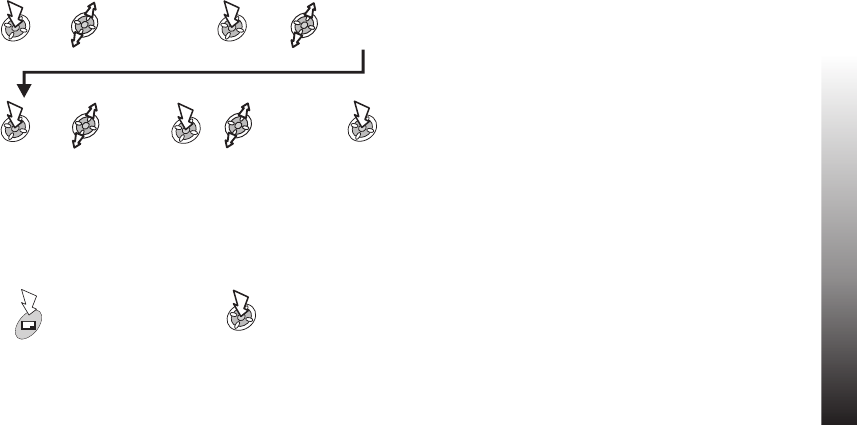
Data Folder
75
Data Folder
My Phone >
Data Folder >
Browse
Select
folder where
file is
Select
Property
Select
file
Press not to
delete file
Press to
delete file
OR
File Property
You can see the file name, date, file size, whether the file can
be forwarded and whether it can be saved.
From Idle mode:
If there is not enough memory capacity in the folder when you
try to save a file, the phone will display:
Folder is Full. Delete Data? Either:
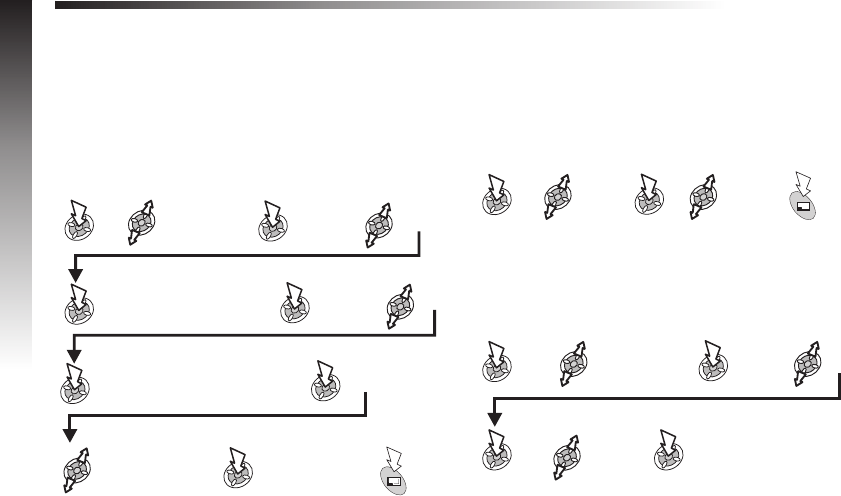
Schedule
The Schedule can be used to register reminders for personal events as well as planning holiday periods.
Caution: Ensure that any settings made in the Schedule will not contravene any regulations whereby the phone may automatically
power on when in an aircraft or medical facility etc. - see ‘Important Information’.
Creating a Reminder
From Idle mode:
Viewing Reminders
When in the Schedule menu:
Deleting a Reminder
From Idle mode:
76
Schedule
Schedule x2 Create
x2 x2
Enter start date, Press:
Repeat for end date
Select
Time
Select between
Repeat type, Memo
and Ring Type
Modify and select
each option as
required
View
Select the
required
reminder
Schedule Delete
x2
Enter start time, Press:
Repeat for end time
x2
x2
Select
Day, Past,
or All
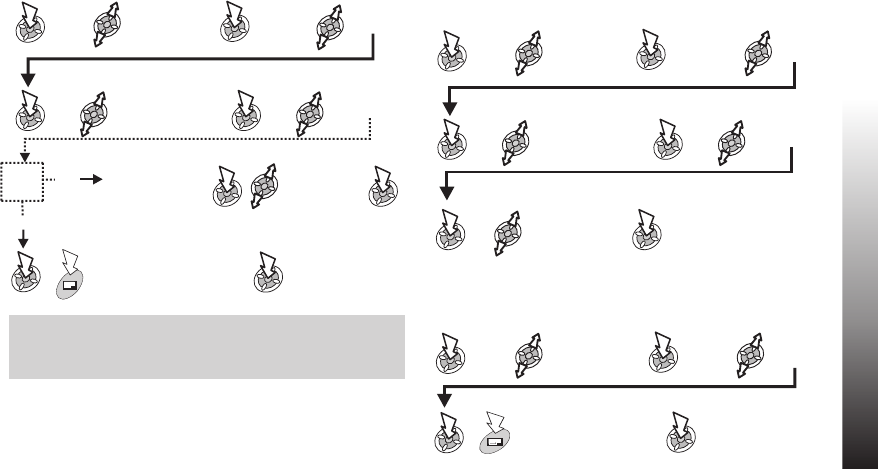
Setting a Holiday Reminder
Note: Repeat for each day of holiday as required.
To indicate that holiday reminder has been set, the date(s) will
be emboldened Red.
Deleting Holiday Reminders
From Idle mode:
Jump to Date
From Idle mode:
Schedule
77
Schedule
Schedule Options
Holiday Set
Select Day or
Day of the
Week
Schedule Options
Holiday Set Holiday List
Select
required
Holiday date x2
Schedule Jump
Press and hold to
remove current date and
then enter a new date x2
x2
Press and hold to
remove current
date then enter a
new date
x2
x2
x2
Day
Yes
No Select
Day of the Week
Select the day
of the week
required
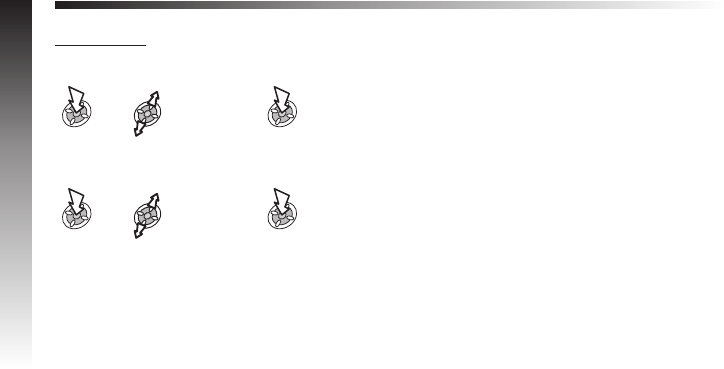
Games
Games (R)
From Idle mode:
OR
Follow the on-screen instructions to play the game.
Tetris®; © Elorg 1987.
Tetris Logo by Roger Dean; © The Tetris Company 1997
All Rights Reserved
78
Games
Applications >
Games
Games
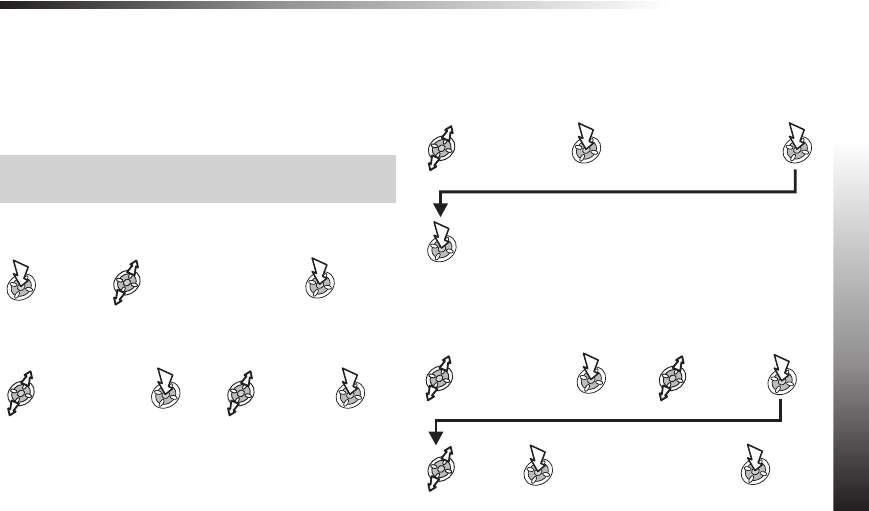
WAP Browser
The WAP (Wireless Application Protocol) Browser allows access to the Internet services supported by the network, such as news,
weather reports and sport.
Server Profile Settings
Before accessing the Internet, the SIM must be data enabled
and the configuration information must be entered.
Note: This configuration information may have been
pre-programmed by your service provider. Modifying these
settings may cause failure of the Browser.
From Idle mode:
Five servers may be manually set up on the phone.
The Profile Name, Home URL, Linger Time, Gateway IP,
Security and Bearer Type are all set using the same method.
When Bearer Type is the selected option:
WAP Browser
79
WAP Browser
Browser >
Server List
Select required
server Edit
Select required
option
Enter the options details,
see ‘Text Entry’ or select
the required setting
OK
Repeat this process until all
required options are set
Circuit Switch
or GPRS Edit
Select
an item Enter the options details,
see ‘Text Entry’ or select
the required setting x2
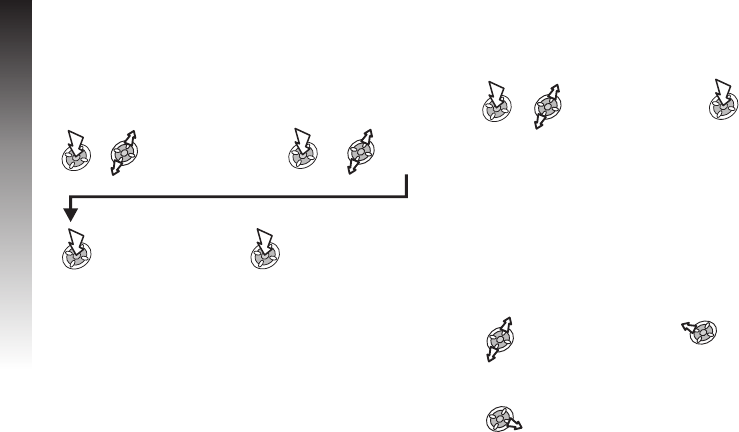
Browser Setting
Browser setting allows customisation of the browser interface
for items such as colour and font size.
From Idle mode:
Activating the Browser
From Idle mode:
The first time that the browser is activated, the Home URL
content displays (as defined by your service provider). The
Home URL is recalled from the cache each time the browser is
activated. (Cache is the phone’s memory that stores previously
downloaded content).
When recalling content from cache the phone remains off-line
(not connected to a WAP server).
Navigating Content
80
WAP Browser
WAP Browser
Browser >
Browser Setting
Select
required
option
Repeat this process until
all required options are set
Broswer >
Home Page
Scroll up/down
Return to previous
page
Return to next page
(only if a return to previous page has been performed)
Enter the options
details, see “Text
Entry” or select the
required setting

Navigating Content(Continued)
When linked text (underlined text) is highlighted:
~Indicates on-line browsing (Non Secure)
'Indicates on-line browsing (Secure)
The Browser Menu
The Browser contains its own menu which is applicable when
content is currently being displayed (either on-line or off-line).
When Menu is displayed at the bottom left of the display
ØHome Page: Displays the Home URL content as defined by
the network operator.
ØBookmarks: Use, add, delete and rename bookmarks.
ØCurrent URL: Displays URL details of current WAP page.
ØEnter URL: Type in a URL directly to go to a known site.
ØPage Memo: Saves the contents displayed on the current
screen.
ØSave Image: Saves the image displayed on the current
screen.
ØReload: Will reload and update the current page.
ØBrowser Image: Enables/disables an image on the page.
ØClear Cache: Deletes the content in cache and displays
the Home URL content.
ØExit: Deactivates the Browser.
WAP Browser
81
WAP Browser
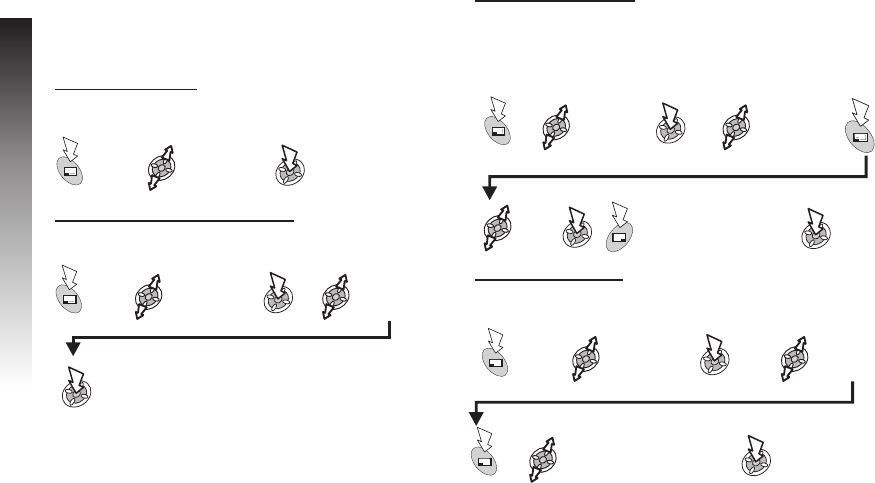
Using Bookmarks
To prevent the need to re-enter the URL each time, frequently
accessed pages may be bookmarked.
Adding a Bookmark
While viewing content:
Recalling pages using Bookmarks
While viewing content:
Renaming a Bookmark
While viewing content:
Deleting Bookmarks
While viewing content:
82
WAP Browser
WAP Browser
Bookmarks x2
Bookmarks
Select
required
Bookmark
Bookmarks
Select
required
Bookmark
Press and hold
to remove the
name x2
Enter the
new name
Bookmarks
Select
required
Bookmark
Select Delete This,Delete
Any or Delete All x2
Edit
Title

Deactivating the Browser
When browsing on-line:
When browsing off-line:
Last Status
If an error should occur when using the Browser, use this
function to inform the network operator of the last status which
occurred with the phone to assist with a diagnosis of the
problem.
WAP Browser
83
WAP Browser
To review cache off line
To return to Idle mode
Browser >
Last Status
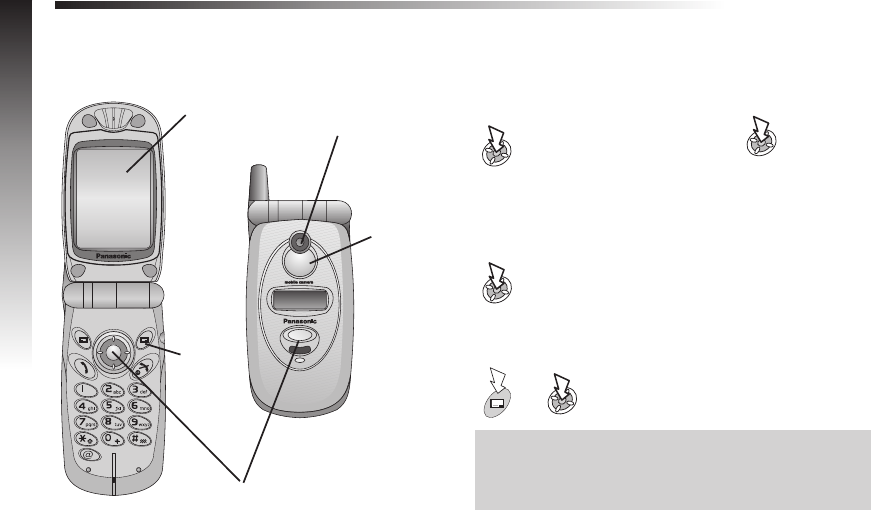
Camera Operation
You can take pictures with the built-in camera, send them in a multimedia (MMS) message or use them as Wallpaper.
Camera Controls Taking a Picture
From Idle mode:
The captured image is shown on the Preview Screen.
To store the image in the Data Folder:
To return to camera operation without storing the image:
Note: If the phone does not detect any operation for three
minutes while in Camera Operation, it will return to Idle mode.
If a captured image is showing on the preview screen, it is
temporarily saved. If you turn off power while the image is
saved temporarily, the image will be deleted.
84
Camera Operation
Shutter key
Camera Lens
Self Portrait
Mirror
Preview
Screen
Switch to
camera
mode
View the required subject on
the Preview Screen
x2
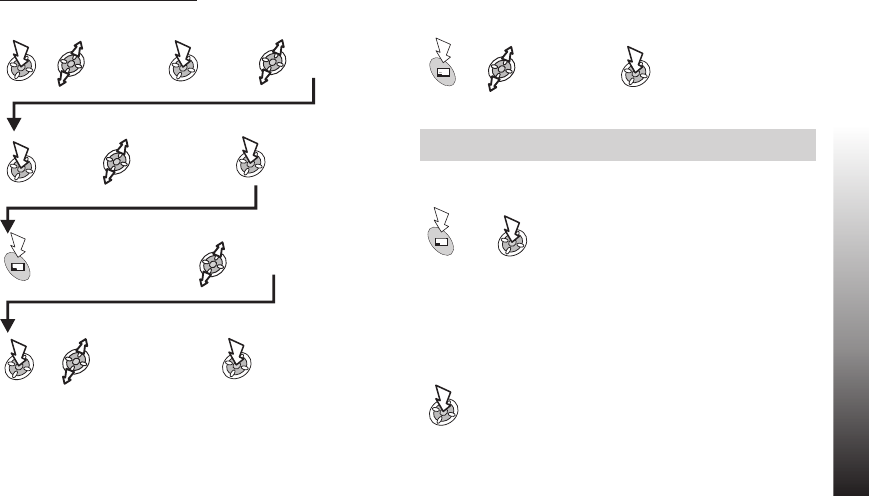
Sending a picture by MMS
From Idle mode:
Add the subject and message, if required. (See MMS: Creating
a New Message.)
Note: If Save is selected, the message is stored in the Outbox
> Draft Folder, to be sent or edited later.
To Send a saved message from the draft folder:
Saving a Picture
Once a picture has been taken the picture will be saved to the
Picture Folder. To use a saved picture as your personal
wallpaper, see ‘Changing the Wallpaper’.
Camera Operation
85
Camera Operation
Messages
Select
Recipient’s
Name
Select Recall x3
Press the Phonebook key
to select an entry from the
Phonebook list
Select Picture
Select Send
or Save
x5
x2 Select To:
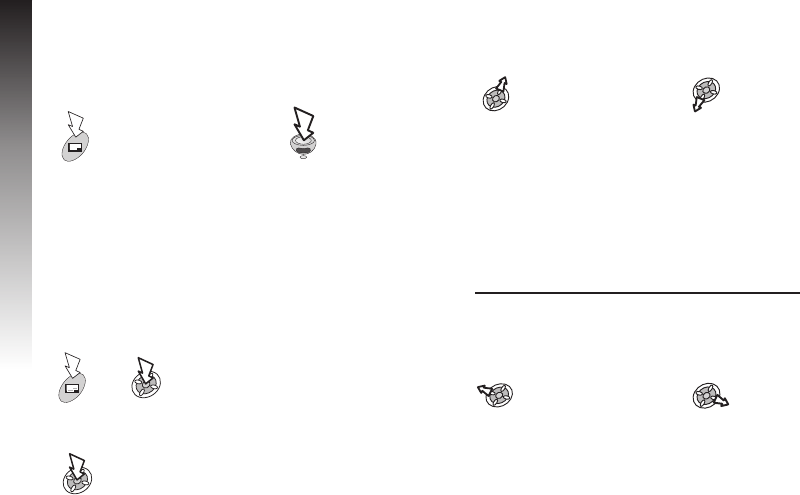
Self Portrait
The shutter button located on the top part of the clam shell can
be used to capture an image, for example, self portrait.
From Idle mode:
Incoming Calls during Camera Operation
If an incoming call is received during Camera Operation, the
phone will exit Camera Operation and switch to the incoming
call. If a captured image is showing on the preview screen, it is
temporarily saved.
On re-entering Camera Operation:
To Store the image in the Data Folder:
To return to camera operation without storing the image:
Zoom operation
The x2 zoom can be used whilst viewing in the Preview Screen:
Brightness adjustment
The Brightness of an image can be set both before and after
taking the picture. Brightness can be increased or decreased by
2 steps either way.
To change Brightness while taking a picture
Whilst viewing in the Preview Screen:
86
Camera Operation
Camera Operation
Close the phone,
view the scene in the
Self Portrait Mirror
To engage x2 Zoom To return to Normal
To decrease the
Brightness
To increase the
Brightness
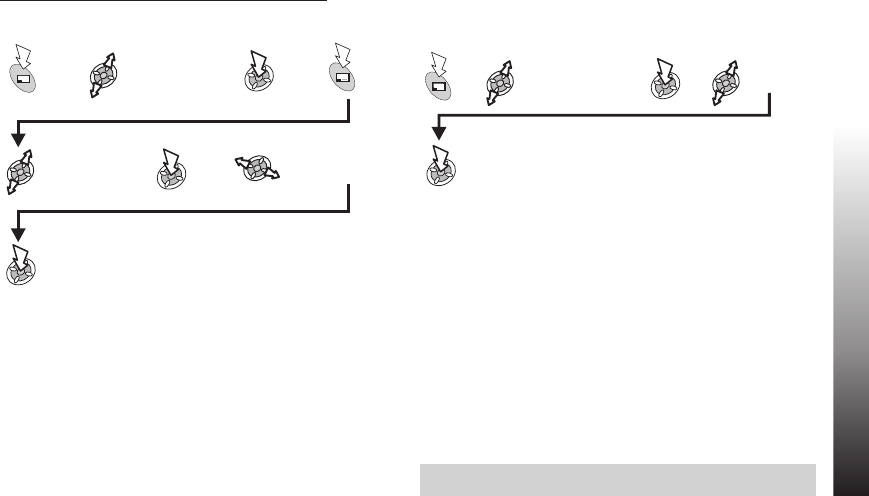
To change Brightness after taking a picture
Whilst viewing the captured image:
Preview Screen Menu
It is possible to select from various extra settings or functions.
Twilight Mode, Close Up Mode, Effect, Frame, Self Timer and
Image Format are all set using the same method.
When the required subject is shown on the Preview Screen:
ØTwilight Mode: Improves picture taking in low light
conditions.
ØClose Up Mode: For close up work (Macro mode).
ØEffect: Choose from Sepia, Monochrome or
Negative/Positive effects.
ØFrame: Place a border around the image.
ØSelf Timer: Delaying the taking of an image.
ØImage Format: Select from JPG Fine, JPG Normal, JPG
Economy or PNG.
ØData Folder: A shortcut to the Data Folder, see ‘Data
Folders’.
ØMMS (e-mail): A shortcut to MMS and/or e-mail.
Note: In a dark place, Close up Mode and display brightness
may not work.
Camera Operation
87
Camera Operation
Edit Image
Brightness Adjust Brightness
x4
Select required
option
Select
required option
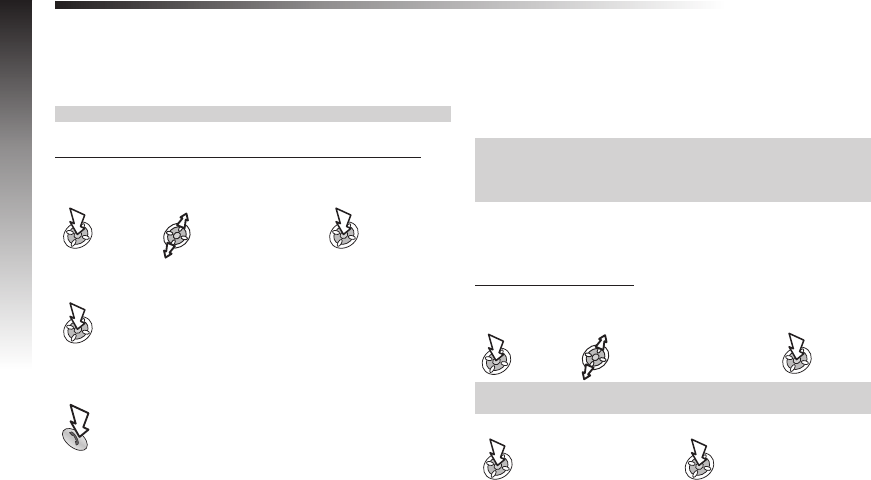
Additional Features
Desktop Handsfree
Desktop Handsfree allows you to hold a conversation without
holding the phone to your ear.
Note: Do NOT hold the phone to your ear in Handsfree mode.
Swapping Between Handsfree and Handheld Calls
During a Handheld call:
During a Handsfree call:
To answer a call Handsfree:
Voice Memo (Dictaphone)
The Voice Memo feature allows you to record a two-way
conversation during a call, and to use the phone as a
Dictaphone. You can record up to 4 voice memos. The
maximum length of each is 14 seconds.
Note: If a different SIM is installed any voice memos will be
lost.
When all four memo storage areas are occupied, a new
recording overwrites the oldest memo.
Caution: Security of a recorded message is your responsibility.
You should ask for the other party’s consent before recording.
Record a Voice Memo
From Idle mode:
Note: During a call, press Memo key. A tone will sound when
recording starts and again when it stops.
88
Additional Features
Select H’free
x2to revert to Handheld operation
Press and hold
Applications >
Voice Memo >
Record
Press to stop recording a
memo
Press again to start
recording next memo
OR
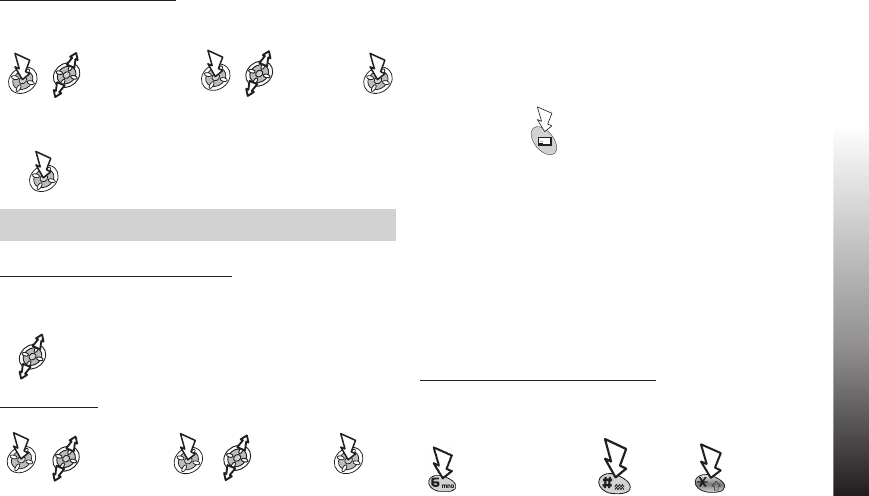
Play Back a Voice Memo
From Idle mode:
To stop playing:
Note: The Note Pad is available during playback - see ‘Note
Pad’
Volume Control during Playback
While playing back:
Delete Memo
Note Pad
During a call, numbers can be entered which you may wish to
dial when the call has ended.
During a call:
DTMF Tones
DTMF tones can be sent during conversation. These are often
used to access voice mail, paging and computerised home
banking. For example, you may need to input a number to
remotely access voice mail messages. A phone number may be
stored in the Phonebook with DTMF tones, allowing the number
to be dialled upon recall and the DTMF number to be sent
automatically.
Send DTMF Tones During a Call
Enter digits:
Additional Features
89
Additional Features
Applications >
Voice Memo >
Playback
Adjust volume
x2
Applications >
Voice Memo >
Delete
Use digits0-9plus
Enter
required
phone
number
Press while number
displayed to store in
Phonebook
x2
and
Select desired
voice memo
Select
desired
voice memo
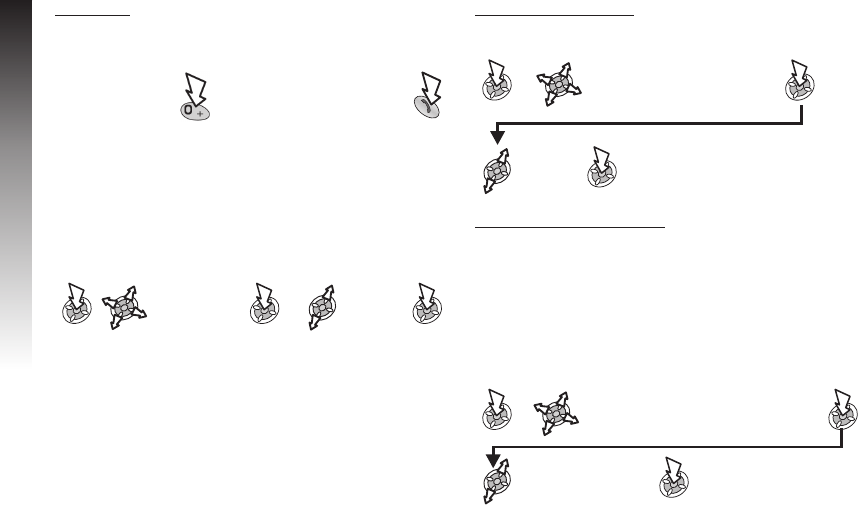
Pause Dial
Using pauses allows you to send DTMF tones automatically.
When the call is successful DTMF tones will be sent after 3
seconds.
If the DTMF tones are unsuccessful then the destination of your
call may require that the length of the tones be increased, as
follows:
From Idle mode:
Second Clock
The Second Clock can either be set to be auto-adjusting,
whereby the second time is set from the code of the current
network, or a specified time difference can be set manually.
Setting Clock Display
From Idle mode:
Setting Auto Adjustment
When travelling to a country / region which has a roaming
agreement with your home network, the Second Clock is
adjusted automatically. However, for countries / regions which
have several time zones in the same area manual adjustment is
required.
From Idle mode:
90
Additional Features
Additional Features
Enter phone
number
Enter DTMF
numbers
My Phone >
DTMF Length
Select
Long
Applications >
Clock Function >
Clock Format >
Choose Clock
Select
option
Applications > Clock Function >
Clock Set > Away >Auto Adjustment >
Home Area
Select your
home area
Press and
hold until Pis
displayed
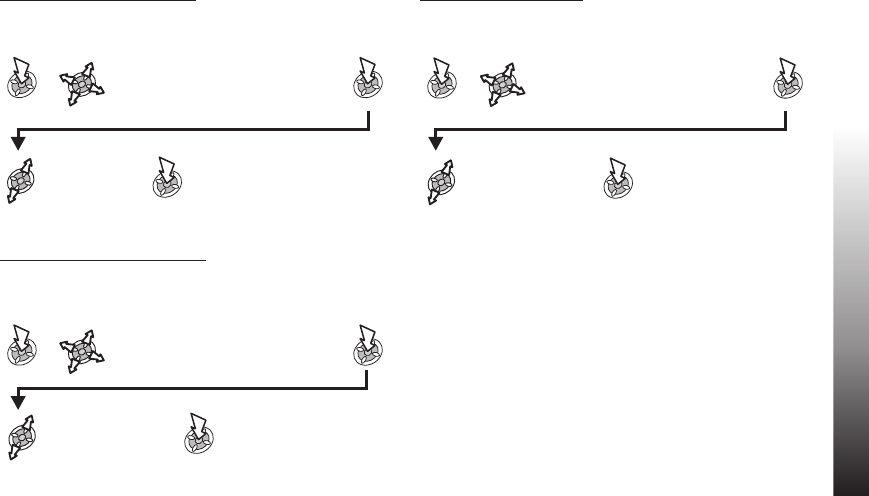
Enabling Auto Adjustment
From Idle mode:
Repeat to disable Auto Adjustment.
Setting Manual Adjustment
From Idle mode:
Setting Summer Time
From Idle mode:
Once enabled, following the same procedure will disable
Summer Time.
Accessory Related Features
When Auto Answer is switched on, and Personal Handsfree is
connected, a call will be answered without pressing any keys.
Any call waiting should be answered in the normal way.
This is also applicable to the Handsfree Car Kit accessory.
See the documentation provided with the relevant Accessory for
operation details.
Additional Features
91
Additional Features
Applications > Clock Function >
Clock Set > Away >
Auto Adjustment >
Auto Adjustment
Select time
difference
Applications > Clock Function >
Clock Set > Away > Time Difference
Applications > Clock Function >
Clock Set > Away > Summer Time
Select Enable
or Disable
Select On or Off

Text Entry
You can use alphanumeric characters to enter details into the Phonebook, to create text, e-mail messages, etc.
Text Mode
Key T9®Normal (ABC) Greek (ÁÂÃ) Extended (AÄÅ) Numeric (0 - 9)
0Alternatives +_ +_ +_ 0+P_
1Punctuation .@/:;*#+-”,!¡?¿_()[]{}’&%\^~|<>=_£$¥¤§ 1
2abc ABCabc ABÃ AÄÅÆBCÇaäåæàbc 2
3def DEFdef ÄÅÆ DEÉFdeéèf 3
4ghi GHIghi ÇÈÉ GHIghiì 4
5jkl JKLjkl ÊËÌ JKLjkl 5
6mno MNOmno ÍÎÏ MNÑOÖØmnñoöøò 6
7pqrs PQRSpqrs ÐÑÓ PQRSpqrsß 7
8tuv TUVtuv ÔÕÖ TUÜVtuüùv 8
9wxyz WXYZwxyz ×ØÙ WXYZwxyz 9
*Shift/Lock Shift/Lock Shift/Lock @
#Space Space Space Space #
ØPress the asterisk key to scroll between initial capital letter, all capital letters and lower case letters.
92
Text Entry
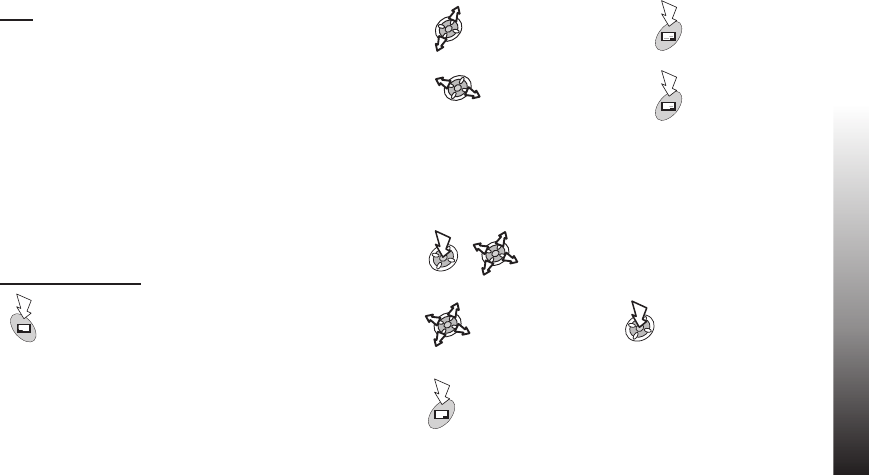
Text Input
T9®
Using this mode of text entry dramatically reduces the number
of key presses required:
Press a key once for any letter you require on that key. The
desired letter may not be displayed. Continue pressing other
keys until the end of a word is reached; then check that the
word has been typed correctly before continuing on to the next
word. If the combination of letters typed has produced a word
which is not the one you require, press 0or up or down
repeatedly until the correct word is displayed. Continue to the
next word.
If the word you require is not in the internal dictionary then it
should be entered using the Normal ( ABC ) mode.
Other Text Modes
Select text mode (displayed in
Information Area on screen)
Normal ( U), Greek ( V) or Extended ( W) modes:
each time a key is pressed in quick succession it displays the
next character available on that key. Releasing the key or
pressing another key enters the character displayed. The cursor
moves to the next position.
Editing Text
Move up / down one text
line
Delete character to
left of the cursor
Move left / right one
character
Press and hold to
delete the current
line
When the cursor is moved over a character and another key
pressed this will insert the new character immediately before
the selected character.
You could enter text using the character menu:
Text Entry
93
Text Entry
Select Char.List
Press to select
character
To highlight a
character
To return to
message
screen

Troubleshooting
Should any problem persist contact your dealer.
Problem Cause Remedy
Phone will not switch on Check that the battery is fully charged and correctly
connected to the phone
Extremely short battery life for a
new battery
The network you are using and the
condition of the battery can affect
battery life
Short battery life for an old battery The battery has worn out Replace with a new fully charged battery
The charging indicator does not
light, the plug icon does not appear
and the phone cannot be switched
on when charging
The battery is not attached to the
phone or when the battery has
been deeply discharged the phone
will take a short time until the
indicator lights
Leave the phone charging the battery for a few
minutes before the indicator is lit and attempting to
switch it on
Battery fails to charge
The battery is not attached to the
phone Ensure the battery is fitted to the phone prior to
commencing charging.
94
Troubleshooting
Calls cannot be made
The phone is locked Unlock the phone
Outgoing calls are barred Disable the outgoing call barring, or barred dial
The phone is not registered to a
network
Move to a coverage area and operate your phone
after it has registered with a network.
Calls cannot be made from Fixed
Dial Store
Check your SIM supports Fixed Dial
Check if the Fixed Dial is switched on
Check the phone number is stored in the Fixed Dial
Calls cannot be received
The phone is not switched on Switch the phone on
Incoming calls are barred Disable the incoming call barring
The phone is not registered to a
network
Move to a coverage area and operate your phone
after it has registered with a network.
Emergency calls cannot be made You are not in a GSM coverage
area
Check that the antenna symbol Sis displayed - move
to a coverage area and operate your phone when the
antenna symbol is displayed
Phone numbers cannot be recalled
from Phonebook
The phone is locked Unlock the phone
Phone number has been restricted Switch off restriction
Troubleshooting
95
Troubleshooting

Important Error Messages
These are some of the most important error messages which may be displayed:
Area Not Allowed Roaming in the selected area is not allowed
Network Not Allowed Roaming with the selected network is not allowed
Security Failure The network has detected an authentication failure because your SIM is not registered with that
network - contact your service provider
SIM Blocked / Contact Service
provider
The SIM is blocked because one of the PIN/PIN2 unblocking keys (PUK/PUK2) has been
entered incorrectly ten times - contact your service provider
SIM Error The phone has detected a problem with the SIM - switch the phone off and then back on; if the
message is still displayed contact your service provider
SIM Invalid The SIM has failed one or more of the SIM personalisation checks - contact your service
provider
Function Unavailable The selected feature is either not supported by the SIM or is not available with the current
subscription - contact your service provider
PIN2 Invalidated The PIN2 is blocked permanently because the wrong PUK2 has been entered ten times,
services controlled by PIN2 cannot be used - contact your service provider
Message Rejected Store Full A message has been received but the message store is full - to receive messages, delete some
of the currently stored messages or set messages to Auto Delete
Phone Number Too Long
(Max:20) The edited or newly created Phonebook number is too long for the SIM
96
Troubleshooting
Troubleshooting
Warning Store Full Continue? The message area is full. Your messages cannot be stored until some of the currently stored
messages are deleted
Verification Failure On changing the phone lock code, verification of the new code is incorrect - retry changing the
lock code with correct verification
Incorrect Lock Code Disabling or enabling the lock code has failed due to incorrect entry of the lock code - re-enter
lock code
Incorrect PIN / PIN2 / PUK /
PUK2 The entered code is incorrect - re-enter code correctly
Auto Redial List Full Redial list of unsuccessfully dialled numbers is full - switch the phone off and then on again
Troubleshooting
97
Troubleshooting

Glossary of Terms
APN Access Point Name. Directs the user to the gateway or the required service.
Cut Permanently removes selected text from short text message
Copy Copies selected text from short text message without removing it from the original message
CHAP Challenge Handshake Authentication Protocol. A security feature for the GPRS network.
DTMF Tones Dual Tone Multi-Frequency tones allow you to communicate with computerised phone systems, voice
mailboxes etc.
GPRS General Packet Radio Service. The Technology the phone uses.
GSM Global System for Mobile Communications. The name given to the advanced digital technology that your phone
uses.
Network
Operator The organization responsible for operating a GSM network.
PAP Password Authentication Protocol. A security feature for the GPRS network.
Password Used for the control of the Call Bar. Supplied by your service provider.
98
Glossary of Terms
PIN Personal Identification Number used for SIM security. Supplied by your service provider. If the PIN is entered
incorrectly 3 times, the PIN will be blocked.
PIN2 Personal Identification Number used for the control of Fixed Dial Store and Call Charge metering. Supplied by
your service provider. If the PIN2 is entered incorrectly 3 times, the PIN2 will be blocked.
PUK/PUK2 PIN/PIN2 Unblocking Key. Used to unblock the PIN/PIN2. Supplied by your service provider. If the
PUK/PUK2 is entered incorrectly 10 times, the PUK/PUK2 will be blocked.
Registration The act of locking on to a GSM network. This is usually performed automatically by your phone.
Roaming The ability to use your phone on networks other than your Home network.
Service
Provider The organization responsible for providing access to the GSM network.
SIM Subscriber Identity Module. A small smart-card which stores unique subscriber and user-entered information
such as Phonebook and Short Messages. Supplied by your service provider.
WAP Wireless Application Protocol. The communication standard which enables you to download resources from
the Internet to your phone
Glossary of Terms
99
Glossary of Terms

Specifications
Bands supported: .......GSM900 Class 4
GSM1800 Class 1
GSM1900
Standby Time (hrs): ......75-220
Talk Time (hrs): ........1.6-7
Temperature Range
Charging: ...........+5ºC - +35ºC
Storage: ............-20ºC - +60ºC
Weight: ............103g (including battery)
Dimensions:
Height: .............97.5mm
Width: .............49mm
Depth: .............23mm
Supply Voltage: ........3.7V DC, 720 mAh Li-ion
Antenna: ............Fixed
Charge Time (phone off): . . . Up to 90 Min
SIM Type: ...........3Vonly
Note: Charging time will be longer when the phone is turned on.
Battery life is affected by the network being used and the
condition of the battery. Talk and standby time will be
dependent upon network conditions, SIM, data usage and
battery condition.
Phonebook Memory: .....200+SIM
Animation Themes: ......1
Voice Memo & Dictaphone: . . 4 x 14 seconds
User Composed Melody: . . . 1
Games: ............2
Backlight colours: .......1(White)
Ringtones: ...........15Fixed
Scheduler: ...........Upto100Entries
Alarms: ............4
Graphics Formats Supported: . GIF87a, GIF89, JPEG,
................WBMP, BMP, PNG
Maximum Graphics Size: . . . 50kB
Graphics Storage Capacity: . . 1Mb
100
Specifications

EU Warranty
EU/EEA - Wide guarantee is applicable in the EU/EEA and Switzerland.
Panasonic GSM European Service Guarantee Conditions
Dear Customer,
Thank you for buying this Panasonic digital cellular telephone. The Panasonic GSM European Service Guarantee only applies while traveling in countries
other than where the product was purchased. Your local guarantee is applicable in all other cases. If your Panasonic GSM telephone requires service
while abroad, please contact the local service company shown on this document.
The Guarantee
The applicable period of the European wide guarantee for GSM is generally 12 months for the main body and 3 months for the rechargeable battery. With
respect to a product used in a country other than a country of purchase, notwithstanding what is stated in the conditions below, the customer will benefit,
in that country of use, from these guarantee periods of, respectively, 12 and 3 months, if these conditions are more favorable to him than the local
guarantee conditions applicable in such country of use.
Conditions of Guarantee
When requesting guarantee service the purchaser should present the warranty card together with proof of purchase, to an authorised service centre.
The guarantee covers breakdowns due to manufacturing or design faults; it does not apply to other events such as accidental damage, however caused,
wear and tear, negligence, adjustment, modification or repair not authorised by us.
Your sole and exclusive remedy under this guarantee against us is the repair, or at our option the replacement, of the product, or any defective part or
parts. No other remedy, including, but not limited to, incidental or consequential damage or loss of whatsoever nature shall be available to the purchaser.
This is in addition to and does not in any way affect any statutory or other rights of consumer purchasers. This guarantee applies in countries shown on
this document at the authorised service centres detailed for that country.
UK
Service Centres in England
Tel. +44 8705 159159
IRL
Service Centres in Ireland
Tel: +353 1 2898333
D
Panasonic Service Center Dresden
SERKO GmbH
Großenhainer Straße 163
01129 Dresden
Tel. +49 (0)351/ 85 88 477
Panasonic Service Center Cottbus
Petsch Kundendienst GmbH
Am Seegraben 21
03058 Gross-Gaglow
Tel. +49 (0)355/ 58 36 36
Panasonic Service Center Leipzig
KES Keilitz-Electronic-Service GmbH
Föpplstraße 19
04347 Leipzig
Tel. +49 (0)341/ 244 33 33
Panasonic Service Center ChemnitF
WPS Rundfunk- u. Fernsehservice GmbH
Fietenstraße 16
09130 ChemnitF
Tel. +49 (0)371/ 40 10 359
Panasonic Service Center Berlin
SERKO GmbH
Schwedter Straße 34a
10435 Berlin
Tel. +49 (0)30/ 44 30 322
EU Warranty
101
EU Warranty

Panasonic Service Center Berlin
RUESS SYSTEMS
Thrasoltstraße 11
10585 Berlin
Tel. +49 (0)30/ 342 2013
Panasonic Service Center Rostock
warnow electronic service gmbh
An der Jägerbäk 2
18069 Rostock
Tel. +49 (0)381/ 82 016
Panasonic Service Center Hamburg
ELVICE Service GmbH
Spaldingstraße 74
20097 Hamburg
Tel. +49 (0)40/ 23 08 07
Panasonic Service Center Rendsburg
FERNSEH-DIENST B&W Service GmbH
Kieler Straße 41
24678 Rendsburg
Tel. +49 (0)4331/ 14 11-0
Panasonic Service Center Bremen
COM Elektronik Service GmbH
Rübekamp 50
28219 Bremen
Tel. +49 (0)421/ 691 80 69
Panasonic Service Center Hannover
COM Elektronik Service GmbH
Vahrenwalder Straße 311
30179 Hannover
Tel. +49 (0)511/ 37 27 91
Panasonic Service Center Magdeburg
SERKO GmbH
Ebendorfer Chaussee 47
39128 Magdeburg
Tel. +49 (0)391/ 289 90 69
Panasonic Service Center Düsseldorf
VTH GmbH
Kölner Straße 147
40227 Düsseldorf
Tel. +49 (0)211/ 77 90 25
Panasonic Service Center Essen
Bernd van Bevern GmbH
Heinrich-Held-Straße 16
45133 Essen
Tel. +49 (0)201/ 84 20 220
Panasonic Service Center Osnabrück
Petsch Kundendienst GmbH
Pagenstecherstraße 75
49090 Osnabrück
Tel. +49 (0) 541/ 68 038
Panasonic Service Center Wiesbaden
J. Hemmerling - VAD GmbH
Ostring 7
65205 Wiesbaden
Tel. +49 (0)6122/ 90 91 10
Panasonic Service Center Mannheim
N. Schaaf
Reichenbachstraße 21-23
68309 Mannheim
Tel. +49 (0)621/ 72 787-0
Panasonic Service Center Stuttgart
Hans Beck
Friedrich-List-Straße 38
70771 Leinfelden-Echterdingen
Tel. +49 (0) 711/ 94 701-0
Panasonic Service Center Reutlingen
Herbert Geissler
Lichtensteinstraße 75
72770 Reutlingen
Tel. +49 (0)7072 / 92 96-0
Panasonic Service Center München
G.Berghofer & W.Kaller GmbH
Helene-Wessel-Bogen 7
80939 München
Tel. +49 (0)89/ 318 907-0
Panasonic Service Center Augsburg
Klaus Bienek
Affinger Straße 4
86167 Augsburg
Tel. +49 (0)821/ 70 70 75
Panasonic Service Center Nürnberg
Herbert Geissler GmbH
Friedrich-Ebert-Straße 21
90537 Feucht
Tel. +49 (0)9128/ 70 67-0
Panasonic Service Center Eisenach
Blitz Electro-Electronic-GmbH
Bahnhofstraße 17
99817 Eisenach
Tel. +49 (0)3691/ 29 29 42 8
A
Panasonic Service Center in Österreich
Frisch
Lokahlbahnweg 12
4060 Leonding
Tel. +43 732 676961
FR
CETELEC
FI de la Delorme
5 Avenue Paul héroult
13015 MARSEILLE
Tél.:0496157777
Tél.:0491580755
102
EU Warranty
EU Warranty

CORDON Electronique
BP 460
FI Taden
22107 DINAN CEDEX
Tél. : 02.96.85.82.20
Fax : 02.96.85.82.21
EASY REPAIR
26 rue des Cosmonautes
31400 Toulouse
Tél. : 05.62.71.48.14
Fax : 05.62.71.48.15
EASY REPAIR
22 boulevard des Brotteaux
69006 Lyon
Tél. : 04.72.83.02.02
Fax : 04.78.52.40.38
ELECTRONIQUE SERVICE
Avenue Figuières
FAC Font de la Banquière
34970 LATTES
Tél. : 04.67.15.96.30
Fax : 04.67.20.04.72
GENERAL ELECTRONIQUE
16 rue Joseph Cugnot
F.I. Bracheux
60000 BEAUVAIS
Tél. : 03.44.89.79.00
Fax : 03.44.05.16.96
Négoce Technique etMaintenance
40 boulevard Bessières
75017 PARIS
Tél. : 01.44.85.21.66
Fax : 01.42.29.60.05
S.B.E.
F.I. de la Liane
BP 9
62360 SAINT LEONARD
Tél. : 03.21.10.10.21
Fax : 03.21.80.20.10
NL
Service-centra in Nederlands
Panasonic-Centre Nederland
(Servicom bv)
P.O Box 16280
2500 BG
Den-Haag
Nederland
Tel. +31 703314314
Fonweg 60
2516 BM
Den-Haag
Nederland
Tel. +31 703314314
I
Per I Centri Assisitenza in Italia
Servizio Clienti
Tel. +39 02/ 67072556
E
Panasonic España, S.A.
Servicio de Atención a Usuarios:
Tel: 902 15 30 60
DK
For nærmeste servicecenter ring Panasonic
Danmark
Tel. +45 43 20 08 50
S
Firmor I Sverige
Komrep
Rosenlundsgatan 4
411 20 Göteborg
Tel. +46 031-173354
Signalstyrkan
Kungsholmstorg 4
104 22 Stockholm
Tel. +46 08-6542500
CR service
Industribyn 3
232 37 Malmö
Tel. +46 040-430030
SF
Huoltokeskukset Suomessa:
KAUKOMARKKINAT OY
PANASONIC-HUOLLOT Kutojantie 4
02630 Espoo
Puh. +358 09 521 5151 Huolto
Puh. +358 09 521 5155 Varaosat Ja Tarvikkeet
SETELE OY
Vanha Viertotie 7
00300 Helsinki
Puh. +358 09 549100
PLAY-SHOP SERVICE Keskuskatu 3
00100 Helsinki
Puh. +358 09 27053626
MEGAFIX KY
Louhenkatu 9
74100 Iisalmi
Puh. +358 017 14631
T: MI.M.HAAPOJA
Miilukatu 7
40320 Jyväskylä
Puh. +358 014 677121
OUTOKUMMUN PUHELIN Pohjoisahonkatu 9
83500 Outokumpu
Puh. +358 013 562211
EU Warranty
103
EU Warranty

SETELE OY
Rengastie 31
60100 Seinäjoki
Puh. +358 06 4148344
TURUN J-MARKKINAT OY Tuureporinkatu 6
20100 Turku
Puh. + 358 02 2332685
N
Servicesenter I Norge
Norsk Elektronikksenter
Fetveien 1
2007 Kjeller
Tlf: +47 63 80 45 00
Panasonic Norge AS
Østre Aker vei 22
0508 Oslo
Tlf: +47 22 91 68 00
GR
ÊÝíôñá ôå÷íéêÞò õðïóôÞñéîçò
INTERTECH S.A.
International Technologies
Áöñïäßôçò 26, 167 77 Åëëçíéêü
Tá÷. Èõñ.: 738 21, 167 10 ÅËËÇÍÉÊÏ
Ôçë. ÊÝíôñï: (01) 9692.300
ÕðïêáôÜóôçìá Âüñåéáò ÅëëÜäáò:
Ê. ÊáñáìáíëÞ 11, 54638 ÈÅÓÓÁËÏÍÉÊÇ
Ôçë. ÊÝíôñï: (031) 245.840-3
P
Centros de Assistência em Portugal
PAPELACO, S.A.
Vale Paraiso - Ferreiras
8200 ALBUFEIRA
ALGARVE
Tel. +351 89 589960
PAPELACO, S.A.
Largo de Santos, 9
1200 LISBOA
Tel. +351 1 3970539
PAPELACO, S.A.
Largo do Tribunal, Lote 11
2400 LEIRIA
Tel. +351 44 28071
PAPELACO, S.A.
Rua Cidade de Santos, 31R/C
9000 FUNCHAL
MADEIRA
Tel. +351 91 231523
PAPELACO, S.A.
Rua do Outeiro,
Lote 25 - Gemunde
4470 MAIA
PORTO
Tel. +351 2 944 0354/9
PAPELACO, S.A.
Rua Major Leopoldo da Silva,
Lote 3
3500 VISEU
Tel. +351 32 424771
B
Centres de service après-vente en Belgique
BROOTHAERS
Hoevelei 167
2630 AARTSELAAR
Tel. +32 03/887 06 24
HENROTTE
Rue du Campinaire 154
6240 FARCIENNES
Tel. +32 071/39 62 90
PIXEL VIDEOTECH
Rue St Remy 7
4000 LIEGE
Tel. +32 041/23 46 26
DELTA ELECTRONICS
Rue P.d’Alouette 39
5100 NANINNE
Tel. +32 081/40 21 67
ELEKSERVICE FEYS Houthulstseweg 56
8920 POELKAPELLE
Tel. + 32 057/48 96 37
AVS WAASLAND Lavendelstraat 113
9100 ST NIKLAAS
Tel. +32 03/777 99 64
A.V.T.C SA
Kleine Winkellaan 54
1853 STROMBEEK-BEVER Tel. + 32 02/267
40 19
RADIO RESEARCH
Rue des Carmélites 123
1180 BRUXELLES
Tel. +32 02/345 68 56
VIDEO TECHNICAL SERVICE
Av. du Roi Albert 207
1080 BRUXELLES
Tel. +32 02/465 33 10
SERVICE CENTER Kapellestraat 95
9800 DEINFE
Tel. +32 09/386 67 67
TOP SERVICE
Westerloseweg 10
2440 GEEL
Tel. +32 014/54 67 24
TELECTRO SC
Quai des Ardennes 50
4020 Liège
Tel. +32 041/43 29 04
104
EU Warranty
EU Warranty

L
Centres de service après-vente au Luxembourg
NOUVELLE CENTRAL RADIO
Rue des Jones 15
L - 1818 Howald
Luxembourg - Grand Duché
Tel. +32 40 40 78
CH
Jonh Lay Electronics AG
Littauerboden
6014 Littau
Phone: +41 41 259 9090 Fax: +41 41 252 0202
TR
TEKOFAKS ISTANBUL CENTRE OFFICE
KAÐITHANE CADDESI SEVÝLEN SOKAK NO.
58 80340 ÇAÐLAYAN-ISTANBUL
Tel: 90-212-220 60 70 / 14 Lines
Fax: 90-212-220-60 94
ANKARA BRANCH OFFICE
CETIN EMEC BULVARI NO: 53
O6450 OVECLER/ANKARA
0 312 481 64 64/6 lines pbx
ÝSMÝR BRANCH OFFICE
CUMHURÝYET BULVARI NO:330 K.:6 D.:608
SEVÝL ÝÞ MERKEFÝ 35520 ALSANCAK-ÝFMÝR
Tel: 90-232-464 29 01 pbx
Fax: 90-232-422 67 44
BURSA BRANCH OFFICE
ÞEHREKÜSTÜ MAHLLESÝ DURAK CADDESÝ
NO.:7 BURSA
Tel: 90-224-225 10 46 pbx
Fax: 90-224-223 81 03
ADANA BRANCH OFFICE
REÞATBEY MAH.FUFULÝ CAD.GÜLEK SÝTESÝ
A BLOK NO: 75b 01120 ADANA
Tel: 90-322-458 39 52 pbx
Fax: 90-322-453 21 32
TRABFON BRANCH OFFICE
MARAÞ CAD.MARAÞ APT.NO:51 D.:2 61200
TRABFON
Tel: 90-462-321 33 08
Fax: 90-462-326 37 78
ANTALYA BRANCH OFFICE
ALTINDAÐ MAH. 146 SOKAK ÖFKOÇ
APT.NO:9/1-2A ANTALYA
Tel: 90-242-243 23 70 / 3 Lines
Fax: 90-242-243 23 72
DÝYARBAKIR BRANCH OFFICE
LÝSE CADDESÝ GÖKALP APT.NO: 18/A
DÝYARBAKIR
Tel: 90-412-228 73 00
Fax: 90-412-223 59 00
EU Warranty
105
EU Warranty

EU/EEA - Wide Guarantee: Conditions applicable in any country
other than the country of original purchase.
When the purchaser finds the appliance to be defective, he should promptly
contact the proper sales company or national distributor in the EU/EEA
country where this guarantee is claimed, as indicated in the “Product
Service Guide” or the nearest authorised dealer together with this
guarantee and proof of date of purchase. The purchaser will then be
informed whether:
(I) the sales company or national distributor will handle the repair service:
or
(ii) the sales company or national distributor will arrange for
trans-shipment of the appliance to the EU/EEA country where the
appliance was originally marketed; or
(iii) the purchaser may himself send the appliance to the sales company or
national distributor in the EU/EEA country where the appliance was
originally marketed.
If the appliance is a product model which is normally supplied by the sales
company or national distributor in the country where it is used by the
purchaser, then the appliance, together with this guarantee card and proof
of date of purchase, should be returned at the purchaser’s risk and
expense to such sales company or distributor, which will handle the repair
service. In some countries, the affiliated sales company or national
distributor will designate dealers or certain service centres to execute the
repairs involved.
If the appliance is a product model which is not normally supplied in the
country where used, or if the appliance’s internal or external product
characteristics are different from those of the equivalent model in the
country where used, the sales company or national distributor may be able
to have the guarantee repair service executed by obtaining spare parts
from the country where the appliance was originally marketed, or it may be
necessary to have the guarantee repair service executed the sales
company or national distributor in the country where the appliance was
originally marketed.
In either case, the purchaser must furnish this guarantee card and proof of
date of purchase. Any necessary transportation, both of the appliance and
of any spare parts, will be at the purchaser’s risk and expense, and there
may be a consequent delay in the repair service.
Where the consumer sends the appliance for repair to the sales company
or national distributor in the country of use of the appliance, the service will
be provided on the same local terms and conditions (including the period of
guarantee coverage) as prevail for the same model appliance in the
country of use, and not the country of initial sale in the EU/EEA. Where the
consumer sends the appliance for repair to the sales company or national
distributor in the EU/EEA country where the appliance was originally
marketed, the repair service will be provided on the local terms and
conditions prevailing in the country of initial sale in the EU/EEA.
Some product models require adjustment or adaptation for proper
performance and safe use in different EU/EEA countries, in accordance
with local voltage requirements and safety or other technical standards
imposed or recommended by applicable regulations. For certain product
models, the cost of such adjustment or adaptation may be substantial and it
may be difficult to satisfy local voltage requirements and safety or other
technical standards. It is strongly recommended that the purchaser
investigates these local technical and safety factors before using the
appliance in another EU/EEA country.
This guarantee shall not cover the cost of any adjustments or adaptations
to meet local voltage requirements and safety or other technical standards.
The sales company or national distributor may be in a position to make the
necessary adjustments or adaptations to certain product models at the cost
of the purchaser. However, for technical reasons it is not possible to adjust
or adapt all product models to comply with local voltage requirements and
safety or other technical standards. Moreover, where adaptations or
adjustments are carried out the performance of the appliance may be
affected.
If in the opinion of the sales company or national distributor in the country
where the appliance is used the purchaser has the necessary adjustments
or adaptations to local voltage requirements and technical or safety
standards properly made, any subsequent guarantee repair service will be
provided as above indicated, provided the purchaser discloses the nature
of the adjustment or adaptation if relevant to the repair. (It is recommended
that the purchaser should not send adapted or adjusted equipment for
repair to the sales company or national distributor in the country where the
appliance was originally marketed if the repair relates in any way to the
adaptation or adjustment).
This guarantee shall only be valid in territories subject to the laws of the
European Union and the EEA.
Please keep this guarantee with your receipt.
106
EU Warranty
EU Warranty
Personal Settings
Use the table below to record your GSM/GPRS WAP settings.
Item
Provisioning
Information
Setting No 1
Provisioning
Information
Setting No 2
Provisioning
Information
Setting No 3
Provisioning
Information
Setting No 4
Provisioning
Information
Setting No 5
Name
Home URL
Linger time
Gateway IP
Security Non secure / Secure
(DeleteOne)
Bearer Type
Circuit Switched (GSM)
Digital Dial #
Analogue Dial #
Circuit Type
User ID
User Password
Packet Switched (GPRS)
Access Point Name
User ID
User Password
Authentication Normal/Encrypted/None
(PAP) (Chap)
Personal Settings
107
Personal Settings

Menu Structure
This menu structure may change, depending on your operator or SIM.
My Phone
Data Folder
Sounds
Display Settings
Language
Quiet Mode
Vibration Alert
Shortcut Key
User Messages
Key Guard
Answer Function
DTMF Length
Defaults
Phonebook
Browse
Create
Voice Command
Alert Profile
Group Setting
Review
My Profile
Hot Key Dial
Games
Browser
Home Page
Bookmarks
Enter URL
Page Memo
Push Message
Browser Setting
Server List
Last Status
Camera
Messages
MMS
SMS
e-mail
Phone Option
Call Service
Call Divert
Security
Network
Schedule
Applications
Games
Voice memo
Download Data
Clock Function
Calculator
Unit Converter
Infrared
108
Menu Structure

Licencing
Tegic
T9® is a trademark of Tegic Communications Inc.T9® Text
Input is licensed under one or more of the following: U.S. Pat.
Nos. 5,818,437, 5,953,541, 5,187,480, 5,945,928, and
6,011,554; Canadian Pat. No. 1,331,057; United Kingdom Pat.
No. 2238414B; Hong Kong Standard Pat. No.HK0940329;
Republic of Singapore Pat. No. 51383; Euro. Pat. No. 0 842
463 (96927260.8) DE/DK, FI, FR, IT, NL, PT.ES, SE, GB; and
additional patents are pending worldwide.
Cursor™ is a trademark of Cambridge Positioning Systems
Limited
CP8 Patent
© Matsushita Mobile Communications Development of Europe
Ltd 2003
Information in this document is subject to change without
notice. No part of these instructions may be reproduced or
transmitted in any form or by any means without obtaining
express permission from Matsushita Mobile Communications
Development of Europe Ltd
Licencing
109
Licencing
0168

Notes
110
Notes

Notes
111
Notes

112
Notes
Notes

Index
Index
113
Index
A
Activating the Browser······················80
Alert Profiles ···························27
Altering the Time/Date······················39
Answering a Call ························19
Automatic Redial ························18
B
Browsing the Phonebook ····················24
C
Calculator ····························41
Call Charges···························63
Call Duration···························62
Call Identification ························64
Call Transfer···························67
Caller ID ·····························19
Camera Controls ························84
Camera Operation························84-87
Cell Broadcasts ·························51
Changing the Language ·····················34
Changing the Ringtone ·····················32
Changing the security codes ··················36
Changing the Wallpaper·····················31
Changing to a New Network···················69
Charging the Battery ······················14
Chat SMS ····························51
Clock ······························38
Creating a New MMS Message ·················54
Creating a Text Message ····················48
Currency Convertor ·······················42
Cut, Copy & Paste Message Text ················50
D
Data Folder ···························70-75
Deleting a Reminder·······················76
Desktop Handsfree ·······················88
Dialling Voice Dial Entries ····················29
Diverting Calls ··························65
DTMF Tones ··························89
E
Earpiece Volume ························19
Editing Phonebook Entries ···················25
Editing the Voice Dial Entries ··················29
Emergency Calls ························18
F
Fitting, and Removing the Battery ················13
Fitting, and Removing the SIM ·················13

114
Index
Index
G
Grouping Phonebook Entries ··················26
H
Holding Calls and Call Waiting ·················65
I
Important Information ······················5-6
Incoming Calls during Camera Operation ············86
Infrared ·····························43-46
Initially Setting the Home Time ·················38
International Dialling·······················17
Internet E-Mail ··························57
K
Key Guard ····························36
L
Last Status ···························83
Low Battery Warning ······················14
M
Making Calls···························17
Managing Message Lists ····················50
Menu System ··························15
Messages ····························47-60
Multimedia Message Service (MMS) ··············53
Multi-party Calls ·························67
Muting the Alarm ························40
My Profiles····························30
N
Navigating Content ·······················80
Note Pad ····························89
O
Operation During Two Calls ···················66
Operation of Battery Level Indicator···············14
P
Parameters ···························52
Phone Lock ···························19
Preparing for Infrared Connection ················43
R
Recalling Voice Dial Entries ···················29
Receiving Data via Infrared Port ················44
Receiving Text Messages ····················49
Restricting Calls ·························36
Retrieving a Number ······················24

Index
115
Index
S
SAR·······························7-8
Second Clock ··························90
Self Portrait ···························86
Setting a Holiday Reminder ···················77
Setting a Power On/Off Time ··················41
Setting Quiet Mode ·······················21
Setting the Alarm ························39
Setting the Backlight Time····················34
Setting the Clock for Summer Time ···············39
Setting the Clock Format ····················38
Setting the Key Tone Type ···················21
Setting the Message Centre Number ··············47
SMS·······························47
Storing a number in the Mobile Phonebook ···········23
Storing a number in the SIM Phonebook ············22
Switching the Phone On/Off ···················17
T
Taking a Picture ·························84
Text Entry ····························92-93
The Browser Menu ·······················81
U
Using the PIN ··························20
Using Voice Commands·····················28
V
Viewing Reminders ·······················76
Voice Memo (Dictaphone)····················88
W
WAP Browser ··························79-83
The Serial Number can be found on the outside of the phone under the battery. For your convenience we recommend that you
note the following details as a record of your purchase.
Part Number
Serial Number
Dealer Name
Purchase Date
116
