Panasonic SC AKX18 User Manual To The Ee19b3f4 46c9 4165 B7fc 234202d79a69
User Manual: Panasonic SC-AKX18 to the manual
Open the PDF directly: View PDF  .
.
Page Count: 20
- Table of contents
- IMPORTANT SAFETY INSTRUCTIONS
- Safety precautions
- Maintenance
- About Bluetooth®
- Supplied accessories
- Preparing the remote control
- Placement of speakers
- Connections
- Overview of controls
- Preparing media
- Media playback
- Sound effects
- Radio
- Clock and timers
- External equipment
- Others
- Troubleshooting
- Specifications
- Spanish quick reference / Referencia rápida enespañol
- Limited Warranty (ONLY FOR U.S.A.)
Confidential
Until:
9 May 2014
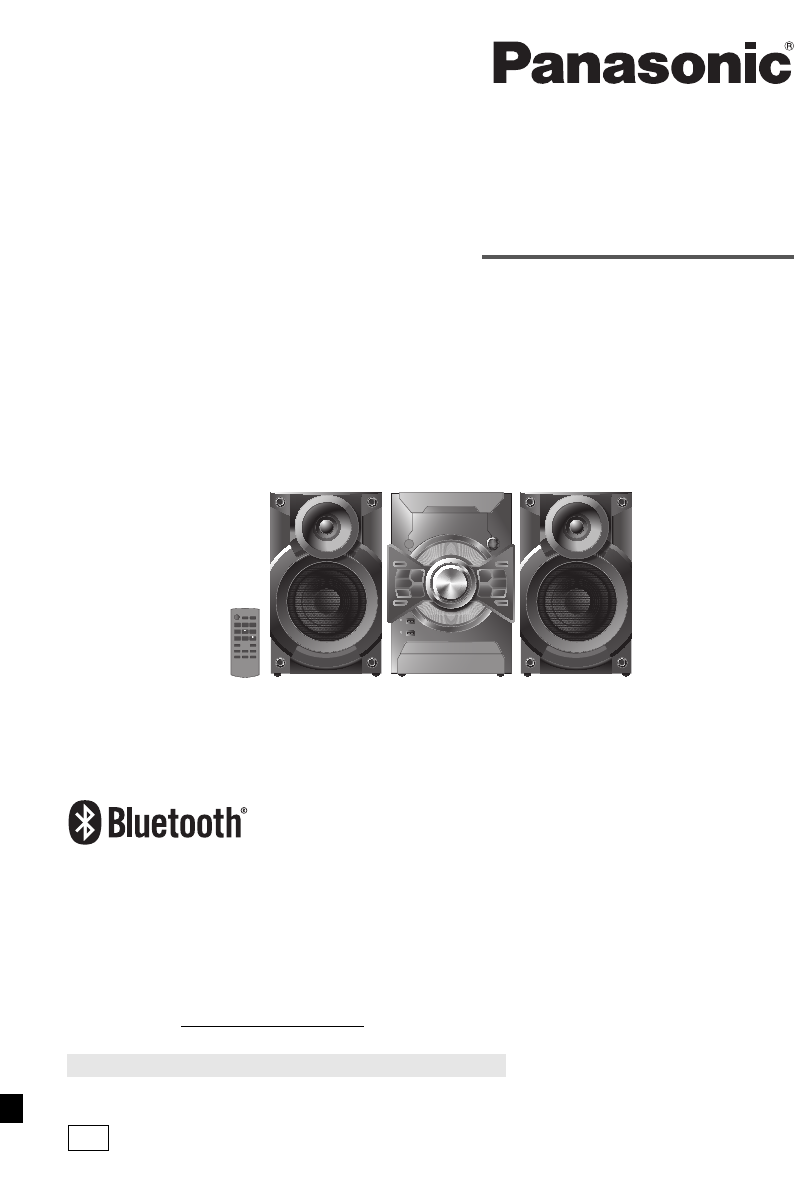
Owner’s Manual
CD Stereo System
Model No. SC-AKX18
Thank you for purchasing this product.
For optimum performance and safety, please read these instructions carefully.
Please keep this manual for future reference.
If you have any questions, visit: www.panasonic.com/support
Register online at www.panasonic.com/register (U.S. customers only)
PRQT9899-P
La referencia rápida en español se puede encontrar en la página 17.
SC-AKX18 P RQT9899-P EN.fm Page 1 Monday, April 14, 2014 10:41 AM
printing
Confidential
Until:
9 May 2014
2
RQT9899
Do the procedures with the remote control. You can
also use the buttons on the main unit if they are the
same.
Your system and the illustrations can look differently.
These operating instructions are applicable to the
following system.
User memo:
Inside of product
– If you see this symbol –
IMPORTANT SAFETY
INSTRUCTIONS
Read these operating instructions carefully before using
the unit. Follow the safety instructions on the unit and the
applicable safety instructions listed below. Keep these
operating instructions handy for future reference.
1. Read these instructions.
2. Keep these instructions.
3. Heed all warnings.
4. Follow all instructions.
5. Do not use this apparatus near water.
6. Clean only with dry cloth.
7. Do not block any ventilation openings. Install in
accordance with the manufacturer’s instructions.
8. Do not install near any heat sources such as
radiators, heat registers, stoves, or other apparatus
(including amplifiers) that produce heat.
9. Do not defeat the safety purpose of the polarized or
grounding-type plug. A polarized plug has two blades
with one wider than the other. A grounding-type plug
has two blades and a third grounding prong. The
wide blade or the third prong are provided for your
safety. If the provided plug does not fit into your
outlet, consult an electrician for replacement of the
obsolete outlet.
10. Protect the power cord from being walked on or
pinched particularly at plugs, convenience
receptacles, and the point where they exit from the
apparatus.
11. Only use attachments/accessories specified by the
manufacturer.
12. Use only with the cart, stand, tripod,
bracket, or table specified by the
manufacturer, or sold with the
apparatus. When a cart is used, use
caution when moving the
cart/apparatus combination to avoid
injury from tip-over.
13. Unplug this apparatus during lightning storms or
when unused for long periods of time.
14. Refer all servicing to qualified service personnel.
Servicing is required when the apparatus has been
damaged in any way, such as power-supply cord or
plug is damaged, liquid has been spilled or objects
have fallen into the apparatus, the apparatus has
been exposed to rain or moisture, does not operate
normally, or has been dropped.
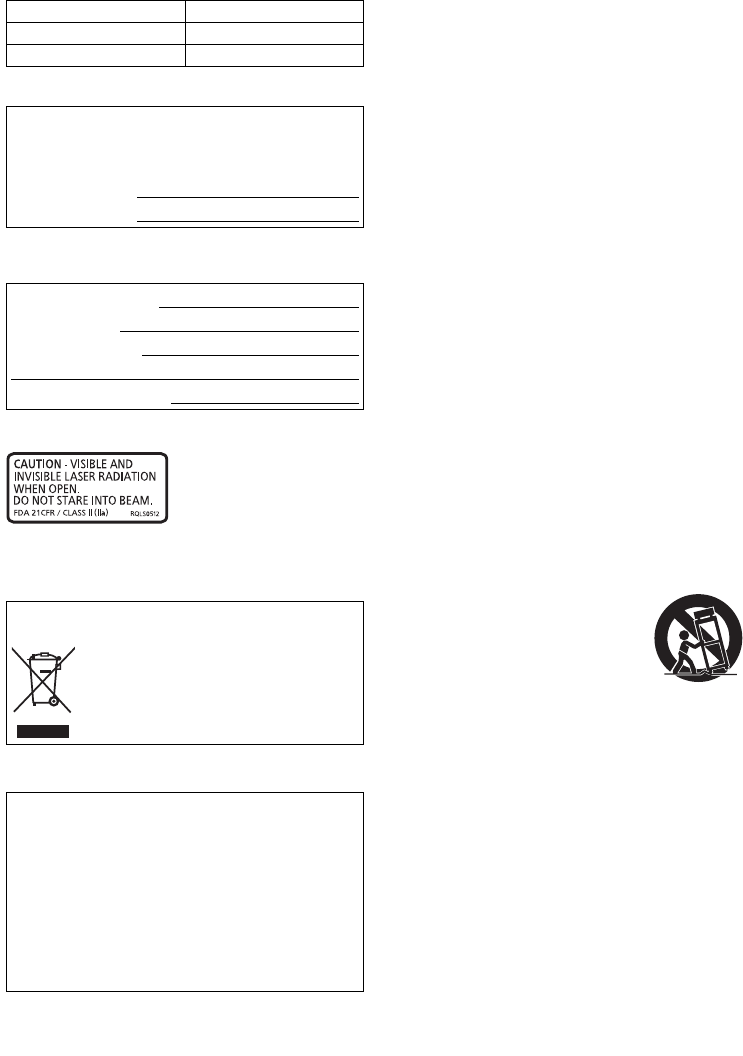
System SC-AKX18
Main unit SA-AKX18
Speakers SB-AKX18
The model number and serial number of this product
can be found on either the back or the bottom of the
unit. Please note them in the space provided below and
keep for future reference.
MODEL NUMBER SC-AKX18
SERIAL NUMBER
DATE OF PURCHASE
DEALER NAME
DEALER ADDRESS
TELEPHONE NUMBER
Information on Disposal in other Countries outside
the European Union
This symbol is only valid in the European
Union.
If you wish to discard this product, please
contact your local authorities or dealer and
ask for the correct method of disposal.
This transmitter must not be co-located or operated in
conjunction with any other antenna or transmitter.
This equipment complies with FCC radiation exposure
limits set forth for an uncontrolled environment and
meets the FCC radio frequency (RF) Exposure
Guidelines in Supplement C to OET65. This equipment
has very low levels of RF energy that is deemed to
comply without maximum permissive exposure
evaluation (MPE). But it is desirable that it should be
installed and operated keeping the radiator at least
20 cm (7 ⅞″) or more away from person’s body
(excluding extremities: hands, wrists, feet and ankles).
SC-AKX18 P RQT9899-P EN.fm Page 2 Monday, April 14, 2014 10:41 AM
printing
Confidential
Until:
9 May 2014
3
RQT9899
Safety precautions
WARNING!
Unit
• To reduce the risk of fire, electric shock or product
damage,
– Do not expose this unit to rain, moisture, dripping or
splashing.
– Do not place objects filled with liquids, such as
vases, on this unit.
– Use only the recommended accessories.
– Do not remove covers.
– Do not repair this unit by yourself. Refer servicing to
qualified service personnel.
– Do not let metal objects fall inside this unit.
AC power supply cord
• The power plug is the disconnecting device. Install this
unit so that the power plug can be unplugged from the
socket outlet immediately.
CAUTION!
Unit
• To reduce the risk of fire, electric shock or product
damage,
– Do not install or place this unit in a bookcase, built-in
cabinet or in another confined space. Ensure this
unit is well ventilated.
– Do not obstruct this unit’s ventilation openings with
newspapers, tablecloths, curtains, and similar items.
– Do not place sources of naked flames, such as
lighted candles, on this unit.
• This unit utilizes a laser. Use of controls or adjustments
or performance of procedures other than those
specified herein may result in hazardous radiation
exposure.
• Set the unit up on an even surface away from direct
sunlight, high temperatures, high humidity, and
excessive vibration.
Battery
• Danger of explosion if battery is incorrectly replaced.
Replace only with the type recommended by the
manufacturer.
• When disposing of the batteries, please contact your
local authorities or dealer and ask for the correct
method of disposal.
• Do not heat or expose to flame.
• Do not leave the battery(ies) in a car exposed to direct
sunlight for a long period of time with doors and
windows closed.
• Do not break open or short-circuit the battery.
• Do not charge the alkaline or manganese battery.
• Do not use the battery if the cover has peeled off.
• Remove the battery if you do not use the remote
control for a long period of time. Keep in a cool, dark
area.
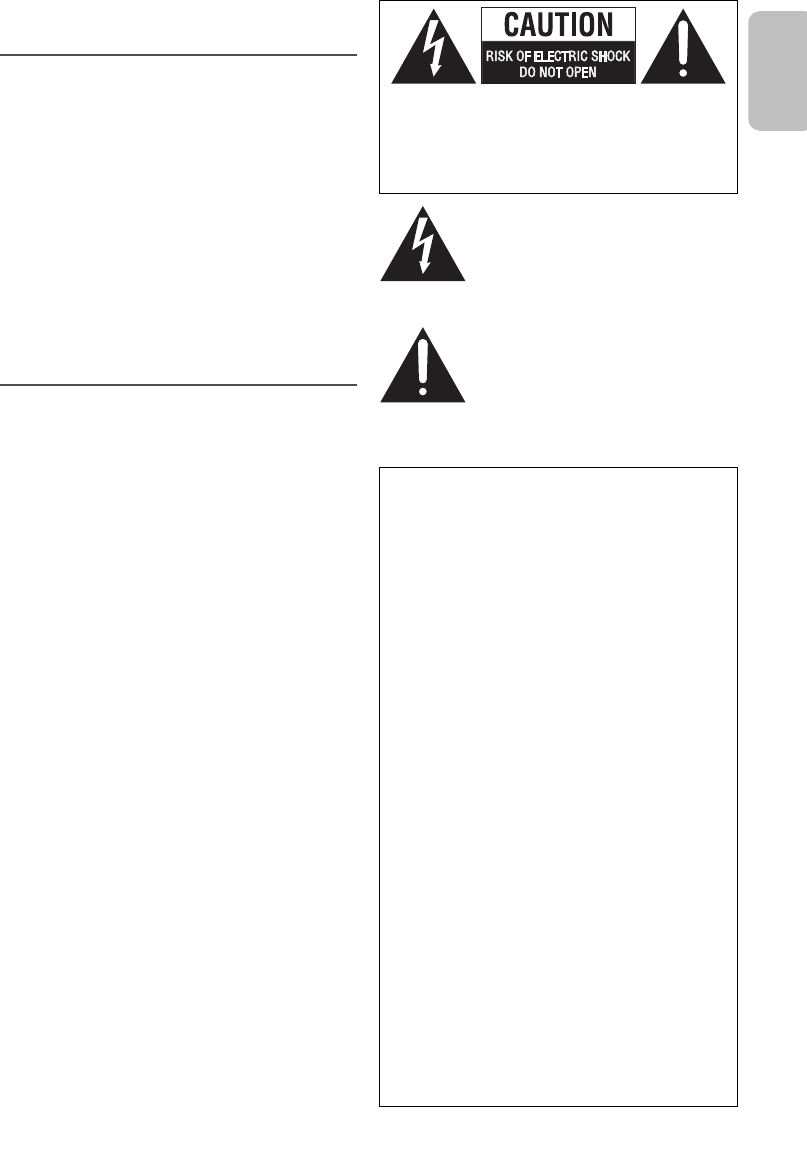
CAUTION: TO REDUCE THE RISK OF ELECTRIC
SHOCK, DO NOT REMOVE SCREWS.
NO USER-SERVICEABLE PARTS
INSIDE.
REFER SERVICING TO QUALIFIED
SERVICE PERSONNEL.
The lightning flash with arrowhead
symbol, within an equilateral triangle, is
intended to alert the user to the presence
of uninsulated “dangerous voltage”
within the product’s enclosure that may
be of sufficient magnitude to constitute a
risk of electric shock to persons.
The exclamation point within an
equilateral triangle is intended to alert the
user to the presence of important
operating and maintenance (servicing)
instructions in the literature
accompanying the appliance.
FCC Note:
This equipment has been tested and found to comply
with the limits for a Class B digital device, pursuant to
Part 15 of the FCC Rules.
These limits are designed to provide reasonable
protection against harmful interference in a residential
installation. This equipment generates, uses and can
radiate radio frequency energy and, if not installed and
used in accordance with the instructions, may cause
harmful interference to radio communications.
However, there is no guarantee that interference will not
occur in a particular installation. If this equipment does
cause harmful interference to radio or television
reception, which can be determined by turning the
equipment off and on, the user is encouraged to try to
correct the interference by one or more of the following
measures:
• Reorient or relocate the receiving antenna.
• Increase the separation between the equipment and
receiver.
• Connect the equipment into an outlet on a circuit
different from that to which the receiver is connected.
• Consult the dealer or an experienced radio/TV
technician for help.
Any unauthorized changes or modifications to this
equipment would void the user’s authority to operate
this device.
This device complies with Part 15 of the FCC Rules.
Operation is subject to the following two conditions:
(1) This device may not cause harmful interference, and
(2) this device must accept any interference received,
including interference that may cause undesired
operation.
Responsible Party:
Panasonic Corporation of North America
Two Riverfront Plaza, Newark, NJ 07102-5490
Support Contact:
http://www.panasonic.com/contactinfo
ENGLISH
SC-AKX18 P RQT9899-P EN.fm Page 3 Monday, April 14, 2014 10:41 AM
printing
Confidential
Until:
9 May 2014
4
RQT9899
Table of contents
IMPORTANT SAFETY INSTRUCTIONS . . . . . . . . . .2
Safety precautions . . . . . . . . . . . . . . . . . . . . . . . . . .3
Maintenance . . . . . . . . . . . . . . . . . . . . . . . . . . . . . . .4
About Bluetooth® . . . . . . . . . . . . . . . . . . . . . . . . . . .4
Supplied accessories . . . . . . . . . . . . . . . . . . . . . . . .5
Preparing the remote control . . . . . . . . . . . . . . . . . .5
Placement of speakers. . . . . . . . . . . . . . . . . . . . . . .5
Connections . . . . . . . . . . . . . . . . . . . . . . . . . . . . . . .6
Overview of controls. . . . . . . . . . . . . . . . . . . . . . . . .7
Preparing media . . . . . . . . . . . . . . . . . . . . . . . . . . . .8
Media playback. . . . . . . . . . . . . . . . . . . . . . . . . . . . .9
Sound effects . . . . . . . . . . . . . . . . . . . . . . . . . . . . .10
Radio . . . . . . . . . . . . . . . . . . . . . . . . . . . . . . . . . . . .11
Clock and timers. . . . . . . . . . . . . . . . . . . . . . . . . . .12
External equipment. . . . . . . . . . . . . . . . . . . . . . . . .13
Others . . . . . . . . . . . . . . . . . . . . . . . . . . . . . . . . . . .13
Troubleshooting . . . . . . . . . . . . . . . . . . . . . . . . . . .14
Specifications . . . . . . . . . . . . . . . . . . . . . . . . . . . . .16
Spanish quick reference / Referencia rápida en
español . . . . . . . . . . . . . . . . . . . . . . . . . . . . . . . . . .17
Limited Warranty (ONLY FOR U.S.A.) . . . . . . . . . .19
Maintenance
To clean this system, wipe with a soft, dry cloth.
• Never use alcohol, paint thinner or benzine to clean this
system.
• Before using chemically treated cloth, read the
instructions that came with the cloth carefully.
About Bluetooth®
Frequency band
• This system uses the 2.4 GHz frequency band.
Certification
• This system conforms to the frequency restrictions and
has received certification based on frequency laws.
Thus, a wireless permit is not necessary.
• The actions below are punishable by law:
– Taking apart or modifying the main unit.
– Removing specification indications.
Restrictions of use
• Wireless transmission and/or usage with all Bluetooth®
equipped devices is not guaranteed.
• All devices must conform to standards set by
Bluetooth SIG, Inc.
• Depending on the specifications and settings of a
device, it can fail to connect or some operations can be
different.
• This system supports Bluetooth® security features. But
depending on the operating environment and/or
settings, this security is possibly not sufficient.
Transmit data wirelessly to this system with caution.
• This system cannot transmit data to a Bluetooth®
device.
Range of use
• Use this device at a maximum range of 10 m (33 ft).
• The range can decrease depending on the
environment, obstacles or interference.
Interference from other devices
• This system may not function properly and troubles
such as noise and sound jumps may arise due to radio
wave interference if this unit is located too close to
other Bluetooth® devices or the devices that use the
2.4 GHz band.
• This system may not function properly if radio waves
from a nearby broadcasting station, etc. is too strong.
Intended usage
• This system is for normal, general use only.
• Do not use this system near an equipment or in an
environment that is sensitive to radio frequency
interference (example: airports, hospitals, laboratories,
etc.).
The Bluetooth® word mark and logos are registered
trademarks owned by Bluetooth SIG, Inc. and any use
of such marks by Panasonic Corporation is under
license. Other trademarks and trade names are those of
their respective owners.
Google Play and Android are trademarks of Google Inc.
MPEG Layer-3 audio coding technology licensed from
Fraunhofer IIS and Thomson.
Panasonic bears no responsibility for data and/or
information that can possibly be compromised during a
wireless transmission.
SC-AKX18 P RQT9899-P EN.fm Page 4 Monday, April 14, 2014 10:41 AM
printing
Confidential
Until:
9 May 2014
5
RQT9899
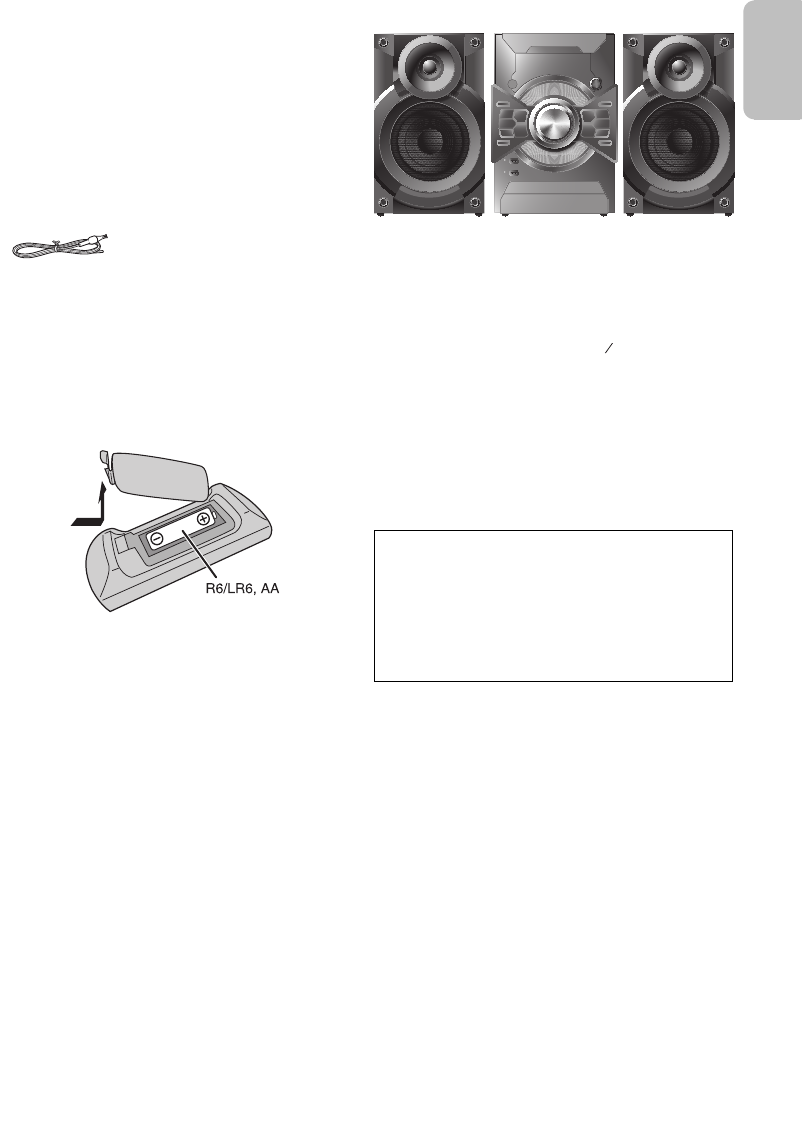
Supplied accessories
Check and identify the supplied accessories.
Use numbers indicated in parentheses when asking for
replacement parts. (Product numbers correct as of
April 2014. This may be subject to change.)
To order accessories, refer to “Accessory Purchases
(United States)” on page 19.
1 AC power supply cord
(K2CB2CB00022)
1 FM indoor antenna
(RSAX0002)
1 Remote control battery
1 Remote control
(N2QAYB000944)
Preparing the remote control
Use alkaline or manganese battery.
Install the battery so that the poles (+ and –) align with
those in the remote control.
Placement of speakers
The left and right speakers are the same.
You cannot remove the net of the speakers.
Use only the supplied speakers.
You can cause damage to the system and decrease the
sound quality if you use other speakers.
Note:
• Keep your speakers at least 10 mm ( ″) away from the
system for proper ventilation.
• Put the speakers on a flat surface.
• These speakers do not have magnetic shielding. Do not put
them near TVs, PCs or other equipment that can be
magnetized.
• When you play at a high volume for long time, it can cause
damage to the speakers.
• Decrease the volume in these conditions to prevent
damage:
– When the sound is distorted.
– When you adjust the sound quality.
CAUTION!
•Use the speakers only with the recommended
system. If not, you can cause damage to the
amplifier and speakers and can cause a fire.
Consult an approved service personnel if damage
occurs or if there is a sudden apparent change in
performance.
•Do the procedures included in these instructions
when you attach the speakers.
32
13
ENGLISH
SC-AKX18 P RQT9899-P EN.fm Page 5 Monday, April 14, 2014 10:41 AM
printing
Confidential
Until:
9 May 2014
6
RQT9899
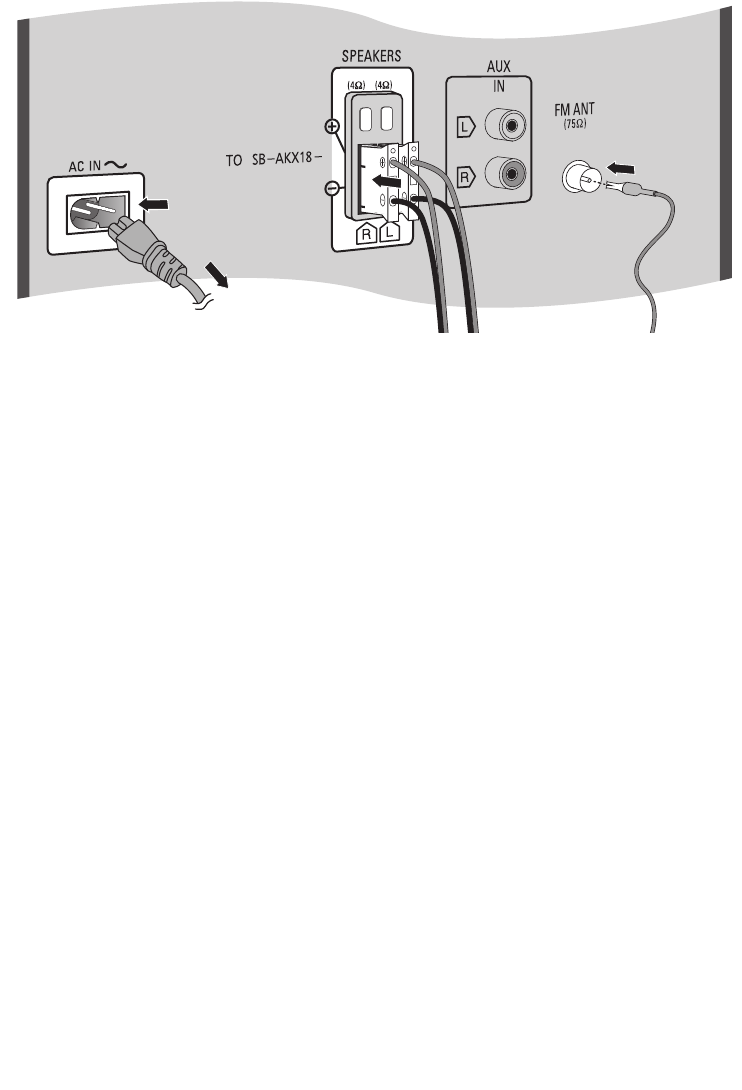
Connections
Connect the AC power supply cord only after all the other connections have been made.
1Connect the FM indoor antenna.
Put the antenna where there is the best reception.
2Connect the speakers.
3Connect the AC power supply cord.
Do not use an AC power supply cord from other
equipment.
Conserving power
The system consumes a small amount of power even
when it is in standby mode. Disconnect the power
cord if you do not use the system.
Some settings will be lost after you disconnect the
system. You have to reset them.
A
3
2
1
B
To household AC outlet
SC-AKX18 P RQT9899-P EN.fm Page 6 Monday, April 14, 2014 10:41 AM
printing
Confidential
Until:
9 May 2014
7
RQT9899
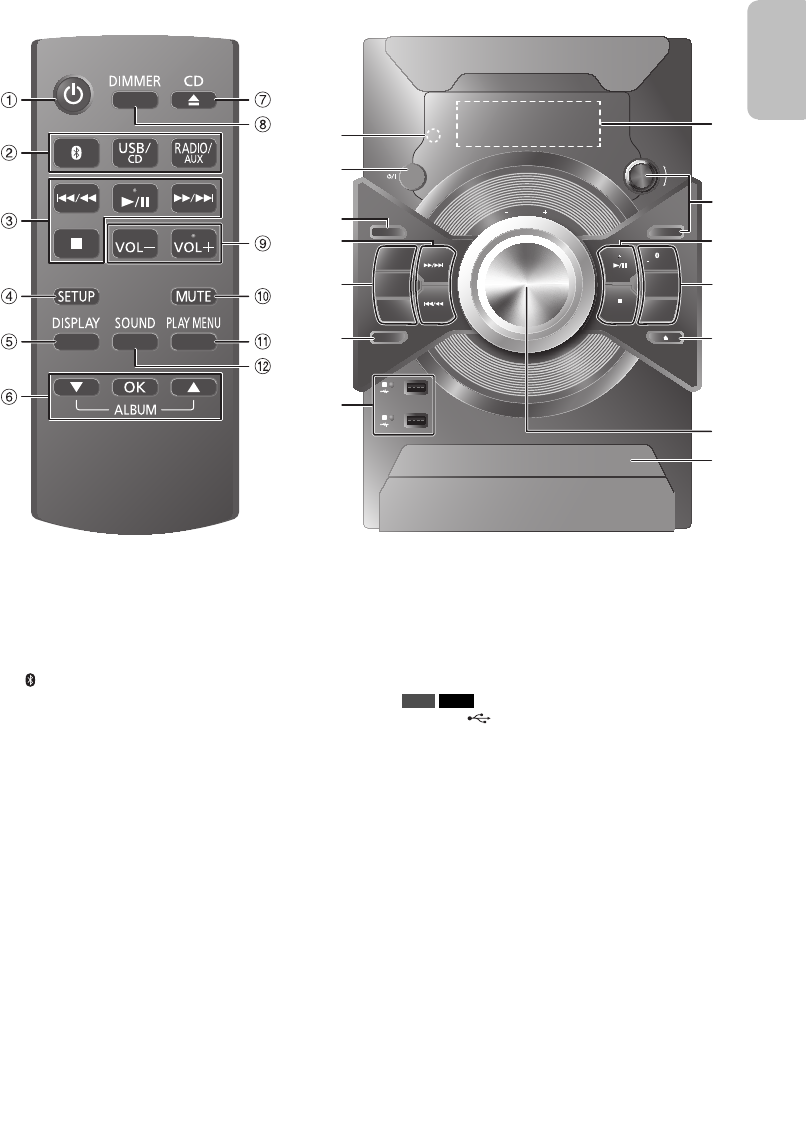
Overview of controls
AStandby/on switch [`], [1]
Press to turn the unit from on to standby mode or vice
versa. In standby mode, the unit is still consuming a
small amount of power.
BSelect the audio source
On the main unit:
To start Bluetooth® pairing, press and hold
[ –PAIRING] when you are in Bluetooth® source.
CBasic playback control
DView the setup menu
EView the content information
FSelect or confirm the option
GOpen or close the disc tray
HDecrease the brightness of the display panel
To cancel, press the button again.
IAdjust the volume level
JMute the sound
To cancel, press the button again.
“MUTE” is also canceled when you adjust the volume
or when you turn off the system.
KView the play menu
LSelect the sound effects
MRemote control sensor
Distance: Within approximately 7 m
Angle: Approximately 20° up and down, 30° left and
right
NSelect the DJ jukebox
O USB A USB B
USB port ( )
USB status indicator
PDisplay panel
QSelect MP3 album or track
Press [ALBUM/TRACK] to select album or track.
Browse tracks or albums
Turn [CONTROL] to browse.
To start playback from the selection, press [4/9].
RDisc tray
US
B/
CD
RADIO/AUX
TUNE MODE
OPEN/CLOSE
ALBUM/TRACK
D
J J
UKEBOX
MANUAL EQ
D.BASS
VOLU
ME
A
B
DISPLAY
CONTROL
PAIRING
PRESET EQ
A
C
M
E
L
N
C
O
P
Q
R
B
I
G
ENGLISH
SC-AKX18 P RQT9899-P EN.fm Page 7 Monday, April 14, 2014 10:41 AM
printing
Confidential
Until:
9 May 2014
8
RQT9899
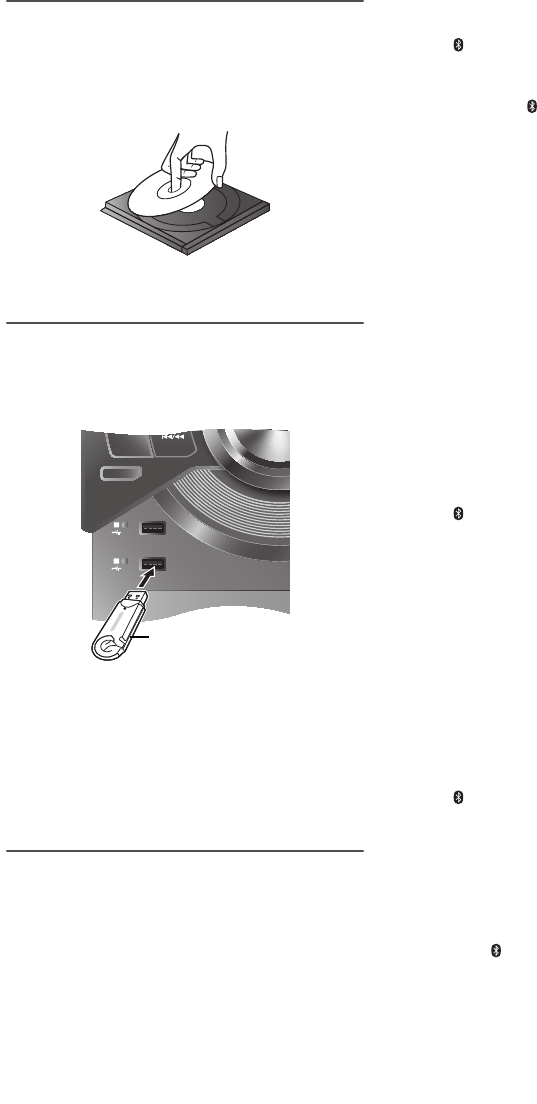
Preparing media
Disc
1Press [USB/CD] to select “CD”.
2Press [CD x] (main unit: [x OPEN/CLOSE]) to open
the disc tray.
Put in a disc with the label facing up.
3Press [CD x] (main unit: [x OPEN/CLOSE]) again to
close the disc tray.
USB
Preparation
Before you connect a USB device to the system, make
sure you do a backup of the data.
1Lower the volume and connect the USB device to
the USB port.
Hold the main unit when connecting or disconnecting
the USB device.
2Press [USB/CD] to select “USB A” or “USB B”.
Note:
Do not use a USB extension cable. The system cannot
recognize the USB device connected through a cable.
Bluetooth®
You can connect and play an audio device wirelessly
through Bluetooth®.
Preparation
• Turn on the Bluetooth® feature of the device and put
the device near the system.
• Read the operating instructions of the device for
details.
█Pairing a device
Preparation
If this system is connected to a Bluetooth® device,
disconnect it (Z“Disconnecting a device”).
1Press [ ].
If “PAIRING” is shown, continue with step 4.
2Press [PLAY MENU] to select “PAIRING”.
Or press and hold [ –PAIRING] on the main unit until
“PAIRING” is shown. Continue with step 4.
3Press [R, T] to select “OK? YES” and then press
[OK].
“PAIRING” is shown.
To cancel, select “OK? NO”.
4Select “SC-AKX18” from the Bluetooth® menu of the
device.
If prompted for a passkey, input “0000”.
The device connects with this system automatically
after pairing is complete.
The name of the connected device is shown for a
few seconds.
Note:
You can pair up to 8 devices with this system. If a 9th device
is paired, the device that has not been used for the longest
time will be replaced.
█Connecting a device
Preparation
If this system is connected to a Bluetooth® device,
disconnect it (Z“Disconnecting a device”).
1Press [ ].
“BLUETOOTH READY” is shown.
2Select “SC-AKX18” from the Bluetooth® menu of the
device.
The name of the connected device is shown for a
few seconds.
3Start playback on the device.
Note:
• A device must be paired to connect.
• The system can only connect to one device at a time.
• When “BLUETOOTH” is selected as the source, this
system will automatically try to connect to the last
connected device.
█Disconnecting a device
1Press [ ].
2Press [PLAY MENU] to select “DISCONNECT?”.
3Press [R, T] to select “OK? YES” and then press
[OK].
“BLUETOOTH READY” is shown.
To cancel, select “OK? NO”.
Using the main unit
Press and hold [ –PAIRING] until “PAIRING” is shown.
Note:
A device is disconnected when you:
• Select a different source.
• Move the device out of the maximum range.
• Disable the Bluetooth® transmission of the device.
• Turn off the system or the device.
D
J J
UKEBOX
D.BASS
A
B
USB device
(not supplied)
SC-AKX18 P RQT9899-P EN.fm Page 8 Monday, April 14, 2014 10:41 AM
printing
Confidential
Until:
9 May 2014
9
RQT9899
Media playback
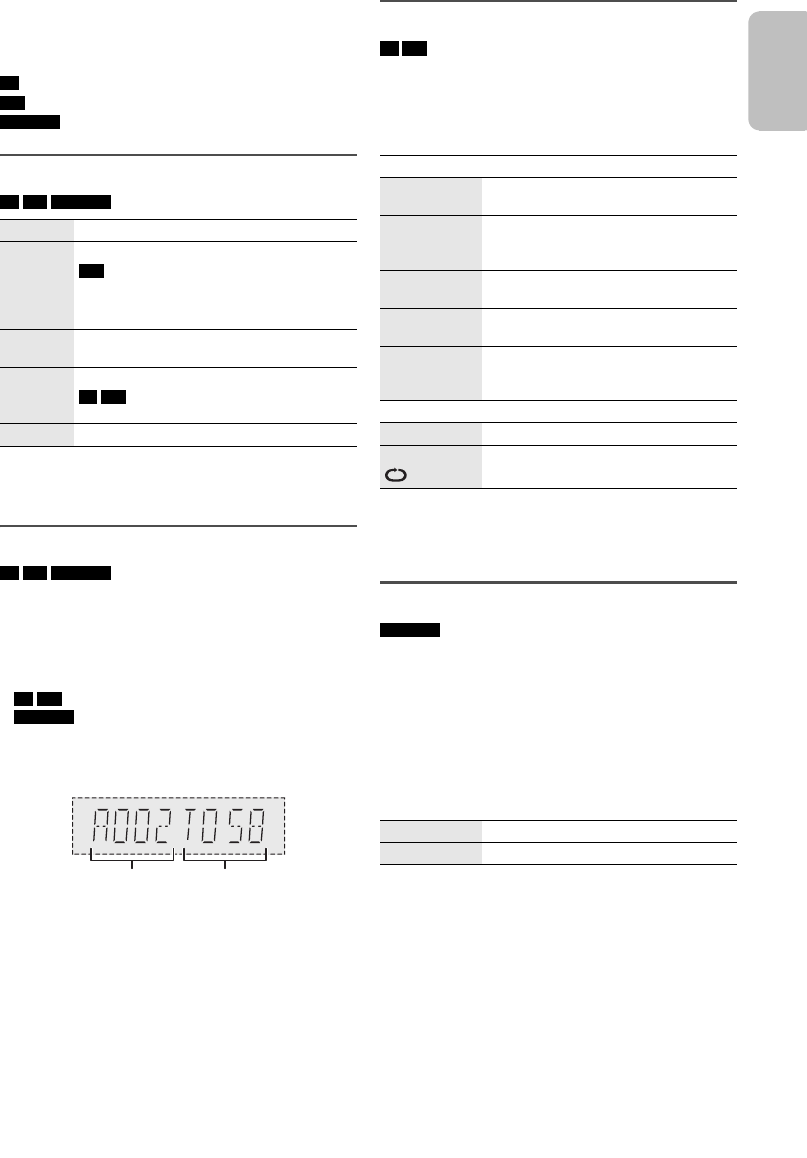
The following marks indicate the availability of the
feature.
Basic playback
CD USB BLUETOOTH
Note:
Depending on the Bluetooth® device, some operations may
not work.
Viewing available information
CD USB BLUETOOTH
You can view the available information on the display
panel.
Press [DISPLAY].
Note:
• Maximum characters that can be shown:
CD USB : approximately 32
BLUETOOTH : approximately 16
• This system supports ver. 1.0 and 1.1 ID3 tags.
• Text data that the system does not support can show
differently.
• Example: MP3 album and track number display.
Play menu
CD USB
1Press [PLAY MENU] to select “PLAYMODE” or
“REPEAT”.
2Press [R, T] to select the setting and then press
[OK].
Note:
• During random playback, you cannot skip to tracks which
have been played.
• The setting is canceled when you open the disc tray.
Link mode
BLUETOOTH
You can change the link mode to the desired connection
type.
Preparation
If this system is connected to a Bluetooth® device,
disconnect it (Z“Disconnecting a device”).
1Press [PLAY MENU] to select “LINK MODE”.
2Press [R, T] to select the setting and then press
[OK].
Note:
The default setting is “MODE 2”.
CD : CD-R/RW in CD-DA format or with MP3 files.
USB : USB device with MP3 files.
BLUETOOTH :Bluetooth
® device.
Play Press [4/9].
Stop Press [8].
USB
The position is memorized.
“RESUME” is shown.
Press again to stop fully.
Pause Press [4/9].
Press again to continue playback.
Skip Press [2/3] or [5/6] to skip track.
CD USB
Press [R, T] to skip MP3 album.
Search
Press and hold
[2/3]
or
[5/6].
Album
number
Track
number
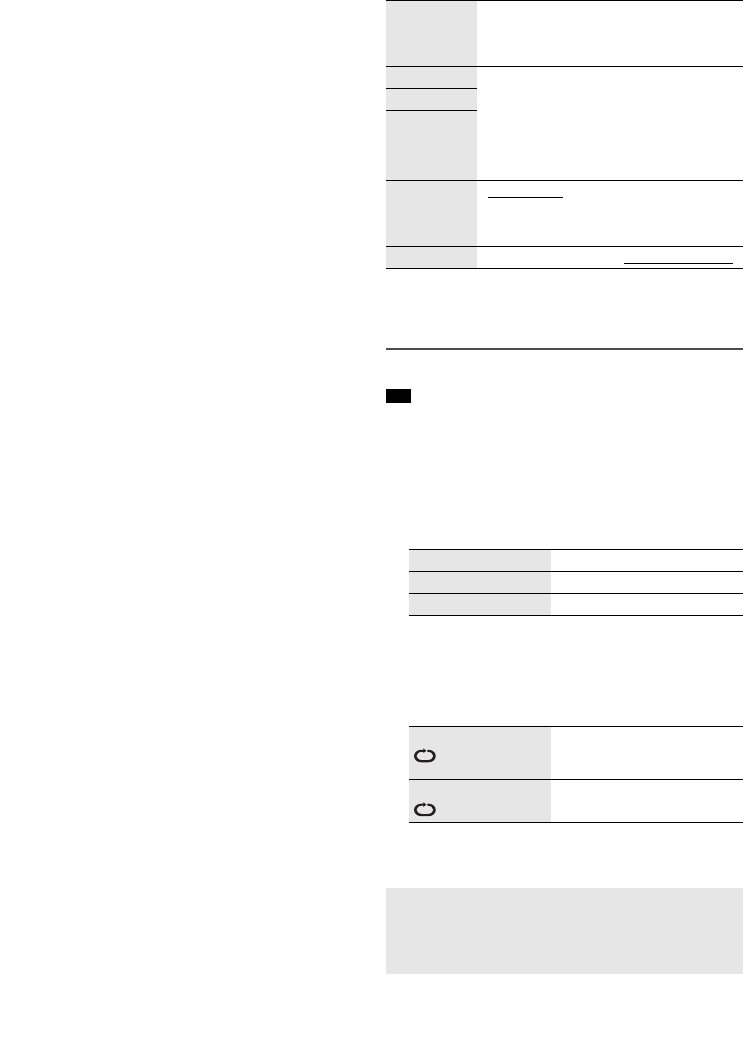
PLAYMODE
OFF
PLAYMODE
Cancel the setting.
1-TRACK
1TR
Play one selected track.
Press [2/3] or [5/6] to select
the track.
1-ALBUM
1ALBUM
Play one selected MP3 album.
Press [R, T] to select the MP3 album.
RANDOM
RND
Play all tracks randomly.
1-ALBUM
RANDOM
1ALBUM RND
Play all tracks in one selected MP3
album randomly.
Press [R, T] to select the MP3 album.
REPEAT
OFF REPEAT Cancel the setting.
ON REPEAT Repeat playback.
MODE 1 Emphasis on connectivity.
MODE 2 Emphasis on sound quality.
ENGLISH
SC-AKX18 P RQT9899-P EN.fm Page 9 Monday, April 14, 2014 10:41 AM
printing
Confidential
Until:
9 May 2014
10
RQT9899
█Note on disc
• This system can play CD-R/RW with CD-DA or MP3
format content.
• Before playback, finalize the disc on the device it was
recorded on.
• Some CD-R/RW cannot be played because of the
condition of the recording.
Note about using a DualDisc
• The digital audio content side of a DualDisc does not
meet the technical specifications of the Compact Disc
Digital Audio (CD-DA) format so playback may not be
possible.
█Note on USB device
• This system supports USB 2.0 full speed.
• This system can support USB devices of up to 32 GB.
• Only FAT 12/16/32 file system is supported.
█Note on MP3 file
• Files are defined as tracks and folders are defined as
albums.
• Tracks must have the extension “.mp3” or “.MP3”.
• Tracks will not necessarily be played in the order you
recorded them.
• Some files can fail to work because of the sector size.
MP3 file on disc
• This system can access up to:
– 255 albums (including root folder)
– 999 tracks
– 20 sessions
• Disc must conform to ISO9660 level 1 or 2 (except for
extended formats).
MP3 file on USB device
• This system can access up to:
– 800 albums (including root folder)
– 8000 tracks
– 999 tracks in one album
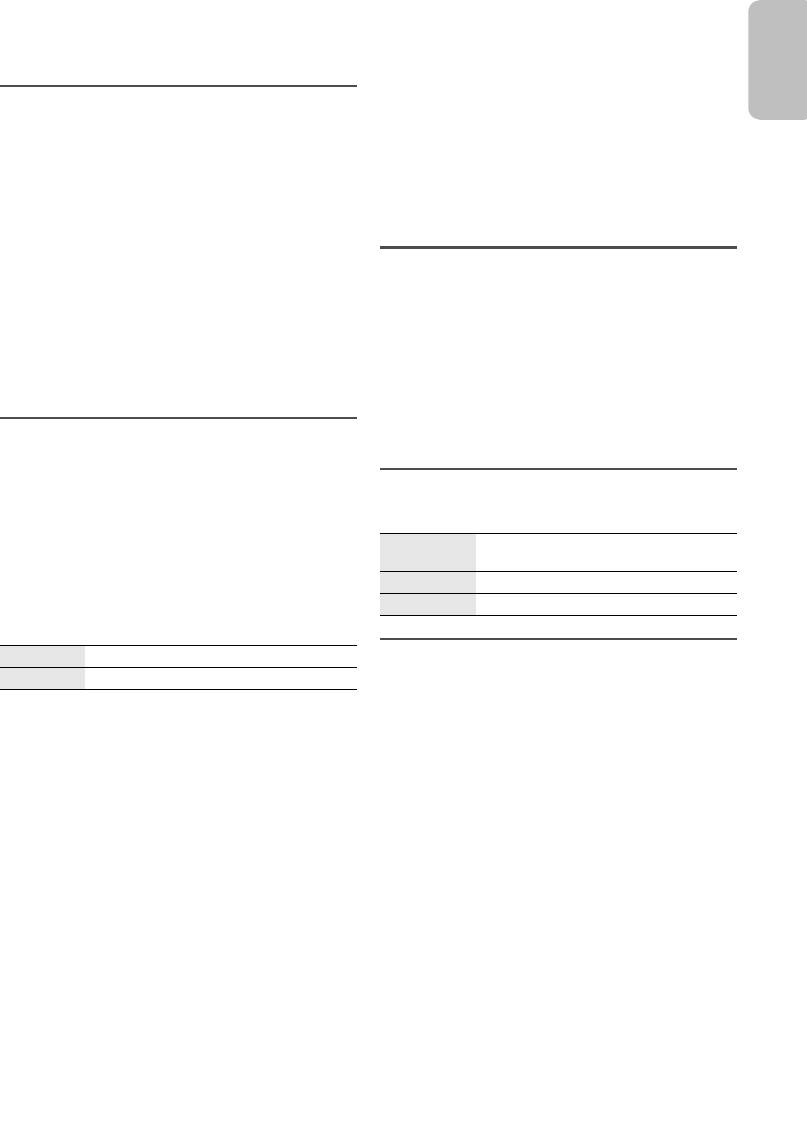
Sound effects
1Press [SOUND] to select the sound effect.
2Press [R, T] to select the setting and then press
[OK].
Note:
The default setting is underlined. Changed settings will be
kept until it is changed again, unless otherwise indicated.
DJ jukebox
USB
You can use DJ jukebox to add cross-fading effect
between songs. You can also use additional features with
the “Panasonic MAX Juke” app (Z see below).
1Press [PLAY MENU] to select “JUKEBOX” and then
press [R, T] to select the setting.
Or press [DJ JUKEBOX] on the main unit to select the
setting. Continue with step 3.
2Press [OK].
3Press [PLAY MENU] to select “PLAYMODE”.
4Press [R, T] to select the setting and then press
[OK].
Note:
DJ jukebox effect is canceled when you turn off the system or
change to another source.
PRESET EQ Select the desired preset EQ setting.
Using the main unit
Press [PRESET EQ].
BASS –4 to +4
Using the main unit
1. Press [MANUAL EQ] to select
“BASS”, “MID” or “TREBLE”.
2. Press [2/3] or [5/6] to
adjust the level.
MID
TREBLE
D.BASS “ON D.BASS” or “OFF D.BASS”
Using the main unit
Press [D.BASS].
SURROUND “ON SURROUND” or “OFF SURROUND”
OFF CROSS FADE Cancel cross-fading.
ON CROSS FADE Add cross-fading.
OFF Turn off DJ jukebox.
RANDOM REPEAT
RND
Play all tracks randomly and
repeat all tracks.
ALL TITLE REPEAT Repeat all tracks.
Using the “Panasonic MAX Juke” app
You can download and install the free Android™ app
“Panasonic MAX Juke” on Google Play™ for additional
features, such as to request song playback from
multiple devices simultaneously.
SC-AKX18 P RQT9899-P EN.fm Page 10 Monday, April 14, 2014 10:41 AM
printing
Confidential
Until:
9 May 2014
11
RQT9899
Radio
Preparation
Press [RADIO/AUX] to select “FM”.
Manual tuning
1Press [PLAY MENU] to select “TUNE MODE”.
2Press [R, T] to select “MANUAL” and then press
[OK].
3Press [2/3] or [5/6] to tune in to the
station.
To tune automatically, press and hold the button until
the frequency starts changing quickly.
“STEREO” is shown when a stereo broadcast is being
received.
Using the main unit
1Press [TUNE MODE] to select “MANUAL”.
2Press [2/3] or [5/6] to tune in to the
station.
Memory presetting
You can preset up to 30 FM radio stations.
█Automatic presetting
1Press [PLAY MENU] to select “A.PRESET”.
2Press [R, T] to select “LOWEST” or “CURRENT”
and then press [OK].
The tuner presets all the stations it can receive into
the channels in ascending order.
To cancel, press [8].
█Manual presetting
1Press [PLAY MENU] to select “TUNE MODE”.
2Press [R, T] to select “MANUAL” and then press
[OK].
3Press [2/3] or [5/6] to tune in to the
station.
4Press [OK].
5Press [R, T] to select a preset number and then
press [OK].
Re-do steps 3 through 5 to preset more stations.
The new station replaces any station that occupies
the same preset number.
█Selecting a preset station
1Press [PLAY MENU] to select “TUNE MODE”.
2Press [R, T] to select “PRESET” and then press
[OK].
3Press [2/3] or [5/6] to select the preset
station.
Using the main unit
1Press [TUNE MODE] to select “PRESET”.
2Press [2/3] or [5/6] to select the preset
station.
Improving the sound quality
1Press [PLAY MENU] to select “FM MODE”.
2Press [R, T] to select “MONO” and then press
[OK].
To cancel, select “STEREO”.
“MONO” is also canceled when you change the
frequency.
To memorize the setting
Continue with step four of “Manual presetting”.
Checking the signal status
Press [DISPLAY].
FM allocation setting
By main unit only
This system can also receive FM broadcasts allocated in
0.1 MHz steps.
1Press [RADIO/AUX] to select “FM”.
2Press and hold [RADIO/AUX].
After a few seconds, the display panel shows the current
minimum radio frequency. Release the button when the
minimum frequency changes.
• To go back to the initial setting, re-do the above steps.
• Preset frequencies are erased after you change the
setting.
LOWEST Tuning begins from the lowest frequency.
CURRENT Tuning begins at the current frequency.
FM The FM signal is in monaural.
The system is not tuned in to a station.
FM ST The FM signal is in stereo.
FM MONO “MONO” is selected as the “FM MODE”.
ENGLISH
SC-AKX18 P RQT9899-P EN.fm Page 11 Monday, April 14, 2014 10:41 AM
printing
Confidential
Until:
9 May 2014
12
RQT9899
Clock and timers
Setting the clock
This is a 12-hour clock.
1Press [SETUP] to select “CLOCK”.
2Press [R, T] to set the time and then press [OK].
To check the time
Press [SETUP] to select “CLOCK” and the press [OK].
In standby mode, press [DISPLAY].
Note:
Reset the clock regularly to maintain accuracy.
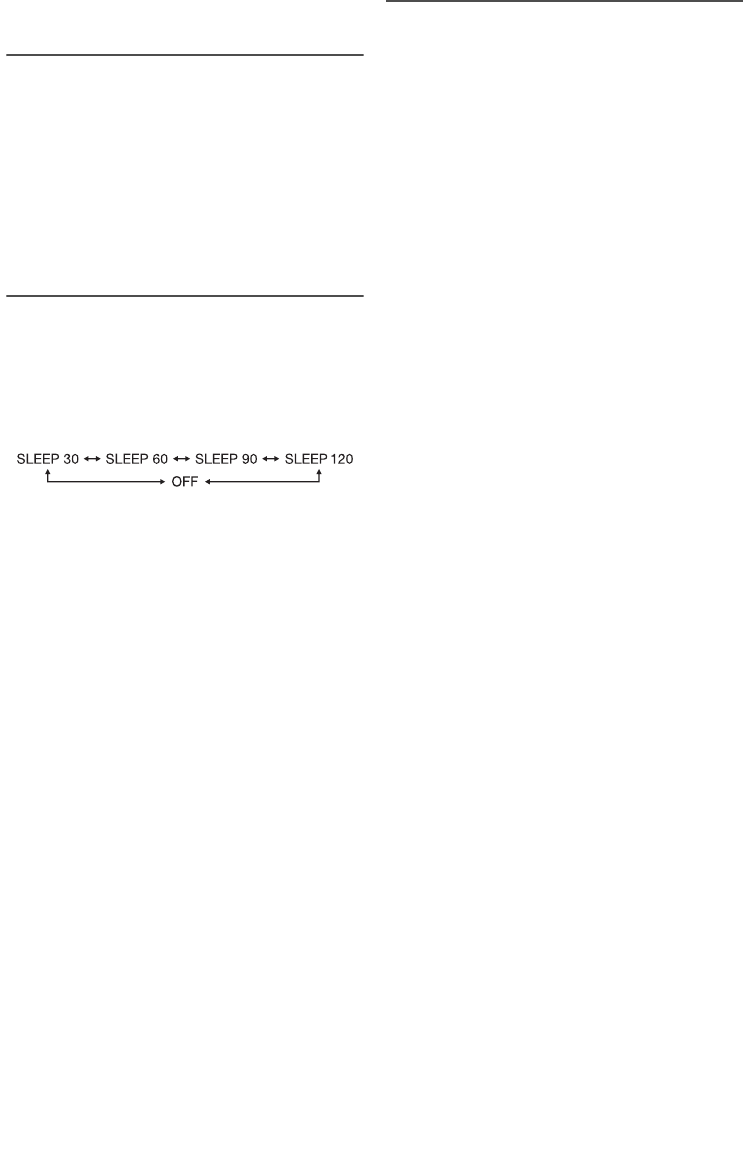
Sleep timer
The sleep timer turns off the system after the set time.
1Press [SETUP] to select “SLEEP”.
2Press [R, T] to select the setting (in minutes) and
then press [OK].
To cancel, select “OFF”.
Note:
• The remaining time is always shown on the display. The
display changes temporarily when you perform other
operations.
• The play and sleep timer can be used together.
• The sleep timer always comes first. Be sure not to set an
overlapping time.
Play timer
(Except for Bluetooth® source)
You can set the timer to come on at a certain time to
wake you up.
Preparation
Set the clock.
1Press [SETUP] to select “TIMER ADJ”.
2Press [R, T] to set the start time and then press
[OK].
3Re-do step 2 to set the end time.
4Press [R, T] to select the source you want to play
and then press [OK].
To start the timer
1Press [SETUP] to select “TIMER SET”.
2Press [R, T] to select “SET” and then press [OK].
“#” is shown.
To cancel, select “OFF”.
The system must be turned off for the timer to
operate.
To check the setting
Press [SETUP] to select “TIMER ADJ” and then press
[OK].
In standby mode, press [DISPLAY] two times.
Note:
• The timer starts at a low volume and increases gradually to
the preset level.
• The timer comes on at the set time every day.
• If you turn off the system and then turn on again while the
timer is in operation, the timer will not stop at the end time.
SC-AKX18 P RQT9899-P EN.fm Page 12 Monday, April 14, 2014 10:41 AM
printing
Confidential
Until:
9 May 2014
13
RQT9899
External equipment
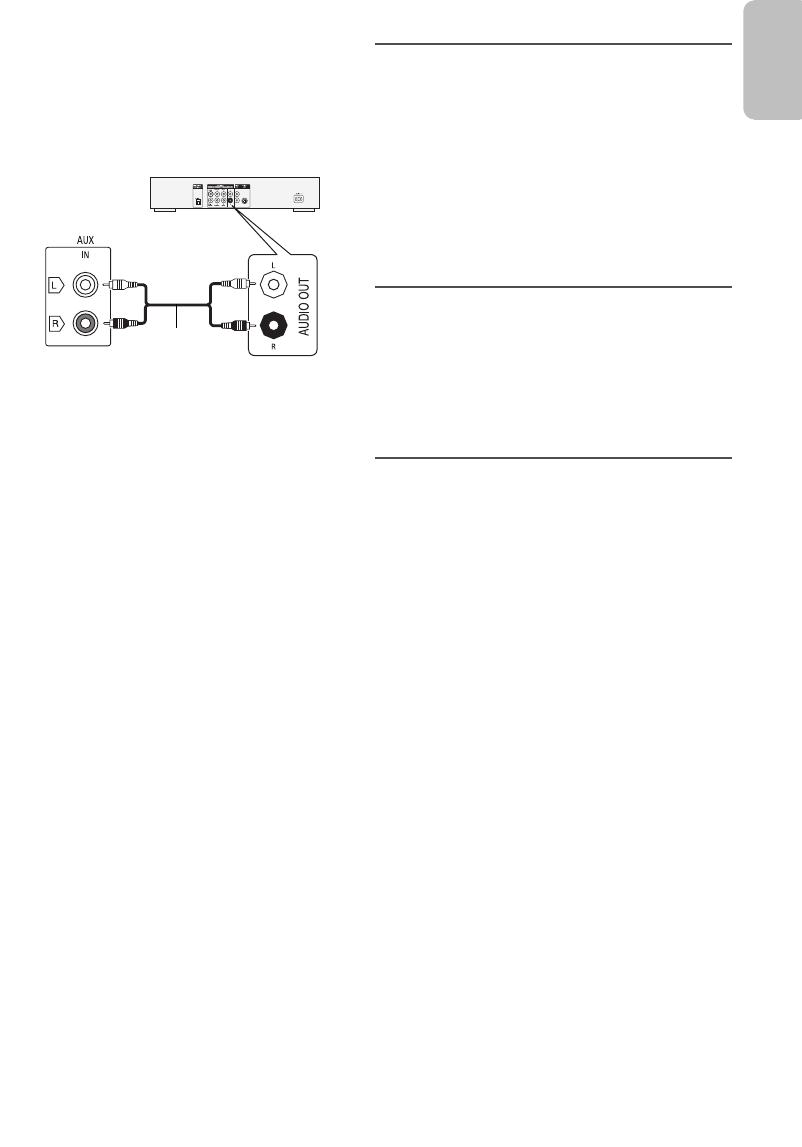
You can connect a VCR, DVD player etc., and listen to
the audio through this system.
Preparation
• Disconnect the AC power supply cord.
• Turn off all equipment and read the appropriate
operating instructions.
1Connect the external equipment.
2Press [RADIO/AUX] to select “AUX”.
3Play the external equipment.
To adjust the input level
1Press [SOUND] to select “INPUT LEVEL”.
2Press [R, T] to select “NORMAL” or “HIGH” and
then press [OK].
Note:
• The default setting is “NORMAL”.
• Select “NORMAL” if the sound is distorted during “HIGH”
input level.
• Components and cables are sold separately.
• If you want to connect equipment other than those
mentioned, refer to the audio dealer.
• Sound distortion can occur when you use an adapter.
Others
Auto off
This system automatically turns off when you do not use
it for approximately 20 minutes.
1Press [SETUP] to select “AUTO OFF”.
2Press [R, T] to select “ON” and then press [OK].
“A.OFF” is shown.
To cancel, select “OFF”.
Note:
This function does not work when you are in radio source or
when a Bluetooth® device is connected.
Bluetooth® standby
This function automatically turns on the system when you
establish a Bluetooth® connection from a paired device.
1Press [SETUP] to select “BLUETOOTH STANDBY”.
2Press [R, T] to select “ON” and then press [OK].
To cancel, select “OFF”.
Software version
You can check the software version of the system.
1Press [SETUP] to select “SW VER.” and then press
[OK].
The software version is shown.
2Press [OK] again to exit.
Audio cable
(not supplied)
Rear panel of
this main unit
DVD player (not supplied)
ENGLISH
SC-AKX18 P RQT9899-P EN.fm Page 13 Monday, April 14, 2014 10:41 AM
printing

Confidential
Until:
9 May 2014
14
RQT9899
Troubleshooting
Before requesting service, make the following checks. If
you are in doubt about some of the check points, or if the
solutions indicated do not solve the problem, refer to
“Customer Services Directory (United States)” on
page 19.
█Common problems
The unit does not work.
• The safety device has been activated. Do the following:
1. Press [1] on the main unit to turn the unit to standby
mode. If the unit does not turn to standby mode,
– Press and hold the button for a minimum of
10 seconds. Or,
– Disconnect the AC power supply cord and reconnect.
2. Press [1] again to turn on the unit. If the problem
persists, consult your dealer.
The display panel lights up and changes continuously
in standby mode.
• Press and hold [8] on the main unit to select “DEMO OFF”.
No operations can be done with the remote control.
• Examine that the battery is installed correctly.
Sound is distorted or no sound.
• Adjust the volume of the system.
• Turn off the system, determine and correct the cause, then
turn on again. It can be caused by straining of the speakers
through excessive volume or power, and when using the
system in a hot environment.
A humming sound can be heard during playback.
• An AC power supply cord or fluorescent light is near the
cables. Keep other appliances and cords away from the
cables of this system.
The sound level reduces.
• The protection circuit has been activated due to the
continuous use at high volume output. This is to protect the
system and maintain the sound quality.
█Disc
Display not shown correctly.
Playback does not start.
• You have not put in the disc correctly. Put it in correctly.
• If the disc is dirty, then clean the disc.
• Replace the disc if it is scratched, warped, or
non-standard.
• If there is condensation, then let the system dry for 1 to
2hours.
The total number of tracks displayed is incorrect.
The disc cannot be read.
Distorted sound is heard.
• You put in a disc that the system cannot play. Change to a
playable disc.
• You put in a disc that has not been finalized.
█USB
The USB device or the contents in it cannot be read.
• The format of the USB device or the contents in it are not
compatible with the system.
• USB devices with storage capacity of more than 32 GB
cannot work in some conditions.
Slow operation of the USB device.
• Large content size or large memory USB device takes
longer time to read.
█Bluetooth®
Pairing cannot be done.
• Check the Bluetooth® device condition.
• The device is out of the 10 m (33 ft) communication range.
Move the device nearer to the system.
The device cannot be connected.
• The pairing of the device was unsuccessful. Re-do pairing.
• The pairing of the device has been replaced. Re-do pairing.
• This system might be connected to a different device.
Disconnect the other device and try pairing the device
again.
The device is connected but audio cannot be heard
through the system.
• For some built-in Bluetooth® devices, you have to set the
audio output to “SC-AKX18” manually. Read the operating
instructions of the device for details.
Sound from the device is interrupted.
• The device is out of the 10 m (33 ft) communication range.
Move the device nearer to the system.
• Remove any obstacle between the system and the device.
• Other devices that use the 2.4 GHz frequency band
(wireless router, microwaves, cordless phones, etc.) are
interfering. Move the device nearer to the system and
distance it from the other devices.
• Select “MODE 1” for stable communication.
█Radio
Sound is distorted.
• Use an optional outdoor antenna. The antenna should be
installed by a technician.
A beat sound is heard.
• Turn off the TV or move it away from the system.
• Move cell phones away from the system if the interference
is apparent.
SC-AKX18 P RQT9899-P EN.fm Page 14 Monday, April 14, 2014 10:41 AM
printing

Confidential
Until:
9 May 2014
15
RQT9899
█Main unit displays
“ADJUST CLOCK”
• The clock is not set. Adjust the clock.
“ADJUST TIMER”
• The play timer is not set. Adjust the play timer.
“AUTO OFF”
• The system has not been used for 20 minutes and will turn
off within a minute. To cancel, press any button.
“ERROR”
• An incorrect operation was done. Read the instructions and
try again.
“F61”
• Examine and correct the speaker cords connection.
• Disconnect the USB device. Turn off the system and then
turn on again.
“F70”
• Examine the Bluetooth® connection.
• Disconnect the Bluetooth® device. Turn off the system and
then turn on again.
“F76”
• There is a problem with the power supply.
• Disconnect the AC power supply cord and consult your
dealer.
“F77”
• Disconnect the AC power supply cord and consult your
dealer.
“NODEVICE”
• The USB device is not connected. Examine the connection.
“NO DISC”
• You have not put in a disc.
“NO PLAY”
“UNSUPPORT”
• Examine the content. You can only play supported format.
• The system may have a problem. Turn off the system and
then turn on again.
“NO TRACK”
• There is no album or track in the USB device.
“PLAYERROR”
• You played an unsupported MP3 file. The system will skip
that track and play the next one.
“REMOTE 1”
“REMOTE 2”
• The remote control and the main unit are using different
codes. Change the code of the remote control.
– When “REMOTE 1” is shown, press and hold [OK] and
[ ] for a minimum of 4 seconds.
– When “REMOTE 2” is shown, press and hold [OK] and
[USB/CD] for a minimum of 4 seconds.
“TEMP NG”
• The temperature protection circuit has been activated, and
the system will turn off. Let the unit cool down before
turning it on again.
• Check that the ventilation opening of the unit is not
obstructed.
• Ensure this unit is well ventilated.
“USB OVER CURRENT ERROR”
• The USB device is using too much power. Disconnect the
USB device, turn off the system and then turn on again.
“VBR–”
• The system cannot show the remaining play time for
variable bit rate (VBR) tracks.
Remote control code
When other Panasonic equipment responds to the
remote control of this system, change the remote control
code for this system.
Preparation
Press [USB/CD] to select “CD”.
█To set the code to “REMOTE 2”
1Press and hold [USB/CD] on the main unit and
[RADIO/AUX] on the remote control until
“REMOTE 2” is shown.
2Press and hold [OK] and [USB/CD] for a minimum of
4 seconds.
█To set the code to “REMOTE 1”
1Press and hold [USB/CD] on the main unit and
[USB/CD] on the remote control until “REMOTE 1”
is shown.
2Press and hold [OK] and [ ] for a minimum of
4seconds.
System memory reset
Reset the memory when the following situations occur:
• There is no response when buttons are pressed.
• You want to clear and reset the memory content.
1Disconnect the AC power supply cord.
2While you press and hold [1] on the main unit,
connect the AC power supply cord again.
Continue to press and hold the button until
“––––––––” is shown.
3Release [1].
All the settings are set back to the factory defaults.
It is necessary to reset the memory items.
ENGLISH
SC-AKX18 P RQT9899-P EN.fm Page 15 Monday, April 14, 2014 10:41 AM
printing
Confidential
Until:
9 May 2014
16
RQT9899
Specifications
█Amplifier section
RMS output power stereo mode
Front Ch (both ch driven)
175 W per channel (4 Ω), 1 kHz, 30% THD
Total RMS stereo mode power 350 W (30% THD)
FTC output power stereo mode
Front Ch (both ch driven)
80 W per channel (4 Ω), 50 Hz to 20 kHz, 1% THD
Total FTC stereo mode power 160 W
█Tuner, terminals section
Preset memory FM 30 stations
Frequency modulation (FM)
Frequency range
87.9 MHz to 107.9 MHz (200 kHz step)
87.5 MHz to 108.0 MHz (100 kHz step)
Antenna terminals 75 Ω (unbalanced)
Analog audio input Pin jack (1 system)
█Disc section
Disc played [8 cm (3″) or 12 cm (5″)]
CD, CD-R/RW (CD-DA, MP3 )
Pick up
Wavelength 790 nm (CD)
MPEG-1 Layer 3
█Bluetooth® section
Version Bluetooth® Ver. 2.1 + EDR
Class Class 2
Supported profiles A2DP, AVRCP, SPP
Operating frequency 2.4 GHz band, FH-SS
Operation distance 10 m (33 ft) line of sight
█USB section
USB port
USB standard USB 2.0 full speed
Media file format support MP3 (*.mp3)
USB device file system FAT12, FAT16, FAT32
USB port power 500 mA (max)
█Speaker section
Speaker unit(s)
Woofer 16 cm (6 ½″) cone type
Tweeter 6 cm (2 ⅜″) cone type
Impedance 4 Ω
Dimensions (W x H x D) 200 mm x 334 mm x 233 mm
(7 ¾″ x 13 ¼″ x 9 ¼″)
Mass (Weight) 3 kg (6.6 lbs)
█General
Power supply AC 120 V, 60 Hz
Power consumption 50 W
Dimensions (W x H x D) 230 mm x 335 mm x 243 mm
(9 ¼″ x 13 ¼″ x 9 ¾″)
Mass (Weight) 2.7 kg (6 lbs)
Operating temperature range 0°C to +40°C
(+32°F to +104°F)
Operating humidity range
35% to 80% RH (no condensation)
Note:
• Specifications are subject to change without notice.
Mass (weight) and dimensions are approximate.
• Total harmonic distortion is measured by the digital
spectrum analyzer.
Power consumption in standby mode
0.4 W (approximate)
Power consumption in standby mode
(With “BLUETOOTH STANDBY” set to “ON”)
0.5 W (approximate)
SC-AKX18 P RQT9899-P EN.fm Page 16 Monday, April 14, 2014 10:41 AM
printing
Confidential
Until:
9 May 2014
17
RQT9899
Spanish quick reference /
Referencia rápida en español
Conexiones
Conecte el cable de alimentación de CA sólo después
de haber hecho todas las demás conexiones.
1Conecte la antena interior de FM.
Coloque la antena donde la recepción sea la mejor.
2Conecte las bocinas.
3Conecte el cable de alimentación de CA.
No use un cable de alimentación de CA de otro
equipo.
Reproducción de medios
Reproducción básica
CD USB BLUETOOTH
Nota:
Dependiendo del dispositivo Bluetooth®, algunas operaciones
pueden no funcionar.
Radio
Preparación
Pulse [RADIO/AUX] para seleccionar “FM”.
Sintonización manual
1Pulse [PLAY MENU] para seleccionar
“TUNE MODE”.
2Pulse [R, T] para seleccionar “MANUAL” y
después pulse [OK].
3Pulse [2/3] o [5/6] para sintonizar la
estación.
Para sintonizar automáticamente, pulse y mantenga
pulsado el botón hasta que la frecuencia comience a
cambiar rápidamente.
Cuando se esté recibiendo una emisión en estéreo se
visualizará “STEREO”.
Presintonización de la memoria
Puede presintonizar hasta 30 emisoras de radio FM.
█Preconfiguración automática
1Pulse [PLAY MENU] para seleccionar “A.PRESET”.
2Pulse [R, T] para seleccionar “LOWEST” o
“CURRENT” y después pulse [OK].
El sintonizador presintonizará en los canales, en
orden ascendente, todas las emisoras que pueda
recibir.
Para cancelar, pulse [8].
█Preconfiguración manual
1Pulse [PLAY MENU] para seleccionar
“TUNE MODE”.
2Pulse [R, T] para seleccionar “MANUAL” y
después pulse [OK].
3Pulse [2/3] o [5/6] para sintonizar la
estación.
4Pulse [OK].
5Pulse [R, T] para seleccionar un número
preconfigurado y después pulse [OK].
Realice los pasos 3 al 5 nuevamente para
preconfigurar más estaciones.
La estación más reciente reemplazará cualquier
estación que ocupe el mismo número
preconfigurado.
█Selección de una emisora preconfigurada
1Pulse [PLAY MENU] para seleccionar
“TUNE MODE”.
2Pulse [R, T] para seleccionar “PRESET” y después
pulse [OK].
3Pulse [2/3] o [5/6] para seleccionar una
emisora preconfigurada.
Reproducir Pulse [4/9].
Detener Pulse [8].
USB
Se memorizará la posición.
Se visualiza “RESUME”.
Pulse nuevamente para detener totalmente.
Pausar Pulse [4/9].
Pulse nuevamente para reanudar la
reproducción.
Saltar Pulse [2/3] o [5/6] para saltar
pista.
CD USB
Pulse [R, T] para saltar álbum MP3.
Buscar Pulse y mantenga pulsado [2/3]o
[5/6].
ESPAÑOL
SC-AKX18 P RQT9899-P EN.fm Page 17 Monday, April 14, 2014 10:41 AM
printing

Confidential
Until:
9 May 2014
18
RQT9899
Reloj y temporizadores
Configuración de la hora
Este es un reloj con un sistema de 12 horas.
1Pulse [SETUP] para seleccionar “CLOCK”.
2Pulse [R, T] para configurar la hora y después
pulse [OK].
Para revisar la hora
Pulse [SETUP] para seleccionar “CLOCK” y después
pulse [OK].
El modo de espera, pulse [DISPLAY].
Nota:
Vuelva a poner en hora el reloj frecuentemente para mantener
su exactitud.
Temporizador de apagado automático
El temporizador de apagado automático apagará el
sistema después de la hora configurada.
1Pulse [SETUP] para seleccionar “SLEEP”.
2Pulse [R, T] para seleccionar la configuración
(en minutos) y después pulse [OK].
Para cancelar, seleccione “OFF”.
Nota:
• El tiempo restante siempre se muestra en la pantalla. La
pantalla cambia temporalmente cuando realiza otras
operaciones.
• El temporizador para reproducción y de apagado
automático o el temporizador para grabación y de apagado
automático pueden usarse al mismo tiempo.
• El temporizador de apagado automático siempre tiene
prioridad. Asegúrese de no configurar horas superpuestas.
SC-AKX18 P RQT9899-P EN.fm Page 18 Monday, April 14, 2014 10:41 AM
printing
Confidential
Until:
9 May 2014
19
RQT9899
Limited Warranty (ONLY FOR U.S.A.)
Panasonic Products Limited Warranty
Limited Warranty Coverage (For USA Only)
If your product does not work properly because of a defect in
materials or workmanship, Panasonic Corporation of North
America (referred to as “the warrantor”) will, for the length of
the period indicated on the chart below, which starts with the
date of original purchase (“warranty period”), at its option
either (a) repair your product with new or refurbished parts,
(b) replace it with a new or a refurbished equivalent value
product, or (c) refund your purchase price. The decision to
repair, replace or refund will be made by the warrantor.
During the “Labor” warranty period there will be no charge for
labor. During the “Parts” warranty period, there will be no
charge for parts. This Limited Warranty excludes both parts
and labor for non-rechargeable batteries, antennas, and
cosmetic parts (cabinet). This warranty only applies to
products purchased and serviced in the United States. This
warranty is extended only to the original purchaser of a new
product which was not sold “as is”.
Mail-In Service -- Online Repair Request
Online Repair Request
To submit a new repair request and for quick repair status
visit our Web Site at www.panasonic.com/repair.
When shipping the unit, carefully pack, include all supplied
accessories listed in the Owner's Manual, and send it prepaid,
adequately insured and packed well in a carton box.
When shipping Lithium Ion batteries please visit our Web Site
at www.panasonic.com/BatteryHandling as Panasonic is
committed to providing the most up to date information.
Include a letter detailing the complaint, a return address and
provide a daytime phone number where you can be reached.
A valid registered receipt is required under the Limited
Warranty.
IF REPAIR IS NEEDED DURING THE WARRANTY PERIOD,
THE PURCHASER WILL BE REQUIRED TO FURNISH A
SALES RECEIPT/PROOF OF PURCHASE INDICATING
DATE OF PURCHASE, AMOUNT PAID AND PLACE OF
PURCHASE. CUSTOMER WILL BE CHARGED FOR THE
REPAIR OF ANY UNIT RECEIVED WITHOUT SUCH PROOF
OF PURCHASE.
Limited Warranty Limits And Exclusions
This warranty ONLY COVERS failures due to defects in
materials or workmanship, and DOES NOT COVER normal
wear and tear or cosmetic damage. The warranty ALSO
DOES NOT COVER damages which occurred in shipment, or
failures which are caused by products not supplied by the
warrantor, or failures which result from accidents, misuse,
abuse, neglect, mishandling, misapplication, alteration, faulty
installation, set-up adjustments, misadjustment of consumer
controls, improper maintenance, power line surge, lightning
damage, modification, introduction of sand, humidity or
liquids, commercial use such as hotel, office, restaurant, or
other business or rental use of the product, or service by
anyone other than a Factory Service Center or other
Authorized Servicer, or damage that is attributable to acts of
God.
THERE ARE NO EXPRESS WARRANTIES EXCEPT AS
LISTED UNDER “LIMITED WARRANTY COVERAGE”.
THE WARRANTOR IS NOT LIABLE FOR INCIDENTAL OR
CONSEQUENTIAL DAMAGES RESULTING FROM THE USE
OF THIS PRODUCT, OR ARISING OUT OF ANY BREACH OF
THIS WARRANTY.
(As examples, this excludes damages for lost time, travel to
and from the servicer, loss of or damage to media or images,
data or other memory or recorded content. The items listed
are not exclusive, but for illustration only.)
ALL EXPRESS AND IMPLIED WARRANTIES, INCLUDING
THE WARRANTY OF MERCHANTABILITY, ARE LIMITED TO
THE PERIOD OF THE LIMITED WARRANTY.
Some states do not allow the exclusion or limitation of
incidental or consequential damages, or limitations on how
long an implied warranty lasts, so the exclusions may not
apply to you.
This warranty gives you specific legal rights and you may also
have other rights which vary from state to state. If a problem
with this product develops during or after the warranty period,
you may contact your dealer or Service Center. If the problem
is not handled to your satisfaction, then write to the
warrantor’s Consumer Affairs Department at the addresses
listed for the warrantor.
PARTS AND SERVICE, WHICH ARE NOT COVERED BY
THIS LIMITED WARRANTY, ARE YOUR RESPONSIBILITY.
As of April 2014
Product or Part Name Parts Labor
CD Stereo System 1 Year 1 Year
All included Accessories (Except
Non-Rechargeable Batteries)
90 Days Not
Applicable
Only Non-Rechargeable Batteries 10 Days Not
Applicable
Customer Services Directory (United States)
Obtain Product Information and Operating Assistance;
locate your nearest Dealer or Service Center; purchase
Parts and Accessories; or make Customer Service and
Literature requests by visiting our Web Site at:
http://www.panasonic.com/support
or, contact us via the web at:
http://www.panasonic.com/contactinfo
For hearing or speech impaired TTY users, TTY:
1-877-833-8855
Accessory Purchases (United States)
Purchase Parts, Accessories and Owner’s Manual online for
all Panasonic Products by visiting our Web Site at:
http://www.pstc.panasonic.com
or, send your request by E-mail to:
npcparts@us.panasonic.com
You may also contact us directly at:
1-800-237-9080 (Fax Only)
(Monday-Friday 9am-9pm EST)
Panasonic National Parts Center
20421 84th Avenue South, Kent, WA 98032
(We accept Visa, MasterCard, Discover Card, and American
Express.)
For hearing or speech impaired TTY users, TTY:
1-866-605-1277
SC-AKX18 P RQT9899-P EN.fm Page 19 Monday, April 14, 2014 10:41 AM
printing
Confidential
Until:
9 May 2014
Panasonic Corporation of North America
Two Riverfront Plaza, Newark,
New Jersey 07102-5490
http://www.panasonic.com
© Panasonic Corporation 2014
Printed in Malaysia
RQT9899-P
L0414LC0
En Sp
SC-AKX18 P RQT9899-P EN.fm Page 20 Monday, April 14, 2014 10:41 AM
printing
