Panasonic SC HC55 User Manual To The 11fdd7bc 2a1d 4fff 92ba 974d36bd83a4
User Manual: Panasonic SC-HC55 to the manual
Open the PDF directly: View PDF  .
.
Page Count: 28
RQTX1260-3P
ESPAÑOL ENGLISH
Owner’s Manual
Dear customer
Thank you for purchasing this product.
For optimum performance and safety, please read these instructions carefully.
Please keep this manual for future reference.
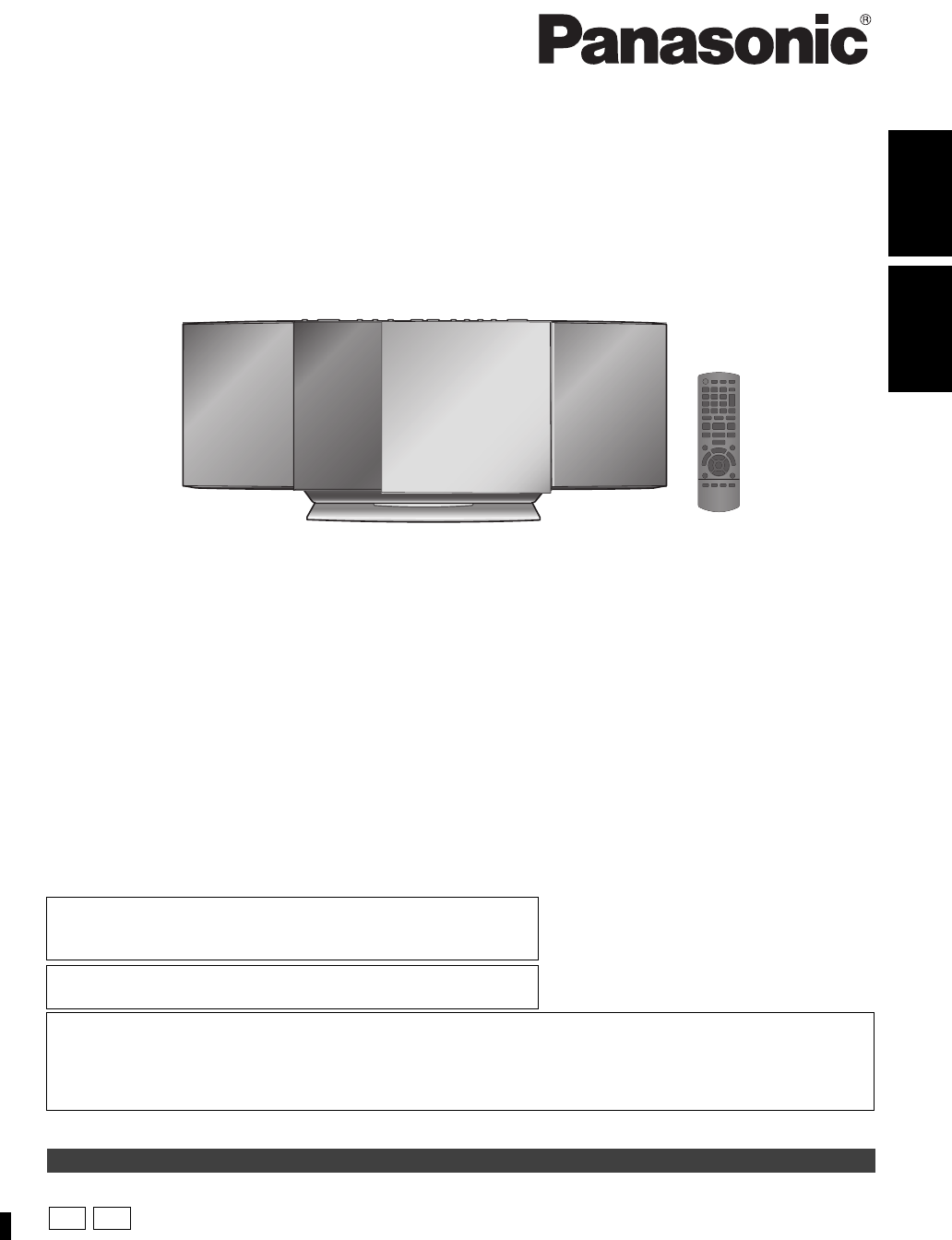
Compact Stereo System
Model No. SC-HC55
SC-HC35
If you have any questions contact
U.S.A. and Puerto Rico: 1-800-211-PANA (7262)
Canada: 1-800-561-5505
Only for U.S.A. and Puerto Rico: The warranty can be found on page 26
Only for Canada: The warranty can be found on page 27
Included Installation Instructions (>2, 6)
The installation should never be done by any other than a qualified installation specialist.
Before commencing work, carefully read these installation instructions and the operating instructions to ensure that
installation is performed correctly.
(Please keep these instructions. You may need them when maintaining or moving this unit.)
La referencia rápida en español se puede encontrar en la página 19-25.
P
PC
SC-HC55_35-RQTX1260.book 1 ページ 2011年4月4日 月曜日 午後4時50分
2
RQTX1260
IMPORTANT SAFETY INSTRUCTIONS
Read these operating instructions carefully before using the unit. Follow the
safety instructions on the unit and the applicable safety instructions listed below.
Keep these operating instructions handy for future reference.
1 Read these instructions.
2 Keep these instructions.
3 Heed all warnings.
4 Follow all instructions.
5 Do not use this apparatus near water.
6 Clean only with dry cloth.
7 Do not block any ventilation openings. Install in accordance with the
manufacturer’s instructions.
8 Do not install near any heat sources such as radiators, heat registers,
stoves, or other apparatus (including amplifiers) that produce heat.
9 Do not defeat the safety purpose of the polarized or grounding-type plug. A
polarized plug has two blades with one wider than the other. A
grounding-type plug has two blades and a third grounding prong. The wide
blade or the third prong are provided for your safety. If the provided plug
does not fit into your outlet, consult an electrician for replacement of the
obsolete outlet.
10 Protect the power cord from being walked on or pinched particularly at
plugs, convenience receptacles, and the point where they exit from the
apparatus.
11 Only use attachments/accessories specified by the manufacturer.
12 Use only with the cart, stand, tripod, bracket, or table
specified by the manufacturer, or sold with the
apparatus. When a cart is used, use caution when
moving the cart/apparatus combination to avoid injury
from tip-over.
13 Unplug this apparatus during lightning storms or when
unused for long periods of time.
14 Refer all servicing to qualified service personnel. Servicing is required
when the apparatus has been damaged in any way, such as power-supply
cord or plug is damaged, liquid has been spilled or objects have fallen into
the apparatus, the apparatus has been exposed to rain or moisture, does
not operate normally, or has been dropped.
Unit
≥To reduce the risk of fire, electric shock or product damage,
– Do not expose this unit to rain, moisture, dripping or splashing.
– Do not place objects filled with liquids, such as vases, on this unit.
– Use only the recommended accessories.
– Do not remove covers.
– Do not repair this unit by yourself. Refer servicing to qualified service
personnel.
Power cord
≥Install this unit so that the power cord can be unplugged from the socket
outlet immediately if any problem occurs.
Unit
≥This unit utilizes a laser. Use of controls or adjustments or performance of
procedures other than those specified herein may result in hazardous
radiation exposure.
≥Do not place sources of naked flames, such as lighted candles, on this unit.
Placement
≥To reduce the risk of fire, electric shock or product damage,
– Do not install or place this unit in a bookcase, built-in cabinet or in another
confined space. Ensure this unit is well ventilated.
– Do not obstruct this unit’s ventilation openings with newspapers,
tablecloths, curtains, and similar items.
Batteries
≥Danger of explosion if battery is incorrectly replaced. Replace only with the
type recommended by the manufacturer.
≥Mishandling of batteries can cause electrolyte leakage and may cause a fire.
– Do not heat or expose to flame.
– Do not leave the battery(ies) in a car exposed to direct sunlight for a long
period of time with doors and windows closed.
– Do not take apart or short circuit.
– Do not recharge alkaline or manganese batteries.
– Do not use batteries if the covering has been peeled off.
– Remove batteries if you do not intend to use the remote control for a long
period of time. Store in a cool, dark place.
≥When disposing the batteries, please contact your local authorities or dealer
and ask for the correct method of disposal.
WARNING
CAUTION
SC-HC55_35-RQTX1260.book 2 ページ 2011年4月4日 月曜日 午後4時50分
3
RQTX1260 ENGLISH
For SC-HC55 only
The model number and serial number of this product can be found on either
the back or the bottom of the unit.
Please note them in the space provided below and keep for future reference.
MODEL NUMBER
SERIAL NUMBER
User memo:
DATE OF PURCHASE
DEALER NAME
DEALER ADDRESS
TELEPHONE NUMBER
Listening Caution
Selecting fine audio equipment such as the unit you’ve just purchased is
only the start of your musical enjoyment. Now it’s time to consider how you
can maximize the fun and excitement your equipment offers. This
manufacturer and the Electronic Industries Association’s Consumer
Electronics Group want you to get the most out of your equipment by
playing it at a safe level. One that lets the sound come through loud and
clear without annoying blaring or distortion—and, most importantly, without
affecting your sensitive hearing.
We recommend that you avoid prolonged exposure to excessive noise.
Sound can be deceiving. Over time your hearing “comfort level” adapts to
higher volumes of sound. So what sounds “normal” can actually be loud and
harmful to your hearing.
Guard against this by setting your equipment at a safe level BEFORE your
hearing adapts.
To establish a safe level:
≥Start your volume control at a low setting.
≥Slowly increase the sound until you can hear it comfortably and clearly,
and without distortion.
Once you have established a comfortable sound level:
≥Leave it there.
Taking a minute to do this now will help to prevent hearing damage or loss
in the future. After all, we want you listening for a lifetime.
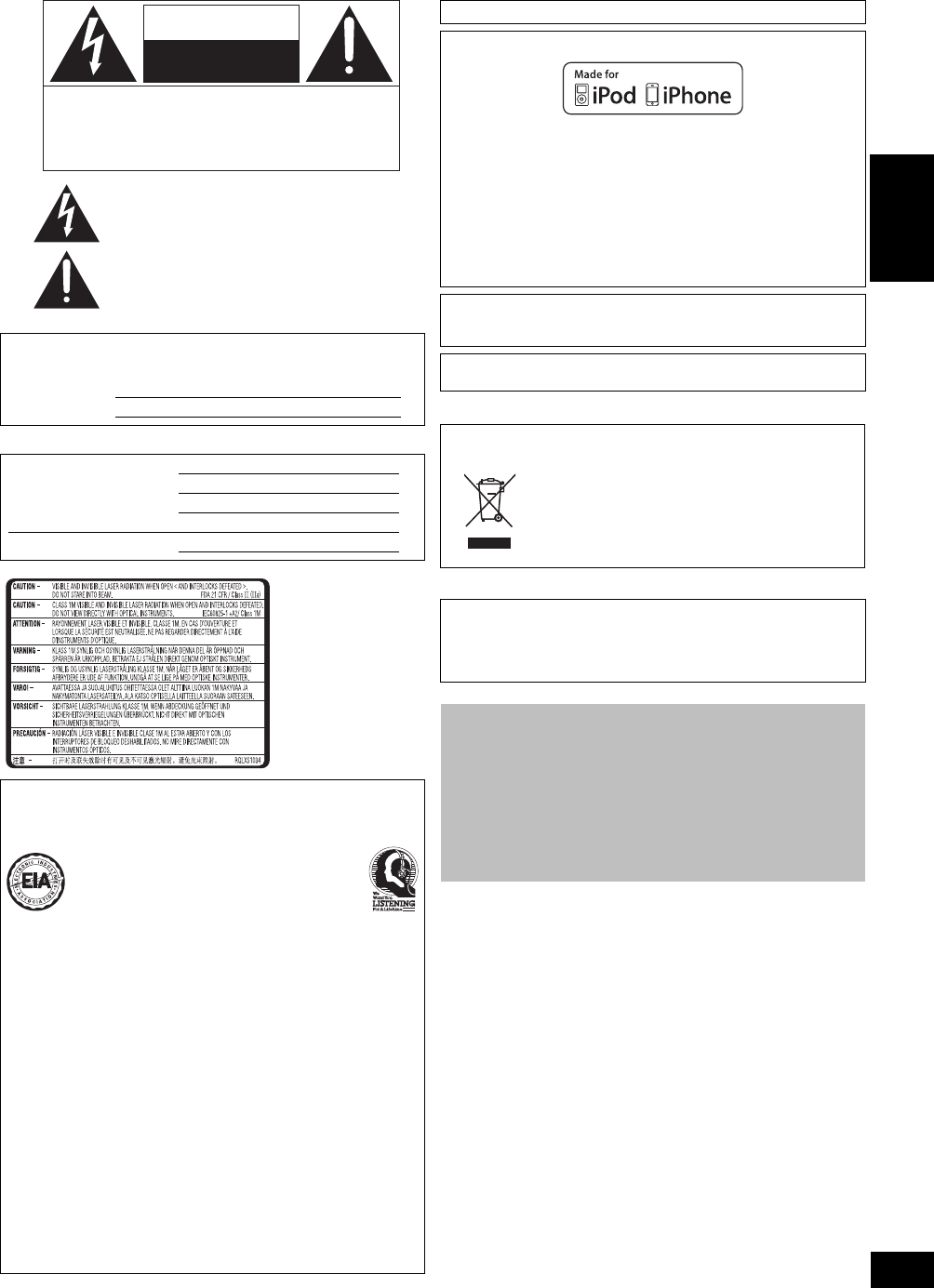
The lightning flash with arrowhead symbol, within an
equilateral triangle, is intended to alert the user to the
presence of uninsulated “dangerous voltage” within
the product’s enclosure that may be of sufficient
magnitude to constitute a risk of electric shock to persons.
CAUTION
CAUTION :
TO REDUCE THE RISK OF ELECTRIC
SHOCK, DO NOT REMOVE SCREWS.
NO USER-SERVICEABLE PARTS
INSIDE.
REFER SERVICING TO QUALIFIED
SERVICE PERSONNEL.
The exclamation point within an equilateral triangle is
intended to alert the user to the presence of important
operating and maintenance (servicing) instructions in
the literature accompanying the appliance.
RISK
OF
ELECTRIC
SHOCK
DO
NOT
OPEN
(Inside of product)
EST. 1924
Product Identification Marking is located on bottom of the unit.
“Made for iPod” and “Made for iPhone” mean that an electronic accessory
has been designed to connect specifically to iPod, or iPhone, respectively,
and has been certified by the developer to meet Apple performance
standards.
Apple is not responsible for the operation of this device or its compliance
with safety and regulatory standards.
Please note that the use of this accessory with iPod, or iPhone may affect
wireless performance.
iPhone, iPod, iPod classic, iPod nano, and iPod touch are trademarks of
Apple Inc., registered in the U.S. and other countries.
The Bluetooth® word mark and logos are owned by the Bluetooth SIG, Inc.
and any use of such marks by Panasonic Corporation is under license.
Other trademarks and trade names are those of their respective owners.
MPEG Layer-3 audio coding technology licensed from Fraunhofer IIS and
Thomson.
-If you see this symbol-
Information on Disposal in other Countries outside the
European Union
This symbol is only valid in the European Union.
If you wish to discard this product, please
contact your local authorities or dealer and ask
for the correct method of disposal.
THE FOLLOWING APPLIES ONLY IN CANADA.
This device complies with Industry Canada licence-exempt RSS standard(s).
Operation is subject to the following two conditions: (1) this device may not
cause interference, and (2) this device must accept any interference,
including interference that may cause undesired operation of the device.
About descriptions in this Owner’s Manual
≥Operations in these instructions are described using remote control, but you
can do the operations with the main unit if the controls are the same.
Your unit may not look exactly as illustrated.
≥This Owner’s Manual is applicable to models SC-HC55 and SC-HC35.
Unless otherwise indicated, illustrations in this Owner’s Manual are of
SC-HC55.
[HC55] :indicates features applicable to SC-HC55 only.
[HC35] :indicates features applicable to SC-HC35 only.
≥Pages to be referred to are indicated as “>±±”.
≥[CD] :indicates CD-DA (except MP3).
[MP3] :indicates MP3 files.
SC-HC55_35-RQTX1260.book 3 ページ 2011年4月4日 月曜日 午後4時50分
4
RQTX1260
Unit and media care
Pull out the AC power plug from the outlet before maintenance.
∫Clean this unit with a soft, dry cloth
≥When dirt is heavy, wring the cloth moistened in water tightly to
wipe the dirt, and then wipe it with a dried cloth.
≥When cleaning the speaker covers, use a fine cloth.
Do not use tissues or other materials (towels, etc.) that can fall
apart. Small grains may get stuck inside the speaker cover.
≥Never use alcohol, paint thinner or benzine to clean this unit.
≥Before using chemically treated cloth, carefully read the
instructions that came with the cloth.
∫Maintenance of the lens
∫Clean discs
Wipe with a damp cloth and then wipe dry.
∫Disc handling precautions
≥Handle discs by the edges to avoid inadvertent scratches or
fingerprints on the disc.
≥Do not attach labels or stickers to discs.
≥Do not use record cleaning sprays, benzine, thinner, static
electricity prevention liquids or any other solvent.
≥Do not use the following discs:
jDiscs with exposed adhesive from removed stickers or
labels (rented discs etc.).
jDiscs that are badly warped or cracked.
jIrregularly shaped discs, such as heart shapes.
Accessories Table of contents
Check the supplied accessories before using this unit. IMPORTANT SAFETY INSTRUCTIONS ................................2
Listening Caution ..................................................................3
Accessories............................................................................4
Unit and media care...............................................................4
Connections...........................................................................5
Attaching the unit to a wall (optional)..................................6
Control reference guide ........................................................8
Opening/Closing the sliding door ........................................9
Disc operations......................................................................9
Sound adjustment ...............................................................11
Radio operations .................................................................11
Timer .....................................................................................12
Listening to audio from iPod or iPhone ............................12
[HC55] Using a Bluetooth® compatible device...................13
Others ...................................................................................15
Troubleshooting...................................................................16
Specifications ......................................................................18
Spanish Quick Reference/ Referencia rápida en
español
Conexiones ..........................................................................19
Guía de referencia del mando a distancia.........................20
Abrir/Cerrar la puerta deslizante ........................................21
Operaciones con discos .....................................................21
Operaciones con la radio....................................................23
Ajuste de sonido..................................................................23
Sincronizador.......................................................................23
Escuchar audio de un iPod o iPhone ................................24
[HC55]
Uso de un dispositivo compatible con Bluetooth
®.........25
Limited Warranty (ONLY FOR U.S.A. AND PUERTO RICO)
.......26
Limited Warranty (ONLY FOR CANADA)
..................................27
∏1 Remote control
([HC55] N2QAYB000643)
([HC35] N2QAYB000641)
∏1 FM indoor antenna
(RSAX0002)
∏1 AM loop antenna
(N1DYYYY00010)
∏1 AC power supply cord
(K2CB2CB00021)
∏1 Battery for remote
control
Wall mounting accessories
∏2 Safety holders E
(RFA3327)
∏2 Safety holder screws C
(Black)
(XSN4+8FJK)
∏2 Wall mount brackets
(RMQX1082-K)
∏1 Safety holder D
(RGQ0632-K)
∏1 Safety holder screw B
(Silver)
(XSN3+10FJ)
∏2 Rear pads
(RKA0252-K)
(ONLY FOR CANADA)
The enclosed Canadian French label sheet corresponds to the
English display on the top of the unit.
≥Product numbers correct as of January 2011. These may be subject to
change.
≥Do not use AC power supply cord with other equipment.
≥Only for U.S.A. and Puerto Rico:
To order accessories, refer to “Accessory Purchases (United States and
Puerto Rico)” on page 26.
For Canada: To order accessories, call the dealer from whom you made your
purchase.
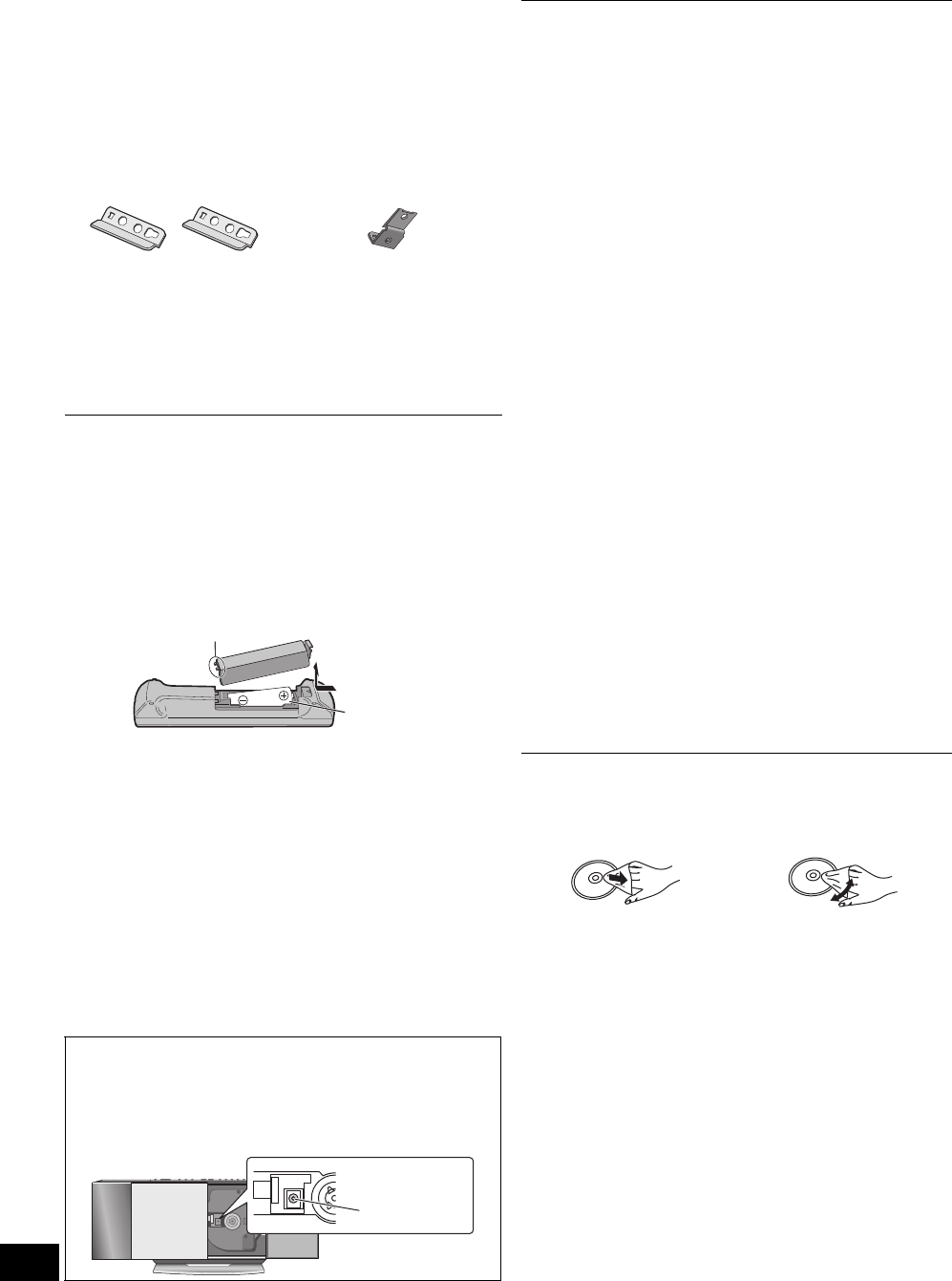
∫The remote control information
Insert so the poles (i and j) match those in the remote control.
≥Use alkaline or manganese batteries.
Place this side in before the other side.
R6/LR6, AA
≥
Clean the lens regularly to prevent malfunctions. Use a blower to
remove dust and a cotton swab if it is extremely dirty.
≥You cannot use a CD type lens cleaner.
≥Do not leave the sliding door open for prolonged periods of
time. This will cause the lens to get dirty.
≥Be careful not to touch the lens with your fingers.
Lens
DO DO NOT
SC-HC55_35-RQTX1260.book 4 ページ 2011年4月4日 月曜日 午後4時50分
5
RQTX1260 ENGLISH
Connections
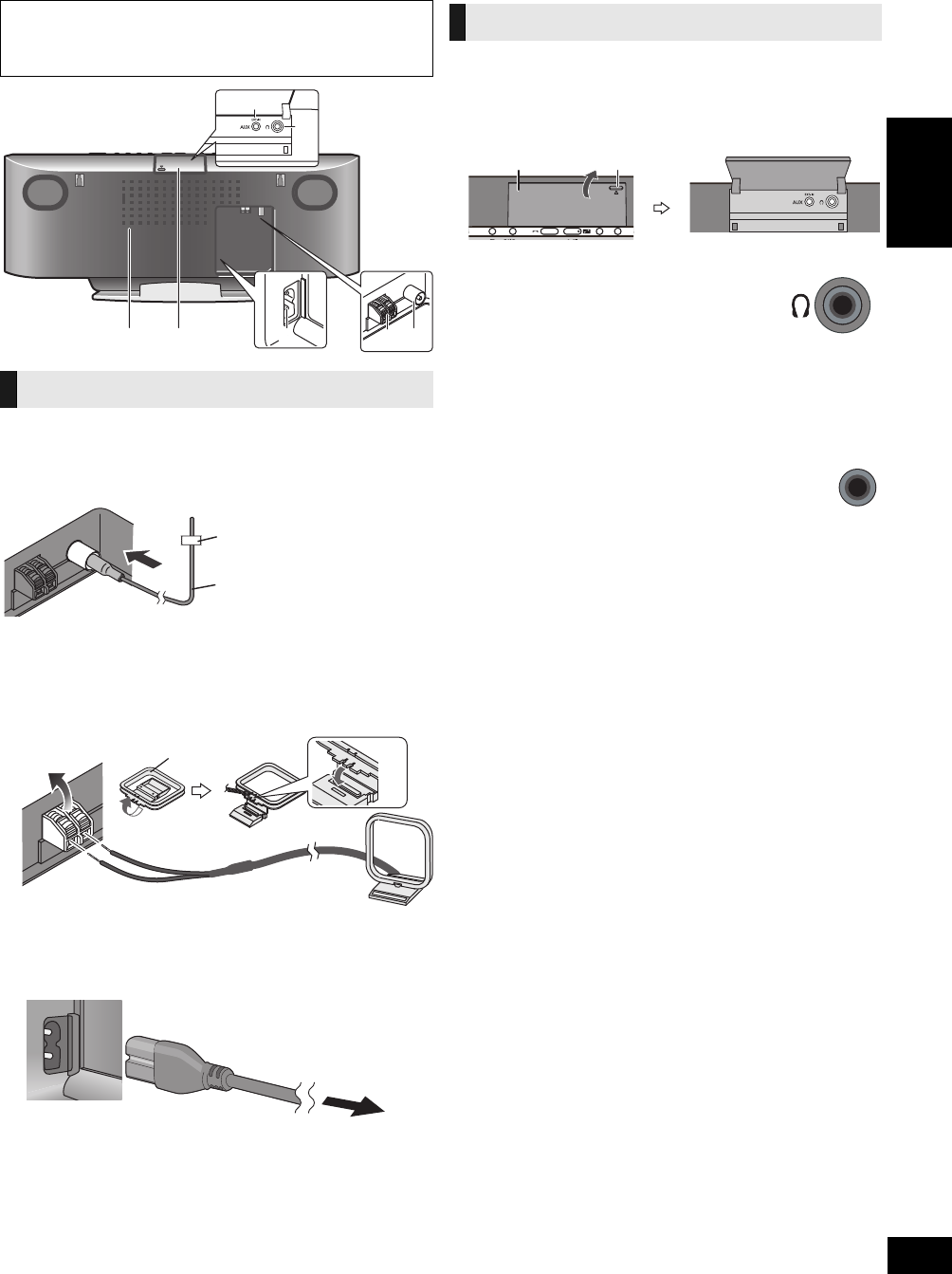
1Connect the FM indoor antenna.
≥Tape the antenna to a wall or column, in a position with the
least amount of interference.
2Connect the AM loop antenna.
≥Keep the loop antenna cord away from other wires and
cords.
AStand the antenna up on its base until it clicks.
BAM loop antenna
3Connect the AC power supply cord.
Connect the AC power supply cord after all other
connections are complete.
Turn the unit on after a few seconds.
Open the EXT-IN AUX/Headphone cover to connect
headphones or external music devices (e.g. MP3 player).
Push the projecting part to open the cover A.
Top View
∫Connect the headphones (not supplied)
≥To prevent hearing damage, avoid listening for prolonged periods of time.
Excessive sound pressure from earphones and headphones cause hearing
loss.
∫Connect an external music device (for AUX
mode)
You can select the sound input level of the external device.
≥Switch the equalizer off or turn the volume of the external device down to
reduce the input signal. High level of input signal will distort the sound.
≥For details, refer to the instruction manual of the other equipment.
≥Cables and devices are not supplied.
∫Notes on speakers
≥These speakers do not have magnetic shielding. Do not place them near a
television, personal computer or other devices easily influenced by
magnetism.
Basic Connections
Back View
Exhaust holes
Adhesive tape
FM indoor antenna
To household AC outlet
Power consumption in standby mode:
Approx. 0.1 W
Additional Connections
Reduce the volume level and connect the
headphones.
Plug type: ‰3.5 mm (1/8q) stereo B
1Plug the audio cable (not supplied) into
the EXT-IN AUX jack C.
Plug type: ‰3.5 mm (1/8q) stereo
2Press [EXT-IN, RADIO] repeatedly to
select “AUX” and start playback on the
connected device.
[HC55] 1Press [SOUND] repeatedly to select “INPUT
LEVEL”.
2Press [2,1] to select “HIGH” or “NORMAL”.
[HC35] Press [INPUT LEVEL] repeatedly to select “HIGH” or
“NORMAL”.
Projecting part
EXT-IN AUX/
Headphone cover
AUX
EXT-IN
SC-HC55_35-RQTX1260.book 5 ページ 2011年4月4日 月曜日 午後4時50分
6
RQTX1260
Attaching the unit to a wall (optional)
∫Supplied accessories
≥1 Safety holder screw B (Silver)
≥2 Safety holder screws C (Black)
≥1 Safety holder D (>4)
≥2 Safety holders E (>4)
≥2 Wall mount brackets
≥2 Rear pads
∫Commercially available accessories
(not supplied)
≥4 Wall bracket fixing screws F
≥1 Safety holder fixing screw G
≥Use screws with a nominal diameter of ‰4 mm (5/32q), which are suitable to
the material of the wall (e.g., wood, steel, concrete, etc.)
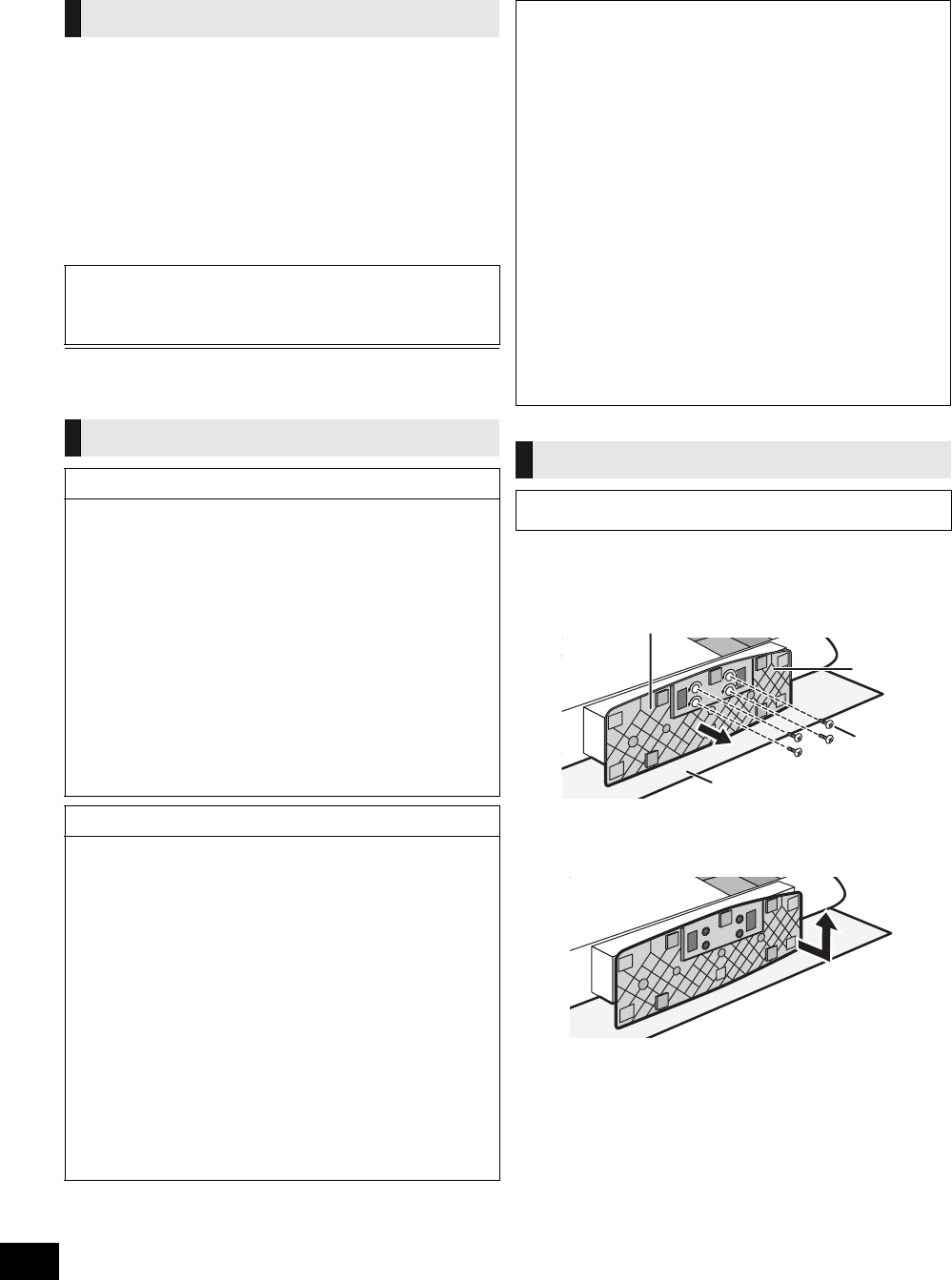
1Detach the stand from the unit.
1Unscrew the fixing screw A (4 pieces) at the bottom
of the unit.
2Gently pull the bottom of the stand and slide the
stand off the unit.
≥Keep the removed screws and stand in a safe place.
Installation accessories
≥Keep the wall mount brackets out of reach of children to prevent
swallowing.
≥Keep the rear pads out of reach of children to prevent swallowing.
≥Keep the screws out of reach of children to prevent swallowing.
≥Keep the safety holder out of reach of children to prevent swallowing.
Safety precautions
WARNING!
≥Only a qualified building contractor shall install or uninstall this
unit.
– Improper installation may cause the unit to fall, resulting in injury.
≥To prevent injury, the unit must be securely attached to the wall in
accordance with the installation instructions.
≥Do not install the unit where it cannot support the load.
– If the mounting parts are not strong enough, this may cause the unit to
fall, resulting in injury.
≥Do not use installation methods other than instructed.
– This may cause the unit to fall and be damaged, resulting in injury.
≥Do not install the unit at locations other than vertical walls.
– This may cause the unit to fall and be damaged, resulting in injury.
≥Take the safety factor for mounting strength into account.
– Insufficient strength will cause the unit to fall, resulting in injury.
≥The wall on which the unit is to be attached to should be capable of
supporting 33 kg (72.8 lbs) per screw.
– Insufficient strength of the walls will cause the unit to fall in the long
run.
≥Do not disassemble or modify the wall-mounting hanger.
– This will cause the unit to fall and be damaged, resulting in injury.
CAUTIONS!
≥Do not install this unit at humid or dusty locations, or locations
where airborne grease or steam may come into contact with the
unit, or under an air conditioner where water may drip onto the unit.
– This may have negative impact on the unit, resulting in fire or electric
shock.
≥Secure enough space of more than 30 cm (11 13/16q) above the main
unit and more than 10 cm (3 15/16q) on the left and right sides
respectively. Keep space between the wall and rear of the unit clear
of obstructions.
– Blocking the exhaust holes on the main unit may result in fire.
≥Use the designated components for installation.
– Otherwise, the main unit may fall and be damaged, resulting in injury.
≥Prevent the mounting screws or power cord from coming into
contact with metal parts inside the wall during installation.
– Failure to do so may cause electric shock.
≥When removing the main unit, remove the wall mounting screws as
well.
– Otherwise the wall mounting screws may hit a person and lead to
injury.
≥Install the unit at a height where the EXT-IN AUX jack and operation
buttons can be seen for safe operation.
– Operating at improper position may cause the unit to fall and be
damaged, resulting in injury.
∫Notes on installation
≥Before installation, read the “Safety precautions” and “Wall mount
instructions” for correct installation.
≥For optimal performance and to prevent potential problems, do not
install this unit:
– at locations other than vertical walls.
– near a sprinkler or a sensor.
– near high-voltage lines or power sources.
– near heating device.
– at locations where the unit is subject to vibration or impact.
– near sources of magnetism, heat, vapor, airborne grease, etc.
– at locations where there may be water droplets (e.g. under an air
conditioner).
≥Do not install this unit under ceiling lights (e.g. spotlight, halogen
light, etc.).
– Failure to do so may bend the cabinet or lead to damage caused by
high heat.
≥Use a proper installation method that suits the structure and
material of the wall.
≥Use a soft blanket or cloth to prevent damage to the product or floor
during installation.
≥When tightening screws, make sure the screws are not
loosely-tightened or overtightened.
≥Secure a safe surrounding area and pay attention to safety during
installation.
≥Panasonic is not liable for incidental or consequential damages
resulting from improper installation or operation.
Wall mount instructions
Before installation, turn the unit off and disconnect the AC power
supply cord from the AC outlet.
Bottom of main unit
Stand
Soft blanket or cloth
Fixing screw
A
SC-HC55_35-RQTX1260.book 6 ページ 2011年4月4日 月曜日 午後4時50分
7
RQTX1260 ENGLISH
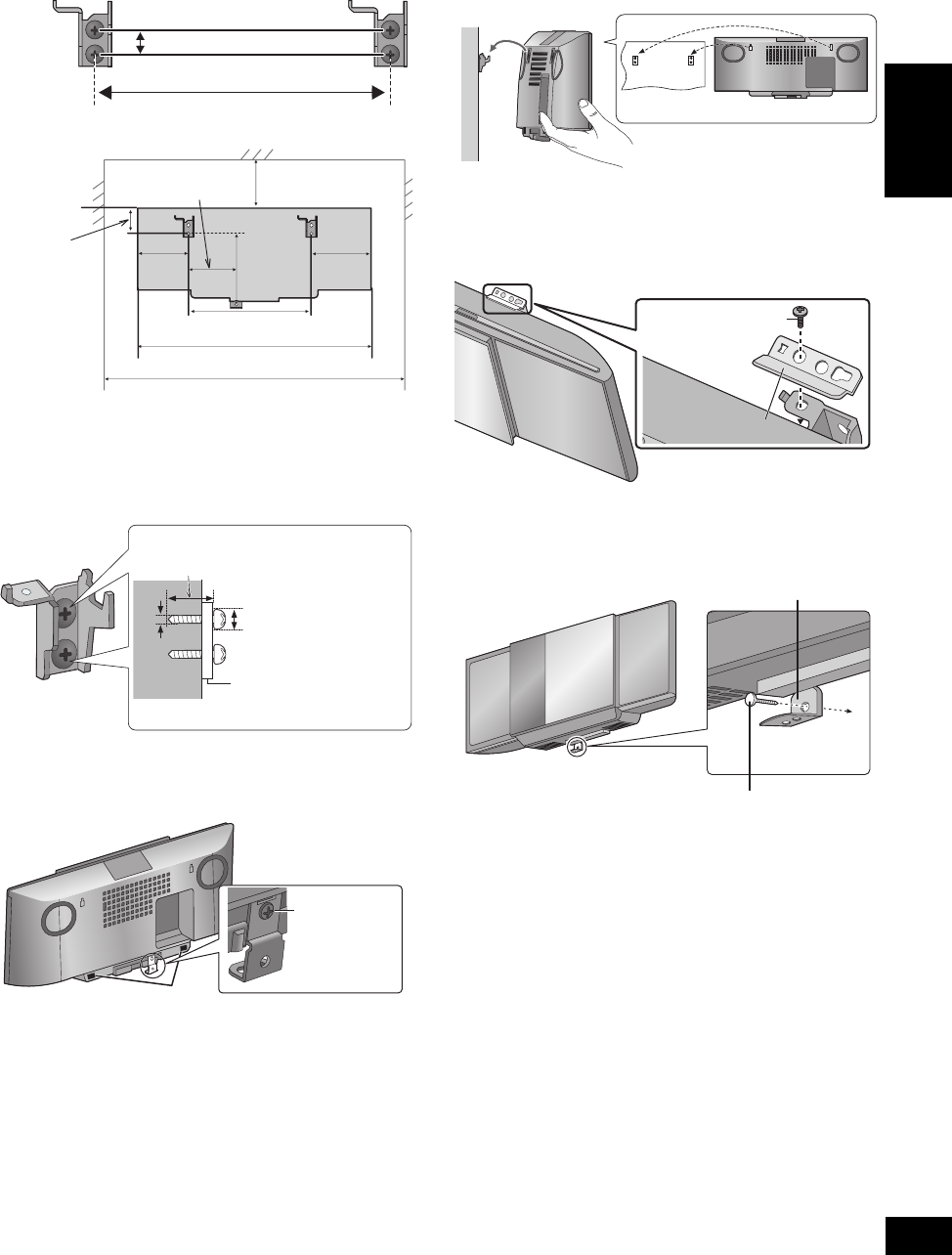
2Measure and mark the position of the wall
mount brackets (Both sides).
≥Use figures below to identify the screwing positions.
The position to attach the wall mount brackets
Space required
3Attach the wall mount bracket to the wall with 2
screws F. (Both sides)
≥Use a spirit level to ensure both wall mount brackets are level.
≥Use a screw which is strong enough to support the weight of at least
33 kg (72.8 lbs).
4Fix the safety holder D onto the unit with the
safety holder screw B.
≥Before attaching, stick the rear pads (supplied) to A.
≥Screw tightening torque: 50 N0cm (0.4 lbf0ft) to 70 N0cm (0.5 lbf0ft).
5Hang the unit on the wall.
Hook the unit securely onto the wall mount brackets.
≥Connect the FM/AM antenna and the AC power supply cord to the unit
before hanging the unit onto the wall. (>5)
≥After hanging the unit, release your hand carefully to confirm the unit sits
securely on the wall.
6Fix the safety holders E onto the wall mount
brackets with the safety holder screws C.
(Both sides)
≥Screw tightening torque: 80 N0cm (0.6 lbf0ft) to 120 N0cm (0.9 lbf0ft).
7Drive the safety holder fixing screw G to
secure the safety holder D onto the wall.
≥Refer to step 3 for requirements before screwing.
229 mm (9 1/32q)
12.5 mm (1/2q)
300 mm (11 13/16q)
480 mm (19q)
680 mm (30 23/32q)
48.5 mm
(1 29/32q)
229 mm (9 1/32q)
133 mm
(5 1/4q)
118 mm
(4 21/32q)
89 mm (3 1/2q)
139 mm
(5 15/32q)
At least 30 mm (1 3/16q)
7.5 mm (19/64q) to 9.4 mm (3/8q)
4 mm
(5/32q)Wall mount bracket
Safety holder
screw B
Wall
Safety holder E
Safety holder
screw C
Safety holder fixing screw G
Safety holder D
Fixed to the wall
SC-HC55_35-RQTX1260.book 7 ページ 2011年4月4日 月曜日 午後4時50分
8
RQTX1260
Control reference guide
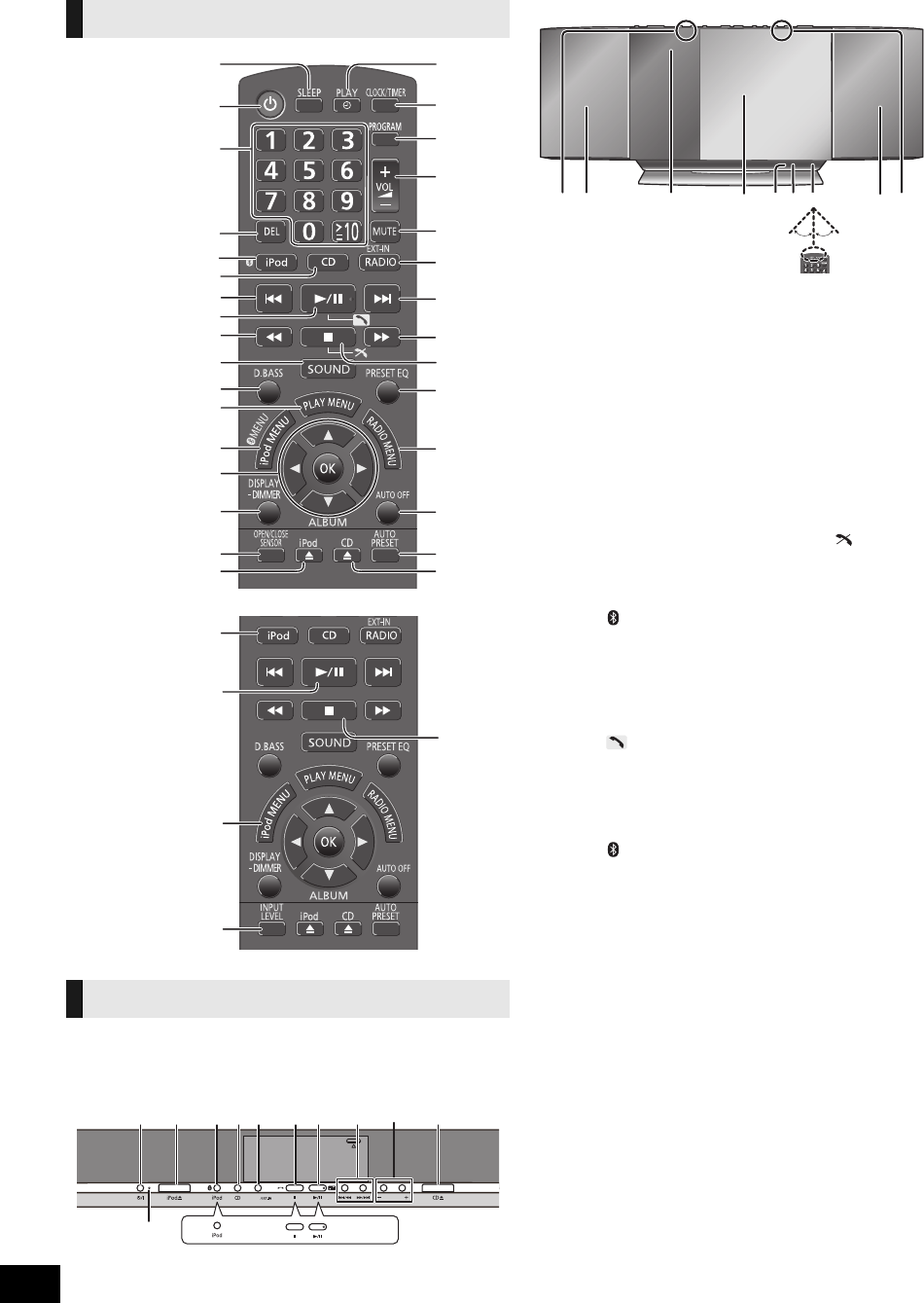
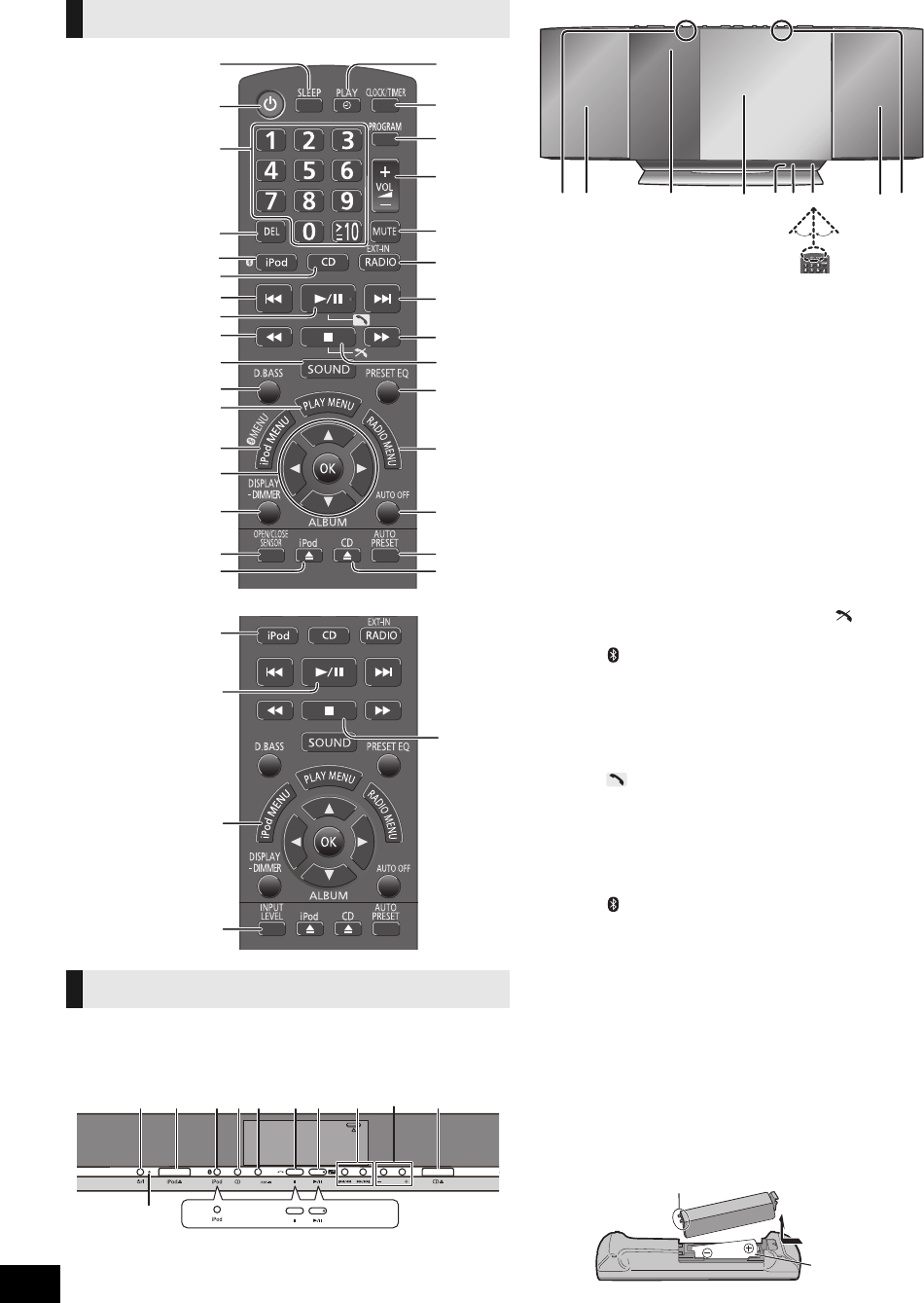
Buttons such as 2 function the same as the remote control.
They can be used interchangeably.
Top view
Front view
Remote control
Main unit
[HC55]
[HC35]
[HC35]
ヱヰヸユン
ヰヱユワバヤロヰヴユ ヰヱユワバヤロヰヴユ
ンモュリヰ
ンモュリヰ
ヷヰロヶヮユ
ヷヰロヶヮユ
1[SLEEP] (>12)
2Standby/on switch [Í],
[POWER, Í/I] (>9, 10,
15)
Press to switch the unit from on to
standby mode or vice versa.
In standby mode, the unit is still
consuming a small amount of power.
3Numeric buttons
[1-9, 0, S10] (>10, 11, 15)
To select a 2-digit
number
e.g. 16: [S10] # [1] # [6]
To select a 3-digit
number
e.g. 226: [S10] # [S10] #
[2] #[2] # [6]
4[DEL] (>10)
5[HC55] [ , iPod] (>12,
14)
[HC35] [iPod] (>12)
6[CD] (>10)
7[:], [9] (>10, 12,
14)
8[1/;] (>10, 12, 14)
[HC55] [] (>14)
9[6], [5] (>10, 11, 12)
:[SOUND] (>5, 9, 11)
;[D.BASS] (>11)
<[PLAY MENU] (>10)
=[iPod MENU] (>12)
[HC55] [ MENU] (>15)
>[3,4,2,1], [OK] (>5,
10, 11, 12, 15)
?[DISPLAY] (>10, 14)
[jDIMMER]
Press and hold to dim the display
panel. Press and hold again to
cancel.
@[HC55] [OPEN/CLOSE
SENSOR] (>9)
[HC35] [INPUT LEVEL]
(>5)
A[iPod <] (>9)
[iPod <, OPEN/CLOSE]
[HC55] Sensor activity
indicator*
B[PLAY, F] (>12)
C[CLOCK/TIMER] (>12)
D[PROGRAM] (>10, 11)
E[+, VOL ,–]
[– VOLUME +] (>14)
Adjusts sound volume.
F[MUTE] (>14)
Mutes the sound. Press again to
cancel. “MUTE” is also canceled
when the volume is adjusted or
the unit is turned off.
G[EXT-IN, RADIO]
[RADIO/EXT-IN] (>11,
15)
H[∫] (>10, 12, 14)
[HC55] [] (>14)
I[PRESET EQ] (>11)
J[RADIO MENU] (>11)
K[AUTO OFF]
This function allows you to turn
the unit off (except in radio mode)
after the unit is left unused for
about 30 minutes.
When the function is turned on,
the “A.OFF” indicator lights.
L[AUTO PRESET] (>11)
M[CD <] (>9)
[CD <, OPEN/CLOSE]
[HC55] Sensor activity
indicator*
NStandby indicator
O[HC55] Open/Close sensor
(>9)
PSpeaker
QDisplay
RSliding door
S[HC55] Microphone (>14)
T[HC55] Bluetooth®
indicator (>14)
URemote control signal
sensor
Distance:
Within approx. 7 m (23 ft) directly
in front.
* The sensor activity indicator will light
when the Open/Close sensor is
turned on.
One of the indicators will flash while
the sliding door is opening or
closing.
30º 30º
SC-HC55_35-RQTX1260.book 8 ページ 2011年4月4日 月曜日 午後4時50分
9
RQTX1260 ENGLISH
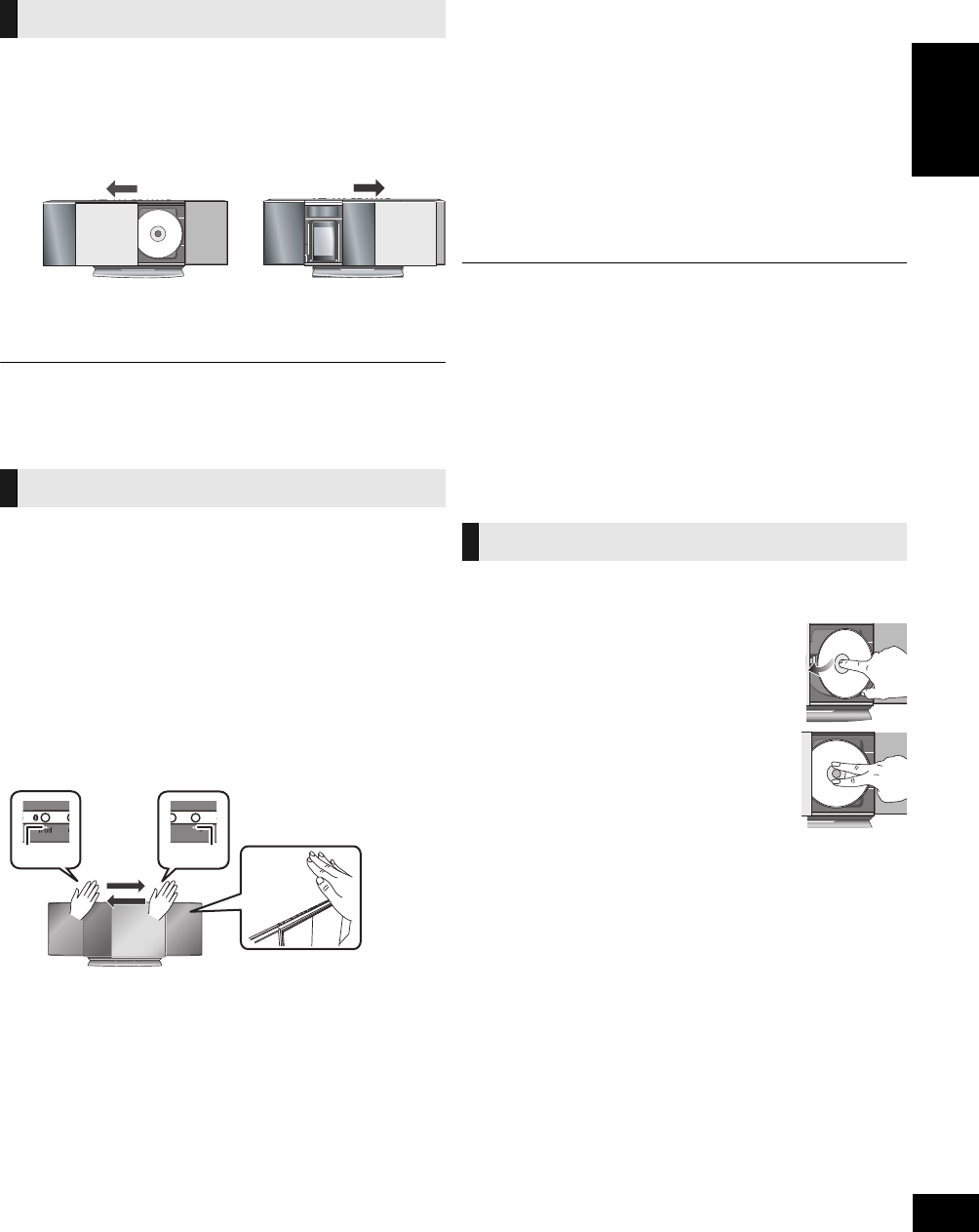
Opening/Closing the
sliding door
Preparation
Press [Í] to turn the unit on.
For disc operations:
AWhile the sliding door is closed, press [CD <]
to open the sliding door.
For iPod/iPhone operations:
BWhile the sliding door is closed, press [iPod <]
to open the sliding door.
∫Closing the sliding door
Press [CD <] or [iPod <] again.
≥Keep fingers away from the sliding door when it is closing to avoid possible
minor injuries.
≥Damage may occur if the sliding door is forced closed.
≥Be careful of CD hitting the sliding door while being removed.
≥The sliding door will not close if the docking switch lever is not returned to the
original position.
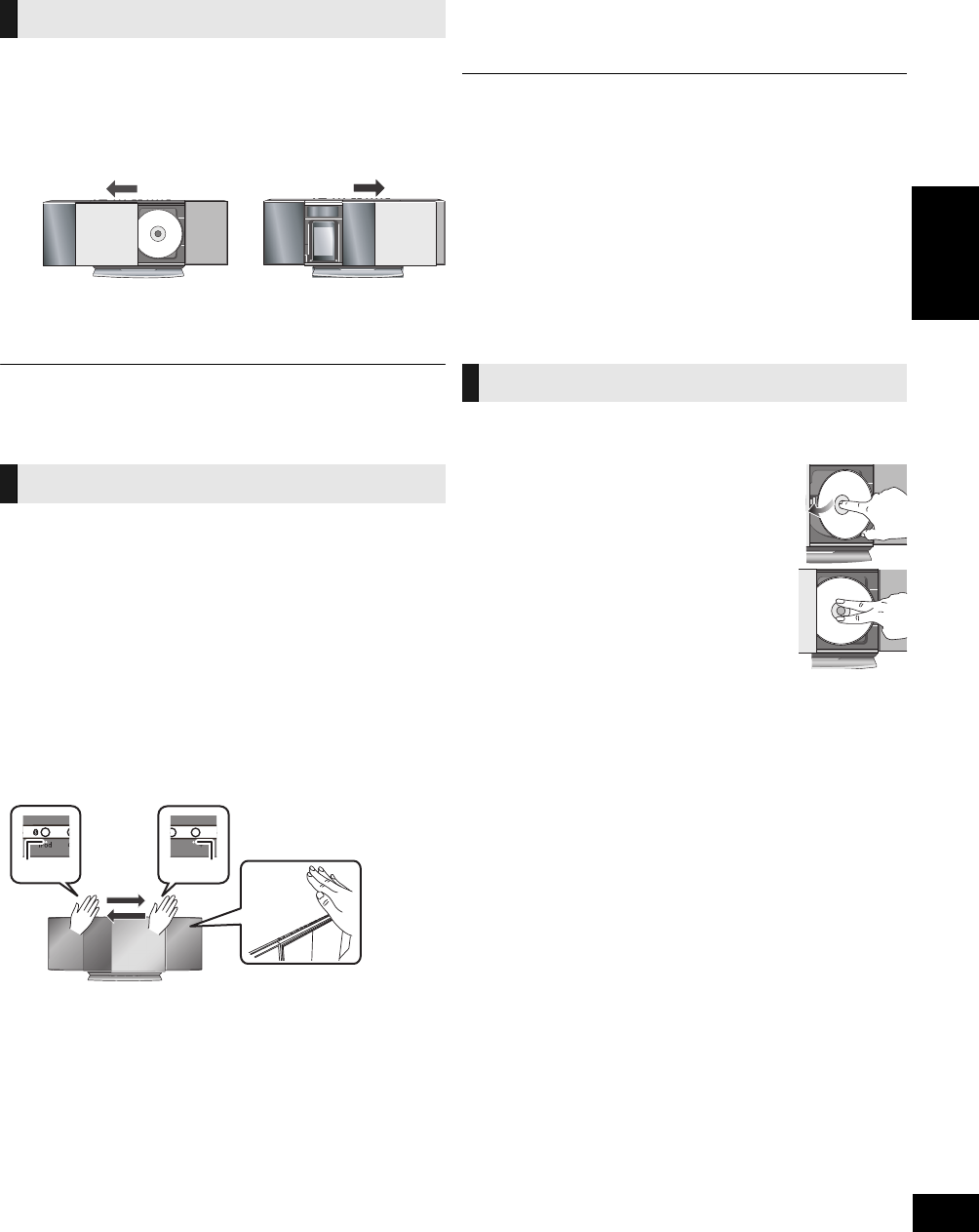
With this function the sliding door can be opened without
pressing a button. The sliding door will open or close by moving
the palm of your hand over the sensors on the top of the unit.
For disc operations:
Place the palm of your hand over sensor B and
then move it over sensor A.
≥To close the sliding door, place the palm of your hand over
sensor A and then move it over sensor B.
For iPod/iPhone operations:
Place the palm of your hand over sensor A and
then move it over sensor B.
≥To close the sliding door, place the palm of your hand over
sensor B and then move it over sensor A.
∫To change the setting of the open/close sensor
The sensitivity of the sensor can be changed to increase or
decrease the activating area of the open/close sensor.
Press [OPEN/CLOSE SENSOR] repeatedly to
select “MODE 1”, “MODE 2”, “MODE 3” or
“OFF SENSOR”.
Select the mode that allows correct operation.
≥Factory preset: “MODE 2”
≥To turn the open/close sensor off, select “OFF SENSOR”.
∫To change the sound effect settings of the
open/close sensor
1Press [SOUND] repeatedly to select “BUZZER”.
2Press [2] or [1] to select the following setting.
≥A red light is lit from the position of the sensor. This is normal.
≥The open/close sensor might be unintentionally activated if an object, hand,
part of your arm, pets or children move over the top of the unit.
≥If the open/close sensor does not react, move the palm of your hand closer to
the top of the unit and change the speed that you move your hand.
≥If the open/close sensor does not work, try changing the sensor’s setting. If it
still does not work, open/close the sliding door using the buttons on the unit or
the remote control.
≥When the sensor setting is changed to “MODE 1”, move your hand closer
(approx. 3 cm (1 1/8")) over the unit.
≥The disc operation side of the sliding door will not open during CD playback
or pause.
Disc operations
1Press [Í] to turn the unit on.
2Open the sliding door. (>left)
3With the label of the disc facing
towards you, tilt the disc into the
disc tray under the sliding door.
4Place the disc onto the spindle in
the center and then push the disc
down until it clicks into place.
≥Make sure that the unit does not fall when
inserting the disc.
5Close the sliding door. (>left)
∫Removing a disc
1Open the sliding door.
2Hold the center and the top right of the disc and pull the top
right of the disc to unlock it from the spindle.
3Tilt the disc so as not to touch the sliding door or the lens and
remove the disc.
Opening the sliding door
[HC55] Open/Close sensor
AB
ンモュリヰ
ヷヰロヶヮユ
ヷヰロヶヮユ
LOW: Set the sound effect level to low.
MID: Set the sound effect level to medium.
HIGH: Set the sound effect level to high.
OFF: Turn the sound effect off.
Inserting a disc
SC-HC55_35-RQTX1260.book 9 ページ 2011年4月4日 月曜日 午後4時50分
10
RQTX1260
1Press [Í] to turn the unit on.
2Insert the disc to be played (>9).
3Press [CD].
4Press [1/;] to start play.
After performing steps 1-3 in “Basic play”
1Press [PLAY MENU] repeatedly to select
“REPEAT”.
2Press [2,1] to select “ON REPEAT” and press
[OK].
3Press [1/;] to start play.
≥To stop repeat play, select “OFF REPEAT” in step 2.
After performing steps 1-3 in “Basic play”
1Press [PLAY MENU] repeatedly to select “PLAY
MODE”.
2Press [2,1] to select the following mode and
press [OK].
3Press [1/;] to start play.
≥During random play, you cannot skip to the previous track.
≥The current play mode is cleared when you open the sliding door.
≥To repeat program play or selected play mode, select “ON REPEAT” in PLAY
MENU.
Enables you to program up to 24 tracks.
After performing steps 1-3 in “Basic play”
1Press [PROGRAM] during the stop mode.
3Press [1/;] to start play.
≥The program memory is cleared when you open the sliding door.
Basic play
Stop Press [∫].
Pause Press [1/;]. Press again to resume play.
Skip Press [:] or [9] to skip track.
Press [3,4] to skip album. (MP3)
Search [CD] Press and hold [6] or [5].
Direct access
play
(Play starts from
the track you
selected.)
[CD]:
Press the numeric buttons to select the
track.
[MP3]:
1Press [3,4] to select the album.
2Press [9] once and then the
numeric buttons to select the track.
≥This function does not work during random play
or program play.
View contents
information
Press [DISPLAY] repeatedly during play
or pause.
The current track’s information, etc. is
displayed.
≥Maximum number of displayable characters:
approximately 30
≥This unit supports ver. 1.0, 1.1 and 2.3 ID3 tags.
Text data that is not supported will not be
displayed or shown differently.
Repeat play
Play mode function
1-TRACK 1TR:Plays one selected track on the disc.
1-ALBUM 1ALBUM:
[MP3]
Plays one selected album on the disc.
≥Press [3,4] to select the album.
RANDOM RND:Plays a disc randomly.
1-ALBUM
RANDOM 1ALBUM RND:
[MP3]
Plays all tracks in one selected album
randomly.
≥Press [3,4] to select the album.
Program play
2[CD]:
Press the numeric buttons to select the track.
≥To program more tracks, continue by pressing the
numeric buttons.
[MP3]:
1Press [3,4] to select the album.
2Press [9] once and then the numeric buttons to
select the track.
3Press [OK].
To program more tracks, repeat steps 1 - 3.
Cancel program
mode
Press [PROGRAM] in the stop mode to
clear “PGM” indicator from the display.
Check program
contents
Press [:] or [9] when “PGM” is
displayed in the stop mode.
Delete last
programmed track
Press [DEL] in the stop mode.
Clear all
programmed
tracks
1Press [∫] in the stop mode.
2Press [∫] again while blinking
“CLR ALL”.
∫Notes on CD-R/CD-RW
≥This unit can play CD-R and CD-RW recorded with CD-DA or MP3.
≥Use an audio recording disc for CD-DA and finalize* it when you finish
recording.
* A process performed after recording that enables CD-R or CD-RW
players to play audio CD-R and CD-RW.
≥The unit may not be able to play some discs due to the condition of the
recording.
≥Do not use irregularly shaped CDs.
≥Do not attach extra labels and stickers.
≥Do not use CDs with labels and stickers that are coming off or with
excessive adhesive under the labels and stickers.
≥Do not attach scratch-proof covers or any other kind of accessories.
≥Do not write anything on the CDs.
≥Do not clean CDs with liquids (Wipe with a soft and dried cloth).
Note about using a DualDisc
≥The digital audio content side of a DualDisc does not meet the technical
specifications of the Compact Disc Digital Audio (CD-DA) format so play
may not be possible.
≥Do not use a DualDisc in this unit as it may not be possible to insert it
correctly and it may get scratched or scraped.
Creating MP3 files playable on this unit
≥Maximum number of tracks and albums: 999 tracks and 254 albums
(Excluding Root folder).
≥Compatible compression rate: Between 64 kbps and 320 kbps (stereo).
128 kbps (stereo) is recommended.
≥Disc formats: ISO9660 level 1 and level 2 (except for extended formats).
≥The time for reading TOC depends on the number of the tracks, folders
or folder structures.
Limitations on MP3
≥This unit is compatible with multi-sessions and it takes more time to start
playing.
≥This unit cannot play files recorded using packet write.
≥If the disc includes both MP3 and normal audio data (CD-DA), the unit
plays the type recorded in the inner part of the disc. If the disc includes
both MP3 and other types of audio data (e.g. WMA or WAV), the unit
plays only the MP3.
≥Depending on how you create the MP3 files, they may not play in the
order you numbered them or may not play at all.
SC-HC55_35-RQTX1260.book 10 ページ 2011年4月4日 月曜日 午後4時50分

11
RQTX1260 ENGLISH
Sound adjustment
The following sound effects can be added to the audio output.
≥You may experience a reduction in sound quality when these effects are used
with some sources. If this occurs, turn the sound effects off.
Radio operations
1Press [EXT-IN, RADIO] repeatedly to select
“FM” or “AM”.
2Press [6] or [5] to select the frequency of
the required station.
≥“ST” is displayed when a stereo FM broadcast is being
received.
≥To tune automatically, press and hold [6] or [5] until
the frequency starts changing rapidly.
jTo cancel auto tuning, press [6] or [5] once again.
jAuto tuning may not function when there is excessive
interference.
∫To improve FM sound quality
1Press [RADIO MENU] to select “FM MODE” while receiving
FM broadcasts.
2Press [2,1] to select “MONO”.
≥Select “STEREO” in Step 2 to return to stereo broadcasts.
≥“MONO” is canceled if the frequency is changed.
∫To improve AM sound quality
1Press [RADIO MENU] to select “B.PROOF” while receiving
AM broadcasts.
2Press [2,1] to select the beat proof setting (“BP 1” or
“BP 2”) and press [OK].
≥This setting is reset to “BP 1” when changes are made (e.g. frequency is
changed).
You can preset up to 30 FM channels and 15 AM channels.
Preparation
Press [EXT-IN, RADIO] repeatedly to select “FM” or “AM”.
∫Automatic presetting
1Press [OK] to switch between the “LOWEST” and
“CURRENT” frequency.
2Press [AUTO PRESET].
“PGM” starts to flash and the tuner starts to preset all the stations
it can receive into the channels in ascending order.
∫Manual presetting
1Press [6] or [5] to tune to the required station.
2Press [PROGRAM].
3While “PGM” is flashing, press the numeric buttons to select
a channel.
≥The station occupying a channel is erased if another station is preset in that
channel.
≥To preset more stations, repeat steps 1 - 3.
∫Selecting a preset station
Press [:] or [9] to select the channel.
≥Alternatively, press the numeric buttons to select the channel.
This unit is factory-set to FM 0.2 MHz and AM 10 kHz, but you
can change it to receive broadcasts allocated in FM 0.1 MHz or
AM 9 kHz steps.
1Press [EXT-IN, RADIO] to select “FM”.
≥Select “AM” to change the AM frequency steps
2Press and hold [RADIO/EXT-IN] on the main unit.
After a few seconds the display changes to display current
minimum frequency.
3Continue to hold down [RADIO/EXT-IN] on the main unit.
When the minimum frequency changes, release the button.
≥To return to the original step, repeat steps 1 - 3.
≥After the setting is changed, any previously preset frequency will be cleared.
Preset EQ Press [PRESET EQ] repeatedly to select
“HEAVY”, “SOFT”, “CLEAR”, “VOCAL” or
“FLAT”.
Bass or Treble 1Press [SOUND] repeatedly to select
“BASS” or “TREBLE”.
2Press [2,1] to adjust the level (-4 to
+4).
Surround
Sound
1Press [SOUND] repeatedly to select
“SURROUND”.
2Press [2,1] to select
“ON SURROUND”.
≥To cancel surround sound, select
“OFF SURROUND” in step 2.
≥If interference in FM stereo reception
increases, cancel the surround sound
effect.
D.Bass Press [D.BASS] during play to select
“ON D.BASS” or “OFF D.BASS”.
Manual tuning
Memory preset
FM/AM frequency step
SC-HC55_35-RQTX1260.book 11 ページ 2011年4月4日 月曜日 午後4時50分
12
RQTX1260
Timer
This is a 12-hour clock.
1Press [CLOCK/TIMER] to select “CLOCK”.
2Within 10 seconds, press [3,4] to set the
time.
3Press [OK].
≥To display the clock, press [CLOCK/TIMER].
≥Reset the clock regularly to maintain accuracy.
You can set the timer to come on at a certain time to wake you up.
This unit offers 3 optional play timers.
Preparation
≥Turn the unit on and set the clock (>above).
≥Prepare the music source (disc, radio, iPod/iPhone or AUX)
and set the volume.
1Press [CLOCK/TIMER] repeatedly to select
“FPLAY 1”, “FPLAY 2” or “FPLAY 3”.
2Within 10 seconds, press [3,4] to set the
starting time.
3Press [OK].
4Set the finishing time by repeating steps 2 and
3.
∫To activate the timer
5Press [PLAY, F] repeatedly to set the desired
play timer on.
6Press [Í] to turn the unit off.
≥The timer will start at the preset time, with the volume increasing gradually to
the preset level.
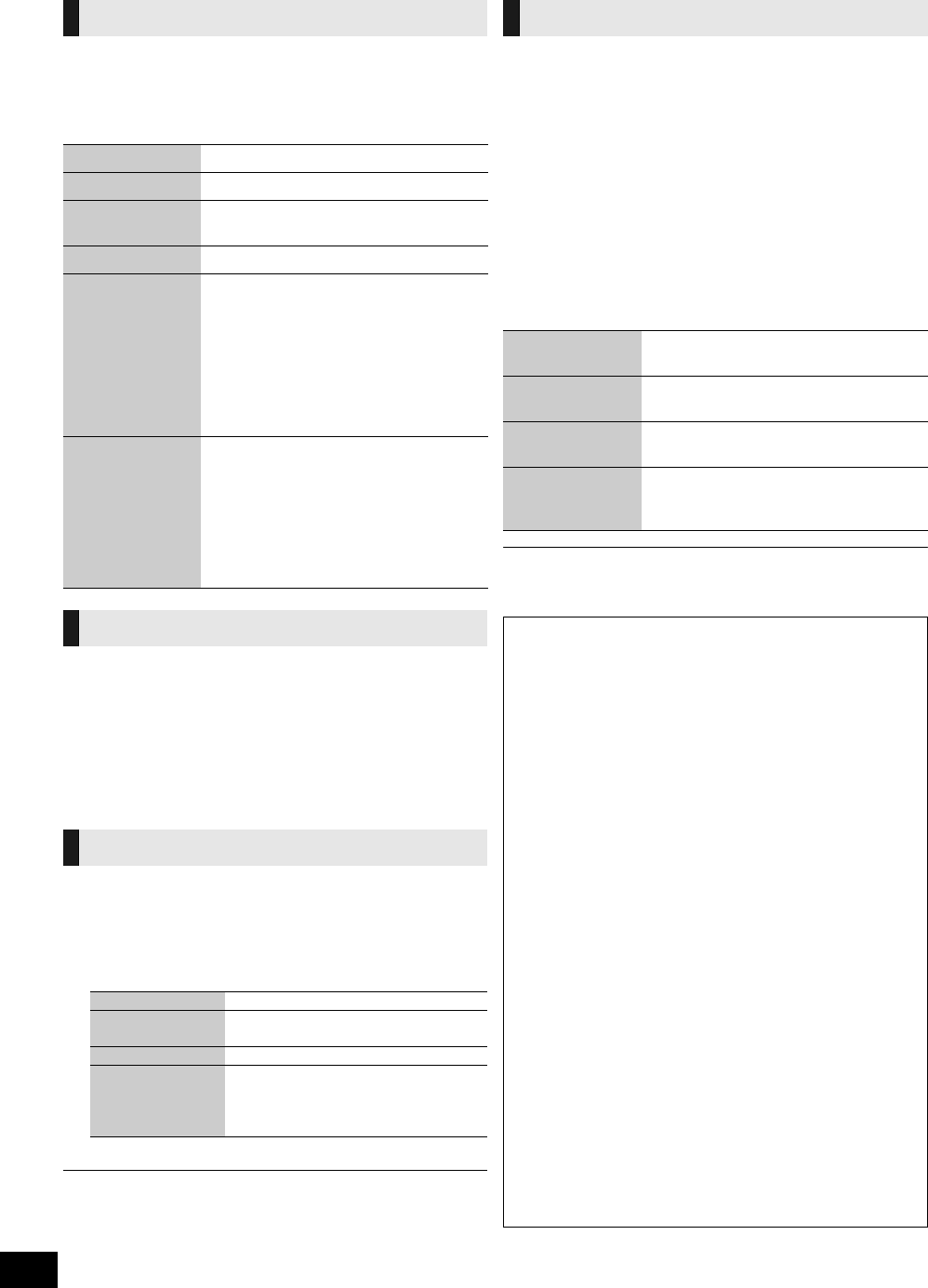
The sleep timer can turn the unit off after a set time.
Press [SLEEP] to turn the sleep function on or off.
30MIN # 60MIN # 90MIN # 120MIN
^--------------- OFF (Cancel) (------------}
Press [SLEEP] once to check the remaining time.
≥The play timer and sleep timer can be used together. The sleep timer always
has the priority. Be sure not to overlap the timer settings.
≥When “AUTO OFF” is “ON” and the unit is left unused for about 30 minutes,
the unit will shut down even if the play time or sleep time has not expired.
Listening to audio from
iPod or iPhone
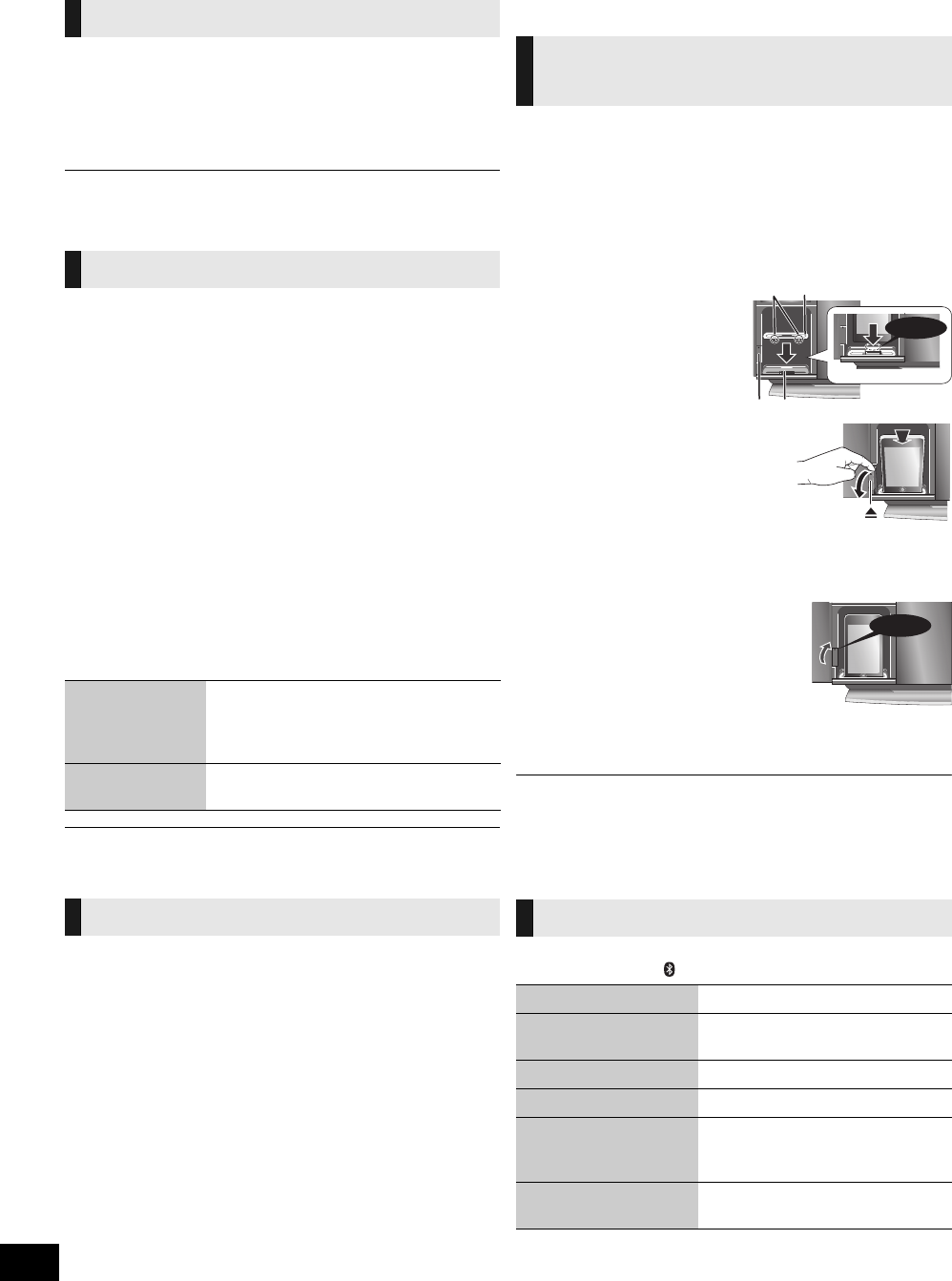
∫Inserting an iPod/iPhone
1Open the sliding door. (>9)
2Insert the suitable dock adapter (not supplied)
for the iPod/iPhone.
≥Insert the side of the iPod/iPhone dock adapter with the
clips facing towards you first and then push the opposite
side until it clicks into place.
3Press [<] to unlock the
iPod/iPhone dock and then
pull the docking switch
lever to tilt the iPod/iPhone
dock.
4Connect the iPod/iPhone
(not supplied) firmly.
≥Be sure to remove the iPod/iPhone from its case.
5Push the docking switch
lever back until it clicks into
place.
6Close the sliding door. (>9)
∫Removing an iPod/iPhone
1Repeat step 1 and 3 (>above).
2To remove, simply pull the iPod/iPhone straight out.
3Repeat step 5 and 6 (>above).
≥If the iPod/iPhone dock is not tilted when connecting or disconnecting the
iPod/iPhone, it may cause damage to the connector.
≥Be sure to use a dock adapter that is compatible with your iPod/iPhone.
To purchase a dock adapter, consult your iPod/iPhone dealer.
≥Reduce the volume of the main unit to minimum before connecting or
disconnecting the iPod/iPhone.
Preparation
Press [iPod] ([HC55]: [ , iPod]) repeatedly to select “IPOD”.
≥The operations may vary or not work depending on the iPod/iPhone models.
Setting the clock
Play timer
Check the settings
(When the unit is
on or in standby
mode)
Press [CLOCK/TIMER] twice.
(The setting is displayed.)
Cancel Press [PLAY, F] twice to clear the timer
indicator from the display.
Sleep timer
Inserting/Removing an iPod/
iPhone
AClips
BDock adapter
CiPod/iPhone docking
switch lever
DConnector
iPod operations
Play Press [1/;].
Pause Press [1/;] or [∫]. Press again to
resume play.
Skip track Press [:] or [9].
Search the current track Press and hold [6] or [5].
Display iPod/iPhone
menu/return to previous
menu
Press [iPod MENU] in the play
mode. (Remote control only)
Select contents from
iPod/iPhone menu
Press [3,4] and then [OK].
(Remote control only)
Click!
Click!
SC-HC55_35-RQTX1260.book 12 ページ 2011年4月4日 月曜日 午後4時50分
13
RQTX1260 ENGLISH
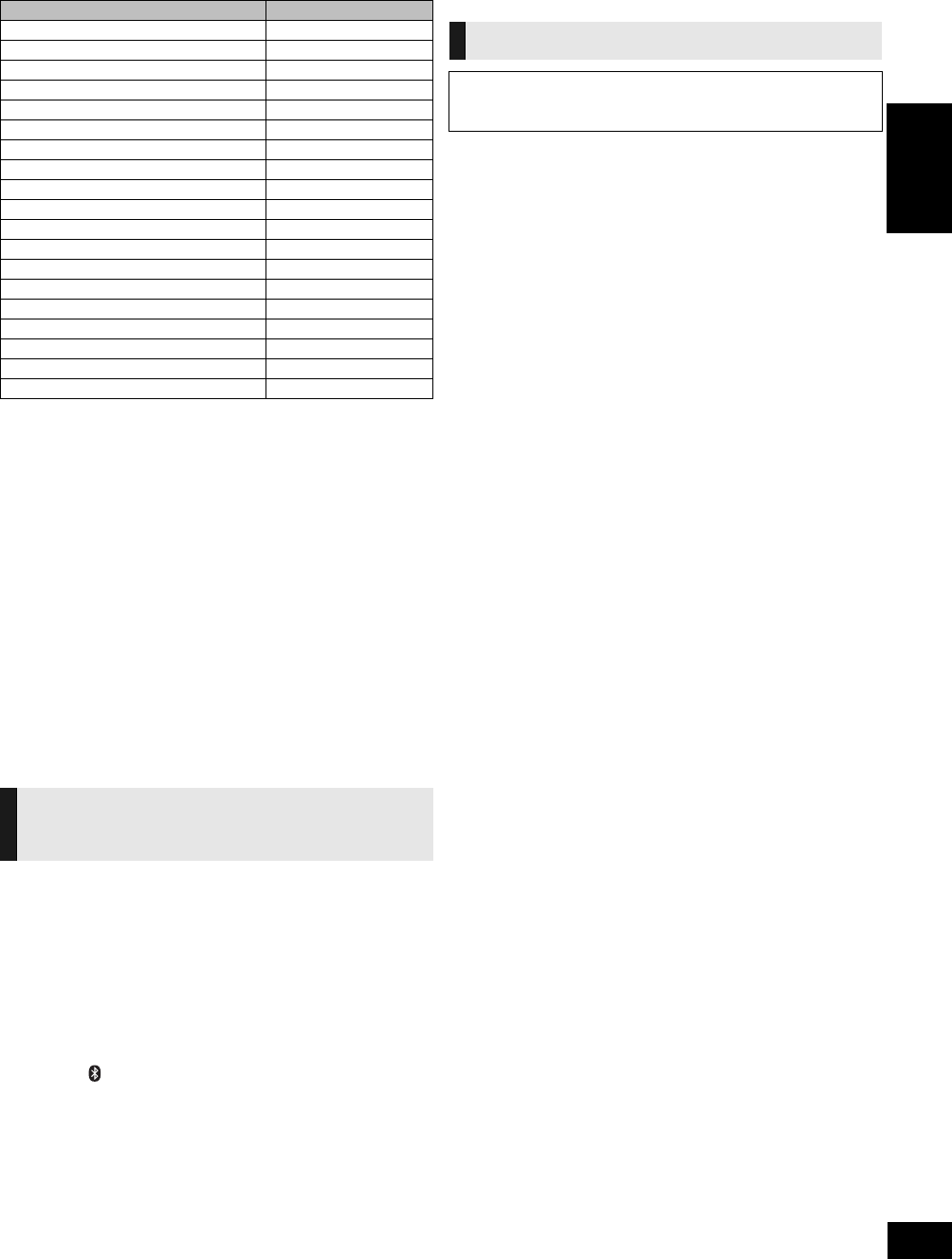
∫Compatible iPod/iPhone (as of January 2011)
≥Update your iPod/iPhone with the latest software before using this unit.
≥Compatibility depends on the software version of your iPod/iPhone.
≥Depending on the model, it may be necessary to remove the iPod/iPhone and
select the album, artist, etc. on the iPod/iPhone.
Notes on iPhone:
≥All phone features can only be controlled by the iPhone’s touch screen.
≥The unit does not display incoming calls or the phone status.
≥The ringtone of incoming call can be heard from the iPhone’s speaker.
When the unit is in iPod/iPhone mode, the ringtone can also be heard from
the unit’s speakers.
≥Connecting or disconnecting the iPhone from the unit will not cancel a call.
≥There is no Apple Inc. specification that will guarantee the iPhone responses
above. iPhone responses may vary on new iPhone models or iPhone new
software updates.
∫Charging the iPod/iPhone
≥When iPod/iPhone is being charged in standby mode, “IPOD
CHARGING” is shown on the main unit’s display.
≥Check iPod/iPhone to see if the battery is fully charged. If you
are not using iPod/iPhone for an extended period of time after
recharging has completed, disconnect it from the main unit as
the battery will be depleted naturally. (Once fully recharged,
additional recharging will not occur.)
This unit can output internet radio if “vTuner for Panasonic” is
installed on your iPhone/iPod touch.
≥Visit the below website for the following information about
“vTuner for Panasonic”:
http://radio.vtuner.com/panasonic/en/
(Compatible iPhone/iPod touch models and software versions,
purchasing, installation and operation details.)
Preparation
Install “vTuner for Panasonic” to your iPhone/iPod touch.
1Insert the iPhone/iPod touch to this unit.
2Press [ , iPod] repeatedly to select “INTERNET
RADIO”.
“vTuner for Panasonic” starts.
[HC55] Using a Bluetooth®
compatible device
∫Frequency band used
This unit uses the 2.4 GHz frequency band, however other devices may use this
frequency as well. To avoid interference with other wireless devices, please
follow the cautions listed below.
∫Certification of this device
This unit conforms to frequency restrictions and has received certification based
on frequency laws, so a wireless permit is not necessary.
However, the following action is punishable by law in some countries:
≥Taking apart/modifying the unit.
∫Usage restrictions
≥Wireless transmission and/or usage with all Bluetooth® equipped devices is
not guaranteed.
≥Compatible mobile phones capable of wireless transmission include and
comply to standards set by the Bluetooth SIG, Inc. However, if the mobile
phone is optimized to meet standard specifications, some functions may
work. Even so, depending on the specifications and settings of the mobile
phone, a connection may not be established, nor are the methods of
operation, display, or operation guaranteed.
≥This unit supports Bluetooth® security features, however depending on the
operating environment and/or settings, this security may not be sufficient.
Use caution when transmitting data wirelessly.
≥Please be aware that Panasonic accepts no responsibility for data and/or
information that may be compromised during a wireless transmission.
∫Range of use
Use this device within an unobstructed 10 m (33 ft) range. The range of usage
or perimeter may be shortened depending on any obstructions, devices causing
interference, other people in the room, or the construction of the building.
Please note that the range mentioned above is not guaranteed.
∫Effects from other devices
≥It is possible that this unit may not operate correctly or you may experience
other effects of instability such as “broken up” audio, etc. when other devices
are placed within close proximity. Therefore, in order to prevent signal
interference, we recommend separating this unit from the following devices
during use:
Microwave oven/Wireless LAN/Electronic devices/Audio & Video devices/Office
Assistant machines & devices/Digital cordless phones/Fax machines, etc.
≥If you live in close proximity to a broadcasting studio and the signal is too
strong, the unit may not operate correctly.
≥When using a notebook PC with a wireless LAN transmitter, do not use this
unit and the wireless LAN at the same time.
≥If you are still experiencing noise even outside of the 5 m (16.4 ft) range of a
wireless LAN device, turn the power to the wireless LAN device off.
∫Intended usage limitations
This unit is intended for normal, general use. This unit is not developed or
manufactured with the intention of use in “high safety”§ or hazardous
occupations. Do not use this unit in these kinds of environments or occupations.
§The following examples require extreme caution, and can directly result in
loss of life, or extreme bodily harm.
e.g.)
Nuclear Engineering, and control of a nuclear reaction/automated control of
aircraft/air traffic control management/controlling movement of heavy freight
systems/control of life support or extension systems/control of weapons
systems and/or missile launch systems, etc.
Name Memory size
iPod touch 4th generation 8 GB, 32 GB, 64 GB
iPod nano 6th generation 8 GB, 16 GB
iPod touch 3rd generation 32 GB, 64 GB
iPod nano 5th generation (video camera) 8 GB, 16 GB
iPod touch 2nd generation 8 GB, 16 GB, 32 GB
iPod classic 120 GB, 160 GB (2009)
iPod nano 4th generation (video) 8 GB, 16 GB
iPod classic 160 GB (2007)
iPod touch 1st generation 8 GB, 16 GB, 32 GB
iPod nano 3rd generation (video) 4 GB, 8 GB
iPod classic 80 GB
iPod nano 2nd generation (aluminum) 2 GB, 4 GB, 8 GB
iPod 5th generation (video) 60 GB, 80 GB
iPod 5th generation (video) 30 GB
iPod nano 1st generation 1 GB, 2 GB, 4 GB
iPhone 4 16 GB, 32 GB
iPhone 3GS 8 GB, 16 GB, 32 GB
iPhone 3G 8 GB, 16 GB
iPhone 4 GB, 8 GB, 16 GB
[HC55]
Listening to the Internet Radio
About using Bluetooth®
What is Bluetooth®?
Bluetooth® technology allows you to make a wireless
connection with another electronic device.
SC-HC55_35-RQTX1260.book 13 ページ 2011年4月4日 月曜日 午後4時50分
14
RQTX1260
Preparation
Pair the Bluetooth® device with this unit to create an audio
connection.
1Press [ , iPod] repeatedly to select
“BLUETOOTH”.
When using it for the first time, it enters pairing mode
automatically.
2While this unit is in pairing mode, access the
Bluetooth® menu of the Bluetooth® device and
execute a Bluetooth® search to find this unit
(SC-HC55).
≥Please refer to the Bluetooth® device user manual for
further instruction on how to connect a Bluetooth® device.
≥If prompted for the passkey, enter “0000”.
3If pairing is successful, the paired device’s
name will be displayed for 2 seconds. The
Bluetooth® indicator lights up. The unit is now
ready to be used with the Bluetooth® device.
≥Make sure the Bluetooth® device supports A2DP (Advance Audio Distribution
Profile).
≥This unit supports the A2DP reception which is copyright-protected by
SCMS-T method.
≥A2DP enables you to stream stereo sound from an audio source (mobile
phone, PC or laptop) to this unit via Bluetooth®.
≥Depending on the specification or setting of mobile phones, connection may
not be established, or operation and display may vary.
≥You can register up to 6 devices into this unit. Disconnect the current
Bluetooth® device and refer to “To register more devices” (>15).
≥If you register more than the maximum device number, the oldest device in
connection history will be overwritten.
≥If a registered device is re-registered, it will be overwritten.
Pair the Bluetooth® device with this unit to create an audio
connection.
1Press [ , iPod] repeatedly to select
“BLUETOOTH”.
2On the Bluetooth® device:
Select this unit (SC-HC55) on the Bluetooth®
setup screen to make the connection.
3On the Bluetooth® device:
Start playback of a music source.
≥If the device is connected, the music will be heard on this unit.
≥The Bluetooth® indicator lights when there is a connection.
≥Please refer to the Bluetooth® device user manual if required.
4You can also make the following controls with
the remote control.
≥To utilize these functions, the Bluetooth® device must support AVRCP (Audio
Video Remote Control Profile).
≥This unit cannot transmit data to a Bluetooth® device.
≥When playing iPod/iPhone by Bluetooth® with the main unit, intermittent
sound may be experienced if you leave the iPod/iPhone Bluetooth® menu
screen active or when making Bluetooth® registration and connection. If this
occurs, please exit the iPod/iPhone Bluetooth® menu screen.
≥When playing music by iPod/iPhone via Bluetooth® connection and the iPod/
iPhone is connected into this unit iPod/iPhone dock, the audio will not be
re-produced while “BLUETOOTH” is selected. Select “IPOD” to continue
enjoying the music.
You can select the sound input level of the Bluetooth® device.
1Press [ , iPod] repeatedly to select
“BLUETOOTH”.
2Press [SOUND] repeatedly to select “INPUT
LEVEL”.
3Press [2,1] to select “0”, “i1” or “i2”.
≥Select “0” if the sound is distorted.
Press [DISPLAY] repeatedly to view the
information of the current connected device.
BLUETOOTH ---------------------# Connected device name
^-------------------------- Connected profiles(------------------------}
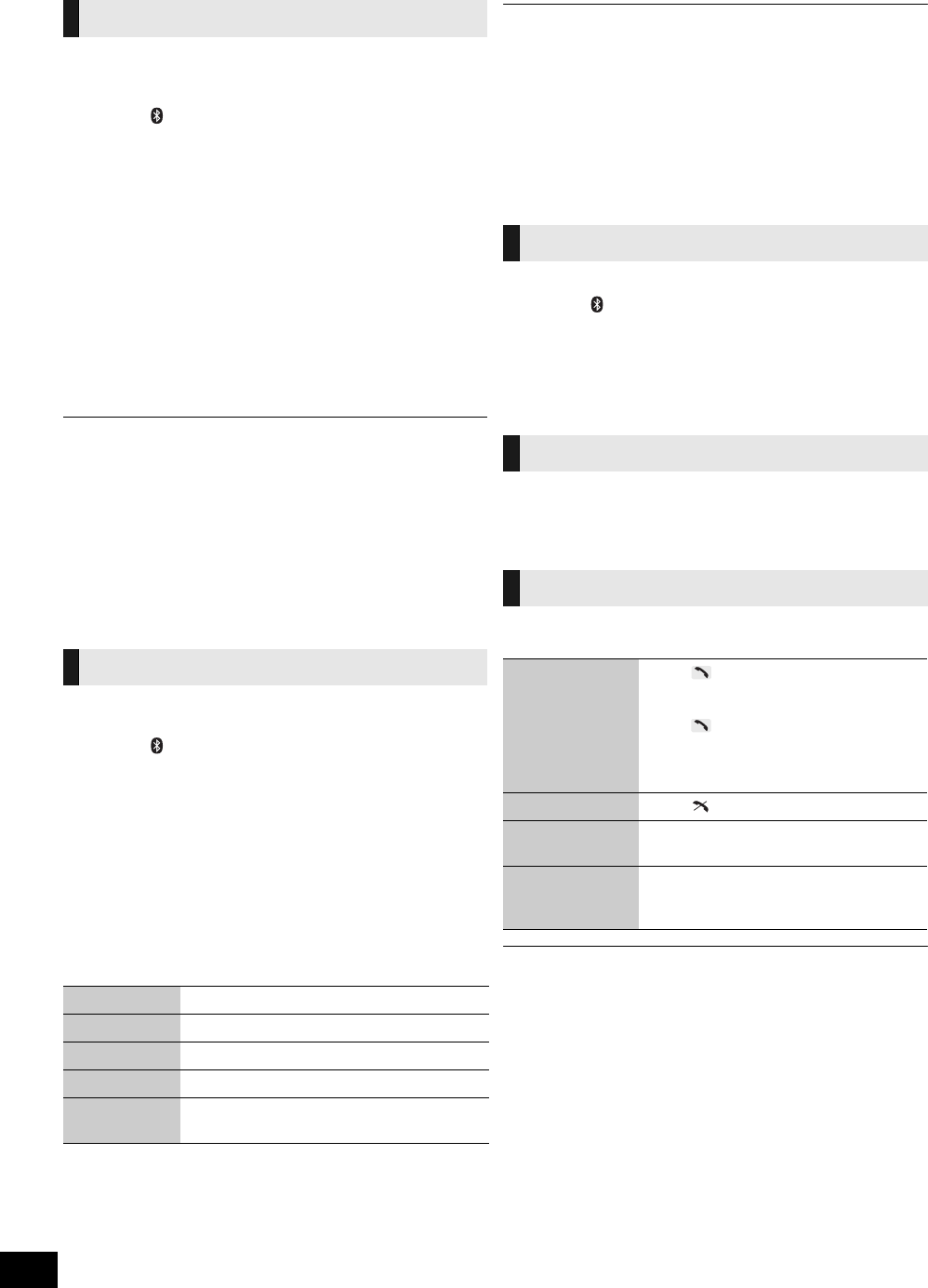
This unit works as a Bluetooth® hands-free for your mobile
phones.
≥This unit does not work with Headset Profile (HSP).
≥When the mobile phone is too close to the microphone of this unit, noise may
occur. Always keep the mobile phone away from the microphone of this unit
when making a call.
≥The audio from a disc will be paused while calling in hands-free mode.
Bluetooth® pairing
Basic play
Play Press [1/;] to start play.
Stop Press [∫].
Pause Press [1/;]. Press again to resume play.
Skip track Press [:] or [9].
Display
information
Press [DISPLAY] repeatedly.
Input level
Display function
Hands-Free Profile (HFP)
To answer a call
(“IN CALL” blinks)
Press [ ]. “CALLING” starts blinking on
the display (Talk into the unit’s
microphone).
Press [ ] again to transfer the call to the
mobile phones (“TRANSFER” blinks. You
may now converse using the mobile
phone).
To cancel a call Press [ ].
To adjust the
sound volume
Press [+, VOL ,–] (Adjustable from
“TEL VOL 1” to “TEL VOL 10”).
To mute the
microphone
Press [MUTE]. Press again to cancel.
(During “MIC MUTE”, the caller is not able
to hear your voice).
SC-HC55_35-RQTX1260.book 14 ページ 2011年4月4日 月曜日 午後4時50分
15
RQTX1260 ENGLISH
1Press [ , iPod] repeatedly to select
“BLUETOOTH”.
2Press [ MENU] to display “DISCONNECT?”
and then press [OK].
A confirmation message is displayed.
3Press [2,1] to select “YES” and then press
[OK].
≥The connection can also be stopped when you disable Bluetooth®
transmission on the connected Bluetooth® device.
Preparation
Press [ , iPod] repeatedly to select “BLUETOOTH”.
≥These functions are unavailable if a device is connected. Disconnect the
Bluetooth® devices to display these functions.
∫To register more devices
1Press [ MENU] repeatedly to select
“NEW DEV.” and then press [OK].
≥The unit enters pairing mode and “PAIRING” starts blinking
on the display.
2While this unit is in pairing mode, access the
Bluetooth® menu of the Bluetooth® device and
execute a Bluetooth® search to find this unit
(SC-HC55).
≥If prompted for the passkey, enter “0000”.
∫To select communication quality
1Press [ MENU] repeatedly to select
“LINK MODE”.
2Press [2,1] to select the following modes and
then press [OK].
∫To select Auto Link mode
1Press [ MENU] repeatedly to select
“AUTO LINK”.
2Press [2,1] to select the following modes and
then press [OK].
≥When “LINKING” is displayed, pressing [ MENU] is invalid.
≥Auto Link works only if your device supports A2DP.
≥The communication quality settings also depend on the settings on the
connected device. If the communication quality of the connected device is set
for stable communication, the quality of the audio will remain low even if this
unit is set to “MODE 2”.
Others
Other Panasonic audio/video equipment may start functioning
when you operate the unit using the supplied remote control.
You can operate this unit in another mode by setting the remote
control operating mode to “REMOTE 2”.
The main unit and remote control must be set to the same
mode.
1Press [EXT-IN, RADIO] to select “AUX”.
2Press and hold [RADIO/EXT-IN] on the main
unit and [2] on the remote control until the main
unit’s display shows “REMOTE 2”.
3Press and hold [OK] and [2] on the remote
control for at least 4 seconds.
To change the mode back to “REMOTE 1”, repeat the steps
above by replacing [2] with [1].
When the following situations occur, reset the memory:
≥There is no response when buttons are pressed.
≥You want to clear and reset the memory contents.
∫To reset memory
1Disconnect the AC power supply cord. (Wait for
at least 3 minutes before proceeding to step 2.)
2While pressing and holding down [POWER, Í/
I] on the main unit, reconnect the AC power
supply cord.
“--------” appears on the display.
3Release [POWER, Í/I].
All the settings are returned to the factory preset. You will
need to reset the memory items.
Disconnecting a Bluetooth®
device
Advanced functions
MODE 1: Connection with emphasis on communication
stability
MODE 2: Connection with high bit rate for good audio quality
(Communication might easily be disconnected in
this mode, select “MODE 1” if this occurs).
ON: This unit will automatically select “BLUETOOTH”
when a Bluetooth® device is connected.
OFF
Changing the main unit and
remote control mode
Memory reset (Initialization)
SC-HC55_35-RQTX1260.book 15 ページ 2011年4月4日 月曜日 午後4時50分
16
RQTX1260
Troubleshooting
Before requesting service, make the following checks. If you are
in doubt about some of the check points, or if the solutions
indicated in the following guide do not solve the problem, refer to
“Customer Services Directory (United States and Puerto Rico)”
on page 26 if you reside in the U.S.A. or Puerto Rico, or refer to
“Limited Warranty (ONLY FOR CANADA)” on page 27 if you
reside in Canada.
Incorrect display or play will not start.
≥You have not inserted the disc properly. Insert it correctly.
≥The disc is scratched or dirty (Tracks skipped).
≥There is moisture on the lens. Wait for about an hour and then
try again.
MP3 cannot be read.
≥You may not be able to play MP3 if you have copied a
multi-session disc that has no data between sessions.
≥When creating a multi-session disc, it is necessary to close the
session.
≥The amount of data on the disc is too small. Set the amount of
data to above 5 MB.
Noise is heard or no sound.
≥While playing MP3, noise may occur if the recording is poor.
≥Keep this unit away from mobile phones if the interference is
apparent.
≥Turn the volume up.
≥Switch the unit off, check and correct the connection and then
switch the unit on. Causes include straining of the speakers
through excessive volume or power and using the unit in a hot
environment.
Humming heard during play.
≥An AC power supply cord or fluorescent light is near the cords.
Keep other appliances and cords away from this unit’s cables.
A beat sound or noise is heard while receiving radio
broadcast.
≥Switch the television or other audio player off or separate it
from the unit.
≥Switch the portable audio player off if connected to the EXT-IN
AUX port.
A low hum or noise is heard during AM broadcast.
≥Keep the antenna away from other cables and cords.
≥Keep the AM antenna away from the unit.
The picture on the television near the unit disappears or
stripes appear on the screen.
≥The location and orientation of the antenna are incorrect.
≥The television antenna wire is too close to the unit. Separate
the antenna wire of the television from the unit.
No response when remote control buttons are pressed.
≥Check that the battery is inserted correctly (>4).
The sliding door does not open (or malfunctions).
≥Is the unit turned on?
≥Is the open/close sensor turned off? (>9)
≥During CD playback or pause, the CD operation side of the
sliding door will not open.
≥The open/close sensor may not react to dark objects.
≥Depending on the lighting, the open/close sensor may
malfunction.
In this case, try moving the unit to a different place. (Do not
place this unit under strong lighting, e.g., direct sunlight or
fluorescent lights, etc.)
≥When the open/close sensor is on, the sliding door may open/
close while operating the buttons on the top of the unit.
In this case, use the remote control.
The open/close button lights are flashing.
≥If there is an object close to both open/close sensors, both
open/close button lights will flash and the open/close sensor
will not function.
In this case try the below:
jChanging the sensor setting to “MODE 1”. (>9)
jMove the unit away from the object, or vice versa. (It will take
a few seconds for the unit to check if the clearance is
sufficient.)
The open/close sensor sound effect cannot be heard when
the sliding door opens/closes.
≥This is normal while listening to the radio, during playback, etc.
or when linked to a Bluetooth® device.
iPod/iPhone does not turn on.
Cannot operate with [iPod MENU] button.
≥Verify that the iPod/iPhone battery is not depleted before
connecting it to the unit.
≥Before inserting the iPod/iPhone into the dock, turn both the
unit and the iPod/iPhone off. Turn the power on and select the
appropriate source.
No sound is heard from the speakers.
≥The iPod/iPhone is not inserted correctly into the dock. Turn
the iPod/iPhone off and remove it from the dock connector.
Reinsert it and turn it on again.
≥Make sure that the iPod/iPhone is actually playing something.
≥Adjust the volume.
Distorted sound or the sound level is too low.
≥Make sure the equalizer function of the iPod/iPhone is turned
off.
iPod/iPhone cannot be controlled by the remote control or
main unit.
≥Make sure the iPod/iPhone is inserted properly into the dock.
≥Check the dock connection and make sure that iPod/iPhone is
selected as the source of music (>12).
iPod/iPhone does not charge.
≥Check all connections (>5, 12).
Common problems
[HC55] Open/close sensor
iPod/iPhone operations
SC-HC55_35-RQTX1260.book 16 ページ 2011年4月4日 月曜日 午後4時50分

17
RQTX1260 ENGLISH
The name of the connected device is shown as “¢”.
≥Character that cannot be displayed will be replaced by “¢”.
≥An unknown device name is detected and displayed as
“¢¢¢¢¢”.
Noise is heard or broken sound.
≥The Bluetooth® communication distance has exceeded 10 m
(33 ft). Bring the device closer to the unit.
≥There are obstructions between the device and the unit.
Remove or avoid the obstacles.
≥Select “MODE 1” to improve connection quality (>15).
≥Interference from mobile phones.
The following messages or service numbers appear on the
unit’s display when something unusual is detected during
startup and use.
“--:--”
≥You plugged the AC power supply cord in for the first time or
there was a power failure recently. Set the time (>12).
“ADJUST CLOCK”
≥Clock is not set. Adjust the clock accordingly.
“ADJUST TIMER”
≥Play timer is not set. Adjust the play timer accordingly.
“PGM FULL”
≥The number of programmed tracks is limited to 24. No further
tracks can be programmed.
“NO PLAY”
≥A CD-ROM disc that is not in CD-DA or MP3 format is inserted.
It cannot be played.
≥Check the content. Only MP3 format files can be played.
“ERROR”
≥Incorrect operation is performed. Read the instructions and try
again.
“F61” or “F76”
≥There is a power supply problem. Consult the dealer.
“AUTO OFF”
≥The unit has been left unused for about 30 minutes and will
shut down in a minute. Press any button to cancel it.
“ILLEGAL OPEN”
≥Sliding door is not in correct position. Turn the unit off and on
again.
“NODEVICE”
≥The iPod/iPhone device is not inserted correctly. Read the
instructions and try again (>12).
“REMOTE 1”
≥The main unit is in “REMOTE 1” mode. Switch the remote
control to “REMOTE 1” mode (>15).
“REMOTE 2”
≥The main unit is in “REMOTE 2” mode. Switch the remote
control to “REMOTE 2” mode (>15).
“DIMMER”
≥Appears 10 seconds after the volume is turned to “0”.
[HC55] “F70”
≥There is a Bluetooth® module problem. Disconnect the AC
power supply cord and consult your dealer.
“NO DISC”
≥Insert the disc to be played (>9).
“NOT SUPPORTED”
≥You have inserted an iPod/iPhone that cannot be played
(>12).
[HC55] “START ERROR”
≥Check the iPhone/iPod touch.
Visit the below website for more information:
http://radio.vtuner.com/panasonic/en/
“UNLOCKED”
≥The iPod/iPhone docking switch lever is not locked in position.
Make sure that the iPod/iPhone docking switch lever is properly
pushed back into place (>12).
[HC55] “CANNOT SET”
≥Select an audio source other than “BLUETOOTH” or
“INTERNET RADIO”.
[HC55] Bluetooth® operations
Displayed messages
SC-HC55_35-RQTX1260.book 17 ページ 2011年4月4日 月曜日 午後4時50分

18
RQTX1260
Specifications
§MPEG-1 Layer 3, MPEG-2 Layer 3
≥Specifications are subject to change without notice.
Mass and dimensions are approximate.
≥Total harmonic distortion is measured by a digital spectrum analyzer.
AMPLIFIER SECTION
RMS Output Power Stereo mode
Front Ch (both ch driven) 20 W per channel (6 ≠),
1kHz, 10% THD
Total RMS Stereo mode power 40 W
FTC Output Power Stereo mode
Front Ch (both ch driven) 15 W per channel (6 ≠),
20 Hz to 20 kHz, 10 % THD
Total FTC Stereo mode power 30 W
TUNER SECTION
Preset Memory FM 30 stations
AM 15 stations
Frequency Modulation (FM)
Frequency range 87.9 MHz to 107.9 MHz
(200 kHz step)
87.5 MHz to 108.0 MHz
(100 kHz step)
Antenna terminals 75 ≠ (unbalanced)
Amplitude Modulation (AM)
Frequency range 520 kHz to 1710 kHz
(10 kHz step)
522 kHz to 1629 kHz
(9 kHz step)
DISC SECTION
Disc played [8 cm (3") or 12 cm (5")]
CD, CD-R/RW
(CD-DA, MP3§)
Pick up
Wavelength 790 nm
Laser power For U.S.A.
CLASS I
For Canada
CLASS 1, CLASS 1M
Audio Output (Disc)
Number of channels FL, FR, 2 ch
SPEAKER SECTION
[HC55]
Type 2 way, 2 speaker system
(Passive Radiator)
Speaker unit(s)
Woofer 6.5 cm (21/2q) Cone typek1
per channel
Tweeter 1.5 cm (5/8q)Piezotypek1 per
channel
Passive Radiator 8cm(3
1/8q)k2 per channel
Impedance 6≠
[HC35]
Type 1 way, 1 speaker system
(Passive Radiator)
Speaker unit(s)
Full range 6.5 cm (21/2q) Cone typek1
per channel
Passive Radiator 8cm(3
1/8q)k2 per channel
Impedance 6≠
[HC55] BLUETOOTH SECTION
Bluetooth® system specification V2.1 + EDR
Wireless equipment classification
Class 2 (2.5 mW)
Supported profiles A2DP, AVRCP, HFP
Frequency band 2402 MHz to 2480 MHz
(Adaptive Frequency
Hopping)
Driving distance 10 m (33 ft) Line of Sight
(iPhone 4, at height 1 m
(3.3 ft), in “MODE 1”)
TERMINAL SECTION
Phone jack
Terminal Stereo, ‰3.5 mm (1/8q) jack
AUX (Rear)
Terminal Stereo, ‰3.5 mm (1/8q) jack
GENERAL
Power consumption 25 W
Power consumption in standby mode
Approx. 0.1 W
Power supply AC 120 V, 60 Hz
Dimensions (WkHkD) With stand
480 mmk194 mmk84 mm
(19"k73/4"k31/2")
Without stand
480 mmk194 mmk69 mm
(19"k73/4"k23/4")
Mass (Weight) Approx. 2.4 kg (5.3 lbs)
Operating temperature range 0oC to r40 oC
(r32 oF to r104 oF)
Operating humidity range 35 % to 80 % RH
(no condensation)
SC-HC55_35-RQTX1260.book 18 ページ 2011年4月4日 月曜日 午後4時50分
19
RQTX1260 ESPAÑOL
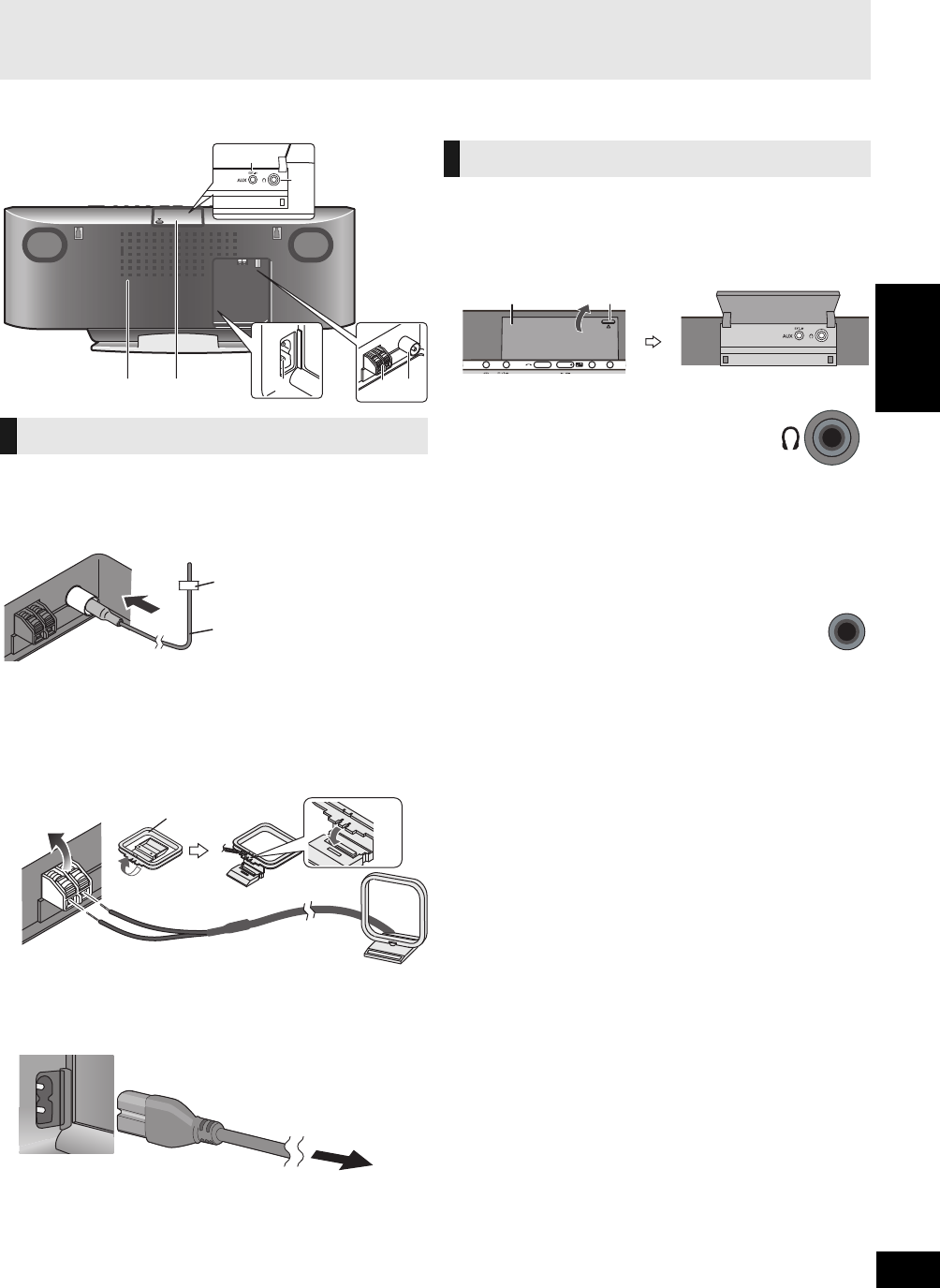
Conexiones
1Conecte la antena interior FM.
≥Fije con cinta la antena a un muro o columna en un lugar
que tenga la menor cantidad de interferencia.
2Conecte la antena de cuadro AM.
≥Mantenga el cable de la antena suelto alejado de otros
cables o hilos.
AColoque la antena en forma vertical en su base hasta que
quede calzada y haga clic.
BAntena de cuadro AM
3Conecte el cable de alimentación AC.
Conecte el cable de alimentación AC después de que
todas las demás conexiones estén completas.
Encienda la unidad después de unos segundos.
Abra la tapa EXT-IN AUX/Tapa para conectar los auriculares o
dispositivos de música externos (por ejemplo, reproductor MP3).
Empuje la parte saliente para abrir la tapa A.
Vista superior
∫Conecte los auriculares (no provistos)
≥Para evitar daños a la audición, evite escuchar durante períodos
prolongados.
La excesiva presión sonora de audífonos y auriculares puede causar pérdida
de la audición.
∫Conectar un dispositivo de música externo
(para modo AUX)
Usted puede seleccionar el nivel de sonido de entrada del
dispositivo externo.
≥Apague el ecualizador o baje el volumen del dispositivo externo para reducir
la señal de entrada. El nivel alto de la señal de entrada distorsiona el sonido.
≥Para más detalles, consulte el manual de instrucciones del otro equipo.
≥Los cables y dispositivos no se suministran.
Spanish Quick Reference/
Referencia rápida en español
Conexiones básicas
Vista posterior
Orificios de ventilación
Cinta adhesiva
Antena interior FM
Hacia el tomacorriente AC
Consumo de energía en Standby
(modo de espera):
Aprox. 0,1 W
Otras Conexiones
Reduzca el volumen y conecte los auriculares.
Tipo de enchufe: ‰3,5 mm (1/8q) estéreo B
1Enchufe el cable de audio (no provisto)
en el jack EXT-IN AUX C.
Tipo de enchufe: ‰3,5 mm (1/8q) estéreo
2Presione [EXT-IN, RADIO] repetidamente
para seleccionar “AUX” y comience la
reproducción en el dispositivo
conectado.
[HC55] 1Presione [SOUND] repetidamente para
seleccionar “INPUT LEVEL”.
2Presione [2,1] para seleccionar “HIGH” o
“NORMAL”.
[HC35] Presione [INPUT LEVEL] repetidamente para
seleccionar “HIGH” o “NORMAL”.
Parte saliente
Tapa EXT-IN AUX/
Auriculares
AUX
EXT-IN
SC-HC55_35-RQTX1260.book 19 ページ 2011年4月4日 月曜日 午後4時50分
20
RQTX1260
Guía de referencia del mando a distancia
Los botones tales como 2 funcionan igual que el mando a
distancia. Se pueden usar indistintamente.
Vista superior
Vista frontal
∫Información del mando a distancia
Inserte de forma tal que los polos (i y j) concuerden con los
del mando a distancia.
≥Use baterías alcalinas o de manganeso.
Mando a distancia
Unidad principal
[HC55]
[HC35]
[HC35]
ヱヰヸユン
ヰヱユワバヤロヰヴユ ヰヱユワバヤロヰヴユ
ンモュリヰ
ンモュリヰ
ヷヰロヶヮユ
ヷヰロヶヮユ
1[SLEEP] (>24)
2Interruptor Standby/On
[Í], [POWER, Í/I]
(>21, 22)
Presione para conmutar la
unidad desde el modo On a
Standby, o viceversa.
En el modo Standby, la unidad
sigue
consumiendo una pequeña
cantidad de energía.
3Botones numéricos
[1-9, 0, S10] (>22, 23)
Para seleccionar un
número de 2 dígitos
Por ejemplo 16: [S10] #
[1] # [6]
Para seleccionar un
número de 3 dígitos
Por ejemplo 226: [S10] #
[S10] # [2] #[2] # [6]
4[DEL] (>22)
5[HC55] [ , iPod] (>24,
25)
[HC35] [iPod] (>24)
6[CD] (>22)
7[:], [9] (>22, 23,
24, 25)
8[1/;] (>22, 24, 25)
[HC55] [] (>25)
9[6], [5] (>22, 23,
24)
:[SOUND] (>19, 21, 23)
;[D.BASS] (>23)
<[PLAY MENU] (>22)
=[iPod MENU] (>24)
[HC55] [ MENU] (>25)
>[3,4,2,1], [OK]
(>19, 22, 24, 25)
?[DISPLAY] (>22)
[jDIMMER]
Mantenga presionado para
oscurecer el visor. Mantenga
presionado nuevamente para
cancelar.
@[HC55] [OPEN/CLOSE
SENSOR] (>21)
[HC35]
[INPUT LEVEL] (
>
19
)
A[iPod <] (>21)
[iPod <, OPEN/CLOSE]
[HC55] Indicador de la
actividad del sensor
B[PLAY, F] (>23)
C[CLOCK/TIMER] (>23)
D[PROGRAM] (>22, 23)
E[+, VOL ,–]
[– VOLUME +] (>25)
Regula el volumen de sonido.
F[MUTE] (>25)
Silencia el sonido. Presione
nuevamente para cancelar.
“MUTE” también se cancela
cuando se regula el volumen o
se apaga la unidad.
G[EXT-IN, RADIO]
[RADIO/EXT-IN] (>23)
H[∫] (>22, 24, 25)
[HC55] [] (>25)
I[PRESET EQ] (>23)
J[RADIO MENU] (>23)
K[AUTO OFF]
Esta función le permite apagar la
unidad (excepto en modo radio)
después de que no se usa durante
aproximadamente 30 minutos.
Cuando se activa la función, se
enciende el indicador “A.OFF”.
L[AUTO PRESET] (>23)
M[CD <] (>21)
[CD <, OPEN/CLOSE]
[HC55] Indicador de la
actividad del sensor
NIndicador de Standby
O[HC55] Sensor Abrir/
Cerrar (>21)
PAltavoz
QVisor
RPuerta deslizante
S[HC55] Micrófono (>25)
T[HC55] Indicador de
Bluetooth® (>25)
USensor de señal del
mando a distancia
Distancia:
Aprox. 7 m (23 pies)
directamente en el frente.
30º 30º
Coloque primero este lado adentro.
R6/LR6, AA
SC-HC55_35-RQTX1260.book 20 ページ 2011年4月4日 月曜日 午後4時50分
21
RQTX1260 ESPAÑOL
Abrir/Cerrar la puerta
deslizante
Preparación
Presione [Í] para encender la unidad.
Para operaciones con discos:
AMientras la puerta deslizante está cerrada,
presione [CD <] para abrirla.
Para operaciones con iPod/iPhone:
BMientras la puerta deslizante está cerrada,
presione [iPod <] para abrirla.
∫Cerrar la puerta deslizante
Presione [CD <] o [iPod <] nuevamente.
≥Mantenga los dedos alejados de la puerta deslizante cuando se está
cerrando para evitar posibles daños menores.
≥Si fuerza la puerta deslizante para cerrarla, se puede dañar.
≥Al extraer el CD, tenga cuidado de no golpear la puerta deslizante.
≥La puerta deslizante no se cerrará si la palanca del interruptor del conector
no se coloca en la posición original.
Con esta función, la puerta deslizante se puede abrir sin
presionar un botón. La puerta deslizante se abrirá o cerrará al
mover la palma de su mano sobre los sensores de la parte
superior de la unidad.
Para operaciones con discos:
Coloque la palma de su mano sobre el sensor B y
luego muévala sobre el sensor A.
≥Para cerrar la puerta deslizante, coloque la palma de su mano
sobre el sensor A y luego muévala sobre el sensor B.
Para operaciones con iPod/iPhone:
Coloque la palma de su mano sobre el sensor A y
luego muévala sobre el sensor B.
≥Para cerrar la puerta deslizante, coloque la palma de su mano
sobre el sensor B y luego muévala sobre el sensor A.
∫Para cambiar la definición del sensor de
apertura/cierre
La sensibilidad del sensor se puede cambiar para aumentar o
disminuir el área de activación del sensor de apertura/cierre.
Presione [OPEN/CLOSE SENSOR] repetidamente
para seleccionar “MODE 1”, “MODE 2”, “MODE 3”
o “OFF SENSOR”.
≥Valor definido en fábrica: MODE 2
≥El sensor se apaga: “OFF SENSOR”.
∫Para cambiar el ajuste de efecto de sonido del
sensor de apertura/cierre
1Presione [SOUND] repetidamente para seleccionar
“BUZZER”.
2Presione [2] o [1] para seleccionar el siguiente ajuste.
≥Se enciende una luz roja desde la posición del sensor. Esto es normal.
≥El sensor de apertura/cierre puede activarse involuntariamente si un objeto,
mano, parte del brazo, mascotas o niños se mueven sobre la parte superior
de la unidad.
≥Si el sensor de apertura/cierre no reacciona, mueva la palma de su mano
más cerca de la parte superior de la unidad y cambie la velocidad en la que
mueve su mano.
≥Si el sensor de apertura/cierre no funciona, pruebe cambiando la definición
de éste. Si no funciona, abra/cierre la puerta deslizante usando los botones
de la unidad o el mando a distancia.
≥Cuando la definición del sensor se cambia a “MODE 1”, acerque su mano
(aprox. 3 cm) a la unidad.
≥El lado de funcionamiento del disco de la puerta deslizante no se abrirá
mientras se reproduce un CD o durante una pausa.
Operaciones con discos
1Presione [Í] para encender la unidad.
2Abra la puerta deslizante. (>izquierda)
3Con la etiqueta del disco volteada
hacia usted, incline el disco sobre
la bandeja ubicada debajo de la
puerta deslizante.
4Coloque el disco sobre el
sujetador central y luego empuje
el disco hacia abajo hasta que
quede bien calzado y haga clic.
≥Asegúrese de que la unidad no se caiga
cuando inserta el disco.
5Cierre la puerta deslizante. (>izquierda)
∫Sacar un disco
1Abra la puerta deslizante.
2
Sostenga el centro y la parte superior derecha del disco, y
tire de la parte superior derecha para separarlo del sujetador.
3Incline el disco para no tocar la puerta deslizante ni las
lentes, y sáquelo.
Abrir la puerta deslizante
[HC55] Sensor Apertura/Cierre
AB
ンモュリヰ
ヷヰロヶヮユ
ヷヰロヶヮユ
LOW: Fije el nivel de sonido bajo.
MID: Fije el nivel de sonido medio.
HIGH: Fije el nivel de sonido alto.
OFF: Apague el efecto de sonido.
Insertar un disco
SC-HC55_35-RQTX1260.book 21 ページ 2011年4月4日 月曜日 午後4時50分
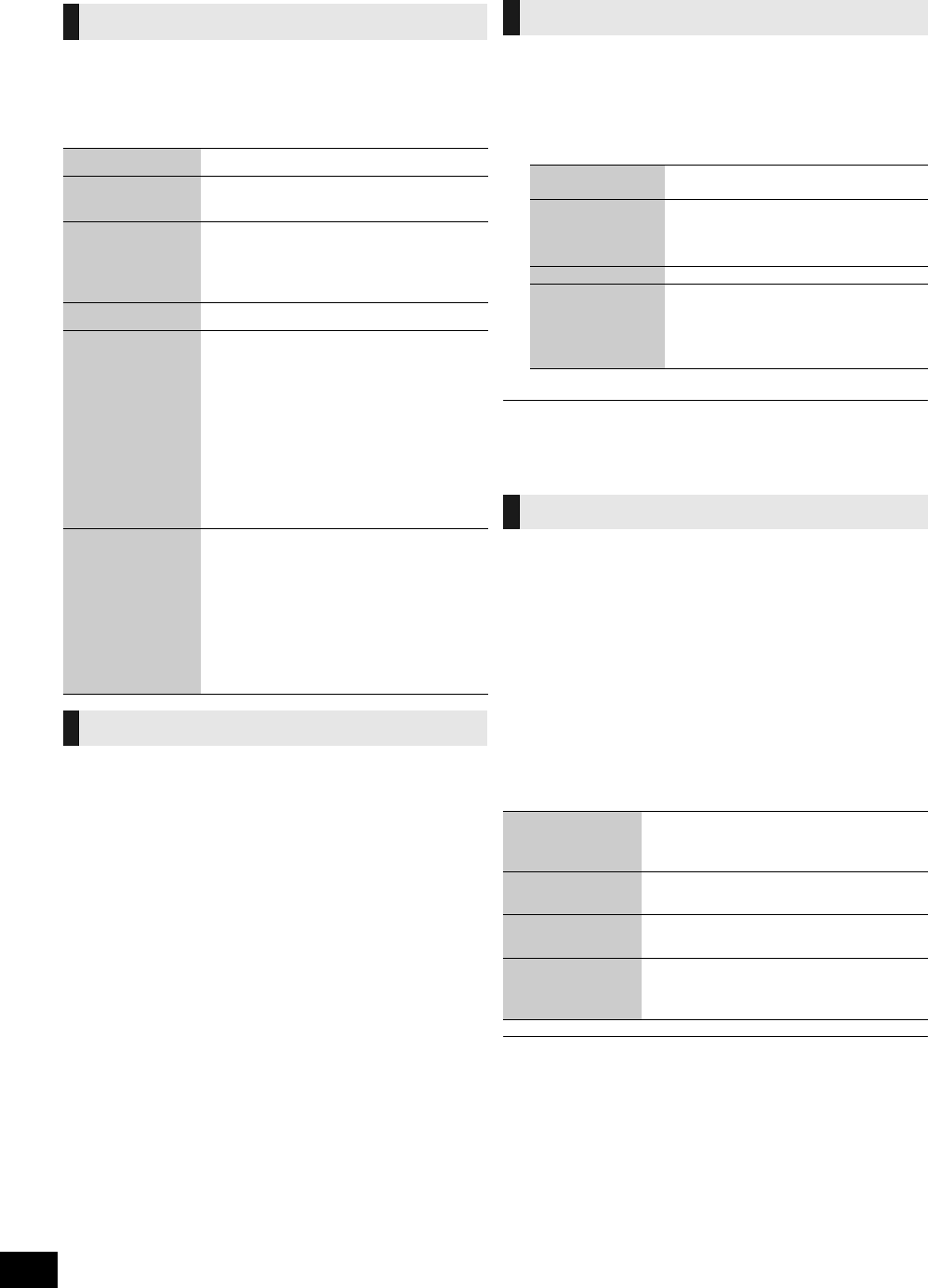
22
RQTX1260
1Presione [Í] para encender la unidad.
2
Inserte el disco que desea reproducir (
>
21).
3Presione [CD].
4Presione [1/;] para comenzar a reproducir.
Después de realizar los pasos 1-3 de “Reproducción básica”
1
Presione [PLAY MENU] repetidamente para
seleccionar “REPEAT”.
2
Presione [
2
,
1
]
para seleccionar “ON REPEAT” y
presione [OK].
3
Presione [
1
/
;
] para comenzar a reproducir.
≥
Para detener la repetición de la reproducción, seleccione “OFF
REPEAT” en el paso 2.
Después de realizar los pasos 1-3 de “Reproducción básica”
1
Presione [PLAY MENU] repetidamente para
seleccionar “PLAY MODE”.
2
Presione [
2
,
1
]
para seleccionar el modo siguiente
y presione [OK].
3
Presione [
1
/
;
] para comenzar a reproducir.
≥
Durante la reproducción aleatoria, no se puede saltar a la pista anterior.
≥
El modo de reproducción actual se cancela cuando usted abre la puerta deslizante.
≥
Para repetir la reproducción programada o el modo de reproducción seleccionado,
seleccione “ON REPEAT” en PLAY MENU.
Le permite programar hasta 24 pistas.
Después de realizar los pasos 1-3 de “Reproducción básica”
1
Presione [PROGRAM] durante el modo de detención.
3
Presione [
1
/
;
] para comenzar a reproducir.
≥La memoria del programa se borra cuando abre la puerta deslizante.
Reproducción básica
Detención Presione [∫].
Pausa Presione [1/;]. Presione nuevamente
para reiniciar la reproducción.
Saltear Presione [:] o [9] para saltear una
pista.
Presione [3,4] para saltear el álbum.
(MP3)
Búsqueda [CD] Mantenga presionado [6] o [5].
Reproducción de
acceso directo
(La reproducción
inicia en la pista
que seleccionó.)
[CD]:
Presione los botones numéricos para
seleccionar la pista.
[MP3]:
1Presione [3,4] para seleccionar el
álbum.
2Presione [9] una vez y luego los
botones numéricos para seleccionar
la pista.
≥
Esta función no funciona durante la
reproducción aleatoria o programada.
Ver la información
del contenido
Presione [DISPLAY] repetidamente
durante la reproducción o la pausa.
Se despliega la información de la pista
actual, etc.
≥Cantidad máxima de caracteres desplegables:
aproximadamente 30
≥Esta unidad es compatible con etiquetas de la
versión 1.0, 1.1 y 2.3 ID3. Los datos de texto no
soportados no se desplegarán o se verán en
forma diferente.
Repetir la reproducción
Función de modo de reproducción
1-TRACK
1TR
:
Reproduce una pista seleccionada del
disco.
1-ALBUM
1ALBUM
:
[MP3]
Reproduce un álbum seleccionado del
disco.
≥
Presione [
3
,
4
] para seleccionar el
álbum.
RANDOM
RND
:
Reproduce un disco en modo aleatorio.
1-ALBUM RANDOM
1ALBUM RND
:
[MP3]
Reproduce en modo aleatorio todas las
pistas de un álbum seleccionado.
≥
Presione [
3
,
4
] para seleccionar el
álbum.
Reproducción programada
2[CD]
:
Presione los botones numéricos para seleccionar la pista.
≥
Para programar más pistas, siga pulsando los botones
numéricos.
[MP3]
:
1
Presione [
3
,
4
] para seleccionar el álbum.
2
Presione [
9
] una vez y luego los botones numéricos
para seleccionar la pista.
3
Presione [OK].
Para programar más pistas, repita los pasos
1
-
3
.
Cancelar el modo de
programación
Presione [PROGRAM] en el modo de
detención para cancelar el indicador “PGM” del
visor.
Verificar el contenido
del programa
Presione [
:
] o [
9
] cuando “PGM” se
visualiza en el modo de detención.
Borrar la última pista
programada
Presione [DEL] en el modo de detención.
Borrar todas las
pistas programadas
1
Presione [
∫
] en el modo de detención.
2
Presione [
∫
] nuevamente mientras
parpadea “CLR ALL”.
SC-HC55_35-RQTX1260.book 22 ページ 2011年4月4日 月曜日 午後4時50分

23
RQTX1260 ESPAÑOL
Operaciones con la radio
1
Presione [EXT-IN, RADIO] repetidamente para
seleccionar “FM” o “AM”.
2
Presione [
6
] o [
5
] para seleccionar la frecuencia
de la estación requerida.
≥
“ST” se visualiza cuando se está recibiendo de una emisora FM
estéreo.
≥
Para sintonizar automáticamente, mantenga presionado [
6
] o
[
5
] hasta que la frecuencia comience a cambiar rápidamente.
j
Para cancelar la sintonización automática, presione [
6
] o
[
5
] nuevamente.
j
La sintonización automática puede no funcionar cuando hay
exceso de interferencia.
∫
Para mejorar la calidad del sonido FM
1Presione [RADIO MENU] para seleccionar “
FM MODE
”
mientras recibe
emisoras FM
.
2
Presione [
2
,
1
] para seleccionar “MONO”.
≥Seleccione “STEREO” en el paso 2 para volver a las emisoras estéreo.
≥“MONO” también se cancela si se cambia la frecuencia.
∫
Para mejorar la calidad de sonido AM
1Presione [RADIO MENU] para seleccionar “B.PROOF”
mientras recibe transmisiones AM.
2
Presione [
2
,
1
] para seleccionar la prueba beat (“BP 1” o “BP 2”) y
presione [OK].
≥Este ajuste se restaura a “BP 1” cuando se realizan cambios (por ejemplo, se
cambia la frecuencia).
Usted puede predefinir hasta 30 canales FM y 15 canales AM.
Preparación
Presione [EXT-IN, RADIO] repetidamente para seleccionar “FM” o “AM”.
∫
Predefinición automática
1Presione
[OK]
para conmutar la frecuencia entre
“LOWEST”
y “CURRENT”.
2Presione [AUTO PRESET].
“PGM” comienza a destellar y la radio comienza a predefinir todas las
estaciones que puede recibir en los canales, en orden ascendente.
∫
Predefinición manual
1
Presione [
6
] o [
5
] para sintonizar la estación requerida.
2
Presione [PROGRAM].
3
Mientras “PGM” destella, presione los botones numéricos para
seleccionar un canal.
≥
La estación que ocupa un canal se borra si otra estación se predefine en ese canal.
≥Para predefinir más estaciones, repita el paso 1 - 3.
∫
Seleccionar una estación predefinida
Presione [
:
] o [
9
] para seleccionar el canal.
≥
Alternativamente, presione los botones numéricos para seleccionar el canal.
Esta unidad se define en fábrica como FM 0,2 MHz y AM
10 kHz, pero puede cambiar estos ajustes para recibir emisoras
asignadas en el paso FM 0,1 MHz o AM 9 kHz.
1
Presione [EXT-IN, RADIO] para seleccionar “FM”.
≥Seleccione “AM” para cambiar a los pasos de frecuencia AM.
2Mantenga presionado [RADIO/EXT-IN] en la unidad
principal.
Después de unos segundos, el visor cambia y muestra la frecuencia
mínima actual.
3
Mantenga presionado [RADIO/EXT-IN] en la unidad principal.
Cuando la frecuencia mínima actual cambia, suelte el botón.
≥Para volver al paso original, repita los pasos 1 a 3.
≥Después de que se cambia la definición, se borrará cualquier frecuencia
previa.
Ajuste de sonido
Se pueden agregar los siguientes efectos de sonido a la salida de audio.
≥
Puede experimentar una reducción de la calidad del sonido cuando se usan estos
efectos con algunas fuentes. Si esto sucede, desactive los efectos de sonido.
Sincronizador
Éste es un reloj de 12 horas.
1
Presione [CLOCK/TIMER] para seleccionar “CLOCK”.
2
En 10 segundos, presione [
3
,
4
] para fijar la hora.
3Presione [OK].
≥Para visualizar el reloj, presione [CLOCK/TIMER].
≥Vuelva a fijar el reloj regularmente para mantener la precisión.
Usted puede fijar el sincronizador para que se active a una hora
determinada para despertarlo.
Esta unidad ofrece 3 sincronizadores opcionales de reproducción.
Preparación
≥Encienda la unidad y fije el reloj (>arriba).
≥
Prepare la fuente musical (disco, radio, iPod/iPhone o AUX) y fije el volumen.
1
Presione [CLOCK/TIMER] repetidamente para
seleccionar “
F
PLAY 1”, “
F
PLAY 2” o “
F
PLAY 3”.
2En 10 segundos, presione [3,4] para fijar la
hora de inicio.
3Presione [OK].
4
Fije la hora de finalización repitiendo los pasos 2 y 3.
∫Para activar el sincronizador
5Presione [PLAY, F] repetidamente para activar
el sincronizador de reproducción deseado.
6Presione [Í] para apagar la unidad.
≥El sincronizador comenzará a la hora predefinida y el volumen aumentará
gradualmente hasta el nivel predefinido.
Sintonización manual
Predefinición de memoria
Definición de asignación FM/AM
EQ
predeterminado
Presione [PRESET EQ] repetidamente para
seleccionar “HEAVY”, “SOFT”, “CLEAR”,
“VOCAL” o “FLAT”.
Bajos o agudos 1Presione [SOUND] repetidamente para
seleccionar “BASS” o “TREBLE”.
2
Presione [
2
,
1
] para graduar el nivel (-4 a +4).
Sonido Surround
1Presione [SOUND] repetidamente para
seleccionar “SURROUND”.
2Presione [2,1] para seleccionar
“ON SURROUND”.
≥
Para cancelar el sonido surround, seleccione
“OFF SURROUND” en el paso
2
.
≥
Si la interferencia en la recepción de FM estéreo
aumenta, cancele el efecto de sonido surround.
D.Bass
Presione [D.BASS] durante la reproducción para
seleccionar “ON D.BASS” o “OFF D.BASS”.
Ajuste del reloj
Sincronizador de reproducción
Verificar las
definiciones
(Cuando la unidad
está encendida o
en modo standby)
Presione [CLOCK/TIMER] dos veces.
(Se visualiza la definición.)
Cancelar
Presione [PLAY,
F
] dos veces para cancelar
el indicador del sincronizador del visor.
SC-HC55_35-RQTX1260.book 23 ページ 2011年4月4日 月曜日 午後4時50分
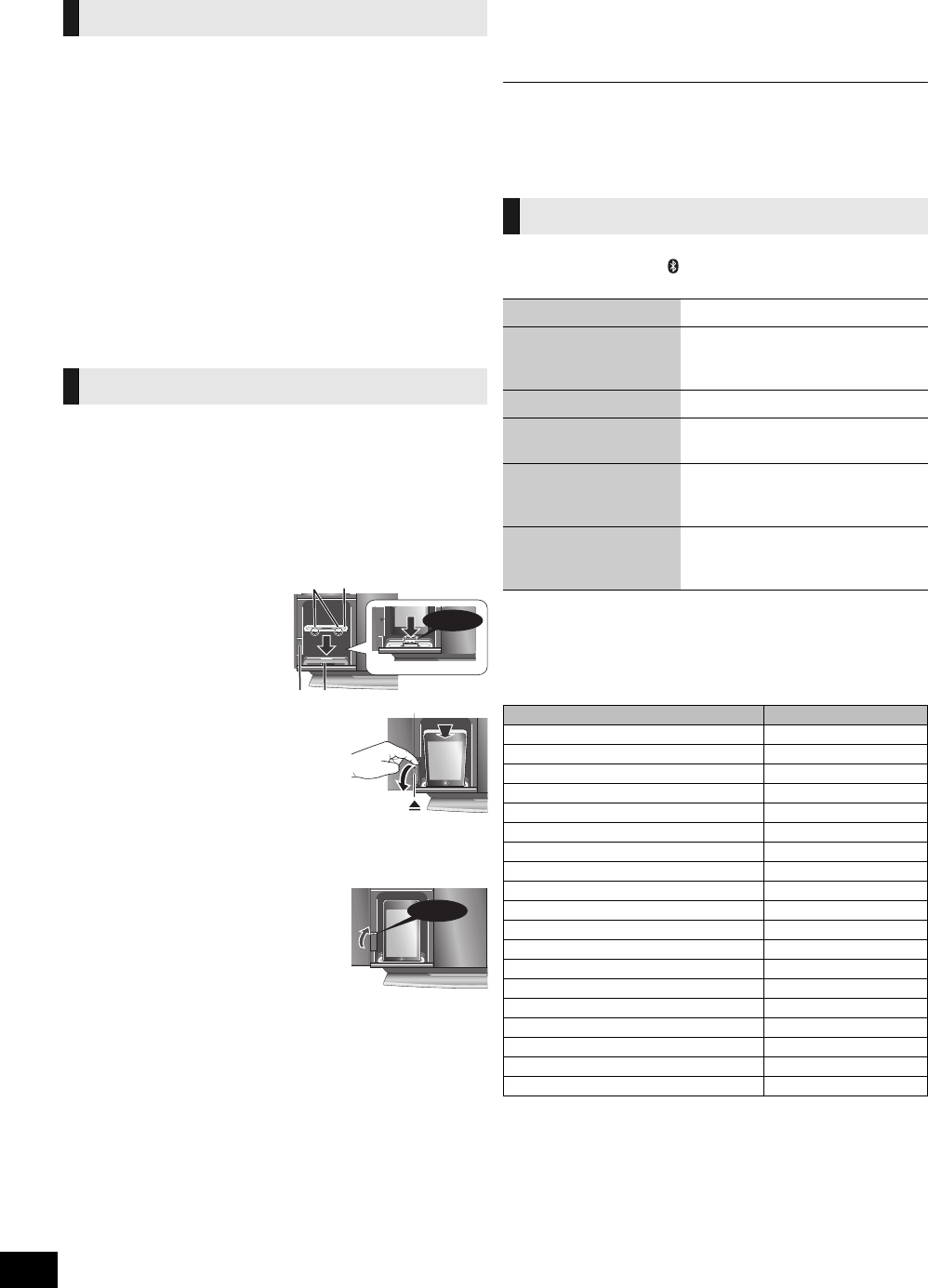
24
RQTX1260
El apagado automático puede apagar la unidad después de una
hora predefinida.
Presione [SLEEP] para activar o desactivar la
función de apagado automático.
30MIN # 60MIN # 90MIN # 120MIN
^--------------- OFF (Cancelar) (------------}
Presione [SLEEP] una vez para verificar el tiempo
restante.
≥El sincronizador de reproducción y el apagado automático se pueden usar
juntos. El apagado automático siempre tiene prioridad. Asegúrese de no
superponer los ajustes del sincronizador.
≥Cuando “AUTO OFF” está en “ON” y la unidad se deja sin usar durante
aproximadamente 30 minutos, la unidad se apagará aun cuando no haya
expirado el tiempo de reproducción o el de apagado automático.
Escuchar audio de un
iPod o iPhone
∫Insertar un iPod/iPhone
1Abra la puerta deslizante. (>21)
2Inserte el adaptador del conector apropiado (no
provisto) para el iPod/iPhone.
≥
Inserte el lado del adaptador del conector del iPod/iPhone con
los clips enfrentados hacia usted primero y luego empuje el lado
opuesto hasta que quede bien calzado y haga clic.
3
Presione [
<
] para desbloquear el
puerto de iPod/iPhone y luego
tire de la palanca del interruptor
del puerto para inclinar el puerto
de iPod/iPhone.
4Conecte el iPod/iPhone (no
provisto) firmemente.
≥Asegúrese de sacar el iPod/iPhone del estuche.
5Empuje la palanca del
interruptor del puerto hasta
que haga clic en su sitio.
6Cierre la puerta deslizante.
(>21)
∫Extraer el iPod/iPhone
1Repita los pasos 1 y 3 (>izquierda).
2Para extraer, simplemente tire del iPod/iPhone hacia afuera.
3Repita los pasos 5 y 6 (>izquierda).
≥El conector del iPod/iPhone se puede dañar si no está inclinado cuando se
conecta o desconecta el iPod/iPhone.
≥
Asegúrese de usar un adaptador del conector que sea compatible con su iPod/iPhone.
Para comprar un adaptador del conector, consulte al distribuidor de iPod/iPhone.
≥Reduzca el volumen de la unidad principal al mínimo antes de conectar o
desconectar el iPod/iPhone.
Preparación
Presione [iPod] ([HC55]: [ , iPod]) repetidamente para
seleccionar “IPOD”.
≥Las operaciones pueden variar o no funcionar según los modelos de iPod/
iPhone.
∫iPod/iPhone compatibles (a junio de 2011)
≥Actualice su iPod/iPhone con el último software antes de usar esta unidad.
≥La compatibilidad depende de la versión de software de su iPod/iPhone.
≥Según el modelo, puede ser necesario extraer el iPod/iPhone y seleccionar
el álbum, artista, etc. en él.
Apagado automático
Insertar/Extraer un iPod/iPhone
AClips
BAdaptador del conector
CPalanca del interruptor
de acoplamiento del
iPod/iPhone
DConector
¡Clic!
¡Clic!
Operaciones con el iPod
Reproducir Presione [1/;].
Pausa Presione [1/;] o [∫]. Presione
nuevamente para reiniciar la
reproducción.
Saltear pista Presione [:] o [9].
Buscar la pista actual Mantenga presionado [6] o
[5].
Visualizar el menú iPod/
iPhone/volver al menú
anterior
Presione [iPod MENU] en modo de
reproducción. (Mando a distancia
solamente)
Seleccione los
contenidos en el menú
iPod/iPhone
Presione [3,4] y luego [OK].
(Mando a distancia solamente)
Nombre Capacidad de memoria
iPod touch 4ta generación 8 GB, 32 GB, 64 GB
iPod nano 6ta generación 8 GB, 16 GB
iPod touch 3ra generación 32 GB, 64 GB
iPod nano 5ta generación (videocámara) 8 GB, 16 GB
iPod touch 2da generación 8 GB, 16 GB, 32 GB
iPod classic 120 GB, 160 GB (2009)
iPod nano 4ta generación (video) 8 GB, 16 GB
iPod classic 160 GB (2007)
iPod touch 1ra generación 8 GB, 16 GB, 32 GB
iPod nano 3ra generación (video) 4 GB, 8 GB
iPod classic 80 GB
iPod nano 2da generación (aluminio) 2 GB, 4 GB, 8 GB
iPod 5ta generación (video) 60 GB, 80 GB
iPod 5ta generación (video) 30 GB
iPod nano 1ra generación 1 GB, 2 GB, 4 GB
iPhone 4 16 GB, 32 GB
iPhone 3GS 8 GB, 16 GB, 32 GB
iPhone 3G 8 GB, 16 GB
iPhone 4 GB, 8 GB, 16 GB
SC-HC55_35-RQTX1260.book 24 ページ 2011年4月4日 月曜日 午後4時50分
25
RQTX1260 ESPAÑOL
Esta unidad puede reproducir radio por Internet si está instalado
“vTuner for Panasonic” en su iPhone/iPod touch.
≥
Visite el sitio web que se indica a continuación para obtener más
información sobre “vTuner for Panasonic”:
http://radio.vtuner.com/panasonic/en/
(Modelos de iPhone/iPod touch sensibles al tacto y versiones de
software compatibles, compra, instalación y funcionamiento.)
Preparación
Instale “vTuner for Panasonic” en su iPhone/iPod touch.
1Inserte el iPhone/iPod touch en la unidad.
2Presione [ , iPod] repetidamente para
seleccionar “INTERNET RADIO”.
Se iniciará “vTuner for Panasonic”.
[HC55] Uso de un
dispositivo compatible
con Bluetooth®
Preparación
Sincronice el dispositivo Bluetooth® a esta unidad para crear una
conexión de audio.
1Presione [ , iPod] repetidamente para
seleccionar “BLUETOOTH”.
Cuando lo usa por primera vez, entra automáticamente en el
modo de sincronización.
2Mientras la unidad está en modo de
sincronización, acceda al menú del dispositivo
Bluetooth® y ejecute la búsqueda de Bluetooth®
para encontrar esta unidad (SC-HC55).
≥Consulte el manual del usuario del dispositivo Bluetooth® para conocer
más detalles sobre cómo conectar un dispositivo Bluetooth®.
≥Si se le solicita la clave, ingrese “0000”.
3
Si la sincronización es satisfactoria, se
visualizará el nombre del dispositivo
sincronizado durante 2 segundos. Se encenderá
el indicador de Bluetooth
®
. La unidad ahora está
lista para usarse con el dispositivo Bluetooth
®
.
≥Asegúrese de que el dispositivo Bluetooth® soporte A2DP (Advance Audio
Distribution Profile).
≥Esta unidad soporta la recepción A2DP que está protegida por derechos de
autor mediante el método SCMS-T.
≥A2DP le permite reproducir sonido estéreo desde una fuente de audio
(teléfono móvil, PC o laptop) en esta unidad a través del Bluetooth®.
≥Según la especificación o la configuración del teléfono móvil, la conexión
puede no establecerse o el funcionamiento y la visualización pueden variar.
≥Si registra más de la cantidad máxima de dispositivos, se sobregrabará el
dispositivo más viejo en la historia de conexiones.
≥Si un dispositivo ya registrado se vuelve a registrar, se sobregrabará.
Sincronice el dispositivo Bluetooth® a esta unidad para crear una
conexión de audio.
1Presione [ , iPod] repetidamente para
seleccionar “BLUETOOTH”.
2En el dispositivo Bluetooth®:
Seleccione esta unidad (SC-HC55) en la pantalla de
configuración Bluetooth
®
para hacer esta conexión.
3En el dispositivo Bluetooth®:
Comience a reproducir música de una fuente
≥Si el dispositivo está conectado, la música se escuchará en esta unidad.
≥El indicador de Bluetooth® se enciende cuando hay una conexión.
≥
Si es necesario, consulte el manual del usuario del dispositivo Bluetooth
®
.
4También puede realizar los siguientes
controles con el mando a distancia.
≥Para usar estas funciones, el dispositivo Bluetooth® debe soportar AVRCP
(Audio Video Remote Control Profile).
≥Esta unidad no puede transmitir datos al dispositivo Bluetooth®.
≥Cuando reproduce contenido del iPod/iPhone a través del Bluetooth® con la
unidad principal, se puede sentir un sonido intermitente si deja la pantalla del
menú iPod/iPhone Bluetooth® activa o cuando registra o conecta el
Bluetooth®. Si esto ocurre, salga de la pantalla del menú iPod/iPhone
Bluetooth®.
≥Cuando reproduce música del iPod/iPhone a través de una conexión
Bluetooth® y el iPod/iPhone está conectado al conector de iPod/iPhone de
esta unidad, el audio no será reproducido mientras está seleccionado
“BLUETOOTH”. Seleccione “IPOD” para seguir escuchando la música.
Esta unidad funciona como un Bluetooth® manos libres para su
teléfono móvil.
≥Esta unidad no funciona con Headset Profile (HSP).
≥Cuando el teléfono móvil está demasiado cerca del micrófono de esta
unidad, se puede escuchar ruido. Cuando hace una llamada mantenga
siempre el teléfono alejado del micrófono de esta unidad.
≥El audio de un disco se detendrá cuando llama en modo manos libres.
1Presione [ , iPod] repetidamente para
seleccionar “BLUETOOTH”.
2Presione [ MENU] para visualizar
“DISCONNECT?” y luego presione [OK].
Se visualizará un mensaje de confirmación.
3Presione [2,1] para seleccionar “YES” y
luego presione [OK].
≥La conexión también se puede detener cuando desactiva la transmisión
Bluetooth® en el dispositivo Bluetooth® conectado.
[HC55]
Escuchar radio por Internet
Operaciones con Bluetooth®
Reproducción básica
Reproducir Presione [1/;] para comenzar a reproducir.
Detención Presione [∫].
Pausa Presione [1/;]. Presione nuevamente para
reiniciar la reproducción.
Saltear pista Presione [:] o [9].
Visualizar
información
Presione [DISPLAY] repetidamente.
Hands-Free Profile (HFP)
Para responder una
llamada (“IN CALL”
parpadea)
Presione [ ]. “CALLING” comienza a
parpadear en el visor (hable en el
micrófono de la unidad).
Presione [ ] nuevamente para transferir
la llamada al teléfono móvil (“TRANSFER”
parpadea. Ahora puede conversar usando
el teléfono móvil).
Para cancelar una
llamada
Presione [ ].
Para ajustar el
volumen del sonido
Presione [+, VOL ,–] (regulable de
“TEL VOL 1” a “TEL VOL 10”).
Para silenciar el
micrófono
Presione [MUTE]. Presione nuevamente
para cancelar.
(Durante “MIC MUTE”, la persona que
llama no puede escuchar su voz).
Desconectar el dispositivo
Bluetooth®
SC-HC55_35-RQTX1260.book 25 ページ 2011年4月4日 月曜日 午後4時50分
26
RQTX1260
Limited Warranty
(ONLY FOR U.S.A. AND PUERTO RICO)
Panasonic Consumer Electronics Company,
Division of Panasonic Corporation of North America
One Panasonic Way, Secaucus, New Jersey 07094
Panasonic Home Audio Products Limited Warranty
Limited Warranty Coverage
(For USA and Puerto Rico Only)
If your product does not work properly because of a defect in materials or
workmanship, Panasonic Consumer Electronics Company (referred to as “the
warrantor”) will, for the length of the period indicated on the chart below, which
starts with the date of original purchase (“warranty period”), at its option either
(a) repair your product with new or refurbished parts, (b) replace it with a new or
a refurbished equivalent value product, or (c) refund your purchase price. The
decision to repair, replace or refund will be made by the warrantor.
During the “Labor” warranty period there will be no charge for labor. During the
“Parts” warranty period, there will be no charge for parts. This Limited Warranty
excludes both parts and labor for non-rechargeable batteries, antennas, and
cosmetic parts (cabinet). This warranty only applies to products purchased and
serviced in the United States or Puerto Rico. This warranty is extended only to
the original purchaser of a new product which was not sold “as is”.
Carry-In or Mail-In Service
To find a service center please visit http://www.panasonic.com/help or call
1-800-211-PANA (7262).
When shipping the unit, carefully pack, include all accessories, and send it
prepaid, adequately insured and preferably in the original carton. When
shipping Lithium Ion batteries please visit our Web Site at
www.panasonic.com/BatteryHandling as Panasonic is committed to
providing the most up to date information. Include a letter detailing the
complaint, a return address and provide a daytime phone number where you
can be reached. A valid registered receipt is required under the Limited
Warranty.
IF REPAIR IS NEEDED DURING THE WARRANTY PERIOD, THE
PURCHASER WILL BE REQUIRED TO FURNISH A SALES RECEIPT/
PROOF OF PURCHASE INDICATING DATE OF PURCHASE, AMOUNT
PAID AND PLACE OF PURCHASE. CUSTOMER WILL BE CHARGED
FOR THE REPAIR OF ANY UNIT RECEIVED WITHOUT SUCH PROOF
OF PURCHASE.
Limited Warranty Limits And Exclusions
This warranty ONLY COVERS failures due to defects in materials or
workmanship, and DOES NOT COVER normal wear and tear or cosmetic
damage. The warranty ALSO DOES NOT COVER damages which occurred in
shipment, or failures which are caused by products not supplied by the
warrantor, or failures which result from accidents, misuse, abuse, neglect,
mishandling, misapplication, alteration, faulty installation,
set-up adjustments, misadjustment of consumer controls, improper
maintenance, power line surge, lightning damage, modification, introduction of
sand, humidity or liquids, commercial use such as hotel, office, restaurant, or
other business or rental use of the product, or service by anyone other than a
Factory Service Center or other Authorized Servicer, or damage that is
attributable to acts of God.
THERE ARE NO EXPRESS WARRANTIES EXCEPT AS LISTED
UNDER “LIMITED WARRANTY COVERAGE”.
THE WARRANTOR IS NOT LIABLE FOR INCIDENTAL OR
CONSEQUENTIAL DAMAGES RESULTING FROM THE USE OF THIS
PRODUCT, OR ARISING OUT OF ANY BREACH OF THIS WARRANTY.
(As examples, this excludes damages for lost time, travel to and from the
servicer, loss of or damage to media or images, data or other memory or
recorded content. The items listed are not exclusive, but for illustration only.)
ALL EXPRESS AND IMPLIED WARRANTIES, INCLUDING THE
WARRANTY OF MERCHANTABILITY, ARE LIMITED TO THE PERIOD
OF THE LIMITED WARRANTY.
Some states do not allow the exclusion or limitation of incidental or
consequential damages, or limitations on how long an implied warranty lasts, so
the exclusions may not apply to you.
This warranty gives you specific legal rights and you may also have other rights
which vary from state to state. If a problem with this product develops during or
after the warranty period, you may contact your dealer or Service Center. If the
problem is not handled to your satisfaction, then write to the warrantor’s
Consumer Affairs Department at the addresses listed for the warrantor.
PARTS AND SERVICE, WHICH ARE NOT COVERED BY THIS LIMITED
WARRANTY, ARE YOUR RESPONSIBILITY.
As of December 2010
Product or Part Name Parts Labor
Audio Products
(except items below)
1 year 1 year
DVD Home Theater System 1 year 1 year
Home Theater Audio System 1 year 1 year
USB Reader-writer, PC Card Adapters
(defective exchange)
1 year Not Applicable
Accessories: Headphones, cartridges,
Microphones, Adapters
90 days 90 days
Rechargeable Batteries, DVD-RAM Disc
(defective exchange)
10 days Not
Applicable
SD Memory Cards, Rechargeable Battery
Packs (defective exchange)
90 days Not
Applicable Customer Services Directory (United States and Puerto
Rico)
Obtain Product Information and Operating Assistance;
locate your nearest Dealer or Service Center; purchase
Parts and Accessories; or make Customer Service and
Literature requests by visiting our Web Site at:
http://www.panasonic.com/help
or, contact us via the web at:
http://www.panasonic.com/contactinfo
You may also contact us directly at:
1-800-211-PANA (7262)
Monday-Friday 9am-9pm,
Saturday-Sunday 10am-7pm EST
For hearing or speech impaired TTY users, TTY:
1-877-833-8855
Accessory Purchases (United States and Puerto Rico)
Purchase Parts, Accessories and Instruction Books online for
all Panasonic Products by visiting our Web Site at:
http://www.pstc.panasonic.com
Or, send your request by E-mail to:
npcparts@us.panasonic.com
You may also contact us directly at:
1-800-332-5368 (Phone) 1-800-237-9080 (Fax Only)
(Monday-Friday 9am-9pm EST)
Panasonic Service and Technology Company
20421 84th Avenue South, Kent, WA 98032
(We accept Visa, MasterCard, Discover Card, American
Express, and Personal Checks)
For hearing or speech impaired TTY users, TTY:
1-866-605-1277
SC-HC55_35-RQTX1260.book 26 ページ 2011年4月4日 月曜日 午後4時50分

27
RQTX1260 ENGLISH
Limited Warranty (
ONLY FOR
CANADA)
Panasonic Canada Inc.
5770 Ambler Drive, Mississauga, Ontario L4W 2T3
PANASONIC PRODUCT - LIMITED WARRANTY
EXCHANGE PROGRAM
Panasonic Canada Inc. warrants this product to be free from defects in material and workmanship under normal use and for a period as stated below
from the date of original purchase agrees to, at its option either (a) repair your product with new or refurbished parts, (b) replace it with a new or a
refurbished equivalent value product, or (c) refund your purchase price. The decision to repair, replace or refund will be made by Panasonic Canada
Inc.
This warranty is given only to the original purchaser, or the person for whom it was purchased as a gift, of a Panasonic brand product mentioned above
sold by an authorized Panasonic dealer in Canada and purchased and used in Canada, which product was not sold “as is”, and which product was
delivered to you in new condition in the original packaging.
IN ORDER TO BE ELIGIBLE TO RECEIVE WARRANTY SERVICE HEREUNDER, A PURCHASE RECEIPT OR OTHER PROOF OF DATE OF
ORIGINAL PURCHASE, SHOWING AMOUNT PAID AND PLACE OF PURCHASE IS REQUIRED
LIMITATIONS AND EXCLUSIONS
This warranty ONLY COVERS failures due to defects in materials or workmanship, and DOES NOT COVER normal wear and tear or cosmetic damage.
The warranty ALSO DOES NOT COVER damages which occurred in shipment, or failures which are caused by products not supplied by Panasonic
Canada Inc., or failures which result from accidents, misuse, abuse, neglect, mishandling, misapplication, alteration, faulty installation, set-up
adjustments, misadjustment of consumer controls, improper maintenance, power line surge, lightning damage, modification, introduction of sand,
humidity or liquids, commercial use such as hotel, office, restaurant, or other business or rental use of the product, or service by anyone other than an
Authorized Servicer, or damage that is attributable to acts of God.
Dry cell batteries are also excluded from coverage under this warranty.
THIS EXPRESS, LIMITED WARRANTY IS IN LIEU OF ALL OTHER WARRANTIES, EXPRESS OR IMPLIED, INCLUDING ANY IMPLIED
WARRANTIES OF MERCHANTABILITY AND FITNESS FOR A PARTICULAR PURPOSE. IN NO EVENT WILL PANASONIC CANADA INC. BE
LIABLE FOR ANY SPECIAL, INDIRECT OR CONSEQUENTIAL DAMAGES RESULTING FROM THE USE OF THIS PRODUCT OR ARISING OUT
OF ANY BREACH OF ANY EXPRESS OR IMPLIED WARRANTY. (As examples, this warranty excludes damages for lost time, travel to and from the
Authorized Servicer, loss of or damage to media or images, data or other memory or recorded content. This list of items is not exhaustive, but for
illustration only.)
In certain instances, some jurisdictions do not allow the exclusion or limitation of incidental or consequential damages, or the exclusion of implied
warranties, so the above limitations and exclusions may not be applicable. This warranty gives you specific legal rights and you may have other rights
which vary depending on your province or territory.
CONTACT INFORMATION
Panasonic Portable / Clock Radio (without Tape, CD, MD)
Panasonic Audio Product
Panasonic DVD Product
Accessories including rechargeable batteries
One (1) year
One (1) year
One (1) year
Ninety (90) days
For product information and operation assistance, please contact:
Our Customer Care Centre: Telephone #:
Fax #:
Email link:
1-800-561-5505
(905) 238-2360
“Support # contact us # email” on www.panasonic.ca
For defective product exchange within the warranty period, please contact the original dealer or our Customer Care Centre.
SC-HC55_35-RQTX1260.book 27 ページ 2011年4月4日 月曜日 午後4時50分
[HC55]
THE FOLLOWING APPLIES ONLY IN THE U.S.A.
FCC Note:
This equipment has been tested and found to comply with the limits for a
Class B digital device, pursuant to Part 15 of the FCC Rules.
These limits are designed to provide reasonable protection against harmful
interference in a residential installation. This equipment generates, uses,
and can radiate radio frequency energy and, if not installed and used in
accordance with the instructions, may cause harmful interference to radio
communications.
However, there is no guarantee that interference will not occur in a
particular installation. If this equipment does cause harmful interference to
radio or television reception, which can be determined by turning the
equipment off and on, the user is encouraged to try to correct the
interference by one or more of the following measures:
≥Reorient or relocate the receiving antenna.
≥Increase the separation between the equipment and receiver.
≥Connect the equipment into an outlet on a circuit different from that to
which the receiver is connected.
≥Consult the dealer or an experienced radio/TV technician for help.
FCC caution: To maintain compliance with FCC regulations, shielded
interface cables must be used with this equipment. Operation with non-
approved equipment or unshielded cables may result in interference to
radio and TV reception. Any changes or modifications not approved by the
party responsible for compliance could void the user’s authority to operate
this equipment.
This device complies with Part 15 of the FCC Rules.
Operation is subject to the following two conditions:
(1) This device may not cause harmful interference, and
(2) this device must accept any interference received, including
interference that may cause undesired operation.
Responsible Party:
Panasonic Corporation of North America
One Panasonic Way
Secaucus, NJ 07094
Support Contact:
Panasonic Consumer Electronics Company
Telephone No.: 1-800-211-PANA (7262)
WARNING:
To satisfy FCC RF exposure requirements for mobile transmitting devices, a
separation distance of 20 cm (77/8q) or more should be maintained between
the antenna of this device and persons during device operation. To ensure
compliance, operations at closer than this distance is not recommended.
The antenna used for this transmitter must not be co-located in conjunction
with any other antenna or transmitter.
[HC35]
THE FOLLOWING APPLIES ONLY IN THE U.S.A.
FCC Note:
This equipment has been tested and found to comply with the limits for a
Class B digital device, pursuant to Part 15 of the FCC Rules.
These limits are designed to provide reasonable protection against harmful
interference in a residential installation. This equipment generates, uses
and can radiate radio frequency energy and, if not installed and used in
accordance with the instructions, may cause harmful interference to radio
communications. However, there is no guarantee that interference will not
occur in a particular installation. If this equipment does cause harmful
interference to radio or television reception, which can be determined by
turning the equipment off and on, the user is encouraged to try to correct
the interference by one or more of the following measures:
≥Reorient or relocate the receiving antenna.
≥Increase the separation between the equipment and receiver.
≥Connect the equipment into an outlet on a circuit different from that to
which the receiver is connected.
≥Consult the dealer or an experienced radio/TV technician for help.
Any unauthorized changes or modifications to this equipment would void
the user’s authority to operate this device.
This device complies with Part 15 of the FCC Rules. Operation is subject to
the following two conditions: (1) This device may not cause harmful
interference, and (2) this device must accept any interference received,
including interference that may cause undesired operation.
Responsible Party:
Panasonic Corporation of North America
One Panasonic Way
Secaucus, NJ 07094
Support Contact:
Panasonic Consumer Electronics Company
Telephone No.: 1-800-211-PANA (7262)
For SC-HC55 only
As an ENERGY STAR Partner, Panasonic has
determined that this product meets the ENERGY
STAR guidelines for energy efficiency.
®
®
For Canada only: The word "Participant" is used
in place of the word "Partner".
For U.S.A. and Puerto Rico
Panasonic Consumer Electronics Company,
Division of Panasonic Corporation of North America
One Panasonic Way, Secaucus,
New Jersey 07094
http://www.panasonic.com
C Panasonic Corporation 2011
Printed in Malaysia
For Canada
Panasonic Canada Inc.
5770 Ambler Drive
Mississauga, Ontario
L4W 2T3
www.panasonic.ca
RQTX1260-3P
F0111MT3031
pr
SC-HC55_35-RQTX1260.book 28 ページ 2011年4月4日 月曜日 午後4時50分
