Panasonic SC HT822V User Manual To The Cb3f7f65 B939 43ae B5f0 9385b93fe472
User Manual: Panasonic SC-HT822V to the manual
Open the PDF directly: View PDF  .
.
Page Count: 1
- TABLE OF CONTENTS
- INTRO
- SETUP
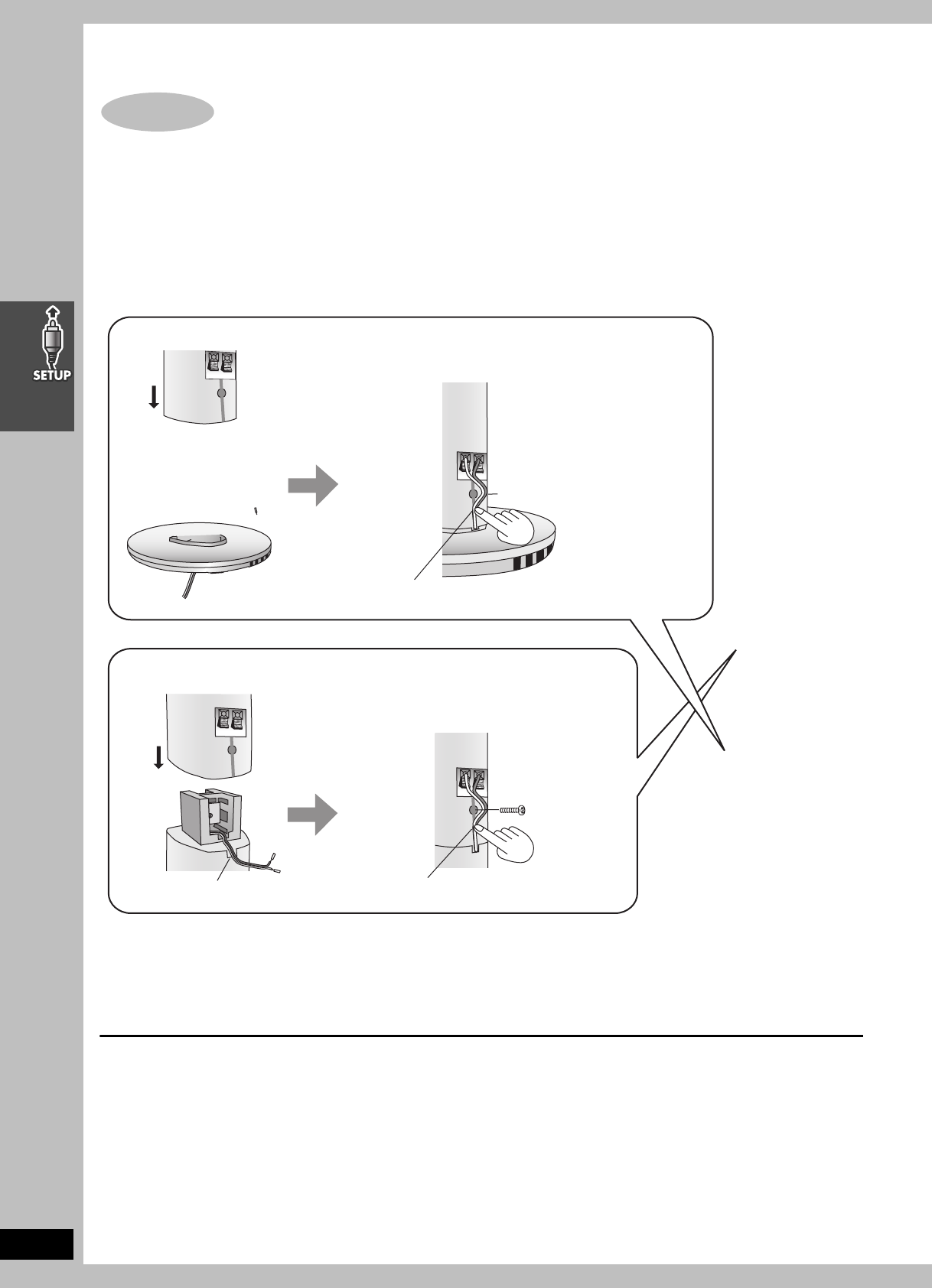
- STEP 1 ASSEMBLY AND CONNECTION OF FRONT AND SURROUND SPEAKERS
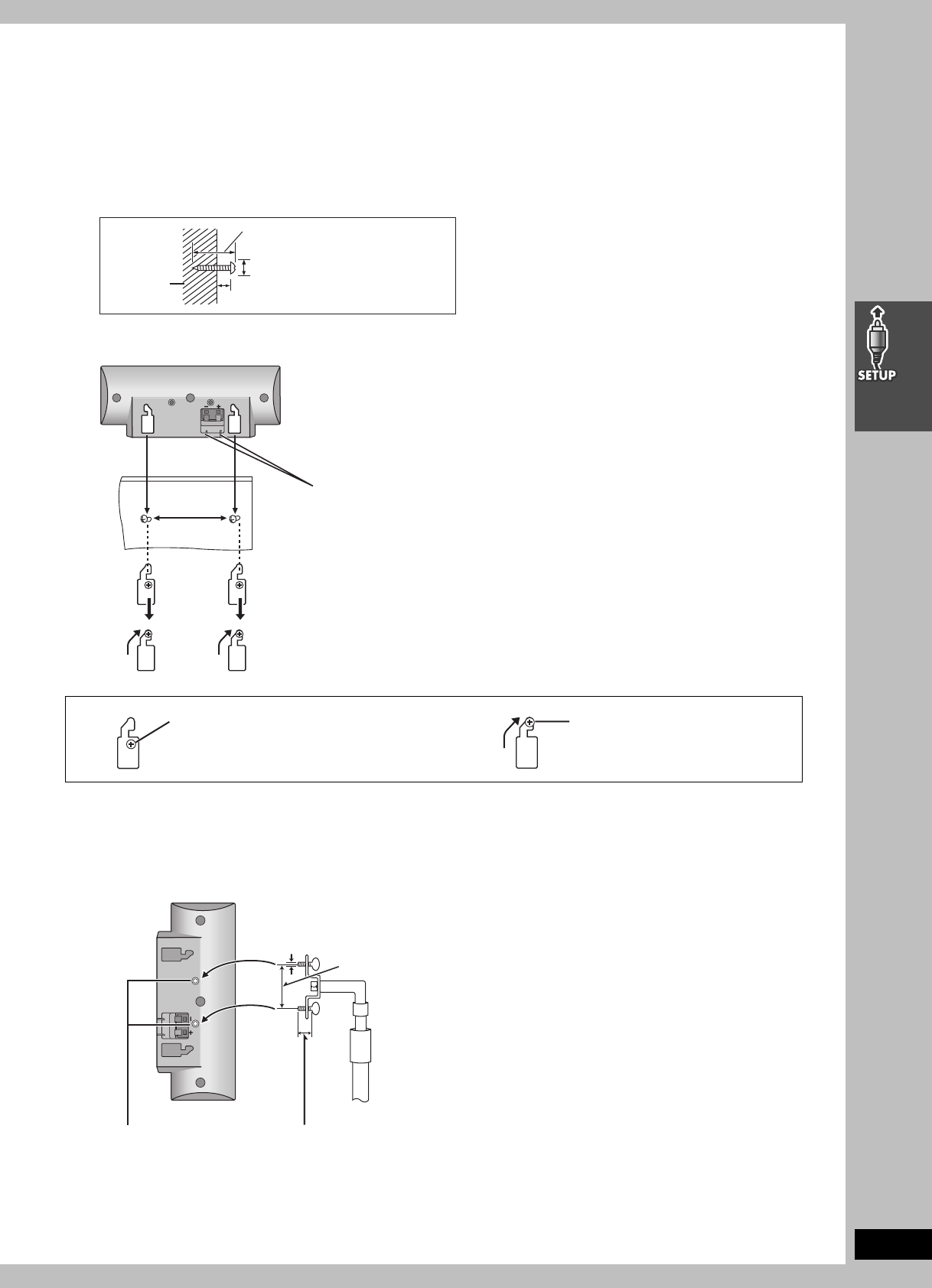
- OTHER SPEAKER SETUP OPTIONS (CENTER SPEAKER ONLY)
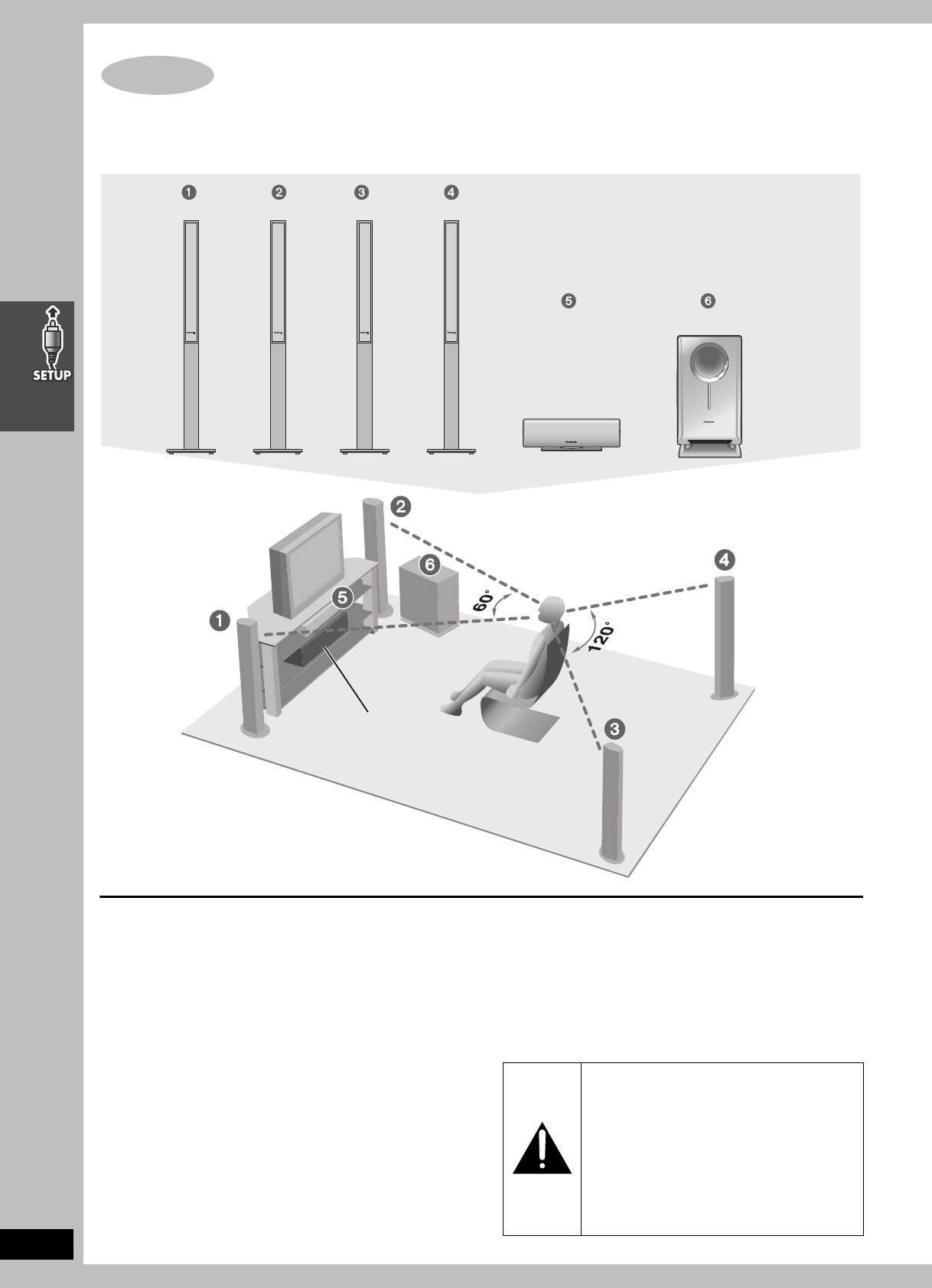
- STEP 2 LOCATING
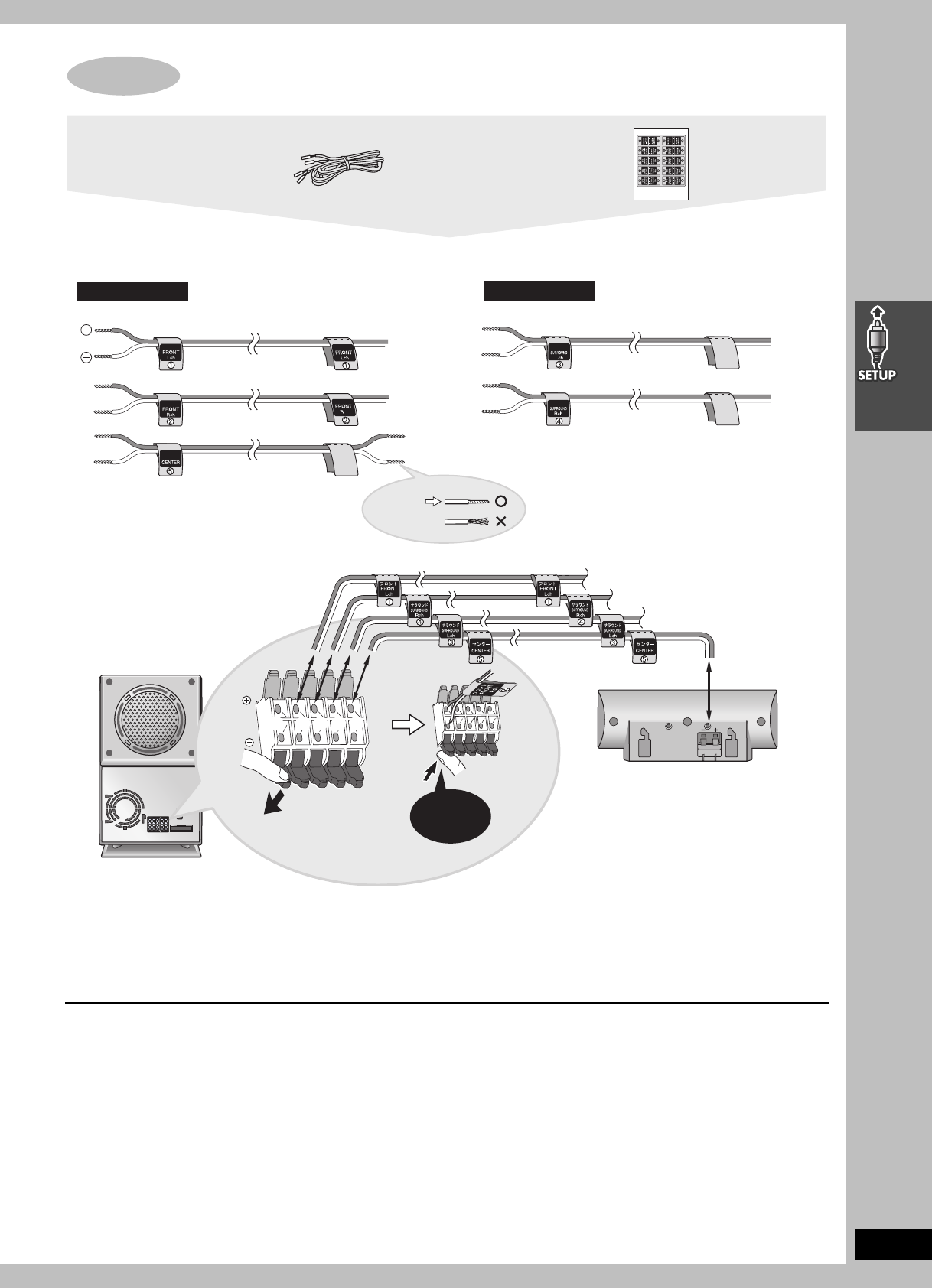
- STEP 3 CONNECTING SPEAKERS WITH THE SUBWOOFER
- STEP 4 TELEVISION
- STEP 5 RADIO AND SYSTEM CONNECTION
- STEP 6 PLUG-IN AUTO TUNING
- STEP 7 OPERATING THE TELEVISION
- STEP 8 DVD QUICK SETUP
- DVD
- VHS
- RADIO & OTHERS
- INFO
2
RQT7708
(Inside of product)
System SC-HT822V
Main unit SA-HT822V
Front and surround speakers SB-FS822
Center speaker SB-PC820
Active subwoofer SB-WA822
Operations in these instructions are described mainly with
the remote control, but you can do the operations on the
main unit if the controls are the same.
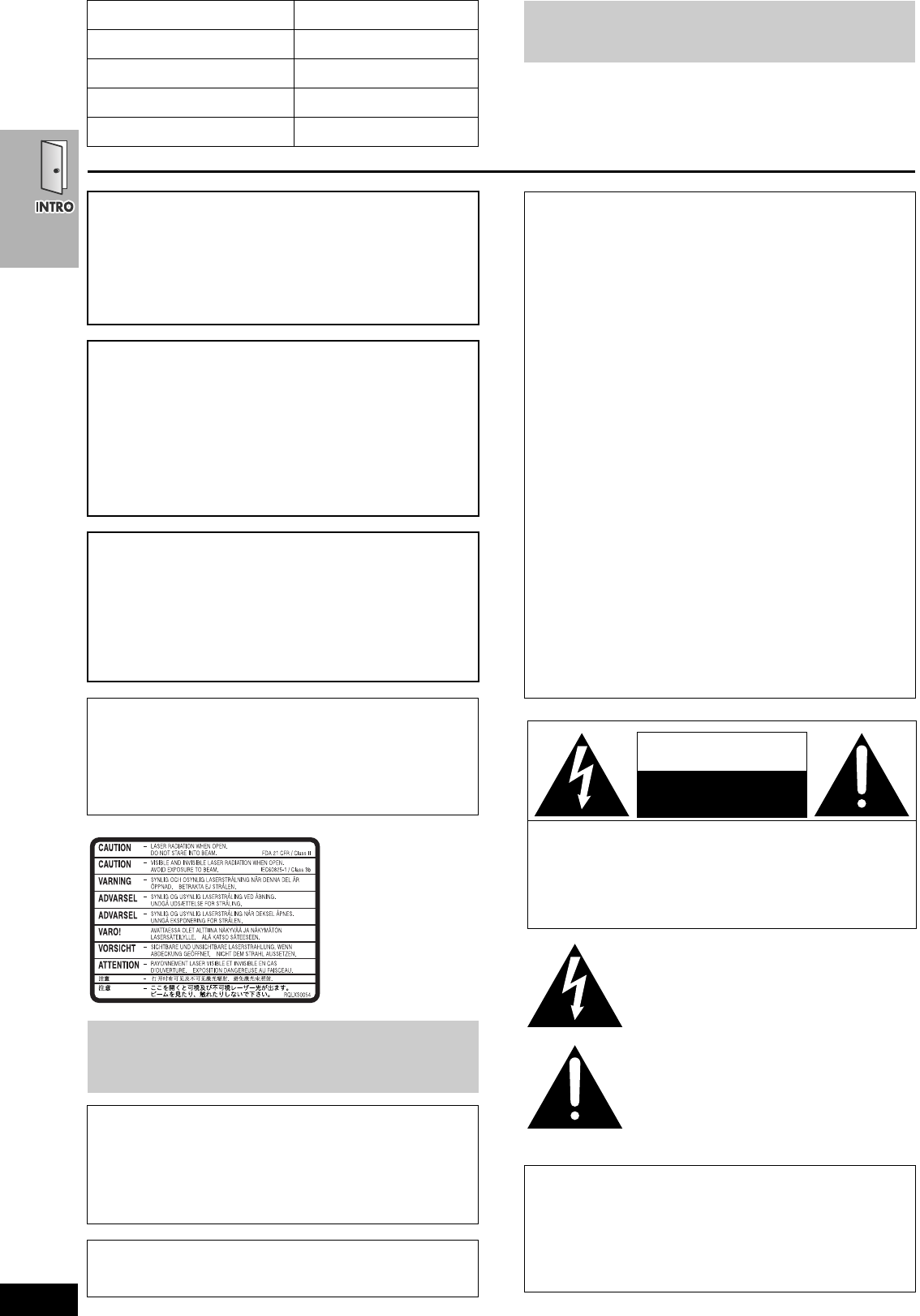
CAUTION!
DO NOT INSTALL OR PLACE THIS UNIT IN A BOOKCASE,
BUILT-IN CABINET OR IN ANOTHER CONFINED SPACE.
ENSURE THE UNIT IS WELL VENTILATED. TO PREVENT
RISK OF ELECTRIC SHOCK OR FIRE HAZARD DUE TO
OVERHEATING, ENSURE THAT CURTAINS AND ANY OTHER
MATERIALS DO NOT OBSTRUCT THE VENTILATION VENTS.
WARNING:
TO REDUCE THE RISK OF FIRE, ELECTRIC
SHOCK OR PRODUCT DAMAGE, DO NOT
EXPOSE THIS APPARATUS TO RAIN,
MOISTURE, DRIPPING OR SPLASHING AND
THAT NO OBJECTS FILLED WITH LIQUIDS,
SUCH AS VASES, SHALL BE PLACED ON THE
APPARATUS.
CAUTION!
THIS PRODUCT UTILIZES A LASER.
USE OF CONTROLS OR ADJUSTMENTS OR
PERFORMANCE OF PROCEDURES OTHER THAN THOSE
SPECIFIED HEREIN MAY RESULT IN HAZARDOUS
RADIATION EXPOSURE.
DO NOT OPEN COVERS AND DO NOT REPAIR YOURSELF.
REFER SERVICING TO QUALIFIED PERSONNEL.
Note to CATV system installer:
This reminder is provided to call the CATV system installer’s
attention to Article 820-40 of the NEC that provides guidelines
for proper grounding and, in particular, specifies that the cable
ground shall be connected to the grounding system of the
building, as close to the point of cable entry as practical.
Before moving the unit, ensure the disc trays and video
cassette slot are empty.
Failure to do so will risk severely damaging the discs, video
cassette tape and the unit.
Avoid use or placing highly magnetic devices (Speakers
etc.) or devices that emit strong electro-magnetic waves
(mobile telephones etc.) near the main unit.
≥The above may result in problems with audio and video, and
recorded content may be lost.
≥Be extra cautious when you are using a plasma television,
keeping these devices as far away as possible.
Stacking
Place the unit in a horizontal position, and do not place anything
heavy on it.
CAUTION:
This equipment has been tested and found to comply with the
limits for a Class B digital device, pursuant to Part 15 of the FCC
Rules.
These limits are designed to provide reasonable protection
against harmful interference in a residential installation. This
equipment generates, uses and can radiate radio frequency
energy and, if not installed and used in accordance with the
instructions, may cause harmful interference to radio
communications. However, there is no guarantee that
interference will not occur in a particular installation. If this
equipment does cause harmful interference to radio or
television reception, which can be determined by turning the
equipment off and on, the user is encouraged to try to correct
the interference by one or more of the following measures:
≥Reorient or relocate the receiving antenna.
≥Increase the separation between the equipment and receiver.
≥Connect the equipment into an outlet on a circuit different from
that to which the receiver is connected.
≥Consult the dealer or an experienced radio/TV technician for
help.
Any unauthorized changes or modifications to this equipment
would void the user’s authority to operate this device.
This device complies with Part 15 of the FCC Rules. Operation
is subject to the following two conditions: (1) This device may
not cause harmful interference, and (2) this device must accept
any interference received, including interference that may cause
undesired operation.
≥Operating while there is condensation in the unit or on the
cassette tape may cause the tape to catch upon the cylinder
resulting in the tape being cut, or not being able to remove the
cassette tape from the unit. The unit also may not work
properly if the unit's cylinder or heads have been damaged.
≥Wait 1–2 hours for condensation to evaporate (do not operate
the unit during this time).
The lightning flash with arrowhead symbol, within
an equilateral triangle, is intended to alert the user
to the presence of uninsulated “dangerous
voltage” within the product’s enclosure that may
be of sufficient magnitude to constitute a risk of
electric shock to persons.
CAUTION
CAUTION: TO REDUCE THE RISK OF ELECTRIC
SHOCK, DO NOT REMOVE SCREWS.
NO USER-SERVICEABLE PARTS
INSIDE.
REFER SERVICING TO QUALIFIED
SERVICE PERSONNEL.
The exclamation point within an equilateral triangle
is intended to alert the user to the presence of
important operating and maintenance (servicing)
instructions in the literature accompanying the
appliance.
RISK OF ELECTRIC SHOCK
DO NOT OPEN
7708en.book 2 ページ 2004年2月14日 土曜日 午後3時24分
3
RQT7708
Table of contents
Accessories . . . . . . . . . . . . . . . . . . . . . . . . . . . . . . . . .4
The remote control . . . . . . . . . . . . . . . . . . . . . . . . . . . . . . . 4
IMPORTANT SAFETY INSTRUCTIONS. . . . . . . . . . . .5
Tape information . . . . . . . . . . . . . . . . . . . . . . . . . . . . .5
Discs that can be played . . . . . . . . . . . . . . . . . . . . . . .6
Disc handling . . . . . . . . . . . . . . . . . . . . . . . . . . . . . . . .6
Control reference guide . . . . . . . . . . . . . . . . . . . . . . . 7
Remote control—common buttons. . . . . . . . . . . . . . . . . . . 7
Remote control—DVD operation . . . . . . . . . . . . . . . . . . . . 7
Remote control—VHS operation . . . . . . . . . . . . . . . . . . . . 8
Remote control—TUNER operation. . . . . . . . . . . . . . . . . . 8
Main unit and subwoofer . . . . . . . . . . . . . . . . . . . . . . . . . . 9
Main unit display. . . . . . . . . . . . . . . . . . . . . . . . . . . . . . . . . 9
Simple setup
STEP 1 Assembly and connection of front and
surround speakers . . . . . . . . . . . . . . . .10
Other speaker setup options
(Center speaker only) . . . . . . . . . . . . . .11
STEP 2 Locating . . . . . . . . . . . . . . . . . . . . . . . . . . .12
STEP 3
Connecting speakers with the subwoofer
. . 13
STEP 4 Television. . . . . . . . . . . . . . . . . . . . . . . . . . 14
Basic connection . . . . . . . . . . . . . . . . . . . . . . . . . . . . . . . 14
For better video from DVD . . . . . . . . . . . . . . . . . . . . . . . . 15
STEP 5 Radio and system connection . . . . . . . . . 16
STEP 6 Plug-in Auto Tuning . . . . . . . . . . . . . . . . . 17
STEP 7 Operating the television . . . . . . . . . . . . . . 18
STEP 8 DVD QUICK SETUP . . . . . . . . . . . . . . . . . . 19
Basic play . . . . . . . . . . . . . . . . . . . . . . . . . . . . . . . . . .20
Convenient functions . . . . . . . . . . . . . . . . . . . . . . . .22
Position memory . . . . . . . . . . . . . . . . . . . . . . . . . . . . . . . . 22
Zoom. . . . . . . . . . . . . . . . . . . . . . . . . . . . . . . . . . . . . . . . . 22
Subtitle . . . . . . . . . . . . . . . . . . . . . . . . . . . . . . . . . . . . . . . 22
Audio. . . . . . . . . . . . . . . . . . . . . . . . . . . . . . . . . . . . . . . . . 22
Multi Re-master. . . . . . . . . . . . . . . . . . . . . . . . . . . . . . . . . 23
Page skip. . . . . . . . . . . . . . . . . . . . . . . . . . . . . . . . . . . . . . 23
CD Mode (CD sequential play) . . . . . . . . . . . . . . . . . . . . . 23
Quick replay . . . . . . . . . . . . . . . . . . . . . . . . . . . . . . . . . . . 23
All group/Program/Random play . . . . . . . . . . . . . . . . . . . . 24
Repeat play. . . . . . . . . . . . . . . . . . . . . . . . . . . . . . . . . . . . 25
Using navigation menus. . . . . . . . . . . . . . . . . . . . . . 26
Playing data discs . . . . . . . . . . . . . . . . . . . . . . . . . . . . . . 26
Playing HighMAT discs. . . . . . . . . . . . . . . . . . . . . . . . . . . 27
Playing the programs . . . . . . . . . . . . . . . . . . . . . . . . . . . . 27
Playing a play list . . . . . . . . . . . . . . . . . . . . . . . . . . . . . . . 27
Using On-Screen Menus. . . . . . . . . . . . . . . . . . . . . . 28
Main menus . . . . . . . . . . . . . . . . . . . . . . . . . . . . . . . . . . . 28
Other settings. . . . . . . . . . . . . . . . . . . . . . . . . . . . . . . . . . 29
Changing the player settings . . . . . . . . . . . . . . . . . . 30
Changing the delay time (Speaker Setting) . . . . . . . . . . . 31
Playback . . . . . . . . . . . . . . . . . . . . . . . . . . . . . . . . . . .32
Picture mode. . . . . . . . . . . . . . . . . . . . . . . . . . . . . . . . . . . 33
Repeat play. . . . . . . . . . . . . . . . . . . . . . . . . . . . . . . . . . . . 33
Manual tracking. . . . . . . . . . . . . . . . . . . . . . . . . . . . . . . . . 33
Vertical locking adjustment . . . . . . . . . . . . . . . . . . . . . . . . 33
Manual recording . . . . . . . . . . . . . . . . . . . . . . . . . . . .34
Recording a program. . . . . . . . . . . . . . . . . . . . . . . . . . . . . 34
Using another source while recording. . . . . . . . . . . . . . . . 35
Recording from other equipment. . . . . . . . . . . . . . . . . . . . 35
Timer recording . . . . . . . . . . . . . . . . . . . . . . . . . . . . .36
Finding programs with the Jet Navigator and VHS
Index Search System (VISS) . . . . . . . . . . . . . . . . . 38
Saving Jet Navigator data . . . . . . . . . . . . . . . . . . . . . . . . 38
Using the Jet Navigator to find programs. . . . . . . . . . . . . 38
Finding programs—VHS Index Search System (VISS) . . 39
Changing settings. . . . . . . . . . . . . . . . . . . . . . . . . . . 40
LANGUAGE . . . . . . . . . . . . . . . . . . . . . . . . . . . . . . . . . . . 40
CLOCK SET. . . . . . . . . . . . . . . . . . . . . . . . . . . . . . . . . . . 40
CHANNEL SET . . . . . . . . . . . . . . . . . . . . . . . . . . . . . . . . 41
OPTION . . . . . . . . . . . . . . . . . . . . . . . . . . . . . . . . . . . . . . 42
On-screen display . . . . . . . . . . . . . . . . . . . . . . . . . . . . . . 43
Changing audio . . . . . . . . . . . . . . . . . . . . . . . . . . . . . . . . 43
The radio. . . . . . . . . . . . . . . . . . . . . . . . . . . . . . . . . . .44
Automatic presetting . . . . . . . . . . . . . . . . . . . . . . . . . . . . . 44
Manual tuning . . . . . . . . . . . . . . . . . . . . . . . . . . . . . . . . . . 44
Selecting the preset channels. . . . . . . . . . . . . . . . . . . . . . 44
Optional FM antenna connection . . . . . . . . . . . . . . . . . . . 45
Sound field and sound quality . . . . . . . . . . . . . . . . .46
Sound Field Control . . . . . . . . . . . . . . . . . . . . . . . . . . . . . 46
Super Surround. . . . . . . . . . . . . . . . . . . . . . . . . . . . . . . . . 46
Center Focus. . . . . . . . . . . . . . . . . . . . . . . . . . . . . . . . . . . 46
Dolby Pro Logic II . . . . . . . . . . . . . . . . . . . . . . . . . . . . . . . 46
Dolby Pro Logic. . . . . . . . . . . . . . . . . . . . . . . . . . . . . . . . . 46
Custom Sound Memory . . . . . . . . . . . . . . . . . . . . . . . . . . 47
Down-mixing. . . . . . . . . . . . . . . . . . . . . . . . . . . . . . . . . . . 47
Subwoofer level . . . . . . . . . . . . . . . . . . . . . . . . . . . . . . . . 47
Speaker level adjustments . . . . . . . . . . . . . . . . . . . . . . . . 47
Other convenient features . . . . . . . . . . . . . . . . . . . . 48
Sleep timer. . . . . . . . . . . . . . . . . . . . . . . . . . . . . . . . . . . . 48
Muting . . . . . . . . . . . . . . . . . . . . . . . . . . . . . . . . . . . . . . . 48
Using headphones . . . . . . . . . . . . . . . . . . . . . . . . . . . . . . 48
Optional connections . . . . . . . . . . . . . . . . . . . . . . . .49
Listening to an external source/
Recording to other equipment . . . . . . . . . . . . . . . . . . . . 49
Connecting a cable TV box/satellite receiver . . . . . . . . . . 49
If the antenna connector doesn’t match . . . . . . . . . . . . . . 50
Specifications . . . . . . . . . . . . . . . . . . . . . . . . . . . . . . 51
Troubleshooting guide . . . . . . . . . . . . . . . . . . . . . . . 52
Maintenance. . . . . . . . . . . . . . . . . . . . . . . . . . . . . . . . 54
Product Service. . . . . . . . . . . . . . . . . . . . . . . . . . . . . 54
Limited Warranty . . . . . . . . . . . . . . . . . . . . . . . . . . . . 55
Index . . . . . . . . . . . . . . . . . . . . . . . . . . . . . . Back cover
7708en.book 3 ページ 2004年2月14日 土曜日 午後3時24分
4
RQT7708
Accessories
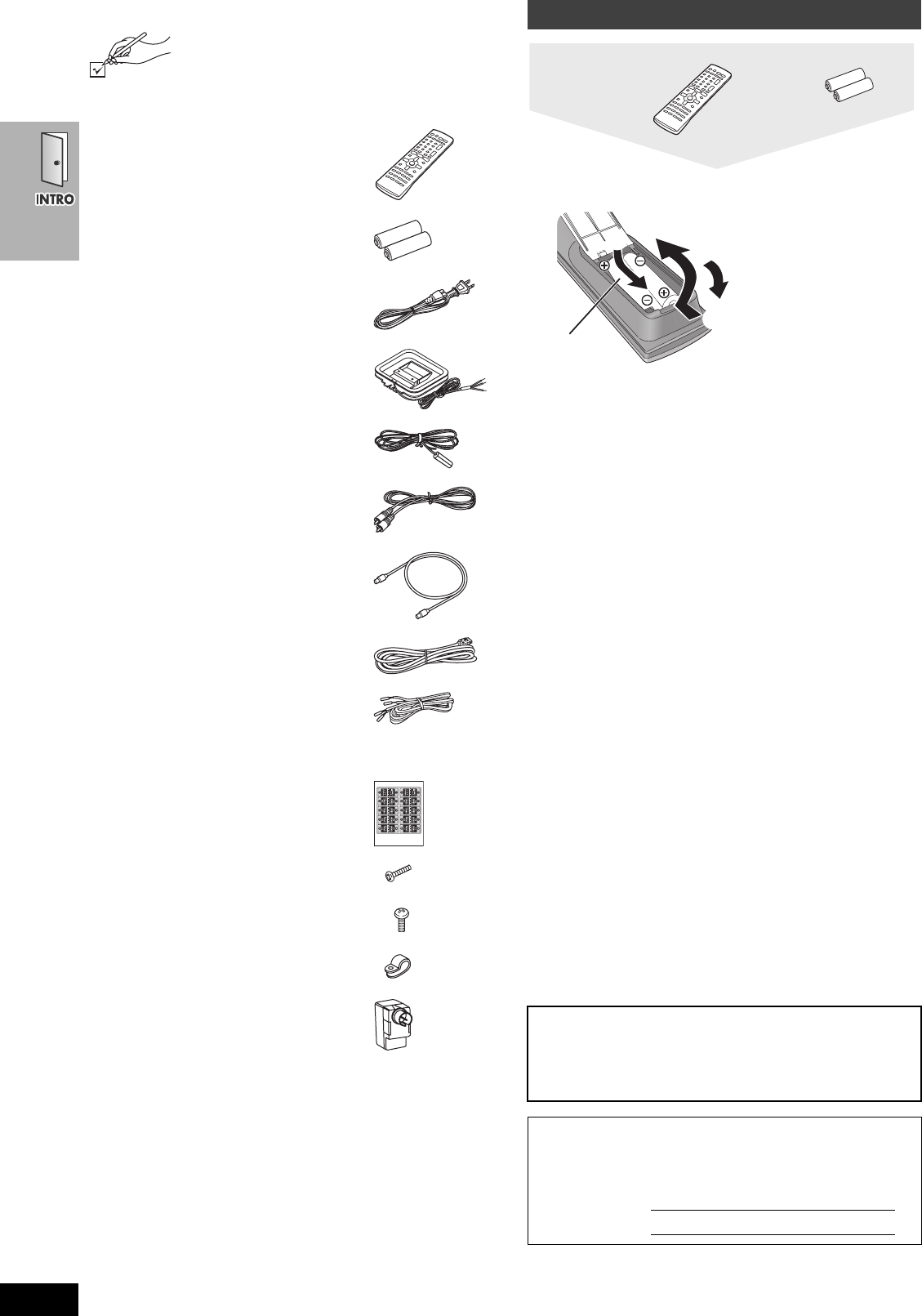
Please check and identify the supplied accessories.
Use numbers indicated in parentheses when asking
for replacement parts.
To order accessories, refer to “Accessory Purchases” on page 55.
[Note]
The included AC power supply cords are for use with this unit only.
Do not use them with other equipment.
∫Batteries
Do not:
≥mix old and new batteries.
≥use different types at the same time.
≥heat or expose to flame.
≥take apart or short circuit.
≥attempt to recharge alkaline or manganese batteries.
≥use batteries if the covering has been peeled off.
Mishandling of batteries can cause electrolyte leakage which can
damage items the fluid contacts and may cause a fire.
Remove if the remote control is not going to be used for a long
period of time. Store in a cool, dark place.
∫Use
Aim at the sensor (➜page 9), avoiding obstacles, at a maximum
range of 7 m (23 feet) directly in front of the unit.
User memo:
∏1 Remote control
(EUR7722X20)
∏2 Batteries
for remote control
∏2 AC power supply cords
(K2CB2CB00006)
∏1 AM loop antenna
(N1DAAAA00002)
∏1 FM indoor antenna
(RSA0007-L)
∏1 Video cable
(RJL1P016B15A)
∏1 75 ≠ coaxial cable
(VJA1125)
∏1 System cable
(K1HA25HA0001)
∏5 Speaker cables
3a4-m (13-foot) cables
(REE1203A-J)
2a10-m (33-foot) cables
(REE1203C-J)
∏1 Sheet of speaker-cable stickers
∏8 Silver screws
(XSN5r16FN)
∏4 Black screws
(XTB3r10JFZ)
∏4Clampers
(RMR1503-W)
∏1 Antenna plug
(K2RC021B0001)
The remote control
DATE OF PURCHASE _______________________________
DEALER NAME ____________________________________
DEALER ADDRESS ________________________________
_________________________________________________
TELEPHONE NUMBER _____________________________
The model number and serial number of this product can be
found on either the back or the bottom of the unit.
Please note them in the space provided below and keep for
future reference.
MODEL NUMBER
SERIAL NUMBER
Remote control Batteries
R6/LR6, AA, UM-3
1
2
3
≥Insert so the poles (i and
j) match those in the
remote control.
≥Do not use rechargeable
type batteries.
SC-HT822V
7708en-p04-31.fm 4 ページ 2004年2月16日 月曜日 午後2時7分
5
RQT7708
IMPORTANT SAFETY INSTRUCTIONS
Read these operating instructions carefully before using the unit. Follow the safety instructions on the unit and the applicable safety instructions
listed below. Keep these operating instructions handy for future reference.
1) Read these instructions.
2) Keep these instructions.
3) Heed all warnings.
4) Follow all instructions.
5) Do not use this apparatus near water.
6) Clean only with dry cloth.
7) Do not block any ventilation openings. Install in accordance with
the manufacturer’s instructions.
8) Do not install near any heat sources such as radiators, heat
registers, stoves, or other apparatus (including amplifiers) that
produce heat.
9) Do not defeat the safety purpose of the polarized or grounding-
type plug. A polarized plug has two blades with one wider than
the other. A grounding-type plug has two blades and a third
grounding prong. The wide blade or the third prong are
provided for your safety. If the provided plug does not fit into
your outlet, consult an electrician for replacement of the
obsolete outlet.
10) Protect the power cord from being walked on or pinched
particularly at plugs, convenience receptacles, and the point
where they exit from the apparatus.
11) Only use attachments/accessories specified by the
manufacturer.
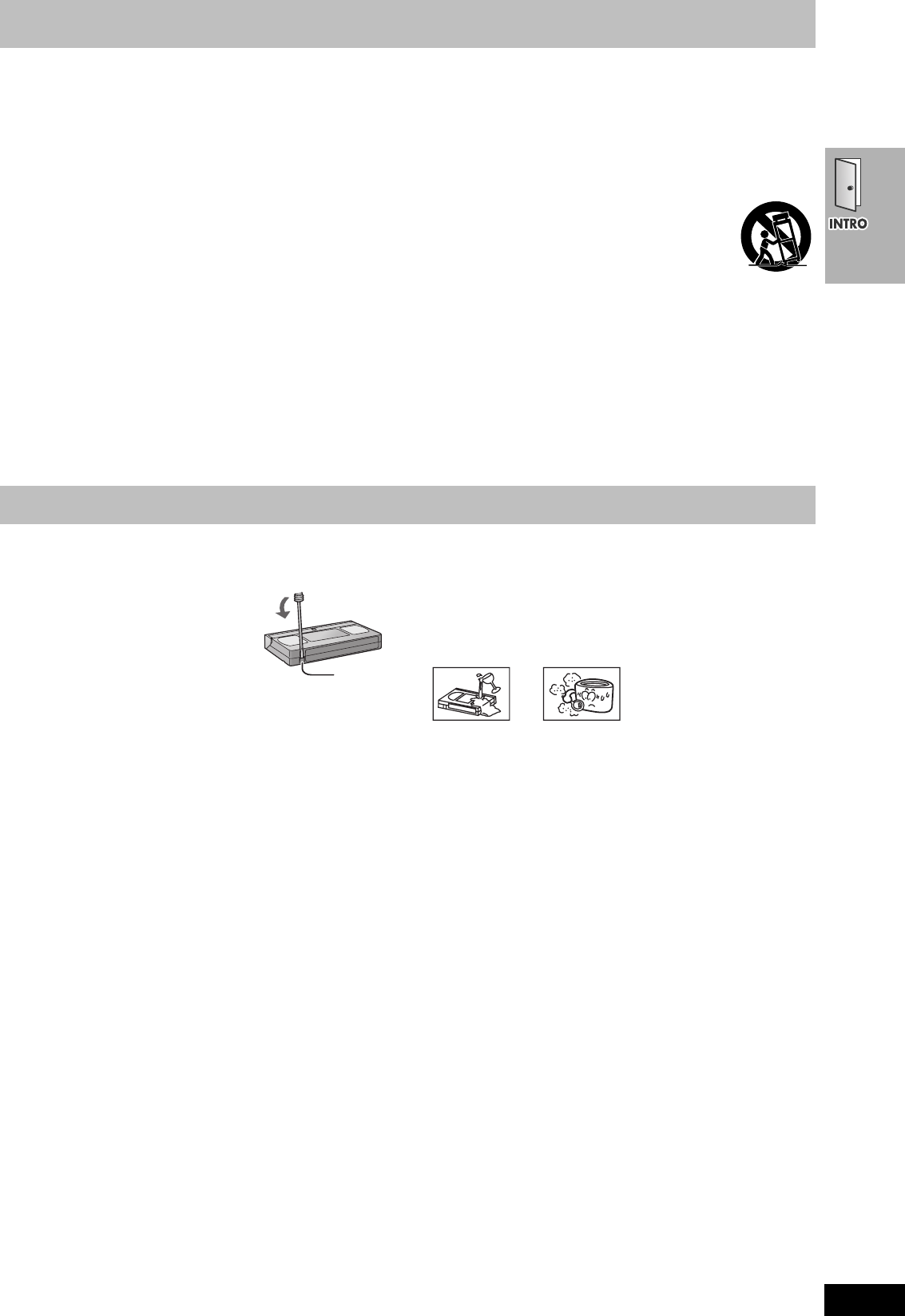
12) Use only with the cart, stand, tripod, bracket, or
table specified by the manufacturer, or sold with
the apparatus. When a cart is used, use caution
when moving the cart/apparatus combination to
avoid injury from tip-over.
13) Unplug this apparatus during lightning storms or when unused
for long periods of time.
14) Refer all servicing to qualified service personnel. Servicing is
required when the apparatus has been damaged in any way,
such as power-supply cord or plug is damaged, liquid has been
spilled or objects have fallen into the apparatus, the apparatus
has been exposed to rain or moisture, does not operate
normally, or has been dropped.
∫Tapes
≥You can use tapes with the VHS and S-VHS marks, but this unit is
unable to make full use of the characteristics of S-VHS tapes.
≥Break out the tape’s tab to prevent
accidental erasure. Cover the hole with a
double layer of adhesive tape when you
want to use the tape for recording again.
∫S-VHS Quasi Playback (SQPB)
You can play tapes recorded with the S-VHS system, however some
noise may occur with some types and this unit cannot take
advantage of S-VHS’s high resolution.
This unit cannot make S-VHS recordings.
∫Tape care
Poor quality or damaged tapes can cause the heads to become dirty
and malfunction. Store your tapes carefully and discard when they
become dirty or damaged.
Never use tapes on which juice has been spilt or those that are
extremely damaged since this will not only cause the heads to
become dirty, but will also make the unit malfunction.
Tape information
Tab
Listening caution
Selecting fine audio equipment such as the unit you’ve just purchased is only the start of your musical enjoyment. Now it’s time to
consider how you can maximize the fun and excitement your equipment offers. This manufacturer and the Electronic Industries Association’s
Consumer Electronics Group want you to get the most out of your equipment by playing it at a safe level. One that lets the sound come
through loud and clear without annoying blaring or distortion—and, most importantly, without affecting your sensitive hearing.
We recommend that you avoid prolonged exposure to excessive noise.
Sound can be deceiving. Over time your hearing “comfort level” adapts to higher vol0.(27(er3tta.546 5g19.2(o6-7.1(1.)-7( )s[(S. So wnd t6(e sou)-7ds “l. On)-odustr)1-7.0.17.5(a0.(27(8J20.1203 0 Tc-090003 Tc-1.0005 T0.37.58w)-ls ocan3(s )]TJ-1.24511 -1.2481 TD0.0004 Tc-0.0002 Tugh loud 0(in)-he hear)mthe fu)-l.9(i)aptsent y)19.2(o)0(u)-7.5(r)27(e hear)-27.5(g.)02331 -1.2556 TD0.0005 Tc-0.0003 TGuar logainstlets th-12s.1(t b722.5(ye)0set)0(ct)0(u)-ent y319.2(ow[(qu[(m.7(i)]TJ20.1203 0- TD0.0003Tc-0.0005 Tatho8(t at a t b)19.1(e7)0.1(2 y)1v3(rs519.1(e7)l BEFd co8(OREsent8N)-6.1(e7)u.58w2-7.y)1027(e hear)-19(cta.58w2-7.6(d)11(.5(g.)]TTJ20.1331 -1.2556 TD1.0004 Tc-1.0002 TT)116y)19.1.)ethe1(t3 5-l.7(o212sht at a s1f)30.t)0.1( 4 515.3(v)26.t)l:.3(n)]TTT/F2 104511 -1.2481 0002 Tc0<0.0>Tj)]TJ/F1 1r)-0681203 0- TD0.0003Tc-0.0005 TShe strec)4sent8N[(n4.2lta.58w2-t.1(e5(t al9.17 4o)15On)-0set)ho8(-27.5(g.)]TTT/F2 1-r)-0681331 -1.2556 0002 Tc0<0.0>Tj
6
RQT7708
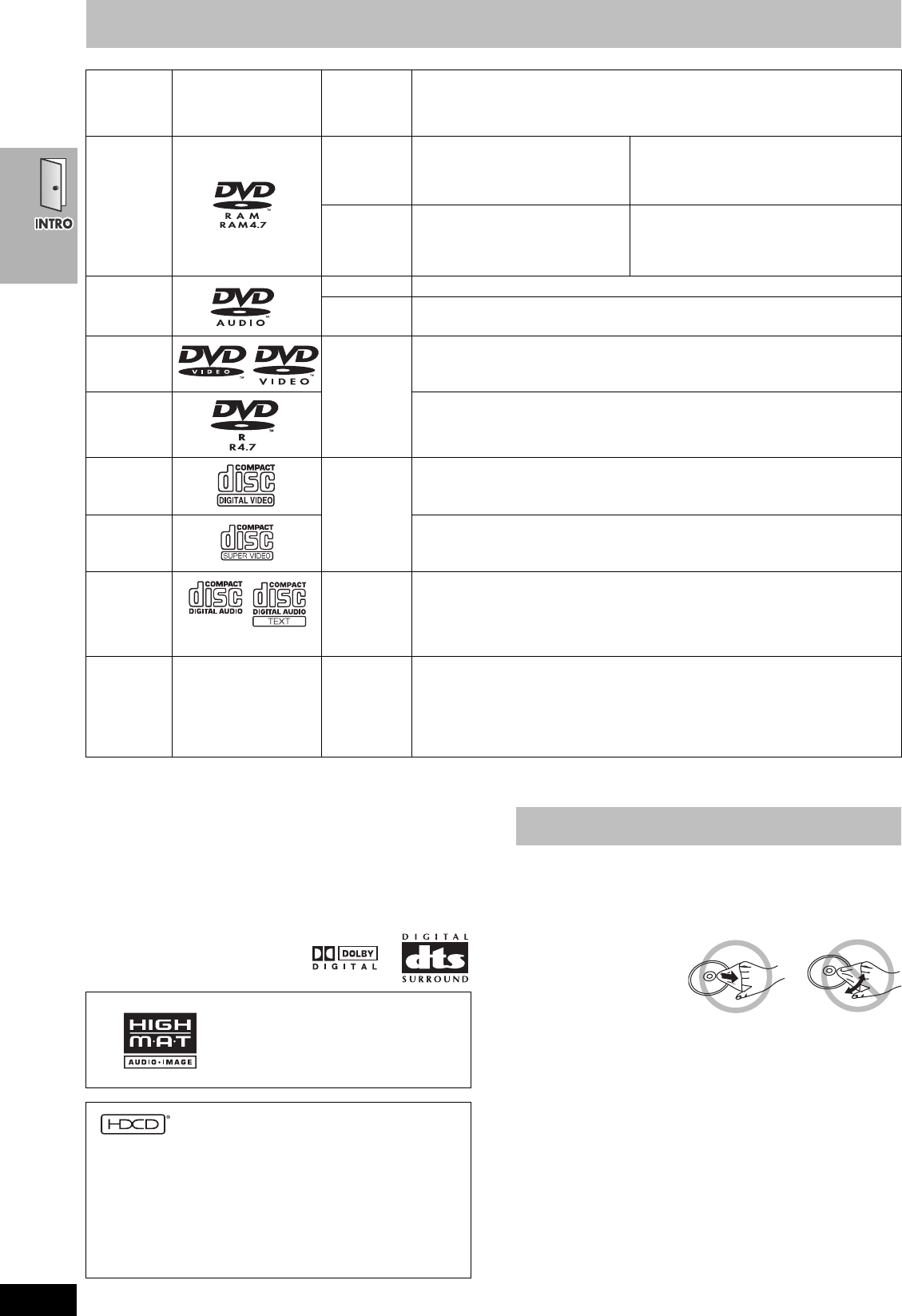
Discs that can be played
§A process that allows play on compatible equipment.
≥It may not be possible to play the above discs in all cases due to the type of disc or condition of the recording.
∫Discs that cannot be played
PAL discs (except DVD-Audio), DVD-ROM, CD-ROM, CDV, CD-G,
DVDiR, iRW, DVD-RW, SACD, Divx Video Discs and Photo CD,
DVD-RAM that cannot be removed from their cartridge, 2.6-GB and
5.2-GB DVD-RAM, and “Chaoji VCD” available on the market
including CVD, DVCD and SVCD that do not conform to IEC62107.
∫Audio format of DVDs
This unit automatically recognizes and
decodes discs with these symbols.
∫To prevent damage
Do not;
≥load more than one disc per tray.
≥close the drawer by hand.
∫To clean discs
[DVD-A] [DVD-V] [VCD] [CD]
Wipe with a damp cloth
and then wipe dry.
[RAM] [DVD-R]
≥Clean with an optional DVD-RAM/PD disc cleaner (LF-K200DCA1,
where available).
≥Never use cloths or cleaners for CDs etc.
∫Handling precautions
≥Do not attach labels or stickers to discs (This may cause disc
warping, rendering it unusable).
≥Do not write on the label side with a ball-point pen or other writing
instrument.
≥Do not use record cleaning sprays, benzine, thinner, static
electricity prevention liquids or any other solvent.
≥Do not use scratch-proof protectors or covers.
≥Do not use the following discs:
–Discs with exposed adhesive from removed stickers or labels
(rented discs etc).
–Discs that are badly warped or cracked.
–Irregularly shaped discs, such as heart shapes.
Disc Logo
Indication in
these
operating
instructions
Remarks
DVD-RAM
[RAM]
Recorded using Version 1.1 of the
Video Recording Format (a unified
video recording standard).
≥Recorded with DVD video recorders, DVD
video cameras, personal computers, etc.
≥Remove discs from their cartridges before
use.
[JPEG]
Recorded using the DCF (Design
rule for Camera File system)
standard.
≥Recorded with Panasonic DVD-Video
recorders
≥To play JPEG files, select “Play as Data
Disc” in Other Menu (➜page 29).
DVD-Audio
[DVD-A] —
[DVD-V] Some DVD-Audio discs contain DVD-Video content.
To play DVD-Video content, select “Play as DVD-Video” in Other Menu (➜page 29).
DVD-Video
[DVD-V]
—
DVD-R
Panasonic DVD-R recorded and finalized§ on a Panasonic DVD-Video recorders or
DVD-Video cameras are played as DVD-Video on this unit.
Video CD
[VCD]
—
SVCD
Conforming to IEC62107
CD [CD]
This unit is compatible with HDCD, but does not support the Peak Extend function.
(A function which expands the dynamic range of high level signals)
HDCD-encoded CDs sound better because they are encoded with 20 bits, as
compared with 16 bits for all other CDs.
≥During HDCD play, “HDCD” lights on the unit’s display.
CD-R
CD-RW —
[WMA]
[MP3]
[JPEG]
[CD]
[VCD]
≥This unit can play CD-R/RW (audio recording disc) recorded with the formats on
the left. Close the sessions or finalize§ the disc after recording.
≥HighMAT discs
WMA, MP3 or JPEG files only.
To play without using the HighMAT function, select “Play as Data Disc” in Other
Menu (➜page 29).
HighMAT™ and the HighMAT logo are
either trademarks or registered
trademarks of Microsoft Corporation in
the United States and/or other countries.
, HDCD®, High Definition Compatible Digital® and
Pacific Microsonics™ are either registered trademarks or
trademarks of Pacific Microsonics, Inc. in the United States and/
or other countries.
HDCD system manufactured under license from Pacific
Microsonics, Inc. This product is covered by one or more of the
following: In the USA : 5,479,168, 5,638,074, 5,640,161,
5,808,574, 5,838,274, 5,854,600, 5,864,311, 5,872,531, and in
Australia: 669114, with other patents pending.
Disc handling
7708en.book 6 ページ 2004年2月14日 土曜日 午後3時24分
7
RQT7708
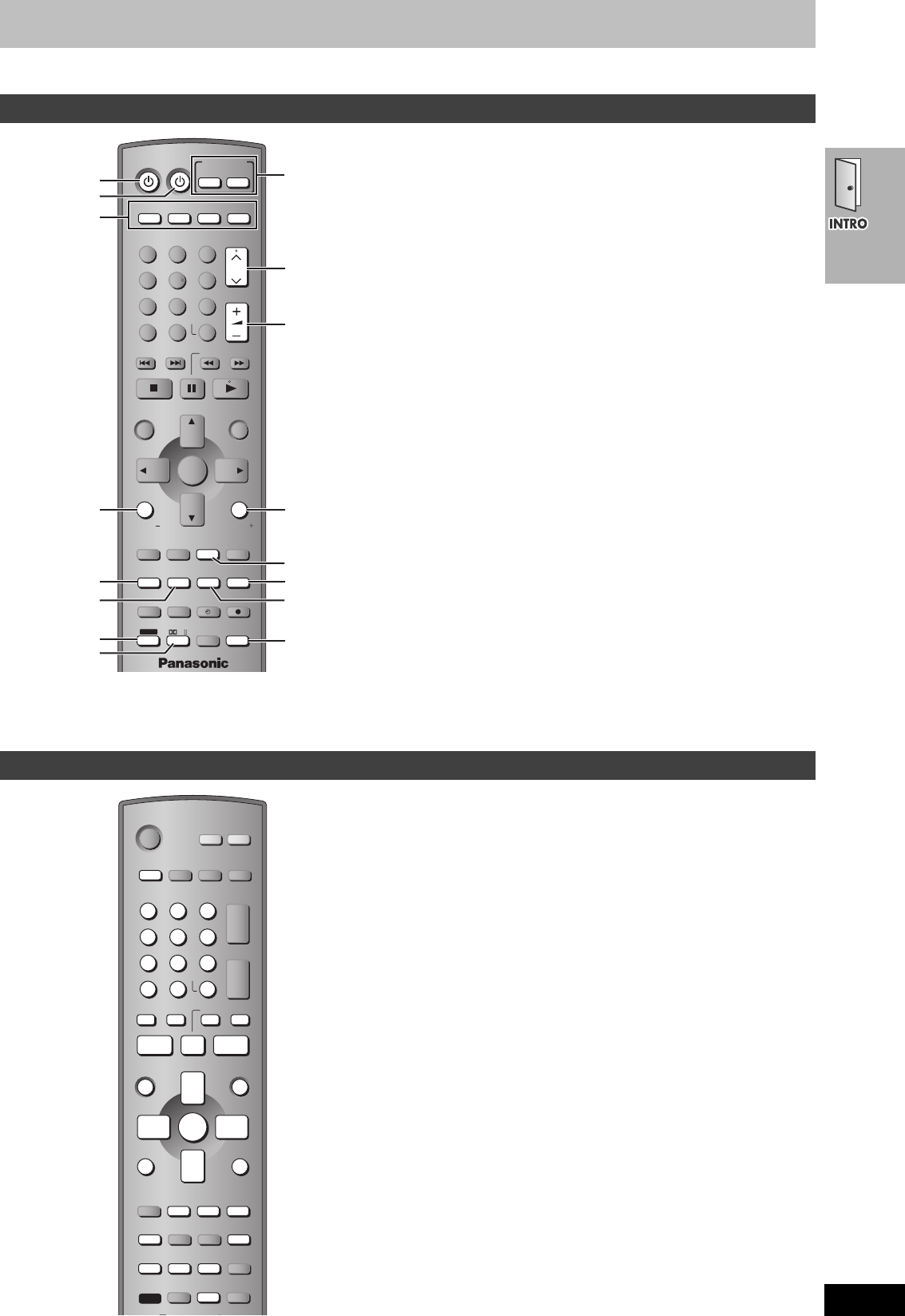
Control reference guide
≥
If
[SHIFT]
appears after the button name the function will not work unless you use with [SHIFT] button. Make sure to press [SHIFT] and the button.
1Power button [Í] . . . . . . . . . . . . . . . . . . . . . . . . . . . . . . . 17, 19
Press to switch the unit from on to standby mode or vice versa.
In standby mode, the unit is still consuming a small amount of
power.
2TV Power button [ÍTV] . . . . . . . . . . . . . . . . . . . . . . . . . . . . . 18
3Remote control mode selector button
[DVD] [VHS] [TV] [TUNER]
Changes the remote control mode. The button lights once
pressed.
The selected mode is held in memory until you press another
mode selector button.
The mode selector button lights each time you press an
operational control button showing which mode is in use.
4TV volume down button [TV VOLj] . . . . . . . . . . . . . . . . . . . 18
5Bass adjust button [SUBWOOFER LEVEL] . . . . . . . . . . . . . 47
6Sound field control button [SFC] . . . . . . . . . . . . . . . . . . . . . 46
Custom sound memory button [C.S.M] [SHIFT]. . . . . . . . . . . 47
7Shift button [SHIFT]
To use the functions labeled in orange, press the button while
pressing [SHIFT].
8Dolby Pro Logic II/Dolby Pro Logic button [ÎPLII] . . . . . 46
Sleep timer button [SLEEP] [SHIFT] . . . . . . . . . . . . . . . . . . . . 48
9Main unit selector button
DVD/VHS source button [DVD/VHS] . . . . . . . . . . . . . . . . . . . 19
Switch the source on the main unit between DVD and VHS.
Tuner/band button [FM/AM] . . . . . . . . . . . . . . . . . . . . . . . . . . 44
Switch the source on the main unit to tuner and change the band.
:TV channel buttons [WX CH] . . . . . . . . . . . . . . . . . . . . . . . . 18
;Volume buttons [r s VOLUME] . . . . . . . . . . . . . . . . . . . . . 20
Volume may be lower when playing DVD-Video than when
playing other discs or during television broadcasts. Reduce the
volume before playing other sources or returning to the television
so volume doesn’t increase suddenly.
<TV volume up button [TV VOLi]. . . . . . . . . . . . . . . . . . . . . . 18
=Down-mix button [MIX 2CH] [SHIFT] . . . . . . . . . . . . . . . . . . . . 47
>Muting button [MUTING] . . . . . . . . . . . . . . . . . . . . . . . . . . . . 48
?Super surround button [SUPER SRND] . . . . . . . . . . . . . . . . 46
Center focus button [C.FOCUS] [SHIFT]. . . . . . . . . . . . . . . . . 46
@Speaker channel button [CH SELECT] . . . . . . . . . . . . . . . . . 47
Test signal button [TEST] [SHIFT] . . . . . . . . . . . . . . . . . . . . . . 47
ADVD remote control mode button [DVD]. . . . . . . . . . . . . . . . 19
Switch the remote control mode to DVD. Make sure you press
before doing DVD operations. When in DVD mode, the [DVD]
button lights each time you press one of the DVD operation
buttons indicated below.
1Numbered buttons [1–9, 0, S10/ENTER] . . . . . . . . . . . . . . . 20
2DVD SETUP menu button [SETUP] [SHIFT] . . . . . . . . . . . 19, 30
3Skip buttons [:9 SKIP] . . . . . . . . . . . . . . . . . . . . . . . . 20
4Stop button [∫] . . . . . . . . . . . . . . . . . . . . . . . . . . . . . . . . . . . . 20
Open/close button [OPEN/CLOSE/EJECT] [SHIFT] . . . . . . . . 20
5Pause button [;] . . . . . . . . . . . . . . . . . . . . . . . . . . . . . . . . . . 20
6Top menu button [TOP MENU] . . . . . . . . . . . . . . . . . . . . . . . 26
Direct navigator button [DIRECT NAVIGATOR] . . . . . . . . . . 27
7Cursor buttons [3421]/Enter button [ENTER] . . . . . . . 19
8On-screen menu button [OSD/DISPLAY] . . . . . . . . . . . . . . . 28
9Group button [GROUP] . . . . . . . . . . . . . . . . . . . . . . . . . . . . . 21
Still picture select button [PAGE] [SHIFT] . . . . . . . . . . . . . . . 23
:Multi re-master button [MULTI RE-MASTER] [SHIFT] . . . . . . 23
;Position memory button [POSITION MEMORY]. . . . . . . . . . 22
<Zoom button [ZOOM] . . . . . . . . . . . . . . . . . . . . . . . . . . . . . . . 22
=Disc buttons [DISC1]–[DISC5] [SHIFT] . . . . . . . . . . . . . . . . . . 21
>Slow/search buttons [65 SLOW/SEARCH] . . . . . . . . . 20
CD mode button [5CD MODE] [SHIFT]. . . . . . . . . . . . . . . . 23
?Play button [1] . . . . . . . . . . . . . . . . . . . . . . . . . . . . . . . . . . . . 20
@Menu button [MENU] . . . . . . . . . . . . . . . . . . . . . . . . . . . . . . . 26
Play list button [PLAY LIST]. . . . . . . . . . . . . . . . . . . . . . . . . . 27
AReturn button [RETURN] . . . . . . . . . . . . . . . . . . . . . . . . . . . . 21
BSubtitle button [SUBTITLE] . . . . . . . . . . . . . . . . . . . . . . . . . . 22
CPlay mode button [PLAY MODE] . . . . . . . . . . . . . . . . . . . . . . 24
Repeat mode button [REPEAT] [SHIFT] . . . . . . . . . . . . . . . . . 25
DProgressive output button [PROGRESSIVE] [SHIFT] . . . . . . 20
EQuick replay button [QUICK REPLAY] . . . . . . . . . . . . . . . . . 23
FCancel button [CANCEL] . . . . . . . . . . . . . . . . . . . . . . . . . . . . 24
Soundtrack button [AUDIO] [SHIFT] . . . . . . . . . . . . . . . . . . . . 22
Remote control—common buttons
VOLUME
123
456
78
0
100
9
CH
NAVI
CANCEL
SPEEDPROG
SKIP SLOW/SEARCH
MENU
ENTER
DIRECT
NAVIGATOR
TOP MENU
RETURN
OSD/
DISPLAY
TV
FM/AMDVD/VHS
DVD TV
VHS TUNER
DISC 1 DISC 2 DISC 3
DISC 4
PICTURE MODE
SETUP
OPEN/CLOSE/EJECT JET REW CD MODE
DISC 5
S10
ENTER
PLAY
LIST
TV VOL
TV VOL
RESET
TV/VIDEO
PAGE
GROUP MIX 2CH
SUBTITLE REPEAT
PLAY MODE
MULTI RE-MASTER
SUBWOOFER LEVEL
C.S.M
SFC
C.FOCUS
SUPER SRND PROGRESSIVE
MUTING
POSITION
MEMORY ZOOM
QUICK REPLAY
REC
SLEEP
PL
AUDIO
TEST
CH SELECT
SHIFT
INPUT SELECTOR
2
3
1
4
5
6
7
8
9
;
:
<
=
>
?
@
Remote control—DVD operation
8
RQT7708
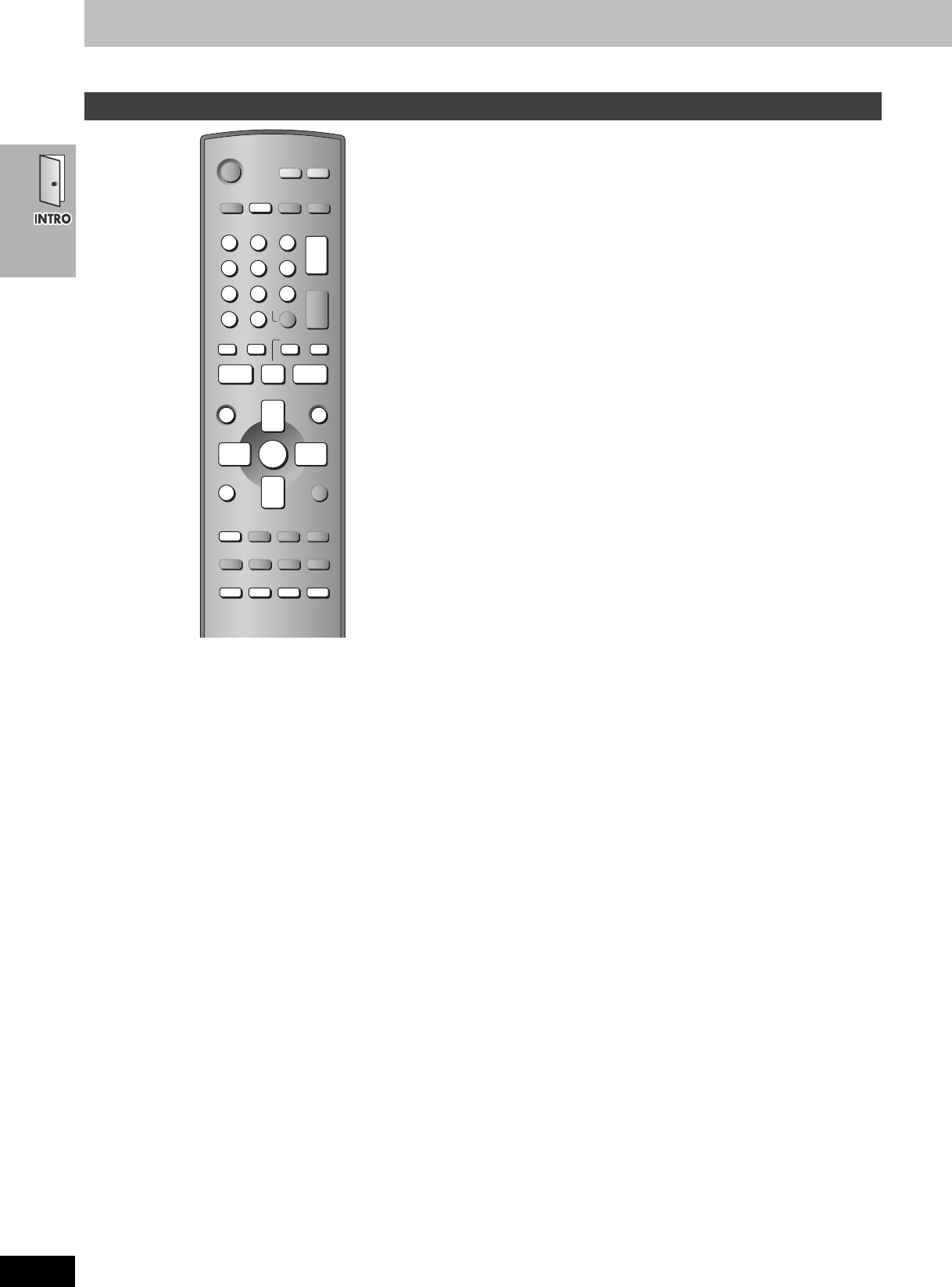
Control reference guide
≥
If
[SHIFT]
appears after the button name the function will not work unless you use with [SHIFT] button. Make sure to press [SHIFT] and the button.
AVHS remote control mode button [VHS] . . . . . . . . . . . . . . . .32
Switch the remote control mode to VHS. Make sure you press
before doing VHS operations. When in VHS mode, the [VHS]
button lights each time you press one of the VHS operation
buttons indicated below.
1Numbered buttons [1–9, 100, 0] . . . . . . . . . . . . . . . . . . . . . . .34
2Picture mode button [PICTURE MODE] [SHIFT] . . . . . . . . . . .33
3Index search button [:9 SKIP] . . . . . . . . . . . . . . . . . .39
4Stop button [∫] . . . . . . . . . . . . . . . . . . . . . . . . . . . . . . . . . . . .32
Tape eject button [OPEN/CLOSE/EJECT] [SHIFT] . . . . . . . . .32
5Pause button [;] . . . . . . . . . . . . . . . . . . . . . . . . . . . . . . . . . . .32
Press and hold for slow . . . . . . . . . . . . . . . . . . . . . . . . . . . . .32
6Jet navigator button [NAVI] . . . . . . . . . . . . . . . . . . . . . . . . . .38
7Cursor buttons [3421]/Enter button [ENTER] . . . . . . .36
8On-screen display button [OSD/DISPLAY] . . . . . . . . . . . . . .43
9TV/Video button [TV/VIDEO]. . . . . . . . . . . . . . . . . . . . . . . . . .18
Tape counter reset button [RESET] [SHIFT] . . . . . . . . . . . . . .43
:Timer recording buttons . . . . . . . . . . . . . . . . . . . . . . . . . . . .36
Timer programming button [PROG]
Tape speed button [SPEED]
Timer program standby button [F]
;
Channel, tracking, and vertical hold buttons
[WX CH] . .33, 34
<Fast-forward/rewind button [65 SLOW/SEARCH]. . . .32
Jet rewind button [6JET REW] [SHIFT]. . . . . . . . . . . . . . . .32
=Play button [1] . . . . . . . . . . . . . . . . . . . . . . . . . . . . . . . . . . . .32
Press and hold for five seconds to start repeat play . . . . . .33
>Menu button [MENU] . . . . . . . . . . . . . . . . . . . . . . . . . . . . . . . .40
?Recording button [¥REC] [SHIFT]. . . . . . . . . . . . . . . . . . . . . .34
@Cancel button [CANCEL] . . . . . . . . . . . . . . . . . . . . . . . . . . . .37
Audio button [AUDIO] [SHIFT] . . . . . . . . . . . . . . . . . . . . . . . . .43
ATUNER remote control mode button [TUNER] . . . . . . . . . . .44
Switch the remote control mode to TUNER. Make sure you press
before doing TUNER operations. When in TUNER mode, the
[TUNER] button lights each time you press one of the TUNER
operation buttons indicated below.
1Numbered buttons [1–9, 0, S10/ENTER] . . . . . . . . . . . . . . . .44
2Enter button [ENTER] . . . . . . . . . . . . . . . . . . . . . . . . . . . . . . .44
3Channel buttons [WX CH] . . . . . . . . . . . . . . . . . . . . . . . . . . .44
4Tuning buttons [65] . . . . . . . . . . . . . . . . . . . . . . . . . . . .44
5FM mode button [PLAY MODE] . . . . . . . . . . . . . . . . . . . . . . .44
Remote control—VHS operation

9
RQT7708
∫Common buttons
[1] Power button [Í/I POWER]. . . . . . . . . . . . . . . . . . . . . . . . . . 17
Press to switch the unit from on to standby mode or vice versa.
In standby mode, the unit is still consuming a small amount of
power.
[2] Remote control signal sensor
[3] Source selector button [INPUT SELECTOR]
VHS>DVD/CD>FM>AM
^"""""""""""""n
[4] Demo button [–DEMO]. . . . . . . . . . . . . . . . . . . . . . . . . . . . . . 16
[5] Display
[6] Headphone terminal [PHONES] . . . . . . . . . . . . . . . . . . . . . . 48
[7] Volume dial [VOLUME DOWN, UP] . . . . . . . . . . . . . . . . . . . . 20
∫DVD section
1Drawer. . . . . . . . . . . . . . . . . . . . . . . . . . . . . . . . . . . . . . . . . . . 20
2Disc buttons [DISC1–5] . . . . . . . . . . . . . . . . . . . . . . . . . . . . . 20
3Disc change button [<DISC CHANGE] . . . . . . . . . . . . . . . 21
4Drawer open/close button [<OPEN/CLOSE] . . . . . . . . . . . 20
5Disc check button [DISC CHECK] . . . . . . . . . . . . . . . . . . . . . 21
6Disc indicators . . . . . . . . . . . . . . . . . . . . . . . . . . . . . . . . . . . . 20
7Stop button [∫ STOP]. . . . . . . . . . . . . . . . . . . . . . . . . . . . . . . 20
8Play button [1 PLAY] . . . . . . . . . . . . . . . . . . . . . . . . . . . . . . . 20
∫VHS section
1Tape slot . . . . . . . . . . . . . . . . . . . . . . . . . . . . . . . . . . . . . . . . . 32
2Fast-forward and rewind buttons
[66/REW] [5FF/5] . . . . . . . . . . . . . . . . . . . . . . . . . . 32
3Tape eject button [<EJECT]. . . . . . . . . . . . . . . . . . . . . . . . . 32
4Channel buttons [WCH] [XCH] . . . . . . . . . . . . . . . . . . . . . . 34
5Stop button [∫ STOP]. . . . . . . . . . . . . . . . . . . . . . . . . . . . . . . 32
6Play button [1 PLAY] . . . . . . . . . . . . . . . . . . . . . . . . . . . . . . . 32
7Recording button [¥REC]. . . . . . . . . . . . . . . . . . . . . . . . . . . 34
∫Subwoofer
[1] AC supply indicator [AC IN]
This indicator lights when the subwoofer is connected to a
household AC outlet.
∫Common display
[1] Program indicator . . . . . . . . . . . . . . . . . . . . . . . . . . . . . . 24, 44
[2] Center Focus indicator . . . . . . . . . . . . . . . . . . . . . . . . . . . . . 46
[3] Sound Field Control indicator . . . . . . . . . . . . . . . . . . . . . . . 46
[4] Dolby Pro Logic II/Dolby Pro Logic indicator. . . . . . . . . . . 46
[5] Super Surround indicator . . . . . . . . . . . . . . . . . . . . . . . . . . . 46
[6] SLEEP timer indicator . . . . . . . . . . . . . . . . . . . . . . . . . . . . . . 48
[7] Main display (Orange)
Disc play elapsed time, program recording start time, volume,
TUNER frequency/channel display, various messages, etc.
[8] Main display (White)
Time display, video play/record elapsed time, program recording
end time, various messages, etc.
∫DVD operation
1CD mode indicator. . . . . . . . . . . . . . . . . . . . . . . . . . . . . . . . . 23
Lights when CD mode is on.
2DVD selector indicator
Lights when DVD is selected.
3Operation status of DVD section
≥Lights when a disc is inserted.
≥Displays play status graphically.
Rotating: playing
Stopped: paused
4DTS indicator
5Progressive video indicator . . . . . . . . . . . . . . . . . . . . . . . . . 20
6Dolby Digital indicator
7Down mix indicator . . . . . . . . . . . . . . . . . . . . . . . . . . . . . . . . 47
8Play sequence indicator
ALL RND: During all disc random play . . . . . . . . . . . . . . . . . . 25
RND: During random play . . . . . . . . . . . . . . . . . . . . . . . . . . . . 25
`: During repeat . . . . . . . . . . . . . . . . . . . . . . . . . . . . . . . . . 25
A`B: During A-B repeat . . . . . . . . . . . . . . . . . . . . . . . . . . . 29
9HDCD indicator . . . . . . . . . . . . . . . . . . . . . . . . . . . . . . . . . . . . . 6
:Custom Sound Memory indicator . . . . . . . . . . . . . . . . . . . . . 47
;Group/Play list/Track/Title/Chapter/Program number display
∫VHS operation
1VHS selector indicator
Lights when the selector is in VHS mode.
2Operation status of VHS section
≥Lights when a video cassette is inserted.
≥Flashes when recording or timer recording is attempted with no
video cassette inserted.
≥Displays play status graphically.
Rotating: playing
Stopped: paused
3Recording indicator . . . . . . . . . . . . . . . . . . . . . . . . . . . . . . . . 34
4Repeat playback indicator . . . . . . . . . . . . . . . . . . . . . . . . . . . 33
5Tape speed indicator . . . . . . . . . . . . . . . . . . . . . . . . . . . . . . . 34
6Timer program recording indicator. . . . . . . . . . . . . . . . . . . . 36
7Channel display
∫Tuner operation
[1] Radio broadcast display . . . . . . . . . . . . . . . . . . . . . . . . . . . . 44
MONO: Forced monaural
ST: Stereo
TUNED: Receiving radio signal
[2] Band display
Main unit and subwoofer
10
RQT7708
Simple setup
≥You can attach the speakers directly to their bases (if you want to put them on shelves, for example).
[Note]
≥Never short-circuit positive (i) and negative (j) speaker wires.
Be sure to connect only positive (copper) wires to positive (i) terminals and negative (silver) wires to negative (j) terminals.
Incorrect connection can damage the speakers.
Caution
Hold the speakers by the sides. Applying pressure to the front net can damage the speaker.
STEP1
Assembly and connection of front and surround speakers
11
RQT7708
Other speaker setup options (Center speaker only)
∫Attaching to a wall
[Note]
≥The wall or pillar on which the speakers are to be attached should be capable of supporting 10 kg (22 Ib.) per screw.
Consult a qualified building contractor when attaching the speakers to wall. Improper attachment may result in damage to the wall and
speakers.
≥Do not attempt to attach these speakers to walls using methods other than those described in this manual.
1Drive a screw (not included) into a wall.
2Fit the speaker securely onto the screws with the holes.
∫Fitting speaker stands (not included)
Ensure the stands meet these conditions before purchasing them.
Observe the diameter and length of the screws and the distance between screws as shown in the diagram.
≥The stands must be able to support over 10 kg (22 lb.).
≥The stands must be stable even if the speakers are in a high position.
30–35 mm (13/16q–13/8q)
Wall or
pillar
‰7.5–9.4 mm (19/64q–3/8q)
8–11 mm (3/8q–7/16q)
117.5 mm
(411/16q)
So that the speaker fits up against the wall squarely, be sure to
press the speaker cable down into the groove.
In this position, the speaker will likely fall
if moved to the left or right. Move the speaker so the screw is
in this position.
5 mm (13/64q),
pitch 0.8 mm (1/32q)
60 mm (223/64q)
Plate thickness plus 7 to 10 mm
(plus 9/32q to 25/64q)
Speaker stand
(not included)
Attach the stands
with these holes.
7708en.book 11 ページ 2004年2月14日 土曜日 午後3時24分
12
RQT7708
How you set up your speakers can affect the bass and the sound field. Note the following points.
≥Place speakers on flat secure bases.
≥Placing speakers too close to floors, walls, and corners can result in excessive bass. Cover walls and windows with thick curtains.
≥The front left, right and surround speakers are all the same.
≥Use only supplied speakers
Using other speakers can damage the unit and sound quality will
be negatively affected.
≥Set the speakers up on an even surface to prevent them from
falling. Take proper precautions to prevent the speakers from
falling if you cannot set them up on an even surface.
Main unit
[Note]
Keep your speakers at least 10 mm (13/32q) away from the system
for proper ventilation.
Center speaker
≥Vibration caused by the center speaker can disrupt the picture if it
is placed directly on the television. Put the center speaker on a
rack or shelf.
≥To prevent the speakers from falling do not place the speakers
directly on top of the television.
Subwoofer
Place to the right or left of the television, on the floor or a sturdy
shelf so that it won’t cause vibration.
Leave 10 cm (4q) at the rear for ventilation.
Notes on speaker use
≥You can damage your speakers and shorten their useful life if you
play sound at high levels over extended periods.
≥Reduce the volume in the following cases to avoid damage.
–When playing distorted sound.
–When the speakers are receiving howling from a record player,
noise from FM broadcasts, or continuous signals from an
oscillator, test disc, or electronic instrument.
–When adjusting the sound quality.
–When turning the unit on or off.
STEP2Locating
AC IN
Front (L) Front (R)
Center Subwoofer
Surround (L) Surround (R)
Main unit
Place the front, center, and surround speakers at
approximately the same distance from the seating position.
The angles in the diagram are approximate.
Setup example
➜ See page 11 for other
speaker setup options.
Caution
≥The main unit and supplied speakers are
only to be used as indicated in this setup.
Failure to do so may lead to damage to the
amplifier and/or the speakers, and may result
in the risk of fire. Consult a qualified service
person if damage has occurred or if you
experience a sudden change in performance.
≥Do not attempt to attach these speakers to
walls using methods other than those
described in this manual.
7708en.book 12 ページ 2004年2月14日 土曜日 午後3時24分
13
RQT7708
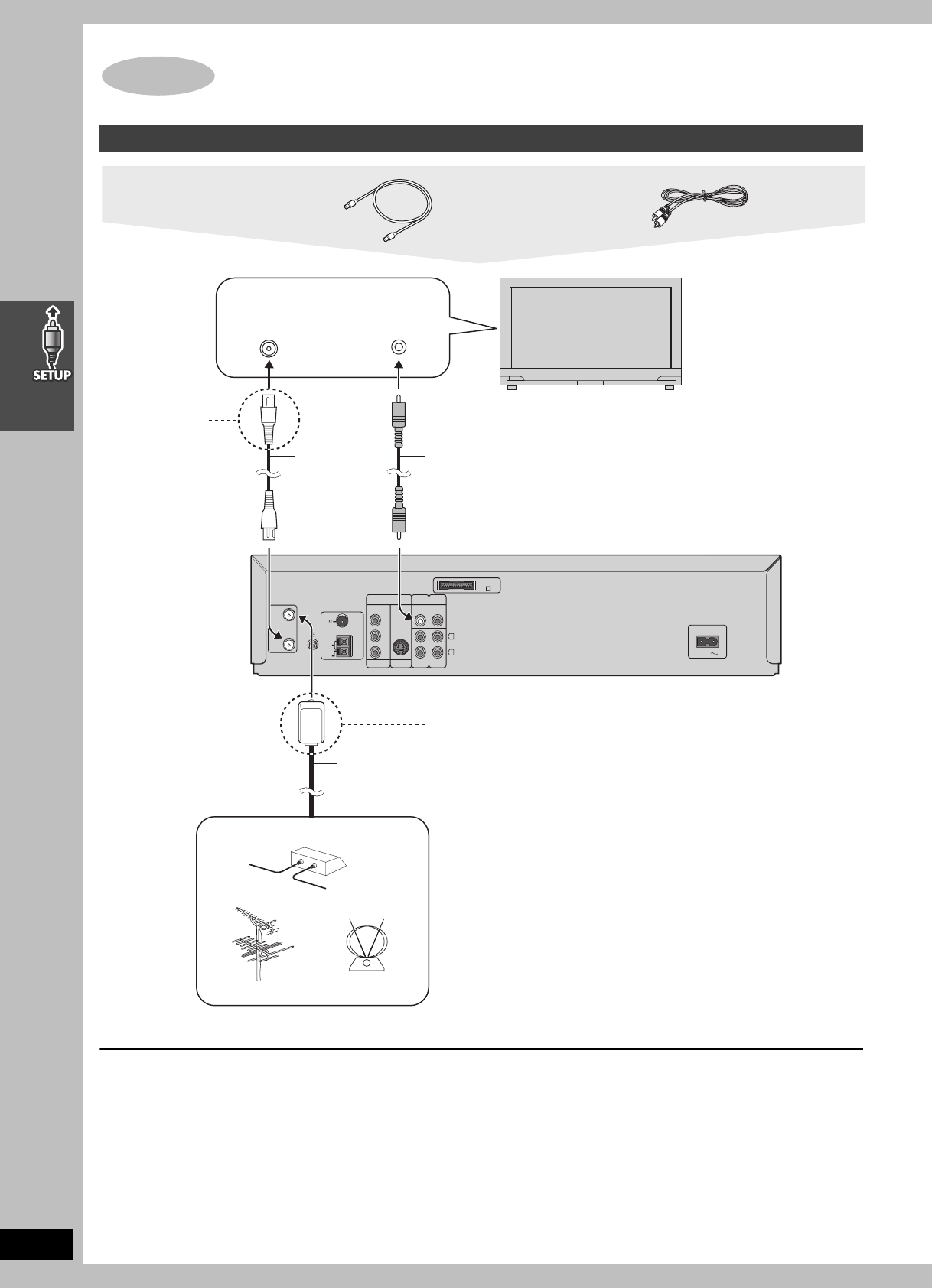
∫Attaching the stickers to the speakers
Attach the speaker-cable stickers to make connection easier.
[Note]
≥Never short-circuit positive (i) and negative (j) speaker wires.
Be sure to connect only positive (copper) wires to positive (i) terminals and negative (silver) wires to negative (j) terminals.
Incorrect connection can damage the speakers.
∫Preventing the speakers from falling over (Front and surround speakers)
[Note]
Consult a qualified building contractor when attaching the speakers to wall. Improper attachment may result in damage to the wall and speakers.
STEP3Connecting speakers with the subwoofer
Speaker cables
≥1a4-m (13-foot) cable
(For Center speaker)
Sheet of speaker-cable
stickers
6 Subwoofer
1 Front (L)
4 Surround (R)
3 Surround (L)
5 Center
1435
2
Click!
1
2
3
4
5
Short cables Long cables
Copper
Silver
14
RQT7708
To enjoy cable and satellite television
Connection ➜page 49
Subscribe to a cable or satellite company.
If irregular coloring occurs on your television
The supplied speakers are designed to be used close to a
television, but the picture may be affected with some televisions
and setup combinations.
If this occurs, turn the television off for about 30 minutes.
The television’s demagnetizing function should correct the
problem. If it persists, move the speakers further away from the
television.
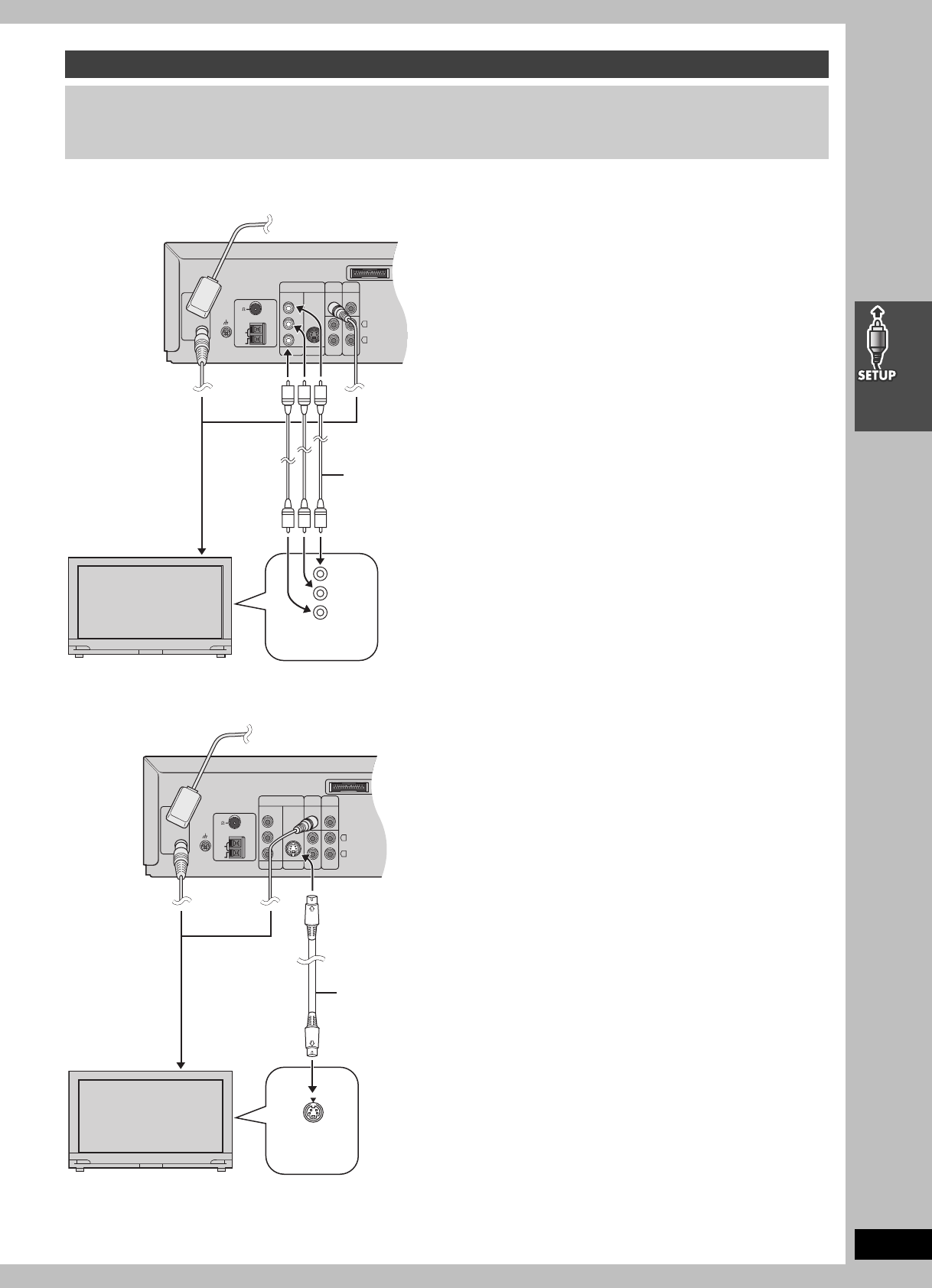
Basic connection
STEP4Television
75 ≠ coaxial cable Video cable
AC IN
Y
P
B
/C
B
P
R
/C
R
COMPONENT
VIDEO OUT
S-VIDEO
OUT
LINE
OUT
LINE
IN
VIDEO
OUT
DVD/
VHS
VIDEO
IN
EXTDVD
L
R
RF IN
RF OUT
LOOP
EXT
75
AM
ANT
FM
ANT
LOOP
ANT
GND
A
VIDEO
IN
VHF/UHF
RF IN
Television
(not included)
Video cable
(included)
Antenna cable
(usually disconnected
from the television)
75 ≠ coaxial
cable
(included)
Cable TV
Outdoor antenna Indoor antenna
From
If the connector
doesn’t match
➜page 50
If the connector doesn’t match
➜page 50
Main unit
Connect video cables directly to your television
The video signals on DVDs and videotapes have copyright
protection. The video may not be shown correctly if you connect
through an A/V selector or other equipment.
75 ≠ coaxial cable
This cable carries broadcast signals to the television whether the
unit is on or off so you do not need to connect the antenna directly
to the television.
It does not carry other signals from this unit, so make sure you
connect the television to VIDEO OUT. Contact your dealer if your
television does not have the corresponding terminal.
7708en.book 14 ページ 2004年2月14日 土曜日 午後3時24分
15
RQT7708
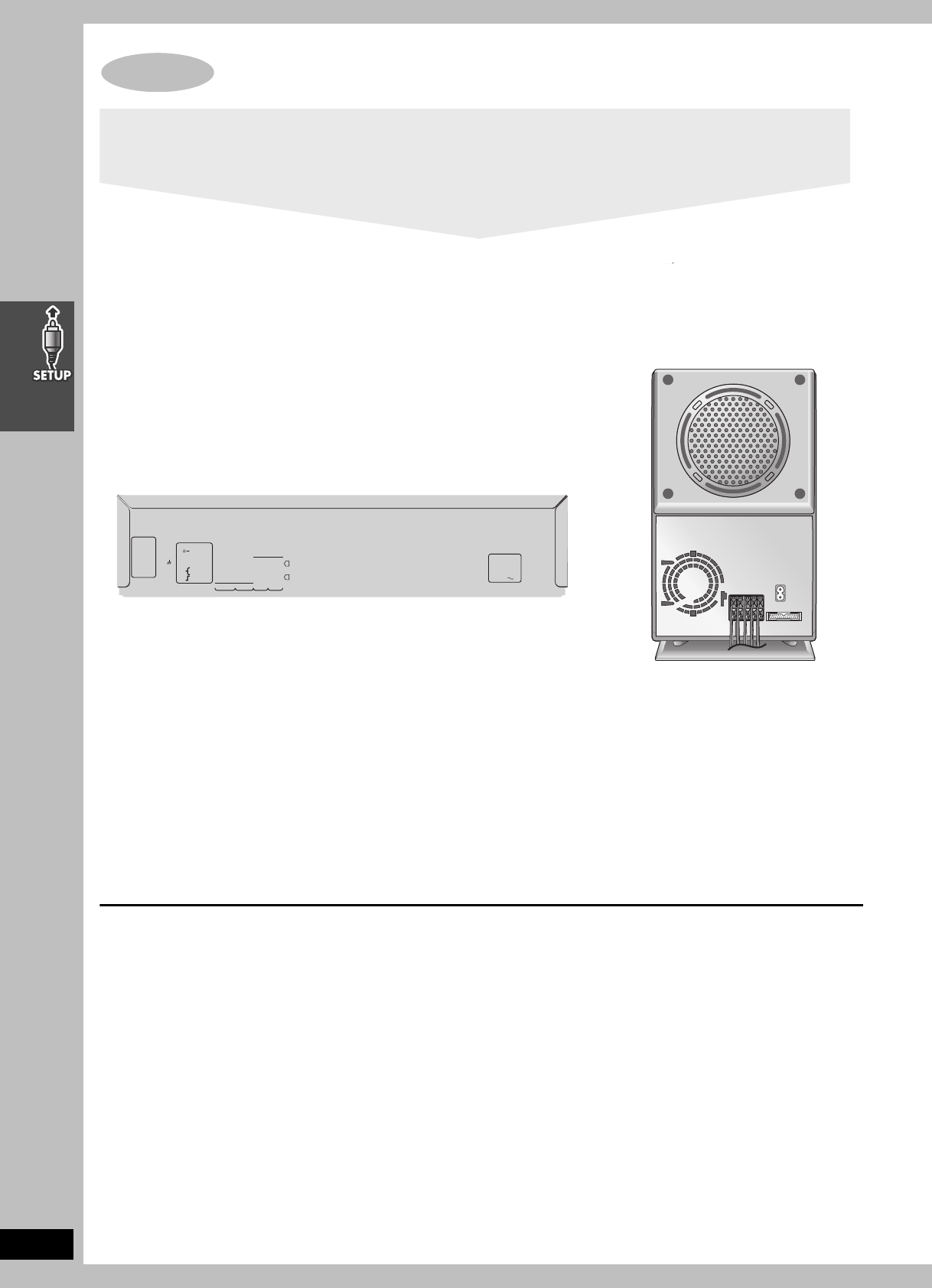
∫Connecting a television with COMPONENT VIDEO IN terminals
COMPONENT VIDEO OUT terminals
These terminals can be used for either interlace or progressive
output and provide a purer picture than the S-VIDEO OUT
terminal. Connection using these terminals outputs the color
difference signals (PB/CB, PR/CR) and luminance signal (Y)
separately in order to achieve high fidelity in reproducing colors.
≥The description of the component video input terminals depends
on the television or monitor (e.g. Y/PB/PR, Y/B-Y/R-Y, Y/CB/CR).
Connect to terminals of the same color.
≥After making this connection, change the black level for a better
picture (➜page 30, Video—Black Level Control).
To enjoy progressive video
≥Connect to the component video input terminals on a 480P
compatible television. (Video will not be displayed correctly if
connected to an incompatible television.)
≥All televisions manufactured by Panasonic and that have 480P
input connectors are compatible. Consult the manufacturer if you
have another brand of television.
∫Connecting a television with an S-VIDEO IN terminal
S-VIDEO OUT terminal
The S-video terminal achieves a more vivid picture than the VIDEO
OUT terminal by separating the chrominance (C) and luminance
(Y) signals. (Actual results depend on the television.)
[Note]
Connect to a different terminal group than that you used for the
video cable (e.g., “VIDEO 2”).
Picture from this unit’s VHS will not appear when you use the same
group input terminal connections because the S-video terminal
input takes precedence.
For better video from DVD
The following connections are for video from the DVD section only. Make sure you have connected the VIDEO OUT terminal with the
television to view video from the VHS section (➜page 14).
You may need to change the video-input mode on the television to view video from the VHS and DVD sections. Read your television’s
operating instructions for details.
Y
P
B
/C
B
P
R
/C
R
COMPONENT
VIDEO OUT
S-VIDEO
OUT
LINE
OUT
LINE
IN
VIDEO
OUT
DVD/
VHS
VIDEO
IN
EXTDVD
L
R
RF IN
RF OUT
LOOP
EXT
75
AM
ANT
FM
ANT
LOOP
ANT
GND
A
COMPONENT
VIDEO IN
Y
PB
PR
Video cables
(not included)
Television
(not included)
To television
(➜page 14)
Main unit
Y
P
B
/C
B
P
R
/C
R
COMPONENT
VIDEO OUT
S-VIDEO
OUT
LINE
OUT
LINE
IN
VIDEO
OUT
DVD/
VHS
VIDEO
IN
EXTDVD
L
R
RF IN
RF OUT
LOOP
EXT
75
AM
ANT
FM
ANT
LOOP
ANT
GND
A
IN
S-VIDEO
S-video cable
(not included)
Television
(not included)
To television
(➜page 14)
Main unit
7708en.book 15 ページ 2004年2月14日 土曜日 午後3時24分
16
RQT7708
Conserving power
The system consumes a small amount of power, even when it is
turned off. The amount of power used depends on the display
setting (➜page 42):
BRIGHT: 3.8 W DIM: 3.5 W OFF: 2.2 W
To save power when the unit is not to be used for a long time,
unplug it from the household AC outlet.
You will need to reset some memory items after plugging the unit.
STEP
5
Radio and system connection
AC IN
Y
P
B
/C
B
P
R
/C
R
COMPONENT
VIDEO OUT
S-VIDEO
OUT
LINE
OUT
LINE
IN
VIDEO
OUT
DVD/
VHS
VIDEO
IN
EXTDVD
L
R
RF IN
RF OUT
LOOP
EXT
75
AM
ANT
FM
ANT
LOOP
ANT
GND
17
RQT7708
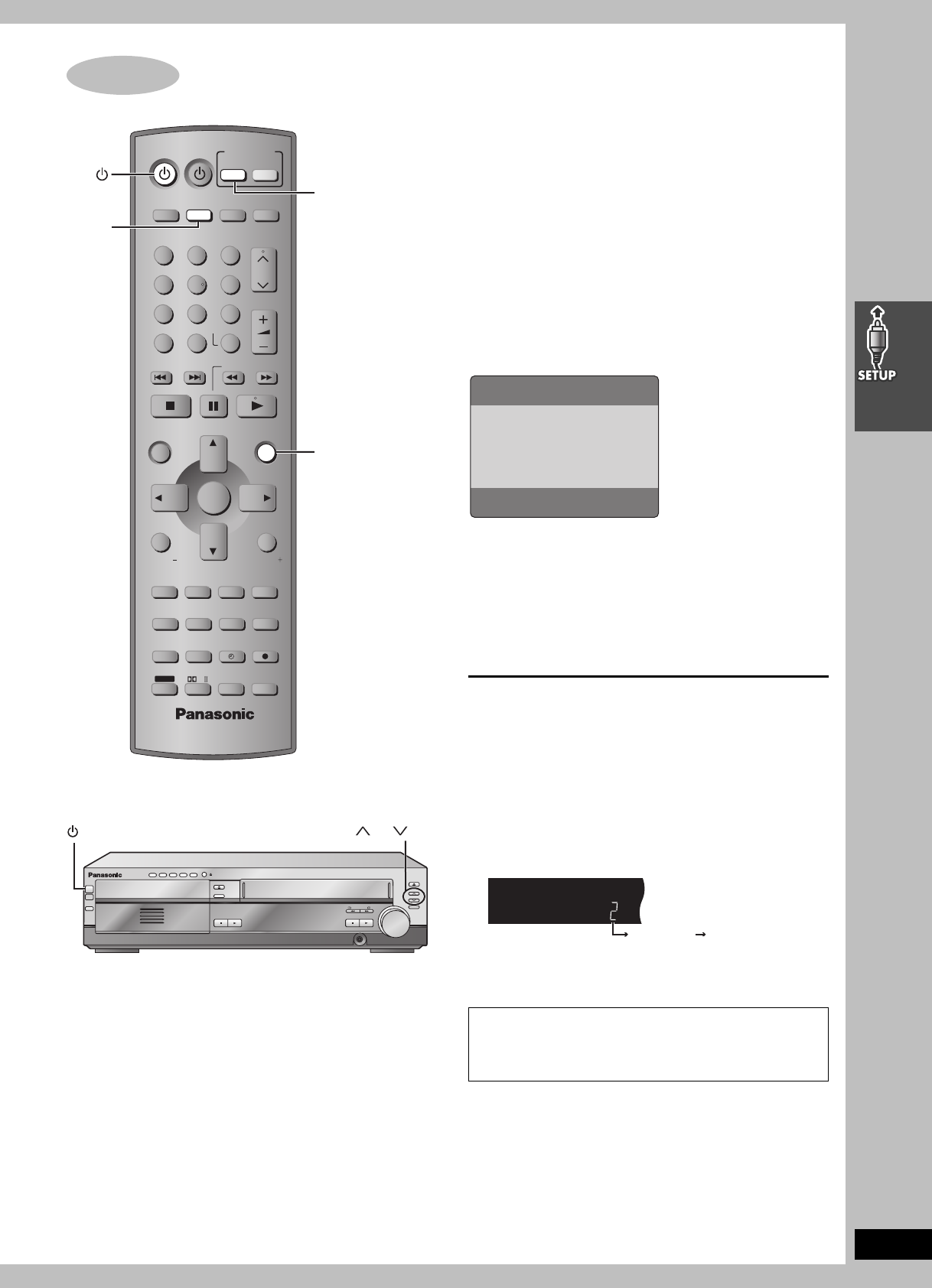
After plugging the unit into your household AC outlet and pressing
[Í] to turn the unit on for the first time, the unit automatically tunes
in all the channels it can receive and sets the clock.
The unit determines the type of transmission, TV or CATV, as
follows:
TV: when there are less than 5 CATV channels.
CATV: when there are 5 or more CATV channels.
Preparation
≥Confirm that the antenna is connected correctly.
≥Turn on the television and select the video input for the VHS.
≥Press [VHS] to put the remote control in VHS mode.
Press [Í] to turn on the unit.
Plug-in Auto Tuning starts and the unit puts the stations it can
receive into channels (➜page 41, Channel range).
The unit starts auto clock setting when finished, then displays the
time.
[Note]
If auto tuning stops partway (by changing the source, turning the
unit off, or due to a power failure.)
1 Disconnect the AC power supply cord on the main unit and then
reconnect it.
2 Turn on the main unit.
To cancel partway
Press [MENU].
∫To start Plug-in Auto Tuning again (after
relocation, for example)
Preparation
≥Press [Í] to turn on the unit.
≥Make sure there is no video cassette tape loaded in the unit.
≥Press [DVD/VHS] to select “VHS” as the source.
1 Press and hold [WCH] and [XCH] on the main unit
simultaneously for 3 seconds until the channel changes to “2”.
2 Disconnect the AC power supply cord on the main unit and then
reconnect it.
3 Turn on the main unit. Plug-in Auto Tuning restarts.
∫To set the channels manually (➜page 41).
∫If the unit couldn’t set the clock automatically
The MANUAL CLOCK SET screen appears. Set the time manually
(➜page 40).
STEP6Plug-in Auto Tuning
VOLUME
123
456
78
0
100
9
CH
NAVI
CANCEL
SPEEDPROG
SKIP SLOW/SEARCH
MENU
ENTER
DIRECT
NAVIGATOR
TOP MENU
RETURN
OSD/
DISPLAY
TV
FM/AMDVD/VHS
DVD TV
VHS TUNER
DISC 1 DISC 2 DISC 3
DISC 4
PICTURE MODE
SETUP
OPEN/CLOSE/EJECT JET REW CD MODE
DISC 5
S10
ENTER
PLAY
LIST
TV VOL
TV VOL
RESET
TV/VIDEO
PAGE
GROUP MIX 2CH
SUBTITLE REPEAT
PLAY MODE
MULTI RE-MASTER
SUBWOOFER LEVEL
C.S.M
SFC
C.FOCUS
SUPER SRND PROGRESSIVE
MUTING
POSITION
MEMORY ZOOM
QUICK REPLAY
REC
SLEEP
PL
AUDIO
TEST
CH SELECT
SHIFT
INPUT SELECTOR
DVD/VHS
VHS
MENU
OPEN/CLOSE
EJECT
DISC CHANGE
DISC CHECK
INPUT
SELECTOR
REC
/REW FF/
STOP PLAY
DOWN
UP
PHONES
CH
VOLUME
STOP
-
DEMO
DISC
DISC
1
2
3
4
5
1 2 3 4 5
PLAY
POWER
Í
/I
CH CH
/
I POWER
Antenna system and channel captions all revert to the
default values when you perform the procedure above.
Reset the timer recording settings. (If necessary reset the
clock first. ➜page 40, CLOCK SET)
AUTO CHANNEL SET
PROCEEDING
END :MENU
2
Disappears 2
7708en.book 17 ページ 2004年2月14日 土曜日 午後3時24分
18
RQT7708
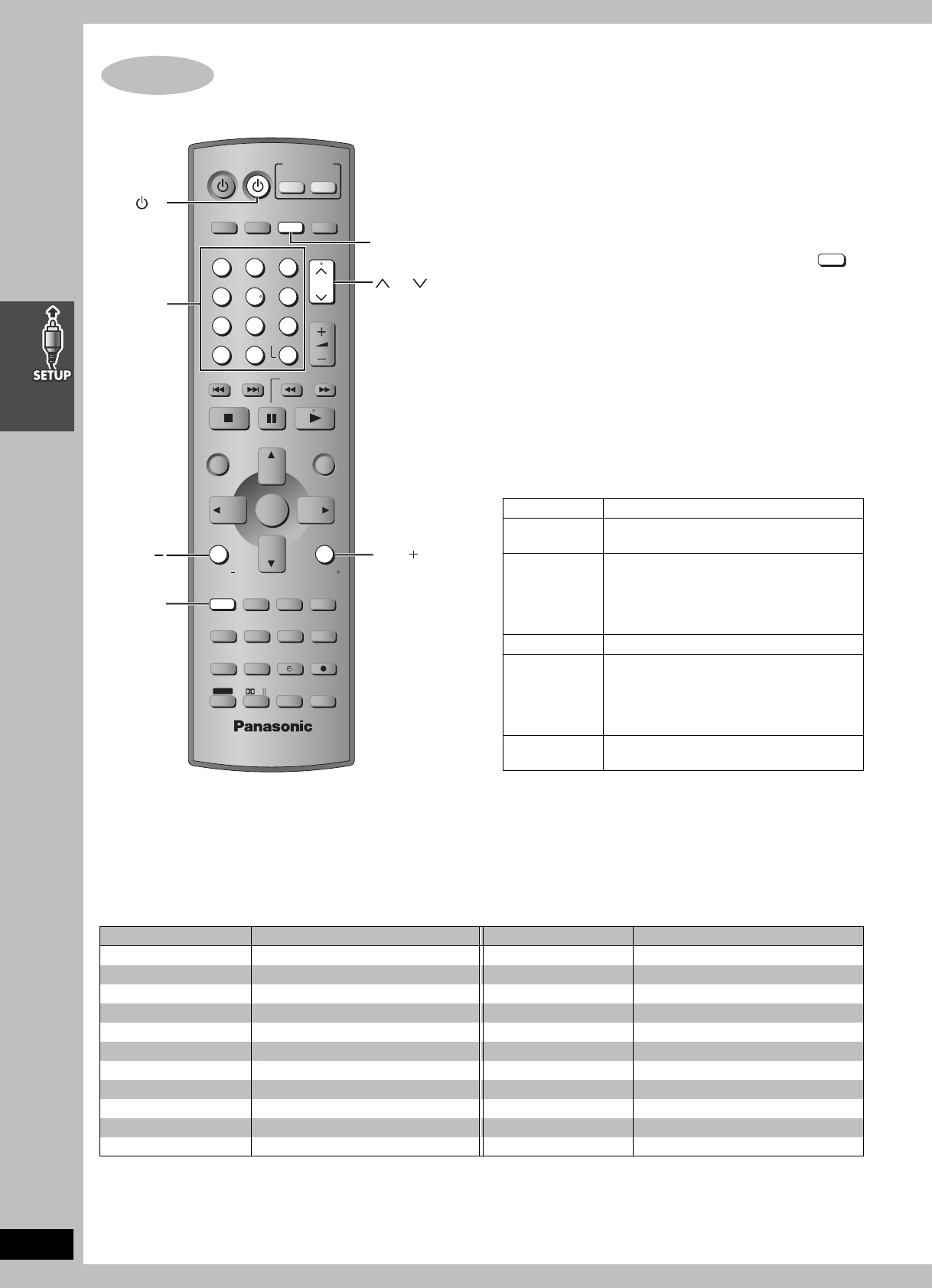
∫TV maker setting
You can control the television by entering the remote control code.
1Refer the chart below for the code for
your television.
2Aiming the remote control at the television
While pressing and holding [TV] ( ),
press the numbered buttons to enter
the code number.
≥Example: To select 01, press [0] ➜ [1].
≥The remote control outputs the on/off signal. If the code is
correct, the equipment turns on or off. If it doesn’t, try
entering another code.
[Note]
≥If your television brand is not listed or if the code listed for your
television does not allow control of your television, this remote
control is not compatible with your television.
≥Reenter the codes after you change the batteries.
∫TV operation
STEP7Operating the television
VOLUME
123
456
78
0
100
9
CH
NAVI
CANCEL
SPEEDPROG
SKIP SLOW/SEARCH
MENU
ENTER
DIRECT
NAVIGATOR
TOP MENU
RETURN
OSD/
DISPLAY
TV
FM/AMDVD/VHS
DVD TV
VHS TUNER
DISC 1 DISC 2 DISC 3
DISC 4
PICTURE MODE
SETUP
OPEN/CLOSE/EJECT JET REW CD MODE
DISC 5
S10
ENTER
PLAY
LIST
TV VOL
TV VOL
RESET
TV/VIDEO
PAGE
GROUP MIX 2CH
SUBTITLE REPEAT
PLAY MODE
MULTI RE-MASTER
SUBWOOFER LEVEL
C.S.M
SFC
C.FOCUS
SUPER SRND PROGRESSIVE
MUTING
POSITION
MEMORY ZOOM
QUICK REPLAY
REC
SLEEP
PL
AUDIO
TEST
CH SELECT
SHIFT
INPUT SELECTOR
CH CH
TV
TV VOL TV VOL
TV/VIDEO
2
2
Operation Buttons
Power on/
standby [ÍTV]
Remote control
TV mode [TV]
≥Switch the remote control mode to TV. Press
before doing TV operations. When in TV
mode, the [TV] button lights each time you
press an operation button.
TV/Video switch [TV/VIDEO]
Selecting
channels [WCH], [XCH] or numbered buttons
[1–9, 100, 0, S10/ENTER].
≥[S10/ENTER] is used to confirm channel
selection on some televisions manufactured
by other companies.
Adjusting
volume [TV VOLj] [TV VOLi]
TV
Manufacturer Code No. Manufacturer Code No.
Panasonic 01, 02 PHILIPS 06
FISHER 14 PIONEER 02, 10, 19
G.E. 02, 03, 07, 09 QUASAR 02
GOLD STAR 07, 15 RCA 03, 07, 09, 13, 23, 24, 25
HITACHI 05, 07 SANYO 14
JVC 12 SHARP 08, 21
LXI 03, 06, 07, 10, 14, 15 SONY 04
MAGNAVOX 06, 07, 11, 15, 22 SYLVANIA 06, 07, 15
MITSUBISHI 07, 15, 16, 21 SYMPHONIC 17
NEC 07, 15 TOSHIBA 10, 21
PHILCO 06, 07 ZENITH 18, 20
7708en.book 18 ページ 2004年2月14日 土曜日 午後3時24分
19
RQT7708
Turn on the television and select the video input for the DVD.
The QUICK SETUP screen assists you to make
necessary settings such as:
≥Menu Language (➜page 31)
≥TV Type (➜page 30)
≥TV Aspect (➜page 30)
1Press [DVD] to put the remote control
in DVD mode.
2Press [Í] to turn on the unit.
3Press [DVD/VHS] to select “DVD/CD”
as the source.
4Press [SHIFT]i[SETUP] to show
QUICK SETUP screen.
5Follow the messages and make the
settings using [3421] and
[ENTER].
6Press [ENTER] to finish QUICK
SETUP.
7Press [SHIFT]i[SETUP] to exit.
To change these settings later
Select “QUICK SETUP” in “Others” tab (➜page 31).
To return to the previous screen
Press [RETURN].
STEP
8
DVD QUICK SETUP
20
RQT7708
Basic play
Turn on the television and select the appropriate video input for the DVD.
OPEN/CLOSE
EJECT
DISC CHANGE
DISC CHECK
INPUT
SELECTOR
REC
/REW FF/
STOP PLAY
DOWN
UP
PHONES
CH
VOLUME
STOP
DISC
DISC
1
2
3
4
5
1 2 3 4 5
PLAY
POWER
Í
/I
VOLUME
123
456
78
0
100
9
CH
NAVI
CANCEL
SPEEDPROG
SKIP SLOW/SEARCH
MENU
ENTER
DIRECT
NAVIGATOR
TOP MENU
RETURN
OSD/
DISPLAY
TV
FM/AMDVD/VHS
DVD TV
VHS TUNER
DISC 1 DISC 2 DISC 3
DISC 4
PICTURE MODE
SETUP
OPEN/CLOSE/EJECT JET REW CD MODE
DISC 5
S10
ENTER
PLAY
LIST
TV VOL
TV VOL
RESET
TV/VIDEO
PAG E
GROUP MIX 2CH
SUBTITLE REPEAT
PLAY MODE
MULTI RE-MASTER
SUBWOOFER LEVEL
C.S.M
SFC
C.FOCUS
SUPER SRND PROGRESSIVE
MUTING
POSITION
MEMORY ZOOM
QUICK REPLAY
REC
SLEEP
PL
AUDIO
TEST
CH SELECT
SHIFT
INPUT SELECTOR
-
DEMO
DVD
POWER
Í
/I
STOP
PLAY
INPUT
SELECTOR
OPEN/CLOSE
DISC 1 2 3 4 5
3
8
7
5, 6
4
-
6
4
2
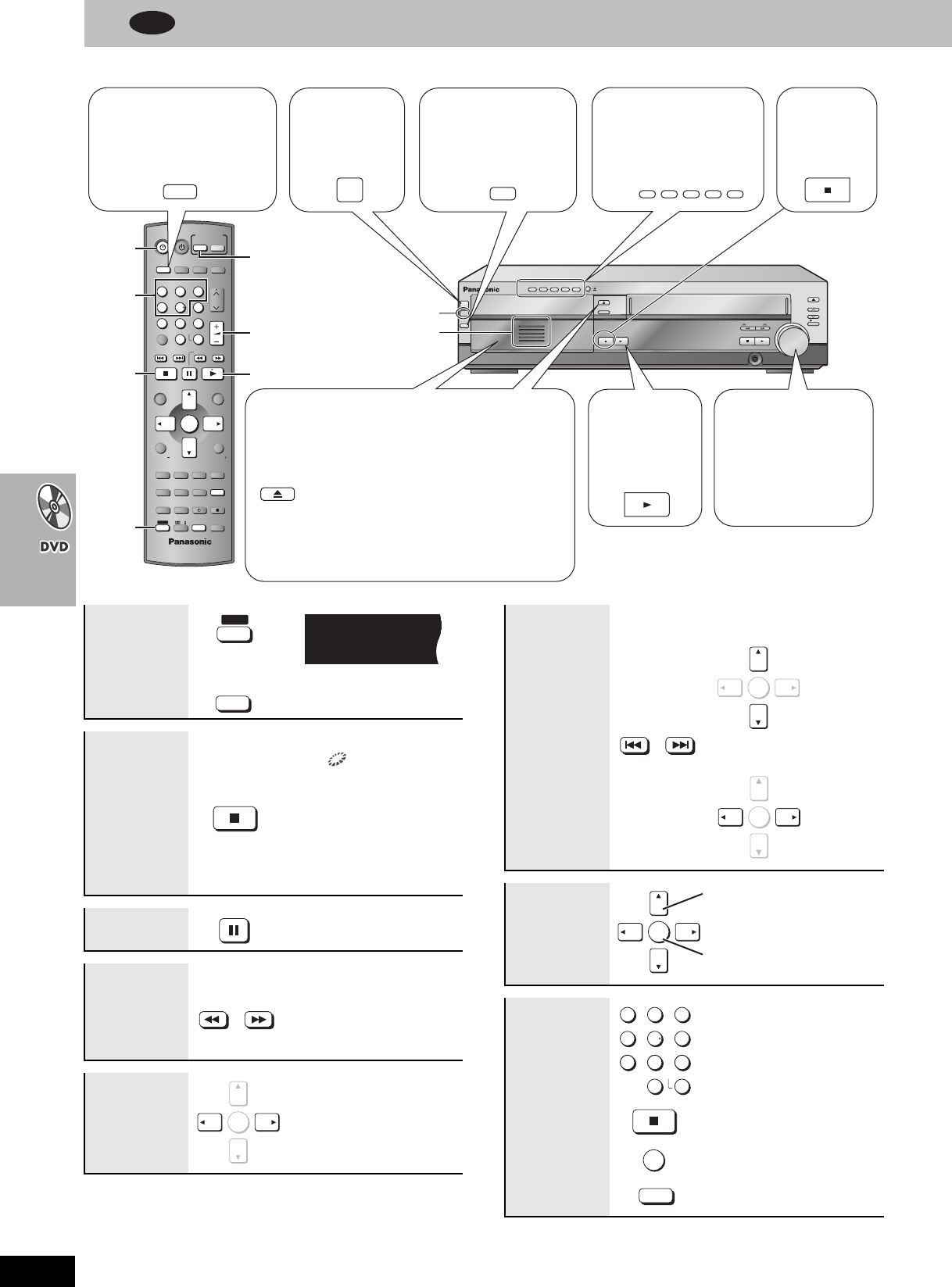
2 Turn on
the unit.
5 Open the disc tray and
load the disc.
≥Load double-sided discs so the label for
the side you want to play is facing up.
6 Close the disc tray.
≥A disc indicator lights green to show the
tray is in the play position.
≥To load discs on the other trays, repeat
steps 4–6.
7 Start
play.
Stop
3 Select
“DVD/CD”.
1 Put the remote
control in DVD
mode.
Remote control signal sensor
4 Select the disc
tray.
Disc indicators
8 Adjust the
volume.
––dB
N
0dB
(Minimum)
(Maximum)
Progressive
video
Stop
The position is memorized
when “ ” flashes on the
display.
≥Press [1] (play) to resume.
[DVD-V] To review the
previous chapters
(➜page 22, Position
memory)
≥Press [∫] to clear the
position.
Pause ≥Press [1] (play) to start play.
Search
(during play)
≥Up to 5 steps
≥Press [1] (play) to start play.
Slow-motion
(during pause)
≥[VCD] Slow motion, forward
direction only
Frame-by-
frame
(during pause)
≥[VCD] forward direction only
SHIFT
PROGRESSIVE
MUTING
i
PROG.
OPEN/CLOSE/EJECT
SLOW/SEARCH
ENTER
Skip
(Group skip
[WMA] [MP3] [JPEG])
(Content skip
[WMA] [MP3] [JPEG])
On-screen
item select
Enter number
[RAM] [DVD-A] [DVD-V] [VCD] [CD]
e.g. To select 12:
[S10] ➜ [1] ➜ [2]
[VCD]
with playback control (PBC)
To cancel the playback control,
press [∫] and then press the
numbered buttons.
[WMA] [MP3] [JPEG]
e.g. To select 123:
[1] ➜ [2] ➜ [3] ➜ [ENTER]
≥Press [CANCEL] to cancel
the number(s).
SKIP
ENTER
ENTER
ENTER
Select
Register
123
456
78
0
9
S10
ENTER
CANCEL
ENTER
DVD
7708en.book 20 ページ 2004年2月14日 土曜日 午後3時24分
21
RQT7708
[Note]
Discs continue to rotate while menus are displayed. Press [∫] when
you finish to preserve the unit’s motor and your television screen.
VOLUME
123
456
78
0
100
9
CH
NAVI
CANCEL
SPEEDPROG
SKIP SLOW/SEARCH
MENU
ENTER
DIRECT
NAVIGATOR
TOP MENU
RETURN
OSD/
DISPLAY
TV
FM/AMDVD/VHS
DVD TV
VHS TUNER
DISC 1 DISC 2 DISC 3
DISC 4
PICTURE MODE
SETUP
OPEN/CLOSE/EJECT JET REW CD MODE
DISC 5
S10
ENTER
PLAY
LIST
TV VOL
TV VOL
RESET
TV/VIDEO
PAGE
GROUP MIX 2CH
SUBTITLE REPEAT
PLAY MODE
MULTI RE-MASTER
SUBWOOFER LEVEL
C.S.M
SFC
C.FOCUS
SUPER SRND PROGRESSIVE
MUTING
POSITION
MEMORY ZOOM
QUICK REPLAY
REC
SLEEP
PL
AUDIO
TEST
CH SELECT
SHIFT
INPUT SELECTOR
OPEN/CLOSE
EJECT
DISC CHANGE
DISC CHECK
INPUT
SELECTOR
REC
/REW FF/
STOP PLAY
DOWN
UP
PHONES
CH
VOLUME
STOP
-
DEMO
DISC
DISC
1
2
3
4
5
1 2 3 4 5
PLAY
POWER
Í
/I
SHIFT
RETURN
MENU
DVD
DISC1
-
DISC5
TOP MENU
SUBTITLE
GROUP
ENTER
DISC1
-
DISC5
DISC CHECK
DISC CHANGE
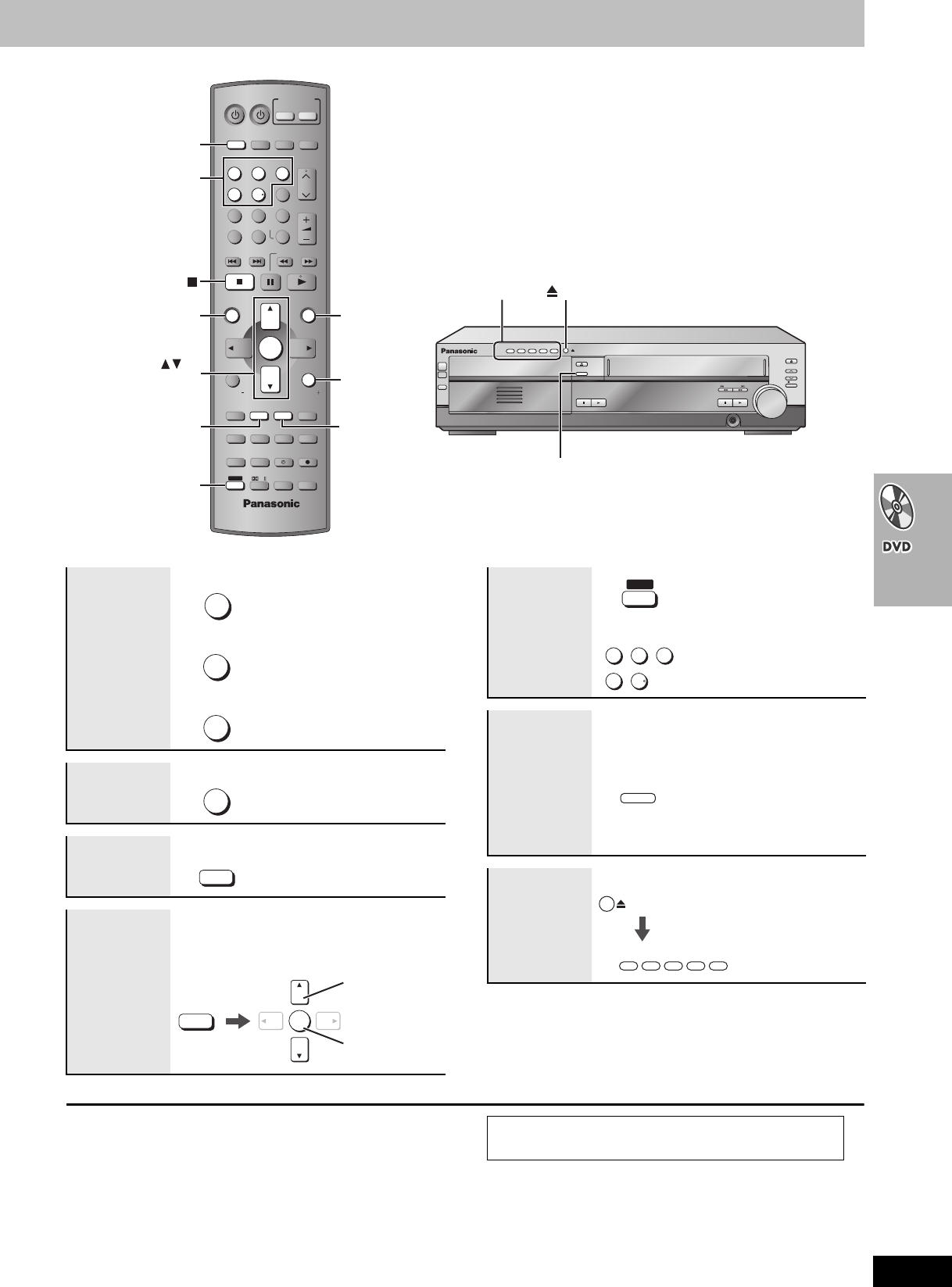
[DVD-A] [DVD-V]
Shows a disc top menu
Disc menu
[DVD-V]
Shows a disc menu
[VCD]
Shows a disc menu
Return to
previous
screen
Information
screen
[WMA] [MP3] [JPEG]
Turns the information screen
on/off
Starting play
from a
selected
group
(while stopped)
[DVD-A] [WMA] [MP3] [JPEG]
A folder on WMA/MP3 and JPEG discs is
treated as a “Group”.
NAVI
TOP MENU
MENU
RETURN
RETURN
MIX 2CH
SUBTITLE
PAGE
GROUP
ENTER
Register
Select
Selecting the
disc directly
≥You can select the disc with
[DISC1–5] on the main unit.
Checking the
disc trays
All trays except the tray in play
open without interrupting play.
While stopped, all trays will
open.
≥Press [DISC CHECK] again
to close the trays.
≥Do not pull out the trays,
remove, or insert discs
during the disc check.
Changing the
discs during
play
You can change the other
discs without interrupting play.
≥After selecting the disc tray,
press [< DISC CHANGE] to
close the tray.
SHIFT
123
45
DISC 1 DISC 2 DISC 3
DISC 4 DISC 5
i
DISC CHECK
(Main unit)
DISC CHANGE
(Main unit)
If you are experiencing problems, refer to troubleshooting
(➜ pages 52–54).
[Remember] Press [DVD] first.
DISC 1 2 3 4 5
7708en.book 21 ページ 2004年2月14日 土曜日 午後3時24分
22
RQT7708
Convenient functions
See below for details.
(Only when the elapsed play time can be displayed
[JPEG]: Works with all JPEG content)
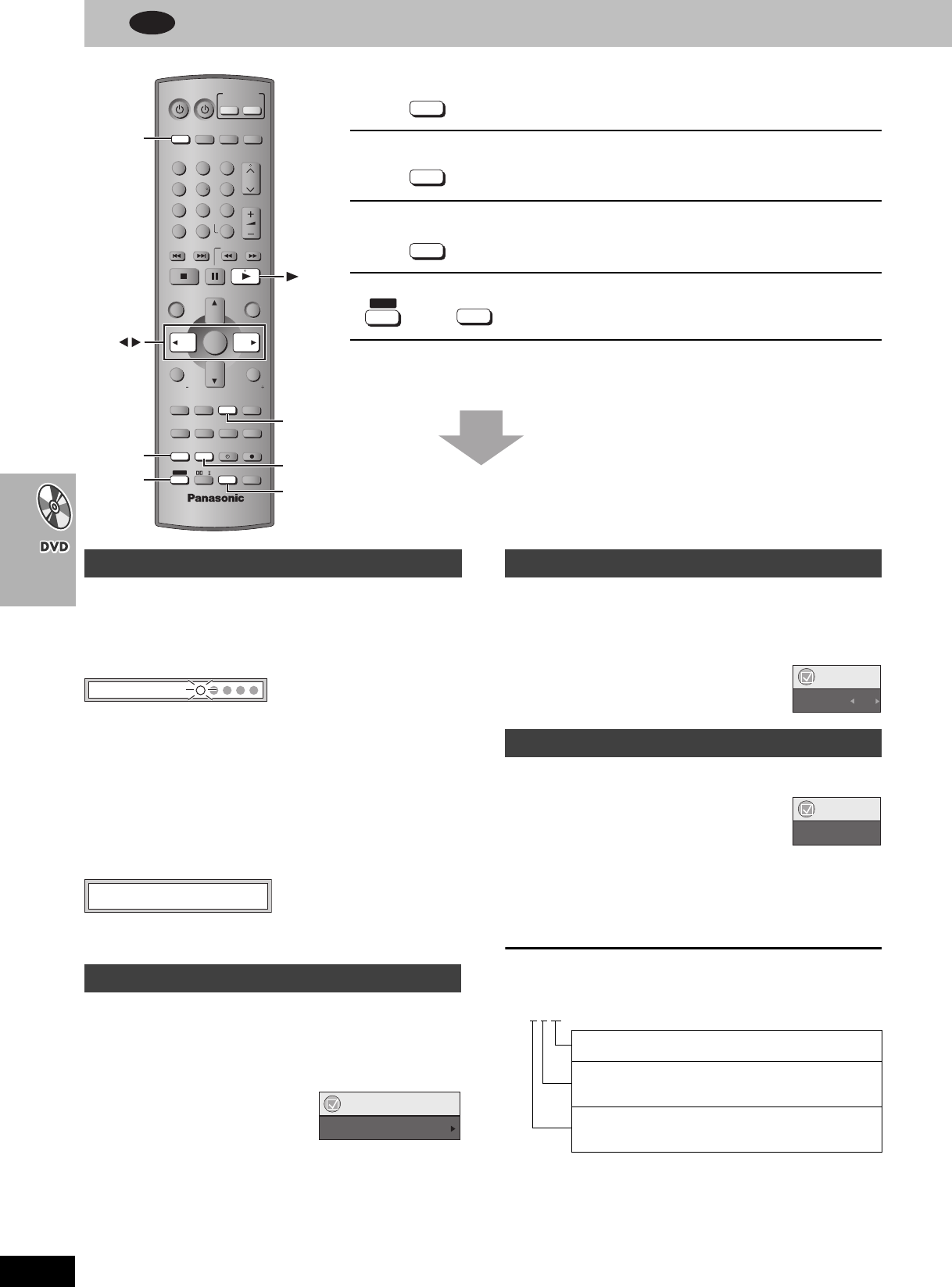
This position is memorized even after turning off the unit, changing
the source or moving the disc out of the play position.
Press [POSITION MEMORY].
≥Up to 5 discs.
≥When the sixth disc is memorized, the earliest position is replaced.
≥You cannot recall the position in CD Mode (➜page 23).
When the unit is turned on, “DVD/CD” is reselected or the disc
comes to the play position,
Press [1] (play) to start play from that
position.
To review the previous chapters [DVD-V]
Press [1] (play) while the following message is displayed.
Do not press [1] (play) if you want to cancel review.
[RAM]
[DVD-V] [VCD]
Press [ZOOM] several times to select the
preset aspect ratio or “Auto”. (Just Fit
Zoom)
Fine adjustments (Manual Zoom)
Press [21].
–from k1.00 to k1.60 (in 0.01 units)
–from k1.60 to k2.00 (in 0.02 units)
≥Press and hold [21] to alter faster (in 0.05 units).
[DVD-V] (with multiple subtitles) [VCD] (SVCD only)
[RAM] (On/Off only)
Press [SUBTITLE] several times to select
the subtitle language.
To clear/display the subtitles
Press [21] to select “On” or “Off”.
[DVD-A]
[DVD-V] (with multiple soundtracks) [RAM] [VCD]
Press [SHIFT]i[AUDIO]
several times to select
the soundtrack.
[RAM] [VCD]
You can use this button to select “L”, “R” or “LR”.
[DVD-V] (Karaoke discs)
Press [21] to select “On” or “Off” of vocals.
Read the discs instructions for details.
Signal type/data
LPCM/PPCM/ÎDigital/DTS/MPEG: Signal type
kHz (Sampling frequency)/bit/ch (Number of channels)
Example:
3/2 .1ch
Position memory
Memorizes the position to resume play.
Zoom
Expands the letterbox picture to fit the screen.
Subtitle
Changes the subtitle language.
Audio
Changes the soundtrack.
VOLUME
123
456
78
0
100
9
CH
NAVI
CANCEL
SPEEDPROG
SKIP SLOW/SEARCH
MENU
ENTER
DIRECT
NAVIGATOR
TOP MENU
RETURN
OSD/
DISPLAY
TV
FM/AMDVD/VHS
DVD TV
VHS TUNER
DISC 1 DISC 2 DISC 3
DISC 4
PICTURE MODE
SETUP
OPEN/CLOSE/EJECT JET REW CD MODE
DISC 5
S10
ENTER
PLAY
LIST
TV VOL
TV VOL
RESET
TV/VIDEO
PAGE
GROUP MIX 2CH
SUBTITLE REPEAT
PLAY MODE
MULTI RE-MASTER
SUBWOOFER LEVEL
C.S.M
SFC
C.FOCUS
SUPER SRND PROGRESSIVE
MUTING
POSITION
MEMORY ZOOM
QUICK REPLAY
REC
SLEEP
PL
AUDIO
TEST
CH SELECT
SHIFT
INPUT SELECTOR
DVD
POSITION
MEMORY
SHIFT
SUBTITLE
ZOOM
AUDIO
PROG
POSITION
MEMORY
SPEED
ZOOM
MIX 2CH
SUBTITLE
SHIFT
CANCEL
AUDIO
r
Position memory
Zoom
Position memorized
Press PLAY to preview chapters
Menu
Just Fit Zoom
1.00
Subtitle
Audio
.1: Low frequency effect
.1: (not displayed if there is no signal)
.0: No surround
.1: Mono surround
.2: Stereo surround (left/right)
.1: Center
.2: Front leftiFront right
.3: Front leftiFront rightiCenter
Menu
Subtitle Off
Menu
Audio 1
DVD
7708en.book 22 ページ 2004年2月14日 土曜日 午後3時24分
23
RQT7708
See below for details.
[RAM] [DVD-V] (Discs recorded with 48 kHz only)
[DVD-A] (Discs recorded with 44.1 kHz and 48 kHz only)
[VCD] [CD]
≥During 2ch output of these discs, this feature gives you a more
natural sound by adding the higher frequency signals not recorded
on the disc, for example, playing DVD-Video recorded with 48 kHz
at 96 kHz. (Sampling frequency ➜ below)
≥During multi-channel output of these discs, this feature reproduces
the frequencies lost during recording to give you a sound closer to
the original.
[WMA] [MP3] (Disc recording is other than 8 kHz, 16 kHz, 32 kHz)
This feature reproduces the higher frequencies lost during recording
to give you a sound closer to the original.
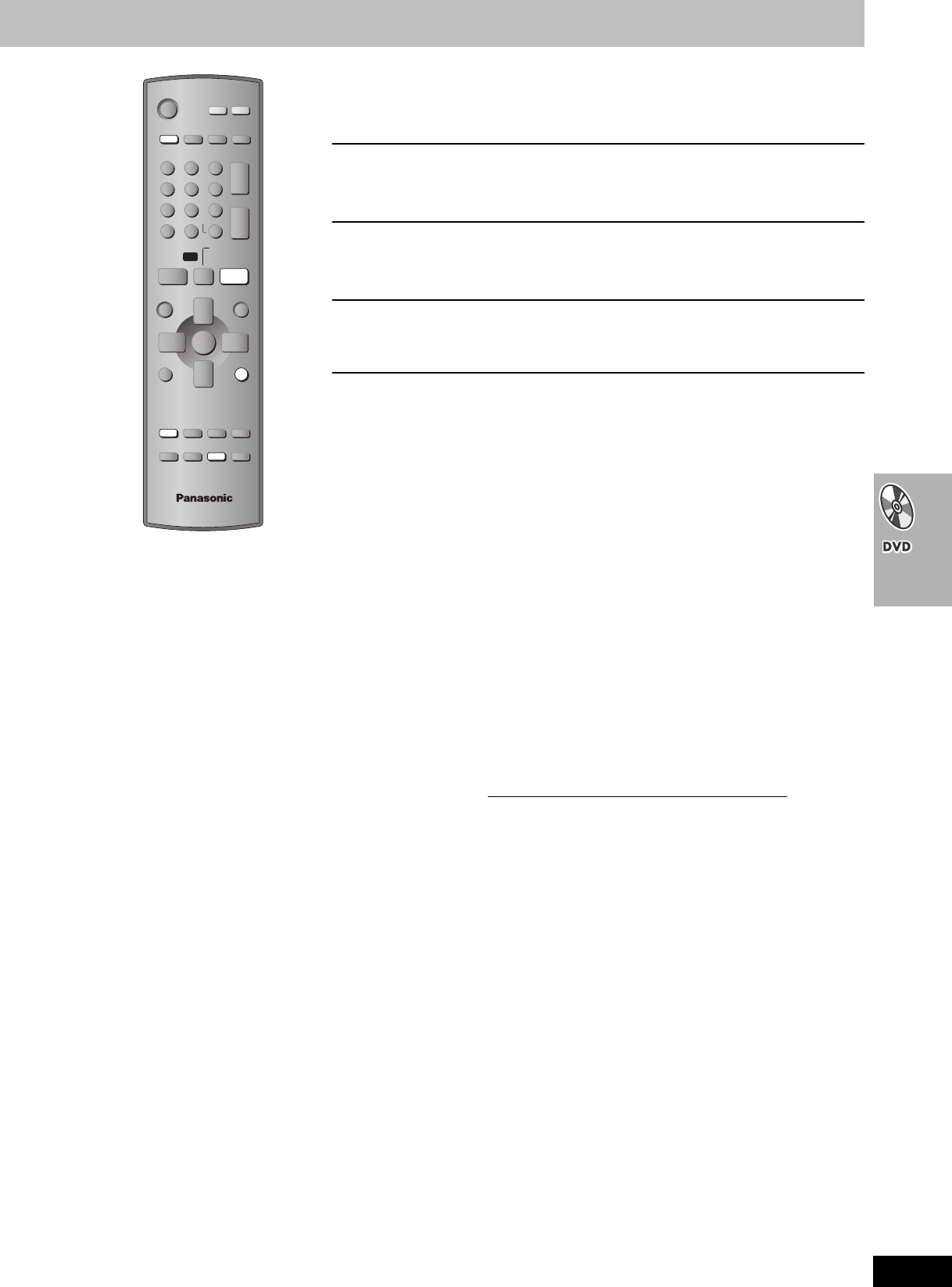
Press [SHIFT]i[MULTI RE-MASTER] to
select “1” “2” or “3”.
[DVD-A]
During play or while paused
Press [SHIFT]i[PAGE].
The page changes each time you do this.
≥Press [RETURN] to go back to page 1.
[VCD] [CD] [WMA] [MP3]
This feature is very convenient if you want to play several music CDs
sequentially.
DVD and JPEG files are skipped without being played.
1While stopped
Press [SHIFT]i[CD MODE].
2Press [1] (play).
≥HighMAT menus and Video CD playback control are disabled.
≥You cannot change the mode during program or random play
(➜page 24).
≥If you want to play a DVD, press [SHIFT]i[CD MODE] again to
cancel CD Mode. (CD Mode is also canceled when you switch the
unit to standby.)
(Only when the elapsed play time can be displayed)
Press [QUICK REPLAY] to skip back a few
seconds.
Multi Re-master
Enjoys more natural sound.
Page skip
Selects still pictures.
CD Mode (CD sequential play)
Plays discs in succession.
Quick replay
Replays a scene.
24
RQT7708
Convenient functions
See below and the following page for details.
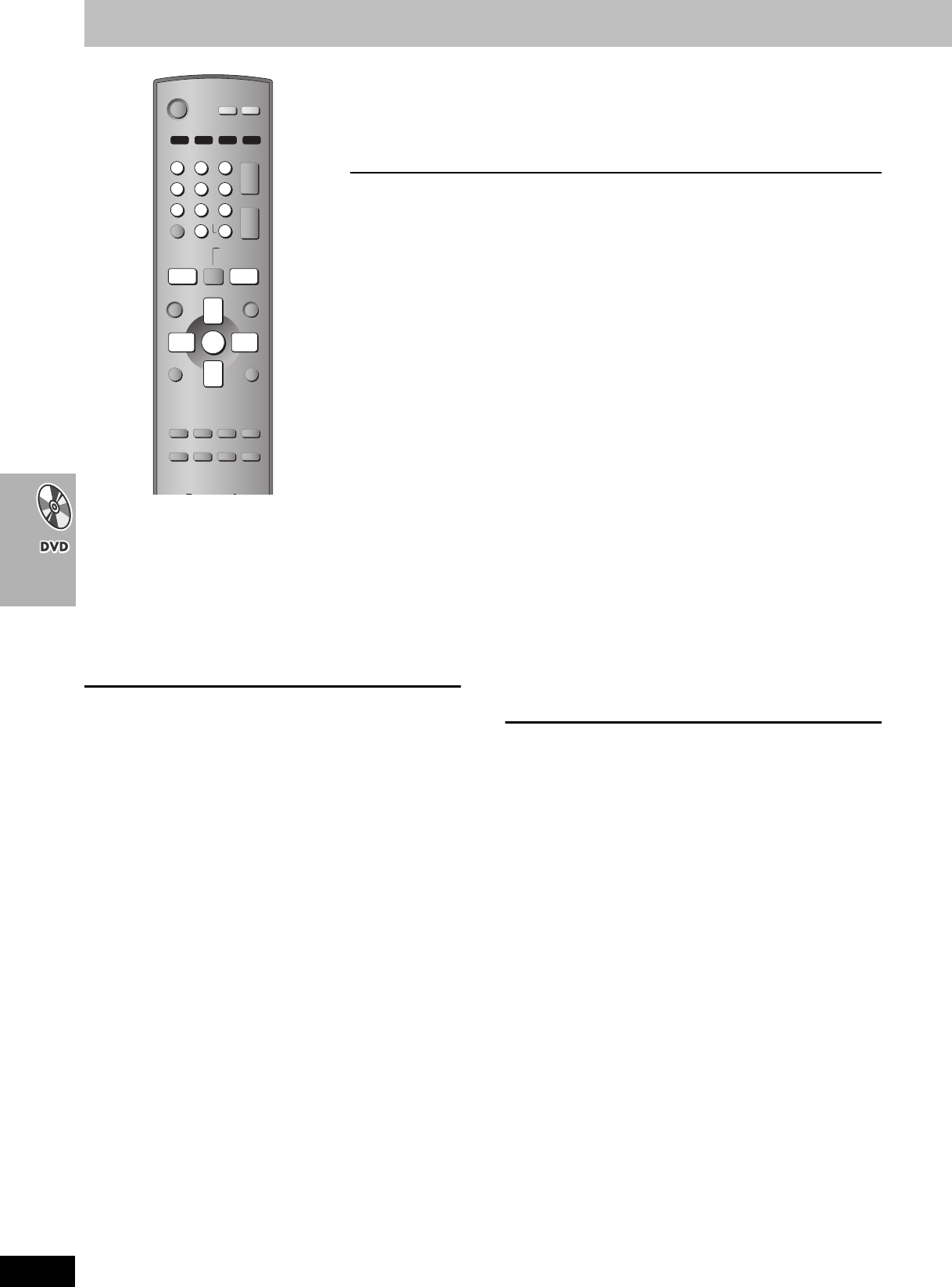
While stopped, press [PLAY MODE].
Each time you press the button:
[DVD-A] [DVD-V] [WMA] [MP3] [JPEG]
All group ([DVD-A])>Program> Random>off (Normal play)
^------------------------------------------------------------------------}
[VCD] [CD] (There is no on-screen display.)
(PGM)>1-DISC (RND)> A-DISC (ALL RND)
^------------ off (Normal play) (---------}
To exit
Press [PLAY MODE] several times while stopped.
≥Disable HighMAT disc play to use random and program play. Select
“Play as Data Disc” in Other Menu (➜page 29).
[DVD-A]
Press [1] (play).
[VCD] [CD]
You can program all the items on
discs.
[DVD-A] [DVD-V] [WMA] [MP3] [JPEG]
You can program all the items on a
disc in the play position.
1[VCD] [CD]
Press
[SHIFT]i([DISC1]–[DISC5]).
2Press the numbered buttons to select
the items ([WMA] [MP3] [JPEG] then press
[ENTER]).
≥To select a 2-digit number
e.g. 23: [S10] ➜ [2] ➜ [3]
[WMA] [MP3] [JPEG] [2] ➜ [3] ➜ [ENTER]
≥Repeat this step to program other items.
≥[VCD] [CD]
Step 1 is unnecessary when programming tracks on the
same disc.
≥[DVD-A] [DVD-V] [WMA] [MP3] [JPEG]
To select an item using the cursor buttons
Press [ENTER] and [34] to select an item, then press
[ENTER] again to register.
All the items in the selected disc, title or group are selected
when you select “ALL”.
3Press [1] (play).
To add or change the program
[VCD] [CD] (Add only)
Repeat steps 1 and 2.
[DVD-A] [DVD-V] [WMA] [MP3] [JPEG]
Press [34] to select an item, then repeat step 2.
To clear an item
[VCD] [CD]
Press [CANCEL].
[DVD-A] [DVD-V] [WMA] [MP3] [JPEG]
1Press [34] to select an item.
2 Press [CANCEL] (or press [3421] to select “Clear” and
press [ENTER]).
To clear the whole program
[VCD] [CD]
Press [∫] so “CLEAR” is displayed.
[DVD-A] [DVD-V] [WMA] [MP3] [JPEG]
Press [3421] to select “Clear all” and press [ENTER].
[Note]
≥[DVD-V] [WMA] [MP3] [JPEG]
Times are not displayed while programming.
≥[VCD] [CD]
Items the unit cannot find can be programmed but are canceled
during play. This is also the case if you program DVD-RAM, DVD-
Audio, DVD-Video, WMA, MP3 and JPEG.
≥The program is cleared when you switch the unit to standby, select
another source, exit the program mode by pressing [PLAY MODE]
or move the disc out of the play position.
[VCD] [CD] The program is retained in memory.
All group/Program/Random play
25
RQT7708
See below for details.
[VCD] [CD]
1-DISC (RND): You can play all the items on a disc in the play
position in random order.
A-DISC (ALL RND): You can play all the items on all the discs in
random order.
[DVD-A] [DVD-V] [WMA] [MP3] [JPEG]
You can play selected item(s) on a disc in the play position in random
order.
1[DVD-A] [DVD-V] [WMA] [MP3] [JPEG]
Press the numbered
buttons to select a
group ([WMA] [MP3] [JPEG]
then press [ENTER])
or a title.
[DVD-A]
≥To enter all groups, press [21] to select “All” and press
[ENTER].
≥To deselect a group, press the numbered buttons
corresponding to the group you want to clear.
2Press [1] (play).
(Only when the elapsed play time can be displayed
[JPEG]: Works with all JPEG content.)
During play
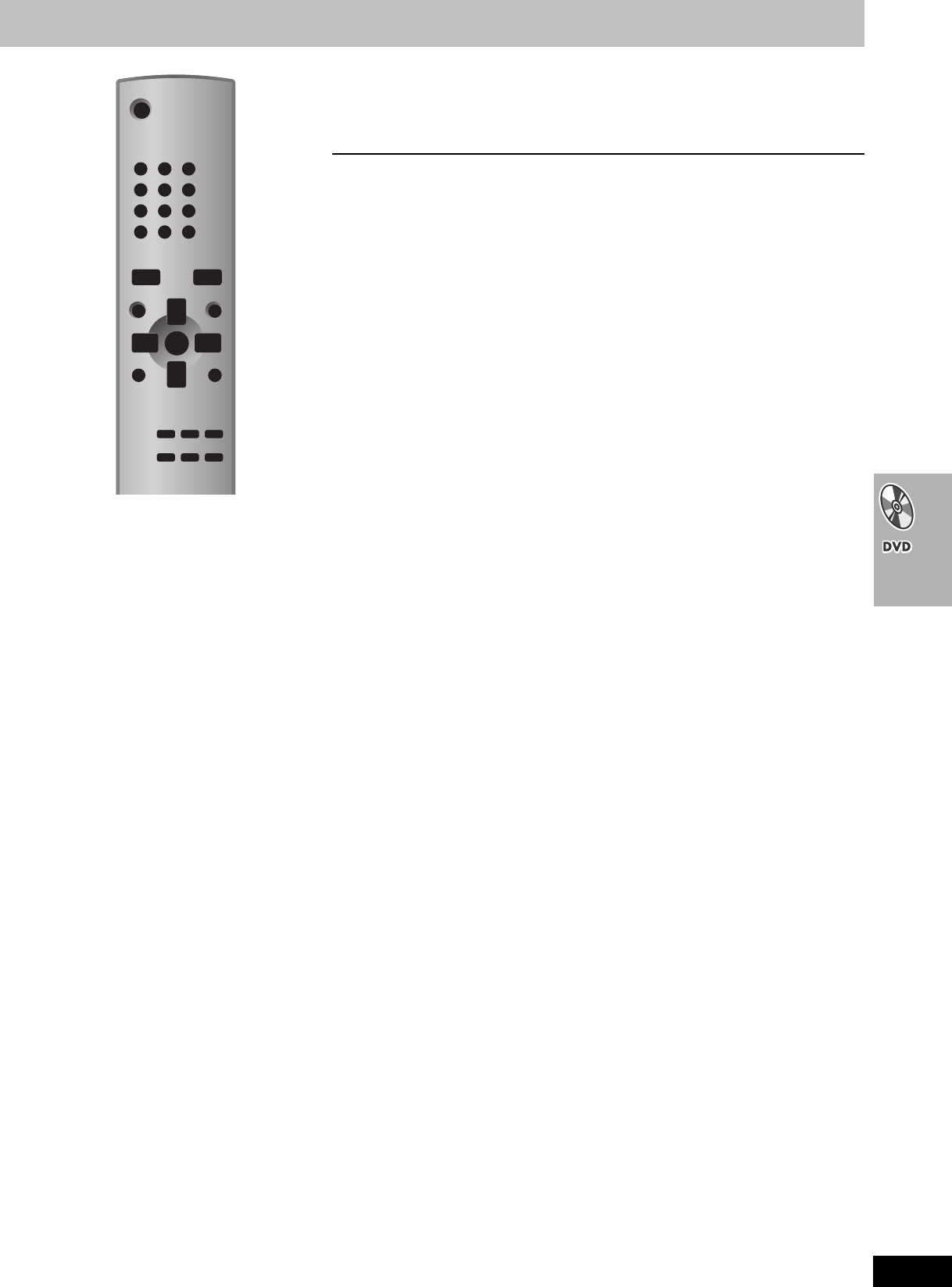
Press [SHIFT]i[REPEAT]
several times to select an
item to be repeated.
[RAM]
PG REPEAT>ALL REPEAT (Entire disc)>REPEAT OFF
≥During play list play
SCENE REPEAT>PL REPEAT>REPEAT OFF
[DVD-A]
TRACK REPEAT>GROUP REPEAT
§
>REPEAT OFF
[DVD-V]
CHAPTER REPEAT>TITLE REPEAT
§
>REPEAT OFF
[VCD] [CD] (There is no on-screen display.)
TRACK REPEAT>ALL REPEAT (Entire disc)>REPEAT OFF
[WMA] [MP3] (There is no on-screen display.)
CONTENT REPEAT>GROUP REPEAT
§
>REPEAT OFF
[JPEG] (There is no on-screen display.)
GROUP REPEAT
§
>REPEAT OFF
§
During all group ([DVD-A]), program and random play
“ALL REPEAT” is displayed.
Repeat play
26
RQT7708
Using navigation menus
See below and the following page for details.
[WMA] [MP3] [JPEG]
You can play JPEG files on DVD-RAM or play HighMAT discs without
using the HighMAT function (➜page 29, “Play as Data Disc” in
Other Menu).
∫Using playback menus (except JPEG files on DVD-RAM)
1Press [TOP MENU].
2Press [34] to select “All”, “Audio”
or “Picture” and press [ENTER].
≥To exit the screen
Press [TOP MENU].
∫Using navigation menus
1Press [MENU].
2
Press
[3421]
to select the group or
audio/picture content and press
[ENTER]
.
≥To enjoy listening to WMA/MP3 contents while showing a
JPEG image on the screen
Select a JPEG file first, and then select tracks.
(The opposite order is not effective.)
≥To exit the screen
Press [MENU].
1Press
[TOP MENU]
or [MENU].
2Press [34]
to move
through the
tracks and
press [ENTER].
≥Press [SHIFT]i[PAGE] to skip 10 at a time.
1While the menu is displayed
Press [OSD/DISPLAY].
Items shown differ depending on the type of software.
2Press [34] to select the submenu
and press [ENTER].
Playing data discs
Playing HighMAT discs
Playing the programs
Playing a play list
VOLUME
123
456
78
0
100
9
CH
NAVI
CANCEL
SPEEDPROG
SKIP SLOW/SEARCH
MENU
ENTER
DIRECT
NAVIGATOR
TOP MENU
RETURN
OSD/
DISPLAY
DVD TV
VHS TUNER
DISC 1 DISC 2 DISC 3
DISC 4
PICTURE MODE
SETUP
OPEN/CLOSE/EJECT JET REW CD MODE
DISC 5
S10
ENTER
PLAY
LIST
TV VOL
TV VOL
RESET
TV/VIDEO
PAGE
GROUP MIX 2CH
SUBTITLE REPEAT
PLAY MODE
MULTI RE-MASTER
SUBWOOFER LEVEL
C.S.M
SFC
C.FOCUS
SUPER SRND PROGRESSIVE
MUTING
POSITION
MEMORY ZOOM
QUICK REPLAY
REC
SLEEP
PL
AUDIO
TEST
CH SELECT
SHIFT
OSD/
DISPLAY
PAGE
SHIFT
MENU
PLAY LIST
DVD
Numbered
buttons
ENTER
TOP MENU
DIRECT
NAVIGATOR
MENU
NAVI
TOP MENU
or
MENU
NAVI
TOP MENU
or
NAVI
DIRECT
NAVIGATOR
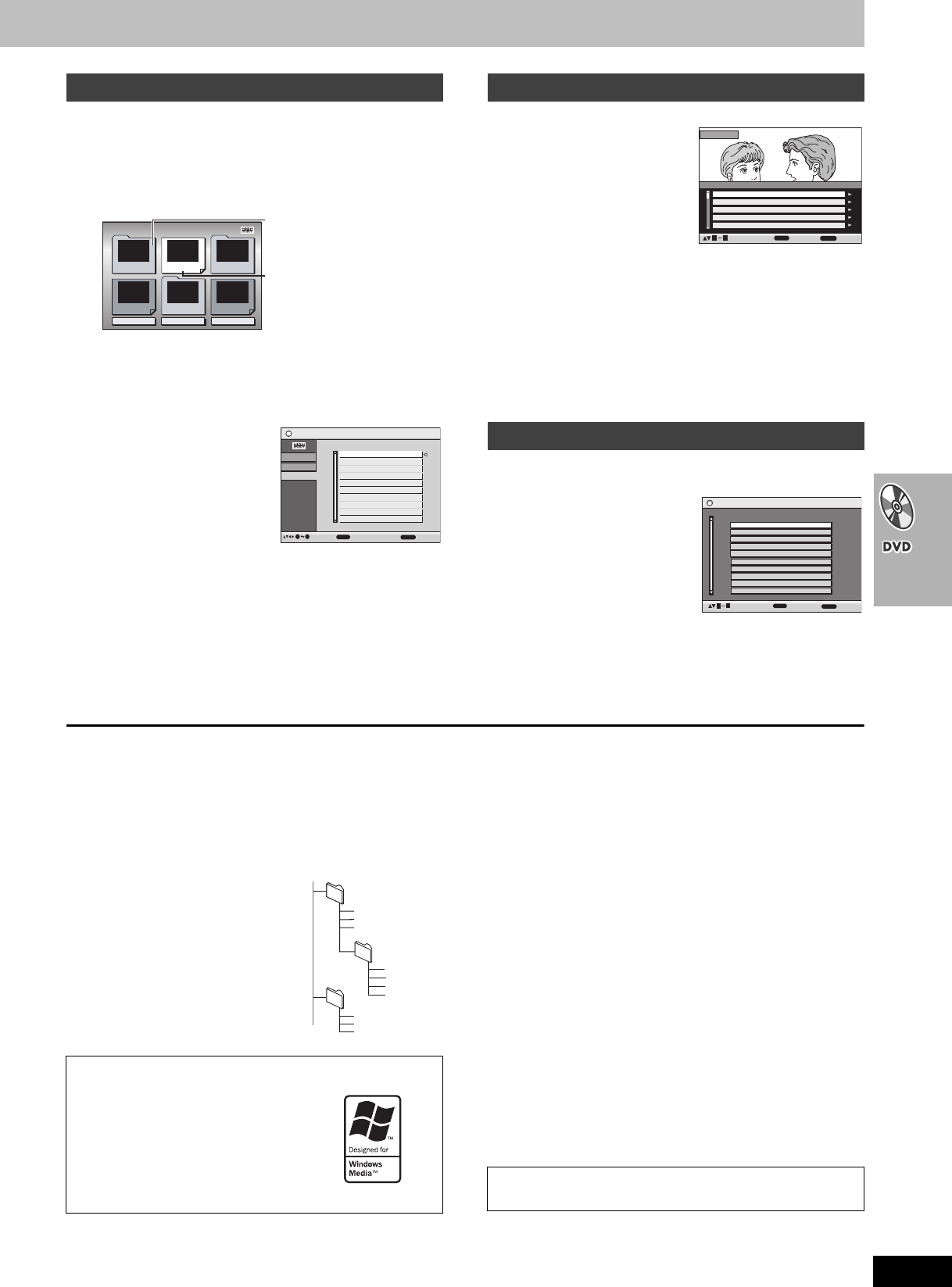
27
RQT7708
[WMA] [MP3] [JPEG]
1Press [TOP MENU].
2Press [3421] to select the item
following the on-screen instructions.
≥To change the menu background
Press [OSD/DISPLAY].
The background changes to the one recorded on the disc.
∫Selecting from the list
1During play
Press [MENU].
2Press [2] then
[34] to switch
among Playlist,
Group and
Content lists.
3Press [1] then [34] to select an item
and press [ENTER].
≥Press [SHIFT]i[PAGE] to skip 10 at a time.
≥To exit the screen
Press [MENU].
[RAM]
1Press [DIRECT
NAVIGATOR].
≥Titles appear only if you
have entered them.
≥You cannot change program
and disc titles.
2Press [34] or
the numbered buttons to select the
program.
≥Press [SHIFT]i[PAGE] to skip 5 at a time.
≥To select a 2-digit number
e.g. 23: [S10] ➜ [2] ➜ [3]
≥Press [1] to show the contents of the program.
3Press [ENTER].
[RAM]
(Only when the disc contains a play list)
1Press [PLAY LIST].
2Press [34] or the
numbered buttons
to select the play
list.
≥Press [SHIFT]i[PAGE] to skip 10 at a time.
≥To select a 2-digit number
e.g. 23: [S10] ➜ [2] ➜ [3]
3Press [ENTER].
Tips for making WMA/MP3 and JPEG discs (For CD-R/CD-RW)
≥Discs must conform to ISO9660 level 1 or 2 (except for extended
formats).
≥This unit is compatible with multi-session but if there are a lot of
sessions it takes more time for play to start. Keep the number of
sessions to a minimum to avoid this.
Naming folders and files
At the time of recording, prefix folder
and file names with 3-digit numbers in
the order you want to play them (this
may not work at times).
Files must have the extension:
“.WMA” or “.wma”
“.MP3” or “.mp3”
“.JPG”, “.jpg”, “.JPEG” or “.jpeg”
[WMA]
≥You cannot play WMA files that are copy protected.
[MP3]
≥This unit is not compatible with ID3 tags.
≥Compatible sampling rate: 8, 11.02, 12, 16, 22.05, 24, 32, 44.1
and 48 kHz.
[JPEG]
≥To view JPEG files on this unit:
–Take them on a digital camera that meets the DCF Standard
(Design rule for Camera File system) Version 1.0. Some digital
cameras have functions that are not supported by the DCF
Standard Version 1.0 like automatic picture rotation which may
render a picture un-viewable.
–Do not alter the files in any way or save them under a different
name.
≥This unit cannot display moving pictures, MOTION JPEG and other
such formats, still pictures other than JPEG (e.g. TIFF) or play
associated sound.
Playing HighMAT discs
2
Prev
3
Return
Next
1
New Playlist Item Long Name Display Te PAGE 1/3
Menu1 Menu2
Menu3
Play list1
Play list2 Play list3
Menu: Takes you to the next
menu which shows play
lists or another menu
Play list: Play starts
e.g.
Playlist
Playlist
Group
Content
All By Artist
ENTER
RETURN
to playto select
to exit
09
Content title
No.
1Few times in summer
Less and less
And when I was born
Quatre gymnopedies
You've made me sad
I can't quit him
Evening glory
Wheeling spin
Velvet Cuppermine
Ziggy starfish
2
3
4
5
6
7
8
9
10
Playing the programs
Playing a play list
Direct Navigator
11/ 1(WED) 0:05 AM Monday feature1
1/ 1 (MON) 1:05 AM Auto action2
2/ 2 (TUE) 2:21 AM Cinema3
3/ 3 (WED) 3:37 AM Music4
4/10(THU) 11:05 AM Baseball5
Date
No. On Title Contents
ENTER
RETURN
to select and press
to exit
09
11/1 0:00:01 City Penguin1
1/ 1 0:01:20 Ashley at Prom2
2/ 2 1:10:04 Formula one3
3/ 3 0:10:20 Soccer4
4/10 0:00:01 Baseball5
DateNo. Length Title
Playlist
ENTER
RETURN
to select and press
to exit
4/11 0:00:01 City Penguin6
4/ 15 0:01:10 Ashley at Prom7
4/ 17 0:13:22 Formula one8
4/ 20 0:05:30 Soccer9
4/22 0:07:29 Baseball10
09
Windows Media, and the Windows logo
are trademarks, or registered trademarks
of Microsoft Corporation in the United
States and/or other countries.
WMA is a compression format developed
by Microsoft Corporation. It achieves the
same sound quality as MP3 with a file
size that is smaller than that of MP3.
002 group
001
001 group
001 track.mp3
002 track.mp3
003 track.mp3
003 group
001 track.mp3
002 track.mp3
003 track.mp3
001 track.mp3
002 track.mp3
003 track.mp3
004 track.mp3
e.g. [MP3]
root
MPEG Layer-3 audio decoding technology licensed from
Fraunhofer IIS and Thomson multimedia.
[Remember] Press [DVD] first.
7708en.book 27 ページ 2004年2月14日 土曜日 午後3時24分
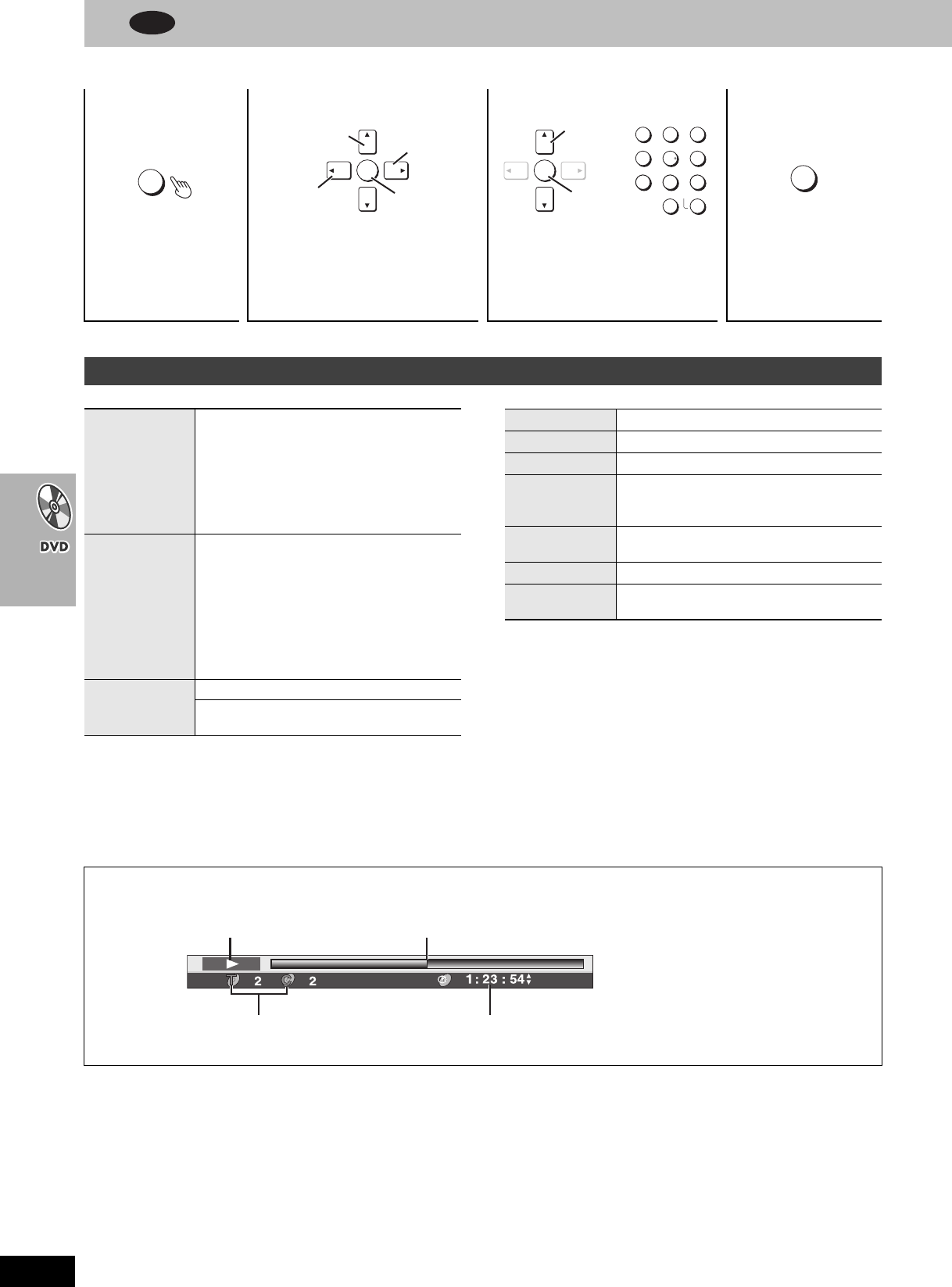
28
RQT7708
Using On-Screen Menus
Refer to page 7 for remote control button positions.
Items shown differ depending on the type of software.
12 3 4
Press once.
(When pressed twice,
the elapsed play time
indicator appears.
➜below)
Select the menu. Make the settings. Press to exit.
Main menus
OSD/
DISPLAY
ENTER
Select Go to the
next menu
Return to the
previous menu Register
ENTER
123
456
78
0
9
S10
ENTER
Select
Register
RETURN
Program
Group
Title
Chapter
Track
Playlist
Content
To start from a specific item
Time
To skip incrementally or decrementally
(Time Slip)
1 Press [ENTER] twice to show Time Slip
indicator.
2Press [34] to enter the time and press
[ENTER].
≥Press and hold [34] to alter faster.
To start from a specific time (Time Search)
To change remaining/elapsed time display
Audio
(➜page 22)
To display the current bitrate or sampling
frequency
Still Picture To switch still picture
Thumbnail To show thumbnail images
Subtitle (➜page 22)
Marker(VR)
To recall a marker recorded on DVD-Video
recorders
To recall a marker: [34] ➜ [ENTER]
Angle (with multiple angles)
To select the angle
Rotate Picture To rotate pictures
Slideshow To turn on/off slideshow
To change the slideshow timing (0–30 sec)
∫Elapsed play time indicator
Condition–
play, pause or slow/search
Current playback item Press [34] to select the elapsed play time
or the remaining time. (except [JPEG])
Current position
DVD
7708en.book 28 ページ 2004年2月14日 土曜日 午後3時24分
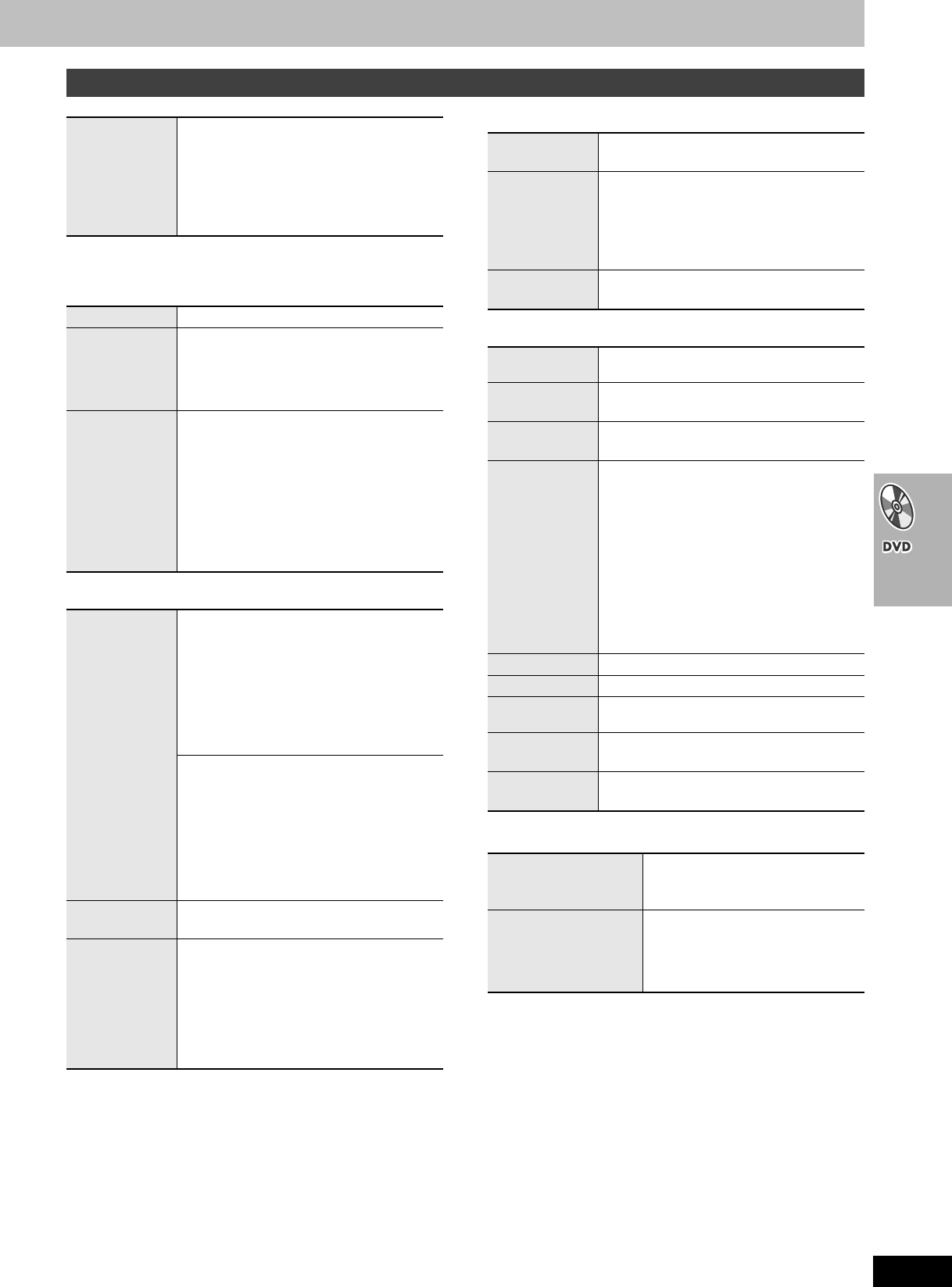
29
RQT7708
∫Play Menu
(Only when the elapsed play time can be displayed
[JPEG]: Works with all JPEG content.)
∫Picture Menu
∫Audio Menu
∫Display Menu
∫Other Menu
Other settings
Play Speed
[RAM] [DVD-V]
To change play speed
–from k0.6 to k1.4 (in 0.1 units)
≥After you change the speed
–Output is in stereo.
–Sampling frequency of 96 kHz is converted
to 48 kHz.
Repeat (➜page 25)
A-B Repeat
Except [JPEG] [RAM] (still picture part)
To repeat a specified section
Press [ENTER] at the starting and ending
points.
Press [ENTER] again to cancel.
Marker
To mark up to 5 positions to play again
Press [ENTER] (The unit is now ready to
accept markers.)
To mark a position: [ENTER] (at the desired
point)
To mark another position: [21] ➜ [ENTER]
To recall a marker: [21] ➜ [ENTER]
To erase a marker: [21] ➜ [CANCEL]
≥This feature doesn’t work during program
and random play.
Picture Mode
Normal
Cinema1: Mellows images and enhances
detail in dark scenes.
Cinema2: Sharpens images and enhances
detail in dark scenes.
Animation
Dynamic
User (Press [ENTER] to select “Picture
Adjustment”) (➜ below)
Picture Adjustment
Contrast Brightness Sharpness Color
Gamma (Adjusts the brightness of dark
parts.)
Depth Enhancer
Reduce the rough noise in the background to
give a greater feeling of depth.
≥This does not work while using Cinema1 or
Cinema2 (➜ above).
Video Output
Mode
480I (Interlace) () 480P (Progressive)
Transfer Mode
If you have chosen
“
480P
”
(➜ above)
,
select
the method of conversion for progressive
output to suit the type of material.
Auto1 (normal): For viewing film material
Auto2: For viewing film material (the same
as Auto1, but able to convert 30-
frame-per-second progressive video)
Video: For video material
Dolby Pro
Logic II
(➜page 46)
Dialogue
Enhancer
To make the dialogue in movies easier to
hear
[DVD-V] (Dolby Digital, DTS, MPEG, 3-channel
or over, with the dialogue recorded in the
center channel)
On () Off
Multi
Re-master
(➜page 23)
Information On () Off
([JPEG]: Off, Date, Details)
Subtitle
Position
0 to s60 (in 2 units)
Subtitle
Brightness
Auto, 0 to s7
4:3 Aspect
To select how to show images made for 4:3
aspect screens on a 16:9 aspect television
Normal: Laterally stretches images.
Auto: Expands 4:3 letterbox images to fill
more of the screen. Other images
appear in full in the center of the
screen.
Shrink: Images appear in the center of the
screen.
Zoom: Expands all images fill the screen.
If your television has a similar feature, use it
instead for a better effect.
Just Fit Zoom (➜page 22)
Manual Zoom (➜page 22)
Bitrate Display [RAM] [DVD-V] [VCD]
On () Off
GUI See-
through
On () Off
GUI
Brightness
s3 to r3
Play as DVD-Video
or
Play as DVD-Audio
While stopped
≥Select “Play as DVD-Video” to play
DVD-Video contents on DVD-Audio.
Play as DVD-VR
Play as HighMAT
or
Play as Data Disc
While stopped
≥Select “Play as Data Disc” to play
JPEG files on DVD-RAM or to play
HighMAT disc without using the
HighMAT function.
[Remember] Press [DVD] first.
7708en.book 29 ページ 2004年2月14日 土曜日 午後3時24分
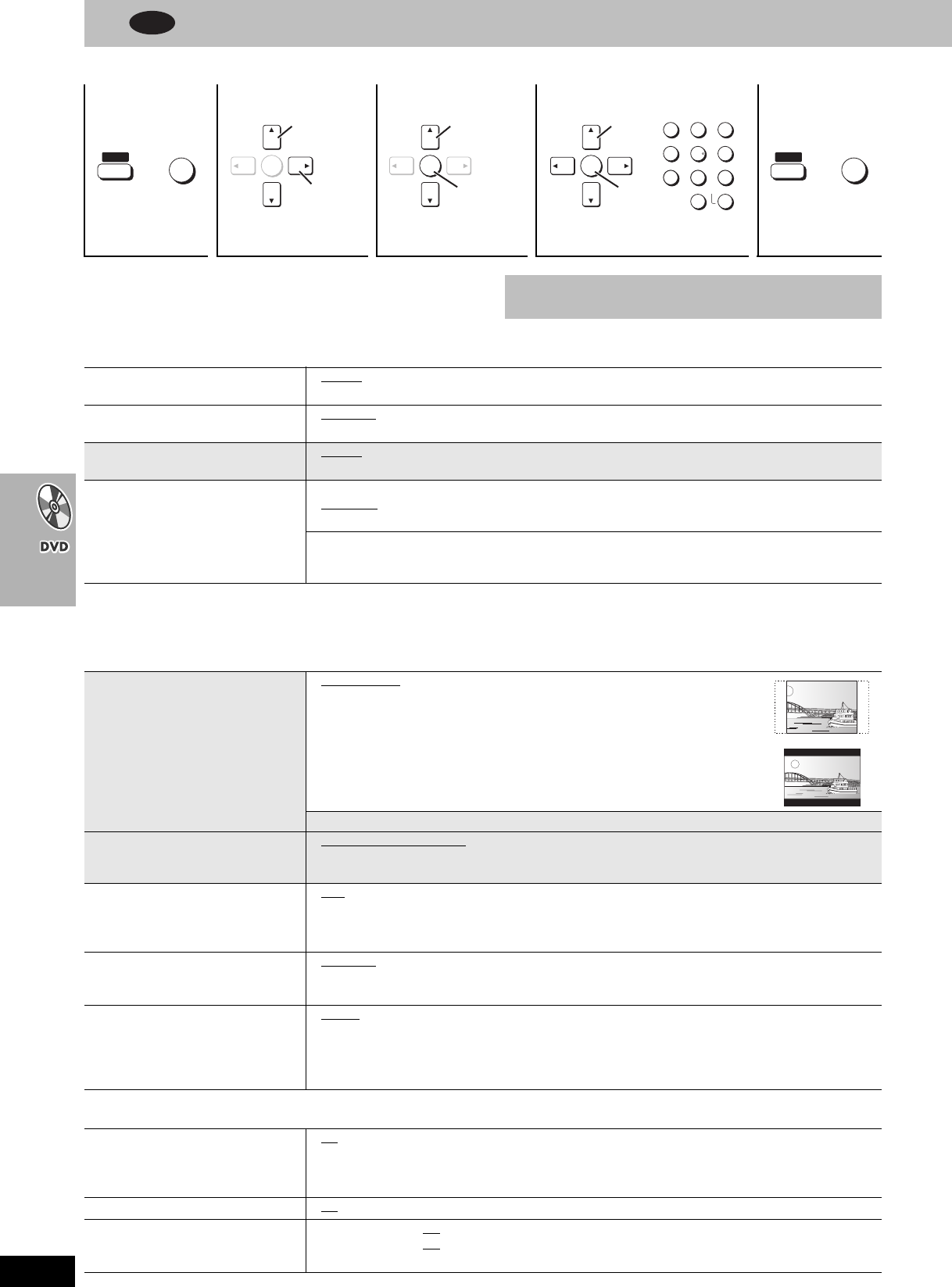
30
RQT7708
Changing the player settings
Refer to page 7 for remote control button positions.
≥The settings remain intact even if you switch the unit to standby.
≥Underlined items are the factory preset.
∫“Disc” tab
§1The original language designed on the disc is selected.
§2Input a code number referring to the table on page 31.
§3If the language selected for “Audio” is not available, subtitle appears in that language (If available on the disc).
∫“Video” tab
∫“Audio” tab
1234 5
Shows Setup
menu.
Select the tab. Select the item. Make the settings. Press to exit.
SHIFT
100
SETUP
r
ENTER
Select
Go to right
ENTER
Select
Register
ENTER
123
456
78
0
9
S10
ENTER
Select
Register
SHIFT
100
SETUP
r
The QUICK SETUP enables successive settings of the items in
the shaded area.
Audio
Choose the audio language.
≥English ≥French ≥Spanish ≥Original§1≥Other
¢¢¢¢
§2
Subtitle
Choose the subtitle language.
≥Automatic§3≥English ≥French ≥Spanish ≥Other
¢¢¢¢
§2
Menus
Choose the language for disc menus.
≥English ≥French ≥Spanish ≥Other
¢¢¢¢
§2
Changing the menu language from QUICK SETUP also changes this setting.
Ratings
Set a ratings level to limit DVD-Video
play.
≥Follow the on-screen instructions.
Setting ratings (When level 8 is selected)
≥8 No Limit: All DVD-Video can be played.
≥1 to 7 ≥0 Lock All: To prevent play of discs without ratings levels.
Changing ratings (When level 0–7 is selected)
≥Unlock Player ≥Change Password
≥Change Level ≥Temporary Unlock
TV Aspect
Choose the setting to suit your
television and preference.
≥4:3 Pan&Scan: Regular aspect television (4:3)
The sides of the widescreen picture are cut off so it fills the screen (unless
prohibited by the disc).
≥4:3 Letterbox: Regular aspect television (4:3)
Widescreen picture is shown in the letterbox style.
≥16:9: Widescreen television (16:9)
TV Type
Select to suit the type of television.
≥Standard (Direct View TV)
≥CRT Projector ≥LCD TV/Projector
≥Projection TV ≥Plasma TV
Time Delay
When connected to a Plasma display,
adjust if you notice the audio is out of
the sync with the video.
≥0ms ≥20ms ≥40ms ≥60ms ≥80ms ≥100ms
Still Mode
Specify the type of picture shown
when paused.
≥Automatic
≥Field: The picture is not blurred, but picture quality is lower.
≥Frame:
Overall quality is high, but the picture may appear blurred.
Black Level Control
Change the black level of the picture if
you connected a television through
the COMPONENT VIDEO OUT
terminals.
≥Lighter: when connected through VIDEO OUT or S-VIDEO OUT.
≥Darker: when connected through COMPONENT VIDEO OUT.
Dynamic Range Compression ≥Off
≥On: Adjusts for clarity even when the volume is low through compressing the range of the lowest
sound level and the highest sound level. Convenient for late night viewing. (Only works with
Dolby Digital)
Audio during Search ≥On ≥Off
Speaker Setting (➜page 31)
Set the delay time for your center and
surround speakers.
≥Center: 0.0/1.0/2.0/3.0/4.0/5.0 ms
≥Surround (L/R): 0.0/5.0/10.0/15.0 ms
DVD
7708en-p04-31.fm 30 ページ 2004年2月17日 火曜日 午前8時55分
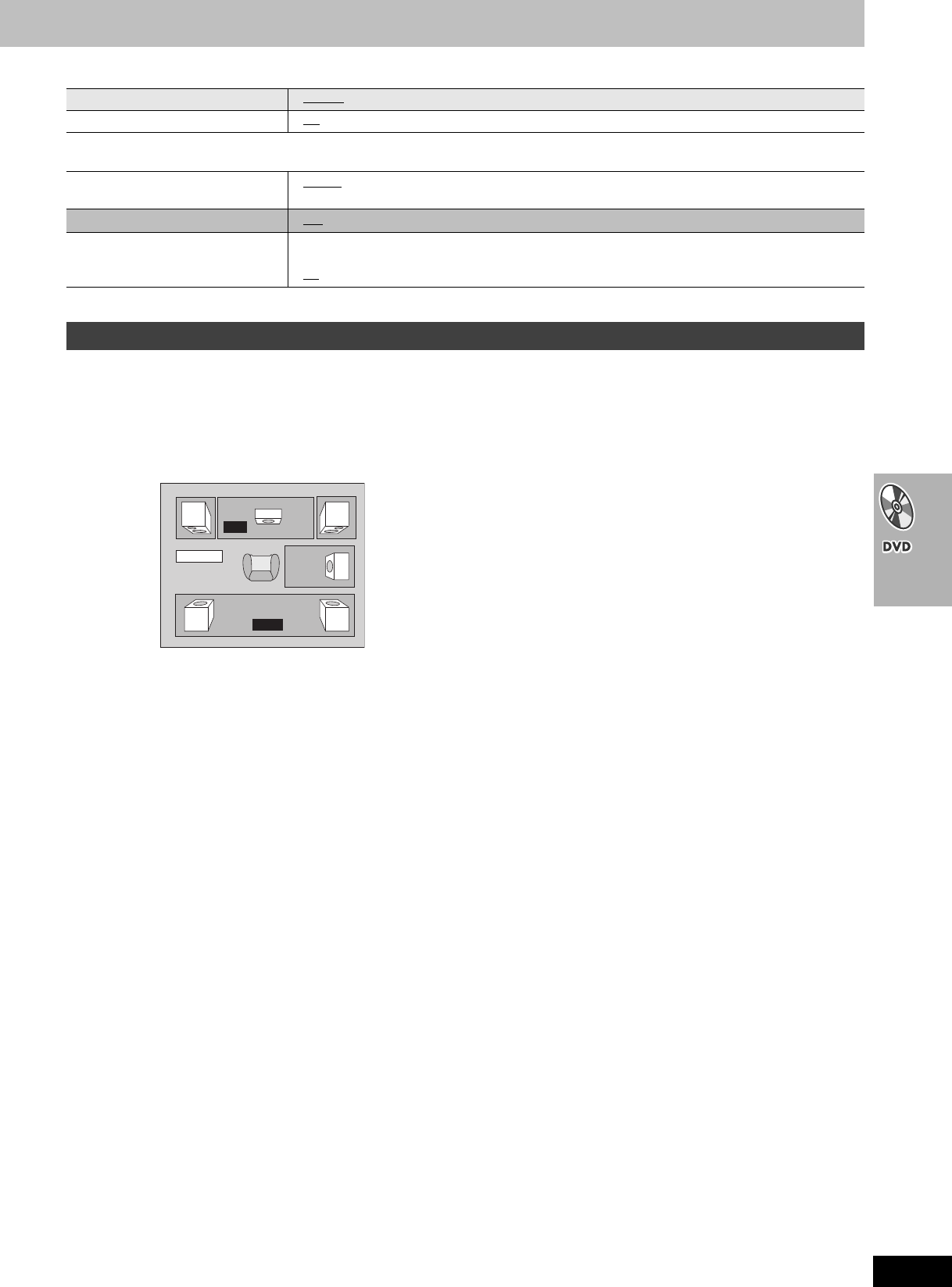
31
RQT7708
∫“Display” tab
∫
“Others” tab
(Effective when playing multi-channel audio)
For optimum listening with 5.1-channel sound, all the speakers,
except for the subwoofer, should be the same distance from the
seating position. If you have to place the center or surround
speakers closer to the seating position, adjust the delay time to
make up for the difference.
1 Press [34] to select the delay time box and press [ENTER].
2 Press [34] to adjust the delay time and press [ENTER].
If either distance a or b is
less than c, find the difference
in the relevant table and
change to the recommended
setting.
a Center speaker
b Surround speakers
To finish the speaker setting
Press [2] to select “Exit” and press [ENTER].
Menu Language ≥English ≥Français ≥Español
On-Screen Messages ≥On ≥Off
HighMAT ≥Enable
≥Disable (Unable to use the HighMAT function.)
QUICK SETUP ≥Yes ≥No
Re-initialize Setting
This returns all values in the Setup
menus to the default settings.
≥Yes: The password screen is shown if “Ratings” (➜page 30) are set. Please enter the same
password. After “INIT” on the display disappears, turn the unit off and on again.
≥No
Changing the delay time (Speaker Setting)
ms
ms
L
Exit
LS
R
SW
C
RS
0.02rTjq17 567.471195.0140271.27485738859 W n1 w cf2 8.164 5147946 m2 8.161195.0lET17.4858 576.4m17 567.478 576.405 1 558.391 688.1m5 1 558.3934 26519 lQeSBT98805 0 098818 55.393 5707941 Tm0 0rg/GS1 gs
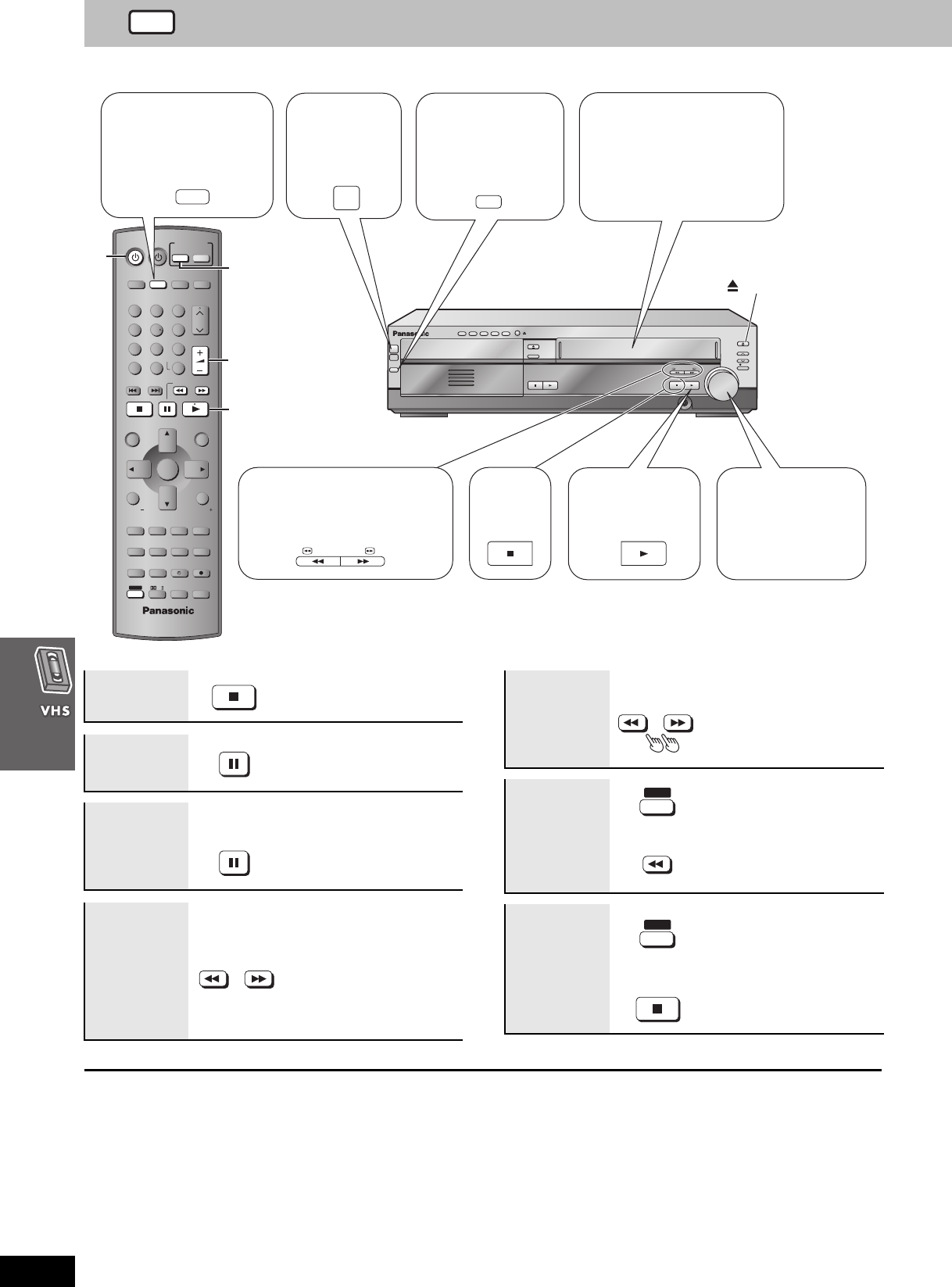
32
RQT7708
Playback
Turn on the television and select the appropriate video input for the VHS.
[Note]
≥Pause stops after 5 minutes. Cue, review and jet search restart to
play after 10 minutes.
≥The tape moves at high speed during fast-forward, rewind, and jet
rewind so the unit will make a noise. Also, it takes some time for the
tape to stop after you press [∫].
≥The picture during cue, review, and jet search may be disrupted or
otherwise affected on some televisions. During jet search at 35
times normal speed through EP or VP recordings, the picture may
scroll vertically on some televisions. Change to 27-times normal
speed if this occurs (➜page 42).
OPEN/CLOSE
EJECT
DISC CHANGE
DISC CHECK
INPUT
SELECTOR
REC
/REW FF/
STOP PLAY
DOWN
UP
PHONES
CH
VOLUME
STOP
DISC
DISC
1
2
3
4
5
1 2 3 4 5
PLAY
POWER
Í
/I
VOLUME
123
456
78
0
100
9
CH
NAVI
CANCEL
SPEEDPROG
SKIP SLOW/SEARCH
MENU
ENTER
DIRECT
NAVIGATOR
TOP MENU
RETURN
OSD/
DISPLAY
TV
FM/AMDVD/VHS
DVD TV
VHS TUNER
DISC 1 DISC 2 DISC 3
DISC 4
PICTURE MODE
SETUP
OPEN/CLOSE/EJECT JET REW CD MODE
DISC 5
S10
ENTER
PLAY
LIST
TV VOL
TV VOL
RESET
TV/VIDEO
PAGE
GROUP MIX 2CH
SUBTITLE REPEAT
PLAY MODE
MULTI RE-MASTER
SUBWOOFER LEVEL
C.S.M
SFC
C.FOCUS
SUPER SRND PROGRESSIVE
MUTING
POSITION
MEMORY ZOOM
QUICK REPLAY
REC
SLEEP
PL
AUDIO
TEST
CH SELECT
SHIFT
INPUT SELECTOR
-
DEMO
VHS
POWER
Í
/I
PLAY
INPUT
SELECTOR
/REW FF/
STOP
2
6
3
5
EJECT
2 Turn on
the unit.
4 Insert a tape.
Play starts automatically if you
insert a prerecorded tape or one
that has had its tab removed.
5 Start play.
3 Select
“VHS”.
1 Put the remote
control in VHS
mode.
Press to
–fast-forward and rewind
–cue and review.
Press twice to Jet search.
Stop 6 Adjust the
volume.
––dB
N
0dB
(Minimum)
(Maximum)
Stop
Pause
≥Press [1] (play) to start play.
Slow
Press and
hold
≥There is no sound.
Fast-forward
and rewind
(while stopped)
≥You can use fast-forward and
rewind after pressing [VHS]
while using another source.
Cue and
review
(during play)
≥There is no sound.
≥Press and hold during play.
Play restarts when you
release the button.
SLOW/SEARCH
Jet search
(during play)
Press twice ≥Press [1] (play) to start play.
≥There is no sound.
Jet rewind
(while stopped)
≥The tape counter does not
appear.
≥You can use jet rewind after
pressing [VHS] while using
another source.
Eject
≥You can eject tapes when
the unit is in standby mode. It
switches back to standby
mode once it ejects the tape.
≥You cannot eject tapes when
the unit is recording or in
timer recording standby
mode.
SLOW/SEARCH
SHIFT
JET REW
i
SHIFT
OPEN/CLOSE/EJECT
i
VHS
7708en.book 32 ページ 2004年2月14日 土曜日 午後3時24分
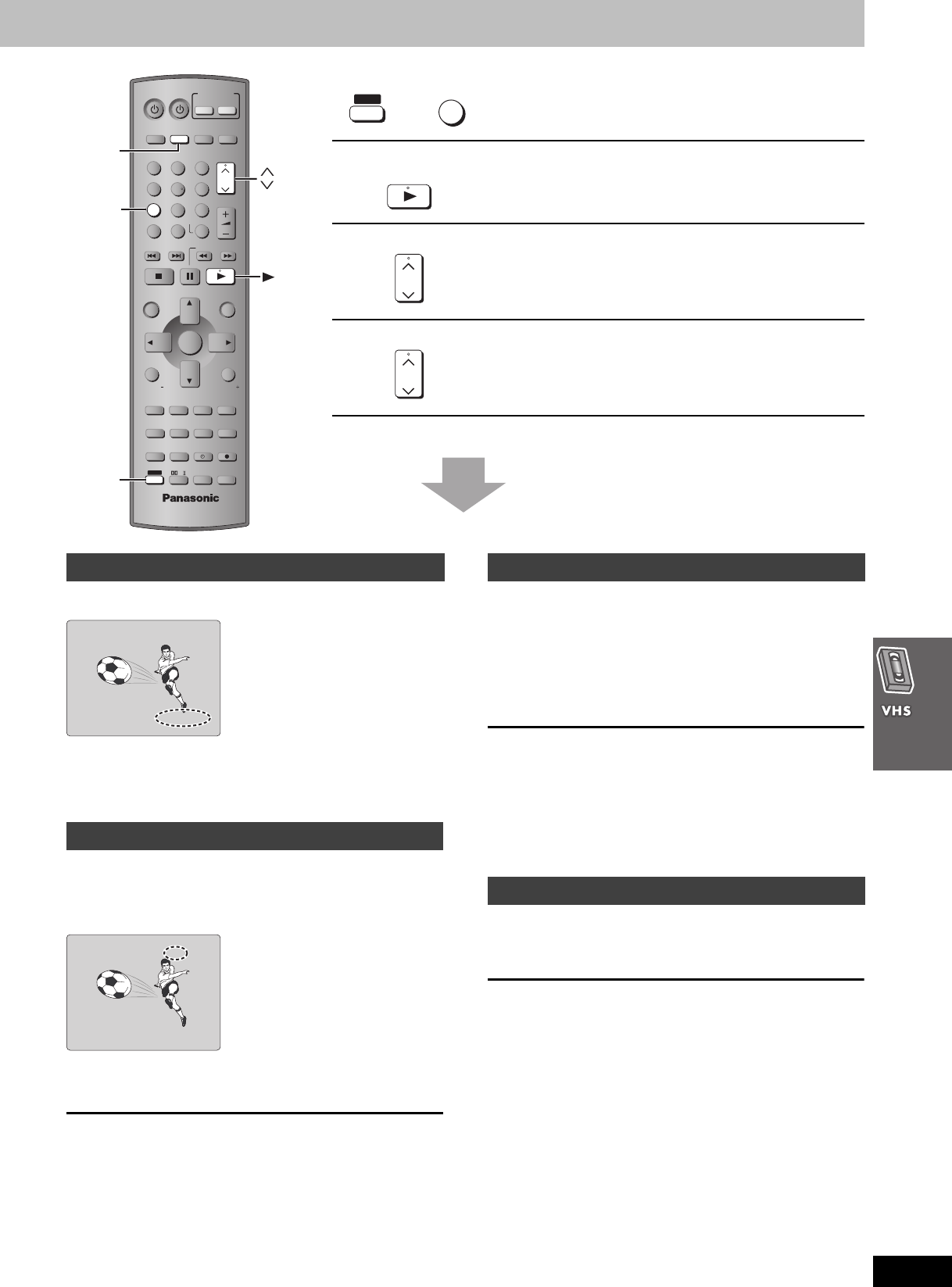
33
RQT7708
See below for details.
Press [SHIFT]i[PICTURE MODE].
Each time you do this:
STANDARD: for recordings of television program (Factory preset)
DYNAMIC: Clear, vivid pictures for scenery and sports
SOFT: for prerecorded tapes
Press and hold [1] (play) for about five
seconds.
“R1” appears on the television.
At the end of the program, the tape rewinds to the beginning of the
program and plays it again. (It only works if there is a five-second
blank at the end of the program.) This repeats until you cancel it.
To cancel
Press [1] (play).
≥It also cancels if you stop, pause, cue, or review.
This unit has an automatic digital tracking control feature that usually
makes tracking adjustments for you, but you may need to do it
manually, such as if noise appears on a tape recorded on other
equipment.
During play
Press [WCH] or [XCH].
Repeat until the noise disappears.
To return to automatic digital tracking control
Press [WCH] and [XCH] at the same time.
To remove the noise from a paused picture
Start slow play, then adjust the tracking.
[Note]
This may not be effective on some tapes.
While paused
Press [WCH] or [XCH].
Repeat until the jiggling stops.
To return to the previous condition
Press [WCH] and [XCH] at the same time.
[Note]
This may not work with some televisions. Try adjusting the vertical
on the television itself.
Picture mode
Changes the picture quality to suit the material you are playing.
Repeat play
Plays a program repeatedly.
Manual tracking
Adjusts the tracking manually.
Vertical locking adjustment
Adjusts the vertical hold to keep the picture from jiggling.
VOLUME
123
456
78
0
100
9
CH
NAVI
CANCEL
SPEEDPROG
SKIP SLOW/SEARCH
MENU
ENTER
DIRECT
NAVIGATOR
TOP MENU
RETURN
OSD/
DISPLAY
TV
FM/AMDVD/VHS
DVD TV
VHS TUNER
DISC 1 DISC 2 DISC 3
DISC 4
PICTURE MODE
SETUP
OPEN/CLOSE/EJECT JET REW CD MODE
DISC 5
S10
ENTER
PLAY
LIST
TV VOL
TV VOL
RESET
TV/VIDEO
PAGE
GROUP MIX 2CH
SUBTITLE REPEAT
PLAY MODE
MULTI RE-MASTER
SUBWOOFER LEVEL
C.S.M
SFC
C.FOCUS
SUPER SRND PROGRESSIVE
MUTING
POSITION
MEMORY ZOOM
QUICK REPLAY
REC
SLEEP
PL
AUDIO
TEST
CH SELECT
SHIFT
INPUT SELECTOR
SHIFT
VHS
PICTURE
MODE
CH
CH
SHIFT
7
PICTURE MODE
i
Press and hold
CH
CH
Picture mode
Repeat play
STANDARD
0:00.22
R1 SP 1
Manual tracking
Vertical locking adjustment
[Remember] Press [VHS] first.
7708en.book 33 ページ 2004年2月14日 土曜日 午後3時24分
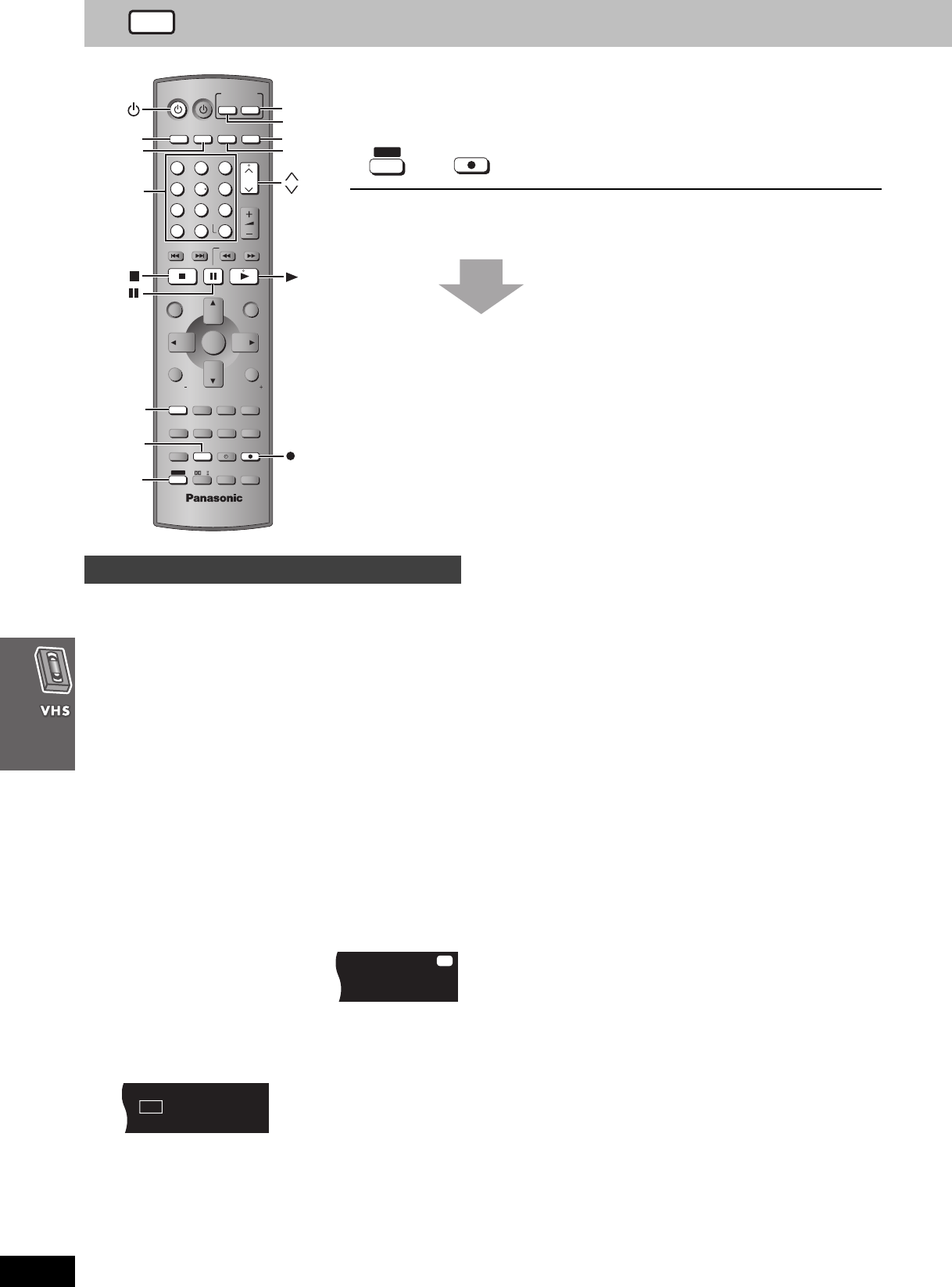
34
RQT7708
Manual recording
Preparation
Turn on the television and select the video input for the VHS.
See below for details.
1Press [VHS] to put the remote control
in VHS mode.
2Press [Í] to turn on the unit.
3Press [DVD/VHS] to select “VHS” as
the source.
4Insert the tape you want to record to.
Ensure its tab is in place (➜page 5).
5Select the channel with the numbered
buttons, [WCH] or [XCH].
≥To select with the numbered buttons:
e.g. channel 2: [0] ➜ [2]
channel 23: [2] ➜ [3]
channel 123: [100] ➜ [2] ➜ [3]
6Press [SPEED] to select the tape
speed.
SP>EP>VP
^""-""""b
7Press [SHIFT]i[¥REC] to start
recording.
“REC” lights on the unit’s display.
To stop recording
Press [∫].
To pause recording
Press [;].
Press it again or press [SHIFT]i[¥REC] to continue recording.
∫To specify a time to stop recording (➜page 48,
Sleep timer)
[Note]
≥You cannot change channels while recording. You can change
channels while paused.
≥The unit will automatically return to the stop mode after a pause of
5 minutes while recording.
≥Even if the tape you use is labeled “S-VHS”, the recordings you
make do not use this system.
≥You cannot record from the disc section to the unit.
∫Tape speeds
There are three tape speeds.
SP: You can record the length shown on the tape.
EP: Three times the length of SP mode.
VP: Five times the length of SP mode.
≥You cannot play tapes recorded with VP mode on other equipment.
≥It takes more time for automatic tracking to work when playing
tapes recorded with VP mode, and it may not work at all with some
tapes. Do tracking manually if this is the case (➜page 33).
≥This unit can play tapes recorded with LP mode on other
equipment (“LP” lights on the display).
Recording a program
VOLUME
123
456
78
0
100
9
CH
NAVI
CANCEL
SPEEDPROG
SKIP SLOW/SEARCH
MENU
ENTER
DIRECT
NAVIGATOR
TOP MENU
RETURN
OSD/
DISPLAY
TV
FM/AMDVD/VHS
DVD TV
VHS TUNER
DISC 1 DISC 2 DISC 3
DISC 4
PICTURE MODE
SETUP
OPEN/CLOSE/EJECT JET REW CD MODE
DISC 5
S10
ENTER
PLAY
LIST
TV VOL
TV VOL
RESET
TV/VIDEO
PAGE
GROUP MIX 2CH
SUBTITLE REPEAT
PLAY MODE
MULTI RE-MASTER
SUBWOOFER LEVEL
C.S.M
SFC
C.FOCUS
SUPER SRND PROGRESSIVE
MUTING
POSITION
MEMORY ZOOM
QUICK REPLAY
REC
SLEEP
PL
AUDIO
TEST
CH SELECT
SHIFT
INPUT SELECTOR
SHIFT
TV/VIDEO
DVD
VHS
SPEED REC
Numbered
buttons
DVD/VHS
TUNER
TV
FM/AM
CH
CH
SHIFT REC
i
Recording a program
SP EP
VP
REC
VHS
7708en.book 34 ページ 2004年2月14日 土曜日 午後3時24分
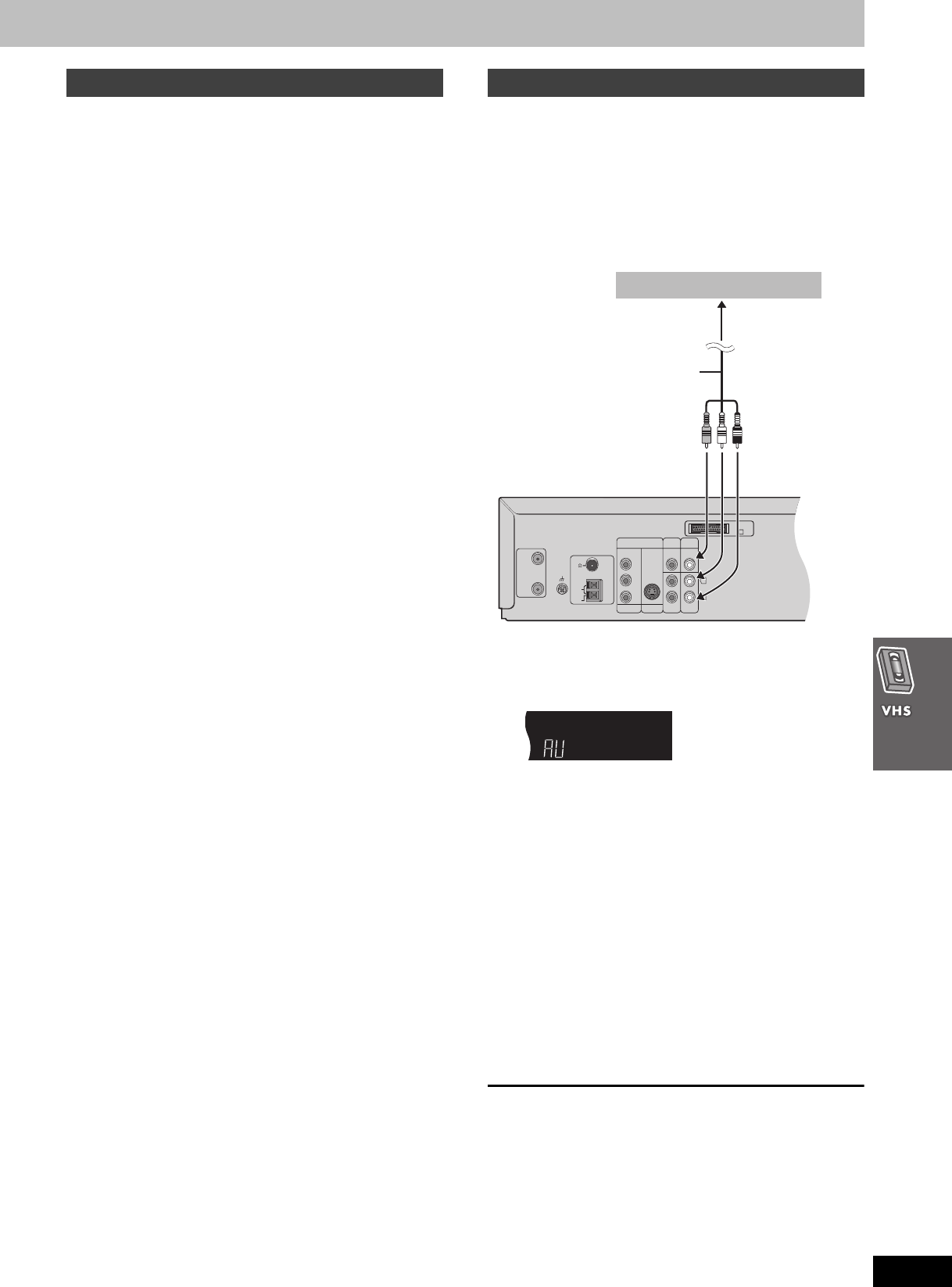
35
RQT7708
You can watch and listen to other content when the unit is in timer
recording standby or during VHS recording.
∫Television (➜page 18)
1 During recording
Press [TV] to put the remote control in TV mode.
2 Press [TV/VIDEO] then select the channel with the numbered
buttons, [WCH] or [XCH].
∫DVD (➜page 20)
1 During recording
Press [DVD] to put the remote control in DVD mode.
2 Press [DVD/VHS] to select “DVD/CD”.
3 Insert a disc and start play.
∫Radio (➜page 44)
1 During recording
Press [TUNER] to put the remote control in TUNER mode.
2 Press [FM/AM] to select the radio band.
3 Select the radio channel with the numbered buttons, [WCH] or
[XCH].
[Note]
When you want to operate the VHS section again, be sure to press
[VHS] to put the remote control in VHS mode.
You can record from other video equipment (video cassette recorder,
camera, etc.)
Preparation
≥Connect the equipment to this unit’s input terminals.
–Turn the unit off before making connections.
–If audio output on the other equipment is monaural, use a stereo-
monaural conversion cable (not included).
≥Insert the tape, ensuring its tab is in place and find the place to
start recording.
1Press [WCH] or [XCH] to select “AU”
channel.
2Press [1] (play) to find the place to
start recording.
3Press [;], then press
[SHIFT]i[¥REC] to put the unit in
recording standby mode.
4Press [SPEED] to select the tape
speed.
SP>EP>VP
^"""""""b
5Start play on the other equipment.
6Press [;] when you want to start
recording.
To stop
Press [∫].
∫To make a timer program to record from other
equipment (➜page 36)
Using another source while recording Recording from other equipment
Y
P
B
/C
B
P
R
/C
R
COMPONENT
VIDEO OUT
S-VIDEO
OUT
LINE
OUT
LINE
IN
VIDEO
OUT
DVD/
VHS
VIDEO
IN
EXTDVD
L
R
RF IN
RF OUT
LOOP
EXT
75
AM
ANT
FM
ANT
LOOP
ANT
GND
A
Audio/video cable
(not included)
To video and audio
out terminals
Other equipment (play)
[Remember] Press [VHS] first.
7708en.book 35 ページ 2004年2月14日 土曜日 午後3時24分
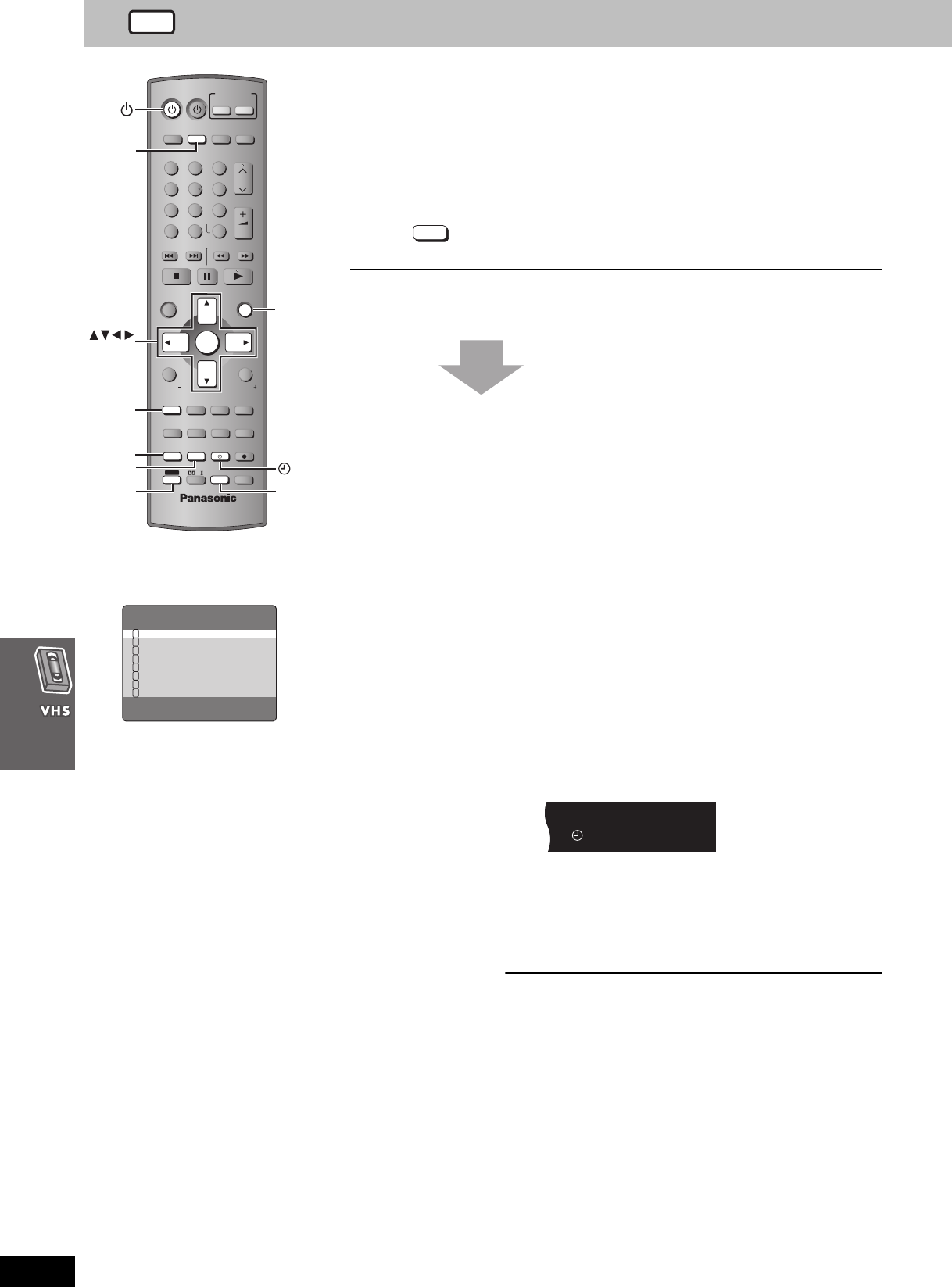
36
RQT7708
Timer recording
You can create up to 16 timer recording programs. You can set the timer to record an individual
program up to a month in advance, record at the same time on the same day every week, or at
the same time daily.
Preparation
≥Make sure the unit’s clock is correct (➜page 40 to adjust it if necessary).
≥Insert a tape, ensuring its tab is in place (➜page 5).
See below for details.
1While stopped, press [PROG].
The timer-programming screen appears.
2Press [PROG] to select an available
line and press [ENTER].
3Select “DATE” with [21] and change
it with [34].
The date changes as follows:
A.Current date
l;:
lNext day up to one month later minus one day
l;:
lWeekly timer: SU–SA > MO–SA > MO–FR
l;:
a.Daily timer: SU > MO > TU > WE > TH > FR > SA
4Select “CH” with [21] and change it
with [34].
Select “AU” when recording from other equipment
(➜page 35).
5Select “ON” with [21] and change
the start time with [34].
6Select “OFF” with [21] and change
the end time with [34].
7Press [SPEED] to change the tape
speed.
SP>EP>VP>A§
^"""""""-""b
§Auto SP/EP change function ➜page 37
8If the Jet Navigator is on (➜ page 38),
Select a category.
Press [1] to select a category column. Press [34] to enter
the category selection menu. Then select a category with
[3421], and confirm with [MENU].
You can also set and change the category in the navigator list
(➜page 39).
Repeat steps 2 to 8 to make further timer programs.
9Press [F] to put the unit on timer
recording standby.
“F” lights on the unit’s display.
10 Press [Í] to switch the unit to
standby.
The timer recording works whether the unit is on or not, so
you can play DVDs or listen to the radio (➜page 35). Switch
the unit to standby if you are finished.
To cancel the selected line
Press [SHIFT]i[RESET].
To release the unit from timer recording standby
Press [F].
To stop recording
Press [F].
Timer recording
VOLUME
123
456
78
0
100
9
CH
NAVI
CANCEL
SPEEDPROG
SKIP SLOW/SEARCH
MENU
ENTER
DIRECT
NAVIGATOR
TOP MENU
RETURN
OSD/
DISPLAY
TV
FM/AMDVD/VHS
DVD TV
VHS TUNER
DISC 1 DISC 2 DISC 3
DISC 4
PICTURE MODE
SETUP
OPEN/CLOSE/EJECT JET REW CD MODE
DISC 5
S10
ENTER
PLAY
LIST
TV VOL
TV VOL
RESET
TV/VIDEO
PAGE
GROUP MIX 2CH
SUBTITLE REPEAT
PLAY MODE
MULTI RE-MASTER
SUBWOOFER LEVEL
C.S.M
SFC
C.FOCUS
SUPER SRND PROGRESSIVE
MUTING
POSITION
MEMORY ZOOM
QUICK REPLAY
REC
SLEEP
PL
AUDIO
TEST
CH SELECT
SHIFT
INPUT SELECTOR
PROG
RESET
SHIFT
SPEED
VHS
MENU
CANCEL
ENTER
PROG
PROG.:ENTER END:MENU
DATE CH ON OFF 1/2
27WE 2 8:02
PM
9:30
PM
SP
SU-SA 125
10
:30
AM
11
:00
AM
A
SU 14 3:00
PM
4:00
PM
EP
19TU 5
10
:15
PM
11
:30
PM
VP
28TH AV 8:02
PM
9:30
PM
SP
30SA 4 7:10
PM
7:55
PM
VP
–––– –– –:–– –:––
–––– –– –:–– –:––
1
2
3
4
5
6
7
8
VHS
7708en.book 36 ページ 2004年2月14日 土曜日 午後3時24分
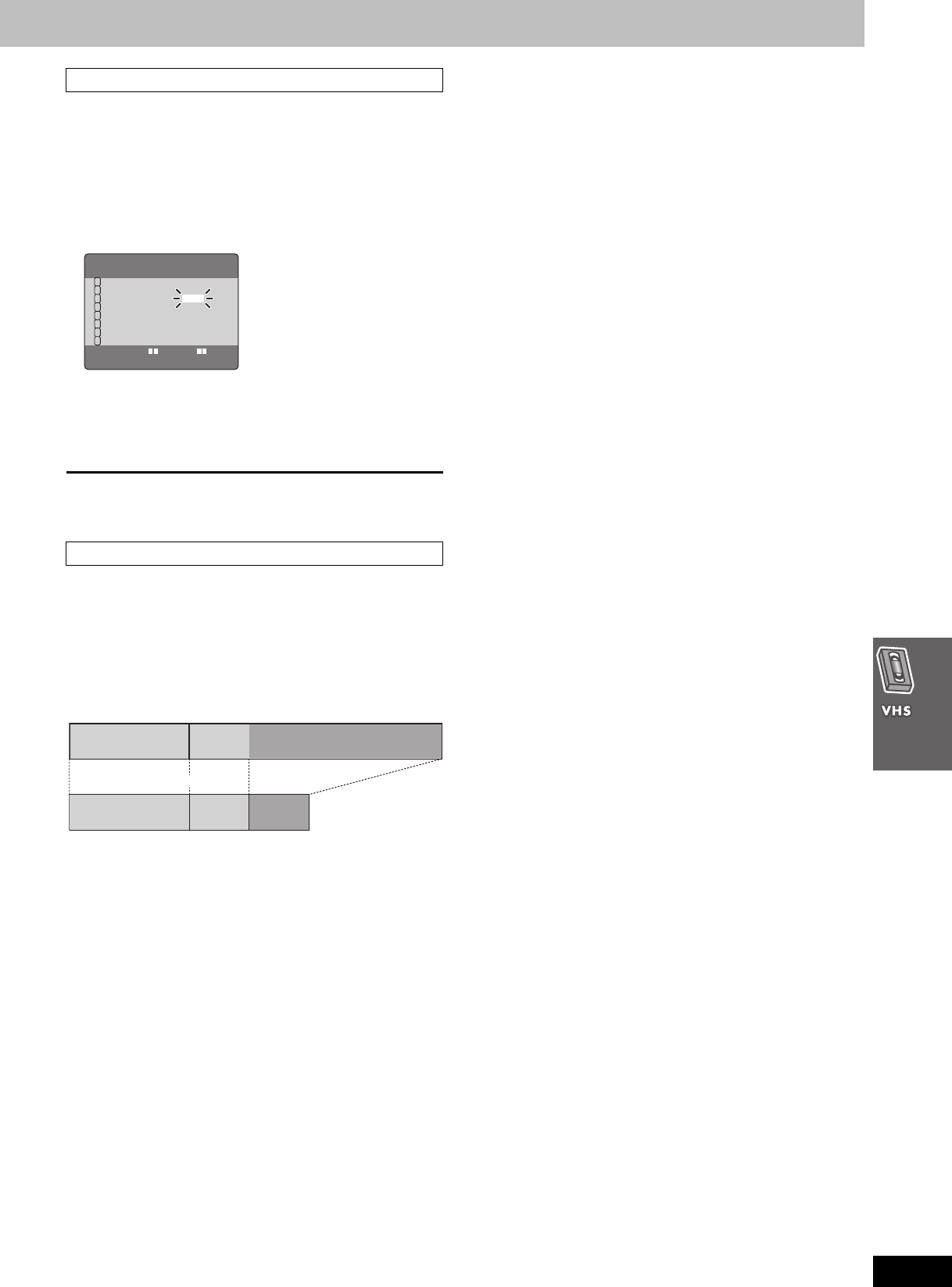
37
RQT7708
∫To check a program
Press [PROG].
The timer-programming screen appears.
∫To correct a program
While the timer programming screen is on the television,
1 Press [PROG] to highlight the program you want to correct and
press [ENTER].
2 Select the item with [21] and correct it with [34].
∫To cancel a program
While the timer programming screen is on the television,
1 Press [PROG] to highlight the program you want to cancel.
2 Press [CANCEL].
To clear the timer programming screen
Press [MENU].
The unit switches tape speed to EP if it determines there is not
enough tape to record the entire program in SP mode. The change
may start at the beginning of the recording or part way through,
depending on the remaining tape.
Before using this function, set the length of the tape you are using
(➜page 42). It may not work correctly if you use tapes with irregular
lengths.
[Note]
This function does not guarantee recording of the entire program.
To check, correct, and cancel timer programs
Auto SP/EP change
DATE CH ON OFF 1/2
27WE 2 8:02
PM
9:30
PM
SP
SU-SA 125
10
:30
AM
11
:00
AM
A
SU 14 3:00
PM
4:00
PM
EP
19TU 5
10
:15
PM
11
:30
PM
VP
28TH AV 8:02
PM
9:30
PM
SP
30SA 4 7:10
PM
7:55
PM
VP
–––– –– –:–– –:––
–––– –– –:–– –:––
1
2
3
4
5
6
7
8
SELECT : s/r:34
2 1
1st program
(30 min.) 2nd program (60 min.)
Example program combination
Example program combination
30 min. at SP 15 min.
at SP 45 min.
at EP (when using a 60-min.
tape)
[Remember] Press [VHS] first.
7708en.book 37 ページ 2004年2月14日 土曜日 午後3時24分
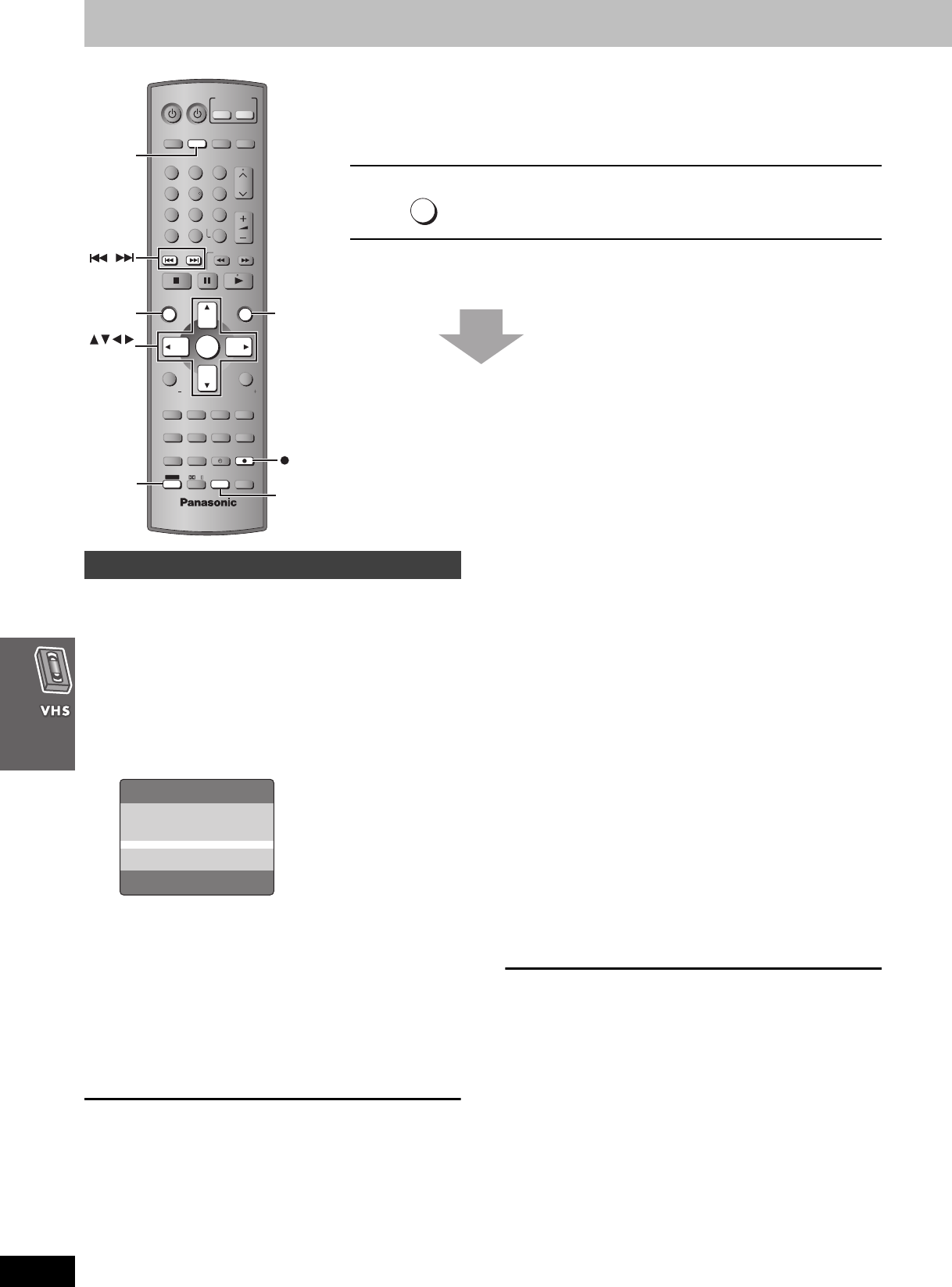
38
RQT7708
Finding programs with the Jet Navigator and VHS Index Search System (VISS)
The unit saves the date, channel, time, and category of the recordings you make and shows
them on the Jet Navigator list, making it easier to find and play them. It can save the data for up
to 14 recordings on a tape, for 20 different tapes, and for a total of 50 recordings.
See below for details.
1Press [MENU] to display the “VHS
MENU” screen.
2Press [34] to select “OPTION” menu
and press [ENTER].
3Press [34] to select “JET
NAVIGATOR” and press [21] to
change the setting to “ON”.
4Press [34] to select “TAPE
SELECT” and press [21] to set the
length of the tape you are using.
T120: T30, T60, T90, T120 tapes
T160: T140, T160 tapes
T180: T180 tapes
5Record programs (➜pages 34–36).
The unit makes the list as you record.
To exit the settings screen
Press [MENU] until the screen disappears.
1Press [NAVI] to show the “JET
NAVIGATOR” screen.
2Press [NAVI] to highlight the program
you want to watch.
The most recent program is highlighted first.
Once you have highlighted the program, wait about three seconds.
The unit then starts searching for the program and starts play.
The channel, date, and time of a recording appear on the television
when play starts.
To clear the Jet Navigator list
Press [MENU].
∫To delete the Jet Navigator on a video cassette
tape
Keep [CANCEL] pressed for more than 5 seconds while the Jet
Navigator list appears. “- -” appears on the list.
∫To delete all the Jet Navigator data stored in the
unit’s memory (➜page 42).
Saving Jet Navigator data
Using the Jet Navigator to find programs
VOLUME
123
456
78
0
100
9
CH
NAVI
CANCEL
SPEEDPROG
SKIP SLOW/SEARCH
MENU
ENTER
DIRECT
NAVIGATOR
TOP MENU
RETURN
OSD/
DISPLAY
TV
FM/AMDVD/VHS
DVD TV
VHS TUNER
DISC 1 DISC 2 DISC 3
DISC 4
PICTURE MODE
SETUP
OPEN/CLOSE/EJECT JET REW CD MODE
DISC 5
S10
ENTER
PLAY
LIST
TV VOL
TV VOL
RESET
TV/VIDEO
PAGE
GROUP MIX 2CH
SUBTITLE REPEAT
PLAY MODE
MULTI RE-MASTER
SUBWOOFER LEVEL
C.S.M
SFC
C.FOCUS
SUPER SRND PROGRESSIVE
MUTING
POSITION
MEMORY ZOOM
QUICK REPLAY
REC
SLEEP
PL
AUDIO
TEST
CH SELECT
SHIFT
INPUT SELECTOR
NAVI
VHS
MENU
CANCEL
ENTER
SHIFT
REC
NAVI
Saving Jet Navigator data
OPTION 1/2
OSD ON OFF
TAPE SELECT
T120 T160 T180
BLUE BACK ON OFF
JET NAVIGATOR ON OFF
DELETE NAVIDATA NO YES
JET SEARCH x27 x35
SELECT : s/r:
END :MENU
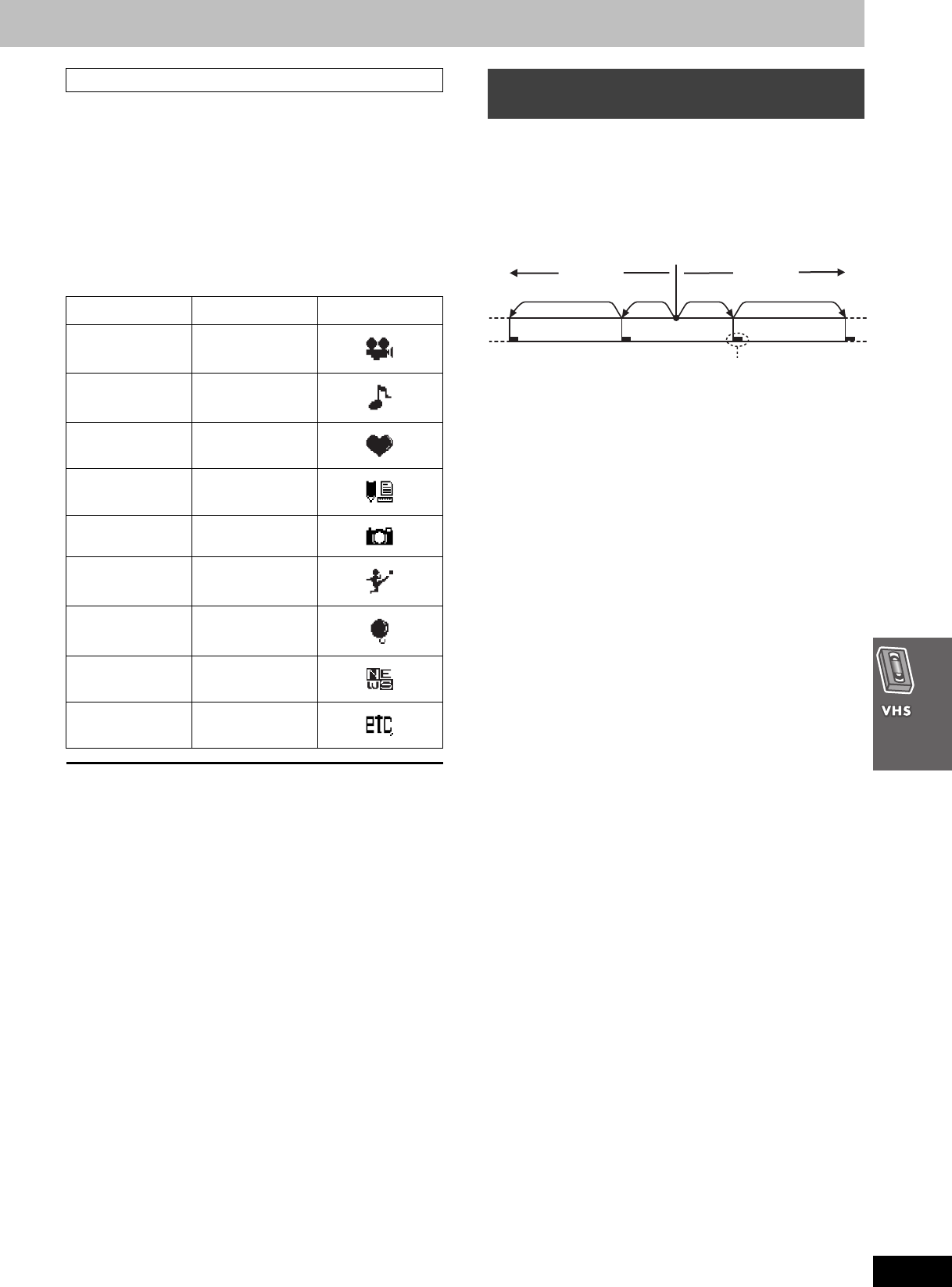
39
RQT7708
Set categories to make it easier to see what kind of programs are in
the list.
1Press [1] (cursor) while the program
you want to categorize is highlighted.
2Press [3421] to select a category
and press [MENU] to confirm and
return to the previous screen.
To return to the Jet Navigator list
Press [MENU].
[Note]
≥If you have already stored 14 programs on a tape and you then
store another one, the new item is added and the oldest is deleted.
≥“REMAINING PROGRAM 0 DELETE JET NAVIGATOR DATA”
appears when you try to store more than fifty programs. The new
item is added and the oldest item is deleted.
≥“REMAINING CASSETTE 0 FOR JET NAVIGATOR DATA”
appears when you try to store items for more than 20 tapes. Delete
all the Jet Navigator data in the unit if you want to save the data for
the tape (➜page 42).
≥The list does not appear when playing tapes recorded on other
equipment.
≥Parts of the list data are recorded on the tape. Take care when
recording over older recordings that you do not overlap it. It is
recorded within a few minutes either side of the beginning of the
recording (longer if you used EP or VP).
To demonstrate the Jet navigator function
Keep [NAVI] pressed for more than 5 seconds without inserting a
cassette tape.
Use the index marks on a tape to find sections to play.
The unit adds index marks when recording starts. To add them
manually during recording, press [SHIFT]i[¥REC].
While stopped or during play
Press [:] (backward) or [9] (forward)
to skip to the part you want to play.
The channel, date, and time of a recording appear on the television
when play restarts.
≥Up to 20 index signals can be searched for in both directions.
≥You can reduce the number of skips by pressing the opposite
button.
≥This feature may not work correctly if the marks are too close
together. Make recordings of at least 15 minutes (25 minutes in VP
mode).
Setting categories
Category Indication Icon
Movie MOVIE
Music MUSIC
Drama DRAMA
Education EDUCA
Documentary DOCUM
Sports SPORT
Children CHILD
News NEWS
Others OTHER
Finding programs—VHS Index Search
System (VISS)
[:][9]
Index mark
Program Program Program
twice twiceonce once
[Remember] Press [VHS] first.
7708en.book 39 ページ 2004年2月14日 土曜日 午後3時24分
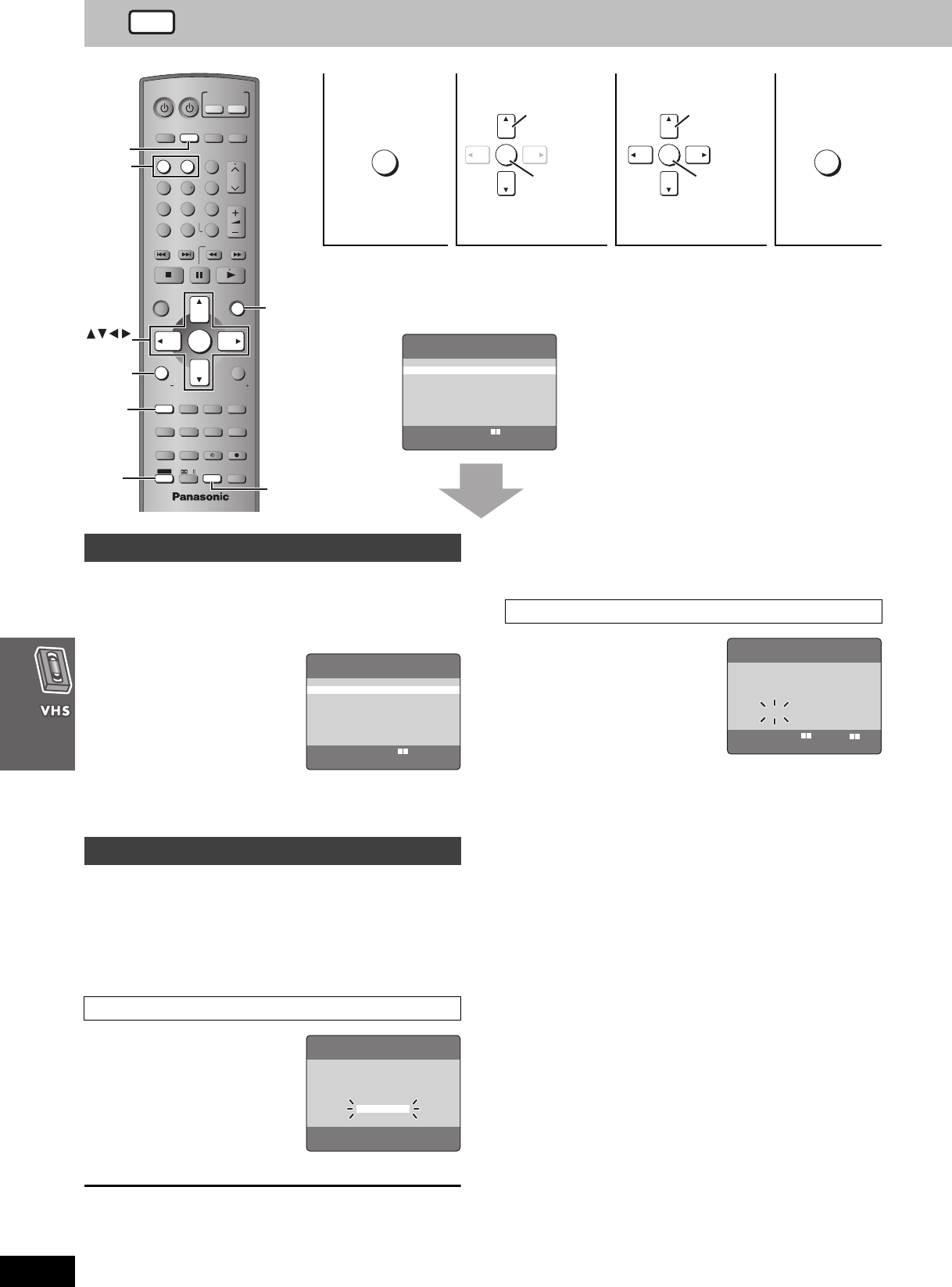
40
RQT7708
Changing settings
≥The settings remain intact even if you switch the unit to standby.
See below and the following pages for details
(while VHS MENU is displayed).
Select the language for these menus and other on screen displays.
1Press [34] to select “LANGUAGE”
and press [ENTER].
2Press [34] to
choose the
preferred
language.
≥ENGLISH (Factory preset)
≥ESPAÑOL
≥FRANÇAIS
Press [MENU] to confirm and return to the previous screen.
The clock is set automatically after Plug-in Auto Tuning (➜page 17).
Do the following if you want to set it again or if the time is not set
correctly.
1Press [34] to select “CLOCK SET”
and press [ENTER].
2Press [34] to
select “AUTO
CLOCK SET” and
press [ENTER].
Auto setting starts. This can take
some time.
To stop partway through
Press [MENU].
∫If the unit cannot set the clock automatically
The MANUAL CLOCK SET screen appears. Set the time manually
(➜below).
2Press [34] to
select “MANUAL
CLOCK SET” and
press [ENTER].
3Press [21] to
select the item you
want to change and press [34] to
change the setting.
≥D.S.T.: Daylight Saving Time
4Press [MENU] to start the clock and
exit the setting screen.
∫Time reset function
To return the clock to the exact hour, wait until the clock in the
MANUAL CLOCK SET screen is within 2 minutes either side of the
hour (e.g., between 11:58:00 and 12:01:59) press [MENU] to clear
the screen. The clock changes to the exact hour.
1234
Shows VHS
MENU. Select the item. Make the settings. Press to exit.
VOLUME
123
456
78
0
100
9
CH
NAVI
CANCEL
SPEEDPROG
SKIP SLOW/SEARCH
MENU
ENTER
DIRECT
NAVIGATOR
TOP MENU
RETURN
OSD/
DISPLAY
TV
FM/AMDVD/VHS
DVD TV
VHS TUNER
DISC 1 DISC 2 DISC 3
DISC 4
PICTURE MODE
SETUP
OPEN/CLOSE/EJECT JET REW CD MODE
DISC 5
S10
ENTER
PLAY
LIST
TV VOL
TV VOL
RESET
TV/VIDEO
PAGE
GROUP MIX 2CH
SUBTITLE REPEAT
PLAY MODE
MULTI RE-MASTER
SUBWOOFER LEVEL
C.S.M
SFC
C.FOCUS
SUPER SRND PROGRESSIVE
MUTING
POSITION
MEMORY ZOOM
QUICK REPLAY
REC
SLEEP
PL
AUDIO
TEST
CH SELECT
SHIFT
INPUT SELECTOR
VHS
MENU
ENTER
OSD/
DISPLAY
RESET
SHIFT AUDIO
[1], [2]
MENU
ENTER
Select
Register
ENTER
Select
Register
MENU
VHS MENU
LANGUAGE
CLOCK SET
CHANNEL SET
OPTION
SELECT: : , ENTER
END :MENU
3 4
≥
LANGUAGE
CLOCK SET
AUTO CLOCK SET
LANGUAGE
ENGLISH
ESPAÑOL
FRANÇAIS
SELECT: :
END :MENU
3 4
≥
AUTO CLOCK SET
AUTO CLOCK SETTING
IN PROGRESS.
PLEASE WAIT.
CANCEL:MENU
MANUAL CLOCK SET
MANUAL CLOCK SET
Y M D H:M
2003 1 1 12:00
AM
D. S. T. : YES NO
SELECT : s/r:
START :MENU
2 1
≥
34
VHS
7708en.book 40 ページ 2004年2月14日 土曜日 午後3時24分
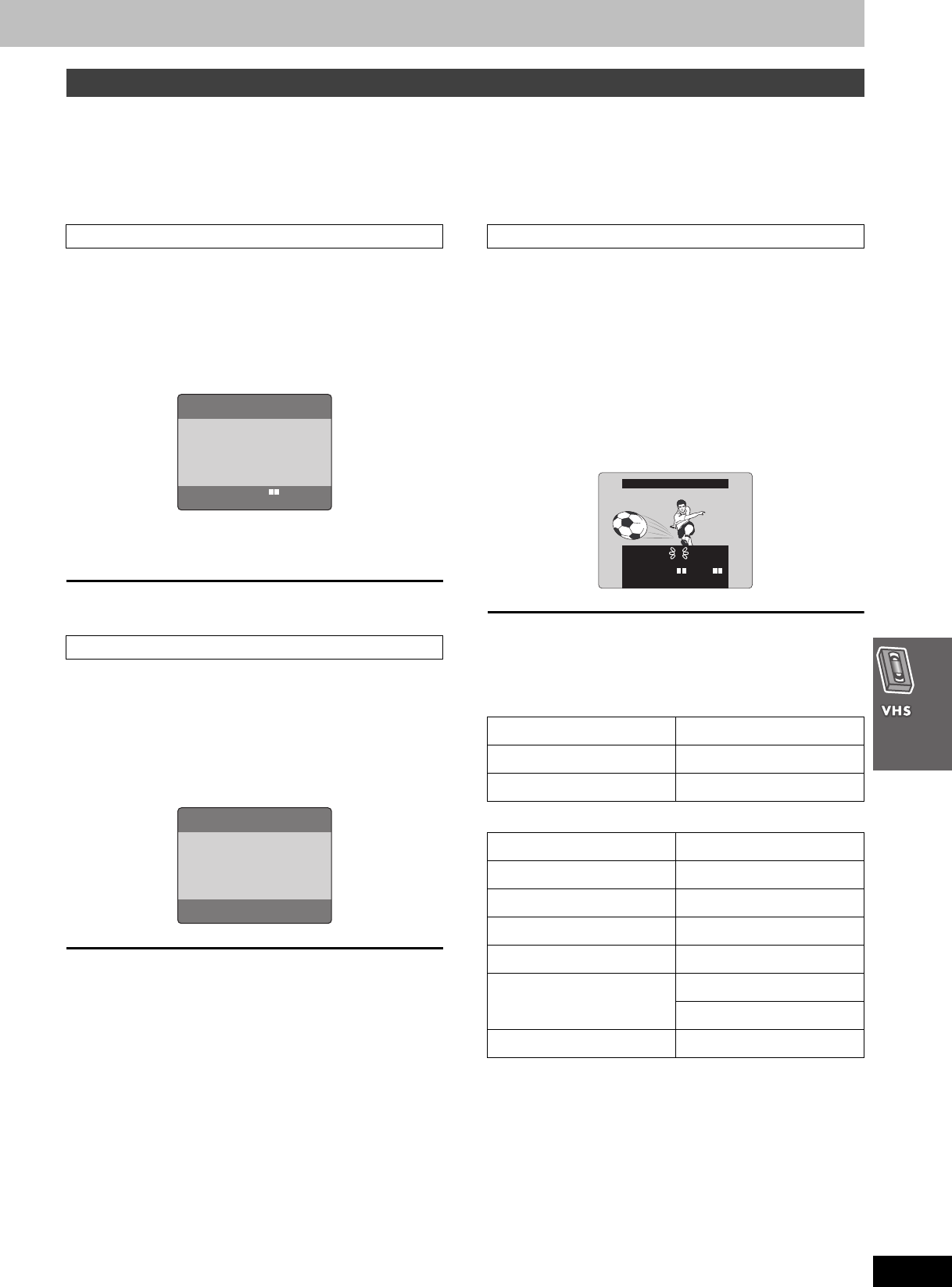
41
RQT7708
The unit tunes automatically after you plug it in and turn it on for the first time (➜page 17, Plug-in Auto Tuning), but you can start the process
again if necessary.
≥Make sure you have tuned to a television channel. This does not work if you have selected “AU” channel.
1While VHS MENU is displayed (➜page 40)
Press [34] to select “CHANNEL SET” and press [ENTER].
2Press [34] to select “ANTENNA
SYSTEM” and press [ENTER].
3Press [34] to select “TV” or “CATV”
to suit the type of antenna you are
using.
Channels are set corresponding to the antenna system you select.
This is set automatically when you do Plug-in Auto Tuning.
To exit the settings screen
Press [MENU] until the screen disappears.
Auto tuning searches for TV stations and memorizes every tuned
program position. Other program positions are skipped. (Channel
range ➜right)
2Press [34] to select “AUTO” and
press [ENTER].
Auto tuning starts. It takes three or more minutes to complete.
To stop partway through
Press [MENU].
You can manually preset channels that are skipped when using the
auto channel setting, and manually skip channels that are preset.
2Press [34] to select “MANUAL” and
press [ENTER].
3Press [34] to select “CH” and [21]
to select the channel.
4Press [34] to select “BLANK” and
[21] to select “ON” or “OFF”.
To exit the settings screen
Press [MENU] until the screen disappears.
∫Channel range
≥TV mode
≥CATV mode
CHANNEL SET
ANTENNA SYSTEM
AUTO
ANTENNA SYSTEM
≥TV
CATV
SELECT: :
END :MENU
3 4
AUTO CHANNEL SET
PROCEEDING
END :MENU
2
MANUAL
Band Airwaves
VHF 2–13
UHF 14–69
Band Cable
VHF 2–13
CATV LOW BAND 95–99
CATV MID/SUPER BAND 14–36
CATV HYPER BAND 37–65
ULTRA BAND 66–94
100–125
SPECIAL CATV CHANNEL 1
MANUAL CHANNEL SET
CH
BLANK
SELECT
END :MENU
2
ON OFF
: s/r:
34 2 1
¥
[Remember] Press [VHS] first.
7708en.book 41 ページ 2004年2月14日 土曜日 午後3時24分
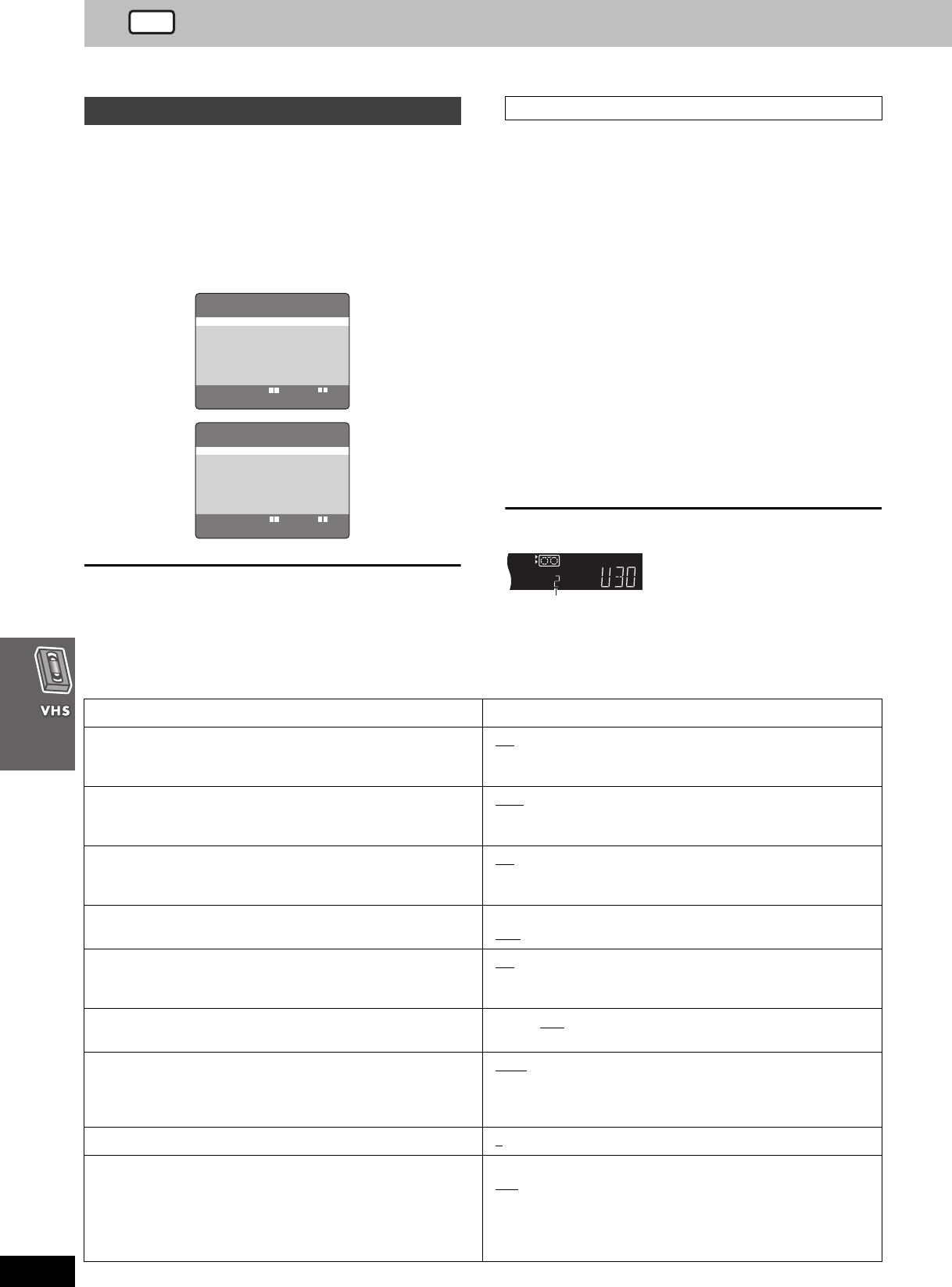
42
RQT7708
Changing settings
Refer to the remote control illustration on page 40.
1While VHS MENU is displayed (➜page 40)
Press [34] to select the “OPTION”
and press [ENTER].
2Press [34] to select the item and
press [21] to change the setting
(➜below).
To exit the settings screen
Press [MENU] until the screen disappears.
Panasonic video cassette recorders use the same remote control
system so they may respond unintentionally to a command from this
remote control. Change the code on this unit and its remote control
(the two must match) if you place another Panasonic video cassette
recorder close together.
≥Use “1”, the factory preset, under normal circumstances.
1While OPTION menu is displayed
Press [34] to select the “REMOTE
CONTROL”.
2Press [21] to select the code (1 or 2)
and press [MENU].
The remote control code on the unit has been set.
3While pressing [ENTER] on the remote
control, press and hold the numbered
button ([1] or [2]) corresponding to the
code you selected in step 2.
The remote control code on the remote control has been set.
The following is displayed when you use a remote control with the
different code.
The unit’s remote control code
Change its code to match the unit’s (➜step 3).
OPTION
OPTION 1/2
OSD ON OFF
TAPE SELECT
T120 T160 T180
BLUE BACK ON OFF
JET NAVIGATOR ON OFF
DELETE NAVIDATA NO YES
JET SEARCH x27 x35
SELECT : s/r:
END :MENU
2 1
≥
≥
≥
≥
≥
≥
OPTION 2/2
MTS MAIN SAP MONO
REMOTE CONTROL 1 2
DISPLAY
BRIGHT DIM OFF
SELECT : s/r:
END :MENU
2 1
≥
≥
34
34
≥
REMOTE CONTROL
Items Settings (Underlined items are the factory preset.)
OSD (➜page 43, On-screen display) ON: Messages appear on the television for about five seconds
after you perform operations.
OFF: Messages do not appear.
TAPE SELECT
Set the length of tape you are using so the unit can show the correct
remaining time.
T120: T30, T60, T90, T120 tapes
T160: T140, T160 tapes
T180: T180 tapes
BLUE BACK ON: The screen shows a blue background when you play
unrecorded portions.
OFF
JET NAVIGATOR (➜page 38) ON: Jet Navigator data automatically registered.
OFF: Data not registered.
DELETE NAVIDATA
Delete all the Navigation data registered in the unit.
See page 38 to delete data on a single tape.
NO
YES: Then press [ENTER] when you want to delete all the Jet
navigator data.
JET SEARCH (➜page 32)
Set the speed for JET SEARCH when playing EP and VP tapes.
a27 a35
Select a27 if the picture is poor at a35.
MTS (➜page 43, Changing audio)
Set the MTS (Multi-channel Television Sound Stereo) reception
type.
MAIN: To receive stereo broadcasts.
SAP: To receive SAP when being broadcast.
MONO:To receive monaural broadcasts (e.g., when reception is
poor).
REMOTE CONTROL 12
DISPLAY
Set the brightness of the unit's display when the unit is in standby
mode.
BRIGHT: The display is bright all the time.
DIM: The display dims when the unit is in standby mode.
OFF: The display turns off when the unit is in standby mode.
≥When Demo function is on, the display does not turn off even if
“OFF” is selected. Select “DEMO OFF” to reduce power
consumption (➜page 16).
VHS
7708en.book 42 ページ 2004年2月14日 土曜日 午後3時24分
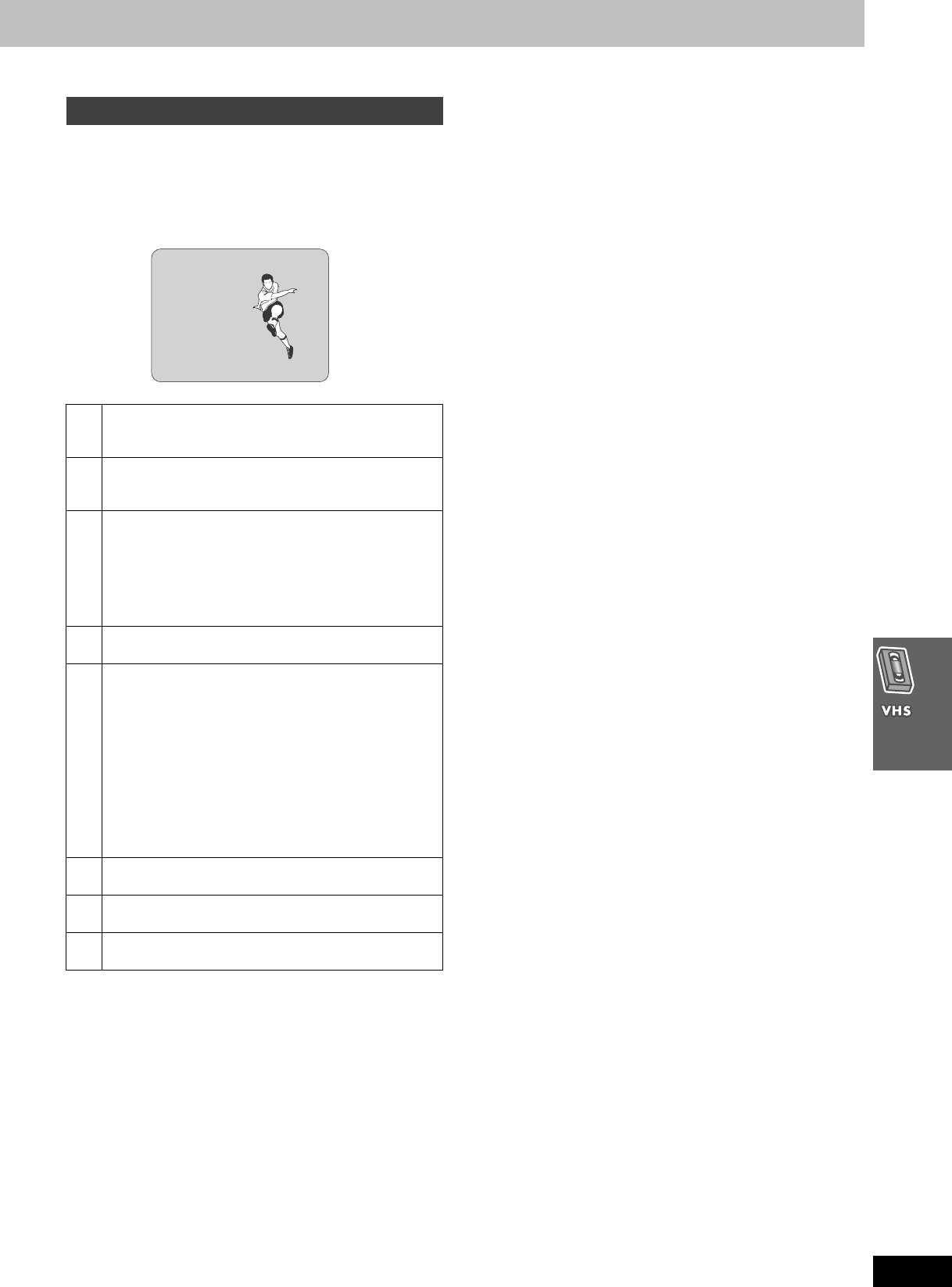
43
RQT7708
Refer to the remote control illustration on page 40.
To see these displays, set the OSD item in the OPTION menu to ON.
Press [OSD/DISPLAY].
The time and operation details appear on the screen for about 5
seconds.
[Note]
≥These displays do not appear when paused or during slow play.
≥The on-screen display may be disturbed depending on the
playback tape or the input signal.
When a stereo and/or SAP broadcast is received, “STEREO” and/or
“SAP” appear showing the type of broadcast.
To change the audio
Press [SHIFT]i[AUDIO].
The audio changes as follows:
≥When playing a tape:
LR>L>R>Monaural audio track
^""""""""-""""b
≥While watching the television:
LR>L>R
^"""-"b
The table below shows the TV broadcast type, “MTS” settings, and
audio recording patterns.
Be sure that “MTS” is set to “MAIN” or “SAP” to record on the Hi-Fi
audio tracks.
[Note]
≥Switch to “MONO” for viewing or recording if a stereo or SAP
broadcast is impaired by poor reception.
≥To resume stereophonic recording, set “MTS” to “MAIN” or “SAP”.
When you play back recordings of stereo or SAP broadcasts, these
audio types are automatically selected. The unit may select a
different type if you start play midway through the program. Press
[SHIFT]i[AUDIO] to change the type if this occurs.
This function does not work if:
–The tape was recorded on a deck without this system.
–The tape is a recording from external equipment.
On-screen display
1Channel display
Displays the cable television channel or television
channel currently being received.
2STEREO/SAP indication
Indicates when a program is broadcast in stereo or SAP.
➜right for audio type details.
3L and R indicators
The Left (L) and Right (R) indicators show which sound
mode is selected as follows:
Stereo: Both the L and R indicators appear.
L: The L indicator appears.
R: The R indicator appears.
Normal: Neither the L and R indicator appears.
4Tape running display
Shows operations taking place.
5Shows the time and tape counter
Press [OSD/DISPLAY].
The display changes as follows.
Present time>Tape counter>Remaining tape time
^""""""""""""""""""b
Using index search: “S 01” to “S 20” is displayed.
Using jet rewind: “J.REW” is displayed.
≥Press [SHIFT]i[RESET] to reset the tape counter
(elapsed time) to “0:00.00”.
≥The remaining time is approximate. It will be incorrect if
you set the wrong tape time in the TAPE SELECT item
in the OPTION menu and if the tape is of poor quality.
6Cassette in indicator
Shows whether you have loaded a cassette.
7Tape speed indicator
(➜page 34)
8Picture mode indicator
(➜page 33)
CH 1
STEREO
L R
0:00.22
1 SP 1
STANDARD

44
RQT7708
The radio
Press [TUNER] to put the remote control in TUNER mode.
Up to 15 stations can each be set in the FM and AM bands.
1Press [FM/AM] to select “FM”.
2Press [6] or [5] to tune to the
lowest frequency (“FM 87.9” MHz or
“FM 87.5” MHz).
3Press and hold [ENTER].
Release the button when “AUTO” is displayed.
The tuner presets all the stations it can receive into the
channels in ascending order.
≥“SET OK” is displayed when the stations are set. The last
station to be set is then played.
4Repeat steps 1 to 3 to set the AM
bands (the lowest frequency is
“AM 520” kHz).
1Press [FM/AM] to select “FM” or
“AM”.
2Press [6] or [5] to select the
frequency.
Press and hold [6] or [5] until the frequency starts
scrolling to start automatic tuning. Tuning stops when a station
is found.
1Tune to the station (➜above).
2Press [ENTER].
3While “PGM” is flashing on the display
Press the numbered buttons to select
a channel.
Alternatively, press [WCH] or [XCH] then press [ENTER].
The station occupying a channel is erased if another station is preset
to that channel.
1Press [FM/AM] to select “FM” or “AM”.
2Press the numbered buttons to select
the channel.
Alternatively, press [WCH] or [XCH].
To select a 2-digit number
e.g. 12: [S10] ➜ [1] ➜ [2].
When a stereo FM broadcast is being received.
∫If noise is excessive in FM
Press [PLAY MODE] to display “MONO”.
Press [PLAY MODE] again to cancel the
mode.
The mode is also canceled when you
change the frequency.
∫FM frequency step
Main unit only
The step is factory-set to 0.2 MHz, but you can change it to receive
broadcasts allocated in 0.1-MHz steps.
1 Press [INPUT SELECTOR] on the main unit to select “FM”.
2 Press and hold [INPUT SELECTOR].
After a few seconds the display changes to show the current
minimum frequency. Continue to hold the button down. The
minimum frequency changes and the step is changed.
To return to the original step, repeat the above steps.
[Note]
Any FM/AM frequencies preset in channels will be changed by this
procedure. Preset them again.

45
RQT7708
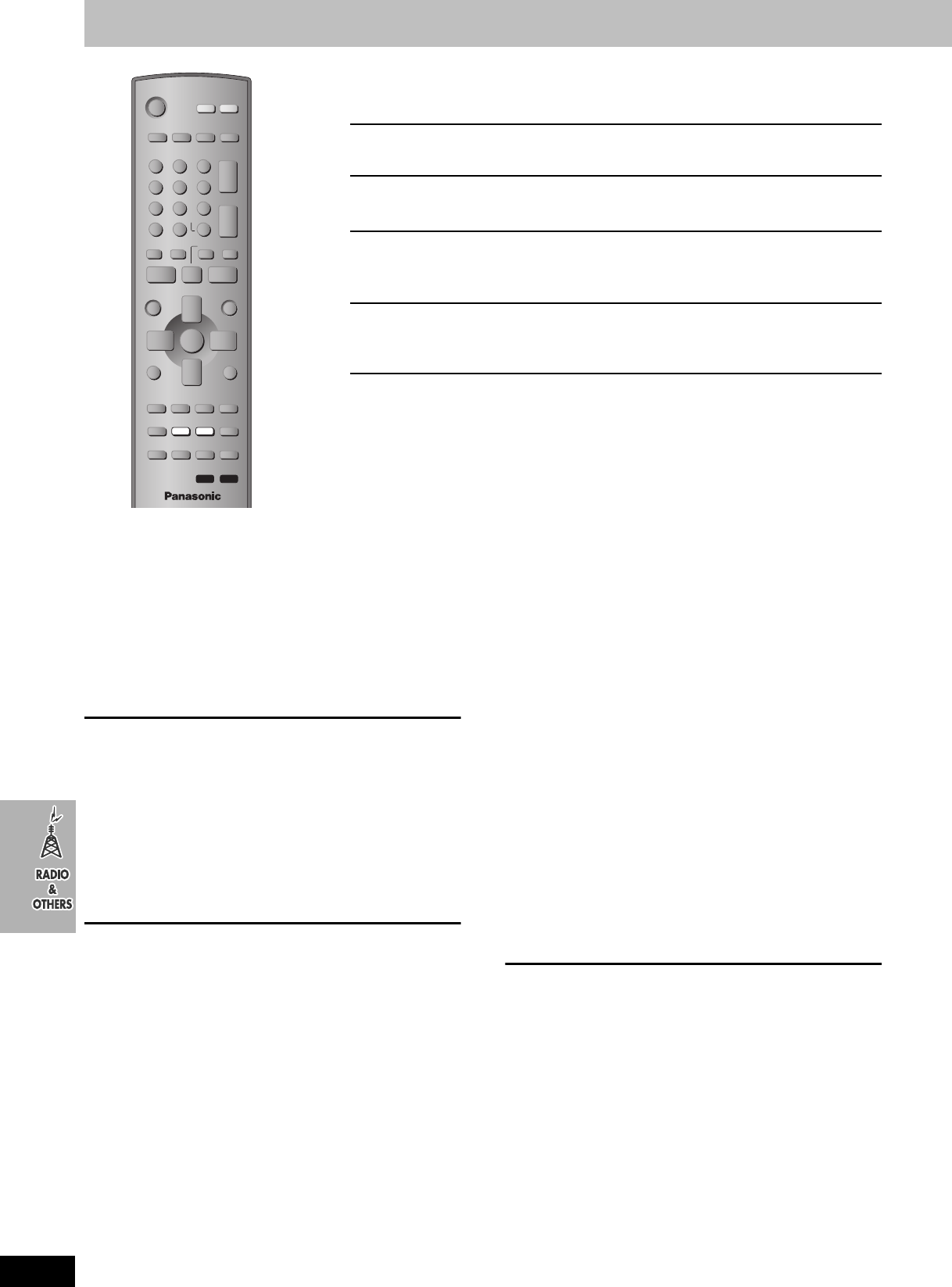
46
RQT7708
Sound field and sound quality
[Note]
You may experience a reduction in sound quality when these sound field systems are used with
some sources. If this occurs, turn the sound field system off.
See below for details.
Press [SFC].
Each time you press the button:
FLAT: Cancel (no effect is added)
(factory preset).
HEAVY: Adds punch to rock.
CLEAR: Clarifies higher sounds.
SOFT: For background music.
DISCO: Reverberates sound to make you feel like you are in a disc
o
.
LIVE: Makes vocals more alive.
HALL: Expands sound to make you feel like you are in a hall.
To check the current setting
Press [SFC].
Press [SUPER SRND].
Each time you press the button:
MUSIC: Adds surround effects to
stereo sources.
MOVIE: Use this mode when playing movie software.
PARTY: Sound is in stereo regardless of the direction you are facing.
off: Not displayed.
≥You can adjust the volume of the surround speakers to get the best
surround effect (➜page 47, Speaker level adjustments).
≥Turn Super Surround off when playing a DVD recorded with Dolby
Digital or DTS. The surround effects will not be reproduced
correctly if this is left on.
≥When Super Surround is on, Dolby Pro Logic II or Dolby Pro Logic
turns off.
(Discs where the dialogue is recorded in the center channel)
You can make the sound of the center speaker
seem like it is coming from within the television.
Press [SHIFT]i[C.FOCUS].
CENTER FOCUS ON()CENTER FOCUS OFF
≥This does not work when Super Surround is turned on.
≥This will have less effect when Dolby Pro Logic II or Dolby Pro
Logic is turned on.
Dolby Pro Logic II is an advanced decoder that derives 5 channel
surround (Left and Right Front, Center, Left and Right Surround)
from any stereo program material, whether or not it has been
specifically Dolby Surround encoded.
Press [ÎPLII].
Each time you press the button:
MOVIE: Movie software, recorded in
Dolby Surround.
MUSIC: Stereo sources.
OFF: Cancel.
≥“ÎPLII” lights when there is effect.
Dolby Pro Logic is an active process that enhances sound
localization through the use of a high separation decoding method
providing improved spatiality and a wider listening area. The sense
of directionality is enhanced by the Left and Right Front, Surround,
and Center channels. Dolby Pro Logic decoding is best utilized with
sources encoded in Dolby Surround.
Press [ÎPLII].
To cancel
Press [ÎPLII] again.
≥This does not work when playing multi-channel audio.
Sound Field Control
Changes the sound quality.
Super Surround
Adds surround effects to stereo sound.
Center Focus
For clearer dialogues.
“DVD/CD” as the source only
Dolby Pro Logic II
Changes stereo sound to surround sound.
“VHS”, “FM” or “AM” as the source only
Dolby Pro Logic
Changes stereo sound to surround sound.
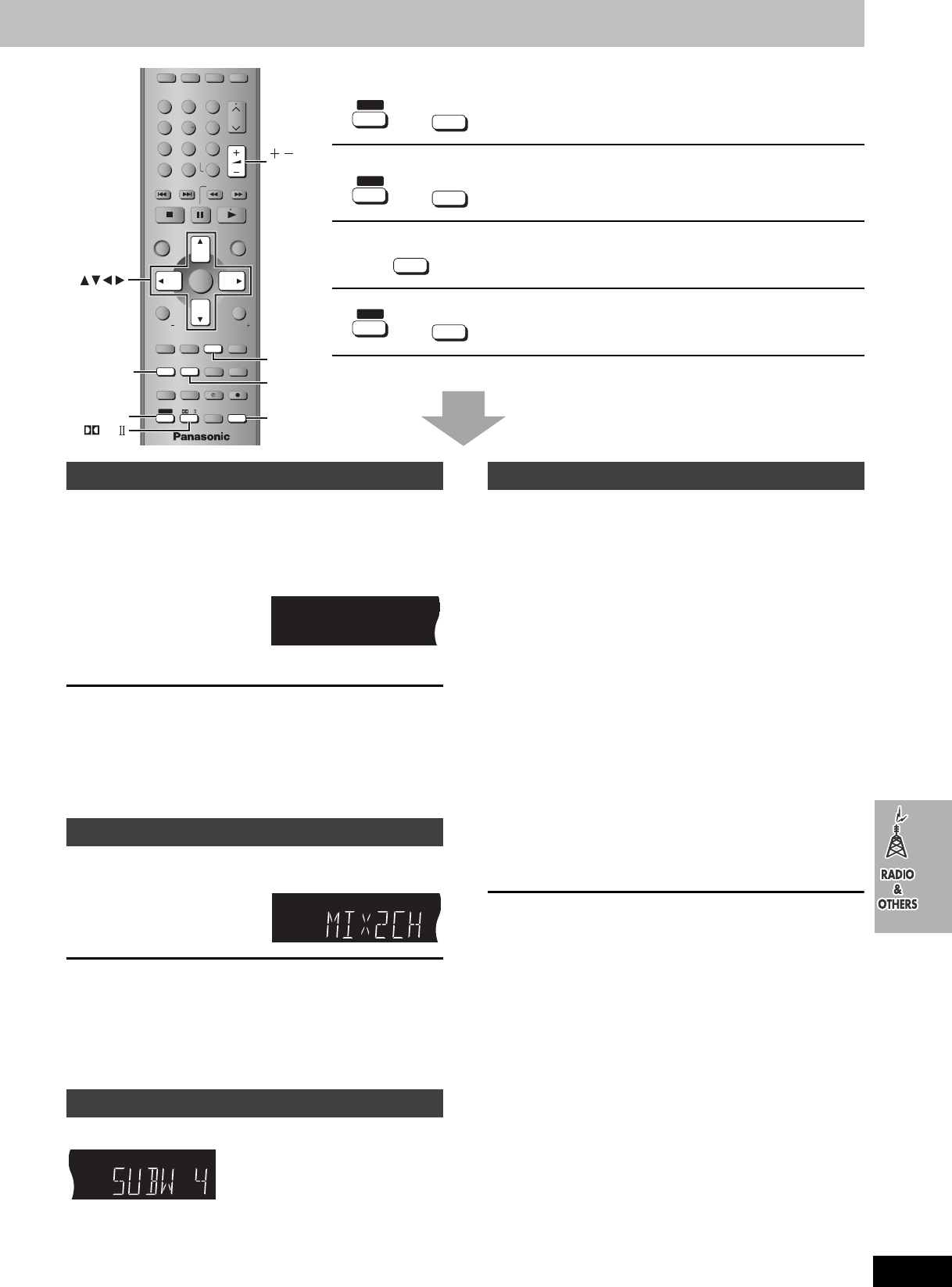
47
RQT7708
See below for details.
[DVD-A] [DVD-V] [VCD] [CD]
Available sound settings:
Subwoofer level, Center Focus, Sound Field Control, Super
Surround
After making the sound field or sound quality settings
Press and hold
[SHIFT]i[C.S.M].
∫Recall the settings
The unit recalls the settings when you play the disc again.
≥The settings are replaced if you change them.
≥
When you store settings for the 31st disc, the settings for the earliest
disc are cleared.
≥Press [SHIFT]i[C.S.M] while “CSM” is displayed and the settings
return to those that were current before the settings were recalled.
≥Press [SHIFT]i[C.S.M] while “CSM” is out and you are playing a
disc for which you stored settings and those settings are recalled.
You can output the down-mixed 2 channel signal when necessary (e.g.
when you intend to record 5.1ch sound on other recording equipment).
Press
[SHIFT]i[MIX 2CH].
To cancel
Press [SHIFT]i[MIX 2CH] again.
[Note]
≥When “D.MIX” flashes on the display, the disc contains multiple-
channel signals that cannot be down-mixed. [DVD-A]
≥This does not work when Super Surround or Dolby Pro Logic II is
turned on.
Press [SUBWOOFER LEVEL].
SUBW 1>SUBW 2>SUBW 3>SUBW 4 (factory preset)
^-----------------------------------------------------------}
This is one of the ways to get the appropriate surround effect. Adjust
the speaker level to the same level as the front speakers.
≥Dolby Digital and DTS: Turn off the other sound field systems.
≥Dolby Pro Logic II and Dolby Pro Logic: Press [ÎPLII].
1While stopped
Press [SHIFT]i[TEST] to output a test
signal.
Lch: Front left
Cch: Center
Rch: Front right
RSch: Right surround
LSch: Left surround
≥There is no output from SW (subwoofer) channel.
2
Press [VOLUME,
r
] or [
s
] to set the
volume level normally used for listening.
3Press [3] (increase) or [4] (decrease)
to adjust the speaker level for each
speaker.
C, RS, LS: j6 dB to i6 dB
(L, R: Only the balance is adjustable.)
≥To adjust the balance of the front speakers
While outputting the test signal, press [21].
To stop the test signal
Press [SHIFT]i[TEST] again.
∫To adjust speaker level during play
(Effective when playing multi-channel audio or Dolby Pro Logic
II or Dolby Pro Logic is on.)
1Press [CH SELECT] to select the speaker.
L>C>R>RS>LS>SW
^-----------------------------------------}
SW: Subwoofer
≥You can only adjust SW if the disc includes a subwoofer
channel.
≥SW does not appear on the display and is not adjustable
when Dolby Pro Logic II or Dolby Pro Logic is turned on.
2Press [3] (increase) or [4] (decrease) to adjust the
speaker level for each speaker.
C, RS, LS, SW: j6 dB to i6 dB
(L, R: Only the balance is adjustable.)
≥To adjust the balance of the front speakers
During play, press [21].
≥Super Surround
Press [SUPER SRND] then adjust the surround speaker level.
S: j6 dB to i6 dB
“DVD/CD” as the source only
Custom Sound Memory
Stores up to 30 sound setting (one setting per disc).
“DVD/CD” as the source only
Down-mixing
Down-mixes multi-channel signals to 2 channels.
Subwoofer level
Adjusts the amount of bass.
Speaker level adjustments
VOLUME
123
456
78
0
100
9
CH
NAVI
CANCEL
SPEEDPROG
SKIP SLOW/SEARCH
MENU
ENTER
DIRECT
NAVIGATOR
TOP MENU
RETURN
OSD/
DISPLAY
DVD TV
VHS TUNER
DISC 1 DISC 2 DISC 3
DISC 4
PICTURE MODE
SETUP
OPEN/CLOSE/EJECT JET REW CD MODE
DISC 5
S10
ENTER
PLAY
LIST
TV VOL
TV VOL
RESET
TV/VIDEO
PAGE
GROUP MIX 2CH
SUBTITLE REPEAT
PLAY MODE
MULTI RE-MASTER
SUBWOOFER LEVEL
C.S.M
SFC
C.FOCUS
SUPER SRND PROGRESSIVE
MUTING
POSITION
MEMORY ZOOM
QUICK REPLAY
REC
SLEEP
PL
AUDIO
TEST
CH SELECT
SHIFT
SHIFT
SUBWOOFER
LEVEL
C.S.M
MIX 2CH
TEST
CH SELECT
VOLUME
PL
SHIFT
C.S.M
SFC
r
MIX 2CH
SUBTITLE
r
SHIFT
MULTI RE-MASTER
SUBWOOFER LEVEL
TEST
CH SELECT
r
SHIFT
Custom Sound Memory
Down-mixing
Subwoofer level
CSM
Speaker level adjustments
7708en.book 47 ページ 2004年2月14日 土曜日 午後3時24分
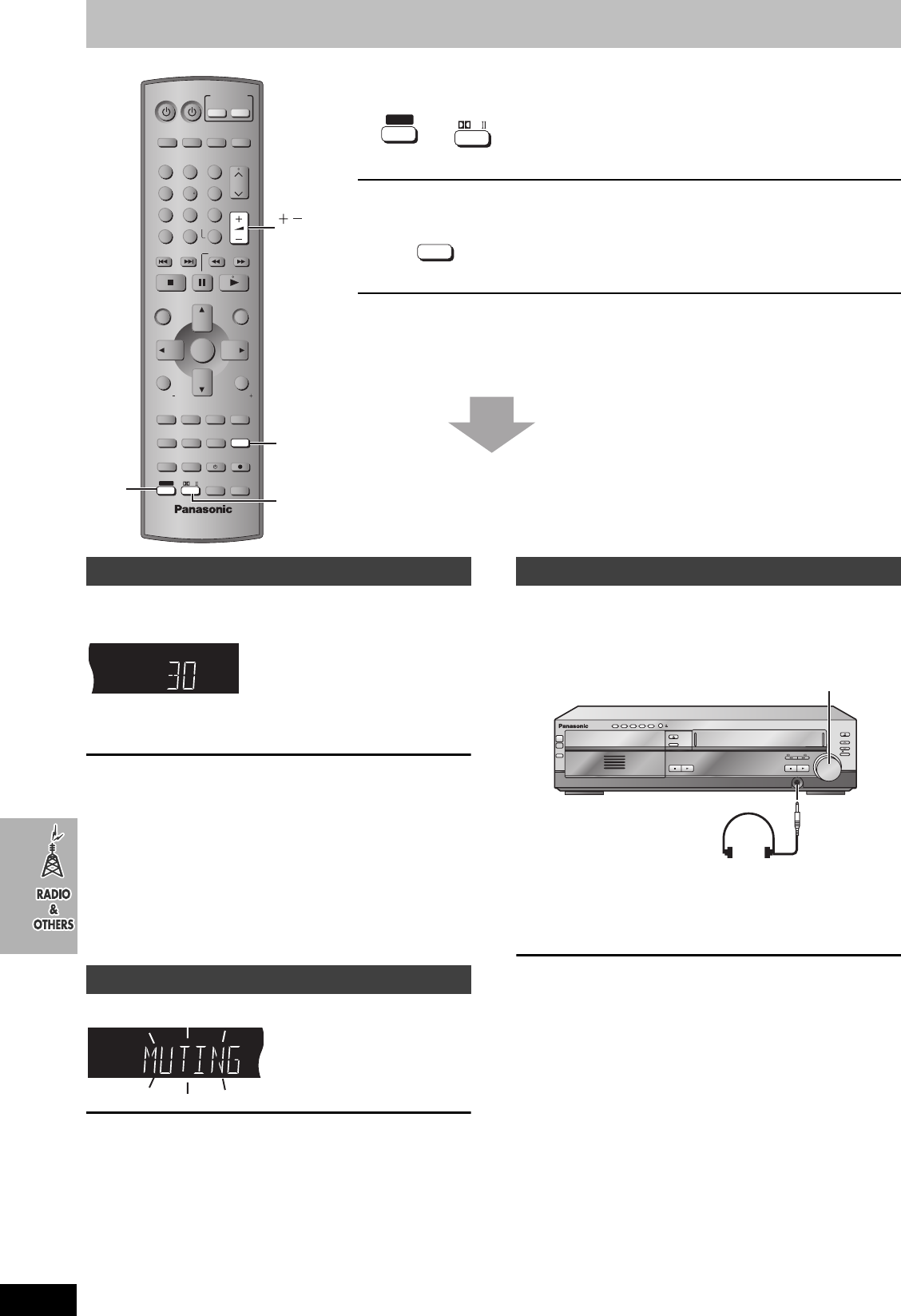
48
RQT7708
Other convenient features
See below for details.
Press [SHIFT]i[SLEEP] to select the time
(in minutes).
SLEEP 30_----)SLEEP 60_----)SLEEP 90
^--__ OFF(__ SLEEP 120(__}
To cancel the timer
Press [SHIFT]i[SLEEP] to select “OFF”.
To confirm the remaining time
Press [SHIFT]i[SLEEP] again.
To change the setting
Repeat the procedure from the beginning.
≥The VHS’s timer program recording functions even when the unit is
turned off by the sleep timer.
Press [MUTING].
To cancel
Press [MUTING] again or reduce the volume to minimum (–– dB),
then raise it to the required level.
Muting is canceled when you switch the unit to standby.
1Reduce the volume and connect the
headphones (not included).
Headphone plug type: 3.5 mm (1/8z) stereo
2Adjust headphone volume with
[VOLUME DOWN, UP].
≥Audio is automatically switched to stereo (2-channel).
[Note]
Avoid listening for prolonged periods of time to prevent hearing
damage.
Sleep timer
Turns the unit off after a set time.
Muting
Mutes the sound.
VOLUME
123
456
78
0
100
9
CH
NAVI
CANCEL
SPEEDPROG
SKIP SLOW/SEARCH
MENU
ENTER
DIRECT
NAVIGATOR
TOP MENU
RETURN
OSD/
DISPLAY
TV
FM/AMDVD/VHS
DVD TV
VHS TUNER
DISC 1 DISC 2 DISC 3
DISC 4
PICTURE MODE
SETUP
OPEN/CLOSE/EJECT JET REW CD MODE
DISC 5
S10
ENTER
PLAY
LIST
TV VOL
TV VOL
RESET
TV/VIDEO
PAGE
GROUP MIX 2CH
SUBTITLE REPEAT
PLAY MODE
MULTI RE-MASTER
SUBWOOFER LEVEL
C.S.M
SFC
C.FOCUS
SUPER SRND PROGRESSIVE
MUTING
POSITION
MEMORY ZOOM
QUICK REPLAY
REC
SLEEP
PL
AUDIO
TEST
CH SELECT
SHIFT
INPUT SELECTOR
SHIFT SLEEP
MUTING
VOLUME
SLEEP
PL
SHIFT
r
PROGRESSIVE
MUTING
Sleep timer
Muting
SLEEP
Using headphones
OPEN/CLOSE
EJECT
DISC CHANGE
DISC CHECK
INPUT
SELECTOR
REC
/REW FF/
STOP PLAY
DOWN
UP
PHONES
CH
VOLUME
STOP
-
DEMO
DISC
DISC
1
2
3
4
5
1 2 3 4 5
PLAY
POWER
Í
/I
VOLUME
7708en.book 48 ページ 2004年2月14日 土曜日 午後3時24分
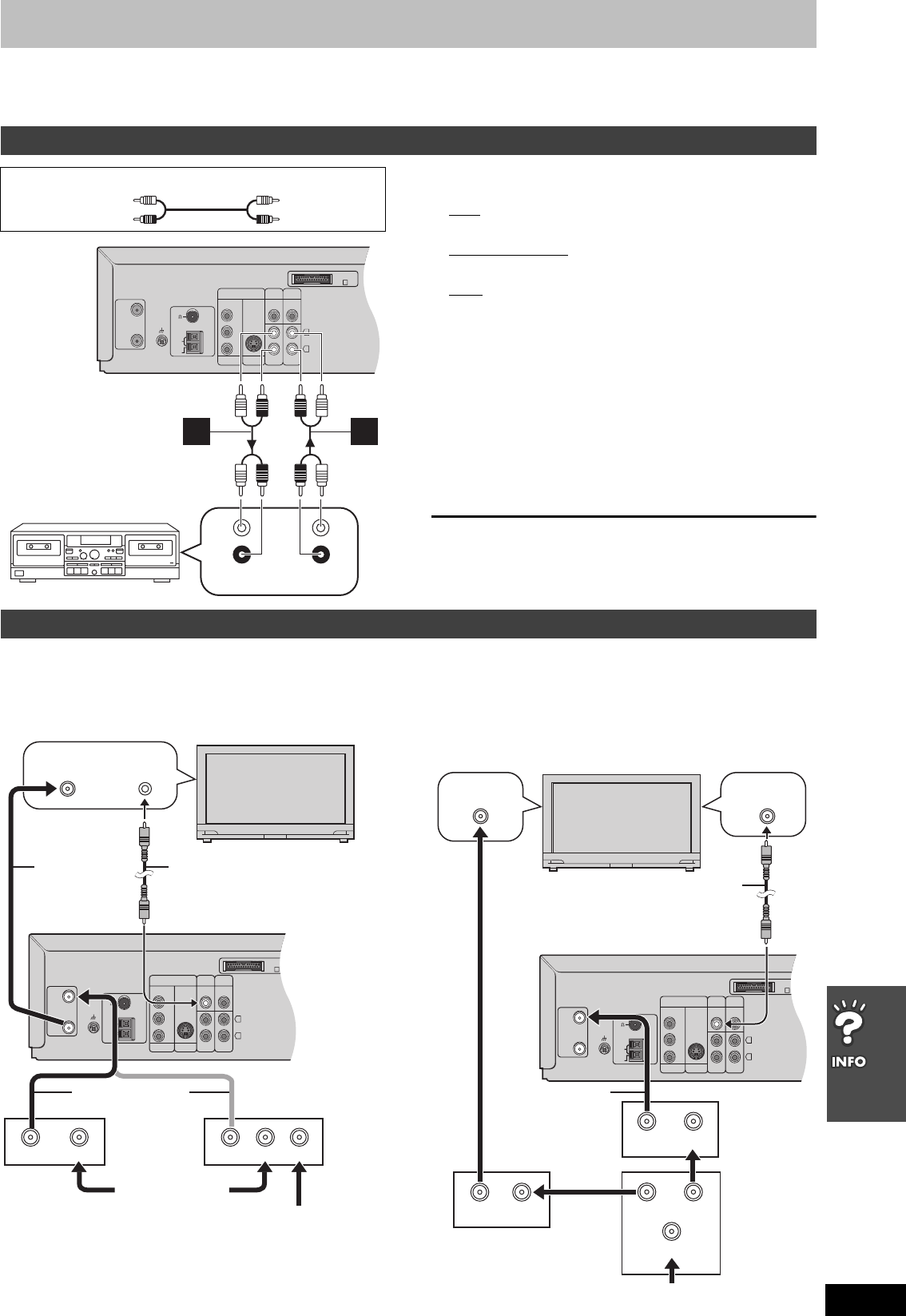
49
RQT7708
Optional connections
≥The equipment connections described are examples.
≥Peripheral equipment and optional cables sold separately unless otherwise indicated.
≥Before connection, turn off all equipment and read the appropriate operating instructions.
[A] You can record sound from discs, video cassette
tapes, or radio, etc., to a tape deck.
1Discs
Press [DVD/VHS] to select “DVD/CD” as the source.
Video cassette tapes
Press [DVD/VHS] to select “VHS” as the source.
Radio
Press [FM/AM] to select “FM” or “AM”.
2 Start recording and play.
Refer to the manual of the other unit for details.
[B] You can playback the sound from a tape deck/laser
disc player, etc., through this unit’s speakers.
1 Press [VHS] to put the remote control in VHS mode.
2 Press [DVD/VHS] to select “VHS” as the source.
3Press [WCH] or [XCH] to select “AU” channel.
4 Start play.
When connecting a record player
We recommend using a record player with a built-in phono equalizer.
If your player doesn’t have a built-in equalizer, connect it first to a
separate equalizer and then to the unit.
≥You need to subscribe to a cable TV or satellite TV service, to enjoy viewing their programming.
≥Consult your service provider regarding appropriate cable TV box or satellite receiver.
≥Select the applicable input on your television to view the output from your cable TV box/satellite receiver through this unit.
≥The signal from the cable TV box or satellite receiver passes through this unit to the television even when this unit is turned off.
≥You cannot do a timer recording unless the channel is first selected on the cable TV box or satellite receiver.
[Note]
When a home satellite system (Dishnetwork/DSS) is connected,
auto tuning and auto clock setting may not operate properly. Set the
clock manually (➜page 40).
≥
You can record and view simultaneously scrambled and unscrambled
channels if connections are made as shown in the diagram below.
Listening to an external source/Recording to other equipment
Audio cable (not included)
White (L)
Red (R)
Y
P
B
/C
B
P
R
/C
R
COMPONENT
VIDEO OUT
S-VIDEO
OUT
LINE
OUT
LINE
IN
VIDEO
OUT
DVD/
VHS
VIDEO
IN
EXTDVD
L
R
RF IN
RF OUT
LOOP
EXT
75
AM
ANT
FM
ANT
LOOP
ANT
GND
A
PLAY
OUT
REC
IN
A B
L
R
Connecting a cable TV box/satellite receiver
Y
P
B
/C
B
P
R
/C
R
COMPONENT
VIDEO OUT
S-VIDEO
OUT
LINE
OUT
LINE
IN
VIDEO
OUT
DVD/
VHS
VIDEO
IN
EXTDVD
L
R
RF IN
RF OUT
LOOP
EXT
75
AM
ANT
FM
ANT
LOOP
ANT
GND
A
VIDEO
IN
VHF/UHF
RF IN
INOUT INOUT IN
From satellite dish antenna
From antenna
or cable TV jack
Cable TV box Satellite receiver
or
75 ≠ coaxial
cable
(included)
Video cable
(included)
75 ≠ coaxial cable
Y
P
B
/C
B
P
R
/C
R
COMPONENT
VIDEO OUT
S-VIDEO
OUT
LINE
OUT
LINE
IN
VIDEO
OUT
DVD/
VHS
VIDEO
IN
EXTDVD
L
R
RF IN
RF OUT
LOOP
EXT
75
AM
ANT
FM
ANT
LOOP
ANT
GND
A
VHF/UHF
RF IN VIDEO
IN
OUT1OUT2
IN
INOUT
INOUT
From cable TV jack
Video cable
(included)
Cable TV box
2-way splitter
Cable TV box
75 ≠ coaxial cable
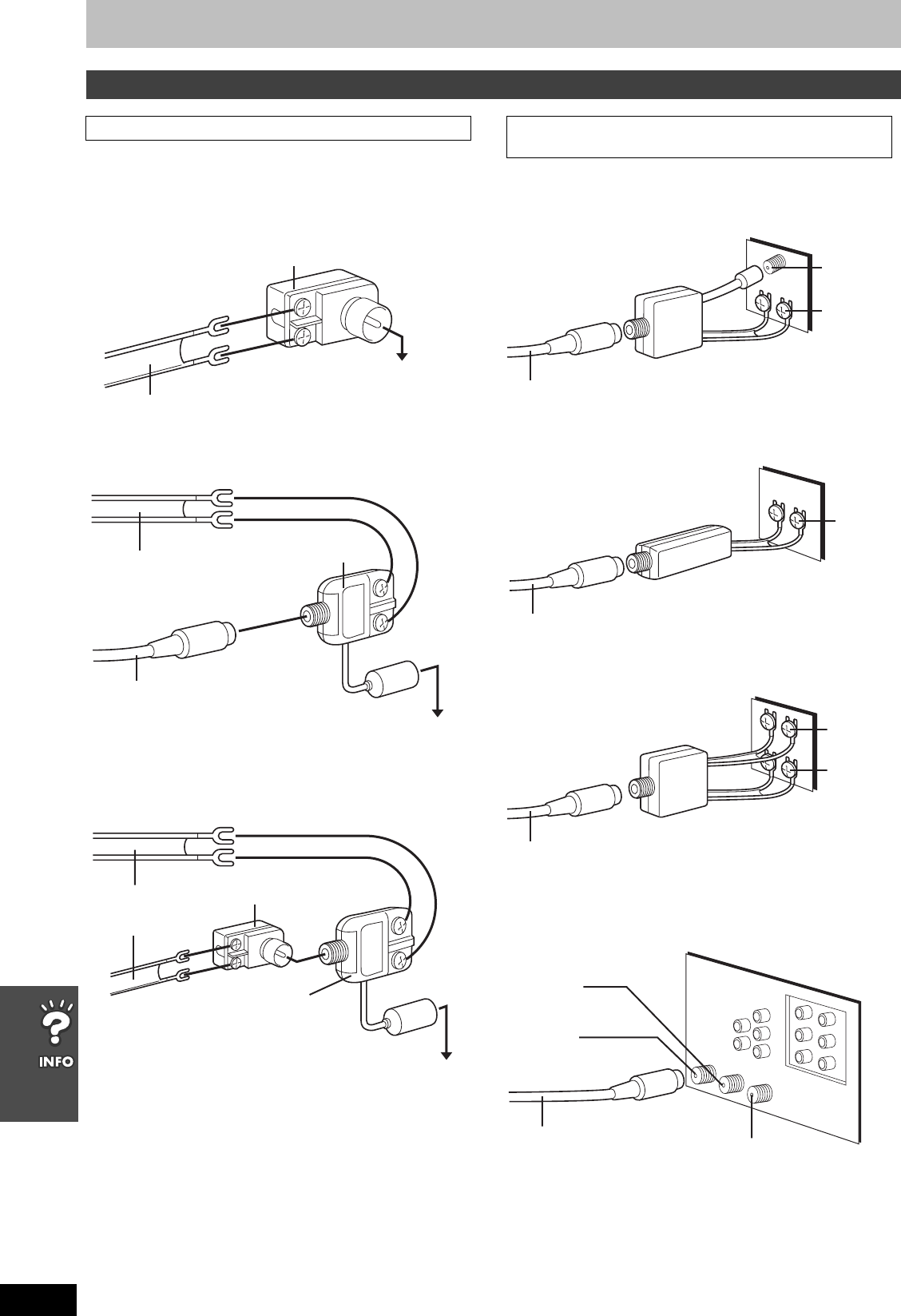
50
RQT7708
Optional connections
Use one of the following connections to suit the antenna lead.
≥If your television has both lead and coaxial VHF terminals, use the
lead connection to minimize signal loss.
∫A single twin lead
∫A twin lead and a coaxial cable
∫Two twin leads
Use one of the following connections to suit the antenna terminals on
your television. Refer to the television’s operating instructions.
∫A twin lead and coaxial plug terminal
∫A twin lead terminal
∫Two twin lead terminals
∫Multiple antenna terminals
≥Connect to one of the ANT terminals, then change the television’s
setting as necessary.
If the antenna connector doesn’t match
Other antenna connections to the unit
300–75 ≠ transformer
(not included)
from the antenna
(Flat) Twin lead 300 ≠ cable
To this unit’s
RF IN terminal
from the antenna
(Flat) Twin lead
300 ≠ cable
To this unit’s
RF IN terminal
(Round)
75 ≠ coaxial cable
VHF/UHF band mixer
(not included)
from the antenna
To this unit’s
RF IN terminal
300–75 ≠ transformer
(not included)
(Flat) Twin lead
300 ≠ cable
VHF/UHF band mixer
(not included)
Other antenna connections from the unit to the
television
VHF/UHF band separator
(not included)
Television
75 ≠ coaxial cable
VHF
UHF
75 ≠ coaxial cable
75–300 ≠ transformer
(not included)
Television
VHF or
UHF
75 ≠ coaxial cable
VHF/UHF band separator
(not included)
Television
VHF
UHF
ANT 2
ANT 1
Split out
Television
75 ≠ coaxial cable
7708en.book 50 ページ 2004年2月14日 土曜日 午後3時24分
51
RQT7708
Specifications
∫AMPLIFIER SECTION
RMS output power, 10 % total harmonic distortion
1 kHz FL/FR 50 W per channel 6 ≠
1 kHz Center 150 W per channel 6 ≠
1 kHz SL/SR 50 W per channel 6 ≠
100 Hz Subwoofer 200 W per channel 4 ≠
Total RMS Dolby Digital mode power 550 W
FTC output power, 1 % total harmonic distortion
120 Hz–20 kHz FL/FR 28 W per channel 6 ≠
120 Hz–20 kHz Center 100 W per channel 6 ≠
120 Hz–20 kHz SL/SR 28 W per channel 6 ≠
45 Hz–120 Hz Subwoofer 128 W per channel 4 ≠
Total FTC power in Dolby Digital mode (Band 1 % THD) 340 W
Input sensitivity
AUX 250 mV
Input impedance 47 k≠
∫SPEAKER SECTION
[Front/Surround\speakers\SB-FS822]
Type 2 way, 2 speaker system, Bass reflex
Speaker unit(s)
Full range 6.5 cm (21/2q), cone type, 6 ≠
Super Tweeter Piezo type, 6 ≠
Input power (IEC) 60 W (Max)
Output sound pressure 79 dB/W (1.0 m)
Cross over frequency
10 kHz
Frequency range
85 Hz–25 kHz (
j
16 dB)
90 Hz–22 kHz (
j
10 dB)
Dimensions (WtHtD) 250k1061.5k250 mm (with stand)
(927/32qk4125/32qk927/32q) (with stand)
Mass 4.1 kg (9.0 Ib.) (with stand)
[Center\speaker\SB-PC820]
Type 1 way, 2 speaker system, Bass reflex
Speaker unit(s)
Full range 6.5 cm (21/2q), cone type, 6 ≠
Input power (IEC) 160 W (Max)
Output sound pressure 83 dB/W (1.0 m)
Frequency range
97 Hz–25 kHz (
j
16 dB)
125 Hz–22 kHz (
j
10 dB)
Dimensions (WtHtD) 250k103k114 mm (927/32qk41/16qk415/32q)
Mass 1.31 kg (2.89 Ib.)
[Active\subwoofer\SB-WA822]
Type 1 way, 1 speaker system, Bass reflex
Speaker unit(s)
Woofer 17 cm (63/4q), cone type, 4 ≠
Output sound pressure 80 dB/W (1.0 m)
Frequency range 32 Hz–220 Hz (j16 dB)
36 Hz–190 Hz (j10 dB)
Dimensions (WtHtD) 209k360.5k463 mm
(87/32qk147/32qk187/32q)
Mass 11.5 kg (25.4 Ib.)
∫DISC SECTION
Discs played [8 cm (3z) or 12 cm (5z)]
(1) DVD-RAM (DVD-VR formatted discs, JPEG formatted discs)
(2) DVD-Audio
(3) DVD-Video
(4) DVD-R (DVD-Video formatted discs)
(5) CD-Audio (CD-DA)
(6) Video CD
(7) SVCD (Conforming to IEC62107)
(8) CD-R/CD-RW (CD-DA, Video-CD, SVCD, MP3, WMA, JPEG
formatted discs)
(9) MP3/WMA
≥Maximum number of tracks and groups recognizable:
999 tracks and 99 groups
≥Compatible compression rate:
MP3: between 32 kbps and 320 kbps
WMA: between 48 kbps and 320 kbps
(10) JPEG
≥Exif Ver 2.1 JPEG Baseline files
≥Maximum number of pictures and groups recognizable:
4000 pictures and 400 groups
≥Picture resolution: between 320k240 and 6144k4096 pixels
(sub sampling is 4:2:2 or 4:2:0)
(11) HighMAT Level 2 (Audio and Image)
Video
Signal system NTSC
Output level Composite video; 1 Vp-p (75 ≠)
S-video; 1 Vp-p (Y), 0.286 Vp-p (C) (75 ≠)
Component video; 1 Vp-p (Y) (75 ≠)
0.7 Vp-p (PB/CB, PR/CR) (75 ≠)
Audio
Sampling frequency
CD 44.1 kHz
MP3 32 kHz, 44.1 kHz, 48 kHz
DVD-Linear 48 kHz, 96 kHz
DVD-Audio 192 kHz
Decoding 16/20/24 bit linear
Pick up
Beam Source Semiconductor Laser
Wavelength
CD/VCD 785 nm
DVD 662 nm
Number of channels 5.1 ch (FL, FR, SL, SR, C, SW)
Frequency response 20 Hz–20 kHz (i1, j2 dB)
∫VHS SECTION
Video recording system 2 rotary heads, helical scanning system
Video heads 4 heads
Audio heads 2 heads
Tape speed SP; 33.35 mm/s, EP; 11.12 mm/s
Tape format VHS tape
Recording/playback time SP; 120 min. with NV-T120
EP; 360 min. with NV-T120
FF/REW time Approx. 54 s. with NV-T120 (FF/REW)
Approx. 36 s. with NV-T120 (JET REW)
VIDEO
Television system EIA; Standard (525 lines, 60 fields),
NTSC color signal
Modulation system Luminance; FM azimuth recording
Color signal; converted subcarrier phase shift recording
Input level VIDEO IN; 1 Vp-p, 75 ≠
Output level VIDEO OUT; 1 Vp-p, 75 ≠
Antenna receive input VHF 2–13 CH, 75 ≠
UHF 14–69 CH, 75 ≠
CATV 5A and A-5–EEE CH, 75 ≠
AUDIO
Input level AUDIO IN (PHONO); –10 dBV, 47 k≠
Output level AUDIO OUT (PHONO); –8 dBV, 1 k≠
Audio track 1 track (normal-mono only),
2 channels (Hi-Fi sound stereo)
Video horizontal resolution Color; more than 200 lines
Signal-to-Noise ratio Video; more than 40 dB/SP
Audio; more than 60 dB/Hi-Fi
Audio frequency response 20 Hz–20 kHz/Hi-Fi
Wow and flutter 0.005 %
∫FM TUNER SECTION
Frequency range 87.9–107.9 MHz (200-kHz step)
87.5–108.0 MHz (100-kHz step)
Sensitivity 2.5 ¨V (IHF)
S/N 26 dB 2.2 ¨V
Antenna terminals 75 ≠ (unbalanced)
Preset station 15
∫AM TUNER SECTION
Frequency range 520–1710 kHz (10-kHz step)
AM Sensitivity S/N 20 dB at 1000 kHz 560 ¨V/m
Preset station 15
∫GENERAL
Power supply AC 120 V, 60 Hz
Power consumption
Main unit 38 W
Subwoofer [SB-WA822] 250 W
Dimensions (WtHtD) 430k105k352 mm
(1615/16qk41/8qk137/8q)
Mass 5 kg (11 Ib.)
[Note]
1. Specifications are subject to change without notice.
Mass and dimensions are approximate.
2. Total harmonic distortion is measured by the digital spectrum
analyzer.
Power consumption in standby mode (when Demo function is
off)
BRIGHT mode Approx. 3.5 W (main unit) + 0.3 W (subwoofer)
DIM mode Approx. 3.2 W (main unit) + 0.3 W (subwoofer)
OFF mode Approx. 1.9 W (main unit) + 0.3 W (subwoofer)
7708en.book 51 ページ 2004年2月14日 土曜日 午後3時24分
52
RQT7708
Troubleshooting guide
Before requesting service, make the following checks. If you are in doubt about some of the check points, or if the remedies indicated in the chart
do not solve the problem, refer to the “Customer Services Directory” on page 55.
Power Page
No operation
Specific operation impossible or incorrect
Subtitle
Marker
A-B repeat
Menu
No power. ≥Insert the AC power supply cords and system cable securely. 16
The unit is automatically switched
to the standby mode.
≥The Sleep timer functioned. 48
No response when any buttons
pressed.
≥This unit cannot play discs other than the ones listed in these operating instructions.
≥The unit may not be operating properly due to lightning, static electricity or some other
external factor. Turn the unit off and then back to ON. Alternatively, turn the unit off,
disconnect both AC power supply cords, and then reconnect them.
≥Condensation has formed: Wait 1 to 2 hours for it to evaporate.
6
—
—
No response when remote control
buttons pressed.
≥Check that the batteries are installed correctly.
≥The batteries are depleted: Replace them with new ones.
≥Point the remote control at the remote control sensor and operate.
4
4
20
Cannot play DVDs. ≥CD Mode is on. Press [SHIFT]i[CD MODE] to turn CD Mode off. 23
No picture or sound. ≥Check the video and audio connection.
≥Check the power or input setting of the connected equipment.
≥Check that the DVD-RAM has something recorded on it.
13–16
—
—
You have forgotten your ratings
password.
Reset all the settings to Factory
Preset.
≥While stopped and “DVD/CD” is the source, press [DVD] and then press and hold [∫] (DVD)
on the main unit and [S10] on the remote control until “Initialized” disappears from the
television. Turn the unit off and on again.
All settings will return to the default values.
—
Cannot operate the DVD. ≥Press [DVD] to switch the remote control mode to DVD. —
Cannot operate the VHS. ≥Press [VHS] to switch the remote control mode to VHS.
≥The unit is in timer recording standby (“F” is on on the unit’s display).
≥The remote control and main unit are using different codes. Change the code on the remote
control.
—
36
42
Cannot operate the TV. ≥Press [TV] to switch the remote control mode to TV.
≥Check the TV maker setting. —
18
Television reception worsens after
connecting the unit.
≥This can occur because the signals are being divided between the unit and the television.
You can solve this with a signal booster, available from audio-visual suppliers. Consult your
dealer if reception does not improve.
—
Cannot eject cassette. ≥The unit is recording or in timer recording standby mode. If you need to eject the tape, press
[F] first so “F” goes out. 36
It takes time before play starts.
[MP3]
≥Play may take time to begin when an MP3 track has still picture data. Even after the track
starts, the correct play time will not be displayed, however this is normal. —
Folders deeper than the eighth
layer on a data CD are not
displayed correctly.
[WMA] [MP3] [JPEG]
≥Folders deeper than the eighth layer are displayed as the eighth layer. —
Programmed items are not played.
[DVD-V]
≥Some items will not be played even if you have programmed them. —
A menu screen appears during
skip or search. [VCD]
≥This is normal for Video CDs. —
The on-screen menu shows “2” as
a soundtrack option when
[SHIFT]i[AUDIO] is pressed, but
the audio does not change. [DVD-A]
≥Even if a second soundtrack isn’t recorded, two numbers will normally be shown. —
Play restarts from the beginning of
the track when soundtrack is
changed. [DVD-A]
≥This is normal on DVD-Audio. —
Subtitle position is wrong. ≥Adjust the position. (“Subtitle Position” in Display Menu) 29
No subtitles. ≥Display the subtitles. 22
The subtitles overlap closed
captions recorded on discs.
≥Clear the subtitles. 22
Cannot add markers. ≥You cannot add markers with DVD-RAM if the disc’s play time doesn’t appear on the unit’s
display. —
Point B is automatically
determined.
≥The end of an item becomes point B when it is reached. —
A-B repeat is automatically
canceled.
≥A-B repeat is canceled when you press [QUICK REPLAY]. —
The Setup menu cannot be
accessed.
≥Select “DVD/CD” as the source.
≥Cancel all group, program and random play. —
24, 25
7708en.book 52 ページ 2004年2月14日 土曜日 午後3時24分
53
RQT7708
Picture incorrect
Disc picture incorrect
VHS picture incorrect
Progressive video
Sound incorrect
Listening to the radio
Recording
Picture distorted. ≥Ensure that the unit is connected directly to the television, and is not connected through an
A/V selector or other equipment. 14
The television may display
incorrectly or colors appear faded.
≥
The unit and television are using different video systems. Use a multi-system or NTSC television.
≥The system used on the disc doesn’t match your television. PAL discs cannot be played.
This unit converts DVD-Audio recorded in PAL to NTSC for play, however, play may not
function properly.
—
—
The picture on the television
disappears or stripes appear on
the screen.
≥Mobile telephone chargers can cause some disturbance.
≥If you are using a TV indoor antenna, change to an outdoor antenna.
≥The television antenna wire is too close to the unit. Separate the antenna wire of the
television from the unit.
—
—
—
Picture size doesn’t fit the screen. ≥Change “TV Aspect” in “Video” tab.
≥Use the television to change the aspect. If your television does not have that function,
change “4:3 Aspect” in Display Menu.
≥Change the Zoom setting.
30
29
22
Menus not displayed correctly. ≥Restore the zoom ratio to a1.00.
≥Set “Subtitle Position” in Display Menu to “0”.
≥Set “4:3 Aspect” in Display Menu to “Normal”.
22
29
29
Auto zoom function does not work
well. ≥Turn off TV’s zoom function.
≥Use the other preset aspect ratios or manual adjustment.
≥Zoom function may not work well, especially in dark scenes and may not work depending
on the type of disc.
—
22
—
The picture is noisy or is in black
and white.
Horizontal bars or lines run down
the screen.
≥Adjust the tracking.
≥Make sure the television’s input setting is correct.
≥The video heads are dirty: clean them with a head-cleaning cassette.
≥The video heads are worn: consult your dealer.
≥The tape is old or damaged.
≥You cannot correctly play tapes recorded with other systems (e.g., PAL).
33
—
54
—
—
—
Picture is distorted when stilled or
during slow-motion. ≥Some distortion is normal with tapes recorded using VP mode. —
The blue back appears during play. ≥You are playing a blank or poor quality part of the tape.
≥You can damage the unit if you play dirty or damaged tapes and this can cause the blue
back to appear. Consult your dealer.
—
—
The picture jiggles. ≥Adjust the vertical hold. 33
There is ghosting when
progressive output is on. ≥Change “Video Output Mode” in Picture Menu to “480I”. This problem is caused by the editing
method or material used on DVD-Video, but should be corrected if you use interlace output. 29
Pictures not in progressive output. ≥If the unit is connected to the television through VIDEO OUT or S-VIDEO OUT output will
be interlace.
≥
Press [SHIFT]
i
[PROGRESSIVE]. Or select “480P” in “Video Output Mode” in Picture Menu.
—
20, 29
Closed captions not displayed. ≥When progressive output is on, closed captions will not be displayed. —
Sound distorted. ≥Noise may occur when playing WMA files. —
Effects do not work. ≥Some audio effects do not work or have less effect with some discs.
≥Multi Re-master and Dolby Pro Logic II do not work if you have changed the play speed.
≥When connected with headphones, only Sound Field Control is effective.
—
—
—
Humming heard during play. ≥An AC power supply cord or fluorescent light is near the subwoofer. Keep other appliances
and cords away from the subwoofer. —
There is noise when playing a
video tape. ≥Adjust the tracking.
≥The tape is old or damaged. 33
—
Noise is heard.
“ST” flickers or doesn’t light.
Sound is distorted.
≥Adjust the position of the FM or AM antenna.
≥Use an outdoor antenna. —
45
A beat sound is heard. ≥Turn the television off or separate it from the unit. —
A low hum is heard during AM broadcasts.
≥Separate the antenna from other cables. —
“ ” flashes when I try to start
recording.
Cannot record.
≥If the erasure prevention tab has been removed, cover the hole with adhesive tape. 5
Timer recording doesn’t record a
program correctly. ≥Check the clock and calendar.
≥Set the channel and start and end times correctly.
≥Be sure to press [F] after programming to put the unit in timer recording standby.
≥Program times may be overlapped.
—
—
36
—
Cannot record from other
equipment. ≥Press [WCH] or [XCH] to select “AU”.
≥Check the connections to the other equipment. 35
35
Black bands appear in the recording.
≥Move the other equipment away from the television as it may be picking up interference. —
The copy of a videotape or DVD is
very poor. ≥This unit complies with industry standards regarding the recording and duplication of copy-
protected material. This includes commercial videotapes and DVDs. Consequently, copying
not only infringes copyright laws but also presents serious technical difficulties. Even in
cases where a copy can be made, the quality will be very poor.
—
7708en.book 53 ページ 2004年2月14日 土曜日 午後3時24分
54
RQT7708
Troubleshooting guide
Unit display
Television display
Clean this unit with a soft, dry cloth.
≥Never use alcohol, paint thinner or benzine to clean this unit.
≥Before using chemically treated cloth, read the instructions that
came with the cloth carefully.
Cleaning the video heads
Dirt on the video heads can cause poor recording and play.
To clean the heads, insert and eject a tape 5 to 10 times in succession.
If the picture does not improve, use an optional head-cleaning
cassette (part number NV-TCL30PT). If the problem persists, seek
advice from a qualified service person.
1. Damage requiring service—The unit should be serviced by qualified service personnel if:
(a) The AC power supply cord or AC adaptor has been damaged; or
(b) Objects or liquids have gotten into the unit; or
(c) The unit has been exposed to rain; or
(d) The unit does not operate normally or exhibits a marked change in performance; or
(e) The unit has been dropped or the cabinet damaged.
2. Servicing—Do not attempt to service the unit beyond that described in these operating instructions. Refer all other servicing to authorized
servicing personnel.
3. Replacement parts—When parts need replacing ensure the servicer uses parts specified by the manufacturer or parts that have the same
characteristics as the original parts. Unauthorized substitutes may result in fire, electric shock, or other hazards.
4. Safety check—After repairs or service, ask the servicer to perform safety checks to confirm that the unit is in proper working condition.
The servicer will require all components to service your system.
Therefore, should service ever be necessary, be sure to bring the entire system.
For product information or assistance with product operation:
Refer to “Customer Services Directory” on page 55.
The unit’s display lights and
changes when the unit is turned off.
≥Demo function is on. Press and hold [–DEMO] on the main unit to select “DEMO OFF”. 16
The unit’s display disappears or
fades once the unit is turned off.
≥The DISPLAY setting is set to “DIM” or “OFF” under OPTION from the VHS MENU. Select
“BRIGHT” if you want the display bright all the time. 42
The tape counter isn’t changing. ≥The tape counter does not change while playing unrecorded parts.
≥The display also appears like this if the tape is dirty or damaged. Consult your dealer if this
is the case.
—
—
“NoPLAY” ≥You inserted a disc the unit cannot play; insert one it can.
≥You inserted a blank disc. 6
—
“NoDISC” ≥You haven’t inserted a disc; insert one.
≥You haven’t inserted the disc correctly; insert it correctly. —
20
“F61” ≥Check and correct the speaker cord connections.
If this does not fix the problem, there is a power supply problem. Consult the dealer. 13
“U11” ≥Disc is dirty. Wipe it clean. 6
“U15” ≥You inserted a DVD-R that has not been finalized. 6
“ERROR” ≥Incorrect operation performed. Read the instructions and try again. —
“U30”
≥
The remote control and main unit are using different codes. Change the code on the remote control.
42
“H∑∑”, “F∑∑”
∑∑ stands for a number. ≥Trouble may have occurred. The number following “H” or “F” depends on the status of the
unit. Turn the unit off and then back to ON. Alternatively, turn the unit off, disconnect both
AC power supply cords, and then reconnect them.
≥
If the service numbers fail to clear, note the service number and contact a qualified service person.
—
—
“/”≥The operation is prohibited by the unit or disc. —
“Cannot display group xx, content xx”
≥You are trying to display incompatible contents. 27
“This disc may not be played in
your region”
≥You can only play DVD-Video if their region number is “1” or if the DVD-Video is marked
“ALL”. Cover
No on-screen display. ≥Select “On” in “On-Screen Messages” in “Display” tab.
≥Select “ON” in “OSD” of “OPTION” setting in the VHS MENU. 31
42
The menu is displayed in a
different language.
≥Select the preferred language in “Menus” in “Disc” tab.
≥Select the preferred language in “LANGUAGE” in the VHS MENU. 30
40
Maintenance
Product Service
Product information
7708en.book 54 ページ 2004年2月14日 土曜日 午後3時24分

55
RQT7708
Limited Warranty
Panasonic Consumer Electronics Company,
Division of Matsushita Electric Corporation of America
One Panasonic Way Secaucus, New Jersey 07094
Panasonic Sales Company, Division of Matsushita Electric
of Puerto Rico, Inc.,
Ave. 65 de Infantería, Km. 9.5
San Gabriel Industrial Park, Carolina, Puerto Rico 00985
Panasonic Audio Products Limited Warranty
Limited Warranty Coverage
If your product does not work properly because of a defect in materials or workmanship,
Panasonic Consumer Electronics Company or Panasonic Sales Company (collectively
referred to as “the warrantor”) will, for the length of the period indicated on the chart below,
which starts with the date of original purchase (“warranty period”), at its option either (a)
repair your product with nerihl19(a)-0.beptuh, iou tauct woduct wi o(t)1.9(h)9.9( ne)5..9(o6)5.99.1ly

Index
Batteries........................................................................................... 4
Center Focus ................................................................................. 46
Cleaning
Discs........................................................................................... 6
Main unit ................................................................................... 54
Video heads.............................................................................. 54
Connection
Antennas................................................................................... 16
Cable TV................................................................................... 49
LINE IN/OUT....................................................................... 35, 49
Optional antenna connection.................................................... 50
Speakers..............................................................................10, 13
Subwoofer................................................................................. 13
Television.................................................................................. 14
Custom Sound Memory................................................................. 47
Demo ............................................................................................. 16
Dolby Pro Logic.............................................................................. 46
Dolby Pro Logic II .......................................................................... 46
Down-mixing.................................................................................. 47
Headphones .................................................................................. 48
Muting............................................................................................ 48
Remote control mode ...................................................................... 7
Sleep timer..................................................................................... 48
Sound field control......................................................................... 46
Source selector............................................................................ 7, 9
Speaker level adjustments............................................................. 47
Subwoofer level.............................................................................. 47
Super Surround ............................................................................. 46
A-B repeat...................................................................................... 29
All group play ................................................................................. 24
CD mode........................................................................................ 23
COMPONENT VIDEO ................................................................... 15
Data discs...................................................................................... 26
Dialogue Enhancer ........................................................................ 29
Direct Navigator............................................................................. 27
HDCD .............................................................................................. 6
HighMAT .............................................................................. 6, 27, 31
JPEG ............................................................................................. 27
Marker...................................................................................... 28, 29
MP3 ............................................................................................... 27
Multi Re-master ............................................................................. 23
Navigation menus.................................................................... 26, 27
On-Screen Menu ..................................................................... 28, 29
Page skip ....................................................................................... 23
Picture mode.................................................................................. 29
Play list........................................................................................... 27
Play speed..................................................................................... 29
Position memory ............................................................................ 22
Program play.................................................................................. 24
Progressive.............................................................................. 15, 20
Quick replay................................................................................... 23
QUICK SETUP ........................................................................ 19, 31
Random play............................................................................ 24, 25
Ratings........................................................................................... 30
Region number ........................................................................ Cover
Repeat play.................................................................................... 25
Rotate picture ................................................................................ 28
Sampling frequency........................................................................23
Settings.................................................................................... 30, 31
Speaker delay time........................................................................ 31
Subtitle........................................................................................... 22
S-VIDEO........................................................................................ 15
WMA.............................................................................................. 27
Zoom ............................................................................................. 22
Auto bilingual choice function ........................................................ 43
Categories ..................................................................................... 39
Clock setting
Auto clock setting................................................................ 17, 40
Manual clock setting................................................................. 40
Jet Navigator............................................................................ 38, 42
Jet rewind ...................................................................................... 32
Jet search................................................................................ 32, 42
MTS............................................................................................... 42
On-screen display.......................................................................... 43
Picture mode ................................................................................. 33
Recording
LINE IN..................................................................................... 35
Timer recording ........................................................................ 36
TV program............................................................................... 34
REMOTE CONTROL..................................................................... 42
Repeat play.................................................................................... 33
SAP ............................................................................................... 43
Settings.................................................................................... 40–43
SQPB............................................................................................... 5
Tape counter.................................................................................. 43
Tape length .................................................................................... 42
Tape speed
Auto SP/EP change.................................................................. 37
EP............................................................................................. 34
LP ............................................................................................. 34
SP............................................................................................. 34
VP............................................................................................. 34
Tape’s tab ........................................................................................ 5
Tracking ......................................................................................... 33
TV channel tuning
Antenna system........................................................................ 41
Auto tuning ............................................................................... 41
Manual tuning........................................................................... 41
Plug-in Auto Tuning................................................................... 17
Vertical locking adjustment ............................................................ 33
VHS Index Search System (VISS)................................................. 39
AMAntenna connection.................................................................. 16
FMAntenna connection............................................................ 16, 45
Antenna plug ............................................................................ 45
Frequency step......................................................................... 44
Connection .............................................................................. 14, 15
TV maker setting............................................................................ 18
TV operation.................................................................................. 18
Common
DVD
VHS
TUNER
TV
Panasonic Consumer Electronics Company,
Division of Matsushita Electric Corporation
of America
One Panasonic Way Secaucus,
New Jersey 07094
http://www.panasonic.com
Panasonic Sales Company,
Division of Matsushita Electric of
Puerto Rico, Inc. (“PSC”)
Ave. 65 de Infantería, Km. 9.5
San Gabriel Industrial Park, Carolina,
Puerto Rico 00985
p
C 2004 Matsushita Electric Industrial Co., Ltd.
Printed in Malaysia
RQT7708-P
F0204NK0
7708en.book 56 ページ 2004年2月14日 土曜日 午後3時24分
