Panasonic UB 5825 5325/5825 Operating Instructions (English) User Manual To The 0fe85e02 1cd8 4d07 991e C313ec5a7bdf
User Manual: Panasonic UB-5825 to the manual
Open the PDF directly: View PDF  .
.
Page Count: 28
- Table of Contents
- For Your Safety
- Precautions
- Part Names and Functions
- Installing the Thermal Transfer Film
- Loading Copy Paper
- Making Copies
- Replacing the Thermal Transfer Film
- Paper Jams
- Computer Interfacing
- System requirements
- Contents of CD-ROM
- Installing Drivers / Board Image Capture
- Installing Quick Image Navigator / Panasonic-DMS
- Removing Drivers / Board Image Capture / Quick Image Navigator
- Removing Panasonic-DMS
- Scanning with the Board Image Capture
- Scanning with the Quick Image Navigator / Panasonic-DMS
- Panaboard Operation Panel
- Printing
- Daily Care and Maintenance
- Troubleshooting
- Specifications
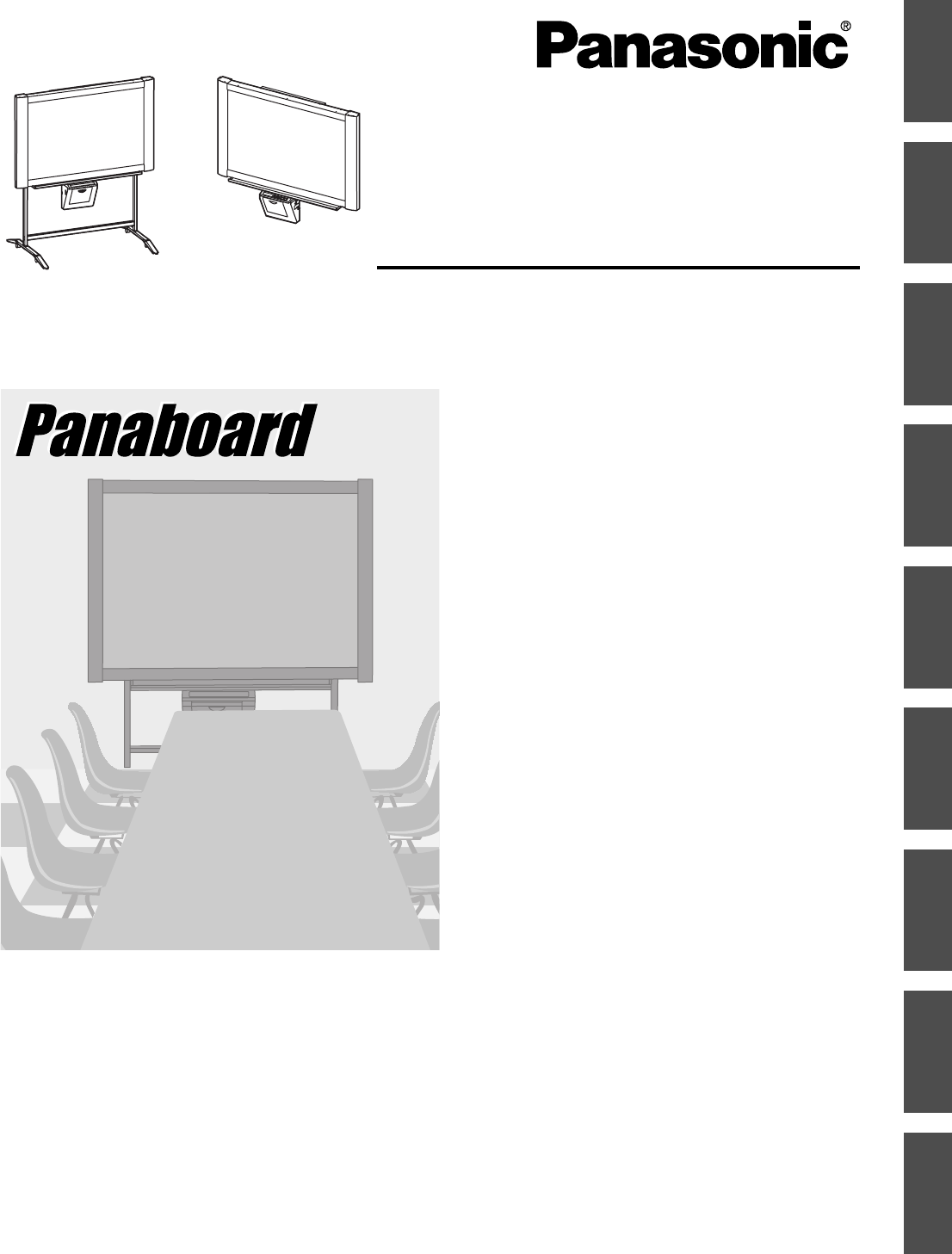
Electronic Board
Operating Instructions
Model No. UB-5325
UB-5825
The unit in this picture is UB-5325.
(Stand and Wall-mounting kit are optional.)
English. . . . . . . . . . . . . . . . . .1–28
Français . . . . . . . . . . . . . . . .29–56
Deutsch . . . . . . . . . . . . . . . .57–84
Español . . . . . . . . . . . . . . .85–112
Italiano . . . . . . . . . . . . . . .113–140
Nederlands . . . . . . . . . . .141–168
Svenska . . . . . . . . . . . . . .169–196
中 文 . . . . . . . . . . . . . . . .197–224
Русский . . . . . . . . . . . . . .225–252
[Stand (option)] [Wall-mounting (option)]
English Français ItalianoEspañol Nederlands SvenskaDeutsch 中 文 Русский
• To assemble this unit, please refer to the Installation Manual.
• Before operating this unit, please read these instructions completely and keep them carefully for future reference.
• Because of the nature of the print film, all the printed text will remain on the film.
2
Thank you for purchasing the Panasonic Electronic Board.
For optimum performance and safety, please read these instructions carefully.
Model number: _________________________ Date of purchase: ________________________
Serial number: _________________________ Dealer’s name: __________________________
Dealer’s address: ______________________________________________________________________
Record these items for future reference
Tel:
Q’ty
• Thermal transfer film . . . . . . . . . . . . . . 1
• Markers (red, black, and blue) . . . . . . 1 each
• Operating Instructions . . . . . . . . . . . . . 1
• Installation Manual . . . . . . . . . . . . . . . 1
• Eraser . . . . . . . . . . . . . . . . . . . . . . 1
Q’ty
• Power cord . . . . . . . . . . . . . . . . . . . 1
• A4 (Letter*) size copy paper . . . . . . . . . . 20
• Software CD-ROM . . . . . . . . . . . . . . . 1
Accessories
* Letter size is for U.S.A. and Canada models.
• The stand and wall-mounting kit are optional. By way of example, this manual describes an Electronic
Board which is used with the stand.
• USB cable is not included.
• Microsoft, Windows and Windows Vista are either registered trademarks or trademarks of Microsoft Corporation in
the United States and/or other countries.
• IBM and AT are trademarks of International Business Machines Corporation in the United States, other countries,
or both.
• Pentium is a trademark or registered trademark of Intel Corporation or its subsidiaries in the United States and
other countries.
• Adobe, Acrobat, Acrobat Reader and Reader are either registered trademarks or trademarks of Adobe Systems
Incorporated in the United States and/or other countries.
• All trademarks referred to in this manual are property of their respective companies.
• This software is based in part of the work of the IndependentJPEG Group.
• This software is based on the “libtiff” which has the following copyrights:
Copyright (C) 1988-1997 Sam Leffler
Copyright (C) 1991-1997 Silicon Graphics, Inc.
The information given in this Operating Instructions is subject to change without notice.
Warning about saving data
When the system storage device or any of its optional storage device is adversely effected by operational
errors, static electricity, electrical noise, vibration, dust or when the power has been cut off due to malfunction,
repair or inadvertently, the memory contents may be lost or changed. Before operating the system, make a
point of reading the precautionary notes in the Operating Instructions and the help information, and observe
them during operation.
Please observe carefully the following precaution:
•Make absolutely sure that all important data is saved by back-up or the original is saved.
The manufacturer hereby declares that it cannot be held accountable for any loss or change in any data
stored on floppy disks, hard disks, optical disks, or other memory devices.
3
English
For Your Safety. . . . . . . . . . . . . . . . . . . . . . . . . . . . . . . . . . . . . . . . . 4
Precautions. . . . . . . . . . . . . . . . . . . . . . . . . . . . . . . . . . . . . . . . . . . . 5
• CD-ROM . . . . . . . . . . . . . . . . . . . . . . . . . . . . . . . . . . . . . . . . . . . . . . . . . . . . . . 6
Part Names and Functions . . . . . . . . . . . . . . . . . . . . . . . . . . . . . . . 8
• Control panel . . . . . . . . . . . . . . . . . . . . . . . . . . . . . . . . . . . . . . . . . . . . . . . . . . . 9
Installing the Thermal Transfer Film. . . . . . . . . . . . . . . . . . . . . . . 10
Loading Copy Paper. . . . . . . . . . . . . . . . . . . . . . . . . . . . . . . . . . . . 11
Making Copies . . . . . . . . . . . . . . . . . . . . . . . . . . . . . . . . . . . . . . . . 13
• Copy types and procedures . . . . . . . . . . . . . . . . . . . . . . . . . . . . . . . . . . . . . . . 13
Replacing the Thermal Transfer Film . . . . . . . . . . . . . . . . . . . . . . 14
Paper Jams . . . . . . . . . . . . . . . . . . . . . . . . . . . . . . . . . . . . . . . . . . . 15
Computer Interfacing . . . . . . . . . . . . . . . . . . . . . . . . . . . . . . . . . . . 17
• System requirements . . . . . . . . . . . . . . . . . . . . . . . . . . . . . . . . . . . . . . . . . . . . 17
• Contents of CD-ROM . . . . . . . . . . . . . . . . . . . . . . . . . . . . . . . . . . . . . . . . . . . . 17
• Installing Drivers / Board Image Capture . . . . . . . . . . . . . . . . . . . . . . . . . . . . . 18
• Installing Quick Image Navigator / Panasonic-DMS . . . . . . . . . . . . . . . . . . . . 19
• Removing Drivers / Board Image Capture / Quick Image Navigator . . . . . . . . 19
• Removing Panasonic-DMS . . . . . . . . . . . . . . . . . . . . . . . . . . . . . . . . . . . . . . . 20
• Scanning with the Board Image Capture . . . . . . . . . . . . . . . . . . . . . . . . . . . . . 20
• Scanning with the Quick Image Navigator / Panasonic-DMS . . . . . . . . . . . . . 21
• Panaboard Operation Panel. . . . . . . . . . . . . . . . . . . . . . . . . . . . . . . . . . . . . . . 22
• Printing . . . . . . . . . . . . . . . . . . . . . . . . . . . . . . . . . . . . . . . . . . . . . . . . . . . . . . . 23
Daily Care and Maintenance . . . . . . . . . . . . . . . . . . . . . . . . . . . . . 24
• Cleaning the screen and the unit . . . . . . . . . . . . . . . . . . . . . . . . . . . . . . . . . . . 24
• Caring for the eraser . . . . . . . . . . . . . . . . . . . . . . . . . . . . . . . . . . . . . . . . . . . . 24
• Cleaning the printer head, platen roller and pick-up roller . . . . . . . . . . . . . . . . 24
Troubleshooting . . . . . . . . . . . . . . . . . . . . . . . . . . . . . . . . . . . . . . . 26
• Meanings of error codes . . . . . . . . . . . . . . . . . . . . . . . . . . . . . . . . . . . . . . . . . 27
Specifications . . . . . . . . . . . . . . . . . . . . . . . . . . . . . . . . . . . . . . . . . 28
• Option and Separately available . . . . . . . . . . . . . . . . . . . . . . . . . . . . . . . . . . . 28
Help
Page
Table of Contents
Before
You Star t
Using
4
For Your Safety
• (220–240 V equipment)
A certified power supply cord has to be used with this
equipment. The relevant national installation and/or
equipment regulations shall be considered. A certified
power supply cord is not lighter than ordinary polyvinyl
chloride flexible cord according to IEC 60227
(designation H05VV-F 3G 1.0 mm2).
Safety Information
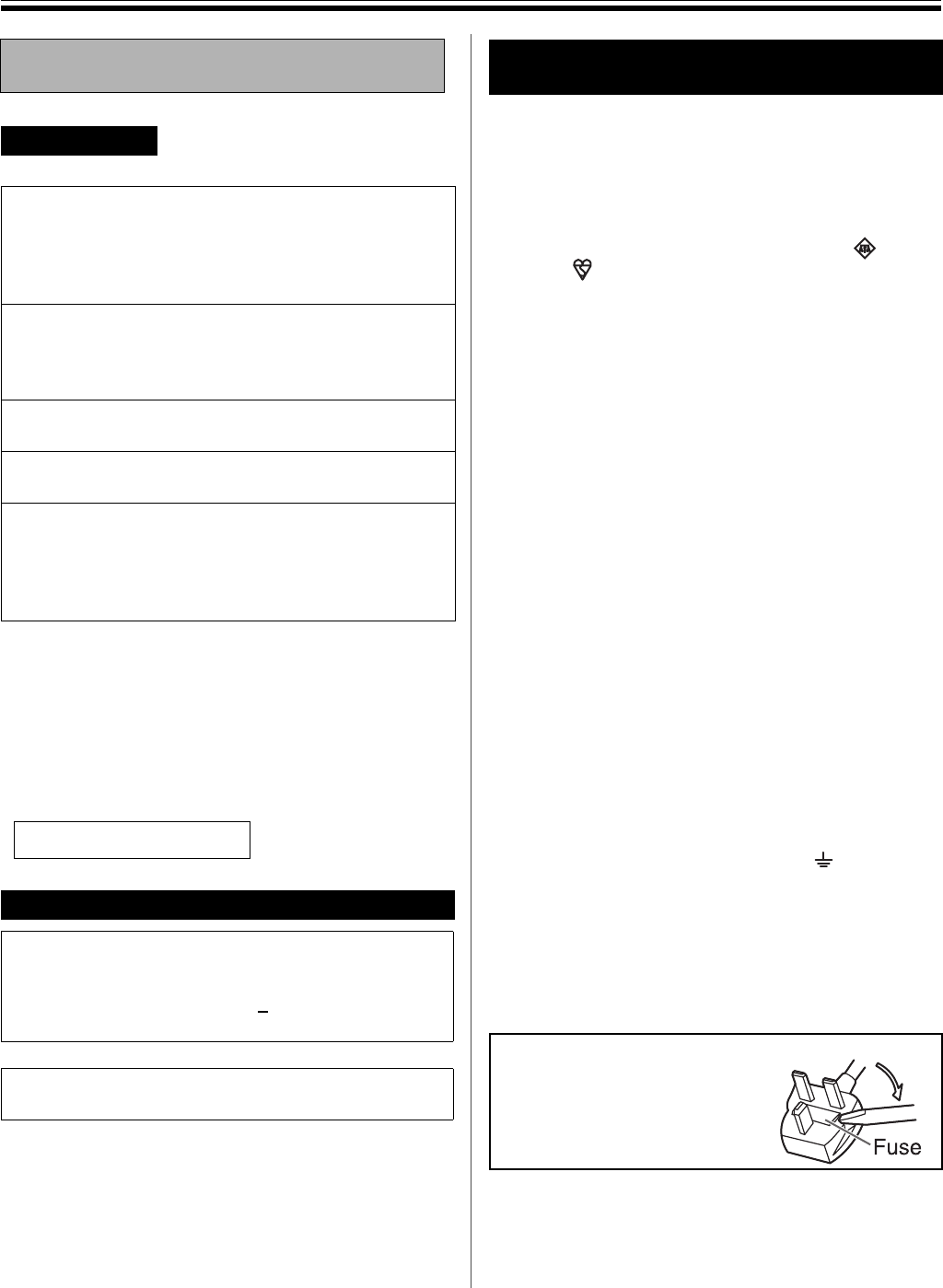
This appliance is supplied with a moulded three pin
mains plug for your safety and convenience.
A 5 amp. fuse is fitted in this plug. Should the fuse need
to be replaced please ensure that the replacement fuse
has a rating of 5 amps. and that it is approved by ASTA
or BSI to BS1362. Check for the ASTA mark or the
BSI mark on the body of the fuse. If the plug
contains a removable fuse cover you must ensure that it
is refitted when the fuse is replaced. If you lose the fuse
cover the plug must not be used until a replacement
cover is obtained. A replacement fuse cover can be
purchased from your local Panasonic Dealer.
If the fitted moulded plug is unsuitable for the socket
outlet in your home then the fuse should be removed
and the plug cut off and disposed of safely.
There is a danger of severe electrical shock if the cut off
plug is inserted into any 13 amp. socket.
If a new plug is to be fitted please observe the wiring
code as shown below. If in any doubt please consult a
qualified electrician.
WARNING: This appliance must be earthed.
IMPORTANT: The wires in this mains lead are coloured
in accordance with the following code.
Green-and-Yellow: Earth
Blue: Neutral
Brown: Live
As the colours of the wire in the mains lead of this
appliance may not correspond with the coloured
markings identifying the terminals in your plug, proceed
as follows.
The wire which is coloured Green-and-Yellow must be
connected to the terminal in the plug which is marked
with the letter E or by the Earth symbol or coloured
Green or Green-and-Yellow.
The wire which is coloured Blue must be connected to
the terminal in the plug which is marked with the letter N
or coloured Black.
The wire which is coloured Brown must be connected to
the terminal in the plug which is marked with the letter L
or coloured Red.
For Your Safety
English
CAUTION:
TO PREVENT RISK OF ELECTRIC SHOCK
HAZARD, DO NOT REMOVE THE COVER OF THIS
PRODUCT, REFER SERVICING TO QUALIFIED
SERVICE PERSONNEL.
WARNING:
TO PREVENT FIRE OR SHOCK HAZARD, DO NOT
EXPOSE THIS PRODUCT TO RAIN OR ANY TYPE
OF MOISTURE.
THE SOCKET-OUTLET MUST BE NEAR THIS
EQUIPMENT AND MUST BE EASILY ACCESSIBLE.
The product should be used only with the power cord
that is supplied by the manufacturer.
Stop operation immediately if your product emits
smoke, excessive heat, abnormal smell or unusual
noise. These conditions can cause fire or electric
shock. Immediately turn the product off and unplug
the power cord, and contact your dealer for service.
CLASS 1 LED PRODUCT
Für Benutzer in der BRD
Hinweis:
Maschinenlärminformations-Verordnung - 3. GPSGV, der
höchste Schalldruckpegel beträgt < 70 dB (A) oder weniger
gemäss EN ISO 7779.
Das Gerät ist nicht für die Benutzung am
Bildschirmarbeitsplatz gemäß BildscharbV vorgesehen.
For users in
the United Kingdom only
How to replace the fuse:
Open the fuse compartment
with a screwdriver and
replace the fuse.
Precautions
5
English
Precautions
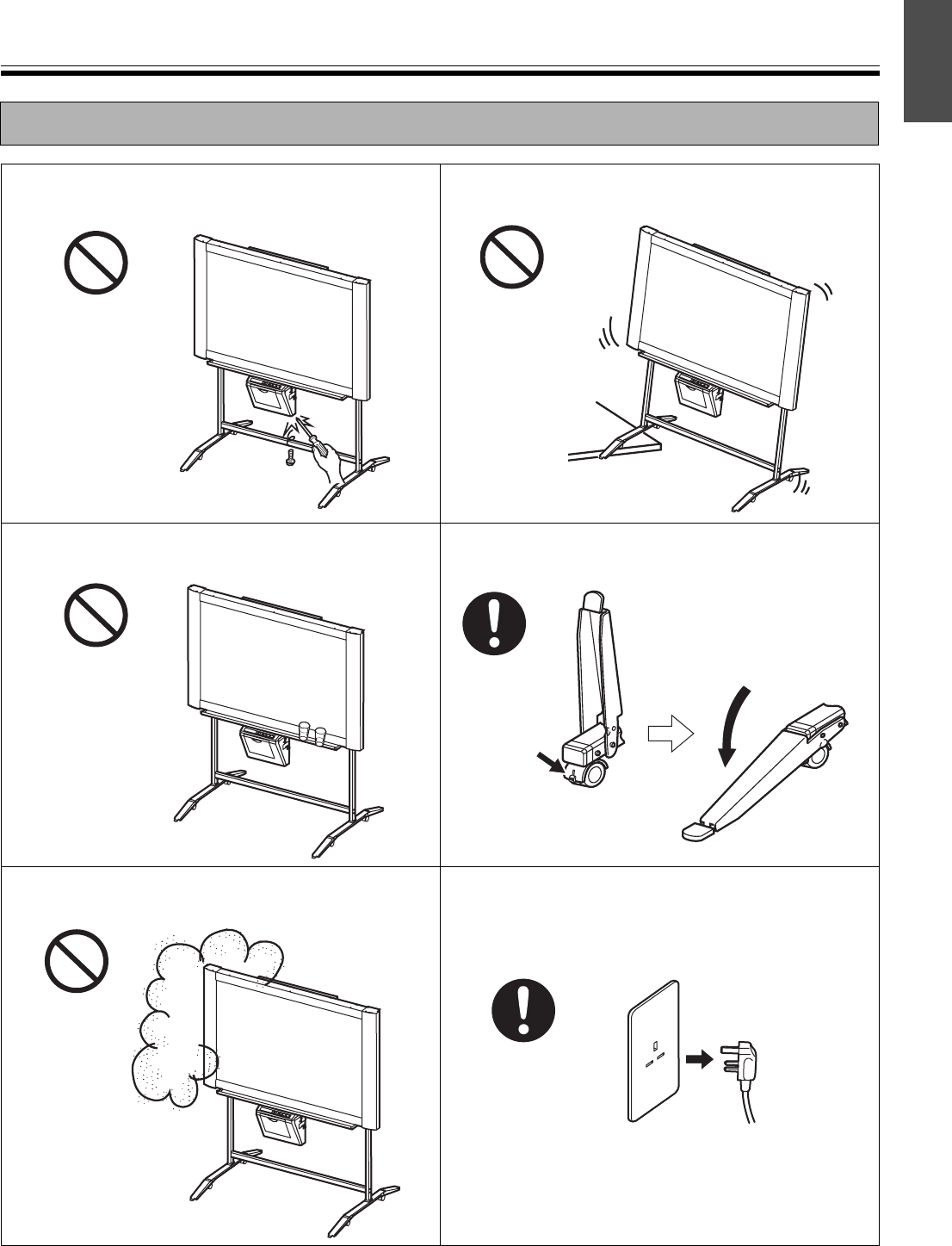
Never remove the cover, take apart or modify the
product. This will void the warranty.
Do not position the electronic board in a location where
it is unstable.
Do not put drinks, other liquids or heavy items on the
tray or screen.
After installing or moving the electronic board, lock the
casters and set the fall-prevention extension legs.
Do not use the electronic board in an excessively
humid or dusty location.
If the electronic board is not going to be used for an
extended period of time (e.g., during extended
holidays), turn off the power and remove the plug from
the wall outlet.
Locking the casters
(Push this side)
Push to lock
Precautions
6
■CD-ROM
To prevent the CD-ROMs from accidental damages:
Information on Disposal for Users of Waste Electrical & Electronic Equipment (private households)
This symbol on the products and/or accompanying documents means that used electrical and electronic products should not
be mixed with general household waste.
For proper treatment, recovery and recycling, please take these products to designated collection points, where they will be
accepted on a free of charge basis. Alternatively, in some countries you may be able to return your products to your local
retailer upon the purchase of an equivalent new product.
Disposing of this product correctly will help to save valuable resources and prevent any potential negative effects on human
health and the environment which could otherwise arise from inappropriate waste handling. Please contact your local authority
for further details of your nearest designated collection point.
Penalties may be applicable for incorrect disposal of this waste, in accordance with national legislation.
For business users in the European Union
If you wish to discard electrical and electronic equipment, please contact your dealer or supplier for further information.
Information on Disposal in other Countries outside the European Union
This symbol is only valid in the European Union.
If you wish to discard this product, please contact your local authorities or dealer and ask for the correct method of disposal.
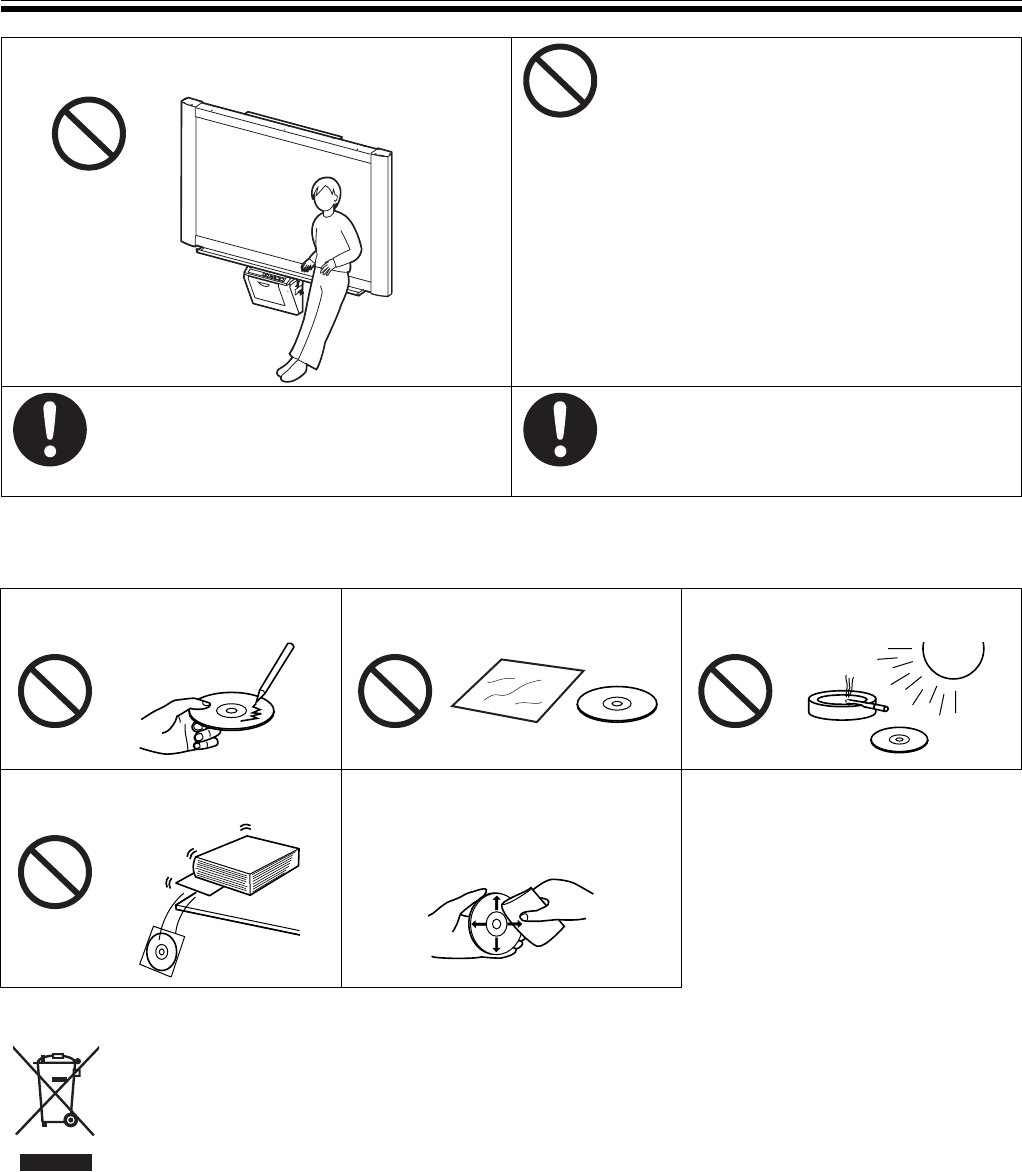
Do not lean against the screen or on the cover (lower),
even if the electronic board is mounted on the wall. Have the unit installed, removed and
disposed of only by qualified service
personnel.
CHOKING HAZARD
Keep the marker’s cap out of reach of
children to prevent swallowing.
When the unit will no longer be used, in order
to prevent it from falling, do not leave the unit
installed, but remove it. If the unit falls, it can
cause injury
Do not touch or write on the surface
of the disc.
Do not leave the disc out of the
protective case.
Do not leave the disc in direct
sunlight or near heat sources.
Do not place heavy objects on the
disc case or drop the case.
To clean the disc, hold the disc by
its edges and wipe it from the
center to the edges with a dry, soft
cloth.
Precautions
7
English
Installation • Do not install the unit where it may be exposed to direct sunlight, near heating equipment, or
near air-conditioning vents as this may cause stretching and/or discoloration of the screen.
• Do not install the unit in strong sunlight or strong lighting. Proper copying may become
impossible.
• Do not install the unit in locations where the temperature may change suddenly as this may
disable the unit’s ability to make copies.
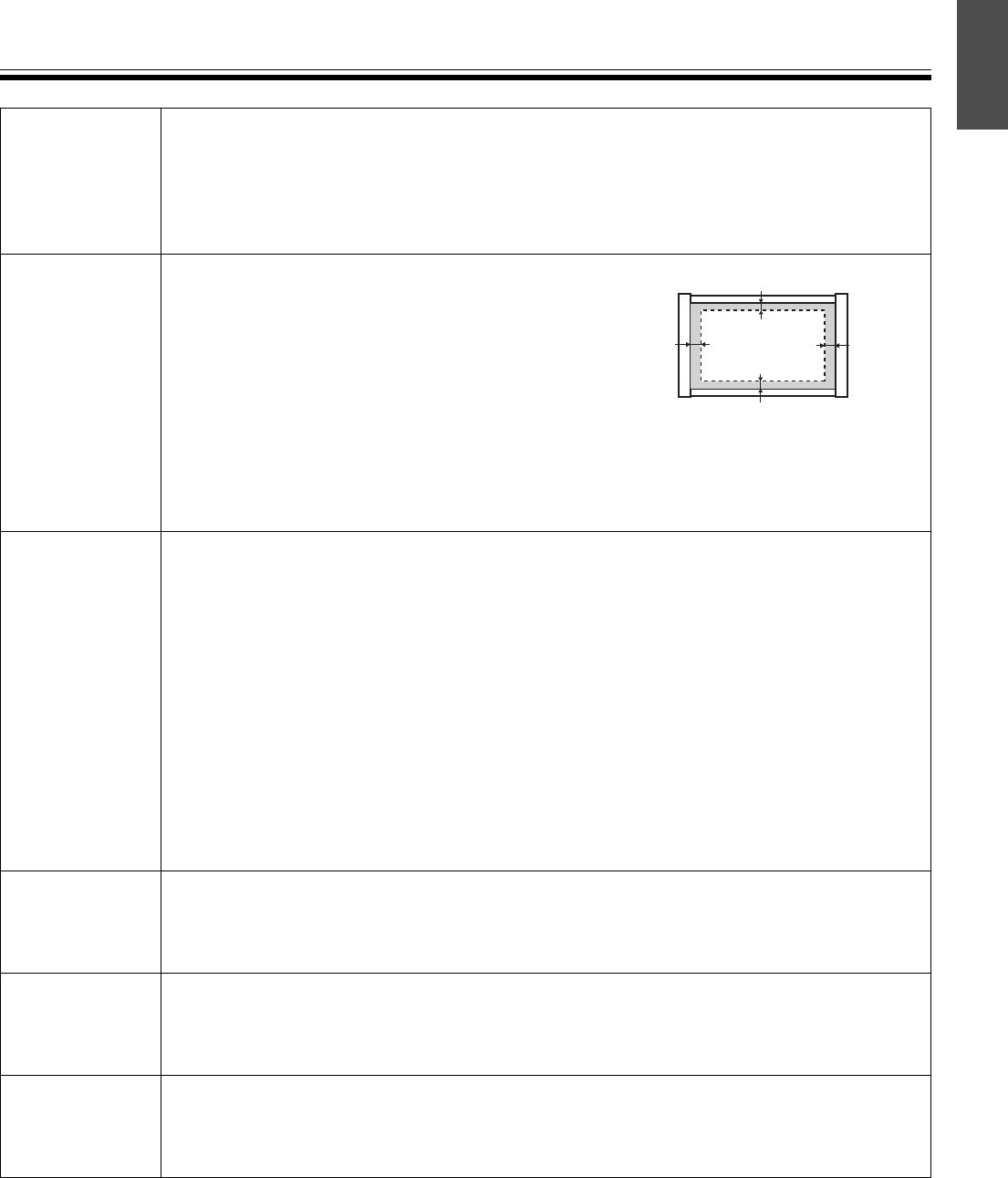
Screen Film • Make thick and dark lines inside the copying area.
Note that any writing inside the shaded area (on
right) cannot be copied.
• Do not allow writing to remain on the screen for an
extended period of time as it will become harder to
erase.
• Do not touch the screen, write with markers, or
erase while the screen is moving as this may result
in damage to the unit.
• Do not erase with an overly dirty eraser (see page 24).
• Do not attach chart paper to the screen film for copying as this may result in damage to the
unit.
Markers,
Erasers and
Thermal
Transfer Film
• Use only the included or designated markers, erasers and thermal transfer film. (See page
28.)
Use of accessories other than those included or designated (such as oil-based
markers) may damage the screen or result in hard-to-erase markings.
• Do not store the thermal transfer film in a location subject to extreme changes in
temperature (such as near air conditioning or heating equipment) as this may cause
condensation on the thermal transfer film and result in poor print quality and/or paper jams.
• The length of one roll of designated thermal transfer film (Replacement film: UG-6001) is
approximately 50 meters. One roll of thermal transfer film can make approximately 150
sheets of copies.
Note that the total number of copies may differ depending on the operating conditions.
Also note that the length of the thermal transfer film supplied with the unit is shorter
than the replacement film roll and is only approximately 10 meters.
• Store markers horizontally as vertical storage may stop the ink from coming out.
Power Cord • The included power cord is for use with this unit only. Do not use it with other devices.
• When moving the unit, disconnect the power cord from the electrical power socket and from
the printer’s power connector and coil it for transportation as stepping on the power cord or
having it catch on something during movement may result in damage to the cord.
Replacing
the Thermal
Transfer Film
• Dispose of the used thermal transfer film in a trash receptacle for burnable trash.
• A negative of the copied image will remain on the thermal transfer film. (To protect the
security of your information, we recommend cutting up the used thermal transfer film with
scissors or shredder before disposing of it.)
USB Cable • Use a shielded USB cable that is certified as logo by USB-IF.
• If you connect the electronic board to a USB hub, it is not guaranteed to work.
• Do not connect two or more Panasonic electronic boards to a computer. It may cause the
computer operation to become unstable.
35 mm
25 mm
25 mm
35 mm
Copying area
Part Names and Functions
8
Part Names and Functions
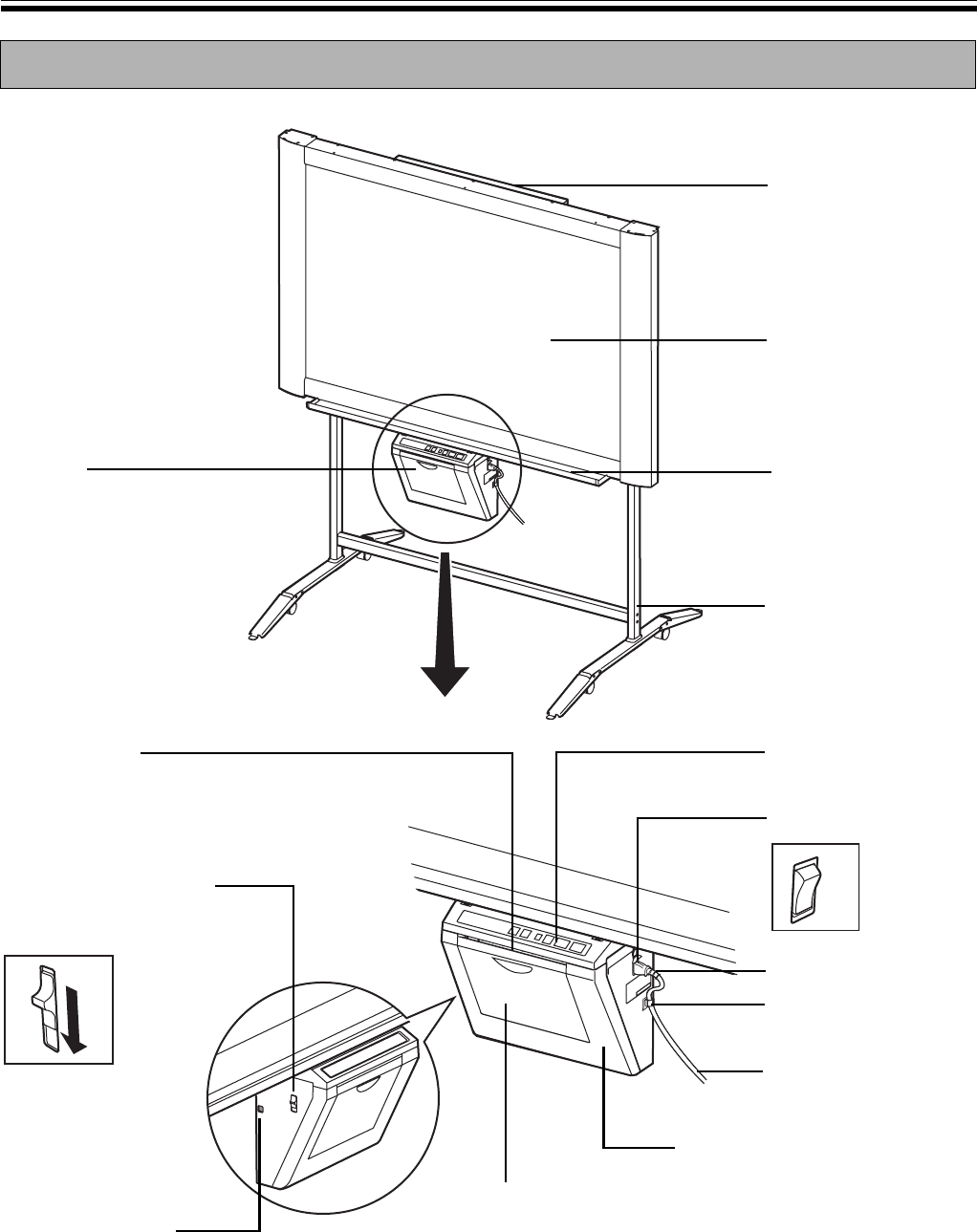
ON
OFF
Screen
AC Inlet
Power Switch
Tray
Power Cord
Output Port
This port holds up to 10
sheets of output paper.
Paper Cover
Open this cover to
load copy paper.
Printer Door
Open this door to load a
thermal transfer film or to
remove jammed paper.
(See pages 10, 15.)
Printer Open Lever
Push down this lever to
open the printer door.
Control Panel
(See page 9 for details.)
USB Connector
(See page 17.)
Stand
The stand is optional.
Cord Holder
Printer
Scanner
Part Names and Functions
9
English
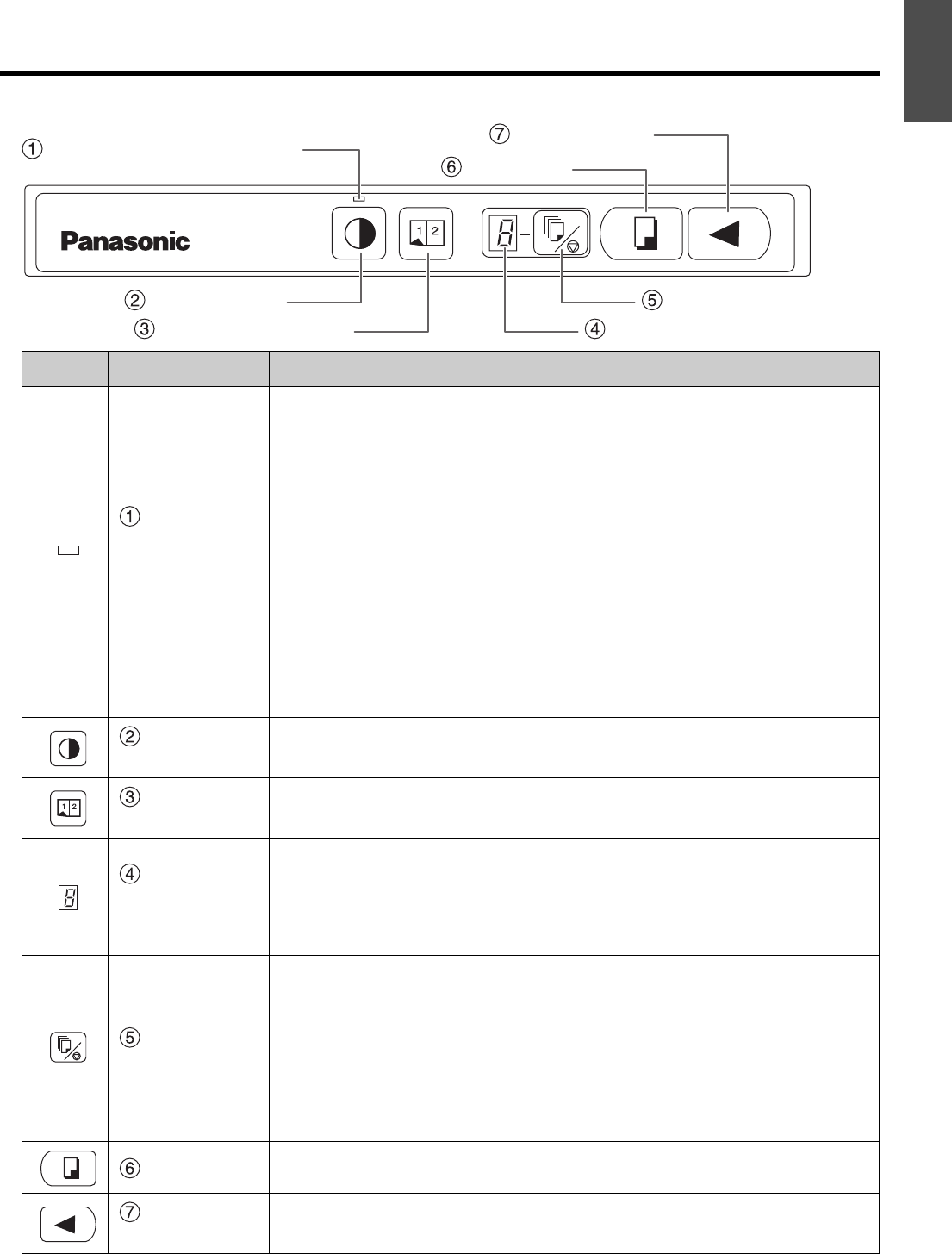
■Control panel
Panel Name Description
Contrast/
Remaining
Film
Indicator
This lamp indicator notifies the user when the time to replace the
thermal transfer film is approaching (estimated) and of the
printing contrast used during copying.
Indicator off: Normal printing contrast
Indicator on: Darker than normal printing contrast
Indicator flashing*: Almost time to replace the thermal transfer
film
(Note that only about 15 more sheets may be
copied when this indicator starts flashing.)
Replacement film (UG-6001) is separately available
from the dealer where you purchased your unit.
* The flashing indicator will go out after the power is turned off, or the
printer has been opened and closed. (When copying is performed, this
indicator will begin flashing again.)
Contrast
Key
Each time this key is pressed, the unit will alternate between
normal and dark contrast modes (Normal/Dark).
2-Screen
Copy Key
This key causes the front and back of the screen to be copied on
a single sheet of paper.
Multi-Copy/
Error
Indicator
This indicator displays the number of copies to be made. The
display changes each time the Multi-Copy/Stop Key is pressed.
Example: 1 → 2 → ··· → 9 → 1 → ···
When an error occurred, a flashing symbol will appear in this display to
indicate the error status. (See page 27.)
Multi-Copy/
Stop Key
When making multiple copies, press this key until the desired
number of copies is displayed on the Multi-Copy/Error Indicator.
This key can also be pressed to stop copying while executing
multiple copies.
• The display changes as shown below each time the screen is copied. After
reaching 0, the display will reset to 1.
Example: 5 → 4 → 3 → 2 → 1 → 0 → 1
(Number is counted down.)
Copy Key This key causes the screen to be copied.
Advance
Key Pressing this key advances the screen from right to left.
Contrast/Remaining Film
Indicator
Advance Key
Multi-Copy/Error Indicator
Multi-Copy/Stop Key
Copy Key
Contrast Key
2-Screen Copy Key
Installing the Thermal Transfer Film
10
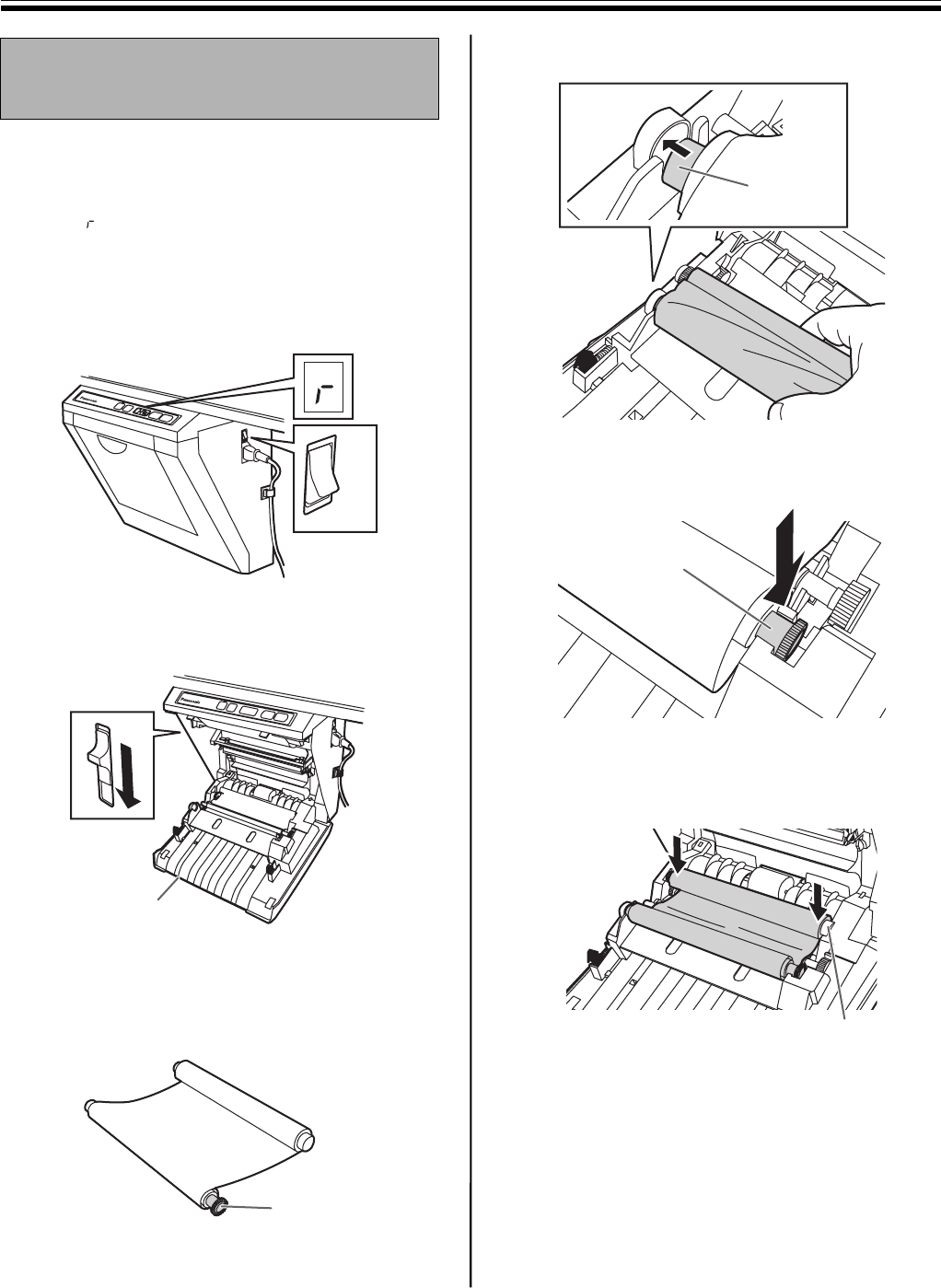
Install the thermal transfer film in the printer.
1Set the power switch to on ( I ).
• “ ” will flash on the Multi-Copy/Error
Indicator when the thermal transfer film has
run out.
• The screen will move to home position and
stop.
2Push down the printer open lever and open
the printer door.
3Install the thermal transfer film.
1) Set the thermal transfer film, with the blue
gear in front, on the right.
2) Insert the blue shaft into the front left hole.
3) Place the blue gear on the front right groove.
4) Place the white shaft on both sides of the back
grooves.
Installing the Thermal
Transfer Film
ON
OFF
Printer door
Blue gear
Blue shaft
Blue gear
White shaft
Loading Copy Paper
11
English
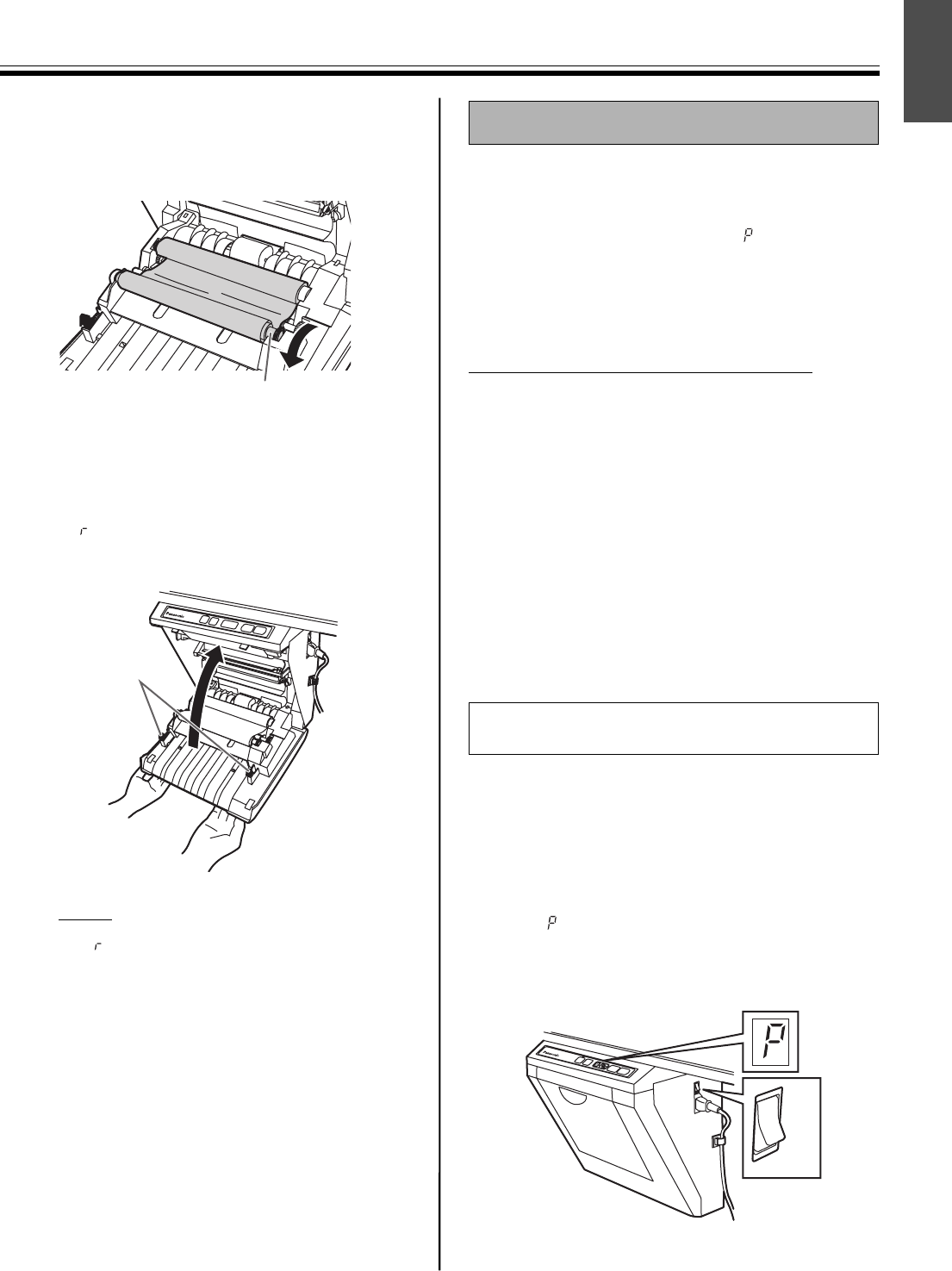
4Tighten the film, then close the printer door.
1) Rotate the blue gear in the direction of the
arrow to take up the slack on the film.
• If a slack remains, perform step 3-2) through
4-1) again.
2) Securely close the printer door by using both
hands until a click is heard.
• “ ” flashing on the Multi-Copy/Error
Indicator will go out.
Note
• If “ ” is still flashing after closing the printer
door, make sure that the thermal transfer film
has been installed properly and tightened.
• The printer door should be closed to make
copies properly. Confirm both latches are
locked.
It is possible to load up to 40 sheets of A4 (Letter*)
size copy paper [assuming a paper weight of 80 g/m2].
Note that only A4 (Letter*) size paper may be used.
When the unit is first used or when “ ” flashes on the
Multi-Copy/Error Indicator to indicate that the unit is
out of paper, load copy paper as described below.
* Letter size is for U.S.A. and Canada models.
Notes on Loading Copy Paper
Follow the guidelines below to ensure smooth and
accurate printing by the unit.
• Only use A4 (Letter) size copy paper having a weight
of 60
g
/m
2
to 90
g
/m
2
as the copy paper for this unit.
• Do not simultaneously load paper of varying type
and thickness as this may result in paper jams.
• Before adding copy paper, be sure to remove all the
copy paper remaining inside the unit’s paper cover.
(Note that copy paper will slightly resist being
removed, but may be pulled out without problems.)
After removing the copy paper, stack the removed
paper together with the new paper, fan it thoroughly,
square it and reload.
• Extremely smooth or glossy paper
• Coated paper
• Thermal paper
• Paper that is printed on one side
• Wrinkled paper, creased paper, etc.
1Set the power switch to on ( I ).
• “ ” will flash on the Multi-Copy/Error
Indicator when copy paper has run out.
• The screen will move to home position and
stop.
Blue gear
Latches
Loading Copy Paper
DO NOT USE THE FOLLOWING TYPES
OF PAPER
ON
OFF
Loading Copy Paper
12
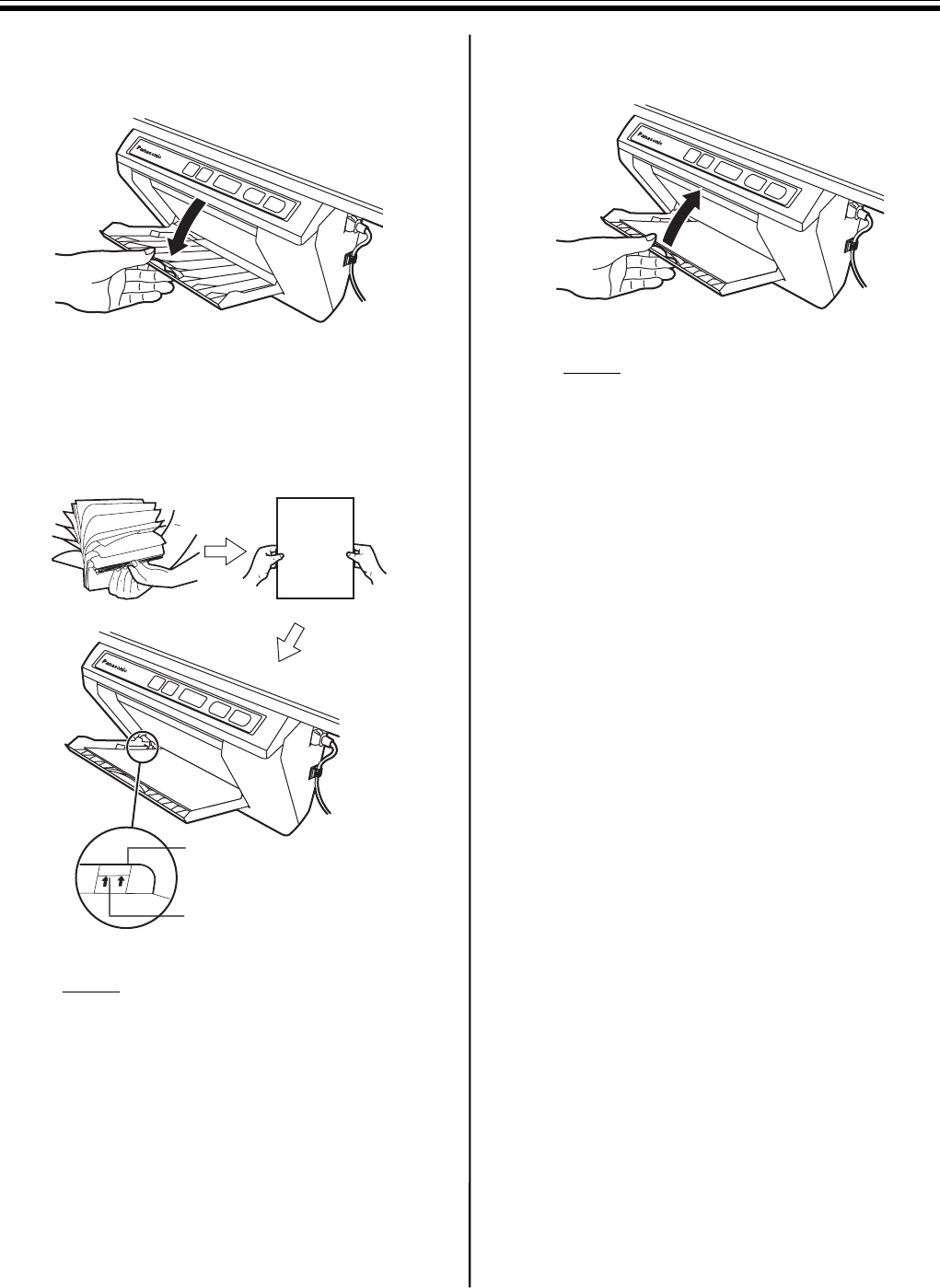
2Pull the paper cover forward as shown in the
figure.
3To prevent paper jams such as those caused
by multiple sheets feeding at once, fan the
paper thoroughly, square it, align it with the
guide inside, and insert as far as it will go.
Note
• Only use A4 (Letter*) size copying paper
having a weight of 60 g/m2 to 90 g/m2 as the
copy paper for this unit.
* Letter size is for U.S.A. and Canada models.
• Do not stack more copy paper in the unit
than the maximum paper limit indicated by
the guide (see the above figure) as this may
result in paper jams. [Note that the unit can
hold about 40 sheets of paper having a
weight of 80 g/m2.]
4Close the paper cover until a click is heard.
Note
• Close the paper cover, or the unit will not
work properly.
• The paper cover should be closed to make
copies properly. Confirm the both latches are
locked.
Maximum paper limit
Guide
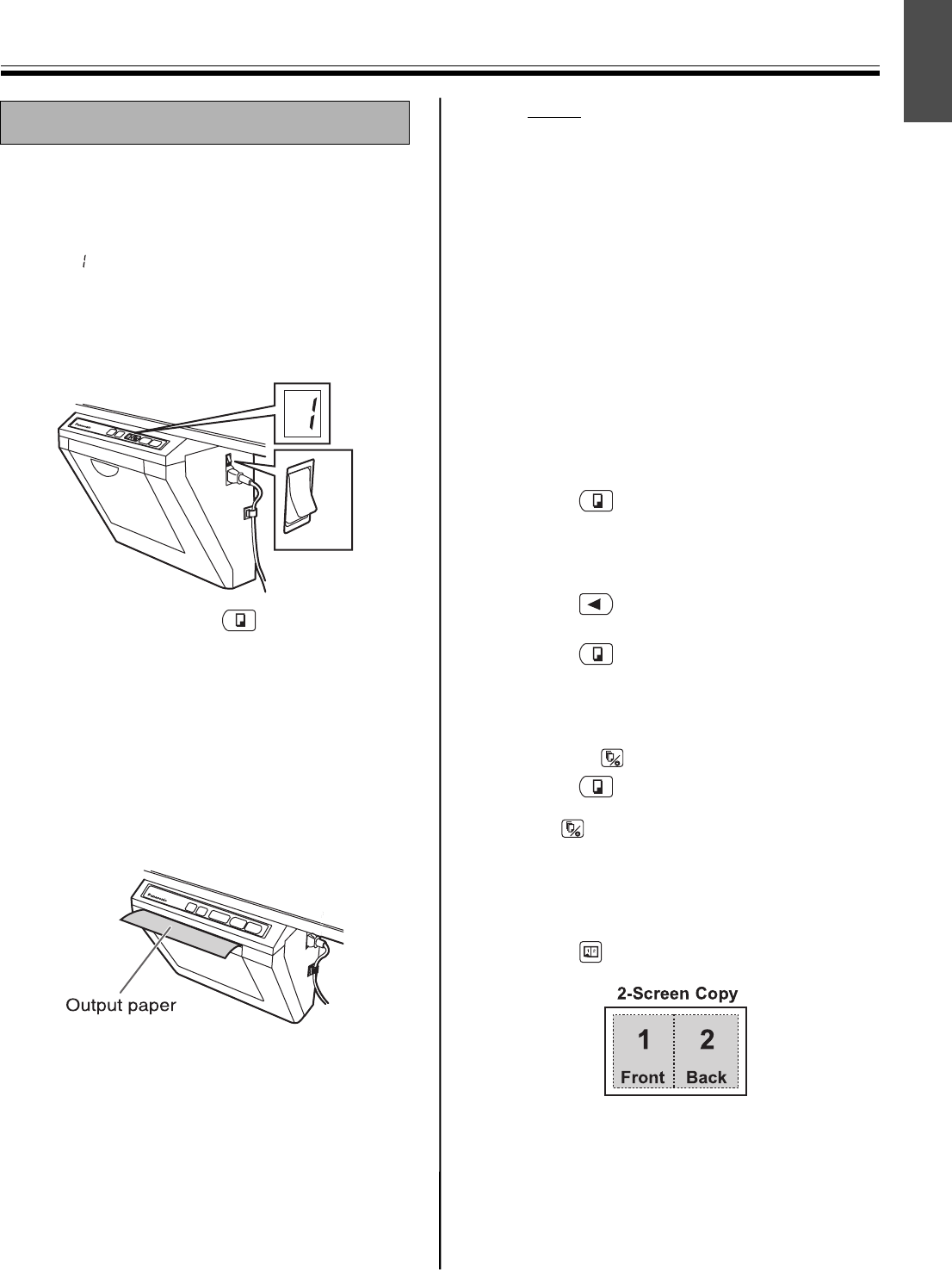
Making Copies
13
English
This section describes how to copy text and
illustrations drawn on the screen.
1Set the power switch to on ( I ).
• “ ” will light on the Multi-Copy/Error
Indicator to indicate that the unit is ready to
copy.
• The screen will move to home position and
stop.
2Press the Copy Key .
• Text and illustrations on the screen will be
copied and copies emerge from the output
port.
• The output port can hold up to 10 sheets of
copy paper. (Note that exceeding the output
port’s capacity may result in paper jams.)
• For details on making multiple copies, 2-
screen copies and so on, see “Copy types
and procedures” on this page.
Note
• Do not use paper that has been copied on
one side by this printer as copy paper in this
unit or in any other copiers or printers as this
may result in dirty rollers, degradation of
printing quality, paper jams, and streaks and
smudges on output paper.
• Do not write on the back side of the output
paper from this unit. The printed ink may be
transferred underneath the paper.
• Text or images in shades of yellow will not
copy.
■Copy types and procedures
[A] Copying the front of the screen
1) Press .
[B] Copying the back of the screen
1) Press to move the screen to be copied
to the front.
2) Press .
[C] Making multiple copies (up to 9)
1) Select the number of copies (1 to 9) by
pressing as necessary.
2) Press .
•Press
to stop copying in mid-operation.
[D] Making 2-screen copies
Copying the front and back of the screen on a
single sheet of paper
1) Press .
Making Copies
ON
OFF
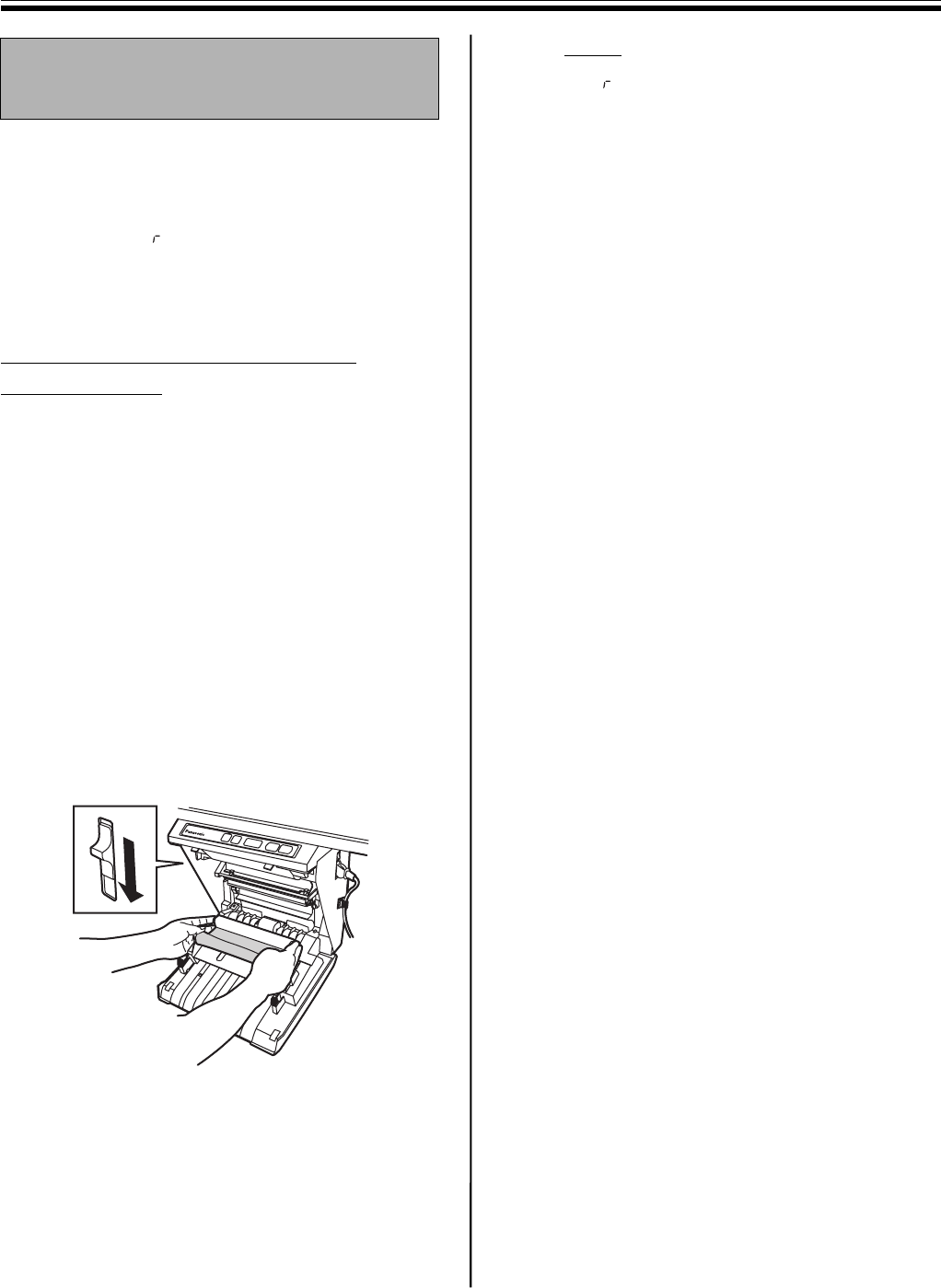
Replacing the Thermal Transfer Film
14
The unit is capable of producing about 15 more copies
when the Contrast/Remaining Film Indicator begins to
flash. The unit has run out of thermal transfer film and
can no longer make copies when the Multi-Copy/Error
Indicator flashes “ ”. Separately available
replacement film (UG-6001) may be purchased from
the dealer where you purchased the unit. Thermal
transfer film is replaced as follows.
Notes on Replacing Thermal
Transfer Film
• Only use the designated product (UG-6001) from
Panasonic as the replacement film. (Note that using
another type of replacement film may result in
degraded printing quality or damage to the unit.)
• Thermal transfer film is disposable. Dispose of used
thermal transfer film as “burnable” or “non-
recyclable” rubbish.
• A negative of the copied image will remain on the
thermal transfer film. To protect the security of your
information, we recommend cutting up the used
thermal transfer film with scissors or shredder before
disposing of it.
1Push down the printer open lever to open the
printer door, and remove the used film.
2Refer to steps 3 and 4 in the section of
“Installing the Thermal Transfer Film” on
page 10.
Note
• If “ ” is still flashing after closing the printer
door, make sure that the thermal transfer film
has been installed properly and tightened.
• The printer door should be closed to make
copies properly. Confirm both latches are
locked.
Replacing the Thermal
Transfer Film
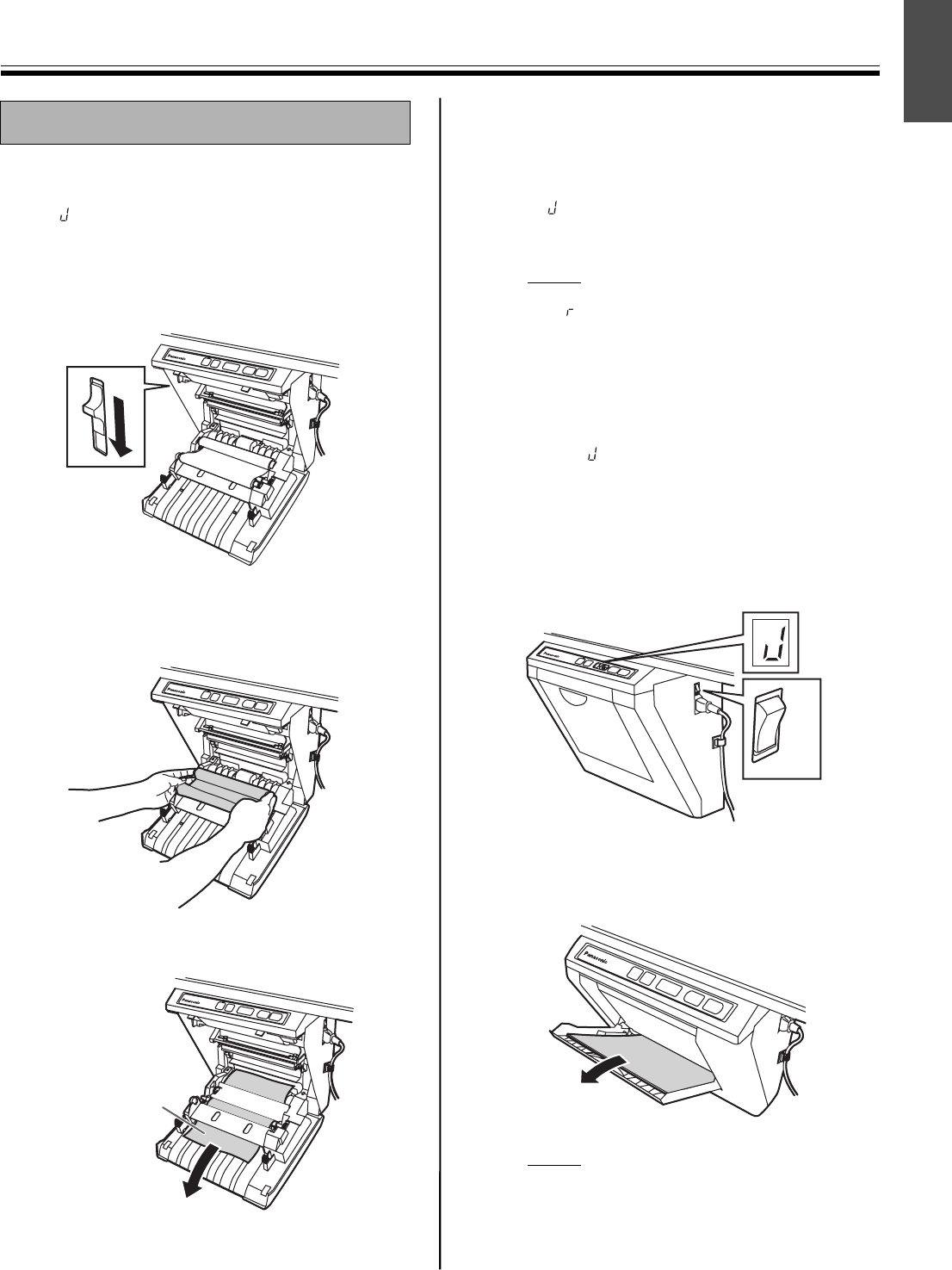
Paper Jams
15
English
Remove paper jams by the following procedure when
copy paper does not come out of the output port or
when “” flashes on the Multi-Copy/Error Indicator.
1Push down the printer open lever to open the
printer door.
2Remove the thermal transfer film with both
hands.
3Remove the jammed paper.
4Install the thermal transfer film.
• Refer to steps 3 and 4 in the section of
“Installing the Thermal Transfer Film” on
page 10.
• “ ” flashing on the Multi-Copy/Error
Indicator will go out.
Note
• If “ ” is still flashing after closing the printer
door, make sure that the thermal transfer film
has been installed properly and tightened.
• The printer door should be closed to make
copies properly. Confirm both latches are
locked.
If the flashing “” does not go out after the foregoing
procedure has been performed; this may indicate that
the paper feeder is not functioning properly.
Reload the copy paper by following the steps given
below.
1Turn the power off.
2Open the paper cover and remove all the copy
paper remaining inside the unit’s paper cover.
Note
• The copy paper will slightly resist being
removed, but may be pulled out without
problems.
Paper Jams
Jammed paper
ON
OFF
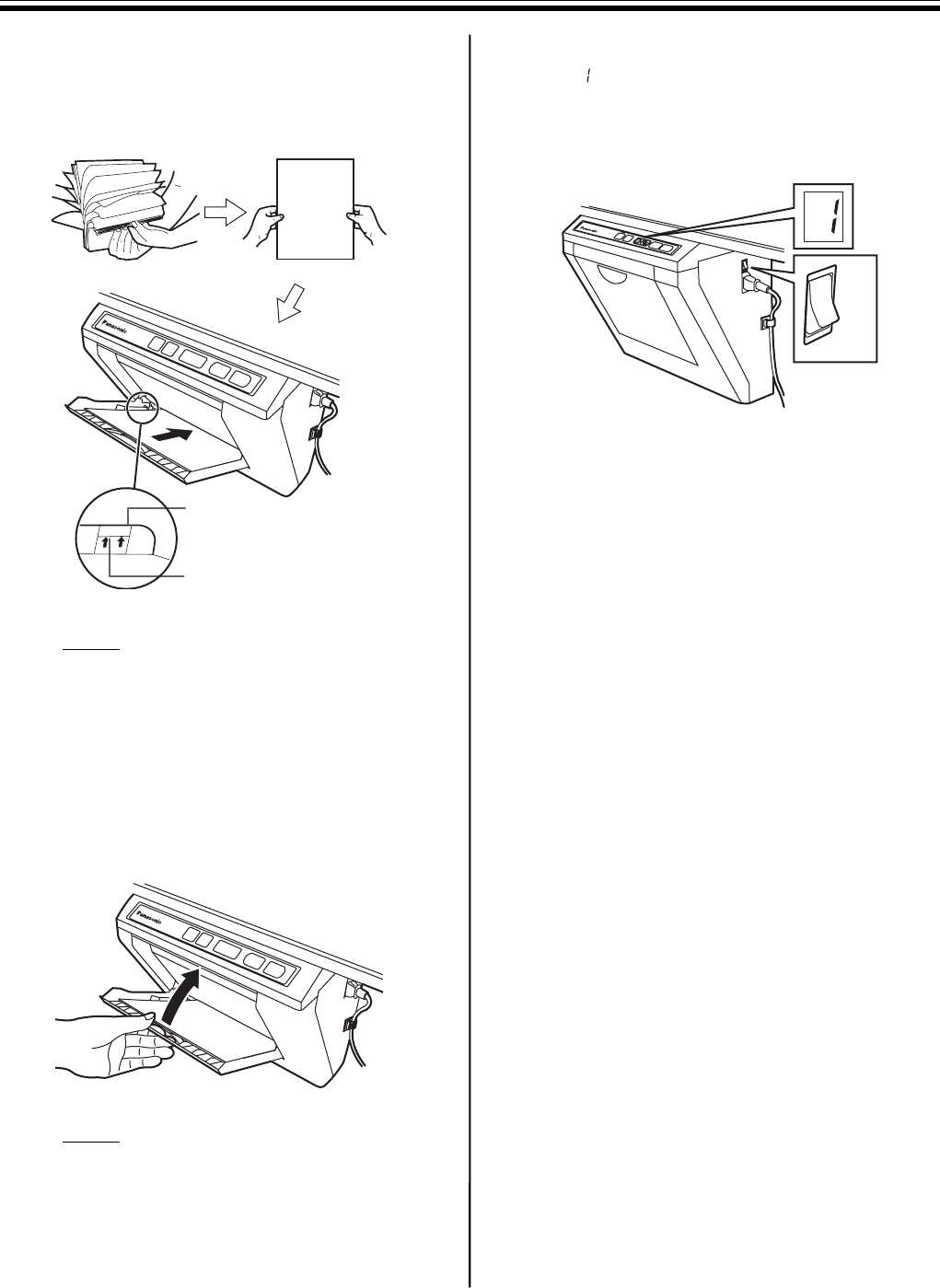
Paper Jams
16
3To prevent paper jams such as those caused
by multiple sheets feeding at once, fan the
paper thoroughly, square it, align it with the
guide inside, and insert as far as it will go.
Note
• Do not stack more copy paper in the unit
than the maximum paper limit indicated by
the guide (see figure) as this may result in
paper jams. [Note that the unit can hold
about 40 sheets of paper having a weight of
80 g/m2.]
4Close the paper cover until a click is heard.
Note
• Close the paper cover, or the unit will not
work properly.
• The paper cover should be closed to make
copies properly. Confirm the both latches are
locked.
5Turn the power on.
• “ ” will light on the Multi-Copy/Error Indicator
to indicate that the unit is ready to copy.
• The screen will move to home position and
stop.
Maximum paper limit
Guide
ON
OFF
Computer Interfacing
17
English
Drivers and software must be installed in your
computer to use Board Image Capture, Quick Image
Navigator, Panasonic-DMS, printer and TWAIN driver.
■System requirements
*1This electronic board does not function with Hi-Speed
USB 2.0. Even if using a computer equipped with Hi-
Speed USB 2.0, this electronic board functions with
Full Speed USB 2.0.
*2Microsoft® Windows® 98 operating system
(hereafter Windows 98)
*3Microsoft® Windows® Millennium Edition operating
system (hereafter Windows Me)
*4Microsoft® Windows® 2000 operating system
(hereafter Windows 2000)
*5Microsoft® Windows® XP operating system
(hereafter Windows XP)
*6Microsoft® Windows Vista® operating system
(hereafter Windows Vista)
• The system requirements above do not meet the
recommended specifications of all operating
systems and of the included software.
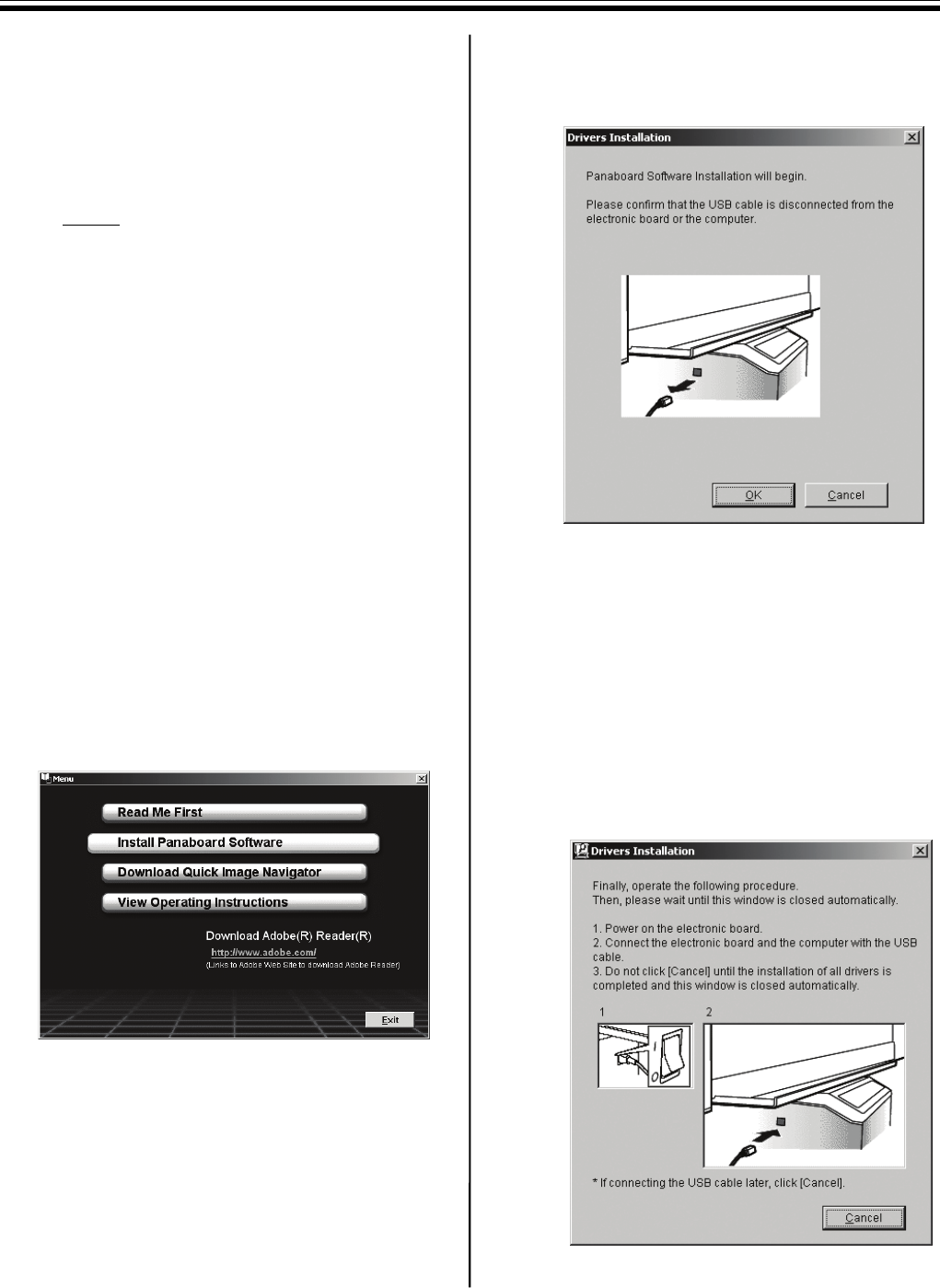
■Contents of CD-ROM
The provided CD-ROM includes the following
items.
• USB driver
• Printer driver
• TWAIN driver
• Board Image Capture
Allows you to scan hand-written text and
diagrams on the Panaboard and save the
scanned image as a PDF file.
• Electronic board operating instructions
Note
•The “menu” window contains links to “Quick
Image Navigator”, “Panasonic-DMS” and
“Adobe® Reader®”.
Notes when connecting the
electronic board to a computer
• First install the USB, printer and TWAIN driver to
your computer, then connect the electronic board
to the computer (refer to “Installing Drivers /
Board Image Capture” on page 18.
• If you connect the electronic board to a USB hub,
it is not guaranteed to work.
• Do not connect two or more Panasonic electronic
boards to a computer. It may cause the computer
operation to become unstable.
• Use a shielded USB cable that is certified as logo
by USB-IF.
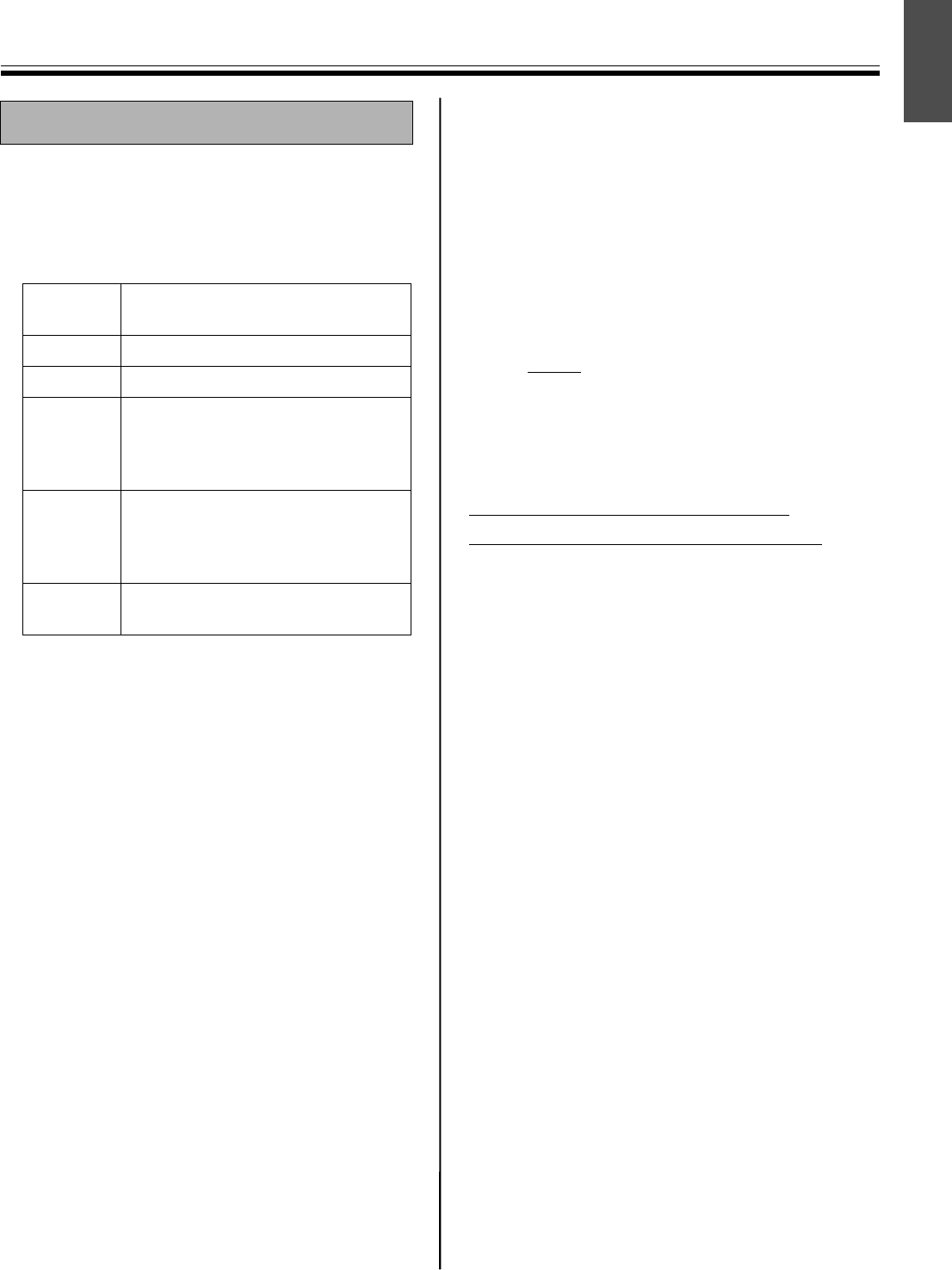
Computer Interfacing
Computer
IBM® PC/AT® or compatible
machine with a CD-ROM drive
CPU Pentium® II or higher processor
Interface USB 2.0 or USB 1.1*1
OS
Windows® 98*2 / Windows Me*3 /
Windows 2000*4 / Windows XP*5 /
Windows Vista®*6
(64-bit editions are not supported.)
Memory
128 MB or more (Windows 98 /
Windows Me)
256 MB or more (Windows 2000 /
Windows XP / Windows Vista)
HD At least 200 MB free space (except
saving space for data files)
Computer Interfacing
18
■Installing Drivers / Board Image
Capture
The USB, printer, TWAIN driver and Board Image
Capture are installed in your computer by following
procedures.
Note
• Do not yet connect a USB cable to the
electronic board.
1Power on your computer and start Windows*1.
• Log on as an administrator for Windows
2000, Windows XP or Windows Vista.
*1Microsoft® Windows® operating system
(hereafter Windows)
2Insert the CD-ROM into the CD-ROM drive.
The Setup window appears automatically.
• Depending on the operating system or the
settings that you are using, the Setup
window may not appear automatically.
In such a case, execute “Menu.exe” in the
CD-ROM from the Explorer.
• If the Autoplay dialog box appears in
Windows Vista, click “Run Menu.exe”.
3When “Welcome” window appears, click
[Next].
4Click [Install Panaboard Software].
• If “User Account Control” window is
displayed in Windows Vista, select
[Continue] to continue the installation.
• To read the operating instructions in the
provided CD-ROM, the Adobe Reader or
Acrobat® Reader must be installed in your
computer. It can be downloaded from the
Adobe's Web site if Internet is available.
5Read “End-User License Agreement” carefully
and click [Yes].
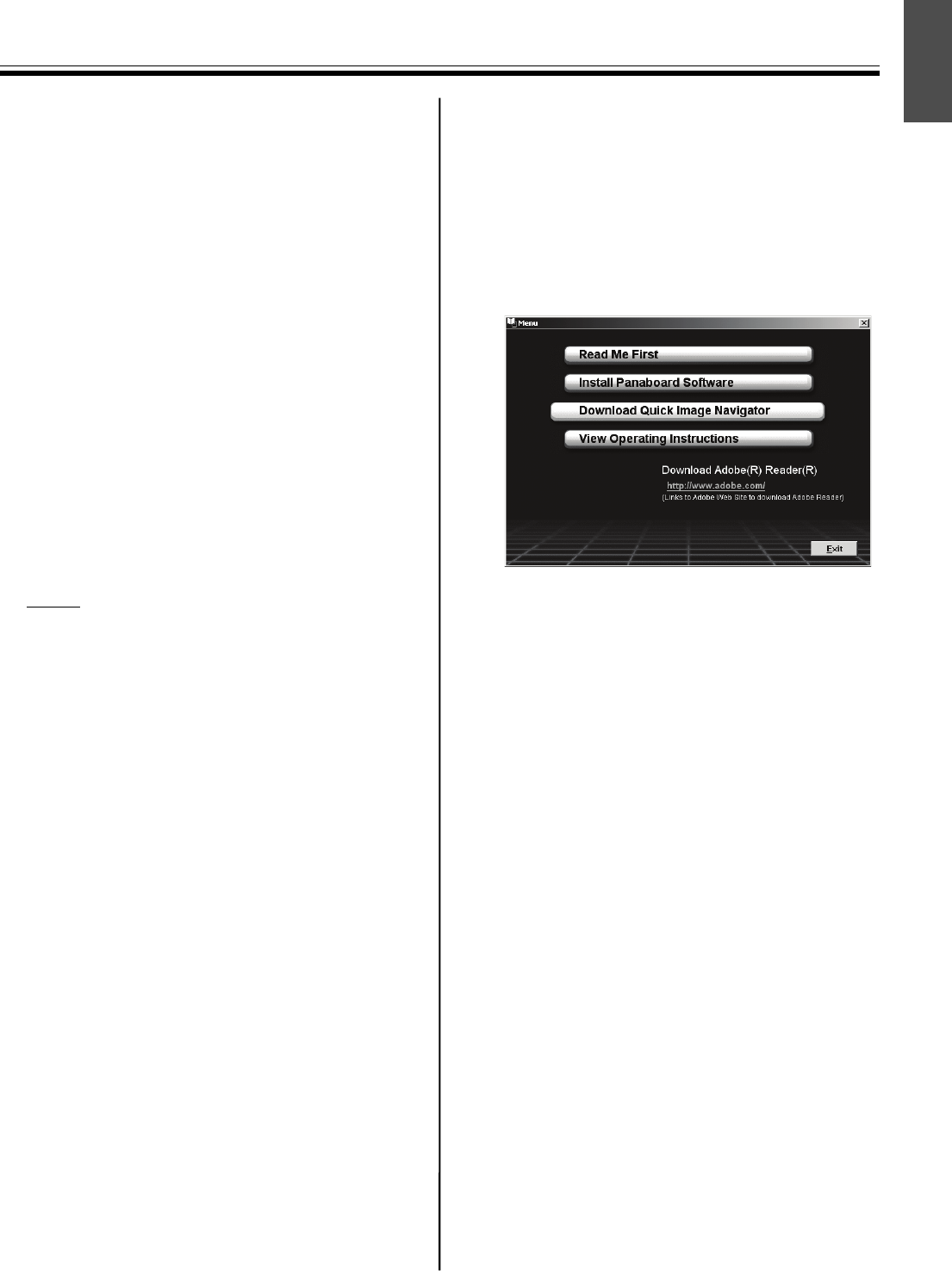
6When the following window appears, check
that the electronic board is not connected to
your computer and click [OK].
• If “Windows can't verify the publisher of this
driver software” is displayed in Windows
Vista, select “Install this driver software
anyway” to continue the installation.
• For Windows 98 or Windows Me, a floppy
disk or CD-ROM for installing the operating
system may be required.
• If the screen prompts to restart Windows,
restart Windows.
7When the following window appears after files
are copied, power the electronic board on, and
connect a USB cable from the electronic
board to your computer.
Computer Interfacing
19
English
8Follow the on-screen instructions if the wizard
windows appear.
• If the wizard window is displayed to select
the file (##.inf) for the printer driver in
Windows XP, select “windows\inf\oem##.inf”.
• If the wizard window is displayed to connect
to the Windows Update in Windows XP SP2,
select [No].
• If the warning dialog is displayed in
Windows 2000 / Windows XP, select [Yes] or
[Continue Anyway] to continue the
installation. In Windows Vista, no warning
window is displayed and installation will
continue.
• The new hardware wizard windows may be
displayed several times depending on the
operating system.
• For Windows 98 or Windows Me, a floppy
disk or CD-ROM for installing the operating
system may be required.
9When the installation is completed, click [OK].
Note
• If the Panaboard is powered on and connected
to the computer with a USB cable when [Exit] is
clicked after the installation is completed, the
Board Image Capture software will automatically
start in Windows 2000 / Windows XP / Windows
Vista. (For further details, refer to “Scanning
with the Board Image Capture” on page 20.)
■Installing Quick Image Navigator /
Panasonic-DMS
After confirming your operating system, install the
software.
For Windows 2000 / Windows XP / Windows Vista:
Quick Image Navigator
For Windows 98 / Windows Me: Panasonic-DMS
If Panasonic-DMS is already installed, you do not
need to uninstall it.
1Power on your computer and start Windows.
• Log on as an administrator for Windows
2000, Windows XP or Windows Vista.
2Insert the CD-ROM into the CD-ROM drive.
The Setup window appears automatically.
• Depending on the operating system or the
settings that you are using, the Setup
window may not appear automatically.
In such a case, double-click “Menu.exe” in
the CD-ROM from the Explorer.
• If the Autoplay dialog box appears in
Windows Vista, click “Run Menu.exe”.
3When “Welcome” window appears, click
[Next].
4Click [Download Quick Image Navigator].
• To download Quick Image Navigator and
Panasonic-DMS, your computer must be
able to access the Internet.
5Download the desired software from the
appropriate download web site, then double-
click the downloaded installer.
6Follow the on-screen instructions when
messages appear.
7When the setup process is completed, restart
Windows.
• For information about Quick Image Navigator
or Panasonic-DMS, refer to the
corresponding operating instructions, which
can be downloaded from the web site.
• To read the Quick Image Navigator operating
instructions or the Panasonic-DMS operating
instructions, Adobe Reader or Acrobat
Reader must be installed on your computer.
■Removing Drivers / Board Image
Capture / Quick Image Navigator
If you need to remove the USB driver, printer driver,
TWAIN driver, Board Image Capture and Quick Image
Navigator, perform the following steps.
Computer Interfacing
20
1Power on your computer and start Windows.
• Log on as an administrator for Windows
2000, Windows XP or Windows Vista.
2In the Control Panel, double-click Add/
Remove Programs (Windows XP: Add or
Remove Programs, Windows Vista:
Uninstall a program).
3Select the software you want to remove, then
remove it.
• To remove the USB and TWAIN driver, select
Panaboard UB5-7 Driver.
To remove Board Image Capture, select
Panasonic Board Image Capture.
To remove Quick Image Navigator, select
Panasonic Quick Image Navigator.
4Follows the instructions on the screen.
5After uninstalling, restart your computer.
■Removing Panasonic-DMS
If you need to remove Panasonic-DMS, perform the
following steps.
1Power on your computer and start Windows.
2Click [Start], move the pointer to Programs–
Panasonic–Panasonic Document
Management System–Uninstall.
3Click [OK].
4After uninstalling, restart your computer.
■Scanning with the Board Image
Capture
Board Image Capture allows you to scan hand-
written text and diagrams on the Panaboard and
save the scanned image as a PDF file.
1Power on the Panaboard.
2Power on your computer and start Windows.
3Connect your computer and Panaboard with
the USB cable.
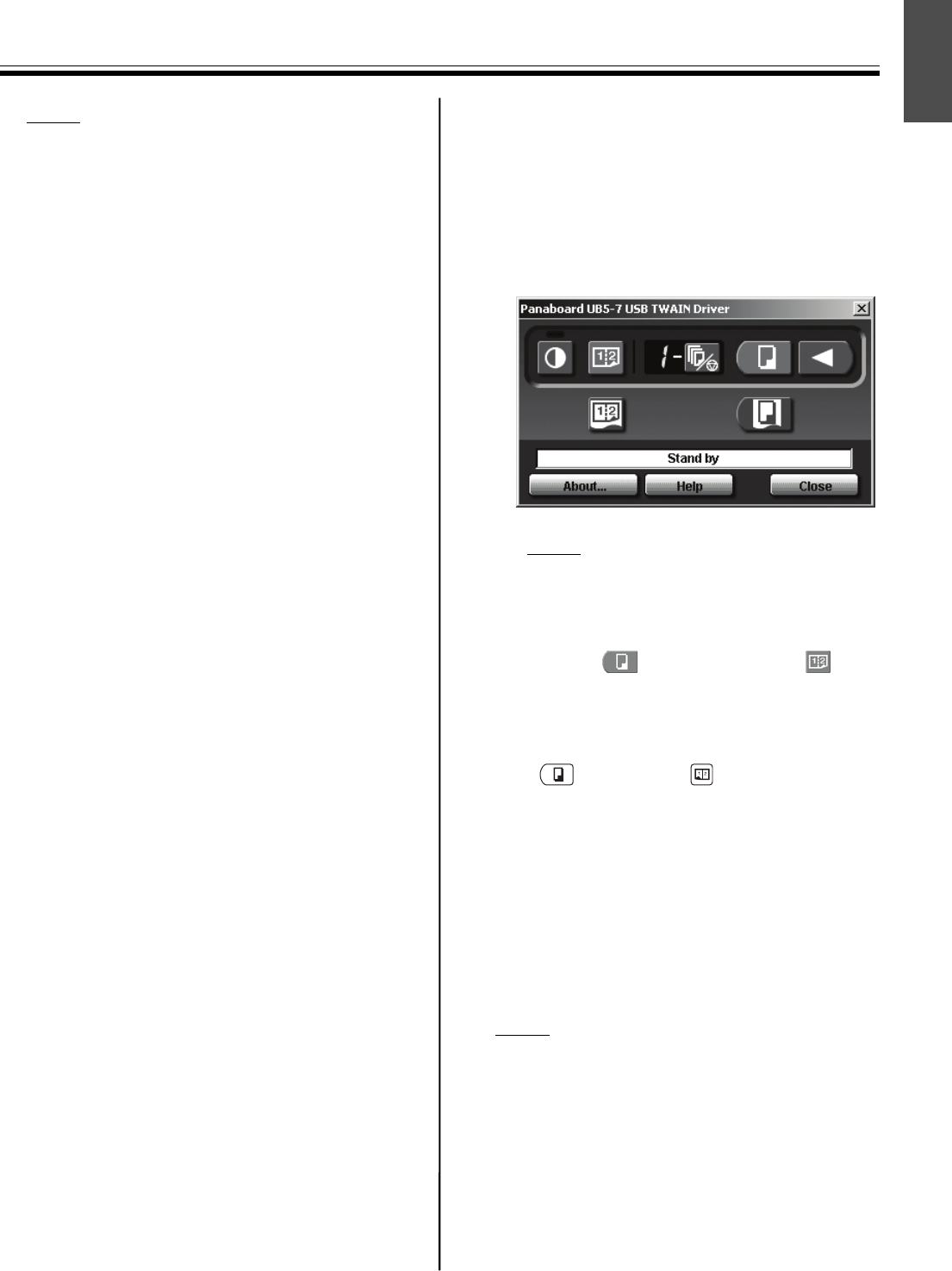
• Board Image Capture automatically starts,
then the Panaboard Operation Panel
appears.
Note
• If the Panaboard Operation Panel does not
appear, check the USB cable connection or
the status of the unit.
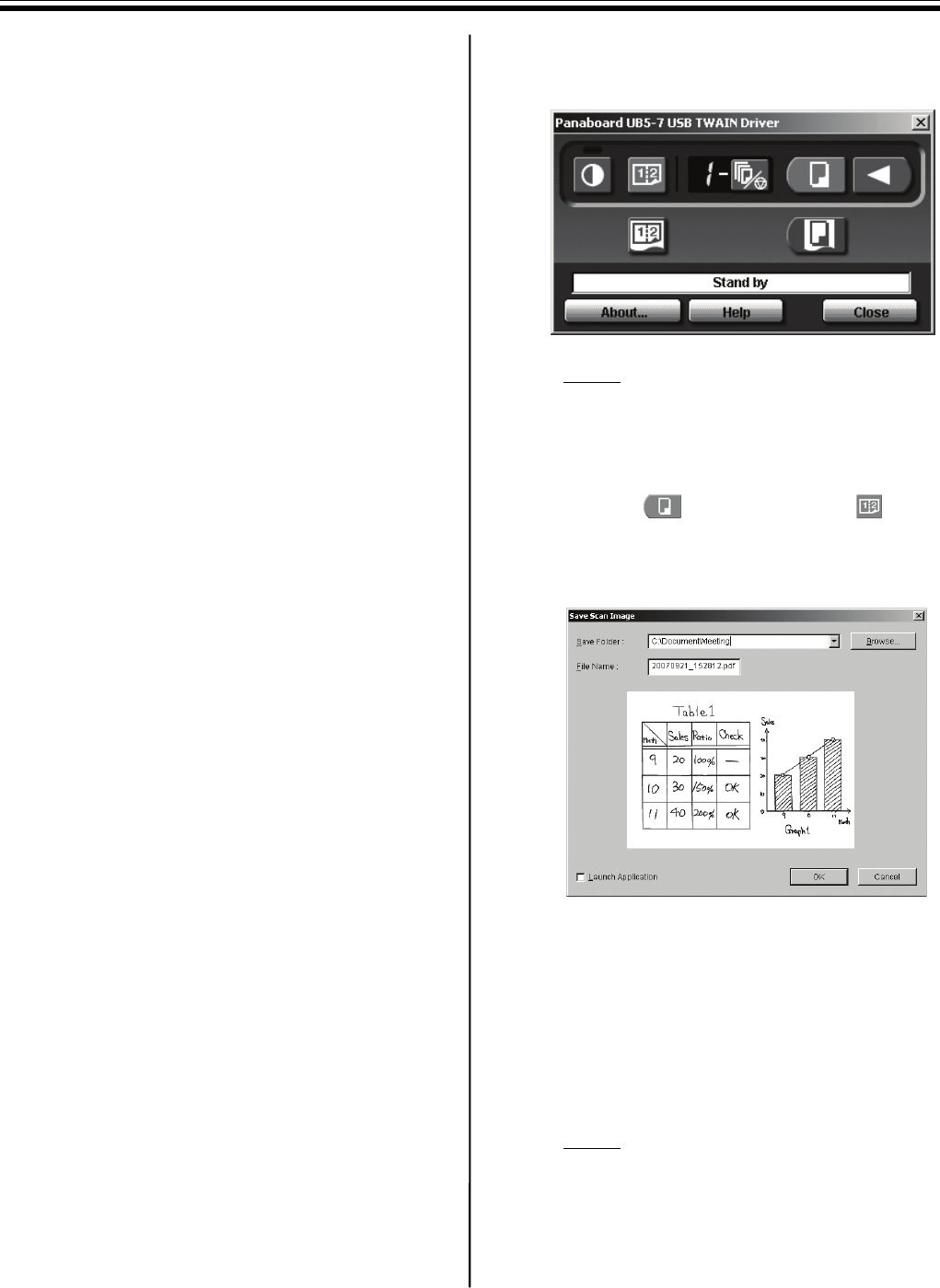
4Click the (Scan) button or the
(2-Screen Scan) button.
• When scanning is completed, the Save Scan
Image dialog box appears.
5Specify the folder where you want to save the
file, enter the file name, then click [OK].
• When the Launch Application check box is
checked, the scanned image will be
displayed after the file is saved.
To display the scanned image successfully,
Adobe Reader or Acrobat Reader must be
installed on your computer.
Note
• The last 5 folders used are displayed in the
Save Folder dropdown list.
6Click [Close] on the Panaboard Operation
Panel window to end the session.
Computer Interfacing
21
English
Note
• Board Image Capture cannot be started while
the Panaboard Operation Panel is displayed
using Quick Image Navigator or Panasonic-DMS.
To start Board Image Capture, click [Close] in
the Panaboard Operation Panel window, then
start Board Image Capture.
• To stop Board Image Capture from starting
automatically when the Panaboard is connected,
follow the steps below:
1) Connect your computer and Panaboard with
the USB cable.
2) Click [Start], move the pointer to Settings–
Control Panel, then double-click Scanners
and Cameras.
• For Windows XP, click [Start] and move the
pointer to Control Panel.
For Windows Vista, click [Start] and move
the pointer to Control Panel, then click
Hardware and Sound.
3) Double-click Panaboard-UB5 USB Device
Driver and check the Disable device events
check box in the Events tab.
To start Board Image Capture, click [Start], then
move the pointer to Programs–Panasonic–
Board Image Capture–Board Image Capture.
(For Windows XP / Windows Vista, All Programs
is displayed instead of Programs.)
■Scanning with the Quick Image
Navigator / Panasonic-DMS
You can scan images on the screen to your
computer by operating Quick Image Navigator or
Panasonic-DMS.
1Click [Start], move the pointer to Programs–
Panasonic–Panasonic Document
Management System–Quick Image
Navigator (for Quick Image Navigator) or
Document Manager (for Panasonic-DMS).
(For Windows XP / Windows Vista, All
Programs instead of Programs.)
2For Quick Image Navigator: From the File
menu, click Environment Setup..., click
TWAIN tab, then click Select TWAIN-
compliant scanning device....
For Panasonic-DMS: Click the File menu, then
click Select source....
3Select Panaboard UB5-7 USB TWAIN Driver
and click [Select].
4For Quick Image Navigator: From the File
menu, click Acquire Image... - To Import
Folder... (or To Current Folder...), or click the
(scanner) icon on the Toolbar.
For Panasonic-DMS: Click the File menu, then
click Acquire Image..., or click the (scanner)
icon on the Toolbar.
• The Panaboard Operation Panel appears.
Note
• When the Panaboard Operation Panel is not
displayed, check the USB cable connection
or the condition of the electronic board.
5Click the (Scan) button or the
(2-Screen Scan) button.
• Scanning starts and the scanned image will
be displayed on the screen of the computer.
It is also possible to start scanning using the
(Copy Key) or (2-Screen Copy
Key) on the electronic board.
6Click [Close] on the Panaboard Operation
Panel to finish scanning.
• For more information about Quick Image
Navigator, refer to the Quick Image Navigator
operating instructions.
• For more information about Document
Manager, refer to the Panasonic-DMS
operating instructions.
Note
• Dragging the Panaboard Operation Panel using
the mouse or activating other software programs
during scanning may cause scanning troubles.
Computer Interfacing
22
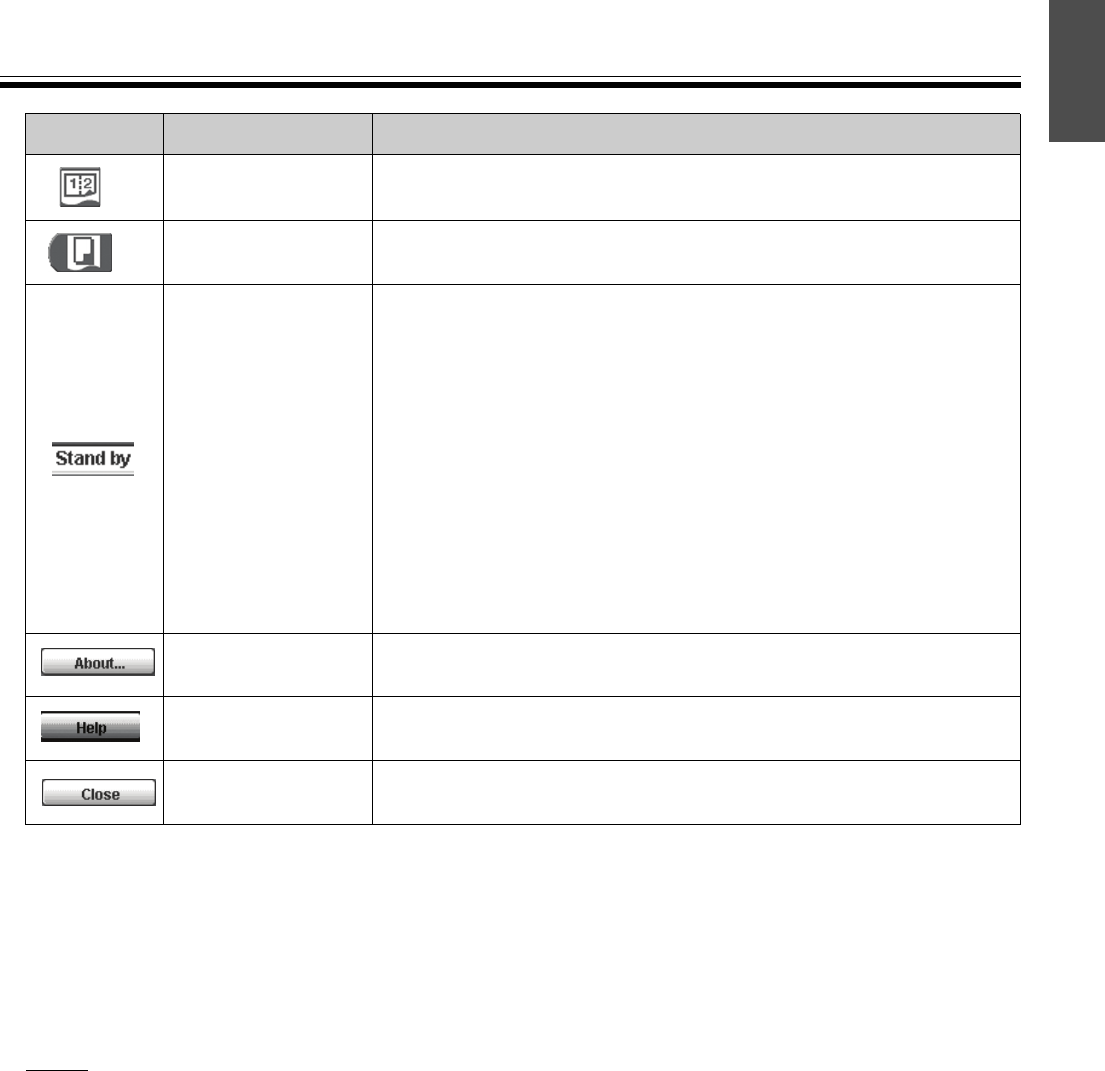
■Panaboard Operation Panel
It is possible to perform the same operations as with the electronic board control panel (page 9) from the following
Panaboard Operation buttons.
Note
• While the Panaboard Operation Panel is displayed, the Copy Key and 2-Screen Copy Key on the electronic
board control panel are used for scanning images into the computer.
Panel Name Description
Contrast/
Remaining Film
Indicator
This lamp indicator notifies the user when the time to
replace the thermal transfer film is approaching (estimated)
and of the contrast used during scanning or copying.
Indicator off: Normal scanning or copying contrast
Indicator on: Darker than normal scanning or
copying contrast
Indicator flashing*: Almost time to replace the thermal
transfer film
(Note that only about 15 more sheets may
be copied when this indicator starts
flashing.)
Replacement film (UG-6001) is separately
available from the dealer where you purchased
your unit.
* The flashing indicator will go out after the power is turned off, or
the printer has been opened and closed. (When copying is per-
formed, this indicator will begin flashing again.)
Contrast Button Each time this button is pressed, the unit will alternate
between normal and dark contrast modes (Normal/Dark).
2-Screen Scan
Button
This button scans the front and back of the screen on a
single page.
Multi-Copy/
Error Indicator
This indicator displays the number of copies to be made.
The display changes each time the Multi-Copy/Stop Button
is pressed.
Example: 1 → 2 → ··· → 9 → 1 → ···
When an error occurs, a flashing symbol will appear in this display to
indicate the error status. (See page 27.)
Multi-Copy/Stop
Button
When making multiple copies, press this button until the
desired number of copies is displayed on the Multi-Copy/
Error Indicator. This button can also be pressed to stop
copying while executing multiple copies.
• The display changes as shown below each time the screen is copied.
After reaching 0, the display will reset to 1.
Example: 5 → 4 → 3 → 2 → 1 → 0 → 1
(Number is counted down.)
* If scanning, the setting 1 to 9 for the number of copies is
ignored.
Scan Button This button scans the screen.
Advance Button Clicking this button advances the screen from right to left.
Computer Interfacing
23
English
■Printing
To print documents from the computer to the printer, select the Print menu of the application software and select
the printer name set when installing.
The standard printer name is “Panaboard-UB5 USB Printer (A4/Letter)*”.
* A4 or Letter changes with the models.
Note
• The Multi-Copy/Error Indicator flashes when printing.
After printing, all the panel keys are disabled until the Multi-Copy/Error Indicator lights.
• You cannot stop printing after printing starts. Do not attempt to stop printing.
• Do not turn off the power of the electronic board or unplug the USB cable before printing finishes. It may cause
the computer operation to become unstable.
• A maximum 9 copies are available.
• The output port can hold up to 10 sheets of copied paper. (Note that exceeding the output port’s capacity may
result in paper jams.)
• The Contrast Key is not effective for adjusting the contrast of print.
• When printing almost black pages continuously uniform colour density and light line streaks may appear. In such
a case, try again after waiting a while.
• When the unit falls in abnormal condition during printing, printing jobs (jobs in the spooler) may be lost. In such
a case, print again.
2-Screen Copy
Button
This button causes the front and back of the screen to be
copied on a single sheet of paper.
Copy Button This button causes the screen to be copied.
Status Box
The status box displays the status of the TWAIN driver and the
electronic board.
Stand by: The electronic board is stand by.
Both of the Panaboard Operation Panel and the electronic
board control panel are operational.
Rotating: The electronic board is rotating the screen.
Copying: The electronic board is copying the screen.
Scanning: The electronic board is now scanning the images on the
screen.
Converting: Indicates that the image data is being converted so that
the computer will be able to display the scanned data.
Busy: The electronic board is processing jobs.
Error: An error has occurred with the electronic board.
About Button Click to display information about the TWAIN driver.
Help Button Click to display help information.
Close Button Click to close the Panaboard Operation Panel.
Panel Name Description
Daily Care and Maintenance
24
Always turn off the power switch and unplug the
power plug when cleaning outside and inside the
unit.
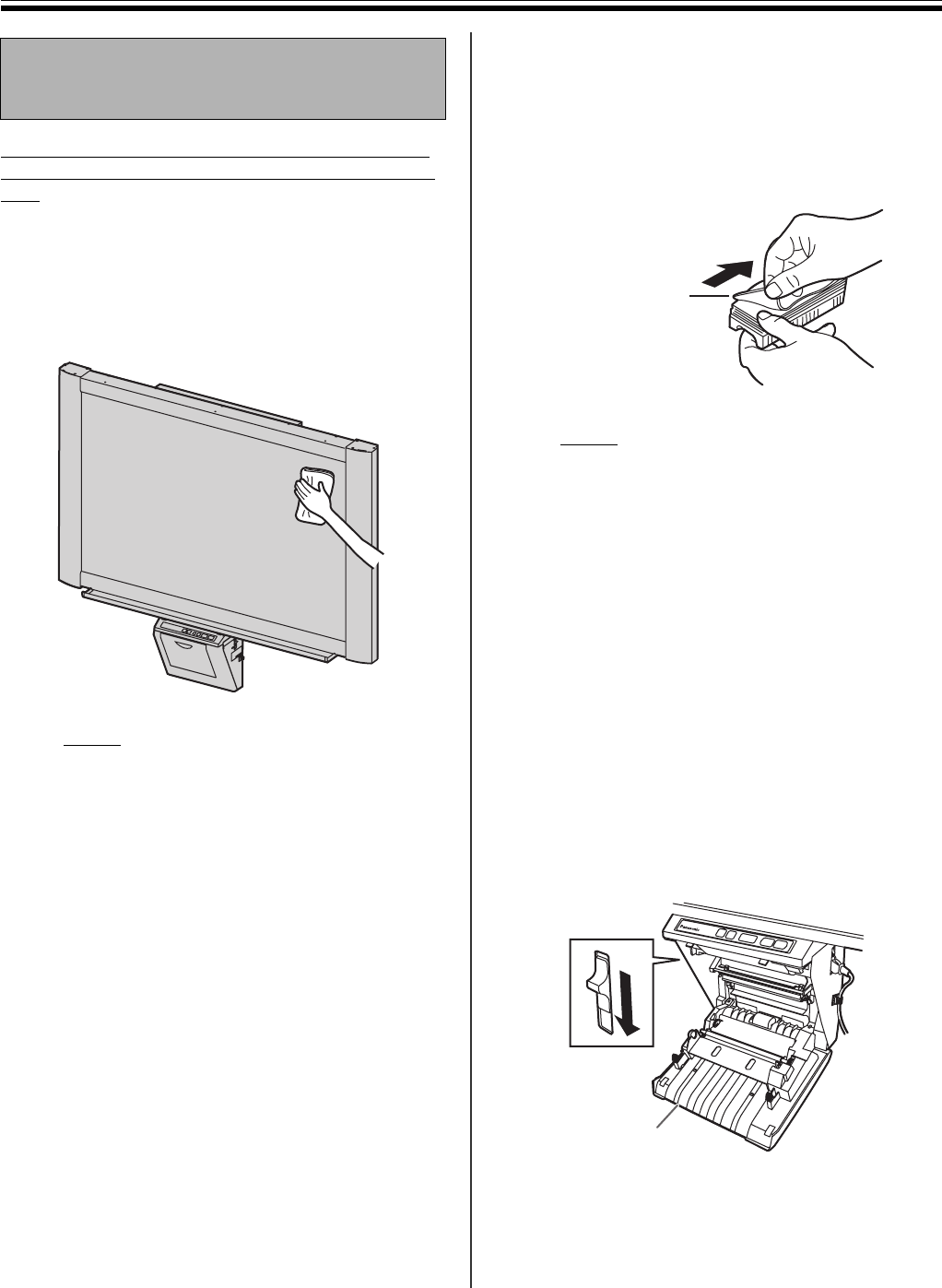
■Cleaning the screen and the unit
Gently wipe the screen film and unit with a water-
dampened cloth that has been thoroughly wrung.
Note
• Use a neutral kitchen cleaner diluted with
water for hard-to-clean stains.
If you accidentally write on the screen with an
oil-based marker, wipe with a small amount of
ethyl alcohol.
• Do not use thinner, benzine or cleaners
containing abrasives as this may result in
discoloration.
• Do not wipe the screen film with a dry cloth as
this may generate a static charge.
■Caring for the eraser
When the erasing surface of the eraser becomes
dirty, hold down the sheet under the top sheet with
your finger and peel off the dirty sheet (white or gray
sheet) by pulling in the direction of the arrow.
Note
• Be sure to peel off only one sheet; white or
gray sheet of the eraser.
• When the eraser becomes thin, make sure
that the corners of the eraser do not strike the
screen during erasing as this may damage
the screen.
■Cleaning the printer head, platen
roller and pick-up roller
If black streaks appear on the copy, clean the printer
head and the platen roller.
If paper jams occur frequently, clean the pick-up
roller.
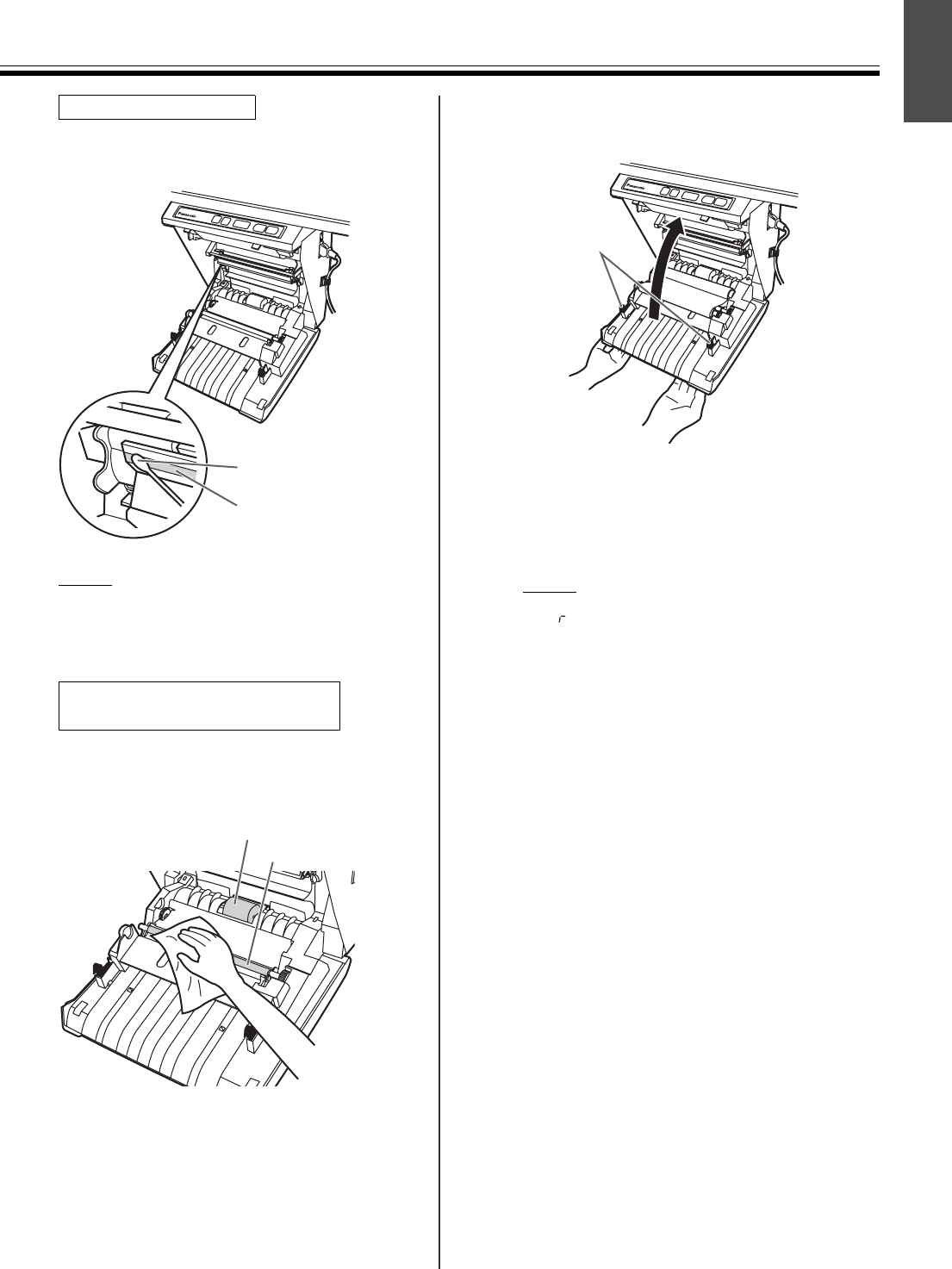
1Push down the printer open lever and open the
printer door.
Daily Care and
Maintenance
White or gray
sheet
Printer door
Daily Care and Maintenance
25
English
2
Dampen the tip of a cotton swab in ethyl
alcohol and gently wipe the printer head.
Note
• Never touch the printer head or the
surrounding area with your hands as this may
disable copying.
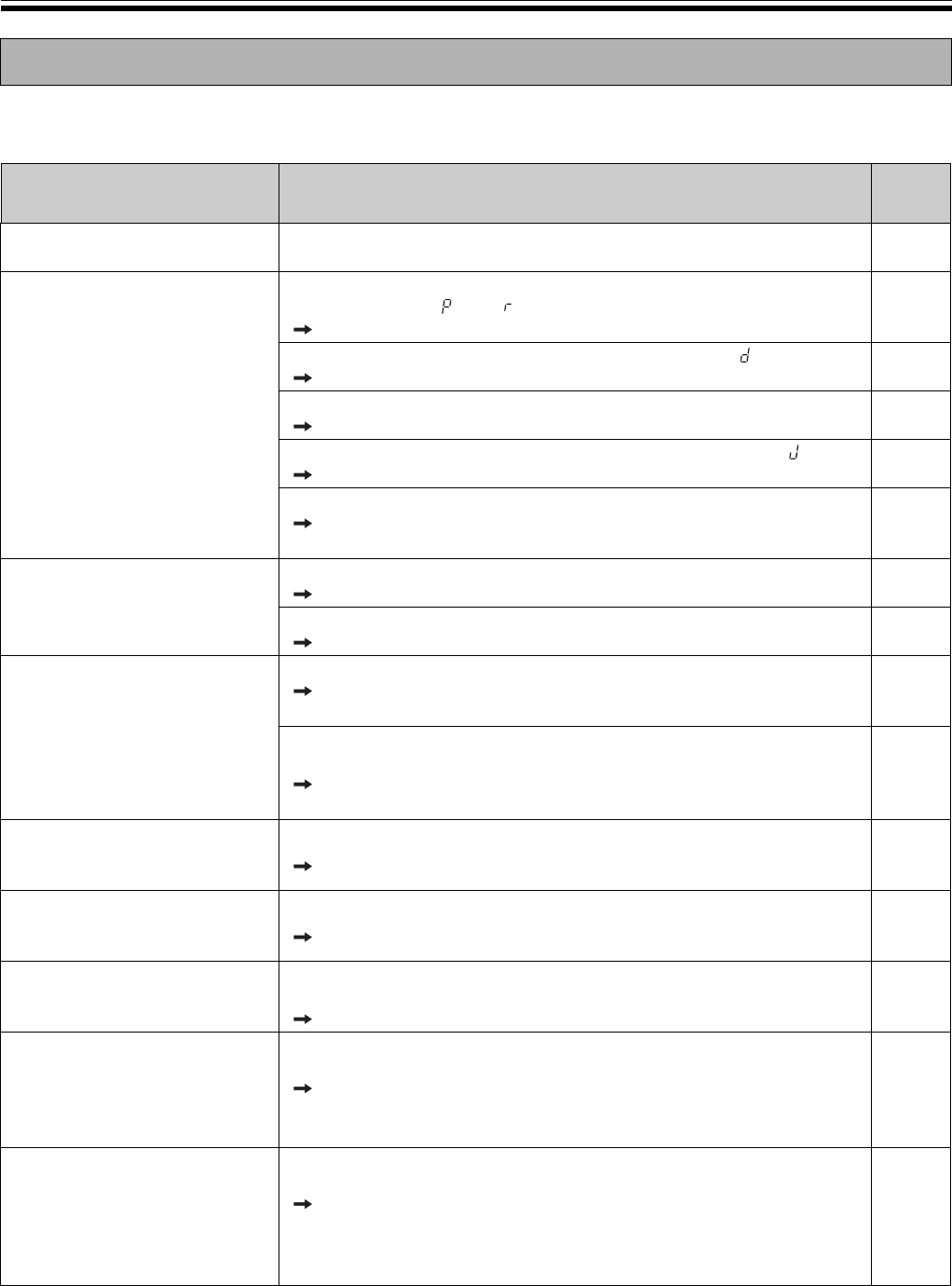
3
Remove the thermal transfer film with both
hands and carefully wipe any dirt or stains off
the platen roller and pick-up roller.
• For details on removing the thermal transfer
film, see page 14.
• Dampen a soft cloth with neutral kitchen
cleaner diluted in water, wring the cloth
thoroughly, and wipe the entire surface of the
rollers while rotating them. If this does not
remove all dirt, wipe with a cloth dampened
with ethyl alcohol.
4Install the thermal transfer film in its original
position and close the printer door.
• For details on installing the thermal transfer
film, see pages 10.
• Close the printer door firmly until a click is
heard.
Note
• If “ ” is still flashing after closing the printer
door, make sure that the thermal transfer film
has been installed properly and tightened.
• The printer door should be closed to make
copies properly. Confirm both latches are
locked.
Clean the Printer Head
Cotton swab
Printer head
(Gold)
Clean the Platen Roller and the
Pick-up Roller
Pick-up roller
Platen roller
Latches
Troubleshooting
26
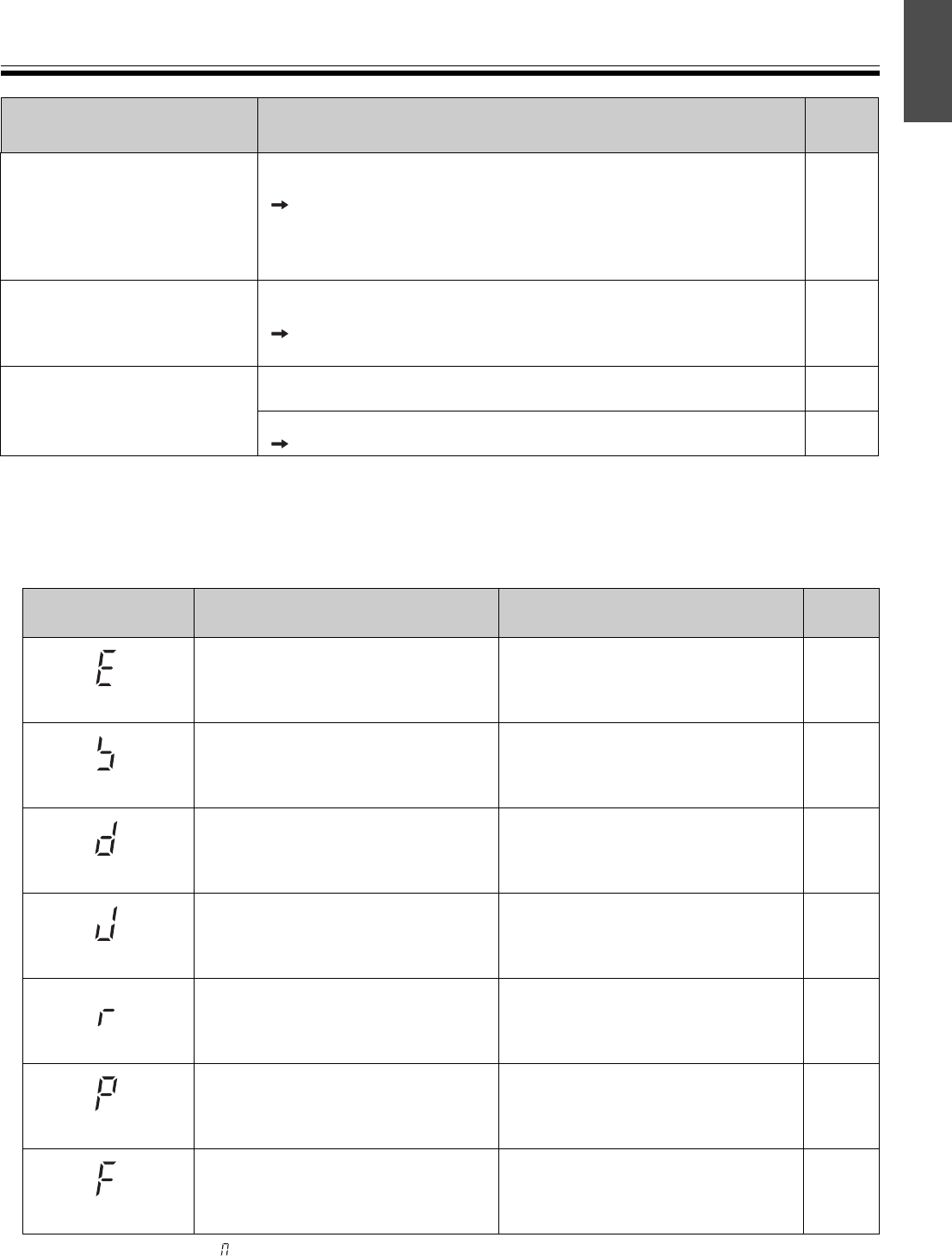
Treat problems according to the information given in the table below. If problems still persist, call your dealer for
service.
Troubleshooting
Symptom Care and Remedy See
Page
Power switch is on but the
indicator is off.
Check that the power plug is securely plugged in.
(If the indicator still does not light, turn the power off and on again.) –
Copied copy paper will not
come out.
The unit is out of copy paper or thermal transfer film. (The Error
Indicator flashes “ ” or “ ”.)
Insert copy paper or replace the thermal transfer film.
11
14
The printer door is open. (The Error Indicator flashes “ ”.)
Close the printer door firmly until a click is heard. 11
The paper cover is open.
Close the paper cover firmly until a click is heard. 12
Paper is jammed in the printer. (The Error Indicator flashes “ ”.)
Open the printer door and remove the jammed paper. 15
The platen roller and pick-up roller are dirty.
Open the printer door and wipe the platen roller and the pick-up
roller to clean them.
24
Nothing is printed on the paper
or copies are faint or blurred.
The writing on the screen is too thin or light.
Make thicker, darker lines or change to a new marker. –
The printer door is slightly open.
Close the printer door firmly until a click is heard. 11
Black streaks or blank
(unprinted) spots appear on
the copy (copy paper is dirty).
The printer head or platen roller is dirty.
Open the printer door and clean any dirt off the printer head and
platen roller.
24
The thermal transfer film is wrinkled because it was set in place
without removing excess slack.
Rewind the used portion of the thermal transfer film to remove
the excess slack, then reattach it.
10
A black or white horizontal line
appears, or the page prints in
black or blank.
The unit is in strong sunlight or strong lighting.
Change the direction of the screen or block the light. –
The screen does not advance
when the Copy or Advance
Key is pressed.
Static electricity was generated when the screen film was wiped.
Turn off the power and slowly move the screen by hand. –
Contrast/Remaining
Film Indicator flashes.
The time to replace the thermal transfer film is approaching. (Only
about 15 more sheets may be copied.)
Prepare a new replacement film (UG-6001).
14
When connecting a USB cable
after installing the driver, the
warning message is displayed to
require the Panaboard UB5-7
Driver Disk.
The necessary file is not found in Windows 98.
Click the location’s box and select the pass
“UB5-7\UsbDrv\Win98-Me” in the pull down menu.
–
The software installed before is
deleted from the Programs
menu or cannot be used after
installing the Panasonic-DMS.
After the existing Panasonic-DMS software is uninstalled, the new
Panasonic-DMS is installed.
Install the new Panasonic-DMS again as follows.
1. Uninstall the current Panasonic-DMS.
2. Install the old Panasonic-DMS.
3. Install the new Panasonic-DMS in the same folder with the old one.
19-20
Troubleshooting
27
English
■Meanings of error codes
The following table describes the meaning of each of the symbols which may flash in the Multi-Copy/Error
Indicator.
If other indications such as “ ” appear, call your dealer.
Panasonic Document
Management System menu is
remained in the Programs
menu even if Panasonic-DMS
is uninstalled.
The old Panasonic-DMS is not uninstalled if the old version of the
Panasonic-DMS has been installed before installing the new one.
Uninstall the old Panasonic-DMS from the Add / Remove
Programs of the Control Panel. (Refer to “Removing Drivers /
Board Image Capture / Quick Image Navigator” on page 19 and
remove Panasonic-DMS instead of Panasonic UB5-7 Driver.)
19
The USB driver or printer
driver does not work properly
immediately after the
installation of the software.
The Panaboard has not been registered in [Control Panel]–[Scanners
and Cameras] and [Printers].
Run “UB5-7\Uninstall\UB5-7Uninst.exe” in the CD-ROM to
uninstall the drivers from the computer. Then, install the drivers.
18
The computer does not
recognize the electronic board.
Check that the electronic board is in the condition that enables
operation or that the USB cable is connected properly. –
The electronic board is connected via a USB hub.
Do not connect via a USB hub. –
Indication Cause Remedy See
Page
(Error)
Data transfer error Connect the USB cable securely. 17
(Screen)
The screen will not move. Turn off the power and slowly move
the screen by hand. –
(door)
The printer door is not closed
securely. Close the printer door securely. 11
(Jam)
Paper jam Open the printer door and remove
the jammed paper. 15
(ribbon)
The thermal transfer film is slack, has
run out or is not installed.
Remove the slack from the thermal
transfer film, replace or install the
thermal transfer film.
10
14
(Paper)
Out of paper Load copy paper. 11
(Scanner Failure)
The scanner or screen is in strong
sunlight or strong lighting.
Change the direction of the screen or
block the light. –
Symptom Care and Remedy See
Page
Specifications
28
■Option and Separately available
*1Letter size is for U.S.A. and Canada models.
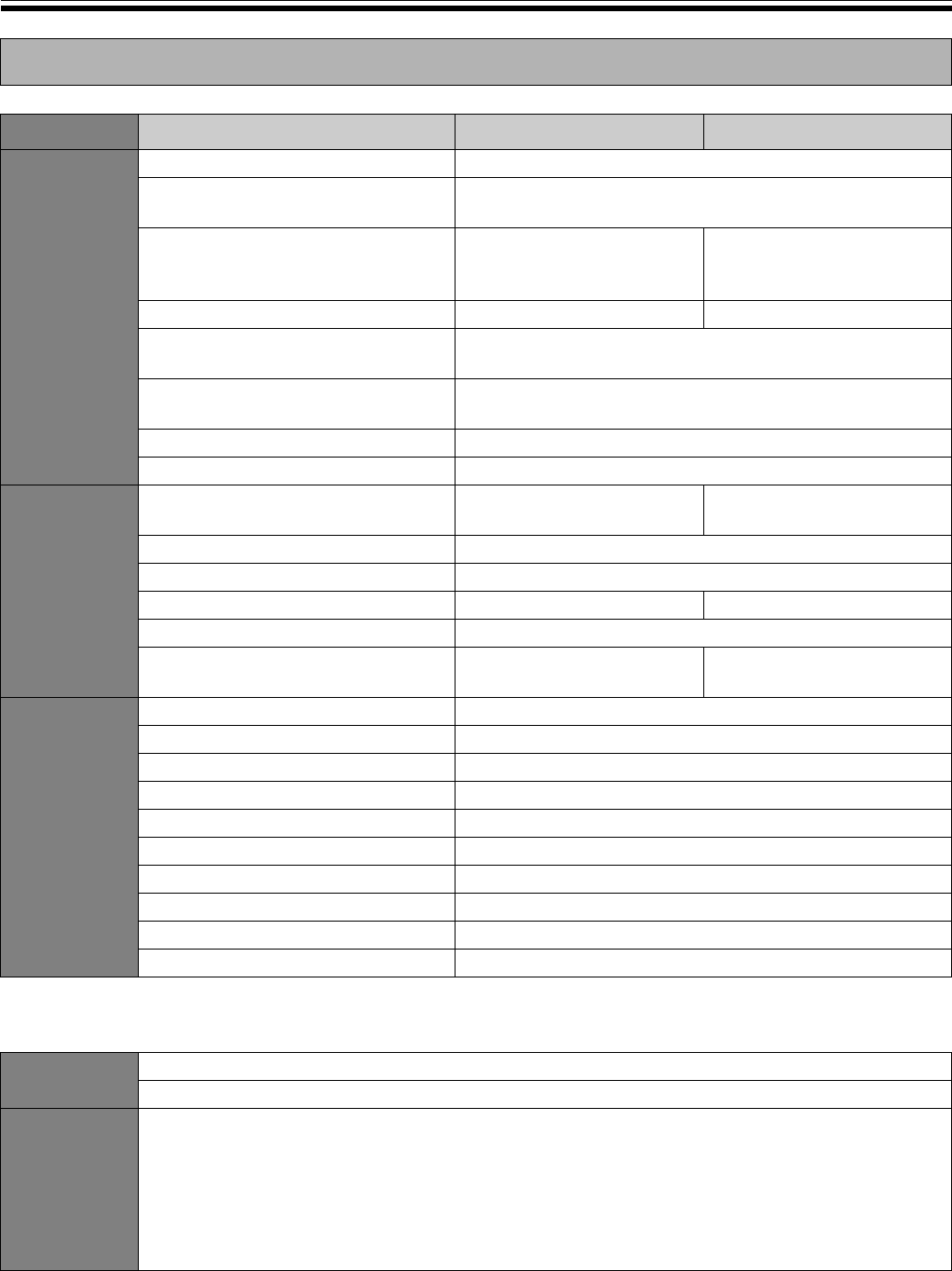
Specifications
Model No. UB-5325 UB-5825
General Power supply Refer to the name plate on the printer
Power consumption
(Operational)
Refer to the name plate on the printer
External dimensions
(Height × Width × Depth,
without stand)
1396 mm × 1550 mm
× 230 mm
1396 mm × 1912 mm
× 230 mm
Mass (without stand) 36.0 kg38.5 kg
Ambient operating conditions Temperature: 10–35°C (50–95°F)
Humidity: 30–80% RH
Ambient storage conditions Temperature: -20–60°C (-4–140°F)
Humidity: 15–80% RH
Writing implements Dry erase felt-tipped markers (black, red, and blue)
PC interface USB 1.1
Input
Block
Panel dimensions (Height × Width) 900 mm × 1400 mm
(1664 mm diagonal)
900 mm × 1762 mm
(1978 mm diagonal)
Panel surfaces 2
Panel advance system Endless scroll type
Copying area (Height × Width) 850 mm × 1330 mm 850 mm × 1692 mm
Scanning system Image sensors
Scanning resolution
(Height × Width)
A4: 1.6 x 1.7 dots/mm
Letter: 1.7 x 1.6 dots/mm
A4: 1.6 x 1.3 dots/mm
Letter: 1.7 x 1.2 dots/mm
Output
Block
Printing system Fusion thermal transfer type
Printing resolution 8 dots/mm
Copy paper Standard or recycled paper (60 - 90 g/m2)
Copy paper size A4/Letter*1
Copy colour Black
Contrast adjustment Two levels: Normal/Dark
2-screen compressed copying Yes
Time required for copying 15 s/sheet
Continuous copies 1 to 9 sheets
Paper empty indication Yes
Option Stand: KX-B061
Wall-mounting Kit: KX-B063
Separately
Available
Replacement film: UG-6001 (Set of 2 rolls [50 m])
Markers: KX-B031 (set of 10 black markers),
KX-B032 (set of 10 red markers),
KX-B033 (set of 10 blue markers)
Erasers: KX-B042 (set of 6 erasers)
Marker and eraser set: KX-B035 (contains one black, one red, and one blue markers and
one eraser)
