Paxar Monarch 9412 Users Manual 941XPMCV.CHP
9412 to the manual b4d84b0e-6cc7-4ea6-802e-984e95a524ac
2015-02-06
: Paxar Paxar-Monarch-9412-Users-Manual-517428 paxar-monarch-9412-users-manual-517428 paxar pdf
Open the PDF directly: View PDF  .
.
Page Count: 184 [warning: Documents this large are best viewed by clicking the View PDF Link!]
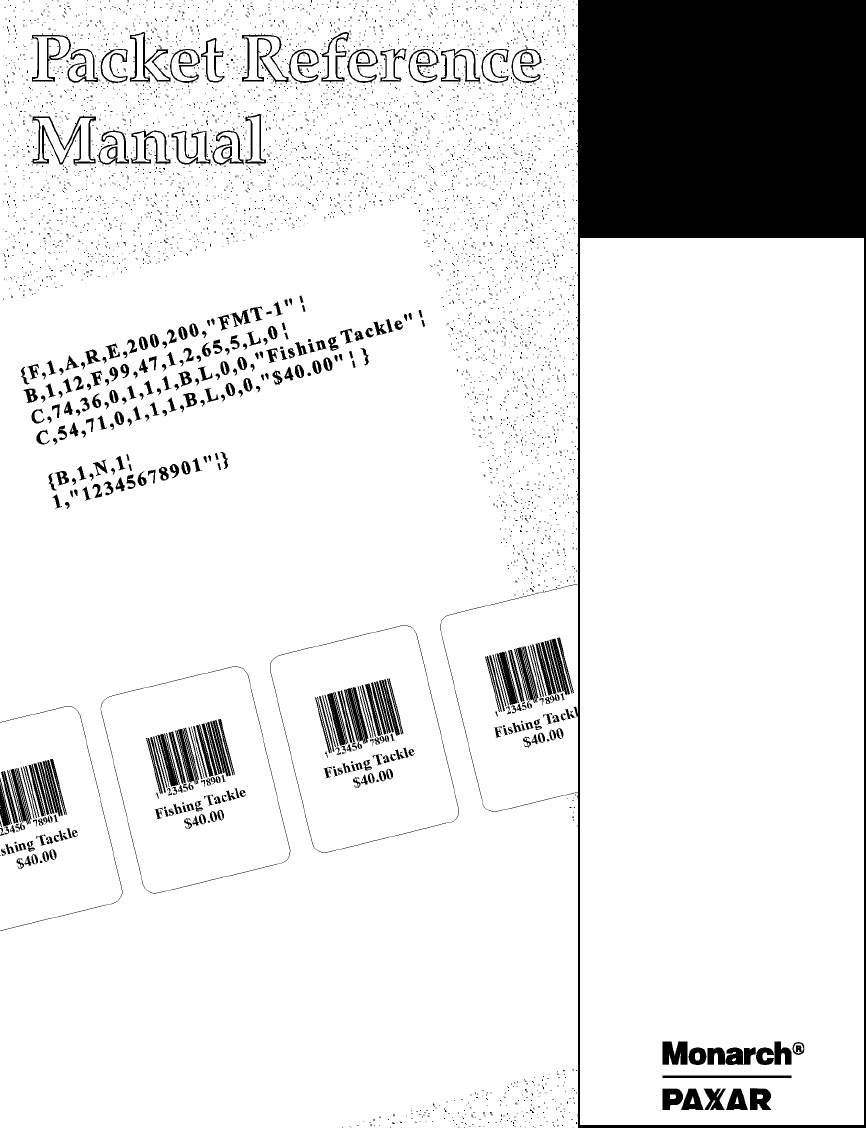
TC941XPM Rev. AB 3/00 ©1998 Monarch Marking Systems, Inc. All rights reserved.
F9412
F9413
F9414
Monarch
Printers

Each product and program carries a respective written warranty, the only
warranty on which the customer can rely. Monarch reserves the right to make
changes in the product, the programs, and their availability at any time and
without notice. Although Monarch has made every effort to provide complete
and accurate information in this manual, Monarch shall not be liable for any
omissions or inaccuracies. Any update will be incorporated in a later edition of
this manual.
©1997 Monarch Marking Systems, Inc. All rights reserved. No part of this
publication may be reproduced, transmitted, stored in a retrieval system, or
translated into any language in any form by any means, without the prior
written permission of Monarch Marking Systems, Inc.
WARNING
This equipment has been tested and found to comply with the limits for a Class A digital
device, pursuant to Part 15 of the FCC Rules. These limits are designed to provide
reasonable protection against harmful interference when the equipment is operated in a
commercial environment. This equipment generates, uses, and can radiate radio frequency
energy and, if not installed and used in accordance with the instruction manual, may cause
harmful interference to radio communications. Operation of this equipment in a residential
area is likely to cause harmful interference in which case the user will be required to correct
the interference at his own expense.
CANADIAN D.O.C. WARNING
This digital apparatus does not exceed the Class A limits for radio noise emissions from
digital apparatus set out in the Radio Interference Regulations of the Canadian Department
of Communications.
Le présent appareil numérique n’émet pas de bruits radioélectriques dépassant les limites
applicables aux appareils numériques de la classe A prescrites dans le Réglement sur le
brouillage radioélectrique édicte par le ministère des Communications du Canada.
Trademarks
Monarch is a registered trademark of Monarch Marking Systems, Inc.
Paxar is a trademark of Paxar Corporation.
9412, 9413, and 9414 are trademarks of Monarch Marking Systems, Inc.
Microsoft and MS-DOS are registered trademarks of Microsoft Corporation.
Windows is a registered trademark of Microsoft in the U.S. and other countries.
TrueType is a trademark of Apple Computer, Inc.
Hewlett-Packard is a registered trademark of Hewlett-Packard Company.
CG Triumvirate and CG Triumvirate Bold are trademarks of AGFA Corporation.
Adobe and Acrobat are trademarks of Adobe Systems Incorporated which may be registered in certain
jurisdictions.
Centronics is a registered trademark of Centronics Data Computer Corporation.
Monarch Marking Systems
P.O. Box 608
Dayton, Ohio 45401
TABLE OF CONTENTS
GETTING STARTED. . . . . . . . . . . . . . . . . . . . . . . . . . . . . . . . . . . . . . . . . . . . . . . . . 1-1
About This Manual . . . . . . . . . . . . . . . . . . . . . . . . . . . . . . . . . . . . . . . . . . . . . . . 1-1
Before You Begin . . . . . . . . . . . . . . . . . . . . . . . . . . . . . . . . . . . . . . . . . . . . . . . . 1-3
Creating an MPCLII Format Packet . . . . . . . . . . . . . . . . . . . . . . . . . . . . . . . . . . 1-3
Daily Startup Procedures . . . . . . . . . . . . . . . . . . . . . . . . . . . . . . . . . . . . . . . . . 1-5
DESIGNING A FORMAT . . . . . . . . . . . . . . . . . . . . . . . . . . . . . . . . . . . . . . . . . . . . . 2-1
Starting with a Design. . . . . . . . . . . . . . . . . . . . . . . . . . . . . . . . . . . . . . . . . . . . . 2-2
Determining Format Contents . . . . . . . . . . . . . . . . . . . . . . . . . . . . . . . . . . . . . . 2-3
Determining the Print Area. . . . . . . . . . . . . . . . . . . . . . . . . . . . . . . . . . . . . . . . . 2-3
Drawing Rough Sketches. . . . . . . . . . . . . . . . . . . . . . . . . . . . . . . . . . . . . . . . . . 2-4
Using Supply Layout Grids. . . . . . . . . . . . . . . . . . . . . . . . . . . . . . . . . . . . . . . . . 2-4
Considering Field Types . . . . . . . . . . . . . . . . . . . . . . . . . . . . . . . . . . . . . . . . . . . 2-6
Considering Fonts. . . . . . . . . . . . . . . . . . . . . . . . . . . . . . . . . . . . . . . . . . . . . . . . 2-6
Using the Format Worksheet . . . . . . . . . . . . . . . . . . . . . . . . . . . . . . . . . . . . . . . 2-7
Filling in the Format Worksheet . . . . . . . . . . . . . . . . . . . . . . . . . . . . . . 2-7
CONFIGURING THE PRINTER . . . . . . . . . . . . . . . . . . . . . . . . . . . . . . . . . . . . . . 3-1
Setting Communication Parameters . . . . . . . . . . . . . . . . . . . . . . . . . . . . . . . . . 3-2
Using Parallel Communications . . . . . . . . . . . . . . . . . . . . . . . . . . . . . . . . . . . . . 3-2
Using MPCLII Conventions . . . . . . . . . . . . . . . . . . . . . . . . . . . . . . . . . . . . . . . . 3-3
MPCLII Punctuation. . . . . . . . . . . . . . . . . . . . . . . . . . . . . . . . . . . . . . . 3-3
Standard Syntax Guidelines . . . . . . . . . . . . . . . . . . . . . . . . . . . . . . . . 3-3
Using Online Configuration Packets. . . . . . . . . . . . . . . . . . . . . . . . . . . . . . . . . . 3-5
Configuration Packet Header. . . . . . . . . . . . . . . . . . . . . . . . . . . . . . . . 3-5
Configuration Syntax Guidelines . . . . . . . . . . . . . . . . . . . . . . . . . . . . . 3-8
Defining the System Setup Packet. . . . . . . . . . . . . . . . . . . . . . . . . . . . . . . . . . . 3-9
Defining the Supply Setup Packet . . . . . . . . . . . . . . . . . . . . . . . . . . . . . . . . . . 3-10
Defining the Print Control Packet . . . . . . . . . . . . . . . . . . . . . . . . . . . . . . . . . . . 3-11
Table of Contents i
Defining the Monetary Formatting Packet . . . . . . . . . . . . . . . . . . . . . . . . . . . . 3-12
Defining the Control Characters Packet . . . . . . . . . . . . . . . . . . . . . . . . . . . . . 3-13
Resetting Control Characters . . . . . . . . . . . . . . . . . . . . . . . . . . . . . . 3-14
Defining the Communication Settings Packet . . . . . . . . . . . . . . . . . . . . . . . . . 3-15
Defining the Memory Configuration Packet. . . . . . . . . . . . . . . . . . . . . . . . . . . 3-16
Checking Current Buffer Sizes . . . . . . . . . . . . . . . . . . . . . . . . . . . . . 3-18
About Memory Buffers. . . . . . . . . . . . . . . . . . . . . . . . . . . . . . . . . . . . . . . . . . . 3-18
Buffer Worksheet. . . . . . . . . . . . . . . . . . . . . . . . . . . . . . . . . . . . . . . . 3-20
Buffer Allocation Considerations. . . . . . . . . . . . . . . . . . . . . . . . . . . . 3-21
Using Immediate Commands . . . . . . . . . . . . . . . . . . . . . . . . . . . . . . . . . . . . . 3-21
Enabling Immediate Commands. . . . . . . . . . . . . . . . . . . . . . . . . . . . 3-22
Sending Immediate Commands . . . . . . . . . . . . . . . . . . . . . . . . . . . . 3-22
Clearing Packets from Memory . . . . . . . . . . . . . . . . . . . . . . . . . . . . . . . . . . . . 3-24
Using the Font Packet . . . . . . . . . . . . . . . . . . . . . . . . . . . . . . . . . . . . . . . . . . . 3-25
DEFINING FIELDS . . . . . . . . . . . . . . . . . . . . . . . . . . . . . . . . . . . . . . . . . . . . . . . . . . 4-1
Defining the Format Header. . . . . . . . . . . . . . . . . . . . . . . . . . . . . . . . . . . . . . . . 4-2
Defining Text Fields . . . . . . . . . . . . . . . . . . . . . . . . . . . . . . . . . . . . . . . . . . . . . . 4-3
Defining Bar Code Fields. . . . . . . . . . . . . . . . . . . . . . . . . . . . . . . . . . . . . . . . . . 4-7
Defining Non-Printable Text Fields. . . . . . . . . . . . . . . . . . . . . . . . . . . . . . . . . . 4-12
Defining Constant Text Fields . . . . . . . . . . . . . . . . . . . . . . . . . . . . . . . . . . . . . 4-14
Defining Line Fields . . . . . . . . . . . . . . . . . . . . . . . . . . . . . . . . . . . . . . . . . . . . . 4-17
Line Types . . . . . . . . . . . . . . . . . . . . . . . . . . . . . . . . . . . . . . . . . . . . . 4-17
Defining Box Fields . . . . . . . . . . . . . . . . . . . . . . . . . . . . . . . . . . . . . . . . . . . . . 4-20
DEFINING FIELD OPTIONS . . . . . . . . . . . . . . . . . . . . . . . . . . . . . . . . . . . . . . . . . 5-1
Applying Field Options. . . . . . . . . . . . . . . . . . . . . . . . . . . . . . . . . . . . . . . . . . . . 5-1
Combining Field Options. . . . . . . . . . . . . . . . . . . . . . . . . . . . . . . . . . . 5-1
Option 1 (Fixed Data). . . . . . . . . . . . . . . . . . . . . . . . . . . . . . . . . . . . . . . . . . . . . 5-3
Option 4 (Copy Data). . . . . . . . . . . . . . . . . . . . . . . . . . . . . . . . . . . . . . . . . . . . . 5-4
Merging Fields. . . . . . . . . . . . . . . . . . . . . . . . . . . . . . . . . . . . . . . . . . . 5-5
Sub-Fields . . . . . . . . . . . . . . . . . . . . . . . . . . . . . . . . . . . . . . . . . . . . . . 5-5
ii Table of Contents
Option 30 (Padding Data) . . . . . . . . . . . . . . . . . . . . . . . . . . . . . . . . . . . . . . . . . 5-6
Sample Use for Padding . . . . . . . . . . . . . . . . . . . . . . . . . . . . . . . . . . . 5-6
Option 31 (Calculate Check Digit) . . . . . . . . . . . . . . . . . . . . . . . . . . . . . . . . . . . 5-7
Option 42 (Price Field) . . . . . . . . . . . . . . . . . . . . . . . . . . . . . . . . . . . . . . . . . . . . 5-8
Option 50 (Bar Code Density) . . . . . . . . . . . . . . . . . . . . . . . . . . . . . . . . . . . . . . 5-9
Option 51 (PDF417 Security/Truncation) . . . . . . . . . . . . . . . . . . . . . . . . . . . . . 5-10
Option 52 (PDF417 Width/Length). . . . . . . . . . . . . . . . . . . . . . . . . . . . . . . . . . 5-11
Option 60 (Incrementing/Decrementing Fields) . . . . . . . . . . . . . . . . . . . . . . . . 5-12
Fixing the First Number in the Incrementing Sequence . . . . . . . . . . 5-12
Option 61 (Reimage Field) . . . . . . . . . . . . . . . . . . . . . . . . . . . . . . . . . . . . . . . . 5-13
Using Check Digits . . . . . . . . . . . . . . . . . . . . . . . . . . . . . . . . . . . . . . . . . . . . . . 5-14
Sum of Products Calculation . . . . . . . . . . . . . . . . . . . . . . . . . . . . . . . 5-15
Sum of Digits Calculation. . . . . . . . . . . . . . . . . . . . . . . . . . . . . . . . . . 5-16
PRINTING . . . . . . . . . . . . . . . . . . . . . . . . . . . . . . . . . . . . . . . . . . . . . . . . . . . . . . . . . . . 6-1
Defining the Batch Header . . . . . . . . . . . . . . . . . . . . . . . . . . . . . . . . . . . . . . . . . 6-3
Defining the Batch Control Field. . . . . . . . . . . . . . . . . . . . . . . . . . . . . . . . . . . . . 6-4
Defining Batch Data Fields. . . . . . . . . . . . . . . . . . . . . . . . . . . . . . . . . . . . . . . . . 6-5
Using Special Characters in Batch Data . . . . . . . . . . . . . . . . . . . . . . . 6-6
Merged or Sub-Fields . . . . . . . . . . . . . . . . . . . . . . . . . . . . . . . . . . . . . 6-6
Incrementing Fields . . . . . . . . . . . . . . . . . . . . . . . . . . . . . . . . . . . . . . . 6-6
Downloading Methods . . . . . . . . . . . . . . . . . . . . . . . . . . . . . . . . . . . . . . . . . . . . 6-7
Sequential Method. . . . . . . . . . . . . . . . . . . . . . . . . . . . . . . . . . . . . . . . 6-7
Batch Method. . . . . . . . . . . . . . . . . . . . . . . . . . . . . . . . . . . . . . . . . . . . 6-7
Batch Quantity Zero Method . . . . . . . . . . . . . . . . . . . . . . . . . . . . . . . . 6-7
Modifying Formats . . . . . . . . . . . . . . . . . . . . . . . . . . . . . . . . . . . . . . . . . . . . . . . 6-8
Optional Entry Method. . . . . . . . . . . . . . . . . . . . . . . . . . . . . . . . . . . . . 6-8
Creating DOS Batch Files for Downloading. . . . . . . . . . . . . . . . . . . . . . . . . . . . 6-9
STATUS POLLING . . . . . . . . . . . . . . . . . . . . . . . . . . . . . . . . . . . . . . . . . . . . . . . . . . 7-1
Inquiry Request (ENQ). . . . . . . . . . . . . . . . . . . . . . . . . . . . . . . . . . . . . . . . . . . . 7-2
Inquiry Response . . . . . . . . . . . . . . . . . . . . . . . . . . . . . . . . . . . . . . . . 7-2
Table of Contents iii
ENQ Reference Table - Byte #2. . . . . . . . . . . . . . . . . . . . . . . . . . . . . . . . . . . . . 7-4
ENQ Reference Table - Byte #3. . . . . . . . . . . . . . . . . . . . . . . . . . . . . . . . . . . . . 7-6
Job Request. . . . . . . . . . . . . . . . . . . . . . . . . . . . . . . . . . . . . . . . . . . . . . . . . . . . 7-8
Job Response . . . . . . . . . . . . . . . . . . . . . . . . . . . . . . . . . . . . . . . . . . . 7-9
Job Status 0, 1, 2 Response Table (Status 1 Codes) . . . . . . . . . . . . 7-13
Job Status 0, 1, 2 Response Table (Status 2 Codes) . . . . . . . . . . . . 7-14
DIAGNOSTICS. . . . . . . . . . . . . . . . . . . . . . . . . . . . . . . . . . . . . . . . . . . . . . . . . . . . . . 8-1
Printing a Test Label. . . . . . . . . . . . . . . . . . . . . . . . . . . . . . . . . . . . . . . . . . . . . . 8-2
Using Data Dump. . . . . . . . . . . . . . . . . . . . . . . . . . . . . . . . . . . . . . . . . . . . . . . . 8-3
Troubleshooting Information . . . . . . . . . . . . . . . . . . . . . . . . . . . . . . . . . . . . . . . 8-4
If You Receive an Error Message . . . . . . . . . . . . . . . . . . . . . . . . . . . . 8-4
If the PC and Printer Aren’t Communicating. . . . . . . . . . . . . . . . . . . . 8-4
Calling Technical Support . . . . . . . . . . . . . . . . . . . . . . . . . . . . . . . . . . 8-5
ERRORS. . . . . . . . . . . . . . . . . . . . . . . . . . . . . . . . . . . . . . . . . . . . . . . . . . . . . . . . . . . . 9-1
Data Errors. . . . . . . . . . . . . . . . . . . . . . . . . . . . . . . . . . . . . . . . . . . . . . . . . . . . . 9-2
Communication Failures . . . . . . . . . . . . . . . . . . . . . . . . . . . . . . . . . . . . . . . . . 9-10
Data Formatting Failures . . . . . . . . . . . . . . . . . . . . . . . . . . . . . . . . . . . . . . . . . 9-12
Machine Faults. . . . . . . . . . . . . . . . . . . . . . . . . . . . . . . . . . . . . . . . . . . . . . . . . 9-13
PRINTER OPTIMIZATION . . . . . . . . . . . . . . . . . . . . . . . . . . . . . . . . . . . . . . . . . . 10-1
Adjusting the Print Quality . . . . . . . . . . . . . . . . . . . . . . . . . . . . . . . . . . . . . . . . 10-1
Reducing Imaging Time. . . . . . . . . . . . . . . . . . . . . . . . . . . . . . . . . . . . . . . . . . 10-3
General Format Tips and Hints . . . . . . . . . . . . . . . . . . . . . . . . . . . . . . . . . . . . 10-5
SAMPLES . . . . . . . . . . . . . . . . . . . . . . . . . . . . . . . . . . . . . . . . . . . . . . . . . . . . . . . . . . A-1
Sample UPCA Format Packet . . . . . . . . . . . . . . . . . . . . . . . . . . . . . . . . . . . . . A-2
Sample MaxiCode Packets . . . . . . . . . . . . . . . . . . . . . . . . . . . . . . . . . . . . . . . . A-3
Mode 0 Sample . . . . . . . . . . . . . . . . . . . . . . . . . . . . . . . . . . . . . . . . . . . . . . . . . A-4
Mode 2 Sample . . . . . . . . . . . . . . . . . . . . . . . . . . . . . . . . . . . . . . . . . . . . . . . . . A-5
Mode 3 Sample . . . . . . . . . . . . . . . . . . . . . . . . . . . . . . . . . . . . . . . . . . . . . . . . . A-6
Sample Compliance Packet. . . . . . . . . . . . . . . . . . . . . . . . . . . . . . . . . . . . . . . . A-7
Sample Format Packet . . . . . . . . . . . . . . . . . . . . . . . . . . . . . . . . . . . . . . . . . . A-10
iv Table of Contents
FONTS . . . . . . . . . . . . . . . . . . . . . . . . . . . . . . . . . . . . . . . . . . . . . . . . . . . . . . . . . . . . . . B-1
Standard Fonts . . . . . . . . . . . . . . . . . . . . . . . . . . . . . . . . . . . . . . . . . . . . . . . . . B-1
Monospaced Font Magnification . . . . . . . . . . . . . . . . . . . . . . . . . . . . . . . . . . . . B-4
Proportional Font Magnification . . . . . . . . . . . . . . . . . . . . . . . . . . . . . . . . . . . . . B-6
CG Triumvirate Bold (9 pt.) . . . . . . . . . . . . . . . . . . . . . . . . . . . . . . . . . B-6
CG Triumvirate (6 pt.). . . . . . . . . . . . . . . . . . . . . . . . . . . . . . . . . . . . . . B-7
Locating the Font Number in a Font Packet. . . . . . . . . . . . . . . . . . . . . . . . . . . . B-8
SYMBOL SETS/CODE PAGES . . . . . . . . . . . . . . . . . . . . . . . . . . . . . . . . . . . . . . C-1
Supported Symbol Sets and Code Pages . . . . . . . . . . . . . . . . . . . . . . . . . . . . . C-1
Selecting a Symbol Set or Code Page. . . . . . . . . . . . . . . . . . . . . . . . . . . . . . . . C-1
Selecting the Internal Symbol Set . . . . . . . . . . . . . . . . . . . . . . . . . . . . C-1
Selecting the ANSI Symbol Set . . . . . . . . . . . . . . . . . . . . . . . . . . . . . . C-2
Selecting the 437 or 850 Code Page. . . . . . . . . . . . . . . . . . . . . . . . . . C-2
Using Code 128 Function Codes . . . . . . . . . . . . . . . . . . . . . . . . . . . . . . . . . . . . C-2
Entering Extended Characters . . . . . . . . . . . . . . . . . . . . . . . . . . . . . . . . . . . . . . C-2
Internal Symbol Set . . . . . . . . . . . . . . . . . . . . . . . . . . . . . . . . . . . . . . . . . . . . . . C-3
ANSI Symbol Set . . . . . . . . . . . . . . . . . . . . . . . . . . . . . . . . . . . . . . . . . . . . . . . . C-4
Bold Character Set . . . . . . . . . . . . . . . . . . . . . . . . . . . . . . . . . . . . . . . . . . . . . . . C-5
OCRA Character Set . . . . . . . . . . . . . . . . . . . . . . . . . . . . . . . . . . . . . . . . . . . . . C-6
Code Page 437. . . . . . . . . . . . . . . . . . . . . . . . . . . . . . . . . . . . . . . . . . . . . . . . . . C-7
Code Page 850. . . . . . . . . . . . . . . . . . . . . . . . . . . . . . . . . . . . . . . . . . . . . . . . . . C-8
ASCII to Hexadecimal Conversion Chart. . . . . . . . . . . . . . . . . . . . . . . . . . . . . . C-9
FORMAT DESIGN TOOLS. . . . . . . . . . . . . . . . . . . . . . . . . . . . . . . . . . . . . . . . . . . D-1
Online Configuration Worksheet . . . . . . . . . . . . . . . . . . . . . . . . . . . . . . . . . . . . D-2
Batch Worksheet . . . . . . . . . . . . . . . . . . . . . . . . . . . . . . . . . . . . . . . . . . . . . . . . D-3
Check Digit Worksheet. . . . . . . . . . . . . . . . . . . . . . . . . . . . . . . . . . . . . . . . . . . . D-4
Table of Contents v
vi Table of Contents

GETTING STARTED 1
Before you read this manual, review the printer information in the
Equipment Manual. This manual provides the necessary
information to design, write and print a Monarch® Printer Control
Language II (MPCLII) format. The following printers support this
type of format:
u9412 (V. 1.0 or greater)
u9413 (V. 1.0 or greater)
u9414 (V. 1.0 or greater)
About This Manual
You do not need to be a programmer to use this manual, but you
must be familiar with creating text files and executing basic
MS-DOS® commands.
This chapter
udescribes the significant differences between the printers.
ucreates a sample MPCLII packet.
ushows how to download a sample packet.
ugives a list of daily procedures for operators.
Getting Started 1-1
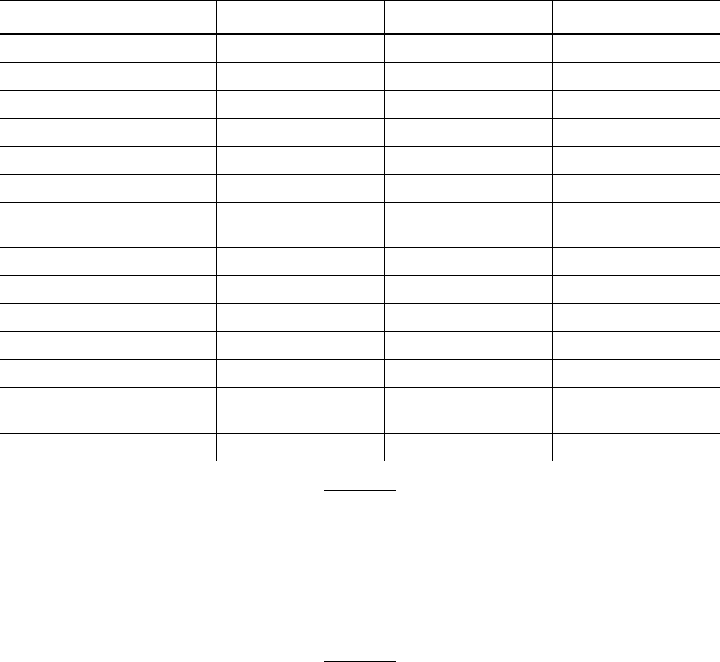
This features table gives an overview of each printer’s features.
While these printers are very similar, some differences in
operation and available options exist.
Feature 9412 9413 9414
Maximum print speed 2.0 ips 2.0 ips 2.5 ips
Maximum print area 2 in. x 6 in. 4 in. x 4 in. 4 in. x 6 in.
Location of Print Area Center Center Center
Supply Width 1.2 in. x 2.36 in. 1.2 in. x 4.25 in. 1.2 in. x 4.25 in.
Supply Length .38 in. x 6 in. .38 in. x 4.0 in. .38 in. x 6.0 in.
Power Up Mode Online Online Online
Feed Mode Continuous/
On-Demand Continuous/
On-Demand Continuous/
On-Demand
Ribbon Yes Yes No (direct only)
Supplies Tags or Labels Tags or Labels Tags or Labels
Field Number Range 0-999 0-999 0-999
Batch Separator Yes No Yes
2D bar codes Yes Yes Yes
Memory 128K battery-
backed RAM 128K battery-
backed RAM 512K Flash
Parallel Port Yes Yes Yes
You can create larger images or store formats
if you purchase additional memory.
See "Defining Text Fields" in Chapter 4 for a
list of available fonts for your printer.
See Chapter 5, "Defining Field Options," for a
list of available Options for your printer.
1-2 Getting Started

Before You Begin
1. Connect the printer to the host. Refer to your Equipment
Manual for more information.
2. Load supplies in the printer. Refer to your Equipment Manual
for more information.
3. Turn on the printer.
4. Set the communication parameters and configure the printer.
The communication parameters at the printer must match
those at the host. See Chapter 3, "Configuring the Printer,"
for more information.
5. Design your format. See "Starting with a Design" in Chapter
2 for more information.
6. Download your format to the printer. See Chapter 6,
"Printing," for more information.
Creating an MPCLII Format Packet
A format defines which fields appear and where the fields are
printed on the label. The printer requires this information in a
special form, using Monarch Printer Control Language II (MPCL).
This section describes how to create a sample MPCLII format
packet.
Make sure supplies are loaded, the printer is connected to the
host and is ready to receive data. Refer your Equipment Manual
for more information.
For detailed information about the format header, text, constant
text, and bar code fields, see Chapter 4, "Defining Fields." For
information about batch packets, see Chapter 6, "Printing."
1. Type the following format header, in any text editor:
{F,25,A,R,M,508,508,"FMT-25" p
Getting Started 1-3
2. Type the following constant text field:
C,250,80,0,1,2,1,W,C,0,0,"MONARCH MARKING",0 p
3. Type the following bar code field:
B,1,12,F,110,115,1,2,120,5,L,0 p
4. Type the following text field:
T,2,18,V,30,30,1,1,1,1,B,C,0,0,0 p }
You have created a format packet for your MPCLII printer. Now, a
batch packet must be created before you can print the format.
5. Type the following batch header, after the text field line:
{B,25,N,1 p
6. Type the following bar code data:
1,"12345678901" p
7. Type the following text field data:
2,"DAYTON, OHIO" p }
8. Save your file as SAMPLE.FMT.
9. Type MODE COM1:9600,N,8,1 at the DOS prompt if you are
using serial communications. This sets the communication
parameters at your host. These communication parameters
must match those at your printer. See "Setting
Communication Parameters," "Using Parallel
Communications" in Chapter 3, or your host’s documentation
for more information.
1-4 Getting Started

10. Type COPY SAMPLE.FMT COM1. The following 2 inch by 2
inch label prints:
{F,25,A,R,M,508,508,"Fmt 25" p
C,250,80,0,1,2,1,W,C,0,0,"MONARCH MARKING",0 p
B,1,12,F,110,115,1,2,120,5,L,0 p
T,2,18,V,30,30,1,1,1,1,B,C,0,0,0 p}
Sample Batch Packet
{B,25,N,1 p
1,"12345678901" p
2,"DAYTON, OHIO" p }
See Chapter 2, "Designing a Format" to
design your format and Chapter 4, "Defining
Fields" to create text, bar code, and line
fields.
Daily Startup Procedures
You may want to design a checklist for operators to follow each
day. Here are a few suggested items: Turn on the printer and
host, make sure ribbon and supplies are loaded, make sure
communication parameters are set, and download packets from
the host to the printer.
You may want to keep records of supplies that have been printed.
A good way to do this is to design a print log for operators to
complete at the end of the day. Here are some suggestions for
types of information to include in a print log: date, operator’s
name, format name, supply size, quantity printed, evaluation of
print quality, and problems/comments.
Keep backup copies of your format, batch data, and check digit
packets.
Getting Started 1-5
1-6 Getting Started

DESIGNING A FORMAT 2
This chapter describes how to
udetermine what kind of information to use in your format.
uuse the Supply Layout Grid and Format Worksheet.
ucategorize data into field types.
uselect fonts to use in your format.
Designing a Format 2-1

Starting with a Design
Before you create a format packet, you must design your label.
There are several steps to designing a custom label:
1. Decide which fields should appear on your label. See
"Determining Format Contents" for more information.
2. Determine your label size. Labels are available from Monarch
in a wide variety of sizes. Your application and the amount of
data you need to print determines the supply size. Contact
your Account Manager or Technical Support for more
information.
3. Draw a rough sketch of your label. You may want to draw
several variations to see what works best. See "Drawing
Rough Sketches" for more information.
4. Identify the field types that appear on your label. See
"Considering Field Types" for more information.
5. Decide which fonts you want to use. See "Considering Fonts"
for more information.
6. Fill out your Format Worksheet. See "Using the Format
Worksheet" for more information.
At this point, you are ready to send your design to the printer. To
do this:
7. Create a format packet, based on how you filled out your
worksheet. See Chapter 4, "Defining Fields," for more
information.
8. Download your format packet to the printer. See Chapter 6,
"Printing," for more information.
2-2 Designing a Format
Determining Format Contents
Before you lay out your format, you need to make a few
decisions. For example:
uHow large is your supply?
uWhich fonts do you want to use?
uDo you want to include a bar code?
Determining the Print Area
The "bottom" is the edge that exits the printer first. The 0,0 point
is at the bottom left corner of the label. For these printers, the
print area is in the center of the label. Check the table to
determine the maximum print area.
Printer Unit of Measure Maximum Supply Size
(Width x Length) Maximum Print Area
(Width x Length)
9412 English (1/100") 236 x 600 200 x 600
Metric (1/10mm) 599 x 1524 508 x 1524
Dots (1/203 dots) 479 x 1218 406 x 1218
9413 English 425 x 400 400 x 400
Metric 1080 x 1016 1016 x 1016
Dots 863 x 812 812 x 812
9414 English 425 x 600 400 x 600
Metric 1080 x 1524 1016 x 1524
Dots 863 x 1218 812 x 1218
Designing a Format 2-3
Use the following formulas to convert inches to dots and metric:
Dots = inches x 203
Metric (1/10mm) = inches x 254
English (1/100 inch) = 100 x (dots/203)
Dots = Metric (1/10 mm) x 799/1000
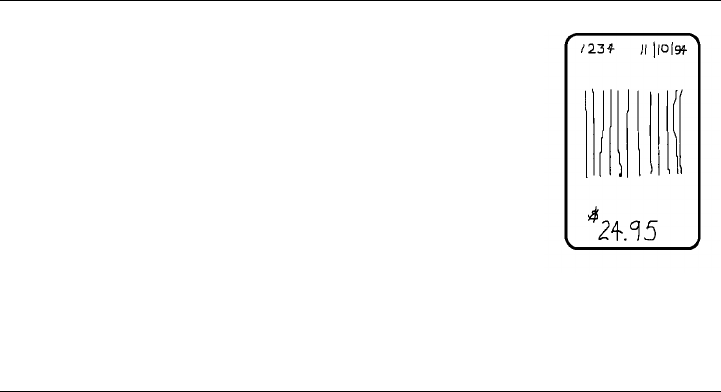
Drawing Rough Sketches
After you decide what information you want to
print, sketch how you want the information to
appear on the label. Note any areas that are
preprinted on the label, such as a logo.
As soon as you know what information to include
on the label and you have a rough sketch, you
can use a supply layout grid to help you layout
and size your label. If you do not want to use a
grid, go to "Considering Field Types" to choose
what information you want on your label.
Using Supply Layout Grids
A supply layout grid contains measurement markers. These
markers help you accurately position information on your label.
2-4 Designing a Format
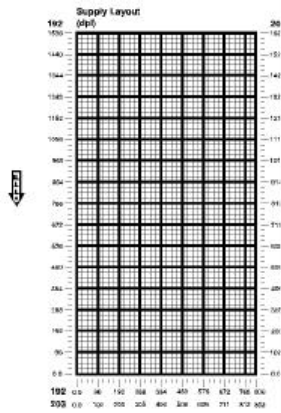
Decide whether you want to design formats using English, Metric,
or Dot measurements. Choose from the following grids:
uEnglish
The English grid, shown to the
right, is measured in 1/100
inches.
uMetric
The Metric grid is measured in
1/10 millimeters (mm).
uGraphic
The printer uses dots to print
images on a label. The
printhead has 203 dots per inch
(DPI).
Choose English or Metric units when designing formats to use
with different printers. English or Metric units allow more direct
use of formats on printers with different density printheads.
If you want to use supply layout grids, a copy of each is in
Appendix D, "Format Design Tools."
Designing a Format 2-5

Considering Field Types
After you select a supply size, the next step in designing a format
is to decide what information you want to print on the label. For
example, you may want to print your company name, price of an
item, and a bar code that combines information from other places.
Everything you want to print falls into one of the following
categories.
Field Type Description Examples
Text Contains letters, numbers, or
symbols you want to print. item number, item description,
department number, price, date
Bar Code Used for printing bar codes that
can be scanned. item or serial numbers, zip codes,
information you don’t want to
have visible to customers
Constant Text Prints fixed characters that do not
change. company name, company address
Line or Box Highlights or separates items. line marking out the regular price,
border around the supply
Non-Printable
Text Holds data for later use, such as
for merging into another field.
The printer does not print
non-printable text fields.
city, state, and zip code to be
included in a bar code
All of the above field types are discussed in
Chapter 4.
Considering Fonts
When working with fonts, you have three considerations:
ufont appearance
ufont size
ufont spacing (monospaced or proportional)
See Appendix B, "Fonts," for samples of each font.
2-6 Designing a Format

Using the Format Worksheet
The Format Worksheet is divided into sections that list the field
types. Each section has boxes to fill in with parameters that
define your format. A format worksheet is included in Appendix
D, "Format Design Tools."
Filling in the Format Worksheet
Decide what type of field to use on your label.
1. Make a copy of the Format Worksheet.
2. Define the Format Header.
3. Define all non-printable text fields before you define the ones
you want to print. See "Defining Non-printable Text Fields" in
Chapter 4 for more information.
4. Define options as you require them. See Chapter 5, "Defining
Field Options" for more information.
Designing a Format 2-7
2-8 Designing a Format

CONFIGURING THE PRINTER 3
This chapter discusses how to
uset communication parameters.
uupload the printer’s configuration or font information.
uconfigure the printer using online configuration packets.
uuse immediate commands to control the printer’s operation
at any time.
Configuring the Printer 3-1

Setting Communication Parameters
Use the following information for serial communications. See
"Using Parallel Communications" for information about parallel
communications.
The communication parameters at the printer must match those at
the host, or you will not be able to communicate.
You can use the communication settings packet to set
communication parameters for your printer.
On MS-DOS computers, you can use the MODE command to set
communication values on your PC.
For example
MODE COM1:9600,N,8,1
This command sets your host to these communication values:
ua baud rate of 9600
uno parity
u8 bit word length
u1 stop bit
Using Parallel Communications
If your printer supports parallel communications, the parallel port
is Centronics®-compatible. The communication settings are
automatically configured for you. There are no operator settings
required.
3-2 Configuring the Printer

Using MPCLII Conventions
Here are some guidelines to follow when using MPCLII.
MPCLII Punctuation
Use the following symbols when creating MPCLII packets:
{start of header
}end of header
p field separator
,parameter separator
"ABC" Quotation marks enclose character strings.
Empty quotes ("") identify null strings or
unused fields.
‘comment‘ Grave accents enclose comments. Any data
enclosed in grave accents is ignored. Do not
embed comments within a quoted string.
Grave accents are also used to reject
mainframe data.
These MPCL characters are the default. See "Defining the
Control Characters Packet" to change these characters.
Standard Syntax Guidelines
When creating MPCLII packets:
uBegin each packet with a start of header ({).
uEnd each packet with an end of header (}).
Configuring the Printer 3-3
uDefine no more than 1000 fields in a format. Each p indicates
one field. However, options are not counted as fields. The
actual number of fields a format can have may be less,
because the number of fields is limited by the available
memory.
uThe field number 0 to 999 must be unique. Monarch
recommends starting at 1, instead of 0.
uDo not use a field number more than once per format.
uDefine all fields in the order you want to image/print them.
The printer does not print in field number order.
uSeparate all parameters with a Parameter Separator (,).
uEnd each field with a Field Separator ( p ).
uEnter all information in CAPITAL letters, except words or
phrases within quotation marks.
uInclude all field parameters unless documented as optional.
uDefine non-printable text fields before the field to which they
apply.
uDefine options immediately after the field to which they apply.
uMultiple options can be used with most fields. Options can be
used in any combination except as noted with each definition.
uKeep in mind that proportionally spaced fonts need wider
fields than monospaced fonts. For variable field data, use a
letter "W" to determine the maximum field size.
uDo not place a new line (return) or any other non-printing
character in a character string. However, a carriage return or
line break after each p makes your formats easier to read.
T,1,20,V,30,30,1,1,1,1,B,C,0,0,0 p
T,2,10,V,50,30,1,1,1,1,B,C,0,0,0 p
uSpaces are ignored, except within character strings.
uIndenting options improves readability of your formats.
T,1,18,V,30,30,1,1,1,1,B,C,0,0,0 p
R,42,1 p
uUse a tilde (~) followed by a 3-digit ASCII code in a quoted
string to send function codes or extended characters.
3-4 Configuring the Printer

You can modify formats and fields with the optional entry method.
See "Optional Entry Method" in Chapter 6 for more information.
Using Online Configuration Packets
Use online configuration packets to change the printer settings.
You can send an individual packet or a packet that contains all
seven online configuration packets. You can supply all
parameters for each packet. Leave the parameters blank that you
do not need to change. For example,
{I,A,,,,1 p } prints a slashed zero and uses the last sent online
System Setup parameters.
Make a copy of the online configuration worksheet in Appendix D,
"Format Design Tools," and save the original. Packets A-M are
listed on the worksheet.
When you turn off the printer, all the information in the online
configuration packets is saved and used when the printer is
turned back on. After you change printer configurations, you
must resend the format or batch to the printer before the changes
take effect.
Configuration Packet Header
Always include an I, immediately after the left bracket { and
before the packet identifier (A, B, C, etc.). The I parameter
identifies the data stream as a configuration packet.
Include the I parameter with each packet if
you are sending them individually. Include it
only at the beginning of a data stream if you
are sending multiple packets.
Configuring the Printer 3-5
This is the syntax to use when you create online configuration
packets:
Syntax
{I,1 to 7 optional packet Start of Header, Configuration Header
A, parameter 1...parameter 5 p System Setup
B, parameter 1...parameter 5 p Supply Setup
C, parameter 1...parameter 5 p Print Control
D, parameter 1...parameter 3 p Monetary Formatting
E, parameter 1...parameter 9 p Control Characters
F, parameter 1...parameter 5 p Communication Settings
M, parameter 1_parameter 4 p } Memory Configuration, End of Header
Syntax for single packet
{Start of Header
IConfiguration Packet Identifier
A, parameter 1...parameter 5 p System Setup
}End of Header
You can also add a configuration to non-volatile RAM or specify
units for supply, print, and margin positions. If you use the
optional parameters with the I packet, any online configuration
packets following the split vertical bar ( p ) must specify distances
using the selected units.
Syntax {header,ID#,action,device p}
1. header Constant I
2. ID# ID. Use 0.
3. action Action. Options:
AAdd configuration
UUpload User Configuration
4. device Storage Device. Options:
FFlash (9414 only)
NNon-volatile RAM (9412/9413 default)
RRAM (9414 default)
5. units Units (optional parameter). Options:
EEnglish
MMetric
GDots
3-6 Configuring the Printer
Example {I,0,A,N,E p
C,0,25,0,0,0 p }
Adds a configuration to non-volatile RAM and specifies English
units. It also uses the default contrast, moves print 0.25 inches
closer to the bottom of the supply and does not change the
margin adjustment, prints at the default print speed, and uses the
default printhead width.
If you do not use the optional parameters, the syntax for the
online configuration packets does not change. For example,
{I,C,0,50,0,0,0 p }
uses the default contrast, moves print 50 dots (025 inches) closer
to the bottom of the supply and does not change the margin
adjustment, prints at the default print speed, and uses the default
printhead width.
Example {I,0,U,N p }
Uploads the printer configuration from non-volatile RAM and
returns the following to the host.
A,0,0,0,0 p
B,1,0,0,0,0,0 p
C,0,0,0,0,0 p
D,1,0,2 p
E,"~123~044~034~124~125~126","~013~010","" p
F,3,1,0,0,1 p
M,R,0,0,N,2424,0 p
M,R,N,20 p
M,T,N,10 p
M,I,N,1259 p
M,D,N,975 p
M,F,N,160 p
M,V,N,0 p }
Configuring the Printer 3-7

The parameters for each packet (A-M) are displayed. In the first
line that begins with M, 0 is the total volatile memory available, 0
is the memory used in volatile RAM. 2424 is the total non-volatile
memory available, 0 is the memory used in non-volatile RAM.
The remaining lines beginning with M list the buffer sizes in 1/10K
for the Receive, Transmit, Image, Downloadable Fonts, Formats,
and Scalable Fonts Buffers.
The scalable font is not available
for these printers.
Configuration Syntax Guidelines
When creating a printer configuration packet:
uFollow the "Standard Syntax Guidelines" listed at the
beginning of this chapter.
uBegin a packet with the configuration header (I).
uDownload multiple configuration packets within one packet or
download a single configuration packet.
uInclude the first five ANSI codes, at a minimum, in the control
characters packet.
uIf you change any of the online configuration packets, resend
the format packet to the printer, so the configuration changes
take effect.
uMake sure the communication settings at the host match those
at the printer.
3-8 Configuring the Printer

Defining the System Setup Packet
Use the system setup packet (A) to select the power up mode,
display language, print separators between batches, print a
"slashed zero," and select the symbol set.
Syntax {I,A,powup_mode,language,sep_on,slash_zero,
symbol_set p}
A1. ASystem Setup Packet
A2. powup_mode Online Mode. Must use 0.
A3. language Display Language. Must use 0.
A4. sep_on Batch Separators. Options:
0Does not print a separator (default for all printers).
1Prints a separator.
A5. slash_zero Slash Zero. Options:
0Print a standard zero (default for all printers).
1Print a zero with a slash through it.
A6. symbol_set Symbol Set. Options:
0Internal/ Monarch (default for all printers)
1ANSI
2Code Page 437
3Code Page 850
Example {I,A,0,0,1,1,0 p }
Powers up the printer in the online mode, displays prompts in
English, prints a separator after each batch, prints zeros with
slashes through them, and uses the internal symbol set.
Configuring the Printer 3-9

Defining the Supply Setup Packet
Use the supply setup packet (B) to select supply type, ribbon,
feed mode, supply position, and cut position.
Syntax {I,B,supply_type,ribbon_on,feed_mode,
supply_posn,cut_posn p}
B1. BSupply Setup Packet
B2. supply_type Supply Type. Options:
0Black mark stock
1Die Cut/aperture stock (default for all printers)
2Non-indexed stock
To use black mark supplies, send this packet {I,B,0,,,,, p}. Turn
off the printer. Turn the printer on while holding the FEED
button. Release when the supply starts to advance. After the
printer prints a test label, press the FEED button again to exit
Data Dump mode. Turn off the printer and then, turn it back
on. The printer is ready for black mark operation.
B3. ribbon_on Ribbon. Options:
0Ribbon not installed (9414 default)
1Ribbon installed (9412/9413 default)
NOTE: The 9414 printer does not support a ribbon.
B4. feed_mode Feed Mode. Options:
0Continuous operation (default for all printers)
1On-demand mode
For the 9412/9413 printers, you must have the on-demand
sensor installed to use on-demand mode. Also, the feed
mode is determined by the presence of the on-demand
sensor, not from this parameter. If the on-demand sensor is
open, you are using on-demand mode. If the on-demand
sensor is closed, you are using continuous mode. There is a
switch on the 9414 printer for on-demand mode. Refer to your
Equipment Manual for more information.
B5. supply_posn -300 to 300 in 1/203 inch. 0 is the default for all printers.
Adjusts the machine to print at the vertical 0,0 point on the
supply. This adjustment accounts for mechanical tolerances
from machine to machine. The supply position adjustment
only needs to be made on the initial machine setup.
You can’t change the supply position while the printer is
active. Changing the supply position will affect the print
position.
3-10 Configuring the Printer

B6. cut_posn -99 to 99 in 1/203 inch. Use 0 for these printers.
Example {I,B,0,0,1,10,0 p }
Indicates black mark and thermal direct stock has been loaded,
causes the printer to operate in on-demand mode and feeds the
supply approximately .05 inches up before printing the format on
each label (10/203 inches).
Defining the Print Control Packet
Use the print control packet (C) to set the contrast, print, and
margin adjustment, print speed, and printhead width.
Syntax {I,C,contrast,print_adj,margin_adjust,
speed_adj,ph_width p }
C1. CPrint Control Packet
C2. contrast -390 to 156. 0 is the default for all printers.
C3. print_adj -99 to 99 in 1/203 inch. 0 is the default for all printers.
Adjusts where data prints vertically on the supply. Increase
the print position to move print up, decrease to move print
down.
C4. margin_adj -99 to 99 in 1/203 inch. 0 is the default for all printers.
Adjusts where data prints horizontally on the supply. Increase
the margin position to move print to the right, decrease to
move print to the left. Margin and print position are format
adjustments. They will not affect the supply position.
C5. speed_adj Print speed. Use 0 for these printers.
C6. ph_width Width of the printhead in dots. Use 0 for these printers.
Example {I,C,0,-20,-10,0,0 p }
Uses the default contrast, moves print 0.1 inch closer to the
bottom of the supply (20/203 inches) and .05 inch to the left on
the supply (10/203 inches), prints at two inches per second, and
uses the default printhead width.
Configuring the Printer 3-11

Defining the Monetary Formatting Packet
The monetary formatting packet (D) selects the monetary symbols
to print for a price field. Use the monetary formatting packet to
select primary and secondary monetary symbols, and designate
the number of digits to appear at the right of a decimal.
Syntax {I,D,cur_sym,secondary,decimals p }
D1. DMonetary Formatting Packet
D2. cur_sym Currency Symbol. Options:
0No symbol
1USA ($, Dollar- default for all printers)
2UK (£, Pound)
3Japan (¥, Yen)
4Germany (1, Deutsche Mark)
5France (F, Franc)
6Spain (P, Peseta)
7Italy (L., Lira)
8Sweden (Kr, Krona)
9Finland (2, Markka)
10 Austria (6, Shilling)
11 India (Rs, Rupee)
12 Russian (3, Ruble)
13 Korean (4 Won)
14 Thai (5, Baht)
15 Chinese (¥, Yuan)
NOTE: To use these symbols, select the internal symbol set.
D3. secondary Secondary Sign. Options:
0No secondary sign (default for all printers)
1Print secondary sign
NOTE: Secondary symbols only print if you designate at
least one decimal place.
D4. decimals Number of digits to the right of the decimal. Options:
0No digits
1One digit
2Two digits (default for all printers)
3Three digits
Example {I,D,1,1,2 p }
Prints the dollar sign, uses a secondary symbol, and places two
digits to the right of the decimal.
3-12 Configuring the Printer

Defining the Control Characters Packet
Use the control characters packet (E) to change the MPCLII
control characters, enable and disable the immediate commands,
and change the default terminator character for job requests and
ENQ’s.
Changes take effect with the first character following the end of
header character } of the configuration packet. Each control
character must be unique and cannot appear anywhere else in
your packet, except within quotation marks. You can customize
the trailer characters to work with your host.
Wait two seconds for the new characters to
take effect before sending packets using the
new characters.
Use the following syntax for the control characters packet. Notice
all but the first parameter are within quotation marks.
Syntax {I,E,"ANSI_cd","string1","string2" p }
E1. EControl Characters Packet
E2. "ANSI_cd" ~123 Start of header {(left bracket)
~044 Parameter ,(comma)
separator
~034 Quoted strings "(quotes)
~124 Field separator p (pipe sign)
~125 End of header }(right bracket)
~126 Data escape ~~ (double tilde)
character (optional)
def. ch. Immediate command character (optional).
Up to any 3 digits in the 0 to 255 decimal
range. The tilde (~) must be used with decimal
characters. The character must be defined before
this command can be used. The caret (~094) is
normally used.
NOTE: "ANSI_cd" includes seven separate parameters. The
first five parameters are required. The other
parameters are optional.
Configuring the Printer 3-13
E3. "string 1" Terminator for status requests and ENQ requests. Up to any 3
digits in the 0 to 255 decimal range. The tilde (~) must be
used with decimal characters. The default is "013". Sending
"" disables this sequence.
E4. "string 2"Terminator for job requests and data uploads. Up to any 3
digits in the 0 to 255 decimal range. The tilde (~) must be
used with decimal characters. The default is none. Sending ""
disables this sequence.
After you change these parameters, all packets, including any
future configuration packets, must use the new control characters.
Monarch recommends using the tilde and ASCII character code
sequence when sending this packet multiple times. Also, set the
packet delimiters to characters within the 21 hex to 7E hex range.
You must send the control characters packet to enable the
immediate commands. An immediate command will execute
immediately, even if it is embedded within quotation marks, and
all data following the command in the string will be ignored.
Example {I,E,"~123~063~034~124~125~126~094" p }
Changes the parameter separator character from , to ?. The
other control characters remain unchanged. It also enables the
immediate commands by defining the ^ symbol as the command
identifier.
Resetting Control Characters
You can change the characters in the previous example back to
their original settings by downloading this packet:
Example {I?E?"~123~044~034~124~125~126~094" p }
Notice that the parameter separator is ? in this packet. This is
the parameter separator that was set before this packet. Once
the packet is received by the printer, the new parameter separator
(a comma, in this case) is valid.
3-14 Configuring the Printer

Be careful when using this feature. If you forget what the control
characters were changed to, print a test label. The test label lists
the current control characters. See "Printing a Test Label," in
Chapter 8 for more information.
Defining the Communication Settings Packet
Use the communication settings packet (F) to set the baud rate,
word length, stop bits, parity, and flow control for serial
communications. To set parallel communications, see "Using
Parallel Communications." Changing the communication settings
takes approximately two seconds. Communications sent during
this interval will be lost. Make sure the host communication
values match the values on the printer.
Syntax {I,F,baud,word_length,stop_bits,parity,
flow_control p }
F1. FCommunication Settings Packet
F2. baud Baud Rate. Options:
0 1200 3 9600 (default for all printers)
1 2400 4 19200
2 4800 5 38400
F3. word_length Word Length. Options:
07-bit word length
18-bit word length (default for all printers)
F4. stop_bits Stop Bits. Options:
01-stop bit (default for all printers)
12-stop bits
F5. parity Parity. Options:
0None (default for all printers)
1ODD parity
2EVEN parity
F6. flow_control Flow Control. Options:
0None 2(CTS)
1DTR (default 3XON/XOFF
for all printers)
NOTE: If you use the DOS COPY command to download
your formats, set "Flow Control" to DTR (not
XON/XOFF).
Configuring the Printer 3-15

Example {I,F,3,1,0,0,1 p }
Uses 9600 baud, an 8-bit word length, one stop bit, no parity, and
the DTR mode.
Defining the Memory Configuration Packet
Use the memory configuration packet (M) to customize the size of
your printer’s buffers, which gives you greater flexibility in your
formats.
Memory must be allocated in 1/2K increments. The memory
configuration packet does not accept decimals, so enter whole
numbers. Multiply the amount to reallocate (in K) by 10. For
example,
To reallocate (in K) Enter this amount
110
1.5 15
220
2.5 25
32 320
153 1530
229.5 2295
Each buffer’s allocated memory remains in effect until that buffer
is reallocated. For this reason, you may want to reallocate all the
buffers when reallocating any buffer. If you reallocate more
memory than you have available, you will receive an error.
Syntax {I,M,buffer,device,buffer_size p }
M1. MMemory Configuration Packet
3-16 Configuring the Printer
M2. buffer Buffer type:
DDownloadable Fonts
FFormat
IImage
RReceive
TTransmit
VScalable (vector) Fonts
NOTE: The scalable font is not available for these printers.
M3. device Storage type. Options:
NNon-volatile RAM (9412/9413 only)
RVolatile RAM (9414 only)
M4. buffer size Buffer size in 1/10K ranges. See the following table for
ranges.
Example {I,M,I,R,1530 p }
Stores the image buffer in volatile RAM and allocates 153K for it.
The following table lists the configured buffer sizes and min-max
values for your printer.
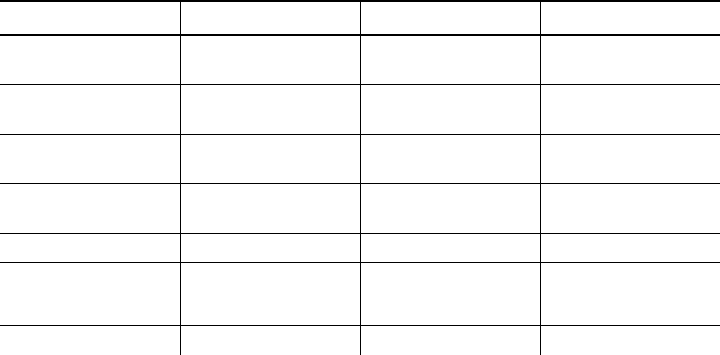
Buffer Type 9412 9413/9414
Transmit Non-Volatile 1K
(.5K- 4K) 1K
(.5K- 4K)
Receive Non-Volatile 2K
(2K- 64K) 2K
(2K- 64K)
Image Non-Volatile 67K
(38.5K- 512K) 83K
(38.5K- 512K)
Downloadable Fonts Non-Volatile 10K
(8K- 512K) 10K
(8K- 512K)
Scalable Fonts NA NA NA
Formats
(Formats and
Batches)
Non-Volatile 16K
(16K- 512K) 16K
(16K- 512K)
Internal NA cannot reallocate cannot reallocate
The transmit and receive buffers are fixed and cannot be
reallocated. The printer’s configuration is stored in non-volatile
RAM and retained when you turn off the printer.
Configuring the Printer 3-17

Checking Current Buffer Sizes
Send a configuration upload packet to check the sizes of your
current buffers. See "Using Configuration Upload Packet" for
more information. After you check your current buffer sizes you
can begin reallocating memory.
If you want to increase your image buffer and you will not be
using scalable fonts, add that memory into your image buffer.
Example {I,M,R,N,20 p Receive buffer 2K
M,T,N,10 p Transmit buffer 1K
M,D,N,80 p Downloadable fonts 8K
M,V,N,160 p Scalable fonts buffer 16K
M,I,N,3200 p } Image buffer 320K
Make sure memory is available before adding memory to a buffer.
In the above example, if the image buffer (M,I,N,3200) was
defined before the downloadable fonts and scalable fonts buffers
(M,D,N,80 and M,V,N,160) were defined, an error would have
occurred.
About Memory Buffers
Transmit Buffer Used to send ENQ, job, and upload
responses. This buffer must be allocated as
non-volatile (N) RAM.
Receive Buffer Used to save data received from the host
before it is processed by the printer.
Changing this buffer size affects the amount
of data the printer can receive without using
flow control. This buffer must be allocated as
non-volatile (N) RAM.
3-18 Configuring the Printer
Image Buffer Used to image the current format. You can
create an image up to 16 inches long by
reallocating memory. The Image Buffer is
cleared after a printer reset, even if it is
stored in non-volatile RAM.
Use the formula below to calculate the
required image buffer size.
22K x Length
Length is the length of your label in inches.
Example 22K x 6 = 132K (Multiply by 10.)
132K x 10 = 1320
Enter 1320 for your Image buffer.
Format Buffer Used to store formats and batch data. Use
the following formula to calculate the required
format buffer size:
Linecount x 50/1024
Linecount is the number of lines in your
format packet including the format header
and all the options.
The result of the above calculation is in
kilobytes.
Downloadable
Fonts Buffer Used to store downloaded soft (bitmapped)
fonts. To determine the size of your
downloadable fonts, send a font packet. See
"Using the Font Packet" for more information.
Scalable (Vector)
Fonts Buffer Used to image the scalable font characters.
Increasing this buffer size allows more
characters to be saved in cache memory, so
the characters do not have to be re-built the
next time they are printed. Scalable fonts are
not available for these printers, use 0.
Configuring the Printer 3-19
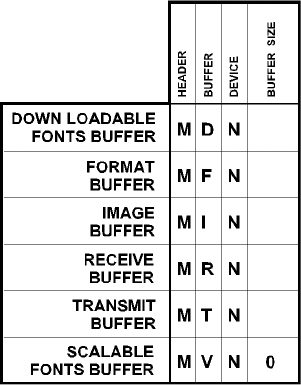
Buffer Worksheet
Make copies of this page to use as a buffer worksheet.
3-20 Configuring the Printer
Buffer Allocation Considerations
Keep these items in mind when allocating memory.
uDo not allocate more memory than what is available.
uFree memory from one buffer before you add it to another
buffer.
uReallocate all the buffers if you need to reallocate any buffer.
uSend all buffer (re)allocations in one packet. The printer
evaluates each individual buffer allocation separately. If one
buffer allocation is invalid, the entire packet is invalid. For
example, if you send
{I,M,R,N,20 p
M,T,N,60 p
...}
the printer ignores the entire packet, because the second line
allocates 6K for the transmit buffer, and 4K is the maximum for
that buffer. If you define a buffer size that exceeds the
maximum value, an error occurs. However, no information is
lost.
uWhenever the printer accepts a memory configuration packet,
it takes effect immediately, causing a printer reset. Any
information contained in the buffers is lost. Resend your
formats, batches, graphics, or fonts to the printer.
uIf you remap your image buffer, make sure the length and
width specified in your format header are not too large for the
current image buffer. In other words, if you remap for a 4 x 4
inch label, you cannot print a 4 x 6 inch label without receiving
an error, until you change your format header or increase your
image buffer.
Configuring the Printer 3-21

Using Immediate Commands
Immediate commands affect printer operation as soon as the
printer receives them, even if they are included within a packet or
used inside quotation marks.
You can use immediate commands to change immediate
command or status polling control characters, reset the printer, or
cancel and repeat batches.
Enabling Immediate Commands
When the printer is first turned on, these commands are not
available. To use these commands, you must first send the
control characters packet and define the immediate command
control character. The immediate command control character is
saved in non-volatile RAM and therefore not lost after you turn off
the printer. Once the immediate command control character is
defined, the immediate commands are enabled.
Sending Immediate Commands
Immediate commands consist of a three- or four-character
sequence you can send in a packet or embed in your application.
Each command must be sent separately.
Syntax control character_immediate command
The printer can accept only one immediate
command at a time. Sending a command
before the previous one is completed can
result in an error.
Example ^CB
Immediately cancels the batch currently printing. This example
assumes that the defined immediate command control character
is the caret (^).
3-22 Configuring the Printer
Command Parameter
^CA Cancels all the batches in the queue.
^CB Cancels only the current batch being printed.
^DD or
^DCd
Disables the MPCL data escape character (the tilde) and inhibits MPCL
from acting on ANY data escape sequence from the host. Sets the MPCL
data escape character to the ASCII value given by the d parameter. The
value can be any ASCII character.
^EA Aborts an error condition. May need to be sent multiple times. Use ^RB to
reprint batch.
CAUTION: Command causes the current batch to stop and the
condition that caused the error to remain uncorrected.
^ER Resets the error. This command is the same as pressing FEED to
acknowledge an error. Normal operation will resume.
^FD Feeds a label when printer is idle. Simulates the operation of pressing
FEED and dispenses the next label if printer is in the on-demand mode.
NOTE: Printer ignores this command if printing.
^ID or ^ICd Disables the Immediate Command feature by turning off the Immediate
Command escape character. Sets the Immediate Command escape
character to the ASCII value given by the d parameter. The value can be
any ASCII character.
^MC Returns the customer ID or RPQ version to the host. (00 to 99)
^MI Returns the customer ID or RPQ revision level to the host. (00 to 99)
^MM Returns the model number to the host. 12=9412, 13=9413, 14=9414
^MP Returns the prototype number to the host. (00 to 99)
^MR Returns the revision number to the host. (00 to 99)
^MV Returns the version number to the host. (00 to 99)
^PR Resets the printer. This command takes five seconds to complete and then
the printer is ready to receive data. It has the same effect as turning off
and then turning on the printer.
NOTE: Command should be used only when the printer is not printing.
^RB Repeats the last printed batch, printing the same number of labels as
specified in the original batch.
NOTE: Printer ignores this command if printing.
This command does not work if batch separators are being used.
^RS Resynchronizes supply when supply roll is changed.
NOTE: Printer ignores this command if printing.
^SD or
^SCd
Disables the status polling feature by turning off the status polling control
character. Sets the status polling control character to the ASCII value
given by the d parameter. The value of d can be any ASCII character.
^TP Prints a test label set. NOTE: Printer ignores this command if printing.
Configuring the Printer 3-23

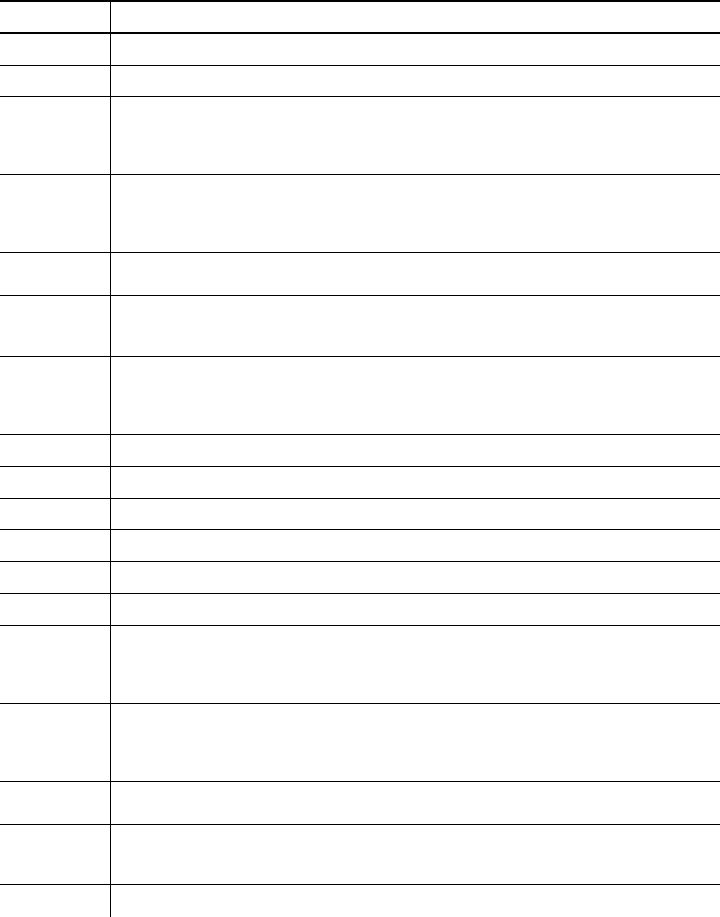
The table represents the defined immediate command control
character as ^ and the defined status polling control character as
d. You may define these characters to suit your needs.
To use the immediate command control
character or the status polling character
within your data, use the tilde sequence.
Clearing Packets from Memory
You may want to remove packets from the printer to increase
memory storage capacity or if the formats/fonts are no longer
needed. In some cases, turning the printer off may clear the
packets from memory. If not, send a format clear packet.
Syntax {header,packet#,action,device p }
1. header Identifies the packet. Options:
ACheck Digit Scheme
BBatch
FFormat
WFont
2. packet# Identification number of the packet to clear (1-999) or font
number (0-9999). 0 is for all fonts.
3. action Enter C to clear the packet.
4. device Storage device. Options:
NNon-volatile RAM
RVolatile RAM
Example {F,1,C,R p }
Clears Format #1 from volatile RAM.
3-24 Configuring the Printer

Using the Font Packet
You can use a font packet to add or clear downloaded fonts from
memory, upload your font buffer, or upload the cell size
information for a particular font. The font packet is useful when
you are downloading fonts. If you are using downloaded fonts,
the font number and the number of bytes each downloaded font
uses is listed.
This packet does not list the number of bytes the standard printer
fonts use.
Syntax {W,font#,action,device p }
W1. WWritable Font Header.
W2. font# Font number from 0-32000.
0 is for all fonts. 1 - 5 digits is the font number.
Example: 11 is the standard printer font,
CG Triumvirate.
W3. action Action. Options:
AAdds the specified font.
CClears all or specified fonts, except ones in ROM.
HUploads font size information.
W4. device Device. Options:
FFlash (9414 only)
NNon-volatile RAM (9412/9413 default)
RVolatile RAM (9414 default)
If you are creating fonts, you need to have font data included with
this packet. Software is available to create the font data and
packet. Call Technical Support for more information.
Example {W,0,M,R p }
Selects all fonts and checks the memory usage in RAM. The
printer returns the following to the host:
{W,0,M,R p
Number of bytes free, Number of bytes used p }
Configuring the Printer 3-25

Example {W,0,H,N p }
Selects all fonts and uploads the font size information for any
downloaded fonts in Non-volatile RAM.
The printer returns the following to the host:
{W,0,H,N p
0,1,0,"Standard",0,0,0,14,22,14,22,3 p
0,2,0,"Reduced",0,0,0,7,14,7,14,1 p
0,3,0,"Bold",0,0,0,24,34,24,34,3 p
0,4,0,"OCRA",0,0,0,13,24,13,24,3 p
0,5,0,"HR1",0,0,0,12,20,12,20,2 p
0,6,0,"HR2",0,0,0,10,16,10,16,1 p
0,10,1,"CGTriBd9",1,0,7,25,31,10,15,0 p
0,10,437,"CGTriBd9",1,0,7,25,31,10,15,0 p
0,10,850,"CGTriBd9",1,0,7,25,31,10,15,0 p
0,11,1,"CGTriumv6",1,0,5,17,21,5,10,0 p
0,11,437,"CGTriumv6",1,0,5,17,21,5,10,0 p
0,11,850,"CGTriumv6",1,0,5,17,21,5,10,0 p
Spacing Monospaced (0) or proportional (1).
Type Bitmapped (0) or scalable (1).
Baseline Bottom of the font.
Cell Width Horizontal number of dots to contain the
widest character.
Cell Height Vertical number of dots to contain the tallest
character.
Nominal Width Average width for lower-case letters.
Nominal Height Average height for lower-case letters.
Inter-Character
Gap Default spacing between characters in
monospaced fonts.
Font Style
Symbol Set
Inter-Character Gap
Nominal Height
Nominal Width
Font Name
Baseline
Spacing
Type
Cell Height
Cell Width
3-26 Configuring the Printer

DEFINING FIELDS 4
This chapter provides a reference for defining
uthe format header
utext, constant text fields, and non-printable text fields
ubar code fields
uline and box fields.
Defining Fields 4-1

Defining the Format Header
A Format Header begins a format file.
Syntax {F,format#,action,device,measure,length,
width,"name" p
F1. FFormat Header.
F2. format# Unique number from 0-999 to identify the format.
F3. action Enter A to add a new format to the printer.
F4. device Format storage device. Options:
FFlash (9414 only)
NNon-volatile RAM (9412/9413 default)
RRAM (9414 default)
F5. measure Unit of measure. Options:
EEnglish, measured in 1/100 inches
MMetric, measured in 1/10 mm
GGraphic, measured in dots
The following table lists the values for the specified
parameters. English measurements are used throughout the
rest of the chapter.
Printer Unit of
Measure Supply
Length Supply
Width Row or
End Row Column or
End Column
9412
Maximum print
area: 2"x6"
English
Metric
Dots
38-600
97-1524
77-1218
120-200
305-508
244-406
0-599
0-1523
0-1217
0-199
0-507
0-405
9413
Maximum print
area: 4"x4"
English
Metric
Dots
38-400
97-1016
77-812
120-400
305-1016
244-812
0-399
0-1015
0-811
0-399
0-1015
0-811
9414
Maximum print
area: 4"x6"
English
Metric
Dots
38-600
97-1524
7-1218
120-400
305-1016
244-812
0-599
0-1523
0-1217
0-399
0-1015
0-811
F6. length Supply length, top to bottom, in selected units.
9412/9414 ranges: 9413 range:
English 38 - 600 English 38 - 400
4-2 Defining Fields
F7. width Supply width, from left to right, in selected units.
9412 range: 9413/9414 ranges:
English 120 - 200 English 120- 400
F8. "name" Format name (optional), 0-8 characters, enclose within
quotation marks.
Example {F,1,A,R,E,300,200,"TEXTILES" p
Adds Format 1 ("TEXTILES") to the printer. It uses a three inch
long by two inch wide label.
Defining Text Fields
Create a separate definition for each text field. If text falls on two
lines, each line of text requires a separate definition.
Syntax T,field#,# of char,fix/var,row,column,
gap,font,hgt mag,wid mag,color,alignment,
char rot,field rot,sym set p
T1. T Text Field.
T2. field# Unique number from 0-999 to identify this field.
T3. # of char Maximum number of printed characters is 0-2710 in the field.
T4. fix/var Fixed or variable length field. Options:
FFixed length
VVariable length
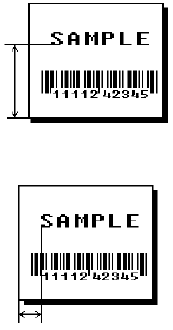
T5. row For monospaced fonts, distance from bottom of print area to
the pivot point. The pivot point varies depending on how text
is justified. For proportionally spaced fonts, distance from
bottom of print area to baseline of characters in field.
Defining Fields 4-3
9412/9414 ranges:
English 0 - 599
9413 range:
English 0 - 399
T6. column Distance from the left edge of the print area to the pivot point
to find the column location.
9412 range:
English 0 - 199
9413/9414 ranges:
English 0 - 399
See "Defining the Format Header" for the table of metric and dot
values.
T7. gap Number of dots between characters (203 dots per inch).
Range: 0-99.
NOTE: For monospaced fonts, the additional spacing is
added to the existing inter-character gap. This is
also true for proportionally spaced fonts, but
remember that the inter-character gap varies with
character combinations.
Any number other than 0 or the default number affects your
field width. Default spacing:
Standard 3 dots
Reduced 1 dot
Bold 3 dots
OCRA-like 3 dots
CG Triumvirate Bold varies with each letter
CG Triumvirate varies with each letter
T8. font Style of font. Options:
1Standard 10 CG Triumvirate Bold
2Reduced 11 CG Triumvirate
3Bold
4OCRA-like
Or a valid downloaded font selector number.
4-4 Defining Fields
T9. hgt mag Height magnifier, 1-7 (times). Use a magnifier of 1 with
proportionally spaced fonts, because characters lose
smoothness at higher magnifications.
T10. wid mag Width magnifier, 1-7 (times). Proportionally spaced fonts do
not have a set width. To estimate the size of your field, use
the letter "W" for the widest field or an "L" for an average
width field. Find your selected font and the desired width in
Appendix B, "Fonts."
T11. color Options for standard printer fonts:
BOpaque, Normal, Black, Normal
DOpaque, Normal, White, Normal
OTransparent, Normal, Black, Normal
ROpaque, Normal, White, Normal
WOpaque, Normal, White, Normal
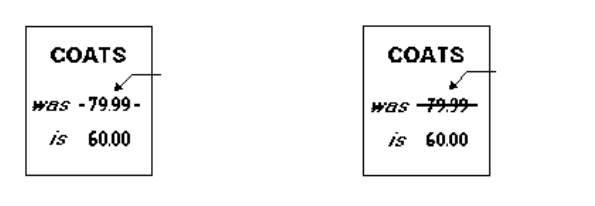
There are two types of field color overlay attributes:
Transparent The overlay field (text or constant text) does
not block out (or "erase") existing fields.
Opaque The overlay field blocks out (or "erases")
existing fields.
Field placement in the packet is an important consideration
when using field color attributes, because fields are imaged in
the order they are received. If a line field is defined before
the overlay (text or constant text) field, the line field is
blocked out by the overlay field, depending on the overlay
field’s color attribute. If a line field is defined after the overlay
field, the line field is not blocked out by the overlay field,
regardless of the overlay field’s color attribute.
Line field
blocked out by
opaque field
using attribute B
Line field not
blocked out by
transparent field
using attribute O
Defining Fields 4-5
T12. alignment Options:
LAlign on left side of field.
CCenter text within field (monospaced fonts only)
RAlign on right side of field (monospaced fonts only)
BAlign at midpoint of field
EAlign at endpoint of the field
Use L, B, or E for any font.
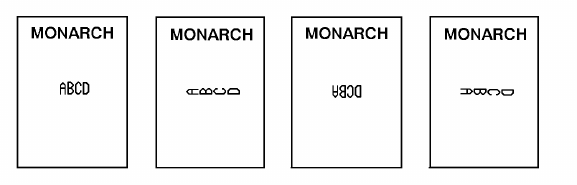
T13. char rot Character rotation. The field or supply does not rotate, only
the characters do. Options:
0Top of character points to top of field
1Top of character points to left of field
2Top of character points to bottom of field
3Top of character points to right of field
T14. field rot Field rotation. Field rotation rotates the whole field, not just
the characters. Rotation is affected by the pivot point, which
varies depending on how text is justified. Lower left corner of
field is the pivot point. Options:
0Top of field points to top of supply
1Top of field points to left of supply
2Top of field points to bottom of supply
3Top of field points to right of supply
T15. sym set Symbol set. Options:
0Internal Symbol Set
1ANSI Symbol Set
437 DOS Code Page 437 (Domestic)
850 DOS Code Page 850 (International)
NOTE: The CG Triumvirate fonts support only the ANSI and
DOS Code Page Symbol Sets. Refer to Appendix C,
"Symbol Sets/ Code Pages" for more information.
4-6 Defining Fields

Example T,2,10,V,250,50,0,1,1,1,B,C,0,0,0 p
Defines a text field (field #2) with a variable length of up to 10
characters. The field begins at row 250, column 50. There is no
additional gap between characters, and the Standard font is used
without any additional magnification. The printing is black on
white and centered. No field or character rotation is used. The
internal symbol set is used.
Defining Bar Code Fields
Each bar code field requires a separate definition.
Syntax B,field#,# of char,fix/var,row,column,
font,density,height,text,alignment,
field rot p
B1. B Bar Code Field.
B2. field# Unique number from 0-999 to identify this field.
B3. # of char Maximum number of characters. If the bar code uses a check
digit, allow an extra character for the check digit. The actual
maximum number of characters is limited by the size of the
label and bar code density. Range: 0-2710.
B4. fix/var Fixed (F) or variable (V) length field.
Bar Code Number of Characters Fixed/Variable
UPCA 12 F
UPCA+2 14 F
UPCA+5 17 F
UPCE 7F
UPCE+2 9F
UPCE+5 12 F
EAN8 8F
EAN8+2 10 F
EAN8+5 13 F
EAN13 13 F
EAN13+2 15 F
Defining Fields 4-7

EAN13+5 18 F
POSTNET 9 or 11 F
Interleaved 2 of 5 0 to 2710 V
Code 39 or MOD43 0 to 2710 V
Codabar (NW7) depends on application V
Code 128 0 to 2710 V
Code 93 0 to 2710 V
PDF417 0 to 2710 V
MaxiCode 15 to 99 V
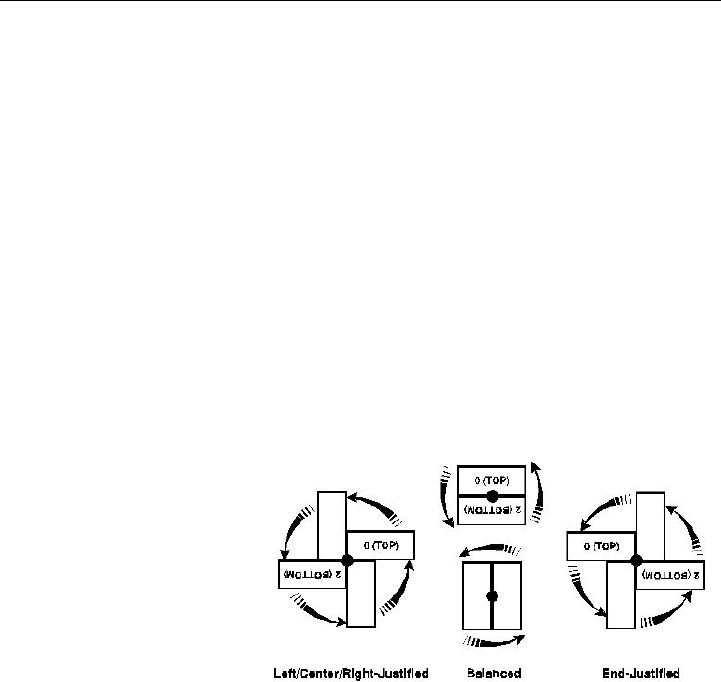
B5. row Distance from bottom of the print area to the pivot point of the
field. The pivot point varies, depending on how the field is
justified. Pivot points:
Remember to include text or numbers that may appear with
the bar code for the row measurement.
9412/9414 ranges:
English 0 - 599
9413 range:
English 0 - 399
Left/Center/Right-Justified Fields
Balanced Fields End-Justified Fields
4-8 Defining Fields
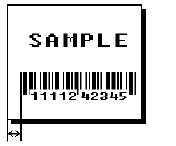
B6. column Distance from the lower left edge of the print area to the pivot
point.
9412 range:
English 0 - 199
9413/9414 ranges:
English 0 - 399
See "Defining the Format Header" for the table of metric and dot
values.
NOTE: Allow a minimum of 1/10 inch between the scan edge
of bar code and label edges or other data.
B7. font Bar code. Options:
1UPCA
2UPCE
3Interleaved 2 of 5
4Code 39 (no check digit)
5Codabar
6EAN8
7EAN13
8Code 128
10 UPCA +2
11 UPCA +5
12 UPCE +2
13 UPCE +5
14 EAN8 +2
15 EAN8 +5
16 EAN13 +2
17 EAN13 +5
22 POSTNET
23 Code 93
32 PDF417
33 MaxiCode
40 Code 39 (MOD 43 check digit)
NOTE: For more information about the MaxiCode bar code,
see Appendix A, "Samples."
B8. density Bar code density. Use the following table for the bar code
density.
Defining Fields 4-9

Bar code
Type Density
Selector Density
(% or cpi) Narrow
Element
(dots/mils)
Narrow to
Wide Ratio Data
Length Appearance
Codes
Available
Char
Set
UPCA +2/+5 2
476%
114%2/9.9
3/14.8 1.0:1 11 or 12
14/17 1, 5, 6, 7 or 8 0 to 9
UPCE
+2/+5 2
476%
114%2/9.9
3/14.8 1.0:1 6 or 7
9/12 1, 5, 6, 7 or 8 0 to 9
EAN8
+2/+5 2
476%
114%2/9.9
3/14.8 1.0:1 7 or 8
10/13 1, 5, 6, 7 or 8 0 to 9
EAN13+2/+5 2
476%
114%2/9.9
3/14.8 1.0:1 12 or 13
15/18 1, 5, 6, 7 or 8 0 to 9
Interleaved
2 of 5 1
2
3
4
5
6
7
8
9
10
11
12
13
1.1
2.1
3.2
4.2
5.6
6.3
7.5
8.8
9.6
11.2
11.0
12.7
14.5
21/103.4
12/59.1
7/34.5
6/29.6
4/19.7
4/19.7
3/14.8
3/14.8
3/14.8
2/9.9
2/9.9
2/9.9
2/9.9
1:3.0
1:2.5
1:3.0
1:2.5
1:3.0
1:2.5
1:3.0
1:2.3
1:2.0
1:3.0
1:3.0
1:2.5
1:2.0
0 to
2710 80 to 9
Code 39 or
MOD43
(Extended
Code 39)
1
2
3
4
6
7
11
12
20
1.4
1.7
3.5
4.2
6.3
7.0
3.9
12.7
3.0
10/49.3
8/39.4
4/19.7
3/14.8
2/9.9
2/9.9
4/19.7
1/4.9
5/24.6
1:2.5
1:2.5
1:2.5
1:3.0
1:3.0
1:2.5
1:2.0
1:3.0
1:2.2
0 to
2710 8SPACE
$%*+-./
0 to 9
A to Z
Codabar
(NW7) 2
3
4
5
7
8
9
2.1
3.0
4.6
5.1
8.4
9.2
10.1
8/39.4
6/29.6
4/19.7
4/19.7
2/9.9
2/9.9
2/9.9
1:3.0
1:2.5
1:2.5
1:2.0
1:3.0
1:2.5
1:2.0
0 to
2710 8$+-./
0 to 9
a to d
Code 128 20
4
6
8
3.5/7.0
4.4/8.7
5.8/11.7
8.7/17.5
5/24.6
4/19.7
3/14.8
2/9.9
N/A 0 to
2710 800H to
7FH
NOTE: The start (*) and stop (+) characters are automatically added for Code 39. Code
39, density 12 produces a one-dot narrow bar. This density is for special U.S.P.S. ACT-tag
applications only. Synthetic supplies are recommended to produce scannable bar codes.
4-10 Defining Fields
B9. height Bar code height in 1/100 inches, 1/10 mm, or dots. Minimum
values:
English 20
Metric 51
Dots 40
NOTE: POSTNET, PDF417, and MaxiCode bar codes have a
fixed height. Always use 0 for these bar codes.
Bar code
Type Density
Selector Density
(% or cpi) Narrow
Element
(dots/mils)
Narrow to
Wide Ratio Data
Length Appearance
Codes
Available
Char Set
CODE 93 3
4
5
7
10
3.7
4.5
5.6
7.5
11.2
6/29.6
5/24.6
4/19.7
3/14.8
2/9.9
N/A 0 to 2710 800H to
7FH
Bar code
Type Density
Selector Density
(% or cpi) Narrow
Element
(dots/mils)
Narrow to
Wide Ratio Data
Length Appearance
Codes
Available
Char Set
POSTNET 0 (fixed at
4.3 cpi) 24/118.2 10/49.3 4/19.7
(5 dot gap) 0,5,6,9 or
11 80 to 9
Maxicode 7N/A N/A N/A 15 to 99 800H to
FFH
Bar code
Type Density
Selector Element
Width
(dot/mils)
Row Height
(dots/mils) Aspect
Ratio Data
Length Appearance
Codes
Available
Char Set
PDF417 1
2
3
4
5
6
7
8
9
2/9.8
2/9.8
2/9.8
3/14.8
3/14.8
3/14.8
4/19.7
4/19.7
4/19.7
2/9.8
4/19.7
6/29.6
3/14.8
6/29.6
9/44.3
4/19.7
8/39.4
12/59.1
1:1
1:2
1:3
1:1
1:2
1:3
1:1
1:2
1:3
0 to 2709 800H to
FFH
NOTE: Values in bold indicate the default.
Defining Fields 4-11

B10. text Appearance of text with bar code. For UPC and EAN only use
0-7. For all others, use 8. Options:
0Default
1No check digit or number system
5Number system at bottom, no check digit
6Check digit at bottom, no number system
7Check digit and number system at bottom
8No text, bar code only
B11. alignment Choose L, R, C, B or E to align the bar code data correctly in
the field. B centers variable width bar codes, which may not
allow pad-character centering (Code 128, Code 39, etc.) E
right justifies variable width bar codes. C centers the bar
code data in the field. R right justifies the bar code data in
the field. MaxiCode must use L.
NOTE: All alignments are not supported for each bar code
type.
B12. field rot Field rotation. Field rotation rotates the whole field, not just
the characters. Rotation is affected by the pivot point, which
varies depending on how text is justified. Lower left corner of
field is the pivot point. Options:
0Top of field points to top of supply
(Use for MaxiCode)
1Top of field points to left of supply
2Top of field points to bottom of supply
3Top of field points to right of supply
Example B,3,12,V,150,40,1,2,80,7,L,0 p
Defines a bar code field (field #3) with 12 characters of variable
length starting at row 150, column 40. A UPCA bar code with a
density of 2 and a height of 80 is used. The check digit and
number system are shown at the bottom. The bar code is left
aligned without any field rotation.
Defining Non-Printable Text Fields
Non-printable text fields allow you to enter data without printing it
in its entered form. Typically, non-printable fields "hold" data that
later combines with other fields to form a merged field. Define
non-printable text fields before you define the field where the
information prints.
4-12 Defining Fields
When you copy this field into another field, the maximum number
of characters for the final field is 2710 (or 0-100 for 9403). Allow
only as many characters as you need, because extra characters
use up space. Also, if you are copying into a bar code field, the
maximum number of characters in the destination bar code is
determined by the bar code specification (UPCA-12, EAN-13,
etc.). You need to apply field options to manipulate the text
entered in this field. For example, you may want to copy data
from this field into another field. See "Option 4 Copy Data" in
Chapter 5 for more information.
In the following example, data is entered into four non-printable
fields and merged to form field 5, and is then printed as a bar
code. See "Merging Fields" in Chapter 5 for more information.
Field Data Field Type
120374 Non-printable
2339 Non-printable
3 8 Non-printable
415 Non-printable
520374339815 Bar Code
Each non-printable text field requires a separate definition.
Syntax D,field#,# of char p
D1. D Non-Printable Text Field.
D2. field# Unique number from 0-999 assigned to this field.
Maximum number of characters in this field: 0-2710.
D,4,20 p
Defines a non-printable text field (field #4) with a maximum of 20
characters.
Defining Fields 4-13

Defining Constant Text Fields
A constant text field is a set of fixed characters that prints on all
labels. Define each constant text field separately. This field is
not assigned a field number, but is counted as a field (keep this in
mind, as the printer allows a maximum of 1000 fields). The
characters in this field cannot be changed by batch data. Field
options do not apply to constant text fields.
Determine the height and the maximum width of the characters,
using the tables in Appendix B, "Fonts." If you’re using
proportionally spaced fonts, use the average size of the
characters. Mark the pivot point of your field. This will vary,
depending on how your field is justified.
Syntax C,row,column,gap,font,hgt mag,
wid mag,color,alignment,char rot,
field rot,"fixed char",sym set p
C1. C Constant Text Field.
C2. row For monospaced fonts, distance from bottom of print area to
the pivot point. For proportionally spaced fonts, distance from
bottom of print area to baseline of characters in the field.
(Bottom exits the printer first.)
9412/9414 ranges: 9413 range:
English 0 - 599 English 0 - 399
C3. column Distance from the lower left edge of the print area to the pivot
point.
9412 range: 9413/9414 ranges:
English 0 - 199 English 0 - 399
See "Defining the Format Header" for the table of metric and dot
values.
4-14 Defining Fields
C4. gap Number of dots between characters. Range: 0-99.
Any number other than 0 or the default number affects your
field width. Default spacing:
Standard 3 dots
Reduced 1 dot
Bold 3 dots
OCRA-like 3 dots
CG Triumvirate Bold varies with each letter
CG Triumvirate varies with each letter
C5. font Style of font. Options:
1Standard 10 CG Triumvirate Bold
2Reduced 11 CG Triumvirate
3Bold
4OCRA-like
or a valid downloaded font selector number.
C6. hgt mag Height magnifier, 1-7 (times). Use a magnifier of 1 with
proportionally spaced fonts, because characters lose
smoothness at higher magnifications.
C7. wid mag Width magnifier, 1-7 (times) Proportionally spaced fonts do
not have a set width. To estimate the size of your field, use
the letter "W" for the widest field or an "L" for an average
width field.
C8. color Options for standard printer fonts:
BOpaque, Normal, Black, Normal
DOpaque, Normal, White, Normal
OTransparent, Normal, Black, Normal
ROpaque, Normal, White, Normal
WOpaque, Normal, White, Normal
There are two types of field color overlay attributes:
Transparent The overlay field (text or constant text) does
not block out (or "erase") existing fields.
Opaque The overlay field blocks out (or "erases")
existing fields.
Field placement in the packet is an important consideration
when using field color attributes, because fields are imaged in
the order they are received. If a line field is defined before
the overlay (text or constant text) field, the line field is
blocked out by the overlay field, depending on the overlay
field’s color attribute. If a line field is defined after the overlay
field, the line field is not blocked out by the overlay field,
regardless of the overlay field’s color attribute.
Defining Fields 4-15
C9. alignment Alignment of constant text in the field. Options:
LAlign on left side of field.
BAlign at midpoint of field
EAlign at end of field.
C10. char rot Character rotation. Options:
0Top of character points to top of field
1Top of character points to left of field
2Top of character points to bottom of field
3Top of character points to right of field
C11. field rot Field rotation. Lower left corner of field is the pivot point.
Options:
0Top of overlay points to top of supply
1Top of overlay points to left of supply
2Top of overlay points to bottom of supply
3Top of overlay points to right of supply
NOTE: Rotation is affected by the pivot point, which varies
depending on how text is justified.
C12. "fixed char" Fixed characters to appear in the field. Maximum 2710
characters. Enclose in quotation marks.
C13. sym set Symbol set. Options:
0Internal Symbol Set
1ANSI Symbol Set
437 DOS Code Page 437 (Domestic)
850 DOS Code Page 850 (Multilingual)
NOTE: The CG Triumvirate fonts support only the ANSI and
DOS Code Page Symbol Sets. See Appendix C,
"Symbol Sets/ Code Pages," for more information.
Example C,30,10,0,1,1,1,B,L,0,0,"MADE IN USA",0 p
Defines a constant text field starting at row 30, column 10. It
does not have any additional inter-character gap. The Standard
font is used without any additional magnification. The printing is
black on white and left justified. No field or character rotation is
used. "MADE IN USA" is printed in this field. The internal symbol
set is used.
4-16 Defining Fields

Defining Line Fields
Use lines to form borders and mark out original prices. Define
each line separately. This field is not assigned a field number, but
is counted as a field (keep this in mind, as the printer allows a
maximum of 1000 fields per format). You can define any line
length and a thickness up to 99 dots, as long as the solid black
print does not exceed 30 percent of any given square inch of the
label.
Line Types
You can create horizontal and vertical lines. There are two ways
to define lines.
Segments You choose the starting point and ending
point.
Vectors You choose the starting point, the angle, and
the length of the line.
Syntax L,type,row,column,angle/end row,length/
end col,thickness,"pattern" p
L1. L Line Field.
L2. type Type of line. Only vertical and horizontal lines are
supported. Options:
SSegment. You choose the starting point and
ending point.
VVector. You choose the starting point, angle,
and length.
Defining Fields 4-17
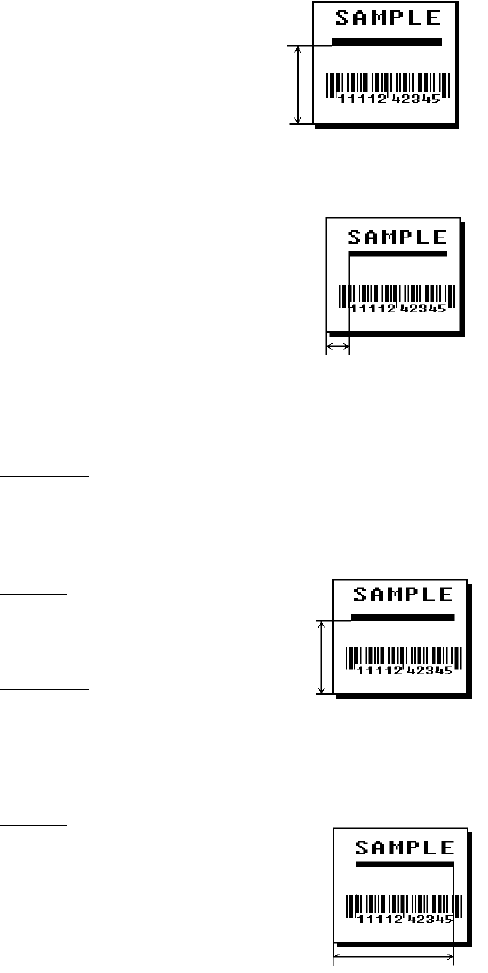
L3. row Distance from bottom of print area
to the starting point.
9412/9414 ranges:
English 0 - 599
9413 range:
English 0 - 399
L4. column Distance from left edge of the
print area to line origin.
9412 range:
English 0 - 199
9413/9414 ranges:
English 0 - 399
See "Defining the Format Header" for the table of metric and dot
values.
L5. angle/
end row If Using Segments
Row location of ending point. Measure from bottom of print
area. Ranges same as row above. On horizontal lines, this
value must match item L3.
If Using Vectors
Angle of line. Options: 0, 90,
180, or 270.
L6. length/
end col If Using Segments
Column location of end point. Measure from left edge of print
area. Ranges same as column above. On vertical lines, this
value must match parameter L4.
If Using Vectors
Length of the line in selected units.
Ranges for horizontal lines with 9412:
English 0 - 200
4-18 Defining Fields
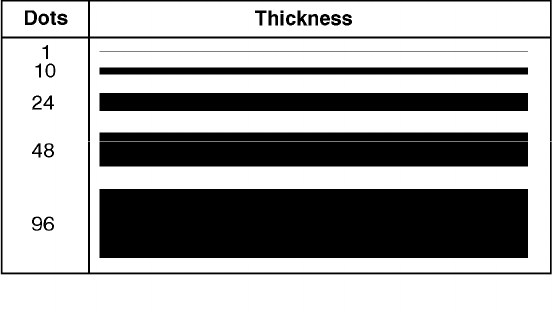
Ranges for horizontal lines with 9413/9414:
English 0 - 400
Ranges for vertical lines with 9412/9414:
English 0 - 600
Ranges for vertical lines with 9413:
English 0 - 400
L7. thickness Using the chart below for reference, write the desired line
thickness (1 to 99) in box L7. Measured in dots.
NOTE: Line thickness fills upward on horizontal lines, or to
the right on vertical lines.
L8. "pattern" Line pattern. Enter "".
Example L,S,110,30,110,150,10,"" p
Defines a horizontal line field as a segment starting at row 110,
column 30 and ending at row 110, column 150. The line
thickness is 10 dots.
Defining Fields 4-19
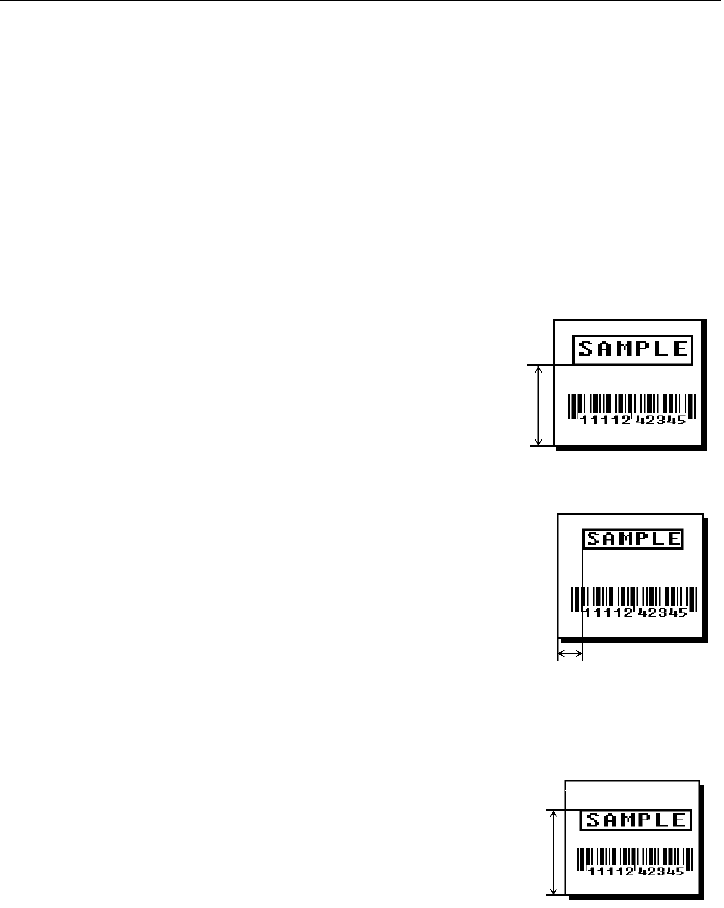
Defining Box Fields
Use boxes to form borders or highlight items of interest. Define
each box field separately. This field is not assigned a field
number, but is counted as a field (keep this in mind, as the printer
allows a maximum of 1000 fields). You can define any line length
and a thickness up to 99 dots, as long as the solid black print
does not exceed 30 percent of any given square inch of the label.
Syntax Q,row,column,end row,end col,thickness,
"pattern" p
Q1. Q Box (Quadrilateral) Field.
Q2. row Distance from bottom of print area
to lower left corner of box.
9412/9414 ranges:
English 0 - 599
9413 range:
English 0 - 399
Q3. column Distance from left edge of print area
to lower left corner of box.
9412 range:
English 0 - 199
9413/9414 ranges:
English 0 - 399
See "Defining the Format Header" for the table of metric and dot
values.
Q4. end row Distance from bottom of print area to
upper right corner of box. Ranges
same as row.
4-20 Defining Fields
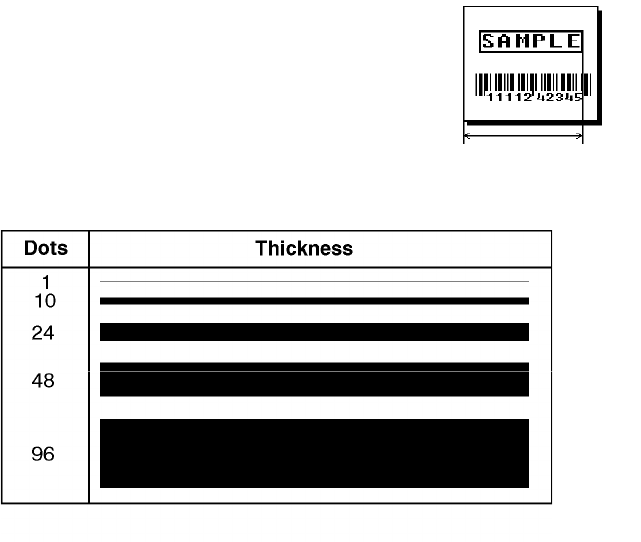
Q5. end col Distance from left edge of print area
to upper right corner of box. Ranges
same as column.
Q6. thickness Using the chart below for reference, write the desired line
thickness (1 to 99) in box Q6. Measure in dots.
NOTE: Boxes fill inward, so make sure your boxes do not
overwrite other fields.
Q7. "pattern" Line pattern. Enter "".
Example Q,240,30,270,150,3,"" p
Defines a box field starting at row 240, column 30. It ends at row
270, column 150. It has a thickness of 3 dots.
Defining Fields 4-21
4-22 Defining Fields

DEFINING FIELD OPTIONS 5
This chapter provides a reference for defining
ufield options in formats.
ucheck digit packets.
Applying Field Options
Field options further define text, bar code, and non-printable text fields.
The text, constant text, or bar code field must be previously defined before
you can apply any field option to it. Define options immediately after the
field to which they apply.
Combining Field Options
You can use more than one option with most fields. For example, you can
use Option 4 to copy data from another field, and then use Option 30 to pad
the field. When you use multiple options for the same field, you must place
the options in the order you want to apply them to your format.
Defining Field Options 5-1
Restrictions
Some options cannot be used together. For example,
incrementing (Option 60) and price field (Option 42) options
cannot be applied to the same field. Refer to the following
sections addressing individual options for specific combinations to
avoid.
Option 4 (copy a field) is the only option that can be repeated for
a single field.
Example R,1,3,1,3,1,1 p
Syntax R,option#,parameter...parameter p
R1. R Indicates field option header.
R2. option# Option number (supported on all printers):
1Define fixed characters
4Copy data from previous field
30 Pad data to left or right with specified character
31 Generate check digit
42 Format as a price field
50 Define bar code densities
51 Define security and truncation of PDF417 bar codes
52 Define width or length of PDF417 bar codes
60 Define incrementing or decrementing field
61 Reimage fields
R3. parameter(s) Varies per option. See the following option descriptions.
5-2 Defining Field Options

Option 1 (Fixed Data)
Fixed data is information (a company name or store number) you
want to print on all labels. You can define fixed characters for an
entire field or for part of a field.
Syntax R,1,"fixed char" p
R1. R Option Header.
R2. 1 Option 1.
R3. fixed char Characters to insert. Enclose in quotation marks. If you are
defining fixed characters for part of a field, place underscores
(_) in non-fixed positions. Any spaces in the phrase are fixed
characters. Range: 0 - 2710.
NOTE: Underscore characters are stripped out and the data
is compressed if no data is supplied by the batch and
the field length is variable.
Example R,1,"_ _ _%$_ _ _ _ _" p
Uses fixed characters (%$) in positions four and five. The other
positions are variable.
Example R,1,"MONARCH" p
"MONARCH" appears as a fixed field in this example.
To fill in the non-fixed portion of the field, see "Defining Batch
Data Fields" in Chapter 6. As an alternative, you can apply
Option 4 to copy data into the non-fixed character positions.
Defining Field Options 5-3

Option 4 (Copy Data)
You can create a field that uses data from another field. This is
useful for creating merged fields or sub-fields. You can copy the
information from multiple fields into one field by applying the copy
procedure more than once. Copy data is the only option you can
apply to a field more than once.
The maximum number of characters defined in box T3 or B3 must
allow for the number of characters you will place in the field,
including any price, check digit, or fixed characters inserted by
the printer. The maximum number of characters in the destination
field (including copied data) cannot exceed 2710 or the maximum
number of characters permitted by the bar code.
When copying from more than one field, copy
into the destination field from left to right.
Syntax R,4,src fld,src start,# to copy,dest
start,copy code p
R1. R Field Option Header.
R2. 4 Option 4.
R3. src fld Field number from which data is copied. Range: 0 - 999.
R4. src start Position number in the source field of the first character to be
copied. Character positions are numbered 1 to 2710, starting
from the left.
R5. # to copy Number of characters to copy. Range: 1 - 2710.
R6. dest start Position number where copied characters are to begin printing
in the destination field. Range: 1 - 2710.
R7. copy code Copy Method.
1Copy field as is (including price symbols,
pad characters, check digits, etc.).
2Copy unformatted data (without price characters,
pad characters, etc.).
5-4 Defining Field Options
Example R,4,3,1,3,1,1 p
Copies data from field #3, starting at the first position and copying
three characters. In the destination field, the information is
placed in position 1 and copied as formatted data.
Merging Fields
You can copy data to merge the contents of fields. Use the copy
data option as many times as necessary to copy all the
appropriate fields into the merged field.
In the following example, two text and two non-printable fields are
shown. Data from these fields is merged to form field 5 and is
then printed as a bar code.
Field Data Field Type
1203 Non-printable
2339 Non-printable
3 8 Text
4BLUE Text
52033398BLUE Bar Code
To create this sequence:
1. Define fields 1, 2, 3, and 4.
2. Define field 5 as a bar code. Allow enough characters in the
bar code field to hold all the copied characters.
3. Apply Option 4 to field 5 once for every source field.
Sub-Fields
You can copy a segment of data from one field into a new
location, called a sub-field. For example, extract part of the data
in a bar code and display it in text form in a sub-field. Then, use
the copy data option.
Defining Field Options 5-5

Option 30 (Padding Data)
You can add characters to one side of a field to "pad" the field.
Padding allows you to fill in the remaining spaces when the
entered data does not fill an entire field.
If a variable length field is not completely filled with batch data,
this option fills the remaining positions in the field with the
character designated by Option 30.
Syntax R,30,L/R,"character" p
R1. R Option Header.
R2. 30 Option 30.
R3. L/R Indicates type of padding
L Pad field on left side
R Pad field on right side
R4. "character" Pad character must be within the 0 - 255 decimal range and
enclosed inside quotation marks.
NOTE: Do not use on fixed length fields.
Example R,30,L,"X" p
Pads data with an "X" on the left side of the field.
Sample Use for Padding
If you have a variable length bar code that you want to occupy a
fixed amount of space on the supply, use pad characters. If the
maximum number of characters in the bar code is 15, but the
batch record only has 10 characters, the padding option fills the
remainder of the field with pad characters.
5-6 Defining Field Options

Option 31 (Calculate Check Digit)
The printer generates a check digit if you apply Option 31 to the
field. You cannot use this option if the field contains a UPC, EAN,
or Code 39 (with the MOD43 check digit) bar code.
Syntax R,31,gen/ver,check digit # p
R1. R Option Header.
R2. 31 Option 31.
R3. gen/ver Enter G to generate a check digit.
R4. check digit # Specifies a check digit scheme. Enter a number that
identifies a check digit scheme that has been defined. For
more information, see "Using Check Digits." Range: 1 - 10.
Example R,31,G,5 p
Generates a check digit using the previously defined check digit
scheme 5.
Defining Field Options 5-7

Option 42 (Price Field)
You can apply options that will insert monetary symbols
automatically. Do not use this option with Option 31 (define a
check digit) or Option 60 (increment or decrement a field). This
option is not recommended for bar codes. When determining the
maximum number of characters, add the maximum number of
digits and the monetary symbols.
Syntax R,42,appearance code p
R1. R Option Header.
R2. 42 Option 42.
R3. appearance
code Enter 1 to print price field in standard notation, as defined by
country setting.
Use the monetary formatting packet to select monetary
notations and symbols by country setting. See "Defining the
Monetary Formatting Packet" for more information.
See Appendix C, "Symbol Sets/Code Pages," to make sure
the monetary symbol you want to use is printable in the font
selected for this field. For monetary symbols other than the
dollar sign, use the internal symbol set.
Example R,42,1 p
Uses a price field that prints the monetary symbol and notations
as defined in the monetary formatting packet.
5-8 Defining Field Options

Option 50 (Bar Code Density)
You can apply this option to bar code fields when you want to
create custom densities. When you apply this option, it overrides
the density value in the bar code field.
When using this option, set the density parameter in your bar
code field to the default value. You can only use this option once
for each bar code field. This option overrides the density
selected in the bar code field.
Bar codes produced using Option 50 may not be scannable. The
additional character gap, narrow space, and wide space
parameters are valid only with Code 39 and Codabar. If these
parameters are specified for any other bar codes, they will be
ignored by the printer. Do not use Option 50 with fixed density
bar codes.
Syntax R,50,narrow,wide,gap,nar_space,wide_space p
R1. R Option Header.
R2. 50 Option 50.
R3. narrow Dot width of the narrow element. Range: 1-99.
R4. wide Dot width of the wide element. Range: 1-99.
R5. gap Additional dot space between characters. Enter a value of 1
to 99. (Code 39 and Codabar only.)
R6. nar_space Additional dot width of the narrow bar code space. (Code 39
and Codabar only). Range: 1- 99.
R7. wide_space Additional dot width of the wide bar code space. (Code 39
and Codabar only). Range: 1- 99.
Example R,50,4,8,4,4,8 p
Creates a custom bar code density with a narrow element of 4
dots, a wide element of 8 dots, a gap of 4 dots, 4 additional dot
widths for the narrow bar code space, and 8 additional dot widths
for the wide bar code space (if this is a Code 39 or Codabar bar
code).
Defining Field Options 5-9

Option 51 (PDF417 Security/Truncation)
You can define a security level and choose whether or not to
truncate a PDF417 bar code. Higher security levels add data to a
bar code, improving scan reliability. Some damaged bar codes
may still be scannable if the security level is high enough. You
can use this option to create standard PDF417 bar codes or use
the truncated option to create a narrower bar code. This option
can appear only once per PDF417 field, in any order, following the
bar code field.
As the security level is increased, so is the size of your PDF417
bar code. For each level increased, the bar code will double in
size.
Syntax R,51,security,stand/default p
R1. R Option Header.
R2. 51 Indicates Option 51.
R3. security Security level ranges from 0-8 (0 is the default).
Higher security levels add data to a bar code, improving scan
reliability. Some damaged bar codes may still be scannable if
the security level is high enough.
R4. stand/def Truncation selector. Valid values:
S (default) a standard PDF417 bar code
T truncated
Example R,51,2,S p
Defines a security level of 2 for a standard PDF417 bar code.
5-10 Defining Field Options

Option 52 (PDF417 Width/Length)
This option defines the image width or length of a PDF417 bar
code. If you define a fixed number of columns (width), the bar
code expands in length. If you define a fixed number of rows
(length), the bar code expands in width.
Column value does not include start/stop or left/right indicator
columns.
If this option does not immediately follow the PDF417 bar code
field, the default settings are used. You can only use this option
once per PDF417 bar code field.
Syntax R,52,row/column,dimension p
R1. R Option Header.
R2. 52 Indicates Option 52.
R3. row/column Indicates if you are defining the number of rows or columns.
RRow
CColumn
If you specify rows, the bar code expands in columns,
or vice versa.
R4. dimension The number of rows or columns defined for the bar code. The
default is 4. Valid values:
3-90 for rows
1-30 for columns
Example R,52,C,10 p
Defines the column width of 10, which expands the PDF417 bar
code length by 10.
Defining Field Options 5-11

Option 60 (Incrementing/Decrementing Fields)
You may have an application, such as serial numbers, in which
you need a numeric field to increment (increase in value) or
decrement (decrease in value) on successive tickets within a
single batch. Incrementing or decrementing can be applied to
numeric data only. If you have a field that includes letters and
digits, apply incrementing or decrementing to only the portion of
the field that contains digits.
Syntax R,60,I/D,amount,l pos,r pos p
R1. R Option Header.
R2. 60 Option 60.
R3. I/D Iincrementing field
Ddecrementing field
R4. amount Amount to increase or decrease. Range: 0- 999.
R5. l pos Leftmost position in inc/dec portion of field. If this value is not
entered, the default value 1 is used. Range: 0 - 2710.
R6. r pos Rightmost position in inc/dec portion of field. If this value is
not used, the entire field length is used as the default.
Range: 0 - 2710.
Example R,60,I,5,1,6 p
Increments a field by 5 each time the field is printed. The field
increments beginning with the first left position and ending with
the sixth position.
Fixing the First Number in the Incrementing Sequence
There are two ways to enter the first number in the incrementing
sequence. You can use batch data or use Option 1 to define the
first number as a fixed character.The first number in the sequence
must contain the same amount of digits as the highest number to be
counted. For example, to count the numbers 1 to 999, the first
number in the sequence must be entered as 001.
5-12 Defining Field Options

Option 61 (Reimage Field)
This option redraws (reimages) a constant field when you have a
constant field next to a variable field on your label. It can be
used on text, constant text, bar code, line, or box fields.
These printers do not redraw an area if the field data does not
change. When a field changes, that area is cleared and the new
field data is imaged. However, the new field data may require a
larger area than the previous field did. In some cases,
neighboring fields that do not change (constant fields) may be
covered with white space from the changing field’s (variable
fields) area. Use this option to reimage the constant field, or it
may appear broken.
The most common use for this option is with
incrementing fields on your label, because
they may cover a constant field.
Syntax R,61 p
R1. R Option Header.
R2. 61 Option 61.
Example R,61 p
Reimages the constant field that appears next to a variable field.
In the above example, Option 61 was applied to the bar code field
to keep the incrementing field (Box #) from blocking out the bar
code field.
Re-Image OFF
Re-Image ON
Defining Field Options 5-13

Using Check Digits
Check digits are typically used to ensure that a text or bar code
field scans correctly. If you apply Option 31, the printer
calculates a check digit. A check digit scheme determines how
the printer calculates a check digit. When you define a check
digit scheme, you assign a number to identify it. This number is
later entered in box R4 when you apply Option 31 to a field. You
can use check digits with text or bar code fields. Check digit
calculations are performed on numeric data only.
Do not use check digits with price fields. Do not define a check
digit scheme for these bar codes, because they have predefined
check digits: UPC, EAN, Code 39 (with the MOD43 check digit),
and Code 93.
Syntax {A,selector,action,device,modulus,
fld_length,D/P,"weights" p }
A1. A Check Digit Header.
Assign a number from 1-10 to this check digit formula.
A3. action Adds a check digit scheme. Enter A.
A4. device Storage device. Options:
FFlash (9414 only)
NNon-volatile RAM (9412/9413 default)
RRAM (9414 default)
NOTE: To clear a check digit packet from memory, see
"Clearing Packets from Memory" in Chapter 3.
A5. modulus Number from 2-11. The modulus is used to divide the sum of
products or the sum of digits.
A6. fld_length The maximum number of characters the field will contain.
Range: 0 - 2710.
A7. D/P Algorithm. The algorithm determines how the check digit is
calculated.Options:
Dsum of digits
Psum of products
5-14 Defining Field Options

A8. "weights"String of digits used for calculation. A weight string is a group
of two or more numbers that is applied to a field. The number
of digits in this string should equal the number in fld_length.
Enclose in quotation marks. Range: 0 - 2710.
Example {A,1,A,R,10,5,P,"65432" p }
Adds check digit scheme number 1 to the printer’s memory. The
modulus is 10, the maximum number of characters in the field is
5. The check digit is calculated by using the Sum of Products and
the string of digits used in the calculation is "65432."
Sum of Products Calculation
This is an example of how the printer uses Sum of Products to
calculate a check digit for this data:
5 2 3 2 4 5 2 1 9
1. Weights are applied to each digit, starting with the last digit in
the weight string. They are applied right to left, beginning at
the right-most position of the field. Remember, a weight
string must contain at least two different numbers. This
example has a weight string
of 1,2,3,4.
field: 5 2 3 2 4 5 2 1 9
weight string: 4 1 2 3 4 1 2 3 4
2. Each digit in the field is multiplied by the weight assigned to it:
field: 5 2 3 2 4 5 2 1 9
weight string: 4 1 2 3 4 1 2 3 4
products: 20 2 6 6 16 5 4 3 36
3. Next, the product of each digit is added together. This is the
sum of the products.
20 + 2 + 6 + 6 + 16 + 5 + 4 + 3 + 36 = 98
Defining Field Options 5-15

4. Divide the sum of the products by the modulus (10 in this
case), only to the whole number. The balance is called the
remainder.
9
10 98
90
8
5. Subtract the remainder from the modulus.
The result becomes the check digit. In this case, the check
digit is 2.
10 - 8 = 2
Sum of Digits Calculation
This is an example of how the printer uses Sum of Digits to
calculate a check digit for this data:
5 2 3 2 4 5 2 1 9
1. Weights are applied to each digit, starting with the last digit in
the weight string. They are applied right to left, beginning at
the right-most position of the field. Remember, a weight
string must contain at least two different numbers. This
example has a weight string
of 1,2,3,4.
field: 5 2 3 2 4 5 2 1 9
weight string: 4 1 2 3 4 1 2 3 4
2. Each digit in the field is multiplied by the weight assigned to it:
field: 5 2 3 2 4 5 2 1 9
weight string: 4 1 2 3 4 1 2 3 4
products: 20 2 6 6 16 5 4 3 36
5-16 Defining Field Options

3. Next, the digits of the products are added together. Two-digit
products are treated as two separate digits.
This is the sum of the digits.
2 + 0 + 2 + 6 + 6 + 1 + 6 + 5 + 4 + 3 + 3 + 6 = 44
4. Divide the sum of the digits by the modulus (10 in this case),
only to the whole number. The balance is called the
remainder.
4
10 44
40
4
5. Subtract the remainder from the modulus.
The result becomes the check digit. In this case, the check
digit is 6.
10 - 4 = 6
Defining Field Options 5-17
5-18 Defining Field Options

PRINTING 6
This chapter describes how to
udownload files to the printer.
udefine the batch header, batch control, and batch data files.
umodify formats
ucreate DOS batch files.
Printing 6-1
Turn on the printer and make sure it is ready to receive data
before you download. See your host’s documentation or System
Administrator for information on ways to download.
When downloading, send your packets in this order:
1. Memory configuration packet (M)
2. Configuration packets (A-F)
3. Any of the following:
FCheck digit packets (see Chapter 5)
FFormat packets (see Chapter 4)
4. Batch data (see "Defining the Batch Header")
To download from a PC:
1. Check that the PC and the printer are connected.
2. Check that communications have been established between
the PC and the printer.
3. Send the communication settings packet to select the
printer’s communication settings. See "Defining the
Communication Settings Packet" in Chapter 3 for more
information (only used for serial communication). If you
change the printer’s communication settings, make sure they
match those at the host before sending any packets to the
printer.
4. Type this command at the DOS prompt:
COPY LABEL1.FMT COM1 Transmits a file called "LABEL1.FMT" to COM1.
COPY LABEL1.BCH COM1 Transmits a batch called "LABEL1.BCH" to COM1.
If you use the COPY command to download your formats, set flow
control to DTR (not XON/XOFF). Also, do not use the MS-DOS
prompt from inside Windows, because you will get a framing error.
6-2 Printing

Defining the Batch Header
A batch header begins the file. It tells which format the batch
uses and how many labels to print. To record batch data, make a
copy of the worksheet in Appendix D, "Format Design Tools."
A batch packet contains three parts:
batch header identifies the format and how many labels to
print.
batch control defines the print job.
batch data
(optional) defines the actual information printed on the
label.
Syntax {B,format#,N/U,quantity p
B1. B Batch Header.
B2. format# Format number: 0-999 to use.
B3. N/U Controls how image is generated.
NNew. Erase image and re-image all fields using
online data. Any missing fields will be blank.
UUpdate last image with 1 or more fields.
All other fields remain the same as the last
queued batch.
B4. quantity Quantity to print (0-32000).
NOTE: Using 0 pre-images the field to reduce the imaging
time for labels. See "Batch Quantity Zero Method"
for more information.
Example {B,1,N,1 p
Defines a batch header that uses format #1 and reimages all
fields using the online data. One label is printed with this batch.
Printing 6-3

Defining the Batch Control Field
The batch header must precede this field. The batch control field
defines the print job and applies only to the batch that
immediately follows.
Syntax E,feed_mode,batch_sep,print_mult,
multi_part p
E1. E Batch Control Field.
E2. feed_mode Feed Mode. Options:
0Continuous Feed (default)
1On-demand
For the 9412/9413 printers, you must have the on-demand
sensor installed to use on-demand mode. Also, the feed
mode is determined by the presence of the on-demand
sensor, not from this parameter. If the on-demand sensor is
open, you are using on-demand mode. If the on-demand
sensor is closed, you are using continuous mode. There is a
switch on the 9414 printer for on-demand mode. Refer to your
Equipment Manual for more information.
E3. batch_sep Batch Separator (striped label in between batches). Options:
0Does not print a separator (default)
1Prints a separator
E4. print_mult Number of tags with the same image. Range: 1 to 999
E5. multi_part Number of identical parts on one tag. Range: 1 to 5
Example E,0,1,4,2 p
Defines a batch control field. Continuous feed mode is used and
a separator prints between batches. Four tags have the same
image and there are two identical parts on one tag.
6-4 Printing

Defining Batch Data Fields
Batch data is the actual information printed on the supply. Batch
data fills in the format’s text, bar code, and non-printable text
fields.
Batch data fields should be sent in field number order. Use
continuation fields for large amounts of data. If you are using N
(New) in the batch header, you must list all fields with your data in
sequence. If you are using U, you need to list only those fields
and data that changes from the last printed batch.
Syntax field#,"data string" p
C,"continuation" p
field# Identifies the text, bar code, or non-printable text field in
which to insert the following data. Range: 0 - 999.
"data string" Provides the actual information to appear in fields. Enclose in
quotation marks. Range: 0 - 2710.
CIdentifies information to be appended to the data string. (This
parameter is optional.)
"continuation" Provides the actual information to be added to the batch
packet. Enclose in quotation marks. Use this option to break
up longer fields. (This parameter is optional.)
Example 1,"Size 12" p
2,"" p
3,"Blue" p
C,"and this would be appended." p
Defines a batch data field. "Size 12" prints in field #1, a blank
line appears in field #2, "Blue and this would be appended" prints
in field #3.
Printing 6-5

Using Special Characters in Batch Data
There are two ways to specify special characters in batch data:
uPlace a tilde (~) before the character
uUse a tilde with the decimal ASCII equivalent
For example, you can use ~" or ~034 to print the " character in
your batch data. Use ~~ to print the ~ character in your batch
data; otherwise, the tilde character is ignored. You can also use
~XXX where XXX is the decimal equivalent of an unprintable
character.
Sample Batch Data with Special Characters
{B,1,N,1 p Decimal Character What Prints
1,"123~034456789" p ~034 is " 123"456789
2,"~094983~126LG4451" p } ~094 is ^
~126 is ~ ^983~LG4451
Merged or Sub-Fields
If a field is completely filled by data copied from other fields, use
quotation marks without spaces between them for the "data
string" parameter.
Incrementing Fields
In incrementing fields, the first number in the sequence must
contain the same number of digits as the highest number to be
counted. For example, to increment the numbers in a field from 1
to 999, enter the starting number in the batch as 001.
6-6 Printing

Downloading Methods
Depending on your application, you can download the format and
batch data using one of three methods: sequential method, batch
method, batch quantity zero method.
Sequential Method
Using the sequential method, you send all your format and batch
data at one time. Use this method when your application does
not require operator intervention to input data. All data is sent
down at one time, and the printer then images each field. As
soon as the last field is imaged, your labels begin to print.
Example {Format}
{Batch Packet}
Batch Method
This is similar to the sequential method, but it is used when you
want to send multiple batches. All data for the first batch is sent
at one time, and the printer then images each field. As soon as
the last field for the first batch is imaged, labels begin to print.
This process is repeated for each subsequent batch.
Example {Format}
{Batch Packet}
{Batch Packet}
Batch Quantity Zero Method
You may use the batch quantity zero method when your
application requires operator intervention to enter data. While the
operator is entering data, the previous field is sent with a batch
quantity of zero. The printer images the field, but does not print
it. After the operator enters the data for the last field, the batch
quantity can be specified. The last remaining field is imaged, and
the label prints almost immediately. To use the batch quantity
zero method:
Printing 6-7

1. Send the format and a batch header in one file. The first time
you send the batch header, use the parameter N (new batch),
and the parameter 0 for (zero quantity). This ensures the
label is properly positioned.
The printer images constant text, line, and box fields, but
does not print them.
2. Input data for each field, and send it with a batch header
using the parameter U (batch update) and a quantity of zero.
When the printer receives the data, it immediately images the
field, but does not print it.
At this time, the printer is imaging all associated fields,
including fields that copy from other fields.
3. Repeat step 2 for each field except the last one.
4. For the last field, input data and send a batch header with the
quantity of labels you want printed. When the printer receives
input for the last field, it immediately prints the labels. See
"Reducing Imaging Time" in Chapter 10 for an example using
the batch quantity zero method.
Modifying Formats
The optional entry method is a quick way to modify your format
fields, check digit fields, and configuration packets.
Optional Entry Method
This method enables you to reset only the parameters you want to
change. Commas act as placeholders for unchanged parameters.
The optional entry method reduces file size and increases the
speed at which files are sent to the printer.
6-8 Printing

Creating DOS Batch Files for Downloading
If you are downloading from an MS-DOS system, you can create
batch files to set communication values and download formats. It
is a good idea to create a subdirectory to hold your format files.
Here is a DOS batch file that sets a serial port, changes to a
subdirectory, and downloads a check digit file, format file, and
batch data file.
MODE COM1: 9600,N,8,1,P
CD\MONARCH
COPY LABEL1.CDS COM1
COPY LABEL1.FMT COM1
COPY LABEL1.BCH COM1
Refer to your DOS manual for more information on creating batch
files.
Printing 6-9
6-10 Printing

STATUS POLLING 7
This chapter explains how to use status polling.
There are two types of Status Polling:
uInquiry Request--information about the readiness of the printer.
uJob Request--information about the current (or last received) job
downloaded to the printer.
Status Polling 7-1

Inquiry Request (ENQ)
An ENQ character acts as a request for printer status information.
You can send an ENQ in front of, in the middle of, or immediately
following any packet downloaded to the printer. An ENQ is a
command that can be executed as part of a packet or sent on its
own (using a communications program). An ENQ is processed
immediately. The ENQ character is user defined.
The ENQ character does not appear as a
visible character; however, we are
representing the
ENQ character as E .
Inquiry Response
Printer status is returned to the host in a 3-byte (3-character)
sequence. The first byte is the non-printable user-defined ENQ
character, which is not visible on the response. The second and
third bytes are printer status codes. See the ENQ Reference
Tables for the meaning of bytes 2 and 3.
Example: E AB
The status codes (A and B in this case) are ASCII equivalents to
the hexadecimal bits that represent the various types of status
responses. This response indicates that the printer is online
(Character A) and that there is a stock fault (Character B).
Example: E ??
Indicates that this is the first ENQ response since the printer was
turned on. Send another ENQ immediately to receive the printer’s
status.
Example: E @@
Indicates the printer is offline.
7-2 Status Polling
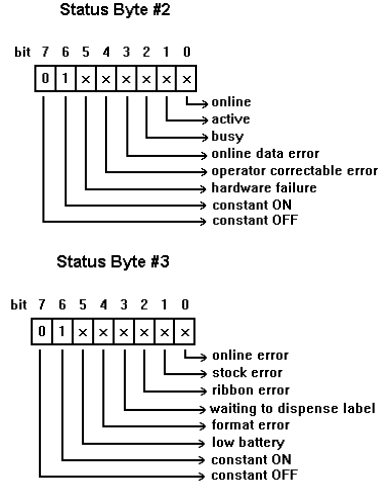
The following graphics can be used as a quick reference for the
Status of Byte #2 and Byte #3. Byte #1 is the non-printable
user-defined ENQ character.
Status Polling 7-3
ENQ Reference Table - Byte #2
Char Const.
OFF Const.
ON Comp.
Failure Corr.
Error Online
Data
Error
Busy Active Online
Bit 7 Bit 6 Bit 5 Bit 4 Bit 3 Bit 2 Bit 1 Bit 0
@01 000000
A01000001
B01000010
C01000011
D01000100
E01000101
F01000110
G01000111
H01001000
I01001001
J01001010
K01001011
L01001100
M01001101
N01001110
O01001111
P01010000
Q01010001
R01010010
S01010011
T01010100
U01010101
V01010110
W01010111
101011000
Y01011001
Z01011010
[01011011
\01011100
]01011101
^01011110
_01011111
‘01100000
A "1" indicates the bit is turned on. A "0"
indicates the bit is off.
7-4 Status Polling

ENQ Reference Table - Byte #2 (continued)
Char Const.
OFF Const.
ON Comp.
Failure Corr.
Error Online
Data
Error
Busy Active Online
Bit 7 Bit 6 Bit 5 Bit 4 Bit 3 Bit 2 Bit 1 Bit 0
a01100001
b01010001
c01110001
d01001001
e01101001
f01011001
g01111001
h01000101
i01100101
j01010101
k01110101
l01001101
m01100101
n01011101
o01111101
p01000011
q01100011
r01010011
s01110011
t01001011
u01101011
v01011011
w01111011
101000111
y01100111
z01010111
{01110111
|01001111
}01101111
~01011111
Dec 127 01111111
A "1" indicates the bit is turned on. A "0"
indicates the bit is off.
Status Polling 7-5

ENQ Reference Table - Byte #3
Char Const.
OFF Const.
ON Low
Battery Format
Error Waiting
to
Dispense
Label
Ribbon
Fault Stock
Fault Online
Error
Bit 7 Bit 6 Bit 5 Bit 4 Bit 3 Bit 2 Bit 1 Bit 0
@01000000
A01000001
B01000010
C01000011
D01000100
E01000101
F01000110
G01000111
H01001000
I01001001
J01001010
K01001011
L01001100
M01011001
N01001110
O01001111
P01010000
Q01010001
R01010010
S01010011
T01010100
U01010101
V01010110
W01010111
X01011000
Y01011001
Z01011010
[01011011
\01011100
]01011101
^01011110
_01011111
‘01100000
A "1" indicates the bit is turned on. A "0"
indicates the bit is off.
7-6 Status Polling

ENQ Reference Table - Byte #3 (continued)
Char Const.
OFF Const.
ON Low
Battery Format
Error Waiting
to
Dispense
Label
Ribbon
Fault Stock
Fault Online
Error
Bit 7 Bit 6 Bit 5 Bit 4 Bit 3 Bit 2 Bit 1 Bit 0
a01100001
b01100010
c01100011
d01100100
e01100101
f01100110
g01100111
h01101000
i01101001
j01101010
k01101011
l01010110
m01111001
n01101110
o01101111
p01110000
q01110001
r01110010
s01110011
t01110100
u01110101
v01110110
w01110111
101111000
y01111001
z01111010
{01111011
|01111100
}01111101
~01111110
Dec 127 01111111
A "1" indicates the bit is turned on. A "0"
indicates the bit is off.
Status Polling 7-7

Job Request
A Job Request returns status information about the most recently
processed print job. You can send a job request after an ENQ or
batch. You can send two levels of Job Requests:
uNumeric Error Codes Only (0, 1, or 2)
uVerbose (3 or 4)
Syntax {J,#}
Field Type Valid Options Description
Identifier JJob Status Request
request# 0
1
2
3
4
Returns ASCII coded strings or
numeric error codes
Returns error number
Returns number of labels printed in batch
Example {J,3}
The job response may not be immediate. If the printer has an
error (out of supplies, ribbon problem, etc.), is in pause mode, or
has insufficient memory, correct the problem and then resend the
job request. If the problem is not corrected, no response is
returned. If a formatting error has occurred, the job request will
return the status. The printer must first interpret the format and
batch data before returning the response.
To clear an error, press the FEED button. An ENQ can also clear
errors numbered less than 500. Once the error is corrected, a job
request can be sent. The printer cannot accept another job
request until the error is resolved.
7-8 Status Polling
Job Response
The Job Response varies, depending on the type of request sent
to the printer. The following syntax is the response for a Job 0,
1,or 2 request.
Syntax {J,Status1,Status2,"FMT-1","BCH-2"}
Status1 These errors stop the print job. Examples
include out of stock, supply faults, or data
formatting errors. These errors are numbered
less than 24 on the "Job Status 0, 1, 2
Response Table," later in this chapter.
Status2 These are errors in the syntax of the MPCL
data stream. Printing does not stop, but the
information may not print properly. These
errors are numbered greater than 24 on the
"Job Status 0, 1, 2 Response Table," later in
this chapter.
FMT-1/BCH-2 The format or batch number is returned.
Here is an example of a response returned to a J 0, 1, 2 request:
{J,8,0,"FMT-1","BCH-2"}
Indicates that a portion of the format extends off the tag in format
1, batch 2. Refer to the "Job Status 0, 1, 2 Response Table" later
in this chapter for brief explanations for J, 0, 1, 2 requests. In the
above example, refer to error 8 for an explanation.
Status Polling 7-9

The following syntax is the response for a Job 3 request.
Syntax {J,"Status1 A,B","Status2
A,B,C,D,E","FMT-1","BCH-2"}
"Status1 A,B" Status1 A contains the field number, in the
format or batch, where an error was found. If
the error is not in the format or batch, a "0" is
returned.
Status1 B contains an error number, which
represents the actual printer error. The error
numbers can be found in Chapter 9, "Errors."
Example {J,"2,612",}
2 is the field number where an error was found. 612 is the error
number, indicating that data is missing or does not match the
format definition for that field.
Error numbers found in Status1 B, always
have a value equal to or greater than 500.
These are considered very serious errors.
"Status2 A,B,C,D,E" contains the packet type, field type, field
number, parameter, and error number.
Status2
A- Packet Type represents the MPCLII packet that the error
occurred on. The packet could be Format (F),
Batch (B), Check Digit (A), or Font (W).
Status2
B- Field Type represents the MPCLII field that the error
occurred on. If the packet has no fields,
Status2 A will be replicated. If the error
occurs before the field is identified a question
mark is sent. Since the batch data is
variable, a D is sent to indicate data.
7-10 Status Polling

Status2
C- Field Number represents the field number within each
packet. The packet header is the first field
and each subsequent field is indicated by the
field separator.
Status2
D- Parameter represents the parameter within the field that
the error occurred. The numbering begins
after the field identifier.
Status2
E- Error Number is the error that coincides with the error
numbers presented in Chapter 9, "Errors."
"FMT-1/BCH-2" The format or batch number is returned.
If more than one error occurred then only the
most serious error will be acknowledged.
{J,"","F,B,4,6,33","FMT-1","BCH-2"}
Indicates that an error occurred on a bar code (B) field within a
format (F) packet. The bar code field is the fourth (4) field in the
packet. The error occurred in the sixth (6) parameter of the field.
Error number 33 means the bar code density is invalid.
To clear an error, press the FEED button. An ENQ can also clear
errors numbered less than 500. Once the error is corrected, a job
request can be sent. The printer cannot accept another job
request until the error is resolved.
Status Polling 7-11

The following syntax is the response for a Job 4 request.
Syntax {J,printed,total,"FMT-1","BCH-2"}
printed the number of tags or labels already printed
in the batch.
total the total number of tags or labels to be
printed in the current batch.
"FMT-1/BCH-2" The format or batch number is returned.
Example {J,8,25,"FMT-3","Bch-2"}
8 out of 25 tags or labels have been printed from format number 3.
Use a Job Request 4 when printing in the on-demand mode with a
large number of tags or labels from a single batch. A Job
Request 4 may not be accurate if tags or labels are printed in
continuous mode, because of the response time involved. A Job
Request 4 is not useful in single ticket batches (printing 1 of 1) or
multiple single ticket batches.
A batch has to be printing when you send the
job request. You cannot use this job
request on batches printing formats with
incrementing fields.
7-12 Status Polling
Job Status 0, 1, 2 Response Table (Status 1 Codes)
Number Meaning
0No error
1Stacker fault
2Supply problem
4Hot printhead
5Printhead open
6Insufficient memory
7Ribbon problem
8Field ## extends off tag
9Field ## has a bad font/bar code
10 Field ## contains invalid data
11 Field ## has a graphic missing
12 Invalid communication channel
13 Invalid file type
14 All communication channels are busy
15 Receive overrun error
16 Receive parity error
17 Receive framing error
18 Receive buffer full
19 Label waiting
21 Bad dots (verifier detected a failure)
23 Low battery
24 Memory configuration packet error
Numbers 25 through 50 are
not currently in use.
Status Polling 7-13

Job Status 0, 1, 2 Response Table (Status 2 Codes)
Number Meaning
51 Invalid command
52 Invalid separator value
53 Graphic not found
54 Format for batch not found
55 Quantity/Multiples out-of-range
56 Name descriptor too long
57 Invalid cut value
58 Invalid number-of-parts value
59 Invalid orientation value
60 Invalid thickness value
61 Invalid text field
62 Invalid bar code field
63 Data string too long
64 Invalid data field
65 Row greater than stock length
66 Row greater than format length
67 Column greater than printhead width
68 Column greater than format width
69 Invalid label length
70 Invalid label width
71 Invalid increment/decrement value
72 Identifier out-of-range
73 No field to create format
74 Stop location of a line is out of range
75 Syntax error
80 Can’t use offline format for online batch
81 Can’t queue graphic batch
82 Can’t store online format
83 Can’t queue online batch
84 Can’t queue online clear command
7-14 Status Polling

DIAGNOSTICS 8
This chapter explains how to
uprint a test label.
ureset the printer.
ucall Technical Support.
Diagnostics 8-1
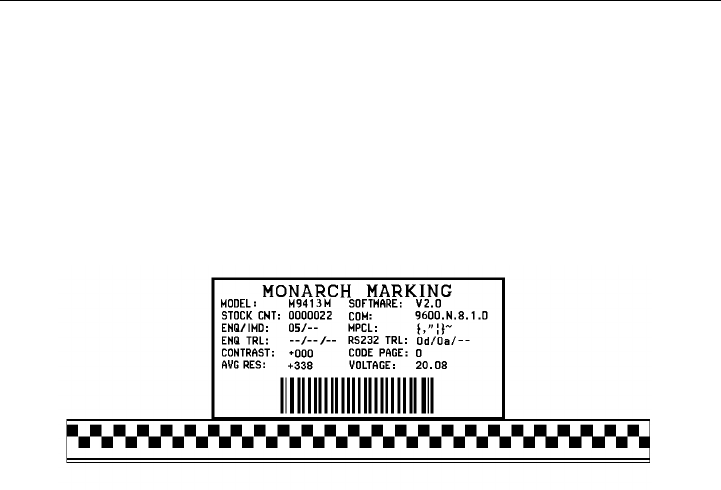
Before you call Technical Support, print a test label. The label
contains information to help Technical Support diagnose
mechanical and setup problems.
Printing a Test Label
To print the test labels:
1. Turn the printer off.
2. Press and hold the FEED button while turning the printer on.
3. Release the FEED button when the printer starts advancing
lines.
Several labels may advance including a diagnostic label.
The test label shows the model number, software version, total
number of inches printed, voltage, print contrast, printhead
resistance, code page, MPCL control characters, ENQ and RS232
characters.
4. Press the FEED button to exit Data Dump Mode. The
indicator light should be GREEN.
8-2 Diagnostics

Using Data Dump
After printing a test label, these printers are in "data dump mode."
To use data dump mode:
1. Turn off the printer.
2. Press and hold the FEED button while turning on the printer.
3. Release the FEED button when the printer starts advancing
lines.
A test label prints.
Your printer is now in data dump mode.
4. Download the data stream you wish to "dump" (print out on a
label).
5. The data stream prints out automatically when there is
enough data to fill a label. Press the FEED button to print
any remaining data on another label.
,"06/11/94" p }0 10
DAD
1111" p o2,"G111111" p 03,"Smith" p 04, "12345678" p 05
3,"CHECKER ID: " p }0{B,1,N,1 p 01,"G111111
D D
200,100,0,1,2,1,B,L,0,3 p OC,330,20,0,1,1,1,B,L,0,
D
0,100,0,1,1,1,B,L,0,3,"DATE RECEIVED:" p OT,5,8,V,
D
"VIN #:" p OT,4,17,V,260,130,0,1,2,B,L,0,3 p OC,33
D D
,160,0,1,2,1,B,L,0,3 p OC,330,130,0,1,1,1,B,L,0,3,
D
C,330,160,0,1,1,1,B,L,0,3,"OWNER:" p OT,3,15,F,260
D
,3,3,2,B,L,0,3 p 08,2,9,V,330,220,4,11,080,8,L,3 p 0
D D
{F,1,A,R,E,400,400,"WINDSHIE" p OT,1,9,V,310,340,0
D
Download another data stream to dump or press the FEED button
to exit data dump mode.
Diagnostics 8-3

Troubleshooting Information
If you experience problems using your printer, refer to this
section.
If You Receive an Error Message
If an error message appears from an ENQ, see Chapter 9,
"Errors," for more details. Any time you receive a message that is
not described in this manual, or the recommended action does not
solve the problem, call Technical Support. Some errors are the
result of communication problems. In this case, reset your printer
and reboot your computer. For more information, refer to "If the
PC and Printer Aren’t Communicating."If you change any of the
online configuration packets, resend the format packet to the
printer, so the configuration changes take effect.
If the PC and Printer Aren’t Communicating
If your PC is having trouble communicating with your printer,
follow these steps:
uMake sure you are using the correct printer cable.
uMake sure the cable is plugged into the correct port on the
computer.
uCompare your printer’s communications settings (especially
flow control) with the settings on your PC. Your printer and
PC communications should match. Print a test label to identify
the printer’s communication settings.
uMake sure the printer is online (ready to receive data).
If all of the above are correct, reset your printer. Try the function
again. If you still can’t establish communications, call Technical
Support.
8-4 Diagnostics
Resetting Printers
Sometimes, the printer receives mixed signals and loses its ability
to communicate. If this happens, reset the printer and attempt
communication again. To reset the printer, turn off the printer,
wait two seconds, and turn it back on.
Calling Technical Support
Technical support representatives are available Monday through
Friday during regular business hours. Follow these steps before
you call:
1. Make sure your PC and printer are properly connected.
2. Record any error messages that occurred.
3. Try to recreate the problem, if you can.
4. Check your port settings. Your problem may corrected simply
by changing the communication settings.
5. List any changes that have recently been made to the system.
Try to record what you did when the problem occurred.
6. Reset your printer. For information on resetting your printer,
see "Resetting Printers."
7. Reboot your computer. Refer to your computer
documentation for specific instructions.
8. Print a test label, see "Printing a Test Label."
If these steps do not solve the problem, call Technical Support.
Have the following information ready before you call:
ucomputer brand name and model
uversion of DOS
uMonarch printer model
uother peripheral devices on your system
Diagnostics 8-5
usupport agreement, contract number, or invoice information
ucustomer number
uprinter serial number
8-6 Diagnostics

ERRORS 9
This chapter provides explanations of your printer’s errors. The
errors are classified by type and are listed in order.
If you have trouble loading supplies or performing maintenance,
refer to your Equipment Manual.
Some errors numbered 400-438 and 500-574 are internal software
errors. Errors numbered 703-758 are supply errors. Follow the
directions provided with the error description to correct the
problem. Errors numbered 900-999 are Hard Printer Failures. If
you cannot clear an error, turn off the printer, wait several seconds
and then turn on the printer. Call Technical Support if you receive
any error message not listed in this chapter.
To clear a data error, press the FEED button. If a
formatting error occurs, the label prints; but data may
be missing. Correct the format or batch and resend
them to the printer.
Errors 9-1

Data Errors
Errors 001 to 499 are data errors. These errors are returned in
response to a J,3 request. See Chapter 7, "Status Polling," for
more information. A data error indicates that incorrect data was
received from the host, causing the printer to ignore the entire
print job. After checking the packet and correcting the problem,
transmit the print job again.
The following is a list of data errors. These errors occur because
data in the format, batch, check digit, or font packet is invalid.
Error
Code Description
001 Packet ID number must be 1 to 999.
002 Name must be 1 to 8 characters inside quotes or a
printer-assigned name ("").
003 Action must be A (add) or C (clear).
004 Supply length is invalid. See "Defining the Format
Header" in Chapter 4 for valid lengths.
005 Supply width is invalid. See "Defining the Format
Header" in Chapter 4 for valid widths.
006 Storage device must be N (non-volatile RAM).
007 Unit of measure must be E (English), M (Metric), or G
(Dots). See "Defining the Format Header" in Chapter 4
for information.
010 Field ID number is outside the range 0 to 999.
011 Field length exceeds 2710.
012 Row field position is greater than the maximum stock
dimension. See "Defining Text Fields" in Chapter 4 for
valid row lengths.
9-2 Errors
013 Column field position is greater than the maximum stock
dimension. See "Defining Text Fields" in Chapter 4 for
valid column widths.
014 Font style must be 1, 2, 3, 4, 10, or 11. See "Defining
Text Fields" in Chapter 4 or Appendix B, "Fonts," for
more information.
015 Character rotation must be 0 (0 degree), 1 (90 degree),
2 (180 degree), or 3 (270 degree). See "Defining Text
Fields" in Chapter 4 for information.
016 Field rotation must be 0 (0 degree), 1 (90 degree), 2
(180 degree), or 3 (270 degree). See "Defining Text
Fields" in Chapter 4 for information.
017 Field restriction must be V (variable) or F (fixed).
018 Code page selection defined in the field must be 0
(Internal), 1 (ANSI), 2 (DOS 437), or 3 (DOS 850).
020 Vertical magnification must be 1 to 7.
021 Horizontal magnification must be 1 to 7.
022 Color must be B, D, O, R, or W. See "Defining Text
Fields" in Chapter 4 for more information.
023 Intercharacter gap must be 0 to 99 dots.
024 Field justification must be B (balanced), C (centered), E
(end), L (left), or R (right). See "Defining Text Fields" in
Chapter 4 for more information.
025 String length is outside the range 0 to 2710.
Errors 9-3
030 Bar code height must be at least 20 (English), 51
(Metric), 40 (Dots), or is not within the supply
dimensions.
031 Human readable option must be
0default
1no CD or NS
5NS at bottom, no CD
6CD at bottom, no NS
7CD and NS at bottom
8no text
032 Bar code type is invalid. See "Defining Bar Code
Fields" in Chapter 4 for valid options.
033 Bar code density is invalid. See "Defining Bar Code
Fields" in Chapter 4 for the bar code density chart.
040 Line thickness must be 0 to 99 dots.
041 Line direction must be 0, 90, 180, or 270.
042 End row is invalid. Line segment or box end row is
defined outside of printable area.
043 End column is invalid. Line segment or box end column
is defined outside of printable area.
044 Dot pattern for line or box must be "".
045 Line length is defined beyond the maximum length.
See "Defining Line Fields" in Chapter 4 for valid lengths.
046 Line type must be S (segment) or V (vector).
051 Imaging mode in the graphic header must be 0.
101 The format referenced by batch is not in memory.
102 Print quantity is outside the range 0 to 32000.
9-4 Errors
104 Batch mode must be N (new) or U (update).
105 Batch separator must be 0 (Off), 1 (On), 2 (Double) in
the batch control field.
106 Print multiple is outside the range 1 to 999.
107 Cut multiple is outside the range 0 to 999. Not valid for
these printers.
108 Multiple part supply is outside the range 1 to 5.
109 Reserved for knife usage. Not valid for these printers.
200 Option number must be 1, 4, 30, 31, 42, 50, 51, 52, 60,
or 61.
201 Copy length is outside the range 0 to 2710.
202 Copy start position must be 1 to 2710.
203 Destination start position must be 1 to 2710.
204 Source field must be 0 to 999.
205 Copy type must be 1 (copy after rules) or 2 (copy
before rules).
206 Increment/Decrement selection must be I (increment) or
D (decrement).
207 Incrementing start position must be 0 to 2710.
208 Incrementing end position must be 0 to 2710.
209 The incrementing amount must be 0 to 999.
210 Security value for a PDF417 bar code must be 0 to 8.
Correct the value and resend the format to the printer.
211 Narrow element value is less than 1 or greater than 99.
Correct the value and resend the format to the printer.
Errors 9-5
212 Wide element value is less than 1 or greater than 99.
Correct the value and resend the format to the printer.
213 Dimension must be 1 to 30 for a column or 3 to 90 for a
row on a PDF417 bar code.
214 Truncation code must be S (standard) or T (truncated
bar code).
215 Aspect code must be C (columns) or R (rows).
216 Option definition must be S (set) or T (template).
217 Input device device must be D (Default), H (Host), K
(Keyboard), N (None), or S (Scanner).
218 Pad direction must be L (from left) or R (from right).
219 Pad character is outside the range 0 to 255.
220 Check digit selection must be G to generate check digit.
221 Primary or secondary price format is outside the range
1 to 15.
222 Data type restriction is outside the range of 1 to 6.
223 Option is not valid for the field.
224 Bar code Intercharacter gap must be 0 to 99 dots.
(This is also known as the additional character gap
when using Option 50, Defining Bar Code Densities.)
251 Power up mode must be 0 (online).
252 Language selection must be 0 (English).
253 Batch separator code must be 0 (off), 1 (on), or 2
(Double) in the System Setup Packet.
254 Slash zero selection must be 0 (standard zero) or 1
(slash zero).
9-6 Errors
255 Supply type must be 0 (black mark), 1 (die cut), or 2
(non-indexed).
256 Ribbon selection must be 0 (direct) or 1 (transfer).
257 Feed mode must be 0 (continuous) or 1 (on-demand).
258 Supply position is outside the range. See "Defining the
Supply Setup Packet" in Chapter 3 for more information.
259 Contrast adjustment must be -390 to 156 dots.
260 Print adjustment must be -99 to 99 dots.
261 Margin adjustment must be -99 to 99 dots.
262 Speed adjustment must be 0 (default) or 20 (2.0 IPS).
263 Primary monetary symbol is invalid. See "Defining the
Monetary Formatting Packet" in Chapter 3 for more
information.
264 Secondary symbol selection must be 0 (none) or 1
(print secondary sign).
265 Monetary decimal places must be 0 to 3.
266 Character string length in the control characters packet
must be 5 (MPCL control characters) or 7 (ENQ/IMD
command character).
267 Baud rate selection must be 0 (1200), 1 (2400), 2
(4800), 3 (9600), 4 (19200), or 5 (38400). Resend the
communication settings packet or check the DIP switch
settings.
268 Word length selection must be 0 (7 bits), or 1 (8 bits).
Resend the communication settings packet or check the
DIP switch settings.
Errors 9-7
269 Stop bits selection must be 0 (1 bit), or 1 (2 bits).
Resend the communication settings packet or check the
DIP switch settings.
270 Parity selection must be 0 (none), 1 (odd), or 2 (even).
Resend the communication settings packet or check the
DIP switch settings.
271 Flow control selection must be 0 (none), 1 (DTR), 2
(CTS/RTS), or 3 (XON/XOFF). Resend the
communication settings packet or check the DIP switch
settings.
272 Internal code page selection must be 0 (Internal), 1
(ANSI), 2 (DOS 437), or 3 (DOS 850).
273 Cut adjustment must be -300 to 300 dots.
282 RS232 Trailer string is too long. Use a maximum of 3
characters.
283 ENQ Trailer string is too long. Use a maximum of 3
characters.
284 The buffer type must be T (Transmit), R (Receive), I
(Image), F (Format), or D (Downloadable Fonts).
285 The storage device type in the memory configuration
packet must be N (non-volatile RAM).
286 The buffer size is invalid.
287 The printhead width must be 0.
288 The battery voltage must be 0 (15-volt battery) or 1
(12-volt battery).
289 The printer address specified in the communication
settings packet must use exactly six characters.
9-8 Errors
290 Action must be 0 (disable) or 1 (enable) for the
backfeed control packet or the printer is active.
291 Dispense position must be 50 to 200 dots and the
backfeed distance is greater than the dispense position
or the printer is active.
292 Backfeed distance must be 10 to 200 dots or the printer
is active.
310 Check digit scheme number must be 1 to 10.
311 Modulus must be 2 to 11.
314 Check digit algorithm must be D (sum of digits) or P
(sum of products).
325 Duplicating direction must be 0 (insert after) or 1 (insert
before) in duplicate fields for graphics.
327 Amount of row adjustment must be 0 to 999 (0 to 99 for
9403) dots in duplicate fields for graphics.
328 Duplicate count must be 0 to 999 (0 to 99 for 9403).
340 Bitmap line encoding must be H (hex) or R (run length).
350 Font selector must be 1 to 9999.
351 Font data length must be 68 to 16384.
352 Insufficient font memory is available for the downloaded
font.
380 Job request is outside the range 0 to 4.
400 The character immediately following { is invalid.
402 Field separator is not in the expected location.
403 Field separator was not found.
Errors 9-9

404 The number or string that is currently being processed
is too long.
405 Too many fields exist in the format. You cannot have
more than 1000 fields in the format. Lines, boxes, and
constant text fields count as fields.
409 The printer memory is full. Delete unnecessary formats
or graphics from memory. If you are using a graphic file
that is very large, consider using another mapping
method (such as run length encoding) to reduce the
required memory.
Communication Failures
Errors 410 to 413 are usually caused by a hardware failure, by an
incorrect SETUP option or by the host ignoring flow control
(XON/OFF, CTS/RTS or DTR). Communication settings:
Baud rate 1200, 2400, 4800, 9600, 19200, 38400
Word length 7 or 8
Stop bits 1 or 2
Parity Odd, Even, None
Flow control None, XON/XOFF, DTR, CTS
410 Parity on the printer does not match the parity on the
host. Check the parity setting under SETUP options.
411 Framing error. The printer cannot communicate with the
host. Make sure the host is turned on, communication
cables are connected correctly, port settings are correct,
and communications are active. Check the baud rate,
word length, and stop bits to make sure they match those
at the host. Do not toggle between Microsoft® Windows®
and MS-DOS, while using the COPY command, or you
will receive a framing error. Exit Windows before using
the COPY command. Re-transmit the data.
9-10 Errors
412 There is a problem with flow control between the printer
and the host. Make sure the printer and the host flow
control settings match (both are DTR or both are
XON/XOFF). If the error persists, call Technical
Support.
413 Online receive queue is full. Check your printer’s
XON/XOFF or DTR SETUP values to be sure there isn’t
a flow control problem.
414 The internal keyboard buffer is full or you need a new
keypad. Call Technical Support.
415 The buffer size you defined exceeds the total available
in your machine.
416 Flash/PC board error. Call Technical Support.
417 Flash memory is full. Clear flash through the 9403
printer’s menu. Resend the format, graphic, and check
digit packets. If the error reappears, call Technical
Support.
427 Format name is invalid. Valid name is 1 - 8 characters
inside quotes or "" for a printer-assigned name. Press
the FEED button and try to continue. If the error
reappears, call Technical Support.
428 Batch name is invalid or graphic not found. Press the
FEED button and try to continue. If the error
reappears, call Technical Support.
429 A field number appears more than once in a format.
430 The format uses a graphic file that cannot be found.
433 The batch references a field number that does not exist
in the format.
497 An error occurred during the loop back test on the
parallel port. Call Service.
Errors 9-11

499 An error occurred during the loop back test on the serial
port. Call Service.
Data Formatting Failures
Formatting errors indicate that a field will print incorrectly. After
you have checked the data stream and corrected the data,
retransmit the format and batch.
For errors 571-619, the batch will still print,
but the field, font, bar code, or density may
be incomplete, missing or contain
incorrect data.
571 UPC or EAN bar code data length is invalid. The bar
code data length in the batch does not fit the format.
572 A copy field, padded field, or incrementing field length
is invalid. The field length in the batch does not fit the
format or the field contains blanks. Or, the fixed length
field does not contain the specified number of
characters.
573 Price field length is invalid. The price field length in the
batch does not fit the format or the field contains blanks.
574 No CD scheme or room for CD. The CD scheme in the
batch does not fit the format or the field contains blanks.
575 The graphic included in your format could not be found.
611 Font, bar code or density is invalid. The font, bar code
or density in the batch does not fit the format.
612 The data in this line of the batch is either missing or
does not match the format.
613 Reference point off tag.
9-12 Errors

614 Portion of field off tag. There may be an invalid
character in the packet. Make sure you did not enter O
for Ø.
615 Bar code width is greater than 16 inches or the number
of keywords for your PDF 417 bar code exceeds 928.
Decrease the density or shorten the amount of data to
print the bar code.
616 Dot shifting failed. A bad dot falls on a bar code that
cannot be shifted. Call Technical Support.
618 Magnification must be 1 to 7.
619 The JIS (16-bit) code for Kanji is invalid.
Machine Faults
Errors 700 to 793 occur when there is a problem with the printer.
703 The printer sensed a calibration of different-sized black
marks. Make sure the correct supply is loaded.
704 Printer has not sensed a supply mark within the
specified number of inches or out of supplies.
Check the
Fsupply tracking
Fsupply marks
Fblack mark sensor position
Fsupply roll for binding.
Press the FEED button. If the error continues to
appear, change the supply.
750 Printhead is overheated. Turn off the printer to let the
printhead cool. If the error persists, call Technical
Support.
751 Printer did not sense a black mark when expected.
Errors 9-13
For errors 751-753, Check the
Fsupply tracking
Fsupply marks
Fblack mark sensor position
Fsupply roll for binding.
Press the FEED button and try to continue printing. If
the error continues to appear, change the supply.
752 Printer sensed a mark in the wrong place.
753 Printer sensed a mark that is too long.
754 Printer has a ribbon problem. Check the ribbon for a
jam or remove any slack by turning the take-up reel
clockwise. Load a new ribbon.
755 Printhead is open. Close the printhead before
continuing. If the error persists, call Technical Support.
756 The printer is out of supplies. Load supplies.
757 Load supplies. The calibrated supply length differs by
plus or minus .25 inches from the format. Press the
FEED button to print on the current supply or load new
supply and press the FEED button.
758 Check supply. Either the supply is not seen or the
on-demand sensor is broken. Check for a label jam.
Clear the supply path or reload supplies. This error
may occur if you remove a label too quickly in
on-demand mode. The printer does not recalibrate
after this error.
759 Knife is not moving. Call Technical Support.
760 Knife jam. Call Technical Support.
9-14 Errors
761 The stacker is full or jammed. Empty the stacker or
clear the jam before continuing. The printer does not
recalibrate after this error.
762 Low battery. Recharge the battery.
763 Waiting to dispense label. Press the FEED button.
764 Verifier failure. Check the verifier by referring to your
verifier’s manual. The printer does not recalibrate after
this error. Call Technical Support.
765 The printhead has less than four bad dots. The printer
can shift bar code fields to avoid bad dots.
768 Printhead has more than 10 bad dots or is not
connected. Make sure the printhead is connected and
call Technical Support.
770 The print motor is not ready. Call Technical Support.
771 The format specified by the application was not found.
Reload your application and format, and try again. If
the problem continues, call Technical Support.
790 Wait until the printer is idle (no batch waiting to print or
not receiving data) before you send any packets. This
error may occur when you try to print a test label if the
printer is busy.
791 The printer has an error pending. Turn off the printer.
Wait 15 seconds and turn it back on. Resend the
packets. If the problem continues, call Technical
Support.
792 The printer is not initialized. Call Technical Support.
793 The printer job queue is full. Turn off the printer. Wait
15 seconds and turn it back on. Resend the packets. If
the problem continues, call Technical Support.
Errors 9-15
900 RAM test failure.
901 ROM/EPROM checksum failure.
902 Software timer failure.
903 Software interrupt failure.
905 Illegal interrupt.
906 Non-maskable interrupt.
907 Low RAM error.
908 Non Volatile RAM checksum failure.
909 RAM corrupted.
910 Warm restart.
911 Version string mismatch.
Errors numbered 900-911 occur when you turn on the printer.
They may indicate a circuit board failure. Errors numbered
930-940 are errors that may occur during the loading of flash
memory. Errors numbered 950-999 indicate a circuit board
failure. Call Technical Support if you receive any of these
messages.
9-16 Errors

SAMPLES A
This appendix contains sample formats. You can customize any of these
formats to meet your needs.
Samples A-1

Sample UPCA Format Packet
{F,25,A,R,M,508,508,"Fmt 25" p
C,250,80,0,1,2,1,W,C,0,0,"MONARCH MARKING" p
B,1,12,F,110,115,1,2,120,5,L,0 p
T,2,18,V,30,30,1,1,1,1,B,C,0,0 p }
Sample Batch Packet
{B,25,N,1 p
1,"12345678901" p
2,"DAYTON, OHIO" p }
A-2 Samples
Sample MaxiCode Packets
MaxiCode is a two-dimensional bar code developed by UPS
(United Parcel Service, Inc.). Data must be defined in a specific
way for UPS. Refer to the Guide to Bar Coding with UPS or the
AIM MaxiCode Specification for more details about data
requirements.
Use this updated format and batch packet with the following
firmware:
u9412 1.0 or greater supports Mode 0
u9413 1.0 or greater supports Mode 0
u9414 1.0 or greater supports Mode 0, 2, and 3
Mode Description
0Obsolete
2Structured Message
3Structured Message
You can select which mode to use in the bar code field or allow
the printer to auto-select the mode (0, 2, or 3) based on your
data. See "Defining a Bar Code Field" for more information.
MaxiCode automatically pads data with the "!" character.
MaxiCode does not support
the NULL character.
Modes 2 and 3 are defined by the way the postal code, class of
service, and country code fields are arranged. (The postal code,
class of service, and country code are required fields.) Begin
with the message header, then the primary data (15 characters),
followed by the secondary message (up to 78 characters). Or,
begin with the primary data, then the message header, followed
by the secondary data. If the postal code data characters are all
numeric then the MaxiCode symbol is set to Mode 2. If the
characters are alphanumeric, or only contain ASCII characters 65
to 90, then the MaxiCode symbol is set to Mode 3.
Samples A-3

If you receive an error 612, check your MaxiCode data. You may
have not correctly structured or left out one of the three required
fields (postal code, class of service, and country code) or the
"~029" character.
Mode 0 (Obsolete) Sample
{F,1,A,R,E,0600,0400,"MAXICODE" p
B,1,99,V,050,150,33,7,0,8,L,0 p } MaxiCode bar code (33)
{B,1,N,1 p Batch header
1,"450660000" p Postal code- zip code
(This field determines Mode)
C,"001" p Country code
C,"840" p Class of service
C,"[)~030" p Message header
C,"01~02996" p Transportation header
C,"1Z12345678~029" p Tracking number
C,"UPSN~029" p Origin carrier SCAC
C,"12345A~029" p UPS shipper number
C,"070~029" p Julian day of pickup
C,"~029" p Shipment ID
C,"1/1~029" p Package count
C,"15~029" p Weight (lb.)
C,"Y~029" p Address validation
C,"60 SADDLEBROOK CT.~029" p Street address
C,"DAYTON~029" p City
C,"OH~030" p State
C,"~004" p } EOT
A-4 Samples

Mode 2 Sample
{F,1,A,R,E,400,400,"MAXI_M2" p
B,1,99,V,040,140,33,7,0,8,L,0 p } MaxiCode bar-code (33)
{B,1,N,1 p
1,"[)>~030" p Message header
C,"01~02996" p Transportation header
C,"068100000~029" p Postal Code
(This field determines Mode)
C,"840~029" p Country code
C,"001~029" p Class of service
C,"1Z12345675~029" p Tracking number
C,"UPSN~029" p Origin carrier SCAC
C,"12345E~029" p UPS shipper number
C,"089~029" p Julian day of pickup
C,"~029" p Shipment ID
C,"1/1~029" p Package count
C,"10~029" p Weight (lb.)
C,"Y~029" p Address validation
C,"~029" p Street address
C,"~029" p City
C,"CT~030" p State
C,"~004" p } EOT
Samples A-5

Mode 3 Sample
{F,1,A,R,E,400,400,"MAXI_M3" p
B,1,99,V,040,140,33,7,0,8,L,0 p } MaxiCode bar-code (33)
{B,1,N,1 p
1,"[)>~030" p Message header
C,"01~02996" p Transportation header
C,"M5E1G45~029" p Postal Code
(This field determines Mode)
C,"124~029" p Country code
C,"066~029" p Class of service
C,"1Z12345679~029" p Tracking number
C,"UPSN~029" p Origin carrier SCAC
C,"12345E~029" p UPS shipper number
C,"089~029" p Julian day of pickup
C,"~029" p Shipment ID
C,"1/1~029" p Package count
C,"10~029" p Weight (lb.)
C,"Y~029" p Address validation
C,"~029" p Street address
C,"TORONTO~029" p City
C,"ON~030" p State
C,"~004" p } EOT
A-6 Samples

Sample Compliance Packet
{F,1,A,R,E,600,400,"RDCI" p
L,V,500,115,90,85,3 p
L,V,298,245,90,102,3 p
L,V,500,2,0,390,3 p
L,V,400,2,0,390,3 p
L,V,298,2,0,390,3 p
L,V,200,2,0,390,5 p
C,568,8,0,2,2,2,B,L,0,0,"FROM:",0 p
C,568,125,0,2,2,2,B,L,0,0,"CARRIER:",0 p
C,529,124,0,2,2,2,B,L,0,0,"PRO NUMBER:",0 p
C,511,125,0,2,2,2,B,L,0,0,"B/L NUMBER:",0 p
C,472,8,0,2,2,2,B,L,0,0,"TO:",0 p
C,387,8,0,2,1,1,B,L,0,0,"(420) SHIP TO POSTAL CODE",0 p
C,391,250,0,2,1,1,B,L,0,0,"APPOINTMENT NUMBER:",0 p
C,358,250,0,2,1,1,B,L,0,0,"ORDER TYPE:",0 p
C,327,250,0,2,1,1,B,L,0,0,"ITEM:",0 p
C,190,8,0,2,1,1,B,L,0,0,"UPC SHIPPING CONTAINER CODE",0 p
C,557,6,0,2,1,1,B,L,0,0,"MONARCH",0 p
C,547,6,0,2,1,1,B,L,0,0,"170 MONARCH LANE",0 p
C,537,6,0,2,1,1,B,L,0,0,"P.O. BOX 608",0 p
C,527,6,0,2,1,1,B,L,0,0,"DAYTON, OHIO 45401",0 p
C,462,313,0,2,4,3,B,L,0,0,"#",0 p
T,1,15,V,529,220,0,2,2,2,B,L,0,0,0 p
T,2,15,V,511,220,0,2,2,2,B,L,0,0,0 p
B,3,13,V,311,28,8,4,50,8,L,0 p
B,4,14,V,17,60,50,5,130,8,L,0 p
T,5,30,V,161,080,0,3,1,1,B,L,0,0,0 p
T,6,15,V,467,40,4,1,2,2,B,L,0,0,0 p
T,7,10,V,462,330,6,2,4,3,B,L,0,0,0 p
T,8,20,V,549,124,0,2,2,2,B,L,0,0,0 p
T,9,30,V,446,40,4,2,2,2,B,L,0,0,0 p
T,10,30,V,426,40,4,2,2,2,B,L,0,0,0 p
T,11,30,V,406,40,4,2,2,2,B,L,0,0,0 p
T,12,20,V,368,255,0,2,3,2,B,L,0,0,0 p
T,13,5,V,335,270,0,2,3,2,B,L,0,0,0 p
T,14,15,V,304,270,0,2,3,2,B,L,0,0,0 p
T,15,15,V,366,65,0,2,2,2,B,L,0,0,0 p
R,1,"(420) " p
T,16,27,V,270,10,0,3,1,1,B,C,0,0,0 p
T,17,27,V,240,10,0,3,1,1,B,C,0,0,0 p
R,1,"WELCOMES GUEST # " p
T,18,27,V,210,10,0,3,1,1,B,C,0,0,0 p }
Samples A-7
Sample Batch Packet
{B,1,N,1 p
1,"1234567890" p
2,"0987654321" p
3,"~42032678" p
4,"10028028662854" p
5,"1 00 28028 66285 4" p
6,"RODGER DIST CTR" p
7,"8292" p
8,"BROADWAY" p
9,"555 WEST OAK AVE." p
10,"DAYTON, OH 45401-0608" p
11,"" p
12,"08292 123456-123" p
13,"AR" p
14,"999-999999-99" p
15,"32678" p
16,"WYSIWYG" p
17,"99999" p
18,"TO A PRODUCT DEMO" p }
A-8 Samples
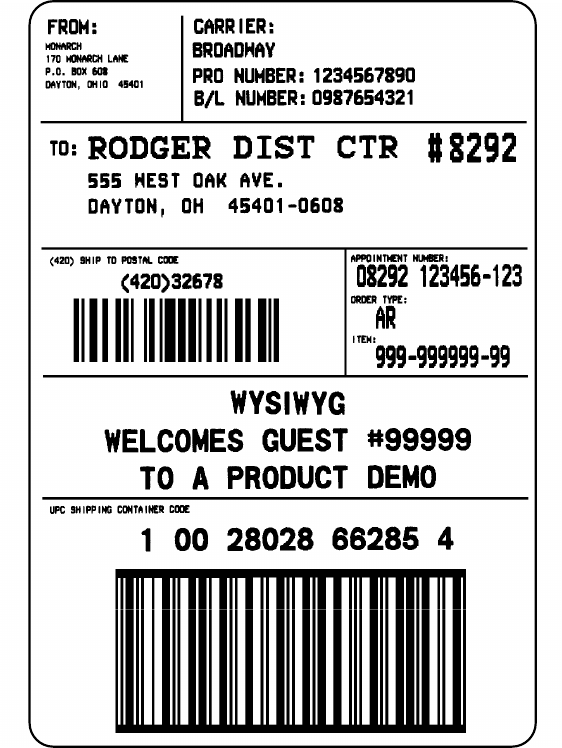
Samples A-9

Sample Format Packet
{F,5,A,R,G,576,768,"1HDREC1" p
L,S,19,39,499,39,38,"" p
L,S,19,93,499,93,15,"" p
L,S,19,124,499,124,15,"" p
L,S,19,155,499,155,38,"" p
C,461,232,0,1,1,1,B,L,0,0,"PO NUMBER ",1 p
C,426,232,0,1,1,1,B,L,0,0,"STORE " p
C,391,232,0,1,1,1,B,L,0,0,"CTNS SHOPPED" p
C,357,232,0,1,1,1,B,L,0,0,"CTNS RECVD " p
C,320,232,0,1,1,1,B,L,0,0,"CARRIER " p
C,259,232,0,1,1,1,B,L,0,0,"FRT BILL # " p
C,196,232,0,1,1,1,B,L,0,0,"FRT TERMS " p
C,159,232,0,1,1,1,B,L,0,0,"KEYREC# " p
C,125,232,0,1,1,1,B,L,0,0,"FRT CLAIM # " p
C,090,232,0,1,1,1,B,L,0,0,"RECVD BY " p
C,056,232,0,1,1,1,B,L,0,0,"DATE RECVD " p
C,461,445,0,1,1,1,B,L,0,0,":" p
C,426,445,0,1,1,1,B,L,0,0,":" p
C,391,445,0,1,1,1,B,L,0,0,":" p
C,357,445,0,1,1,1,B,L,0,0,":" p
C,320,445,0,1,1,1,B,L,0,0,":" p
C,259,445,0,1,1,1,B,L,0,0,":" p
C,196,445,0,1,1,1,B,L,0,0,":" p
C,159,445,0,1,1,1,B,L,0,0,":" p
C,125,445,0,1,1,1,B,L,0,0,":" p
C,090,445,0,1,1,1,B,L,0,0,":" p
C,056,445,0,1,1,1,B,L,0,0,":" p
T,01,08,V,461,458,0,1,1,1,B,L,0,0 p
T,02,08,V,426,458,0,1,1,1,B,L,0,0 p
T,03,08,V,391,458,0,1,1,1,B,L,0,0 p
T,04,08,V,357,458,0,1,1,1,B,L,0,0 p
T,05,18,V,290,289,0,1,1,1,B,R,0,0 p
T,06,12,V,230,395,0,1,1,1,B,R,0,0 p
T,07,08,V,196,458,0,1,1,1,B,L,0,0 p
T,08,08,V,159,458,0,1,1,1,B,L,0,0 p
T,09,08,V,125,458,0,1,1,1,B,L,0,0 p
T,10,08,V,090,458,0,1,1,1,B,L,0,0 p
T,11,08,V,056,458,0,1,1,1,B,L,0,0 p
T,12,11,V,259,762,0,1,2,2,B,B,0,1 p
R,1,"*_________*" p
B,13,09,V,259,720,4,4,145,8,B,1 p
R,4,12,2,9,1,1 p
R,50,3,8 p }
A-10 Samples
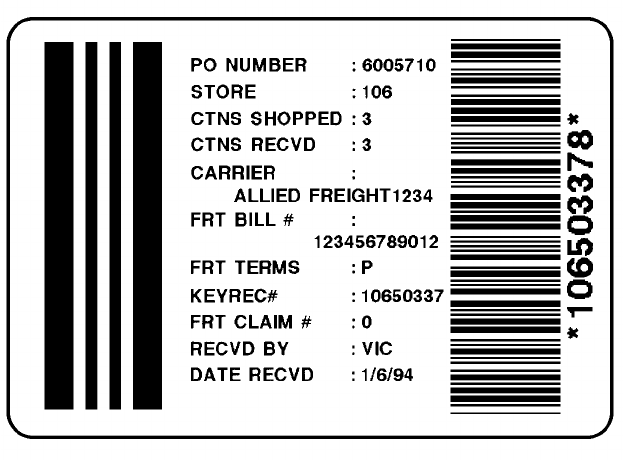
Sample Zero Batch Packet
{B,5,N,0 p }
{B,5,U,1 p
1,"6005710" p
2,"106" p
3,"3" p
4,"3" p
5,"ALLIED FREIGHT1234" p
6,"123456789012" p
7,"P" p
8,"10650337" p
9,"0" p
10,"VIC" p
11,"1/6/94" p
12,"106503378" p }
Samples A-11
A-12 Samples
FONTS B
This appendix contains information you need to work with fonts.
Standard Fonts
Your printer comes with these fonts loaded in ROM:
Number Font Size and Appearance Type of Spacing # of Dots Between
Characters
1Standard Monospaced 3
2Reduced Monospaced 1
3Bold Monospaced 3
4OCRA-like Monospaced 3
10 CG Triumvirate Bold (9 pt.) Proportional varies w/ each letter
11 CG Triumvirate (6 pt.) Proportional varies w/ each letter
The CG Triumvirate fonts support only the ANSI and DOS Code
Page Symbol Sets. The CG Triumvirate fonts print a slashed zero
when using the ANSI symbol set. See the following pages for
illustrations of these fonts.
Fonts B-1

These samples were printed using the Internal Symbol set.
Bold Font
Standard Font Reduced Font
OCRA-like Font
B-2 Fonts
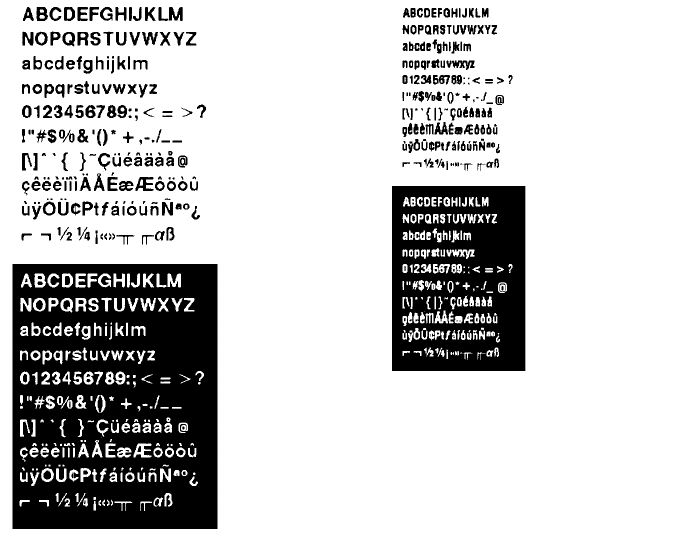
These samples were printed using Code Page 437.
CG Triumvirate Bold Font CG Triumvirate Font
Fonts B-3
Monospaced Font Magnification
Monospaced characters occupy the same amount of space within
a magnification. Use monospaced fonts for price fields and data
you want to list in a column. Decide how wide and tall you want
the characters to appear on the labels. The following two tables
show the width and height of each of the monospaced fonts after
magnification.
This table includes the default (3 dots for Standard, 1 dot for
Reduced, 3 dots for Bold) spacing.
Width Mag.Standard Reduced Bold
Units Character
Width Sample Character
Width Sample Character
Width Sample
1x 1/100 in. 8.37 3.9 13.3
1/10 mm 21.26 9.9 33.78
Dots 17 !8(27 /
7x 1/100 in. 49.75 24.63 84.24
1/10 mm 126.37 62.56 214
Dots 101 '50 .171 5
Only the 1x width can be scanned with the OCRA-like font.
Using a printhead with 203 dpi, the character widths are as
follows: 7.9 (English), 20.1 (Metric), and 16 (Dots).
To calculate other font widths, multiply the font dots (14 dots for
Standard, 7 dots for Reduced, 24 dots for Bold) by the
magnification and add the default spacing (3 dots for Standard, 1
dot for Reduced, 3 dots for Bold) between characters.
Example
14 (Standard font dots) x 5 (magnification) = 70 + 3 (default
spacing between characters). There are 73 dots in the Standard
font at 5x.
B-4 Fonts
Height Magnification
1x 7x
Standard K Q
1/100 in. 10.8 75.9
1/10 mm 27.4 192.8
dots 22 154
Reduced n t
1/100 in. 6.9 48.28
1/10 mm 17.5 122.6
dots 14 98
Bold u {
1/100 in. 16.7 117.24
1/10 mm 42.4 297.8
dots 34 238
OCRA-like (1x only)
1/100 in. 11.8
1/10 mm 30 |
dots 24
Fonts B-5
Proportional Font Magnification
Each character in a proportionally spaced font is a different height
and width. You may be able to place more characters on a line
using proportionally spaced fonts. You may want to experiment
with these fonts and adjust field measurements in your format as
needed. The following tables provide height and width
magnification of sample characters.
CG Triumvirate Bold (9 pt.)
Width Mag. Minimum Average Maximum
1x 1/100 in.
1/10 mm
Dots
1.48
3.76
36
6.4
16.26
13 =
10.8
27.4
22 D
7x 1/100 in.
1/10 mm
203 Dots
10.3
26.2
21 <
44.8
114
91 C
75.9
192.8
154 J
To calculate other font widths, multiply the font dots (3 dots for
Minimum, 13 dots for Average, 22 dots for Maximum) by the
magnification.
Example
13 (Average font dots) x 5 (magnification) = 65 dots in an average
letter of the CG Triumvirate Bold font at 5x.
B-6 Fonts
CG Triumvirate (6 pt.)
Width Mag. Minimum Average Maximum
1x 1/100 in.
1/10 mm
Dots
.99
2.51
26
2.96
7.52
6R
5.9
15
12 Y
7x 1/100 in.
1/10 mm
Dots
6.9
17.5
14 <
20.7
52.6
42 X
41.4
105.2
84 _
Height Magnification
1x 7x
CG Triumvirate Bold ` f
1/100 in. 8.87 68
1/10 mm 22.5 172.7
dots 18 138
CG Triumvirate gm
1/100 in. 5.9 41.38
1/10 mm 14.99 105.1
dots 12 84
Fonts B-7

Locating the Font Number in a Font Packet
If you are creating font packets, the font number is the second
parameter in the packet. Software is available to create the font
data and packet. Call Technical Support for more information.
Example {W,200,A,N,68 p
font data p
font data p }
Use this number in T8 or in C5. See "Defining Text Fields" or
"Defining Constant Text Fields" in Chapter 4 for more information.
Example T,1,10,V,30,10,0,200,1,1,B,L,0,0,0 p
C,50,30,0,200,1,1,B,L,0,0,"MONARCH",0 p
Defines a text and constant text field using the downloaded
(#200) font.
If you use a font numbr that is not a standard
font for your printer, make sure the font has
been installed/downloaded to the printer.
Font Number
Font Number
Font Number
B-8 Fonts

SYMBOL SETS/CODE PAGES C
This appendix contains a listing of the symbol sets, code pages,
and extended character sets the printer supports. The standard,
reduced, bold, and OCRA fonts only use the Internal Symbol Set.
Supported Symbol Sets and Code Pages
The printers support these symbol sets and code pages: Internal,
ANSI, Bold, OCRA Character Set, DOS Code Page 437 and 850.
Selecting a Symbol Set or Code Page
The printer defaults to the internal symbol set. See "Defining Text
Fields" in Chapter 4 to change the symbol set. The standard,
reduced, bold, and OCRA Fonts only use the Internal Symbol Set.
Selecting the Internal Symbol Set
Use this symbol set when you want to use the international
monetary symbols, create formats that may be used on other
MPCLII printers, or print the trademark () symbol.
Symbol Sets/Code Pages C-1
The CG Triumvirate fonts support only the ANSI and DOS Code
Page Symbol Sets. These fonts print a slashed zero when using
the ANSI symbol set.
Selecting the ANSI Symbol Set
Use ANSI when you want to use proportionally spaced fonts.
Selecting the 437 or 850 Code Page
These code pages provide extended and international characters
and use proportionally spaced fonts.
Using Code 128 Function Codes
This table lists the characters for Bar Code 128 function codes.
These functions are used with scanners.
Code Function Code
~201 F1
~202 F2
~203 F3
~204 F4
Entering Extended Characters
When using extended characters in your batch data file, type a
tilde in front of the three-digit code. For example, if you want to
include the character Ä in a text field using the Internal Symbol
Set, type:
1,"~142" p
C-2 Symbol Sets/Code Pages
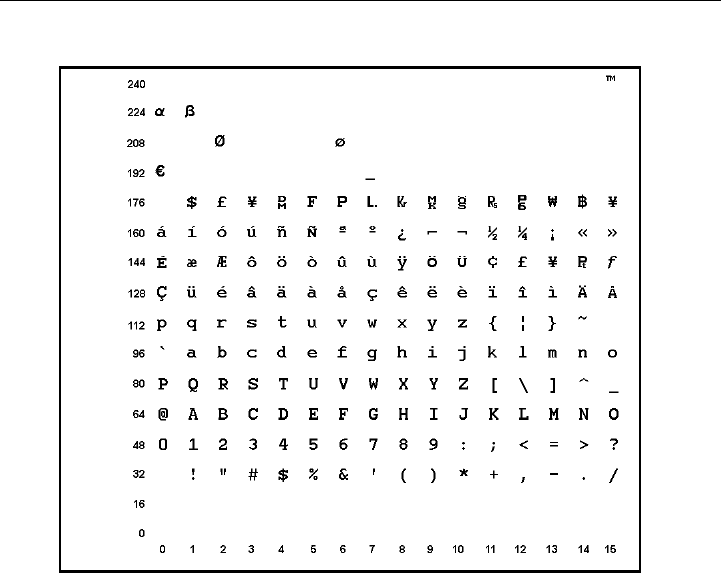
Internal Symbol Set
These are the printable characters using the Internal Symbol set.
Symbol Sets/Code Pages C-3
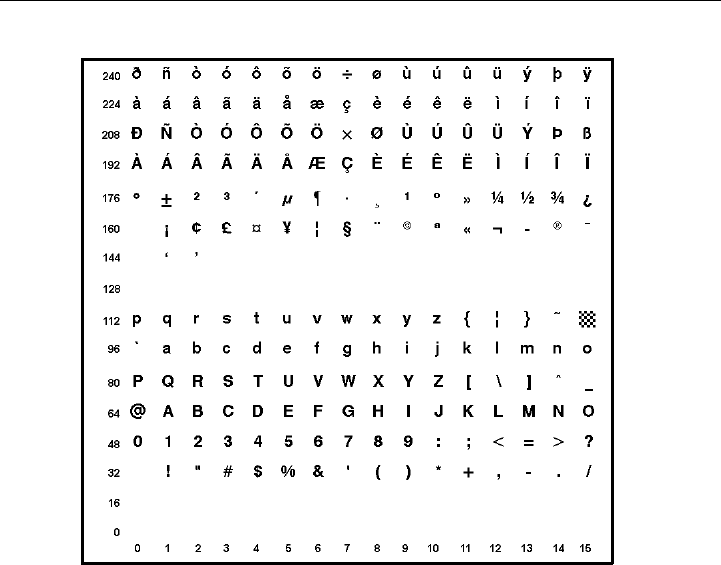
ANSI Symbol Set
These are the printable characters using the ANSI Symbol set.
C-4 Symbol Sets/Code Pages
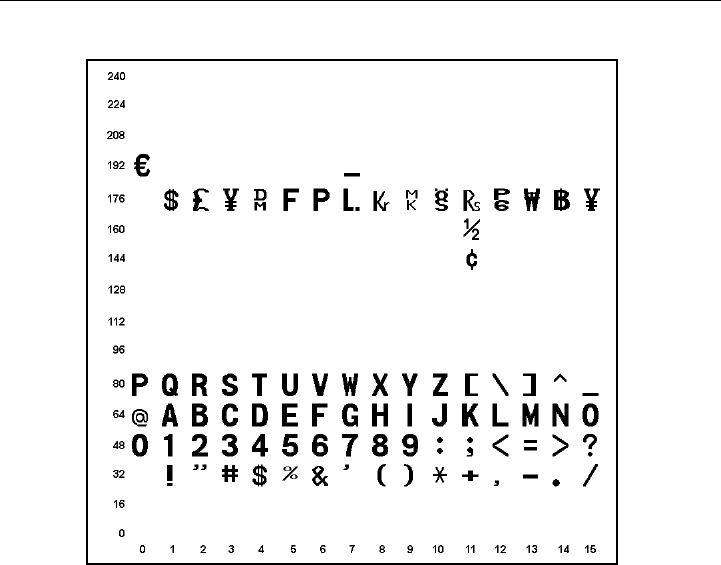
Bold Character Set
These are the printable characters using the Bold font.
Symbol Sets/Code Pages C-5
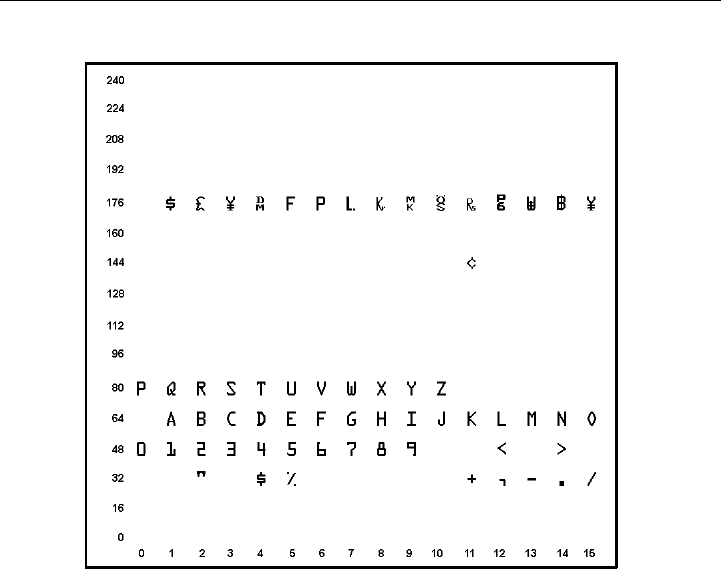
OCRA Character Set
These are the printable characters using the OCRA font.
C-6 Symbol Sets/Code Pages
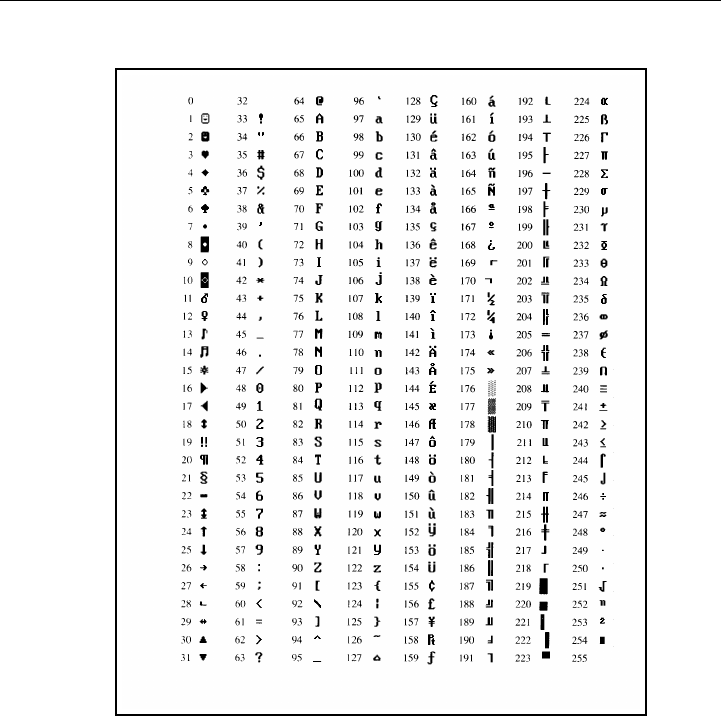
Code Page 437
These are the printable characters using Code Page 437.
Symbol Sets/Code Pages C-7
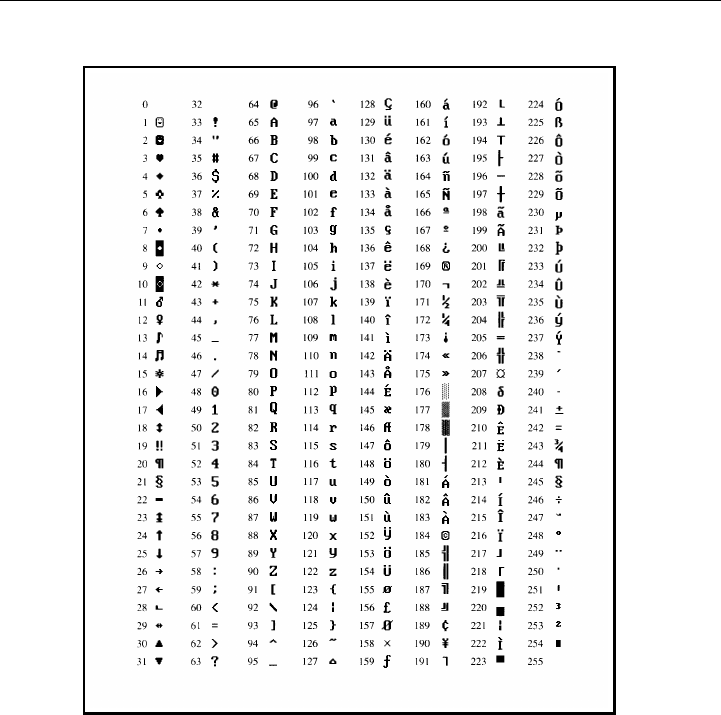
Code Page 850
These are the printable characters using Code Page 850.
C-8 Symbol Sets/Code Pages

ASCII to Hexadecimal Conversion Chart
Use the chart below to translate the characters printed on your
test label. The chart lists ASCII characters and their hexadecimal
and decimal equivalents.
Char.Hex Decimal Char.Hex Decimal
NUL 00 0DC2 12 18
SOH 01 1DC3 13 19
STX 02 2DC4 14 20
ETX 03 3NAK 15 21
EOT 04 4SYN 16 22
ENQ 05 5ETB 17 23
ACK 06 6CAN 18 24
BEL 07 7EM 19 25
Backspace 08 8SUB 1A 26
Tab 09 9Escape 1B 27
linefeed 0A 10 cursor right 1C 28
home 0B 11 cursor left 1D 29
form feed 0C 12 cursor up 1E 30
carriage
return 0D 13 cursor down 1F 31
SO 0E 14 space 20 32
SI 0F 15 !21 33
DLE 10 16 "22 34
DC1 11 17 #23 35
Symbol Sets/Code Pages C-9

ASCII to Hexadecimal Conversion Chart (continued)
Char.Hex Decimal Char.Hex Decimal
$24 36 ;3B 59
%25 37 <3C 60
&26 38 =3D 61
’27 39 >3E 62
(28 40 ?3F 63
)29 41 @40 64
*2A 42 A41 65
+2B 43 B42 66
, 2C 44 C43 67
-2D 45 D44 68
.2E 46 E45 69
/2F 47 F46 70
030 48 G47 71
131 49 H48 72
232 50 I49 73
333 51 J4A 74
434 52 K4B 75
535 53 L4C 76
636 54 M4D 77
737 55 N4E 78
838 56 O4F 79
939 57 P50 80
:3A 58 Q51 81
C-10 Symbol Sets/Code Pages

ASCII to Hexadecimal Conversion Chart (continued)
Char.Hex Decimal Char.Hex Decimal
R52 82 i69 105
S53 83 j6A 106
T54 84 k6B 107
U55 85 l6C 108
V56 86 m6D 109
W57 87 n6E 110
X58 88 o6F 111
Y59 89 p70 112
Z5A 90 q71 113
[5B 91 r72 114
\5C 92 s73 115
]5D 93 t74 116
^5E 94 u75 117
_5F 95 v76 118
‘60 96 w77 119
a61 97 x78 120
b62 98 y79 121
c63 99 z7A 122
d64 100 {7B 123
e65 101 p 7C 124
f66 102 }7D 125
g67 103 ~7E 126
h68 104 delete 7F 127
Symbol Sets/Code Pages C-11
C-12 Symbol Sets/Code Pages

FORMAT DESIGN TOOLS D
Use copies of these worksheets and grids to create your formats.
You may want to keep copies of the completed forms for your
records:
uOnline Configuration Worksheet
uBatch Worksheet
uCheck Digit Worksheet
uSupply Layout Grids (Inches, Metric, Dots)
uFormat Worksheet
uFormat Sample Worksheet
Format Design Tools D-1
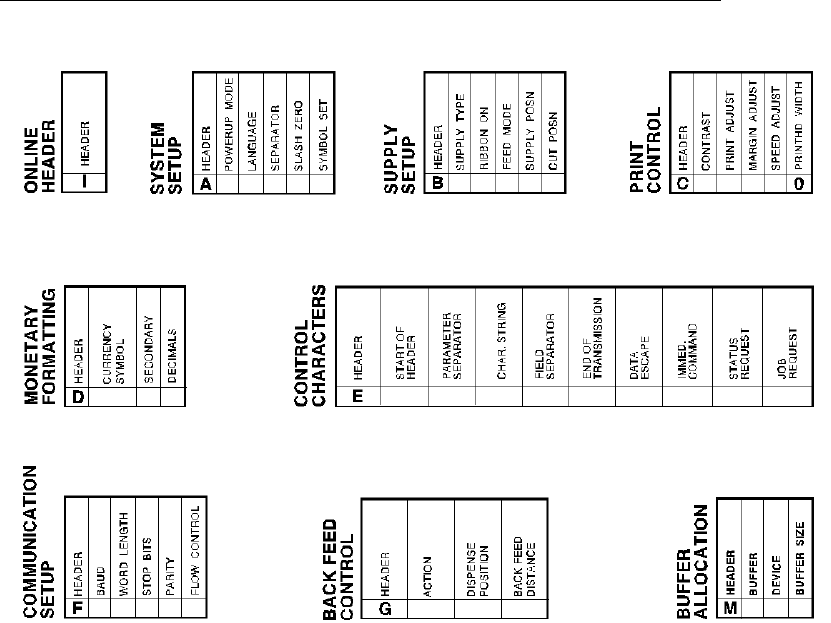
Online Configuration Worksheet
The backfeed control packet is not
supported on these printers.
D-2 Format Design Tools

Batch Worksheet
Format Design Tools D-3
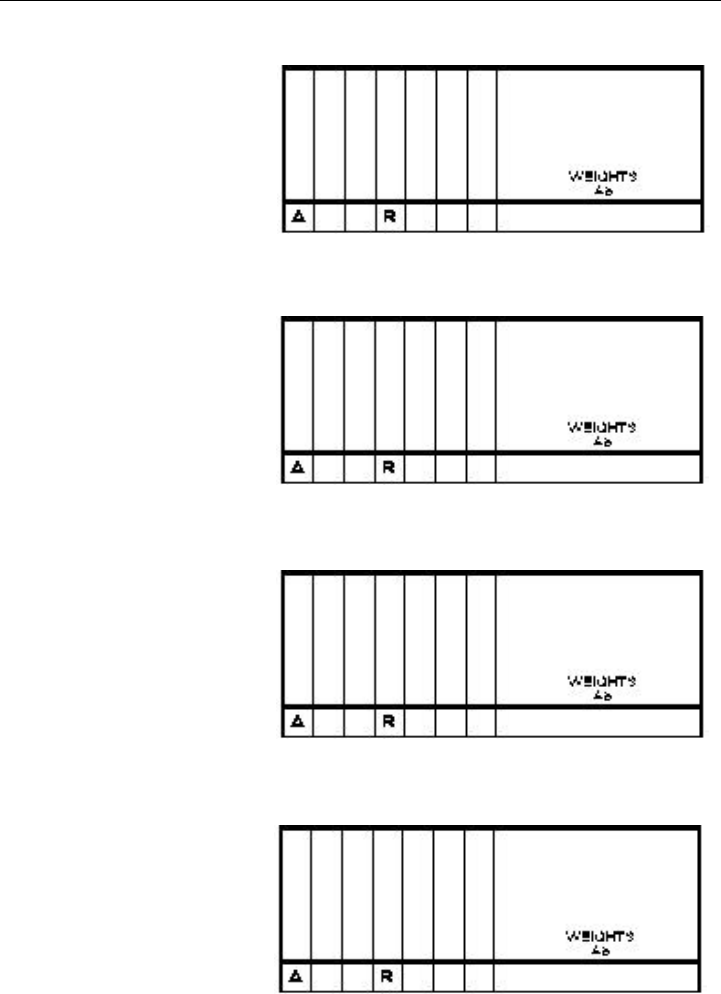
Check Digit Worksheet
D-4 Format Design Tools
GLOSSARY
Batch Data
2,"Monarch" p Defines the actual information (as fields within { })
printed on the label.
Batch Control
E,0,1,4,2 p Defines the print job (as a field).
Batch Header
{B,1,N,1} First line of a batch, immediately following ({).
Identifies the format and batch quantity.
Batch Packet
{B,1,N,1 p
2,"Monarch" p }
Contains a batch header and the batch data. Enclosed
within { }.
Bitmapped Fonts Reside in the printer’s RAM or in a ROM chip. If you
change the point size, you have changed the font.
Magnifying these fonts causes some jaggedness to
occur.
Buffer Storage area in the printer’s memory that holds specific
data (images, formats, etc).
Field Can be text, bar codes, lines, boxes, constant, or
non-printable text. It is the result of a field definition.
Field Definition Any string of parameters that pertain to one field. A
field definition begins with a field identifier (such as T,
B, C, etc.).
T,1,10,V,250,50,0,1,1,1,B,C,0 p
Field Parameters Parameters that apply to a field and are separated by
commas. (In the above example, B is a field element
for Black print on a white background.)
Format Layout or design for your printed label.
Format Header First line of a format, immediately following the start of
packet ({). A format header must begin with F, followed
by various header elements.
{F,1,A,R,E,600,400,"Fmt-1" p
Monospaced Fonts All characters have the same width and are easy to
center justify. (Standard, bold, and reduced are
monospaced.)
Non-volatile RAM
(NVRAM) Contains information that is SAVED on power-down.
Option
R,4,6,1,3,1 p Any line within a format that applies special formatting
to a field. This line always begins with R and must
immediately follow the field it applies to.
Packet
{B,1,N,1 p
2,"Monarch" p }
Any string of characters within ({ }).
Pre-image A way to optimize the printer, because it images the
fields while data is collected. After the last field is
imaged, the label prints almost immediately.
Proportionally
Spaced Fonts All characters have different widths and are difficult to
center justify (CG Triumvirate fonts).
Volatile RAM Contains information that is LOST on power-down.

INDEX
A
adding custom fonts 3-25
algorithm,in sum of digits 5-16
algorithm,in sum of products 5-15
alignment,bar code 4-12
allocating
memory 3-16
B
backing up 1-5
bar code
defining aspect ratios 5-11
PDF417 options 5-11
bar code alignment 4-12
bar code density
syntax 5-9
bar codes
character lengths 4-7
customizing density 5-9
defining 4-7
defining densities 5-9
determining distance from left/right 4-9,
4-14
determining distance from top/bottom
4-8generating check digits 5-7
justification 4-12
list of types 4-9
modifying height 4-11
placing human readables 10-6
rotating 4-12
selecting a density 4-9
selecting human readables 4-12
batch
canceling printing 3-22
clearing data from memory 3-24
downloading sample 6-2
overview of packet 6-2
sample A-5
batch control field
syntax 6-4
sample 6-4
batch data field
defining 6-5
syntax 6-5
containing incrementing fields 6-6
sample 6-5
using entered/copied data 6-6
batch header
syntax 6-3
defining 6-2
sample 6-3
using zero quantities 10-3
batch method of downloading
explained 6-7
batch quantity zero
downloading explained 6-7
syntax A-7
batch quantity, defined 6-2
baud rate selection 3-15
boxes
defining 4-20
determining distance from left/right 4-20
determining distance from top/bottom
4-20
buffer
scalable font 3-19
buffer selection 3-16
buffer size selection 3-16
C
calling technical support 8-5
changing
bar code density 5-9
Index 1
communication settings 3-15
memory configuration 3-16
packet control characters 3-13
security level of PDF417 5-9, 5-11
character rotation
in constant text field 4-16
in text field 4-6
characters
fixed using option 1 5-3
magnifying font size B-4
number of in bar code 4-7
number of in non-printable field 4-13
number of in text 4-3
padding 5-6
placement of human readables 10-6
check digit option
syntax 5-7
check digit schemes
syntax 5-14 - 5-15
using sum of digits 5-16
using sum of products 5-15
check digit worksheet D-3
check digits
clearing scheme from memory 3-24
generating 5-7
checking
ENQ trailer characters 8-2
ENQ/IMD characters 8-2
job status 7-8
packet control characters 8-2
printer status 7-2
RS232 trailer characters 8-2
clearing packets 3-24
code pages C-1
437 and 850 C-2
437 table C-7
850 table C-8
entering C-2
selecting C-1
color options of text 4-5
communication
checklist for trouble 8-4
list of errors 9-10
packet syntax 3-15
resetting printer 8-5
using a mode command 3-2
compatibility
considering unit of measure 2-5
compliance
format sample A-4
configuration
types of 3-2
configuration packets
communication settings packet F 3-15
guidelines 3-8
header 3-5
memory configuration packet M 3-16
monetary formatting packet D 3-12
overview 3-5
packet control characters packet E 3-13
print control packet C 3-11
sample 3-6
supply setup packet B 3-10
system setup packet A 3-9
constant text fields
character rotation 4-16
color attributes 4-15
defining 4-14
determining distance from top/bottom
4-14
font options 4-15
justification 4-16
modifying character height 4-15
modifying character spacing 4-15
modifying character width 4-15
rotating 4-16
sample 4-14, 4-16
control characters
factory defaults 3-3
resetting 3-14
selecting 3-13
syntax 3-13
copy command
sample 6-2
copy data
in partial form 5-5
merging fields 5-5
source field 5-4
2 Index

syntax 5-4
copying data, using option 4 5-4
creating
DOS batch files 6-9
D
daily checklist 1-5
data
copy option 4 5-4
deciding on a field type 2-6
fixed option 1 5-3
for batch 6-5
list of errors 9-2
padding option 30 5-6
picking a font 2-6
setting the starting increment 6-6
data dump 8-3
data stream
examples A-2
MaxiCode A-2
decimal point selection 3-12
decrementing fields
fixing the first number 5-12
syntax 5-12
using option 60 5-12
default fonts B-1
defining
bar code type 4-9
bar codes 4-7
batch control field 6-4
batch data field 6-5
batch header 6-2
boxes 4-20
check digit scheme w/sod 5-16
communication settings packet F 3-15
configuration header 3-5
constant text fields 4-14
font upload packet 3-25
lines 4-17
memory configuration packet M 3-16
monetary formatting packet D 3-12
non-printable fields 4-12
packet control characters packet E 3-13
print control packet C 3-11
supply setup packet B 3-10
system setup packet A 3-9
text fields 4-3
density
using option 50 to customize 5-9
design tools
about the grid 2-4
check digit worksheet D-3
format worksheet D-1
online configuration worksheet D-2
worksheet overview 2-7
designing a format 2-2
drawing a sketch 2-4
field type considerations 2-6
filling in worksheets 2-7
font considerations 2-6
print area 2-3
using grids 2-4
worksheet overview 2-7
determining format content 2-3
device selection 3-16
diagnostics
list of communication errors 9-10
list of data errors 9-2
list of data format errors 9-12
list of machine fault errors 9-13
printing test label 8-2
resetting printers 8-5
direction of
bar code field 4-12
constant text character 4-16
constant text field 4-16
of lines 4-18
text character 4-6
text field 4-6
DOS batch files
creating 6-9
downloadable fonts
buffer 3-19
downloading
batch method 6-7
batch quantity zero method 6-7
modified field parameters 6-8
Index 3

order packets should be received 6-2
overview 6-1
sample 6-2
sequential method 6-7
to the printer (overview) 6-9
E
enabling immediate commands 3-22
ENQ
printing existing config 8-2
reference table for byte 2 7-3
reference table of byte 3 7-6
requesting status 7-2
Response 7-2
entering
partial field parameters 6-8
erasing packets 3-24
errors
about 9-1
communication 9-10
data, description of 9-2
format 9-12
how to reset printers 8-5
machine faults 9-13
F
field
options 5-11
field options
brief list of 5-2
calculating check digits 5-7
copy data 5-4
customized bar code density 5-9
fixed data 5-3
incrementing/decrementing fields 5-12
ordering 5-1
overview 5-1
padding data 5-6
price field 5-8
restrictions 5-2
security/truncation for PDF417 5-9
using multiple 5-1
width/length for PDF417 5-11
fields
bar code rotation 4-12
batch control syntax 6-4
batch data syntax 6-5
constant text rotation 4-16
deciding a type 2-6
finding trailing spaces 10-6
font considerations 2-6
padding 5-6
picking a font 2-6
repeating parameters 10-5
setting the starting increment 6-6
text field rotation 4-6
types briefly described 2-6
using a worksheet 2-7
using data entry/copied fields 6-6
fixed data
defining as option 1 5-3
in constant text field 4-16
in text field 4-3
syntax 5-3
flow control selection 3-15
font
overview 2-6
font packets
clearing from memory 3-24
font upload packet
defining 3-25
fonts
available for constant text fields 4-15
available for text fields 4-4
monospaced magnification B-4
optimizing 10-5
proportional magnification B-6
standard B-1
format
buffer 3-19
format worksheet D-1
overview 2-7
formats
clearing from memory 3-24
decisions to make 2-3
defining bar codes 4-7
defining boxes 4-20
4 Index

defining constant text fields 4-14
defining lines 4-17
defining text fields 4-3
defining the header 4-2
designing 2-2 - 2-4
determining content 2-3
downloading sample 6-2
field types described briefly 2-6
filling in worksheets 2-7
font considerations 2-6
modifying partial parameters 6-8
referenced in batch packet 6-2
sample 1-3, A-2
sample of compliance A-4
using grids 2-4
formatting errors
list of 9-12
G
generating check digits with option 31
5-7
graphic packets
clearing from memory 3-24
grid
overview 2-4
H
help, getting 8-5
human readable characters
placement considerations 10-6
selecting for a bar code 4-12
I
image buffer 3-19
imaging
repeating parameters 10-5
using zero batch headers 10-3
imaging time
when to use scalable fonts 10-5
IMD
printing existing config 8-2
immediate commands
enabling 3-22
sending 3-22
table 3-22
when to use 3-21
incrementing fields
fixing the first number 5-12
in batch data 6-6
syntax 5-12
using option 60 5-12
inquiry request
explanation of 7-2
inquiry response
explanation of 7-2
J
job request
syntax 7-8
job response
explanation of 7-9
syntax for 0-2 7-9
syntax for 3 7-10
syntax for 4 7-12
job status
explanation of response 7-9
requesting 7-8
table 7-13
justification
of bar code 4-12
of constant text fields 4-16
of text field 4-6
L
language, printer 3-9
layout
decisions to make 2-3
designing a label 2-2
grid 2-4
print area 2-3
rough sketches 2-4
length
of a bar code field 4-7
Index 5

of a text field 4-3
lines
defining 4-17
defining as segment 4-17
defining as vectors 4-17
determining distance from left/right 4-18
determining distance from top/bottom
4-18
thickness 4-19
M
machine errors
list of 9-13
magnification
considerations 10-6
of monospaced fonts B-4
of proportional fonts B-6
margin adjustment selection 3-11
MaxiCode
data stream A-2
measurement
on a grid 2-4
using multiple printer types 2-5
memory
allocating 3-16
clearing packets 3-24
packet syntax 3-16
memory buffer
downloadable fonts 3-19
format 3-19
image 3-19
receive 3-18
scalable font 3-19
transmit 3-18
merging
copied data 5-5
fields with option 4 5-4
mode command sample 3-2
modulus
in sum of digits 5-16
in sum of products 5-15
monetary
decimal selection 3-12
formatting syntax 3-12
list of options 3-12
symbol selection 3-12
symbol setting 3-12
using price formatting 5-8
monospaced fonts, magnification of B-4
N
non-printable fields
defining 4-12
O
online configuration worksheet D-2
online mode selection 3-9
opaque overlay
explanation 4-5
optimizing
compatibility for multiple printers 2-5
print quality 10-1
print speed 10-1
repeating field parameters 10-5
using zero batch quantities 10-3
optional entry
to modify partial field parameters 6-8
options
field 5-11
options,field 5-9
brief list of 5-2
calculating check digits 5-7
copy data 5-4
customized bar code density 5-9
fixed data 5-3
general overview 5-1
incrementing/decrementing fields 5-12
ordering 5-1
padding data 5-6
price formatting 5-8
reimaging 5-12
restrictions 5-2
security/truncation for PDF417 5-9
using multiple 5-1
width/length for PDF417 5-11
6 Index

P
packet A
syntax 3-9
packet B
syntax 3-10
packet C
syntax 3-11
packet control characters
factory defaults 3-3
printing existing config 8-2
resetting 3-14
selecting new 3-13
syntax 3-13
packet D
syntax 3-12
packet E
syntax 3-13
packet F
syntax 3-15
packet M
syntax 3-16
packets
batch 6-2
check digit scheme 5-13
clearing from memory 3-24
configuration 3-5
guidelines 3-3
padding data 5-6
syntax 5-6
parallel communication 3-2
parameters
for batch control field 6-4
for batch data field 6-5
modifying partial 6-8
repeating 10-5
parity selection 3-15
PDF417 bar codes
security/truncation 5-9
width/length 5-11
placing
human readables 10-6
polling for status
overview 7-1
price fields
formatting option 5-8
monetary formatting 3-12
restrictions with check digits 5-8
syntax 5-8
print area 2-3
print contrast/vert adjustment selection
3-11
print control
in batch control field 6-4
syntax 3-11
printer configuration
communication settings packet F 3-15
header 3-5
memory configuration packet M 3-16
monetary formatting packet D 3-12
packet C 3-11
packet control characters packet E 3-13
packet guidelines 3-8
packet overview 3-5
packet sample 3-6
supply setup packet B 3-10
system setup packet A 3-9
printer status
explanation of response 7-2
overview 7-1
requesting 7-2
syntax 7-2
printers
communication checklist 8-4
communication errors 9-10
data errors 9-2
data formatting errors 9-12
machine fault errors 9-13
resetting 8-5
ways to configure 3-2
printhead
unit of measure compatibility 2-5
printing
canceling 3-22
ordering packets to download 6-2
overview 6-1
test label 8-2
problem
Index 7

running out of printer memory 3-24
problems
check digit miscalculated 5-8
communication checklist 8-4
DPI varies with printer 2-5
getting technical support 8-5
human readables cut off 10-6
image time and changing data 10-5
image time and unchanging data 10-3
imaging time and repeating field
parameters 10-5
incorrect symbols print 4-16
invalid packet syntax 3-3
list of communication errors 410-413
9-10
list of data errors 001-499 9-2
list of format errors 571-614 9-12
list of machine fault errors 700-793 9-13
missing/overlapping due to magnification
10-6
no check digit generated 5-7
off tag errors 10-6
poor print quality 10-1
procedures
backing up 1-5
daily checklist 1-5
print logs 1-5
programming conventions 3-3
proportional fonts, magnification of B-6
R
receive buffer 3-18
reimaging, using option 61 5-12
requesting job status
explanation of 7-8
requesting printer status
explanation of 7-2
overview 7-1
resetting packet control characters 3-14
resetting printers 8-5
response
to job request 0-2 7-9
to job request 3 7-10
to job request 4 7-12
ribbon selection 3-10
rotating
bar codes 4-12
constant text characters 4-16
constant text fields 4-16
text characters 4-6
text fields 4-6
rough sketches 2-4
RS232 trailer characters
printing existing config 8-2
S
sample
(fixed) data field 5-3
bar code density option 5-9
batch control field 6-4
batch data field 6-5
batch header 6-3
batch method downloading 6-7
batch packet A-5
calculate check digit option 5-7
check digit scheme packet 5-14 - 5-15
communication settings packet F 3-15
compliance formats A-4
configuration packet 3-6
copy field 5-5
font packet 3-26
font, bold style B-5
font, OCRA style B-5
font, standard style B-5
format A-2
format header 4-2
immediate command 3-22
incrementing/decrementing field option
5-12
inquiry response 7-2
job request 7-8
job response 0-2 7-9
job response 3 7-10
job response 4 7-12
memory configuration packet F 3-16
mode command 3-2
monetary formatting packet D 3-12
monospaced font magnification B-4
8 Index
packet control characters packet E 3-13
padding data 5-6
price field option 5-8
print control packet C 3-11
proportional font magnification B-6
sequential method downloading 6-7
supply setup packet B 3-10
system setup packet A 3-9
text field 4-3
zero batch packet A-7
scalable font
buffer 3-19
schemes
customizing check digits 5-13
security/truncation
using option 51 5-9
segments
defining 4-17
selecting bar code type 4-9
sending immediate commands 3-22
sequential downloading
explained 6-7
serial communication 3-2
setting
battery voltage 3-11
baud rate 3-15
feed mode 3-10
flow control 3-15
format number 4-2
language 3-9
margin position 3-11
monetary symbol 3-12
number of decimal places 3-12
online mode 3-9
parallel communication 3-2
parity 3-15
print contrast 3-11
print position 3-11
print speed 3-11
printhead width 3-11
ribbon 3-10
serial communication 3-2
stop bits 3-15
supply size 4-2
supply type/position 3-10
unit of measure 4-2
word length 3-15
size of
monospaced fonts B-4
proportaional fonts B-6
smart imaging 10-1
soft fonts
description of B-1
source field, of copy data 5-4
speed adjustment selection 3-11
standard fonts, list of B-1
status polling
overview 7-1
stop bits selection 3-15
sum of digits calculation 5-16
sum of products calculation 5-15
supply
about the layout grid 2-4
measurement on a grid 2-4
type/position selection 3-10
supply setup
syntax 3-10
supply type/position selection 3-11
symbol set C-1
ANSI C-2
entering C-2
Internal table C-3
International C-1
options 4-6
selecting C-1
symbols
monetary 5-8
syntax
communication settings packet F 3-15
constant text field 4-14, 4-16
font upload packet 3-25
format header 4-2
memory configuration packet M 3-16
monetary formatting packet D 3-12
non-printable field 4-13
packet control characters packet E 3-13
print control packet C 3-11
supply setup packet B 3-10
system setup packet A 3-9
Index 9

system setup
syntax 3-9
T
table
bar code lengths 4-7
ENQ reference byte 2 7-3
ENQ reference byte 3 7-6
fixed/variable bar codes 4-7
immediate commands 3-22
job status 0-2 7-13
technical support 8-5
test label
printing 8-2
text fields
character rotation 4-6
color attributes 4-5
defining 4-3
determining distance from left/right 4-4
determining distance from top/bottom
4-3font options 4-4
justification 4-6
modifying character height 4-5
modifying character spacing 4-4
modifying character width 4-5
placing proportionally spaced characters
4-3rotating 4-6
syntax 4-3
thickness
line 4-19
trailing spaces
finding 10-6
transmit buffer 3-18
transparent overlay
explanation 4-5
troubleshooting 8-3
types of fields
brief description 2-6
U
unit of measure
setting 4-2
unsuccessful communication 8-4
uploading
font packet 3-25
V
variable length
padding for 5-6
vector fonts buffer 3-19
vectors
defining 4-17
voltage selection 3-11
W
width/length
using option 52 5-11
word length selection 3-15
worksheet
check digit D-3
filling in 2-7
format D-1
online configuration D-2
overview 2-7
10 Index