7.2.3.3 Packet Tracer Configuring An IPv4 ACL On VTY Lines Instructions
7.2.3.3%20Packet%20Tracer%20-%20Configuring%20an%20IPv4%20ACL%20on%20VTY%20Lines%20Instructions
7.2.3.3%20Packet%20Tracer%20-%20Configuring%20an%20IPv4%20ACL%20on%20VTY%20Lines%20Instructions
User Manual: Pdf
Open the PDF directly: View PDF  .
.
Page Count: 2
© 2013 Cisco and/or its affiliates. All rights reserved. This document is Cisco Public. Page 1 of 2
Packet Tracer - Configuring an IPv4 ACL on VTY Lines
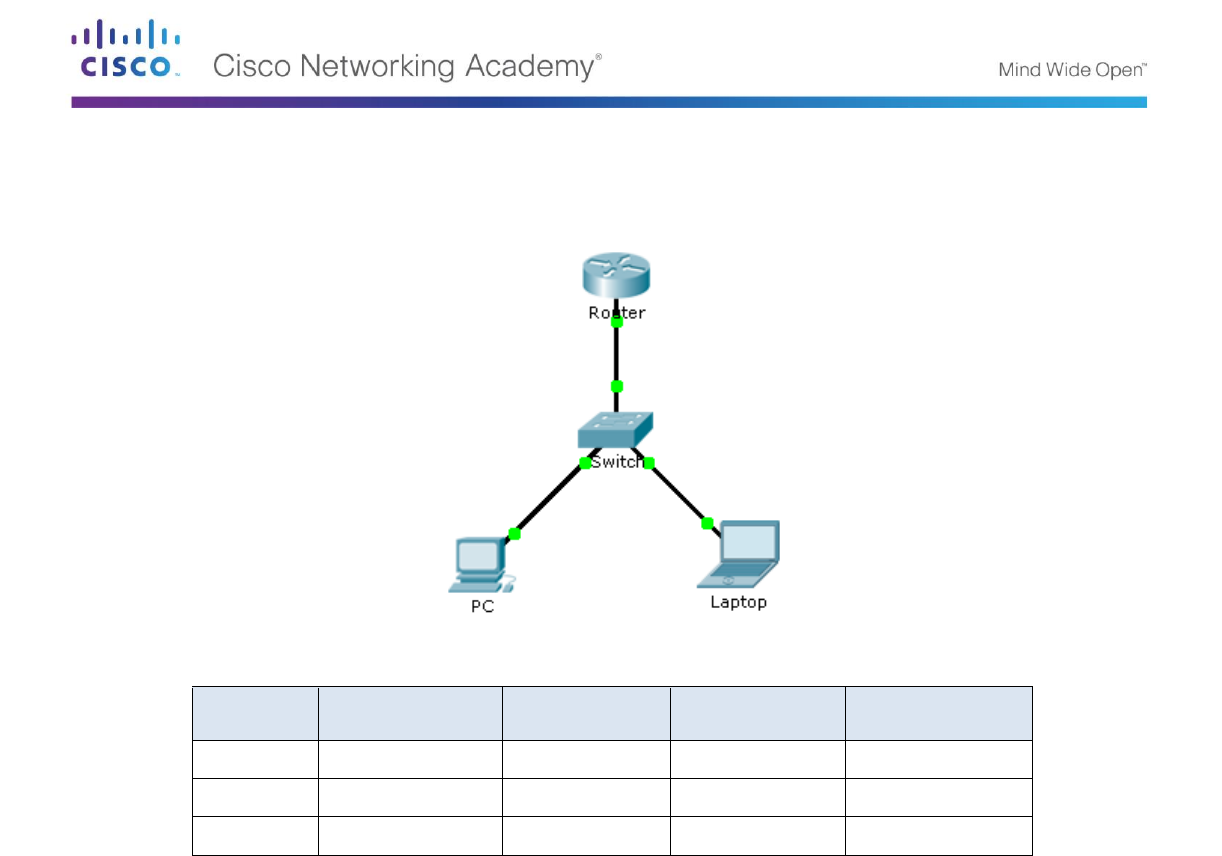
Topology
Addressing Table
Device
Interface
IP Address
Subnet Mask
Default Gateway
Router
F0/0
10.0.0.254
255.0.0.0
N/A
PC
NIC
10.0.0.1
255.0.0.0
10.0.0.254
Laptop
NIC
10.0.0.2
255.0.0.0
10.0.0.254
Objectives
Part 1: Configure and Apply an ACL to VTY Lines
Part 2: Verify the ACL Implementation
Background
As network administrator, you must have remote access to your router. This access should not be available to
other users of the network. Therefore, you will configure and apply an access control list (ACL) that allows PC
access to the Telnet lines, but denies all other source IP addresses.
Part 1: Configure and Apply an ACL to VTY Lines
Step 1: Verify Telnet access before the ACL is configured.
Both computers should be able to Telnet to the Router. The password is cisco.
Step 2: Configure a numbered standard ACL.
Configure the following numbered ACL on Router.
Router(config)# access-list 99 permit host 10.0.0.1

Packet Tracer - Configuring an ACL on VTY Lines
© 2013 Cisco and/or its affiliates. All rights reserved. This document is Cisco Public. Page 2 of 2
Because we do not want to permit access from any other computers, the implicit deny property of the access
list satisfies our requirements.
Step 3: Place a named standard ACL on the router.
Access to the Router interfaces must be allowed, while Telnet access must be restricted. Therefore, we must
place the ACL on Telnet lines 0 through 4. From the configuration prompt of Router, enter line configuration
mode for lines 0 – 4 and use the access-class command to apply the ACL to all the VTY lines:
Router(config)# line vty 0 15
Router(config-line)# access-class 99 in
Part 2: Verify the ACL Implementation
Step 1: Verify the ACL configuration and application to the VTY lines.
Use the show access-lists to verify the ACL configuration. Use the show run command to verify the ACL is
applied to the VTY lines.
Step 2: Verify that the ACL is working properly.
Both computers should be able to ping the Router, but only PC should be able to Telnet to it.
