EZ MAX Plus QuickStart Installation Directions
2014-11-11
: Pdf 90477-Installationsheet 90477-InstallationSheet 078477 Batch12 unilog
Open the PDF directly: View PDF  .
.
Page Count: 35
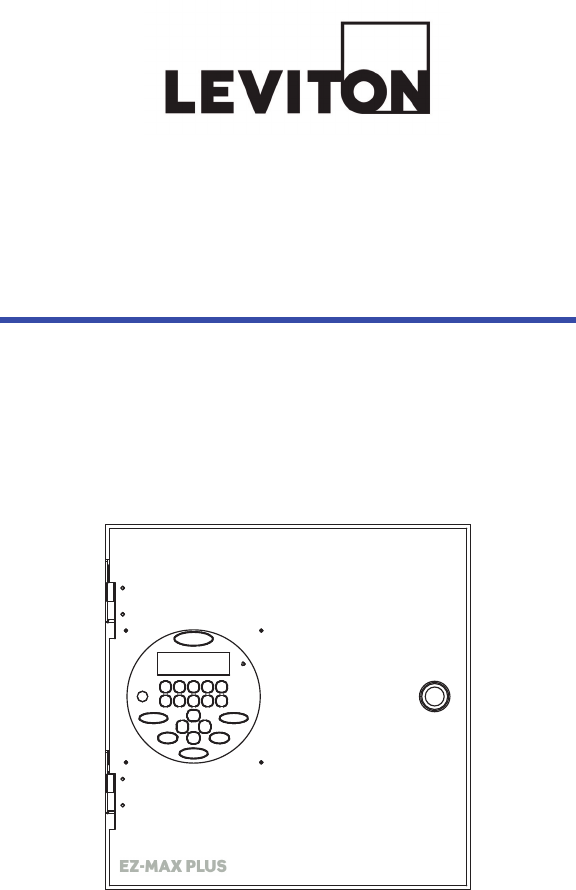
EZ-MAX Plus
Quick Start Guide
EZ-MAX Plus ™ 8, 16 & 24 Relay Panels
Software Revision 1.0 and above.

EZ-MAX Plus Quick Start Guide
Page 2
QUICK START OVERVIEW
Overview
This EZ-MAX Plus Quick Start Guide assumes that you have
already installed your EZ-MAX Plus relay cabinet. This guide also
assumes you have read and familiarized yourself with the EZ-MAX
Plus Programmer Guide.
This guide covers an abbreviated version of the topics listed
below. See the EZ-MAX Plus Programmer Guide for complete
details and instructions on all topics.
•Time and Date—setting the time and date on your relay
cabinet.
•Set All Relays—globally configuring all relays in your
cabinet.
•Blink Warn Timer—configuring the blink warn timer
settings.
•Scheduler—creating a schedule of events.
•Configuring Inputs—configuring low voltage inputs
(occupancy sensors, photocells and switches) and digital
inputs.
EZ-MAX Plus Quick Start Guide
Page 3
EZ-MAX Plus Quick Start Guide
Page 4
QUICK START
TIME/DATE
Setting the Time and Date
SET TIME
You can change the following fields in the Time display:
•12 or 24-hour clock
•Hours
•Minutes
•AM or PM
•Daylight Savings Time Mode:
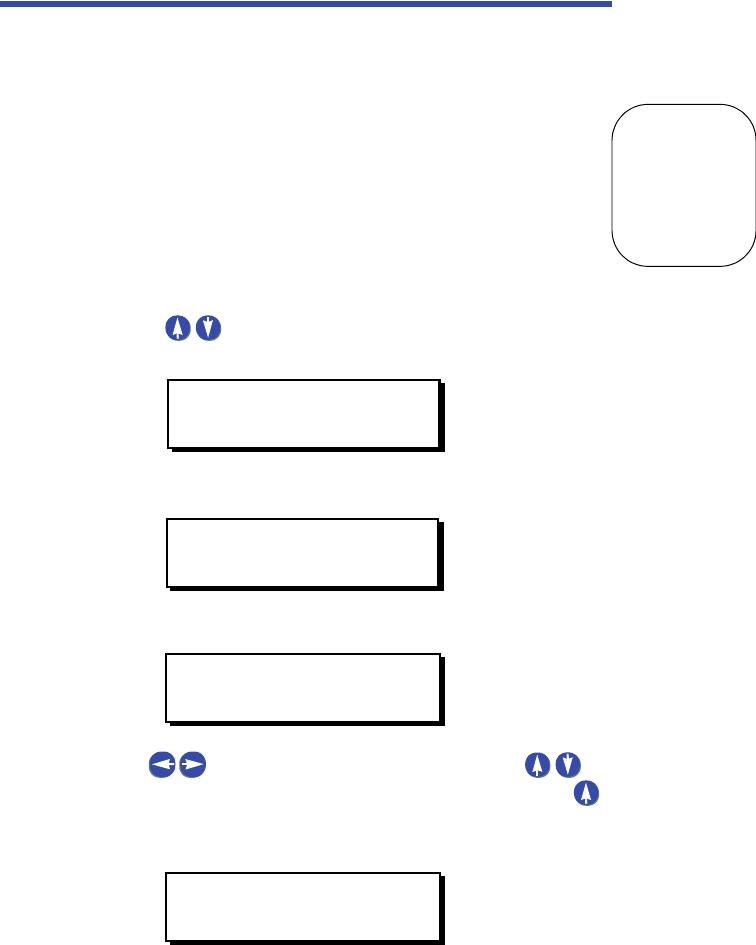
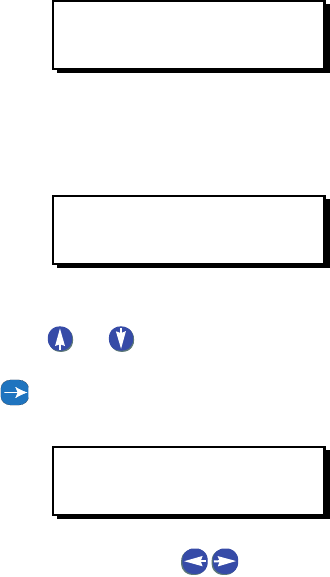
Step 1: Press the MENU button.
Step 2: Press until the display reads as shown below,
then press SELECT/SAVE.
Step 3: Press SELECT/SAVE.
The display will show the current setting for the time.
Step 4: Use to navigate through the fields. Use to
change the settings for each field. For example, use
to change the clock from a 12-hour clock to a 24-hour
clock:
MAIN MENU SELECT
SET TIME/DATE
MAIN MENU SELECT
SET TIME
SET TIME 12 HOUR
4:46PM D: OFF
SET TIME 24 HOUR
16:46S D: US
Setting the Time and Date
EZ-MAX Plus Quick Start Guide
Page 5
Step 5: Press SELECT/SAVE when you have finished editing the
fields.
SET DATE
Step 1: Press the MENU button.
Step 2: Press until the display reads as below, then press
SELECT/SAVE.
Step 3: Press until the display reads SET DATE, then press
SELECT/SAVE
The display will show the current setting for the date, and the
active field will blink.
Step 4: Use to navigate through the fields. Use the
numeric keypad to change the settings for each field.
Step 5: Press SELECT/SAVE when you have finished editing the
fields.
SET ASTRO CLOCK
Set Astro Clock by City
Follow the steps below to set the Astro Clock by using a quick city
code. See “Quick Codes for 101 Major Cities” on page 32 to see if
your city or a city near you is listed.
MAIN MENU SELECT
SET TIME/DATE
MAIN MENU SELECT
SET DATE
SET DATE MON
12/22/2008
EZ-MAX Plus Quick Start Guide
Page 6
QUICK START
TIME/DATE
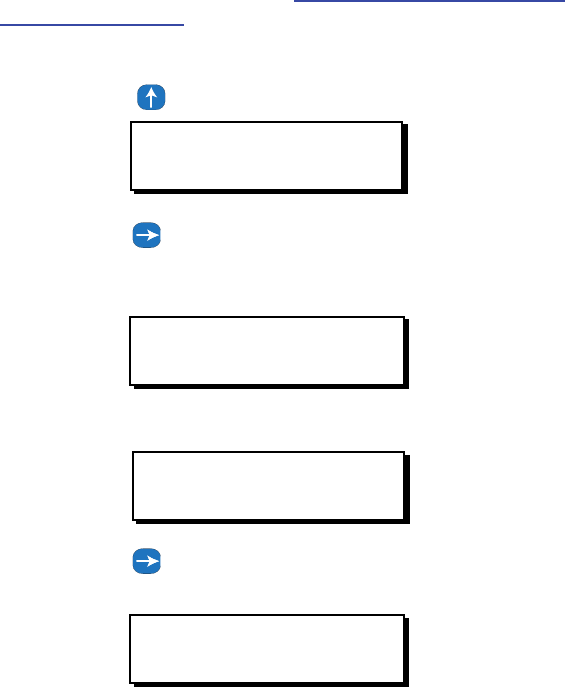
Step 1: Press the MENU button.
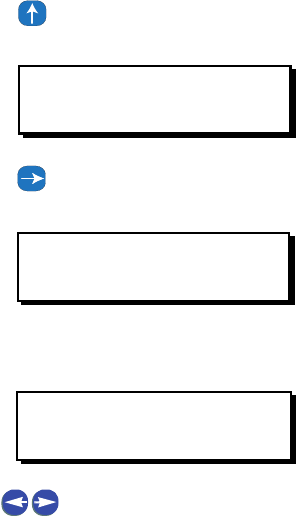
Step 2: Press until the display reads as below, then press
SELECT/SAVE.
Step 3: Press until the display reads as below, then press
SELECT/SAVE.
Step 4: The display should now read as below. Press SELECT/
SAVE.
Step 5: Use the numeric keypad to enter the number that is
listed next to your city name (i.e. 55 for Las Vegas, NV),
and then press SELECT/SAVE.
MAIN MENU SELECT
SET TIME/DATE
MAIN MENU SELECT
SET ASTRO CLOCK
SET ASTRO CLOCK
CITY
LAS VEGAS
NV
Setting the Time and Date
EZ-MAX Plus Quick Start Guide
Page 7
Set Astro Clock by Longitude/Latitude
Make sure you have the following information for your city before
you begin: current sunrise time, current sunset time, latitude.
This information can be found at www.srrb.noaa.gov/highlights/
sunrise/sunrise.html.
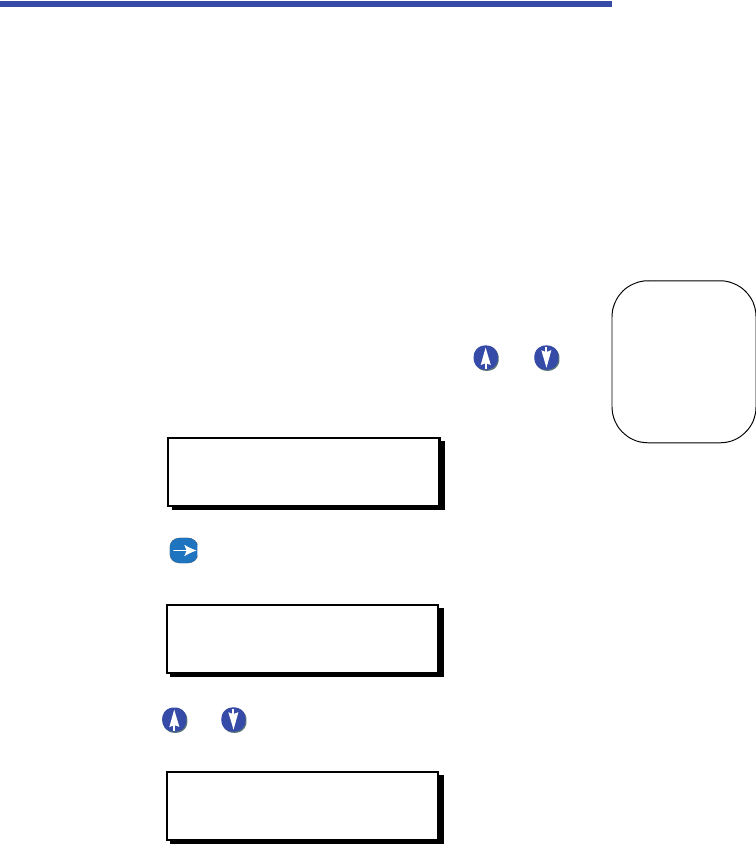
Step 1: Press the MENU button.
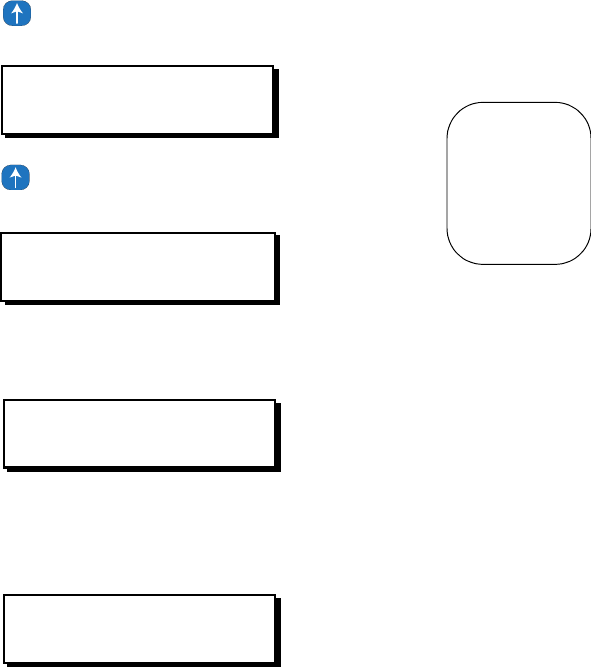
Step 2: Press until the display reads as shown below
Step 3: Press until the display reads as shown below, then
press
SELECT/SAVE.
The display should now read:
Step 4: Press until the display reads SUN/LAT, then press
SELECT/SAVE.
Step 5: You will now be prompted to set the Sunrise (SR), Sunset
(SS) and Latitude (LAT) for your location. The active field
MAIN MENU SELECT
SET TIME/DATE
MAIN MENU SELECT
SET ASTRO CLOCK
SET ASTRO CLOCK
CITY
SET ASTRO CLOCK
SUN/LAT

EZ-MAX Plus Quick Start Guide
Page 8
QUICK START
TIME/DATE
will flash. Use the key to navigate between fields.
Use the numeric keypad to enter in the values.
Step 6: Press the SELECT/SAVE button when you have finished
editing the fields.
SR=07:01A
SS=08:25P LAT=45
Setting the Time and Date
EZ-MAX Plus Quick Start Guide
Page 9
EZ-MAX Plus Quick Start Guide
Page 10
QUICK START
SET ALL RELAYS
Globally Configuring Relays
SET ALL RELAYS
Use the SET ALL RELAYS menu item to configure all of your
relays at once. Changing settings in this menu will change the
relay type for ALL relays in the cabinet, even if you have already
specified a different relay type to an individual relay.
See the EZ-Max Plus Programmer Guide for details on how to
configure individual relays.
Follow the steps below to configure the three global settings for
your relays.
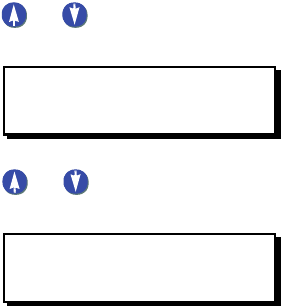
Step 1: Press the MENU button.
Step 2: If you aren’t at the default screen, press or until
the display reads as shown below, then press
SELECT/SAVE.
Step 3: Press until the display reads SET ALL RELAYS, then
press SELECT/SAVE.
Step 4: Press or to toggle through the relay type choices.
Set your global relay type and press SELECT/SAVE.
The system automatically saves the configuration change you
just made and displays the next menu item.
MAIN MENU SELECT
SYSTEM SETTINGS
SYSTEM SETTINGS
SET ALL RELAYS
ALL RELAY TYPE
LATCH (DEFAULT)
Globally Configuring Relays
EZ-MAX Plus Quick Start Guide
Page 11
Step 5: Press or to toggle BLINK WARN to Y or N. Press
SELECT/SAVE.
Step 6: Press or to toggle EMERGENCY to OFF, ON or
NC. Press SELECT/SAVE.
Your global relay configuration settings have now been saved.
ALL RELAYS
BLINK WARN? Y
ALL RELAYS
EMERGENCY? OFF

EZ-MAX Plus Quick Start Guide
Page 12
QUICK START
GLOBAL TIMERS
Configuring Blink Warn Parameters
Use the Global Timers menu to set your global Blink Warn
Parameters and the Timer setting for your Momentary Timed
switches.
Blink Warn Parameters
The blink warn feature is used to issue a warning just before the
relay cabinet turns off the lights. The warning is issued in the
form of a “blink” of the lights. Hence the term “Blink Warn.” The
Blink Warn feature has several configurable parameters to
determine the actions of your cabinet.
•OVRD TIME—sets the amount of time that the lights will
remain on when a user cancels a blink warn for their
particular zone. The setting defaults to 120 minutes.
•TIME OUT—sets the amount of time between when the blink
warn is issued and the lights turn off (go black.) The setting
defaults to 5 minutes.
•FLASH TIME—sets the length of the flash. The setting
defaults to 0.5 seconds.
Momentary Timed interval
When using the “momentary timed” switch input type, a switch
input will trigger the lights on for the timer period specified in this
setting.
GLOBAL TIMERS
Follow the steps below to configure your global Blink Warn
settings, and the global setting for any switch set to “Momentary
Timed.”
Configuring Blink Warn Parameters
EZ-MAX Plus Quick Start Guide
Page 13
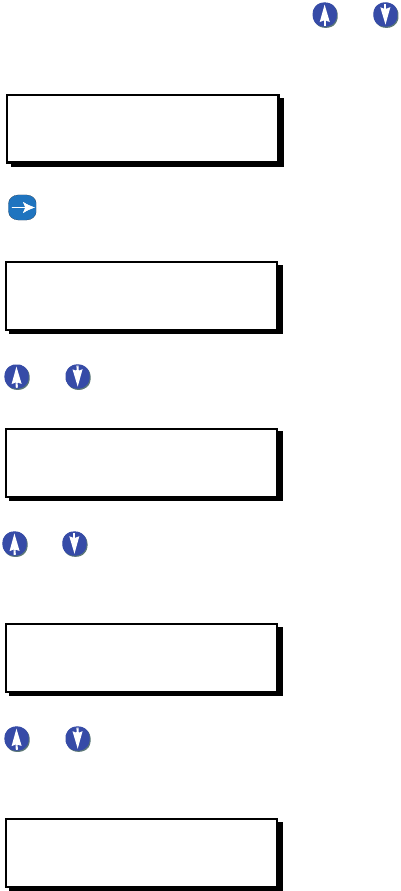
Step 1: Press the MENU button.
Step 2: If you aren’t at the default screen, press or until
the display reads as shown below, then press
SELECT/SAVE.
Step 3: Press until the display reads GLOBAL TIMERS, then
press SELECT/SAVE.
Step 4: Press or to adjust the FLASH TIME. or use the
keypad to enter a specific time. Press SELECT/SAVE.
Step 5: Press or to adjust the TIME OUT setting for Blink
Warn, or use the keypad to enter a specific time. Press
SELECT/SAVE.
Step 6: Press or to adjust the Override Time (OVRD
TIME). or use the keypad to enter a specific time. Press
SELECT/SAVE.
MAIN MENU SELECT
SYSTEM SETTINGS
SYSTEM SETTINGS
GLOBAL TIMERS
BLINK WARN
FLASH TIME: 0.3 S
BLINK WARN
TIME OUT: 5M
BLINK WARN
OVRD TIME: 120M
EZ-MAX Plus Quick Start Guide
Page 14
QUICK START
GLOBAL TIMERS
Step 7: Press or to adjust the TIMER setting for
Momentary Timed switches, or use the keypad to enter a
specific time. Press SELECT/SAVE.
All other programming functions will now use the above global
settings when setting a Blink Warn or a Momentary Timed switch.
TIME SWITCH
TIMER: 30M
Configuring Blink Warn Parameters
EZ-MAX Plus Quick Start Guide
Page 15
EZ-MAX Plus Quick Start Guide
Page 16
QUICK START
SCHEDULER
The Scheduler
SCHEDULER
Use the SCHEDULER menu to create, edit, or delete an event. An
“event” is defined as any action that occurs at a specific time.
NEW EVENT
You can control your lighting based on an event schedule that
you create. For example, you may want to create an event that
turns all lobby lights on at 7am Monday thru Friday, and another
event that turns all lobby lights off at 7pm Monday thru Friday.
Step 1: Press the MENU button.
Step 2: Press or until the display reads as below, then
press SELECT/SAVE.
Step 3: Press until the display reads NEW EVENT, then
press SELECT/SAVE.
Step 4: Use the numeric keypad to enter an event number (001-
999) and press SELECT/SAVE.
The display will then prompt you to enter a “Time Type.” You can
set your event for a specific time of day, or according to sunrise
and sunset. The example below shows how to set an event time
based on the time of five minutes before sunrise.
MAIN MENU SELECT
SCHEDULER
SCHEDULER
NEW EVENT
ENTER EVENT #
E022:
The Scheduler
EZ-MAX Plus Quick Start Guide
Page 17
Step 5: Press or to toggle between TIME OF DAY and
SUNRISE/SUNSET, then press SELECT/SAVE.
Step 6: Press or to toggle between SR+ and SS-. Use the
numeric keypad to enter the time of the event, and press
SELECT/SAVE when you have finished editing the
fields.
Step 7: Press to move through the days of the week. The
active field (day of the week) will flash. Press zero (0) to
disable a day of the week (displays as a slash), or press
an alpha key to enable a day of the week. Press
SELECT/SAVE when you have finished editing the
fields.
Step 8: Define whether or not this event will run on holidays.
Press or to toggle between the three Holiday
Mode choices. Press SELECT/SAVE.
Now define the Event Type and behavior.
ENTER TIME TYPE
SUNRISE/SUNSET
ENTER SR/SS TIME
SR-0:05
ENTER DAYS OF WK
MTWTF--
HOLIDAY MODE
HOLIDAY ENABLED
EZ-MAX Plus Quick Start Guide
Page 18
QUICK START
SCHEDULER
Step 9: The example below is for a relay. Press or to
toggle between the three choices until you get to RELAY,
and press SELECT/SAVE.
Assign the relays that will be associated with this event. If there
are 16 relays in your cabinet you will have to set each one to YES
or IGNORE, depending on whether or not you want the relay to
respond.
Step 10: Use the alphanumeric keys to input the relay number.
Press to navigate to the IGNORE/YES field. Press
or to toggle between YES and IGNORE and set
any relays you want to be affected by this event to YES.
Press SELECT/SAVE when you have finished setting all
relays.
CHANGE EVNT TIME
Step 1: Press the MENU button.
Step 2: Press or until the display reads as below, then
press
SELECT/SAVE.
SELECT RLY MODE
RELAY ON
ASSIGN RELAYS
RELAY #01 YES
MAIN MENU SELECT
SCHEDULER
The Scheduler
EZ-MAX Plus Quick Start Guide
Page 19
Step 3: Press until the display reads CHANGE EVNT TIME,
then press SELECT/SAVE.
Step 4: Use the numeric keypad to enter the event number you
want to modify. Once you actually enter the event
number the event time will display. Press SELECT/
SAVE.
Step 5: You will then be prompted to choose a Time Type. Press
or to toggle between the two time types (TIME
OF DAY and SUNRISE/SUNSET). Press SELECT/SAVE.
Step 6: Use the numeric keypad to enter a new time. Press
to navigate the fields. Press SELECT/SAVE.
Step 7: Press SELECT/SAVE when you have finished editing the
fields.
DELETE EVENT
You might find out down the line that you don’t need all of the
events that you originally programmed into your EZ-MAX Plus
system. It’s a very simple process to delete an event.
SCHEDULER
CHANGE EVNT TIME
SELECT EVENT #
E022: 7:00AM
EDIT TIME TYPE
TIME OF DAY
EDIT TIME
7:00AM
EZ-MAX Plus Quick Start Guide
Page 20
QUICK START
SCHEDULER
Step 1: Press the MENU button.
Step 2: Press or until the display reads as below, then
press SELECT/SAVE.
Step 3: Press until the display reads DELETE EVENT, then
press SELECT/SAVE.
Step 4: Use the numeric keypad to enter the event number you
want to delete. Once you actually enter the event
number the event time will display. Press SELECT/
SAVE.
Step 5: Press or to toggle to “Y,” and press SELECT/
SAVE.
Your event has been deleted.
MAIN MENU SELECT
SCHEDULER
SCHEDULER
DELETE EVENT
SELECT EVENT
E022: 7:00AM
DELETE EVENT: Y
E022: 7:00AM
The Scheduler
EZ-MAX Plus Quick Start Guide
Page 21
EDIT EVENT
Step 1: Press the MENU button
Step 2: Press or until the display reads as below, then
press SELECT/SAVE.
Step 3: Press until the display reads EDIT EVENT, then
press SELECT/SAVE.
Step 4: Use the numeric keypad to enter the event number you
want to modify. Once you actually enter the event
number the event time will display. Press
SELECT/SAVE.
Step 5: Use the alphanumeric keys to input the relay number.
Press to navigate to the IGNORE/YES field. Press
or to toggle between YES and IGNORE and set
any relays you want to be affected by this event to YES.
Press SELECT/SAVE when you have finished setting all
relays.
Step 6: Continue to use the to move between the relay
field and the behavior field, and cycle through all relays
until you have set all of them to YES or IGNORE. Press
MAIN MENU SELECT
SCHEDULER
SCHEDULER
EDIT EVENT
SELECT EVENT #
E022: 7:00AM
ASSIGN RELAYS
RELAY #01 YES

EZ-MAX Plus Quick Start Guide
Page 22
QUICK START
SCHEDULER
Select/Save when you have finished assigning all
relays.
The Scheduler
EZ-MAX Plus Quick Start Guide
Page 23
EZ-MAX Plus Quick Start Guide
Page 24
QUICK START
CONFIG INPUTS
Configuring Inputs
CONFIG INPUTS
LV INPUT—Switch
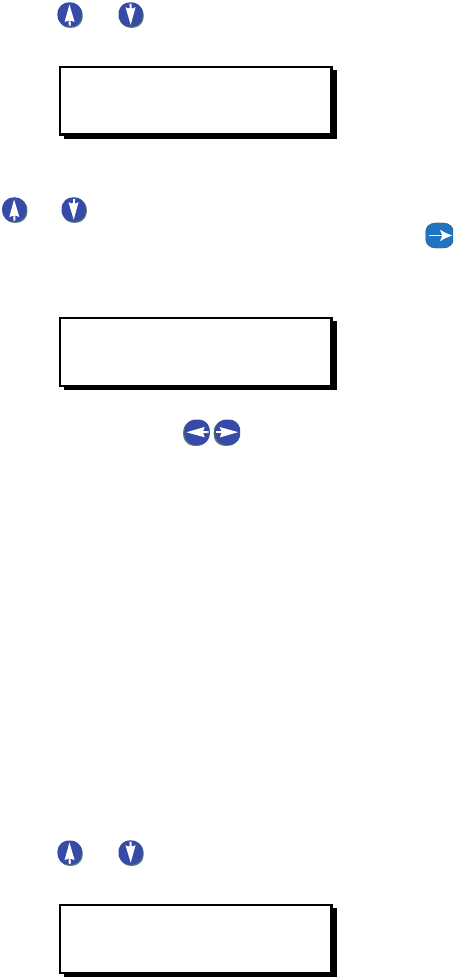
Step 1: Press the MENU button.
Step 2: Press or until the display reads as below, then
press SELECT/SAVE.
Step 3: Press or to navigate to LV INPUT, and press
Select/Save.
Step 4: Set the low voltage input for the switch.
NOTE: If you are configuring a multi-button switch, the
number you enter in the SWITCH field corresponds to a
specific button on the switch. The top button on the switch
would be #1 in the SWITCH field. The second button down
would be #2 in the SWITCH field, and so on.
MAIN MENU SELECT
CONFIG INPUTS
INPUT TYPE
LV INPUT
SELECT INPUT
1: SWITCH
Configuring Inputs
EZ-MAX Plus Quick Start Guide
Page 25
Step 5: Press or to choose a behavior for this particular
button. Press Select/Save.
Step 6: Assign a relay (or multiple relays) to the switch. Press
or to cycle through the relay numbers, or use the
numeric keypad to enter a relay number. Press to
navigate to the next field and toggle IGNORE to YES if
you want to assign the relay.
Step 7: Continue to use the to move between the relay
field and the behavior field, and cycle through all relays
until you have set all of them to YES or IGNORE. Press
Select/Save when you have finished assigning all
relays.
If you are configuring a multi-button switch, continue to repeat
the above steps until you’ve configured all buttons on the switch.
LV INPUT—OCC
Configuring Occupancy Sensors
These instructions assume that your Occupancy Sensor is already
connected to one of the low voltage inputs.
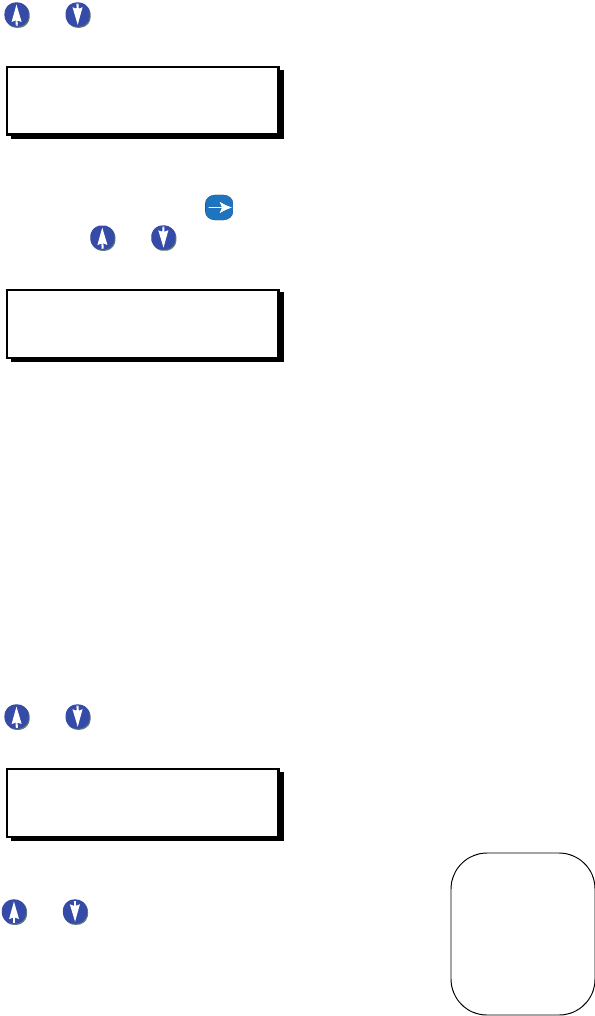
Step 1: Press the MENU button.
Step 2: Press or until the display reads as below, then
press SELECT/SAVE.
LV SWITCH TYPE
MOMENTARY
ASSIGN RELAYS
RELAY# 3: YES
MAIN MENU SELECT
CONFIG INPUTS
EZ-MAX Plus Quick Start Guide
Page 26
QUICK START
CONFIG INPUTS
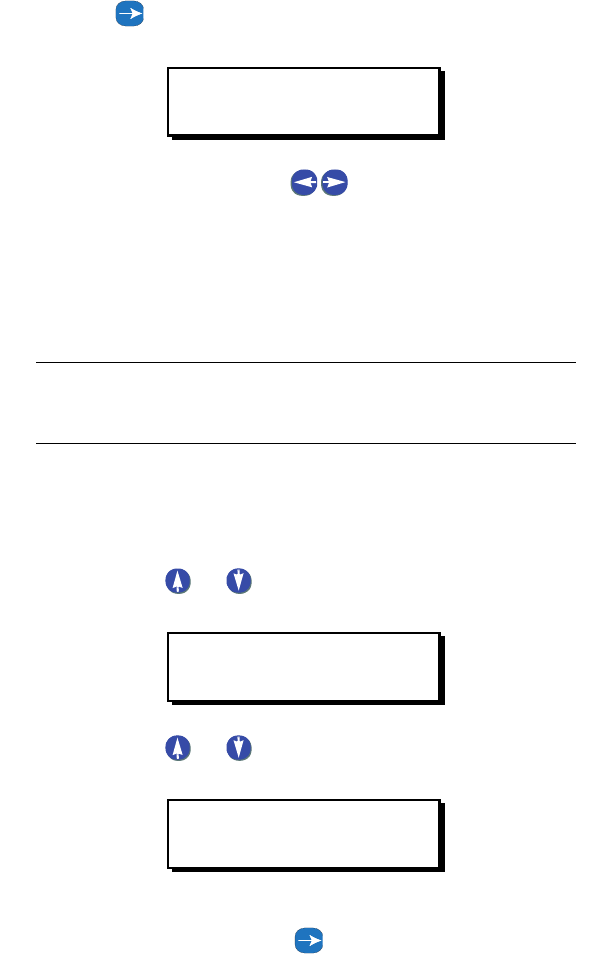
Step 3: Press or to navigate to LV INPUT, and press
Select/Save.
Step 4: Use the numeric keypad to enter the input number for
the occupancy sensor. Press to navigate to the next
field, and press or to change the field to OCC.
Press Select/Save.
The next step is to choose the behavior of your occupancy
sensor.
•Manual (Manual On-Auto Off)—The occupancy sensor will
turn off the assigned relays when the occupancy sensor
indicates an unoccupied state. When the room becomes
occupied, the relays will not be automatically turned on,
instead, the user will have to manually turn on the lights from
a wall switch or other input.
•Auto (Always On/Auto Off)—In this mode, the Occupancy
Sensor will turn the assigned relays both on and off based on
either an occupied or unoccupied stated indicated by the
occupancy sensor.
Step 5: Press or to select the behavior INTERIOR or
EXTERIOR, and press Select/Save.
Step 6: Assign the relay (or relays) to this occupancy sensor.
Press or to cycle through the relay numbers, or
use the numeric keypad to enter a relay number. Press
INPUT TYPE
LV INPUT
SELECT INPUT
2: OCC
OCC SENSOR MODE
INTERIOR
Configuring Inputs
EZ-MAX Plus Quick Start Guide
Page 27
to navigate to the next field and toggle IGNORE to
YES if you want to assign the relay.
Step 7: Continue to use the to move between the RELAY
field and the behavior field, and cycle through all relays
until you have set all of them to YES or IGNORE. Press
Select/Save when you have finished assigning all
relays.
NOTE: Occupancy sensor Delay times and Retrigger times
must be set on the occupancy sensor itself.
LV INPUT—Photocell
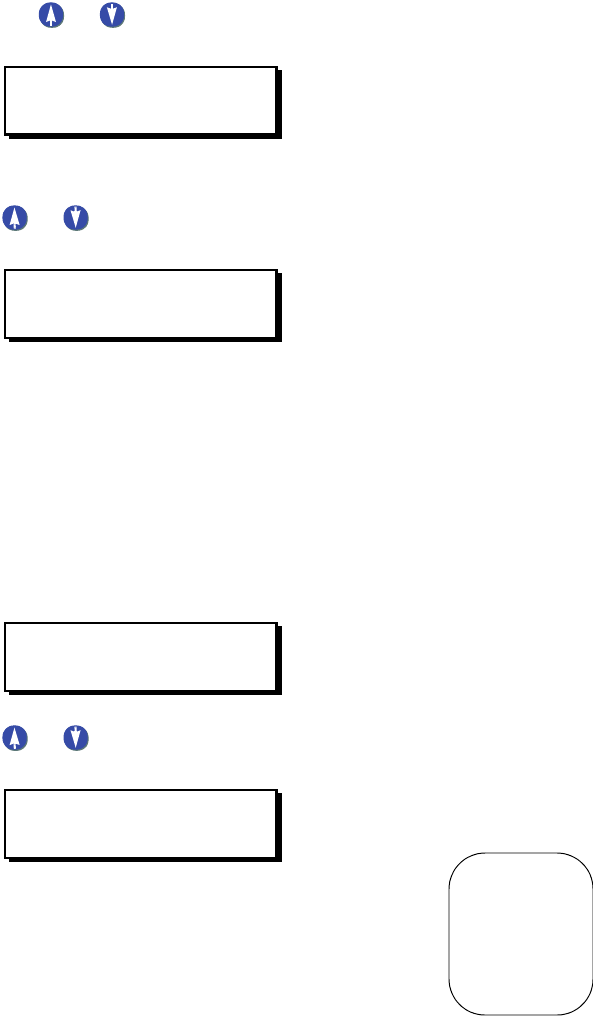
Step 1: Press the MENU button.
Step 2: Press or until the display reads as below, then
press SELECT/SAVE.
Step 3: Press or to navigate to LV INPUT, and press
Select/Save.
Step 4: Use the numeric keypad to enter the input number for
the photocell. Press to navigate to the next field,
ASSIGN RELAYS
RELAY# 3: YES
MAIN MENU SELECT
CONFIG INPUTS
INPUT TYPE
LV INPUT
EZ-MAX Plus Quick Start Guide
Page 28
QUICK START
CONFIG INPUTS
and press or to change the field to PHOTOCELL.
Press Select/Save.
The next step is to choose the behavior of your photocell.
Step 5: Press or to select the behavior INTERIOR or
EXTERIOR, and press Select/Save.
The next step is to define a Delay Time.
•Delay Time—used to prevent rapid changes to lighting
based on changing conditions in the environment. For
example, clouds passing the sun which temporarily darkens
the space. It is expressed in minutes and represents the
length of contiguous time between trigger points in order for
the relays to be turned on or off.
Step 6: Use the numeric keypad to enter a delay time, and press
Select/Save.
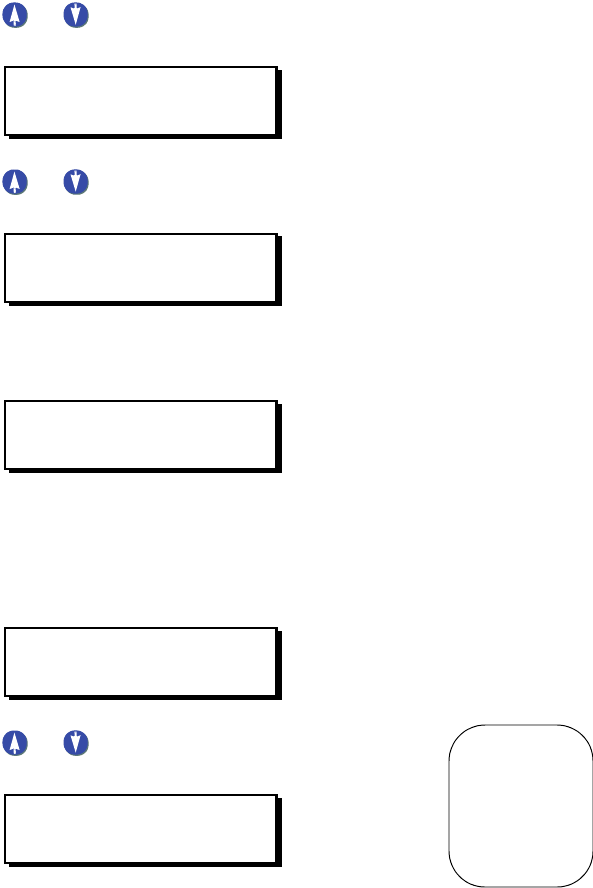
Step 7: Press or to select the type of photocell (either
0-10 Volt or Switched), and press Select/Save.
If you choose 0-10 VOLT you will be prompted to provide a
minimum activation (ON) voltage and a minimum OFF voltage
setting.
SELECT INPUT
2: PHOTOCELL
PHOTOCELL
INTERIOR
PHOTOCELL
DELAY TIME: 5 M
PHOTOCELL TYPE
0-10 VOLT
Configuring Inputs
EZ-MAX Plus Quick Start Guide
Page 29
•On Voltage must be a voltage between 1-10 VDC, AND must
be less than the OFF voltage.
•OFF Voltage must be a voltage between 1-10 VDC, AND must
be greater than the ON voltage.
Step 8: Enter the level, in volts, for which you desire these relays
to be activated when the light levels are FALLING (ON).
Press Select/Save.
Step 9: Enter the level, in volts, for which you desire these relays
to be deactivated when the light levels are RISING (OFF).
Press Select/Save
Step 10: Assign the relay (or relays) to this occupancy sensor.
Press or to cycle through the relay numbers, or
use the numeric keypad to enter a relay number. Press
to navigate to the next field and toggle IGNORE to
YES if you want to assign the relay.
Step 11: Continue to use the to move between the RELAY
field and the behavior field, and cycle through all relays
until you have set all of them to YES or IGNORE. Press
Select/Save when you have finished assigning all
relays.
DIGITAL INPUT—Switch
The steps below show you how to manually input a digital switch
into the system. If you install your digital switches first, and then
PHOTOCELL
ON VOLTS: 4.0
PHOTOCELL
OFF VOLTS: 6.0
ASSIGN RELAYS
RELAY# 3: YES
EZ-MAX Plus Quick Start Guide
Page 30
QUICK START
CONFIG INPUTS
use the auto-assign feature, your digital switch addresses will be
displayed automatically when you get to the SELECT SWITCH
step.
Step 1: Press the MENU button.
Step 2: Press or until the display reads as below, then
press SELECT/SAVE.
Step 3: Press or to navigate to DIGITAL INPUT, and
press Select/Save.
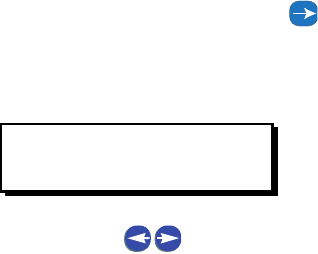
Step 4: Use the numeric keypad to enter the address for the
digital switch. Press Select/Save.
Program the behavior for all buttons on your switch. If you have
a 4-button switch you will go through the steps below four times.
Step 5: Use the numeric keypad to enter the button number you
want to program. Press Select/Save.
Step 6: Press or to choose a behavior for this particular
button. Press Select/Save.
MAIN MENU SELECT
CONFIG INPUTS
INPUT TYPE
DIGITAL INPUT
SELECT SWITCH
ADDRESS: 74
ADDRESS: 74
BUTTON: 4
ADDR: 74 BTN: 4
MOMENTARY TIMED
Configuring Inputs
EZ-MAX Plus Quick Start Guide
Page 31
Step 7: Assign the switch to a particular relay. Use the numeric
keypad to enter a relay number. Press to navigate
to the next field and toggle IGNORE to YES if you want
to assign the relay. Cycle through all relays until you have
set all of them to YES or IGNORE. Press Select/Save.
Step 8: Continue to use the to move between the relay
field and the behavior field, and cycle through all relays
until you have set all of them to YES or IGNORE. Press
Select/Save when you have finished assigning all
relays.
ASSIGN RELAYS
RELAY# 3: YES

EZ-MAX Plus Quick Start Guide
Page 32
QUICK START
1Albany, NY
2Albuquerque, NM
3Allentown, PA
4Anchorage, AK
5Atlanta, GA
6Atlantic City, NJ
7Augusta, GA
8Austin, TX
9Bakersfield, CA
10 Baltimore, MD
11 Bangor, ME
12 Baton Rouge, LA
13 Beijing, China
14 Biloxi, MS
15 Birmingham, AL
16 Bismarck, ND
17 Boise, ID
18 Boston, MA
19 Bridgeport, CT
20 Buffalo, NY
21 Burlington, VT
22 Calgary, AB
23 Cambridge, MA
24 Charleston, SC
25 Charlotte, NC
26 Chattanooga. TN
27 Cheyenne, WY
28 Chicago, IL
29 Cincinnati, OH
30 Cleveland, OH
31 Columbus, OH
32 Dallas, TX
33 Daytona Beach, FL
34 Denver, CO
35 Des Moines, IA
36 Detroit, MI
37 El Paso, TX
38 Edmonton, AB
39 Erie, PA
40 Evansville, IN
41 Fairbanks, AK
42 Fort Wayne, IN
43 Fort Worth, TX
44 Fresno, CA
45 Grand Rapids, MI
46 Hartford, CT
47 Hong Kong, China
48 Honolulu, HI
49 Houston, TX
50 Indianapolis, IN
Quick Codes for 101 Major Cities
Quick Codes for 101 Major Cities
EZ-MAX Plus Quick Start Guide
Page 33
51 Iowa City, IA
52 Jackson, MS
53 Jacksonville, FL
54 Kansas City, MO
55 Las Vegas, NV
56 Little Rock, AR
57 Los Angeles, CA
58 Louisville, KY
59 Memphis, TN
60 Mexico City, MX
61 Miami, FL
62 Milwaukee, WI
63 Minneapolis, MN
64 Mobile, AL
65 Montreal QC
66 Nashville, TN
67 New Orleans, LA
68 New York City, NY
69 Norfolk, VA
70 Oklahoma City, OK
71 Omaha, NE
72 Orlando, FL
73 Ottawa, ON
74 Philadelphia, PA
75 Phoenix, AZ
76 Pittsburgh, PA
77 Portland, ME
78 Portland, OR
79 Providence, RI
80 Reno, NV
81 Rochester, NY
82 Sacramento, CA
83 Salt Lake City, UT
84 San Diego, CA
85 San Francisco, CA
86 Scranton, PA
87 Seattle, WA
88 Springfield, MA
89 St. Louis, MO
90 Sudbury, ON
91 Syracuse, NY
92 Tampa, F L
93 Toronto, ON
94 Trenton, NJ
95 Tucson, AZ
96 Tulsa, OK
97 Vancouver BC
98 Virginia Beach, VA
99 Washington, D.C.
100Wichita, KS
101Winnipeg, MN
Warranty Information
Limited Warranty
Leviton Manufacturing Co Inc. warrants the products represented in
this manual to be free of material and workmanship defects for a
period of two years after system acceptance or 26 months after
shipment from Leviton, whichever comes first. The EZ-MAX Plus relay
cards are covered for a period of ten (10) years. Lighting fixtures
manufactured by Leviton are covered for a period of one year.
This Warranty is limited to repair or replacement of defective
equipment returned Freight Pre-Paid to Leviton Manufacturing at
20497 SW Teton Ave., Tualatin, Oregon 97062, USA. User shall call
1-800-959-6004 and request a return authorization number to mark
on the outside of the returning carton, to assure that the returned
material will be properly received at Leviton.
All equipment shipped back to Leviton must be carefully and properly
packed to avoid shipping damage. Replacements or repaired
equipment will be returned to sender freight prepaid, F.O.B. factory.
Leviton is not responsible for removing or replacing equipment on the
job site, and will not honor charges for such work. Leviton will not be
responsible for any loss of use time or subsequent damages should
any of the equipment fail during the warranty period, but agrees only
to repair or replace defective equipment returned to its plant in
Tualatin, Oregon.
This Warranty is void on any product that has been improperly
installed, overloaded, short circuited, abused, or altered in any
manner. Neither the seller nor Leviton shall be liable for any injury,
loss or damage, direct or consequential arising out of the use of or
inability to use the equipment. This Warranty does not cover lamps,
ballasts, and other equipment which is supplied or warranted directly
to the user by their manufacturer. Leviton makes no warranty as to
the Fitness for Purpose or other implied Warranties.

Leviton Lighting Managment Systems Division
20497 SW Teton Avenue, Tualatin, OR 97062
Customer Service Telephone: 1-800-736-6682 •
FAX: 1-503-404-5600
Tech Line: 1-800-959-6004
Leviton Manufacturing Co., Inc.
59-25 Little Neck Parkway, Little Neck, NY 11362-2591
Telephone: 1-800-323-8920 • FAX: 1-800-832-9538
Visit Leviton’s Web site at http://lms.leviton.com
© 2007 Leviton Manufacturing Co., Inc. All Rights Reserved
Specifications and Pricing Subject to Change at any time
