Auto Layout Guide Stack Views
User Manual: Pdf
Open the PDF directly: View PDF  .
.
Page Count: 9
12.02.2018 Auto Layout Guide: Stack Views
https://developer.apple.com/library/content/documentation/UserExperience/Conceptual/AutolayoutPG/LayoutUsingStackViews.html#//apple_ref/doc/uid/TP400…
1/9
Stack Views
The following recipes show how you can use stack views to create layouts of increasing complexity. Stack
views are a powerful tool for quickly and easily designing your user interfaces. Their attributes allow a high
degree of control over how they lay out their arranged views. You can augment these settings with additional,
custom constraints; however, this increases the layout’s complexity.
To view the source code for these recipes, see the Auto Layout Cookbook project.
Simple Stack View
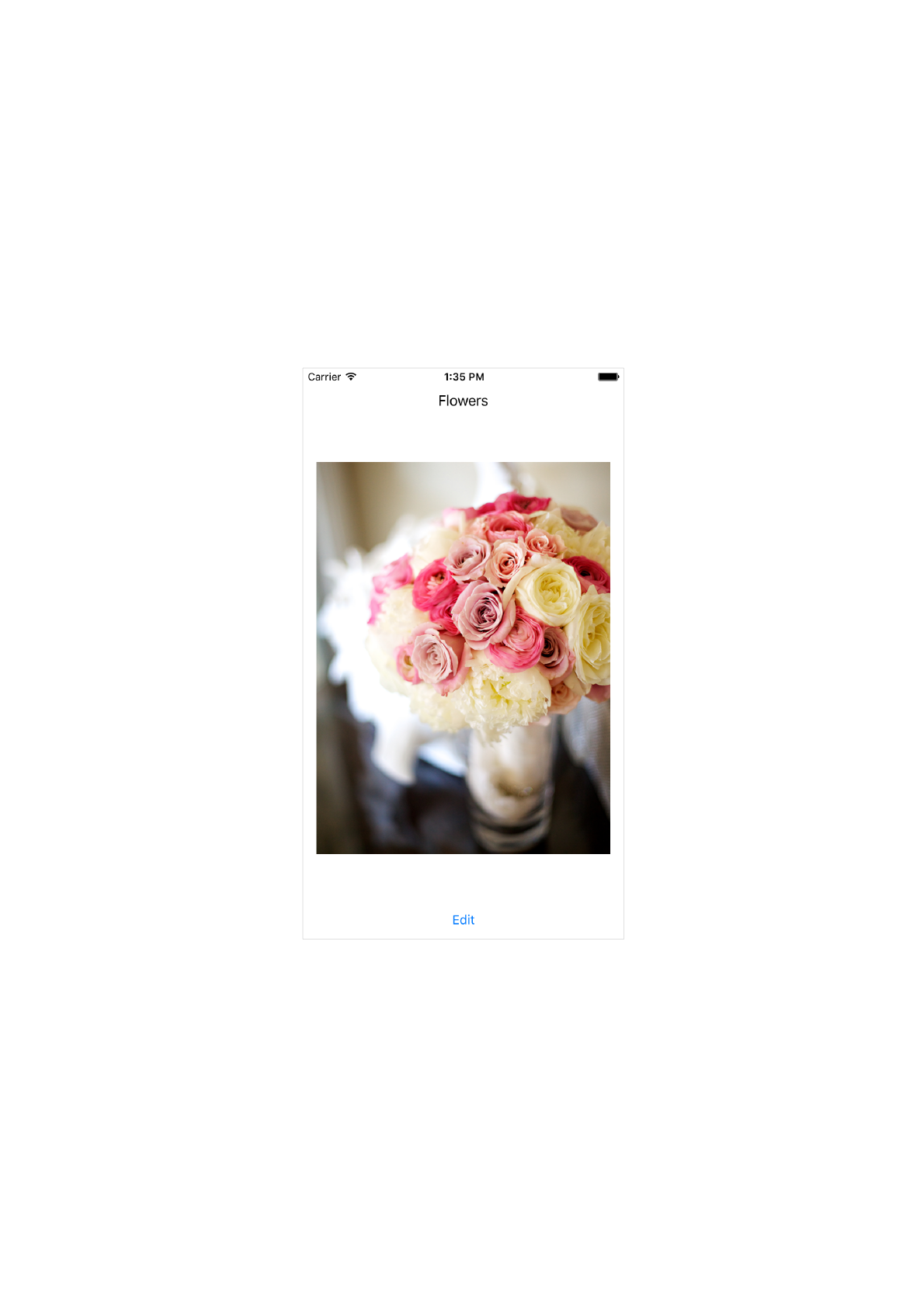
This recipe uses a single, vertical stack view to lay out a label, image view, and button.
Views and Constraints
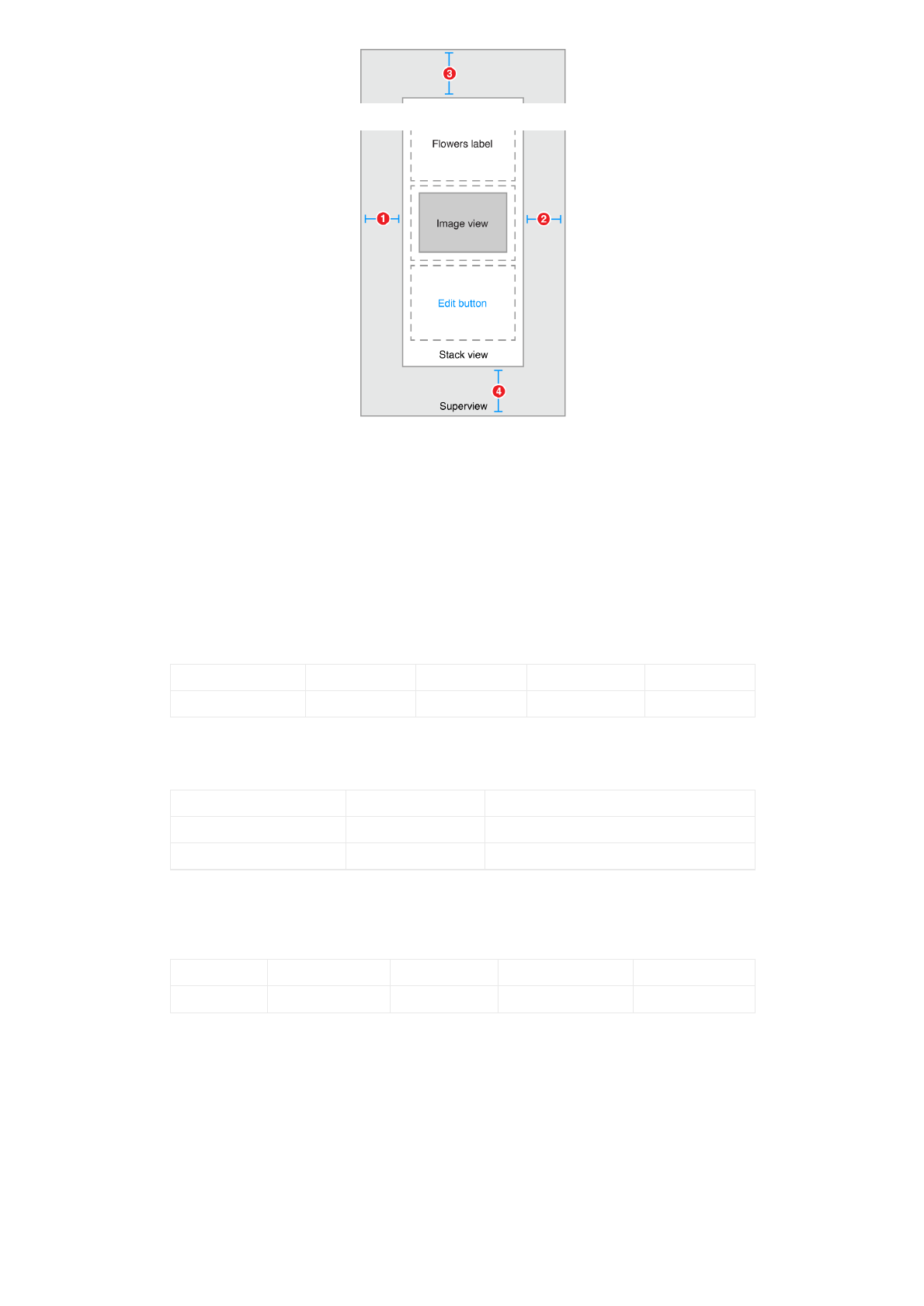
In Interface Builder, start by dragging out a vertical stack view, and add the flowers label, image view, and edit
button. Then set up the constraints as shown.
On This Page
12.02.2018 Auto Layout Guide: Stack Views
https://developer.apple.com/library/content/documentation/UserExperience/Conceptual/AutolayoutPG/LayoutUsingStackViews.html#//apple_ref/doc/uid/TP400…
2/9
1. Stack View.Leading = Superview.LeadingMargin
2. Stack View.Trailing = Superview.TrailingMargin
3. Stack View.Top = Top Layout Guide.Bottom + Standard
4. Bottom Layout Guide.Top = Stack View.Bottom + Standard
Attributes
In the Attributes inspector, set the following stack view attributes:
Stack Axis Alignment Distribution Spacing
Stack Axis Alignment Distribution SpacingStack View Vertical Fill Fill 8
Next, set the following attributes on the Image View:
View Attribute Value
Image View Image (an image of flowers)
Image View Mode Aspect Fit
Finally, in the Size inspector, set the Image View’s content-hugging and compression-resistance (CHCR)
priorities.
Name Horizontal hugging Vertical hugging Horizontal resistance Vertical resistance
Image View 250 249 750 749
Discussion
You must pin the stack view to the superview, but otherwise, the stack view manages the entire layout without
any other explicit constraints.
In this recipe, the stack view fills its superview, with a small, standard margin. The arranged views are resized
to fill the stack view’s bounds. Horizontally, each view is stretched to match the stack view’s width. Vertically,
the views are stretched based on their CHCR priorities. The image view should always shrink and grow to fill
the available space. Therefore, its vertical content hugging and compression resistance priorities must be
lower than the label and button’s default priorities.

12.02.2018 Auto Layout Guide: Stack Views
https://developer.apple.com/library/content/documentation/UserExperience/Conceptual/AutolayoutPG/LayoutUsingStackViews.html#//apple_ref/doc/uid/TP400…
3/9
Finally, set the image view’s mode to Aspect Fit. This setting forces the image view to resize the image so that
it fits within the image view’s bounds, while maintaining the image’s aspect ratio. This lets the stack view
arbitrarily resize the image view without distorting the image.
For more information on pinning a view to fill its superview, see Attributes and Adaptive Single View.
Nested Stack Views
This recipe shows a complex layout built from multiple layers of nested stack views. However, in this example,
the stack views cannot create the wanted behaviors alone. Instead, additional constraints are needed to
further refine the layout.
After the view hierarchy is built, add the constraints shown in the next section, Views and Constraints.
Views and Constraints
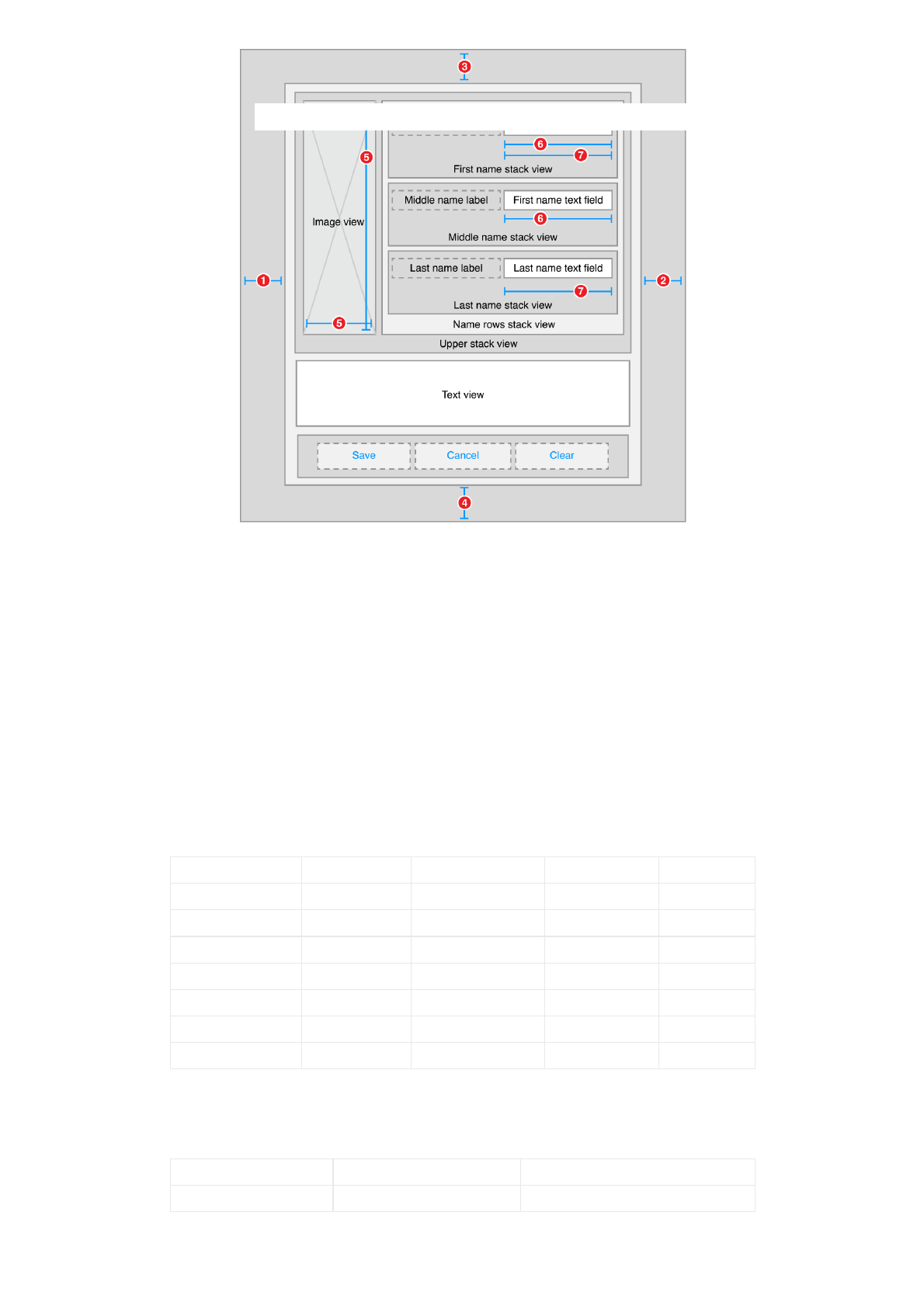
When working with nested stack views, it is easiest to work from the inside out. Begin by laying out the name
rows in Interface Builder. Position the label and text field in their correct relative positions, select them both,
and then click the Editor > Embed In > Stack View menu item. This creates a horizontal stack view for the row.
Next, position these rows horizontally, select them, and click the Editor > Embed In > Stack View menu item
again. This creates a horizontal stack of rows. Continue to build the interface as shown.
12.02.2018 Auto Layout Guide: Stack Views
https://developer.apple.com/library/content/documentation/UserExperience/Conceptual/AutolayoutPG/LayoutUsingStackViews.html#//apple_ref/doc/uid/TP400…
4/9
1. Root Stack View.Leading = Superview.LeadingMargin
2. Root Stack View.Trailing = Superview.TrailingMargin
3. Root Stack View.Top = Top Layout Guide.Bottom + 20.0
4. Bottom Layout Guide.Top = Root Stack View.Bottom + 20.0
5. Image View.Height = Image View.Width
6. First Name Text Field.Width = Middle Name Text Field.Width
7. First Name Text Field.Width = Last Name Text Field.Width
Attributes
Each stack has its own set of attributes. These define how the stack lays out its contents. In the Attribute
inspector, set the following attributes:
Stack Axis Alignment Distribution Spacing
First Name Horizontal First Baseline Fill 8
Middle Name Horizontal First Baseline Fill 8
Last Name Horizontal First Baseline Fill 8
Name Rows Vertical Fill Fill 8
Upper Horizontal Fill Fill 8
Button Horizontal First Baseline Fill Equally 8
Root Vertical Fill Fill 8
Additionally, give the text view a light gray background color. This makes it easier to see how the text view is
resized when the orientation changes.
View Attribute Value
Text View Background Light Gray Color
12.02.2018 Auto Layout Guide: Stack Views
https://developer.apple.com/library/content/documentation/UserExperience/Conceptual/AutolayoutPG/LayoutUsingStackViews.html#//apple_ref/doc/uid/TP400…
5/9
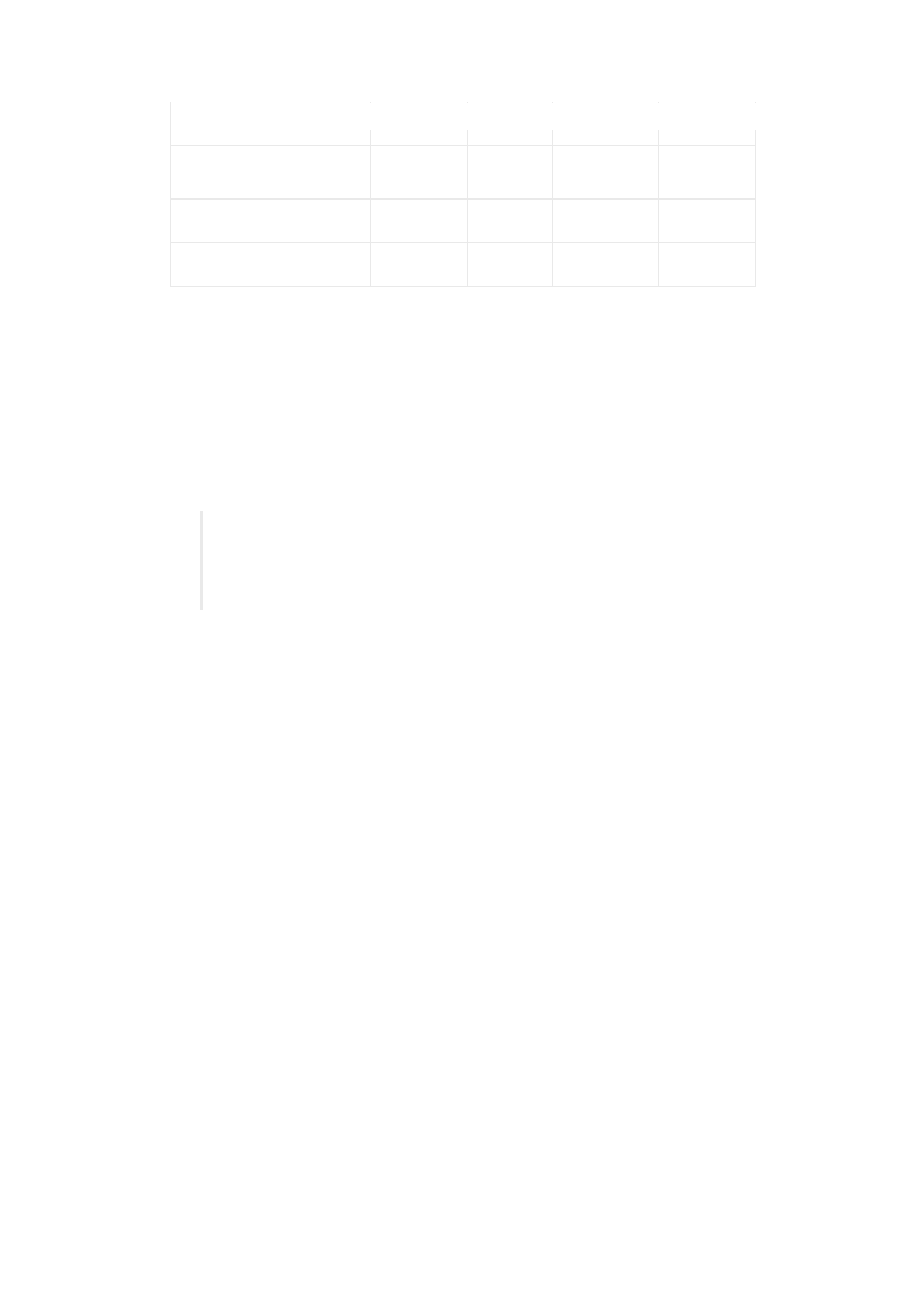
Finally, the CHCR priorities define which views should stretch to fill the available space. In the Size inspector,
set the following CHCR priorities:
Name Horizontal
hugging
Vertical
hugging
Horizontal
resistance
Vertical
resistance
Image View 250 250 48 48
Text View 250 249 250 250
First, Middle, and Last Name
Labels 251 251 750 750
First, Middle, and Last Name
Text Fields 48 250 749 750
Discussion
In this recipe, the stack views work together to manage most of the layout. However, they cannot—by
themselves—create all of the wanted behaviors. For example, the image should maintain its aspect ratio as
the image view is resized. Unfortunately, the technique used in Simple Stack View won’t work here. The layout
needs to fit close to both the trailing and bottom edge of the image, and using the Aspect Fit mode would add
extra white space to one of those dimensions. Fortunately, in this example, the image’s aspect ratio is always
square, so you can let the image completely fill the image view’s bounds, and constrain the image view to a
1:1 aspect ratio.
NOTE
In Interface Builder, an aspect ratio constraint is simply a constraint between a view’s height and its width.
Interface Builder can also show the multiplier for constraints in a number of ways. Typically, for aspect ratio
constraints, it shows them as a ratio. So, a View.Width = View.Height constraint may appear as a 1:1
aspect ratio.
Additionally, all the text fields should be the same width. Unfortunately, they are all in separate stack views, so
the stacks cannot manage this. Instead, you must explicitly add equal width constraints.
Like the simple stack view, you must also modify some of the CHCR priorities. These define how the views
shrink and grow as the superclass’s bounds change.
Vertically, you want the text view to expand to fill the space between the upper stack and the button stack.
Therefore, the text view’s vertical content hugging must be lower than any other vertical content hugging
priority.
Horizontally, the labels should appear at their intrinsic content size, while the text fields resize to fill any extra
space. The default CHCR priorities work well for the labels. Interface Builder already sets the content hugging
at 251, making it higher than the text fields; however, you still need to lower both the horizontal content
hugging and the horizontal compression resistance of the text fields.
The image view should shrink so that it is the same height as the stack containing the name rows. However,
stack views only loosely hug their content. This means that the image view’s vertical compression resistance
must be very low, so the image view shrinks instead of having the stack view expand. Additionally, the image
view’s aspect ratio constraint complicates the layout, because it allows the vertical and horizontal constraints
to interact. This means that the text fields’ horizontal content hugging must also be very low, or they will
prevent the image view from shrinking. In both cases, set the priority to a value of 48 or lower.
Dynamic Stack View
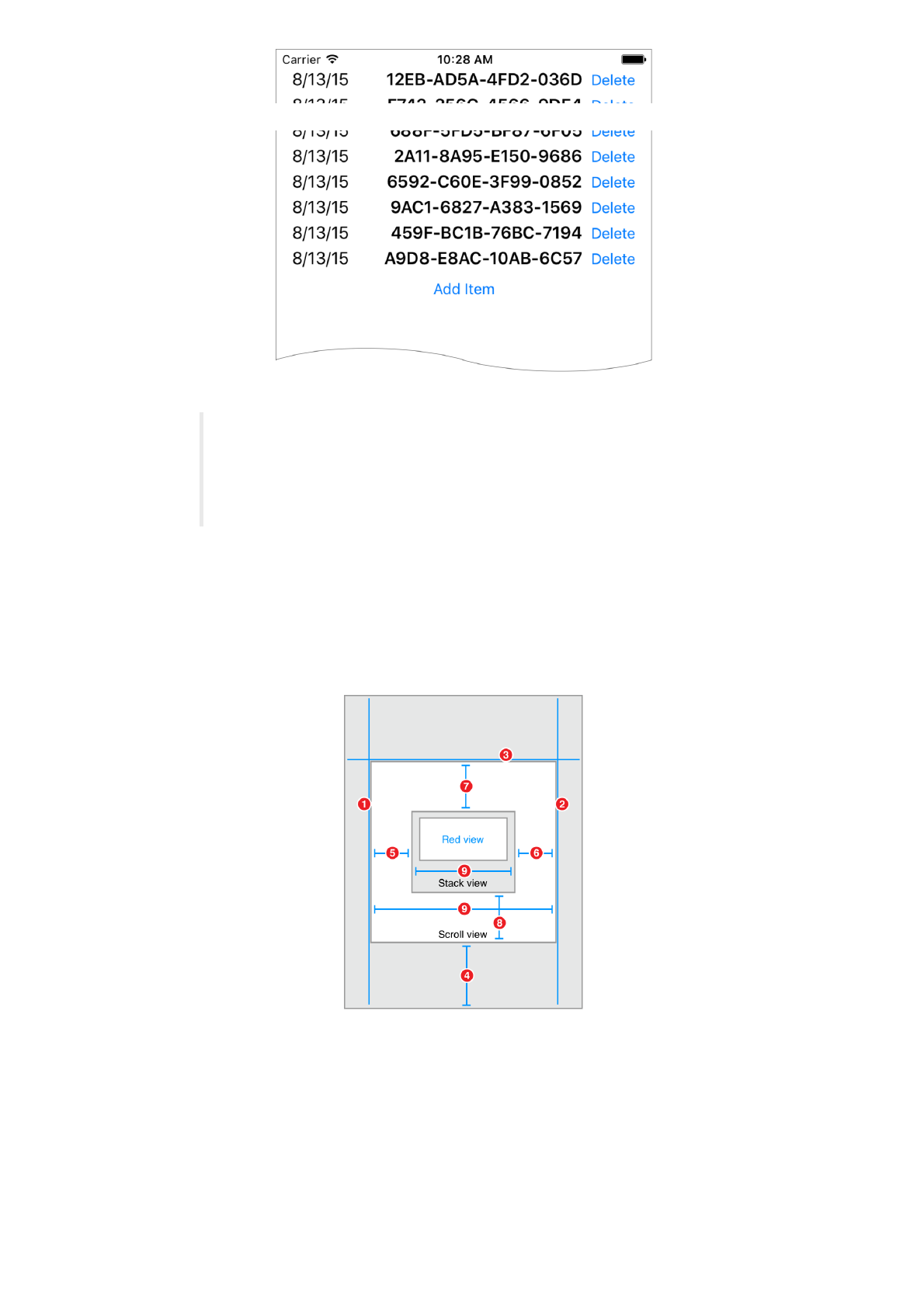
This recipe demonstrates dynamically adding and removing items from a stack at runtime. All changes to the
stack are animated. Additionally, the stack view is placed inside a scroll view, letting you scroll through the list
if it is too long to fit on the screen.
12.02.2018 Auto Layout Guide: Stack Views
https://developer.apple.com/library/content/documentation/UserExperience/Conceptual/AutolayoutPG/LayoutUsingStackViews.html#//apple_ref/doc/uid/TP400…
6/9
NOTE
This recipe is only intended to demonstrate working dynamically with stack views, and working with stack
views inside scroll views. In a real-world app, this recipe’s behaviors should be implemented using the
UITableView class instead. In general, you should not use dynamic stack views to simply implement a
scratch-built table view clone. Instead, use them to create dynamic user interfaces that you cannot easily
build using any other technology.
Views and Constraints
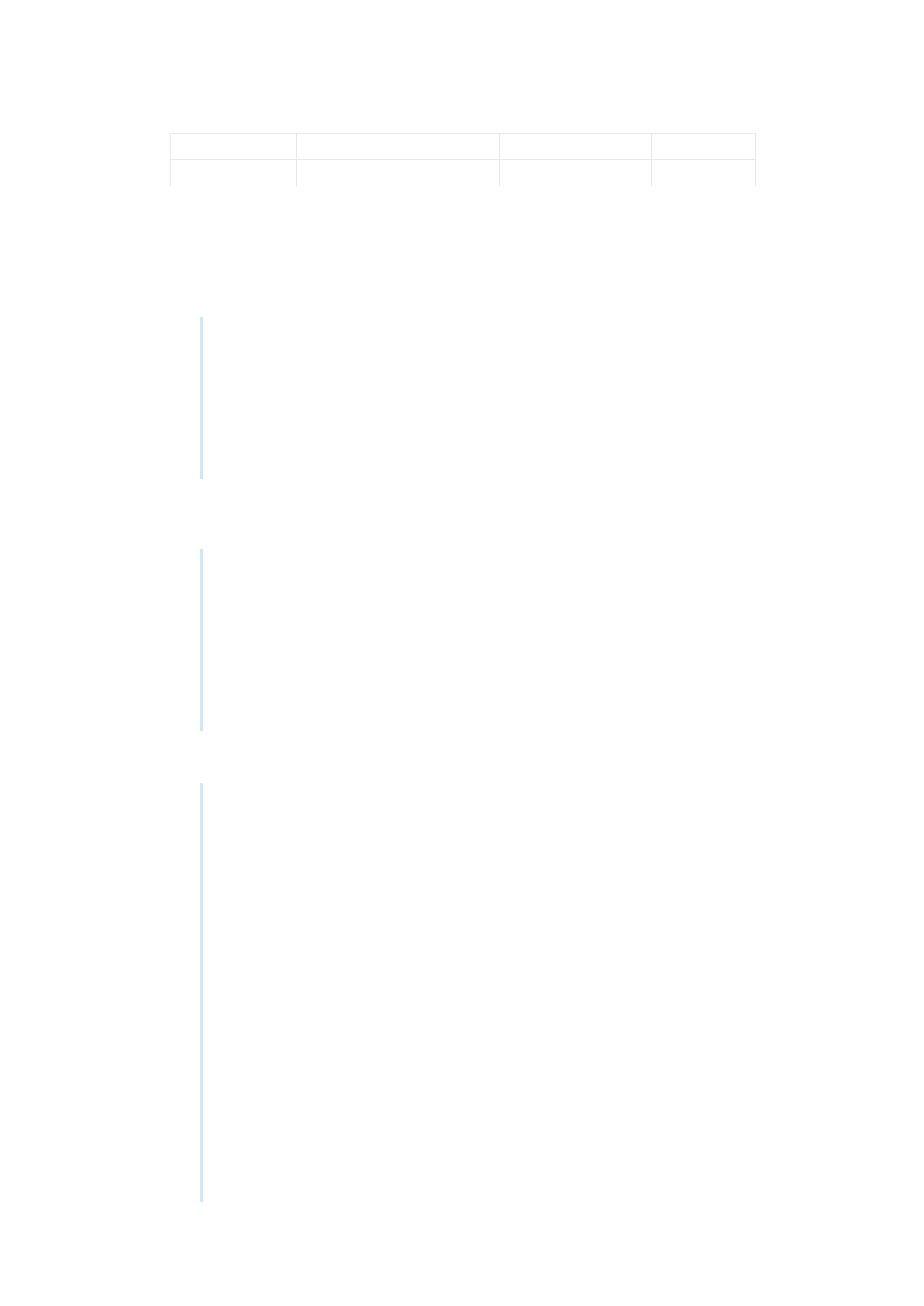
The initial user interface is quite simple. Place a scroll view on your scene, and size it so that it fills the scene.
Then, place a stack view inside the scroll view, and place the add item button inside the stack view. As soon
as everything’s in place, set the following constraints:
1. Scroll View.Leading = Superview.LeadingMargin
2. Scroll View.Trailing = Superview.TrailingMargin
3. Scroll View.Top = Superview.TopMargin
4. Bottom Layout Guide.Top = Scroll View.Bottom + 20.0
5. Stack View.Leading = Scroll View.Leading
6. Stack View.Trailing = Scroll View.Trailing
7. Stack View.Top = Scroll View.Top
8. Stack View.Bottom = Scroll View.Bottom
9. Stack View.Width = Scroll View.Width
12.02.2018 Auto Layout Guide: Stack Views
https://developer.apple.com/library/content/documentation/UserExperience/Conceptual/AutolayoutPG/LayoutUsingStackViews.html#//apple_ref/doc/uid/TP400…
7/9
Attributes
In the Attributes inspector, set the following stack view attributes:
Stack Axis Alignment Distribution Spacing
Stack View Vertical Fill Equal Spacing 0
Code
This recipe requires a bit of code to add items to and remove them from the stack view. Create a custom view
controller for your scene with outlets for both the scroll view and stack view.
1class DynamicStackViewController: UIViewController {
2
3 @IBOutlet weak private var scrollView: UIScrollView!
4 @IBOutlet weak private var stackView: UIStackView!
5
6 // Method implementations will go here...
7
8}
Next, override the viewDidLoad method to set the scroll view’s initial position. You want the scroll view’s
content to start below the status bar.
1override func viewDidLoad() {
2 super.viewDidLoad()
3
4 // setup scrollview
5 let insets = UIEdgeInsetsMake(20.0, 0.0, 0.0, 0.0)
6 scrollView.contentInset = insets
7 scrollView.scrollIndicatorInsets = insets
8
9}
Now, add an action method for the add item button.
1// MARK: Action Methods
2
3@IBAction func addEntry(sender: AnyObject) {
4
5 let stack = stackView
6 let index = stack.arrangedSubviews.count - 1
7 let addView = stack.arrangedSubviews[index]
8
9 let scroll = scrollView
10 let offset = CGPoint(x: scroll.contentOffset.x,
11 y: scroll.contentOffset.y + addView.frame.size.height)
12
13 let newView = createEntry()
14 newView.hidden = true
15 stack.insertArrangedSubview(newView, atIndex: index)
16
17 UIView.animateWithDuration(0.25) { () -> Void in
18 newView.hidden = false
19 scroll.contentOffset = offset
20 }
21 }
This method calculates a new offset for the scroll view, then creates a new entry view. The entry view is
hidden, and added to the stack. Hidden views do not affect the appearance or layout of a stack—so the

12.02.2018 Auto Layout Guide: Stack Views
https://developer.apple.com/library/content/documentation/UserExperience/Conceptual/AutolayoutPG/LayoutUsingStackViews.html#//apple_ref/doc/uid/TP400…
8/9
stack’s appearance remains unchanged. Then, in an animation block, the view is revealed and the scroll offset
is updated, animating the view’s appearance.
Add a similar method to delete entries; however, unlike the addEntry method, this method is not linked to any
controls in Interface Builder. Instead, the app will programmatically link each entry view to this method when
the view is created.
1func deleteStackView(sender: UIButton) {
2 if let view = sender.superview {
3 UIView.animateWithDuration(0.25, animations: { () -> Void in
4 view.hidden = true
5 }, completion: { (success) -> Void in
6 view.removeFromSuperview()
7 })
8 }
9}
This method hides the view in an animation block. After the animation completes, it removes the view from the
view hierarchy. This automatically removes the view from the stack’s list of arranged views.
Although the entry view could be any view, this example uses a stack view that contains a date label, a label
containing a random hex string, and a delete button.
1// MARK: - Private Methods
2private func createEntry() -> UIView {
3 let date = NSDateFormatter.localizedStringFromDate(NSDate(), dateStyle:
.ShortStyle, timeStyle: .NoStyle)
4 let number = "\(randomHexQuad())-\(randomHexQuad())-\(randomHexQuad())-\
(randomHexQuad())"
5
6 let stack = UIStackView()
7 stack.axis = .Horizontal
8 stack.alignment = .FirstBaseline
9 stack.distribution = .Fill
10 stack.spacing = 8
11
12 let dateLabel = UILabel()
13 dateLabel.text = date
14 dateLabel.font = UIFont.preferredFontForTextStyle(UIFontTextStyleBody)
15
16 let numberLabel = UILabel()
17 numberLabel.text = number
18 numberLabel.font = UIFont.preferredFontForTextStyle(UIFontTextStyleHeadline)
19
20 let deleteButton = UIButton(type: .RoundedRect)
21 deleteButton.setTitle("Delete", forState: .Normal)
22 deleteButton.addTarget(self, action: "deleteStackView:", forControlEvents:
.TouchUpInside)
23
24 stack.addArrangedSubview(dateLabel)
25 stack.addArrangedSubview(numberLabel)
26 stack.addArrangedSubview(deleteButton)
27
28 return stack
29 }
30
31 private func randomHexQuad() -> String {
32 return NSString(format: "%X%X%X%X",
33 arc4random() % 16,
34 arc4random() % 16,
35 arc4random() % 16,
36 arc4random() % 16
37 ) as String

12.02.2018 Auto Layout Guide: Stack Views
https://developer.apple.com/library/content/documentation/UserExperience/Conceptual/AutolayoutPG/LayoutUsingStackViews.html#//apple_ref/doc/uid/TP400…
9/9
38 }
39 }
Discussion
As this recipe demonstrates, views can be added or removed from stack views during runtime. The stack’s
layout automatically adjusts to compensate for changes to its array of arranged views. There are, however, a
couple of important points worth remembering:
This recipe also introduces the idea of using Auto Layout with scroll views. Here, the constraints between the
stack and the scroll view set the size of the scroll view’s content area. An equal width constraint explicitly sets
the stack (and thus the content size) to fill the scroll view horizontally. Vertically, the content size is based on
the stack’s fitting size. The stack view grows longer as the user adds more entries. Scrolling is automatically
enabled as soon as there is too much content to fit on the screen.
For more information, see Working with Scroll Views.
Hidden views are still inside stack’s array of arranged views. However, they are not displayed and do not
affect the layout of the other arranged views.
•
Adding a view to the stack’s array of arranged views automatically adds it to the view hierarchy.
•
Removing a view from the stack’s array of arranged views does not automatically remove it from the
view hierarchy; however, removing the view from the view hierarchy does removes it from the arranged
views array.
•
In iOS, the view’s hidden property is normally not animatable. However, this property becomes
animatable for views as soon as they are placed in a stack’s arranged views array. The actual animation
is managed by the stack, not the view. Use the hidden property to animate adding views to or removing
them from the stack.
•
Copyright © 2018 Apple Inc. All rights reserved. Terms of Use | Privacy Policy | Updated: 2016-03-21
