ICEpdf Developer’s Guide Version 2.0 Developers
DevelopersGuide
DevelopersGuide
DevelopersGuide
DevelopersGuide
DevelopersGuide
User Manual: Pdf
Open the PDF directly: View PDF  .
.
Page Count: 54

Developer’s Guide
Version 3.0
Copyright
Copyright 2005-2009. ICEsoft Technologies, Inc. All rights reserved.
The content in this guide is protected under copyright law even if it is not distributed with software that includes an end user license
agreement.
The content of this guide is furnished for informational use only, is subject to change without notice, and should not be construed as
a commitment by ICEsoft Technologies, Inc.
ICEsoft Technologies, Inc. assumes no responsibility or liability for any errors or inaccuracies that may appear in the informational
content contained in this guide.
ICEpdf is a registered trademark of ICEsoft Technologies, Inc.
Sun, Sun Microsystems, the Sun logo, Solaris and Java are trademarks or registered trademarks of Sun Microsystems, Inc. in the United
States and in other countries.
All other trademarks mentioned herein are the property of their respective owners.
ICEsoft Technologies, Inc.
Suite 200, 1717 10th Street NW
Calgary, Alberta, Canada
T2M 4S2
Toll Free: 1-877-263-3822 (USA and Canada)
Telephone: 1-403-663-3322
Fax:1-403-663-3320
For additional information, please visit the ICEpdf website: http://www.icepdf.org
ICEpdf Developer’s Guide v3.0
April 2009

iii
ICEpdf Developer’s Guide v3.0
Contents
Chapter 1 Introduction to ICEpdf . . . . . . . . . . . . . . . . . . . . . . . . . . 1
Using this Guide . . . . . . . . . . . . . . . . . . . . . . . . . . . . . . . . .1
Product Contents . . . . . . . . . . . . . . . . . . . . . . . . . . . . . . . .2
Render Core (core) . . . . . . . . . . . . . . . . . . . . . . . . . . .2
Documentation (docs) . . . . . . . . . . . . . . . . . . . . . . . . .3
Examples (examples) . . . . . . . . . . . . . . . . . . . . . . . . . .3
Libraries (lib) . . . . . . . . . . . . . . . . . . . . . . . . . . . . . . . .3
Viewer Reference Implementation (viewer) . . . . . . . . . .4
Supported Standards and Platforms . . . . . . . . . . . . . . . . . . .4
PDF Features . . . . . . . . . . . . . . . . . . . . . . . . . . . . . . .4
Supported Platforms . . . . . . . . . . . . . . . . . . . . . . . . . .5
Chapter 2 Configuring ICEpdf . . . . . . . . . . . . . . . . . . . . . . . . . . . . . 6
Prerequisites . . . . . . . . . . . . . . . . . . . . . . . . . . . . . . . . . . .6
Java 2 Platform, Standard Edition . . . . . . . . . . . . . . . . .6
Ant . . . . . . . . . . . . . . . . . . . . . . . . . . . . . . . . . . . . . . .7
Building ICEpdf from Source . . . . . . . . . . . . . . . . . . . . . . . .7
Optional Components . . . . . . . . . . . . . . . . . . . . . . . . . . . . .8
Acrobat Standard Security Support . . . . . . . . . . . . . . . .8
Optimized Font Substitution . . . . . . . . . . . . . . . . . . . . .8
Enabling Embedded Font Support . . . . . . . . . . . . . . . . .9
Batik Library for SVG Support . . . . . . . . . . . . . . . . . . . 10
System Properties . . . . . . . . . . . . . . . . . . . . . . . . . . . . . . . 10
Chapter 3 Using ICEpdf . . . . . . . . . . . . . . . . . . . . . . . . . . . . . . . . . 15
Common Usage Scenarios . . . . . . . . . . . . . . . . . . . . . . . . . 15
Converting PDF Page Renderings . . . . . . . . . . . . . . . . 15
Extracting PDF Document Content . . . . . . . . . . . . . . . . 18
Using the PDF Viewer Component . . . . . . . . . . . . . . . . 21
Using the PDF Viewer Application . . . . . . . . . . . . . . . . 22
Advanced Topics . . . . . . . . . . . . . . . . . . . . . . . . . . . . . . . . 23
Customizing the SwingViewBuilder . . . . . . . . . . . . . . . 23
Implementing a SecurityCallback . . . . . . . . . . . . . . . . . 25
Implementing an AnnotationCallback . . . . . . . . . . . . . . 25

Contents (continued)
ICEpdf Developer’s Guide v3.0 iv
Printing . . . . . . . . . . . . . . . . . . . . . . . . . . . . . . . . . . 25
Font Management . . . . . . . . . . . . . . . . . . . . . . . . . . . 26
Memory Management and Caching . . . . . . . . . . . . . . . 27
Internationalization . . . . . . . . . . . . . . . . . . . . . . . . . . 27
Chapter 4 Reference Implementations and Examples. . . . . . . . . 28
Reference Implementations . . . . . . . . . . . . . . . . . . . . . . . . 28
ICEpdf Viewer Application . . . . . . . . . . . . . . . . . . . . . . 28
Examples . . . . . . . . . . . . . . . . . . . . . . . . . . . . . . . . . . . . . 38
Annotation Example . . . . . . . . . . . . . . . . . . . . . . . . . . 38
Applet Example . . . . . . . . . . . . . . . . . . . . . . . . . . . . . 39
Content Extraction Examples . . . . . . . . . . . . . . . . . . . 39
ICEfaces Example . . . . . . . . . . . . . . . . . . . . . . . . . . . 39
Page Capture Example . . . . . . . . . . . . . . . . . . . . . . . . 39
Print Services Example . . . . . . . . . . . . . . . . . . . . . . . . 40
Viewer Component Example . . . . . . . . . . . . . . . . . . . . 40
Appendix A Supported PDF Features . . . . . . . . . . . . . . . . . . . . . . . . . . .41
Index . . . . . . . . . . . . . . . . . . . . . . . . . . . . . . . . . . . . . . . 48

ICEpdf Developer’s Guide v3.0 1
Chapter 1 Introduction to ICEpdf
ICEpdf® is a pure Java PDF document rendering and viewing solution. ICEpdf can parse and render
documents based on the latest PDF standards (Portable Document Format v1.6/Adobe® Acrobat® 7)
with superior rendering accuracy and performance.
ICEpdf is designed to support PDF document viewing within Java applications in a manner not possible
with the native Acrobat Reader® application. Benefits include:
• Seamless integration with Java client applications, allowing complete control over the configuration,
exposed functionality and user interface.
• A lightweight static and dynamic memory footprint.
• Easy deployment to any Java platform without the hassles of Java-to-native integration issues.
ICEpdf supports:
•PDF Viewing: ICEpdf can easily be integrated into any Java client application to provide PDF
document viewing and navigation in a manner not possible with the Acrobat Reader application.
ICEpdf includes an embeddable PDF document viewer component for easy integration within Java
client applications. ICEpdf can also be used standalone as an industrial strength PDF Viewer
application.
•Multipage view support: continuous and side-by-side view types.
•PDF Content Conversion: Convert rendered PDF pages to other formats, such as images, SVG
documents, etc.
•PDF Content Extraction: Extract PDF document meta-data, text, and images.
•PDF Link Annotations: Developers can optionally configure ICEpdf to support interactive link
annotations via a mouse. An annotation callback gives developers flexibility in which types of link
annotation actions they wish to support.
Using this Guide
This guide has the following sections:
Chapter 1: Introduction to ICEpdf lists the ICEpdf features, PDF document standards, and
platforms on which ICEpdf is supported.
Chapter 2: Configuring ICEpdf provides information on how to configure ICEpdf to ensure
optimal performance in your application and deployment
environments.
Introduction to ICEpdf
ICEpdf Developer’s Guide v3.0 2
Chapter 3: Using ICEpdf describes how to use ICEpdf in the most common usage scenarios.
Chapter 4: Reference Implementations and Examples describes the reference
implementations and examples included with ICEpdf.
Appendix A: Supported PDF Features lists the PDF Document Specification features supported
by ICEpdf.
Product Contents
If you are reading this document, you may have already downloaded and installed ICEpdf. If you
haven’t, you can get the latest version of ICEpdf from:
http://www.icepdf.org
ICEpdf is available in both a binary and source-code distribution. With either distribution, begin by
unzipping ICEpdf to your preferred location.
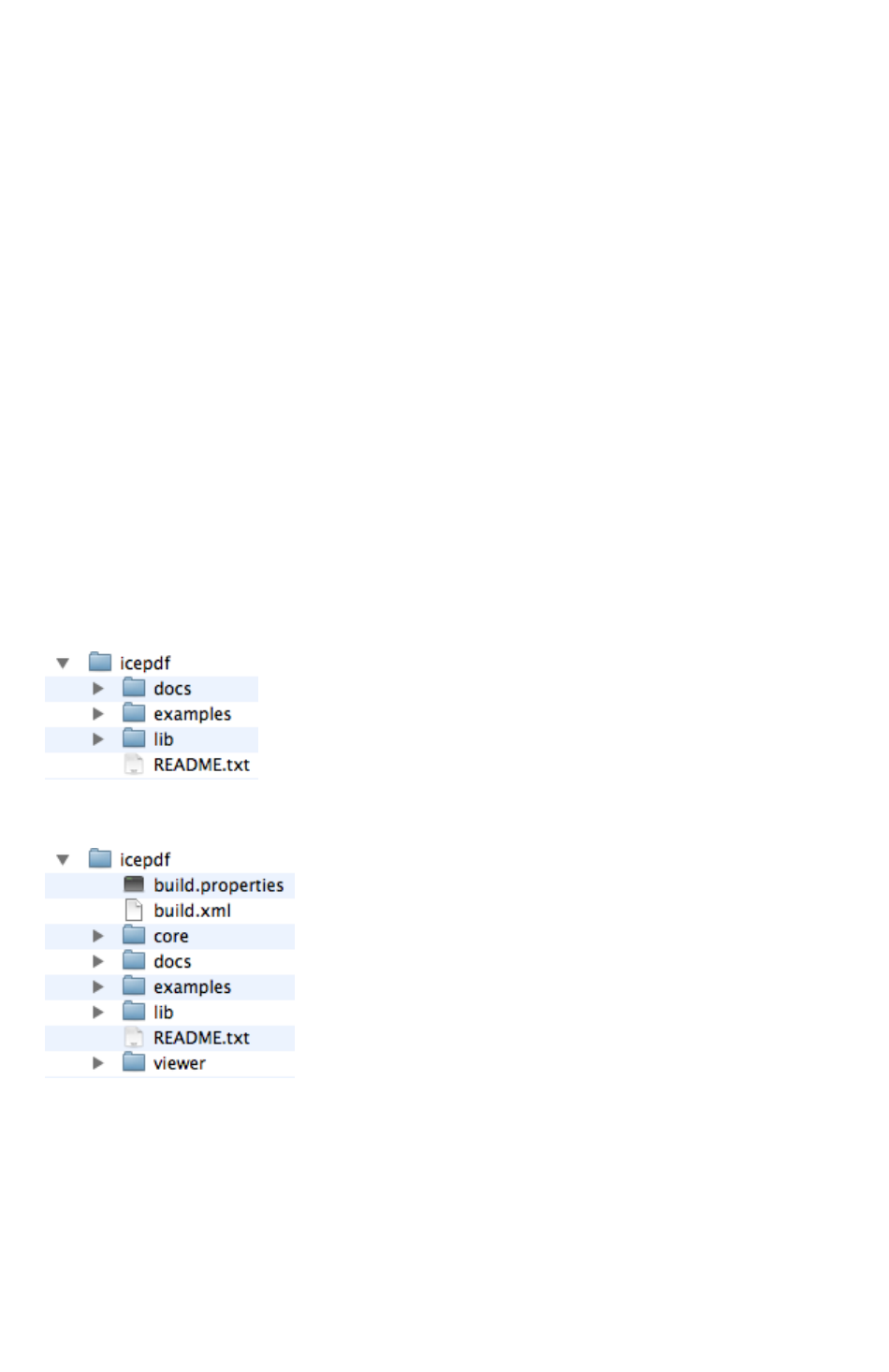
If you downloaded the binary distribution, the resulting directory structure should look similar to the
structure shown below:
If you downloaded the source distribution, these additional source-code directories will also be present:
Render Core (core)
This directory contains the ICEpdf rendering core source files and Ant build script to build the source.
Introduction to ICEpdf
ICEpdf Developer’s Guide v3.0 3
Documentation (docs)
This directory contains the documentation files, including the following:
•ReleaseNotes.html describes the new features in this release and known issues.
•DevelopersGuide.pdf describes how to use ICEpdf and all of its features.
•Licenses folder contains licenses associated with ICEpdf and dependent libraries.
•The api subdirectory contains the Java API documentation in HTML format. To launch the API
guide, open docs/api/index.html.
Examples (examples)
This directory contains examples of common usage scenarios. Further information on these examples
can be found in Common Usage Scenarios,
p. 15
Libraries (lib)
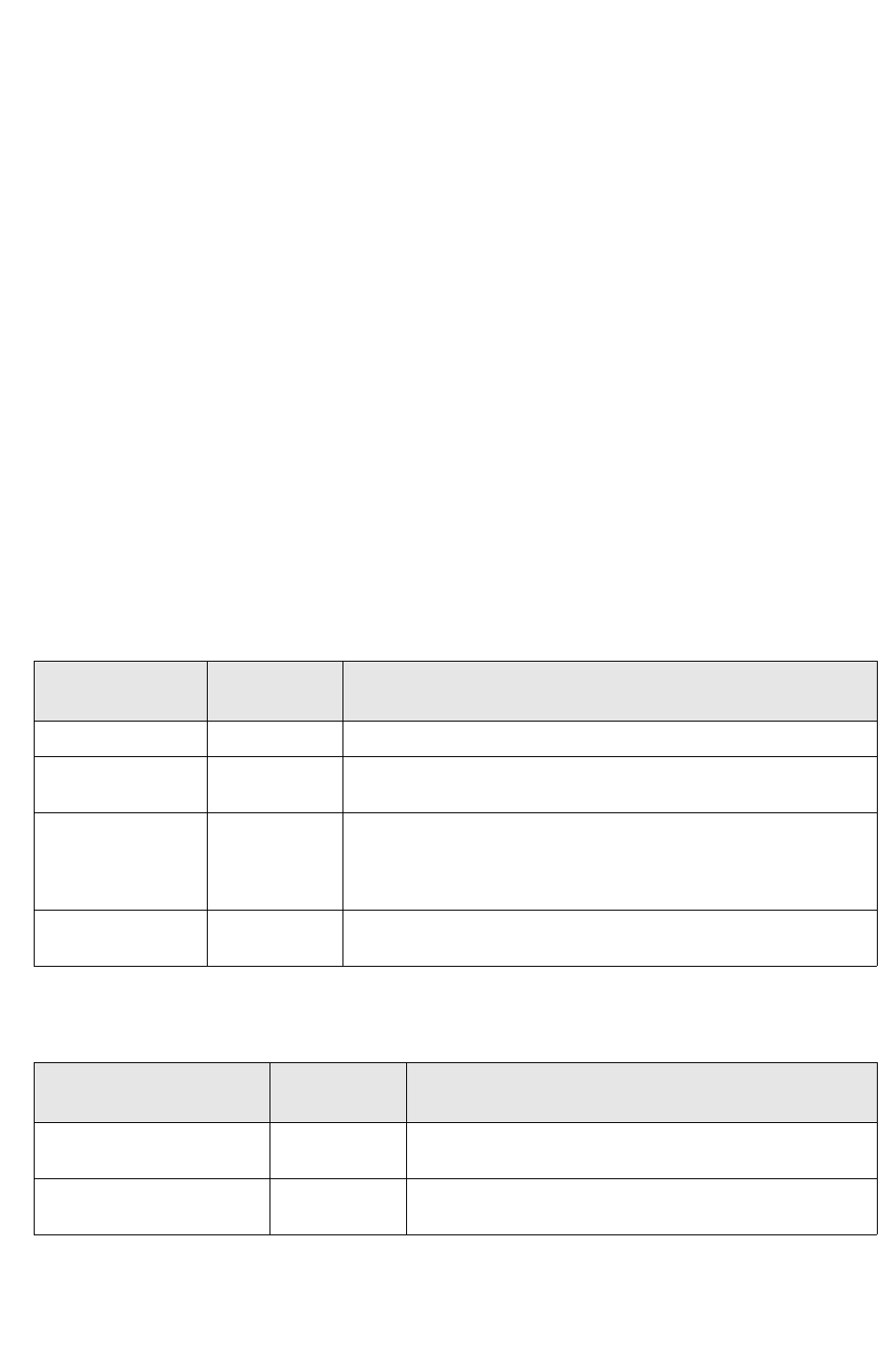
This directory contains the Java archive (JAR) files which are needed to compile and run ICEpdf.
ICEpdf compilation and runtime dependencies.
Version and license information is described in versions-licenses.html
Jar File Approximate
Size Description
icepdf-core.jar 405 KB Contains the core ICEpdf product classes.
icepdf-pro.jar*125 KB Professional font library that allows for the reading of embedded font
files in PDF documents
icepdf-pro-intl.jar* 2,949 KB Optional JAR file that contains character collection for predefined
CMaps for Chinese, Chinese (Simplified and Traditional), Japanese
and Korean. Must be added to the classpath to fully support these
languages.
icepdf-viewer.jar 241 KB This executable JAR file contains the standalone ICEpdf Viewer
reference implementation.
* Denotes JAR files that are only available in ICEpdf Pro.
Jar File Approximate
Size Description
batik-*.jar 1,100 KB Optional Batik SVG libraries used for saving PDF pages to
SVG format.
bcprov-jdk15.jar 1,540 KB Optional Bouncy Castle Java cryptography library uses for
opening Encrypted PDF documents.

Introduction to ICEpdf
ICEpdf Developer’s Guide v3.0 4
Viewer Reference Implementation (viewer)
This directory contains the source code for the reference implementation and an Ant build script to build
the source.
Supported Standards and Platforms
This section describes the PDF features and deployment platforms supported by ICEpdf:
•PDF features
• Supported platforms
PDF Features
ICEpdf supports the following PDF features:
• Font support: Embedded font support for Type 1 Fonts (Standard and Multiple Master), TrueType,
Font Subsets, Type3, CMaps (predefined and Embedded), Type 0 CID, Type 2 CID, Type 0,
Type 1 (CFF), OpenType (True Type Outlines) and OpenType (CFF Type outlines). Font substitution
is available for documents that do not use embedded fonts.
• Cross-Reference Table and Cross-Reference Stream support for accelerated document loading.
• Multiple page views: single page, facing page, single page column, and facing page columns.
• Rendering of AcroForm data, push buttons, check boxes, radio buttons, text fields and choice fields.
• Rendering of common Annotation types: markup and text markup; text, free text, and line; square;
circle polygon; and polyline types.
• Interactive Link annotation via the following actions types: go to actions, go to resource actions, go
to launch actions and URI actions.
• Converting rendered PDF pages to images, SVG documents, etc.
• Extracting PDF document meta-data, text, and images.
•PDF document viewing.
• Page navigation.
• Page magnification.
• Page rotation.
•Printing.
• Bookmarks (table of contents entries that represent the chapters and sections in a document).
• Search document text.
• Acrobat standard security (40-bit and 128-bit RC4 encryption) for opening password-controlled files
(for more information, see Acrobat Standard Security Support,
p. 8
).
• ICEbrowser PDF Pilot: Extend ICEbrowser® to support PDF document rendering using the included
ICEbrowser PDF Pilot (Plugin) component.

Introduction to ICEpdf
ICEpdf Developer’s Guide v3.0 5
ICEpdf supports a subset of the
PDF Reference, 5th Edition, Version 1.6
from Adobe Systems
Incorporated, available at:
http://www.adobe.com/devnet/pdf/pdf_reference.html
For a detailed list of supported PDF features, see Supported PDF Features,
p. 41
.
Supported Platforms
ICEpdf requires a compliant Java Virtual Machine (JVM) that supports Java 2D and JFC (Swing).
Typically, any J2SE platform, version 1.5.0 or greater, meets these requirements. The officially
supported platform and JVM combinations are:
Windows
• Sun JDK 5.0
• Sun JDK 6.0
• Sun JDK 7.0 EA
Linux
• Sun JDK 5.0
• Sun JDK 6.0
• Sun JDK 7.0 EA
Solaris
• Sun JDK 5.0
• Sun JDK 6.0
• Sun JDK 7.0 EA
Mac OS X
• Apple JDK 5.0
• Apple JDK 6.0
Visit http://www.icepdf.org for more information.

ICEpdf Developer’s Guide v3.0 6
Chapter 2 Configuring ICEpdf
This chapter contains instructions to help you get up and running quickly with ICEpdf. We start by
outlining the prerequisites for a standard configuration using a Java Platform, Standard Edition, and
Apache Ant to help you build the product from source.
Next we outline runtime configuration settings to best meet the needs of your application requirements
and deployment environments:
• Configuration of optional modules at runtime, such as support for the Acrobat Standard Security,
optimized font substitution, embedded font support, Java Advanced Imaging (JAI) library and SVG
support.
• Numerous configuration properties may be adjusted using pre-defined system properties to alter
the behavior of ICEpdf for your application, such as cache sizes and behaviors, render quality,
settings, etc.
If you would like more information on the reference implementation and example applications, refer to
Chapter 4, Reference Implementations and Examples,
p. 28
.
Prerequisites
ICEpdf is a standard Java 2 application, and as such, the only prerequisite to working with ICEpdf is
that you must be familiar with Java 2 development. For more information on the Java Platform,
Standard Edition (J2SE), refer to http://java.sun.com/javase/index.jsp.
To run the ICEpdf example and reference applications, you will need to download and install the
following:
• Java 2 Platform, Standard Edition
•Apache Ant
The following sections provide detailed instructions for downloading the software to set up an
environment where you can run the ICEpdf example and reference applications.
Java 2 Platform, Standard Edition
To run ICEpdf, ICEpdf reference implementations or examples, you will need to install a version of the
Java Platform JDK, Standard Edition, version 1.5 or higher.

Configuring ICEpdf
ICEpdf Developer’s Guide v3.0 7
If you already have Java installed on your system, verify your version by typing the following on the
command line:
Java -version
To upgrade or install the latest release of the J2SE, visit the Sun web site:
http://java.sun.com/javase/downloads/
Installers and instructions are provided for the various systems that Sun supports. The reference and
example application can run on a any version of Windows, Unix, Linux, and Mac OSX capable of running
J2SE version 1.5 or higher.
Ant
The ICEpdf core, reference applications and examples rely on Ant to build the source code. You will
need Ant version 1.6.3 or higher for the build files provided in this ICEpdf release.
If you already have a version of Ant installed, you can verify that you have a recommended version by
typing the following on the command line:
ant -version
To upgrade your current version or install a new version of Ant, visit the following location:
http://ant.apache.org/
If you are not familiar with Ant, detailed instructions for downloading and installing Ant for your
environment are available from this location:
http://ant.apache.org/manual/index.html
Building ICEpdf from Source
ICEpdf is bundled with a PDF viewer reference implementation. If you downloaded the binary
distribution of ICEpdf, the viewer application is available as prebuilt JAR file found in
[install_dir]/icepdf/lib/icepdf-viewer.jar.
If you have downloaded the source code distribution of ICEpdf, it is necessary to build the ICEpdf core
and viewer source code using the provided build scripts. The Ant help command can be used to see a
list of available build targets. To build the ICEpdf core and viewer JARs simply execute the command
ant in the [install_dir]/icepdf/ directory. This command will build and copy the icepdf-core.jar
and icepdf-viewer.jar to the [install_dir]/icepdf/lib/ directory.

Configuring ICEpdf
ICEpdf Developer’s Guide v3.0 8
Optional Components
This section includes details for the following optionally supported components:
• Acrobat Standard Security
• Optimized Font Substitution
• Enabling Embedded Font Support
• Java Advanced Imaging (JAI) Library for Enhanced Image Support
•Batik Library for SVG
Acrobat Standard Security Support
Acrobat standard security (40-bit and 128-bit RC4 encryption) includes password protection and setting
change and display permissions, such as printing and content extraction, for a PDF file.
ICEsoft recommends using the Bouncy Castle security provider, which is all ready included in the lib
folder of the bundle. The following jar must be on the class path:
• bcprov-jdk15.jar
If you use a different JCE 1.2.1-compliant security provider, you must set the system property
org.icepdf.core.security.jceProvider appropriately. See System Properties,
p. 10
for details.
Note: You must also code your application to respect the security settings. For example, you must
disable printing if a PDF file is set with “No Printing” permissions. The ICEpdf Viewer reference
implementation has been coded to respect security permissions, and you can use its source code
as a model for your own application.
Optimized Font Substitution
Some PDF documents do not embed the fonts required to render the document in the document itself.
For ICEpdf to display these documents accurately, it must substitute an available system font for any
non-embedded fonts used in the document. The following optional but recommended configurations
can be used to improve ICEpdf's ability to find and select a system font that best matches the non-
embedded font specified by the PDF document.
Supporting the 14 Standard Adobe Fonts
To enable the best possible font substitution for the 14 standard Adobe fonts, ICEsoft recommends that
you download and install the fonts provided by Ghostscript, which are freely available at:
http://prdownloads.sourceforge.net/gs-fonts/ghostscript-fonts-std-8.11.tar.gz
http://prdownloads.sourceforge.net/gs-fonts/ghostscript-fonts-other-6.0.tar.gz
The steps to install the fonts are platform-specific.

Configuring ICEpdf
ICEpdf Developer’s Guide v3.0 9
Windows
1. Unzip the download file and extract the .pfm files to a temporary directory.
2. Launch Fonts from the Control Panel.
3. Select File > Install New Font.
4. Navigate to the temporary directory, select the fonts, and click OK.
Other Platforms
For Linux, Solaris, or Mac OS X platforms, see your system documentation for information on installing
the fonts.
Enabling Embedded Font Support
ICEpdf Open Source
ICEpdf Open Source uses java.awt.Font when reading font files for substitution. ICEpdf Open Source
by default disables java.awt.Font for reading embedded font files because a malformed font file can
crash the JVM. The system property
org.icepdf.core.awtFontLoading=true
can be set to enable
java.awt.Font embedded font loading.
ICEpdf Pro
ICEpdf Pro allows for unprecedented font reproduction and rendering speed. ICEpdf Pro is a commercial
product and requires icepdf-pro.jar and icepdf-pro-intl.jar libraries are on the application class path.The
following embedded font types are supported:
If your application requires support for Asian languages such as Chinese (Simplified and Traditional),
Japanese, Korean, you should add the option JAR icepdf-pro-intl.jar to your application classpath to
ensure maximum rendering quality and accuracy of the respective language’s characters.
For more information on ICEpdf Pro, visit http://www.icepdf.org.
Java Advanced Imaging (JAI) Library for Enhanced Image Support
If you want to view CCITTFax Group 3 1-D and Group 3 2-D images in ICEpdf, you require the JAI library,
which is available at https://jai.dev.java.net/
JAI also provides more robust image handling of JPEG (DCTDecode) images, which the Java SDK library
cannot always decode correctly.
•Type 0 •Type 1
•Type 3 •Type3
•TrueType •OpenType

Configuring ICEpdf
ICEpdf Developer’s Guide v3.0 10
JAI is available for Windows, Linux, Mac OS X, and Solaris, and takes advantage of native acceleration
when available. However, you can use the JAI libraries on any platform if you add the following JAR files
to your classpath:
jai_codec.jar
jai_core.jar
Batik Library for SVG Support
If you want to export PDF files as SVG files in the ICEpdf Viewer, you need the Batik SVG library, which
is all ready included in the libs folder of the bundle. The following jars must be on the class path:
• batik-awt-util.jar
• batik-dom.jar
• batik-svg-dom.jar
• batik-svggen.jar
• batik-util.jar
•batik-xml.jar
System Properties
Many system properties are available for configuring ICEpdf. They can be set programmatically or on
the command line. Programmatically, the syntax is as follows:
System.getProperties().put("org.icepdf.core.minMemory", "3M");
On the command line, the syntax is as follows:
java -Dorg.icepdf.core.minMemory=3M ...
The Dynamic column indicates whether changing the value of the property at runtime has any effect.
The possible values are:
• No – has no effect at runtime
• Yes – always has effect at runtime
•new <
class
> – a new instance of the class must be created to see the effect at runtime
• N/A – not applicable

Configuring ICEpdf
ICEpdf Developer’s Guide v3.0 11
Property Type Description Dynamic
General
org.icepdf.core.security.
jceProvider
string Specifies the classname of the security
provider to use for encrypted documents.
The provider must be Sun Java JCE 1.2.1
compliant.
Default value is
org.bouncycastle.jce.provider.B
ouncyCastleProvider.
No
Memory Management
org.icepdf.core.minMemory string Sets the amount of Java heap memory to
reserve as a safety buffer to prevent
OutOfMemory Exceptions from occurring. If
the amount of used Java heap memory is
greater than (Max Memory -
org.icepdf.core.minMemory), the memory
manager will flush pages in the page cache
until the required amount of Java heap
memory is available.
The default is 5MB.
No
org.icepdf.core.maxSize integer Specifies the maximum number of pages
that should be cached at one time. The
default is 0, which results in as many pages
as will fit in the available memory being
cached. A value of 1 effectively disables the
page cache.
No
org.icepdf.core.purgeSize integer Sets the number of pages that are purged
from the page cache each time the memory
manager attempts to free memory.
Default value is 5 pages.
No
Caching
org.icepdf.core.imagecache.enabled boolean If true, images are cached to the hard drive.
The default value is true.
No
Rendering Quality
Note: For the following group of properties, target can be set for both print and screen. For dynamic changes to
these System Properties to take effect, you must call org.icepdf.core.util.GraphicsRenderingHints.reset().
org.icepdf.core.awtFontLoading boolean When enabled the java.awt.Font will be
used to try and load embedded font files.
Default value is false. Has no effect on
ICEpdf Pro.
No
org.icepdf.core.scaleImages boolean Scales images with a pixel width greater
than 1000 to improve memory usage and
image clarity. Default value is true.
No

Configuring ICEpdf
ICEpdf Developer’s Guide v3.0 12
org.icepdf.core.target.
alphaInterpolation
string Sets the JVM's alpha interpolation
rendering hint.
The default value for print is
VALUE_INTERPOLATION_QUALITY. The
default value for screen is
VALUE_INTERPOLATION_QUALITY.
The other supported value is
VALUE_ALPHA_INTERPOLATION_
DEFAULT
Yes
org.icepdf.core.target.
antiAliasing
string Sets the JVM’s antialiasing of all images
and text.
The default value for print and screen is
VALUE_ANTIALIAS_ON.
Other supported values are
VALUE_ANTIALIAS_DEFAULT and
VALUE_ANTIALIAS_OFF.
Yes
org.icepdf.core.target.background string Sets whether a Page will draw a
background fill color before drawing the
Page contents. According to the PDF
standard, a white background should be
drawn. When printing on white paper, for
some printers with poor drivers, it is best to
not draw a background at all. The default
value is
VALUE_DRAW_WHITE_BACKGROUND.
The other supported value is
VALUE_DRAW_NO_BACKGROUND.
Yes
org.icepdf.core.target.colorRender string Sets the JVM's color render rendering hint.
The default value for print and screen is
VALUE_COLOR_RENDER_QUALITY.
The other supported values are
VALUE_COLOR_RENDER_DEFAULT.
Yes
org.icepdf.core.target.dither string Sets the JVM's dither rendering hint.
The default value for print and screen is
VALUE_DITHER_ENABLE.
Other supported values are
VALUE_DITHER_DEFAULT and
VALUE_DITHER_DISABLE.
Yes
org.icepdf.core.target.
fractionalmetrics
string Sets the JVM's fractional metrics rendering
hint.
The default value for print and screen is
VALUE_FRACTIONALMETRICS_ON.
Other supported values are
VALUE_FRACTIONALMETRICS_DEFAULT
and VALUE_FRACTIONALMETRICS_OFF.
Yes
Property Type Description Dynamic

Configuring ICEpdf
ICEpdf Developer’s Guide v3.0 13
org.icepdf.core.target.
interpolation
string Sets the JVM's interpolation rendering hint.
The default value for print and screen is
VALUE_INTERPOLATION_BICUBIC.
The other supported values are
VALUE_INTERPOLATION_BILINEAR and
VALUE_INTERPOLATION_NEAREST_
NEIGHBOR.
Yes
org.icepdf.core.target.render string Sets the JVM's render rendering hint.
The default value for print and screen is
VALUE_RENDER_QUALITY.
The other supported values are
VALUE_RENDER_DEFAULT and
VALUE_RENDER_SPEED
Yes
org.icepdf.core.target.stroke string Sets the JVM's stroke rendering hint.
The default value for print and screen is
VALUE_STROKE_NORMALIZE.
The other supported values are
VALUE_STROKE_PURE and
VALUE_STROKE_DEFAULT.
Yes
org.icepdf.core.target.
textAntiAliasing
string Sets the Font rendering engine’s
antialiasing rendering hint.
The default value is true. The other
supported value is false.
Yes
org.icepdf.core.scaleImages boolean If true, large images are scaled dynamically
to a reduced resolution appropriate for
online display or printing. The dynamic
scaling does its best to preserve image
quality and minimize memory
requirements. The default value is true.
No
Page Views
org.icepdf.core.views.buffersize.
vertical
string Sets the vertical ratio that the current
viewport height will be multiplied by to
create a screen buffer. The default value is
1.0. Using a larger ratio will increase the
amount of memory needed by the page
view.
No
org.icepdf.core.views.buffersize.
horizontal
string Sets the horizontal ratio that the current
viewport width will be multiplied by to create
a screen buffer. The default value is 1.0.
Using a larger ratio will increase the
amount of memory needed by the page
view.
No
Property Type Description Dynamic

Configuring ICEpdf
ICEpdf Developer’s Guide v3.0 14
org.icepdf.core.views.
refreshfrequency
integer Specifies the interval between refreshes of
the view buffer when content is being
rendered. The default value is 250
milliseconds.
No
org.icepdf.core.annotations.
interactive.enabled
boolean If true, link annotation actions can be
activated using the system mouse. Default
value is true.
No
org.icepdf.core.views.page.paper.
color
String Default page paper color before PDF
content is painted. Default color value is
#FFFFFF.
No
org.icepdf.core.views.page.border.
color
String Default page border color. Default color
value is #000000.
No
org.icepdf.core.views.page.shadow.
color
String Default page shadow color. Default color
value is #333333.
No
org.icepdf.core.views.background.
color
String Default color value is #808080. No
Property Type Description Dynamic

ICEpdf Developer’s Guide v3.0 15
Chapter 3Using ICEpdf
ICEpdf is a powerful and flexible PDF rendering and viewing library which supports usage scenarios
related to the parsing, inspecting, rendering, and interactive viewing of PDF documents. This chapter
describes how to use ICEpdf for the most common usage scenarios. In addition, several advanced topics
that may be important to your use of ICEpdf are also explained.
Common Usage Scenarios
This section provides detailed instructions on how to use ICEpdf to support the following use-cases:
•PDF Content Conversion - Converting rendered pages from a PDF document to another format,
such as images (.jpg, .gif, .png, etc.) or an SVG (Scalable Vector Graphics) document.
•PDF Content Extraction - Extracting PDF document meta-data, text, and images.
•PDF Viewer Component - Integrating the fully-featured PDF document viewer component into
your Java Swing client application or applet to instantly provide seamless PDF document navigation
and viewing capabilities in your application.
•PDF Viewer Application - Using the ICEpdf Viewer reference-implementation (RI) as a stand-
alone application to provide robust PDF viewing support to Java platforms.
Converting PDF Page Renderings
The Document class provides functionality for rendering PDF content into other formats via a Java2D
graphics context. As a result, rendering PDF content to other formats is a relatively simple process with
very powerful results. ICEpdf also supports Java headless mode when rending PDF content, which can
be useful for server side solutions.
An example of how to extract PDF document content to SVG is available in the SVG class found in the
package org.icepdf.core.ri.util. The following is an example of how to save page captures in PNG
format.
Building a Page Capturing Class
Create a file called PDFPageCapture.java similar to the following:

Using ICEpdf
ICEpdf Developer’s Guide v3.0 16
import org.icepdf.core.exceptions.PDFException;
import org.icepdf.core.exceptions.PDFSecurityException;
import org.icepdf.core.pobjects.Document;
import org.icepdf.core.pobjects.Page;
import org.icepdf.core.util.GraphicsRenderingHints;
import javax.imageio.ImageIO;
import java.awt.image.BufferedImage;
import java.awt.image.RenderedImage;
import java.io.File;
import java.io.FileNotFoundException;
import java.io.IOException;
public class PDFPageCapture {
public static void main(String[] args) {
// Get a file from the command line to open
String filePath = args[0];
// open the file
Document document = new Document();
try {
document.setFile(filePath);
} catch (PDFException ex) {
System.out.println("Error parsing PDF document " + ex);
} catch (PDFSecurityException ex) {
System.out.println("Error encryption not supported " + ex);
} catch (FileNotFoundException ex) {
System.out.println("Error file not found " + ex);
} catch (IOException ex) {
System.out.println("Error IOException " + ex);
}
// save page captures to file.
float scale = 1.0f;
float rotation = 0f;
// Paint each pages content to an image and
// write the image to file
for (int i = 0; i < document.getNumberOfPages(); i++) {
BufferedImage image = (BufferedImage)
document.getPageImage(i,
GraphicsRenderingHints.PRINT,
Page.BOUNDARY_CROPBOX, rotation,
scale);
RenderedImage rendImage = image;
try {
System.out.println(" capturing page " + i);
File file = new File("imageCapture1_" + i + ".png");
ImageIO.write(rendImage, "png", file);
} catch (IOException e) {
e.printStackTrace();
}
image.flush();
}
// clean up resources
document.dispose();
}

Using ICEpdf
ICEpdf Developer’s Guide v3.0 17
}
The Import Statements
The org.icepdf.core.* packages are always required. The java.* packages are necessary for saving
the page captures to image.
The Static Main Method
The following lines create a new Document object and open a PDF document specified by a URL.
Document document = new Document();
try{
document.setFile(filePath);
} catch(PDFException ex) {
System.out.println("Error parsing PDF document " + ex);
} catch(PDFSecurityException ex) {
System.out.println("Error encryption not supported " + ex);
} catch(FileNotFoundException ex) {
System.out.println("Error file not found " + ex);
} catch (IOException ex) {
System.out.println("Error IOException " + ex);
}
This will take care of loading the PDF document and catch any errors that maybe thrown in the process.
Before page content can be captured, it is necessary to set the zoom and rotation used to render the
pages content. For this example, we are using a scale factor of 100% and will be using the default
rotation of zero degrees.
float scale = 1.0f;
float rotation = 0f;

Using ICEpdf
ICEpdf Developer’s Guide v3.0 18
The page content can now be saved to a file.
for (int i = 0; i < document.getNumberOfPages(); i++) {
BufferedImage image = (BufferedImage)
document.getPageImage(i,
GraphicsRenderingHints.PRINT,
Page.BOUNDARY_CROPBOX, rotation, scale);
RenderedImage rendImage = image;
try {
System.out.println(" capturing page " + i);
File file = new File("imageCapture1_" + i + ".png");
ImageIO.write(rendImage, "png", file);
} catch (IOException e) {
e.printStackTrace();
}
image.flush();
}
The code iterates through all the pages in the document and gets an image rendering of each page
which is then written to a file. The last step is to free up the resources used by the Document class
during the rendering process by calling the dispose method.
document.dispose();
You now have a simple class that can save PDF page captures to disk.
Extracting PDF Document Content
The Document class can allow alternate access to the content in a PDF document. It is possible to
extract document meta-data, text, and images.
Extracting Meta-Data
ICEpdf supports extracting document meta-data via the API that is available on the document hierarchy
classes in the org.icepdf.core.pobjects package. The main entry-point into the document meta-data
is the Document class.
See Content Extraction Examples,
p. 39
for an example that illustrates extracting meta-data from
a document. Also, see the API documentation for the org.icepdf.core.pobjects package for more
information on what types of data are available.

Using ICEpdf
ICEpdf Developer’s Guide v3.0 19
Extracting Text
Text extraction is possible for most PDF documents. There are, however, some limitations to how a
document text is encoded and the type of font used to render the text.
Note: If a document is encrypted, the document permissions should be checked to make sure that
content extraction is allowed.
The following code demonstrates how to extract text from the first page of a PDF document. The text
on the first page of the document is extracted into a vector of StringBuffer objects using the Document
getText(int pgNumber) method. The StringBuffer vector is then iterated and each entry is appended to
a single file that contains all of the text for the page.
// load the file
URL documentURL = new URL("your url");
Document document = new Document();
document.setUrl( documentURL);
try {
// create an output file
FileOutputStream fileOutputStream =
new FileOutputStream( "extracted.txt");
Enumeration pageText = document.getPageText(0).elements();
while(pageText.hasMoreElements()) {
StringBuffer text = (StringBuffer)pageText.nextElement();
fileOutputStream.write( text.toString().getBytes());
fileOutputStream.write(10); // line break
}
fileOutputStream.close();
} catch (IOException e) {
e.printStackTrace();
} finally {
// clean up the document resources
document.dispose();
}

Using ICEpdf
ICEpdf Developer’s Guide v3.0 20
Extracting Images
Image extraction is possible for all PDF documents.
Note: If a document is encrypted, the document permissions should be checked to make sure that
content extraction is allowed.
The following code demonstrates how to extract images from the first page of a PDF document. The
images on the first page of the document are extracted into a vector of Image objects using the
Document getImages(int pgNumber) method. The image vector is then iterated with each image entry
being saved to disk as a separate image file.
// load the file
URL documentURL = new URL("your url");
Document document = new Document();
document.setUrl( documentURL);
// Get the images for a single page
Enumeration tmpImages = document.getPageImages(0).elements();
// Save the images as JPEGs
int count = 0;
while ( tmpImages.hasMoreElements() ){
Image image = (Image)tmpImages.nextElement();
// create new buffered image to paint to.
BufferedImage bufferedImage =
new BufferedImage(image.getWidth(this),
image.getHeight(this),
BufferedImage.TYPE_INT_RGB);
Graphics2D g2d = bufferedImage.createGraphics();
g2d.drawImage(image, 0, 0, image.getWidth(this),
image.getHeight(this), this);
RenderedImage rendImage = bufferedImage;
try {
// Save as JPEG
File file = new File( "newimage_" + count + ".jpg");
ImageIO.write( rendImage, "jpg", file);
} catch (IOException e) {
e.printStackTrace();
}
g2d.dispose();
}
// Clean up document resources
document.dispose();
Using ICEpdf
ICEpdf Developer’s Guide v3.0 21
Using the PDF Viewer Component
In previous examples, the ICEpdf library has been used as a standalone renderer for capturing page
content and extracting document information. The ICEpdf library can also be used to create a full-
feature PDF Viewer component which can be inserted into any Java application. For more information
on the viewer component features, see Reference Implementations and Examples,
p. 28
.
The PDF Viewer application is a reference implementation (RI) application, meaning that all source code
used to implement the application is available to developers to modify as required.
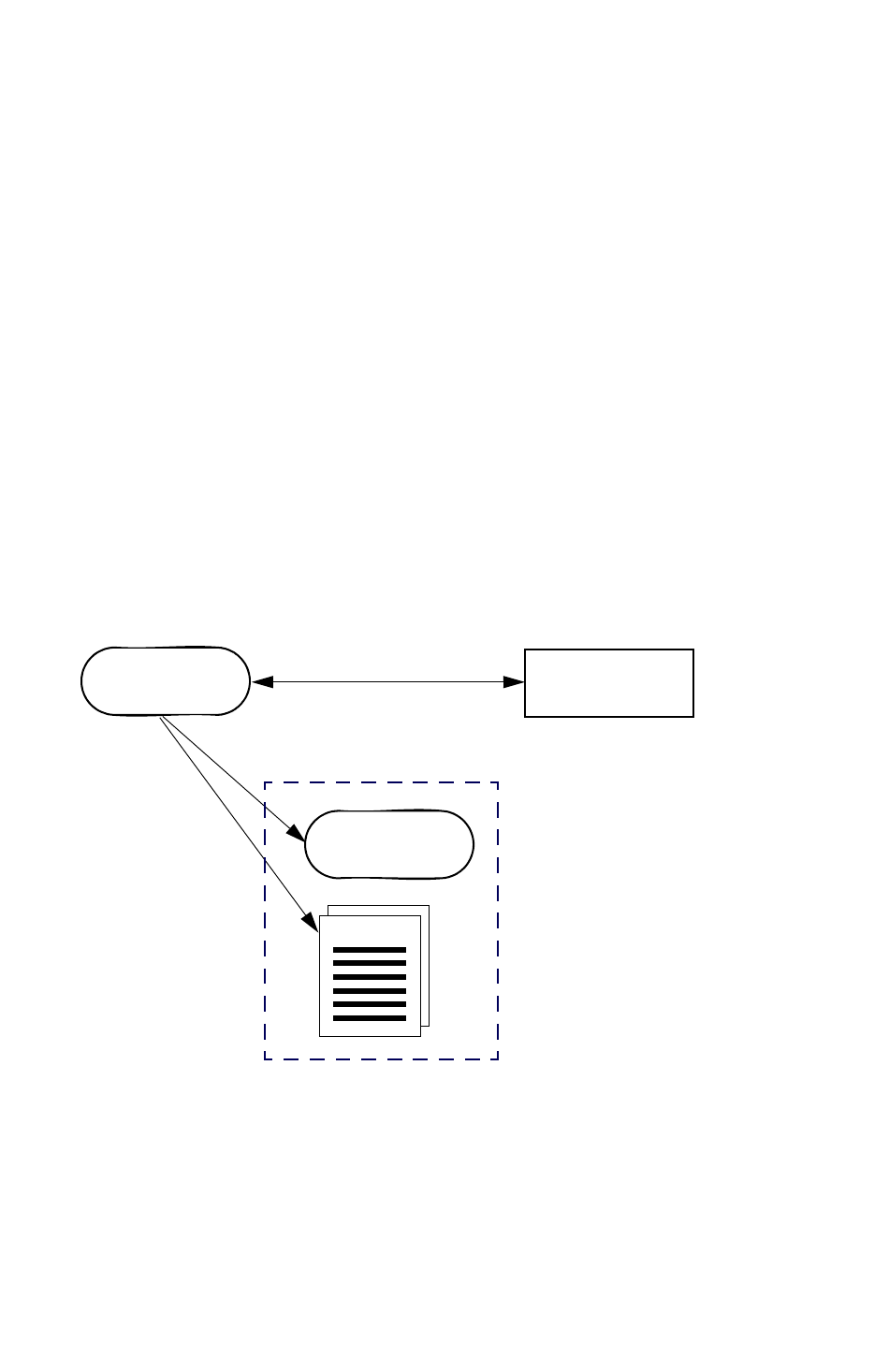
The PDF Viewer RI uses the Model-View-Controller (MVC) design pattern for communication between
the user, the GUI and the PDF document data. The PDF Viewer's data model is implemented by the
ViewModel class. The view, which presents the user interface, is implemented using standard Java
Swing components and is constructed by the SwingViewBuilder class. The controller, which interacts
between the user, view and data model is represented by the SwingController class.
This relationship can be seen in Figure 1. The combination of the MVC design and the SwingViewBuilder
and SwingController classes provides a very powerful and easily adaptable approach to PDF Viewer GUI
development. Developers using ICEpdf can readily customize the Viewer user-interface with a very
shallow learning curve and minimal coding effort.
Figure 1 ICEpdf MVC Implementation
SwingController
ViewModel
SwingView Factory
Document

Using ICEpdf
ICEpdf Developer’s Guide v3.0 22
Creating a Viewer Component
The org.icepdf.core.ri.common.SwingController class provides convenience methods for the most
common UI actions, such as rotating the document, setting the zoom level, etc. The
org.icepdf.core.ri.common.SwingViewBuilder class is responsible for creating the PDF Viewer
component panel populated with Swing components configured to work with the SwingController. When
using the SwingViewBuilder and SwingController classes, it is usually not necessary to use the
Document object directly. The SwingController class does this for us.
The following code snippet illustrates how to build a PDF Viewer component:
String filePath = “somefilepath/myfile.pdf”;
// build a controller
SwingController controller = new SwingController();
// Build a SwingViewFactory configured with the controller
SwingViewBuilder factory = new SwingViewBuilder( controller);
// Use the factory to build a JPanel that is pre-configured
// with a complete, active Viewer UI.
JPanel viewerComponentPanel = factory.buildViewerPanel();
// Create a JFrame to display the panel in
JFrame window = new JFrame( "Using the Viewer Component");
window.getContentPane().add( viewerComponentPanel);
window.pack();
window.setVisible( true);
// Open a PDF document to view
controller.openDocument( filePath );
Note: The SwingViewBuilder class provides numerous methods that enable developers to quickly
create custom viewer user interfaces (UIs) by including only those UI controls that are required,
customizing existing UI controls, etc. Refer to
org.icepdf.core.ri.common.SwingViewBuilder in the JavaDoc API documentation and
Customizing the SwingViewBuilder,
p. 23
for more information.
See ICEpdf Viewer Application,
p. 28
for a complete example.
Using the PDF Viewer Application
ICEpdf includes a complete standalone PDF Viewer Application reference implementation (RI) that can
be used as a PDF document viewing solution on any compliant Java platform. While the ICEpdf Viewer
application provided represents a complete commercial-quality PDF document viewing solution, it is also
intended to be used as a learning aid on how to use various ICEpdf features, as well as a ‘head-start’
for developers whose requirements closely match the existing ICEpdf Viewer's capabilities and who
simply need to refine the application to meet their needs.

Using ICEpdf
ICEpdf Developer’s Guide v3.0 23
The Viewer application leverages the same MVC architecture, SwingViewBuilder and SwingController
classes as the embeddable viewer component. In addition, additional functionality has been
implemented to provide more complete PDF Viewer functionality, similar to Adobe Acrobat Reader. The
source code for this viewer application is available in the package org.icepdf.core.ri.viewer. The
application uses the following classes in addition to the PDF Viewer Component to implement a
standalone viewer application: WindowManager, FontPropertiesManager, and PropertiesManager. These
classes can be found in the org.icepdf.core.ri.viewer package.
Advanced Topics
This section describes the following advanced features for ICEpdf:
•Customizing the SwingViewBuilder
•Implementing a SecurityCallback
•Printing
•Font Management
•Memory Management and Caching
•Internationalization
Customizing the SwingViewBuilder
The org.icepdf.core.ri.common.SwingViewBuilder class constructs a set of GUI components
which are pre-configured to work with the org.icepdf.core.ri.common.SwingController class to
manipulate and reflect the status of view of a rendered PDF document.
The SwingViewBuilder methods, buildViewerFrame and buildViewerPanel, provide the high-level entry
points for the GUI construction process, with each constructing complete PDF Viewer user interfaces.
In addition, numerous other
build...
methods are available that construct specific components and
subcomponents. See the JavaDoc for the SwingViewBuilder class for an overview of the various
build..
.
methods.
For example, the buildCompleteMenubar() method will construct and return a complete application
menu bar, including File, View, Document, Window, and Help menus. The buildFileMenu() method will
construct and return the File menu, including menu items for Open, Close, Save As, Export, Print, etc.
You may use the SwingViewBuilder methods at any level that is appropriate for your application to
construct the various user interface components that you require.
If you prefer to customize the GUI components that the SwingViewBuilder creates, you will need to
adopt one of the following strategies:
1. Directly modify the SwingViewBuilder source code, or copy the SwingViewBuilder class into a new
class of your own and make required changes to the new class. Using this approach will ensure that
any changes or enhancements made to the default Viewer user interface in future versions of

Using ICEpdf
ICEpdf Developer’s Guide v3.0 24
ICEpdf will not impact your application. You will need to integrate any changes you wish to adopt
manually.
2. Subclass the SwingViewBuilder class and override the
build...
methods that you need to modify. The
advantage of this approach is that your application will automatically incorporate any changes or
additions to the Viewer user interface provided in subsequent releases of ICEpdf for those methods
that you haven't overridden. For example, if you are satisfied with the default Viewer Component
user interface, but need to modify the Help->About menu-item to display a custom About dialog
for your application, you would extend the SwingViewBuilder class and override the
buildAboutMenuItem() method to return a menu item that displays your custom About dialog. If a
future version of ICEpdf includes additional Tools, such as a Text Selection Tool, your user interface
will automatically adopt the new toolbar and menu changes to add support for the new Tool without
requiring any manual integration of the new code.
Window Management
Window events, such as closing a window, must be handled by your application, not the ICEpdf
framework. Your application needs to track windows and viewports from creation to destruction.
The package org.icepdf.core.ri.viewer contains reference code for creating window management.
Adding a Custom Utility Tool
The ICEpdf Viewer RI provides a tabbed utility pane component that is used to display a document
outline (bookmarks) when available and a document search capability. This utility pane can also be
configured to support additional custom utility tab components as required. The SwingViewBuilder
method JTabbedPane buildUtilityTabbedPane() is responsible for creating the tabbed utility pane
for the outline and search tools. This method can be easily modified to add your own custom utility tool.
The org.icepdf.core.ri.common.SearchPanel component provides a reference implementation that
demonstrates implementing a basic search tool for finding text within a PDF document.
Building a Custom Page View
By default, the ICEpdf Viewer application can display PDF documents in any of the predefined views
specified in the
PDF Reference
. The viewer application will first see if the document specifies which
document view to use. If not specified, then the viewer selects the view that was last used. The source
code for all of the view layout types can be found in the package org.icepdf.core.ri.common.views.
Each page is represented by a PageViewComponentImpl object which can be easily used to build
custom view types.
The page view implementation uses a secondary MVC to manage the multiple views efficiently. All
supporting classes can be found in the package org.icepdf.core.views. The support view types are
as follows:
• Single Page - Displays one page at a time.
• One Column - Displays the pages, continuously, in one column.

Using ICEpdf
ICEpdf Developer’s Guide v3.0 25
• Two Column Left - Displays the pages, continuously, in two columns, with odd numbered pages on
the left.
• Two Page Left - Displays the pages two at a time, with odd-numbered pages on the left.
Implementing a SecurityCallback
When the Document class encounters a PDF document that is encrypted with Acrobat standard security,
it first tries to open the PDF file with an empty password string. If the Document class fails to validate
the empty password, the application must have a mechanism to request the password. You can use the
org.icepdf.core.SecurityCallback interface to do this.
The interface has one method, which is called by the Document class to retrieve a document’s
password. You can implement the SecurityCallback interface in numerous ways to meet the needs of
your application. For example, the package org.icepdf.core.ri.common contains reference code for
the SecurityCallback in the class MyGUISecurityCallback.
The following is an example of the necessary code needed to register MyGUISecurityCallback with the
Document class:
Document document = new Document();
Document.setSecurityCallback(
New MyGUISecurityCallback(aJFrame,aResourceBundle));
Implementing an AnnotationCallback
ICEpdf can optionally be configured to support interacting with link annotations. The Viewer RI and
Pilot RI by default come configured with their own implementation of the
org.icepdf.core.AnnotationCallback. They differ only by how they handle external URI Actions. The
Viewer RI will load an external URI with the Operating Systems default web browser. The Pilot RI will
load external URI links in a new ICEbrowser viewport.
ICEpdf only supports annotation via the mouse pointer; there is no keyboard support at this time. When
the mouse is moved over a portion of a PDF document which is marked as an annotation, the mouse
cursor will change into a hand pointer. When a user clicks on the annotation, ICEpdf will draw any effect
specified by the selected annotation, but it will not execute the annotation action; it instead passes the
selected annotation to the AnnotationCallback. It is up to the AnnotationCallback implementation to
process the annotation’s actions. A default implementation of an AnnotationCallback can be found in at
org.icepdf.core.ri.common.MyAnnotationCallback.
Printing
Printing a PDF document with ICEpdf is a highly configurable task that allows users to print using a wide
range of Java technologies. To aid developers in printing, the package org.icepdf.core.ri.common
contains the PrintHelper class that implements Java 2 Printable and Pageable interfaces. The source

Using ICEpdf
ICEpdf Developer’s Guide v3.0 26
code for this class is available for users who want to gain a greater understanding of the printing process
or modify the printing behavior.
JDK 1.4 Printing
The PrinterHelper class can also be used with Java Printer Services available in JDK 1.4. The printing
API introduced in JDK 1.4 allows for far greater flexibility than previous JDKs in detecting printers and
their capabilities. The following code example demonstrates how a specific printer can be used with
Java Printer Services with no user interaction:
// Create a new attribute set and add a key for the printer
// we want to print to.
AttributeSet aset = new HashAttributeSet();
aset.add(new PrinterName("HP LaserJet 4050 Series PCL", null));
// Do a look up to try and find our LaserJet printer
services = PrintServiceLookup.lookupPrintServices(
DocFlavor.SERVICE_FORMATTED.PAGEABLE,
aset);
// If the LaserJet could not be found then try and find
// a default printer which can use the Pageable interface
if (services.length == 0)
services = PrintServiceLookup.lookupPrintServices(
DocFlavor.SERVICE_FORMATTED.PAGEABLE, null);
// Finally we can print using the first printer in the
// services list which will either be our specified LaserJet
// or the default printer on the user’s operating system.
if (services.length > 0){
printerJob.setPrintService(services[0]);
// print the document without any user interaction, no
// dialogs.
printHelper.print(viewModel.getPrinterJob(), 0,
document.getNumberOfPages() - 1,
1, // default number of copies.
true, // shrink to printable area
false, // show page setup
false, // show print dialog
pageFormat);
}
document.dispose();
Font Management
ICEpdf uses a font manager to manage fonts that exist on the host operating system. The FontManager
class can be found in the package org.icepdf.core.fonts. When the font manager’s
readSystemFonts() method is called, it tries to read all fonts on the host operating system and stores
the name, family and path information of the readable font. The reading of all font programs can be
time consuming and in most usage scenarios needs only to be done once as operating system fonts do
not change regularly. As a result, the manager can import and export the collected font information

Using ICEpdf
ICEpdf Developer’s Guide v3.0 27
using the getFontProperties() and setFontProperties() methods respectively. A basic
FontPropertiesManager class is available in the package org.icepdf.core.ri.util.
Adding Font Paths to the FontManager
If you want to specify additional font path to be ready by the by the FontManager class, it is possible
using the readSystemFonts() method. The following code demonstrates how to add more font paths to
the FontManager internal list of paths:
String[] extraFontPaths = new String[]{"f:\\windows\\fonts\\",
"f:\\winnt\\fonts\\"};
FontManager fontManager = FontManager.getInstance();
fontManager.readSystemFonts(extraFontPaths);
Memory Management and Caching
An Adobe PDF file consists of numerous compressed object streams. As a PDF file is opened and
additional pages are viewed, more objects streams are decompressed, and the memory required to
display the content grows significantly.
When memory gets low, the ICEpdf Memory Manager frees up memory by disposing the PDF objects
associated with previously viewed pages until the required amount of memory is recovered.
Note: Memory is considered low if the Runtime maxMemory value, minus the current amount of used
Java heap, is less than the specified org.icepdf.core.minMemory value.
When an image stream is encountered, it is first represented as a byte stream and then encoded into
a viewable image. This process can be time consuming and memory intensive. The image is stored in
memory until the Memory Manager disposes of its parent page resources, at which time the encoded
image is written to disk and the representation of the image in memory is flushed. The cached image
is from then on read from disk, which may be more efficient than re-decoding the byte stream and re-
encoding the image.
In some environments, file caching may not be desirable. If necessary, you can turn off caching
completely by setting the system property org.icepdf.core.imagecache.enabled to
false
. However,
you should not disable file caching if your PDF documents contain large images or several images unless
you have a large Java Heap available (512 MB or more).
For more information on the ICEpdf system properties, see System Properties,
p. 10
.
Internationalization
The ICEpdf Viewer RI provides support for internationalization so that it can easily be adapted
(localized) to various languages and regions. Internationalization is implemented using standard Java 2
Internationalization mechanisms. The ICEpdf Viewer RI stores language bundles in the package,
org.icepdf.core.ri.resources.

ICEpdf Developer’s Guide v3.0 28
Chapter 4 Reference
Implementations and
Examples
ICEpdf includes numerous examples and reference implementations in source code form to enable rapid
learning and successful use of the product. The reference implementations are commercial quality
implementations that can be deployed as-is, customized to meet specific requirements, or used as
learning aids on how to use various features. The examples are simplified applications that demonstrate
how to use a specific feature or capability.
Reference Implementations
ICEpdf Viewer Application
The ICEpdf Viewer is a reference implementation (RI) of a standalone PDF viewer application. You can
use it as is
,
or as a starting point for your own custom application.
The application uses the SwingViewBuilder object to create the GUI elements in the viewer application,
such as the toolbar and menu system. These GUI elements, including the page view, are controlled by
the SwingController object which produces a rich viewer application that can be used as is in most
implementations.
The source code for the ICEpdf Viewer Application is located in the [install_dir]/icepdf/viewer/
directory.
Starting the ICEpdf Viewer Application
1. Ensure that JDK 1.5.0 or higher has been installed.
2. Add the relevant JAR files to the classpath. You need at least the following:
•icepdf-core.jar
• icepdf-viewer.jar
To enable ICEpdf Pro and full PDF font support, install the following:
•icepdf-pro.jar
•icepdf-pro-intl.jar
Reference Implementations and Examples
ICEpdf Developer’s Guide v3.0 29
To enable exporting to SVG, you also require the following Batik JAR files:
• batik-awt-util.jar
• batik-dom.jar
• batik-svg-dom.jar
• batik-svggen.jar
• batik-util.jar
•batik-xml.jar
For more information, see Batik Library for SVG Support,
p. 10
.
To enable viewing of documents that are encrypted with Acrobat standard security, you also require
the following Bouncy Castle JAR file (or the JAR for another appropriate JCE 1.2.1 security provider
implementation):
bcprov-jdk{
version
}.jar (where
version
is the appropriate version of the JAR)
For more information, see Acrobat Standard Security Support,
p. 8
.
3. Run java org.icepdf.core.ri.viewer.Main [option <value>]
Starting as an Executable JAR
The ri_pdf.jar file is an executable JAR file, so you can also start the Viewer Application with JDK 1.5.0
or greater as follows:
java -jar icepdf-viewer.jar
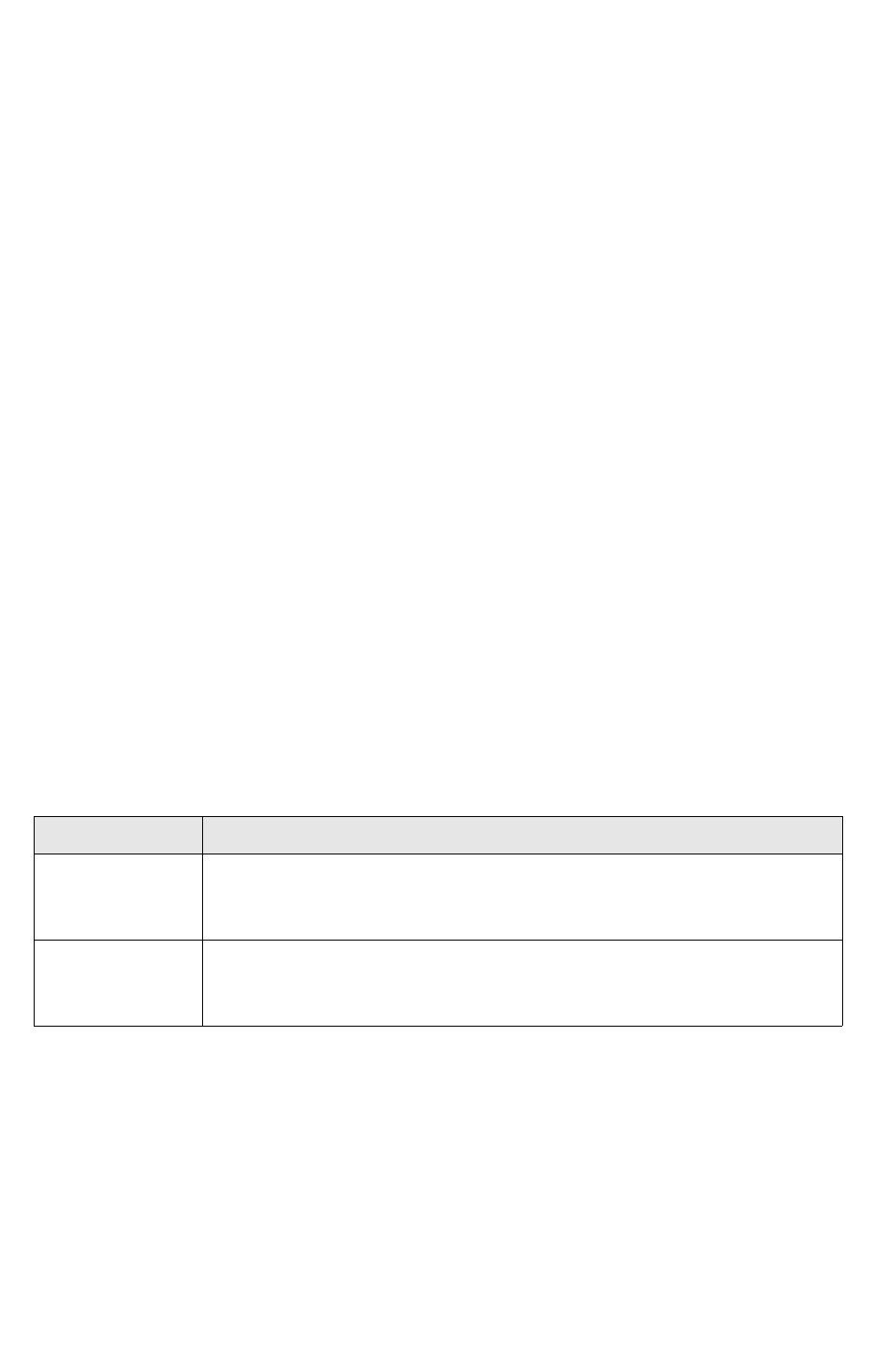
Command Line Options
To start the ICEpdf Viewer without command line options or Batik support:
java -classpath icepdf-core.jar; icepdf-viewer.jar org.icepdf.core.ri.viewer.main
Settings Directory
The ICEpdf Viewer stores its settings in the directory:
<user_dir>/.icesoft/icepdf_viewer
where <user_dir> is the platform-specific directory specified by the user.home system property.
Option Description
-loadfile filename Starts the ICEpdf Viewer and displays the specified local PDF file. Use the following
syntax:
-loadfile c:/examplepath/file.pdf
-loadurl url Starts the ICEpdf Viewer and displays the PDF file at the specified URL. Use the
following syntax:
-loadurl http://www.examplesite.com/file.pdf

Reference Implementations and Examples
ICEpdf Developer’s Guide v3.0 30
Using the ICEpdf Viewer
This section describes how to use the ICEpdf Viewer application to do the following:
•Open PDF files
• Understand the ICEpdf Viewer work area
• Navigate and manipulate the view of a PDF document
• Export, save, and print the contents of a PDF document
• Exit a document and the application
Opening PDF Files
You can open a PDF file from the local file system or from a URL.
To open a local PDF file
1. Launch your ICEpdf application (if it is not already running).
2. Click File > Open > File.
3. In the Open dialog box, select a PDF file and click Open.
To open a PDF from a URL
1. Launch ICEpdf.
2. Select File > Open > URL.
3. In the Open URL dialog box, type the URL of a PDF file in the form
http://www.icepdf.org/resources/DevelopersGuide.pdf and click OK.
To open a PDF using Drag and Drop
You can open a PDF file by dragging it from your file system onto the Viewer application window. You
can also drag and drop multiple files at once.
Furthermore, some applications allow you to drag and drop URL text strings. If you drag a URL pointing
to a PDF file onto the Viewer application, that file is opened. The text string must contain an http://
prefix and a .pdf reference.
Note: If a file is password protected and security support has been configured, a password dialog is
displayed. You have three attempts to enter the correct password, after which an error message
is displayed. If the file has other security settings, such as “No Printing”, the ICEpdf Viewer
respects those settings.
Opening Multiple PDF Files
The ICEpdf Viewer implements a Single Document Interface (SDI) for viewing PDF files. Multiple PDF
files can be viewed at the same time, each in its own application window. Some MDI functionality has
Reference Implementations and Examples
ICEpdf Developer’s Guide v3.0 31
been included in the Window menu, which allows the user to switch between each open Viewer window,
minimize all Viewer windows, and bring all Viewer windows to the front.
An additional ICEpdf Viewer window is opened automatically when you open another PDF file.
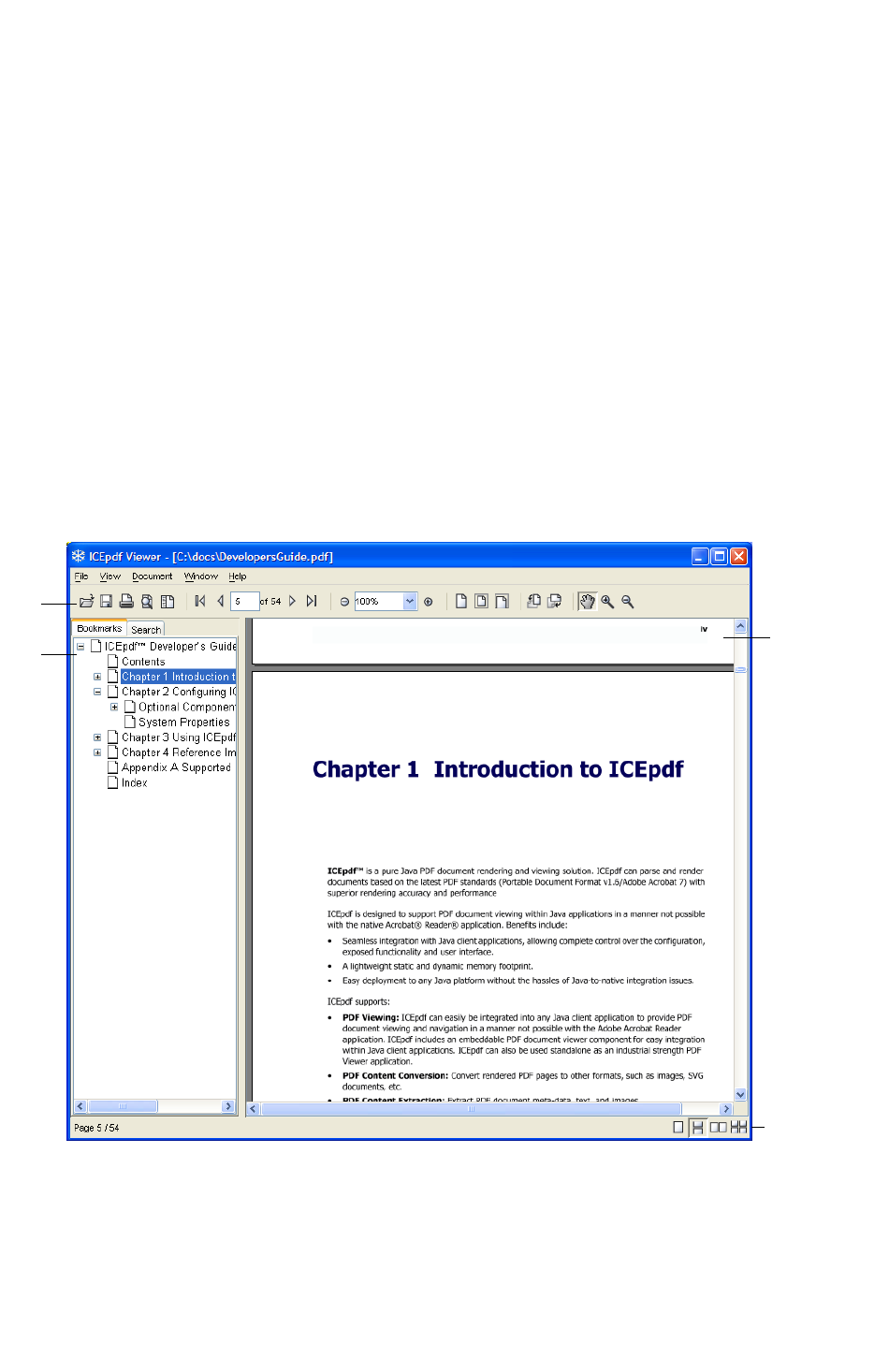
About the ICEpdf Viewer Work Area
The ICEpdf Viewer consists of the following four distinct work areas:
•Main toolbar - provides controls and buttons to navigate and work with a PDF file.
•Document pane - displays a PDF file.
•Utility pane - has a
bookmark tab
which lets you browse a PDF file using a documents bookmarks
and a
search tab
which enables you to search for text in a file.
•View toolbar - allows you to change the way a document’s pages are displayed in the document
pane.
Figure 2 ICEpdf Viewer Work Area
A
BC
A. Main Toolbar B. Utility pane C. Document pane D. View Toolbar
D
Reference Implementations and Examples
ICEpdf Developer’s Guide v3.0 32
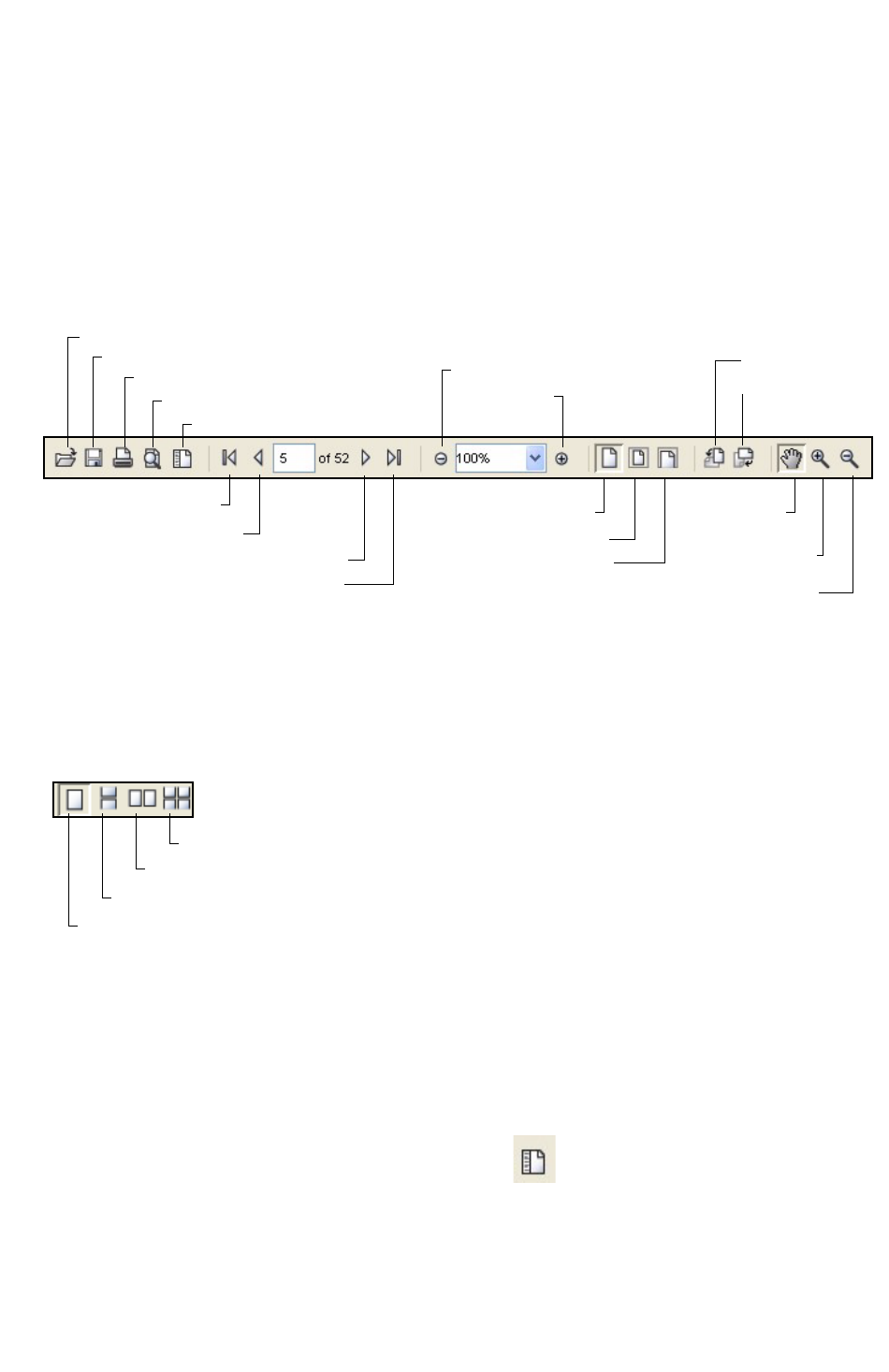
About the ICEpdf Viewer Main Toolbar
The toolbar has shortcuts for many common functions, but you can hide it to have a larger display area.
To show or hide the toolbar, select View > Show Toolbar or View > Hide Toolbar.
The toolbar provides access to the view and navigation functionality.
Figure 3 ICEpdf Toolbar
About the ICEpdf Viewer
View Toolbar
The view toolbar contains four buttons that allow you to change how a PDF document is displayed.
About the Utility/Bookmark Pane
You can show or hide the utility pane, which contains tabs for a document’s bookmarks and for the
search function. If the file does not have any bookmarks, the bookmarks tab is not displayed.
To show or hide the utility pane, select View > Show Utility Pane or View > Hide Utility Pane.
Alternatively, if the toolbar is displayed, you can click the Show/Hide Utility Pane button.
For information on using bookmarks, see Using Bookmarks,
p. 33
.
Print Document
First Page
Previous Page
Next Page
Last Page
Zoom Out
Zoom In
Actual Size
Fit in Window
Rotate Left
Rotate Right
Zoom In Tool
Zoom Out Tool
Pan Tool
Open Document
Save a Copy...
Search Document
Show/Hide Utility Pane
Fit Width
Single Page View Non-continuous
Single Page View Continuous
Facing Page View Non-continuous
Facing Page View Continuous
Reference Implementations and Examples
ICEpdf Developer’s Guide v3.0 33
Navigating a PDF File
Using Bookmarks
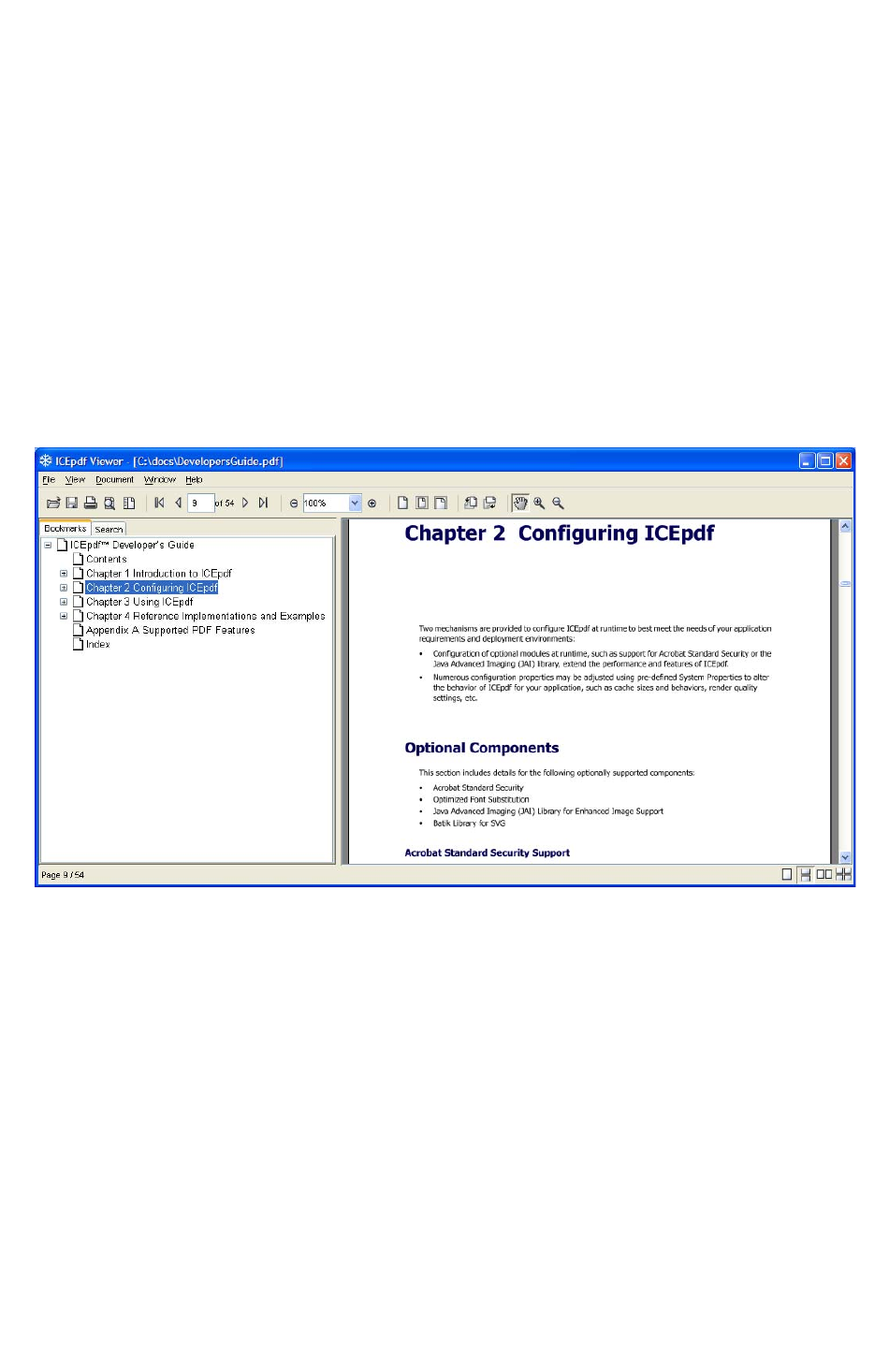
If a PDF file has been created with bookmarks, you can use the bookmarks like a table of contents to
choose what you want to view.
Bookmarks are displayed on a tab in the utility pane on the left side of the Viewer. However, they are
not displayed if View > Hide Utility Pane has been selected.
Viewing a Bookmark Topic
To view a bookmark topic, click the bookmark topic name.
Viewing More Bookmark Topics
If a bookmark has a + symbol beside it, you can expand a parent bookmark topics to reveal its children.
Similarly, click the - symbol next to a bookmark to collapse a parent bookmark and hide its children.
Reference Implementations and Examples
ICEpdf Developer’s Guide v3.0 34
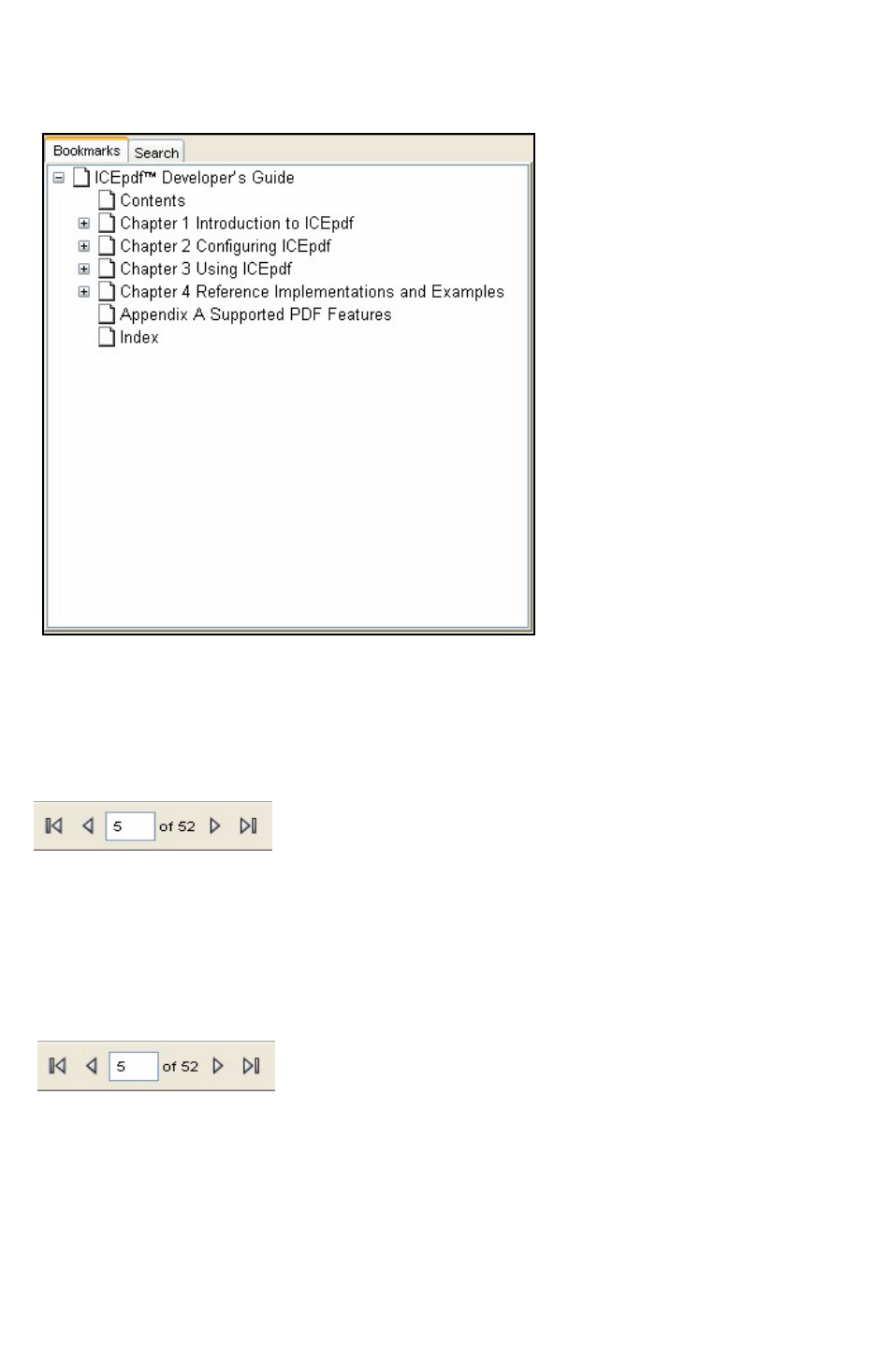
Viewing the Next or Previous Page
• To view the next page of a PDF file, select Document > Next Page.
• To view the previous page of a PDF file, select Document > Previous Page.
Using the toolbar, select the Next Page or Previous Page buttons to navigate.
Viewing the First or Last Page
• To view the first page of a PDF file, select Document > First Page.
• To view the previous page of a PDF file, select Document > Last Page.
Using the toolbar, select the First Page or Last Page buttons to navigate.
Viewing a Specific Page
To view a specific page of a PDF file:
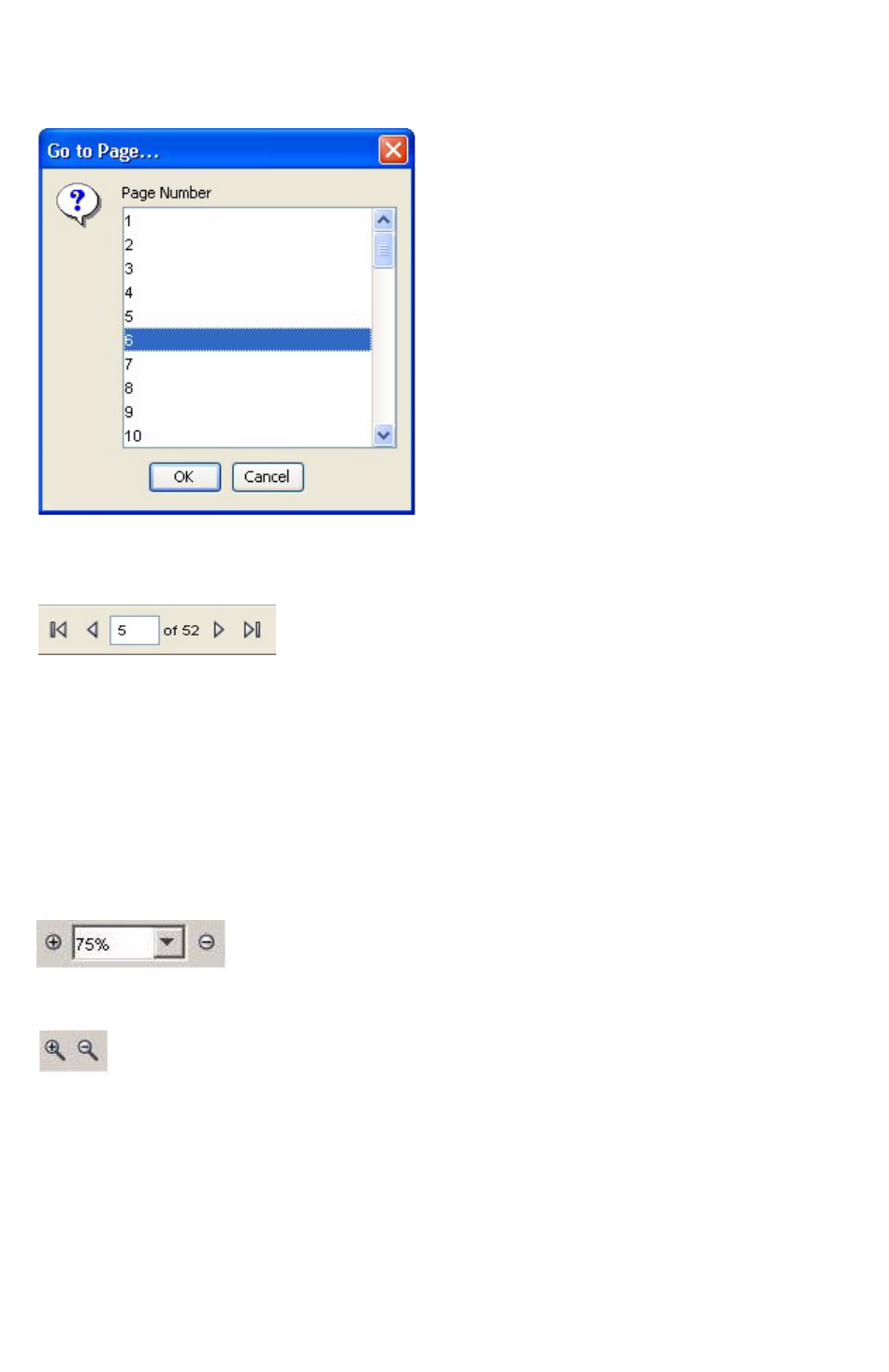
1. Select Document > Go To Page.
Reference Implementations and Examples
ICEpdf Developer’s Guide v3.0 35
2. In the Go To Page dialog, select a page number and click OK.
Using the toolbar, type a page number in the page number field and press Enter.
Zooming In and Out
You can zoom in on a page to get a closer view, and you can zoom out for a smaller view.
• To zoom in on a page, select View > Zoom In. You can zoom in repeatedly to get a closer view.
• To zoom out from a page, select View > Zoom Out. You can zoom out repeatedly to get a smaller
view.
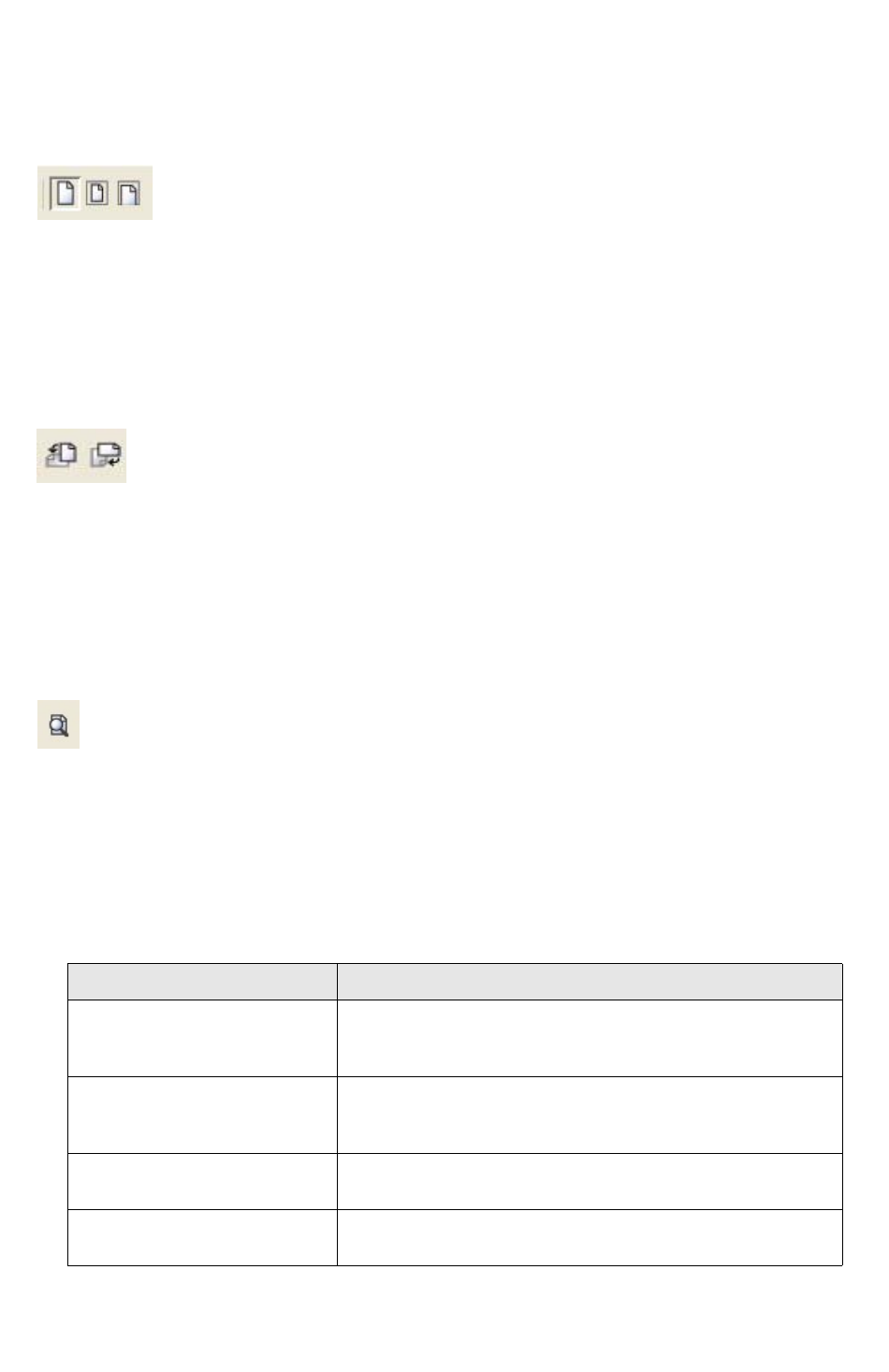
Using the toolbar, select the Zoom In or Zoom Out buttons. You can select a magnification percentage
from the Zoom drop-down selection box, or type a value in the Zoom box and press Enter.
Select the Zoom In Tool or Zoom Out Tool to simply click to zoom in or out on an area of the PDF file
.
Viewing a PDF File in its Original Size or to Fit the Window
• To view the PDF file in its actual size, select View > Actual Size. The actual size is the size of the
page as it was originally created.
• To view the PDF file so that the entire page is visible, select View > Fit in Window.
• To view the PDF file so that the width of the page fills the window size, select View > Fit Width.
Reference Implementations and Examples
ICEpdf Developer’s Guide v3.0 36
Using the toolbar, click the Actual Size, Fit in Window, and Fit Width buttons.
Rotating a PDF File
If the PDF file is displayed sideways, you can rotate it so that it is easier to view or read.
To rotate the PDF file, select View > Rotate Left or View > Rotate Right. The view is rotated 90
degrees clockwise or counter-clockwise each time you select it.
Using the toolbar, click the Rotate Left and Rotate Right buttons.
Searching for Text
If a PDF file contains text, you can search for text strings within it using the Search function.
The Search function is displayed on a tab in the utility pane on the left side of the Viewer. However, it
is not displayed if the Utility Pane is hidden. In this case, select Document > Search or click the
Search Document button to open the Search tab.
To search for a text string, type it in the Search Text field and click Search. The results are displayed
in the Results field, indicating how many hits were found on each page of the document. You can then
click on an entry in the Result field to go directly to that page.
Keyboard and Mouse Manipulation
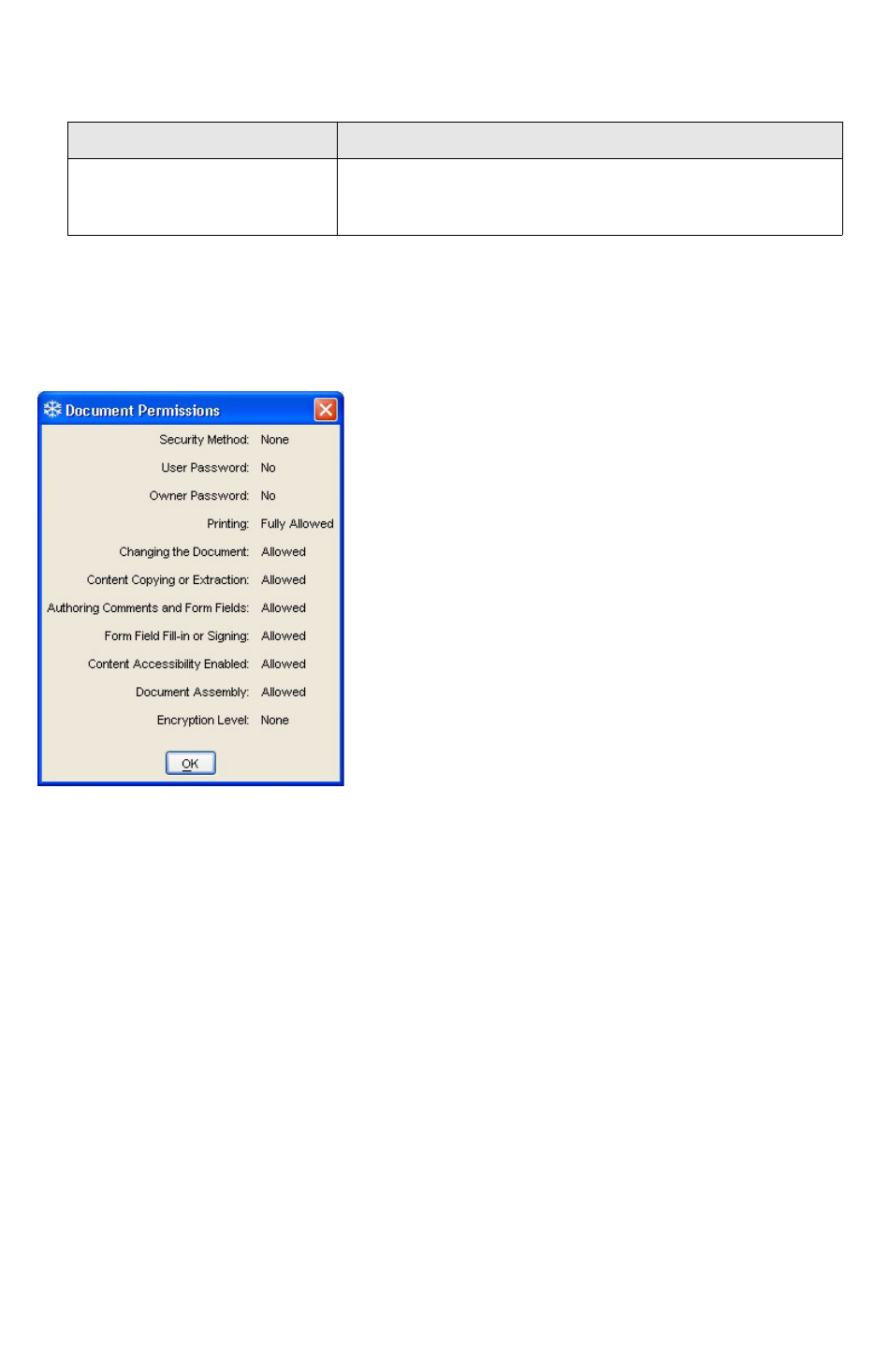
While viewing a PDF, you can use the following keyboard and mouse actions:
Keyboard or Mouse Action Result
Page Up / Page Down Scrolls the current page up/down. If the top/bottom of the page is
reached, the view changes to the previous/next page in the
document.
Arrow keys Scrolls the display in the direction of the arrow key pressed. If the
top/bottom of the page is reached, the view changes to the
previous/next page in the document.
Mouse click If the Zoom In tool is selected, zooms in. If the Zoom Out tool is
selected, zooms out.
Mouse click and drag If the Pan Tool is selected (the default), pans the display in the
direction the mouse is dragged.
Reference Implementations and Examples
ICEpdf Developer’s Guide v3.0 37
Displaying Document Permissions and Information
To display security information about an open PDF document, such as the security method and which
security features are enabled, select File > Document Permissions.
To display other information about an open PDF document, such as the creator and modification dates,
select File > Document Information.
Exporting a PDF File to SVG
SVG support is available if you have configured the optional Batik SVG library. For more information, see
Batik Library for SVG Support on page 10.
To export a PDF file as an SVG file
1. If Batik is configured, select File > Export SVG.
2. In the Export as SVG dialog, specify a location and filename and click OK.
Exporting a PDF File to Text
You can export the text in a PDF to a text file.
Mouse wheel If you are using JDK 1.4 or higher, pages can be scrolled using the
mouse scroll wheel. If the top/bottom of the page is reached, the
view changes to the previous/next page in the document.
Keyboard or Mouse Action Result

Reference Implementations and Examples
ICEpdf Developer’s Guide v3.0 38
To export a PDF file as a text file
1. Select File > Export Text.
2. In the Export Document Text dialog, specify a location and filename and click OK.
Printing a PDF File
To print a PDF file with a printer dialog, select File > Print.
Alternatively, from the toolbar, click the (Print button) to print a PDF file without displaying a print
dialog.
To set the paper, orientation and margin settings before printing the file, select File > Print Setup.
Saving a Copy of a PDF File
To save a copy of the PDF file you are viewing
1. Select File > Save a Copy.
2. In the Save Copy dialog box, navigate to a location for the file, type a filename and click OK.
Closing a PDF File
To close the PDF file you are viewing, leaving the application open, select File > Close.
Exiting ICEpdf
To exit from the ICEpdf Viewer and close any open files, select File > Exit.
Examples
Annotation Example
The Annotation example shows how the AnnotationCallback interface can be used to interpret how
annotation actions can be handled when activated in the user’s interfaces. The example also shows how
annotation border painting can be manipulated to show users which annotations they have already
clicked on.
The source code for the example is located in the [install_dir]/icepdf/examples/annotation/
directory.

Reference Implementations and Examples
ICEpdf Developer’s Guide v3.0 39
Applet Example
The Applet example demonstrates deployment of the ICEpdf Viewer as a Java Applet.
The source-code for the example is located in the [install_dir]/icepdf/examples/applet/
directory.
Content Extraction Examples
The Content Extraction examples demonstrate how to use the ICEpdf Document class to extract meta-
data, text, and images from within a PDF document.
There are three individual extraction examples:
• PageMetaDataExtraction.java - Extracts document meta-data.
• PageTextExtraction.java - Extracts the text from the first page of the document.
• PageImageExtraction.java - Extracts the images from the first page of the document.
The source-code for the example is located in the [install_dir]/icepdf/examples/extraction/
directory.
ICEfaces Example
ICEfaces PDF Viewer Application utilizes the ICEfaces framework and ICEpdf core to rendering PDF
documents in a Rich Web application. ICEfaces 1.8 or greater is needed to compile this example.
ICEfaces is available at http://www.icefaces.org/downloads/.
Update the Apache Ant build.properties variable common.build.file to point to the location of build-
common.xml located in the [install_dir]/icefaces/samples/etc/ directory. The common
ICEfaces build script is very flexible having build targets for most major Servlet containers.
The source code for the example is located in the [install_dir]/icepdf/examples/icefaces/
directory.
Page Capture Example
The Page Capture example demonstrates how to use the ICEpdf Document class to capture PDF page
renders as image files.
The source-code for the example is located in the [install_dir]/icepdf/examples/capture/
directory.

Reference Implementations and Examples
ICEpdf Developer’s Guide v3.0 40
Print Services Example
The Print Services example demonstrates how the PrintHelper class can be used to print PDF documents
using Java Print Services. The example also shows how it is possible to select and modify available
printers and their settings.
The source-code for this example is located in the
[install_dir]/icepdf/examples/printServices/ directory.
Viewer Component Example
The Viewer Component example demonstrates how to use the SwingController and SwingViewBuilder
classes to create a PDF viewer component.
The source-code for the example is located in the [install_dir]/icepdf/examples/component/
directory.
ICEpdf Developer’s Guide v3.0 41
Appendix A Supported PDF
Features
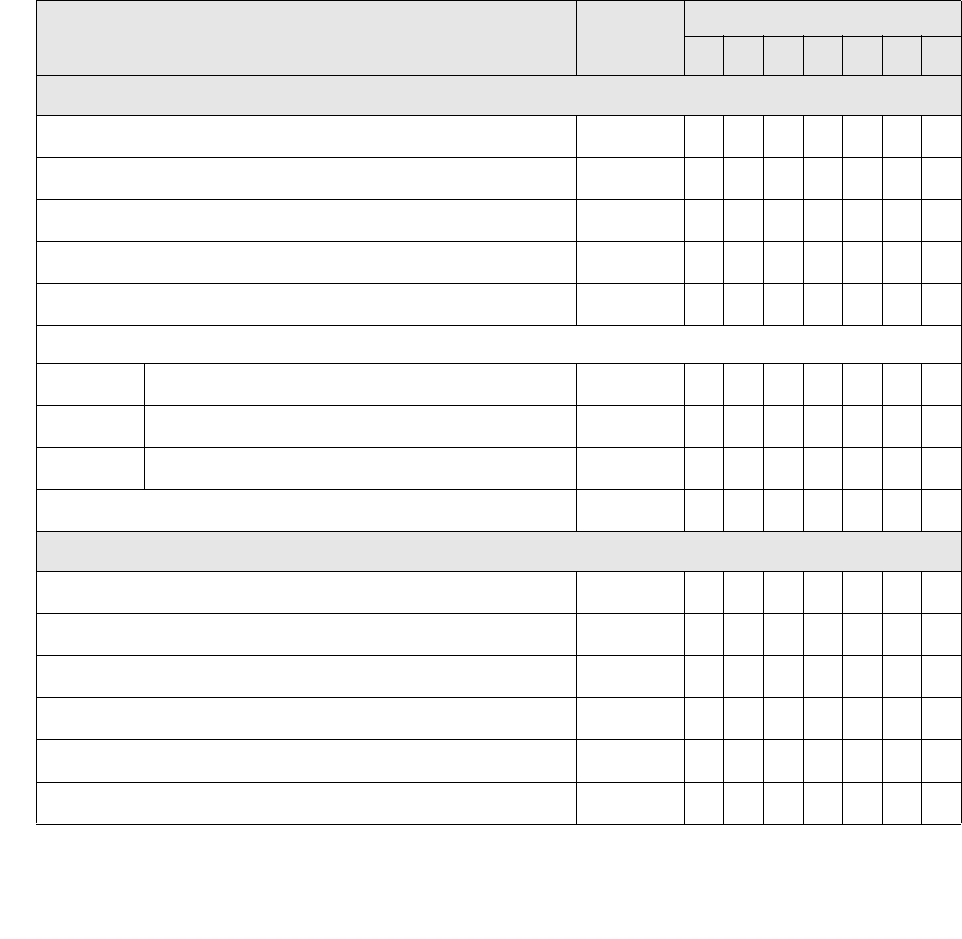
This table lists all the PDF features that ICEpdf supports. The list is based on the
PDF Reference
, 5th
Edition, Version 1.6, from Adobe Systems Incorporated. The section numbers in the table refer to the
sections in the
PDF Reference
. You can download the reference from:
http://www.adobe.com/devnet/pdf/pdf_reference.html
Supported Feature Section in
PDF
Reference
Introduced in PDF Version
1.0 1.1 1.2 1.3 1.4 1.5 1.6
Filters
ASCIIHexDecode 3.3.1 9
ASCII85Decode 3.3.2 9
LZWDecode 3.3.3 9
FlateDecode 3.3.3 9
RunLengthDecode 3.3.4 9
CCITTFaxDecode
Group 4 3.3.5 9
Group 3, 1-D 3.3.5 9
Group 3, 2-D 3.3.5 9
DCTDecode (No transformations) 3.3.7 9
File Structure
File Body 3.4.2 9
Cross-Reference Table 3.4.3 9
File Trailer 3.4.4 9
Incremental Updates 3.4.5 9
Object Streams 3.4.6 9
Cross-Reference Stream 3.4.7 9
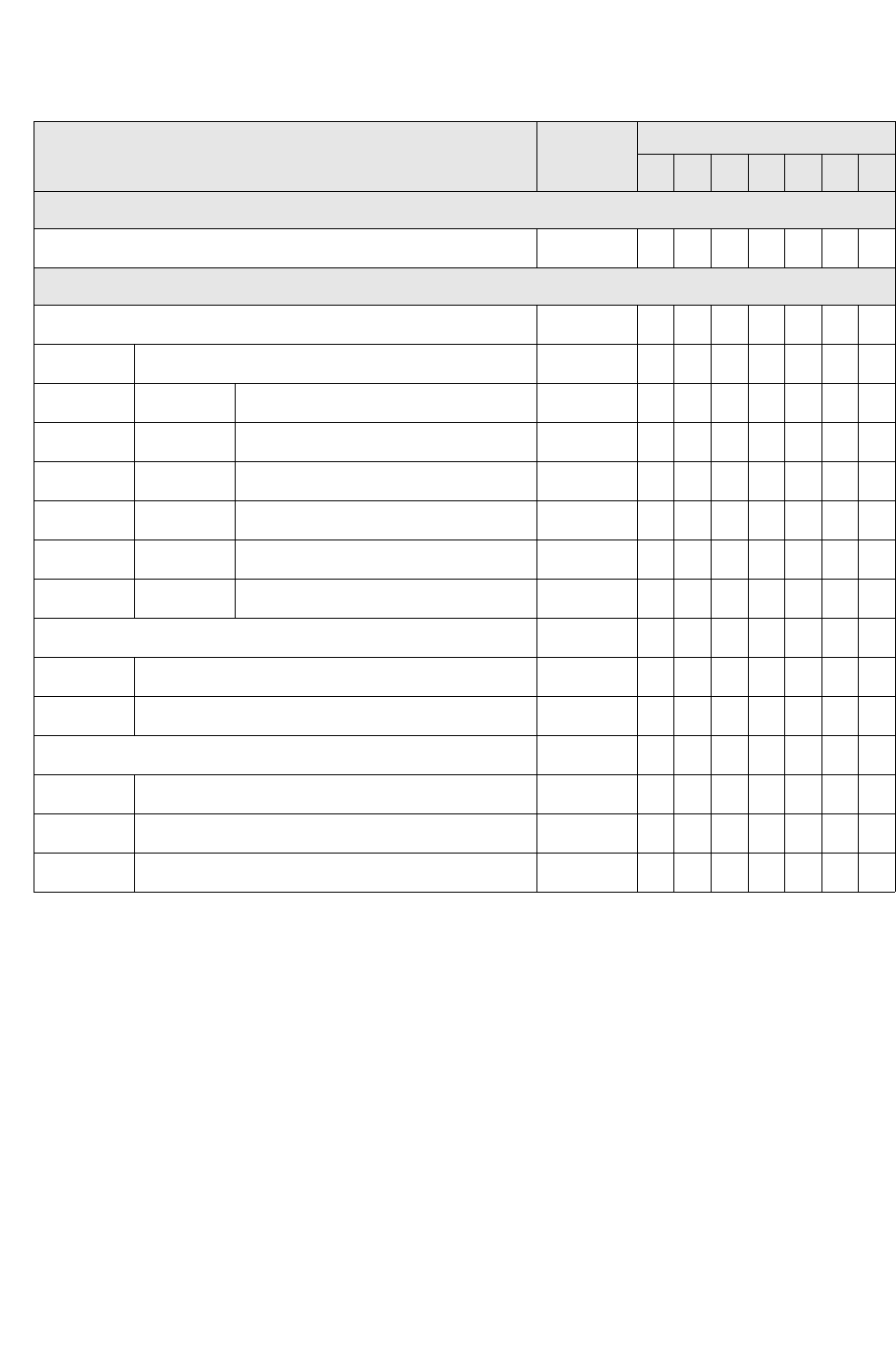
Supported PDF Features
ICEpdf Developer’s Guide v3.0 42
Encryption
Standard Security Handler 3.5.2 9
Document Structure
Document Catalog 3.6.1 9
Page Layout 3.6.1
Singe Page View 3.6.1 9
One Column View 3.6.1 9
Two Column Left View 3.6.1 9
Two Column Right View 3.6.1 9
Two Page Left View 3.6.1 9
Two Page Right View 3.6.1 9
Page Tree 3.6.2 9
Page Objects 3.6.2 9
Inheritance of Page Attributes 3.6.2 9
Functions 3.9 9
Type0 (Sampled) Functions 3.9.1 9
Type2 (Exponential Interpolation) Functions 3.9.2 9
Type3 (Stitching) Functions 3.9.3 9
Supported Feature Section in
PDF
Reference
Introduced in PDF Version
1.0 1.1 1.2 1.3 1.4 1.5 1.6
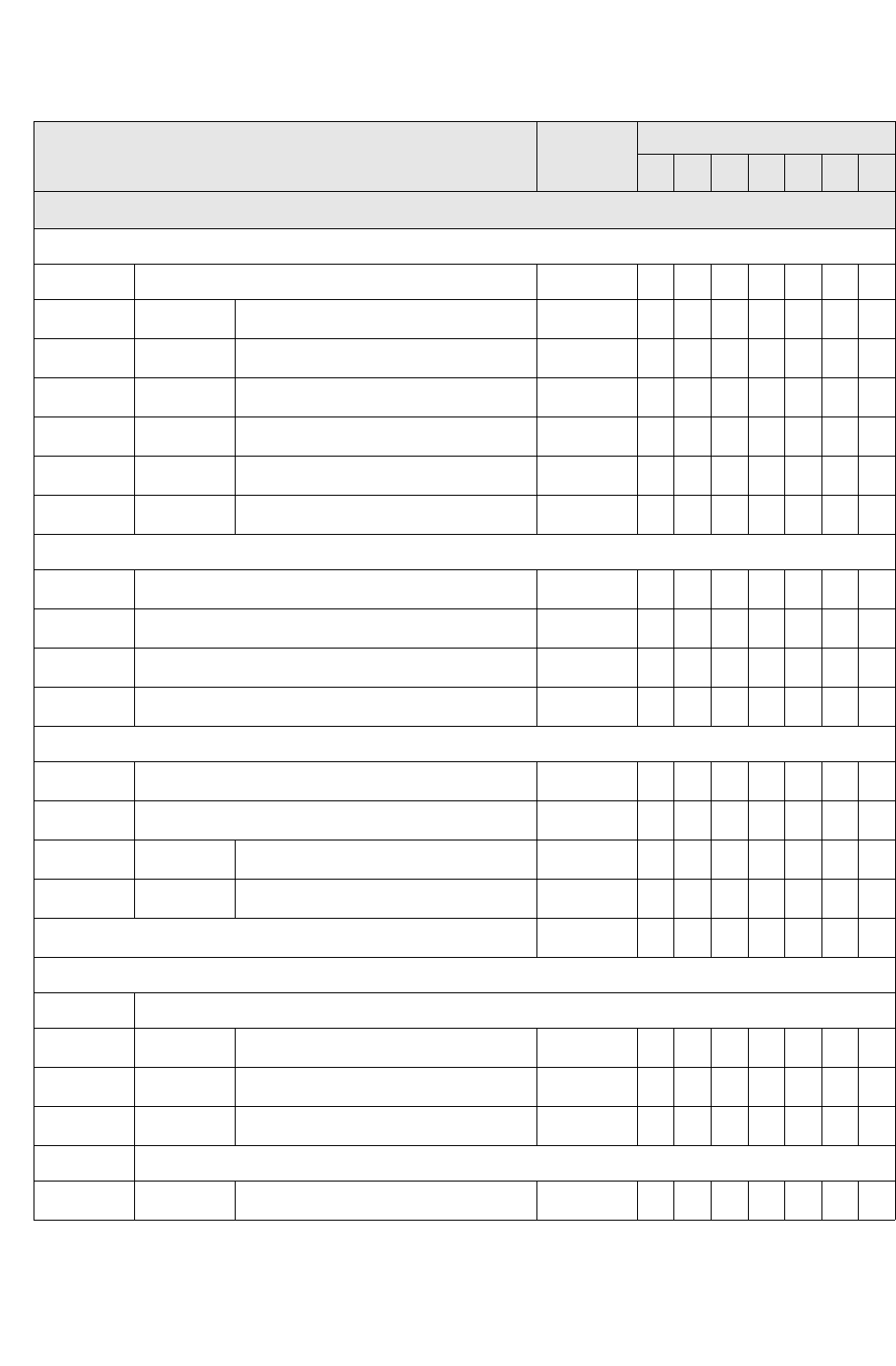
Supported PDF Features
ICEpdf Developer’s Guide v3.0 43
Graphics
Graphics States
Device Independent
Line Width 4.3.2 9
Line Cap Style 4.3.2 9
Line Join Style 4.3.2 9
Miter Limit 4.3.2 9
Line Dash Pattern 4.3.2 9
Alpha Constant 4.3.2 9
Path Construction
Cubic Bézier Curves 4.4.1 9
Sub Paths 4.4.1 9
Lines 4.4.1 9
Rectangles 4.4.1 9
Path-Painting Operators
Stroking 4.4.2 9
Filling 4.4.2 9
Nonzero Winding Number Rule 4.4.2 9
Even-Odd Rule 4.4.2 9
Clipping Path Operators 4.4.3 9
Color Spaces
Device Color Spaces
Device Gray 4.5.3 9
Device RGB 4.5.3 9
Device CMYK 4.5.3 9
CIE-Based Color Spaces
ICCBased Color Spaces 4.5.4 9
Supported Feature Section in
PDF
Reference
Introduced in PDF Version
1.0 1.1 1.2 1.3 1.4 1.5 1.6
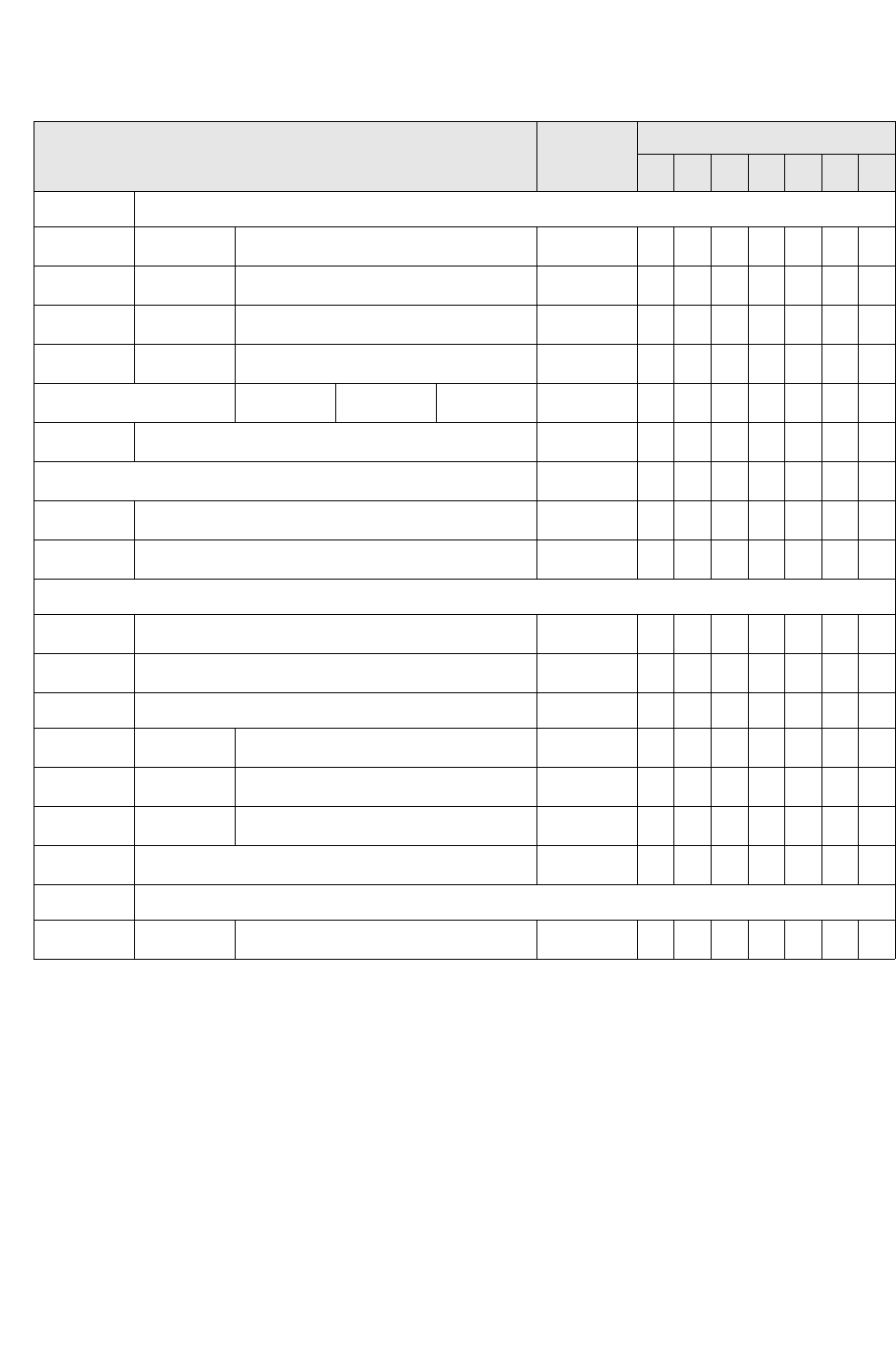
Supported PDF Features
ICEpdf Developer’s Guide v3.0 44
Special Color Spaces
Pattern Color Spaces 4.5.5 9
Indexed Color Spaces 4.5.5 9
Separation Color Spaces 4.5.5 9
DeviceN Color Spaces 4.5.5 9
Patterns 4.6
Shading 4.6.3 9
External Objects 4.7 9
Image XObjects 4.7 9
Form XObjects 4.7 9
Images
Decode Arrays 4.8.4 9
Image Interpolation 4.8.4 9
Masked Images
Stencil Masking 4.8.5 9
Explicit Masking 4.8.5 9
Color Key Masking 4.8.5 9
Inline Images 4.8.6 9
Form XObjects
Form Dictionaries 4.9.1 9
Supported Feature Section in
PDF
Reference
Introduced in PDF Version
1.0 1.1 1.2 1.3 1.4 1.5 1.6
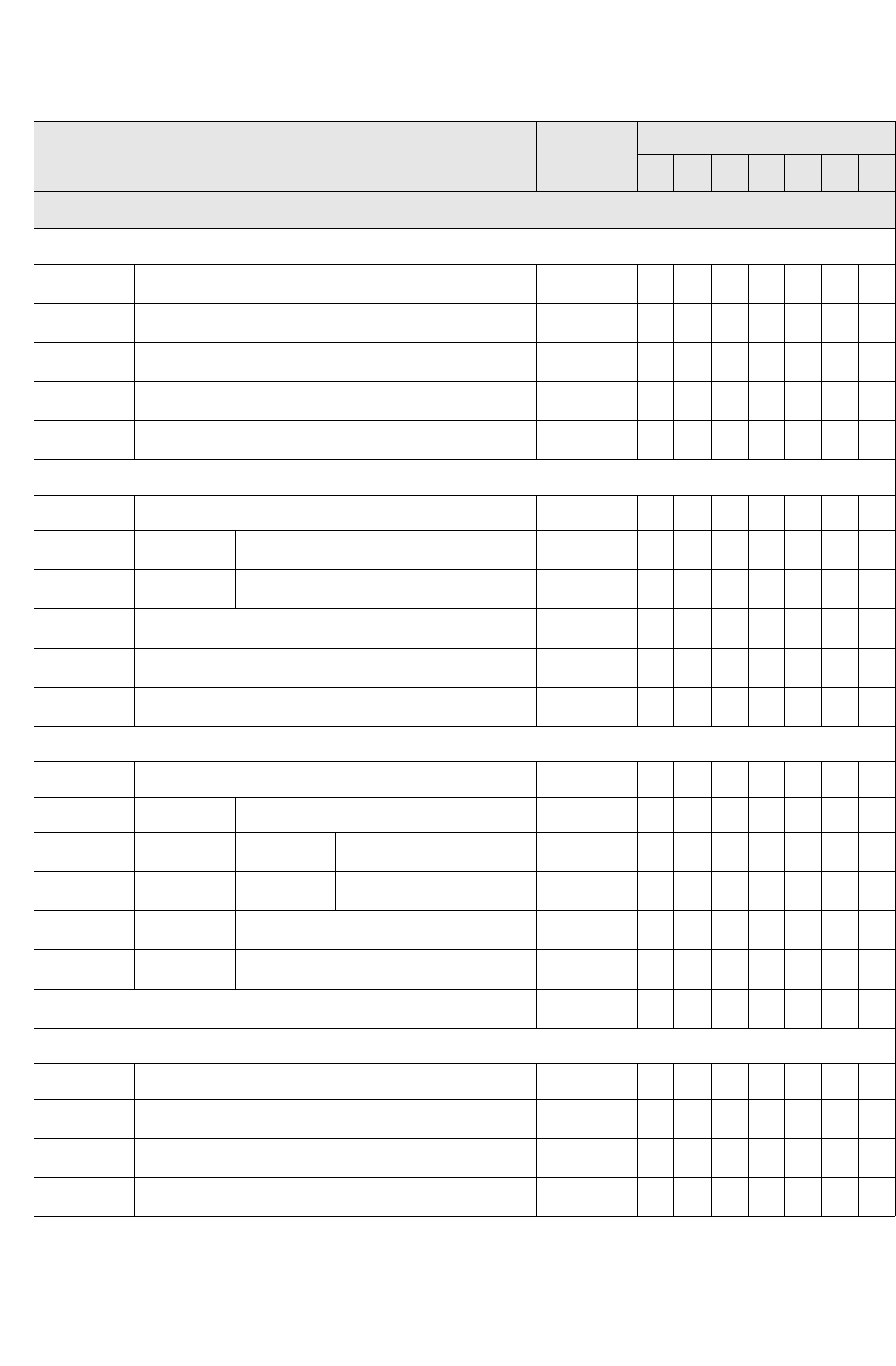
Supported PDF Features
ICEpdf Developer’s Guide v3.0 45
Text
Text State Parameters
Character Spacing 5.2.1 9
Word Spacing 5.2.2 9
Horizontal Scaling 5.2.3 9
Leading 5.2.4 9
Text Rise 5.2.6 9
Simple Fonts*
Type 1 Fonts* 5.5.1
Standard Type 1 Fonts* 5.5.1 9
Multiple Master Fonts* 5.5.1 9
TrueType Fonts* 5.5.2 9
Font Subsets* 5.5.3 9
Type 3 Fonts* 5.5.4 9
Composite Fonts*
CIDFonts* 5.6.3
Cmaps* 5.6.4
Predefined Cmaps* 5.6.4 9
Embedded Cmap Files* 5.6.4 9
Type 0 CIDFonts* 5.8 9
Type 2 CIDFonts* 5.8 9
Font Descriptors 5.7 9
Other Font Programs*
Type 0 Fonts* 5.8
Type 1(CFF)* 5.8 9
OpenType (True Type outlines)* 5.8 9
OpenType (CFF Type outlines)*5.8 9
Supported Feature Section in
PDF
Reference
Introduced in PDF Version
1.0 1.1 1.2 1.3 1.4 1.5 1.6
Supported PDF Features
ICEpdf Developer’s Guide v3.0 46
Interactive Features
Viewer Preferences
Hide Tool bar 8.1 9
Hide Menu bar 8.1 9
Fit Window 8.1 9
Center Window 8.1 9
Display Document Title 3.1 9
Document Page Mode 8.1 9
Outlines 8.1 9
Optional content group 8.1 9
Print Scaling 8.1 9
Document-Level Navigation
Destinations 8.2.1 9
Document Outline 8.2.1 9
Link Annotation 8.4.5 9
Go To actions 8.5.3 9
Go to resource actions 8.5.3 9
Go to launch actions 8.5.3 9
URI actions 8.5.3 9
Annotations†8.4 9
Annotation Flags 8.4.2 999
Border Styles 8.4.3 9
Appearance Streams 8.4.4 9
Annotation Types 8.4.5
Markup Annotations 8.4.5 9
Annotation States 8.4.5 9
Text Annotations 8.4.5 9
Free Text Annotations 8.4.5 9
Supported Feature Section in
PDF
Reference
Introduced in PDF Version
1.0 1.1 1.2 1.3 1.4 1.5 1.6

Supported PDF Features
ICEpdf Developer’s Guide v3.0 47
Line Annotations 8.4.5 9
Square and Circle Annotations 8.4.5 9
Polygon and Polyline Annotations 8.4.5 9
Text Markup Annotations 8.4.5 9
Interactive Forms†8.6
Button Fields 8.6.3
Push Buttons 8.6.3 9
Check boxes 8.6.3 9
Radio Buttons 8.6.3 9
Text Fields 8.6.3 9
Choice Fields 8.6.3 9
* ICEpdf Pro version only.
† Static rendering only.
Supported Feature Section in
PDF
Reference
Introduced in PDF Version
1.0 1.1 1.2 1.3 1.4 1.5 1.6

ICEpdf Developer’s Guide v3.0 48
Index
A
Acrobat standard security 8
Adobe fonts 8
AnnotationCallback, implementing 25
API documentation 3
Applet example 39
B
Batik library 10
bookmarks 32
bookmarks, viewing 33
Bouncy Castle 8
C
caching properties 11, 27
closing a PDF file 38
content extraction examples 39
custom page view 24
custom utility tool, adding 24
D
document permissions and information 37
documentation directory 3
drag and drop, opening PDF files 30
E
encryption 8
enhanced image support 9
example
adding font paths 27
ICEpdf Viewer 28
exporting to SVG 37
extracting document meta-data 18
extracting images 20
extracting text 19
F
finding text 36
FontManager class 26
FontPropertiesManager class 27
fontsadding paths for 27
caching 26
management 26
substitution 8
G
Ghostscript fonts 8
I
ICEpdf Viewer
command line options 29
main toolbar 32
navigating files 33
settings directory 29
toolbar 32
using 30
view toolbar 32
work area 31
images
caching 27
JAI support 9
images, extracting 20
import statements 17
installation bundle 2
internationalization 27

Index
ICEpdf Developer’s Guide v3.0 49
J
JAI support 9
JAR files 3
Java Advanced Imaging library 9
JCE 8
K
keyboard actions 36
L
lib directory 3
M
managing fonts 26
memory management properties 11, 27
meta-data, extracting 18
migration guide 3
mouse actions 36
multiple PDF files, opening 30
MVC implementation 21
N
navigating pages 34
O
opening a PDF file 30
operating system
fontssupport for 26
support 5
P
page capture example 39
Page Capturing Class, building 15
page view 24
page views 13
pages
viewing 34
password support 8
PDF files
closing 38
saving 38
PDF page renderings, converting 15
PDF supported features 4
PDF Viewer Application, using 22
permissions, viewing 37
platform support 5
print services example 40
printing PDF files 38
properties, system 10
R
reference implementation 28
release notes 3
rendering quality properties 11
resizing 35
RI.
See
reference implementation.
rotating 36
S
saving a PDF 38
scenarios, common usage 15
search tab 32
searching for text 36
security 25
security support 8
SecurityCallback, implementing 25
source files 4
src directory 4
Static Main Method 17
substituting fonts 8
support for fonts 26
supported PDF features 41
supported platforms 5
SVG 37
SVG support 10
SwingViewBuilder, customizing 23
system properties 10
caching 11, 27
memory management 11, 27
rendering quality 11
setting 27

Index
ICEpdf Developer’s Guide v3.0 50
T
tabbed utility pane 32
text searching 36
text, extracting 19
toolbar 32
U
usage scenarios 15
utility pane 32
V
vewer component example 40
view, custom page 24
Viewer Component, creating 22
viewing
bookmarks 33
pages 34
PDF files 35
views, page 13
W
window management 24
Z
zoom, setting 35
