Q Exactive HF Software Manual GC
2017-02-02
: Pdf Exactive-Gc Software Manual Exactive-GC_Software_Manual Q Exactive GC Manuals User ation
Open the PDF directly: View PDF  .
.
Page Count: 139 [warning: Documents this large are best viewed by clicking the View PDF Link!]
- Legal Notices
- Contents
- Read This First
- Chapter 1 Instrument Configuration Window
- Chapter 2 Exactive GC Readback Status Page for the Information View
- Chapter 3 Instrument Setup
- Chapter 4 Explore Exactive GC Tune
- Exactive GC Tune Overview
- Exactive GC Tune Menus
- Toolbar
- Tasks Panel
- Display Panel
- Dialog Boxes
- Dialog Boxes Displayed from the Menu Bar
- Dialog Boxes Displayed from the Toolbar
- Dialog Boxes Displayed from the Scan Parameters Window
- Dialog Boxes for Editing Lock Masses
- Dialog Boxes Displayed from the Spectrum Window
- About Dialog Box
- License Dialog Box
- Mass Calculator
- Scan Parameters History Dialog Box
- Scan Range Dialog Box
- Collection Modification Dialog Box
- Lock Masses Dialog Box
- Lock Mass Removal Dialog Box
- Lock Mass Replacement Dialog Box
- New Lock Mass Collection Dialog Box
- Delete Lock Mass Collection Dialog Box
- Name Change Dialog Box
- Display Options Dialog Box
- Tune Reports
- Chapter 5 Procedures in Exactive GC Tune
- Using Lock Masses and Lock Mass Collections
- Performing a System Bakeout
- Changing Default Settings of Exactive GC Tune
- Chapter 6 Reference Information
- Index

1R120594-0003 Revision A July 2016
Exactive GC
Mass Spectrometer
Software Manual
Legal Notices
© 2016 Thermo Fisher Scientific Inc. All rights reserved.
Exactive, Orbitrap, TraceFinder, TriPlus, and Xcalibur are registered trademarks of Thermo Fisher
Scientific Inc. in the United States.
The following are registered trademarks in the United States and possibly other countries: Adobe and
Reader are registered trademarks of Adobe Systems Inc. Convectron is a registered trademark of Helix
Technology Corporation. PAL is a registered trademark of CTC Analytics AG. SEQUEST is a
registered trademark of University of Washington. Excel, Internet Explorer, Microsoft, and Windows
are registered trademarks of Microsoft Corporation.
All other trademarks are the property of Thermo Fisher Scientific Inc. and its subsidiaries.
Thermo Fisher Scientific Inc. provides this document to its customers with a product purchase to use
in the product operation. This document is copyright protected and any reproduction of the whole or
any part of this document is strictly prohibited, except with the written authorization of Thermo
Fisher Scientific Inc.
Release History: Revision A released in July 2016.
Software Version: Exactive GC Tune 2.8 SP1
For Research Use Only. Not for use in diagnostic procedures.
Thermo Scientific Exactive GC Software Manual (P/N 1R120594-0003, Revision A) i
Contents
Chapter 1 Instrument Configuration Window.....................................1-1
Chapter 2 Exactive GC Readback Status Page for the
Information View ...................................................................2-1
Chapter 3 Instrument Setup....................................................................3-1
Instrument Setup Window............................................. 3-2
View Bar ..................................................................... 3-3
Menus......................................................................... 3-3
Toolbar ....................................................................... 3-3
File Menu for the Instrument Setup Window ............. 3-3
Help Menu for the Instrument Setup Window ........... 3-4
Instrument Setup Window Toolbar ............................ 3-5
Method Editor ............................................................ 3-6
Experiment Setup Page .................................................. 3-7
Global Settings Pane ................................................... 3-8
Experiments Pane...................................................... 3-11
Graph Pane............................................................... 3-13
Properties Pane ......................................................... 3-14
Summary Page ............................................................. 3-22
Dialog Boxes of the Experiment Setup Page................. 3-23
Lock Masses Dialog Box ........................................... 3-23
Inclusion List Dialog Box.......................................... 3-25
Chapter 4 Explore Exactive GC Tune....................................................4-1
Exactive GC Tune Overview.......................................... 4-2
Title Bar...................................................................... 4-2
Menus......................................................................... 4-3
Toolbar ....................................................................... 4-3
Tasks Panel ................................................................. 4-3
Display Panel .............................................................. 4-4
Exactive GC Tune Menus.............................................. 4-5
User Role .................................................................... 4-5
File Menu ................................................................... 4-5
Windows Menu .......................................................... 4-6
Reports Menu ............................................................. 4-7
Help Menu ................................................................. 4-8
Toolbar .......................................................................... 4-9
Tasks Panel .................................................................. 4-11
Instrument Control Window .................................... 4-11
Tune Window .......................................................... 4-18
Contents
ii Exactive GC Software Manual (P/N 1R120594-0003, Revision A) Thermo Scientific
Mass Traces Window................................................ 4-20
Calibrate Window..................................................... 4-21
Evaluate Window...................................................... 4-30
Vacuum / Bakeout Window...................................... 4-35
Display Panel ............................................................... 4-37
Spectrum Window.................................................... 4-38
Instrument Status Window ....................................... 4-41
Messages Window..................................................... 4-42
Analysis Graphs Window .......................................... 4-43
Debug Messages Window ......................................... 4-44
Dialog Boxes ................................................................ 4-47
Dialog Boxes Displayed from the Menu Bar ............. 4-47
Dialog Boxes Displayed from the Toolbar................. 4-47
Dialog Boxes Displayed from the Scan Parameters
Window.................................................................... 4-47
Dialog Boxes for Editing Lock Masses....................... 4-47
Dialog Boxes Displayed from the Spectrum
Window.................................................................... 4-47
About Dialog Box ..................................................... 4-48
License Dialog Box ................................................... 4-49
Mass Calculator ........................................................ 4-50
Scan Parameters History Dialog Box......................... 4-51
Scan Range Dialog Box............................................. 4-52
Collection Modification Dialog Box ......................... 4-54
Lock Masses Dialog Box ........................................... 4-55
Lock Mass Removal Dialog Box................................ 4-58
Lock Mass Replacement Dialog Box ......................... 4-58
New Lock Mass Collection Dialog Box..................... 4-59
Delete Lock Mass Collection Dialog Box .................. 4-60
Name Change Dialog Box ........................................ 4-61
Display Options Dialog Box ..................................... 4-62
Tune Reports ............................................................... 4-63
Chapter 5 Procedures in Exactive GC Tune........................................ 5-1
Using Lock Masses and Lock Mass Collections .............. 5-2
Adding a Lock Mass.................................................... 5-2
Deleting Lock Masses.................................................. 5-3
Exporting and Importing Lock Masses........................ 5-3
Creating a new Lock Mass Collection ......................... 5-8
Renaming a Lock Mass Collection .............................. 5-9
Adding a Lock Mass to a Lock Mass Collection .......... 5-9
Removing a Lock Mass from a Lock Mass
Collection ................................................................... 5-9
Deleting a Lock Mass Collection............................... 5-10
Performing a System Bakeout....................................... 5-11
Changing Default Settings of Exactive GC Tune ......... 5-13
Displaying the High Vacuum Readback.................... 5-13
Changing the Settings for the Performance Status
Check ....................................................................... 5-14
Contents
Thermo Scientific Exactive GC Software Manual (P/N 1R120594-0003, Revision A) iii
Chapter 6 Reference Information..........................................................6-1
Log Files ........................................................................ 6-2
Tune Files and Calibration Files..................................... 6-3
Tune Files ................................................................... 6-3
Calibration File ........................................................... 6-3
Index ........................................................................................ I-1
Thermo Scientific Exactive GC Software Manual (P/N 1R120594-0003, Revision A) v
Read This First
Welcome to the Thermo Scientific™ Exactive™ GC system! Exactive GC
is a member of the Thermo Scientific family of mass spectrometer (MS)
detectors that are powered by Orbitrap™ technology.
About This Guide
This Exactive GC Software Manual provides reference information about
the parameters in the Instrument Configuration window, the
Instrument Setup window, and the Exactive GC window. For
information about the operating procedures for the Exactive GC mass
spectrometer, we recommend that you read the Q Exactive GC and
Exactive GC Operating Manual in its entirety.
Who Uses This Guide
This Exactive GC Software Manual is intended for all personnel that
need to perform measurements with the Exactive GC mass
spectrometer, especially the key operator. This manual should be kept
near the instrument to be available for quick reference.
Scope of This Guide
The Exactive GC Software Manual includes the following chapters:
•Chapter 1: “Instrument Configuration Window” describes the
Instrument Configuration window, which displays configuration
information.
•Chapter 2: “Exactive GC Readback Status Page for the Information
View” describes the page that allows controlling the instrument
from the Roadmap view of the Xcalibur™ Home Page window.
•Chapter 3: “Instrument Setup” describes Instrument Setup, which is
used to specify instrument settings.
•Chapter 4: “Explore Exactive GC Tune” provides information about
Exactive GC, its views, functions, and features.
•Chapter 5: “Procedures in Exactive GC Tune” provides information
about procedures in Exactive GC.
•Chapter 6: “Reference Information” provides information about
various file types and other supplemental information.
Read This First
About This Guide
vi Exactive GC Software Manual (P/N 1R120594-0003, Revision A) Thermo Scientific
Related Documentation
In addition to this guide, Thermo Fisher Scientific provides the
following documents for the Exactive GC mass spectrometer:
•Q Exactive GC and Exactive GC Preinstallation Requirements Guide
•Exactive GC Quick Start Guide
•Q Exactive GC and Exactive GC Operating Manual
•Manuals for the delivered ion sources and other software.
You can access PDF files of the documents listed above and of this guide
from the data system computer. The Exactive GC software also provides
Help.
❖To view product manuals
Go to Start > Programs > Thermo Exactive Series > Manuals.
❖To open Help
•From the Exactive GC window, choose Help > Help Content.
•If available for a specific window or dialog box, click Help or press
F1 for information about setting parameters.
For more information, including upcoming application notes, visit
www.thermoscientific.com.
Read This First
Contacting Us
Thermo Scientific Exactive GC Software Manual (P/N 1R120594-0003, Revision A) vii
Contacting Us
There are several ways to contact Thermo Fisher Scientific.
Assistance
For technical support and ordering information, visit us on the Web:
https://gcgcms.freshdesk.com/support/home
Service contact details are available under:
www.unitylabservice.com
For brochures, application notes and other material, please visit:
www.thermofisher.com
For operating manuals, please contact your local Service organization.
Changes to the Manual
❖To suggest changes to this manual
•Please send your comments to:
Technical Documentation
Thermo Fisher Scientific
2215 Grand Avenue Parkway
Austin, Texas 78728
United States
•Send an e-mail message to the Technical Publications Editor at
techpubs-austin@thermofisher.com.
You are encouraged to report errors or omissions in the text or index.
Thank you.
Read This First
Typographical Conventions
viii Exactive GC Software Manual (P/N 1R120594-0003, Revision A) Thermo Scientific
Typographical Conventions
This section describes typographical conventions that have been
established for Thermo Fisher Scientific manuals.
Signal Word
Make sure you follow the precautionary statements presented in this
manual. The special notices appear different from the main flow of text:
NOTICE Points out possible material damage and other important
information in connection with the instrument. ▲
Data Input
Throughout this manual, the following conventions indicate data input
and output via the computer:
•Messages displayed on the screen are represented by capitalizing the
initial letter of each word and by italicizing each word.
•Input that you enter by keyboard is identified by quotation marks:
single quotes for single characters, double quotes for strings.
•For brevity, expressions such as “choose File > Directories” are used
rather than “pull down the File menu and choose Directories.”
•Any command enclosed in angle brackets < > represents a single
keystroke. For example, “press <F1>” means press the key labeled
F1.
•Any command that requires pressing two or more keys
simultaneously is shown with a plus sign connecting the keys. For
example, “press <Shift> +<F1>” means press and hold the <Shift>
key and then press the <F1> key.
•Any button that you click on the screen is represented in bold face
letters. For example, “click Close”.
Read This First
Typographical Conventions
Thermo Scientific Exactive GC Software Manual (P/N 1R120594-0003, Revision A) ix
Topic Headings
The following headings are used to show the organization of topics
within a chapter:
Chapter 1 Chapter Name
Second Level Topics
Third Level Topics
Fourth Level Topics
Thermo Scientific Exactive GC Software Manual (P/N 1R120594-0003, Revision A) 1-1
Chapter 1 Instrument Configuration Window
NOTICE Never change the settings in this window except during
installation of the instrument. Any changes in this window affect the
data acquisition or the functionality of your instrument. A later change
will rarely solve problems users have to face. ▲
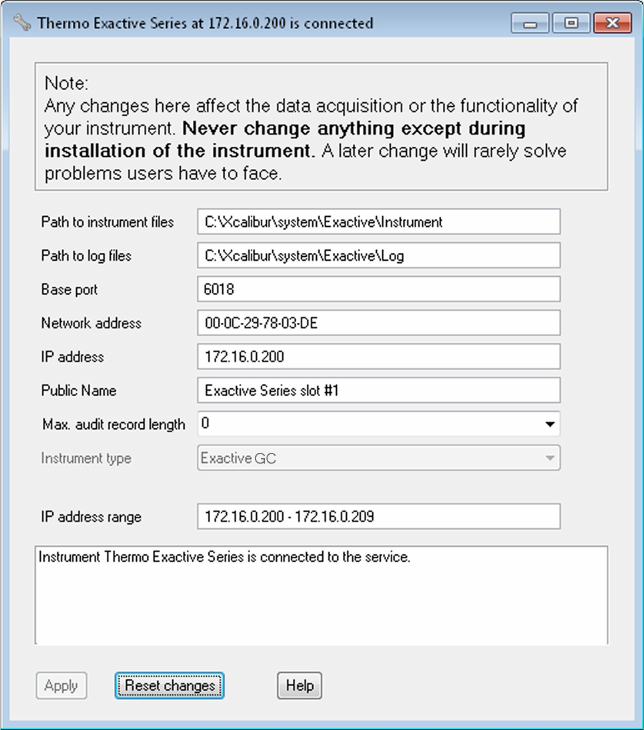
The Instrument Configuration window displays Exactive GC
configuration information. See Figure 1-1.
Figure 1-1. Instrument Configuration window
Instrument Configuration Window
1-2 Exactive GC Software Manual (P/N 1R120594-0003, Revision A) Thermo Scientific
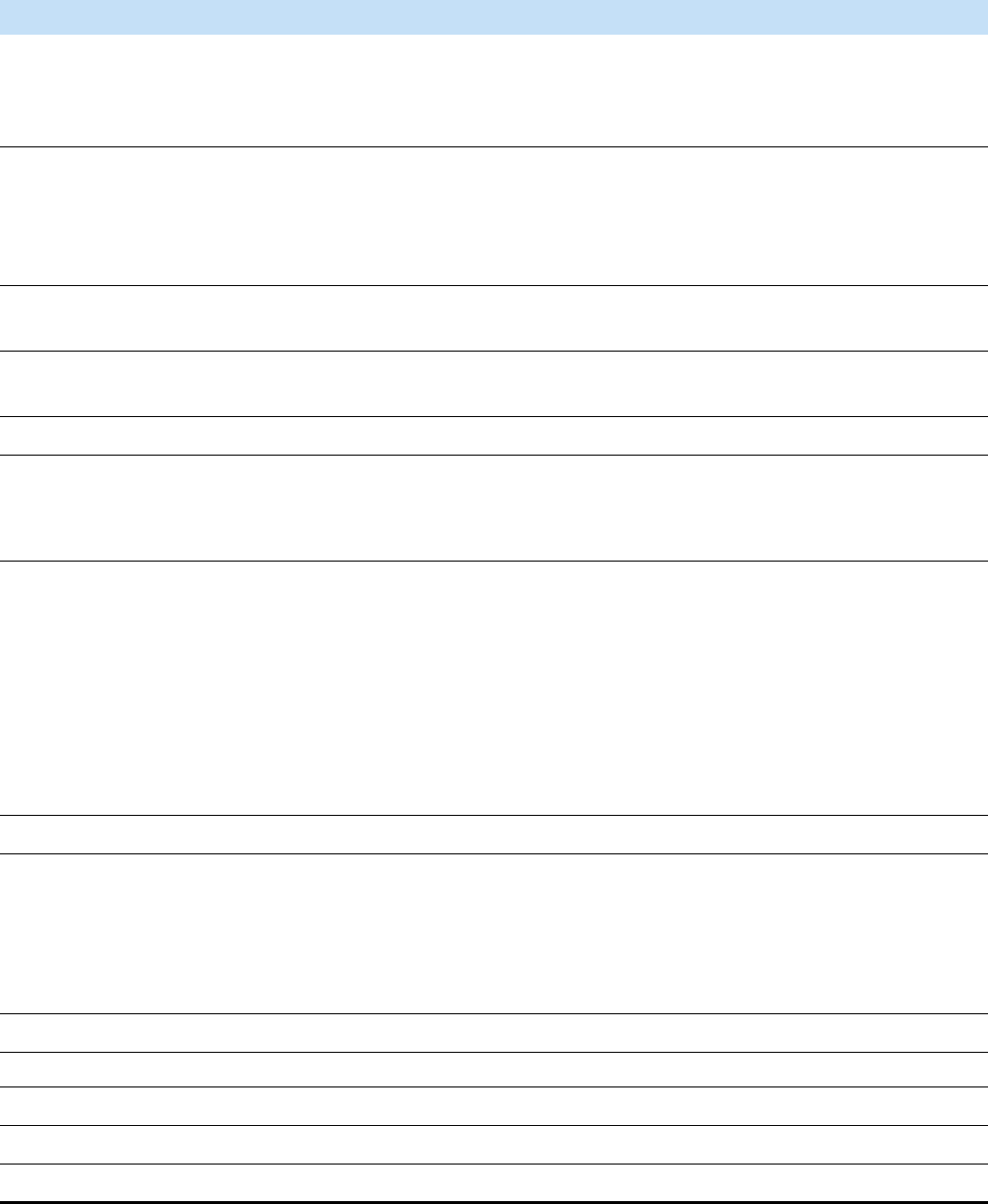
The Instrument Configuration window has the following parameters:
Parameter Description
Path to instrument files Displays the location of the instrument files.
To change the path, click the folder button on the right side of the text box. A
dialog box appears where you can select another location.
Path to log files Displays the location of the log files. For information about the content of the log
files, see “Log Files” on page 6-2.
To change the path, click the folder button on the right side of the text box. A
dialog box appears where you can select another location
Base port Displays the first TCP/UDP port in use for this particular instrument. Leave the
field empty for an automatic assignment.
Network address Displays the hardware address of the network card installed in the instrument.
Leave the field empty for an automatic assignment.
IP address Displays the IP address. Leave the field empty for an automatic assignment.
Public Name Displays the name that is shown in the About dialog box of Exactive GC Tune.
NOTICE Do not use Unicode characters in the Public Name. ▲
Max. audit record length Use this list box to select the maximum audit record length. The following options
are available:
•0 disables auditing
•50 is common for an Access audit database initialized by Platform’s Database
Configuration
•255 is common for an Oracle audit database initialized by Platform’s Database
Configuration
•1000 is common if auditing is done by Chromeleon. It is a compromise
between size and readability
Instrument type Displays the configured instrument type, that is Exactive GC.
IP address range Displays the IP address or IP address range which should be assigned to the
instrument during its starting phase. Use the numeric form, for example
“172.16.2.1-172.16.2.15”.
NOTICE Change only when advised by your network administrator. ▲
Message box Displays information about the instrument and connection status.
Buttons
Apply Saves your changes in this window.
Reset changes Discards your changes in this window.
Help Displays the Help for this window.
Instrument Configuration Window
Thermo Scientific Exactive GC Software Manual (P/N 1R120594-0003, Revision A) 1-3
❖To display this window
1. Choose Programs > Thermo Foundation 3.1 > Instrument
Configuration.
2. From the Instrument Configuration window, click Exactive GC -
Orbitrap MS in the Configured Devices area.
3. Click Configure.
Thermo Scientific Exactive GC Software Manual (P/N 1R120594-0003, Revision A) 2-1
Chapter 2 Exactive GC Readback Status Page for the
Information View
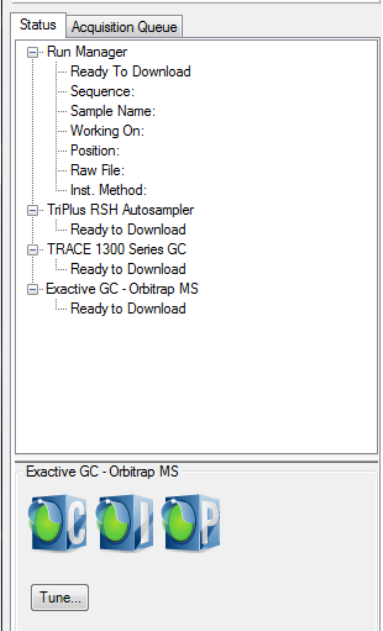
The readback status of each Xcalibur-configured instrument appears on
the Status page of the Information view. When you click an instrument,
Xcalibur™ displays current readings for the instrument on a page below
the Run Manager pane. See Figure 2-1.
Right-click any of the instruments to display a shortcut menu where you
can switch your instrument to On, Off, or Standby mode.
NOTICE This view is normally displayed on the left side of the Home
Page window. If this view is not displayed, the view has been turned
off. ▲
Figure 2-1. Exactive GC Readback Status Page for the Information View
Exactive GC Readback Status Page for the Information View
2-2 Exactive GC Software Manual (P/N 1R120594-0003, Revision A) Thermo Scientific
The following functions are available:
❖To open this page
1. From the Home Page window, choose View > Info View to display
the Information view.
2. Click the Status tab.
3. Click Exactive GC - Orbitrap MS.
Button Description
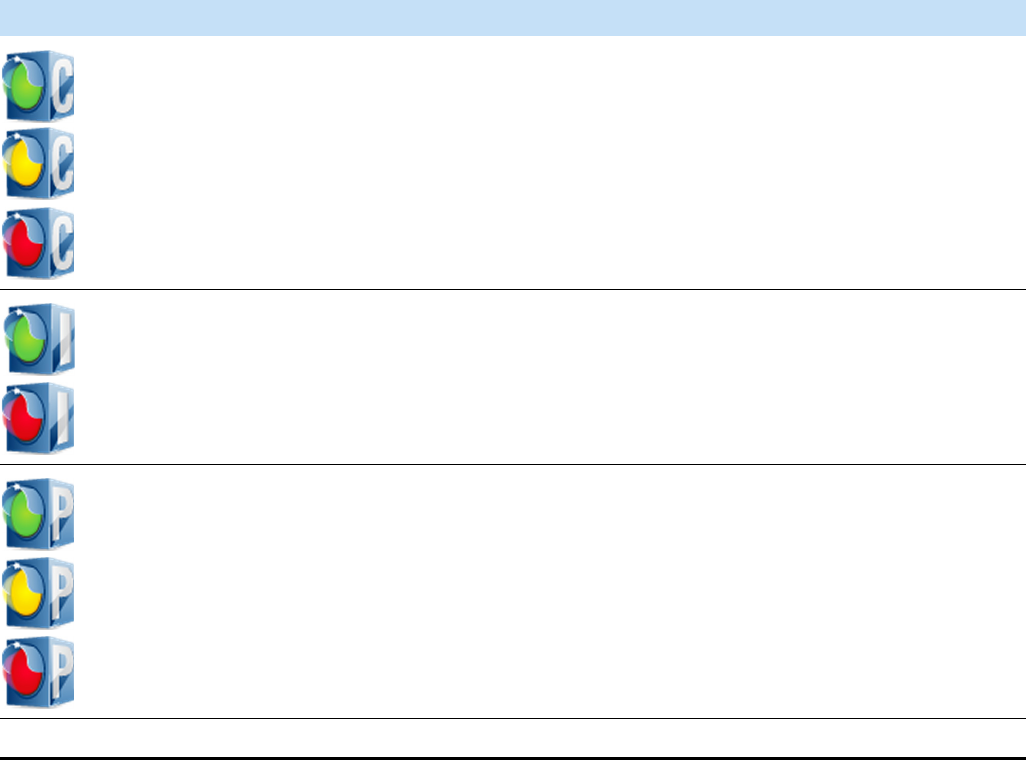
Communication Status Shows the actual communication status of the system:
•Green: communication with instrument is ok.
•Yellow: only service is accessible (no instrument).
•Red: communication is broken (no instrument, no service).
Instrument Status Shows the actual hardware status of the system (top instrument tree
state):
•Green: all readbacks are in specifications (green hooks).
•Red: one or more readbacks are out of range.
Performance Status Shows the actual performance status of the system:
•Green: the last evaluation/calibration was successful.
•Yellow: last evaluation/calibration was successful, but is out of
date.
•Red: the evaluation/calibration was not successful.
Tune Opens the Exactive GC Tune window.

Thermo Scientific Exactive GC Software Manual (P/N 1R120594-0003, Revision A) 3-1
Chapter 3 Instrument Setup
After you have selected in the Instrument Configuration program which
instruments you want Xcalibur to control, use Instrument Setup to
specify your instrument settings.
Contents
•Instrument Setup Window
•Experiment Setup Page
•Summary Page
•Dialog Boxes of the Experiment Setup Page
Instrument Setup
Instrument Setup Window
3-2 Exactive GC Software Manual (P/N 1R120594-0003, Revision A) Thermo Scientific
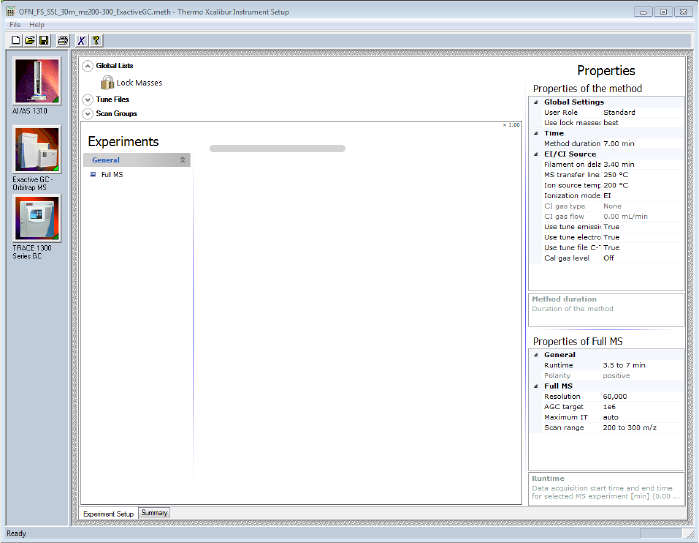
Instrument Setup Window
The Instrument Setup window displays the icons of the instruments
that you have selected using the Instrument Configuration window. (See
the View bar on the left side of the window.) See Figure 3-1. If you have
configured more instruments than can be displayed on your screen, a
vertical scroll bar appears in the View bar. So, you can access all of the
instruments.
To enter the setup parameters for a particular instrument, click the icon
for that instrument. Xcalibur displays one or more pages of parameters
to be set for the one you selected.
NOTICE Before using the Instrument Setup window, use the
Instrument Configuration program to select the instruments to be used
for your experiment. ▲
Use Instrument Setup to specify settings for your instruments after you
have selected with the Instrument Configuration program the
instruments that you want Xcalibur to control. The Instrument Setup
window displays the setup parameters required for each instrument that
you select on the View bar. These might include your autosampler, GC,
mass spectrometer, and/or all other Xcalibur supported instruments that
you have configured.
Figure 3-1. Instrument Setup window
Instrument Setup
Instrument Setup Window
Thermo Scientific Exactive GC Software Manual (P/N 1R120594-0003, Revision A) 3-3
You can create new methods, modify existing methods, and save method
files.
❖To display this window
•Click from the Roadmap view of the Home Page window.
•Alternatively, choose GoTo > Instrument Setup.
View Bar
The View bar is a vertical bar on the left of the Instrument Setup
window. It contains buttons for each of the instruments that you have
selected by using the Instrument Configuration program.
Menus
Instrument Setup contains the following menus:
•File Menu for the Instrument Setup Window
•Help Menu for the Instrument Setup Window
Toolbar
Instrument Setup Window Toolbar
File Menu for the Instrument Setup Window
The File menu provides commands for file and program operations. It
has the following commands:
Command Description
New Create a new method file having the appropriate extension.
Open Find and open a file that already exists.
Save Save the active method. Changes will be recorded in Audit Trail after the
method is saved.
Save As Edit user and description information, and view header information
about the active file.
Xcalibur opens the Save As dialog box. Changes will be recorded in Audit
Trail after the method is saved.
Instrument Setup
Instrument Setup Window
3-4 Exactive GC Software Manual (P/N 1R120594-0003, Revision A) Thermo Scientific
Help Menu for the Instrument Setup Window
The Help menu lists the following commands:
Summary Information Edit user and description information, and view header information
about the active file.
Change Study Name Select a dataset from a predefined list of names.
The text of this menu item might be different if the administrator chose
to use another name for a dataset. For example, this menu item might be
Change Job Name.
Audit Trail View all auditable events and changes made to data files in the current
application.
Print Print the parameters in your instrument method.
Print Preview View your page setup so that you can see what it looks like before
printing it.
Print Setup Select the following printing options: printer, form, orientation, and
one-sided or two-sided printing.
Most Recently Used Files View the paths and names of the last four files used. These are located
above the Exit command. Both open and closed files are displayed. Click
a displayed file to load it. If the selected file was closed, it will be opened.
Exit Close the active window. If you exit before clicking OK from an active
dialog box, Xcalibur asks if you want to save your changes.
Command Description
Command Description
Exactive GC - Orbitrap
MS Help
Open the Configuration and Setup Help
for the instrument.
Instrument Setup Help Open Xcalibur Help and display Help for
the Instrument Setup window.
Help On Current Item View Help for the Instrument Setup page
that is currently displayed.
Exactive GC - Orbitrap
MS Contents and Index
View the Contents, Index, and Find Help
pages for the selected instrument.
Xcalibur Help Open Xcalibur Help.
How to use Online Help Open Help that describes how to use the
Help viewer.
About Instrument Setup View the version number of the
Instrument Setup program and the
Thermo Fisher Scientific copyright
notice.
Instrument Setup
Instrument Setup Window
Thermo Scientific Exactive GC Software Manual (P/N 1R120594-0003, Revision A) 3-5
Instrument Setup Window Toolbar
The toolbar provides symbol shortcuts for frequently used commands.
The following functions are available:
Button Description
New Create a new instrument method.
Open Find and open an existing file.
Save If your method has not been saved before,
clicking Save opens the Save As dialog box. Select
the name and location for your instrument
method. When you click Save, the File Summary
Information Dialog Box opens. Enter header
information for your instrument method. The file
is saved when you click OK.
Print Print the parameters in your instrument method.
Home Page View the Home Page window—Roadmap view.
Help View Help for the Instrument Setup page that is
currently displayed.
Instrument Setup
Instrument Setup Window
3-6 Exactive GC Software Manual (P/N 1R120594-0003, Revision A) Thermo Scientific
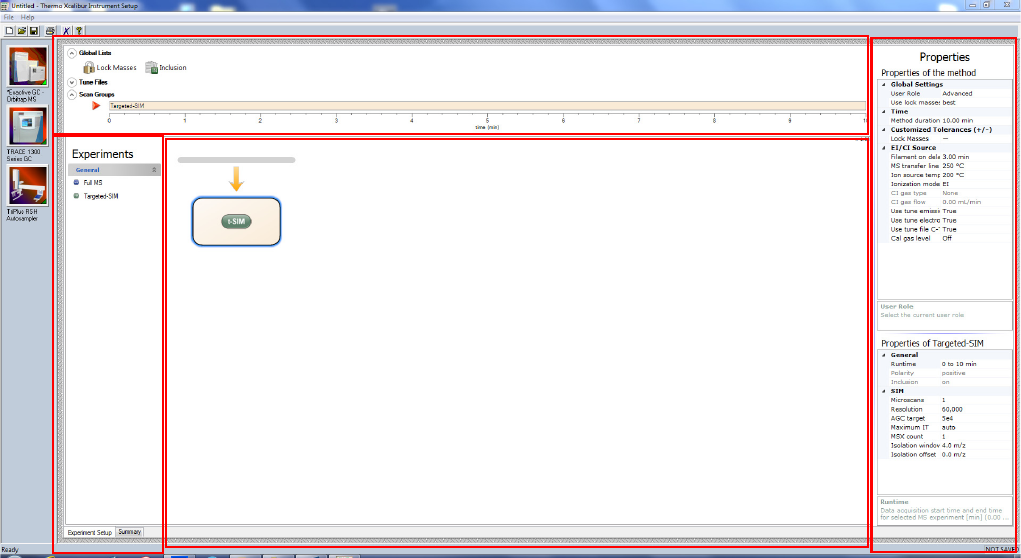
Method Editor
Use the Method Editor to specify the type of mass spectrometer
experiment you plan to perform. See Figure 3-2.
The Method Editor comprises the following pages:
•Experiment Setup Page
•Summary Page
❖To display this view
Click Instrument Setup from the Roadmap View of the Home
Page window or choose GoTo > Instrument Setup.
Figure 3-2. Method Editor (Xcalibur)
Instrument Setup
Experiment Setup Page
Thermo Scientific Exactive GC Software Manual (P/N 1R120594-0003, Revision A) 3-7
Experiment Setup Page
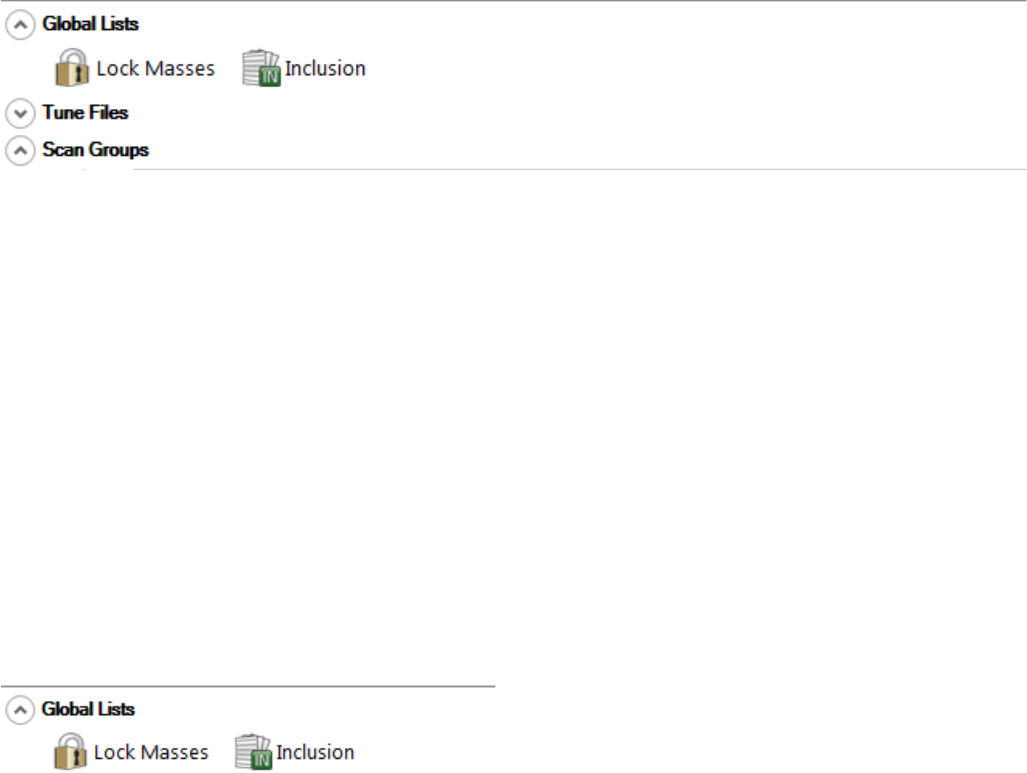
Use the Experiment Setup page to set up Exactive GC mass
spectrometer experiments. You use this page to specify values for the
Exactive GC parameters and save the parameters in an instrument
method. See Figure 3-3.
The Experiment Setup page comprises four major windows:
•Global Settings Pane
•Experiments Pane
•Graph Pane
•Properties Pane
Figure 3-3. Method Editor—Experiment Setup page
Global Settings pane
Experiments
pane
Properties pane
Graph pane
Instrument Setup
Experiment Setup Page
3-8 Exactive GC Software Manual (P/N 1R120594-0003, Revision A) Thermo Scientific
Global Settings Pane
The Global Settings pane is located on the top left side of the
Experiment Setup page. It gives access to global lists, tune files, external
hardware, chromatogram, and scan groups. See Figure 3-4.
The Global Settings pane contains the following panes:
•Global Lists
•Tune Files
•Scan Groups
Click the title bar of an individual pane to display it. Click again to hide
it.
Global Lists
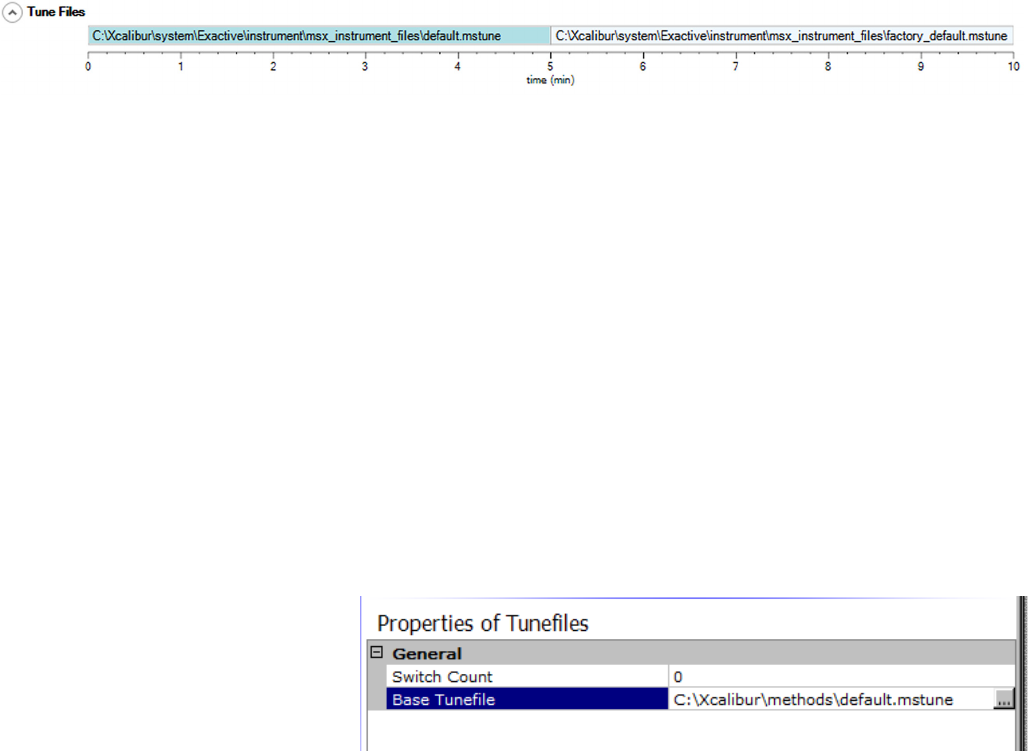
Use the Global Lists pane of the Experiment Setup page to select and
edit a list of Lock Masses. See Figure 3-5.
The following dialog box is available:
•Lock Masses Dialog Box
To display the Lock Masses dialog box, click the respective icon.
Figure 3-4. Method Editor—Global Settings pane
Figure 3-5. Method Editor—Global Lists pane
Instrument Setup
Experiment Setup Page
Thermo Scientific Exactive GC Software Manual (P/N 1R120594-0003, Revision A) 3-9
Tune Files
The Tune Files pane shows a graphical representation of the tune files
usage during the various phases of the experiment. See Figure 3-6. In
addition to the base tune file, you can specify up to 50 other tune files.
❖To assign tune files
1. Do one of the following:
•Point to a position on the time bar and right-click. Choose
Change to another tunefile at <time at pointer position> in
the shortcut menu.
•Change the value of the Switch Count parameter in the
Properties of Tunefiles pane.
2. In the Properties of Tunefiles pane, click the button next to the
respective box of the Base Tunefile or New Tunefile parameter and
browse for the new tune method file. See Figure 3-7. Select the tune
files and assign them to the experiment phases.
The name and path way of the tune files will be shown on the
respective time bar on the Tune Files pane.
❖To change the starting time for tune files
•Position the cursor between adjacent tune files and drag the scan
event along the time bar.
•In the Properties of Tunefiles pane, enter the time in the box of the
At parameter of the respective Element.
❖To remove a tune file
1. Position the cursor between adjacent tune files
Figure 3-6. Method Editor—Tune Files
Figure 3-7. Properties of Tunefiles
Instrument Setup
Experiment Setup Page
3-10 Exactive GC Software Manual (P/N 1R120594-0003, Revision A) Thermo Scientific
2. Right-click to display the shortcut menu and choose Remove
change to tunefile at <time at pointer position>. The tune file to
the right is removed.
❖To zoom on the Tune Files pane
•Position the mouse pointer within the time axis area and drag the
mouse across the time area of interest.
•To zoom in, position the mouse pointer within the pane and roll the
mouse wheel forward.
•To zoom out, roll the wheel backward.
•To increase the zooming factor by two, keep the <Shift> key pressed
while using the mouse wheel.
❖To unzoom the Tune Files pane
•Right-click in the pane to display the shortcut menu. Choose
Unzoom.
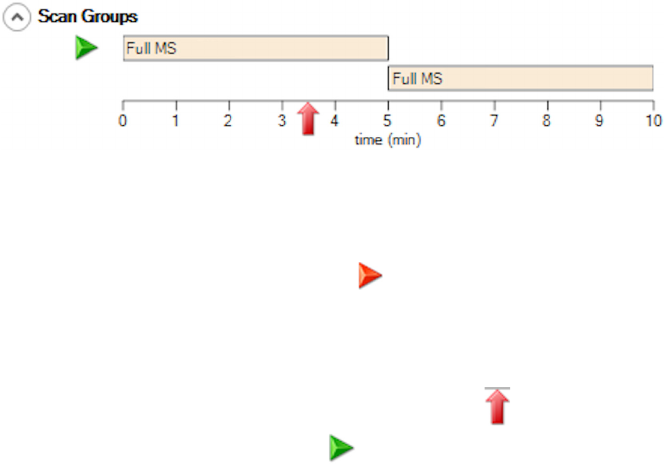
Scan Groups
In the Scan Groups pane, time bars represent the scan events during the
acquisition. See Figure 3-8. The Scan Groups pane is filled when you
drag experiment symbols from the experiments pane to the Graph pane.
Use the Properties pane of a scan event to control the activities during
individual experiments. Red triangles ( ) to the left side of a time bar
indicate active scan events.
❖To display the active scan events at a certain time
Click the time line at the position. A red arrow ( ) indicates the
selected time. A green triangle ( ) to the left side of the time bar
indicates the active scan event. If scan events overlap at the selected
time, green triangles appear for each active scan event. The bottom
part of the Properties pane shows the parameters for the selected
scan event.
Figure 3-8. Scan Groups
Instrument Setup
Experiment Setup Page
Thermo Scientific Exactive GC Software Manual (P/N 1R120594-0003, Revision A) 3-11
❖To change start and end time of a scan event
•Drag the left and right edges of the time bar to the desired positions
on the time line.
•Enter the times in the Minimum and Maximum boxes of the
runtime parameter on the Properties pane.
❖To zoom on the Scan Groups pane
•Position the mouse pointer within the time axis area and drag the
mouse across the time area of interest.
•To zoom in, position the mouse pointer within the pane and roll the
mouse wheel forward.
•To zoom out, roll the wheel backward.
•To increase the zooming factor by two, keep the <Shift> key pressed
while using the mouse wheel.
❖To unzoom the Scan Groups pane
Right-click in the pane to display the shortcut menu. Choose
Unzoom.
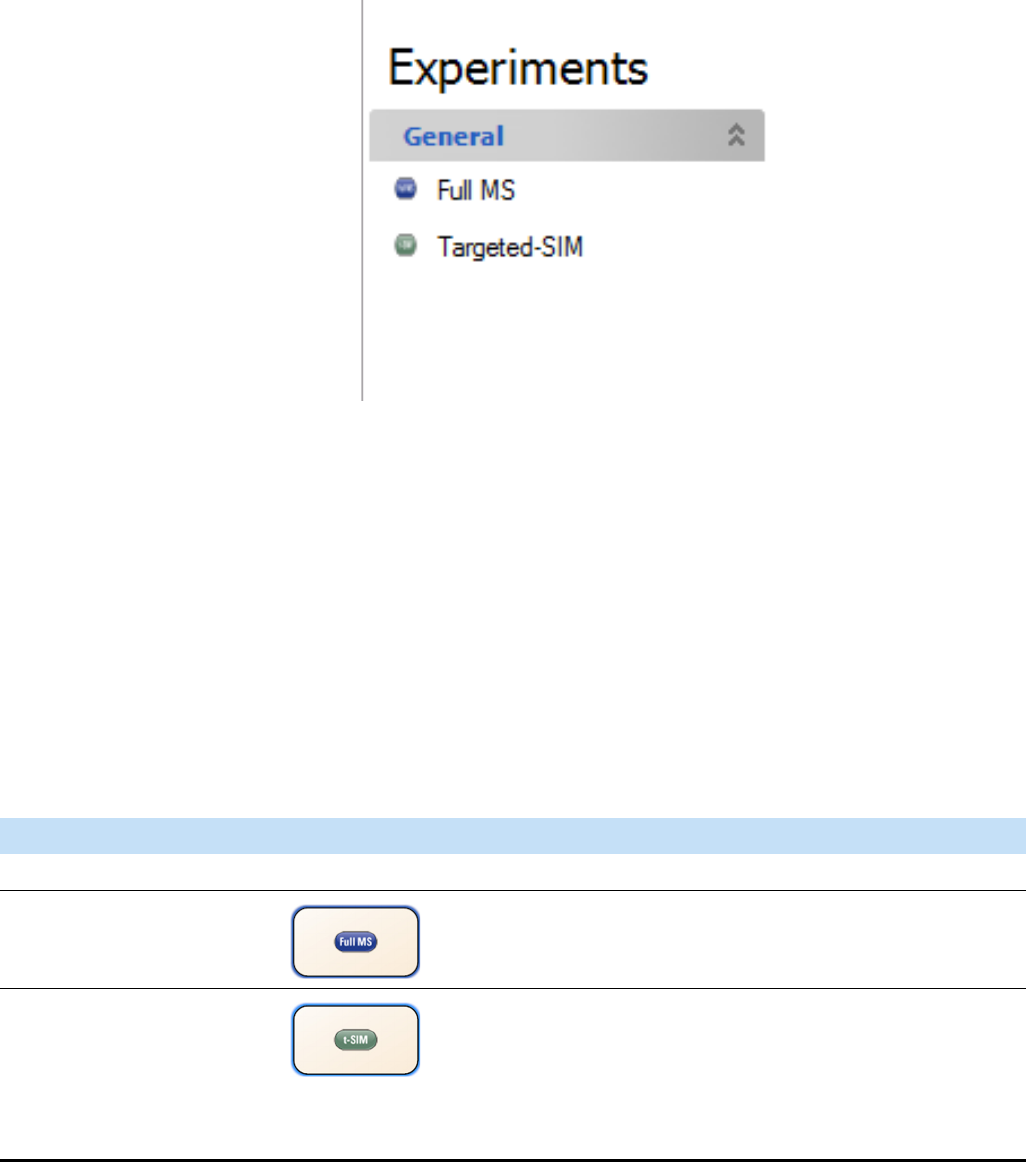
Experiments Pane
The Experiments pane is located on the bottom left side of the
Experiment Setup page. It gives access to predefined experiment
templates. You cannot delete the experiment templates.
Every single experiment is associated with a descriptive icon. This icon
can be dragged from the Experiments pane to the Graph pane. When
selected, the icon gives an overview to the operator, which experiment
and which associated options are active currently. Therefore, this icon
changes dependent on the settings. Use the Properties pane to specify
the values for your experiment parameters.
Instrument Setup
Experiment Setup Page
3-12 Exactive GC Software Manual (P/N 1R120594-0003, Revision A) Thermo Scientific
General Experiment Templates
The General folder contains predefined templates for experiments. See
Figure 3-9.
In Xcalibur, the Experiment Setup page allows using several system
templates in an instrument method.
NOTICE The Full MS experiment is the only experiment available on
the Exactive GC mass spectrometer. ▲
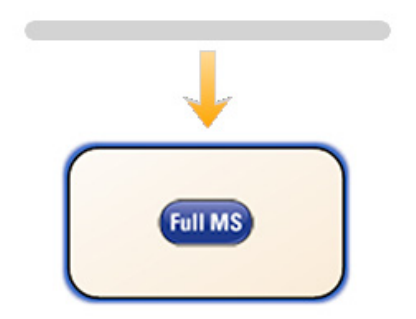
Experiment Symbols
The following experiment templates are available on the experiments
pane:
Figure 3-9. Available general templates
Template Experiment Symbol Description
General Experiment Templates
Full MS This experiment comprises a full MS scan.
Targeted-SIM This experiment acquires SIM scans depending on the
entries of the inclusion list, which is therefore mandatory
and always activated.
Special features:
•Spectral Multiplexing (MSX)
Instrument Setup
Experiment Setup Page
Thermo Scientific Exactive GC Software Manual (P/N 1R120594-0003, Revision A) 3-13
Graph Pane
The Graph pane is located at the middle bottom side of the Experiment
Setup window. It shows a graphic representation of the experiment
during the acquisition. See Figure 3-10.
❖To add an experiment to the active method
1. Drag an experiment symbol from the experiments pane to the gray
bar in the Graph pane.
In Xcalibur, the Scan Groups pane shows a corresponding time bar
for each symbol.
2. Use the Properties pane of a experiment to control the activities
during individual experiments.
❖To delete an experiment
1. Right-click the experiment symbol to display the shortcut menu.
2. Choose Delete this <Name of experiment>.
❖To zoom in or out on the Graph pane
•Position the mouse pointer within the pane and roll the mouse
wheel forward to zoom in.
•Roll the wheel backward to zoom out.
The zoom factor ranges from 0.25 to 2. The actual zoom factor is
displayed in the top right corner of the Graph pane.
Figure 3-10. Graphic representation of the experiment
Instrument Setup
Experiment Setup Page
3-14 Exactive GC Software Manual (P/N 1R120594-0003, Revision A) Thermo Scientific
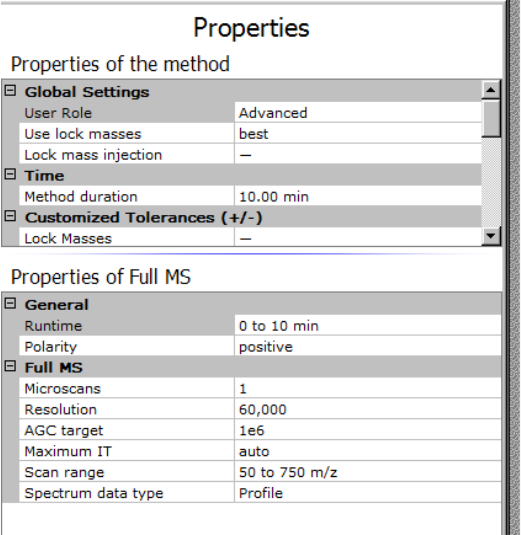
Properties Pane
The Properties pane is located at the right side of the Experiment Setup
page. See Figure 3-11.
The pane consists of two parts:
•Properties of the Method
The upper part is always available. It shows the properties of the
active method.
NOTICE Some properties are only available in Advanced user mode.
The lower part depends on the item that is selected on the left side
of the Experiment Setup page. One of the following tables is
displayed:
In Xcalibur:
-Properties of Full MS
-Properties of Targeted-SIM
Figure 3-11. Properties pane
Instrument Setup
Experiment Setup Page
Thermo Scientific Exactive GC Software Manual (P/N 1R120594-0003, Revision A) 3-15
Properties of the Method
The properties of the method include the following parameters:
Parameter Description
Global Settings
User Role Use this field to specify whether the advanced parameters for scan events are
displayed or not. To show the advanced parameters, set the field to
Advanced. To hide the advanced parameters, set the field to Standard.
Double-click into the field to change the status.
Use lock masses Use the list box to specify how lock masses are used in the active instrument
method. The following options are available:
•off
No lock masses are used.
•best
Only the most intense lock mass of the global list that is found in the
spectrum is used for a calibration.
•if all present
Lock masses are used only when all active masses of the global lock mass
list are present at the same time.
NOTICE If timed lock masses are used, the Exactive GC mass spectrometer
takes into account only those lock masses whose time windows cover the
current retention time. ▲
Lock mass injection If lock masses are used in the active instrument method, use this field to
select the scan types for which lock mass will be additionally injected. The
mass spectrometer will inject all lock masses of the active lock mass list to
provide additional signals to improve mass accuracy. The decision whether
found lock masses will be used for the mass correction is not affected and
depends on the settings for the “use lock masses” parameter.
Time
Method duration Use this box to specify the total mass spectrometer acquire time, in minutes,
for the run. Exactive GC Tune rescales the Segments bar to correspond to the
specified acquire time.
To change the time, click the arrows in the spin box to increment [up arrow]
or decrement [down arrow] the value. Alternatively, you can enter the time in
the spin box text field. The valid range for the time is from 0.1 to
10000 minutes.
Customized Tolerances (+/-)

Instrument Setup
Experiment Setup Page
3-16 Exactive GC Software Manual (P/N 1R120594-0003, Revision A) Thermo Scientific
Lock Masses Use the lock mass box in this group to adjust mass tolerances for global lists
in different instrument methods. The tolerance can be set independently for
each list type.
To change a tolerance, click the arrows in the spin box to increment [up
arrow] or decrement [down arrow] the value. Alternatively, you can enter the
tolerance in the spin box text field. Available options are:
•– (use instrument default)
•0.1–1000 ppm
•0.1–50000 amu
When you directly enter a tolerance in the text field, you can use additional
units. The software will convert it to ppm or amu depending of its nature
(absolute or relative definition). Accepted units are (for absolute definition:
Da, Th, u, amu; for a relative definition: ppt, ppb, ppm, %). An empty
property value field as well as a set value of 0, -, or off will result in using the
instrument default (displayed as –).
Parameter Description

Instrument Setup
Experiment Setup Page
Thermo Scientific Exactive GC Software Manual (P/N 1R120594-0003, Revision A) 3-17
EI/CI Source
Filament on Delay
MS Transfer Line Temp
Ion Source Temp
Ionization Mode
CI Gas Type
CI Gas Flow
Use Tune Emission Current
Emission Current
Use Tune Electron Energy
Use Tune File C-Trap Energy
Offset
Cal Gas Level
Use the boxes in this group to adjust the EI or CI ion source settings for
global lists in different instrument methods.
•Filament on Delay: Set the initial time delay to account for the solvent
front. The delay will begin after the run starts (contact closure) before
turning on the filament.
•MS Transfer Line Temp: Set the temperature for the part of the transfer
line that is inside the vacuum manifold. Temperatures from 200 –
280 °C are recommend for most applications.
•Ion Source Temp: This allows the user to set the ion source temperature.
Temperatures from 200 – 350 °C are recommend for most applications.
•Ionization Mode: Set to EI or CI ionization mode depending on analysis.
The mode must be set to CI to turn on CI gas.
NOTICE The CI or EI/CI ion volume must be installed in the ion source
cartridge to use CI ionization mode. ▲
•CI Gas Type: Select the type of CI gas to use for the analysis. Selection
options are methane, isobutane, ammonia, carbon dioxide, or other.
Configure the selected gas on Port A or Port B within Tune.
•CI Gas Flow: Set the CI gas flow rate.
•Use Tune Emission Current: Select True to set the filament emission
current to the value saved in the tune file during the acquisition. Select
False to set the emission current in the method and override the value in
the tune file.
•Emission Current (Only visible if “Use Tune Emission Current” is set to
“False”): Set the emission current to be used during acquisition instead of
the emission current in the tune file.
•Use Tune Electron Energy: Select True to set the filament voltage to the
value saved in the tune file during the acquisition. Select False to set the
filament voltage in the method and override the value in the tune file
during acquisition. When setting low electron energies, the electron lens
may also need to be set to a new value in the tune file.
•Use Tune File C-Trap Energy Offset: Select True to set the C-Trap energy
offset to the value saved in the tune file during the acquisition. Select
False to set the C-Trap energy offset in the method and override th value
in the rune file during acquisition.
•Cal Gas Level: Set the calibration gas to the EI or the higher CI level
during acquisition.
Parameter Description
Instrument Setup
Experiment Setup Page
3-18 Exactive GC Software Manual (P/N 1R120594-0003, Revision A) Thermo Scientific
NOTICE In some cases the instrument will not allow the filament to be
turned on to protect against damage. This can happen when the
electron energy is set low and the read value for the filament voltage has
not returned a negative voltage, or the electron lens is not at least 45 V
more positive than the filament. In these cases, make sure the filament
and electron lens are at the appropriate values in Tune before starting an
acquisition. Also notice that in some cases, when the electron energy is
set low, the instrument must override the user value in the tune file for
the electron lens in order to meet the required conditions to protect the
filament. The filament voltage is calculated by the instrument from the
ion source offset and the electron energy settings. ▲
Properties of Full MS
The properties of a Full MS experiment include the following
parameters:
Parameter Description
General
Runtime Use this box to specify the duration in minutes of the active scan event. Click into
the field to display the spin boxes for the start time (Minimum) and the end time
(Maximum) of the scan event.
To change a value, click the arrows in the spin box to increment [up arrow] or
decrement [down arrow] the value. Alternatively, you can enter a value in the spin
box text field. The valid range for the start time is from 0 to (end time minus
0.01) minutes. The valid range for the end time is from (start time plus 0.01) to
10000 minutes.
Alternatively, drag the left and right edges of the corresponding time bar to the
desired positions on the time line in the Scan Groups pane.
Polarity Use this list box to toggle between positive ion and negative ion polarity.
Full MS
Use the parameters in this group to specify the properties of the master scan(s).
Microscans Use this spin box to select the number of microscans to be performed. To change
the value, click the arrows in the spin box to increment [up arrow] or decrement
[down arrow] the value. Alternatively, you can enter a value in the spin box text
field. The valid range is from 1 to 10 microscans.
Resolution Use this list box to select the mass resolution used during the selected scan event.
The mass resolution of the Orbitrap analyzer is proportional to 1/sqrt (m/z). The
scan time increases with increasing resolution and detect time. Available options
are 15000, 30000, or 60000. Resolution is calculated according to the IUPAC
peak width definition. The available settings represent m/∆m or the m/z value of
an ion at m/z 200 divided by the full width at half its maximum height (FWHM).
Instrument Setup
Experiment Setup Page
Thermo Scientific Exactive GC Software Manual (P/N 1R120594-0003, Revision A) 3-19
❖To show this view
Click the Full MS symbol in the Graph pane.
AGC target Use this list box to select the AGC target value for the selected scan event. The
AGC target value controls the number of ions that are injected into the Orbitrap
analyzer. Available options are 2e4, 5e4, 1e5, 2e5, 5e5, 1e6, 3e6, or 5e6.
Maximum IT Use this list box to type or click a maximum allowed injection time to reach the
AGC target value. For example, type 160. The valid range is from 1 to
3000 milliseconds.
Scan range Use the spin boxes in this field to set values for Minimum, Maximum, Center,
and Width for the current scan range. To change the value, click the arrows in the
spin box to increment [up arrow] or decrement [down arrow] the value.
•Minimum
Select the minimum value for the scan range (in mass-to-charge ratio units).
You can enter any value from 30.0 to 2500.0.
NOTICE Scanning below 50 m/z might reduce instrument performance. ▲
•Maximum
Select the maximum value for the scan range (in mass-to-charge ratio units).
You can enter any value from 80 to 3000.0.
•Center
Select the center mass (in mass-to-charge ratio units) of the scan range. You
can enter any value from 55 to 2750.0.
•Width
Select the width of the scan range (in mass-to-charge ratio units). You can
enter any value from 50 to 2800.0.
Spectrum data type Use this list box to toggle between Profile data format and Centroid data format.
Parameter Description
Instrument Setup
Experiment Setup Page
3-20 Exactive GC Software Manual (P/N 1R120594-0003, Revision A) Thermo Scientific
Properties of Targeted-SIM
The properties of a Targeted-SIM experiment include the following
parameters:
Parameter Description
General
Runtime Use this box to specify the duration in minutes of the active scan event. Click into the
field to display the spin boxes for the start time (minimum) and the end time
(maximum) of the scan event.
To change a value, click the arrows in the spin box to increment [up arrow] or
decrement [down arrow] the value. Alternatively, you can enter a value in the spin box
text field. The valid range for the start time is from 0 to (end time minus 0.01)
minutes. The valid range for the end time is from (start time plus 0.01) to 10000
minutes.
Alternatively, drag the left and right edges of the corresponding time bar to the desired
positions on the time line in the Scan Groups pane.
Polarity Use this list box to toggle between positive ion and negative ion polarity.
Inclusion Because this experiment requires inclusion masses, this field is always set to on
(inclusion list enabled).
SIM
Microscans Use this spin box to enter the number of microscans to be performed. To change the
value, click the arrows in the spin box to increment [up arrow] or decrement [down
arrow] the value. Alternatively, you can enter a value in the spin box text field. The
valid range is from 1 to 10 microscans.
Resolution Use this list box to select the mass resolution used during the selected scan event. The
mass resolution of the Orbitrap analyzer is proportional to 1/sqrt(m/z). The scan time
increases with increasing resolution and detect time. Available options are 15000,
30000, 60000, or 120000. Resolution is calculated according to the IUPAC peak
width definition. The available settings represent m/∆m or the m/z value of an ion at
m/z 200 divided by the full width at half its maximum height (FWHM).
AGC target Use this list box to select the AGC target value for the selected scan event. The AGC
target value controls the number of ions that are injected into the Orbitrap analyzer.
Available options are 2e4, 5e4, 1e5, 2e5, 5e5, 1e6, 3e6, or 5e6.
Maximum IT Use this list box to type or click a maximum allowed injection time to reach the
AGC target value. For example, type 160. The valid range is from 1 to
3000 milliseconds.
Instrument Setup
Experiment Setup Page
Thermo Scientific Exactive GC Software Manual (P/N 1R120594-0003, Revision A) 3-21
❖To show this view
Click the Targeted-SIM symbol in the Graph pane.
MSX count Use this spin box to enter the maximum number of masses to be multiplexed in a scan
event. In Targeted-SIM, set this value to >1. In spectra multiplexing, multiple
preselected masses are collected in the C-Trap for simultaneous detection in the
Orbitrap analyzer. To do multiplexing, the number must be set to the maximum
number (≤10) of masses you want to inject into the C-Trap for one detection in the
Orbitrap and that the parameter can only be set when the User Role is set to
Advanced.
To change the value, click the arrows in the spin box to increment [up arrow] or
decrement [down arrow] the value. Alternatively, you can enter a value in the spin box
text field. The valid range is from 1 (no spectral multiplexing) to 10 fillings.
Isolation window Use this list box to enter the isolation width (in mass-to-charge ratio units) for the
parent ion of interest. The mass range for the peak is centered at the parent mass and
ranges one-half of the isolation width to either side of the parent mass. You can set the
isolation window to any value from m/z 0.4 to 50 times the first mass of the Data
Dependent scan. The default value is m/z 4.0.
Too low a value results in loss of sensitivity because not all of the ions in a mass peak or
in neighboring isotopic peaks are isolated. Too high a value causes interference from
neighboring peaks.
Isolation offset Use this spin box to define an absolute offset by which the isolation window is shifted.
The resulting window is non-symmetric with regard to the precursor m/z. Thus, more
isotopes of a cluster might be covered, without the need of expanding the isolation
window.
Example:
Precursor = m/z 524.265; Isolation window = 2.0 m/z; Isolation offset = +0.5 m/z;
Resulting isolation window = m/z 523.765–525.765
To change the isolation offset, click the arrows in the spin box to increment [up arrow]
or decrement [down arrow] the value. You can set the isolation offset to any value from
m/z -50 to +50. Default is m/z 0.
Spectrum data type Use this list box to toggle between Profile data format and Centroid data format.
Parameter Description
Instrument Setup
Summary Page
3-22 Exactive GC Software Manual (P/N 1R120594-0003, Revision A) Thermo Scientific
Summary Page
The Summary page displays the parameters for mass spectrometer setup
and contact closure that you specified on the Experiment Setup page.
❖To zoom in or out on the Summary page
•Position the mouse pointer within the pane, press the <Ctrl> key,
and roll the mouse wheel forward to zoom in.
•Position the mouse pointer within the pane, press the <Ctrl> key,
and roll the wheel backward to zoom out.
NOTICE The content of this page will be printed together with the
information for other instruments. ▲
❖To display this page
In the Instrument Setup window, click the Summary tab.
Instrument Setup
Dialog Boxes of the Experiment Setup Page
Thermo Scientific Exactive GC Software Manual (P/N 1R120594-0003, Revision A) 3-23
Dialog Boxes of the Experiment Setup Page
This section provides a reference to the dialog boxes in the Experiment
Setup page:
•Use the dialog boxes for global lists to define properties of masses
that are used for setting up the experiments in the Experiment Setup
page:
-Lock Masses Dialog Box
-Inclusion List Dialog Box
Lock Masses Dialog Box
Use the Lock Masses dialog box to select a lock mass list for the active
instrument method and to edit it. See Figure 3-12. Lock masses are
peaks in the spectrum that the Exactive GC mass spectrometer uses for
internal mass calibration. Using lock masses improves the mass accuracy
of the mass analyzer. If you do not specify any lock masses, the mass
spectrometer uses the external mass calibration.
The dialog box allows defining a time window of activity for each lock
mass (=timed lock masses). If Start or End is left blank, the lock mass is
active from the beginning or until the end of the method, respectively.
In the latter case, the End field displays “end.” The usage of lock masses
during the active instrument method is specified on the Properties pane
of the method.
The table shows the properties of the masses contained in the active lock
mass list (*.lock-masses). To change the sort order, click the respective
table column header. To invert the sort order, click again.
Figure 3-12. Method Editor—Lock Masses dialog box
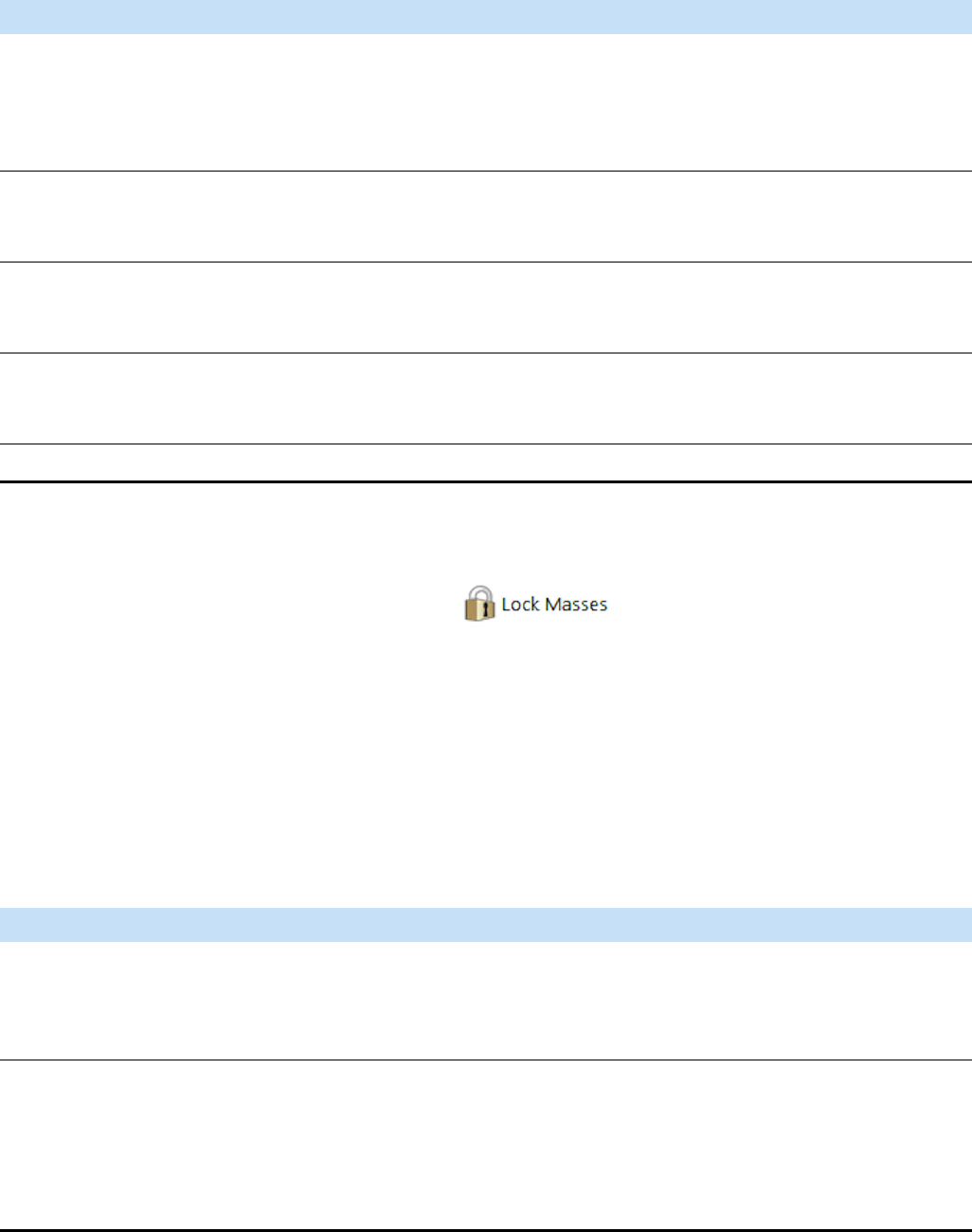
The Lock Masses dialog box has the following parameters:
❖To display this dialog box
1. In the Method Editor, expand the Global Lists pane.
2. Click the button.
Title Bar
The title bar of a global list displays the name of the dialog box. An
asterisk (*) indicates a file with unsaved changes.
File Menu
The File menu provides commands for file operations. It has the
following commands:
Parameter Description
Mass [m/z] Enter the mass-to-charge-ratio of the lock mass into the field (with a maximum of five
decimals).
To change this value, click the arrows in the spin box to increment [up arrow] or decrement
[down arrow] the value. Alternatively, enter a value in the spin box text field.
Polarity Use this list box to toggle between positive ion and negative ion polarity. During a scan, the
Exactive GC mass spectrometer uses only the lock masses with a polarity that matches the
active ion mode.
Start [min] Enter the start time in minutes. Alternatively, you can enter a time in seconds (by appending
the letter s) or in hours (by appending the letter h). The software automatically converts your
input into minutes.
End [min] Enter the end time in minutes. Alternatively, you can enter a time in seconds (by appending
the letter s) or in hours (by appending the letter h). The software automatically converts your
input into minutes.
Comment Enter a comment for the lock mass into the field. This field is optional.
Command Description
Import
<Ctrl> + <I>
Opens a dialog box where you can select an existing mass collection. In addition to
the program-specific data files, you can select *.csv or *.txt files that meet the
requirements of the program. All available masses are replaced by the masses
contained in the imported file. Click Open to import the file.
Export
<Ctrl> + <S>
Opens a dialog box that you can use to save the active mass collection. In addition
to using the program-specific data files, you can save the mass collection as
tabulator-separated file (*.txt, for example) or comma-separated file (*.csv, for
example). Enter a new file name, select the file type, and select the location (disk
and directory) where you want to save it. Alternatively, you can select an existing
file. Click Save to save the file.
Instrument Setup
Dialog Boxes of the Experiment Setup Page
Thermo Scientific Exactive GC Software Manual (P/N 1R120594-0003, Revision A) 3-25
Edit Menu
The Edit menu provides commands for editing the active file. It has the
following commands:
Help Menu
Displays the Help for this dialog box.
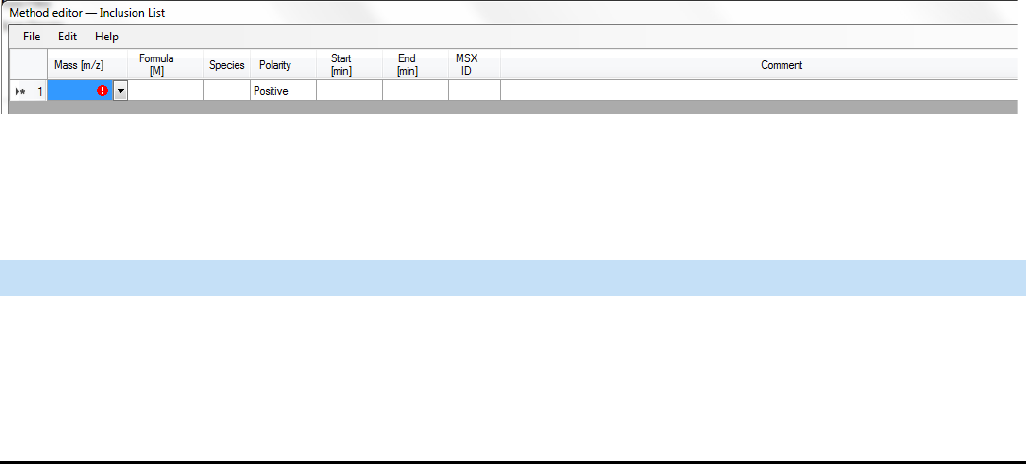
Inclusion List Dialog Box
Use the Inclusion List dialog box to edit a list of specific masses
(inclusion masses) that can activate a Data Dependent action. See
Figure 3-13. The dialog box allows defining a time window of activity
for each inclusion mass. If Start or End is left blank, the inclusion mass
is active from the beginning or until the end of the method, respectively.
In the latter case, the End field displays “end.”
Export selected
<Ctrl> + <Shift> + <S>
Opens a dialog box that you can use to save the selected masses. In addition to
using the program-specific data files, you can save the mass collection as
tabulator-separated file (*.txt, for example) or comma-separated file (*.csv, for
example). Enter a new file name, select the file type, and select the location (disk
and directory) where you want to save it. Alternatively, you can select an existing
file. Click Save to save the file.
This command is available only when at least one line in the dialog box is selected.
Minimize
<Ctrl> + <F4>
Closes the dialog box. Your edits will be retained. Alternatively, click the Done
button at the right side of the menu bar.
Command Description
Command Description
Undo until last save
<Ctrl> + <Z>
Discards all changes to the active file that have not been saved.
Copy
<Ctrl> + <C>
Copies the data of the selected mass to the clipboard.
Replace by clipboard
<Ctrl> + <V>
Replaces the available masses by the content of the clipboard.
NOTICE The clipboard stores lock mass data as tabulator-separated text files. When
the data in the clipboard are not in this format, the command is not available. ▲
Instrument Setup
Dialog Boxes of the Experiment Setup Page
3-26 Exactive GC Software Manual (P/N 1R120594-0003, Revision A) Thermo Scientific
To use an inclusion list in a experiment, set the Inclusion parameter on
the Parameter pane to on. When a inclusion mass list is used in a Data
Dependent experiment (Full MS / dd-MS2 and
Targeted-SIM / dd-MS2), the ions will be selected for the Data
Dependent scan event, only if they are:
1. appearing in the referring master scan (mostly the full scan) and
2. fulfill all of the other defined selection criteria, such as Intensity
Threshold.
Because target-based experiments or experiment parts (Targeted-SIM,
PRM, Targeted-SIM / dd-MS2) are based on an inclusion list, the
Inclusion parameter is always set to on for these experiments.
The table shows the properties of the masses contained in the active
inclusion masses list (*.include-masses). To change the sort order, click
the respective table column header. To invert the sort order, click again.
The Inclusion List dialog box has the following parameters:
Figure 3-13. Method Editor—Inclusion List dialog box
Parameter Description
Mass [m/z] Enter the mass-to-charge-ratio of the inclusion mass into the field (with a maximum of five
decimals).
NOTICE If you use the Mass Calculator to edit the Formula field, this field is automatically
updated when you exit the editor. ▲

Instrument Setup
Dialog Boxes of the Experiment Setup Page
Thermo Scientific Exactive GC Software Manual (P/N 1R120594-0003, Revision A) 3-27
Formula [M] Use this field to describe the structure of the active compound. The different ways of
definition are called formula types. You can either enter the formula directly or use the Mass
Calculator. To display this editor, click the down arrow in this field.
Pay attention to the following restrictions:
•When you enter a valid formula, the Method Editor will set the default values for
charge state (1) and Species (+H/-H). Then it will display an automatically calculated
value in the Mass [m/z] field.
•When you enter a formula that the Method Editor cannot interpret, the Mass [m/z]
field will stay empty. When you save the method, the Method Editor will warn you that
the method is not in the shape to be executed (due to the missing m/z value). When you
reopen the method, the Method Editor will display exactly the formula that was
entered.
•When you enter a formula, The Method Editor requires a value for the charge state to
calculate an m/z value. You can, however, save the method without specifying a charge
state for the entry. When you save the method, the Method Editor will warn you that
the method is not in the shape to be executed (due to the missing charge state). When
you reopen the method, the Method Editor will display exactly the formula that was
entered.
•Entries of compounds with calculated m/z values outside the measurement
specifications of the mass spectrometer (m/z=30–3000) can be saved in an instrument
method. The instrument software, however, will ignore these entries when it executes
the method.
•When you change the m/z value that was calculated for the given set of formula, species
and charge state, the Method Editor will clear the formula and species definition. The
charge state will be preserved.
•When you change the polarity for a set of calculated m/z, formula, species and charge
state, the Method Editor will clear the Mass [m/z] field if the species definition is not
valid for this polarity. You then need to change the species definition.
Parameter Description
Instrument Setup
Dialog Boxes of the Experiment Setup Page
3-28 Exactive GC Software Manual (P/N 1R120594-0003, Revision A) Thermo Scientific
Species Use this text field to define adducts or modifications of the active compound that are
expected to be formed. The default value is +H for positive polarity and –H for negative
polarity. The Method Editor will then recalculate the value in the Mass [m/z] field, if
possible.
The Species field can be used in two ways:
•Click the down arrow to display a list of predefined adducts for each polarity:
-+H, +NH4, +C2H5, +C3H5, +C4H9 for positive polarity
--H for negative polarity
-an empty entry to express adducts (for example, radical cations) for both polarities.
The corresponding set will be displayed depending on the selected polarity.
Selecting an adduct (A) will result in the strict behavior of applying one unit A to the
compound and using “+H” or “-H” adduct depending on the charge state and active
polarity.
•Enter the modifications of the compound by using squared brackets and at least M as
representation of the basic compound. The predefined adducts can be entered, too.
This definition is used without additional auto dependencies, like adding protons.
NOTICE If you use the Mass Calculator to edit the Formula field, the Species field is
automatically filled when you exit the editor. ▲
Polarity Use this list box to toggle between positive ion and negative ion polarity. During a scan, the
Exactive GC mass spectrometer uses only the inclusion masses with a polarity that matches
the active ion mode.
NOTICE If you use the Mass Calculator to edit the Formula field, this field is automatically
updated when you exit the editor. ▲
Start [min] Enter the start of the time window (in minutes) that corresponds to the mass in this row.
Alternatively, you can enter a time in seconds (by appending the letter s) or in hours (by
appending the letter h). Exactive GC Tune automatically converts your input into minutes.
End [min] Enter the end of the time window in minutes. Alternatively, you can enter a time in seconds
(by appending the letter s) or in hours (by appending the letter h). Exactive GC Tune
automatically converts your input into minutes.
MSX ID Enter the number of the multiplexed scan event in which the inclusion mass was analyzed.
The advanced properties of the scan experiment must set the MSX count >1.
As an example, if three masses have the same MSX ID number and the advanced properties
of Targeted-SIM has an MSX count ≥ 3, all three masses with the same MSX ID number
are injected into the C-Trap before detection together in the Orbitrap. It is common
practice to use a quantification mass and two qualifier masses with the same MSX ID to
represent a scan for a single compound.
Parameter Description
Instrument Setup
Dialog Boxes of the Experiment Setup Page
Thermo Scientific Exactive GC Software Manual (P/N 1R120594-0003, Revision A) 3-29
❖To display this dialog box
1. In the Method Editor, expand the Global Lists pane.
2. Click the button.
Title Bar
The title bar of a global list displays the name of the dialog box. An
asterisk (*) indicates a file with unsaved changes.
File Menu
The File menu provides commands for file operations. It has the
following commands:
Comment Enter a comment for the inclusion mass into the field. This field is optional.
Parameter Description
Command Description
Import
<Ctrl> + <I>
Opens a dialog box where you can select an existing mass collection. In addition to
the program-specific data files, you can select *.csv or *.txt files that meet the
requirements of the program. All available masses are replaced by the masses
contained in the imported file. Click Open to import the file.
When you want to import *.csv or *.txt files with entries that contain formulas, an
extra third column “Formula type,” which contains the prefix, must specify the
formula type. Valid values for the fields that can be (re)interpreted are:
•for Peptide type: “Peptide”, “p”, and “p:” (all case insensitive),
•for Amino acid type: “Amino acid”, “aa”, “aa:” (all case insensitive),
•for Chemical formula type: “Chemical formula”, “c”, “c:” (all case insensitive),
and “” (empty).
Export
<Ctrl> + <S>
Opens a dialog box that you can use to save the active mass collection. In addition
to using the program-specific data files, you can save the mass collection as
tabulator-separated file (*.txt, for example) or comma-separated file (*.csv, for
example). Enter a new file name, select the file type, and select the location (disk
and directory) where you want to save it. Alternatively, you can select an existing
file. Click Save to save the file.
When you export *.csv or *.txt files with entries that contain formulas, an extra
third column “Formula type” specifies the formula type. Values for the fields that
are:
•for Peptide type: “Peptide”,
•for Amino acid type: “Amino acid”,
•for Chemical formula type: “” (empty).
Instrument Setup
Dialog Boxes of the Experiment Setup Page
3-30 Exactive GC Software Manual (P/N 1R120594-0003, Revision A) Thermo Scientific
Edit Menu
The Edit menu provides commands for editing the active file. It has the
following commands:
Help Menu
Displays the Help for this dialog box.
Export selected
<Ctrl> + <Shift> + <S>
Opens a dialog box that you can use to save the selected masses. In addition to
using the program-specific data files, you can save the mass collection as
tabulator-separated file (*.txt, for example) or comma-separated file (*.csv, for
example). Enter a new file name, select the file type, and select the location (disk
and directory) where you want to save it. Alternatively, you can select an existing
file. Click Save to save the file.
This command is available only when at least one line in the dialog box is selected.
Minimize
<Ctrl> + <F4>
Closes the dialog box. Your edits will be retained. Alternatively, click the Done
button at the right side of the menu bar.
Command Description
Command Description
Undo until last save
<Ctrl> + <Z>
Discards all changes to the active file that have not been saved.
Copy
<Ctrl> + <C>
Copies the data of the selected mass to the clipboard.
Replace by clipboard
<Ctrl> + <V>
Replaces the available masses by the content of the clipboard.
NOTICE The clipboard stores lock mass data as tabulator-separated text files. When
the data in the clipboard are not in this format, the command is not available. ▲

Thermo Scientific Exactive GC Software Manual (P/N 1R120594-0003, Revision A) 4-1
Chapter 4 Explore Exactive GC Tune
This chapter provides information about Exactive GC Tune, its views,
functions, and features.
Contents
•Exactive GC Tune Overview
•Exactive GC Tune Menus
•Toolbar
•Tasks Panel
•Display Panel
•Dialog Boxes
•Tune Reports
Explore Exactive GC Tune
Exactive GC Tune Overview
4-2 Exactive GC Software Manual (P/N 1R120594-0003, Revision A) Thermo Scientific
Exactive GC Tune Overview
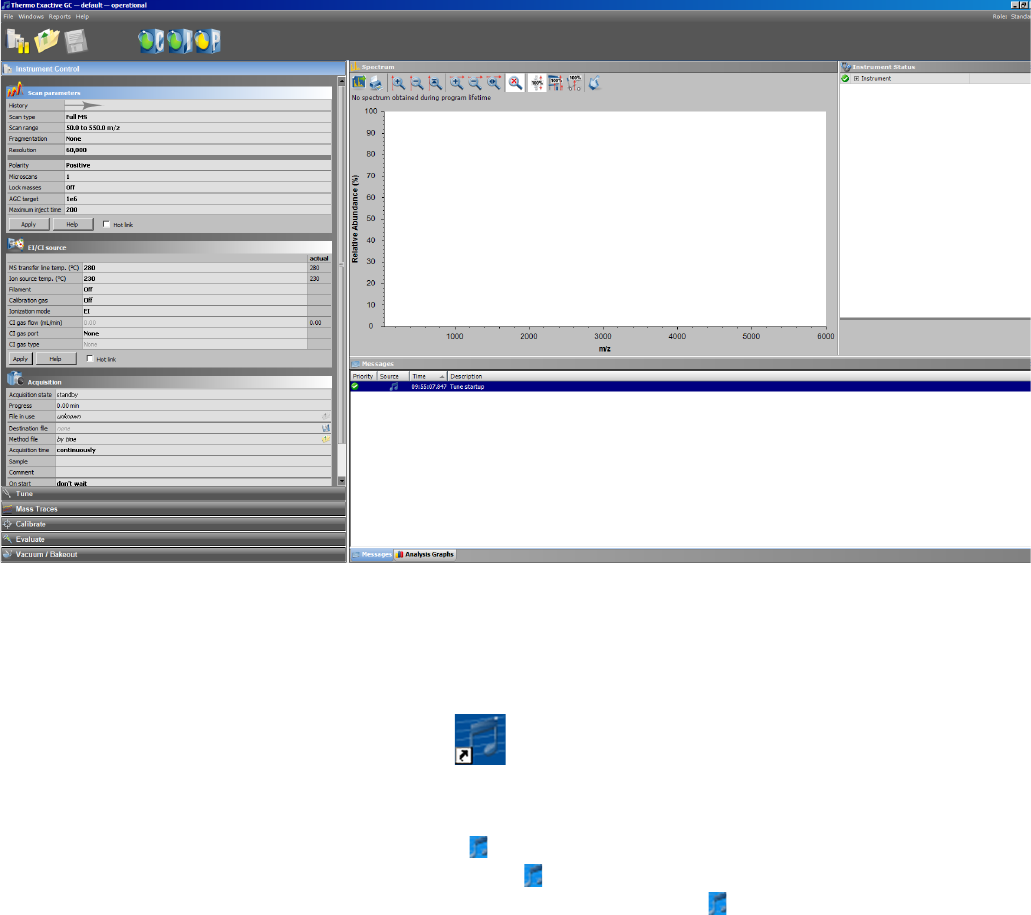
The Exactive GC Tune program is used to operate the Exactive GC
mass spectrometer. Figure 4-1 shows Exactive GC Tune. To access
information about Exactive GC Tune, use the title bar, the toolbar,
menu commands, display views, and Help.
❖To display this window
•Choose Start > Programs > Thermo Exactive Series > Tune, or
•Click on the desktop.
NOTICE When you are running Exactive GC Tune, an Exactive GC
Tune icon ( ) is displayed in the Microsoft™ Windows™ system tray.
Double-click the icon to display the Exactive GC Tune window
when it is minimized. Right-click the icon to display a shortcut menu
that provides commands for restoring or terminating Exactive GC
Tune. ▲
Title Bar
The Exactive GC Tune title bar displays the name of the program, the
name of the current Tune Method, and the instrument status. An
asterisk indicates a Tune Method with unsaved changes.
Figure 4-1. Exactive GC Tune
Explore Exactive GC Tune
Exactive GC Tune Overview
Thermo Scientific Exactive GC Software Manual (P/N 1R120594-0003, Revision A) 4-3
Menus
The Exactive GC Tune menu bar displays the available menus. The
Exactive GC Tune menus are as follows:
•File Menu
•Windows Menu
•Reports Menu
•Help Menu
On the far right side of the menu bar, the active user role is displayed.
Toolbar
The Toolbar provides symbol shortcuts for frequently used commands.
It is located below the title bar of the Exactive GC Tune window.
Tasks Panel
The tasks panel on the left side of the Exactive GC Tune window
comprises five windows:
•The Instrument Control Window on the left side of the
Exactive GC Tune window comprises three windows:
Scan Parameters Window for defining a scan depending on the
scan mode and scan type combination.
EI/CI Source Window for displaying and editing parameters of
the EI or CI ion source.
Acquisition Window for acquiring and storing measurement
data.
•Mass Traces Window for selecting mass traces that are displayed in
the Analysis Graphs Window.
•Calibrate Window for performing an automatic optimization of the
calibration parameters.
•Evaluate Window for performing an automatic check of the
instrument precision.
•Vacuum / Bakeout Window for displaying the pressure values at the
vacuum gauges and performing an instrument bakeout.
Explore Exactive GC Tune
Exactive GC Tune Overview
4-4 Exactive GC Software Manual (P/N 1R120594-0003, Revision A) Thermo Scientific
Display Panel
The display panel on the right side of the Exactive GC Tune window
comprises up to five windows:
•Spectrum Window for displaying a real-time data plot. The
spectrum window is always visible.
•Instrument Status Window for displaying instrument parameters.
•Messages Window for displaying current status information about
the instrument, the control service, or other programs.
•Analysis Graphs Window for displaying a real-time graph.
•Debug Messages Window for displaying messages that can be used
during software development. The debug messages window is not
available for standard users.
In addition to these five windows, the display panel may show
additional windows for controlling other installed instruments.
Explore Exactive GC Tune
Exactive GC Tune Menus
Thermo Scientific Exactive GC Software Manual (P/N 1R120594-0003, Revision A) 4-5
Exactive GC Tune Menus
The Exactive GC Tune window has the following menus:
•File Menu
•Windows Menu
•Reports Menu
•Help Menu
User Role
On the far right side of the menu bar, the active user role is displayed.
The user role specifies the number of parameters that are available for
the active experiment. Standard User is the user role with the lowest
number of available parameters.
Click the entry (Advanced, for example) to display a list that displays the
available user roles. To change the active user role, click the respective
entry. The number of available user roles depends on the installed
licenses. See “License Dialog Box” on page 4-49.
File Menu
The File menu provides commands for file and program operations. It
has the following commands:
Command Description
Load Tune File Displays a dialog box that you can use to find and
open a tune file (*.mstune) that already exists.
Save Tune File Saves the active tune file with the current settings.
Save Tune File as Opens a dialog box that you can use to enter a new
file name and to select the location (disk and
directory) where you want to save it. Click Save to
save the tune file with the current settings.
NOTICE An * appears next to the tune file name
displayed in the title bar of tune if the current tune
file has been modified and not saved. Any changes
made to the tune file must be saved before
attempting to use the new setting from an
acquisition that loads the tune file in a method. ▲
Explore Exactive GC Tune
Exactive GC Tune Menus
4-6 Exactive GC Software Manual (P/N 1R120594-0003, Revision A) Thermo Scientific
Windows Menu
The Windows menu provides commands for customizing the
information displayed in the Exactive GC Tune window. The system
highlights the icon to the left of a command if the window is active.
Deselect the command to hide the window.
The Windows menu has the following commands:
Export System
Settings
Opens a dialog box that you can use to save the
current system settings (*.ini) to be imported on
another computer that has no instrument attached
and is intended for method editing. This computer
has to have installed all needed software including
Thermo Platform, Thermo Xcalibur and all
instrument drivers installed.
NOTICE Imported values will be overwritten if an
instrument will be attached later. ▲
Terminate Closes the active window. If the active tune file
contains unsaved changes, a dialog box warns about
losing data when you terminate the program.
Command Description
Command Description
View > Show all Displays all windows of Exactive GC Tune.
Tooltips Displays a short description of an item on
the Exactive GC Tune window when you
rest the mouse pointer over it.
Spectrum Displays the Spectrum window.
The Spectrum Window is always visible.
Instrument Status Displays/Hides the Instrument Status
window.
Messages Displays/Hides the Messages window.
Analysis Graphs Displays/Hides the Analysis Graphs window.
Debug Messages Displays/Hides the Debug Messages
window.
The debug messages window is not available
for standard users.
Explore Exactive GC Tune
Exactive GC Tune Menus
Thermo Scientific Exactive GC Software Manual (P/N 1R120594-0003, Revision A) 4-7
NOTICE Exactive GC Tune may open some windows (the analysis
graphs window, for example) without user interaction if new important
information is available. ▲
Reports Menu
The Reports menu provides access to various calibration reports. The
individual commands are available only when the respective reports have
been created. If no reports exist (in a new system, for example), the
Reports menu is shown grayed out and has no commands.
The Reports menu has the following commands:
Mass Calculator Displays the Mass Calculator, which helps
you to calculate the mass of an compound of
interest.
Installed
instruments
Depending on the individual configuration
of your system, additional commands may
allow displaying windows for controlling
other installed instruments (TriPlus RSH
autosampler, for example.)
Command Description
Command Description
Calibration > Latest Opens the latest complete calibration
report in PDF format.
Calibration > List Displays the list of up to five (5)
complete calibration reports.
To open a report, double-click any of the
calibration from the list.
Spectral Mass Calibration
(neg) > Latest
Opens the latest negative mode
calibration report in PDF format.
Spectral Mass Calibration
(neg) > List
Displays the list of up to five (5) negative
mode calibration reports.
To open a report, double-click any of the
spectral mass calibration from the list.
Spectral Mass Calibration
(pos) > Latest
Opens the latest positive mode
calibration report in PDF format.
Explore Exactive GC Tune
Exactive GC Tune Menus
4-8 Exactive GC Software Manual (P/N 1R120594-0003, Revision A) Thermo Scientific
Help Menu
The Help menu groups commands that provide information about
Exactive GC Tune. It has the following commands:
EI Tune Report The choices are Latest and List. Latest
displays the most recent EI Tune report.
List displays the list of up to five (5)
reports.
To open a report, double-click any of the
tune reports from the list.
Spectral Mass Calibration
(pos) > List
Displays the list of up to five (5) positive
mode calibration reports.
To open a report, double-click any of the
spectral mass calibration from the list.
All Reports Opens a file manager window with a list
of all previously acquired spectral mass
calibration reports.
Command Description
Command Description
Help Overview Displays Exactive GC Tune Help.
Help Content Displays the table of contents for Exactive GC
Tune Help.
Help Index Displays the index for Exactive GC Tune Help.
About Displays the About dialog box with information
about the instrument and the current Exactive GC
Tune version.
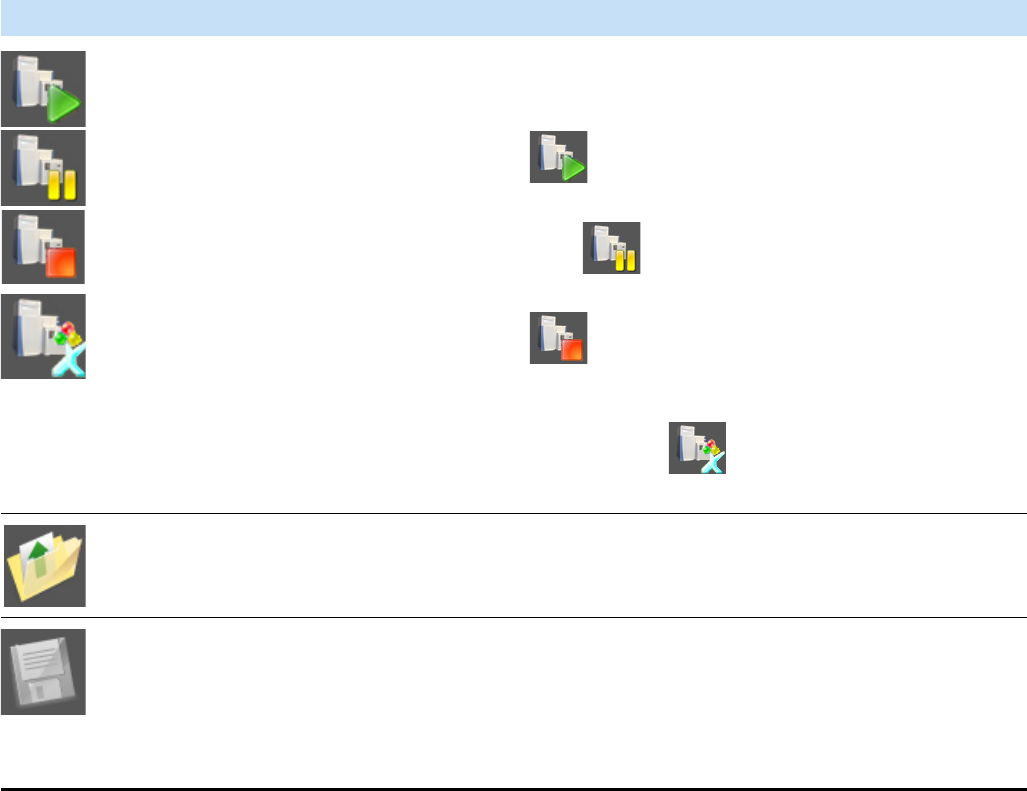
Explore Exactive GC Tune
Toolbar
Thermo Scientific Exactive GC Software Manual (P/N 1R120594-0003, Revision A) 4-9
Toolbar
The Exactive GC Tune toolbar provides symbol shortcuts for frequently
used commands. It is located below the title bar of the Exactive GC
Tune window. To activate a toolbar function, click the corresponding
toolbar button.
Some symbols provide information about the current statuses of
respective instrument components either by their color or by displaying
a tooltip when you rest the mouse pointer on them.
The following functions are available:
Button Description
General instrument state
On / Standby / Off
Run by Xcalibur
Click to toggle between the instrument operating statuses On,
Standby, and Off. The button reflects the instrument status:
•When the mass spectrometer is On, Exactive GC Tune
displays .
•When the mass spectrometer is in Standby, Exactive GC
Tune displays .
•When the mass spectrometer is Off, Exactive GC Tune
displays .
If the mass spectrometer is controlled by an Xcalibur sequence,
Exactive GC Tune displays . The acquisition can only be
stopped from Xcalibur Sequence Setup View.
Open Click to display a dialog box that you can use to find and open a
*.mstune file that already exists. Alternatively, choose File > Load
Tune File.
Save Click to open a dialog box that you can use to select the location
(disk and directory) where you want to save the tune file.
Alternatively, choose File > Save Tune File as.
This button is not available when the settings of the active tune
file are not changed.
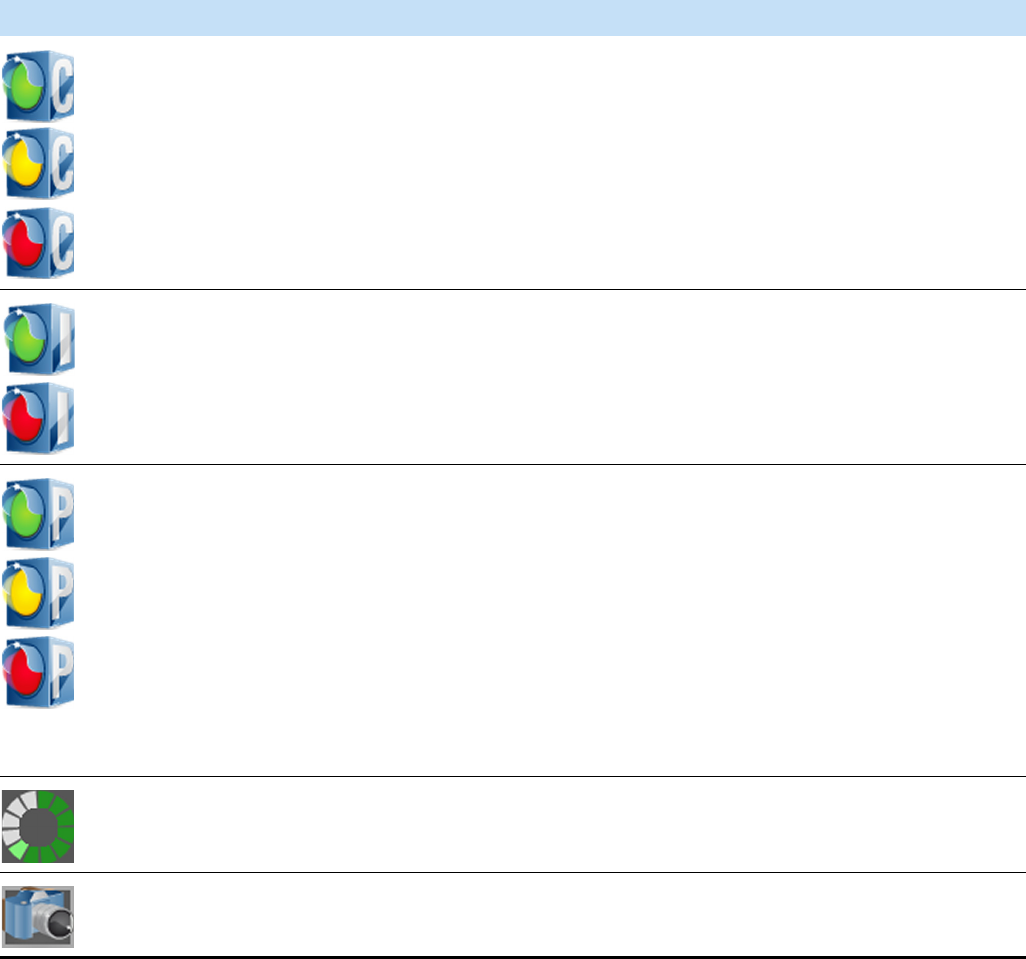
Explore Exactive GC Tune
Toolbar
4-10 Exactive GC Software Manual (P/N 1R120594-0003, Revision A) Thermo Scientific
Communication Status Shows the actual communication status of the system:
•Green: communication with instrument is OK.
•Yellow: only service is accessible (no instrument).
•Red: communication is broken (no instrument, no service).
Hardware Status Shows the actual hardware status of the system (top instrument
tree state):
•Green: all readbacks are in specifications (green hooks).
•Red: one or more readbacks are out of range.
Performance Status Shows the actual performance status of the system:
•Green: the last evaluation/calibration was successful.
•Yellow: the last evaluation/calibration was successful, but is
out of date.
•Red: the evaluation/calibration was not successful.
By default, the performance status icon turns yellow 25 hours
after the last successful mass calibration or check. With exception
of standard users, users can change this value in the System node
of the instrument status window according to their mass accuracy
requirements.
Procedure active If a procedure is active (for example, system bakeout or tune)
Exactive GC Tune displays an animated icon next to the
performance status button.
Acquisition indicator If the mass spectrometer is acquiring data, Exactive GC Tune
displays an animated icon next to the performance status button.
Button Description
Explore Exactive GC Tune
Tasks Panel
Thermo Scientific Exactive GC Software Manual (P/N 1R120594-0003, Revision A) 4-11
Tasks Panel
Use the windows of the tasks panel to perform procedures that maintain
the quality of measurements with the Exactive GC mass spectrometer.
The tasks panel is always visible. The windows in the tasks panel can be
minimized or maximized. Click the title bar of an individual window to
display it.
•Instrument Control Window
•Mass Traces Window
•Calibrate Window
•Evaluate Window
•Vacuum / Bakeout Window
Instrument Control Window
Use the windows of the Instrument Control window to enter individual
physical settings and to acquire scans. The following windows are
available:
•Scan Parameters Window
•EI/CI Source Window
•Acquisition Window
The Instrument Control window is always visible. Click the title bar of
an individual window to display it. Click again to hide it. To change the
order of windows within the Instrument Control window, drag
individual windows by their title bars to the new places.
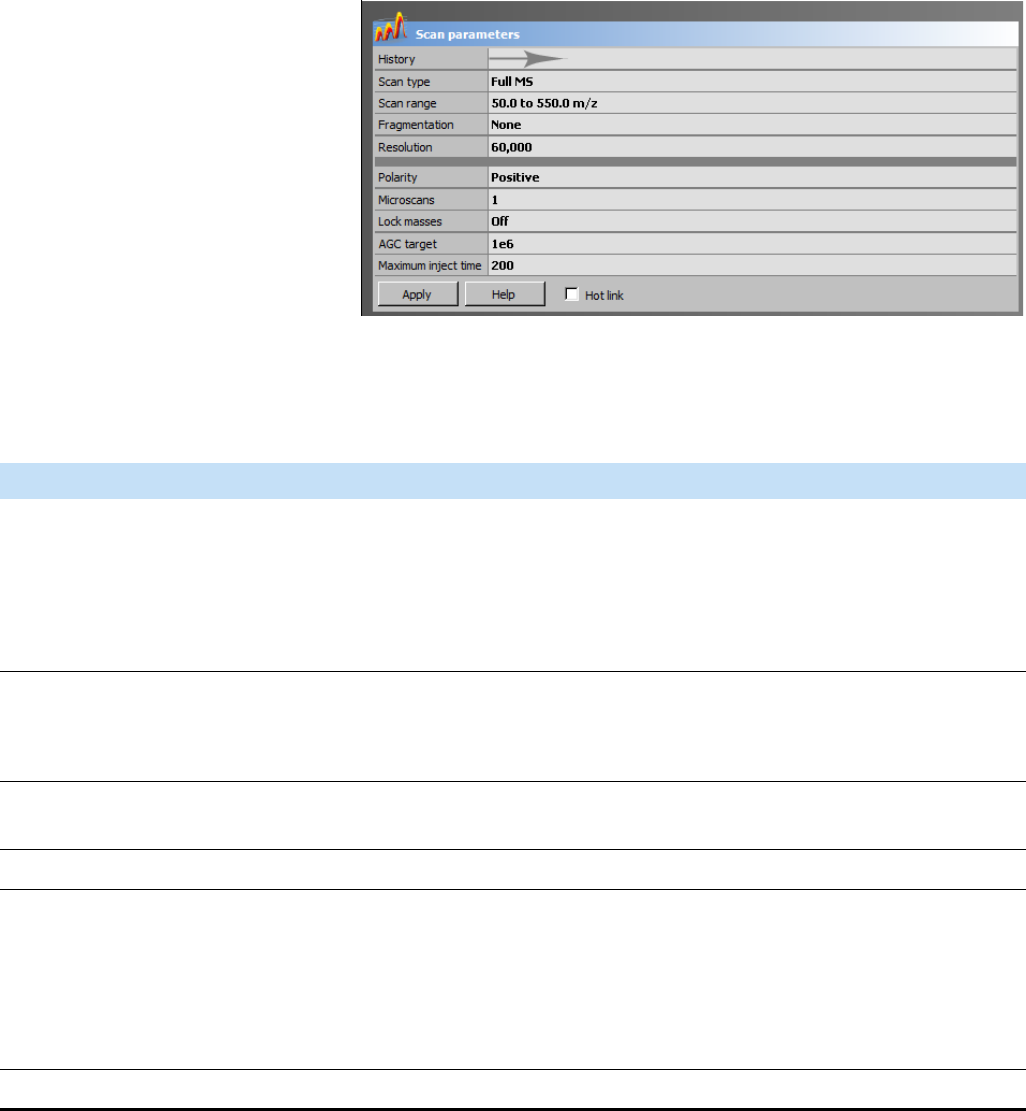
Explore Exactive GC Tune
Tasks Panel
4-12 Exactive GC Software Manual (P/N 1R120594-0003, Revision A) Thermo Scientific
Scan Parameters Window
Use the Scan Parameters window to define a scan depending on the
selected scan mode and scan type combination. See Figure 4-2. The
Exactive GC mass spectrometer updates the scan parameters only after
you click Apply or select the Hot link check box.
The Scan Parameters window has the following parameters:
Figure 4-2. Scan Parameters window
Parameter Description
History Click to display the Scan Parameters History dialog box. Here, select from a list of
recent scans based on short scan descriptions. The maximum number of list items is
100.
After a change of parameters, the history is updated when you click Apply or when
you change the status of the Hot link check box.
Scan Type Displays the current scan type.
NOTICE Full MS is the only scan type available on the Exactive GC. ▲
Scan Range Displays the current scan range. To change the settings, click into the field to
display the Scan Range dialog box.
Fragmentation Fragmentation options are not available on the Exactive GC.
Resolution Use this list box to select the mass resolution for FTMS analysis. The mass
resolution of the Orbitrap analyzer is proportional to 1/sqrt(m/z). The scan time
increases with increasing resolution and detect time. Available options are 15000,
30000, or 60000. Resolution is calculated according to the IUPAC peak width
definition. The available settings represent m/∆m or the m/z value of an ion at m/z
200 divided by the full width at half its maximum height (FWHM).
Polarity Use this list box to toggle between positive ion and negative ion polarity.
Explore Exactive GC Tune
Tasks Panel
Thermo Scientific Exactive GC Software Manual (P/N 1R120594-0003, Revision A) 4-13
❖To display this window
Click the Scan Parameters window title bar in the Instrument
Control window.
Microscans Use this spin box to select the number of microscans to be performed. To change
the value, click the arrows in the spin box to increment [up arrow] or decrement
[down arrow] the value. Alternatively, you can enter a value in the spin box text
field. The valid range is from 1 to 10 microscans.
Lock masses Displays the active lock masses. During a scan, the Exactive GC mass spectrometer
uses only the lock masses with a polarity that matches the ion mode. If no lock
masses are selected, the text field shows Off. To change the settings, click into the
field to display the Lock Masses dialog box.
NOTICE Exactive GC Tune allows using active lock masses in user-defined
calibration mass lists. ▲
AGC target Use this list box to select the AGC target value. The AGC target value controls the
number of ions that are injected into the Orbitrap analyzer. Available options are
2e4, 5e4, 1e5, 2e5, 5e5, 1e6, 3e6, and 5e6.
Maximum inject time Use this list box to type or click a maximum injection time for AGC. For example,
type 160. The valid range is from 1 to 3000 milliseconds.
Buttons
Apply Sends all changes to the instrument.
Help Displays the Help for this window.
Hot Link Select the Hot link check box to allow Exactive GC Tune to send any changes
immediately to the instrument. A green frame around the parameter box indicates
an active hot link.
Parameter Description
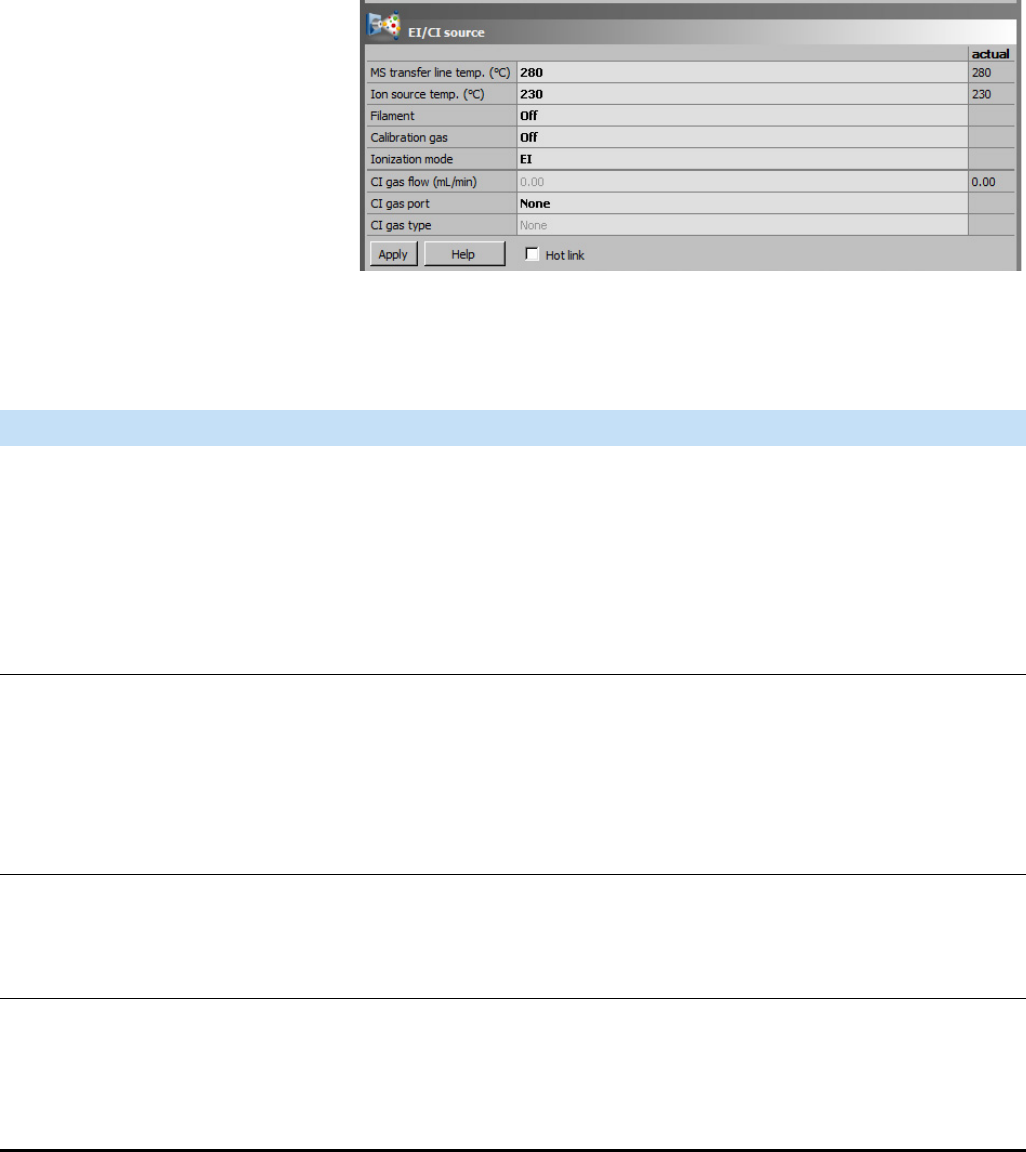
Explore Exactive GC Tune
Tasks Panel
4-14 Exactive GC Software Manual (P/N 1R120594-0003, Revision A) Thermo Scientific
EI/CI Source Window
Use the EI/CI source window to specify electrical ionization (EI) or
chemical ionization (CI) source parameters. The Exactive GC mass
spectrometer updates the EI/CI source parameters only after you click
Apply or with the Hot link check box being selected. See Figure 4-3.
The EI/CI source window has the following parameters:
Figure 4-3. EI/CI source window
Parameter Description
MS Transfer Line Temp Displays the temperature (in °C) for the part of the transfer line that’s inside the
vacuum manifold. To change the MS transfer line temperature, enter a new
temperature into the box. Temperatures from 200 – 280 °C are recommend for
most applications.The mass spectrometer changes the MS transfer line
temperature when you click Apply or with the Hot link check box selected.
The MS Transfer Line Temp readback is to the right of the spin box. This
readback displays the actual flow rate (in °C).
Ion Source Temp Displays the ion source temperature. Temperatures from 200 – 350 °C are
recommend for most applications. To change the ion source temperature, enter a
new temperature into the box.The mass spectrometer changes the ion source
temperature when you click Apply or with the Hot link check box selected.
The Ion Source Temp readback is to the right of the spin box. This readback
displays the actual flow rate (in °C).
Filament Displays whether the filament is turned on or off. The choices are On or Off and
can be set in the drop-down menu. source. To preserved the filament lifetime, set
to off when not using the mass spectrometer. The mass spectrometer changes the
Filament setting when you click Apply or with the Hot link check box selected.
Calibration Gas Displays whether the calibration gas is turned on. The choices are On or Off and
can be set in the drop-down menu. source. To preserved the calibration gas, set to
off when not running an analysis or checking for leaks on the mass spectrometer.
The mass spectrometer changes the Calibration Gas setting when you click Apply
or with the Hot link check box selected.
Explore Exactive GC Tune
Tasks Panel
Thermo Scientific Exactive GC Software Manual (P/N 1R120594-0003, Revision A) 4-15
❖To display this window
Click the EI/CI source window title bar in the Instrument Control
window.
Ionization Mode Displays either EI or CI ionization mode depending on the ion source installed in
the Exactive GC mass spectrometer. The CI or EI/CI ion volume must be
installed in the ion source cartridge to use CI ionization mode. Also, the mode
must be set to CI to turn on CI gas. The mass spectrometer changes the ionization
mode when you click Apply or with the Hot link check box selected.
CI Gas Flow Displays the CI gas flow rate (in mL/min). To change the CI gas flow rate, enter a
value in the spin box text field. The mass spectrometer changes CI gas flow rate
when you click Apply or with the Hot link check box selected.
The CI Gas Flow readback is to the right of the spin box. This readback displays
the actual flow rate (in mL/min) of the CI gas.
CI Gas Port Displays the port connected to the CI gas. The choices are Port A and Port B if
CI is selected as the ionization mode. If EI is the selected ionization mode the field
is automatically set to None. To change the CI gas port, select Port A or Port B
depending on which port is attached to the CI gas. The mass spectrometer
changes the CI gas port when you click Apply or with the Hot link check box
selected.
CI Gas Type Displays the type of CI gas to be used for the analysis. Selection options are
Methane, Isobutane, Ammonia, Carbon Dioxide, or Other. Use the spin box to
select one of the choices. The mass spectrometer changes the CI gas type when
you click Apply or with the Hot link check box selected.
Buttons
Apply Sends all changes to the instrument.
Help Displays the Help for this window.
Hot Link Select the Hot link check box to allow Exactive GC Tune to send any changes
immediately to the instrument. A green frame around the parameter box indicates
an active hot link.
Parameter Description
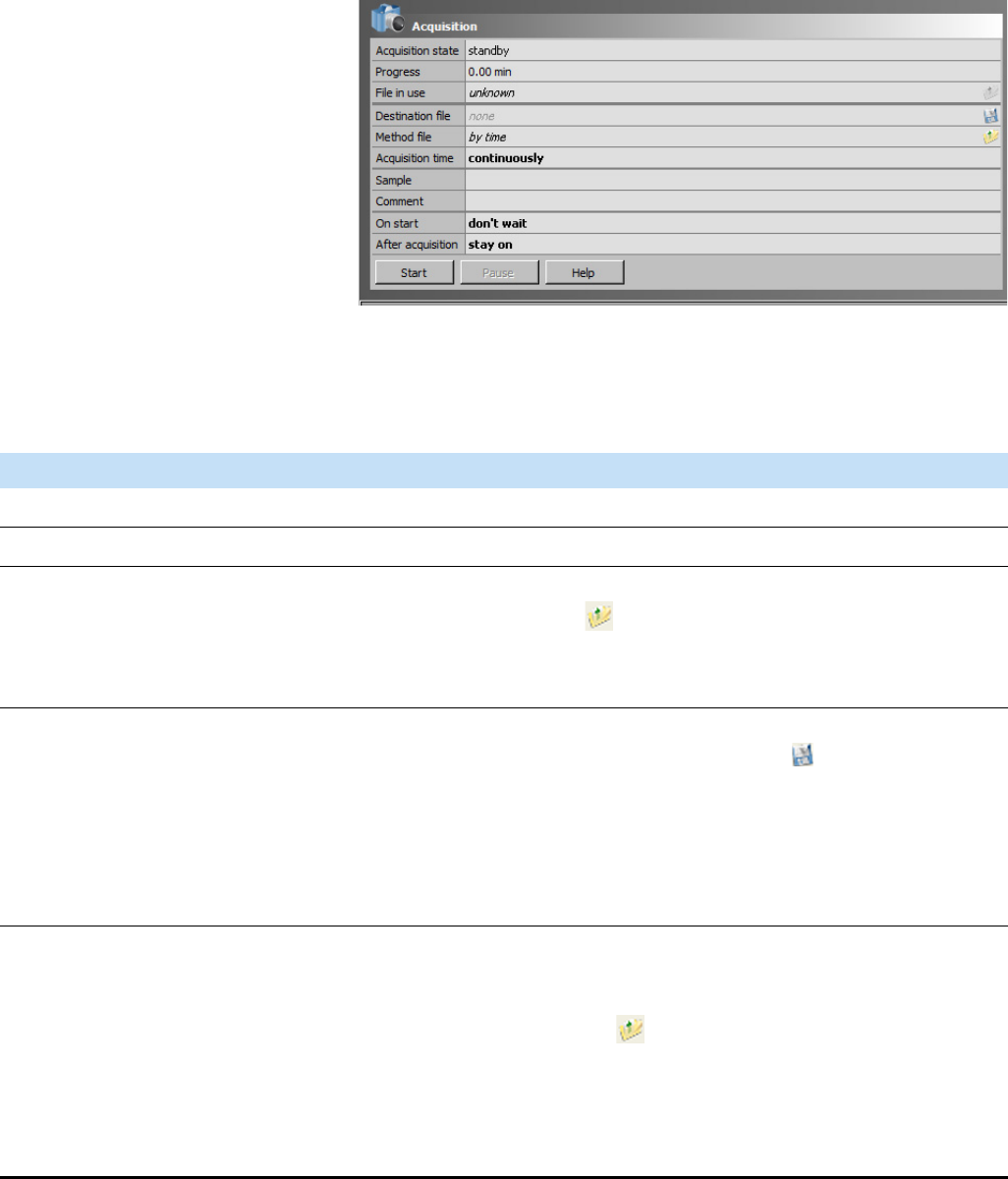
Explore Exactive GC Tune
Tasks Panel
4-16 Exactive GC Software Manual (P/N 1R120594-0003, Revision A) Thermo Scientific
Acquisition Window
Use the Acquisition window to enter parameters for acquiring and
storing scan data as well as to monitor the progress of the active
acquisition.
The Acquisition window has the following parameters:
Figure 4-4. Acquisition window
Parameter Description
Acquisition state Displays the status of the current acquisition.
Progress Displays the elapsed time of the current acquisition.
File in use Displays the name of the raw file to be acquired to disk for the current sample. To
display the file in Qual Browser, click the button.
This value is up to date even when Exactive GC Tune is acquiring data under control of
Xcalibur.
Destination file Displays the full path of the folder where your *.raw files will be saved. To change the
path, type the full path (Drive:\path) in the text box or click the button to the right
of the text box to browse your directories and select the folder where your *.raw files
should be saved.
NOTICE Saving raw files on network drives typically causes problems. Preferably select a
local path (for example, C:\Xcalibur\data). ▲
Method file Displays the name of the instrument method (*.meth) to be used during the current
acquisition. The tune file used in that instrument method will be used for your scan but
other devices configured in that instrument method will not be included. Type in the
name of the instrument method, or click the button to the right of the text box to
browse your computer for an instrument method file (typically saved in
C:\Xcalibur\methods).
When the active acquisition is controlled by the settings of the parameter Acquisitions
time, this parameter is not available. Instead, the text field shows by time.
Explore Exactive GC Tune
Tasks Panel
Thermo Scientific Exactive GC Software Manual (P/N 1R120594-0003, Revision A) 4-17
Sample Displays the name of the current sample. To change the sample name, type the new
name in the text field.
Comment Displays a comment on the current sample, if available. To change the comment, type
the new name in the text field.
Acquisition time Displays the duration of the acquisition time. Use the option buttons to select one of
the following settings:
•Continuously
The acquisition, once it is started, will continue until you stop (Stop button) or
pause (Pause button) it.
•Scans
Specify the number of scans for the current acquisition. You can set the number of
scans to any value from 1 to 10000.
To change this value, click the arrows in the spin box to increment [up arrow] or
decrement [down arrow] the value. Alternatively, enter a value in the spin box text
field.
•Minutes
Specify the time in minutes for the current acquisition. You can set the acquisition
time from 0.01 to 15000.00 minutes.
To change this value, click the arrows in the spin box to increment [up arrow] or
decrement [down arrow] the value. Alternatively, enter a value in the spin box text
field.
When the active acquisition is controlled by a method file, this parameter is not
available. Instead, the text field shows by method.
On start Use the list box to set the start mode of the data acquisition. The options are as follows:
•don’t wait
Initiates acquisition of the raw file immediately when you click Start in the
Acquisition window.
•wait for contact closure
When you click Start in the Acquisition window, the acquisition pauses.
Exactive GC Tune initiates acquisition of the raw file either when it receives a
contact closure signal (for example, from an analog autosampler) or when you click
Resume.
After acquisition Use the list box to set the instrument mode after the data acquisition has stopped. The
options are as follows:
•stay on
The instrument remains On when the current acquisition is completed.
•enter standby mode
Sets the instrument to Standby when the current acquisition is completed.
•switch off
Switches Off the instrument when the current acquisition is completed.
Buttons
Parameter Description
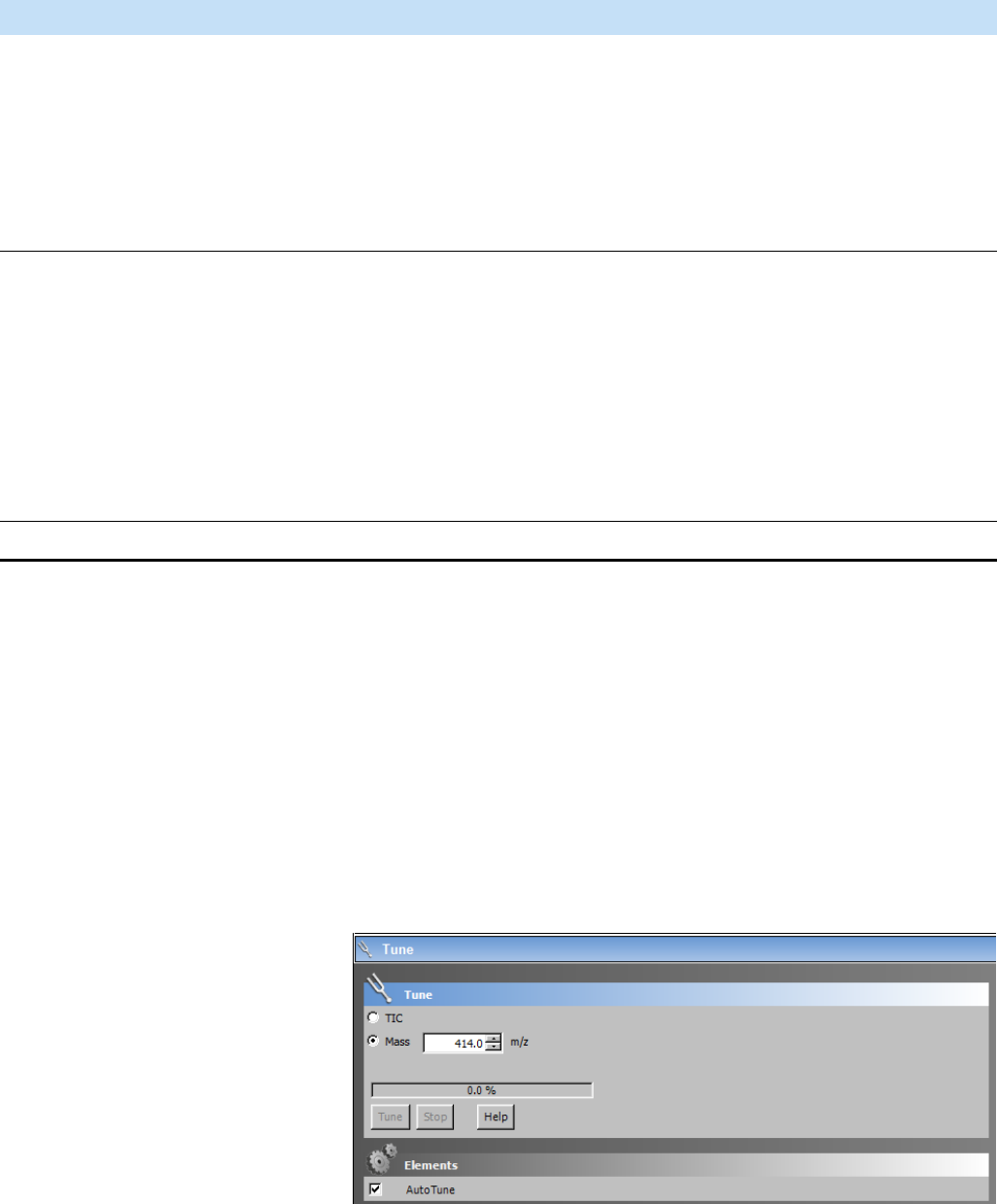
Explore Exactive GC Tune
Tasks Panel
4-18 Exactive GC Software Manual (P/N 1R120594-0003, Revision A) Thermo Scientific
❖To display this window
Click the Acquisition window title bar in the Instrument Control
window.
Tune Window
Use the Tune window to d automatically tune the Exactive GC mass
spectrometer window. A daily tune and calibration are suggested for
the Exactive GC instrument. Select AutoTune to use the last tuned
values. See Figure 4-6.
NOTICE The calibration gas and filament must be turned on before
tuning the Exactive GC instrument. ▲
Start / Stop Allows starting and stopping data acquisition. When no acquisition is in progress,
Exactive GC Tune displays Start. When an acquisition is in progress, Exactive GC Tune
displays Stop. To start an acquisition, click Start. To stop an acquisition, click Stop. To
pause an acquisition, click the Pause / Resume button.
NOTICE No Exactive GC Tune controlled data acquisition is possible if the instrument
is controlled by Xcalibur or TraceFinder. ▲
Pause / Resume Allows pausing and resuming an acquisition in progress. When no acquisition is in
progress, the button is inactive (gray). When an acquisition is in progress, Exactive GC
Tune displays Pause. When an acquisition is paused, Exactive GC Tune displays
Resume. To pause an acquisition in progress, click Pause. To resume an acquisition that
is paused, click Resume. To stop an acquisition in progress, click the Start / Stop
button.
NOTICE The acquisition can be started by pressing Resume if the mass spectrometer is
waiting for contact closure. ▲
Help Displays the Help for this window.
Parameter Description
Figure 4-5. Tune window
Explore Exactive GC Tune
Tasks Panel
Thermo Scientific Exactive GC Software Manual (P/N 1R120594-0003, Revision A) 4-19
The Tune window has the following parameters:
Parameter Description
Tune
TIC Select this check box to tune on the total ion current.
Mass Select an m/z value that you want to tune on. You can set the mass-to-charge
ratio to any value from m/z 30 to m/z 3000.
To change this value, click the arrows in the spin box to increment [up arrow] or
decrement [down arrow] the value. Alternatively, enter a value in the spin box
text field.
Elements Check AutoTune to use the last tuned values. In advanced user mode, you can
leave AutoTune unchecked and change individual tune values in Instrument
Status > Tune Values. If a cleaned source is inserted in the instrument, check
Preset Defaults to tune to the original Tune default values.
Buttons
Start Click Start to start tuning the instrument. The instrument needs to be in On
status to start a plotting procedure.
When tuning is in progress, the Exactive GC Tune displays Stop.
Stop Click Stop to stop tuning the Exactive GC.
Help Displays the Help for this window.
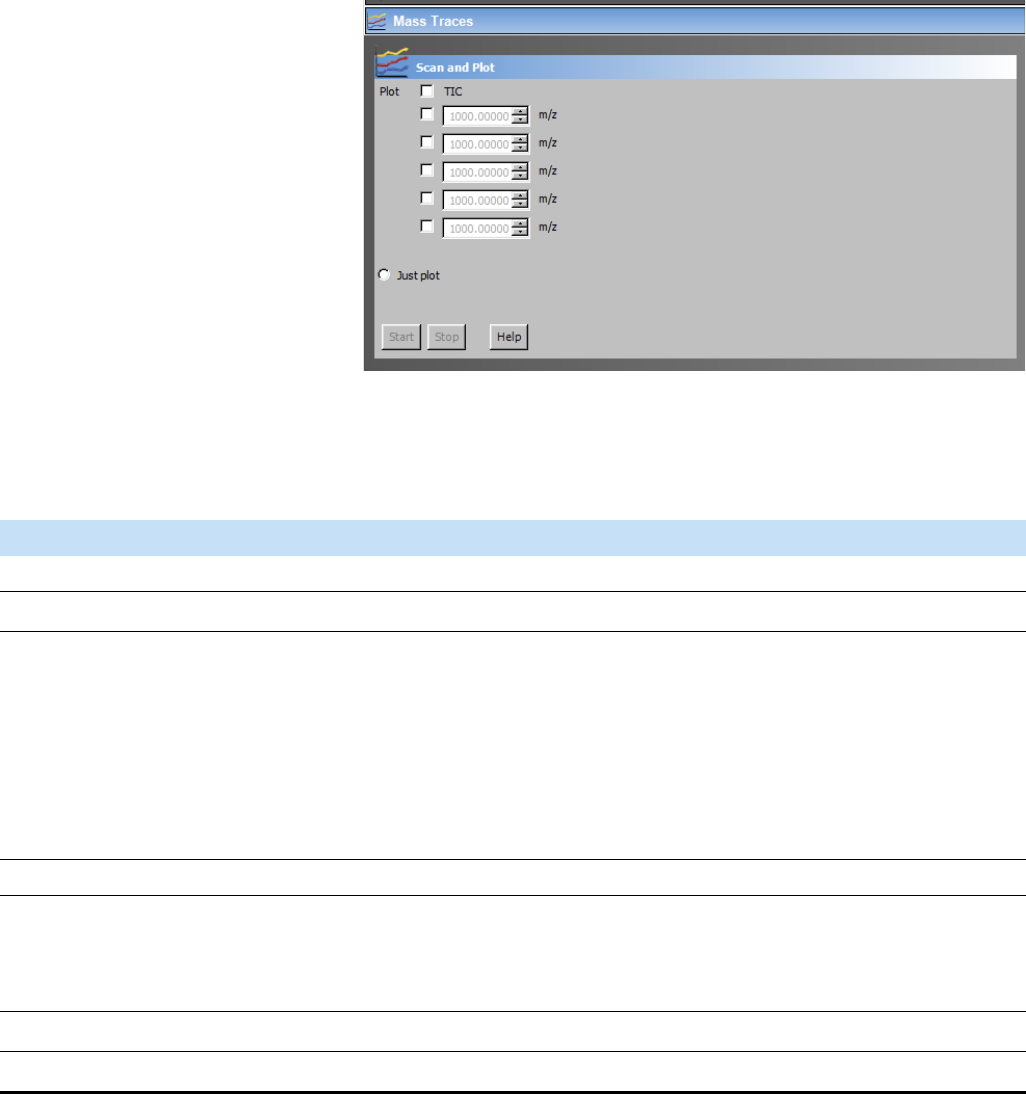
Explore Exactive GC Tune
Tasks Panel
4-20 Exactive GC Software Manual (P/N 1R120594-0003, Revision A) Thermo Scientific
Mass Traces Window
Use the Mass Traces window to display mass traces for the total ion
current and up to five m/z values in the Analysis Graphs window. See
Figure 4-6. You can plot mass traces when manually adjusting source
parameters such as gas flows. Make sure to tune your instrument for
both ion modes if you want to use a switching method! Settings for both
polarity modes are saved in the same tune file! ▲
The Mass Traces window has the following parameters:
Figure 4-6. Mass Traces window
Parameter Description
Plot
TIC Select this check box to plot the total ion current.
Masses to plot Select a check box for each m/z value that you want to plot (up to five). When
you select a check box, the spin box becomes active. The spin box displays the
mass-to-charge ratio to plot. You can set the mass-to-charge ratio to any value
from m/z 30 to m/z 3000.
To change this value, click the arrows in the spin box to increment [up arrow] or
decrement [down arrow] the value. Alternatively, enter a value in the spin box
text field.
Buttons
Start Click Start to start plotting the mass traces. The instrument needs to be in On
status to start a plotting procedure.
When plotting is in progress, the Exactive GC Tune displays Stop.
Stop Click Stop to stop plotting the mass traces.
Help Displays the Help for this window.
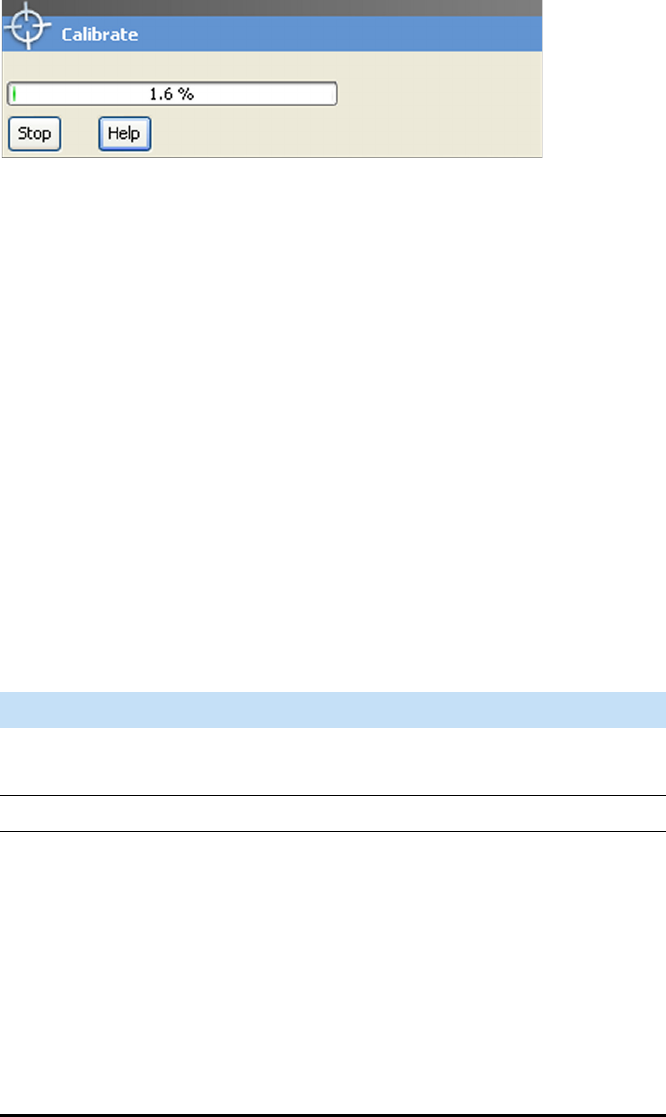
Explore Exactive GC Tune
Tasks Panel
Thermo Scientific Exactive GC Software Manual (P/N 1R120594-0003, Revision A) 4-21
Calibrate Window
Use the Calibrate window of the tasks panel to perform an automatic
optimization of the calibration parameters. See Figure 4-7. Calibration
parameters are instrument parameters whose values do not vary with the
type of experiment.
Standard users can choose the ion mode they want to calibrate in the
Calmix Calibration window. Advanced users can use the Calmix
Calibration window to calibrate the instrument with the standard
calibration gas. Alternatively, they can use the Customized Calibration
window to enter parameters for a calibration with ions of their choosing.
NOTICE If the system was in Off mode before, it is necessary to put the
instrument into On mode for at least 90 minutes before a mass
calibration is performed. ▲
The calibrating procedure requires that you introduce calibration gas
into the mass spectrometer at a steady rate.
The Calibrate window has the following parameters:
Figure 4-7. Calibrate window
Parameter Description
Progress bar Displays the elapsed percentage of the current
calibration procedure.
Buttons
Calibrate Click Calibrate to start an automatic
calibration of the mass spectrometer. The
instrument needs to be in On status to start a
calibration. The duration of the automatic
calibration depends on the selected check
boxes; a complete automatic calibration
requires about four minutes.
When calibration is in progress, Exactive GC
Tune displays Stop.
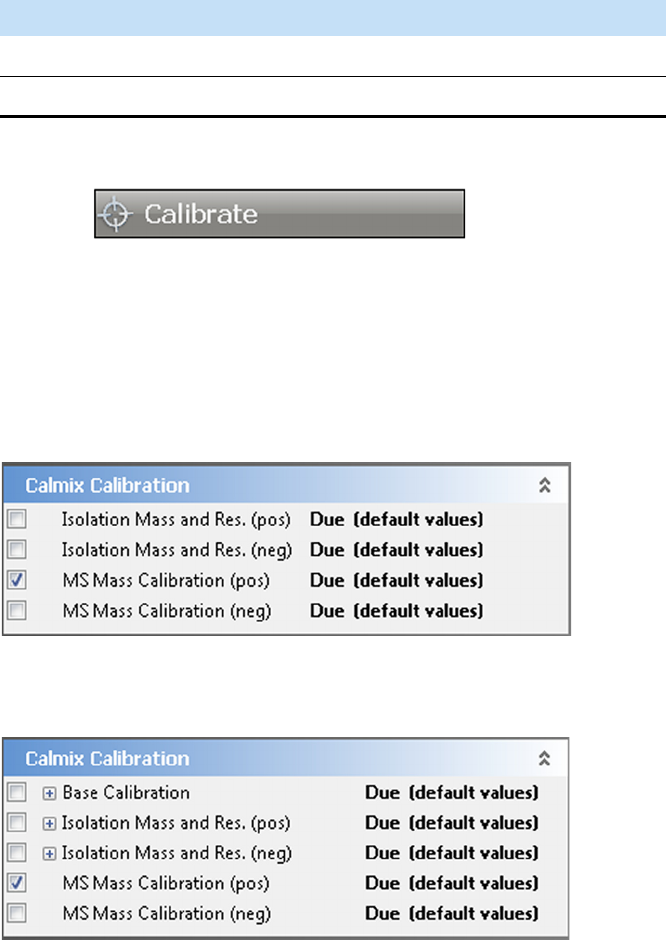
Explore Exactive GC Tune
Tasks Panel
4-22 Exactive GC Software Manual (P/N 1R120594-0003, Revision A) Thermo Scientific
❖To display this window
Click in the tasks panel.
Calmix Calibration Window
Use the Calmix Calibration window to select parameters and ion modes
when performing an automatic calibration. See Figure 4-8 and
Figure 4-9. The window displays the current statuses of the individual
calibration items on the right side.
NOTICE Select MS Mass Calibration (pos) for daily calibration in EI
mode.
Stop Click Stop to stop a calibration in progress.
Help Displays the Help for this window.
Parameter Description
Figure 4-8. Calmix Calibration window (for standard users)
Figure 4-9. Calmix Calibration window (for advanced users)
Explore Exactive GC Tune
Tasks Panel
Thermo Scientific Exactive GC Software Manual (P/N 1R120594-0003, Revision A) 4-23
The Calmix Calibration window has the following parameters:
Parameter Description
Base Calibration The Base Calibration item displays a hierarchical list of items in a tree view.
Here, you can select individual parameters that you want to calibrate.
If a check box is not selected, no subentry is selected. If the check box is
selected, all subentries are selected. If the check box is filled, some subentries
are selected.
This parameter is not available for standard users.
Isolation Mass and Res. (pos)
Isolation Mass and Res. (neg)
Select this check box to perform an automatic calibration for isolation mass
and resolution of the quadrupole in the respective ion mode.
In a hierarchical list of items in a tree view, advanced users can select
individual parameters that they want to calibrate.
If the check box is not selected, no subentry is selected. If the check box is
selected, all subentries are selected. If the check box is filled, some subentries
are selected.
MS Mass Calibration (pos) Select this check box to perform an automatic calibration for all calibration
parameters in the positive ion mode.
Use methane reagent gas for positive ion calibration in CI mode.. Refer to
the Q Exactive GC and Exactive GC Operating Manual for information.
MS Mass Calibration (neg) Select this check box to perform an automatic calibration for all calibration
parameters in the negative ion mode.
Use negative ion chemical ionization for calibrations in negative mode.
Methane is recommended as the optimal reagent gas for automated
calibrations and evaluations. Refer to the Q Exactive GC and Exactive GC
Operating Manual for information.
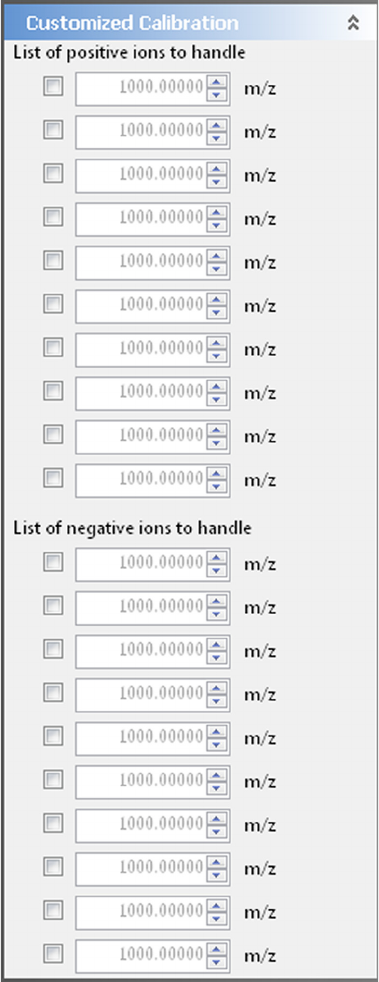
Explore Exactive GC Tune
Tasks Panel
4-24 Exactive GC Software Manual (P/N 1R120594-0003, Revision A) Thermo Scientific
Customized Calibration Window
Use the Customized Calibration window to perform a mass calibration
with user-defined ions. Enter the m/z values on which to calibrate. See
Figure 4-10. This window is not available for standard users.
NOTICE Use this window for (positive and negative) mass calibration
only! For all other calibration procedures, use the standard calibration
ions! ▲
Figure 4-10. Customized Calibration window
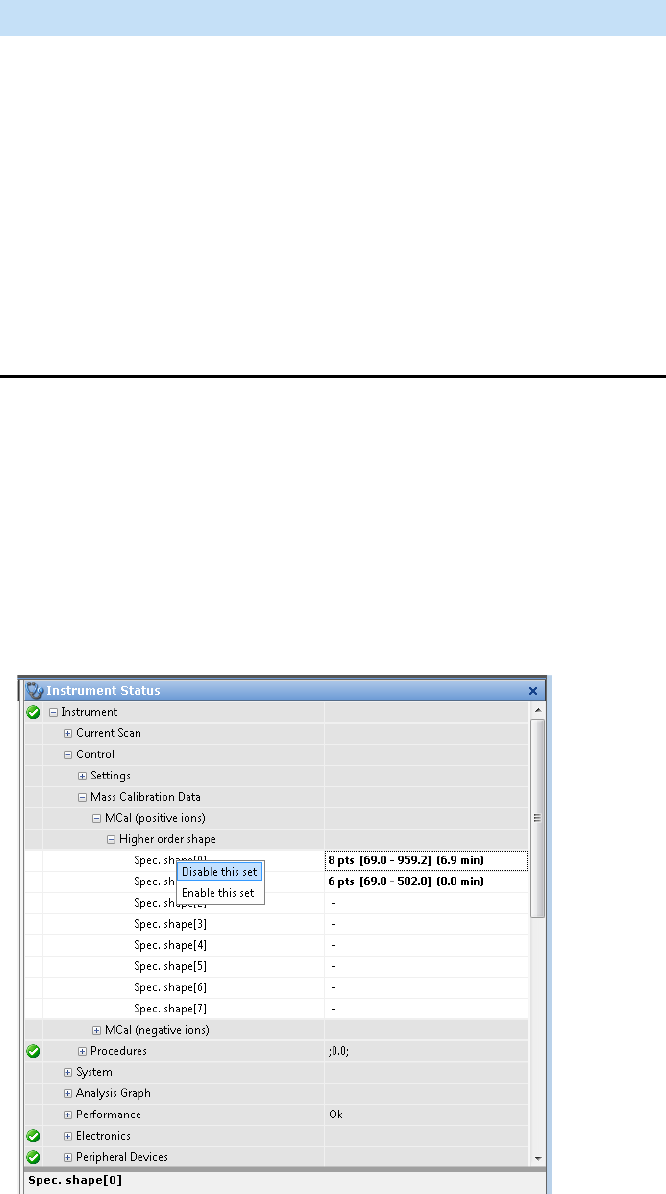
Explore Exactive GC Tune
Tasks Panel
Thermo Scientific Exactive GC Software Manual (P/N 1R120594-0003, Revision A) 4-25
The Customized Calibration window has the following parameters:
Managing Mass Calibrations
If you want to disable a calibration from the Tune software, do the
following.
First, go to Instrument > Control > Mass Calibration Data > Higher
Order Shape, right click the Spec. shape[x] cell with the values you no
longer want to use and select Disable This Set. See Figure 4-11.
Parameter Description
Masses to calibrate Select a check box for each m/z value that you
want to plot (up to ten for each ion mode).
When you select a check box, the spin box
becomes active. The spin box displays the
mass-to-charge ratio to plot. You can set the
mass-to-charge ratio to any value from m/z 30
to m/z 3000.
To change this value, click the arrows in the
spin box to increment [up arrow] or decrement
[down arrow] the value. Alternatively, enter a
value in the spin box text field.
Figure 4-11. Disabling Spectral Values
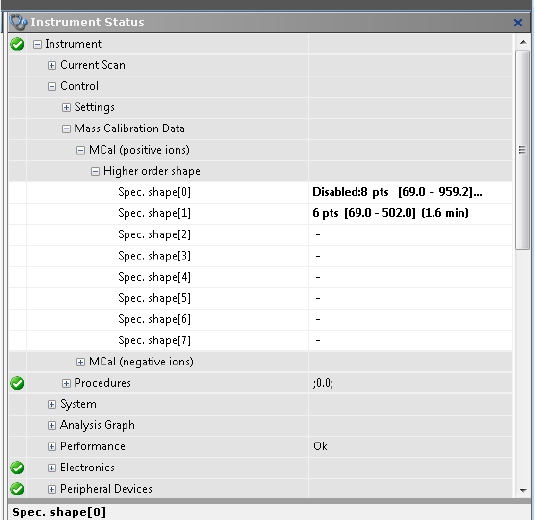
Explore Exactive GC Tune
Tasks Panel
4-26 Exactive GC Software Manual (P/N 1R120594-0003, Revision A) Thermo Scientific
The calibration is now disabled in the software. The disabled set of
calibration points is no longer used to assign mass to measured ion
frequencies. See Figure 4-12.
To remove older calibrations from the software, right click on the
disabled Spec. shape[x] cell, and choose Remove All but Last
Calibration. See Figure 4-13.
Figure 4-12. Disabling Spectral Values
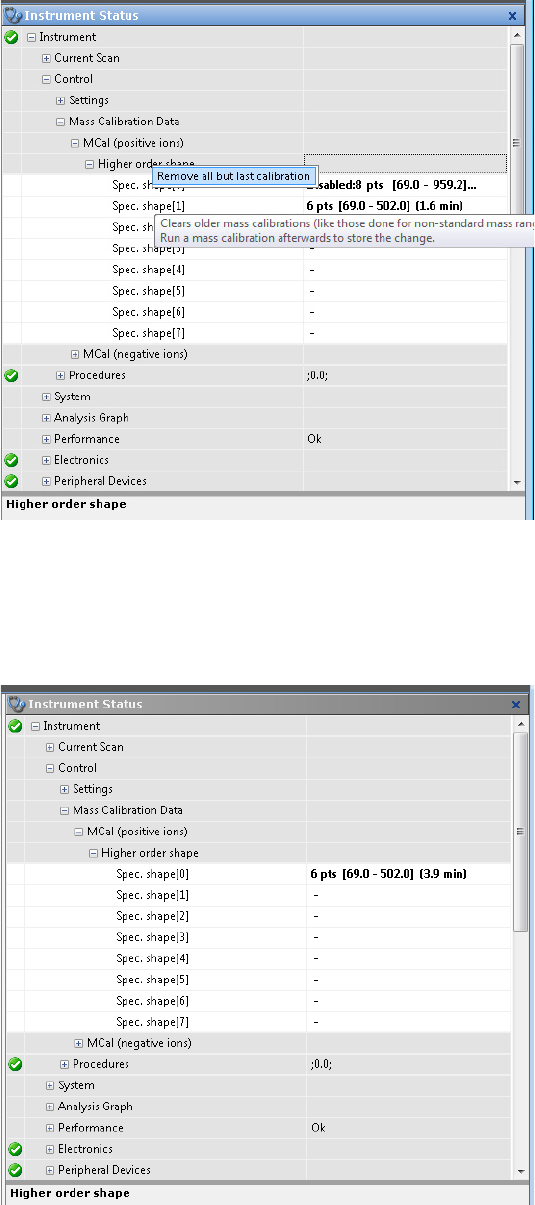
Explore Exactive GC Tune
Tasks Panel
Thermo Scientific Exactive GC Software Manual (P/N 1R120594-0003, Revision A) 4-27
The older calibrations no longer appear in the tune software. See
Figure 4-14.
Run a mass calibration with older values removed to store the change in
the software.
Figure 4-13. Removing Older Calibrations
Figure 4-14. Tune Software with Older Calibrations Removed
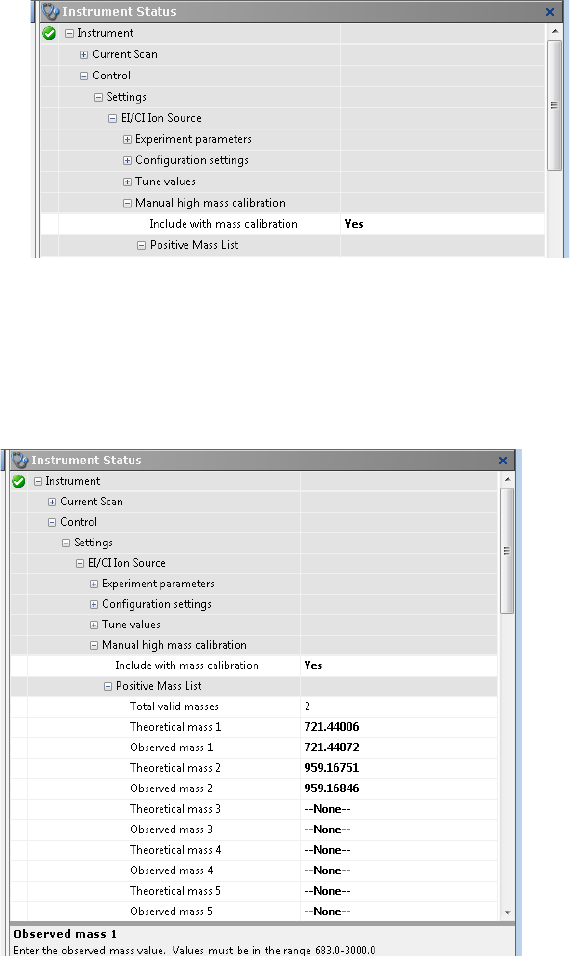
Explore Exactive GC Tune
Tasks Panel
4-28 Exactive GC Software Manual (P/N 1R120594-0003, Revision A) Thermo Scientific
High Mass Calibration
To manually add high mass points to your Calibration in Tune, first tun
an injection with a compound or compounds containing the high mass
points you want add to your calibration.
Next, go to Advanced user setting in Tune and set Instrument >
Settings > EI/CI Ion Source > Manual High Mass Calibration and set
Include with Mass Calibration to Yes. See Figure 4-15.
In the Instrument Status panel, go to Instrument > Settings > EI/CI
Ion Source > Positive (or Negative) Mass List and enter the theoretical
and observed masses for each acquired compound. See Figure 4-16.
Figure 4-15. Enabling Manual High Mass Calibration
Figure 4-16. Entering Theoretical and Observed Masses
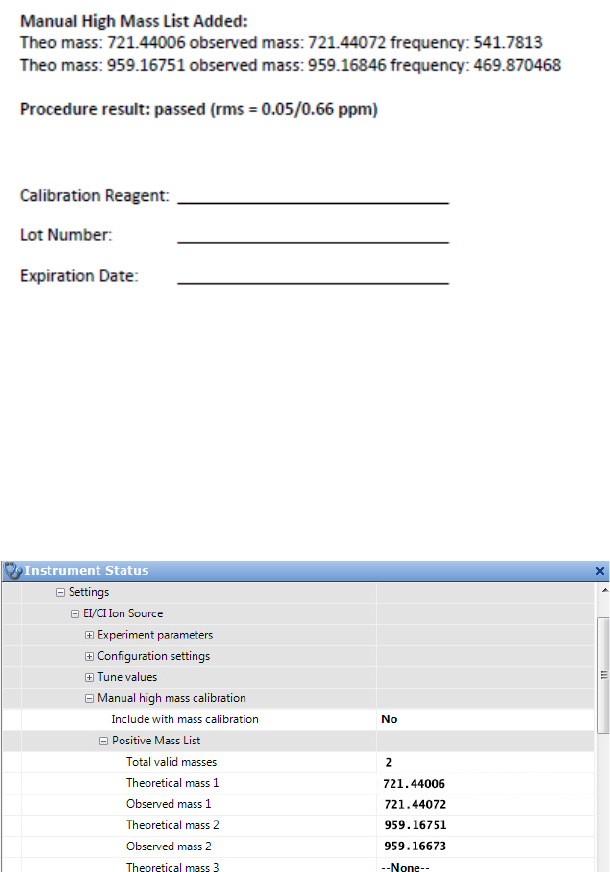
Explore Exactive GC Tune
Tasks Panel
Thermo Scientific Exactive GC Software Manual (P/N 1R120594-0003, Revision A) 4-29
Run the mass calibration as usual. Check the calibration report to ensure
that the high masses were added. See Figure 4-17.
If you want to run a calibration without the high mass values, but want
to save the values in the software, go to Instrument > Settings > EI/CI
Ion Source > Manual High Mass Calibration and set Include with
Mass Calibration to No. See Figure 4-18.
Figure 4-17. Calibration Report with High Masses Added
Figure 4-18. Calibration Report with High Masses Added
Explore Exactive GC Tune
Tasks Panel
4-30 Exactive GC Software Manual (P/N 1R120594-0003, Revision A) Thermo Scientific
Evaluate Window
Use the Evaluate window of the tasks panel to perform an automatic
check of the instrument calibration. See Figure 4-19.
To enable an evaluation, standard users must select at least one check
box in the Calmix Evaluation window. Advanced users must select at
least one check box either in the Calmix Evaluation window or in the
Customized Evaluation window.
The evaluation procedure requires that you introduce calibration gas
into the mass spectrometer for at least 30 seconds. The filament must be
on before starting the evaluation procedure.
The Evaluate window has the following parameters:
Figure 4-19. Evaluate window
Parameter Description
Progress bar Displays the elapsed percentage of the
current evaluation procedure.
Buttons
Evaluate Click Evaluate to start an automatic
evaluation of calibration parameters.
The instrument needs to be in On
status to start an evaluation.
When evaluation is in progress,
Exactive GC Tune displays Stop.
Stop Click Stop to stop an evaluation in
progress.
Help Displays the Help for this window.
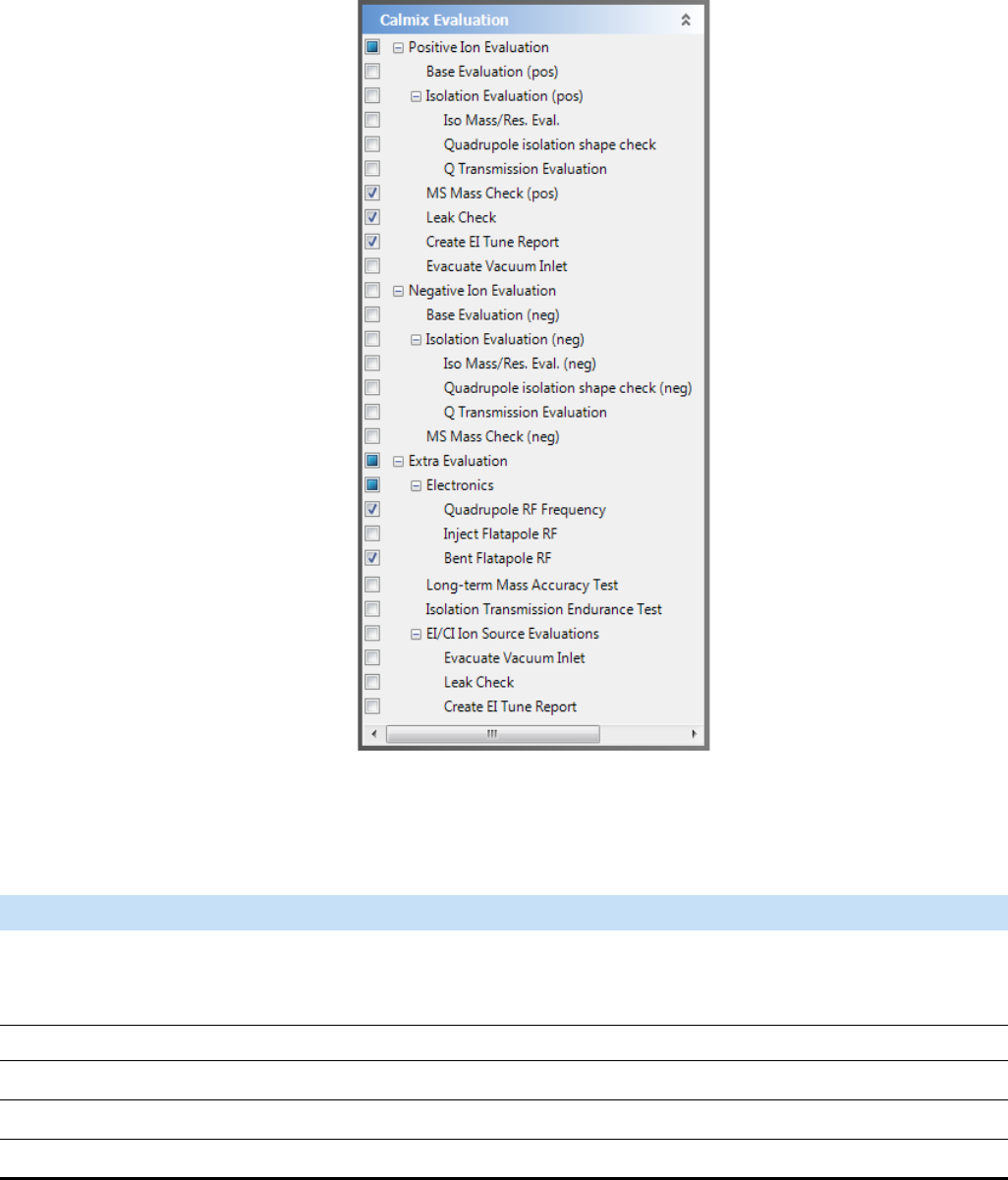
Explore Exactive GC Tune
Tasks Panel
Thermo Scientific Exactive GC Software Manual (P/N 1R120594-0003, Revision A) 4-31
Calmix Evaluation Window
Use the Calmix Evaluation window to enable the evaluation with the
standard calibration gas ions.
The Calmix Evaluation window has the following parameters:
Figure 4-20. Calmix Evaluation window (for advanced users)
Parameter Description
In a hierarchical list of items in a tree view, you can select individual parameters that you want to evaluate.
If the check box is not selected, no subentry is selected. If the check box is selected, all subentries are selected.
If the check box is filled, some subentries are selected.
Positive Ion Evaluation / Negative Ion Evaluation
Select the check boxes to evaluate various parameters for the respective ion mode.
-Base Evaluation Evaluates the basic performance of the instrument.
-Isolation Evaluation Evaluates the performance of the quadrupole.
Explore Exactive GC Tune
Tasks Panel
4-32 Exactive GC Software Manual (P/N 1R120594-0003, Revision A) Thermo Scientific
--Iso Mass/Res. Eval. Evaluates the instrument performance for quadrupole isolation and
resolution.
This parameter is not available for standard users.
--Q Transmission Evaluation Evaluates the quadrupole transmission against minimum
requirements. This evaluation requires a calibrated quadrupole and a
stable calibration gas signal.
This parameter is not available for standard users.
--Quadrupole Isolations Shape Check Evaluates the quadrupole isolation window for different isolation
widths.
This parameter is not available for standard users.
-MS Mass Check Evaluates the m/z accuracy of the Orbitrap analyzer.
-Leak Check Evaluates the oxygen detected in background relative to oxygen
introduced with the calibration gas reference leak.
-EI Tune Report Scans positive EI calibrant ions using the current tune parameters and
makes a report. The EI Tune Report may be opened and viewed from
the Reports menu.
-Evacuate Vacuum Inlet Evacuates the vacuum interlock for 30 seconds.
Extra Evaluation
Select the check boxes to evaluate various parameters that are not contained in the standard evaluations.
Electronics Evaluates the performance of electronic components.
-Quadrupole RF Frequency Checks the quadrupole RF voltage.
This parameter is not available for standard users.
-Inject Flatapole RF Checks the inject flatapole RF voltage.
This parameter is not available for standard users.
-Bent Flatapole RF Checks the bent flatapole RF voltage.
This parameter is not available for standard users.
Long-term Mass Accuracy Test Performs a mass accuracy test over an extended period.
This parameter is not available for standard users.
Isolation Transmission Endurance
Te s t
Tests the behavior of the mass isolation optic elements under
permanent ion load. The procedure requires a stable calibration gas
signal with TIC > 5.0E+07; it will run for about 16 minutes.
This parameter is not available for standard users.
Parameter Description
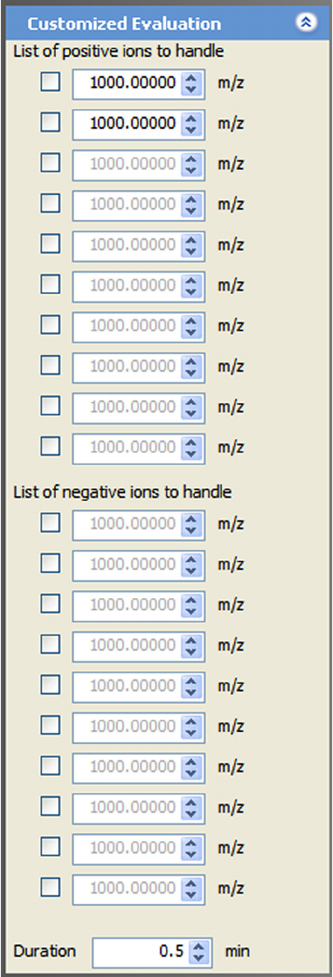
Explore Exactive GC Tune
Tasks Panel
Thermo Scientific Exactive GC Software Manual (P/N 1R120594-0003, Revision A) 4-33
Customized Evaluation Window
Use the Customized Evaluation window to enter the m/z values on
which to evaluate by using a user-defined calibrant. This window is not
available for standard users.
NOTICE Not all calibrations or evaluations will use this customized
list. ▲
Figure 4-21. Customized Evaluation window
Explore Exactive GC Tune
Tasks Panel
4-34 Exactive GC Software Manual (P/N 1R120594-0003, Revision A) Thermo Scientific
The Customized Evaluation window has the following parameters:
❖To display this window
Click in the Tasks window.
Parameter Description
Masses to evaluate Select a check box for each m/z value that you
want to plot (up to ten for each ion mode).
When you select a check box, the spin box
becomes active. The spin box displays the
mass-to-charge ratio to plot. You can set the
mass-to-charge ratio to any value from m/z 30
to m/z 3000.
To change this value, click the arrows in the
spin box to increment [up arrow] or decrement
[down arrow] the value. Alternatively, enter a
value in the spin box text field.
Duration The spin box displays the duration (in minutes)
of the evaluation procedure. You can set the
duration to any value from 0.2 to
2160 minutes. The default duration is
0.5 minutes.
To change this value, click the arrows in the
spin box to increment [up arrow] or decrement
[down arrow] the value. Alternatively, enter a
value in the spin box text field.
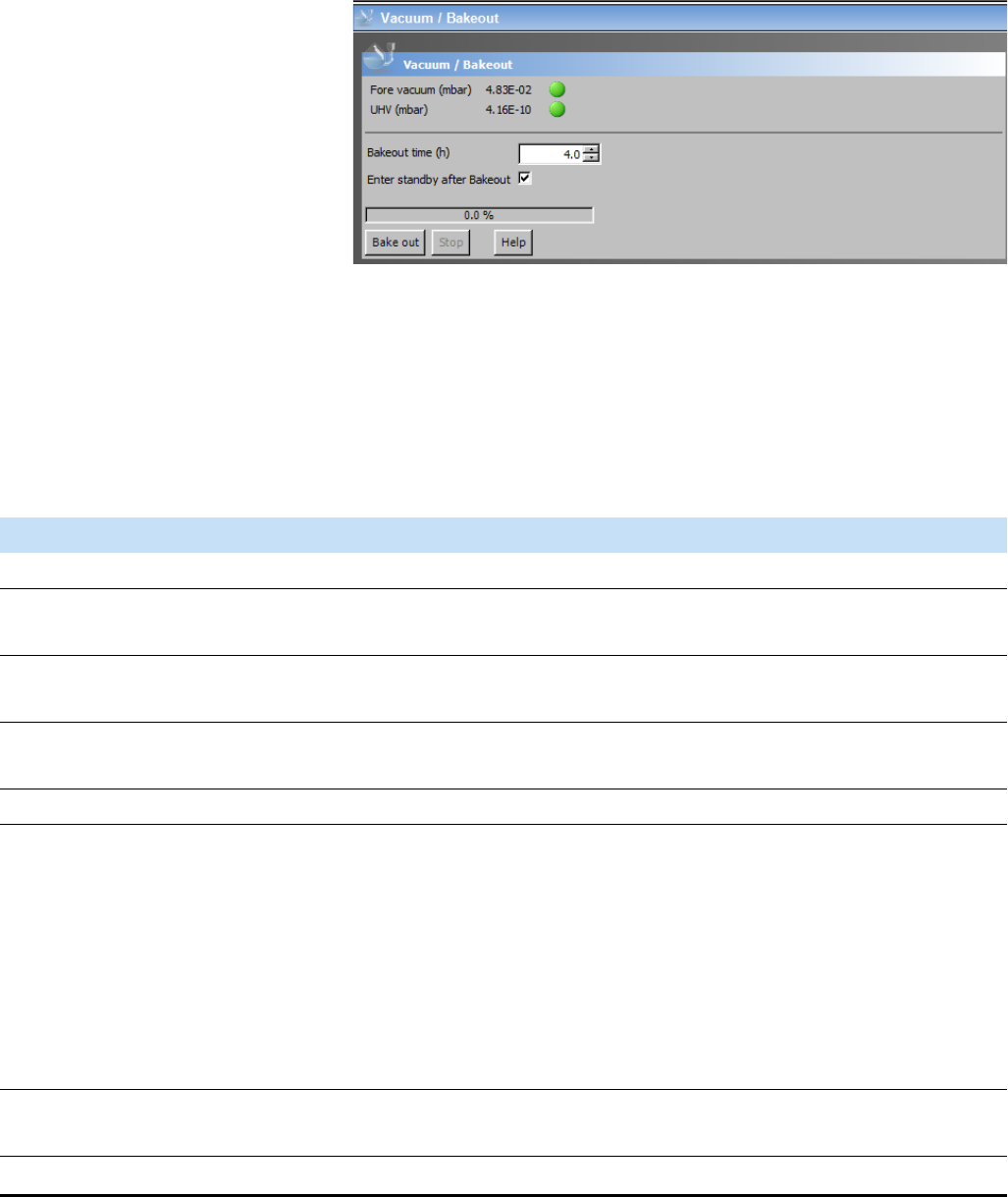
Explore Exactive GC Tune
Tasks Panel
Thermo Scientific Exactive GC Software Manual (P/N 1R120594-0003, Revision A) 4-35
Vacuum / Bakeout Window
The Vacuum / Bakeout window of the tasks panel reads back the
pressure values at the vacuum gauges and allows performing an
instrument bakeout.
NOTICE After the bakeout time has expired, the instrument requires a
cooling and stabilization time of about three hours. ▲
The Vacuum / Bakeout window has the following parameters:
Figure 4-22. Vacuum / Bakeout window
Parameter Description
Vacuum
Green LEDs indicate that the readback values are sufficient for operating the Exactive GC mass spectrometer.
If an LED indicates a vacuum problem, use the instrument status window for error diagnosis.
Fore vacuum This readback displays the actual pressure (in mbar) in the forevacuum line
and ion source region as read by the Pirani gauge.
UHV This readback displays the actual pressure (in mbar) in the Orbitrap chamber
as read by the ion gauge.
Bakeout
Bakeout time Enter the desired baking duration (in hours) into the spin box. The range is 4
to 30 hours. When you click Bake out, the mass spectrometer starts the
baking routine.
The baking script is stopped after the preset duration. Click Stop to abort the
baking routine.
NOTICE The instrument has to cool down for another three hours before it
can be used. ▲
Enter standby after Bakeout Select the check box to set the instrument to standby mode after the bakeout
procedure is finished.
Progress bar Displays the elapsed percentage of the current baking procedure.
Explore Exactive GC Tune
Tasks Panel
4-36 Exactive GC Software Manual (P/N 1R120594-0003, Revision A) Thermo Scientific
❖To display this window
Click in the tasks
panel.
Bake out Click Bake out to start the bakeout routine. To stop a bakeout in progress,
click the Stop button.
NOTICE Bakeout is possible only when the instrument status is Off. ▲
Stop Click Stop to abort the bakeout routine.
NOTICE The instrument has to cool down for another three hours before it
can be used. ▲
Help Displays the Help for this window.
Parameter Description
Explore Exactive GC Tune
Display Panel
Thermo Scientific Exactive GC Software Manual (P/N 1R120594-0003, Revision A) 4-37
Display Panel
The windows in the display panel provide real-time information about
the instrument status, the Exactive GC Tune software, or other
programs.
The following windows are available:
•Spectrum Window
•Instrument Status Window
•Messages Window
•Analysis Graphs Window
•Debug Messages Window
The spectrum window is always visible. The debug messages window is
not available for standard users.
Depending on the individual configuration of your system, additional
windows may allow controlling other installed instruments.
Exactive GC Tune offers various ways to arrange windows in the display
panel:
❖To display a window in the display panel
Choose the respective command in the Windows menu.
❖To hide a window in the display panel
•Choose the respective command in the Windows menu.
•Right-click the title bar of a window to display the shortcut menu.
Choose Hide.
❖To change the position of a window in the display panel
•Use the mouse to drag the window by its title bar to the new
location, which can be even outside the Exactive GC Tune window.
•Within the display panel, you can dock the window to any one of
the four sides. While you drag the window, Exactive GC Tune
displays icons to indicate the available docking positions.
•Right-click the title bar of a docked window to display the shortcut
menu. Choose Floating to undock the window.
Alternatively, double-click on the title bar of the window.
•Right-click the title bar of an undocked window to display the
shortcut menu. Choose Floating to dock the window to its last
docking position.
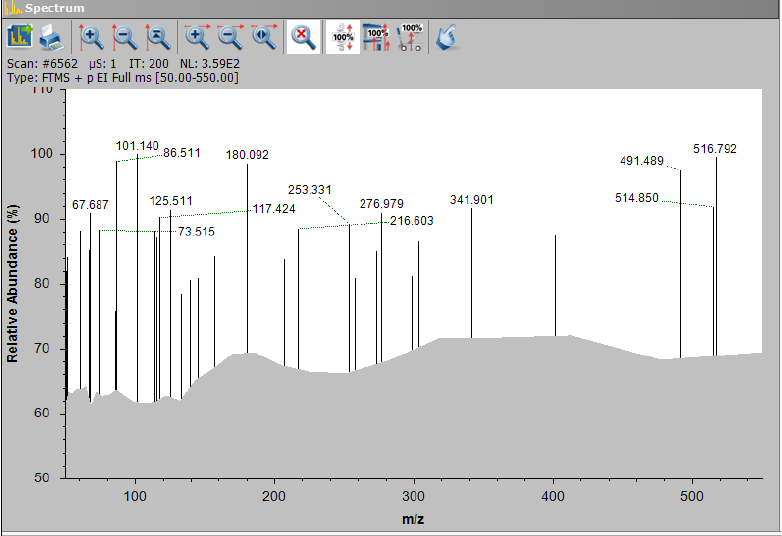
Explore Exactive GC Tune
Display Panel
4-38 Exactive GC Software Manual (P/N 1R120594-0003, Revision A) Thermo Scientific
Alternatively, double-click the title bar of the window.
Spectrum Window
The spectrum window displays real-time data generated during
calibration, tuning, and diagnostic tests. See Figure 4-23. The spectrum
window is always visible.
The spectrum window allows using the mouse for zooming.
❖To zoom in or out on a spectrum
•Click and drag with the left mouse button (hand cursor) from
the beginning to the end of the portion you want to see
enlarged.
•Alternatively, use the mouse wheel for zooming. Position the
mouse pointer within the spectrum and roll the wheel forward
to zoom in on the spectrum area.
•To zoom in on the spectrum with respect to one axis only,
position the mouse pointer within the axis area and roll the
mouse wheel forward. Roll the wheel backward to zoom out.
•To increase the zooming factor by two, keep the <Shift> key
pressed while using the mouse wheel.
Figure 4-23. Spectrum window
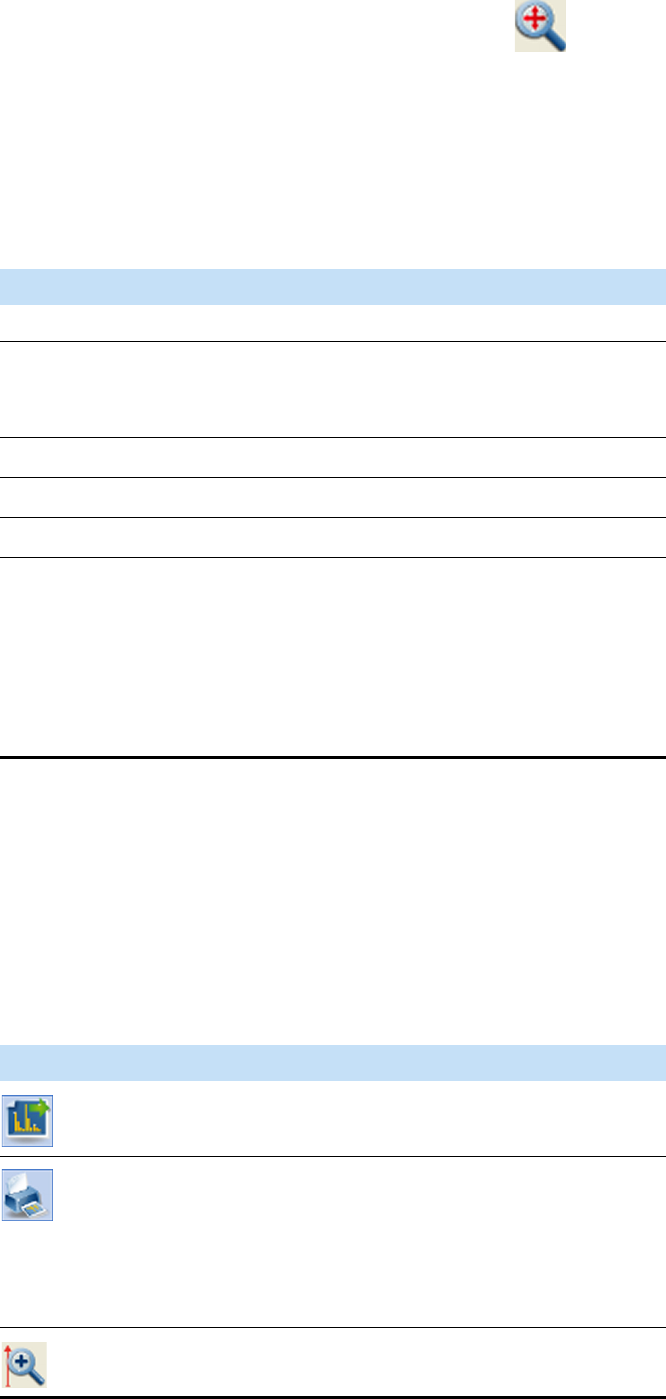
Explore Exactive GC Tune
Display Panel
Thermo Scientific Exactive GC Software Manual (P/N 1R120594-0003, Revision A) 4-39
To return to a display of the full spectrum, click the button in
the toolbar or choose Unzoom in the shortcut menu.
Press the <Shift> key to enable mouse panning. When mouse panning
is active (mouse pointer changes to hand cursor), you can shift the
spectrum along the X-axis while keeping the left mouse button pressed.
The spectrum window has the following parameters:
❖To display this window
Choose Windows > Spectrum.
Toolbar
Use the buttons in the toolbar to manipulate the spectrum display.
The toolbar of the spectrum window has the following parameters:
Parameter Description
Header
Scan # The number of scans since the beginning of the
last acquisition (or since the last time the mass
spectrometer was rebooted)
µSNumber of microscans
IT Inject time (in milliseconds)
NL Normalization level
Type Scan type
The scan type information comprises ion
polarity, source type, and scan range. When the
acquisition is controlled by an instrument
method, the information includes the current
scan segment and the current scan event.
Parameter Description
Click to copy the current spectrum into the clipboard.
Click to plot the current spectrum.
You can view a print preview before the spectrum is
printed. In a Page Setup dialog box, you can set up
printer’s parameters (paper size and orientation, for
example).
Click to zoom in on the Y-axis (factor 2).
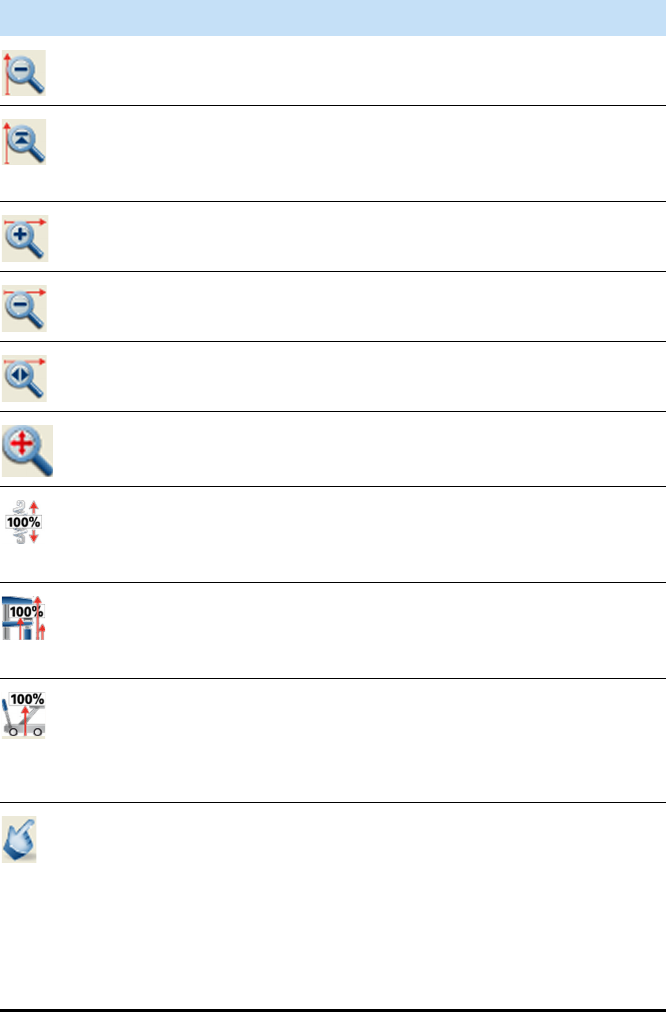
Explore Exactive GC Tune
Display Panel
4-40 Exactive GC Software Manual (P/N 1R120594-0003, Revision A) Thermo Scientific
Click to zoom out on the Y-axis (factor 2).
Click to normalize the Y scale: Exactive GC Tune always
displays the largest peak in the spectrum at full scale
(vertical scale = largest peak in spectrum).
Click to zoom in on the X-axis (factor 2).
Click to zoom out on the X-axis (factor 2).
Click to display the entire mass range.
Click to normalize the display (X-axis, Y-axis).
Click to set to fixed mode: the height of the Y-axis is set
equal to the height of the largest peak in the current
spectrum and remains fixed even if larger peaks occur.
Click to set the Y-axis to the height of the highest peak so
that the largest peak in the spectrum is always displayed
at full scale.
Click to set to creep mode: the Y scale of the mass
spectrum automatically increases if the peak intensity
increases, but does not decrease if the peak intensity
decreases.
Click to toggle between mouse panning and mouse
zooming:
•When mouse panning is active, you can shift the
spectrum along the X-axis while keeping the left
mouse button pressed (hand cursor).
•When mouse zooming is active, you can zoom in the
spectrum by using the mouse.
Parameter Description
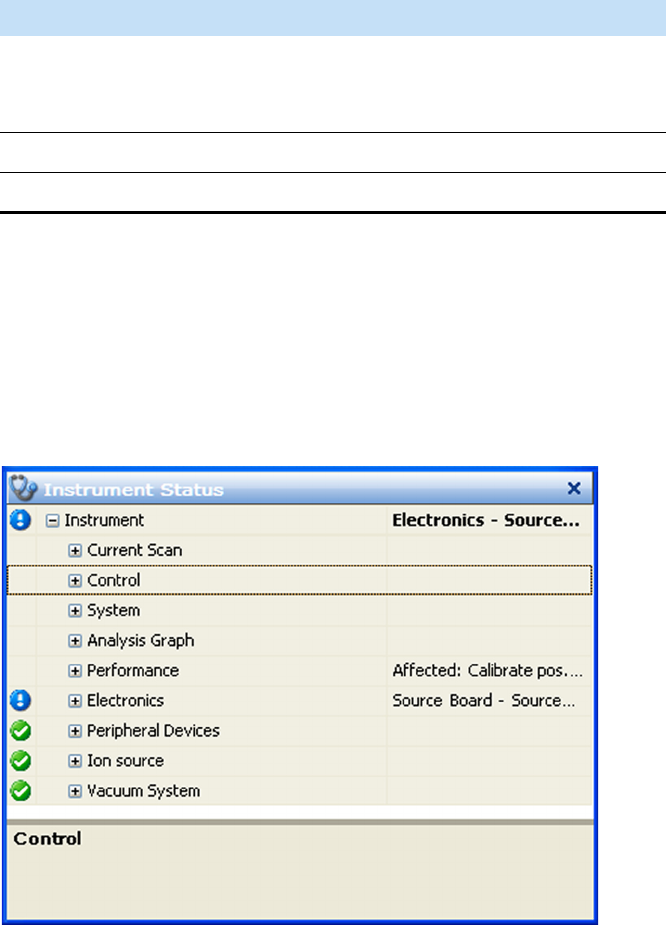
Explore Exactive GC Tune
Display Panel
Thermo Scientific Exactive GC Software Manual (P/N 1R120594-0003, Revision A) 4-41
Shortcut Menu
Right-click the spectrum window to display the shortcut menu. It has
the following commands:
Instrument Status Window
The instrument status window displays real-time status information for
the instrument components. All parameters are arranged in a tree view.
See Figure 4-24. The Control node is not available for standard users.
In addition to showing numerical values of parameters, the instrument
status window uses icons to indicate the statuses of system components.
Thus, you can use the instrument status window for a quick error
diagnosis.
When expanded, some nodes provide shortcut menus that are displayed
when you right-click an item. The available commands depend on the
selected node and the user privileges. Generally, the shortcut menus
allow changing the current settings.
Command Description
Save Image As Saves the current graph as image file. A Save As
dialog opens and you can enter the file name,
file type, and the directory.
Unzoom Reverts the zoom action.
Display options Opens the Display Options dialog box.
Figure 4-24. Instrument status window
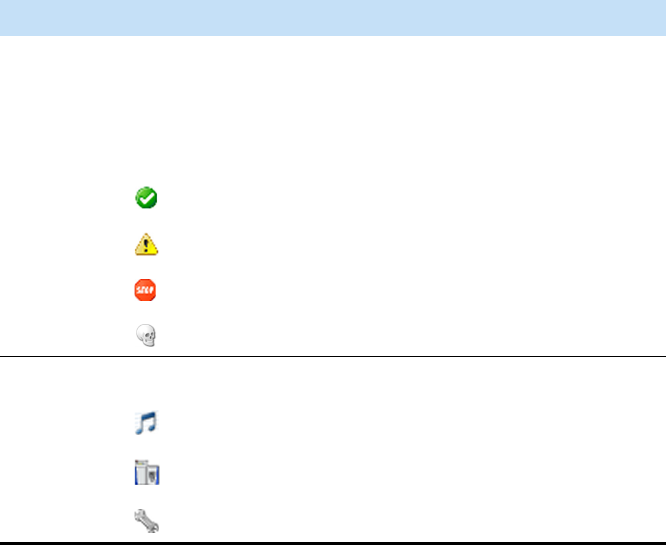
Explore Exactive GC Tune
Display Panel
4-42 Exactive GC Software Manual (P/N 1R120594-0003, Revision A) Thermo Scientific
NOTICE For normal operation, it is not necessary to change the settings
in the instrument status window. It just allows monitoring the system in
more detail (more readbacks, etc.) than the other windows. ▲
❖To display this window
Choose Windows > Instrument Status.
Messages Window
The messages window displays real-time information about the statuses
of the instrument, the control service, or other programs. For further
analysis, you can copy the content of the messages window to a text
editor.
❖To copy content from the messages window to a text editor
1. Select part of the content with the mouse, or
press <Ctrl> + <A> to select the complete content of the messages
window.
2. Press <Ctrl> + <C> to copy the text to the clipboard.
3. Open a document in the text editor.
4. Press <Ctrl> + <V> to insert the copied text into the document.
The messages window has the following parameters:
Parameter Description
The messages are sorted with respect to time. To change the sort order,
click the respective table column header. To invert the sort order, click
again.
Priority The message priority is indicated by symbols:
Info; status is normal / command successful
Warning; no user action required
Error; user action required
Fatal error; program cannot proceed
Source The message source is indicated by symbols:
Message from Exactive GC Tune program
Message from instrument
Message from service
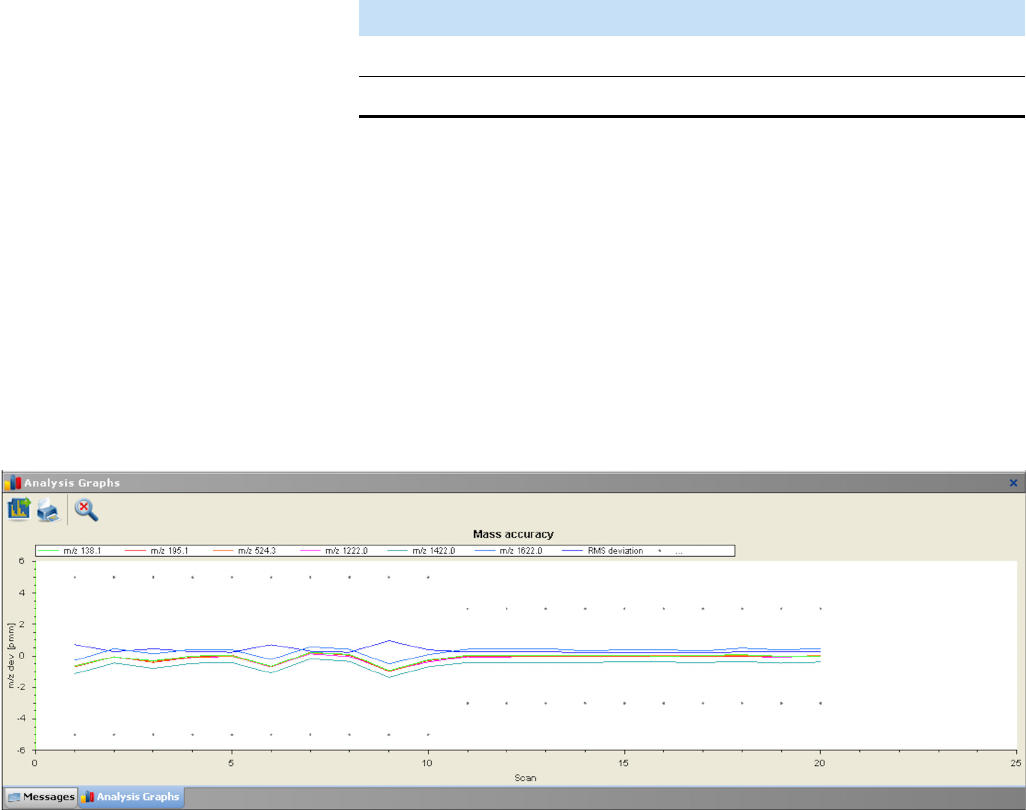
Explore Exactive GC Tune
Display Panel
Thermo Scientific Exactive GC Software Manual (P/N 1R120594-0003, Revision A) 4-43
❖To display this window
Choose Windows > Messages.
Analysis Graphs Window
The analysis graphs window displays real-time data generated during
calibration, tuning, and diagnostic tests. See Figure 4-25. To save data
displayed in the window, choose Save Image As in the shortcut menu of
the window.
The analysis graphs window allows using the mouse for zooming.
❖To zoom in or out on an analysis graph
•Click and drag with the left mouse button (hand cursor) from
the beginning to the end of the portion you want to see
enlarged.
•Alternatively, use the mouse wheel for zooming. Position the
mouse pointer within the graph and roll the wheel forward to
zoom in on the graph area.
•To zoom in on the graph with respect to one axis only, position
the mouse pointer within the axis area and roll the mouse wheel
forward. Roll the wheel backward to zoom out.
•To increase the zooming factor by two, keep the <Shift> key
pressed while using the mouse wheel.
Time Time and date of the message
Description Displays the message text.
Parameter Description
Figure 4-25. Analysis Graphs window
Explore Exactive GC Tune
Display Panel
4-44 Exactive GC Software Manual (P/N 1R120594-0003, Revision A) Thermo Scientific
To return to a display of the full spectrum, click the button in
the toolbar or choose Unzoom in the shortcut menu.
Press the <Shift> key to enable mouse panning. When mouse panning
is active (mouse pointer changes to hand cursor), you can shift the graph
along both axes while keeping the left mouse button pressed.
❖To display this window
Choose Windows > Analysis Graphs.
Toolbar
The toolbar of the analysis graphs window has the following parameters:
Shortcut Menu
Right-clicking on the analysis graphs window displays the shortcut
menu. It has the following commands:
Debug Messages Window
The debug messages window displays messages that can be used during
method development. The debug messages window is not available for
standard users. For further analysis, you can copy the content of the
debug messages window to a text editor.
Parameter Description
Click to copy the current graph into the clipboard.
Click to plot the current graph.
You can view a print preview before the graph is printed.
In a Page Setup dialog box, you can set up printer’s
parameters (paper size and orientation, for example).
Click to normalize the display (X-axis, Y-axis).
Command Description
Save Image As Saves the current graph as image file. A Save As
dialog opens and you can enter the file name,
file type, and the directory.
Unzoom Reverts the zoom action.
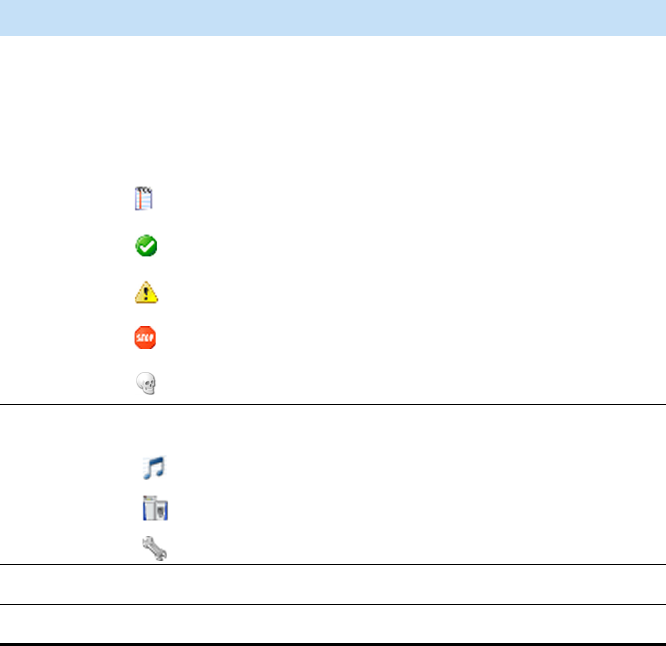
Explore Exactive GC Tune
Display Panel
Thermo Scientific Exactive GC Software Manual (P/N 1R120594-0003, Revision A) 4-45
❖To copy content from the debug messages window to a text editor
1. Select part of the content with the mouse, or
press <Ctrl> + <A> to select the complete content of the messages
window.
2. Press <Ctrl> + <C> to copy the text to the clipboard.
3. Open a document in the text editor.
4. Press <Ctrl> + <V> to insert the copied text into the document.
The debug messages window has the following parameters:
❖To display this window
Choose Windows > Debug Messages.
Shortcut Menu of the Debug Messages Window
The debug messages window has a shortcut menu that is displayed when
you right-click into the window. Use the commands of the shortcut
menu to configure the scope of the messages displayed in the window.
Click a command to activate it; click it again to deactivate it.
The following message priorities can be displayed:
•Debug
Parameter Description
The messages are sorted with respect to time. To change the sort order,
click the respective table column header. To invert the sort order, click
again.
Priority The message priority is indicated by symbols:
Debugging message
Info; status is normal / command successful
Warning; no user action required
Error; user action required
Fatal error; program cannot proceed
Source The message source is indicated by symbols:
Message from Exactive GC Tune program.
Message from instrument.
Message from service.
Time Time and date of the message
Description Displays the message text.

Explore Exactive GC Tune
Display Panel
4-46 Exactive GC Software Manual (P/N 1R120594-0003, Revision A) Thermo Scientific
•Log
•Info
•Warning
•Error
•Fatal
For each message priority, the following message sources are available:
•Instrument
•Service
•Application
A icon in front of a message source shows that it is selected. A
icon in front of a message priority shows that it is shown for all three
message sources. A icon in front of a message priority shows that it
is shown for one or two message sources.
In addition to the commands for configuring the content of the debug
messages window, the Clear list command allows removing the
complete content of the window.
Explore Exactive GC Tune
Dialog Boxes
Thermo Scientific Exactive GC Software Manual (P/N 1R120594-0003, Revision A) 4-47
Dialog Boxes
This section provides a reference to the dialog boxes in Exactive GC
Tune.
Dialog Boxes Displayed from the Menu Bar
•About Dialog Box
•License Dialog Box
•Mass Calculator
Dialog Boxes Displayed from the Toolbar
•Scan Parameters History Dialog Box
Dialog Boxes Displayed from the Scan Parameters Window
•Scan Parameters History Dialog Box
•Scan Range Dialog Box
Dialog Boxes for Editing Lock Masses
•Collection Modification Dialog Box
•Delete Lock Mass Collection Dialog Box
•Lock Masses Dialog Box
•Lock Mass Removal Dialog Box
•Lock Mass Replacement Dialog Box
•Name Change Dialog Box
•New Lock Mass Collection Dialog Box
Dialog Boxes Displayed from the Spectrum Window
•Display Options Dialog Box
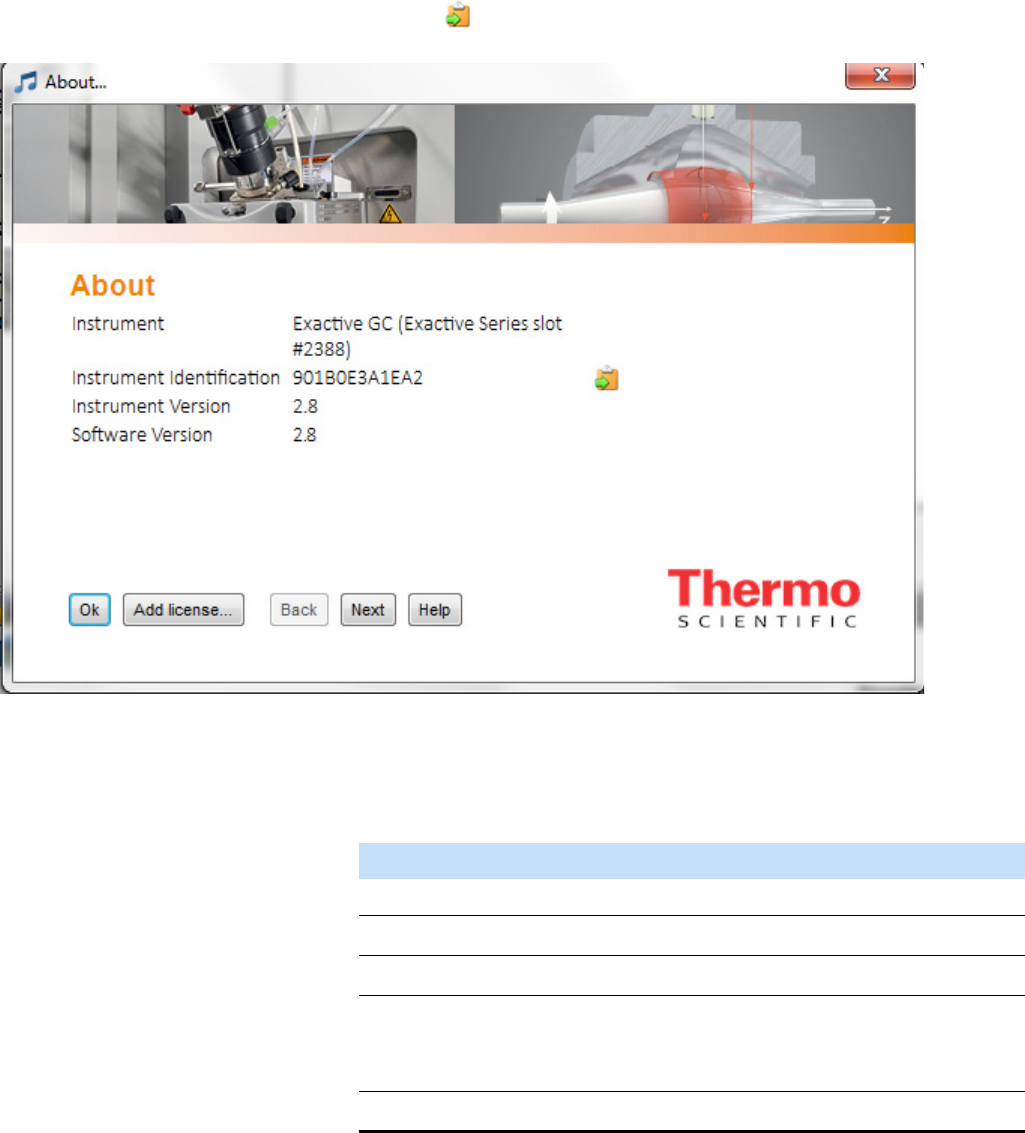
Explore Exactive GC Tune
Dialog Boxes
4-48 Exactive GC Software Manual (P/N 1R120594-0003, Revision A) Thermo Scientific
About Dialog Box
Use the About dialog box to display information about the instrument,
the current Exactive GC Tune version, and the active licenses. See
Figure 4-26. To copy the instrument identification to the clipboard,
click the button.
The About dialog box has the following parameters:
❖To display this dialog box
Choose Help > About.
Figure 4-26. About dialog box
Parameter Description
Buttons
OK Saves your changes and closes the dialog box.
Add license Displays the License dialog box.
Back / Next Display various dialog boxes with legal
information and information about third party
licenses used by Exactive GC Tune.
Help Displays the Help for this dialog box.
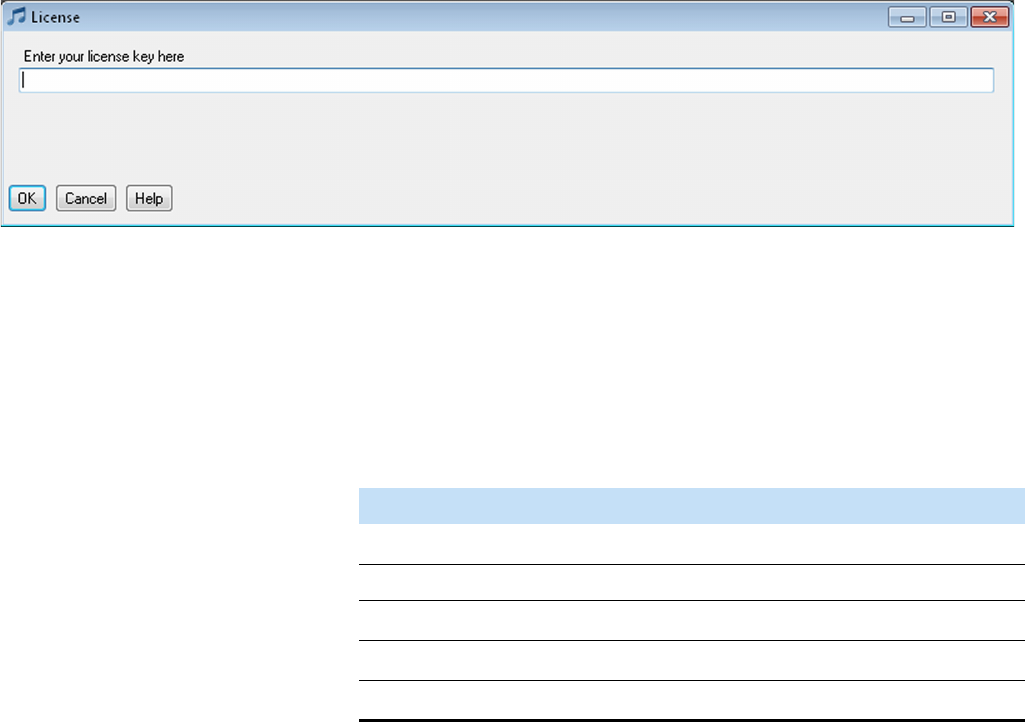
Explore Exactive GC Tune
Dialog Boxes
Thermo Scientific Exactive GC Software Manual (P/N 1R120594-0003, Revision A) 4-49
License Dialog Box
Use the License dialog box to enter licenses that activate additional
features. See Figure 4-27.
NOTICE This feature is used by a qualified Thermo Fisher Scientific
engineer for service. ▲
The License dialog box has the following parameters:
❖To display this dialog box
1. Choose Help > About to display the About dialog box.
2. In the About dialog box, click Add license.
Figure 4-27. License dialog box
Parameter Description
License key Use the text box to enter the license key.
Buttons
OK Saves your changes and closes the dialog box.
Cancel Discards your changes and closes the dialog box.
Help Displays the Help for this dialog box.
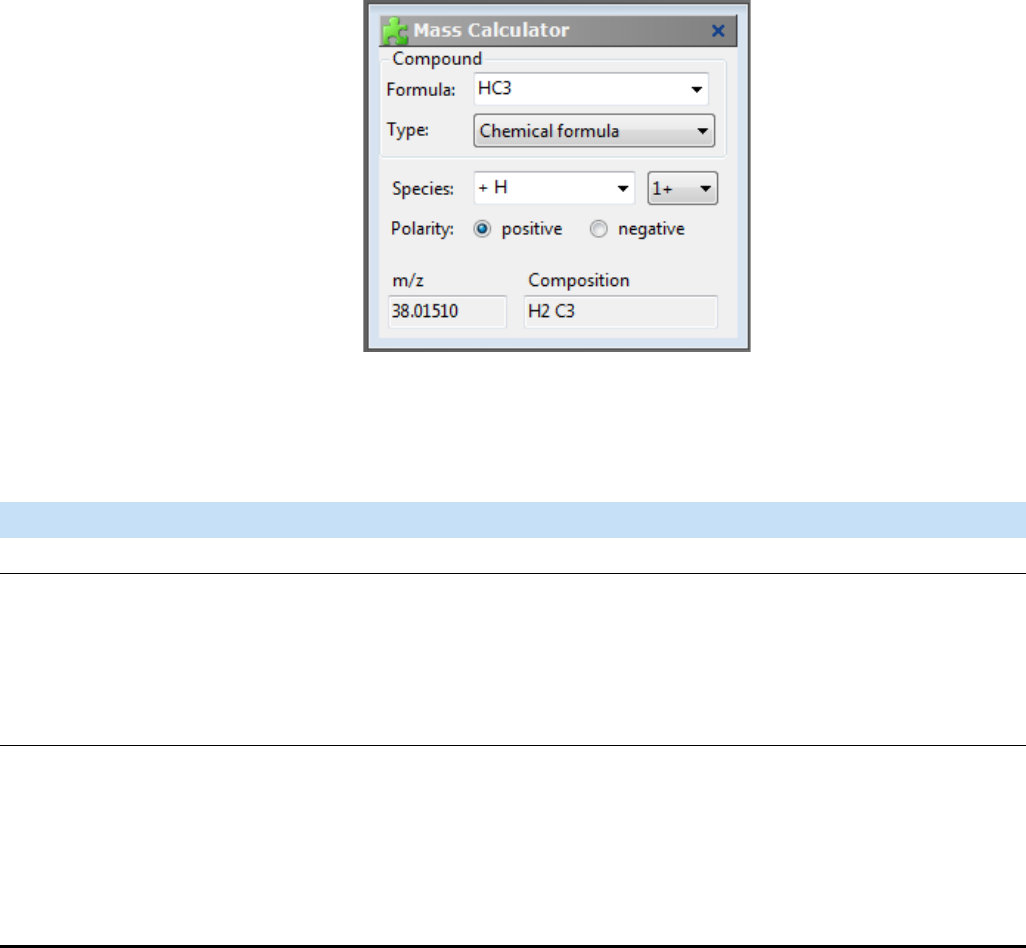
Explore Exactive GC Tune
Dialog Boxes
4-50 Exactive GC Software Manual (P/N 1R120594-0003, Revision A) Thermo Scientific
Mass Calculator
Use the Mass Calculator to calculate the exact mass of an compound of
interest.
The Mass Calculator has the following parameters:
Figure 4-28. Mass Calculator (Tune)
Parameter Description
Compound
Formula Use the text field to specify the basic composition of the compound. Click the
down arrow to display a list of the last entered compounds.
The syntax rules and interpretation accept the kind of formula that is also
accepted on the Spectrum Simulation page (Isotope Simulation area) of the
Qual Browser.
Type Use the Type list to specify the formula type used in the Formula field:
•Chemical formula Formula is defined as the resulting elemental
composition of the entered formula. This is the default selection.
Independent of the entry in the Species field, the elemental composition and the
mass of the compound, Formula is completely determined by the given formula
and selected formula type.
Explore Exactive GC Tune
Dialog Boxes
Thermo Scientific Exactive GC Software Manual (P/N 1R120594-0003, Revision A) 4-51
❖To display the Mass Calculator
Choose Windows > Mass Calculator.
Scan Parameters History Dialog Box
Use the Scan Parameters History dialog box to select from a list of recent
scans based on short scan descriptions. See Figure 4-29. Select a scan
from the list to populate all scan parameters in the Scan Parameters
window with the parameters from that scan.
Species Use this text field to define adducts or modifications of the active compound
that are expected to be formed.
The Species field can be used in two ways:
•Click the down arrow to display a list of predefined adducts for each
polarity:
-+H, +NH4, +C2H5, +C3H5, +C4H9 for positive polarity
--H for negative polarity
-an empty entry to express adducts (for example, radical cations) for both
polarities.
The corresponding set will be displayed depending on the selected polarity.
Selecting an adduct (A) will result in the strict behavior of applying one unit
A to the compound and using “+H” or “-H” adduct depending on the
charge state and active polarity.
•Enter the modifications of the compound by using squared brackets and at
least M as representation of the basic compound. The predefined adducts
can be entered, too. This definition is used without additional auto
dependencies, like adding protons.
Charge state Use the list box to select the resulting charge state. Available options are 1+ to
25+ for positive polarity and 1– to 25– for negative polarity. The default charge
state is 1+ for positive polarity and 1– for negative polarity.
Polarity Use the option buttons to select the applied polarity. The default polarity is
positive.
m/z This text field displays the calculated mass-to-charge ratio, with five decimal
places (for example, 524.26496).
Composition This text field displays the determined total formula (for example, C23 H38 N7
O5 S).
Parameter Description
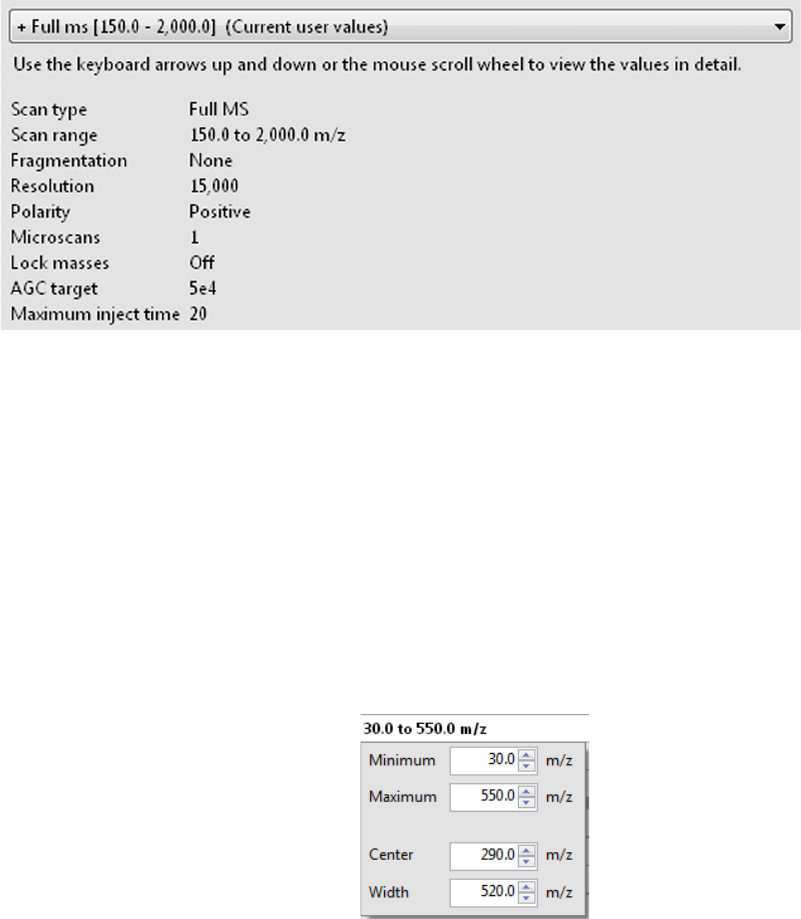
Explore Exactive GC Tune
Dialog Boxes
4-52 Exactive GC Software Manual (P/N 1R120594-0003, Revision A) Thermo Scientific
If the Hot link check box is selected in the Scan Parameters window,
selecting another list item immediately changes the instrument
parameters.
❖To display this dialog box
In the Scan Parameters window, click the History field.
Scan Range Dialog Box
Use the Scan range dialog box to specify the scan range of the data
acquisition. See Figure 4-30. The scan range affects the amount of
stored and transmitted data.
The Scan Range dialog box allows setting either minimum and
maximum or center and width of the scan range. If you change one pair
of values, the other pair is changed accordingly.
NOTICE The ratio for maximum-to-minimum should not exceed 15. If
necessary, Exactive GC Tune will correct the settings automatically. ▲
Figure 4-29. Scan Parameters History dialog box
Figure 4-30. Scan range dialog box
Explore Exactive GC Tune
Dialog Boxes
Thermo Scientific Exactive GC Software Manual (P/N 1R120594-0003, Revision A) 4-53
The Scan range dialog box has the following parameters:
❖To display this dialog box
In the Scan Parameters window, click the Scan range field.
Parameter Description
Minimum Use this spin box to select the minimum value for the
scan range (in mass-to-charge ratio units) used during
the currently selected scan event.
To change the value, click the arrows in the spin box
to increment [up arrow] or decrement [down arrow]
the value. You can enter any value from 30.0 to
2500.0.
NOTICE Scanning below 50 m/z might reduce
instrument performance. ▲
Maximum Use this spin box to select the maximum value for the
scan range (in mass-to-charge ratio units) used during
the currently selected scan event.
To change the value, click the arrows in the spin box
to increment [up arrow] or decrement [down arrow]
the value. You can enter any value from 80 to 3000.0.
Center Use this spin box to select the center mass (in
mass-to-charge ratio units) of the scan range.
To change the value, click the arrows in the spin box
to increment [up arrow] or decrement [down arrow]
the value. You can enter any value from 55 to 2750.0.
Width Use this spin box to select the width of the scan range
(in mass-to-charge ratio units) used during the
currently selected scan event.
To change the value, click the arrows in the spin box
to increment [up arrow] or decrement [down arrow]
the value. You can enter any value from 50 to 2800.0.
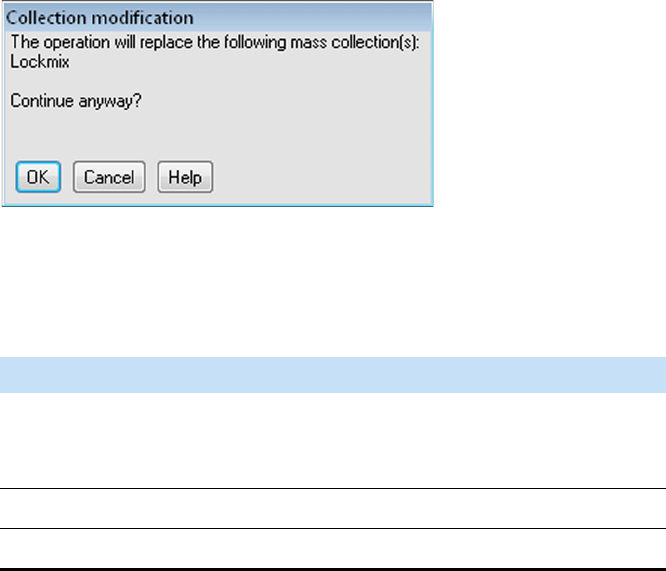
Explore Exactive GC Tune
Dialog Boxes
4-54 Exactive GC Software Manual (P/N 1R120594-0003, Revision A) Thermo Scientific
Collection Modification Dialog Box
Use this dialog box to modify a lock mass collection by importing lock
masses from an xml file See Figure 4-33. This dialog box appears only
when the xml file contains information about lock mass collections that
differs from the available lock mass collections.
The Collection Modification dialog box has the following parameters:
❖To display this dialog box
1. Choose Import > Merge with file content in the shortcut menu of
the Lock Masses dialog box.
2. In the file selection dialog box, select an xml file to import from.
Figure 4-31. Collection Modification dialog box
Parameter Description
OK Saves your changes and closes the dialog box. The lock
mass collection is updated with the data contained in the
xml file.
Cancel Discards your changes and closes the dialog box.
Help Displays the Help for this dialog box.
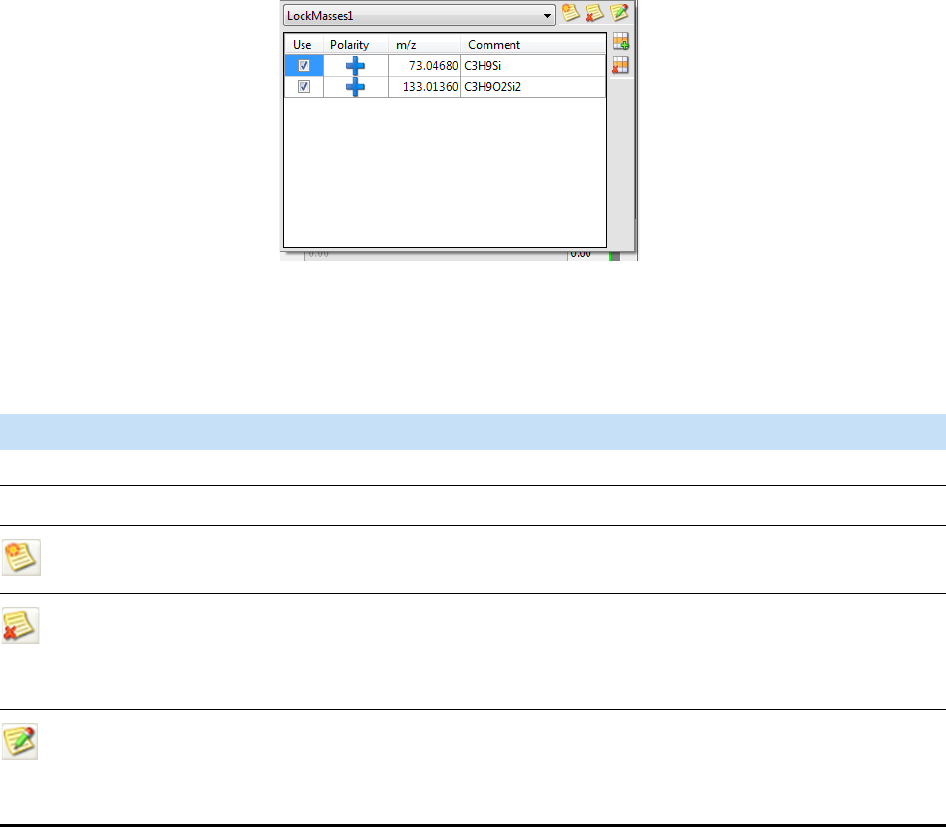
Explore Exactive GC Tune
Dialog Boxes
Thermo Scientific Exactive GC Software Manual (P/N 1R120594-0003, Revision A) 4-55
Lock Masses Dialog Box
Use the Lock Masses dialog box to edit lock mass lists. See Figure 4-32.
The table shows all available lock masses. Lock mass collections store
information about lock mass usage.
The Lock Masses dialog box has the following parameters:
Figure 4-32. Tune—Lock Masses dialog box
Parameter Description
Lock mass lists
Lock mass lists Use the list box to select an existing lock mass collection.
Displays the New Lock Mass Collection dialog box where you can enter the
name for a new lock mass collection.
Deletes the active lock mass collection. The lock masses themselves are still
available.
This button is not available when no lock mass collection is selected.
Displays the Name Change dialog box where you can edit the name of the active
lock mass collection.
This button is not available when no lock mass collection is selected.
Explore Exactive GC Tune
Dialog Boxes
4-56 Exactive GC Software Manual (P/N 1R120594-0003, Revision A) Thermo Scientific
❖To display this dialog box
In the Scan Parameters window, click into the Lock Masses field.
Shortcut Menu of the Lock Masses dialog box
The Lock Masses dialog box has a shortcut menu that is displayed when
you right-click into the dialog box.
It has the following commands:
Available lock masses
The table displays the properties of the available lock masses and whether they are used in the
selected lock mass collection. To change the sort order, click the respective table column header. To
invert the sort order, click again.
Lock mass table •Use
Select the check box to use the lock mass. A indicates that the lock mass
is used in the active lock mass collection. The lock mass is displayed in the
Lock masses field of the Scan Parameters window.
•Polarity
Click the symbol to change the polarity of the lock mass.
NOTICE During a scan, the Exactive GC mass spectrometer uses only the lock
masses with a polarity that matches the active ion mode. ▲
•m/z
Enter the mass of the lock mass into the field (with a maximum of five
decimals).
•Comment
Enter a comment for the lock mass into the field. This field is optional.
Creates a new lock mass.
Deletes the selected lock masses.
Parameter Description
Command Description
Select all masses in use Selects all masses used in the active lock mass collection.
This command is not available when no lock mass is used.
Import > Merge with clipboard Appends the content of the clipboard to the available lock masses.
NOTICE The clipboard stores lock mass data as tabulator-separated text
files. When the data in the clipboard are not in this format, the
command is not available. ▲
Explore Exactive GC Tune
Dialog Boxes
Thermo Scientific Exactive GC Software Manual (P/N 1R120594-0003, Revision A) 4-57
Import > Replace by clipboard Replaces the available lock masses by the content of the clipboard.
NOTICE The clipboard stores lock mass data as tabulator-separated text
files. When the data in the clipboard are not in this format, the
command is not available. ▲
Import > Merge with file content Opens a dialog box so that you can select a .csv, .txt, or .xml file that
contains a list of lock masses. The content of the file is appended to the
available lock masses.
See Exporting and Importing Lock Masses for information about the
format of lock mass files.
Import > Replace by file content Opens a dialog box so that you can select a .csv, .txt, or .xml file that
contains a list of lock masses. All available lock masses are replaced by
the masses contained in the imported file. The present lock masses are
removed from all existing lock mass lists. You have to confirm your
action in the Lock mass replacement dialog box.
See Exporting and Importing Lock Masses for information about the
format of lock mass files.
Export > Copy selected to clipboard Copies the data of the selected lock mass to the clipboard.
Export > Copy all to clipboard Copies the data of all available lock masses to the clipboard.
Export > Copy selected to file Opens the dialog box, where you can save the data of the selected lock
mass(es) as a .csv, .txt, or .xml file.
See Exporting and Importing Lock Masses for information about the
format of lock mass files.
Export > Copy all to file Opens the dialog box, where you can save the data of all available lock
masses as a .csv, .txt, or .xml file.
See Exporting and Importing Lock Masses for information about the
format of lock mass files.
Command Description
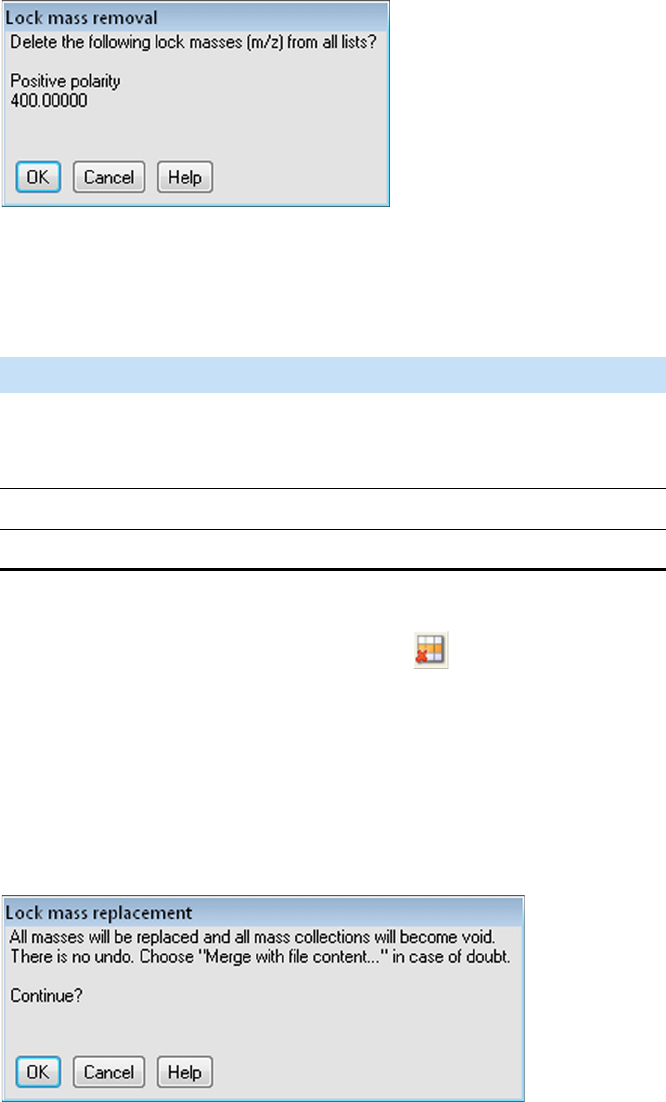
Explore Exactive GC Tune
Dialog Boxes
4-58 Exactive GC Software Manual (P/N 1R120594-0003, Revision A) Thermo Scientific
Lock Mass Removal Dialog Box
Use this dialog box to delete one or more lock masses that are selected in
the Lock Masses dialog box. See Figure 4-33.
The Lock Mass Removal dialog box has the following parameters:
❖To display this dialog box
In the Lock Masses dialog box, click the button.
Lock Mass Replacement Dialog Box
Use this dialog box to replace all available lock masses by masses
contained either in a csv, txt, or xml file or in the clipboard. See
Figure 4-33.
Figure 4-33. Lock Mass Removal dialog box
Parameter Description
OK Saves your changes and closes the dialog box. The lock
masses are now removed from the table in the Lock
Masses dialog box.
Cancel Discards your changes and closes the dialog box.
Help Displays the Help for this dialog box.
Figure 4-34. Lock Mass Replacement dialog box
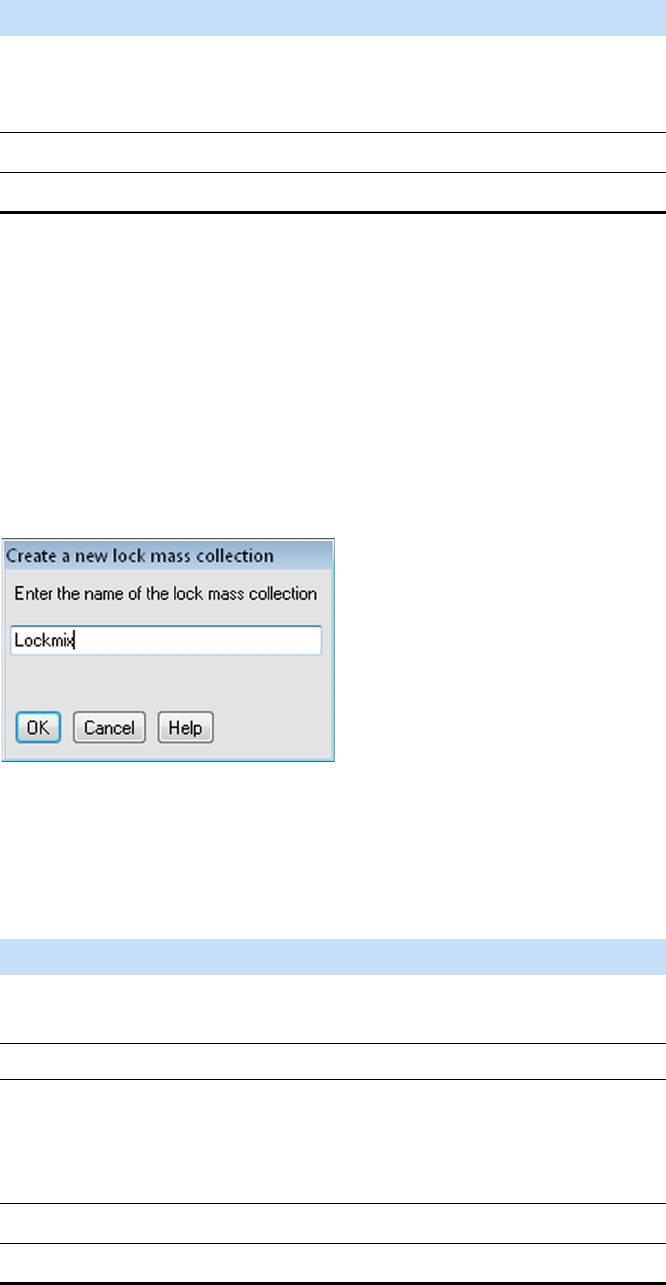
Explore Exactive GC Tune
Dialog Boxes
Thermo Scientific Exactive GC Software Manual (P/N 1R120594-0003, Revision A) 4-59
The Lock Mass Replacement dialog box has the following parameters:
❖To display this dialog box
Choose Import > Replace by file content or Import > Replace by
clipboard in the shortcut menu of the Lock Masses dialog box.
New Lock Mass Collection Dialog Box
Use this dialog box to enter a name for the lock mass collection that is
displayed in the Lock Masses dialog box. See Figure 4-35.
The New Lock Mass Collection dialog box has the following
parameters:
Parameter Description
OK Removes the lock masses and replaces them by the
imported lock masses. The present lock mass collections
become void.
Cancel Closes the dialog box.
Help Displays the Help for this dialog box.
Figure 4-35. New Lock Mass Collection dialog box
Parameter Description
Name of lock mass
collection
Use this text field to enter the name for the new
lock mass collection.
Buttons
OK Saves your changes and closes the dialog box.
The name of the lock mass collection is now
displayed in the list box of the Lock Masses
dialog box.
Cancel Discards your changes and closes the dialog box.
Help Displays the Help for this dialog box.
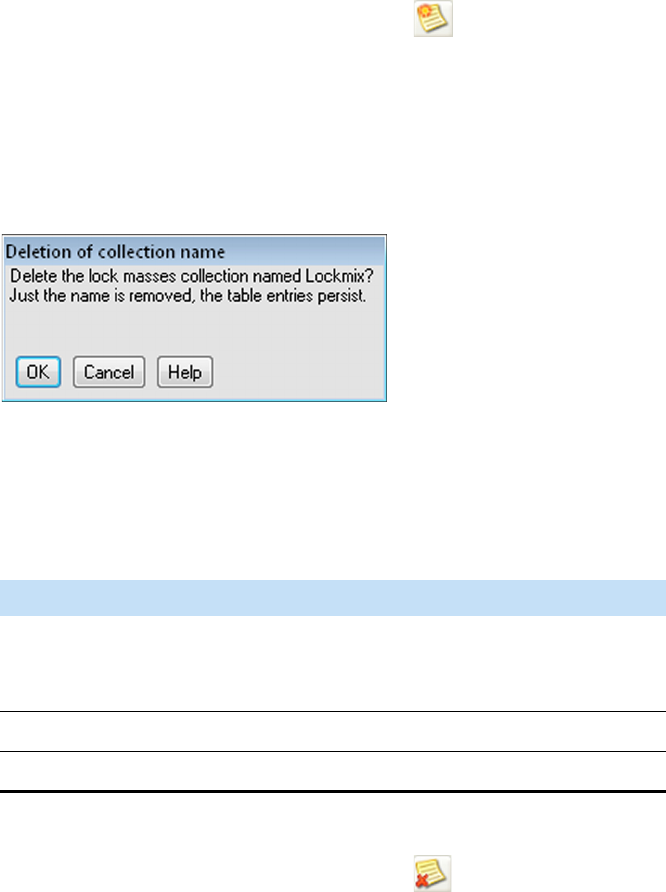
Explore Exactive GC Tune
Dialog Boxes
4-60 Exactive GC Software Manual (P/N 1R120594-0003, Revision A) Thermo Scientific
❖To display this dialog box
In the Lock Masses dialog box, click the button.
Delete Lock Mass Collection Dialog Box
Use this dialog box to delete an existing lock mass collection. See
Figure 4-36. The lock masses themselves are not deleted.
The Delete Lock Mass Collection dialog box has the following
parameters:
❖To display this dialog box
In the Lock Masses dialog box, click the button.
Figure 4-36. Delete Lock Mass Collection dialog box
Parameter Description
OK Saves your changes and closes the dialog box. The name
of the lock mass collection is now removed from the list
box of the Lock Masses dialog box.
Cancel Discards your changes and closes the dialog box.
Help Displays the Help for this dialog box.
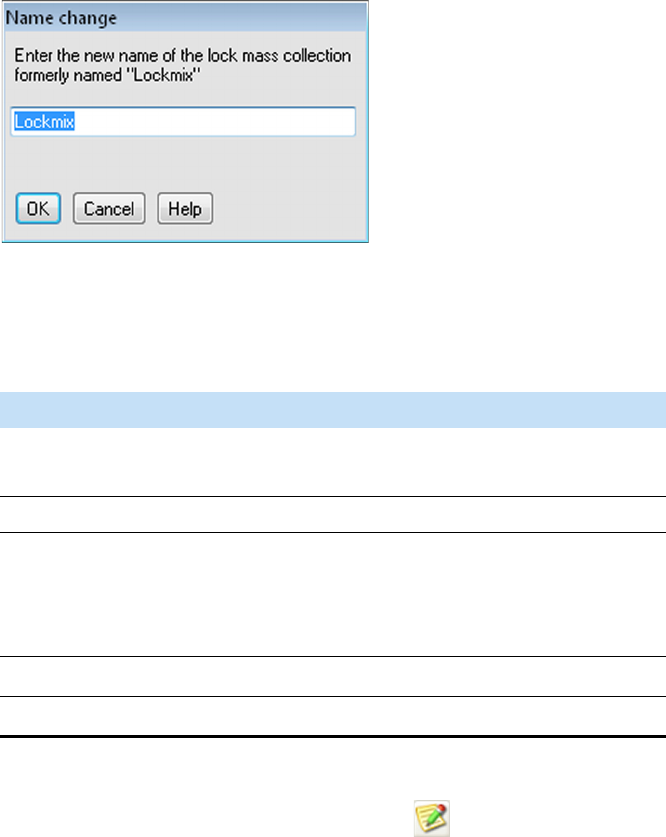
Explore Exactive GC Tune
Dialog Boxes
Thermo Scientific Exactive GC Software Manual (P/N 1R120594-0003, Revision A) 4-61
Name Change Dialog Box
Use this dialog box to change the name of an existing lock mass
collection. See Figure 4-37.
The Name Change dialog box has the following parameters:
❖To display this dialog box
In the Lock Masses dialog box, click the button.
Figure 4-37. Name Change Dialog Box
Parameter Description
Name of lock mass
collection
Use this text field to enter the new name for the
lock mass collection.
Buttons
OK Saves your changes and closes the dialog box.
The name of the lock mass collection is now
displayed in the list box of the Lock Masses
dialog box.
Cancel Discards your changes and closes the dialog box.
Help Displays the Help for this dialog box.
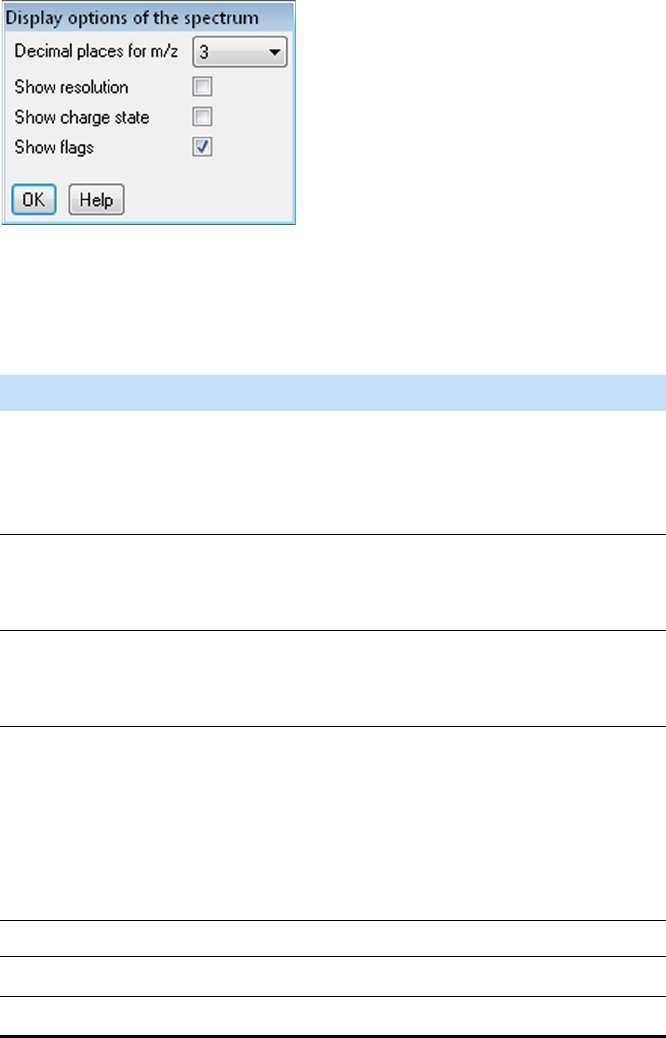
Explore Exactive GC Tune
Dialog Boxes
4-62 Exactive GC Software Manual (P/N 1R120594-0003, Revision A) Thermo Scientific
Display Options Dialog Box
Use this dialog box to modify the appearance of the displayed mass
spectrum in the spectrum window. See Figure 4-38.
The Display Options dialog box has the following parameters:
❖To display this dialog box
In the shortcut menu of the spectrum window, choose Display
options.
Figure 4-38. Display Options Dialog Box
Parameter Description
Decimal places for m/z Use this list box to set how many decimal
places of precision are shown when mass
positions are annotated on mass spectra. The
valid range is 0 to 5.
Show resolution Select this check box to have Exactive GC
Tune annotate mass peaks with the mass
resolution.
Show charge state Select this check box to have Exactive GC
Tune annotate mass peaks with the charge
state.
Show flags Select this check box to have Exactive GC
Tune indicate peaks that are contained in the
active lock mass collection.
NOTICE The scan parameters window must
show entries for lock masses. ▲
Buttons
OK Saves your changes and closes the dialog box.
Help Displays the Help for this dialog box.
Explore Exactive GC Tune
Tune Reports
Thermo Scientific Exactive GC Software Manual (P/N 1R120594-0003, Revision A) 4-63
Tune Reports
To generate a tune report, select the EI Tune Report box in the Calmix
Evaluation Window (see “Calmix Evaluation Window” on page 4-31).
To view an EI tune report, in the top menu, go to Reports > EI Tune
Report. See Figure 4-39.
Figure 4-39. EI Tune Report
NOTICE The accuracy and precision of the read values are not carefully
controlled. The read values should be within approximately 1.3 V of the
set value. If the read values are much different, have a qualified person
check for a short in the wires supplying the ion source, such as wires
touching the manifold or magnet yoke. ▲
NOTICE Shoulder peaks are part of the frequency signal measured from
the Orbitrap and are labeled as exception peaks so they do not get
processed as real peaks. If these shoulder peaks become too intense
relative to the main peak, run the eFT parameter and MS mass
calibrations. If this does not bring the shoulder peaks below 5%, the
lenses admitting ions into the Orbitrap may need to be tuned by a
qualified service person. ▲
Q Exactive GC Tune Report
Date of Tune Report: 2015-05-08 16:31:09
Instrument Identification: Exactive Series slot #MP-5 (001999C91DFD)
Software Version: 2.6-262803/2.6.0.2629
Data System User:
Tune File:
h^Z\ƵƐĞƌŶĂŵĞ
C:\Xcalibur\methods\EI_Positive.mstune
Ion Source Tune Settings
Parameter Set value Read value
Emission current (µA) 50.0 49.0
Electron lens voltage (V) 15.0 14.6
Filament voltage (V) -64.7 -64.8
Source offset voltage (V) 5.3 5.1
Repeller voltage (V) 7.7 7.5
Lens 1 voltage (V) -49.5 -48.9
Lens 2 voltage (V) -1.0 -1.4
Lens 3 voltage (V) -20.7 -20.5
Ion Transfer and Analyzer Injection Tune Settings
Parameter Set value Read value
Inter Flatapole Lens (V) 2.5 2.3
Injection Flatapole DC (V) 1.8 1.8
C-Trap Energy Offset (V) 0.0 N/A
Name:_____________________________________ Signature:_____________________________________ Date: ___________
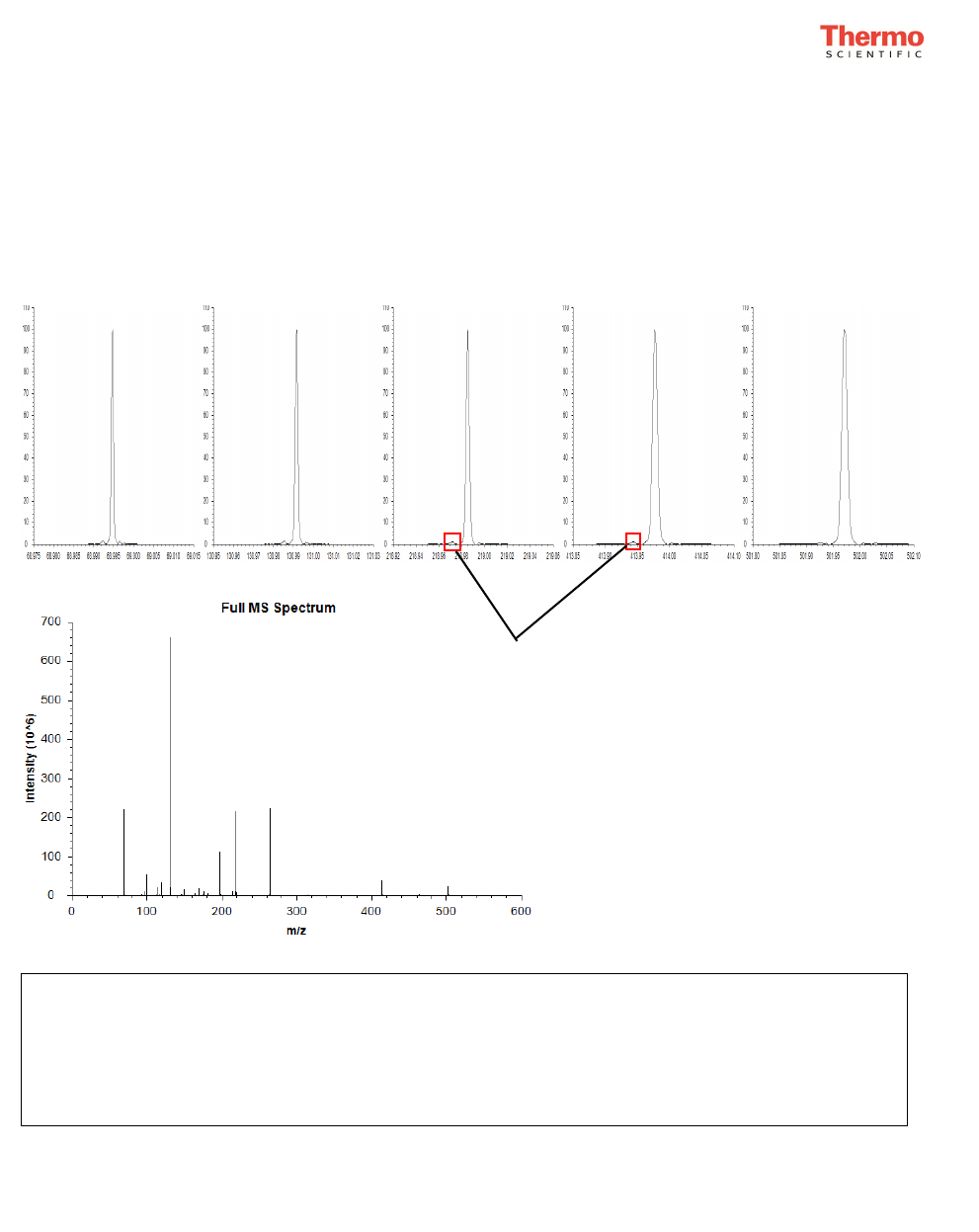
The relative intensities of ions displayed in the EI tune report vary
according to the ions specified in the tune as well as the ion source
temperature.
Q Exactive GC Tune Report
Date of Tune Report: 2015-05-08 16:31:09
Last Mass Calibration: 2015-05-08 16:25:12
Instrument Identification: Exactive Series slot #MP-5 (001999C91DFD)
Software Version: 2.6-262803/2.6.0.2629
Data System User:
Tune File:
h^Z\ƵƐĞƌŶĂŵĞ
C:\Xcalibur\methods\EI_Positive.mstune
m/z 68.99471 m/z 130.99155 m/z 218.98513 m/z 413.97727 m/z 501.97099
Intensity: 2.208e+08 Intensity: 6.607e+08 Intensity: 2.159e+08 Intensity: 4.148e+07 Intensity: 2.544e+07
Accuracy: 0.64 ppm Accuracy: 0.61 ppm Accuracy: 0.24 ppm Accuracy: 0.70 ppm Accuracy: 0.79 ppm
Resolution: 122,549 Resolution: 88,178 Resolution: 67,367 Resolution: 49,538 Resolution: 44,684
Scan Type Full MS
Scan range 50 to 550 m/z
Resolution @ m/z 200 60,000
AGC target 1,000,000
Microscans 10
Ionization mode EI
Polarity Positive
Electron energy 70 eV
Emission current 50 µA
Filament selection 2
Ion source temperature 200.0 °C
MS transfer line temperature 249.9 °C
Fore vacuum 3.69e-02 mbar
Ultra-high vacuum 5.36e-10 mbar
Theoretical Monoisotopic Peak Mass Accuracy Relative Abundance Theoretical Isotope Peak Mass Accuracy Isotope Ratio
(m/z) (ppm) (%) (m/z) (ppm) (%)
68.99466 0.64 33.42 69.99802 0.74 1.22
130.99147 0.61 100.00 131.99482 0.11 3.32
218.98508 0.24 32.67 219.98844 0.09 4.38
413.97698 0.70 6.28 414.98033 1.10 8.62
501.97059 0.79 3.85 502.97394 0.65 10.17
Last Leak Check: 2015-05-08 16:26:40, Leak check completed: 0.81%
Name:_____________________________________ Signature:_____________________________________ Date: ___________
Shoulder Peaks
Explore Exactive GC Tune
Tune Reports
Thermo Scientific Exactive GC Software Manual (P/N 1R120594-0003, Revision A) 4-65
Parameters of interest in the tune report are:
Parameter Description
m/z 219 The resolution should be above the value set
in the tune file. The peak at m/z 219 will be
low in intensity after venting the instrument
or admitting moist atmospheric air into the
nitrogen supply. Its intensity can indicate the
trapping gas purity.
Accuracy If the instrument has been recently
calibrated, this value should be < 1 ppm. If
accuracy is not < 3 ppm, a perform a mass
calibration.
Ultra-high vacuum This value should be < 8e-10 mbar
Last leak check This parameter displays the results from the
last date and time a leak check was run.
Values should be less than 10%. If the result
is over 10%, the software reports that the leak
check failed. See the Exactive GC Operating
Manual for troubleshooting information. If
you cannot find a leak and the leak check
remains higher than 10%, contact customer
support.

Thermo Scientific Exactive GC Software Manual (P/N 1R120594-0003, Revision A) 5-1
Chapter 5 Procedures in Exactive GC Tune
This chapter describes procedures that you may need when using
Exactive GC Tune.
Contents
•Using Lock Masses and Lock Mass Collections
•Performing a System Bakeout
•Changing Default Settings of Exactive GC Tune
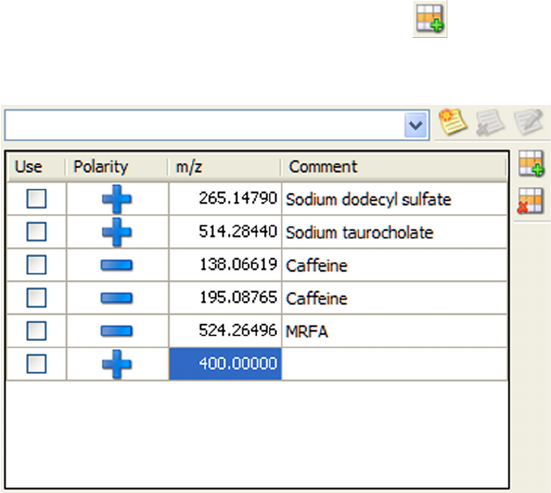
Procedures in Exactive GC Tune
Using Lock Masses and Lock Mass Collections
5-2 Exactive GC Software Manual (P/N 1R120594-0003, Revision A) Thermo Scientific
Using Lock Masses and Lock Mass Collections
This section provides instructions for using lock masses and lock mass
collections.
The following topics are available:
•Adding a Lock Mass
•Deleting Lock Masses
•Exporting and Importing Lock Masses
•Creating a new Lock Mass Collection
•Renaming a Lock Mass Collection
•Adding a Lock Mass to a Lock Mass Collection
•Removing a Lock Mass from a Lock Mass Collection
•Deleting a Lock Mass Collection
Adding a Lock Mass
❖To add a lock mass
1. In the Lock Masses dialog box, click the button. A new row
appears at the end of the lock mass table. See Figure 5-1.
2. Enter the data for the new lock mass into the new table row:
a. Select the Use check box if you want to use the new lock mass in
the active lock mass collection.
Figure 5-1. Adding a new lock mass
Procedures in Exactive GC Tune
Using Lock Masses and Lock Mass Collections
Thermo Scientific Exactive GC Software Manual (P/N 1R120594-0003, Revision A) 5-3
b. Click the cell in the Polarity column until the correct sign
appears: for positive or for negative.
c. Enter the m/z value for the new lock mass (with a maximum of
five decimals).
d. Optionally, enter a comment for the new lock mass.
The new lock mass is now available to be used.
Deleting Lock Masses
❖To delete lock masses
1. In the Lock Masses dialog box, select one lock mass or several lock
masses:
•To select a single lock mass, click into the respective table row.
•To select adjacent lock masses, click the first table row. Then
hold down the <Shift> key while you click the last row.
•To select nonadjacent lock masses, click the first table row. Then
hold down the <Ctrl> key while you click the other rows that
you want to add to the selection.
2. Click the button. The Lock Mass Removal dialog box appears
and requests your confirmation for deleting the listed lock masses.
3. Click OK to confirm your input and to close the dialog box. All
selected lock masses are removed from the list in the Lock Masses
dialog box.
Exporting and Importing Lock Masses
Exactive GC Tune allows exporting lock mass data to the clipboard or to
a file. Other applications can then use the data. You can also copy the
export files to other computers where Exactive GC Tune is installed. So
you can reuse the lock masses without having to recreate them. To reuse
the lock masses, import the data either from the clipboard or from a lock
mass file.
With a spreadsheet, a text editor, or an XML editor, you can create lock
mass files even without using Exactive GC Tune.
Lock Mass Files
Exactive GC Tune uses the following file formats for exporting and
importing lock mass data:
•Comma-separated value lists (.csv)
Procedures in Exactive GC Tune
Using Lock Masses and Lock Mass Collections
5-4 Exactive GC Software Manual (P/N 1R120594-0003, Revision A) Thermo Scientific
•Tabulator-separated text files (.txt)
•XML files (.xml)
Lock mass data are stored in the following order:
1. Usage status: True for used, False for unused
2. Ion polarity: positive mode or negative mode
3. m/z: up to five decimals
4. Comment: optional
The clipboard stores lock mass data as tabulator-separated text files. In
contrast to . csv and .txt files, .xml files additionally store information
about lock mass collections and lock mass usage.
Exporting Lock Masses
Exactive GC Tune allows exporting lock mass data to the clipboard or to
a file.
❖To export selected lock masses to the clipboard
1. In the Lock Masses dialog box, select the lock masses you want to
export:
•To select a single lock mass, click into the respective table row.
•To select adjacent lock masses, click the first table row. Then
hold down the <Shift> key while you click the last row.
•To select nonadjacent lock masses, click the first table row. Then
hold down the <Ctrl> key while you click the other rows that
you want to add to the selection.
2. Right-click into the dialog box to display the shortcut menu.
3. Choose Export > Copy selected to clipboard to copy the selected
lock mass to the clipboard.
❖To export all lock masses to the clipboard
1. In the Lock Masses dialog box, right-click into the dialog box to
display the shortcut menu.
2. Choose Export > Copy all to clipboard to copy all available lock
mass to the clipboard.
❖To export some lock masses to a file
1. In the Lock Masses dialog box, select the lock masses you want to
export:
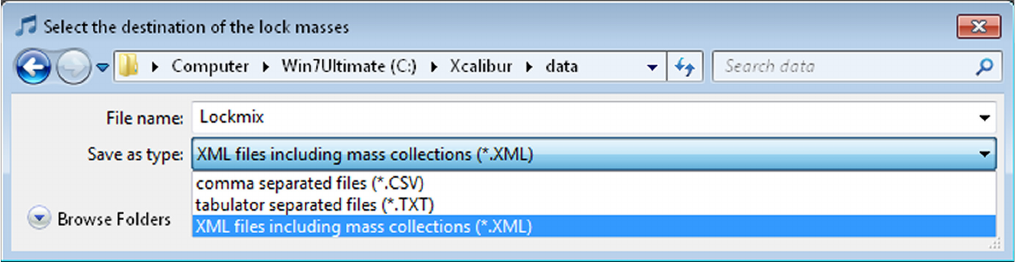
Procedures in Exactive GC Tune
Using Lock Masses and Lock Mass Collections
Thermo Scientific Exactive GC Software Manual (P/N 1R120594-0003, Revision A) 5-5
•To select a single lock mass, click into the respective table row.
•To select adjacent lock masses, click the first table row. Then
hold down the <Shift> key while you click the last row.
•To select nonadjacent lock masses, click the first table row. Then
hold down the <Ctrl> key while you click the other rows that
you want to add to the selection.
2. Right-click into the dialog box to display the shortcut menu.
3. Choose Export > Copy selected to file to open the file selection
dialog box. See Figure 5-2.
a. Browse to the destination of the export file.
b. Select the format of the export file.
c. Enter a new name for the export file or select an existing file.
d. Click Save to export the selected lock masses to the file. If you
want to overwrite an existing file, you have to confirm your
action in a dialog box. The file selection dialog box is closed.
Figure 5-2. Selecting the lock mass export file
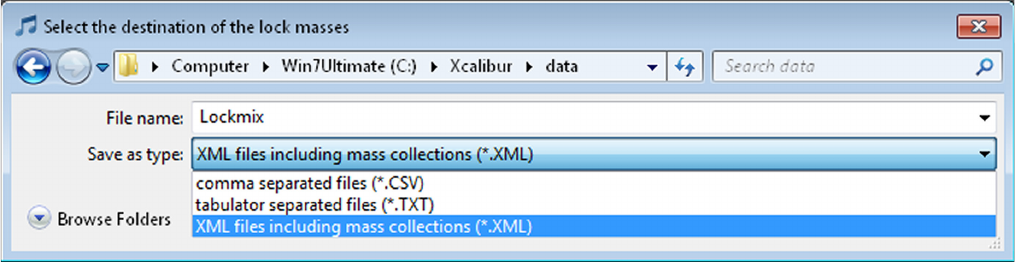
Procedures in Exactive GC Tune
Using Lock Masses and Lock Mass Collections
5-6 Exactive GC Software Manual (P/N 1R120594-0003, Revision A) Thermo Scientific
❖To export all lock masses to a file
1. In the Lock Masses dialog box, right-click into the dialog box to
display the shortcut menu.
2. Choose Export > Copy all to file to open the file selection dialog
box. See Figure 5-3.
a. Browse to the destination of the export file.
b. Select the format of the export file.
c. Enter a new name for the export file or select an existing file.
d. Click Save to export the lock masses to the file. If you want to
overwrite an existing file, you have to confirm your action in a
dialog box. The file selection dialog box is closed.
Importing Lock Masses
Exactive GC Tune allows importing lock mass data from the clipboard
or from a file. The imported lock masses either are added to the present
lock masses or they replace them.
❖To add lock masses from the clipboard
1. Copy lock mass data in an appropriate format to the clipboard. See
Lock Mass Files for information about the requirements.
2. In the Lock Masses dialog box, right-click into the dialog box to
display the shortcut menu.
3. Choose Import > Merge with clipboard to import the lock mass
data from the clipboard to the lock mass table.
NOTICE The clipboard stores lock mass data as tabulator-separated text
files. When the data in the clipboard are not in this format, the
command is not available. ▲
Figure 5-3. Selecting the lock mass export file
Procedures in Exactive GC Tune
Using Lock Masses and Lock Mass Collections
Thermo Scientific Exactive GC Software Manual (P/N 1R120594-0003, Revision A) 5-7
4. The lock mass list in the Lock Masses dialog box displays additional
rows for the imported lock masses.
❖To add lock masses from a file
1. In the Lock Masses dialog box, right-click into the dialog box to
display the shortcut menu.
2. Choose Import > Merge with file content to open the file selection
dialog box.
a. Browse to the destination of the import file.
b. Select the format of the import file.
c. Select one of the displayed files.
d. Click Open to import the lock masses to Exactive GC Tune.
The dialog box is closed.
3. If you are importing an xml file that contains information about
lock mass collections that differs from the present lock mass
collections, the Collection modification dialog is displayed. Click
OK to confirm the operation and to close the dialog box.The lock
mass list in the Lock Masses dialog box displays additional rows for
the imported lock masses.
❖To replace all lock masses by clipboard data
1. Copy lock mass data in an appropriate format to the clipboard. See
Lock Mass Files for information about the requirements.
2. In the Lock Masses dialog box, right-click into the dialog box to
display the shortcut menu.
3. Choose Import > Replace by clipboard to import the lock mass
data from the clipboard to the lock mass table.
NOTICE The clipboard stores lock mass data as tabulator-separated text
files. When the data in the clipboard are not in this format, the
command is not available. ▲
4. The Lock Mass Replacement dialog box is displayed. Click OK to
confirm the import.
5. The Lock Mass Replacement dialog box is closed. The lock mass list
in the Lock Masses dialog box displays only the imported lock
masses.
❖To replace all lock masses from a file
1. In the Lock Masses dialog box, right-click into the dialog box to
display the shortcut menu.
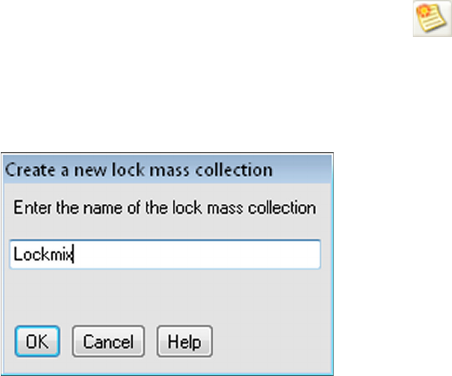
Procedures in Exactive GC Tune
Using Lock Masses and Lock Mass Collections
5-8 Exactive GC Software Manual (P/N 1R120594-0003, Revision A) Thermo Scientific
2. Choose Import > Replace by file content.
3. The Lock Mass Replacement dialog box is displayed. Click OK to
confirm the import.The Lock Mass Replacement dialog box is
closed. The file selection dialog box is displayed.
a. Browse to the destination of the import file.
b. Select the format of the import file.
c. Select one of the displayed files.
d. Click Open to import the lock masses to Exactive GC Tune.
The dialog box is closed.
4. The lock mass list in the Lock Masses dialog box displays only the
imported lock masses.
If you have imported lock mass data from an xml file that contained
information about lock mass collections and lock mass usage, the
dialog box displays the corresponding information.
Creating a new Lock Mass Collection
❖To create a lock mass collection
1. In the Lock Masses dialog box, click the button.
2. In the New Lock Mass Collection dialog box, enter a name for the
new lock mass collection. See Figure 5-4.
3. Click OK to confirm your input and to close the dialog box.
4. The name of the new lock mass collection appears in the list box of
the Lock Masses dialog box.
Figure 5-4. Creating a lock mass collection
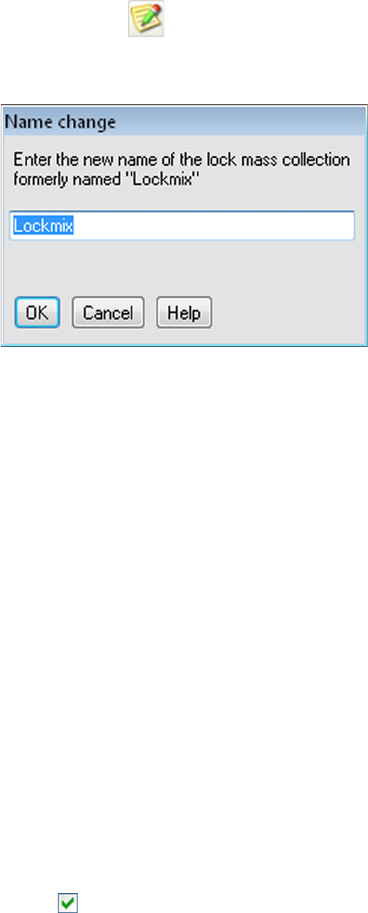
Procedures in Exactive GC Tune
Using Lock Masses and Lock Mass Collections
Thermo Scientific Exactive GC Software Manual (P/N 1R120594-0003, Revision A) 5-9
Renaming a Lock Mass Collection
❖To rename a lock mass collection
1. In the Lock Masses dialog box, select an existing lock mass
collection in the list box.
2. Click the button. The Name Change dialog box is displayed.
See Figure 5-5.
3. In the text field, replace the old name of the lock mass collection
with the new name.
4. Click OK to confirm your input and to close the dialog box.
5. In the Lock Masses dialog box, the new lock mass collection is
displayed in the list box.
Adding a Lock Mass to a Lock Mass Collection
❖To add a lock mass to a lock mass collection
1. In the Lock Masses dialog box, select an existing lock mass
collection in the list box.
2. Select the Use check box in the table row of the lock mass.
3. A indicates that the lock mass is used in the active lock mass
collection.
Removing a Lock Mass from a Lock Mass Collection
❖To remove a lock mass from a lock mass collection
1. In the Lock Masses dialog box, select an existing lock mass
collection in the list box.
2. Clear the Use check box in the table row of the lock mass.
Figure 5-5. Changing the name of a lock mass collection
Procedures in Exactive GC Tune
Using Lock Masses and Lock Mass Collections
5-10 Exactive GC Software Manual (P/N 1R120594-0003, Revision A) Thermo Scientific
3. A indicates that the lock mass is not used in the active lock mass
collection.
Deleting a Lock Mass Collection
❖To delete a lock mass collection
1. In the Lock Masses dialog box, select an existing lock mass
collection in the list box.
2. Click the button.
3. In the Delete Lock Mass Collection dialog box, click OK to confirm
your action and to close the dialog box.
4. The name of the lock mass collection is removed from the list box of
the Lock Masses dialog box.
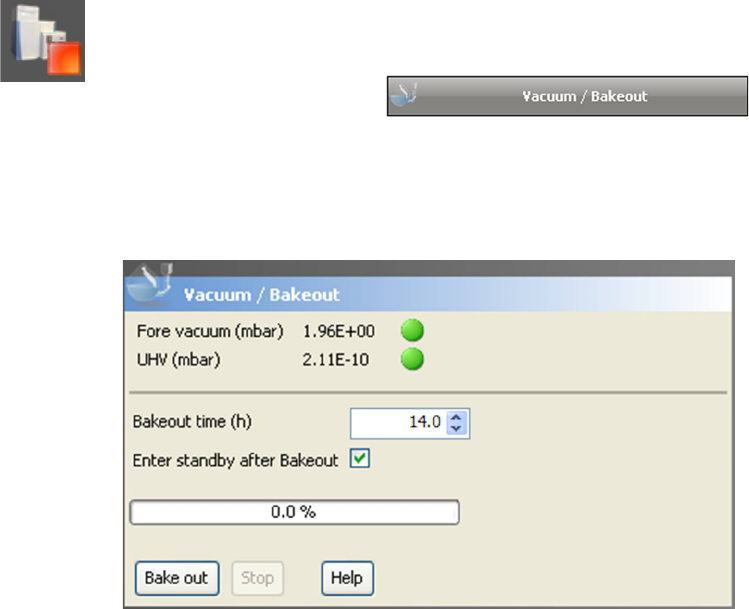
Procedures in Exactive GC Tune
Performing a System Bakeout
Thermo Scientific Exactive GC Software Manual (P/N 1R120594-0003, Revision A) 5-11
Performing a System Bakeout
The system bakeout of the mass spectrometer removes unwanted gases
or molecules (collected or remaining) from the high vacuum region of
the instrument. Ions can collide with those gases or molecules resulting
in lower overall sensitivity. Therefore, Thermo Fisher Scientific
recommends baking out the instrument if the high vacuum decreases
noticeably during routine operation.
Bakeout is mandatory after maintenance or service work is performed in
the analyzer region where the system is vented. You should bake out an
instrument that has been vented for at least twelve hours (12 hours)
before you can start using it again.
In case the system has been vented during a power failure, it is necessary
to bake out the system to obtain the operating vacuum.
NOTICE Before you start the bakeout, ensure that the pumps are up and
running at their operating speed. If you have just switched on the mass
spectrometer, this will take about 10 minutes. To check the pump speed,
open the Instruments Status window and expand the Vacuum System
node of the Instrument tree. ▲
❖To perform a system bakeout
1. In the Exactive GC Tune window, click on the On/Standby button
to put the instrument in Off condition. (See image in margin.)
2. In the Tasks panel, click to
display the Vacuum / Bakeout window.
3. Enter the desired baking duration (in hours) into the spin box. The
range is 4 to 100 hours. See Figure 5-6.
Figure 5-6. Vacuum / Bakeout window
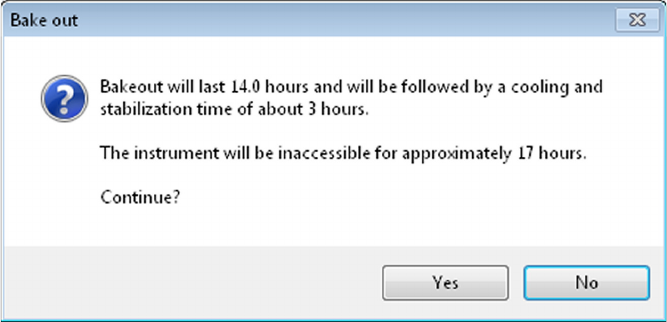
Procedures in Exactive GC Tune
Performing a System Bakeout
5-12 Exactive GC Software Manual (P/N 1R120594-0003, Revision A) Thermo Scientific
4. Click Bake out. A dialog box shows the duration of the baking
procedure. See Figure 5-7. Click Yes to confirm the message.
5. The message box disappears and the baking procedure starts. The
instrument indicates the active bakeout procedure by a flashing
Vacuum LED at the front side. Additionally, the Exactive GC Tune
software displays a corresponding message box.
6. The baking of the instrument stops after the preset duration. The
Vacuum LED keeps flashing until the cooling and stabilization time
(of about 3 hours) is finished.
Click Stop in the Vacuum / Bakeout window to abort the baking
routine before the preset time.
Figure 5-7. Bakeout message box
Procedures in Exactive GC Tune
Changing Default Settings of Exactive GC Tune
Thermo Scientific Exactive GC Software Manual (P/N 1R120594-0003, Revision A) 5-13
Changing Default Settings of Exactive GC Tune
With exception of standard users, users can use the instrument status
window to change default settings of Exactive GC Tune.
Displaying the High Vacuum Readback
The High Vacuum readback in the Vacuum / Bakeout window is visible
only when the ion gauge in the high vacuum chamber is switched on.
With exception of standard users, users can switch on this gauge
manually.
❖To switch on the High Vacuum readback in the Vacuum / Bakeout
window
1. Click in the tasks
panel to display the Vacuum / Bakeout window.
2. If the instrument status window is not visible, choose Windows >
Instrument Status.
3. In the instrument status window, click Instrument > Vacuum
System.
4. Right-click the High Vacuum parameter to display the shortcut
menu.
5. Choose Tu rn o n to switch on the ion gauge in the high vacuum
chamber.
6. The Vacuum / Bakeout window now displays the High Vacuum
readback.
To extend the lifetime of the ion gauge in the high vacuum chamber, it
is switched off again after a preset time of about thirty minutes.
Contents
•Displaying the High Vacuum Readback
•Performing a System Bakeout
•Changing Default Settings of Exactive GC Tune
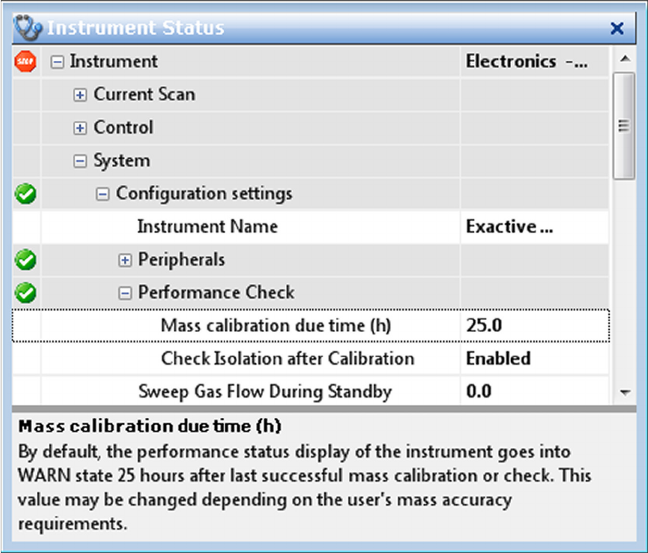
Procedures in Exactive GC Tune
Changing Default Settings of Exactive GC Tune
5-14 Exactive GC Software Manual (P/N 1R120594-0003, Revision A) Thermo Scientific
Changing the Settings for the Performance Status Check
By default, the performance status icon on the toolbar turns yellow
25 hours after the last successful mass calibration or check. With
exception of standard users, users can change this value in the System
node of the instrument status window according to their mass accuracy
requirements.
❖To change the settings for the performance status check
1. If the instrument status window is not visible, choose Windows >
Instrument Status.
2. In the instrument status window, click Instrument > System >
Configuration settings > Performance Check. The Mass
calibration due time (h) field displays the current validity period of
the mass calibration (25 hours, for example). See Figure 5-8.
3. To change the value, right-click the number in the text field to
display the shortcut menu.
Figure 5-8. Instrument status window—Performance Check node

Procedures in Exactive GC Tune
Changing Default Settings of Exactive GC Tune
Thermo Scientific Exactive GC Software Manual (P/N 1R120594-0003, Revision A) 5-15
4. In the Set text field, enter the new validity period (40, for example).
See Figure 5-9. You can enter a value between 1 and 500 hours.
5. Press the <Enter> key to confirm your input. The shortcut menu
disappears and the new value is displayed in the instrument status
window.
Figure 5-9. Changing the calibration validity period

Reference Information
Log Files
6-2 Exactive GC Software Manual (P/N 1R120706-0003, Revision A) Thermo Scientific
Log Files
Log files (*.log) are created for a Exactive GC mass spectrometer. The
default directory for the log files is C:\Xcalibur\system\Exactive\log.
The Instrument Configuration window shows the actual path.
Additional log files are created every time the Exactive window service
starts. The file name shows date and time of the service start, as shown
in the following example:
Thermo Exactive--2015-10-05--15-17-05.log
NOTICE The system automatically deletes all log files that are older than
18 months. ▲
Each line in a log file is a message. A message has several properties that
are listed at the beginning of the line, followed by the message body.
Properties are enclosed in brackets. A property is a property name
followed by an equal sign followed by the property value. These
properties exist:
Access to the log files is regulated by the Microsoft™ Windows user
account or group account. Full access to the log files is granted to
Administrators. Members of the Power User group can read, delete, and
modify these files. Standard users can read these files.
Abbreviation Meaning
Time Time of the message. The current local time is displayed
followed by the time offset to UTC.
Acc Windows™ account name that caused this message;
“(none)” is used for an instrument source. Other known
values are “ExactiveUser” and “Xcalibur_System”.
User User name description of the Windows account
Comp Computer name on which this message was caused,
“(none)” is used for an instrument source.
App Application name that caused this message; “(none)” is
used for an instrument source.
PID Process identifier of the application process
Inst Instrument affected
Conn Connection in charge for the communication with the
instrument
Type Type of the message. Message types are “info”,
“warning”, “error” and “FATAL error”
Reference Information
Tune Files and Calibration Files
Thermo Scientific Exactive GC Software Manual (P/N 1R120706-0003, Revision A) 6-3
Tune Files and Calibration Files
Tune files and calibration files contain information for operating the
instrument.
Tune Files
Tuning optimizes voltage settings to ensure highest sensitivity. The
resulting tune file (*.mstune) is specific to a particular analyte and its
analysis settings.
During installation of the instrument, the service engineer creates a tune
file default.mstune in the folder C:\Xcalibur\methods\. Use this file as a
starting point for optimizing the mass spectrometer for your specific
measurement requirements. Use this folder to store your personal tune
files.
Calibration File
After having tuned the Exactive GC mass spectrometer, calibrate the
instrument to ensure the mass accuracy of the measurement results.
Calibration parameters are instrument parameters whose values do not
vary with the type of experiment. They are stored automatically in a
calibration file (*.mscal) in the folder
C:\Xcalibur\system\Exactive\instrument\msx_instrument_files\.
The file master_cal.mscal contained in this folder is the calibration file
used for operating the instrument. It will be overwritten with new
calibration values every time a calibration procedure is successful.
NOTICE Never save or change files in the folder
C:\Xcalibur\system\Exactive\instrument\msx_instrument_files\! Files in
this folder are automatically managed by the instrument software. ▲
Thermo Scientific Exactive GC Software Manual (P/N 1R120594-0003, Revision A) I-1
Symbols
.csv file 4-57–4-58, 5-4
.include-masses file 3-26
.ini file 4-6
.lock-masses file 3-23
.log file 6-2
.meth file 4-16
.mscal file 6-3
.mstune file 4-5, 4-9, 6-3
.raw file 4-16
.txt file 4-57–4-58, 5-4
.xml file 4-54, 4-57–4-58, 5-4
A
About dialog box 1-2, 4-48
Access audit database 1-2
acquisition time 4-17
Acquisition window 4-16
AGC target value 3-19–3-20, 4-13
analysis graphs window
description 4-43
shortcut menu 4-44
toolbar 4-44
zooming 4-43
asterisk, in the title bar 4-2
Audit Trail 3-3
auditing 1-2
autosampler 4-17
B
bakeout
duration 4-35
purpose 5-11
C
Calibrate window 4-21
calibration
file 6-3
of quadrupole 4-23
parameters 4-21
reports 4-7
Calmix Calibration window 4-22
Calmix Evaluation window 4-31
center mass 3-19, 4-53
Chromeleon 1-2
clipboard 3-25, 3-30, 4-42, 4-48, 4-56–4-57
comma separated values text file 5-3
comment, on current sample 4-17
communication status 2-2, 4-10
connection status 1-2
contact closure 4-17–4-18
cooling and stabilization time 4-35
creep mode 4-40
Customized Calibration window 4-24
Customized Evaluation window 4-33
D
data acquisition 4-18
debug messages window 4-44
dialog boxes 3-23, 4-47
Display Options dialog box 4-62
display panel 4-4
documentation survey 4-vii
duration, of bakeout 4-35
E
elapsed time
of current acquisition 4-16
of current procedure 4-21, 4-30, 4-35
error diagnosis 4-35, 4-41
Evaluate window 4-30
evaluation procedure 4-30
Exactive window service 6-2
Exactive GC Tune
version 4-48
window 4-2
Experiment Setup page 3-7
exporting lock masses 5-3–5-4
F
File menu 3-3
File Summary Information Dialog Box 3-5
forevacuum line 4-35
G
Global Lists pane 3-8
Index
I-2 Exactive GC Software Manual (P/N 1R120594-0003, Revision A) Thermo Scientific
Index: H–P
H
hardware status 2-2, 4-10
header information 3-3–3-5
Help menu 3-4
High Mass Calibration 4-28
high vacuum chamber 5-13
Home Page window 2-1
Hot link 4-12–4-13
I
image files 4-41, 4-44
importing lock masses 5-6
Inclusion List dialog box 3-25
inclusion masses list 3-20
inject time 4-39
installed instruments 4-4, 4-7, 4-37
instrument bakeout 4-35
Instrument Configuration program 3-2–3-3
Instrument Configuration window 1-1
Instrument Control panel 4-11
instrument files 1-2
instrument identification 4-48
instrument method 3-4–3-5, 4-16, 4-39
Instrument Setup window 3-2
instrument status 1-2, 4-9
instrument status window
shortcut menus 4-41
instrument type 1-2
ion polarity 4-39
ion source region 4-35
IP address 1-2
isolation offset 3-21
isolation width 3-21
isolation window 3-21
L
license
key 4-49
settings 4-48
License dialog box 4-49
list, of recent scans 4-12
lock mass collection
deleting 4-60
name 4-59, 4-61
Lock Mass Replacement dialog box 4-59
lock masses 3-15
creating 4-56
editing 3-23, 3-25, 4-55
exporting 5-3
usage 4-13, 4-62
Lock Masses dialog box 3-23, 4-55
log file 1-2
M
mains failure 5-11
Managing Mass Calibrations 4-25
mass accuracy 5-14
Mass Calculator 4-7, 4-50
mass calibration 5-14
mass resolution 3-18, 3-20, 4-12, 4-62
Mass Traces window 4-20
maximum audit record length 1-2
maximum injection time 3-19–3-20, 4-13
maximum value, for scan range 3-19, 4-53
menu bar 4-3
messages window 4-42
Method Editor 3-6
microscan 3-18, 3-20, 4-13, 4-39
minimum value, for scan range 3-19, 4-53
mouse
panning 4-39–4-40, 4-44
wheel 4-38, 4-43
zooming 4-40
N
negative ion mode, calibration 4-23
network address 1-2
network drives 4-16
noise level 4-39
number, of scans 4-39
O
Oracle audit database 1-2
Orbitrap chamber 4-35
P
page setup 3-4
performance status 2-2, 4-10, 5-14
Pirani gauge 4-35
polarity 3-18, 3-20, 3-24, 3-28, 4-12
positive ion mode, calibration 4-23
precision, of mass positions 4-62
pressure values 4-35
print preview 4-39, 4-44
printer’s parameters 4-39, 4-44
printing 3-4, 3-22
pumping, the system 5-11
Thermo Scientific Exactive GC Software Manual (P/N 1R120594-0003, Revision A) I-3
Index: Q–Z
Q
quadrupole
calibration 4-23
transmission 4-32
Qual Browser 4-16
R
removing, gases 5-11
Reports menu 4-7
resolution 3-18, 3-20, 4-12
S
sample name 4-17
scan event 4-39
Scan Groups pane 3-10
Scan Parameters History dialog box 4-51
Scan Parameters window 4-12
scan range 4-12, 4-39, 4-52
Scan range dialog box 4-52
scan segment 4-39
scan type 4-12, 4-39
Sequence Setup View 4-9
setup parameters 3-2
shortcut menus
analysis graphs window 4-44
debug messages window 4-45
instrument status window 4-41
Lock Masses dialog box 4-56
spectrum window 4-41
Status page 2-1
tray icon 4-2
source type 4-39
spectral multiplexing 3-21
spectrum window
display options 4-62
toolbar 4-39
visibility 4-37
zooming 4-38
standby mode 4-35
Status page, of Information view 2-1
status, of current acquisition 4-16
Summary page 3-22
survey link 4-vii
system bakeout 5-11
system settings 4-6
system tray, in Microsoft Windows 4-2
T
tasks panel 4-3, 4-11
text editor 4-42
third party licenses 4-48
title bar 3-24, 3-29, 4-2
toggling, between mouse panning and mouse zooming 4-40
toolbars
analysis graphs window 4-44
spectrum window 4-39
Tune window 4-9
tooltip 4-6
total ion current (TIC), plotting 4-19–4-20
tune file 4-5, 6-3
Tune Files pane 3-9
Tune Method 4-2, 4-5, 4-9
U
user role 4-3, 4-5
V
Vacuum / Bakeout window 4-35
vacuum gauges 4-35
validity period, of mass calibration 5-14
View bar 3-3
W
width, of scan range 3-19, 4-53
X
Xcalibur 4-9, 4-16, 4-18
Z
zooming
analysis graphs window 4-38, 4-43
spectrum window 4-38
I-4 Exactive GC Software Manual (P/N 1R120594-0003, Revision A) Thermo Scientific
Index: Z–Z