Flux Engine V3 Instructions
User Manual: Pdf
Open the PDF directly: View PDF  .
.
Page Count: 15

FluxEngine v3.0: Changes and User Guide
May 1, 2018
Contents
1 Overview and major changes 2
1.1 Executiontime ................................. 2
1.2 Feedback and bug reporting . . . . . . . . . . . . . . . . . . . . . . . . . . 3
2 Downloading FluxEngine v3.0 3
3 Installing dependencies 3
3.1 MacOS...................................... 3
3.2 Linux ...................................... 4
3.3 Windows .................................... 4
4 Validating FluxEngine 5
5 Running FluxEngine v3.0 5
5.1 Using the ofluxghg run command line script . . . . . . . . . . . . . . . . 5
5.2 Driving FluxEngine from your own Python scripts . . . . . . . . . . . . . 6
6 Creating and modifying configuration files 6
6.1 Configuration file specification . . . . . . . . . . . . . . . . . . . . . . . . 7
6.2 k parameterisation specific variables . . . . . . . . . . . . . . . . . . . . . 9
6.3 Datalayers ................................... 10
6.4 Optional data layer attributes . . . . . . . . . . . . . . . . . . . . . . . . . 11
6.5 Data layer preprocessing . . . . . . . . . . . . . . . . . . . . . . . . . . . . 12
7 Bundled tools 13
8 Guide for developers 13
8.1 Adding pre-processing functions . . . . . . . . . . . . . . . . . . . . . . . . 13
8.2 Adding k-parametrisation functors . . . . . . . . . . . . . . . . . . . . . . 14
8.2.1 Adding configuration variables . . . . . . . . . . . . . . . . . . . . 15
8.3 Contributing .................................. 15
1
1 Overview and major changes
The major changes, new to FluxEngine version 3.0 include:
•Standalone execution - Various changes which make it considerably easier to run
locally (i.e. without access to a remote server). A big part of this is that Flux-
Engine no longer requires input files for data layers which will not be used given
a the configuration options specified. For example, you no longer need to specify
the location of sea surface skin temperature data, if you’re using foundation tem-
perature. This means you do not need access to data which might be irrelevant to
your particular use case in order to run FluxEngine.
•Greater flexibility - Use of Unix-like glob pattern matching to specify input data
means file names no longer need to conform to particular formats. This makes it
easier incorporate new and user supplied sources of data. A modular and extendible
system for data pre-processing has been added to make it easier to use data from
a wider range of sources.
•Substantial restructuring - The source code has been substantially restructured.
While this is an ongoing process, having a consistent method for reading, pro-
cessing and outputting data layers reduces the scope for bugs, provides a simpler
conceptual model to understanding and extending FluxEngine functionality. For
example, additional data pre-processing and gas transfer velocity calculations can
be added and tested without modifying the core FluxEngine code.
•Python workflow - Python, and some Python modules are now the only depen-
dencies needed by FluxEngine. The Perl driver script has been transcribed into
Python and updated. FluxEngine can run from the command-line or imported as
a Python module providing a simple API interface for more advanced use-cases.
•User-friendly installation and validation - Installation scripts will automatically
install missing dependencies for MacOS and Linux based systems. Installation
instructions are provided for Windows users. Validation scripts are provided to
ensure FluxEngine is operating correctly, and can be used to validate modifications.
1.1 Execution time
Simple benchmarking was conducted using an Intel Core i5 2.7GHz processor with 8GB
RAM running MacOS El Capitan. A one year (2010) run using the SOCATv4 validation
configuration (Nightingale 2000 kparameterisation with process indicator layers off)
took approximately 6 minutes to complete using FluxEngine v3.0. This is compared to
over 9 minutes for the same configuration using FluxEngine v2.0. This speed-up can
be largely attributed to the removal of non-required input data layers. Run time will
therefore differ depending on the options specified by configuration files. For example
the Takahashi 2009 validation run took just 4 minutes to complete.
2
1.2 Feedback and bug reporting
Feedback is greatly appreciated both in terms comments about which aspects of running
and using FluxEngine were not intuitive or poorly explained, as well as suggestions about
useful potential features to include in the next release. These can be e-mailed to Tom
Holding at t.m.holding@exeter.ac.uk. Bugs can be reported via our GitHub page
by opening an issue: https://github.com/oceanflux-ghg/FluxEngine/issues or by
e-mailing Tom (see above).
2 Downloading FluxEngine v3.0
FluxEngine can now be ran on a standalone computer so you don’t need access to a
remote host. The latest version can be downloaded from https://github.com/oceanflux-
ghg/FluxEngine/archive/master.zip, or if you use Git you can clone the FluxEngine
repository here: https://github.com/oceanflux-ghg/FluxEngine.git
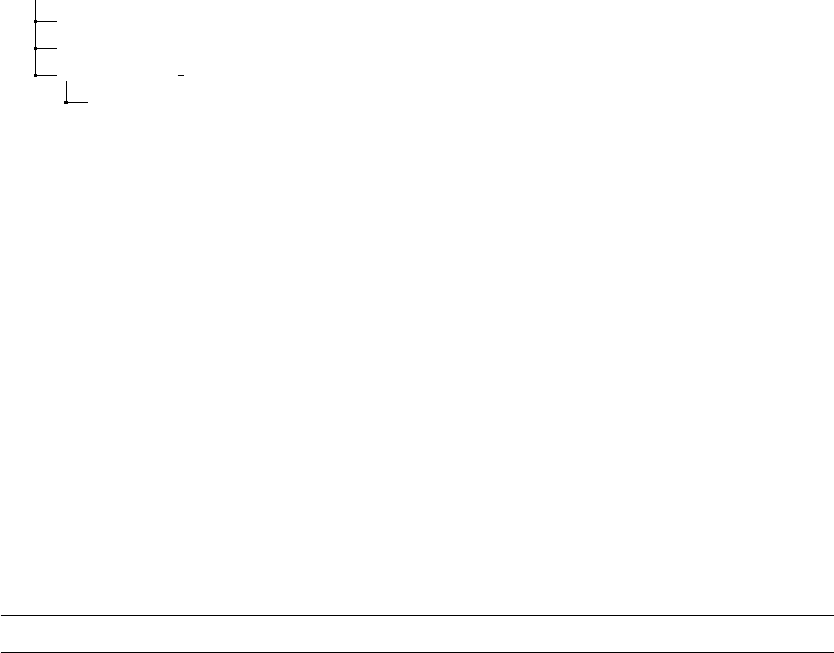
After downloading unzip the files into a location of your choice. This should leave
you with the directory hierarchy shown below:
FluxEngine (or FluxEngine-master) - referred to as the root folder
configs - contains validation and example configuration files
data - input data required to run validations and reference output
fluxengine src - FluxEngine source code
tools - additional tools which can be run separately to
FluxEngine
3 Installing dependencies
One of the changes from v2.0 is that FluxEngine can be run entirely using Python 2.7.
That being said there are several modules which are not part of the Python 2.7 standard
library. These are netCDF4,numpy and scipy.integrate. If you don’t already have
these installed, you’ll need to install them before running FluxEngine. They can be
installed manually (the recommended way to do this is using pip which usually comes
bundled with Python 2.7) or they can be installed using the dependency installation
scripts which can be found in the root directory for MacOS and Linux.
3.1 MacOS
An installer script is available for MacOS which will automatically install dependencies.
While it’s provided with no guarantees, the script shouldn’t overwrite anything without
asking you first. To run it, open Terminal, navigate to the FluxEngine root folder and
run
./install_dependencies_macos.sh
3
If you see an error about not having permission to execute, chances are you’ll need to
add this permission before running the install script. To do this run the following:
./sudo chmod +x install_dependencies_macos.sh
3.2 Linux
An installer script is available for Debian based Linux systems and will automatically
install the dependencies needed to run FluxEngine. It has only been tested on Ubuntu
16.4, and is provided with no guarantees. To run it, open Terminal, navigate to the
FluxEngine root folder and run
./install_dependencies_ubuntu.sh
If you see an error about not having permission to execute, chances are you’ll need to
add this permission before running the install script. To do this run the following:
./sudo chmod +x install_dependencies_ubuntu.sh
3.3 Windows
An installer script isn’t provided for Windows but the following steps should enable you
to install the dependencies required to run FluxEngine.
Step 1) Since Python 2.7 doesn’t come with Windows you may not have it
installed. If you already have Python 2.7 go to step 2, if not then go to
https://www.python.org/downloads/ and download the installer. At the time of writing
the most recent version of Python 2.7 was 2.7.14. Do not download version 3.x, Flux-
Engine will not run on it. Once downloaded run the file and you’ll be guided through
the installation process. Make a note of your installation directory (it will probably be
something like C:\Python27\ or Users\<your username>\AppData\Local\Programs\
Python\Python27).
Step 2) Add Python and the Python Scripts folder to your PATH environment vari-
able. This will allow you to run python scripts without having to navigate to specify the
whole Python installation directory each time. To do this in Windows 10, follow these
instructions: https://www.youtube.com/watch?v=uXqTw5eO0Mw using the installation
directory from the previous step.
Step 3 Use pip to install three Python modules: netCDF4,numpy and
scipy.integrate. Pip is a package manager, which comes with Python and allows
you to add/remove additional libraries. First, open a new command prompt window (or
close and reopen an existing one - this is important or your PATH environment variable
won’t have updated). Type the following commands:
pip install --upgrade pip
pip install numpy
pip install netCDF4
4

pip install scipy
You should now be ready to run FluxEngine. More detailed information on installing
and configuring Python 2.7 on Windows can be found here: https://docs.python.
org/2.7/using/windows.html
4 Validating FluxEngine
Two validation scripts come bundled with the FluxEngine. These make it easy to verify
that everything has installed correctly and that FluxEngine is producing correct output.
These scripts compare output generated by your local copy of the FluxEngine with a
known reference, and will report any discrepencies.
To validate using Takahashi2009 (T09) and/or SOCATv4 data run the following com-
mand/s from FluxEngine’s root directory, respectively:
python validate_takahashi09.py
python validata_socatv4_sst_salinity_gradients_N00.py
Alternatively, you can write python scripts to validate against your own reference
data sets using the functions provided in the validation tools.py file in the tools
directory.
5 Running FluxEngine v3.0
In previous versions FluxEngine was ran using a bash script which invoked a Perl script to
parse a config file and run the core Python FluxEngine code. This has been considerably
simplified in version 3.0 so that everything is handled by Python. This has the advantage
of reducing dependencies and moving toward a more API-like interface for executing
FluxEngine. An execution script (ofluxghg run.py, found in the root directory) is still
provided, which functions similarly to the previous Perl script (described below). To
run the FluxEngine for
5.1 Using the ofluxghg run command line script
ofluxghg run.py is found in the FluxEngine root directory can be be used as a stan-
dalone tool to run the FluxEngine, for example
python ofluxghg_run.py configs/example_config.conf -l
will run the flux engine using the options specified in a configuration file called
example config.conf located in the configs subdirectory of the current working di-
rectory. This assumes ofluxghg run.py is being executed from the FluxEngine root
directory, but it can be executed from anywhere, provided that 1) the path of the con-
fig file is reachable (absolute file paths can be used), 2) ofluxghg run.py can find the
fluxengine src folder (either it has been added to your Python paths, moved somewhere
5
which is already in your Python path, or it is a subdirectory of the current working di-
rectory) and 3) the input data specified in your config file is reachable from the current
working directory (these can also be absolute paths). The -l option tells FluxEngine to
run without process indicator layers, this reduces the time taken to run and results in
smaller output files.
The general syntax for running ofluxghg run is
python ofluxghg_run.py config [-options]
where [-options] is an option list of options to change how FluxEngine runs. A list
of valid options can be listed by using the -h flag, e.g. python ofluxghg run.py -h.
Some options require you to specify a value, for example to set the start and end years
you can use
python ofluxghg_run.py configs/example_config.conf -year_start 2000 -year_end
2010 -l
to run FluxEngine for the years 2000 to 2010. Note: A useful option for testing is -D1
which will only run FluxEngine for a single month. This allows you to check the output
and any error messages before committing to a longer run.
5.2 Driving FluxEngine from your own Python scripts
Some tools are provided which allow you to write Python scripts to run FluxEngine
in custom ways. To do this you should import the fluxengine src.fe setup tools
module and use run fluxengine function. An example of how to use this function is
can be found in ofluxghg run.py. For more control over how FluxEngine is driven,
e.g. if you need to use a single configuration file and overwrite a subset of parameters to
run a suite of similar simulations, see the tools additional functions in fe setup tools
in the fluxengine src directory. Note that these tools are intended for use by users
who are proficient in Python. They haven’t undergone intensive testing and likely to
contain bugs (especially in Windows environments). Bugs can be reported as described
in section 1.2.
6 Creating and modifying configuration files
The format of configuration files has changed a bit from the previous version. Exam-
ple annotated configuration files can be found in the configs directory. Variables are
specified in the config file by name, followed by an equals sign (=) and then the value.
In contrast to previous versions the equals sign is now required, but this means that
whitespace can be used in variable values. Both variable names and values are case
sensitive, and comments can be added using the hash (#) character. Variables can be
specified in any order although it is convenient to group related variables together. An
example definition of two variables is given below:
6

varname1 = 100.0
varname2 = test variable #trailing and preceeding whitespace is ignored
6.1 Configuration file specification
src home
The file path to the fluxengine src directory. Note that this is no longer used in version
3.0, but is reserved and may be used in the future to distinguish between different versions
of FluxEngine which may be installed on the same computer.
flux calc
The flux calculation to perform. Valid options are:
•bulk - i.e. F=kαW(pCO2W
−pCO2A), where Fis the air-sea flux, kis the gas
transfer velocity, αWis the solubility of the gas in sea water, pCO2Wis the partial
pressure of CO2in the surface sea water and pCO2Ais the partial pressure of CO2
in the atmosphere.
•rapid - As described in Woolf et al. (2012) Journal of Geophysical Research:
Oceans.F=k(αWpCO2W
−αApCO2A).
•equilibrium - As described in Woolf et al. (2012) Journal of Geophysical Re-
search: Oceans.
use sstskin,use sstfnd,sst gradients,cool skin difference
Determines the source/s of sea surface temperature to use (skin or foundation or both).
Valid values for use sstskin,use sstfnd and sst gradients are yes or no. At least
one of use sstskin or use sstfnd must be set to yes. If only one is specified and
sst gradients is set then the other is estimated using the following equation:
sstskin = sstfnd - cool_skin_difference
where cool skin difference is the difference in temperature between the foundation
layer and the skin layer (in Kelvin). The default is 0.17K (see Donlon et al. 2002).
saline skin value
Saline skin value is added to salinity. It is an optional entry and will default to 0.0 if
not specified.
axes data layer,latitude prod longitude prod time prod
Specifies the data layer from which to extract the latitude, longitude and time data from.
axes data layer must be the name of a data layer, e.g. sstskin, and all other input
data layers will have their dimensions checked for consistency with the named data layer.
pco2 reference year,pco2 annual extrapolation
These are optional entries which can be used to specify a reference year from which
pCO2/ fCO2can be adjusted for. This applies an annual correction according to
7

pco2_increment = (year - pco2_reference_year) * pco2_annual_correction
datalayername path,datalayername prod
These define each input data layer. A full explanation with worked examples is provided
below (section 6.3).
random noise windu10,random noise sstskin,random noise sstfnd,
random noise pco2
These are optional variables which control whether random noise is added for each
of their respective data layers. Valid values are yes or no. Note that currently the
magnitude of noise must be modified directly in the source code (this is not advised
unless absolutely necessary). This system will be replaced with a more flexible
system in the near future.
bias datalayername,bias datalayername value
Setting bias datalayername will add a constant value (defined by
bias datalayername value) to the named data layer. This is applied after any
random noise is added. Currently the following data layer names are supported:
windu10,sstskin,sstfnd and pco2. Valid options for bias datalayername value
are yes or no and default to no if not supplied. bias datalayername value must be a
valid numeric value and defaults to 0.0 if not supplied. Future releases are likely to
expand support to all data layers.
bias k,bias k percent,bias k value,bias k biology value,bias k wind value
These variables control the bias applied to k(the gas transfer velocity). bias k and
bias k percent but be set to either yes or no and control whether any bias is ap-
plied at all and whether the bias is added as an absolute value or as a percentage
of the original value, respectively. Default values for both of these variables are no.
bias k value requires a numeric variable (the default is 0.0) and controls the magni-
tude of the bias (whether as a percentage or absolute value). Bias is only added to
kif the value of windu10 at the same point in space is above a threshold specified
by bias k wind value (the default value is 0.0). Similarly the corresponding value for
biology is below bias k biology value (the default is 0.0).
k parameterisation
This controls the way that the gas transfer velocity (k) is calculated. FluxEngine comes
bundled with a number of k’functors’ - self-contained Python classes which take as input
data layers, and write output to one or more data layers (typically the kdatalayer). For
a list of available parameterisations you can run the ofluxghg run.py script with the
-list parameterisations option. Alternatively you can see the Python implementa-
tion of each kfunctor in rate parameterisation.py file located in the fluxengine src
directory. These can be referred to by name in configuration files. User defined param-
eterisations can be added to this file and assigned to k parameterisation by name in
the config file. Before writting new kfunctors you should read the guide for developers
(section 8), as this describes best practices and provides information on potential pitfalls.
8

kb asymmetry
bias sstskin due rain,bias sstskin due rain value,
bias sstskin due rain intensity,bias sstskin due rain wind
These control whether and how rain (the rain data layer) influences sea surface
temperature. bias sstskin due rain value turns this feature on or off (valid
values are yes and no, with the default being no). If this feature is turned
on, a constant bias (bias sstskin due rain value, default value of 0.0) will be
added to sea surface temperature anywhere that rain intensity is greater than
bias sstskin due rain intensity (default value 0.0) and wind intensity (the
windu10 data layer) is less than bias sstskin due rain wind (default is 0.0).
rain wet deposition
This option enables wet deposition. Valid values are yes or no, and the default value is
no.
k rain linear ho1997
This option enables a linear additive gas transfer velocity term due to rain. A description
of the method can be found in Ashton et al. (2016) . Valid values are yes or no, and
the default value is no.
k rain nonlinear h2012
This option enables a nonlinear additive gas transfer velocity term due to rain. A
description of the method can be found in Ashton et al. (2016) and Harrison et al.
(2012). Valid values are yes or no, and the default value is no.
output dir
This specifies the directory that will be used by FluxEngine to put the output netCDF
files in. If the directory doesn’t exist it will be created. If other files with the same names
and directory structure as the output files already they will be overwritten. A directory
will be created for each year that FluxEngine runs, within which a subdirectory will
be created for each month run. This directory structure is for convenience, since it is
the same as that required by the ofluxghg net budget.py tool (see the section 7 for a
description of bundled tools).
Full meta data, including a list of data layer names recognised by FluxEngine, de-
fault values and expected data types can be accessed in the settings.xml file in the
fluxengine src directory. Note: It is strongly recommended that you do not modify this
file.
6.2 k parameterisation specific variables
Several k parametrisation options require additional variables to be specified which
change the way that the gas transfer velocity is calculated. These must be defined in
the configuration file. In particular k generic requires a Schmidt number to be defined
k generic sc (valid values are 600.0 and 660.0) as well as weightings for each order of the
generic gas transfer velocity equation, i.e. k generic a0,k generic a1,k generic a2
9
and k generic a3.
kt OceanFluxGHG,kt OceanFluxGHG kd wind and k Wanninkhof2013 require that
kb weighting and kd weighting be specified. These define the weighting for the bubble
and direct components of the gas transfer velocity, as described in Goddijn-Murphy et
al., (2015).
Other custom or third-party k parametrisations may require other variables to be spec-
ified and you should consult any documentation or guidance specific to the parametrisa-
tion being used, or examining the initialiser function ( init ) of the relevant parametri-
sation functor the rate parameterisation.py file.
6.3 Data layers
The term ’data layer’ is used to describe a 2D dataset, and any accompanying meta-
data, which is used by FluxEngine either as input, an intermediate product or output.
Configuration files must specify all the input data layers which will be needed, but you
only need to specify the input data layers which will be used given the specific options
youve selected. For example you do not need to you do not need to specify biology input
files if the ’process indicator layers off’ is set using the -l flag, and you do not need
to specifiy a sea surface skin temperature data layer if use sstskin = no is set in the
config file. If you try to run the FluxEngine without the required inputs youll get an
error message telling you which input data layer was missing. If you specify data layers
which are not needed for the calculation options specified they will simply be added to
the output data layer.
To specify an input data layer the configuration file must specify a minimum of two
attributed: a path to the netCDF / .nc file, and a prod (variable name within the
netCDF file). The path can be absolute or relative. Windows users might experience
some problems using absolute paths. If you have problems with this please let me know
(tom: t.m.holding@exeter.ac.uk) and Ill try to fix it. Path are specified in the config file
using the data layer name with the path suffix, like so:
datalayername_path = path/to/data/file.nc
One important change in this version of FluxEngine is that you should specify the path
including a the filename for the netCDF file, rather simply a directory. This provides
greater flexibility when working with data from many different sources. To help with
this two standard Unix glob patterns can be used to specify patterns of file names: ?
and *. These will match any single character/digit, or any number of characters/digits
(including no characters), respectively. For example to specify the location of ice coverage
data you could use:
ice_path = path/to/data/20100101_???-ice*.nc
This will match any file with a name that starts with 20100101 followed by any three
characters/digits, then the characters -ice, followed by any number of characters/digits
and ending in .nc. Note that these cannot be used to match directory names and can
10
only be used to specify the pattern that FluxEngine will use to match the netCDF file
itself.
Several additional tokens can be used to specify file or directory paths which vary
according to the current year or month being simulated, and allows different input files
or directories to be used for different month/year combinations. The following tokens
are supported:
•<YYYY>-four digit year, e.g. 2010
•<YY>-two digit year, e.g. 10 for 2010
•<MM> - two digit numerical month, e.g. 01 for January
•<Mmm> - three character abbreviation of the month, e.g. Jan for January
•<MMM> - three character upper-case abbreviation of the month, e.g. JAN for January
•<mmm> - three character lower-case abbreviation of the month, e.g. jan for January
Since these tokens can be used in directory names it can be useful if, for example, you
have data for multiple years for one data layer, but only have data covering one year
for another. In this case you would specify the file path of the first data layer using
the appropriate year token, and the second by hard-coding the year string into the file
path. Supposing we only has sea surface foundation temperature for the year 2010, but
ice coverage data for each year we’re interested in, this might look as follows:
ice_path = path/to/data/<YYYY>/<YYYY><MM>_???-ice*.nc
sstfnd_path = path/to/data/2010/2010<MM>_OCF-SST-GLO-1M-???-REYNOLDS.nc
The second required attribute of a data layer is its product (or ’prod’). This is the
name of the variable within the netCDF file. It is specified in the configuration file by
using the prod suffix with the data layer name. The minimal specification (in this case
for the ’ice’ data layer) could therefore looks like this:
ice_path = path/to/data/<YYYY>/<YYYY><MM>_???-ice*.nc
ice_prod = sea_ice_fraction_mean
6.4 Optional data layer attributes
There are several optional attributes which can be configured for each data layer. They
can be set using the same datalayername suffix notation used for the path and prod-
ucts above. These are:
•stddev prod - product name of a variable containing standard deviation data for
the data layer
•count prod - product name containing the number of samples used to calculate
standard deviation
11
•netCDFName - the variable name used to label this data layer in the output netCDF
file/s
•units - a string description of the units
•minBound - minimum allowed value)
•maxBound - maximum allowed value
•standardName - short standardised description of the variable/data layer
•longName - human readable description of the variable/data layer
For example to overwrite the minBound and maxBound attributes for the ice coverage
data layer as well as rename it in the output files you can add the following lines to a
configuration file:
ice_minBound = 0.0
ice_maxBound = 100.0
ice_netCDFName = ice_percent
Any value outside of this range will be replaced with missing values.
Default metadata values are stored in settings.xml in the fluxengine src direc-
tory, but shouldn’t usually be modified because this would change the behaviour for all
FluxEngine runs. These values can always be overwritten in the configuration file as
described above.
6.5 Data layer preprocessing
It is sometimes convenient to apply some pre-processing to a data layer before it is
used for any computations. There is an additional data layer attribute which allows the
user to specify a list of functions to be applied immediately after the data layer read
in. A number of simple preprocessing functions are bundled with FluxEngine (these
can be listed by running ofluxghg run.py with the -list preprocessing flag, or by
viewing the functions directly in the data preprocessing.py file in the fluxengine src
directory). For users comfortable with python, custom pre-processing functions can be
added to data preprocessing.py. These will be automatically detected when running
FluxEngine available to use in configuration files. Before modifying this file you should
familiarise yourself with the guide for developers notes in section 8.
To specify pre-processing functions the preprocessing suffix is used with a list of
function names separated by commas. Each function will be applied in the order it
appears in this list. For example adding the following line to a config file will first
transpose the 2D matrix, then convert from Kelvin to Celsius:
sstskin_preprocessing = transpose, kelvin_to_celsius
12

Note that no checks are made to ensure the original values are in Kelbin to begin
with, and it is up to the user to ensure that any pre-processing functions are applied
appropriately.
7 Bundled tools
The tools subdirectory in the flexengine src directory contains various tools designed
to be used in conjunction with FluxEngine. These are discussed below.
resample netcdf.py - Resamples a 1°by 1°netCDF data to a 5°by 4°grid.
text2ncdf.py - Converts in situ data to a netCDF file.
ofluxghg flux budgets.py - Calculates integrated net fluxes.
compare net budgets.py - Simple functions which compare net budgets between two
runs. Examples of their use can be found in the validation scripts (see section
4). To use these you must first import them into a python project using import
fluxengine src.tools.compare net budgets.
validation tools.py - This file contains several functions to perform common valida-
tion tasks, such as comparing the netCDF outputs of two FluxEngine runs, or calculat-
ing and comparing the global flux budgets between a new run and a reference data set.
To access these functions they must be imported into a python project (e.g. by using
import fluxengine src.tools.validation tools). The function which is more likely
to be useful is validation run. A description of how to use this function is provided in
validation tools.py.
8 Guide for developers
In FluxEngine v3.0 we have made changes to make it easier for people to modify and
extend the functionality of FluxEngine. We have implemented a more consistent struc-
ture to the code and added the ability to easily extent certain aspects of FluxEngine’s
functionality without modifying the core code. The following sections provide some back-
ground information on how to do this. This is intended for users who are comfortable
programming in Python.
8.1 Adding pre-processing functions
Pre-processing functions are defined in data preprocessing.py in the fluxengine src direc-
tory. When parsing preprocessing entries in configuration files FluxEngine searches
the function names defined in this file, and so any function which is added will be
immediately available for use as a pre-processing function. However, there are certain
requirements for the function to operate harmoniously with FluxEngine. These are listed
below:
13

•Pre-processing functions must have a single argument, and this must be the
DataLayer instance which corresponds to the input data layer which is being trans-
formed. Detailed of the DataLayer class can be found in DataLayer.py.
•DataLayers should be modified in place. Returned values are ignored.
•Pre-processing functions should only modify the (1D) fdata attribute of the
DataLayer instance. The exception to this is if it is convenient to mod-
ify 2D view of this (the data attribute), in which case you must call
datalayer.calculate fdata() afterwards. This is because, while in most cased
fdata is a view of data, in some cases fdata may be a copy of data and hence any
changes to data will not be reflected in fdata.fdata is used for all calculations,
so it is important that any changes are copied to this attribute.
•If a pre-processing function modifies the dimensions or any of the meta data asso-
ciated with a DataLayer it must also manually update the relevant attributes as
these will not be automatically reflected.
8.2 Adding k-parametrisation functors
The gas transfer velocity calculation is fully customisable by adding a ’functor’ class to
the rate parameterisation.py file. Functors are classes which are callable. This class
must be derived from the KCalculationBase class and implement four functions:
•init - Initialises the class. This must, at a minimum, set self.name. You can
add any arguments which the class needs to initialise to the function signature and
provided they are added as variables with the same name/s in the configuration
file they will be automatically passed to the functor during initialisation (see the
notes on adding configuration variables below).
•input names - This should return a list of DataLayer names (strings) which are
required as inputs to the gas transfer velocity calculation.
•output names - This should return a list of DataLayer names which are modi-
fied or written to. These can be existing or new DataLayers. Any non-existing
DataLayers will be created in the correct dimensions (but filled with missing val-
ues) by FluxEngine prior to performing the gas transfer velocity calculation.
•call - This performs the gas transfer velocity calculation, and will contain all
the implementation details for your specific case. In addition to self) an argument
called data is passed to this function which contains a dictionary of each DataLayer
available to FluxEngine. These can be assessed by using the DataLayer name as a
key. Note that you should not create new DataLayer instances, add entries to this
dictionary or change DataLayers which are not listed by name in the list returned
by output names.
It is best practice to modify the 1D DataLayer.fdata attribute of output
DataLayers. If the 2D DataLayer.data attribute is modified you should update
14

the fdata attribute by calling DataLayer.calculate fdata for the DataLayers
which have changed. This is because, while in most cases fdata is a view of data
to avoid unnecessary duplication, this is not guaranteed on all systems.
The final gas transfer velocity output should usually be written to the kdata
layer, as this is what will be used by FluxEngine to calculate air-sea gas
flux. Additionally, it can be a good idea to set the DataLayer.long name and
DataLayer.short name attributes of kto provide a description of the parameter-
isation used because this will be copied to the output netCDF files.)
An example implementation, as well as all the pre-bundled gas transfer velocity func-
tors, can be found in rate parameterisation.py in the fluxengine src directory.
8.2.1 Adding configuration variables
You can add variables to the configuration file and these will be immediately available
in the flux engine code (encapsulated in the runParams ’namespace’). For example, if
you add
my_new_var = 100.0
to the configuration file. This can be referenced in the FluxEngine code using
runParams.my new var. This is utilised by different k-parameterisation functors which
require additional variables to initialise correctly (see the definition of k generic in
rate parameterisation.py for an example).
Additional configuration variables are interpreted as a float if they’re formatted as
a valid float, otherwise they’re interpreted as a string. You can specify the type of
input which is required, or add constraints and/or metadata associated with a configu-
ration variables by adding an entry to settings.xml (found in in the fluxengine src
directory). Modifying entries for pre-existing variables is not recommended.
To avoid naming conflicts (since all config variables are imported to the same names-
pace) it is good practice to add a prefix to the name of any custom configuration variables.
Typically this should be the name of the k-parameterisation functor it is associated with.
For example, the k generic) functor requires 5 additional variables each of which begin
with k generic (e.g. k generic sc).
8.3 Contributing
If you’re a git user you can fork the FluxEngine repository at https://github.com/
oceanflux-ghg/FluxEngine and if you develop extensions or functionality which might
be useful to the wider community, or spot and fix any bugs, you can share them by
sending us pull requests. Alternately, if you don’t know what any of that means but
you’ve developed an extension or fixed a bug which you think will be useful to others,
you can e-mail me at t.m.holding@exeter.ac.uk.
15
