HR Toolkit Installation Instructions
HR%20Toolkit%20Installation%20Instructions
HR%20Toolkit%20Installation%20Instructions
HR%20Toolkit%20Installation%20Instructions
HR%20Toolkit%20Installation%20Instructions
HR%20Toolkit%20Installation%20Instructions
User Manual: Pdf
Open the PDF directly: View PDF  .
.
Page Count: 13
HR Toolkit Installation
Instructions
Dean Evans and Associates LLC.

HR Toolkit Installation Instructions
2014 Dean Evans and Associates LLC. CONFIDENTIAL
2
Copyright
Copyright 2014 Dean Evans and Associates LLC.. All rights reserved.
No part of this document may be reproduced, transmitted or stored in a retrieval system in any form,
electronic or mechanical, for purposes other than the personal use of the original purchaser except by
written permission of Dean Evans and Associates LLC.
Dean Evans and Associates LLC.
6465 Greenwood Plaza Blvd
Suite 600
Centennial, CO 80111
This document may be copied for use by individuals employed by the purchaser.
Information in this document is subject to change without notice.
EMS, the EMS logo and EMS Regics are registered trademarks of Dean Evans and Associates LLC..
Event Management Systems, EMS Enterprise, EMS Professional, EMS Lite, EMS Campus, EMS
Workplace, EMS Legal, EMS District, EMS Master Calendar and Virtual EMS are trademarks of Dean
Evans and Associates LLC.. Microsoft, Windows and Outlook are registered trademarks and SQL Server
is a trademark of Microsoft Corporation. Lotus Notes and Domino are registered trademarks of IBM
Corporation. Other products, brands and trademarks are property of their respective owners/companies.

HR Toolkit Installation Instructions
2014 Dean Evans and Associates LLC. CONFIDENTIAL
3
HR Toolkit
Installation Instructions
CUSTOMER SUPPORT............................................................................................................................................. 4
INTRODUCTION ....................................................................................................................................................... 5
HR TOOLKIT – GROUP/GROUP TYPE MODEL ................................................................................................ 6
OBTAINING THE HR TOOLKIT COMPONENTS .............................................................................................................. 6
HR TOOLKIT OVERVIEW ............................................................................................................................................ 6
The EMS_Staging Database .................................................................................................................................. 6
Maintaining Group Records in EMS ..................................................................................................................... 7
INSTALLING AND EXECUTING THE HR TOOLKIT ........................................................................................................ 8
Installation ............................................................................................................................................................. 8
Execution ............................................................................................................................................................... 8
HR TOOLKIT – GROUP/CONTACT MODEL .................................................................................................... 10
OBTAINING THE HR TOOLKIT COMPONENTS ............................................................................................................ 10
HR TOOLKIT OVERVIEW .......................................................................................................................................... 10
The EMS_Staging Database ................................................................................................................................ 10
Maintaining Contact, Group and Group Type Records in EMS .......................................................................... 11
Hybrid Group/Contact HR Toolkits ..................................................................................................................... 12
INSTALLING AND EXECUTING THE HR TOOLKIT ...................................................................................................... 12
Installation ........................................................................................................................................................... 13
Execution ............................................................................................................................................................. 13

HR Toolkit Installation Instructions
2014 Dean Evans and Associates LLC. CONFIDENTIAL
4
Customer Support
Please note that support for the HR Toolkit extends only to installing the EMS components outlined
below. For help identifying the appropriate data source within your environment or defining/creating a
process to import data into the EMS staging database, please consult your internal IT Department.
Unlimited toll-free customer support is available to EMS users who have a current Annual Service
Agreement (ASA). Please contact Customer Support (or a member of the Professional Services group if
you are working with one) if you have any questions or encounter any issues implementing the HR
Toolkit.
Email: support@dea.com
Web: www.dea.com
Phone: (800) 288-4565
Fax: (303) 796-7429
HR Toolkit Installation Instructions
2014 Dean Evans and Associates LLC. CONFIDENTIAL
5
Introduction
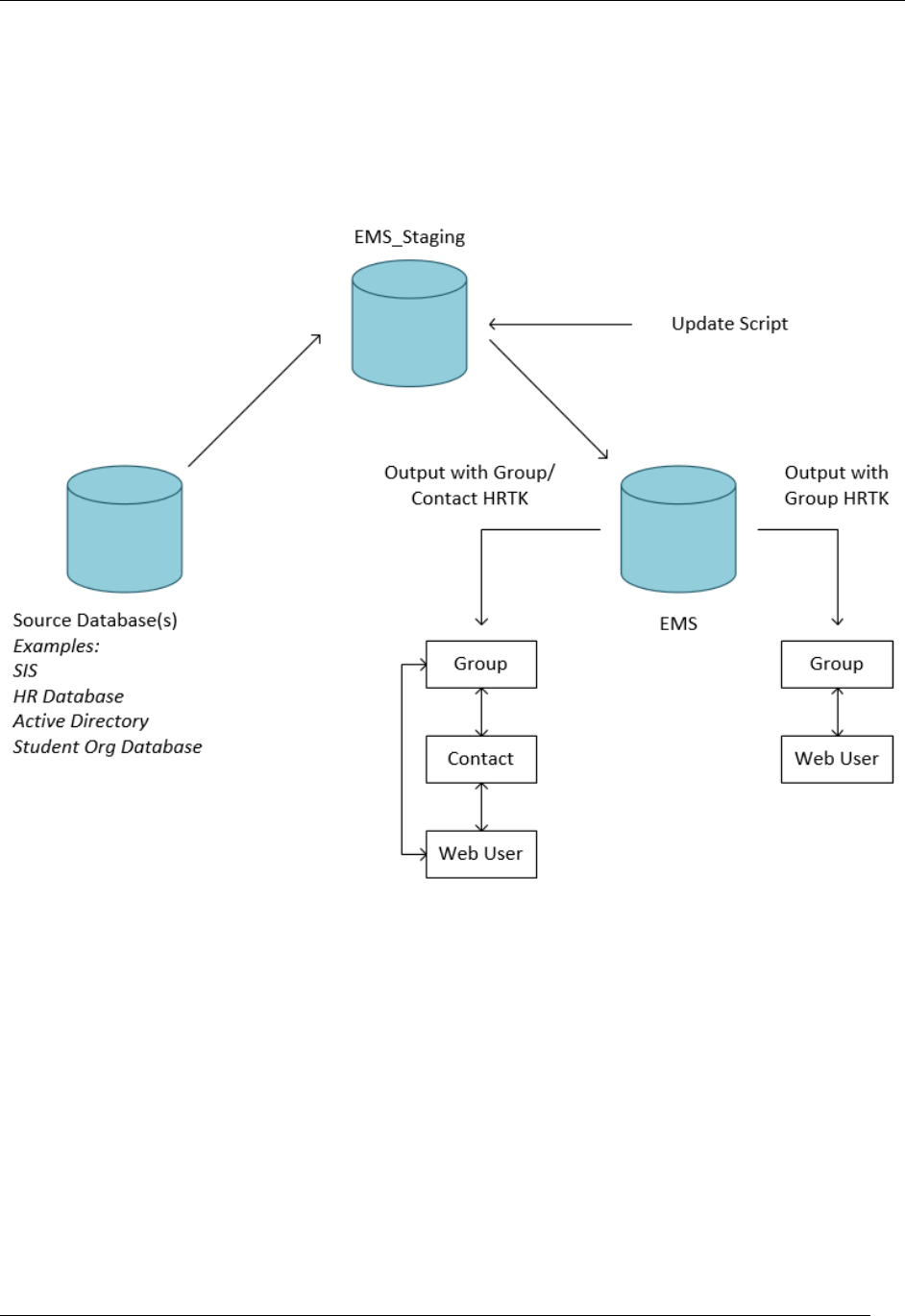
The HR Toolkit (HRTK) is intended to help automate your organization’s creation, updating and
inactivation of Web Users and Groups/Contacts. The HRTK is populated with information from your
organization that is then transferred to EMS to create, update and inactivate groups, contacts and web
users as necessary. This allows an automated way for you to keep EMS up to date with changes within
your institution without having to perform manual maintenance.
The information from your organization’s database(s) is loaded into the EMS_Staging table and then the
HRTK process is run to populate the data from the staging table into EMS. This information populates
and updates the information for your EMS Groups, Contacts, and Web Users.
HRTK comes in two distinct variations: Group and Group/Contact. Your Implementation Consultant will
work with you to determine which variant will be best for your organization. The “Group/Contact” model is
structured around having your Groups populated with Contacts beneath them; the “Group” model does
not create Contacts under the Groups being brought into the HRTK. Note that your EMS environment
may use different names for Groups and Contacts.
This document lists the steps you must take to install HR Toolkit in your environment. If you are unsure
whether your organization is licensed for the HR Toolkit or if you would like to learn more about it, please
contact your Account Executive.
HR Toolkit Installation Instructions
2014 Dean Evans and Associates LLC. CONFIDENTIAL
6
HR Toolkit – Group/Group Type Model
Obtaining the HR Toolkit Components
Please contact your Professional Services Consultant to obtain the following components:
HRTK Staging DB Install G_GT_WU.sql – SQL file required to create the staging database -
EMS_Staging.
HRTK Update Script G_GT_WU.sql – SQL file required to create the stored procedure HRTK_
Update_Group within your EMS database.
HR Toolkit Overview
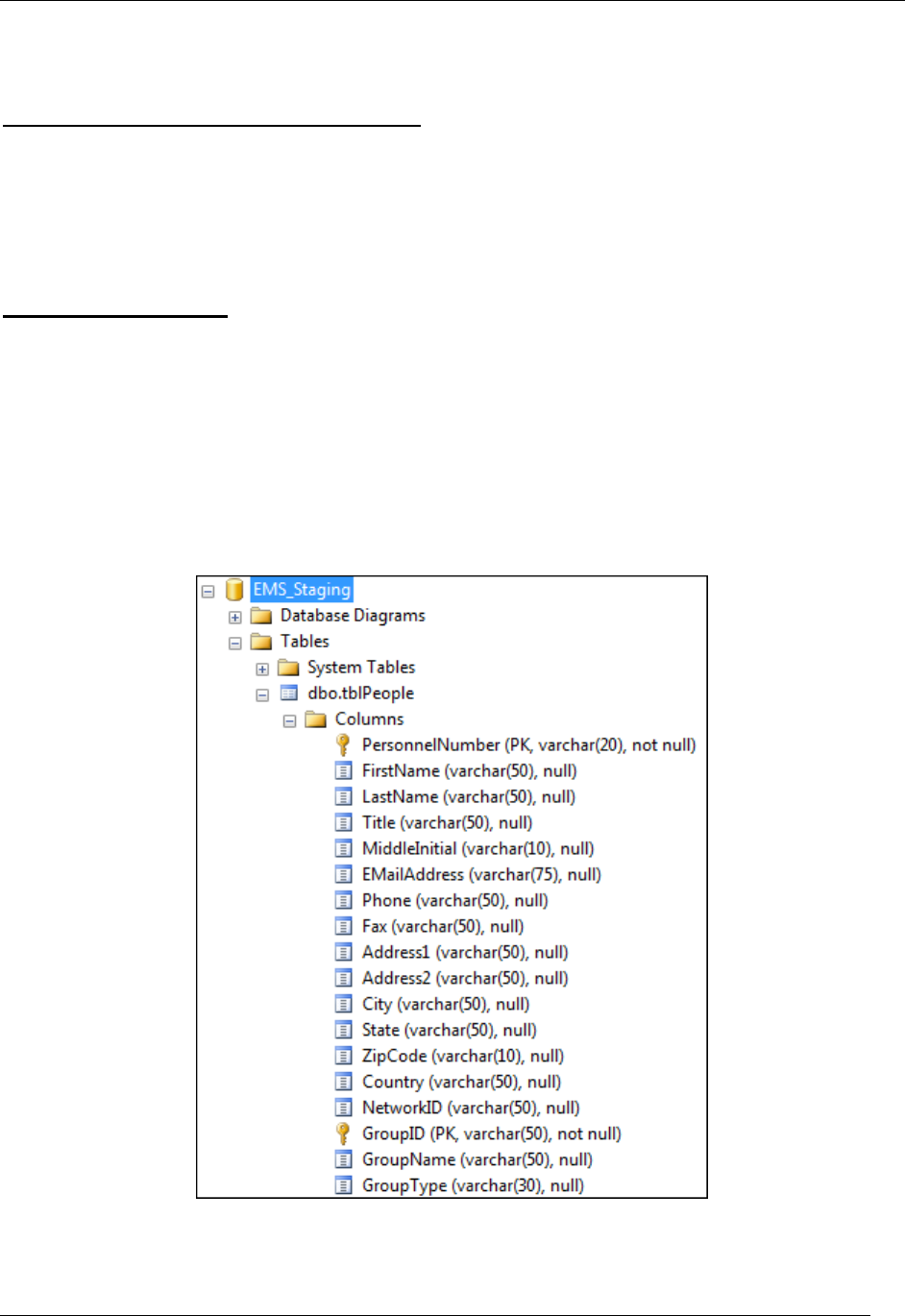
The EMS_Staging Database
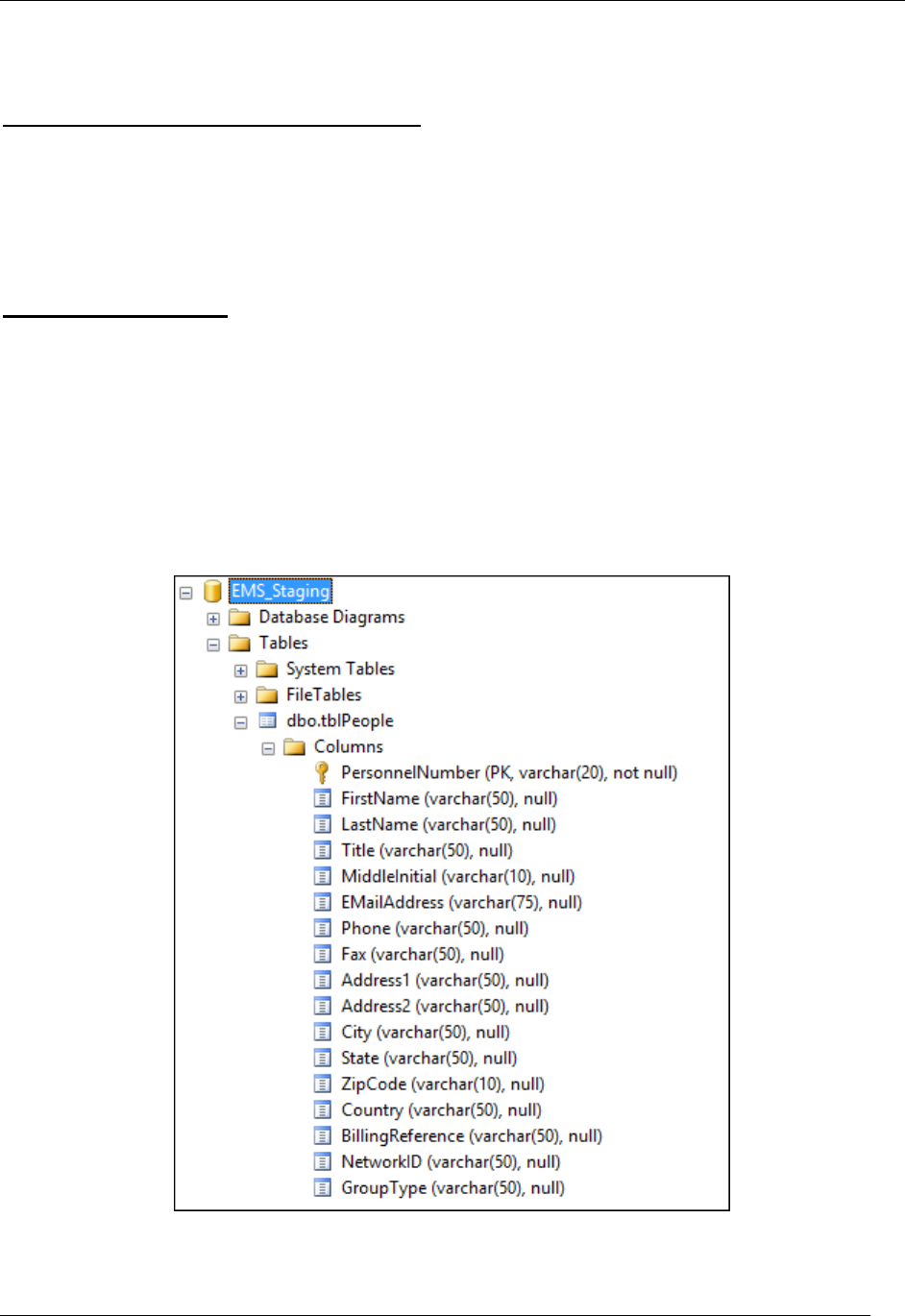
The EMS_Staging database (created by HRTK Staging DB Install G_GT_WU.sql) is used to stage
Group and Web User records before they are imported into EMS.
Note: your EMS database may have the “Groups” field renamed to another term.
Once you have identified the data source within your organization that will be used to create and maintain
your EMS Group and Web User records, you will be required to define/create a process to import ACTIVE
Group records into the tblPeople table within EMS_Staging.
HR Toolkit Installation Instructions
2014 Dean Evans and Associates LLC. CONFIDENTIAL
7
Maintaining Group Records in EMS
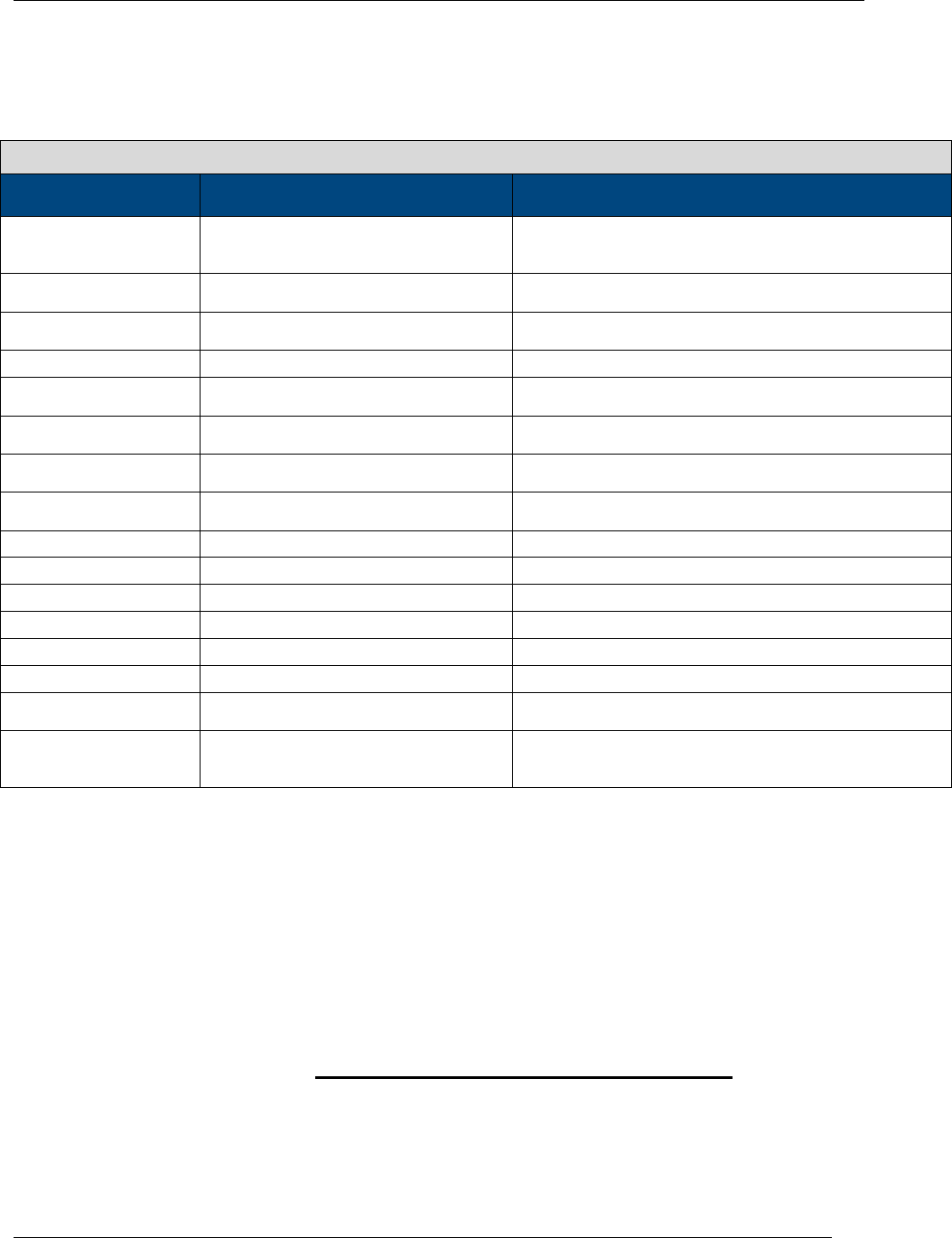
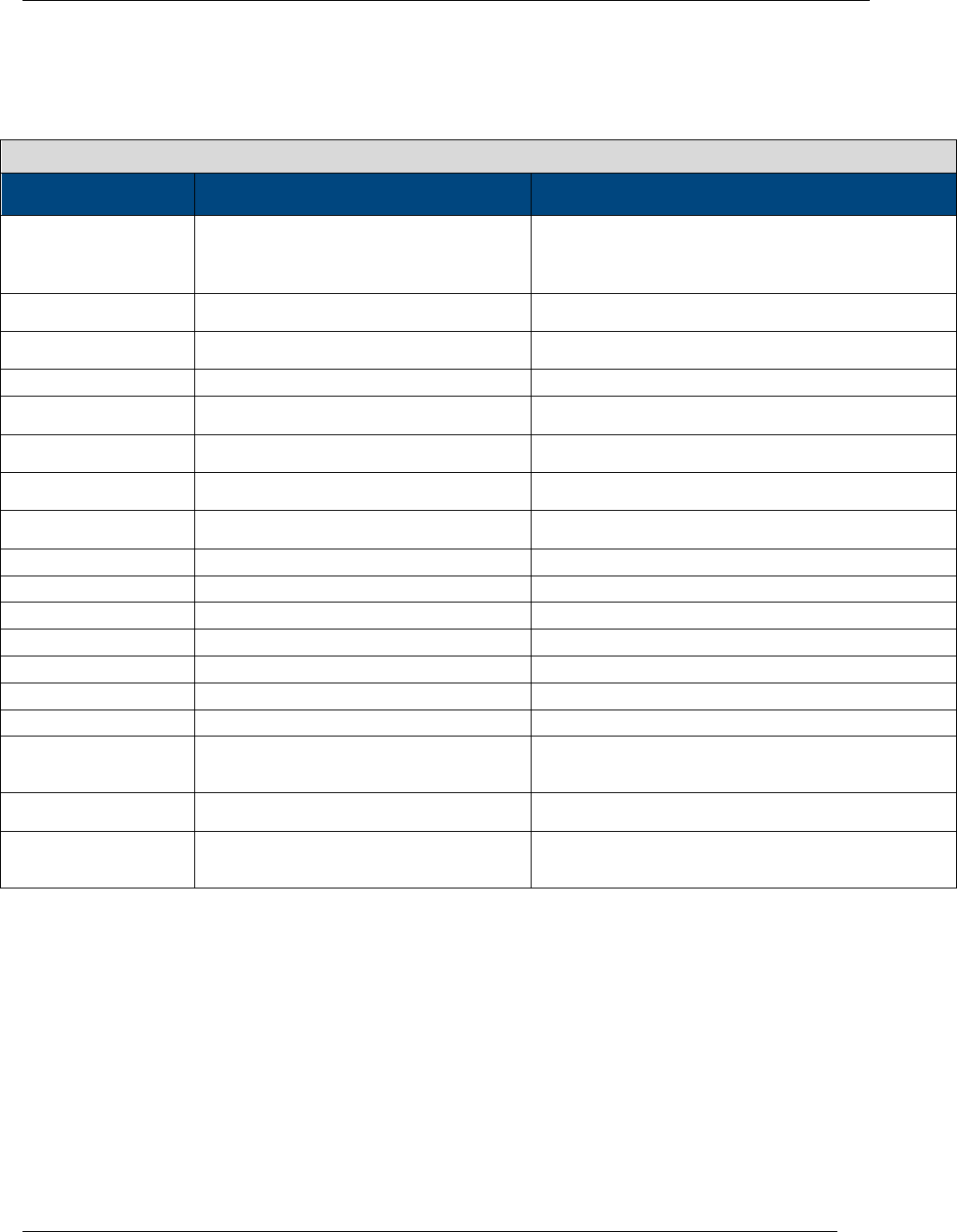
The HRTK_Update_Group stored procedure (created by HRTK Update Script G_GT_WU.sql) contains
all of the logic to create your EMS Group and Web User data. Records are imported into EMS from the
EMS_Staging database according to the specifications outlined in the following table:
EMS Staging Table G_GT_WU
EMS Staging Field
(varchar)
Writes Data to EMS Database
Fields
Requirements/Notes
PersonnelNumber (20)
Group.ExternalReference
Required Unique identifier (e.g. Employee/Student ID,
Personnel Number, etc.) for each web user. Used for
purposes of creating /updating EMS.
FirstName (50)
Group.GroupName
WebUser.UserName
Must have at least 1 of 3. Built in EMS as LastName,
FirstName Middle Initial
LastName (50)
Group.GroupName
WebUser.UserName
Must have at least 1 of 3. Built in EMS as LastName,
FirstName Middle Initial
Title (50)
Contact.Title
can be null
MiddleInitial (10)
Group.Group Name
WebUser.UserName
Must have at least 1 of 3. Built in EMS as LastName,
FirstName Middle Initial
EMailAddress (75)
Group.EmailAddress
WebUser.EmailAddress
Required for Web User creation
Phone (50)
Group.Phone
WebUser.Phone
can be null
Fax (50)
Group.Fax
WebUser.Fax
can be null
Address1 (50)
Group.Address1
can be null
Address2 (50)
Group.Address2
can be null
City (50)
Group.City
can be null
State (50)
Group.State
can be null
ZipCode (10)
Group.ZipCode
can be null
Country (50)
Group.Country
can be null
NetworkID (50)
Group.NetworkID
WebUser.NetworkID
Required for Integrated Authentication
GroupType (50)
GroupType.Description if unique
Group.GrouptypeID
Required for assignment of Group Type to groups. Will
create unique group types in group type table and assign
to groups.
EMS uses the PersonnelNumber field in EMS_Staging.tblPeople and the tblGroup.ExternalReference
and tblWebUser.ExternalReference fields in the EMS database to determine whether a record needs to
be added, updated, or inactivated.
Group and/or Web User records within EMS with an empty External Reference field are excluded from
processing. Therefore, Groups that are not included in your data feed (e.g. contractors, temporary
employees, etc.) can be added and maintained manually within EMS and will not impacted by the HR
Toolkit.
Important Note: Existing EMS clients must ‘synchronize’ existing EMS Group and/or Web User records
before activating the HR Toolkit by adding a valid PersonnelNumber value in tblGroup.ExternalReference
and tblWebUser.ExternalReference. Ignoring this step will result in duplicate records.
Group Type Records
Unique GroupTypes in EMS_Staging.tblPeople are added to the Group Types table in EMS
(EMS.tblGroupType). Group Types are not updated or inactivated.
HR Toolkit Installation Instructions
2014 Dean Evans and Associates LLC. CONFIDENTIAL
8
New Group Records
If PersonnelNumber in EMS_Staging.tblPeople is not found on a Group record in EMS, a Group and Web
User account will be created for that record.
In addition to creating a new Web User record, this process also automatically assigns the Group to the
Web User record. This allows a Web User to make a reservation using their Group record within Virtual
EMS.
Various configuration settings are available to automatically assign the appropriate Web Process
Template(s) when a user hits your Virtual EMS site for the first time. Within the Virtual EMS Parameters
area of EMS (System Administration > Settings > Parameters (Virtual tab)), the following parameters
must be set accordingly to activate this feature:
Note: Ignore the “Auto Creates…” and “Security Status…” parameters if your HR Toolkit was customized
to automatically assign Web Process Templates to Web Users.
Area
Description
Value
Account Management
Auto Creates Web Users During Integrated
Authentication
Yes
Account Management
Default Security Template for User
Must be specified
Account Management
Security Status for User
Active
To automatically assign a Web Process Template to new Web Users, select the ‘Available to New Web
Users’ option within your Web Process Template(s) (Configuration > Web > Web Process Templates).
Updates to Existing Group Records
If PersonnelNumber in EMS_Staging.tblPeople is found in EMS, existing Group, Web User and Contact
records will updated with any changes.
Inactive Group Records
If PersonnelNumber in EMS is not found on a record in EMS_Staging.tblPeople, the Group and Web User
record in EMS will be inactivated.
Installing and Executing the HR Toolkit
Installation
The followings steps should be performed on the MS SQL Server that hosts your EMS database.
1. Obtain the SQL files outlined in the section above.
2. Using Microsoft SQL Server Management Studio execute the HRTK Staging DB Install
G_GT_WU.sql script against your master database. This will create the EMS_Staging database
containing one table named tblPeople.
3. Using Microsoft SQL Server Management Studio execute the HRTK Update Script
G_GT_WU.sql script against your EMS database. This will create a stored procedure in your
EMS database named HRTK_Update_Group.
Execution
1. Import ACTIVE records from your organization’s data source into the tblPeople table within the
EMS_Staging database.
2. For current EMS clients only: Ensure that existing Group and/or Web User records have been
‘synchronized’ as outlined above.

HR Toolkit Installation Instructions
2014 Dean Evans and Associates LLC. CONFIDENTIAL
9
3. Using Microsoft SQL Server Management Studio execute the HRTK_Update_Group stored
procedure.
Note: Step 3 (and Step 1 with assistance from your IT Department) can be scheduled to execute
automatically using a SQL Job. Please refer to your MS SQL Server documentation for more
information on creating and scheduling a SQL Job. This is NOT an EMS managed process.
HR Toolkit Installation Instructions
2014 Dean Evans and Associates LLC. CONFIDENTIAL
10
HR Toolkit – Group/Contact Model
Obtaining the HR Toolkit Components
Please contact your Professional Services Consultant to obtain the following components:
HRTK Staging DB Install G_C_GT_WU.sql – SQL file required to create the staging database -
EMS_Staging.
HRTK Update Script G_C_GT_WU.sql – SQL file required to create the stored procedure
HRTK_ Update_Group within your EMS database.
HR Toolkit Overview
The EMS_Staging Database
The EMS_Staging database (created by HRTK Staging DB Install G_C_GT_WU.sql) is used to stage
Contact, Group and Web User records before they are imported into EMS.
Note: your EMS database may have the “Groups” and “Contacts” fields renamed to other terms.
Once you have identified the data source within your organization that will be used to create and maintain
your EMS Contact, Group and Web User records, you will be required to define/create a process to
import ACTIVE records into the tblPeople table within EMS_Staging.
HR Toolkit Installation Instructions
2014 Dean Evans and Associates LLC. CONFIDENTIAL
11
Maintaining Contact, Group and Group Type Records in EMS
The HRTK_Update_Group stored procedure (created by HRTK Update Script G_C_GT_WU.sql)
contains all of the logic to create your EMS Contact, Group and Web User data. Records are imported
into EMS from the EMS_Staging database according to the specifications outlined in the following table:
EMS Staging Table G_GT_C_WU
EMS Staging Field
(varchar)
Writes Data to EMS Database Fields
Requirements/Notes
PersonnelNumber (20)
Contact.External Reference
WebUser.ExternalReference
Required Part of Primary Key Cluster. Unique identifier
(e.g. Employee/Student ID, Personnel Number, etc.) for
each web user. Used for purposes of creating /updating
EMS.
FirstName (50)
Contact.Contact
WebUser.UserName
Must have at least 1 of 3. Built in EMS as LastName,
FirstName Middle Initial
LastName (50)
Contact.Contact
WebUser.UserName
Must have at least 1 of 3. Built in EMS as LastName,
FirstName Middle Initial
Title (50)
Contact.Title
can be null
MiddleInitial (10)
Contact .Contact
WebUser.UserName
Must have at least 1 of 3. Built in EMS as LastName,
FirstName Middle Initial
EMailAddress (75)
Contact.EmailAddress
WebUser.EmailAddress
Required for Web User creation
Phone (50)
Contact.Phone
WebUser.Phone
can be null
Fax (50)
Contact.Phone
WebUser.Fax
can be null
Address1 (50)
Contact.Address1
can be null
Address2 (50)
Contact.Address2
can be null
City (50)
Contact.City
can be null
State (50)
Contact.State
can be null
ZipCode (10)
Contact.ZipCode
can be null
Country (50)
Contact.Country
can be null
NetworkID (50)
WebUser.NetworkID
Required for Integrated Authentication
GroupID (50)
Group.ExternalReference
Required. Unique identifier for each group. Along with
PersonnelNumber, part of primary key cluster. Use
value of ‘0’ when web user has no group associations.
GroupName (50)
Group.GroupName
Required only for Web Users associated with Groups. If
null, GroupID must be ‘0’.
GroupType (50)
Group.GroupTypeID
GroupType.Description if unique
Required only for Web Users associated with Groups.
Associates groups with group types. Unique group types
will be created. If null, GroupID must be ‘0’.
Group Type Records
Unique GroupTypes in EMS_Staging.tblPeople are added to the Group Types table in EMS
(EMS.tblGroupType). Group Types are not updated or inactivated.
Group Records
Groups that exist in EMS_Staging.tblPeople, but not in EMS.tblGroup (based on
EMS_Staging.tblPeople.GroupID and EMS.tblGroup.ExternalReference) will be created in EMS.
For Groups that exist in EMS_Staging.tblPeople and in EMS.tblGroup, GroupName and GroupType
changes in EMS_Staging will be updated in EMS.
Groups that exist in EMS.tblGroup, but not in EMS_Staging.tblPeople will be inactivated in EMS (includes
all of the Contacts associated with the Group).
HR Toolkit Installation Instructions
2014 Dean Evans and Associates LLC. CONFIDENTIAL
12
Contact Records
Contacts that exist in EMS_Staging.tblPeople , but not in EMS.tblContact (based on
EMS_Staging.tblPeople.PersonnelNumber and EMS.tblContact.ExternalReference) will be created in
EMS for the associated Group (see section above for Group maintenance logic). A Web User account
will also be created for the Contact in EMS and the Group record will be automatically assigned to the
Contact’s Web User record. This allows the Contact to make a reservation on behalf of the Group in
Virtual EMS.
For Contacts that exist in EMS_Staging.tblPeople and in EMS.tblContact, any/all changes to the
Contact’s information (name, address, etc.) in EMS_Staging will be updated in EMS. If the Group that a
Contact is assigned to changes, the Contact record under the original Group will be inactivated and a new
Contact record will be added under the new Group. This process also automatically assigns the Group
record to the Contact’s Web User record.
Contacts that exist in EMS.tblContact, but not in EMS_Staging.tblPeople will be inactivated in EMS.
Virtual EMS Considerations
Various configuration settings are available to automatically assign the appropriate Web Process
Template(s) when a user hits your Virtual EMS site for the first time. Within the Virtual EMS Parameters
area of EMS (System Administration > Settings > Parameters (Virtual tab)), the following parameters
must be set accordingly to activate this feature:
Note: Ignore the “Auto Creates…” and “Security Status…” parameters if your HR Toolkit was customized
to automatically assign Web Process Templates to Web Users.
Area
Description
Value
Account Management
Auto Creates Web Users During Integrated
Authentication
Yes
Account Management
Default Security Template for User
Must be specified
Account Management
Security Status for User
Active
To automatically assign a Web Process Template to new Web Users, select the ‘Available to New Web
Users’ option within your Web Process Template(s) (Configuration > Web > Web Process Templates).
Hybrid Group/Contact HR Toolkits
In some instances, it may be necessary to combine elements of the Group/Group Type and
Group/Contact model HR Toolkits. Usually this is necessary when you will have some web users
belonging to a department while other web users will not be part of a department and simply using Virtual
EMS on their own behalf. A common example is with study rooms on college campuses; all students on
campus should have access to Virtual EMS to book these study spaces, but they may not all belong to a
Group, and therefore are created following the Group/Group Type rules. In addition with this Toolkit, it is
possible to have users created that belong to both individual Groups and organizational Groups. For
instance, John Doe could be created as a contact for the History department as well as an individual
Group. You should work with your Professional Services Consultant for guidance on whether this
particular version of the HR Toolkit is right for you.
Installing and Executing the HR Toolkit
Important Note: Existing EMS clients must ‘synchronize’ existing EMS Group, Contact and Web User
records before activating the HR Toolkit. Ignoring this step will result in duplicate records. Please
see your Professional Services Consultant for more details.

HR Toolkit Installation Instructions
2014 Dean Evans and Associates LLC. CONFIDENTIAL
13
Installation
The followings steps should be performed on the MS SQL Server that hosts your EMS database.
4. Obtain the SQL files outlined in the Obtaining the HR Toolkit Components section above.
5. Using Microsoft SQL Server Management Studio execute the HRTK Staging DB Install
G_C_GT_WU.sql script against your master database. This will create the EMS_Staging
database containing one table named tblPeople.
6. Using Microsoft SQL Server Management Studio execute the HRTK Update Script
G_C_GT_WU.sql script against your EMS database. This will create a stored procedure in your
EMS database named HRTK_Update_Group.
Execution
4. Import ACTIVE records from your organization’s data source into the tblPeople table within the
EMS_Staging database.
5. For current EMS clients only: Ensure that existing Group and/or Web User records have been
‘synchronized’.
6. Using Microsoft SQL Server Management Studio execute the HRTK_Update_Group stored
procedure.
Note: Step 3 (and Step 1 with assistance from your IT Department) can be scheduled to execute
automatically using a SQL Job. Please refer to your MS SQL Server documentation for more
information on creating and scheduling a SQL Job. This is NOT an EMS managed process.
