Hue 2 User Guide
User Manual: Pdf
Open the PDF directly: View PDF  .
.
Page Count: 48
- Table of Contents
- About this Guide
- Introducing Hue
- About Hue
- Beeswax
- Cloudera Impala Query UI
- File Browser
- Job Browser
- Job Designer
- Oozie Editor and Dashboard
- Hue Shell
- User Admin

Hue 2 User Guide
Important Notice
(c) 2010-2013 Cloudera, Inc. All rights reserved.
Cloudera, the Cloudera logo, Cloudera Impala, and any other product or service names or slogans
contained in this document are trademarks of Cloudera and its suppliers or licensors, and may
not be copied, imitated or used, in whole or in part, without the prior written permission of
Cloudera or the applicable trademark holder.
Hadoop and the Hadoop elephant logo are trademarks of the Apache Software Foundation. All
other trademarks, registered trademarks, product names and company names or logos
mentioned in this document are the property of their respective owners. Reference to any
products, services, processes or other information, by trade name, trademark, manufacturer,
supplier or otherwise does not constitute or imply endorsement, sponsorship or recommendation
thereof by us.
Complying with all applicable copyright laws is the responsibility of the user. Without limiting
the rights under copyright, no part of this document may be reproduced, stored in or introduced
into a retrieval system, or transmitted in any form or by any means (electronic, mechanical,
photocopying, recording, or otherwise), or for any purpose, without the express written permission
of Cloudera.
Cloudera may have patents, patent applications, trademarks, copyrights, or other intellectual
property rights covering subject matter in this document. Except as expressly provided in any
written license agreement from Cloudera, the furnishing of this document does not give you
any license to these patents, trademarks copyrights, or other intellectual property.
The information in this document is subject to change without notice. Cloudera shall not be
liable for any damages resulting from technical errors or omissions which may be present in
this document, or from use of this document.
Cloudera, Inc.
220 Portage Avenue
Palo Alto, CA 94306
info@cloudera.com
US: 1-888-789-1488
Intl: 1-650-362-0488
www.cloudera.com
Release Information
Version: CDH4.2
Date: April 2, 2013
Table of Contents
About this Guide ...............................................................................................................................7
Introducing Hue ................................................................................................................................9
Hue Architecture .........................................................................................................................................9
Starting Applications ..................................................................................................................................9
Displaying Help for the Hue Applications ..............................................................................................10
Logging In and Out ...................................................................................................................................10
Notice of Misconfiguration ......................................................................................................................10
Changing your Password .........................................................................................................................10
Seeking Help, Reporting Bugs, and Providing Feedback ......................................................................10
Browser Compatibility ..............................................................................................................................10
About Hue .......................................................................................................................................11
Starting About Hue ...................................................................................................................................11
About Hue Actions ....................................................................................................................................11
Beeswax ..........................................................................................................................................13
Beeswax and Hive Installation and Configuration ................................................................................13
Starting Beeswax ......................................................................................................................................13
Installing the Sample Tables ................................................................................................................................13
Importing Your Own Data .....................................................................................................................................13
Working with Queries ...............................................................................................................................14
Creating and Running Queries .............................................................................................................................14
Advanced Query Settings ......................................................................................................................................15
Viewing Query History ...........................................................................................................................................16
Viewing, Editing, or Deleting My Queries ............................................................................................................16
Working with Tables .................................................................................................................................16
Selecting the Database .........................................................................................................................................17
Creating Tables ......................................................................................................................................................17
Browsing Tables .....................................................................................................................................................18
Importing Data into Tables ...................................................................................................................................18
Dropping Tables .....................................................................................................................................................18
Viewing a Table's Location ....................................................................................................................................18
Cloudera Impala Query UI .............................................................................................................19
Cloudera Impala Query UI and Installation and Configuration ............................................................19
Starting Cloudera Impala Query UI .........................................................................................................19
Working with Queries ...............................................................................................................................19
Creating and Running Queries .............................................................................................................................19
Advanced Query Settings ......................................................................................................................................20
Viewing, Editing, or Deleting My Queries ............................................................................................................20
File Browser ....................................................................................................................................23
File Browser Installation and Configuration ..........................................................................................23
Starting File Browser ................................................................................................................................23
Working with Files and Directories .........................................................................................................23
Creating Directories ...............................................................................................................................................23
Changing Directories .............................................................................................................................................23
Creating Files ..........................................................................................................................................................24
Uploading Files .......................................................................................................................................................24
Downloading Files .................................................................................................................................................24
Uploading Zip Archives ..........................................................................................................................................24
Renaming, Moving, and Deleting Files and Directories .....................................................................................24
Changing a File's or Directory's Owner, Group, or Permissions ........................................................................25
Searching for Files and Directories .........................................................................................................25
Viewing and Editing Files .........................................................................................................................26
Job Browser ....................................................................................................................................27
Job Browser Installation and Configuration ..........................................................................................27
Starting Job Browser ................................................................................................................................27
Filtering the Job Browser List ..................................................................................................................27
Viewing Job Information and Logs ..........................................................................................................28
Viewing Job Output ...................................................................................................................................28
Job Designer ...................................................................................................................................29
Job Designer Installation and Configuration ..........................................................................................29
Starting Job Designer ...............................................................................................................................29
Installing the Sample Job Designs ..........................................................................................................29
Job Designs ................................................................................................................................................29
Filtering Job Designs .............................................................................................................................................30
Job Design Settings ...............................................................................................................................................30
Creating a MapReduce Job Design .......................................................................................................................30
Creating a Streaming Job Design .........................................................................................................................31
Creating a Java Job Design ....................................................................................................................................31
Submitting a Job Design .......................................................................................................................................32
Copying, Editing, and Deleting a Job Design ........................................................................................................32
Displaying Results of Submitting a Job ..................................................................................................33
Oozie Editor and Dashboard .........................................................................................................35
Oozie Editor/Dashboard Installation and Configuration .....................................................................35
Starting Oozie Editor/Dashboard ...........................................................................................................35
Installing Oozie Editor/Dashboard Samples .........................................................................................35
Filtering Lists in Oozie Editor/Dashboard .............................................................................................36
Permissions in Oozie Editor/Dashboard ...............................................................................................36
Oozie Dashboard .......................................................................................................................................36
Workflows ...............................................................................................................................................................36
Coordinators ...........................................................................................................................................................37
Workflow Manager ...................................................................................................................................37
Installing the Sample Workflows .........................................................................................................................37
Opening a Workflow ..............................................................................................................................................37
Creating a Workflow ..............................................................................................................................................38
Importing a Workflow ...........................................................................................................................................38
Submitting a Workflow .........................................................................................................................................38
Scheduling a Workflow ..........................................................................................................................................38
Editing a Workflow ................................................................................................................................................39
Uploading Workflow Files .....................................................................................................................................39
Editing Workflow Properties ................................................................................................................................39
Displaying the History of a Workflow ..................................................................................................................40
Coordinator Manager ...............................................................................................................................40
Opening a Coordinator ..........................................................................................................................................40
Creating a Coordinator ..........................................................................................................................................40
Submitting a Coordinator ......................................................................................................................................40
Editing a Coordinator .............................................................................................................................................40
Creating a Dataset .................................................................................................................................................41
Displaying Datasets ..............................................................................................................................................41
Editing a Dataset ...................................................................................................................................................41
Displaying the History of a Coordinator ..............................................................................................................41
Hue Shell .........................................................................................................................................43
Hue Shell Installation and Configuration ...............................................................................................43
Unix User Accounts ...............................................................................................................................................43
Starting Hue Shell .....................................................................................................................................43
Viewing Documentation for the Shells ...................................................................................................43
User Admin .....................................................................................................................................45
Starting User Admin .................................................................................................................................45
Working with User Accounts ...................................................................................................................45
Adding a User Account ..........................................................................................................................................45
Deleting a User Account ........................................................................................................................................46
Editing a User Account ..........................................................................................................................................46
Importing Users from an LDAP Directory ...........................................................................................................47
Syncing Users and Groups with an LDAP Directory ...........................................................................................47
Working with Groups ................................................................................................................................47
Adding a Group .......................................................................................................................................................47
Adding Users to a Group .......................................................................................................................................47
Deleting a Group ....................................................................................................................................................48
Editing a Group .......................................................................................................................................................48
Importing Groups from an LDAP Directory .........................................................................................................48
Managing Application Permissions ........................................................................................................48

About this Guide
This user guide is for Hadoop developers and system administrators who want to use the Hue open-source
application.
•Introducing Hue
•About Hue
•Beeswax
•Cloudera Impala Query UI
•File Browser
•Job Browser
•Job Designer
•Oozie Editor and Dashboard
•Hue Shell
•User Admin
Hue 2 User Guide | 7
About this Guide
Introducing Hue
Hue is a set of web applications that enable you to interact with a CDH cluster. Hue applications let you browse
HDFS and work with Hive and Cloudera Impala queries, MapReduce jobs, and Oozie workflows.
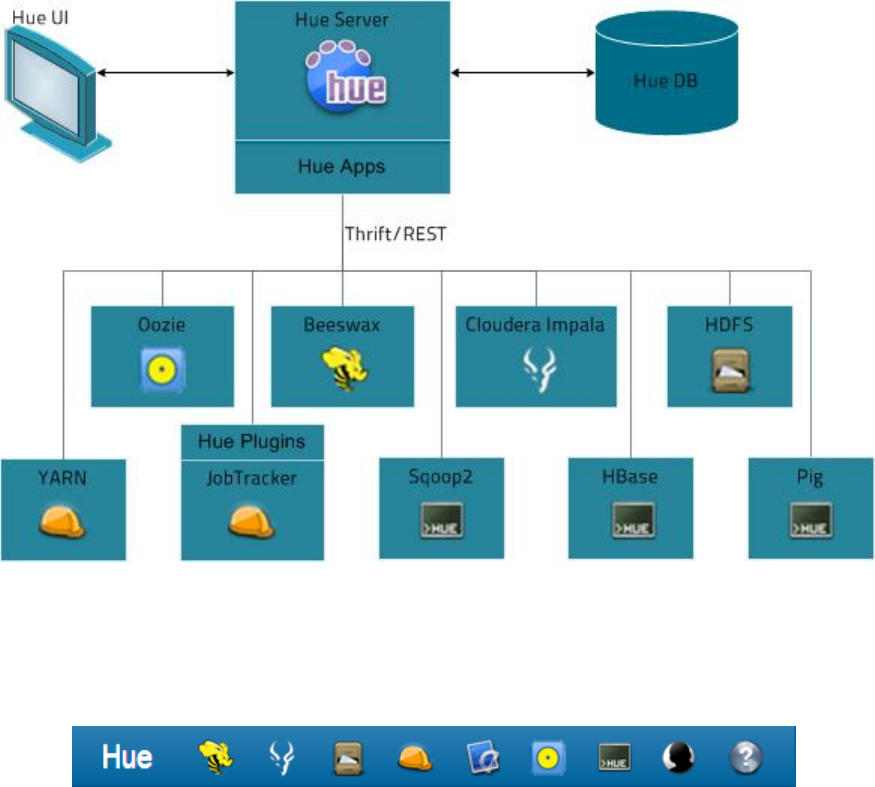
Hue Architecture
Hue applications run in a Web browser and require no client installation.
The following figure illustrates how Hue works. Hue Server is a "container" web application that sits in between
your CDH installation and the browser. It hosts all the Hue web applications and communicates with various
servers that interface with CDH components.
Starting Applications
To open a Hue application, click the appropriate tab in the navigation bar at the top of the Hue web browser
window .
To open a second application concurrently (or a second instance of the same application), open it in a new tab.
Right-click the tab and select Open link in new tab.
Hue 2 User Guide | 9
Introducing Hue

Displaying Help for the Hue Applications
To display the help text for a Hue application, click the Help ( ) tab in the Hue navigation bar, then click the
appropriate link in the Help navigation bar at the top of the Help window.
Logging In and Out
To log out of Hue, click Sign Out from the pull-down list under the logged-in user name (at the right of the Hue
navigation bar).
Notice of Misconfiguration
If Hue detects a misconfiguration, an indicator appears in the navigation bar at the top of the page. Clicking
this takes you to the Check for misconfiguration page which will indicate the potential misconfiguration(s) with
hints about fixing them.
Changing your Password
If authentication is managed by Hue (that is, authentication is not managed via some external mechanism), you
can use the User Admin application to change your password. You can go directly to your own information by
selecting Profile under the logged-in user name at the right of the Hue navigation bar. For more information,
see the User Admin Help.
Seeking Help, Reporting Bugs, and Providing Feedback
The Hue team strongly values your feedback. The best way to contact us is to send email to
hue-user@cloudera.org.
If you're experiencing transient errors (typically an error message saying a service is down), contact your system
administrator first.
Browser Compatibility
Hue works in Chrome, Firefox, and Safari. Internet Explorer 8 and 9 are also supported.
10 | Hue 2 User Guide
Introducing Hue

About Hue
The About Hue application displays the version of Hue you are running and lets you view configuration and logs.
Starting About Hue
To start the About Hue application, click in the navigation bar at the top of the Hue browser page.
About Hue Actions
Within the About Hue page you can:
•Click the Configuration tab to view the current Hue configuration. This page shows a list of the installed Hue
applications. Click the relevant tab under Configuration Sections and Variables to see the variables configured
for a given application. The location of the configuration file is shown at the top of the page (by default in
/etc/hue). Note that all Hue configuration settings are done in the hue.ini file.
•Click the Check for misconfiguration tab to have Hue validate your Hue configuration. It will note any potential
misconfigurations and provide hints as to how to fix them. You can edit the configuration file or use Cloudera
Manager, if installed, to manage your changes.
•Click the Server Logs tab to view the Hue Server logs. You can also download the logs to your local system
as a zip file from this page.
Hue 2 User Guide | 11
About Hue

Beeswax
The Beeswax application enables you to perform queries on Apache Hive, a data warehousing system designed
to work with Hadoop. For information about Hive, see Hive Documentation. You can create Hive tables, load
data, create, run, and manage queries, and download the results in a Microsoft Office Excel worksheet file or a
comma-separated values file.
Beeswax and Hive Installation and Configuration
Beeswax is installed and configured as part of Hue. For information about installing and configuring Hue, see
Hue Installation.
Beeswax assumes an existing Hive installation. The Hue installation instructions include the configuration
necessary for Beeswax to access Hive. You can view the current Hive configuration from from the Settings tab
in the Beeswax application.
By default, a Beeswax user can see the saved queries for all users – both his/her own queries and those of other
Beeswax users. To restrict viewing saved queries to the query owner and Hue administrators, set the
share_saved_queries property under the [beeswax] section in the Hue configuration file to false.
Starting Beeswax
To start the Beeswax application, click the Beeswax icon ( ) in the navigation bar at the top of the Hue
browser page.
Installing the Sample Tables
You can install two sample tables to use as examples.
1. In the Beeswax window, click Tables.
2. In the ACTIONS pane, click Install samples.
Once you have installed the sample data, you will no longer see the Install samples link.
Importing Your Own Data
If you want to import your own data instead of installing the sample tables, follow the procedure in Creating
Tables.
Hue 2 User Guide | 13
Beeswax

Working with Queries
The Query Editor view lets you create queries in the Hive Query Language (HQL), which is similar to Structured
Query Language (SQL). You can name and save your queries to use later. When you submit a query, the Beeswax
Server uses Hive to run the queries. You can either wait for the query to complete, or return later to find the
queries in the History view. You can also request receive an email message after the query is completed.
Creating and Running Queries
Note:
To run a query, you must be logged in to Hue as a user that also has a Unix user account on the remote
server.
To create and run a query:
1. In the Query Editor window, type the query. For example, to select all data from the sample_08 table, you
would type:
SELECT * FROM sample_08
2. In the box to the left of the Query field, you can override the default Hive and Hadoop settings, specify file
resources and user-defined functions, and enable users to enter parameters at run-time, and request email
notification when the job is complete. See Advanced Query Settings for details on using these settings.
3. To save your query and advanced settings to use again later, click Save As, enter a name and description,
and then click OK. To save changes to an existing query, click Save.
4. If you want to view the execution plan for the query, click Explain. For more information, see
http://wiki.apache.org/hadoop/Hive/LanguageManual/Explain.
5. To run the query, click Execute. The Query Results window displays with the results of the query.
6. Do any of the following to download or save the query results:
•Click Download as CSV to download the results in a comma-separated values file suitable for use in other
applications.
•Click Download as XLS to download the results in a Microsoft Office Excel worksheet file.
•Click Save to save the results in a table or HDFS file.
–To save the results in a new table, select In a new table, enter a table name, and then click Save.
–To save the results in an HDFS file, select In an HDFS directory, enter a path and then click Save. You
can then download the file with FileBrowser.
Important:
•You can only save results to a file when the results were generated by a MapReduce job.
•This is the preferred way to save when the result is large (for example > 1M rows).
•Under MR Jobs, you can view any MapReduce jobs that the query started.
•To view a log of the query execution, click Log at the top of the results display. You can use the information
in this tab to debug your query.
•To view the query that generated these results, click Query at the top of the results display.
•To view the columns of the query, click Columns.
14 | Hue 2 User Guide
Beeswax
•To return to the query in the Query Editor, click Unsaved Query.
Advanced Query Settings
The pane to the left of the Query Editor lets you specify the following options:
DescriptionOption
The database containing the table definitions.DATABASE
Override the Hive and Hadoop default settings. Click Add to configure a new setting. » For
Key, enter a Hive or Hadoop configuration variable name. » For Value, enter the value you
SETTINGS
want to use for the variable. For example, to override the directory where structured
Hive query logs are created, you would enter hive.querylog.location for Key, and a path
for Value. To view the default settings, click the Settings tab at the top of the page. For
information about Hive configuration variables, see:
http://wiki.apache.org/hadoop/Hive/AdminManual/Configuration. For information about
Hadoop configuration variables, see:
http://hadoop.apache.org/docs/current/hadoop-mapreduce-client/hadoop-mapreduce-client-core/mapred-default.xml
Make locally accessible files available at query execution time on the entire Hadoop cluster.
Hive uses Hadoop's Distributed Cache to distribute the added files to all machines in the
FILE RESOURCES
cluster at query execution time. Click Add to configure a new setting. From the Type
drop-down menu, choose one of the following: jar — Adds the resources to the Java classpath.
This is required in order to reference objects such as user defined functions. archive —
Automatically unarchives resources when distributing them. file — Adds resources to the
distributed cache. Typically, this might be a transform script (or similar) to be executed. For
Path, enter the path to the file or click Choose a File to browse and select the file.
Note: It is not necessary to specify files used in a transform script if the files are
available in the same path on all machines in the Hadoop cluster.
Specify user-defined functions in a query. Specify the function name for Name, and specify
the class name for Class name. Click Add to configure a new setting. You must specify a JAR
USER-DEFINED
FUNCTIONS file for the user-defined functions in File Resources. To include a user-defined function in
a query, add a $ (dollar sign) before the function name in the query. For example, if
MyTable
is a user-defined function name in the query, you would type: SELECT * $MyTable
Indicate that a dialog box should display to enter parameter values when a query containing
the string $<parametername> is executed. Enabled by default.
PARAMETERIZATION
Indicate that an email message should be sent after a query completes. The email is sent
to the email address specified in the logged-in user's profile.
EMAIL
NOTIFICATION
Hue 2 User Guide | 15
Beeswax

Viewing Query History
Beeswax enables you to view the history of queries that you have previously run. Results for these queries are
available for one week or until Hue is restarted.
To view query history:
1. In the Beeswax window, click History. Beeswax displays a list of your saved and unsaved queries in the Query
History window.
2. To display the queries for all users, click Show everyone's queries. To display your queries only, click Show
my queries.
3. To display the automatically generated actions that Beeswax performed on a user's behalf, click Show auto
actions. To display user queries again, click Show user queries.
Viewing, Editing, or Deleting My Queries
You can view a list of saved queries of all users by clicking Saved Queries in the Beeswax window. You can copy
any user's query, but you can only edit, delete, and view the history of your own queries.
To edit a saved query:
1. In the Beeswax window, click Saved Queries. The Queries window displays.
2. Click the Options button next to the query and choose Edit from the context menu. The query displays in the
Query Editor window.
3. Change the query and then click Save. You can also click Save As, enter a new name, and click OK to save a
copy of the query.
To delete a saved query:
1. In the Beeswax window, click Saved Queries. The Queries window displays.
2. Click the Options button next to the query and choose Delete from the context menu.
3. Click Yes to confirm the deletion.
To copy a saved query:
1. In the Beeswax window, click Saved Queries. The Queries window displays.
2. Click the Options button next to the query and choose Clone from the context menu. Beeswax displays the
query in the Query Editor window.
3. Change the query as necessary and then click Save. You can also click Save As, enter a new name, and click
Ok to save a copy of the query.
To copy a query in the Beeswax Query History window:
1. In the Beeswax window, click History. The Query History window displays.
2. To display the queries for all users, click Show everyone's queries. The queries for all users display in the
Query History window.
3. Click the Clone link next to the query you want to copy. A copy of the query displays in the Query Editor
window.
4. Change the query, if necessary, and then click Save As, enter a new name, and click OK to save the query.
Working with Tables
When working with Hive tables, you can use Beeswax to:
•Select a database
16 | Hue 2 User Guide
Beeswax

•Create tables
•Browse tables
•Import data into tables
•Drop Tables
•View the location of a table
Selecting the Database
1. In the pane on the left, select the database from the DATABASE drop-down list.
Creating Tables
Although you can create tables by executing the appropriate HQL DDL query commands, it is easier to create a
table using the Beeswax table creation wizard.
There are two ways to create a table: from a file or manually.
If you create a table from a file, the format of the data in the file will determine some of the properties of the
table, such as the record and file formats. The data from the file you specify is imported automatically upon
table creation.
When you create a file manually, you specify all the properties of the table, and then execute the resulting query
to actually create the table. You then import data into the table as an additional step.
To create a table from a file:
1. In the Beeswax window, click Tables.
2. In the ACTIONS pane, click Create a new table from a file. The table creation wizard starts.
3. Follow the instructions in the wizard to create the table. The basic steps are:
•Choose your input file. The input file you specify must exist. Note that you can choose to have Beeswax
create the table definition only based on the import file you select, without actually importing data from
that file.
•Specify the column delimiter.
•Define your columns, providing a name and selecting the type.
4. Click Create Table to create the table. The new table's metadata displays on the right side of the Table Metadata
window. At this point, you can view the metadata or a sample of the data in the table. From the ACTIONS
pane you can import new data into the table, browse the table, drop it, or go to the File Browser to see the
location of the data.
To create a table manually:
1. In the Beeswax window, click Tables.
2. In the ACTIONS pane, click Create a new table manually. The table creation wizard starts.
3. Follow the instructions in the wizard to create the table. The basic steps are:
•Name your table.
•Choose the record format.
•Configure record serialization by specifying delimiters for columns, collections, and map keys.
•Choose the file format.
•Specify the location for your table's data.
•Define your columns, providing a name and selecting the type.
•Add partitions, if appropriate.
4. Click Create table. The Table Metadata window displays.
Hue 2 User Guide | 17
Beeswax
Browsing Tables
To browse the data in a table:
1. In the Table List window, click the Browse Data button next to the table you want to browse. The table's data
displays in the Query Results window.
To browse the metadata in a table:
1. In the Table List window, click the table name. The table's metadata displays opened to the Columns tab.
You can view the data in the table by selecting the Sample tab.
Importing Data into Tables
When importing data, you can choose to append or overwrite the table's data with data from a file.
To import data into a table:
1. In the Table List window, click the table name. The Table Metadata window displays.
2. In the ACTIONS pane, click Import Data.
3. For Path, enter the path to the file that contains the data you want to import.
4. Check Overwrite existing data to replace the data in the selected table with the imported data. Leave this
unchecked to append to the table.
5. Click Submit.
Dropping Tables
To drop a table:
1. In the Table List window, click the table name. The Table Metadata window displays.
2. In the ACTIONS pane, click Drop Table.
3. Click Yes to confirm the deletion.
Viewing a Table's Location
To view a table's location:
1. In the Table List window, click the table name. The Table Metadata window displays.
2. Click View File Location. The file location of the selected table displays in its directory in the File Browser
window.
18 | Hue 2 User Guide
Beeswax

Cloudera Impala Query UI
The Cloudera Impala Query UI application enables you to perform queries on Apache Hadoop data stored in HDFS
or HBase using Cloudera Impala. For information about Cloudera Impala, see Installing and Using Cloudera
Impala. You can create, run, and manage queries, and download the results in a Microsoft Office Excel worksheet
file or a comma-separated values file.
Cloudera Impala Query UI and Installation and Configuration
The Cloudera Impala Query UI application is one of the applications installed as part of Hue. For information
about installing and configuring Hue, see Hue Installation.
The Cloudera Impala Query UI assumes an existing Cloudera Impala installation. The Hue installation instructions
include the configuration necessary for Impala. You can view the current configuration from from the Settings
tab.
Starting Cloudera Impala Query UI
To start the application, click the Cloudera Impala icon ( ) in the navigation bar at the top of the Hue browser
page.
Working with Queries
The Query Editor view lets you create queries in the Cloudera Impala Query Language, which is based on the
Hive Standard Query Language (HiveQL) and described in the Cloudera Impala Language Reference topic in
Installing and Using Cloudera Impala. You can name and save your queries to use later. When you submit a
query, you can either wait for the query to complete, or return later to find the queries in the History view.
Creating and Running Queries
Note:
To run a query, you must be logged in to Hue as a user that also has a Unix user account on the remote
server.
To create and run a query:
1. In the Query Editor window, type the query. For example, to select all data from the sample_08 table, you
would type:
SELECT * FROM sample_08
2. In the box to the left of the Query field you can enable users to enter parameters at run-time and request
email notification when the job is complete. See Advanced Query Settings for details on using these settings.
Hue 2 User Guide | 19
Cloudera Impala Query UI

3. To save your query and advanced settings to use again later, click Save As, enter a name and description,
and then click OK. To save changes to an existing query, click Save.
4. To run the query, click Execute. The Query Results window appears with the results of your query.
•To view a log of the query execution, click Log at the top of the results display. You can use the information
in this tab to debug your query.
•To view the query that generated these results, click Query at the top of the results display.
•To view the columns of the query, click Columns.
•To return to the query in the Query Editor, click Unsaved Query.
Advanced Query Settings
The pane to the left of the Query Editor lets you specify the following options:
DescriptionOption
Override the Cloudera Impala default settings. Click Add to configure a new setting.
» For Key, enter an Impala configuration variable name. » For Value, enter the
SETTINGS
value you want to use for the variable. To view the default settings, click the Settings
tab at the top of the page.
Indicate that a dialog box should display to enter parameter values when a query
containing the string $<parametername> is executed. Enabled by default.
PARAMETERIZATION
Viewing, Editing, or Deleting My Queries
You can view a list of saved queries of all users by clicking Saved Queries. You can copy any user's query, but
you can only edit, delete, and view the history of your own queries.
To edit a saved query:
1. In the Cloudera Impala window, click Saved Queries. The Queries window displays.
2. Click the Options button next to the query and choose Edit from the context menu. The Query Editor window
displays.
3. Change the query and then click Save. You can also click Save As, enter a new name, and click OK to save a
copy of the query.
To delete a saved query:
1. Click Saved Queries. The Queries window displays.
2. Click the Options button next to the query and choose Delete from the context menu.
3. Click Yes to confirm the deletion.
To copy a saved query:
1. Click Saved Queries. The Queries window displays.
2. Click the Options button next to the query and choose Clone from the context menu. The Query Editor window
displays.
20 | Hue 2 User Guide
Cloudera Impala Query UI
3. Change the query as necessary and then click Save. You can also click Save As, enter a new name, and click
Ok to save a copy of the query.
To copy a query in the Query History window:
1. Click History. The Query History window displays.
2. To display the queries for all users, click Show everyone's queries. The queries for all users displays in the
Query History window.
3. Click the Clone link next to the query you want to copy. A copy of the query displays in the Query Editor
window.
4. Change the query, if necessary, and then click Save As, enter a new name, and click OK to save the query.
Hue 2 User Guide | 21
Cloudera Impala Query UI

File Browser
The File Browser application lets you browse and manipulate files and directories in the Hadoop Distributed File
System (HDFS) while using Hue. With File Browser, you can:
•Create files and directories, upload and download files, upload zip archives, and rename, move, and delete
files and directories. You can also change a file's or directory's owner, group, and permissions. See Working
with Files and Directories.
•Search for files, directories, owners, and groups. See Searching for Files and Directories.
•View and edit files as text or binary. See Viewing and Editing Files.
File Browser Installation and Configuration
File Browser is one of the applications installed as part of Hue. For information about installing and configuring
Hue, see Hue Installation.
Starting File Browser
To start the File Browser application, click the File Browser icon ( ) in the navigation bar at the top of the
Hue browser page.
Working with Files and Directories
You can use File Browser to view the input and output files of your MapReduce jobs. Typically, you can save your
output files in /tmp or in your home directory if your system administrator set one up for you. You must have
the proper permissions to manipulate other user's files.
Creating Directories
To create a directory:
1. In the File Browser window, select New > Directory.
2. In the Create Directory dialog box, enter a directory name and then click Submit.
Changing Directories
To change to a different directory, do one of the following:
•Click the directory name or parent directory dots in the File Browser window.
•Click the ( ) icon, type a directory name, and press Enter.
To change to your home directory, click Home in the path field at the top of the File Browser window.
Hue 2 User Guide | 23
File Browser

Note:
The Home button is disabled if you do not have a home directory. Ask a Hue administrator to create
a home directory for you.
Creating Files
To create a file:
1. In the File Browser window, select New > File.
2. In the Create File dialog box, enter a file name and then click Submit.
Uploading Files
You can upload text and binary files to the HDFS.
To upload files:
1. In the File Browser window, browse to the directory where you want to upload the file.
2. Select Upload > Files.
3. In the box that opens, click Upload a File to browse to and select the file(s) you want to upload, and then click
Open.
Downloading Files
You can download text and binary files to the HDFS.
To download files:
1. In the File Browser window, check the checkbox next to the file you want to download.
2. Click the Download button.
Uploading Zip Archives
You can upload zip archives to the HDFS. The archive is uploaded and extracted to a directory named
<archivename>.
To upload a zip archives:
1. In the File Browser window, browse to the directory where you want to upload the archive.
2. Select Upload > Zip file.
3. In the box that opens, click Upload a zip file to browse to and select the archive you want to upload, and then
click Open.
Renaming, Moving, and Deleting Files and Directories
To rename a file or directory:
1. In the File Browser window, check the checkbox next to the file or directory you want to rename.
2. Click the Rename button.
3. Enter the new name and then click Submit.
To move a file or directory:
24 | Hue 2 User Guide
File Browser

1. In the File Browser window, check the checkbox next to the file or directory you want to move.
2. Click the Move button.
3. In the Move dialog box, browse to or type the new directory, and then click Submit.
To delete a file or directory:
1. In the File Browser window, check the checkbox next to the file or directory you want to delete. If you select
a directory, all of the files and subdirectories contained within that directory are also deleted.
2. Click the Delete button.
3. Click Yes to confirm the deletion.
Changing a File's or Directory's Owner, Group, or Permissions
Note:
Only the Hadoop superuser can change a file's or directory's owner, group, or permissions. The user
who starts Hadoop is the Hadoop superuser. The Hadoop superuser account is not necessarily the
same as a Hue superuser account. If you create a Hue user (in User Admin) with the same user name
and password as the Hadoop superuser, then that Hue user can change a file's or directory's owner,
group, or permissions.
To change a file's or directory's owner or group:
1. In the File Browser window, check the checkbox next to the select the file or directory whose owner or group
you want to change.
2. Choose Change Owner/Group from the Options menu.
3. In the Change Owner/Group dialog box:
•Choose the new user from the User drop-down menu.
•Choose the new group from the Group drop-down menu.
•Check the Recursive checkbox to propagate the change.
4. Click Submit to make the changes.
To change a file's or directory's permissions:
1. In the File Browser window, check the checkbox next to the file or directory whose permissions you want to
change.
2. Click the Change Permissions button.
3. In the Change Permissions dialog box, select the permissions you want to assign and then click Submit.
Searching for Files and Directories
You can search for files or directories by name using the query search box.
To search for files and directories by name:
1. Enter the name of the file or directory in the query search box. File Browser lists the files or directories
matching the search criteria.
Hue 2 User Guide | 25
File Browser
Viewing and Editing Files
You can view and edit files as text or binary.
To view files:
1. In the File Browser window, click the file you want to view. File Browser displays the first 4,096 bytes of the
file in the File Viewer window.
•If the file is larger than 4,096 bytes, use the Block navigation buttons (First Block, Previous Block, Next
Block, Last Block) to scroll through the file block by block. The Viewing Bytes fields show the range of
bytes you are currently viewing.
•To switch the view from text to binary, click View as Binary to view a hexdump.
•To switch the view from binary to text, click View as Text.
To edit files:
1. If you are viewing a text file, click Edit File. File Browser displays the contents of the file in the File Editor
window.
2. Edit the file and then click Save or Save As to save the file.
To view the file's location in the HDFS, click View File Location. File Browser displays the file's location in the File
Browser window.
26 | Hue 2 User Guide
File Browser

Job Browser
The Job Browser application lets you to examine the Hadoop MapReduce jobs running on your Hadoop cluster.
Job Browser presents the job and tasks in layers. The top layer is a list of jobs, and you can link to a list of that
job's tasks. You can then view a task's attempts and the properties of each attempt, such as state, start and
end time, and output size. To troubleshoot failed jobs, you can also view the logs of each attempt.
Job Browser Installation and Configuration
Job Browser is one of the applications installed as part of Hue. For information about installing and configuring
Hue, see Hue Installation.
Job Browser can display both MRv1 and MRv2 jobs, but must be configured to display one type at a time in the
[mapred_clusters] and [yarn_clusters] sections in the Hue configuration file.
By default, a JobBrowser user can see submitted job information for all users – both his/her own jobs and those
of other users. To restrict viewing of submitted jobs to the job submitter and Hue administrators, set the
share_jobs property under the [jobbrowser] section in the Hue configuration file to false.
Starting Job Browser
To start Job Browser, click the Job Browser icon ( ) in the navigation bar at the top of the Hue web
page.
If there are no jobs that have been run, the Welcome to the Job Browser page opens, with links to the Job Designer
and Beeswax.
If there are jobs running, then the Job Browser list appears.
Filtering the Job Browser List
To filter the jobs displayed in the Job Browser list:
•To filter the jobs by their state (such as Running or Completed), choose a state from the Job status drop-down
menu.
•To filter by a user who ran the jobs, enter the user's name in the User Name query box.
•To filter by job name, enter the name in the Text query box.
•To clear the filters, choose All States from the Job status drop-down menu and delete any text in the User
Name and Text query boxes.
•To display retired jobs, check the Show retired jobs checkbox. Retired jobs show somewhat limited information
– for example, information on maps and reduces and job duration is not available. Jobs are designated
as Retired by the JobTracker based on the value of mapred.jobtracker.retirejob.interval. The retired
jobs no longer display after the JobTracker is restarted.
Hue 2 User Guide | 27
Job Browser

Viewing Job Information and Logs
At any level you can view the log for an object by click the icon in the Logs column.
To view job information for an individual job:
1. In the Job Browser window, click View at the right of the job you want to view. This shows the Job page for
the job, with the recent tasks associated with the job are displayed in the Tasks tab.
2. Click the Metadata tab to view the metadata for this job.
3. Click the Counters tab to view the counter metrics for the job.
To view details about the tasks associated with the job:
1. In the Job window, click the View All Tasks link at the right just above the Recent Tasks list. This lists all the
tasks associated with the job.
2. Click Attempts to the right of a task to view the attempts for that task.
To view information about an individual task:
1. In the Job window, click the View link to the right of the task. The attempts associated with the task are
displayed.
2. Click the Metadata tab to view metadata for this task. The metadata associated with the task is displayed.
3. To view the Hadoop counters for a task, click the Counters tab. The counters associated with the task are
displayed.
4. To return to the Job window for this job, click the job number in the status panel at the left of the window.
To view details about a task attempt:
1. In the Job Task window, click the View link to the right of the task attempt. The metadata associated with
the attempt is displayed under the Metadata tab.
2. To view the Hadoop counters for the task attempt, click the Counters tab. The counters associated with the
attempt are displayed.
3. To view the logs associated with the task attempt, click the Logs tab. The logs associated with the task
attempt are displayed.
4. To return to the list of tasks for the current job, click the task number in the status panel at the left of the
window.
Viewing Job Output
To view job output:
1. In the Job Browser window, click the link in the ID column.
2. To view the output of the job, click the link under OUTPUT in the panel at the left of the window. This takes
you to the job output directory in the File Browser.
28 | Hue 2 User Guide
Job Browser
Job Designer
The Job Designer application enables you to create and submit Hadoop MapReduce jobs to the Hadoop cluster.
You can include variables with your jobs to enable you and other users to enter values for the variables when
they run your job. The Job Designer supports MapReduce, streaming, and Java jobs. For more information about
Hadoop MapReduce, see the Hadoop Tutorial.
Note:
•Job Designer uses Oozie to submit MapReduce jobs. Therefore, Oozie must be installed and
configured before you can use JobDesigner. For information about installing Oozie, see Oozie
Installation.
•In order to run Streaming jobs as part of a workflow, Oozie must be configured to use the Oozie
ShareLib.
•A job's input files must be uploaded to the cluster before you can submit the job.
Job Designer Installation and Configuration
Job Designer is one of the applications installed as part of Hue. For information about installing and configuring
Hue, see Hue Installation.
Starting Job Designer
To start Job Designer, click the Job Designer icon ( ) in the navigation bar at the top of the Hue web
page. The Job Designs page opens in the browser.
Installing the Sample Job Designs
The Job Designer sample job designs can help you learn how to use Job Designer. To install the sample job
designs, click Install Samples in the Job Designs window and then click Yes. The sample job designs are displayed
in the Job Designs window. Job Designer removes the Install Samples button after the samples are installed so
you can only install the samples once.
Job Designs
A job design specifies several meta-level properties of a MapReduce job, including the job design name, description,
the MapReduce executable scripts or classes, and any parameters for those scripts or classes. You can create
three types of job designs: MapReduce, streaming, and Java.
Hue 2 User Guide | 29
Job Designer

Filtering Job Designs
You can filter the job designs that appear in the list by owner, name, type, and description.
To filter the Job Designs list:
1. In the Job Designs window, click Designs.
2. Enter text in the Filter text box at the top of the Job Designs window. When you type in the Filter field, the
designs are dynamically filtered to display only those rows containing text that matches the specified
substring.
Job Design Settings
All job design settings except Name and Description support the use of variables of the form $variable_name.
When you run the job, a dialog box will appear to enable you to specify the values of the variables.
Common Settings
All job design types support the settings listed in the following table.
DescriptionSetting
Identifies the job and its collection of properties and parameters.Name
A description of the job. The description is displayed in the dialog box that appears if
you specify variables for the job.
Description
Job properties. To set a property value, click Add Property. Job Properties
•Property name - a configuration property name. This field provides auto-completion,
so you can type the first few characters of a property name and then select the one
you want from the drop-down list.
•Value - the property value.
Files to pass to the job. Equivalent to the Hadoop -files option. Files
Archives to pass to the job. Equivalent to the Hadoop -archives option.Archives
Creating a MapReduce Job Design
A MapReduce job design consists of MapReduce functions written in Java. You can create a MapReduce job
design from existing mapper and reducer classes without having to write a main Java class. You must specify
the mapper and reducer classes as well as other MapReduce properties in the Job Properties setting.
To create a MapReduce job design:
1. In the Job Designs window, click Create MapReduce Design.
2. In the Job Design (MapReduce type) window, specify the common and job type specific information.
30 | Hue 2 User Guide
Job Designer

DescriptionSetting
The fully-qualified path to a JAR file containing the
classes that implement the Mapper and Reducer
functions.
Jar path
3. Click Save to save the job settings.
Creating a Streaming Job Design
Hadoop streaming jobs enable you to create MapReduce functions in any non-Java language that reads standard
Unix input and writes standard Unix output. For more information about Hadoop streaming jobs, see Hadoop
Streaming.
To create a streaming job design:
1. In the Job Designs window, click Create Streaming Design.
2. In the Job Design (streaming type) window, specify the common and job type specific information.
DescriptionSetting
The path to the mapper script or class. If the mapper file is not on the machines on
the cluster, use the Files option to pass it as a part of job submission. Equivalent to
the Hadoop -mapper option.
Mapper
The path to the reducer script or class. If the reducer file is not on the machines on
the cluster, use the Files option to pass it as a part of job submission. Equivalent to
the Hadoop -reducer option.
Reducer
3. Click Save to save the job settings.
Creating a Java Job Design
A Java job design consists of a main class written in Java.
To create a Java job design:
1. In the Job Designs window, click Create Java Design.
2. In the Job Design (java type) window, specify the common and job type specific information.
DescriptionSetting
The fully-qualified path to a JAR file containing the
main class.
Jar path
The main class to invoke the program.Main class
Hue 2 User Guide | 31
Job Designer
DescriptionSetting
The arguments to pass to the main class.Args
The options to pass to the JVM.Java opts
3. Click Save to save the job settings.
Submitting a Job Design
To submit a job design:
1. In the Job Designs window, click Designs in the upper left corner. Your jobs and other users' jobs are displayed
in the Job Designs window.
2. Check the checkbox next to the job you want to submit.
3. Click the Submit button.
a. If the job contains variables, enter the information requested in the dialog box that appears. For example,
the sample grep MapReduce design displays a dialog where you specify the output directory.
b. Click Submit to submit the job.
After the job is complete, the Job Designer displays the results of the job. For information about displaying job
results, see Displaying the Results of Submitting a Job.
Copying, Editing, and Deleting a Job Design
If you want to edit and use a job but you don't own it, you can make a copy of it and then edit and use the copied
job.
To copy a job design:
1. In the Job Designs window, click Designs. The jobs are displayed in the Job Designs window.
2. Check the checkbox next to the job you want to clone.
3. Click the Clone button.
4. In the Job Design Editor window, change the settings and then click Save to save the job settings.
To edit a job design:
1. In the Job Designs window, click Designs. The jobs are displayed in the Job Designs window.
2. Check the checkbox next to the job you want to edit.
3. Click the Edit button.
4. In the Job Design window, change the settings and then click Save to save the job settings.
To delete a job design:
1. In the Job Designs window, click Designs. The jobs are displayed in the Job Designs window.
2. Check the checkbox next to the job you want to delete.
3. Click the Delete button.
4. Click Ok to confirm the deletion.
32 | Hue 2 User Guide
Job Designer

Displaying Results of Submitting a Job
To display the Job Submission History:
In the Job Designs window, click the History tab. The jobs are displayed in the Job Submissions History listed by
Oozie job ID.
To display Job Details:
In the Job Submission History window, click an Oozie Job ID. The results of the job display:
•Actions - a list of actions in the job.
•Click to display the action configuration. In the action configuration for a MapReduce action, click the
value of the mapred.output.dir property to display the job output.
•In the root-node row, click the Id in the External Id column to view the job in the Job Browser.
•Details - the job details. Click to display the Oozie application configuration.
•Definition - the Oozie application definition.
•Log - the output log.
Hue 2 User Guide | 33
Job Designer
Oozie Editor and Dashboard
The Oozie Editor/Dashboard application allows you to define Oozie workflow and coordinator applications, run
workflow and coordinator jobs, and view the status of jobs. For information about Oozie, see Oozie Documentation.
A workflow application is a collection of actions arranged in a directed acyclic graph (DAG). It includes control
flow nodes (start, end, fork, join, decision, and kill) and action nodes (MapReduce, Streaming, Java, Pig, Hive, Sqoop,
Shell, Ssh, DistCp, Fs, Email, Sub-workflow, and Generic).
A coordinator application allows you to define and execute recurrent and interdependent workflow jobs. The
coordinator application defines the conditions under which the execution of workflows can occur.
Oozie Editor/Dashboard Installation and Configuration
Oozie Editor/Dashboard is one of the applications installed as part of Hue. For information about installing and
configuring Hue, see Hue Installation.
Note:
In order to run DistCp, Streaming, Pig, Sqoop, and Hive jobs as part of a workflow, Oozie must be
configured to use the Oozie ShareLib. See Oozie Installation.
Starting Oozie Editor/Dashboard
To start Oozie Editor/Dashboard, click the Oozie Editor/Dashboard icon ( ) in the navigation bar at the top
of the Hue browser page. Oozie Editor/Dashboard opens with the following screens:
•Dashboard - shows the running and completed workflow and coordinator jobs. The screen is selected and
opened to the Workflows page.
•Workflows - shows available workflows.
•Coordinators - shows available coordinators.
•History - shows a list of submitted jobs.
Installing Oozie Editor/Dashboard Samples
The Oozie Editor/Dashboard sample workflows and coordinators can help you learn how to use Oozie
Editor/Dashboard. To install the samples:
1. Click the Workflows tab.
2. Click the Setup App button. This action adds samples demonstrating all the types of actions to the Workflows
Editor and samples to the Coordinator Editor. It also creates workspaces and deployment directories required
by the samples in /user/hue/oozie.
Hue 2 User Guide | 35
Oozie Editor and Dashboard

Filtering Lists in Oozie Editor/Dashboard
The Dashboard, Workflows, Coordinators, and History screens contain lists of workflows, coordinators, and jobs.
When you type in the Filter field on these screens, the lists are dynamically filtered to display only those rows
containing text that matches the specified substring.
Permissions in Oozie Editor/Dashboard
In the Dashboard workflows and coordinators can only be viewed, submitted, and modified by its owner or a
superuser.
Editor permissions for performing actions on workflows and coordinators are summarized in the following table:
AllSuperuser or OwnerAction
Only if "Is shared" is setYView
Only if "Is shared" is setYSubmit
NYModify
Oozie Dashboard
Oozie Dashboard shows a summary of the running and completed workflow and coordinator jobs.
You can view jobs for a period up to the last 30 days.
You can filter the list by date (1, 7, 15, or 30 days) or status (Succeeded, Running, or Killed). The date and status
buttons are toggles.
Workflows
Click the Workflows tab to view the running and completed workflow jobs for the filters you have specified.
Click a workflow row in the Running or Completed table to view detailed information about that workflow job.
For the selected job, the following information is available.
•The Graph tab shows the workflow DAG.
•The Actions tab shows you details about the actions that make up the workflow.
–Click the Id link to see additional details about the action.
–Click the External Id link to view the job in the Job Browser.
•The Details tab shows job statistics including start and end times, and provides a link to the workflow
definition in the File Browser.
36 | Hue 2 User Guide
Oozie Editor and Dashboard

•The Configuration tab shows selected job configuration settings.
•The Logs tab shows log output generated by the workflow job.
•The Definition tab shows the Oozie workflow definition, as it appears in the workflow.xml file (also linked
under the application path properties in the Details tab and the Configuration tab).
Coordinators
Click the Coordinators tab to view the running and completed coordinator jobs for the filters you have specified.
For the selected job, the following information is available.
•The Calendar tab shows the timestamp of the job. Click the timestamp to open the workflow DAG.
•The Actions tab shows you details about the actions that make up the coordinator.
–Click the Id link to see additional details about the action.
–Click the External Id link to view the job in the Job Browser.
•The Configuration tab shows selected job configuration settings.
•The Logs tab shows log output generated by the coordinator.
•The Definition tab shows the Oozie coordinator definition, as it appears in the coordinator.xml file (also
linked under the oozie.coord.application.path property in the Configuration tab).
Workflow Manager
In Workflow Manager you create Oozie workflows and submit them for execution.
Click the Workflows tab to open the Workflow Manager.
Each row shows a workflow: its name, description, timestamp of its last modification. It also shows:
•Steps: the number of steps in the workflow execution path. This is the number of execution steps between
the start and end of the workflow. This will not necessarily be the same as the number of actions in the
workflow, if there are control flow nodes in the control path.
•Status: who can run the workflow. shared means users other than the owner can access the
workflow. personal means only the owner can modify or submit the workflow. The default is personal.
•Owner: the user that created the workflow.
In Workflow Editor you edit workflows that include MapReduce, Streaming, Java, Pig, Hive, Sqoop, Shell, Ssh,
DistCp, Fs, Email, Sub-workflow, and Generic actions. You can configure these actions in the Workflow Editor,
or you can import job designs from Job Designer to be used as actions in your workflow. For information about
defining workflows, see the Workflow Specification.
Installing the Sample Workflows
1. Click the Setup Examples button at the top right.
Opening a Workflow
To open a workflow, in Workflow Manager, click the workflow. Proceed with Editing a Workflow.
Hue 2 User Guide | 37
Oozie Editor and Dashboard

Creating a Workflow
1. Click the Create button at the top right.
2. In the Name field, type a name.
3. Click advanced to specify whether the workflow is shared, the deployment directory, or a job.xml file.
4. Click Save. The Workflow Editor opens. Proceed with Editing a Workflow.
Importing a Workflow
1. Click the Import button at the top right.
2. In the Name field, type a name.
3. In the Local workflow.xml file field, click Choose File and select a workflow file.
4. Click advanced to specify whether the workflow is shared, the deployment directory, or a job.xml file.
5. Click Save. The Workflow Editor opens. Proceed with Editing a Workflow.
Submitting a Workflow
To submit a workflow for execution, do one of the following:
•In the Workflow Manager, click the radio button next to the workflow, and click the Submit button.
•In the Workflow Editor, click the Submit button.
The workflow job is submitted and the Dashboard displays the workflow job.
To view the output of the job, click View the logs.
Suspending a Running Job
In the pane on the left, click the Suspend button.
1. Verify that you want to suspend the job.
Resuming a Suspended Job
In the pane on the left, click the Resume button.
1. Verify that you want to resume the job.
Rerunning a Workflow
In the pane on the left, click the Rerun button.
1. Check the checkboxes next to the actions to rerun.
2. Specify required variables.
3. Click Submit.
Scheduling a Workflow
To schedule a workflow for recurring execution, do one of the following:
•In the Workflow Manager, click the radio button next to the workflow and click the Schedule button.
•In the Workflow Editor, click the Schedule button.
A coordinator is created and opened in the Coordinator Editor. Proceed with Editing a Coordinator.
38 | Hue 2 User Guide
Oozie Editor and Dashboard

Editing a Workflow
In the Workflow Editor you can easily perform operations on Oozie action and control nodes.
Action Nodes
The Workflow Editor supports dragging and dropping action nodes. As you move the action over other actions
and forks, highlights indicate active areas. If there are actions in the workflow, the active areas are the actions
themselves and the areas above and below the actions. If you drop an action on an existing action, a fork and
join is added to the workflow.
•Add actions to the workflow by doing one of the following:
–Click an action ( ) button and drop the action on the workflow. The Edit Node screen displays.
1. Set the action properties and click Done. Each action in a workflow must have a unique name.
•Click the Import action link to import an existing job design. The Import Action screen displays.
1. Click a radio button next to a job design and click Import. The action is added to the end of the workflow.
•
Clone an action by clicking the button.
1. The action is opened in the Edit Node screen.
2. Edit the action properties and click Done. The action is added to the end of the workflow.
•Delete an action by clicking the button.
•Edit an action by clicking the button.
•Change the position of an action by left-clicking and dragging an action to a new location.
Control Nodes
•Create a fork and join by dropping an action on top of another action.
•Remove a fork and join by dragging a forked action and dropping it above the fork.
•Convert a fork to a decision by clicking the button.
•To edit a decision:
1. Click the button.
2. Fill in the predicates that determine which action to perform and select the default action from the
drop-down list.
3. Click Done.
Uploading Workflow Files
In the Workflow Editor, click the Upload button.
Editing Workflow Properties
1. In the Workflow Editor, click the link under the Name or Description fields in the left pane.
Hue 2 User Guide | 39
Oozie Editor and Dashboard

2. To share the workflow with all users, check the Is shared checkbox.
3. To set advanced execution options, click advanced and edit the deployment directory, add parameters and
job properties, or specify a job.xml file.
4. Click Save.
Displaying the History of a Workflow
1. Do one of the following:
•In the Workflow Editor, click Show history in the pane at the left. Click a job.
•In the Oozie Dashboard/Editor, click the History tab. Click a submission Id.
Coordinator Manager
In Coordinator Manager you create Oozie coordinator applications and submit them for execution.
Click the Coordinators tab to open the Coordinator Manager.
Each row shows a coordinator: its name, description, timestamp of its last modification. It also shows:
•Workflow: the workflow that will be run by the coordinator.
•Frequency: how often the workflow referenced by the coordinator will be run.
•Status: who can run the coordinator. shared means users other than the owner can access the workflow.
personal means only the owner can modify or submit the workflow. The default is personal.
•Owner: the user that created the workflow.
In Coordinator Editor, you edit coordinators and the datasets required by the coordinators. For information about
defining coordinators and datasets, see the Coordinator Specification.
Opening a Coordinator
To open a coordinator, in Coordinator Manager, click the coordinator. Proceed with Editing a Coordinator.
Creating a Coordinator
To create a coordinator, in Coordinator Manager:
1. Click the Create button at the top right. The Coordinator wizard opens. Proceed with Editing a Coordinator.
Submitting a Coordinator
To submit a coordinator for execution, click the radio button next to the coordinator and click the Submit button.
Editing a Coordinator
In the Coordinator Editor you specify coordinator properties and the datasets on which the workflow scheduled
by the coordinator will operate by stepping through screens in a wizard. You can also advance to particular steps
and revisit steps by clicking the Step "tabs" above the screens. The following instructions walk you through the
coordinator wizard.
40 | Hue 2 User Guide
Oozie Editor and Dashboard

1. Type a name, select the workflow, check the Is shared checkbox to share the job, and click Next. If the
Coordinator Editor was opened after scheduling a workflow, the workflow will be set.
2. Select how many times the communicator will run for each specified unit, the start and end times of the
coordinator, the timezone of the start and end times, and click Next. The start and end times must be
expressed as UTC times. For example, to run at 10 pm PST, specify a start time of 6 am UTC of the following
day (+8 hours) and set the Timezone field to America/Los_Angeles.
3. Click Add to select an input dataset and click Next. If no datasets exist, follow the procedure in Creating a
Dataset.
4. Click Add to select an output dataset. Click Save coordinator or click Next to specify advanced settings.
5. To share the coordinator with all users, check the Is shared checkbox.
6. Fill in parameters to pass to Oozie, properties that determine how long a coordinator will wait before timing
out, how many coordinators can run and wait concurrently, and the coordinator execution policy.
7. Click Save coordinator.
Creating a Dataset
1. In the Coordinator Editor, do one of the following:
•Click here in the Inputs or Outputs pane at the top of the editor.
•In the pane at the left, click the Create new link. Proceed with Editing a Dataset.
Displaying Datasets
1. In the Coordinator Editor, click Show existing in pane at the left.
2. To edit a dataset, click the dataset name in the Existing datasets table. Proceed with Editing a Dataset.
Editing a Dataset
1. Type a name for the dataset.
2. In the Start and Frequency fields, specify when and how often the dataset will be available.
3. In the URI field, specify a URI template for the location of the dataset. To construct URIs and URI paths
containing dates and timestamps, you can specify the variables
${YEAR},${MONTH},${DAY},${HOUR},${MINUTE}. For example:
hdfs://foo:9000/usr/app/stats/${YEAR}/${MONTH}/data.
4. In the Instance field, click a button to choose a default, single, or range of data instances. For example, if
frequency==DAY, a window of the last rolling 5 days (not including today) would be expressed as start: -5
and end: -1. Check the advanced checkbox to display a field where you can specify a coordinator EL function.
5. Specify the timezone of the start date.
6. In the Done flag field, specify the flag that identifies when input datasets are no longer ready.
Displaying the History of a Coordinator
1. Do one of the following:
•In the Coordinator Editor, click Show history in the pane at the left. Click a job.
•In the Oozie Dashboard/Editor, click the History tab. Click a coordinator.
Hue 2 User Guide | 41
Oozie Editor and Dashboard
Hue Shell
The Hue Shell application provides access to the Pig, HBase, and Sqoop 2 command-line shells. The Shell
application is designed to have the same look and feel as a Unix terminal. In addition to the shells configured
by default, it is possible to include almost any process that exposes a command-line interface as an option in
this Hue application.
Hue Shell Installation and Configuration
Hue Shell is one of the applications installed as part of Hue. For information about installing and configuring
Hue, see Hue Installation.
Unix User Accounts
To properly isolate subprocesses so as to guarantee security, each Hue user who is using the Shell subprocess
must have a Unix user account. The link between Hue users and Unix user accounts is the username, and so
every Hue user who wants to use the Shell application must have a Unix user account with the same name on
the system that runs the Hue Server. See Unix User Accounts for instructions.
Starting Hue Shell
1.
To start the Hue Shell application, click the Shell icon ( ) in the navigation bar at the top of the Hue
web page. (To start a second instance of the Shell application, right-click the link and select Open link in new
tab.) The Shell window opens in the Hue web page.
2. Click any of the tabs at the top of the Shell window to open a subprocess shell of that type.
Note: If a button is disabled, the program is not on the system path. Ask your Hue administrator to fix
this problem.
3. After opening a subprocess, click anywhere in the body of the Shell application window to focus the command
line. (Tab-completion is not supported.)
4. To end a process, type exit or quit depending on the type of subprocess you have opened.
Note: If you close your browser, the underlying shell process remains running for the amount of
time specified by your Hue administrator. After this time the process is killed.
Viewing Documentation for the Shells
For information about using each of the default shells, see the documentation on the following sites:
Hue 2 User Guide | 43
Hue Shell

User Admin
The User Admin application lets an administrator add, delete, and manage Hue user accounts and groups, and
configure group permissions. The permissions allow users, based on their group membership, to launch Hue
applications and use application features. You can add users and groups individually, or import them from an
LDAP directory.
Starting User Admin
To start User Admin:
•
Click the User Admin icon ( ) in the navigation bar at the top of the Hue browser page.
Working with User Accounts
The Hue User Admin application provides two levels of user privileges: superusers and users.
•Superusers — The first user who logs into Hue after its initial installation becomes the first superuser.
Superusers have permissions to perform administrative functions:
–add and delete users
–add and delete groups
–assign permissions to groups
–change a user into a superuser
–import users and groups from an LDAP server
•Users — can change their name, e-mail address, and password and log in to Hue and run Hue applications,
subject to the permissions provided by the Hue groups to which they belong.
Adding a User Account
To add a user account:
1. In the User Admin page, click Add User.
2. In the Add User dialog box, add information about the user. The following table describes the options in the
Add User dialog box.
DescriptionUser Account Option
A user name that contains only letters, numbers, and underscores; blank
spaces are not allowed and the name cannot begin with a number. The
Username
Hue 2 User Guide | 45
User Admin
DescriptionUser Account Option
user name is used to log into Hue and in file permissions and job
submissions. This is a required field.
A password for the user. This is a required field.Password and Password
confirmation
The user's first and last name.First name and Last name
The user's e-mail address. The e-mail address is used by the Job Designer
and Beeswax applications to send users an e-mail message after certain
E-mail address
actions have occurred. The Job Designer sends an e-mail message after a
user's job has completed. Beeswax sends a message after a query has
completed. If an e-mail address is not specified, the application will not
attempt to email the user.
The groups to which the user belongs. By default, a user is assigned to the
default group, which allows access to all applications. See Managing
Application Permissions.
Groups
Indicate that the user account is enabled and the user is allowed to log in.Active
Create a directory named /user/<Username> in HDFS. For non-superusers,
the user and group of the directory are <Username>. For superusers, the
user and group are <Username> and supergroup.
Create home directory
Assign superuser privileges to the user.Superuser status
3. Click Save to save the information you specified and close the Add User dialog box.
Deleting a User Account
To delete a user account:
1. Select Delete in the row with the user name.
2. Click Ok to confirm.
Editing a User Account
To edit a user account:
1. Double-click the user account you want to edit in the Hue Users list, or Select Edit in the row with the user
name.
2. Make the changes to the user account and then click Save.
46 | Hue 2 User Guide
User Admin

Importing Users from an LDAP Directory
Hue must be configured to use an external LDAP directory (OpenLDAP or Active Directory). See Hue Installation.
Note:
Importing users from an LDAP directory does not import any password information. You must add
passwords manually in order for a user to log in.
To add a user from an external LDAP directory:
1. Click Add/sync LDAP user.
2. In the Add or Sync a LDAP user dialog, type the user name in the Username field.
•Check the Distinguished Name checkbox to use a full distinguished name for the user. This imports the
user's first and last name, username, and email, but does not store the user password.
•If the user already exists in the User Admin, this will sync the user information in User Admin with what
is currently in the LDAP directory.
Syncing Users and Groups with an LDAP Directory
You can sync the Hue user database with the current state of the LDAP directory using the Sync LDAP
users/groups function. This will update the user/group information for the already imported users and groups.
It does not import any new users or groups.
1. Click Sync LDAP users/groups.
2. In the Sync LDAP users and groups dialog, click Sync to perform the sync.
Working with Groups
Superusers can add groups, delete the groups they have created, configure group permissions, and assign users
to group memberships.
Adding a Group
You can add groups, and delete the groups you've added. You can also import groups from an LDAP directory.
To add a group:
1. In the User Admin window, click Groups and then click Add Group.
2. In the Add Group dialog box, specify a name for the group. Group names can only be letters, numbers, and
underscores; blank spaces are not allowed.
3. To add users to the group, check the names in the list provided or check Select All.
4. Click Save to save the information you specified and close the Add Group dialog box.
Adding Users to a Group
1. In the User Admin window, click Groups.
2. In the Groups list, click the Edit button.
3. To add users to the group, check the names in the list provided or check Select All.
Hue 2 User Guide | 47
User Admin
Deleting a Group
To delete a group:
1. Click Groups to view the Groups list.
2. Click the Delete button to the right of the group you want to delete.
3. Click Yes to confirm.
Editing a Group
You can add and remove users, and create subgroups for groups created manually in Authorization Manager.
To edit a group:
1. Click Groups to view the Groups list.
2. Click the Edit button to the right of the group you want to modify.
3. Make the changes for the group and then click Save.
Importing Groups from an LDAP Directory
To add a group from an external LDAP directory:
1. From the Groups tab, click Add/sync LDAP group.
2. In the Add or Sync a LDAP group dialog, type the group name in the Name field.
•Check the Distinguished Name checkbox to use a full distinguished name.
•Check Import new members to also import the members of the group. or the group.
Managing Application Permissions
Permissions for Hue applications are granted to groups, with users gaining permissions based on their group
membership. Superusers can assign or remove permissions from groups, including groups imported from LDAP.
Group permissions define the applications within Hue that group members are allowed to launch, and the
features they can use.
To assign or change Hue application permissions:
1. Click Permissions.
2. Click the Edit button next to the application for which you want to assign permissions.
3. Select the Groups you want to have permission for the application. You can check Select All to select all
groups.
4. Click Save. The new groups will appear in the Groups column in the Hue Permissions list.
48 | Hue 2 User Guide
User Admin
