Inspector Gadgets Manual
Inspector%20Gadgets%20Manual
User Manual: Pdf
Open the PDF directly: View PDF  .
.
Page Count: 9

v4.4 Created by Kybernetik
1. Transform Inspector ............................................................................................................................ 2
1.1. Local / World ................................................................................................................................ 2
1.2. Freeze Children ............................................................................................................................ 2
1.3. Draw All Gizmos [Pro-Only].......................................................................................................... 2
1.4. Uniform Scale ............................................................................................................................... 3
1.5. Utility Buttons .............................................................................................................................. 3
1.6. Movement Guides [Pro-Only] ...................................................................................................... 3
1.7. Other Pro-Only Features .............................................................................................................. 4
2. Auto Hide UI ........................................................................................................................................ 4
3. Context Menu Functions ..................................................................................................................... 4
4. Script Inspector [Pro-Only].................................................................................................................. 5
4.1. Script Field .................................................................................................................................... 5
4.2. Nested Object Inspector .............................................................................................................. 5
4.3. Decorator Attributes .................................................................................................................... 5
4.3.1. Color ................................................................................................................................ 6
4.3.2. Euler ................................................................................................................................ 6
4.3.3. Labelled Collection .......................................................................................................... 6
4.3.4. Readonly ......................................................................................................................... 6
4.3.5. Require Assignment ........................................................................................................ 7
4.3.6. Toolbar ............................................................................................................................ 7
4.3.7. Unique Collection ............................................................................................................ 7
4.4. Inspectable Attributes .................................................................................................................. 8
4.4.1. Label ................................................................................................................................ 8
4.4.2. Button ............................................................................................................................. 8
4.5. Inspector Events ........................................................................................................................... 8
4.6. Custom Inspectors ....................................................................................................................... 8
5. Misc ..................................................................................................................................................... 9
5.1. Comment Component ................................................................................................................. 9
5.2. Auto Prefs..................................................................................................................................... 9
5.3. Editor Events ................................................................................................................................ 9
Inspector Gadgets v4.4 Kybernetik kybernetikgames@gmail.com
Back to Contents Page 2 of 9
1. Transform Inspector
Inspector Gadgets Pro allows you to customise its settings via the Edit/Preferences window.
1.1. Local / World
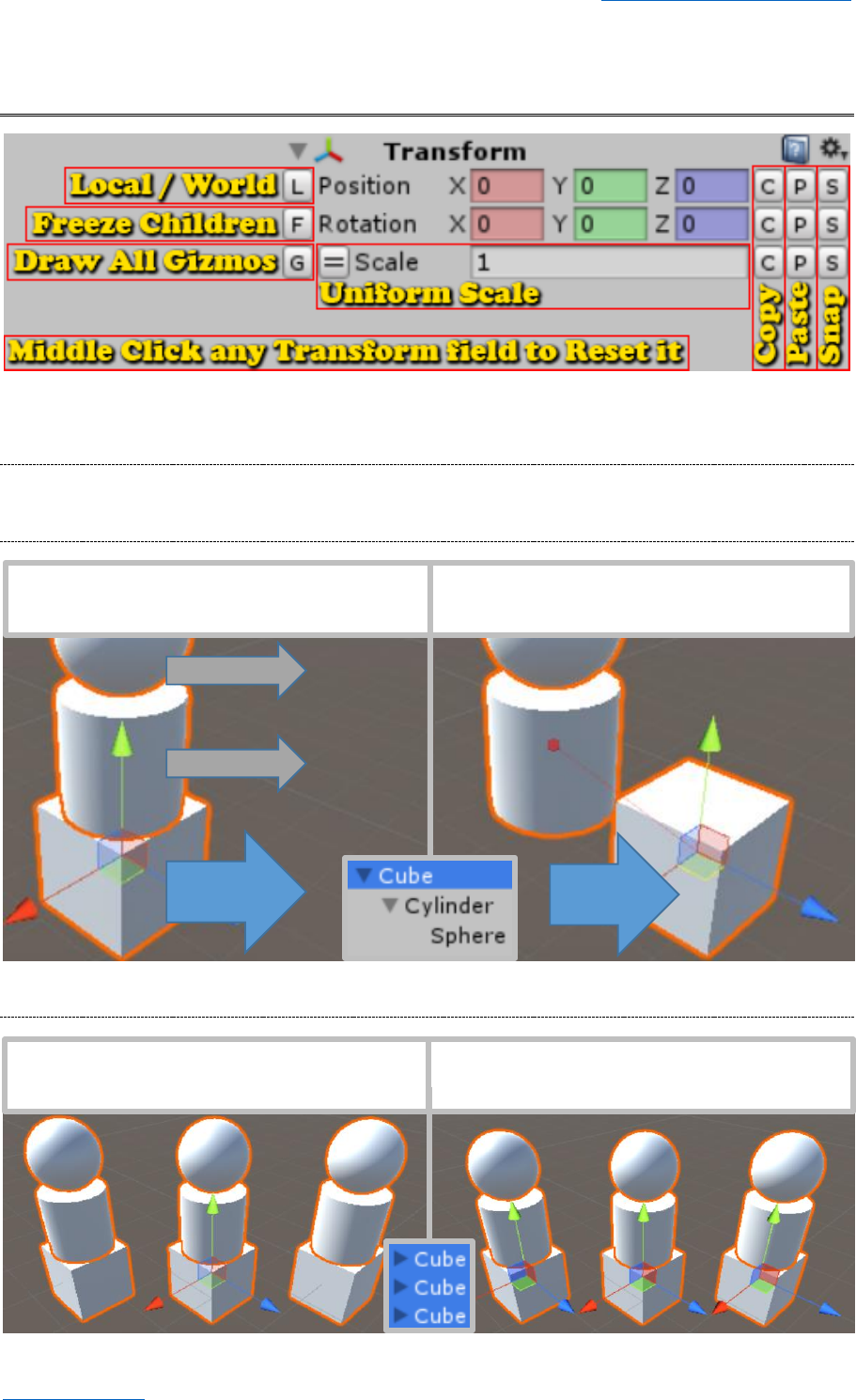
The [L] button allows you to toggle the inspector between [L] local space and [W] world space.
1.2. Freeze Children
1.3. Draw All Gizmos [Pro-Only]
But with Freeze Children enabled moving the
parent won’t affect the children
Normally moving the parent would move the
children as well
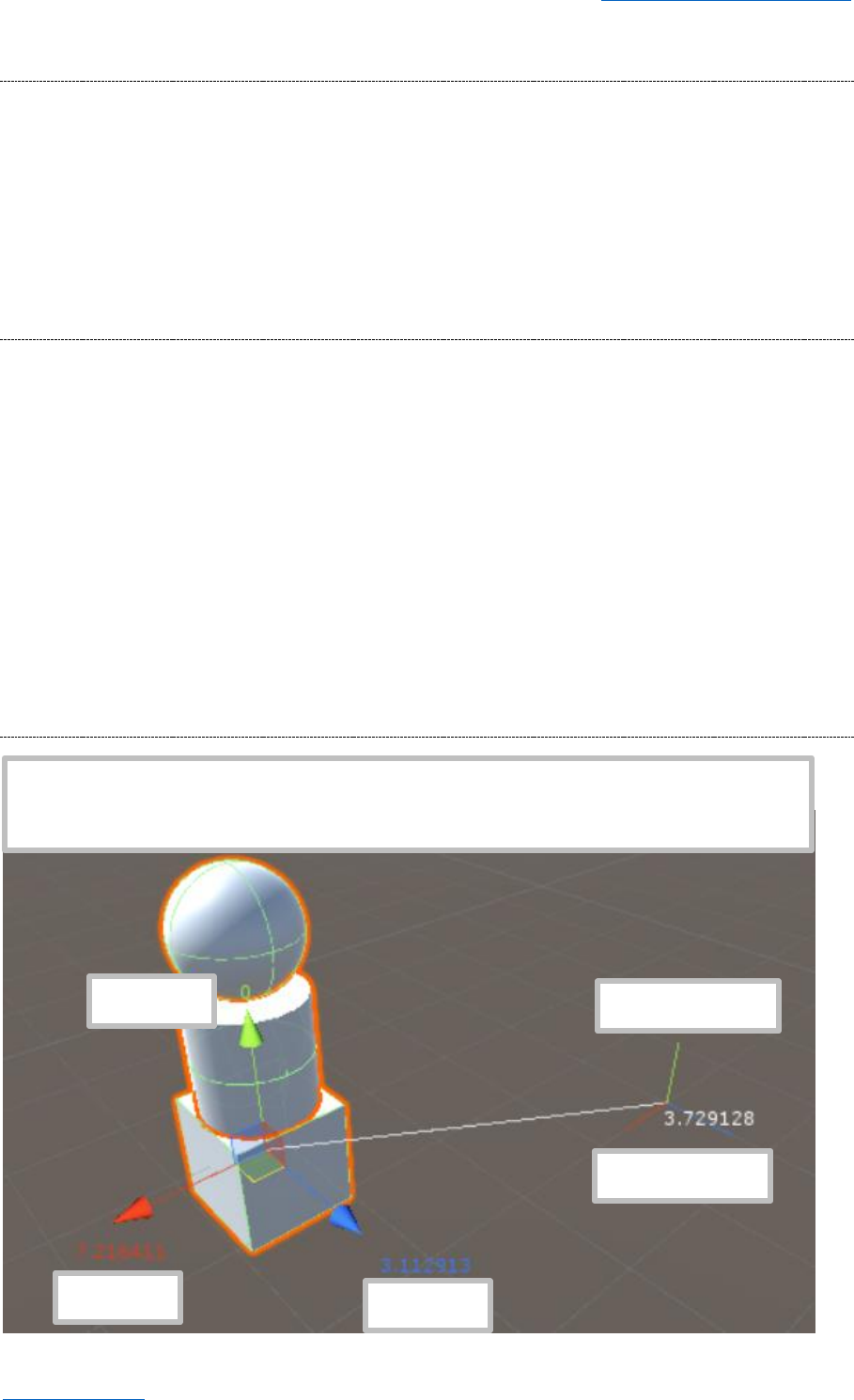
Normally Unity only draws a scene gizmo for
the first object you selected
But with Draw All Gizmos enabled it will draw
a separate gizmo for each selected object
Inspector Gadgets v4.4 Kybernetik kybernetikgames@gmail.com
Back to Contents Page 3 of 9
1.4. Uniform Scale
Most of the time when you scale an object you want to do so on all axes so that its proportions
remain the same. When the object's scale is uniform (same value on all axes) it will be shown as a
single value so you don’t need to enter the same value multiple times.
You can toggle between uniform scale mode and the regular vector mode using the [=]
button on the left.
If the scale isn’t already uniform when you enter uniform scale mode, it will be set to the
average of the current values.
1.5. Utility Buttons
You can use the buttons on the right to [Copy], [Paste], and [Snap] individual transform elements
(position, rotation, scale).
The [C] and [P] buttons are integrated with the system clipboard, allowing you to copy
values to and from other vector fields as well as other programs.
Position, rotation, and scale also each have their own private clipboard, allowing you to copy
a position and then a rotation at the same time without overwriting the previous value. To
paste from the private clipboard, you simply right click the [P] button.
You can also right click the [C] button to log a message containing the field’s current value.
The snap buttons use Unity's own snap settings which can be opened by right clicking them.
These buttons are greyed out when they would do nothing. I.E. Copy and Paste are greyed
out if the clipboard contains the same values as the selected object, and Snap is disabled if
the object is already snapped.
1.6. Movement Guides [Pro-Only]
While you are moving an object in the scene, Inspector Gadgets will draw lines indicating
the position you are moving the object from. This feature can be disabled via the
Edit/Preferences menu.
Previous Position
Position.x
Position.z
Position.y
Distance moved

Inspector Gadgets v4.4 Kybernetik kybernetikgames@gmail.com
Back to Contents Page 4 of 9
1.7. Other Pro-Only Features
Inspector Gadgets Pro includes various additional features which are not available in the Lite version.
Multi-object editing (the Lite version reverts to the default Transform inspector when
multiple objects are selected).
Transform fields which aren’t at their default value will have a thicker border for emphasis.
Transform fields which aren’t a multiple of the snap value will be shown in italics.
The Edit/Selection/New Locked Inspector (Ctrl + Alt + S) menu item opens an inspector
window locked to the current selection so you can easily compare and copy values between
different selection sets.
2. Auto Hide UI
Many users find it annoying having a Screen Space UI Canvas take up a massive amount of space in
the scene. To work around this, the first time you select a UI object after importing Inspector
Gadgets, it will ask if you want to automatically show and hide the UI layer.
On UI selected: show UI layer, enter 2D orthographic mode, and focus the camera on the
selected object.
On UI deselected: hide UI layer and return camera to the previous state.
The UI layer will be automatically shown when you close the Unity Editor just in case the
next project you open doesn’t have Inspector Gadgets.
Credit to Astral Byte Ltd for the original idea.
3. Context Menu Functions
Inspector Gadgets adds various useful functions to the context menu (right click menu) of each field
in the inspector based on its type.
These functions all support multi-object selection, but the Lite version disables them while
multiple objects are selected.
Most types have Copy and Paste functions which allow you to copy values between fields in
Unity as well as to and from other programs.
The fields in the Transform Inspector have some extra functions to snap them to the grid,
raycast down and snap to the ground, and rotate to look at another object.
Unity Object acquisition: FindObjectOfType, GetComponent, GetComponentInChildren,
GetComponentInParent, AddComponent.
Unity Object array acquisition: FindObjectsOfType, GetComponents, etc.
Create new instance of any ScriptableObject type.
Open Inspector to open a new inspector window showing the target object.
Save any Unity Object as an asset (such as a procedurally generated mesh).
Randomize within common ranges: 0-1, 0-100, 0-360 for floats, random Vector2 in a unit
circle, random Vector3 on or in a unit sphere, random quaternion, random euler angles.
Common vectors: zero, right, up, forward, one.
Normalize vector.
String to lower or upper case.
Log current value.
Inspector Gadgets v4.4 Kybernetik kybernetikgames@gmail.com
Back to Contents Page 5 of 9
4. Script Inspector [Pro-Only]
This section applies to MonoBehaviour, ScriptableObject, and StateMachineBehaviour.
4.1. Script Field
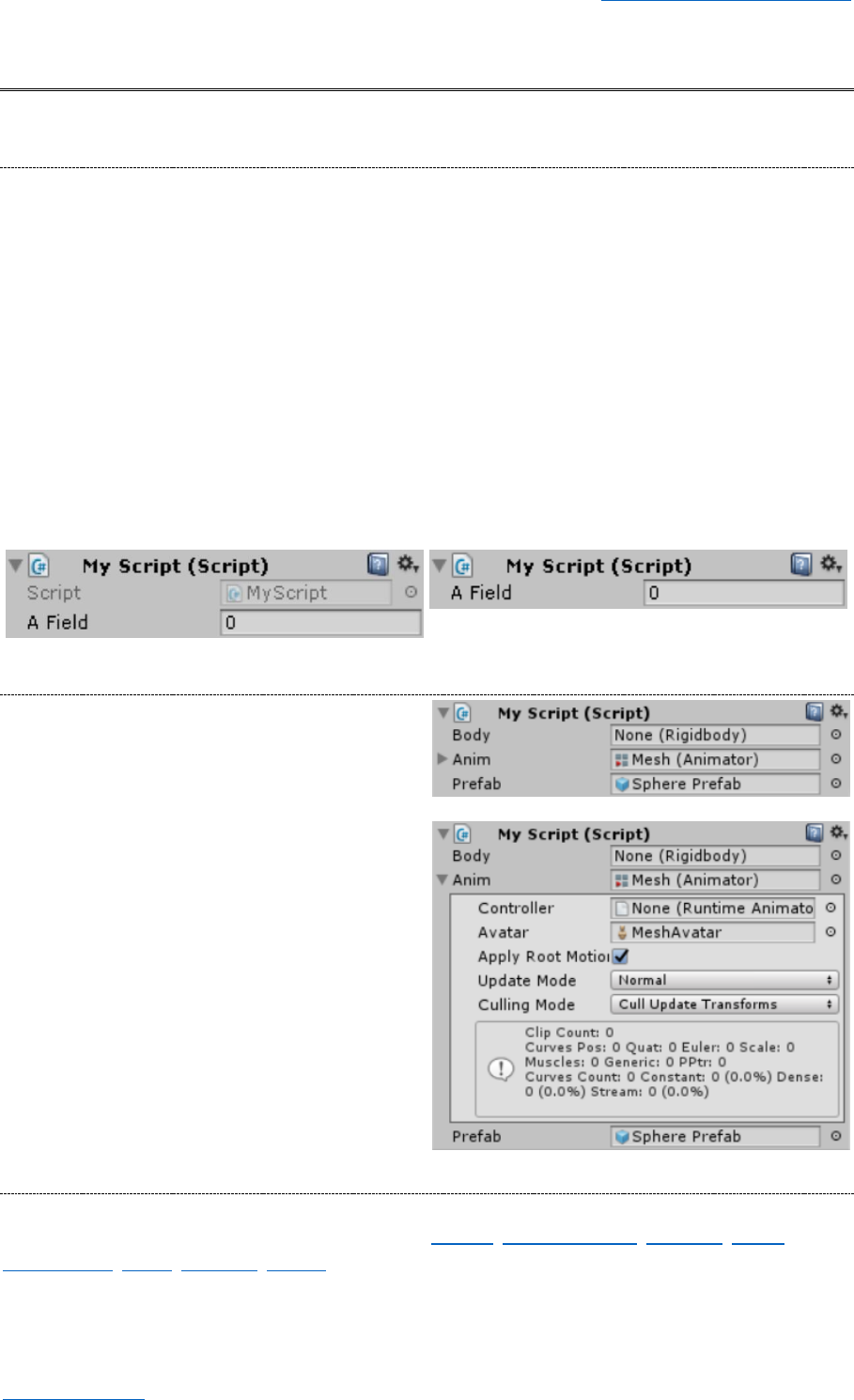
By default, Inspector Gadgets hides the Script field at the top of Unity's script inspector to save space
and provides the following extra functions:
Middle Click in a script’s inspector to open that script.
Ctrl + Middle Click in a script’s inspector to open its custom inspector script (or create a one
if it doesn't exist, see Custom Inspectors).
Shift + Middle Click in a script’s inspector to ping the script asset in the Project window.
This feature can be disabled via the Inspector Gadgets tab of the Edit/Preferences menu.
// Example.
class MyScript : MonoBehaviour
{
public int aField;
}
Unity Default
Inspector Gadgets
4.2. Nested Object Inspector
Inspector Gadgets adds a foldout arrow to the
inspector for each object reference field which
can draw the target object’s inspector nested
inside the current one.
This feature activates automatically for all custom
scripts without needing any attributes or other
configuration.
Unfortunately, it doesn’t work for GameObject
fields since it would need to draw the inspector
for their entire component list instead of just one
component. You can however right click on the
field and use the Open Inspector command to
open the target object’s inspector in a new
window without changing your current selection.
4.3. Decorator Attributes
Unity has several attributes which can be used to easily customise the appearance of the inspector
without needing to write a custom inspector class: Header, HideInInspector, Multiline, Range,
SerializeField, Space, TextArea, Tooltip. The InspectorGadgets namespace contains some additional
attributes to allow for even greater customisation.
Inspector Gadgets v4.4 Kybernetik kybernetikgames@gmail.com
Back to Contents Page 6 of 9
4.3.1. Color
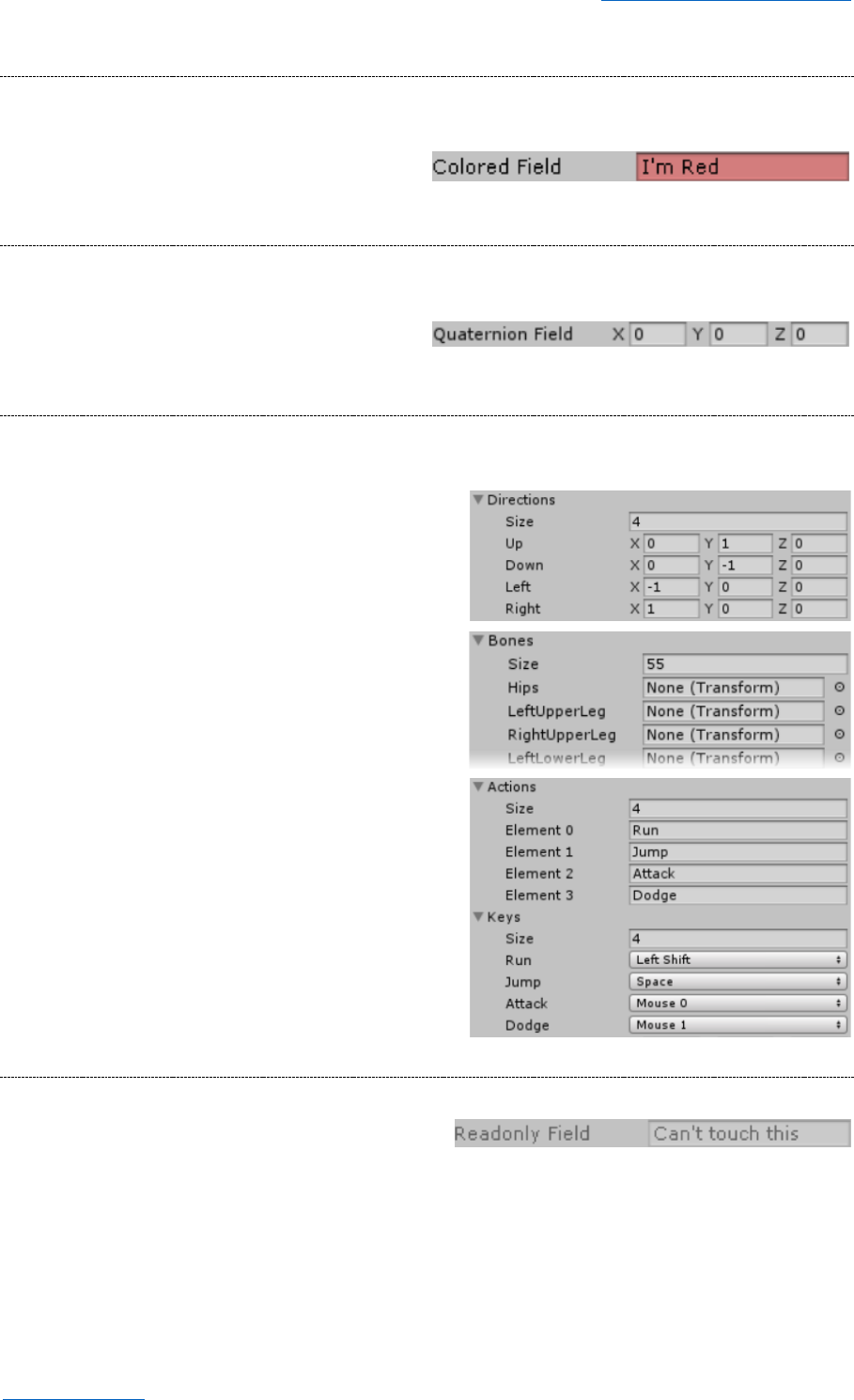
The [Color] attribute simply changes the color of a field, allowing you to highlight it or group
multiple fields together visually.
[InspectorGadgets.Color(1, 0.5f, 0.5f)]
public string coloredField = "I'm Red";
4.3.2. Euler
The [Euler] attribute displays the Euler angles of a Quaternion field so they can be more easily
edited by people without an intimate understanding of quaternions (which is everyone).
[InspectorGadgets.Euler]
public Quaternion quaternionField;
4.3.3. Labelled Collection
The [LabelledCollection] attribute provides labels for the elements of a collection field to use
instead of just calling them Element X.
// Manually specify labels.
[InspectorGadgets.LabelledCollection(
"Up", "Down", "Left", "Right")]
public Vector3[] directions;
// Use names from an Enum.
[InspectorGadgets.LabelledCollection(
typeof(HumanBodyBones))]
public Transform[] bones;
// Use names from another field.
public string[] actions;
[InspectorGadgets.LabelledCollection(
"actions")]
public KeyCode[] keys;
4.3.4. Readonly
The [Readonly] attribute causes a field to be greyed out in the inspector so the user can't edit it.
[InspectorGadgets.Readonly]
public string readonlyField = "Can't touch this";
Inspector Gadgets v4.4 Kybernetik kybernetikgames@gmail.com
Back to Contents Page 7 of 9
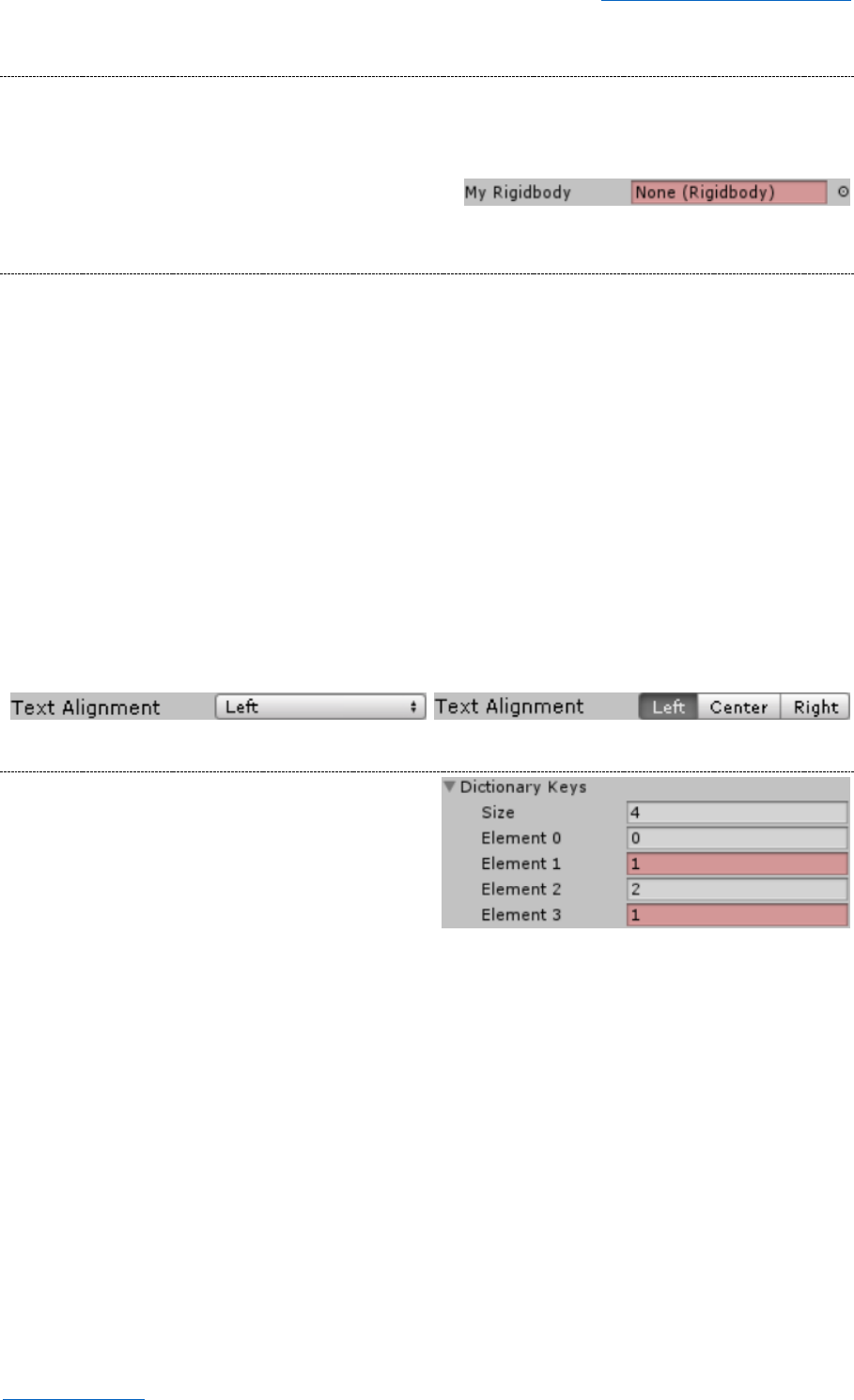
4.3.5. Require Assignment
The [RequireAssignment] attribute causes a field to be highlighted red in the inspector if it hasn’t
been given a value so the user knows that they should assign something to it. This attribute is very
useful on object reference fields, but can be used on any type such as int or string.
[InspectorGadgets.RequireAssignment]
public Rigidbody myRigidbody;
4.3.6. Toolbar
Normally Unity draws enums as dropdown fields. Unfortunately, this isn't always what you want
because you can't see all the options without opening the list, you always need to open the list to
change the value, and it doesn't properly support enums which use bitwise flags.
Placing the [Toolbar] attribute on an enum field causes it to instead be drawn as a series of
buttons.
If the enum has too many values to fit into the available space, you can scroll the toolbar
across using your scroll wheel while the mouse cursor is pointing at it or you can drag the
field label (just like a number field).
Toolbars for enums marked with the [System.Flags] attribute allow you to select and
deselect values individually.
The [Toolbar] attribute can also be used for string fields. You simply specify the allowed
values in the attribute’s constructor and they will be displayed as a toolbar.
public TextAlignment textAlignment;
[InspectorGadgets.Toolbar]
public TextAlignment textAlignment;
4.3.7. Unique Collection
The [UniqueCollection] attribute causes the
elements of a collection to be highlighted in red if
they are duplicates of other elements.
[InspectorGadgets.UniqueCollection]
public int[] dictionaryKeys;
Inspector Gadgets v4.4 Kybernetik kybernetikgames@gmail.com
Back to Contents Page 8 of 9
4.4. Inspectable Attributes
Unlike the above attributes which inherit from PropertyAttribute and alter the way Unity shows a
field in the inspector, the following attributes inherit from InspectableAttribute and add extra
elements at the bottom of the inspector.
These attributes have a When property which can be set in the constructor to determine when they
are drawn: always (default), in play mode only, or in edit mode only.
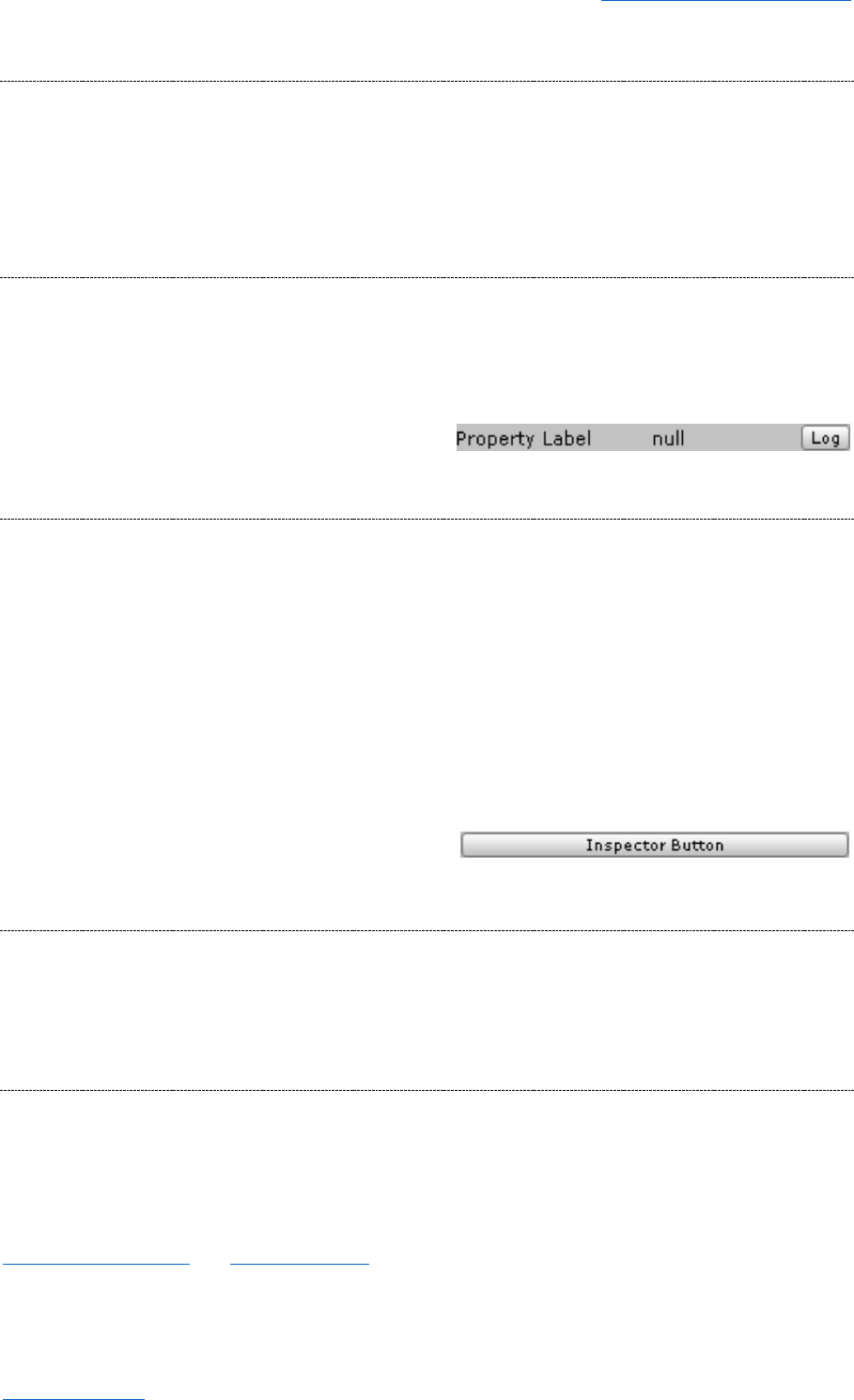
4.4.1. Label
The [Label] attribute adds a read-only label to display the value of any field, property (with a
getter), or method (with no parameters), even static ones.
If the value will change constantly, you can set the ConstantlyRepaint property to true.
If the value is likely to be long, you can set the Multiline property to true.
[InspectorGadgets.Label]
string PropertyLabel { get; set; }
4.4.2. Button
The [Button] attribute adds a button in the inspector which the user can click to invoke the
attributed method.
The will automatically be given the method’s name (with spaces between words) unless you
specify a different Label in its constructor.
If it is an instance method and multiple objects are selected, the method will be called once
for each selected object.
If the method has a non-void return type, the returned value will be logged.
If you assign SetDirty = true in the attribute’s constructor, it will automatically call
UnityEditor.EditorUtility.SetDirty on the target after invoking the method to make
sure changes are saved properly.
[InspectorGadgets.Button]
void InspectorButton() { }
4.5. Inspector Events
If Decorator and Inspectable Attributes aren’t able to achieve the level of customisation you want,
you can simply add a method called AfterInspectorGUI to your script and Inspector Gadgets will
automatically call it after drawing the script inspector (so you can draw additional GUI elements
below it). Or you can call the method OnInspectorGUI to replace the regular inspector entirely.
4.6. Custom Inspectors
If you require more customisation than you can achieve using the available events and decorator
attributes, you will need to create your own custom editor class. You can do this quickly using Ctrl +
Middle Click in the target script's inspector or using the Create Editor Script context menu command.
By inheriting from InspectorGadgets.Editor<T> instead of UnityEditor.Editor your custom editor
will inherit the features described above (hide Script field, Middle Click to open script, support for
Inspectable Attributes and Inspector Events). You will also be able to access the inspected objects
directly using the Target and Targets properties (note the capitalisation) rather than needing to
type-cast the regular target and targets properties yourself.
Inspector Gadgets v4.4 Kybernetik kybernetikgames@gmail.com
Back to Contents Page 9 of 9
5. Misc
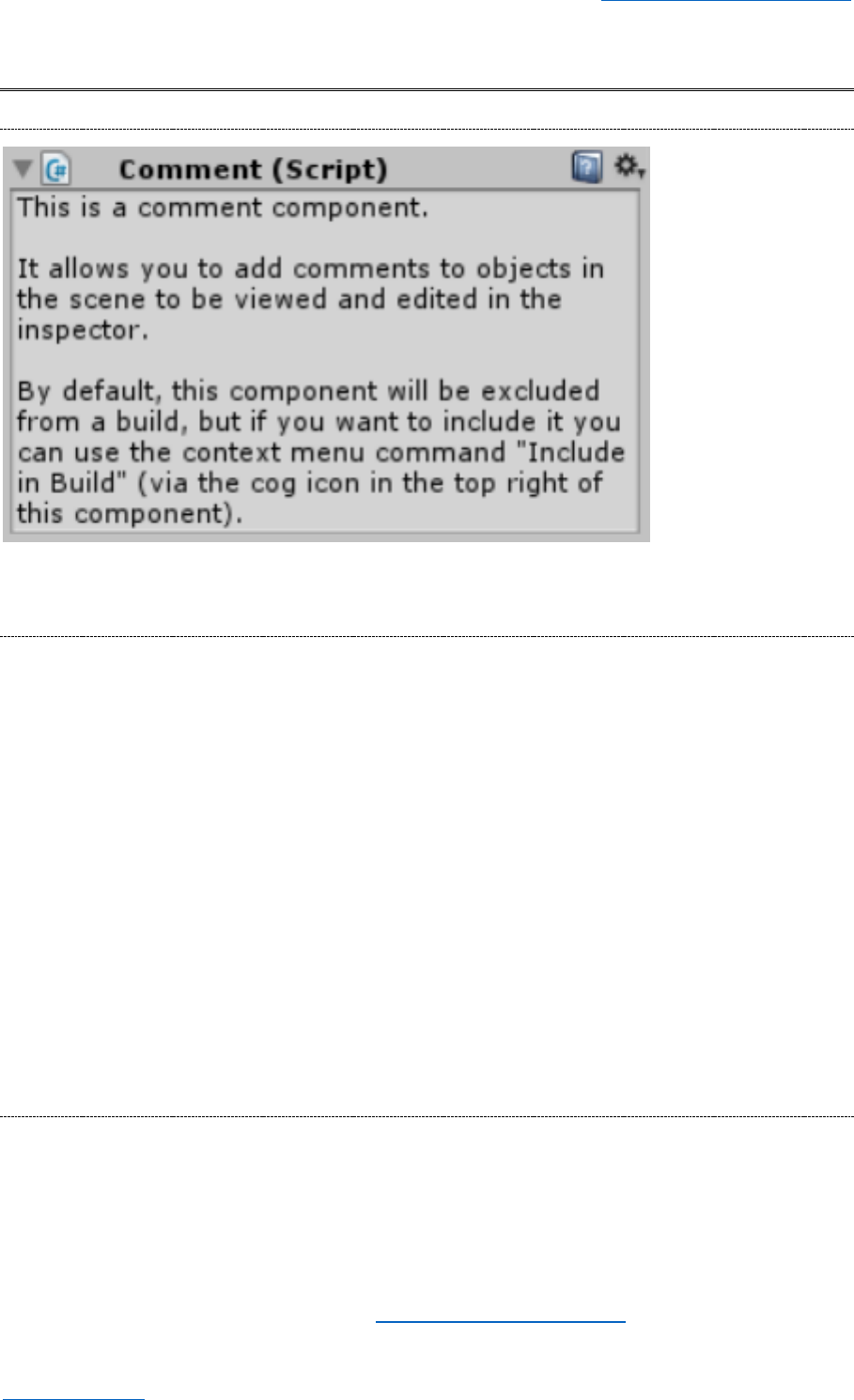
5.1. Comment Component
Note: the Comment component is only available in Unity 2017 or later.
5.2. Auto Prefs
The InspectorGadgets.AutoPrefs class contains a group of nested classes which simplify the
way you can store and retrieve values in PlayerPrefs and EditorPrefs.
// First you declare your pref with the key and default value (optional).
public static readonly AutoPrefs.Bool MyPref = new AutoPrefs.Bool("MyPref", true);
// Then you can get and set the value without using the key everywhere.
if (MyPref)// Or MyPref.Value.
{
MyPref.Value = false;
}
AutoPrefs.Bool stores its value in PlayerPrefs while AutoPrefs.EditorBool stores
its value in EditorPrefs.
Other pref types are also available: float, int, string, Vector2, Vector3, Vector4,
Quaternion.
You can create your own Auto Pref types by inheriting from AutoPref<T>.
5.3. Editor Events
The [InspectorGadgets.OnWillUnloadAssemblies] attribute registers a static
parameterless method to be called immediately before the Unity Editor unloads assemblies,
such as when preparing to reload after compiling modified scripts.
The [InspectorGadgets.OnEditorQuit] attribute registers a static parameterless
method to be called when the Unity Editor is closed (but not each time assemblies are
reloaded, such as when scripts recompile).
Questions, feedback, feature requests, etc: kybernetikgames@gmail.com.
