Jupyter Hub Instructions
User Manual: Pdf
Open the PDF directly: View PDF  .
.
Page Count: 5

JupyterHub*Instructions*
*
1. Log*into*Canvas*and*click*on*the*“JupyterHub”*tab.*
*
*
*
*
2. Press*the*“Start*My*Server”*button*and*wait*for*up*to*2*minutes.*You*will*be*taken*to*a*
new*page.*
*
*
*
3. It*should*look*something*like*this*and*have*a*jupyter.log*file*in*it.*
*
*
*
*
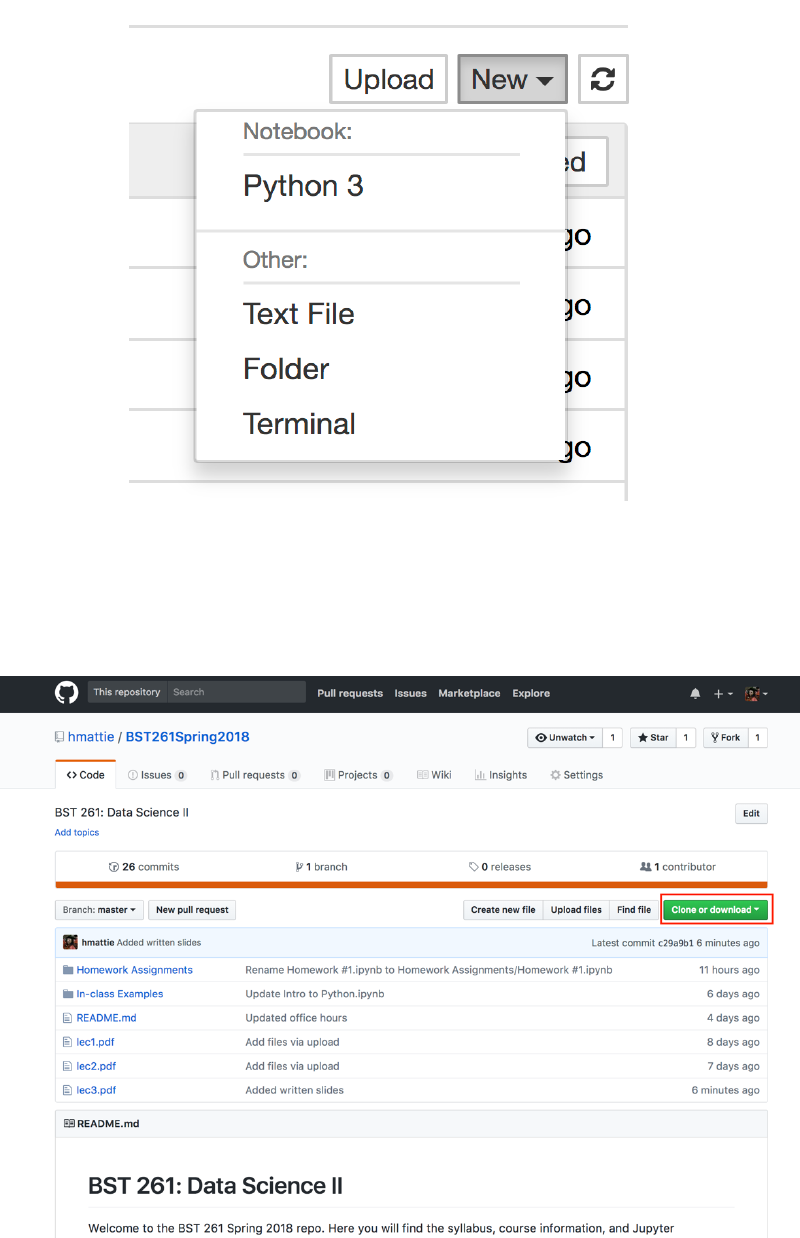
4. On*the*right*side,*click*on*the*“New”*dropdown*menu*and*select*“Terminal”.*
*
*
*
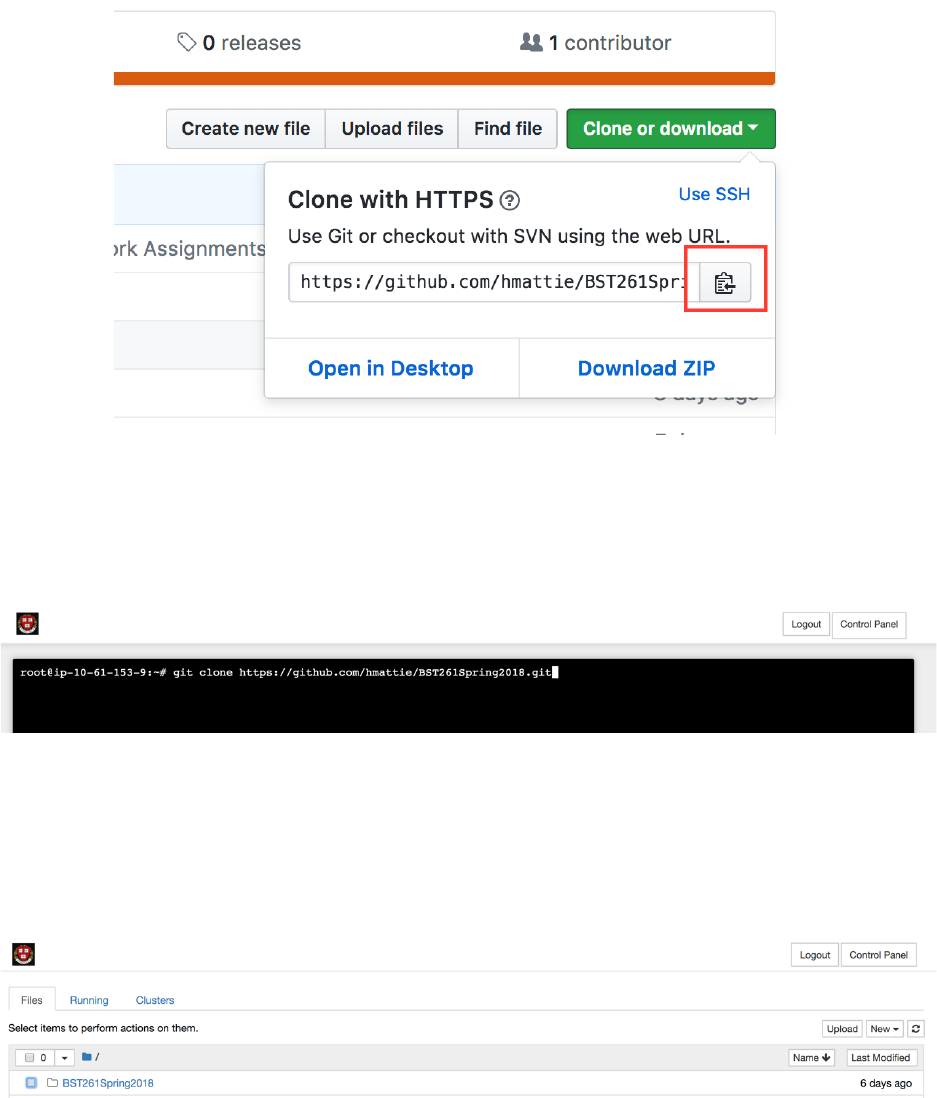
5. Before*typing*anything*into*the*terminal,*go*to*the*course*github*and*copy*the*
repository*link.*Click*on*the*“Clone*or*download”*button*and*then*the*clipboard*button.*
This*will*copy*the*link*to*the*repository.**
*
*
*
*
*
*
*
*
6. Go*back*to*the*terminal*and*type:*“git*clone”*and*then*paste*the*repository*link.*Then*
press*Enter.*
*
*
*
*
*
7. If*you*close*the*terminal*window*and*go*back*to*the*JupyterHub*window,*you*should*
now*see*a*folder*with*the*name*of*the*repository.*You*can*now*access*all*of*the*Jupyter*
notebooks*that*have*been*uploaded*to*the*course*github.*
*
*
*
*
*
*
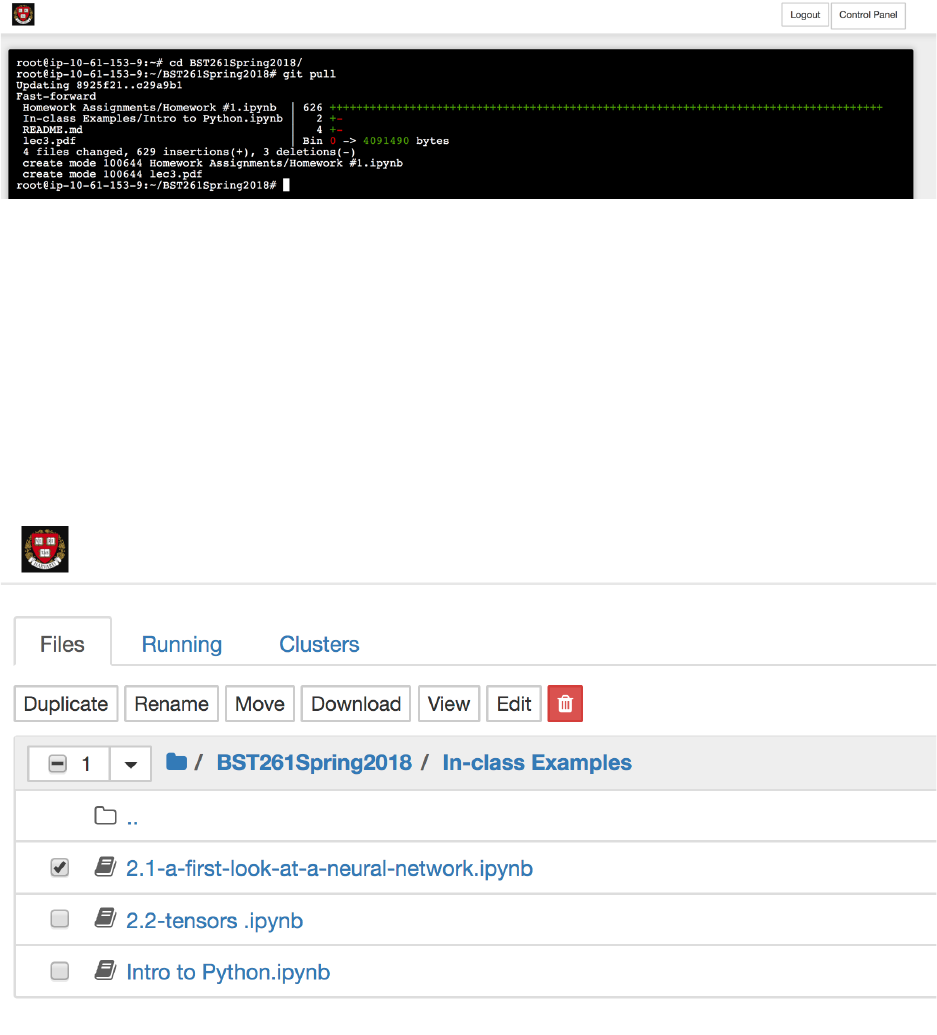
8. In*order*to*have*the*most*up*to*date*versions*of*the*files*in*the*repository,*you*will*need*
to*update*the*folder*in*your*JupyterHub.*To*do*this,*open*terminal*again,*and*type*“git*
pull”.*This*will*pull*all*of*the*new*files*on*the*course*github*and*upload*them*to*your*
JupyterHub.*After*that,*you*can*close*the*terminal*window*and*go*back*to*your*
JupyterHub*to*access*all*of*the*new*files.*
*
*
*
*
*
9. Something*to*note:*if*you*make*changes*to*any*of*the*files*in*the*folder*and*then*later*
try*to*get*the*latest*version*of*the*files*using*“git*pull”,*it*will*give*you*an*error.*This*is*
because*you*have*altered*the*original*files*and*if*you*upload*the*newest*files,*it*will*
overwrite*the*files*you*have*altered.*Thus,*git*won’t*let*you*upload*any*updated*or*new*
files.*To*get*around*this,*create*a*new*folder*in*your*JupyterHub.*For*example:*
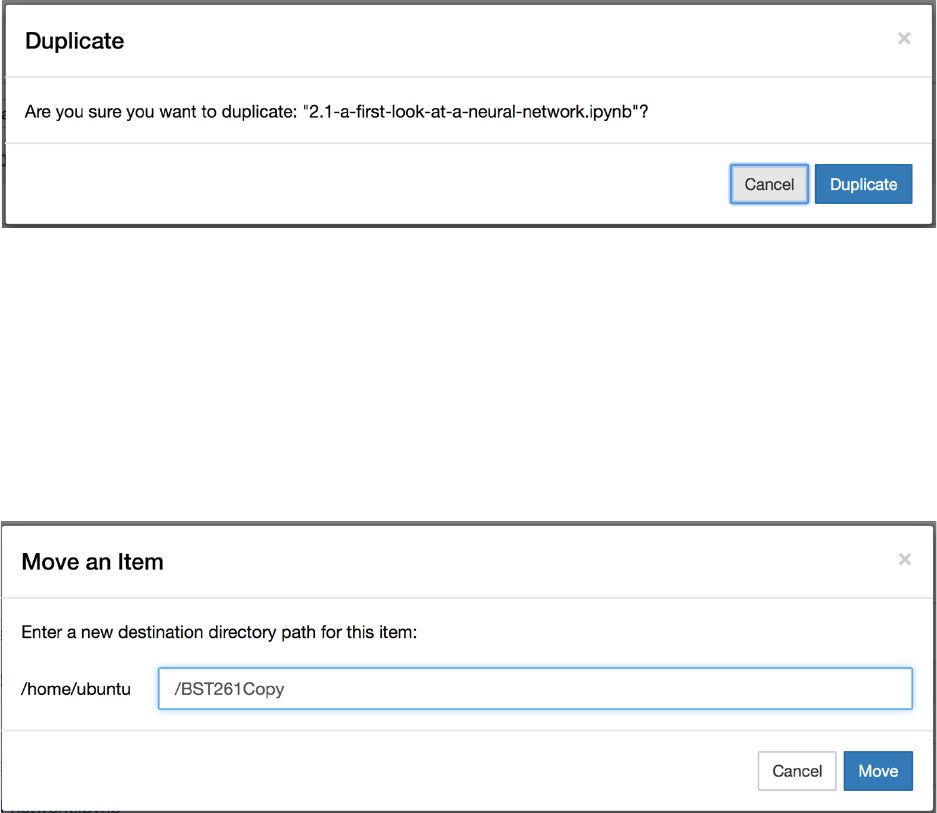
“BST261Copy”.*Then,*for*any*of*the*files*you*want*to*change*(take*notes*in*for*example),*
select*the*file,*and*click*“Duplicate”,*and*then*“Duplicate”*again*when*asked*if*you’re*
sure.*This*will*make*a*copy*of*the*file.*
*
*
*
*
*
*
10. Now*select*the*copy*file*you*just*created*and*click*on*“Move”.*Erase*the*folder*name*
and*type*the*name*of*the*new*folder*you*created*(ex:*BST261Copy),*and*then*click*
“Move”*again.*This*will*move*the*copied*file*into*that*folder.*Now*you*can*alter*any*files*
in*the*new*folder,*but*keep*the*original*files*untouched.*This*way*you*won’t*encounter*
an*error*when*trying*to*pull*the*latest*version*of*the*course*github*repository.*
*
*
*
*
