APDevFundamentals3.9_studentManual MUFundamentals3.9 Student Manual Mod10
MUFundamentals3.9_studentManual_mod10
MUFundamentals3.9_studentManual_mod10
MUFundamentals3.9_studentManual_mod10
MUFundamentals3.9_studentManual_mod10
MUFundamentals3.9_studentManual_mod10
User Manual: Pdf
Open the PDF directly: View PDF  .
.
Page Count: 42
297
Module 10: Controlling Message
Flow
At the end of this module, you should be able to:
• Route messages based on conditions.
• Multicast messages.
• Filter messages.
• Validate messages.
298
Walkthrough 10-1: Route messages based on conditions
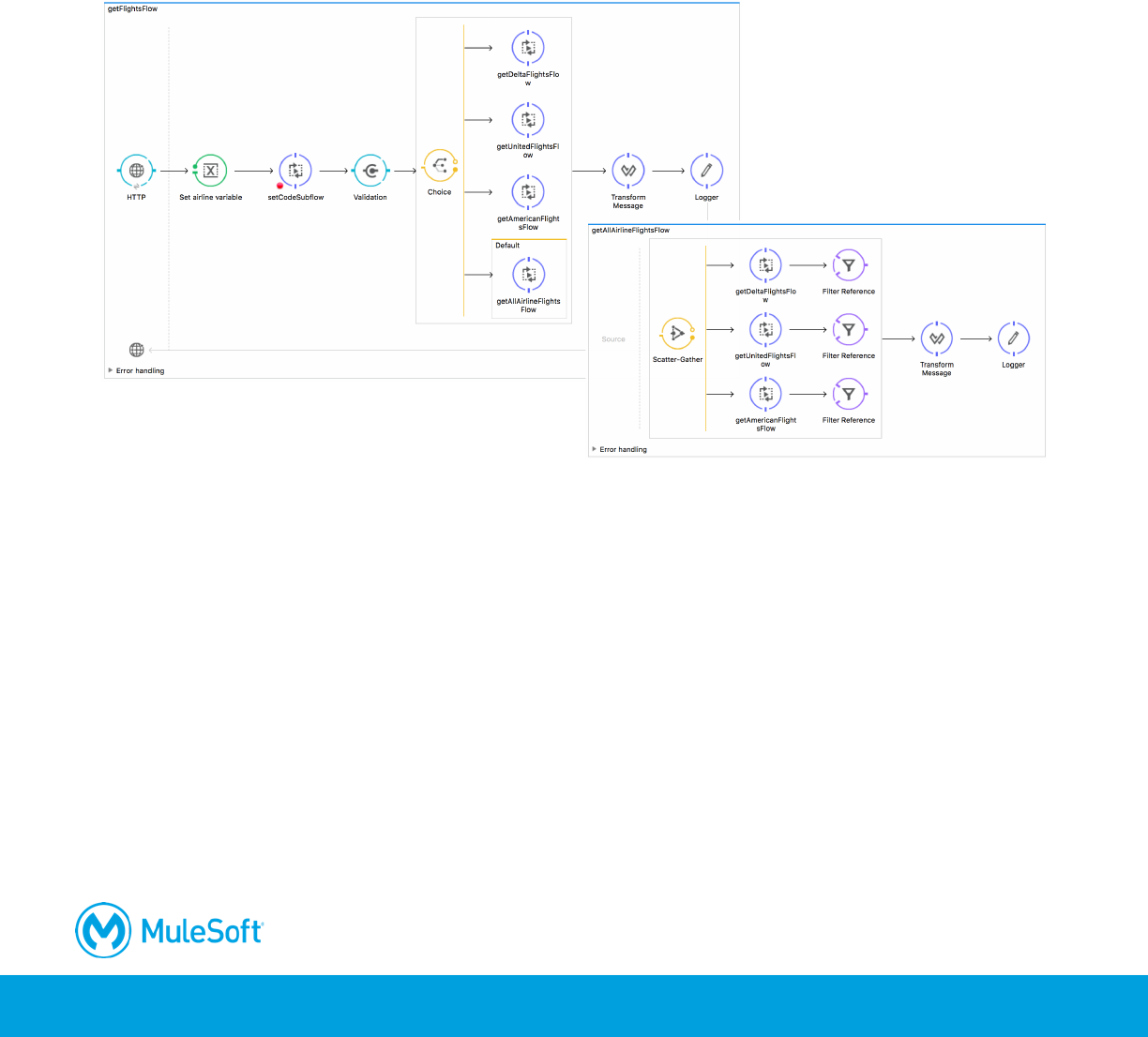
In this walkthrough, you modify getFlightsFlow to route messages to either the United, Delta, or
American flows based on the value of an airline query parameter. You will:
• Use a Choice router.
• Set the router paths.
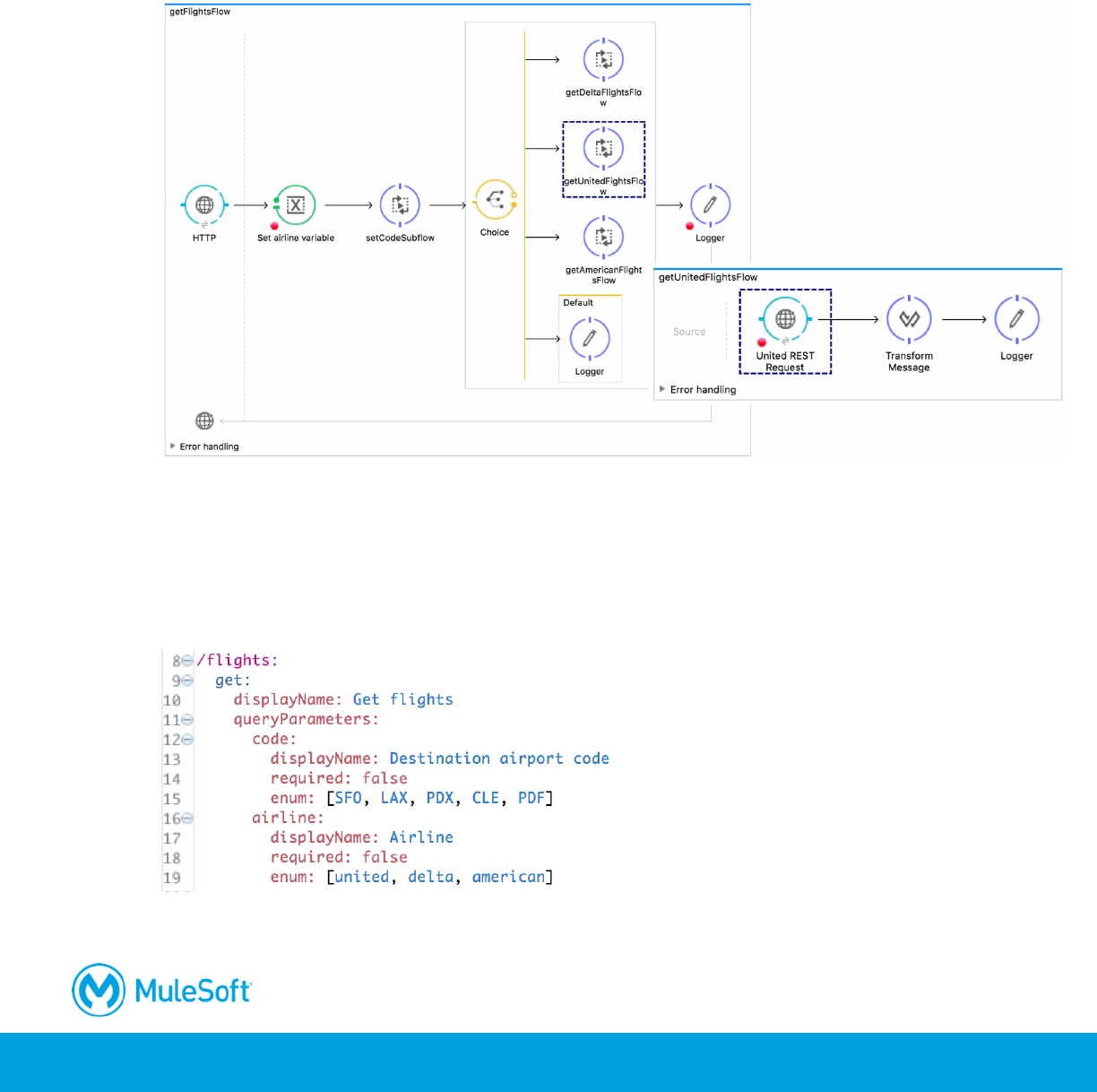
Look at possible airline values specified in the API
1. Return to the apdev-flights-ws project in Anypoint Studio.
2. Open mua-flights-api.raml.
3. Locate the airline query parameter and its possible values.
4. Run the project.
299
Test the application
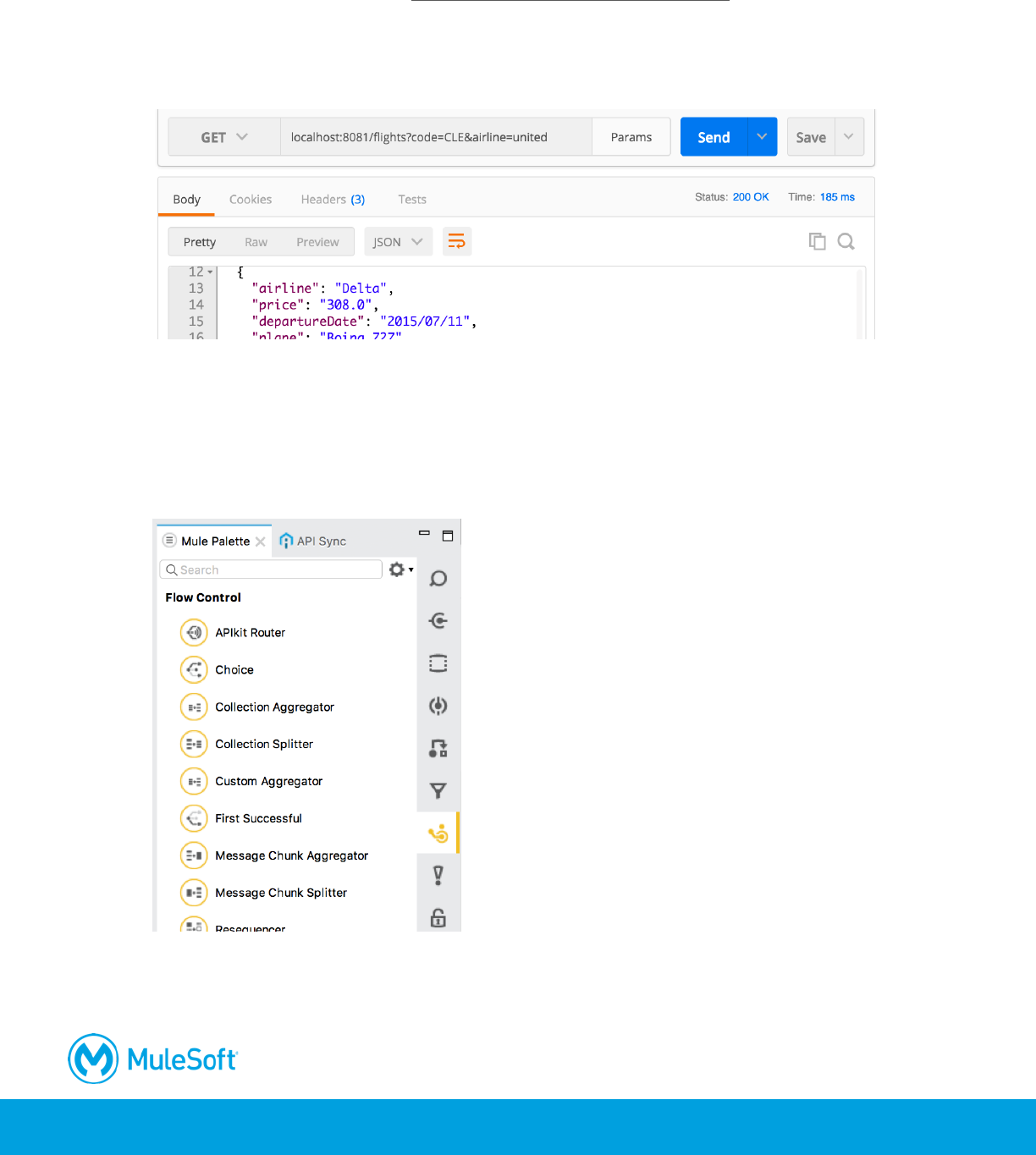
5. In Postman, make a request to http://localhost:8081/flights?code=CLE; you should see only
Delta flights to CLE.
6. Add a query parameter called airline and set it equal to united.
7. Send the request again; you should still only see the Delta flights.
Browse the flow control elements in the Mule Palette
8. Return to implementation.xml in Anypoint Studio.
9. In the Mule Palette, select the Flow Control tab.
10. View the available flow control processors.
300
Add a Choice router
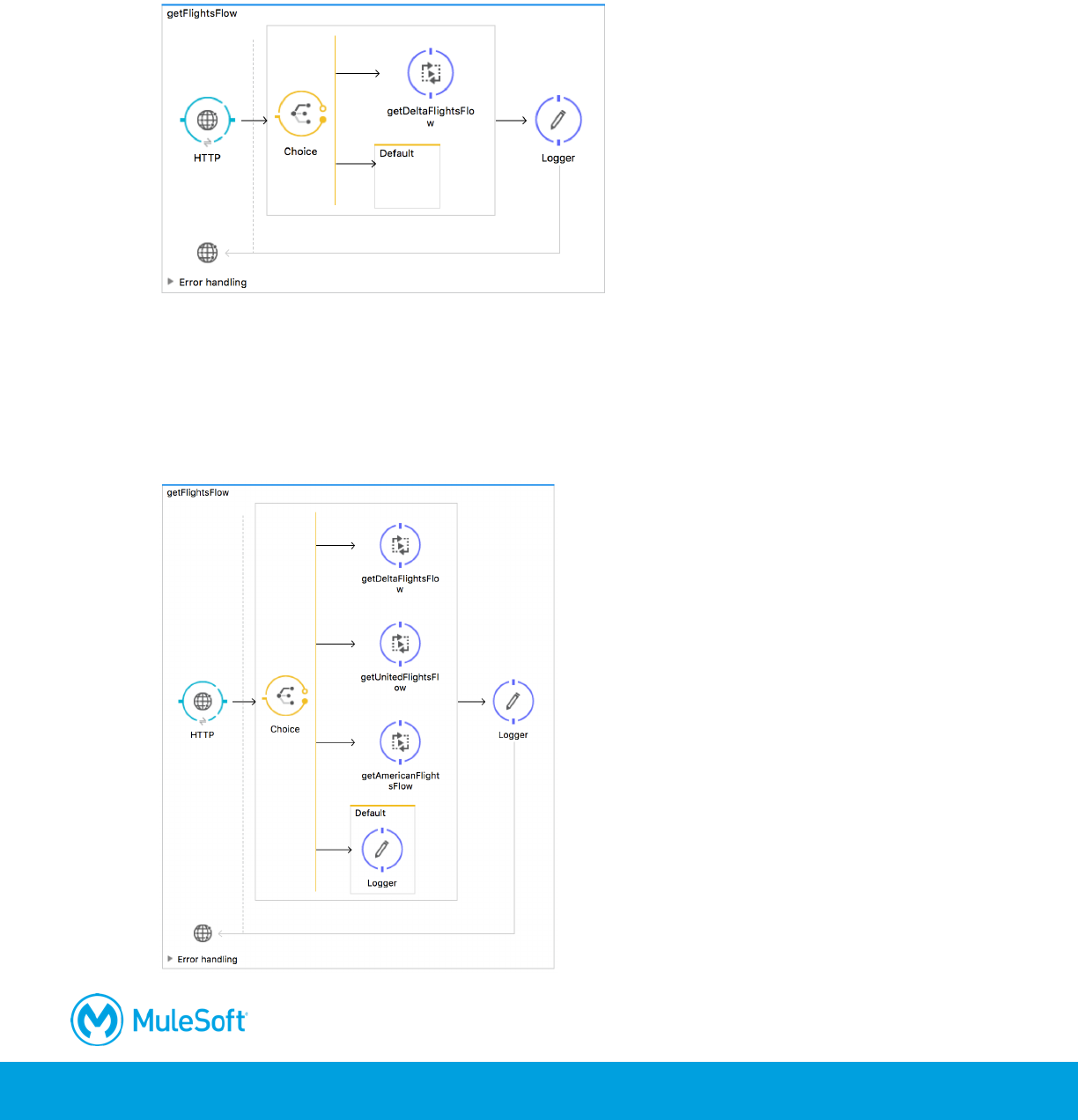
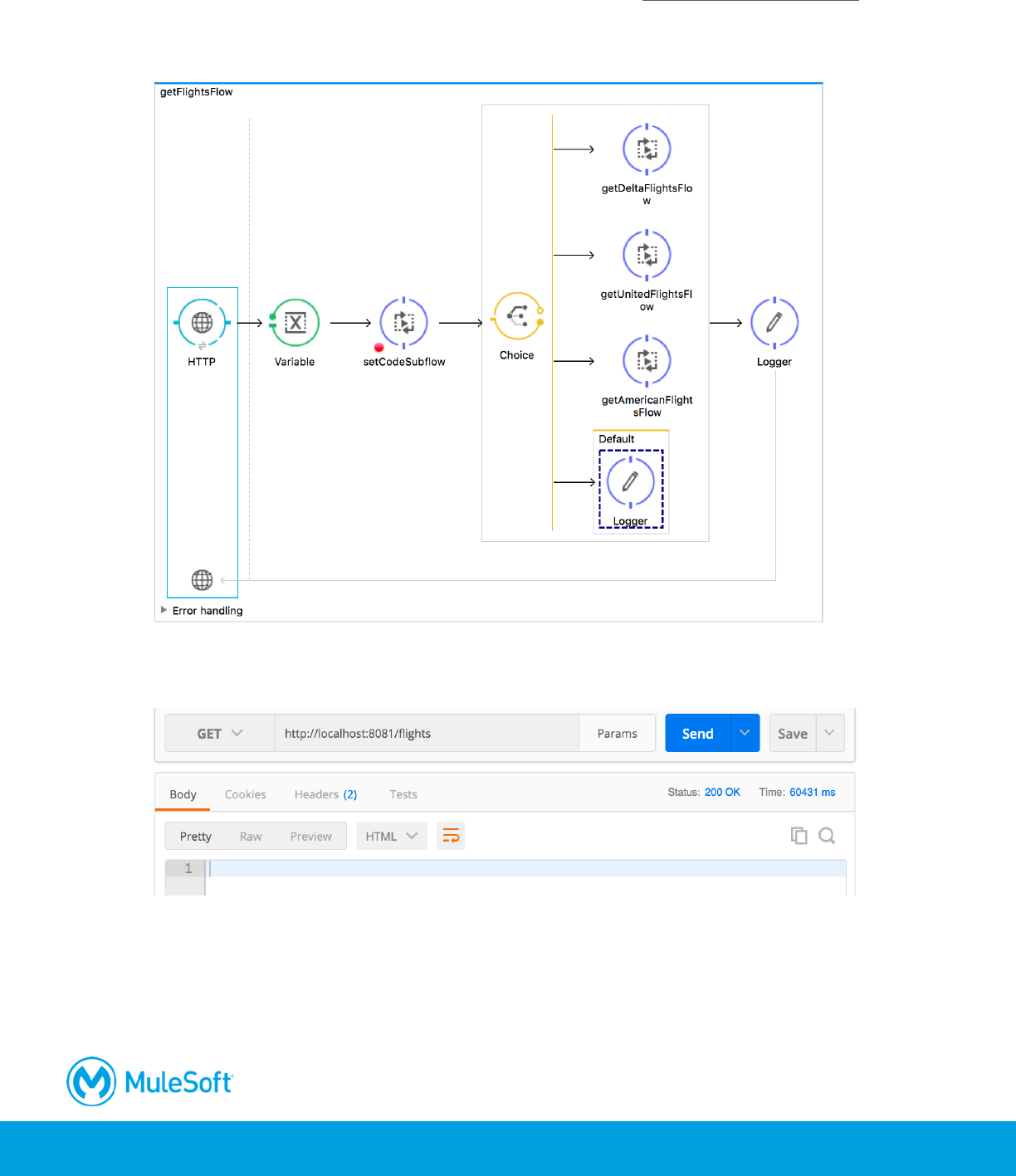
11. Drag a Choice flow control element from the Mule Palette and drop it in getFlightsFlow before
getDeltaFlightsFlow.
12. Drag the getDeltaFlightsFlow flow reference into the router.
13. Add two additional Flow Reference components to the Choice router.
14. In the Properties view for the first flow reference, set the flow name to getUnitedFlightsFlow.
15. In the Properties view for the second flow reference, set the flow name to
getAmericanFlightsFlow.
16. Drag a Logger component from the Mule Palette and drop it in the default branch.
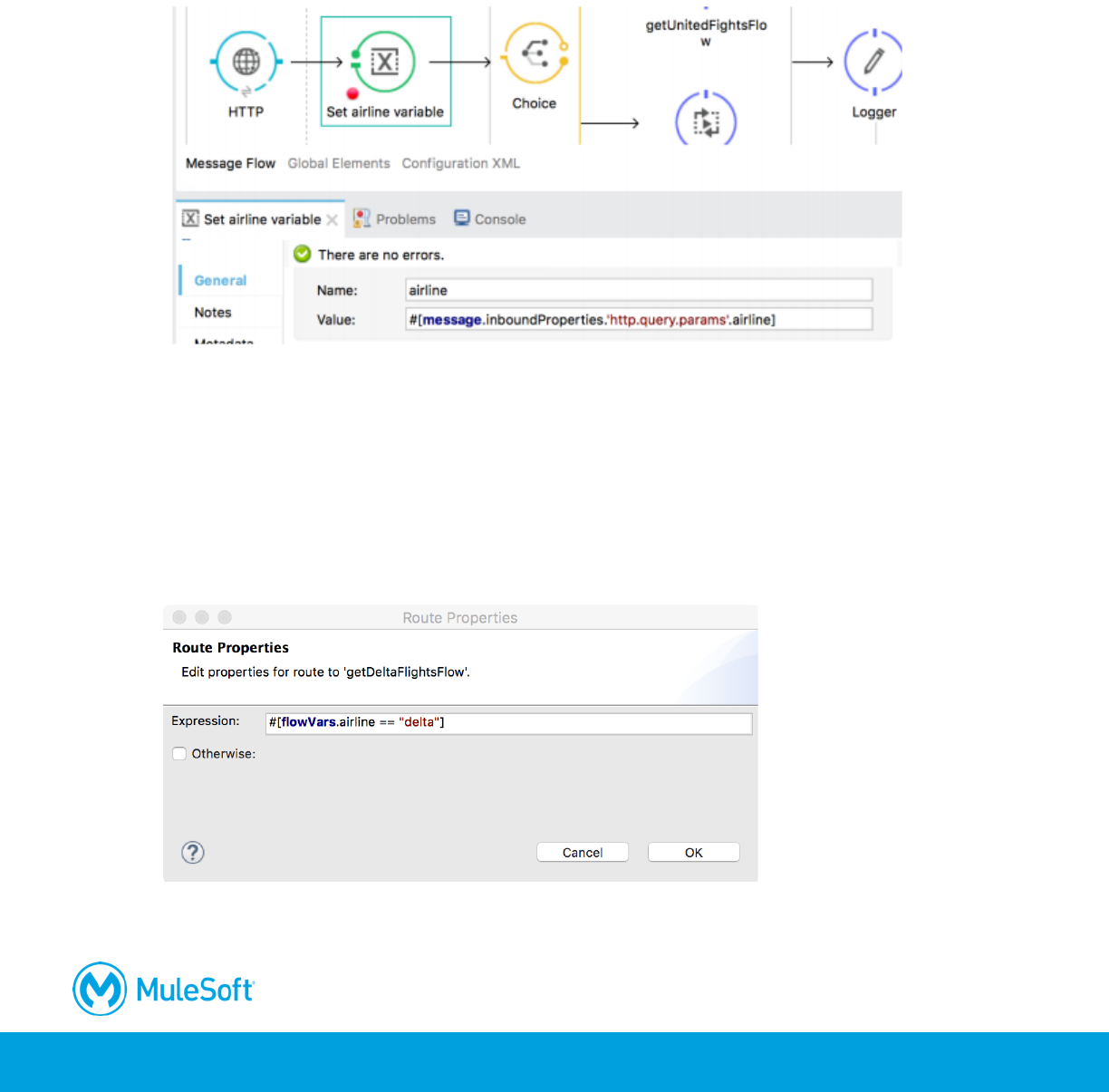
301
Store the airline query parameter in a flow variable
17. Add a Variable transformer before the Choice router.
18. Change its display name to Set airline variable.
19. Set the flow variable name to airline and set it equal to a query parameter called airline.
#[message.inboundProperties.'http.query.params'.airline]
Configure the Choice router
20. In the Choice properties view, double-click the getDeltaFlightsFlow route.
21. In the Route Properties dialog box, set the expression to true if the airline flow variable is equal
to delta and click OK.
#[flowVars.airline == "delta"]
22. Set a similar expression for the United route, routing to it when flowVars.airline is equal to
united.
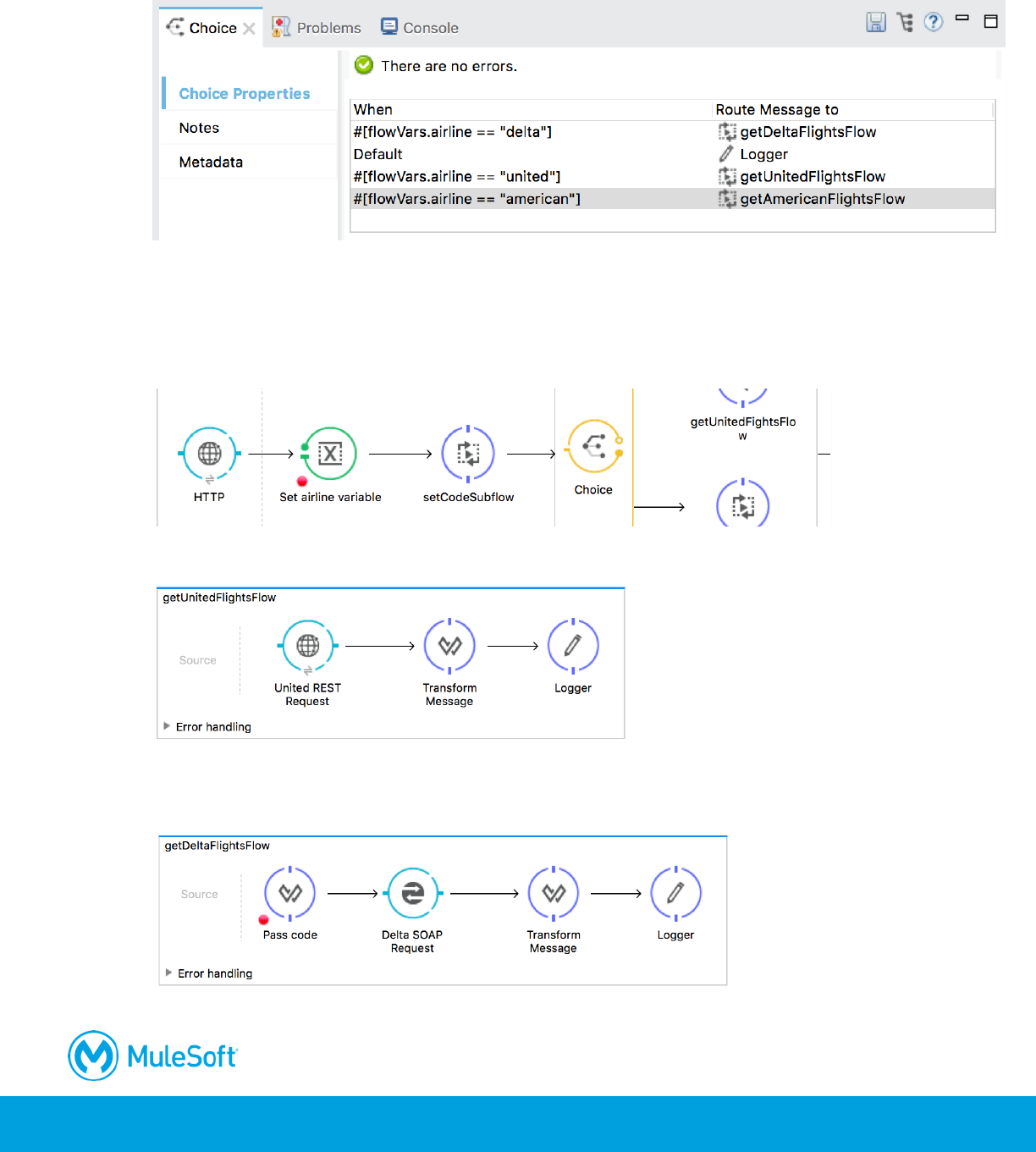
302
23. Set a similar expression for the American route, routing to it when flowVars.airline is equal to
american.
Route all requests through the router
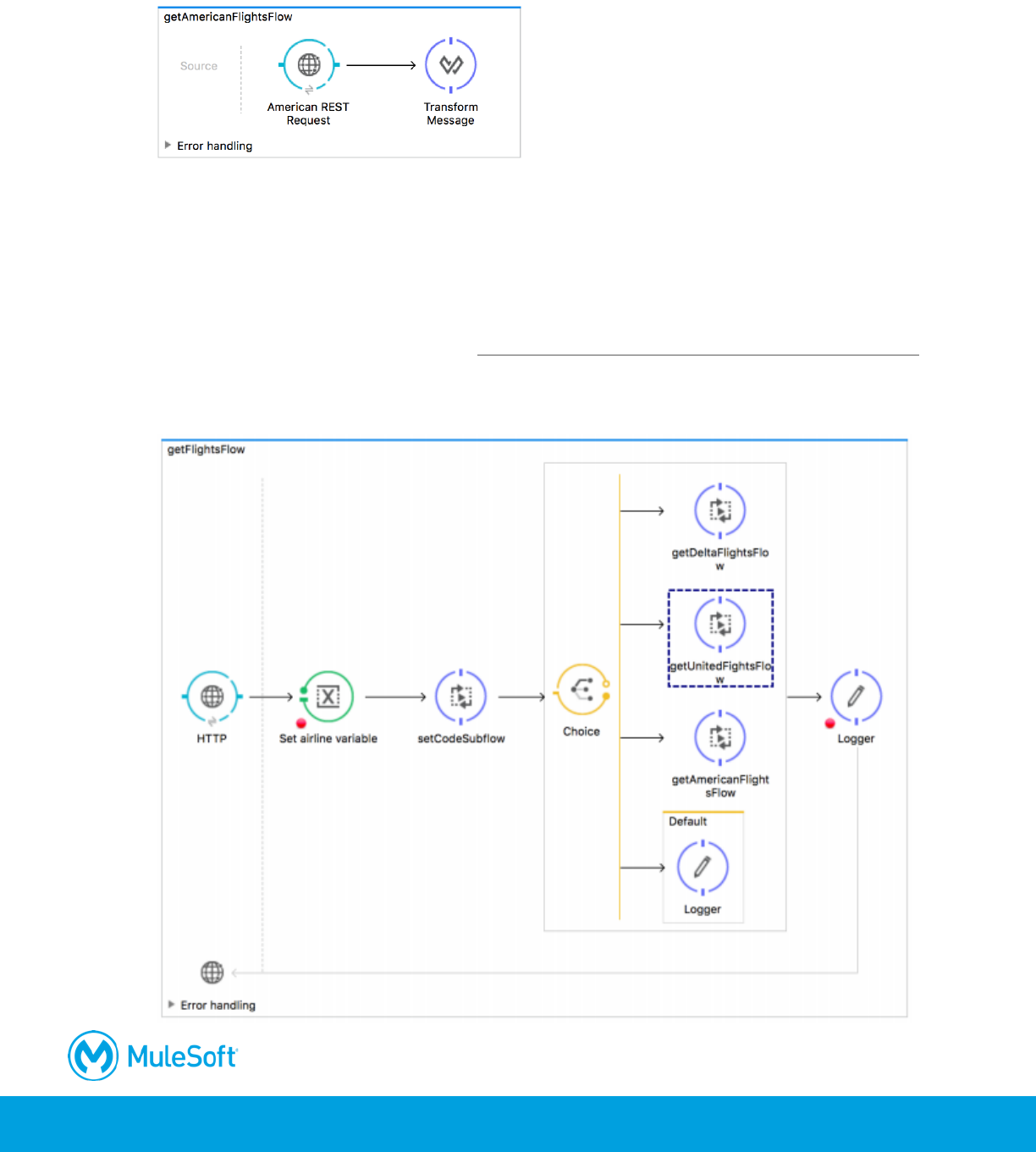
24. From getUnitedFlightsFlow, drag the setCodeSubflow flow reference into getFlightsFlow before
the choice router.
25. In getUnitedFlightsFlow, delete the HTTP Listener endpoint.
26. In getDeltaFlightsFlow, delete the HTTP Listener endpoint and the setCodeSubflow flow
reference.
303
27. In getAmericanFlightsFlow, delete the HTTP Listener endpoint and the setCodeSubflow flow
reference.
Test the application
28. In getFlightsFlow, make sure there is a breakpoint on one of the processors before the Choice
router.
29. Debug the project.
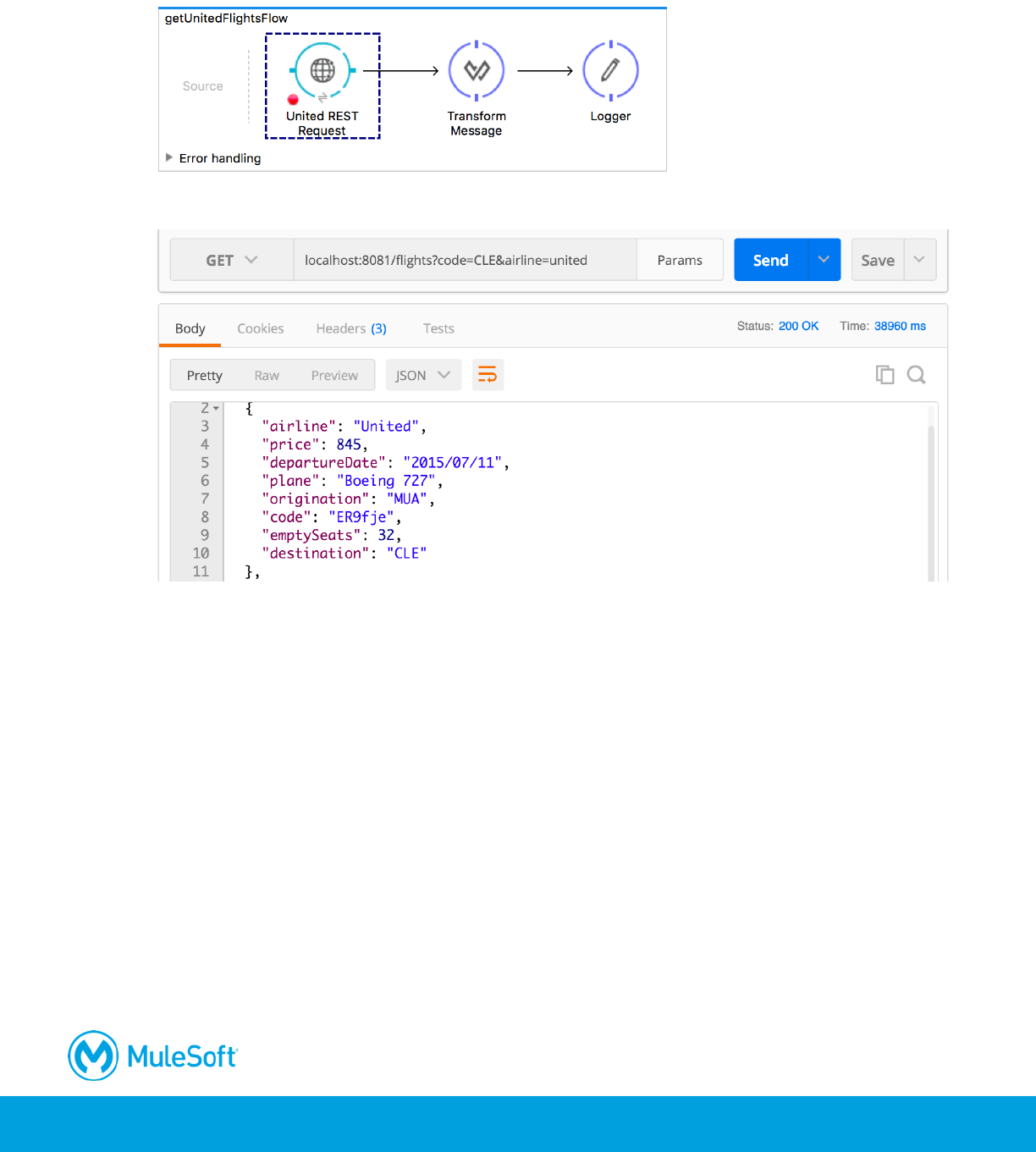
30. In Postman, make the same request to http://localhost:8081/flights?code=CLE&airline=united.
31. In the Mule Debugger, step through the application; you should see the Choice router pass the
message to the United branch.
304
32. Step through the rest of the application; you should see the message passed to
getUnitedFlightsFlow and then back to getFlightsFlow.
33. Return to Postman; you should see only United flights to CLE returned.
34. Change the airline to delta and the code to LAX.
35. Send the request.
36. Step through the application; the message should be routed to the Delta branch.
37. Return to Postman; you should see only Delta flights to LAX are returned.
305
38. In Postman, remove both parameters and make a request to http://localhost:8081/flights.
39. In the Mule Debugger, step through the application; you should see the Choice router pass the
message to the default branch.
40. Click the Resume button.
41. Return to Postman; no flights are returned.
Note: If the next walkthrough, you will change this behavior so that if no airline is specified,
flights for all airlines will be returned.
42. Return to Anypoint Studio, stop the project, and switch to the Mule Design perspective.
306
Walkthrough 10-2: Multicast a message
In this walkthrough, you create a flow that calls each of the three airline services and combines the
results. You will:
• Use a Scatter-Gather router to concurrently call all three flight services.
• Use DataWeave to flatten multiple collections into one collection.
• Use DataWeave to sort the flights by price and return them as JSON.
• (Optional) Modify the airline flows to use DataWeave to each return a Java collection of Flight
objects.
Create a flow to use a router to call all three airline services
1. Return to implementation.xml.
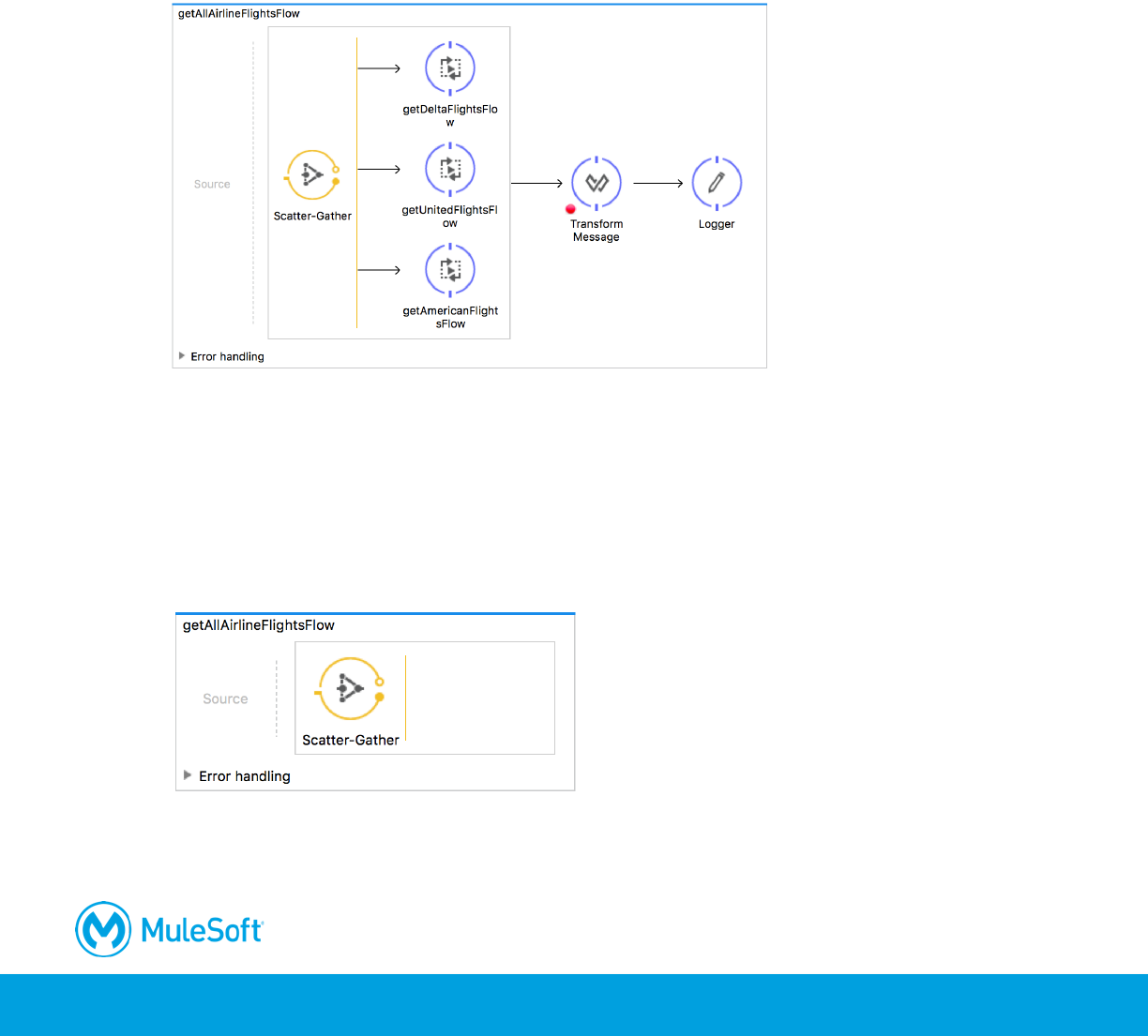
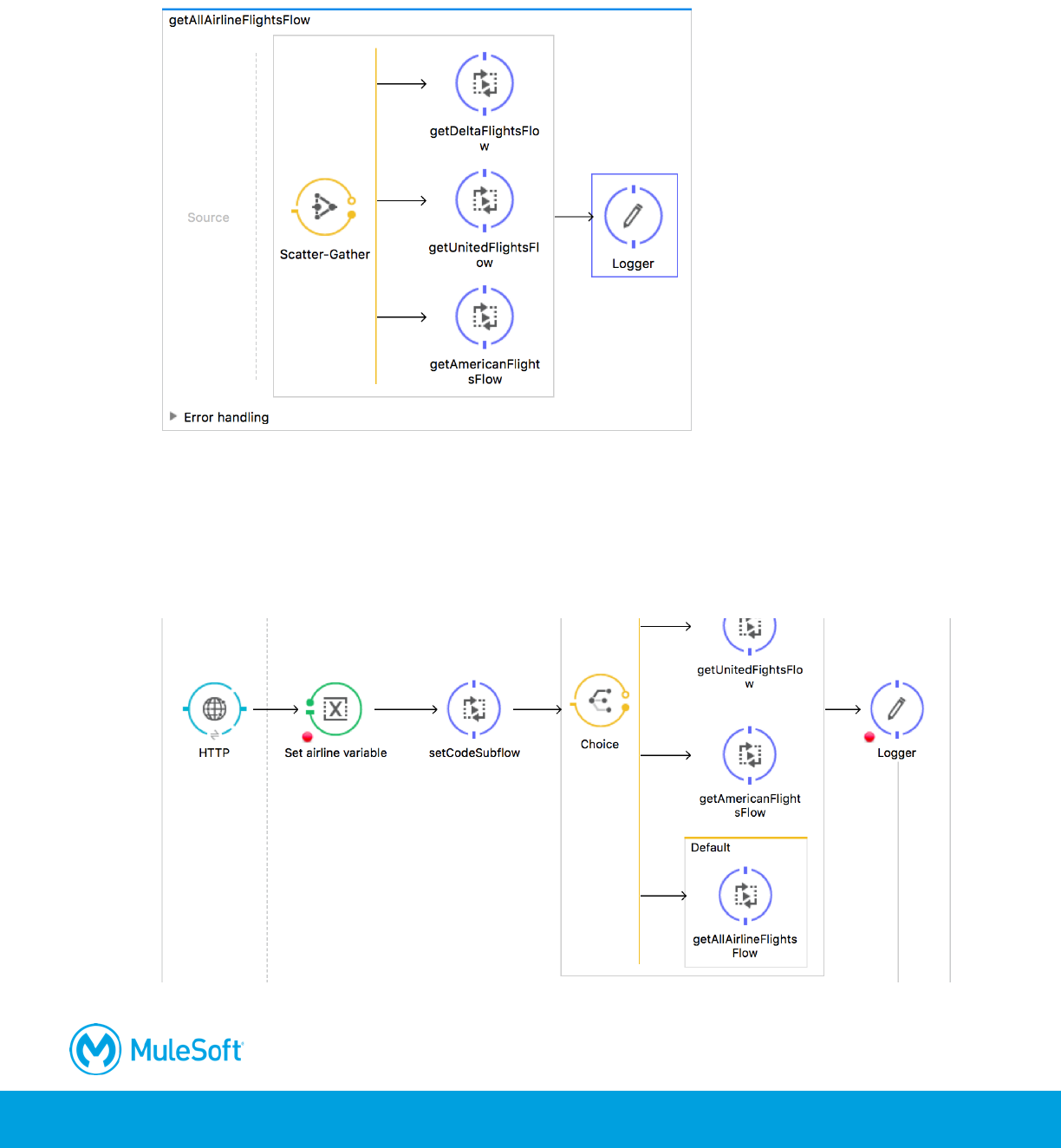
2. Drag a Scatter-Gather flow control element from the Mule Palette and drop it at the bottom of
the canvas.
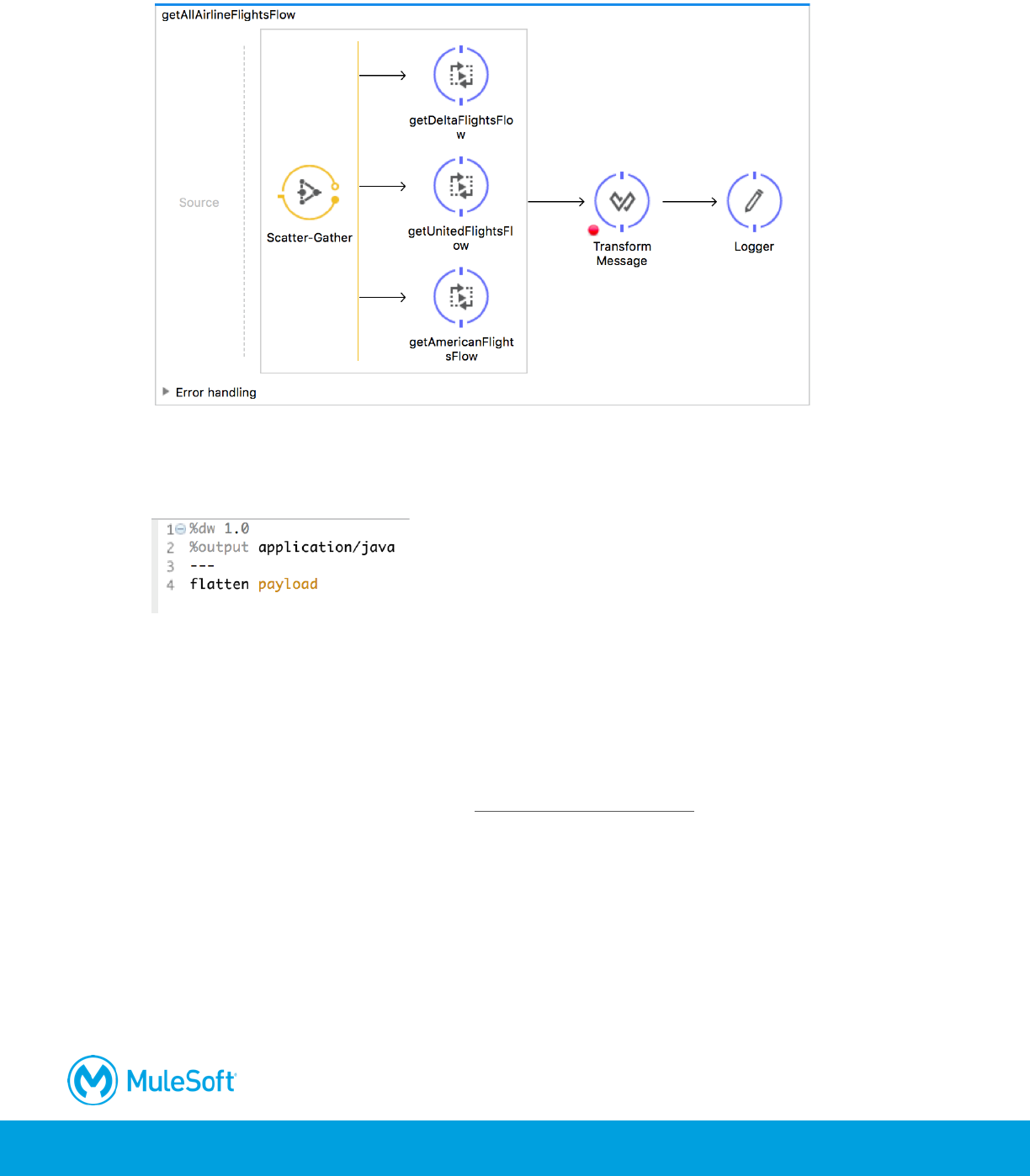
3. Change the name of the flow to getAllAirlineFlightsFlow.
4. Drag three Flow Reference components into the Scatter-Gather router.
5. Using the Properties view, set the flow name of the first Flow Reference to getDeltaFlightsFlow.
307
6. Set the flow name of the second Flow Reference to getUnitedFlightsFlow.
7. Set the flow name of the third Flow Reference to getAmericanFlightsFlow.
8. Add a Logger after the router.
Call this flow if no airline is specified
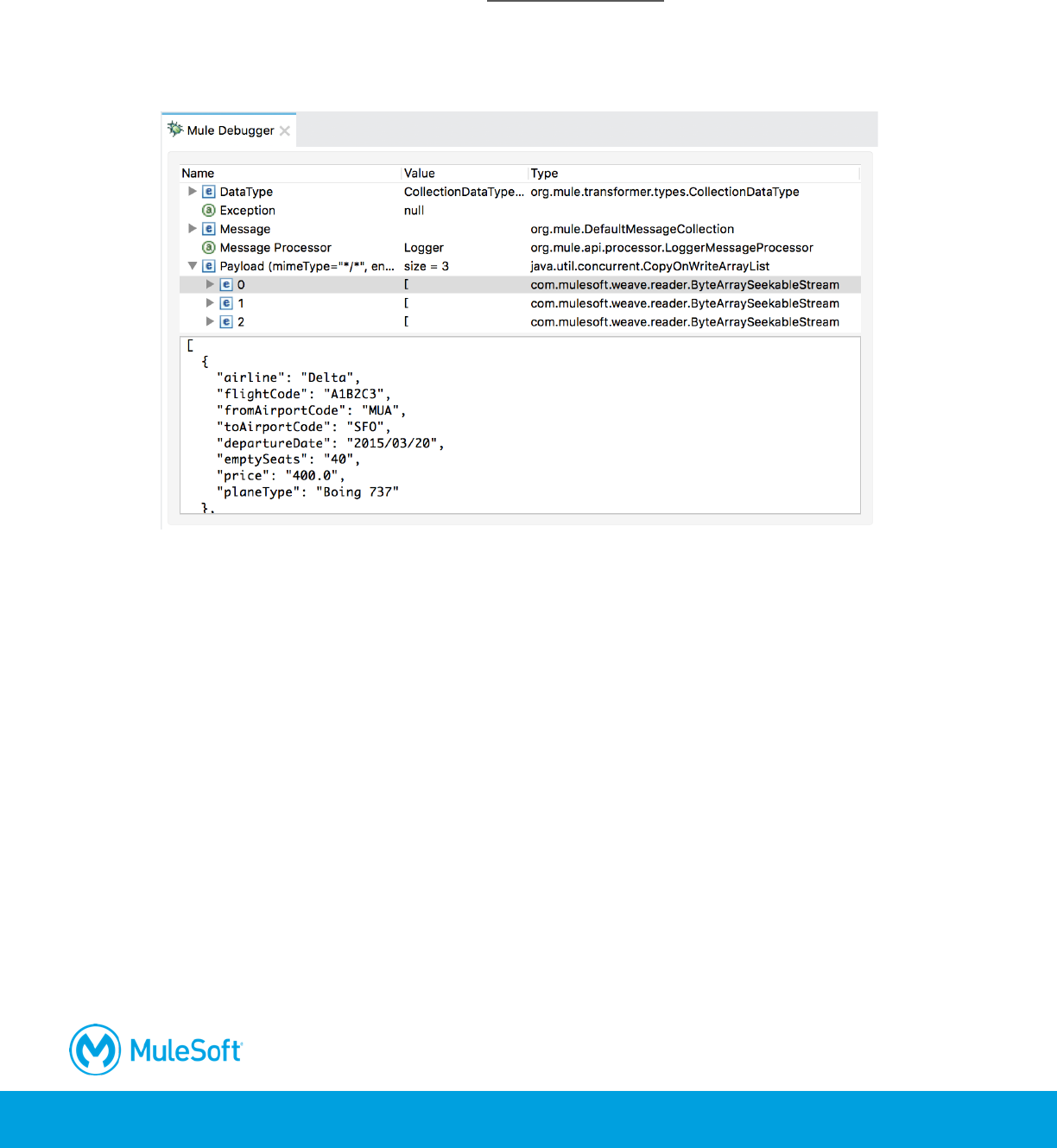
9. Return to getFlightsFlow at the top of the canvas.
10. Delete the Logger in the default branch.
11. Add a Flow Reference to the default branch and set its flow name to getAllAirlineFlightsFlow.
308
Test the application
12. Debug the project.
13. In Postman, make the same request to http://localhost/flights.
14. In the Mule Debugger, step through the application to the default branch of the Choice router,
then into the Scatter-Gather, and then into each of the airline flows.
15. Stop at the Logger back in getFlightsFlow and look at the payload.
Note: You get three different DataWeave stream objects. You want to combine the three
collections and then sort them by price and return them as JSON. Because the airline flight
flows were written first and already return JSON, you can just flatten the collections into one and
then order by price. More typically, however, you would have each of the airline flows return
data of a common canonical format – in this case, a collection of Flight Java objects – and then
flatten, order, and transform that data to the JSON specified by the API.
16. Click the Resume button.
17. Stop the project.
Flatten the combined results
18. Return to getAllAirlineFlightsFlow in the Mule Design pespective.
309
19. Add a Transform Message component before the Logger.
20. In the Properties view, set the DataWeave expression to flatten the payload.
flatten payload
Note: You will learn about DataWeave operators in the later module Writing DataWeave
Transformations.
Test the application
21. Save the file to redeploy the application.
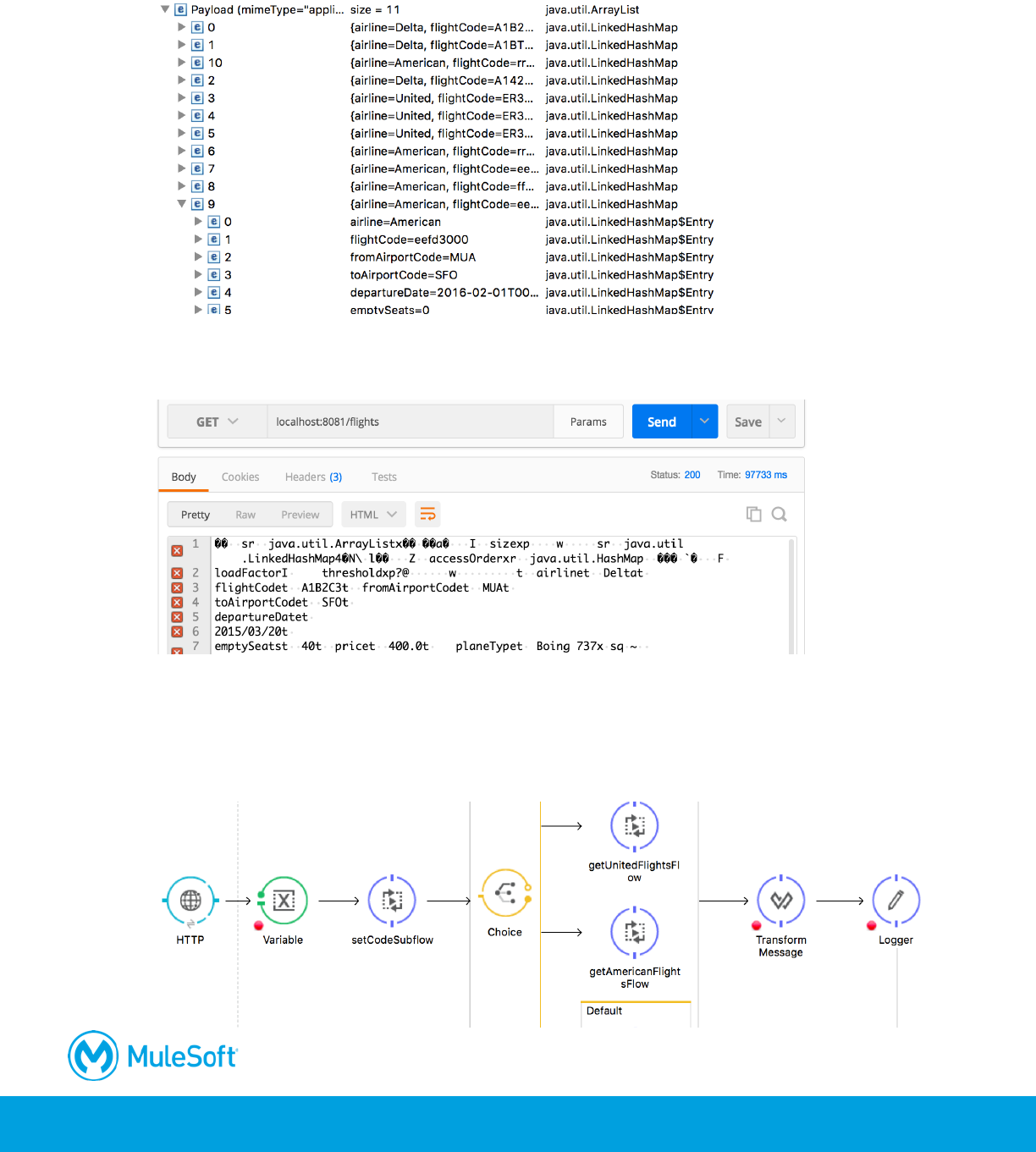
22. In Postman, make the same request to http://localhost:8081/flights.
310
23. In the Mule Debugger, step through the application to the Logger after the Choice router; you
should see the payload is now one ArrayList of HashMaps.
24. Step through the rest of the application and stop the project.
25. In Postman, you should get a representation of Java objects returned.
Return the data as JSON and sort by price
26. Return to getFlightsFlow in the Mule Design perspective.
27. Add a Transform Message component after the Choice router.
311
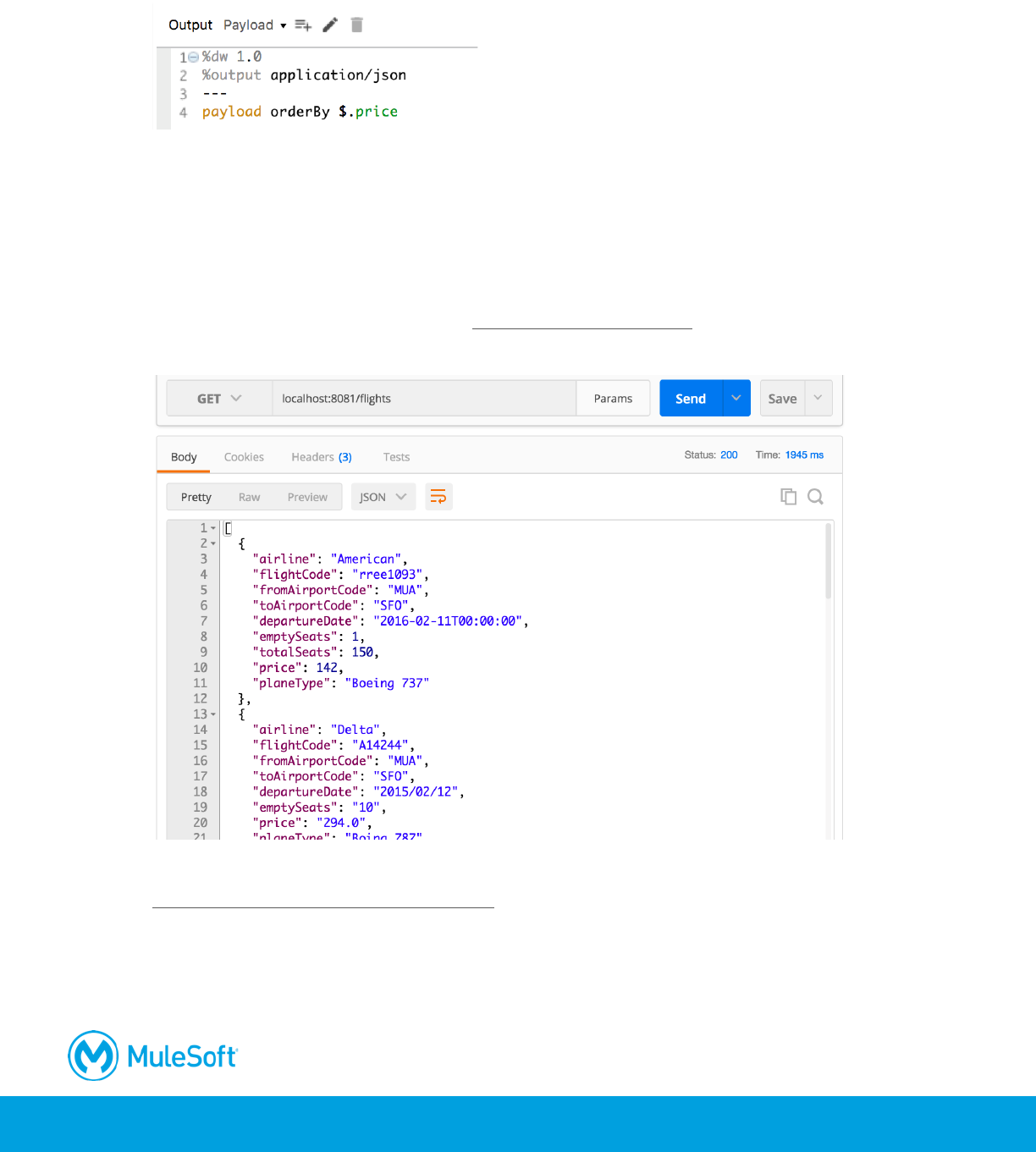
28. In the Transform Message properties view, change the output to application/json.
29. Change the transformation expression to order the payload by price.
Note: You will learn about DataWeave operators in the next module, Writing DataWeave
Transformations.
Test the application
30. Run the project.
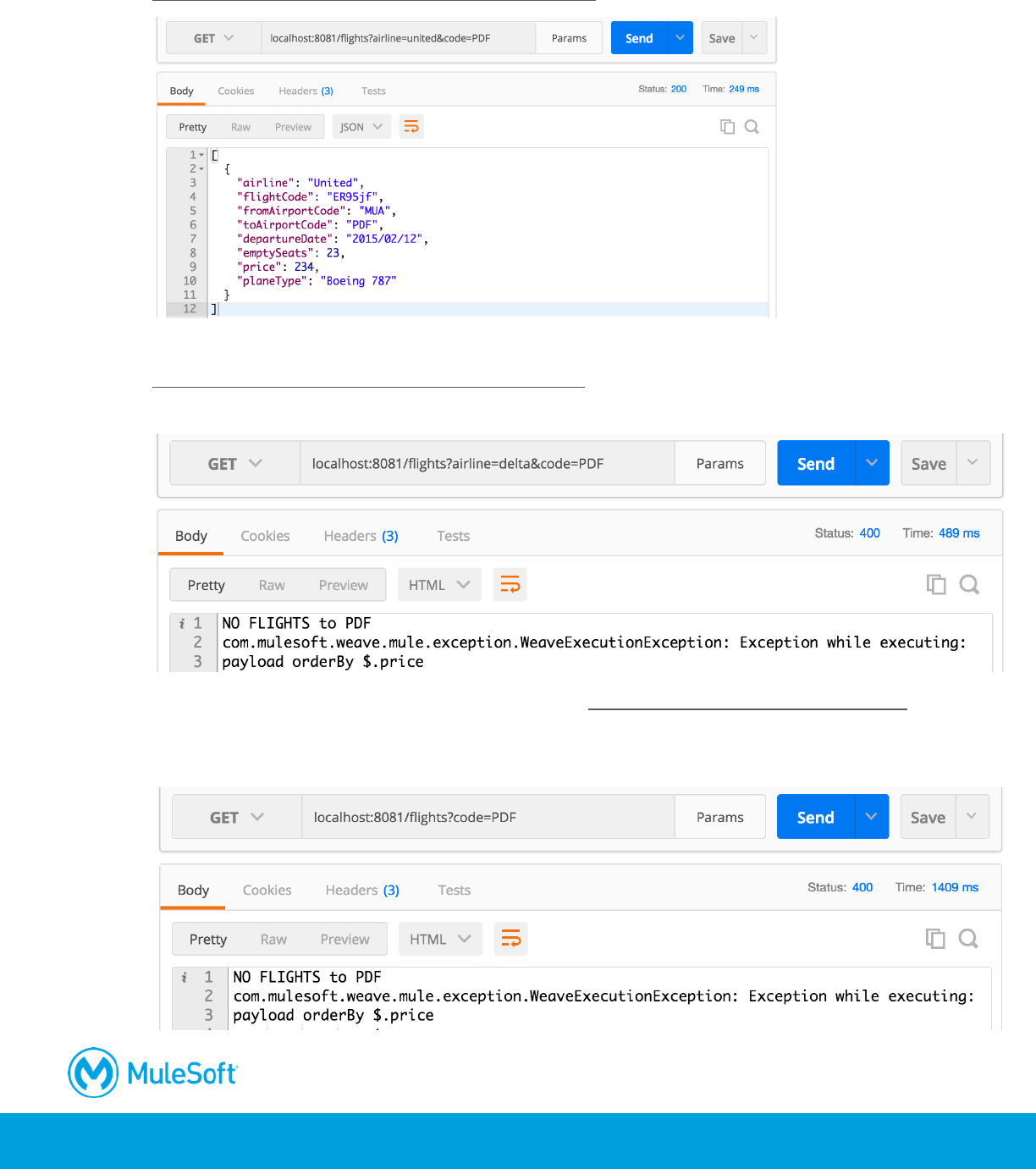
31. In Postman, send the same request to http://localhost:8081/flights; you should get all the flights
to SFO returned and they should be sorted by price.
32. Add an airline parameter equal to united and send the request:
http://localhost:8081/flights?airline=united; you should get united flights to SFO sorted by price.
312
33. Add a code parameter equal to PDF and send the request:
http://localhost:8081/flights?airline=united&code=PDF; you should get one united flight to PDF.
34. Change the airline to delta and send the request:
http://localhost:8081/flights?airline=delta&code=PDF; you should the message that there are not
flights to PDF – which is correct.
35. Remove the airline parameter and send the request: http://localhost:8081/flights?code=PDF;
you should get the one United flight to PDF, but instead you get the message that there are no
flights.
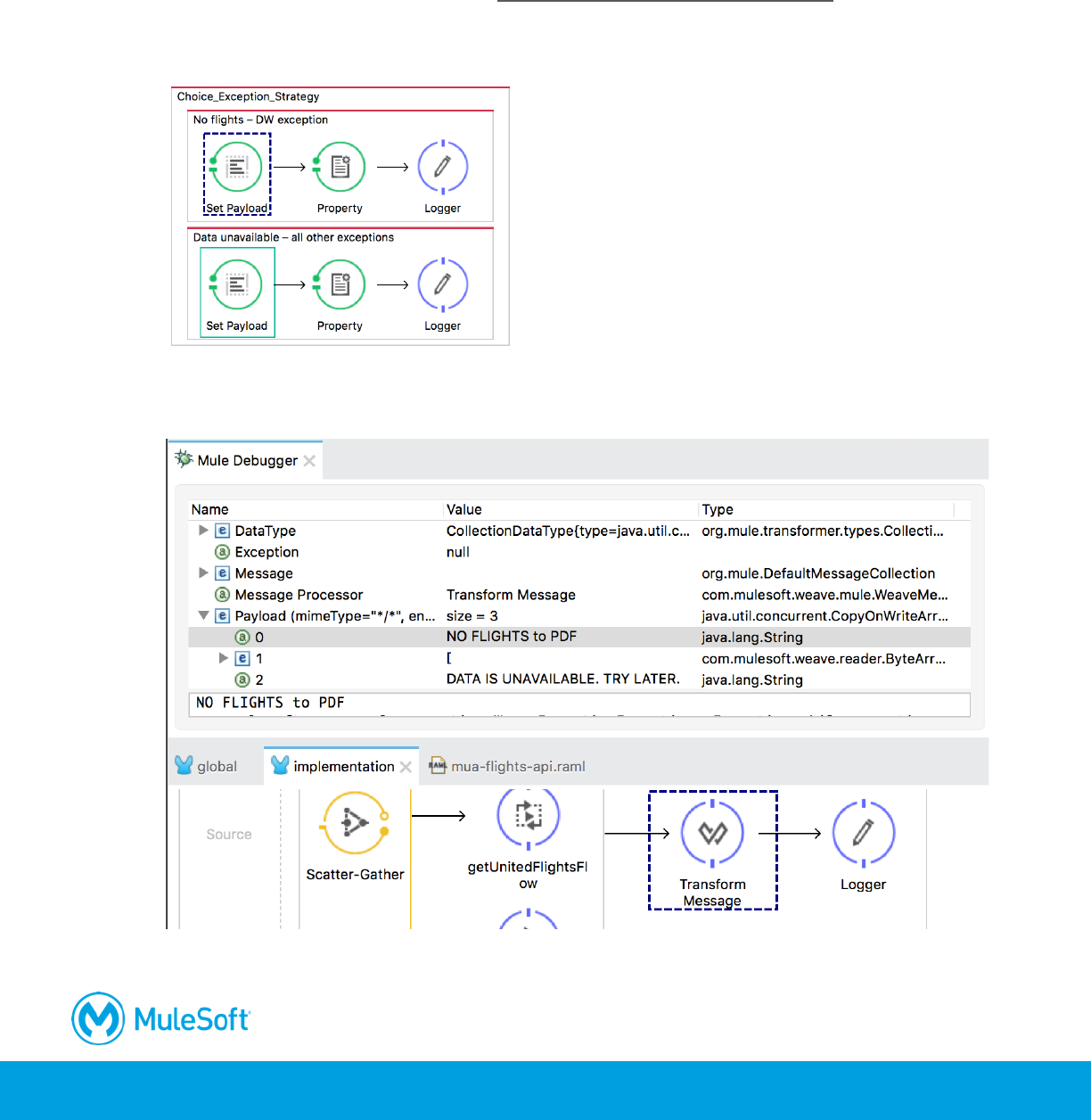
313
36. Return to Anypoint Studio and stop the project.
Debug the application
37. Debug the project.
38. In Postman, send the same request to http://localhost:8081/flights?code=PDF.
39. In the Mule Debugger, step through the application until an exception is thrown – and handled
by the default global exception handler.
40. Continue to step through the application until you reach the Transform Message component in
getAllAirlineFlightsFlow; you should see different types of objects returned.
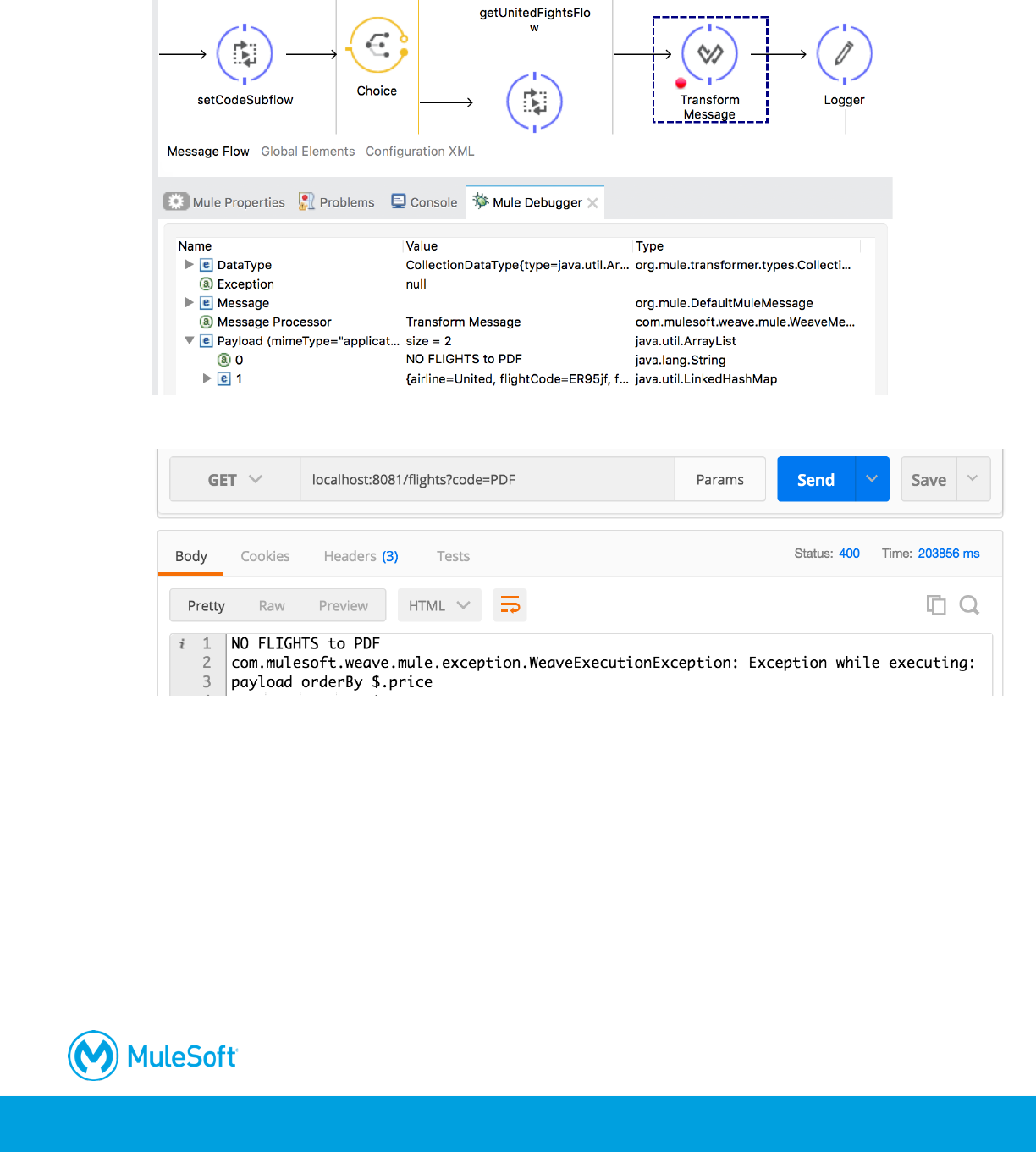
314
41. Step to the Transform Message component in getFlightsFlow; you should see the payload still
contains the error message in addition to the valid flight results to PDF.
42. Step to the end of the application; you should not get the United results to PDF.
Note: You could write a custom aggregation strategy for the Scatter-Gather router with Java to
handle this situation, but instead you will use the simpler approach of filtering out the exception
messages in the next walkthrough.
43. Return to Anypoint Studio, stop the project, and switch to the Mule Design perspective.
315
(Optional) Modify the airline flows to return Java Flight objects instead of JSON
Note: The rest of the walkthrough is optional. It contains steps to modify each of the airline flows
to return data of a common canonical format – in this case, a collection of Flight Java objects.
Change the United airline flows to return Java Flight objects instead of JSON
44. Return to getUnitedFlightsFlow in implementation.xml.
45. In the Transform Message properties view, right-click List <Json> in the output section and
select Clear Metadata.
46. Click the Define metadata link.
47. In the Select metadata type dialog box, click the Add button.
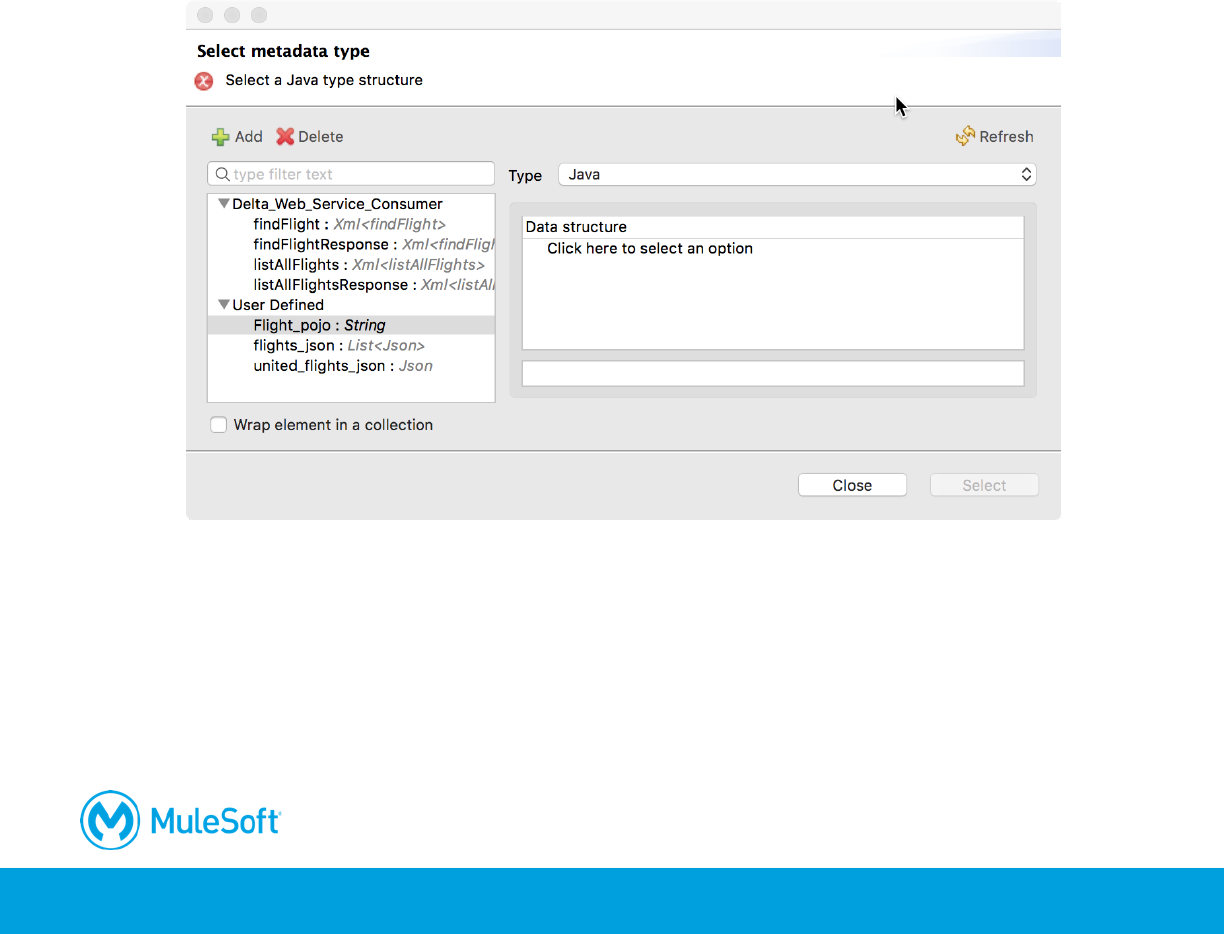
48. In the Create new type dialog box, set the name to Flight_pojo and click Create type.
49. In the Select metadata type dialog box, change the type to Java.
50. In the Data structure section, click the Click here to select an option link.
51. In the drop-down menu that appears, select Java object.
316
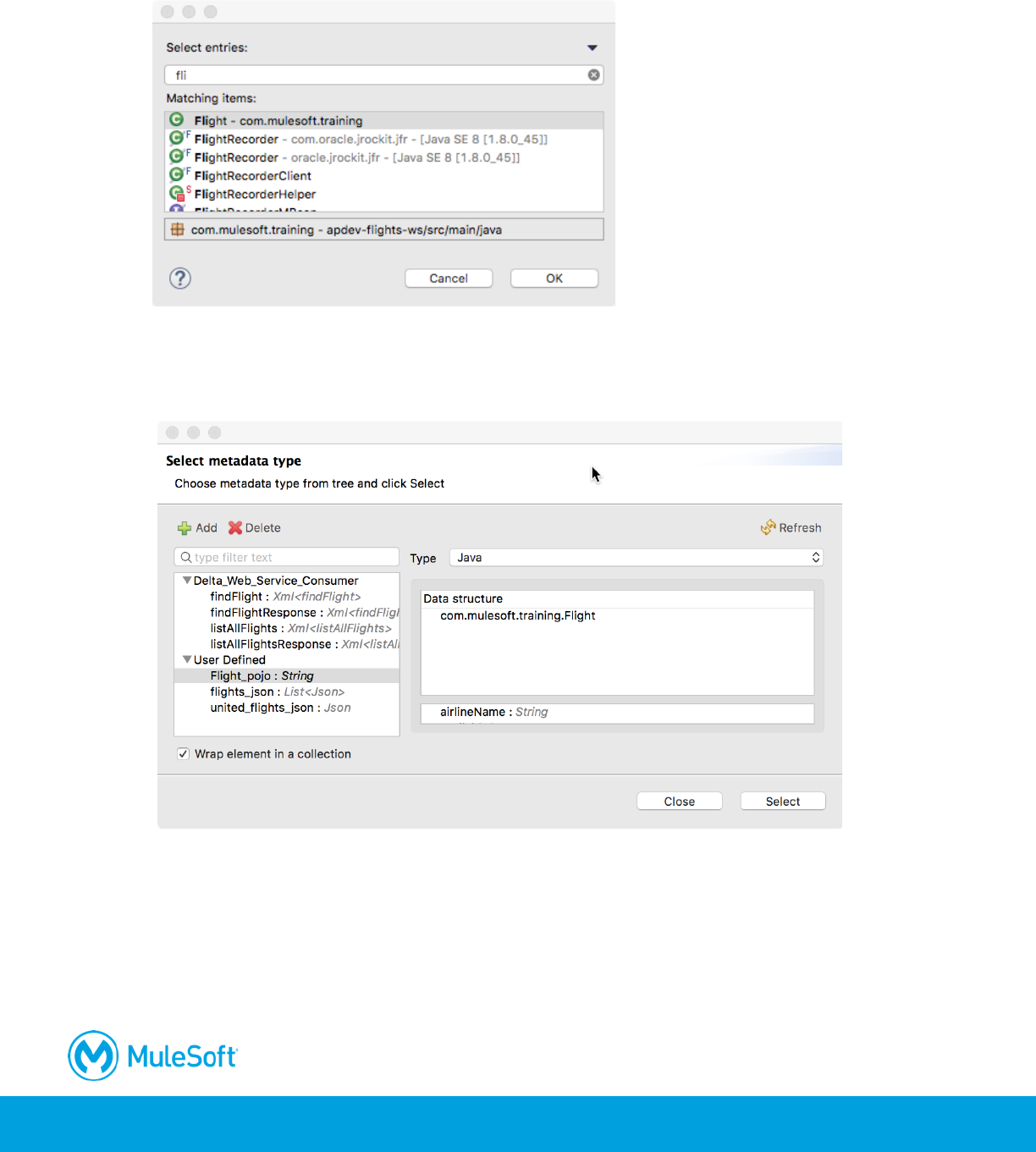
52. In the dialog box that opens, type fli and then in the list of classes that appears, select Flight –
com.mulesoft.training.com.
53. Click OK.
54. In the Select metadata type dialog box, select Wrap element in a collection in the lower-left
corner.
55. Click Select.
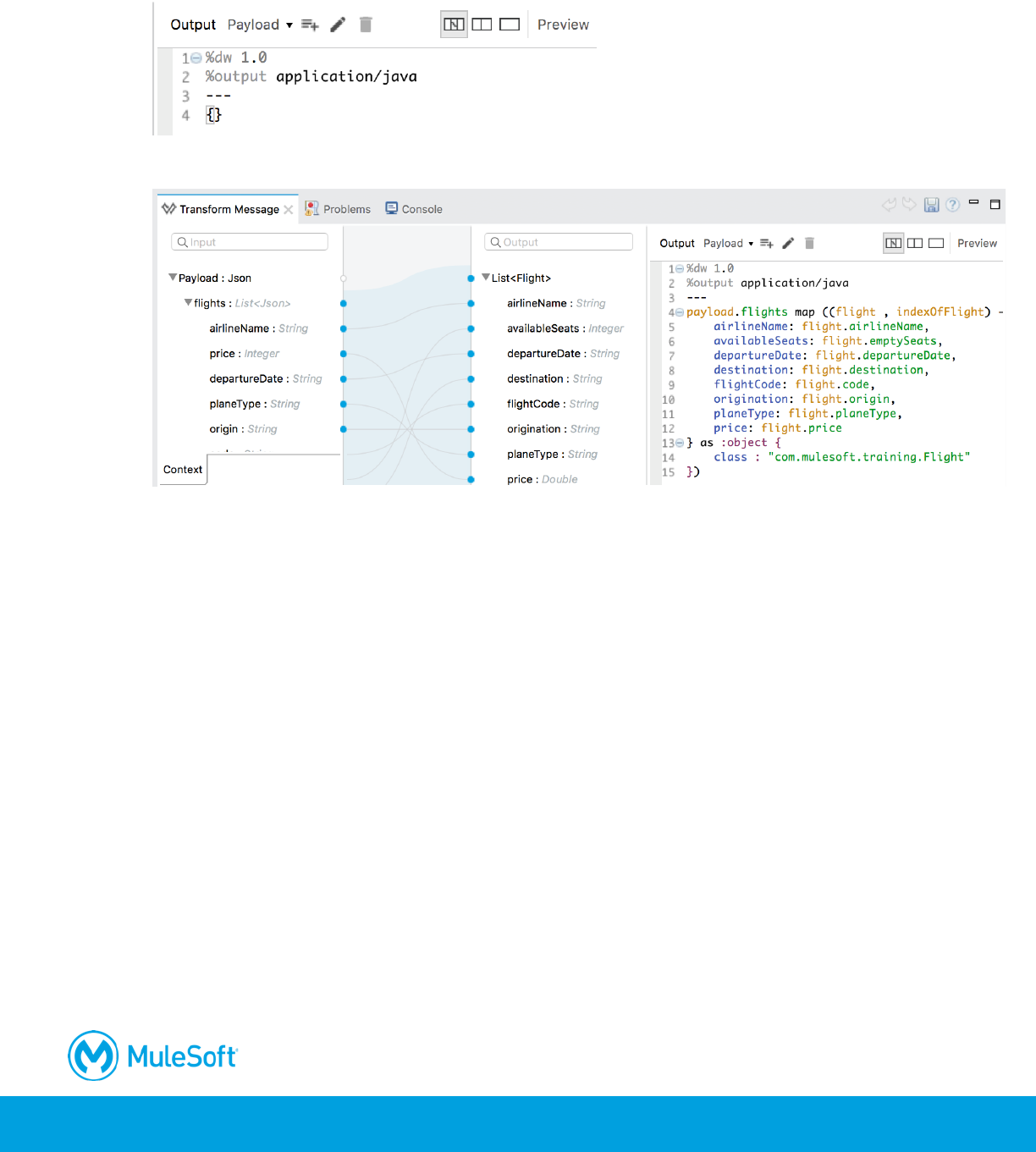
317
56. In the Transform Message properties view, replace the current transformation expression with
an empty object.
57. Use the graphical editor to map the fields appropriately.
Change the American flow to return Java Flight objects instead of JSON
58. Return to getAmericanFlightsFlow.
59. In the Transform Message properties view, right-click List <Json> in the output section and
select Clear Metadata.
60. Click the Define metadata link.
61. In the Select metadata type dialog box, select Flight_pojo.
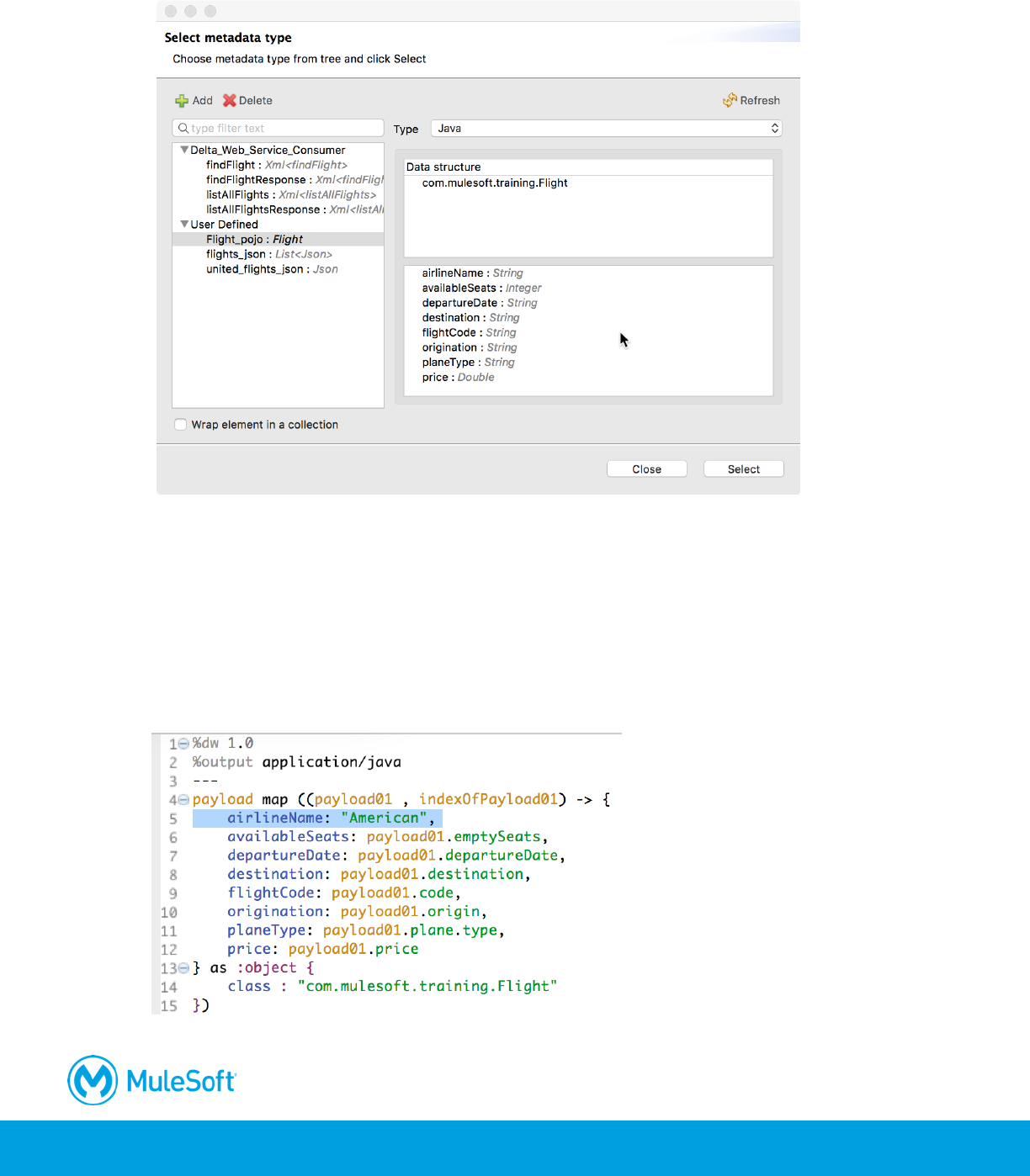
318
62. Select the Wrap element in a collection checkbox in the lower-left corner.
63. Click Select.
64. In the Transform Message properties view, replace the current transformation expression with
an empty object.
65. Use the graphical editor to map the fields appropriately.
66. In the output section of the graphical editor, double-click airlineName; the field should be added
to the DataWeave expression.
67. Set its value to "American".
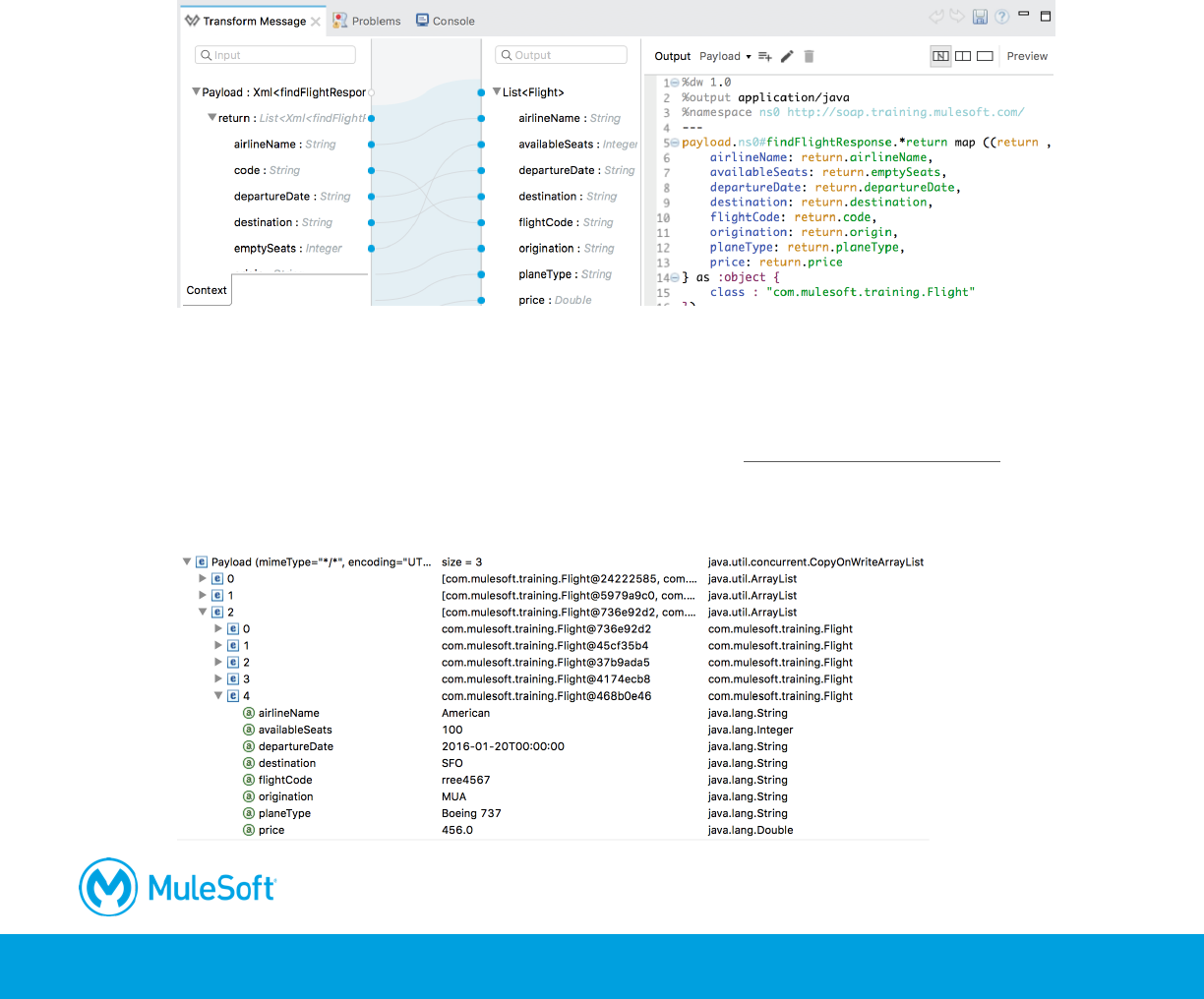
319
Change the Delta flow to return Java Flight objects instead of JSON
68. Return to getDeltaFlightsFlow.
69. In the Transform Message Properties view for the component after the Delta SOAP Request,
right-click List <Json> in the output section and select Clear Metadata.
70. Click the Define metadata link.
71. In the Select metadata type dialog box, select Flight_pojo.
72. Select the Wrap element in a collection checkbox in the lower-left corner.
73. Click Select.
74. In the Transform Message properties view, replace the current transformation expression with
an empty object.
75. Use the graphical editor to map the fields appropriately.
Test the application
76. Debug the project.
77. In Postman, remove the parameters and send a request to http://localhost:8081/flights.
78. In the Mule Debugger, step through the application to the Transform Message component in
getAllAirlineFilghtsFlow; the payload should be a collection of three ArrayLists of Flight objects.
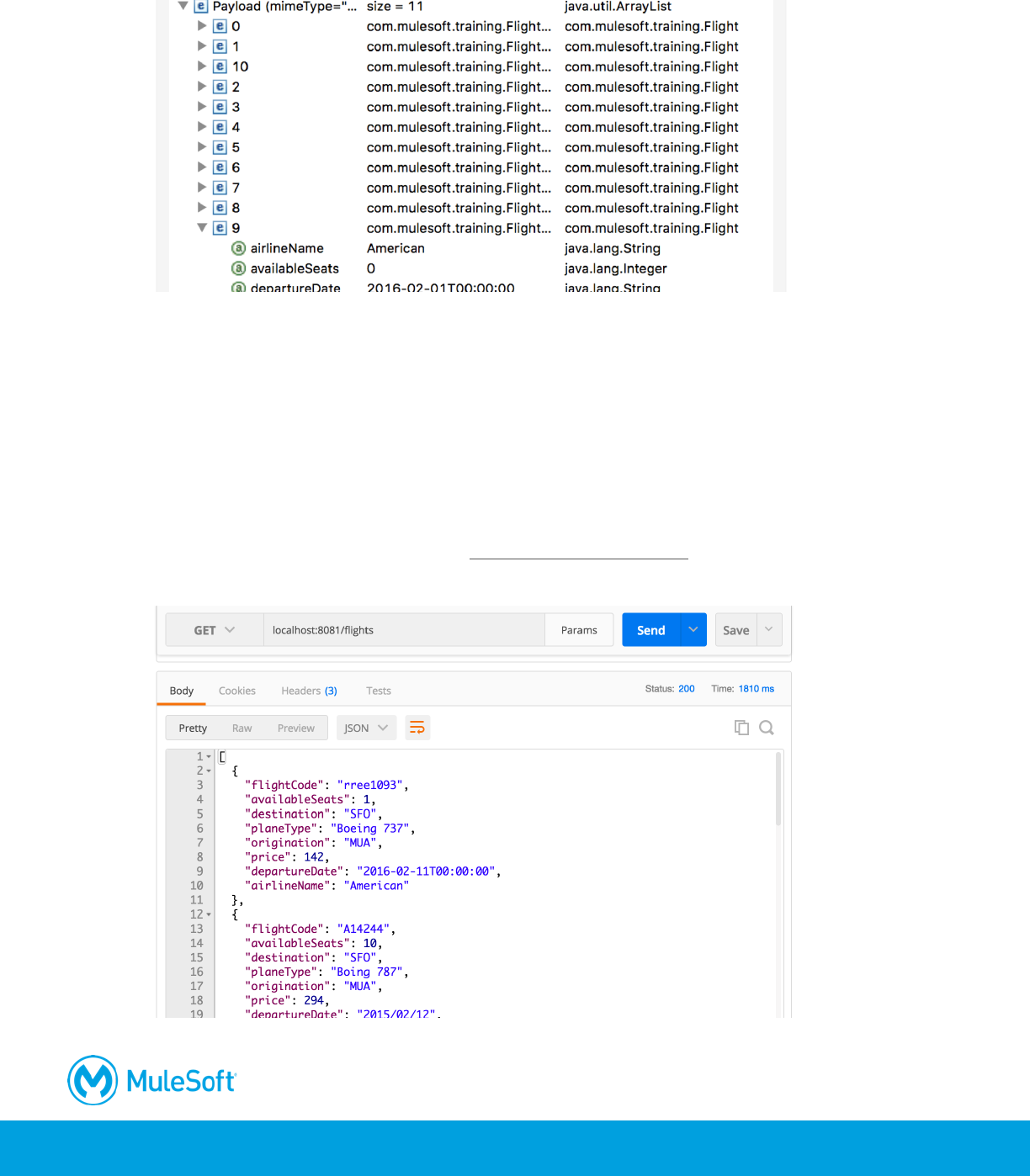
320
79. Step to the Logger; the payload should now be one ArrayList of Flight objects.
80. Step through to the end of the application.
Test the application
Note: You completed the rest of the walkthrough steps already before modifying the airline flows
to return collections of Flight objects. You are repeating them as a lead in to the next
walkthrough.
81. Run the project.
82. In Postman, send the same request to http://localhost:8081/flights; you should get all the flights
to SFO returned and they should be sorted by price.
321
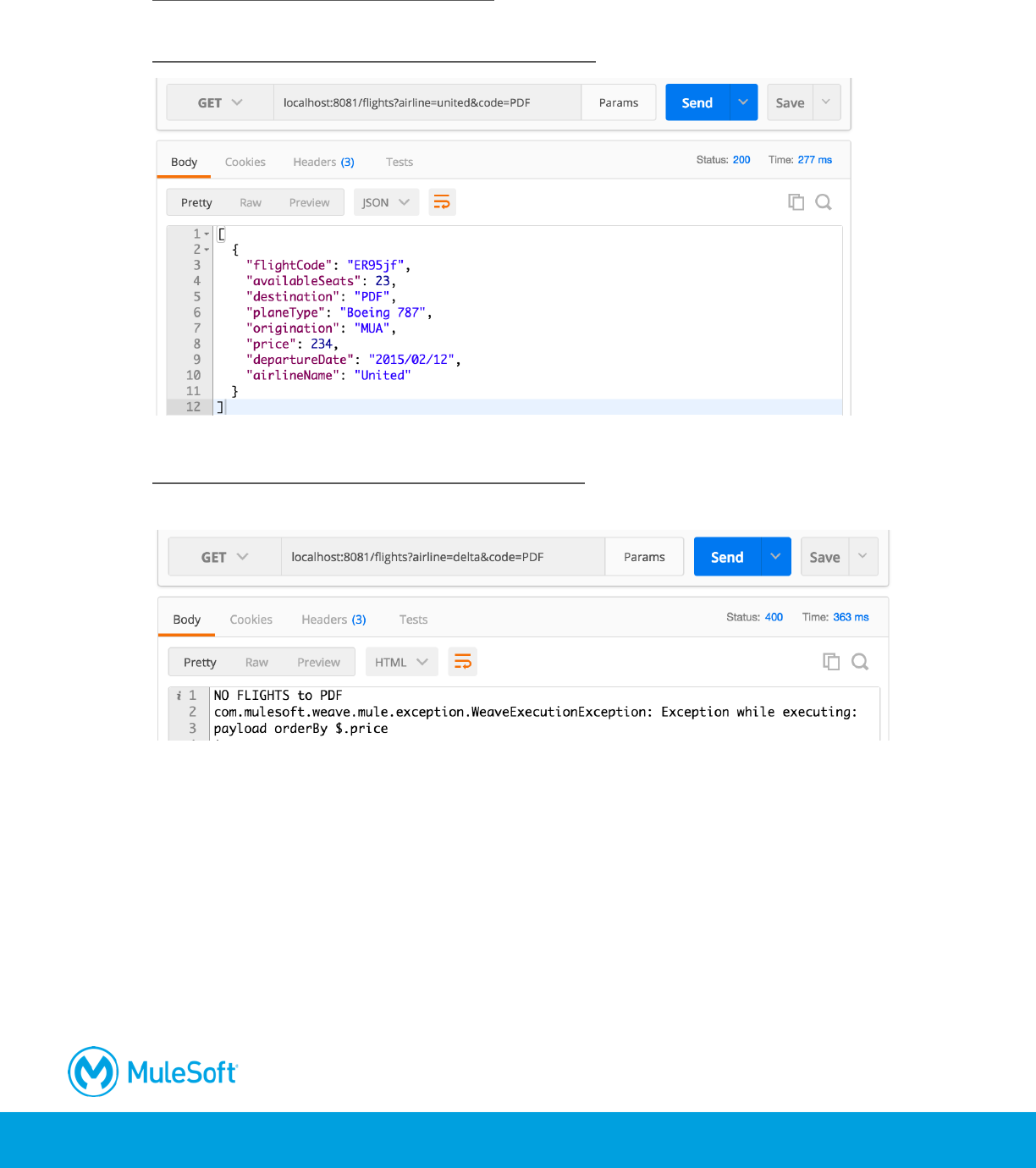
83. Add an airline parameter equal to united and send the request:
http://localhost:8081/flights?airline=united; you should get united flights to SFO sorted by price.
84. Add a code parameter equal to PDF and send the request:
http://localhost:8081/flights?airline=united&code=PDF; you should get one united flight to PDF.
85. Change the airline to delta and send the request:
http://localhost:8081/flights?airline=delta&code=PDF; you should the message that there are not
flights to PDF – which is correct.
322
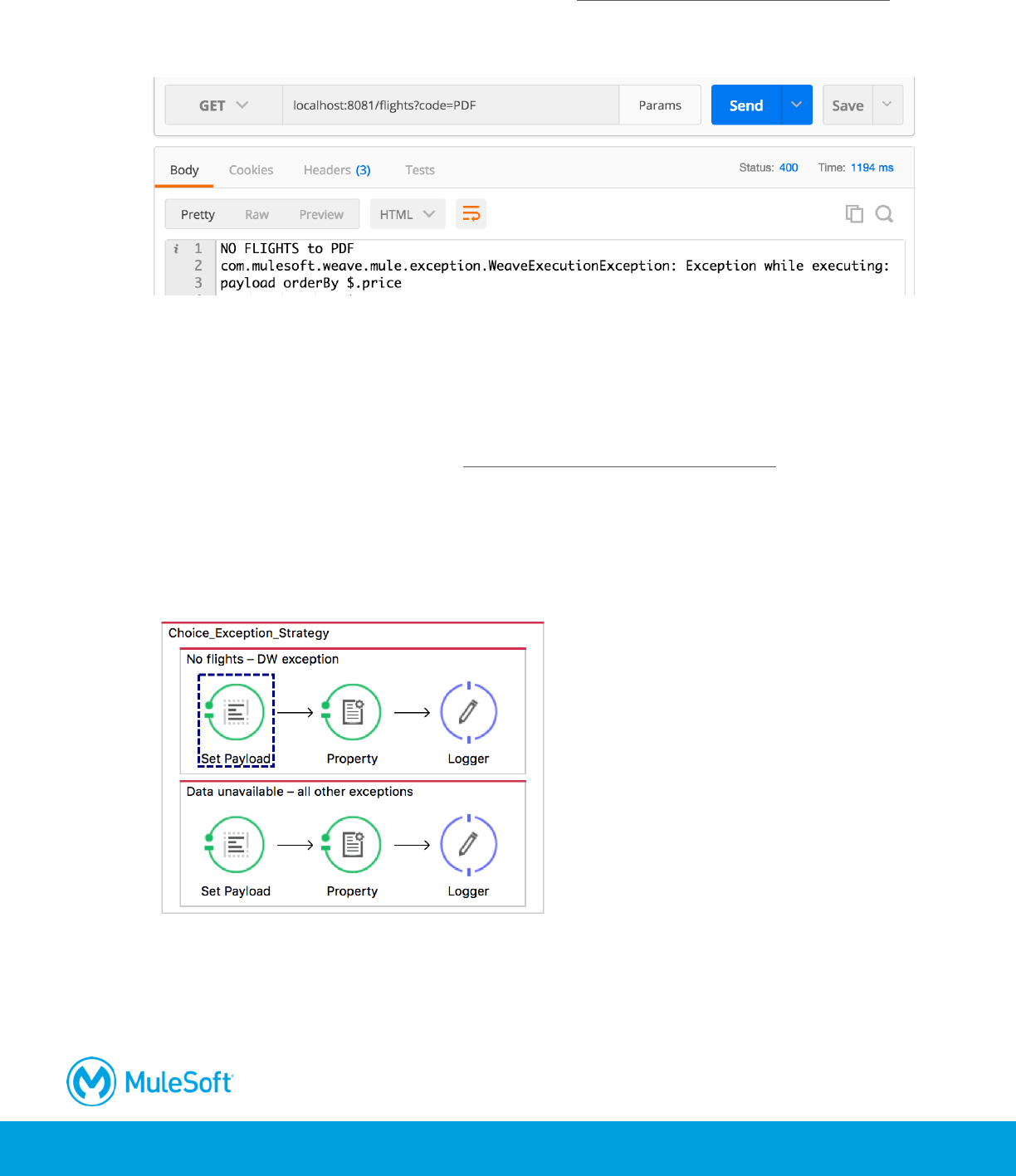
86. Remove the airline parameter and send the request: http://localhost:8081/flights?code=PDF;
you should get the one United flight to PDF, but instead you get the message that there are no
flights.
87. Return to Anypoint Studio and stop the project.
Debug the application
88. Debug the project.
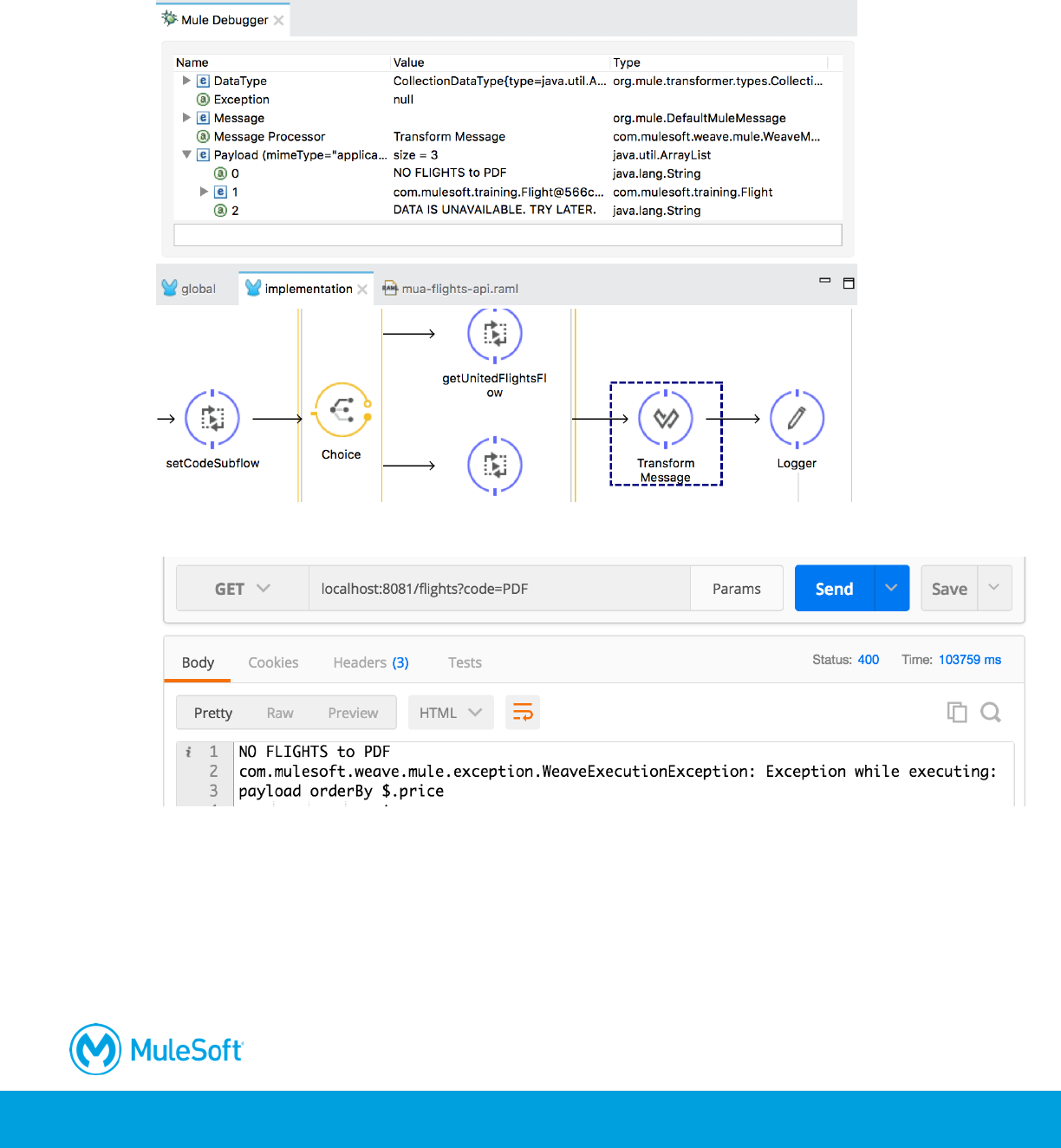
89. In Postman, send the same request to http://localhost:8081/flights?code=PDF.
90. In the Mule Debugger, step through the Delta flow throws an exception that is handled by the
default global exception handler.
Note: The American flow also throws an exception that is handled by this choice exception
strategy.
323
91. Continue to step through the application until you reach the Transform Message component
in getFlightsFlow; you should see the payload still contains the error messages in addition to the
valid flight results to PDF.
92. Step to the end of the application; you should not get the United results to PDF.
Note: You could write a custom aggregation strategy for the Scatter-Gather router with Java to
handle this situation, but instead you will use the simpler approach of filtering out the exception
messages in the next walkthrough.
93. Return to Anypoint Studio, stop the project, and switch perspectives.
324
Walkthrough 10-3: Filter messages
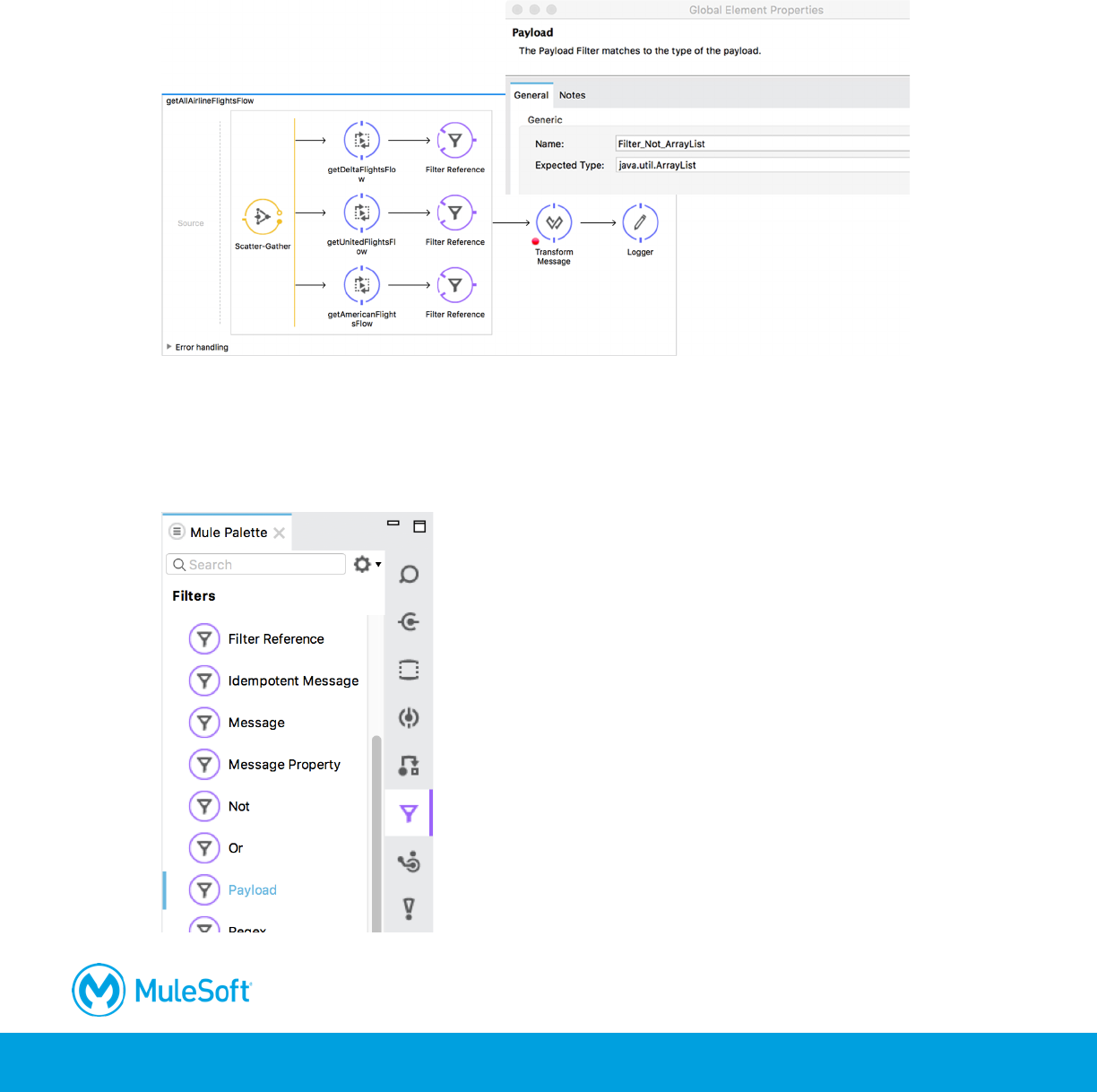
In this walkthrough, you filter the results in the multicast to ensure they are ArrayLists and not exception
strings. You will:
• Use the Payload filter.
• Create and use a global filter.
Browse the filter elements in the Mule Palette
1. In the Mule Palette, select the Filters tab.
2. View the available filters.
325
Add a filter
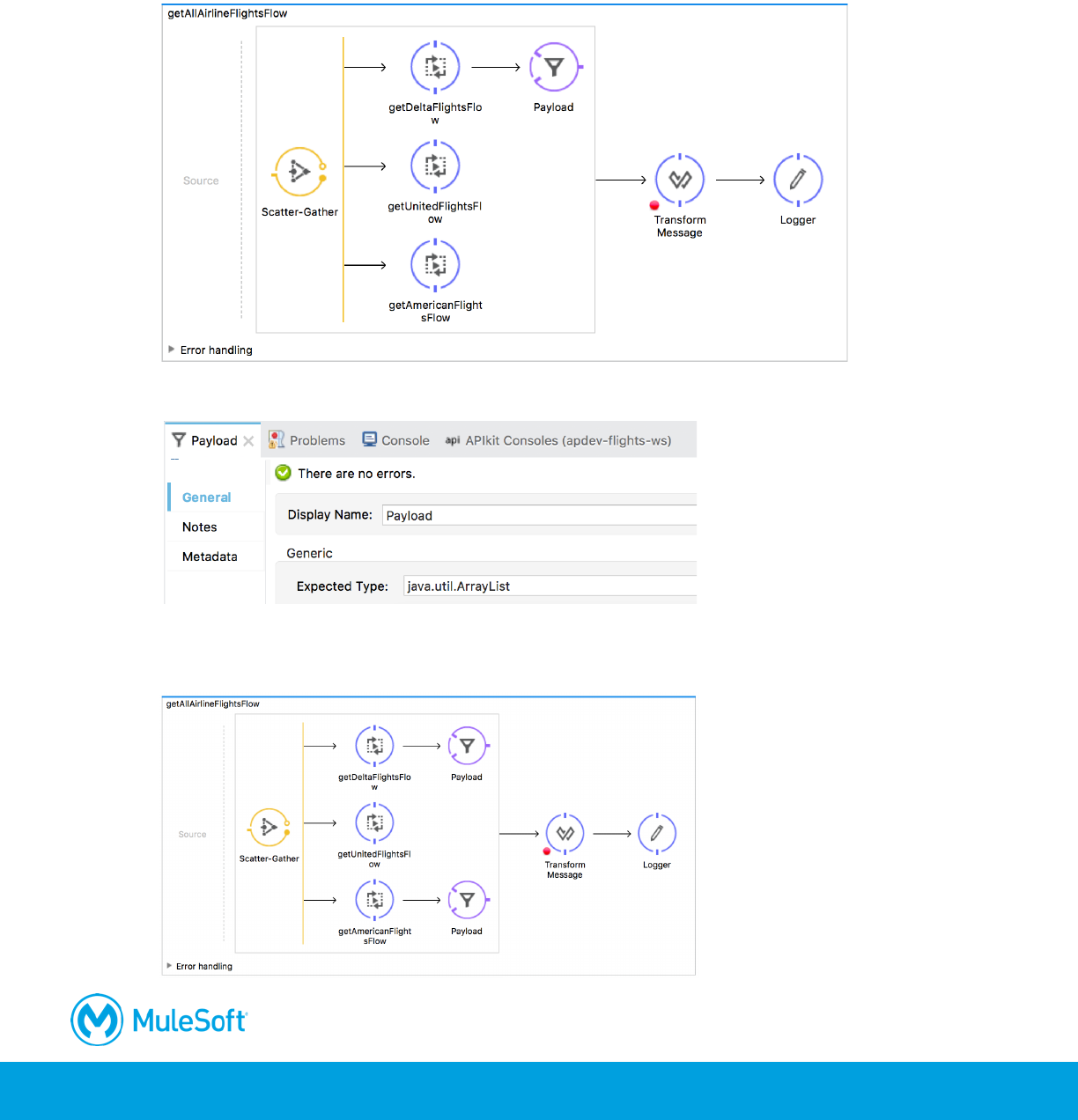
3. Return to getAllAirlineFlightsFlow.
4. Drag out a Payload filter from the Mule Palette and drop it after the getDeltaFlightsFlow
reference in the Scatter-Gather.
5. In the Payload properties view, set the expected type to java.util.ArrayList.
6. Add a Payload filter after the getAmericanFlightsFlow reference and set its expected type to
java.util.ArrayList.
326
Test the application
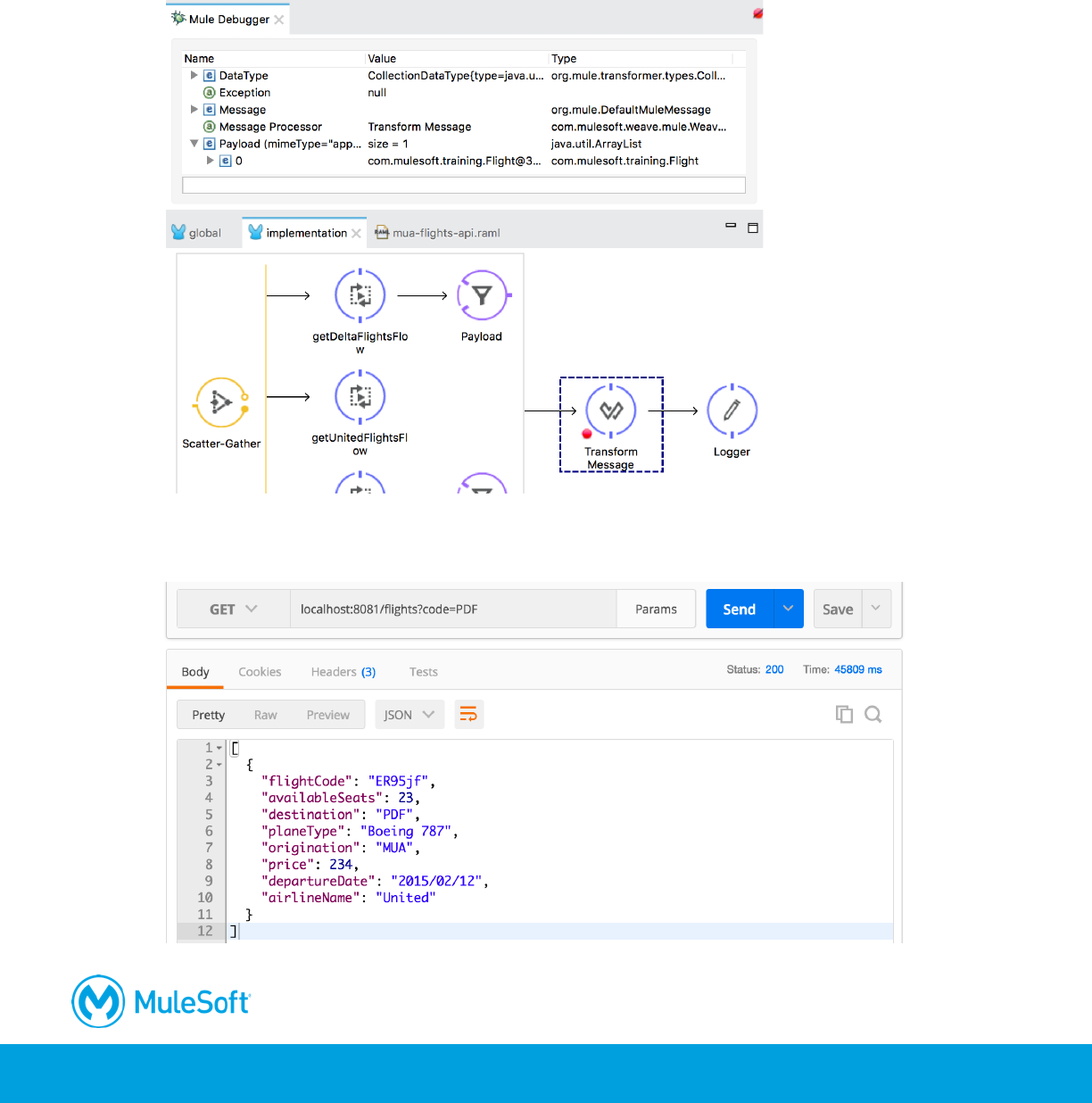
7. Debug the project.
8. In Postman, make the same request to PDF and all airlines.
9. In the Mule Debugger, step to the Transform Message component after the Scatter-Gather; this
time you should see the payload does not contain the error strings.
10. Step to the end of the application.
11. In Postman, view the response; you should see the United results to PDF.
327
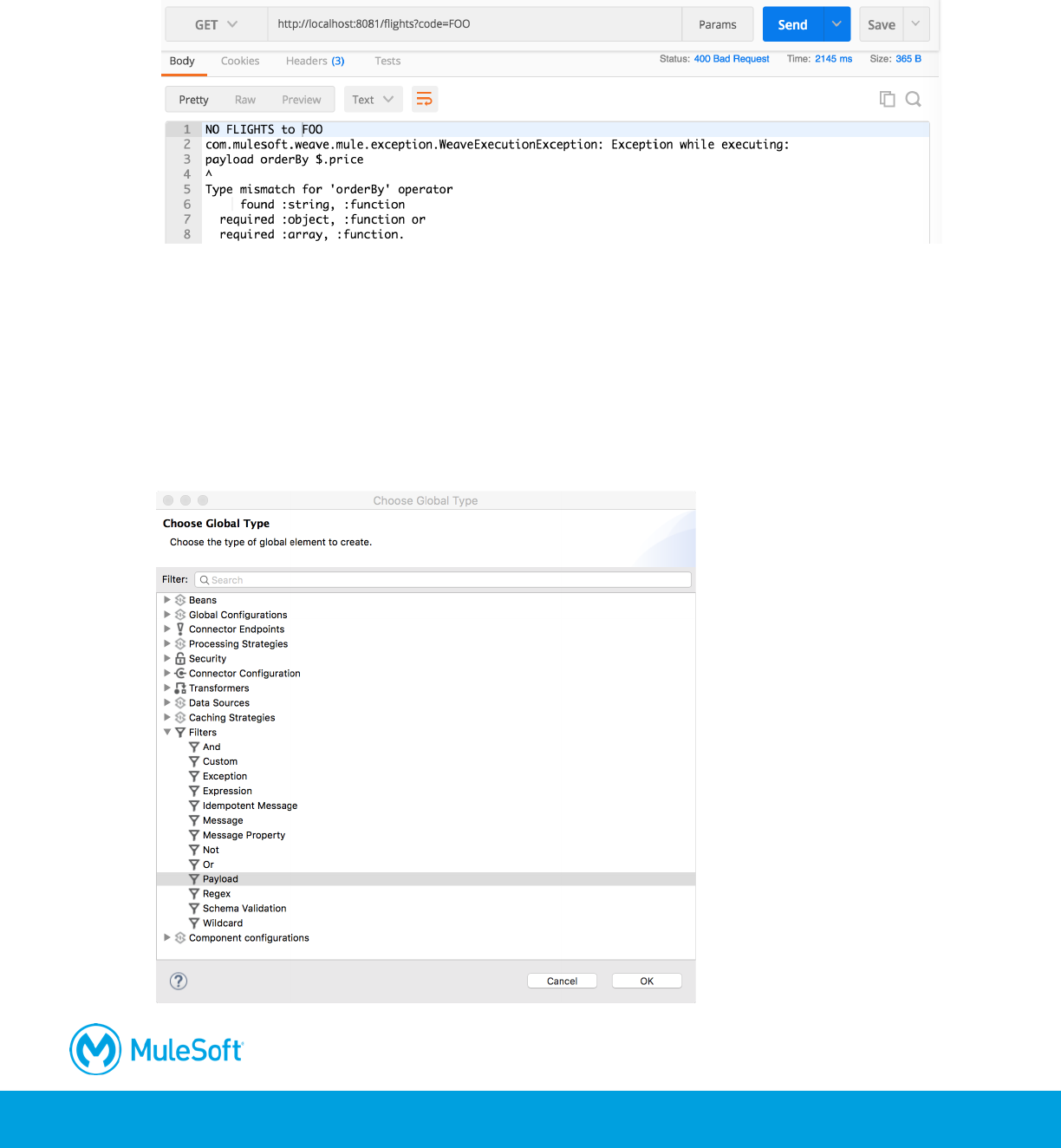
12. Change the code parameter to FOO and send the request.
13. Click Resume until you step through to the end of the application.
14. In Postman, view the response; you should see an error message.
Create a global filter
15. Return to getAllAirlineFlightsFlow in the Mule Design perspective.
16. Delete the Payload filters.
17. Return to global.xml.
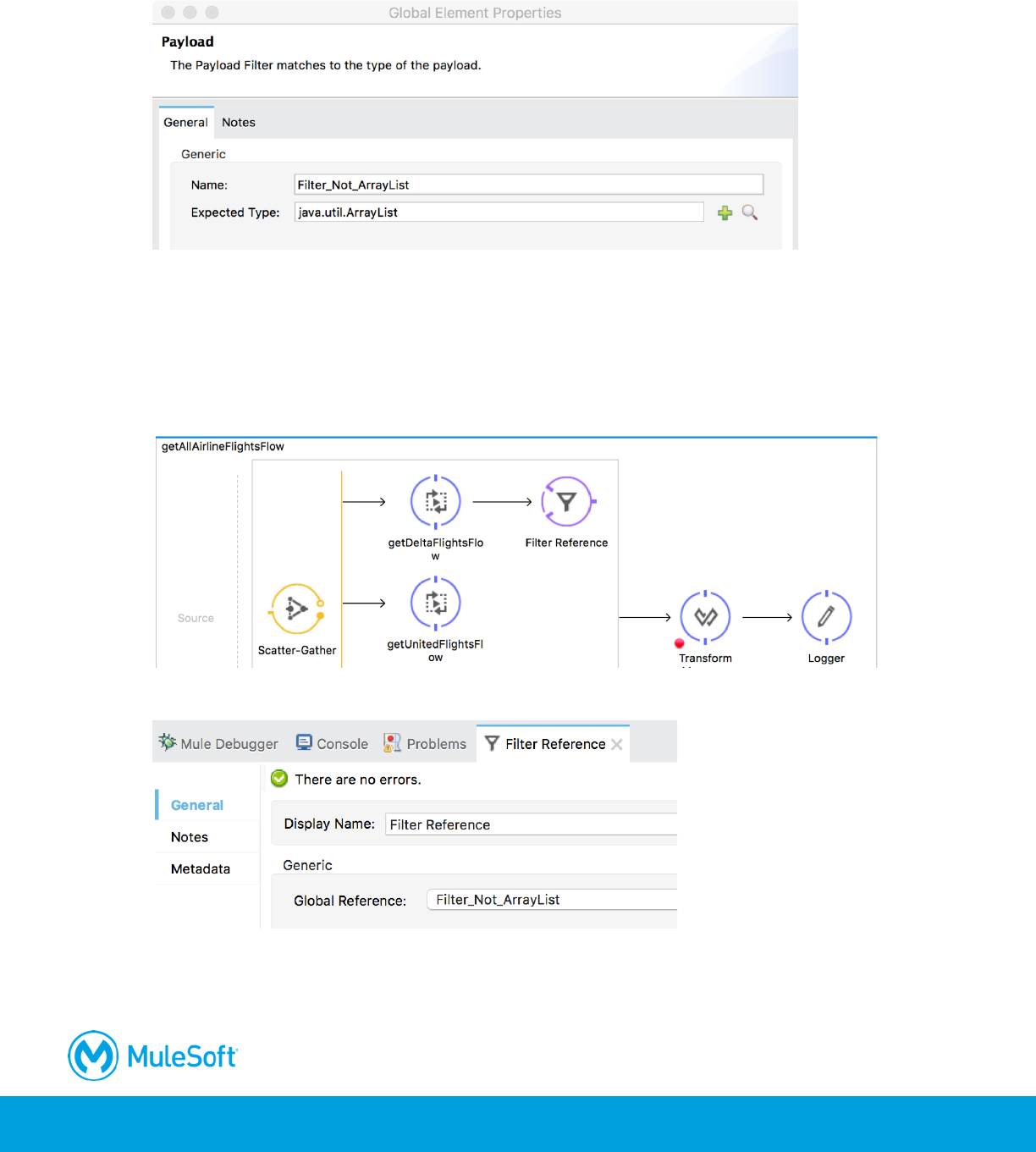
18. Switch to the Global Elements view and click Create.
19. In the Choose Global Type dialog box, select Filters > Payload and click OK.
328
20. In the Global Elements dialog box, set the name to Filter_Not_ArrayList.
21. Set the expected type to java.util.ArrayList and click OK.
Use the global filter
22. Return to getAllAirlineFlightsFlow in implementation.xml.
23. Drag a Filter Reference from the Mule Palette and drop it after getDeltaFlightsFlow in the
Scatter-Gather.
24. In the Filter Reference properties view, set the global reference to Filter_Not_ArrayList.
25. Add a Filter Reference after getUnitedFlightsFlow.
26. In the Filter Reference properties view, set the global reference to Filter_Not_ArrayList.
27. Add a Filter Reference after getAmericanFlightsFlow.
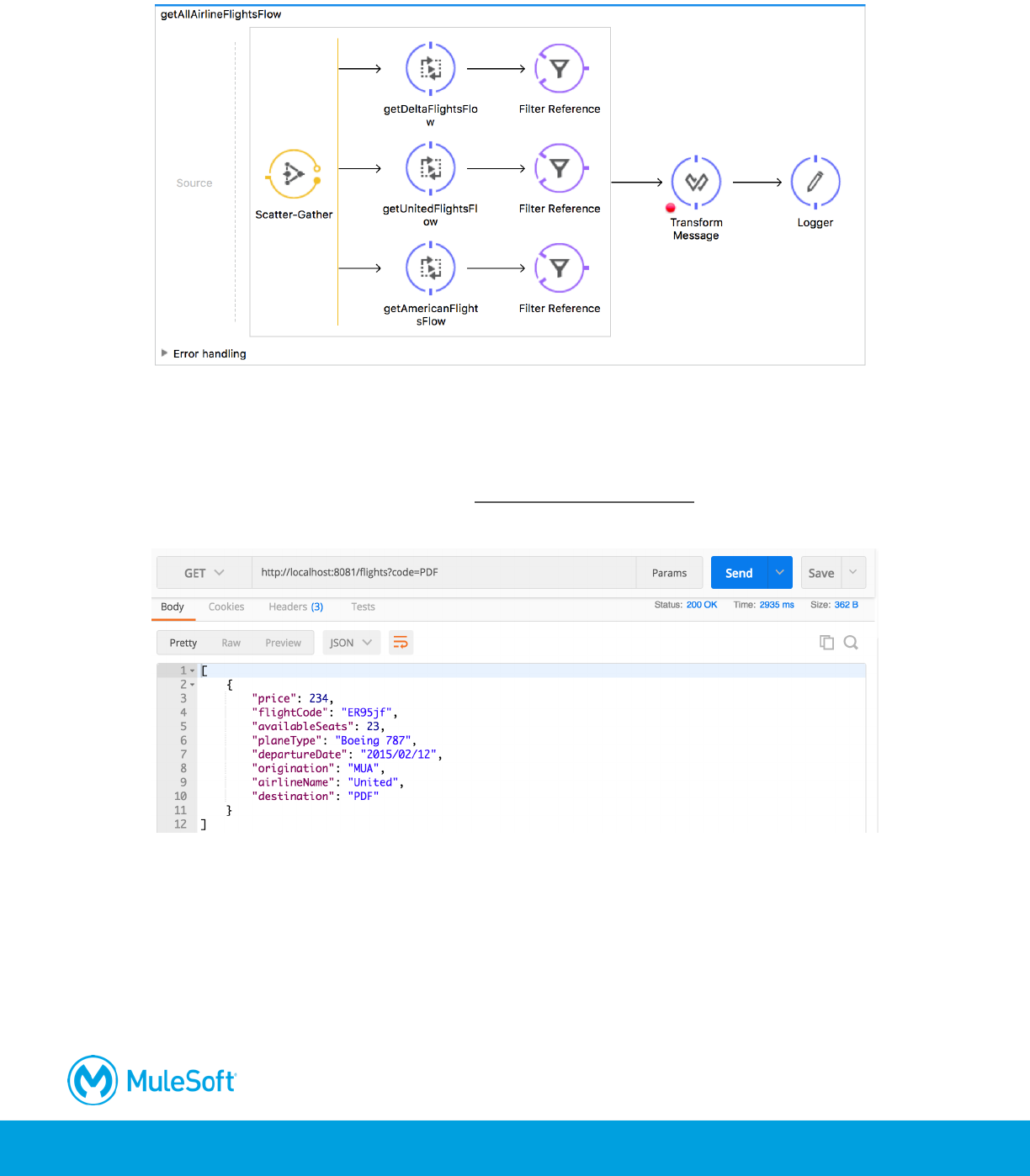
329
28. In the Filter Reference properties view, set the global reference to Filter_Not_ArrayList.
Test the application
29. Debug the project.
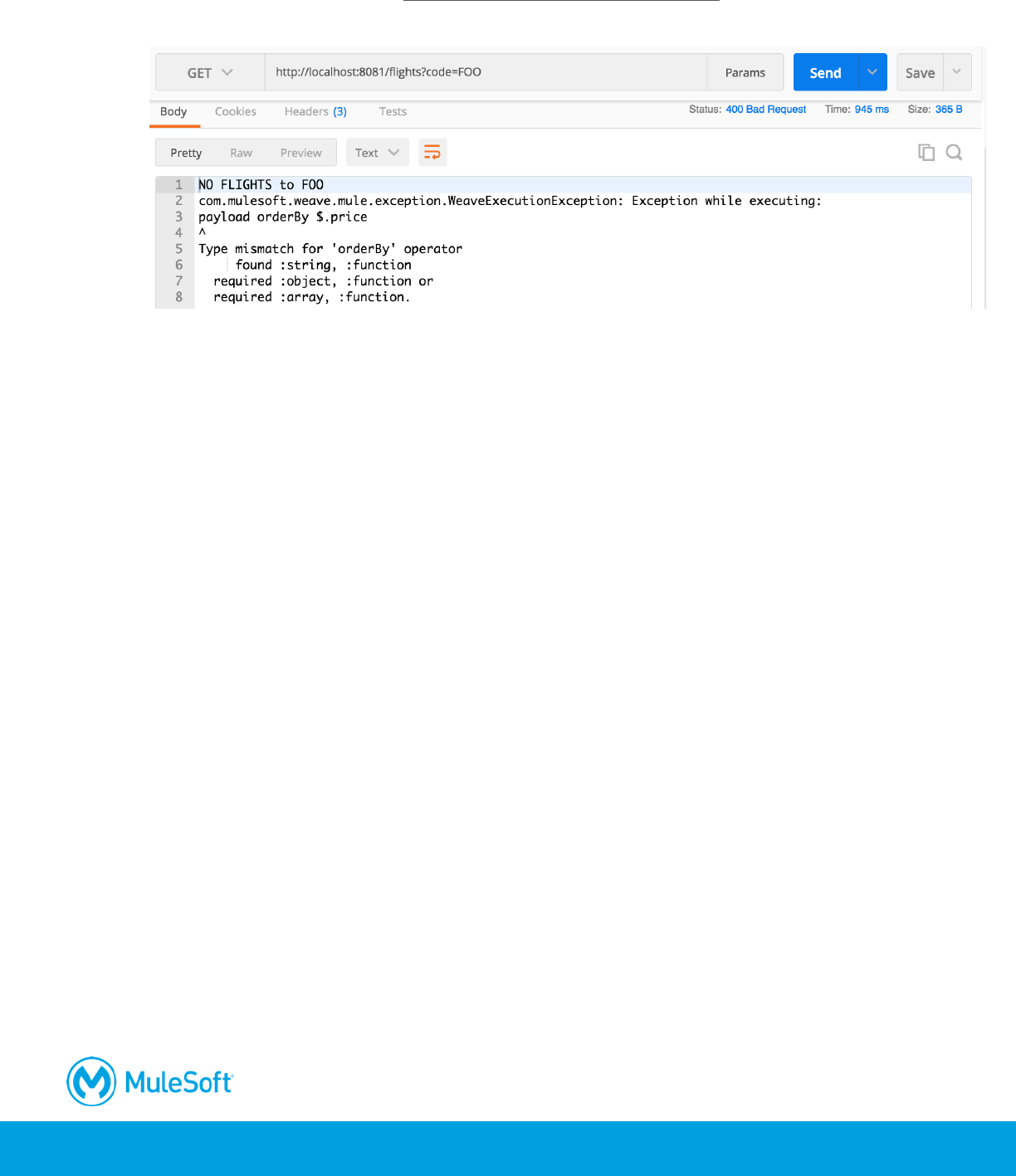
30. In Postman, make the same request to http://localhost:8081/flights?code=PDF; you should still
get the one United flight.
330
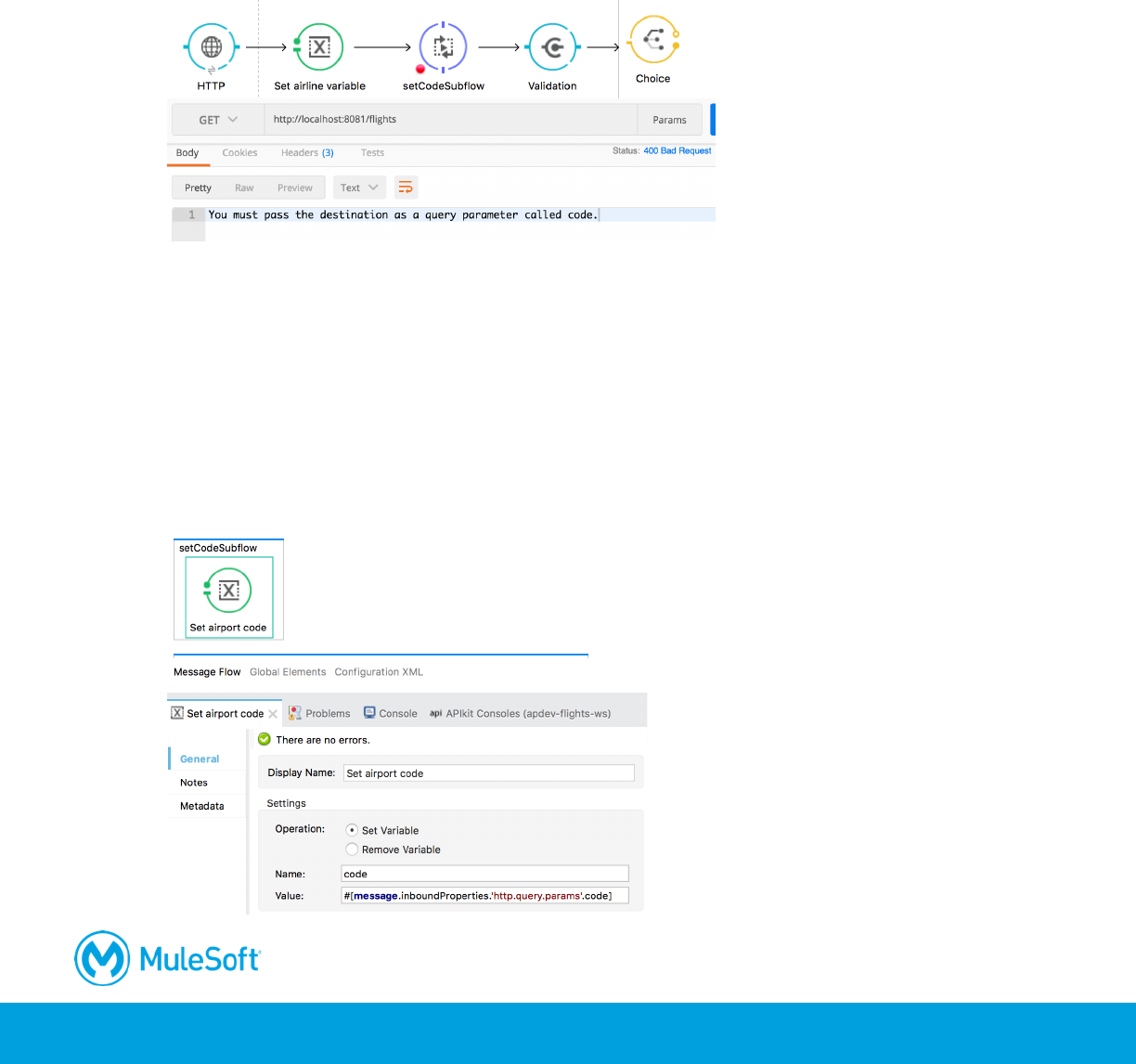
31. In Postman, make a request to http://localhost:8081/flights?code=FOO; you should correctly get
the message that there are no flights to FOO.
32. Return to Anypoint Studio and stop the project.
331
Walkthrough 10-4: Validate messages
In this walkthrough, you modify the application to require a destination code be sent to it as a query
parameter and then use a validator to make sure a value is sent and to throw an exception if it is not.
You will:
• Require a destination code to be passed to the application as a query parameter.
• Use the Validation component to throw an exception if the query parameter is not set.
• Catch the exception in the global exception strategy and return an appropriate message.
Require a destination code to be specified
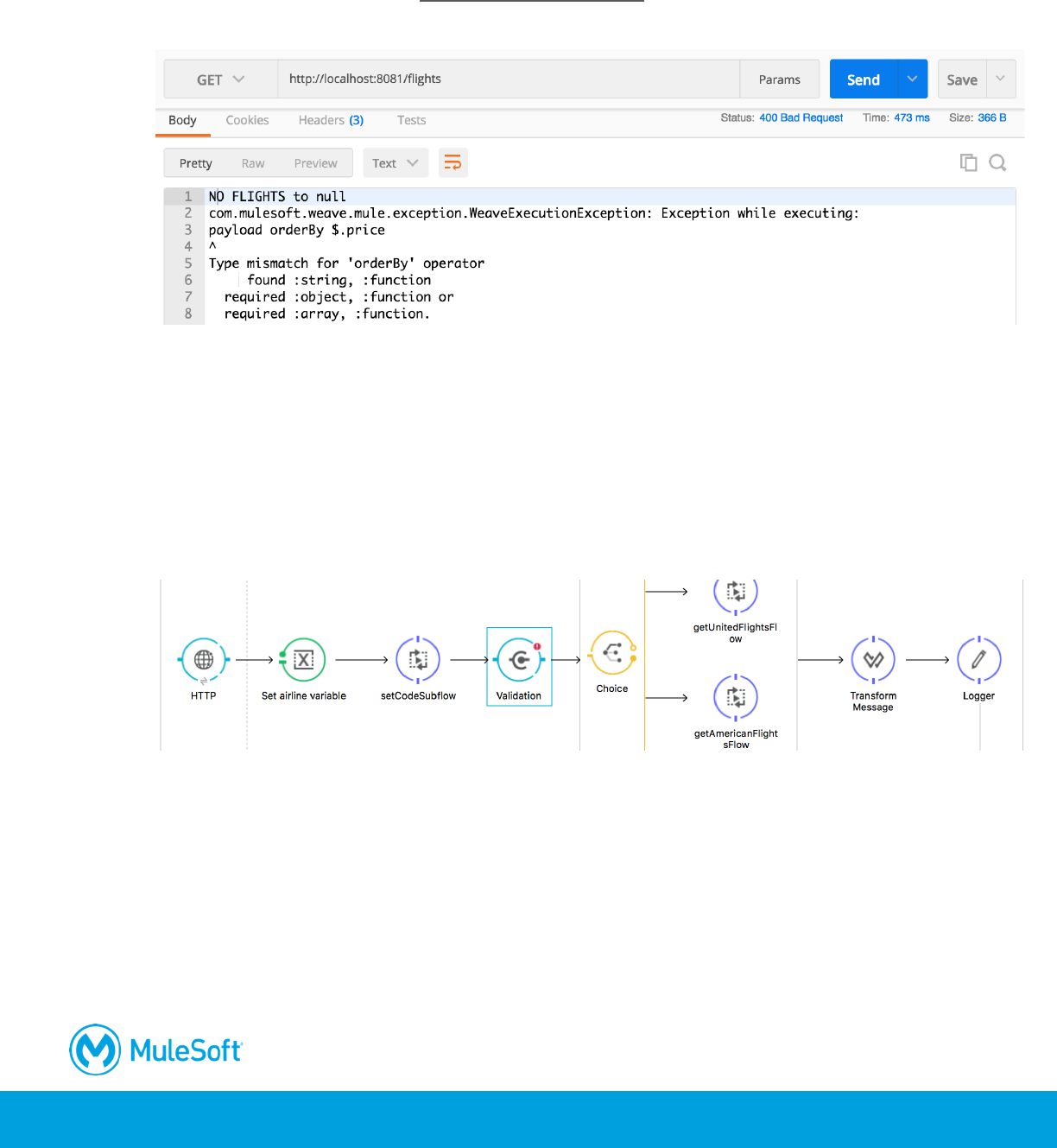
1. Return to getFlightsFlow and locate the setCodeSubflow flow reference.
2. Locate the setCodeSubflow subflow and review the value set for the code flow variable.
3. Delete the ternary expression and instead just set the flow variable to the value of the code
query parameter.
#[message.inboundProperties.'http.query.params'.code]
332
Test the application
4. Run the project.
5. In Postman, make a request to http://localhost:8081/flights; you should get an incorrect
message that there are no flights to null.
6. Return to Anypoint Studio and stop the project.
Add a validator
7. Return to getFlightsFlow.
8. Drag out a Validation component from the Mule Palette and drop it after the setCodeSubflow
flow reference.
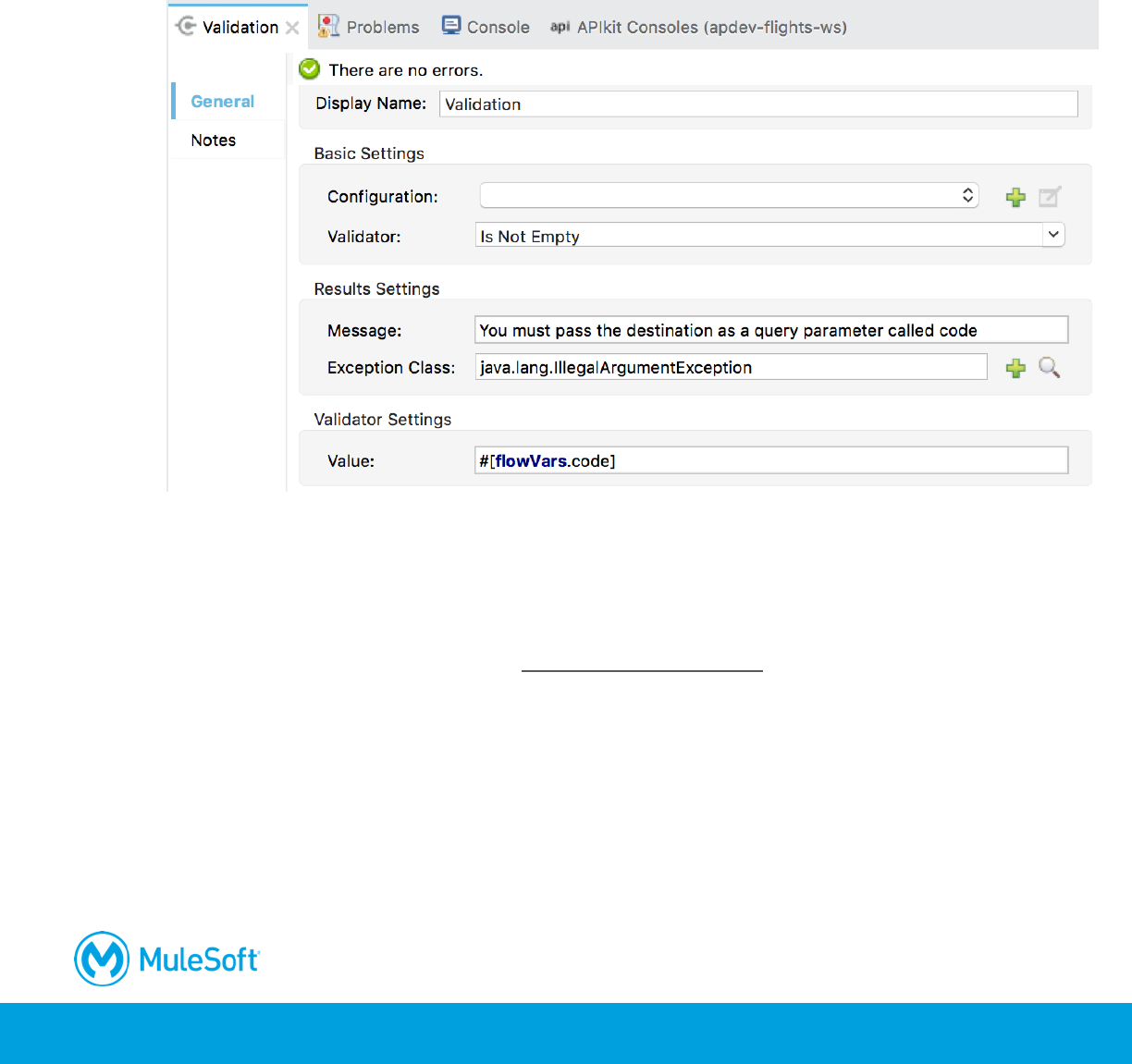
333
Configure the validator
9. In the Validation properties view, set the validator to Is Not Empty.
10. Set the value to #[flowVars.code].
11. Set the message to You must pass the destination as a query parameter called code.
12. Set the Exception class to java.lang.IllegalArgumentException.
Note: If you do not set an exception type, it will default to be of type
org.mule.extension.validation.api.ValidationException.
Test the application
13. Place a breakpoint on the setCodeSubflow flow reference.
14. Debug the project.
15. In Postman, make the same request to http://localhost:8081/flights.
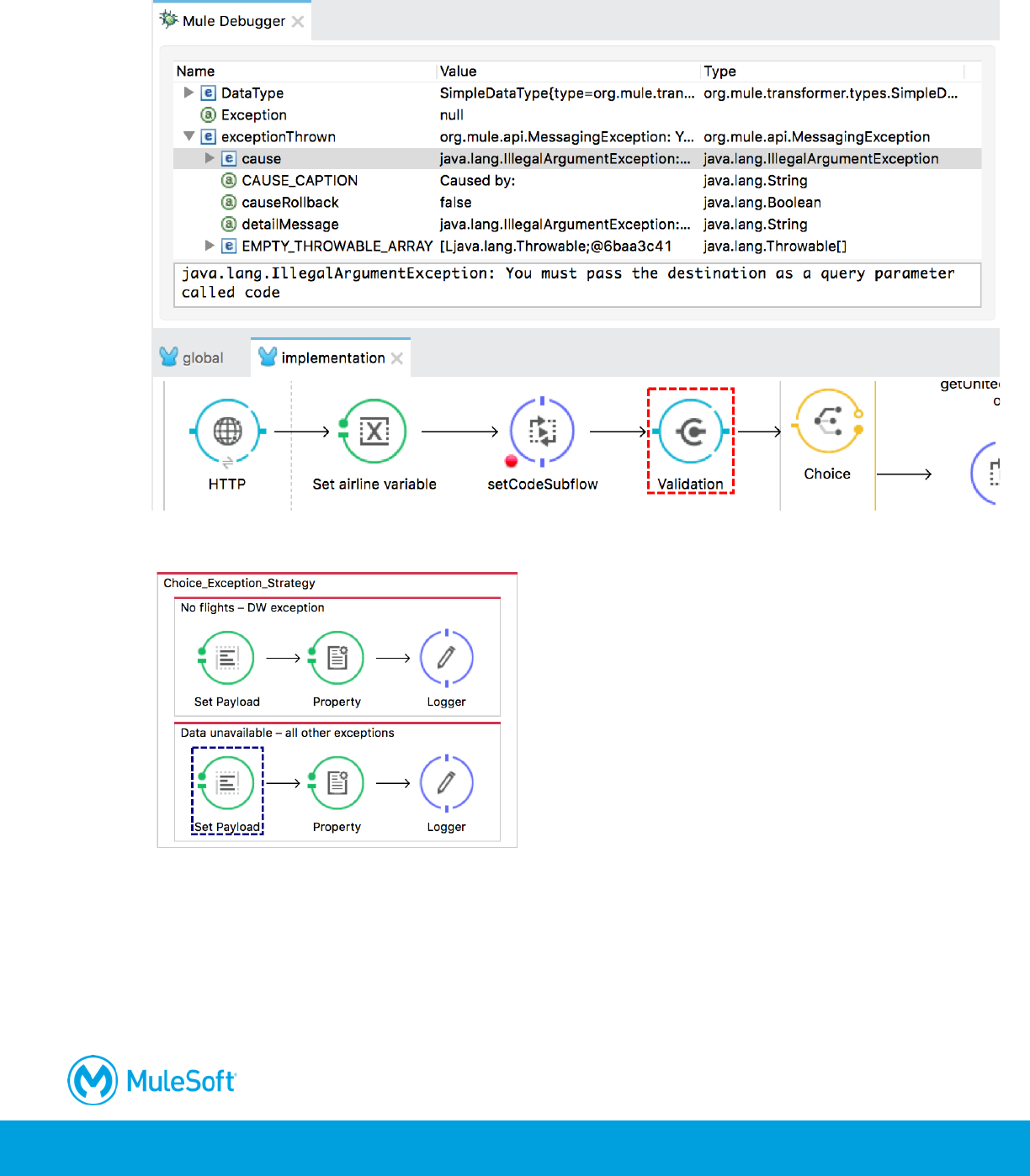
334
16. In the Mule Debugger, step to the Validation component and look at the exception it throws.
17. Step again; you should move into the Data unavailable catch exception strategy in global.xml.
18. Step to the end of the application.
Add a catch exception strategy
19. Return to global.xml.
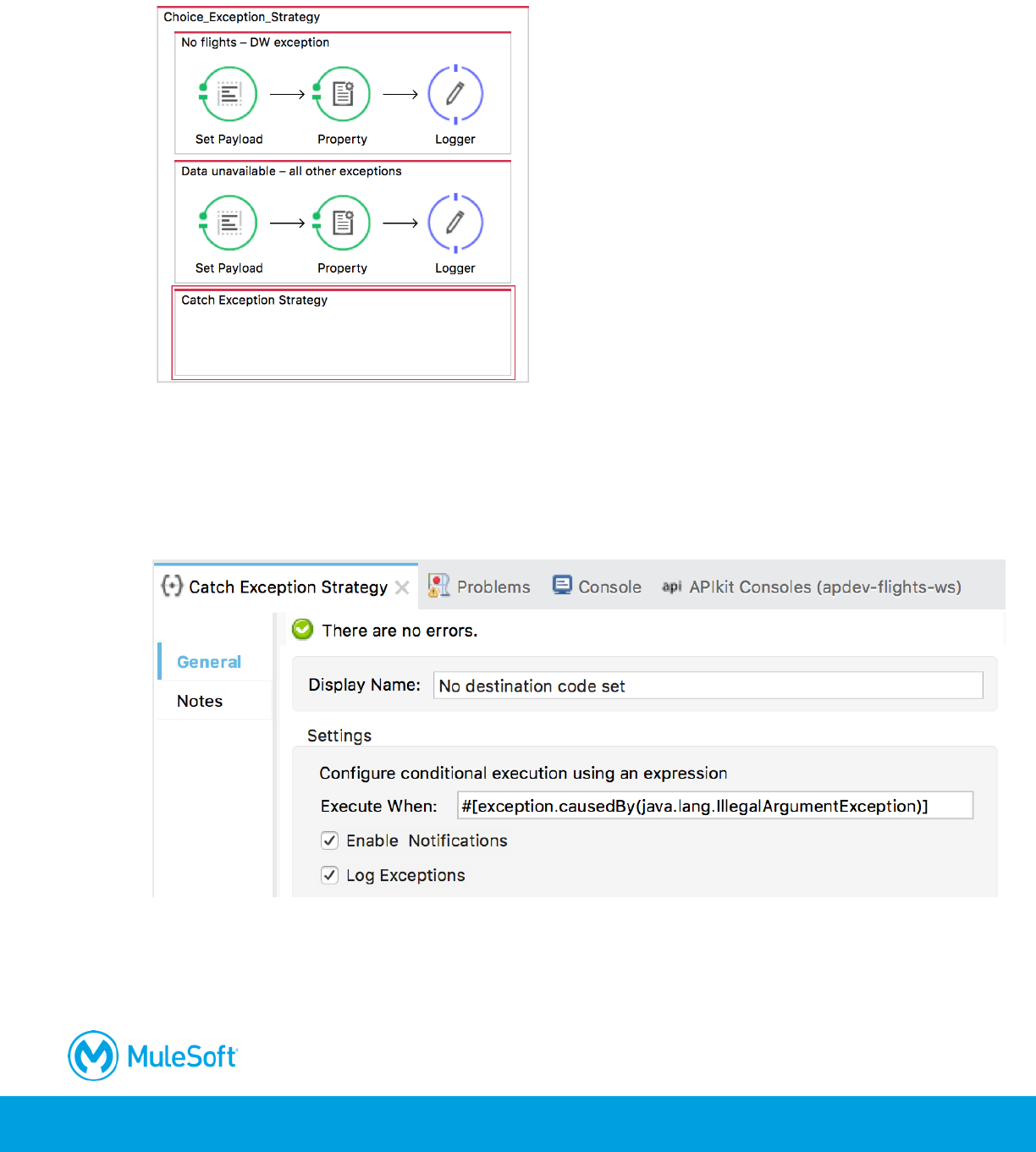
335
20. Drag a Catch Exception Strategy form the Mule Palette and drop it in the choice exception
strategy.
21. In the Properties view for this catch strategy, set the display name to No destination code set.
22. Specify to execute this catch strategy when the exception is of type
java.util.IllegalArgumentException.
#[exception.causedBy(java.lang.IllegalArgumentException)]
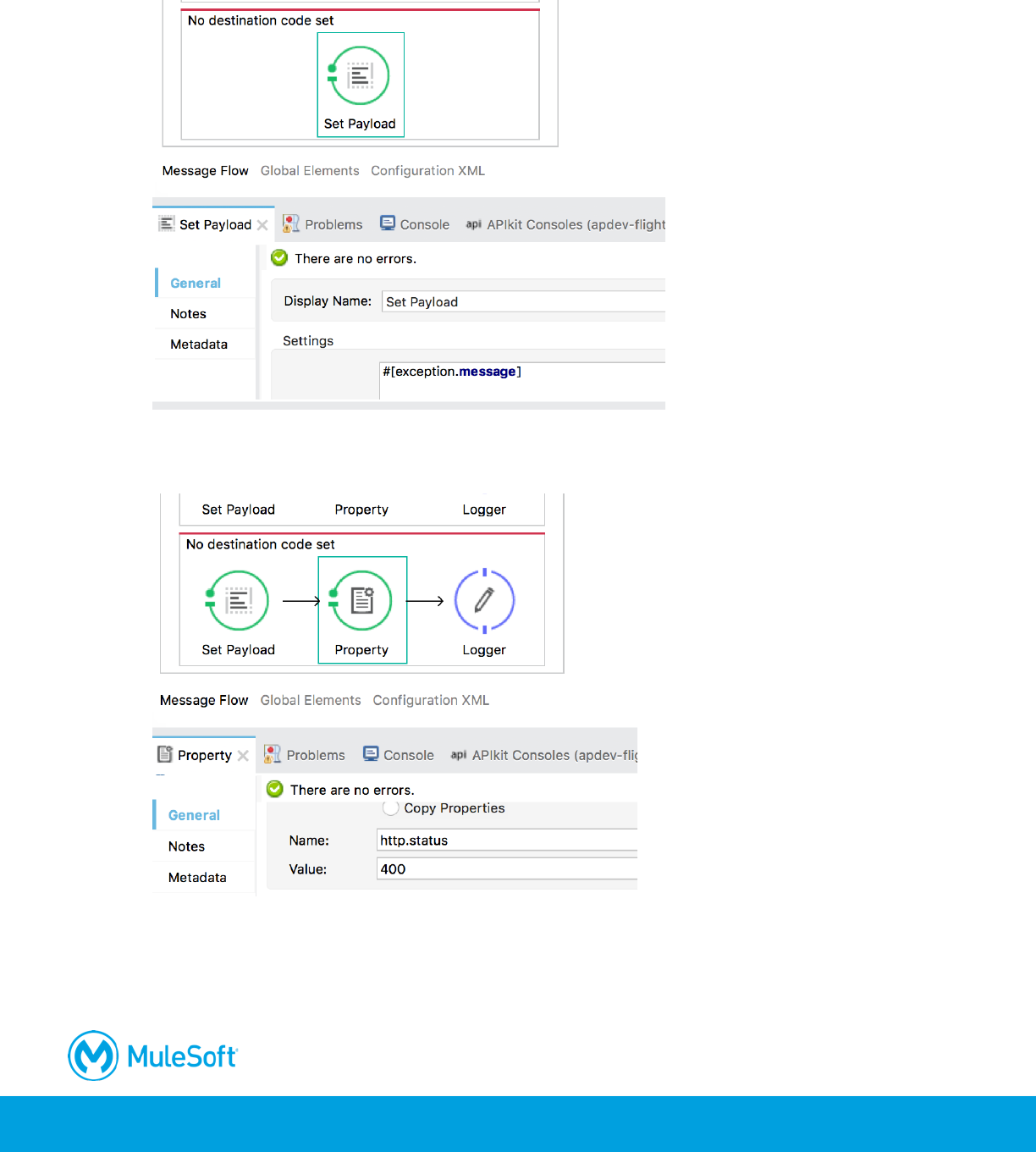
336
23. Add a Set Payload transformer to the catch strategy and set the value to the message property
of the exception.
24. Add a Property transformer and set a property with the name http.status and a value of 400.
25. Add a Logger component.
26. Switch to the Configuration XML view.
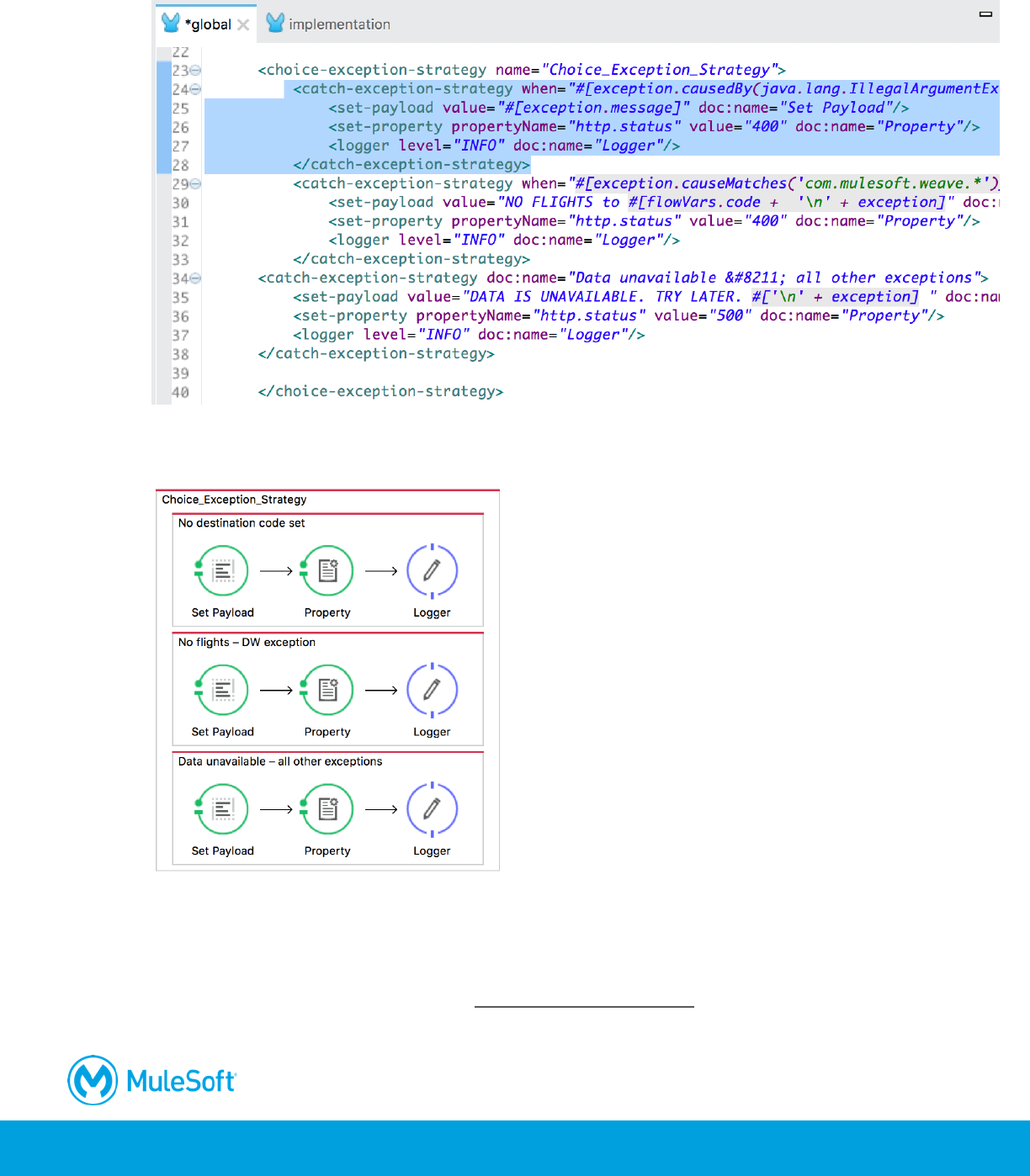
337
27. Move this catch exception strategy so it is the first strategy in the choice exception strategy.
28. Return to the Message Flow view; the default catch exception strategy should now be at the
bottom.
Test the application
29. Debug the project.
30. In Postman, make the same request to http://localhost:8081/flights.
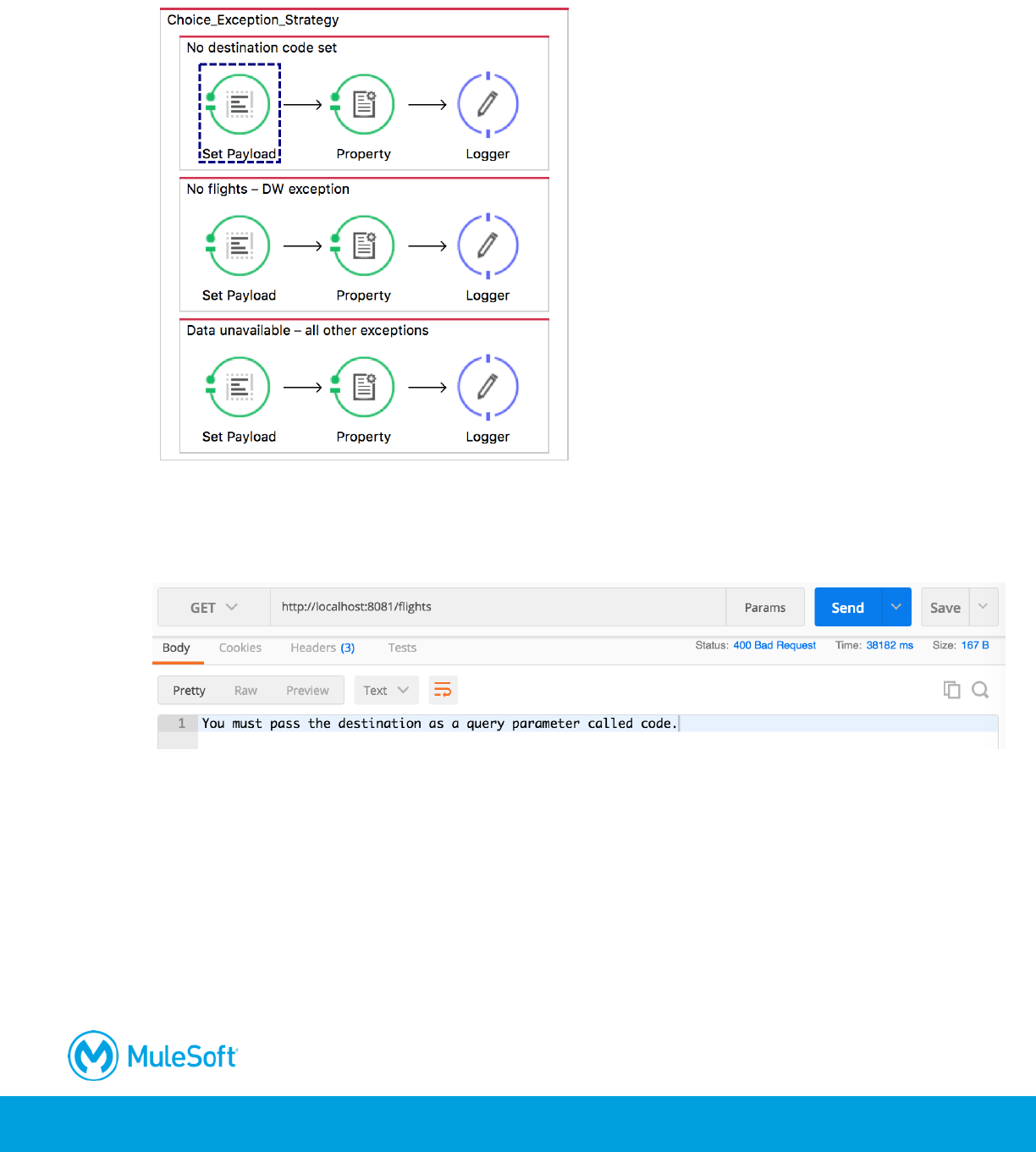
338
31. In the Mule Debugger, step past the Validation component into the exception strategy; this time,
you should move into the No destination code set strategy.
32. Step to the end of the application.
33. In Postman, you should see the You must pass the destination as a code query parameter
message.
34. Return to Anypoint Studio, stop the project, and switch perspectives.
35. Close the project.
