Manual
User Manual: Pdf
Open the PDF directly: View PDF  .
.
Page Count: 8

How to use Editor GUI Table
Using the [Table]
attribute
Draw all visible properties
Just use the [Table]
attribute on a collection.
using EditorGUITable;
public class TableAttributeExample : MonoBehaviour
{
[System.Serializable]
public class SimpleObject
{
public string stringProperty;
public float floatProperty;
public float intProperty;
}
[Table]
public List<SimpleObject> simpleObjects = new List<SimpleObject>()
{
new SimpleObject () { stringProperty = "string 1", floatProperty = 1f, intProperty = 1 },
new SimpleObject () { stringProperty = "string 2", floatProperty = 2f, intProperty = 2 },
new SimpleObject () { stringProperty = "string 3", floatProperty = 3f, intProperty = 3 }
};
}
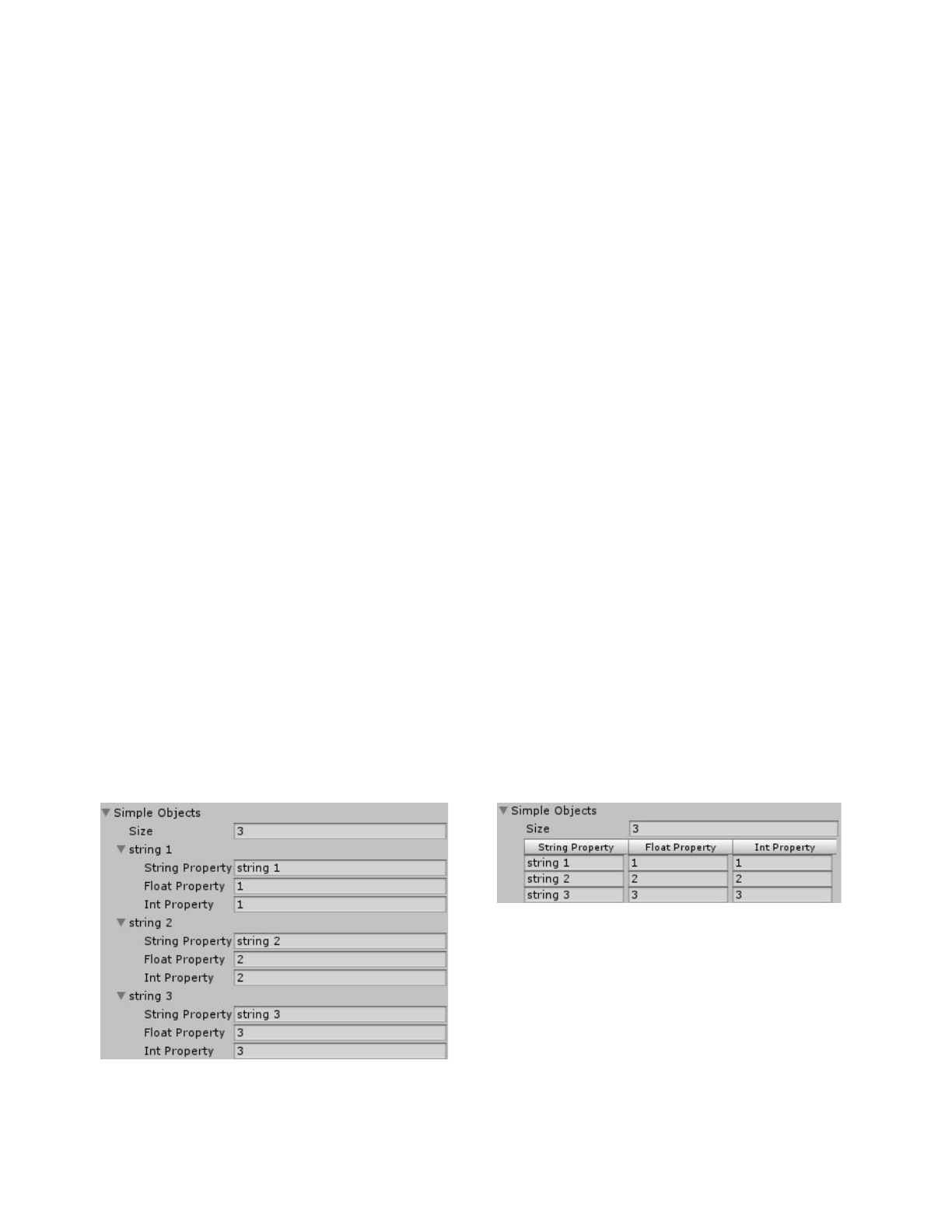
This will draw the collection in a table instead of the classic Unity display of collections.
Without [Table]
With [Table]
Note all columns can be resized and sorted
(assuming the values are sortable).
Draw selected properties
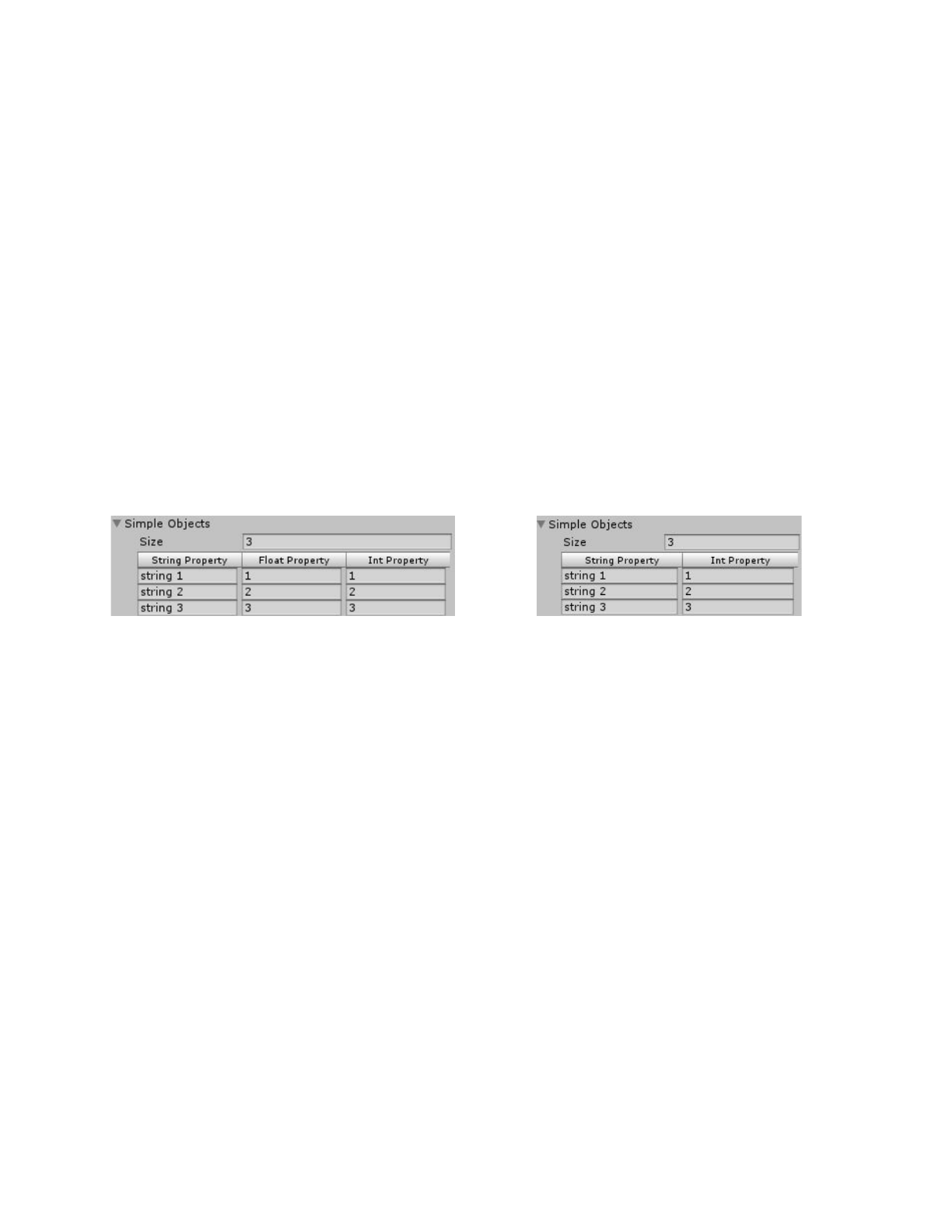
To display only some specific properties in the table, add parameters to the Table
attribute.
[Table ("stringProperty", "intProperty")]
public List<SimpleObject> simpleObjects = new List<SimpleObject>()
{
new SimpleObject () { stringProperty = "string 1", floatProperty = 1f, intProperty = 1 },
new SimpleObject () { stringProperty = "string 2", floatProperty = 2f, intProperty = 2 },
new SimpleObject () { stringProperty = "string 3", floatProperty = 3f, intProperty = 3 }
};
[Table]
[Table ("prop1", "prop2")]

Using in a custom editor / window
To display a table in a custom editor, call one of the DrawTable functions in GUITableLayout.
The table state
Note all the following functions use a GUITableState object as state parameter. This is the same
functioning as other Unity GUI functions, like GUILayout.BeginScrollView for example. The calling
code is responsible for holding this state object so the table can be edited by the user.
Here is the basic usage:
using EditorGUITable;
[CustomEditor(typeof(SimpleExample))]
public class SimpleExampleEditor : Editor
{
GUITableState tableState;
public override void OnInspectorGUI ()
{
tableState = GUITableLayout.DrawTable (
tableState,
serializedObject.FindProperty("simpleObjects"));
}
}
We might want the table state to be saved along sessions. To do this, we can build a table state with a
key parameter. This will result in the table state being saved in EditorPrefs using this key. So the table
will still look the same after reopening Unity.
Add:
void OnEnable ()
{
tableState = new GUITableState("tableState");
}
Note: Be careful not to use the same key for different tables. This will result in unexpected behaviour.

Simply draw the table for the collection
Similar to the [Table] attribute with no parameters, this will display all visible properties of the
collection elements in the table.
GUITableLayout.DrawTable (tableState, serializedObject.FindProperty("simpleObjects"));
Select the properties to draw
Similar to the [Table (properties
)] attribute, this will only display the chosen properties
in the table.
GUITableLayout.DrawTable (
tableState,
serializedObject.FindProperty("simpleObjects"),
new List<string>(){"floatProperty", "objectProperty"});
Customize the columns
Draw a table by defining the columns's settings and the path of the corresponding properties. This will
automatically create Property Entries using these paths. Various column options are available. They
are used in a similar way as GUILayoutOption.
List<PropertyColumn> propertyColumns = new List<PropertyColumn>()
{
new PropertyColumn("stringProperty", "My Column Title", TableColumn.Width(60f)),
new PropertyColumn("floatProperty", "My Float", TableColumn.Width(50f), TableColumn.Optional(true)),
new PropertyColumn("objectProperty", "My Object", TableColumn.Width(50f),TableColumn.Optional(true))
};
tableState = GUITableLayout.DrawTable (
tableState,
serializedObject.FindProperty("simpleObjects"),
propertyColumns);

Create table entries from a function
Draw a table from the columns' settings, the path for the corresponding properties and a selector
function that takes a SerializedProperty and returns the TableEntry to put in the corresponding cell.
List<SelectorColumn> selectorColumns = new List<SelectorColumn>()
{
new SelectorColumn(
prop => new LabelEntry(prop.stringValue),
"stringProperty",
"String",
TableColumn.Width(60f)),
new SelectorColumn(
prop => new LabelEntry(prop.floatValue.ToString()),
"floatProperty",
"Float",
TableColumn.Width(50f), TableColumn.Optional(true)),
new SelectorColumn(
prop => new LabelEntry(prop.objectReferenceValue.name),
"objectProperty",
"Object",
TableColumn.Width(110f), TableColumn.EnabledTitle(false)),
};
tableState = GUITableLayout.DrawTable (
tableState,
serializedObject.FindProperty("simpleObjects"),
selectorColumns);

Create each entries individually
Draw a table completely manually. Each entry has to be created and given as parameter in entries.
List<TableColumn> columns = new List<TableColumn>()
{
new TableColumn("String", 60f),
new TableColumn("Float", 50f),
new TableColumn("Object", 110f),
new TableColumn("", TableColumn.Width(100f), TableColumn.EnabledTitle(false)),
};
List<List<TableEntry>> rows = new List<List<TableEntry>>();
SimpleExample targetObject = (SimpleExample) serializedObject.targetObject;
for (int i = 0 ; i < targetObject.simpleObjects.Count ; i++)
{
SimpleExample.SimpleObject entry = targetObject.simpleObjects[i];
rows.Add (new List<TableEntry>()
{
new LabelEntry (entry.stringProperty),
new PropertyEntry (serializedObject, string.Format("simpleObjects.Array.data[{0}].floatProperty", i)),
new PropertyEntry (serializedObject, string.Format("simpleObjects.Array.data[{0}].objectProperty", i)),
new ActionEntry ("Reset", () => entry.Reset ()),
});
}
tableState = GUITableLayout.DrawTable (tableState, columns, rows);

The table entries
Various entry types are included in the package.
●PropertyEntry
: Displays the property using the very generic PropertyField function, which
displays a property in a shape appropriate the data it contains.
●ActionEntry
: Displays a button which, when clicked, will trigger the callback given as
parameter.
●LabelEntry
: Displays a string as a readonly label.
Create custom entry classes
In most case the included types will be enough, but in some cases we want to display something in a
very specific way. In this case we need to create a new class that inherits TableEntry.
The DrawEntryLayout
method needs to be overriden to draw the entry for the cell using GUILayout
functions. Use this to customize the table look however needed.
The DrawEntry
method needs should draw the entry using GUI functions only. This will be used when
using the Table Attribute, or when explicitly calling the GUITable functions (instead of
GUITableLayout).
CompareTo
and comparingValue
are used for sorting.
CompareTo
is used to sort 2 entries of this type.
ComparingValue
is used as a fallback for sorting any types of entries, even of different types, using a
string representing the data.
Documentation
Detailed documentation available here.
